
WEB DESIGN FOR FMS  FMS Web site Training using Content Management System (CMS) Ahsan Uddin Shan School of Film & Media Studies
Objectives Dosto, you will learn how to put Fireworks to work Optimization using Fireworks Introduction to CMS Demonstration and Hands-on CMS  Creating, updating and editing Staff Directory Bonding  
Click on the ZIP icon to download the supporting files. Create a new directory on your hard drive and label the folder Optimization. Unzip the supporting files into your new folder. Create a folder inside the new directory and label it Assets.
Understanding Fireworks Fireworks is a graphics program for the Web What can you do in Fireworks? Fireworks files are called documents Fireworks files are saved as PNG files Portable Network Graphics have .png extension
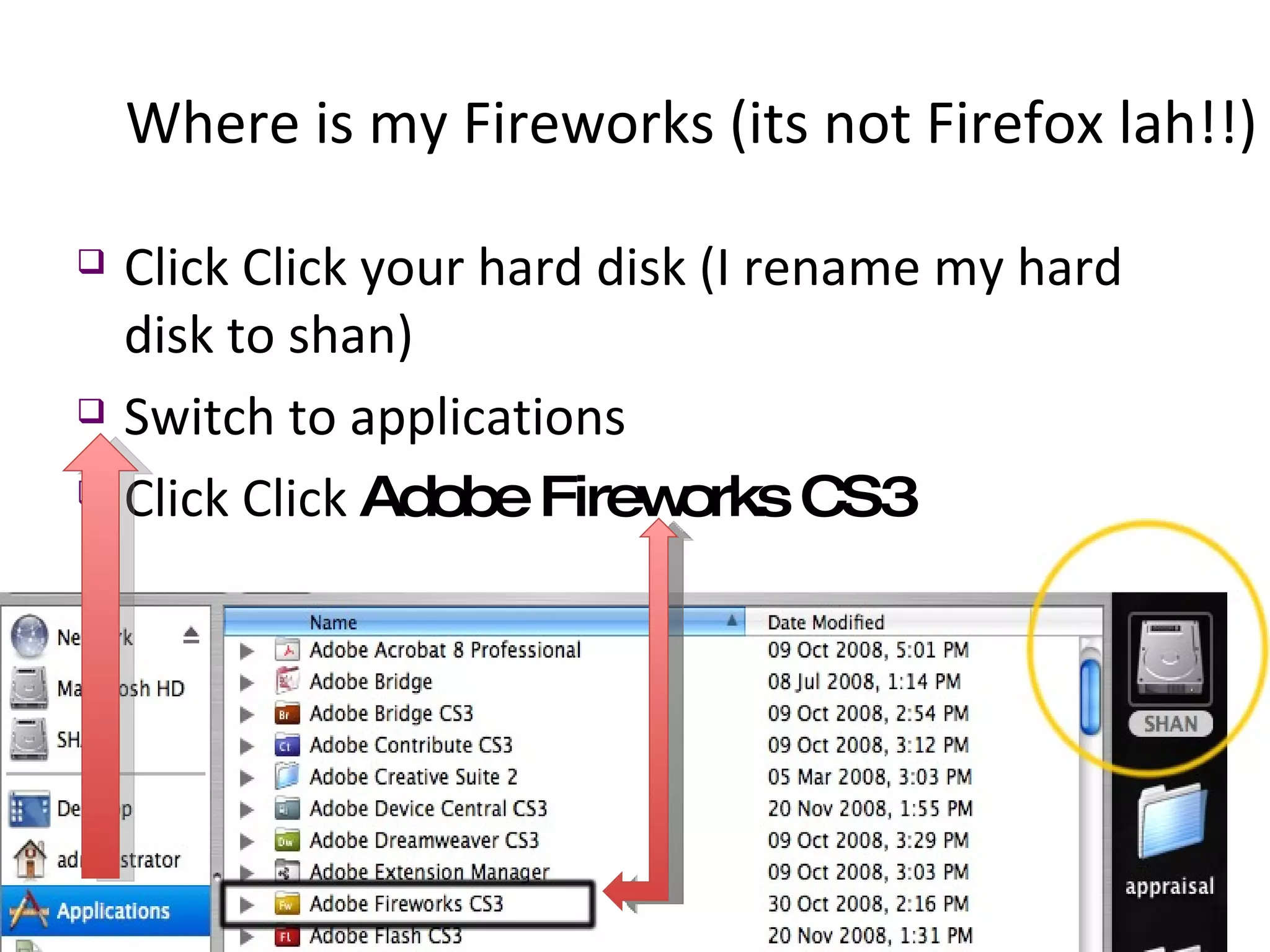
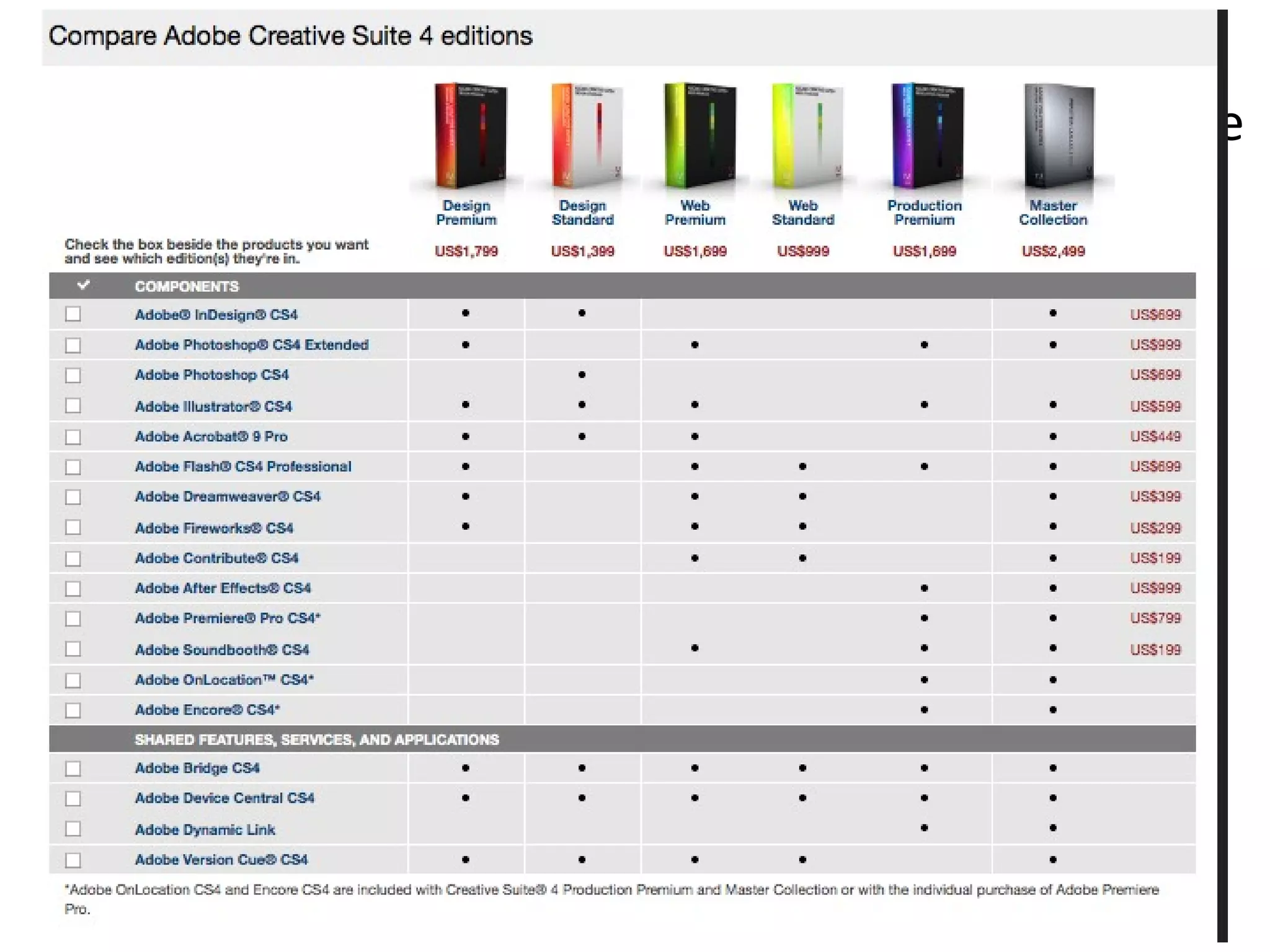
Where is my Fireworks (its not Firefox lah!!) Click Click your hard disk (I rename my hard disk to shan) Switch to applications Click Click  Adobe Fireworks CS3
Adobe Creative Suite  http://www.adobe.com/products/
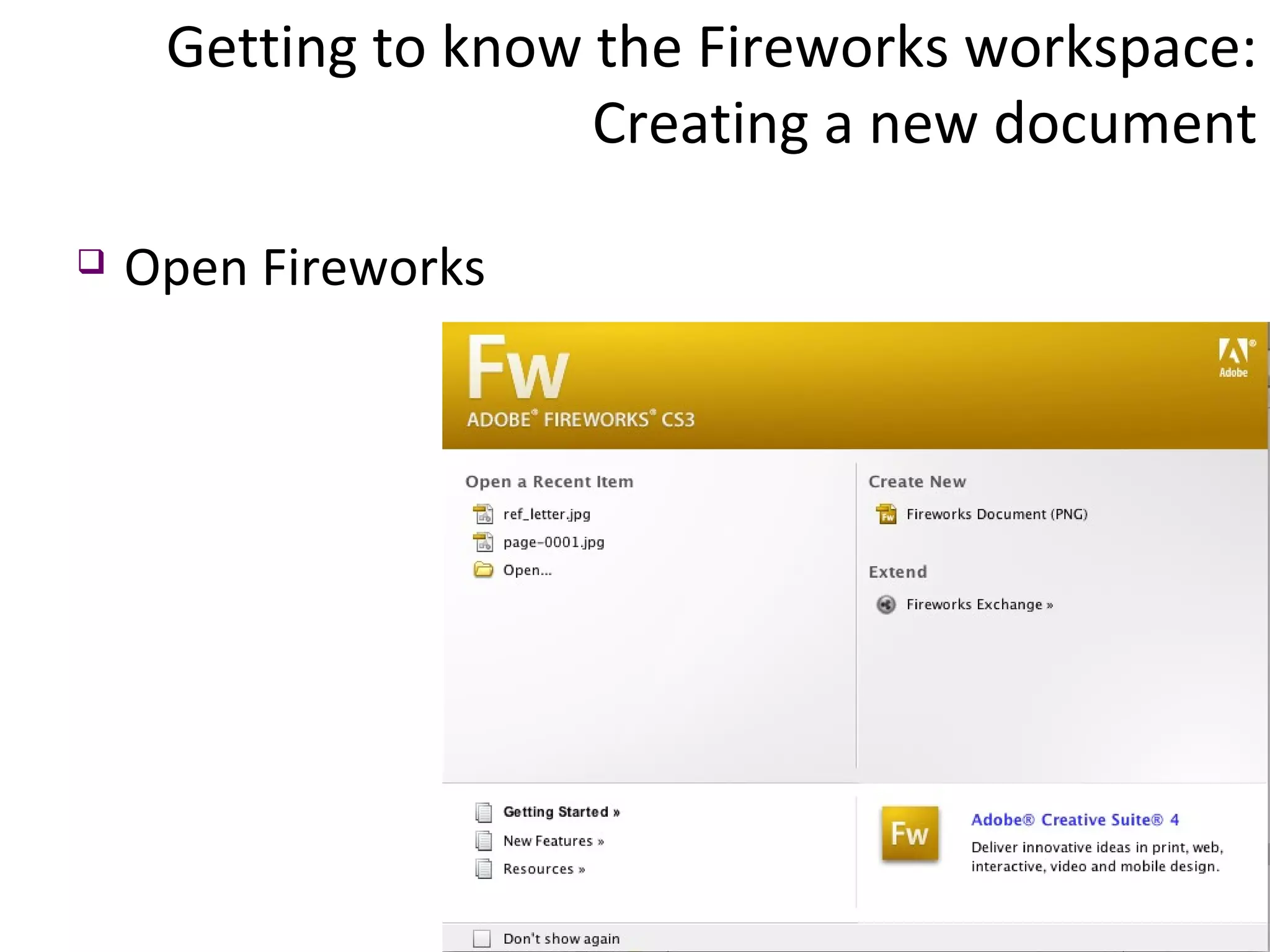
Getting to know the Fireworks workspace: Creating a new document Open Fireworks
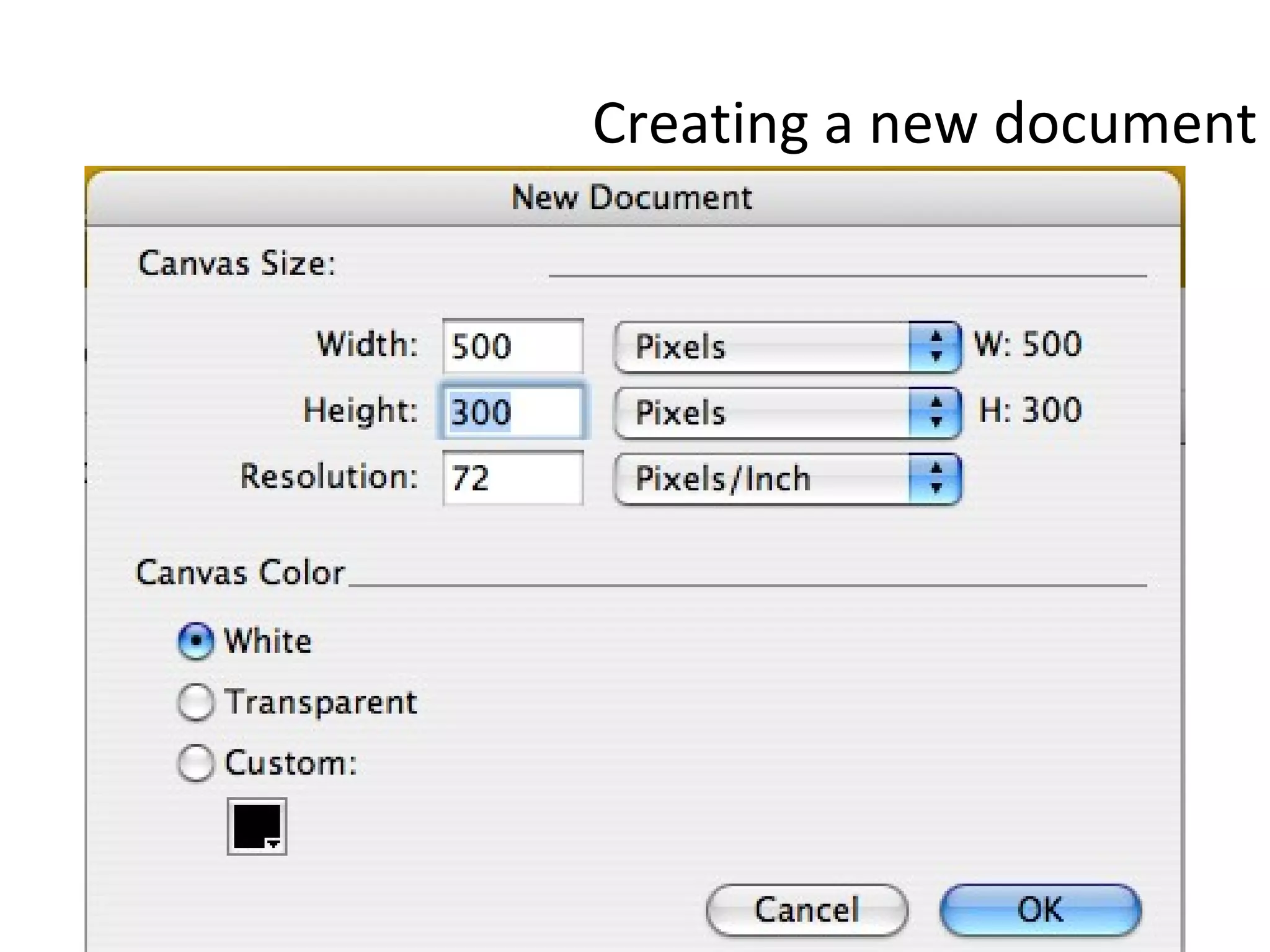
Creating a new document
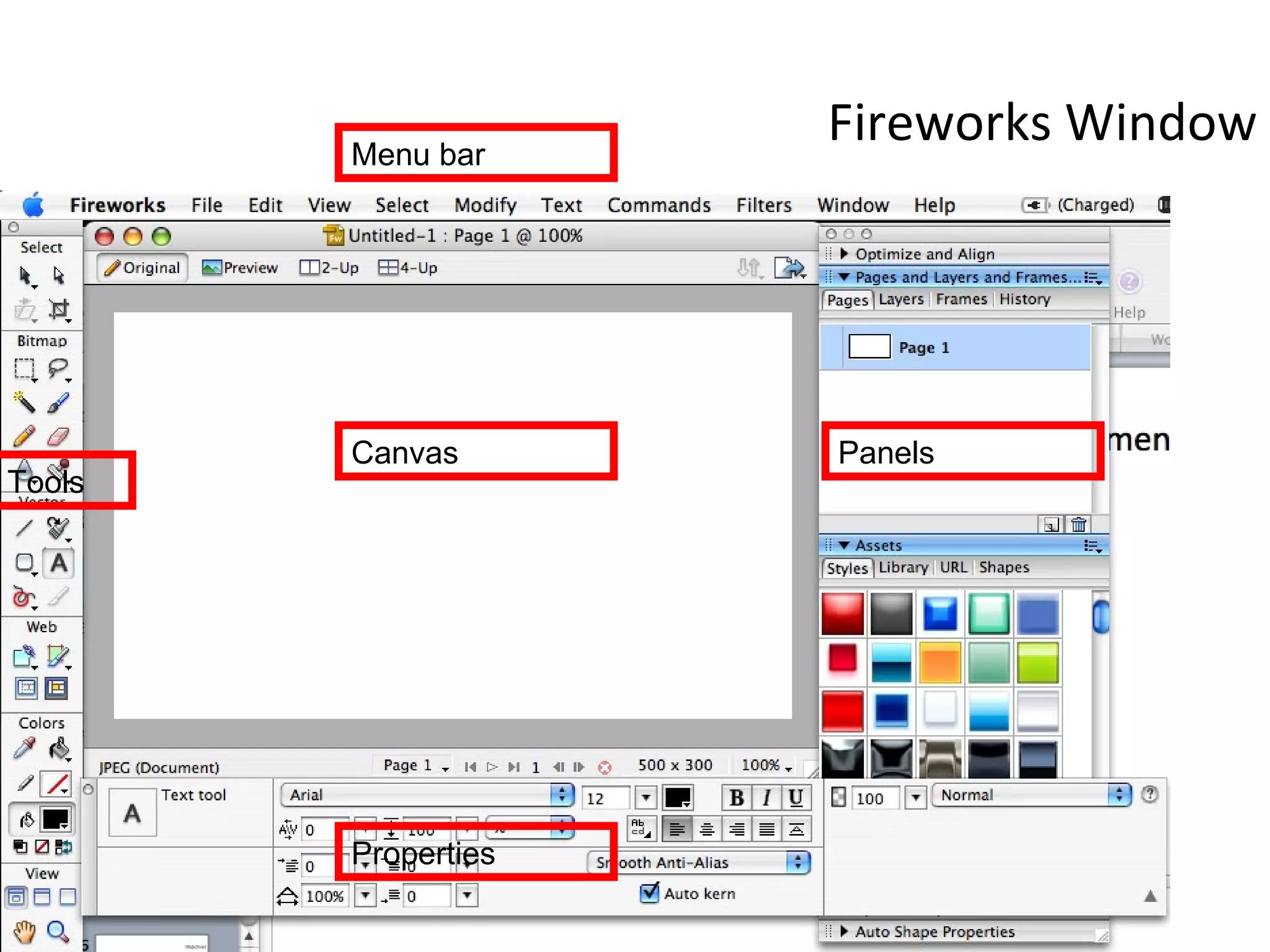
Fireworks Window Canvas Tools Menu bar Panels Properties
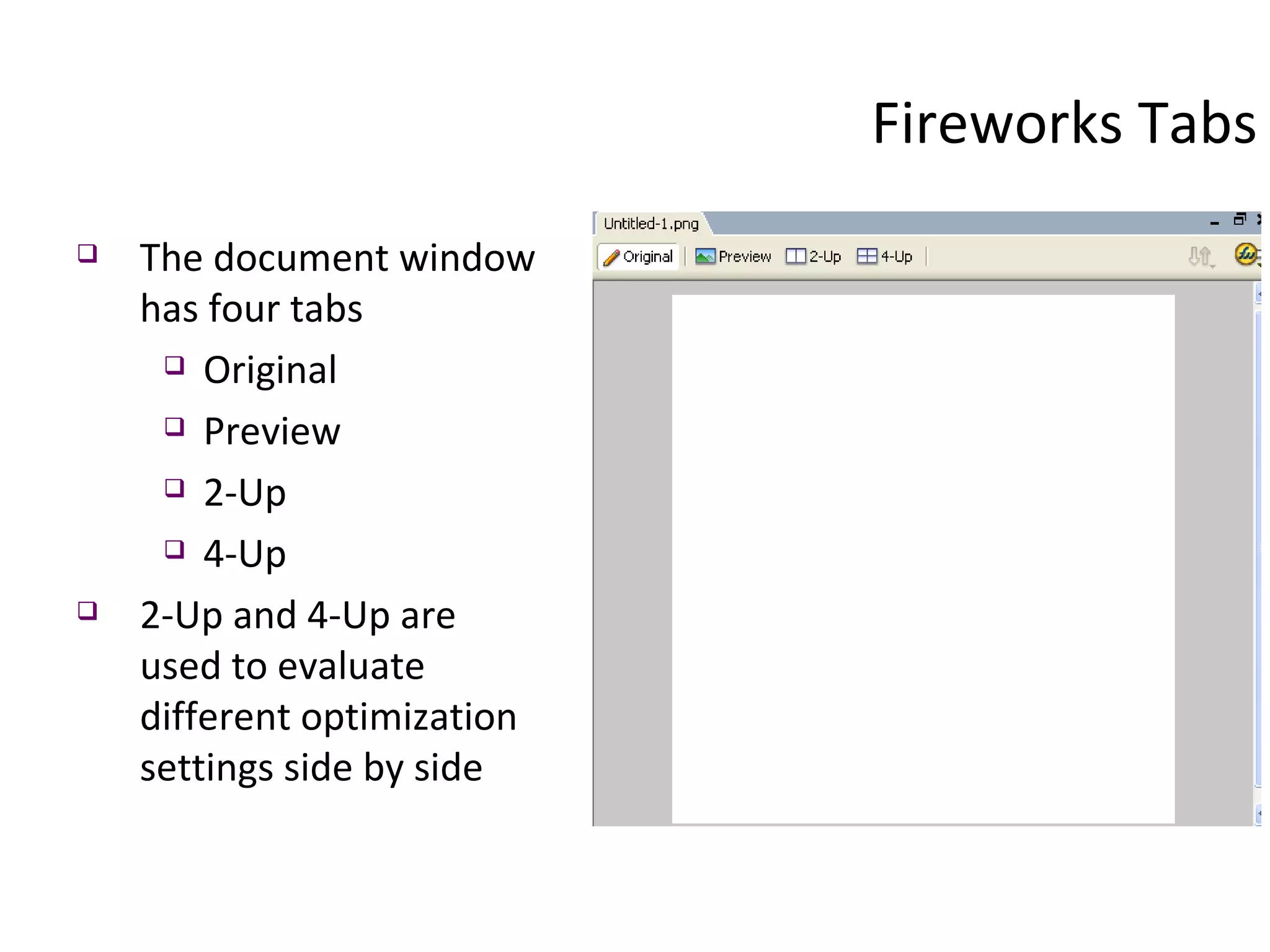
Fireworks Tabs The document window has four tabs Original Preview 2-Up 4-Up 2-Up and 4-Up are used to evaluate different optimization settings side by side
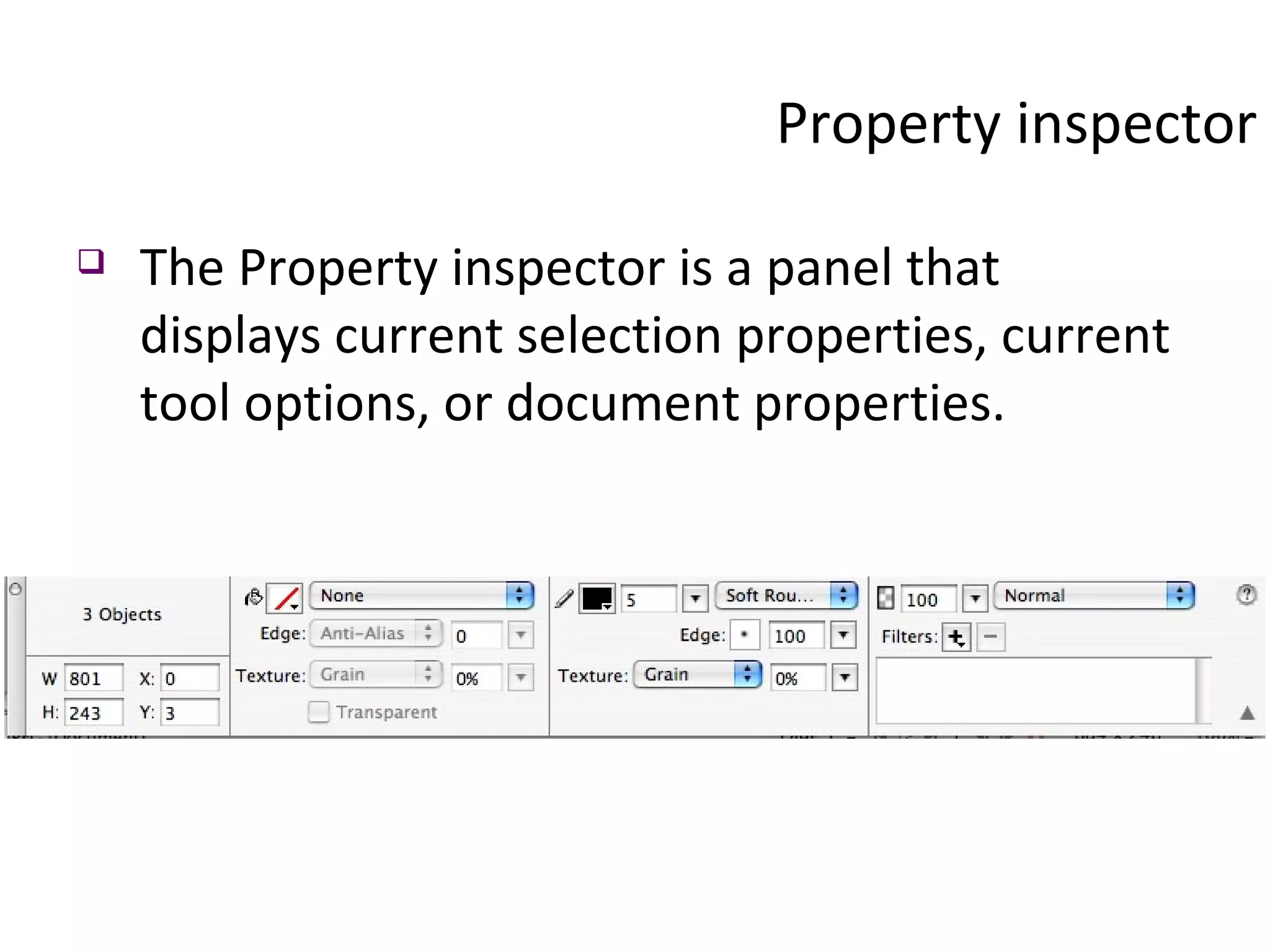
Property inspector The Property inspector is a panel that displays current selection properties, current tool options, or document properties.
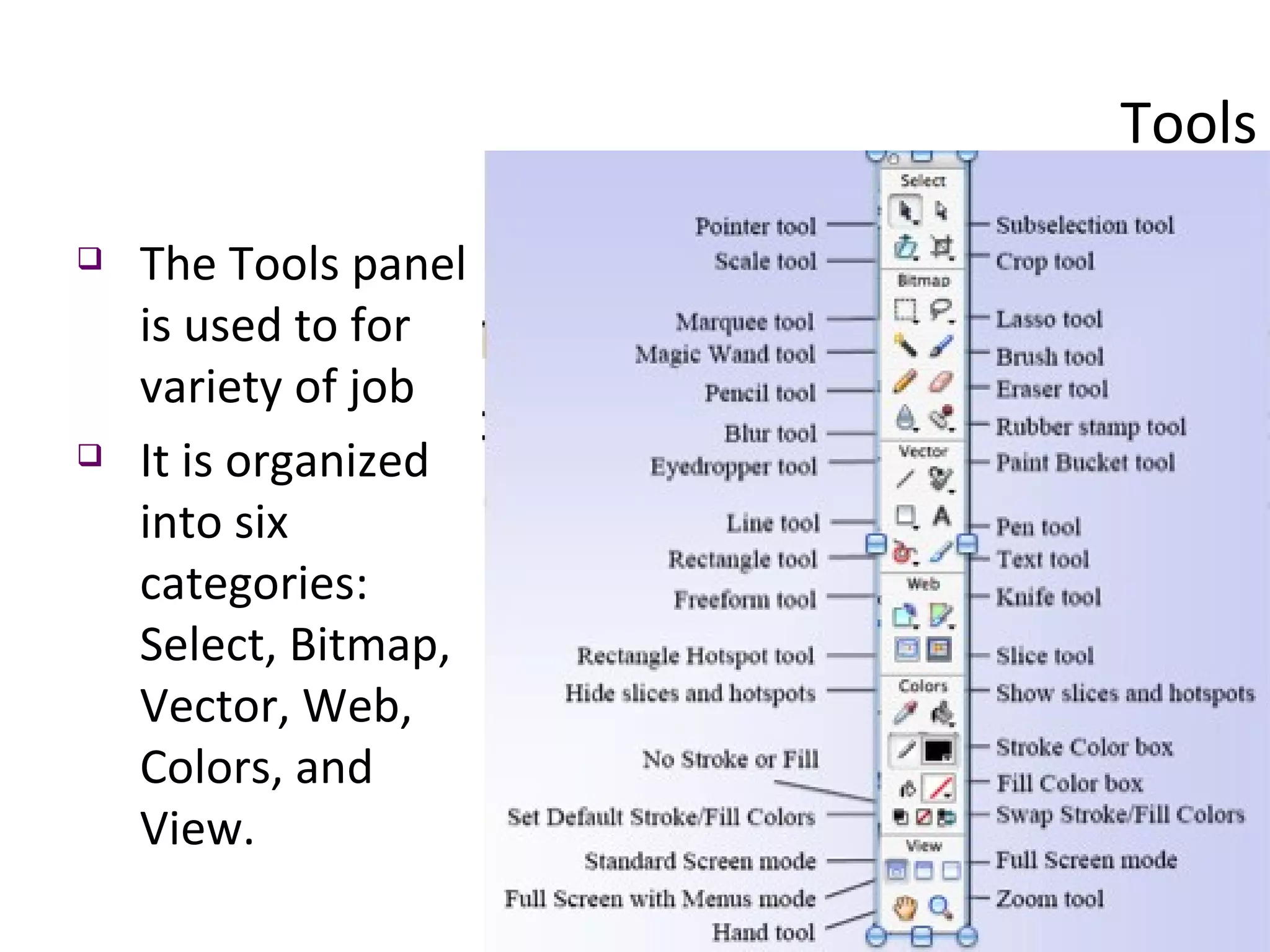
Tools The Tools panel is used to for variety of job It is organized into six categories: Select, Bitmap, Vector, Web, Colors, and View.
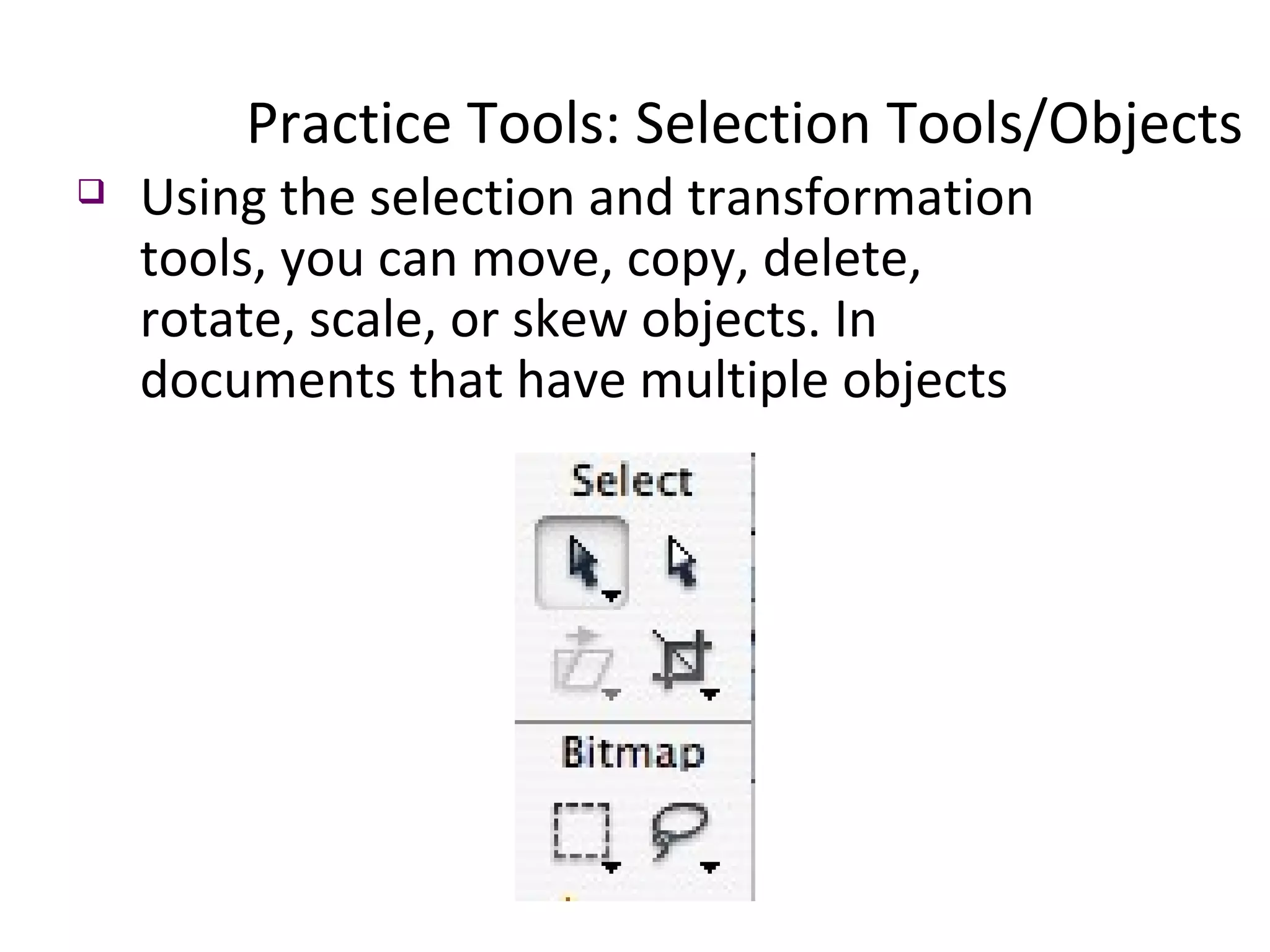
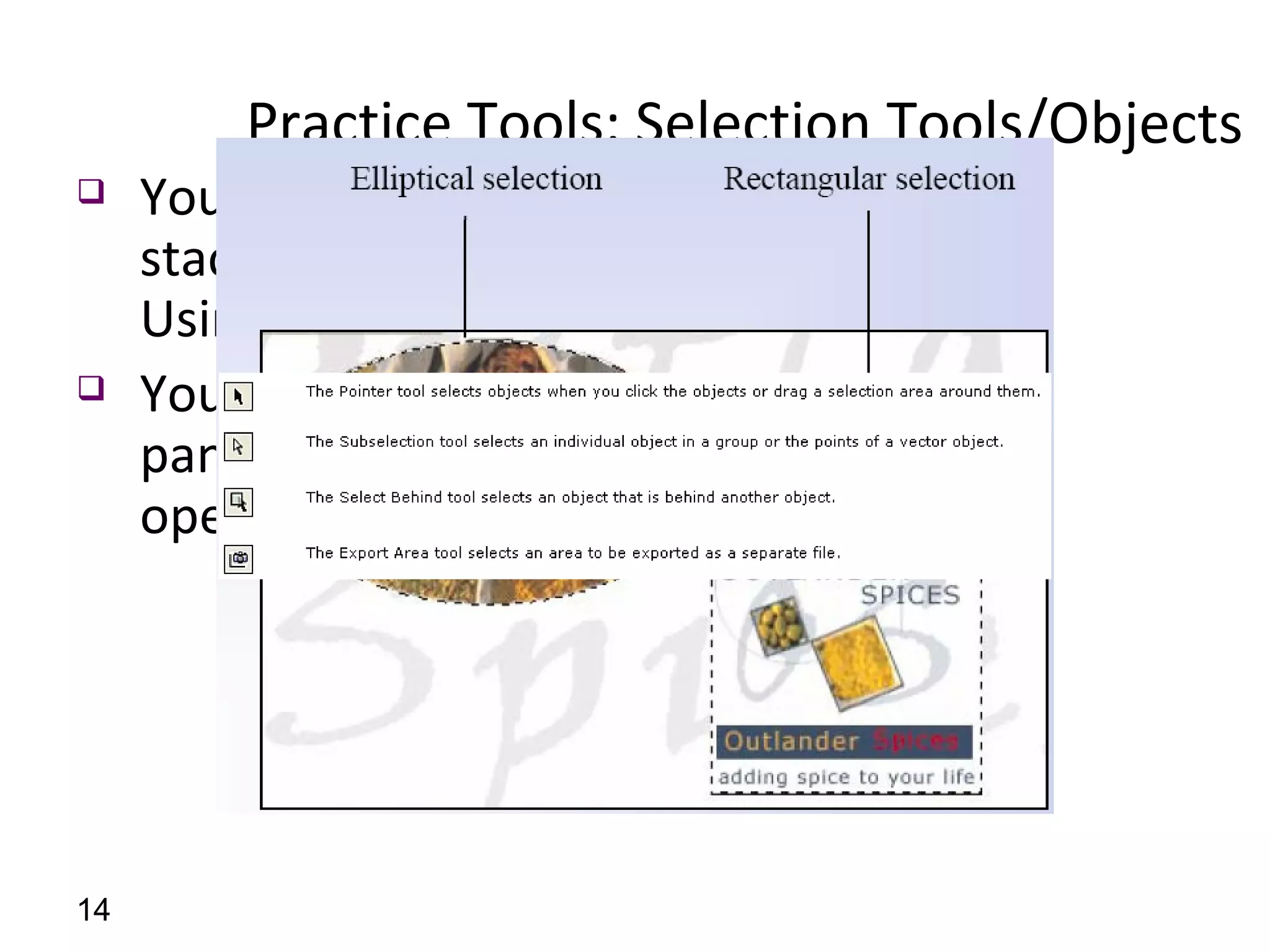
Practice Tools: Selection Tools/Objects  Using the selection and transformation tools, you can move, copy, delete, rotate, scale, or skew objects. In documents that have multiple objects
Practice Tools: Selection Tools/Objects  You can organize the objects by stacking, grouping, and aligning them. Using Marquee tools You can click an object in the Layers panel to it select when the panel is open and layers are expanded.
Practice Tools: Selecting pixels  You can edit pixels over an entire canvas or choose one of the selection tools to constrain your editing to a particular area of an image:  The Marquee tool selects a rectangular area of pixels in an image. The Oval Marquee tool selects an elliptical area of pixels in an image.
Practice Tools: Selecting pixels  The Lasso tool selects a freeform area of pixels in an image. The Polygon Lasso tool selects a straight-edged freeform area of pixels in an image. The Magic Wand tool selects an area of similarly colored pixels in an image.
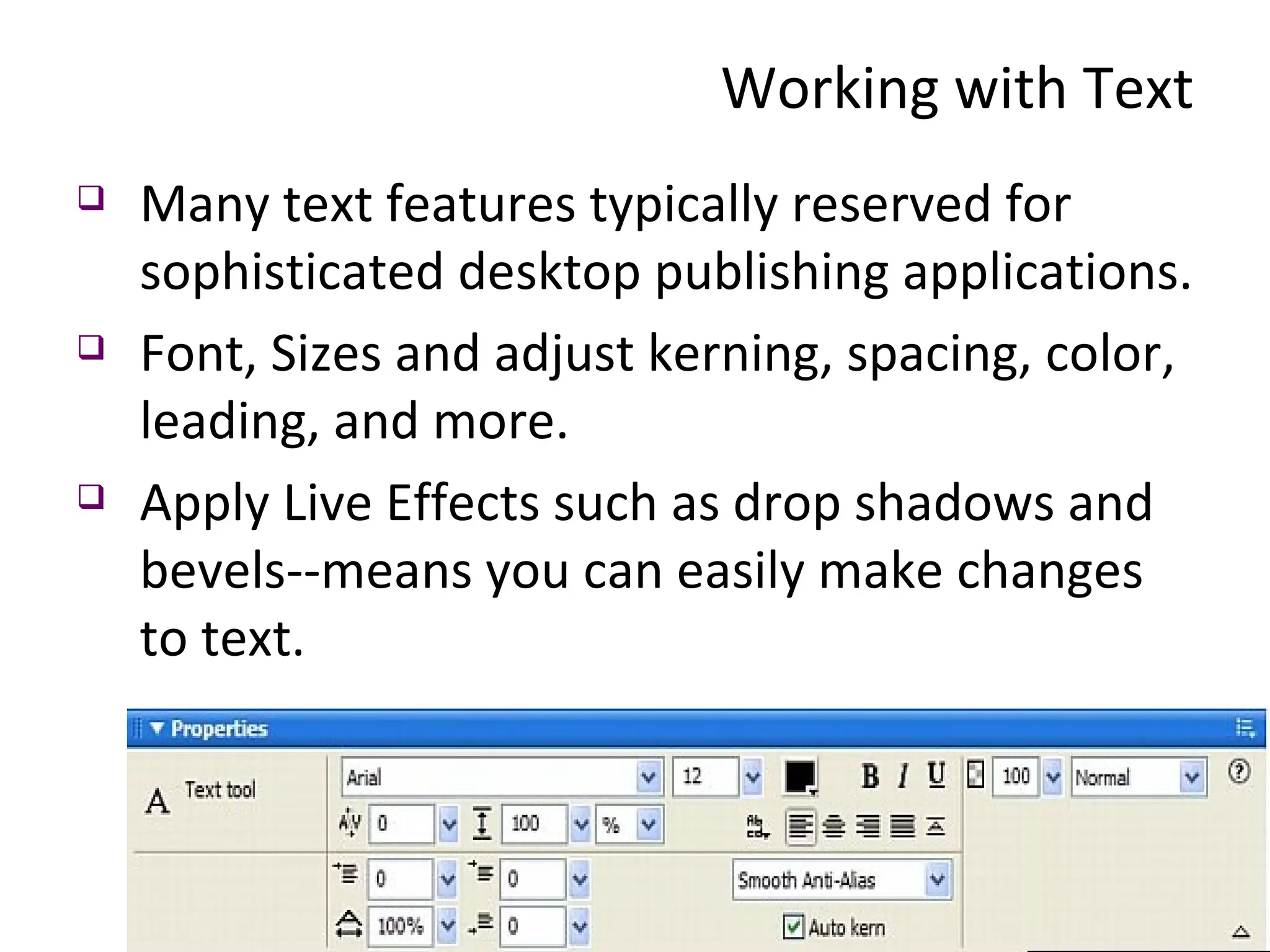
Working with Text Text can be created and modified in Fireworks Text properties include font, size, color,style, kerning, leading, alignment, text flow, offset, and anti-aliasing
Working with Text Many text features typically reserved for sophisticated desktop publishing applications. Font, Sizes and adjust kerning, spacing, color, leading, and more.  Apply Live Effects such as drop shadows and bevels--means you can easily make changes to text.
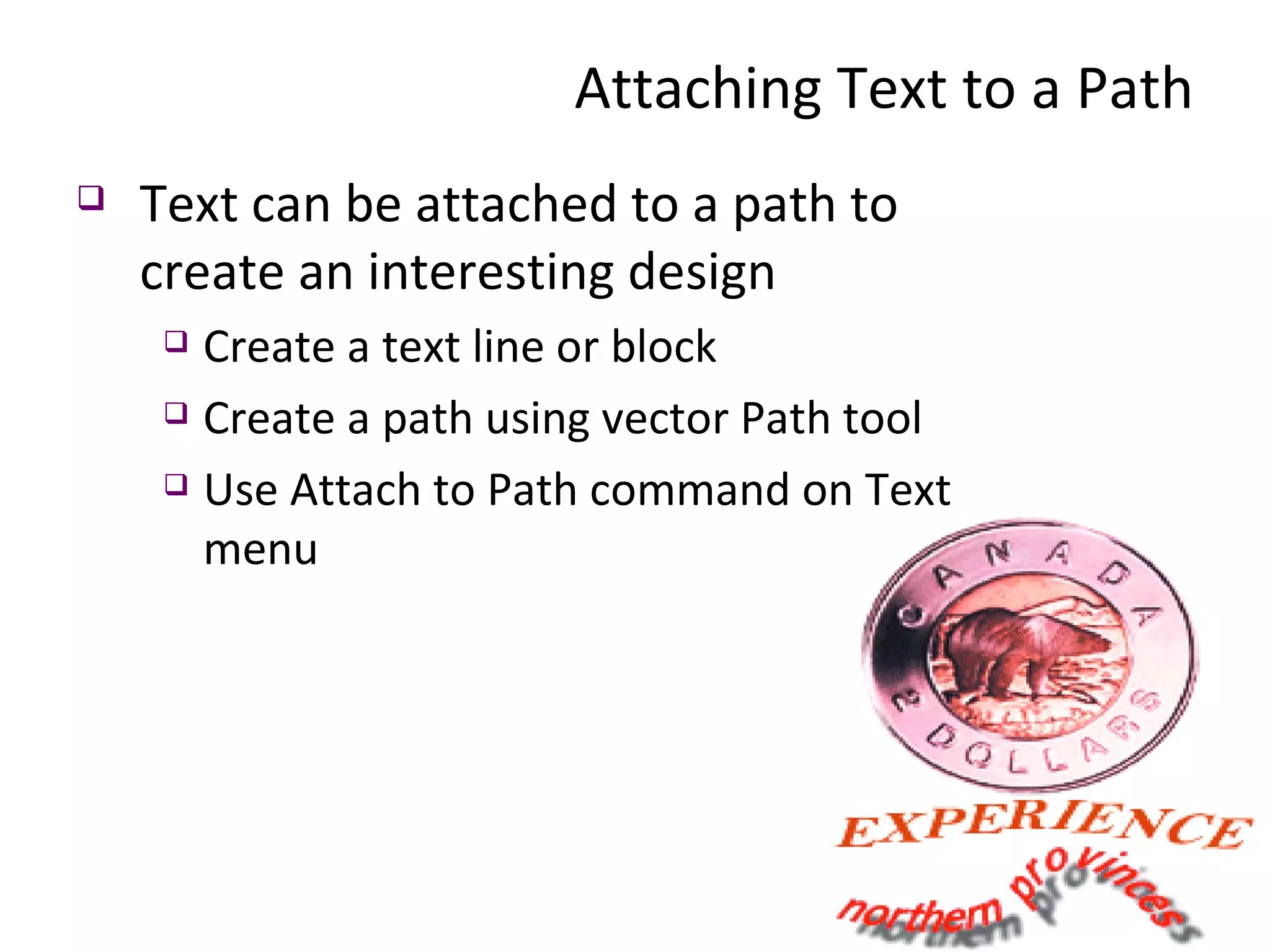
Attaching Text to a Path Text can be attached to a path to create an interesting design Create a text line or block Create a path using vector Path tool Use Attach to Path command on Text menu
Basic Optimization Optimization is the process of preparing graphics for the web.  A 10MB image file can be optimized to 30 KB- an ideal size for web.  Optimized graphics load faster and consistent across the browser. With Fireworks, it is much easier to optimize graphics
Optimizing Images in Fireworks  Why to reduce the amount of time right mix of color, compression, and quality Choosing the best file format for a graphic. the heavier the page and the objects on the page, the longer it will take to be downloaded
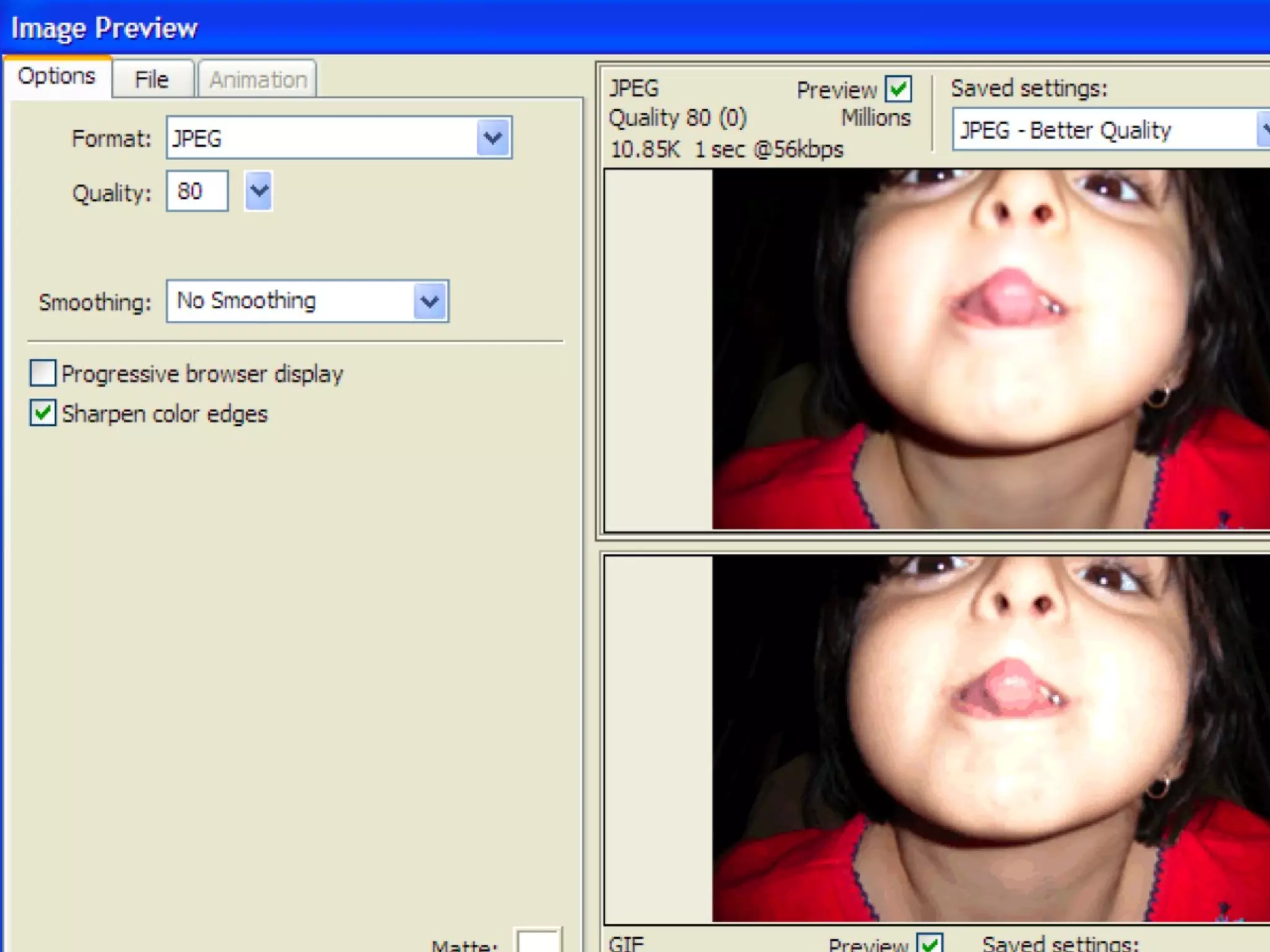
Web formats JPEG (Joint Photographic Expert Group) Use JPEG format for photographic images, gradients, visuals
Exporting web graphics is a two-step process: 1) optimizing, and  2) exporting.  Basic Optimization
GIF (Graphic Interchange Format) GIF supports 256 indexed colors logos, banner, layout, etc. Web formats
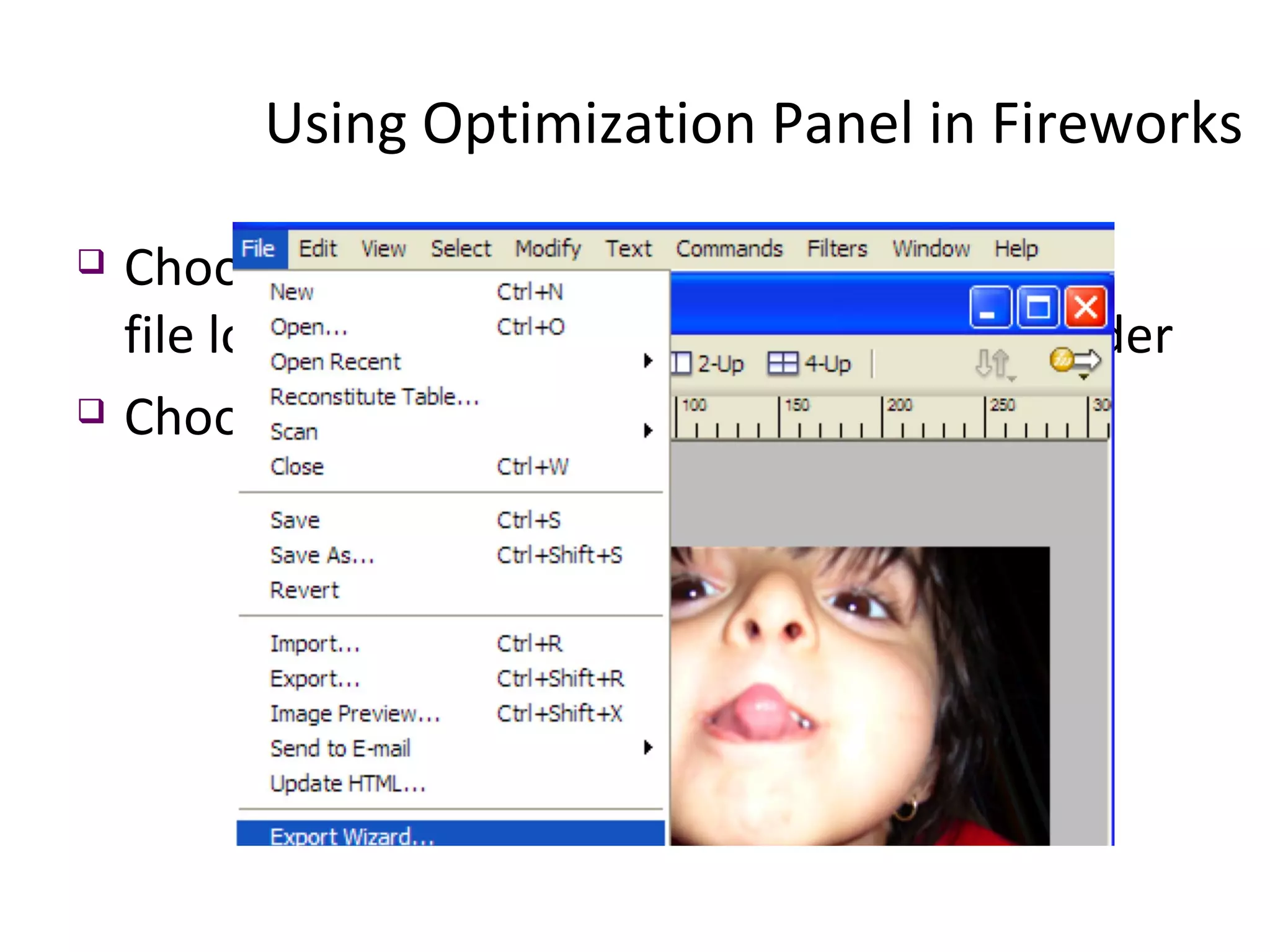
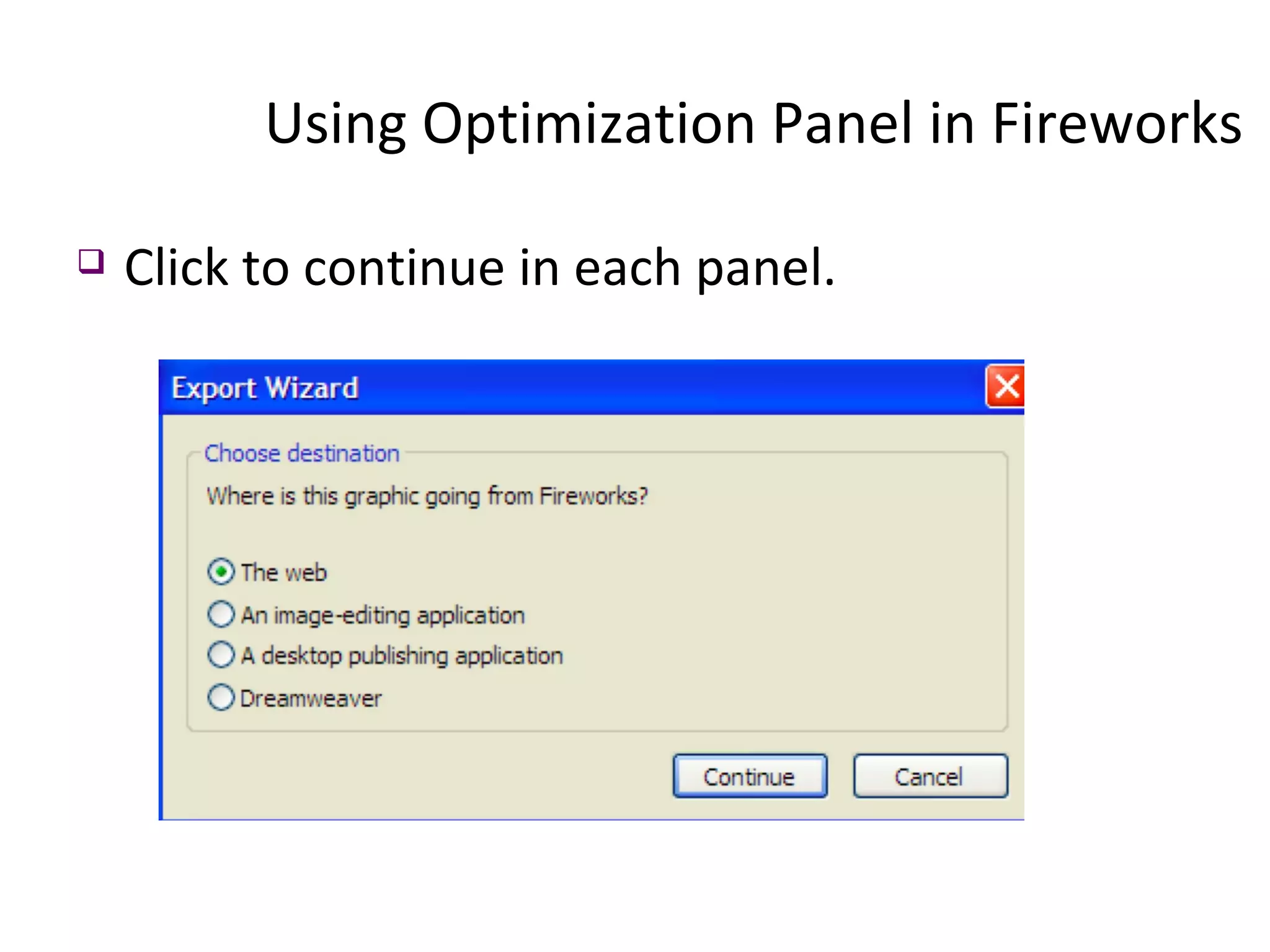
Using Optimization Panel in Fireworks  Choose File > Open, to open “optimize.jpg” file located inside  tutorial_source_files  folder Choose File >Export wizard
Click to continue in each panel. Using Optimization Panel in Fireworks
Adjust the attributes for graphics under Options and File.  Click Export button after filling in appropriate values  Using Optimization Panel in Fireworks
Web Content Management (WCMS) Why CMS? Separating content from website design Consistency in layout of the site Content author does not need to know to any programming. (WYSISWYG) Software used: Microsoft Office SharePoint Server 2007 (MOSS)
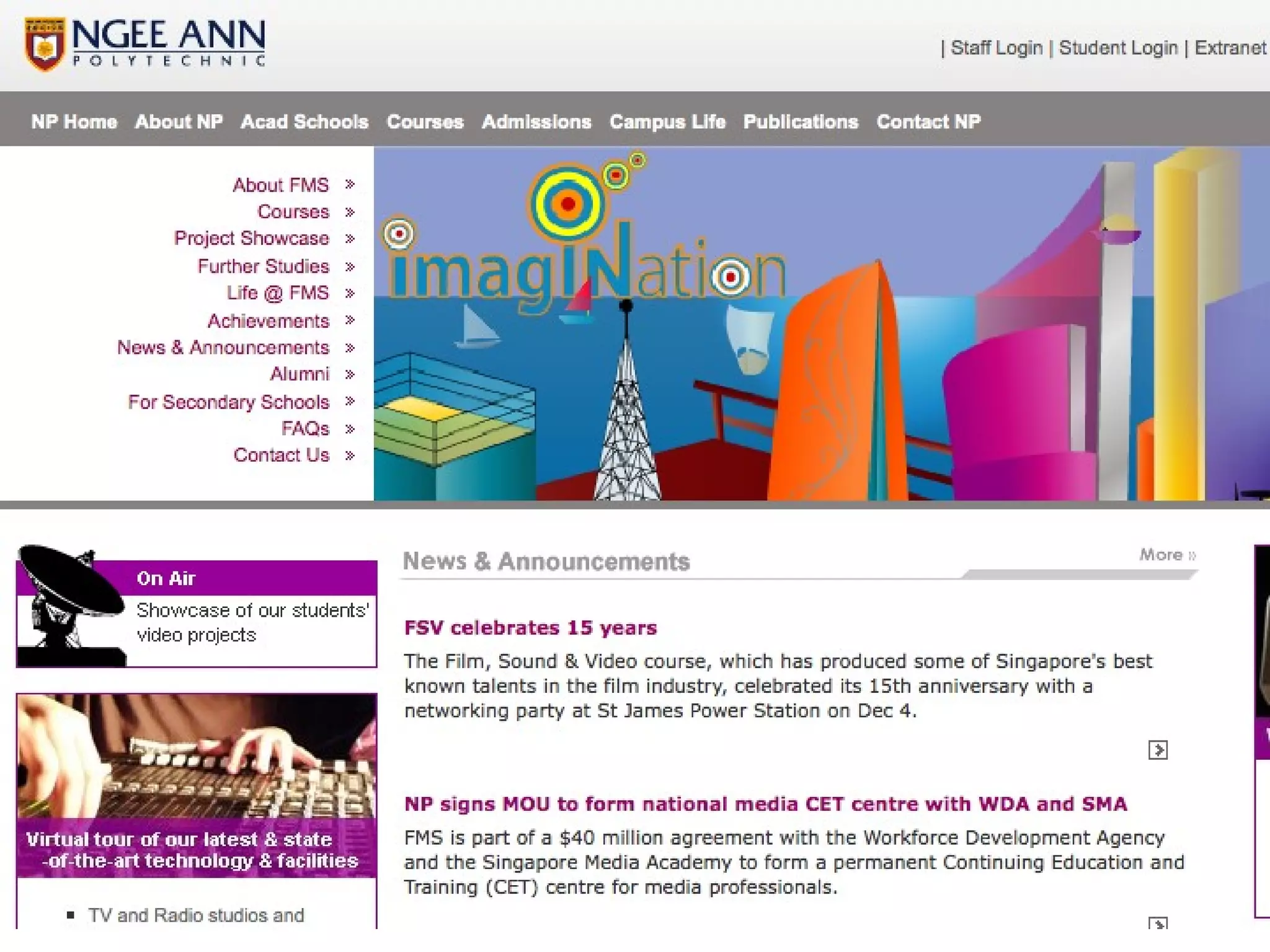
Identifying web design elements
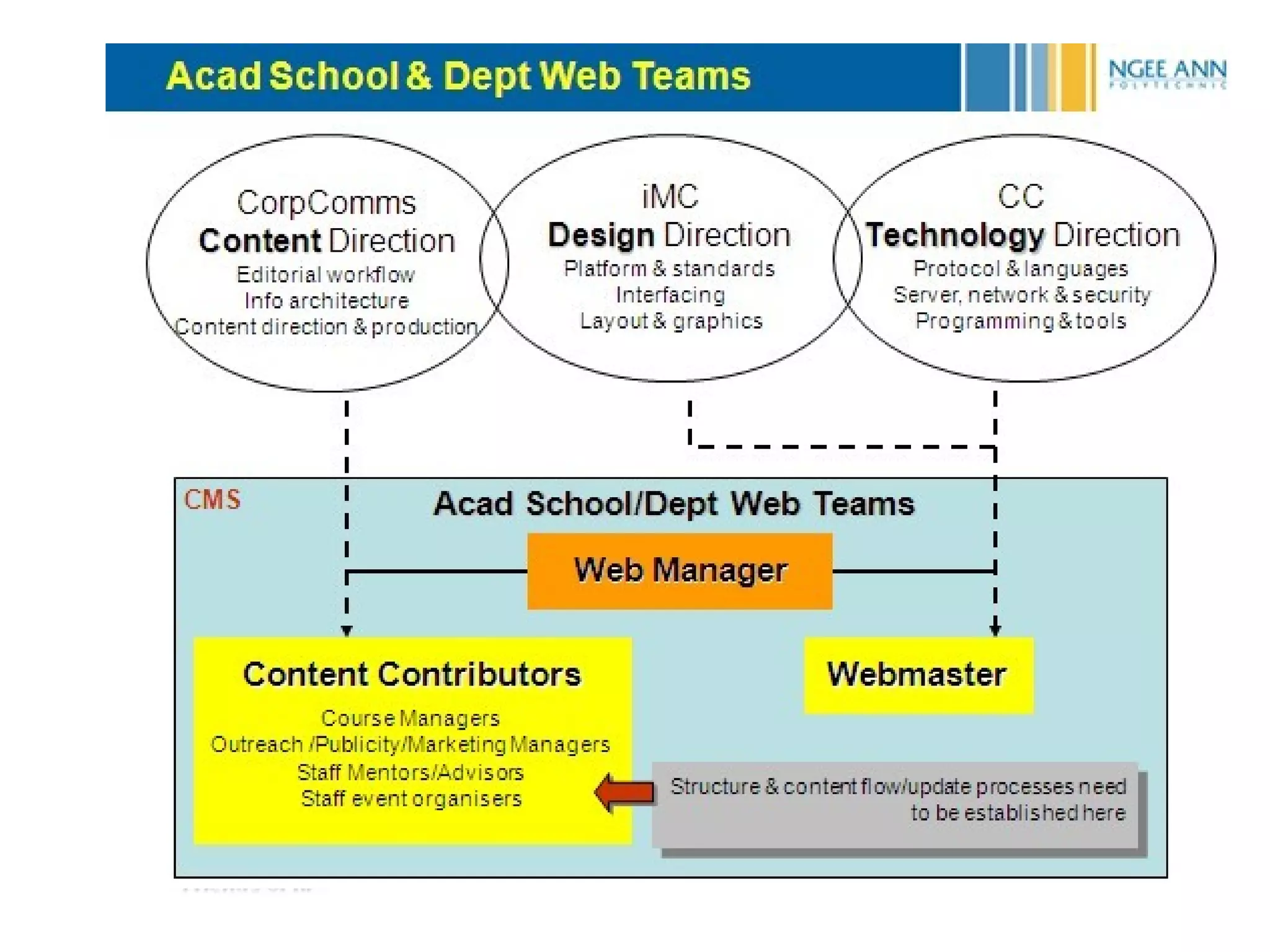
Core Team
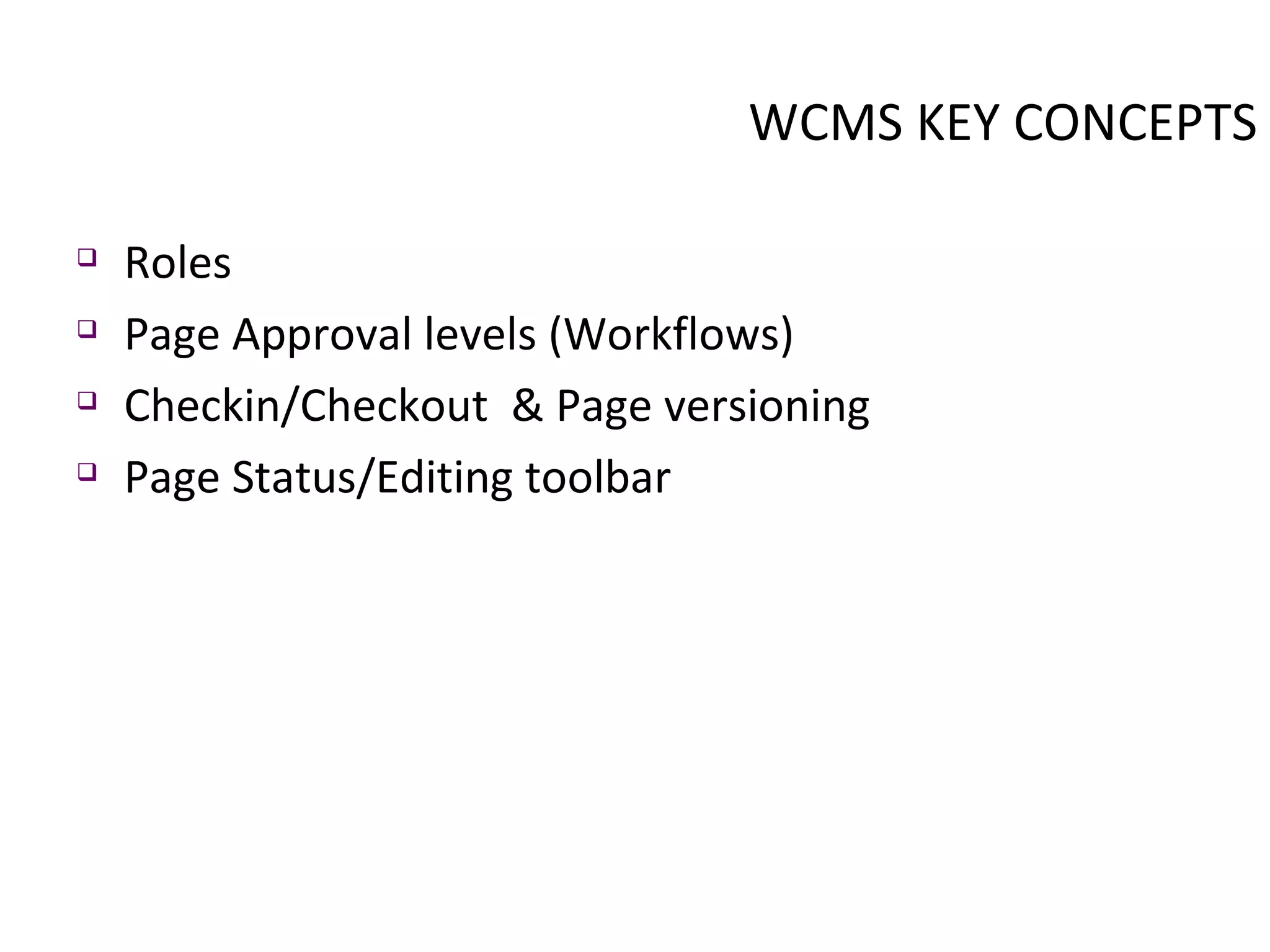
WCMS KEY CONCEPTS Roles Page Approval levels (Workflows) Checkin/Checkout  & Page versioning Page Status/Editing toolbar
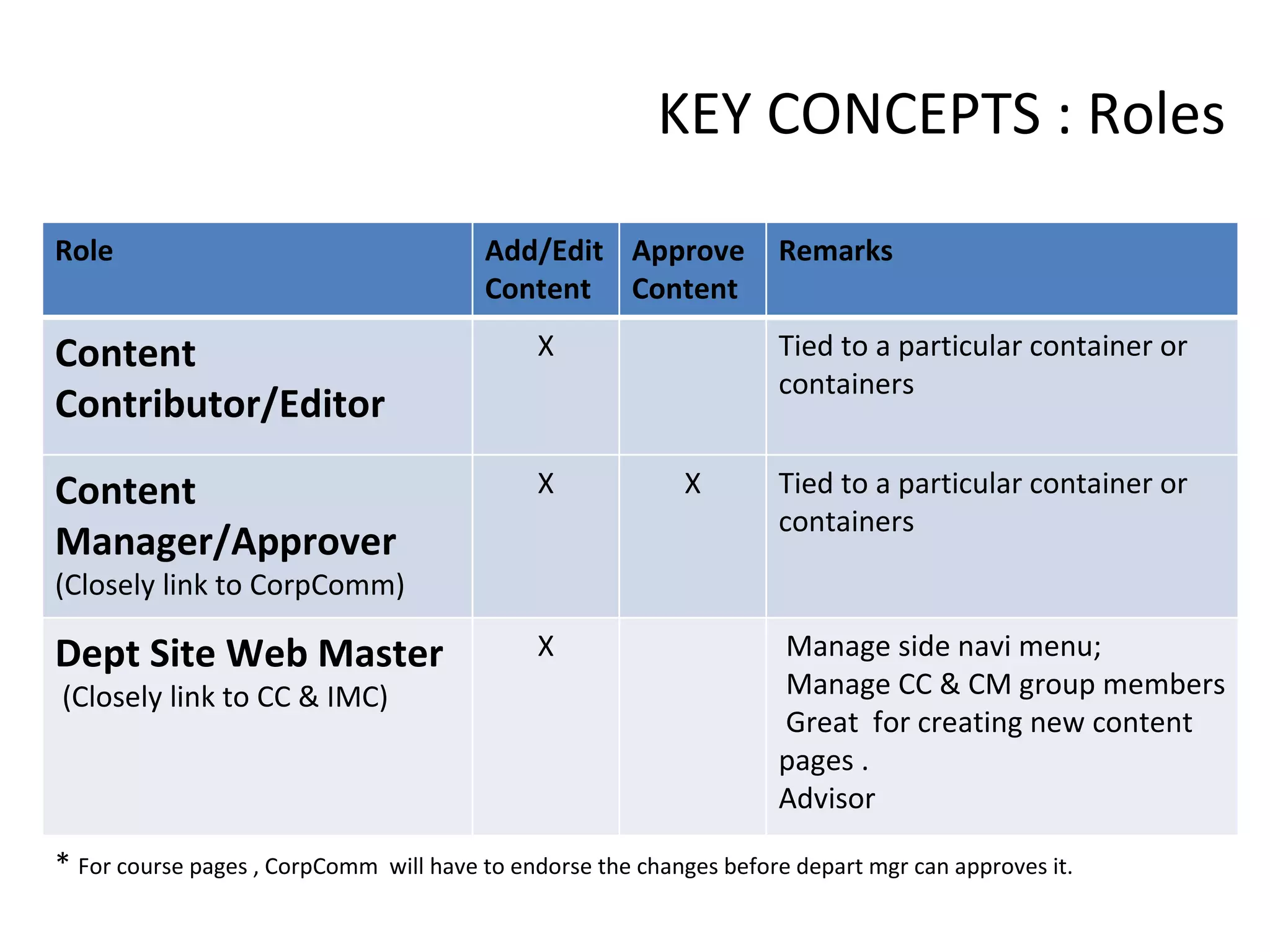
KEY CONCEPTS : Roles *  For course pages , CorpComm  will have to endorse the changes before depart mgr can approves it. Role Add/Edit Content Approve Content Remarks Content Contributor/Editor X Tied to a particular container or containers Content Manager/Approver (Closely link to CorpComm) X X Tied to a particular container or containers Dept Site Web Master  (Closely link to CC & IMC) X Manage side navi menu;  Manage CC & CM group members Great  for creating new content pages . Advisor
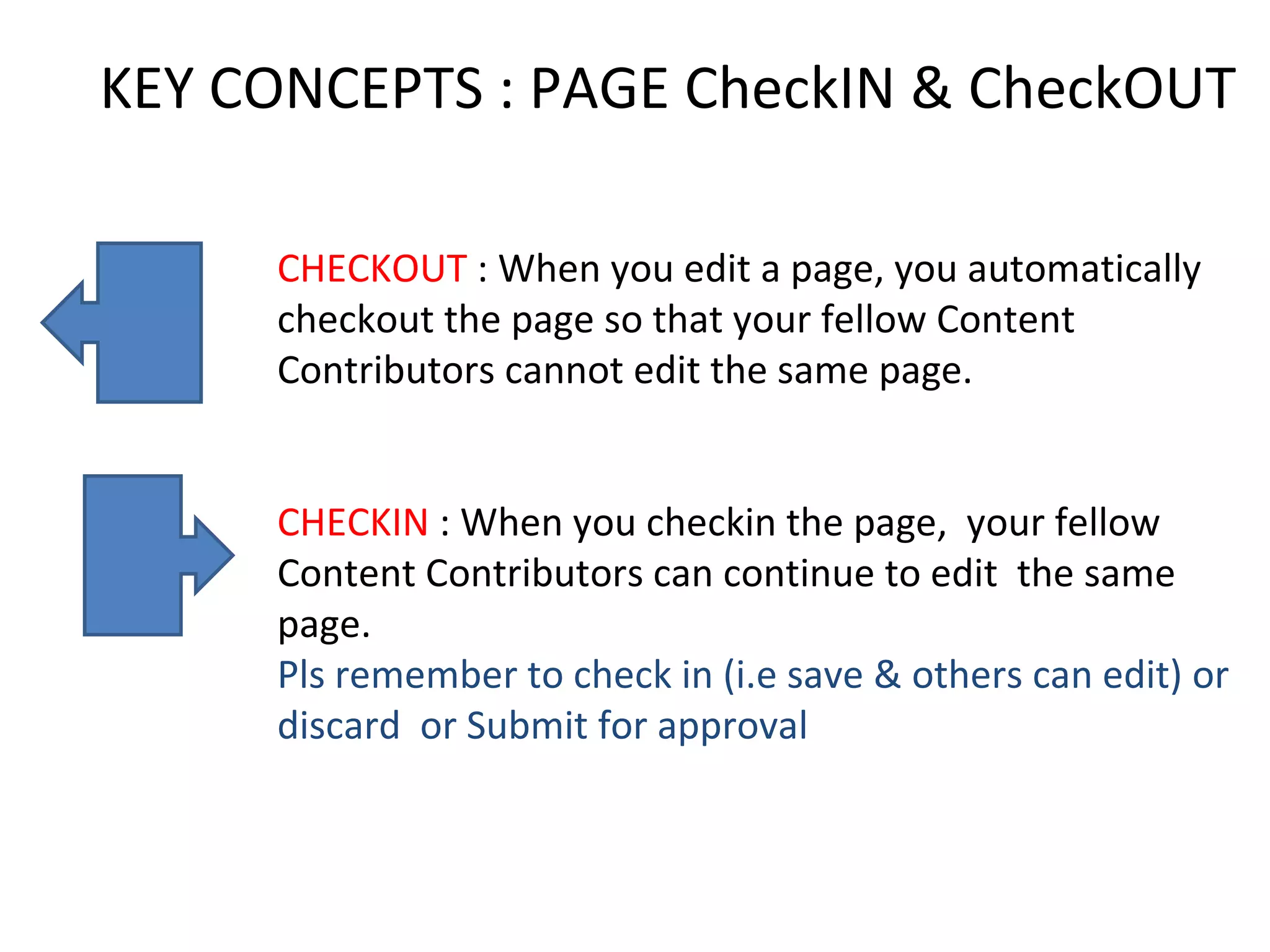
KEY CONCEPTS : PAGE CheckIN & CheckOUT CHECKOUT  : When you edit a page, you automatically checkout the page so that your fellow Content Contributors cannot edit the same page. CHECKIN  : When you checkin the page,  your fellow Content Contributors can continue to edit  the same page.   Pls remember to check in (i.e save & others can edit) or  discard  or Submit for approval
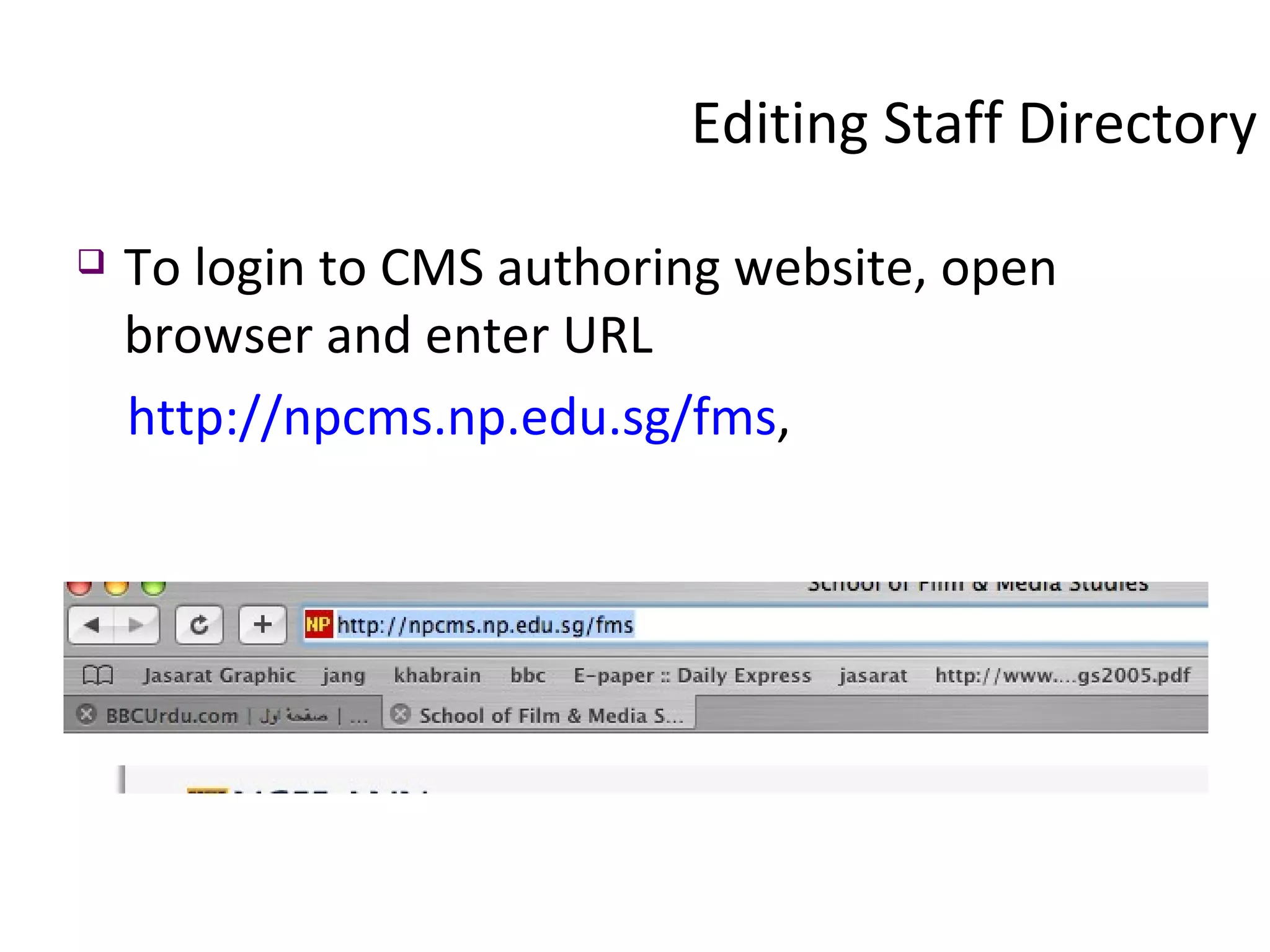
Editing Staff Directory To login to CMS authoring website, open browser and enter URL  http://npcms.np.edu.sg/fms ,
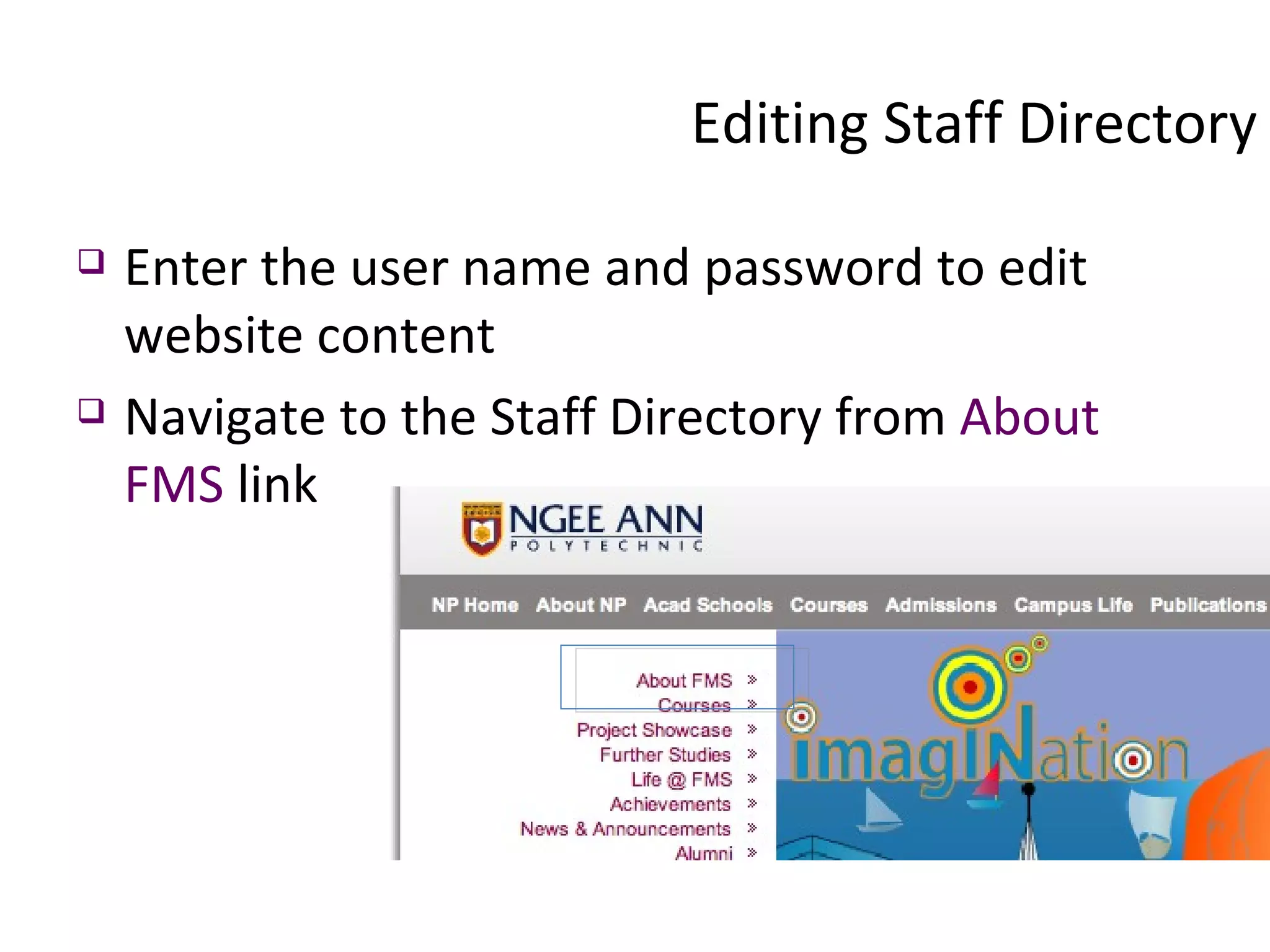
Enter the user name and password to edit website content  Navigate to the Staff Directory from  About FMS  link Editing Staff Directory
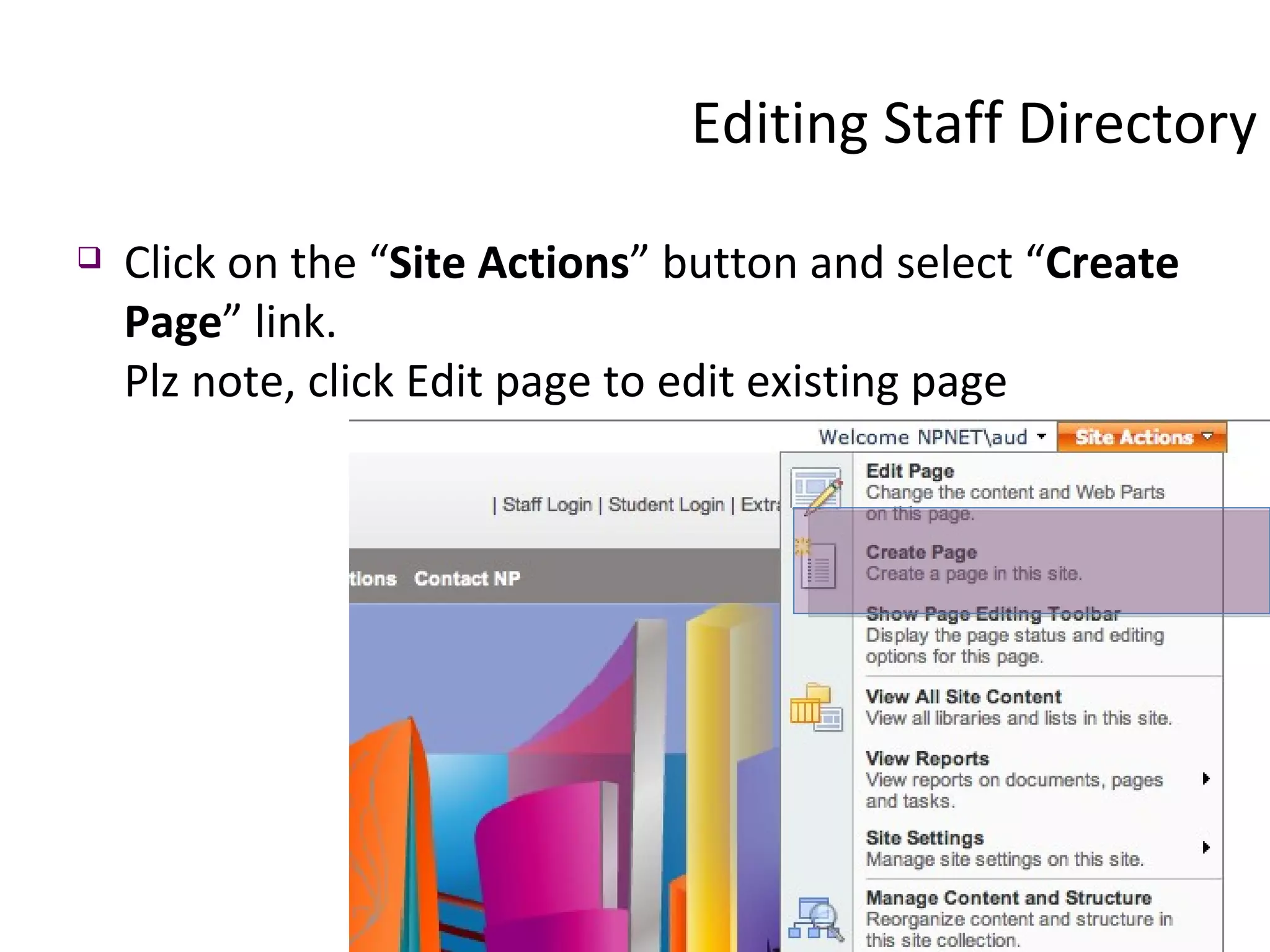
Click on the “ Site Actions ” button and select “ Create Page ” link. Plz note, click Edit page to edit existing page Editing Staff Directory
Editing Staff Directory
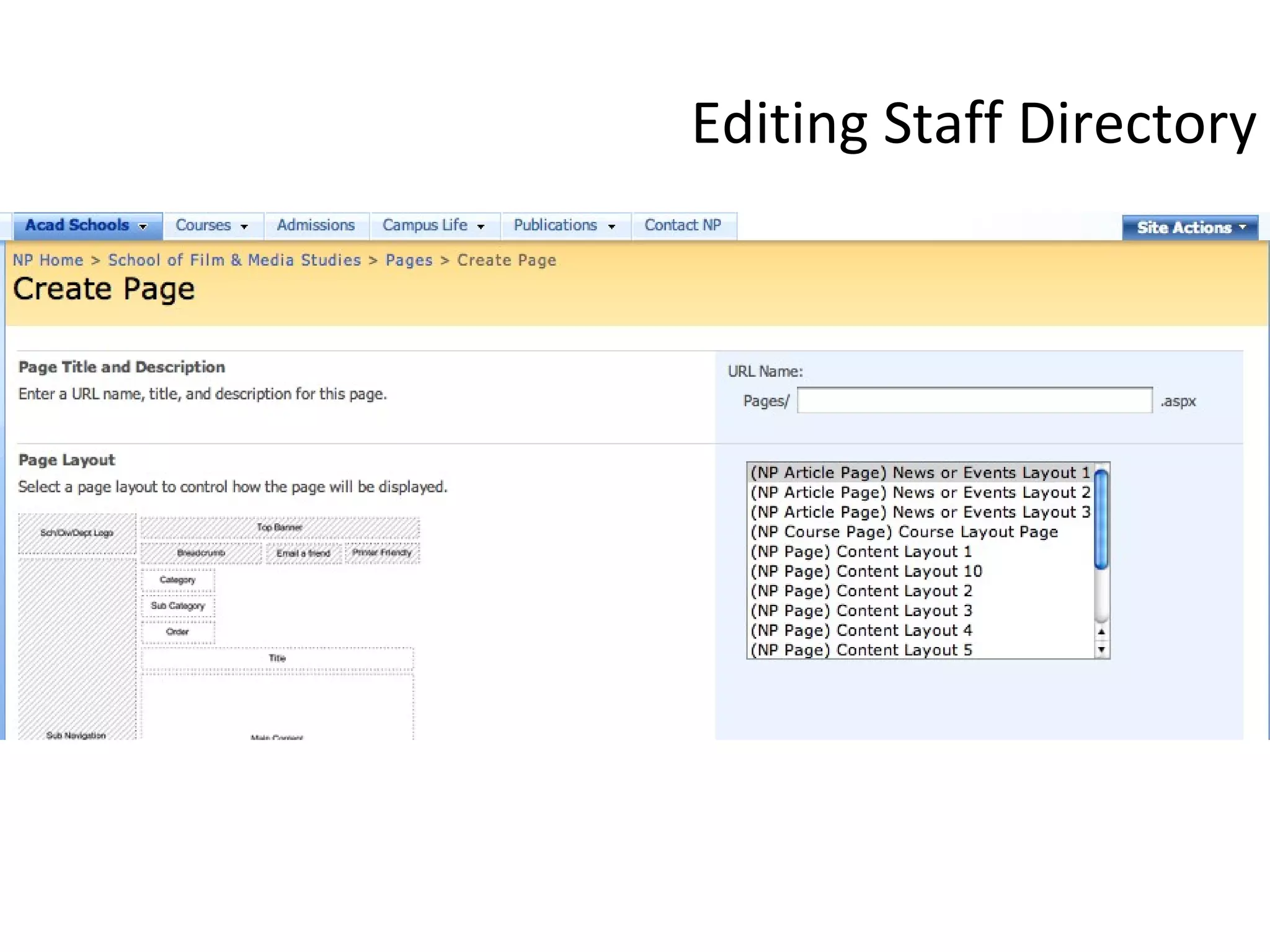
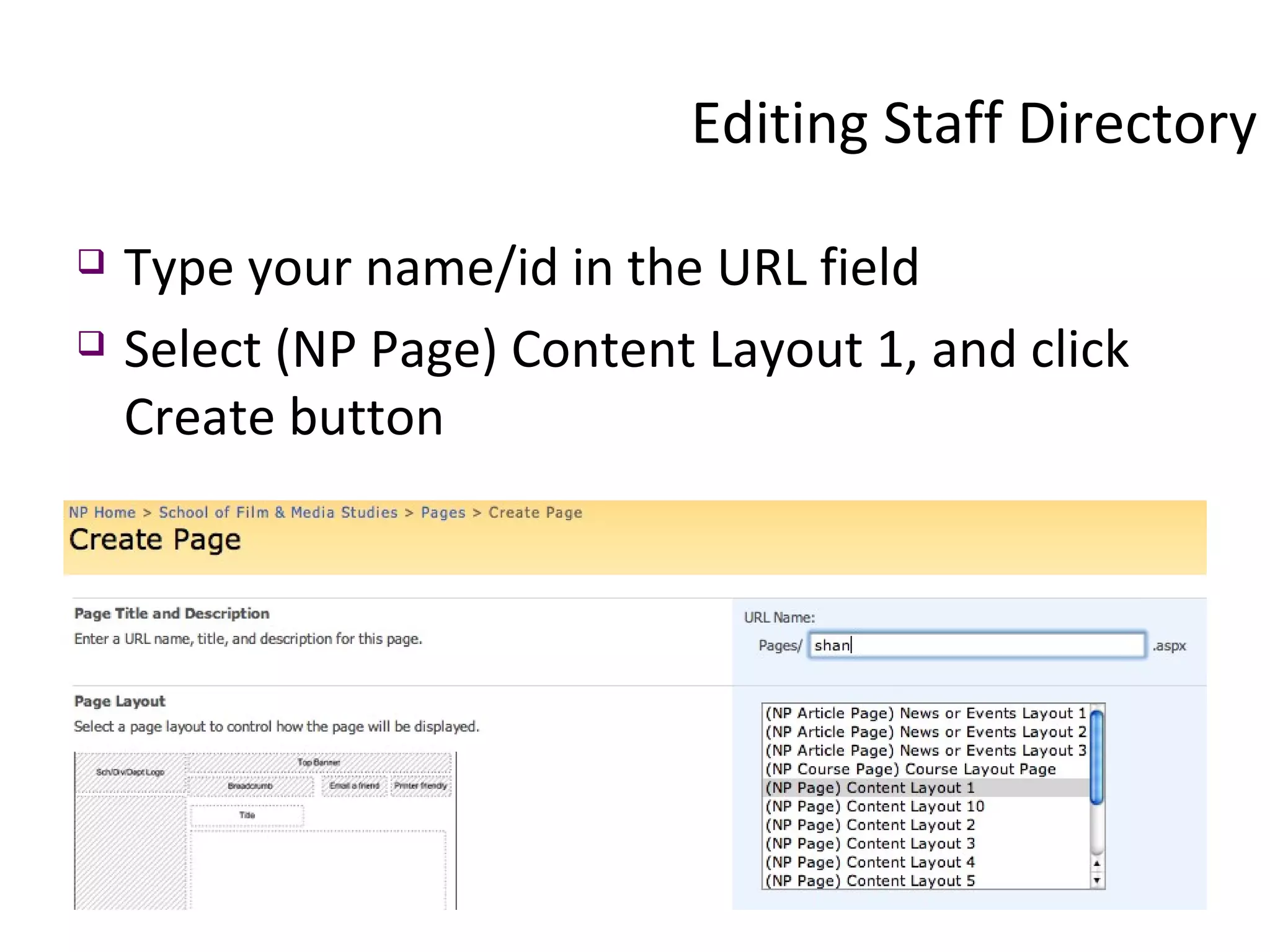
Type your name/id in the URL field Select (NP Page) Content Layout 1, and click Create button Editing Staff Directory
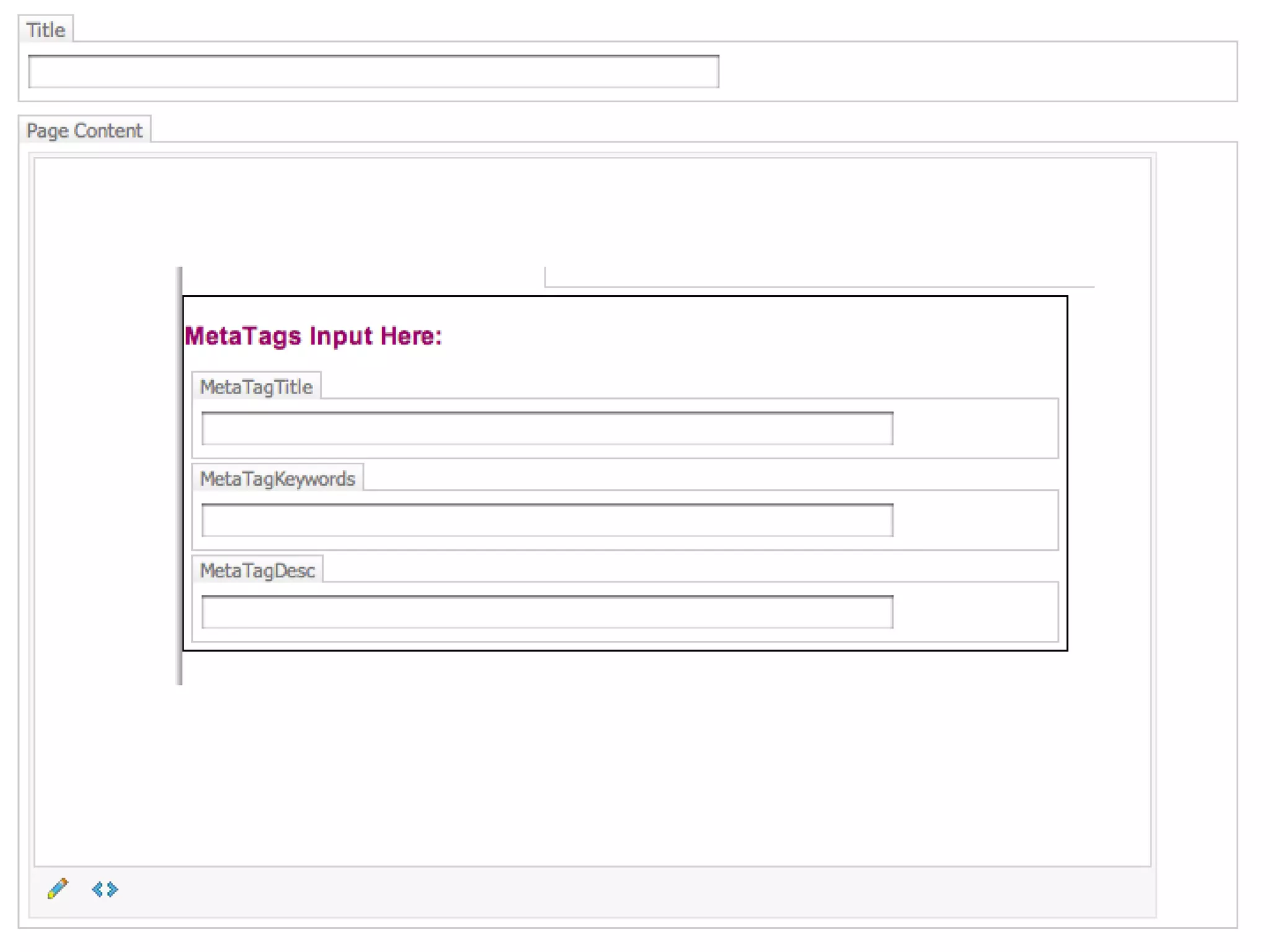
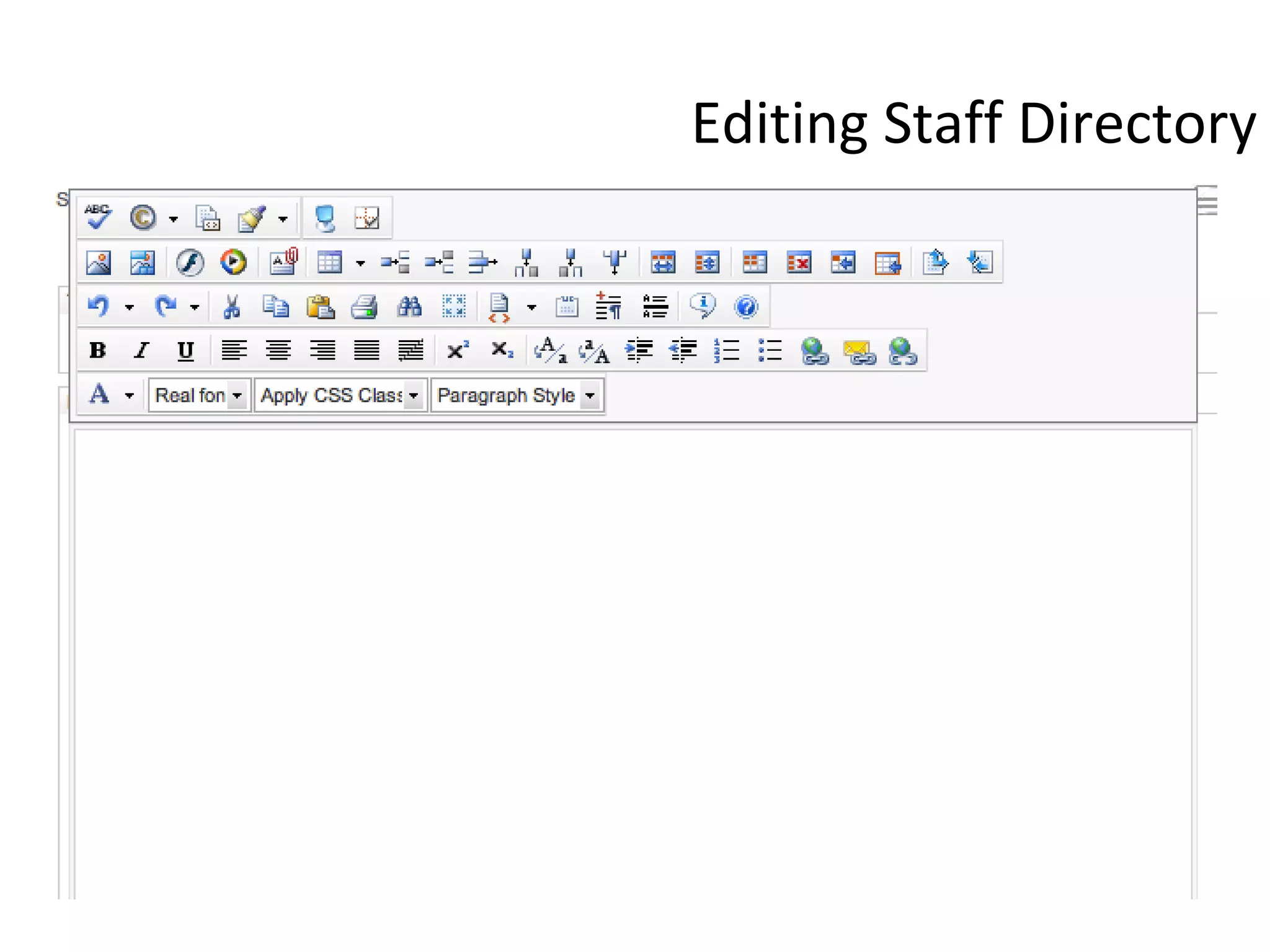
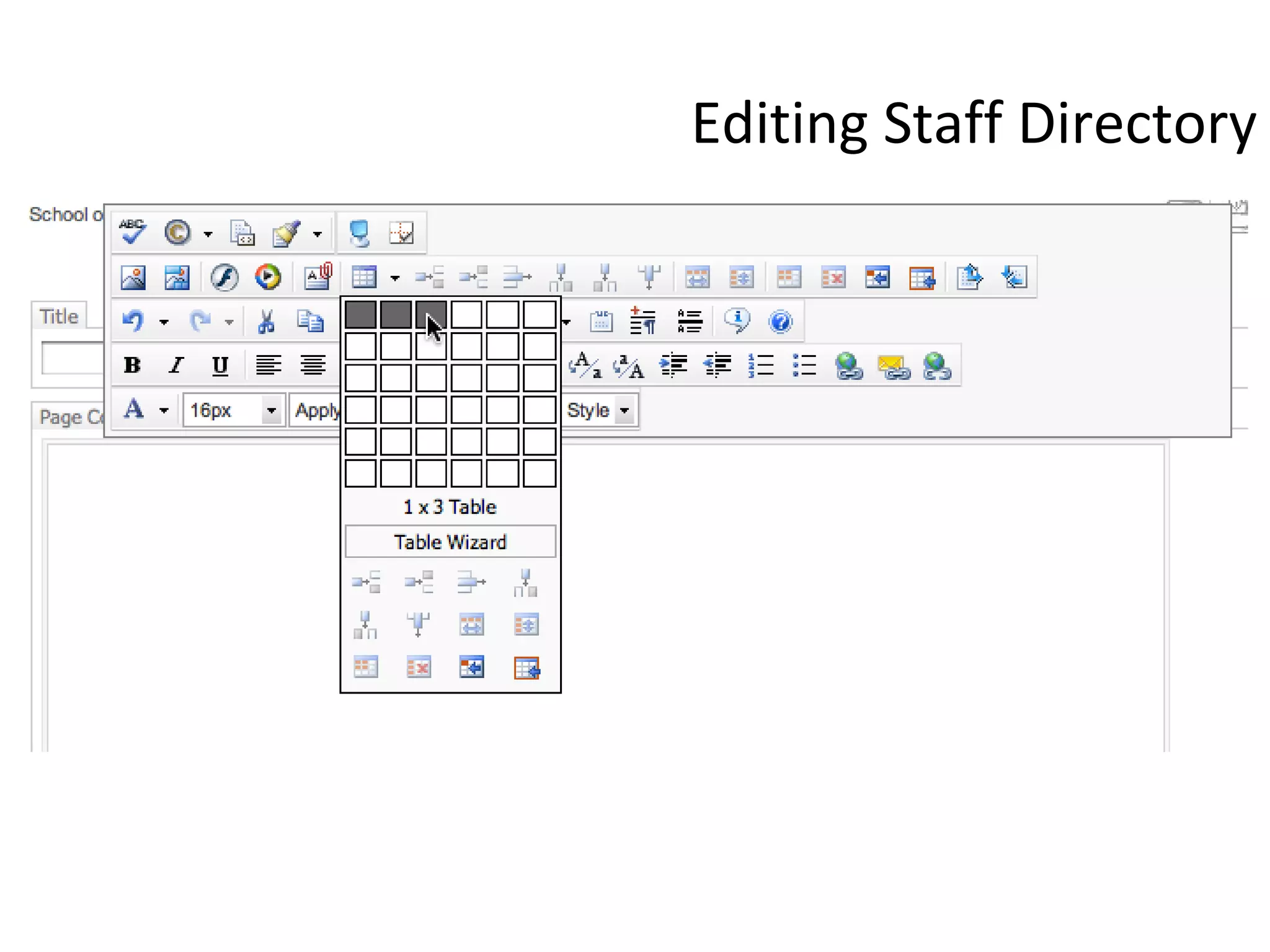
Enter the page title (your name) Insert 1 X 3 table enter relevant attributes Editing Staff Directory
Editing Staff Directory
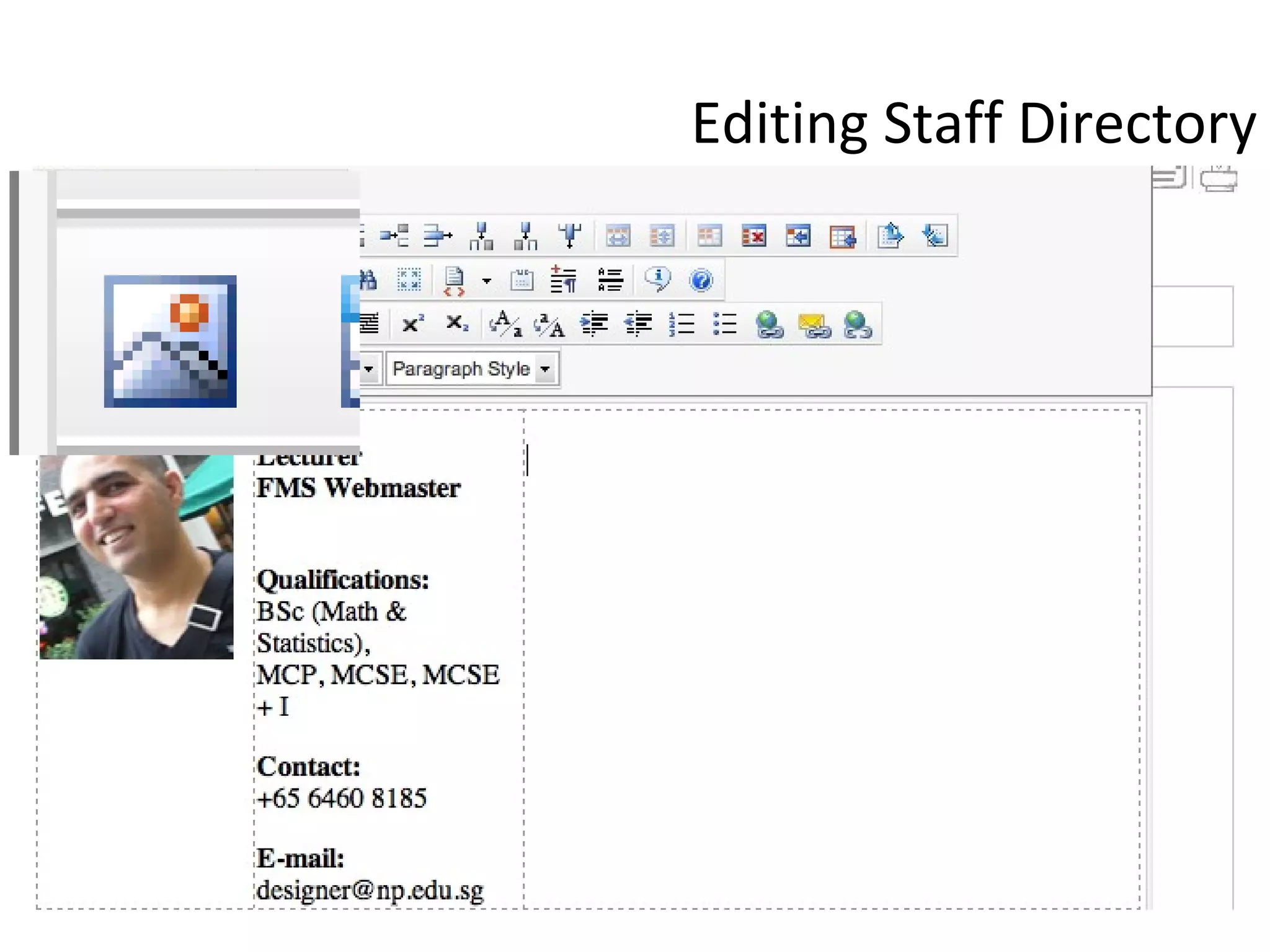
in the first column, insert your photo second column your qualification and job title third column is reserved for your profile Editing Staff Directory
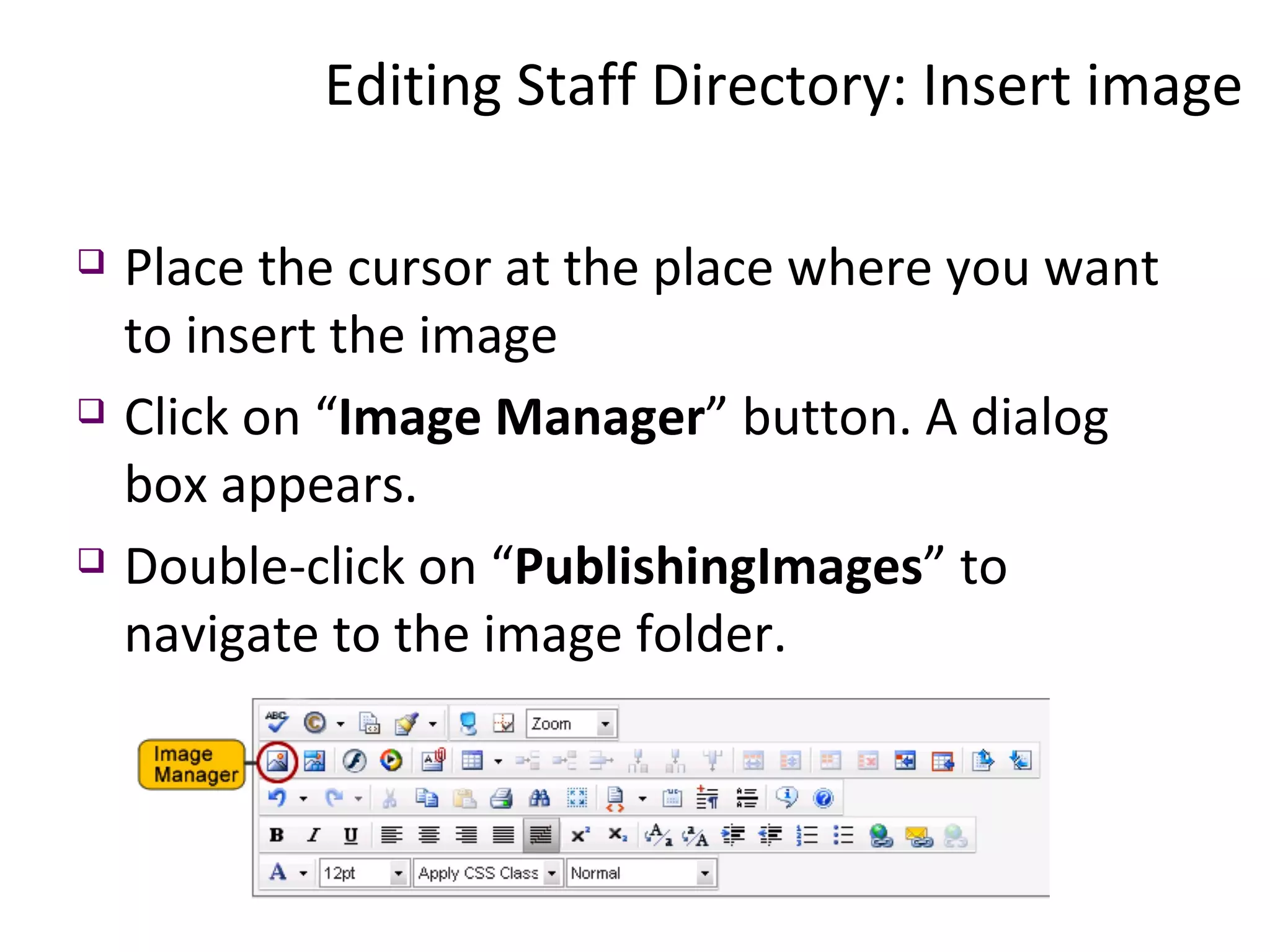
Place the cursor at the place where you want to insert the image Click on “ Image Manager ” button. A dialog box appears. Double-click on “ PublishingImages ” to navigate to the image folder. Editing Staff Directory: Insert image
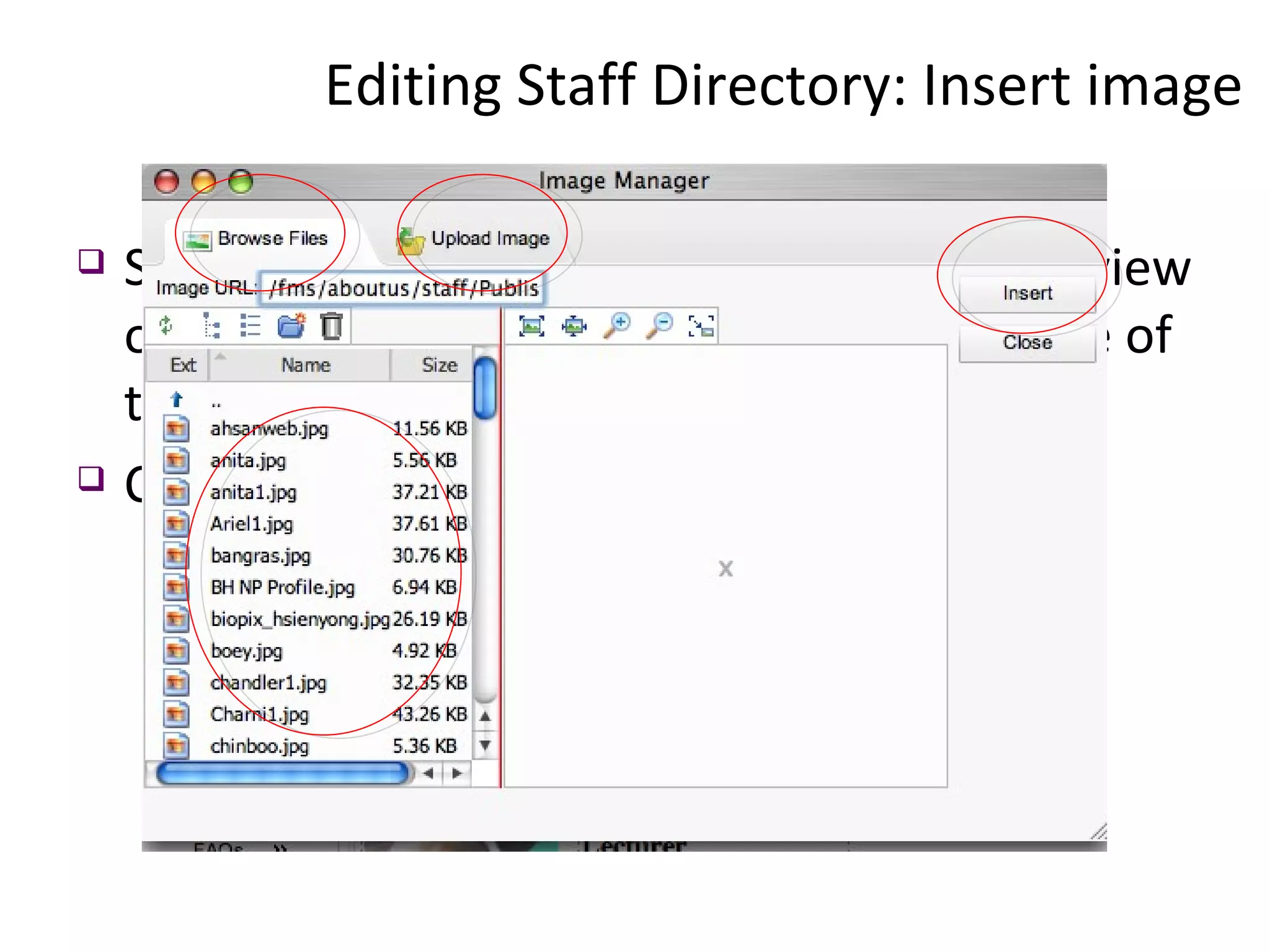
Select the image you want to insert. A preview of the image appears in the right-hand side of the dialog. Click “ Insert ”. Editing Staff Directory: Insert image
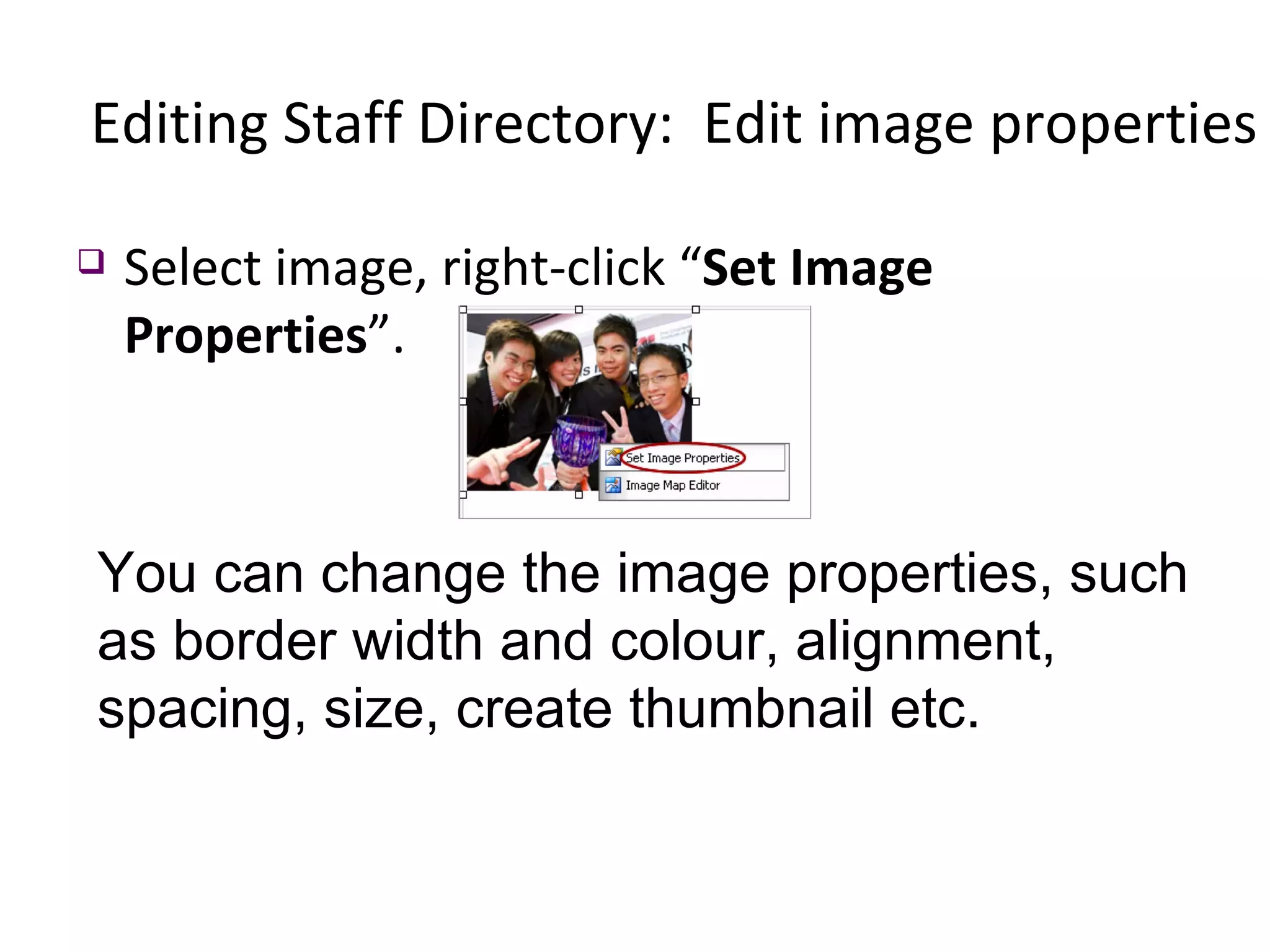
Select image, right-click “ Set Image Properties ”.  Editing Staff Directory:  Edit image properties You can change the image properties, such as border width and colour, alignment, spacing, size, create thumbnail etc.
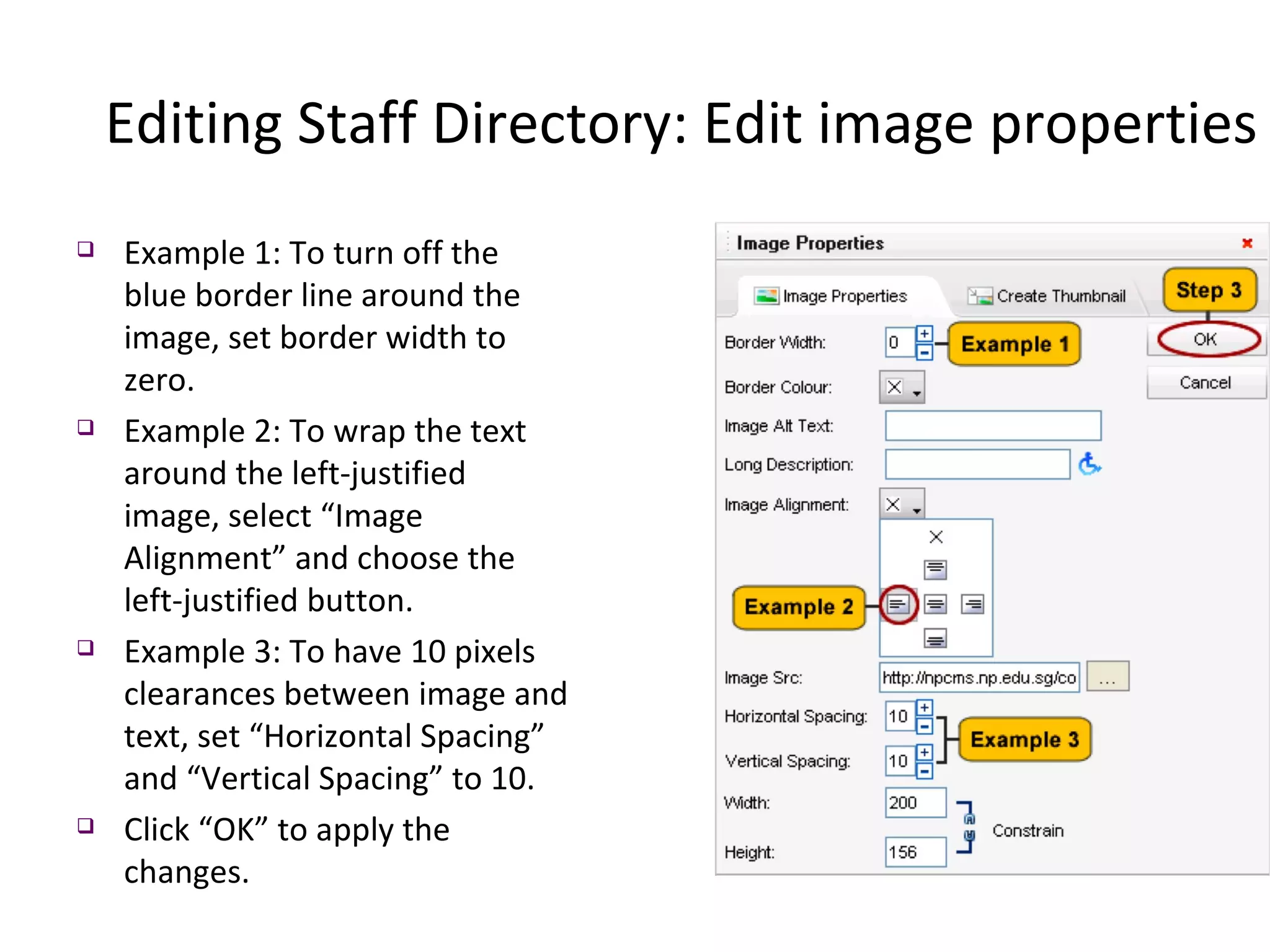
Example 1: To turn off the blue border line around the image, set border width to zero. Example 2: To wrap the text around the left-justified image, select “Image Alignment” and choose the left-justified button. Example 3: To have 10 pixels clearances between image and text, set “Horizontal Spacing” and “Vertical Spacing” to 10. Click “OK” to apply the changes. Editing Staff Directory: Edit image properties
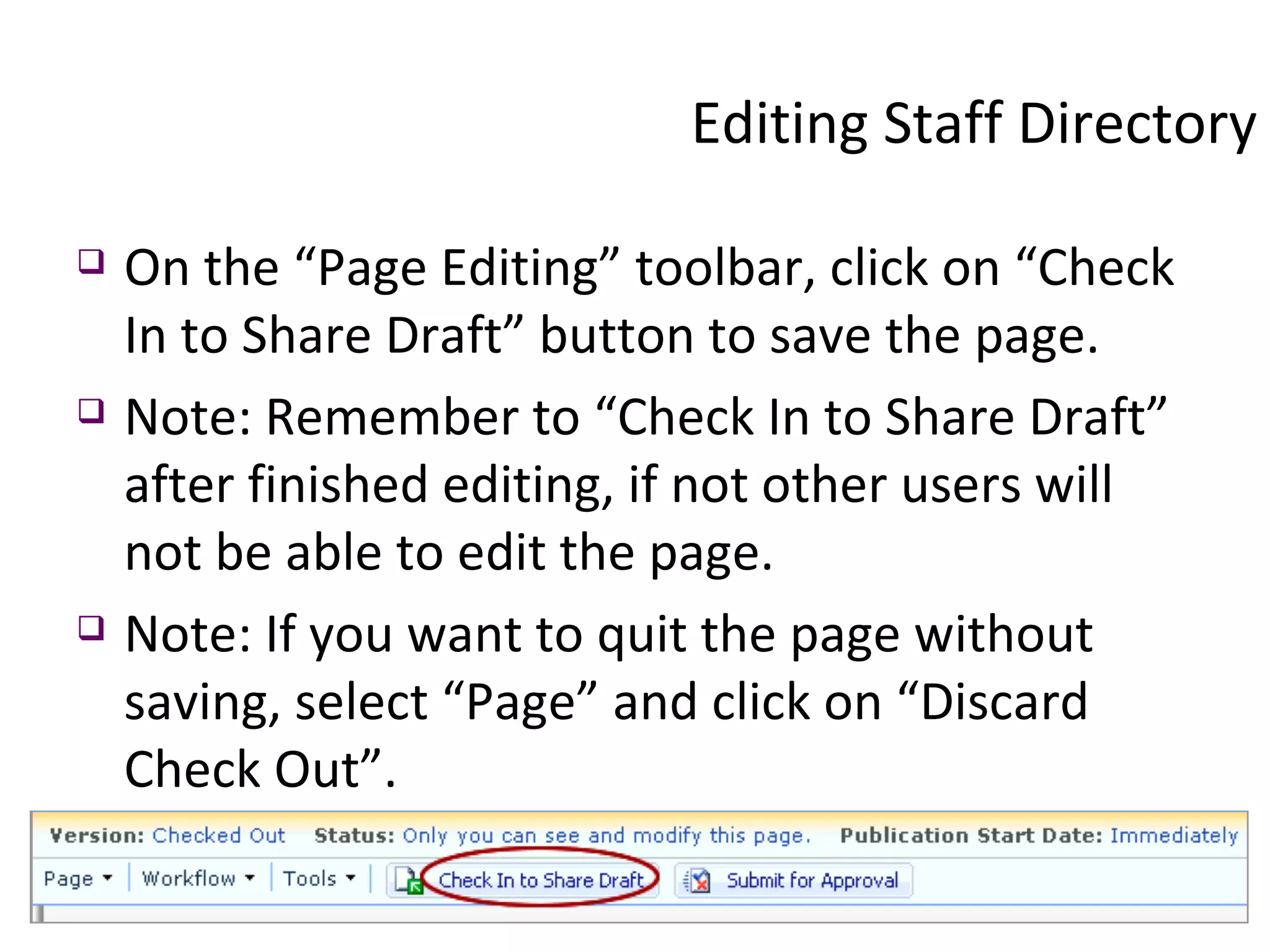
On the “Page Editing” toolbar, click on “Check In to Share Draft” button to save the page. Note: Remember to “Check In to Share Draft” after finished editing, if not other users will not be able to edit the page. Note: If you want to quit the page without saving, select “Page” and click on “Discard Check Out”. Editing Staff Directory
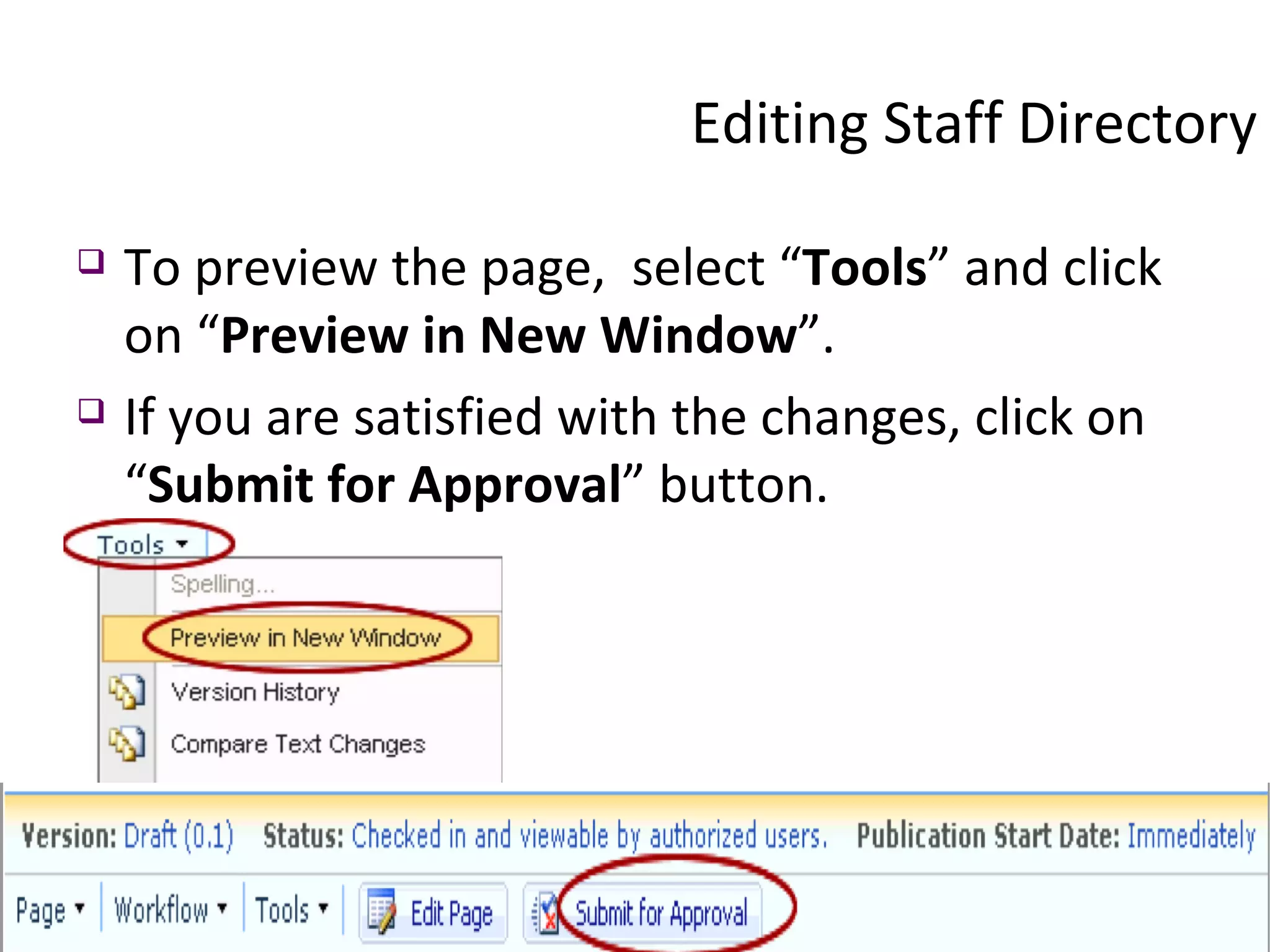
To preview the page,  select “ Tools ” and click on “ Preview in New Window ”. If you are satisfied with the changes, click on “ Submit for Approval ” button. Editing Staff Directory
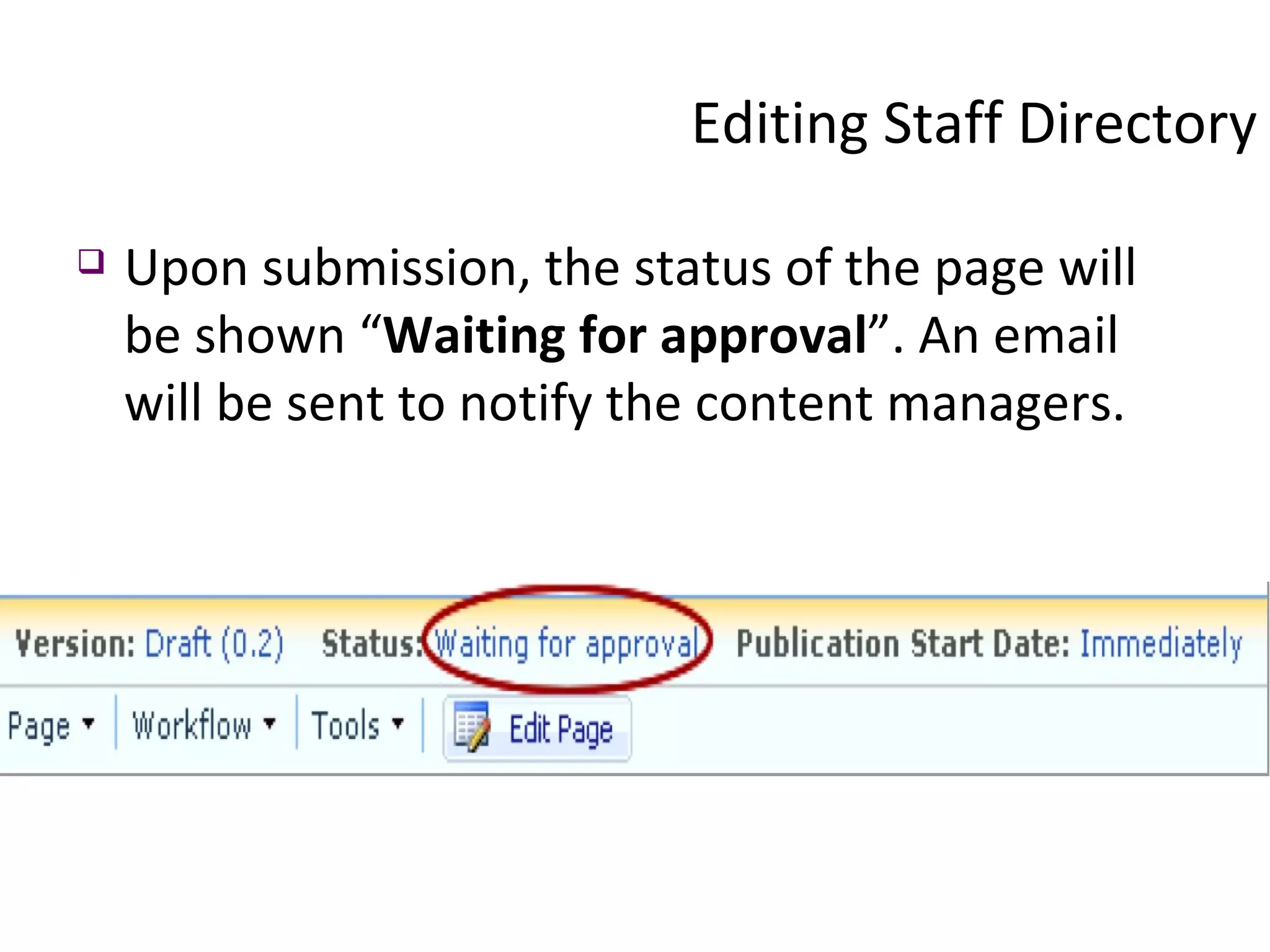
Upon submission, the status of the page will be shown “ Waiting for approval ”. An email will be sent to notify the content managers. Editing Staff Directory
web design applications CMS guide, NP projectseven.com dziner.org, shan References

Fms Web Cms Training

  • 1.
    WEB DESIGN FORFMS FMS Web site Training using Content Management System (CMS) Ahsan Uddin Shan School of Film & Media Studies
  • 2.
    Objectives Dosto, youwill learn how to put Fireworks to work Optimization using Fireworks Introduction to CMS Demonstration and Hands-on CMS Creating, updating and editing Staff Directory Bonding 
  • 3.
    Click on theZIP icon to download the supporting files. Create a new directory on your hard drive and label the folder Optimization. Unzip the supporting files into your new folder. Create a folder inside the new directory and label it Assets.
  • 4.
    Understanding Fireworks Fireworksis a graphics program for the Web What can you do in Fireworks? Fireworks files are called documents Fireworks files are saved as PNG files Portable Network Graphics have .png extension
  • 5.
    Where is myFireworks (its not Firefox lah!!) Click Click your hard disk (I rename my hard disk to shan) Switch to applications Click Click Adobe Fireworks CS3
  • 6.
    Adobe Creative Suite http://www.adobe.com/products/
  • 7.
    Getting to knowthe Fireworks workspace: Creating a new document Open Fireworks
  • 8.
  • 9.
    Fireworks Window CanvasTools Menu bar Panels Properties
  • 10.
    Fireworks Tabs Thedocument window has four tabs Original Preview 2-Up 4-Up 2-Up and 4-Up are used to evaluate different optimization settings side by side
  • 11.
    Property inspector TheProperty inspector is a panel that displays current selection properties, current tool options, or document properties.
  • 12.
    Tools The Toolspanel is used to for variety of job It is organized into six categories: Select, Bitmap, Vector, Web, Colors, and View.
  • 13.
    Practice Tools: SelectionTools/Objects Using the selection and transformation tools, you can move, copy, delete, rotate, scale, or skew objects. In documents that have multiple objects
  • 14.
    Practice Tools: SelectionTools/Objects You can organize the objects by stacking, grouping, and aligning them. Using Marquee tools You can click an object in the Layers panel to it select when the panel is open and layers are expanded.
  • 15.
    Practice Tools: Selectingpixels You can edit pixels over an entire canvas or choose one of the selection tools to constrain your editing to a particular area of an image: The Marquee tool selects a rectangular area of pixels in an image. The Oval Marquee tool selects an elliptical area of pixels in an image.
  • 16.
    Practice Tools: Selectingpixels The Lasso tool selects a freeform area of pixels in an image. The Polygon Lasso tool selects a straight-edged freeform area of pixels in an image. The Magic Wand tool selects an area of similarly colored pixels in an image.
  • 17.
    Working with TextText can be created and modified in Fireworks Text properties include font, size, color,style, kerning, leading, alignment, text flow, offset, and anti-aliasing
  • 18.
    Working with TextMany text features typically reserved for sophisticated desktop publishing applications. Font, Sizes and adjust kerning, spacing, color, leading, and more. Apply Live Effects such as drop shadows and bevels--means you can easily make changes to text.
  • 19.
    Attaching Text toa Path Text can be attached to a path to create an interesting design Create a text line or block Create a path using vector Path tool Use Attach to Path command on Text menu
  • 20.
    Basic Optimization Optimizationis the process of preparing graphics for the web. A 10MB image file can be optimized to 30 KB- an ideal size for web. Optimized graphics load faster and consistent across the browser. With Fireworks, it is much easier to optimize graphics
  • 21.
    Optimizing Images inFireworks Why to reduce the amount of time right mix of color, compression, and quality Choosing the best file format for a graphic. the heavier the page and the objects on the page, the longer it will take to be downloaded
  • 22.
    Web formats JPEG(Joint Photographic Expert Group) Use JPEG format for photographic images, gradients, visuals
  • 23.
    Exporting web graphicsis a two-step process: 1) optimizing, and 2) exporting. Basic Optimization
  • 24.
    GIF (Graphic InterchangeFormat) GIF supports 256 indexed colors logos, banner, layout, etc. Web formats
  • 25.
    Using Optimization Panelin Fireworks Choose File > Open, to open “optimize.jpg” file located inside tutorial_source_files folder Choose File >Export wizard
  • 26.
    Click to continuein each panel. Using Optimization Panel in Fireworks
  • 27.
    Adjust the attributesfor graphics under Options and File. Click Export button after filling in appropriate values Using Optimization Panel in Fireworks
  • 28.
    Web Content Management(WCMS) Why CMS? Separating content from website design Consistency in layout of the site Content author does not need to know to any programming. (WYSISWYG) Software used: Microsoft Office SharePoint Server 2007 (MOSS)
  • 29.
  • 30.
  • 31.
    WCMS KEY CONCEPTSRoles Page Approval levels (Workflows) Checkin/Checkout & Page versioning Page Status/Editing toolbar
  • 32.
    KEY CONCEPTS :Roles * For course pages , CorpComm will have to endorse the changes before depart mgr can approves it. Role Add/Edit Content Approve Content Remarks Content Contributor/Editor X Tied to a particular container or containers Content Manager/Approver (Closely link to CorpComm) X X Tied to a particular container or containers Dept Site Web Master (Closely link to CC & IMC) X Manage side navi menu; Manage CC & CM group members Great for creating new content pages . Advisor
  • 33.
    KEY CONCEPTS :PAGE CheckIN & CheckOUT CHECKOUT : When you edit a page, you automatically checkout the page so that your fellow Content Contributors cannot edit the same page. CHECKIN : When you checkin the page, your fellow Content Contributors can continue to edit the same page. Pls remember to check in (i.e save & others can edit) or discard or Submit for approval
  • 34.
    Editing Staff DirectoryTo login to CMS authoring website, open browser and enter URL http://npcms.np.edu.sg/fms ,
  • 35.
    Enter the username and password to edit website content  Navigate to the Staff Directory from About FMS link Editing Staff Directory
  • 36.
    Click on the“ Site Actions ” button and select “ Create Page ” link. Plz note, click Edit page to edit existing page Editing Staff Directory
  • 37.
  • 38.
    Type your name/idin the URL field Select (NP Page) Content Layout 1, and click Create button Editing Staff Directory
  • 39.
    Enter the pagetitle (your name) Insert 1 X 3 table enter relevant attributes Editing Staff Directory
  • 40.
  • 41.
  • 42.
    in the firstcolumn, insert your photo second column your qualification and job title third column is reserved for your profile Editing Staff Directory
  • 43.
    Place the cursorat the place where you want to insert the image Click on “ Image Manager ” button. A dialog box appears. Double-click on “ PublishingImages ” to navigate to the image folder. Editing Staff Directory: Insert image
  • 44.
    Select the imageyou want to insert. A preview of the image appears in the right-hand side of the dialog. Click “ Insert ”. Editing Staff Directory: Insert image
  • 45.
    Select image, right-click“ Set Image Properties ”. Editing Staff Directory: Edit image properties You can change the image properties, such as border width and colour, alignment, spacing, size, create thumbnail etc.
  • 46.
    Example 1: Toturn off the blue border line around the image, set border width to zero. Example 2: To wrap the text around the left-justified image, select “Image Alignment” and choose the left-justified button. Example 3: To have 10 pixels clearances between image and text, set “Horizontal Spacing” and “Vertical Spacing” to 10. Click “OK” to apply the changes. Editing Staff Directory: Edit image properties
  • 47.
    On the “PageEditing” toolbar, click on “Check In to Share Draft” button to save the page. Note: Remember to “Check In to Share Draft” after finished editing, if not other users will not be able to edit the page. Note: If you want to quit the page without saving, select “Page” and click on “Discard Check Out”. Editing Staff Directory
  • 48.
    To preview thepage, select “ Tools ” and click on “ Preview in New Window ”. If you are satisfied with the changes, click on “ Submit for Approval ” button. Editing Staff Directory
  • 49.
    Upon submission, thestatus of the page will be shown “ Waiting for approval ”. An email will be sent to notify the content managers. Editing Staff Directory
  • 50.
    web design applicationsCMS guide, NP projectseven.com dziner.org, shan References