Photoshop Masks, Smart objects and masking techniques
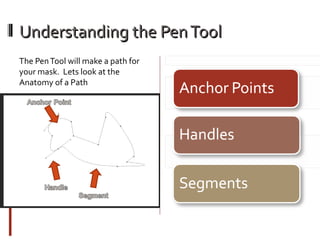
Understanding the Pen Tool
The Pen Tool will make a path for
your mask. Lets look at the
Anatomy of a Path
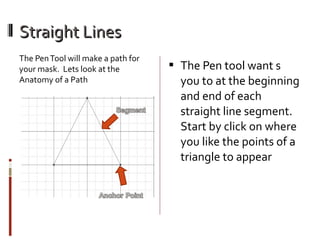
Straight Lines
The Pen Tool will make a path for
your mask. Lets look at the
Anatomy of a Path

 The Pen tool want s

you to at the beginning
and end of each
straight line segment.
Start by click on where
you like the points of a
triangle to appear
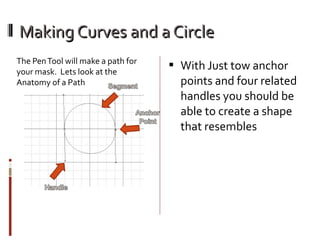
Making Curves and a Circle
The Pen Tool will make a path for
your mask. Lets look at the
Anatomy of a Path

 With Just tow anchor

points and four related
handles you should be
able to create a shape
that resembles
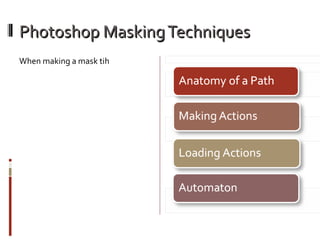
Photoshop Masking Techniques
When making a mask tih
Recording Actions
Keep in mind the following
guidelines when recording actions:

Results depend on file and program
setting variables, such as the active
layer and the foreground color. For
example, a 3‑pixel Gaussian blur
won’t create the same effect on a
72‑ppi file as on a 144‑ppi file. Nor
will Color Balance work on a
grayscale file.
Recording Actions
You can record your own Actions
with a few easy steps

Open a file.
In the Actions panel, click the Create
New Action button , or choose New
Action from the Actions panel menu.
Enter an action name, select an action
set, and set additional options:Function
Key Assigns a keyboard shortcut to the
action. You can choose any combination
of a function key, the Ctrl key (Windows)
or Command key (Mac OS), and the Shift
key (for example, Ctrl+Shift+F3), with
these exceptions: In Windows, you
cannot use the F1 key, nor can you use
F4 or F6 with the Ctrl key.Note: If you
assign an action the same shortcut that is
used for a command, the shortcut will
apply the action rather than the
command.
Recording Actions
You can record your own Actions
with a few easy steps

Click Begin Recording. The Begin
Recording button in the Actions
panel turns red .Important: When
recording the Save As command, do
not change the filename. If you enter
a new filename, that new name is
recorded and used each time you run
the action. Before saving, if you
navigate to a different folder, you can
specify a different location without
having to specify a filename.
Recording Actions
You can record your own Actions
with a few easy steps

Perform the operations and
commands you want to record.Not
all tasks in actions can be recorded
directly; however, you can insert
most nonrecordable tasks using
commands in the Actions panel
menu.
To stop recording, either click the
Stop Playing/Recording button, or
choose Stop Recording from the
Actions panel menu. (In Photoshop,
you can also press the Esc key.)
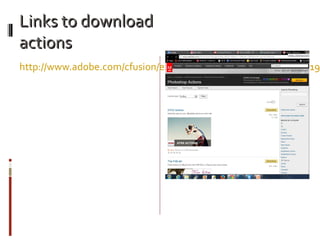
Links to download
actions

http://www.adobe.com/cfusion/exchange/index.cfm?exc=16&cat=19
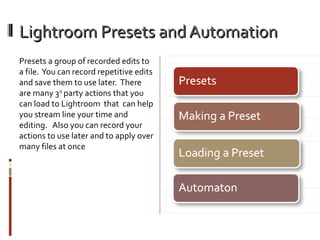
Lightroom Presets and Automation
Presets a group of recorded edits to
a file. You can record repetitive edits
and save them to use later. There
are many 3rd party actions that you
can load to Lightroom that can help
you stream line your time and
editing. Also you can record your
actions to use later and to apply over
many files at once
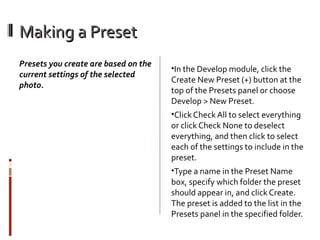
Making a Preset
Presets you create are based on the
current settings of the selected
photo.

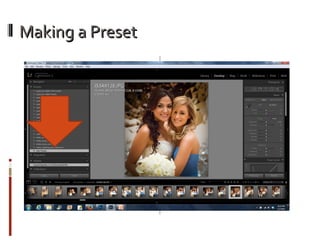
•In the Develop module, click the

Create New Preset (+) button at the
top of the Presets panel or choose
Develop > New Preset.
•Click Check All to select everything

or click Check None to deselect
everything, and then click to select
each of the settings to include in the
preset.
•Type a name in the Preset Name

box, specify which folder the preset
should appear in, and click Create.
The preset is added to the list in the
Presets panel in the specified folder.
Making a Preset
Loading and Exporting a Preset
Import
To import a preset, right-click
(Windows) or Control-click
(Mac OS) the area where you
want the preset to appear and
choose Import. Double-click
the preset template file.

Export
You can export presets you’ve
created to share with
colleagues or to use on a
different computer. Preset
templates are saved with an
.lrtemplate extension.
To export a preset, right-click
(Windows) or Control-click
(Mac OS) a preset and choose
Export. Type the name of the
preset template file and click
Save.
Loading and Exporting a Preset
Import
To import a preset, right-click
(Windows) or Control-click
(Mac OS) the area where you
want the preset to appear and
choose Import. Double-click
the preset template file.

Export
You can export presets you’ve
created to share with
colleagues or to use on a
different computer. Preset
templates are saved with an
.lrtemplate extension.
To export a preset, right-click
(Windows) or Control-click
(Mac OS) a preset and choose
Export. Type the name of the
preset template file and click
Save.
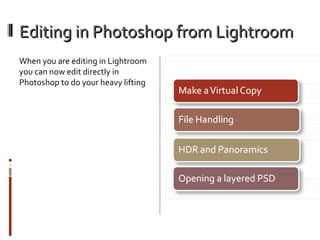
Editing in Photoshop from Lightroom
When you are editing in Lightroom
you can now edit directly in
Photoshop to do your heavy lifting
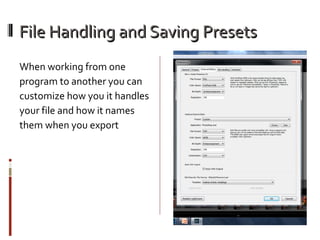
File Handling and Saving Presets
When working from one
program to another you can
customize how you it handles
your file and how it names
them when you export
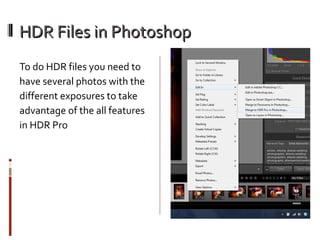
HDR Files in Photoshop
To do HDR files you need to
have several photos with the
different exposures to take
advantage of the all features
in HDR Pro
Editing Panoramics
Hint:
When editing Panoramics you
need to be aware of file size
and not give Photoshop too
many files
You Can Bring in Multiple Files as
Layers
Now you can select more than
one photo from lightroom and
take it to Photoshop and make
a composite image
Homework
•Record one Preset in

Lightroom
•Make one Panoramic Image
•Make one HDR image in

Photoshop
•And Make one composite

photo

Darkroom 2 photoshop masking techniques and smart objects

  • 1.
    Photoshop Masks, Smartobjects and masking techniques
  • 3.
    Understanding the PenTool The Pen Tool will make a path for your mask. Lets look at the Anatomy of a Path
  • 4.
    Straight Lines The PenTool will make a path for your mask. Lets look at the Anatomy of a Path  The Pen tool want s you to at the beginning and end of each straight line segment. Start by click on where you like the points of a triangle to appear
  • 5.
    Making Curves anda Circle The Pen Tool will make a path for your mask. Lets look at the Anatomy of a Path  With Just tow anchor points and four related handles you should be able to create a shape that resembles
  • 6.
  • 7.
    Recording Actions Keep inmind the following guidelines when recording actions: Results depend on file and program setting variables, such as the active layer and the foreground color. For example, a 3‑pixel Gaussian blur won’t create the same effect on a 72‑ppi file as on a 144‑ppi file. Nor will Color Balance work on a grayscale file.
  • 8.
    Recording Actions You canrecord your own Actions with a few easy steps Open a file. In the Actions panel, click the Create New Action button , or choose New Action from the Actions panel menu. Enter an action name, select an action set, and set additional options:Function Key Assigns a keyboard shortcut to the action. You can choose any combination of a function key, the Ctrl key (Windows) or Command key (Mac OS), and the Shift key (for example, Ctrl+Shift+F3), with these exceptions: In Windows, you cannot use the F1 key, nor can you use F4 or F6 with the Ctrl key.Note: If you assign an action the same shortcut that is used for a command, the shortcut will apply the action rather than the command.
  • 9.
    Recording Actions You canrecord your own Actions with a few easy steps Click Begin Recording. The Begin Recording button in the Actions panel turns red .Important: When recording the Save As command, do not change the filename. If you enter a new filename, that new name is recorded and used each time you run the action. Before saving, if you navigate to a different folder, you can specify a different location without having to specify a filename.
  • 10.
    Recording Actions You canrecord your own Actions with a few easy steps Perform the operations and commands you want to record.Not all tasks in actions can be recorded directly; however, you can insert most nonrecordable tasks using commands in the Actions panel menu. To stop recording, either click the Stop Playing/Recording button, or choose Stop Recording from the Actions panel menu. (In Photoshop, you can also press the Esc key.)
  • 11.
  • 12.
    Lightroom Presets andAutomation Presets a group of recorded edits to a file. You can record repetitive edits and save them to use later. There are many 3rd party actions that you can load to Lightroom that can help you stream line your time and editing. Also you can record your actions to use later and to apply over many files at once
  • 13.
    Making a Preset Presetsyou create are based on the current settings of the selected photo. •In the Develop module, click the Create New Preset (+) button at the top of the Presets panel or choose Develop > New Preset. •Click Check All to select everything or click Check None to deselect everything, and then click to select each of the settings to include in the preset. •Type a name in the Preset Name box, specify which folder the preset should appear in, and click Create. The preset is added to the list in the Presets panel in the specified folder.
  • 14.
  • 15.
    Loading and Exportinga Preset Import To import a preset, right-click (Windows) or Control-click (Mac OS) the area where you want the preset to appear and choose Import. Double-click the preset template file. Export You can export presets you’ve created to share with colleagues or to use on a different computer. Preset templates are saved with an .lrtemplate extension. To export a preset, right-click (Windows) or Control-click (Mac OS) a preset and choose Export. Type the name of the preset template file and click Save.
  • 16.
    Loading and Exportinga Preset Import To import a preset, right-click (Windows) or Control-click (Mac OS) the area where you want the preset to appear and choose Import. Double-click the preset template file. Export You can export presets you’ve created to share with colleagues or to use on a different computer. Preset templates are saved with an .lrtemplate extension. To export a preset, right-click (Windows) or Control-click (Mac OS) a preset and choose Export. Type the name of the preset template file and click Save.
  • 18.
    Editing in Photoshopfrom Lightroom When you are editing in Lightroom you can now edit directly in Photoshop to do your heavy lifting
  • 19.
    File Handling andSaving Presets When working from one program to another you can customize how you it handles your file and how it names them when you export
  • 20.
    HDR Files inPhotoshop To do HDR files you need to have several photos with the different exposures to take advantage of the all features in HDR Pro
  • 21.
    Editing Panoramics Hint: When editingPanoramics you need to be aware of file size and not give Photoshop too many files
  • 22.
    You Can Bringin Multiple Files as Layers Now you can select more than one photo from lightroom and take it to Photoshop and make a composite image
  • 23.
    Homework •Record one Presetin Lightroom •Make one Panoramic Image •Make one HDR image in Photoshop •And Make one composite photo