In-Place eDiscovery & hold (EAC)
Presenter – Abhishek Kumar
Agenda:
• Introduction.
• Assign eDiscovery permission in Exchange.
• Create an In-place discovery search.
• Create or remove an In-place hold.
• Copy eDiscovery search results to a discovery mailbox.
• Export eDiscovery search results to a PST file.
Introduction:
In-Place eDiscovery:
Use an In-Place eDiscovery search to search for content across all mailboxes and
public folders in your Exchange organization. This includes searching permanently
deleted items and original versions of modified items (in the Recoverable Items
folder) for users placed on Litigation Hold or In-Place Hold.
In-Place hold:
An In-Place Hold preserves all mailbox content, including deleted items and original
versions of modified items. All such mailbox items are returned in an In-Place
eDiscovery search. When you place an In-Place Hold on a user's mailbox on, the
contents in the corresponding archive mailbox (if it's enabled) are also placed on
hold, and returned in a eDiscovery search.
Assign eDiscovery permission in Exchange
If you want users to be able to use Exchange In-Place eDiscovery, you first need to
add them to the Discovery Management role group. Members of the Discovery
Management role group have Full Access mailbox permissions to the default
discovery mailbox, which is called Discovery Search Mailbox.
Walkthrough – How to assign eDiscovery permissions.
Create an In-place eDiscovery search
Use an In-Place eDiscovery search to search for content across all
mailboxes. We will walk through how to create an In-place eDiscovery
search.
Create or remove an In-place hold
In this walkthrough, we will take a look on how to create or remove In-
Place hold.
Copy eDiscovery search results to a
discovery mailbox
After you create an In-Place eDiscovery search, you can use the EAC to
copy the results which will copy the results to the discovery mailbox
that was specified when you created the search.
Export eDiscovery search results to a PST file
You can use the eDiscovery Export tool in the Exchange admin center
(EAC) to export the results of an In-Place eDiscovery search to an
Outlook Data File, which is also called a PST file.
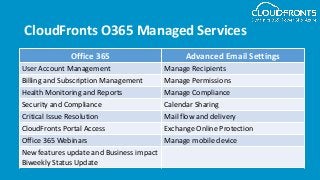
CloudFronts O365 Managed Services
Office 365 Advanced Email Settings
User Account Management Manage Recipients
Billing and Subscription Management Manage Permissions
Health Monitoring and Reports Manage Compliance
Security and Compliance Calendar Sharing
Critical Issue Resolution Mail flow and delivery
CloudFronts Portal Access Exchange Online Protection
Office 365 Webinars Manage mobile device
New features update and Business impact
Biweekly Status Update
Connect with us!
https://www.linkedin.com/company/cloudfronts
@cloudfronts
https://www.youtube.com/cloudfronts
info@cloudfronts.com
CloudFronts Technologies, LLP.
+1 855 796 4355 (USA) | +91 92 2358 3878 (India)
Write to us : info@cloudfronts.com

In-Place eDiscovery & hold (Exchange Online Admin Center)

  • 1.
    In-Place eDiscovery &hold (EAC) Presenter – Abhishek Kumar
  • 2.
    Agenda: • Introduction. • AssigneDiscovery permission in Exchange. • Create an In-place discovery search. • Create or remove an In-place hold. • Copy eDiscovery search results to a discovery mailbox. • Export eDiscovery search results to a PST file.
  • 3.
    Introduction: In-Place eDiscovery: Use anIn-Place eDiscovery search to search for content across all mailboxes and public folders in your Exchange organization. This includes searching permanently deleted items and original versions of modified items (in the Recoverable Items folder) for users placed on Litigation Hold or In-Place Hold. In-Place hold: An In-Place Hold preserves all mailbox content, including deleted items and original versions of modified items. All such mailbox items are returned in an In-Place eDiscovery search. When you place an In-Place Hold on a user's mailbox on, the contents in the corresponding archive mailbox (if it's enabled) are also placed on hold, and returned in a eDiscovery search.
  • 4.
    Assign eDiscovery permissionin Exchange If you want users to be able to use Exchange In-Place eDiscovery, you first need to add them to the Discovery Management role group. Members of the Discovery Management role group have Full Access mailbox permissions to the default discovery mailbox, which is called Discovery Search Mailbox. Walkthrough – How to assign eDiscovery permissions.
  • 5.
    Create an In-placeeDiscovery search Use an In-Place eDiscovery search to search for content across all mailboxes. We will walk through how to create an In-place eDiscovery search.
  • 6.
    Create or removean In-place hold In this walkthrough, we will take a look on how to create or remove In- Place hold.
  • 7.
    Copy eDiscovery searchresults to a discovery mailbox After you create an In-Place eDiscovery search, you can use the EAC to copy the results which will copy the results to the discovery mailbox that was specified when you created the search.
  • 8.
    Export eDiscovery searchresults to a PST file You can use the eDiscovery Export tool in the Exchange admin center (EAC) to export the results of an In-Place eDiscovery search to an Outlook Data File, which is also called a PST file.
  • 9.
    CloudFronts O365 ManagedServices Office 365 Advanced Email Settings User Account Management Manage Recipients Billing and Subscription Management Manage Permissions Health Monitoring and Reports Manage Compliance Security and Compliance Calendar Sharing Critical Issue Resolution Mail flow and delivery CloudFronts Portal Access Exchange Online Protection Office 365 Webinars Manage mobile device New features update and Business impact Biweekly Status Update
  • 10.
    Connect with us! https://www.linkedin.com/company/cloudfronts @cloudfronts https://www.youtube.com/cloudfronts info@cloudfronts.com CloudFrontsTechnologies, LLP. +1 855 796 4355 (USA) | +91 92 2358 3878 (India) Write to us : info@cloudfronts.com