DYNAMICS NAV 2013 R2
PURCHASE REQUISITION-TRAINING MANUAL
Rohan Thushara
thushara.r@flintec.com
Dynamics NAV 2013 R2 - Purchase Requisition
pg. 1
1.
Requirement
3.
Fill Header
& Line
Information
2.
Create
PR
Yes
No
4.
Get
approval
5.
approved
6.
Cancel
Dynamics NAV 2013 R2 - Purchase Requisition
pg. 2
Purchase Requisition
If you would like to raise requisition to purchase item through purchasing department, you can
prepare a purchase requisition and send it to the Purchasing Department.
Purchase requisitions in Dynamics NAV do not affect other areas of the application, so the items on
the purchase requisitions will not appear in the inventory. You can convert a purchase requisition to
a purchase order when you want to commit to an agreement to buy goods from one of your vendors.
Creating Purchase Requisition
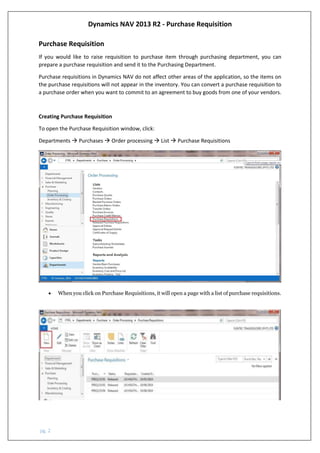
To open the Purchase Requisition window, click:
Departments  Purchases  Order processing  List  Purchase Requisitions
 When you click on Purchase Requisitions, it will open a page with a list of purchase requisitions.
Dynamics NAV 2013 R2 - Purchase Requisition
pg. 3
In the Purch. Rec. No. field press enter. It will auto generate the Purch. Rec No. Purch Rec. No. field
can be Default No. Series or Manual No. Series. Depending on the type of order to be placed, the
relevant number series can be selected from the list.
 Status, Created Date and Requester ID will automatically get updated
 In the Type field, select what you require to purchase. If it is an Item, select item from the
drop down list. Or if it is not an Item then you select G/L account.
Dynamics NAV 2013 R2 - Purchase Requisition
pg. 4
 In the No. field, select the item you require to purchase. When the Item No. is selected the
Description will automatically update.
 In the quantity field enter the quantity you wish to purchase.
 In the Unit of Measure field select the unit of measure you want to purchase the item in.
Note
When a purchase requisition created, the status will be open.
Get Approval for Purchase Requisition
 To get approval for a purchase requisition, go to Actions tab, click Send Initial Approval
Request, Click Approve Initial Approval Level and click Approval, click Send Approval Request.
 Once the approvers approve the purchase requisition, PR status will change to Released and
will available procurement to purchase.
Re-Opening a Purchase Requisition submitted to procurement
If a purchase requisition that was submitted to procurement needs to be amended, click Re-open and
click on Reopen Initial Approval status on the Action tab.
1
2
3
4
1
2

Purchase Requisition

  • 1.
    DYNAMICS NAV 2013R2 PURCHASE REQUISITION-TRAINING MANUAL Rohan Thushara thushara.r@flintec.com
  • 2.
    Dynamics NAV 2013R2 - Purchase Requisition pg. 1 1. Requirement 3. Fill Header & Line Information 2. Create PR Yes No 4. Get approval 5. approved 6. Cancel
  • 3.
    Dynamics NAV 2013R2 - Purchase Requisition pg. 2 Purchase Requisition If you would like to raise requisition to purchase item through purchasing department, you can prepare a purchase requisition and send it to the Purchasing Department. Purchase requisitions in Dynamics NAV do not affect other areas of the application, so the items on the purchase requisitions will not appear in the inventory. You can convert a purchase requisition to a purchase order when you want to commit to an agreement to buy goods from one of your vendors. Creating Purchase Requisition To open the Purchase Requisition window, click: Departments  Purchases  Order processing  List  Purchase Requisitions  When you click on Purchase Requisitions, it will open a page with a list of purchase requisitions.
  • 4.
    Dynamics NAV 2013R2 - Purchase Requisition pg. 3 In the Purch. Rec. No. field press enter. It will auto generate the Purch. Rec No. Purch Rec. No. field can be Default No. Series or Manual No. Series. Depending on the type of order to be placed, the relevant number series can be selected from the list.  Status, Created Date and Requester ID will automatically get updated  In the Type field, select what you require to purchase. If it is an Item, select item from the drop down list. Or if it is not an Item then you select G/L account.
  • 5.
    Dynamics NAV 2013R2 - Purchase Requisition pg. 4  In the No. field, select the item you require to purchase. When the Item No. is selected the Description will automatically update.  In the quantity field enter the quantity you wish to purchase.  In the Unit of Measure field select the unit of measure you want to purchase the item in. Note When a purchase requisition created, the status will be open. Get Approval for Purchase Requisition  To get approval for a purchase requisition, go to Actions tab, click Send Initial Approval Request, Click Approve Initial Approval Level and click Approval, click Send Approval Request.  Once the approvers approve the purchase requisition, PR status will change to Released and will available procurement to purchase. Re-Opening a Purchase Requisition submitted to procurement If a purchase requisition that was submitted to procurement needs to be amended, click Re-open and click on Reopen Initial Approval status on the Action tab. 1 2 3 4 1 2