Year-End Planning
for Sage Intacct
Join the Audio: 1-663-900-6833
Passcode: 102-651-600
Jean Sheridan
RKL eSolutions, LLC
December 17, 2019
 Things you don’t have to do
 Year End Preparation
 Fiscal Year End Close Process
 Create Fiscal Year Reporting Periods
 1099 Preparation and Processing
 FAQs
Agenda
Things you don’t have to do
• Things you no longer have to worry about with Sage Intacct:
No longer need to backup data.
No longer need to worry about your disaster recovery plan.
No longer need to purge history or lose access to detailed
transactions.
No longer need to install service updates (“patches”) for year-end
documents (i.e. 1099s)
No longer need to do an official roll-forward of Retained Earnings.
Year End Preparation
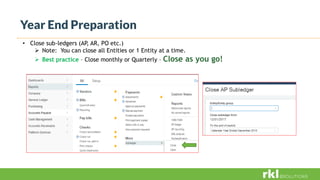
• Close sub-ledgers (AP, AR, PO etc.)
 Note: You can close all Entities or 1 Entity at a time.
 Best practice – Close monthly or Quarterly – Close as you go!
Year End Preparation – Contd.
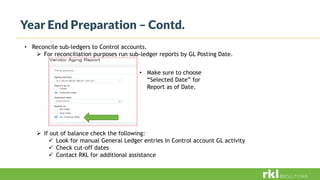
• Reconcile sub-ledgers to Control accounts.
 For reconciliation purposes run sub-ledger reports by GL Posting Date.
 If out of balance check the following:
 Look for manual General Ledger entries in Control account GL activity
 Check cut-off dates
 Contact RKL for additional assistance
• Make sure to choose
“Selected Date” for
Report as of Date.
Year End Preparation – Contd.
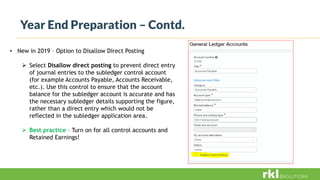
• New in 2019 – Option to Disallow Direct Posting
 Select Disallow direct posting to prevent direct entry
of journal entries to the subledger control account
(for example Accounts Payable, Accounts Receivable,
etc.). Use this control to ensure that the account
balance for the subledger account is accurate and has
the necessary subledger details supporting the figure,
rather than a direct entry which would not be
reflected in the subledger application area.
 Best practice – Turn on for all control accounts and
Retained Earnings!
Year End Close – General Ledger
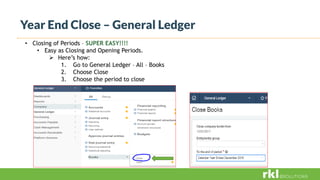
• Closing of Periods – SUPER EASY!!!!
• Easy as Closing and Opening Periods.
 Here’s how:
1. Go to General Ledger – All – Books
2. Choose Close
3. Choose the period to close
Create Fiscal Year Reporting Periods
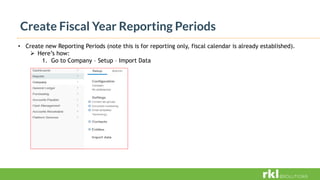
• Create new Reporting Periods (note this is for reporting only, fiscal calendar is already established).
 Here’s how:
1. Go to Company – Setup – Import Data
Create Fiscal Year Reporting Periods – contd.
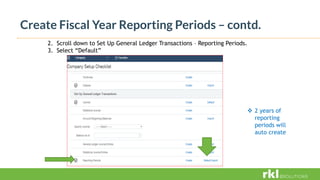
2. Scroll down to Set Up General Ledger Transactions – Reporting Periods.
3. Select “Default”
 2 years of
reporting
periods will
auto create
Create Fiscal Year Reporting Periods – contd.
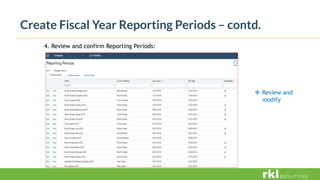
4. Review and confirm Reporting Periods:
 Review and
modify
Year End Close: Things to remember:
• Make a Year-End and Month-End check list!
 Develop and document a close process
 Define Task & Responsibilities to team members
 Set due dates
 Assign responsibilities
• Lock down Retained Earnings – No Adjustments to Retained Earnings only system
created journals.
 Re-open closed periods/years for adjustments
• No need to “touch” Retained Earnings or perform an “official” close process.
• Reconcile sub-ledgers
• RKL is here to help!!!
1099 Preparation and Processing
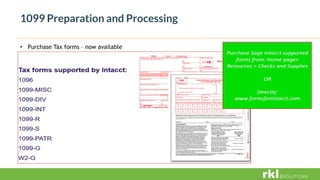
• Purchase Tax forms – now available
1099 Preparation and Processing - 1099 Vendor Setup
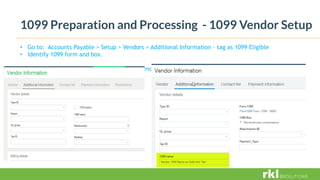
• Go to: Accounts Payable > Setup > Vendors > Additional Information – tag as 1099 Eligible
• Identify 1099 form and box.
Go to: Accounts Payable > Setup > Vendors > Additional Information – tag as 1099 Eligible
1099 Preparation and Processing – Initial values for mid-year
go lives
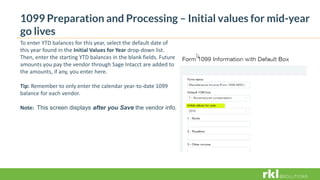
To enter YTD balances for this year, select the default date of
this year found in the Initial Values for Year drop-down list.
Then, enter the starting YTD balances in the blank fields. Future
amounts you pay the vendor through Sage Intacct are added to
the amounts, if any, you enter here.
Tip: Remember to only enter the calendar year-to-date 1099
balance for each vendor.
Note: This screen displays after you Save the vendor info.
1099 Preparation and Processing – 1099 Printing
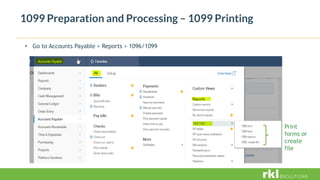
• Go to Accounts Payable > Reports > 1096/1099
Print
forms or
create
file
1099 Preparation and Processing – 1099 Printing contd.
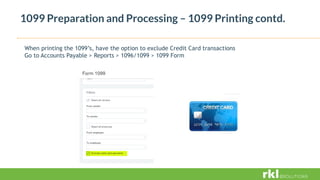
When printing the 1099’s, have the option to exclude Credit Card transactions
Go to Accounts Payable > Reports > 1096/1099 > 1099 Form
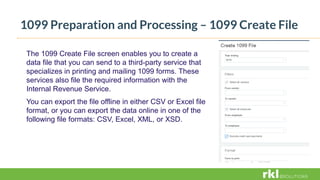
1099 Preparation and Processing – 1099 Create File
The 1099 Create File screen enables you to create a
data file that you can send to a third-party service that
specializes in printing and mailing 1099 forms. These
services also file the required information with the
Internal Revenue Service.
You can export the file offline in either CSV or Excel file
format, or you can export the data online in one of the
following file formats: CSV, Excel, XML, or XSD.
1099 Preparation and Processing- FAQs
What if we have a third-party print and mail 1099 forms?
-Create a 1099 file and then export the data. If you want to see the amounts paid
to vendors, along with their 1099 categories, run the 1099 Report to show all the
1099 data.
What if we have 250 or more 1099s?
-If you have more than 250 1099s, it is required that you file electronically.
–There are third-party programs that will help you file electronically. These can be
found in the Intacct Marketplace.
https://www.sageintacct.com/intacct-marketplace
search=1099*
What Tax Forms Does Sage Intacct Support?
Sage Intacct supports the following tax forms: 1096, 1099-MISC, 1099-DIV, 1099-
INT, 1099-R, 1099-S, 1099-PATR and 1099-G, W2-G
1099 Preparation and Processing- FAQs
How do I update or change the 1099 amount for a vendor? You can manually update a Vendors
1099 amount by:
1. Select Accounts Payable from the top navigational bar
2. Edit the appropriate vendor.
3. Go to the "Additional Information" tab
4. Click on the "1099 Form" link (Note: this only appears in edit mode)
5. Select the correct 1099 year
6. Select the appropriate 1099 form for this vendor and enter the amounts you want to add to the
vendor's current 1099 balance
7. Save Changes
**Note, in order to reduce the vendors 1099 amount a negative number can be entered.
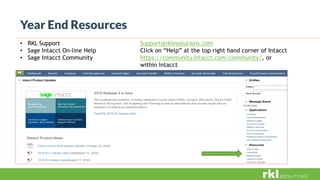
Year End Resources
• RKL Support Support@rklesolutions.com
• Sage Intacct On-line Help Click on “Help” at the top right hand corner of Intacct
• Sage Intacct Community https://community.intacct.com/community/, or
within Intacct
Thank you and Happy Holidays!
Contact us for pricing, compatibility and consulting
needs of your business management solutions.
Sales@rklesolutions.com
717.735.9109

Intacct 2019 Year-end Processing

  • 1.
    Year-End Planning for SageIntacct Join the Audio: 1-663-900-6833 Passcode: 102-651-600 Jean Sheridan RKL eSolutions, LLC December 17, 2019
  • 2.
     Things youdon’t have to do  Year End Preparation  Fiscal Year End Close Process  Create Fiscal Year Reporting Periods  1099 Preparation and Processing  FAQs Agenda
  • 3.
    Things you don’thave to do • Things you no longer have to worry about with Sage Intacct: No longer need to backup data. No longer need to worry about your disaster recovery plan. No longer need to purge history or lose access to detailed transactions. No longer need to install service updates (“patches”) for year-end documents (i.e. 1099s) No longer need to do an official roll-forward of Retained Earnings.
  • 4.
    Year End Preparation •Close sub-ledgers (AP, AR, PO etc.)  Note: You can close all Entities or 1 Entity at a time.  Best practice – Close monthly or Quarterly – Close as you go!
  • 5.
    Year End Preparation– Contd. • Reconcile sub-ledgers to Control accounts.  For reconciliation purposes run sub-ledger reports by GL Posting Date.  If out of balance check the following:  Look for manual General Ledger entries in Control account GL activity  Check cut-off dates  Contact RKL for additional assistance • Make sure to choose “Selected Date” for Report as of Date.
  • 6.
    Year End Preparation– Contd. • New in 2019 – Option to Disallow Direct Posting  Select Disallow direct posting to prevent direct entry of journal entries to the subledger control account (for example Accounts Payable, Accounts Receivable, etc.). Use this control to ensure that the account balance for the subledger account is accurate and has the necessary subledger details supporting the figure, rather than a direct entry which would not be reflected in the subledger application area.  Best practice – Turn on for all control accounts and Retained Earnings!
  • 7.
    Year End Close– General Ledger • Closing of Periods – SUPER EASY!!!! • Easy as Closing and Opening Periods.  Here’s how: 1. Go to General Ledger – All – Books 2. Choose Close 3. Choose the period to close
  • 8.
    Create Fiscal YearReporting Periods • Create new Reporting Periods (note this is for reporting only, fiscal calendar is already established).  Here’s how: 1. Go to Company – Setup – Import Data
  • 9.
    Create Fiscal YearReporting Periods – contd. 2. Scroll down to Set Up General Ledger Transactions – Reporting Periods. 3. Select “Default”  2 years of reporting periods will auto create
  • 10.
    Create Fiscal YearReporting Periods – contd. 4. Review and confirm Reporting Periods:  Review and modify
  • 11.
    Year End Close:Things to remember: • Make a Year-End and Month-End check list!  Develop and document a close process  Define Task & Responsibilities to team members  Set due dates  Assign responsibilities • Lock down Retained Earnings – No Adjustments to Retained Earnings only system created journals.  Re-open closed periods/years for adjustments • No need to “touch” Retained Earnings or perform an “official” close process. • Reconcile sub-ledgers • RKL is here to help!!!
  • 12.
    1099 Preparation andProcessing • Purchase Tax forms – now available
  • 13.
    1099 Preparation andProcessing - 1099 Vendor Setup • Go to: Accounts Payable > Setup > Vendors > Additional Information – tag as 1099 Eligible • Identify 1099 form and box. Go to: Accounts Payable > Setup > Vendors > Additional Information – tag as 1099 Eligible
  • 14.
    1099 Preparation andProcessing – Initial values for mid-year go lives To enter YTD balances for this year, select the default date of this year found in the Initial Values for Year drop-down list. Then, enter the starting YTD balances in the blank fields. Future amounts you pay the vendor through Sage Intacct are added to the amounts, if any, you enter here. Tip: Remember to only enter the calendar year-to-date 1099 balance for each vendor. Note: This screen displays after you Save the vendor info.
  • 15.
    1099 Preparation andProcessing – 1099 Printing • Go to Accounts Payable > Reports > 1096/1099 Print forms or create file
  • 16.
    1099 Preparation andProcessing – 1099 Printing contd. When printing the 1099’s, have the option to exclude Credit Card transactions Go to Accounts Payable > Reports > 1096/1099 > 1099 Form
  • 17.
    1099 Preparation andProcessing – 1099 Create File The 1099 Create File screen enables you to create a data file that you can send to a third-party service that specializes in printing and mailing 1099 forms. These services also file the required information with the Internal Revenue Service. You can export the file offline in either CSV or Excel file format, or you can export the data online in one of the following file formats: CSV, Excel, XML, or XSD.
  • 18.
    1099 Preparation andProcessing- FAQs What if we have a third-party print and mail 1099 forms? -Create a 1099 file and then export the data. If you want to see the amounts paid to vendors, along with their 1099 categories, run the 1099 Report to show all the 1099 data. What if we have 250 or more 1099s? -If you have more than 250 1099s, it is required that you file electronically. –There are third-party programs that will help you file electronically. These can be found in the Intacct Marketplace. https://www.sageintacct.com/intacct-marketplace search=1099* What Tax Forms Does Sage Intacct Support? Sage Intacct supports the following tax forms: 1096, 1099-MISC, 1099-DIV, 1099- INT, 1099-R, 1099-S, 1099-PATR and 1099-G, W2-G
  • 19.
    1099 Preparation andProcessing- FAQs How do I update or change the 1099 amount for a vendor? You can manually update a Vendors 1099 amount by: 1. Select Accounts Payable from the top navigational bar 2. Edit the appropriate vendor. 3. Go to the "Additional Information" tab 4. Click on the "1099 Form" link (Note: this only appears in edit mode) 5. Select the correct 1099 year 6. Select the appropriate 1099 form for this vendor and enter the amounts you want to add to the vendor's current 1099 balance 7. Save Changes **Note, in order to reduce the vendors 1099 amount a negative number can be entered.
  • 20.
    Year End Resources •RKL Support Support@rklesolutions.com • Sage Intacct On-line Help Click on “Help” at the top right hand corner of Intacct • Sage Intacct Community https://community.intacct.com/community/, or within Intacct
  • 21.
    Thank you andHappy Holidays! Contact us for pricing, compatibility and consulting needs of your business management solutions. Sales@rklesolutions.com 717.735.9109