iOS Training
Day 1
Getting into the App world
● iOS is a mobile operating system developed and distributed by Apple Inc. It was originally released in 2007
for the iPhone, iPad, iPod Touch, and Apple TV, Apple Watch etc.
● Objective-C is the main programming language used by Apple for the OS X and iOS operating systems and
their respective APIs, Cocoa and Cocoa Touch.
● Swift 4 is a new programming language developed by Apple Inc for iOS and OS X development. Swift 4
adopts the best of C and Objective-C, without the constraints of C compatibility.
● Cocoa and Cocoa Touch are the application development environments for OS X and iOS, respectively.
● Cocoa, which includes the Foundation and AppKit frameworks, is used for developing applications that run
on OS X.
● Cocoa Touch, which includes Foundation and UIKit frameworks, is used for developing applications that run
on iOS.
Getting into the App world - Contd.
● Swift 4 comes with playground feature where Swift 4 programmers can write their code and execute it to
see the results immediately.
● You need xCode software to start your Swift 4 coding in Playground.
● Once you are comfortable with the concepts of Swift 4, you can use Xcode IDE for iOS/OS X application
development.
● An introduction about the App Bundle, Bundle Identifier, Provisioning Profiles, Understanding plist files,
building and archiving the app.
Model-View-Controller(MVC) Architecture
● The Model-View-Controller (MVC) design pattern assigns objects in an application one of three roles: model,
view, or controller.
● The pattern defines not only the roles objects play in the application, it defines the way objects
communicate with each other.
● The benefits of adopting this MVC pattern are numerous.
● Many objects in these applications tend to be more reusable, and their interfaces tend to be better defined.
● Applications having an MVC design are also more easily extensible than other applications.
Model-View-Controller(MVC) Architecture
● Model Objects
○ Model objects encapsulate the data specific to an application and define the logic and computation
that manipulate and process that data.
● View Objects
○ A view object is an object in an application that users can see.
○ A view object knows how to draw itself and can respond to user actions.
○ A major purpose of view objects is to display data from the application’s model objects and to enable
the editing of that data.
● Controller Objects
○ A controller object acts as an intermediary between one or more of an application’s view objects and
one or more of its model objects.
Model-View-Controller(MVC) Architecture
● Model
Data
● View
User Interface
● Controller Core Logic
Model-View-Controller(MVC) Architecture
MVC Architecture - Folder Structure
Best Practices
Getting on board with iOS can be intimidating. Either Swift nor Objective-C, the platform has its own names for
almost everything, and it's a bumpy road for your code to actually make it onto a physical device. This living
document is here to help you, whether you're taking your first steps in Cocoaland or you're curious about doing
things "the right way". Everything below is just suggestions, so if you have a good reason to do something
differently, by all means go for it!
Xcode
● Xcode is the IDE of choice for most iOS developers, and the only one officially supported by Apple. There are
some alternatives, of which AppCode is arguably the most famous, but since you're a newbie to iOS, go with
Xcode.
● To install, simply download Xcode on the Mac App Store. It comes with the newest SDK and simulators, and
you can install more stuff under Preferences > Downloads.
Project Structure
● To keep all those hundreds of source files from ending up in the same directory, it's a good idea to set up some folder structure
depending on your architecture. For instance, you can use the following:
○ Models
○ Views
○ Controllers (or ViewModels, if your architecture is MVVM)
○ Helpers
● Create them as groups (little yellow "folders") within the group with your project's name in Xcode's Project Navigator.
Constants
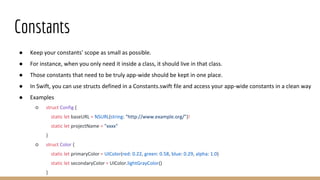
● Keep your constants' scope as small as possible.
● For instance, when you only need it inside a class, it should live in that class.
● Those constants that need to be truly app-wide should be kept in one place.
● In Swift, you can use structs defined in a Constants.swift file and access your app-wide constants in a clean way
● Examples
○ struct Config {
static let baseURL = NSURL(string: "http://www.example.org/")!
static let projectName = "xxxx"
}
○ struct Color {
static let primaryColor = UIColor(red: 0.22, green: 0.58, blue: 0.29, alpha: 1.0)
static let secondaryColor = UIColor.lightGrayColor()
}
Minimum iOS Version Requirement
It’s useful to make an early decision on the minimum iOS version you want to support in your project: knowing which
OS versions you need to develop and test against, and which system APIs you can rely on, helps you estimate your
workload, and enables you to determine what’s possible and what’s not.
Use these resources to gather the data necessary for making this choice:
● Official “first-party” resources:
○ Apple’s world-wide iOS version penetration statistics: The primary public source for version penetration
stats. Prefer more localized and domain-specific statistics, if available.
● Third-party resources:
○ iOS Support Matrix: Useful for determining which specific device models are ruled out by a given
minimum OS version requirement.
○ DavidSmith: iOS Version Stats: Version penetration stats for David Smith’s Audiobooks apps.
○ Mixpanel Trends: iOS versions: Version penetration stats from Mixpanel.
Coding Style
Naming
● Apple pays great attention to keeping naming consistent. Adhering to their coding guidelines for Objective-C
and API design guidelines for Swift makes it much easier for new people to join the project.
● Here are some basic takeaways you can start using right away:
● A method beginning with a verb indicates that it performs some side effects, but won't return anything: -
(void)loadView; - (void)startAnimating;
● Any method starting with a noun, however, returns that object and should do so without side effects: -
(UINavigationItem *)navigationItem; + (UILabel *)labelWithText:(NSString *)text;
Coding Style - Contd.
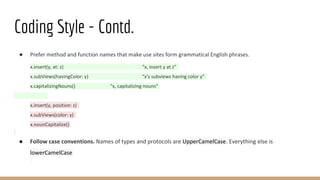
● Prefer method and function names that make use sites form grammatical English phrases.
x.insert(y, at: z) “x, insert y at z”
x.subViews(havingColor: y) “x's subviews having color y”
x.capitalizingNouns() “x, capitalizing nouns”
x.insert(y, position: z)
x.subViews(color: y)
x.nounCapitalize()
● Follow case conventions. Names of types and protocols are UpperCamelCase. Everything else is
lowerCamelCase
Coding Style - Contd.
● Acronyms and initialisms that commonly appear as all upper case in American English should be uniformly up-
or down-cased according to case conventions:
var utf8Bytes: [UTF8.CodeUnit]
var isRepresentableAsASCII = true
var userSMTPServer: SecureSMTPServer
● Other acronyms should be treated as ordinary words:
var radarDetector: RadarScanner
var enjoysScubaDiving = true
● More Information about the styling and conventions can be found in
https://github.com/raywenderlich/swift-style-guide
Structure
MARK: comments (Swift) and pragma marks (Objective-C) are a great way to group your methods, especially in
view controllers. Here is a Swift example for a common structure that works with almost any view controller:
import SomeExternalFramework
class FooViewController : UIViewController, FoobarDelegate {
let foo: Foo
private let fooStringConstant = "FooConstant"
private let floatConstant = 1234.5
// MARK: Lifecycle
// Custom initializers go here
// MARK: View Lifecycle
override func viewDidLoad() {
super.viewDidLoad()
// ...
}
Structure - Contd.
// MARK: User Interaction
func foobarButtonTapped() {
// ...
}
// MARK: FoobarDelegate
func foobar(foobar: Foobar, didSomethingWithFoo foo: Foo) {
// ...
}
// MARK: Additional Helpers
private func displayNameForFoo(foo: Foo) {
// ...
}
}
App Lifecycle
The Main Function
The entry point for every C-based app is the main function and iOS apps are no different. What is different is that
for iOS apps you do not write the main function yourself. Instead, Xcode creates this function as part of your basic
project.
#import <UIKit/UIKit.h>
#import "AppDelegate.h"
int main(int argc, char * argv[])
{
@autoreleasepool {
return UIApplicationMain(argc, argv, nil, NSStringFromClass([AppDelegate class]));
}
}
App Lifecycle - App state
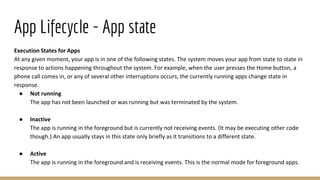
Execution States for Apps
At any given moment, your app is in one of the following states. The system moves your app from state to state in
response to actions happening throughout the system. For example, when the user presses the Home button, a
phone call comes in, or any of several other interruptions occurs, the currently running apps change state in
response.
● Not running
The app has not been launched or was running but was terminated by the system.
● Inactive
The app is running in the foreground but is currently not receiving events. (It may be executing other code
though.) An app usually stays in this state only briefly as it transitions to a different state.
● Active
The app is running in the foreground and is receiving events. This is the normal mode for foreground apps.
App Lifecycle - App state
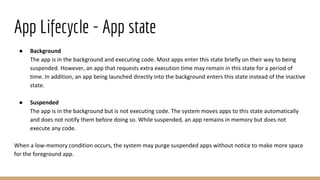
● Background
The app is in the background and executing code. Most apps enter this state briefly on their way to being
suspended. However, an app that requests extra execution time may remain in this state for a period of
time. In addition, an app being launched directly into the background enters this state instead of the inactive
state.
● Suspended
The app is in the background but is not executing code. The system moves apps to this state automatically
and does not notify them before doing so. While suspended, an app remains in memory but does not
execute any code.
When a low-memory condition occurs, the system may purge suspended apps without notice to make more space
for the foreground app.
Real Time App development
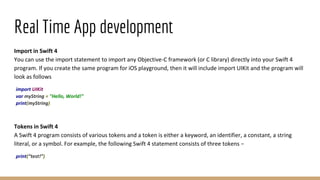
Import in Swift 4
You can use the import statement to import any Objective-C framework (or C library) directly into your Swift 4
program. If you create the same program for iOS playground, then it will include import UIKit and the program will
look as follows
import UIKit
var myString = "Hello, World!"
print(myString)
Tokens in Swift 4
A Swift 4 program consists of various tokens and a token is either a keyword, an identifier, a constant, a string
literal, or a symbol. For example, the following Swift 4 statement consists of three tokens −
print(“test!”)
Real Time App development
Semicolons
Swift 4 does not require you to type a semicolon (;) after each statement in your code, though it’s optional; and if
you use a semicolon, then the compiler does not complain about it. However, if you are using multiple statements
in the same line, then it is required to use a semicolon as a delimiter.
var myString = "Hello, World!"; print(myString)
Identifiers
A Swift 4 identifier is a name used to identify a variable, function, or any other user defined item. An identifier
starts with an alphabet A to Z or a to z or an underscore _ followed by zero or more letters, underscores, and digits
(0 to 9). Swift 4 does not allow special characters such as @, $, and % within identifiers. Swift 4 is a case sensitive
programming language. Thus, Manpower and manpower are two different identifiers in Swift 4. Here are some
examples of acceptable identifiers −
Azad zara abc move_name a_123
myname50 _temp j a23b9 retVal
Real Time App development
Comments
Comments are like helping texts in your Swift 4 program. They are ignored by the compiler. Multi-line comments
start with /* and terminate with the characters */ as shown below −
/* My first program in Swift 4 */
Multi-line comments can be nested in Swift 4. Following is a valid comment in Swift 4 −
/* My first program in Swift 4 is Hello, World!
/* Where as second program is Hello, Swift 4! */ */
Single-line comments are written using // at the beginning of the comment.
// My first program in Swift 4
Real Time App development
Whitespaces
A line containing only whitespace, possibly with a comment, is known as a blank line, and a Swift 4 compiler totally
ignores it. Whitespaces separate one part of a statement from another and enable the compiler to identify where
one element in a statement, such as int, ends and the next element begins. Therefore, in the following statement −
let apples = 20
let oranges = 30
let fruit: Int = apples + oranges //get the total fruits
There must be at least one whitespace character (usually a space) between var and age for the compiler to be able
to distinguish them. On the other hand, in the last statement above, No whitespace characters are necessary
between fruit and ‘:’ or between ‘=’ and apples, although you are free to include some for better readability.
Space on both side of a operator should be equal, for eg.
let fruit: Int = apples +oranges //is a wrong statement
let fruit: Int = apples + oranges //is a Correct statement
Data Types
Swift 4 offers the programmer a rich assortment of built-in as well as user-defined data types. The following types
of basic data types are most frequently when declaring variables −
● Int or UInt − This is used for whole numbers. More specifically, you can use Int32, Int64 to define 32 or 64
bit signed integer, whereas UInt32 or UInt64 to define 32 or 64 bit unsigned integer variables. For example,
42 and -23.
● Float − This is used to represent a 32-bit floating-point number and numbers with smaller decimal points.
For example, 3.14159, 0.1, and -273.158.
● Double − This is used to represent a 64-bit floating-point number and used when floating-point values must
be very large. For example, 3.14159, 0.1, and -273.158.
● Bool − This represents a Boolean value which is either true or false.
● String − This is an ordered collection of characters. For example, "Hello, World!"
● Character − This is a single-character string literal. For example, "C"
● Optional − This represents a variable that can hold either a value or no value.
● Tuples − This is used to group multiple values in single Compound Value.
Data Types - Contd.
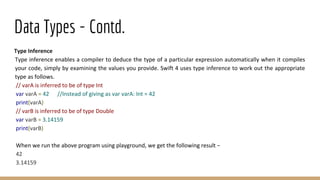
Type Inference
Type inference enables a compiler to deduce the type of a particular expression automatically when it compiles
your code, simply by examining the values you provide. Swift 4 uses type inference to work out the appropriate
type as follows.
// varA is inferred to be of type Int
var varA = 42 //Instead of giving as var varA: Int = 42
print(varA)
// varB is inferred to be of type Double
var varB = 3.14159
print(varB)
When we run the above program using playground, we get the following result −
42
3.14159
Variables
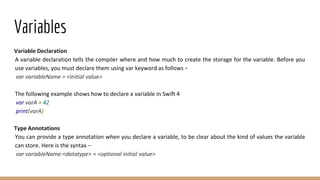
Variable Declaration
A variable declaration tells the compiler where and how much to create the storage for the variable. Before you
use variables, you must declare them using var keyword as follows −
var variableName = <initial value>
The following example shows how to declare a variable in Swift 4
var varA = 42
print(varA)
Type Annotations
You can provide a type annotation when you declare a variable, to be clear about the kind of values the variable
can store. Here is the syntax −
var variableName:<datatype> = <optional initial value>
Variables - Contd.
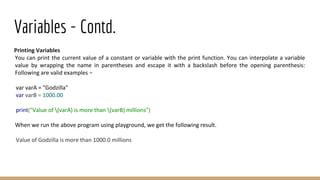
Printing Variables
You can print the current value of a constant or variable with the print function. You can interpolate a variable
value by wrapping the name in parentheses and escape it with a backslash before the opening parenthesis:
Following are valid examples −
var varA = "Godzilla"
var varB = 1000.00
print("Value of (varA) is more than (varB) millions")
When we run the above program using playground, we get the following result.
Value of Godzilla is more than 1000.0 millions
Variables - Contd.
Printing Variables
You can print the current value of a constant or variable with the print function. You can interpolate a variable
value by wrapping the name in parentheses and escape it with a backslash before the opening parenthesis:
Following are valid examples −
var varA = "Godzilla"
var varB = 1000.00
print("Value of (varA) is more than (varB) millions")
When we run the above program using playground, we get the following result.
Value of Godzilla is more than 1000.0 millions
Swift - Optionals
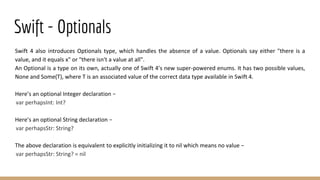
Swift 4 also introduces Optionals type, which handles the absence of a value. Optionals say either "there is a
value, and it equals x" or "there isn't a value at all".
An Optional is a type on its own, actually one of Swift 4’s new super-powered enums. It has two possible values,
None and Some(T), where T is an associated value of the correct data type available in Swift 4.
Here’s an optional Integer declaration −
var perhapsInt: Int?
Here’s an optional String declaration −
var perhapsStr: String?
The above declaration is equivalent to explicitly initializing it to nil which means no value −
var perhapsStr: String? = nil
Swift - Optionals
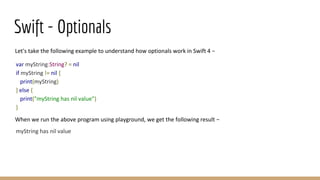
Let's take the following example to understand how optionals work in Swift 4 −
var myString:String? = nil
if myString != nil {
print(myString)
} else {
print("myString has nil value")
}
When we run the above program using playground, we get the following result −
myString has nil value
Swift - Optionals - Force Unwrapping
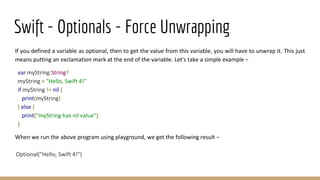
If you defined a variable as optional, then to get the value from this variable, you will have to unwrap it. This just
means putting an exclamation mark at the end of the variable. Let's take a simple example −
var myString:String?
myString = "Hello, Swift 4!"
if myString != nil {
print(myString)
} else {
print("myString has nil value")
}
When we run the above program using playground, we get the following result −
Optional("Hello, Swift 4!")
Swift - Optionals - Force Unwrapping
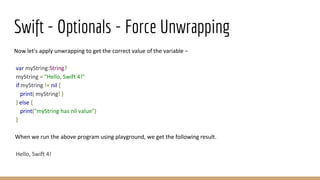
Now let's apply unwrapping to get the correct value of the variable −
var myString:String?
myString = "Hello, Swift 4!"
if myString != nil {
print( myString! )
} else {
print("myString has nil value")
}
When we run the above program using playground, we get the following result.
Hello, Swift 4!
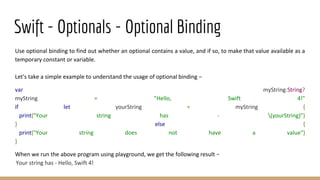
Swift - Optionals - Optional Binding
Use optional binding to find out whether an optional contains a value, and if so, to make that value available as a
temporary constant or variable.
Let's take a simple example to understand the usage of optional binding −
var myString:String?
myString = "Hello, Swift 4!"
if let yourString = myString {
print("Your string has - (yourString)")
} else {
print("Your string does not have a value")
}
When we run the above program using playground, we get the following result −
Your string has - Hello, Swift 4!
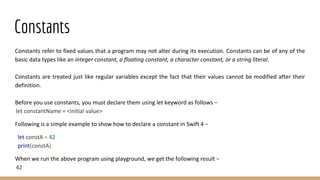
Constants
Constants refer to fixed values that a program may not alter during its execution. Constants can be of any of the
basic data types like an integer constant, a floating constant, a character constant, or a string literal.
Constants are treated just like regular variables except the fact that their values cannot be modified after their
definition.
Before you use constants, you must declare them using let keyword as follows −
let constantName = <initial value>
Following is a simple example to show how to declare a constant in Swift 4 −
let constA = 42
print(constA)
When we run the above program using playground, we get the following result −
42
Thank You

Basic iOS Training with SWIFT - Part 1

  • 1.
  • 2.
    Getting into theApp world ● iOS is a mobile operating system developed and distributed by Apple Inc. It was originally released in 2007 for the iPhone, iPad, iPod Touch, and Apple TV, Apple Watch etc. ● Objective-C is the main programming language used by Apple for the OS X and iOS operating systems and their respective APIs, Cocoa and Cocoa Touch. ● Swift 4 is a new programming language developed by Apple Inc for iOS and OS X development. Swift 4 adopts the best of C and Objective-C, without the constraints of C compatibility. ● Cocoa and Cocoa Touch are the application development environments for OS X and iOS, respectively. ● Cocoa, which includes the Foundation and AppKit frameworks, is used for developing applications that run on OS X. ● Cocoa Touch, which includes Foundation and UIKit frameworks, is used for developing applications that run on iOS.
  • 3.
    Getting into theApp world - Contd. ● Swift 4 comes with playground feature where Swift 4 programmers can write their code and execute it to see the results immediately. ● You need xCode software to start your Swift 4 coding in Playground. ● Once you are comfortable with the concepts of Swift 4, you can use Xcode IDE for iOS/OS X application development. ● An introduction about the App Bundle, Bundle Identifier, Provisioning Profiles, Understanding plist files, building and archiving the app.
  • 4.
    Model-View-Controller(MVC) Architecture ● TheModel-View-Controller (MVC) design pattern assigns objects in an application one of three roles: model, view, or controller. ● The pattern defines not only the roles objects play in the application, it defines the way objects communicate with each other. ● The benefits of adopting this MVC pattern are numerous. ● Many objects in these applications tend to be more reusable, and their interfaces tend to be better defined. ● Applications having an MVC design are also more easily extensible than other applications.
  • 5.
    Model-View-Controller(MVC) Architecture ● ModelObjects ○ Model objects encapsulate the data specific to an application and define the logic and computation that manipulate and process that data. ● View Objects ○ A view object is an object in an application that users can see. ○ A view object knows how to draw itself and can respond to user actions. ○ A major purpose of view objects is to display data from the application’s model objects and to enable the editing of that data. ● Controller Objects ○ A controller object acts as an intermediary between one or more of an application’s view objects and one or more of its model objects.
  • 6.
    Model-View-Controller(MVC) Architecture ● Model Data ●View User Interface ● Controller Core Logic
  • 7.
  • 8.
    MVC Architecture -Folder Structure
  • 9.
    Best Practices Getting onboard with iOS can be intimidating. Either Swift nor Objective-C, the platform has its own names for almost everything, and it's a bumpy road for your code to actually make it onto a physical device. This living document is here to help you, whether you're taking your first steps in Cocoaland or you're curious about doing things "the right way". Everything below is just suggestions, so if you have a good reason to do something differently, by all means go for it!
  • 10.
    Xcode ● Xcode isthe IDE of choice for most iOS developers, and the only one officially supported by Apple. There are some alternatives, of which AppCode is arguably the most famous, but since you're a newbie to iOS, go with Xcode. ● To install, simply download Xcode on the Mac App Store. It comes with the newest SDK and simulators, and you can install more stuff under Preferences > Downloads.
  • 11.
    Project Structure ● Tokeep all those hundreds of source files from ending up in the same directory, it's a good idea to set up some folder structure depending on your architecture. For instance, you can use the following: ○ Models ○ Views ○ Controllers (or ViewModels, if your architecture is MVVM) ○ Helpers ● Create them as groups (little yellow "folders") within the group with your project's name in Xcode's Project Navigator.
  • 12.
    Constants ● Keep yourconstants' scope as small as possible. ● For instance, when you only need it inside a class, it should live in that class. ● Those constants that need to be truly app-wide should be kept in one place. ● In Swift, you can use structs defined in a Constants.swift file and access your app-wide constants in a clean way ● Examples ○ struct Config { static let baseURL = NSURL(string: "http://www.example.org/")! static let projectName = "xxxx" } ○ struct Color { static let primaryColor = UIColor(red: 0.22, green: 0.58, blue: 0.29, alpha: 1.0) static let secondaryColor = UIColor.lightGrayColor() }
  • 13.
    Minimum iOS VersionRequirement It’s useful to make an early decision on the minimum iOS version you want to support in your project: knowing which OS versions you need to develop and test against, and which system APIs you can rely on, helps you estimate your workload, and enables you to determine what’s possible and what’s not. Use these resources to gather the data necessary for making this choice: ● Official “first-party” resources: ○ Apple’s world-wide iOS version penetration statistics: The primary public source for version penetration stats. Prefer more localized and domain-specific statistics, if available. ● Third-party resources: ○ iOS Support Matrix: Useful for determining which specific device models are ruled out by a given minimum OS version requirement. ○ DavidSmith: iOS Version Stats: Version penetration stats for David Smith’s Audiobooks apps. ○ Mixpanel Trends: iOS versions: Version penetration stats from Mixpanel.
  • 14.
    Coding Style Naming ● Applepays great attention to keeping naming consistent. Adhering to their coding guidelines for Objective-C and API design guidelines for Swift makes it much easier for new people to join the project. ● Here are some basic takeaways you can start using right away: ● A method beginning with a verb indicates that it performs some side effects, but won't return anything: - (void)loadView; - (void)startAnimating; ● Any method starting with a noun, however, returns that object and should do so without side effects: - (UINavigationItem *)navigationItem; + (UILabel *)labelWithText:(NSString *)text;
  • 15.
    Coding Style -Contd. ● Prefer method and function names that make use sites form grammatical English phrases. x.insert(y, at: z) “x, insert y at z” x.subViews(havingColor: y) “x's subviews having color y” x.capitalizingNouns() “x, capitalizing nouns” x.insert(y, position: z) x.subViews(color: y) x.nounCapitalize() ● Follow case conventions. Names of types and protocols are UpperCamelCase. Everything else is lowerCamelCase
  • 16.
    Coding Style -Contd. ● Acronyms and initialisms that commonly appear as all upper case in American English should be uniformly up- or down-cased according to case conventions: var utf8Bytes: [UTF8.CodeUnit] var isRepresentableAsASCII = true var userSMTPServer: SecureSMTPServer ● Other acronyms should be treated as ordinary words: var radarDetector: RadarScanner var enjoysScubaDiving = true ● More Information about the styling and conventions can be found in https://github.com/raywenderlich/swift-style-guide
  • 17.
    Structure MARK: comments (Swift)and pragma marks (Objective-C) are a great way to group your methods, especially in view controllers. Here is a Swift example for a common structure that works with almost any view controller: import SomeExternalFramework class FooViewController : UIViewController, FoobarDelegate { let foo: Foo private let fooStringConstant = "FooConstant" private let floatConstant = 1234.5 // MARK: Lifecycle // Custom initializers go here // MARK: View Lifecycle override func viewDidLoad() { super.viewDidLoad() // ... }
  • 18.
    Structure - Contd. //MARK: User Interaction func foobarButtonTapped() { // ... } // MARK: FoobarDelegate func foobar(foobar: Foobar, didSomethingWithFoo foo: Foo) { // ... } // MARK: Additional Helpers private func displayNameForFoo(foo: Foo) { // ... } }
  • 19.
    App Lifecycle The MainFunction The entry point for every C-based app is the main function and iOS apps are no different. What is different is that for iOS apps you do not write the main function yourself. Instead, Xcode creates this function as part of your basic project. #import <UIKit/UIKit.h> #import "AppDelegate.h" int main(int argc, char * argv[]) { @autoreleasepool { return UIApplicationMain(argc, argv, nil, NSStringFromClass([AppDelegate class])); } }
  • 20.
    App Lifecycle -App state Execution States for Apps At any given moment, your app is in one of the following states. The system moves your app from state to state in response to actions happening throughout the system. For example, when the user presses the Home button, a phone call comes in, or any of several other interruptions occurs, the currently running apps change state in response. ● Not running The app has not been launched or was running but was terminated by the system. ● Inactive The app is running in the foreground but is currently not receiving events. (It may be executing other code though.) An app usually stays in this state only briefly as it transitions to a different state. ● Active The app is running in the foreground and is receiving events. This is the normal mode for foreground apps.
  • 21.
    App Lifecycle -App state ● Background The app is in the background and executing code. Most apps enter this state briefly on their way to being suspended. However, an app that requests extra execution time may remain in this state for a period of time. In addition, an app being launched directly into the background enters this state instead of the inactive state. ● Suspended The app is in the background but is not executing code. The system moves apps to this state automatically and does not notify them before doing so. While suspended, an app remains in memory but does not execute any code. When a low-memory condition occurs, the system may purge suspended apps without notice to make more space for the foreground app.
  • 22.
    Real Time Appdevelopment Import in Swift 4 You can use the import statement to import any Objective-C framework (or C library) directly into your Swift 4 program. If you create the same program for iOS playground, then it will include import UIKit and the program will look as follows import UIKit var myString = "Hello, World!" print(myString) Tokens in Swift 4 A Swift 4 program consists of various tokens and a token is either a keyword, an identifier, a constant, a string literal, or a symbol. For example, the following Swift 4 statement consists of three tokens − print(“test!”)
  • 23.
    Real Time Appdevelopment Semicolons Swift 4 does not require you to type a semicolon (;) after each statement in your code, though it’s optional; and if you use a semicolon, then the compiler does not complain about it. However, if you are using multiple statements in the same line, then it is required to use a semicolon as a delimiter. var myString = "Hello, World!"; print(myString) Identifiers A Swift 4 identifier is a name used to identify a variable, function, or any other user defined item. An identifier starts with an alphabet A to Z or a to z or an underscore _ followed by zero or more letters, underscores, and digits (0 to 9). Swift 4 does not allow special characters such as @, $, and % within identifiers. Swift 4 is a case sensitive programming language. Thus, Manpower and manpower are two different identifiers in Swift 4. Here are some examples of acceptable identifiers − Azad zara abc move_name a_123 myname50 _temp j a23b9 retVal
  • 24.
    Real Time Appdevelopment Comments Comments are like helping texts in your Swift 4 program. They are ignored by the compiler. Multi-line comments start with /* and terminate with the characters */ as shown below − /* My first program in Swift 4 */ Multi-line comments can be nested in Swift 4. Following is a valid comment in Swift 4 − /* My first program in Swift 4 is Hello, World! /* Where as second program is Hello, Swift 4! */ */ Single-line comments are written using // at the beginning of the comment. // My first program in Swift 4
  • 25.
    Real Time Appdevelopment Whitespaces A line containing only whitespace, possibly with a comment, is known as a blank line, and a Swift 4 compiler totally ignores it. Whitespaces separate one part of a statement from another and enable the compiler to identify where one element in a statement, such as int, ends and the next element begins. Therefore, in the following statement − let apples = 20 let oranges = 30 let fruit: Int = apples + oranges //get the total fruits There must be at least one whitespace character (usually a space) between var and age for the compiler to be able to distinguish them. On the other hand, in the last statement above, No whitespace characters are necessary between fruit and ‘:’ or between ‘=’ and apples, although you are free to include some for better readability. Space on both side of a operator should be equal, for eg. let fruit: Int = apples +oranges //is a wrong statement let fruit: Int = apples + oranges //is a Correct statement
  • 26.
    Data Types Swift 4offers the programmer a rich assortment of built-in as well as user-defined data types. The following types of basic data types are most frequently when declaring variables − ● Int or UInt − This is used for whole numbers. More specifically, you can use Int32, Int64 to define 32 or 64 bit signed integer, whereas UInt32 or UInt64 to define 32 or 64 bit unsigned integer variables. For example, 42 and -23. ● Float − This is used to represent a 32-bit floating-point number and numbers with smaller decimal points. For example, 3.14159, 0.1, and -273.158. ● Double − This is used to represent a 64-bit floating-point number and used when floating-point values must be very large. For example, 3.14159, 0.1, and -273.158. ● Bool − This represents a Boolean value which is either true or false. ● String − This is an ordered collection of characters. For example, "Hello, World!" ● Character − This is a single-character string literal. For example, "C" ● Optional − This represents a variable that can hold either a value or no value. ● Tuples − This is used to group multiple values in single Compound Value.
  • 27.
    Data Types -Contd. Type Inference Type inference enables a compiler to deduce the type of a particular expression automatically when it compiles your code, simply by examining the values you provide. Swift 4 uses type inference to work out the appropriate type as follows. // varA is inferred to be of type Int var varA = 42 //Instead of giving as var varA: Int = 42 print(varA) // varB is inferred to be of type Double var varB = 3.14159 print(varB) When we run the above program using playground, we get the following result − 42 3.14159
  • 28.
    Variables Variable Declaration A variabledeclaration tells the compiler where and how much to create the storage for the variable. Before you use variables, you must declare them using var keyword as follows − var variableName = <initial value> The following example shows how to declare a variable in Swift 4 var varA = 42 print(varA) Type Annotations You can provide a type annotation when you declare a variable, to be clear about the kind of values the variable can store. Here is the syntax − var variableName:<datatype> = <optional initial value>
  • 29.
    Variables - Contd. PrintingVariables You can print the current value of a constant or variable with the print function. You can interpolate a variable value by wrapping the name in parentheses and escape it with a backslash before the opening parenthesis: Following are valid examples − var varA = "Godzilla" var varB = 1000.00 print("Value of (varA) is more than (varB) millions") When we run the above program using playground, we get the following result. Value of Godzilla is more than 1000.0 millions
  • 30.
    Variables - Contd. PrintingVariables You can print the current value of a constant or variable with the print function. You can interpolate a variable value by wrapping the name in parentheses and escape it with a backslash before the opening parenthesis: Following are valid examples − var varA = "Godzilla" var varB = 1000.00 print("Value of (varA) is more than (varB) millions") When we run the above program using playground, we get the following result. Value of Godzilla is more than 1000.0 millions
  • 31.
    Swift - Optionals Swift4 also introduces Optionals type, which handles the absence of a value. Optionals say either "there is a value, and it equals x" or "there isn't a value at all". An Optional is a type on its own, actually one of Swift 4’s new super-powered enums. It has two possible values, None and Some(T), where T is an associated value of the correct data type available in Swift 4. Here’s an optional Integer declaration − var perhapsInt: Int? Here’s an optional String declaration − var perhapsStr: String? The above declaration is equivalent to explicitly initializing it to nil which means no value − var perhapsStr: String? = nil
  • 32.
    Swift - Optionals Let'stake the following example to understand how optionals work in Swift 4 − var myString:String? = nil if myString != nil { print(myString) } else { print("myString has nil value") } When we run the above program using playground, we get the following result − myString has nil value
  • 33.
    Swift - Optionals- Force Unwrapping If you defined a variable as optional, then to get the value from this variable, you will have to unwrap it. This just means putting an exclamation mark at the end of the variable. Let's take a simple example − var myString:String? myString = "Hello, Swift 4!" if myString != nil { print(myString) } else { print("myString has nil value") } When we run the above program using playground, we get the following result − Optional("Hello, Swift 4!")
  • 34.
    Swift - Optionals- Force Unwrapping Now let's apply unwrapping to get the correct value of the variable − var myString:String? myString = "Hello, Swift 4!" if myString != nil { print( myString! ) } else { print("myString has nil value") } When we run the above program using playground, we get the following result. Hello, Swift 4!
  • 35.
    Swift - Optionals- Optional Binding Use optional binding to find out whether an optional contains a value, and if so, to make that value available as a temporary constant or variable. Let's take a simple example to understand the usage of optional binding − var myString:String? myString = "Hello, Swift 4!" if let yourString = myString { print("Your string has - (yourString)") } else { print("Your string does not have a value") } When we run the above program using playground, we get the following result − Your string has - Hello, Swift 4!
  • 36.
    Constants Constants refer tofixed values that a program may not alter during its execution. Constants can be of any of the basic data types like an integer constant, a floating constant, a character constant, or a string literal. Constants are treated just like regular variables except the fact that their values cannot be modified after their definition. Before you use constants, you must declare them using let keyword as follows − let constantName = <initial value> Following is a simple example to show how to declare a constant in Swift 4 − let constA = 42 print(constA) When we run the above program using playground, we get the following result − 42
  • 37.