Page no:1
JAVA INSTALLATION PRCEDURE
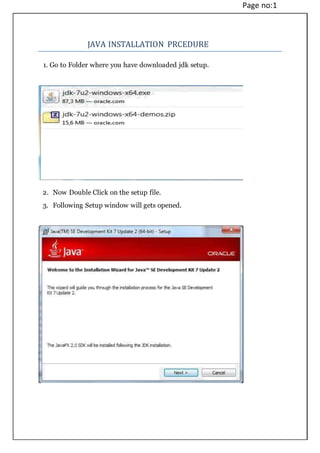
1. Go to Folder where you have downloaded jdk setup.
2. Now Double Click on the setup file.
3. Following Setup window will gets opened.
Page no: 2
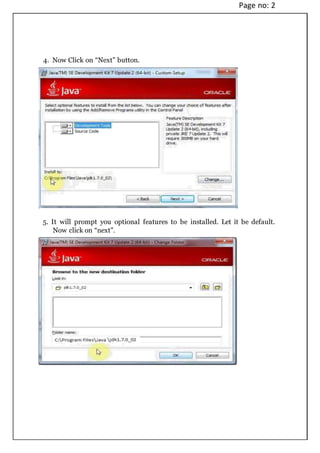
4. Now Click on “Next” button.
5. It will prompt you optional features to be installed. Let it be default.
Now click on “next”.
Page no: 3
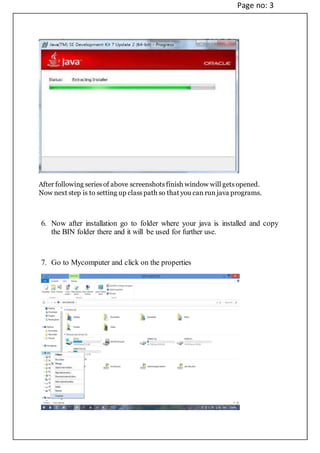
After following series of above screenshots finish window will gets opened.
Now next step is to setting up class path so that you can run java programs.
6. Now after installation go to folder where your java is installed and copy
the BIN folder there and it will be used for further use.
7. Go to Mycomputer and click on the properties
Page no: 4
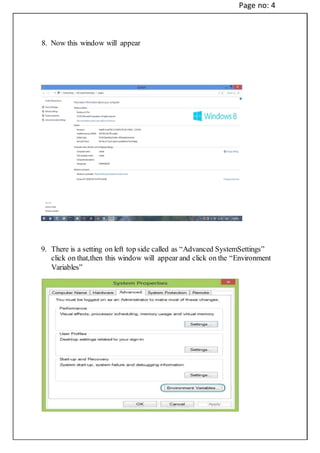
8. Now this window will appear
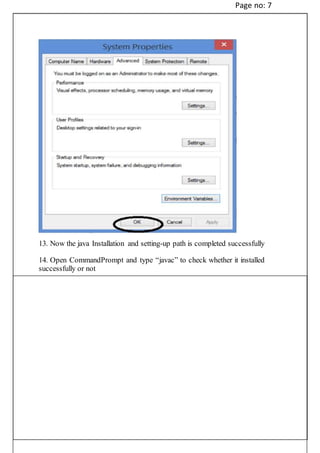
9. There is a setting on left top side called as “Advanced SystemSettings”
click on that,then this window will appear and click on the “Environment
Variables”
Page no: 5
10. After that this window will appear.
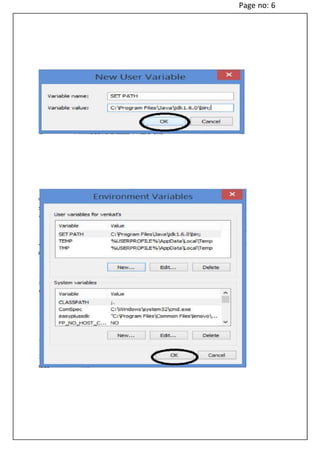
11. After clicking newthe following windowwill appear
Make sure that semi-colon at the end of java path
12. Click on “ok” button for the three windows
Page no: 6
Page no: 7
13. Now the java Installation and setting-up path is completed successfully
14. Open CommandPrompt and type “javac” to check whether it installed
successfully or not

JAVA JDK INSTALLATION PROCEDURE

  • 1.
    Page no:1 JAVA INSTALLATIONPRCEDURE 1. Go to Folder where you have downloaded jdk setup. 2. Now Double Click on the setup file. 3. Following Setup window will gets opened.
  • 2.
    Page no: 2 4.Now Click on “Next” button. 5. It will prompt you optional features to be installed. Let it be default. Now click on “next”.
  • 3.
    Page no: 3 Afterfollowing series of above screenshots finish window will gets opened. Now next step is to setting up class path so that you can run java programs. 6. Now after installation go to folder where your java is installed and copy the BIN folder there and it will be used for further use. 7. Go to Mycomputer and click on the properties
  • 4.
    Page no: 4 8.Now this window will appear 9. There is a setting on left top side called as “Advanced SystemSettings” click on that,then this window will appear and click on the “Environment Variables”
  • 5.
    Page no: 5 10.After that this window will appear. 11. After clicking newthe following windowwill appear Make sure that semi-colon at the end of java path 12. Click on “ok” button for the three windows
  • 6.
  • 7.
    Page no: 7 13.Now the java Installation and setting-up path is completed successfully 14. Open CommandPrompt and type “javac” to check whether it installed successfully or not