GL Computing – www.GLComputing.com.au

              Copyright (c) 2009
Connecting to ACT! By Sage
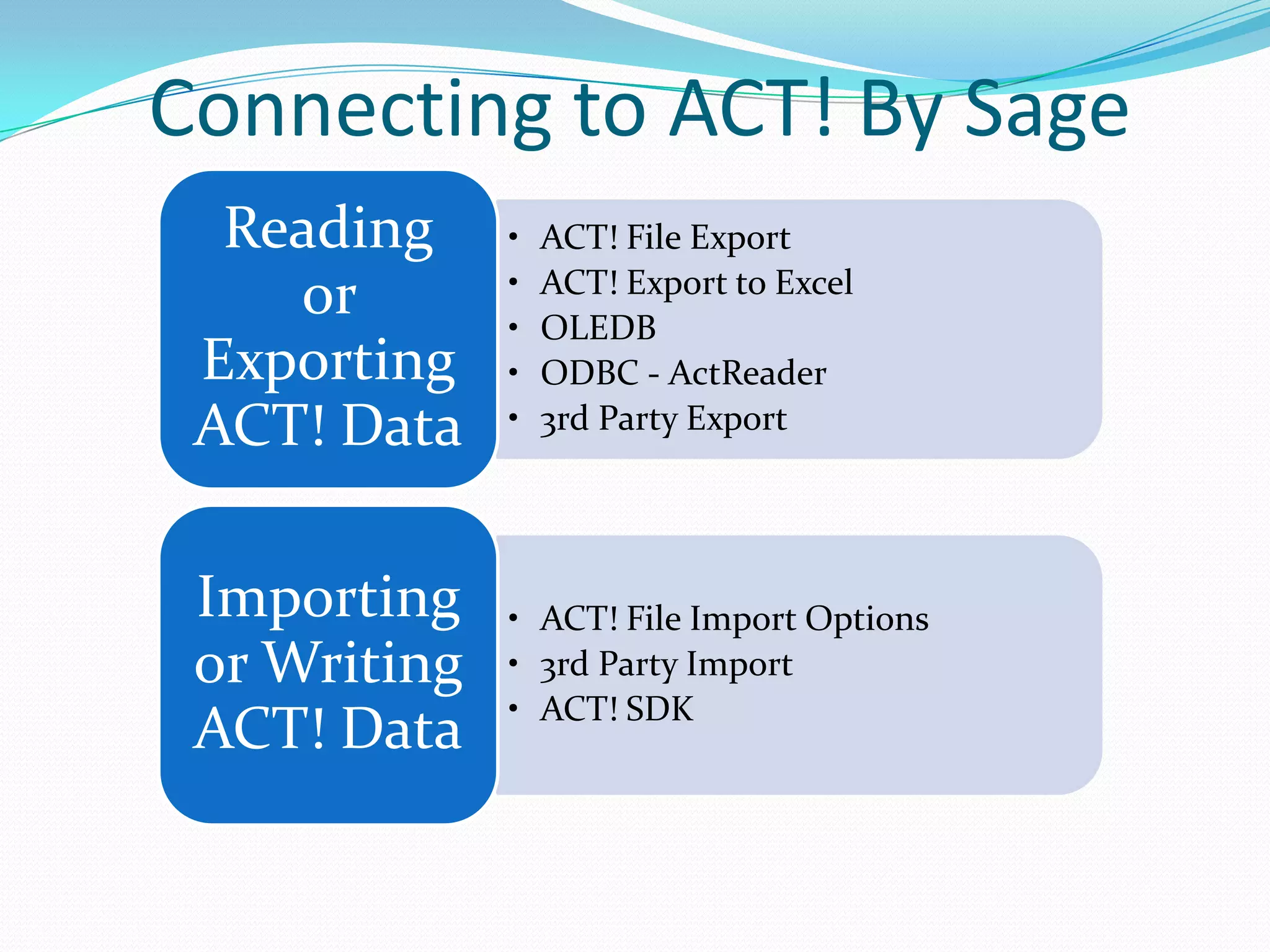
  Reading     •   ACT! File Export
              •   ACT! Export to Excel
    or        •   OLEDB
 Exporting    •   ODBC - ActReader
 ACT! Data    •   3rd Party Export


 Importing    • ACT! File Import Options
 or Writing   • 3rd Party Import
              • ACT! SDK
 ACT! Data
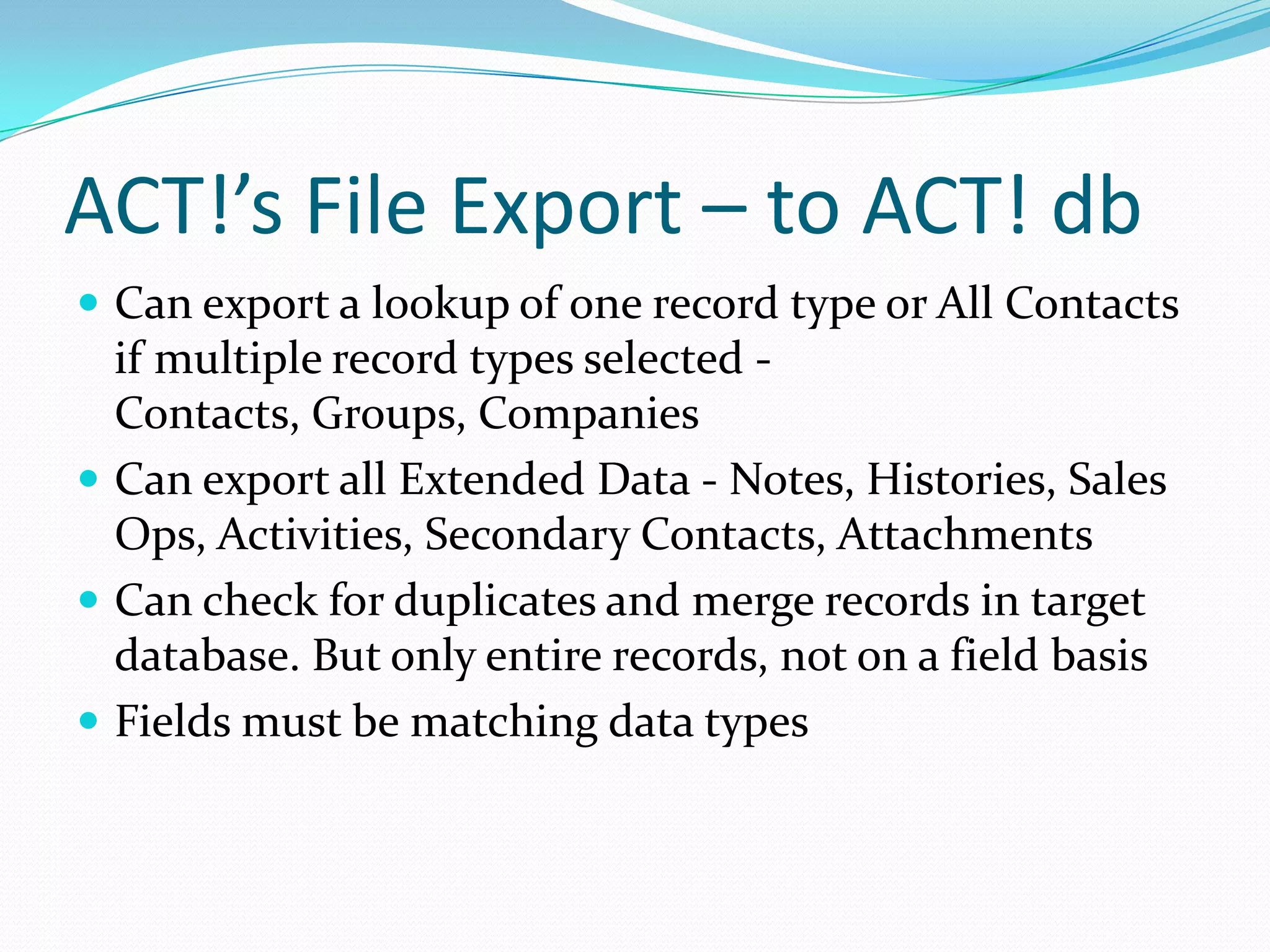
ACT!’s File Export – to ACT! db
 Can export a lookup of one record type or All Contacts
  if multiple record types selected -
  Contacts, Groups, Companies
 Can export all Extended Data - Notes, Histories, Sales
  Ops, Activities, Secondary Contacts, Attachments
 Can check for duplicates and merge records in target
  database. But only entire records, not on a field basis
 Fields must be matching data types
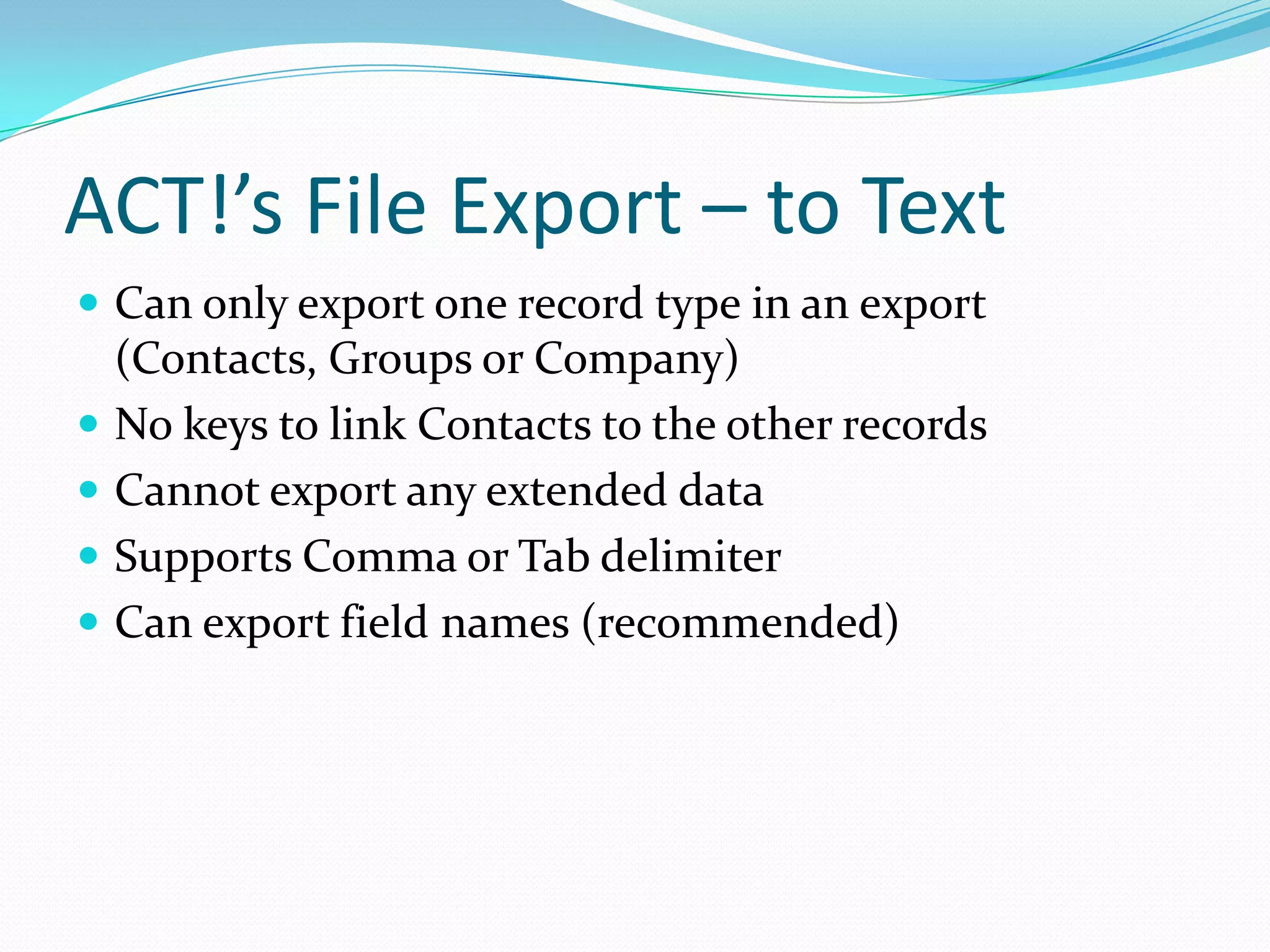
ACT!’s File Export – to Text
 Can only export one record type in an export
    (Contacts, Groups or Company)
   No keys to link Contacts to the other records
   Cannot export any extended data
   Supports Comma or Tab delimiter
   Can export field names (recommended)
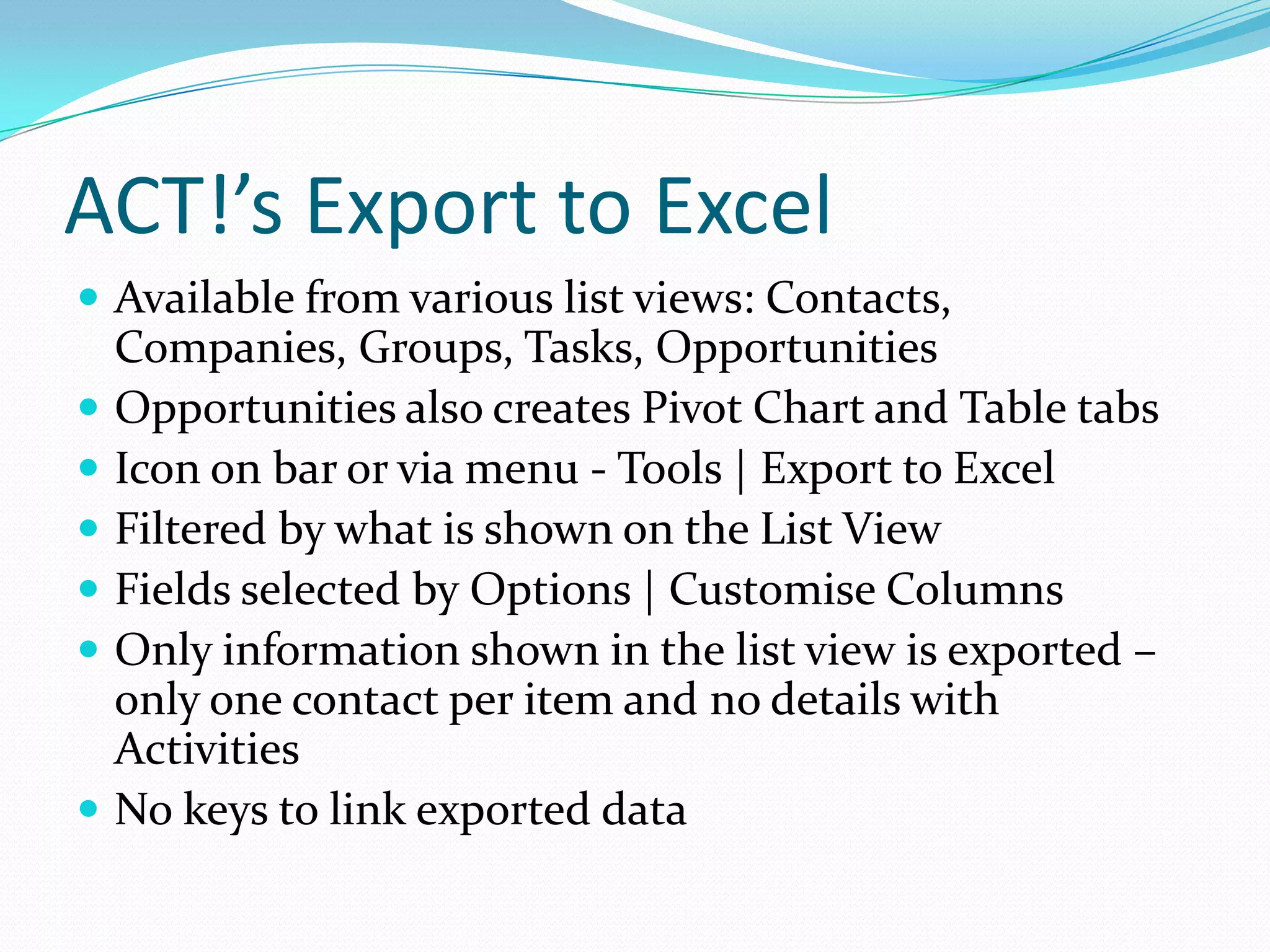
ACT!’s Export to Excel
 Available from various list views: Contacts,
    Companies, Groups, Tasks, Opportunities
   Opportunities also creates Pivot Chart and Table tabs
   Icon on bar or via menu - Tools | Export to Excel
   Filtered by what is shown on the List View
   Fields selected by Options | Customise Columns
   Only information shown in the list view is exported –
    only one contact per item and no details with
    Activities
   No keys to link exported data
OLEDB
 Object Linking and Embedding, Database
 Used for reporting via Excel, Crystal Reports, etc
 Views of most ACT! tables
 Started as per this ACT! Knowledge Base article:
  http://kb.sagesoftwareonline.com/cgi-bin/sagesoftwareonline.cfg/php/enduser/std_adp.php?p_faqid=14023

 Can be disabled for security or performance as per:
  http://kb.sagesoftwareonline.com/cgi-bin/sagesoftwareonline.cfg/php/enduser/std_adp.php?p_faqid=17575
ODBC – ActReader
 Open Database Connectivity
 Direct read-only access to all SQL tables
 Works with Premium versions of ACT! 2005 or later
 ActReader is included on ACT! Premium 2009 11.1 CD
  or can be downloaded from this ACT! KB: 22989
 ACTDataDictionaryDocument.rtf in ACT! 11.1 folder
  more documentation can be found at this KB: 22924
 A visual view of the links between the tables can be
  created in Visio (free 60-day trial) as per this article:
  http://blog.glcomputing.com.au/2009/04/getting-table-structure-and-links-from.html
3rd   Party Export
 itExport
    Easy to use tool to export data from ACT!
    Exports all ACT! records and extended data
     Including Custom Tables and Linked Documents
    Includes Unique ID to re-link exported data externally
    Can filter export data based on a date range and types
    Can export in formatted (RTF) or unformatted
    Can run as a service with (optional) itService to enable
     automated exports of data to integrate with another
     system.
Importing in ACT! – ACT! Database
 File | Import | ACT! Database
    Must be same version of ACT!
    Entire set of selected records:
     Contacts, Groups Companies
    Field mapping (data types must match)
    Record level duplicates and merging
    Extended data is included (attachments optional)
    Activities only if user names match in both databases
Importing in ACT! - Outlook
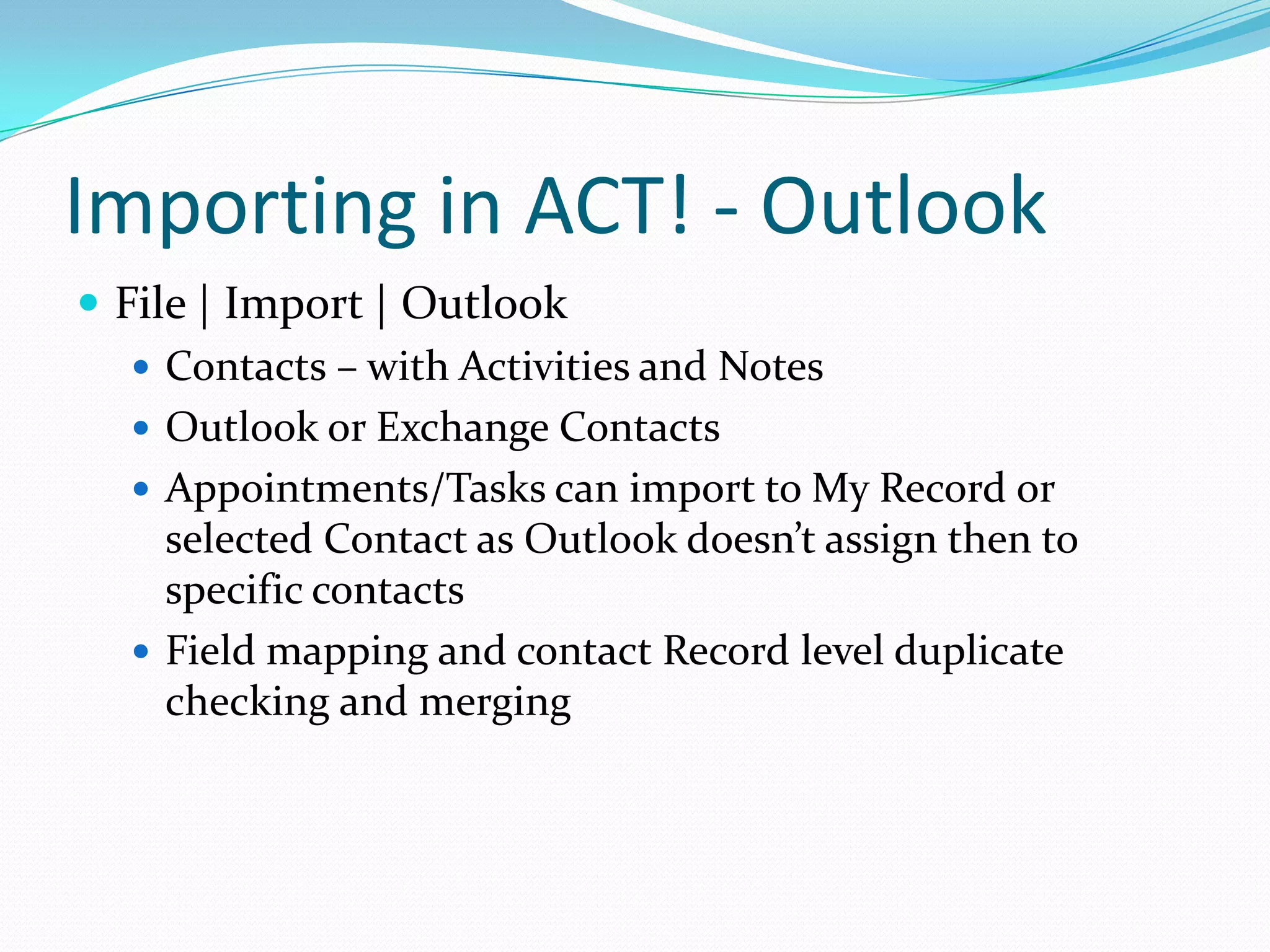
 File | Import | Outlook
    Contacts – with Activities and Notes
    Outlook or Exchange Contacts
    Appointments/Tasks can import to My Record or
     selected Contact as Outlook doesn’t assign then to
     specific contacts
    Field mapping and contact Record level duplicate
     checking and merging
Importing in ACT! – dBase
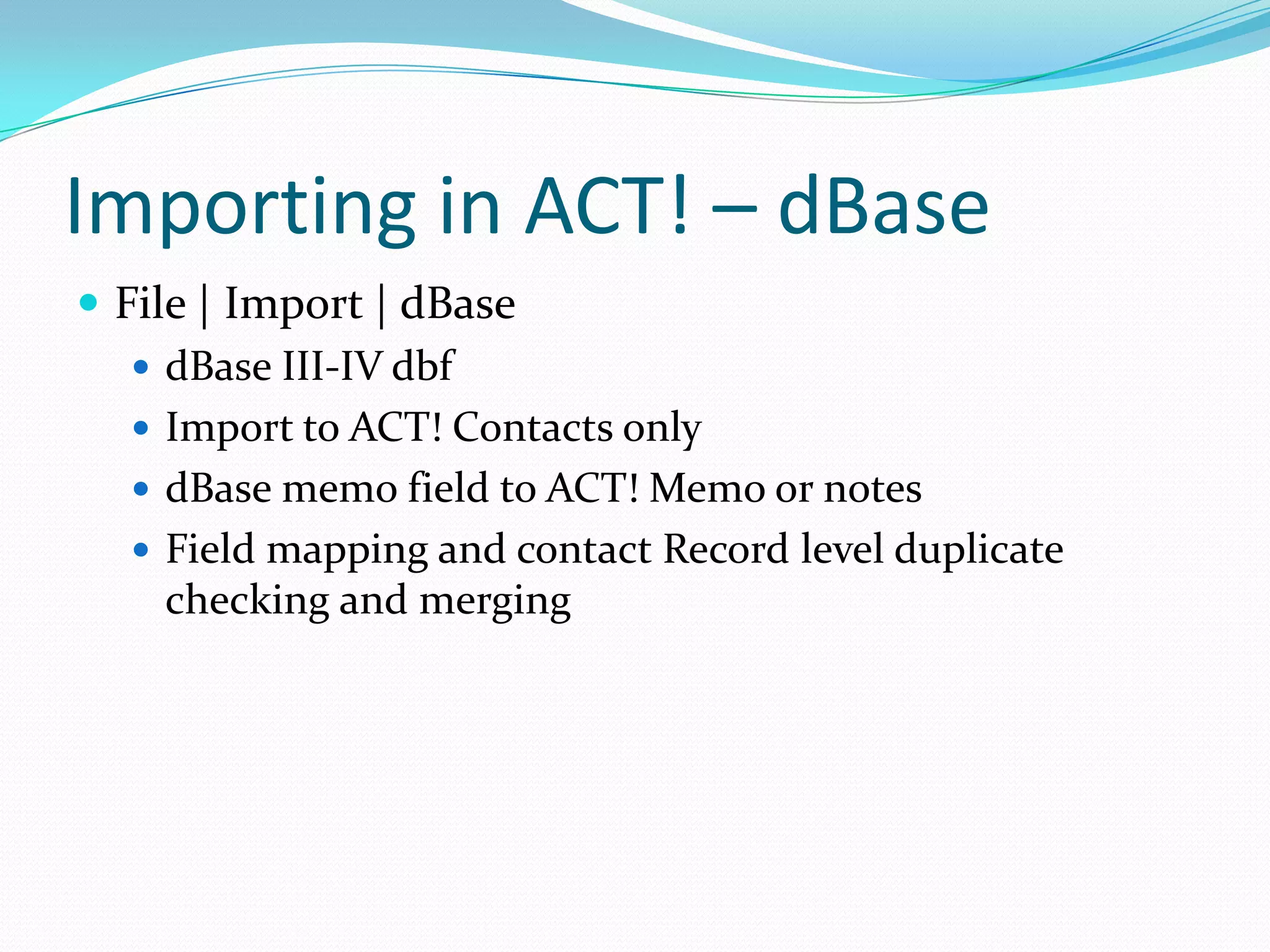
 File | Import | dBase
    dBase III-IV dbf
    Import to ACT! Contacts only
    dBase memo field to ACT! Memo or notes
    Field mapping and contact Record level duplicate
     checking and merging
Importing in ACT! – Palm Desktop
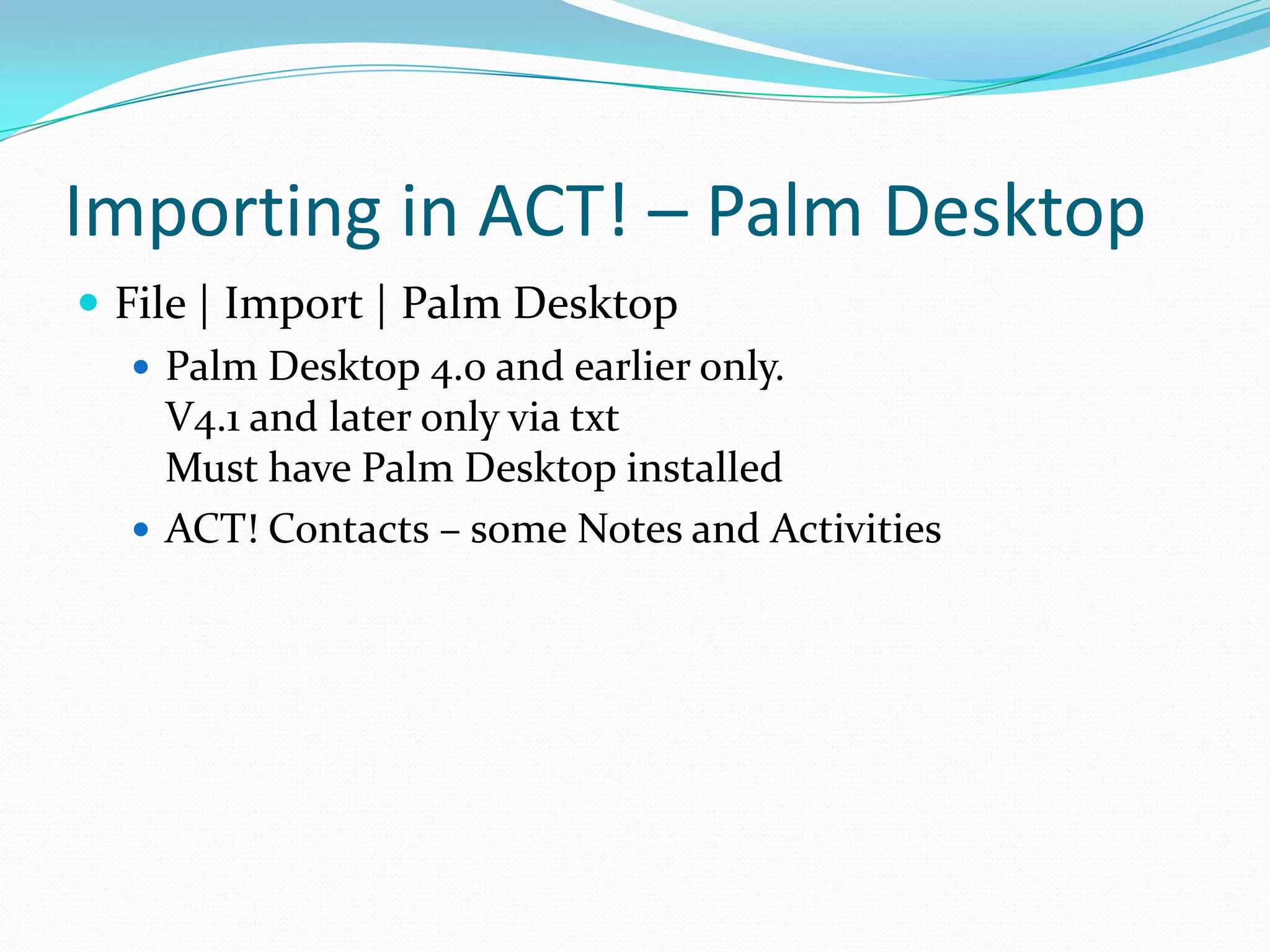
 File | Import | Palm Desktop
    Palm Desktop 4.0 and earlier only.
     V4.1 and later only via txt
     Must have Palm Desktop installed
    ACT! Contacts – some Notes and Activities
Importing in ACT! – Text Delimited
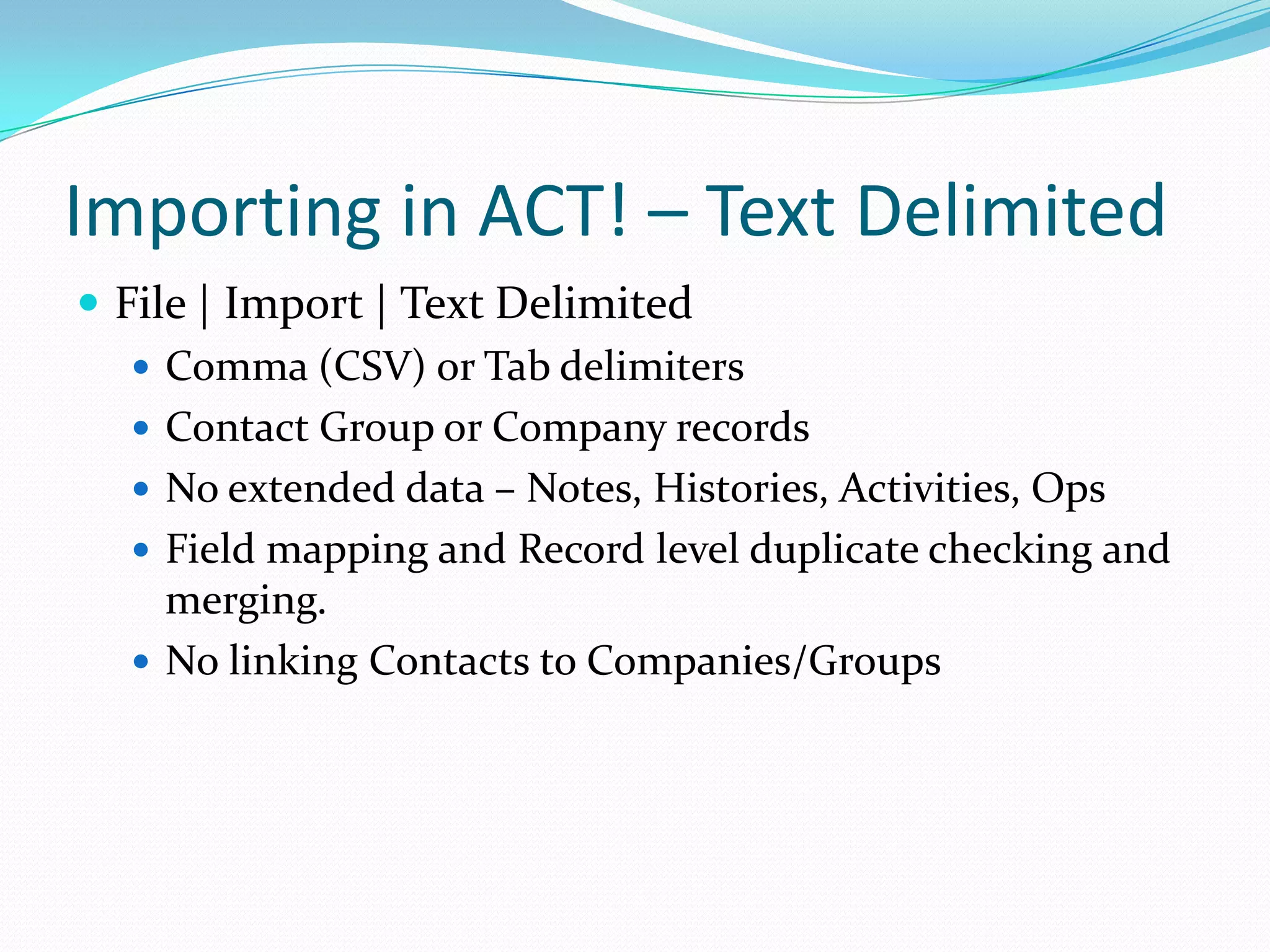
 File | Import | Text Delimited
    Comma (CSV) or Tab delimiters
    Contact Group or Company records
    No extended data – Notes, Histories, Activities, Ops
    Field mapping and Record level duplicate checking and
     merging.
    No linking Contacts to Companies/Groups
3rd     Party Import
 itImport
    Editions include: Basic, Standard, Advanced, Pro
       *Basic and Standard only ACT! 2007 (9.0) and later
      Sources from TXT, CSV, XLS, XLSX, MDB, SQL, ODBC
      Editions define Source and ACT! table options (see web for list)
      All ACT! Records – Contacts, Companies, Groups
      All Extended Data – Notes, Histories, Activities, Opportunities,
       Secondary Contacts, Custom Tables (10.02 or later), Picture Fields
       and Attachments.
      Record AND Field level merges to update new data
      Auto link Contacts to Groups/Companies (create if needed)
      Can run as a service with (optional) itService to enable automated
       imports of data to integrate with another system
      Mail to ACT! allows automated import of email forms
3rd   Party Import
 MigrateAdmin – Goldmine
   Supports Goldmine versions 5.7-6.7
    SQL versions of Goldmine are not supported
   Supports ACT! 2007 (9.0) and later
   Imports – Contacts, Companies, Groups, Custom Fields,
    E-mails, Activities, Histories, Notes, Opportunities,
    attachments and more
ACT! SDK - read, write, events
 Can read and write the ACT! Data
 Can access Events for live transactions
 Used in Customised solutions by Plugins
 Can be used to Sync ACT! data to other systems
 Requires programming in .Net
Contact information
 GL Computing:
 www.GLComputing.com.au
 blog.GLComputing.com.au
 twitter.com/GLComputing

 LinkedIN ACT! Fanatics Group:
 www.linkedin.com/groups?gid=49896

Connecting To Act! By Sage

  • 1.
    GL Computing –www.GLComputing.com.au Copyright (c) 2009
  • 2.
    Connecting to ACT!By Sage Reading • ACT! File Export • ACT! Export to Excel or • OLEDB Exporting • ODBC - ActReader ACT! Data • 3rd Party Export Importing • ACT! File Import Options or Writing • 3rd Party Import • ACT! SDK ACT! Data
  • 3.
    ACT!’s File Export– to ACT! db  Can export a lookup of one record type or All Contacts if multiple record types selected - Contacts, Groups, Companies  Can export all Extended Data - Notes, Histories, Sales Ops, Activities, Secondary Contacts, Attachments  Can check for duplicates and merge records in target database. But only entire records, not on a field basis  Fields must be matching data types
  • 4.
    ACT!’s File Export– to Text  Can only export one record type in an export (Contacts, Groups or Company)  No keys to link Contacts to the other records  Cannot export any extended data  Supports Comma or Tab delimiter  Can export field names (recommended)
  • 5.
    ACT!’s Export toExcel  Available from various list views: Contacts, Companies, Groups, Tasks, Opportunities  Opportunities also creates Pivot Chart and Table tabs  Icon on bar or via menu - Tools | Export to Excel  Filtered by what is shown on the List View  Fields selected by Options | Customise Columns  Only information shown in the list view is exported – only one contact per item and no details with Activities  No keys to link exported data
  • 6.
    OLEDB  Object Linkingand Embedding, Database  Used for reporting via Excel, Crystal Reports, etc  Views of most ACT! tables  Started as per this ACT! Knowledge Base article: http://kb.sagesoftwareonline.com/cgi-bin/sagesoftwareonline.cfg/php/enduser/std_adp.php?p_faqid=14023  Can be disabled for security or performance as per: http://kb.sagesoftwareonline.com/cgi-bin/sagesoftwareonline.cfg/php/enduser/std_adp.php?p_faqid=17575
  • 7.
    ODBC – ActReader Open Database Connectivity  Direct read-only access to all SQL tables  Works with Premium versions of ACT! 2005 or later  ActReader is included on ACT! Premium 2009 11.1 CD or can be downloaded from this ACT! KB: 22989  ACTDataDictionaryDocument.rtf in ACT! 11.1 folder more documentation can be found at this KB: 22924  A visual view of the links between the tables can be created in Visio (free 60-day trial) as per this article: http://blog.glcomputing.com.au/2009/04/getting-table-structure-and-links-from.html
  • 8.
    3rd Party Export  itExport  Easy to use tool to export data from ACT!  Exports all ACT! records and extended data Including Custom Tables and Linked Documents  Includes Unique ID to re-link exported data externally  Can filter export data based on a date range and types  Can export in formatted (RTF) or unformatted  Can run as a service with (optional) itService to enable automated exports of data to integrate with another system.
  • 9.
    Importing in ACT!– ACT! Database  File | Import | ACT! Database  Must be same version of ACT!  Entire set of selected records: Contacts, Groups Companies  Field mapping (data types must match)  Record level duplicates and merging  Extended data is included (attachments optional)  Activities only if user names match in both databases
  • 10.
    Importing in ACT!- Outlook  File | Import | Outlook  Contacts – with Activities and Notes  Outlook or Exchange Contacts  Appointments/Tasks can import to My Record or selected Contact as Outlook doesn’t assign then to specific contacts  Field mapping and contact Record level duplicate checking and merging
  • 11.
    Importing in ACT!– dBase  File | Import | dBase  dBase III-IV dbf  Import to ACT! Contacts only  dBase memo field to ACT! Memo or notes  Field mapping and contact Record level duplicate checking and merging
  • 12.
    Importing in ACT!– Palm Desktop  File | Import | Palm Desktop  Palm Desktop 4.0 and earlier only. V4.1 and later only via txt Must have Palm Desktop installed  ACT! Contacts – some Notes and Activities
  • 13.
    Importing in ACT!– Text Delimited  File | Import | Text Delimited  Comma (CSV) or Tab delimiters  Contact Group or Company records  No extended data – Notes, Histories, Activities, Ops  Field mapping and Record level duplicate checking and merging.  No linking Contacts to Companies/Groups
  • 14.
    3rd Party Import  itImport  Editions include: Basic, Standard, Advanced, Pro *Basic and Standard only ACT! 2007 (9.0) and later  Sources from TXT, CSV, XLS, XLSX, MDB, SQL, ODBC  Editions define Source and ACT! table options (see web for list)  All ACT! Records – Contacts, Companies, Groups  All Extended Data – Notes, Histories, Activities, Opportunities, Secondary Contacts, Custom Tables (10.02 or later), Picture Fields and Attachments.  Record AND Field level merges to update new data  Auto link Contacts to Groups/Companies (create if needed)  Can run as a service with (optional) itService to enable automated imports of data to integrate with another system  Mail to ACT! allows automated import of email forms
  • 15.
    3rd Party Import  MigrateAdmin – Goldmine  Supports Goldmine versions 5.7-6.7 SQL versions of Goldmine are not supported  Supports ACT! 2007 (9.0) and later  Imports – Contacts, Companies, Groups, Custom Fields, E-mails, Activities, Histories, Notes, Opportunities, attachments and more
  • 16.
    ACT! SDK -read, write, events  Can read and write the ACT! Data  Can access Events for live transactions  Used in Customised solutions by Plugins  Can be used to Sync ACT! data to other systems  Requires programming in .Net
  • 17.
    Contact information  GLComputing: www.GLComputing.com.au blog.GLComputing.com.au twitter.com/GLComputing  LinkedIN ACT! Fanatics Group: www.linkedin.com/groups?gid=49896