Livebinders Guide
         by Marie Slim
   Teacher-Librarian, FJUHSD
            5/23/11

www.livebinders.com


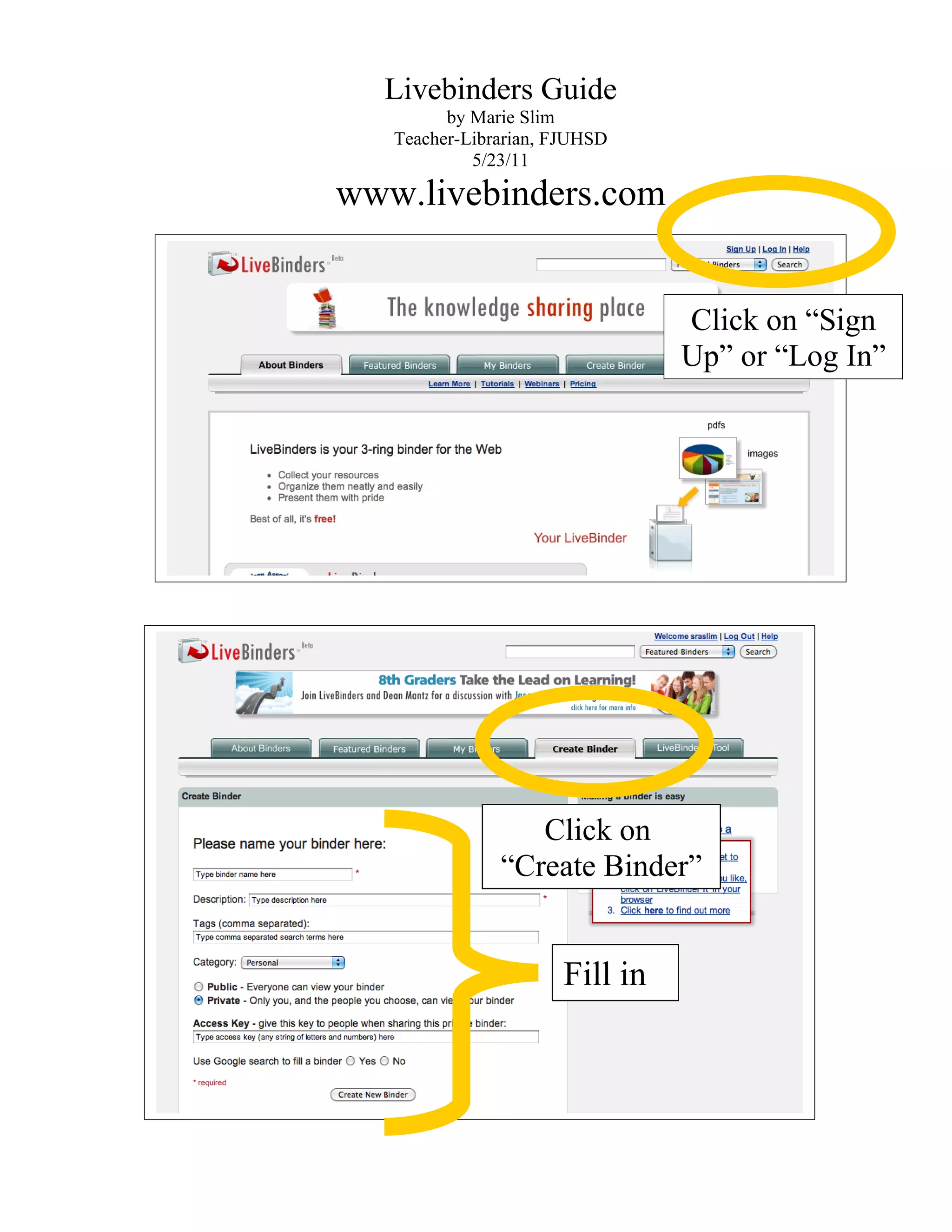
                                Click on “Sign
                                Up” or “Log In”


                  Click on
               “Create Binder”


                      Fill in
If you would like to upload a Word document or
another document to a Tab or Subtab, click on
“Upload File.” This enables users of the binder
to download the file(s), but the contents of the
          Docs.Google.com
file do NOT show up in the window. To do this
you will need to use document hosting like
Google Docs or Crocodoc. (instructions on
following pages)
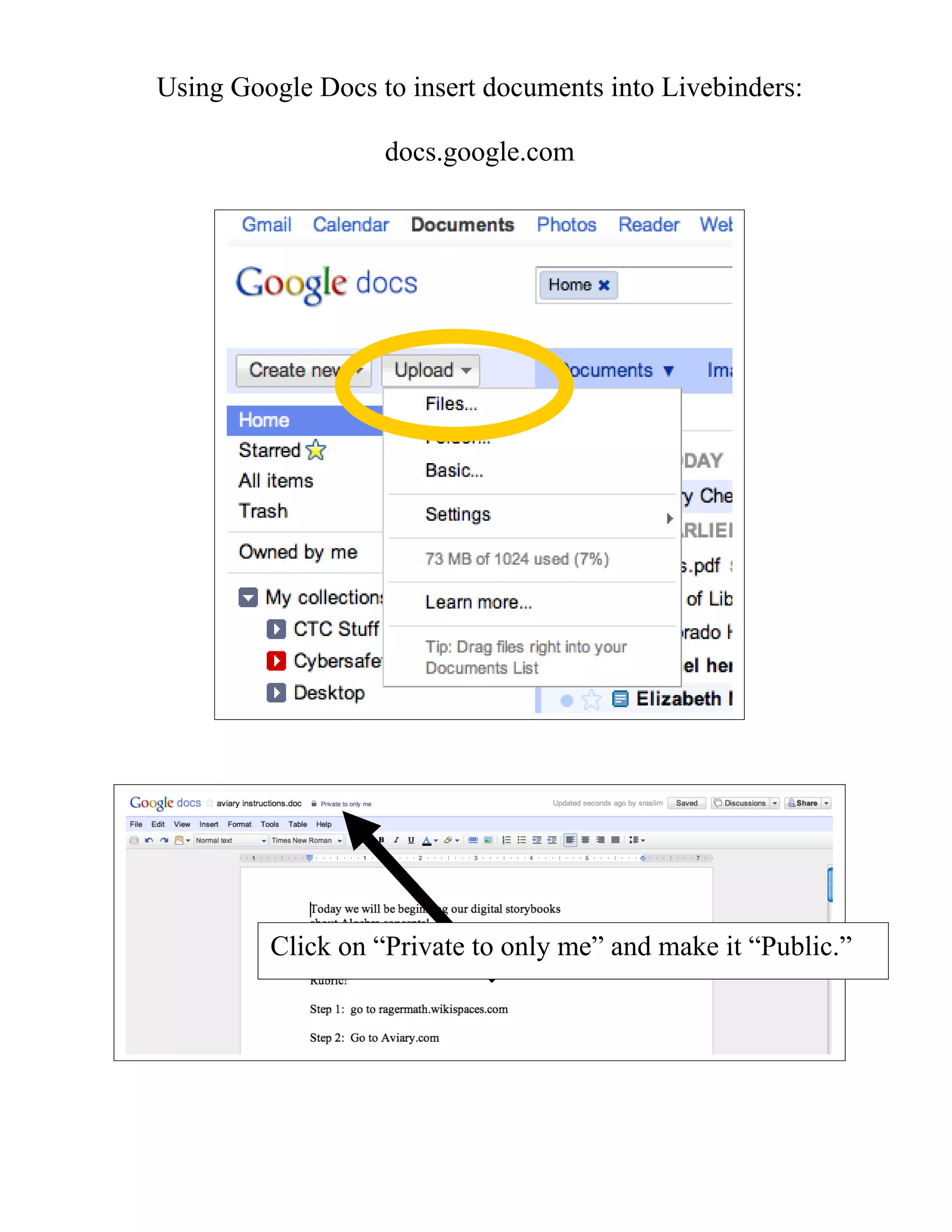
Using Google Docs to insert documents into Livebinders:

                   docs.google.com


         Click on “Private to only me” and make it “Public.”
Click on “Public on the Web” or “Anyone with the link.”
                 Then click on “Save.”


                  Then copy the link!
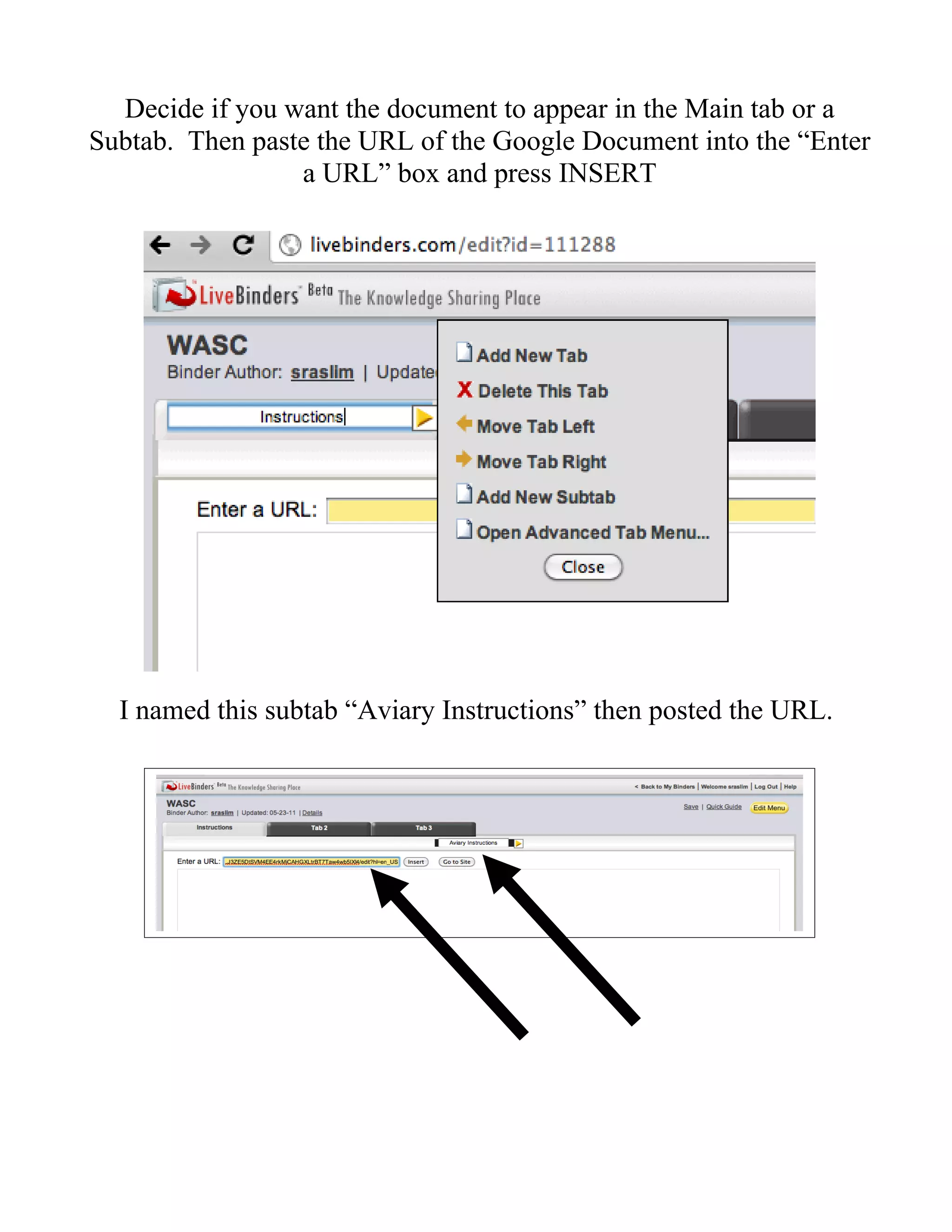
Decide if you want the document to appear in the Main tab or a
Subtab. Then paste the URL of the Google Document into the “Enter
                 a URL” box and press INSERT


  I named this subtab “Aviary Instructions” then posted the URL.
Then I clicked on “Insert” and the document came up! If it doesn’t
                 come up, refresh your browser.


           Or, instead of Google Docs, use Crocodoc:
                          Crocodoc.com


                                              Click on “Sign
                                              Up” or “Login”


                                      Click on
                                 “Upload Document”
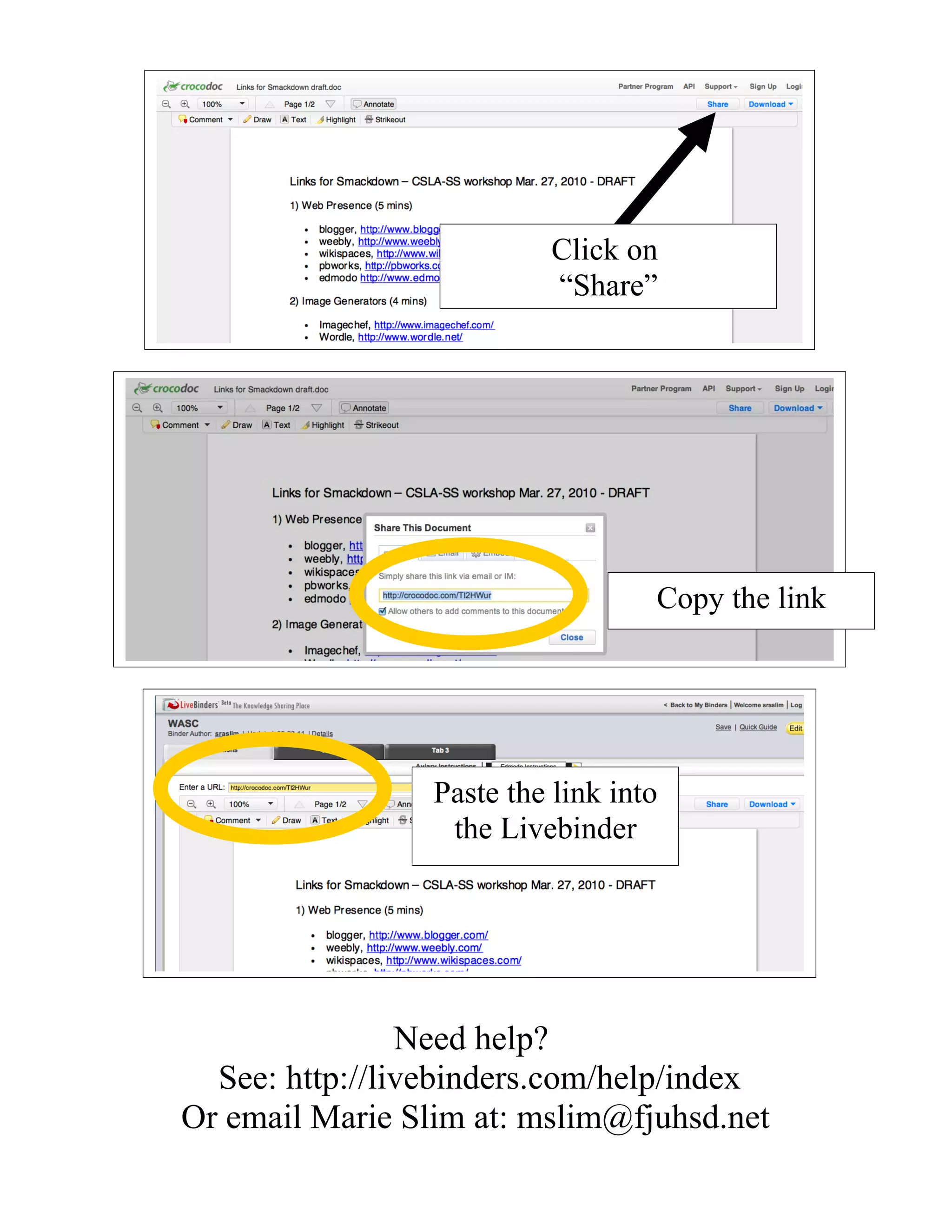
Click on
                           “Share”


                                   Copy the link


                 Paste the link into
                  the Livebinder


                Need help?
  See: http://livebinders.com/help/index
Or email Marie Slim at: mslim@fjuhsd.net

Livebinders Guide

  • 1.
    Livebinders Guide by Marie Slim Teacher-Librarian, FJUHSD 5/23/11 www.livebinders.com Click on “Sign Up” or “Log In” Click on “Create Binder” Fill in
  • 3.
    If you wouldlike to upload a Word document or another document to a Tab or Subtab, click on “Upload File.” This enables users of the binder to download the file(s), but the contents of the Docs.Google.com file do NOT show up in the window. To do this you will need to use document hosting like Google Docs or Crocodoc. (instructions on following pages)
  • 4.
    Using Google Docsto insert documents into Livebinders: docs.google.com Click on “Private to only me” and make it “Public.”
  • 5.
    Click on “Publicon the Web” or “Anyone with the link.” Then click on “Save.” Then copy the link!
  • 6.
    Decide if youwant the document to appear in the Main tab or a Subtab. Then paste the URL of the Google Document into the “Enter a URL” box and press INSERT I named this subtab “Aviary Instructions” then posted the URL.
  • 7.
    Then I clickedon “Insert” and the document came up! If it doesn’t come up, refresh your browser. Or, instead of Google Docs, use Crocodoc: Crocodoc.com Click on “Sign Up” or “Login” Click on “Upload Document”
  • 8.
    Click on “Share” Copy the link Paste the link into the Livebinder Need help? See: http://livebinders.com/help/index Or email Marie Slim at: mslim@fjuhsd.net