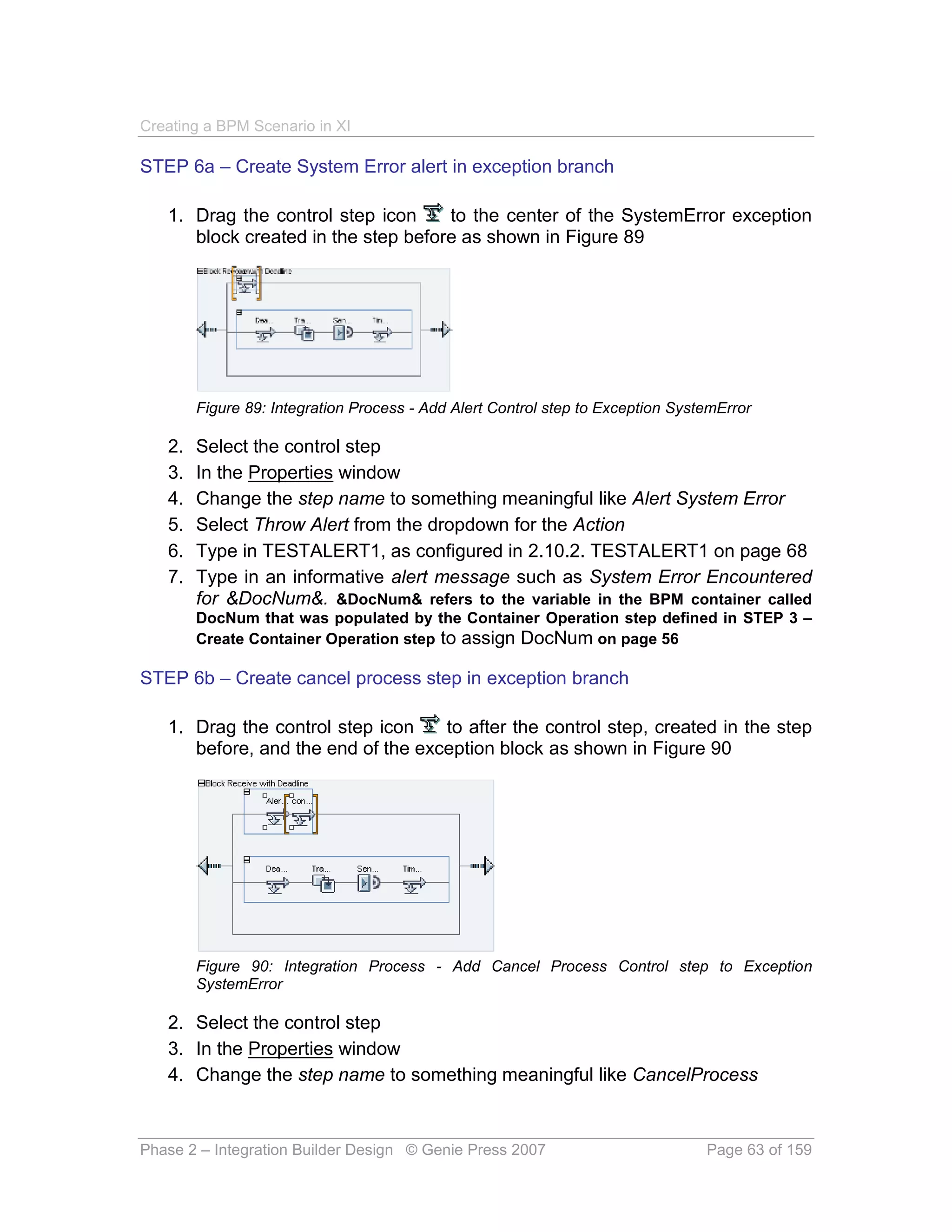
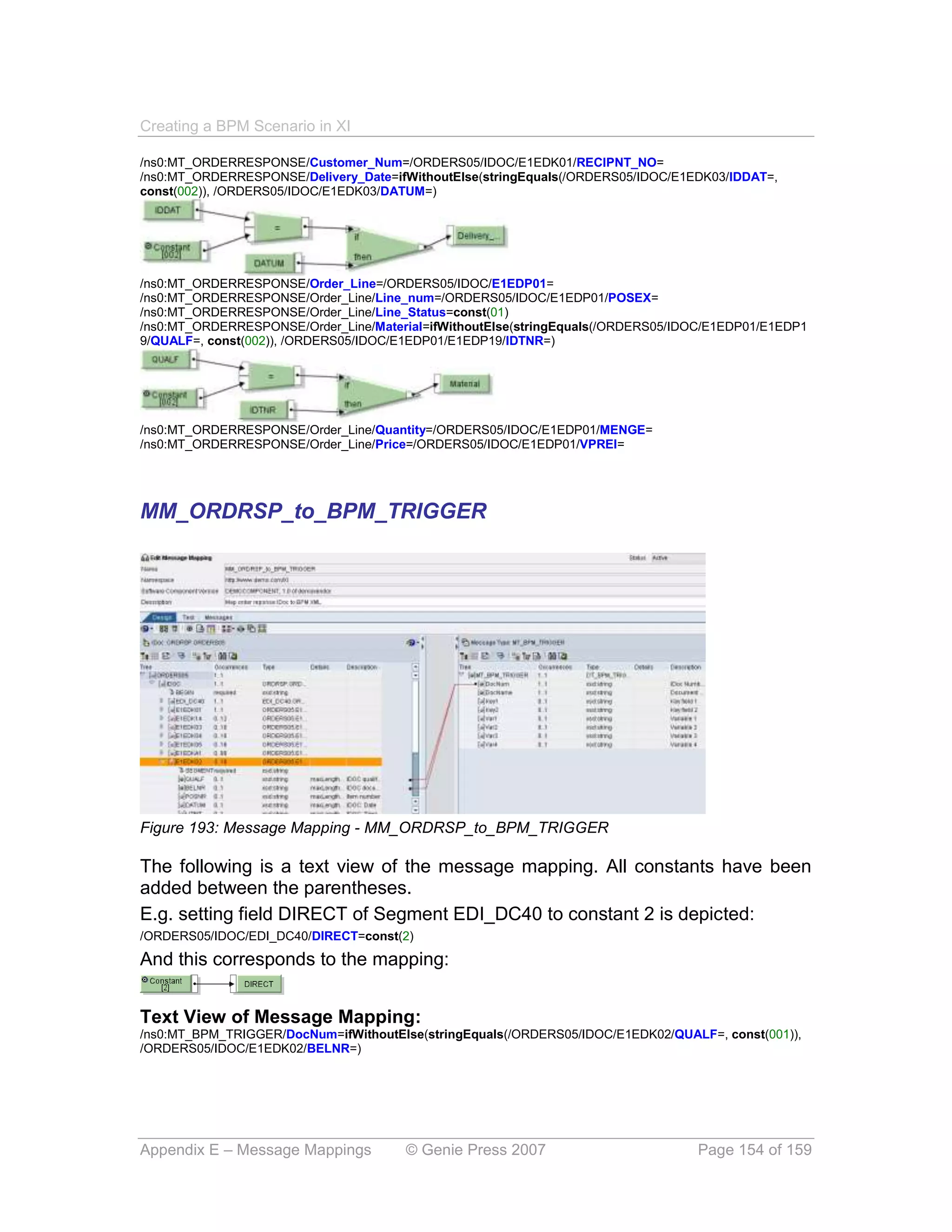
A Step by Step Guide
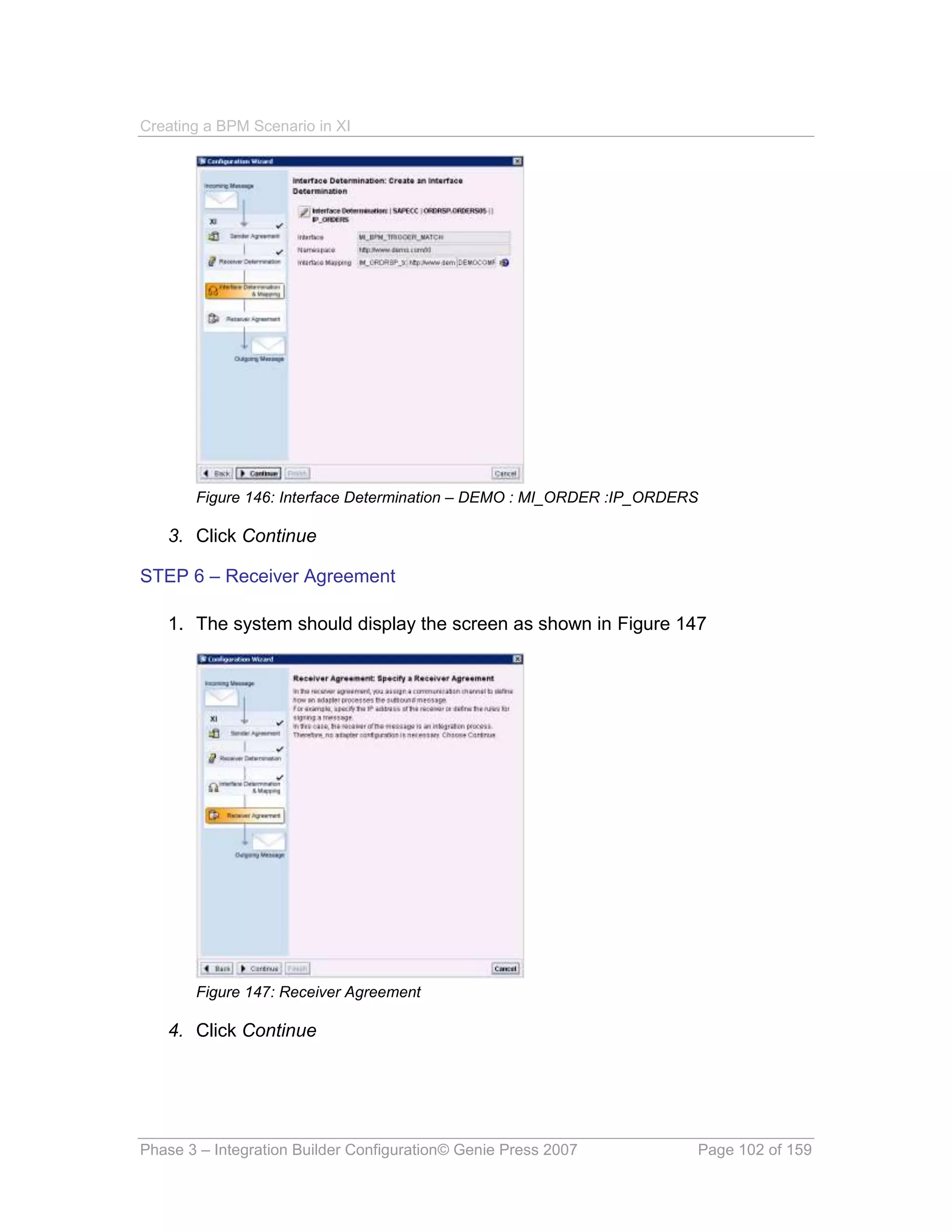
   Creating a BPM Scenario in SAP Exchange
               Infrastructure 3.0


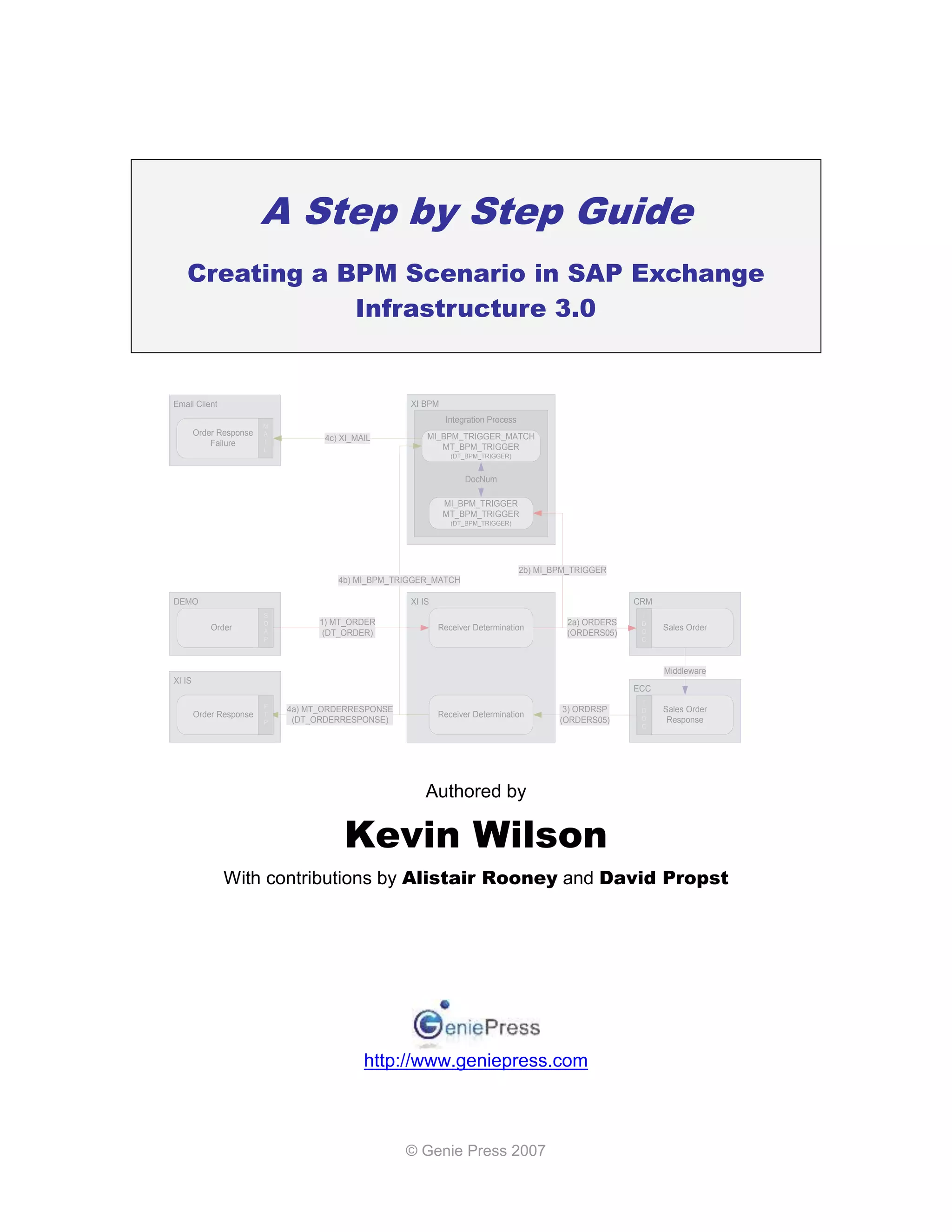
Email Client                                         XI BPM
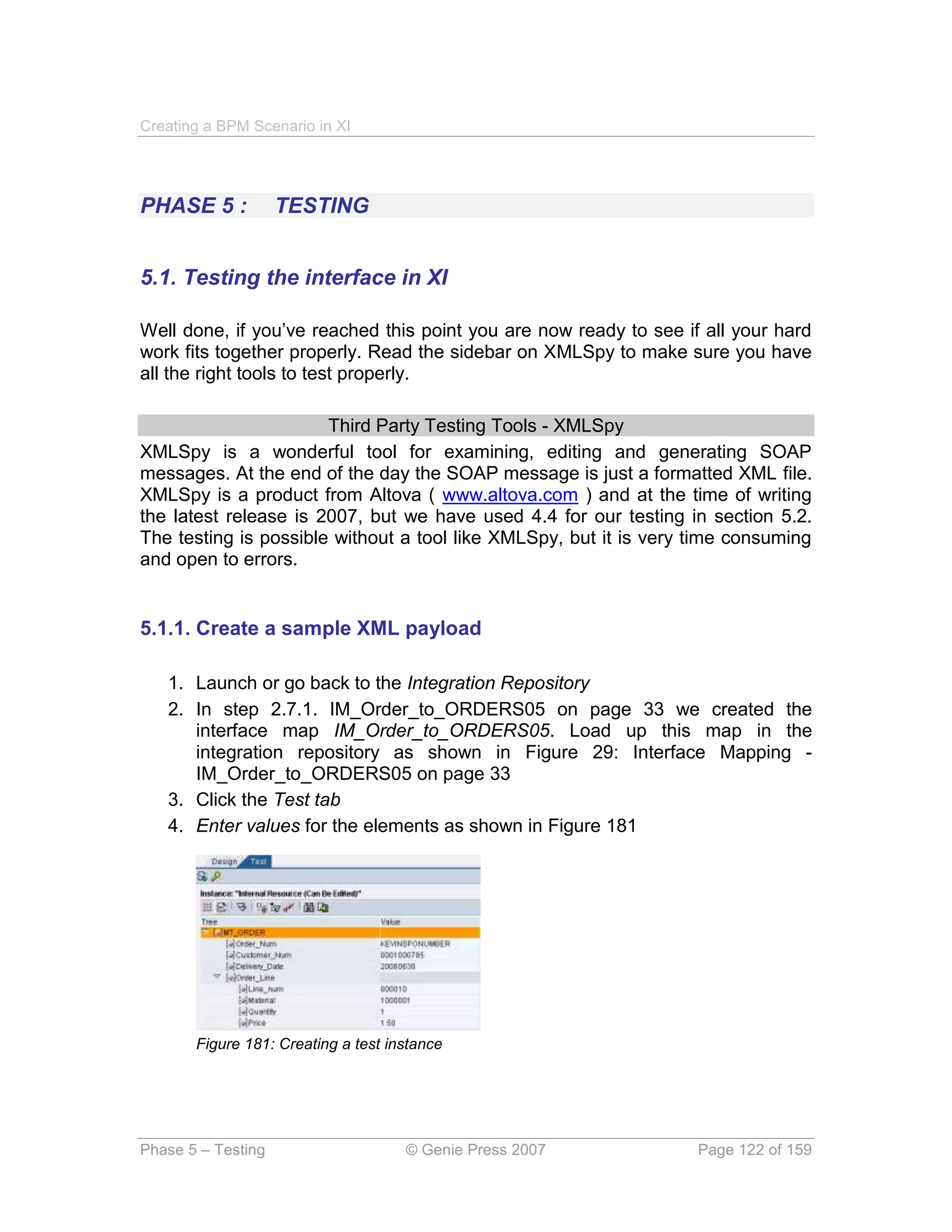
                                                              Integration Process
                         M
        Order Response   A                               MI_BPM_TRIGGER_MATCH
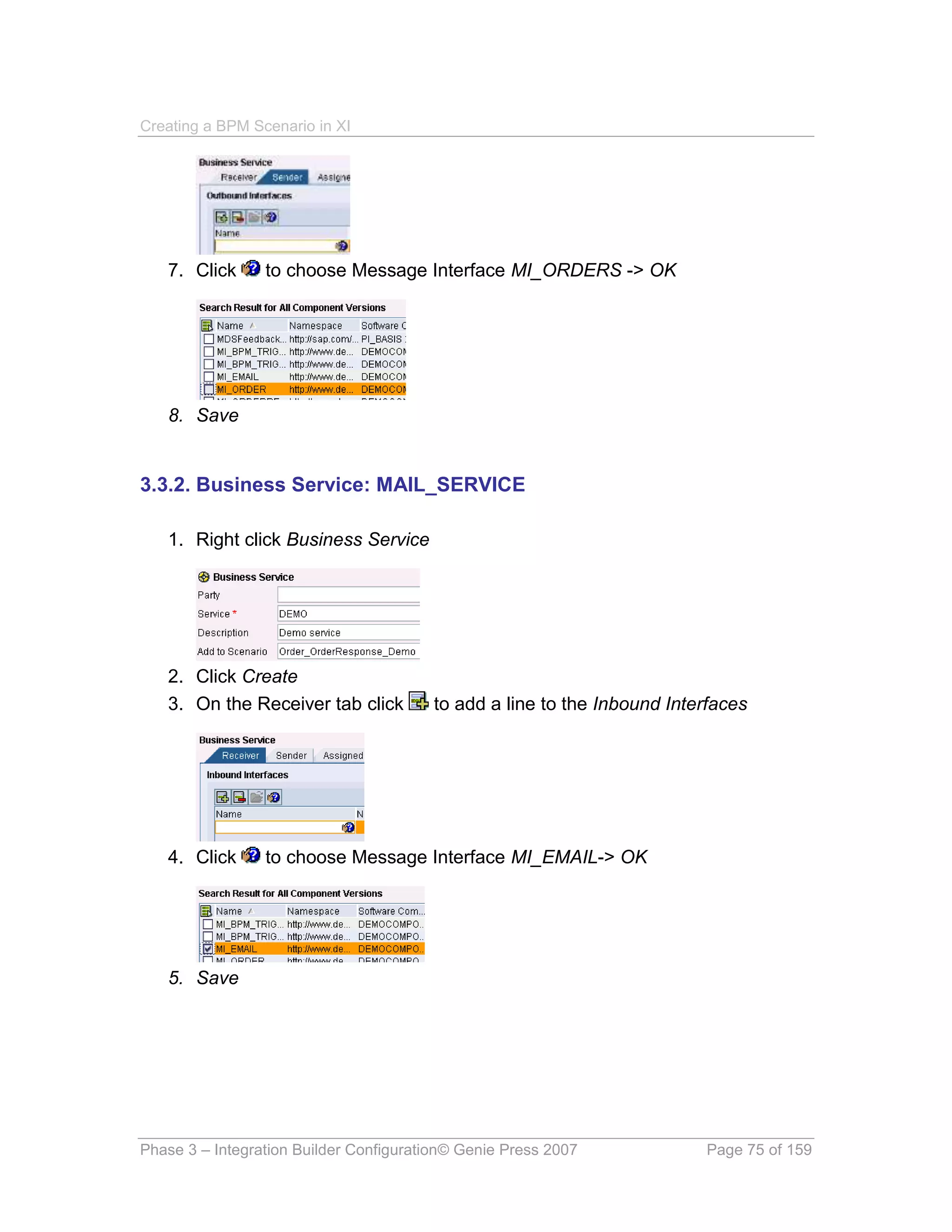
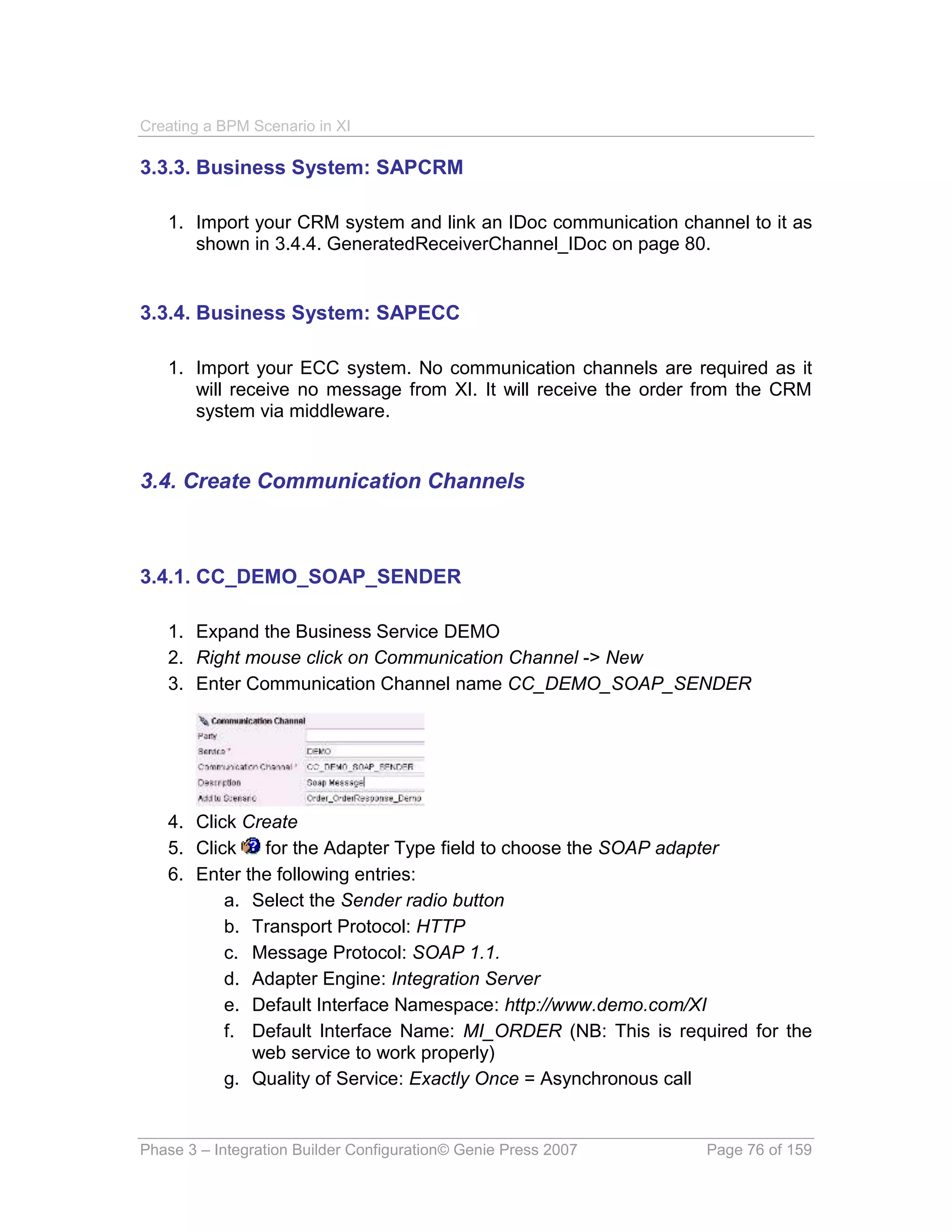
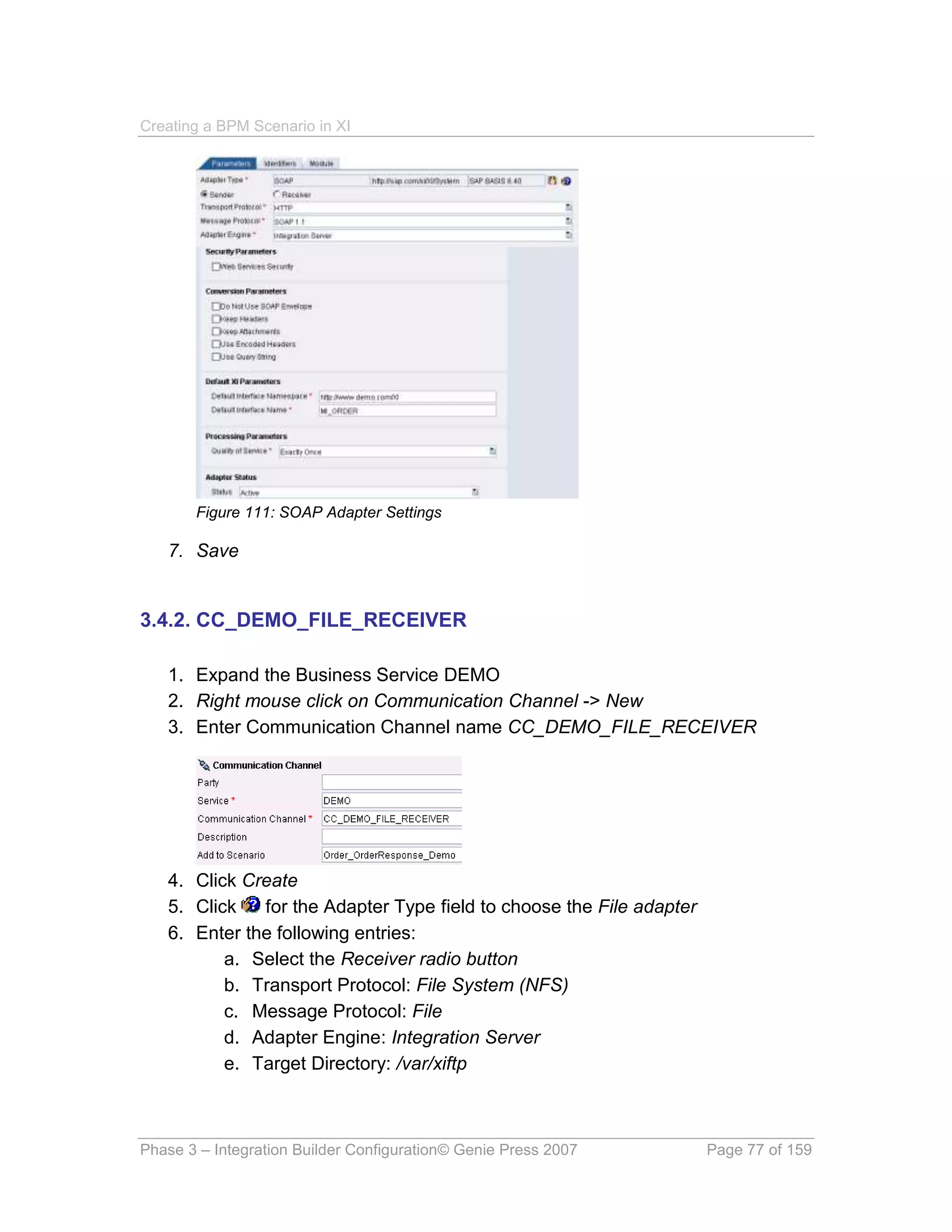
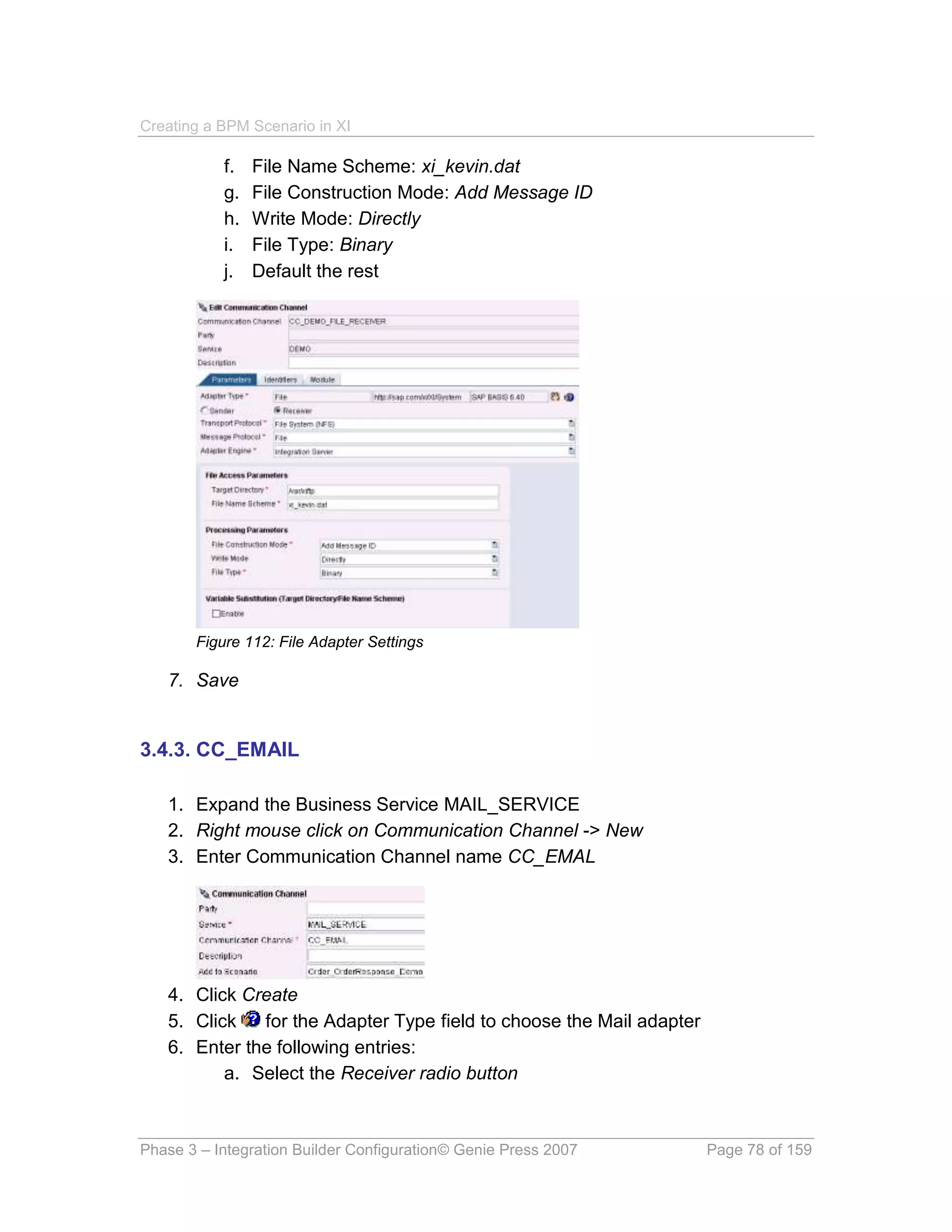
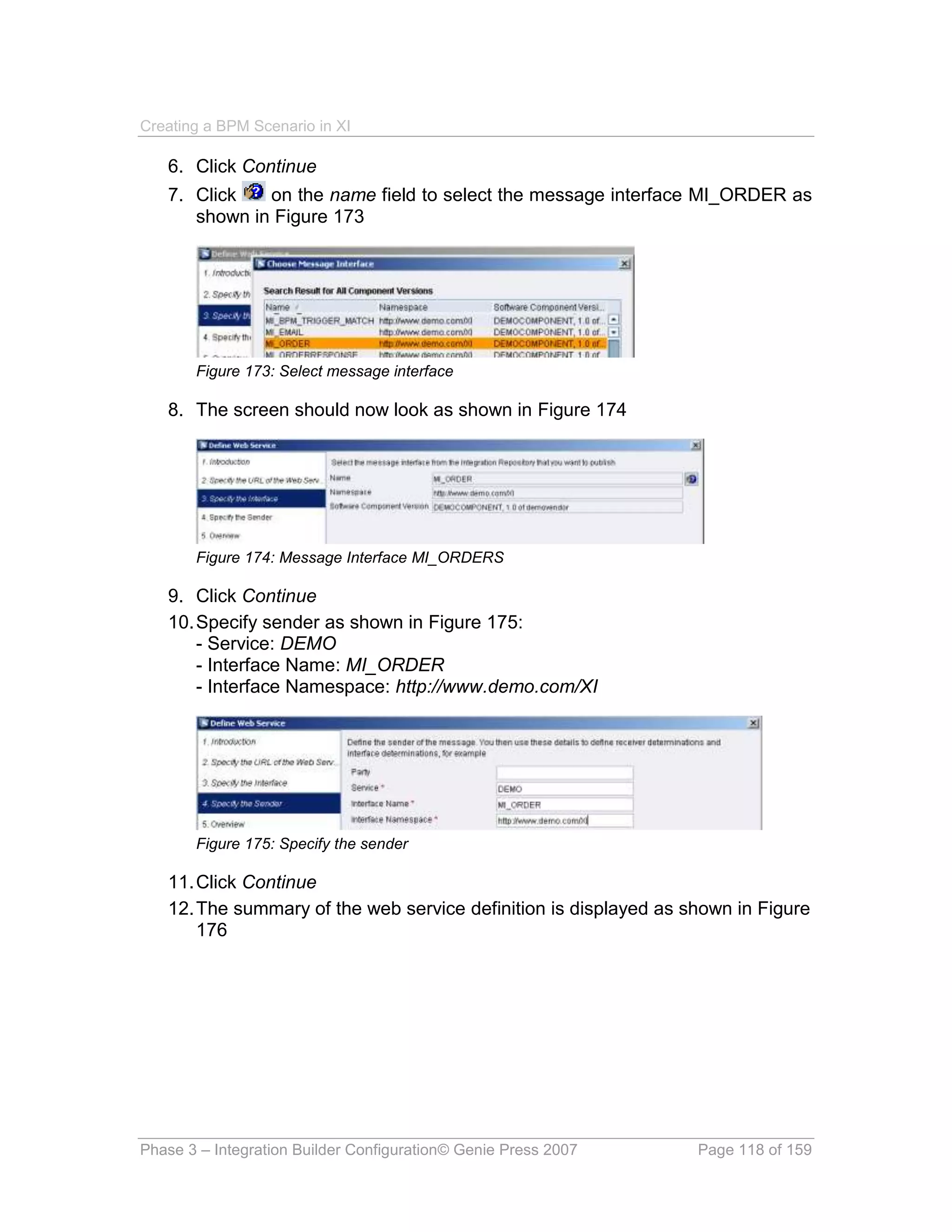
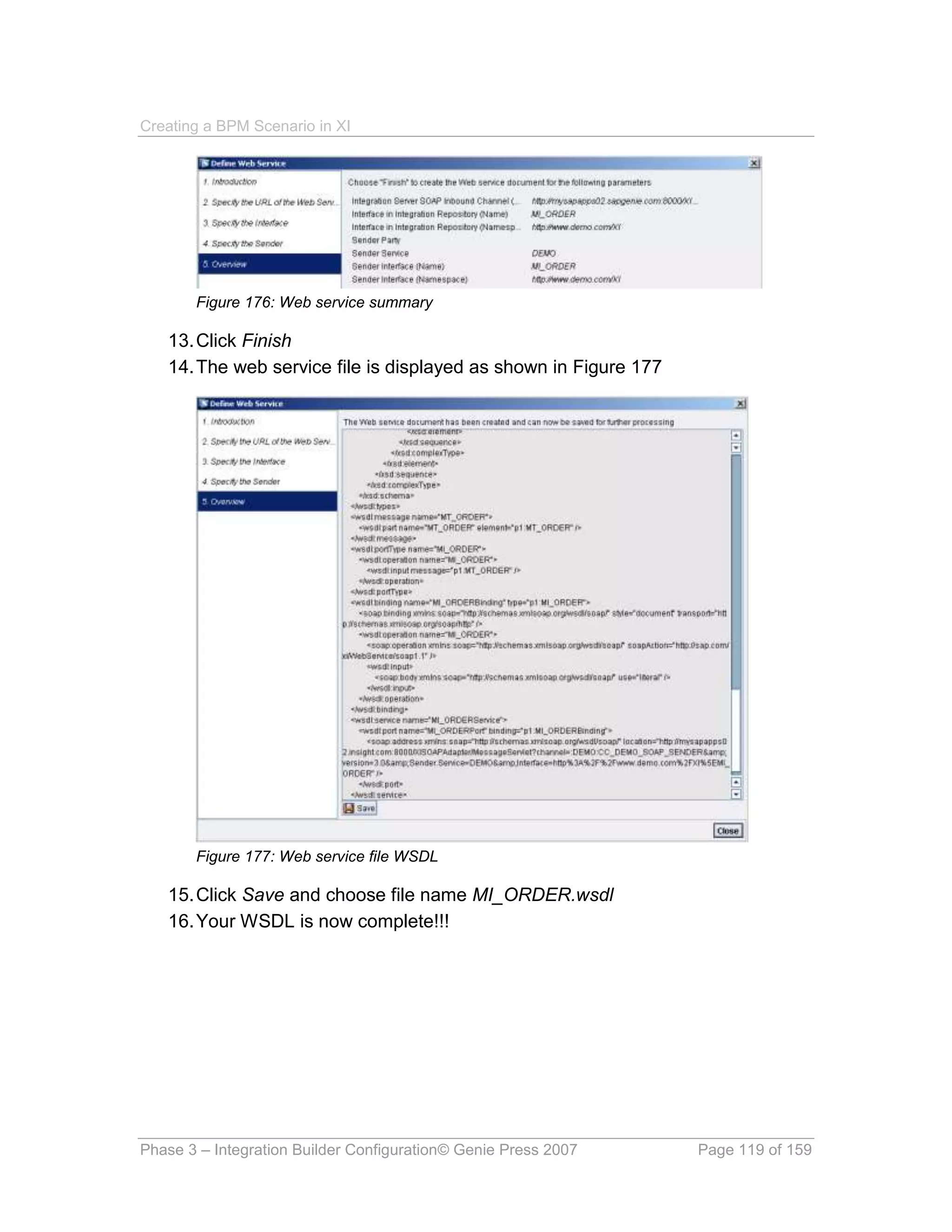
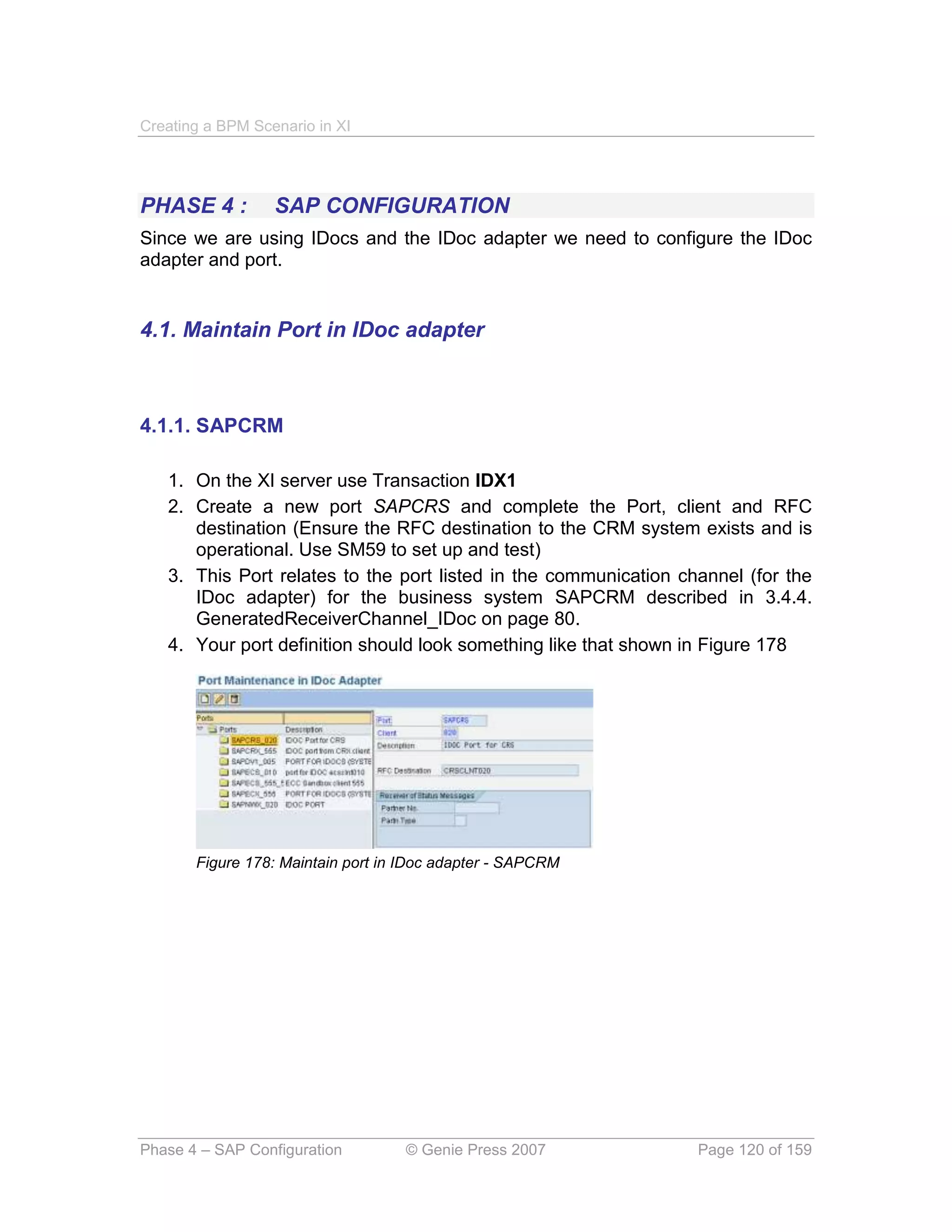
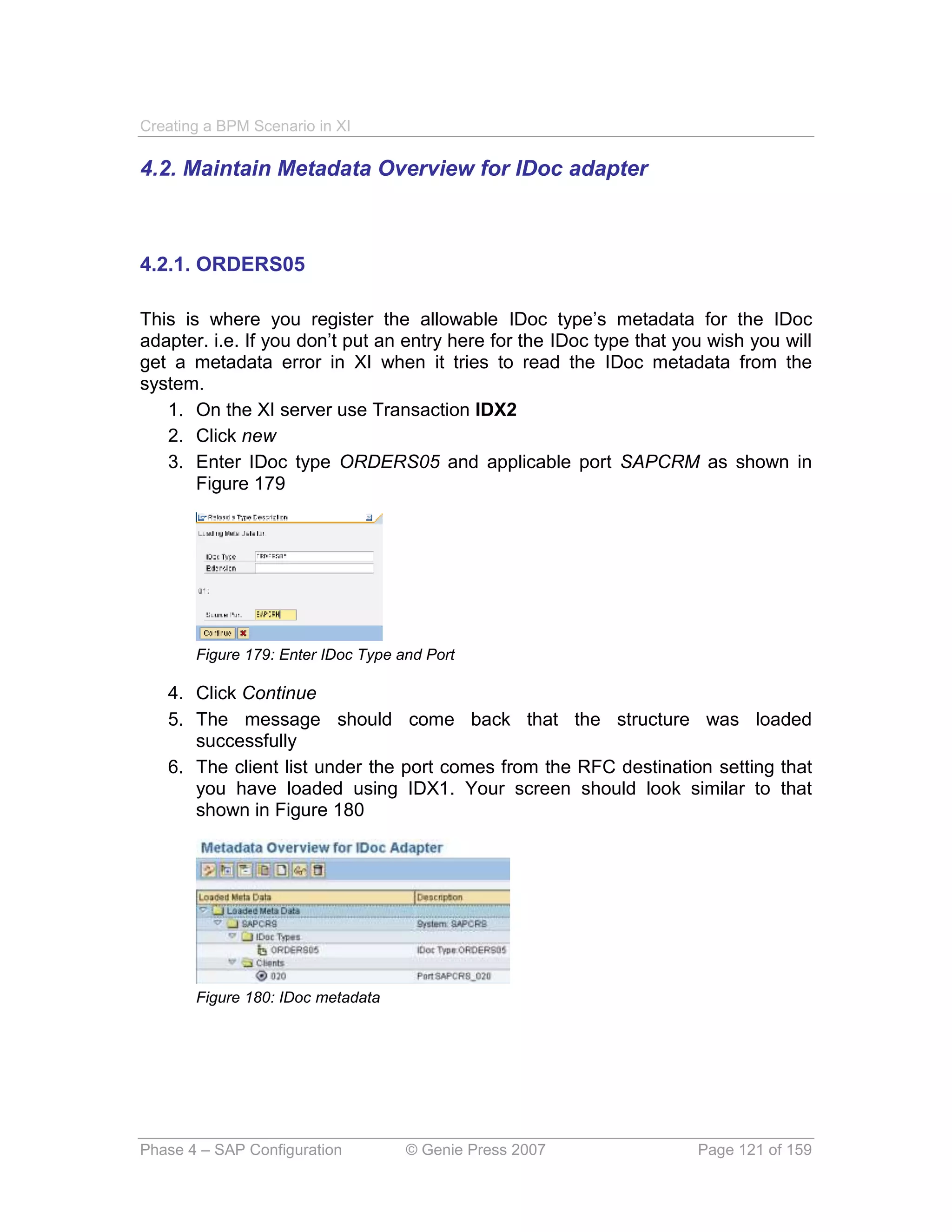
                         I          4c) XI_MAIL
            Failure                                         MT_BPM_TRIGGER
                         L
                                                                (DT_BPM_TRIGGER)


                                                                   DocNum

                                                              MI_BPM_TRIGGER
                                                              MT_BPM_TRIGGER
                                                                (DT_BPM_TRIGGER)


                                                                                    2b) MI_BPM_TRIGGER
                                       4b) MI_BPM_TRIGGER_MATCH

DEMO                                                 XI IS                                                CRM
                         S                                                                                 I
                         O         1) MT_ORDER                                               2a) ORDERS    D
            Order        A                                   Receiver Determination                        O
                                                                                                                Sales Order
                                    (DT_ORDER)                                               (ORDERS05)
                         P                                                                                 C


                                                                                                                Middleware
XI IS
                                                                                                          ECC
                                                                                                           I
                         F   4a) MT_ORDERRESPONSE                                                               Sales Order
                                                                                             3) ORDRSP     D
        Order Response   T                                   Receiver Determination                        O
                         P    (DT_ORDERRESPONSE)                                            (ORDERS05)           Response
                                                                                                           C


                                                         Authored by

                                        Kevin Wilson
               With contributions by Alistair Rooney and David Propst


                                             http://www.geniepress.com


                                                    © Genie Press 2007
Copyright @ 2012 by Genieholdings.com, Inc.
Published 2007 and re-released in 2012 by Genie Press, a division of Genieholdings.com, Inc.
All rights reserved. No part of this publication may be used or reproduced in any manner whatsoever
without either the prior written permission of the publisher or a license permitting restricted copying in the
United States or abroad.
Trademarks:
Trademarked names may appear in this book. Rather than use a trademark symbol with every occurrence of
a trademarked name, we use the names only in an editorial fashion and to the benefit of the trademark
owner, with no intention of trademark infringement.
SAP, SAP Logo, R/3, mySAP, mySAP.com and other SAP products and services mentioned herein are
trademarks or registered trademarks of SAP AG.
All product names are trademarks of their respective companies.
Disclaimer:
This is not a product of SAP AG nor are they the publisher of this book and as such are not responsible for it
under any aspect of the law. This publication is an independent view and is for instructional purposes only.
The publisher does not offer any warranties or representations nor does it accept any liabilities with respect
to the content of this publication. The information in this book is distributed on an “as is” basis, without
warranty. Although every precaution has been taken in the preparation of this work, neither the author(s),
nor Genie Press of Genieholdings.com Inc. shall have any liability to any person or entity with respect to any
loss or damage caused or alleged to be caused directly or indirectly by the information contained in this
work.


                                    http://www.geniepress.com


                                           © Genie Press 2007
“A big shout out to my fellow road warriors Dave Propst and Alistair Rooney for
   their valuable contributions, not only to this quick guide book, but to the SAP
                           integration community as a whole.
  Dave and I have worked several projects together and he’s my number 1 go to
                        guy for Integration Architecture stuff….
Whereas Alistair literally wrote the book on ABAP and Java! Who knows it better
                     than him? I challenge you to find someone….
Although this book runs the older release of XI, I still have folks finding it useful in
pulling it together for the new versions of PI. The screens may have changed but
  the concept and objects haven’t changed too much. This book helped several
    folks find their legs in XI to such an extent that they became XI and now PI
 consultants and make a decent living out of it. If this is too old for you then don’t
  print it and carry on with life, but if it is then know that I am pleased that it has
helped out a little. Please don’t ask me to update it to the latest version, as I have
  moved on to more fun topics like SAP Event Management and Sybase ESP ;)”
                                      Kevin Wilson


                    In association with http://www.erpgenie.com


                                  © Genie Press 2007
Table of Contents
INTRODUCTION                                                                                                                               8

  Background ............................................................................................................................... 8
  About the Author ....................................................................................................................... 9
  How to use this book ................................................................................................................ 9
  The Scenario ............................................................................................................................ 10


PHASE 1 : SYSTEM CONFIGURATION                                                                                                          12

  1.1.       Software Component ................................................................................................. 12
  1.2. Clear SLD Cache .............................................................................................................. 13
  1.3. Import Software Component ........................................................................................... 14


PHASE 2 : INTEGRATION BUILDER DESIGN                                                                                                    15

  2.1. External Definitions ......................................................................................................... 15
        2.1.1. XI_MAIL .................................................................................................................. 16
  2.2. Data Types ........................................................................................................................ 17
        2.2.1. DT_ORDERS ......................................................................................................... 18
        2.2.2. DT_ORDERRESPONSE ........................................................................................ 18
        2.2.3. DT_BPM_TRIGGER ............................................................................................... 19
  2.3. Message Types ................................................................................................................. 20
        2.3.1. MT_ORDER ........................................................................................................... 20
        2.3.2. MT_ORDERRESPONSE ....................................................................................... 21
        2.3.3. MT_BPM_TRIGGER .............................................................................................. 21
  2.4. Message Interfaces .......................................................................................................... 22
        2.4.1. MI_ORDER ............................................................................................................. 23
        2.4.2. MI_ORDERRESPONSE......................................................................................... 23
        2.4.3. MI_BPM_TRIGGER ............................................................................................... 24
        2.4.4. MI_BPM_TRIGGER_MATCH ................................................................................ 24
        2.4.5. MI_EMAIL ............................................................................................................... 25
  2.5. Import IDoc Type .............................................................................................................. 26
        2.5.1. ORDERS.ORDERS05 and ORDRSP.ORDERS05 ................................................ 26
  2.6. Message Mapping ............................................................................................................ 27
        2.6.1. MM_Order_to_ORDERS05 .................................................................................... 27
        2.6.2. MM_Order_to_BPM_TRIGGER ............................................................................. 28


Table of Contents                                     © Genie Press 2007                                                 Page 4 of 159
2.6.3. MM_ORDERS05_to_OrderResponse .................................................................... 29
         2.6.4. MM_ORDRSP_to_BPM_TRIGGER ....................................................................... 30
         2.6.5. MM_BPM_to_EMAIL .............................................................................................. 31
  2.7. Interface Mapping ............................................................................................................ 32
        2.7.1. IM_Order_to_ORDERS05 ...................................................................................... 33
        2.7.2. IM_Order_to_BPM_TRIGGER ............................................................................... 33
        2.7.3. IM_ORDRSP_to_OrderResponse .......................................................................... 34
        2.7.4. IM_ORDRSP_to_BPM_TRIGGER_CATCH .......................................................... 35
        2.7.5. IM_BPM_to_EMAIL ................................................................................................ 36
  2.8. Integration Scenario ........................................................................................................ 37
        2.8.1. Actions .................................................................................................................... 37
        2.8.2. Integration Scenario ............................................................................................... 43
  2.9. Integration Process .......................................................................................................... 51
        2.9.1. IP_Orders ............................................................................................................... 52
  2.10. Create Alert Category .................................................................................................... 66
        2.10.1. TESTALERT ......................................................................................................... 67
        2.10.2. TESTALERT1 ....................................................................................................... 68
        2.10.3. Assign Users / Roles to Alert Categories ............................................................. 69
        2.10.4. Update Alert Categories ....................................................................................... 70


PHASE 3 : INTEGRATION BUILDER CONFIGURATION                                                                                             71

  3.1. Create Configuration Scenario ....................................................................................... 71
        3.1.1. Order_OrderResponse_Demo ............................................................................... 71
  3.2. Create Integration Process Service ............................................................................... 72
        3.2.1. IP_ORDERS ........................................................................................................... 72
  3.3. Create Services without Party ........................................................................................ 74
        3.3.1. Business Service: DEMO ....................................................................................... 74
        3.3.2. Business Service: MAIL_SERVICE ........................................................................ 75
        3.3.3. Business System: SAPCRM .................................................................................. 76
        3.3.4. Business System: SAPECC ................................................................................... 76
  3.4. Create Communication Channels .................................................................................. 76
        3.4.1. CC_DEMO_SOAP_SENDER ................................................................................ 76
        3.4.2. CC_DEMO_FILE_RECEIVER ............................................................................... 77
        3.4.3. CC_EMAIL .............................................................................................................. 78
        3.4.4. GeneratedReceiverChannel_IDoc ......................................................................... 80
  3.5. Use Wizard to set up Determination and Agreements ................................................. 80
        3.5.1. Orders interface between DEMO and CRM ........................................................... 80
        3.5.2. Orders interface between DEMO and BPE ............................................................ 86
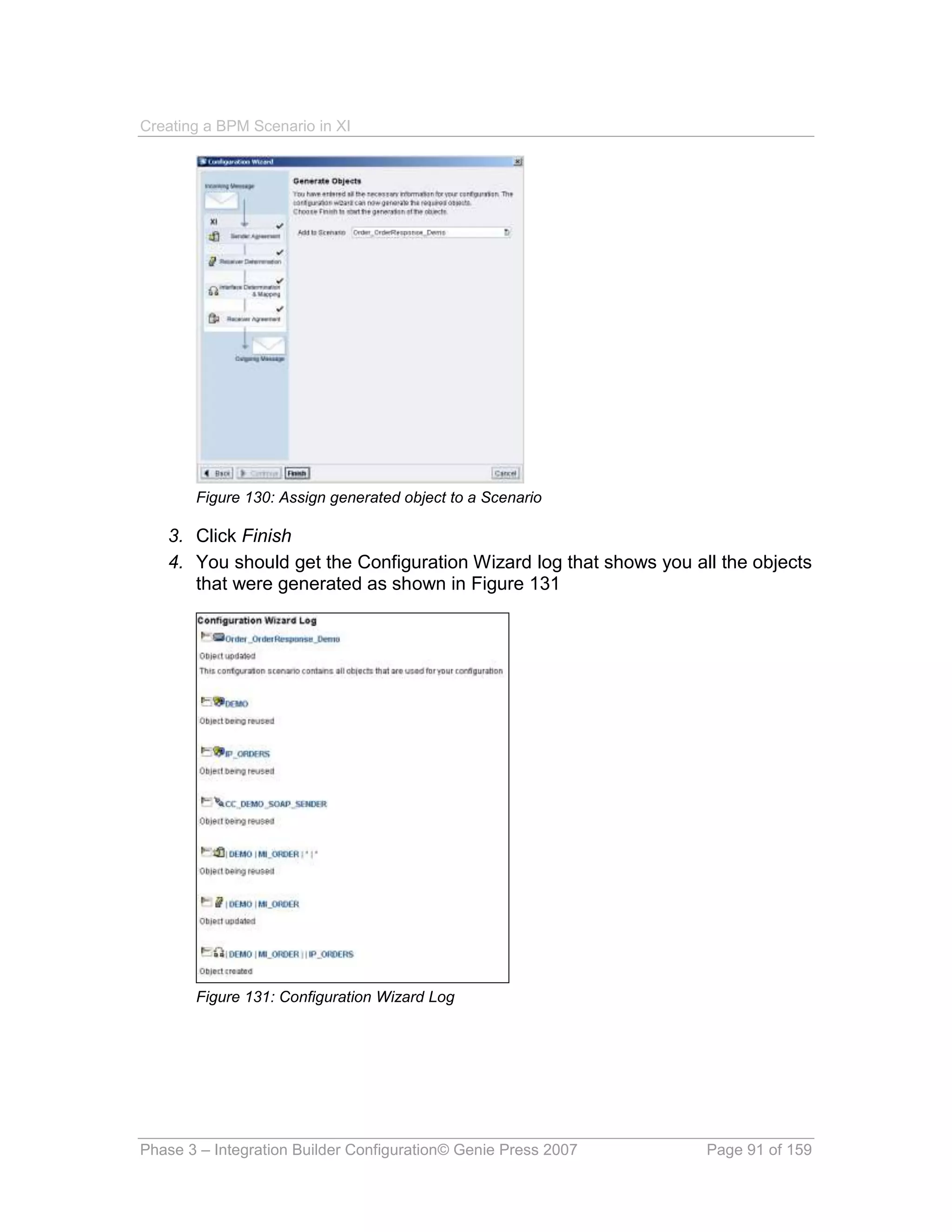
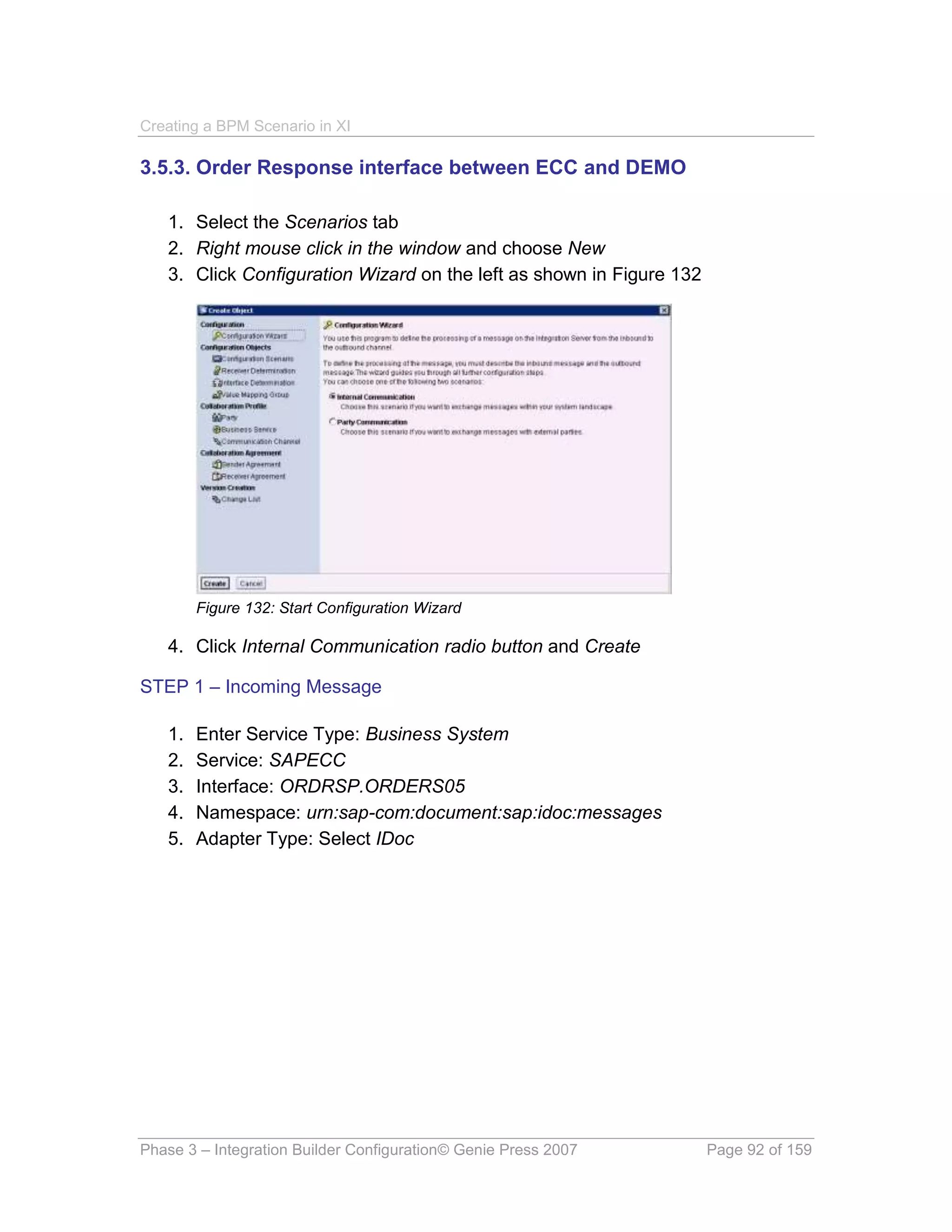
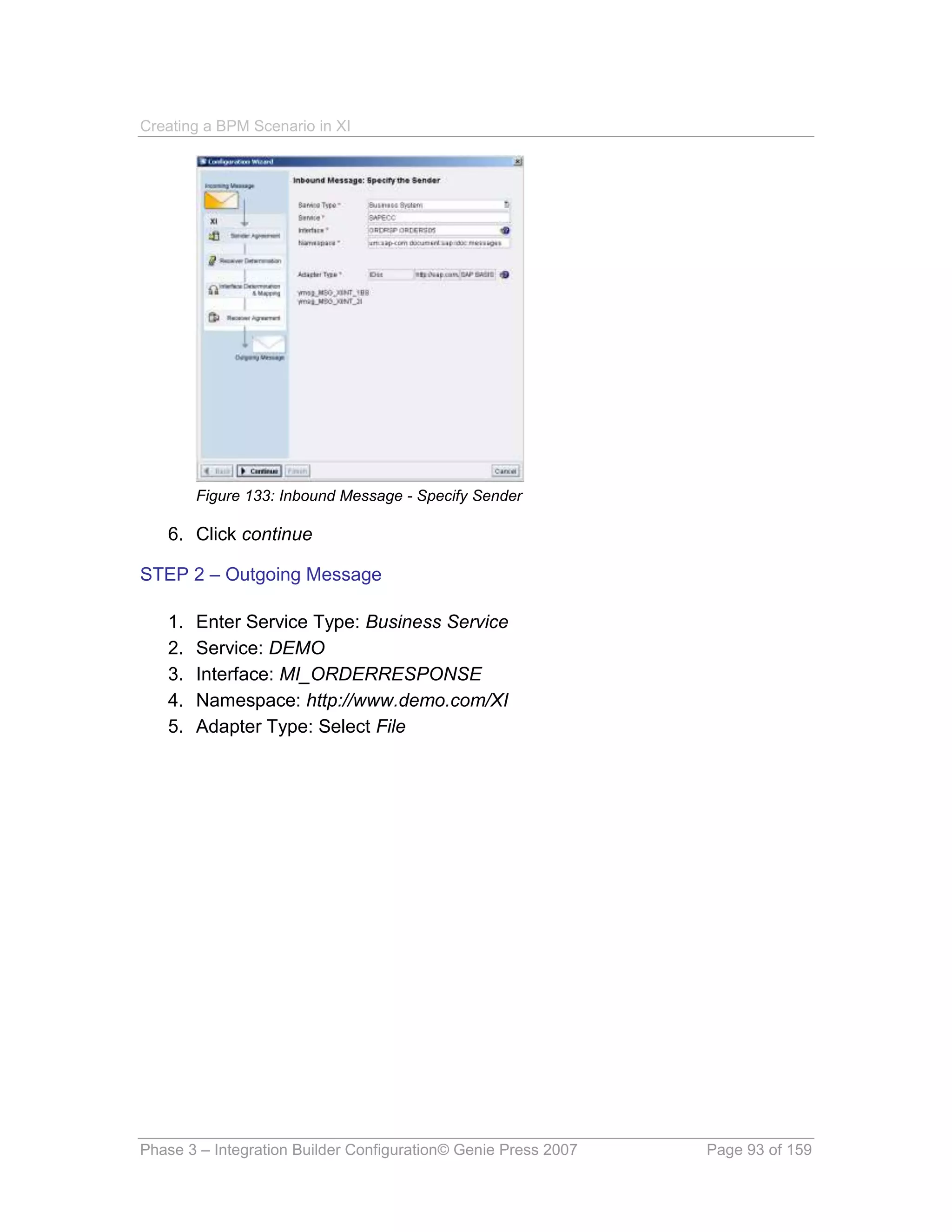
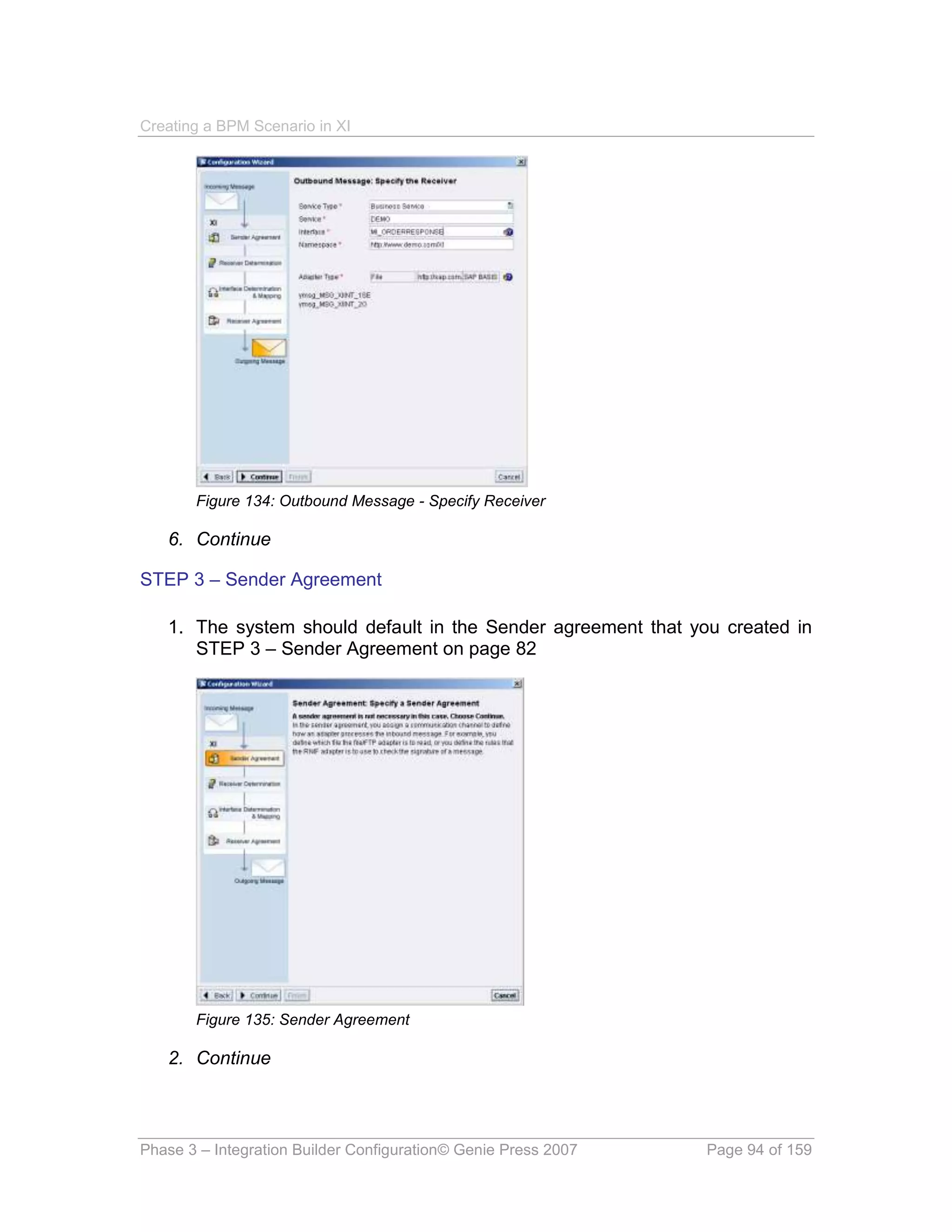
        3.5.3. Order Response interface between ECC and DEMO ............................................ 92
        3.5.4. Order Response interface between ECC and BPE ................................................ 98

Table of Contents                                     © Genie Press 2007                                                 Page 5 of 159
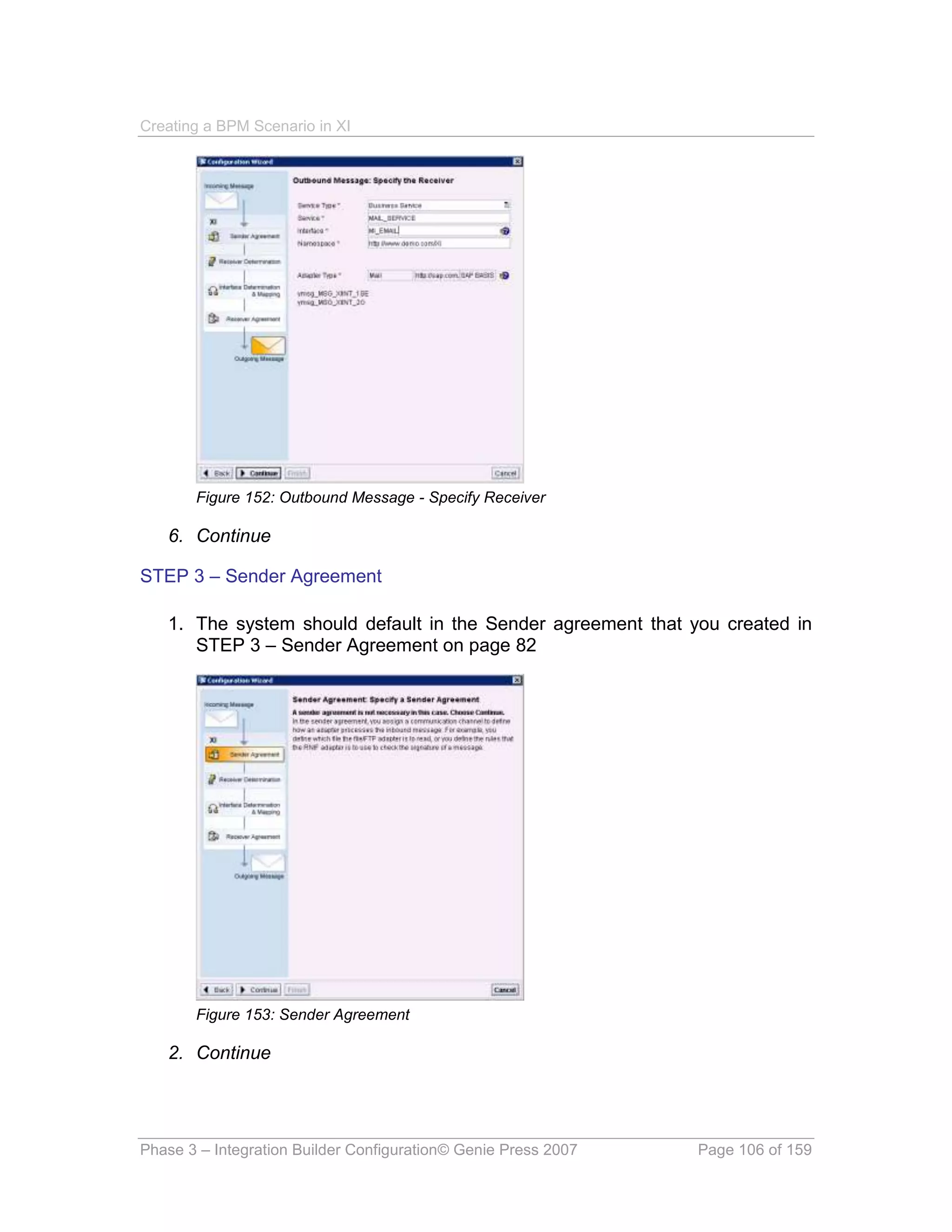
3.5.5. Email interface between BPE and Email Service ................................................. 104
  3.6. Receiver Determination ................................................................................................. 111
        3.6.1. DEMO : MI_ORDER ............................................................................................. 111
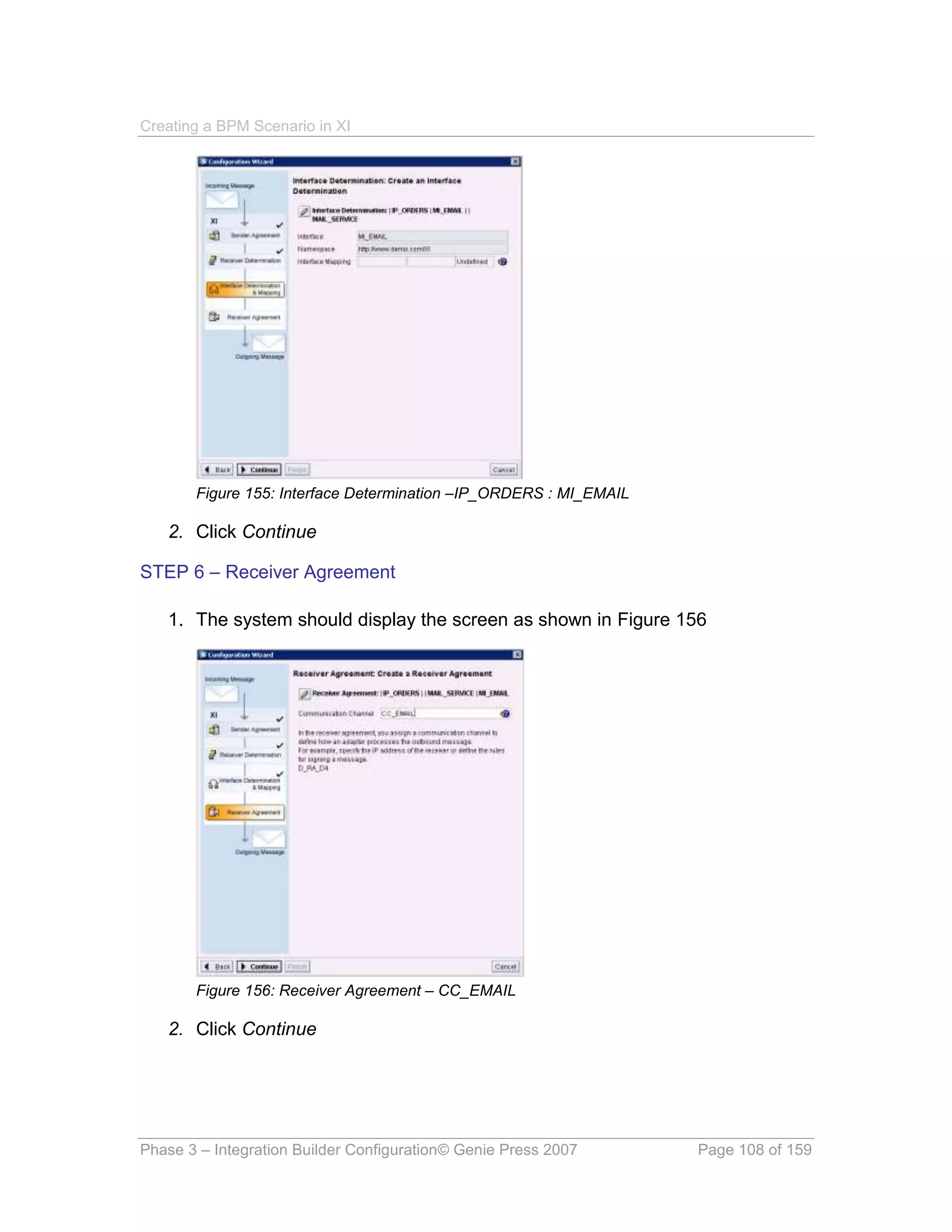
        3.6.2. IP_ORDERS : MI_EMAIL ..................................................................................... 111
        3.6.3. SAPECC : ORDRSP.ORDERS05 ........................................................................ 112
  3.7. Interface Determination ................................................................................................. 112
        3.7.1. DEMO : MI_ORDER : SAPCRM .......................................................................... 112
        3.7.2. DEMO : MI_ORDER : IP_ORDERS ..................................................................... 113
        3.7.3. SAPECC : ORDRSP.ORDERS05 : DEMO .......................................................... 113
        3.7.4. SAPECC : ORDRSP.ORDERS05 : IP_ORDERS ................................................ 114
        3.7.5. IP_ORDERS : MI_EMAIL : MAIL_SERVICE........................................................ 114
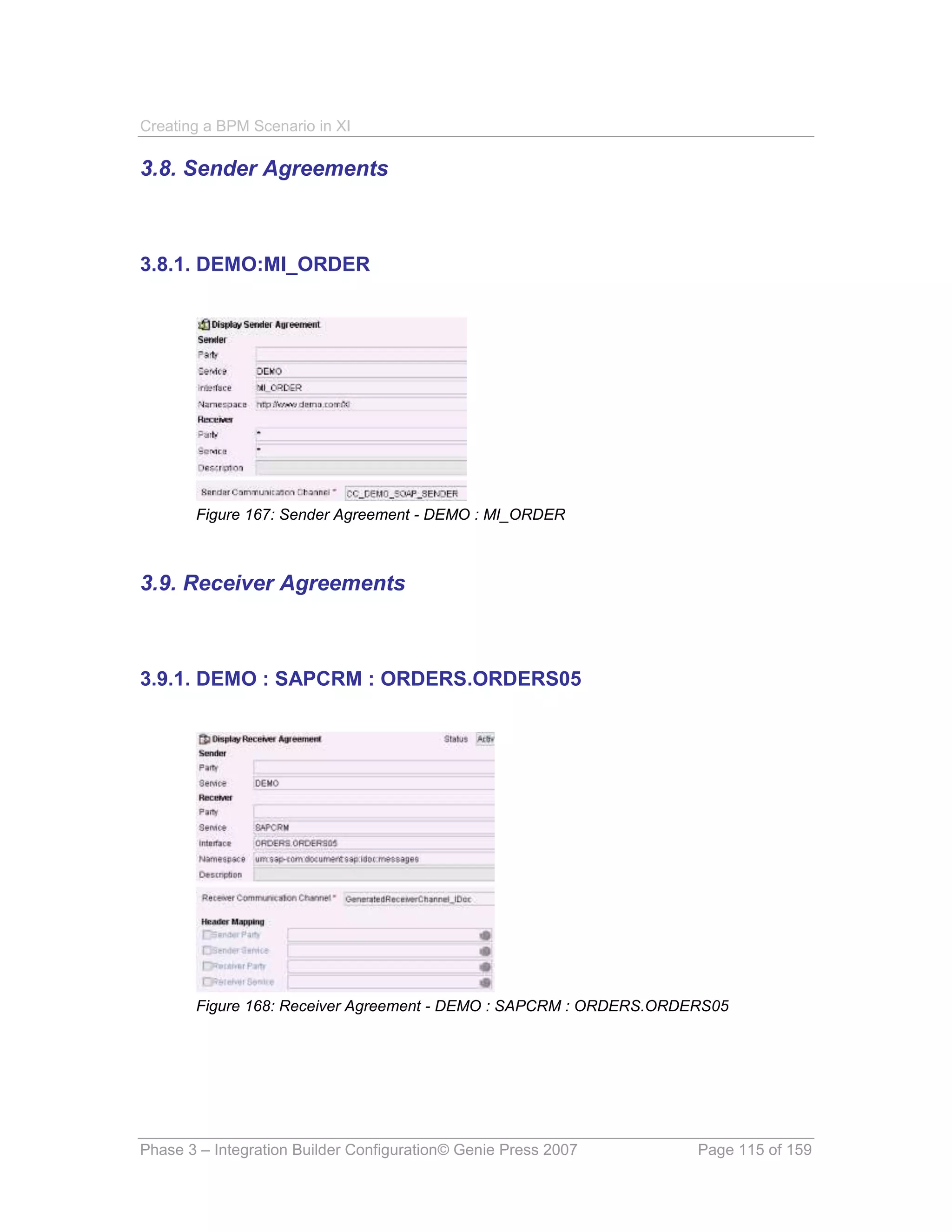
  3.8. Sender Agreements ....................................................................................................... 115
        3.8.1. DEMO:MI_ORDER ............................................................................................... 115
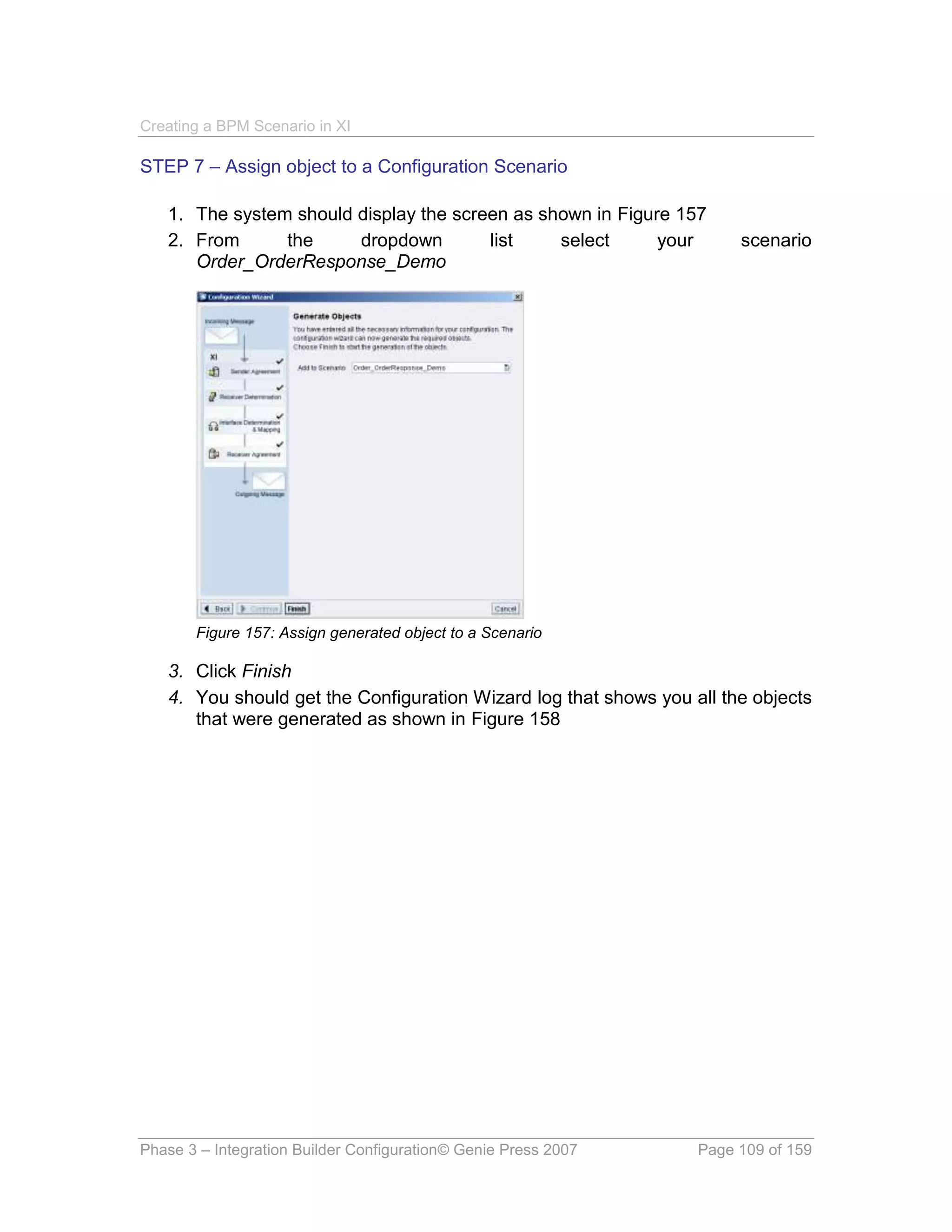
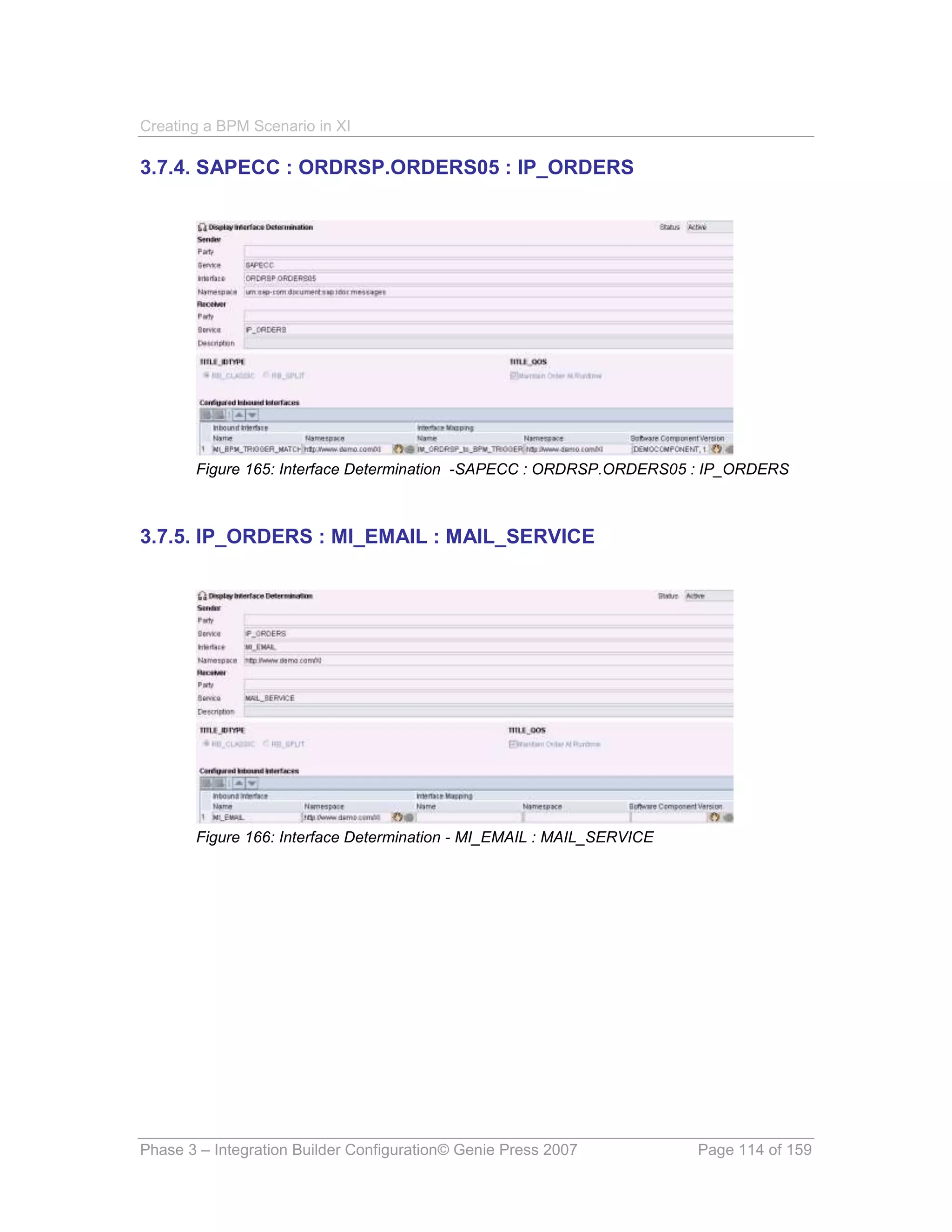
  3.9. Receiver Agreements .................................................................................................... 115
        3.9.1. DEMO : SAPCRM : ORDERS.ORDERS05 ......................................................... 115
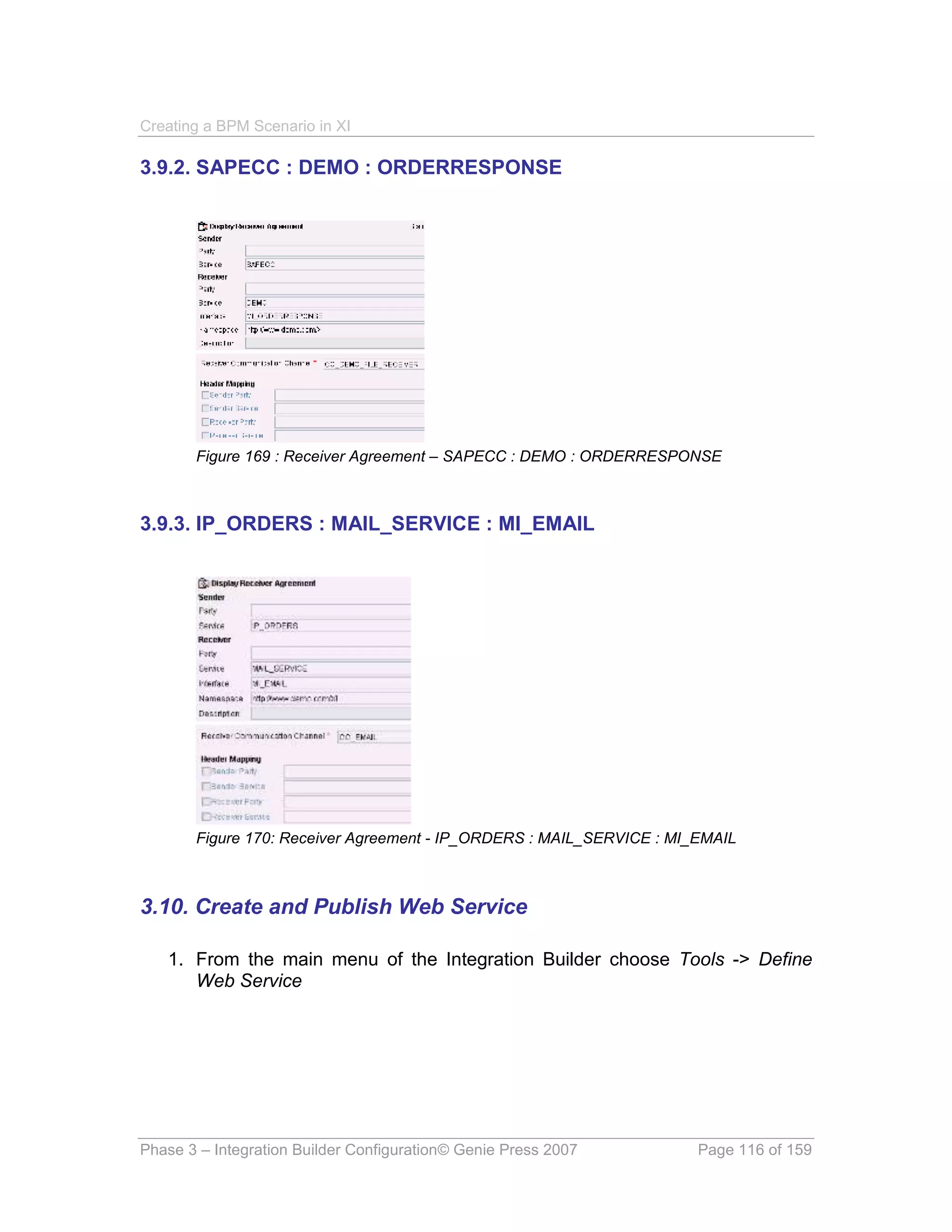
        3.9.2. SAPECC : DEMO : ORDERRESPONSE ............................................................. 116
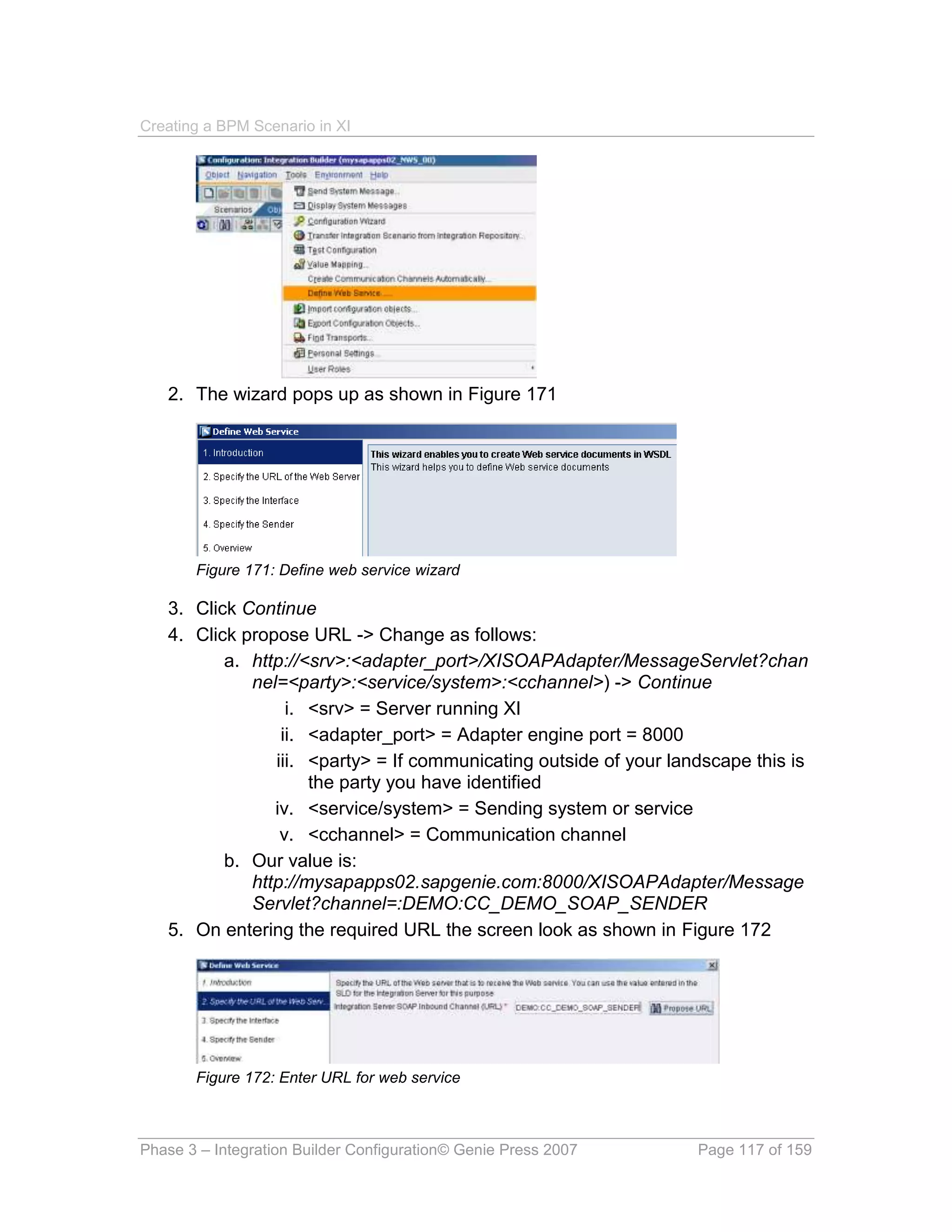
        3.9.3. IP_ORDERS : MAIL_SERVICE : MI_EMAIL........................................................ 116
  3.10. Create and Publish Web Service ................................................................................ 116


PHASE 4 : SAP CONFIGURATION                                                                                                        120

  4.1. Maintain Port in IDoc adapter ....................................................................................... 120
        4.1.1. SAPCRM .............................................................................................................. 120
  4.2. Maintain Metadata Overview for IDoc adapter ............................................................ 121
        4.2.1. ORDERS05 .......................................................................................................... 121


PHASE 5 : TESTING                                                                                                                  122

  5.1. Testing the interface in XI ............................................................................................. 122
        5.1.1. Create a sample XML payload ............................................................................. 122
        5.1.2. Launch the test tool .............................................................................................. 123
  5.2 Testing the web service using XML SPY ...................................................................... 124
  5.3. Runtime workbench ....................................................................................................... 126
        5.3.1. View Integration Server ........................................................................................ 127
        5.3.2. View Integration Engine........................................................................................ 127
        5.3.3. View Adapter Engine ............................................................................................ 128
        5.3.4. View alert inbox .................................................................................................... 129
        5.3.5. Workflow Log ........................................................................................................ 129
        5.3.6. Verify email ........................................................................................................... 130


Table of Contents                                    © Genie Press 2007                                               Page 6 of 159
GLOSSARY                                                                                                                      131

APPENDIX A. ABBREVIATIONS USED                                                                                                137

APPENDIX B. DATA TYPES                                                                                                        138

  XSD – DT_ORDERS ............................................................................................................... 138
  XSD – DT_ORDERRESPONSE ............................................................................................. 139
  XSD – DT_BPM_TRIGGER .................................................................................................... 141


APPENDIX C. WSDL FILES                                                                                                        144

  MI_ORDER.WSDL .................................................................................................................. 144


APPENDIX D. EXTERNAL FILES                                                                                                    147

  XIMAIL30.XSD File for Mail adapter .................................................................................... 147


APPENDIX E. MESSAGE MAPPINGS                                                                                                  151

  MM_Order_to_ORDERS05 .................................................................................................... 151
  MM_Order_to_BPM_TRIGGER............................................................................................. 152
  MM_ORDERS05_to_OrderResponse .................................................................................. 153
  MM_ORDRSP_to_BPM_TRIGGER ....................................................................................... 154
  MM_ BPM_to_EMAIL ............................................................................................................. 155


INDEX TABLE                                                                                                                   156


Table of Contents                                  © Genie Press 2007                                             Page 7 of 159
Creating a BPM Scenario in XI


Introduction

Background

Exchange Infrastructure has grown out of the enormously disparate world of –
and I use this in its most general sense – Electronic Data Interchange. Exchange
Infrastructure 3.0 brings together a lot of technologies. Some of these
technologies are open standards that have been embraced over the years and
have become the de facto standard. These are XML and its cousins SOAP,
WSDL, XPATH, XSLT and so on. Other technologies are proprietary to SAP AG,
like IDOCS, ALE, ABAP Objects and even certain class libraries used by Java.

One of the most interesting developments in recent years has been the
emergence of graphical mapping to chart out an organization’s business
processes. One of the leaders in this has been the ARIS product. SAP and IDS
Scheer1 have teamed up to bring us Business Process Management or BPM. XI
plays an important role in this by “linking” the business processes together.

This book describes the process to map a BPM scenario in XI. It covers the 5
phases required:
     System configuration
     Integration Builder Design
     Integration Builder Configuration
     SAP Configuration
     Testing
It does not try to describe all the functionality that you will encounter in XI and the
BPM module. After all BPM is larger than just XI and conversely XI is more than
just BPM! It does not attempt to provide you with a production solution for the
scenario provided. The scenario is made up to incorporate as many aspects of XI
messaging and BPM as is feasible.

A note about authorization: The tasks in the system configuration phase will take
a higher level of authorization then the remaining 4 phases. The tasks in the first
phase will require the role of SAP_XI_ADMINISTRATOR. The remaining for
phases can be performed by a user with the role of SAP_XI_DEVELOPER.


1
    IDS Scheer are the developers of the ARIS product


Introduction                           © Genie Press 2007                 Page 8 of 159
Creating a BPM Scenario in XI

About the Author

Alistair Rooney is a Principal NetWeaver Consultant with SAP. Alistair has been
involved in 11+ SAP projects and has been Development Lead or Technical
Architect on all but two of these. Alistair has a wide range of skills as a result of
his 25+ years in the industry. Alistair started as a junior programmer in the early
‘80’s and progressed to an IT Manager position in London, UK before entering
consulting. Alistair is an accredited member of the Institute of IT Management,
holds a number of Technical Certifications and is an accredited TOGAF
Architect. Alistair is the author of “Foundations of Java for ABAP Programmers”.

David W Propst was the SAP NetWeaver XI lead for Insight Inc., SAP
NetWeaver PI / Integration architect at Monsanto and now holds a similar
position at HD Supply. He has over 18 years of experience creating innovative
system integration solutions, the past nine years of which have been integrating
SAP systems. David has designed, implemented, and managed large scale B2B,
EDI, and EAI solutions in the transportation, distribution, and retail industries.
David has proven his ability to utilize his vast technical and business knowledge
to produce highly available, scalable, maintainable, and above all profitable -
solutions.

Kevin Wilson, associate partner at Q Data USA Inc. and founder of
ERPGenie.COM, has over 20 years of large scale integrated information systems
implementation experience, the last 16 of which were dedicated to SAP
implementations. Kevin has designed, configured, developed and implemented
solutions for over 29 projects worldwide. Interfacing technologies such as EDI,
ALE, ITS, XI / PI, SAP Event Management, Workflow and ABAP are skills that he
has expertise in. Kevin typically fulfills the role of team or project lead and often
offers training on these technologies to clients seeking to acquire these rare
skills. Kevin holds a Bachelor’s Degree in Science majoring in Mathematics and
Computer Science and also holds a diploma in Project Management. He also
regularly talks at conferences around the world on his topics of interest.


How to use this book

The book is written in such a way as to be a step by step quick guide to
implementing the given scenario. It details, as far as possible, every step that is
required in order to deliver the documented scenario. It also assumes, although
you may be able to muddle through, that you have a basic knowledge of XI 3.0
and some XML fundamentals.


Author: Kevin Wilson             © Genie Press 2007                     Page 9 of 159
Creating a BPM Scenario in XI

Key:
       Italic words                Transactions
       Italic words -> Italic wordsMenu path to follow
       Underlined                  Indicates a Tab on a
                                   screen
All figures are labeled with a number. If that figure is referenced in the text then it
is reference with this number. For your convenience a table of figures is listed
after the table of contents.


The Scenario

An external system (DEMO) sends an XML representation of an order through to
XI. We want to transform this order in to a small BPM message destined for the
BPM engine and also transform it in to an ORDERS05 IDoc destined for the
CRM system.
This ORDERS05 IDoc creates a sales order in CRM which is then replicated to
the ECC system, via middleware. The sales order in ECC then generates an
ORDRSP IDoc which is then sent to XI. This ORDRSP IDoc is then transformed
in to a small BPM message that is correlated with the ORDERS BPM message
sent earlier. It is also transformed in to an order response XML message which is
sent through the FTP Adapter to a specific file on the Integration server. The
BPM also has timeout and exception handling capabilities using the alert
framework as well as the email adapter.

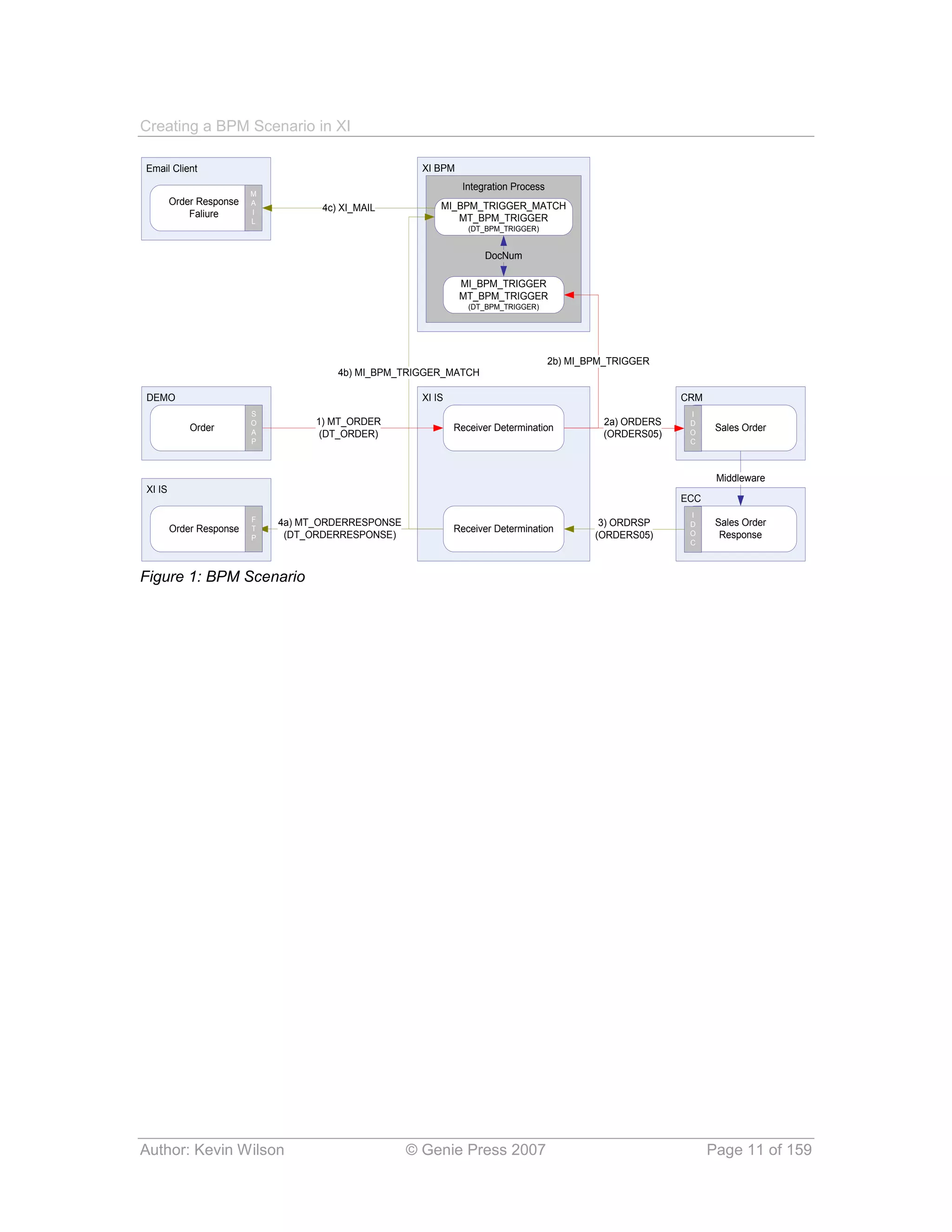
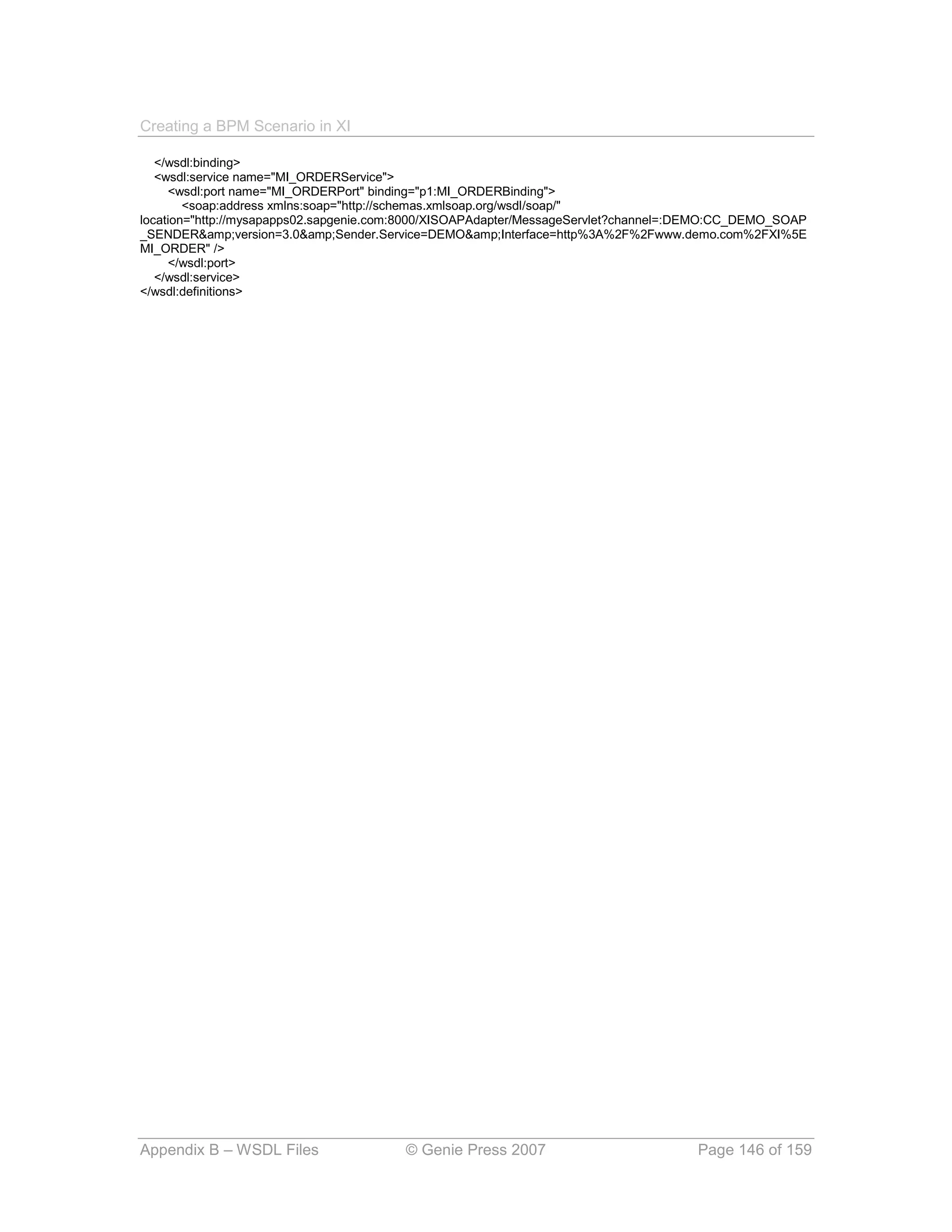
Don’t Panic – this all seems rather daunting at this point but the diagram in
Figure 1 will simplify our task considerably!


Author: Kevin Wilson              © Genie Press 2007                     Page 10 of 159
Creating a BPM Scenario in XI

Email Client                                          XI BPM
                                                               Integration Process
                         M
        Order Response   A                                MI_BPM_TRIGGER_MATCH
                         I          4c) XI_MAIL
            Faliure                                          MT_BPM_TRIGGER
                         L
                                                                 (DT_BPM_TRIGGER)


                                                                    DocNum

                                                               MI_BPM_TRIGGER
                                                               MT_BPM_TRIGGER
                                                                 (DT_BPM_TRIGGER)


                                                                                     2b) MI_BPM_TRIGGER
                                       4b) MI_BPM_TRIGGER_MATCH

DEMO                                                  XI IS                                                CRM
                         S                                                                                  I
                         O         1) MT_ORDER                                                2a) ORDERS    D
            Order        A
                                                              Receiver Determination                        O
                                                                                                                  Sales Order
                                    (DT_ORDER)                                                (ORDERS05)
                         P                                                                                  C


                                                                                                                  Middleware
XI IS
                                                                                                           ECC
                                                                                                            I
                         F   4a) MT_ORDERRESPONSE                                                                 Sales Order
                                                                                              3) ORDRSP     D
        Order Response   T                                    Receiver Determination                        O
                         P    (DT_ORDERRESPONSE)                                             (ORDERS05)            Response
                                                                                                            C


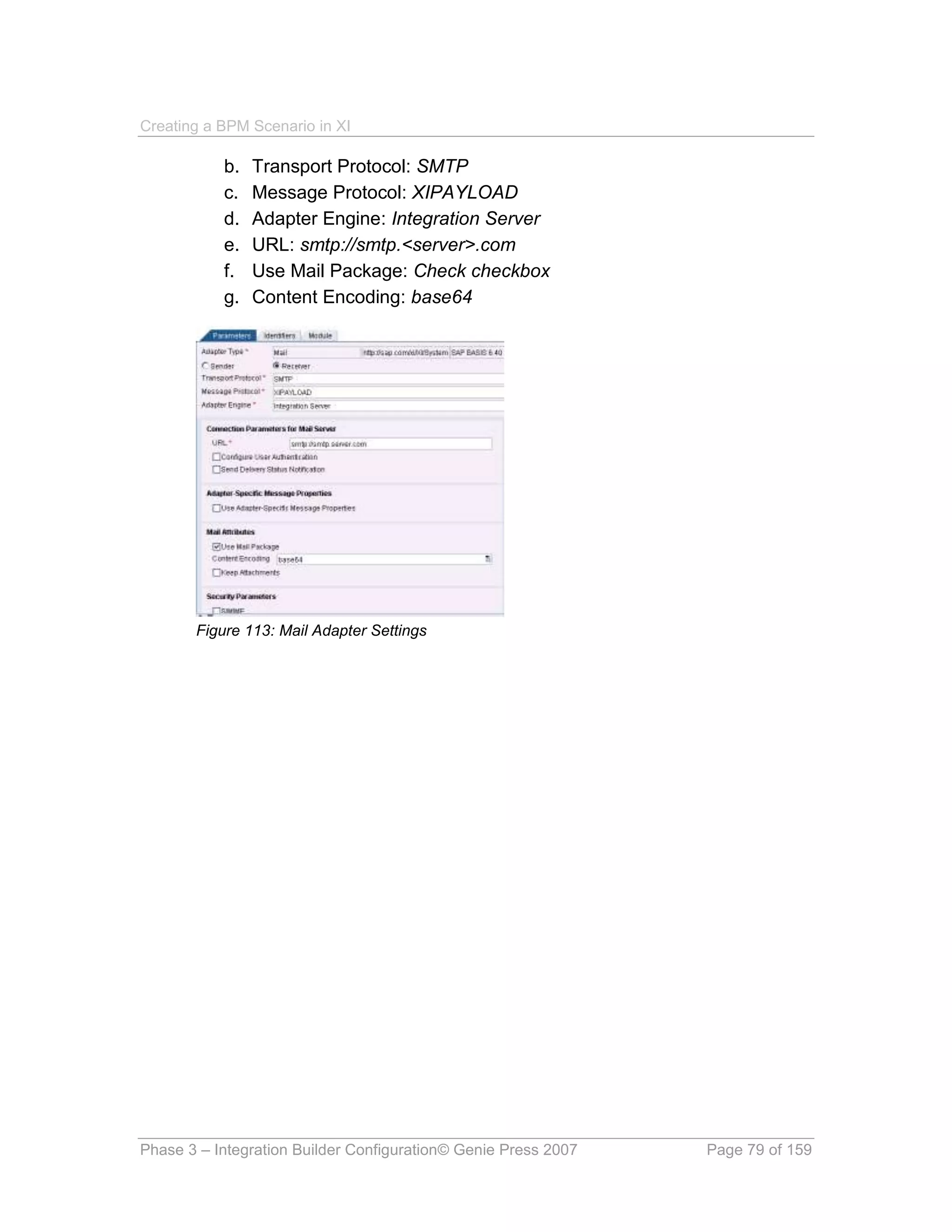
Figure 1: BPM Scenario


Author: Kevin Wilson                                © Genie Press 2007                                           Page 11 of 159
Creating a BPM Scenario in XI


PHASE 1 :         SYSTEM CONFIGURATION

We have 4 “systems” in our scenario:
    The Demo system sending the order in XML format
    The CRM system that receives the ORDERS IDoc in order to create a
      sales order
    The ECC system that sends the ORDRSP IDoc to XI and ultimately to an
      email address
    The XI system housing the interfaces, the BPM scenario and the adapter
      framework
We’ll go through configuring the Demo system as a Software Component.
Furthermore we will assume that the CRM and ECC business systems have
been set up and imported in to the Integration Directory. We’ll be covering the
adding of the communication channels (We will use the IDoc adapter) to these
business services.
All our design work will be done under the DEMOCOMPONENT Software
Component.


1.1. Software Component

So, let’s get going with our first task. We need to configure the DEMO system if it’s
not a part of the business landscape. In our case we need to create
DEMOCOMPONENT as a Software Component in the SLD. Most SAP shops do not
allow just anyone into the SLD. This task is usually performed by a development
lead or basis. You will need the SAP_XI_ADMINISTRATOR or
SAP_XI_CONTENT ORGANIZER role to perform the SLD tasks. You may need
to have basis set this up for you.
    1. Log in to the XI server
    2. Run transaction SXMB_IFR to start the Integration Builder


Phase 2 – Integration Builder Design © Genie Press 2007                Page 12 of 159
Creating a BPM Scenario in XI


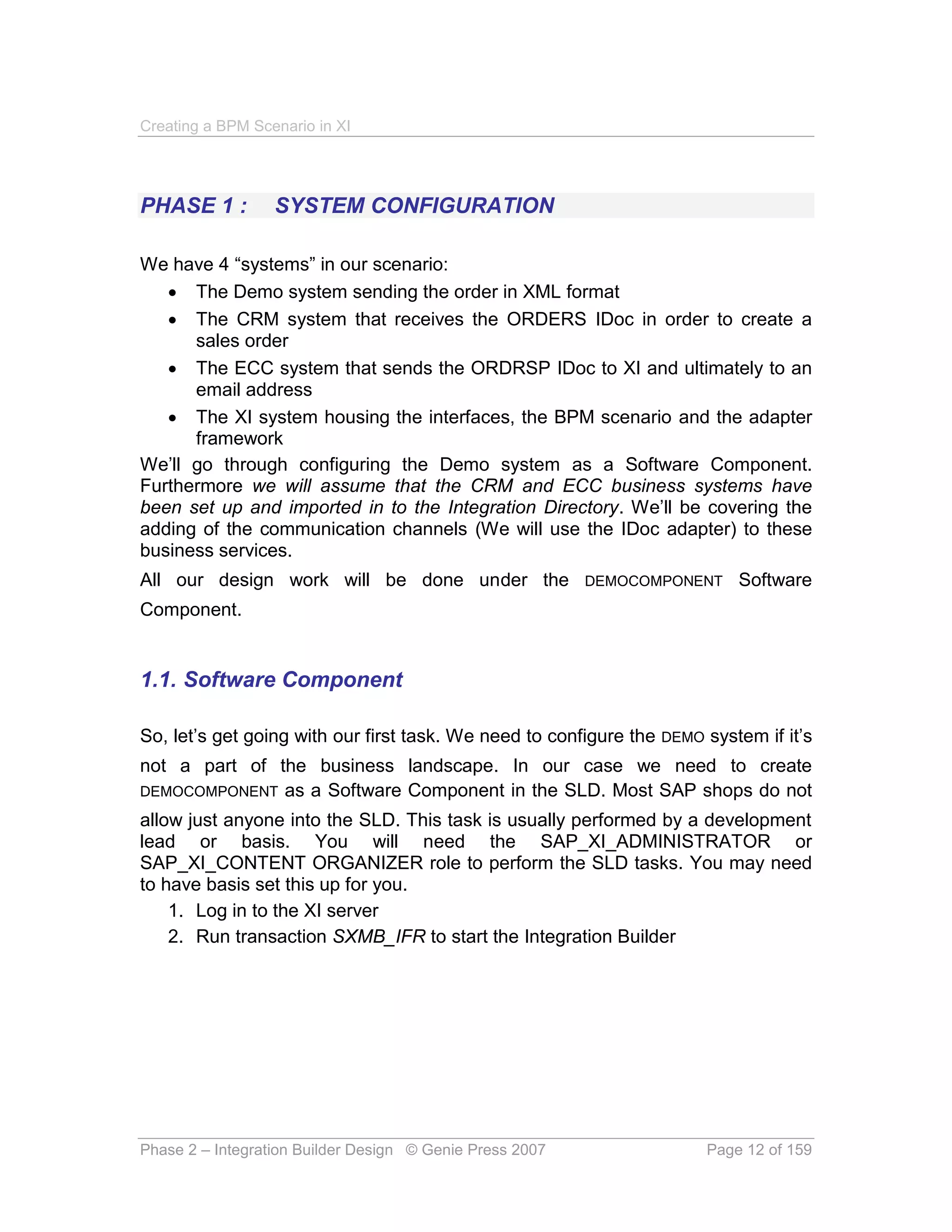
         Figure 2: Integration Builder

    3. Start System Landscape Directory
    4. Click on Software Catalog
    5. Click on New Product
    6. Enter a vendor, name and version and Create
    7. Now you need to add a Software Component. Enter Vendor, name
       (Software Component name), version and Create
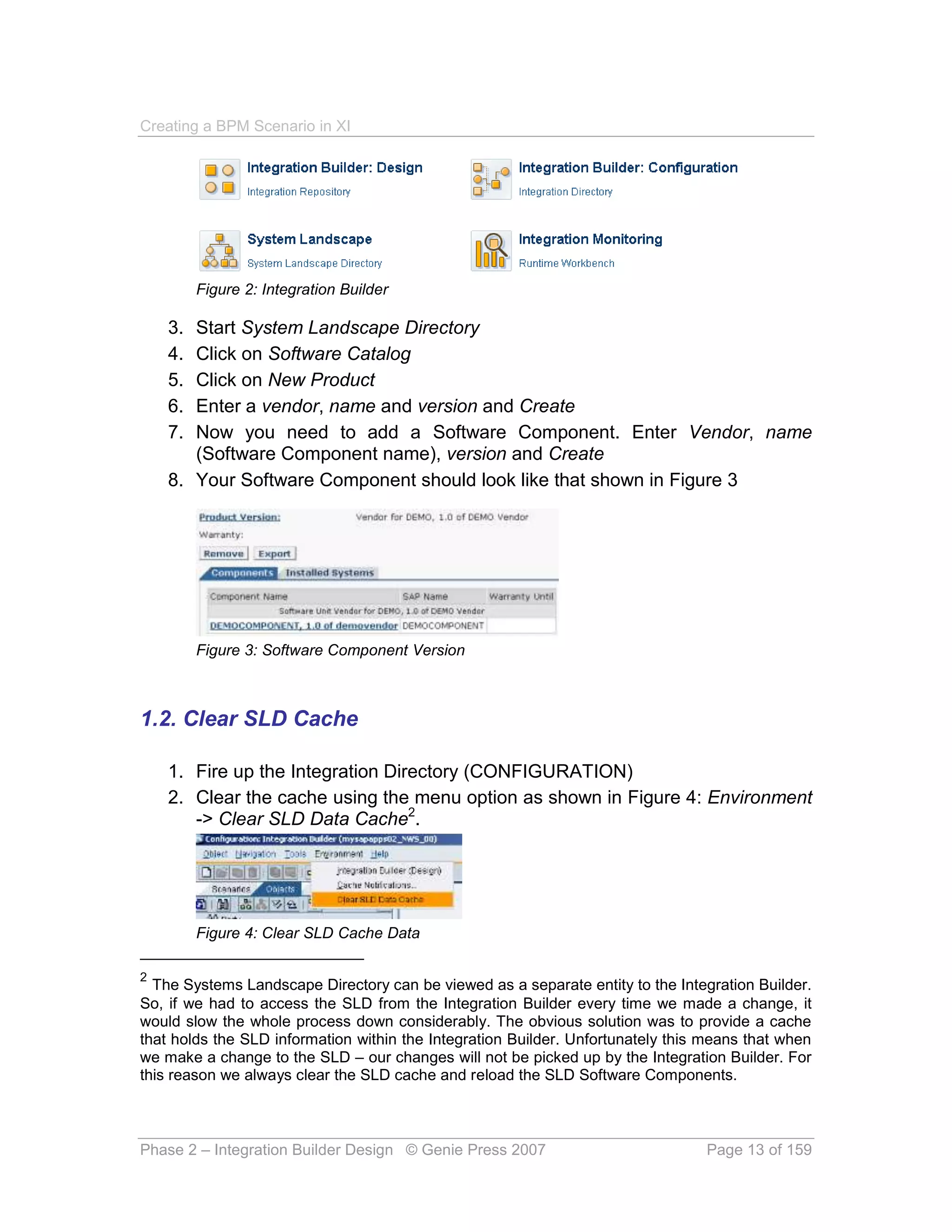
    8. Your Software Component should look like that shown in Figure 3


         Figure 3: Software Component Version


1.2. Clear SLD Cache

    1. Fire up the Integration Directory (CONFIGURATION)
    2. Clear the cache using the menu option as shown in Figure 4: Environment
       -> Clear SLD Data Cache2.


         Figure 4: Clear SLD Cache Data

2
  The Systems Landscape Directory can be viewed as a separate entity to the Integration Builder.
So, if we had to access the SLD from the Integration Builder every time we made a change, it
would slow the whole process down considerably. The obvious solution was to provide a cache
that holds the SLD information within the Integration Builder. Unfortunately this means that when
we make a change to the SLD – our changes will not be picked up by the Integration Builder. For
this reason we always clear the SLD cache and reload the SLD Software Components.


Phase 2 – Integration Builder Design © Genie Press 2007                          Page 13 of 159
Creating a BPM Scenario in XI

1.3. Import Software Component

   1. Start the Integration Repository
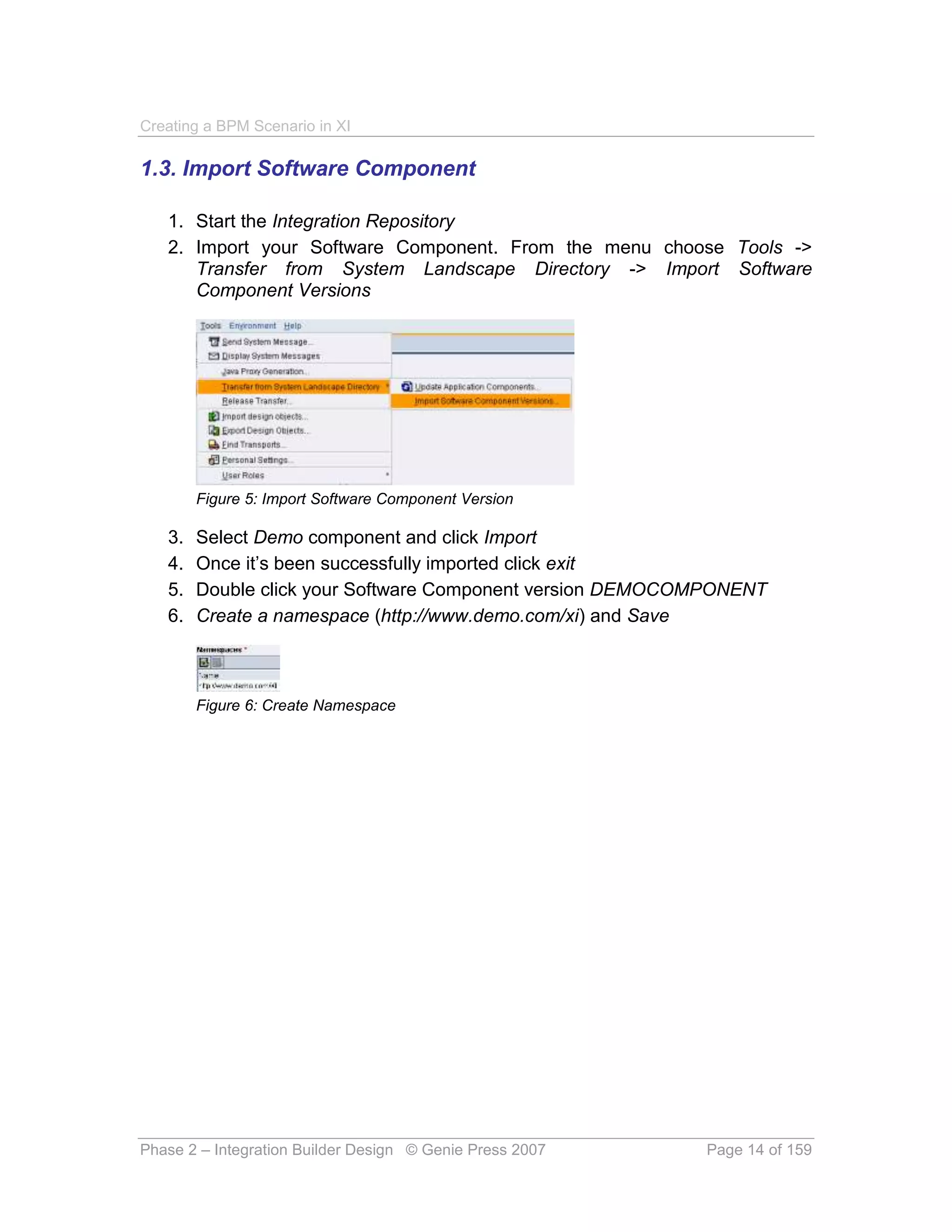
   2. Import your Software Component. From the menu choose Tools ->
      Transfer from System Landscape Directory -> Import Software
      Component Versions


        Figure 5: Import Software Component Version

   3.   Select Demo component and click Import
   4.   Once it’s been successfully imported click exit
   5.   Double click your Software Component version DEMOCOMPONENT
   6.   Create a namespace (http://www.demo.com/xi) and Save


        Figure 6: Create Namespace


Phase 2 – Integration Builder Design © Genie Press 2007    Page 14 of 159
Creating a BPM Scenario in XI


PHASE 2 :          INTEGRATION BUILDER DESIGN

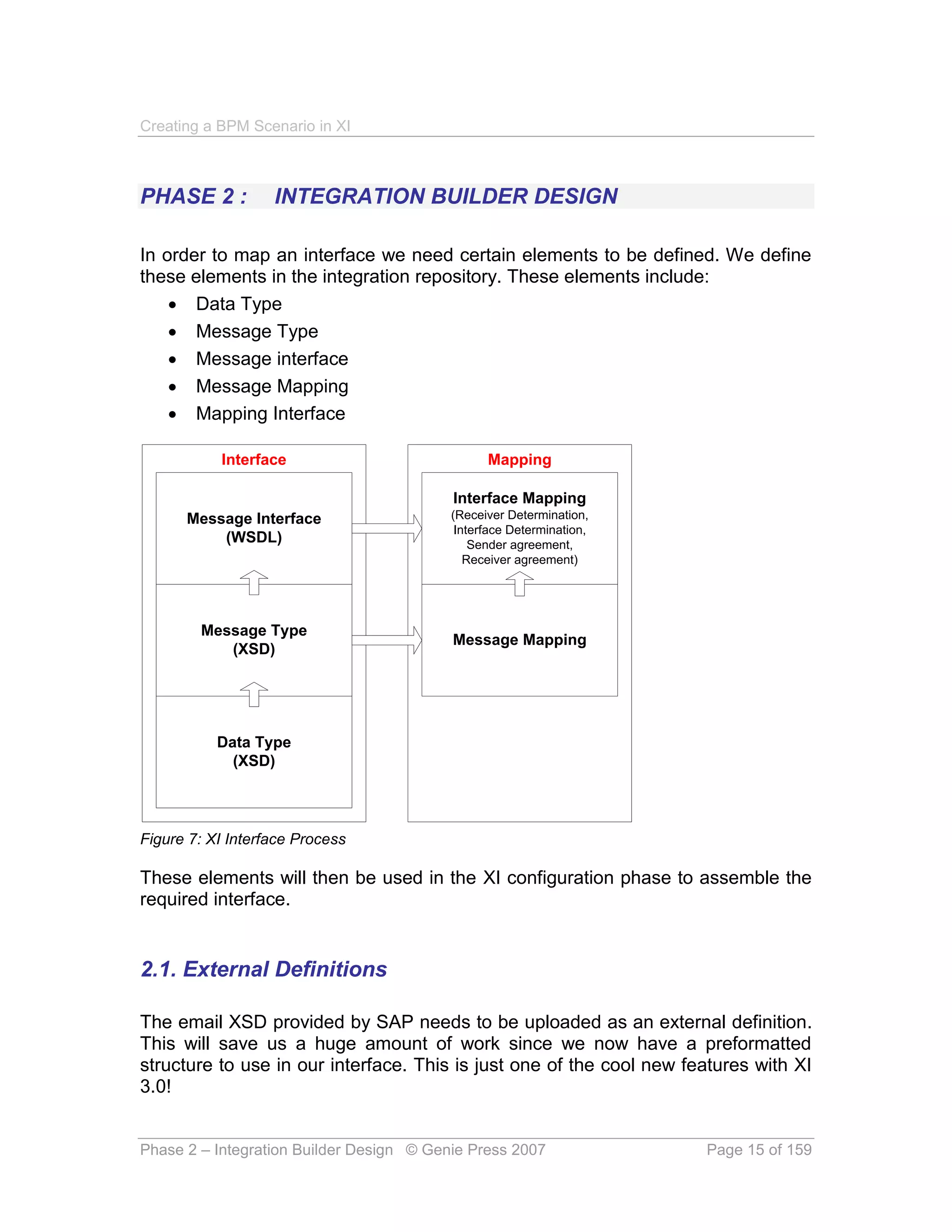
In order to map an interface we need certain elements to be defined. We define
these elements in the integration repository. These elements include:
     Data Type
     Message Type
     Message interface
     Message Mapping
     Mapping Interface

           Interface                            Mapping

                                          Interface Mapping
      Message Interface                   (Receiver Determination,
                                           Interface Determination,
          (WSDL)                              Sender agreement,
                                             Receiver agreement)


        Message Type
                                          Message Mapping
           (XSD)


           Data Type
             (XSD)


Figure 7: XI Interface Process

These elements will then be used in the XI configuration phase to assemble the
required interface.


2.1. External Definitions

The email XSD provided by SAP needs to be uploaded as an external definition.
This will save us a huge amount of work since we now have a preformatted
structure to use in our interface. This is just one of the cool new features with XI
3.0!


Phase 2 – Integration Builder Design © Genie Press 2007               Page 15 of 159
Creating a BPM Scenario in XI

2.1.1. XI_MAIL

   1. Open up your applicable namespace under the DEMCOMPONENT
      software component
   2. Open Interface Objects
   3. Right click External Definitions -> New
   4. Enter Name (XI_MAIL) and Description -> Create
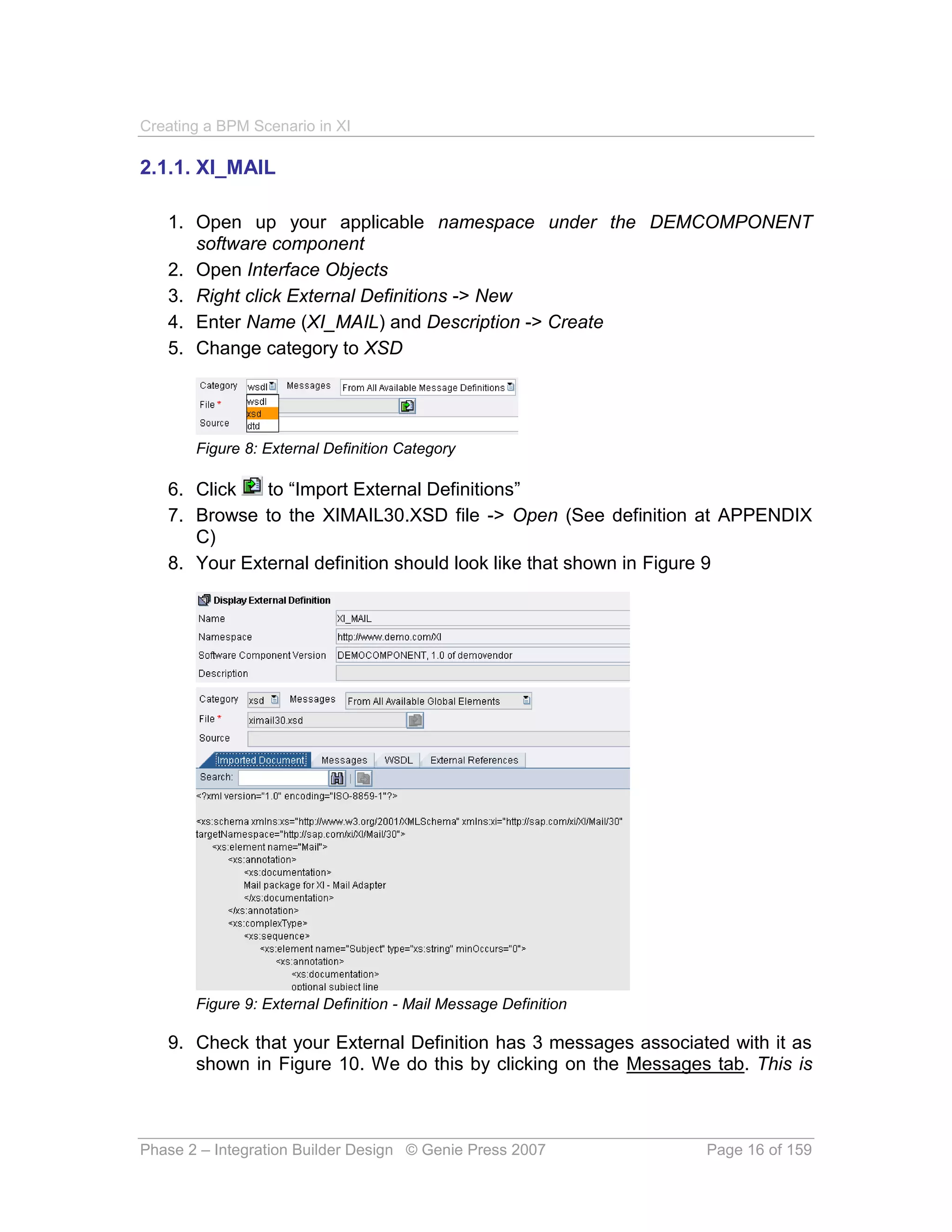
   5. Change category to XSD


       Figure 8: External Definition Category

   6. Click   to “Import External Definitions”
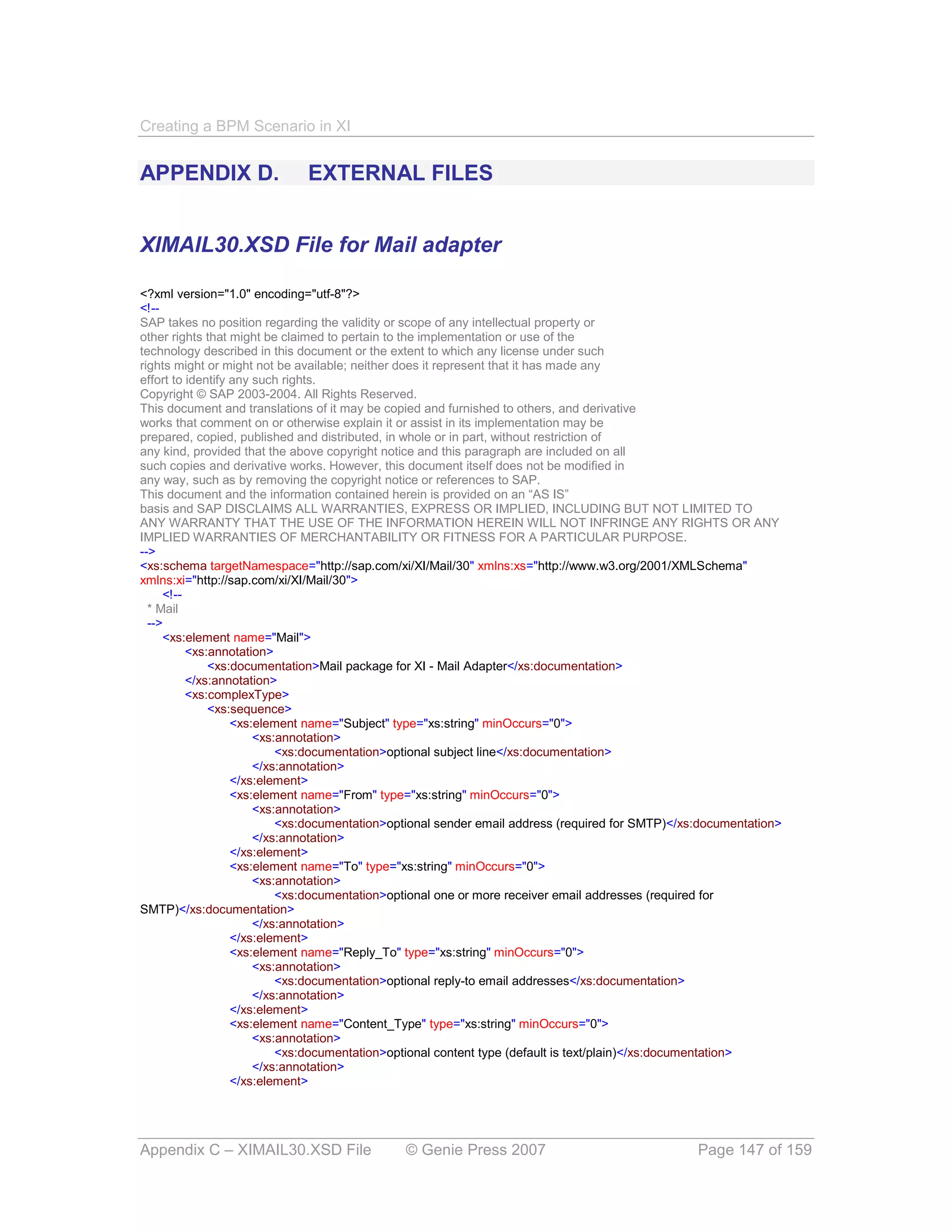
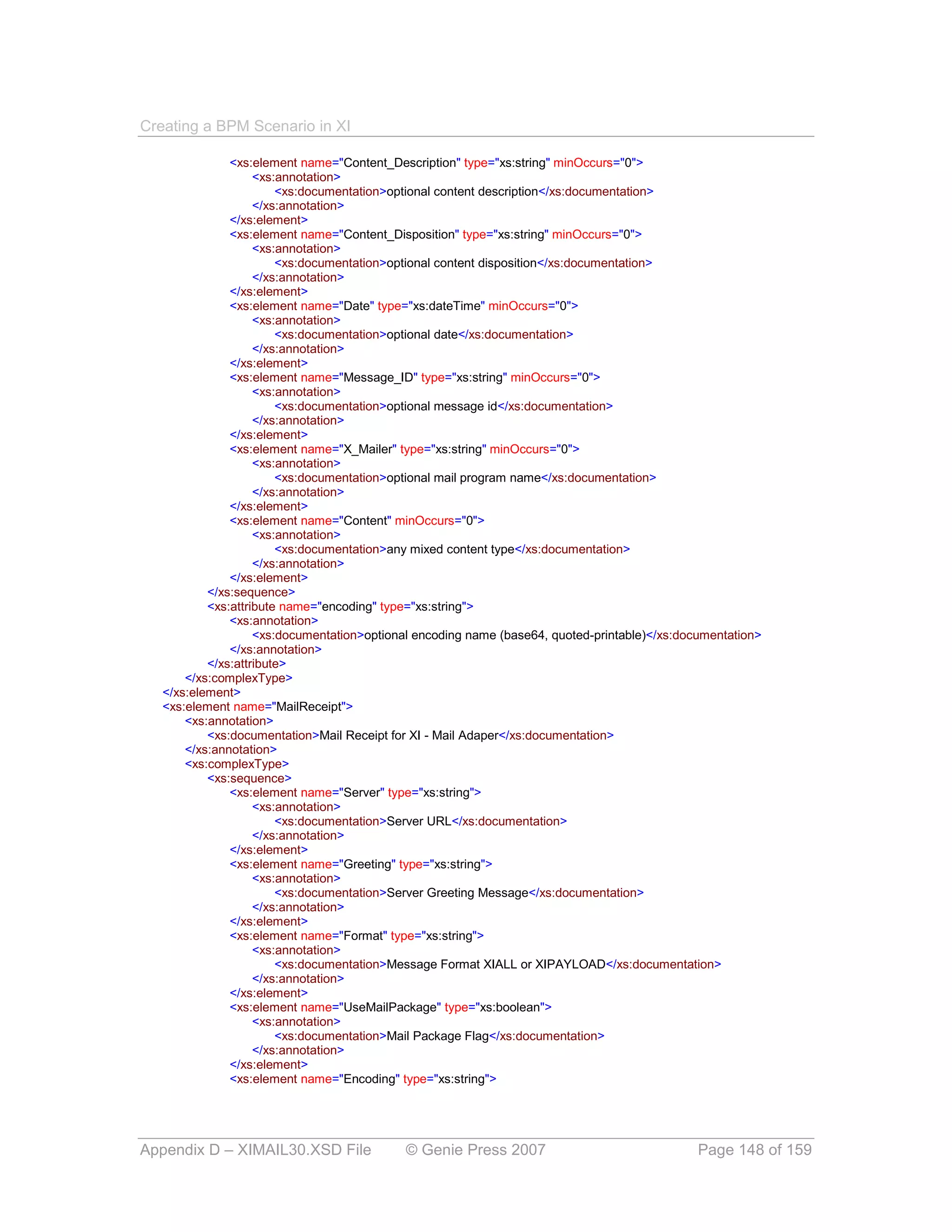
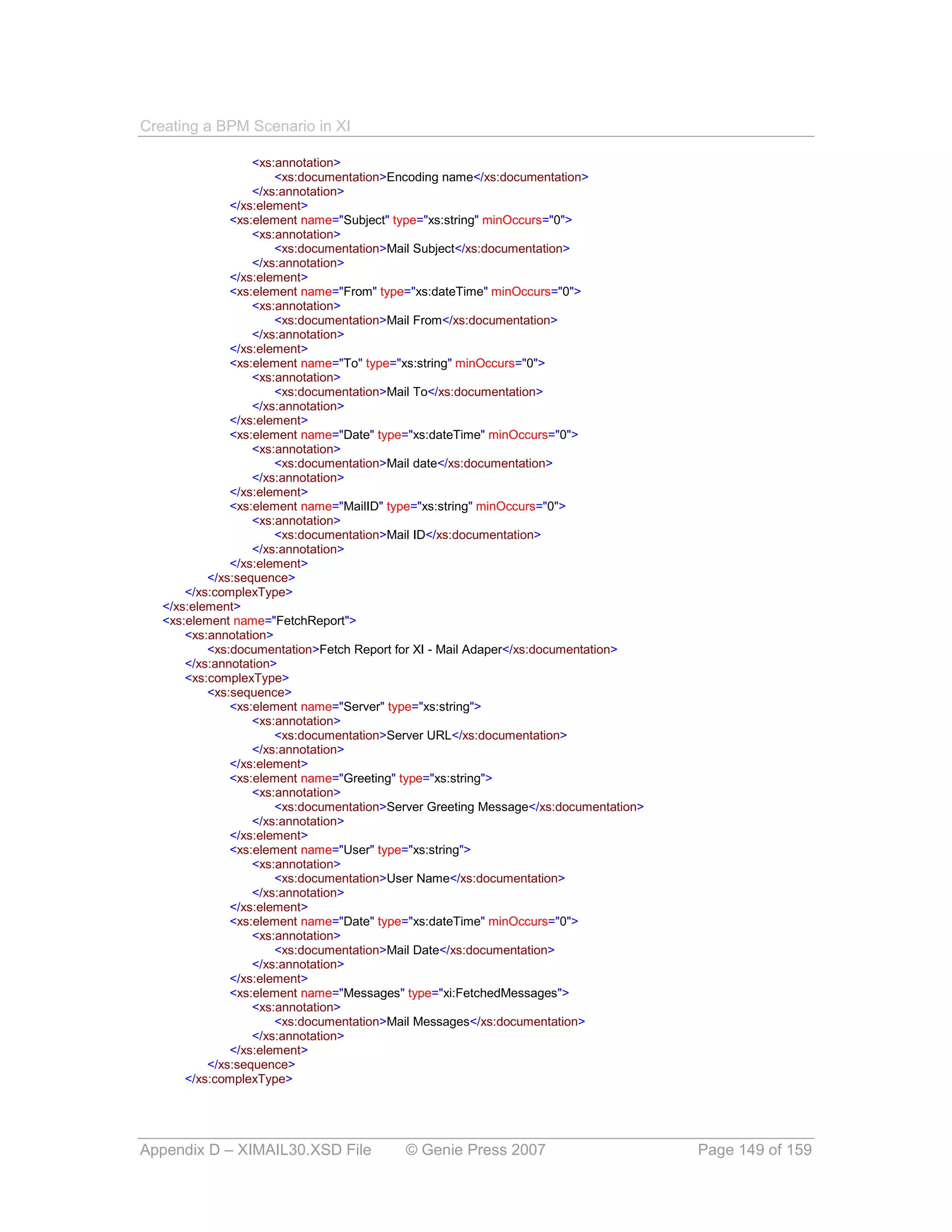
   7. Browse to the XIMAIL30.XSD file -> Open (See definition at APPENDIX
      C)
   8. Your External definition should look like that shown in Figure 9


       Figure 9: External Definition - Mail Message Definition

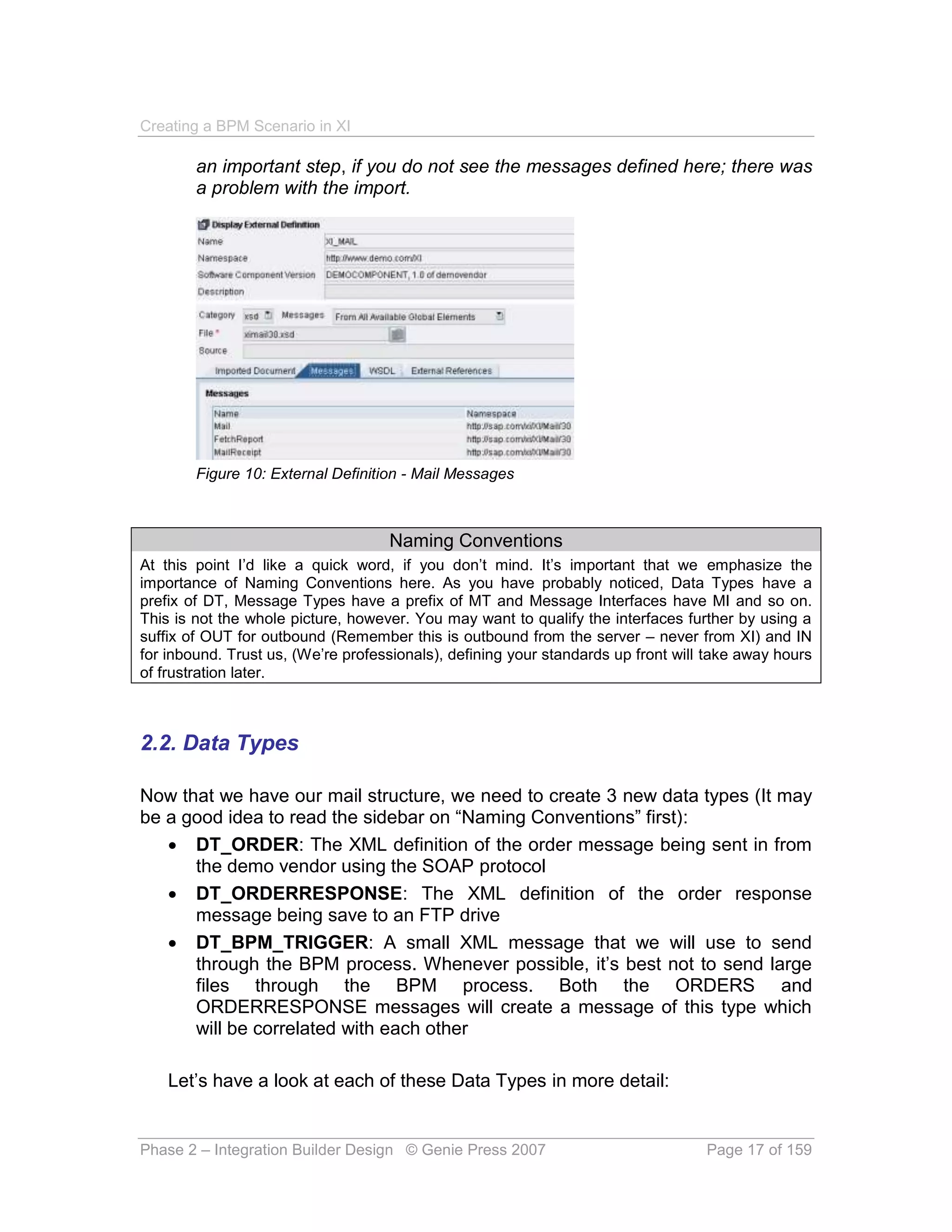
   9. Check that your External Definition has 3 messages associated with it as
      shown in Figure 10. We do this by clicking on the Messages tab. This is


Phase 2 – Integration Builder Design © Genie Press 2007          Page 16 of 159
Creating a BPM Scenario in XI

        an important step, if you do not see the messages defined here; there was
        a problem with the import.


        Figure 10: External Definition - Mail Messages


                                    Naming Conventions
At this point I’d like a quick word, if you don’t mind. It’s important that we emphasize the
importance of Naming Conventions here. As you have probably noticed, Data Types have a
prefix of DT, Message Types have a prefix of MT and Message Interfaces have MI and so on.
This is not the whole picture, however. You may want to qualify the interfaces further by using a
suffix of OUT for outbound (Remember this is outbound from the server – never from XI) and IN
for inbound. Trust us, (We’re professionals), defining your standards up front will take away hours
of frustration later.


2.2. Data Types

Now that we have our mail structure, we need to create 3 new data types (It may
be a good idea to read the sidebar on “Naming Conventions” first):
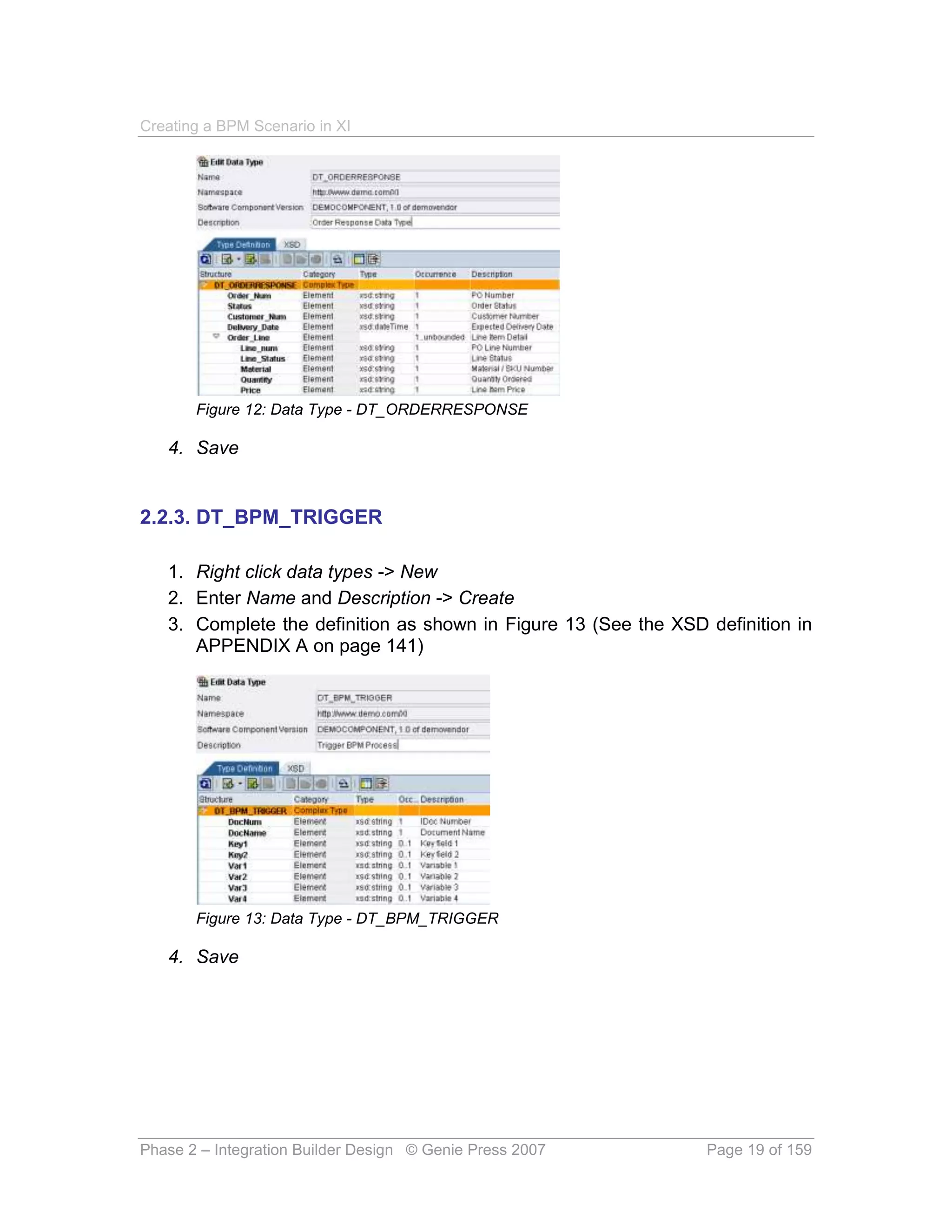
    DT_ORDER: The XML definition of the order message being sent in from
      the demo vendor using the SOAP protocol
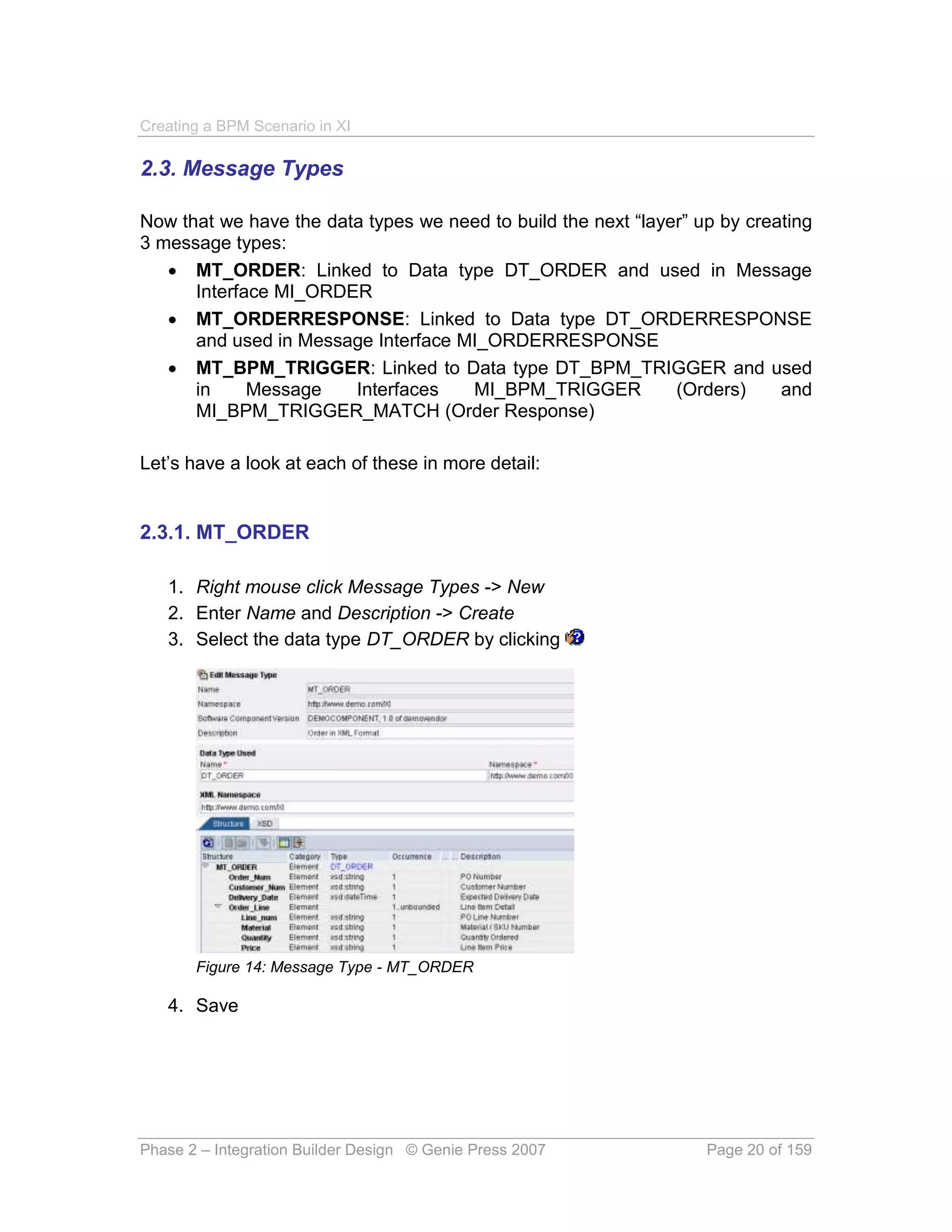
    DT_ORDERRESPONSE: The XML definition of the order response
      message being save to an FTP drive
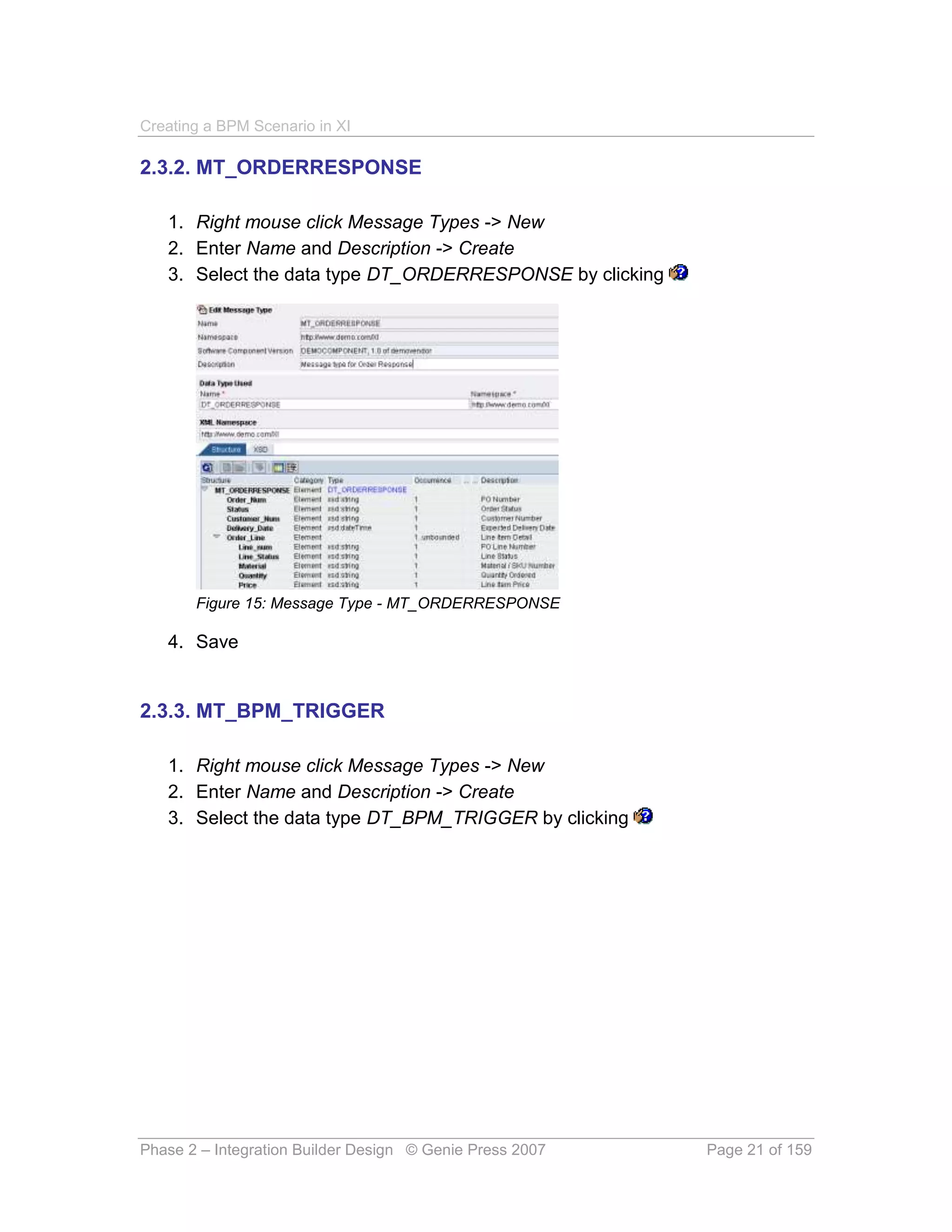
    DT_BPM_TRIGGER: A small XML message that we will use to send
      through the BPM process. Whenever possible, it’s best not to send large
      files through the BPM process. Both the ORDERS and
      ORDERRESPONSE messages will create a message of this type which
      will be correlated with each other

    Let’s have a look at each of these Data Types in more detail:


Phase 2 – Integration Builder Design © Genie Press 2007                            Page 17 of 159
Creating a BPM Scenario in XI

2.2.1. DT_ORDERS

   1. Right click data types -> New
   2. Enter Name and Description -> Create
   3. Complete the definition as shown in Figure 11 (See the XSD definition in
      APPENDIX A on page 137) and yes, if you’re feeling lazy, you could just
      import this – but keying it in will give you a better understanding of the
      whole process!


       Figure 11: Data Type - DT_ORDERS

   4. Save


2.2.2. DT_ORDERRESPONSE

   1. Right click data types -> New
   2. Enter Name and Description -> Create
   3. Complete the definition as shown in Figure 12 (See the XSD definition in
      APPENDIX A on page 139)


Phase 2 – Integration Builder Design © Genie Press 2007            Page 18 of 159
Creating a BPM Scenario in XI


       Figure 12: Data Type - DT_ORDERRESPONSE

   4. Save


2.2.3. DT_BPM_TRIGGER

   1. Right click data types -> New
   2. Enter Name and Description -> Create
   3. Complete the definition as shown in Figure 13 (See the XSD definition in
      APPENDIX A on page 141)


       Figure 13: Data Type - DT_BPM_TRIGGER

   4. Save


Phase 2 – Integration Builder Design © Genie Press 2007          Page 19 of 159
Creating a BPM Scenario in XI

2.3. Message Types

Now that we have the data types we need to build the next “layer” up by creating
3 message types:
    MT_ORDER: Linked to Data type DT_ORDER and used in Message
      Interface MI_ORDER
    MT_ORDERRESPONSE: Linked to Data type DT_ORDERRESPONSE
      and used in Message Interface MI_ORDERRESPONSE
    MT_BPM_TRIGGER: Linked to Data type DT_BPM_TRIGGER and used
      in     Message    Interfaces   MI_BPM_TRIGGER            (Orders)     and
      MI_BPM_TRIGGER_MATCH (Order Response)

Let’s have a look at each of these in more detail:


2.3.1. MT_ORDER

   1. Right mouse click Message Types -> New
   2. Enter Name and Description -> Create
   3. Select the data type DT_ORDER by clicking


       Figure 14: Message Type - MT_ORDER

   4. Save


Phase 2 – Integration Builder Design © Genie Press 2007            Page 20 of 159
Creating a BPM Scenario in XI

2.3.2. MT_ORDERRESPONSE

   1. Right mouse click Message Types -> New
   2. Enter Name and Description -> Create
   3. Select the data type DT_ORDERRESPONSE by clicking


       Figure 15: Message Type - MT_ORDERRESPONSE

   4. Save


2.3.3. MT_BPM_TRIGGER

   1. Right mouse click Message Types -> New
   2. Enter Name and Description -> Create
   3. Select the data type DT_BPM_TRIGGER by clicking


Phase 2 – Integration Builder Design © Genie Press 2007   Page 21 of 159
Creating a BPM Scenario in XI


       Figure 16: Message Type - MT_BPM_TRIGGER

   4. Save


2.4. Message Interfaces

Right! Take a coffee break here if you need one. The next “layer” is the Message
Interface layer. We need to create 5 Message Interfaces. Go back to the
diagram in Figure 1 on page 11 to refresh your memory:
     MI_ORDER: Outbound asynchronous interface of type MT_ORDER. This
       interface will be configured with 2 receivers. 1 being the CRM system
       receiving the ORDERS IDoc using the IDoc adapter and the second being
       the Integration process for the message interface MI_BPM_TRIGGER.
       We’ll also configure a Sender Agreement for this message interface for
       the SOAP call using the SOAP adapter
     MI_ORDERRESPONSE: Inbound asynchronous interface of type
       MT_ORDERRESPONSE. This will be configured between the ECC and
       DEMO system. The DEMO system will receive the Order Response via
       the FILE adapter
     MI_EMAIL: Abstract asynchronous interface of External Definition type
       XI_MAIL (Configured in 2.1.1. XI_MAIL)
     MI_BPM_TRIGGER: Abstract asynchronous interface of type
       MT_BPM_TRIGGER. This will serve as the interface for the ORDER
       message getting to the BPM engine. It will be correlated with the
       MI_BPM_TRIGGER_MATCH using the DocNum field
     MI_BPM_TRIGGER_MATCH: Abstract asynchronous interface of type
       MT_BPM_TRIGGER. This will serve as the interface for the


Phase 2 – Integration Builder Design © Genie Press 2007            Page 22 of 159
Creating a BPM Scenario in XI

        ORDERRESPONSE message getting to the BPM engine. It will be
        correlated with the MI_BPM_TRIGGER using the DocNum field. This is
        the terminating portion of the BPM process


2.4.1. MI_ORDER

   1.   Right mouse click Message Interfaces -> New
   2.   Enter Name and Description -> Create
   3.   Select Outbound and Asynchronous
   4.   Select the Message type MT_ORDER by clicking
   5.   Your Message Interface should look like that shown in Figure 17


        Figure 17: Message Interface - MI_ORDER

   6. Save


2.4.2. MI_ORDERRESPONSE

   1.   Right mouse click Message Interfaces -> New
   2.   Enter Name and Description -> Create
   3.   Select Inbound and Asynchronous
   4.   Select the Message type MT_ORDERRESPONSE by clicking
   5.   Your Message Interface should look like that shown in Figure 18


Phase 2 – Integration Builder Design © Genie Press 2007             Page 23 of 159
Creating a BPM Scenario in XI


        Figure 18: Message Interface - MI_ORDERRESPONSE

   6. Save


2.4.3. MI_BPM_TRIGGER

   1.   Right mouse click Message Interfaces -> New
   2.   Enter Name and Description -> Create
   3.   Select Abstract and Asynchronous
   4.   Select the Message type MT_BPM_TRIGGER by clicking
   5.   Your Message Interface should look like that shown in Figure 19


        Figure 19: Message Interface - MI_BPM_TRIGGER

   6. Save


2.4.4. MI_BPM_TRIGGER_MATCH

   1. Right mouse click Message Interfaces -> New
   2. Enter Name and Description -> Create


Phase 2 – Integration Builder Design © Genie Press 2007             Page 24 of 159
Creating a BPM Scenario in XI

   3. Select Abstract and Asynchronous
   4. Select the Message type MT_BPM_TRIGGER by clicking
   5. Your Message Interface should look like that shown in Figure 20


        Figure 20: Message Interface - MI_BPM_TRIGGER_MATCH

   6. Save


2.4.5. MI_EMAIL

   1.   Right mouse click Message Interfaces -> New
   2.   Enter Name and Description -> Create
   3.   Select Abstract and Asynchronous
   4.   Select the External Definition XI_MAIL - Mail by clicking
   5.   Expand External Definitions -> XI_MAIL
   6.   Select Mail as shown in Figure 21


        Figure 21: Message Interface - Select Mail Message

   7. Your Message Interface should look like that shown in Figure 22


Phase 2 – Integration Builder Design © Genie Press 2007             Page 25 of 159
Creating a BPM Scenario in XI


       Figure 22: Message Interface - MI_EMAIL

   8. Save


2.5. Import IDoc Type

Only perform this step if you do not already have access to the applicable IDoc
message type in one of the Software Components. You should see it there if you
do! We will import the IDoc types to the DEMO component. (Have a look at
Figure 23).


2.5.1. ORDERS.ORDERS05 and ORDRSP.ORDERS05

   1. Under the DEMO component - right mouse click on imported objects ->
      New
   2. Enter system and login details -> Continue
   3. When the results come back expand the IDoc tree
   4. Select     the    applicable     IDocs     (ORDERS.ORDERS05    and
      ORDRSP.ORDERS05) -> Finish


       Figure 23: Importing IDoc Types


Phase 2 – Integration Builder Design © Genie Press 2007           Page 26 of 159
Creating a BPM Scenario in XI

2.6. Message Mapping

OK now we need to bring these all together with Message Mappings! We will
need to create the 5 Message Mappings that we need as follows:
    MM_Order_to_ORDERS05: The MT_ORDER Message Type will be
      mapped to the ORDERS (ORDERS05) IDoc
    MM_Order_to_BPM_TRIGGER: The MT_ORDER Message Type will
      also be mapped to the small MT_BPM_TRIGGER message type which
      will be used to kick off the BPM scenario
    MM_ORDERS05_to_OrderResponse: The ORDRSP (ORDERS05) IDoc
      will be sent from the ECC system and mapped to the
      MT_ORDERRESPONSE XML Message Type
    MM_ORDRSP_to_BPM_TRIGGER: The ORDRSP (ORDERS05) IDoc
      will also be mapped to our MT_BPM_TRIGGER message type which will
      correlate to the ORDERS BPM message and effectively end the BPM
      process
    MM_BPM_to_EMAIL: This is a mapping between the message type
      MT_BPM_TRIGGER and the XI_MAIL -> Mail External Definition Type
      which will form an email message. This will be used in the BPM process to
      send out an email message when the Order Response message is not
      received in a specified period of time


2.6.1. MM_Order_to_ORDERS05

   1. Open Mapping Objects
   2. Right mouse click Message Mappings -> New
   3. Enter Name and Description -> Create
   4. Click the   button to choose a source message and enter MT_ORDER
      message type
   5. Click the        button to choose a target message and enter
      ORDERS.ORDERS05 message type
   6. Perform the mappings. See APPENDIX E on page 151 for the detailed
      mapping
   7. Your mapping should look as follows:


Phase 2 – Integration Builder Design © Genie Press 2007           Page 27 of 159
Creating a BPM Scenario in XI


        Figure 24: Message Mapping - MM_Order_to_ORDERS05

   8. Save


2.6.2. MM_Order_to_BPM_TRIGGER

   1. Open Mapping Objects
   2. Right mouse click Message Mappings -> New
   3. Enter Name and Description -> Create
   4. Click the   button to choose a source message and enter MT_ORDER
      message type
   5. Click the        button to choose a target message and enter
      MT_BPM_TRIGGER message type
   6. Perform the mappings. See APPENDIX E on page 152 for the detailed
      mapping
   7. Your mapping should look as follows:


Phase 2 – Integration Builder Design © Genie Press 2007     Page 28 of 159
Creating a BPM Scenario in XI


        Figure 25: Message Mapping - MM_Order_to_BPM_TRIGGER

   8. Save


2.6.3. MM_ORDERS05_to_OrderResponse

   1. Open Mapping Objects
   2. Right mouse click Message Mappings -> New
   3. Enter Name and Description -> Create
   4. Click the       button to choose a source message and enter
      ORDRSP.ORDERS05 message type
   5. Click the        button to choose a target message and enter
      MT_ORDERRESPONSE message type
   6. Perform the mappings. See APPENDIX E on page 153 for the detailed
      mapping
   7. Your mapping should look as follows:


Phase 2 – Integration Builder Design © Genie Press 2007        Page 29 of 159
Creating a BPM Scenario in XI


        Figure 26: Message Mapping - MM_ORDERS05_to_OrderResponse

   8. Save


2.6.4. MM_ORDRSP_to_BPM_TRIGGER

   1. Open Mapping Objects
   2. Right mouse click Message Mappings -> New
   3. Enter Name and Description -> Create
   4. Click the       button to choose a source message and enter
      ORDRSP.ORDERS05 message type
   5. Click the        button to choose a target message and enter
      MT_BPM_TRIGGER message type
   6. Perform the mappings. See APPENDIX E on page 154 for the detailed
      mapping
   7. Your mapping should look as follows:


Phase 2 – Integration Builder Design © Genie Press 2007             Page 30 of 159
Creating a BPM Scenario in XI


        Figure 27: Message Mapping - MM_ORDRSP_to_BPM_TRIGGER

   8. Save


2.6.5. MM_BPM_to_EMAIL

   1. Open Mapping Objects
   2. Right mouse click Message Mappings -> New
   3. Enter Name and Description -> Create
   4. Click the       button to choose a source message and enter
      MT_BPM_TRIGGER message type
   5. Click the   button to choose a target message and enter XI_MAIL->Mail
      message type
   6. Perform the mappings. See APPENDIX E on page 155 for the detailed
      mapping
   7. Your mapping should look as follows:


Phase 2 – Integration Builder Design © Genie Press 2007         Page 31 of 159
Creating a BPM Scenario in XI


       Figure 28: Message Mapping - MM_BPM_to_EMAIL

   8. Save


2.7. Interface Mapping

This is a good point to review what we’ve done so far. We’ve created the
necessary data types, XSD imports, message types, Message Interfaces,
imported IDocs and created Message Mappings. Whew! A lot of work I know, but
we’re nearly there! We now need to bring this all together by creating 5 interface
mappings as follows:
      IM_Order_to_ORDERS05:
          o Source interface: MI_ORDER
          o Target interface: ORDERS.ORDERS05
          o Message mapping: MM_Order_to_ORDERS05Error! Bookmark not defined.
      IM_Order_to_BPM_TRIGGER:
          o Source interface: MI_ORDER
          o Target interface: MI_BPM_TRIGGER
          o Message mapping: MM_Order_to_BPM_TRIGGER
      IM_ORDRSP_to_OrderResponse:
          o Source interface: ORDRSP.ORDERS05
          o Target interface: MI_ORDERRESPONSE
          o Message mapping MM_ORDERS05_to_OrderResponse
      IM_ORDRSP_to_BPM_TRIGGER_CATCH:
          o Source interface: ORDRSP.ORDERS05
          o Target interface: MI_BPM_TRIGGER_MATCH
          o Message mapping MM_ORDRSP_to_BPM_TRIGGER
      IM_BPM_to_EMAIL:
          o Source interface: MI_BPM_TRIGGER


Phase 2 – Integration Builder Design © Genie Press 2007              Page 32 of 159
Creating a BPM Scenario in XI

           o   Target interface: MI_EMAIL
           o   Message mapping: MM_BPM_to_EMAIL


2.7.1. IM_Order_to_ORDERS05

   1.   Open Mapping Objects
   2.   Right mouse click Interface Mappings -> New
   3.   Enter Name and Description -> Create
   4.   Click the     button to choose a source interface and enter Message
        Interface MI_ORDER -> Apply
   5.   Click the        button to choose a target interface and enter
        ORDERS.ORDERS05 (Imported Objects -> IDocs) -> Apply
   6.   Save
   7.   The Message Type MT_ORDER and ORDERS.ORDERS05 are displayed
        as the source and target message types respectively.
   8.   Click the   button in the mapping program name to choose Message Map
        MM_Order_to_ORDERS05
   9.   Your Interface Mapping should look as shown in Figure 29


        Figure 29: Interface Mapping - IM_Order_to_ORDERS05

   10. Save


2.7.2. IM_Order_to_BPM_TRIGGER

   1. Open Mapping Objects


Phase 2 – Integration Builder Design © Genie Press 2007         Page 33 of 159
Creating a BPM Scenario in XI

   2. Right mouse click Interface Mappings -> New
   3. Enter Name and Description -> Create
   4. Click the     button to choose a source interface and enter Message
      Interface MI_ORDER -> Apply
   5. Click the     button to choose a target interface and enter Message
      Interface MI_BPM_TRIGGER -> Apply
   6. Save
   7. The Message Type MT_ORDER and MT_BPM_TRIGGER are displayed
      as the source and target message types respectively.
   8. Click the   button in the mapping program name to choose Message Map
      MM_Order_to_BPM_TRIGGER
   9. Your Interface Mapping should look as shown in Figure 30


        Figure 30: Interface Mapping - IM_Order_to_BPM_TRIGGER

   10. Save


2.7.3. IM_ORDRSP_to_OrderResponse

   1. Open Mapping Objects
   2. Right mouse click Interface Mappings -> New
   3. Enter Name and Description -> Create
   4. Click the        button to choose a source interface and enter
      ORDRSP.ORDERS05 (Imported Objects -> IDocs) -> Apply
   5. Click the     button to choose a target interface and enter Message
      Interface MI_ORDERRESPONSE -> Apply
   6. Save


Phase 2 – Integration Builder Design © Genie Press 2007          Page 34 of 159
Creating a BPM Scenario in XI

   7. The Message Type ORDRSP.ORDERS05 and MT_ORDERRESPONSE
      are displayed as the source and target message types respectively.
   8. Click the   button in the mapping program name to choose Message Map
      MM_ORDERS05_to_OrderResponse
   9. Your Interface Mapping should look as shown in Figure 31


        Figure 31: Interface Mapping - IM_ORDRSP_to_OrderResponse

   10. Save


2.7.4. IM_ORDRSP_to_BPM_TRIGGER_CATCH

   1.   Open Mapping Objects
   2.   Right mouse click Interface Mappings -> New
   3.   Enter Name and Description -> Create
   4.   Click the        button to choose a source interface and enter
        ORDRSP.ORDERS05 (Imported Objects -> IDocs) -> Apply
   5.   Click the     button to choose a target interface and enter Message
        Interface MI_BPM_TRIGGER_MATCH -> Apply
   6.   Save
   7.   The Message Type ORDRSP.ORDERS05 and MT_BPM_TRIGGER are
        displayed as the source and target message types respectively.
   8.   Click the   button in the mapping program name to choose Message Map
        MM_ORDRSP_to_BPM_TRIGGER
   9.   Your Interface Mapping should look as shown in Figure 32


Phase 2 – Integration Builder Design © Genie Press 2007             Page 35 of 159
Creating a BPM Scenario in XI


        Figure 32: Interface Mapping - IM_ORDRSP_to_BPM_TRIGGER_CATCH

   10. Don’t forget to Save!


2.7.5. IM_BPM_to_EMAIL

   1.   Open Mapping Objects
   2.   Right mouse click Interface Mappings -> New
   3.   Enter Name and Description -> Create
   4.   Click the      button to choose a source interface and enter Message
        Interface MI_BPM_TRIGGER -> Apply
   5.   Click the      button to choose a target interface and enter Message
        Interface MI_EMAIL -> Apply
   6.   Save
   7.   The Message Type MT_BPM_TRIGGER and Mail (From External
        Definition XI_MAIL) are displayed as the source and target message types
        respectively.
   8.   Click the    button in the mapping program name to choose Message Map
        MM_BPM_to_EMAIL
   9.   Your Interface Mapping should look as shown in Figure 33


Phase 2 – Integration Builder Design © Genie Press 2007                 Page 36 of 159
Creating a BPM Scenario in XI


       Figure 33: Interface Mapping - IM_BPM_to_EMAIL

   10. Save


2.8. Integration Scenario

The Integration Scenario is a great way to document (Yes we know, it’s
sometimes seen as a bad word) your BPM process. This is the fun part as a
reward for all your hard work so far. We need to first create our actions before we
can put together our integration scenario. Again, notice the descriptive names we
use for these actions.


2.8.1. Actions

6 Actions need to be created as follows:
          Send_Order: Demo system sends order using Message Interface
            MI_ORDER. It has 2 receivers, being the Integration Process
            (IP_ORDER) and the CRM system
          Receive_Order: Receive the ORDERS IDoc in to the CRM system
          Receive_BPM_TRIGGER:            Receive   the     Message      Type
            MT_BPM_TRIGGER             via    the      Message        Interface
            MI_BPM_TRIGGER. This will be correlated (through field DocNum)
            to the MI_BPM_TRIGGER_MATCH Message Interface
          Send_OrderResponse: Send the ORDRSP IDoc from the ECC
            system. This IDoc will then have 2 receivers, being the Integration
            Process (IP_ORDER) and the DEMO system


Phase 2 – Integration Builder Design © Genie Press 2007              Page 37 of 159
Creating a BPM Scenario in XI

              Receive_OrderResponse:    Receive  the   Message    Type
               MT_OrderResponse        via       Message       Interface
               MI_ORDERRESPONSE
              Receive_BPM_TRIGGER_MATCH: Receive the Message Type
               MT_BPM_TRIGGER       via     the    Message     Interface
               MI_BPM_TRIGGER_MATCH. This then correlates (through field
               DocNum) to the MI_BPM_TRIGGER Message Interface of the
               Send_Order action

2.8.1.1. Send_Order

   1. Open Integration Scenarios & Integration Processes
   2. Right mouse click Actions -> New
   3. Enter Name Send_Order and Description -> Create
   4. Enter type of Usage: External
   5. Since this action represents an outbound interface, click the icon under
      the Outbound Interfaces tab
   6. Drag and Drop your Message Interface MI_ORDER in to the new line of
      Outbound Interfaces. Ensure the full Object Type (Message Interface),
      Name (MI_ORDER) and Namespace (http://www.demo.com/XI) are
      entered
   7. Your action will look as shown in Figure 34


        Figure 34: Action - Send_Order


Phase 2 – Integration Builder Design © Genie Press 2007          Page 38 of 159
Creating a BPM Scenario in XI

   8. Save

2.8.1.2. Receive_Order

   1. Open Integration Scenarios & Integration Processes
   2. Right mouse click Actions -> New
   3. Enter Name Receive_Order and Description -> Create
   4. Enter type of Usage: External
   5. Since this action represents an inbound interface, click the   icon under
      the Inbound Interfaces tab
   6. Drag and Drop your Imported Object IDoc ORDERS.ORDERS05 in to the
      new line of Inbound Interfaces. Ensure the full Object Type (IDoc), Name
      (ORDERS.ORDERS05)                and        Namespace            (urn:sap-
      com:document:sap:idoc:messages) are entered
   7. Your action will look as shown in Figure 35


        Figure 35: Action - Receive_Order

   8. Save

2.8.1.3. Receive_BPM_TRIGGER

   1.   Open Integration Scenarios & Integration Processes
   2.   Right mouse click Actions -> New
   3.   Enter Name Receive_BPM_TRIGGER and Description -> Create
   4.   Enter type of Usage: External


Phase 2 – Integration Builder Design © Genie Press 2007            Page 39 of 159
Creating a BPM Scenario in XI

   5. Since this action represents an inbound interface, click the  icon under
      the Inbound Interfaces tab
   6. Drag and Drop your Message Interface MI_BPM_TRIGGER in to the new
      line of Inbound Interfaces. Ensure the full Object Type (Message
      Interface),     Name       (MI_BPM_TRIGGER)           and    Namespace
      (http://www.demo.com/XI) are entered
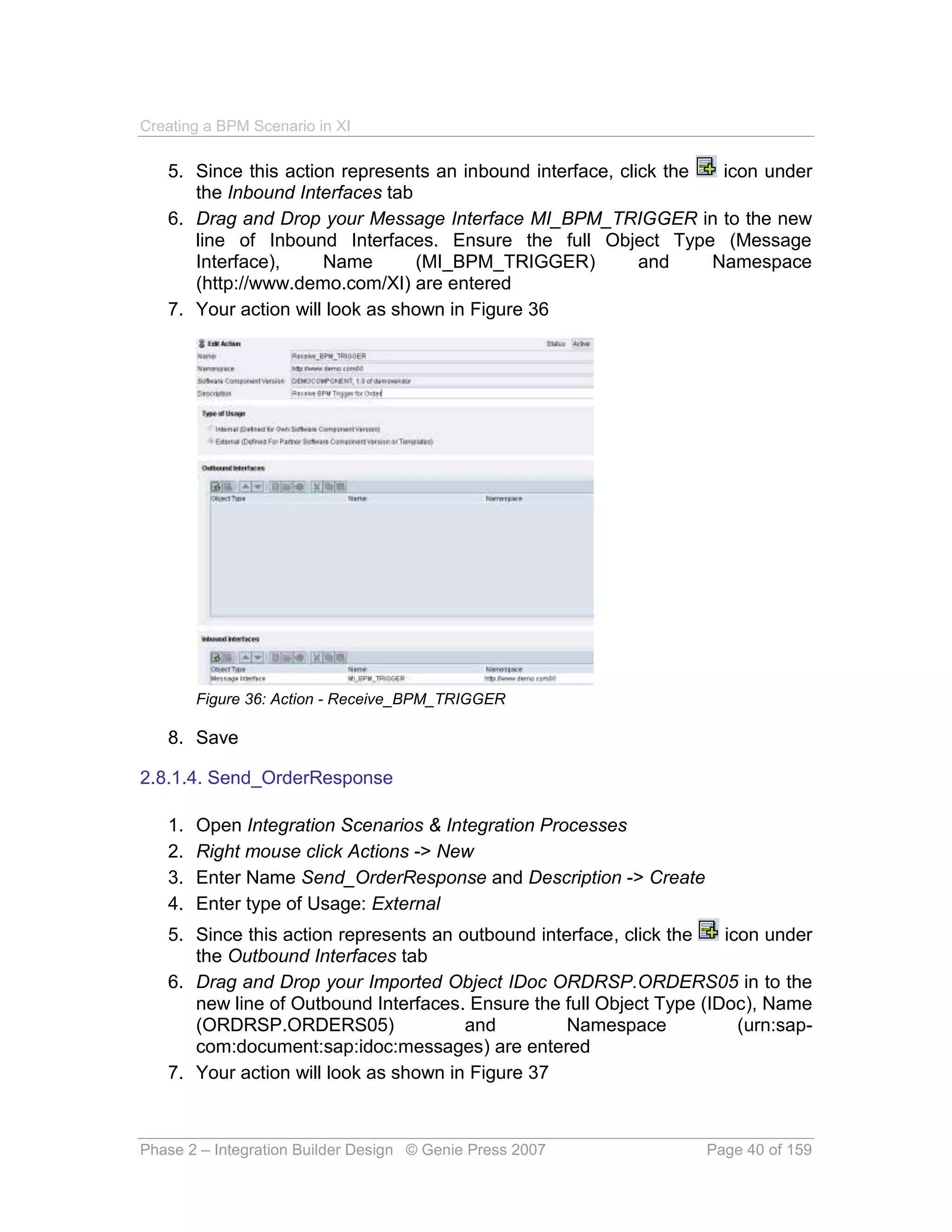
   7. Your action will look as shown in Figure 36


        Figure 36: Action - Receive_BPM_TRIGGER

   8. Save

2.8.1.4. Send_OrderResponse

   1.   Open Integration Scenarios & Integration Processes
   2.   Right mouse click Actions -> New
   3.   Enter Name Send_OrderResponse and Description -> Create
   4.   Enter type of Usage: External
   5. Since this action represents an outbound interface, click the   icon under
      the Outbound Interfaces tab
   6. Drag and Drop your Imported Object IDoc ORDRSP.ORDERS05 in to the
      new line of Outbound Interfaces. Ensure the full Object Type (IDoc), Name
      (ORDRSP.ORDERS05)                and         Namespace            (urn:sap-
      com:document:sap:idoc:messages) are entered
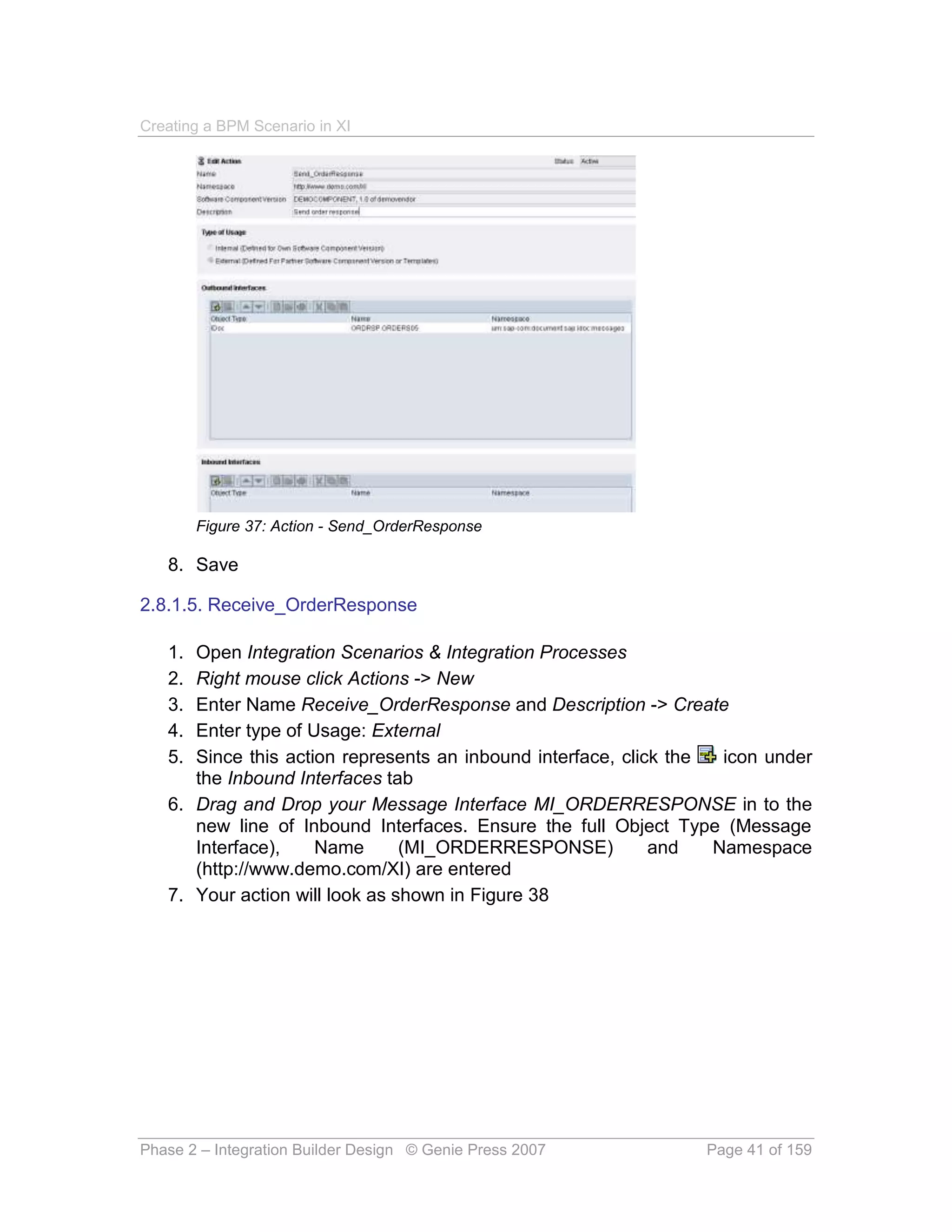
   7. Your action will look as shown in Figure 37


Phase 2 – Integration Builder Design © Genie Press 2007             Page 40 of 159
Creating a BPM Scenario in XI


        Figure 37: Action - Send_OrderResponse

   8. Save

2.8.1.5. Receive_OrderResponse

   1. Open Integration Scenarios & Integration Processes
   2. Right mouse click Actions -> New
   3. Enter Name Receive_OrderResponse and Description -> Create
   4. Enter type of Usage: External
   5. Since this action represents an inbound interface, click the  icon under
      the Inbound Interfaces tab
   6. Drag and Drop your Message Interface MI_ORDERRESPONSE in to the
      new line of Inbound Interfaces. Ensure the full Object Type (Message
      Interface),    Name       (MI_ORDERRESPONSE)           and   Namespace
      (http://www.demo.com/XI) are entered
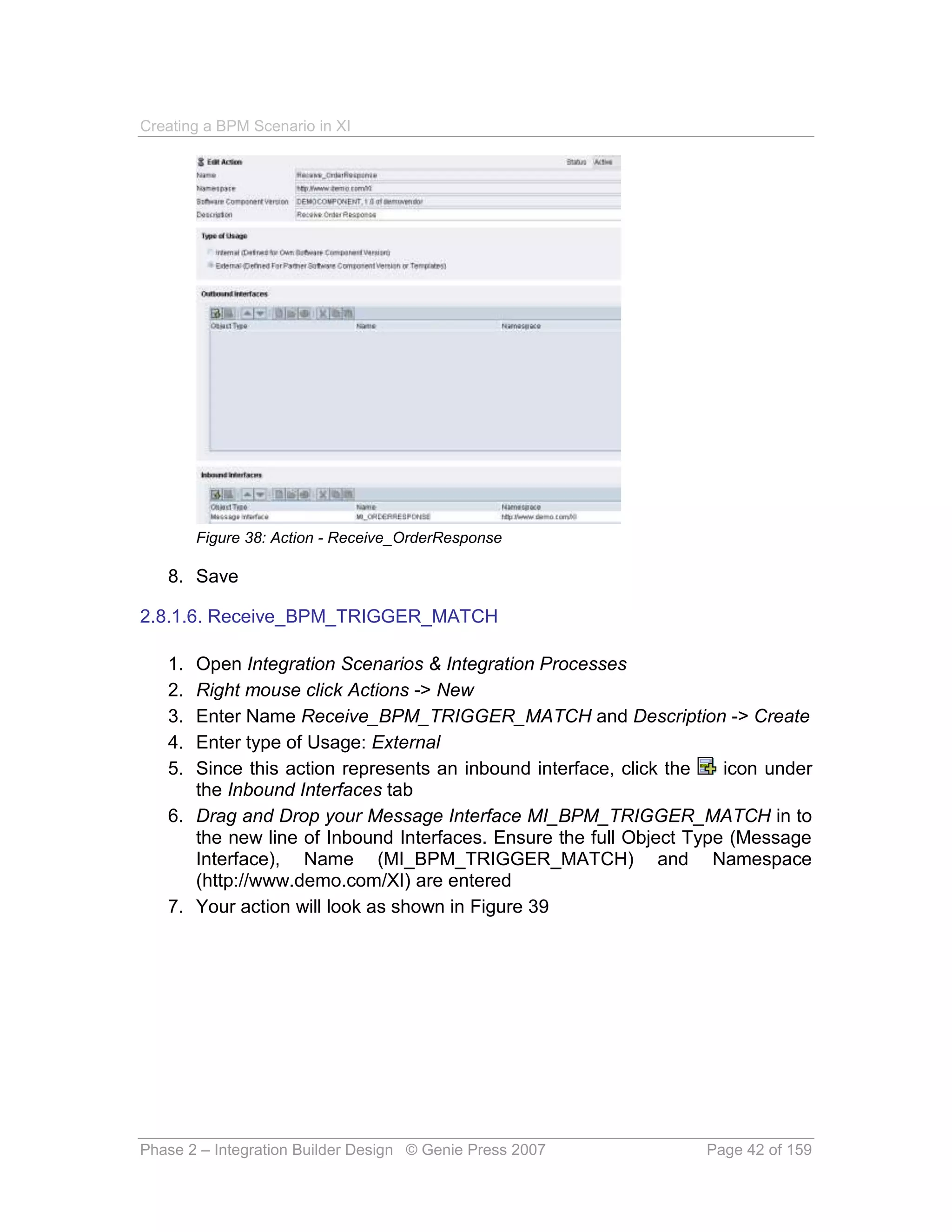
   7. Your action will look as shown in Figure 38


Phase 2 – Integration Builder Design © Genie Press 2007          Page 41 of 159
Creating a BPM Scenario in XI


        Figure 38: Action - Receive_OrderResponse

   8. Save

2.8.1.6. Receive_BPM_TRIGGER_MATCH

   1. Open Integration Scenarios & Integration Processes
   2. Right mouse click Actions -> New
   3. Enter Name Receive_BPM_TRIGGER_MATCH and Description -> Create
   4. Enter type of Usage: External
   5. Since this action represents an inbound interface, click the   icon under
      the Inbound Interfaces tab
   6. Drag and Drop your Message Interface MI_BPM_TRIGGER_MATCH in to
      the new line of Inbound Interfaces. Ensure the full Object Type (Message
      Interface), Name (MI_BPM_TRIGGER_MATCH) and Namespace
      (http://www.demo.com/XI) are entered
   7. Your action will look as shown in Figure 39


Phase 2 – Integration Builder Design © Genie Press 2007           Page 42 of 159
Creating a BPM Scenario in XI


        Figure 39: Action - Receive_BPM_TRIGGER_MATCH

   8. Save


2.8.2. Integration Scenario

The integration scenario is where things start to get exciting! It brings your
actions together with the system components, showing the interfacing between
the systems.

2.8.2.1. IS_Orders

   1.   Open Integration Scenarios & Integration Processes
   2.   Right mouse click Actions -> New
   3.   Enter Name IS_Orders and Description -> Create
   4.   Right mouse click the first swim lane on the left and Insert Application
        Component


Phase 2 – Integration Builder Design © Genie Press 2007            Page 43 of 159
Creating a BPM Scenario in XI


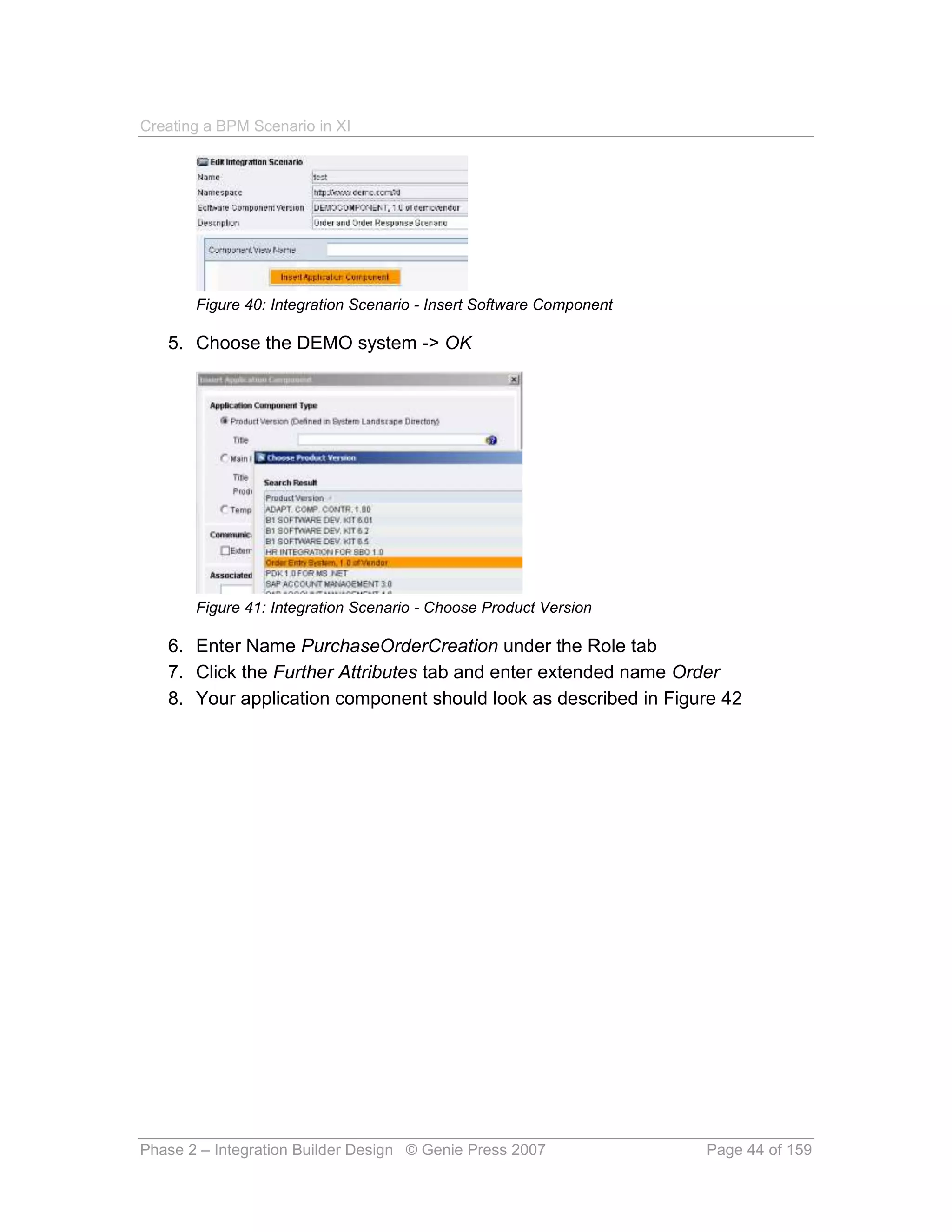
       Figure 40: Integration Scenario - Insert Software Component

   5. Choose the DEMO system -> OK


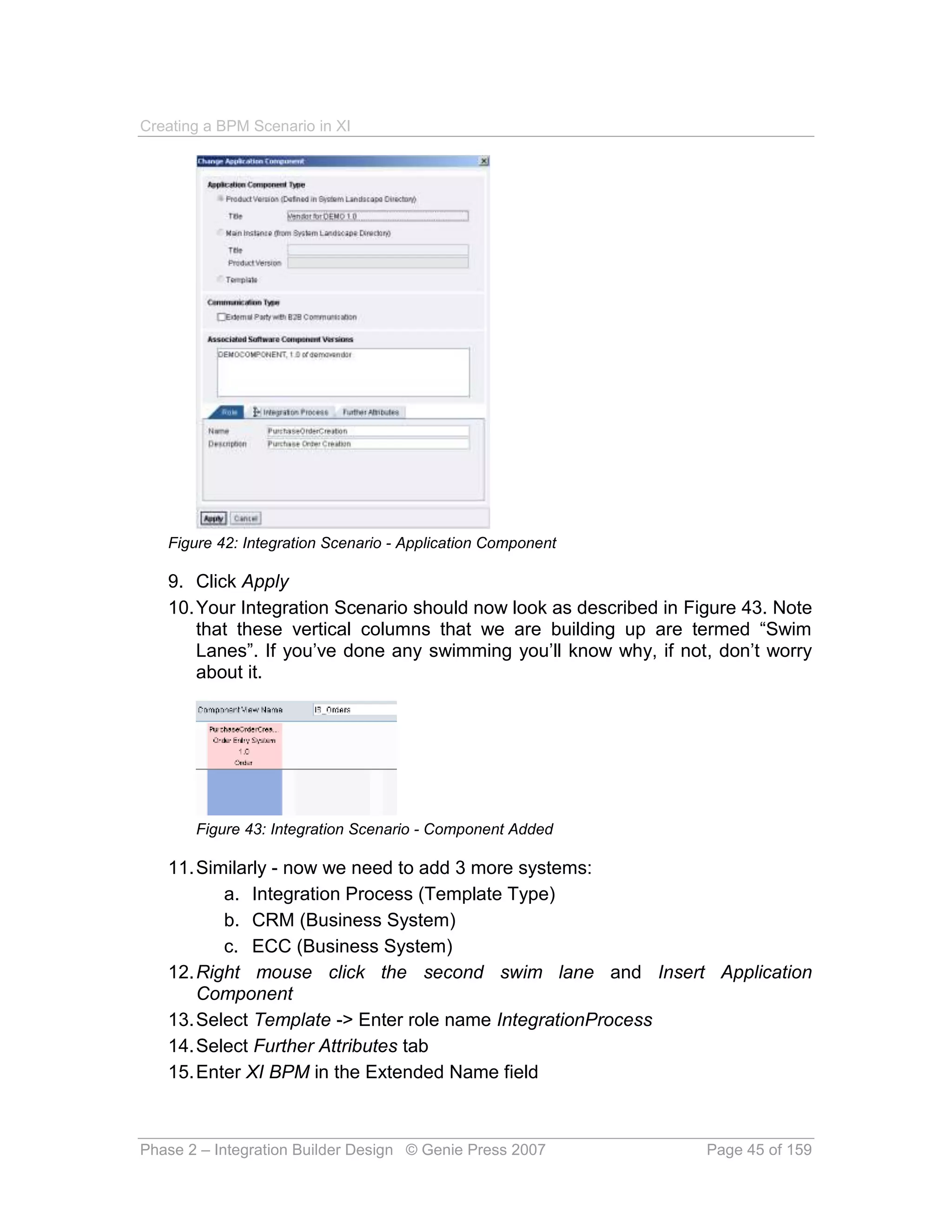
       Figure 41: Integration Scenario - Choose Product Version

   6. Enter Name PurchaseOrderCreation under the Role tab
   7. Click the Further Attributes tab and enter extended name Order
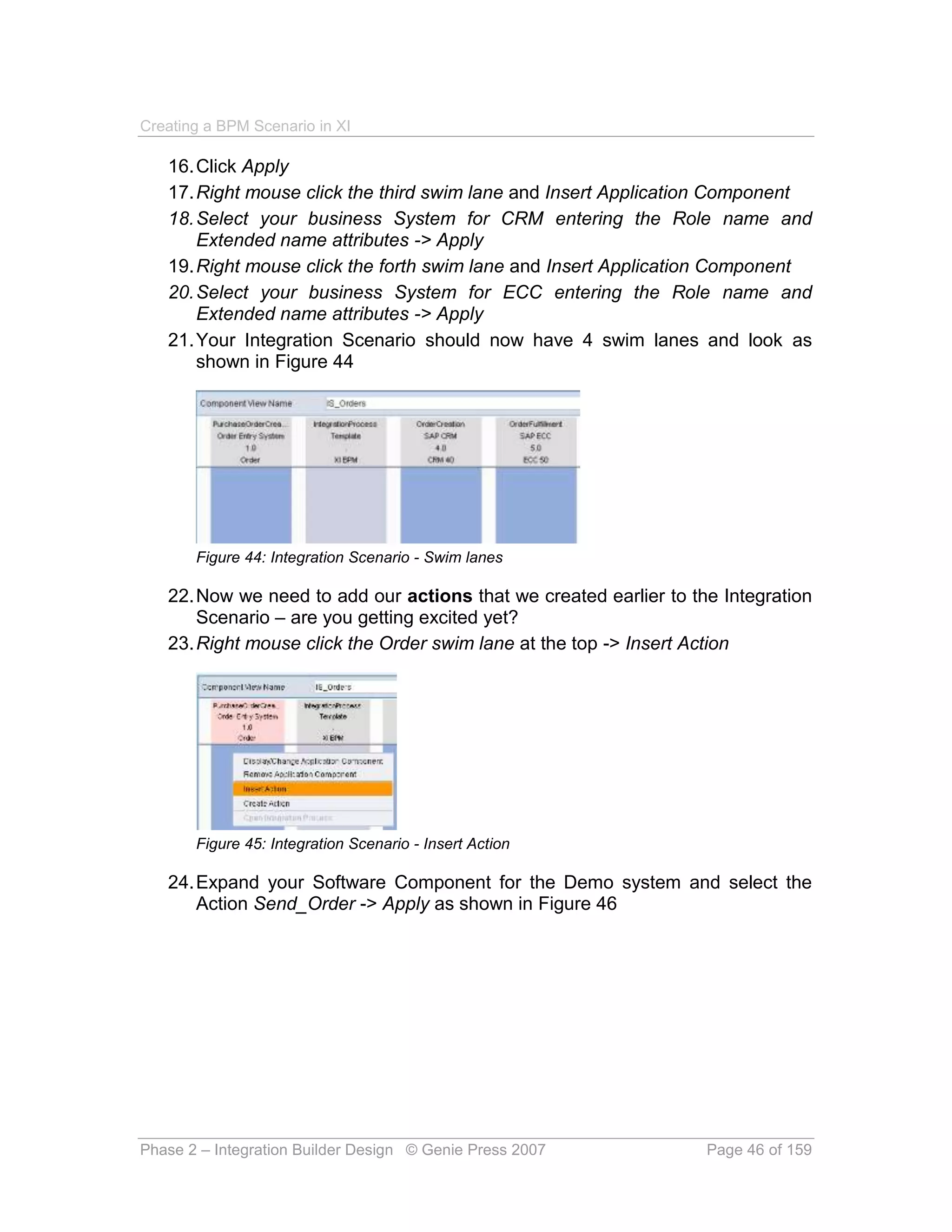
   8. Your application component should look as described in Figure 42


Phase 2 – Integration Builder Design © Genie Press 2007              Page 44 of 159
Creating a BPM Scenario in XI


   Figure 42: Integration Scenario - Application Component

   9. Click Apply
   10. Your Integration Scenario should now look as described in Figure 43. Note
       that these vertical columns that we are building up are termed “Swim
       Lanes”. If you’ve done any swimming you’ll know why, if not, don’t worry
       about it.


       Figure 43: Integration Scenario - Component Added

   11. Similarly - now we need to add 3 more systems:
          a. Integration Process (Template Type)
          b. CRM (Business System)
          c. ECC (Business System)
   12. Right mouse click the second swim lane and Insert Application
       Component
   13. Select Template -> Enter role name IntegrationProcess
   14. Select Further Attributes tab
   15. Enter XI BPM in the Extended Name field


Phase 2 – Integration Builder Design © Genie Press 2007            Page 45 of 159
Creating a BPM Scenario in XI

   16. Click Apply
   17. Right mouse click the third swim lane and Insert Application Component
   18. Select your business System for CRM entering the Role name and
       Extended name attributes -> Apply
   19. Right mouse click the forth swim lane and Insert Application Component
   20. Select your business System for ECC entering the Role name and
       Extended name attributes -> Apply
   21. Your Integration Scenario should now have 4 swim lanes and look as
       shown in Figure 44


       Figure 44: Integration Scenario - Swim lanes

   22. Now we need to add our actions that we created earlier to the Integration
       Scenario – are you getting excited yet?
   23. Right mouse click the Order swim lane at the top -> Insert Action


       Figure 45: Integration Scenario - Insert Action

   24. Expand your Software Component for the Demo system and select the
       Action Send_Order -> Apply as shown in Figure 46


Phase 2 – Integration Builder Design © Genie Press 2007            Page 46 of 159
Creating a BPM Scenario in XI


       Figure 46: Integration Scenario - Insert Send_Order

   25. Your Integration Scenario now looks as described in Figure 47


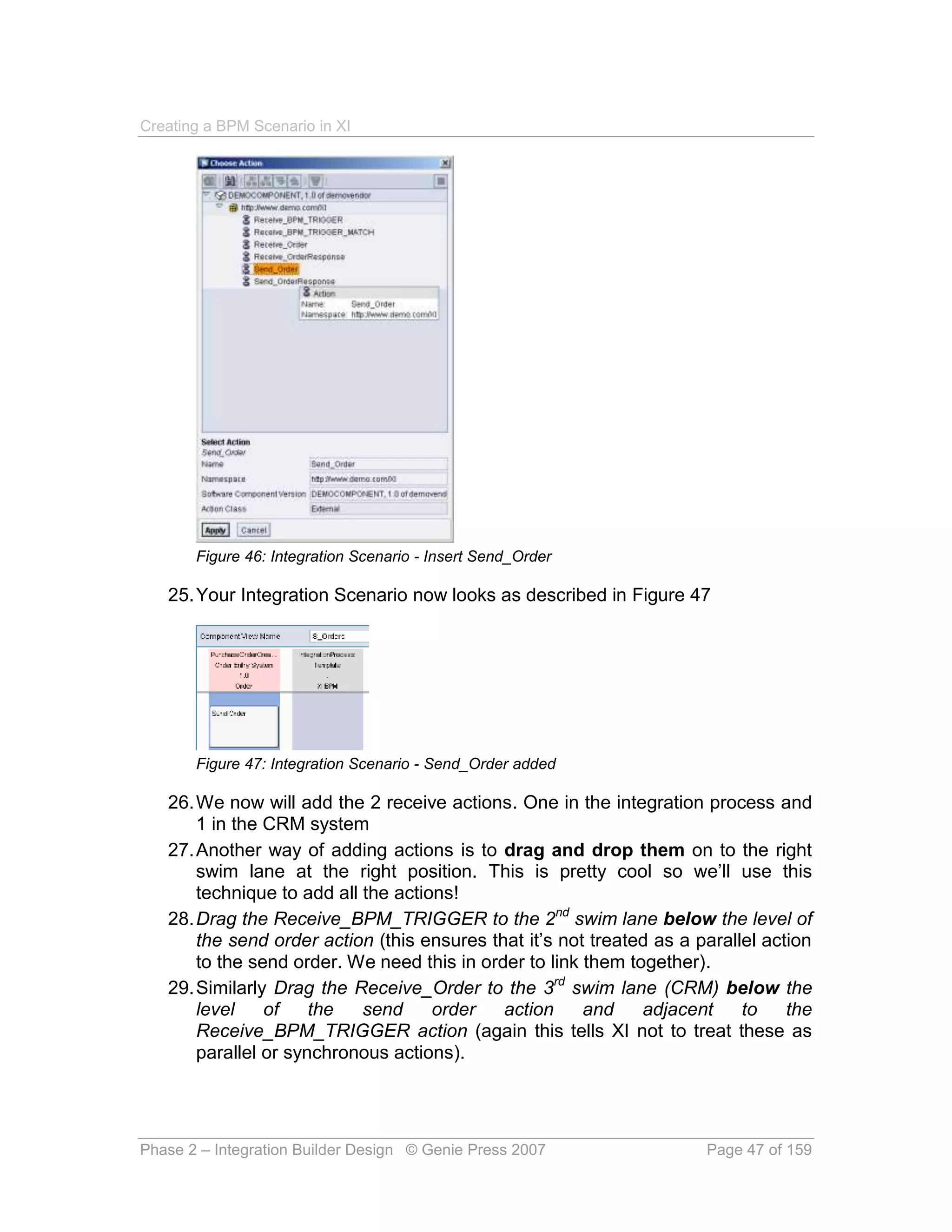
       Figure 47: Integration Scenario - Send_Order added

   26. We now will add the 2 receive actions. One in the integration process and
       1 in the CRM system
   27. Another way of adding actions is to drag and drop them on to the right
       swim lane at the right position. This is pretty cool so we’ll use this
       technique to add all the actions!
   28. Drag the Receive_BPM_TRIGGER to the 2nd swim lane below the level of
       the send order action (this ensures that it’s not treated as a parallel action
       to the send order. We need this in order to link them together).
   29. Similarly Drag the Receive_Order to the 3rd swim lane (CRM) below the
       level    of    the   send     order   action     and    adjacent     to    the
       Receive_BPM_TRIGGER action (again this tells XI not to treat these as
       parallel or synchronous actions).


Phase 2 – Integration Builder Design © Genie Press 2007                Page 47 of 159
Creating a BPM Scenario in XI


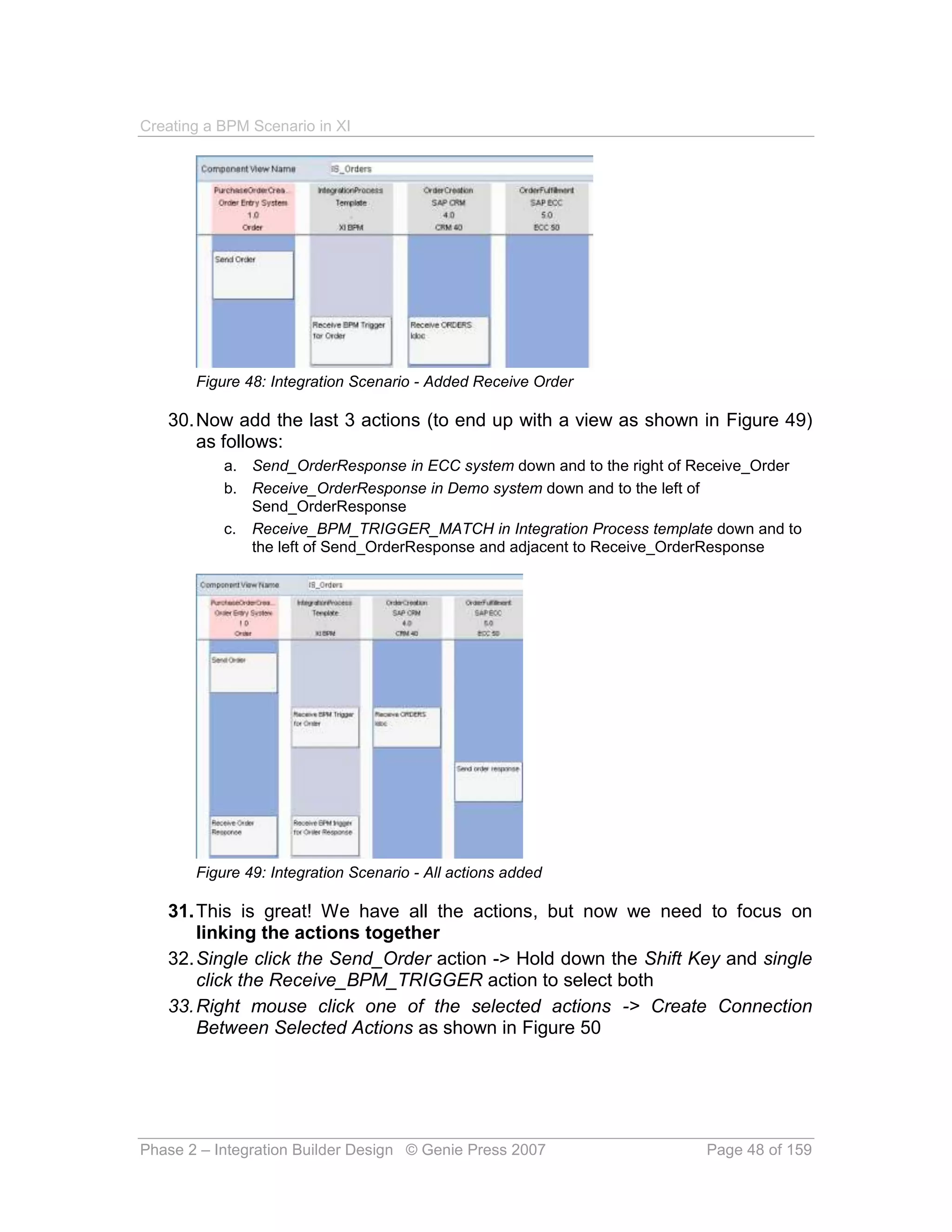
       Figure 48: Integration Scenario - Added Receive Order

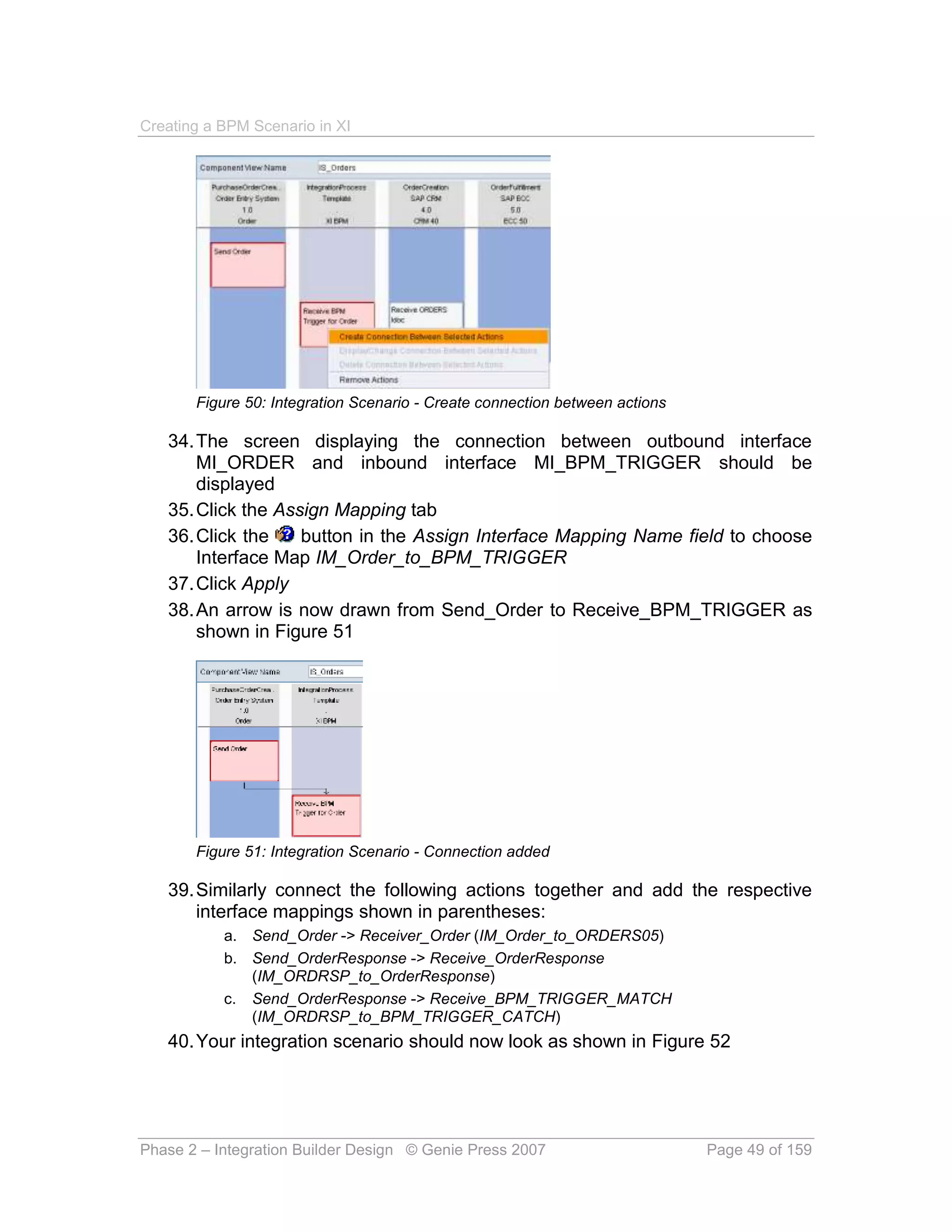
   30. Now add the last 3 actions (to end up with a view as shown in Figure 49)
       as follows:
           a. Send_OrderResponse in ECC system down and to the right of Receive_Order
           b. Receive_OrderResponse in Demo system down and to the left of
              Send_OrderResponse
           c. Receive_BPM_TRIGGER_MATCH in Integration Process template down and to
              the left of Send_OrderResponse and adjacent to Receive_OrderResponse


       Figure 49: Integration Scenario - All actions added

   31. This is great! We have all the actions, but now we need to focus on
       linking the actions together
   32. Single click the Send_Order action -> Hold down the Shift Key and single
       click the Receive_BPM_TRIGGER action to select both
   33. Right mouse click one of the selected actions -> Create Connection
       Between Selected Actions as shown in Figure 50


Phase 2 – Integration Builder Design © Genie Press 2007                 Page 48 of 159
Creating a BPM Scenario in XI


       Figure 50: Integration Scenario - Create connection between actions

   34. The screen displaying the connection between outbound interface
       MI_ORDER and inbound interface MI_BPM_TRIGGER should be
       displayed
   35. Click the Assign Mapping tab
   36. Click the    button in the Assign Interface Mapping Name field to choose
       Interface Map IM_Order_to_BPM_TRIGGER
   37. Click Apply
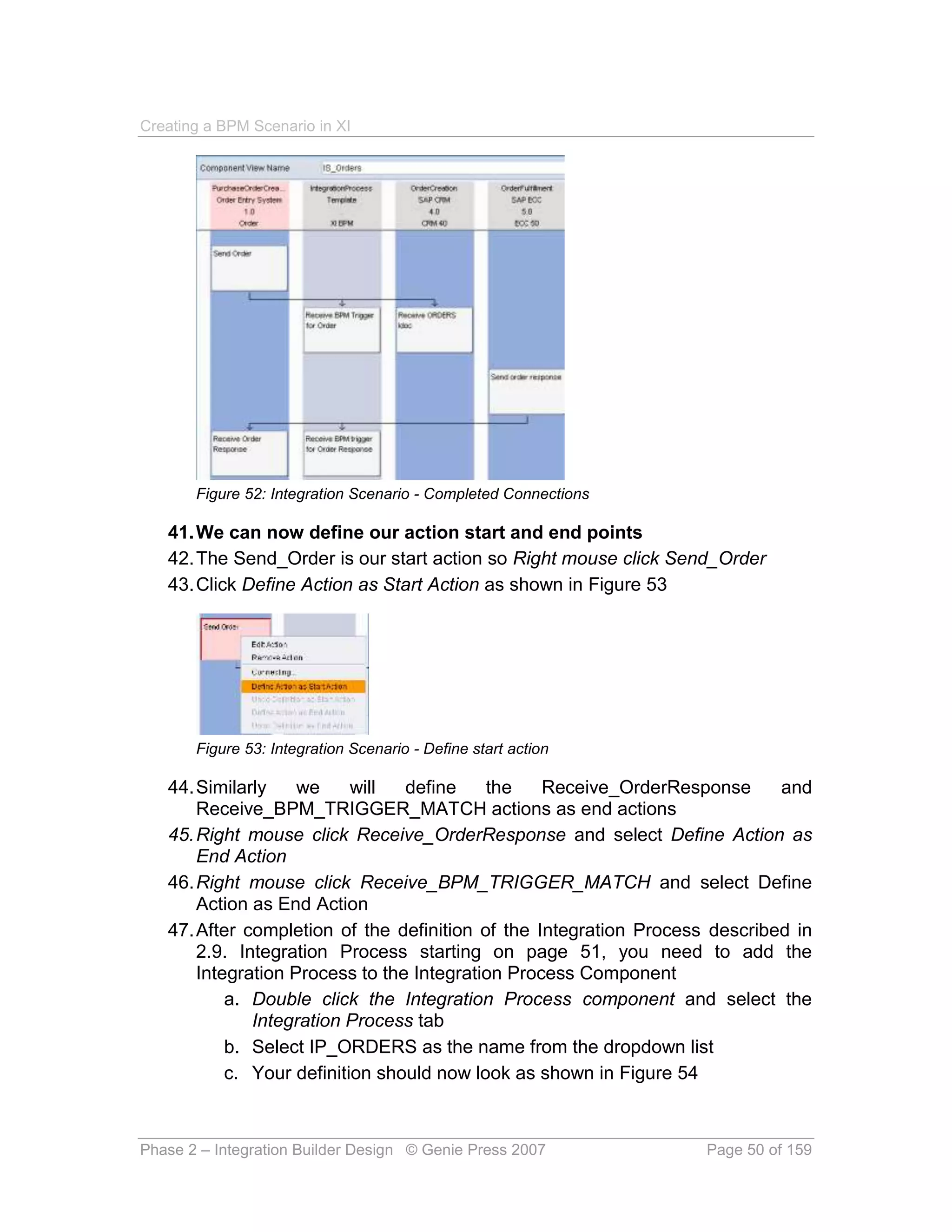
   38. An arrow is now drawn from Send_Order to Receive_BPM_TRIGGER as
       shown in Figure 51


       Figure 51: Integration Scenario - Connection added

   39. Similarly connect the following actions together and add the respective
       interface mappings shown in parentheses:
           a. Send_Order -> Receiver_Order (IM_Order_to_ORDERS05)
           b. Send_OrderResponse -> Receive_OrderResponse
              (IM_ORDRSP_to_OrderResponse)
           c. Send_OrderResponse -> Receive_BPM_TRIGGER_MATCH
              (IM_ORDRSP_to_BPM_TRIGGER_CATCH)
   40. Your integration scenario should now look as shown in Figure 52


Phase 2 – Integration Builder Design © Genie Press 2007                      Page 49 of 159
Creating a BPM Scenario in XI


       Figure 52: Integration Scenario - Completed Connections

   41. We can now define our action start and end points
   42. The Send_Order is our start action so Right mouse click Send_Order
   43. Click Define Action as Start Action as shown in Figure 53


       Figure 53: Integration Scenario - Define start action

   44. Similarly    we     will  define    the    Receive_OrderResponse      and
       Receive_BPM_TRIGGER_MATCH actions as end actions
   45. Right mouse click Receive_OrderResponse and select Define Action as
       End Action
   46. Right mouse click Receive_BPM_TRIGGER_MATCH and select Define
       Action as End Action
   47. After completion of the definition of the Integration Process described in
       2.9. Integration Process starting on page 51, you need to add the
       Integration Process to the Integration Process Component
           a. Double click the Integration Process component and select the
              Integration Process tab
           b. Select IP_ORDERS as the name from the dropdown list
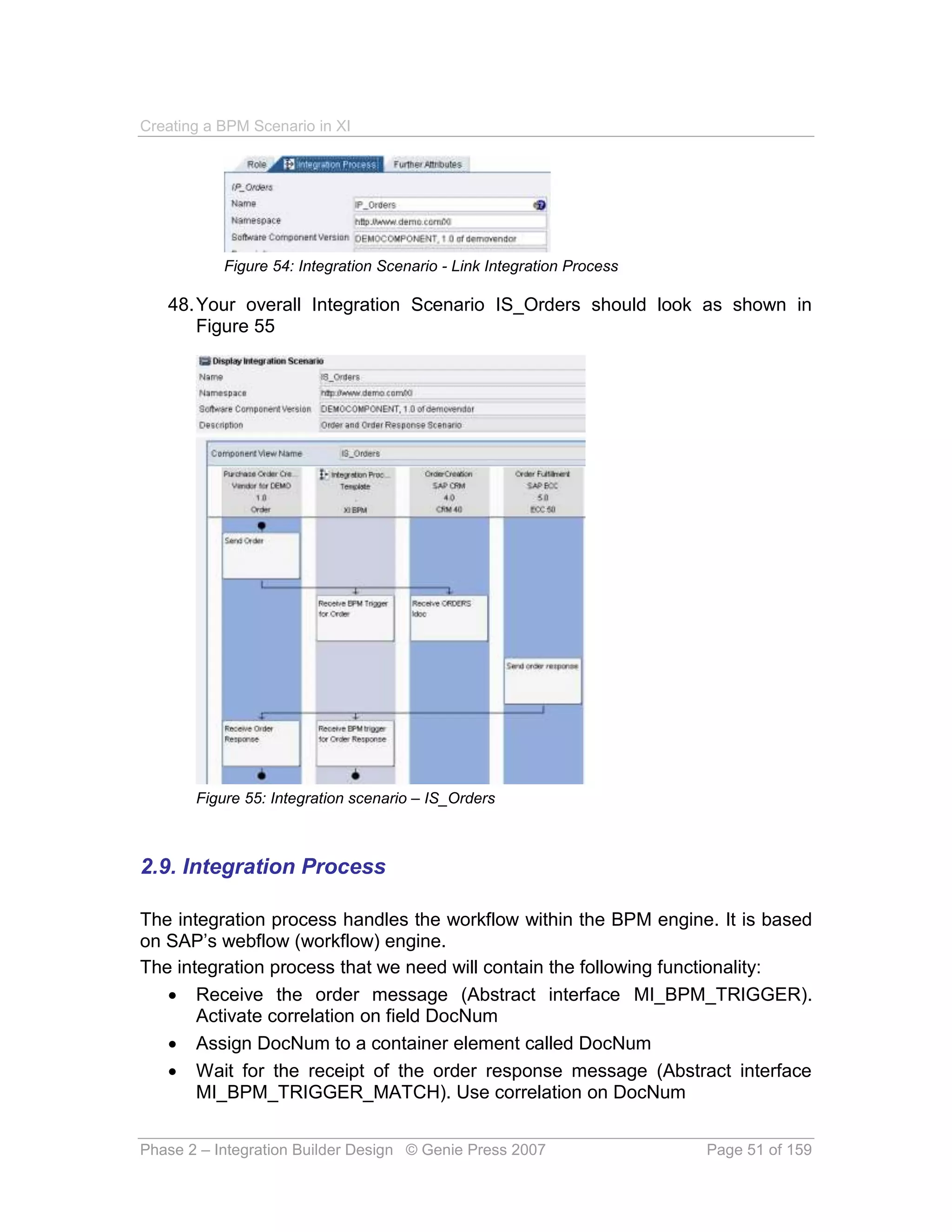
           c. Your definition should now look as shown in Figure 54


Phase 2 – Integration Builder Design © Genie Press 2007             Page 50 of 159
Creating a BPM Scenario in XI


           Figure 54: Integration Scenario - Link Integration Process

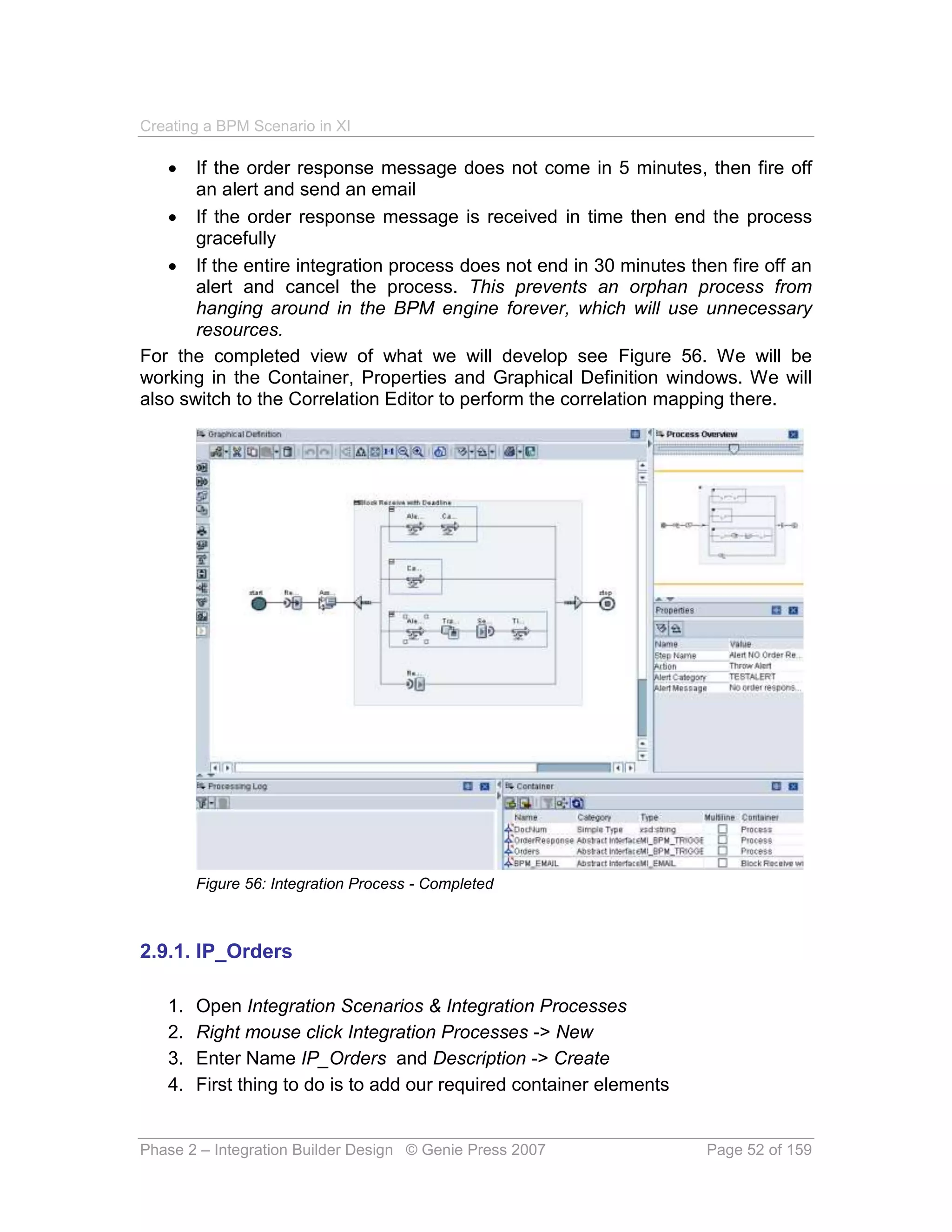
   48. Your overall Integration Scenario IS_Orders should look as shown in
       Figure 55


       Figure 55: Integration scenario – IS_Orders


2.9. Integration Process

The integration process handles the workflow within the BPM engine. It is based
on SAP’s webflow (workflow) engine.
The integration process that we need will contain the following functionality:
    Receive the order message (Abstract interface MI_BPM_TRIGGER).
       Activate correlation on field DocNum
    Assign DocNum to a container element called DocNum
    Wait for the receipt of the order response message (Abstract interface
       MI_BPM_TRIGGER_MATCH). Use correlation on DocNum


Phase 2 – Integration Builder Design © Genie Press 2007                 Page 51 of 159
Creating a BPM Scenario in XI

      If the order response message does not come in 5 minutes, then fire off
       an alert and send an email
    If the order response message is received in time then end the process
       gracefully
    If the entire integration process does not end in 30 minutes then fire off an
       alert and cancel the process. This prevents an orphan process from
       hanging around in the BPM engine forever, which will use unnecessary
       resources.
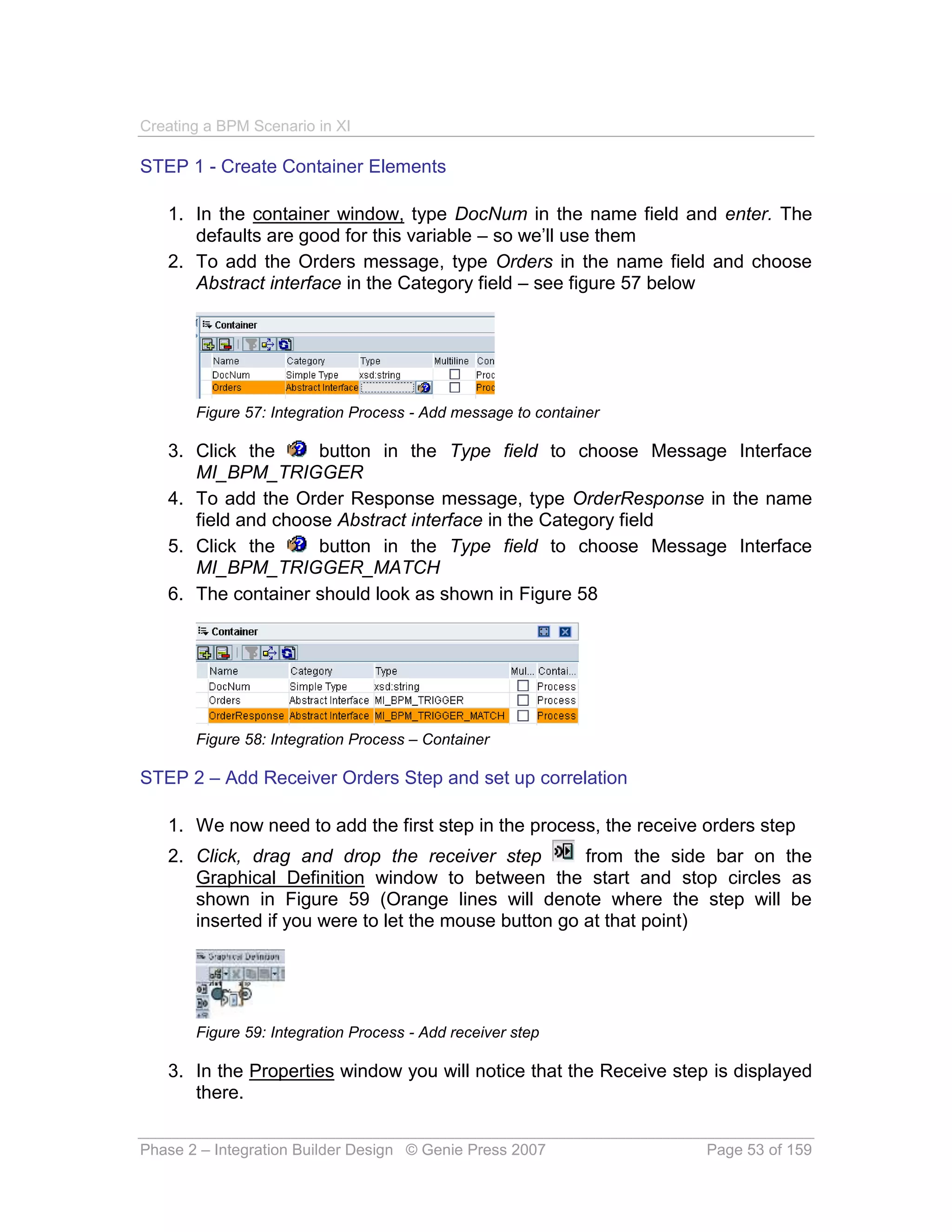
For the completed view of what we will develop see Figure 56. We will be
working in the Container, Properties and Graphical Definition windows. We will
also switch to the Correlation Editor to perform the correlation mapping there.


        Figure 56: Integration Process - Completed


2.9.1. IP_Orders

   1.   Open Integration Scenarios & Integration Processes
   2.   Right mouse click Integration Processes -> New
   3.   Enter Name IP_Orders and Description -> Create
   4.   First thing to do is to add our required container elements


Phase 2 – Integration Builder Design © Genie Press 2007               Page 52 of 159
Creating a BPM Scenario in XI

STEP 1 - Create Container Elements

   1. In the container window, type DocNum in the name field and enter. The
      defaults are good for this variable – so we’ll use them
   2. To add the Orders message, type Orders in the name field and choose
      Abstract interface in the Category field – see figure 57 below


       Figure 57: Integration Process - Add message to container

   3. Click the      button in the Type field to choose Message Interface
      MI_BPM_TRIGGER
   4. To add the Order Response message, type OrderResponse in the name
      field and choose Abstract interface in the Category field
   5. Click the      button in the Type field to choose Message Interface
      MI_BPM_TRIGGER_MATCH
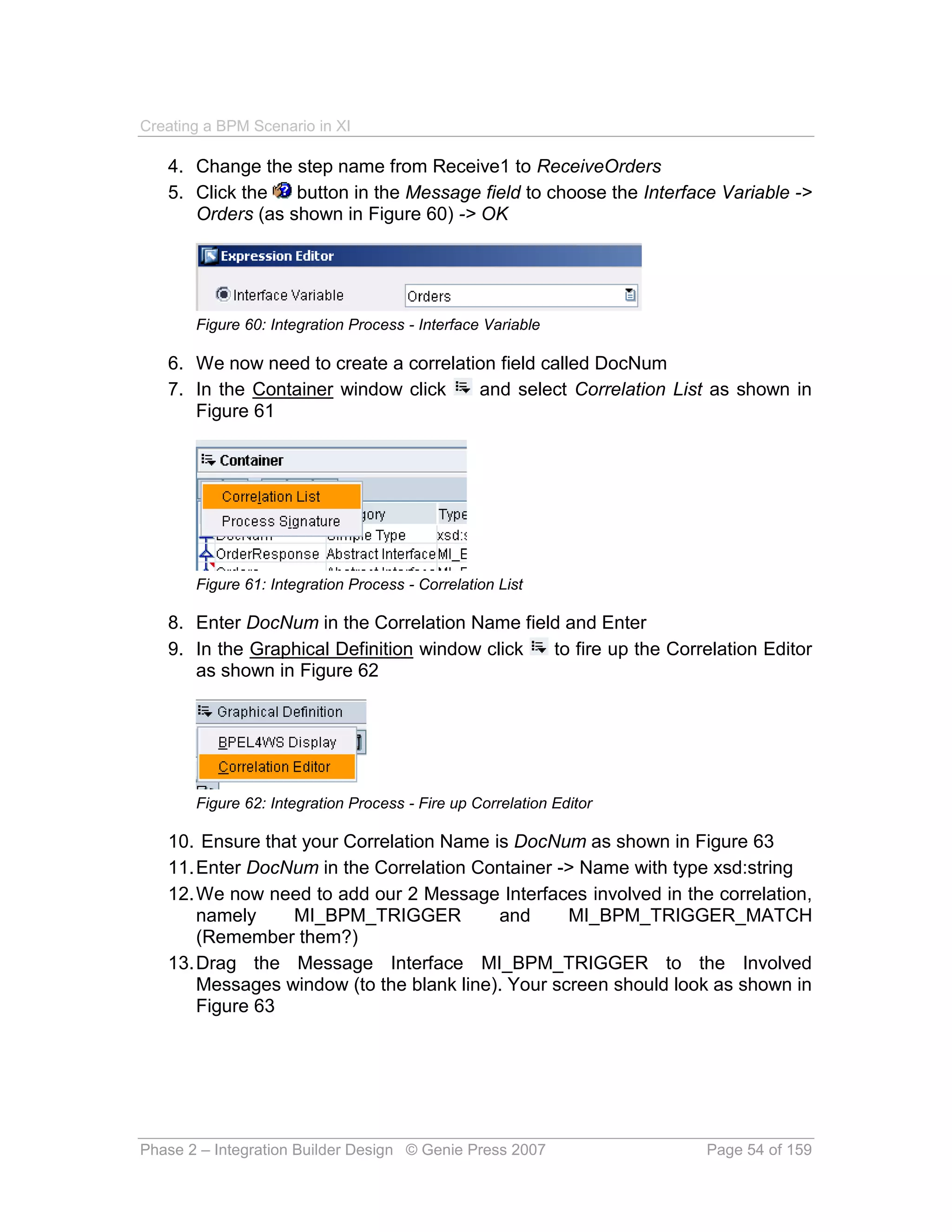
   6. The container should look as shown in Figure 58


       Figure 58: Integration Process – Container

STEP 2 – Add Receiver Orders Step and set up correlation

   1. We now need to add the first step in the process, the receive orders step
   2. Click, drag and drop the receiver step          from the side bar on the
      Graphical Definition window to between the start and stop circles as
      shown in Figure 59 (Orange lines will denote where the step will be
      inserted if you were to let the mouse button go at that point)


       Figure 59: Integration Process - Add receiver step

   3. In the Properties window you will notice that the Receive step is displayed
      there.


Phase 2 – Integration Builder Design © Genie Press 2007             Page 53 of 159
Creating a BPM Scenario in XI

   4. Change the step name from Receive1 to ReceiveOrders
   5. Click the   button in the Message field to choose the Interface Variable ->
      Orders (as shown in Figure 60) -> OK


       Figure 60: Integration Process - Interface Variable

   6. We now need to create a correlation field called DocNum
   7. In the Container window click    and select Correlation List as shown in
      Figure 61


       Figure 61: Integration Process - Correlation List

   8. Enter DocNum in the Correlation Name field and Enter
   9. In the Graphical Definition window click to fire up the Correlation Editor
      as shown in Figure 62


       Figure 62: Integration Process - Fire up Correlation Editor

   10. Ensure that your Correlation Name is DocNum as shown in Figure 63
   11. Enter DocNum in the Correlation Container -> Name with type xsd:string
   12. We now need to add our 2 Message Interfaces involved in the correlation,
       namely     MI_BPM_TRIGGER          and      MI_BPM_TRIGGER_MATCH
       (Remember them?)
   13. Drag the Message Interface MI_BPM_TRIGGER to the Involved
       Messages window (to the blank line). Your screen should look as shown in
       Figure 63


Phase 2 – Integration Builder Design © Genie Press 2007              Page 54 of 159
Creating a BPM Scenario in XI


       Figure 63: Integration Process - Adding involved messages

   14. Click the   button in the Value field
   15. Select radio button Interface Variable -> XPath
   16. Choose the DocNum field from the MT_BPM_TRIGGER message -> OK
       as shown in Figure 64


       Figure 64: Integration Process - Expression Editor

   17. Drag the Message Interface MI_BPM_TRIGGER_MATCH to the Involved
       Messages window (to the blank line).
   18. Click the   button in the Value field to choose the DocNum field from the
       MT_BPM_TRIGGER_MATCH message (similarly as done for the
       MT_BPM_TRIGGER message interface above) -> OK
   19. Your correlation should now look as shown in Figure 65


       Figure 65: Integration Process - Correlation

   20. Go back to the Properties window by selecting               and Graphical Definition
       as shown in Figure 66


Phase 2 – Integration Builder Design © Genie Press 2007                       Page 55 of 159
Creating a BPM Scenario in XI


        Figure 66: Integration Process - Graphical Definition

   21. With the receive orders step highlighted, click the Value field next to the
       Activate Correlation name and choose DocNum as shown in Figure 67


        Figure 67: Integration Process - Activate Correlation

   22. The ReceiverOrders step properties should look as shown in Figure 68


        Figure 68: Integration Process - Activate Correlation

STEP 3 – Create Container Operation step to assign DocNum

   1. Drag the container operation step icon   to between the Receive Orders
      step and the Stop marker as shown in Figure 69


        Figure 69: Integration Process - Add Container operation

   2.   In the Properties window
   3.   Change the step name to Assign DocNum
   4.   Click    on the Target field and select Radio Button Simple Variable
   5.   Choose variable DocNum as shown in Figure 70


        Figure 70: Integration Process - Select variable from container


Phase 2 – Integration Builder Design © Genie Press 2007                   Page 56 of 159
Creating a BPM Scenario in XI

   6.   Choose Assign as the operation
   7.   Click   on the Expression field and select Radio Button Interface Variable
   8.   Select XPath radio button
   9.   Select the DocNum field from the MT_BPM_TRIGGER message as
        shown in Figure 71


        Figure 71: Integration Process - Select DocNum from Message

   10. Your scenario and Container Operation step should look as shown in
       Figure 72


        Figure 72: Integration Process - Container Operation step added

STEP 4 – Create Block

   1. Drag the block step icon   to between the Container Operation Step and
      the Stop marker as shown in Figure 73


        Figure 73: Integration Process - Add Block

   2. Select the block


Phase 2 – Integration Builder Design © Genie Press 2007                   Page 57 of 159
Creating a BPM Scenario in XI

   3. In the Properties window
   4. Give the block a descriptive name “Block Receive with Deadline”
   5. Leave mode as default
   6. Enter 2 exceptions:
          a. TimeOut
          b. SystemError
   7. Your block definition should now look as shown in


        Figure 74: Integration Process - Block definition

STEP 5 – Create deadline branch for the block

   1. Right mouse click on the block -> Insert -> Deadline Branch as shown in
      Figure 75


        Figure 75: Integration Process - Insert Deadline Branch

   2. A new branch is created inside the block for the deadline
   3. Select the deadline branch to complete the properties
   4. We are going to set the deadline to 24 hours from the time the step was
      created
   5. In the Properties window
   6. Choose Creating the Step for Reference Date / Time
   7. Enter 24 for Duration


Phase 2 – Integration Builder Design © Genie Press 2007           Page 58 of 159
Creating a BPM Scenario in XI

   8. Select Hours as the Unit


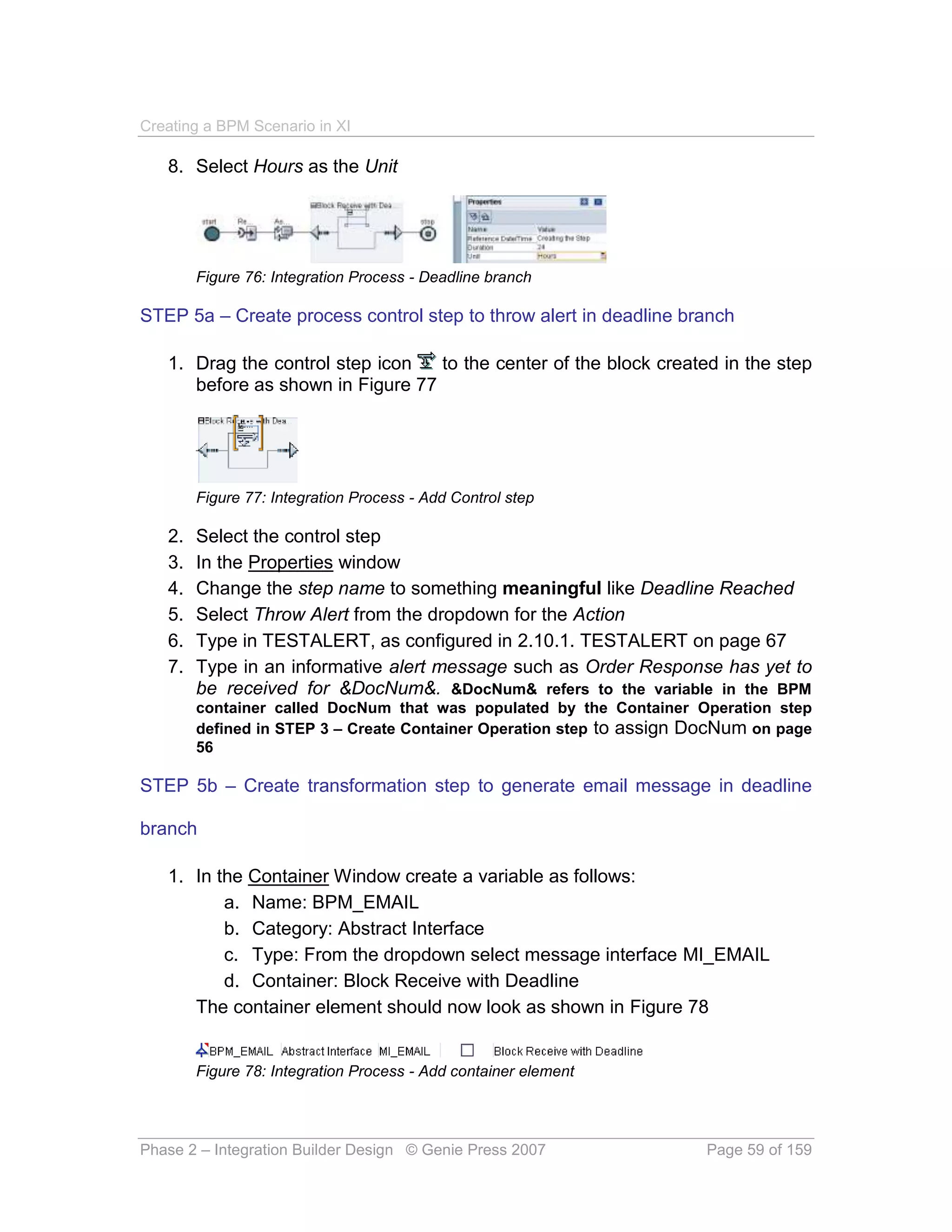
        Figure 76: Integration Process - Deadline branch

STEP 5a – Create process control step to throw alert in deadline branch

   1. Drag the control step icon   to the center of the block created in the step
      before as shown in Figure 77


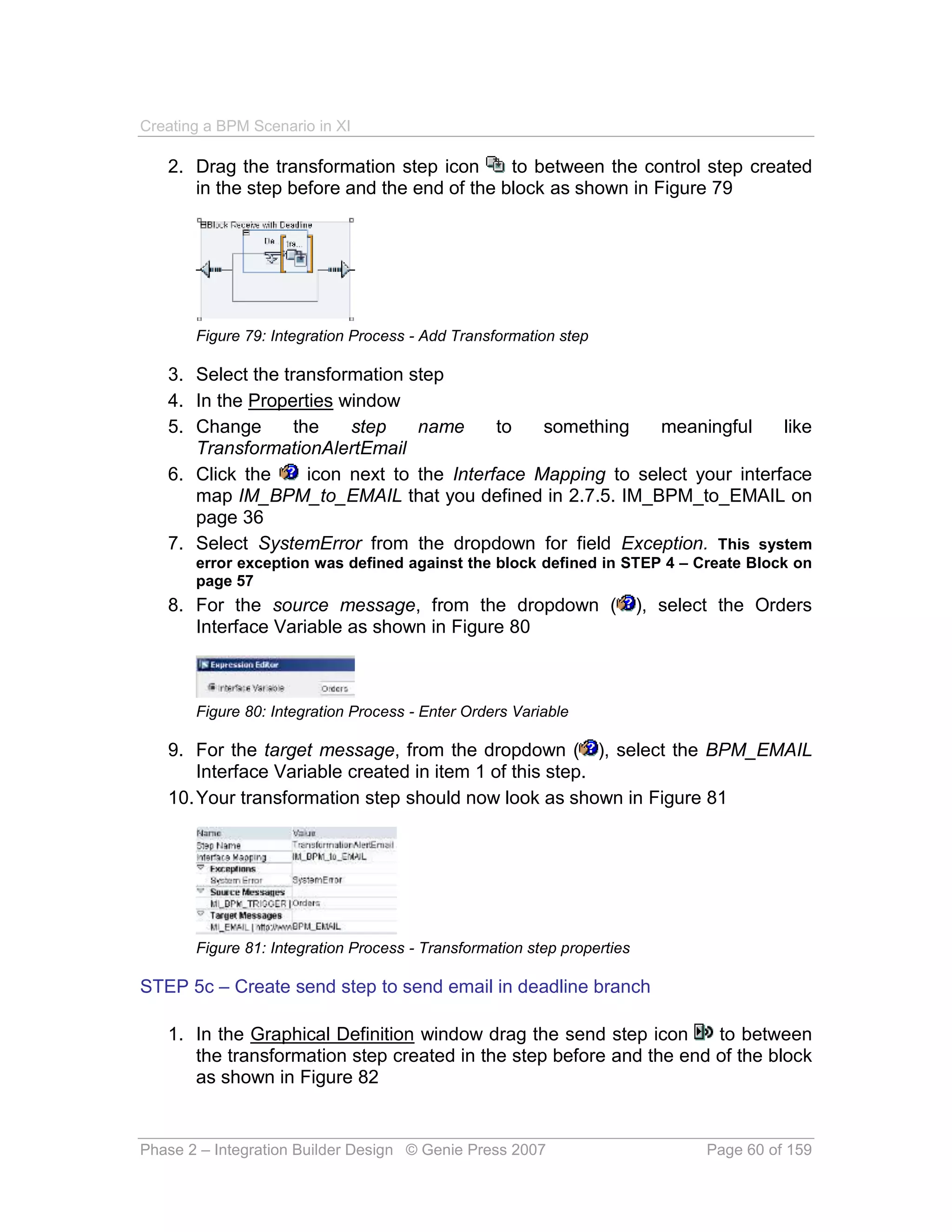
        Figure 77: Integration Process - Add Control step

   2.   Select the control step
   3.   In the Properties window
   4.   Change the step name to something meaningful like Deadline Reached
   5.   Select Throw Alert from the dropdown for the Action
   6.   Type in TESTALERT, as configured in 2.10.1. TESTALERT on page 67
   7.   Type in an informative alert message such as Order Response has yet to
        be received for &DocNum&. &DocNum& refers to the variable in the BPM
        container called DocNum that was populated by the Container Operation step
        defined in STEP 3 – Create Container Operation step to assign DocNum on page
        56

STEP 5b – Create transformation step to generate email message in deadline

branch

   1. In the Container Window create a variable as follows:
          a. Name: BPM_EMAIL
          b. Category: Abstract Interface
          c. Type: From the dropdown select message interface MI_EMAIL
          d. Container: Block Receive with Deadline
      The container element should now look as shown in Figure 78


        Figure 78: Integration Process - Add container element


Phase 2 – Integration Builder Design © Genie Press 2007               Page 59 of 159
Creating a BPM Scenario in XI

   2. Drag the transformation step icon      to between the control step created
      in the step before and the end of the block as shown in Figure 79


       Figure 79: Integration Process - Add Transformation step

   3. Select the transformation step
   4. In the Properties window
   5. Change       the    step    name      to   something    meaningful     like
      TransformationAlertEmail
   6. Click the      icon next to the Interface Mapping to select your interface
      map IM_BPM_to_EMAIL that you defined in 2.7.5. IM_BPM_to_EMAIL on
      page 36
   7. Select SystemError from the dropdown for field Exception. This system
       error exception was defined against the block defined in STEP 4 – Create Block on
       page 57
   8. For the source message, from the dropdown (                        ), select the Orders
      Interface Variable as shown in Figure 80


       Figure 80: Integration Process - Enter Orders Variable

   9. For the target message, from the dropdown ( ), select the BPM_EMAIL
       Interface Variable created in item 1 of this step.
   10. Your transformation step should now look as shown in Figure 81


       Figure 81: Integration Process - Transformation step properties

STEP 5c – Create send step to send email in deadline branch

   1. In the Graphical Definition window drag the send step icon     to between
      the transformation step created in the step before and the end of the block
      as shown in Figure 82


Phase 2 – Integration Builder Design © Genie Press 2007                          Page 60 of 159
Creating a BPM Scenario in XI


        Figure 82: Integration Process - Add Send step

   2.   Select the send step
   3.   In the Properties window
   4.   Change the step name to something meaningful like SendAlertEMail
   5.   Leave Mode as Asynchronous
   6.   For the message, from the dropdown ( ), select the BPM_EMAIL
        Interface Variable as shown in Figure 83


        Figure 83: Integration Process - Enter BPM_EMAIL Variable

   7. Select SystemError from the dropdown for field Exception. This system
        error exception was defined against the block defined in STEP 4 – Create Block on
        page 57
   8. Leave the other fields as defaulted. Your completed send step properties
      should look as shown in Figure 84


        Figure 84: Integration Process - Send step properties

STEP 5d – Create control step to throw timeout exception in deadline branch

   1. In the Graphical Definition window drag the control step icon          to
      between the send step created in the step before and the end of the block
      as shown in Figure 85


        Figure 85: Integration Process - Add control step to throw exception


Phase 2 – Integration Builder Design © Genie Press 2007                        Page 61 of 159
Creating a BPM Scenario in XI

   2.   Select the control step
   3.   In the Properties window
   4.   Change the step name to something meaningful like TimeOut
   5.   Select Throw Exception from the dropdown box on field Action
   6.   Select TimeOut from the dropdown box on field Exception. This exception
        was defined against the block defined in STEP 4 – Create Block on page 57
   7. Your completed send step properties should look as shown in Figure 86


        Figure 86: Integration Process - Exception control step properties

STEP 6 – Create exception branch for system errors

   1. Right mouse click on the block -> Insert -> Exception Branch as shown in
      Figure 87


        Figure 87: Integration Process - Insert Exception Branch

   2.   Select the Exception block that was created
   3.   In the Properties window
   4.   Select SystemError from the dropdown for field Exception Handler
   5.   Your exception block and properties should look like Figure 88


        Figure 88: Integration Process - System error exception


Phase 2 – Integration Builder Design © Genie Press 2007                      Page 62 of 159
Creating a BPM Scenario in XI

STEP 6a – Create System Error alert in exception branch

   1. Drag the control step icon     to the center of the SystemError exception
      block created in the step before as shown in Figure 89


        Figure 89: Integration Process - Add Alert Control step to Exception SystemError

   2.   Select the control step
   3.   In the Properties window
   4.   Change the step name to something meaningful like Alert System Error
   5.   Select Throw Alert from the dropdown for the Action
   6.   Type in TESTALERT1, as configured in 2.10.2. TESTALERT1 on page 68
   7.   Type in an informative alert message such as System Error Encountered
        for &DocNum&. &DocNum& refers to the variable in the BPM container called
        DocNum that was populated by the Container Operation step defined in STEP 3 –
        Create Container Operation step to assign DocNum on page 56

STEP 6b – Create cancel process step in exception branch

   1. Drag the control step icon    to after the control step, created in the step
      before, and the end of the exception block as shown in Figure 90


        Figure 90: Integration Process - Add Cancel Process Control step to Exception
        SystemError

   2. Select the control step
   3. In the Properties window
   4. Change the step name to something meaningful like CancelProcess


Phase 2 – Integration Builder Design © Genie Press 2007                          Page 63 of 159
Creating a BPM Scenario in XI

   5. Select CancelProcess from the dropdown for the Action

STEP 7 – Create exception branch for timeout processing

Similarly to the previous step we need to create a timeout exception branch
   1. Right mouse click on the block -> Insert -> Exception Branch as shown in
       Figure 91


        Figure 91: Integration Process - Insert Exception Branch for TimeOut

   2.   Select the Exception block that was created
   3.   In the Properties window
   4.   Select TimeOut from the dropdown for field Exception Handler
   5.   Your exception block and properties should look as shown in Figure 92


        Figure 92: Integration Process – Time out exception

STEP 7a – Create cancel process step in the TimeOut exception branch

   1. Drag the control step icon    to after the TimeOut control step, created in
      the step before, and the end of the exception block as shown in Figure 93


Phase 2 – Integration Builder Design © Genie Press 2007                        Page 64 of 159
Creating a BPM Scenario in XI


       Figure 93: Integration Process - Add Cancel Process Control step to Exception TimeOut

   2. Select the control step
   3. In the Properties window
   4. Change the step name to something meaningful like Cancel Process due
      to Time Out
   5. Select CancelProcess from the dropdown for the Action

STEP 8 – Create Receive Order Response Step with correlation

We now need to add the receive order response step
  1. Click, drag and drop the receiver step        from the side bar on the
     Graphical Definition window to bottom line under the deadline branch as
     shown in Figure 94


       Figure 94: Integration Process - Add receiver step for order response

   2. In the Properties window change the step name from Receive1 to Receive
      Order Response
   3. Click the   button in the Message field to choose the Interface Variable ->
      OrderResponse as shown in Figure 95


Phase 2 – Integration Builder Design © Genie Press 2007                        Page 65 of 159
Creating a BPM Scenario in XI


       Figure 95: Integration Process - Interface Variable OrderResponse

   4. Select DocNum from the dropdown menu for variable Use Correlations
   5. Save
   6. Select DocNum from the dropdown menu for variable Activate
      Correlations
   7. Save
   8. Your Send Order Response step properties should now look as shown in
      Figure 96


       Figure 96: Integration Process - Receiver order response step properties


2.10. Create Alert Category

We need to configure an alert category for the alerts we are going to issue in the
BPM Integration Process. Here’s how we go about doing that.
  1. Fire up the Runtime Workbench from the Integration Builder by clicking
     Runtime Workbench


       Figure 97: Launch Runtime Workbench

   2. Click Alert Configuration as shown in Figure 98


Phase 2 – Integration Builder Design © Genie Press 2007                           Page 66 of 159
Creating a BPM Scenario in XI


       Figure 98: Runtime Workbench

   3. Click the Create Alert Category button               . Click OK on the
      warning message shown in Figure 99 (Also Transaction ALRTCATDEF)


       Figure 99: Creating an Alert Category warning message

   4. On the screen showing the Alert Categories Display, click the
      Display/Change button
   5. Click the Webflow Alerts in the Classification window. This will display the
      related Webflow alerts in the ALV grid on the right of the classification as
      shown in Figure 100


       Figure 100: Select Webflow Alert Classification


2.10.1. TESTALERT

   1. Click the create alert category icon
   2. This adds a line to the ALV grid. Fill in the Alert Category name
      TESTALERT and a description BPM Alert
   3. Hit Enter to see the alert as shown in Figure 101


Phase 2 – Integration Builder Design © Genie Press 2007              Page 67 of 159
Creating a BPM Scenario in XI


       Figure 101: TESTALERT added

   4. Click the Dynamic Text checkbox on. The 2 tabs “Long and Short Text”
      and “Optional Subseq. Activities” disappear. Clicking this checkbox
      allows you to pass variables to the alert in the BPM process as
      shown in STEP 5a – Create process control step to throw alert in
      deadline branch on page 59
   5. Leave the other fields with their defaults
   6. Save. Your alert now looks as shown in Figure 102


       Figure 102: TESTALERT set to dynamic text


2.10.2. TESTALERT1

Adding the 2nd Alert Category called TESTALERT1.
  1. Click the create alert category icon
  2. This adds a line to the ALV grid. Fill in the Alert Category name
      TESTALERT1 and a description BPM Exception Alert
  3. Hit Enter to see the alert as shown in Figure 103


Phase 2 – Integration Builder Design © Genie Press 2007       Page 68 of 159
Creating a BPM Scenario in XI


        Figure 103: TESTALERT1 added

   4. Click the Dynamic Text checkbox on. The 2 tabs “Long and Short Text”
      and “Optional Subseq. Activities” disappear. Clicking this checkbox
      allows you to pass variables to the alert in the BPM process as
      shown in STEP 6a – Create System Error alert in exception branch on
      page 63. This is very useful to us!
   5. Leave the other fields with their defaults
   6. Save. Your alert now looks as shown in Figure 104


        Figure 104: TESTALERT1 set to dynamic text


2.10.3. Assign Users / Roles to Alert Categories

   1.   Double click TESTALERT
   2.   Click the Fixed Recipients Button
   3.   If you are not in change mode then click the Display / Change button
   4.   Click the New Entries button
   5.   Type in your user id and save


Phase 2 – Integration Builder Design © Genie Press 2007              Page 69 of 159
Creating a BPM Scenario in XI


   6. Click Back -> Back
   7. Repeat the above process (Steps 1-6) for TESTALERT1
☼ Note that you should probably use the Role functionality to be able to send
alerts based on roles in a user’s profile. For simplicity sake we have hard coded
the user receiving this alert using the Fixed Recipients functionality.


2.10.4. Update Alert Categories

   1. Close the webgui session and go back to your browser showing the
      Runtime Workbench
   2. Click the button Update Table
   3. Your newly created Alert categories are now viewable as shown in Figure
      105


       Figure 105: Display of Alert Categories


Phase 2 – Integration Builder Design © Genie Press 2007             Page 70 of 159
Creating a BPM Scenario in XI


PHASE 3 :         INTEGRATION BUILDER CONFIGURATION
The system landscape and interface repository steps need to have been
completed prior to starting this phase.
   1. Start the Integration Directory of the Integration Builder


3.1. Create Configuration Scenario


3.1.1. Order_OrderResponse_Demo

   1. Select the Scenarios tab
   2. Right mouse click in the window and choose New
   3. Enter Description as Order and Order Response Scenario
   4. Click     to select the Integration scenario IS_Orders we configured in 2.8.
      Integration Scenario on page 37
   5. You’ll notice that the configuration scenario is changed to IS_Orders which
      is our Integration Scenario name. If you want to change it change it before
      creating the configuration scenario. Once you’ve changed the name
      (Order_OrderResponse_Demo) is should now look as shown in Figure
      106


       Figure 106: Create Integration Scenario

   6. Click create
   7. Save


Phase 3 – Integration Builder Configuration© Genie Press 2007        Page 71 of 159
Creating a BPM Scenario in XI

3.2. Create Integration Process Service


3.2.1. IP_ORDERS

   1. Right mouse click on Integration Party (Under Service without a party in
      your newly created scenario)
   2. Click New
   3. Click continue on the screen shown in Figure 107


       Figure 107: Install Integration Process

   4. Select the IP_Orders Repository Process and click continue as shown in
      Figure 108


       Figure 108: Select Repository Integration Process

   5. Enter Name IP_Orders and click Finish as shown in Figure 109


Phase 3 – Integration Builder Configuration© Genie Press 2007    Page 72 of 159
Creating a BPM Scenario in XI


       Figure 109: Give Integration Process a name

   6. You then see the screen as shown in Figure 110


       Figure 110: Integration Process installed

   7. Edit the Integration Process
   8. Click the menu option Service -> Adapter Specific Identifiers


   9. Enter IP_ORDERS as the Logical System. (If you don’t do this step then
      you will get an error that the Logical System could not be determined for
      IP_ORDERS


Phase 3 – Integration Builder Configuration© Genie Press 2007         Page 73 of 159
Creating a BPM Scenario in XI


   10. Click Apply


3.3. Create Services without Party


3.3.1. Business Service: DEMO

   1. Right click Business Service


   2. Click Create
   3. On the Receiver tab click         to add a line to the Inbound Interfaces


   4. Click      to choose Message Interface MI_ORDERRESPONSE -> OK


   5. Click the Sender tab
   6. On the Sender tab click         to add a line to the Outbound Interfaces


Phase 3 – Integration Builder Configuration© Genie Press 2007             Page 74 of 159
Creating a BPM Scenario in XI


   7. Click      to choose Message Interface MI_ORDERS -> OK


   8. Save


3.3.2. Business Service: MAIL_SERVICE

   1. Right click Business Service


   2. Click Create
   3. On the Receiver tab click         to add a line to the Inbound Interfaces


   4. Click      to choose Message Interface MI_EMAIL-> OK


   5. Save


Phase 3 – Integration Builder Configuration© Genie Press 2007            Page 75 of 159
Creating a BPM Scenario in XI

3.3.3. Business System: SAPCRM

   1. Import your CRM system and link an IDoc communication channel to it as
      shown in 3.4.4. GeneratedReceiverChannel_IDoc on page 80.


3.3.4. Business System: SAPECC

   1. Import your ECC system. No communication channels are required as it
      will receive no message from XI. It will receive the order from the CRM
      system via middleware.


3.4. Create Communication Channels


3.4.1. CC_DEMO_SOAP_SENDER

   1. Expand the Business Service DEMO
   2. Right mouse click on Communication Channel -> New
   3. Enter Communication Channel name CC_DEMO_SOAP_SENDER


   4. Click Create
   5. Click   for the Adapter Type field to choose the SOAP adapter
   6. Enter the following entries:
          a. Select the Sender radio button
          b. Transport Protocol: HTTP
          c. Message Protocol: SOAP 1.1.
          d. Adapter Engine: Integration Server
          e. Default Interface Namespace: http://www.demo.com/XI
          f. Default Interface Name: MI_ORDER (NB: This is required for the
             web service to work properly)
          g. Quality of Service: Exactly Once = Asynchronous call


Phase 3 – Integration Builder Configuration© Genie Press 2007   Page 76 of 159
Creating a BPM Scenario in XI


       Figure 111: SOAP Adapter Settings

   7. Save


3.4.2. CC_DEMO_FILE_RECEIVER

   1. Expand the Business Service DEMO
   2. Right mouse click on Communication Channel -> New
   3. Enter Communication Channel name CC_DEMO_FILE_RECEIVER


   4. Click Create
   5. Click   for the Adapter Type field to choose the File adapter
   6. Enter the following entries:
          a. Select the Receiver radio button
          b. Transport Protocol: File System (NFS)
          c. Message Protocol: File
          d. Adapter Engine: Integration Server
          e. Target Directory: /var/xiftp


Phase 3 – Integration Builder Configuration© Genie Press 2007         Page 77 of 159
Creating a BPM Scenario in XI

           f.   File Name Scheme: xi_kevin.dat
           g.   File Construction Mode: Add Message ID
           h.   Write Mode: Directly
           i.   File Type: Binary
           j.   Default the rest


       Figure 112: File Adapter Settings

   7. Save


3.4.3. CC_EMAIL

   1. Expand the Business Service MAIL_SERVICE
   2. Right mouse click on Communication Channel -> New
   3. Enter Communication Channel name CC_EMAL


   4. Click Create
   5. Click   for the Adapter Type field to choose the Mail adapter
   6. Enter the following entries:
          a. Select the Receiver radio button


Phase 3 – Integration Builder Configuration© Genie Press 2007         Page 78 of 159
Creating a BPM Scenario in XI

           b.   Transport Protocol: SMTP
           c.   Message Protocol: XIPAYLOAD
           d.   Adapter Engine: Integration Server
           e.   URL: smtp://smtp.<server>.com
           f.   Use Mail Package: Check checkbox
           g.   Content Encoding: base64


       Figure 113: Mail Adapter Settings


Phase 3 – Integration Builder Configuration© Genie Press 2007   Page 79 of 159
Creating a BPM Scenario in XI

    7. Save


3.4.4. GeneratedReceiverChannel_IDoc


3.5. Use Wizard to set up Determination and Agreements

We have performed the previous steps to set up your communication channels,
business system and services so that we can use the wizard to easily create our
message interface components comprising the receiver and Interface
Determination together with the sender and receiver agreements.

                                        Using the wizard
You do not have to use the wizard and could choose to create these manually. Using the wizard,
however, is not only an efficient way to define your interfaces, but it is more intuitive to work with
when you have several interfaces to define in a short period of time. For example, our scenario
comprises of 5 interfaces and it’s really handy to be able to define each in its entirety (through the
wizard) before continuing with the next one.


3.5.1. Orders interface between DEMO and CRM

    1. Select the Scenarios tab
    2. Right mouse click in the window and choose New


Phase 3 – Integration Builder Configuration© Genie Press 2007                        Page 80 of 159
Creating a BPM Scenario in XI

   3. Click Configuration Wizard on the left as shown in Figure 114


        Figure 114: Start Configuration Wizard

   4. Click Internal Communication radio button and Create

STEP 1 – Incoming Message

   1.   Enter Service Type: Business Service
   2.   Service: DEMO
   3.   Interface: MI_ORDER
   4.   Namespace: http://www.demo.com/XI
   5.   Adapter Type: Select SOAP


        Figure 115: Inbound Message - Specify Sender


Phase 3 – Integration Builder Configuration© Genie Press 2007         Page 81 of 159
Creating a BPM Scenario in XI

   6. Click continue

STEP 2 – Outgoing Message

   1.   Enter Service Type: Business System
   2.   Service: SAPCRM
   3.   Interface: ORDERS.ORDERS05
   4.   Namespace: urn:sap-com:document:sap:idoc:messages
   5.   Adapter Type: Select IDoc


        Figure 116: Outbound Message - Specify Receiver

   6. Continue

STEP 3 – Sender Agreement

   1. The system should default in the SOAP Communication Channel you
      created in 3.4.1. CC_DEMO_SOAP_SENDER on page 76


Phase 3 – Integration Builder Configuration© Genie Press 2007   Page 82 of 159
Creating a BPM Scenario in XI


       Figure 117: Sender Agreement - DEMO : MI_ORDER

   2. Continue

STEP 4 – Receiver Determination

   1. The system should display the screen as shown in Figure 118


       Figure 118: Receiver Determination – DEMO : MI_ORDER

   2. Click Continue


Phase 3 – Integration Builder Configuration© Genie Press 2007   Page 83 of 159
Creating a BPM Scenario in XI

STEP 5 – Interface Determination

   1. The system should display the screen as shown in Figure 119


       Figure 119: Interface Determination – DEMO : MI_ORDER : SAPCRM

   2. Click Continue

STEP 6 – Receiver Agreement

   1. The system should display the screen as shown in Figure 120


       Figure 120: Receiver Agreement – DEMO : SAPCRM : ORDERS.ORDERS05


Phase 3 – Integration Builder Configuration© Genie Press 2007           Page 84 of 159
Creating a BPM Scenario in XI

   2. Click Continue

STEP 7 – Assign object to a Configuration Scenario

   1. The system should display the screen as shown in Figure 121
   2. From      the     dropdown        list    select      your       scenario
      Order_OrderResponse_Demo


       Figure 121: Assign generated object to a Scenario

   3. Click Finish
   4. You should get the Configuration Wizard log that shows you all the objects
      that were generated as shown in Figure 122


Phase 3 – Integration Builder Configuration© Genie Press 2007      Page 85 of 159
Creating a BPM Scenario in XI


       Figure 122: Configuration Wizard Log


3.5.2. Orders interface between DEMO and BPE

   1. Select the Scenarios tab
   2. Right mouse click in the window and choose New
   3. Click Configuration Wizard on the left as shown in Figure 123


       Figure 123: Start Configuration Wizard


Phase 3 – Integration Builder Configuration© Genie Press 2007         Page 86 of 159
Creating a BPM Scenario in XI

   4. Click Internal Communication radio button and Create

STEP 1 – Incoming Message

   1.   Enter Service Type: Business Service
   2.   Service: DEMO
   3.   Interface: MI_ORDER
   4.   Namespace: http://www.demo.com/XI
   5.   Adapter Type: Select SOAP


        Figure 124: Inbound Message - Specify Sender

   6. Click continue

STEP 2 – Outgoing Message

   1.   Enter Service Type: Integration Process
   2.   Service: IP_ORDERS
   3.   Integration Process: IP_Orders
   4.   Interface: MI_BPM_TRIGGER
   5.   Namespace: http://www.demo.com/XI
   6.   Adapter Type: Select XI


Phase 3 – Integration Builder Configuration© Genie Press 2007   Page 87 of 159
Creating a BPM Scenario in XI


       Figure 125: Outbound Message - Specify Receiver

   7. Continue

STEP 3 – Sender Agreement

   1. The system should default in the Sender agreement that you created in
      STEP 3 – Sender Agreement on page 82


       Figure 126: Sender Agreement - DEMO : MI_ORDER

   2. Continue


Phase 3 – Integration Builder Configuration© Genie Press 2007   Page 88 of 159
Creating a BPM Scenario in XI

STEP 4 – Receiver Determination

   1. The system should display the screen as shown in Figure 127


       Figure 127: Receiver Determination – DEMO : MI_ORDER

   2. Click Continue

STEP 5 – Interface Determination

   1. The system should display the screen as shown in Figure 128


       Figure 128: Interface Determination – DEMO : MI_ORDER :IP_ORDERS


Phase 3 – Integration Builder Configuration© Genie Press 2007             Page 89 of 159
Creating a BPM Scenario in XI

   2. Click Continue

STEP 6 – Receiver Agreement

   1. The system should display the screen as shown in Figure 129


       Figure 129: Receiver Agreement

   2. Click Continue

STEP 7 – Assign object to a Configuration Scenario

   1. The system should display the screen as shown in Figure 130
   2. From      the     dropdown        list    select      your    scenario
      Order_OrderResponse_Demo


Phase 3 – Integration Builder Configuration© Genie Press 2007   Page 90 of 159
Creating a BPM Scenario in XI


       Figure 130: Assign generated object to a Scenario

   3. Click Finish
   4. You should get the Configuration Wizard log that shows you all the objects
      that were generated as shown in Figure 131


       Figure 131: Configuration Wizard Log


Phase 3 – Integration Builder Configuration© Genie Press 2007      Page 91 of 159
Creating a BPM Scenario in XI

3.5.3. Order Response interface between ECC and DEMO

   1. Select the Scenarios tab
   2. Right mouse click in the window and choose New
   3. Click Configuration Wizard on the left as shown in Figure 132


        Figure 132: Start Configuration Wizard

   4. Click Internal Communication radio button and Create

STEP 1 – Incoming Message

   1.   Enter Service Type: Business System
   2.   Service: SAPECC
   3.   Interface: ORDRSP.ORDERS05
   4.   Namespace: urn:sap-com:document:sap:idoc:messages
   5.   Adapter Type: Select IDoc


Phase 3 – Integration Builder Configuration© Genie Press 2007         Page 92 of 159
Creating a BPM Scenario in XI


        Figure 133: Inbound Message - Specify Sender

   6. Click continue

STEP 2 – Outgoing Message

   1.   Enter Service Type: Business Service
   2.   Service: DEMO
   3.   Interface: MI_ORDERRESPONSE
   4.   Namespace: http://www.demo.com/XI
   5.   Adapter Type: Select File


Phase 3 – Integration Builder Configuration© Genie Press 2007   Page 93 of 159
Creating a BPM Scenario in XI


       Figure 134: Outbound Message - Specify Receiver

   6. Continue

STEP 3 – Sender Agreement

   1. The system should default in the Sender agreement that you created in
      STEP 3 – Sender Agreement on page 82


       Figure 135: Sender Agreement

   2. Continue


Phase 3 – Integration Builder Configuration© Genie Press 2007   Page 94 of 159
Creating a BPM Scenario in XI

STEP 4 – Receiver Determination

   3. The system should display the screen as shown in Figure 136


       Figure 136: Receiver Determination – SAPECC : ORDRSP.ORDERS05

   4. Click Continue

STEP 5 – Interface Determination

   1. The system should display the screen as shown in Figure 137


       Figure 137: Interface Determination – SAPECC : ORDRSP.ORDERS05 : DEMO


Phase 3 – Integration Builder Configuration© Genie Press 2007          Page 95 of 159
Creating a BPM Scenario in XI

   2. Click Continue

STEP 6 – Receiver Agreement

   1. The system should display the screen as shown in Figure 138


       Figure 138: Receiver Agreement – SAPECC : DEMO : MI_ORDERRESPONSE

   3. Click Continue

STEP 7 – Assign object to a Configuration Scenario

   1. The system should display the screen as shown in Figure 139
   2. From      the     dropdown        list    select      your       scenario
      Order_OrderResponse_Demo


Phase 3 – Integration Builder Configuration© Genie Press 2007      Page 96 of 159
Creating a BPM Scenario in XI


       Figure 139: Assign generated object to a Scenario

   3. Click Finish
   4. You should get the Configuration Wizard log that shows you all the objects
      that were generated as shown in Figure 140


       Figure 140: Configuration Wizard Log


Phase 3 – Integration Builder Configuration© Genie Press 2007      Page 97 of 159
Creating a BPM Scenario in XI

3.5.4. Order Response interface between ECC and BPE

   1. Select the Scenarios tab
   2. Right mouse click in the window and choose New
   3. Click Configuration Wizard on the left as shown in Figure 141


        Figure 141: Start Configuration Wizard

   4. Click Internal Communication radio button and Create

STEP 1 – Incoming Message

   1.   Enter Service Type: Business System
   2.   Service: SAPECC
   3.   Interface: ORDRSP.ORDERS05
   4.   Namespace: urn:sap-com:document:sap:idoc:messages
   5.   Adapter Type: Select IDoc


Phase 3 – Integration Builder Configuration© Genie Press 2007         Page 98 of 159
Creating a BPM Scenario in XI


        Figure 142: Inbound Message - Specify Sender

   6. Click continue

STEP 2 – Outgoing Message

   1.   Enter Service Type: Integration Process
   2.   Service: IP_ORDERS
   3.   Integration Process: IP_Orders
   4.   Interface: MI_BPM_TRIGGER_MATCH
   5.   Namespace: http://www.demo.com/XI
   6.   Adapter Type: Select XI


Phase 3 – Integration Builder Configuration© Genie Press 2007   Page 99 of 159
Creating a BPM Scenario in XI


       Figure 143: Outbound Message - Specify Receiver

   7. Continue

STEP 3 – Sender Agreement

   1. The system should default in the Sender agreement that you created in
      STEP 3 – Sender Agreement on page 82


       Figure 144: Sender Agreement

   3. Continue


Phase 3 – Integration Builder Configuration© Genie Press 2007   Page 100 of 159
Creating a BPM Scenario in XI

STEP 4 – Receiver Determination

   1. The system should display the screen as shown in Figure 145


       Figure 145: Receiver Determination – SAPECC : ORDRSP.ORDERS05

   5. Click Add Receiver radio button
   6. Click Continue

STEP 5 – Interface Determination

   1. The system should display the screen as shown in Figure 146


Phase 3 – Integration Builder Configuration© Genie Press 2007          Page 101 of 159
Creating a BPM Scenario in XI


       Figure 146: Interface Determination – DEMO : MI_ORDER :IP_ORDERS

   3. Click Continue

STEP 6 – Receiver Agreement

   1. The system should display the screen as shown in Figure 147


       Figure 147: Receiver Agreement

   4. Click Continue


Phase 3 – Integration Builder Configuration© Genie Press 2007         Page 102 of 159
Creating a BPM Scenario in XI

STEP 7 – Assign object to a Configuration Scenario

   1. The system should display the screen as shown in Figure 148
   2. From      the     dropdown        list    select      your       scenario
      Order_OrderResponse_Demo


       Figure 148: Assign generated object to a Scenario

   3. Click Finish
   4. You should get the Configuration Wizard log that shows you all the objects
      that were generated as shown in Figure 149


Phase 3 – Integration Builder Configuration© Genie Press 2007     Page 103 of 159
Creating a BPM Scenario in XI


       Figure 149: Configuration Wizard Log


3.5.5. Email interface between BPE and Email Service

   1. Select the Scenarios tab
   2. Right mouse click in the window and choose New
   3. Click Configuration Wizard on the left as shown in Figure 150


       Figure 150: Start Configuration Wizard

   4. Click Internal Communication radio button and Create


Phase 3 – Integration Builder Configuration© Genie Press 2007     Page 104 of 159
Creating a BPM Scenario in XI

STEP 1 – Incoming Message

   1.   Enter Service Type: Integration Process
   2.   Service: IP_ORDERS
   3.   Integration Process: IP_Orders
   4.   Interface: MI_EMAIL
   5.   Namespace: http://www.demo.com/XI
   6.   Adapter Type: Select XI


        Figure 151: Inbound Message - Specify Sender

   7. Click continue

STEP 2 – Outgoing Message

   1.   Enter Service Type: Business Service
   2.   Service: MAIL_SERVICE
   3.   Interface: MI_EMAIL
   4.   Namespace: http://www.demo.com/XI
   5.   Adapter Type: Select Mail


Phase 3 – Integration Builder Configuration© Genie Press 2007   Page 105 of 159
Creating a BPM Scenario in XI


       Figure 152: Outbound Message - Specify Receiver

   6. Continue

STEP 3 – Sender Agreement

   1. The system should default in the Sender agreement that you created in
      STEP 3 – Sender Agreement on page 82


       Figure 153: Sender Agreement

   2. Continue


Phase 3 – Integration Builder Configuration© Genie Press 2007   Page 106 of 159
Creating a BPM Scenario in XI

STEP 4 – Receiver Determination

   1. The system should display the screen as shown in Figure 154


       Figure 154: Receiver Determination – IP_ORDERS : MI_EMAIL

   2. Click Add Receiver radio button
   3. Click Continue

STEP 5 – Interface Determination

   1. The system should display the screen as shown in Figure 155


Phase 3 – Integration Builder Configuration© Genie Press 2007      Page 107 of 159
Creating a BPM Scenario in XI


       Figure 155: Interface Determination –IP_ORDERS : MI_EMAIL

   2. Click Continue

STEP 6 – Receiver Agreement

   1. The system should display the screen as shown in Figure 156


       Figure 156: Receiver Agreement – CC_EMAIL

   2. Click Continue


Phase 3 – Integration Builder Configuration© Genie Press 2007      Page 108 of 159
Creating a BPM Scenario in XI

STEP 7 – Assign object to a Configuration Scenario

   1. The system should display the screen as shown in Figure 157
   2. From      the     dropdown        list    select      your       scenario
      Order_OrderResponse_Demo


       Figure 157: Assign generated object to a Scenario

   3. Click Finish
   4. You should get the Configuration Wizard log that shows you all the objects
      that were generated as shown in Figure 158


Phase 3 – Integration Builder Configuration© Genie Press 2007     Page 109 of 159
Creating a BPM Scenario in XI


       Figure 158: Configuration Wizard Log


Phase 3 – Integration Builder Configuration© Genie Press 2007   Page 110 of 159
Creating a BPM Scenario in XI

3.6. Receiver Determination


3.6.1. DEMO : MI_ORDER


       Figure 159: Receiver Determination - DEMO : MI_ORDER


3.6.2. IP_ORDERS : MI_EMAIL


       Figure 160: Receiver Determination - IP_ORDERS : MI_EMAIL


Phase 3 – Integration Builder Configuration© Genie Press 2007      Page 111 of 159
Creating a BPM Scenario in XI

3.6.3. SAPECC : ORDRSP.ORDERS05


       Figure 161: Receiver Determination - SAPECC : ORDRSP.ORDERS05


3.7. Interface Determination


3.7.1. DEMO : MI_ORDER : SAPCRM


       Figure 162: Interface Determination - DEMO : MI_ORDER : SAPCRM


Phase 3 – Integration Builder Configuration© Genie Press 2007           Page 112 of 159
Creating a BPM Scenario in XI

3.7.2. DEMO : MI_ORDER : IP_ORDERS


       Figure 163: Interface Determination - DEMO : MI_ORDER : IP_ORDERS


3.7.3. SAPECC : ORDRSP.ORDERS05 : DEMO


       Figure 164: Interface Determination - SAPECC : ORDRSP.ORDERS05 : DEMO


Phase 3 – Integration Builder Configuration© Genie Press 2007          Page 113 of 159
Creating a BPM Scenario in XI

3.7.4. SAPECC : ORDRSP.ORDERS05 : IP_ORDERS


       Figure 165: Interface Determination -SAPECC : ORDRSP.ORDERS05 : IP_ORDERS


3.7.5. IP_ORDERS : MI_EMAIL : MAIL_SERVICE


       Figure 166: Interface Determination - MI_EMAIL : MAIL_SERVICE


Phase 3 – Integration Builder Configuration© Genie Press 2007          Page 114 of 159
Creating a BPM Scenario in XI

3.8. Sender Agreements


3.8.1. DEMO:MI_ORDER


       Figure 167: Sender Agreement - DEMO : MI_ORDER


3.9. Receiver Agreements


3.9.1. DEMO : SAPCRM : ORDERS.ORDERS05


       Figure 168: Receiver Agreement - DEMO : SAPCRM : ORDERS.ORDERS05


Phase 3 – Integration Builder Configuration© Genie Press 2007      Page 115 of 159
Creating a BPM Scenario in XI

3.9.2. SAPECC : DEMO : ORDERRESPONSE


       Figure 169 : Receiver Agreement – SAPECC : DEMO : ORDERRESPONSE


3.9.3. IP_ORDERS : MAIL_SERVICE : MI_EMAIL


       Figure 170: Receiver Agreement - IP_ORDERS : MAIL_SERVICE : MI_EMAIL


3.10. Create and Publish Web Service

   1. From the main menu of the Integration Builder choose Tools -> Define
      Web Service


Phase 3 – Integration Builder Configuration© Genie Press 2007         Page 116 of 159
Creating a BPM Scenario in XI


   2. The wizard pops up as shown in Figure 171


       Figure 171: Define web service wizard

   3. Click Continue
   4. Click propose URL -> Change as follows:
          a. http://<srv>:<adapter_port>/XISOAPAdapter/MessageServlet?chan
             nel=<party>:<service/system>:<cchannel>) -> Continue
                  i. <srv> = Server running XI
                 ii. <adapter_port> = Adapter engine port = 8000
                iii. <party> = If communicating outside of your landscape this is
                     the party you have identified
                iv. <service/system> = Sending system or service
                 v. <cchannel> = Communication channel
          b. Our value is:
             http://mysapapps02.sapgenie.com:8000/XISOAPAdapter/Message
             Servlet?channel=:DEMO:CC_DEMO_SOAP_SENDER
   5. On entering the required URL the screen look as shown in Figure 172


       Figure 172: Enter URL for web service


Phase 3 – Integration Builder Configuration© Genie Press 2007      Page 117 of 159
Creating a BPM Scenario in XI

   6. Click Continue
   7. Click   on the name field to select the message interface MI_ORDER as
      shown in Figure 173


       Figure 173: Select message interface

   8. The screen should now look as shown in Figure 174


       Figure 174: Message Interface MI_ORDERS

   9. Click Continue
   10. Specify sender as shown in Figure 175:
       - Service: DEMO
       - Interface Name: MI_ORDER
       - Interface Namespace: http://www.demo.com/XI


       Figure 175: Specify the sender

   11. Click Continue
   12. The summary of the web service definition is displayed as shown in Figure
       176


Phase 3 – Integration Builder Configuration© Genie Press 2007     Page 118 of 159
Creating a BPM Scenario in XI


       Figure 176: Web service summary

   13. Click Finish
   14. The web service file is displayed as shown in Figure 177


       Figure 177: Web service file WSDL

   15. Click Save and choose file name MI_ORDER.wsdl
   16. Your WSDL is now complete!!!


Phase 3 – Integration Builder Configuration© Genie Press 2007     Page 119 of 159
Creating a BPM Scenario in XI


PHASE 4 :         SAP CONFIGURATION
Since we are using IDocs and the IDoc adapter we need to configure the IDoc
adapter and port.


4.1. Maintain Port in IDoc adapter


4.1.1. SAPCRM

   1. On the XI server use Transaction IDX1
   2. Create a new port SAPCRS and complete the Port, client and RFC
      destination (Ensure the RFC destination to the CRM system exists and is
      operational. Use SM59 to set up and test)
   3. This Port relates to the port listed in the communication channel (for the
      IDoc adapter) for the business system SAPCRM described in 3.4.4.
      GeneratedReceiverChannel_IDoc on page 80.
   4. Your port definition should look something like that shown in Figure 178


       Figure 178: Maintain port in IDoc adapter - SAPCRM


Phase 4 – SAP Configuration        © Genie Press 2007             Page 120 of 159
Creating a BPM Scenario in XI

4.2. Maintain Metadata Overview for IDoc adapter


4.2.1. ORDERS05

This is where you register the allowable IDoc type’s metadata for the IDoc
adapter. i.e. If you don’t put an entry here for the IDoc type that you wish you will
get a metadata error in XI when it tries to read the IDoc metadata from the
system.
   1. On the XI server use Transaction IDX2
   2. Click new
   3. Enter IDoc type ORDERS05 and applicable port SAPCRM as shown in
       Figure 179


       Figure 179: Enter IDoc Type and Port

   4. Click Continue
   5. The message should come back that the structure was loaded
      successfully
   6. The client list under the port comes from the RFC destination setting that
      you have loaded using IDX1. Your screen should look similar to that
      shown in Figure 180


       Figure 180: IDoc metadata


Phase 4 – SAP Configuration         © Genie Press 2007                Page 121 of 159
Creating a BPM Scenario in XI


PHASE 5 :           TESTING


5.1. Testing the interface in XI

Well done, if you’ve reached this point you are now ready to see if all your hard
work fits together properly. Read the sidebar on XMLSpy to make sure you have
all the right tools to test properly.

                       Third Party Testing Tools - XMLSpy
XMLSpy is a wonderful tool for examining, editing and generating SOAP
messages. At the end of the day the SOAP message is just a formatted XML file.
XMLSpy is a product from Altova ( www.altova.com ) and at the time of writing
the latest release is 2007, but we have used 4.4 for our testing in section 5.2.
The testing is possible without a tool like XMLSpy, but it is very time consuming
and open to errors.


5.1.1. Create a sample XML payload

   1. Launch or go back to the Integration Repository
   2. In step 2.7.1. IM_Order_to_ORDERS05 on page 33 we created the
      interface map IM_Order_to_ORDERS05. Load up this map in the
      integration repository as shown in Figure 29: Interface Mapping -
      IM_Order_to_ORDERS05 on page 33
   3. Click the Test tab
   4. Enter values for the elements as shown in Figure 181


       Figure 181: Creating a test instance


Phase 5 – Testing                    © Genie Press 2007            Page 122 of 159
Creating a BPM Scenario in XI

   5. Click the source icon           and copy the XML payload (shown below)
         <?xml version="1.0" encoding="UTF-8"?>
         <ns0:MT_ORDER xmlns:ns0="http://www.demo.com/XI">
           <Order_Num>KEVINSPONUMBER</Order_Num>
           <Customer_Num>0001000785</Customer_Num>
           <Delivery_Date>20060630</Delivery_Date>
           <Order_Line>
             <Line_num>000010</Line_num>
             <Material>1000001</Material>
             <Quantity>1</Quantity>
             <Price>1.50</Price>
           </Order_Line>
         </ns0:MT_ORDER>


5.1.2. Launch the test tool

   1. Launch or go back to the Integration Directory
   2. On the menu choose Tools -> Test configuration as shown in Figure 182


       Figure 182: Launch Test Configuration

   3. Enter the required Service / Interface / Namespace
   4. Enter the required details as follows:
         a. Sender Service: DEMO
         b. Interface: MI_ORDER
         c. Namespace: http://www.demo.com/XI
         d. Receiver Service: SAPCRM
   5. Paste the XML payload, created in 5.1.1. Create a sample XML payload
      on page 122, into the payload text area as show in Figure 183


Phase 5 – Testing                      © Genie Press 2007             Page 123 of 159
Creating a BPM Scenario in XI


       Figure 183: Running the test configuration

   6. Click the Run icon
   7. Your resultant XML should appear in the payload text area


   8. Click log tab to explore messages passed during the process


5.2 Testing the web service using XML SPY

   1. Launch XMLSpy (Tested on Version 4.4)
   2. Load the WSDL created in step 3.10. Create and Publish Web Service on
      page 116


Phase 5 – Testing                    © Genie Press 2007           Page 124 of 159
Creating a BPM Scenario in XI

   3. Click F8 to validate the file
   4. From the menu click Soap -> Create new SOAP request as shown in
      Figure 184


       Figure 184: Create new SOAP request

   5. Click Window button as shown on Figure 185


       Figure 185: Selecting your request

   6. Click OK
   7. Ensure MI_ORDER.wsdl is selected as shown in Figure 186


       Figure 186: Selecting window

   8. Click OK
   9. This ensures that you have the right WSDL for going forward
   10. Click OK
   11. This brings you to the Window to select soap operation name as shown in
       Figure 187


       Figure 187: Select SOAP operation name

   12. Select MI_ORDER and OK
   13. This launches a new tab that allows you to enter the XML Payload
       manually


Phase 5 – Testing                     © Genie Press 2007        Page 125 of 159
Creating a BPM Scenario in XI

   14. Enter the values we have used to test before as described in 5.1.1. Create
       a sample XML payload on page 122. See Figure 188 for the entered data


       Figure 188: Entering XML payload

   15. From the menu select Soap -> Send request to server as shown in Figure
       189


       Figure 189: Sending SOAP request to server

   16. Enter your XI application user XIAPPLUSER and password – whatever it
       is.
   17. A 3rd tab pops up with a SOAP envelope. Hopefully no errors occurred!!!
   18. Check the Runtime Workbench for your resulting messages


5.3. Runtime workbench

The Integration Server, Integration Engine and Adapter Engine all display a more
detailed view. The Integration Server will provide a high level overview of
messages that are processed by the Integration Server.


Phase 5 – Testing                  © Genie Press 2007              Page 126 of 159
Creating a BPM Scenario in XI

5.3.1. View Integration Server

View message and details on the Integration Server
   1. Start the Runtime Workbench
   2. Click Message Monitoring
   3. Select Integration Server and click the Display button
   4. Click Start to view messages in the last hour


   5. And if there was a deadline forced


5.3.2. View Integration Engine

View details and message details on the Integration Engine


Phase 5 – Testing               © Genie Press 2007             Page 127 of 159
Creating a BPM Scenario in XI

   1.   Start the Runtime Workbench
   2.   Click Message Monitoring
   3.   Select Integration Server <SYSID> and click the Display button
   4.   Click Start to view messages in the last hour


   5. And if there was a deadline forced


5.3.3. View Adapter Engine

View the audit log and message details on the Adapter Engine
   1. Start the Runtime Workbench
   2. Click Message Monitoring
   3. Select Adapter Engine <servername> and click the Display button
   4. Click Start to view messages in the last hour


Phase 5 – Testing               © Genie Press 2007                 Page 128 of 159
Creating a BPM Scenario in XI

   5. And if there was a deadline forced


5.3.4. View alert inbox

   1. Start the Runtime Workbench
   2. Click Alert Inbox
   3. You will see your alert displayed as follows


5.3.5. Workflow Log

   1. Start the transaction SWI1 to view the applicable workflow log


   2. And if there was a deadline forced


Glossary                        © Genie Press 2007                 Page 129 of 159
Creating a BPM Scenario in XI


   3. And after the deadline is reached


5.3.6. Verify email

   1. Start your email client to verify receipt of the email and then get a coffee –
      you’re done!


Glossary                         © Genie Press 2007                   Page 130 of 159
Creating a BPM Scenario in XI

Glossary
ABAP
ABAP is a powerful programming language provided by SAP that can be used to
extend the functionality of SAP.
Abstract Interface
An abstract interface is an interface that can be used both inbound and
outbound.
Adapter Engine
The adapter engine is used to connect the integration engine to external systems
via various adapters.. Adapters are used to convert the messages into specific
protocols and formats for the external systems that they were designed for. For
example: the JDBC adapter is used to convert messages into database queries
and execute them against external database systems.
ALE
Application Link Enabling (ALE) is a middleware tool provided by SAP to link
SAP applications with both other SAP applications and non-SAP applications.
Alert
An Alert is a message that is sent when a pre-configured condition is reached
and typically used to monitor for exception conditions in computer systems and
business processes. Alerts can be delivered via e-mail, fax, or SMS. SAP has
extensive functionality for defining, monitoring, and routing Alerts.
Asynchronous Message
The message is "non-blocking". The sending application does not wait for a
response message from the receiving service and continues processing. A
response to the message will come in a separate "call-back" message if required.
See also synchronous.
BPM
Business process Management (BPM) commonly refers to the design and
processing of Integration Processes.
Business Service
A Business Service is used to represent a system that sends and receives
messages. Business Services are similar to Business Systems except that they
are not stored in the System Landscape Directory (SLD). You would typically
use Business Services to represent systems of your business partners because
there systems are not in your landscape.
Business System


Glossary                        © Genie Press 2007                Page 131 of 159
Creating a BPM Scenario in XI

Business systems are defined in the System Landscape Directory (SLD) and
represent the logical systems that are the senders and receivers of messages.
Communication Channel (CC)
A communication channel defines the adapter (protocol) that will be used to
communicate messages to a business system or service.
Correlation
A correlation is used to match XML messages that are participating in an
instance of an Integrating Process. In a correlation you define XML elements that
are used to join one or more XML messages. You must specify a correlation in a
receive step of an Integration process so that XI will know what inbound
message to match with the run-time instance of the Integration Process.
Data Types
A Data Type is an XML Schema Definition (XSD) and is used to define the
structure of a message type. A data type can be used to validate payloads of
messages.
IDOC
An IDOC is an electronic document that is in a SAP proprietary format for
exchanging data between systems. There are IDOC formats for exchanging
almost any business document, transaction, or master data object.
IDOC Meta Data
IDOC Meta Data is used to validate and process IDOCs. This Meta Data is
managed by transaction IDX2 and can be loaded from the external SAP system
via RFC.
Integration Builder
This is the central tool for the design and configuration of XI objects. The
integration builder is divided into two areas: Design and Configuration. These two
areas are referred to as: Design – Integration Repository and Configuration –
Integration Directory.
Integration Directory
The Integration Directory is where all XI configuration objects are stored. The
Integration builder is used to manipulate objects in the integration repository. The
Integration Server accesses the Integration Directory to determine how to
process messages based on these configuration objects.
Integration Engine
This is the central run-time component of the integration server. It is responsible
for receiving, processing, mapping, and sending of XML messages.
Integration Process


Glossary                         © Genie Press 2007                  Page 132 of 159
Creating a BPM Scenario in XI

An integration process is where you define a cross system business workflow for
processing messages that span multiple business systems.
Integration Repository
The integration Repository is where all XI design objects are stored. The
Integration builder is used to manipulate objects in the integration repository.
Integration Scenario
An Integration Scenario is used to document the integration between business
systems. It can contain links to all of the objects that involved in the exchange of
messages between systems.
Integration Server
The Integration server is the central engine for processing messages in
Exchange Infrastructure. The Integration Server uses setting in the Integration
Directory to determine what business systems to send inbound messages to and
what mappings are required in the process.
Interface Determination
An Interface Determination is used to define which inbound interface and
interface mapping a message will be processed by. Interface Determination
entries are selected based on the sender, outbound interface, and receiver.
Interface Mapping
Interface Mappings are used to register a message mapping program to an
inbound and outbound interface in the integrating repository. XI uses the
Interface Mapping to select the message mapping programs associated with
request and response messages for the specified interfaces.
Message Interfaces
A Message Interface defines an interface between application systems that is
both programming language and platform independent. In a Message Interface
you define the message type and communication parameters of the interface.
Communication parameters define a message as inbound or outbound and
asynchronous or synchronous.
Message Mapping
A Message Mapping is used to transform one XML message into another.
Message mappings are defined by using the XI graphical mapping editor that is
accessed in the design side of the Integration Builder.
Message Types
A Message Type references the data type that it used to define the structure of a
message.
Namespace


Glossary                         © Genie Press 2007                  Page 133 of 159
Creating a BPM Scenario in XI

**TEMP**.
Receiver Agreement
A receiver agreement is used to determine how to transform a message so that it
can be processed by a receiver. This occurs during outbound processing.
Receiver Determination
A receiver determination is used to define the services that a message will be
sent to. XI uses the sending service, party, and message type to select a receiver
determination entry.
RFC
RFC (Remote Function Call) is the name for the standard SAP interface for
communicating between SAP systems. RFC can be used to call a function
remotely on another SAP system or a non-SAP system that has implemented a
RFC interface using the SAP RFC SDK.
Runtime Workbench
The Runtime Workbench (RWB) is the central tool for monitoring the processing
and performance of messages and for the monitoring and testing the individual
components of Exchange Infrastructure.
Sender Agreement
A Sender Agreement is used to determine how to transform a message so that it
can be processed by the Integration Engine. This occurs during inbound
processing.
SLD
The System Landscape Directory is a server application that stores information
on the hardware and components in your SAP landscape. XI uses the SLD to
store information on business systems, technical systems, products and software
components.
SOAP
SOAP (Simple Object Access Protocol) is an XML-based protocol for accessing
Web services allowing disparate applications to exchange information over
networks using XML syntax. SOAP acts as an “envelope” to package the XML
messages sent between client applications and Web services. WSDL and SOAP
work together with WSDL providing detailed descriptions of a Web service and
SOAP providing the actual data transport between the Web service and the
requesting client application (usually over HTTP).
Software Catalog
The software catalog is part of the SLD and is used to store information on the
products and software components in the SAP landscape. This is where new


Glossary                        © Genie Press 2007                  Page 134 of 159
Creating a BPM Scenario in XI

software components need to have been created before they can be used for
new development.
Software Component Version
Software component versions are the packages that are used in XI to organize
development objects in XI and are defined in the software catalog.
Synchronous Message
The message will block. The sending application will wait for a response from the
receiving service before continuing processing. See also asynchronous.
System Landscape Directory (SLD)
The System Landscape Directory is a server application that stores information
on the hardware and components in your SAP landscape. XI uses the SLD to
store information on business systems, technical systems, products and software
components.
WSDL
WSDL (Web Services Description Language) is an XML-based language used to
describe and locate Web services. It is the language used by UDDI (Universal
Description, Discovery, and Integration), which is an XML-based registry where
businesses list information about themselves and their available Web services.
WSDL works hand-in-hand with SOAP, where WSDL describes a Web service
and the functionality it provides, and SOAP is used by the client application to
actually call the functions listed in the WSDL description.
XML
The eXtensible Markup Language (XML) is a specification from the World Wide
Web Consortium (W3C) that defines a meta language for describing data. In
XML applications, data is described by surrounding it with customizable, text-
based tags that give information about the data itself as well as its hierarchical
structure.
XPATH
XPATH is a language for addressing parts of an XML document.
XSD
An XML Schema Definition (XSD) is an instance of an XML schema written in the
XML Schema language. An XSD defines a type of XML document in terms of
constraints upon what elements and attributes may appear, their relationship to
each other, what types of data may be in them, and other things. It can be used
with validation software in order to ascertain whether a particular XML document
is of that type, and to produce a Post-Schema Validation Infoset.
XSLT


Glossary                        © Genie Press 2007                  Page 135 of 159
Creating a BPM Scenario in XI

XSLT (Extensible Style Language Transformation) style sheets transform an
XML document into either, another XML document, an HTML/XHTML Web page,
or a simple text file. The XSLT style sheet specifies how an XSLT processor
should create the desired output from an associated XML input document.


Glossary                        © Genie Press 2007            Page 136 of 159
Creating a BPM Scenario in XI


APPENDIX A.            Abbreviations Used
 Abbreviation      Description
 BPM               Business Process Management
 BPE               Business Process Engine
 CRM               Customer Relationship Management
 DT                Data Type
 ECC               ERP Central Component – Part of the ERP solution
 ERP               Enterprise Resource Planning
 IDoc              Intermediate Document
 IS                Integration Server
 IM                Interface Mapping
 IP                Integration Process
 IS                Integration Scenario
 MI                Message Interface
 MM                Message Mapping
 MT                Message Type
 RWB               Runtime Work Bench
 SLD               System Landscape Directory
 SOAP              Simple Object Access Protocol
 XI                Exchange Infrastructure
 XML               Extensible Markup Language

 XSD               XML Schema Definition.
 WSDL              Web Services Description Language
 XSLT              Extensible Style Language Transformation


Appendix A – Data Types          © Genie Press 2007               Page 137 of 159
Creating a BPM Scenario in XI


APPENDIX B.                Data Types


XSD – DT_ORDERS

<?xml version="1.0" encoding="ISO-8859-1"?>

<xsd:schema xmlns:xsd="http://www.w3.org/2001/XMLSchema" xmlns="http://www.demo.com/XI"
targetNamespace="http://www.demo.com/XI">
    <xsd:complexType name="DT_ORDER">
        <xsd:annotation>
            <xsd:appinfo source="http://sap.com/xi/TextID">
            bc376cb0725011da8f80001321b36514
            </xsd:appinfo>
        </xsd:annotation>
        <xsd:sequence>
            <xsd:element name="Order_Num" type="xsd:string">
                <xsd:annotation>
                    <xsd:appinfo source="http://sap.com/xi/TextID">
                    2b77a3506c0811dabc3ec49fac172862
                    </xsd:appinfo>
                    <xsd:documentation xml:lang="EN">
                    PO Number
                    </xsd:documentation>
                </xsd:annotation>
            </xsd:element>
            <xsd:element name="Customer_Num" type="xsd:string">
                <xsd:annotation>
                    <xsd:appinfo source="http://sap.com/xi/TextID">
                    2b77a3516c0811da8d10c49fac172862
                    </xsd:appinfo>
                    <xsd:documentation xml:lang="EN">
                    Customer Number
                    </xsd:documentation>
                </xsd:annotation>
            </xsd:element>
            <xsd:element name="Delivery_Date" type="xsd:dateTime">
                <xsd:annotation>
                    <xsd:appinfo source="http://sap.com/xi/TextID">
                    2b77a3526c0811dab62ec49fac172862
                    </xsd:appinfo>
                    <xsd:documentation xml:lang="EN">
                    Expected Delivery Date
                    </xsd:documentation>
                </xsd:annotation>
            </xsd:element>
            <xsd:element name="Order_Line" maxOccurs="unbounded">
                <xsd:annotation>
                    <xsd:appinfo source="http://sap.com/xi/TextID">
                    2b77a3536c0811daa027c49fac172862
                    </xsd:appinfo>
                    <xsd:documentation xml:lang="EN">
                    Line Item Detail
                    </xsd:documentation>
                </xsd:annotation>
                <xsd:complexType>
                    <xsd:sequence>
                        <xsd:element name="Line_num" type="xsd:string">
                            <xsd:annotation>
                                <xsd:appinfo source="http://sap.com/xi/TextID">


Appendix A – Data Types                       © Genie Press 2007                          Page 138 of 159
Creating a BPM Scenario in XI

                                2b77a3546c0811dac1bbc49fac172862
                                </xsd:appinfo>
                                <xsd:documentation xml:lang="EN">
                                PO Line Number
                                </xsd:documentation>
                            </xsd:annotation>
                        </xsd:element>
                        <xsd:element name="Material" type="xsd:string">
                            <xsd:annotation>
                                <xsd:appinfo source="http://sap.com/xi/TextID">
                                2b77a3556c0811daa843c49fac172862
                                </xsd:appinfo>
                                <xsd:documentation xml:lang="EN">
                                Material / SKU Number
                                </xsd:documentation>
                            </xsd:annotation>
                        </xsd:element>
                        <xsd:element name="Quantity" type="xsd:string">
                            <xsd:annotation>
                                <xsd:appinfo source="http://sap.com/xi/TextID">
                                2b77a3566c0811da8019c49fac172862
                                </xsd:appinfo>
                                <xsd:documentation xml:lang="EN">
                                Quantity Ordered
                                </xsd:documentation>
                            </xsd:annotation>
                        </xsd:element>
                        <xsd:element name="Price" type="xsd:string">
                            <xsd:annotation>
                                <xsd:appinfo source="http://sap.com/xi/TextID">
                                2b77a3576c0811da8d4bc49fac172862
                                </xsd:appinfo>
                                <xsd:documentation xml:lang="EN">
                                Line Item Price
                                </xsd:documentation>
                            </xsd:annotation>
                        </xsd:element>
                    </xsd:sequence>
                </xsd:complexType>
            </xsd:element>
        </xsd:sequence>
    </xsd:complexType>
</xsd:schema>


XSD – DT_ORDERRESPONSE

<?xml version="1.0" encoding="ISO-8859-1"?>
<xsd:schema xmlns:xsd="http://www.w3.org/2001/XMLSchema" xmlns="http://www.demo.com/XI"
targetNamespace="http://www.demo.com/XI">
    <xsd:complexType name="DT_ORDERRESPONSE">
        <xsd:annotation>
            <xsd:appinfo source="http://sap.com/xi/TextID">
            a80801c0725311dacdc4001321b36514
            </xsd:appinfo>
        </xsd:annotation>
        <xsd:sequence>
            <xsd:element name="Order_Num" type="xsd:string">
                <xsd:annotation>
                    <xsd:appinfo source="http://sap.com/xi/TextID">
                    2b77a3506c0811dabc3ec49fac172862
                    </xsd:appinfo>


Appendix A – Data Types                        © Genie Press 2007                         Page 139 of 159
Creating a BPM Scenario in XI

                 <xsd:documentation xml:lang="EN">
                 PO Number
                 </xsd:documentation>
             </xsd:annotation>
         </xsd:element>
         <xsd:element name="Status" type="xsd:string">
             <xsd:annotation>
                 <xsd:appinfo source="http://sap.com/xi/TextID">
                 4789afd06c2011dab0ebc49fac172862
                 </xsd:appinfo>
                 <xsd:documentation xml:lang="EN">
                 Order Status
                 </xsd:documentation>
             </xsd:annotation>
         </xsd:element>
         <xsd:element name="Customer_Num" type="xsd:string">
             <xsd:annotation>
                 <xsd:appinfo source="http://sap.com/xi/TextID">
                 2b77a3516c0811da8d10c49fac172862
                 </xsd:appinfo>
                 <xsd:documentation xml:lang="EN">
                 Customer Number
                 </xsd:documentation>
             </xsd:annotation>
         </xsd:element>
         <xsd:element name="Delivery_Date" type="xsd:dateTime">
             <xsd:annotation>
                 <xsd:appinfo source="http://sap.com/xi/TextID">
                 2b77a3526c0811dab62ec49fac172862
                 </xsd:appinfo>
                 <xsd:documentation xml:lang="EN">
                 Expected Delivery Date
                 </xsd:documentation>
             </xsd:annotation>
         </xsd:element>
         <xsd:element name="Order_Line" maxOccurs="unbounded">
             <xsd:annotation>
                 <xsd:appinfo source="http://sap.com/xi/TextID">
                 2b77a3536c0811daa027c49fac172862
                 </xsd:appinfo>
                 <xsd:documentation xml:lang="EN">
                 Line Item Detail
                 </xsd:documentation>
             </xsd:annotation>
             <xsd:complexType>
                 <xsd:sequence>
                     <xsd:element name="Line_num" type="xsd:string">
                         <xsd:annotation>
                             <xsd:appinfo source="http://sap.com/xi/TextID">
                             2b77a3546c0811dac1bbc49fac172862
                             </xsd:appinfo>
                             <xsd:documentation xml:lang="EN">
                             PO Line Number
                             </xsd:documentation>
                         </xsd:annotation>
                     </xsd:element>
                     <xsd:element name="Line_Status" type="xsd:string">
                         <xsd:annotation>
                             <xsd:appinfo source="http://sap.com/xi/TextID">
                             4789afd16c2011dab67dc49fac172862
                             </xsd:appinfo>
                             <xsd:documentation xml:lang="EN">
                             Line Status
                             </xsd:documentation>
                         </xsd:annotation>


Appendix A – Data Types                     © Genie Press 2007                 Page 140 of 159
Creating a BPM Scenario in XI

                        </xsd:element>
                        <xsd:element name="Material" type="xsd:string">
                            <xsd:annotation>
                                <xsd:appinfo source="http://sap.com/xi/TextID">
                                2b77a3556c0811daa843c49fac172862
                                </xsd:appinfo>
                                <xsd:documentation xml:lang="EN">
                                Material / SKU Number
                                </xsd:documentation>
                            </xsd:annotation>
                        </xsd:element>
                        <xsd:element name="Quantity" type="xsd:string">
                            <xsd:annotation>
                                <xsd:appinfo source="http://sap.com/xi/TextID">
                                2b77a3566c0811da8019c49fac172862
                                </xsd:appinfo>
                                <xsd:documentation xml:lang="EN">
                                Quantity Ordered
                                </xsd:documentation>
                            </xsd:annotation>
                        </xsd:element>
                        <xsd:element name="Price" type="xsd:string">
                            <xsd:annotation>
                                <xsd:appinfo source="http://sap.com/xi/TextID">
                                2b77a3576c0811da8d4bc49fac172862
                                </xsd:appinfo>
                                <xsd:documentation xml:lang="EN">
                                Line Item Price
                                </xsd:documentation>
                            </xsd:annotation>
                        </xsd:element>
                    </xsd:sequence>
                </xsd:complexType>
            </xsd:element>
        </xsd:sequence>
    </xsd:complexType>
</xsd:schema>


XSD – DT_BPM_TRIGGER

<?xml version="1.0" encoding="ISO-8859-1"?>

<xsd:schema xmlns:xsd="http://www.w3.org/2001/XMLSchema" xmlns="http://www.demo.com/XI"
targetNamespace="http://www.demo.com/XI">
    <xsd:complexType name="DT_BPM_TRIGGER">
        <xsd:annotation>
            <xsd:appinfo source="http://sap.com/xi/TextID">
            c73bad80725311da9e18001321b36514
            </xsd:appinfo>
        </xsd:annotation>
        <xsd:sequence>
            <xsd:element name="DocNum" type="xsd:string">
                <xsd:annotation>
                    <xsd:appinfo source="http://sap.com/xi/TextID">
                    bb38f2506c1711da9677c49fac172862
                    </xsd:appinfo>
                    <xsd:documentation xml:lang="EN">
                    IDoc Number
                    </xsd:documentation>
                </xsd:annotation>
            </xsd:element>


Appendix A – Data Types                        © Genie Press 2007                         Page 141 of 159
Creating a BPM Scenario in XI

         <xsd:element name="DocName" type="xsd:string">
             <xsd:annotation>
                 <xsd:appinfo source="http://sap.com/xi/TextID">
                 6c48dba06c1811da874ec49fac172862
                 </xsd:appinfo>
                 <xsd:documentation xml:lang="EN">
                 Document Name
                 </xsd:documentation>
             </xsd:annotation>
         </xsd:element>
         <xsd:element name="Key1" type="xsd:string" minOccurs="0">
             <xsd:annotation>
                 <xsd:appinfo source="http://sap.com/xi/TextID">
                 bb38f2516c1711daa162c49fac172862
                 </xsd:appinfo>
                 <xsd:documentation xml:lang="EN">
                 Key field 1
                 </xsd:documentation>
             </xsd:annotation>
         </xsd:element>
         <xsd:element name="Key2" type="xsd:string" minOccurs="0">
             <xsd:annotation>
                 <xsd:appinfo source="http://sap.com/xi/TextID">
                 bb38f2526c1711da83dec49fac172862
                 </xsd:appinfo>
                 <xsd:documentation xml:lang="EN">
                 Key field 2
                 </xsd:documentation>
             </xsd:annotation>
         </xsd:element>
         <xsd:element name="Var1" type="xsd:string" minOccurs="0">
             <xsd:annotation>
                 <xsd:appinfo source="http://sap.com/xi/TextID">
                 6c48dba16c1811da9924c49fac172862
                 </xsd:appinfo>
                 <xsd:documentation xml:lang="EN">
                 Variable 1
                 </xsd:documentation>
             </xsd:annotation>
         </xsd:element>
         <xsd:element name="Var2" type="xsd:string" minOccurs="0">
             <xsd:annotation>
                 <xsd:appinfo source="http://sap.com/xi/TextID">
                 6c48dba26c1811da9bd1c49fac172862
                 </xsd:appinfo>
                 <xsd:documentation xml:lang="EN">
                 Variable 2
                 </xsd:documentation>
             </xsd:annotation>
         </xsd:element>
         <xsd:element name="Var3" type="xsd:string" minOccurs="0">
             <xsd:annotation>
                 <xsd:appinfo source="http://sap.com/xi/TextID">
                 6c48dba36c1811daa05cc49fac172862
                 </xsd:appinfo>
                 <xsd:documentation xml:lang="EN">
                 Variable 3
                 </xsd:documentation>
             </xsd:annotation>
         </xsd:element>
         <xsd:element name="Var4" type="xsd:string" minOccurs="0">
             <xsd:annotation>
                 <xsd:appinfo source="http://sap.com/xi/TextID">
                 6c48dba46c1811da8b82c49fac172862
                 </xsd:appinfo>


Appendix A – Data Types                   © Genie Press 2007         Page 142 of 159
Creating a BPM Scenario in XI

                    <xsd:documentation xml:lang="EN">
                    Variable 4
                    </xsd:documentation>
                </xsd:annotation>
            </xsd:element>
        </xsd:sequence>
    </xsd:complexType>
</xsd:schema>


Appendix A – Data Types                     © Genie Press 2007   Page 143 of 159
Creating a BPM Scenario in XI


APPENDIX C.                 WSDL FILES


MI_ORDER.WSDL

<?xml version="1.0" encoding="ISO-8859-1"?>

<wsdl:definitions xmlns:wsdl="http://schemas.xmlsoap.org/wsdl/" xmlns:p1="http://www.demo.com/XI"
name="MI_ORDER" targetNamespace="http://www.demo.com/XI">
   <wsdl:types>
     <xsd:schema xmlns:xsd="http://www.w3.org/2001/XMLSchema" xmlns="http://www.demo.com/XI"
targetNamespace="http://www.demo.com/XI">
       <xsd:element name="MT_ORDER" type="DT_ORDER" />
       <xsd:complexType name="DT_ORDER">
          <xsd:annotation>
             <xsd:appinfo source="http://sap.com/xi/TextID">
             532bab806c0811da8cbdc49fac172862
             </xsd:appinfo>
          </xsd:annotation>
          <xsd:sequence>
             <xsd:element name="Order_Num" type="xsd:string">
                <xsd:annotation>
                   <xsd:appinfo source="http://sap.com/xi/TextID">
                   2b77a3506c0811dabc3ec49fac172862
                   </xsd:appinfo>
                   <xsd:documentation xml:lang="EN">
                   PO Number
                   </xsd:documentation>
                </xsd:annotation>
             </xsd:element>
             <xsd:element name="Customer_Num" type="xsd:string">
                <xsd:annotation>
                   <xsd:appinfo source="http://sap.com/xi/TextID">
                   2b77a3516c0811da8d10c49fac172862
                   </xsd:appinfo>
                   <xsd:documentation xml:lang="EN">
                   Customer Number
                   </xsd:documentation>
                </xsd:annotation>
             </xsd:element>
             <xsd:element name="Delivery_Date" type="xsd:dateTime">
                <xsd:annotation>
                   <xsd:appinfo source="http://sap.com/xi/TextID">
                   2b77a3526c0811dab62ec49fac172862
                   </xsd:appinfo>
                   <xsd:documentation xml:lang="EN">
                   Expected Delivery Date
                   </xsd:documentation>
                </xsd:annotation>
             </xsd:element>
             <xsd:element name="Order_Line" maxOccurs="unbounded">
                <xsd:annotation>
                   <xsd:appinfo source="http://sap.com/xi/TextID">
                   2b77a3536c0811daa027c49fac172862
                   </xsd:appinfo>
                   <xsd:documentation xml:lang="EN">
                   Line Item Detail
                   </xsd:documentation>
                </xsd:annotation>
                <xsd:complexType>
                   <xsd:sequence>


Appendix B – WSDL Files                       © Genie Press 2007                               Page 144 of 159
Creating a BPM Scenario in XI

                       <xsd:element name="Line_num" type="xsd:string">
                          <xsd:annotation>
                             <xsd:appinfo source="http://sap.com/xi/TextID">
                             2b77a3546c0811dac1bbc49fac172862
                             </xsd:appinfo>
                             <xsd:documentation xml:lang="EN">
                             PO Line Number
                             </xsd:documentation>
                          </xsd:annotation>
                       </xsd:element>
                       <xsd:element name="Material" type="xsd:string">
                          <xsd:annotation>
                             <xsd:appinfo source="http://sap.com/xi/TextID">
                             2b77a3556c0811daa843c49fac172862
                             </xsd:appinfo>
                             <xsd:documentation xml:lang="EN">
                             Material / SKU Number
                             </xsd:documentation>
                          </xsd:annotation>
                       </xsd:element>
                       <xsd:element name="Quantity" type="xsd:string">
                          <xsd:annotation>
                             <xsd:appinfo source="http://sap.com/xi/TextID">
                             2b77a3566c0811da8019c49fac172862
                             </xsd:appinfo>
                             <xsd:documentation xml:lang="EN">
                             Quantity Ordered
                             </xsd:documentation>
                          </xsd:annotation>
                       </xsd:element>
                       <xsd:element name="Price" type="xsd:string">
                          <xsd:annotation>
                             <xsd:appinfo source="http://sap.com/xi/TextID">
                             2b77a3576c0811da8d4bc49fac172862
                             </xsd:appinfo>
                             <xsd:documentation xml:lang="EN">
                             Line Item Price
                             </xsd:documentation>
                          </xsd:annotation>
                       </xsd:element>
                    </xsd:sequence>
                 </xsd:complexType>
              </xsd:element>
           </xsd:sequence>
        </xsd:complexType>
     </xsd:schema>
   </wsdl:types>
   <wsdl:message name="MT_ORDER">
     <wsdl:part name="MT_ORDER" element="p1:MT_ORDER" />
   </wsdl:message>
   <wsdl:portType name="MI_ORDER">
     <wsdl:operation name="MI_ORDER">
        <wsdl:input message="p1:MT_ORDER" />
     </wsdl:operation>
   </wsdl:portType>
   <wsdl:binding name="MI_ORDERBinding" type="p1:MI_ORDER">
     <soap:binding xmlns:soap="http://schemas.xmlsoap.org/wsdl/soap/" style="document"
transport="http://schemas.xmlsoap.org/soap/http" />
     <wsdl:operation name="MI_ORDER">
        <soap:operation xmlns:soap="http://schemas.xmlsoap.org/wsdl/soap/"
soapAction="http://sap.com/xi/WebService/soap1.1" />
        <wsdl:input>
           <soap:body xmlns:soap="http://schemas.xmlsoap.org/wsdl/soap/" use="literal" />
        </wsdl:input>
     </wsdl:operation>


Appendix B – WSDL Files                        © Genie Press 2007                           Page 145 of 159
Creating a BPM Scenario in XI

   </wsdl:binding>
   <wsdl:service name="MI_ORDERService">
     <wsdl:port name="MI_ORDERPort" binding="p1:MI_ORDERBinding">
        <soap:address xmlns:soap="http://schemas.xmlsoap.org/wsdl/soap/"
location="http://mysapapps02.sapgenie.com:8000/XISOAPAdapter/MessageServlet?channel=:DEMO:CC_DEMO_SOAP
_SENDER&amp;version=3.0&amp;Sender.Service=DEMO&amp;Interface=http%3A%2F%2Fwww.demo.com%2FXI%5E
MI_ORDER" />
     </wsdl:port>
   </wsdl:service>
</wsdl:definitions>


Appendix B – WSDL Files                 © Genie Press 2007                           Page 146 of 159
Creating a BPM Scenario in XI


APPENDIX D.                  EXTERNAL FILES


XIMAIL30.XSD File for Mail adapter

<?xml version="1.0" encoding="utf-8"?>
<!--
SAP takes no position regarding the validity or scope of any intellectual property or
other rights that might be claimed to pertain to the implementation or use of the
technology described in this document or the extent to which any license under such
rights might or might not be available; neither does it represent that it has made any
effort to identify any such rights.
Copyright © SAP 2003-2004. All Rights Reserved.
This document and translations of it may be copied and furnished to others, and derivative
works that comment on or otherwise explain it or assist in its implementation may be
prepared, copied, published and distributed, in whole or in part, without restriction of
any kind, provided that the above copyright notice and this paragraph are included on all
such copies and derivative works. However, this document itself does not be modified in
any way, such as by removing the copyright notice or references to SAP.
This document and the information contained herein is provided on an “AS IS”
basis and SAP DISCLAIMS ALL WARRANTIES, EXPRESS OR IMPLIED, INCLUDING BUT NOT LIMITED TO
ANY WARRANTY THAT THE USE OF THE INFORMATION HEREIN WILL NOT INFRINGE ANY RIGHTS OR ANY
IMPLIED WARRANTIES OF MERCHANTABILITY OR FITNESS FOR A PARTICULAR PURPOSE.
-->
<xs:schema targetNamespace="http://sap.com/xi/XI/Mail/30" xmlns:xs="http://www.w3.org/2001/XMLSchema"
xmlns:xi="http://sap.com/xi/XI/Mail/30">
     <!--
  * Mail
  -->
     <xs:element name="Mail">
          <xs:annotation>
              <xs:documentation>Mail package for XI - Mail Adapter</xs:documentation>
          </xs:annotation>
          <xs:complexType>
              <xs:sequence>
                   <xs:element name="Subject" type="xs:string" minOccurs="0">
                       <xs:annotation>
                           <xs:documentation>optional subject line</xs:documentation>
                       </xs:annotation>
                   </xs:element>
                   <xs:element name="From" type="xs:string" minOccurs="0">
                       <xs:annotation>
                           <xs:documentation>optional sender email address (required for SMTP)</xs:documentation>
                       </xs:annotation>
                   </xs:element>
                   <xs:element name="To" type="xs:string" minOccurs="0">
                       <xs:annotation>
                           <xs:documentation>optional one or more receiver email addresses (required for
SMTP)</xs:documentation>
                       </xs:annotation>
                   </xs:element>
                   <xs:element name="Reply_To" type="xs:string" minOccurs="0">
                       <xs:annotation>
                           <xs:documentation>optional reply-to email addresses</xs:documentation>
                       </xs:annotation>
                   </xs:element>
                   <xs:element name="Content_Type" type="xs:string" minOccurs="0">
                       <xs:annotation>
                           <xs:documentation>optional content type (default is text/plain)</xs:documentation>
                       </xs:annotation>
                   </xs:element>


Appendix C – XIMAIL30.XSD File                © Genie Press 2007                                  Page 147 of 159
Creating a BPM Scenario in XI

               <xs:element name="Content_Description" type="xs:string" minOccurs="0">
                    <xs:annotation>
                        <xs:documentation>optional content description</xs:documentation>
                    </xs:annotation>
               </xs:element>
               <xs:element name="Content_Disposition" type="xs:string" minOccurs="0">
                    <xs:annotation>
                        <xs:documentation>optional content disposition</xs:documentation>
                    </xs:annotation>
               </xs:element>
               <xs:element name="Date" type="xs:dateTime" minOccurs="0">
                    <xs:annotation>
                        <xs:documentation>optional date</xs:documentation>
                    </xs:annotation>
               </xs:element>
               <xs:element name="Message_ID" type="xs:string" minOccurs="0">
                    <xs:annotation>
                        <xs:documentation>optional message id</xs:documentation>
                    </xs:annotation>
               </xs:element>
               <xs:element name="X_Mailer" type="xs:string" minOccurs="0">
                    <xs:annotation>
                        <xs:documentation>optional mail program name</xs:documentation>
                    </xs:annotation>
               </xs:element>
               <xs:element name="Content" minOccurs="0">
                    <xs:annotation>
                        <xs:documentation>any mixed content type</xs:documentation>
                    </xs:annotation>
               </xs:element>
           </xs:sequence>
           <xs:attribute name="encoding" type="xs:string">
               <xs:annotation>
                    <xs:documentation>optional encoding name (base64, quoted-printable)</xs:documentation>
               </xs:annotation>
           </xs:attribute>
       </xs:complexType>
   </xs:element>
   <xs:element name="MailReceipt">
       <xs:annotation>
           <xs:documentation>Mail Receipt for XI - Mail Adaper</xs:documentation>
       </xs:annotation>
       <xs:complexType>
           <xs:sequence>
               <xs:element name="Server" type="xs:string">
                    <xs:annotation>
                        <xs:documentation>Server URL</xs:documentation>
                    </xs:annotation>
               </xs:element>
               <xs:element name="Greeting" type="xs:string">
                    <xs:annotation>
                        <xs:documentation>Server Greeting Message</xs:documentation>
                    </xs:annotation>
               </xs:element>
               <xs:element name="Format" type="xs:string">
                    <xs:annotation>
                        <xs:documentation>Message Format XIALL or XIPAYLOAD</xs:documentation>
                    </xs:annotation>
               </xs:element>
               <xs:element name="UseMailPackage" type="xs:boolean">
                    <xs:annotation>
                        <xs:documentation>Mail Package Flag</xs:documentation>
                    </xs:annotation>
               </xs:element>
               <xs:element name="Encoding" type="xs:string">


Appendix D – XIMAIL30.XSD File              © Genie Press 2007                                 Page 148 of 159
Creating a BPM Scenario in XI

                   <xs:annotation>
                       <xs:documentation>Encoding name</xs:documentation>
                   </xs:annotation>
               </xs:element>
               <xs:element name="Subject" type="xs:string" minOccurs="0">
                   <xs:annotation>
                       <xs:documentation>Mail Subject</xs:documentation>
                   </xs:annotation>
               </xs:element>
               <xs:element name="From" type="xs:dateTime" minOccurs="0">
                   <xs:annotation>
                       <xs:documentation>Mail From</xs:documentation>
                   </xs:annotation>
               </xs:element>
               <xs:element name="To" type="xs:string" minOccurs="0">
                   <xs:annotation>
                       <xs:documentation>Mail To</xs:documentation>
                   </xs:annotation>
               </xs:element>
               <xs:element name="Date" type="xs:dateTime" minOccurs="0">
                   <xs:annotation>
                       <xs:documentation>Mail date</xs:documentation>
                   </xs:annotation>
               </xs:element>
               <xs:element name="MailID" type="xs:string" minOccurs="0">
                   <xs:annotation>
                       <xs:documentation>Mail ID</xs:documentation>
                   </xs:annotation>
               </xs:element>
           </xs:sequence>
       </xs:complexType>
   </xs:element>
   <xs:element name="FetchReport">
       <xs:annotation>
           <xs:documentation>Fetch Report for XI - Mail Adaper</xs:documentation>
       </xs:annotation>
       <xs:complexType>
           <xs:sequence>
               <xs:element name="Server" type="xs:string">
                   <xs:annotation>
                       <xs:documentation>Server URL</xs:documentation>
                   </xs:annotation>
               </xs:element>
               <xs:element name="Greeting" type="xs:string">
                   <xs:annotation>
                       <xs:documentation>Server Greeting Message</xs:documentation>
                   </xs:annotation>
               </xs:element>
               <xs:element name="User" type="xs:string">
                   <xs:annotation>
                       <xs:documentation>User Name</xs:documentation>
                   </xs:annotation>
               </xs:element>
               <xs:element name="Date" type="xs:dateTime" minOccurs="0">
                   <xs:annotation>
                       <xs:documentation>Mail Date</xs:documentation>
                   </xs:annotation>
               </xs:element>
               <xs:element name="Messages" type="xi:FetchedMessages">
                   <xs:annotation>
                       <xs:documentation>Mail Messages</xs:documentation>
                   </xs:annotation>
               </xs:element>
           </xs:sequence>
       </xs:complexType>


Appendix D – XIMAIL30.XSD File             © Genie Press 2007                         Page 149 of 159
Creating a BPM Scenario in XI

    </xs:element>
    <xs:complexType name="FetchedMessages">
        <xs:sequence>
            <xs:element name="item" type="xi:FetchedMessage" minOccurs="0" maxOccurs="unbounded"/>
        </xs:sequence>
        <xs:attribute name="new" type="xs:int">
            <xs:annotation>
                 <xs:documentation>the number of new messages found</xs:documentation>
            </xs:annotation>
        </xs:attribute>
        <xs:attribute name="total" type="xs:int">
            <xs:annotation>
                 <xs:documentation>the number of total messages found</xs:documentation>
            </xs:annotation>
        </xs:attribute>
    </xs:complexType>
    <xs:complexType name="FetchedMessage">
        <xs:sequence>
            <xs:element name="Subject" type="xs:string">
                 <xs:annotation>
                     <xs:documentation>Mail Subject</xs:documentation>
                 </xs:annotation>
            </xs:element>
            <xs:element name="From" type="xs:string">
                 <xs:annotation>
                     <xs:documentation>Mail From</xs:documentation>
                 </xs:annotation>
            </xs:element>
            <xs:element name="To" type="xs:string">
                 <xs:annotation>
                     <xs:documentation>Mail To</xs:documentation>
                 </xs:annotation>
            </xs:element>
            <xs:element name="Message_ID" type="xs:string">
                 <xs:annotation>
                     <xs:documentation>Mail ID</xs:documentation>
                 </xs:annotation>
            </xs:element>
        </xs:sequence>
        <xs:attribute name="status" type="xs:string">
            <xs:annotation>
                 <xs:documentation>the status of XI processing</xs:documentation>
            </xs:annotation>
        </xs:attribute>
        <xs:attribute name="id" type="xs:string">
            <xs:annotation>
                 <xs:documentation>the XI message ID associated with the mail message</xs:documentation>
            </xs:annotation>
        </xs:attribute>
    </xs:complexType>
</xs:schema>


Appendix D – XIMAIL30.XSD File               © Genie Press 2007                                Page 150 of 159
Creating a BPM Scenario in XI


APPENDIX E.            Message Mappings


MM_Order_to_ORDERS05


Figure 190: Message Mapping - MM_Order_to_ORDERS05

The following is a text view of the message mapping. All constants have been
added between the parentheses.
E.g. setting field DIRECT of Segment EDI_DC40 to constant 2 is depicted:
/ORDERS05/IDOC/EDI_DC40/DIRECT=const(2)
And this corresponds to the mapping:


Text View of Message Mapping:
/ORDERS05/IDOC/@BEGIN=const()
/ORDERS05/IDOC/EDI_DC40=/ns0:MT_ORDER=
/ORDERS05/IDOC/EDI_DC40/@SEGMENT=const(EDI_DC40)
/ORDERS05/IDOC/EDI_DC40/TABNAM=const()
/ORDERS05/IDOC/EDI_DC40/DIRECT=const(2)
/ORDERS05/IDOC/EDI_DC40/IDOCTYP=const(ORDERS05)
/ORDERS05/IDOC/EDI_DC40/MESTYP=const(ORDERS)
/ORDERS05/IDOC/EDI_DC40/SNDPOR=const(SAPNWS)
/ORDERS05/IDOC/EDI_DC40/SNDPRT=const(LS)
/ORDERS05/IDOC/EDI_DC40/SNDPRN=const(NWSCLNT020)
/ORDERS05/IDOC/EDI_DC40/RCVPOR=const(SAPCRS)


Appendix E – Message Mappings        © Genie Press 2007        Page 151 of 159
Creating a BPM Scenario in XI

/ORDERS05/IDOC/EDI_DC40/RCVPRT=const(LS)
/ORDERS05/IDOC/EDI_DC40/RCVPRN=const(CRSCLNT555)
/ORDERS05/IDOC/E1EDK01=const(E1EDK01)
/ORDERS05/IDOC/E1EDK01/@SEGMENT=const(E1EDK01)
/ORDERS05/IDOC/E1EDK01/ACTION=const(000)
/ORDERS05/IDOC/E1EDK01/CURCY=const(USD)
/ORDERS05/IDOC/E1EDK01/ZTERM=const(0002)
/ORDERS05/IDOC/E1EDK01/BSART=const(NB)
/ORDERS05/IDOC/E1EDK03=const(E1EDK03)
/ORDERS05/IDOC/E1EDK03/@SEGMENT=const(E1EDK03)
/ORDERS05/IDOC/E1EDK03/IDDAT=const(002)
/ORDERS05/IDOC/E1EDK03/DATUM=/ns0:MT_ORDER/Delivery_Date=
/ORDERS05/IDOC/E1EDKA1=const(E1EDKA1)
/ORDERS05/IDOC/E1EDKA1/@SEGMENT=const(E1EDKA1)
/ORDERS05/IDOC/E1EDKA1/PARVW=const(AG)
/ORDERS05/IDOC/E1EDKA1/PARTN=/ns0:MT_ORDER/Customer_Num=
/ORDERS05/IDOC/E1EDK02=const(E1EDK02)
/ORDERS05/IDOC/E1EDK02/@SEGMENT=const(E1EDK02)
/ORDERS05/IDOC/E1EDK02/QUALF=const(001)
/ORDERS05/IDOC/E1EDK02/BELNR=/ns0:MT_ORDER/Order_Num=
/ORDERS05/IDOC/E1EDK02/DATUM=currentDate()
/ORDERS05/IDOC/E1EDP01=/ns0:MT_ORDER/Order_Line=
/ORDERS05/IDOC/E1EDP01/@SEGMENT=const(E1EDP01)
/ORDERS05/IDOC/E1EDP01/POSEX=formatNumber(/ns0:MT_ORDER/Order_Line/Line_num=)
/ORDERS05/IDOC/E1EDP01/ACTION=const(001)
/ORDERS05/IDOC/E1EDP01/MENGE=/ns0:MT_ORDER/Order_Line/Quantity=
/ORDERS05/IDOC/E1EDP01/MENEE=const(EA)
/ORDERS05/IDOC/E1EDP01/PMENE=const(EA)
/ORDERS05/IDOC/E1EDP01/VPREI=/ns0:MT_ORDER/Order_Line/Price=
/ORDERS05/IDOC/E1EDP01/PEINH=const(1)
/ORDERS05/IDOC/E1EDP01/E1EDP20=const(E1EDP20)
/ORDERS05/IDOC/E1EDP01/E1EDP20/@SEGMENT=const(E1EDP20)
/ORDERS05/IDOC/E1EDP01/E1EDP20/WMENG=/ns0:MT_ORDER/Order_Line/Quantity=
/ORDERS05/IDOC/E1EDP01/E1EDP20/AMENG=/ns0:MT_ORDER/Order_Line/Quantity=
/ORDERS05/IDOC/E1EDP01/E1EDP19=const(E1EDP19)
/ORDERS05/IDOC/E1EDP01/E1EDP19/@SEGMENT=const(E1EDP19)
/ORDERS05/IDOC/E1EDP01/E1EDP19/QUALF=const(002)
/ORDERS05/IDOC/E1EDP01/E1EDP19/IDTNR=/ns0:MT_ORDER/Order_Line/Material=


MM_Order_to_BPM_TRIGGER


Figure 191: Message Mapping - MM_Order_to_ORDERS05

The following is a text view of the message mapping. All constants have been
added between the parentheses.


Appendix E – Message Mappings        © Genie Press 2007                         Page 152 of 159
Creating a BPM Scenario in XI

E.g. setting field DIRECT of Segment EDI_DC40 to constant 2 is depicted:
/ORDERS05/IDOC/EDI_DC40/DIRECT=const(2)

And this corresponds to the mapping:


Text View of Message Mapping:
/ns0:MT_BPM_TRIGGER=/ns0:MT_ORDER=
/ns0:MT_BPM_TRIGGER/DocNum=/ns0:MT_ORDER/Order_Num=
/ns0:MT_BPM_TRIGGER/DocName=const(ORDER)
/ns0:MT_BPM_TRIGGER/Key1=/ns0:MT_ORDER/Customer_Num=


MM_ORDERS05_to_OrderResponse


Figure 192: Message Mapping - MM_Order_to_ORDERS05

The following is a text view of the message mapping. All constants have been
added between the parentheses.
E.g. setting field DIRECT of Segment EDI_DC40 to constant 2 is depicted:
/ORDERS05/IDOC/EDI_DC40/DIRECT=const(2)

And this corresponds to the mapping:


Text View of Message Mapping:
/ns0:MT_ORDERRESPONSE=/ORDERS05=
/ns0:MT_ORDERRESPONSE/Order_Num=ifWithoutElse(stringEquals(/ORDERS05/IDOC/E1EDK02/QUALF=,
const(001)), /ORDERS05/IDOC/E1EDK02/BELNR=)


/ns0:MT_ORDERRESPONSE/Status=const(01)


Appendix E – Message Mappings        © Genie Press 2007                       Page 153 of 159
Creating a BPM Scenario in XI

/ns0:MT_ORDERRESPONSE/Customer_Num=/ORDERS05/IDOC/E1EDK01/RECIPNT_NO=
/ns0:MT_ORDERRESPONSE/Delivery_Date=ifWithoutElse(stringEquals(/ORDERS05/IDOC/E1EDK03/IDDAT=,
const(002)), /ORDERS05/IDOC/E1EDK03/DATUM=)


/ns0:MT_ORDERRESPONSE/Order_Line=/ORDERS05/IDOC/E1EDP01=
/ns0:MT_ORDERRESPONSE/Order_Line/Line_num=/ORDERS05/IDOC/E1EDP01/POSEX=
/ns0:MT_ORDERRESPONSE/Order_Line/Line_Status=const(01)
/ns0:MT_ORDERRESPONSE/Order_Line/Material=ifWithoutElse(stringEquals(/ORDERS05/IDOC/E1EDP01/E1EDP1
9/QUALF=, const(002)), /ORDERS05/IDOC/E1EDP01/E1EDP19/IDTNR=)


/ns0:MT_ORDERRESPONSE/Order_Line/Quantity=/ORDERS05/IDOC/E1EDP01/MENGE=
/ns0:MT_ORDERRESPONSE/Order_Line/Price=/ORDERS05/IDOC/E1EDP01/VPREI=


MM_ORDRSP_to_BPM_TRIGGER


Figure 193: Message Mapping - MM_ORDRSP_to_BPM_TRIGGER

The following is a text view of the message mapping. All constants have been
added between the parentheses.
E.g. setting field DIRECT of Segment EDI_DC40 to constant 2 is depicted:
/ORDERS05/IDOC/EDI_DC40/DIRECT=const(2)

And this corresponds to the mapping:


Text View of Message Mapping:
/ns0:MT_BPM_TRIGGER/DocNum=ifWithoutElse(stringEquals(/ORDERS05/IDOC/E1EDK02/QUALF=, const(001)),
/ORDERS05/IDOC/E1EDK02/BELNR=)


Appendix E – Message Mappings          © Genie Press 2007                        Page 154 of 159
Creating a BPM Scenario in XI


/ns0:MT_BPM_TRIGGER/DocName=const(ORDRSP)


MM_ BPM_to_EMAIL


Figure 194: Message Mapping - MM_BPM_to_EMAIL

The following is a text view of the message mapping. All constants have been
added between the parentheses.
E.g. setting field DIRECT of Segment EDI_DC40 to constant 2 is depicted:
/ORDERS05/IDOC/EDI_DC40/DIRECT=const(2)
And this corresponds to the mapping:


Text View of Message Mapping:
/ns1:Mail/Subject=concat(const(Order response not received for PO :), /ns0:MT_BPM_TRIGGER/DocNum=)


/ns1:Mail/From=const(webmaster@sapgenie.com)
/ns1:Mail/To=const(Kevin@sapgenie.com)
/ns1:Mail/Content_Type=const(text/html)
/ns1:Mail/Content=concat(const(<b>Key field</b> :), /ns0:MT_BPM_TRIGGER/Key1=)


Appendix E – Message Mappings             © Genie Press 2007                             Page 155 of 159
Creating a BPM Scenario in XI

                                                Index Table
                                                         business landscape · 9
                                                         Business Process Management · 6, 132
A                                                        Business Service · 70, 71, 72, 73, 74, 77, 83, 89,
                                                           101
                                                         Business services · 9
ABAP Objects · 6
                                                         Business System · 41, 72, 78, 88, 94
Abstract asynchronous · 19
                                                         business systems · 9
Abstract interface · 47, 49
Actions · 33, 34, 35, 36, 37, 38, 39, 42, 43, 44,
   45, 46
   Receive_BPM_TRIGGER · 33, 35, 36, 43, 44,             C
       45
   Receive_BPM_TRIGGER_MATCH · 34, 38,                   cache · 10
       39, 44, 46                                        communication channel
   Receive_Order · 33, 35, 43, 44                           IDoc · 72
   Receive_OrderResponse · 33, 37, 38, 44, 45,           Communication Channel · 72, 73, 74, 78
       46                                                   Content Encoding · 75
   Send_Order · 33, 34, 42, 43, 44, 45, 46                  File Construction Mode · 74
   Send_OrderResponse · 33, 36, 37, 44, 45                  File Type · 74
Adapter                                                     Message Protocol · 72, 73, 75
   EMail · 7                                                SOAP · 78
   File · 19, 73, 89                                        Transport Protocol · 72, 73, 75
   FTP · 7                                                  Write Mode · 74
   IDoc · 7, 9, 19, 22, 23, 33, 35, 36, 72, 78, 88,      communication channels · 9, 72, 76
       94, 116, 117, 136                                 configuration scenario · 67
   Mail · 74, 101, 142                                   Configuration Scenario · 67, 81, 86, 92, 99, 105
   SOAP · 19, 72, 73, 77, 83                             container · 47, 48, 49, 52, 55, 59
   XI · 83, 95, 100                                      Container · 48, 49, 50, 52, 55, 59
Adapter Engine · 72, 73, 75, 122, 124                    container element · 55
adapter framework · 9                                    Container Elements · 49
Adapter Specific Identifiers · 69                        Container Operation step · 52, 53
Adapter Type · 72, 73, 74                                Container Operation step · 53
ALE · 6                                                  Container Operation step · 53
alert · 7, 48, 55, 59, 63, 64, 65, 125                   Container Operation step · 55
alert category · 62, 63, 64, 66                          correlated · 7, 14, 19, 33
   fixed recipients · 65                                 correlation · 47, 49, 50, 51, 61
   role · 40, 42, 65                                     Correlation Container · 50
Alert Configuration · 62                                 correlation mapping · 48
alert framework · 7                                      CRM · 7, 9, 19, 33, 41, 42, 43, 72, 76, 116, 132
Alert Inbox · 125                                        Customer Relationship Management · See CRM
ARIS · 6
Assign · 45, 47, 52, 53, 65, 81, 87, 92, 93, 99,
   105                                                   D
Asynchronous · 19, 20, 21, 22, 57, 72
                                                         data type · 14, 15, 16, 28, 132, 133
                                                         Data Type · 12, 15, 16, 132
B                                                           DT_BPM_TRIGGER · 18
                                                            DT_ORDER · 14, 16, 17, 133, 139
Binary · 74                                                 MT_BPM_TRIGGER · 18
BPM · See Business Process Management
   Correlation Editor · 48, 50
   Graphical Definition · 48, 49, 50, 51, 52, 56,        E
      57, 61
BPM engine · 7, 19, 47, 48
                                                         ECC · 7, 9, 19, 23, 33, 41, 42, 44, 72, 88, 94, 132
BPM process · 14, 19, 23, 33, 64, 65
                                                         Electronic Data Interchange · 6
BPM scenario · 6, 9, 23


Index                                        © Genie Press 2007                          Page 156 of 159
Creating a BPM Scenario in XI

ERP Central Component · See ECC                           Exception · 56, 57, 58, 59, 60, 61
Exactly Once · 72                                         exceptions · 54
exception handling · 7                                    Message field · 50, 61
Extensible Markup Language · See XML                      mode · 54
Extensible Style Language Transformation · See            Mode · 57
   XSLT                                                   Receive step · 49
External Definition · 12, 13, 14, 19, 22, 23, 32          send step · 56, 57, 58
   Import · 13                                            source message · 56
                                                          Stop marker · 52, 53
                                                          target message · 56
F                                                         transformation step · 55, 56
                                                          Use Correlations · 62
                                                       Integration Process Service · 68
FTP · 7, 14
                                                       Integration Repository · 10, 118
                                                       Integration Scenario · 33, 39, 40, 41, 42, 43, 44,
                                                          45, 46, 47, 67, 132
G                                                         Insert Application Component · 39, 41, 42
                                                          IS_Orders · 39, 47, 67
GeneratedReceiverChannel_IDoc · 76                        system components · 39
                                                       Integration server · 7
                                                       Integration Server · 72, 73, 75, 122, 123, 132
H                                                      Interface Determination · 76, 80, 85, 91, 97, 98,
                                                          103, 104, 108, 109, 110
                                                       Interface Mapping · 28, 29, 30, 31, 32, 33, 45, 56,
HTTP · 72
                                                          118, 132
                                                          IM_BPM_to_EMAIL · 28, 32, 33, 56
                                                          IM_Order_to_BPM_TRIGGER · 28, 29, 30, 45
I                                                         IM_Order_to_ORDERS05 · 28, 29
                                                          IM_ORDRSP_to_BPM_TRIGGER_CATCH ·
Idoc                                                          28, 31, 45
   ORDRSP · 7, 9, 23, 25, 26, 28, 30, 31, 33, 36,         IM_ORDRSP_to_OrderResponse · 28, 30
      45, 91, 97, 108, 109, 110, 150                      source interface · 29, 30, 31, 32
IDoc · 132                                                target interface · 29, 30, 31, 32
   ORDERS · 7, 9, 14, 15, 19, 23, 24, 29, 33, 35,      Interface Namespace · 72, 114
      46, 80, 98, 103, 107, 109, 110, 111, 112,        Interface Objects · 13
      114, 146                                         Interface Variable · 50, 51, 53, 56, 57, 61, 62
   ORDERS05 · 7, 24, 29, 117, 146, 147, 148,           Intermediate Document · See IDoc
      149                                              Internal Communication · 77, 83, 88, 94, 100
IDOCS · 6                                              Involved Messages · 50, 51
IDS Scheer · 6                                         IP_ORDER · 33
imported IDocs · 28                                    IP_ORDERs · 48, 68
Inbound asynchronous · 19
Inbound Interfaces · 35, 37, 38
Incoming Message · 77, 83, 88, 94, 100                 L
Integration Builder · 9, 62, 112
Integration Directory · 9, 10, 67, 119
                                                       Logical System · 69
Integration Engine · 122, 123
Integration Process · 19, 41, 43, 44, 46, 47, 48,
   49, 50, 51, 52, 53, 54, 55, 56, 57, 58, 59, 60,
   61, 62, 68, 69, 83, 95, 100, 132                    M
   Abstract Interface · 55
   Activate Correlation · 52                           Mapping Interface · 12
   Activate Correlations · 62                          Mapping Objects · 24, 25, 26, 27, 29, 30, 31, 32
   block · 53, 54, 55, 56, 57, 58, 59, 60              Message Type
   control step · 55, 57, 58, 59, 60, 61, 64             ORDERRESPONSE · 17
   Correlation List · 50                               Message Interface · 12, 16, 19, 20, 21, 22, 29,
   Correlation Name · 50                                 30, 31, 32, 33, 34, 36, 37, 38, 49, 50, 51, 55,
   deadline branch · 54, 55, 56, 57, 61                  71, 76, 114, 132


Index                                      © Genie Press 2007                          Page 157 of 159
Creating a BPM Scenario in XI

  MI_BPM_TRIGGER · 16, 19, 20, 21, 28, 30,
     32, 33, 34, 36, 45, 47, 49, 50
                                                      P
  MI_BPM_TRIGGER_MATCH · 16, 19, 21, 28,
     31, 33, 38, 50, 51                               port · 113, 116, 117, 141
  MI_EMAIL · 19, 22, 28, 32, 55, 71, 103, 104,
     107, 110, 112
  MI_ORDER · 16, 19, 20, 28, 29, 30, 33, 34,          Q
     45, 72, 79, 80, 84, 85, 98, 107, 108, 109,
     111, 114, 115, 119, 121, 139, 140                Quality of Service · 72
  ORDERRESPONSE · 19, 20, 28, 33, 37
Message Interface layer · 19
Message Interfaces · 14, 16, 19, 20, 21, 22, 28,
  50
                                                      R
Message Mapping · 12, 23, 24, 25, 26, 27, 28,
  132, 146, 147, 148, 149, 150                        Receiver Agreement · 80, 86, 92, 98, 104, 111,
  MM_BPM_to_EMAIL · 23, 27, 28, 29, 32                   112
  MM_Order_to_BPM_TRIGGER · 23, 24, 25,               receiver agreements · 76
     28, 30                                           Receiver Determination · 79, 85, 91, 97, 103,
  MM_Order_to_ORDERS05 · 23, 24, 28, 29                  107, 108
  MM_ORDERS05_to_OrderResponse · 23, 25,              Receiver radio button · 73, 74, 97, 103
     26, 28, 31                                       Receiver tab · 70, 71
  MM_ORDRSP_to_BPM_TRIGGER · 23, 26,                  RFC destination · 116, 117
     27, 28, 31                                       Runtime Workbench · 62, 65, 122, 123, 124, 125
Message Mappings · 23, 24, 25, 26, 27, 28, 146
  source message · 24, 25, 26, 27
  target message · 24, 25, 26, 27, 29, 30, 31, 32     S
Message Monitoring · 123, 124
Message Type · 12, 17, 18, 29, 30, 31, 32, 33,        Scenarios tab · 67, 76, 82, 88, 94, 100
  34, 132                                             Sender Agreement · 19, 78, 79, 84, 90, 96, 102,
  MT_ORDER · 16, 17, 19, 23, 24, 29, 30, 119,            111
     139, 140, 146, 147, 148                          Sender tab · 70
  MT_ORDERRESPONSE · 16                               Simple Object Access Protocol · See SOAP
  ORDERRESPONSE · 17, 18, 19, 20, 23, 30              Simple Variable · 52
message types · 16, 28                                SLD · 9, 10, 132
metadata · 117                                        smtp · 75
middleware · 7, 72                                    SOAP · 6, 14, 19, 72, 78, 113, 118, 121, 122,
MT_BPM_TRIGGER · 16, 18, 19, 21, 23, 24, 26,             132, 141
  27, 30, 31, 32, 33, 34, 51, 53, 148, 149, 150       Software Catalog · 9
MT_BPM_TRIGGER_MATCH · 51                             Software Component · 9, 10, 11, 40, 42
                                                      Swim Lanes · 41
                                                      System Landscape Directory · See SLD, See
N                                                        SLD, See SLD

namespace · 11, 13
NFS · 73                                              T
                                                      Target Field · 52
O                                                     Test configuration · 119
                                                      Testing · 6, 118, 120
Outbound asynchronous · 19                            timeout · 7, 57, 60
outbound interface · 34, 36                           Transaction
Outbound Interfaces · 34, 36, 70                         ALRTCATDEF · 63
Outgoing Message · 78, 83, 89, 95, 101                   IDX1 · 116, 117
                                                         IDX2 · 117
                                                         SM59 · 116
                                                         SWI1 · 125
                                                         SXMB_IFR · 9


Index                                     © Genie Press 2007                        Page 158 of 159
Creating a BPM Scenario in XI

                                                          DT_ORDERS · 15
W                                                         ORDERRESPONSE · 14, 15, 16, 25, 30, 37,
                                                            70, 92, 112, 148, 149
web service · 72, 113, 114, 115, 120                   XI_MAIL · 13, 19, 22, 23, 27, 32
Web Services Description Language · See                XIAPPLUSER · 122
  WSDL                                                 XML · 6, 7, 9, 14, 23, 118, 119, 120, 121, 122,
Wizard · 76, 77, 82, 88, 93, 94, 99, 100, 106, 113        132
  Configuration · 77, 82, 88, 94, 100                  XML payload · 118, 119
  Configuration log · 81, 87, 99, 105                  XML Schema Definition · See XSD
workflow · 47                                          XMLSpy · 118, 120
workflow log · 125                                     XPath · 51, 53
WSDL · 6, 115, 120, 121, 132, 139                      XPATH · 6
                                                       XSD · 12, 13, 15, 16, 28, 132, 133, 134, 136, 142
                                                       XSLT · 6, 132
X
XI Message
   DT_BPM_TRIGGER · 14, 16, 136


Index                                      © Genie Press 2007                         Page 159 of 159

A Step By Step Guide Creating A Bpm Scenario In Sap Exchange Infrastructure 3.0

  • 1.
    A Step byStep Guide Creating a BPM Scenario in SAP Exchange Infrastructure 3.0 Email Client XI BPM Integration Process M Order Response A MI_BPM_TRIGGER_MATCH I 4c) XI_MAIL Failure MT_BPM_TRIGGER L (DT_BPM_TRIGGER) DocNum MI_BPM_TRIGGER MT_BPM_TRIGGER (DT_BPM_TRIGGER) 2b) MI_BPM_TRIGGER 4b) MI_BPM_TRIGGER_MATCH DEMO XI IS CRM S I O 1) MT_ORDER 2a) ORDERS D Order A Receiver Determination O Sales Order (DT_ORDER) (ORDERS05) P C Middleware XI IS ECC I F 4a) MT_ORDERRESPONSE Sales Order 3) ORDRSP D Order Response T Receiver Determination O P (DT_ORDERRESPONSE) (ORDERS05) Response C Authored by Kevin Wilson With contributions by Alistair Rooney and David Propst http://www.geniepress.com © Genie Press 2007
  • 2.
    Copyright @ 2012by Genieholdings.com, Inc. Published 2007 and re-released in 2012 by Genie Press, a division of Genieholdings.com, Inc. All rights reserved. No part of this publication may be used or reproduced in any manner whatsoever without either the prior written permission of the publisher or a license permitting restricted copying in the United States or abroad. Trademarks: Trademarked names may appear in this book. Rather than use a trademark symbol with every occurrence of a trademarked name, we use the names only in an editorial fashion and to the benefit of the trademark owner, with no intention of trademark infringement. SAP, SAP Logo, R/3, mySAP, mySAP.com and other SAP products and services mentioned herein are trademarks or registered trademarks of SAP AG. All product names are trademarks of their respective companies. Disclaimer: This is not a product of SAP AG nor are they the publisher of this book and as such are not responsible for it under any aspect of the law. This publication is an independent view and is for instructional purposes only. The publisher does not offer any warranties or representations nor does it accept any liabilities with respect to the content of this publication. The information in this book is distributed on an “as is” basis, without warranty. Although every precaution has been taken in the preparation of this work, neither the author(s), nor Genie Press of Genieholdings.com Inc. shall have any liability to any person or entity with respect to any loss or damage caused or alleged to be caused directly or indirectly by the information contained in this work. http://www.geniepress.com © Genie Press 2007
  • 3.
    “A big shoutout to my fellow road warriors Dave Propst and Alistair Rooney for their valuable contributions, not only to this quick guide book, but to the SAP integration community as a whole. Dave and I have worked several projects together and he’s my number 1 go to guy for Integration Architecture stuff…. Whereas Alistair literally wrote the book on ABAP and Java! Who knows it better than him? I challenge you to find someone…. Although this book runs the older release of XI, I still have folks finding it useful in pulling it together for the new versions of PI. The screens may have changed but the concept and objects haven’t changed too much. This book helped several folks find their legs in XI to such an extent that they became XI and now PI consultants and make a decent living out of it. If this is too old for you then don’t print it and carry on with life, but if it is then know that I am pleased that it has helped out a little. Please don’t ask me to update it to the latest version, as I have moved on to more fun topics like SAP Event Management and Sybase ESP ;)” Kevin Wilson In association with http://www.erpgenie.com © Genie Press 2007
  • 4.
    Table of Contents INTRODUCTION 8 Background ............................................................................................................................... 8 About the Author ....................................................................................................................... 9 How to use this book ................................................................................................................ 9 The Scenario ............................................................................................................................ 10 PHASE 1 : SYSTEM CONFIGURATION 12 1.1. Software Component ................................................................................................. 12 1.2. Clear SLD Cache .............................................................................................................. 13 1.3. Import Software Component ........................................................................................... 14 PHASE 2 : INTEGRATION BUILDER DESIGN 15 2.1. External Definitions ......................................................................................................... 15 2.1.1. XI_MAIL .................................................................................................................. 16 2.2. Data Types ........................................................................................................................ 17 2.2.1. DT_ORDERS ......................................................................................................... 18 2.2.2. DT_ORDERRESPONSE ........................................................................................ 18 2.2.3. DT_BPM_TRIGGER ............................................................................................... 19 2.3. Message Types ................................................................................................................. 20 2.3.1. MT_ORDER ........................................................................................................... 20 2.3.2. MT_ORDERRESPONSE ....................................................................................... 21 2.3.3. MT_BPM_TRIGGER .............................................................................................. 21 2.4. Message Interfaces .......................................................................................................... 22 2.4.1. MI_ORDER ............................................................................................................. 23 2.4.2. MI_ORDERRESPONSE......................................................................................... 23 2.4.3. MI_BPM_TRIGGER ............................................................................................... 24 2.4.4. MI_BPM_TRIGGER_MATCH ................................................................................ 24 2.4.5. MI_EMAIL ............................................................................................................... 25 2.5. Import IDoc Type .............................................................................................................. 26 2.5.1. ORDERS.ORDERS05 and ORDRSP.ORDERS05 ................................................ 26 2.6. Message Mapping ............................................................................................................ 27 2.6.1. MM_Order_to_ORDERS05 .................................................................................... 27 2.6.2. MM_Order_to_BPM_TRIGGER ............................................................................. 28 Table of Contents © Genie Press 2007 Page 4 of 159
  • 5.
    2.6.3. MM_ORDERS05_to_OrderResponse ....................................................................29 2.6.4. MM_ORDRSP_to_BPM_TRIGGER ....................................................................... 30 2.6.5. MM_BPM_to_EMAIL .............................................................................................. 31 2.7. Interface Mapping ............................................................................................................ 32 2.7.1. IM_Order_to_ORDERS05 ...................................................................................... 33 2.7.2. IM_Order_to_BPM_TRIGGER ............................................................................... 33 2.7.3. IM_ORDRSP_to_OrderResponse .......................................................................... 34 2.7.4. IM_ORDRSP_to_BPM_TRIGGER_CATCH .......................................................... 35 2.7.5. IM_BPM_to_EMAIL ................................................................................................ 36 2.8. Integration Scenario ........................................................................................................ 37 2.8.1. Actions .................................................................................................................... 37 2.8.2. Integration Scenario ............................................................................................... 43 2.9. Integration Process .......................................................................................................... 51 2.9.1. IP_Orders ............................................................................................................... 52 2.10. Create Alert Category .................................................................................................... 66 2.10.1. TESTALERT ......................................................................................................... 67 2.10.2. TESTALERT1 ....................................................................................................... 68 2.10.3. Assign Users / Roles to Alert Categories ............................................................. 69 2.10.4. Update Alert Categories ....................................................................................... 70 PHASE 3 : INTEGRATION BUILDER CONFIGURATION 71 3.1. Create Configuration Scenario ....................................................................................... 71 3.1.1. Order_OrderResponse_Demo ............................................................................... 71 3.2. Create Integration Process Service ............................................................................... 72 3.2.1. IP_ORDERS ........................................................................................................... 72 3.3. Create Services without Party ........................................................................................ 74 3.3.1. Business Service: DEMO ....................................................................................... 74 3.3.2. Business Service: MAIL_SERVICE ........................................................................ 75 3.3.3. Business System: SAPCRM .................................................................................. 76 3.3.4. Business System: SAPECC ................................................................................... 76 3.4. Create Communication Channels .................................................................................. 76 3.4.1. CC_DEMO_SOAP_SENDER ................................................................................ 76 3.4.2. CC_DEMO_FILE_RECEIVER ............................................................................... 77 3.4.3. CC_EMAIL .............................................................................................................. 78 3.4.4. GeneratedReceiverChannel_IDoc ......................................................................... 80 3.5. Use Wizard to set up Determination and Agreements ................................................. 80 3.5.1. Orders interface between DEMO and CRM ........................................................... 80 3.5.2. Orders interface between DEMO and BPE ............................................................ 86 3.5.3. Order Response interface between ECC and DEMO ............................................ 92 3.5.4. Order Response interface between ECC and BPE ................................................ 98 Table of Contents © Genie Press 2007 Page 5 of 159
  • 6.
    3.5.5. Email interfacebetween BPE and Email Service ................................................. 104 3.6. Receiver Determination ................................................................................................. 111 3.6.1. DEMO : MI_ORDER ............................................................................................. 111 3.6.2. IP_ORDERS : MI_EMAIL ..................................................................................... 111 3.6.3. SAPECC : ORDRSP.ORDERS05 ........................................................................ 112 3.7. Interface Determination ................................................................................................. 112 3.7.1. DEMO : MI_ORDER : SAPCRM .......................................................................... 112 3.7.2. DEMO : MI_ORDER : IP_ORDERS ..................................................................... 113 3.7.3. SAPECC : ORDRSP.ORDERS05 : DEMO .......................................................... 113 3.7.4. SAPECC : ORDRSP.ORDERS05 : IP_ORDERS ................................................ 114 3.7.5. IP_ORDERS : MI_EMAIL : MAIL_SERVICE........................................................ 114 3.8. Sender Agreements ....................................................................................................... 115 3.8.1. DEMO:MI_ORDER ............................................................................................... 115 3.9. Receiver Agreements .................................................................................................... 115 3.9.1. DEMO : SAPCRM : ORDERS.ORDERS05 ......................................................... 115 3.9.2. SAPECC : DEMO : ORDERRESPONSE ............................................................. 116 3.9.3. IP_ORDERS : MAIL_SERVICE : MI_EMAIL........................................................ 116 3.10. Create and Publish Web Service ................................................................................ 116 PHASE 4 : SAP CONFIGURATION 120 4.1. Maintain Port in IDoc adapter ....................................................................................... 120 4.1.1. SAPCRM .............................................................................................................. 120 4.2. Maintain Metadata Overview for IDoc adapter ............................................................ 121 4.2.1. ORDERS05 .......................................................................................................... 121 PHASE 5 : TESTING 122 5.1. Testing the interface in XI ............................................................................................. 122 5.1.1. Create a sample XML payload ............................................................................. 122 5.1.2. Launch the test tool .............................................................................................. 123 5.2 Testing the web service using XML SPY ...................................................................... 124 5.3. Runtime workbench ....................................................................................................... 126 5.3.1. View Integration Server ........................................................................................ 127 5.3.2. View Integration Engine........................................................................................ 127 5.3.3. View Adapter Engine ............................................................................................ 128 5.3.4. View alert inbox .................................................................................................... 129 5.3.5. Workflow Log ........................................................................................................ 129 5.3.6. Verify email ........................................................................................................... 130 Table of Contents © Genie Press 2007 Page 6 of 159
  • 7.
    GLOSSARY 131 APPENDIX A. ABBREVIATIONS USED 137 APPENDIX B. DATA TYPES 138 XSD – DT_ORDERS ............................................................................................................... 138 XSD – DT_ORDERRESPONSE ............................................................................................. 139 XSD – DT_BPM_TRIGGER .................................................................................................... 141 APPENDIX C. WSDL FILES 144 MI_ORDER.WSDL .................................................................................................................. 144 APPENDIX D. EXTERNAL FILES 147 XIMAIL30.XSD File for Mail adapter .................................................................................... 147 APPENDIX E. MESSAGE MAPPINGS 151 MM_Order_to_ORDERS05 .................................................................................................... 151 MM_Order_to_BPM_TRIGGER............................................................................................. 152 MM_ORDERS05_to_OrderResponse .................................................................................. 153 MM_ORDRSP_to_BPM_TRIGGER ....................................................................................... 154 MM_ BPM_to_EMAIL ............................................................................................................. 155 INDEX TABLE 156 Table of Contents © Genie Press 2007 Page 7 of 159
  • 8.
    Creating a BPMScenario in XI Introduction Background Exchange Infrastructure has grown out of the enormously disparate world of – and I use this in its most general sense – Electronic Data Interchange. Exchange Infrastructure 3.0 brings together a lot of technologies. Some of these technologies are open standards that have been embraced over the years and have become the de facto standard. These are XML and its cousins SOAP, WSDL, XPATH, XSLT and so on. Other technologies are proprietary to SAP AG, like IDOCS, ALE, ABAP Objects and even certain class libraries used by Java. One of the most interesting developments in recent years has been the emergence of graphical mapping to chart out an organization’s business processes. One of the leaders in this has been the ARIS product. SAP and IDS Scheer1 have teamed up to bring us Business Process Management or BPM. XI plays an important role in this by “linking” the business processes together. This book describes the process to map a BPM scenario in XI. It covers the 5 phases required:  System configuration  Integration Builder Design  Integration Builder Configuration  SAP Configuration  Testing It does not try to describe all the functionality that you will encounter in XI and the BPM module. After all BPM is larger than just XI and conversely XI is more than just BPM! It does not attempt to provide you with a production solution for the scenario provided. The scenario is made up to incorporate as many aspects of XI messaging and BPM as is feasible. A note about authorization: The tasks in the system configuration phase will take a higher level of authorization then the remaining 4 phases. The tasks in the first phase will require the role of SAP_XI_ADMINISTRATOR. The remaining for phases can be performed by a user with the role of SAP_XI_DEVELOPER. 1 IDS Scheer are the developers of the ARIS product Introduction © Genie Press 2007 Page 8 of 159
  • 9.
    Creating a BPMScenario in XI About the Author Alistair Rooney is a Principal NetWeaver Consultant with SAP. Alistair has been involved in 11+ SAP projects and has been Development Lead or Technical Architect on all but two of these. Alistair has a wide range of skills as a result of his 25+ years in the industry. Alistair started as a junior programmer in the early ‘80’s and progressed to an IT Manager position in London, UK before entering consulting. Alistair is an accredited member of the Institute of IT Management, holds a number of Technical Certifications and is an accredited TOGAF Architect. Alistair is the author of “Foundations of Java for ABAP Programmers”. David W Propst was the SAP NetWeaver XI lead for Insight Inc., SAP NetWeaver PI / Integration architect at Monsanto and now holds a similar position at HD Supply. He has over 18 years of experience creating innovative system integration solutions, the past nine years of which have been integrating SAP systems. David has designed, implemented, and managed large scale B2B, EDI, and EAI solutions in the transportation, distribution, and retail industries. David has proven his ability to utilize his vast technical and business knowledge to produce highly available, scalable, maintainable, and above all profitable - solutions. Kevin Wilson, associate partner at Q Data USA Inc. and founder of ERPGenie.COM, has over 20 years of large scale integrated information systems implementation experience, the last 16 of which were dedicated to SAP implementations. Kevin has designed, configured, developed and implemented solutions for over 29 projects worldwide. Interfacing technologies such as EDI, ALE, ITS, XI / PI, SAP Event Management, Workflow and ABAP are skills that he has expertise in. Kevin typically fulfills the role of team or project lead and often offers training on these technologies to clients seeking to acquire these rare skills. Kevin holds a Bachelor’s Degree in Science majoring in Mathematics and Computer Science and also holds a diploma in Project Management. He also regularly talks at conferences around the world on his topics of interest. How to use this book The book is written in such a way as to be a step by step quick guide to implementing the given scenario. It details, as far as possible, every step that is required in order to deliver the documented scenario. It also assumes, although you may be able to muddle through, that you have a basic knowledge of XI 3.0 and some XML fundamentals. Author: Kevin Wilson © Genie Press 2007 Page 9 of 159
  • 10.
    Creating a BPMScenario in XI Key: Italic words Transactions Italic words -> Italic wordsMenu path to follow Underlined Indicates a Tab on a screen All figures are labeled with a number. If that figure is referenced in the text then it is reference with this number. For your convenience a table of figures is listed after the table of contents. The Scenario An external system (DEMO) sends an XML representation of an order through to XI. We want to transform this order in to a small BPM message destined for the BPM engine and also transform it in to an ORDERS05 IDoc destined for the CRM system. This ORDERS05 IDoc creates a sales order in CRM which is then replicated to the ECC system, via middleware. The sales order in ECC then generates an ORDRSP IDoc which is then sent to XI. This ORDRSP IDoc is then transformed in to a small BPM message that is correlated with the ORDERS BPM message sent earlier. It is also transformed in to an order response XML message which is sent through the FTP Adapter to a specific file on the Integration server. The BPM also has timeout and exception handling capabilities using the alert framework as well as the email adapter. Don’t Panic – this all seems rather daunting at this point but the diagram in Figure 1 will simplify our task considerably! Author: Kevin Wilson © Genie Press 2007 Page 10 of 159
  • 11.
    Creating a BPMScenario in XI Email Client XI BPM Integration Process M Order Response A MI_BPM_TRIGGER_MATCH I 4c) XI_MAIL Faliure MT_BPM_TRIGGER L (DT_BPM_TRIGGER) DocNum MI_BPM_TRIGGER MT_BPM_TRIGGER (DT_BPM_TRIGGER) 2b) MI_BPM_TRIGGER 4b) MI_BPM_TRIGGER_MATCH DEMO XI IS CRM S I O 1) MT_ORDER 2a) ORDERS D Order A Receiver Determination O Sales Order (DT_ORDER) (ORDERS05) P C Middleware XI IS ECC I F 4a) MT_ORDERRESPONSE Sales Order 3) ORDRSP D Order Response T Receiver Determination O P (DT_ORDERRESPONSE) (ORDERS05) Response C Figure 1: BPM Scenario Author: Kevin Wilson © Genie Press 2007 Page 11 of 159
  • 12.
    Creating a BPMScenario in XI PHASE 1 : SYSTEM CONFIGURATION We have 4 “systems” in our scenario:  The Demo system sending the order in XML format  The CRM system that receives the ORDERS IDoc in order to create a sales order  The ECC system that sends the ORDRSP IDoc to XI and ultimately to an email address  The XI system housing the interfaces, the BPM scenario and the adapter framework We’ll go through configuring the Demo system as a Software Component. Furthermore we will assume that the CRM and ECC business systems have been set up and imported in to the Integration Directory. We’ll be covering the adding of the communication channels (We will use the IDoc adapter) to these business services. All our design work will be done under the DEMOCOMPONENT Software Component. 1.1. Software Component So, let’s get going with our first task. We need to configure the DEMO system if it’s not a part of the business landscape. In our case we need to create DEMOCOMPONENT as a Software Component in the SLD. Most SAP shops do not allow just anyone into the SLD. This task is usually performed by a development lead or basis. You will need the SAP_XI_ADMINISTRATOR or SAP_XI_CONTENT ORGANIZER role to perform the SLD tasks. You may need to have basis set this up for you. 1. Log in to the XI server 2. Run transaction SXMB_IFR to start the Integration Builder Phase 2 – Integration Builder Design © Genie Press 2007 Page 12 of 159
  • 13.
    Creating a BPMScenario in XI Figure 2: Integration Builder 3. Start System Landscape Directory 4. Click on Software Catalog 5. Click on New Product 6. Enter a vendor, name and version and Create 7. Now you need to add a Software Component. Enter Vendor, name (Software Component name), version and Create 8. Your Software Component should look like that shown in Figure 3 Figure 3: Software Component Version 1.2. Clear SLD Cache 1. Fire up the Integration Directory (CONFIGURATION) 2. Clear the cache using the menu option as shown in Figure 4: Environment -> Clear SLD Data Cache2. Figure 4: Clear SLD Cache Data 2 The Systems Landscape Directory can be viewed as a separate entity to the Integration Builder. So, if we had to access the SLD from the Integration Builder every time we made a change, it would slow the whole process down considerably. The obvious solution was to provide a cache that holds the SLD information within the Integration Builder. Unfortunately this means that when we make a change to the SLD – our changes will not be picked up by the Integration Builder. For this reason we always clear the SLD cache and reload the SLD Software Components. Phase 2 – Integration Builder Design © Genie Press 2007 Page 13 of 159
  • 14.
    Creating a BPMScenario in XI 1.3. Import Software Component 1. Start the Integration Repository 2. Import your Software Component. From the menu choose Tools -> Transfer from System Landscape Directory -> Import Software Component Versions Figure 5: Import Software Component Version 3. Select Demo component and click Import 4. Once it’s been successfully imported click exit 5. Double click your Software Component version DEMOCOMPONENT 6. Create a namespace (http://www.demo.com/xi) and Save Figure 6: Create Namespace Phase 2 – Integration Builder Design © Genie Press 2007 Page 14 of 159
  • 15.
    Creating a BPMScenario in XI PHASE 2 : INTEGRATION BUILDER DESIGN In order to map an interface we need certain elements to be defined. We define these elements in the integration repository. These elements include:  Data Type  Message Type  Message interface  Message Mapping  Mapping Interface Interface Mapping Interface Mapping Message Interface (Receiver Determination, Interface Determination, (WSDL) Sender agreement, Receiver agreement) Message Type Message Mapping (XSD) Data Type (XSD) Figure 7: XI Interface Process These elements will then be used in the XI configuration phase to assemble the required interface. 2.1. External Definitions The email XSD provided by SAP needs to be uploaded as an external definition. This will save us a huge amount of work since we now have a preformatted structure to use in our interface. This is just one of the cool new features with XI 3.0! Phase 2 – Integration Builder Design © Genie Press 2007 Page 15 of 159
  • 16.
    Creating a BPMScenario in XI 2.1.1. XI_MAIL 1. Open up your applicable namespace under the DEMCOMPONENT software component 2. Open Interface Objects 3. Right click External Definitions -> New 4. Enter Name (XI_MAIL) and Description -> Create 5. Change category to XSD Figure 8: External Definition Category 6. Click to “Import External Definitions” 7. Browse to the XIMAIL30.XSD file -> Open (See definition at APPENDIX C) 8. Your External definition should look like that shown in Figure 9 Figure 9: External Definition - Mail Message Definition 9. Check that your External Definition has 3 messages associated with it as shown in Figure 10. We do this by clicking on the Messages tab. This is Phase 2 – Integration Builder Design © Genie Press 2007 Page 16 of 159
  • 17.
    Creating a BPMScenario in XI an important step, if you do not see the messages defined here; there was a problem with the import. Figure 10: External Definition - Mail Messages Naming Conventions At this point I’d like a quick word, if you don’t mind. It’s important that we emphasize the importance of Naming Conventions here. As you have probably noticed, Data Types have a prefix of DT, Message Types have a prefix of MT and Message Interfaces have MI and so on. This is not the whole picture, however. You may want to qualify the interfaces further by using a suffix of OUT for outbound (Remember this is outbound from the server – never from XI) and IN for inbound. Trust us, (We’re professionals), defining your standards up front will take away hours of frustration later. 2.2. Data Types Now that we have our mail structure, we need to create 3 new data types (It may be a good idea to read the sidebar on “Naming Conventions” first):  DT_ORDER: The XML definition of the order message being sent in from the demo vendor using the SOAP protocol  DT_ORDERRESPONSE: The XML definition of the order response message being save to an FTP drive  DT_BPM_TRIGGER: A small XML message that we will use to send through the BPM process. Whenever possible, it’s best not to send large files through the BPM process. Both the ORDERS and ORDERRESPONSE messages will create a message of this type which will be correlated with each other Let’s have a look at each of these Data Types in more detail: Phase 2 – Integration Builder Design © Genie Press 2007 Page 17 of 159
  • 18.
    Creating a BPMScenario in XI 2.2.1. DT_ORDERS 1. Right click data types -> New 2. Enter Name and Description -> Create 3. Complete the definition as shown in Figure 11 (See the XSD definition in APPENDIX A on page 137) and yes, if you’re feeling lazy, you could just import this – but keying it in will give you a better understanding of the whole process! Figure 11: Data Type - DT_ORDERS 4. Save 2.2.2. DT_ORDERRESPONSE 1. Right click data types -> New 2. Enter Name and Description -> Create 3. Complete the definition as shown in Figure 12 (See the XSD definition in APPENDIX A on page 139) Phase 2 – Integration Builder Design © Genie Press 2007 Page 18 of 159
  • 19.
    Creating a BPMScenario in XI Figure 12: Data Type - DT_ORDERRESPONSE 4. Save 2.2.3. DT_BPM_TRIGGER 1. Right click data types -> New 2. Enter Name and Description -> Create 3. Complete the definition as shown in Figure 13 (See the XSD definition in APPENDIX A on page 141) Figure 13: Data Type - DT_BPM_TRIGGER 4. Save Phase 2 – Integration Builder Design © Genie Press 2007 Page 19 of 159
  • 20.
    Creating a BPMScenario in XI 2.3. Message Types Now that we have the data types we need to build the next “layer” up by creating 3 message types:  MT_ORDER: Linked to Data type DT_ORDER and used in Message Interface MI_ORDER  MT_ORDERRESPONSE: Linked to Data type DT_ORDERRESPONSE and used in Message Interface MI_ORDERRESPONSE  MT_BPM_TRIGGER: Linked to Data type DT_BPM_TRIGGER and used in Message Interfaces MI_BPM_TRIGGER (Orders) and MI_BPM_TRIGGER_MATCH (Order Response) Let’s have a look at each of these in more detail: 2.3.1. MT_ORDER 1. Right mouse click Message Types -> New 2. Enter Name and Description -> Create 3. Select the data type DT_ORDER by clicking Figure 14: Message Type - MT_ORDER 4. Save Phase 2 – Integration Builder Design © Genie Press 2007 Page 20 of 159
  • 21.
    Creating a BPMScenario in XI 2.3.2. MT_ORDERRESPONSE 1. Right mouse click Message Types -> New 2. Enter Name and Description -> Create 3. Select the data type DT_ORDERRESPONSE by clicking Figure 15: Message Type - MT_ORDERRESPONSE 4. Save 2.3.3. MT_BPM_TRIGGER 1. Right mouse click Message Types -> New 2. Enter Name and Description -> Create 3. Select the data type DT_BPM_TRIGGER by clicking Phase 2 – Integration Builder Design © Genie Press 2007 Page 21 of 159
  • 22.
    Creating a BPMScenario in XI Figure 16: Message Type - MT_BPM_TRIGGER 4. Save 2.4. Message Interfaces Right! Take a coffee break here if you need one. The next “layer” is the Message Interface layer. We need to create 5 Message Interfaces. Go back to the diagram in Figure 1 on page 11 to refresh your memory:  MI_ORDER: Outbound asynchronous interface of type MT_ORDER. This interface will be configured with 2 receivers. 1 being the CRM system receiving the ORDERS IDoc using the IDoc adapter and the second being the Integration process for the message interface MI_BPM_TRIGGER. We’ll also configure a Sender Agreement for this message interface for the SOAP call using the SOAP adapter  MI_ORDERRESPONSE: Inbound asynchronous interface of type MT_ORDERRESPONSE. This will be configured between the ECC and DEMO system. The DEMO system will receive the Order Response via the FILE adapter  MI_EMAIL: Abstract asynchronous interface of External Definition type XI_MAIL (Configured in 2.1.1. XI_MAIL)  MI_BPM_TRIGGER: Abstract asynchronous interface of type MT_BPM_TRIGGER. This will serve as the interface for the ORDER message getting to the BPM engine. It will be correlated with the MI_BPM_TRIGGER_MATCH using the DocNum field  MI_BPM_TRIGGER_MATCH: Abstract asynchronous interface of type MT_BPM_TRIGGER. This will serve as the interface for the Phase 2 – Integration Builder Design © Genie Press 2007 Page 22 of 159
  • 23.
    Creating a BPMScenario in XI ORDERRESPONSE message getting to the BPM engine. It will be correlated with the MI_BPM_TRIGGER using the DocNum field. This is the terminating portion of the BPM process 2.4.1. MI_ORDER 1. Right mouse click Message Interfaces -> New 2. Enter Name and Description -> Create 3. Select Outbound and Asynchronous 4. Select the Message type MT_ORDER by clicking 5. Your Message Interface should look like that shown in Figure 17 Figure 17: Message Interface - MI_ORDER 6. Save 2.4.2. MI_ORDERRESPONSE 1. Right mouse click Message Interfaces -> New 2. Enter Name and Description -> Create 3. Select Inbound and Asynchronous 4. Select the Message type MT_ORDERRESPONSE by clicking 5. Your Message Interface should look like that shown in Figure 18 Phase 2 – Integration Builder Design © Genie Press 2007 Page 23 of 159
  • 24.
    Creating a BPMScenario in XI Figure 18: Message Interface - MI_ORDERRESPONSE 6. Save 2.4.3. MI_BPM_TRIGGER 1. Right mouse click Message Interfaces -> New 2. Enter Name and Description -> Create 3. Select Abstract and Asynchronous 4. Select the Message type MT_BPM_TRIGGER by clicking 5. Your Message Interface should look like that shown in Figure 19 Figure 19: Message Interface - MI_BPM_TRIGGER 6. Save 2.4.4. MI_BPM_TRIGGER_MATCH 1. Right mouse click Message Interfaces -> New 2. Enter Name and Description -> Create Phase 2 – Integration Builder Design © Genie Press 2007 Page 24 of 159
  • 25.
    Creating a BPMScenario in XI 3. Select Abstract and Asynchronous 4. Select the Message type MT_BPM_TRIGGER by clicking 5. Your Message Interface should look like that shown in Figure 20 Figure 20: Message Interface - MI_BPM_TRIGGER_MATCH 6. Save 2.4.5. MI_EMAIL 1. Right mouse click Message Interfaces -> New 2. Enter Name and Description -> Create 3. Select Abstract and Asynchronous 4. Select the External Definition XI_MAIL - Mail by clicking 5. Expand External Definitions -> XI_MAIL 6. Select Mail as shown in Figure 21 Figure 21: Message Interface - Select Mail Message 7. Your Message Interface should look like that shown in Figure 22 Phase 2 – Integration Builder Design © Genie Press 2007 Page 25 of 159
  • 26.
    Creating a BPMScenario in XI Figure 22: Message Interface - MI_EMAIL 8. Save 2.5. Import IDoc Type Only perform this step if you do not already have access to the applicable IDoc message type in one of the Software Components. You should see it there if you do! We will import the IDoc types to the DEMO component. (Have a look at Figure 23). 2.5.1. ORDERS.ORDERS05 and ORDRSP.ORDERS05 1. Under the DEMO component - right mouse click on imported objects -> New 2. Enter system and login details -> Continue 3. When the results come back expand the IDoc tree 4. Select the applicable IDocs (ORDERS.ORDERS05 and ORDRSP.ORDERS05) -> Finish Figure 23: Importing IDoc Types Phase 2 – Integration Builder Design © Genie Press 2007 Page 26 of 159
  • 27.
    Creating a BPMScenario in XI 2.6. Message Mapping OK now we need to bring these all together with Message Mappings! We will need to create the 5 Message Mappings that we need as follows:  MM_Order_to_ORDERS05: The MT_ORDER Message Type will be mapped to the ORDERS (ORDERS05) IDoc  MM_Order_to_BPM_TRIGGER: The MT_ORDER Message Type will also be mapped to the small MT_BPM_TRIGGER message type which will be used to kick off the BPM scenario  MM_ORDERS05_to_OrderResponse: The ORDRSP (ORDERS05) IDoc will be sent from the ECC system and mapped to the MT_ORDERRESPONSE XML Message Type  MM_ORDRSP_to_BPM_TRIGGER: The ORDRSP (ORDERS05) IDoc will also be mapped to our MT_BPM_TRIGGER message type which will correlate to the ORDERS BPM message and effectively end the BPM process  MM_BPM_to_EMAIL: This is a mapping between the message type MT_BPM_TRIGGER and the XI_MAIL -> Mail External Definition Type which will form an email message. This will be used in the BPM process to send out an email message when the Order Response message is not received in a specified period of time 2.6.1. MM_Order_to_ORDERS05 1. Open Mapping Objects 2. Right mouse click Message Mappings -> New 3. Enter Name and Description -> Create 4. Click the button to choose a source message and enter MT_ORDER message type 5. Click the button to choose a target message and enter ORDERS.ORDERS05 message type 6. Perform the mappings. See APPENDIX E on page 151 for the detailed mapping 7. Your mapping should look as follows: Phase 2 – Integration Builder Design © Genie Press 2007 Page 27 of 159
  • 28.
    Creating a BPMScenario in XI Figure 24: Message Mapping - MM_Order_to_ORDERS05 8. Save 2.6.2. MM_Order_to_BPM_TRIGGER 1. Open Mapping Objects 2. Right mouse click Message Mappings -> New 3. Enter Name and Description -> Create 4. Click the button to choose a source message and enter MT_ORDER message type 5. Click the button to choose a target message and enter MT_BPM_TRIGGER message type 6. Perform the mappings. See APPENDIX E on page 152 for the detailed mapping 7. Your mapping should look as follows: Phase 2 – Integration Builder Design © Genie Press 2007 Page 28 of 159
  • 29.
    Creating a BPMScenario in XI Figure 25: Message Mapping - MM_Order_to_BPM_TRIGGER 8. Save 2.6.3. MM_ORDERS05_to_OrderResponse 1. Open Mapping Objects 2. Right mouse click Message Mappings -> New 3. Enter Name and Description -> Create 4. Click the button to choose a source message and enter ORDRSP.ORDERS05 message type 5. Click the button to choose a target message and enter MT_ORDERRESPONSE message type 6. Perform the mappings. See APPENDIX E on page 153 for the detailed mapping 7. Your mapping should look as follows: Phase 2 – Integration Builder Design © Genie Press 2007 Page 29 of 159
  • 30.
    Creating a BPMScenario in XI Figure 26: Message Mapping - MM_ORDERS05_to_OrderResponse 8. Save 2.6.4. MM_ORDRSP_to_BPM_TRIGGER 1. Open Mapping Objects 2. Right mouse click Message Mappings -> New 3. Enter Name and Description -> Create 4. Click the button to choose a source message and enter ORDRSP.ORDERS05 message type 5. Click the button to choose a target message and enter MT_BPM_TRIGGER message type 6. Perform the mappings. See APPENDIX E on page 154 for the detailed mapping 7. Your mapping should look as follows: Phase 2 – Integration Builder Design © Genie Press 2007 Page 30 of 159
  • 31.
    Creating a BPMScenario in XI Figure 27: Message Mapping - MM_ORDRSP_to_BPM_TRIGGER 8. Save 2.6.5. MM_BPM_to_EMAIL 1. Open Mapping Objects 2. Right mouse click Message Mappings -> New 3. Enter Name and Description -> Create 4. Click the button to choose a source message and enter MT_BPM_TRIGGER message type 5. Click the button to choose a target message and enter XI_MAIL->Mail message type 6. Perform the mappings. See APPENDIX E on page 155 for the detailed mapping 7. Your mapping should look as follows: Phase 2 – Integration Builder Design © Genie Press 2007 Page 31 of 159
  • 32.
    Creating a BPMScenario in XI Figure 28: Message Mapping - MM_BPM_to_EMAIL 8. Save 2.7. Interface Mapping This is a good point to review what we’ve done so far. We’ve created the necessary data types, XSD imports, message types, Message Interfaces, imported IDocs and created Message Mappings. Whew! A lot of work I know, but we’re nearly there! We now need to bring this all together by creating 5 interface mappings as follows:  IM_Order_to_ORDERS05: o Source interface: MI_ORDER o Target interface: ORDERS.ORDERS05 o Message mapping: MM_Order_to_ORDERS05Error! Bookmark not defined.  IM_Order_to_BPM_TRIGGER: o Source interface: MI_ORDER o Target interface: MI_BPM_TRIGGER o Message mapping: MM_Order_to_BPM_TRIGGER  IM_ORDRSP_to_OrderResponse: o Source interface: ORDRSP.ORDERS05 o Target interface: MI_ORDERRESPONSE o Message mapping MM_ORDERS05_to_OrderResponse  IM_ORDRSP_to_BPM_TRIGGER_CATCH: o Source interface: ORDRSP.ORDERS05 o Target interface: MI_BPM_TRIGGER_MATCH o Message mapping MM_ORDRSP_to_BPM_TRIGGER  IM_BPM_to_EMAIL: o Source interface: MI_BPM_TRIGGER Phase 2 – Integration Builder Design © Genie Press 2007 Page 32 of 159
  • 33.
    Creating a BPMScenario in XI o Target interface: MI_EMAIL o Message mapping: MM_BPM_to_EMAIL 2.7.1. IM_Order_to_ORDERS05 1. Open Mapping Objects 2. Right mouse click Interface Mappings -> New 3. Enter Name and Description -> Create 4. Click the button to choose a source interface and enter Message Interface MI_ORDER -> Apply 5. Click the button to choose a target interface and enter ORDERS.ORDERS05 (Imported Objects -> IDocs) -> Apply 6. Save 7. The Message Type MT_ORDER and ORDERS.ORDERS05 are displayed as the source and target message types respectively. 8. Click the button in the mapping program name to choose Message Map MM_Order_to_ORDERS05 9. Your Interface Mapping should look as shown in Figure 29 Figure 29: Interface Mapping - IM_Order_to_ORDERS05 10. Save 2.7.2. IM_Order_to_BPM_TRIGGER 1. Open Mapping Objects Phase 2 – Integration Builder Design © Genie Press 2007 Page 33 of 159
  • 34.
    Creating a BPMScenario in XI 2. Right mouse click Interface Mappings -> New 3. Enter Name and Description -> Create 4. Click the button to choose a source interface and enter Message Interface MI_ORDER -> Apply 5. Click the button to choose a target interface and enter Message Interface MI_BPM_TRIGGER -> Apply 6. Save 7. The Message Type MT_ORDER and MT_BPM_TRIGGER are displayed as the source and target message types respectively. 8. Click the button in the mapping program name to choose Message Map MM_Order_to_BPM_TRIGGER 9. Your Interface Mapping should look as shown in Figure 30 Figure 30: Interface Mapping - IM_Order_to_BPM_TRIGGER 10. Save 2.7.3. IM_ORDRSP_to_OrderResponse 1. Open Mapping Objects 2. Right mouse click Interface Mappings -> New 3. Enter Name and Description -> Create 4. Click the button to choose a source interface and enter ORDRSP.ORDERS05 (Imported Objects -> IDocs) -> Apply 5. Click the button to choose a target interface and enter Message Interface MI_ORDERRESPONSE -> Apply 6. Save Phase 2 – Integration Builder Design © Genie Press 2007 Page 34 of 159
  • 35.
    Creating a BPMScenario in XI 7. The Message Type ORDRSP.ORDERS05 and MT_ORDERRESPONSE are displayed as the source and target message types respectively. 8. Click the button in the mapping program name to choose Message Map MM_ORDERS05_to_OrderResponse 9. Your Interface Mapping should look as shown in Figure 31 Figure 31: Interface Mapping - IM_ORDRSP_to_OrderResponse 10. Save 2.7.4. IM_ORDRSP_to_BPM_TRIGGER_CATCH 1. Open Mapping Objects 2. Right mouse click Interface Mappings -> New 3. Enter Name and Description -> Create 4. Click the button to choose a source interface and enter ORDRSP.ORDERS05 (Imported Objects -> IDocs) -> Apply 5. Click the button to choose a target interface and enter Message Interface MI_BPM_TRIGGER_MATCH -> Apply 6. Save 7. The Message Type ORDRSP.ORDERS05 and MT_BPM_TRIGGER are displayed as the source and target message types respectively. 8. Click the button in the mapping program name to choose Message Map MM_ORDRSP_to_BPM_TRIGGER 9. Your Interface Mapping should look as shown in Figure 32 Phase 2 – Integration Builder Design © Genie Press 2007 Page 35 of 159
  • 36.
    Creating a BPMScenario in XI Figure 32: Interface Mapping - IM_ORDRSP_to_BPM_TRIGGER_CATCH 10. Don’t forget to Save! 2.7.5. IM_BPM_to_EMAIL 1. Open Mapping Objects 2. Right mouse click Interface Mappings -> New 3. Enter Name and Description -> Create 4. Click the button to choose a source interface and enter Message Interface MI_BPM_TRIGGER -> Apply 5. Click the button to choose a target interface and enter Message Interface MI_EMAIL -> Apply 6. Save 7. The Message Type MT_BPM_TRIGGER and Mail (From External Definition XI_MAIL) are displayed as the source and target message types respectively. 8. Click the button in the mapping program name to choose Message Map MM_BPM_to_EMAIL 9. Your Interface Mapping should look as shown in Figure 33 Phase 2 – Integration Builder Design © Genie Press 2007 Page 36 of 159
  • 37.
    Creating a BPMScenario in XI Figure 33: Interface Mapping - IM_BPM_to_EMAIL 10. Save 2.8. Integration Scenario The Integration Scenario is a great way to document (Yes we know, it’s sometimes seen as a bad word) your BPM process. This is the fun part as a reward for all your hard work so far. We need to first create our actions before we can put together our integration scenario. Again, notice the descriptive names we use for these actions. 2.8.1. Actions 6 Actions need to be created as follows:  Send_Order: Demo system sends order using Message Interface MI_ORDER. It has 2 receivers, being the Integration Process (IP_ORDER) and the CRM system  Receive_Order: Receive the ORDERS IDoc in to the CRM system  Receive_BPM_TRIGGER: Receive the Message Type MT_BPM_TRIGGER via the Message Interface MI_BPM_TRIGGER. This will be correlated (through field DocNum) to the MI_BPM_TRIGGER_MATCH Message Interface  Send_OrderResponse: Send the ORDRSP IDoc from the ECC system. This IDoc will then have 2 receivers, being the Integration Process (IP_ORDER) and the DEMO system Phase 2 – Integration Builder Design © Genie Press 2007 Page 37 of 159
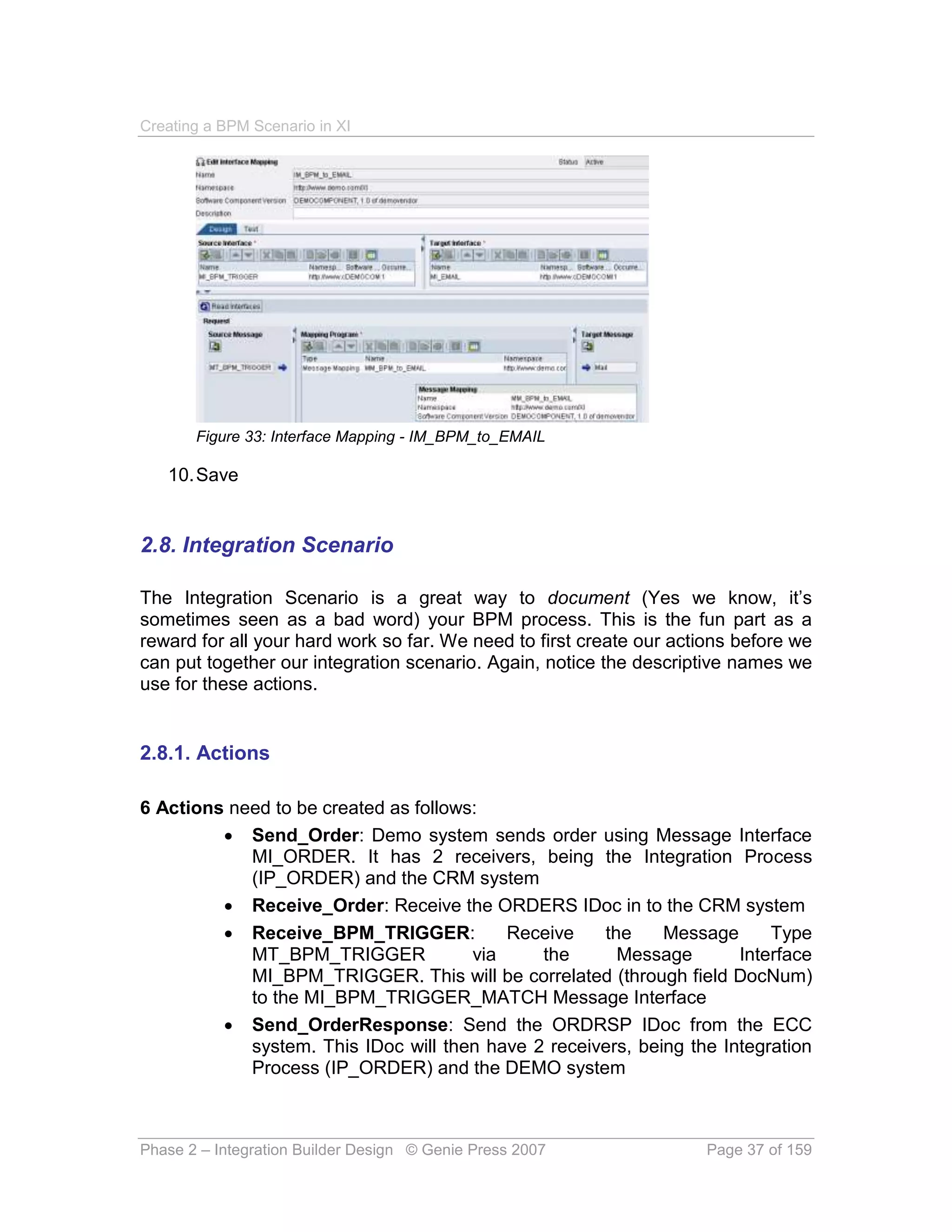
  • 38.
    Creating a BPMScenario in XI  Receive_OrderResponse: Receive the Message Type MT_OrderResponse via Message Interface MI_ORDERRESPONSE  Receive_BPM_TRIGGER_MATCH: Receive the Message Type MT_BPM_TRIGGER via the Message Interface MI_BPM_TRIGGER_MATCH. This then correlates (through field DocNum) to the MI_BPM_TRIGGER Message Interface of the Send_Order action 2.8.1.1. Send_Order 1. Open Integration Scenarios & Integration Processes 2. Right mouse click Actions -> New 3. Enter Name Send_Order and Description -> Create 4. Enter type of Usage: External 5. Since this action represents an outbound interface, click the icon under the Outbound Interfaces tab 6. Drag and Drop your Message Interface MI_ORDER in to the new line of Outbound Interfaces. Ensure the full Object Type (Message Interface), Name (MI_ORDER) and Namespace (http://www.demo.com/XI) are entered 7. Your action will look as shown in Figure 34 Figure 34: Action - Send_Order Phase 2 – Integration Builder Design © Genie Press 2007 Page 38 of 159
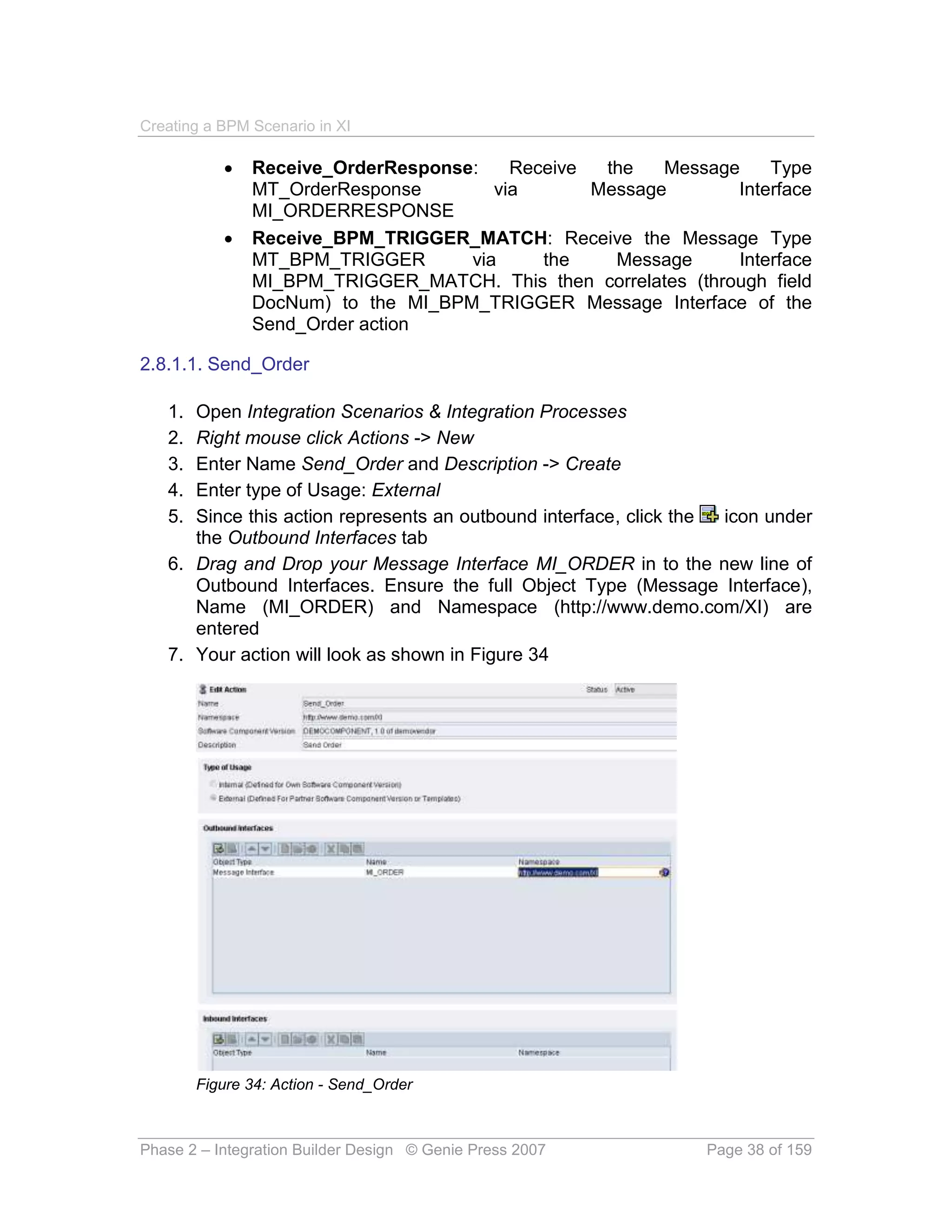
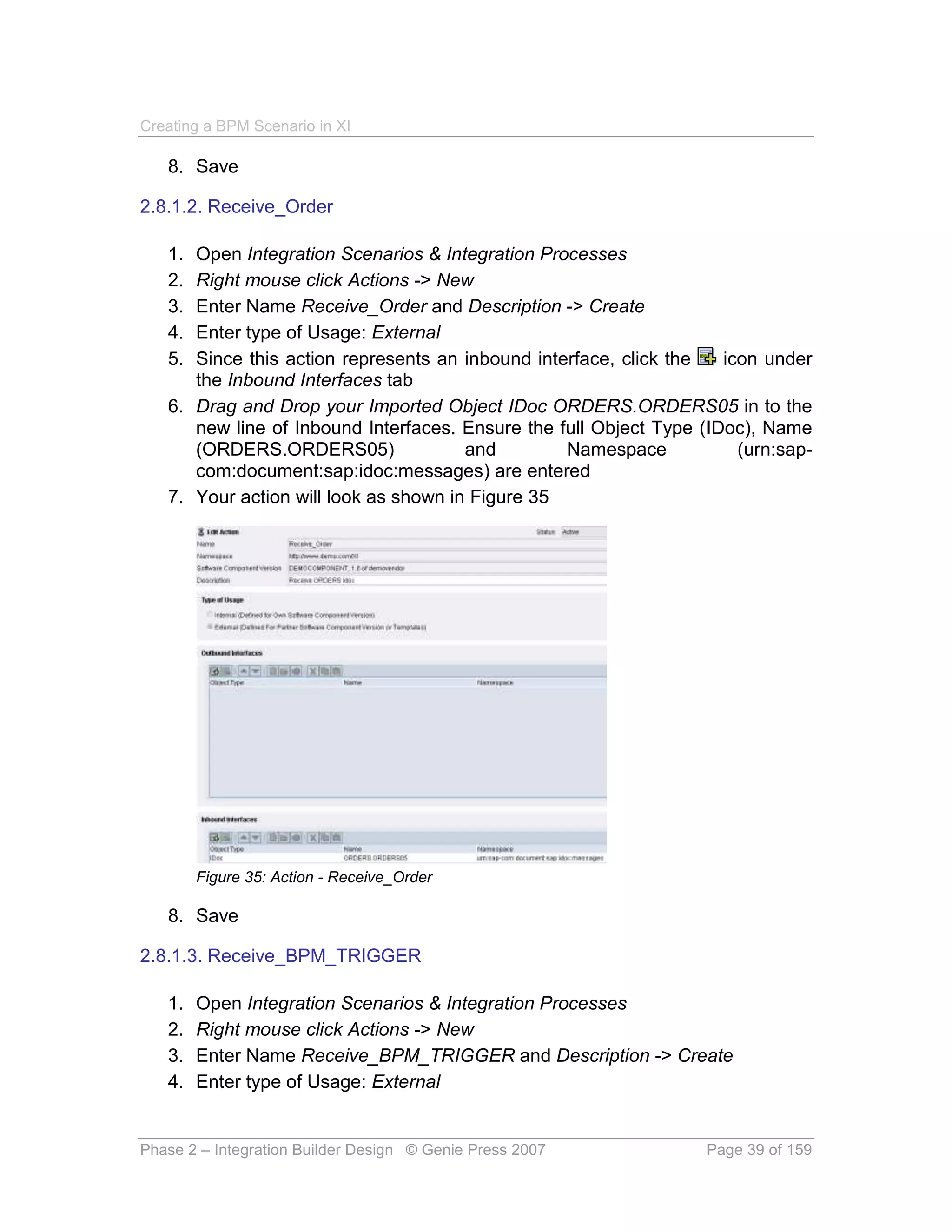
  • 39.
    Creating a BPMScenario in XI 8. Save 2.8.1.2. Receive_Order 1. Open Integration Scenarios & Integration Processes 2. Right mouse click Actions -> New 3. Enter Name Receive_Order and Description -> Create 4. Enter type of Usage: External 5. Since this action represents an inbound interface, click the icon under the Inbound Interfaces tab 6. Drag and Drop your Imported Object IDoc ORDERS.ORDERS05 in to the new line of Inbound Interfaces. Ensure the full Object Type (IDoc), Name (ORDERS.ORDERS05) and Namespace (urn:sap- com:document:sap:idoc:messages) are entered 7. Your action will look as shown in Figure 35 Figure 35: Action - Receive_Order 8. Save 2.8.1.3. Receive_BPM_TRIGGER 1. Open Integration Scenarios & Integration Processes 2. Right mouse click Actions -> New 3. Enter Name Receive_BPM_TRIGGER and Description -> Create 4. Enter type of Usage: External Phase 2 – Integration Builder Design © Genie Press 2007 Page 39 of 159
  • 40.
    Creating a BPMScenario in XI 5. Since this action represents an inbound interface, click the icon under the Inbound Interfaces tab 6. Drag and Drop your Message Interface MI_BPM_TRIGGER in to the new line of Inbound Interfaces. Ensure the full Object Type (Message Interface), Name (MI_BPM_TRIGGER) and Namespace (http://www.demo.com/XI) are entered 7. Your action will look as shown in Figure 36 Figure 36: Action - Receive_BPM_TRIGGER 8. Save 2.8.1.4. Send_OrderResponse 1. Open Integration Scenarios & Integration Processes 2. Right mouse click Actions -> New 3. Enter Name Send_OrderResponse and Description -> Create 4. Enter type of Usage: External 5. Since this action represents an outbound interface, click the icon under the Outbound Interfaces tab 6. Drag and Drop your Imported Object IDoc ORDRSP.ORDERS05 in to the new line of Outbound Interfaces. Ensure the full Object Type (IDoc), Name (ORDRSP.ORDERS05) and Namespace (urn:sap- com:document:sap:idoc:messages) are entered 7. Your action will look as shown in Figure 37 Phase 2 – Integration Builder Design © Genie Press 2007 Page 40 of 159
  • 41.
    Creating a BPMScenario in XI Figure 37: Action - Send_OrderResponse 8. Save 2.8.1.5. Receive_OrderResponse 1. Open Integration Scenarios & Integration Processes 2. Right mouse click Actions -> New 3. Enter Name Receive_OrderResponse and Description -> Create 4. Enter type of Usage: External 5. Since this action represents an inbound interface, click the icon under the Inbound Interfaces tab 6. Drag and Drop your Message Interface MI_ORDERRESPONSE in to the new line of Inbound Interfaces. Ensure the full Object Type (Message Interface), Name (MI_ORDERRESPONSE) and Namespace (http://www.demo.com/XI) are entered 7. Your action will look as shown in Figure 38 Phase 2 – Integration Builder Design © Genie Press 2007 Page 41 of 159
  • 42.
    Creating a BPMScenario in XI Figure 38: Action - Receive_OrderResponse 8. Save 2.8.1.6. Receive_BPM_TRIGGER_MATCH 1. Open Integration Scenarios & Integration Processes 2. Right mouse click Actions -> New 3. Enter Name Receive_BPM_TRIGGER_MATCH and Description -> Create 4. Enter type of Usage: External 5. Since this action represents an inbound interface, click the icon under the Inbound Interfaces tab 6. Drag and Drop your Message Interface MI_BPM_TRIGGER_MATCH in to the new line of Inbound Interfaces. Ensure the full Object Type (Message Interface), Name (MI_BPM_TRIGGER_MATCH) and Namespace (http://www.demo.com/XI) are entered 7. Your action will look as shown in Figure 39 Phase 2 – Integration Builder Design © Genie Press 2007 Page 42 of 159
  • 43.
    Creating a BPMScenario in XI Figure 39: Action - Receive_BPM_TRIGGER_MATCH 8. Save 2.8.2. Integration Scenario The integration scenario is where things start to get exciting! It brings your actions together with the system components, showing the interfacing between the systems. 2.8.2.1. IS_Orders 1. Open Integration Scenarios & Integration Processes 2. Right mouse click Actions -> New 3. Enter Name IS_Orders and Description -> Create 4. Right mouse click the first swim lane on the left and Insert Application Component Phase 2 – Integration Builder Design © Genie Press 2007 Page 43 of 159
  • 44.
    Creating a BPMScenario in XI Figure 40: Integration Scenario - Insert Software Component 5. Choose the DEMO system -> OK Figure 41: Integration Scenario - Choose Product Version 6. Enter Name PurchaseOrderCreation under the Role tab 7. Click the Further Attributes tab and enter extended name Order 8. Your application component should look as described in Figure 42 Phase 2 – Integration Builder Design © Genie Press 2007 Page 44 of 159
  • 45.
    Creating a BPMScenario in XI Figure 42: Integration Scenario - Application Component 9. Click Apply 10. Your Integration Scenario should now look as described in Figure 43. Note that these vertical columns that we are building up are termed “Swim Lanes”. If you’ve done any swimming you’ll know why, if not, don’t worry about it. Figure 43: Integration Scenario - Component Added 11. Similarly - now we need to add 3 more systems: a. Integration Process (Template Type) b. CRM (Business System) c. ECC (Business System) 12. Right mouse click the second swim lane and Insert Application Component 13. Select Template -> Enter role name IntegrationProcess 14. Select Further Attributes tab 15. Enter XI BPM in the Extended Name field Phase 2 – Integration Builder Design © Genie Press 2007 Page 45 of 159
  • 46.
    Creating a BPMScenario in XI 16. Click Apply 17. Right mouse click the third swim lane and Insert Application Component 18. Select your business System for CRM entering the Role name and Extended name attributes -> Apply 19. Right mouse click the forth swim lane and Insert Application Component 20. Select your business System for ECC entering the Role name and Extended name attributes -> Apply 21. Your Integration Scenario should now have 4 swim lanes and look as shown in Figure 44 Figure 44: Integration Scenario - Swim lanes 22. Now we need to add our actions that we created earlier to the Integration Scenario – are you getting excited yet? 23. Right mouse click the Order swim lane at the top -> Insert Action Figure 45: Integration Scenario - Insert Action 24. Expand your Software Component for the Demo system and select the Action Send_Order -> Apply as shown in Figure 46 Phase 2 – Integration Builder Design © Genie Press 2007 Page 46 of 159
  • 47.
    Creating a BPMScenario in XI Figure 46: Integration Scenario - Insert Send_Order 25. Your Integration Scenario now looks as described in Figure 47 Figure 47: Integration Scenario - Send_Order added 26. We now will add the 2 receive actions. One in the integration process and 1 in the CRM system 27. Another way of adding actions is to drag and drop them on to the right swim lane at the right position. This is pretty cool so we’ll use this technique to add all the actions! 28. Drag the Receive_BPM_TRIGGER to the 2nd swim lane below the level of the send order action (this ensures that it’s not treated as a parallel action to the send order. We need this in order to link them together). 29. Similarly Drag the Receive_Order to the 3rd swim lane (CRM) below the level of the send order action and adjacent to the Receive_BPM_TRIGGER action (again this tells XI not to treat these as parallel or synchronous actions). Phase 2 – Integration Builder Design © Genie Press 2007 Page 47 of 159
  • 48.
    Creating a BPMScenario in XI Figure 48: Integration Scenario - Added Receive Order 30. Now add the last 3 actions (to end up with a view as shown in Figure 49) as follows: a. Send_OrderResponse in ECC system down and to the right of Receive_Order b. Receive_OrderResponse in Demo system down and to the left of Send_OrderResponse c. Receive_BPM_TRIGGER_MATCH in Integration Process template down and to the left of Send_OrderResponse and adjacent to Receive_OrderResponse Figure 49: Integration Scenario - All actions added 31. This is great! We have all the actions, but now we need to focus on linking the actions together 32. Single click the Send_Order action -> Hold down the Shift Key and single click the Receive_BPM_TRIGGER action to select both 33. Right mouse click one of the selected actions -> Create Connection Between Selected Actions as shown in Figure 50 Phase 2 – Integration Builder Design © Genie Press 2007 Page 48 of 159
  • 49.
    Creating a BPMScenario in XI Figure 50: Integration Scenario - Create connection between actions 34. The screen displaying the connection between outbound interface MI_ORDER and inbound interface MI_BPM_TRIGGER should be displayed 35. Click the Assign Mapping tab 36. Click the button in the Assign Interface Mapping Name field to choose Interface Map IM_Order_to_BPM_TRIGGER 37. Click Apply 38. An arrow is now drawn from Send_Order to Receive_BPM_TRIGGER as shown in Figure 51 Figure 51: Integration Scenario - Connection added 39. Similarly connect the following actions together and add the respective interface mappings shown in parentheses: a. Send_Order -> Receiver_Order (IM_Order_to_ORDERS05) b. Send_OrderResponse -> Receive_OrderResponse (IM_ORDRSP_to_OrderResponse) c. Send_OrderResponse -> Receive_BPM_TRIGGER_MATCH (IM_ORDRSP_to_BPM_TRIGGER_CATCH) 40. Your integration scenario should now look as shown in Figure 52 Phase 2 – Integration Builder Design © Genie Press 2007 Page 49 of 159
  • 50.
    Creating a BPMScenario in XI Figure 52: Integration Scenario - Completed Connections 41. We can now define our action start and end points 42. The Send_Order is our start action so Right mouse click Send_Order 43. Click Define Action as Start Action as shown in Figure 53 Figure 53: Integration Scenario - Define start action 44. Similarly we will define the Receive_OrderResponse and Receive_BPM_TRIGGER_MATCH actions as end actions 45. Right mouse click Receive_OrderResponse and select Define Action as End Action 46. Right mouse click Receive_BPM_TRIGGER_MATCH and select Define Action as End Action 47. After completion of the definition of the Integration Process described in 2.9. Integration Process starting on page 51, you need to add the Integration Process to the Integration Process Component a. Double click the Integration Process component and select the Integration Process tab b. Select IP_ORDERS as the name from the dropdown list c. Your definition should now look as shown in Figure 54 Phase 2 – Integration Builder Design © Genie Press 2007 Page 50 of 159
  • 51.
    Creating a BPMScenario in XI Figure 54: Integration Scenario - Link Integration Process 48. Your overall Integration Scenario IS_Orders should look as shown in Figure 55 Figure 55: Integration scenario – IS_Orders 2.9. Integration Process The integration process handles the workflow within the BPM engine. It is based on SAP’s webflow (workflow) engine. The integration process that we need will contain the following functionality:  Receive the order message (Abstract interface MI_BPM_TRIGGER). Activate correlation on field DocNum  Assign DocNum to a container element called DocNum  Wait for the receipt of the order response message (Abstract interface MI_BPM_TRIGGER_MATCH). Use correlation on DocNum Phase 2 – Integration Builder Design © Genie Press 2007 Page 51 of 159
  • 52.
    Creating a BPMScenario in XI  If the order response message does not come in 5 minutes, then fire off an alert and send an email  If the order response message is received in time then end the process gracefully  If the entire integration process does not end in 30 minutes then fire off an alert and cancel the process. This prevents an orphan process from hanging around in the BPM engine forever, which will use unnecessary resources. For the completed view of what we will develop see Figure 56. We will be working in the Container, Properties and Graphical Definition windows. We will also switch to the Correlation Editor to perform the correlation mapping there. Figure 56: Integration Process - Completed 2.9.1. IP_Orders 1. Open Integration Scenarios & Integration Processes 2. Right mouse click Integration Processes -> New 3. Enter Name IP_Orders and Description -> Create 4. First thing to do is to add our required container elements Phase 2 – Integration Builder Design © Genie Press 2007 Page 52 of 159
  • 53.
    Creating a BPMScenario in XI STEP 1 - Create Container Elements 1. In the container window, type DocNum in the name field and enter. The defaults are good for this variable – so we’ll use them 2. To add the Orders message, type Orders in the name field and choose Abstract interface in the Category field – see figure 57 below Figure 57: Integration Process - Add message to container 3. Click the button in the Type field to choose Message Interface MI_BPM_TRIGGER 4. To add the Order Response message, type OrderResponse in the name field and choose Abstract interface in the Category field 5. Click the button in the Type field to choose Message Interface MI_BPM_TRIGGER_MATCH 6. The container should look as shown in Figure 58 Figure 58: Integration Process – Container STEP 2 – Add Receiver Orders Step and set up correlation 1. We now need to add the first step in the process, the receive orders step 2. Click, drag and drop the receiver step from the side bar on the Graphical Definition window to between the start and stop circles as shown in Figure 59 (Orange lines will denote where the step will be inserted if you were to let the mouse button go at that point) Figure 59: Integration Process - Add receiver step 3. In the Properties window you will notice that the Receive step is displayed there. Phase 2 – Integration Builder Design © Genie Press 2007 Page 53 of 159
  • 54.
    Creating a BPMScenario in XI 4. Change the step name from Receive1 to ReceiveOrders 5. Click the button in the Message field to choose the Interface Variable -> Orders (as shown in Figure 60) -> OK Figure 60: Integration Process - Interface Variable 6. We now need to create a correlation field called DocNum 7. In the Container window click and select Correlation List as shown in Figure 61 Figure 61: Integration Process - Correlation List 8. Enter DocNum in the Correlation Name field and Enter 9. In the Graphical Definition window click to fire up the Correlation Editor as shown in Figure 62 Figure 62: Integration Process - Fire up Correlation Editor 10. Ensure that your Correlation Name is DocNum as shown in Figure 63 11. Enter DocNum in the Correlation Container -> Name with type xsd:string 12. We now need to add our 2 Message Interfaces involved in the correlation, namely MI_BPM_TRIGGER and MI_BPM_TRIGGER_MATCH (Remember them?) 13. Drag the Message Interface MI_BPM_TRIGGER to the Involved Messages window (to the blank line). Your screen should look as shown in Figure 63 Phase 2 – Integration Builder Design © Genie Press 2007 Page 54 of 159
  • 55.
    Creating a BPMScenario in XI Figure 63: Integration Process - Adding involved messages 14. Click the button in the Value field 15. Select radio button Interface Variable -> XPath 16. Choose the DocNum field from the MT_BPM_TRIGGER message -> OK as shown in Figure 64 Figure 64: Integration Process - Expression Editor 17. Drag the Message Interface MI_BPM_TRIGGER_MATCH to the Involved Messages window (to the blank line). 18. Click the button in the Value field to choose the DocNum field from the MT_BPM_TRIGGER_MATCH message (similarly as done for the MT_BPM_TRIGGER message interface above) -> OK 19. Your correlation should now look as shown in Figure 65 Figure 65: Integration Process - Correlation 20. Go back to the Properties window by selecting and Graphical Definition as shown in Figure 66 Phase 2 – Integration Builder Design © Genie Press 2007 Page 55 of 159
  • 56.
    Creating a BPMScenario in XI Figure 66: Integration Process - Graphical Definition 21. With the receive orders step highlighted, click the Value field next to the Activate Correlation name and choose DocNum as shown in Figure 67 Figure 67: Integration Process - Activate Correlation 22. The ReceiverOrders step properties should look as shown in Figure 68 Figure 68: Integration Process - Activate Correlation STEP 3 – Create Container Operation step to assign DocNum 1. Drag the container operation step icon to between the Receive Orders step and the Stop marker as shown in Figure 69 Figure 69: Integration Process - Add Container operation 2. In the Properties window 3. Change the step name to Assign DocNum 4. Click on the Target field and select Radio Button Simple Variable 5. Choose variable DocNum as shown in Figure 70 Figure 70: Integration Process - Select variable from container Phase 2 – Integration Builder Design © Genie Press 2007 Page 56 of 159
  • 57.
    Creating a BPMScenario in XI 6. Choose Assign as the operation 7. Click on the Expression field and select Radio Button Interface Variable 8. Select XPath radio button 9. Select the DocNum field from the MT_BPM_TRIGGER message as shown in Figure 71 Figure 71: Integration Process - Select DocNum from Message 10. Your scenario and Container Operation step should look as shown in Figure 72 Figure 72: Integration Process - Container Operation step added STEP 4 – Create Block 1. Drag the block step icon to between the Container Operation Step and the Stop marker as shown in Figure 73 Figure 73: Integration Process - Add Block 2. Select the block Phase 2 – Integration Builder Design © Genie Press 2007 Page 57 of 159
  • 58.
    Creating a BPMScenario in XI 3. In the Properties window 4. Give the block a descriptive name “Block Receive with Deadline” 5. Leave mode as default 6. Enter 2 exceptions: a. TimeOut b. SystemError 7. Your block definition should now look as shown in Figure 74: Integration Process - Block definition STEP 5 – Create deadline branch for the block 1. Right mouse click on the block -> Insert -> Deadline Branch as shown in Figure 75 Figure 75: Integration Process - Insert Deadline Branch 2. A new branch is created inside the block for the deadline 3. Select the deadline branch to complete the properties 4. We are going to set the deadline to 24 hours from the time the step was created 5. In the Properties window 6. Choose Creating the Step for Reference Date / Time 7. Enter 24 for Duration Phase 2 – Integration Builder Design © Genie Press 2007 Page 58 of 159
  • 59.
    Creating a BPMScenario in XI 8. Select Hours as the Unit Figure 76: Integration Process - Deadline branch STEP 5a – Create process control step to throw alert in deadline branch 1. Drag the control step icon to the center of the block created in the step before as shown in Figure 77 Figure 77: Integration Process - Add Control step 2. Select the control step 3. In the Properties window 4. Change the step name to something meaningful like Deadline Reached 5. Select Throw Alert from the dropdown for the Action 6. Type in TESTALERT, as configured in 2.10.1. TESTALERT on page 67 7. Type in an informative alert message such as Order Response has yet to be received for &DocNum&. &DocNum& refers to the variable in the BPM container called DocNum that was populated by the Container Operation step defined in STEP 3 – Create Container Operation step to assign DocNum on page 56 STEP 5b – Create transformation step to generate email message in deadline branch 1. In the Container Window create a variable as follows: a. Name: BPM_EMAIL b. Category: Abstract Interface c. Type: From the dropdown select message interface MI_EMAIL d. Container: Block Receive with Deadline The container element should now look as shown in Figure 78 Figure 78: Integration Process - Add container element Phase 2 – Integration Builder Design © Genie Press 2007 Page 59 of 159
  • 60.
    Creating a BPMScenario in XI 2. Drag the transformation step icon to between the control step created in the step before and the end of the block as shown in Figure 79 Figure 79: Integration Process - Add Transformation step 3. Select the transformation step 4. In the Properties window 5. Change the step name to something meaningful like TransformationAlertEmail 6. Click the icon next to the Interface Mapping to select your interface map IM_BPM_to_EMAIL that you defined in 2.7.5. IM_BPM_to_EMAIL on page 36 7. Select SystemError from the dropdown for field Exception. This system error exception was defined against the block defined in STEP 4 – Create Block on page 57 8. For the source message, from the dropdown ( ), select the Orders Interface Variable as shown in Figure 80 Figure 80: Integration Process - Enter Orders Variable 9. For the target message, from the dropdown ( ), select the BPM_EMAIL Interface Variable created in item 1 of this step. 10. Your transformation step should now look as shown in Figure 81 Figure 81: Integration Process - Transformation step properties STEP 5c – Create send step to send email in deadline branch 1. In the Graphical Definition window drag the send step icon to between the transformation step created in the step before and the end of the block as shown in Figure 82 Phase 2 – Integration Builder Design © Genie Press 2007 Page 60 of 159
  • 61.
    Creating a BPMScenario in XI Figure 82: Integration Process - Add Send step 2. Select the send step 3. In the Properties window 4. Change the step name to something meaningful like SendAlertEMail 5. Leave Mode as Asynchronous 6. For the message, from the dropdown ( ), select the BPM_EMAIL Interface Variable as shown in Figure 83 Figure 83: Integration Process - Enter BPM_EMAIL Variable 7. Select SystemError from the dropdown for field Exception. This system error exception was defined against the block defined in STEP 4 – Create Block on page 57 8. Leave the other fields as defaulted. Your completed send step properties should look as shown in Figure 84 Figure 84: Integration Process - Send step properties STEP 5d – Create control step to throw timeout exception in deadline branch 1. In the Graphical Definition window drag the control step icon to between the send step created in the step before and the end of the block as shown in Figure 85 Figure 85: Integration Process - Add control step to throw exception Phase 2 – Integration Builder Design © Genie Press 2007 Page 61 of 159
  • 62.
    Creating a BPMScenario in XI 2. Select the control step 3. In the Properties window 4. Change the step name to something meaningful like TimeOut 5. Select Throw Exception from the dropdown box on field Action 6. Select TimeOut from the dropdown box on field Exception. This exception was defined against the block defined in STEP 4 – Create Block on page 57 7. Your completed send step properties should look as shown in Figure 86 Figure 86: Integration Process - Exception control step properties STEP 6 – Create exception branch for system errors 1. Right mouse click on the block -> Insert -> Exception Branch as shown in Figure 87 Figure 87: Integration Process - Insert Exception Branch 2. Select the Exception block that was created 3. In the Properties window 4. Select SystemError from the dropdown for field Exception Handler 5. Your exception block and properties should look like Figure 88 Figure 88: Integration Process - System error exception Phase 2 – Integration Builder Design © Genie Press 2007 Page 62 of 159
  • 63.
    Creating a BPMScenario in XI STEP 6a – Create System Error alert in exception branch 1. Drag the control step icon to the center of the SystemError exception block created in the step before as shown in Figure 89 Figure 89: Integration Process - Add Alert Control step to Exception SystemError 2. Select the control step 3. In the Properties window 4. Change the step name to something meaningful like Alert System Error 5. Select Throw Alert from the dropdown for the Action 6. Type in TESTALERT1, as configured in 2.10.2. TESTALERT1 on page 68 7. Type in an informative alert message such as System Error Encountered for &DocNum&. &DocNum& refers to the variable in the BPM container called DocNum that was populated by the Container Operation step defined in STEP 3 – Create Container Operation step to assign DocNum on page 56 STEP 6b – Create cancel process step in exception branch 1. Drag the control step icon to after the control step, created in the step before, and the end of the exception block as shown in Figure 90 Figure 90: Integration Process - Add Cancel Process Control step to Exception SystemError 2. Select the control step 3. In the Properties window 4. Change the step name to something meaningful like CancelProcess Phase 2 – Integration Builder Design © Genie Press 2007 Page 63 of 159
  • 64.
    Creating a BPMScenario in XI 5. Select CancelProcess from the dropdown for the Action STEP 7 – Create exception branch for timeout processing Similarly to the previous step we need to create a timeout exception branch 1. Right mouse click on the block -> Insert -> Exception Branch as shown in Figure 91 Figure 91: Integration Process - Insert Exception Branch for TimeOut 2. Select the Exception block that was created 3. In the Properties window 4. Select TimeOut from the dropdown for field Exception Handler 5. Your exception block and properties should look as shown in Figure 92 Figure 92: Integration Process – Time out exception STEP 7a – Create cancel process step in the TimeOut exception branch 1. Drag the control step icon to after the TimeOut control step, created in the step before, and the end of the exception block as shown in Figure 93 Phase 2 – Integration Builder Design © Genie Press 2007 Page 64 of 159
  • 65.
    Creating a BPMScenario in XI Figure 93: Integration Process - Add Cancel Process Control step to Exception TimeOut 2. Select the control step 3. In the Properties window 4. Change the step name to something meaningful like Cancel Process due to Time Out 5. Select CancelProcess from the dropdown for the Action STEP 8 – Create Receive Order Response Step with correlation We now need to add the receive order response step 1. Click, drag and drop the receiver step from the side bar on the Graphical Definition window to bottom line under the deadline branch as shown in Figure 94 Figure 94: Integration Process - Add receiver step for order response 2. In the Properties window change the step name from Receive1 to Receive Order Response 3. Click the button in the Message field to choose the Interface Variable -> OrderResponse as shown in Figure 95 Phase 2 – Integration Builder Design © Genie Press 2007 Page 65 of 159
  • 66.
    Creating a BPMScenario in XI Figure 95: Integration Process - Interface Variable OrderResponse 4. Select DocNum from the dropdown menu for variable Use Correlations 5. Save 6. Select DocNum from the dropdown menu for variable Activate Correlations 7. Save 8. Your Send Order Response step properties should now look as shown in Figure 96 Figure 96: Integration Process - Receiver order response step properties 2.10. Create Alert Category We need to configure an alert category for the alerts we are going to issue in the BPM Integration Process. Here’s how we go about doing that. 1. Fire up the Runtime Workbench from the Integration Builder by clicking Runtime Workbench Figure 97: Launch Runtime Workbench 2. Click Alert Configuration as shown in Figure 98 Phase 2 – Integration Builder Design © Genie Press 2007 Page 66 of 159
  • 67.
    Creating a BPMScenario in XI Figure 98: Runtime Workbench 3. Click the Create Alert Category button . Click OK on the warning message shown in Figure 99 (Also Transaction ALRTCATDEF) Figure 99: Creating an Alert Category warning message 4. On the screen showing the Alert Categories Display, click the Display/Change button 5. Click the Webflow Alerts in the Classification window. This will display the related Webflow alerts in the ALV grid on the right of the classification as shown in Figure 100 Figure 100: Select Webflow Alert Classification 2.10.1. TESTALERT 1. Click the create alert category icon 2. This adds a line to the ALV grid. Fill in the Alert Category name TESTALERT and a description BPM Alert 3. Hit Enter to see the alert as shown in Figure 101 Phase 2 – Integration Builder Design © Genie Press 2007 Page 67 of 159
  • 68.
    Creating a BPMScenario in XI Figure 101: TESTALERT added 4. Click the Dynamic Text checkbox on. The 2 tabs “Long and Short Text” and “Optional Subseq. Activities” disappear. Clicking this checkbox allows you to pass variables to the alert in the BPM process as shown in STEP 5a – Create process control step to throw alert in deadline branch on page 59 5. Leave the other fields with their defaults 6. Save. Your alert now looks as shown in Figure 102 Figure 102: TESTALERT set to dynamic text 2.10.2. TESTALERT1 Adding the 2nd Alert Category called TESTALERT1. 1. Click the create alert category icon 2. This adds a line to the ALV grid. Fill in the Alert Category name TESTALERT1 and a description BPM Exception Alert 3. Hit Enter to see the alert as shown in Figure 103 Phase 2 – Integration Builder Design © Genie Press 2007 Page 68 of 159
  • 69.
    Creating a BPMScenario in XI Figure 103: TESTALERT1 added 4. Click the Dynamic Text checkbox on. The 2 tabs “Long and Short Text” and “Optional Subseq. Activities” disappear. Clicking this checkbox allows you to pass variables to the alert in the BPM process as shown in STEP 6a – Create System Error alert in exception branch on page 63. This is very useful to us! 5. Leave the other fields with their defaults 6. Save. Your alert now looks as shown in Figure 104 Figure 104: TESTALERT1 set to dynamic text 2.10.3. Assign Users / Roles to Alert Categories 1. Double click TESTALERT 2. Click the Fixed Recipients Button 3. If you are not in change mode then click the Display / Change button 4. Click the New Entries button 5. Type in your user id and save Phase 2 – Integration Builder Design © Genie Press 2007 Page 69 of 159
  • 70.
    Creating a BPMScenario in XI 6. Click Back -> Back 7. Repeat the above process (Steps 1-6) for TESTALERT1 ☼ Note that you should probably use the Role functionality to be able to send alerts based on roles in a user’s profile. For simplicity sake we have hard coded the user receiving this alert using the Fixed Recipients functionality. 2.10.4. Update Alert Categories 1. Close the webgui session and go back to your browser showing the Runtime Workbench 2. Click the button Update Table 3. Your newly created Alert categories are now viewable as shown in Figure 105 Figure 105: Display of Alert Categories Phase 2 – Integration Builder Design © Genie Press 2007 Page 70 of 159
  • 71.
    Creating a BPMScenario in XI PHASE 3 : INTEGRATION BUILDER CONFIGURATION The system landscape and interface repository steps need to have been completed prior to starting this phase. 1. Start the Integration Directory of the Integration Builder 3.1. Create Configuration Scenario 3.1.1. Order_OrderResponse_Demo 1. Select the Scenarios tab 2. Right mouse click in the window and choose New 3. Enter Description as Order and Order Response Scenario 4. Click to select the Integration scenario IS_Orders we configured in 2.8. Integration Scenario on page 37 5. You’ll notice that the configuration scenario is changed to IS_Orders which is our Integration Scenario name. If you want to change it change it before creating the configuration scenario. Once you’ve changed the name (Order_OrderResponse_Demo) is should now look as shown in Figure 106 Figure 106: Create Integration Scenario 6. Click create 7. Save Phase 3 – Integration Builder Configuration© Genie Press 2007 Page 71 of 159
  • 72.
    Creating a BPMScenario in XI 3.2. Create Integration Process Service 3.2.1. IP_ORDERS 1. Right mouse click on Integration Party (Under Service without a party in your newly created scenario) 2. Click New 3. Click continue on the screen shown in Figure 107 Figure 107: Install Integration Process 4. Select the IP_Orders Repository Process and click continue as shown in Figure 108 Figure 108: Select Repository Integration Process 5. Enter Name IP_Orders and click Finish as shown in Figure 109 Phase 3 – Integration Builder Configuration© Genie Press 2007 Page 72 of 159
  • 73.
    Creating a BPMScenario in XI Figure 109: Give Integration Process a name 6. You then see the screen as shown in Figure 110 Figure 110: Integration Process installed 7. Edit the Integration Process 8. Click the menu option Service -> Adapter Specific Identifiers 9. Enter IP_ORDERS as the Logical System. (If you don’t do this step then you will get an error that the Logical System could not be determined for IP_ORDERS Phase 3 – Integration Builder Configuration© Genie Press 2007 Page 73 of 159
  • 74.
    Creating a BPMScenario in XI 10. Click Apply 3.3. Create Services without Party 3.3.1. Business Service: DEMO 1. Right click Business Service 2. Click Create 3. On the Receiver tab click to add a line to the Inbound Interfaces 4. Click to choose Message Interface MI_ORDERRESPONSE -> OK 5. Click the Sender tab 6. On the Sender tab click to add a line to the Outbound Interfaces Phase 3 – Integration Builder Configuration© Genie Press 2007 Page 74 of 159
  • 75.
    Creating a BPMScenario in XI 7. Click to choose Message Interface MI_ORDERS -> OK 8. Save 3.3.2. Business Service: MAIL_SERVICE 1. Right click Business Service 2. Click Create 3. On the Receiver tab click to add a line to the Inbound Interfaces 4. Click to choose Message Interface MI_EMAIL-> OK 5. Save Phase 3 – Integration Builder Configuration© Genie Press 2007 Page 75 of 159
  • 76.
    Creating a BPMScenario in XI 3.3.3. Business System: SAPCRM 1. Import your CRM system and link an IDoc communication channel to it as shown in 3.4.4. GeneratedReceiverChannel_IDoc on page 80. 3.3.4. Business System: SAPECC 1. Import your ECC system. No communication channels are required as it will receive no message from XI. It will receive the order from the CRM system via middleware. 3.4. Create Communication Channels 3.4.1. CC_DEMO_SOAP_SENDER 1. Expand the Business Service DEMO 2. Right mouse click on Communication Channel -> New 3. Enter Communication Channel name CC_DEMO_SOAP_SENDER 4. Click Create 5. Click for the Adapter Type field to choose the SOAP adapter 6. Enter the following entries: a. Select the Sender radio button b. Transport Protocol: HTTP c. Message Protocol: SOAP 1.1. d. Adapter Engine: Integration Server e. Default Interface Namespace: http://www.demo.com/XI f. Default Interface Name: MI_ORDER (NB: This is required for the web service to work properly) g. Quality of Service: Exactly Once = Asynchronous call Phase 3 – Integration Builder Configuration© Genie Press 2007 Page 76 of 159
  • 77.
    Creating a BPMScenario in XI Figure 111: SOAP Adapter Settings 7. Save 3.4.2. CC_DEMO_FILE_RECEIVER 1. Expand the Business Service DEMO 2. Right mouse click on Communication Channel -> New 3. Enter Communication Channel name CC_DEMO_FILE_RECEIVER 4. Click Create 5. Click for the Adapter Type field to choose the File adapter 6. Enter the following entries: a. Select the Receiver radio button b. Transport Protocol: File System (NFS) c. Message Protocol: File d. Adapter Engine: Integration Server e. Target Directory: /var/xiftp Phase 3 – Integration Builder Configuration© Genie Press 2007 Page 77 of 159
  • 78.
    Creating a BPMScenario in XI f. File Name Scheme: xi_kevin.dat g. File Construction Mode: Add Message ID h. Write Mode: Directly i. File Type: Binary j. Default the rest Figure 112: File Adapter Settings 7. Save 3.4.3. CC_EMAIL 1. Expand the Business Service MAIL_SERVICE 2. Right mouse click on Communication Channel -> New 3. Enter Communication Channel name CC_EMAL 4. Click Create 5. Click for the Adapter Type field to choose the Mail adapter 6. Enter the following entries: a. Select the Receiver radio button Phase 3 – Integration Builder Configuration© Genie Press 2007 Page 78 of 159
  • 79.
    Creating a BPMScenario in XI b. Transport Protocol: SMTP c. Message Protocol: XIPAYLOAD d. Adapter Engine: Integration Server e. URL: smtp://smtp.<server>.com f. Use Mail Package: Check checkbox g. Content Encoding: base64 Figure 113: Mail Adapter Settings Phase 3 – Integration Builder Configuration© Genie Press 2007 Page 79 of 159
  • 80.
    Creating a BPMScenario in XI 7. Save 3.4.4. GeneratedReceiverChannel_IDoc 3.5. Use Wizard to set up Determination and Agreements We have performed the previous steps to set up your communication channels, business system and services so that we can use the wizard to easily create our message interface components comprising the receiver and Interface Determination together with the sender and receiver agreements. Using the wizard You do not have to use the wizard and could choose to create these manually. Using the wizard, however, is not only an efficient way to define your interfaces, but it is more intuitive to work with when you have several interfaces to define in a short period of time. For example, our scenario comprises of 5 interfaces and it’s really handy to be able to define each in its entirety (through the wizard) before continuing with the next one. 3.5.1. Orders interface between DEMO and CRM 1. Select the Scenarios tab 2. Right mouse click in the window and choose New Phase 3 – Integration Builder Configuration© Genie Press 2007 Page 80 of 159
  • 81.
    Creating a BPMScenario in XI 3. Click Configuration Wizard on the left as shown in Figure 114 Figure 114: Start Configuration Wizard 4. Click Internal Communication radio button and Create STEP 1 – Incoming Message 1. Enter Service Type: Business Service 2. Service: DEMO 3. Interface: MI_ORDER 4. Namespace: http://www.demo.com/XI 5. Adapter Type: Select SOAP Figure 115: Inbound Message - Specify Sender Phase 3 – Integration Builder Configuration© Genie Press 2007 Page 81 of 159
  • 82.
    Creating a BPMScenario in XI 6. Click continue STEP 2 – Outgoing Message 1. Enter Service Type: Business System 2. Service: SAPCRM 3. Interface: ORDERS.ORDERS05 4. Namespace: urn:sap-com:document:sap:idoc:messages 5. Adapter Type: Select IDoc Figure 116: Outbound Message - Specify Receiver 6. Continue STEP 3 – Sender Agreement 1. The system should default in the SOAP Communication Channel you created in 3.4.1. CC_DEMO_SOAP_SENDER on page 76 Phase 3 – Integration Builder Configuration© Genie Press 2007 Page 82 of 159
  • 83.
    Creating a BPMScenario in XI Figure 117: Sender Agreement - DEMO : MI_ORDER 2. Continue STEP 4 – Receiver Determination 1. The system should display the screen as shown in Figure 118 Figure 118: Receiver Determination – DEMO : MI_ORDER 2. Click Continue Phase 3 – Integration Builder Configuration© Genie Press 2007 Page 83 of 159
  • 84.
    Creating a BPMScenario in XI STEP 5 – Interface Determination 1. The system should display the screen as shown in Figure 119 Figure 119: Interface Determination – DEMO : MI_ORDER : SAPCRM 2. Click Continue STEP 6 – Receiver Agreement 1. The system should display the screen as shown in Figure 120 Figure 120: Receiver Agreement – DEMO : SAPCRM : ORDERS.ORDERS05 Phase 3 – Integration Builder Configuration© Genie Press 2007 Page 84 of 159
  • 85.
    Creating a BPMScenario in XI 2. Click Continue STEP 7 – Assign object to a Configuration Scenario 1. The system should display the screen as shown in Figure 121 2. From the dropdown list select your scenario Order_OrderResponse_Demo Figure 121: Assign generated object to a Scenario 3. Click Finish 4. You should get the Configuration Wizard log that shows you all the objects that were generated as shown in Figure 122 Phase 3 – Integration Builder Configuration© Genie Press 2007 Page 85 of 159
  • 86.
    Creating a BPMScenario in XI Figure 122: Configuration Wizard Log 3.5.2. Orders interface between DEMO and BPE 1. Select the Scenarios tab 2. Right mouse click in the window and choose New 3. Click Configuration Wizard on the left as shown in Figure 123 Figure 123: Start Configuration Wizard Phase 3 – Integration Builder Configuration© Genie Press 2007 Page 86 of 159
  • 87.
    Creating a BPMScenario in XI 4. Click Internal Communication radio button and Create STEP 1 – Incoming Message 1. Enter Service Type: Business Service 2. Service: DEMO 3. Interface: MI_ORDER 4. Namespace: http://www.demo.com/XI 5. Adapter Type: Select SOAP Figure 124: Inbound Message - Specify Sender 6. Click continue STEP 2 – Outgoing Message 1. Enter Service Type: Integration Process 2. Service: IP_ORDERS 3. Integration Process: IP_Orders 4. Interface: MI_BPM_TRIGGER 5. Namespace: http://www.demo.com/XI 6. Adapter Type: Select XI Phase 3 – Integration Builder Configuration© Genie Press 2007 Page 87 of 159
  • 88.
    Creating a BPMScenario in XI Figure 125: Outbound Message - Specify Receiver 7. Continue STEP 3 – Sender Agreement 1. The system should default in the Sender agreement that you created in STEP 3 – Sender Agreement on page 82 Figure 126: Sender Agreement - DEMO : MI_ORDER 2. Continue Phase 3 – Integration Builder Configuration© Genie Press 2007 Page 88 of 159
  • 89.
    Creating a BPMScenario in XI STEP 4 – Receiver Determination 1. The system should display the screen as shown in Figure 127 Figure 127: Receiver Determination – DEMO : MI_ORDER 2. Click Continue STEP 5 – Interface Determination 1. The system should display the screen as shown in Figure 128 Figure 128: Interface Determination – DEMO : MI_ORDER :IP_ORDERS Phase 3 – Integration Builder Configuration© Genie Press 2007 Page 89 of 159
  • 90.
    Creating a BPMScenario in XI 2. Click Continue STEP 6 – Receiver Agreement 1. The system should display the screen as shown in Figure 129 Figure 129: Receiver Agreement 2. Click Continue STEP 7 – Assign object to a Configuration Scenario 1. The system should display the screen as shown in Figure 130 2. From the dropdown list select your scenario Order_OrderResponse_Demo Phase 3 – Integration Builder Configuration© Genie Press 2007 Page 90 of 159
  • 91.
    Creating a BPMScenario in XI Figure 130: Assign generated object to a Scenario 3. Click Finish 4. You should get the Configuration Wizard log that shows you all the objects that were generated as shown in Figure 131 Figure 131: Configuration Wizard Log Phase 3 – Integration Builder Configuration© Genie Press 2007 Page 91 of 159
  • 92.
    Creating a BPMScenario in XI 3.5.3. Order Response interface between ECC and DEMO 1. Select the Scenarios tab 2. Right mouse click in the window and choose New 3. Click Configuration Wizard on the left as shown in Figure 132 Figure 132: Start Configuration Wizard 4. Click Internal Communication radio button and Create STEP 1 – Incoming Message 1. Enter Service Type: Business System 2. Service: SAPECC 3. Interface: ORDRSP.ORDERS05 4. Namespace: urn:sap-com:document:sap:idoc:messages 5. Adapter Type: Select IDoc Phase 3 – Integration Builder Configuration© Genie Press 2007 Page 92 of 159
  • 93.
    Creating a BPMScenario in XI Figure 133: Inbound Message - Specify Sender 6. Click continue STEP 2 – Outgoing Message 1. Enter Service Type: Business Service 2. Service: DEMO 3. Interface: MI_ORDERRESPONSE 4. Namespace: http://www.demo.com/XI 5. Adapter Type: Select File Phase 3 – Integration Builder Configuration© Genie Press 2007 Page 93 of 159
  • 94.
    Creating a BPMScenario in XI Figure 134: Outbound Message - Specify Receiver 6. Continue STEP 3 – Sender Agreement 1. The system should default in the Sender agreement that you created in STEP 3 – Sender Agreement on page 82 Figure 135: Sender Agreement 2. Continue Phase 3 – Integration Builder Configuration© Genie Press 2007 Page 94 of 159
  • 95.
    Creating a BPMScenario in XI STEP 4 – Receiver Determination 3. The system should display the screen as shown in Figure 136 Figure 136: Receiver Determination – SAPECC : ORDRSP.ORDERS05 4. Click Continue STEP 5 – Interface Determination 1. The system should display the screen as shown in Figure 137 Figure 137: Interface Determination – SAPECC : ORDRSP.ORDERS05 : DEMO Phase 3 – Integration Builder Configuration© Genie Press 2007 Page 95 of 159
  • 96.
    Creating a BPMScenario in XI 2. Click Continue STEP 6 – Receiver Agreement 1. The system should display the screen as shown in Figure 138 Figure 138: Receiver Agreement – SAPECC : DEMO : MI_ORDERRESPONSE 3. Click Continue STEP 7 – Assign object to a Configuration Scenario 1. The system should display the screen as shown in Figure 139 2. From the dropdown list select your scenario Order_OrderResponse_Demo Phase 3 – Integration Builder Configuration© Genie Press 2007 Page 96 of 159
  • 97.
    Creating a BPMScenario in XI Figure 139: Assign generated object to a Scenario 3. Click Finish 4. You should get the Configuration Wizard log that shows you all the objects that were generated as shown in Figure 140 Figure 140: Configuration Wizard Log Phase 3 – Integration Builder Configuration© Genie Press 2007 Page 97 of 159
  • 98.
    Creating a BPMScenario in XI 3.5.4. Order Response interface between ECC and BPE 1. Select the Scenarios tab 2. Right mouse click in the window and choose New 3. Click Configuration Wizard on the left as shown in Figure 141 Figure 141: Start Configuration Wizard 4. Click Internal Communication radio button and Create STEP 1 – Incoming Message 1. Enter Service Type: Business System 2. Service: SAPECC 3. Interface: ORDRSP.ORDERS05 4. Namespace: urn:sap-com:document:sap:idoc:messages 5. Adapter Type: Select IDoc Phase 3 – Integration Builder Configuration© Genie Press 2007 Page 98 of 159
  • 99.
    Creating a BPMScenario in XI Figure 142: Inbound Message - Specify Sender 6. Click continue STEP 2 – Outgoing Message 1. Enter Service Type: Integration Process 2. Service: IP_ORDERS 3. Integration Process: IP_Orders 4. Interface: MI_BPM_TRIGGER_MATCH 5. Namespace: http://www.demo.com/XI 6. Adapter Type: Select XI Phase 3 – Integration Builder Configuration© Genie Press 2007 Page 99 of 159
  • 100.
    Creating a BPMScenario in XI Figure 143: Outbound Message - Specify Receiver 7. Continue STEP 3 – Sender Agreement 1. The system should default in the Sender agreement that you created in STEP 3 – Sender Agreement on page 82 Figure 144: Sender Agreement 3. Continue Phase 3 – Integration Builder Configuration© Genie Press 2007 Page 100 of 159
  • 101.
    Creating a BPMScenario in XI STEP 4 – Receiver Determination 1. The system should display the screen as shown in Figure 145 Figure 145: Receiver Determination – SAPECC : ORDRSP.ORDERS05 5. Click Add Receiver radio button 6. Click Continue STEP 5 – Interface Determination 1. The system should display the screen as shown in Figure 146 Phase 3 – Integration Builder Configuration© Genie Press 2007 Page 101 of 159
  • 102.
    Creating a BPMScenario in XI Figure 146: Interface Determination – DEMO : MI_ORDER :IP_ORDERS 3. Click Continue STEP 6 – Receiver Agreement 1. The system should display the screen as shown in Figure 147 Figure 147: Receiver Agreement 4. Click Continue Phase 3 – Integration Builder Configuration© Genie Press 2007 Page 102 of 159
  • 103.
    Creating a BPMScenario in XI STEP 7 – Assign object to a Configuration Scenario 1. The system should display the screen as shown in Figure 148 2. From the dropdown list select your scenario Order_OrderResponse_Demo Figure 148: Assign generated object to a Scenario 3. Click Finish 4. You should get the Configuration Wizard log that shows you all the objects that were generated as shown in Figure 149 Phase 3 – Integration Builder Configuration© Genie Press 2007 Page 103 of 159
  • 104.
    Creating a BPMScenario in XI Figure 149: Configuration Wizard Log 3.5.5. Email interface between BPE and Email Service 1. Select the Scenarios tab 2. Right mouse click in the window and choose New 3. Click Configuration Wizard on the left as shown in Figure 150 Figure 150: Start Configuration Wizard 4. Click Internal Communication radio button and Create Phase 3 – Integration Builder Configuration© Genie Press 2007 Page 104 of 159
  • 105.
    Creating a BPMScenario in XI STEP 1 – Incoming Message 1. Enter Service Type: Integration Process 2. Service: IP_ORDERS 3. Integration Process: IP_Orders 4. Interface: MI_EMAIL 5. Namespace: http://www.demo.com/XI 6. Adapter Type: Select XI Figure 151: Inbound Message - Specify Sender 7. Click continue STEP 2 – Outgoing Message 1. Enter Service Type: Business Service 2. Service: MAIL_SERVICE 3. Interface: MI_EMAIL 4. Namespace: http://www.demo.com/XI 5. Adapter Type: Select Mail Phase 3 – Integration Builder Configuration© Genie Press 2007 Page 105 of 159
  • 106.
    Creating a BPMScenario in XI Figure 152: Outbound Message - Specify Receiver 6. Continue STEP 3 – Sender Agreement 1. The system should default in the Sender agreement that you created in STEP 3 – Sender Agreement on page 82 Figure 153: Sender Agreement 2. Continue Phase 3 – Integration Builder Configuration© Genie Press 2007 Page 106 of 159
  • 107.
    Creating a BPMScenario in XI STEP 4 – Receiver Determination 1. The system should display the screen as shown in Figure 154 Figure 154: Receiver Determination – IP_ORDERS : MI_EMAIL 2. Click Add Receiver radio button 3. Click Continue STEP 5 – Interface Determination 1. The system should display the screen as shown in Figure 155 Phase 3 – Integration Builder Configuration© Genie Press 2007 Page 107 of 159
  • 108.
    Creating a BPMScenario in XI Figure 155: Interface Determination –IP_ORDERS : MI_EMAIL 2. Click Continue STEP 6 – Receiver Agreement 1. The system should display the screen as shown in Figure 156 Figure 156: Receiver Agreement – CC_EMAIL 2. Click Continue Phase 3 – Integration Builder Configuration© Genie Press 2007 Page 108 of 159
  • 109.
    Creating a BPMScenario in XI STEP 7 – Assign object to a Configuration Scenario 1. The system should display the screen as shown in Figure 157 2. From the dropdown list select your scenario Order_OrderResponse_Demo Figure 157: Assign generated object to a Scenario 3. Click Finish 4. You should get the Configuration Wizard log that shows you all the objects that were generated as shown in Figure 158 Phase 3 – Integration Builder Configuration© Genie Press 2007 Page 109 of 159
  • 110.
    Creating a BPMScenario in XI Figure 158: Configuration Wizard Log Phase 3 – Integration Builder Configuration© Genie Press 2007 Page 110 of 159
  • 111.
    Creating a BPMScenario in XI 3.6. Receiver Determination 3.6.1. DEMO : MI_ORDER Figure 159: Receiver Determination - DEMO : MI_ORDER 3.6.2. IP_ORDERS : MI_EMAIL Figure 160: Receiver Determination - IP_ORDERS : MI_EMAIL Phase 3 – Integration Builder Configuration© Genie Press 2007 Page 111 of 159
  • 112.
    Creating a BPMScenario in XI 3.6.3. SAPECC : ORDRSP.ORDERS05 Figure 161: Receiver Determination - SAPECC : ORDRSP.ORDERS05 3.7. Interface Determination 3.7.1. DEMO : MI_ORDER : SAPCRM Figure 162: Interface Determination - DEMO : MI_ORDER : SAPCRM Phase 3 – Integration Builder Configuration© Genie Press 2007 Page 112 of 159
  • 113.
    Creating a BPMScenario in XI 3.7.2. DEMO : MI_ORDER : IP_ORDERS Figure 163: Interface Determination - DEMO : MI_ORDER : IP_ORDERS 3.7.3. SAPECC : ORDRSP.ORDERS05 : DEMO Figure 164: Interface Determination - SAPECC : ORDRSP.ORDERS05 : DEMO Phase 3 – Integration Builder Configuration© Genie Press 2007 Page 113 of 159
  • 114.
    Creating a BPMScenario in XI 3.7.4. SAPECC : ORDRSP.ORDERS05 : IP_ORDERS Figure 165: Interface Determination -SAPECC : ORDRSP.ORDERS05 : IP_ORDERS 3.7.5. IP_ORDERS : MI_EMAIL : MAIL_SERVICE Figure 166: Interface Determination - MI_EMAIL : MAIL_SERVICE Phase 3 – Integration Builder Configuration© Genie Press 2007 Page 114 of 159
  • 115.
    Creating a BPMScenario in XI 3.8. Sender Agreements 3.8.1. DEMO:MI_ORDER Figure 167: Sender Agreement - DEMO : MI_ORDER 3.9. Receiver Agreements 3.9.1. DEMO : SAPCRM : ORDERS.ORDERS05 Figure 168: Receiver Agreement - DEMO : SAPCRM : ORDERS.ORDERS05 Phase 3 – Integration Builder Configuration© Genie Press 2007 Page 115 of 159
  • 116.
    Creating a BPMScenario in XI 3.9.2. SAPECC : DEMO : ORDERRESPONSE Figure 169 : Receiver Agreement – SAPECC : DEMO : ORDERRESPONSE 3.9.3. IP_ORDERS : MAIL_SERVICE : MI_EMAIL Figure 170: Receiver Agreement - IP_ORDERS : MAIL_SERVICE : MI_EMAIL 3.10. Create and Publish Web Service 1. From the main menu of the Integration Builder choose Tools -> Define Web Service Phase 3 – Integration Builder Configuration© Genie Press 2007 Page 116 of 159
  • 117.
    Creating a BPMScenario in XI 2. The wizard pops up as shown in Figure 171 Figure 171: Define web service wizard 3. Click Continue 4. Click propose URL -> Change as follows: a. http://<srv>:<adapter_port>/XISOAPAdapter/MessageServlet?chan nel=<party>:<service/system>:<cchannel>) -> Continue i. <srv> = Server running XI ii. <adapter_port> = Adapter engine port = 8000 iii. <party> = If communicating outside of your landscape this is the party you have identified iv. <service/system> = Sending system or service v. <cchannel> = Communication channel b. Our value is: http://mysapapps02.sapgenie.com:8000/XISOAPAdapter/Message Servlet?channel=:DEMO:CC_DEMO_SOAP_SENDER 5. On entering the required URL the screen look as shown in Figure 172 Figure 172: Enter URL for web service Phase 3 – Integration Builder Configuration© Genie Press 2007 Page 117 of 159
  • 118.
    Creating a BPMScenario in XI 6. Click Continue 7. Click on the name field to select the message interface MI_ORDER as shown in Figure 173 Figure 173: Select message interface 8. The screen should now look as shown in Figure 174 Figure 174: Message Interface MI_ORDERS 9. Click Continue 10. Specify sender as shown in Figure 175: - Service: DEMO - Interface Name: MI_ORDER - Interface Namespace: http://www.demo.com/XI Figure 175: Specify the sender 11. Click Continue 12. The summary of the web service definition is displayed as shown in Figure 176 Phase 3 – Integration Builder Configuration© Genie Press 2007 Page 118 of 159
  • 119.
    Creating a BPMScenario in XI Figure 176: Web service summary 13. Click Finish 14. The web service file is displayed as shown in Figure 177 Figure 177: Web service file WSDL 15. Click Save and choose file name MI_ORDER.wsdl 16. Your WSDL is now complete!!! Phase 3 – Integration Builder Configuration© Genie Press 2007 Page 119 of 159
  • 120.
    Creating a BPMScenario in XI PHASE 4 : SAP CONFIGURATION Since we are using IDocs and the IDoc adapter we need to configure the IDoc adapter and port. 4.1. Maintain Port in IDoc adapter 4.1.1. SAPCRM 1. On the XI server use Transaction IDX1 2. Create a new port SAPCRS and complete the Port, client and RFC destination (Ensure the RFC destination to the CRM system exists and is operational. Use SM59 to set up and test) 3. This Port relates to the port listed in the communication channel (for the IDoc adapter) for the business system SAPCRM described in 3.4.4. GeneratedReceiverChannel_IDoc on page 80. 4. Your port definition should look something like that shown in Figure 178 Figure 178: Maintain port in IDoc adapter - SAPCRM Phase 4 – SAP Configuration © Genie Press 2007 Page 120 of 159
  • 121.
    Creating a BPMScenario in XI 4.2. Maintain Metadata Overview for IDoc adapter 4.2.1. ORDERS05 This is where you register the allowable IDoc type’s metadata for the IDoc adapter. i.e. If you don’t put an entry here for the IDoc type that you wish you will get a metadata error in XI when it tries to read the IDoc metadata from the system. 1. On the XI server use Transaction IDX2 2. Click new 3. Enter IDoc type ORDERS05 and applicable port SAPCRM as shown in Figure 179 Figure 179: Enter IDoc Type and Port 4. Click Continue 5. The message should come back that the structure was loaded successfully 6. The client list under the port comes from the RFC destination setting that you have loaded using IDX1. Your screen should look similar to that shown in Figure 180 Figure 180: IDoc metadata Phase 4 – SAP Configuration © Genie Press 2007 Page 121 of 159
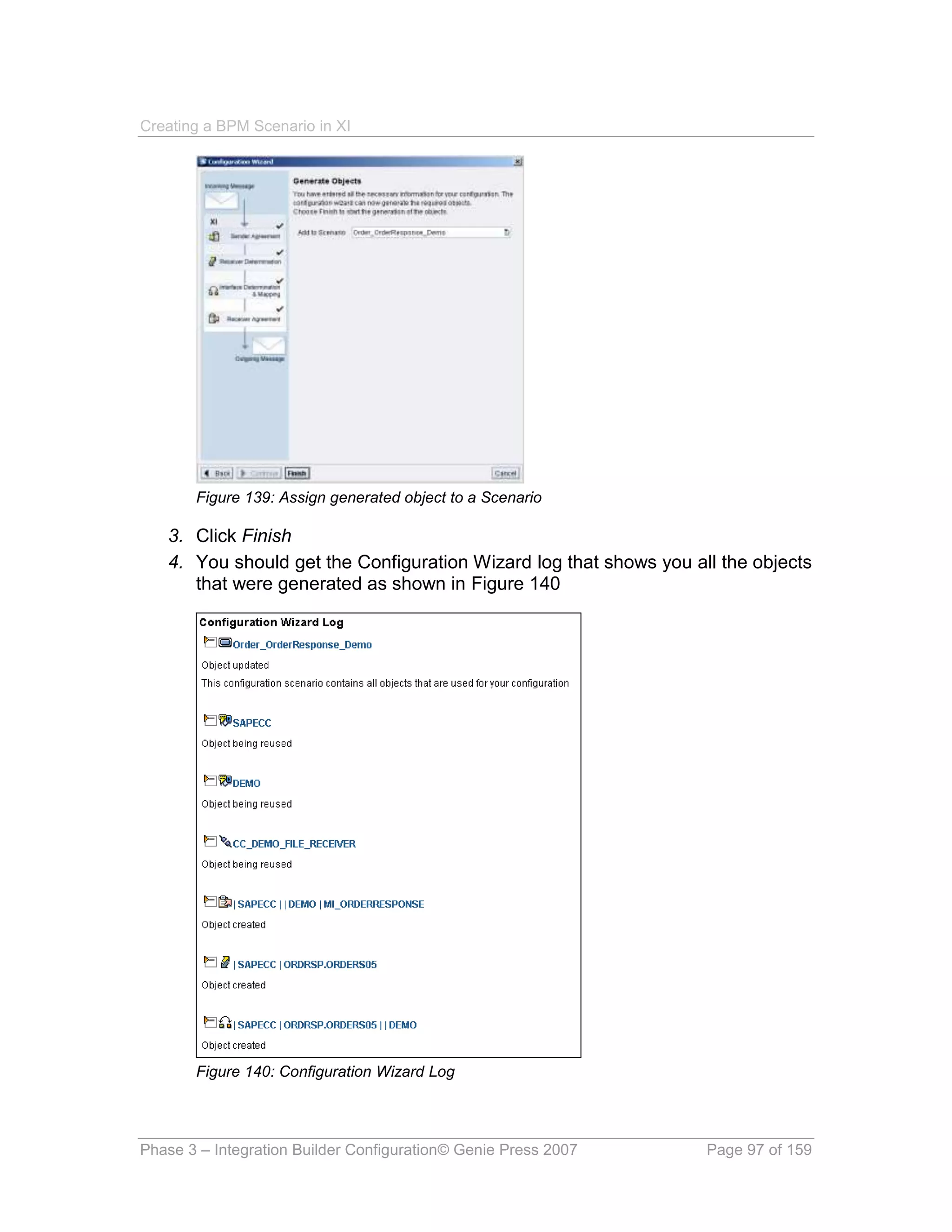
  • 122.
    Creating a BPMScenario in XI PHASE 5 : TESTING 5.1. Testing the interface in XI Well done, if you’ve reached this point you are now ready to see if all your hard work fits together properly. Read the sidebar on XMLSpy to make sure you have all the right tools to test properly. Third Party Testing Tools - XMLSpy XMLSpy is a wonderful tool for examining, editing and generating SOAP messages. At the end of the day the SOAP message is just a formatted XML file. XMLSpy is a product from Altova ( www.altova.com ) and at the time of writing the latest release is 2007, but we have used 4.4 for our testing in section 5.2. The testing is possible without a tool like XMLSpy, but it is very time consuming and open to errors. 5.1.1. Create a sample XML payload 1. Launch or go back to the Integration Repository 2. In step 2.7.1. IM_Order_to_ORDERS05 on page 33 we created the interface map IM_Order_to_ORDERS05. Load up this map in the integration repository as shown in Figure 29: Interface Mapping - IM_Order_to_ORDERS05 on page 33 3. Click the Test tab 4. Enter values for the elements as shown in Figure 181 Figure 181: Creating a test instance Phase 5 – Testing © Genie Press 2007 Page 122 of 159
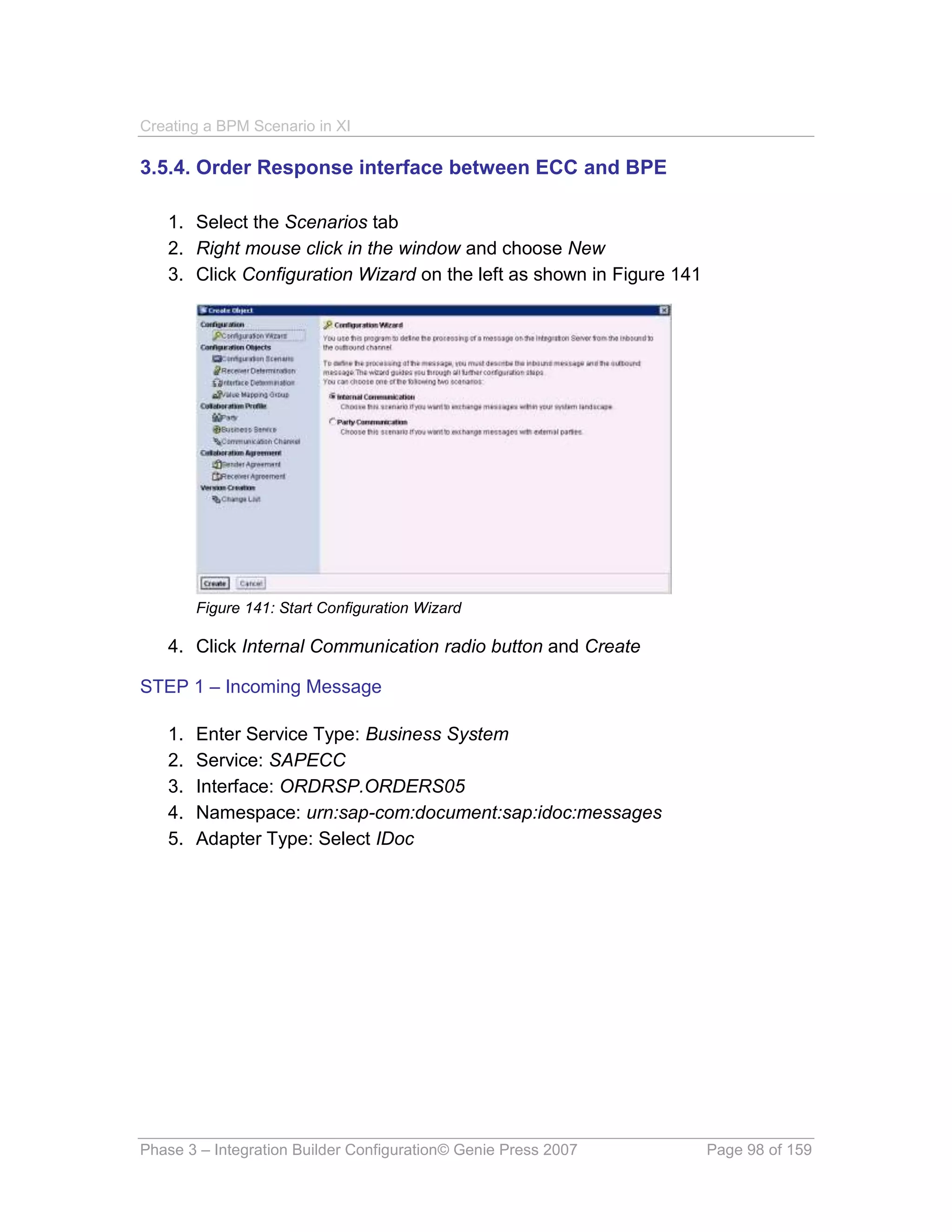
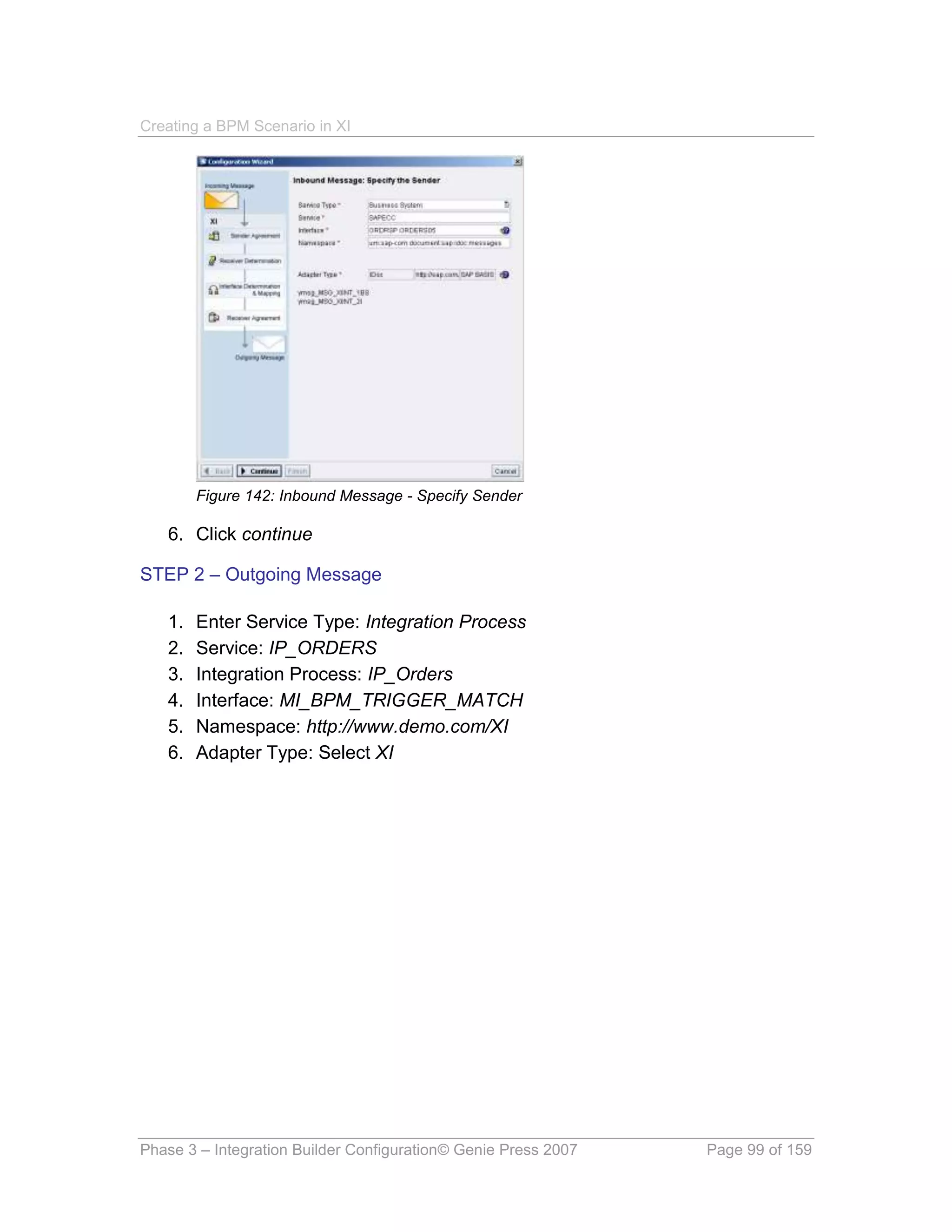
  • 123.
    Creating a BPMScenario in XI 5. Click the source icon and copy the XML payload (shown below) <?xml version="1.0" encoding="UTF-8"?> <ns0:MT_ORDER xmlns:ns0="http://www.demo.com/XI"> <Order_Num>KEVINSPONUMBER</Order_Num> <Customer_Num>0001000785</Customer_Num> <Delivery_Date>20060630</Delivery_Date> <Order_Line> <Line_num>000010</Line_num> <Material>1000001</Material> <Quantity>1</Quantity> <Price>1.50</Price> </Order_Line> </ns0:MT_ORDER> 5.1.2. Launch the test tool 1. Launch or go back to the Integration Directory 2. On the menu choose Tools -> Test configuration as shown in Figure 182 Figure 182: Launch Test Configuration 3. Enter the required Service / Interface / Namespace 4. Enter the required details as follows: a. Sender Service: DEMO b. Interface: MI_ORDER c. Namespace: http://www.demo.com/XI d. Receiver Service: SAPCRM 5. Paste the XML payload, created in 5.1.1. Create a sample XML payload on page 122, into the payload text area as show in Figure 183 Phase 5 – Testing © Genie Press 2007 Page 123 of 159
  • 124.
    Creating a BPMScenario in XI Figure 183: Running the test configuration 6. Click the Run icon 7. Your resultant XML should appear in the payload text area 8. Click log tab to explore messages passed during the process 5.2 Testing the web service using XML SPY 1. Launch XMLSpy (Tested on Version 4.4) 2. Load the WSDL created in step 3.10. Create and Publish Web Service on page 116 Phase 5 – Testing © Genie Press 2007 Page 124 of 159
  • 125.
    Creating a BPMScenario in XI 3. Click F8 to validate the file 4. From the menu click Soap -> Create new SOAP request as shown in Figure 184 Figure 184: Create new SOAP request 5. Click Window button as shown on Figure 185 Figure 185: Selecting your request 6. Click OK 7. Ensure MI_ORDER.wsdl is selected as shown in Figure 186 Figure 186: Selecting window 8. Click OK 9. This ensures that you have the right WSDL for going forward 10. Click OK 11. This brings you to the Window to select soap operation name as shown in Figure 187 Figure 187: Select SOAP operation name 12. Select MI_ORDER and OK 13. This launches a new tab that allows you to enter the XML Payload manually Phase 5 – Testing © Genie Press 2007 Page 125 of 159
  • 126.
    Creating a BPMScenario in XI 14. Enter the values we have used to test before as described in 5.1.1. Create a sample XML payload on page 122. See Figure 188 for the entered data Figure 188: Entering XML payload 15. From the menu select Soap -> Send request to server as shown in Figure 189 Figure 189: Sending SOAP request to server 16. Enter your XI application user XIAPPLUSER and password – whatever it is. 17. A 3rd tab pops up with a SOAP envelope. Hopefully no errors occurred!!! 18. Check the Runtime Workbench for your resulting messages 5.3. Runtime workbench The Integration Server, Integration Engine and Adapter Engine all display a more detailed view. The Integration Server will provide a high level overview of messages that are processed by the Integration Server. Phase 5 – Testing © Genie Press 2007 Page 126 of 159
  • 127.
    Creating a BPMScenario in XI 5.3.1. View Integration Server View message and details on the Integration Server 1. Start the Runtime Workbench 2. Click Message Monitoring 3. Select Integration Server and click the Display button 4. Click Start to view messages in the last hour 5. And if there was a deadline forced 5.3.2. View Integration Engine View details and message details on the Integration Engine Phase 5 – Testing © Genie Press 2007 Page 127 of 159
  • 128.
    Creating a BPMScenario in XI 1. Start the Runtime Workbench 2. Click Message Monitoring 3. Select Integration Server <SYSID> and click the Display button 4. Click Start to view messages in the last hour 5. And if there was a deadline forced 5.3.3. View Adapter Engine View the audit log and message details on the Adapter Engine 1. Start the Runtime Workbench 2. Click Message Monitoring 3. Select Adapter Engine <servername> and click the Display button 4. Click Start to view messages in the last hour Phase 5 – Testing © Genie Press 2007 Page 128 of 159
  • 129.
    Creating a BPMScenario in XI 5. And if there was a deadline forced 5.3.4. View alert inbox 1. Start the Runtime Workbench 2. Click Alert Inbox 3. You will see your alert displayed as follows 5.3.5. Workflow Log 1. Start the transaction SWI1 to view the applicable workflow log 2. And if there was a deadline forced Glossary © Genie Press 2007 Page 129 of 159
  • 130.
    Creating a BPMScenario in XI 3. And after the deadline is reached 5.3.6. Verify email 1. Start your email client to verify receipt of the email and then get a coffee – you’re done! Glossary © Genie Press 2007 Page 130 of 159
  • 131.
    Creating a BPMScenario in XI Glossary ABAP ABAP is a powerful programming language provided by SAP that can be used to extend the functionality of SAP. Abstract Interface An abstract interface is an interface that can be used both inbound and outbound. Adapter Engine The adapter engine is used to connect the integration engine to external systems via various adapters.. Adapters are used to convert the messages into specific protocols and formats for the external systems that they were designed for. For example: the JDBC adapter is used to convert messages into database queries and execute them against external database systems. ALE Application Link Enabling (ALE) is a middleware tool provided by SAP to link SAP applications with both other SAP applications and non-SAP applications. Alert An Alert is a message that is sent when a pre-configured condition is reached and typically used to monitor for exception conditions in computer systems and business processes. Alerts can be delivered via e-mail, fax, or SMS. SAP has extensive functionality for defining, monitoring, and routing Alerts. Asynchronous Message The message is "non-blocking". The sending application does not wait for a response message from the receiving service and continues processing. A response to the message will come in a separate "call-back" message if required. See also synchronous. BPM Business process Management (BPM) commonly refers to the design and processing of Integration Processes. Business Service A Business Service is used to represent a system that sends and receives messages. Business Services are similar to Business Systems except that they are not stored in the System Landscape Directory (SLD). You would typically use Business Services to represent systems of your business partners because there systems are not in your landscape. Business System Glossary © Genie Press 2007 Page 131 of 159
  • 132.
    Creating a BPMScenario in XI Business systems are defined in the System Landscape Directory (SLD) and represent the logical systems that are the senders and receivers of messages. Communication Channel (CC) A communication channel defines the adapter (protocol) that will be used to communicate messages to a business system or service. Correlation A correlation is used to match XML messages that are participating in an instance of an Integrating Process. In a correlation you define XML elements that are used to join one or more XML messages. You must specify a correlation in a receive step of an Integration process so that XI will know what inbound message to match with the run-time instance of the Integration Process. Data Types A Data Type is an XML Schema Definition (XSD) and is used to define the structure of a message type. A data type can be used to validate payloads of messages. IDOC An IDOC is an electronic document that is in a SAP proprietary format for exchanging data between systems. There are IDOC formats for exchanging almost any business document, transaction, or master data object. IDOC Meta Data IDOC Meta Data is used to validate and process IDOCs. This Meta Data is managed by transaction IDX2 and can be loaded from the external SAP system via RFC. Integration Builder This is the central tool for the design and configuration of XI objects. The integration builder is divided into two areas: Design and Configuration. These two areas are referred to as: Design – Integration Repository and Configuration – Integration Directory. Integration Directory The Integration Directory is where all XI configuration objects are stored. The Integration builder is used to manipulate objects in the integration repository. The Integration Server accesses the Integration Directory to determine how to process messages based on these configuration objects. Integration Engine This is the central run-time component of the integration server. It is responsible for receiving, processing, mapping, and sending of XML messages. Integration Process Glossary © Genie Press 2007 Page 132 of 159
  • 133.
    Creating a BPMScenario in XI An integration process is where you define a cross system business workflow for processing messages that span multiple business systems. Integration Repository The integration Repository is where all XI design objects are stored. The Integration builder is used to manipulate objects in the integration repository. Integration Scenario An Integration Scenario is used to document the integration between business systems. It can contain links to all of the objects that involved in the exchange of messages between systems. Integration Server The Integration server is the central engine for processing messages in Exchange Infrastructure. The Integration Server uses setting in the Integration Directory to determine what business systems to send inbound messages to and what mappings are required in the process. Interface Determination An Interface Determination is used to define which inbound interface and interface mapping a message will be processed by. Interface Determination entries are selected based on the sender, outbound interface, and receiver. Interface Mapping Interface Mappings are used to register a message mapping program to an inbound and outbound interface in the integrating repository. XI uses the Interface Mapping to select the message mapping programs associated with request and response messages for the specified interfaces. Message Interfaces A Message Interface defines an interface between application systems that is both programming language and platform independent. In a Message Interface you define the message type and communication parameters of the interface. Communication parameters define a message as inbound or outbound and asynchronous or synchronous. Message Mapping A Message Mapping is used to transform one XML message into another. Message mappings are defined by using the XI graphical mapping editor that is accessed in the design side of the Integration Builder. Message Types A Message Type references the data type that it used to define the structure of a message. Namespace Glossary © Genie Press 2007 Page 133 of 159
  • 134.
    Creating a BPMScenario in XI **TEMP**. Receiver Agreement A receiver agreement is used to determine how to transform a message so that it can be processed by a receiver. This occurs during outbound processing. Receiver Determination A receiver determination is used to define the services that a message will be sent to. XI uses the sending service, party, and message type to select a receiver determination entry. RFC RFC (Remote Function Call) is the name for the standard SAP interface for communicating between SAP systems. RFC can be used to call a function remotely on another SAP system or a non-SAP system that has implemented a RFC interface using the SAP RFC SDK. Runtime Workbench The Runtime Workbench (RWB) is the central tool for monitoring the processing and performance of messages and for the monitoring and testing the individual components of Exchange Infrastructure. Sender Agreement A Sender Agreement is used to determine how to transform a message so that it can be processed by the Integration Engine. This occurs during inbound processing. SLD The System Landscape Directory is a server application that stores information on the hardware and components in your SAP landscape. XI uses the SLD to store information on business systems, technical systems, products and software components. SOAP SOAP (Simple Object Access Protocol) is an XML-based protocol for accessing Web services allowing disparate applications to exchange information over networks using XML syntax. SOAP acts as an “envelope” to package the XML messages sent between client applications and Web services. WSDL and SOAP work together with WSDL providing detailed descriptions of a Web service and SOAP providing the actual data transport between the Web service and the requesting client application (usually over HTTP). Software Catalog The software catalog is part of the SLD and is used to store information on the products and software components in the SAP landscape. This is where new Glossary © Genie Press 2007 Page 134 of 159
  • 135.
    Creating a BPMScenario in XI software components need to have been created before they can be used for new development. Software Component Version Software component versions are the packages that are used in XI to organize development objects in XI and are defined in the software catalog. Synchronous Message The message will block. The sending application will wait for a response from the receiving service before continuing processing. See also asynchronous. System Landscape Directory (SLD) The System Landscape Directory is a server application that stores information on the hardware and components in your SAP landscape. XI uses the SLD to store information on business systems, technical systems, products and software components. WSDL WSDL (Web Services Description Language) is an XML-based language used to describe and locate Web services. It is the language used by UDDI (Universal Description, Discovery, and Integration), which is an XML-based registry where businesses list information about themselves and their available Web services. WSDL works hand-in-hand with SOAP, where WSDL describes a Web service and the functionality it provides, and SOAP is used by the client application to actually call the functions listed in the WSDL description. XML The eXtensible Markup Language (XML) is a specification from the World Wide Web Consortium (W3C) that defines a meta language for describing data. In XML applications, data is described by surrounding it with customizable, text- based tags that give information about the data itself as well as its hierarchical structure. XPATH XPATH is a language for addressing parts of an XML document. XSD An XML Schema Definition (XSD) is an instance of an XML schema written in the XML Schema language. An XSD defines a type of XML document in terms of constraints upon what elements and attributes may appear, their relationship to each other, what types of data may be in them, and other things. It can be used with validation software in order to ascertain whether a particular XML document is of that type, and to produce a Post-Schema Validation Infoset. XSLT Glossary © Genie Press 2007 Page 135 of 159
  • 136.
    Creating a BPMScenario in XI XSLT (Extensible Style Language Transformation) style sheets transform an XML document into either, another XML document, an HTML/XHTML Web page, or a simple text file. The XSLT style sheet specifies how an XSLT processor should create the desired output from an associated XML input document. Glossary © Genie Press 2007 Page 136 of 159
  • 137.
    Creating a BPMScenario in XI APPENDIX A. Abbreviations Used Abbreviation Description BPM Business Process Management BPE Business Process Engine CRM Customer Relationship Management DT Data Type ECC ERP Central Component – Part of the ERP solution ERP Enterprise Resource Planning IDoc Intermediate Document IS Integration Server IM Interface Mapping IP Integration Process IS Integration Scenario MI Message Interface MM Message Mapping MT Message Type RWB Runtime Work Bench SLD System Landscape Directory SOAP Simple Object Access Protocol XI Exchange Infrastructure XML Extensible Markup Language XSD XML Schema Definition. WSDL Web Services Description Language XSLT Extensible Style Language Transformation Appendix A – Data Types © Genie Press 2007 Page 137 of 159
  • 138.
    Creating a BPMScenario in XI APPENDIX B. Data Types XSD – DT_ORDERS <?xml version="1.0" encoding="ISO-8859-1"?> <xsd:schema xmlns:xsd="http://www.w3.org/2001/XMLSchema" xmlns="http://www.demo.com/XI" targetNamespace="http://www.demo.com/XI"> <xsd:complexType name="DT_ORDER"> <xsd:annotation> <xsd:appinfo source="http://sap.com/xi/TextID"> bc376cb0725011da8f80001321b36514 </xsd:appinfo> </xsd:annotation> <xsd:sequence> <xsd:element name="Order_Num" type="xsd:string"> <xsd:annotation> <xsd:appinfo source="http://sap.com/xi/TextID"> 2b77a3506c0811dabc3ec49fac172862 </xsd:appinfo> <xsd:documentation xml:lang="EN"> PO Number </xsd:documentation> </xsd:annotation> </xsd:element> <xsd:element name="Customer_Num" type="xsd:string"> <xsd:annotation> <xsd:appinfo source="http://sap.com/xi/TextID"> 2b77a3516c0811da8d10c49fac172862 </xsd:appinfo> <xsd:documentation xml:lang="EN"> Customer Number </xsd:documentation> </xsd:annotation> </xsd:element> <xsd:element name="Delivery_Date" type="xsd:dateTime"> <xsd:annotation> <xsd:appinfo source="http://sap.com/xi/TextID"> 2b77a3526c0811dab62ec49fac172862 </xsd:appinfo> <xsd:documentation xml:lang="EN"> Expected Delivery Date </xsd:documentation> </xsd:annotation> </xsd:element> <xsd:element name="Order_Line" maxOccurs="unbounded"> <xsd:annotation> <xsd:appinfo source="http://sap.com/xi/TextID"> 2b77a3536c0811daa027c49fac172862 </xsd:appinfo> <xsd:documentation xml:lang="EN"> Line Item Detail </xsd:documentation> </xsd:annotation> <xsd:complexType> <xsd:sequence> <xsd:element name="Line_num" type="xsd:string"> <xsd:annotation> <xsd:appinfo source="http://sap.com/xi/TextID"> Appendix A – Data Types © Genie Press 2007 Page 138 of 159
  • 139.
    Creating a BPMScenario in XI 2b77a3546c0811dac1bbc49fac172862 </xsd:appinfo> <xsd:documentation xml:lang="EN"> PO Line Number </xsd:documentation> </xsd:annotation> </xsd:element> <xsd:element name="Material" type="xsd:string"> <xsd:annotation> <xsd:appinfo source="http://sap.com/xi/TextID"> 2b77a3556c0811daa843c49fac172862 </xsd:appinfo> <xsd:documentation xml:lang="EN"> Material / SKU Number </xsd:documentation> </xsd:annotation> </xsd:element> <xsd:element name="Quantity" type="xsd:string"> <xsd:annotation> <xsd:appinfo source="http://sap.com/xi/TextID"> 2b77a3566c0811da8019c49fac172862 </xsd:appinfo> <xsd:documentation xml:lang="EN"> Quantity Ordered </xsd:documentation> </xsd:annotation> </xsd:element> <xsd:element name="Price" type="xsd:string"> <xsd:annotation> <xsd:appinfo source="http://sap.com/xi/TextID"> 2b77a3576c0811da8d4bc49fac172862 </xsd:appinfo> <xsd:documentation xml:lang="EN"> Line Item Price </xsd:documentation> </xsd:annotation> </xsd:element> </xsd:sequence> </xsd:complexType> </xsd:element> </xsd:sequence> </xsd:complexType> </xsd:schema> XSD – DT_ORDERRESPONSE <?xml version="1.0" encoding="ISO-8859-1"?> <xsd:schema xmlns:xsd="http://www.w3.org/2001/XMLSchema" xmlns="http://www.demo.com/XI" targetNamespace="http://www.demo.com/XI"> <xsd:complexType name="DT_ORDERRESPONSE"> <xsd:annotation> <xsd:appinfo source="http://sap.com/xi/TextID"> a80801c0725311dacdc4001321b36514 </xsd:appinfo> </xsd:annotation> <xsd:sequence> <xsd:element name="Order_Num" type="xsd:string"> <xsd:annotation> <xsd:appinfo source="http://sap.com/xi/TextID"> 2b77a3506c0811dabc3ec49fac172862 </xsd:appinfo> Appendix A – Data Types © Genie Press 2007 Page 139 of 159
  • 140.
    Creating a BPMScenario in XI <xsd:documentation xml:lang="EN"> PO Number </xsd:documentation> </xsd:annotation> </xsd:element> <xsd:element name="Status" type="xsd:string"> <xsd:annotation> <xsd:appinfo source="http://sap.com/xi/TextID"> 4789afd06c2011dab0ebc49fac172862 </xsd:appinfo> <xsd:documentation xml:lang="EN"> Order Status </xsd:documentation> </xsd:annotation> </xsd:element> <xsd:element name="Customer_Num" type="xsd:string"> <xsd:annotation> <xsd:appinfo source="http://sap.com/xi/TextID"> 2b77a3516c0811da8d10c49fac172862 </xsd:appinfo> <xsd:documentation xml:lang="EN"> Customer Number </xsd:documentation> </xsd:annotation> </xsd:element> <xsd:element name="Delivery_Date" type="xsd:dateTime"> <xsd:annotation> <xsd:appinfo source="http://sap.com/xi/TextID"> 2b77a3526c0811dab62ec49fac172862 </xsd:appinfo> <xsd:documentation xml:lang="EN"> Expected Delivery Date </xsd:documentation> </xsd:annotation> </xsd:element> <xsd:element name="Order_Line" maxOccurs="unbounded"> <xsd:annotation> <xsd:appinfo source="http://sap.com/xi/TextID"> 2b77a3536c0811daa027c49fac172862 </xsd:appinfo> <xsd:documentation xml:lang="EN"> Line Item Detail </xsd:documentation> </xsd:annotation> <xsd:complexType> <xsd:sequence> <xsd:element name="Line_num" type="xsd:string"> <xsd:annotation> <xsd:appinfo source="http://sap.com/xi/TextID"> 2b77a3546c0811dac1bbc49fac172862 </xsd:appinfo> <xsd:documentation xml:lang="EN"> PO Line Number </xsd:documentation> </xsd:annotation> </xsd:element> <xsd:element name="Line_Status" type="xsd:string"> <xsd:annotation> <xsd:appinfo source="http://sap.com/xi/TextID"> 4789afd16c2011dab67dc49fac172862 </xsd:appinfo> <xsd:documentation xml:lang="EN"> Line Status </xsd:documentation> </xsd:annotation> Appendix A – Data Types © Genie Press 2007 Page 140 of 159
  • 141.
    Creating a BPMScenario in XI </xsd:element> <xsd:element name="Material" type="xsd:string"> <xsd:annotation> <xsd:appinfo source="http://sap.com/xi/TextID"> 2b77a3556c0811daa843c49fac172862 </xsd:appinfo> <xsd:documentation xml:lang="EN"> Material / SKU Number </xsd:documentation> </xsd:annotation> </xsd:element> <xsd:element name="Quantity" type="xsd:string"> <xsd:annotation> <xsd:appinfo source="http://sap.com/xi/TextID"> 2b77a3566c0811da8019c49fac172862 </xsd:appinfo> <xsd:documentation xml:lang="EN"> Quantity Ordered </xsd:documentation> </xsd:annotation> </xsd:element> <xsd:element name="Price" type="xsd:string"> <xsd:annotation> <xsd:appinfo source="http://sap.com/xi/TextID"> 2b77a3576c0811da8d4bc49fac172862 </xsd:appinfo> <xsd:documentation xml:lang="EN"> Line Item Price </xsd:documentation> </xsd:annotation> </xsd:element> </xsd:sequence> </xsd:complexType> </xsd:element> </xsd:sequence> </xsd:complexType> </xsd:schema> XSD – DT_BPM_TRIGGER <?xml version="1.0" encoding="ISO-8859-1"?> <xsd:schema xmlns:xsd="http://www.w3.org/2001/XMLSchema" xmlns="http://www.demo.com/XI" targetNamespace="http://www.demo.com/XI"> <xsd:complexType name="DT_BPM_TRIGGER"> <xsd:annotation> <xsd:appinfo source="http://sap.com/xi/TextID"> c73bad80725311da9e18001321b36514 </xsd:appinfo> </xsd:annotation> <xsd:sequence> <xsd:element name="DocNum" type="xsd:string"> <xsd:annotation> <xsd:appinfo source="http://sap.com/xi/TextID"> bb38f2506c1711da9677c49fac172862 </xsd:appinfo> <xsd:documentation xml:lang="EN"> IDoc Number </xsd:documentation> </xsd:annotation> </xsd:element> Appendix A – Data Types © Genie Press 2007 Page 141 of 159
  • 142.
    Creating a BPMScenario in XI <xsd:element name="DocName" type="xsd:string"> <xsd:annotation> <xsd:appinfo source="http://sap.com/xi/TextID"> 6c48dba06c1811da874ec49fac172862 </xsd:appinfo> <xsd:documentation xml:lang="EN"> Document Name </xsd:documentation> </xsd:annotation> </xsd:element> <xsd:element name="Key1" type="xsd:string" minOccurs="0"> <xsd:annotation> <xsd:appinfo source="http://sap.com/xi/TextID"> bb38f2516c1711daa162c49fac172862 </xsd:appinfo> <xsd:documentation xml:lang="EN"> Key field 1 </xsd:documentation> </xsd:annotation> </xsd:element> <xsd:element name="Key2" type="xsd:string" minOccurs="0"> <xsd:annotation> <xsd:appinfo source="http://sap.com/xi/TextID"> bb38f2526c1711da83dec49fac172862 </xsd:appinfo> <xsd:documentation xml:lang="EN"> Key field 2 </xsd:documentation> </xsd:annotation> </xsd:element> <xsd:element name="Var1" type="xsd:string" minOccurs="0"> <xsd:annotation> <xsd:appinfo source="http://sap.com/xi/TextID"> 6c48dba16c1811da9924c49fac172862 </xsd:appinfo> <xsd:documentation xml:lang="EN"> Variable 1 </xsd:documentation> </xsd:annotation> </xsd:element> <xsd:element name="Var2" type="xsd:string" minOccurs="0"> <xsd:annotation> <xsd:appinfo source="http://sap.com/xi/TextID"> 6c48dba26c1811da9bd1c49fac172862 </xsd:appinfo> <xsd:documentation xml:lang="EN"> Variable 2 </xsd:documentation> </xsd:annotation> </xsd:element> <xsd:element name="Var3" type="xsd:string" minOccurs="0"> <xsd:annotation> <xsd:appinfo source="http://sap.com/xi/TextID"> 6c48dba36c1811daa05cc49fac172862 </xsd:appinfo> <xsd:documentation xml:lang="EN"> Variable 3 </xsd:documentation> </xsd:annotation> </xsd:element> <xsd:element name="Var4" type="xsd:string" minOccurs="0"> <xsd:annotation> <xsd:appinfo source="http://sap.com/xi/TextID"> 6c48dba46c1811da8b82c49fac172862 </xsd:appinfo> Appendix A – Data Types © Genie Press 2007 Page 142 of 159
  • 143.
    Creating a BPMScenario in XI <xsd:documentation xml:lang="EN"> Variable 4 </xsd:documentation> </xsd:annotation> </xsd:element> </xsd:sequence> </xsd:complexType> </xsd:schema> Appendix A – Data Types © Genie Press 2007 Page 143 of 159
  • 144.
    Creating a BPMScenario in XI APPENDIX C. WSDL FILES MI_ORDER.WSDL <?xml version="1.0" encoding="ISO-8859-1"?> <wsdl:definitions xmlns:wsdl="http://schemas.xmlsoap.org/wsdl/" xmlns:p1="http://www.demo.com/XI" name="MI_ORDER" targetNamespace="http://www.demo.com/XI"> <wsdl:types> <xsd:schema xmlns:xsd="http://www.w3.org/2001/XMLSchema" xmlns="http://www.demo.com/XI" targetNamespace="http://www.demo.com/XI"> <xsd:element name="MT_ORDER" type="DT_ORDER" /> <xsd:complexType name="DT_ORDER"> <xsd:annotation> <xsd:appinfo source="http://sap.com/xi/TextID"> 532bab806c0811da8cbdc49fac172862 </xsd:appinfo> </xsd:annotation> <xsd:sequence> <xsd:element name="Order_Num" type="xsd:string"> <xsd:annotation> <xsd:appinfo source="http://sap.com/xi/TextID"> 2b77a3506c0811dabc3ec49fac172862 </xsd:appinfo> <xsd:documentation xml:lang="EN"> PO Number </xsd:documentation> </xsd:annotation> </xsd:element> <xsd:element name="Customer_Num" type="xsd:string"> <xsd:annotation> <xsd:appinfo source="http://sap.com/xi/TextID"> 2b77a3516c0811da8d10c49fac172862 </xsd:appinfo> <xsd:documentation xml:lang="EN"> Customer Number </xsd:documentation> </xsd:annotation> </xsd:element> <xsd:element name="Delivery_Date" type="xsd:dateTime"> <xsd:annotation> <xsd:appinfo source="http://sap.com/xi/TextID"> 2b77a3526c0811dab62ec49fac172862 </xsd:appinfo> <xsd:documentation xml:lang="EN"> Expected Delivery Date </xsd:documentation> </xsd:annotation> </xsd:element> <xsd:element name="Order_Line" maxOccurs="unbounded"> <xsd:annotation> <xsd:appinfo source="http://sap.com/xi/TextID"> 2b77a3536c0811daa027c49fac172862 </xsd:appinfo> <xsd:documentation xml:lang="EN"> Line Item Detail </xsd:documentation> </xsd:annotation> <xsd:complexType> <xsd:sequence> Appendix B – WSDL Files © Genie Press 2007 Page 144 of 159
  • 145.
    Creating a BPMScenario in XI <xsd:element name="Line_num" type="xsd:string"> <xsd:annotation> <xsd:appinfo source="http://sap.com/xi/TextID"> 2b77a3546c0811dac1bbc49fac172862 </xsd:appinfo> <xsd:documentation xml:lang="EN"> PO Line Number </xsd:documentation> </xsd:annotation> </xsd:element> <xsd:element name="Material" type="xsd:string"> <xsd:annotation> <xsd:appinfo source="http://sap.com/xi/TextID"> 2b77a3556c0811daa843c49fac172862 </xsd:appinfo> <xsd:documentation xml:lang="EN"> Material / SKU Number </xsd:documentation> </xsd:annotation> </xsd:element> <xsd:element name="Quantity" type="xsd:string"> <xsd:annotation> <xsd:appinfo source="http://sap.com/xi/TextID"> 2b77a3566c0811da8019c49fac172862 </xsd:appinfo> <xsd:documentation xml:lang="EN"> Quantity Ordered </xsd:documentation> </xsd:annotation> </xsd:element> <xsd:element name="Price" type="xsd:string"> <xsd:annotation> <xsd:appinfo source="http://sap.com/xi/TextID"> 2b77a3576c0811da8d4bc49fac172862 </xsd:appinfo> <xsd:documentation xml:lang="EN"> Line Item Price </xsd:documentation> </xsd:annotation> </xsd:element> </xsd:sequence> </xsd:complexType> </xsd:element> </xsd:sequence> </xsd:complexType> </xsd:schema> </wsdl:types> <wsdl:message name="MT_ORDER"> <wsdl:part name="MT_ORDER" element="p1:MT_ORDER" /> </wsdl:message> <wsdl:portType name="MI_ORDER"> <wsdl:operation name="MI_ORDER"> <wsdl:input message="p1:MT_ORDER" /> </wsdl:operation> </wsdl:portType> <wsdl:binding name="MI_ORDERBinding" type="p1:MI_ORDER"> <soap:binding xmlns:soap="http://schemas.xmlsoap.org/wsdl/soap/" style="document" transport="http://schemas.xmlsoap.org/soap/http" /> <wsdl:operation name="MI_ORDER"> <soap:operation xmlns:soap="http://schemas.xmlsoap.org/wsdl/soap/" soapAction="http://sap.com/xi/WebService/soap1.1" /> <wsdl:input> <soap:body xmlns:soap="http://schemas.xmlsoap.org/wsdl/soap/" use="literal" /> </wsdl:input> </wsdl:operation> Appendix B – WSDL Files © Genie Press 2007 Page 145 of 159
  • 146.
    Creating a BPMScenario in XI </wsdl:binding> <wsdl:service name="MI_ORDERService"> <wsdl:port name="MI_ORDERPort" binding="p1:MI_ORDERBinding"> <soap:address xmlns:soap="http://schemas.xmlsoap.org/wsdl/soap/" location="http://mysapapps02.sapgenie.com:8000/XISOAPAdapter/MessageServlet?channel=:DEMO:CC_DEMO_SOAP _SENDER&amp;version=3.0&amp;Sender.Service=DEMO&amp;Interface=http%3A%2F%2Fwww.demo.com%2FXI%5E MI_ORDER" /> </wsdl:port> </wsdl:service> </wsdl:definitions> Appendix B – WSDL Files © Genie Press 2007 Page 146 of 159
  • 147.
    Creating a BPMScenario in XI APPENDIX D. EXTERNAL FILES XIMAIL30.XSD File for Mail adapter <?xml version="1.0" encoding="utf-8"?> <!-- SAP takes no position regarding the validity or scope of any intellectual property or other rights that might be claimed to pertain to the implementation or use of the technology described in this document or the extent to which any license under such rights might or might not be available; neither does it represent that it has made any effort to identify any such rights. Copyright © SAP 2003-2004. All Rights Reserved. This document and translations of it may be copied and furnished to others, and derivative works that comment on or otherwise explain it or assist in its implementation may be prepared, copied, published and distributed, in whole or in part, without restriction of any kind, provided that the above copyright notice and this paragraph are included on all such copies and derivative works. However, this document itself does not be modified in any way, such as by removing the copyright notice or references to SAP. This document and the information contained herein is provided on an “AS IS” basis and SAP DISCLAIMS ALL WARRANTIES, EXPRESS OR IMPLIED, INCLUDING BUT NOT LIMITED TO ANY WARRANTY THAT THE USE OF THE INFORMATION HEREIN WILL NOT INFRINGE ANY RIGHTS OR ANY IMPLIED WARRANTIES OF MERCHANTABILITY OR FITNESS FOR A PARTICULAR PURPOSE. --> <xs:schema targetNamespace="http://sap.com/xi/XI/Mail/30" xmlns:xs="http://www.w3.org/2001/XMLSchema" xmlns:xi="http://sap.com/xi/XI/Mail/30"> <!-- * Mail --> <xs:element name="Mail"> <xs:annotation> <xs:documentation>Mail package for XI - Mail Adapter</xs:documentation> </xs:annotation> <xs:complexType> <xs:sequence> <xs:element name="Subject" type="xs:string" minOccurs="0"> <xs:annotation> <xs:documentation>optional subject line</xs:documentation> </xs:annotation> </xs:element> <xs:element name="From" type="xs:string" minOccurs="0"> <xs:annotation> <xs:documentation>optional sender email address (required for SMTP)</xs:documentation> </xs:annotation> </xs:element> <xs:element name="To" type="xs:string" minOccurs="0"> <xs:annotation> <xs:documentation>optional one or more receiver email addresses (required for SMTP)</xs:documentation> </xs:annotation> </xs:element> <xs:element name="Reply_To" type="xs:string" minOccurs="0"> <xs:annotation> <xs:documentation>optional reply-to email addresses</xs:documentation> </xs:annotation> </xs:element> <xs:element name="Content_Type" type="xs:string" minOccurs="0"> <xs:annotation> <xs:documentation>optional content type (default is text/plain)</xs:documentation> </xs:annotation> </xs:element> Appendix C – XIMAIL30.XSD File © Genie Press 2007 Page 147 of 159
  • 148.
    Creating a BPMScenario in XI <xs:element name="Content_Description" type="xs:string" minOccurs="0"> <xs:annotation> <xs:documentation>optional content description</xs:documentation> </xs:annotation> </xs:element> <xs:element name="Content_Disposition" type="xs:string" minOccurs="0"> <xs:annotation> <xs:documentation>optional content disposition</xs:documentation> </xs:annotation> </xs:element> <xs:element name="Date" type="xs:dateTime" minOccurs="0"> <xs:annotation> <xs:documentation>optional date</xs:documentation> </xs:annotation> </xs:element> <xs:element name="Message_ID" type="xs:string" minOccurs="0"> <xs:annotation> <xs:documentation>optional message id</xs:documentation> </xs:annotation> </xs:element> <xs:element name="X_Mailer" type="xs:string" minOccurs="0"> <xs:annotation> <xs:documentation>optional mail program name</xs:documentation> </xs:annotation> </xs:element> <xs:element name="Content" minOccurs="0"> <xs:annotation> <xs:documentation>any mixed content type</xs:documentation> </xs:annotation> </xs:element> </xs:sequence> <xs:attribute name="encoding" type="xs:string"> <xs:annotation> <xs:documentation>optional encoding name (base64, quoted-printable)</xs:documentation> </xs:annotation> </xs:attribute> </xs:complexType> </xs:element> <xs:element name="MailReceipt"> <xs:annotation> <xs:documentation>Mail Receipt for XI - Mail Adaper</xs:documentation> </xs:annotation> <xs:complexType> <xs:sequence> <xs:element name="Server" type="xs:string"> <xs:annotation> <xs:documentation>Server URL</xs:documentation> </xs:annotation> </xs:element> <xs:element name="Greeting" type="xs:string"> <xs:annotation> <xs:documentation>Server Greeting Message</xs:documentation> </xs:annotation> </xs:element> <xs:element name="Format" type="xs:string"> <xs:annotation> <xs:documentation>Message Format XIALL or XIPAYLOAD</xs:documentation> </xs:annotation> </xs:element> <xs:element name="UseMailPackage" type="xs:boolean"> <xs:annotation> <xs:documentation>Mail Package Flag</xs:documentation> </xs:annotation> </xs:element> <xs:element name="Encoding" type="xs:string"> Appendix D – XIMAIL30.XSD File © Genie Press 2007 Page 148 of 159
  • 149.
    Creating a BPMScenario in XI <xs:annotation> <xs:documentation>Encoding name</xs:documentation> </xs:annotation> </xs:element> <xs:element name="Subject" type="xs:string" minOccurs="0"> <xs:annotation> <xs:documentation>Mail Subject</xs:documentation> </xs:annotation> </xs:element> <xs:element name="From" type="xs:dateTime" minOccurs="0"> <xs:annotation> <xs:documentation>Mail From</xs:documentation> </xs:annotation> </xs:element> <xs:element name="To" type="xs:string" minOccurs="0"> <xs:annotation> <xs:documentation>Mail To</xs:documentation> </xs:annotation> </xs:element> <xs:element name="Date" type="xs:dateTime" minOccurs="0"> <xs:annotation> <xs:documentation>Mail date</xs:documentation> </xs:annotation> </xs:element> <xs:element name="MailID" type="xs:string" minOccurs="0"> <xs:annotation> <xs:documentation>Mail ID</xs:documentation> </xs:annotation> </xs:element> </xs:sequence> </xs:complexType> </xs:element> <xs:element name="FetchReport"> <xs:annotation> <xs:documentation>Fetch Report for XI - Mail Adaper</xs:documentation> </xs:annotation> <xs:complexType> <xs:sequence> <xs:element name="Server" type="xs:string"> <xs:annotation> <xs:documentation>Server URL</xs:documentation> </xs:annotation> </xs:element> <xs:element name="Greeting" type="xs:string"> <xs:annotation> <xs:documentation>Server Greeting Message</xs:documentation> </xs:annotation> </xs:element> <xs:element name="User" type="xs:string"> <xs:annotation> <xs:documentation>User Name</xs:documentation> </xs:annotation> </xs:element> <xs:element name="Date" type="xs:dateTime" minOccurs="0"> <xs:annotation> <xs:documentation>Mail Date</xs:documentation> </xs:annotation> </xs:element> <xs:element name="Messages" type="xi:FetchedMessages"> <xs:annotation> <xs:documentation>Mail Messages</xs:documentation> </xs:annotation> </xs:element> </xs:sequence> </xs:complexType> Appendix D – XIMAIL30.XSD File © Genie Press 2007 Page 149 of 159
  • 150.
    Creating a BPMScenario in XI </xs:element> <xs:complexType name="FetchedMessages"> <xs:sequence> <xs:element name="item" type="xi:FetchedMessage" minOccurs="0" maxOccurs="unbounded"/> </xs:sequence> <xs:attribute name="new" type="xs:int"> <xs:annotation> <xs:documentation>the number of new messages found</xs:documentation> </xs:annotation> </xs:attribute> <xs:attribute name="total" type="xs:int"> <xs:annotation> <xs:documentation>the number of total messages found</xs:documentation> </xs:annotation> </xs:attribute> </xs:complexType> <xs:complexType name="FetchedMessage"> <xs:sequence> <xs:element name="Subject" type="xs:string"> <xs:annotation> <xs:documentation>Mail Subject</xs:documentation> </xs:annotation> </xs:element> <xs:element name="From" type="xs:string"> <xs:annotation> <xs:documentation>Mail From</xs:documentation> </xs:annotation> </xs:element> <xs:element name="To" type="xs:string"> <xs:annotation> <xs:documentation>Mail To</xs:documentation> </xs:annotation> </xs:element> <xs:element name="Message_ID" type="xs:string"> <xs:annotation> <xs:documentation>Mail ID</xs:documentation> </xs:annotation> </xs:element> </xs:sequence> <xs:attribute name="status" type="xs:string"> <xs:annotation> <xs:documentation>the status of XI processing</xs:documentation> </xs:annotation> </xs:attribute> <xs:attribute name="id" type="xs:string"> <xs:annotation> <xs:documentation>the XI message ID associated with the mail message</xs:documentation> </xs:annotation> </xs:attribute> </xs:complexType> </xs:schema> Appendix D – XIMAIL30.XSD File © Genie Press 2007 Page 150 of 159
  • 151.
    Creating a BPMScenario in XI APPENDIX E. Message Mappings MM_Order_to_ORDERS05 Figure 190: Message Mapping - MM_Order_to_ORDERS05 The following is a text view of the message mapping. All constants have been added between the parentheses. E.g. setting field DIRECT of Segment EDI_DC40 to constant 2 is depicted: /ORDERS05/IDOC/EDI_DC40/DIRECT=const(2) And this corresponds to the mapping: Text View of Message Mapping: /ORDERS05/IDOC/@BEGIN=const() /ORDERS05/IDOC/EDI_DC40=/ns0:MT_ORDER= /ORDERS05/IDOC/EDI_DC40/@SEGMENT=const(EDI_DC40) /ORDERS05/IDOC/EDI_DC40/TABNAM=const() /ORDERS05/IDOC/EDI_DC40/DIRECT=const(2) /ORDERS05/IDOC/EDI_DC40/IDOCTYP=const(ORDERS05) /ORDERS05/IDOC/EDI_DC40/MESTYP=const(ORDERS) /ORDERS05/IDOC/EDI_DC40/SNDPOR=const(SAPNWS) /ORDERS05/IDOC/EDI_DC40/SNDPRT=const(LS) /ORDERS05/IDOC/EDI_DC40/SNDPRN=const(NWSCLNT020) /ORDERS05/IDOC/EDI_DC40/RCVPOR=const(SAPCRS) Appendix E – Message Mappings © Genie Press 2007 Page 151 of 159
  • 152.
    Creating a BPMScenario in XI /ORDERS05/IDOC/EDI_DC40/RCVPRT=const(LS) /ORDERS05/IDOC/EDI_DC40/RCVPRN=const(CRSCLNT555) /ORDERS05/IDOC/E1EDK01=const(E1EDK01) /ORDERS05/IDOC/E1EDK01/@SEGMENT=const(E1EDK01) /ORDERS05/IDOC/E1EDK01/ACTION=const(000) /ORDERS05/IDOC/E1EDK01/CURCY=const(USD) /ORDERS05/IDOC/E1EDK01/ZTERM=const(0002) /ORDERS05/IDOC/E1EDK01/BSART=const(NB) /ORDERS05/IDOC/E1EDK03=const(E1EDK03) /ORDERS05/IDOC/E1EDK03/@SEGMENT=const(E1EDK03) /ORDERS05/IDOC/E1EDK03/IDDAT=const(002) /ORDERS05/IDOC/E1EDK03/DATUM=/ns0:MT_ORDER/Delivery_Date= /ORDERS05/IDOC/E1EDKA1=const(E1EDKA1) /ORDERS05/IDOC/E1EDKA1/@SEGMENT=const(E1EDKA1) /ORDERS05/IDOC/E1EDKA1/PARVW=const(AG) /ORDERS05/IDOC/E1EDKA1/PARTN=/ns0:MT_ORDER/Customer_Num= /ORDERS05/IDOC/E1EDK02=const(E1EDK02) /ORDERS05/IDOC/E1EDK02/@SEGMENT=const(E1EDK02) /ORDERS05/IDOC/E1EDK02/QUALF=const(001) /ORDERS05/IDOC/E1EDK02/BELNR=/ns0:MT_ORDER/Order_Num= /ORDERS05/IDOC/E1EDK02/DATUM=currentDate() /ORDERS05/IDOC/E1EDP01=/ns0:MT_ORDER/Order_Line= /ORDERS05/IDOC/E1EDP01/@SEGMENT=const(E1EDP01) /ORDERS05/IDOC/E1EDP01/POSEX=formatNumber(/ns0:MT_ORDER/Order_Line/Line_num=) /ORDERS05/IDOC/E1EDP01/ACTION=const(001) /ORDERS05/IDOC/E1EDP01/MENGE=/ns0:MT_ORDER/Order_Line/Quantity= /ORDERS05/IDOC/E1EDP01/MENEE=const(EA) /ORDERS05/IDOC/E1EDP01/PMENE=const(EA) /ORDERS05/IDOC/E1EDP01/VPREI=/ns0:MT_ORDER/Order_Line/Price= /ORDERS05/IDOC/E1EDP01/PEINH=const(1) /ORDERS05/IDOC/E1EDP01/E1EDP20=const(E1EDP20) /ORDERS05/IDOC/E1EDP01/E1EDP20/@SEGMENT=const(E1EDP20) /ORDERS05/IDOC/E1EDP01/E1EDP20/WMENG=/ns0:MT_ORDER/Order_Line/Quantity= /ORDERS05/IDOC/E1EDP01/E1EDP20/AMENG=/ns0:MT_ORDER/Order_Line/Quantity= /ORDERS05/IDOC/E1EDP01/E1EDP19=const(E1EDP19) /ORDERS05/IDOC/E1EDP01/E1EDP19/@SEGMENT=const(E1EDP19) /ORDERS05/IDOC/E1EDP01/E1EDP19/QUALF=const(002) /ORDERS05/IDOC/E1EDP01/E1EDP19/IDTNR=/ns0:MT_ORDER/Order_Line/Material= MM_Order_to_BPM_TRIGGER Figure 191: Message Mapping - MM_Order_to_ORDERS05 The following is a text view of the message mapping. All constants have been added between the parentheses. Appendix E – Message Mappings © Genie Press 2007 Page 152 of 159
  • 153.
    Creating a BPMScenario in XI E.g. setting field DIRECT of Segment EDI_DC40 to constant 2 is depicted: /ORDERS05/IDOC/EDI_DC40/DIRECT=const(2) And this corresponds to the mapping: Text View of Message Mapping: /ns0:MT_BPM_TRIGGER=/ns0:MT_ORDER= /ns0:MT_BPM_TRIGGER/DocNum=/ns0:MT_ORDER/Order_Num= /ns0:MT_BPM_TRIGGER/DocName=const(ORDER) /ns0:MT_BPM_TRIGGER/Key1=/ns0:MT_ORDER/Customer_Num= MM_ORDERS05_to_OrderResponse Figure 192: Message Mapping - MM_Order_to_ORDERS05 The following is a text view of the message mapping. All constants have been added between the parentheses. E.g. setting field DIRECT of Segment EDI_DC40 to constant 2 is depicted: /ORDERS05/IDOC/EDI_DC40/DIRECT=const(2) And this corresponds to the mapping: Text View of Message Mapping: /ns0:MT_ORDERRESPONSE=/ORDERS05= /ns0:MT_ORDERRESPONSE/Order_Num=ifWithoutElse(stringEquals(/ORDERS05/IDOC/E1EDK02/QUALF=, const(001)), /ORDERS05/IDOC/E1EDK02/BELNR=) /ns0:MT_ORDERRESPONSE/Status=const(01) Appendix E – Message Mappings © Genie Press 2007 Page 153 of 159
  • 154.
    Creating a BPMScenario in XI /ns0:MT_ORDERRESPONSE/Customer_Num=/ORDERS05/IDOC/E1EDK01/RECIPNT_NO= /ns0:MT_ORDERRESPONSE/Delivery_Date=ifWithoutElse(stringEquals(/ORDERS05/IDOC/E1EDK03/IDDAT=, const(002)), /ORDERS05/IDOC/E1EDK03/DATUM=) /ns0:MT_ORDERRESPONSE/Order_Line=/ORDERS05/IDOC/E1EDP01= /ns0:MT_ORDERRESPONSE/Order_Line/Line_num=/ORDERS05/IDOC/E1EDP01/POSEX= /ns0:MT_ORDERRESPONSE/Order_Line/Line_Status=const(01) /ns0:MT_ORDERRESPONSE/Order_Line/Material=ifWithoutElse(stringEquals(/ORDERS05/IDOC/E1EDP01/E1EDP1 9/QUALF=, const(002)), /ORDERS05/IDOC/E1EDP01/E1EDP19/IDTNR=) /ns0:MT_ORDERRESPONSE/Order_Line/Quantity=/ORDERS05/IDOC/E1EDP01/MENGE= /ns0:MT_ORDERRESPONSE/Order_Line/Price=/ORDERS05/IDOC/E1EDP01/VPREI= MM_ORDRSP_to_BPM_TRIGGER Figure 193: Message Mapping - MM_ORDRSP_to_BPM_TRIGGER The following is a text view of the message mapping. All constants have been added between the parentheses. E.g. setting field DIRECT of Segment EDI_DC40 to constant 2 is depicted: /ORDERS05/IDOC/EDI_DC40/DIRECT=const(2) And this corresponds to the mapping: Text View of Message Mapping: /ns0:MT_BPM_TRIGGER/DocNum=ifWithoutElse(stringEquals(/ORDERS05/IDOC/E1EDK02/QUALF=, const(001)), /ORDERS05/IDOC/E1EDK02/BELNR=) Appendix E – Message Mappings © Genie Press 2007 Page 154 of 159
  • 155.
    Creating a BPMScenario in XI /ns0:MT_BPM_TRIGGER/DocName=const(ORDRSP) MM_ BPM_to_EMAIL Figure 194: Message Mapping - MM_BPM_to_EMAIL The following is a text view of the message mapping. All constants have been added between the parentheses. E.g. setting field DIRECT of Segment EDI_DC40 to constant 2 is depicted: /ORDERS05/IDOC/EDI_DC40/DIRECT=const(2) And this corresponds to the mapping: Text View of Message Mapping: /ns1:Mail/Subject=concat(const(Order response not received for PO :), /ns0:MT_BPM_TRIGGER/DocNum=) /ns1:Mail/From=const(webmaster@sapgenie.com) /ns1:Mail/To=const(Kevin@sapgenie.com) /ns1:Mail/Content_Type=const(text/html) /ns1:Mail/Content=concat(const(<b>Key field</b> :), /ns0:MT_BPM_TRIGGER/Key1=) Appendix E – Message Mappings © Genie Press 2007 Page 155 of 159
  • 156.
    Creating a BPMScenario in XI Index Table business landscape · 9 Business Process Management · 6, 132 A Business Service · 70, 71, 72, 73, 74, 77, 83, 89, 101 Business services · 9 ABAP Objects · 6 Business System · 41, 72, 78, 88, 94 Abstract asynchronous · 19 business systems · 9 Abstract interface · 47, 49 Actions · 33, 34, 35, 36, 37, 38, 39, 42, 43, 44, 45, 46 Receive_BPM_TRIGGER · 33, 35, 36, 43, 44, C 45 Receive_BPM_TRIGGER_MATCH · 34, 38, cache · 10 39, 44, 46 communication channel Receive_Order · 33, 35, 43, 44 IDoc · 72 Receive_OrderResponse · 33, 37, 38, 44, 45, Communication Channel · 72, 73, 74, 78 46 Content Encoding · 75 Send_Order · 33, 34, 42, 43, 44, 45, 46 File Construction Mode · 74 Send_OrderResponse · 33, 36, 37, 44, 45 File Type · 74 Adapter Message Protocol · 72, 73, 75 EMail · 7 SOAP · 78 File · 19, 73, 89 Transport Protocol · 72, 73, 75 FTP · 7 Write Mode · 74 IDoc · 7, 9, 19, 22, 23, 33, 35, 36, 72, 78, 88, communication channels · 9, 72, 76 94, 116, 117, 136 configuration scenario · 67 Mail · 74, 101, 142 Configuration Scenario · 67, 81, 86, 92, 99, 105 SOAP · 19, 72, 73, 77, 83 container · 47, 48, 49, 52, 55, 59 XI · 83, 95, 100 Container · 48, 49, 50, 52, 55, 59 Adapter Engine · 72, 73, 75, 122, 124 container element · 55 adapter framework · 9 Container Elements · 49 Adapter Specific Identifiers · 69 Container Operation step · 52, 53 Adapter Type · 72, 73, 74 Container Operation step · 53 ALE · 6 Container Operation step · 53 alert · 7, 48, 55, 59, 63, 64, 65, 125 Container Operation step · 55 alert category · 62, 63, 64, 66 correlated · 7, 14, 19, 33 fixed recipients · 65 correlation · 47, 49, 50, 51, 61 role · 40, 42, 65 Correlation Container · 50 Alert Configuration · 62 correlation mapping · 48 alert framework · 7 CRM · 7, 9, 19, 33, 41, 42, 43, 72, 76, 116, 132 Alert Inbox · 125 Customer Relationship Management · See CRM ARIS · 6 Assign · 45, 47, 52, 53, 65, 81, 87, 92, 93, 99, 105 D Asynchronous · 19, 20, 21, 22, 57, 72 data type · 14, 15, 16, 28, 132, 133 Data Type · 12, 15, 16, 132 B DT_BPM_TRIGGER · 18 DT_ORDER · 14, 16, 17, 133, 139 Binary · 74 MT_BPM_TRIGGER · 18 BPM · See Business Process Management Correlation Editor · 48, 50 Graphical Definition · 48, 49, 50, 51, 52, 56, E 57, 61 BPM engine · 7, 19, 47, 48 ECC · 7, 9, 19, 23, 33, 41, 42, 44, 72, 88, 94, 132 BPM process · 14, 19, 23, 33, 64, 65 Electronic Data Interchange · 6 BPM scenario · 6, 9, 23 Index © Genie Press 2007 Page 156 of 159
  • 157.
    Creating a BPMScenario in XI ERP Central Component · See ECC Exception · 56, 57, 58, 59, 60, 61 Exactly Once · 72 exceptions · 54 exception handling · 7 Message field · 50, 61 Extensible Markup Language · See XML mode · 54 Extensible Style Language Transformation · See Mode · 57 XSLT Receive step · 49 External Definition · 12, 13, 14, 19, 22, 23, 32 send step · 56, 57, 58 Import · 13 source message · 56 Stop marker · 52, 53 target message · 56 F transformation step · 55, 56 Use Correlations · 62 Integration Process Service · 68 FTP · 7, 14 Integration Repository · 10, 118 Integration Scenario · 33, 39, 40, 41, 42, 43, 44, 45, 46, 47, 67, 132 G Insert Application Component · 39, 41, 42 IS_Orders · 39, 47, 67 GeneratedReceiverChannel_IDoc · 76 system components · 39 Integration server · 7 Integration Server · 72, 73, 75, 122, 123, 132 H Interface Determination · 76, 80, 85, 91, 97, 98, 103, 104, 108, 109, 110 Interface Mapping · 28, 29, 30, 31, 32, 33, 45, 56, HTTP · 72 118, 132 IM_BPM_to_EMAIL · 28, 32, 33, 56 IM_Order_to_BPM_TRIGGER · 28, 29, 30, 45 I IM_Order_to_ORDERS05 · 28, 29 IM_ORDRSP_to_BPM_TRIGGER_CATCH · Idoc 28, 31, 45 ORDRSP · 7, 9, 23, 25, 26, 28, 30, 31, 33, 36, IM_ORDRSP_to_OrderResponse · 28, 30 45, 91, 97, 108, 109, 110, 150 source interface · 29, 30, 31, 32 IDoc · 132 target interface · 29, 30, 31, 32 ORDERS · 7, 9, 14, 15, 19, 23, 24, 29, 33, 35, Interface Namespace · 72, 114 46, 80, 98, 103, 107, 109, 110, 111, 112, Interface Objects · 13 114, 146 Interface Variable · 50, 51, 53, 56, 57, 61, 62 ORDERS05 · 7, 24, 29, 117, 146, 147, 148, Intermediate Document · See IDoc 149 Internal Communication · 77, 83, 88, 94, 100 IDOCS · 6 Involved Messages · 50, 51 IDS Scheer · 6 IP_ORDER · 33 imported IDocs · 28 IP_ORDERs · 48, 68 Inbound asynchronous · 19 Inbound Interfaces · 35, 37, 38 Incoming Message · 77, 83, 88, 94, 100 L Integration Builder · 9, 62, 112 Integration Directory · 9, 10, 67, 119 Logical System · 69 Integration Engine · 122, 123 Integration Process · 19, 41, 43, 44, 46, 47, 48, 49, 50, 51, 52, 53, 54, 55, 56, 57, 58, 59, 60, 61, 62, 68, 69, 83, 95, 100, 132 M Abstract Interface · 55 Activate Correlation · 52 Mapping Interface · 12 Activate Correlations · 62 Mapping Objects · 24, 25, 26, 27, 29, 30, 31, 32 block · 53, 54, 55, 56, 57, 58, 59, 60 Message Type control step · 55, 57, 58, 59, 60, 61, 64 ORDERRESPONSE · 17 Correlation List · 50 Message Interface · 12, 16, 19, 20, 21, 22, 29, Correlation Name · 50 30, 31, 32, 33, 34, 36, 37, 38, 49, 50, 51, 55, deadline branch · 54, 55, 56, 57, 61 71, 76, 114, 132 Index © Genie Press 2007 Page 157 of 159
  • 158.
    Creating a BPMScenario in XI MI_BPM_TRIGGER · 16, 19, 20, 21, 28, 30, 32, 33, 34, 36, 45, 47, 49, 50 P MI_BPM_TRIGGER_MATCH · 16, 19, 21, 28, 31, 33, 38, 50, 51 port · 113, 116, 117, 141 MI_EMAIL · 19, 22, 28, 32, 55, 71, 103, 104, 107, 110, 112 MI_ORDER · 16, 19, 20, 28, 29, 30, 33, 34, Q 45, 72, 79, 80, 84, 85, 98, 107, 108, 109, 111, 114, 115, 119, 121, 139, 140 Quality of Service · 72 ORDERRESPONSE · 19, 20, 28, 33, 37 Message Interface layer · 19 Message Interfaces · 14, 16, 19, 20, 21, 22, 28, 50 R Message Mapping · 12, 23, 24, 25, 26, 27, 28, 132, 146, 147, 148, 149, 150 Receiver Agreement · 80, 86, 92, 98, 104, 111, MM_BPM_to_EMAIL · 23, 27, 28, 29, 32 112 MM_Order_to_BPM_TRIGGER · 23, 24, 25, receiver agreements · 76 28, 30 Receiver Determination · 79, 85, 91, 97, 103, MM_Order_to_ORDERS05 · 23, 24, 28, 29 107, 108 MM_ORDERS05_to_OrderResponse · 23, 25, Receiver radio button · 73, 74, 97, 103 26, 28, 31 Receiver tab · 70, 71 MM_ORDRSP_to_BPM_TRIGGER · 23, 26, RFC destination · 116, 117 27, 28, 31 Runtime Workbench · 62, 65, 122, 123, 124, 125 Message Mappings · 23, 24, 25, 26, 27, 28, 146 source message · 24, 25, 26, 27 target message · 24, 25, 26, 27, 29, 30, 31, 32 S Message Monitoring · 123, 124 Message Type · 12, 17, 18, 29, 30, 31, 32, 33, Scenarios tab · 67, 76, 82, 88, 94, 100 34, 132 Sender Agreement · 19, 78, 79, 84, 90, 96, 102, MT_ORDER · 16, 17, 19, 23, 24, 29, 30, 119, 111 139, 140, 146, 147, 148 Sender tab · 70 MT_ORDERRESPONSE · 16 Simple Object Access Protocol · See SOAP ORDERRESPONSE · 17, 18, 19, 20, 23, 30 Simple Variable · 52 message types · 16, 28 SLD · 9, 10, 132 metadata · 117 smtp · 75 middleware · 7, 72 SOAP · 6, 14, 19, 72, 78, 113, 118, 121, 122, MT_BPM_TRIGGER · 16, 18, 19, 21, 23, 24, 26, 132, 141 27, 30, 31, 32, 33, 34, 51, 53, 148, 149, 150 Software Catalog · 9 MT_BPM_TRIGGER_MATCH · 51 Software Component · 9, 10, 11, 40, 42 Swim Lanes · 41 System Landscape Directory · See SLD, See N SLD, See SLD namespace · 11, 13 NFS · 73 T Target Field · 52 O Test configuration · 119 Testing · 6, 118, 120 Outbound asynchronous · 19 timeout · 7, 57, 60 outbound interface · 34, 36 Transaction Outbound Interfaces · 34, 36, 70 ALRTCATDEF · 63 Outgoing Message · 78, 83, 89, 95, 101 IDX1 · 116, 117 IDX2 · 117 SM59 · 116 SWI1 · 125 SXMB_IFR · 9 Index © Genie Press 2007 Page 158 of 159
  • 159.
    Creating a BPMScenario in XI DT_ORDERS · 15 W ORDERRESPONSE · 14, 15, 16, 25, 30, 37, 70, 92, 112, 148, 149 web service · 72, 113, 114, 115, 120 XI_MAIL · 13, 19, 22, 23, 27, 32 Web Services Description Language · See XIAPPLUSER · 122 WSDL XML · 6, 7, 9, 14, 23, 118, 119, 120, 121, 122, Wizard · 76, 77, 82, 88, 93, 94, 99, 100, 106, 113 132 Configuration · 77, 82, 88, 94, 100 XML payload · 118, 119 Configuration log · 81, 87, 99, 105 XML Schema Definition · See XSD workflow · 47 XMLSpy · 118, 120 workflow log · 125 XPath · 51, 53 WSDL · 6, 115, 120, 121, 132, 139 XPATH · 6 XSD · 12, 13, 15, 16, 28, 132, 133, 134, 136, 142 XSLT · 6, 132 X XI Message DT_BPM_TRIGGER · 14, 16, 136 Index © Genie Press 2007 Page 159 of 159