What’s in a Room?
Ceilidh Higgins
Interior Designer | BIM Specialist | Blogger |
GreenStar Professional | Looking for opportunities
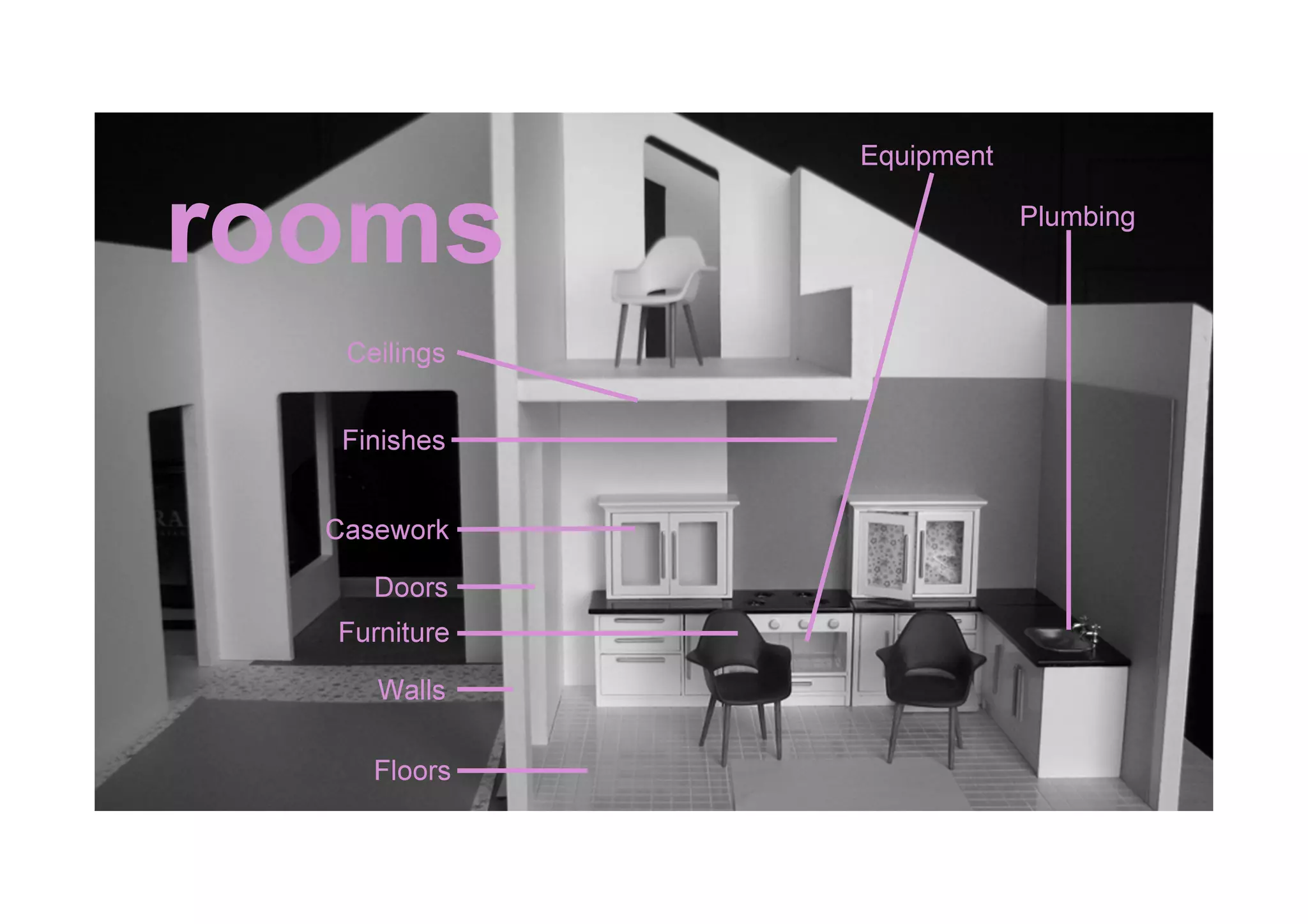
rooms
Furniture
Floors
Walls
Finishes
Ceilings
Casework
Doors
Plumbing
Equipment
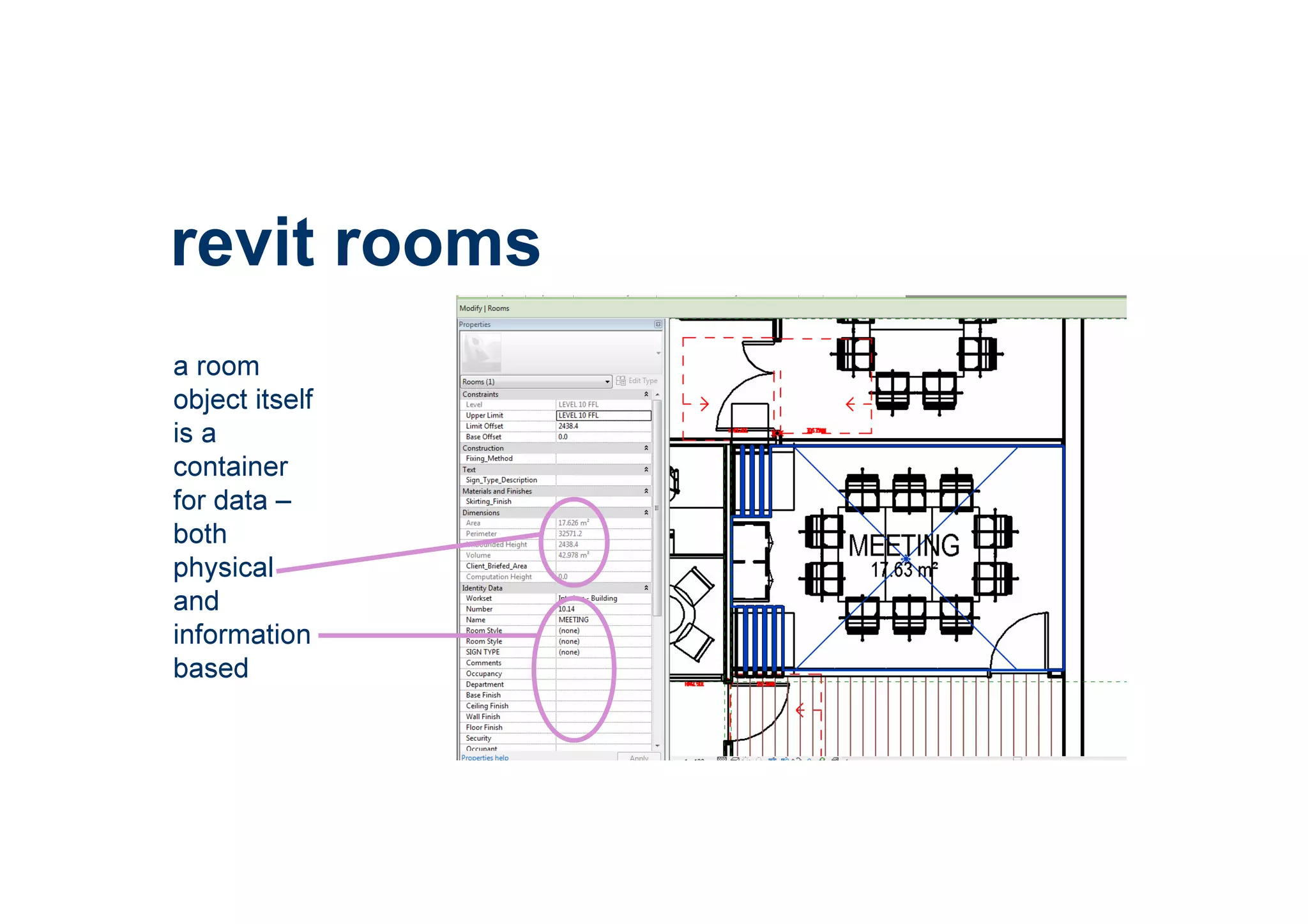
a room
object itself
is a
container
for data –
both
physical
and
information
based
revit rooms
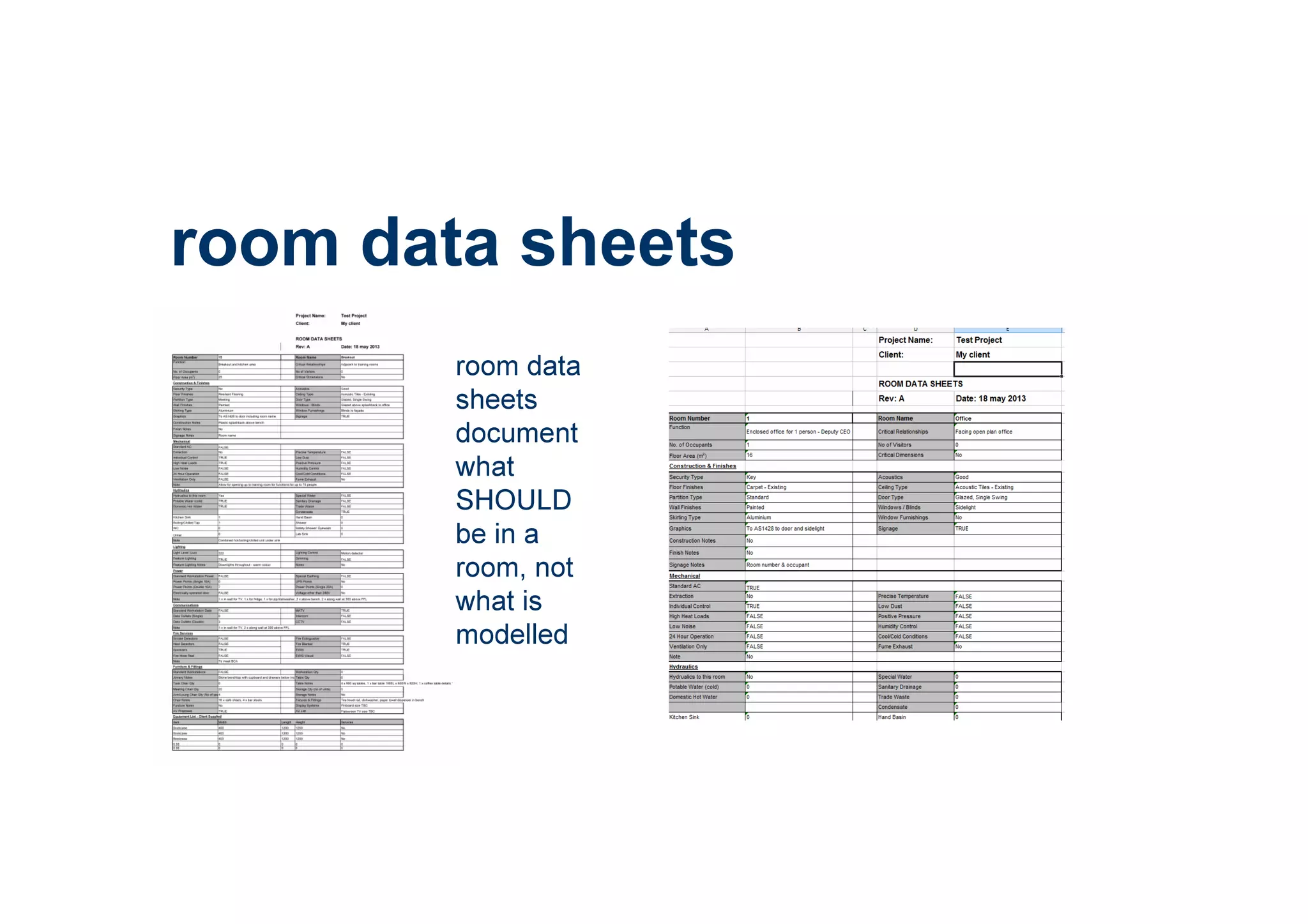
room data sheets
room data
sheets
document
what
SHOULD
be in a
room, not
what is
modelled
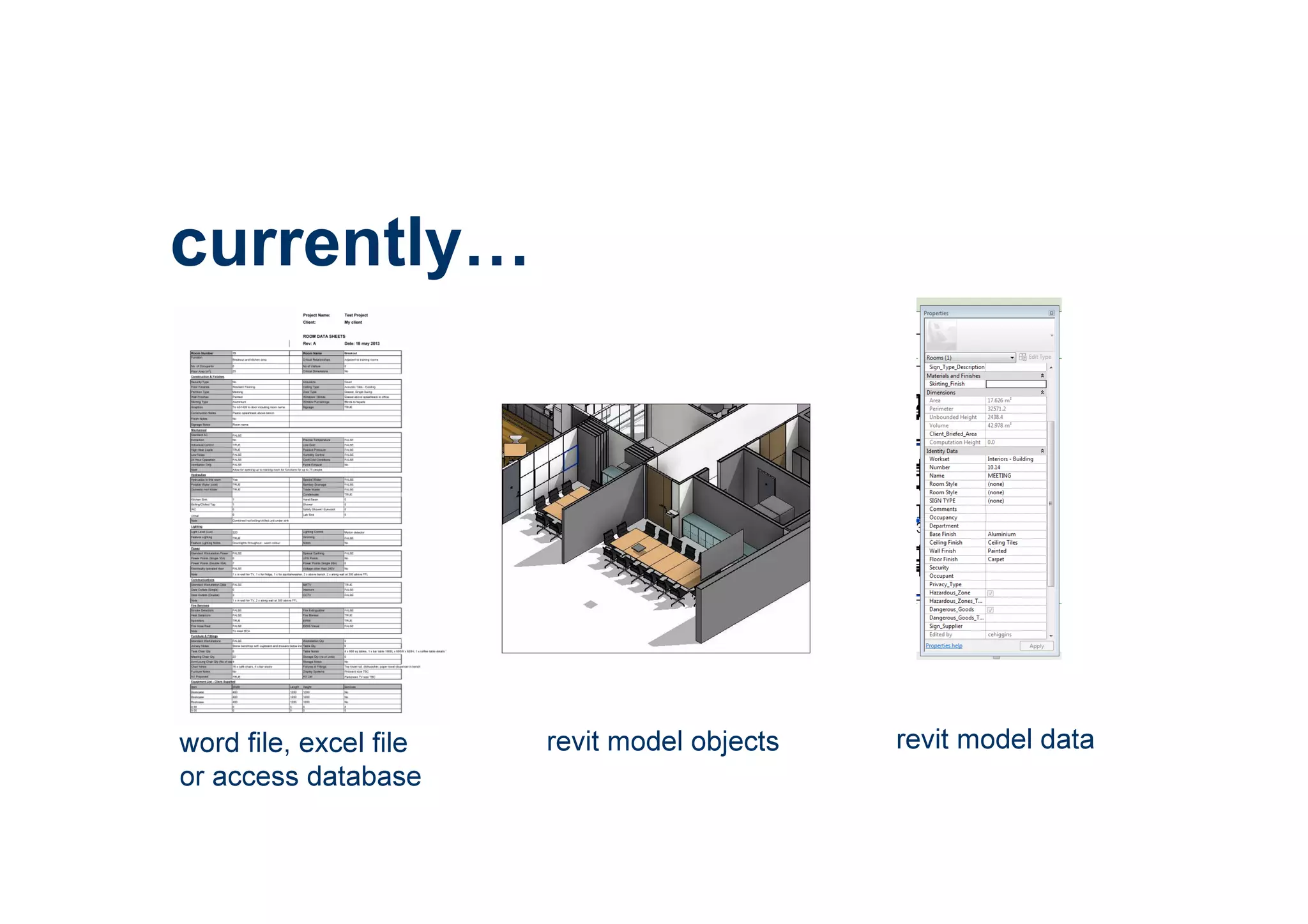
currently
word file, excel file
or access database
revit model objects revit model data
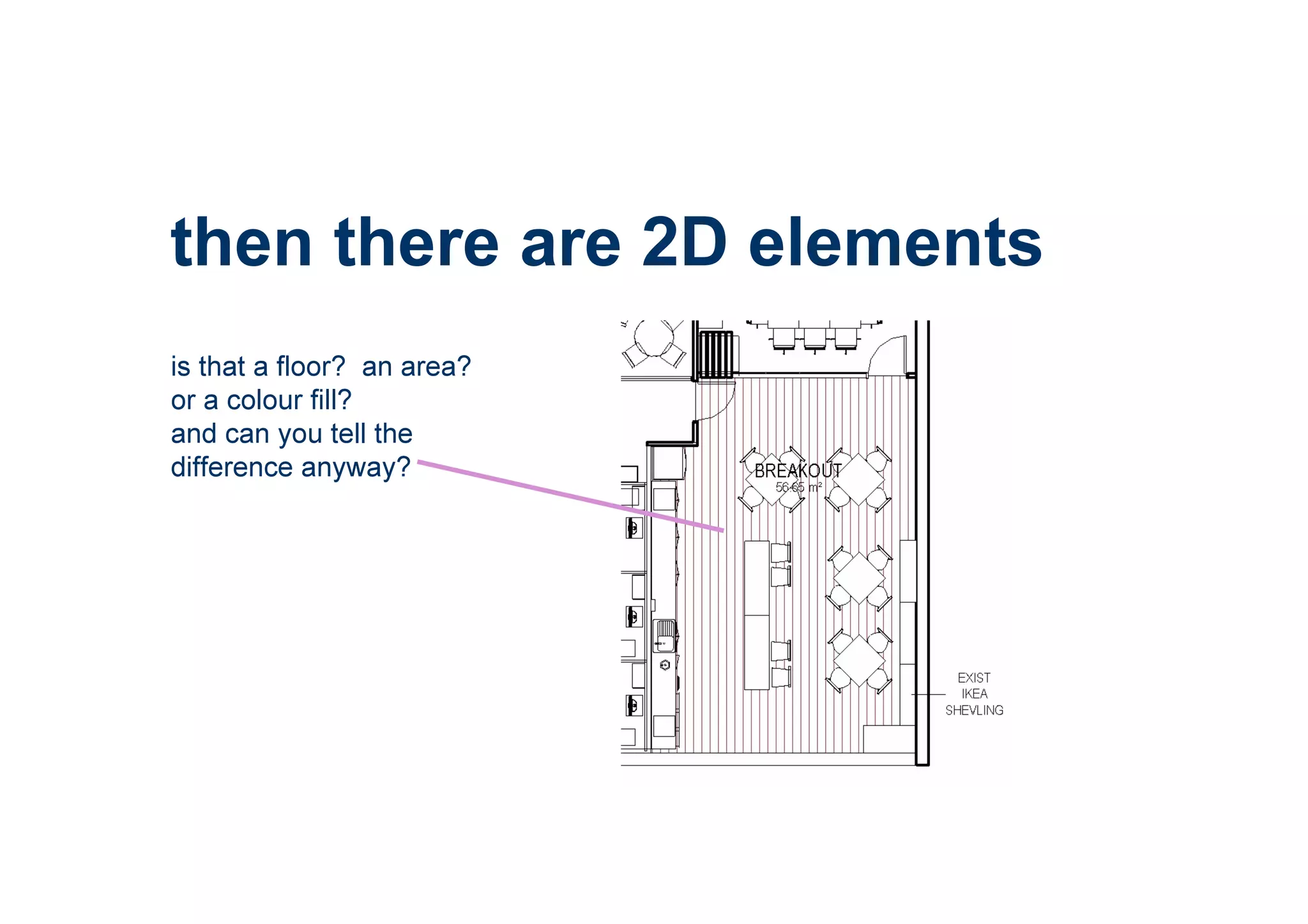
then there are 2D elements
is that a floor? an area?
or a colour fill?
and can you tell the
difference anyway?
is it broken?
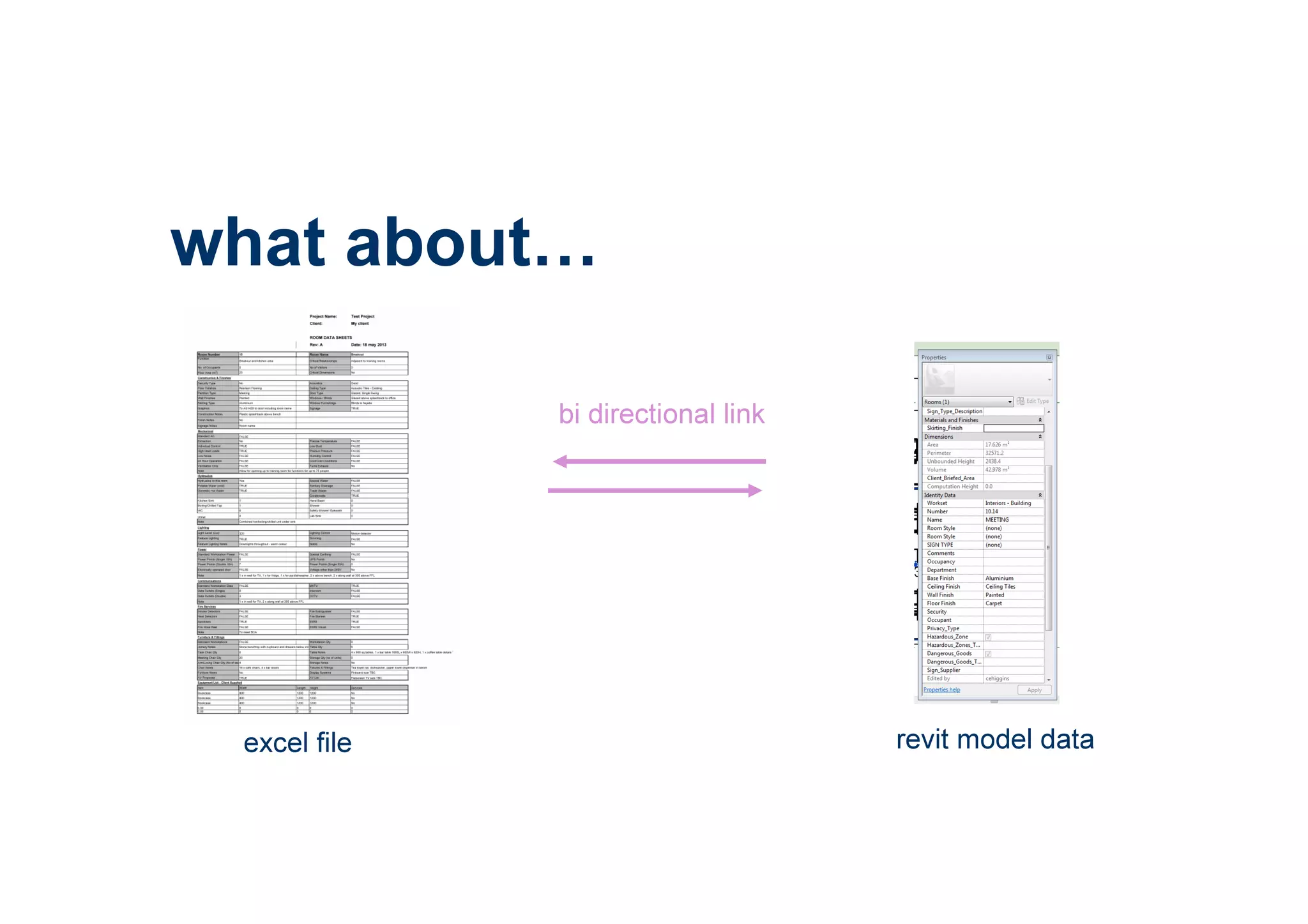
what about
excel file revit model data
bi directional link
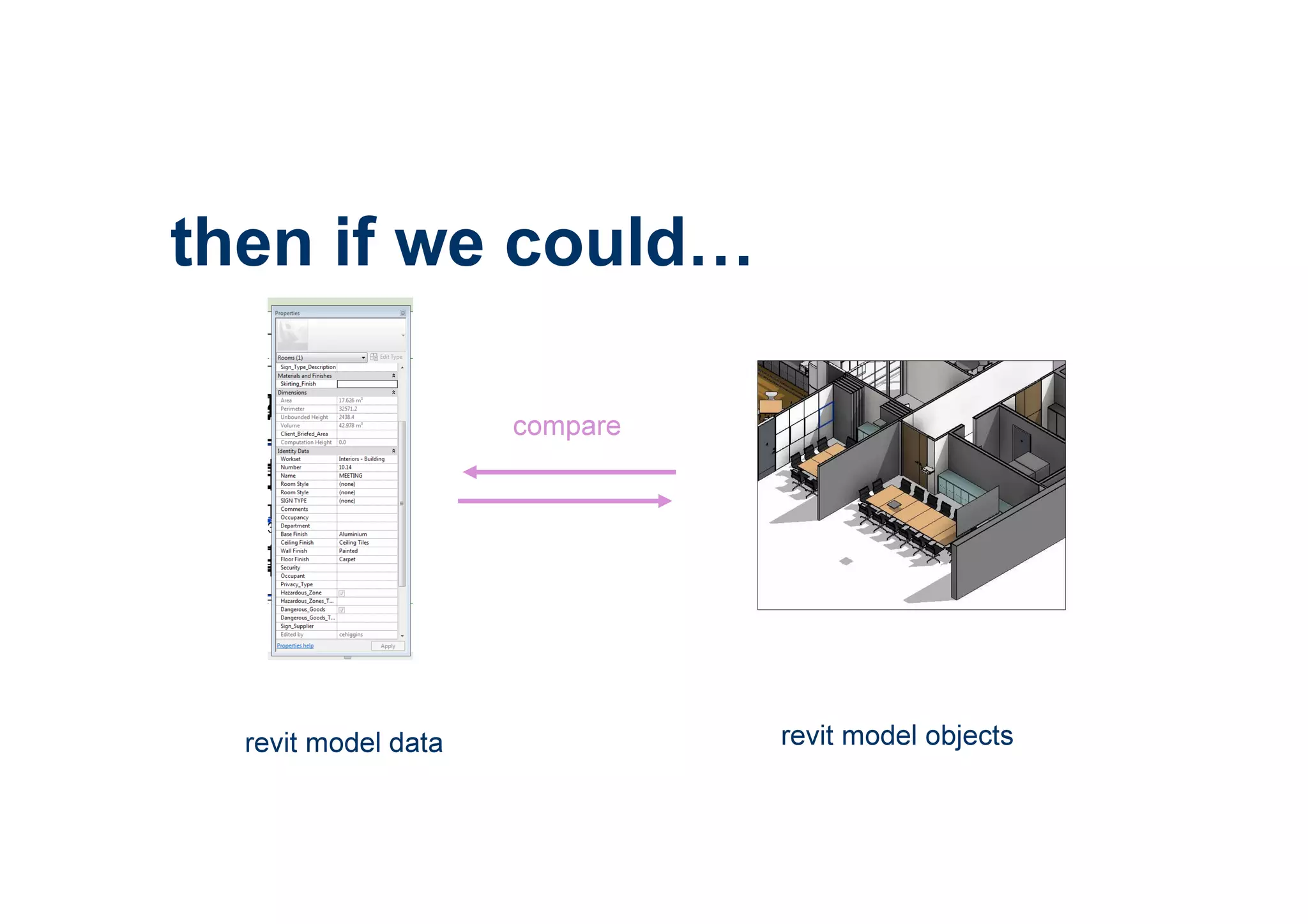
then if we could
revit model objectsrevit model data
compare
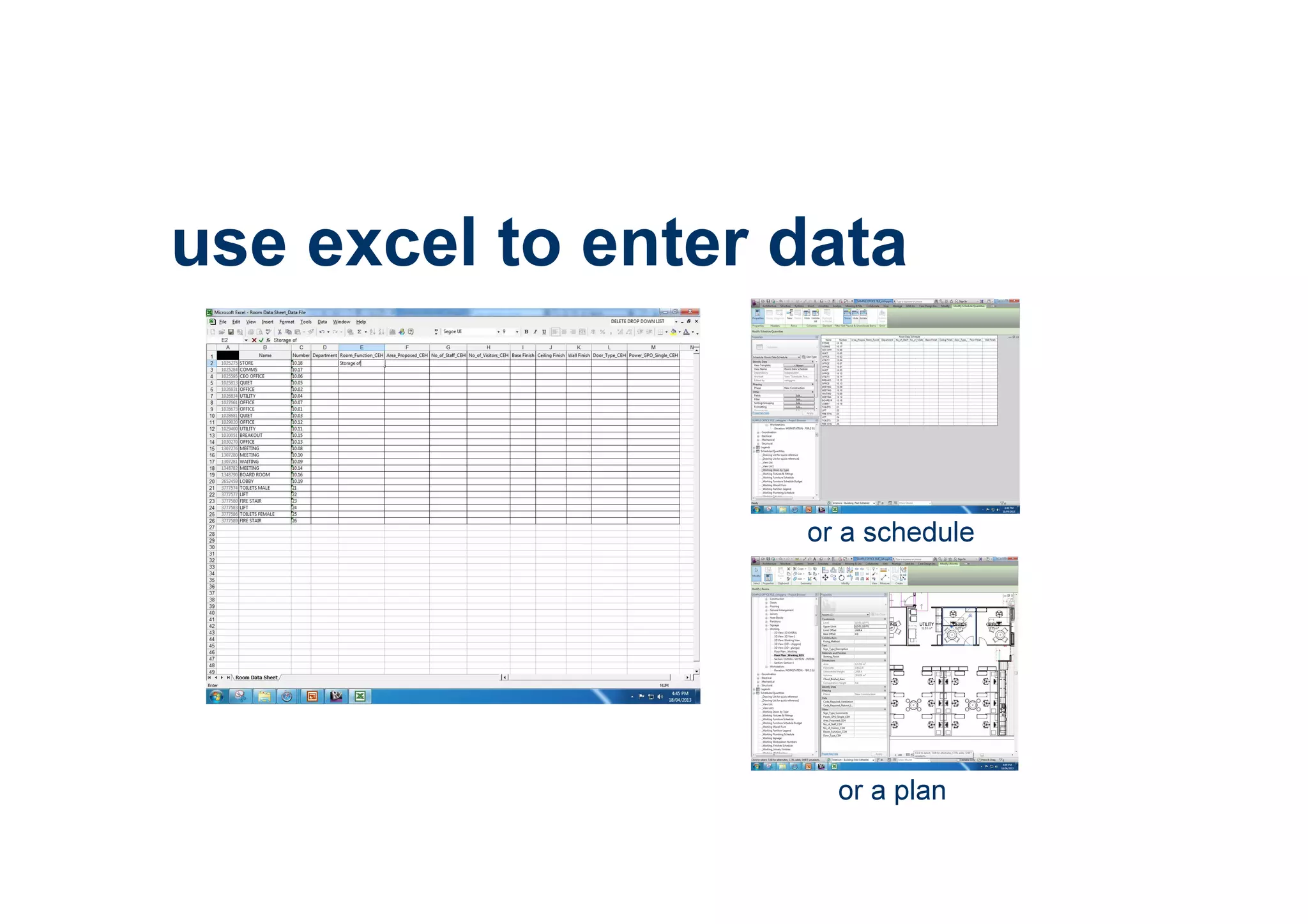
use excel to enter data
or a schedule
or a plan
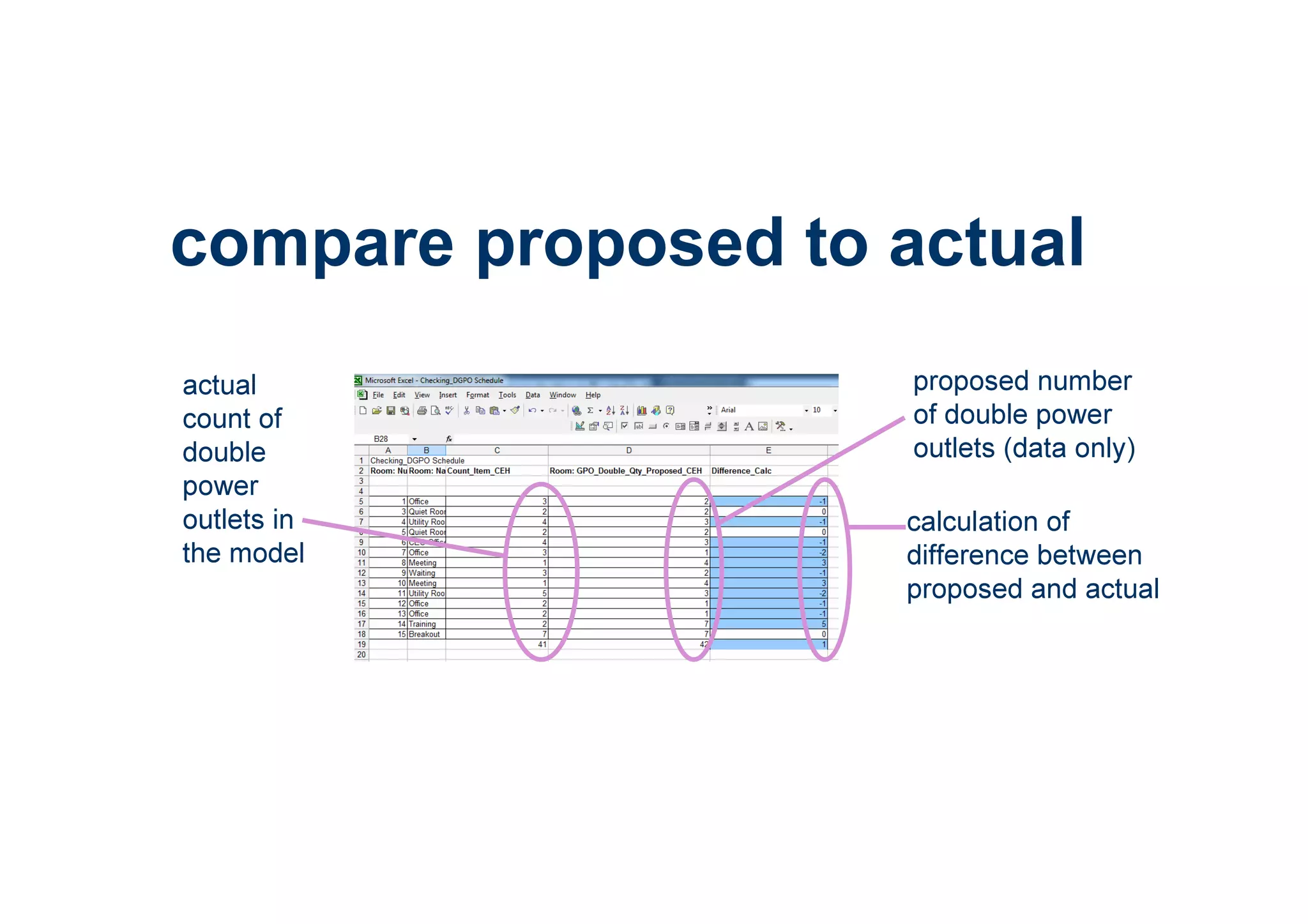
compare proposed to actual
proposed number
of double power
outlets (data only)
actual
count of
double
power
outlets in
the model
calculation of
difference between
proposed and actual
tools
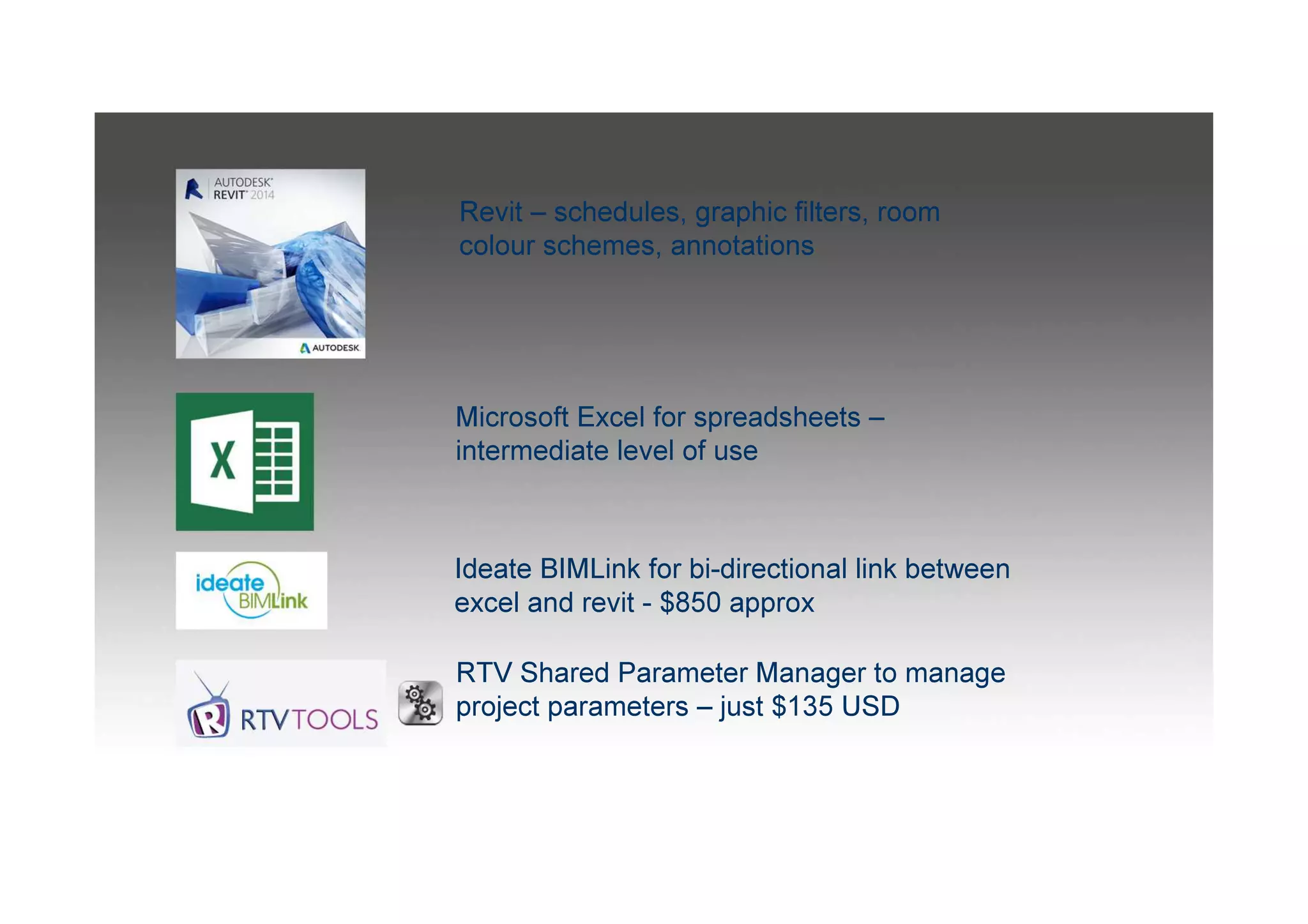
Revit – schedules, graphic filters, room
colour schemes, annotations
Microsoft Excel for spreadsheets –
intermediate level of use
RTV Shared Parameter Manager to manage
project parameters – just $135 USD
Ideate BIMLink for bi-directional link between
excel and revit - $850 approx
what else?
• room data sheet - or
something else?
• what is modelled? what
is data? what is 2d?
• is it worth it?
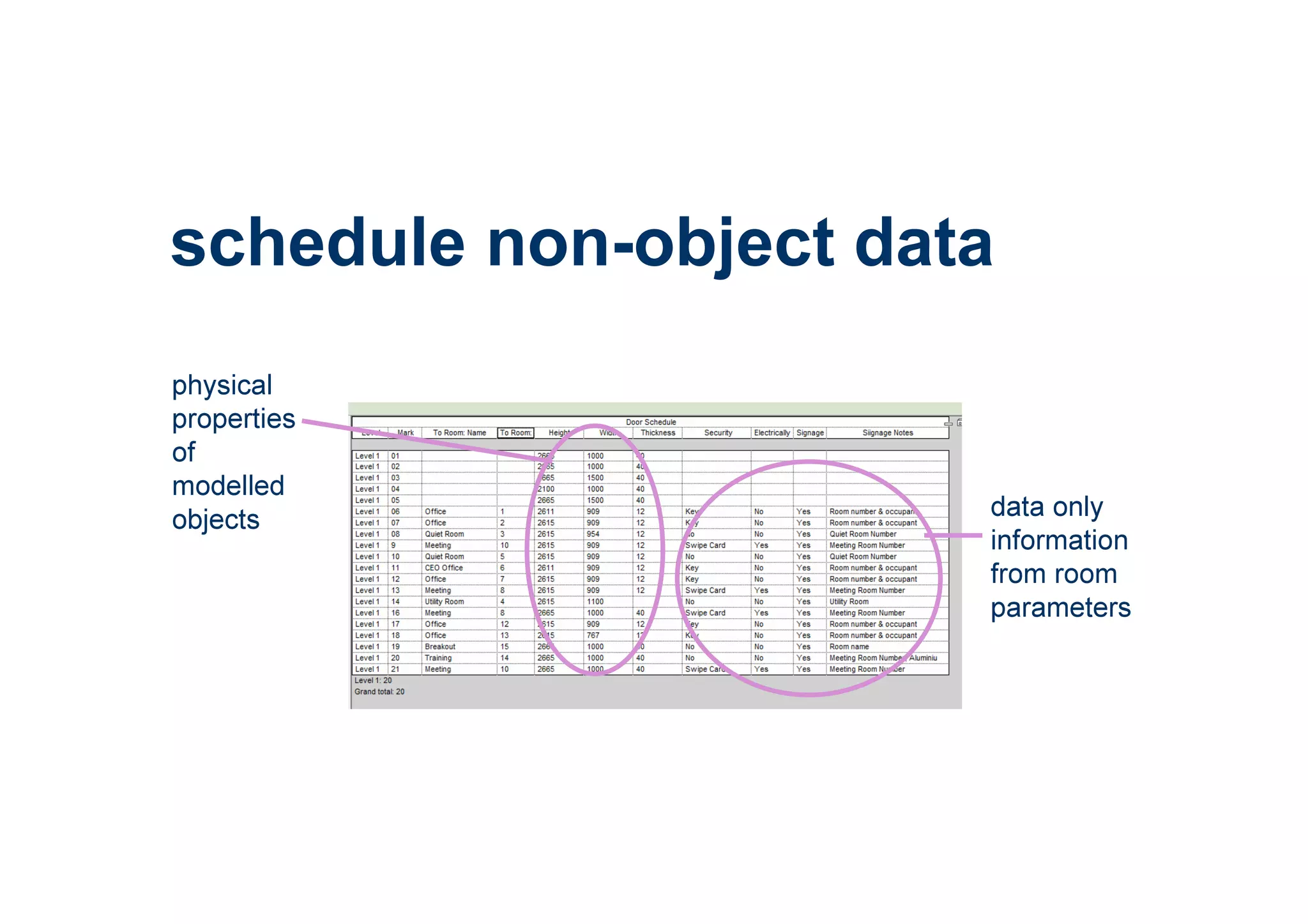
schedule non-object data
physical
properties
of
modelled
objects data only
information
from room
parameters
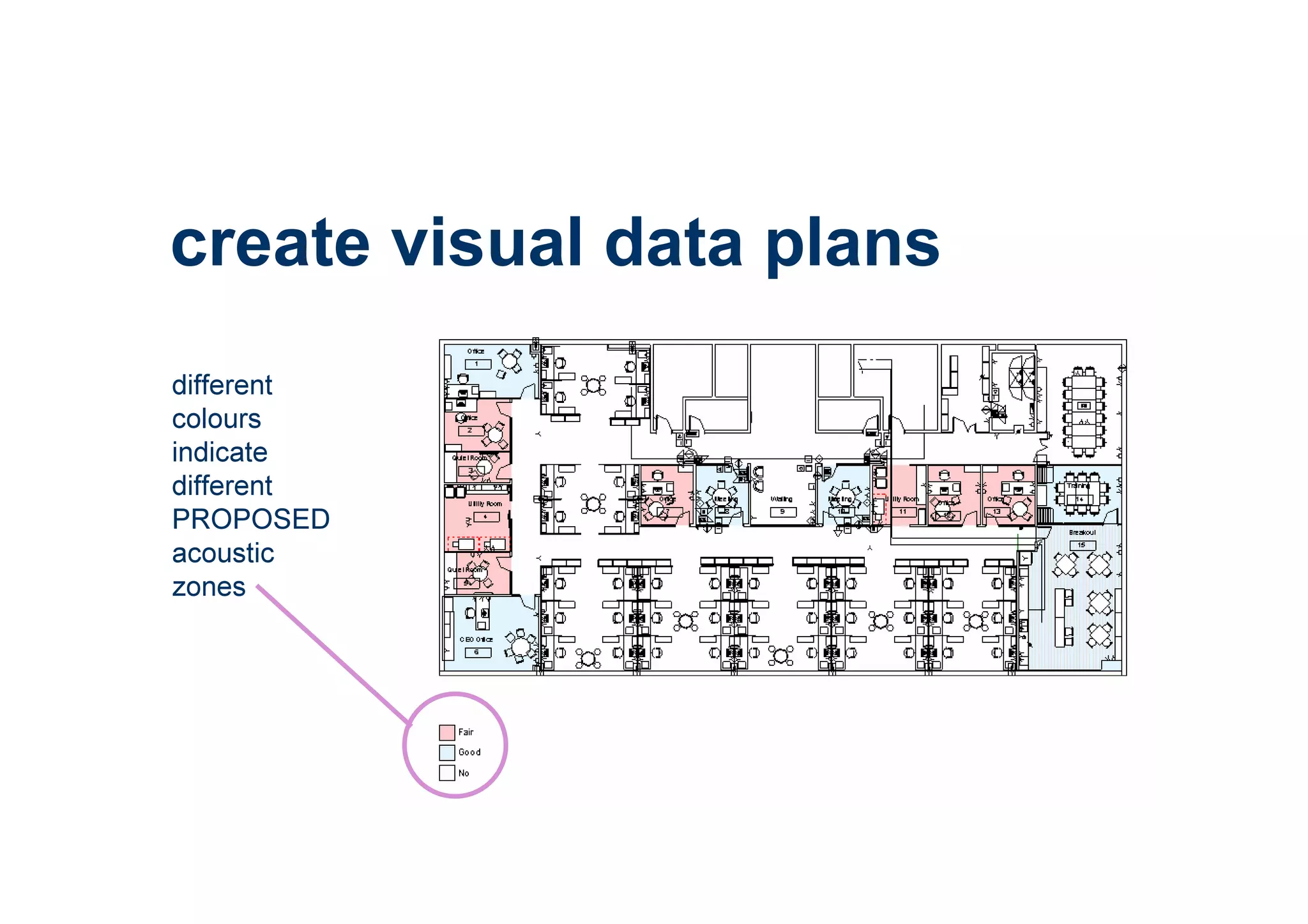
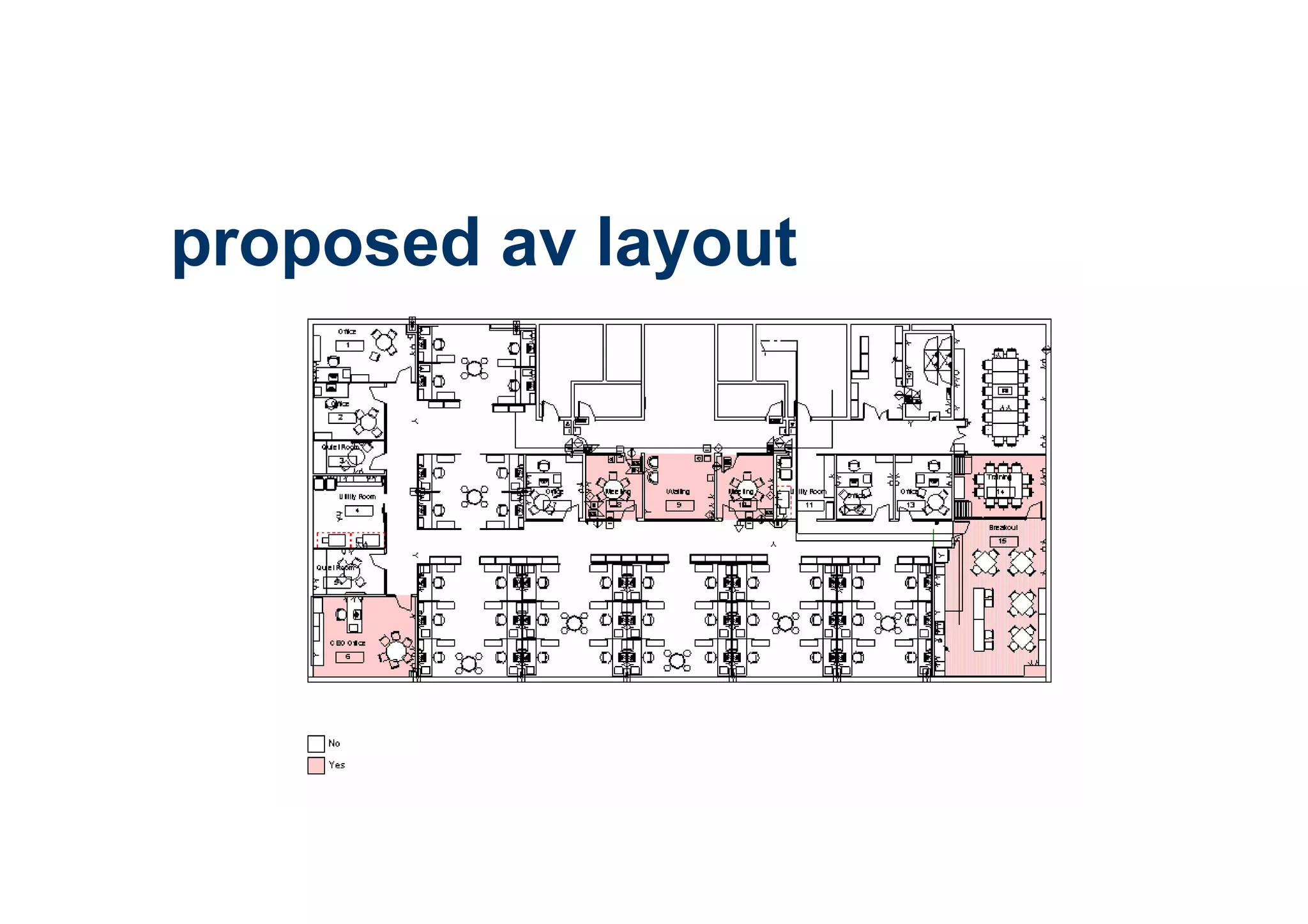
create visual data plans
different
colours
indicate
different
PROPOSED
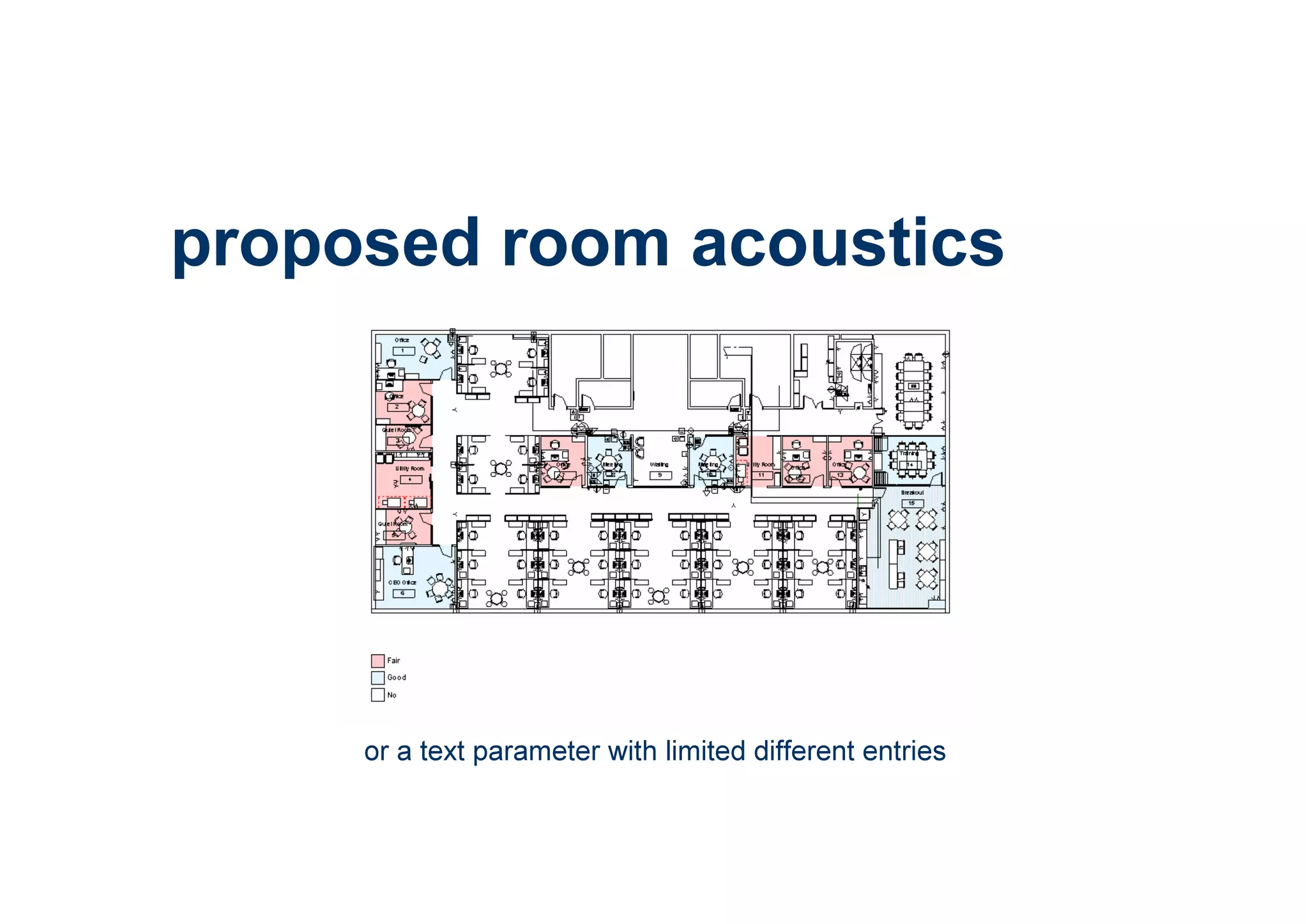
acoustic
zones
where are we
going?
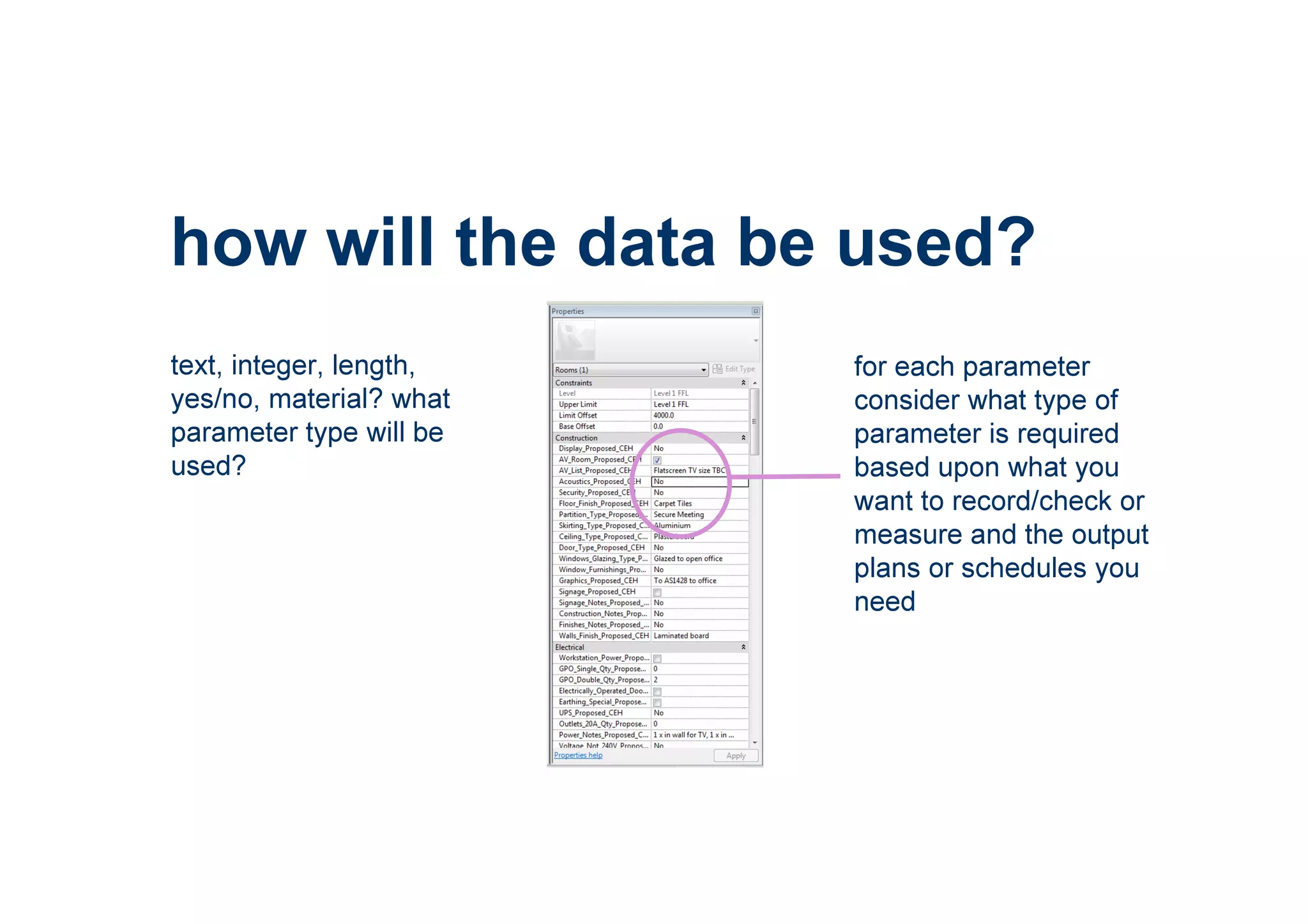
how will the data be used?
text, integer, length,
yes/no, material? what
parameter type will be
used?
for each parameter
consider what type of
parameter is required
based upon what you
want to record/check or
measure and the output
plans or schedules you
need
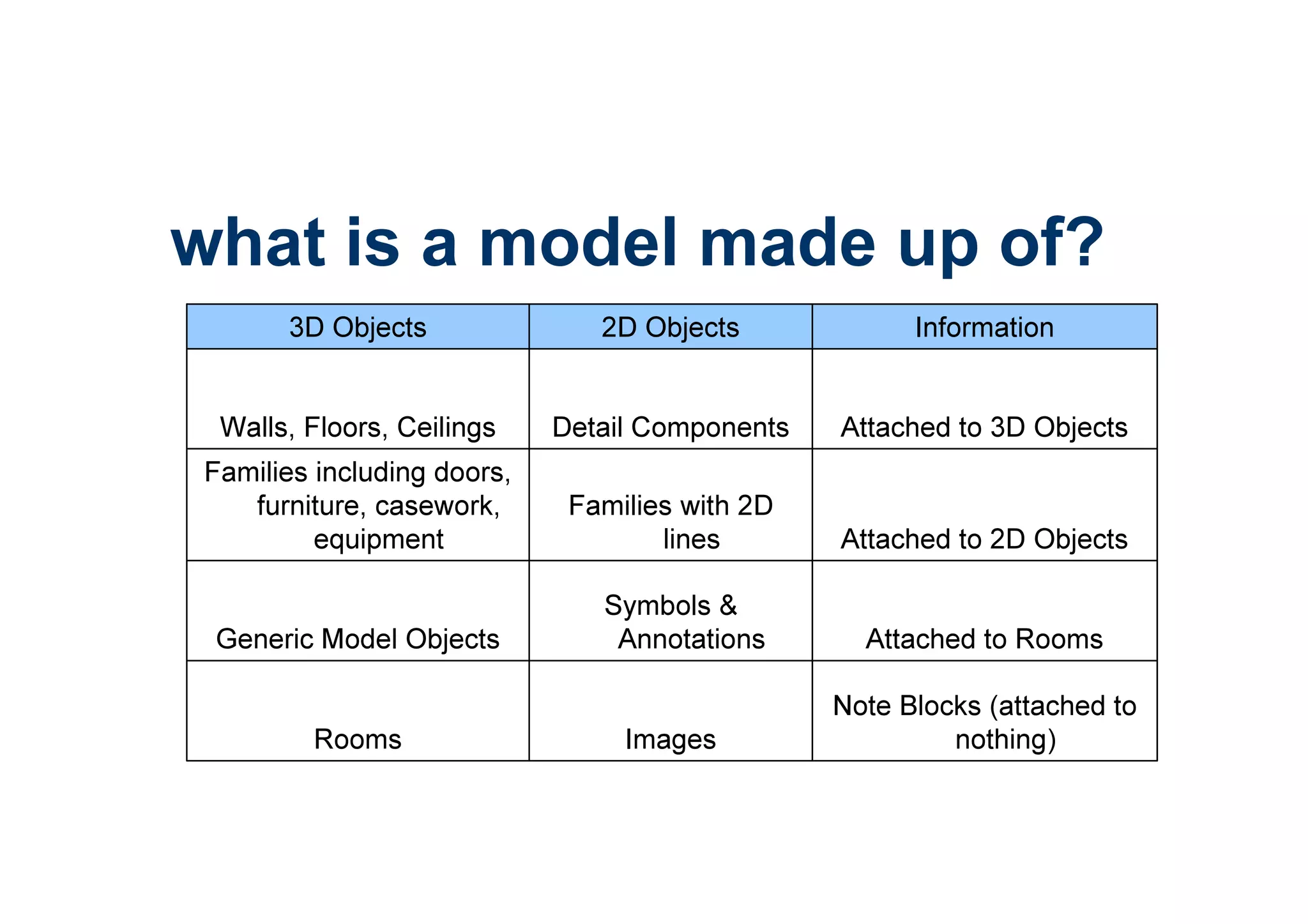
Note Blocks (attached to
nothing)ImagesRooms
Attached to Rooms
Symbols &
AnnotationsGeneric Model Objects
Attached to 2D Objects
Families with 2D
lines
Families including doors,
furniture, casework,
equipment
Attached to 3D ObjectsDetail ComponentsWalls, Floors, Ceilings
Information2D Objects3D Objects
what is a model made up of?
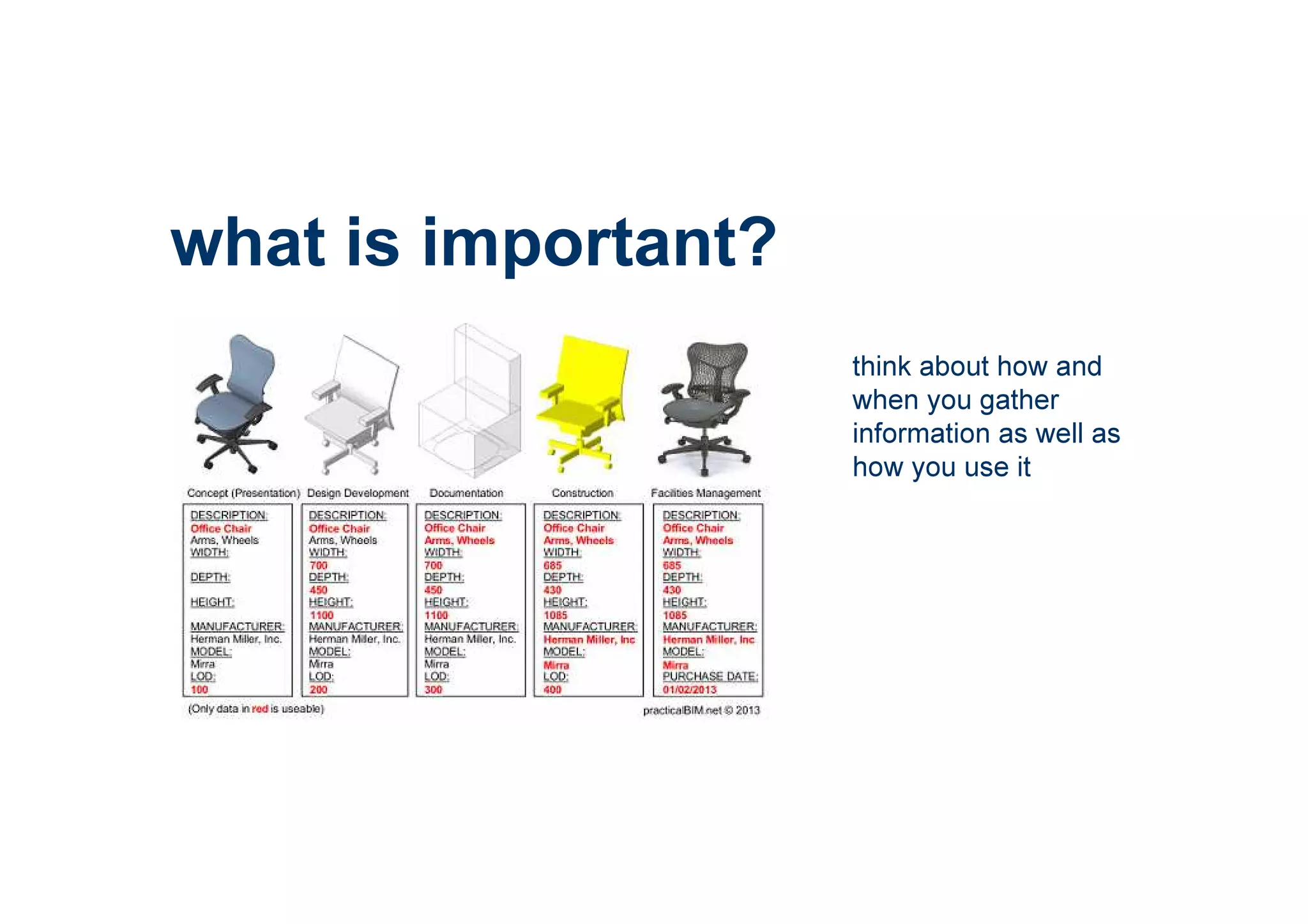
what is important?
think about how and
when you gather
information as well as
how you use it
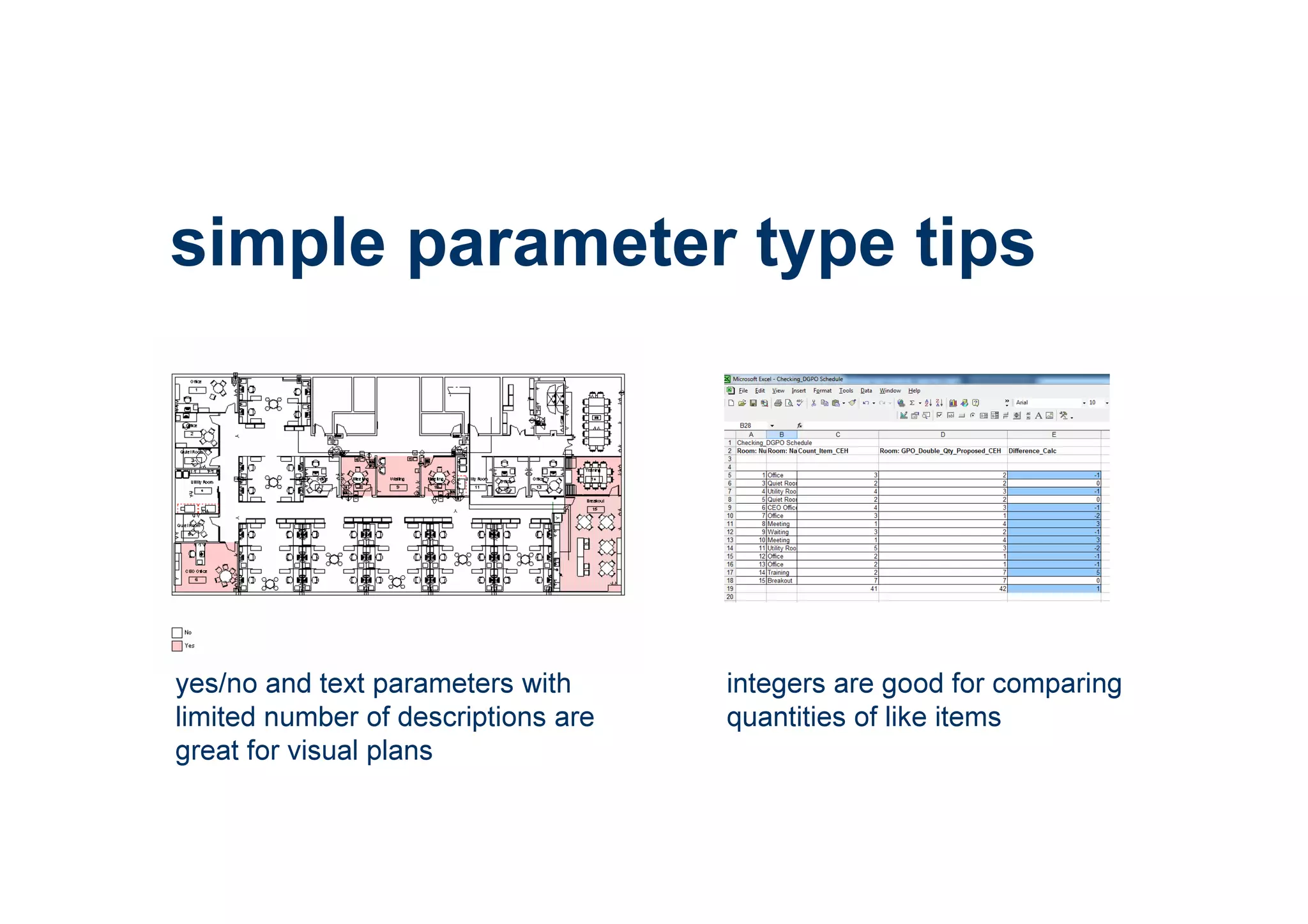
simple parameter type tips
integers are good for comparing
quantities of like items
yes/no and text parameters with
limited number of descriptions are
great for visual plans
finishes
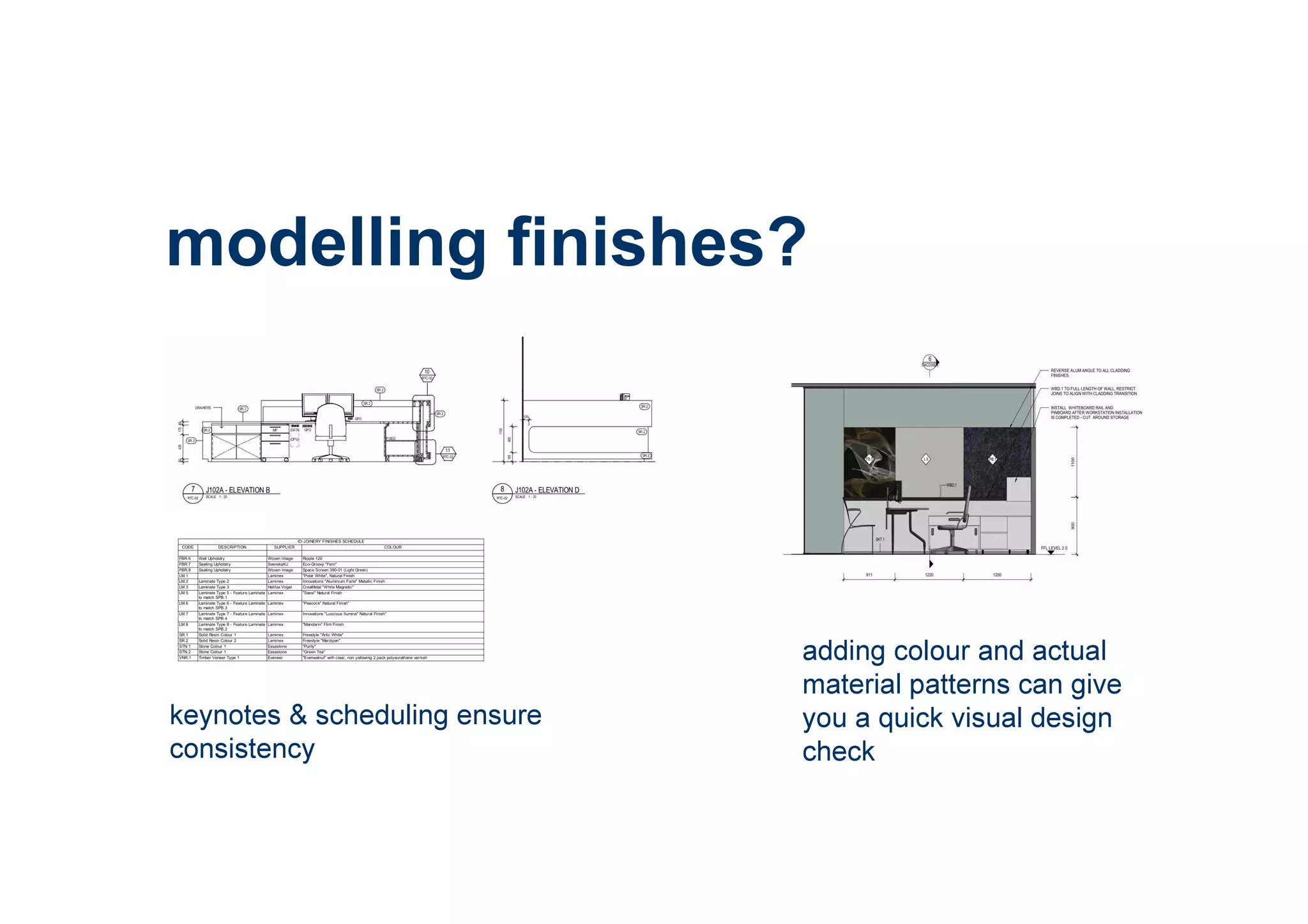
modelling finishes?
keynotes & scheduling ensure
consistency
adding colour and actual
material patterns can give
you a quick visual design
check
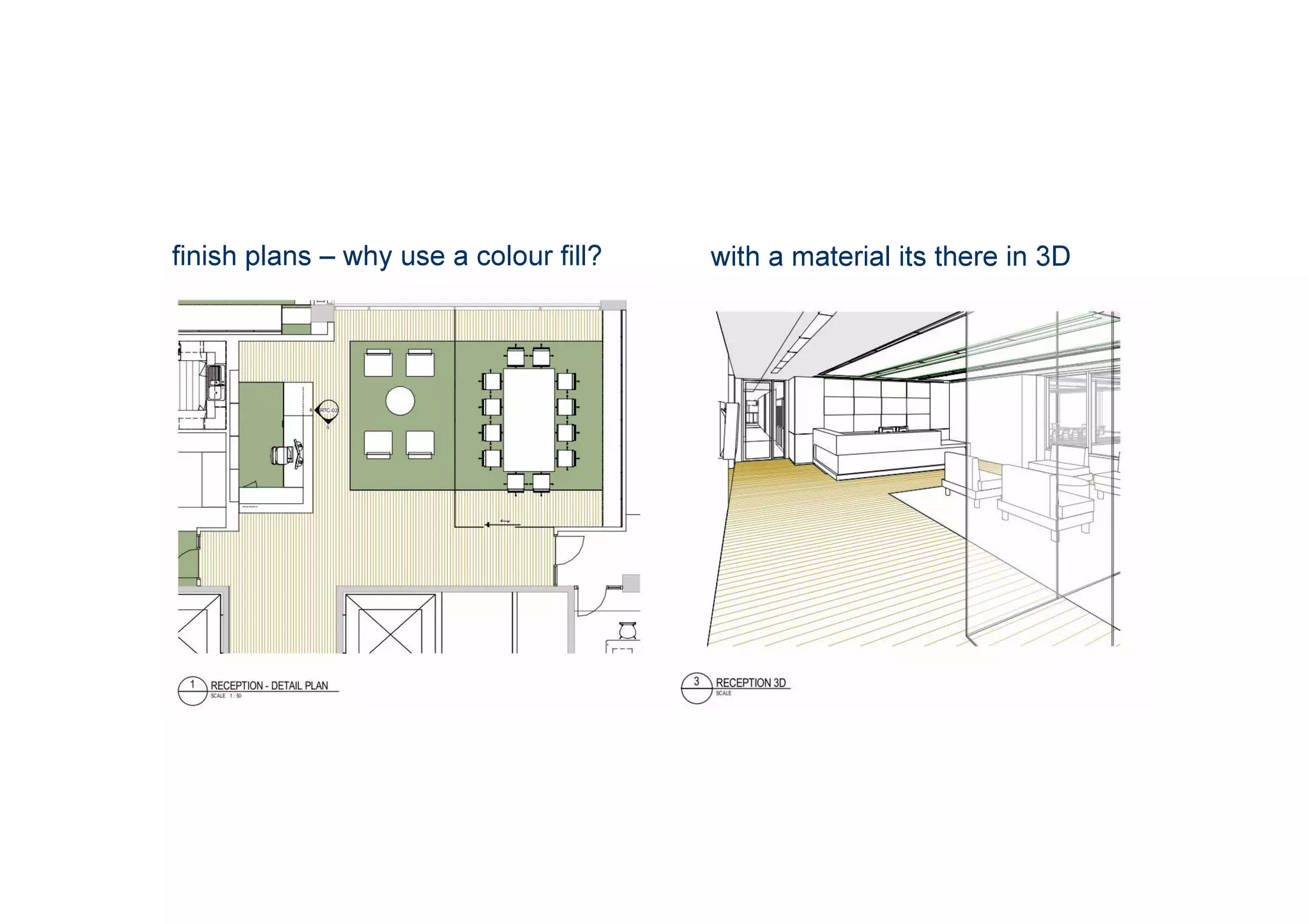
finish plans – why use a colour fill? with a material its there in 3D
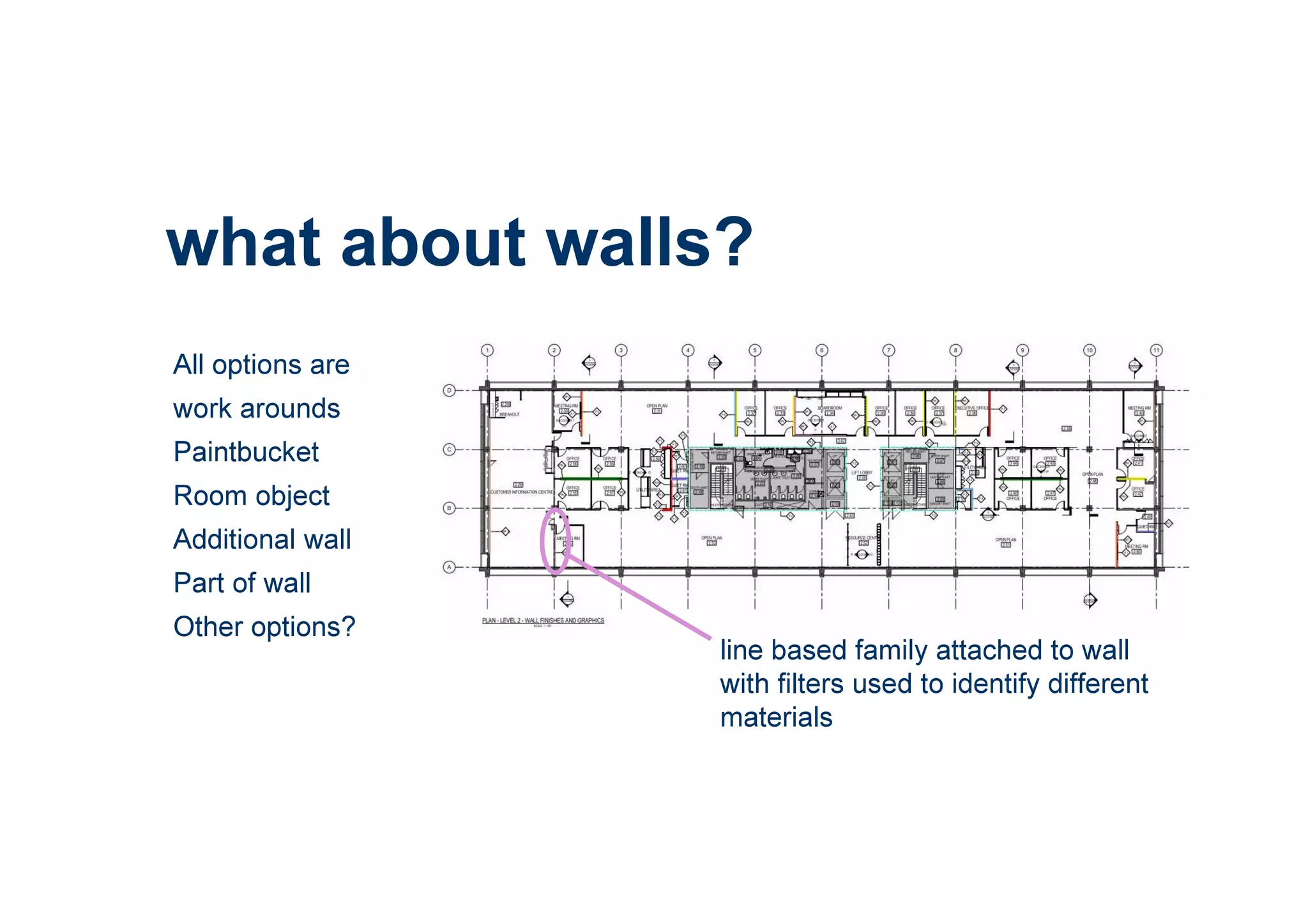
what about walls?
All options are
work arounds
Paintbucket
Room object
Additional wall
Part of wall
Other options?
line based family attached to wall
with filters used to identify different
materials
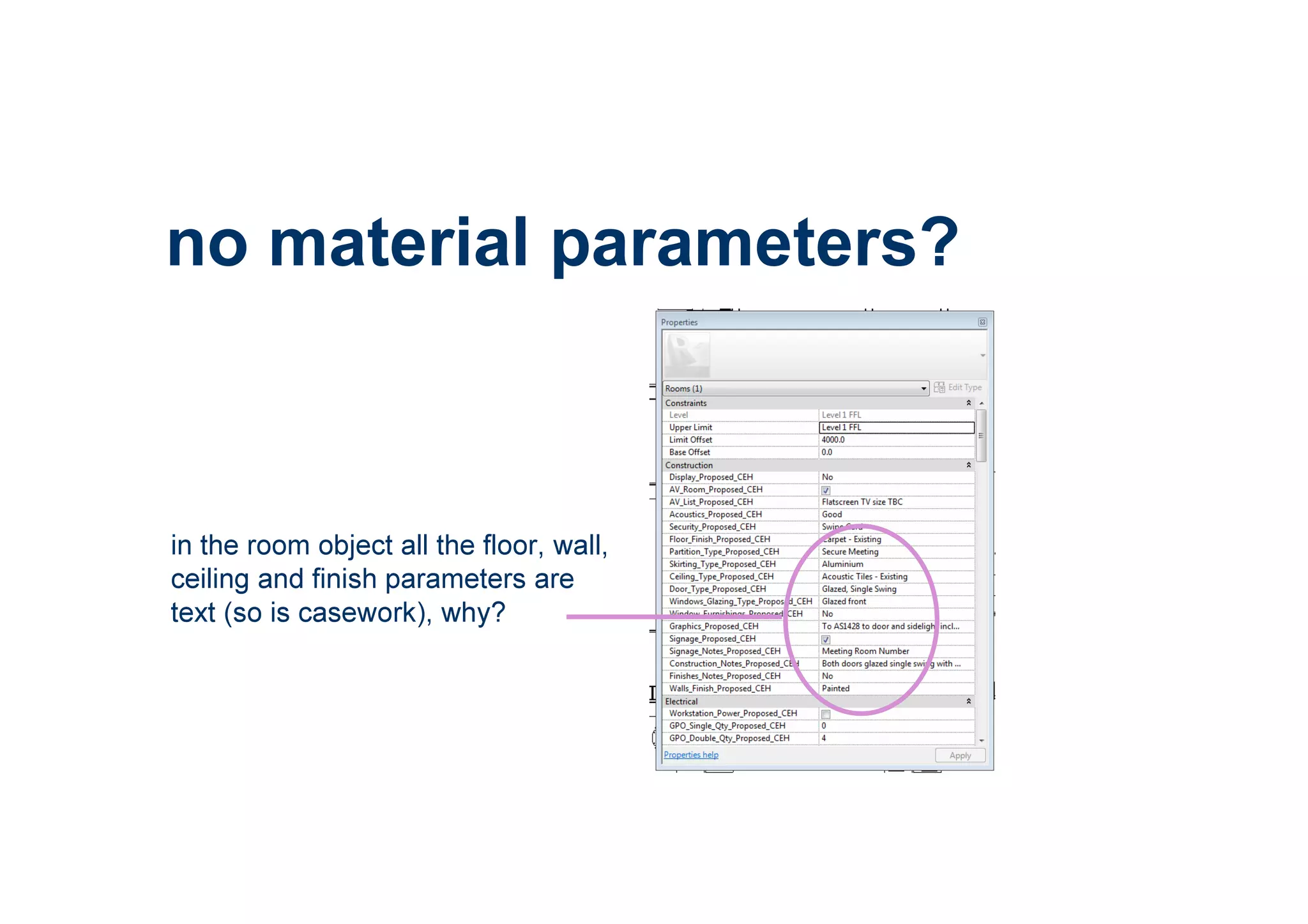
no material parameters?
in the room object all the floor, wall,
ceiling and finish parameters are
text (so is casework), why?
2 reasons
1. timing - remember the room data
sheet is the brief an actual
material has not yet been
selected
2. good BIM - the room object is
not a physical object to which
materials can be applied
furniture
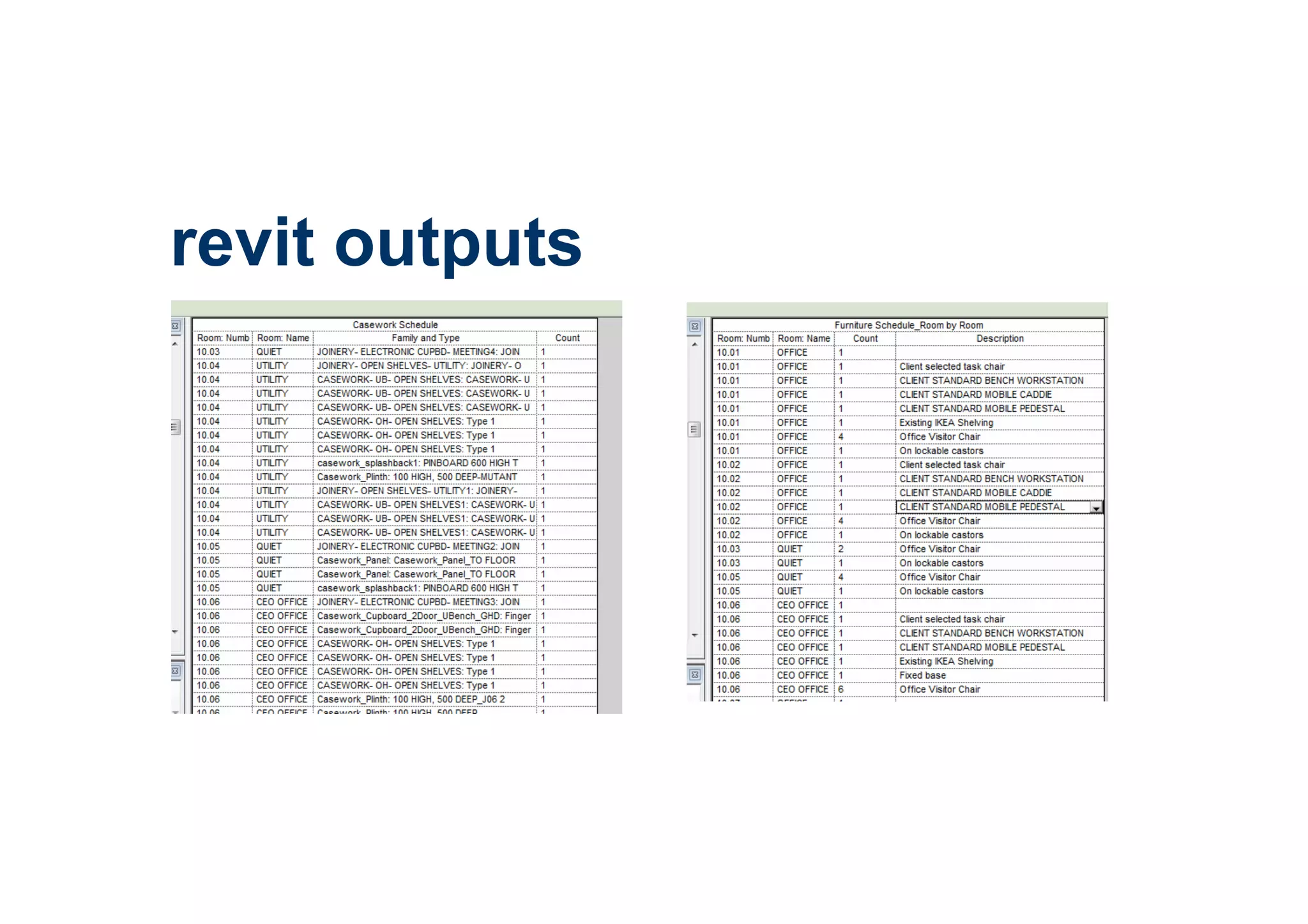
revit outputs
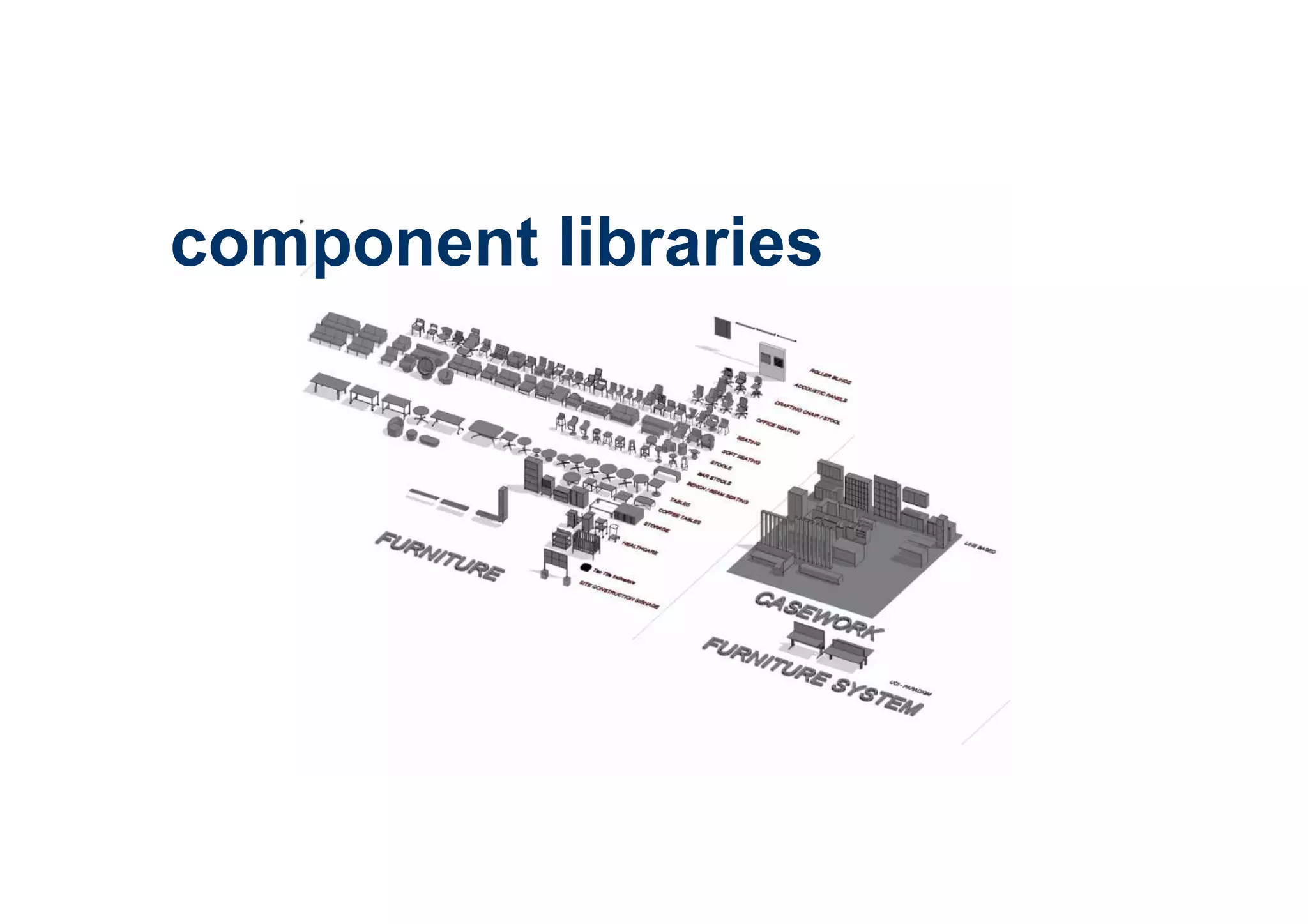
component libraries
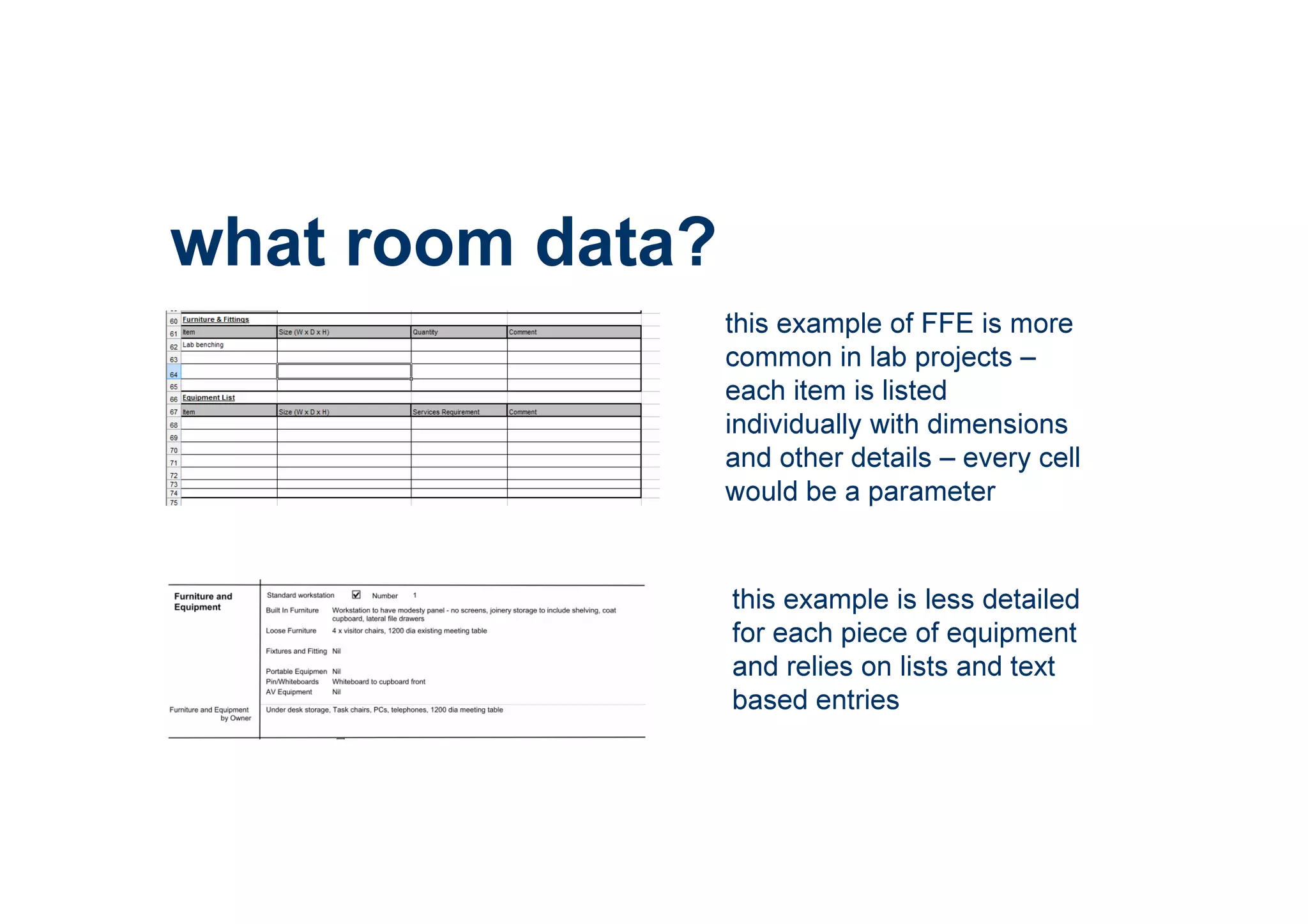
what room data?
this example of FFE is more
common in lab projects –
each item is listed
individually with dimensions
and other details – every cell
would be a parameter
this example is less detailed
for each piece of equipment
and relies on lists and text
based entries
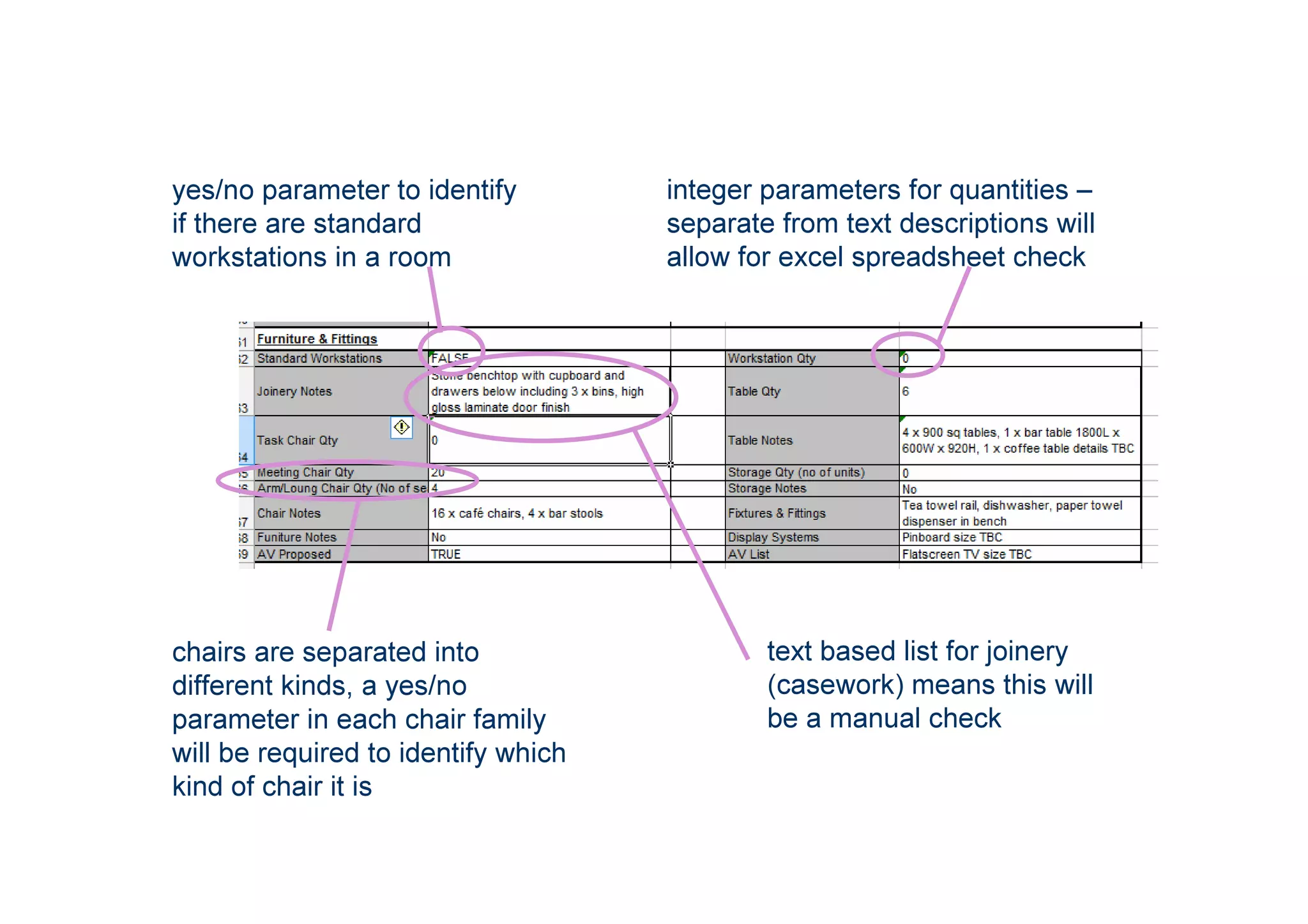
integer parameters for quantities –
separate from text descriptions will
allow for excel spreadsheet check
yes/no parameter to identify
if there are standard
workstations in a room
text based list for joinery
(casework) means this will
be a manual check
chairs are separated into
different kinds, a yes/no
parameter in each chair family
will be required to identify which
kind of chair it is
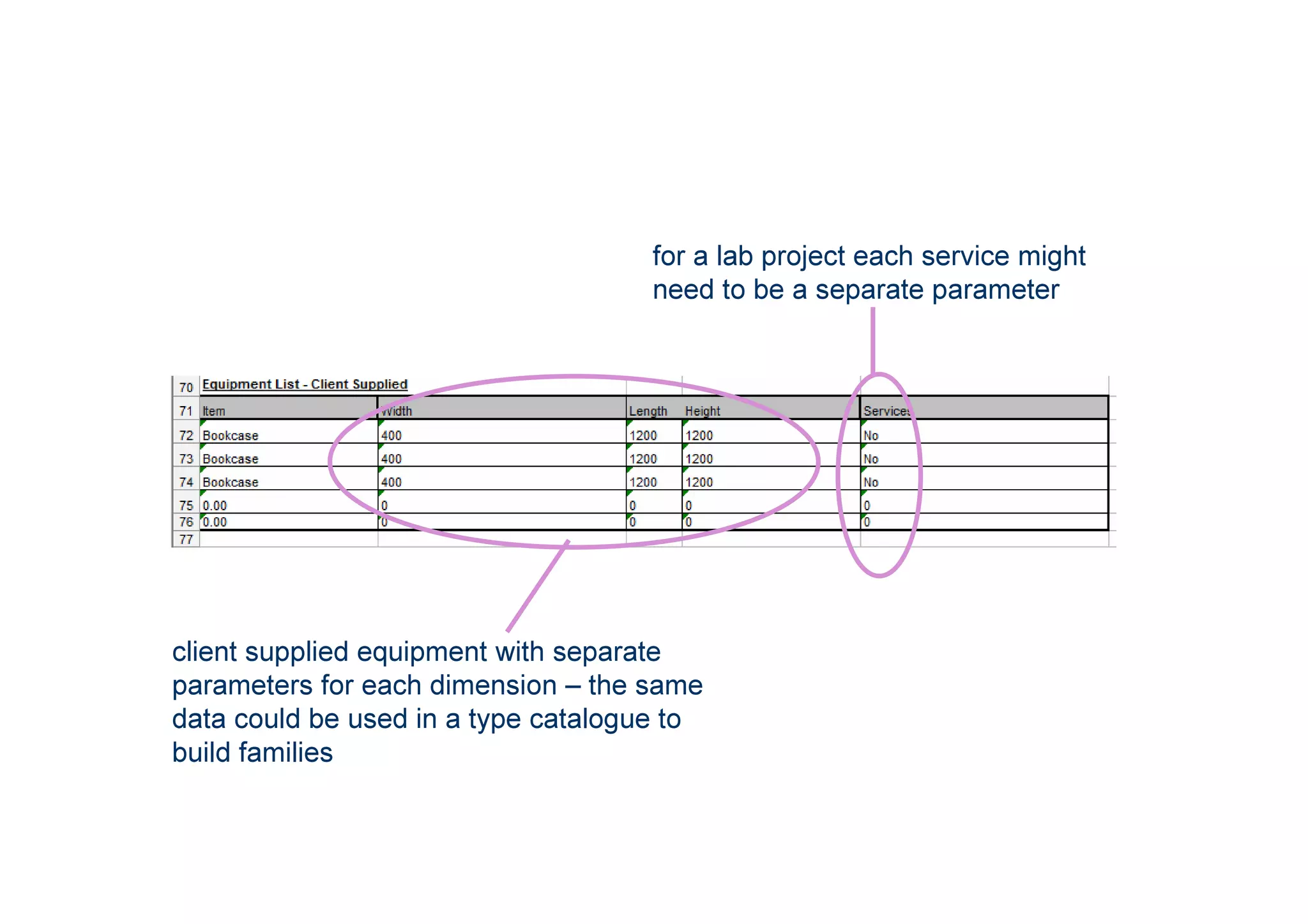
client supplied equipment with separate
parameters for each dimension – the same
data could be used in a type catalogue to
build families
for a lab project each service might
need to be a separate parameter
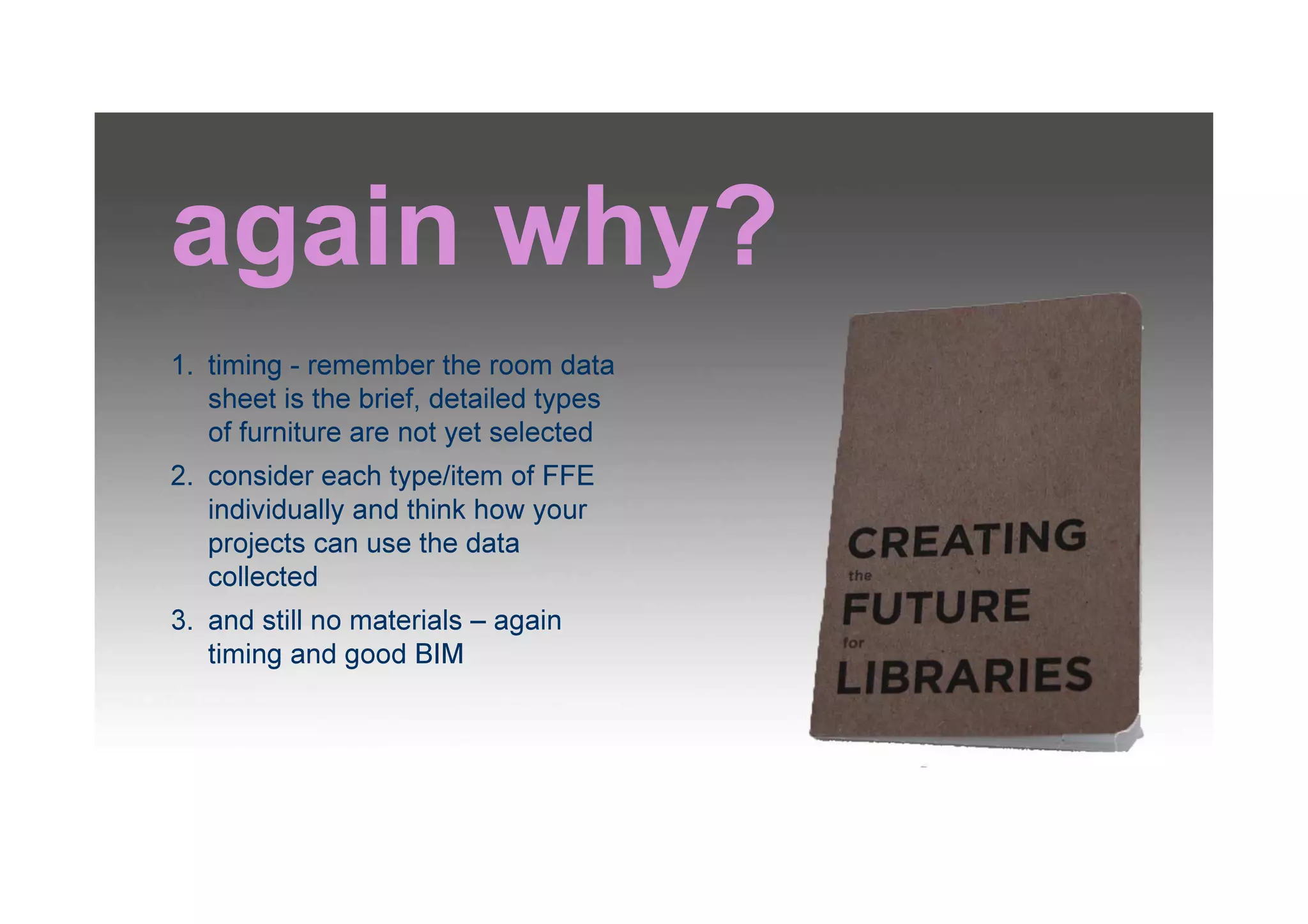
again why?
1. timing - remember the room data
sheet is the brief, detailed types
of furniture are not yet selected
2. consider each type/item of FFE
individually and think how your
projects can use the data
collected
3. and still no materials – again
timing and good BIM
lets get started
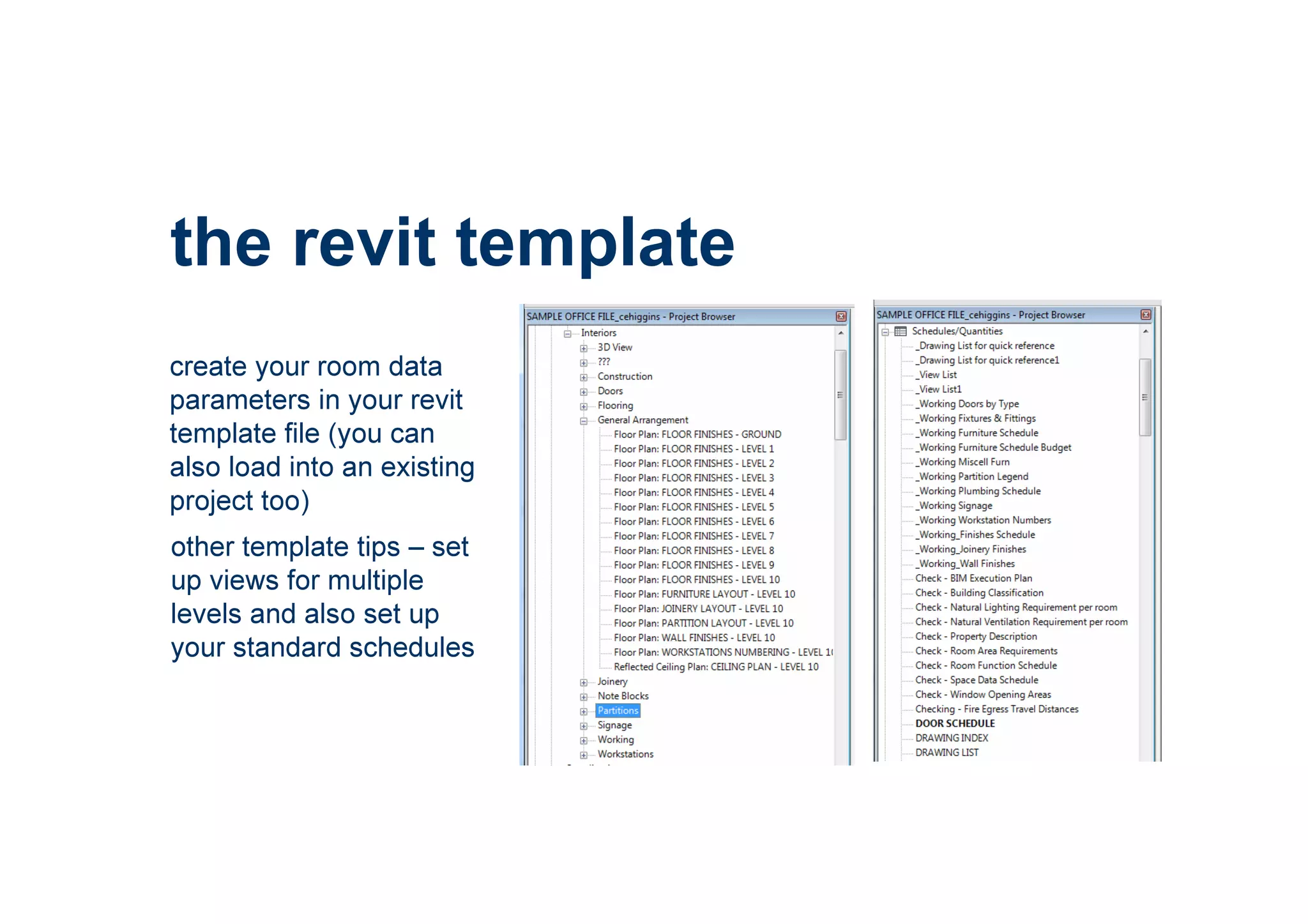
the revit template
create your room data
parameters in your revit
template file (you can
also load into an existing
project too)
other template tips – set
up views for multiple
levels and also set up
your standard schedules
creating parameters
parameter Names should
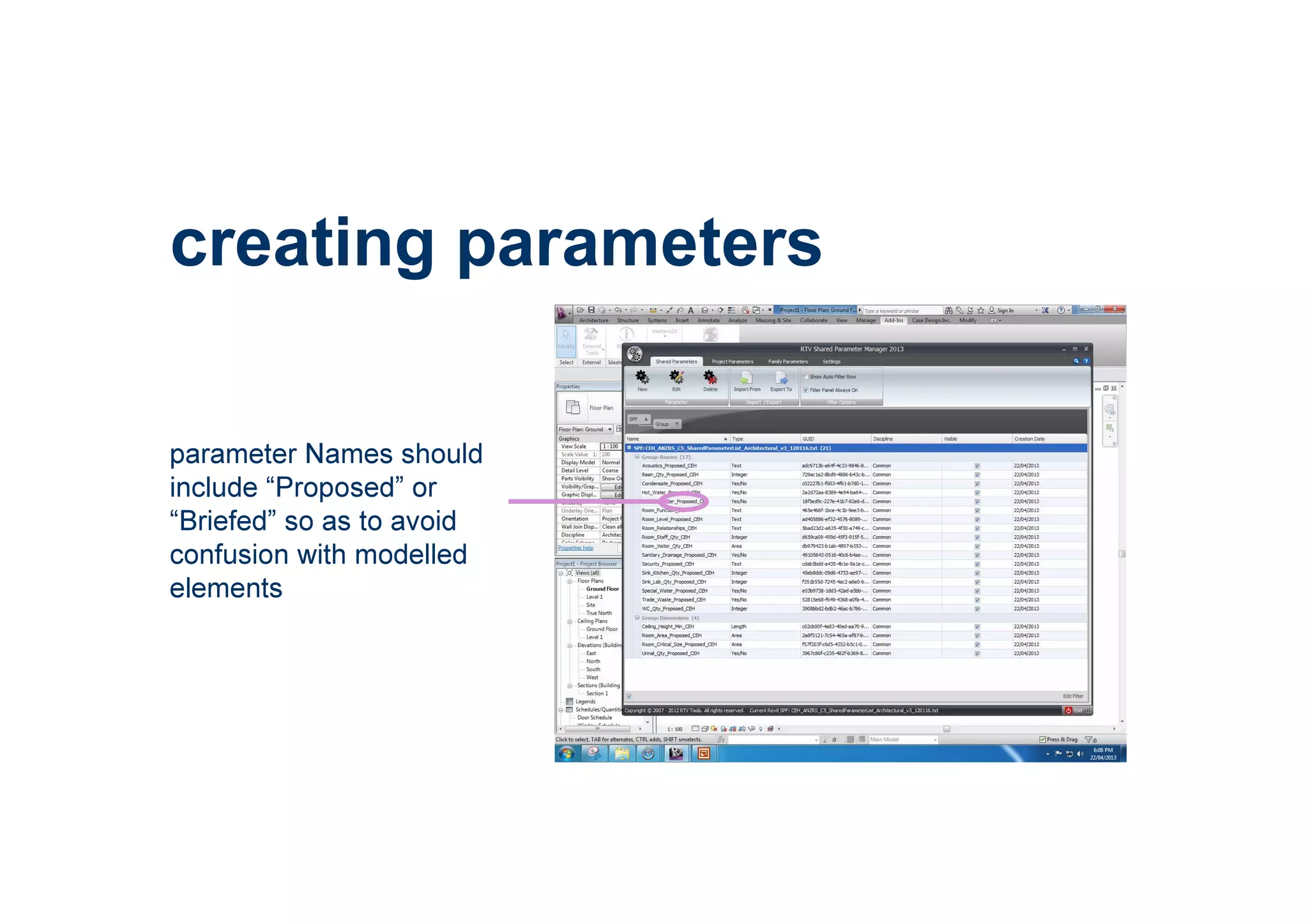
include “Proposed” or
“Briefed” so as to avoid
confusion with modelled
elements
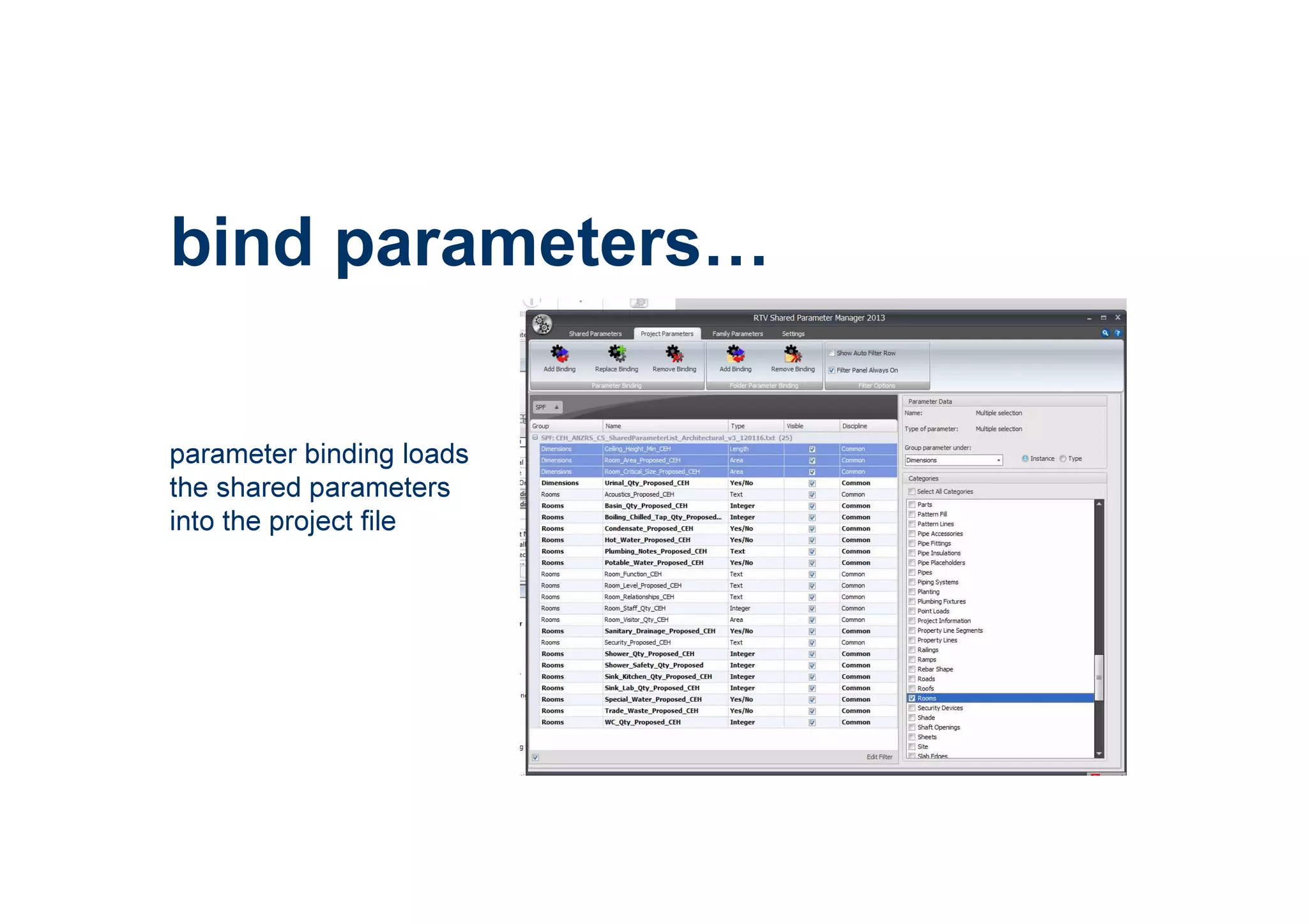
bind parameters
parameter binding loads
the shared parameters
into the project file
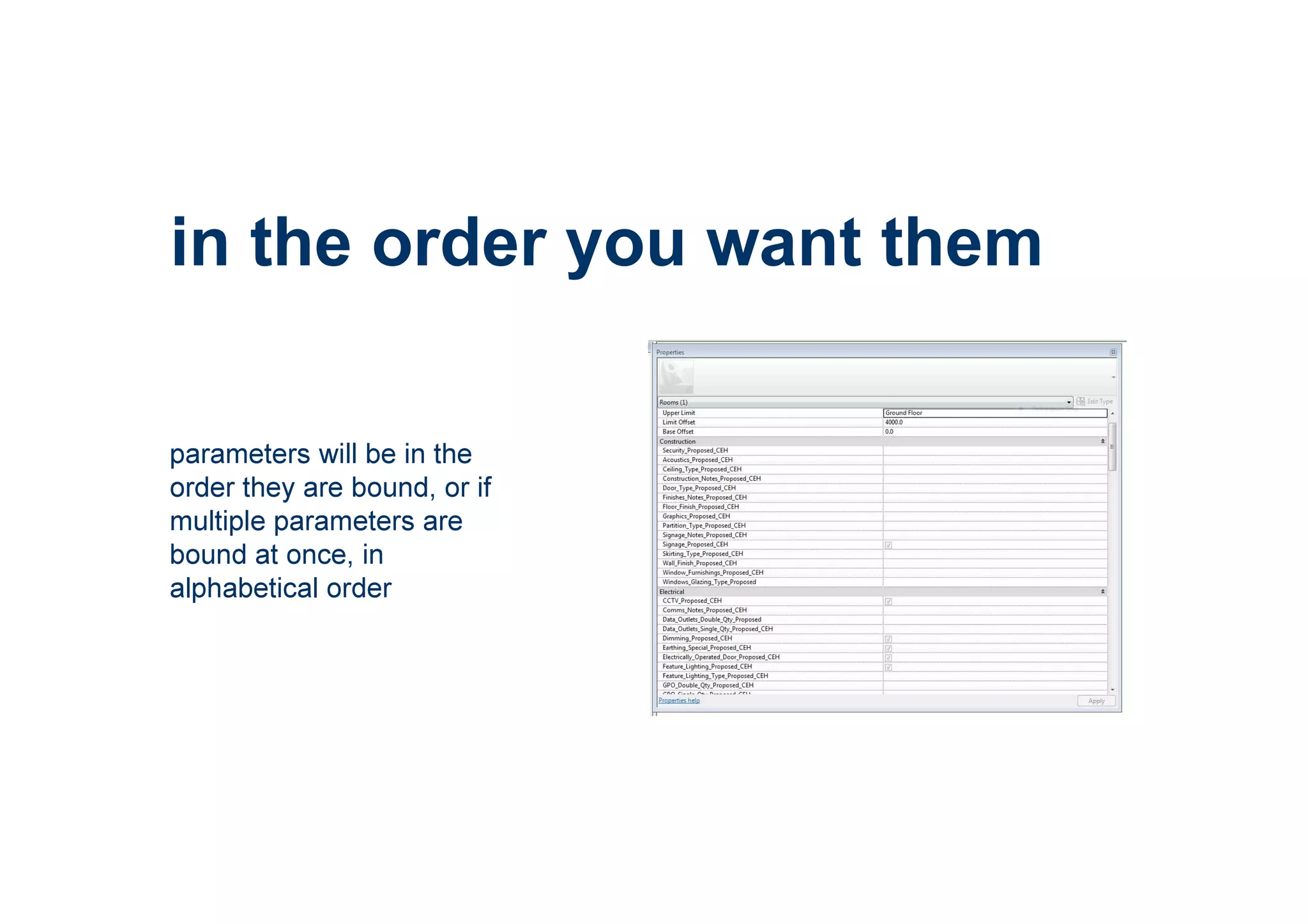
in the order you want them
parameters will be in the
order they are bound, or if
multiple parameters are
bound at once, in
alphabetical order
check everything
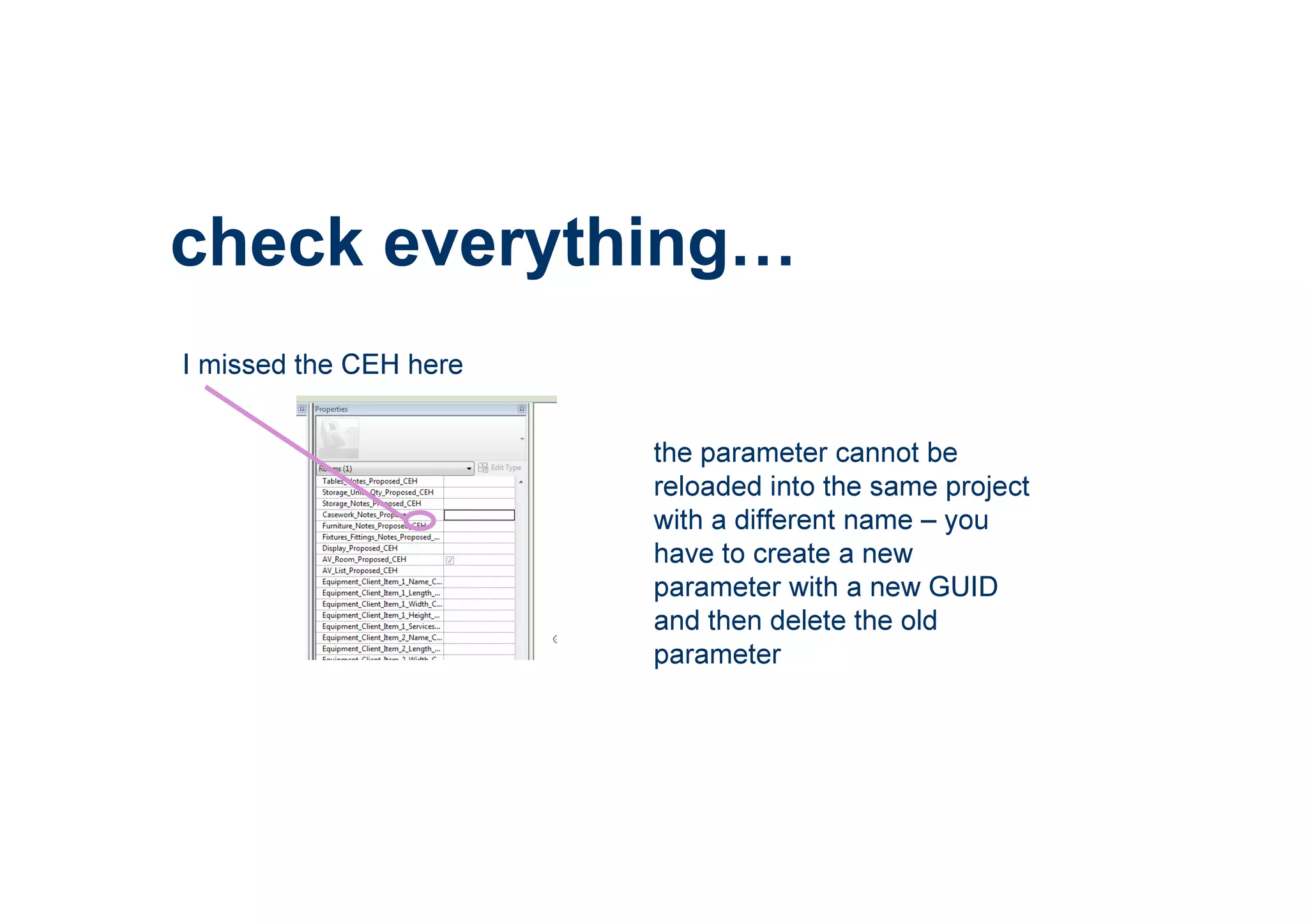
I missed the CEH here
the parameter cannot be
reloaded into the same project
with a different name – you
have to create a new
parameter with a new GUID
and then delete the old
parameter
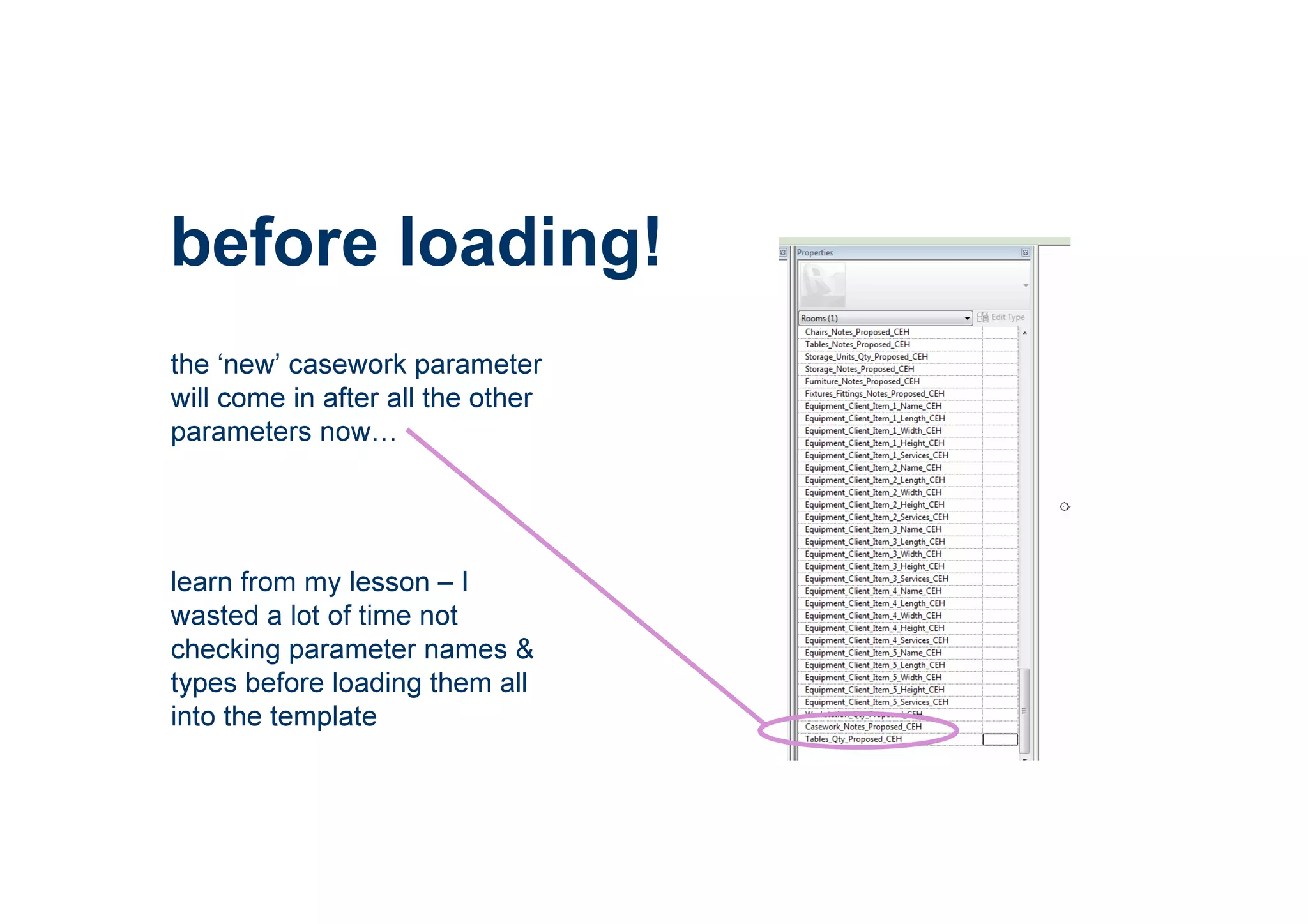
before loading!
the ‘new’ casework parameter
will come in after all the other
parameters now
learn from my lesson – I
wasted a lot of time not
checking parameter names &
types before loading them all
into the template
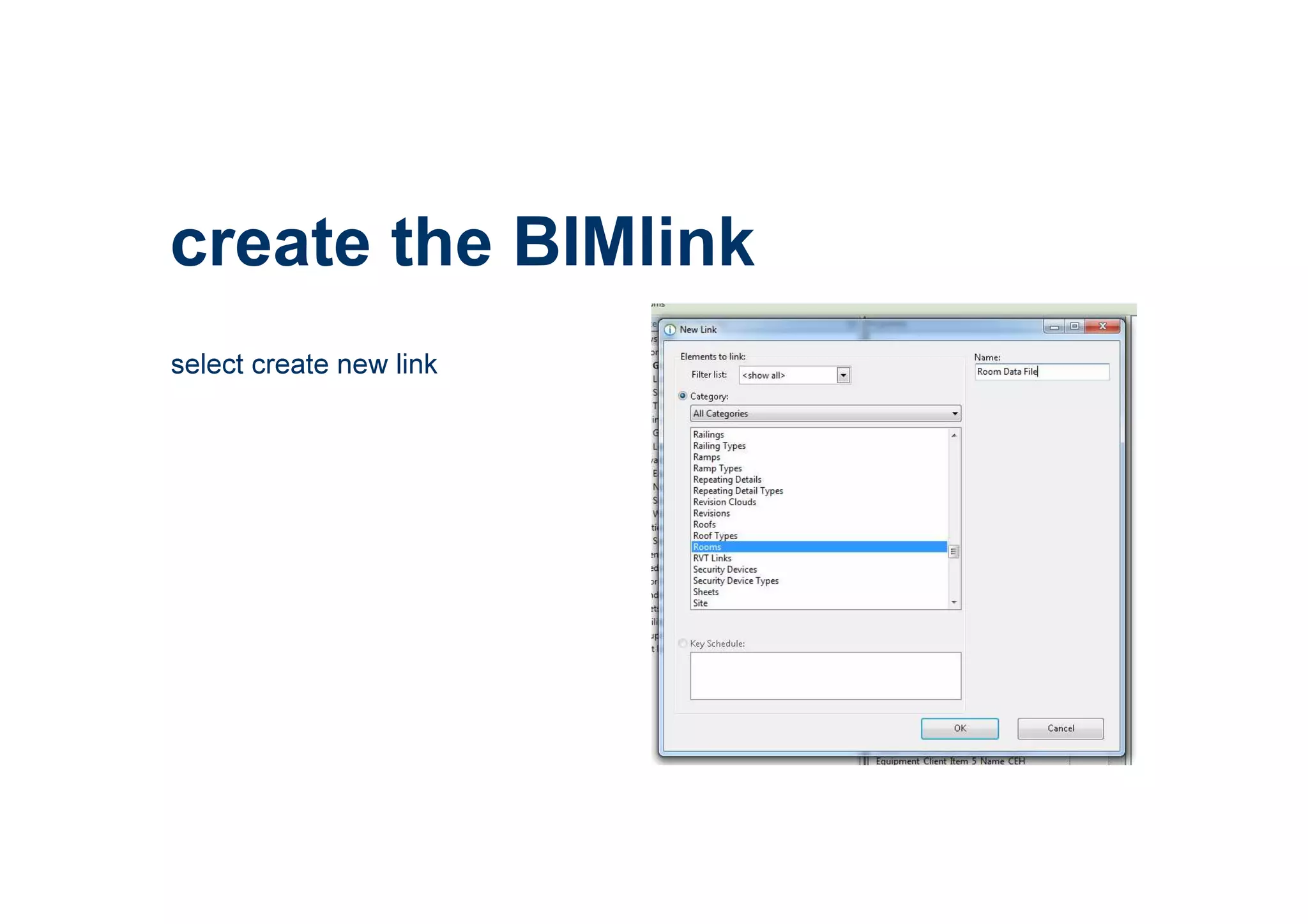
create the BIMlink
select create new link
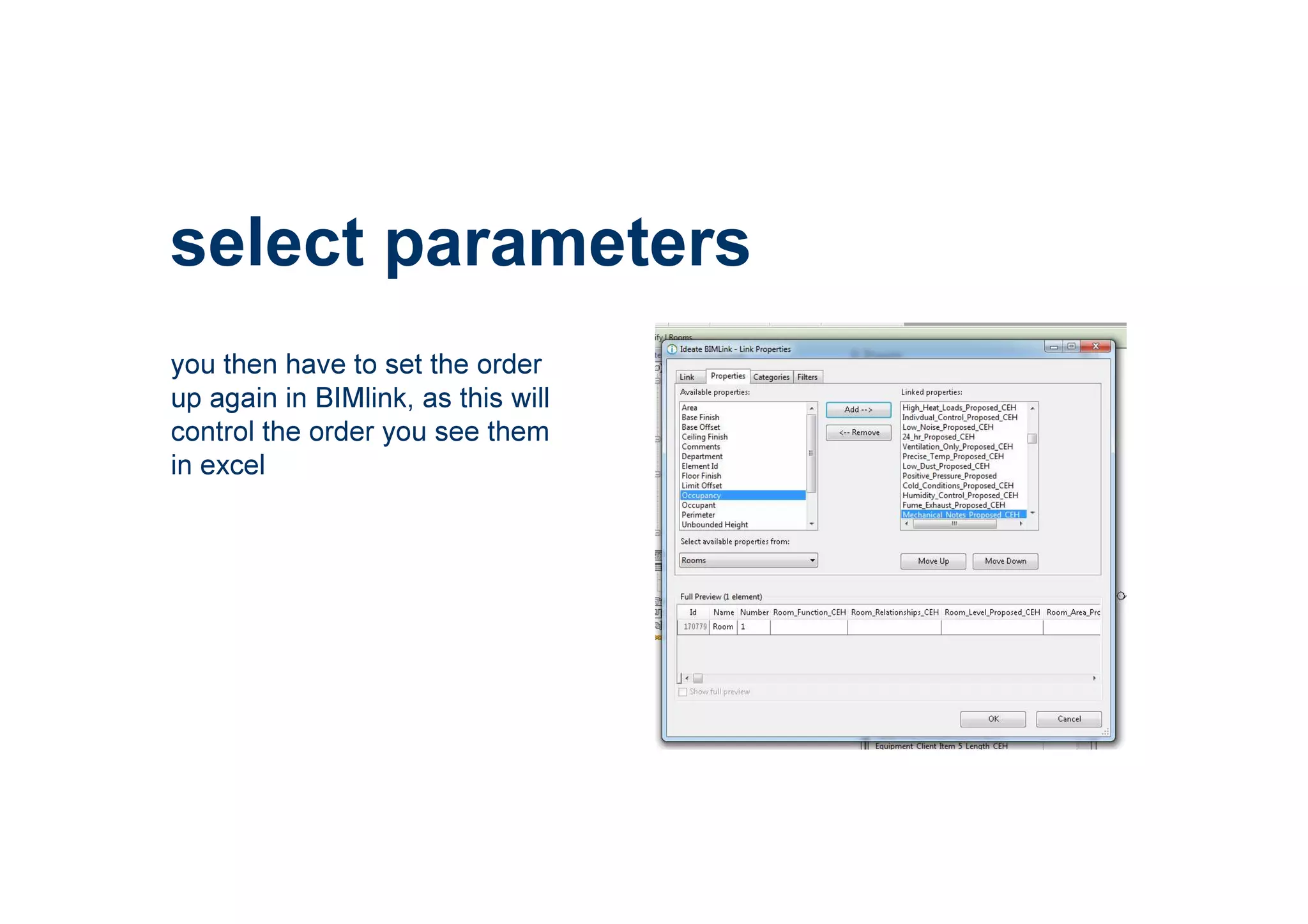
you then have to set the order
up again in BIMlink, as this will
control the order you see them
in excel
select parameters
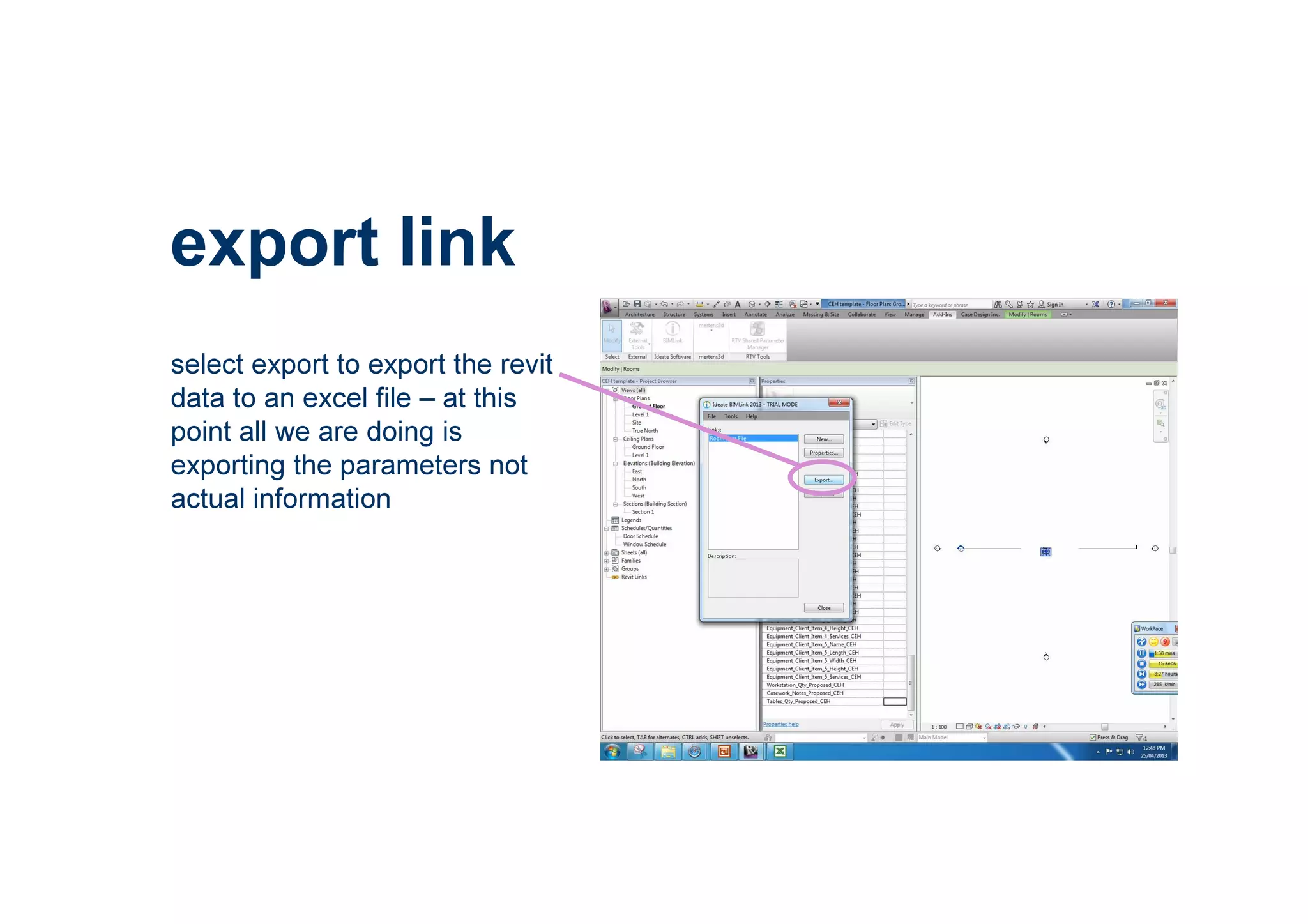
select export to export the revit
data to an excel file – at this
point all we are doing is
exporting the parameters not
actual information
export link
room data file
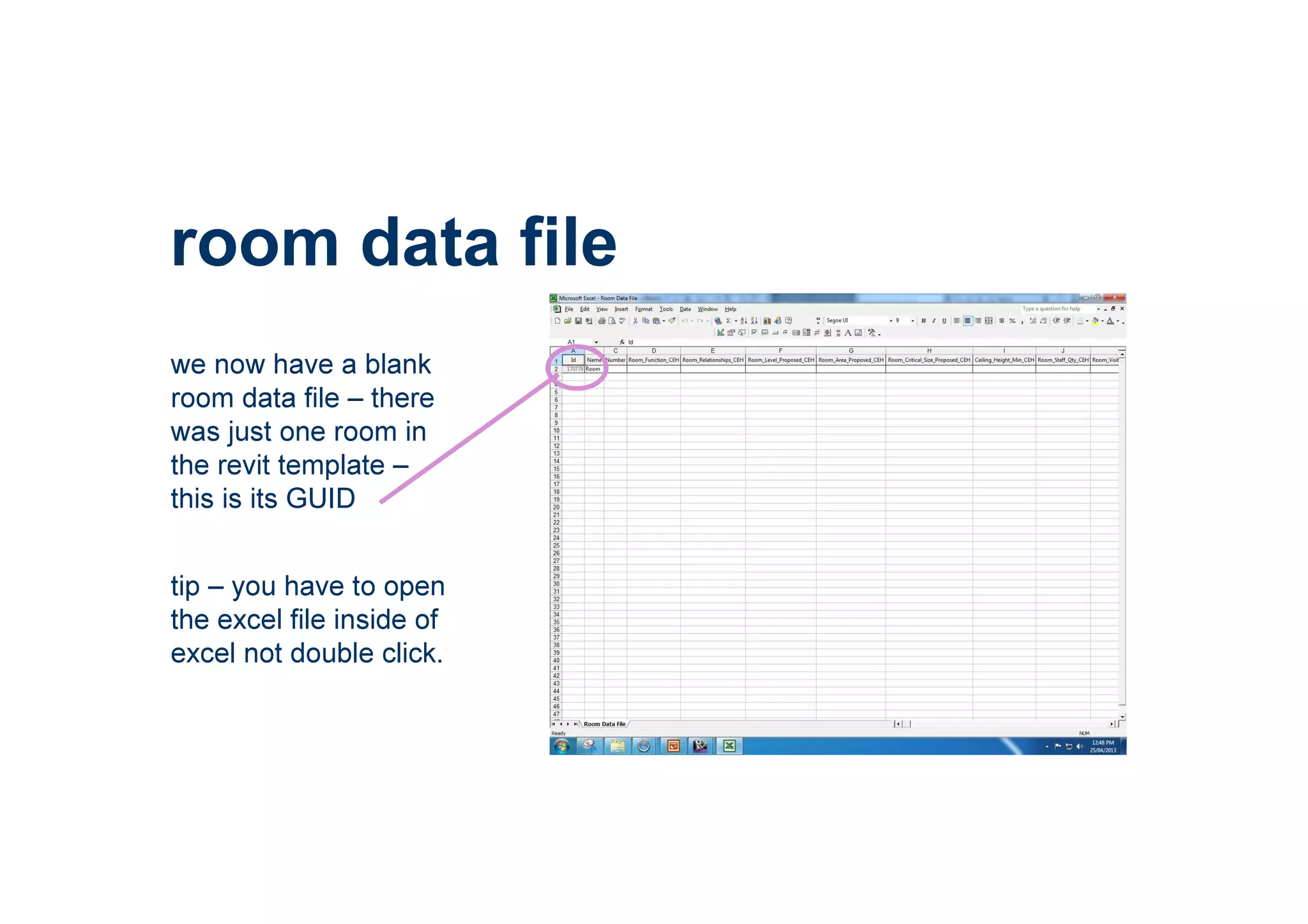
we now have a blank
room data file – there
was just one room in
the revit template –
this is its GUID
tip – you have to open
the excel file inside of
excel not double click.
testing
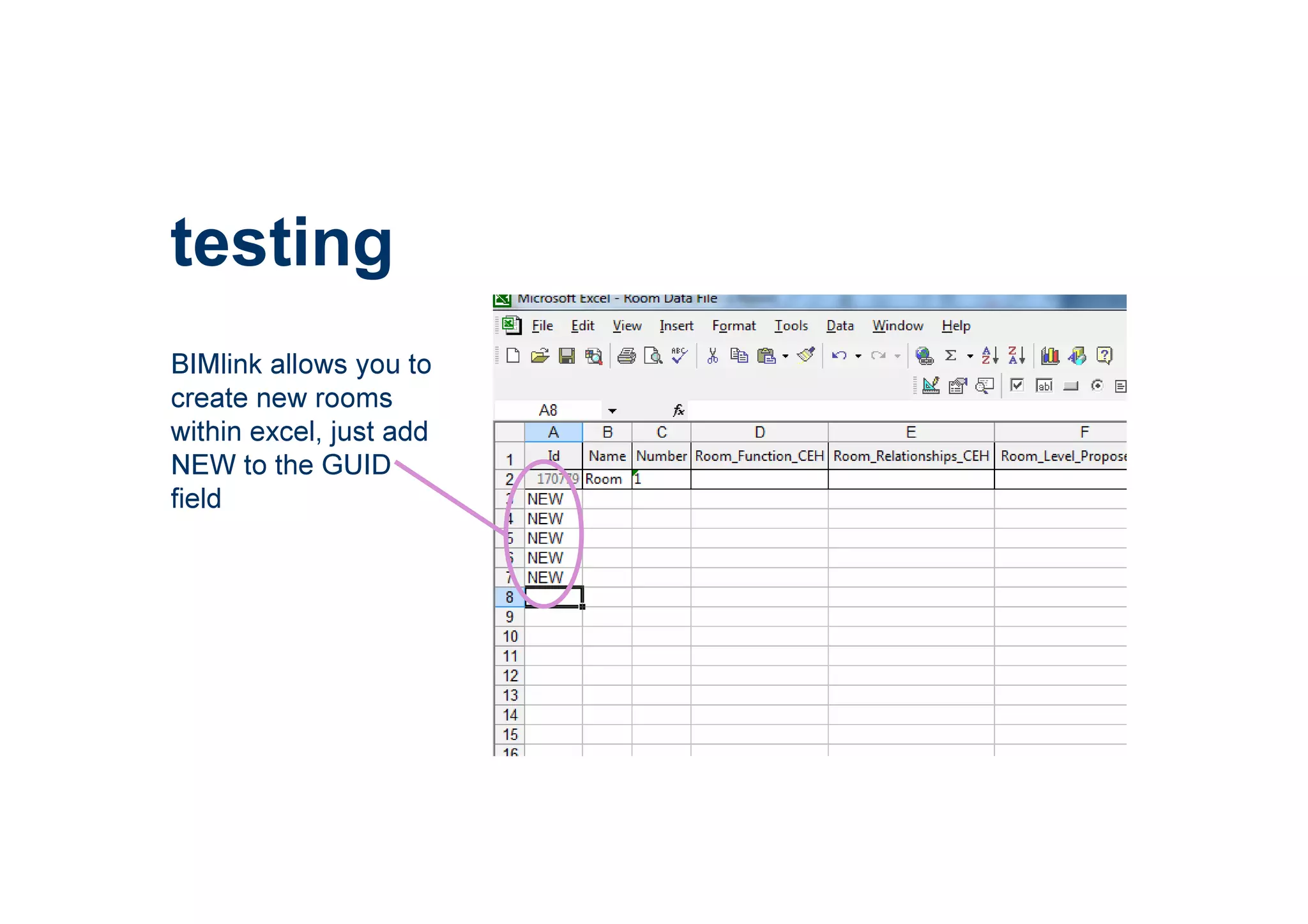
BIMlink allows you to
create new rooms
within excel, just add
NEW to the GUID
field
formatting tips
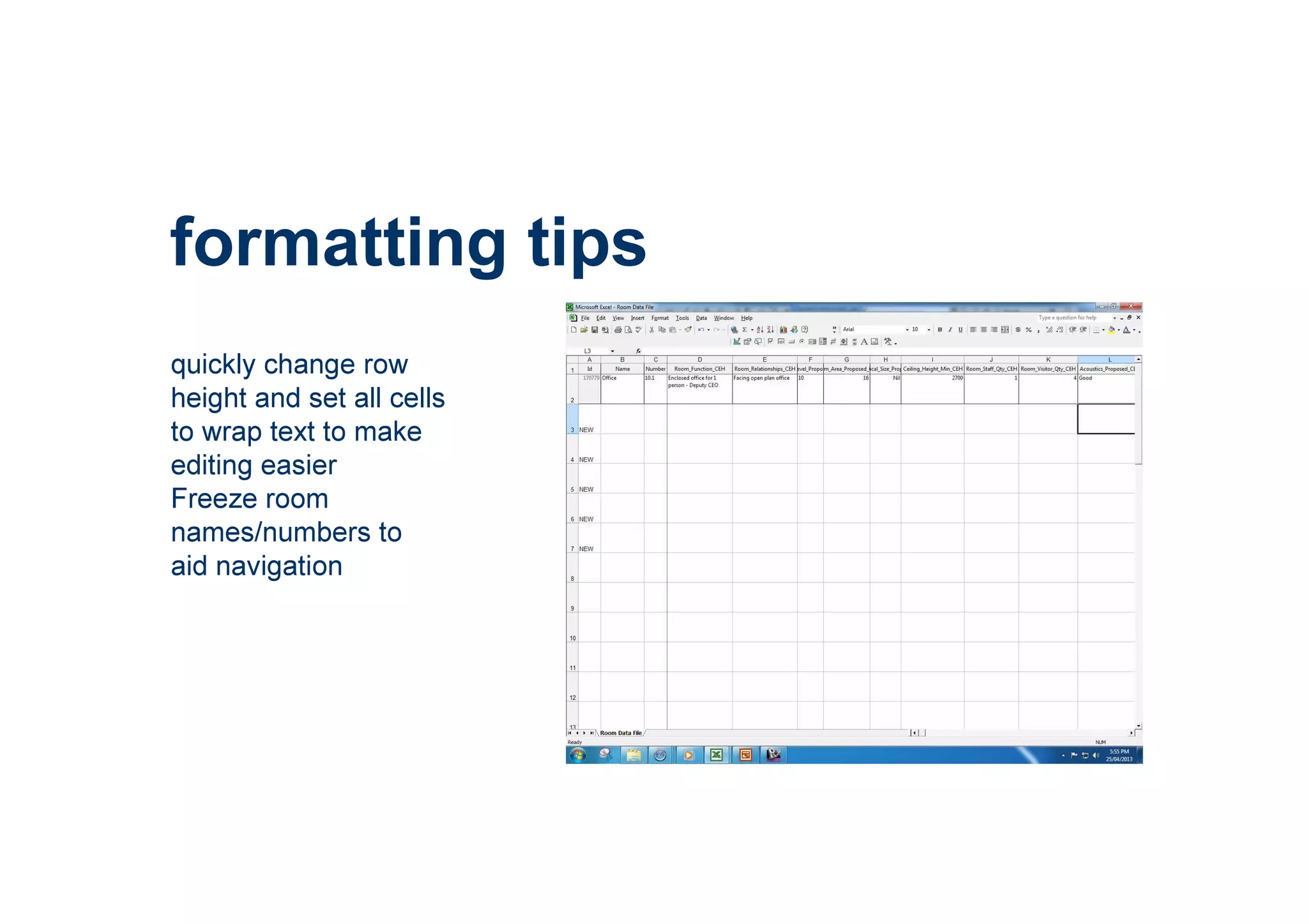
quickly change row
height and set all cells
to wrap text to make
editing easier
Freeze room
names/numbers to
aid navigation
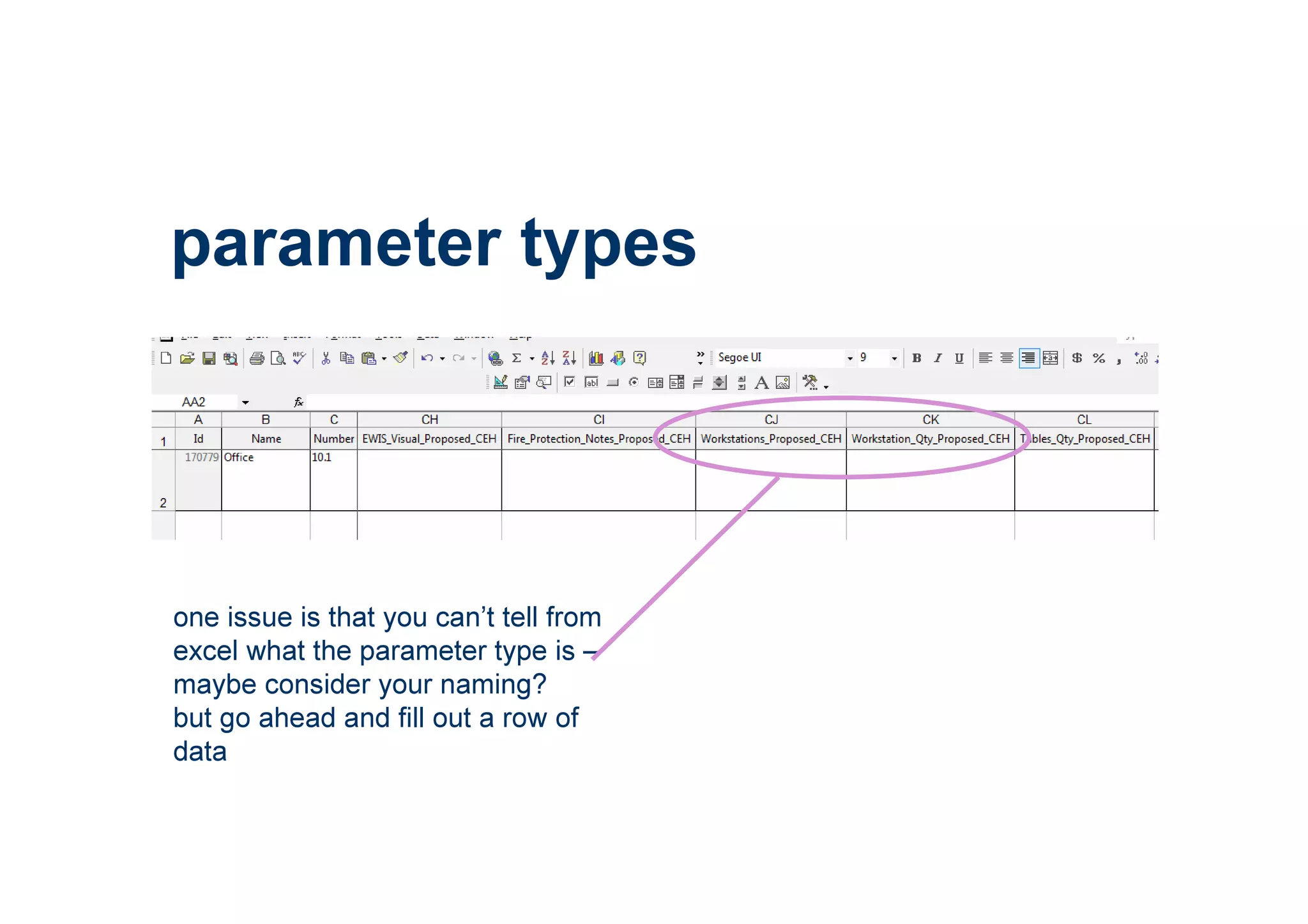
one issue is that you can’t tell from
excel what the parameter type is –
maybe consider your naming?
but go ahead and fill out a row of
data
parameter types
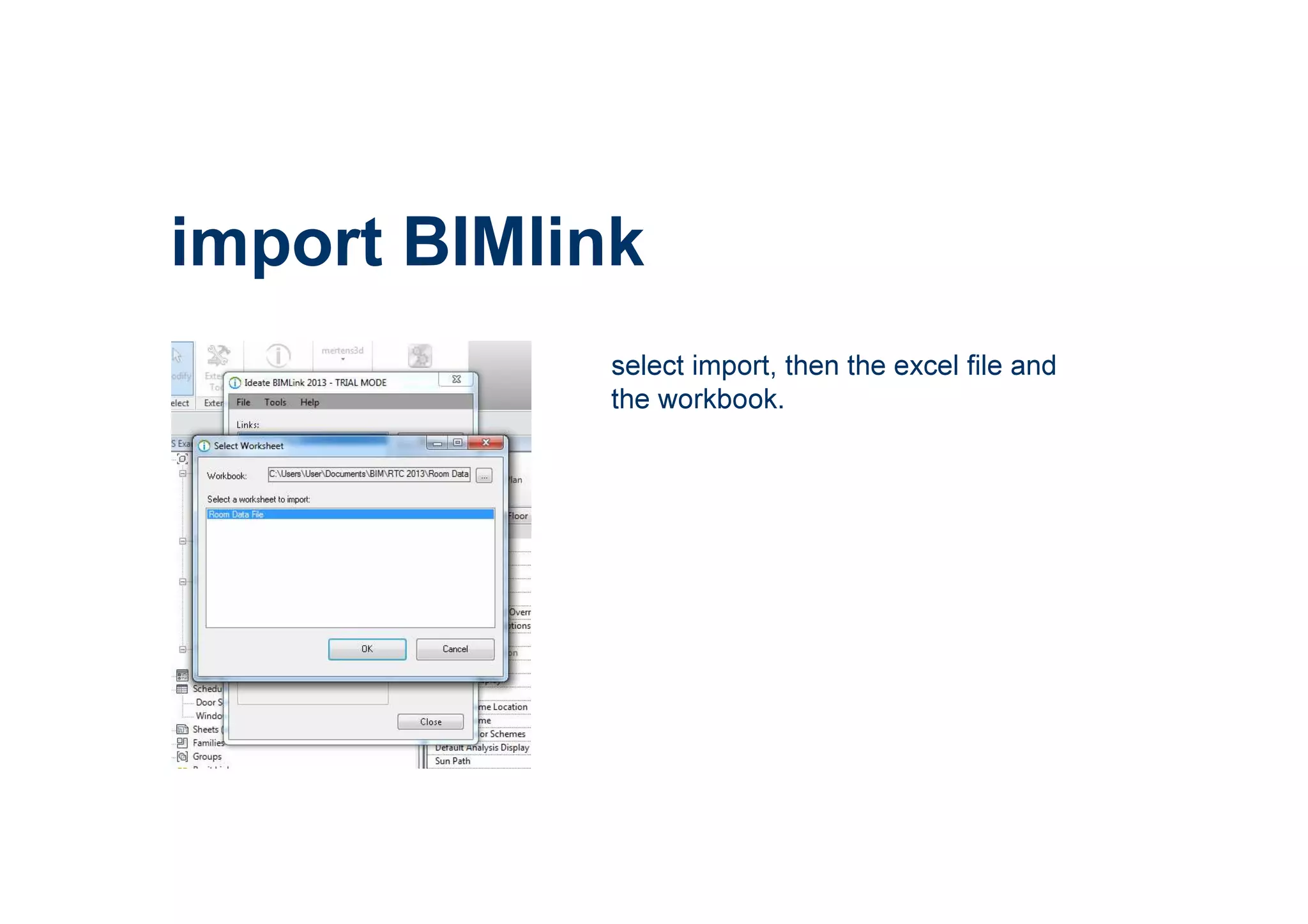
import BIMlink
select import, then the excel file and
the workbook.
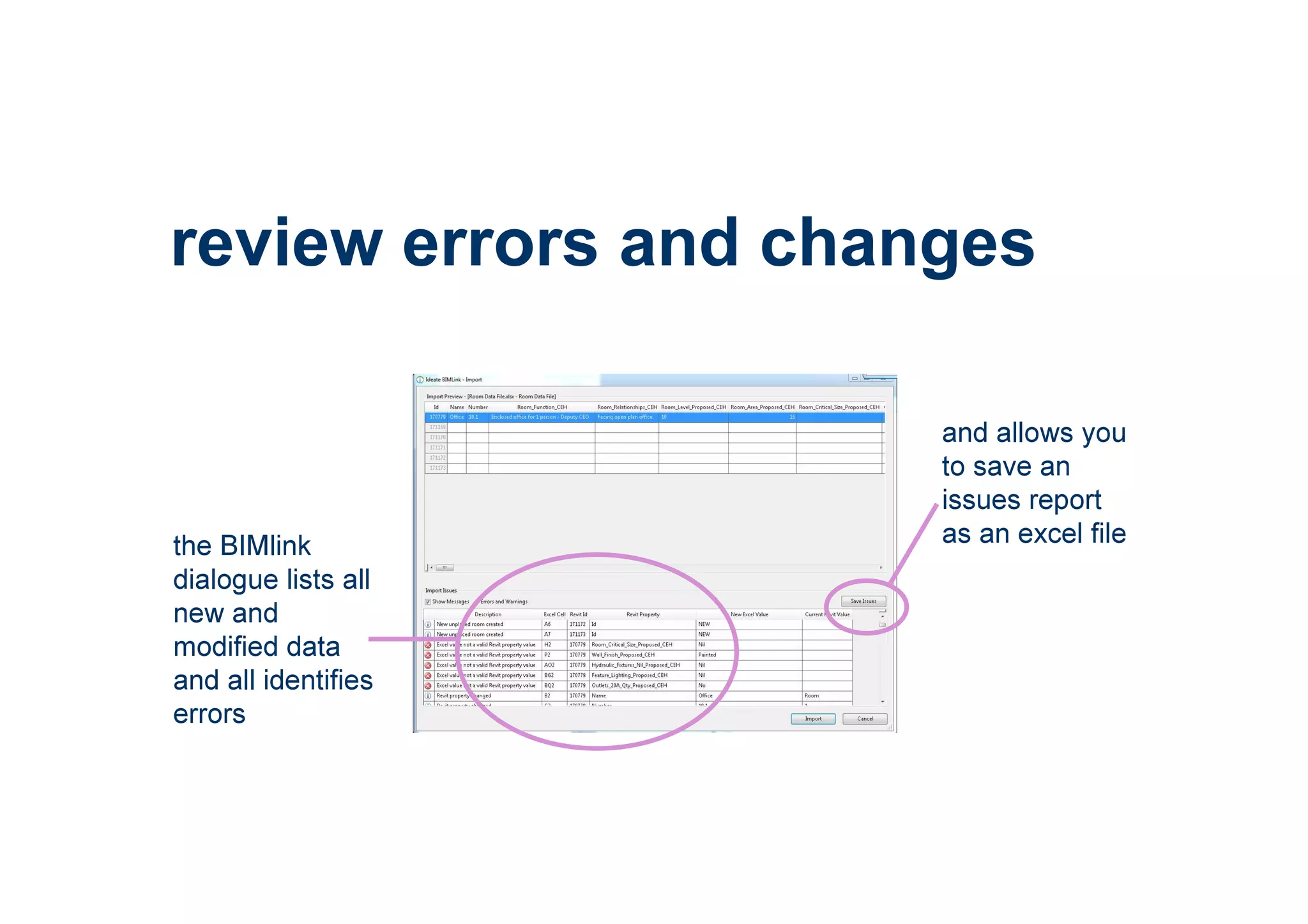
review errors and changes
the BIMlink
dialogue lists all
new and
modified data
and all identifies
errors
and allows you
to save an
issues report
as an excel file
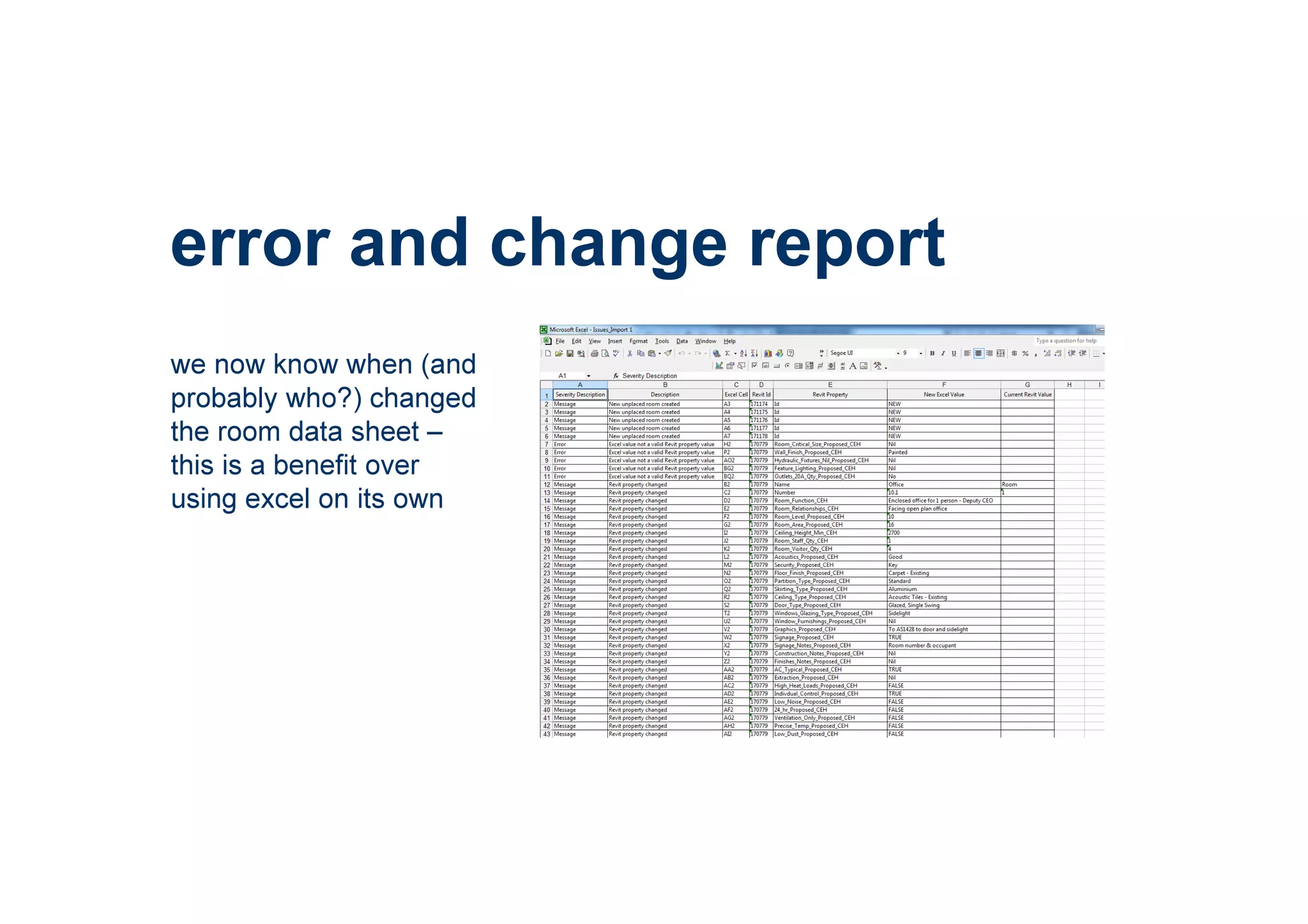
error and change report
we now know when (and
probably who?) changed
the room data sheet –
this is a benefit over
using excel on its own
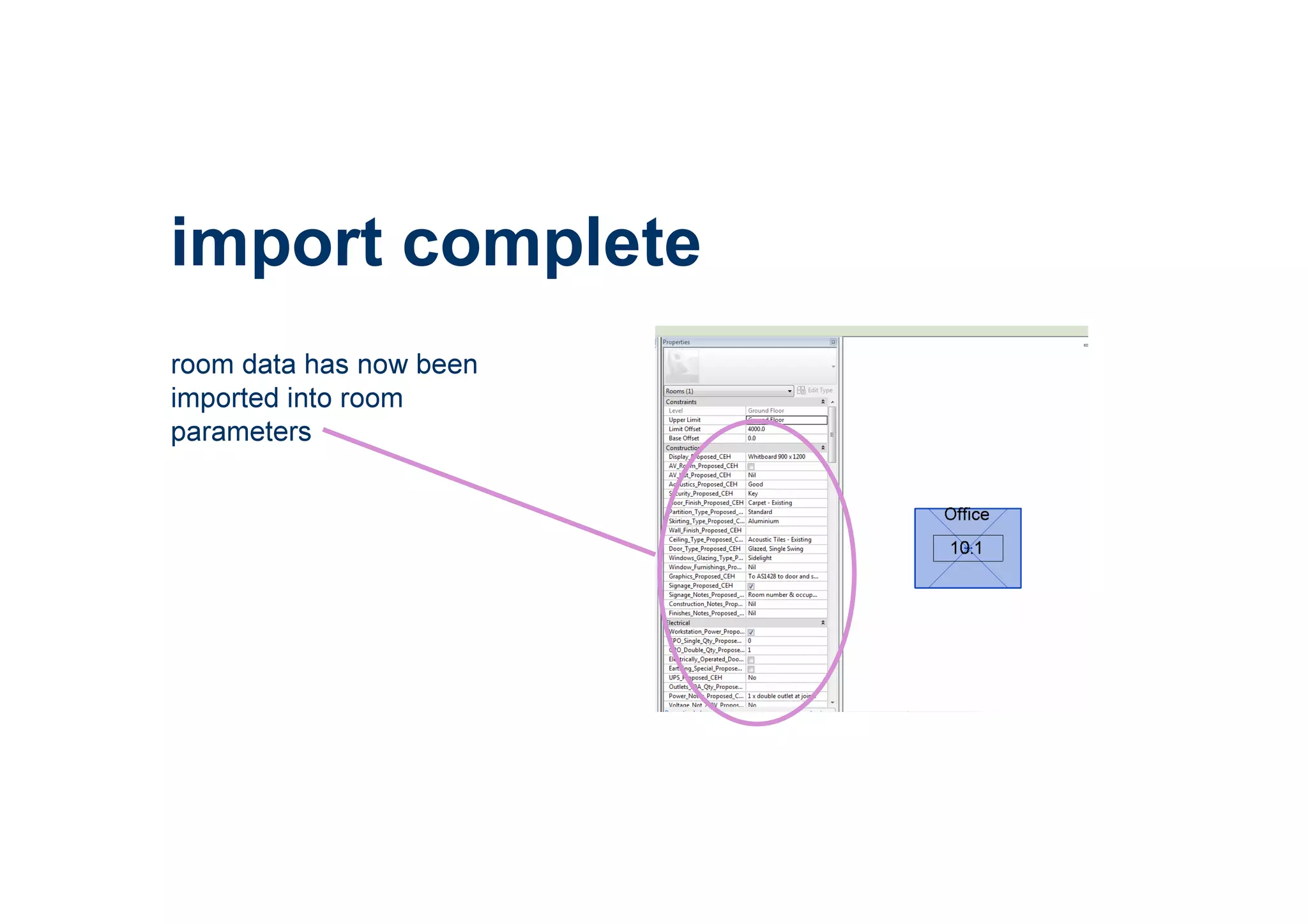
import complete
room data has now been
imported into room
parameters
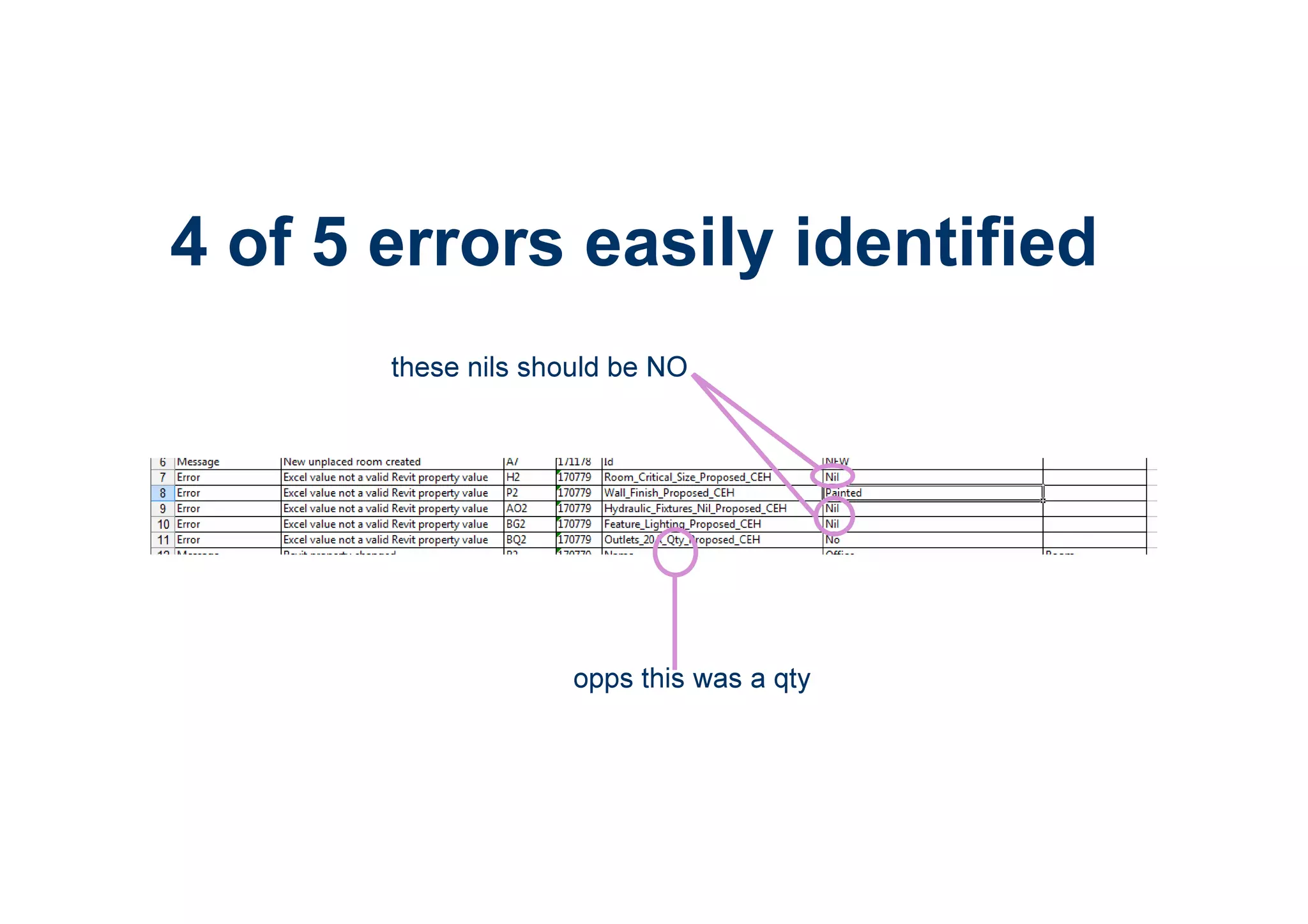
opps this was a qty
these nils should be NO
4 of 5 errors easily identified
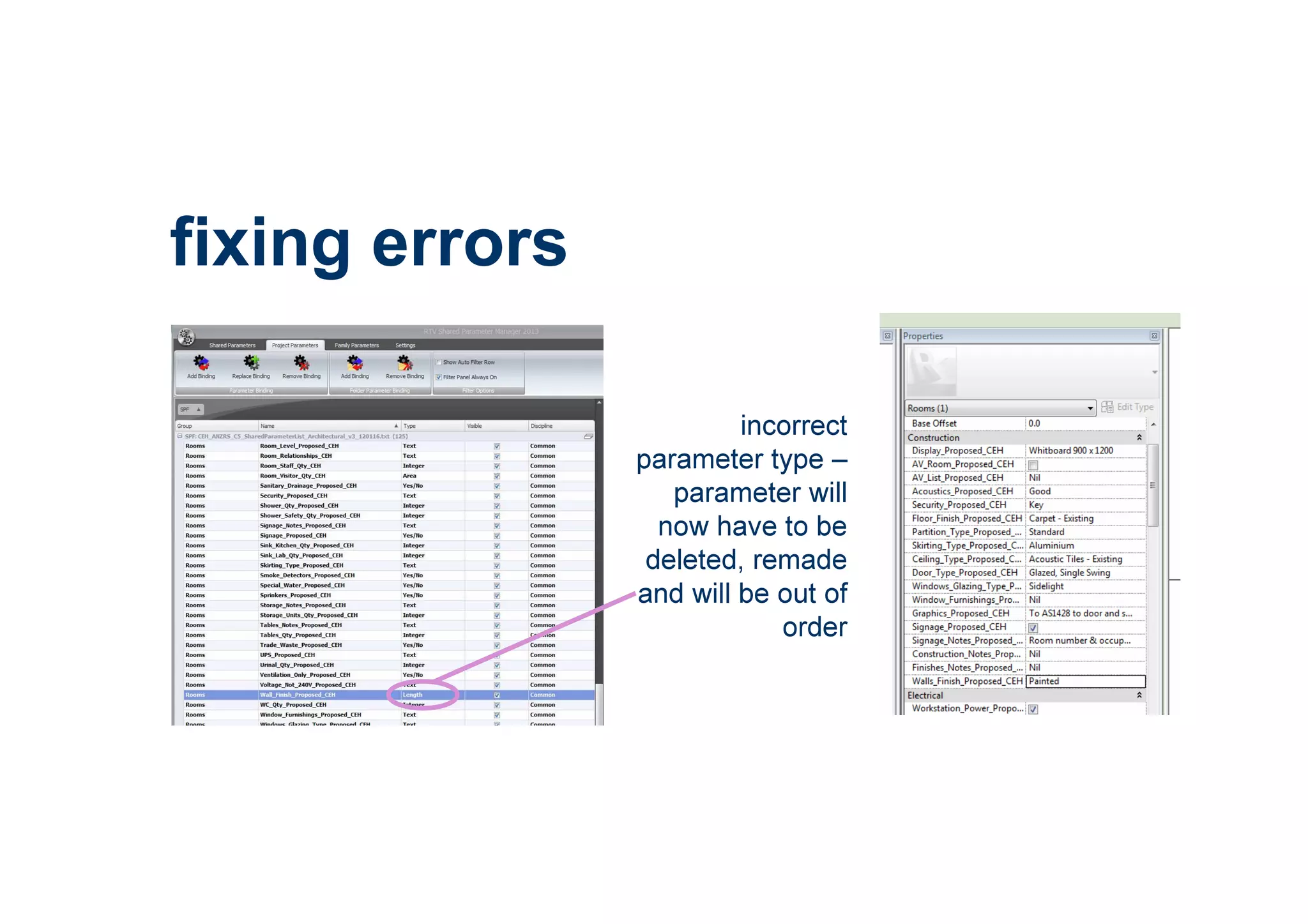
incorrect
parameter type –
parameter will
now have to be
deleted, remade
and will be out of
order
fixing errors
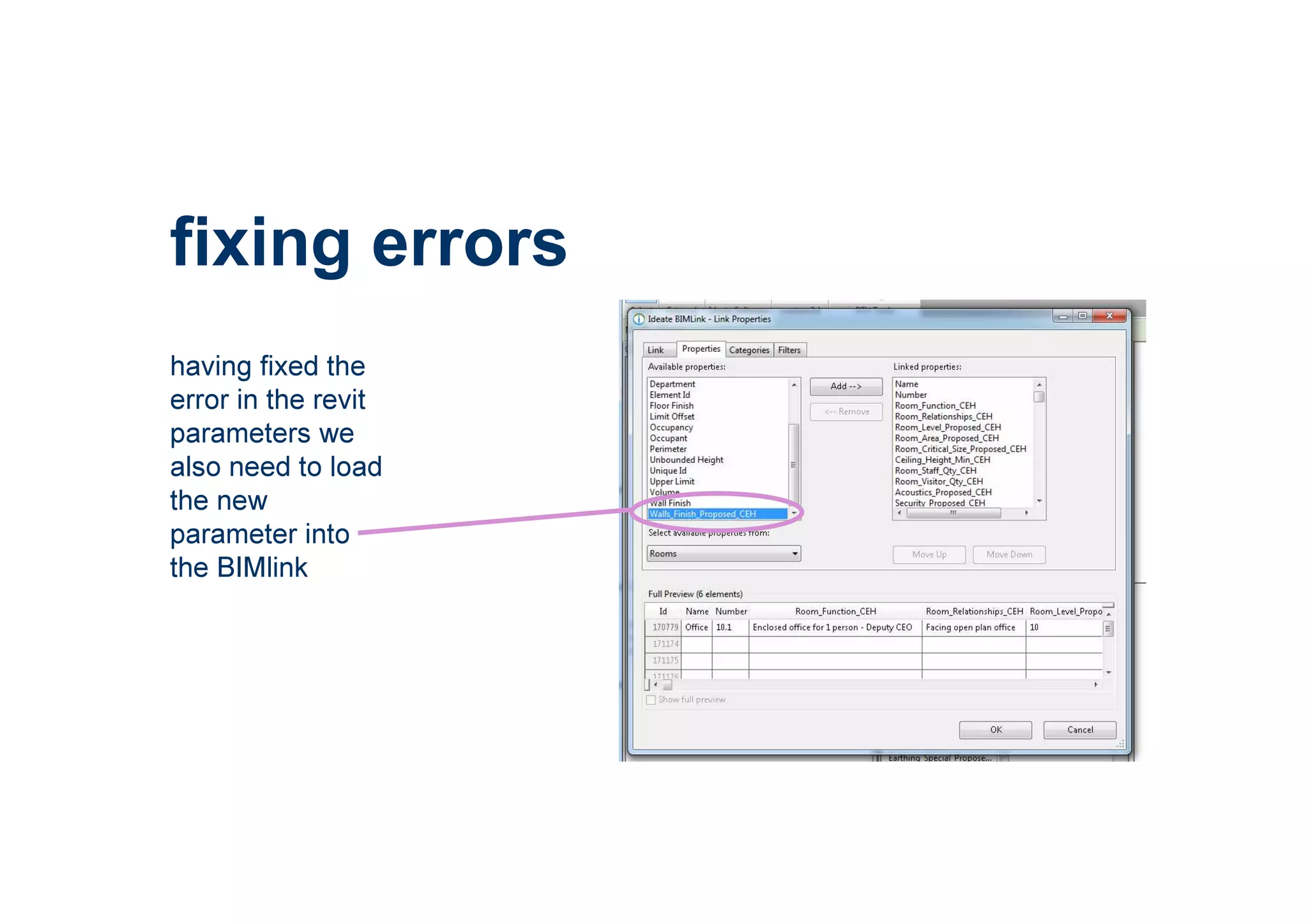
fixing errors
having fixed the
error in the revit
parameters we
also need to load
the new
parameter into
the BIMlink
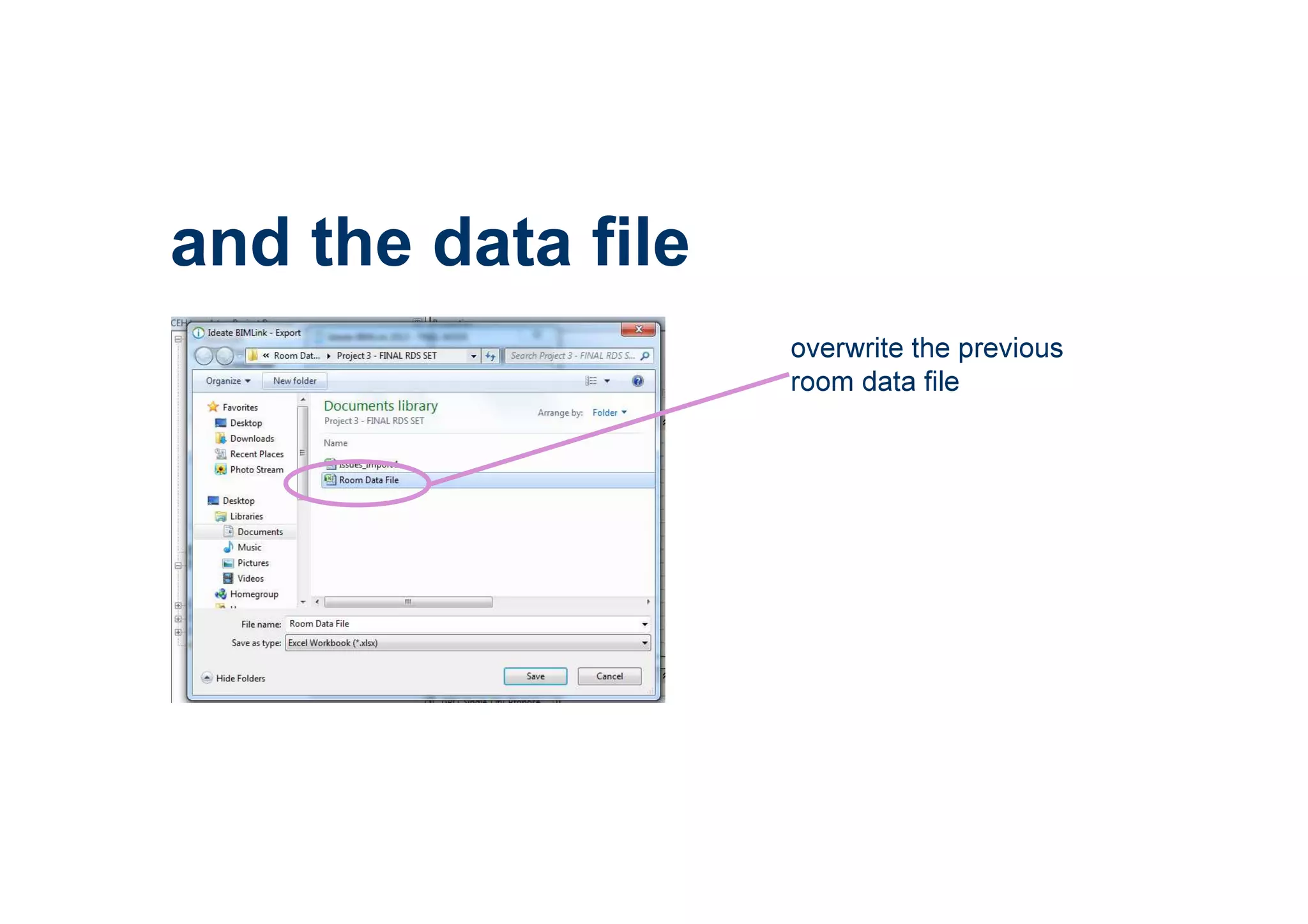
and the data file
overwrite the previous
room data file
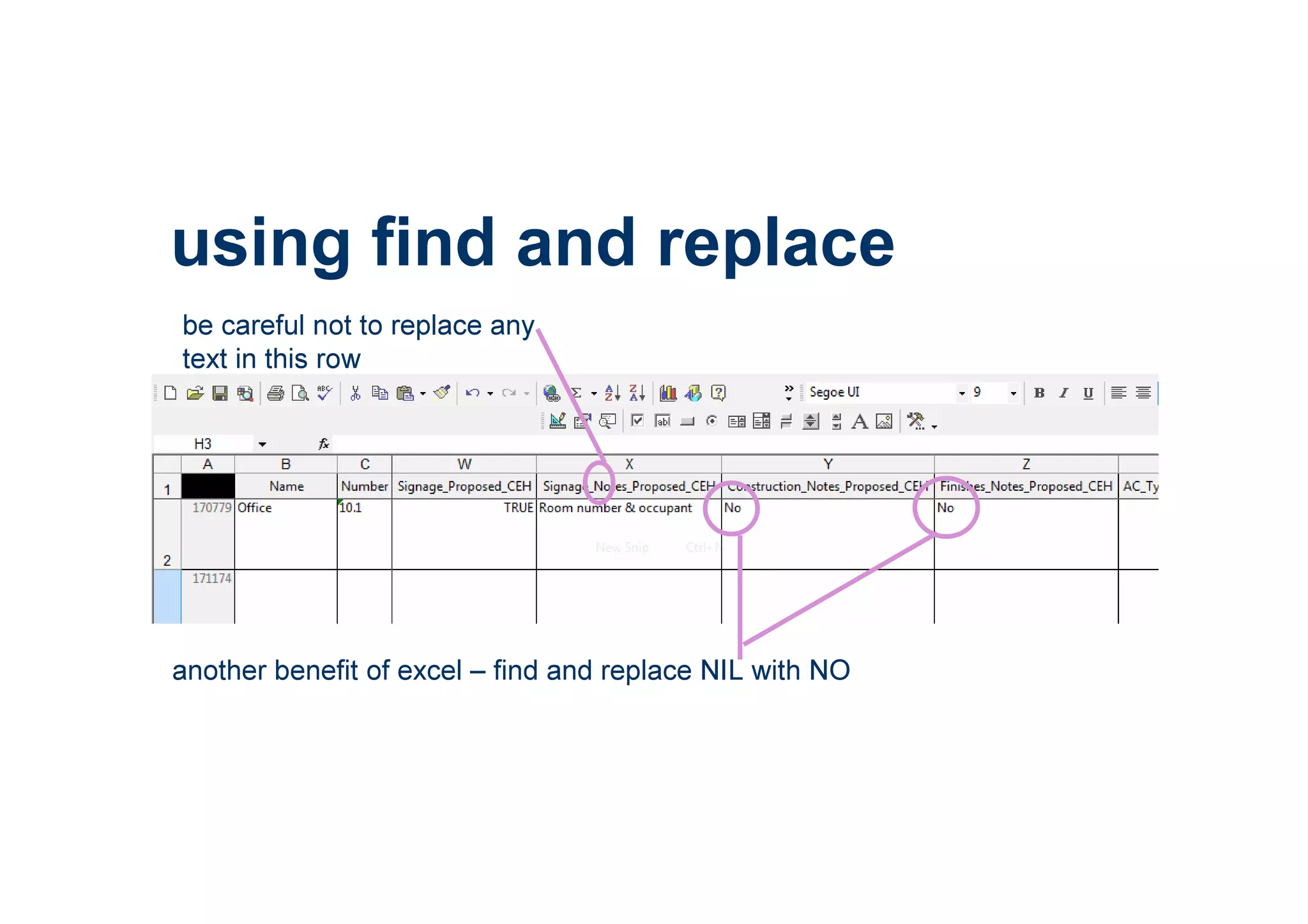
using find and replace
another benefit of excel – find and replace NIL with NO
be careful not to replace any
text in this row
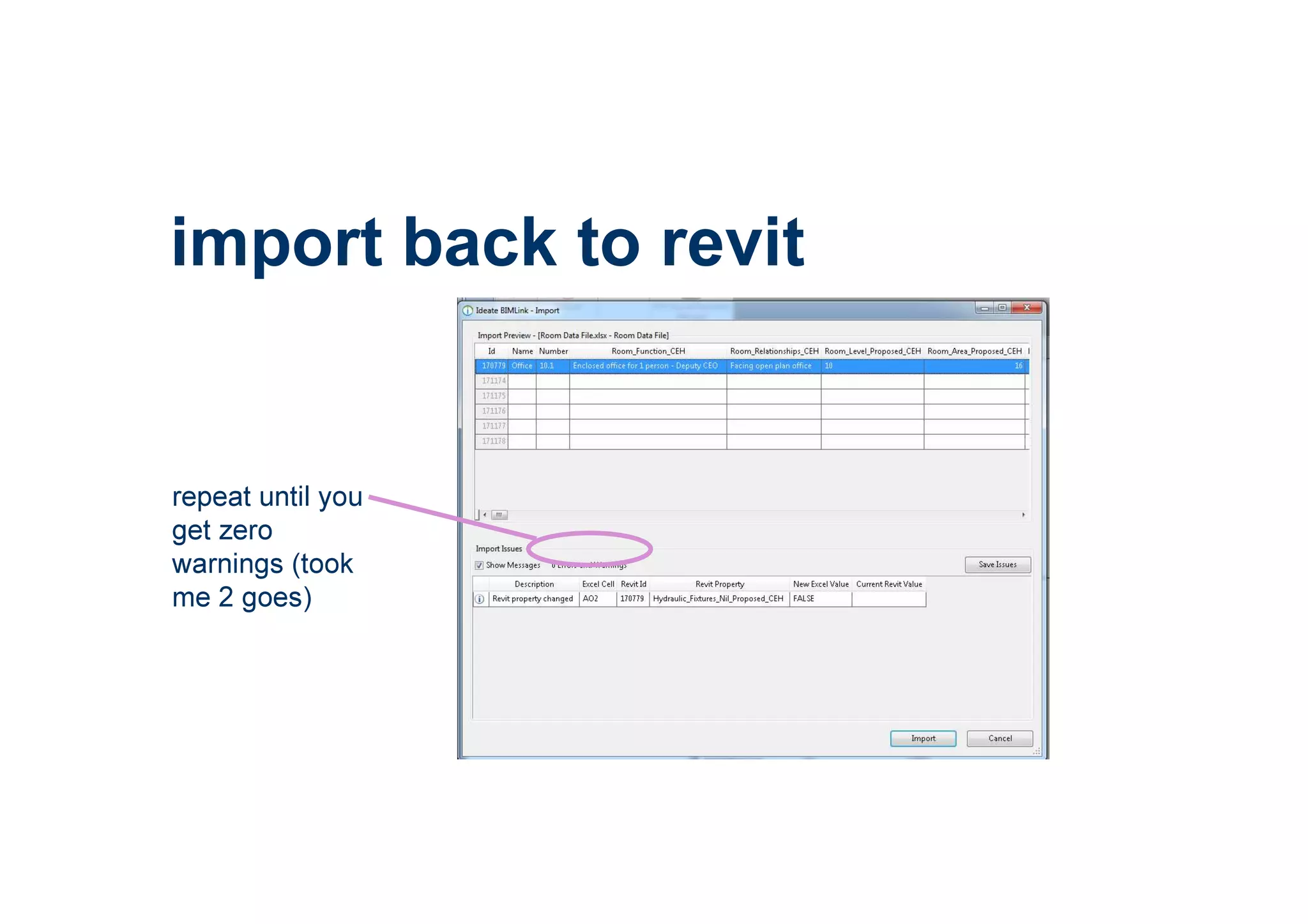
repeat until you
get zero
warnings (took
me 2 goes)
import back to revit
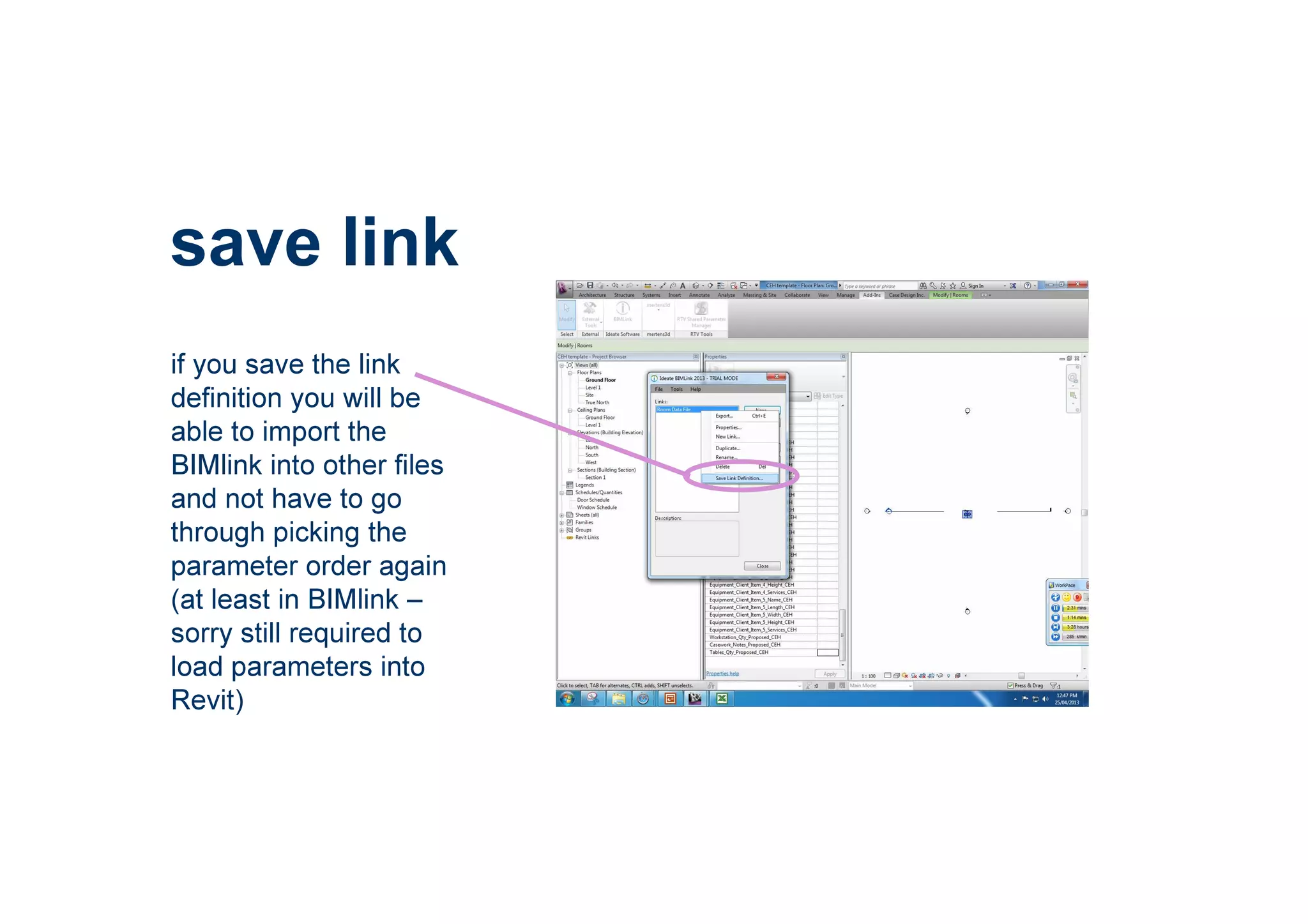
save link
if you save the link
definition you will be
able to import the
BIMlink into other files
and not have to go
through picking the
parameter order again
(at least in BIMlink –
sorry still required to
load parameters into
Revit)
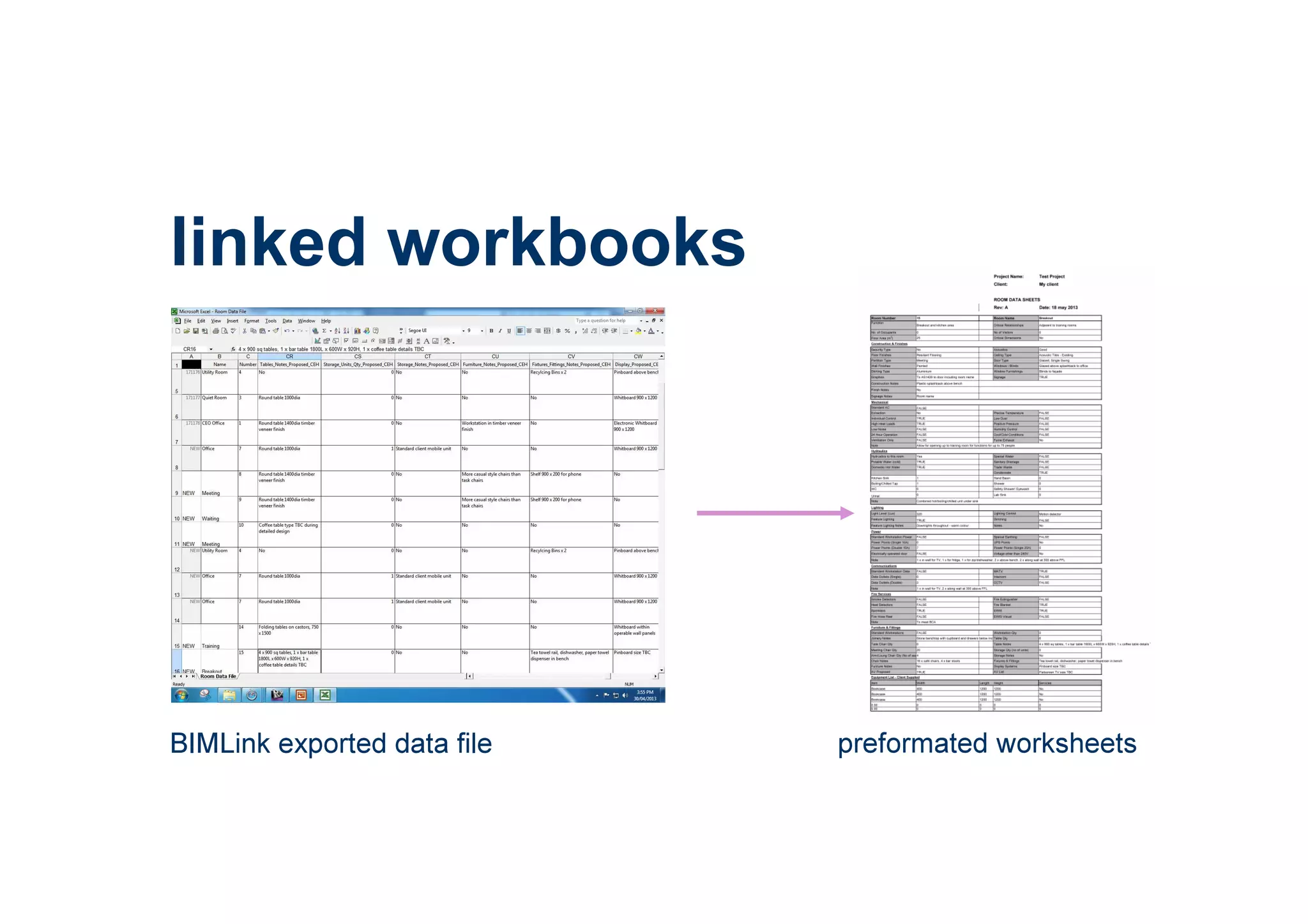
linked workbooks
BIMLink exported data file preformated worksheets
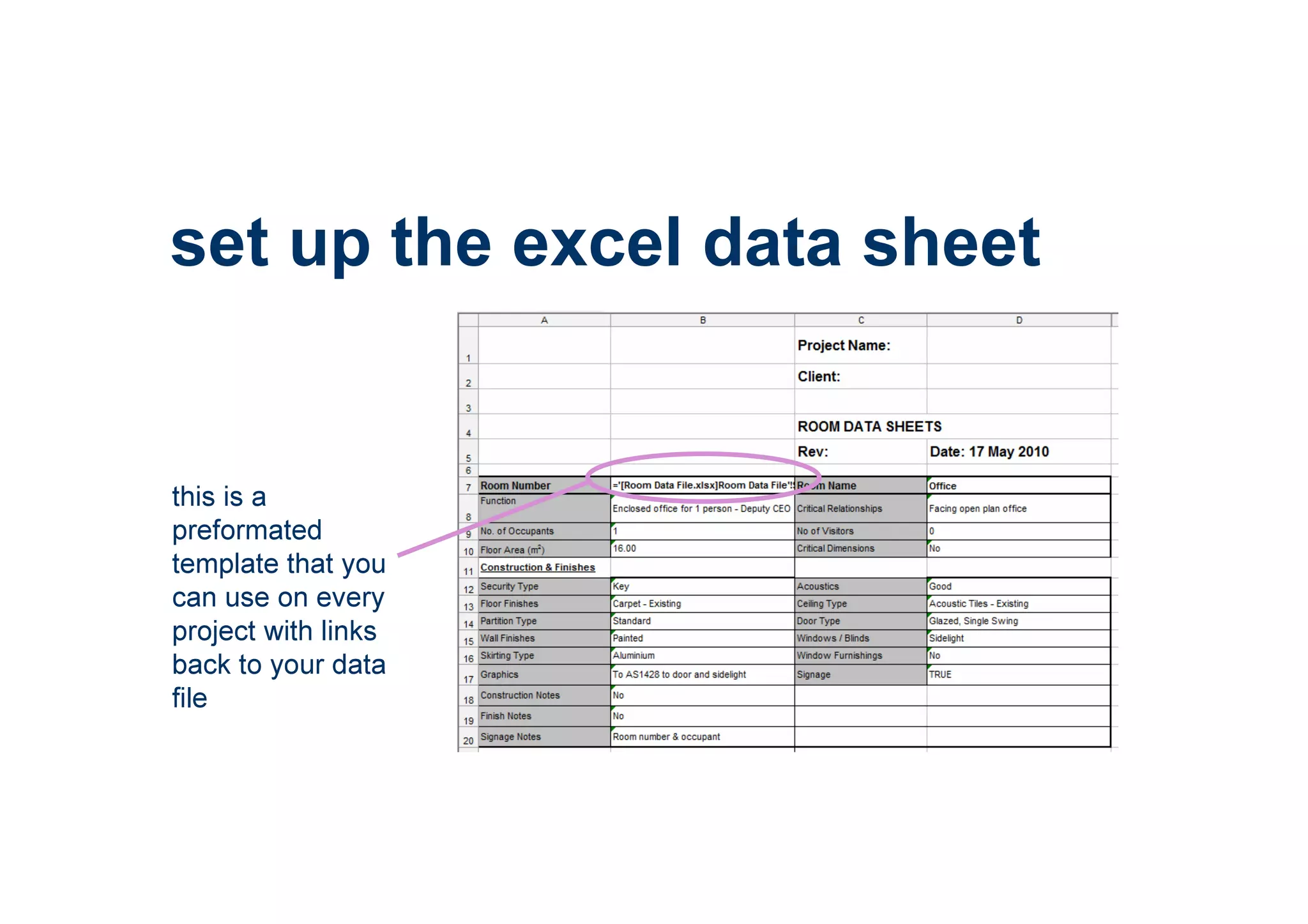
set up the excel data sheet
this is a
preformated
template that you
can use on every
project with links
back to your data
file
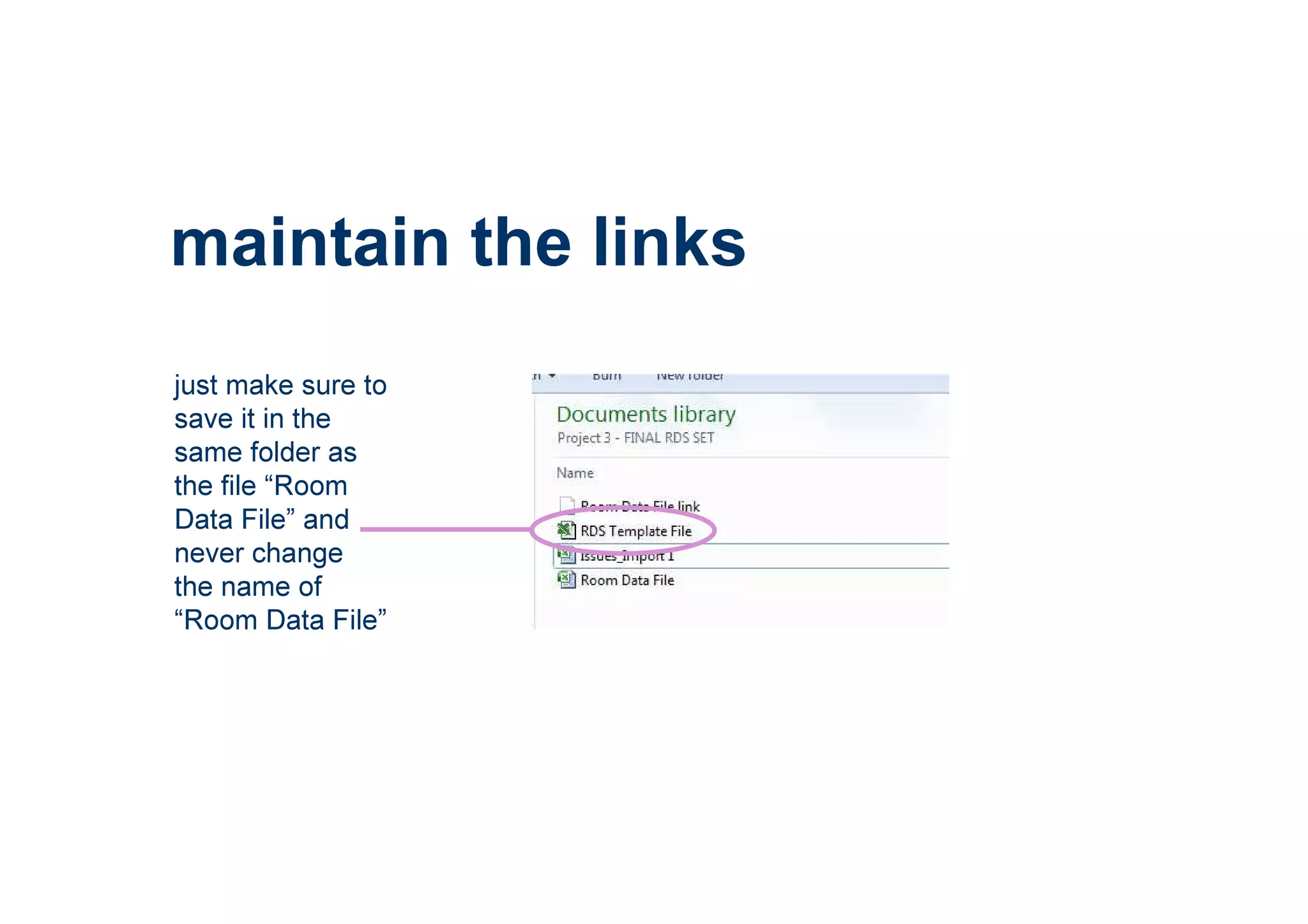
just make sure to
save it in the
same folder as
the file “Room
Data File” and
never change
the name of
“Room Data File”
maintain the links
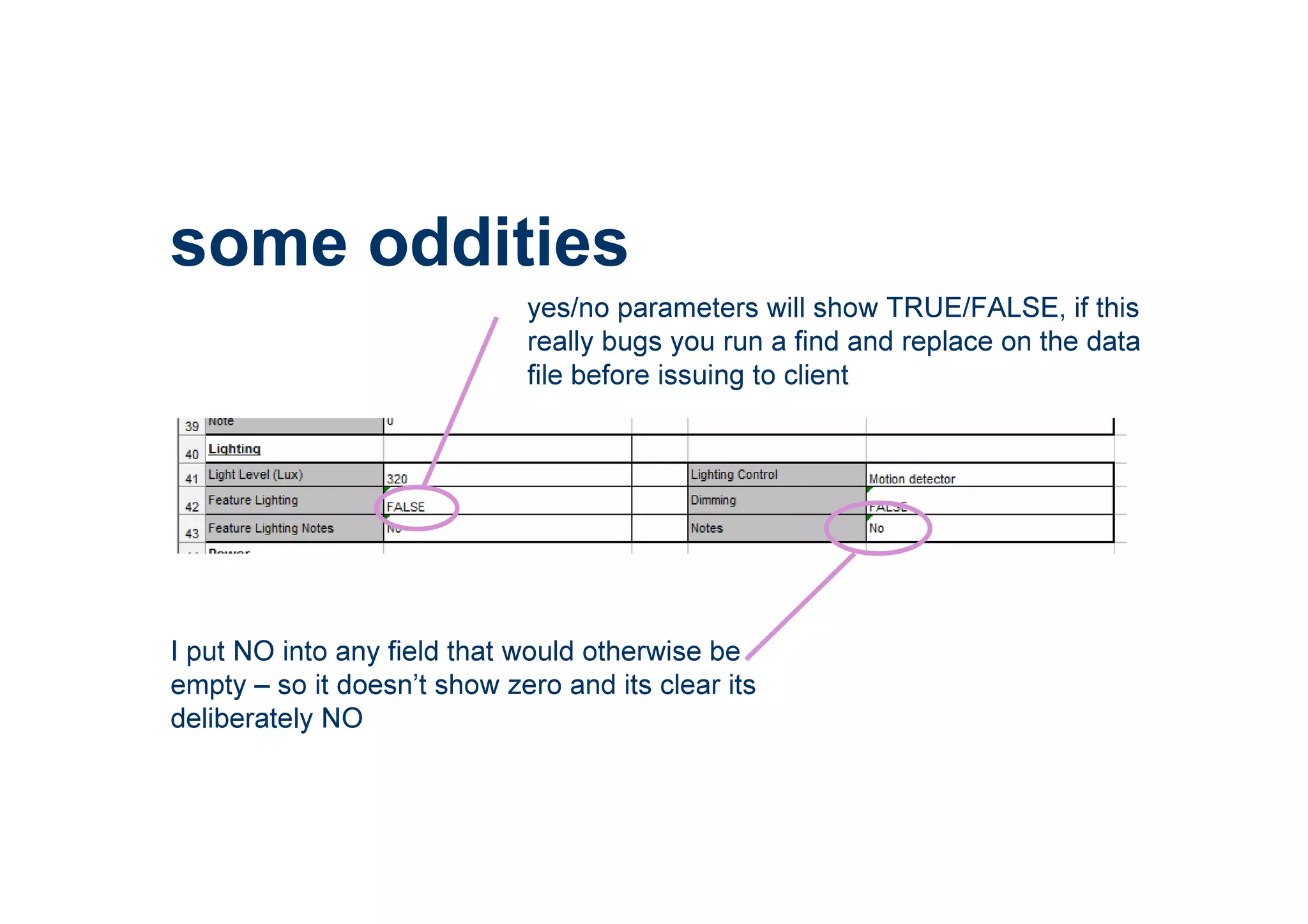
some oddities
yes/no parameters will show TRUE/FALSE, if this
really bugs you run a find and replace on the data
file before issuing to client
I put NO into any field that would otherwise be
empty – so it doesn’t show zero and its clear its
deliberately NO
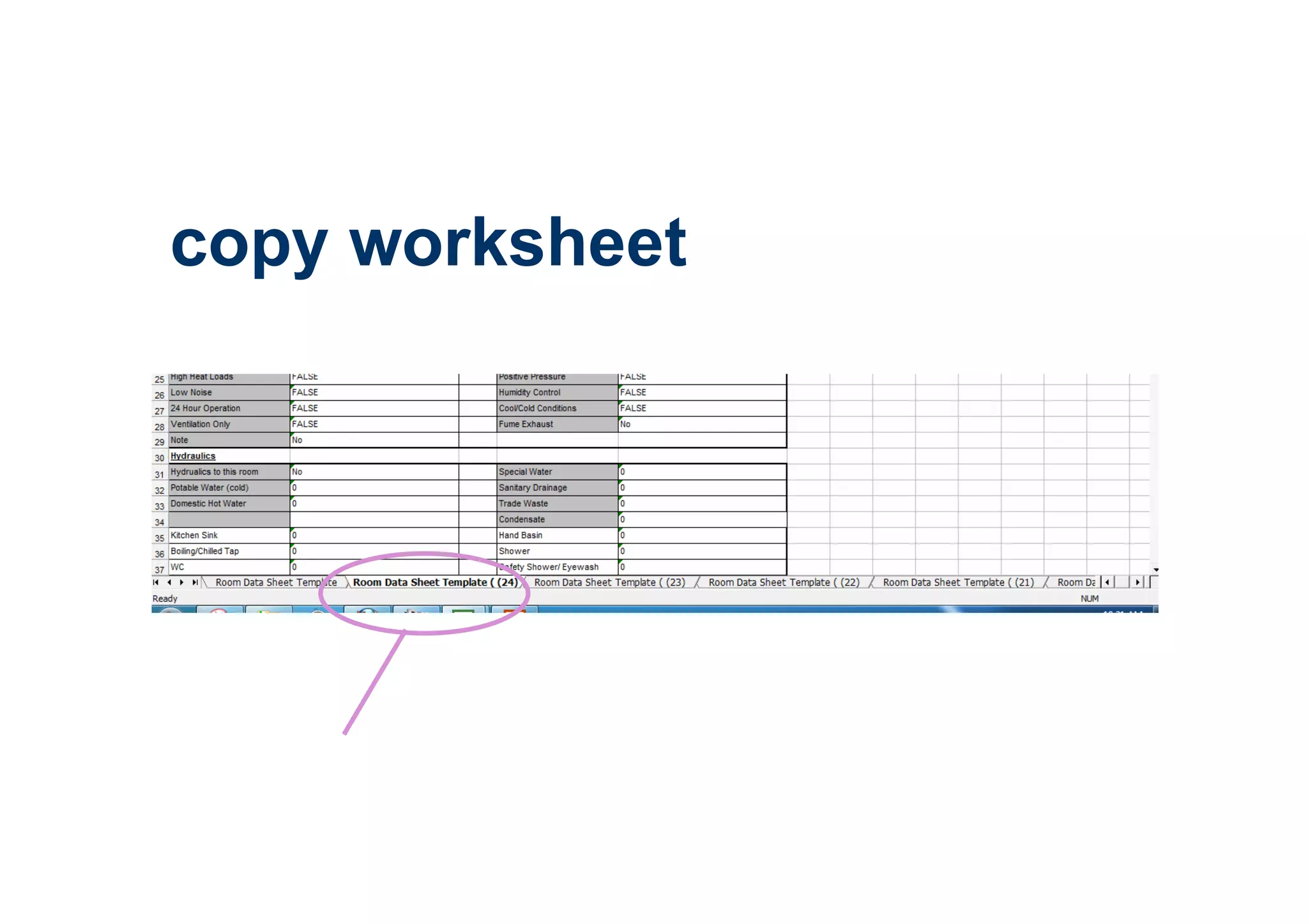
copy worksheet
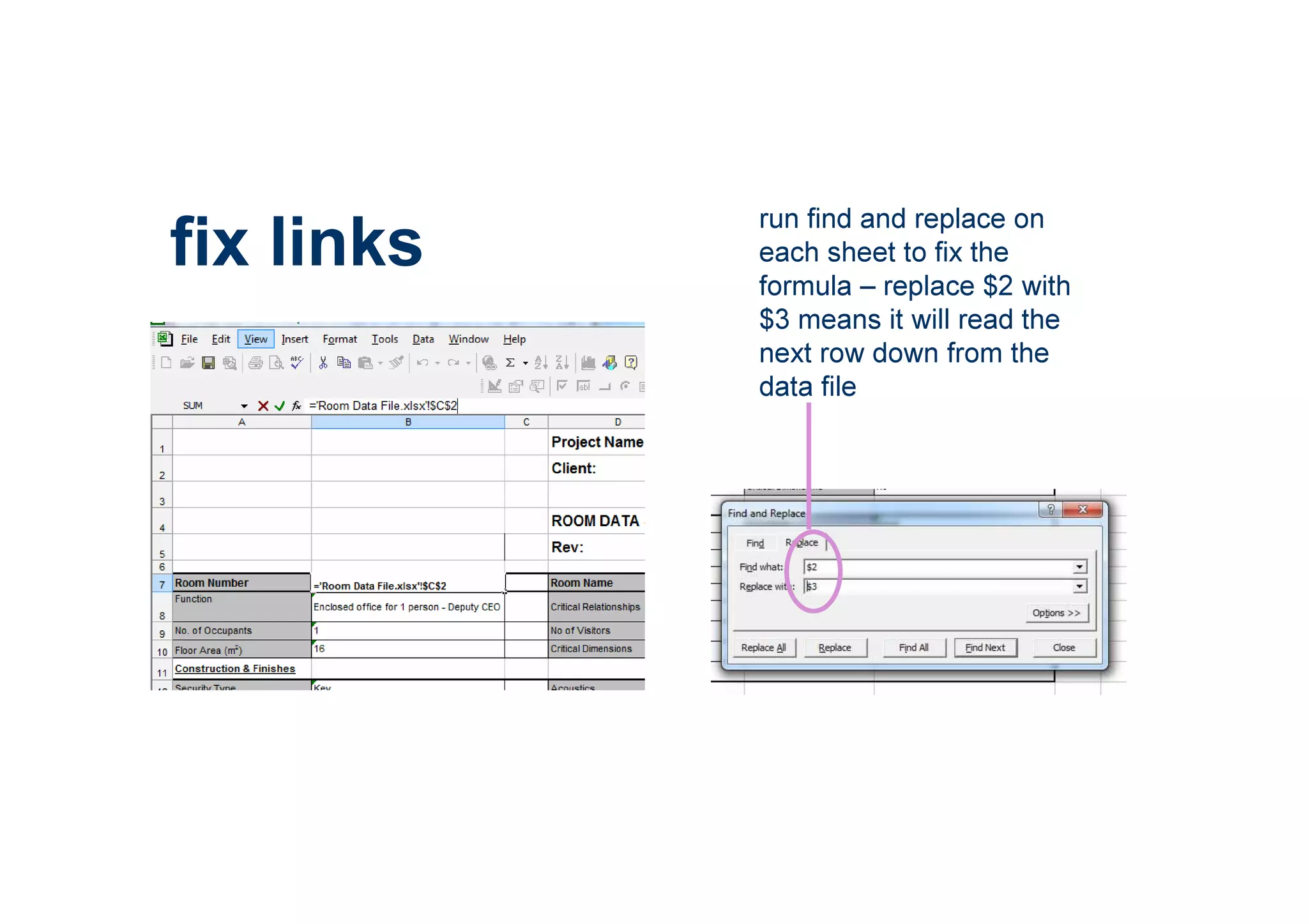
fix links
run find and replace on
each sheet to fix the
formula – replace $2 with
$3 means it will read the
next row down from the
data file
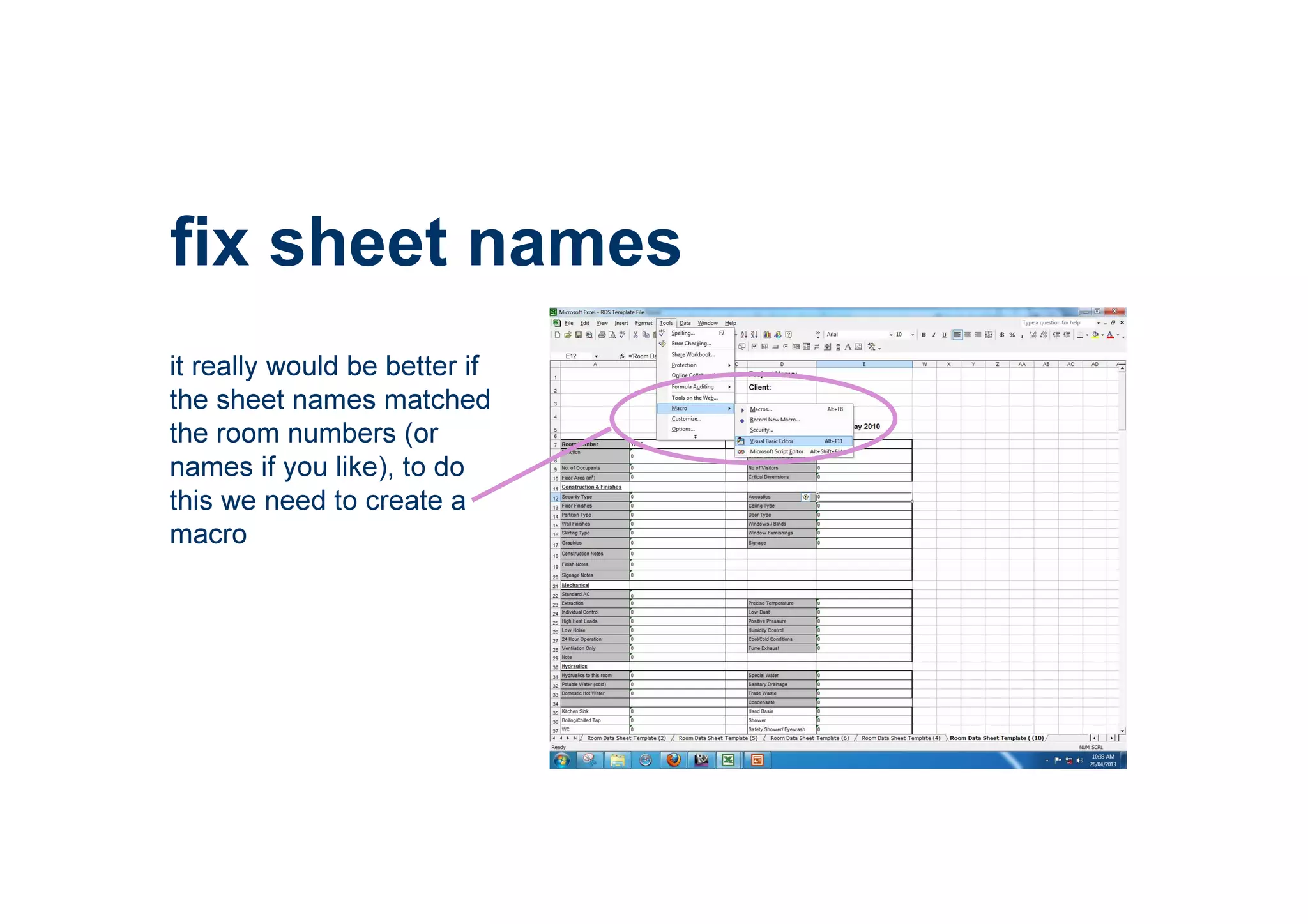
fix sheet names
it really would be better if
the sheet names matched
the room numbers (or
names if you like), to do
this we need to create a
macro
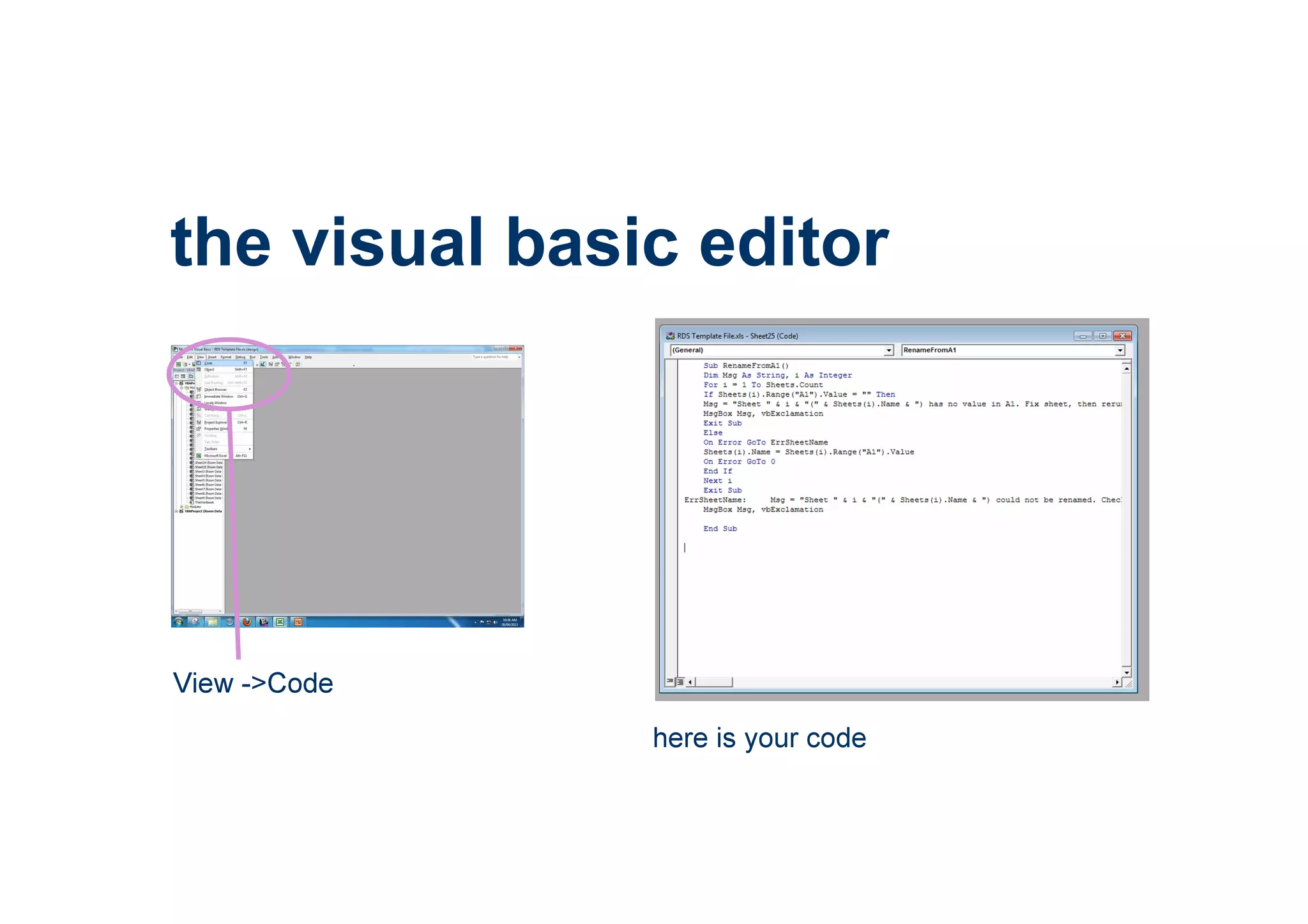
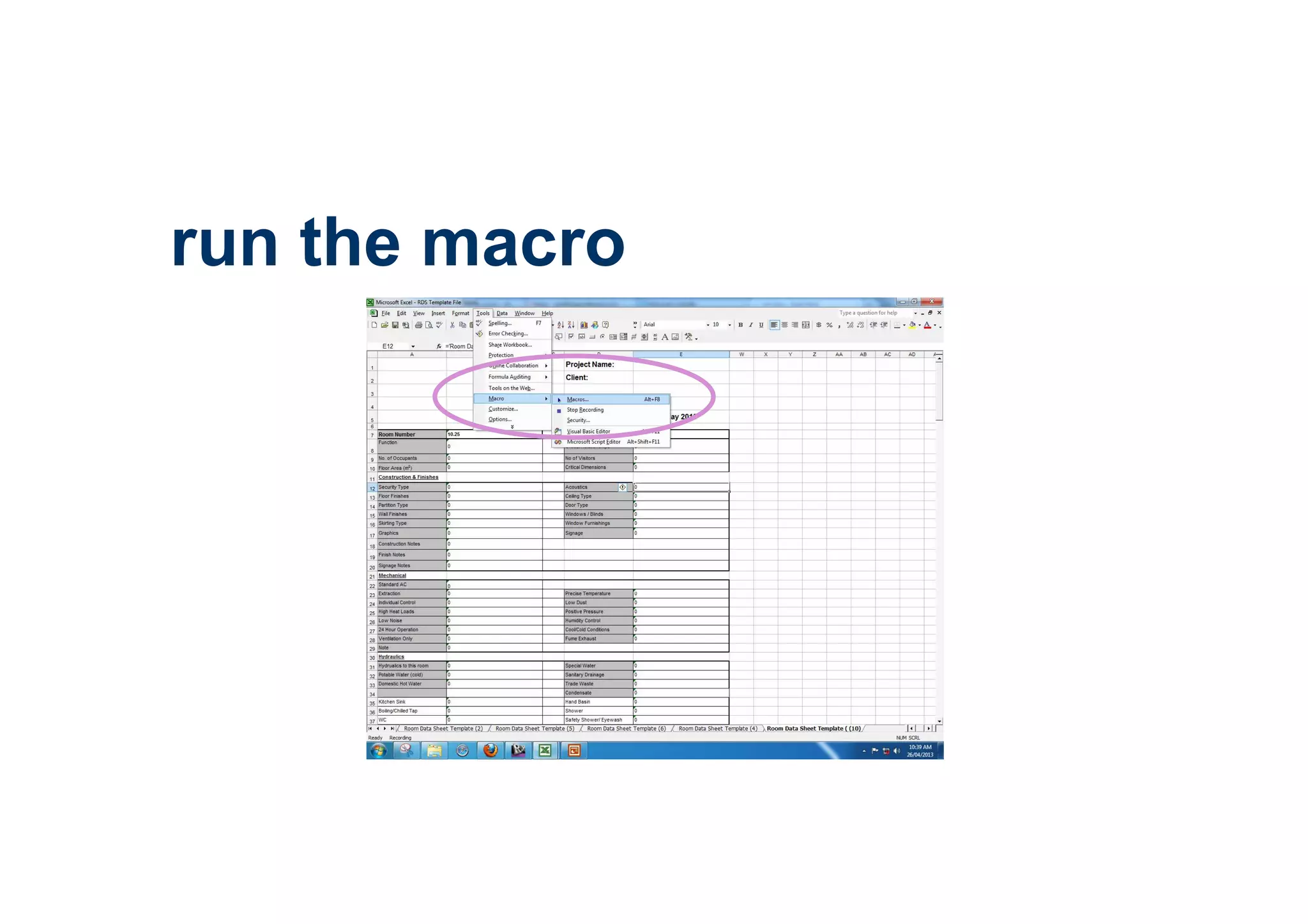
the visual basic editor
View ->Code
here is your code
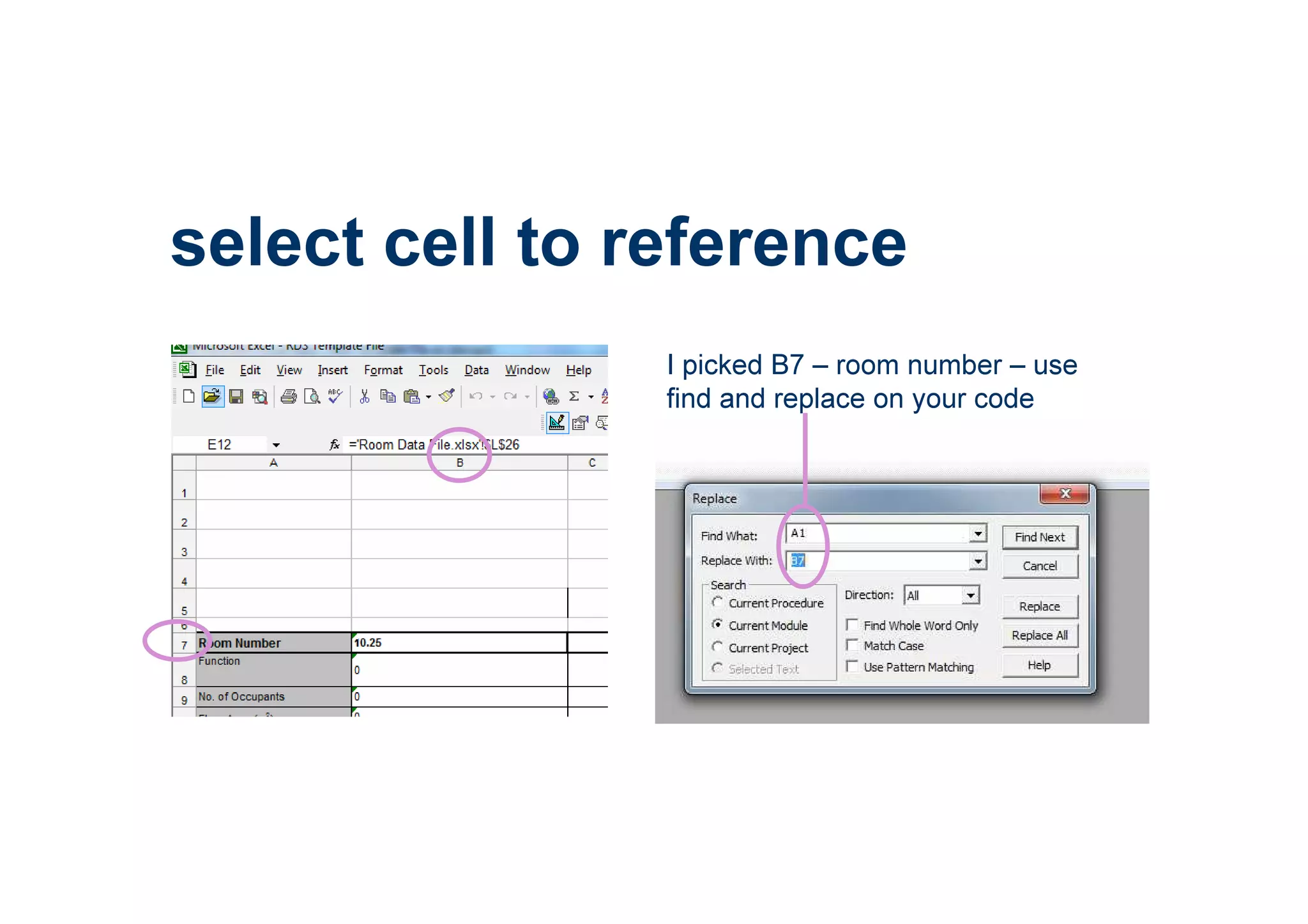
select cell to reference
I picked B7 – room number – use
find and replace on your code
run the macro
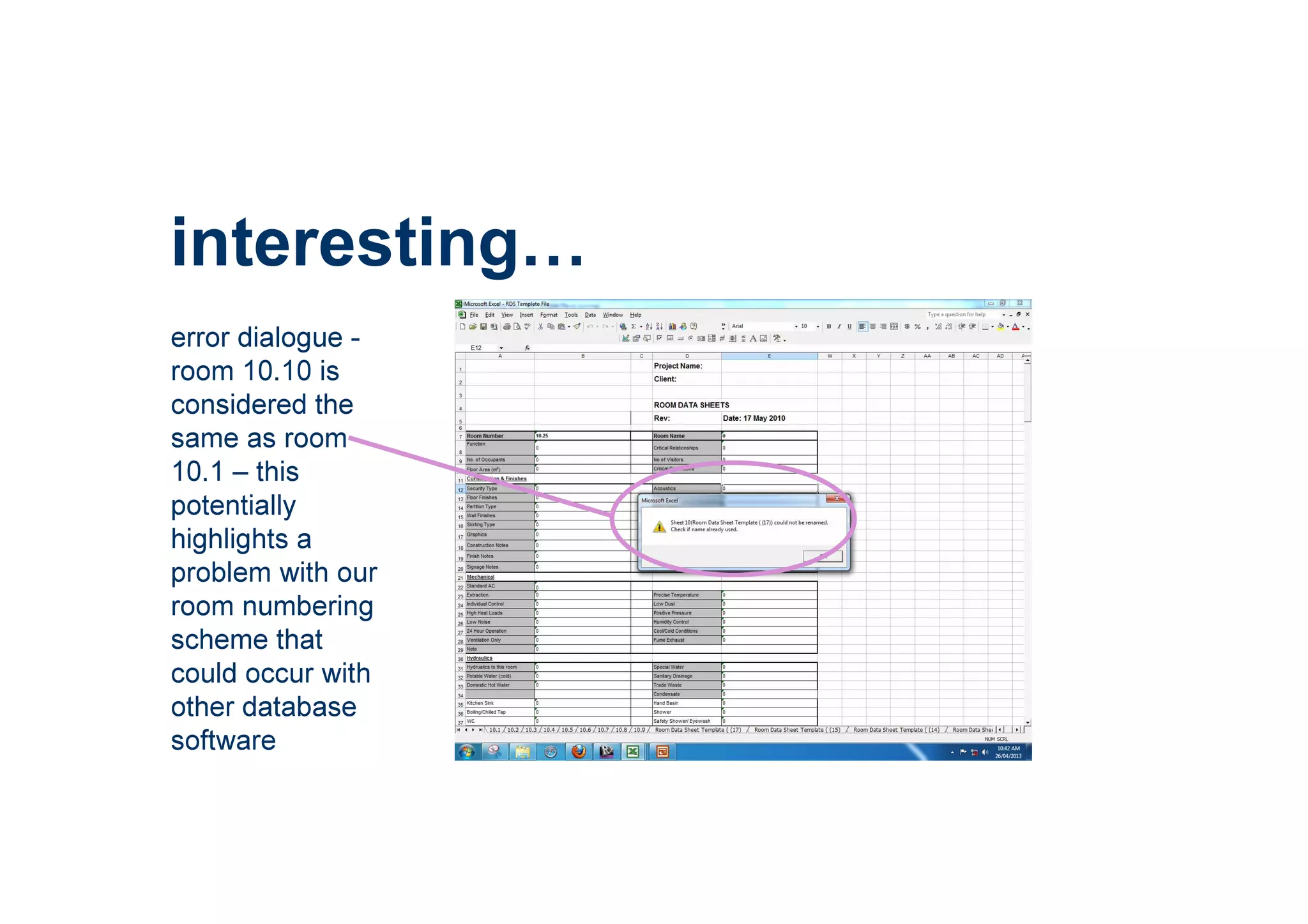
interesting
error dialogue -
room 10.10 is
considered the
same as room
10.1 – this
potentially
highlights a
problem with our
room numbering
scheme that
could occur with
other database
software
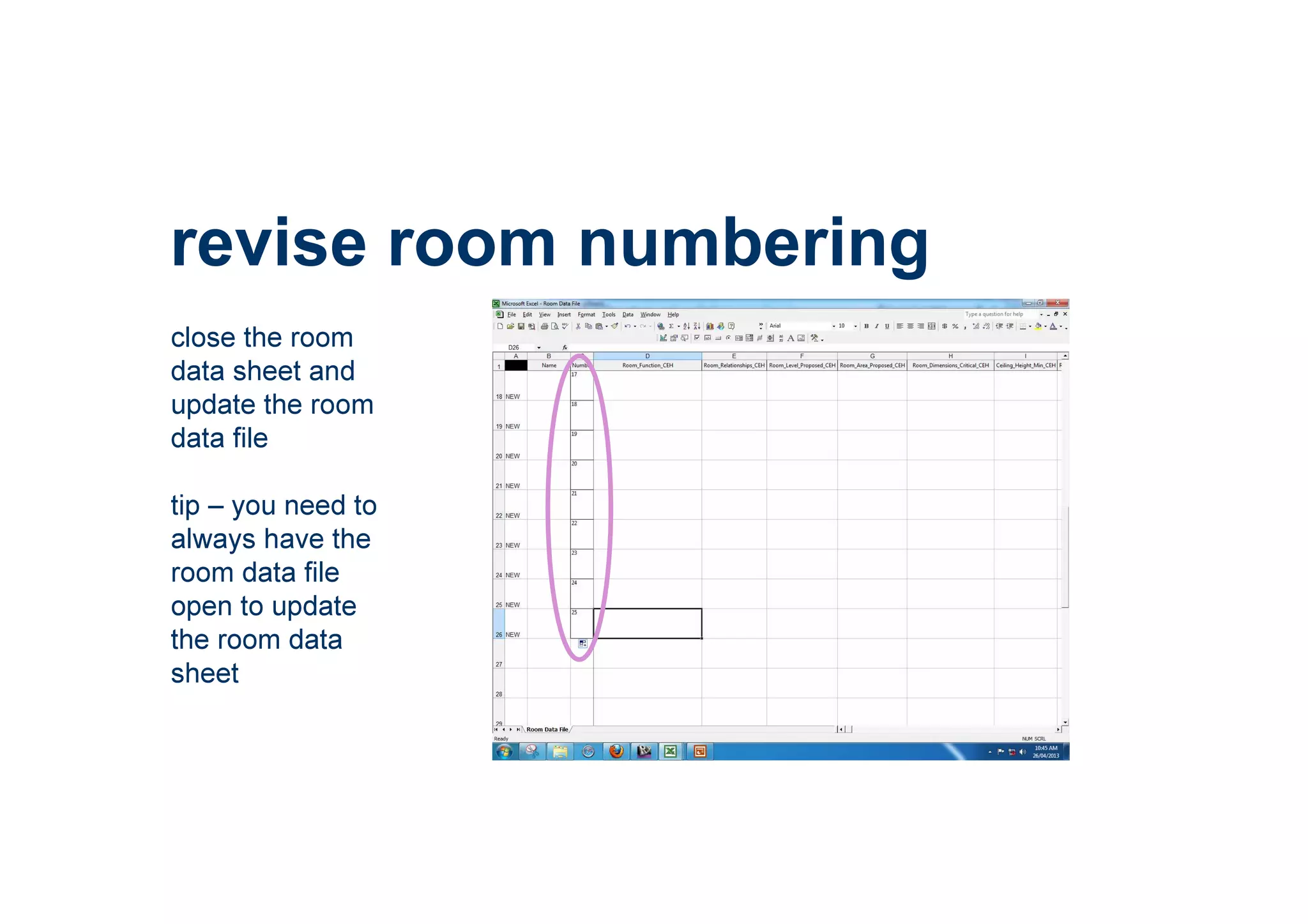
revise room numbering
close the room
data sheet and
update the room
data file
tip – you need to
always have the
room data file
open to update
the room data
sheet
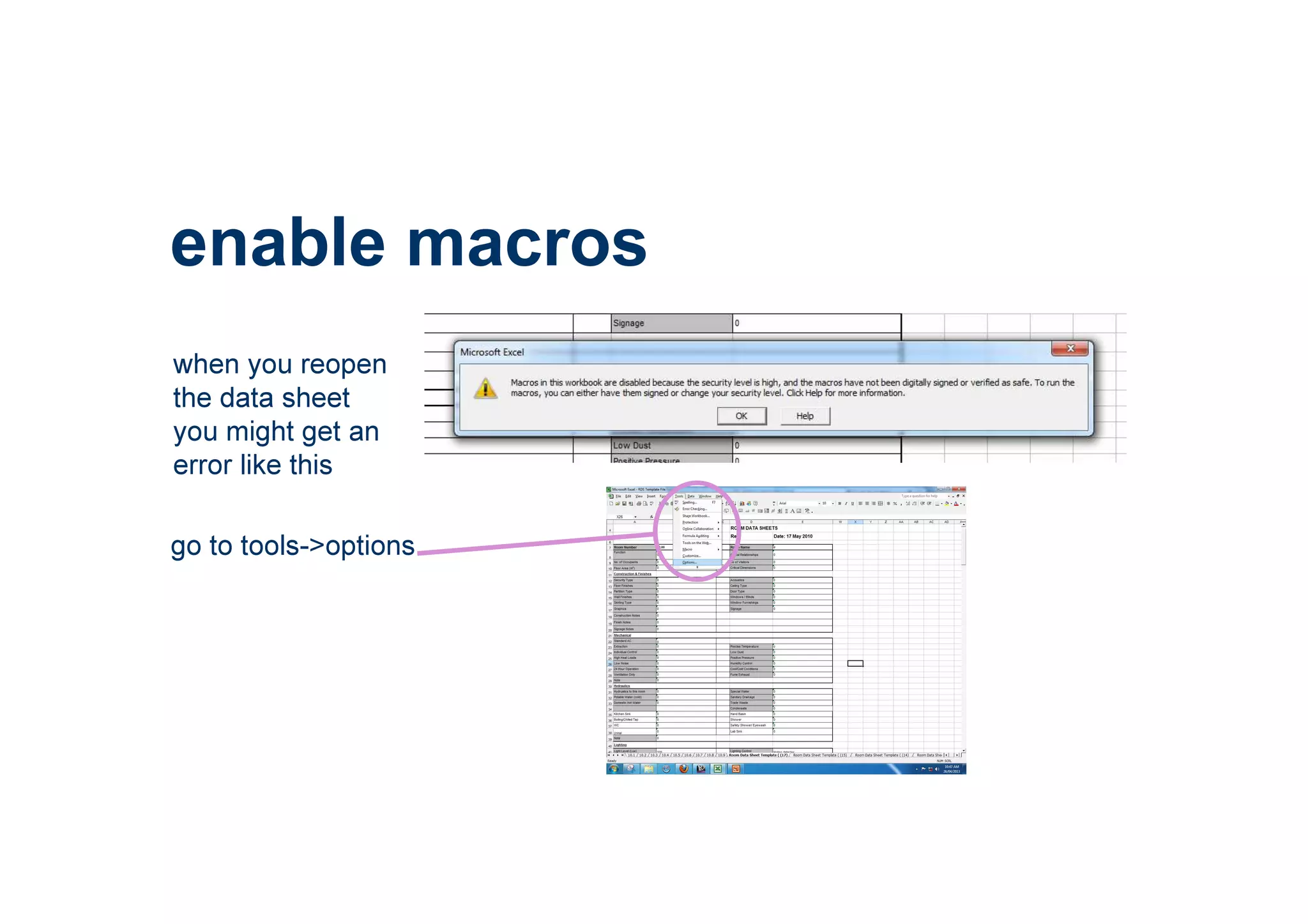
when you reopen
the data sheet
you might get an
error like this
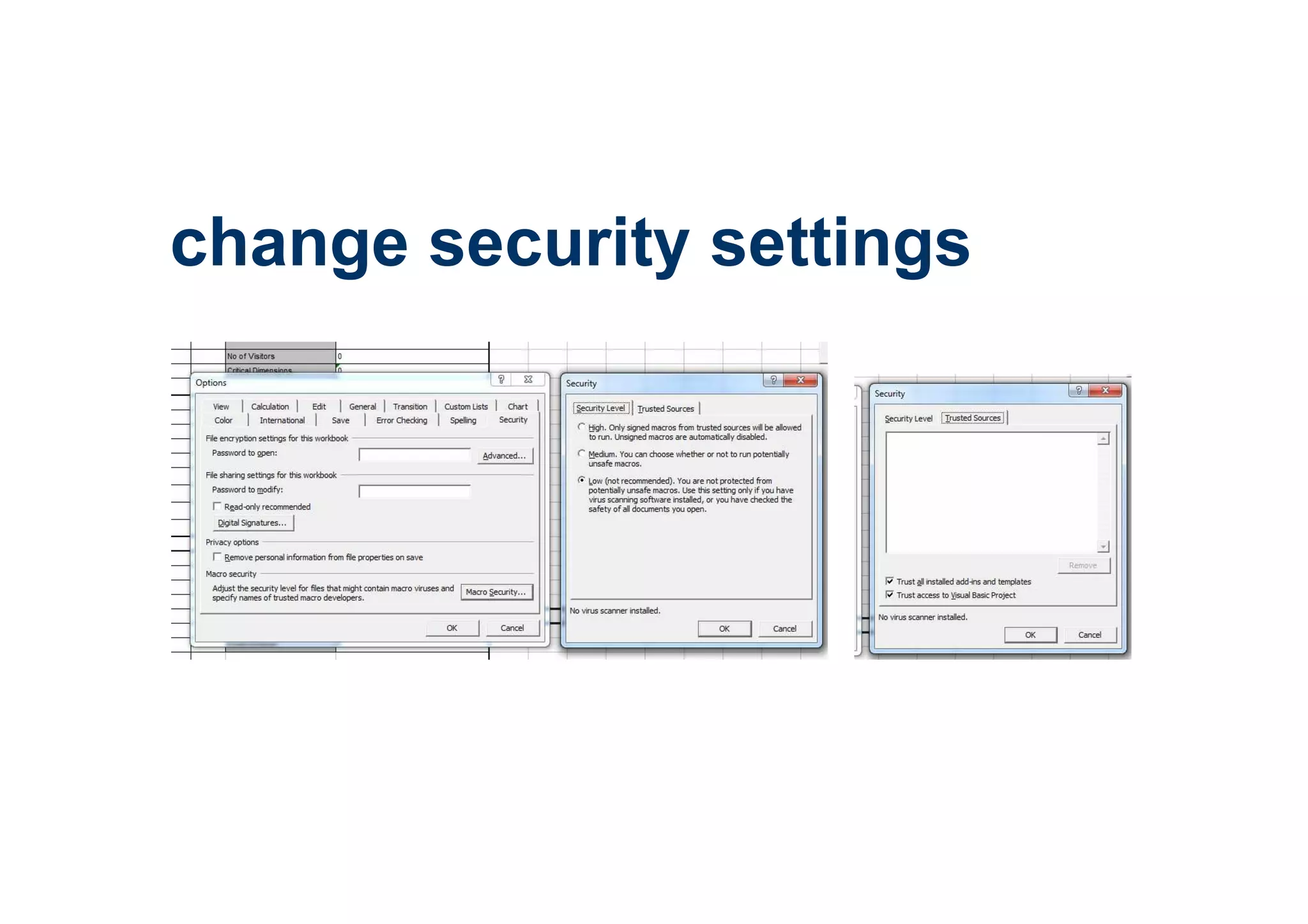
enable macros
go to tools->options
change security settings
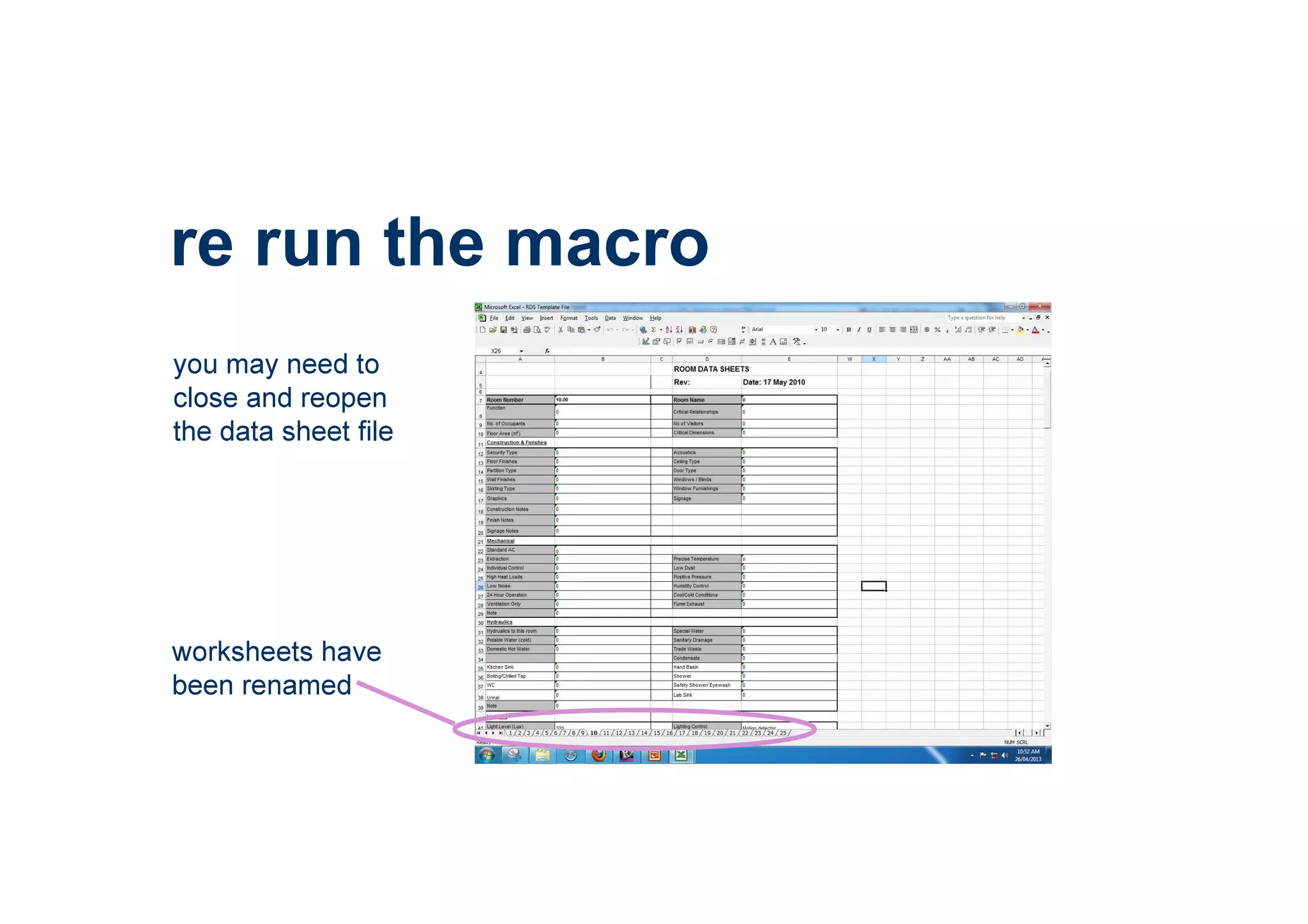
re run the macro
you may need to
close and reopen
the data sheet file
worksheets have
been renamed
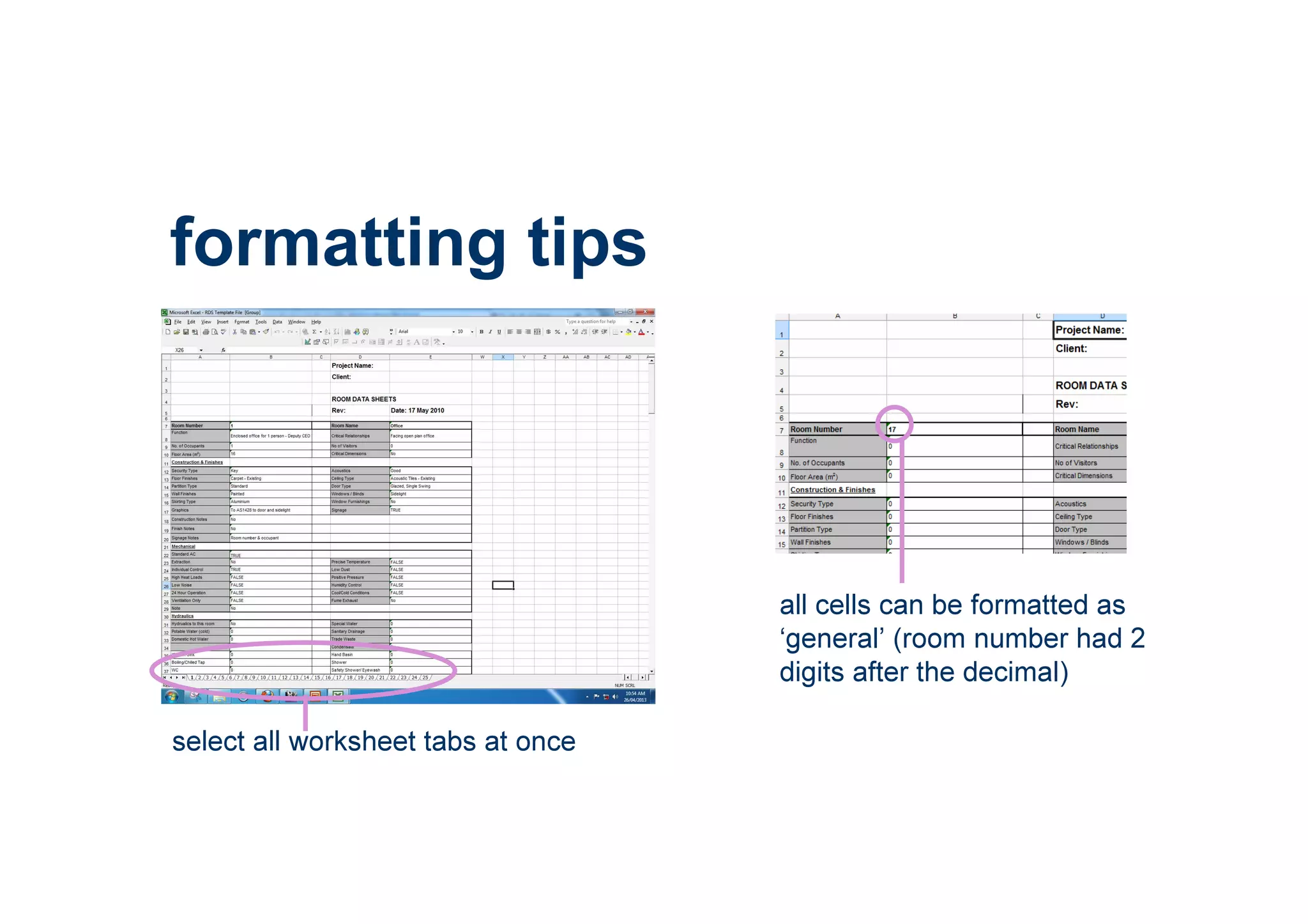
formatting tips
select all worksheet tabs at once
all cells can be formatted as
‘general’ (room number had 2
digits after the decimal)
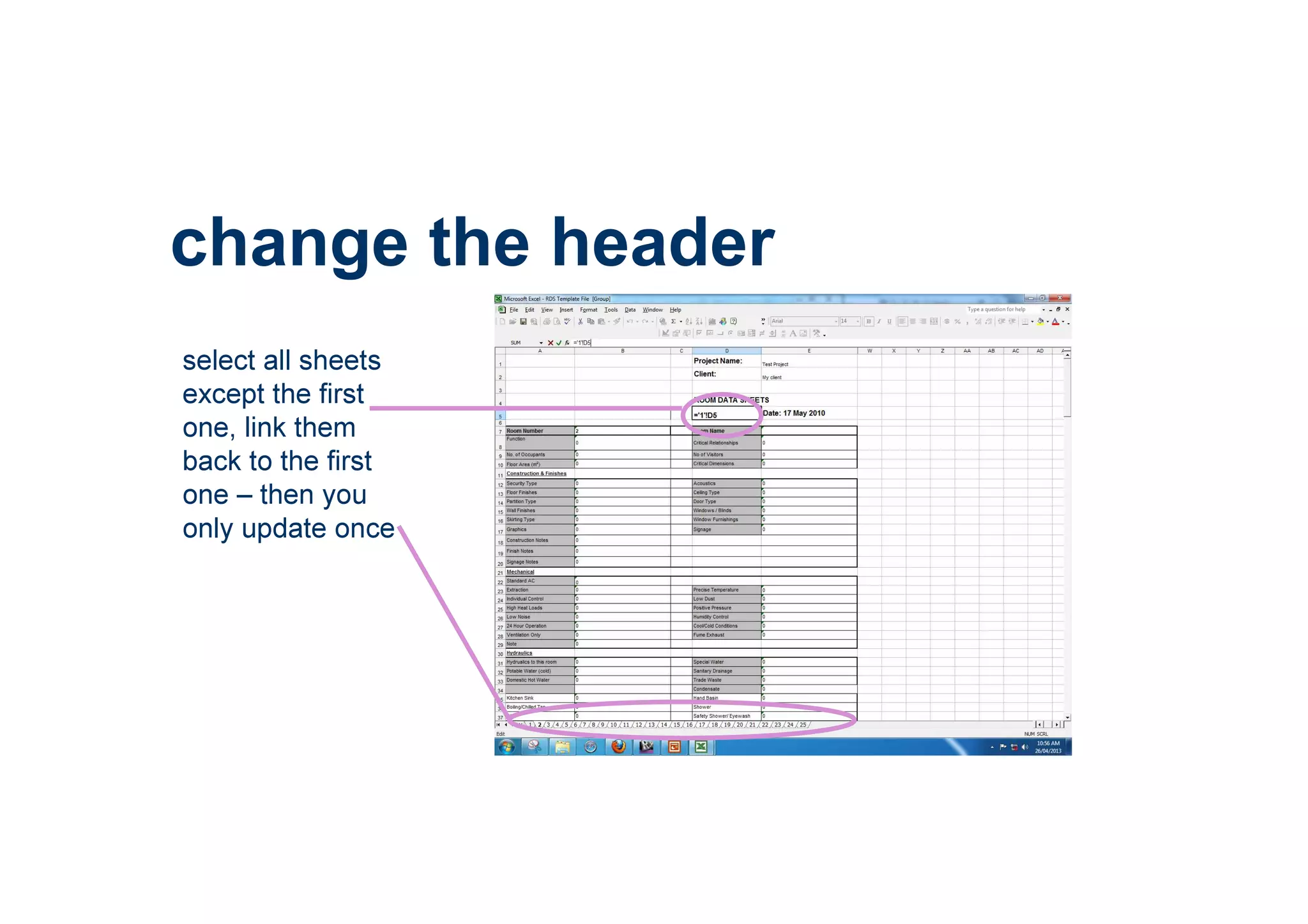
change the header
select all sheets
except the first
one, link them
back to the first
one – then you
only update once
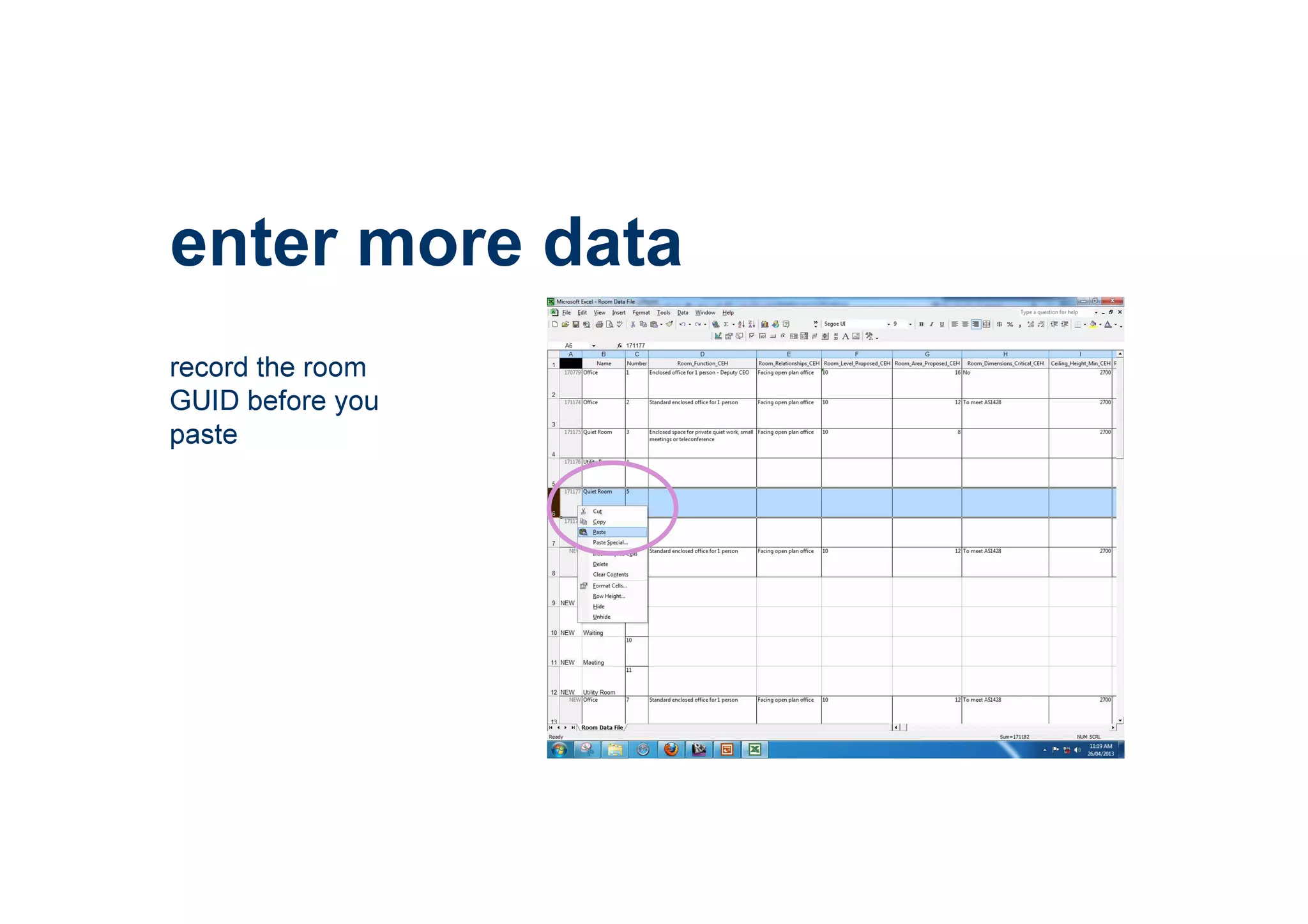
enter more data
record the room
GUID before you
paste
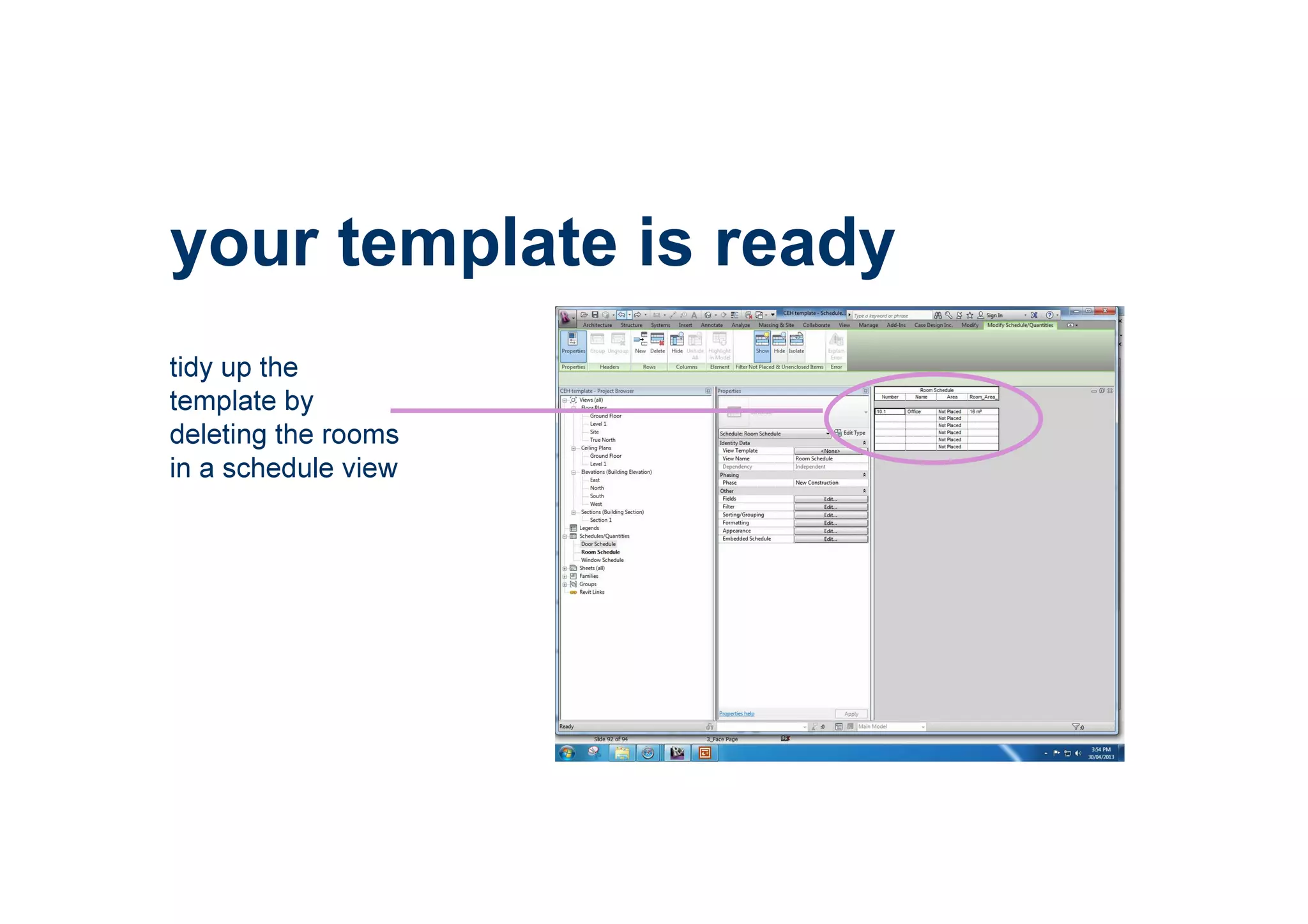
your template is ready
tidy up the
template by
deleting the rooms
in a schedule view
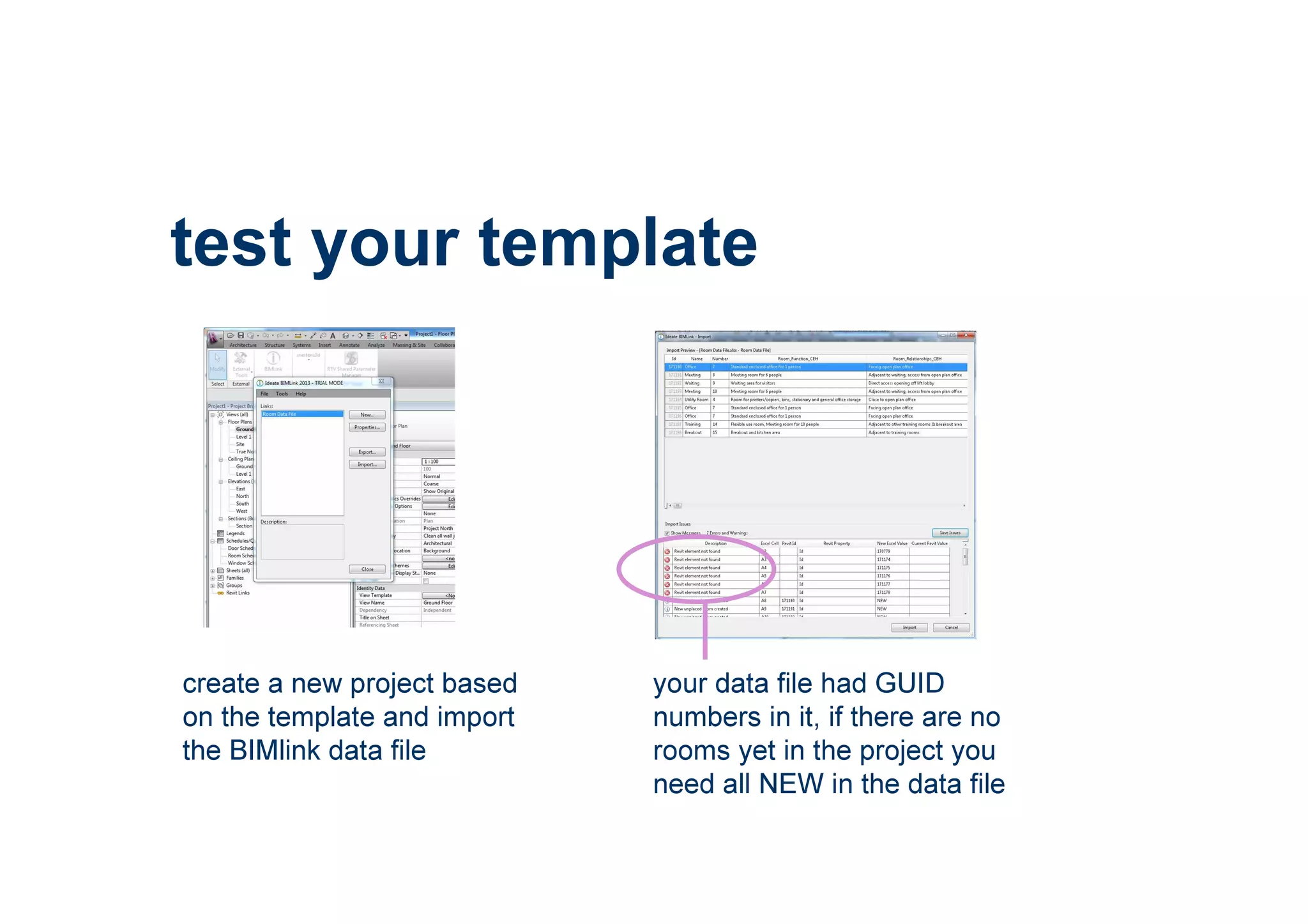
test your template
create a new project based
on the template and import
the BIMlink data file
your data file had GUID
numbers in it, if there are no
rooms yet in the project you
need all NEW in the data file
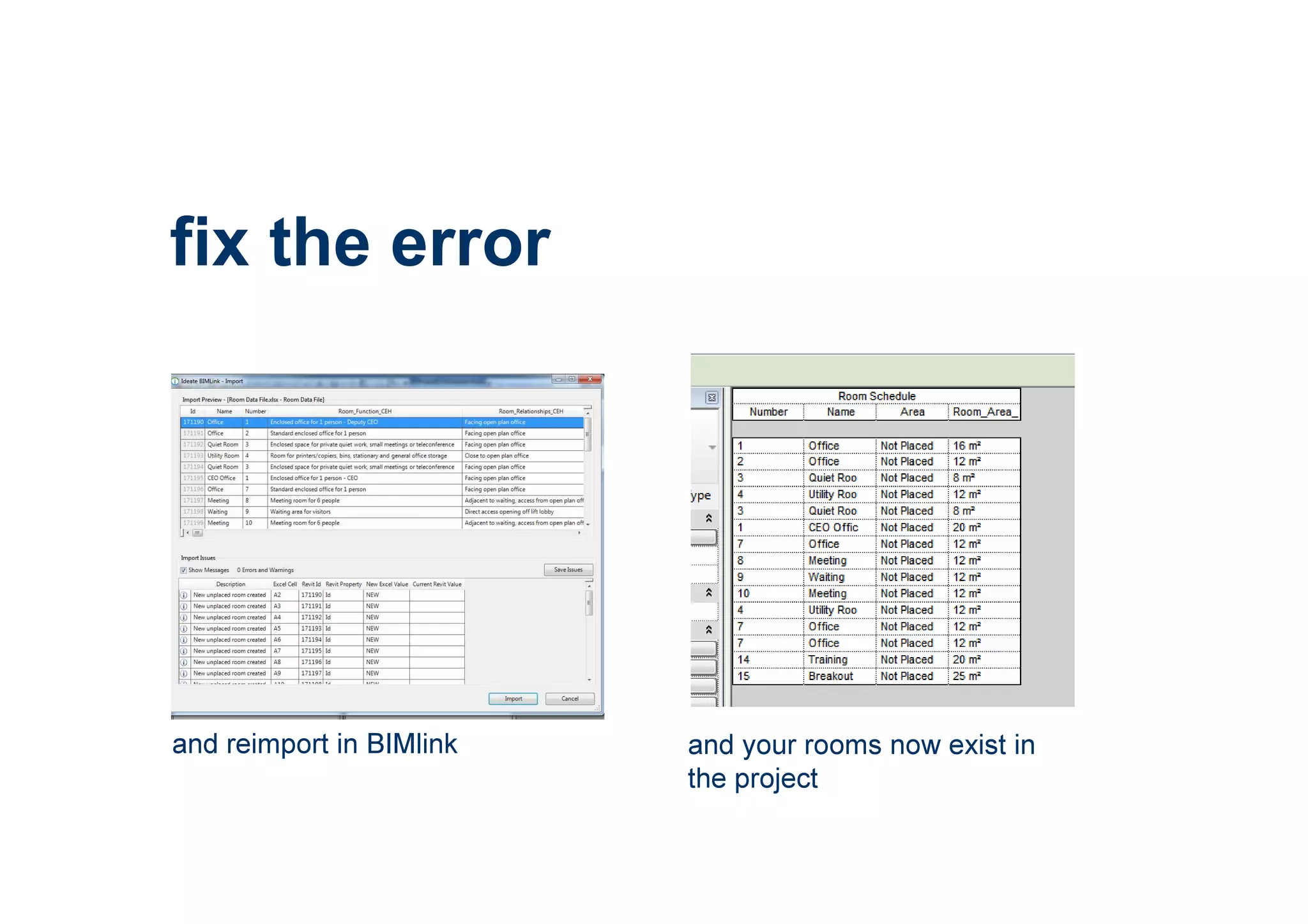
fix the error
and reimport in BIMlink and your rooms now exist in
the project
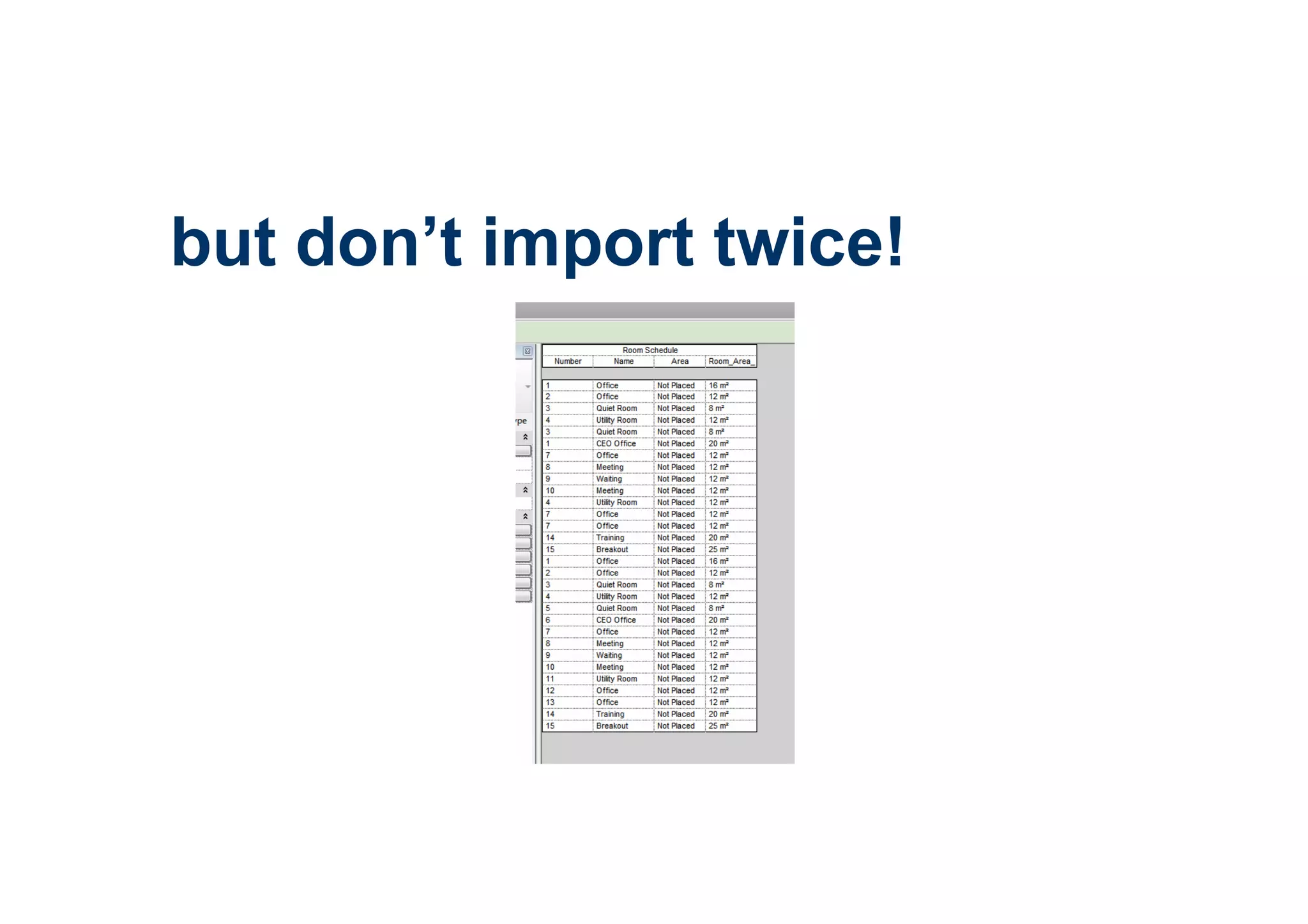
but don’t import twice!
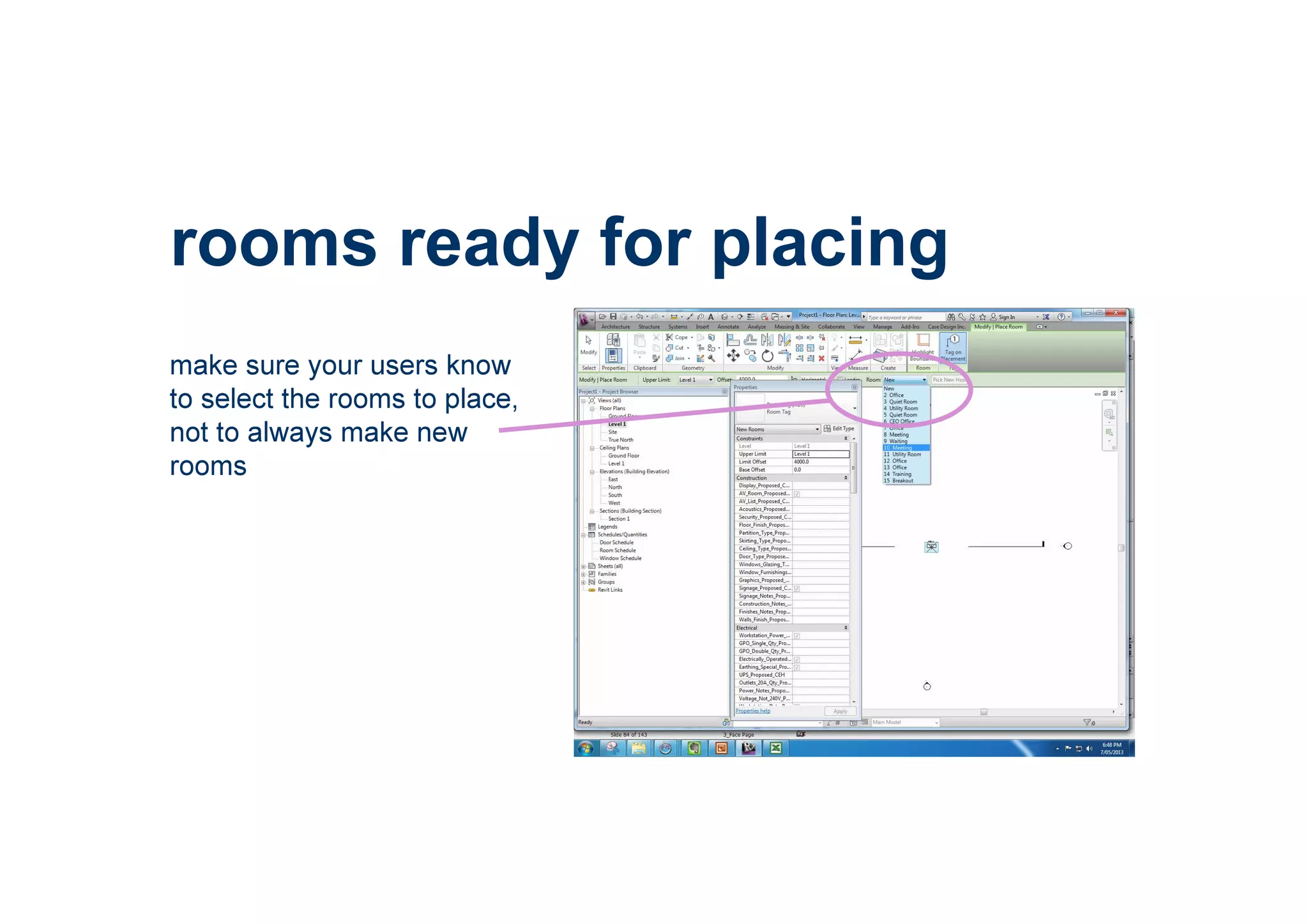
rooms ready for placing
make sure your users know
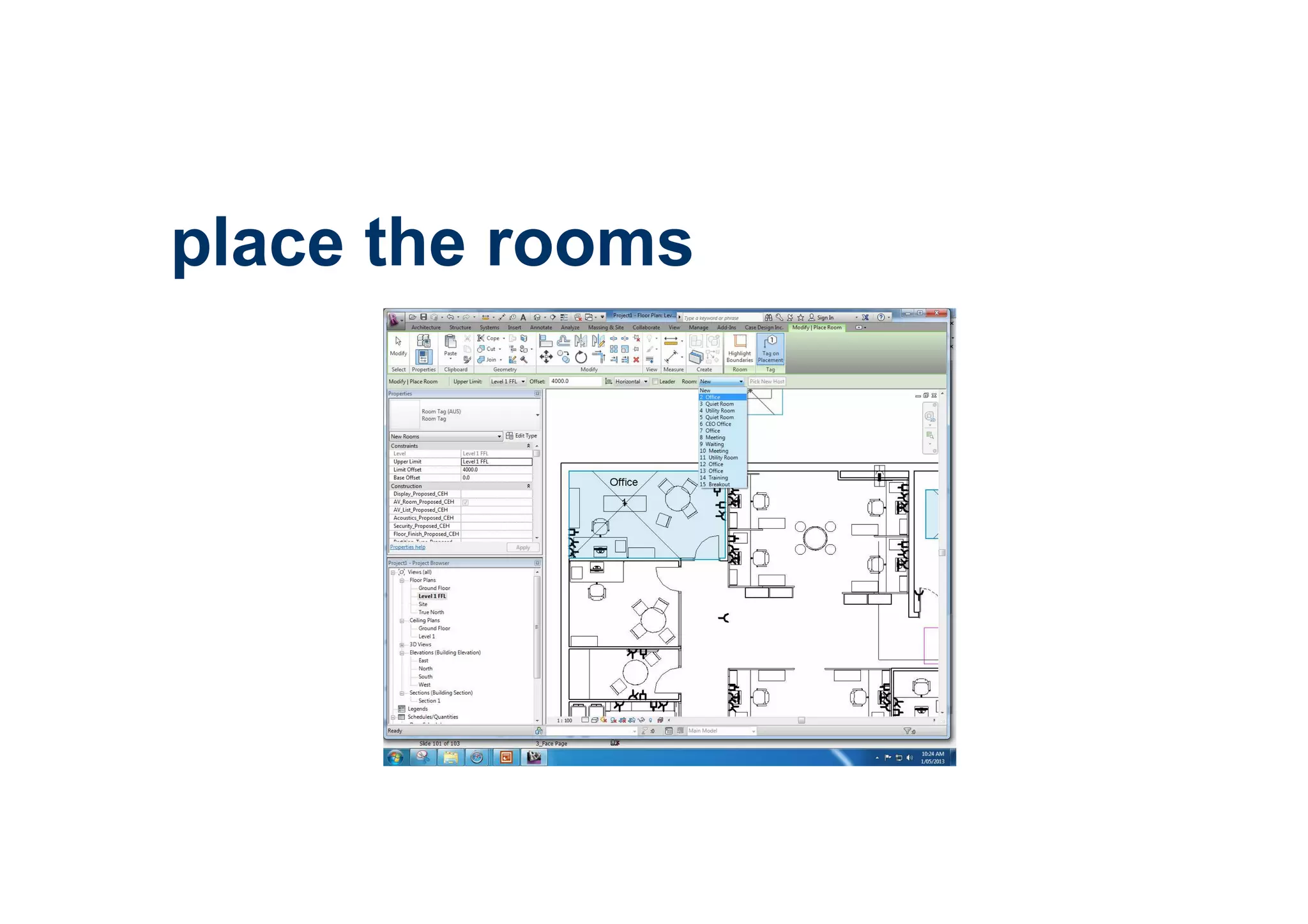
to select the rooms to place,
not to always make new
rooms
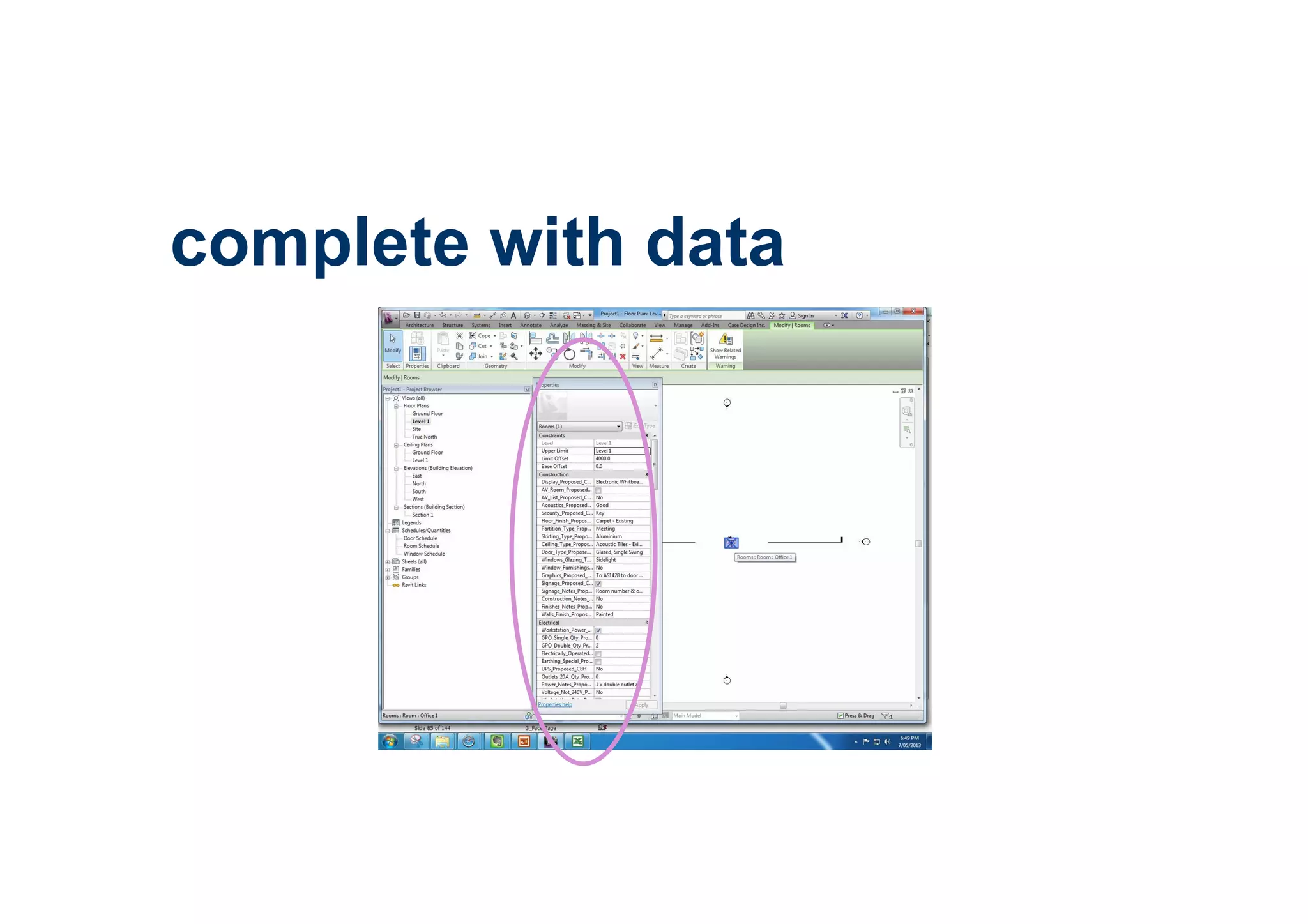
complete with data
using the data
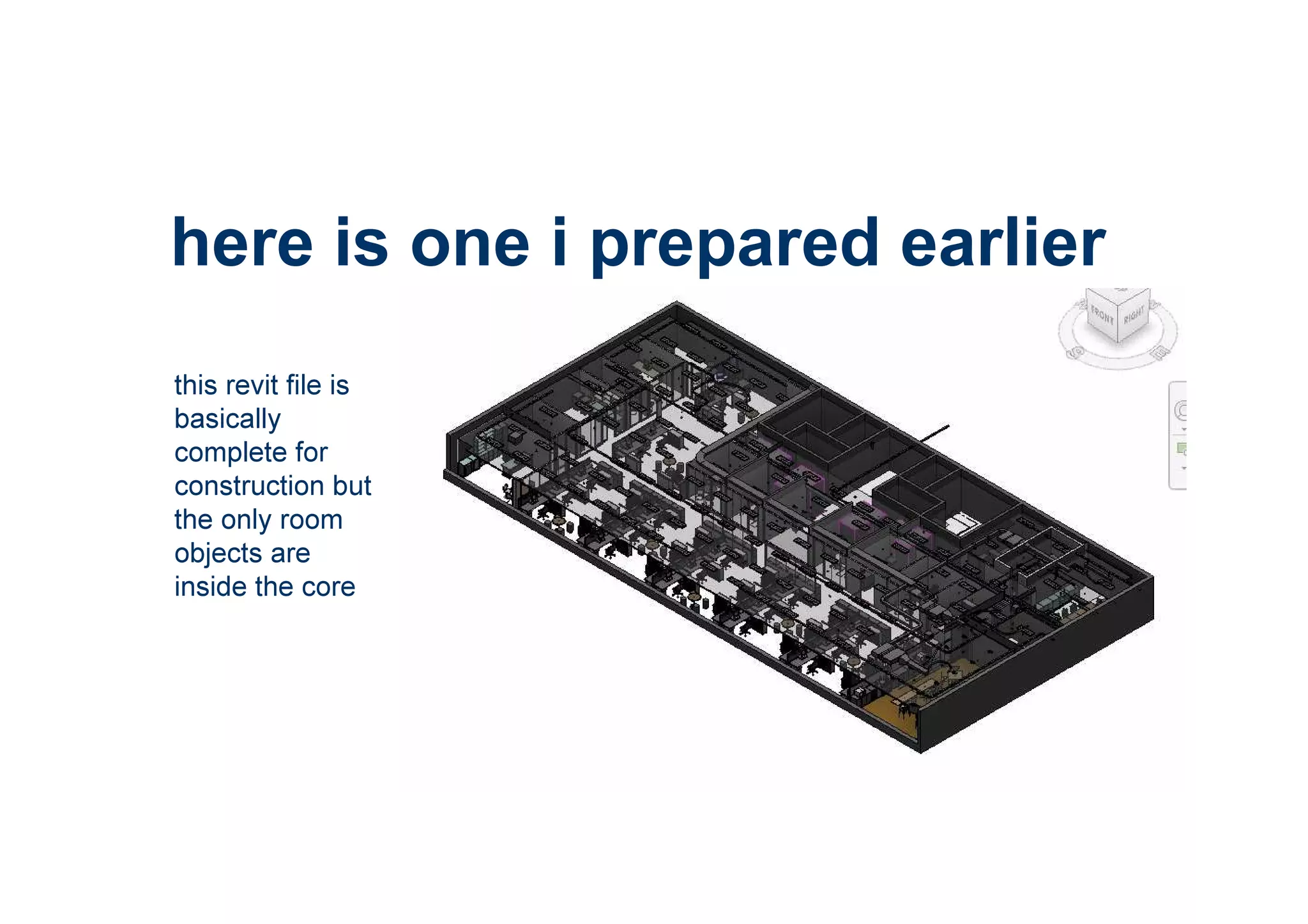
here is one i prepared earlier
this revit file is
basically
complete for
construction but
the only room
objects are
inside the core
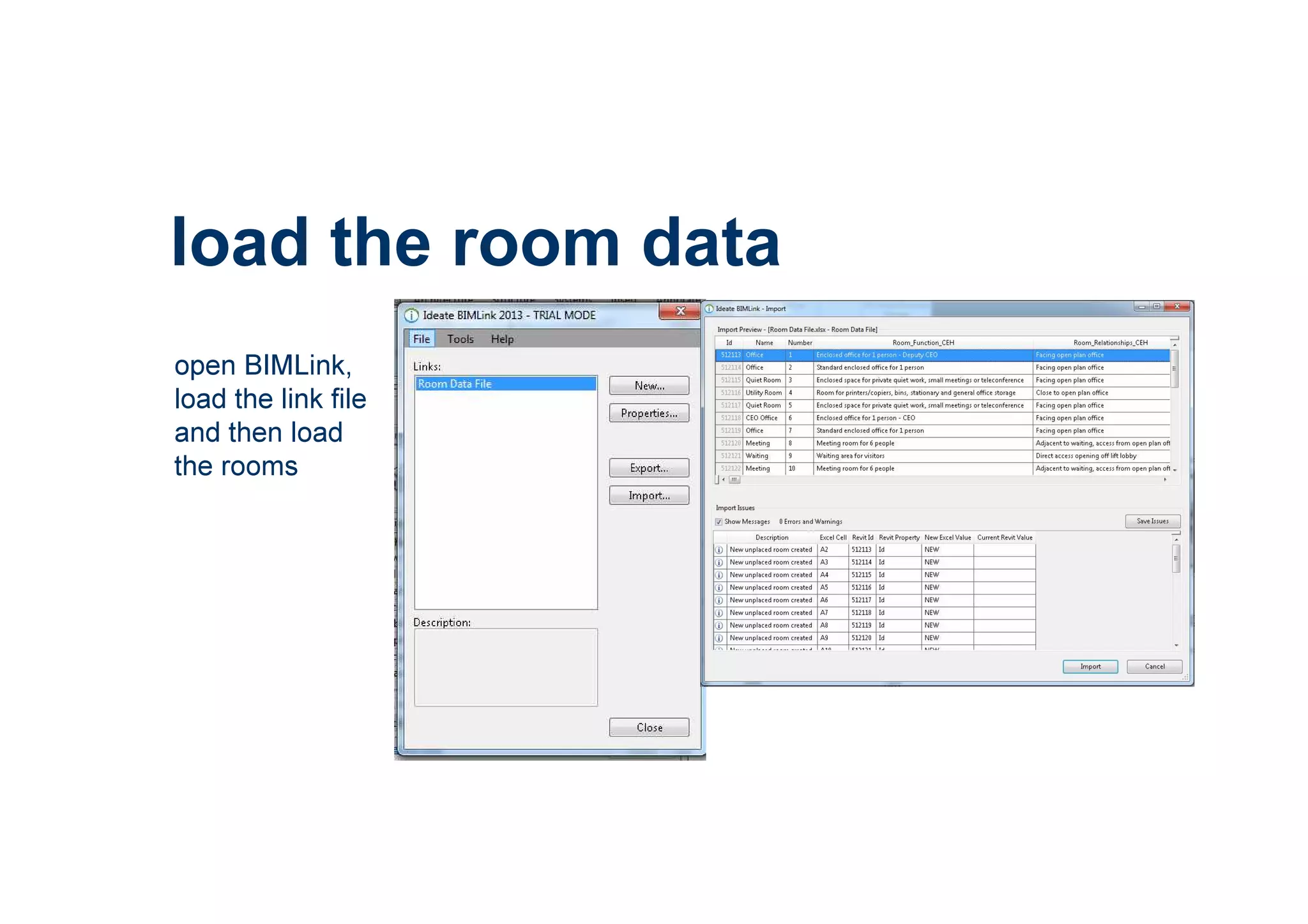
open BIMLink,
load the link file
and then load
the rooms
load the room data
place the rooms
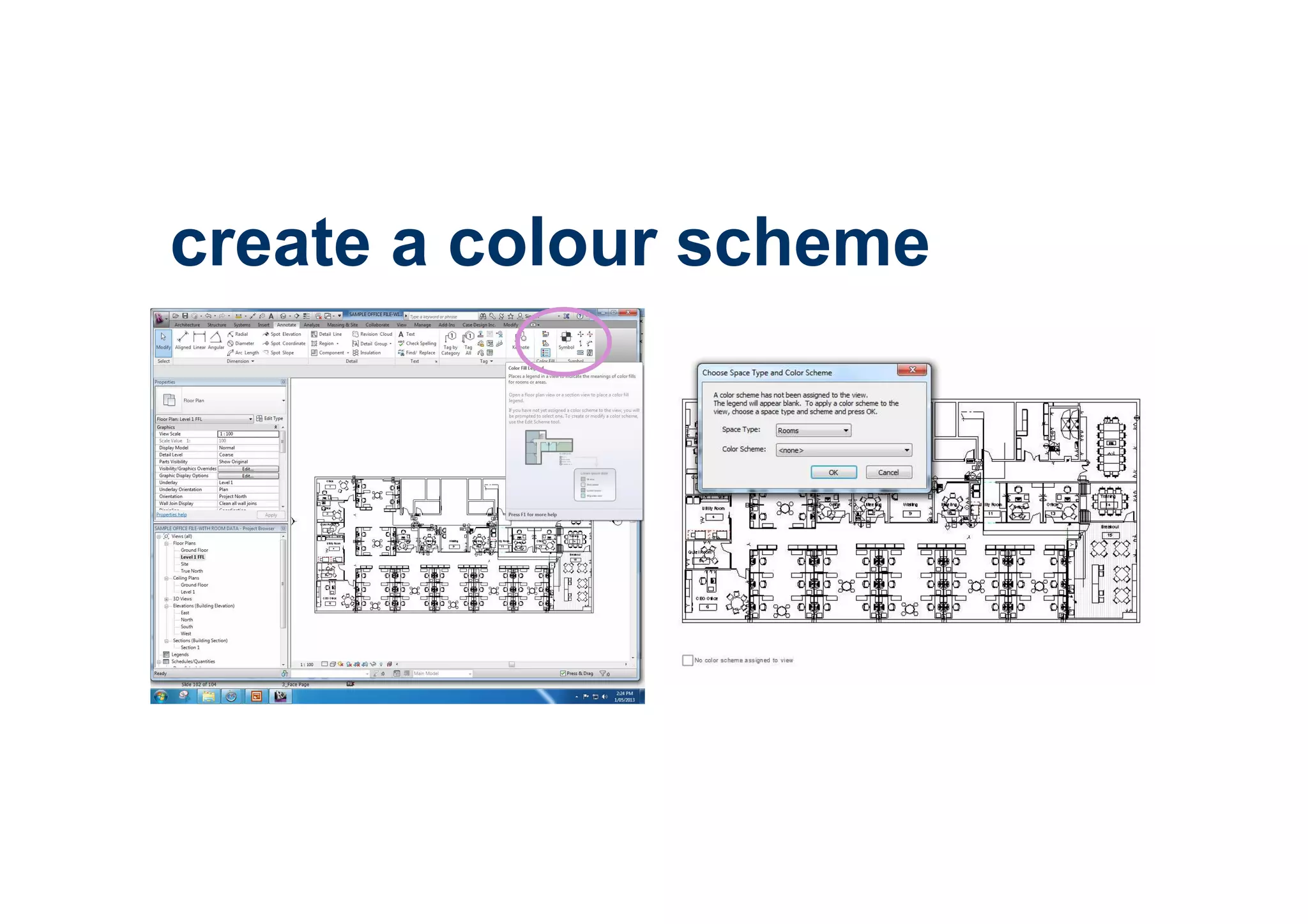
create a colour scheme
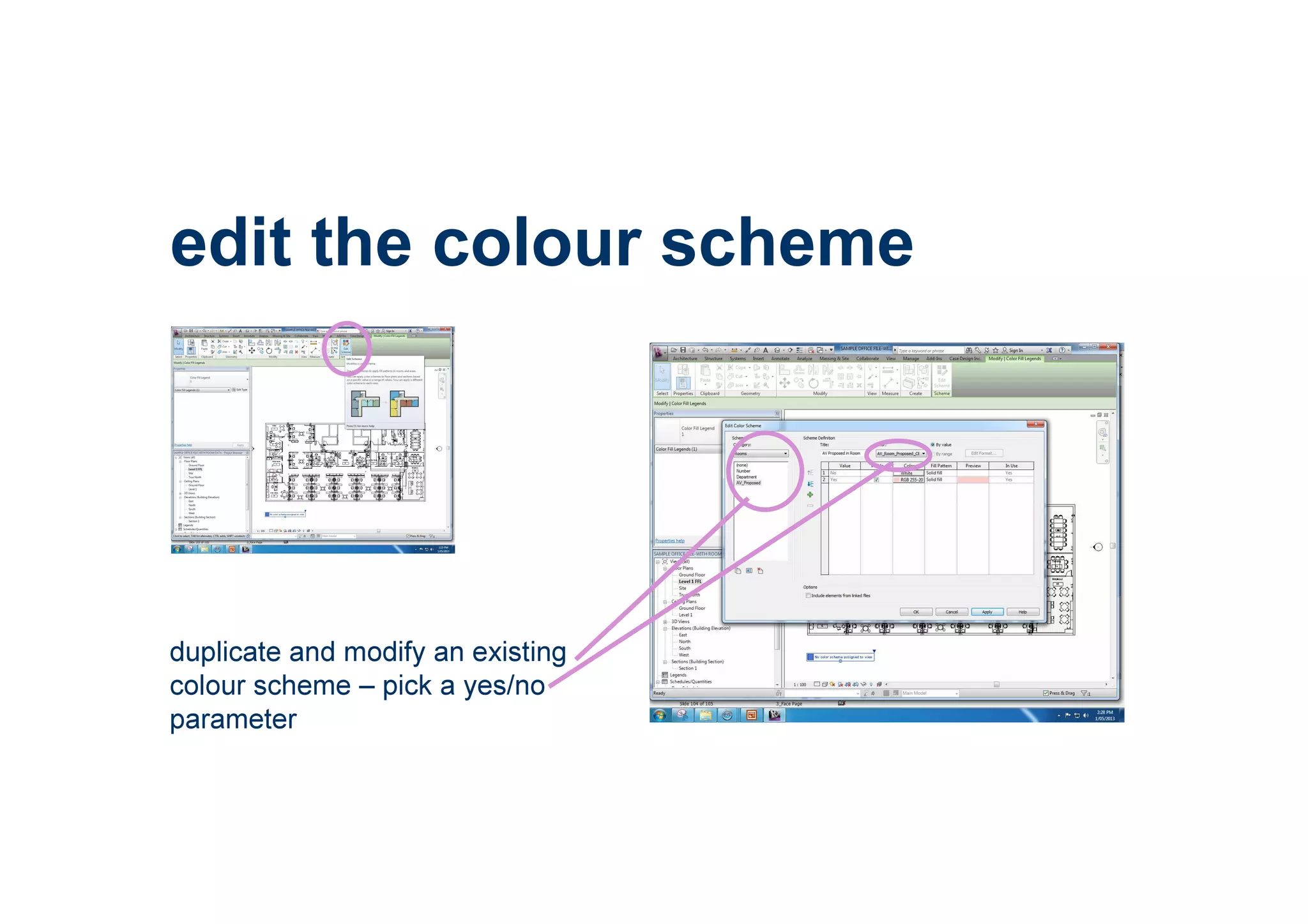
edit the colour scheme
duplicate and modify an existing
colour scheme – pick a yes/no
parameter
proposed av layout
proposed room acoustics
or a text parameter with limited different entries
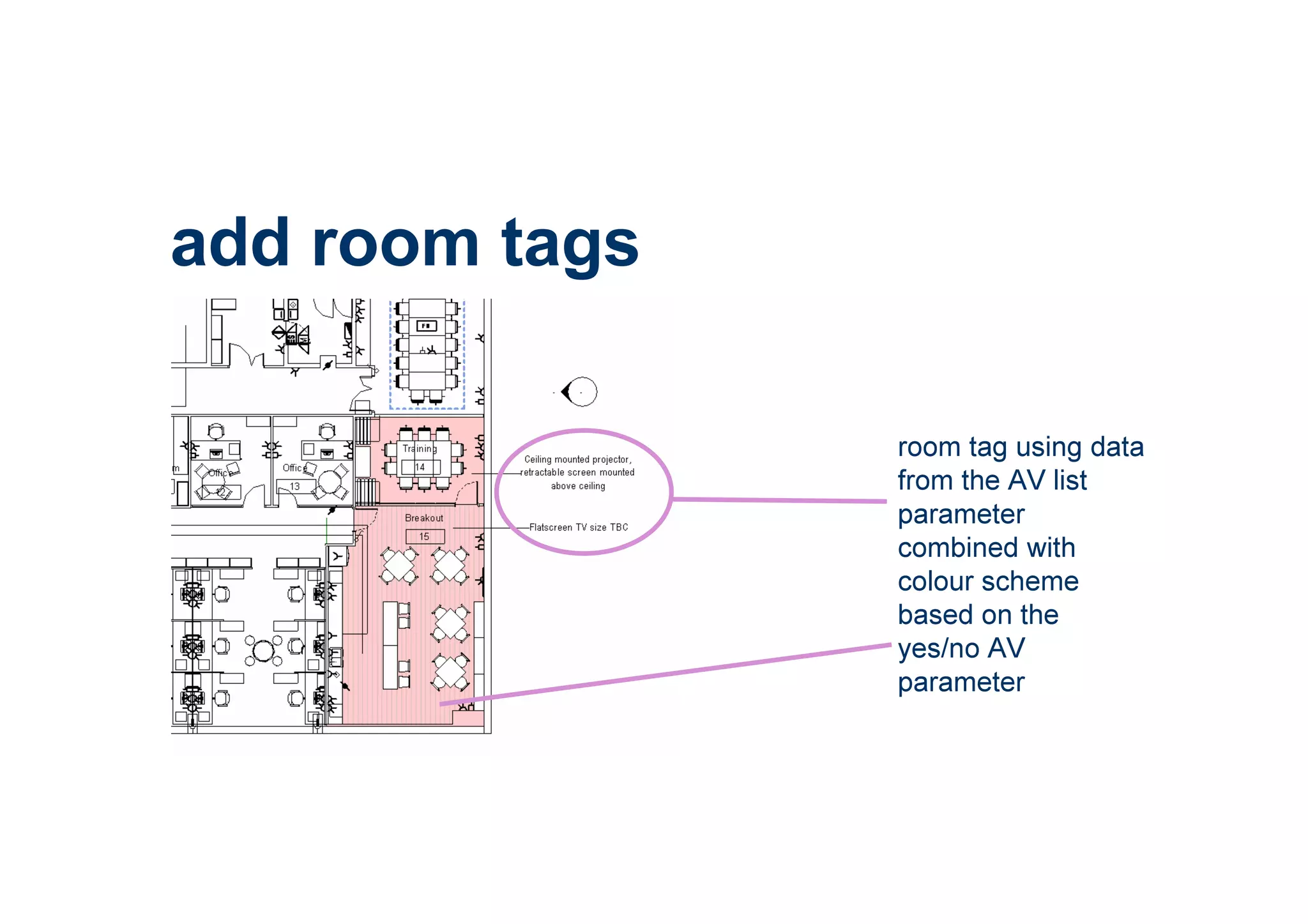
add room tags
room tag using data
from the AV list
parameter
combined with
colour scheme
based on the
yes/no AV
parameter
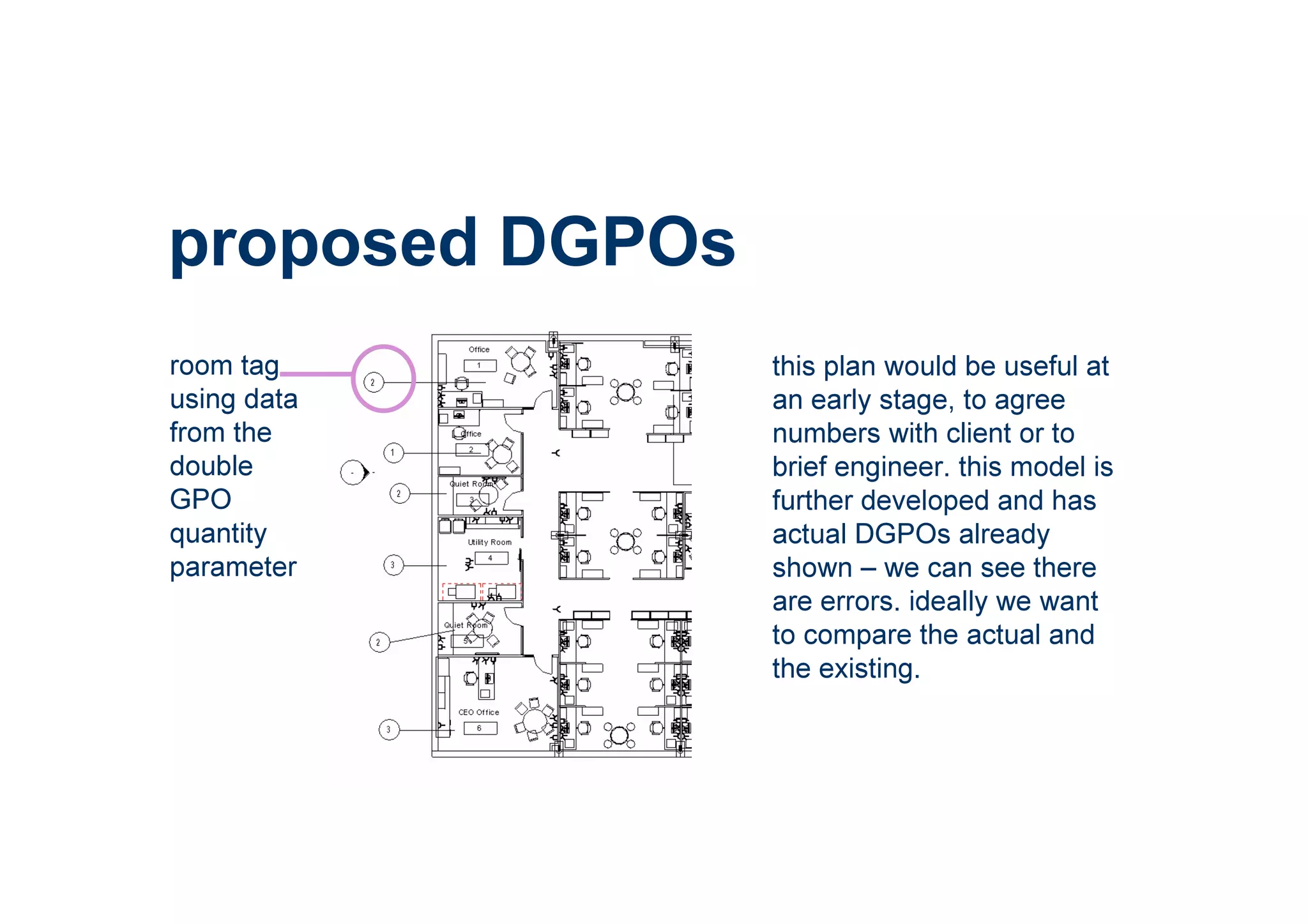
proposed DGPOs
this plan would be useful at
an early stage, to agree
numbers with client or to
brief engineer. this model is
further developed and has
actual DGPOs already
shown – we can see there
are errors. ideally we want
to compare the actual and
the existing.
room tag
using data
from the
double
GPO
quantity
parameter
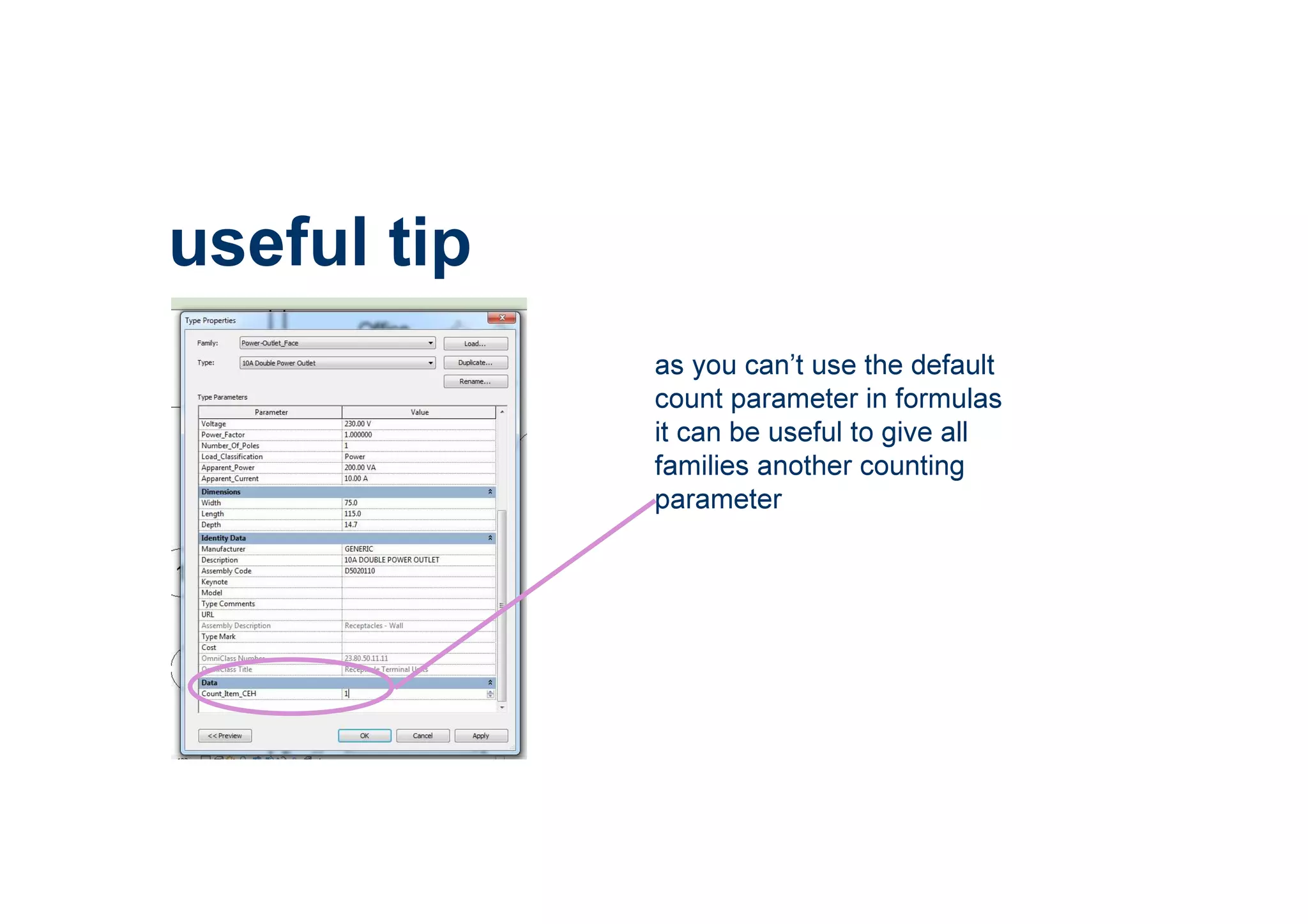
useful tip
as you can’t use the default
count parameter in formulas
it can be useful to give all
families another counting
parameter
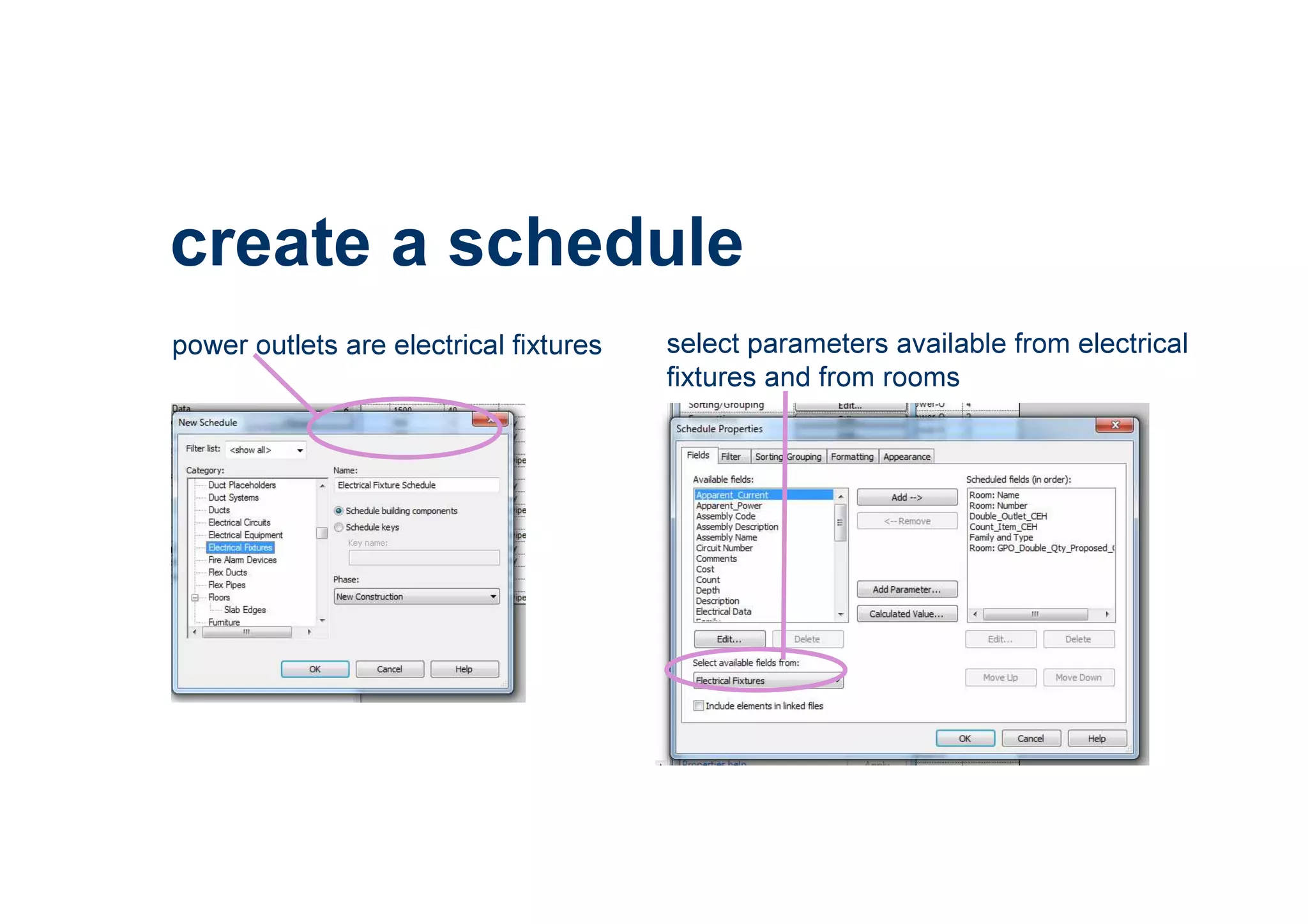
create a schedule
power outlets are electrical fixtures select parameters available from electrical
fixtures and from rooms
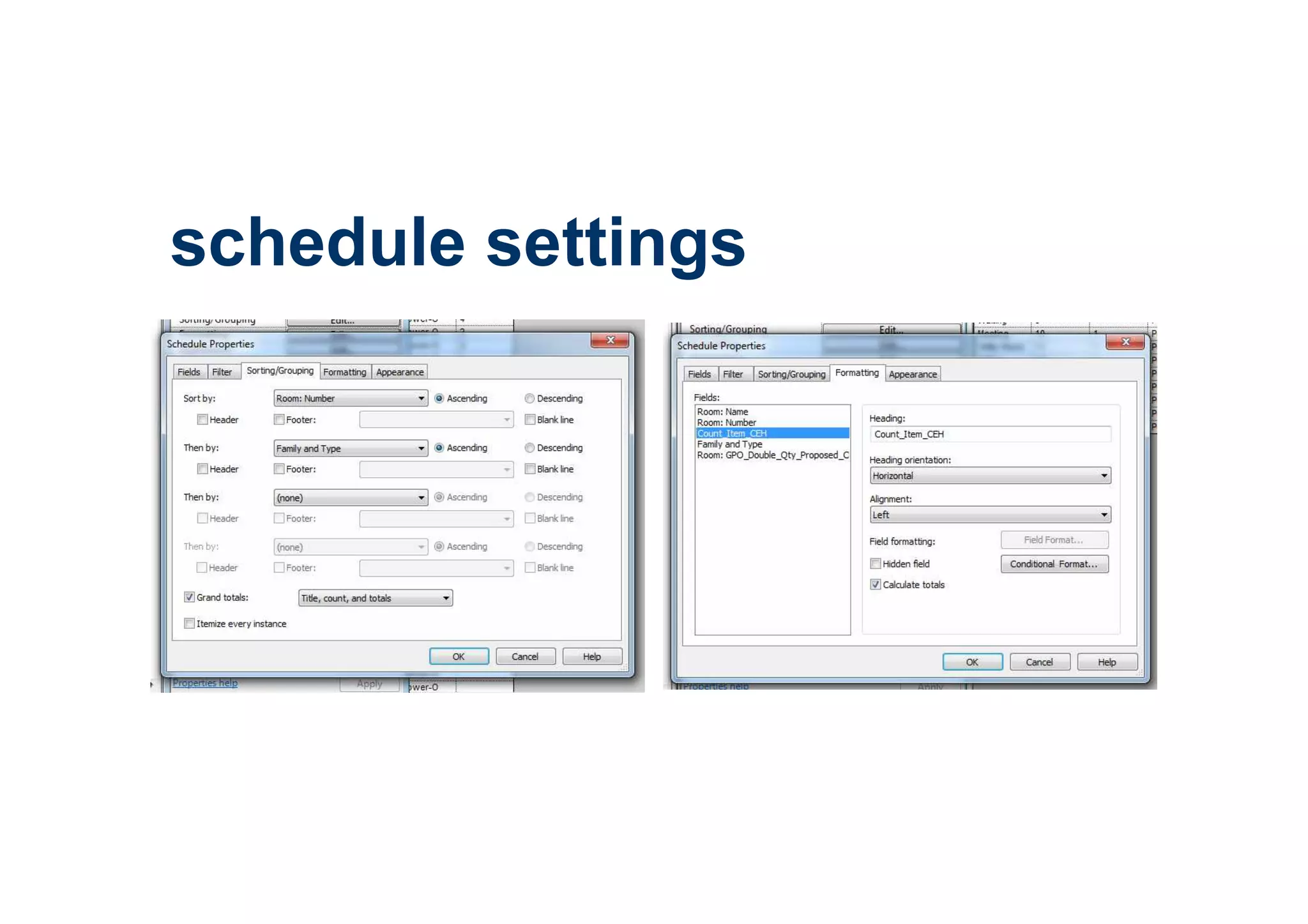
schedule settings
schedule output
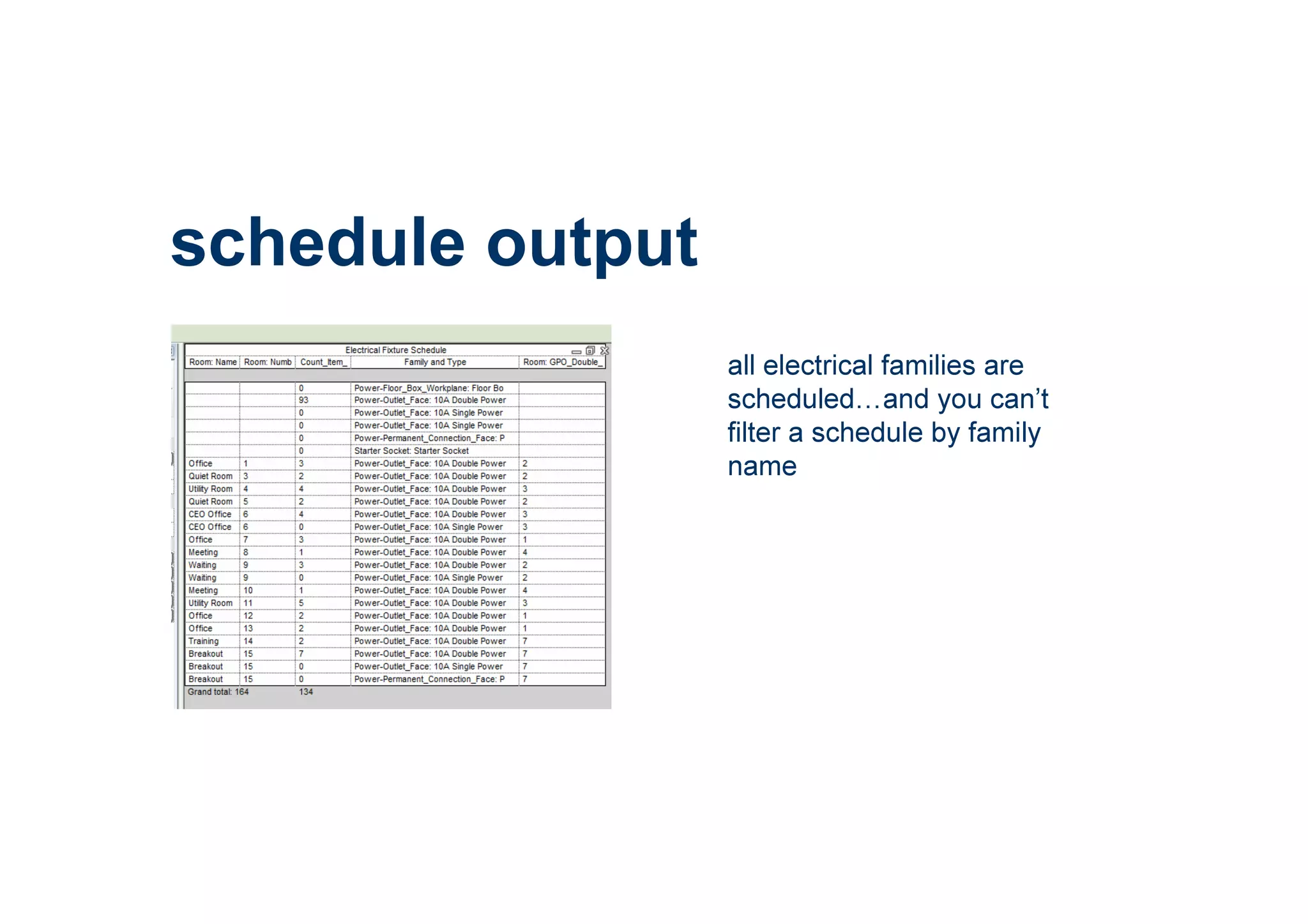
all electrical families are
scheduled and you can’t
filter a schedule by family
name
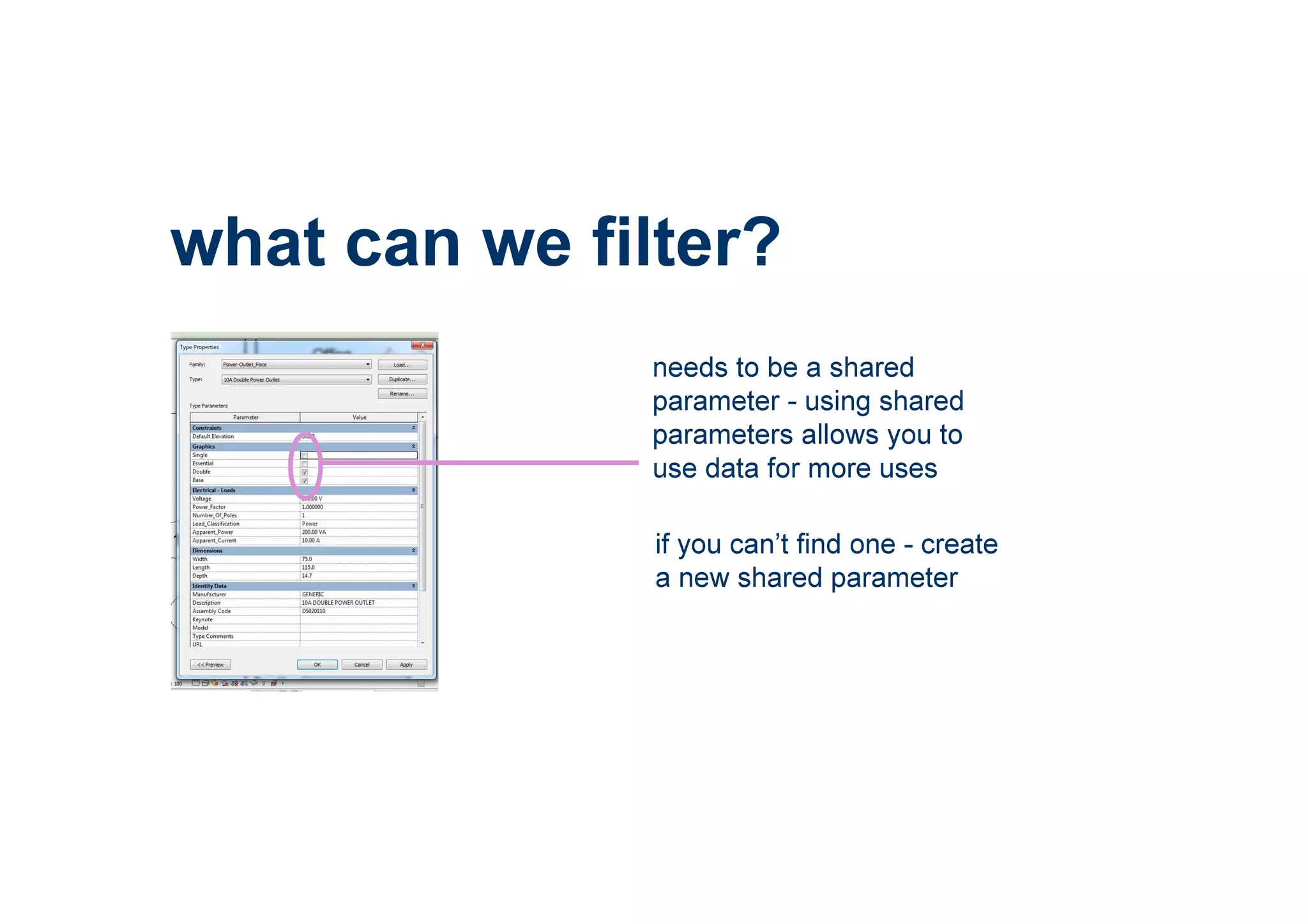
what can we filter?
needs to be a shared
parameter - using shared
parameters allows you to
use data for more uses
if you can’t find one - create
a new shared parameter
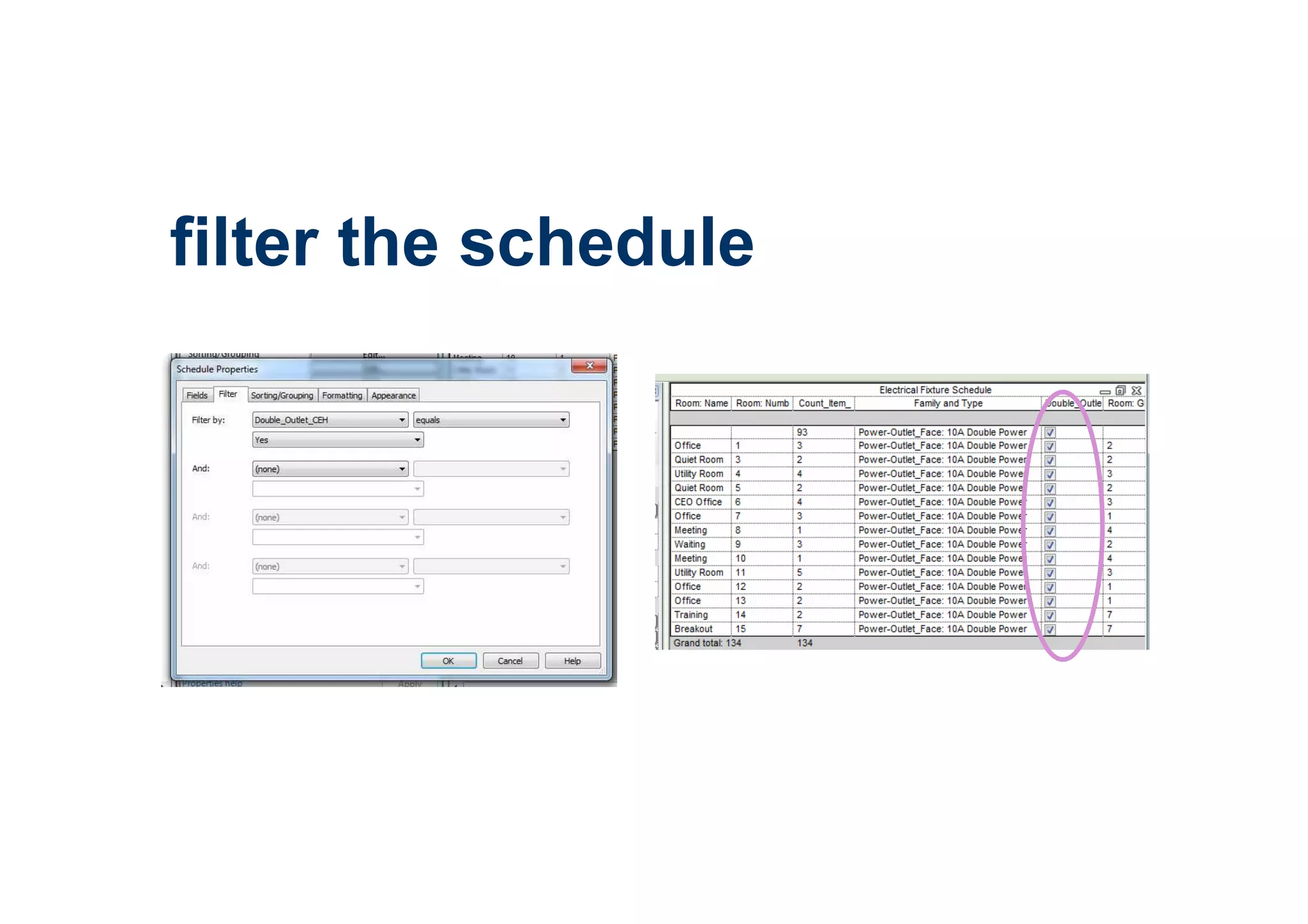
filter the schedule
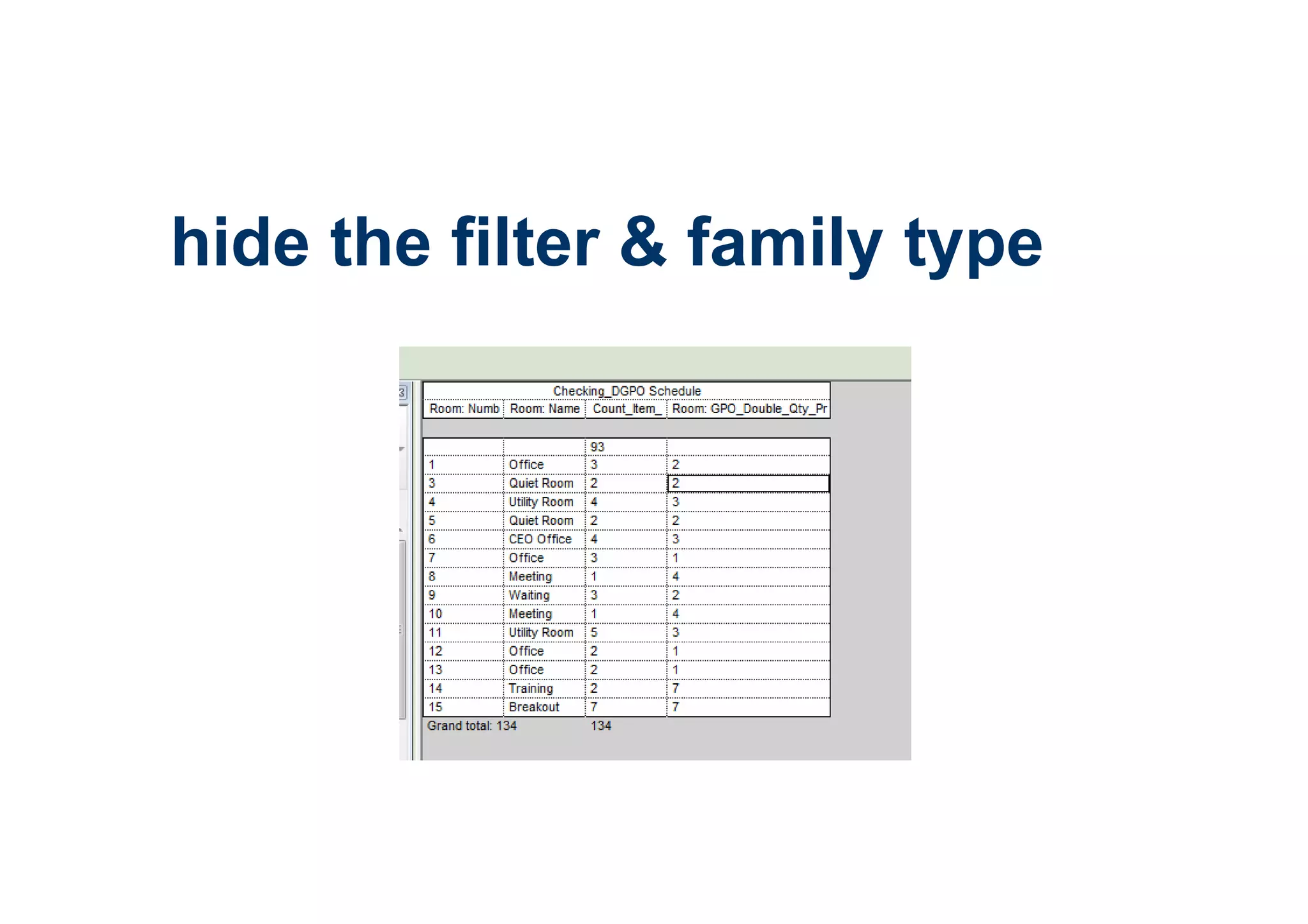
hide the filter & family type
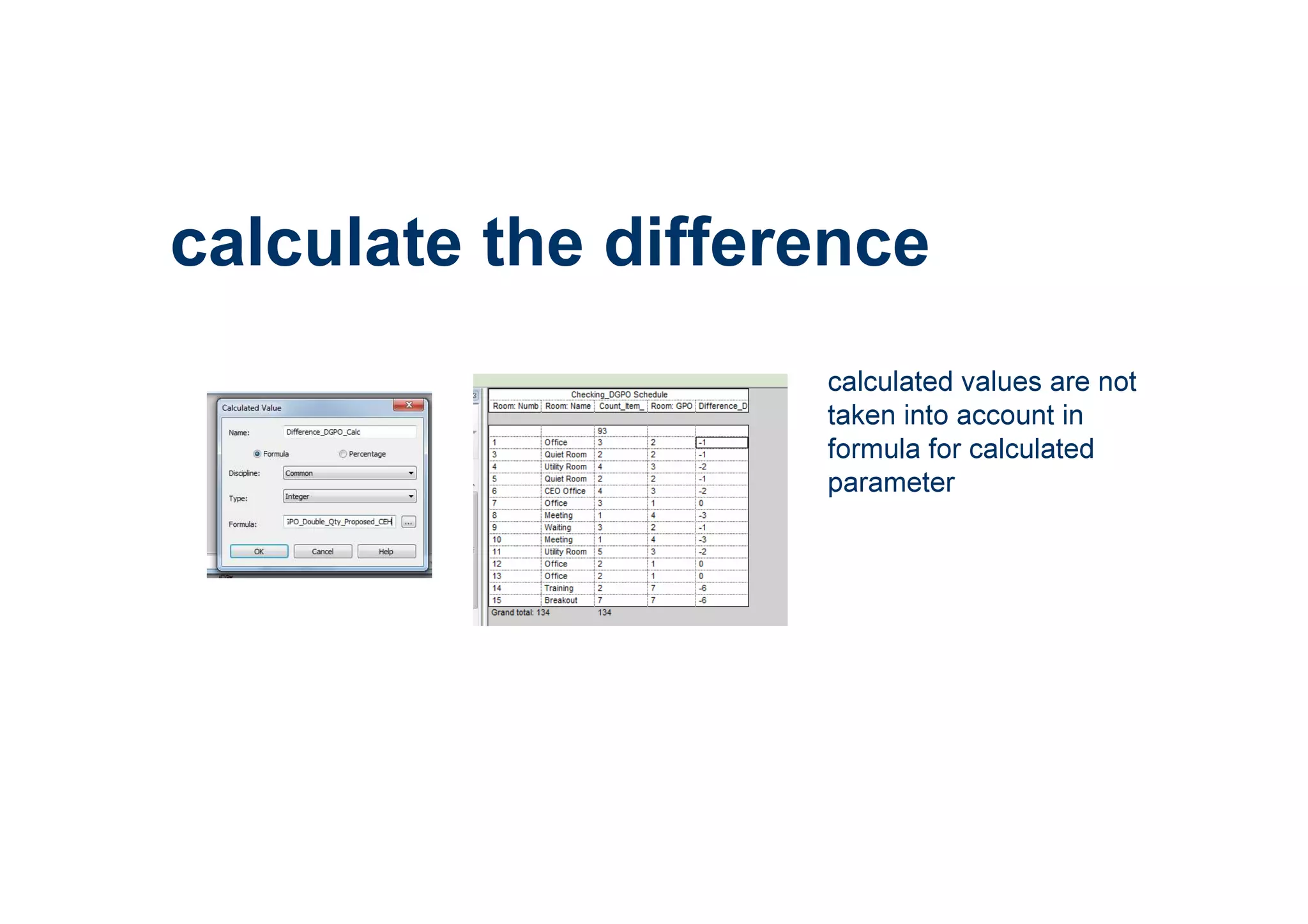
calculated values are not
taken into account in
formula for calculated
parameter
calculate the difference
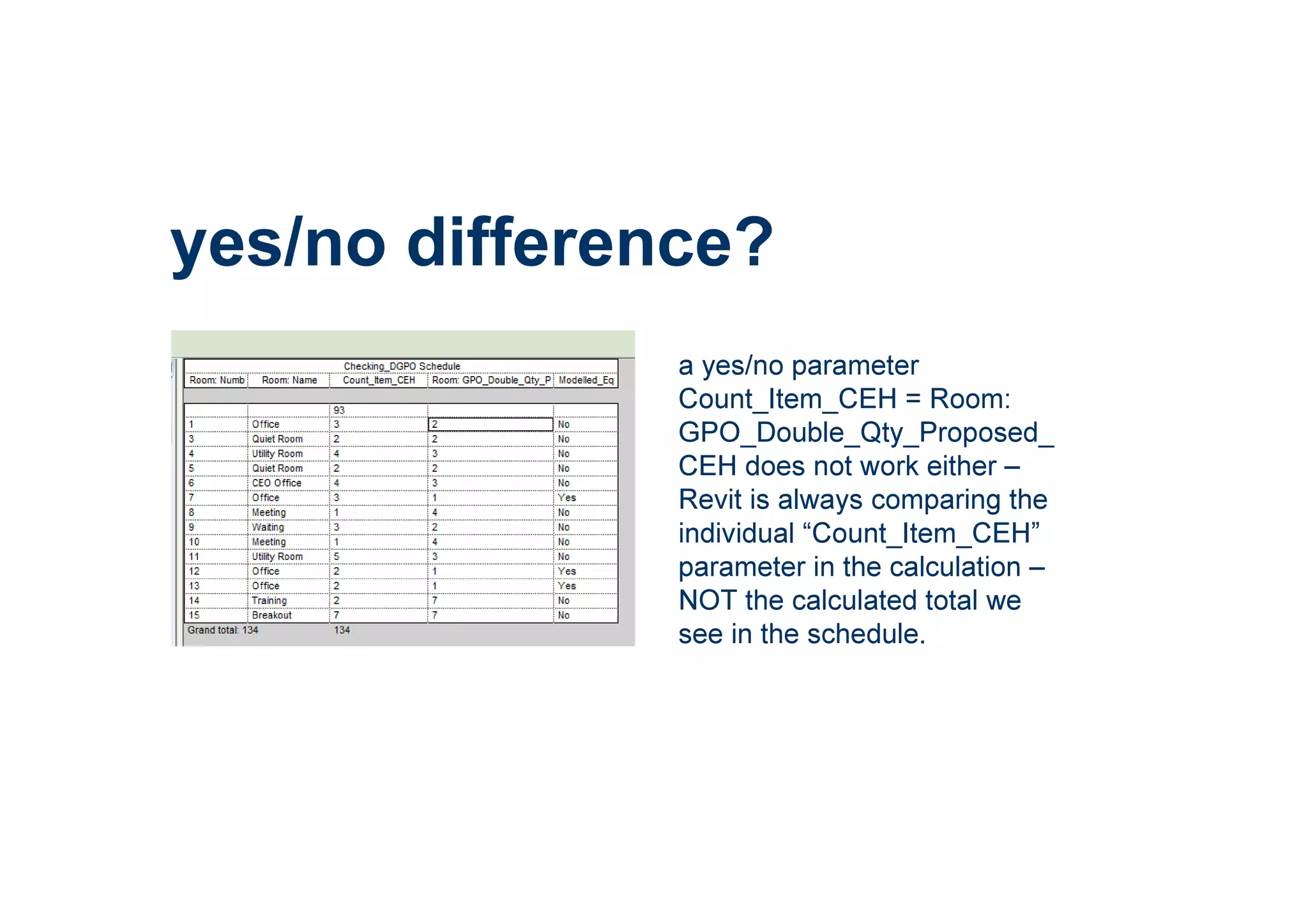
a yes/no parameter
Count_Item_CEH = Room:
GPO_Double_Qty_Proposed_
CEH does not work either –
Revit is always comparing the
individual “Count_Item_CEH”
parameter in the calculation –
NOT the calculated total we
see in the schedule.
yes/no difference?
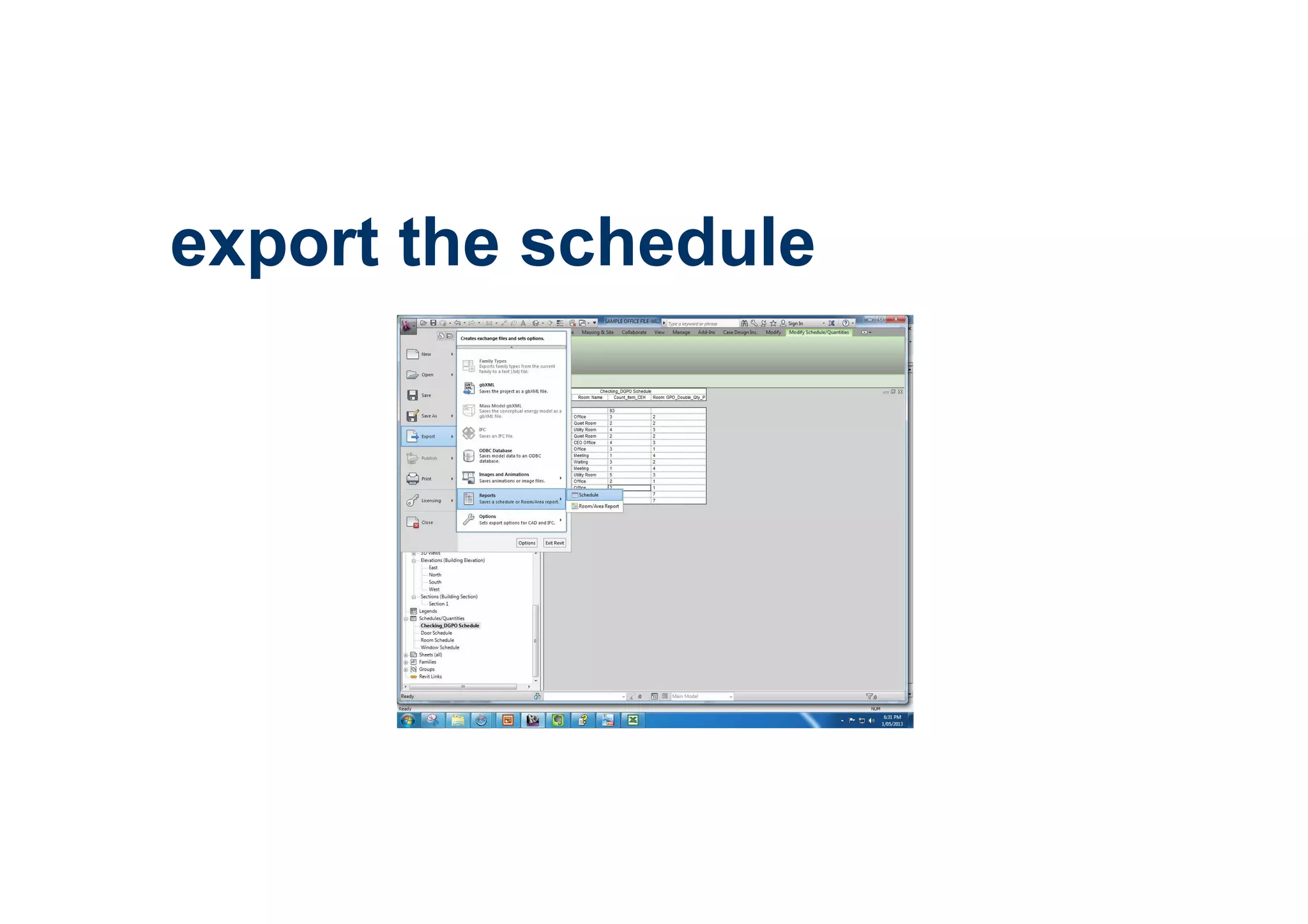
export the schedule
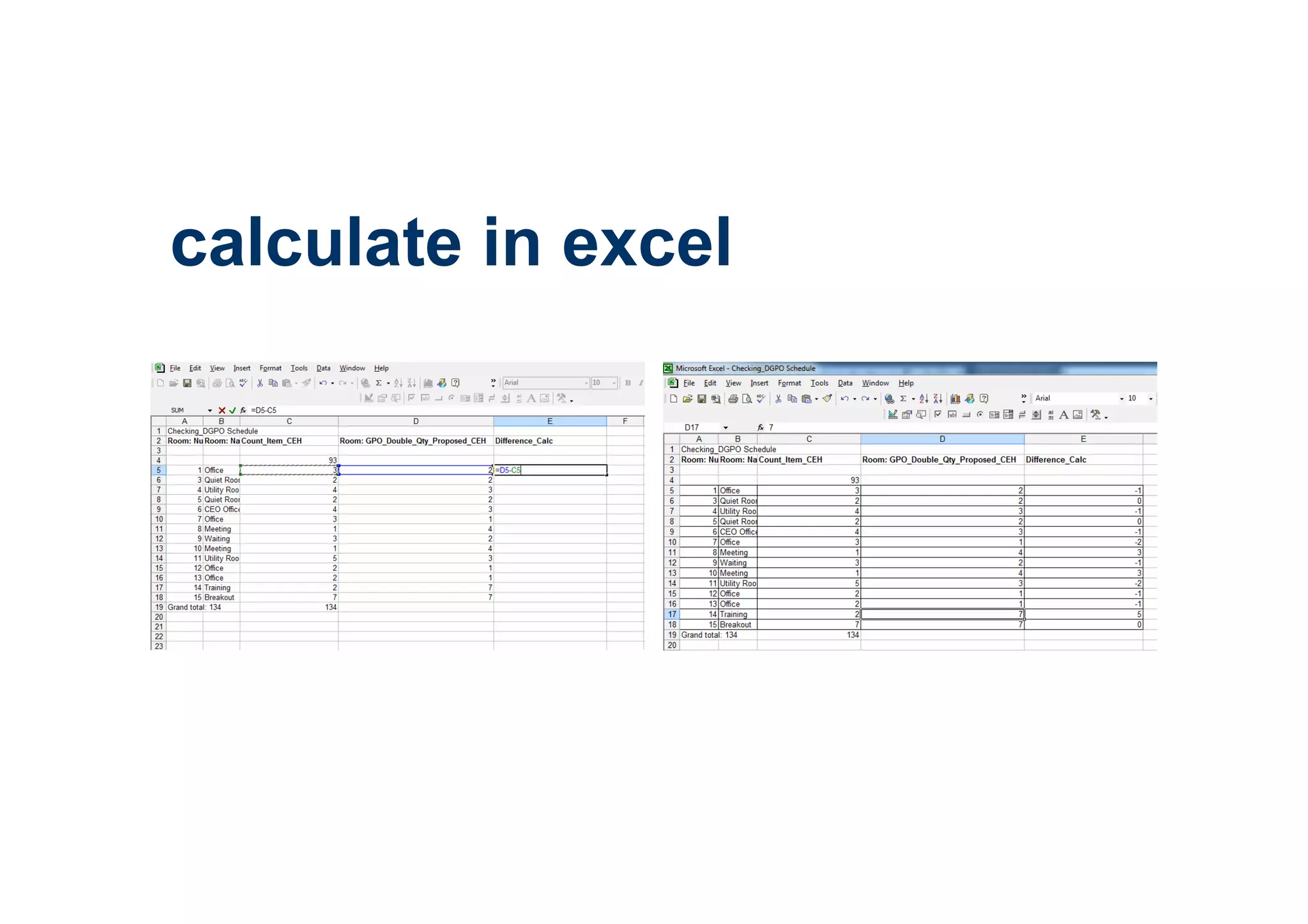
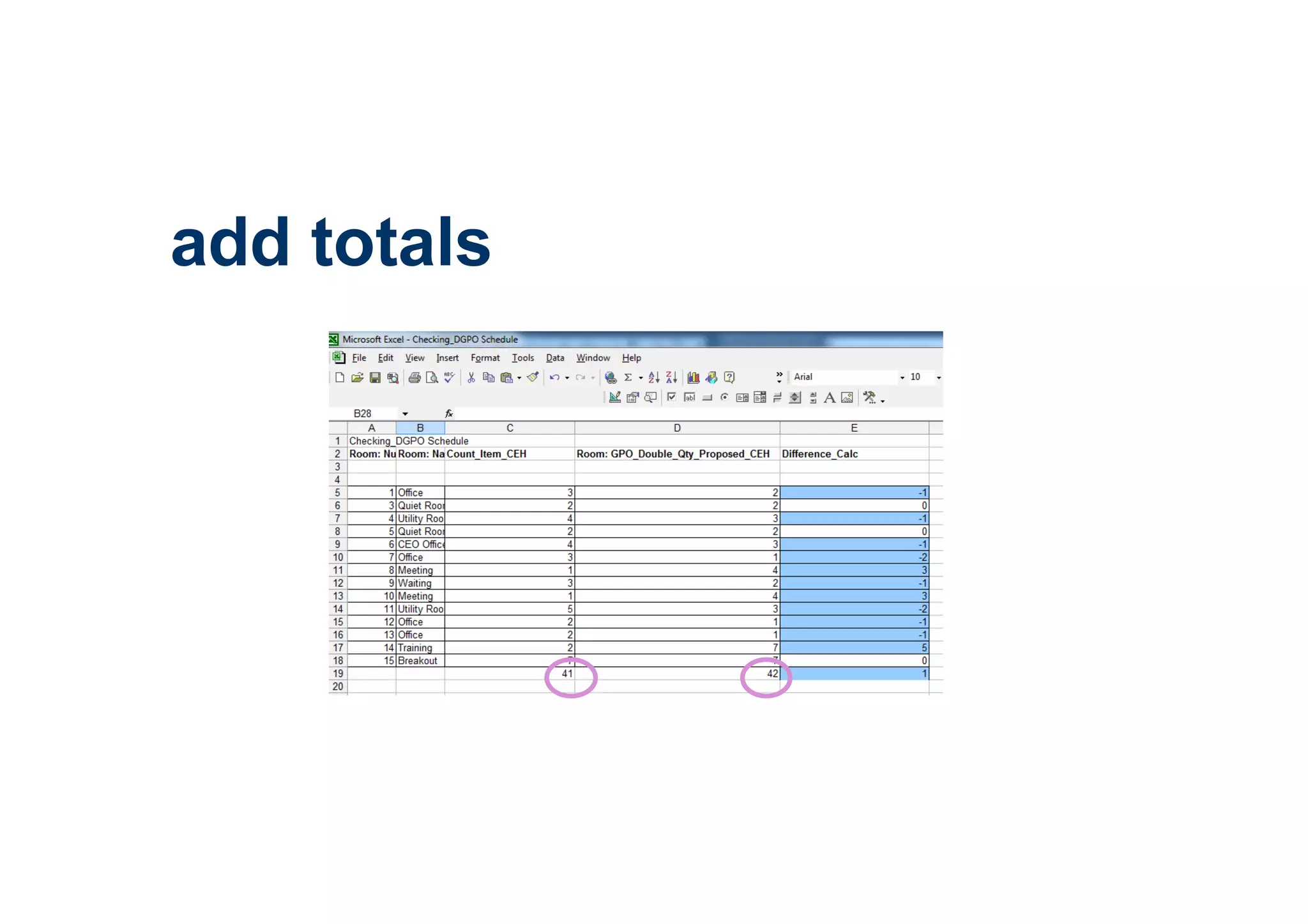
calculate in excel
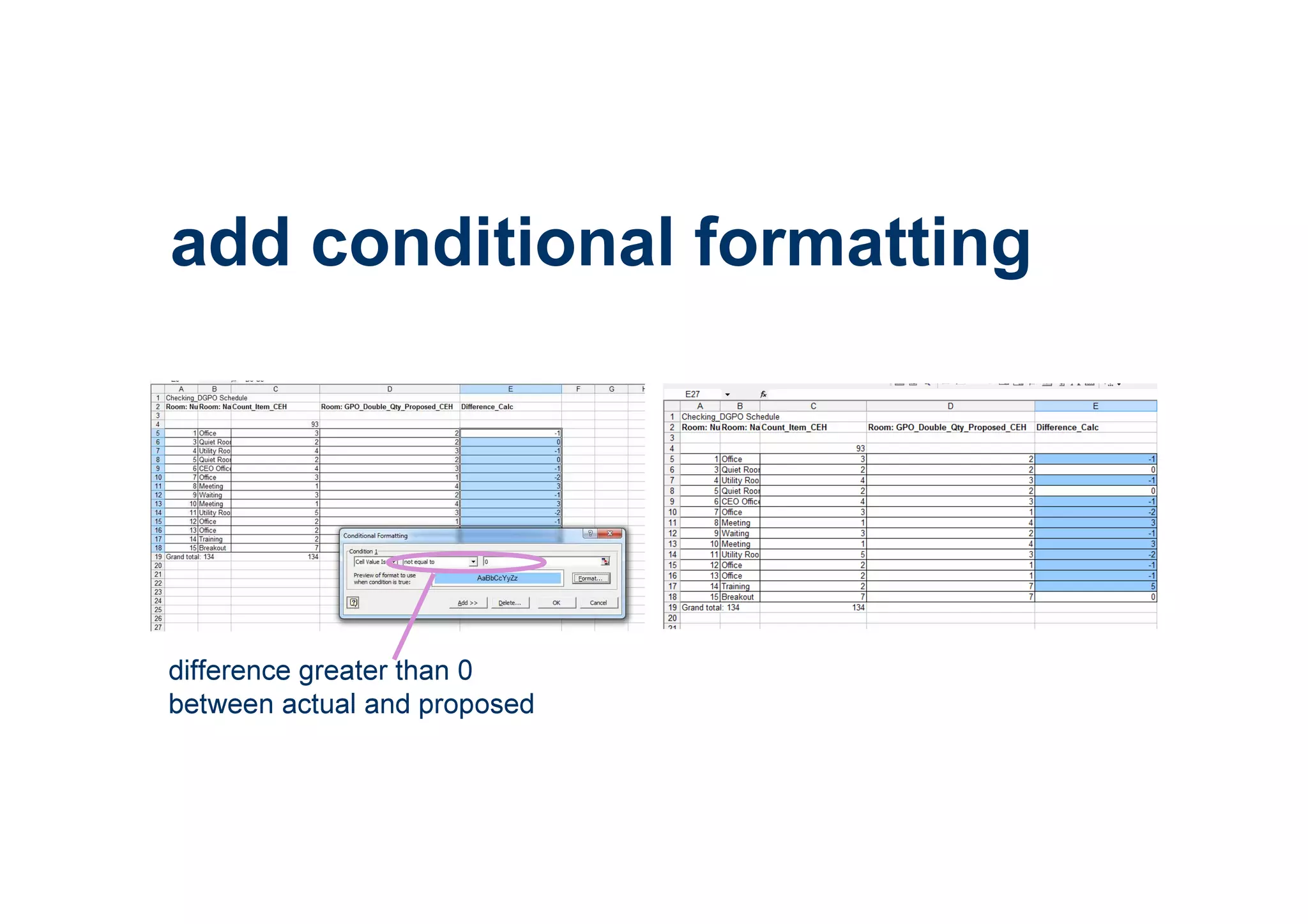
add conditional formatting
difference greater than 0
between actual and proposed
add totals
in the real world?
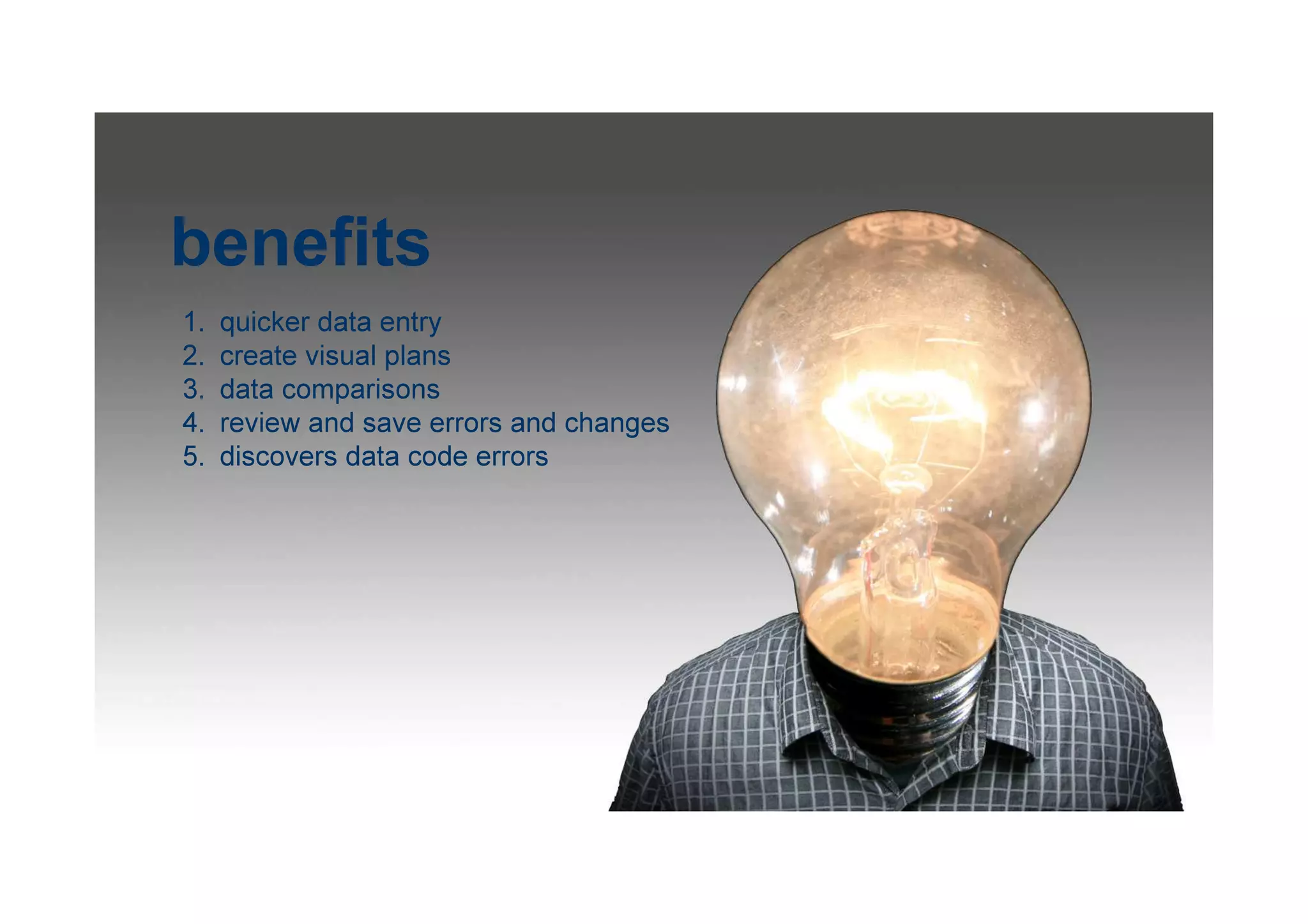
benefits
1. quicker data entry
2. create visual plans
3. data comparisons
4. review and save errors and changes
5. discovers data code errors
20 hours
time taken
to setup
and test
templates
Questions?
check out my blog at
themidnightlunch.com
Colours by Shershe (recoloured) - http://www.flickr.com/photos/shershe/3361427968/sizes/o/in/photostream/
The weakest link by Darwin Bell (clipped) - http://www.flickr.com/photos/darwinbell/465459020/sizes/l/
Tools by zzpza - http://www.flickr.com/photos/zzpza/3269784239/sizes/o/
The Thinker by 4johny5 (clipped) - http://www.flickr.com/photos/johnny4ever5/3226486640/sizes/l/
London Bridge Tunnel by Martino’s Doodles -
http://www.flickr.com/photos/martinosdoodles/2501720296/http://www.flickr.com/photos/martinosdoodles/250172
0296/
Level of Detail – Thanks to PracticalBIM http://practicalbim.blogspot.com.au/
Floor Walking by Amodiovalerio Verde - http://www.flickr.com/photos/amodiovalerioverde/41523777/sizes/o/
Alarm clock by kobiz7 (clipped) - http://www.flickr.com/photos/27369469@N08/2661018158/sizes/l/
Chairs - http://www.flickr.com/photos/masochismtango/283536089/sizes/o/
Creating the Future for Libraries blank book by Shifted Librarian -
http://www.flickr.com/photos/shifted/3360687295
Bryant Park, Late April 2009 by Ed Yourdon - http://www.flickr.com/photos/yourdon/3475417696/sizes/l/
Data slide by Bionic teaching (colours modified) -
http://www.flickr.com/photos/bionicteaching/2920562020/sizes/o
Information by NASA's Marshall Space Flight Center -
http://www.flickr.com/photos/nasamarshall/6950477589/sizes/h/in/photostream/
Just Full Of Ideas by Cayusa - http://www.flickr.com/photos/cayusa/981372736/
Time jumper by h.koppdelaney - http://www.flickr.com/photos/h-k-d/6171907581/sizes/l/
Component Libraries by Daniel Moodie
Finishes screen shots by Ceilidh Higgins at GHD
All other screen shots prepared for this presentation by Ceilidh Higgins
image credits

What's in a Room?

  • 1.
    What’s in aRoom? Ceilidh Higgins Interior Designer | BIM Specialist | Blogger | GreenStar Professional | Looking for opportunities
  • 2.
  • 3.
    a room object itself isa container for data – both physical and information based revit rooms
  • 4.
    room data sheets roomdata sheets document what SHOULD be in a room, not what is modelled
  • 5.
    currently word file, excelfile or access database revit model objects revit model data
  • 6.
    then there are2D elements is that a floor? an area? or a colour fill? and can you tell the difference anyway?
  • 7.
  • 8.
    what about excel filerevit model data bi directional link
  • 9.
    then if wecould revit model objectsrevit model data compare
  • 10.
    use excel toenter data or a schedule or a plan
  • 11.
    compare proposed toactual proposed number of double power outlets (data only) actual count of double power outlets in the model calculation of difference between proposed and actual
  • 12.
  • 13.
    Revit – schedules,graphic filters, room colour schemes, annotations Microsoft Excel for spreadsheets – intermediate level of use RTV Shared Parameter Manager to manage project parameters – just $135 USD Ideate BIMLink for bi-directional link between excel and revit - $850 approx
  • 14.
    what else? • roomdata sheet - or something else? • what is modelled? what is data? what is 2d? • is it worth it?
  • 15.
    schedule non-object data physical properties of modelled objectsdata only information from room parameters
  • 16.
    create visual dataplans different colours indicate different PROPOSED acoustic zones
  • 17.
  • 18.
    how will thedata be used? text, integer, length, yes/no, material? what parameter type will be used? for each parameter consider what type of parameter is required based upon what you want to record/check or measure and the output plans or schedules you need
  • 19.
    Note Blocks (attachedto nothing)ImagesRooms Attached to Rooms Symbols & AnnotationsGeneric Model Objects Attached to 2D Objects Families with 2D lines Families including doors, furniture, casework, equipment Attached to 3D ObjectsDetail ComponentsWalls, Floors, Ceilings Information2D Objects3D Objects what is a model made up of?
  • 20.
    what is important? thinkabout how and when you gather information as well as how you use it
  • 21.
    simple parameter typetips integers are good for comparing quantities of like items yes/no and text parameters with limited number of descriptions are great for visual plans
  • 22.
  • 23.
    modelling finishes? keynotes &scheduling ensure consistency adding colour and actual material patterns can give you a quick visual design check
  • 24.
    finish plans –why use a colour fill? with a material its there in 3D
  • 25.
    what about walls? Alloptions are work arounds Paintbucket Room object Additional wall Part of wall Other options? line based family attached to wall with filters used to identify different materials
  • 26.
    no material parameters? inthe room object all the floor, wall, ceiling and finish parameters are text (so is casework), why?
  • 27.
    2 reasons 1. timing- remember the room data sheet is the brief an actual material has not yet been selected 2. good BIM - the room object is not a physical object to which materials can be applied
  • 28.
  • 29.
  • 30.
  • 31.
    what room data? thisexample of FFE is more common in lab projects – each item is listed individually with dimensions and other details – every cell would be a parameter this example is less detailed for each piece of equipment and relies on lists and text based entries
  • 32.
    integer parameters forquantities – separate from text descriptions will allow for excel spreadsheet check yes/no parameter to identify if there are standard workstations in a room text based list for joinery (casework) means this will be a manual check chairs are separated into different kinds, a yes/no parameter in each chair family will be required to identify which kind of chair it is
  • 33.
    client supplied equipmentwith separate parameters for each dimension – the same data could be used in a type catalogue to build families for a lab project each service might need to be a separate parameter
  • 34.
    again why? 1. timing- remember the room data sheet is the brief, detailed types of furniture are not yet selected 2. consider each type/item of FFE individually and think how your projects can use the data collected 3. and still no materials – again timing and good BIM
  • 35.
  • 36.
    the revit template createyour room data parameters in your revit template file (you can also load into an existing project too) other template tips – set up views for multiple levels and also set up your standard schedules
  • 37.
    creating parameters parameter Namesshould include “Proposed” or “Briefed” so as to avoid confusion with modelled elements
  • 38.
    bind parameters parameter bindingloads the shared parameters into the project file
  • 39.
    in the orderyou want them parameters will be in the order they are bound, or if multiple parameters are bound at once, in alphabetical order
  • 40.
    check everything I missedthe CEH here the parameter cannot be reloaded into the same project with a different name – you have to create a new parameter with a new GUID and then delete the old parameter
  • 41.
    before loading! the ‘new’casework parameter will come in after all the other parameters now learn from my lesson – I wasted a lot of time not checking parameter names & types before loading them all into the template
  • 42.
  • 43.
    you then haveto set the order up again in BIMlink, as this will control the order you see them in excel select parameters
  • 44.
    select export toexport the revit data to an excel file – at this point all we are doing is exporting the parameters not actual information export link
  • 45.
    room data file wenow have a blank room data file – there was just one room in the revit template – this is its GUID tip – you have to open the excel file inside of excel not double click.
  • 46.
    testing BIMlink allows youto create new rooms within excel, just add NEW to the GUID field
  • 47.
    formatting tips quickly changerow height and set all cells to wrap text to make editing easier Freeze room names/numbers to aid navigation
  • 48.
    one issue isthat you can’t tell from excel what the parameter type is – maybe consider your naming? but go ahead and fill out a row of data parameter types
  • 49.
    import BIMlink select import,then the excel file and the workbook.
  • 50.
    review errors andchanges the BIMlink dialogue lists all new and modified data and all identifies errors and allows you to save an issues report as an excel file
  • 51.
    error and changereport we now know when (and probably who?) changed the room data sheet – this is a benefit over using excel on its own
  • 52.
    import complete room datahas now been imported into room parameters
  • 53.
    opps this wasa qty these nils should be NO 4 of 5 errors easily identified
  • 54.
    incorrect parameter type – parameterwill now have to be deleted, remade and will be out of order fixing errors
  • 55.
    fixing errors having fixedthe error in the revit parameters we also need to load the new parameter into the BIMlink
  • 56.
    and the datafile overwrite the previous room data file
  • 57.
    using find andreplace another benefit of excel – find and replace NIL with NO be careful not to replace any text in this row
  • 58.
    repeat until you getzero warnings (took me 2 goes) import back to revit
  • 59.
    save link if yousave the link definition you will be able to import the BIMlink into other files and not have to go through picking the parameter order again (at least in BIMlink – sorry still required to load parameters into Revit)
  • 60.
    linked workbooks BIMLink exporteddata file preformated worksheets
  • 61.
    set up theexcel data sheet this is a preformated template that you can use on every project with links back to your data file
  • 62.
    just make sureto save it in the same folder as the file “Room Data File” and never change the name of “Room Data File” maintain the links
  • 63.
    some oddities yes/no parameterswill show TRUE/FALSE, if this really bugs you run a find and replace on the data file before issuing to client I put NO into any field that would otherwise be empty – so it doesn’t show zero and its clear its deliberately NO
  • 64.
  • 65.
    fix links run findand replace on each sheet to fix the formula – replace $2 with $3 means it will read the next row down from the data file
  • 66.
    fix sheet names itreally would be better if the sheet names matched the room numbers (or names if you like), to do this we need to create a macro
  • 67.
    the visual basiceditor View ->Code here is your code
  • 68.
    select cell toreference I picked B7 – room number – use find and replace on your code
  • 69.
  • 70.
    interesting error dialogue - room10.10 is considered the same as room 10.1 – this potentially highlights a problem with our room numbering scheme that could occur with other database software
  • 71.
    revise room numbering closethe room data sheet and update the room data file tip – you need to always have the room data file open to update the room data sheet
  • 72.
    when you reopen thedata sheet you might get an error like this enable macros go to tools->options
  • 73.
  • 74.
    re run themacro you may need to close and reopen the data sheet file worksheets have been renamed
  • 75.
    formatting tips select allworksheet tabs at once all cells can be formatted as ‘general’ (room number had 2 digits after the decimal)
  • 76.
    change the header selectall sheets except the first one, link them back to the first one – then you only update once
  • 77.
    enter more data recordthe room GUID before you paste
  • 78.
    your template isready tidy up the template by deleting the rooms in a schedule view
  • 79.
    test your template createa new project based on the template and import the BIMlink data file your data file had GUID numbers in it, if there are no rooms yet in the project you need all NEW in the data file
  • 80.
    fix the error andreimport in BIMlink and your rooms now exist in the project
  • 81.
  • 82.
    rooms ready forplacing make sure your users know to select the rooms to place, not to always make new rooms
  • 83.
  • 84.
  • 85.
    here is onei prepared earlier this revit file is basically complete for construction but the only room objects are inside the core
  • 86.
    open BIMLink, load thelink file and then load the rooms load the room data
  • 87.
  • 88.
  • 89.
    edit the colourscheme duplicate and modify an existing colour scheme – pick a yes/no parameter
  • 90.
  • 91.
    proposed room acoustics ora text parameter with limited different entries
  • 92.
    add room tags roomtag using data from the AV list parameter combined with colour scheme based on the yes/no AV parameter
  • 93.
    proposed DGPOs this planwould be useful at an early stage, to agree numbers with client or to brief engineer. this model is further developed and has actual DGPOs already shown – we can see there are errors. ideally we want to compare the actual and the existing. room tag using data from the double GPO quantity parameter
  • 94.
    useful tip as youcan’t use the default count parameter in formulas it can be useful to give all families another counting parameter
  • 95.
    create a schedule poweroutlets are electrical fixtures select parameters available from electrical fixtures and from rooms
  • 96.
  • 97.
    schedule output all electricalfamilies are scheduled and you can’t filter a schedule by family name
  • 98.
    what can wefilter? needs to be a shared parameter - using shared parameters allows you to use data for more uses if you can’t find one - create a new shared parameter
  • 99.
  • 100.
    hide the filter& family type
  • 101.
    calculated values arenot taken into account in formula for calculated parameter calculate the difference
  • 102.
    a yes/no parameter Count_Item_CEH= Room: GPO_Double_Qty_Proposed_ CEH does not work either – Revit is always comparing the individual “Count_Item_CEH” parameter in the calculation – NOT the calculated total we see in the schedule. yes/no difference?
  • 103.
  • 104.
  • 105.
    add conditional formatting differencegreater than 0 between actual and proposed
  • 106.
  • 107.
  • 108.
    benefits 1. quicker dataentry 2. create visual plans 3. data comparisons 4. review and save errors and changes 5. discovers data code errors
  • 109.
    20 hours time taken tosetup and test templates
  • 110.
    Questions? check out myblog at themidnightlunch.com
  • 111.
    Colours by Shershe(recoloured) - http://www.flickr.com/photos/shershe/3361427968/sizes/o/in/photostream/ The weakest link by Darwin Bell (clipped) - http://www.flickr.com/photos/darwinbell/465459020/sizes/l/ Tools by zzpza - http://www.flickr.com/photos/zzpza/3269784239/sizes/o/ The Thinker by 4johny5 (clipped) - http://www.flickr.com/photos/johnny4ever5/3226486640/sizes/l/ London Bridge Tunnel by Martino’s Doodles - http://www.flickr.com/photos/martinosdoodles/2501720296/http://www.flickr.com/photos/martinosdoodles/250172 0296/ Level of Detail – Thanks to PracticalBIM http://practicalbim.blogspot.com.au/ Floor Walking by Amodiovalerio Verde - http://www.flickr.com/photos/amodiovalerioverde/41523777/sizes/o/ Alarm clock by kobiz7 (clipped) - http://www.flickr.com/photos/27369469@N08/2661018158/sizes/l/ Chairs - http://www.flickr.com/photos/masochismtango/283536089/sizes/o/ Creating the Future for Libraries blank book by Shifted Librarian - http://www.flickr.com/photos/shifted/3360687295 Bryant Park, Late April 2009 by Ed Yourdon - http://www.flickr.com/photos/yourdon/3475417696/sizes/l/ Data slide by Bionic teaching (colours modified) - http://www.flickr.com/photos/bionicteaching/2920562020/sizes/o Information by NASA's Marshall Space Flight Center - http://www.flickr.com/photos/nasamarshall/6950477589/sizes/h/in/photostream/ Just Full Of Ideas by Cayusa - http://www.flickr.com/photos/cayusa/981372736/ Time jumper by h.koppdelaney - http://www.flickr.com/photos/h-k-d/6171907581/sizes/l/ Component Libraries by Daniel Moodie Finishes screen shots by Ceilidh Higgins at GHD All other screen shots prepared for this presentation by Ceilidh Higgins image credits