Information Technology Training – Session 5 – March 29, 2012


                                      Microsoft Outlook – Inside Out
                                                Microsoft 365 Update
                                          Managing Your Passwords


William Mann, Chief Information Officer                               1
Information Technology Training – Session 5 – March 29, 2012


            Part 1
            Microsoft Outlook – Email Skills


William Mann, Chief Information Officer                               2
Information Technology Training – Session 5 – March 29, 2012
The exciting history of CC and BCC
The story of the blind carbon copy function is an example of old real world processes continuing into the virtual world.
The simple term "carbon copy" comes from the days of manual typewriters, when copies were made by typing on paper
with several layers. Between each layer of paper was a thin sheet with carbon on the bottom side, so that when the
typewriter keys hit the paper, the impact made a "carbon copy" of the letter on the paper sheet underneath. When you
were finished typing a page, you would separate out the paper and throw away the carbon sheets. Anyone who is older
than 40 surely remembers this and that you usually got some of the black carbon all over your hands.

You could get two, three, and four layer carbon copy paper, and even some very thin six layer paper. The top paper got the
typewriter ink and looked the best. The top carbon copies always looked much crisper than the lower copies, as the force
of the typewriter key strike dissipated through the layers.

Occasionally, an extra carbon copy would be given to someone not on the official CC carbon copy address list. Because
there was no way the official addressees could know about these extra copies, they were called "blind carbon-copies"
(BCC).

It turned out that people liked this feature so much it has survived into our virtual world and has been built into email. If
you put addresses in the BCC field of an email it will be secretly copied to those addresses, and none of the other
addresses in the To, CC, or BCC fields will know about it because the BCC field is not displayed on incoming messages.


                                                                                                                                3
Information Technology Training – Session 5 – March 29, 2012

There are many reasons that the BCC field can be used.

  Secret Squirrel: You can blind copy an email to someone without the other addresses knowing that you did so to
  make a third party aware of an important issue, or to establish an independent confidential record of your email. Be
  aware that you should have a good and ethical reason for not letting the primary addressee know that the email is
  being copied to someone else. Be aware that blind copying can be looked as a form of deception.

  Copying yourself: You can blind copy yourself. For example you may want to copy an important email from your
  home address to your work address, or vice versa.

  Network diagnostics: You can double-check that an important email makes it out onto the internet by blind
  copying yourself on the email at another address, preferably at a different domain name. If the blind copied email
  to yourself arrives at your other address, then you can be reasonably sure that the copy of the email to the main
  addressee you are concerned about made it from your Internet service provider.

  Broadcasting: You can blind copy several email addresses at once in the BCC field if you are sending the email to
  more than one person. This feature of the blind copy is useful when for privacy reasons you don't necessarily want
  all of the recipients to know the addresses of the others. Information. You can surreptitiously copy one friend on a
  joke email to another friend.


                                                                                                                         4
Information Technology Training – Session 5 – March 29, 2012

        Part 1
        Microsoft Outlook – Email Skills


          • Spelling (demonstrate various spelling grammar skills.)

          • Thesaurus (demonstrate the thesaurus function.)


William Mann, Chief Information Officer                               5
Information Technology Training – Session 5 – March 29, 2012

         Part 1
         Microsoft Outlook – Email Skills


     •     Creating a Signature (demonstrate creating a signature.)

     •     Creating a Folder (demonstrate creating folders.)


William Mann, Chief Information Officer                                 6
Information Technology Training – Session 5 – March 29, 2012

        Part 1
        Microsoft Outlook – Email Skills


        •   Reading Pane Options (demonstrate reading panes.)

        •   Find (demonstrating searching email.)


William Mann, Chief Information Officer                               7
Information Technology Training – Session 5 – March 29, 2012

          Part 1
          Microsoft Outlook – Email Skills


      •      Organizing Your Inbox (demonstrate organizing mail.)

      •      Creating Rules (demonstrate various rule creations.)


William Mann, Chief Information Officer                               8
Information Technology Training – Session 5 – March 29, 2012

        Part 1
        Microsoft Outlook – Email Skills


      • Creating a calendar event or add a new contact with an email
        message.


William Mann, Chief Information Officer                                9
Information Technology Training – Session 5 – March 29, 2012


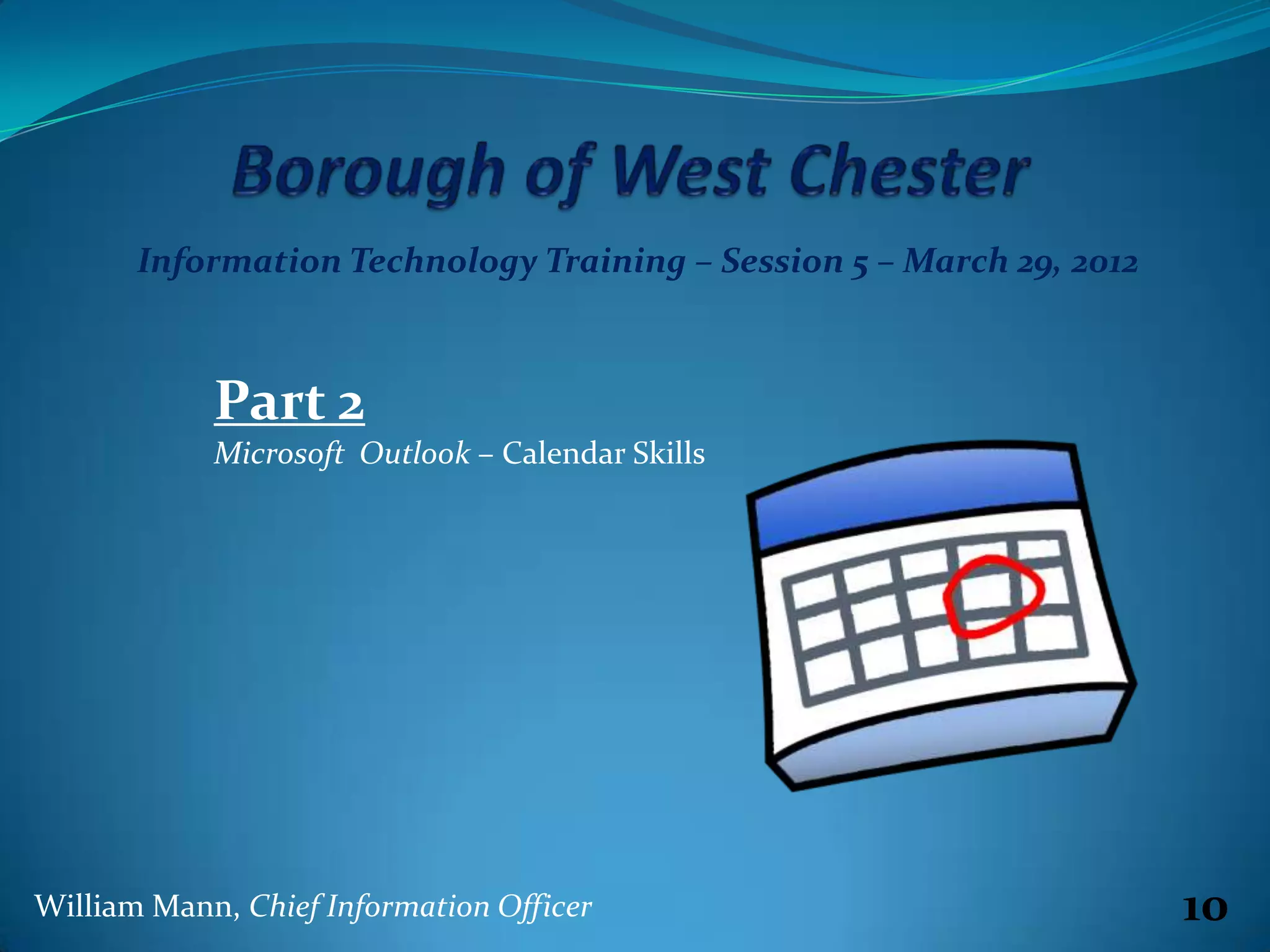
            Part 2
            Microsoft Outlook – Calendar Skills


William Mann, Chief Information Officer                               10
Information Technology Training – Session 5 – March 29, 2012

        Part 2
        Microsoft Outlook – Calendar Skills


       •    Scheduling & Modifying Activities

       •    Create activity from email


William Mann, Chief Information Officer                               11
Information Technology Training – Session 5 – March 29, 2012

        Part 2
        Microsoft Outlook – Calendar Skills


       •    Planning a Meeting

       •    Inviting Attendees


William Mann, Chief Information Officer                               12
Information Technology Training – Session 5 – March 29, 2012

        Part 2
        Microsoft Outlook – Calendar Skills


          •   Organizing Your Events (colors!)

          •   Viewing Other (Shared) Calendars


William Mann, Chief Information Officer                               13
Information Technology Training – Session 5 – March 29, 2012


     Part 3
     Microsoft Office 365 – Update


Our organization was migrated to Microsoft
365 between March 16 & 18, 2012.


               What does this mean to you?


William Mann, Chief Information Officer                               14
Information Technology Training – Session 5 – March 29, 2012


     Part 3                                      This can be uninstalled
     Microsoft Office 365 – Update               through the Add/Remove
                                                 Programs in the control
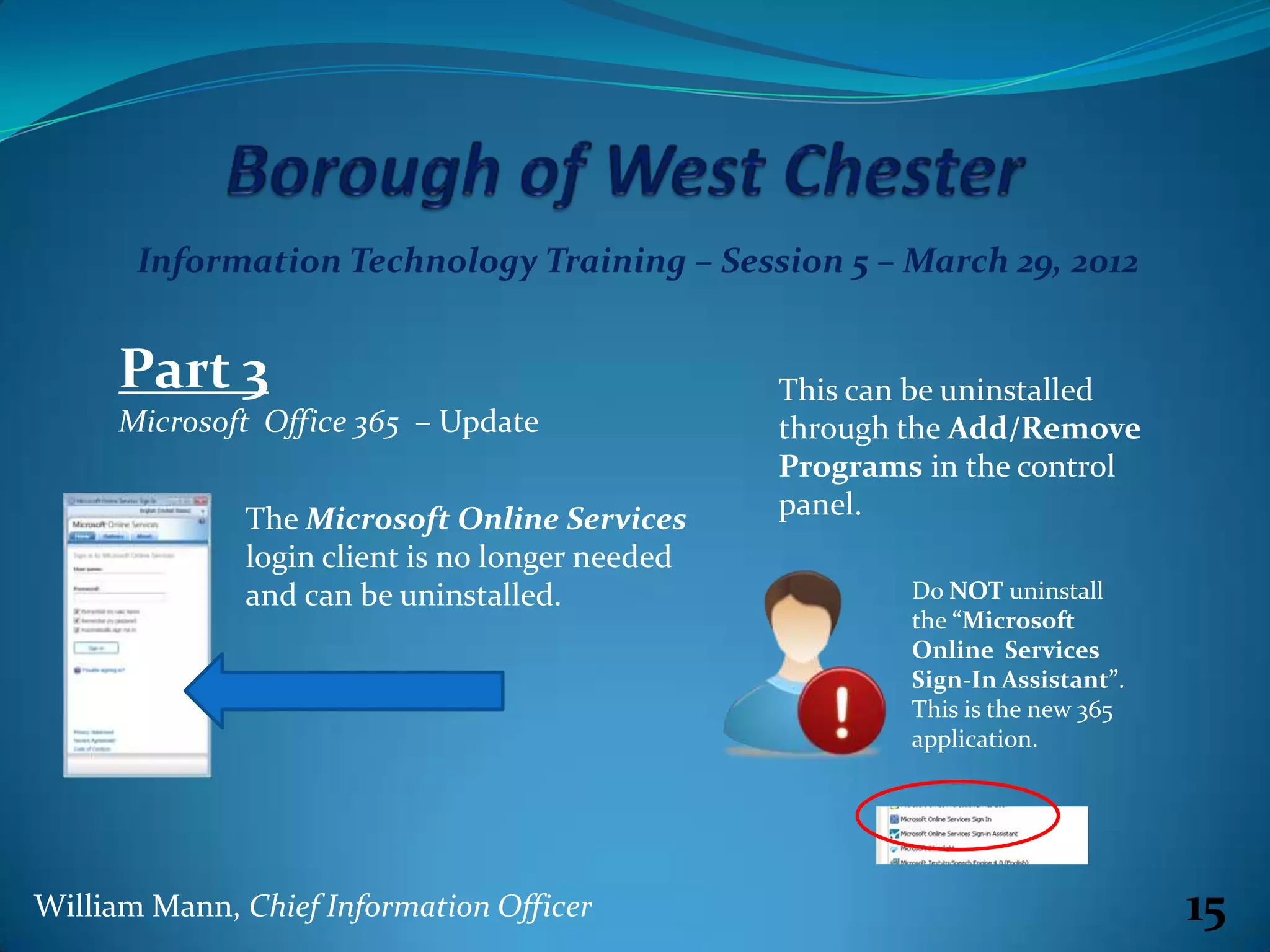
              The Microsoft Online Services      panel.
              login client is no longer needed
              and can be uninstalled.                    Do NOT uninstall
                                                         the “Microsoft
                                                         Online Services
                                                         Sign-In Assistant”.
                                                         This is the new 365
                                                         application.


William Mann, Chief Information Officer                                        15
Information Technology Training – Session 5 – March 29, 2012


     Part 3
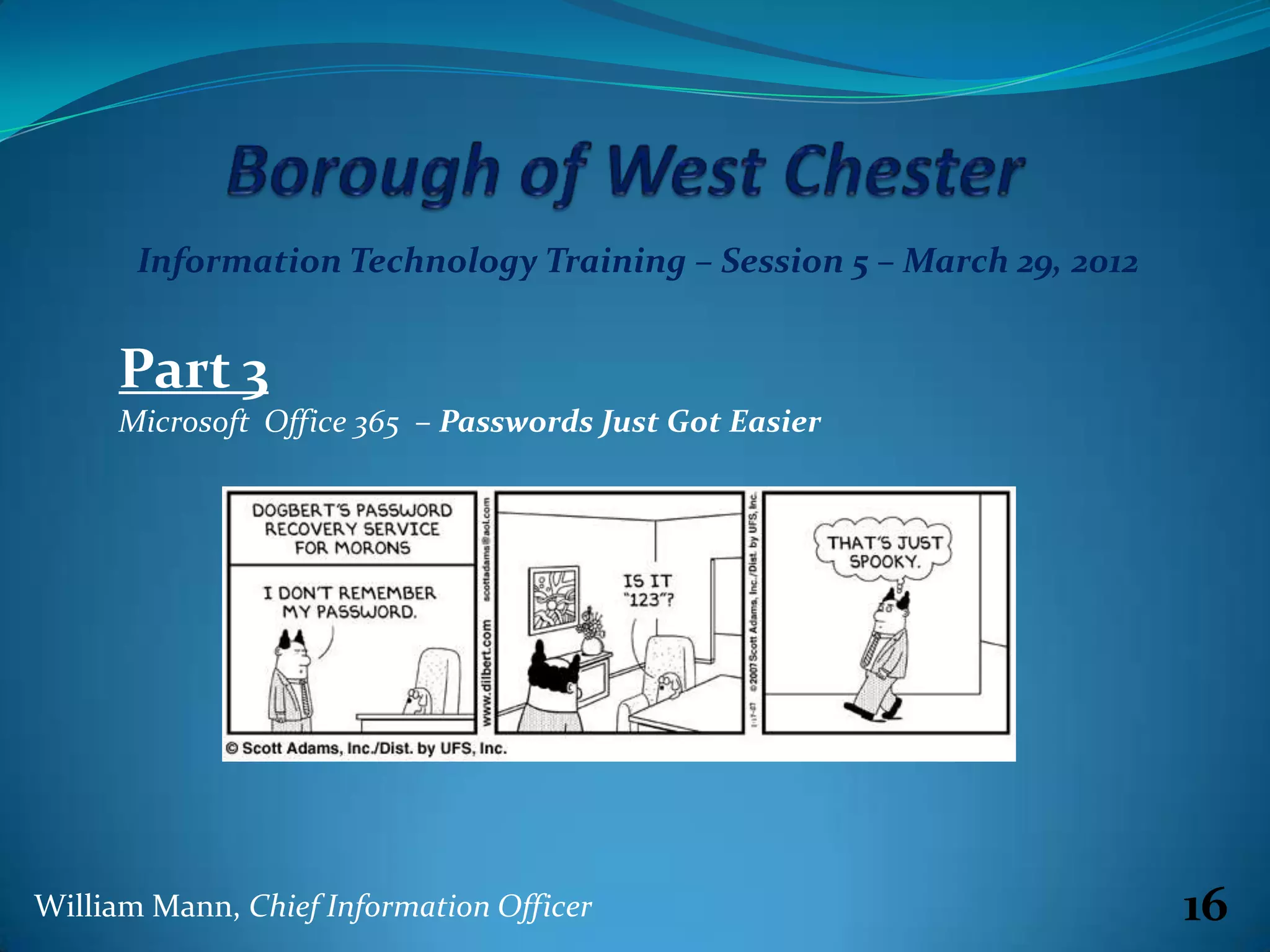
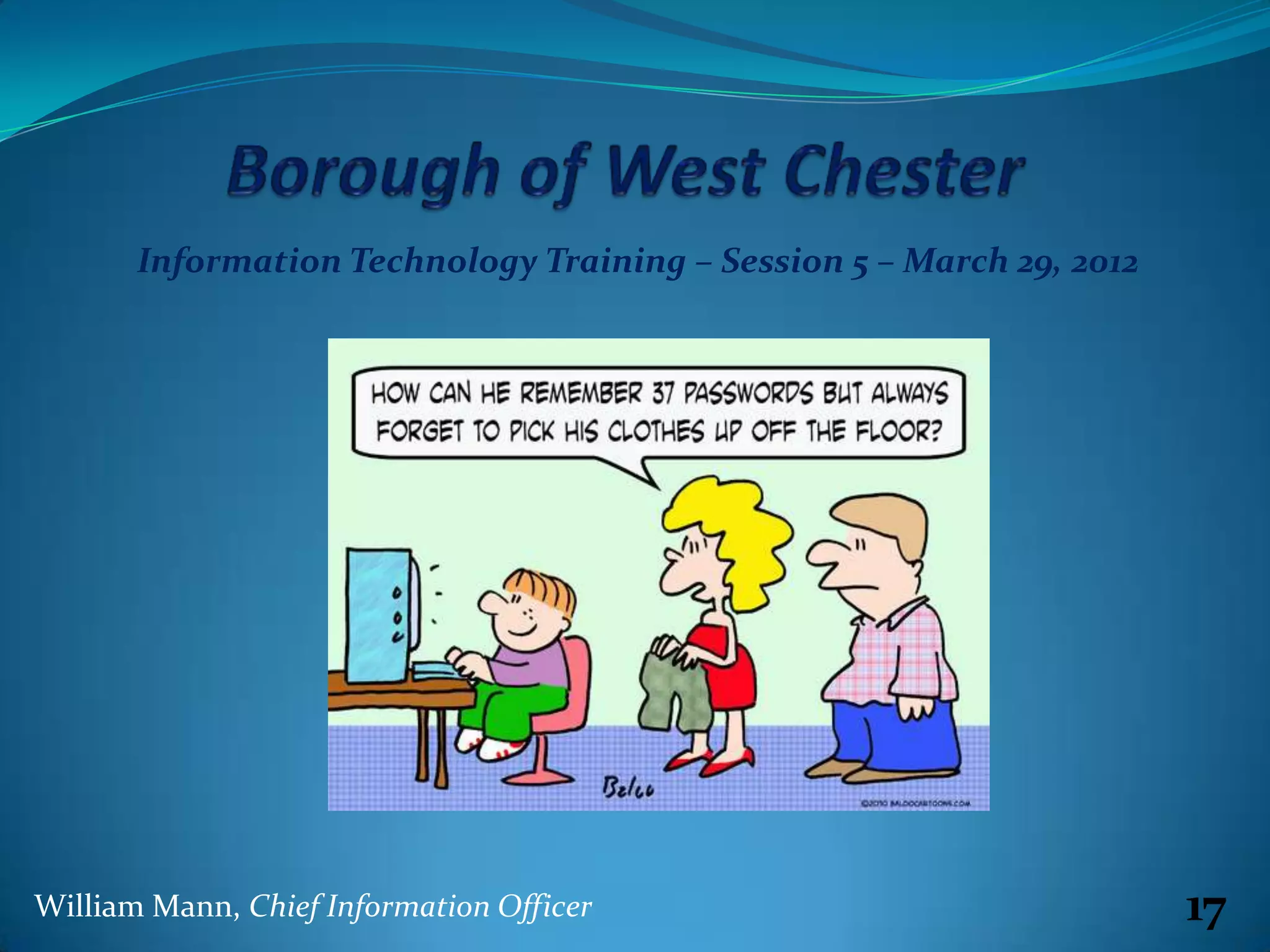
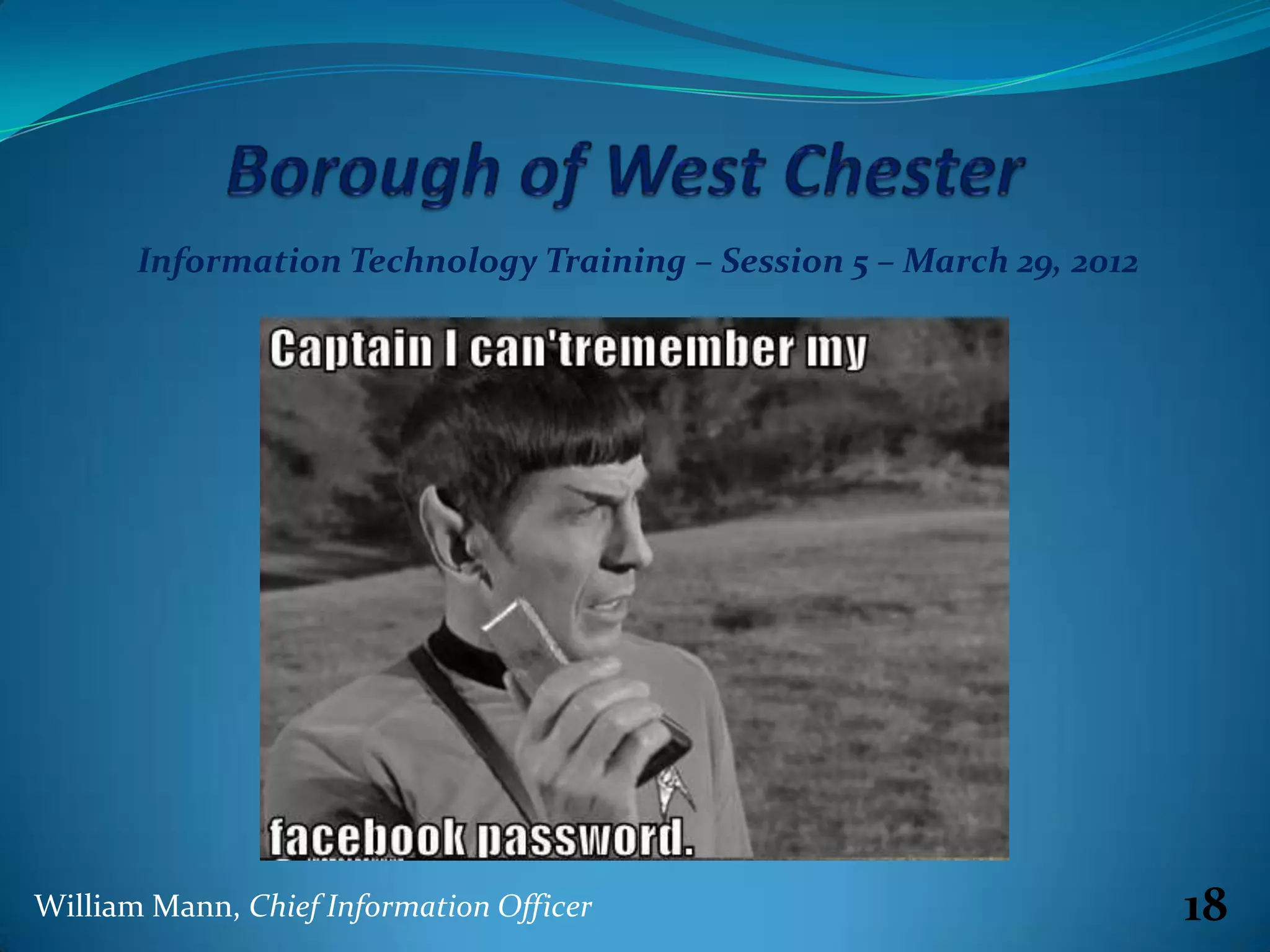
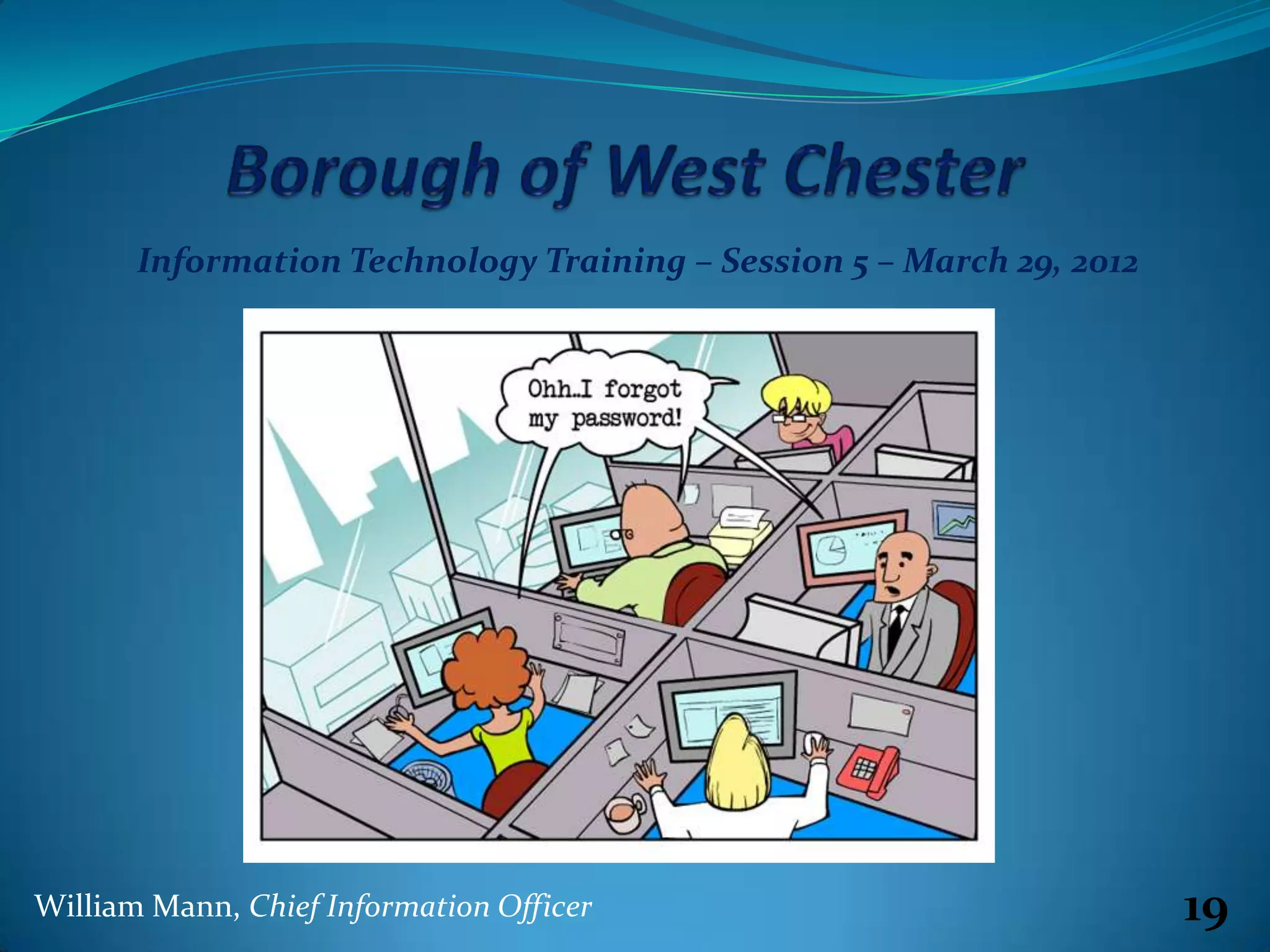
     Microsoft Office 365 – Passwords Just Got Easier


William Mann, Chief Information Officer                               16
Information Technology Training – Session 5 – March 29, 2012


William Mann, Chief Information Officer                               17
Information Technology Training – Session 5 – March 29, 2012


William Mann, Chief Information Officer                               18
Information Technology Training – Session 5 – March 29, 2012


William Mann, Chief Information Officer                               19
Information Technology Training – Session 5 – March 29, 2012


                                                    ……however……..
William Mann, Chief Information Officer                               20
Information Technology Training – Session 5 – March 29, 2012

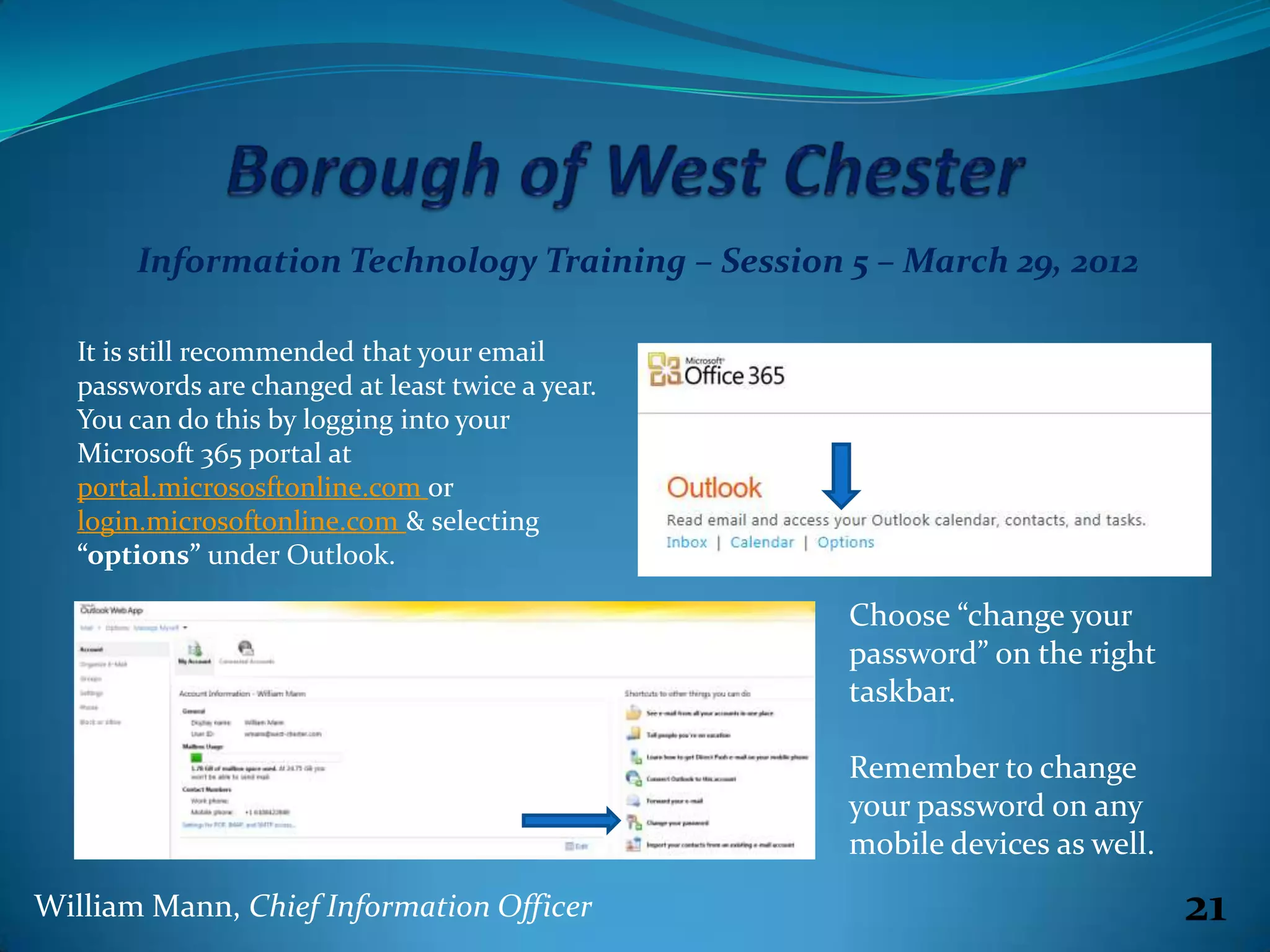
   It is still recommended that your email
   passwords are changed at least twice a year.
   You can do this by logging into your
   Microsoft 365 portal at
   portal.micrososftonline.com or
   login.microsoftonline.com & selecting
   “options” under Outlook.

                                                  Choose “change your
                                                  password” on the right
                                                  taskbar.

                                                  Remember to change
                                                  your password on any
                                                  mobile devices as well.
William Mann, Chief Information Officer                                     21
Information Technology Training – Session 5 – March 29, 2012

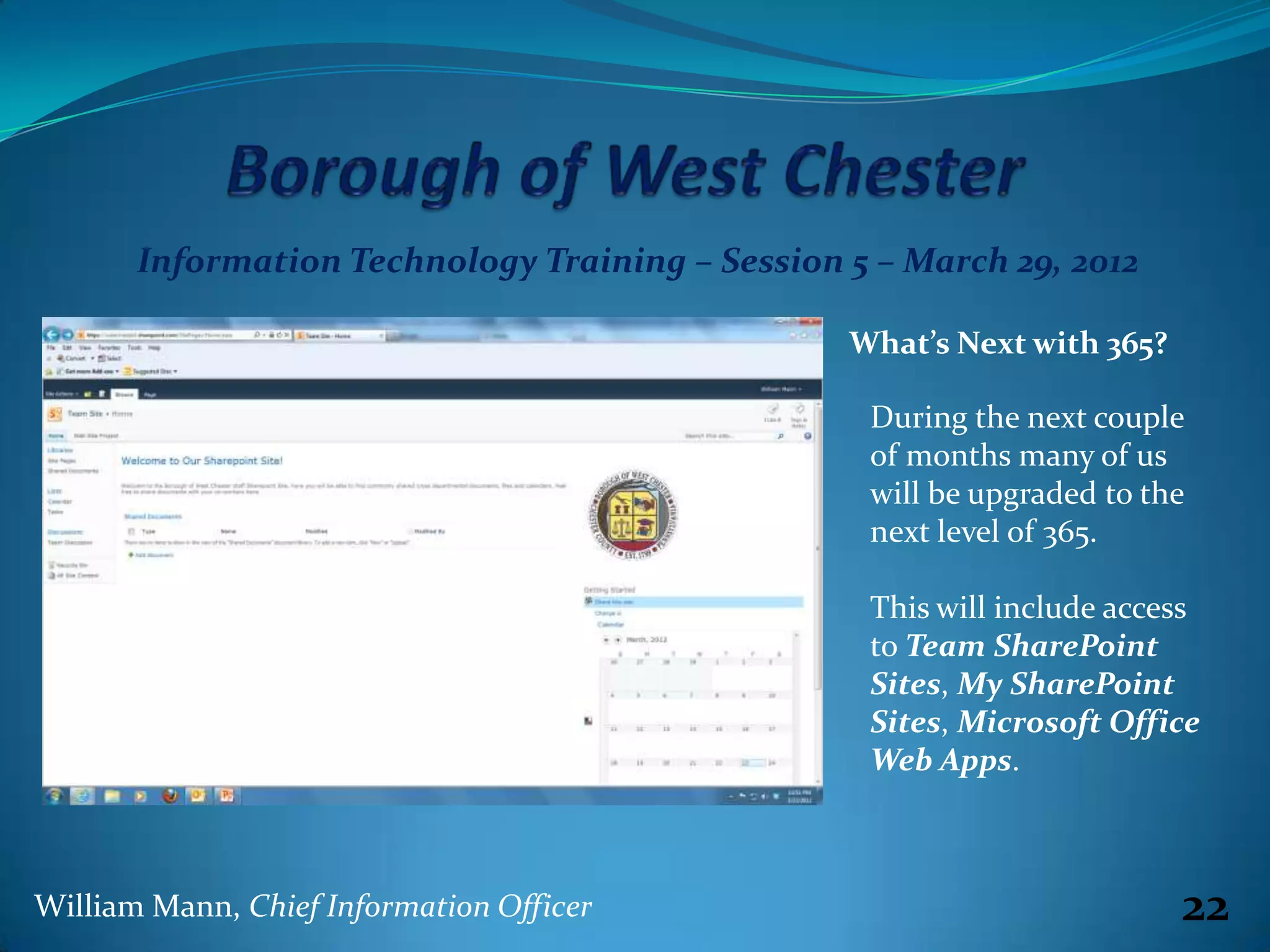
                                                 What’s Next with 365?

                                                  During the next couple
                                                  of months many of us
                                                  will be upgraded to the
                                                  next level of 365.

                                                  This will include access
                                                  to Team SharePoint
                                                  Sites, My SharePoint
                                                  Sites, Microsoft Office
                                                  Web Apps.


William Mann, Chief Information Officer                                  22
Information Technology Training – Session 5 – March 29, 2012


            Part 4
            Managing Your Passwords

             Managing your technology passwords can be over whelming.

             However passwords are very important because they protect your
             personal information and the information of your employer.

             There are some good & bad ways of managing your passwords.


William Mann, Chief Information Officer                                       23
Information Technology Training – Session 5 – March 29, 2012


            Part 4
            Managing Your Passwords

             • Sticky notes on your computer monitors is VERY BAD.

             • Word documents listing all your passwords is BAD. If you
               insist on this please password the WORD document.

             • Password lists in your smartphone’s “notepad” is VERY BAD.


William Mann, Chief Information Officer                                     24
Information Technology Training – Session 5 – March 29, 2012


            Part 4
            Managing Your Passwords

      There are many free excellent services where you can manage your
      passwords. I recommend exploring these services, choosing one and
      managing all of your documents there.


William Mann, Chief Information Officer                                   25
Information Technology Training – Session 5 – March 29, 2012


            Part 4
            Managing Your Passwords

    Here are just some password
    management sites I recommend.

     Passpack.com
     Lastpass.com
     Roboform.com

     There are countless other excellent
     solutions out there. Check them out!

William Mann, Chief Information Officer                               26
Information Technology Training – Session 5 – March 29, 2012


                   Open Discussion / Q & A


William Mann, Chief Information Officer                               27

Session 5 - Managing Microsoft Outlook and More

  • 1.
    Information Technology Training– Session 5 – March 29, 2012 Microsoft Outlook – Inside Out Microsoft 365 Update Managing Your Passwords William Mann, Chief Information Officer 1
  • 2.
    Information Technology Training– Session 5 – March 29, 2012 Part 1 Microsoft Outlook – Email Skills William Mann, Chief Information Officer 2
  • 3.
    Information Technology Training– Session 5 – March 29, 2012 The exciting history of CC and BCC The story of the blind carbon copy function is an example of old real world processes continuing into the virtual world. The simple term "carbon copy" comes from the days of manual typewriters, when copies were made by typing on paper with several layers. Between each layer of paper was a thin sheet with carbon on the bottom side, so that when the typewriter keys hit the paper, the impact made a "carbon copy" of the letter on the paper sheet underneath. When you were finished typing a page, you would separate out the paper and throw away the carbon sheets. Anyone who is older than 40 surely remembers this and that you usually got some of the black carbon all over your hands. You could get two, three, and four layer carbon copy paper, and even some very thin six layer paper. The top paper got the typewriter ink and looked the best. The top carbon copies always looked much crisper than the lower copies, as the force of the typewriter key strike dissipated through the layers. Occasionally, an extra carbon copy would be given to someone not on the official CC carbon copy address list. Because there was no way the official addressees could know about these extra copies, they were called "blind carbon-copies" (BCC). It turned out that people liked this feature so much it has survived into our virtual world and has been built into email. If you put addresses in the BCC field of an email it will be secretly copied to those addresses, and none of the other addresses in the To, CC, or BCC fields will know about it because the BCC field is not displayed on incoming messages. 3
  • 4.
    Information Technology Training– Session 5 – March 29, 2012 There are many reasons that the BCC field can be used. Secret Squirrel: You can blind copy an email to someone without the other addresses knowing that you did so to make a third party aware of an important issue, or to establish an independent confidential record of your email. Be aware that you should have a good and ethical reason for not letting the primary addressee know that the email is being copied to someone else. Be aware that blind copying can be looked as a form of deception. Copying yourself: You can blind copy yourself. For example you may want to copy an important email from your home address to your work address, or vice versa. Network diagnostics: You can double-check that an important email makes it out onto the internet by blind copying yourself on the email at another address, preferably at a different domain name. If the blind copied email to yourself arrives at your other address, then you can be reasonably sure that the copy of the email to the main addressee you are concerned about made it from your Internet service provider. Broadcasting: You can blind copy several email addresses at once in the BCC field if you are sending the email to more than one person. This feature of the blind copy is useful when for privacy reasons you don't necessarily want all of the recipients to know the addresses of the others. Information. You can surreptitiously copy one friend on a joke email to another friend. 4
  • 5.
    Information Technology Training– Session 5 – March 29, 2012 Part 1 Microsoft Outlook – Email Skills • Spelling (demonstrate various spelling grammar skills.) • Thesaurus (demonstrate the thesaurus function.) William Mann, Chief Information Officer 5
  • 6.
    Information Technology Training– Session 5 – March 29, 2012 Part 1 Microsoft Outlook – Email Skills • Creating a Signature (demonstrate creating a signature.) • Creating a Folder (demonstrate creating folders.) William Mann, Chief Information Officer 6
  • 7.
    Information Technology Training– Session 5 – March 29, 2012 Part 1 Microsoft Outlook – Email Skills • Reading Pane Options (demonstrate reading panes.) • Find (demonstrating searching email.) William Mann, Chief Information Officer 7
  • 8.
    Information Technology Training– Session 5 – March 29, 2012 Part 1 Microsoft Outlook – Email Skills • Organizing Your Inbox (demonstrate organizing mail.) • Creating Rules (demonstrate various rule creations.) William Mann, Chief Information Officer 8
  • 9.
    Information Technology Training– Session 5 – March 29, 2012 Part 1 Microsoft Outlook – Email Skills • Creating a calendar event or add a new contact with an email message. William Mann, Chief Information Officer 9
  • 10.
    Information Technology Training– Session 5 – March 29, 2012 Part 2 Microsoft Outlook – Calendar Skills William Mann, Chief Information Officer 10
  • 11.
    Information Technology Training– Session 5 – March 29, 2012 Part 2 Microsoft Outlook – Calendar Skills • Scheduling & Modifying Activities • Create activity from email William Mann, Chief Information Officer 11
  • 12.
    Information Technology Training– Session 5 – March 29, 2012 Part 2 Microsoft Outlook – Calendar Skills • Planning a Meeting • Inviting Attendees William Mann, Chief Information Officer 12
  • 13.
    Information Technology Training– Session 5 – March 29, 2012 Part 2 Microsoft Outlook – Calendar Skills • Organizing Your Events (colors!) • Viewing Other (Shared) Calendars William Mann, Chief Information Officer 13
  • 14.
    Information Technology Training– Session 5 – March 29, 2012 Part 3 Microsoft Office 365 – Update Our organization was migrated to Microsoft 365 between March 16 & 18, 2012. What does this mean to you? William Mann, Chief Information Officer 14
  • 15.
    Information Technology Training– Session 5 – March 29, 2012 Part 3 This can be uninstalled Microsoft Office 365 – Update through the Add/Remove Programs in the control The Microsoft Online Services panel. login client is no longer needed and can be uninstalled. Do NOT uninstall the “Microsoft Online Services Sign-In Assistant”. This is the new 365 application. William Mann, Chief Information Officer 15
  • 16.
    Information Technology Training– Session 5 – March 29, 2012 Part 3 Microsoft Office 365 – Passwords Just Got Easier William Mann, Chief Information Officer 16
  • 17.
    Information Technology Training– Session 5 – March 29, 2012 William Mann, Chief Information Officer 17
  • 18.
    Information Technology Training– Session 5 – March 29, 2012 William Mann, Chief Information Officer 18
  • 19.
    Information Technology Training– Session 5 – March 29, 2012 William Mann, Chief Information Officer 19
  • 20.
    Information Technology Training– Session 5 – March 29, 2012 ……however…….. William Mann, Chief Information Officer 20
  • 21.
    Information Technology Training– Session 5 – March 29, 2012 It is still recommended that your email passwords are changed at least twice a year. You can do this by logging into your Microsoft 365 portal at portal.micrososftonline.com or login.microsoftonline.com & selecting “options” under Outlook. Choose “change your password” on the right taskbar. Remember to change your password on any mobile devices as well. William Mann, Chief Information Officer 21
  • 22.
    Information Technology Training– Session 5 – March 29, 2012 What’s Next with 365? During the next couple of months many of us will be upgraded to the next level of 365. This will include access to Team SharePoint Sites, My SharePoint Sites, Microsoft Office Web Apps. William Mann, Chief Information Officer 22
  • 23.
    Information Technology Training– Session 5 – March 29, 2012 Part 4 Managing Your Passwords Managing your technology passwords can be over whelming. However passwords are very important because they protect your personal information and the information of your employer. There are some good & bad ways of managing your passwords. William Mann, Chief Information Officer 23
  • 24.
    Information Technology Training– Session 5 – March 29, 2012 Part 4 Managing Your Passwords • Sticky notes on your computer monitors is VERY BAD. • Word documents listing all your passwords is BAD. If you insist on this please password the WORD document. • Password lists in your smartphone’s “notepad” is VERY BAD. William Mann, Chief Information Officer 24
  • 25.
    Information Technology Training– Session 5 – March 29, 2012 Part 4 Managing Your Passwords There are many free excellent services where you can manage your passwords. I recommend exploring these services, choosing one and managing all of your documents there. William Mann, Chief Information Officer 25
  • 26.
    Information Technology Training– Session 5 – March 29, 2012 Part 4 Managing Your Passwords Here are just some password management sites I recommend. Passpack.com Lastpass.com Roboform.com There are countless other excellent solutions out there. Check them out! William Mann, Chief Information Officer 26
  • 27.
    Information Technology Training– Session 5 – March 29, 2012 Open Discussion / Q & A William Mann, Chief Information Officer 27