
GETtingSTARTED WITH YOUTUBEPROF DR. MOHAMED AMIN EMBICentre for Academic Advancement
Step 1Centre for Academic Advancement
Go to: http://www.youtube.com/Centre for Academic Advancement
Step 2Creating an account Centre for Academic Advancement
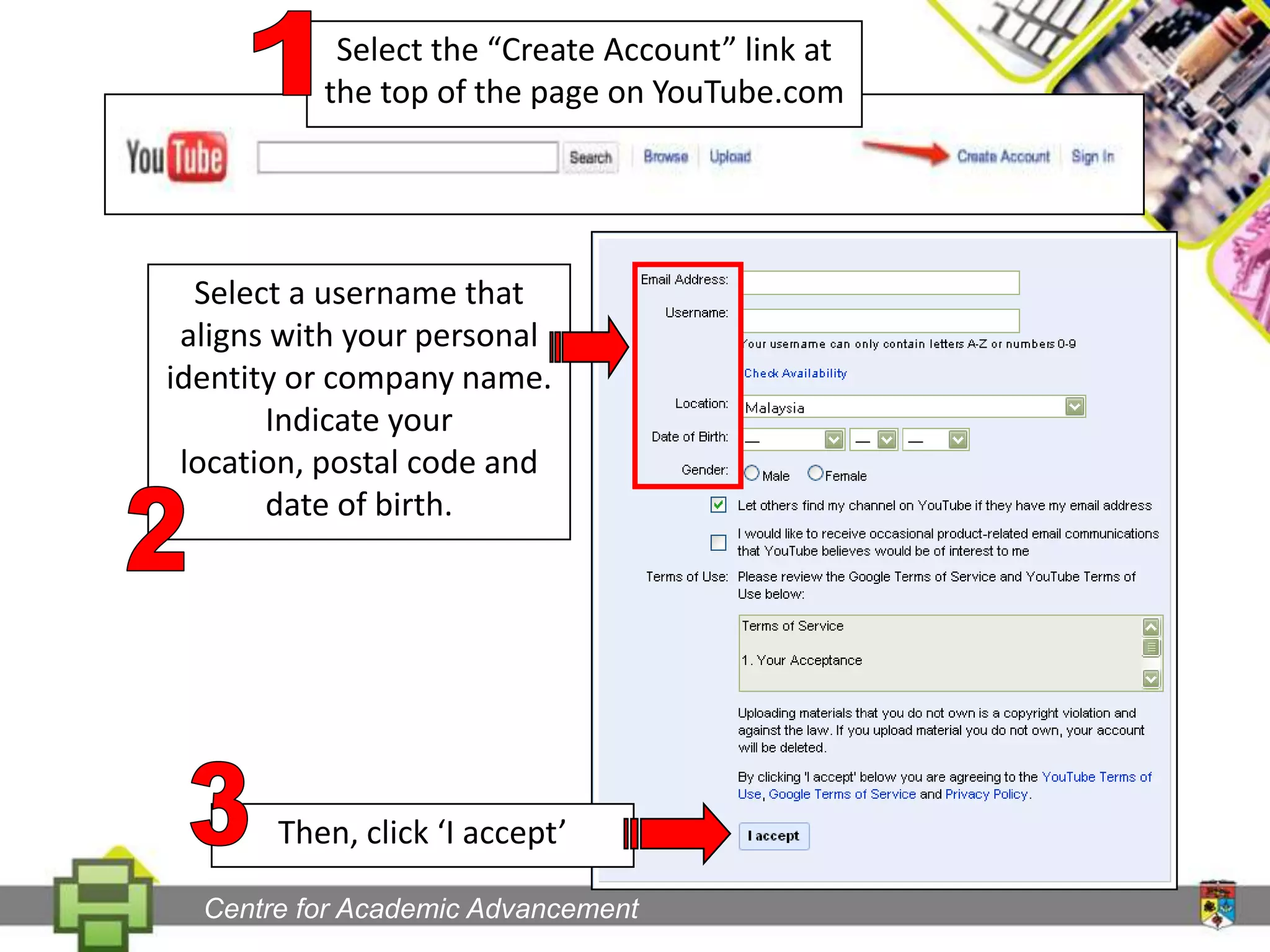
1Select the “Create Account” link at the top of the page on YouTube.comSelect a username that aligns with your personal identity or company name. Indicate your location, postal code and date of birth.23Then, click ‘I accept’Centre for Academic Advancement
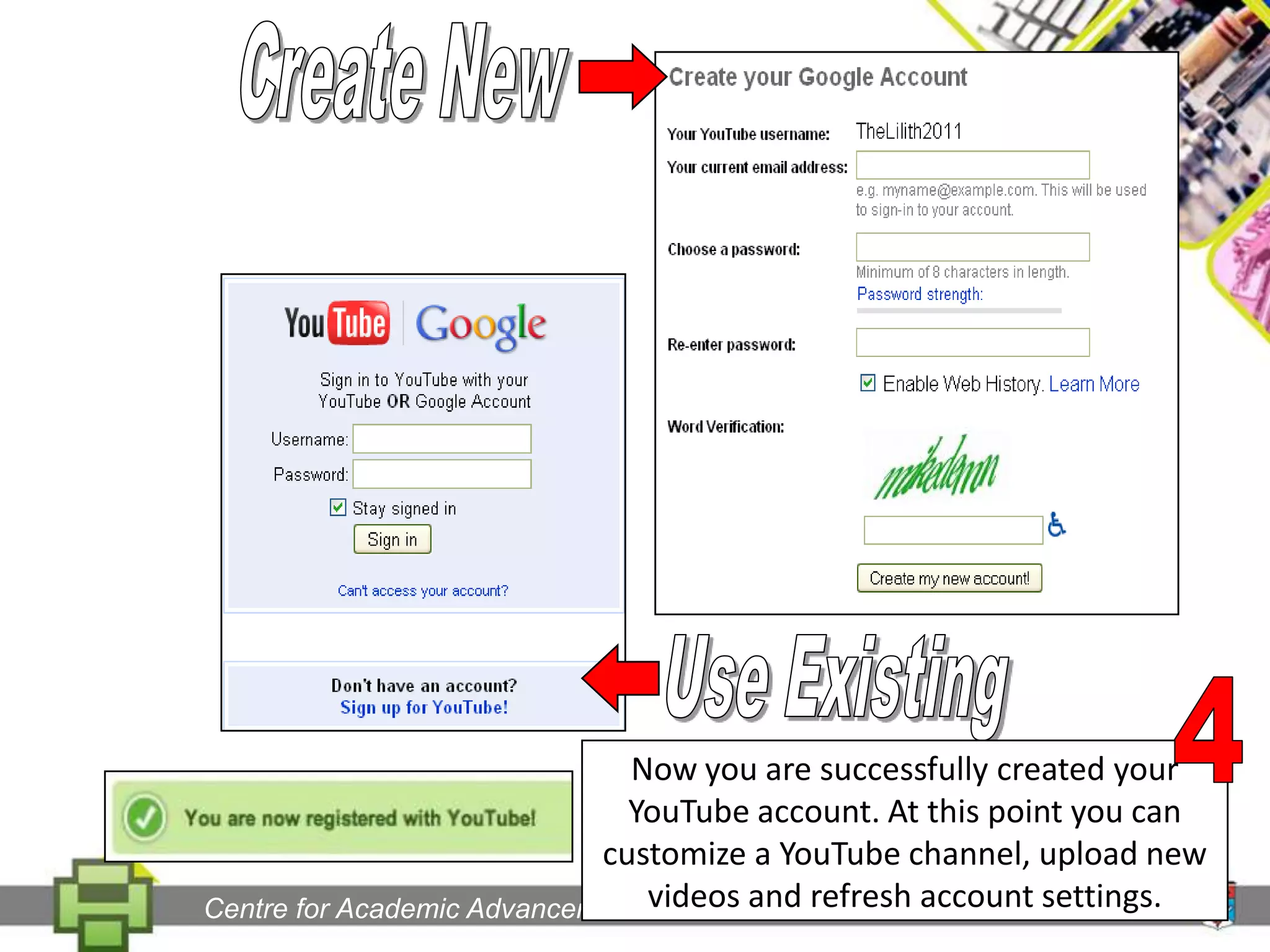
Create NewUse Existing4Now you are successfully created your YouTube account. At this point you can customize a YouTube channel, upload new videos and refresh account settings.Centre for Academic Advancement
Step 3RecordingCentre for Academic Advancement
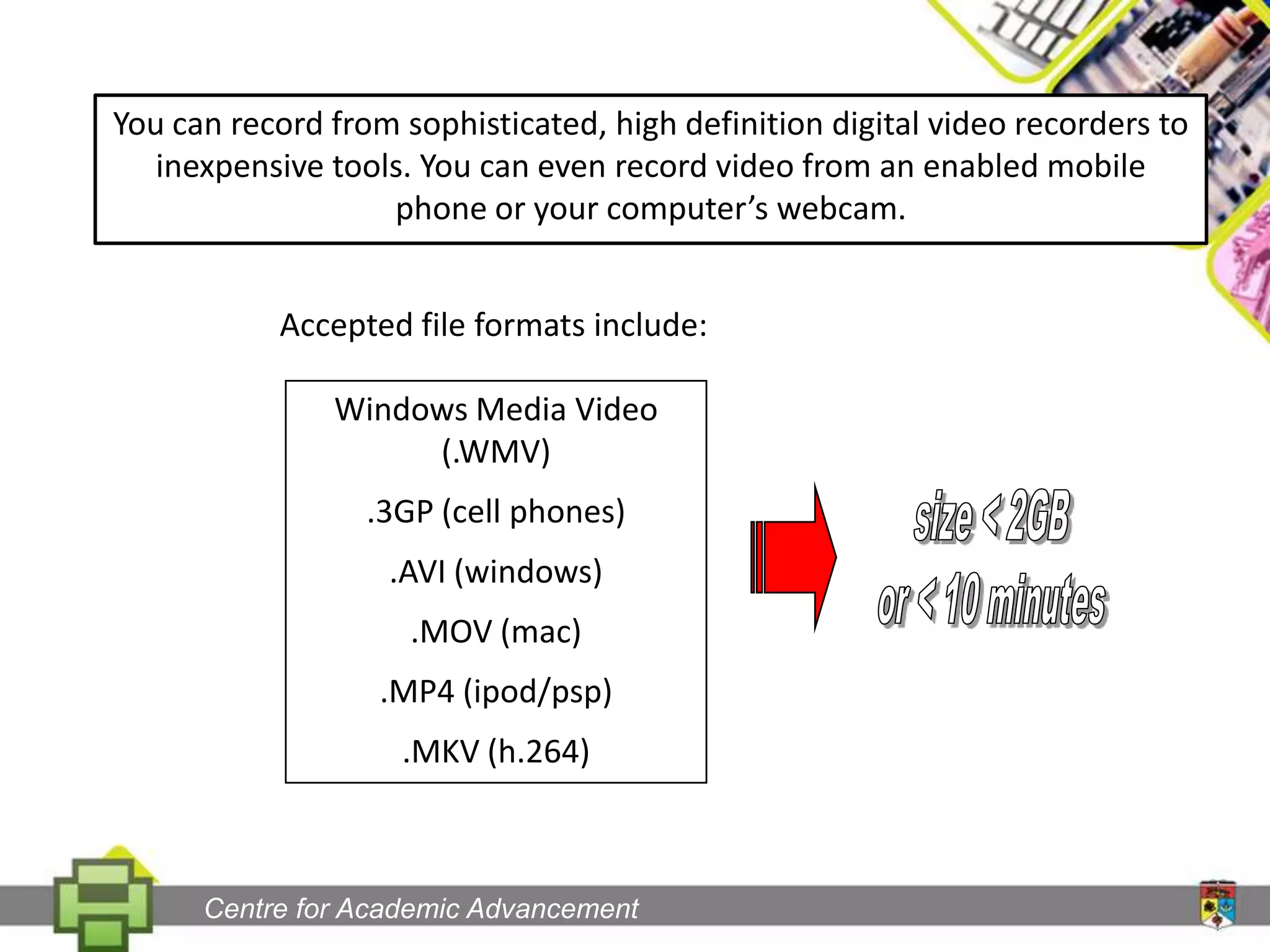
You can record from sophisticated, high definition digital video recorders to inexpensive tools. You can even record video from an enabled mobile phone or your computer’s webcam.Accepted file formats include:Windows Media Video (.WMV).3GP (cell phones).AVI (windows).MOV (mac).MP4 (ipod/psp).MKV (h.264)size < 2GBor < 10 minutesCentre for Academic Advancement
Step 4UploadingCentre for Academic Advancement
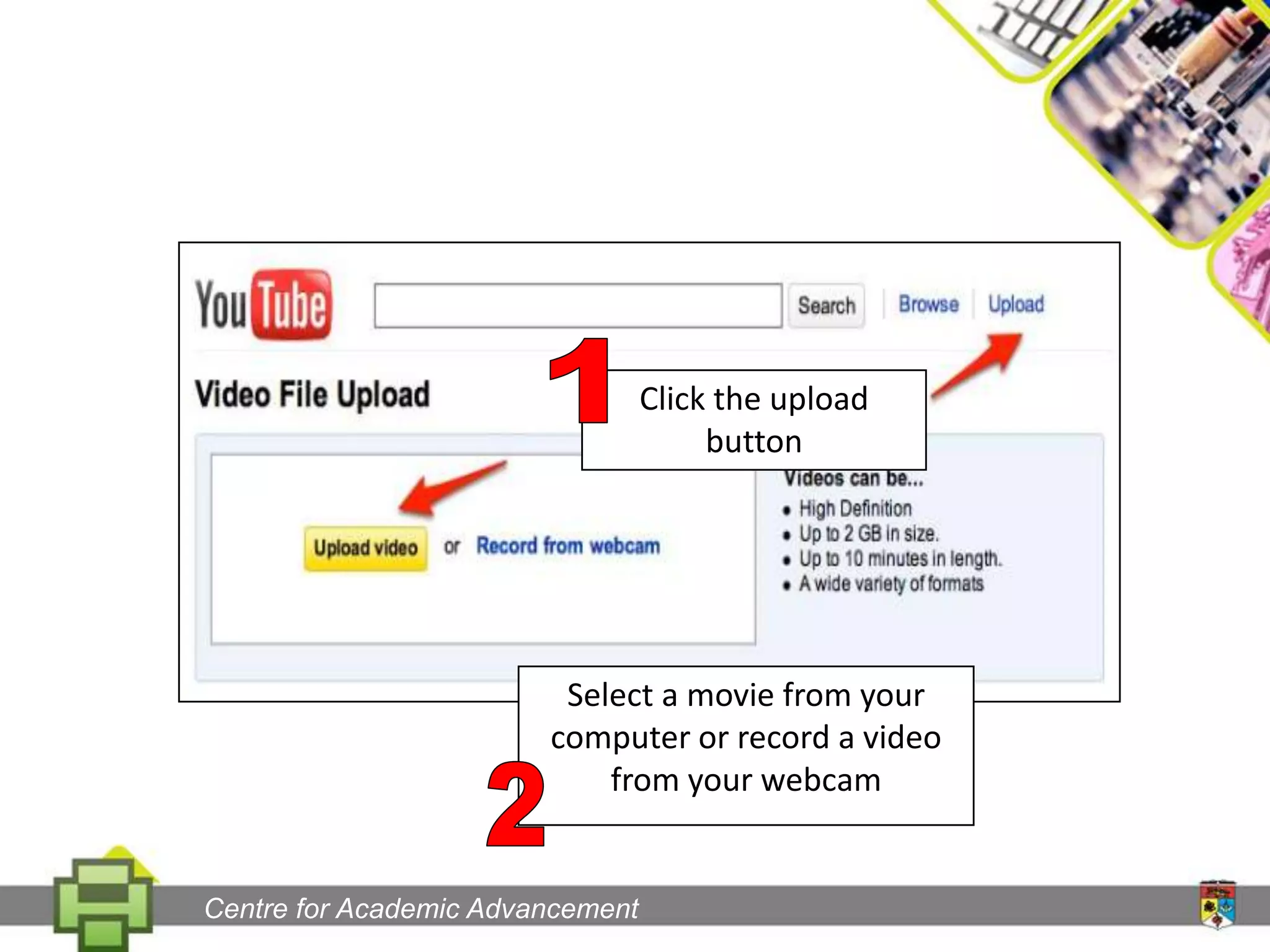
1Click the upload buttonSelect a movie from your computer or record a video from your webcam2Centre for Academic Advancement
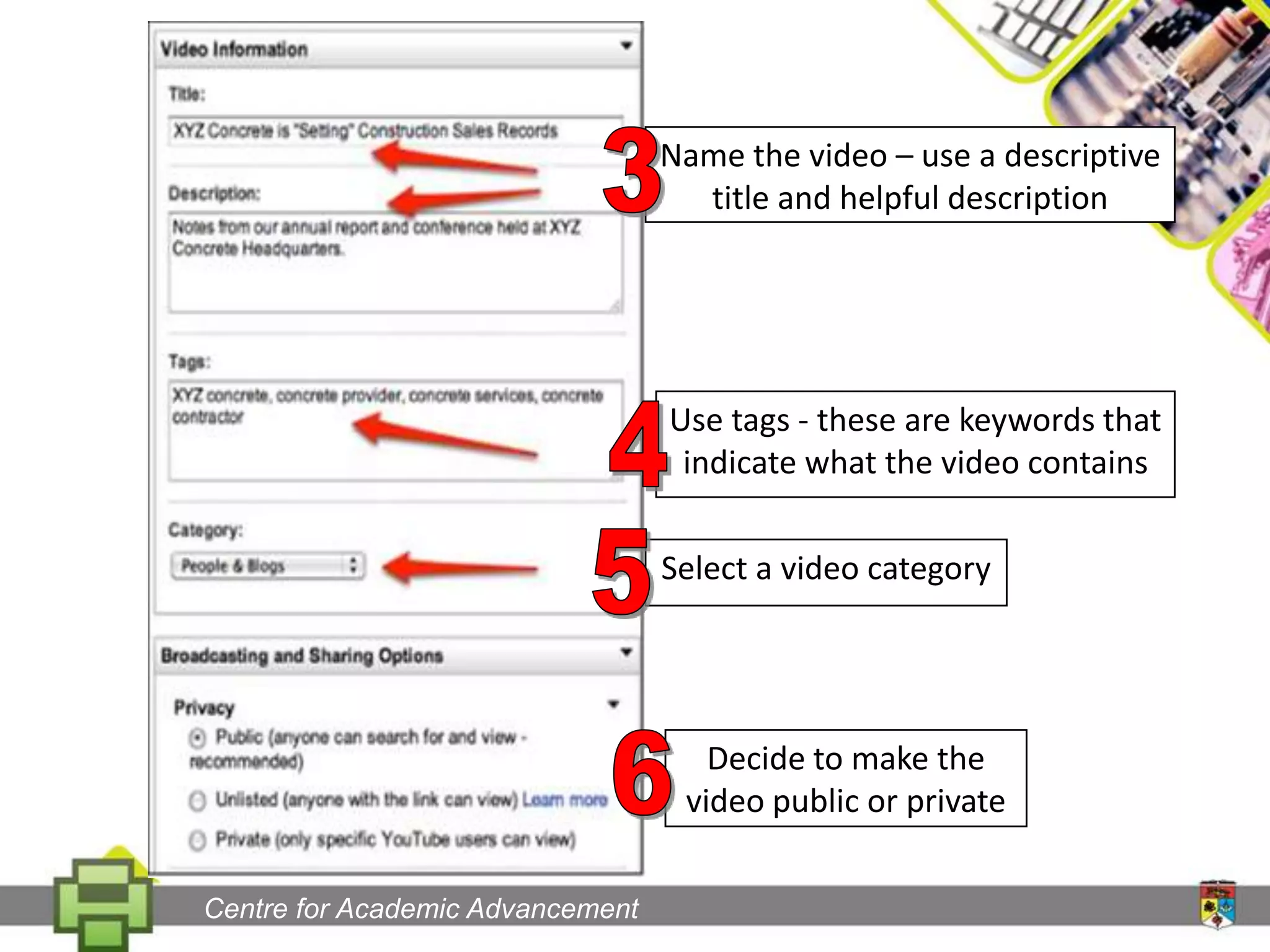
Name the video – use a descriptive title and helpful description3Use tags - these are keywords that indicate what the video contains45Select a video category Decide to make the video public or private 6Centre for Academic Advancement
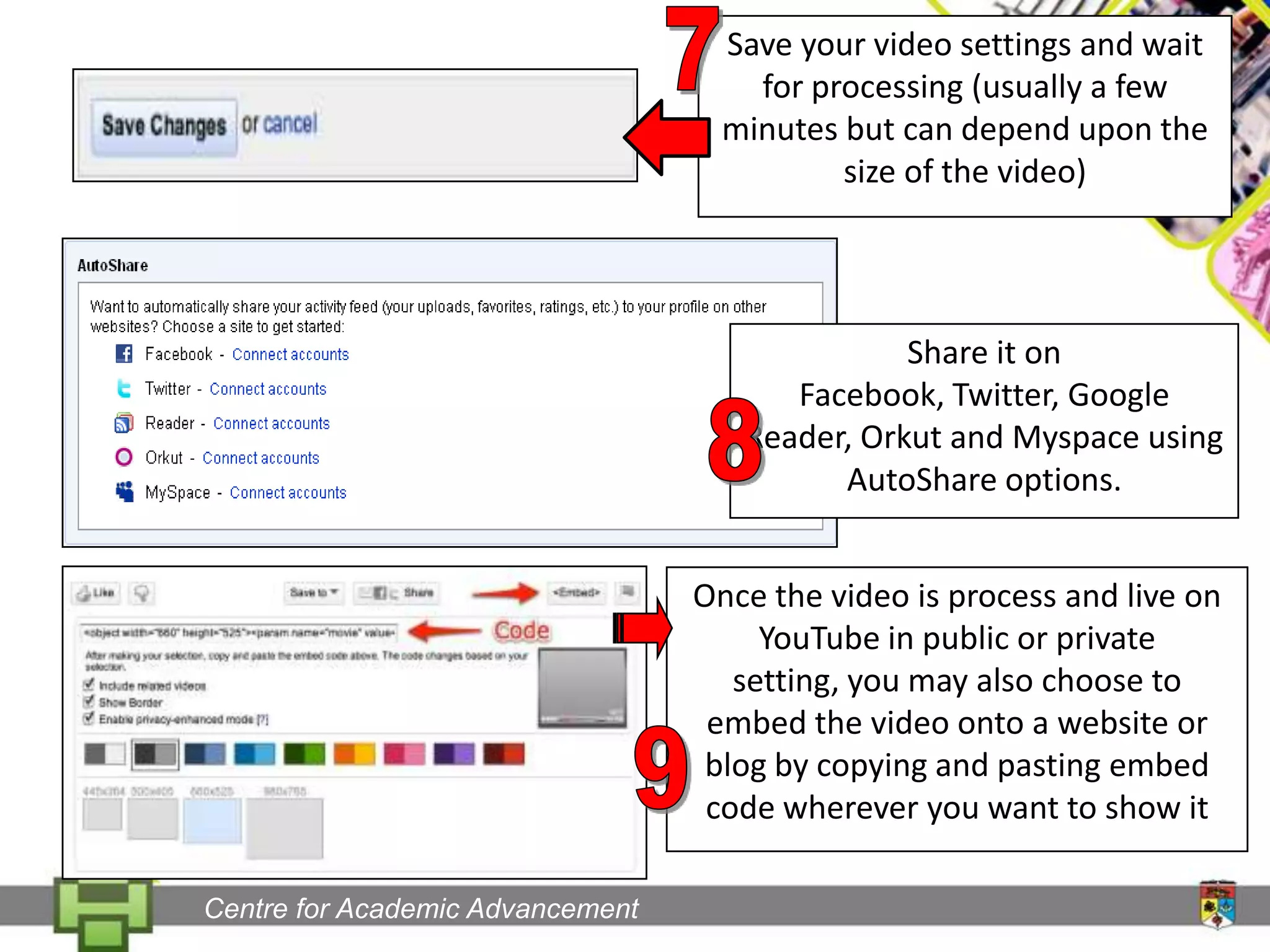
7Save your video settings and wait for processing (usually a few minutes but can depend upon the size of the video)Share it on Facebook, Twitter, Google Reader, Orkut and Myspace using AutoShare options.8Once the video is process and live on YouTube in public or private setting, you may also choose to embed the video onto a website or blog by copying and pasting embed code wherever you want to show it9Centre for Academic Advancement
Step 5Video AttributesCentre for Academic Advancement
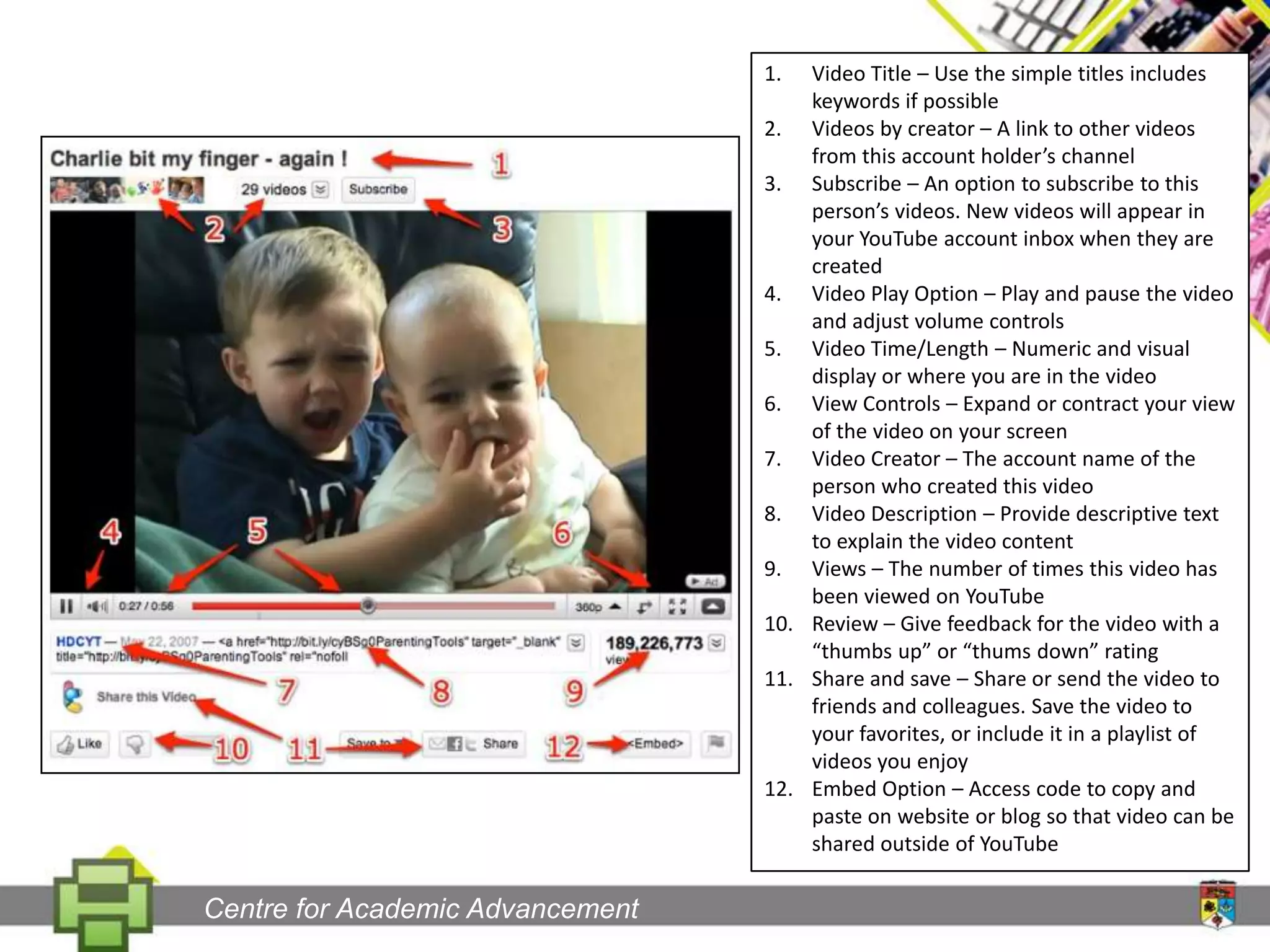
Video Title – Use the simple titles includes keywords if possibleVideos by creator – A link to other videos from this account holder’s channelSubscribe – An option to subscribe to this person’s videos. New videos will appear in your YouTube account inbox when they are createdVideo Play Option – Play and pause the video and adjust volume controlsVideo Time/Length – Numeric and visual display or where you are in the videoView Controls – Expand or contract your view of the video on your screenVideo Creator – The account name of the person who created this videoVideo Description – Provide descriptive text to explain the video contentViews – The number of times this video has been viewed on YouTubeReview – Give feedback for the video with a “thumbs up” or “thums down” ratingShare and save – Share or send the video to friends and colleagues. Save the video to your favorites, or include it in a playlist of videos you enjoyEmbed Option – Access code to copy and paste on website or blog so that video can be shared outside of YouTubeCentre for Academic Advancement
The endCentre for Academic Advancement

Getting started with youtube

  • 1.
    GETtingSTARTED WITH YOUTUBEPROFDR. MOHAMED AMIN EMBICentre for Academic Advancement
  • 2.
    Step 1Centre forAcademic Advancement
  • 3.
    Go to: http://www.youtube.com/Centrefor Academic Advancement
  • 4.
    Step 2Creating anaccount Centre for Academic Advancement
  • 5.
    1Select the “CreateAccount” link at the top of the page on YouTube.comSelect a username that aligns with your personal identity or company name. Indicate your location, postal code and date of birth.23Then, click ‘I accept’Centre for Academic Advancement
  • 6.
    Create NewUse Existing4Nowyou are successfully created your YouTube account. At this point you can customize a YouTube channel, upload new videos and refresh account settings.Centre for Academic Advancement
  • 7.
    Step 3RecordingCentre forAcademic Advancement
  • 8.
    You can recordfrom sophisticated, high definition digital video recorders to inexpensive tools. You can even record video from an enabled mobile phone or your computer’s webcam.Accepted file formats include:Windows Media Video (.WMV).3GP (cell phones).AVI (windows).MOV (mac).MP4 (ipod/psp).MKV (h.264)size < 2GBor < 10 minutesCentre for Academic Advancement
  • 9.
    Step 4UploadingCentre forAcademic Advancement
  • 10.
    1Click the uploadbuttonSelect a movie from your computer or record a video from your webcam2Centre for Academic Advancement
  • 11.
    Name the video– use a descriptive title and helpful description3Use tags - these are keywords that indicate what the video contains45Select a video category Decide to make the video public or private 6Centre for Academic Advancement
  • 12.
    7Save your videosettings and wait for processing (usually a few minutes but can depend upon the size of the video)Share it on Facebook, Twitter, Google Reader, Orkut and Myspace using AutoShare options.8Once the video is process and live on YouTube in public or private setting, you may also choose to embed the video onto a website or blog by copying and pasting embed code wherever you want to show it9Centre for Academic Advancement
  • 13.
    Step 5Video AttributesCentrefor Academic Advancement
  • 14.
    Video Title –Use the simple titles includes keywords if possibleVideos by creator – A link to other videos from this account holder’s channelSubscribe – An option to subscribe to this person’s videos. New videos will appear in your YouTube account inbox when they are createdVideo Play Option – Play and pause the video and adjust volume controlsVideo Time/Length – Numeric and visual display or where you are in the videoView Controls – Expand or contract your view of the video on your screenVideo Creator – The account name of the person who created this videoVideo Description – Provide descriptive text to explain the video contentViews – The number of times this video has been viewed on YouTubeReview – Give feedback for the video with a “thumbs up” or “thums down” ratingShare and save – Share or send the video to friends and colleagues. Save the video to your favorites, or include it in a playlist of videos you enjoyEmbed Option – Access code to copy and paste on website or blog so that video can be shared outside of YouTubeCentre for Academic Advancement
  • 15.
    The endCentre forAcademic Advancement