WPF Deep DiveAniruddha ChakrabartiSr. Solution Architect“If I have six hours to chop down a tree, I will use four hours to sharpen the axe” – Abraham Lincoln
Key benefits of WPFBroad integrationProvides access to normal 2D graphics, controls, 3D, video, speech and rich document viewing with consistent programming model as well as tight integrationHardware accelerationImproved Visual RenderingRetained mode graphicsVector graphicsResolution independence (Device Independent Graphics)Declarative programming (aka XAML)Rich composition, layout and customizationEasy deploymentIncorporates best of Web and WindowsIntegrate developers and designers
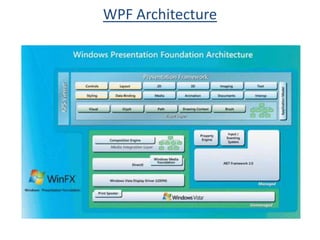
WPF Architecture
WPF Architecture
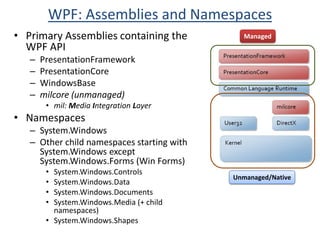
WPF: Assemblies and NamespacesPrimary Assemblies containing the WPF APIPresentationFrameworkPresentationCoreWindowsBasemilcore (unmanaged)mil: Media Integration LayerNamespacesSystem.WindowsOther child namespaces starting with System.Windows except System.Windows.Forms (Win Forms)System.Windows.ControlsSystem.Windows.DataSystem.Windows.DocumentsSystem.Windows.Media (+ child namespaces)System.Windows.ShapesManagedUnmanaged/Native
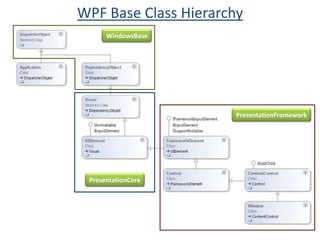
WPF Base Class HierarchyWindowsBasePresentationFrameworkPresentationCore
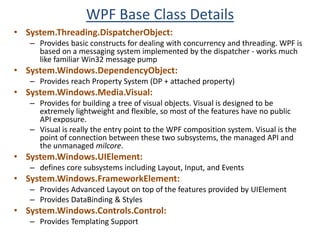
WPF Base Class DetailsSystem.Threading.DispatcherObject:
Provides basic constructs for dealing with concurrency and threading. WPF is based on a messaging system implemented by the dispatcher - works much like familiar Win32 message pump
System.Windows.DependencyObject:
Provides reach Property System (DP + attached property)
System.Windows.Media.Visual:
Provides for building a tree of visual objects. Visual is designed to be extremely lightweight and flexible, so most of the features have no public API exposure.
Visual is really the entry point to the WPF composition system. Visual is the point of connection between these two subsystems, the managed API and the unmanaged milcore.
System.Windows.UIElement:
defines core subsystems including Layout, Input, and Events
System.Windows.FrameworkElement:
Provides Advanced Layout on top of the features provided by UIElement
Provides DataBinding & Styles
System.Windows.Controls.Control:
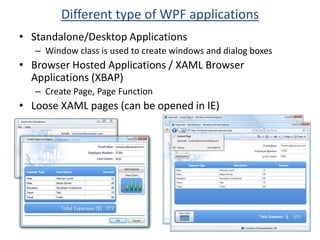
Provides Templating SupportDifferent type of WPF applicationsStandalone/Desktop Applications
Window class is used to create windows and dialog boxes
Browser Hosted Applications / XAML Browser Applications (XBAP)
Create Page, Page Function
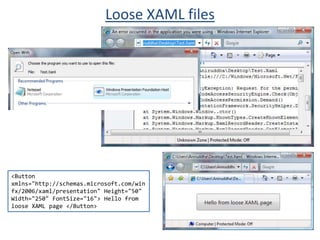
Loose XAML pages (can be opened in IE)XAML (eXtensibleApplication Markup Language)
XAML OverviewSimple general-purpose, XML based declarative programming language for constructing & initializing .NET objects
.NET Framework 3.0 includes
A compiler and run-time parser for XAML,
Plug-in that enables to view standalone WPF-based XAML files (sometimes called loose XAML pages) inside IE.
Can be used independent of WPF (e.g. WF)
XAML Spec defines rules that map .NET namespaces, types, properties, and events into XML namespaces, elements, and attributes.
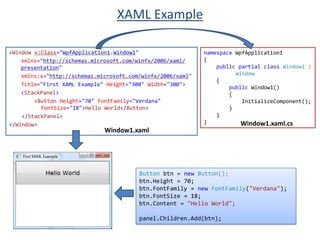
Declaring an XML element in XAML (known as an object element) is equivalent to instantiating the corresponding .NET object (always via a default constructor).
Setting an attribute on the object element is equivalent to setting a property of the same name (called a property attribute)XAML Example<Windowx:Class="WpfApplication1.Window1"xmlns="http://schemas.microsoft.com/winfx/2006/xaml/ presentation"xmlns:x="http://schemas.microsoft.com/winfx/2006/xaml"	Title="First XAML Example" Height="300" Width="300">	<StackPanel><Button Height="70"FontFamily="Verdana"FontSize="18">Hello World</Button></StackPanel></Window>namespace WpfApplication1{    public partial class Window1 :	Window{public Window1(){InitializeComponent();}    }}Window1.xaml.csWindow1.xamlButton btn =new Button();btn.Height = 70;btn.FontFamily =new FontFamily("Verdana");btn.FontSize = 18;btn.Content = "Hello World";panel.Children.Add(btn);
Loose XAML files<Button xmlns="http://schemas.microsoft.com/winfx/2006/xaml/presentation" Height="50" Width="250" FontSize="16"> Hello from loose XAML page </Button>
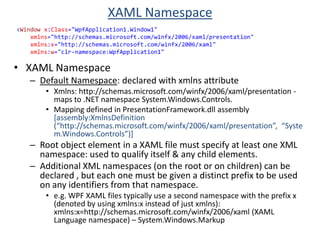
XAML Namespace<Window x:Class="WpfApplication1.Window1" xmlns="http://schemas.microsoft.com/winfx/2006/xaml/presentation" xmlns:x="http://schemas.microsoft.com/winfx/2006/xaml" xmlns:w="clr-namespace:WpfApplication1"XAML Namespace
Default Namespace: declared with xmlns attribute
Xmlns: http://schemas.microsoft.com/winfx/2006/xaml/presentation - maps to .NET namespace System.Windows.Controls.
Mapping defined in PresentationFramework.dll assembly [assembly:XmlnsDefinition (“http://schemas.microsoft.com/winfx/2006/xaml/presentation”,  “System.Windows.Controls”)]
Root object element in a XAML file must specify at least one XML namespace: used to qualify itself & any child elements.
Additional XML namespaces (on the root or on children) can be declared , but each one must be given a distinct prefix to be used on any identifiers from that namespace.
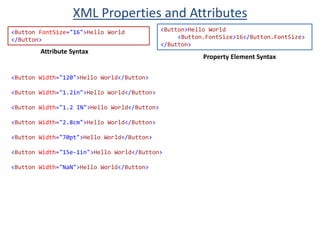
e.g. WPF XAML files typically use a second namespace with the prefix x (denoted by using xmlns:x instead of just xmlns): xmlns:x=http://schemas.microsoft.com/winfx/2006/xaml (XAML Language namespace) – System.Windows.MarkupXML Properties and Attributes<Button>Hello World               <Button.FontSize>16</Button.FontSize></Button><ButtonFontSize="16">Hello World </Button>Attribute SyntaxProperty Element Syntax<Button Width="120">Hello World</Button><Button Width="1.2in">Hello World</Button><Button Width="1.2 IN">Hello World</Button><Button Width="2.8cm">Hello World</Button><Button Width="70pt">Hello World</Button><Button Width="15e-1in">Hello World</Button><Button Width="NaN">Hello World</Button>
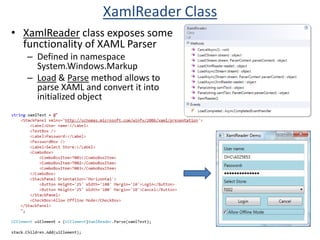
XamlReader ClassXamlReader class exposes some functionality of XAML Parser
Defined in namespace System.Windows.Markup
Load & Parse method allows to parse XAML and convert it into initialized objectApplication and Window class
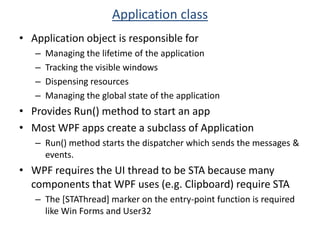
Application classApplication object is responsible for
Managing the lifetime of the application
Tracking the visible windows
Dispensing resources
Managing the global state of the application
Provides Run() method to start an app
Most WPF apps create a subclass of Application
Run() method starts the dispatcher which sends the messages & events.
WPF requires the UI thread to be STA because many components that WPF uses (e.g. Clipboard) require STA
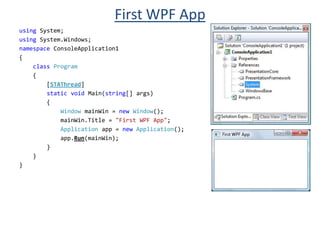
The [STAThread] marker on the entry-point function is required like Win Forms and User32First WPF Appusing System;using System.Windows;namespace ConsoleApplication1{    class Program{[STAThread]static void Main(string[]args){Window mainWin =new Window();mainWin.Title ="First WPF App";Application app =new Application();app.Run(mainWin);  }    }}
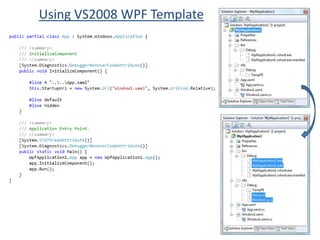
Using VS2008 WPF Template
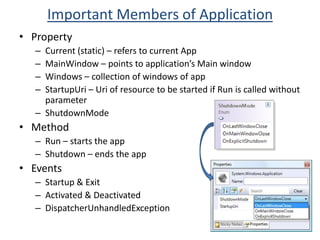
Important Members of ApplicationProperty
Current (static) – refers to current App
MainWindow – points to application’s Main window
Windows – collection of windows of app
StartupUri – Uri of resource to be started if Run is called without parameter
ShutdownMode
Method
Run – starts the app
Shutdown – ends the app
Events
Startup & Exit
Activated & Deactivated
DispatcherUnhandledExceptionWindowWPF Window provides abstraction for Win32 Window
OS does not distinguish between windows with WPF content and normal Win32 content.
Similar to Form in Win Forms
Represented by System.Windows.Window class
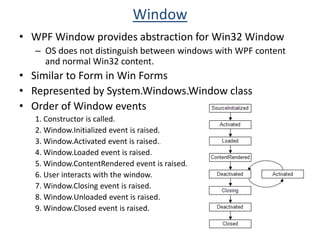
Order of Window events1. Constructor is called.2. Window.Initialized event is raised.3. Window.Activated event is raised.134. Window.Loaded event is raised.5. Window.ContentRendered event is raised.6. User interacts with the window.7. Window.Closing event is raised.8. Window.Unloaded event is raised.9. Window.Closed event is raised.
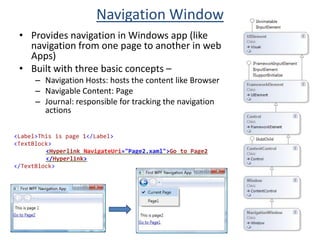
Navigation WindowProvides navigation in Windows app (like navigation from one page to another in web Apps)
Built with three basic concepts –
Navigation Hosts: hosts the content like Browser
Navigable Content: Page
Journal: responsible for tracking the navigation actions<Label>This is page 1</Label><TextBlock><HyperlinkNavigateUri="Page2.xaml">Go to Page2 </Hyperlink></TextBlock>
Controls
ControlsProvides standard set of controls like Button, TextBox, CheckBox, ComboBox, RadioButton etc.
Provides Content property instead of familiar Win32 Text property. Content can be any object, not only string.
Content actually supports both string and UIElement
For other datatypes, it uses the string value returned by ToString().
Most WPF controls ship with several default appearances
Aero (default Windows Vista theme)
Luna (default Windows XP theme)
Royale (Media Center & Tablet PC theme)
Classic (Win 9x theme)
Provides different type of controls
Content Controls
Buttons
Simple Containers
Containers with a Header
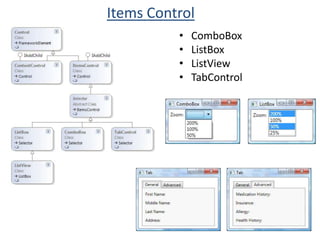
Items Controls
Range Controls
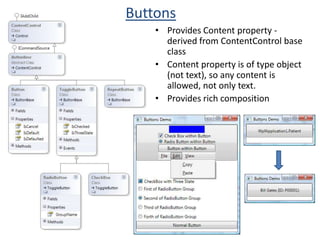
Text and Ink ControlsButtonsProvides Content property - derived from ContentControl base classContent property is of type object (not text), so any content is allowed, not only text.Provides rich composition
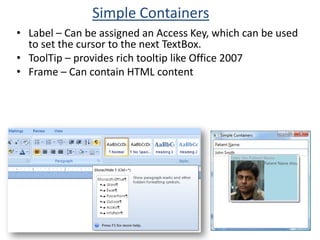
Simple ContainersLabel – Can be assigned an Access Key, which can be used to set the cursor to the next TextBox.
ToolTip – provides rich tooltip like Office 2007
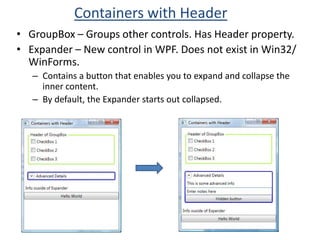
Frame – Can contain HTML contentContainers with HeaderGroupBox – Groups other controls. Has Header property.
Expander – New control in WPF. Does not exist in Win32/ WinForms.
Contains a button that enables you to expand and collapse the inner content.
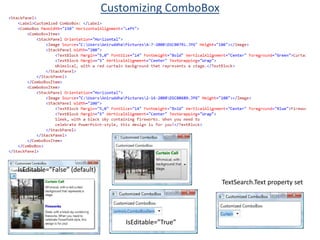
By default, the Expander starts out collapsed.Items ControlComboBox
ListBox
ListView
TabControlCustomizing ComboBoxIsEditable=”False” (default)TextSearch.Text property setIsEditable=”True”
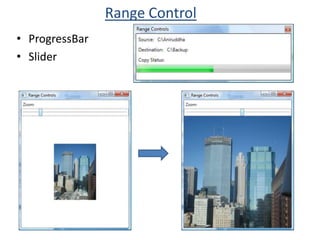
Range ControlProgressBarSlider
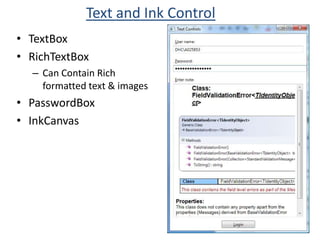
Text and Ink ControlTextBoxRichTextBoxCan Contain Rich formatted text & imagesPasswordBoxInkCanvas
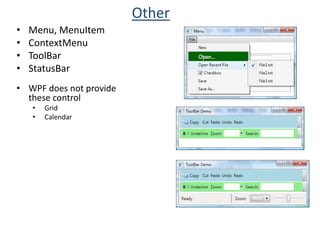
OtherMenu, MenuItem
ContextMenu
ToolBar
StatusBar
WPF does not provide these control
Grid
CalendarSizing, Positioning and Transform
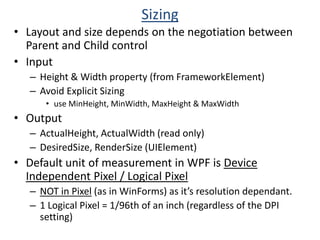
SizingLayout and size depends on the negotiation between Parent and Child control
Input
Height & Width property (from FrameworkElement)
Avoid Explicit Sizing
use MinHeight, MinWidth, MaxHeight & MaxWidth
Output
ActualHeight, ActualWidth (read only)
DesiredSize, RenderSize (UIElement)

WPF Deep Dive

  • 1.
    WPF Deep DiveAniruddhaChakrabartiSr. Solution Architect“If I have six hours to chop down a tree, I will use four hours to sharpen the axe” – Abraham Lincoln
  • 2.
    Key benefits ofWPFBroad integrationProvides access to normal 2D graphics, controls, 3D, video, speech and rich document viewing with consistent programming model as well as tight integrationHardware accelerationImproved Visual RenderingRetained mode graphicsVector graphicsResolution independence (Device Independent Graphics)Declarative programming (aka XAML)Rich composition, layout and customizationEasy deploymentIncorporates best of Web and WindowsIntegrate developers and designers
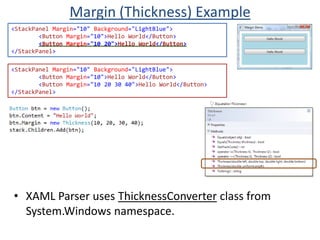
  • 3.
  • 4.
  • 5.
    WPF: Assemblies andNamespacesPrimary Assemblies containing the WPF APIPresentationFrameworkPresentationCoreWindowsBasemilcore (unmanaged)mil: Media Integration LayerNamespacesSystem.WindowsOther child namespaces starting with System.Windows except System.Windows.Forms (Win Forms)System.Windows.ControlsSystem.Windows.DataSystem.Windows.DocumentsSystem.Windows.Media (+ child namespaces)System.Windows.ShapesManagedUnmanaged/Native
  • 6.
    WPF Base ClassHierarchyWindowsBasePresentationFrameworkPresentationCore
  • 7.
    WPF Base ClassDetailsSystem.Threading.DispatcherObject:
  • 8.
    Provides basic constructsfor dealing with concurrency and threading. WPF is based on a messaging system implemented by the dispatcher - works much like familiar Win32 message pump
  • 9.
  • 10.
    Provides reach PropertySystem (DP + attached property)
  • 11.
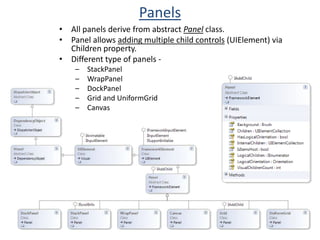
  • 12.
    Provides for buildinga tree of visual objects. Visual is designed to be extremely lightweight and flexible, so most of the features have no public API exposure.
  • 13.
    Visual is reallythe entry point to the WPF composition system. Visual is the point of connection between these two subsystems, the managed API and the unmanaged milcore.
  • 14.
  • 15.
    defines core subsystemsincluding Layout, Input, and Events
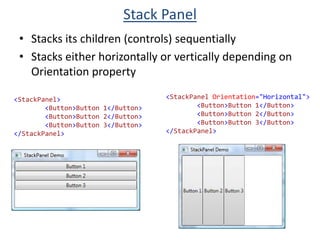
  • 16.
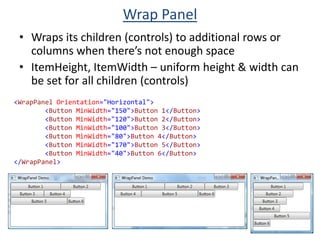
  • 17.
    Provides Advanced Layouton top of the features provided by UIElement
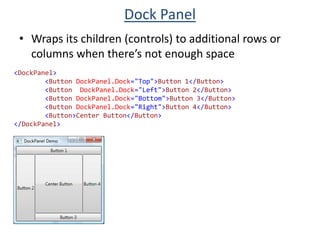
  • 18.
  • 19.
  • 20.
    Provides Templating SupportDifferenttype of WPF applicationsStandalone/Desktop Applications
  • 21.
    Window class isused to create windows and dialog boxes
  • 22.
    Browser Hosted Applications/ XAML Browser Applications (XBAP)
  • 23.
  • 24.
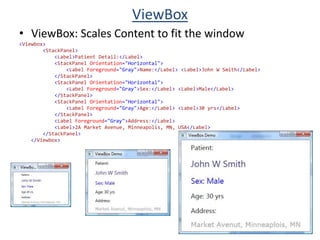
    Loose XAML pages(can be opened in IE)XAML (eXtensibleApplication Markup Language)
  • 25.
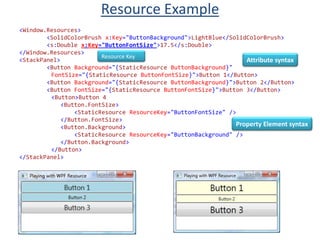
    XAML OverviewSimple general-purpose,XML based declarative programming language for constructing & initializing .NET objects
  • 26.
  • 27.
    A compiler andrun-time parser for XAML,
  • 28.
    Plug-in that enablesto view standalone WPF-based XAML files (sometimes called loose XAML pages) inside IE.
  • 29.
    Can be usedindependent of WPF (e.g. WF)
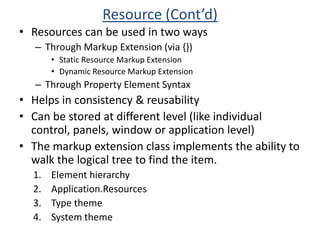
  • 30.
    XAML Spec definesrules that map .NET namespaces, types, properties, and events into XML namespaces, elements, and attributes.
  • 31.
    Declaring an XMLelement in XAML (known as an object element) is equivalent to instantiating the corresponding .NET object (always via a default constructor).
  • 32.
    Setting an attributeon the object element is equivalent to setting a property of the same name (called a property attribute)XAML Example<Windowx:Class="WpfApplication1.Window1"xmlns="http://schemas.microsoft.com/winfx/2006/xaml/ presentation"xmlns:x="http://schemas.microsoft.com/winfx/2006/xaml" Title="First XAML Example" Height="300" Width="300"> <StackPanel><Button Height="70"FontFamily="Verdana"FontSize="18">Hello World</Button></StackPanel></Window>namespace WpfApplication1{ public partial class Window1 : Window{public Window1(){InitializeComponent();} }}Window1.xaml.csWindow1.xamlButton btn =new Button();btn.Height = 70;btn.FontFamily =new FontFamily("Verdana");btn.FontSize = 18;btn.Content = "Hello World";panel.Children.Add(btn);
  • 33.
    Loose XAML files<Buttonxmlns="http://schemas.microsoft.com/winfx/2006/xaml/presentation" Height="50" Width="250" FontSize="16"> Hello from loose XAML page </Button>
  • 34.
    XAML Namespace<Window x:Class="WpfApplication1.Window1"xmlns="http://schemas.microsoft.com/winfx/2006/xaml/presentation" xmlns:x="http://schemas.microsoft.com/winfx/2006/xaml" xmlns:w="clr-namespace:WpfApplication1"XAML Namespace
  • 35.
    Default Namespace: declaredwith xmlns attribute
  • 36.
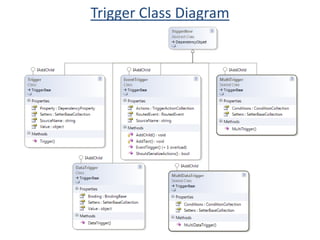
    Xmlns: http://schemas.microsoft.com/winfx/2006/xaml/presentation -maps to .NET namespace System.Windows.Controls.
  • 37.
    Mapping defined inPresentationFramework.dll assembly [assembly:XmlnsDefinition (“http://schemas.microsoft.com/winfx/2006/xaml/presentation”, “System.Windows.Controls”)]
  • 38.
    Root object elementin a XAML file must specify at least one XML namespace: used to qualify itself & any child elements.
  • 39.
    Additional XML namespaces(on the root or on children) can be declared , but each one must be given a distinct prefix to be used on any identifiers from that namespace.
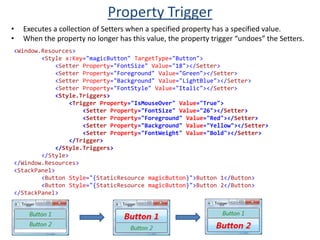
  • 40.
    e.g. WPF XAMLfiles typically use a second namespace with the prefix x (denoted by using xmlns:x instead of just xmlns): xmlns:x=http://schemas.microsoft.com/winfx/2006/xaml (XAML Language namespace) – System.Windows.MarkupXML Properties and Attributes<Button>Hello World <Button.FontSize>16</Button.FontSize></Button><ButtonFontSize="16">Hello World </Button>Attribute SyntaxProperty Element Syntax<Button Width="120">Hello World</Button><Button Width="1.2in">Hello World</Button><Button Width="1.2 IN">Hello World</Button><Button Width="2.8cm">Hello World</Button><Button Width="70pt">Hello World</Button><Button Width="15e-1in">Hello World</Button><Button Width="NaN">Hello World</Button>
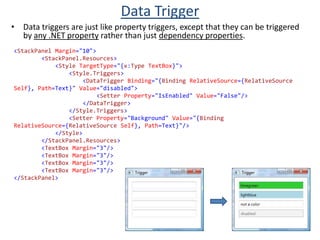
  • 41.
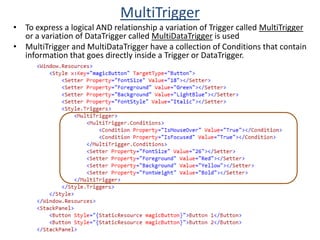
    XamlReader ClassXamlReader classexposes some functionality of XAML Parser
  • 42.
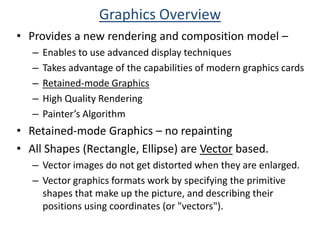
    Defined in namespaceSystem.Windows.Markup
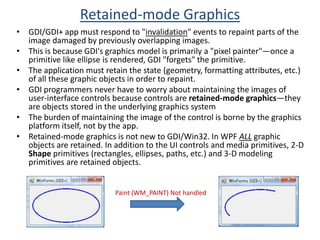
  • 43.
    Load & Parsemethod allows to parse XAML and convert it into initialized objectApplication and Window class
  • 44.
  • 45.
    Managing the lifetimeof the application
  • 46.
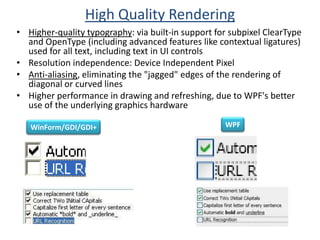
  • 47.
  • 48.
    Managing the globalstate of the application
  • 49.
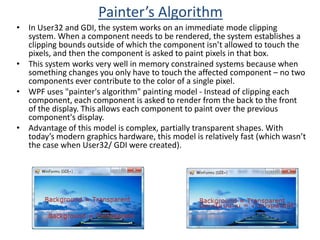
    Provides Run() methodto start an app
  • 50.
    Most WPF appscreate a subclass of Application
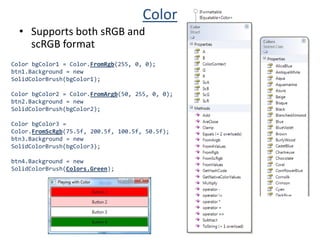
  • 51.
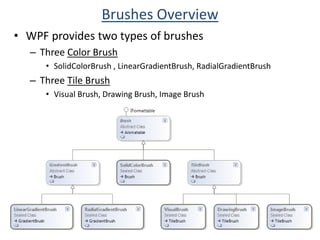
    Run() method startsthe dispatcher which sends the messages & events.
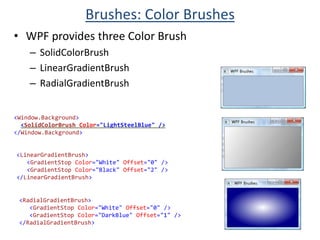
  • 52.
    WPF requires theUI thread to be STA because many components that WPF uses (e.g. Clipboard) require STA
  • 53.
    The [STAThread] markeron the entry-point function is required like Win Forms and User32First WPF Appusing System;using System.Windows;namespace ConsoleApplication1{ class Program{[STAThread]static void Main(string[]args){Window mainWin =new Window();mainWin.Title ="First WPF App";Application app =new Application();app.Run(mainWin); } }}
  • 54.
  • 55.
    Important Members ofApplicationProperty
  • 56.
    Current (static) –refers to current App
  • 57.
    MainWindow – pointsto application’s Main window
  • 58.
    Windows – collectionof windows of app
  • 59.
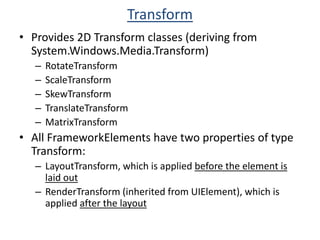
    StartupUri – Uriof resource to be started if Run is called without parameter
  • 60.
  • 61.
  • 62.
  • 63.
  • 64.
  • 65.
  • 66.
  • 67.
  • 68.
    OS does notdistinguish between windows with WPF content and normal Win32 content.
  • 69.
    Similar to Formin Win Forms
  • 70.
  • 71.
    Order of Windowevents1. Constructor is called.2. Window.Initialized event is raised.3. Window.Activated event is raised.134. Window.Loaded event is raised.5. Window.ContentRendered event is raised.6. User interacts with the window.7. Window.Closing event is raised.8. Window.Unloaded event is raised.9. Window.Closed event is raised.
  • 72.
    Navigation WindowProvides navigationin Windows app (like navigation from one page to another in web Apps)
  • 73.
    Built with threebasic concepts –
  • 74.
    Navigation Hosts: hoststhe content like Browser
  • 75.
  • 76.
    Journal: responsible fortracking the navigation actions<Label>This is page 1</Label><TextBlock><HyperlinkNavigateUri="Page2.xaml">Go to Page2 </Hyperlink></TextBlock>
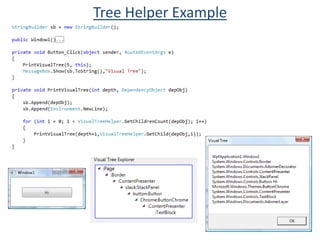
  • 77.
  • 78.
    ControlsProvides standard setof controls like Button, TextBox, CheckBox, ComboBox, RadioButton etc.
  • 79.
    Provides Content propertyinstead of familiar Win32 Text property. Content can be any object, not only string.
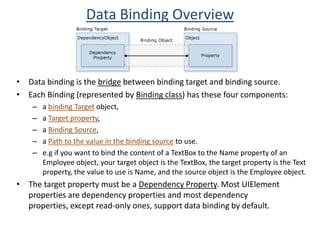
  • 80.
    Content actually supportsboth string and UIElement
  • 81.
    For other datatypes,it uses the string value returned by ToString().
  • 82.
    Most WPF controlsship with several default appearances
  • 83.
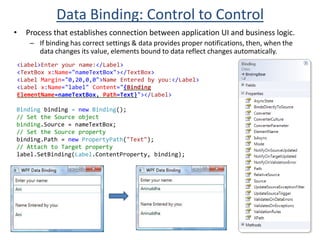
  • 84.
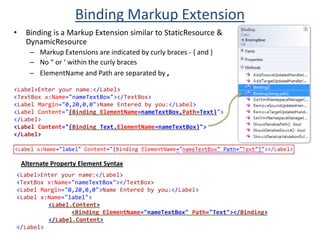
  • 85.
    Royale (Media Center& Tablet PC theme)
  • 86.
  • 87.
  • 88.
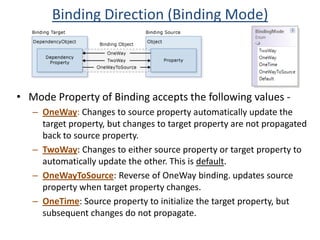
  • 89.
  • 90.
  • 91.
  • 92.
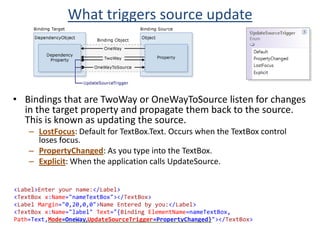
  • 93.
  • 94.
    Text and InkControlsButtonsProvides Content property - derived from ContentControl base classContent property is of type object (not text), so any content is allowed, not only text.Provides rich composition
  • 95.
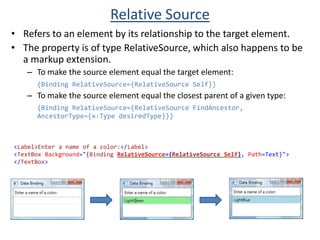
    Simple ContainersLabel –Can be assigned an Access Key, which can be used to set the cursor to the next TextBox.
  • 96.
    ToolTip – providesrich tooltip like Office 2007
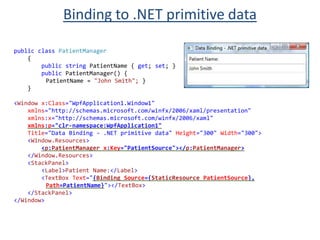
  • 97.
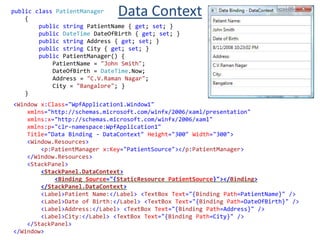
    Frame – Cancontain HTML contentContainers with HeaderGroupBox – Groups other controls. Has Header property.
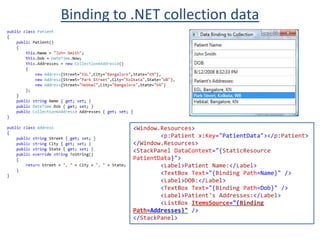
  • 98.
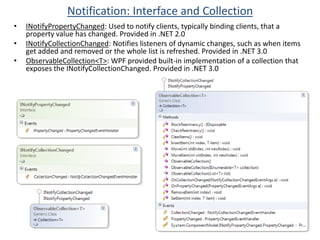
    Expander – Newcontrol in WPF. Does not exist in Win32/ WinForms.
  • 99.
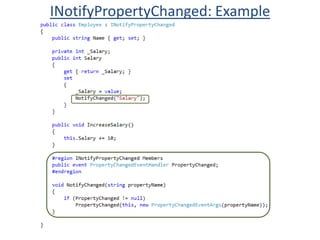
    Contains a buttonthat enables you to expand and collapse the inner content.
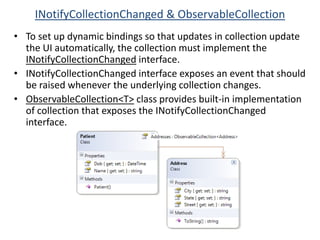
  • 100.
    By default, theExpander starts out collapsed.Items ControlComboBox
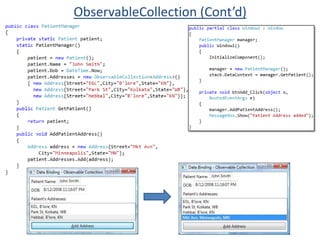
  • 101.
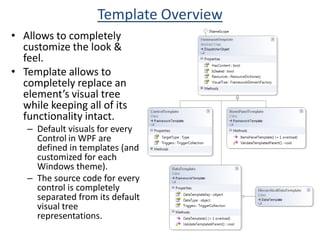
  • 102.
  • 103.
  • 104.
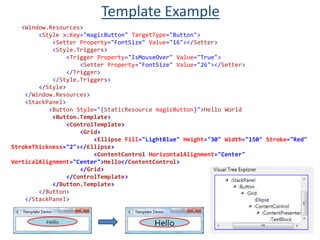
  • 105.
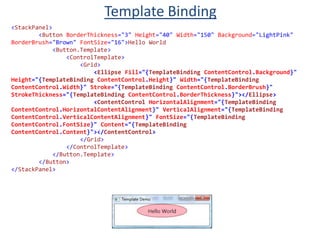
    Text and InkControlTextBoxRichTextBoxCan Contain Rich formatted text & imagesPasswordBoxInkCanvas
  • 106.
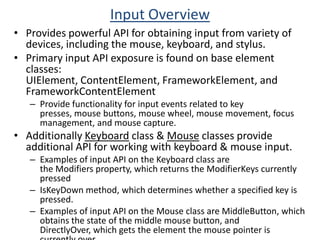
  • 107.
  • 108.
  • 109.
  • 110.
    WPF does notprovide these control
  • 111.
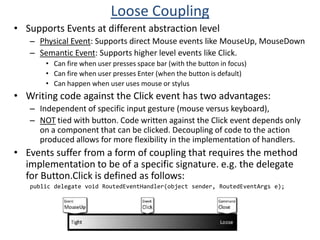
  • 112.
  • 113.
    SizingLayout and sizedepends on the negotiation between Parent and Child control
  • 114.
  • 115.
    Height & Widthproperty (from FrameworkElement)
  • 116.
  • 117.
    use MinHeight, MinWidth,MaxHeight & MaxWidth
  • 118.
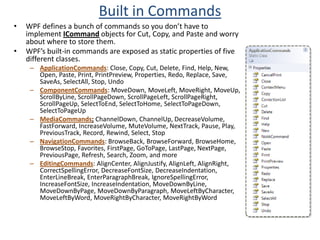
  • 119.
  • 120.
  • 121.
    Default unit ofmeasurement in WPF is Device Independent Pixel / Logical Pixel
  • 122.
    NOT in Pixel(as in WinForms) as it’s resolution dependant.
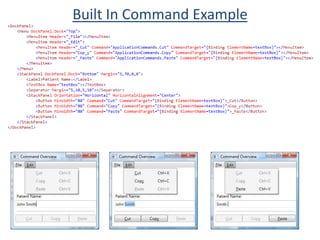
  • 123.
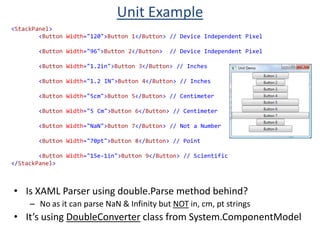
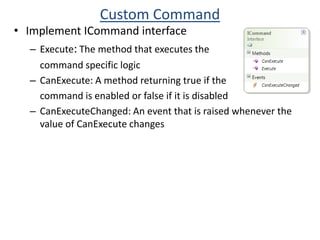
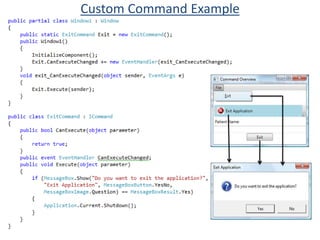
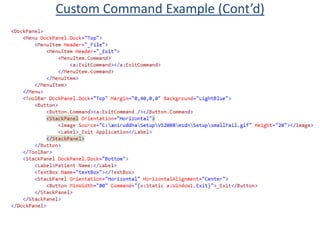
    1 Logical Pixel= 1/96th of an inch (regardless of the DPI setting)Unit Example<StackPanel><Button Width="120">Button 1</Button> // Device Independent Pixel<Button Width="96">Button 2</Button> // Device Independent Pixel<Button Width="1.2in">Button 3</Button> // Inches<Button Width="1.2 IN">Button 4</Button> // Inches<Button Width="5cm">Button 5</Button> // Centimeter<Button Width="5 Cm">Button 6</Button> // Centimeter<Button Width="NaN">Button 7</Button> // Not a Number<Button Width="70pt">Button 8</Button> // Point<Button Width="15e-1in">Button 9</Button> // Scientific</StackPanel>Is XAML Parser using double.Parse method behind?
  • 124.
    No as itcan parse NaN & Infinity but NOT in, cm, pt strings
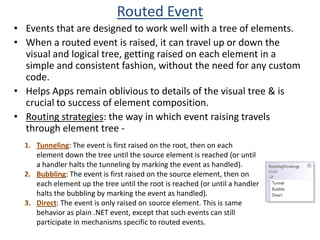
  • 125.
    It’s using DoubleConverterclass from System.ComponentModelMargin (Thickness) Example<StackPanel Margin="10" Background="LightBlue"><Button Margin="10">Hello World</Button><Button Margin="10 20">Hello World</Button></StackPanel><StackPanel Margin="10" Background="LightBlue"><Button Margin="10">Hello World</Button><Button Margin="10 20 30 40">Hello World</Button></StackPanel>XAML Parser uses ThicknessConverter class from System.Windows namespace.
  • 126.
    Converter ExampleSystem.ComponentModel namespaceprovides a base class called TypeConverter. All Converter classes ultimately derives from TypeConverter..NET FrameworkTypeConverter Supported in: 3.5, 3.0 SP1, 3.0, 2.0 SP1, 2.0, 1.1, 1.0
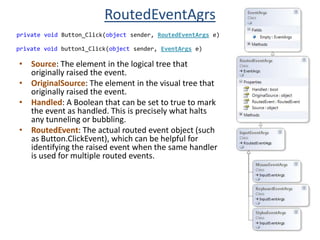
  • 127.
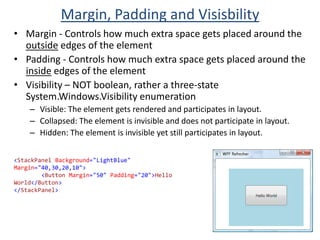
    Margin, Padding andVisisbilityMargin - Controls how much extra space gets placed around the outside edges of the element
  • 128.
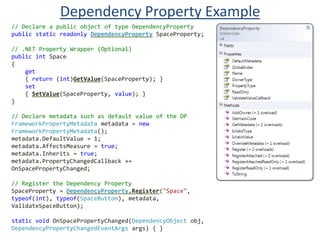
    Padding - Controlshow much extra space gets placed around the inside edges of the element
  • 129.
    Visibility – NOTboolean, rather a three-state System.Windows.Visibility enumeration
  • 130.
    Visible: The elementgets rendered and participates in layout.
  • 131.
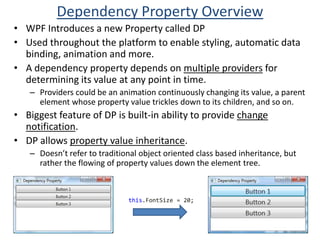
    Collapsed: The elementis invisible and does not participate in layout.
  • 132.
    Hidden: The elementis invisible yet still participates in layout.<StackPanel Background="LightBlue" Margin="40,30,20,10"><Button Margin="50" Padding="20">Hello World</Button></StackPanel>
  • 133.
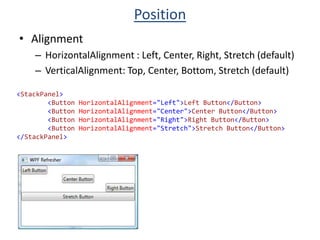
    PositionAlignmentHorizontalAlignment : Left,Center, Right, Stretch (default)VerticalAlignment: Top, Center, Bottom, Stretch (default)<StackPanel><Button HorizontalAlignment="Left">Left Button</Button><Button HorizontalAlignment="Center">Center Button</Button><Button HorizontalAlignment="Right">Right Button</Button><Button HorizontalAlignment="Stretch">Stretch Button</Button></StackPanel>
  • 134.
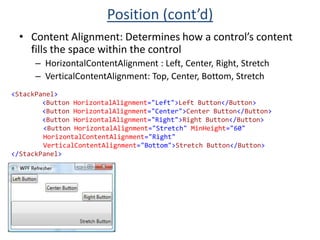
    Position (cont’d)Content Alignment:Determines how a control’s content fills the space within the control
  • 135.
  • 136.
    VerticalContentAlignment: Top, Center,Bottom, Stretch<StackPanel><Button HorizontalAlignment="Left">Left Button</Button><Button HorizontalAlignment="Center">Center Button</Button><Button HorizontalAlignment="Right">Right Button</Button><Button HorizontalAlignment="Stretch" MinHeight="60" HorizontalContentAlignment="Right" VerticalContentAlignment="Bottom">Stretch Button</Button></StackPanel>
  • 137.
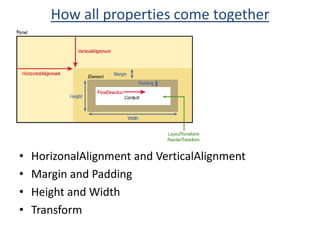
    How all propertiescome togetherHorizonalAlignment and VerticalAlignmentMargin and PaddingHeight and WidthTransform
  • 138.
  • 139.
    PanelsAll panels derivefrom abstract Panelclass.
  • 140.
    Panel allows addingmultiple child controls (UIElement) via Children property.
  • 141.
  • 142.
  • 143.
  • 144.
  • 145.
  • 146.
    CanvasStack PanelStacks itschildren (controls) sequentiallyStacks either horizontally or vertically depending on Orientation property<StackPanel Orientation="Horizontal"><Button>Button 1</Button><Button>Button 2</Button><Button>Button 3</Button></StackPanel><StackPanel><Button>Button 1</Button><Button>Button 2</Button><Button>Button 3</Button></StackPanel>
  • 147.
    Wrap PanelWraps itschildren (controls) to additional rows or columns when there’s not enough space
  • 148.
    ItemHeight, ItemWidth –uniform height & width can be set for all children (controls)<WrapPanel Orientation="Horizontal"><Button MinWidth="150">Button 1</Button><Button MinWidth="120">Button 2</Button><Button MinWidth="100">Button 3</Button><Button MinWidth="80">Button 4</Button><Button MinWidth="170">Button 5</Button><Button MinWidth="40">Button 6</Button></WrapPanel>
  • 149.
    Dock PanelWraps itschildren (controls) to additional rows or columns when there’s not enough space<DockPanel><Button DockPanel.Dock="Top">Button 1</Button><Button DockPanel.Dock="Left">Button 2</Button><Button DockPanel.Dock="Bottom">Button 3</Button><Button DockPanel.Dock="Right">Button 4</Button><Button>Center Button</Button></DockPanel>
  • 150.
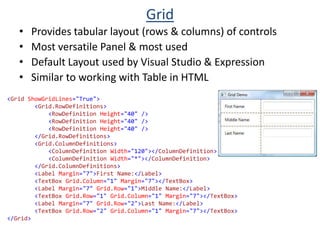
    GridProvides tabular layout(rows & columns) of controls
  • 151.
  • 152.
    Default Layout usedby Visual Studio & Expression
  • 153.
    Similar to workingwith Table in HTML<Grid ShowGridLines="True"><Grid.RowDefinitions><RowDefinition Height="40" /><RowDefinition Height="40" /><RowDefinition Height="40" /></Grid.RowDefinitions><Grid.ColumnDefinitions><ColumnDefinition Width="120"></ColumnDefinition><ColumnDefinition Width="*"></ColumnDefinition></Grid.ColumnDefinitions><Label Margin="7">First Name:</Label><TextBox Grid.Column="1" Margin="7"></TextBox><Label Margin="7" Grid.Row="1">Middle Name:</Label><TextBox Grid.Row="1" Grid.Column="1" Margin="7"></TextBox><Label Margin="7" Grid.Row="2">Last Name:</Label><TextBox Grid.Row="2" Grid.Column="1" Margin="7"></TextBox></Grid>
  • 154.
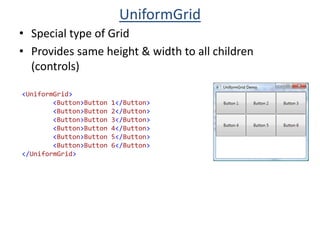
    UniformGridSpecial type ofGridProvides same height & width to all children (controls)<UniformGrid><Button>Button 1</Button><Button>Button 2</Button><Button>Button 3</Button><Button>Button 4</Button><Button>Button 5</Button><Button>Button 6</Button></UniformGrid>
  • 155.
  • 156.
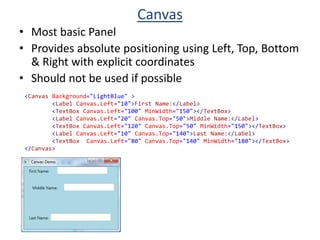
    Provides absolute positioningusing Left, Top, Bottom & Right with explicit coordinates
  • 157.
    Should not beused if possible<Canvas Background="LightBlue" ><Label Canvas.Left="10">First Name:</Label><TextBox Canvas.Left="100" MinWidth="150"></TextBox><Label Canvas.Left="20" Canvas.Top="50">Middle Name:</Label><TextBox Canvas.Left="120" Canvas.Top="50" MinWidth="150"></TextBox><Label Canvas.Left="10" Canvas.Top="140">Last Name:</Label><TextBox Canvas.Left="80" Canvas.Top="140" MinWidth="180"></TextBox></Canvas>
  • 158.
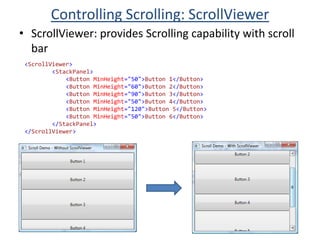
    Controlling Scrolling: ScrollViewerScrollViewer:provides Scrolling capability with scroll bar<ScrollViewer><StackPanel><Button MinHeight="50">Button 1</Button><Button MinHeight="60">Button 2</Button><Button MinHeight="90">Button 3</Button><Button MinHeight="50">Button 4</Button><Button MinHeight="120">Button 5</Button><Button MinHeight="50">Button 6</Button></StackPanel></ScrollViewer>
  • 159.
    ViewBoxViewBox: Scales Contentto fit the window<Viewbox><StackPanel><Label>Patient Detail:</Label><StackPanel Orientation="Horizontal"><Label Foreground="Gray">Name:</Label><Label>John W Smith</Label></StackPanel><StackPanel Orientation="Horizontal"><Label Foreground="Gray">Sex:</Label><Label>Male</Label></StackPanel><StackPanel Orientation="Horizontal"><Label Foreground="Gray">Age:</Label><Label>30 yrs</Label></StackPanel><Label Foreground="Gray">Address:</Label><Label>2A Market Avenue, Minneapolis, MN, USA</Label></StackPanel></Viewbox>
  • 160.
  • 161.
    ResourceDifferent from traditional.NET Resources which are binary resources (strings, images, icons etc)WPF Resources are Logical Resources.A Resource can be anything that should be reusedResources are stored in an object of type ResourceDisctionary.Each resource in resource dictionary must have unique keyThree fundamental classes (FrameworkElement, FrameworkContentElement and Application) define a property named Resource of type ResourceDisctionary.Any element derived from FrameworkElement (such as panels, controls) can have a Resource collection.
  • 162.
    Resource ExampleResource Key<Window.Resources><SolidColorBrushx:Key="ButtonBackground">LightBlue</SolidColorBrush><s:Doublex:Key="ButtonFontSize">17.5</s:Double></Window.Resources><StackPanel><Button Background="{StaticResource ButtonBackground}" FontSize="{StaticResource ButtonFontSize}">Button 1</Button><Button Background="{StaticResource ButtonBackground}">Button 2</Button><Button FontSize="{StaticResource ButtonFontSize}">Button 3</Button> <Button>Button 4<Button.FontSize><StaticResource ResourceKey="ButtonFontSize" /></Button.FontSize><Button.Background><StaticResource ResourceKey="ButtonBackground" /></Button.Background> </Button></StackPanel>Attribute syntaxProperty Element syntax
  • 163.
  • 164.
  • 165.
  • 166.
  • 167.
  • 168.
  • 169.
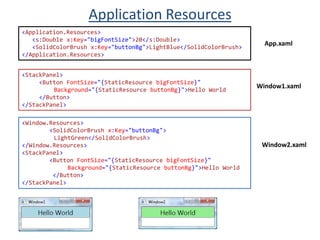
    Can be storedat different level (like individual control, panels, window or application level)
  • 170.
    The markup extensionclass implements the ability to walk the logical tree to find the item. Element hierarchyApplication.ResourcesType themeSystem theme
  • 171.
    Application Resources<Application.Resources><s:Double x:Key="bigFontSize">20</s:Double> <SolidColorBrush x:Key="buttonBg">LightBlue</SolidColorBrush></Application.Resources>App.xaml<StackPanel><ButtonFontSize="{StaticResourcebigFontSize}" Background="{StaticResourcebuttonBg}">Hello World </Button></StackPanel>Window1.xaml<Window.Resources><SolidColorBrush x:Key="buttonBg"> LightGreen</SolidColorBrush></Window.Resources><StackPanel><ButtonFontSize="{StaticResourcebigFontSize}" Background="{StaticResourcebuttonBg}">Hello World </Button></StackPanel>Window2.xaml
  • 172.
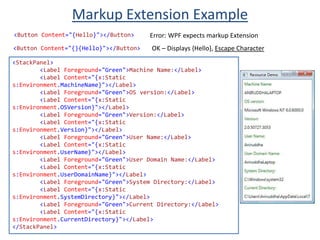
    Markup Extension Example<ButtonContent="{Hello}"></Button>Error: WPF expects markup ExtensionOK – Displays {Hello}, Escape Character<Button Content="{}{Hello}"></Button><StackPanel><Label Foreground="Green">Machine Name:</Label><Label Content="{x:Static s:Environment.MachineName}"></Label><Label Foreground="Green">OS version:</Label><Label Content="{x:Static s:Environment.OSVersion}"></Label><Label Foreground="Green">Version:</Label><Label Content="{x:Static s:Environment.Version}"></Label><Label Foreground="Green">User Name:</Label><Label Content="{x:Static s:Environment.UserName}"></Label> <Label Foreground="Green">User Domain Name:</Label><Label Content="{x:Static s:Environment.UserDomainName}"></Label><Label Foreground="Green">System Directory:</Label><Label Content="{x:Static s:Environment.SystemDirectory}"></Label><Label Foreground="Green">Current Directory:</Label><Label Content="{x:Static s:Environment.CurrentDirectory}"></Label></StackPanel>
  • 173.
    Static vs. DynamicResourceWPF provides two ways to access a logical resource:Statically with StaticResource, meaning the resource is applied only once (the first time it’s needed)Dynamically with DynamicResource, meaning the resource is reapplied every time it changes
  • 174.
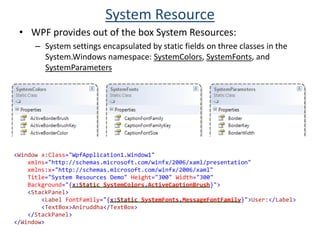
    System ResourceWPF providesout of the box System Resources:System settings encapsulated by static fields on three classes in the System.Windows namespace: SystemColors, SystemFonts, and SystemParameters<Window x:Class="WpfApplication1.Window1"xmlns="http://schemas.microsoft.com/winfx/2006/xaml/presentation"xmlns:x="http://schemas.microsoft.com/winfx/2006/xaml" Title="System Resources Demo" Height="300" Width="300" Background="{x:StaticSystemColors.ActiveCaptionBrush}"><StackPanel><LabelFontFamily="{x:StaticSystemFonts.MessageFontFamily}">User:</Label><TextBox>Aniruddha</TextBox></StackPanel></Window>
  • 175.
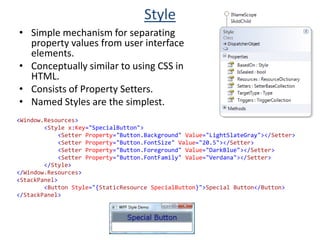
    StyleSimple mechanism forseparating property values from user interface elements.
  • 176.
    Conceptually similar tousing CSS in HTML.
  • 177.
  • 178.
    Named Styles arethe simplest.<Window.Resources><Style x:Key="SpecialButton"><Setter Property="Button.Background" Value="LightSlateGray"></Setter><Setter Property="Button.FontSize" Value="20.5"></Setter><Setter Property="Button.Foreground" Value="DarkBlue"></Setter><Setter Property="Button.FontFamily" Value="Verdana"></Setter></Style></Window.Resources><StackPanel><Button Style="{StaticResource SpecialButton}">Special Button</Button></StackPanel>
  • 179.
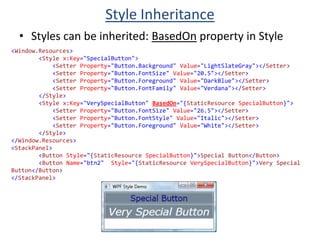
    Style InheritanceStyles canbe inherited: BasedOn property in Style<Window.Resources><Style x:Key="SpecialButton"><Setter Property="Button.Background" Value="LightSlateGray"></Setter><Setter Property="Button.FontSize" Value="20.5"></Setter><Setter Property="Button.Foreground" Value="DarkBlue"></Setter><Setter Property="Button.FontFamily" Value="Verdana"></Setter></Style><Style x:Key="VerySpecialButton"BasedOn="{StaticResource SpecialButton}"><Setter Property="Button.FontSize" Value="26.5"></Setter><Setter Property="Button.FontStyle" Value="Italic"></Setter><Setter Property="Button.Foreground" Value="White"></Setter></Style></Window.Resources><StackPanel><Button Style="{StaticResource SpecialButton}">Special Button</Button><Button Name="btn2" Style="{StaticResource VerySpecialButton}">Very Special Button</Button></StackPanel>
  • 180.
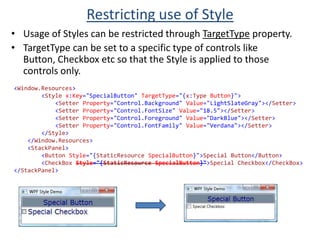
    Restricting use ofStyleUsage of Styles can be restricted through TargetType property.
  • 181.
    TargetType can beset to a specific type of controls like Button, Checkbox etc so that the Style is applied to those controls only.<Window.Resources><Style x:Key="SpecialButton"TargetType="{x:Type Button}"><Setter Property="Control.Background" Value="LightSlateGray"></Setter><Setter Property="Control.FontSize" Value="18.5"></Setter><Setter Property="Control.Foreground" Value="DarkBlue"></Setter><Setter Property="Control.FontFamily" Value="Verdana"></Setter></Style></Window.Resources><StackPanel><Button Style="{StaticResourceSpecialButton}">Special Button</Button><CheckBoxStyle="{StaticResourceSpecialButton}">Special Checkbox</CheckBox></StackPanel>
  • 182.
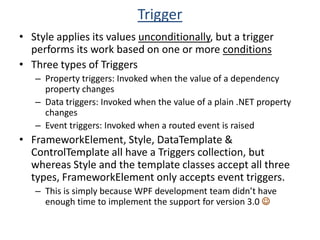
    TriggerStyle applies itsvalues unconditionally, but a trigger performs its work based on one or more conditions
  • 183.
  • 184.
    Property triggers: Invokedwhen the value of a dependency property changes
  • 185.
    Data triggers: Invokedwhen the value of a plain .NET property changes
  • 186.
    Event triggers: Invokedwhen a routed event is raised
  • 187.
    FrameworkElement, Style, DataTemplate& ControlTemplate all have a Triggers collection, but whereas Style and the template classes accept all three types, FrameworkElement only accepts event triggers.
  • 188.
    This is simplybecause WPF development team didn’t have enough time to implement the support for version 3.0 Trigger Class Diagram
  • 189.
    Property TriggerExecutes acollection of Setters when a specified property has a specified value.
  • 190.
    When the propertyno longer has this value, the property trigger “undoes” the Setters.<Window.Resources><Style x:Key="magicButton" TargetType="Button"><Setter Property="FontSize" Value="18"></Setter><Setter Property="Foreground" Value="Green"></Setter><Setter Property="Background" Value="LightBlue"></Setter><Setter Property="FontStyle" Value="Italic"></Setter><Style.Triggers><Trigger Property="IsMouseOver" Value="True"><Setter Property="FontSize" Value="26"></Setter><Setter Property="Foreground" Value="Red"></Setter><Setter Property="Background" Value="Yellow"></Setter><Setter Property="FontWeight" Value="Bold"></Setter></Trigger></Style.Triggers></Style></Window.Resources><StackPanel><Button Style="{StaticResource magicButton}">Button 1</Button><Button Style="{StaticResource magicButton}">Button 2</Button></StackPanel>
  • 191.
    Data TriggerData triggersare just like property triggers, except that they can be triggered by any .NET property rather than just dependency properties.<StackPanel Margin="10"><StackPanel.Resources><Style TargetType="{x:Type TextBox}"><Style.Triggers><DataTrigger Binding="{Binding RelativeSource={RelativeSource Self}, Path=Text}" Value="disabled"><Setter Property="IsEnabled" Value="False"/></DataTrigger></Style.Triggers><Setter Property="Background" Value="{Binding RelativeSource={RelativeSource Self}, Path=Text}"/></Style></StackPanel.Resources><TextBox Margin="3"/><TextBox Margin="3"/><TextBox Margin="3"/><TextBox Margin="3"/></StackPanel>
  • 192.
    MultiTriggerTo express alogical AND relationship a variation of Trigger called MultiTrigger or a variation of DataTrigger called MultiDataTrigger is used
  • 193.
    MultiTrigger and MultiDataTriggerhave a collection of Conditions that contain information that goes directly inside a Trigger or DataTrigger.2D GraphicsPen, Color, Brush BitmapEffect & Transform
  • 194.
    Graphics OverviewProvides anew rendering and composition model –Enables to use advanced display techniques Takes advantage of the capabilities of modern graphics cardsRetained-mode GraphicsHigh Quality RenderingPainter’s AlgorithmRetained-mode Graphics – no repaintingAll Shapes (Rectangle, Ellipse) are Vector based.Vector images do not get distorted when they are enlarged.Vector graphics formats work by specifying the primitive shapes that make up the picture, and describing their positions using coordinates (or "vectors").
  • 195.
    Retained-mode GraphicsGDI/GDI+ appmust respond to "invalidation" events to repaint parts of the image damaged by previously overlapping images.
  • 196.
    This is becauseGDI's graphics model is primarily a "pixel painter"—once a primitive like ellipse is rendered, GDI "forgets" the primitive.
  • 197.
    The application mustretain the state (geometry, formatting attributes, etc.) of all these graphic objects in order to repaint.
  • 198.
    GDI programmers neverhave to worry about maintaining the images of user-interface controls because controls are retained-mode graphics—they are objects stored in the underlying graphics system
  • 199.
    The burden ofmaintaining the image of the control is borne by the graphics platform itself, not by the app.
  • 200.
    Retained-mode graphics isnot new to GDI/Win32. In WPF ALLgraphic objects are retained. In addition to the UI controls and media primitives, 2-D Shape primitives (rectangles, ellipses, paths, etc.) and 3-D modeling primitives are retained objects.Paint (WM_PAINT) Not handled
  • 201.
    High Quality RenderingHigher-qualitytypography: via built-in support for subpixelClearType and OpenType (including advanced features like contextual ligatures) used for all text, including text in UI controls
  • 202.
  • 203.
    Anti-aliasing, eliminating the"jagged" edges of the rendering of diagonal or curved lines
  • 204.
    Higher performance indrawing and refreshing, due to WPF's better use of the underlying graphics hardware WPFWinForm/GDI/GDI+
  • 205.
    Painter’s AlgorithmIn User32and GDI, the system works on an immediate mode clipping system. When a component needs to be rendered, the system establishes a clipping bounds outside of which the component isn’t allowed to touch the pixels, and then the component is asked to paint pixels in that box.
  • 206.
    This system worksvery well in memory constrained systems because when something changes you only have to touch the affected component – no two components ever contribute to the color of a single pixel.
  • 207.
    WPF uses "painter'salgorithm" painting model - Instead of clipping each component, each component is asked to render from the back to the front of the display. This allows each component to paint over the previous component's display.
  • 208.
    Advantage of thismodel is complex, partially transparent shapes. With today’s modern graphics hardware, this model is relatively fast (which wasn’t the case when User32/ GDI were created).ColorSupports both sRGB and scRGB formatColor bgColor1 = Color.FromRgb(255, 0, 0);btn1.Background = new SolidColorBrush(bgColor1);Color bgColor2 = Color.FromArgb(50, 255, 0, 0);btn2.Background = new SolidColorBrush(bgColor2);Color bgColor3 = Color.FromScRgb(75.5f, 200.5f, 100.5f, 50.5f);btn3.Background = new SolidColorBrush(bgColor3);btn4.Background = new SolidColorBrush(Colors.Green);
  • 209.
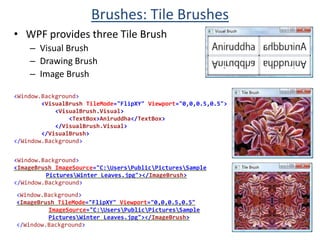
    Brushes OverviewWPF providestwo types of brushes Three Color BrushSolidColorBrush , LinearGradientBrush, RadialGradientBrushThree Tile BrushVisual Brush, Drawing Brush, Image Brush
  • 210.
    Brushes: Color BrushesWPFprovides three Color Brush SolidColorBrushLinearGradientBrushRadialGradientBrush<Window.Background><SolidColorBrush Color="LightSteelBlue" /></Window.Background><LinearGradientBrush> <GradientStop Color="White" Offset="0" /><GradientStop Color="Black" Offset="2" /></LinearGradientBrush><RadialGradientBrush> <GradientStop Color="White" Offset="0" /> <GradientStop Color="DarkBlue" Offset="1" /></RadialGradientBrush>
  • 211.
    Brushes: Tile BrushesWPFprovides three Tile Brush
  • 212.
  • 213.
  • 214.
    Image Brush<Window.Background><VisualBrush TileMode="FlipXY"Viewport="0,0,0.5,0.5"><VisualBrush.Visual><TextBox>Aniruddha</TextBox></VisualBrush.Visual></VisualBrush></Window.Background><Window.Background><ImageBrushImageSource="C:\Users\Public\Pictures\Sample Pictures\Winter Leaves.jpg"></ImageBrush></Window.Background><Window.Background><ImageBrushTileMode="FlipXY" Viewport="0,0,0.5,0.5"ImageSource="C:\Users\Public\Pictures\Sample Pictures\Winter Leaves.jpg"></ImageBrush></Window.Background>
  • 215.
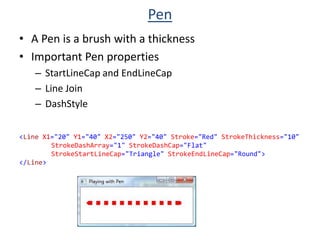
    PenA Pen isa brush with a thicknessImportant Pen propertiesStartLineCap and EndLineCapLine JoinDashStyle<Line X1="20" Y1="40" X2="250" Y2="40" Stroke="Red" StrokeThickness="10" StrokeDashArray="1" StrokeDashCap="Flat" StrokeStartLineCap="Triangle" StrokeEndLineCap="Round"></Line>
  • 216.
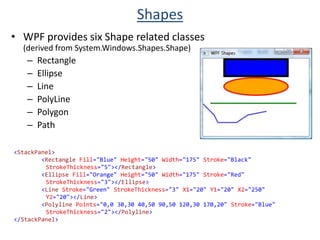
    ShapesWPF provides sixShape related classes (derived from System.Windows.Shapes.Shape)
  • 217.
  • 218.
  • 219.
  • 220.
  • 221.
  • 222.
    Path<StackPanel><Rectangle Fill="Blue" Height="50"Width="175" Stroke="Black" StrokeThickness="5"></Rectangle><Ellipse Fill="Orange" Height="50" Width="175" Stroke="Red" StrokeThickness="3"></Ellipse><Line Stroke="Green" StrokeThickness="3" X1="20" Y1="20" X2="250" Y2="20"></Line><Polyline Points="0,0 30,30 40,50 90,50 120,30 170,20" Stroke="Blue" StrokeThickness="2"></Polyline></StackPanel>
  • 223.
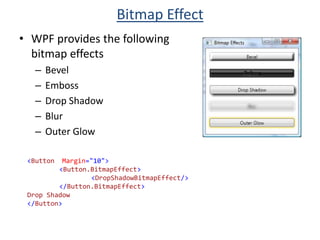
    Bitmap EffectWPF providesthe following bitmap effectsBevelEmbossDrop ShadowBlurOuter Glow<Button Margin="10"> <Button.BitmapEffect> <DropShadowBitmapEffect/> </Button.BitmapEffect>Drop Shadow</Button>
  • 224.
    TransformProvides 2D Transformclasses (deriving from System.Windows.Media.Transform)
  • 225.
  • 226.
  • 227.
  • 228.
  • 229.
  • 230.
    All FrameworkElements havetwo properties of type Transform:
  • 231.
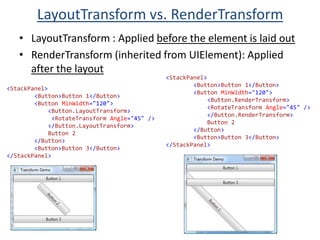
    LayoutTransform, which isapplied before the element is laid out
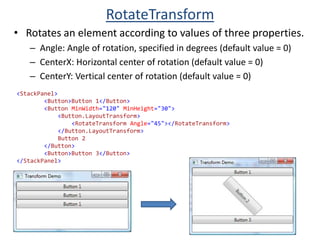
  • 232.
    RenderTransform (inherited fromUIElement), which is applied after the layoutRotateTransformRotates an element according to values of three properties.
  • 233.
    Angle: Angle ofrotation, specified in degrees (default value = 0)
  • 234.
    CenterX: Horizontal centerof rotation (default value = 0)
  • 235.
    CenterY: Vertical centerof rotation (default value = 0)<StackPanel><Button>Button 1</Button><Button MinWidth="120" MinHeight="30"><Button.LayoutTransform><RotateTransform Angle="45"></RotateTransform></Button.LayoutTransform> Button 2</Button><Button>Button 3</Button></StackPanel>
  • 236.
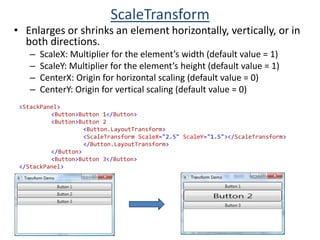
    ScaleTransformEnlarges or shrinksan element horizontally, vertically, or in both directions.
  • 237.
    ScaleX: Multiplier forthe element’s width (default value = 1)
  • 238.
    ScaleY: Multiplier forthe element’s height (default value = 1)
  • 239.
    CenterX: Origin forhorizontal scaling (default value = 0)
  • 240.
    CenterY: Origin forvertical scaling (default value = 0)<StackPanel> <Button>Button 1</Button><Button>Button 2<Button.LayoutTransform><ScaleTransform ScaleX="2.5" ScaleY="1.5"></ScaleTransform></Button.LayoutTransform></Button><Button>Button 3</Button></StackPanel>
  • 241.
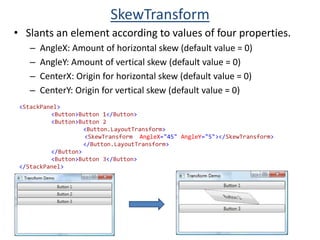
    SkewTransformSlants an elementaccording to values of four properties.
  • 242.
    AngleX: Amount ofhorizontal skew (default value = 0)
  • 243.
    AngleY: Amount ofvertical skew (default value = 0)
  • 244.
    CenterX: Origin forhorizontal skew (default value = 0)
  • 245.
    CenterY: Origin forvertical skew (default value = 0)<StackPanel> <Button>Button 1</Button><Button>Button 2<Button.LayoutTransform><SkewTransform AngleX="45" AngleY="5"></SkewTransform></Button.LayoutTransform></Button><Button>Button 3</Button></StackPanel>
  • 246.
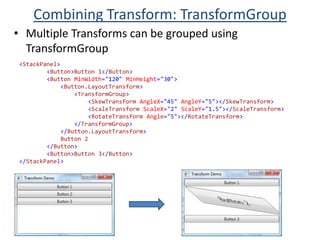
    Combining Transform: TransformGroupMultipleTransforms can be grouped using TransformGroup<StackPanel><Button>Button 1</Button><Button MinWidth="120" MinHeight="30"><Button.LayoutTransform><TransformGroup><SkewTransform AngleX="45" AngleY="5"></SkewTransform><ScaleTransform ScaleX="2" ScaleY="1.5"></ScaleTransform><RotateTransform Angle="5"></RotateTransform></TransformGroup></Button.LayoutTransform> Button 2</Button><Button>Button 3</Button></StackPanel>
  • 247.
    LayoutTransform vs. RenderTransformLayoutTransform: Applied before the element is laid out
  • 248.
    RenderTransform (inherited fromUIElement): Applied after the layout<StackPanel><Button>Button 1</Button><Button MinWidth="120"><Button.RenderTransform><RotateTransform Angle="45" /></Button.RenderTransform> Button 2</Button><Button>Button 3</Button></StackPanel><StackPanel><Button>Button 1</Button><Button MinWidth="120"><Button.LayoutTransform><RotateTransform Angle="45" /></Button.LayoutTransform> Button 2</Button><Button>Button 3</Button></StackPanel>
  • 249.
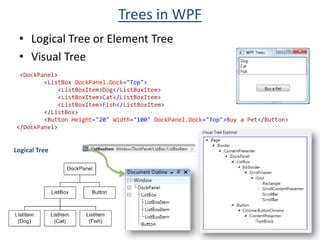
    Trees in WPFLogicalTree or Element TreeVisual Tree <DockPanel><ListBox DockPanel.Dock="Top"><ListBoxItem>Dog</ListBoxItem><ListBoxItem>Cat</ListBoxItem><ListBoxItem>Fish</ListBoxItem></ListBox><Button Height="20" Width="100" DockPanel.Dock="Top">Buy a Pet</Button></DockPanel>Logical Tree
  • 250.
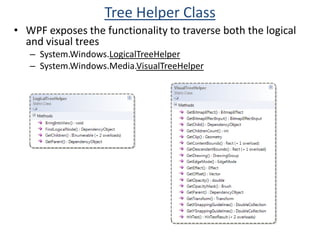
    Tree Helper ClassWPFexposes the functionality to traverse both the logical and visual trees
  • 251.
  • 252.
  • 253.
  • 254.
    Data Binding OverviewDatabinding is the bridge between binding target and binding source.
  • 255.
    Each Binding (representedby Binding class) has these four components:
  • 256.
  • 257.
  • 258.
  • 259.
    a Path tothe value in the binding source to use.
  • 260.
    e.g if youwant to bind the content of a TextBox to the Name property of an Employee object, your target object is the TextBox, the target property is the Text property, the value to use is Name, and the source object is the Employee object.
  • 261.
    The target propertymust be a Dependency Property. Most UIElement properties are dependency properties and most dependency properties, except read-only ones, support data binding by default.Data Binding: Control to ControlProcess that establishes connection between application UI and business logic.
  • 262.
    If binding hascorrect settings & data provides proper notifications, then, when the data changes its value, elements bound to data reflect changes automatically.<Label>Enter your name:</Label><TextBox x:Name="nameTextBox"></TextBox><Label Margin="0,20,0,0">Name Entered by you:</Label><Label x:Name="label" Content="{BindingElementName=nameTextBox, Path=Text}"></Label>Binding binding = new Binding();// Set the Source objectbinding.Source = nameTextBox;// Set the Source propertybinding.Path =new PropertyPath("Text");// Attach to Target propertylabel.SetBinding(Label.ContentProperty, binding);
  • 263.
    Binding Markup ExtensionBindingis a Markup Extension similar to StaticResource & DynamicResource
  • 264.
    Markup Extensions areindicated by curly braces - { and }
  • 265.
    No “ or‘ within the curly braces
  • 266.
    ElementName and Pathare separated by ,<Label>Enter your name:</Label><TextBox x:Name="nameTextBox"></TextBox><Label Margin="0,20,0,0">Name Entered by you:</Label><Label Content="{BindingElementName=nameTextBox,Path=Text}"></Label><Label Content="{BindingText,ElementName=nameTextBox}"></Label>Alternate Property Element Syntax<Label>Enter your name:</Label><TextBox x:Name="nameTextBox"></TextBox><Label Margin="0,20,0,0">Name Entered by you:</Label><Label x:Name="label"><Label.Content><BindingElementName="nameTextBox" Path="Text"></Binding></Label.Content></Label>
  • 267.
    Binding Direction (BindingMode)Mode Property of Binding accepts the following values -
  • 268.
    OneWay: Changes tosource property automatically update the target property, but changes to target property are not propagated back to source property.
  • 269.
    TwoWay: Changes toeither source property or target property to automatically update the other. This is default.
  • 270.
    OneWayToSource: Reverse ofOneWay binding. updates source property when target property changes.
  • 271.
    OneTime: Source propertyto initialize the target property, but subsequent changes do not propagate.What triggers source updateBindings that are TwoWay or OneWayToSource listen for changes in the target property and propagate them back to the source. This is known as updating the source.
  • 272.
    LostFocus: Default forTextBox.Text. Occurs when the TextBox control loses focus.
  • 273.
    PropertyChanged: As youtype into the TextBox.
  • 274.
    Explicit: When theapplication calls UpdateSource.<Label>Enter your name:</Label><TextBox x:Name="nameTextBox"></TextBox><Label Margin="0,20,0,0">Name Entered by you:</Label><TextBox x:Name="label" Text="{BindingElementName=nameTextBox, Path=Text,Mode=OneWay,UpdateSourceTrigger=PropertyChanged}"></TextBox>
  • 275.
    Relative SourceRefers toan element by its relationship to the target element.
  • 276.
    The property isof type RelativeSource, which also happens to be a markup extension.
  • 277.
    To make thesource element equal the target element:{Binding RelativeSource={RelativeSource Self}}To make the source element equal the closest parent of a given type:{Binding RelativeSource={RelativeSourceFindAncestor, AncestorType={x:Type desiredType}}}<Label>Enter a name of a color:</Label><TextBox Background="{BindingRelativeSource={RelativeSource Self}, Path=Text}"> </TextBox>
  • 278.
    Binding to .NETprimitive datapublic class PatientManager{public string PatientName { get; set;} public PatientManager() { PatientName ="John Smith"; } }<Window x:Class="WpfApplication1.Window1"xmlns="http://schemas.microsoft.com/winfx/2006/xaml/presentation"xmlns:x="http://schemas.microsoft.com/winfx/2006/xaml"xmlns:p="clr-namespace:WpfApplication1" Title="Data Binding - .NET primitive data" Height="300" Width="300"><Window.Resources><p:PatientManager x:Key="PatientSource"></p:PatientManager></Window.Resources><StackPanel><Label>Patient Name:</Label><TextBox Text="{Binding Source={StaticResourcePatientSource}, Path=PatientName}"></TextBox></StackPanel></Window>
  • 279.
    Data Contextpublic classPatientManager{public string PatientName { get; set; } public DateTime DateOfBirth {get; set; } public string Address { get; set; } public string City { get; set; } public PatientManager() {PatientName ="John Smith";DateOfBirth =DateTime.Now;Address ="C.V.Raman Nagar";City = "Bangalore"; } }<Window x:Class="WpfApplication1.Window1"xmlns="http://schemas.microsoft.com/winfx/2006/xaml/presentation"xmlns:x="http://schemas.microsoft.com/winfx/2006/xaml"xmlns:p="clr-namespace:WpfApplication1" Title="Data Binding - DataContext" Height="300" Width="300"><Window.Resources><p:PatientManager x:Key="PatientSource"></p:PatientManager></Window.Resources><StackPanel><StackPanel.DataContext><Binding Source="{StaticResourcePatientSource}"></Binding></StackPanel.DataContext><Label>Patient Name:</Label> <TextBox Text="{Binding Path=PatientName}" /><Label>Date of Birth:</Label> <TextBox Text="{Binding Path=DateOfBirth}" /><Label>Address:</Label> <TextBox Text="{Binding Path=Address}" /><Label>City:</Label> <TextBox Text="{Binding Path=City}" /></StackPanel></Window>
  • 280.
    Binding to .NETcollection data<Window.Resources><p:Patient x:Key="PatientData"></p:Patient></Window.Resources><StackPanelDataContext="{StaticResourcePatientData}"><Label>Patient Name:</Label><TextBox Text="{Binding Path=Name}" /><Label>DOB:</Label><TextBox Text="{Binding Path=Dob}" /><Label>Patient's Addresses:</Label><ListBoxItemsSource="{Binding Path=Addresses}" /></StackPanel>
  • 281.
    Notification: Interface andCollectionINotifyPropertyChanged: Used to notify clients, typically binding clients, that a property value has changed. Provided in .NET 2.0
  • 282.
    INotifyCollectionChanged: Notifies listenersof dynamic changes, such as when items get added and removed or the whole list is refreshed. Provided in .NET 3.0
  • 283.
    ObservableCollection: WPF providedbuilt-in implementation of a collection that exposes the INotifyCollectionChanged. Provided in .NET 3.0INotifyPropertyChanged: Example
  • 284.
    INotifyCollectionChanged & ObservableCollectionToset up dynamic bindings so that updates in collection update the UI automatically, the collection must implement the INotifyCollectionChanged interface.
  • 285.
    INotifyCollectionChanged interface exposesan event that should be raised whenever the underlying collection changes.
  • 286.
    ObservableCollection class providesbuilt-in implementation of collection that exposes the INotifyCollectionChanged interface.ObservableCollection (Cont’d)
  • 287.
    Template OverviewAllows tocompletely customize the look & feel.
  • 288.
    Template allows tocompletely replace an element’s visual tree while keeping all of its functionality intact.
  • 289.
    Default visuals forevery Controlin WPF are defined in templates (and customized for each Windows theme).
  • 290.
    The source codefor every control is completely separated from its default visual tree representations.Template Example <Window.Resources><Style x:Key="magicButton" TargetType="Button"><Setter Property="FontSize" Value="16"></Setter><Style.Triggers><Trigger Property="IsMouseOver" Value="True"><Setter Property="FontSize" Value="26"></Setter></Trigger></Style.Triggers></Style></Window.Resources><StackPanel> <Button Style="{StaticResource magicButton}">Hello World<Button.Template><ControlTemplate><Grid><Ellipse Fill="LightBlue" Height="30" Width="150" Stroke="Red" StrokeThickness="2"></Ellipse><ContentControl HorizontalAlignment="Center" VerticalAlignment="Center">Hello</ContentControl></Grid></ControlTemplate></Button.Template></Button></StackPanel>
  • 291.
    Template Binding<StackPanel><Button BorderThickness="3"Height="40" Width="150" Background="LightPink" BorderBrush="Brown" FontSize="16">Hello World<Button.Template><ControlTemplate><Grid><Ellipse Fill="{TemplateBinding ContentControl.Background}" Height="{TemplateBinding ContentControl.Height}" Width="{TemplateBinding ContentControl.Width}" Stroke="{TemplateBinding ContentControl.BorderBrush}" StrokeThickness="{TemplateBinding ContentControl.BorderThickness}"></Ellipse><ContentControl HorizontalAlignment="{TemplateBinding ContentControl.HorizontalContentAlignment}" VerticalAlignment="{TemplateBinding ContentControl.VerticalContentAlignment}" FontSize="{TemplateBinding ContentControl.FontSize}" Content="{TemplateBinding ContentControl.Content}"></ContentControl></Grid></ControlTemplate></Button.Template></Button></StackPanel>
  • 292.
  • 293.
    Input OverviewProvides powerful APIfor obtaining input from variety of devices, including the mouse, keyboard, and stylus.
  • 294.
    Primary input API exposureis found on base element classes: UIElement, ContentElement, FrameworkElement, and FrameworkContentElement
  • 295.
    Provide functionality forinput events related to key presses, mouse buttons, mouse wheel, mouse movement, focus management, and mouse capture.
  • 296.
    Additionally Keyboard class& Mouse classes provide additional API for working with keyboard & mouse input.
  • 297.
    Examples of inputAPI on the Keyboard class are the Modifiers property, which returns the ModifierKeys currently pressed
  • 298.
  • 299.
    Examples of inputAPI on the Mouse class are MiddleButton, which obtains the state of the middle mouse button, and DirectlyOver, which gets the element the mouse pointer is currently over.Loose CouplingSupports Events at different abstraction level
  • 300.
    Physical Event: Supportsdirect Mouse events like MouseUp, MouseDown
  • 301.
    Semantic Event: Supportshigher level events like Click.
  • 302.
    Can fire whenuser presses space bar (with the button in focus)
  • 303.
    Can fire whenuser presses Enter (when the button is default)
  • 304.
    Can happen whenuser uses mouse or stylus
  • 305.
    Writing code againstthe Click event has two advantages:
  • 306.
    Independent of specificinput gesture (mouse versus keyboard),
  • 307.
    NOT tied withbutton. Code written against the Click event depends only on a component that can be clicked. Decoupling of code to the action produced allows for more flexibility in the implementation of handlers.
  • 308.
    Events suffer froma form of coupling that requires the method implementation to be of a specific signature. e.g. the delegate for Button.Click is defined as follows:public delegate void RoutedEventHandler(object sender, RoutedEventArgs e);
  • 309.
    Built in CommandsWPFdefines a bunch of commands so you don’t have to implement ICommand objects for Cut, Copy, and Paste and worry about where to store them.
  • 310.
    WPF’s built-in commandsare exposed as static properties of five different classes.
  • 311.
    ApplicationCommands: Close, Copy,Cut, Delete, Find, Help, New, Open, Paste, Print, PrintPreview, Properties, Redo, Replace, Save, SaveAs, SelectAll, Stop, Undo
  • 312.
    ComponentCommands: MoveDown, MoveLeft,MoveRight, MoveUp, ScrollByLine, ScrollPageDown, ScrollPageLeft, ScrollPageRight, ScrollPageUp, SelectToEnd, SelectToHome, SelectToPageDown, SelectToPageUp
  • 313.
    MediaCommands:ChannelDown, ChannelUp, DecreaseVolume,FastForward, IncreaseVolume, MuteVolume, NextTrack, Pause, Play, PreviousTrack, Record, Rewind, Select, Stop
  • 314.
    NavigationCommands: BrowseBack, BrowseForward,BrowseHome, BrowseStop, Favorites, FirstPage, GoToPage, LastPage, NextPage, PreviousPage, Refresh, Search, Zoom, and more
  • 315.
    EditingCommands: AlignCenter, AlignJustify,AlignLeft, AlignRight, CorrectSpellingError, DecreaseFontSize, DecreaseIndentation, EnterLineBreak, EnterParagraphBreak, IgnoreSpellingError, IncreaseFontSize, IncreaseIndentation, MoveDownByLine, MoveDownByPage, MoveDownByParagraph, MoveLeftByCharacter, MoveLeftByWord, MoveRightByCharacter, MoveRightByWordBuilt In Command Example
  • 316.
    Custom CommandImplement ICommandinterfaceExecute: The method that executes the command specific logicCanExecute: A method returning true if the command is enabled or false if it is disabledCanExecuteChanged: An event that is raised whenever the value of CanExecute changes
  • 317.
  • 318.
  • 319.
    Routed EventEvents thatare designed to work well with a tree of elements.
  • 320.
    When a routedevent is raised, it can travel up or down the visual and logical tree, getting raised on each element in a simple and consistent fashion, without the need for any custom code.
  • 321.
    Helps Apps remainoblivious to details of the visual tree & is crucial to success of element composition.
  • 322.
    Routing strategies: thewayinwhich event raising travels through element tree - Tunneling: The event is first raised on the root, then on each element down the tree until the source element is reached (or until a handler halts the tunneling by marking the event as handled).Bubbling: The event is first raised on the source element, then on each element up the tree until the root is reached (or until a handler halts the bubbling by marking the event as handled).Direct: The event is only raised on source element. This is same behavior as plain .NET event, except that such events can still participate in mechanisms specific to routed events.
  • 323.
    RoutedEventAgrsprivate void Button_Click(objectsender,RoutedEventArgse)private void button1_Click(object sender,EventArgse)Source: The element in the logical tree that originally raised the event.
  • 324.
    OriginalSource: The elementin the visual tree that originally raised the event.
  • 325.
    Handled: A Booleanthat can be set to true to mark the event as handled. This is precisely what halts any tunneling or bubbling.
  • 326.
    RoutedEvent: The actualrouted event object (such as Button.ClickEvent), which can be helpful for identifying the raised event when the same handler is used for multiple routed events.Dependency PropertyDependency Property (DP) & Attached Property
  • 327.
    Dependency Property OverviewWPFIntroduces a new Property called DP
  • 328.
    Used throughout theplatform to enable styling, automatic data binding, animation and more.
  • 329.
    A dependency propertydepends on multiple providers for determining its value at any point in time.
  • 330.
    Providers could bean animation continuously changing its value, a parent element whose property value trickles down to its children, and so on.
  • 331.
    Biggest feature ofDP is built-in ability to provide change notification.
  • 332.
    DP allows propertyvalue inheritance.
  • 333.
    Doesn’trefer to traditionalobject oriented class based inheritance, but rather the flowing of property values down the element tree.this.FontSize = 20;
  • 334.
    Dependency Property Example//Declare a public object of type DependencyPropertypublic static readonlyDependencyPropertySpaceProperty;// .NET Property Wrapper (Optional)public intSpace{ get{ return (int)GetValue(SpaceProperty); } set{ SetValue(SpaceProperty, value); }}// Declare metadata such as default value of the DPFrameworkPropertyMetadatametadata =new FrameworkPropertyMetadata();metadata.DefaultValue = 1;metadata.AffectsMeasure =true;metadata.Inherits = true;metadata.PropertyChangedCallback += OnSpacePropertyChanged;// Register the Dependency PropertySpaceProperty = DependencyProperty.Register("Space",typeof(int),typeof(SpaceButton), metadata,ValidateSpaceButton);static void OnSpacePropertyChanged(DependencyObjectobj,DependencyPropertyChangedEventArgsargs) { }
  • 335.
  • 336.