Aniruddha Chakrabarti
Principal Architect | caniruddha@Hotmail.com
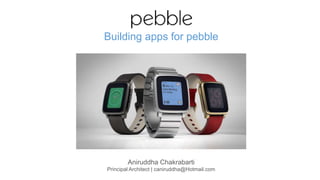
Building apps for pebble
A bit of history
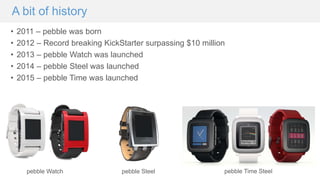
• 2011 – pebble was born
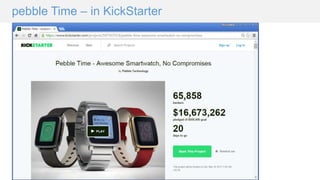
• 2012 – Record breaking KickStarter surpassing $10 million
• 2013 – pebble Watch was launched
• 2014 – pebble Steel was launched
• 2015 – pebble Time was launched
pebble Watch pebble Steel pebble Time Steel
pebble Time – in KickStarter
How to develop for pebble – two type of apps
PebbleFace:
• Apps developed using Pebble C SDK (current version is 3.0) are called PebbleFace
• Apps could be written in C. There are two options -
• CloudPebble - New developers are encouraged to use this service to begin development without
installing any software whatsoever. This is also the preferred option for Windows users.
• C SDK - Use the C SDK locally. Advanced users are most likely to use this, especially if they are
building an Android or iOS companion app. Currently supports
• Mac OS X
• Linux
PebbleApp:
• Apps developed using alternate JavaScript library are called PebbleApp
• JavaScript library (pebble.js) is currently in beta
• PebbleApps could be written in JavaScript
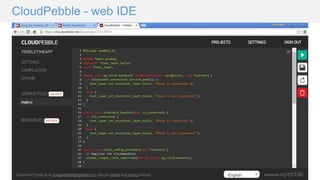
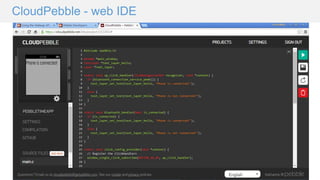
CloudPebble - web IDE
What does a PebbleFace (custom Pebble App) contains
• Source files (.c files)
• Window layout
• Resources - image file, font, raw blob etc
• Manifest file (appinfo.json) - Details of the metadata that describes the app, such
as its name, resources and capabilities.
App metadata in manifest file
{
"uuid": "afb5b3ce-3701-436a-902f-098feaac9b29",
"shortName": "ExampleApp",
"longName": "ExampleApp",
"companyName": "MakeAwesomeHappen",
"versionCode": 1,
"versionLabel": "1.0",
"sdkVersion": "3",
"targetPlatforms": ["aplite", "basalt"],
"watchapp": {
"watchface": false
},
"appKeys": {
"dummy": 0
},
"resources": {
"media": []
}
}
Property Required Type Description
Uuid Yes UUID
Unique identifier for the app. Generated by pebble
new-project.
shortName Yes String
App's short name. This will appear in the launcher list
on the Watch.
longName Yes String
App's long name. This will appear in the Pebble
mobile application.
companyName Yes String Name of the app's developer.
versionLabel Yes String
Version label for the app. Must use the
format major or major.minor.
sdkVersion Yes String
The version of the SDK that this app is being written
for
targetPlatforms No
Array of
strings
Specify which platforms to build this app for (Aplite or
Basalt). Defaults to both if omitted.
watchapp Yes Object
Used to configure the app behavior on the watch.
Set watchface to true to behave as a watchapp.
capabilities No
Array of
strings
List of capabilities that your app requires. The only
two supported capabilities
arelocation and configurable. For more information,
refer to PebbleKit JS documentation
appKeys No Object
Keys used for AppMessage andAppSync. This is a
mapping from named string keys to
integer AppMessage keys. See PebbleKit JS
Guides for more information.
resources No Object
Contains one item media: an array of all of the media
resources to be bundled with your apps (Maximum
256 per app). See Managing App Resources for
more information.
appinfo.json
App Metadata (in CloudPebble)
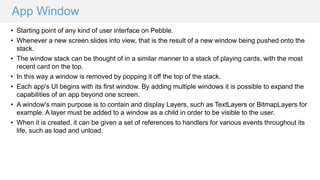
App Window
• Starting point of any kind of user interface on Pebble.
• Whenever a new screen slides into view, that is the result of a new window being pushed onto the
stack.
• The window stack can be thought of in a similar manner to a stack of playing cards, with the most
recent card on the top.
• In this way a window is removed by popping it off the top of the stack.
• Each app's UI begins with its first window. By adding multiple windows it is possible to expand the
capabilities of an app beyond one screen.
• A window's main purpose is to contain and display Layers, such as TextLayers or BitmapLayers for
example. A layer must be added to a window as a child in order to be visible to the user.
• When it is created, it can be given a set of references to handlers for various events throughout its
life, such as load and unload.
Create the first Watchface app
#include <pebble.h>
// Create a pointer to a variable of Window type
static Window *main_window;
static void init(){
// Create the window itself in app initialization and assign to the pointer
main_window = window_create();
// Push the newly created window to the window stack
// Show the Window on the watch, with animated=true
window_stack_push(main_window, true);
}
static void deinit(){
window_destroy(main_window);
}
// Entry point to the app
int main(){
init();
app_event_loop();
deinit();
}
Window events (load and unload)
static void main_window_load(Window *window) {
// Code to be executed during window load comes here
}
static void main_window_unload(Window *window) {
// Code to be executed during window unload comes here
}
static void init(){
// Create the window itself in app initialization and assign to the pointer
main_window = window_create();
// Set handlers to manage the elements inside the Window
window_set_window_handlers(main_window, (WindowHandlers) {
.load = main_window_load,
.unload = main_window_unload
});
// Push the newly created window to the window stack
// Show the Window on the watch, with animated=true
window_stack_push(main_window, true);
}
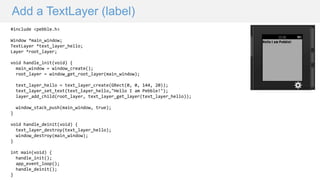
Add a TextLayer (label)
#include <pebble.h>
Window *main_window;
TextLayer *text_layer_hello;
Layer *root_layer;
void handle_init(void) {
main_window = window_create();
root_layer = window_get_root_layer(main_window);
text_layer_hello = text_layer_create(GRect(0, 0, 144, 20));
text_layer_set_text(text_layer_hello,"Hello I am Pebble!");
layer_add_child(root_layer, text_layer_get_layer(text_layer_hello));
window_stack_push(main_window, true);
}
void handle_deinit(void) {
text_layer_destroy(text_layer_hello);
window_destroy(main_window);
}
int main(void) {
handle_init();
app_event_loop();
handle_deinit();
}
Set window and text layer color
• Set window background color
• Set text layer background and text (or foreground) color
void handle_init(void) {
main_window = window_create();
root_layer = window_get_root_layer(main_window);
text_layer_hello = text_layer_create(GRect(0, 0, 144, 40));
text_layer_set_text(text_layer_hello,"Hello I am Pebble!");
window_set_background_color(main_window, GColorBlack); // Set window background color to Black
text_layer_set_text_color(text_layer_hello, GColorBlack); // Set text layer text/foreground color to Black
text_layer_set_background_color(text_layer_hello, GColorWhite); // Set text layer Background color to White
layer_add_child(root_layer, text_layer_get_layer(text_layer_hello));
window_stack_push(main_window, true);
}
System Fonts
• Gothic 14
• Gothic 14 Bold
• Gothic 18
• Gothic 18 Bold
• Gothic 24
• Gothic 24 Bold
• Gothic 28
• Gothic 28 Bold
• Bitham 30 Black
• Bitham 42 Bold
• Bitham 42 Light
• Bitham 34 Medium Numbers
• Bitham 42 Medium Numbers
• Roboto 21 Condensed
• Roboto 49 Bold Subset
• Droid 28 Bold
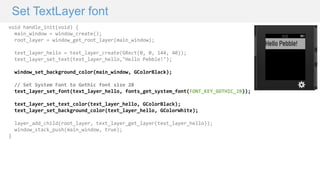
Set TextLayer font
void handle_init(void) {
main_window = window_create();
root_layer = window_get_root_layer(main_window);
text_layer_hello = text_layer_create(GRect(0, 0, 144, 40));
text_layer_set_text(text_layer_hello,"Hello Pebble!");
window_set_background_color(main_window, GColorBlack);
// Set System Font to Gothic font size 28
text_layer_set_font(text_layer_hello, fonts_get_system_font(FONT_KEY_GOTHIC_28));
text_layer_set_text_color(text_layer_hello, GColorBlack);
text_layer_set_background_color(text_layer_hello, GColorWhite);
layer_add_child(root_layer, text_layer_get_layer(text_layer_hello));
window_stack_push(main_window, true);
}
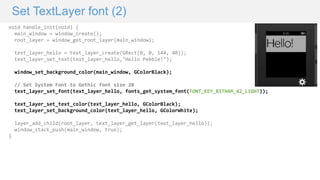
Set TextLayer font (2)
void handle_init(void) {
main_window = window_create();
root_layer = window_get_root_layer(main_window);
text_layer_hello = text_layer_create(GRect(0, 0, 144, 40));
text_layer_set_text(text_layer_hello,"Hello Pebble!");
window_set_background_color(main_window, GColorBlack);
// Set System Font to Gothic font size 28
text_layer_set_font(text_layer_hello, fonts_get_system_font(FONT_KEY_BITHAM_42_LIGHT));
text_layer_set_text_color(text_layer_hello, GColorBlack);
text_layer_set_background_color(text_layer_hello, GColorWhite);
layer_add_child(root_layer, text_layer_get_layer(text_layer_hello));
window_stack_push(main_window, true);
}
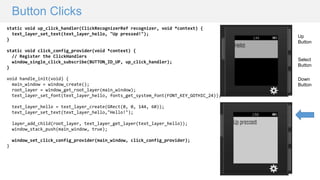
Button Clicks
static void up_click_handler(ClickRecognizerRef recognizer, void *context) {
text_layer_set_text(text_layer_hello, "Up pressed!");
}
static void click_config_provider(void *context) {
// Register the ClickHandlers
window_single_click_subscribe(BUTTON_ID_UP, up_click_handler);
}
void handle_init(void) {
main_window = window_create();
root_layer = window_get_root_layer(main_window);
text_layer_set_font(text_layer_hello, fonts_get_system_font(FONT_KEY_GOTHIC_24));
text_layer_hello = text_layer_create(GRect(0, 0, 144, 60));
text_layer_set_text(text_layer_hello,"Hello!");
layer_add_child(root_layer, text_layer_get_layer(text_layer_hello));
window_stack_push(main_window, true);
window_set_click_config_provider(main_window, click_config_provider);
}
Up
Button
Down
Button
Select
Button
Button Clicks (2)
static void up_click_handler(ClickRecognizerRef recognizer, void *context) {
text_layer_set_text(text_layer_hello, "Up pressed!");
}
static void select_click_handler(ClickRecognizerRef recognizer, void *context) {
text_layer_set_text(text_layer_hello, "Select pressed!");
}
static void down_click_handler(ClickRecognizerRef recognizer, void *context) {
text_layer_set_text(text_layer_hello, "Down pressed!");
}
static void click_config_provider(void *context) {
window_single_click_subscribe(BUTTON_ID_UP, up_click_handler);
window_single_click_subscribe(BUTTON_ID_SELECT, select_click_handler);
window_single_click_subscribe(BUTTON_ID_DOWN, down_click_handler);
}
void handle_init(void) {
main_window = window_create();
root_layer = window_get_root_layer(main_window);
text_layer_set_font(text_layer_hello, fonts_get_system_font(FONT_KEY_GOTHIC_24));
text_layer_hello = text_layer_create(GRect(0, 0, 144, 60));
text_layer_set_text(text_layer_hello,"Hello!");
layer_add_child(root_layer, text_layer_get_layer(text_layer_hello));
window_stack_push(main_window, true);
window_set_click_config_provider(main_window, click_config_provider);
}
Up
Button
Down
Button
Select
Button
App Events / Services
• Pebble apps rely on callbacks, allowing the developer to define behavior for
different types of events, such as when the battery is low, the Bluetooth
connection state changes or the watch is tapped.
• This allows apps to update their UI when these events happen, instead of
constantly polling for a change in conditions.
• Services
• Bluetooth Connection Service
• Battery State Service
• Time Ticker Service
• App Focus Service (For interruptions)
• Wakeup API – allows developers to schedule an app launch in the future, even if the app itself
is closed in the meantime.
Bluetooth connection service
• The Bluetooth connection service allows your app to know whether Pebble is
connected to the phone. This can be done in two ways -
1. Ask the system for this information at any time -
static void up_click_handler(ClickRecognizerRef recognizer, void *context) {
if (bluetooth_connection_service_peek()) {
text_layer_set_text(text_layer_hello, "Phone is connected!");
}
else {
text_layer_set_text(text_layer_hello, "Phone is not connected!");
}
}
Bluetooth connection service (2)
• The Bluetooth connection service allows your app to know whether Pebble is
connected to the phone. This can be done in two ways -
2. register for Bluetooth connection and disconnection events -
Step 1: Declare the event handler
static void bluetooth_handler(bool is_connected) {
if (is_connected) {
text_layer_set_text(text_layer_hello, "Phone is connected!");
}
else {
text_layer_set_text(text_layer_hello, "Phone is not connected!");
}
}
Step 2: Register the event handler with Bluetooth service in init event
// Register the event handler with the bluetooth service
bluetooth_connection_service_subscribe(bluetooth_handler);
Step 3: Deregister from Bluetooth service in deinit event
// Unsubscribe from bluetooth service
bluetooth_connection_service_unsubscribe();
Battery state service
• The Battery State Service lets you know when the battery state changes, i.e., its current charge level,
whether it is plugged and charging.
• It uses the BatteryChargeState structure to describe the current power state of Pebble.
• Similar to the Bluetooth Connection Service , you can get the current state at any given moment or
register to be notified when the state changes.
static void up_click_handler(ClickRecognizerRef recognizer, void *context) {
static char s_battery_buffer[16];
BatteryChargeState charge_state = battery_state_service_peek();
if (charge_state.is_charging) {
snprintf(s_battery_buffer, sizeof(s_battery_buffer), "charging");
} else {
snprintf(s_battery_buffer, sizeof(s_battery_buffer), "%d%% charged", charge_state.charge_percent);
}
text_layer_set_text(text_layer_hello, s_battery_buffer);
}
Battery state service (2)
• Register for Bluetooth connection and disconnection events -
Step 1: Declare the event handler
static void battery_handler(BatteryChargeState charge_state) {
static char s_battery_buffer[16];
if (charge_state.is_charging) {
snprintf(s_battery_buffer, sizeof(s_battery_buffer), "charging");
} else {
snprintf(s_battery_buffer, sizeof(s_battery_buffer), "%d%% charged", charge_state.charge_percent);
}
text_layer_set_text(text_layer_hello, s_battery_buffer);
}
Step 2: Register the event handler with Battery State service in init event
// Register the event handler with the Battery state service
battery_state_service_subscribe(battery_handler);
Step 3: Deregister from Bluetooth service in deinit event
// Unsubscribe from Battery state service
battery_state_service_unsubscribe();
Resources
• Pebble - https://getpebble.com/
• Developer Portal - http://developer.getpebble.com/
• Getting Started - https://developer.getpebble.com/getting-started
• Developer Guides - https://developer.getpebble.com/guides/
• Documentation - https://developer.getpebble.com/docs/
• CloudPebble online IDE - https://cloudpebble.net

pebble - Building apps on pebble

  • 1.
    Aniruddha Chakrabarti Principal Architect| caniruddha@Hotmail.com Building apps for pebble
  • 2.
    A bit ofhistory • 2011 – pebble was born • 2012 – Record breaking KickStarter surpassing $10 million • 2013 – pebble Watch was launched • 2014 – pebble Steel was launched • 2015 – pebble Time was launched pebble Watch pebble Steel pebble Time Steel
  • 3.
    pebble Time –in KickStarter
  • 4.
    How to developfor pebble – two type of apps PebbleFace: • Apps developed using Pebble C SDK (current version is 3.0) are called PebbleFace • Apps could be written in C. There are two options - • CloudPebble - New developers are encouraged to use this service to begin development without installing any software whatsoever. This is also the preferred option for Windows users. • C SDK - Use the C SDK locally. Advanced users are most likely to use this, especially if they are building an Android or iOS companion app. Currently supports • Mac OS X • Linux PebbleApp: • Apps developed using alternate JavaScript library are called PebbleApp • JavaScript library (pebble.js) is currently in beta • PebbleApps could be written in JavaScript
  • 5.
  • 6.
  • 7.
    What does aPebbleFace (custom Pebble App) contains • Source files (.c files) • Window layout • Resources - image file, font, raw blob etc • Manifest file (appinfo.json) - Details of the metadata that describes the app, such as its name, resources and capabilities.
  • 8.
    App metadata inmanifest file { "uuid": "afb5b3ce-3701-436a-902f-098feaac9b29", "shortName": "ExampleApp", "longName": "ExampleApp", "companyName": "MakeAwesomeHappen", "versionCode": 1, "versionLabel": "1.0", "sdkVersion": "3", "targetPlatforms": ["aplite", "basalt"], "watchapp": { "watchface": false }, "appKeys": { "dummy": 0 }, "resources": { "media": [] } } Property Required Type Description Uuid Yes UUID Unique identifier for the app. Generated by pebble new-project. shortName Yes String App's short name. This will appear in the launcher list on the Watch. longName Yes String App's long name. This will appear in the Pebble mobile application. companyName Yes String Name of the app's developer. versionLabel Yes String Version label for the app. Must use the format major or major.minor. sdkVersion Yes String The version of the SDK that this app is being written for targetPlatforms No Array of strings Specify which platforms to build this app for (Aplite or Basalt). Defaults to both if omitted. watchapp Yes Object Used to configure the app behavior on the watch. Set watchface to true to behave as a watchapp. capabilities No Array of strings List of capabilities that your app requires. The only two supported capabilities arelocation and configurable. For more information, refer to PebbleKit JS documentation appKeys No Object Keys used for AppMessage andAppSync. This is a mapping from named string keys to integer AppMessage keys. See PebbleKit JS Guides for more information. resources No Object Contains one item media: an array of all of the media resources to be bundled with your apps (Maximum 256 per app). See Managing App Resources for more information. appinfo.json
  • 9.
    App Metadata (inCloudPebble)
  • 10.
    App Window • Startingpoint of any kind of user interface on Pebble. • Whenever a new screen slides into view, that is the result of a new window being pushed onto the stack. • The window stack can be thought of in a similar manner to a stack of playing cards, with the most recent card on the top. • In this way a window is removed by popping it off the top of the stack. • Each app's UI begins with its first window. By adding multiple windows it is possible to expand the capabilities of an app beyond one screen. • A window's main purpose is to contain and display Layers, such as TextLayers or BitmapLayers for example. A layer must be added to a window as a child in order to be visible to the user. • When it is created, it can be given a set of references to handlers for various events throughout its life, such as load and unload.
  • 11.
    Create the firstWatchface app #include <pebble.h> // Create a pointer to a variable of Window type static Window *main_window; static void init(){ // Create the window itself in app initialization and assign to the pointer main_window = window_create(); // Push the newly created window to the window stack // Show the Window on the watch, with animated=true window_stack_push(main_window, true); } static void deinit(){ window_destroy(main_window); } // Entry point to the app int main(){ init(); app_event_loop(); deinit(); }
  • 12.
    Window events (loadand unload) static void main_window_load(Window *window) { // Code to be executed during window load comes here } static void main_window_unload(Window *window) { // Code to be executed during window unload comes here } static void init(){ // Create the window itself in app initialization and assign to the pointer main_window = window_create(); // Set handlers to manage the elements inside the Window window_set_window_handlers(main_window, (WindowHandlers) { .load = main_window_load, .unload = main_window_unload }); // Push the newly created window to the window stack // Show the Window on the watch, with animated=true window_stack_push(main_window, true); }
  • 13.
    Add a TextLayer(label) #include <pebble.h> Window *main_window; TextLayer *text_layer_hello; Layer *root_layer; void handle_init(void) { main_window = window_create(); root_layer = window_get_root_layer(main_window); text_layer_hello = text_layer_create(GRect(0, 0, 144, 20)); text_layer_set_text(text_layer_hello,"Hello I am Pebble!"); layer_add_child(root_layer, text_layer_get_layer(text_layer_hello)); window_stack_push(main_window, true); } void handle_deinit(void) { text_layer_destroy(text_layer_hello); window_destroy(main_window); } int main(void) { handle_init(); app_event_loop(); handle_deinit(); }
  • 14.
    Set window andtext layer color • Set window background color • Set text layer background and text (or foreground) color void handle_init(void) { main_window = window_create(); root_layer = window_get_root_layer(main_window); text_layer_hello = text_layer_create(GRect(0, 0, 144, 40)); text_layer_set_text(text_layer_hello,"Hello I am Pebble!"); window_set_background_color(main_window, GColorBlack); // Set window background color to Black text_layer_set_text_color(text_layer_hello, GColorBlack); // Set text layer text/foreground color to Black text_layer_set_background_color(text_layer_hello, GColorWhite); // Set text layer Background color to White layer_add_child(root_layer, text_layer_get_layer(text_layer_hello)); window_stack_push(main_window, true); }
  • 15.
    System Fonts • Gothic14 • Gothic 14 Bold • Gothic 18 • Gothic 18 Bold • Gothic 24 • Gothic 24 Bold • Gothic 28 • Gothic 28 Bold • Bitham 30 Black • Bitham 42 Bold • Bitham 42 Light • Bitham 34 Medium Numbers • Bitham 42 Medium Numbers • Roboto 21 Condensed • Roboto 49 Bold Subset • Droid 28 Bold
  • 16.
    Set TextLayer font voidhandle_init(void) { main_window = window_create(); root_layer = window_get_root_layer(main_window); text_layer_hello = text_layer_create(GRect(0, 0, 144, 40)); text_layer_set_text(text_layer_hello,"Hello Pebble!"); window_set_background_color(main_window, GColorBlack); // Set System Font to Gothic font size 28 text_layer_set_font(text_layer_hello, fonts_get_system_font(FONT_KEY_GOTHIC_28)); text_layer_set_text_color(text_layer_hello, GColorBlack); text_layer_set_background_color(text_layer_hello, GColorWhite); layer_add_child(root_layer, text_layer_get_layer(text_layer_hello)); window_stack_push(main_window, true); }
  • 17.
    Set TextLayer font(2) void handle_init(void) { main_window = window_create(); root_layer = window_get_root_layer(main_window); text_layer_hello = text_layer_create(GRect(0, 0, 144, 40)); text_layer_set_text(text_layer_hello,"Hello Pebble!"); window_set_background_color(main_window, GColorBlack); // Set System Font to Gothic font size 28 text_layer_set_font(text_layer_hello, fonts_get_system_font(FONT_KEY_BITHAM_42_LIGHT)); text_layer_set_text_color(text_layer_hello, GColorBlack); text_layer_set_background_color(text_layer_hello, GColorWhite); layer_add_child(root_layer, text_layer_get_layer(text_layer_hello)); window_stack_push(main_window, true); }
  • 18.
    Button Clicks static voidup_click_handler(ClickRecognizerRef recognizer, void *context) { text_layer_set_text(text_layer_hello, "Up pressed!"); } static void click_config_provider(void *context) { // Register the ClickHandlers window_single_click_subscribe(BUTTON_ID_UP, up_click_handler); } void handle_init(void) { main_window = window_create(); root_layer = window_get_root_layer(main_window); text_layer_set_font(text_layer_hello, fonts_get_system_font(FONT_KEY_GOTHIC_24)); text_layer_hello = text_layer_create(GRect(0, 0, 144, 60)); text_layer_set_text(text_layer_hello,"Hello!"); layer_add_child(root_layer, text_layer_get_layer(text_layer_hello)); window_stack_push(main_window, true); window_set_click_config_provider(main_window, click_config_provider); } Up Button Down Button Select Button
  • 19.
    Button Clicks (2) staticvoid up_click_handler(ClickRecognizerRef recognizer, void *context) { text_layer_set_text(text_layer_hello, "Up pressed!"); } static void select_click_handler(ClickRecognizerRef recognizer, void *context) { text_layer_set_text(text_layer_hello, "Select pressed!"); } static void down_click_handler(ClickRecognizerRef recognizer, void *context) { text_layer_set_text(text_layer_hello, "Down pressed!"); } static void click_config_provider(void *context) { window_single_click_subscribe(BUTTON_ID_UP, up_click_handler); window_single_click_subscribe(BUTTON_ID_SELECT, select_click_handler); window_single_click_subscribe(BUTTON_ID_DOWN, down_click_handler); } void handle_init(void) { main_window = window_create(); root_layer = window_get_root_layer(main_window); text_layer_set_font(text_layer_hello, fonts_get_system_font(FONT_KEY_GOTHIC_24)); text_layer_hello = text_layer_create(GRect(0, 0, 144, 60)); text_layer_set_text(text_layer_hello,"Hello!"); layer_add_child(root_layer, text_layer_get_layer(text_layer_hello)); window_stack_push(main_window, true); window_set_click_config_provider(main_window, click_config_provider); } Up Button Down Button Select Button
  • 20.
    App Events /Services • Pebble apps rely on callbacks, allowing the developer to define behavior for different types of events, such as when the battery is low, the Bluetooth connection state changes or the watch is tapped. • This allows apps to update their UI when these events happen, instead of constantly polling for a change in conditions. • Services • Bluetooth Connection Service • Battery State Service • Time Ticker Service • App Focus Service (For interruptions) • Wakeup API – allows developers to schedule an app launch in the future, even if the app itself is closed in the meantime.
  • 21.
    Bluetooth connection service •The Bluetooth connection service allows your app to know whether Pebble is connected to the phone. This can be done in two ways - 1. Ask the system for this information at any time - static void up_click_handler(ClickRecognizerRef recognizer, void *context) { if (bluetooth_connection_service_peek()) { text_layer_set_text(text_layer_hello, "Phone is connected!"); } else { text_layer_set_text(text_layer_hello, "Phone is not connected!"); } }
  • 22.
    Bluetooth connection service(2) • The Bluetooth connection service allows your app to know whether Pebble is connected to the phone. This can be done in two ways - 2. register for Bluetooth connection and disconnection events - Step 1: Declare the event handler static void bluetooth_handler(bool is_connected) { if (is_connected) { text_layer_set_text(text_layer_hello, "Phone is connected!"); } else { text_layer_set_text(text_layer_hello, "Phone is not connected!"); } } Step 2: Register the event handler with Bluetooth service in init event // Register the event handler with the bluetooth service bluetooth_connection_service_subscribe(bluetooth_handler); Step 3: Deregister from Bluetooth service in deinit event // Unsubscribe from bluetooth service bluetooth_connection_service_unsubscribe();
  • 23.
    Battery state service •The Battery State Service lets you know when the battery state changes, i.e., its current charge level, whether it is plugged and charging. • It uses the BatteryChargeState structure to describe the current power state of Pebble. • Similar to the Bluetooth Connection Service , you can get the current state at any given moment or register to be notified when the state changes. static void up_click_handler(ClickRecognizerRef recognizer, void *context) { static char s_battery_buffer[16]; BatteryChargeState charge_state = battery_state_service_peek(); if (charge_state.is_charging) { snprintf(s_battery_buffer, sizeof(s_battery_buffer), "charging"); } else { snprintf(s_battery_buffer, sizeof(s_battery_buffer), "%d%% charged", charge_state.charge_percent); } text_layer_set_text(text_layer_hello, s_battery_buffer); }
  • 24.
    Battery state service(2) • Register for Bluetooth connection and disconnection events - Step 1: Declare the event handler static void battery_handler(BatteryChargeState charge_state) { static char s_battery_buffer[16]; if (charge_state.is_charging) { snprintf(s_battery_buffer, sizeof(s_battery_buffer), "charging"); } else { snprintf(s_battery_buffer, sizeof(s_battery_buffer), "%d%% charged", charge_state.charge_percent); } text_layer_set_text(text_layer_hello, s_battery_buffer); } Step 2: Register the event handler with Battery State service in init event // Register the event handler with the Battery state service battery_state_service_subscribe(battery_handler); Step 3: Deregister from Bluetooth service in deinit event // Unsubscribe from Battery state service battery_state_service_unsubscribe();
  • 25.
    Resources • Pebble -https://getpebble.com/ • Developer Portal - http://developer.getpebble.com/ • Getting Started - https://developer.getpebble.com/getting-started • Developer Guides - https://developer.getpebble.com/guides/ • Documentation - https://developer.getpebble.com/docs/ • CloudPebble online IDE - https://cloudpebble.net