For Customer XYZ
Workstream 

by YouSendIt

Quickstart Guide
Getting Started
My Account Settings
3
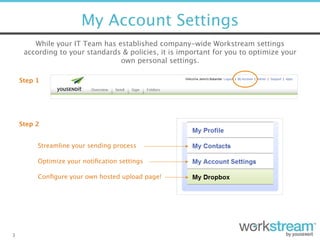
While your IT Team has established company-wide Workstream settings
according to your standards & policies, it is important for you to optimize your
own personal settings.
Step 2
Step 1
Streamline your sending process
Optimize your notification settings
Configure your own hosted upload page!
Dropbox Function
4
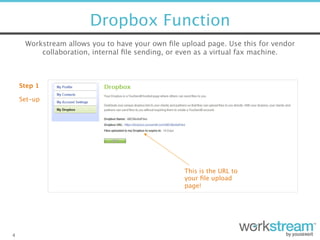
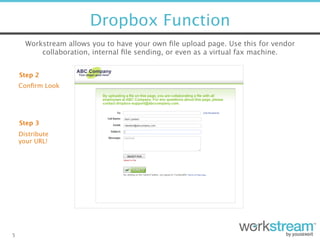
Workstream allows you to have your own file upload page. Use this for vendor
collaboration, internal file sending, or even as a virtual fax machine.
Step 1
Set-up
This is the URL to
your file upload
page!
Dropbox Function
5
Step 2
Confirm Look
Step 3
Distribute 

your URL!
Workstream allows you to have your own file upload page. Use this for vendor
collaboration, internal file sending, or even as a virtual fax machine.
Folders Function
6
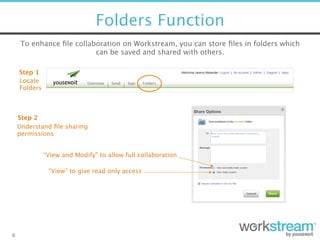
To enhance file collaboration on Workstream, you can store files in folders which
can be saved and shared with others.
Step 1
Step 2 
Understand file sharing
permissions
Locate
Folders
“View and Modify” to allow full collaboration
“View” to give read only access
Folders Function
7
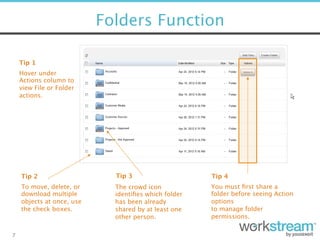
Tip 1
Hover under
Actions column to
view File or Folder
actions. 
Tip 2
To move, delete, or
download multiple
objects at once, use
the check boxes.
Tip 4
Tip 3
You must first share a
folder before seeing Action
options 

to manage folder
permissions. 
The crowd icon
identifies which folder
has been already
shared by at least one
other person.
Send Policies
8
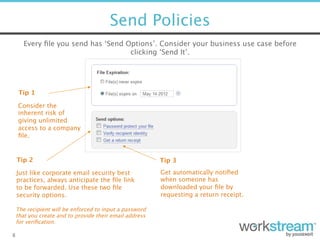
Every file you send has ‘Send Options’. Consider your business use case before
clicking ‘Send It’.
Tip 1
Tip 2 
Just like corporate email security best
practices, always anticipate the file link
to be forwarded. Use these two file
security options.
Consider the
inherent risk of
giving unlimited
access to a company
file. 
Tip 3 
Get automatically notified
when someone has
downloaded your file by
requesting a return receipt.
The recipient will be enforced to input a password 

that you create and to provide their email address 

for verification.
Methods of
Collaboration
Web Application
10
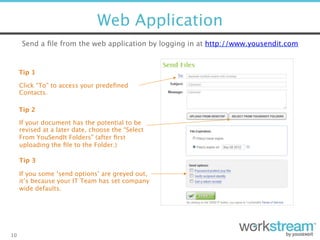
Send a file from the web application by logging in at http://www.yousendit.com 
Tip 1
Click “To” to access your predefined
Contacts. 
Tip 3
If you some ‘send options’ are greyed out, 

it’s because your IT Team has set company 

wide defaults.
Tip 2
If your document has the potential to be
revised at a later date, choose the “Select
From YouSendIt Folders” (after first
uploading the file to the Folder.)
Desktop Application
11
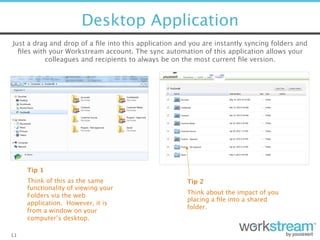
Just a drag and drop of a file into this application and you are instantly syncing folders and
files with your Workstream account. The sync automation of this application allows your
colleagues and recipients to always be on the most current file version. 
Think of this as the same
functionality of viewing your
Folders via the web
application. However, it is
from a window on your
computer’s desktop. 
Tip 1
Tip 2
Think about the impact of you
placing a file into a shared
folder.
Express Application
12
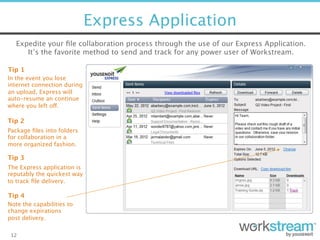
Expedite your file collaboration process through the use of our Express Application.
It’s the favorite method to send and track for any power user of Workstream.
In the event you lose
internet connection during
an upload, Express will
auto-resume an continue
where you left off.
Tip 1
Package files into folders
for collaboration in a
more organized fashion.
Tip 2
Tip 3
Tip 4
The Express application is
reputably the quickest way 

to track file delivery.
Note the capabilities to
change expirations
post delivery.
Mobile Application
13
Take file collaboration to the field, with our mobile application. From tablet to
smartphone, it’s easy access into your files and folders from anywhere in the world.
Step 2
Step 1
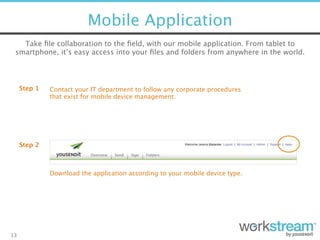
Download the application according to your mobile device type.
Contact your IT department to follow any corporate procedures
that exist for mobile device management.
Mobile Application
14
Tip 2
Tip 1
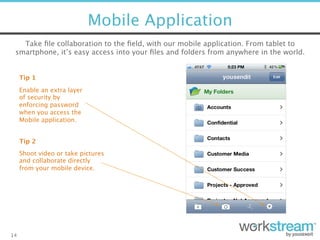
Enable an extra layer 

of security by
enforcing password
when you access the
Mobile application.
Shoot video or take pictures
and collaborate directly
from your mobile device.
Take file collaboration to the field, with our mobile application. From tablet to
smartphone, it’s easy access into your files and folders from anywhere in the world.
Additional Resources
15
Interested to find out more about how to utilize the power of Workstream? 

Click the links below to view short videos containing more information.
How to Use the YouSendIt Dropbox
Creating Folders and Adding Files
Sharing Folders and Permissions
How to eSign using Workstream
Syncing Files to your Desktop
Folder Sharing and Permissions 
Express Sending Application
Microsoft Outlook Plugin

YouSendIt Workstream Quickstart Guide

  • 1.
    For Customer XYZ Workstream
 by YouSendIt
 Quickstart Guide
  • 2.
  • 3.
    My Account Settings 3 Whileyour IT Team has established company-wide Workstream settings according to your standards & policies, it is important for you to optimize your own personal settings. Step 2 Step 1 Streamline your sending process Optimize your notification settings Configure your own hosted upload page!
  • 4.
    Dropbox Function 4 Workstream allowsyou to have your own file upload page. Use this for vendor collaboration, internal file sending, or even as a virtual fax machine. Step 1 Set-up This is the URL to your file upload page!
  • 5.
    Dropbox Function 5 Step 2 ConfirmLook Step 3 Distribute 
 your URL! Workstream allows you to have your own file upload page. Use this for vendor collaboration, internal file sending, or even as a virtual fax machine.
  • 6.
    Folders Function 6 To enhancefile collaboration on Workstream, you can store files in folders which can be saved and shared with others. Step 1 Step 2 Understand file sharing permissions Locate Folders “View and Modify” to allow full collaboration “View” to give read only access
  • 7.
    Folders Function 7 Tip 1 Hoverunder Actions column to view File or Folder actions. Tip 2 To move, delete, or download multiple objects at once, use the check boxes. Tip 4 Tip 3 You must first share a folder before seeing Action options 
 to manage folder permissions. The crowd icon identifies which folder has been already shared by at least one other person.
  • 8.
    Send Policies 8 Every fileyou send has ‘Send Options’. Consider your business use case before clicking ‘Send It’. Tip 1 Tip 2 Just like corporate email security best practices, always anticipate the file link to be forwarded. Use these two file security options. Consider the inherent risk of giving unlimited access to a company file. Tip 3 Get automatically notified when someone has downloaded your file by requesting a return receipt. The recipient will be enforced to input a password 
 that you create and to provide their email address 
 for verification.
  • 9.
  • 10.
    Web Application 10 Send afile from the web application by logging in at http://www.yousendit.com Tip 1 Click “To” to access your predefined Contacts. Tip 3 If you some ‘send options’ are greyed out, 
 it’s because your IT Team has set company 
 wide defaults. Tip 2 If your document has the potential to be revised at a later date, choose the “Select From YouSendIt Folders” (after first uploading the file to the Folder.)
  • 11.
    Desktop Application 11 Just adrag and drop of a file into this application and you are instantly syncing folders and files with your Workstream account. The sync automation of this application allows your colleagues and recipients to always be on the most current file version. Think of this as the same functionality of viewing your Folders via the web application. However, it is from a window on your computer’s desktop. Tip 1 Tip 2 Think about the impact of you placing a file into a shared folder.
  • 12.
    Express Application 12 Expedite yourfile collaboration process through the use of our Express Application. It’s the favorite method to send and track for any power user of Workstream. In the event you lose internet connection during an upload, Express will auto-resume an continue where you left off. Tip 1 Package files into folders for collaboration in a more organized fashion. Tip 2 Tip 3 Tip 4 The Express application is reputably the quickest way 
 to track file delivery. Note the capabilities to change expirations post delivery.
  • 13.
    Mobile Application 13 Take filecollaboration to the field, with our mobile application. From tablet to smartphone, it’s easy access into your files and folders from anywhere in the world. Step 2 Step 1 Download the application according to your mobile device type. Contact your IT department to follow any corporate procedures that exist for mobile device management.
  • 14.
    Mobile Application 14 Tip 2 Tip1 Enable an extra layer 
 of security by enforcing password when you access the Mobile application. Shoot video or take pictures and collaborate directly from your mobile device. Take file collaboration to the field, with our mobile application. From tablet to smartphone, it’s easy access into your files and folders from anywhere in the world.
  • 15.
    Additional Resources 15 Interested tofind out more about how to utilize the power of Workstream? 
 Click the links below to view short videos containing more information. How to Use the YouSendIt Dropbox Creating Folders and Adding Files Sharing Folders and Permissions How to eSign using Workstream Syncing Files to your Desktop Folder Sharing and Permissions Express Sending Application Microsoft Outlook Plugin