Accessibility
- what to consider from day 1 of planning a new
website

31-10-13

@SiteimproveUK #Siteimprove13

1
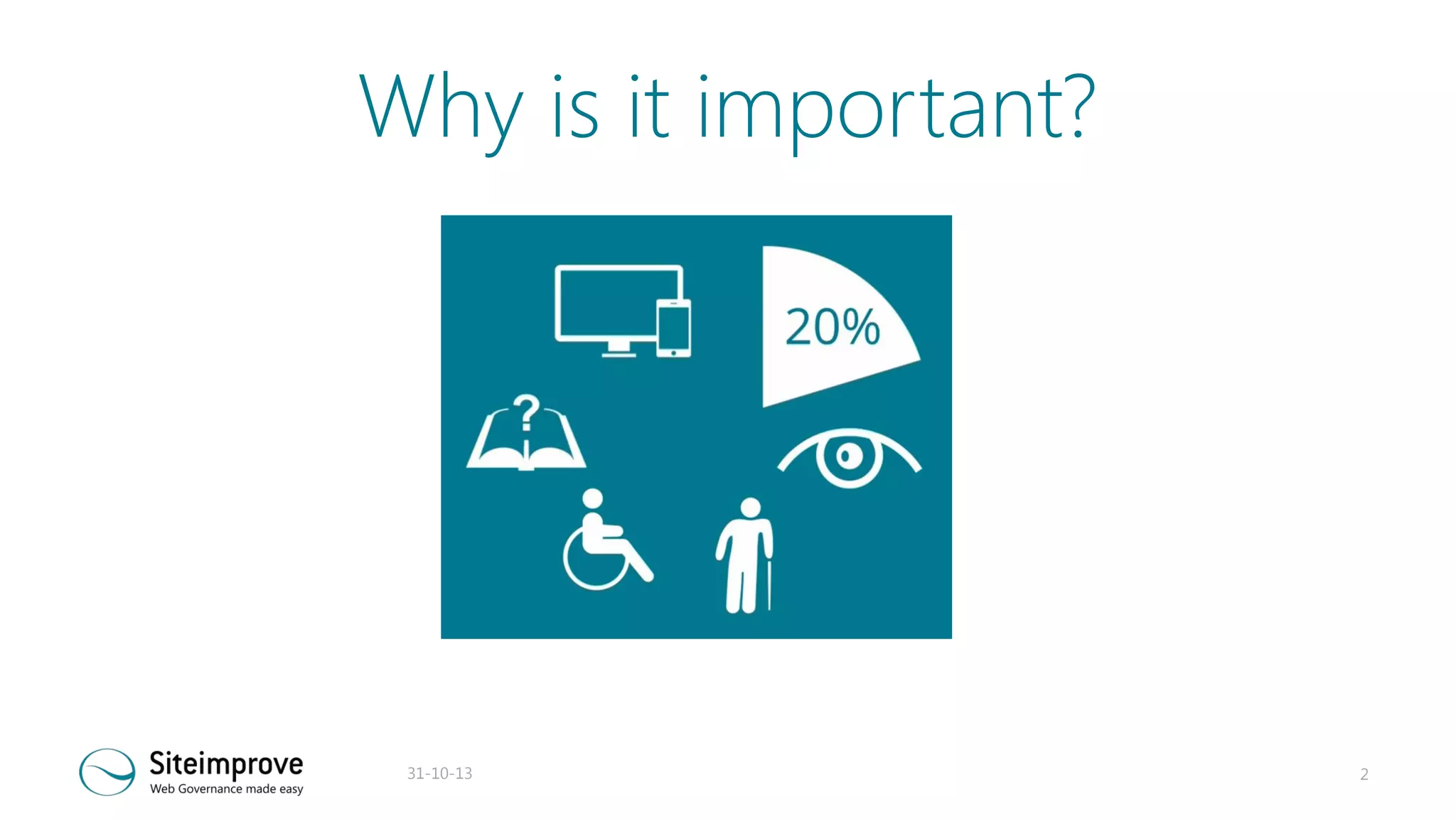
Why is it important?

31-10-13

2
Accessibility is a right
The Equality Act came into force in
October 2010
” A person ... concerned with the
provision of a service to the public or
a section of the public (for payment or
not) must not discriminate against a
person requiring the service by not
providing the person with the service”.
31-10-13

3
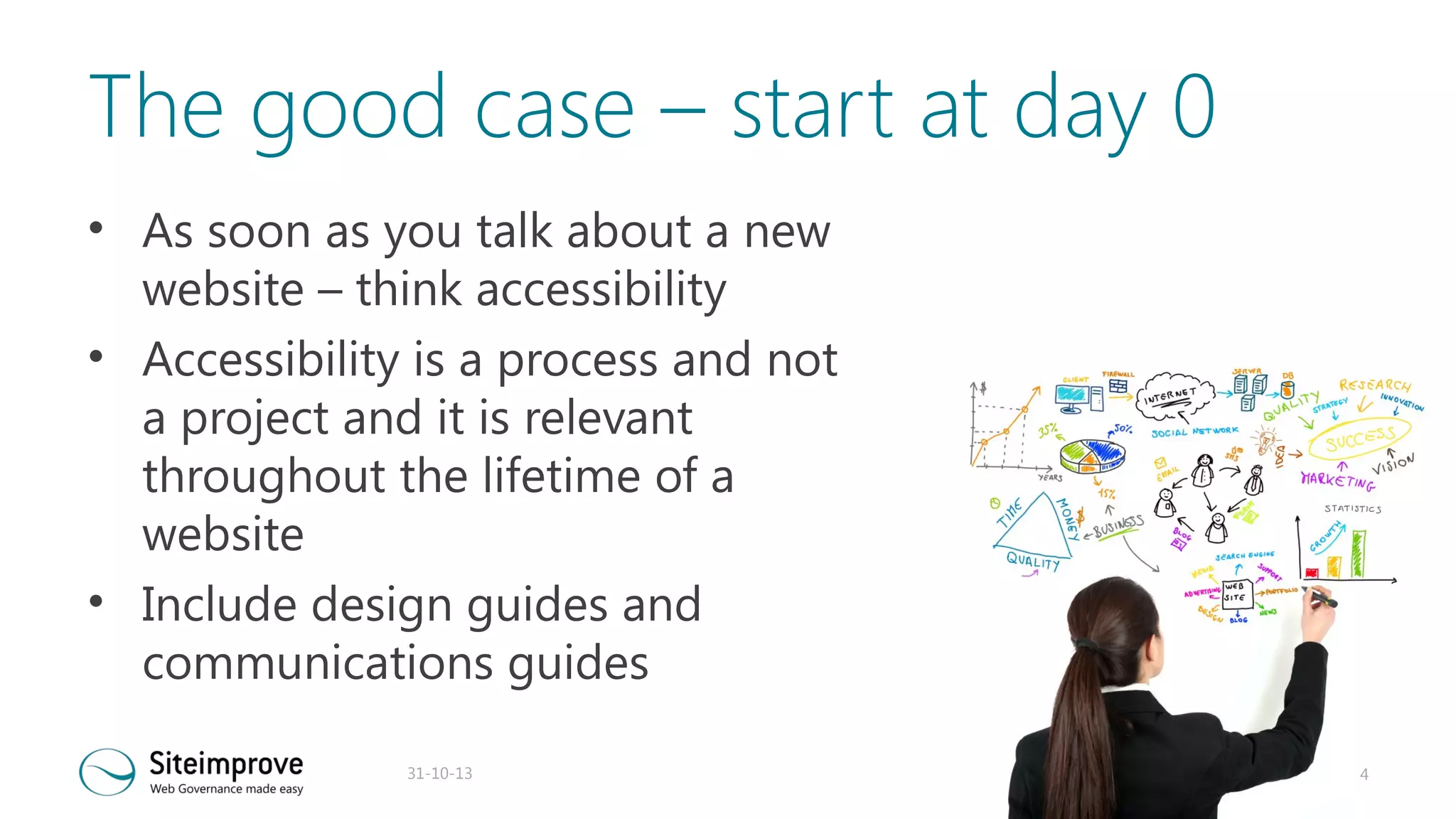
The good case – start at day 0
• As soon as you talk about a new
website – think accessibility
• Accessibility is a process and not
a project and it is relevant
throughout the lifetime of a
website
• Include design guides and
communications guides
31-10-13

4
Make requirements
• When doing requirement
specifications include
accessibility
– State individual WCAG
requirements
– Pick from ATAG and make
requirements

31-10-13

5
Remember CMS editor
•
•
•
•
•
•
•

Handle alternative texts for images
The use of headings
The ability to create accessible data
tables
How to make quotes (<q> and
<blockquote>)
How to enter page titles
How the HTML code created by the
CMS complies with the W3C standards
How to tag change of language in the
text entered
31-10-13

6
Design Phase
•
•
•
•

Navigation
The use of headings
Colours and contrasts
Link texts and descriptions where
the user is to click on, fill out or
choose content on web pages
Have the design looked at with accessibility in mind
31-10-13

7
Development
Most criteria are relevant
•Important that the people developing
the solution have a solid
understanding of accessibility
•Make sure you thoroughly test the
solution at various points throughout
the process
•It's especially important that the
templates for different pages are
tested as early as possible
31-10-13

8
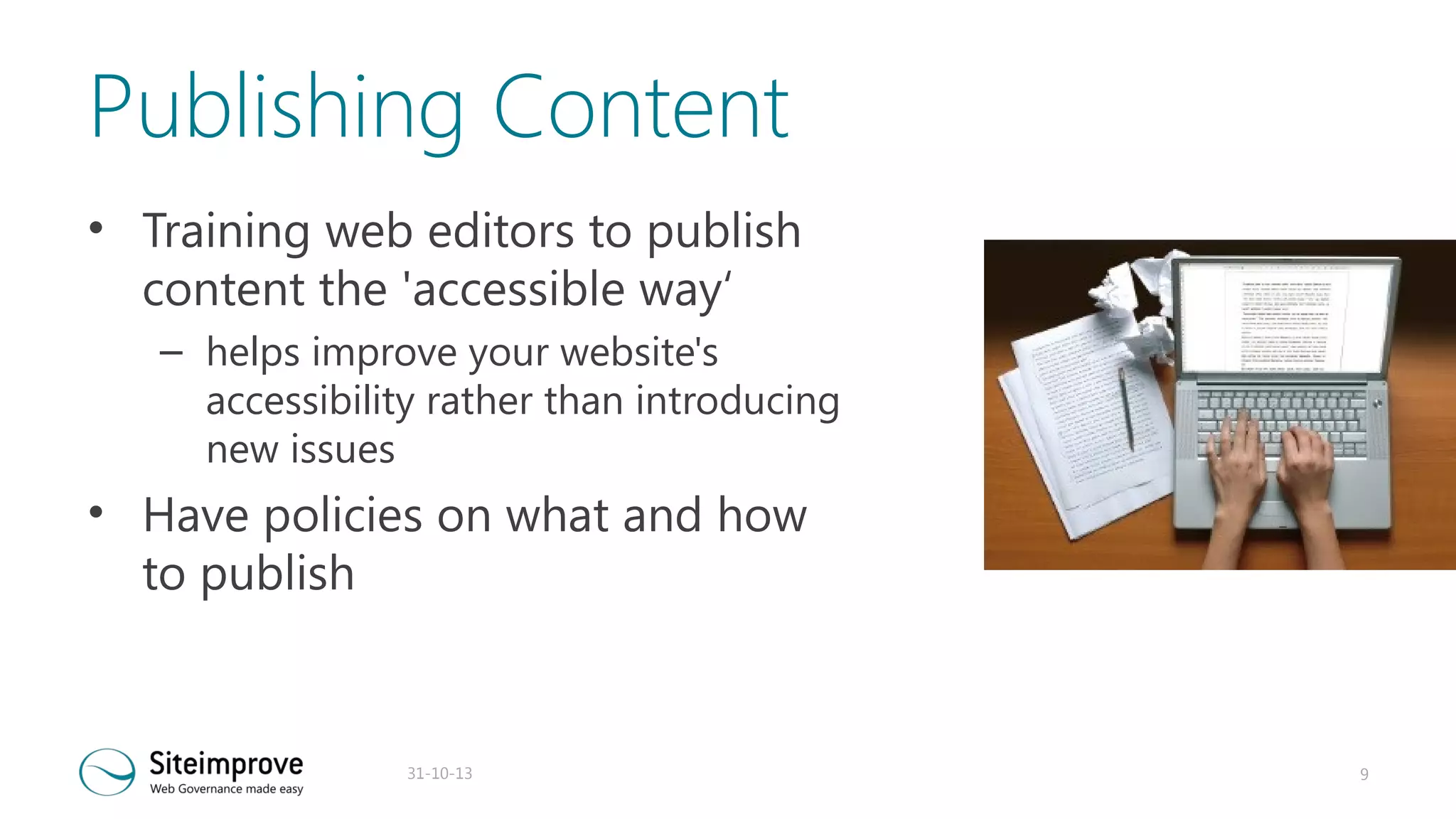
Publishing Content
• Training web editors to publish
content the 'accessible way‘
– helps improve your website's
accessibility rather than introducing
new issues

• Have policies on what and how
to publish

31-10-13

9
Media Players, Forms and Old Content
Areas often being neglected are where
3rd party solutions are used
•Media players
•Forms
•Social Media links
Remember to consider old content
being migrated from the old system
31-10-13

10
Best Practice – public websites in Denmark
National IT and Telecom Agency - April 2011
Interviews and questionnaires with web site
owners and web site providers
•Methods for ensuring accessibility
•Organising the work
•Conditions (knowledge and tools),
•Use of resources and support
31-10-13

11
Focus from management & placing responsibilities
• Important for achieving good
accessibility
• Make sure to have:

– Written accessibility strategy
or
– Prioritise resources for accessibility

• Most important: Place the overall
responsibilities with a person in the
organisation – responsible for
ensuring compliance
31-10-13

12
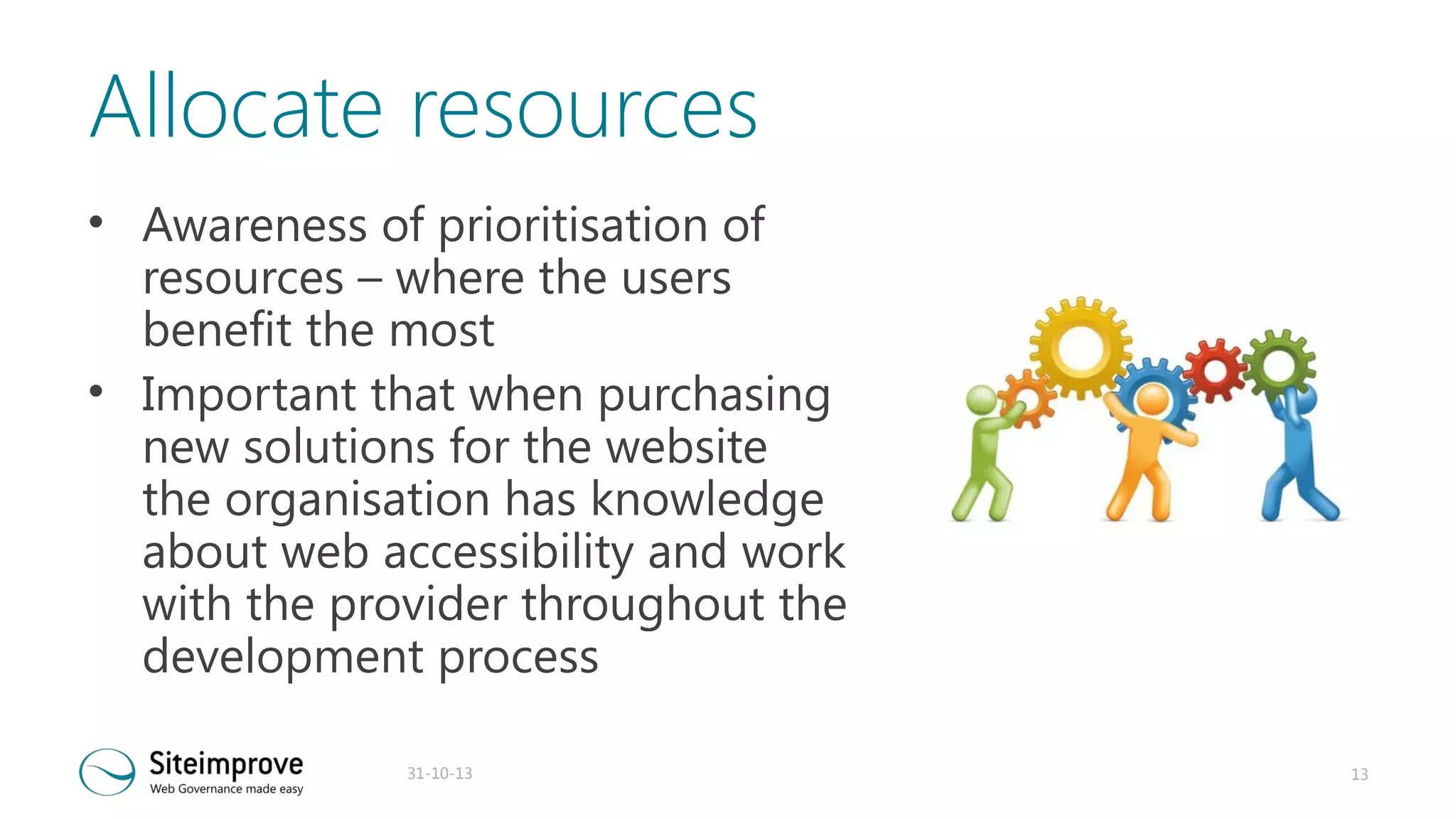
Allocate resources
• Awareness of prioritisation of
resources – where the users
benefit the most
• Important that when purchasing
new solutions for the website
the organisation has knowledge
about web accessibility and work
with the provider throughout the
development process
31-10-13

13
Integrated process
• The web publishing tasks should be
with few staff members – they will have
experience and competence
• Test systematically – as part of a
general tests of quality
• Correct errors
Experience, competence and tests gives a
publishing practice with fewer errors.
31-10-13

14
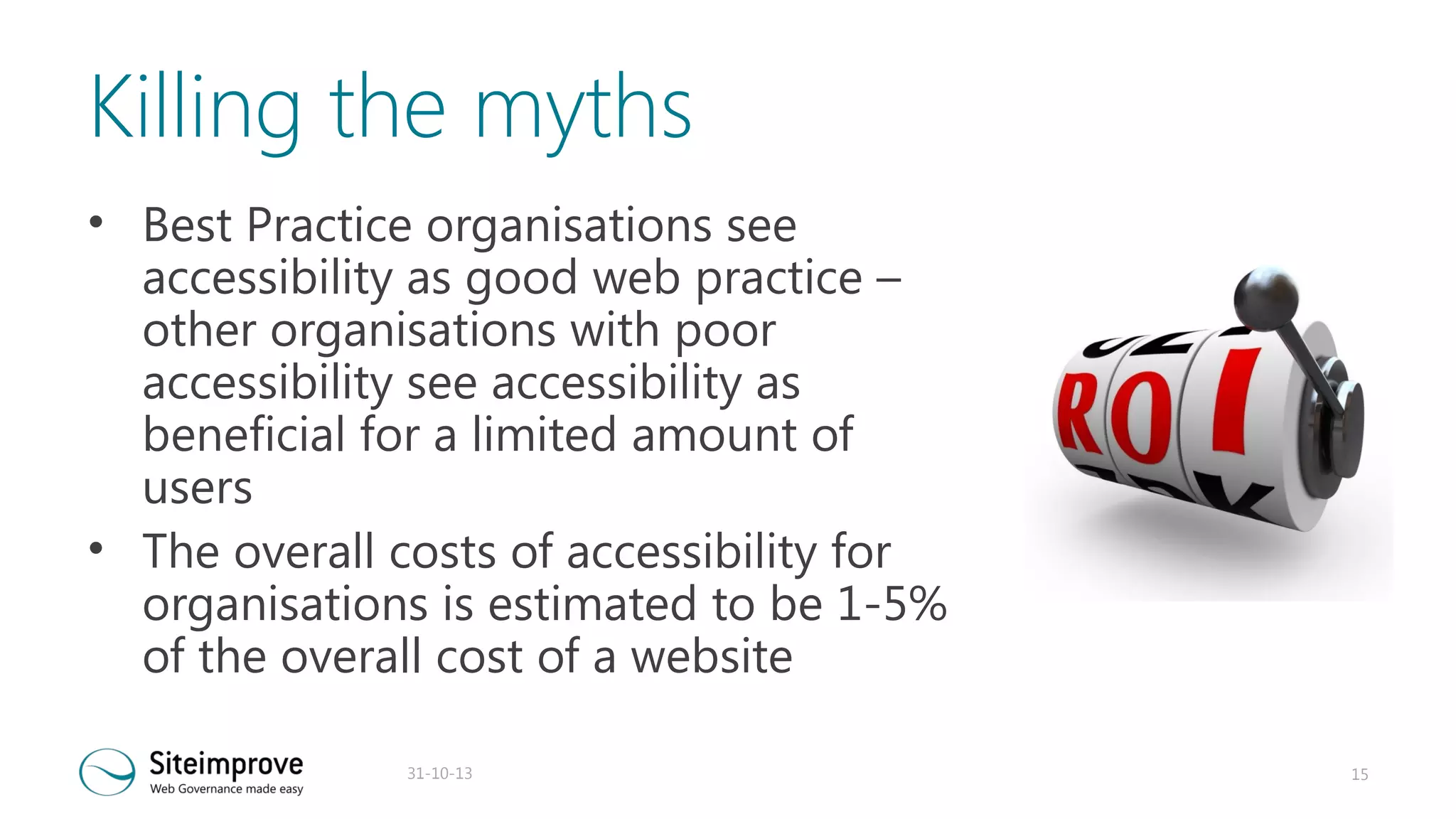
Killing the myths
• Best Practice organisations see
accessibility as good web practice –
other organisations with poor
accessibility see accessibility as
beneficial for a limited amount of
users
• The overall costs of accessibility for
organisations is estimated to be 1-5%
of the overall cost of a website
31-10-13

15
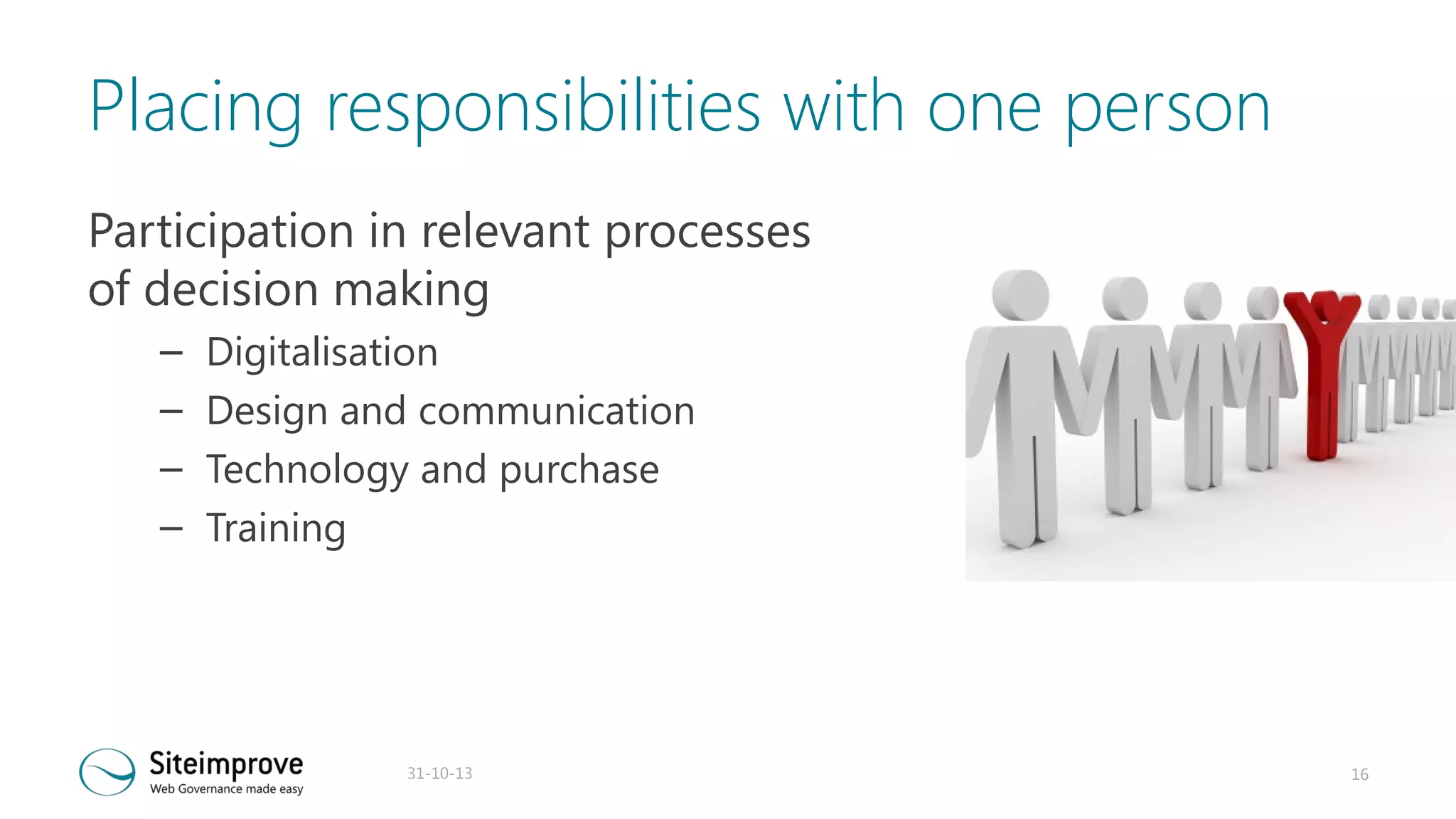
Placing responsibilities with one person
Participation in relevant processes
of decision making
–
–
–
–

Digitalisation
Design and communication
Technology and purchase
Training

31-10-13

16
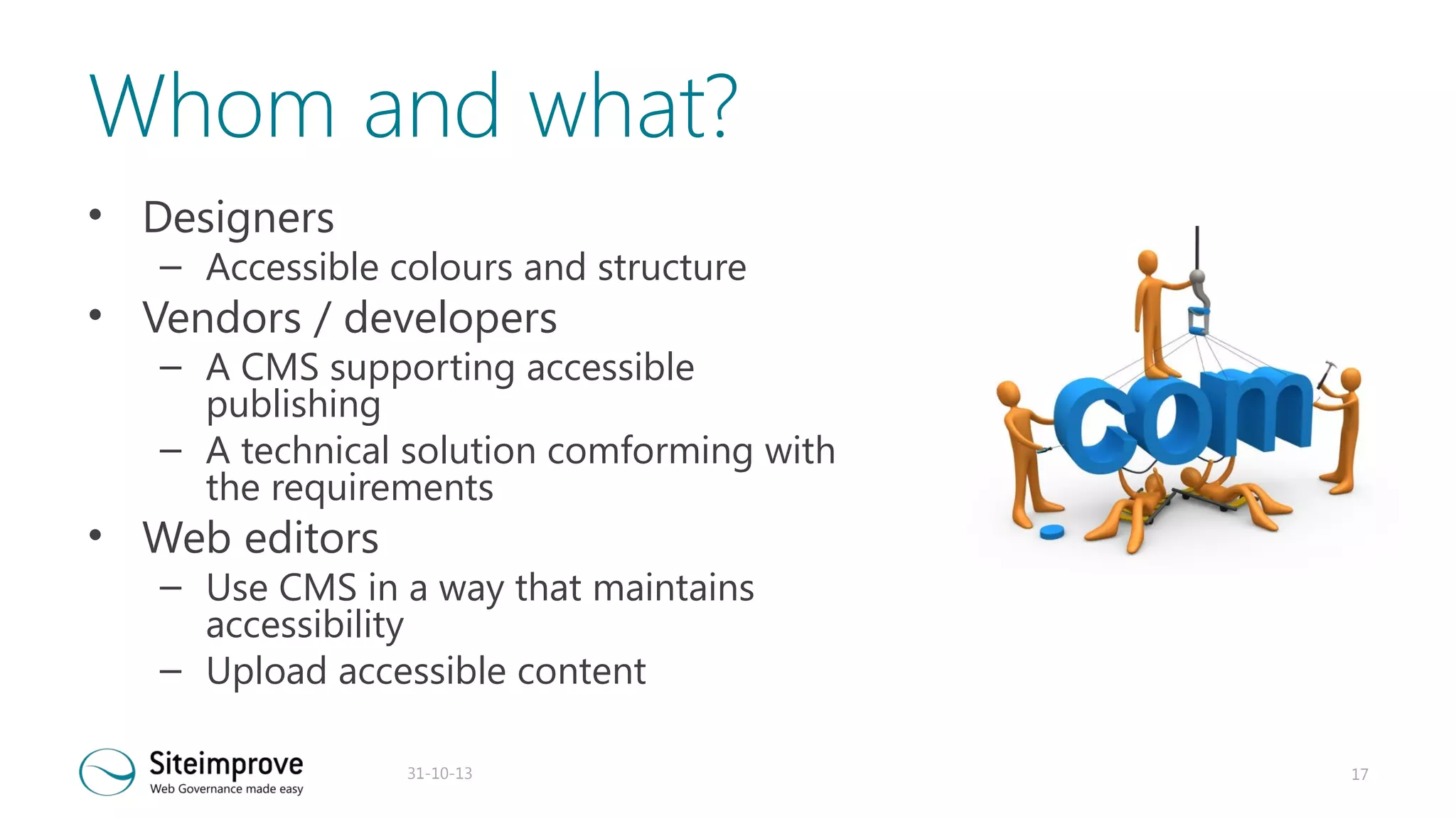
Whom and what?
• Designers

– Accessible colours and structure

• Vendors / developers

– A CMS supporting accessible
publishing
– A technical solution comforming with
the requirements

• Web editors

– Use CMS in a way that maintains
accessibility
– Upload accessible content
31-10-13

17
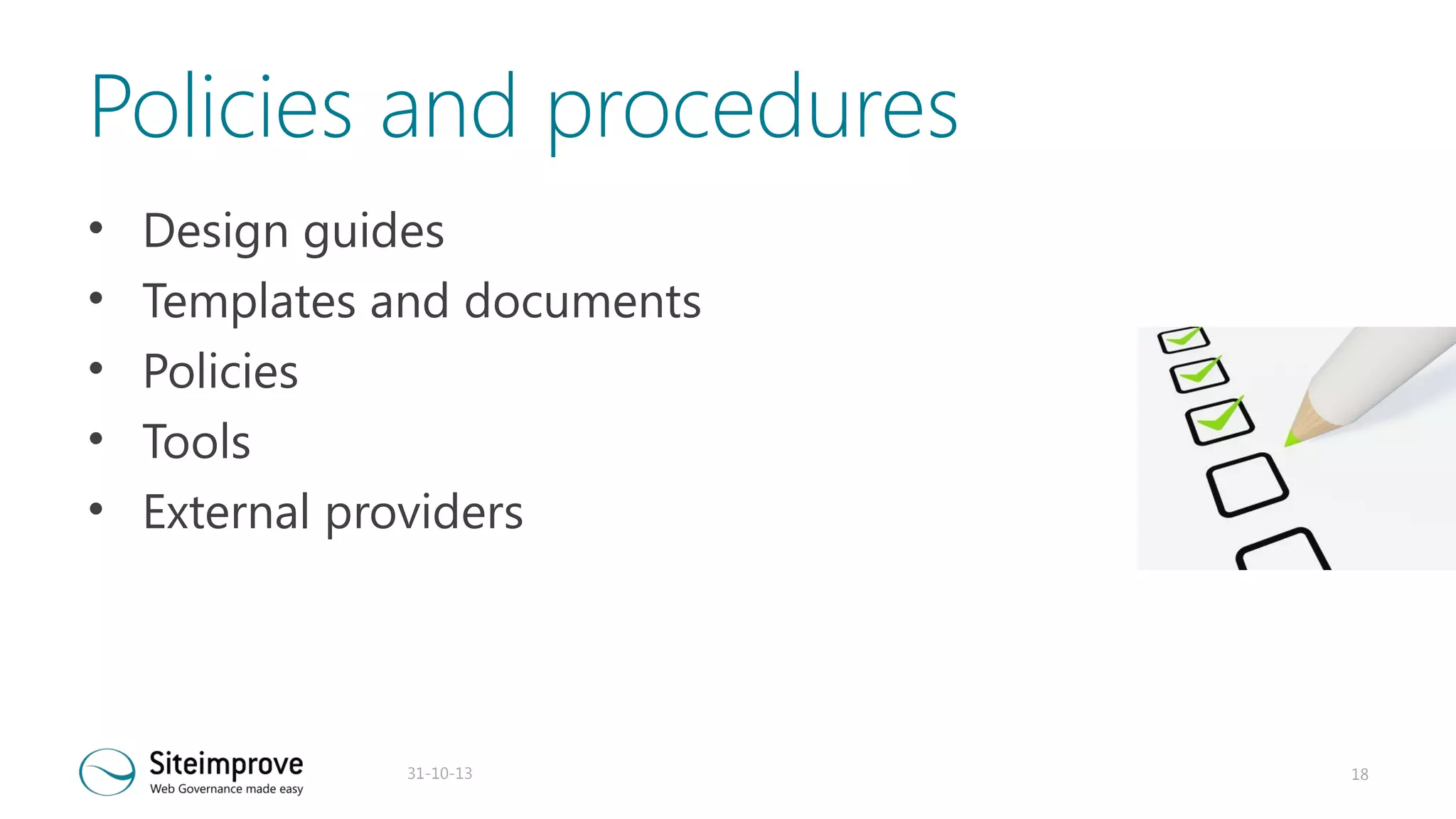
Policies and procedures
•
•
•
•
•

Design guides
Templates and documents
Policies
Tools
External providers

31-10-13

18
Documents
Think ahead:
•Accessible templates
•Create pdf’s in the ‘accessible way’
•Make requirements to providers
Existing archive:
•Fix documents on most visited pages
•Provide help for users on request for
the rest – contact information
31-10-13

19
Accessibility Top 5
Text for everyone
Versatility
Association
Colour for everyone
Robustness

31-10-13

20
Text for everyone
• Make sure all text can be
highlighted and read aloud so that
screen readers and reading tools
can access them
– Turning off style sheets
– Try it with reading tools / test with
real users

• Avoid images of text where
possible. Where not, make sure that
text alternatives are equivalent
31-10-13

21
Text for everyone II
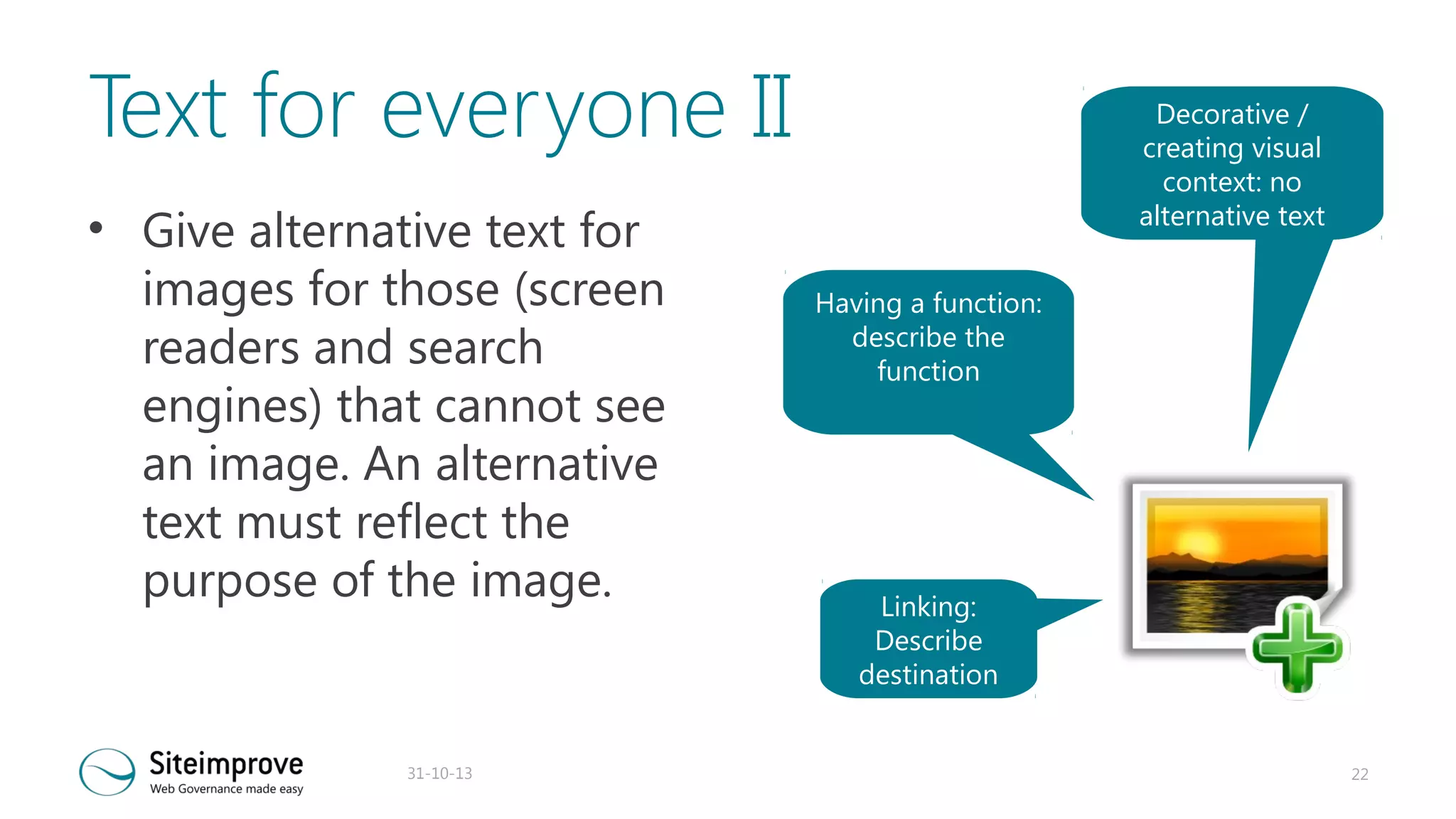
• Give alternative text for
images for those (screen
readers and search
engines) that cannot see
an image. An alternative
text must reflect the
purpose of the image.

31-10-13

Decorative /
creating visual
context: no
alternative text
Having a function:
describe the
function

Linking:
Describe
destination

22
Versatility
Create a website that can be used by
as many as possible, in as many ways
as possible according to user needs.
•All functionality can be used with a
mouse
•All functionality can be used without
a mouse – from the keyboard alone.
•Users can adapt colour and font
according to specific needs.
31-10-13

23
Association
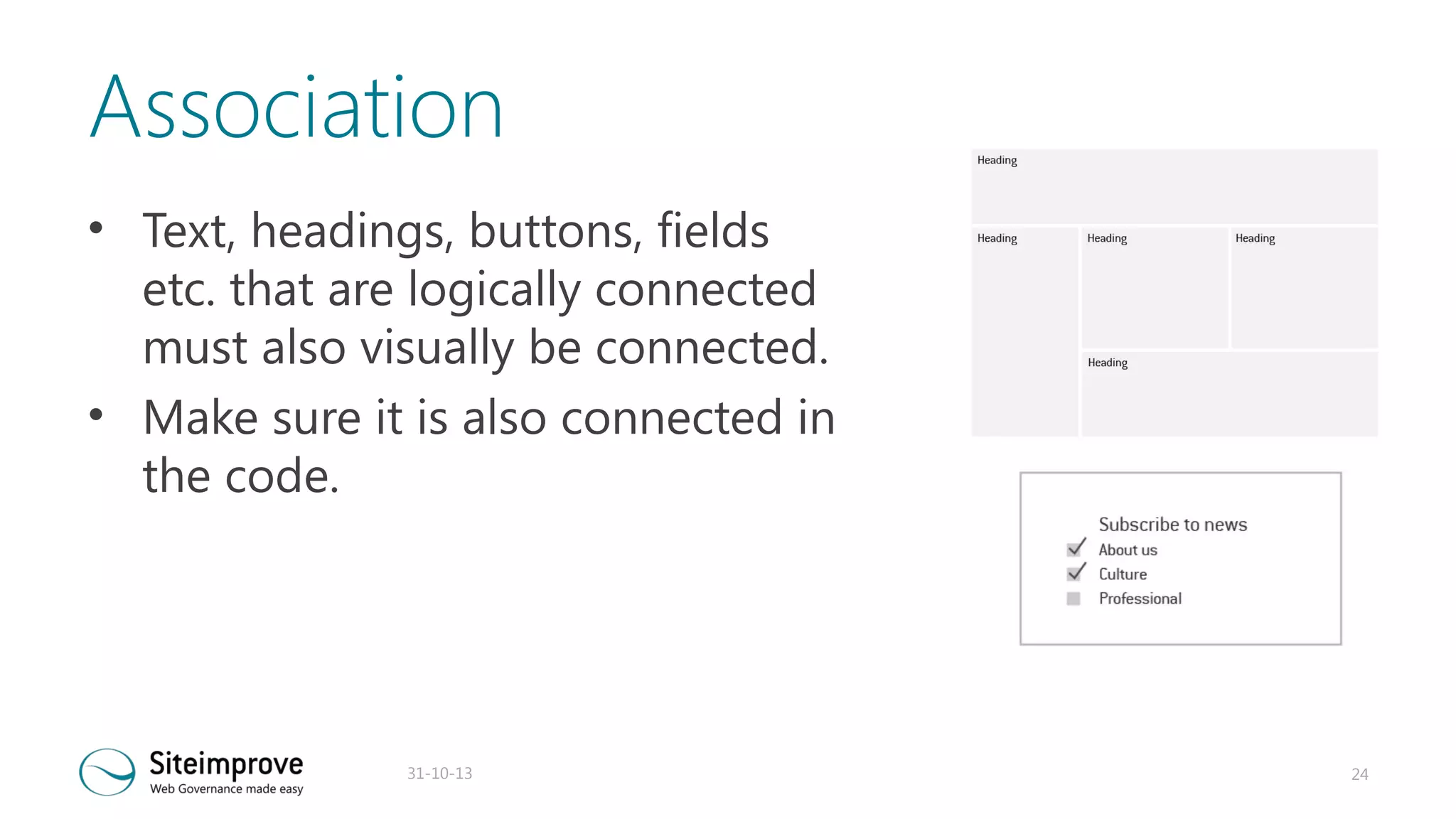
• Text, headings, buttons, fields
etc. that are logically connected
must also visually be connected.
• Make sure it is also connected in
the code.

31-10-13

24
Colours for all
•

•

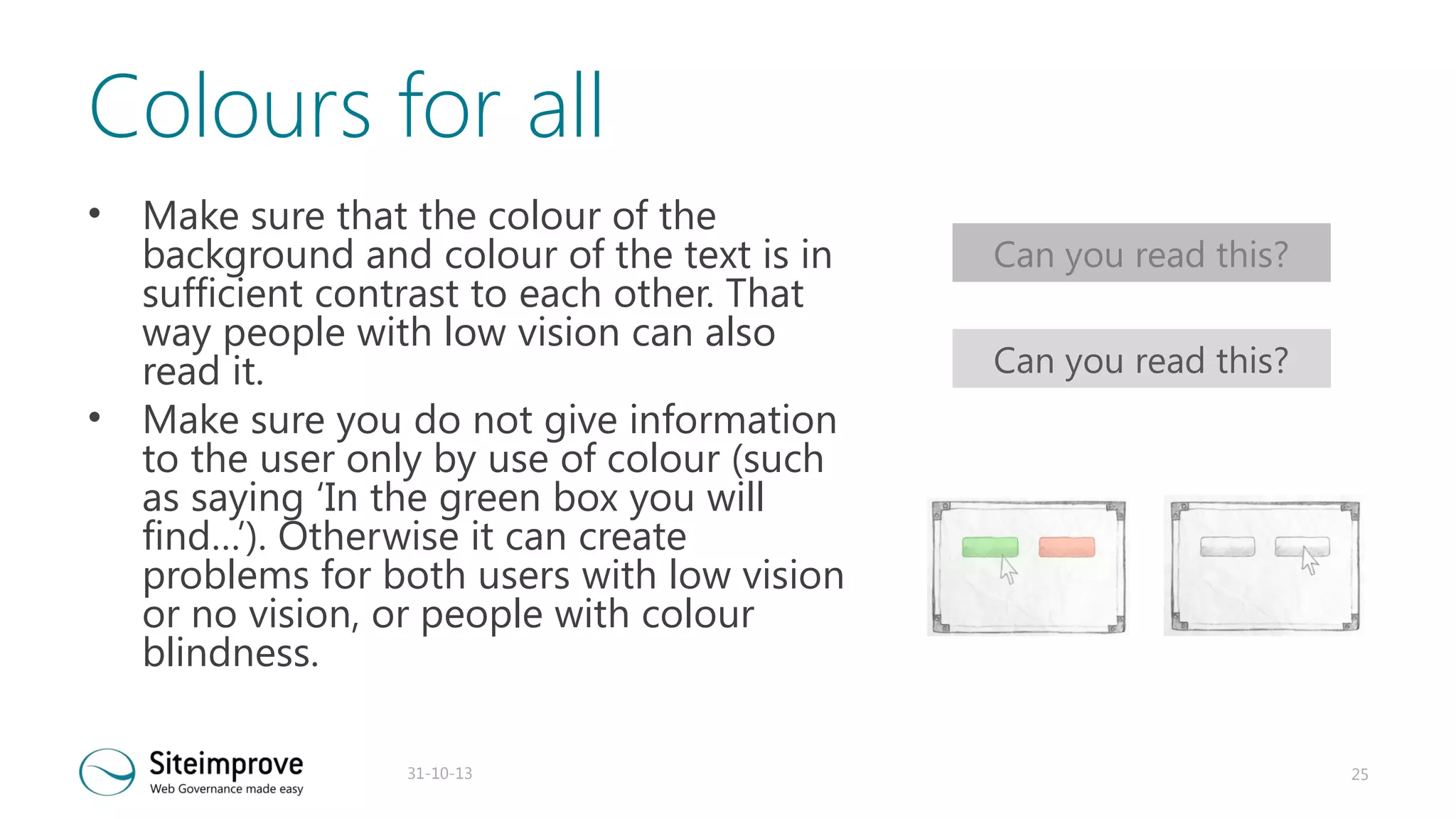
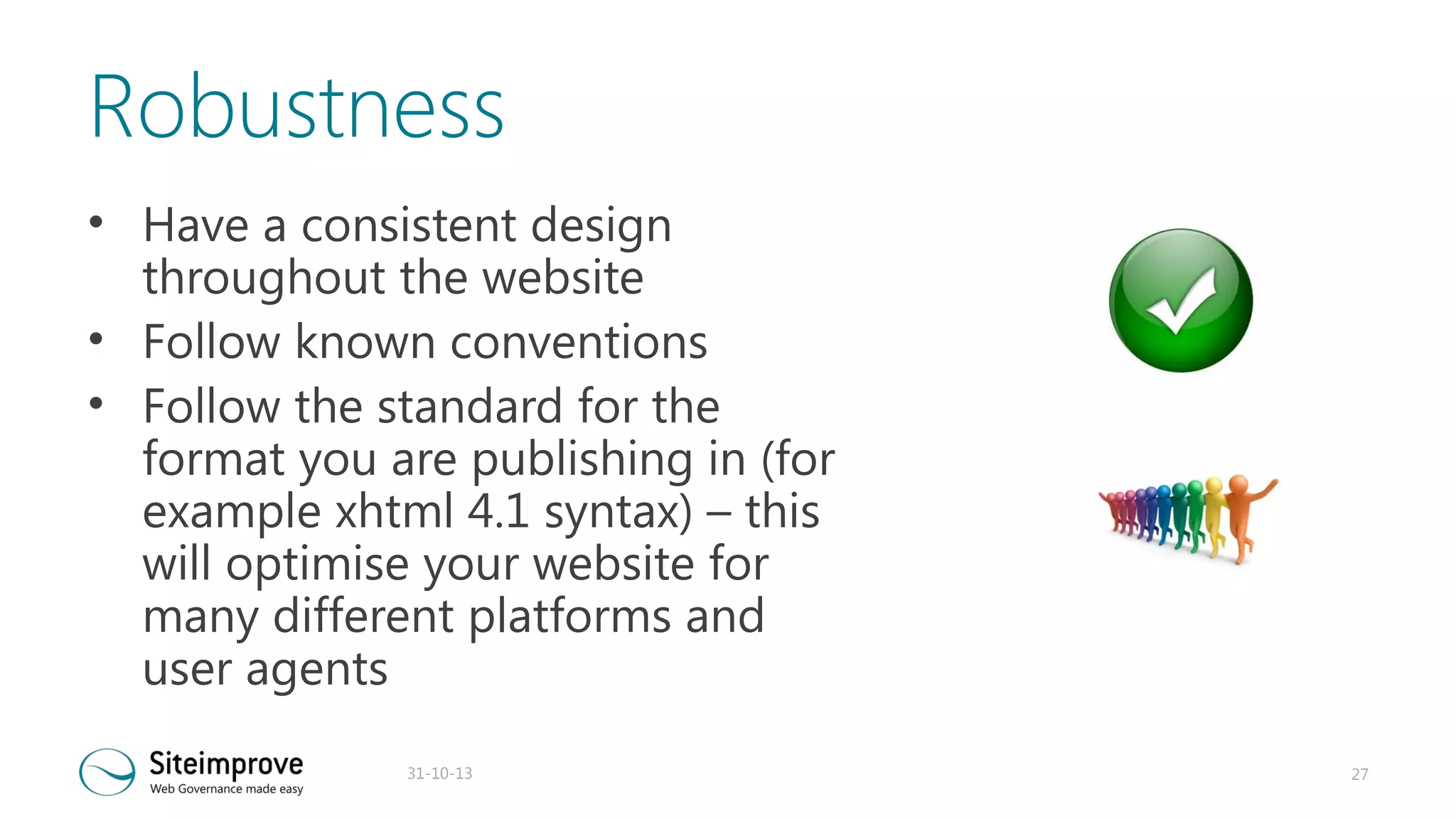
Make sure that the colour of the
background and colour of the text is in
sufficient contrast to each other. That
way people with low vision can also
read it.
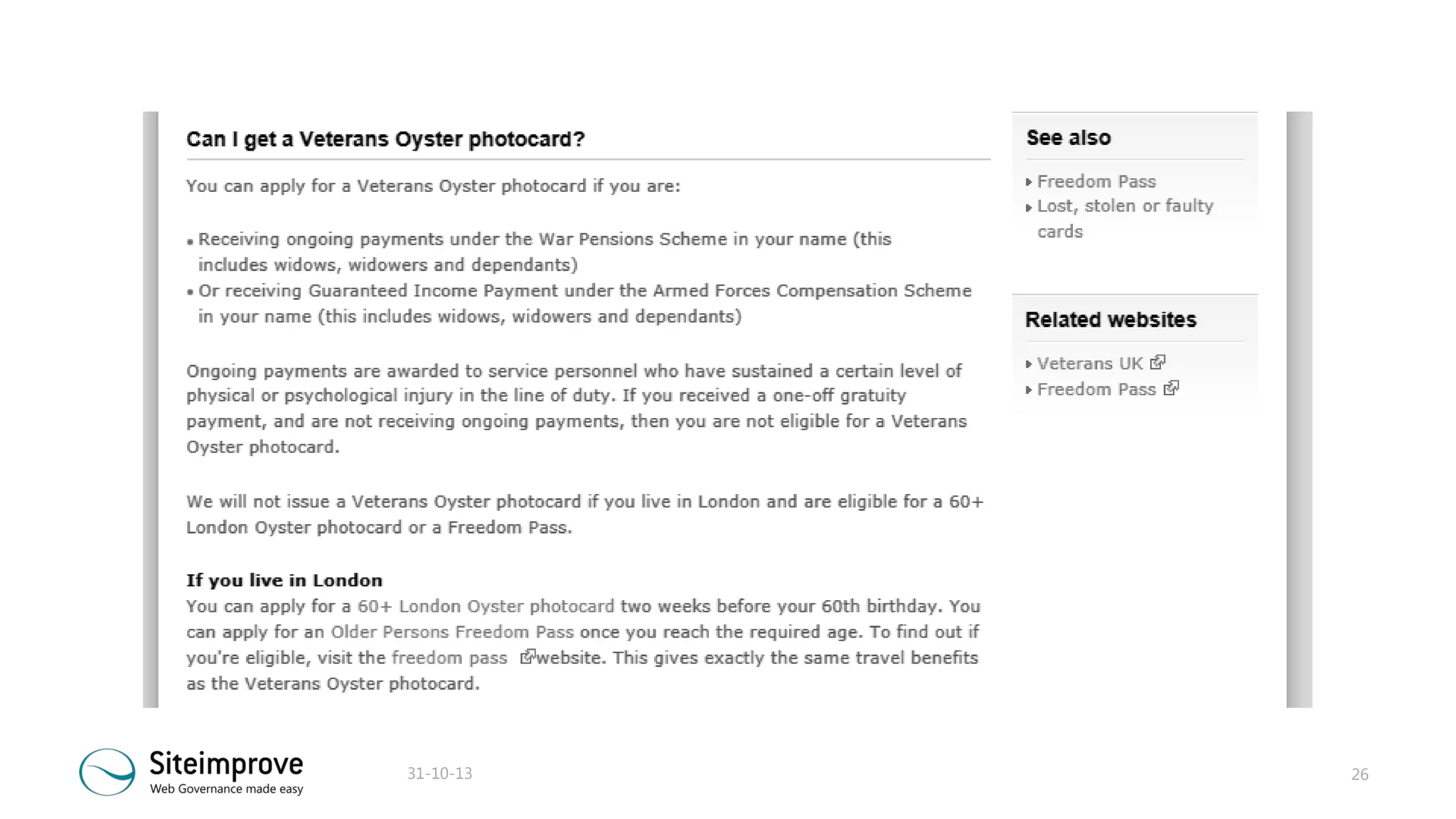
Make sure you do not give information
to the user only by use of colour (such
as saying ‘In the green box you will
find…’). Otherwise it can create
problems for both users with low vision
or no vision, or people with colour
blindness.
31-10-13

Can you read this?
Can you read this?

25
31-10-13

26
Robustness
• Have a consistent design
throughout the website
• Follow known conventions
• Follow the standard for the
format you are publishing in (for
example xhtml 4.1 syntax) – this
will optimise your website for
many different platforms and
user agents
31-10-13

27
Documents
• Structure documents
–
–
–
–
–

Headings
Lists
Tables
Alternative text for images
Columns

• Ensure reading order
• Save as pdf – do not print as pdf
31-10-13

28
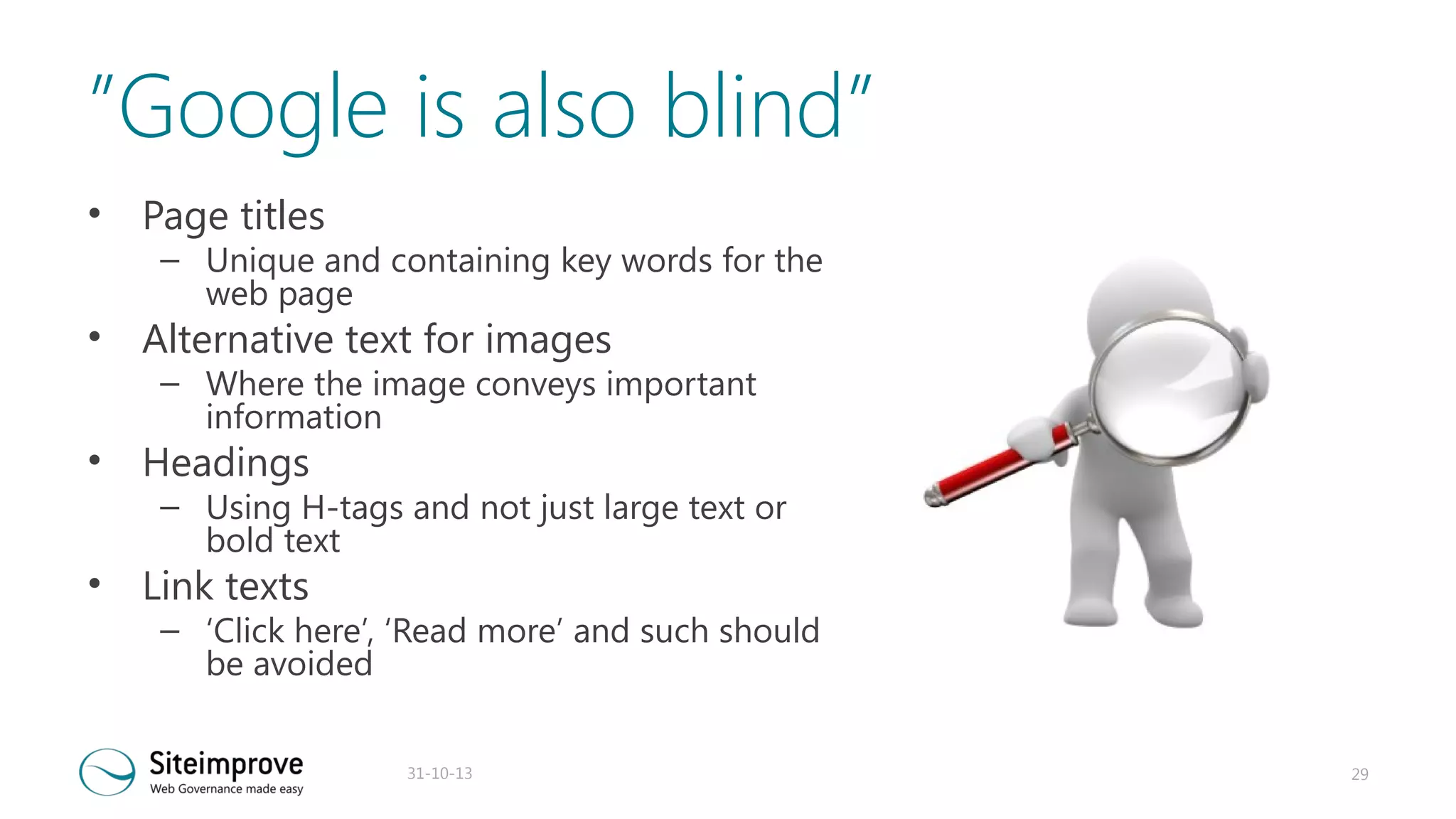
”Google is also blind”
•

Page titles

•

Alternative text for images

•

Headings

•

Link texts

– Unique and containing key words for the
web page
– Where the image conveys important
information
– Using H-tags and not just large text or
bold text
– ‘Click here’, ‘Read more’ and such should
be avoided
31-10-13

29
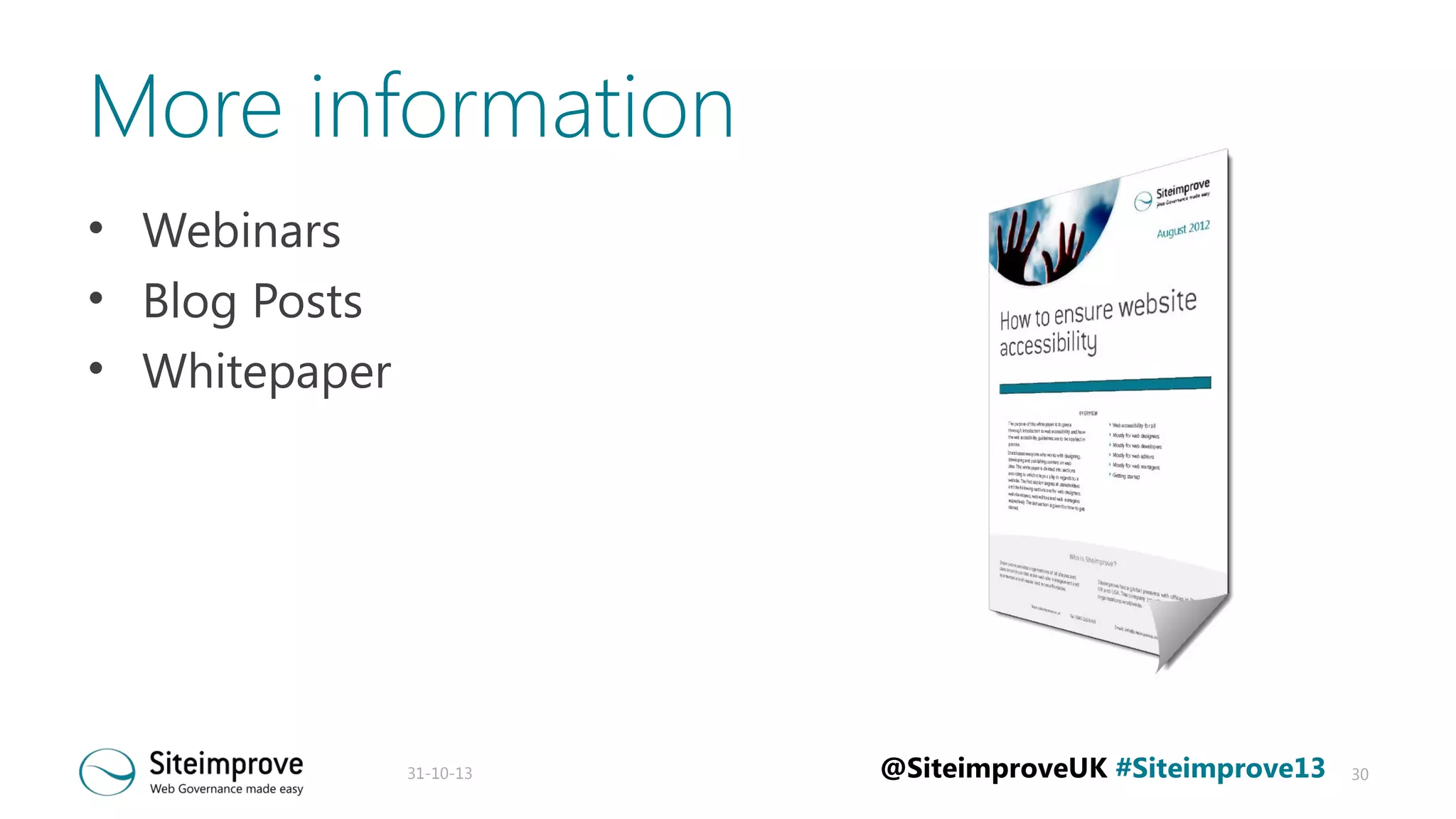
More information
• Webinars
• Blog Posts
• Whitepaper

31-10-13

@SiteimproveUK #Siteimprove13

30

What to consider from day 1 of planning a new website

  • 1.
    Accessibility - what toconsider from day 1 of planning a new website 31-10-13 @SiteimproveUK #Siteimprove13 1
  • 2.
    Why is itimportant? 31-10-13 2
  • 3.
    Accessibility is aright The Equality Act came into force in October 2010 ” A person ... concerned with the provision of a service to the public or a section of the public (for payment or not) must not discriminate against a person requiring the service by not providing the person with the service”. 31-10-13 3
  • 4.
    The good case– start at day 0 • As soon as you talk about a new website – think accessibility • Accessibility is a process and not a project and it is relevant throughout the lifetime of a website • Include design guides and communications guides 31-10-13 4
  • 5.
    Make requirements • Whendoing requirement specifications include accessibility – State individual WCAG requirements – Pick from ATAG and make requirements 31-10-13 5
  • 6.
    Remember CMS editor • • • • • • • Handlealternative texts for images The use of headings The ability to create accessible data tables How to make quotes (<q> and <blockquote>) How to enter page titles How the HTML code created by the CMS complies with the W3C standards How to tag change of language in the text entered 31-10-13 6
  • 7.
    Design Phase • • • • Navigation The useof headings Colours and contrasts Link texts and descriptions where the user is to click on, fill out or choose content on web pages Have the design looked at with accessibility in mind 31-10-13 7
  • 8.
    Development Most criteria arerelevant •Important that the people developing the solution have a solid understanding of accessibility •Make sure you thoroughly test the solution at various points throughout the process •It's especially important that the templates for different pages are tested as early as possible 31-10-13 8
  • 9.
    Publishing Content • Trainingweb editors to publish content the 'accessible way‘ – helps improve your website's accessibility rather than introducing new issues • Have policies on what and how to publish 31-10-13 9
  • 10.
    Media Players, Formsand Old Content Areas often being neglected are where 3rd party solutions are used •Media players •Forms •Social Media links Remember to consider old content being migrated from the old system 31-10-13 10
  • 11.
    Best Practice –public websites in Denmark National IT and Telecom Agency - April 2011 Interviews and questionnaires with web site owners and web site providers •Methods for ensuring accessibility •Organising the work •Conditions (knowledge and tools), •Use of resources and support 31-10-13 11
  • 12.
    Focus from management& placing responsibilities • Important for achieving good accessibility • Make sure to have: – Written accessibility strategy or – Prioritise resources for accessibility • Most important: Place the overall responsibilities with a person in the organisation – responsible for ensuring compliance 31-10-13 12
  • 13.
    Allocate resources • Awarenessof prioritisation of resources – where the users benefit the most • Important that when purchasing new solutions for the website the organisation has knowledge about web accessibility and work with the provider throughout the development process 31-10-13 13
  • 14.
    Integrated process • Theweb publishing tasks should be with few staff members – they will have experience and competence • Test systematically – as part of a general tests of quality • Correct errors Experience, competence and tests gives a publishing practice with fewer errors. 31-10-13 14
  • 15.
    Killing the myths •Best Practice organisations see accessibility as good web practice – other organisations with poor accessibility see accessibility as beneficial for a limited amount of users • The overall costs of accessibility for organisations is estimated to be 1-5% of the overall cost of a website 31-10-13 15
  • 16.
    Placing responsibilities withone person Participation in relevant processes of decision making – – – – Digitalisation Design and communication Technology and purchase Training 31-10-13 16
  • 17.
    Whom and what? •Designers – Accessible colours and structure • Vendors / developers – A CMS supporting accessible publishing – A technical solution comforming with the requirements • Web editors – Use CMS in a way that maintains accessibility – Upload accessible content 31-10-13 17
  • 18.
    Policies and procedures • • • • • Designguides Templates and documents Policies Tools External providers 31-10-13 18
  • 19.
    Documents Think ahead: •Accessible templates •Createpdf’s in the ‘accessible way’ •Make requirements to providers Existing archive: •Fix documents on most visited pages •Provide help for users on request for the rest – contact information 31-10-13 19
  • 20.
    Accessibility Top 5 Textfor everyone Versatility Association Colour for everyone Robustness 31-10-13 20
  • 21.
    Text for everyone •Make sure all text can be highlighted and read aloud so that screen readers and reading tools can access them – Turning off style sheets – Try it with reading tools / test with real users • Avoid images of text where possible. Where not, make sure that text alternatives are equivalent 31-10-13 21
  • 22.
    Text for everyoneII • Give alternative text for images for those (screen readers and search engines) that cannot see an image. An alternative text must reflect the purpose of the image. 31-10-13 Decorative / creating visual context: no alternative text Having a function: describe the function Linking: Describe destination 22
  • 23.
    Versatility Create a websitethat can be used by as many as possible, in as many ways as possible according to user needs. •All functionality can be used with a mouse •All functionality can be used without a mouse – from the keyboard alone. •Users can adapt colour and font according to specific needs. 31-10-13 23
  • 24.
    Association • Text, headings,buttons, fields etc. that are logically connected must also visually be connected. • Make sure it is also connected in the code. 31-10-13 24
  • 25.
    Colours for all • • Makesure that the colour of the background and colour of the text is in sufficient contrast to each other. That way people with low vision can also read it. Make sure you do not give information to the user only by use of colour (such as saying ‘In the green box you will find…’). Otherwise it can create problems for both users with low vision or no vision, or people with colour blindness. 31-10-13 Can you read this? Can you read this? 25
  • 26.
  • 27.
    Robustness • Have aconsistent design throughout the website • Follow known conventions • Follow the standard for the format you are publishing in (for example xhtml 4.1 syntax) – this will optimise your website for many different platforms and user agents 31-10-13 27
  • 28.
    Documents • Structure documents – – – – – Headings Lists Tables Alternativetext for images Columns • Ensure reading order • Save as pdf – do not print as pdf 31-10-13 28
  • 29.
    ”Google is alsoblind” • Page titles • Alternative text for images • Headings • Link texts – Unique and containing key words for the web page – Where the image conveys important information – Using H-tags and not just large text or bold text – ‘Click here’, ‘Read more’ and such should be avoided 31-10-13 29
  • 30.
    More information • Webinars •Blog Posts • Whitepaper 31-10-13 @SiteimproveUK #Siteimprove13 30