Epson Open Platform
Hardware Setup Guide
NPD6407-00 EN
About this Guide
The content of this document
This guide explains how to set up Epson Open Platform on the following compatible multifunction devices.
❏ WF-C878R Series
Using this Guide
Marks and Symbols
!Caution:
Instructions that must be followed carefully to avoid bodily injury.
cImportant:
Instructions that must be observed to avoid damage to your equipment.
Note:
Provides complementary and reference information.
Related Information
& Links to related sections.
Screenshots Used in This Guide
❏ Screenshots used in this guide are currently under development. They may differ from the release version.
❏ Setting items may vary depending on products and setting conditions.
Hardware Setup Guide
About this Guide
2
Contents
About this Guide
The content of this document. . . . . . . . . . . . . . . . . . 2
Using this Guide. . . . . . . . . . . . . . . . . . . . . . . . . . . 2
Marks and Symbols. . . . . . . . . . . . . . . . . . . . . . . 2
Screenshots Used in This Guide. . . . . . . . . . . . . . 2
Introduction
Setup procedure. . . . . . . . . . . . . . . . . . . . . . . . . . . .4
1. Preparing for system configuration
Authentication device and authentication card. . . . . 5
Computer with an Internet connection. . . . . . . . . . . 5
Product key. . . . . . . . . . . . . . . . . . . . . . . . . . . . . . .5
Acquiring the product key. . . . . . . . . . . . . . . . . . 5
2. Setting Up Epson Open Platform
Activating Epson Open Platform. . . . . . . . . . . . . . 10
Validating of Epson Open Platform. . . . . . . . . . . . .11
3. Authentication Device
Mounting the Authentication Device Table. . . . . . . 12
Connecting the authentication device. . . . . . . . . . . 13
Operation check. . . . . . . . . . . . . . . . . . . . . . . . . . 15
Solving Problems
Cannot read the authentication card. . . . . . . . . . . . 16
Read confirmation. . . . . . . . . . . . . . . . . . . . . . . 16
Cannot open Web Config. . . . . . . . . . . . . . . . . . . . 16
Cannot activate the Epson Open Platform. . . . . . . .16
Appendix
Trademarks. . . . . . . . . . . . . . . . . . . . . . . . . . . . . . 18
Caution. . . . . . . . . . . . . . . . . . . . . . . . . . . . . . . . .18
Hardware Setup Guide
Contents
3
Introduction
Epson Open Platform unlocks the potential of Epson business Multi-Function Devices (MFDs), enabling them to
be integrated into server solutions providing customized user interface and control usage of the device based on
user authentication.
This guide explains how to set up the Epson Open Platform on a compatible device.
Setup procedure
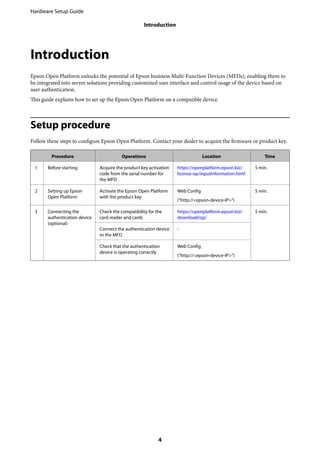
Follow these steps to configure Epson Open Platform. Contact your dealer to acquire the firmware or product key.
Procedure Operations Location Time
1 Before starting Acquire the product key activation
code from the serial number for
the MFD
https://openplatform.epson.biz/
license-op/inputInformation.html
5 min.
2 Setting up Epson
Open Platform
Activate the Epson Open Platform
with the product key
Web Config
("http://<epson-device-IP>")
5 min.
3 Connecting the
authentication device
(optional)
Check the compatibility for the
card reader and cards
https://openplatform.epson.biz/
download/op/
5 min.
Connect the authentication device
to the MFD
-
Check that the authentication
device is operating correctly
Web Config
("http://<epson-device-IP>")
Hardware Setup Guide
Introduction
4
1. Preparing for system configuration
You need to prepare the hardware, information, and software necessary to set up Epson Open Platform.
Authentication device and authentication card
See the following website for a list of compatible authentication devices and cards.
https://openplatform.epson.biz/download/op/
If you cannot find the device you want to use in the list, contact your dealer.
Computer with an Internet connection
You need an Internet connection to download the firmware and acquire a product key.
Product key
This is the product key to activate Epson Open Platform. To acquire this product key, you need the serial numbers
of the respective MFDs. You can find the serial number on the product’s Guarantee Form, or on the label on the
rear or side of the product.
Note:
You may need to acquire the product key from your dealer. Contact your dealer for more details.
Acquiring the product key
You can acquire individual keys by using the MFD’s serial number, or acquire in bulk by using a text file.
Note:
When acquiring a product key that has already been issued by entering a serial number, the same product key is issued.
Acquiring individually
1. Access the following website from the system administrator’s computer.
https://openplatform.epson.biz/license-op/inputInformation.html
Hardware Setup Guide
1. Preparing for system configuration
5
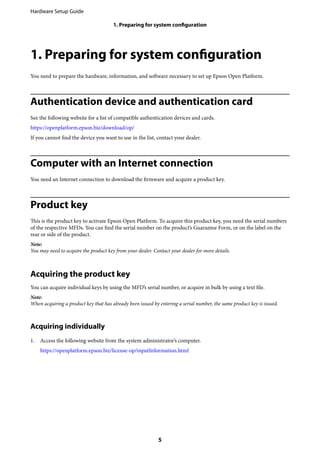
2. Select Enter manually (you can only enter one serial number) from Serial number (required), and then
enter the serial number of the MFD.
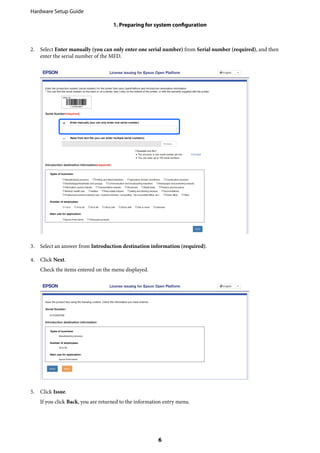
3. Select an answer from Introduction destination information (required).
4. Click Next.
Check the items entered on the menu displayed.
5. Click Issue.
If you click Back, you are returned to the information entry menu.
Hardware Setup Guide
1. Preparing for system configuration
6
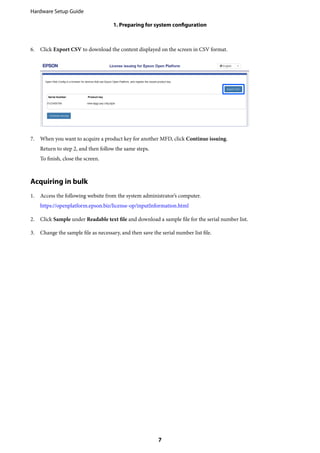
6. Click Export CSV to download the content displayed on the screen in CSV format.
7. When you want to acquire a product key for another MFD, click Continue issuing.
Return to step 2, and then follow the same steps.
To finish, close the screen.
Acquiring in bulk
1. Access the following website from the system administrator’s computer.
https://openplatform.epson.biz/license-op/inputInformation.html
2. Click Sample under Readable text file and download a sample file for the serial number list.
3. Change the sample file as necessary, and then save the serial number list file.
Hardware Setup Guide
1. Preparing for system configuration
7
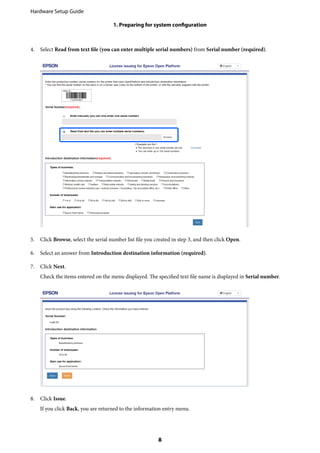
4. Select Read from text file (you can enter multiple serial numbers) from Serial number (required).
5. Click Browse, select the serial number list file you created in step 3, and then click Open.
6. Select an answer from Introduction destination information (required).
7. Click Next.
Check the items entered on the menu displayed. The specified text file name is displayed in Serial number.
8. Click Issue.
If you click Back, you are returned to the information entry menu.
Hardware Setup Guide
1. Preparing for system configuration
8
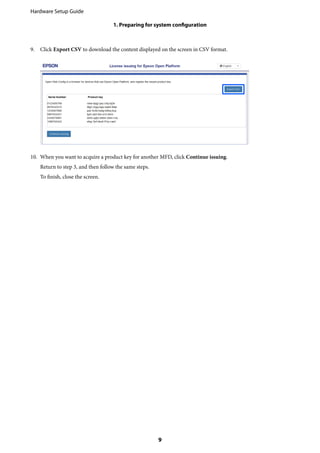
9. Click Export CSV to download the content displayed on the screen in CSV format.
10. When you want to acquire a product key for another MFD, click Continue issuing.
Return to step 3, and then follow the same steps.
To finish, close the screen.
Hardware Setup Guide
1. Preparing for system configuration
9
2. Setting Up Epson Open Platform
You need to update and activate the firmware for the MFD to configure Epson Open Platform.
Activating Epson Open Platform
You can activate Epson Open Platform from Web Config on the MFD.
1. Use one of the following methods to connect the MFD to the system administrator’s computer.
Connect by wired or wireless LAN
Connect directly using a LAN cable
If you want to connect using a wired connection or wireless LAN, connect to the network in the same segment
as the setup computer.
2. Turn on the MFD.
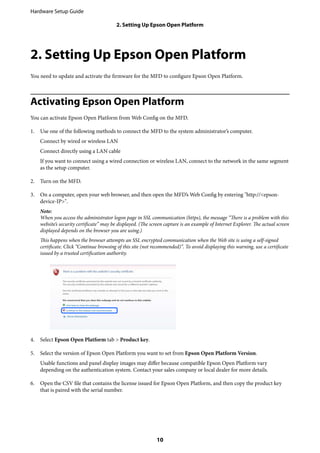
3. On a computer, open your web browser, and then open the MFD’s Web Config by entering "http://<epson-
device-IP>".
Note:
When you access the administrator logon page in SSL communication (https), the message “There is a problem with this
website’s security certificate” may be displayed. (The screen capture is an example of Internet Explorer. The actual screen
displayed depends on the browser you are using.)
This happens when the browser attempts an SSL encrypted communication when the Web site is using a self-signed
certificate. Click “Continue browsing of this site (not recommended)”. To avoid displaying this warning, use a certificate
issued by a trusted certification authority.
4. Select Epson Open Platform tab > Product key.
5. Select the version of Epson Open Platform you want to set from Epson Open Platform Version.
Usable functions and panel display images may differ because compatible Epson Open Platform vary
depending on the authentication system. Contact your sales company or local dealer for more details.
6. Open the CSV file that contains the license issued for Epson Open Platform, and then copy the product key
that is paired with the serial number.
Hardware Setup Guide
2. Setting Up Epson Open Platform
10
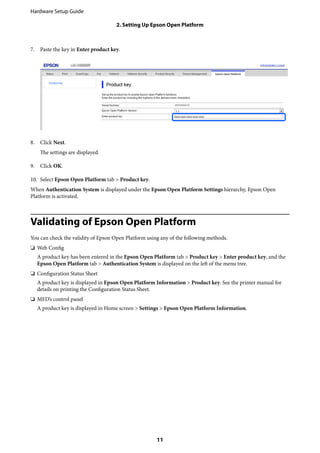
7. Paste the key in Enter product key.
8. Click Next.
The settings are displayed.
9. Click OK.
10. Select Epson Open Platform tab > Product key.
When Authentication System is displayed under the Epson Open Platform Settings hierarchy, Epson Open
Platform is activated.
Validating of Epson Open Platform
You can check the validity of Epson Open Platform using any of the following methods.
❏ Web Config
A product key has been entered in the Epson Open Platform tab > Product key > Enter product key, and the
Epson Open Platform tab > Authentication System is displayed on the left of the menu tree.
❏ Configuration Status Sheet
A product key is displayed in Epson Open Platform Information > Product key. See the printer manual for
details on printing the Configuration Status Sheet.
❏ MFD’s control panel
A product key is displayed in Home screen > Settings > Epson Open Platform Information.
Hardware Setup Guide
2. Setting Up Epson Open Platform
11
3. Authentication Device
If you want to use the authentication device in the authentication system, connect the authentication device with a
USB cable and check that it works.
Mounting the Authentication Device Table
You can attach a stand to the MFD to place the authentication device (optional).
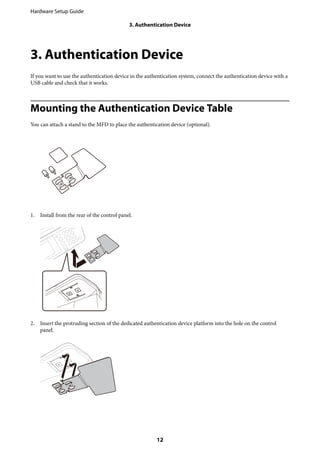
1. Install from the rear of the control panel.
2. Insert the protruding section of the dedicated authentication device platform into the hole on the control
panel.
Hardware Setup Guide
3. Authentication Device
12
3. Secure it with two screws.
4. Attach the enclosed double-sided tape on top of the dedicated authentication device stand.
Peel off the other side of the seal when installing the authentication device.
Connecting the authentication device
You can connect the authentication device by using a USB cable.
!Caution:
❏ Use a product with the same model number as the authentication device that was used to confirm the
authentication card for the authentication device connected to the MFD.
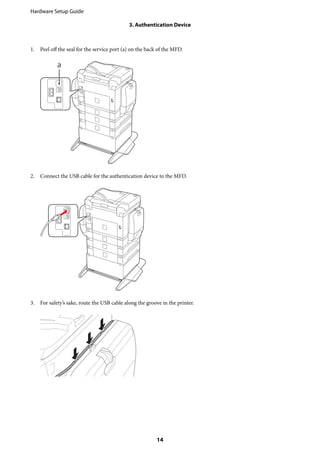
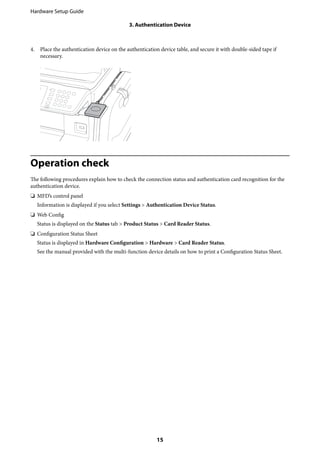
❏ Make sure you connect the authentication device to the service port on the back of the MFD. It will not work if it
is connected to a different USB port.
Hardware Setup Guide
3. Authentication Device
13
1. Peel off the seal for the service port (a) on the back of the MFD.
2. Connect the USB cable for the authentication device to the MFD.
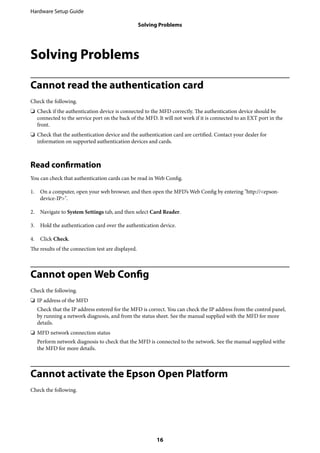
3. For safety’s sake, route the USB cable along the groove in the printer.
Hardware Setup Guide
3. Authentication Device
14
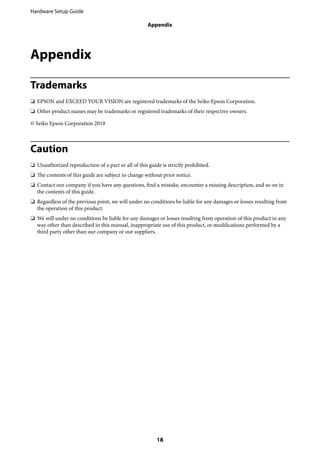
4. Place the authentication device on the authentication device table, and secure it with double-sided tape if
necessary.
Operation check
The following procedures explain how to check the connection status and authentication card recognition for the
authentication device.
❏ MFD’s control panel
Information is displayed if you select Settings > Authentication Device Status.
❏ Web Config
Status is displayed on the Status tab > Product Status > Card Reader Status.
❏ Configuration Status Sheet
Status is displayed in Hardware Configuration > Hardware > Card Reader Status.
See the manual provided with the multi-function device details on how to print a Configuration Status Sheet.
Hardware Setup Guide
3. Authentication Device
15
Solving Problems
Cannot read the authentication card
Check the following.
❏ Check if the authentication device is connected to the MFD correctly. The authentication device should be
connected to the service port on the back of the MFD. It will not work if it is connected to an EXT port in the
front.
❏ Check that the authentication device and the authentication card are certified. Contact your dealer for
information on supported authentication devices and cards.
Read confirmation
You can check that authentication cards can be read in Web Config.
1. On a computer, open your web browser, and then open the MFD’s Web Config by entering "http://<epson-
device-IP>".
2. Navigate to System Settings tab, and then select Card Reader.
3. Hold the authentication card over the authentication device.
4. Click Check.
The results of the connection test are displayed.
Cannot open Web Config
Check the following.
❏ IP address of the MFD
Check that the IP address entered for the MFD is correct. You can check the IP address from the control panel,
by running a network diagnosis, and from the status sheet. See the manual supplied with the MFD for more
details.
❏ MFD network connection status
Perform network diagnosis to check that the MFD is connected to the network. See the manual supplied withe
the MFD for more details.
Cannot activate the Epson Open Platform
Check the following.
Hardware Setup Guide
Solving Problems
16
❏ Make sure you entered the correct product key in the Web Config. The product key is paired with the serial
number. Access the content download site and acquire the product key if you do not know how to pair the
product key. The same product key is issued to one serial number.
https://openplatform.epson.biz/license-op/inputInformation.html
Hardware Setup Guide
Solving Problems
17
Appendix
Trademarks
❏ EPSON and EXCEED YOUR VISION are registered trademarks of the Seiko Epson Corporation.
❏ Other product names may be trademarks or registered trademarks of their respective owners.
© Seiko Epson Corporation 2019
Caution
❏ Unauthorized reproduction of a part or all of this guide is strictly prohibited.
❏ The contents of this guide are subject to change without prior notice.
❏ Contact our company if you have any questions, find a mistake, encounter a missing description, and so on in
the contents of this guide.
❏ Regardless of the previous point, we will under no conditions be liable for any damages or losses resulting from
the operation of this product.
❏ We will under no conditions be liable for any damages or losses resulting from operation of this product in any
way other than described in this manual, inappropriate use of this product, or modifications performed by a
third party other than our company or our suppliers.
Hardware Setup Guide
Appendix
18

Wfc878r eop hwsg_npd6407-00_en

  • 1.
    Epson Open Platform HardwareSetup Guide NPD6407-00 EN
  • 2.
    About this Guide Thecontent of this document This guide explains how to set up Epson Open Platform on the following compatible multifunction devices. ❏ WF-C878R Series Using this Guide Marks and Symbols !Caution: Instructions that must be followed carefully to avoid bodily injury. cImportant: Instructions that must be observed to avoid damage to your equipment. Note: Provides complementary and reference information. Related Information & Links to related sections. Screenshots Used in This Guide ❏ Screenshots used in this guide are currently under development. They may differ from the release version. ❏ Setting items may vary depending on products and setting conditions. Hardware Setup Guide About this Guide 2
  • 3.
    Contents About this Guide Thecontent of this document. . . . . . . . . . . . . . . . . . 2 Using this Guide. . . . . . . . . . . . . . . . . . . . . . . . . . . 2 Marks and Symbols. . . . . . . . . . . . . . . . . . . . . . . 2 Screenshots Used in This Guide. . . . . . . . . . . . . . 2 Introduction Setup procedure. . . . . . . . . . . . . . . . . . . . . . . . . . . .4 1. Preparing for system configuration Authentication device and authentication card. . . . . 5 Computer with an Internet connection. . . . . . . . . . . 5 Product key. . . . . . . . . . . . . . . . . . . . . . . . . . . . . . .5 Acquiring the product key. . . . . . . . . . . . . . . . . . 5 2. Setting Up Epson Open Platform Activating Epson Open Platform. . . . . . . . . . . . . . 10 Validating of Epson Open Platform. . . . . . . . . . . . .11 3. Authentication Device Mounting the Authentication Device Table. . . . . . . 12 Connecting the authentication device. . . . . . . . . . . 13 Operation check. . . . . . . . . . . . . . . . . . . . . . . . . . 15 Solving Problems Cannot read the authentication card. . . . . . . . . . . . 16 Read confirmation. . . . . . . . . . . . . . . . . . . . . . . 16 Cannot open Web Config. . . . . . . . . . . . . . . . . . . . 16 Cannot activate the Epson Open Platform. . . . . . . .16 Appendix Trademarks. . . . . . . . . . . . . . . . . . . . . . . . . . . . . . 18 Caution. . . . . . . . . . . . . . . . . . . . . . . . . . . . . . . . .18 Hardware Setup Guide Contents 3
  • 4.
    Introduction Epson Open Platformunlocks the potential of Epson business Multi-Function Devices (MFDs), enabling them to be integrated into server solutions providing customized user interface and control usage of the device based on user authentication. This guide explains how to set up the Epson Open Platform on a compatible device. Setup procedure Follow these steps to configure Epson Open Platform. Contact your dealer to acquire the firmware or product key. Procedure Operations Location Time 1 Before starting Acquire the product key activation code from the serial number for the MFD https://openplatform.epson.biz/ license-op/inputInformation.html 5 min. 2 Setting up Epson Open Platform Activate the Epson Open Platform with the product key Web Config ("http://<epson-device-IP>") 5 min. 3 Connecting the authentication device (optional) Check the compatibility for the card reader and cards https://openplatform.epson.biz/ download/op/ 5 min. Connect the authentication device to the MFD - Check that the authentication device is operating correctly Web Config ("http://<epson-device-IP>") Hardware Setup Guide Introduction 4
  • 5.
    1. Preparing forsystem configuration You need to prepare the hardware, information, and software necessary to set up Epson Open Platform. Authentication device and authentication card See the following website for a list of compatible authentication devices and cards. https://openplatform.epson.biz/download/op/ If you cannot find the device you want to use in the list, contact your dealer. Computer with an Internet connection You need an Internet connection to download the firmware and acquire a product key. Product key This is the product key to activate Epson Open Platform. To acquire this product key, you need the serial numbers of the respective MFDs. You can find the serial number on the product’s Guarantee Form, or on the label on the rear or side of the product. Note: You may need to acquire the product key from your dealer. Contact your dealer for more details. Acquiring the product key You can acquire individual keys by using the MFD’s serial number, or acquire in bulk by using a text file. Note: When acquiring a product key that has already been issued by entering a serial number, the same product key is issued. Acquiring individually 1. Access the following website from the system administrator’s computer. https://openplatform.epson.biz/license-op/inputInformation.html Hardware Setup Guide 1. Preparing for system configuration 5
  • 6.
    2. Select Entermanually (you can only enter one serial number) from Serial number (required), and then enter the serial number of the MFD. 3. Select an answer from Introduction destination information (required). 4. Click Next. Check the items entered on the menu displayed. 5. Click Issue. If you click Back, you are returned to the information entry menu. Hardware Setup Guide 1. Preparing for system configuration 6
  • 7.
    6. Click ExportCSV to download the content displayed on the screen in CSV format. 7. When you want to acquire a product key for another MFD, click Continue issuing. Return to step 2, and then follow the same steps. To finish, close the screen. Acquiring in bulk 1. Access the following website from the system administrator’s computer. https://openplatform.epson.biz/license-op/inputInformation.html 2. Click Sample under Readable text file and download a sample file for the serial number list. 3. Change the sample file as necessary, and then save the serial number list file. Hardware Setup Guide 1. Preparing for system configuration 7
  • 8.
    4. Select Readfrom text file (you can enter multiple serial numbers) from Serial number (required). 5. Click Browse, select the serial number list file you created in step 3, and then click Open. 6. Select an answer from Introduction destination information (required). 7. Click Next. Check the items entered on the menu displayed. The specified text file name is displayed in Serial number. 8. Click Issue. If you click Back, you are returned to the information entry menu. Hardware Setup Guide 1. Preparing for system configuration 8
  • 9.
    9. Click ExportCSV to download the content displayed on the screen in CSV format. 10. When you want to acquire a product key for another MFD, click Continue issuing. Return to step 3, and then follow the same steps. To finish, close the screen. Hardware Setup Guide 1. Preparing for system configuration 9
  • 10.
    2. Setting UpEpson Open Platform You need to update and activate the firmware for the MFD to configure Epson Open Platform. Activating Epson Open Platform You can activate Epson Open Platform from Web Config on the MFD. 1. Use one of the following methods to connect the MFD to the system administrator’s computer. Connect by wired or wireless LAN Connect directly using a LAN cable If you want to connect using a wired connection or wireless LAN, connect to the network in the same segment as the setup computer. 2. Turn on the MFD. 3. On a computer, open your web browser, and then open the MFD’s Web Config by entering "http://<epson- device-IP>". Note: When you access the administrator logon page in SSL communication (https), the message “There is a problem with this website’s security certificate” may be displayed. (The screen capture is an example of Internet Explorer. The actual screen displayed depends on the browser you are using.) This happens when the browser attempts an SSL encrypted communication when the Web site is using a self-signed certificate. Click “Continue browsing of this site (not recommended)”. To avoid displaying this warning, use a certificate issued by a trusted certification authority. 4. Select Epson Open Platform tab > Product key. 5. Select the version of Epson Open Platform you want to set from Epson Open Platform Version. Usable functions and panel display images may differ because compatible Epson Open Platform vary depending on the authentication system. Contact your sales company or local dealer for more details. 6. Open the CSV file that contains the license issued for Epson Open Platform, and then copy the product key that is paired with the serial number. Hardware Setup Guide 2. Setting Up Epson Open Platform 10
  • 11.
    7. Paste thekey in Enter product key. 8. Click Next. The settings are displayed. 9. Click OK. 10. Select Epson Open Platform tab > Product key. When Authentication System is displayed under the Epson Open Platform Settings hierarchy, Epson Open Platform is activated. Validating of Epson Open Platform You can check the validity of Epson Open Platform using any of the following methods. ❏ Web Config A product key has been entered in the Epson Open Platform tab > Product key > Enter product key, and the Epson Open Platform tab > Authentication System is displayed on the left of the menu tree. ❏ Configuration Status Sheet A product key is displayed in Epson Open Platform Information > Product key. See the printer manual for details on printing the Configuration Status Sheet. ❏ MFD’s control panel A product key is displayed in Home screen > Settings > Epson Open Platform Information. Hardware Setup Guide 2. Setting Up Epson Open Platform 11
  • 12.
    3. Authentication Device Ifyou want to use the authentication device in the authentication system, connect the authentication device with a USB cable and check that it works. Mounting the Authentication Device Table You can attach a stand to the MFD to place the authentication device (optional). 1. Install from the rear of the control panel. 2. Insert the protruding section of the dedicated authentication device platform into the hole on the control panel. Hardware Setup Guide 3. Authentication Device 12
  • 13.
    3. Secure itwith two screws. 4. Attach the enclosed double-sided tape on top of the dedicated authentication device stand. Peel off the other side of the seal when installing the authentication device. Connecting the authentication device You can connect the authentication device by using a USB cable. !Caution: ❏ Use a product with the same model number as the authentication device that was used to confirm the authentication card for the authentication device connected to the MFD. ❏ Make sure you connect the authentication device to the service port on the back of the MFD. It will not work if it is connected to a different USB port. Hardware Setup Guide 3. Authentication Device 13
  • 14.
    1. Peel offthe seal for the service port (a) on the back of the MFD. 2. Connect the USB cable for the authentication device to the MFD. 3. For safety’s sake, route the USB cable along the groove in the printer. Hardware Setup Guide 3. Authentication Device 14
  • 15.
    4. Place theauthentication device on the authentication device table, and secure it with double-sided tape if necessary. Operation check The following procedures explain how to check the connection status and authentication card recognition for the authentication device. ❏ MFD’s control panel Information is displayed if you select Settings > Authentication Device Status. ❏ Web Config Status is displayed on the Status tab > Product Status > Card Reader Status. ❏ Configuration Status Sheet Status is displayed in Hardware Configuration > Hardware > Card Reader Status. See the manual provided with the multi-function device details on how to print a Configuration Status Sheet. Hardware Setup Guide 3. Authentication Device 15
  • 16.
    Solving Problems Cannot readthe authentication card Check the following. ❏ Check if the authentication device is connected to the MFD correctly. The authentication device should be connected to the service port on the back of the MFD. It will not work if it is connected to an EXT port in the front. ❏ Check that the authentication device and the authentication card are certified. Contact your dealer for information on supported authentication devices and cards. Read confirmation You can check that authentication cards can be read in Web Config. 1. On a computer, open your web browser, and then open the MFD’s Web Config by entering "http://<epson- device-IP>". 2. Navigate to System Settings tab, and then select Card Reader. 3. Hold the authentication card over the authentication device. 4. Click Check. The results of the connection test are displayed. Cannot open Web Config Check the following. ❏ IP address of the MFD Check that the IP address entered for the MFD is correct. You can check the IP address from the control panel, by running a network diagnosis, and from the status sheet. See the manual supplied with the MFD for more details. ❏ MFD network connection status Perform network diagnosis to check that the MFD is connected to the network. See the manual supplied withe the MFD for more details. Cannot activate the Epson Open Platform Check the following. Hardware Setup Guide Solving Problems 16
  • 17.
    ❏ Make sureyou entered the correct product key in the Web Config. The product key is paired with the serial number. Access the content download site and acquire the product key if you do not know how to pair the product key. The same product key is issued to one serial number. https://openplatform.epson.biz/license-op/inputInformation.html Hardware Setup Guide Solving Problems 17
  • 18.
    Appendix Trademarks ❏ EPSON andEXCEED YOUR VISION are registered trademarks of the Seiko Epson Corporation. ❏ Other product names may be trademarks or registered trademarks of their respective owners. © Seiko Epson Corporation 2019 Caution ❏ Unauthorized reproduction of a part or all of this guide is strictly prohibited. ❏ The contents of this guide are subject to change without prior notice. ❏ Contact our company if you have any questions, find a mistake, encounter a missing description, and so on in the contents of this guide. ❏ Regardless of the previous point, we will under no conditions be liable for any damages or losses resulting from the operation of this product. ❏ We will under no conditions be liable for any damages or losses resulting from operation of this product in any way other than described in this manual, inappropriate use of this product, or modifications performed by a third party other than our company or our suppliers. Hardware Setup Guide Appendix 18