OBDSTAR User Manual
User Manual
Statement:
This handbook is the manual of H Series User(including:H100, H101, H102,
H103, H104, H105, H106, H107, H108, H109,H110,etc.)Without the written
permission from the manufacturer, any company or individual shall not copy
or backup it in any form (electronic, mechanical, photocopying, recording or
otherwise).This manual is only operating instructions for H100 Series. If any
result caused by using it on other equipment, the company does not assume
any responsibility for it.
If not quality problems of H Series device,such as equipment failure caused
by user abuse or misuse, unauthorized disassembly, repair equipment
yourself, not operate or maintain by the instructions, lose it, the repair will
not be free. Other product names mentioned in this manual are in order to
describe how to use H Series device, and their copyrights are still observed by
the original company.
H Series and files are used for normal vehicles maintenance. If used for illegal
purposes, the company does not assume legal responsibility.
Note:
This device complies with part 15 of the FCC Rules. Operation is subject to
the following two conditions:(1) This device may not cause harmful
interference.(2) This device must accept any interference received, including
interference that may cause undesired operation.
OBDSTAR User Manual
Content
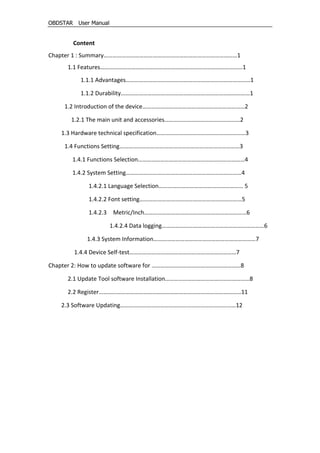
Chapter 1 : Summary………………………………………………………………………………1
1.1 Features……………………………………………………………………………………1
1.1.1 Advantages…………………………………………………………………………1
1.1.2 Durability……………………………………………………………………………1
1.2 Introduction of the device……………………………………………………………2
1.2.1 The main unit and accessories……………………………………………2
1.3 Hardware technical specification……………………………………………………3
1.4 Functions Setting………………………………………………………………………3
1.4.1 Functions Selection………………………………………………………………4
1.4.2 System Setting……………………………………………………………………4
1.4.2.1 Language Selection………………………………………………… 5
1.4.2.2 Font setting……………………………………………………………5
1.4.2.3 Metric/Inch……………………………………………………………6
1.4.2.4 Data logging……………………………………………………………6
1.4.3 System Information……………………………………………………………7
1.4.4 Device Self-test………………………………………………………………7
Chapter 2: How to update software for ……………………………………………………8
2.1 Update Tool software Installation…………………………………………………8
2.2 Register……………………………………………………………………………………11
2.3 Software Updating……………………………………………………………………12
OBDSTAR User Manual
1
Chapter 1: Summary
1.1 Features
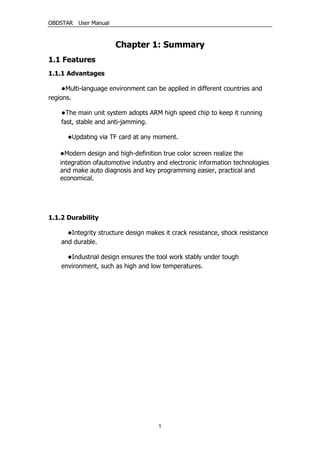
1.1.1 Advantages
●Multi-language environment can be applied in different countries and
regions.
●The main unit system adopts ARM high speed chip to keep it running
fast, stable and anti-jamming.
●Updating via TF card at any moment.
●Modern design and high-definition true color screen realize the
integration ofautomotive industry and electronic information technologies
and make auto diagnosis and key programming easier, practical and
economical.
1.1.2 Durability
●Integrity structure design makes it crack resistance, shock resistance
and durable.
●Industrial design ensures the tool work stably under tough
environment, such as high and low temperatures.
OBDSTAR User Manual
2
1.2 Introduction of the device
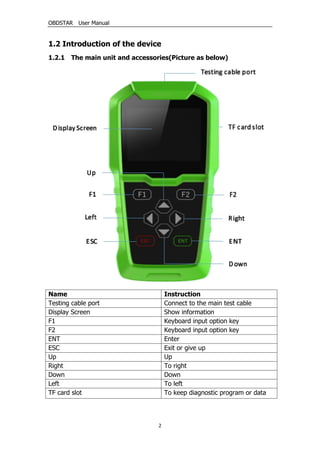
1.2.1 The main unit and accessories(Picture as below)
Name Instruction
Testing cable port Connect to the main test cable
Display Screen Show information
F1 Keyboard input option key
F2 Keyboard input option key
ENT Enter
ESC Exit or give up
Up Up
Right To right
Down Down
Left To left
TF card slot To keep diagnostic program or data
OBDSTAR User Manual
3
1.3 Hardware technical specification
 Dimension: 165mm*86mm*28mm
 CPU : Cortex M3
 Power Supply: DC12V
 Operation Power: DC12V
 Operation Temperature: -20~60℃
 Display Screen: 320*240 TFT
1.4 Functions Setting
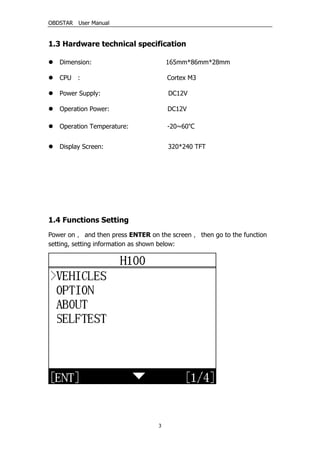
Power on, and then press ENTER on the screen, then go to the function
setting, setting information as shown below:
OBDSTAR User Manual
4
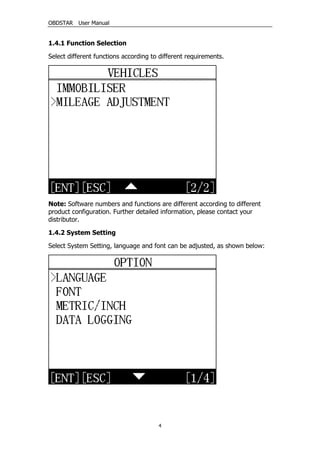
1.4.1 Function Selection
Select different functions according to different requirements.
Note: Software numbers and functions are different according to different
product configuration. Further detailed information, please contact your
distributor.
1.4.2 System Setting
Select System Setting, language and font can be adjusted, as shown below:
OBDSTAR User Manual
5
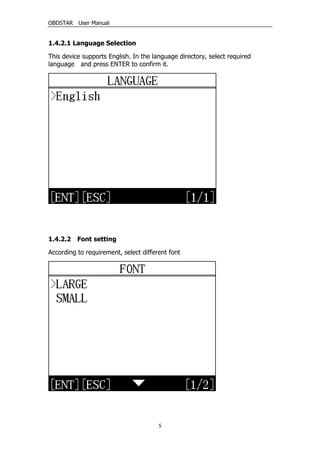
1.4.2.1 Language Selection
This device supports English. In the language directory, select required
language and press ENTER to confirm it.
1.4.2.2 Font setting
According to requirement, select different font
OBDSTAR User Manual
6
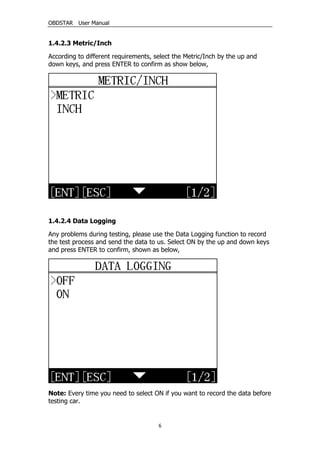
1.4.2.3 Metric/Inch
According to different requirements, select the Metric/Inch by the up and
down keys, and press ENTER to confirm as show below,
1.4.2.4 Data Logging
Any problems during testing, please use the Data Logging function to record
the test process and send the data to us. Select ON by the up and down keys
and press ENTER to confirm, shown as below,
Note: Every time you need to select ON if you want to record the data before
testing car.
OBDSTAR User Manual
7
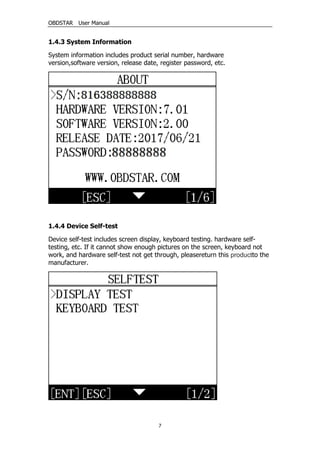
1.4.3 System Information
System information includes product serial number, hardware
version,software version, release date, register password, etc.
1.4.4 Device Self-test
Device self-test includes screen display, keyboard testing. hardware self-
testing, etc. If it cannot show enough pictures on the screen, keyboard not
work, and hardware self-test not get through, pleasereturn this productto the
manufacturer.
OBDSTAR User Manual
8
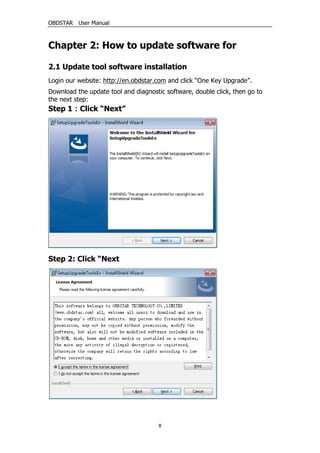
Chapter 2: How to update software for
2.1 Update tool software installation
Login our website: http://en.obdstar.com and click “One Key Upgrade”.
Download the update tool and diagnostic software, double click, then go to
the next step:
Step 1:Click “Next”
Step 2: Click “Next
OBDSTAR User Manual
9
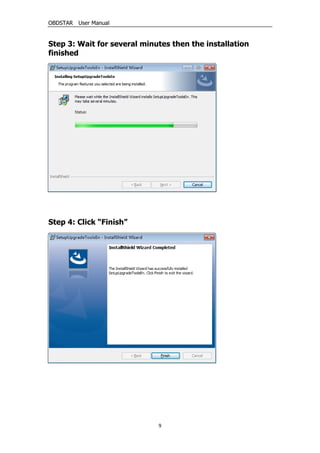
Step 3: Wait for several minutes then the installation
finished
Step 4: Click “Finish”
OBDSTAR User Manual
10
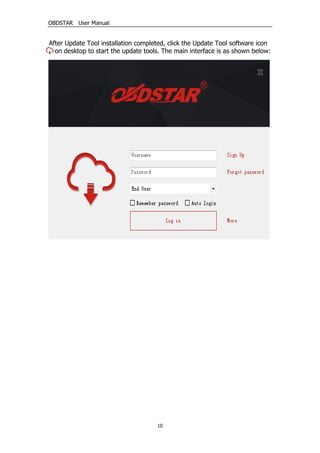
After Update Tool installation completed, click the Update Tool software icon
on desktop to start the update tools. The main interface is as shown below:
OBDSTAR User Manual
11
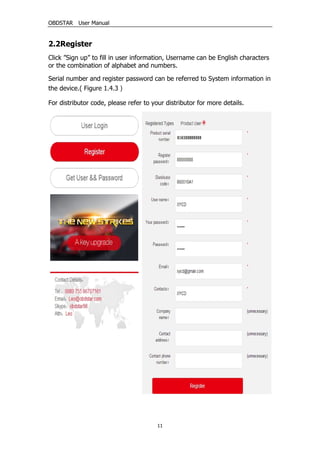
2.2Register
Click ”Sign up” to fill in user information, Username can be English characters
or the combination of alphabet and numbers.
Serial number and register password can be referred to System information in
the device.( Figure 1.4.3)
For distributor code, please refer to your distributor for more details.
OBDSTAR User Manual
12
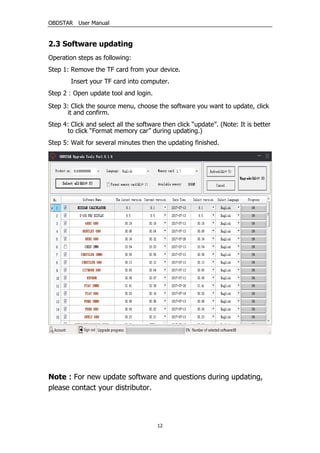
2.3 Software updating
Operation steps as following:
Step 1: Remove the TF card from your device.
Insert your TF card into computer.
Step 2:Open update tool and login.
Step 3: Click the source menu, choose the software you want to update, click
it and confirm.
Step 4: Click and select all the software then click “update”. (Note: It is better
to click “Format memory car” during updating.)
Step 5: Wait for several minutes then the updating finished.
Note:For new update software and questions during updating,
please contact your distributor.

Obdstar h108-pas-programmer-user-manual

  • 1.
    OBDSTAR User Manual UserManual Statement: This handbook is the manual of H Series User(including:H100, H101, H102, H103, H104, H105, H106, H107, H108, H109,H110,etc.)Without the written permission from the manufacturer, any company or individual shall not copy or backup it in any form (electronic, mechanical, photocopying, recording or otherwise).This manual is only operating instructions for H100 Series. If any result caused by using it on other equipment, the company does not assume any responsibility for it. If not quality problems of H Series device,such as equipment failure caused by user abuse or misuse, unauthorized disassembly, repair equipment yourself, not operate or maintain by the instructions, lose it, the repair will not be free. Other product names mentioned in this manual are in order to describe how to use H Series device, and their copyrights are still observed by the original company. H Series and files are used for normal vehicles maintenance. If used for illegal purposes, the company does not assume legal responsibility. Note: This device complies with part 15 of the FCC Rules. Operation is subject to the following two conditions:(1) This device may not cause harmful interference.(2) This device must accept any interference received, including interference that may cause undesired operation.
  • 2.
    OBDSTAR User Manual Content Chapter1 : Summary………………………………………………………………………………1 1.1 Features……………………………………………………………………………………1 1.1.1 Advantages…………………………………………………………………………1 1.1.2 Durability……………………………………………………………………………1 1.2 Introduction of the device……………………………………………………………2 1.2.1 The main unit and accessories……………………………………………2 1.3 Hardware technical specification……………………………………………………3 1.4 Functions Setting………………………………………………………………………3 1.4.1 Functions Selection………………………………………………………………4 1.4.2 System Setting……………………………………………………………………4 1.4.2.1 Language Selection………………………………………………… 5 1.4.2.2 Font setting……………………………………………………………5 1.4.2.3 Metric/Inch……………………………………………………………6 1.4.2.4 Data logging……………………………………………………………6 1.4.3 System Information……………………………………………………………7 1.4.4 Device Self-test………………………………………………………………7 Chapter 2: How to update software for ……………………………………………………8 2.1 Update Tool software Installation…………………………………………………8 2.2 Register……………………………………………………………………………………11 2.3 Software Updating……………………………………………………………………12
  • 3.
    OBDSTAR User Manual 1 Chapter1: Summary 1.1 Features 1.1.1 Advantages ●Multi-language environment can be applied in different countries and regions. ●The main unit system adopts ARM high speed chip to keep it running fast, stable and anti-jamming. ●Updating via TF card at any moment. ●Modern design and high-definition true color screen realize the integration ofautomotive industry and electronic information technologies and make auto diagnosis and key programming easier, practical and economical. 1.1.2 Durability ●Integrity structure design makes it crack resistance, shock resistance and durable. ●Industrial design ensures the tool work stably under tough environment, such as high and low temperatures.
  • 4.
    OBDSTAR User Manual 2 1.2Introduction of the device 1.2.1 The main unit and accessories(Picture as below) Name Instruction Testing cable port Connect to the main test cable Display Screen Show information F1 Keyboard input option key F2 Keyboard input option key ENT Enter ESC Exit or give up Up Up Right To right Down Down Left To left TF card slot To keep diagnostic program or data
  • 5.
    OBDSTAR User Manual 3 1.3Hardware technical specification  Dimension: 165mm*86mm*28mm  CPU : Cortex M3  Power Supply: DC12V  Operation Power: DC12V  Operation Temperature: -20~60℃  Display Screen: 320*240 TFT 1.4 Functions Setting Power on, and then press ENTER on the screen, then go to the function setting, setting information as shown below:
  • 6.
    OBDSTAR User Manual 4 1.4.1Function Selection Select different functions according to different requirements. Note: Software numbers and functions are different according to different product configuration. Further detailed information, please contact your distributor. 1.4.2 System Setting Select System Setting, language and font can be adjusted, as shown below:
  • 7.
    OBDSTAR User Manual 5 1.4.2.1Language Selection This device supports English. In the language directory, select required language and press ENTER to confirm it. 1.4.2.2 Font setting According to requirement, select different font
  • 8.
    OBDSTAR User Manual 6 1.4.2.3Metric/Inch According to different requirements, select the Metric/Inch by the up and down keys, and press ENTER to confirm as show below, 1.4.2.4 Data Logging Any problems during testing, please use the Data Logging function to record the test process and send the data to us. Select ON by the up and down keys and press ENTER to confirm, shown as below, Note: Every time you need to select ON if you want to record the data before testing car.
  • 9.
    OBDSTAR User Manual 7 1.4.3System Information System information includes product serial number, hardware version,software version, release date, register password, etc. 1.4.4 Device Self-test Device self-test includes screen display, keyboard testing. hardware self- testing, etc. If it cannot show enough pictures on the screen, keyboard not work, and hardware self-test not get through, pleasereturn this productto the manufacturer.
  • 10.
    OBDSTAR User Manual 8 Chapter2: How to update software for 2.1 Update tool software installation Login our website: http://en.obdstar.com and click “One Key Upgrade”. Download the update tool and diagnostic software, double click, then go to the next step: Step 1:Click “Next” Step 2: Click “Next
  • 11.
    OBDSTAR User Manual 9 Step3: Wait for several minutes then the installation finished Step 4: Click “Finish”
  • 12.
    OBDSTAR User Manual 10 AfterUpdate Tool installation completed, click the Update Tool software icon on desktop to start the update tools. The main interface is as shown below:
  • 13.
    OBDSTAR User Manual 11 2.2Register Click”Sign up” to fill in user information, Username can be English characters or the combination of alphabet and numbers. Serial number and register password can be referred to System information in the device.( Figure 1.4.3) For distributor code, please refer to your distributor for more details.
  • 14.
    OBDSTAR User Manual 12 2.3Software updating Operation steps as following: Step 1: Remove the TF card from your device. Insert your TF card into computer. Step 2:Open update tool and login. Step 3: Click the source menu, choose the software you want to update, click it and confirm. Step 4: Click and select all the software then click “update”. (Note: It is better to click “Format memory car” during updating.) Step 5: Wait for several minutes then the updating finished. Note:For new update software and questions during updating, please contact your distributor.