Facebook
Posting, Liking and Commenting
Recap
Search for, Add and Accept Friends
Send and Receive Private Messages using
Messenger
This Week
Learn how to Post
Learn how to Like what someone else has
Posted
Learn how to Comment on a Post
Posting
Posting
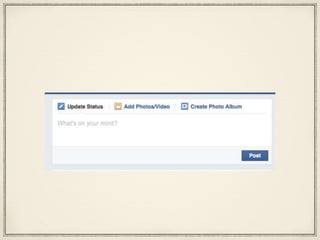
You might want to Post something yourself to
your own page/Timeline
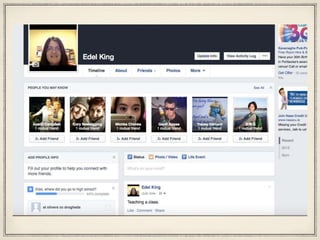
This means typing a note onto your
page/Timeline that people who visit your page
can read
It tells people what you are doing, where you
are, how you are feeling etc.
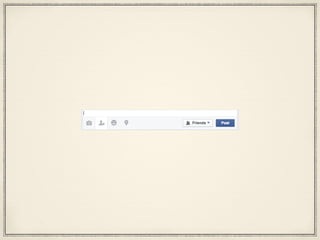
Type whatever you want
into this box and click Post
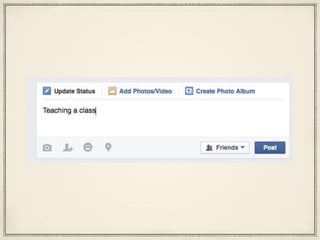
It will then be Posted on to your
page - it will appear on your
page/Timeline
Specific Posts
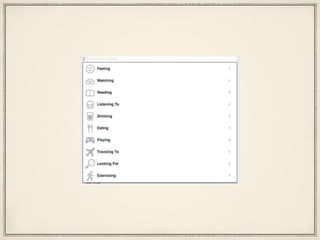
Activities/Emotions
You might want to say in your Post
that you are feeling a certain way or
doing a certain thing
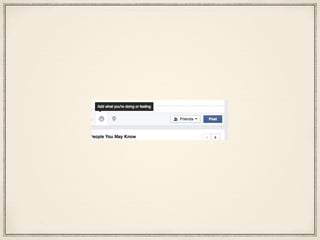
Facebook provides a
shortcut for this
Click the Smiley Face and it will
bring up a list of activities and
emotions to choose from
Click on one of these options and
complete the sentence to add it to
your Post
Places
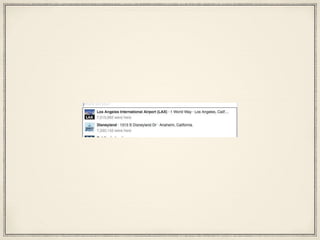
You can also say that you are in a
certain place when Posting, say if
you want to Post that you are at the
theatre
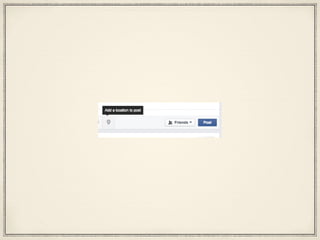
Again Facebook provides a
shortcut for this
Click on the Indicator to
bring up a search box
Type in the place you want to search
for and click on the correct one from the
list of options that appear to add it to
your Post
Tagging
Finally, you can tag one of
your friends in a Post
This means you can say that you
are with them at the time of
Posting
Their name is then added to the
Post and people can click on their
name in the Post and go to their
page/Timeline
Click on the Head to bring up a list of
your Friends, choose who you want
or search for them to add them to
your Post
Privacy
You can also choose the
Privacy levels for each
Post
You choose whether the Public, your
Friends or Just You can see what
you Post
Click where it says Friends to
bring up a drop down menu of
options
Once again I recommend
you pick Friends
All of this should be done
BEFORE you click Post
Your turn…
Practise Posting; adding a
location, a Friend or an activity
to the Post
Posting on a Friend’s
page/Timeline
You can also post on a
Friend’s page/Timeline
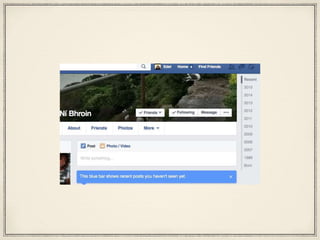
Choose a friend from the Friends
button on your page/Timeline or
search for them and go onto their
page/Timeline
You can now post a message to
their Timeline/Wall by typing into the
white box that says Write Something
Posting to their Wall/Timeline will be
seen by all of their Friends, sending
them a Private Message will only be
seen by them
Liking
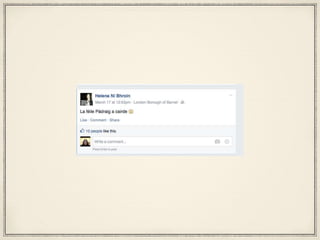
You can go to a Friends
page/Timeline, read what they have
Posted and like it
This means clicking a button that says Like in
order to show that you agree with what they
Posted, you found it funny etc. Basically that
you liked it!!
Click where it says Like and they will
be Notified that you Liked what they
Posted
You will also be Notified and be
able to see if someone likes what
you Post
You can also see how many other people
liked the Post and by clicking on the
number, see who they are and go to their
page/Timeline
Commenting
You can Comment on what
someone has Posted
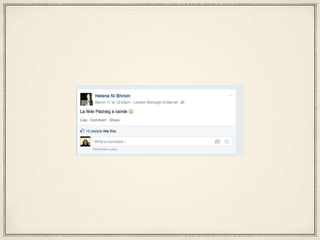
Maybe they have Posted that they
are at the airport and you want to tell
them to have a nice time on their
holiday
Click in the box that says Write a
Comment, type what you want and
press Enter
Your Comment will appear
below their Post
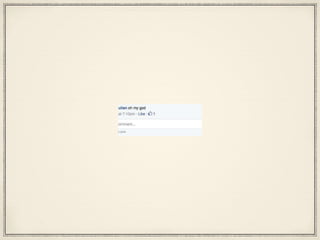
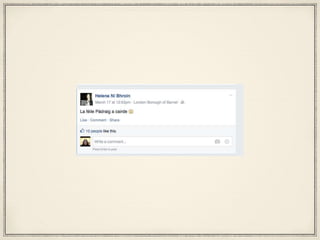
If someone else has Commented on
the Post, you can also Like that
Comment to show them that you Liked
what they wrote
Click the Like button under
their Comment
They will be Notified that
you Liked their Comment
You can also see how many other people
Liked the Comment and by clicking on the
number, see who they are and go to their
page/Timeline
Sharing
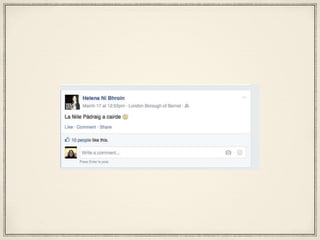
You can also Share what someone has
Posted which means putting what they
have on their page/Timeline onto your
own page/Timeline
Click the Share button to Add
the Post to your own
page/Timeline
Liking a Page
Your page is personal
Some pages are for businesses or are fan
pages for a famous person
You can click Like on these pages
This is similar to friend request - once you
Like a page, updates from it will appear on
your Newsfeed
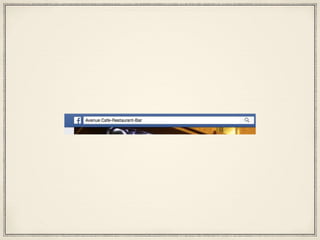
Search for the business or fanpage
that you want in the search box in
the banner and press Enter
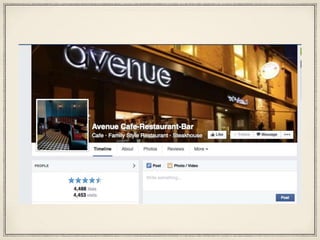
Click on the relevant
search result to go to that
Page
Click the Like button
Updates from this page will
now appear on your
Newsfeed
Your turn…
Practise Liking and
Commenting on your Friend’s
Posts
For next week
Practise the things that you have been
learning
Next Week
Assessment
Feedback
Final session next week!
See you next week!!

Week 7: Posting, Liking and Commenting