Volatile memory Analysis using volatility framework
Volatility Framework - Volatile memory extraction utility framework
The Volatility Framework is a completely open collection of tools, implemented in Python under
the GNU General Public License, for the extraction of digital artifacts from volatile memory
(RAM) samples. The extraction techniques are performed completely independent of the system
being investigated but offer visibility into the runtime state of the system. The framework is
intended to introduce people to the techniques and complexities associated with extracting digital
artifacts from volatile memory samples and provide a platform for further work into this exciting
area of research.
The Volatility distribution is available from:
http://code.google.com/p/volatility/downloads/list
Volatility should run on any platform that supports
Python (http://www.python.org)
Volatility supports investigations of the following memory images:
Windows:
* 32-bit Windows XP Service Pack 2 and 3
* 32-bit Windows 2003 Server Service Pack 0, 1, 2
* 32-bit Windows Vista Service Pack 0, 1, 2
* 32-bit Windows 2008 Server Service Pack 1, 2 (there is no SP0)
* 32-bit Windows 7 Service Pack 0, 1
* 64-bit Windows XP Service Pack 1 and 2 (there is no SP0)
* 64-bit Windows 2003 Server Service Pack 1 and 2 (there is no SP0)
* 64-bit Windows Vista Service Pack 0, 1, 2
* 64-bit Windows 2008 Server Service Pack 1 and 2 (there is no SP0)
* 64-bit Windows 2008 R2 Server Service Pack 0 and 1
* 64-bit Windows 7 Service Pack 0 and 1
Linux:
* 32-bit Linux kernels 2.6.11 to 3.5
* 64-bit Linux kernels 2.6.11 to 3.5
* OpenSuSE, Ubuntu, Debian, CentOS, Fedora, Mandriva, etc
Mac OSX:
* 32-bit 10.5.x Leopard (the only 64-bit 10.5 is Server, which isn't supported)
* 32-bit 10.6.x Snow Leopard
* 64-bit 10.6.x Snow Leopard
* 32-bit 10.7.x Lion
* 64-bit 10.7.x Lion
* 64-bit 10.8.x Mountain Lion (there is no 32-bit version)
Volatility supports a variety of sample file formats and the ability to convert between these
formats:
- Raw linear sample (dd)
- Hibernation file
- Crash dump file
- VirtualBox ELF64 core dump
- VMware saved state and snapshot files
- EWF format (E01)
- LiME (Linux Memory Extractor) format
- Firewire
- HPAK (FDPro)
For a more detailed list of capabilities, see the following:
https://code.google.com/p/volatility/wiki/Release23
https://code.google.com/p/volatility/wiki/CommandReference23
https://code.google.com/p/volatility/wiki/CommandReferenceGui23
https://code.google.com/p/volatility/wiki/CommandReferenceMal23
https://code.google.com/p/volatility/wiki/CommandReferenceRegistryApi23
https://code.google.com/p/volatility/wiki/LinuxCommandReference23
https://code.google.com/p/volatility/wiki/MacCommandReference23
Requirements
- Python 2.6 or later, but not 3.0. http://www.python.org
Some plugins may have other requirements which can be found at:
https://code.google.com/p/volatility/wiki/VolatilityInstallation
Quick Start
1. Unpack the latest version of Volatility from
http://code.google.com/p/volatility/downloads/list
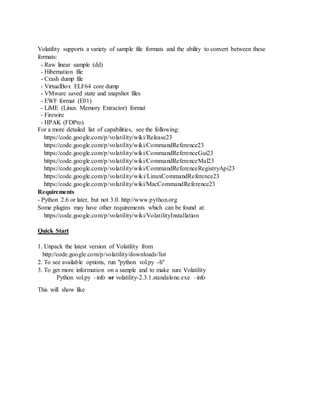
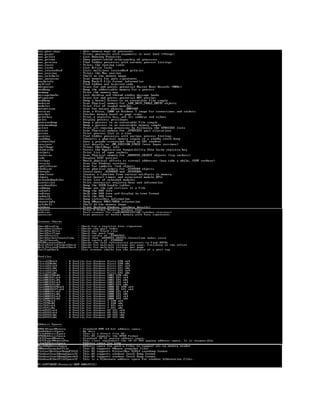
2. To see available options, run "python vol.py -h"
3. To get more information on a sample and to make sure Volatility
Python vol.py –info or volatility-2.3.1.standalone.exe –info
This will show like
Basic Volatility Usage
Image Information
In Command Prompt run as Administrator and type this command
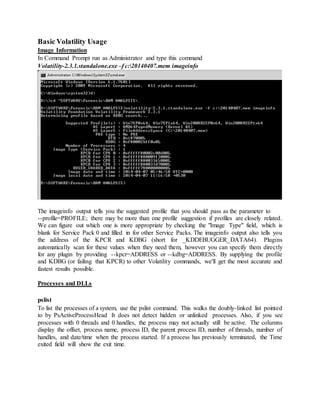
Volatility-2.3.1.standalone.exe –f c:20140407.mem imageinfo
The imageinfo output tells you the suggested profile that you should pass as the parameter to
--profile=PROFILE; there may be more than one profile suggestion if profiles are closely related.
We can figure out which one is more appropriate by checking the "Image Type" field, which is
blank for Service Pack 0 and filled in for other Service Packs. The imageinfo output also tells you
the address of the KPCR and KDBG (short for _KDDEBUGGER_DATA64). Plugins
automatically scan for these values when they need them, however you can specify them directly
for any plugin by providing --kpcr=ADDRESS or --kdbg=ADDRESS. By supplying the profile
and KDBG (or failing that KPCR) to other Volatility commands, we'll get the most accurate and
fastest results possible.
Processes and DLLs
pslist
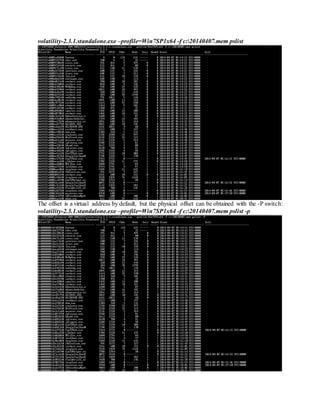
To list the processes of a system, use the pslist command. This walks the doubly-linked list pointed
to by PsActiveProcessHead It does not detect hidden or unlinked processes. Also, if you see
processes with 0 threads and 0 handles, the process may not actually still be active. The columns
display the offset, process name, process ID, the parent process ID, number of threads, number of
handles, and date/time when the process started. If a process has previously terminated, the Time
exited field will show the exit time.
volatility-2.3.1.standalone.exe –profile=Win7SP1x64 -f c:20140407.mem pslist
The offset is a virtual address by default, but the physical offset can be obtained with the -P switch:
volatility-2.3.1.standalone.exe –profile=Win7SP1x64 -f c:20140407.mem pslist -p
pstree
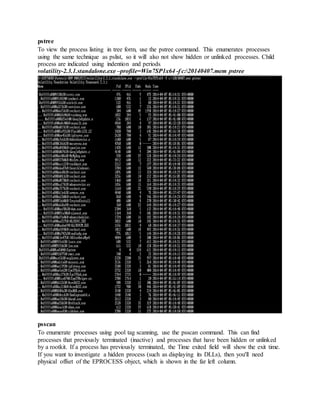
To view the process listing in tree form, use the pstree command. This enumerates processes
using the same technique as pslist, so it will also not show hidden or unlinked processes. Child
process are indicated using indention and periods.
volatility-2.3.1.standalone.exe –profile=Win7SP1x64 -f c:20140407.mem pstree
psscan
To enumerate processes using pool tag scanning, use the psscan command. This can find
processes that previously terminated (inactive) and processes that have been hidden or unlinked
by a rootkit. If a process has previously terminated, the Time exited field will show the exit time.
If you want to investigate a hidden process (such as displaying its DLLs), then you'll need
physical offset of the EPROCESS object, which is shown in the far left column.
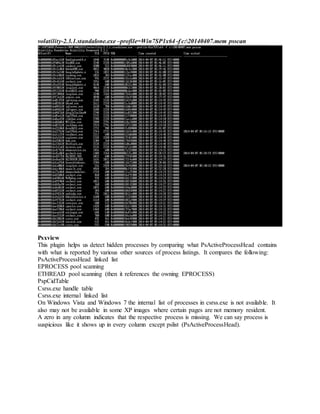
volatility-2.3.1.standalone.exe –profile=Win7SP1x64 -f c:20140407.mem psscan
Psxview
This plugin helps us detect hidden processes by comparing what PsActiveProcessHead contains
with what is reported by various other sources of process listings. It compares the following:
PsActiveProcessHead linked list
EPROCESS pool scanning
ETHREAD pool scanning (then it references the owning EPROCESS)
PspCidTable
Csrss.exe handle table
Csrss.exe internal linked list
On Windows Vista and Windows 7 the internal list of processes in csrss.exe is not available. It
also may not be available in some XP images where certain pages are not memory resident.
A zero in any column indicates that the respective process is missing. We can say process is
suspicious like it shows up in every column except pslist (PsActiveProcessHead).
volatility-2.3.1.standalone.exe –profile=Win7SP1x64 -f c:20140407.mem psxview
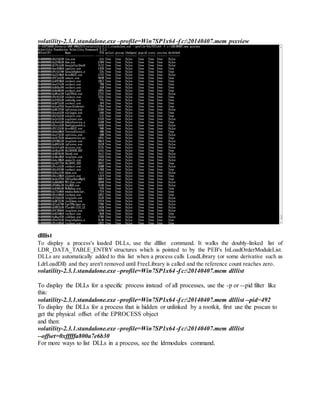
dlllist
To display a process's loaded DLLs, use the dlllist command. It walks the doubly-linked list of
LDR_DATA_TABLE_ENTRY structures which is pointed to by the PEB's InLoadOrderModuleList.
DLLs are automatically added to this list when a process calls LoadLibrary (or some derivative such as
LdrLoadDll) and they aren't removed until FreeLibrary is called and the reference count reaches zero.
volatility-2.3.1.standalone.exe –profile=Win7SP1x64 -f c:20140407.mem dlllist
To display the DLLs for a specific process instead of all processes, use the -p or --pid filter like
this:
volatility-2.3.1.standalone.exe –profile=Win7SP1x64 -f c:20140407.mem dlllist --pid=492
To display the DLLs for a process that is hidden or unlinked by a rootkit, first use the psscan to
get the physical offset of the EPROCESS object
and then:
volatility-2.3.1.standalone.exe –profile=Win7SP1x64 -f c:20140407.mem dlllist
--offset=0xfffffa800a7e6b30
For more ways to list DLLs in a process, see the ldrmodules command.
volatility-2.3.1.standalone.exe –profile=Win7SP1x64 -f c:20140407.mem dlllist
For more ways to list DLLs in a process, see the ldrmodules command.
dlldump
To extract a DLL from a process's memory space and dump it to disk for analysis, use the dlldump
command. The syntax is nearly the same as what we've shown for dlllist above. You can:
Dump all DLLs from all processes
Dump all DLLs from a specific process (with --pid=PID)
Dump all DLLs from a hidden/unlinked process (with --offset=OFFSET)
Dump a PE from anywhere in process memory (with --base=BASEADDR),this option is useful for
extracting hidden DLLs
To specify an output directory, use --dump-dir=DIR or -d DIR. You can also supply a regular expression
to dump a DLL with a particular pattern in its name.
If the extraction fails, as it did for a few processes above,it probably means that some of the memory
pages in that process were not memory resident at the time (due to paging).
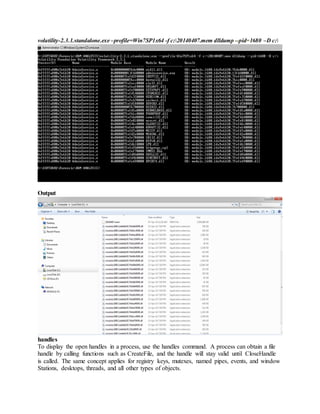
volatility-2.3.1.standalone.exe –profile=Win7SP1x64 -f c:20140407.mem dlldump --pid=1680 –D c:
To dump a PE file that doesn't exist in the DLLs list (for example, due to code injection or malicious
unlinking), just specify the base address of the PE in process memory:
volatility-2.3.1.standalone.exe –profile=Win7SP1x64 -f c:20140407.mem dlldump --pid=1680 –D c: --
base=0x000007fefeb90000
You can also specify an EPROCESS offset if the DLL you want is in a hidden process:
volatility-2.3.1.standalone.exe –profile=Win7SP1x64 -f c:20140407.mem dlldump –o
0xfffffa800a7e6b30 –D c: --base=0x000007fefeb90000
volatility-2.3.1.standalone.exe –profile=Win7SP1x64 -f c:20140407.mem dlldump --pid=1680 –D c:
Output
handles
To display the open handles in a process, use the handles command. A process can obtain a file
handle by calling functions such as CreateFile, and the handle will stay valid until CloseHandle
is called. The same concept applies for registry keys, mutexes, named pipes, events, and window
Stations, desktops, threads, and all other types of objects.
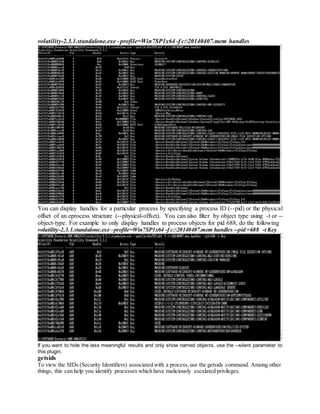
volatility-2.3.1.standalone.exe –profile=Win7SP1x64 -f c:20140407.mem handles
You can display handles for a particular process by specifying a process ID (--pid) or the physical
offset of an eprocess structure (--physical-offset). You can also filter by object type using -t or --
object-type. For example to only display handles to process objects for pid 688, do the following
volatility-2.3.1.standalone.exe –profile=Win7SP1x64 -f c:20140407.mem handles --pid =688 -t Key
If you want to hide the less meaningful results and only show named objects, use the --silent parameter to
this plugin.
getsids
To view the SIDs (Security Identifiers) associated with a process,use the getsids command. Among other
things, this can help you identify processes which have maliciously escalated privileges.
volatility-2.3.1.standalone.exe –profile=Win7SP1x64 -f c:20140407.mem getsids
Process Memory
memmap
For a brief inspection of the addressable memory pages in a process, use the memmap command
volatility-2.3.1.standalone.exe –profile=Win7SP1x64 -f c:20140407.mem --pid=688 memmap
memdump
To extract all data from the various memory segments in a process and dump them to a single
file, use the memdump command.
volatility-2.3.1.standalone.exe –profile=Win7SP1x64 -f c:20140407.mem –pid=688 memdump
–D c:memdump
procmemdump
To dump a process's executable (including the slack space), use the procmemdump command.
Optionally, pass the --unsafe or -u flags to bypass certain sanity checks used when parsing the
PE header. Some malware will intentionally forge size fields in the PE header so that memory
dumping tools fail.
volatility-2.3.1.standalone.exe –profile=Win7SP1x64 -f c:20140407.mem –pid=688
procmemdump –D c:memdump-
procexedump
To dump a process's executable (not including the slack space), use the procexedump command.
The syntax is identical to procmemdump.
volatility-2.3.1.standalone.exe –profile=Win7SP1x64 -f c:20140407.mem –pid=688
procexememdump –D c:memdump-
Output
vadwalk
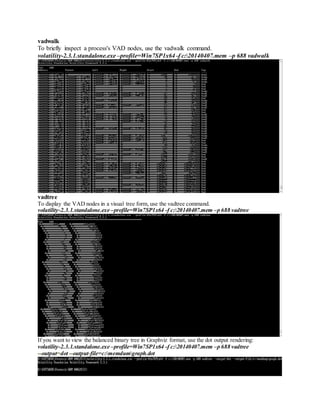
To briefly inspect a process's VAD nodes, use the vadwalk command.
volatility-2.3.1.standalone.exe –profile=Win7SP1x64 -f c:20140407.mem –p 688 vadwalk
vadtree
To display the VAD nodes in a visual tree form, use the vadtree command.
volatility-2.3.1.standalone.exe –profile=Win7SP1x64 -f c:20140407.mem –p 688 vadtree
If you want to view the balanced binary tree in Graphviz format, use the dot output rendering:
volatility-2.3.1.standalone.exe –profile=Win7SP1x64 -f c:20140407.mem –p 688 vadtree
--output=dot --output-file=c:memdumgraph.dot
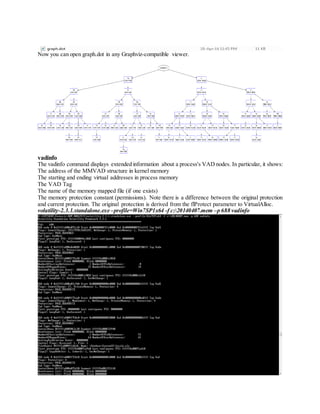
Now you can open graph.dot in any Graphviz-compatible viewer.
vadinfo
The vadinfo command displays extended information about a process's VAD nodes. In particular, it shows:
The address of the MMVAD structure in kernel memory
The starting and ending virtual addresses in process memory
The VAD Tag
The name of the memory mapped file (if one exists)
The memory protection constant (permissions). Note there is a difference between the original protection
and current protection. The original protection is derived from the flProtect parameter to VirtualAlloc.
volatility-2.3.1.standalone.exe –profile=Win7SP1x64 -f c:20140407.mem –p 688 vadinfo
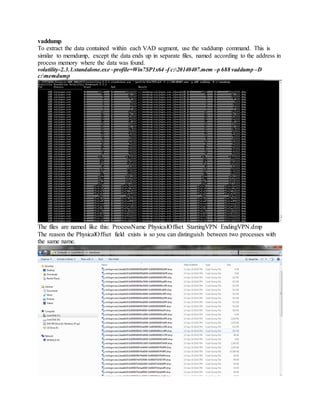
vaddump
To extract the data contained within each VAD segment, use the vaddump command. This is
similar to memdump, except the data ends up in separate files, named according to the address in
process memory where the data was found.
volatility-2.3.1.standalone.exe –profile=Win7SP1x64 -f c:20140407.mem –p 688 vaddump –D
c:memdump
The files are named like this: ProcessName PhysicalOffset StartingVPN EndingVPN.dmp
The reason the PhysicalOffset field exists is so you can distinguish between two processes with
the same name.
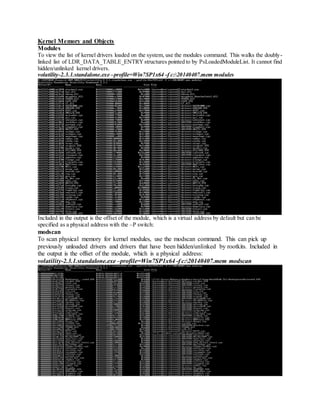
Kernel Memory and Objects
Modules
To view the list of kernel drivers loaded on the system, use the modules command. This walks the doubly-
linked list of LDR_DATA_TABLE_ENTRYstructures pointed to by PsLoadedModuleList. It cannot find
hidden/unlinked kernel drivers.
volatility-2.3.1.standalone.exe –profile=Win7SP1x64 -f c:20140407.mem modules
Included in the output is the offset of the module, which is a virtual address by default but can be
specified as a physical address with the –P switch:
modscan
To scan physical memory for kernel modules, use the modscan command. This can pick up
previously unloaded drivers and drivers that have been hidden/unlinked by rootkits. Included in
the output is the offset of the module, which is a physical address:
volatility-2.3.1.standalone.exe –profile=Win7SP1x64 -f c:20140407.mem modscan
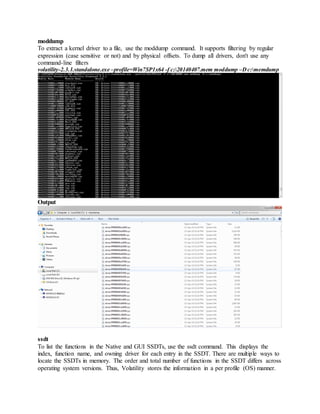
moddump
To extract a kernel driver to a file, use the moddump command. It supports filtering by regular
expression (case sensitive or not) and by physical offsets. To dump all drivers, don't use any
command-line filters
volatility-2.3.1.standalone.exe –profile=Win7SP1x64 -f c:20140407.mem moddump –Dc:memdump
Output
ssdt
To list the functions in the Native and GUI SSDTs, use the ssdt command. This displays the
index, function name, and owning driver for each entry in the SSDT. There are multiple ways to
locate the SSDTs in memory. The order and total number of functions in the SSDT differs across
operating system versions. Thus, Volatility stores the information in a per profile (OS) manner.
volatility-2.3.1.standalone.exe –profile=Win7SP1x64 -f c:20140407.mem ssdt
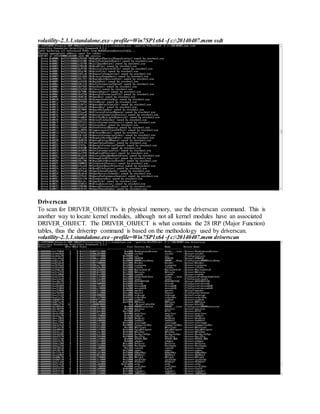
Driverscan
To scan for DRIVER_OBJECTs in physical memory, use the driverscan command. This is
another way to locate kernel modules, although not all kernel modules have an associated
DRIVER_OBJECT. The DRIVER_OBJECT is what contains the 28 IRP (Major Function)
tables, thus the driverirp command is based on the methodology used by driverscan.
volatility-2.3.1.standalone.exe –profile=Win7SP1x64 -f c:20140407.mem driverscan
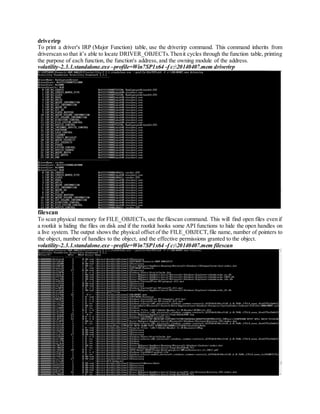
driverirp
To print a driver's IRP (Major Function) table, use the driverirp command. This command inherits from
driverscan so that it’s able to locate DRIVER_OBJECTs.Thenit cycles through the function table, printing
the purpose of each function, the function's address, and the owning module of the address.
volatility-2.3.1.standalone.exe –profile=Win7SP1x64 -f c:20140407.mem driverirp
filescan
To scan physical memory for FILE_OBJECTs,use the filescan command. This will find open files even if
a rootkit is hiding the files on disk and if the rootkit hooks some API functions to hide the open handles on
a live system. The output shows the physical offset of the FILE_OBJECT,file name, number of pointers to
the object, number of handles to the object, and the effective permissions granted to the object.
volatility-2.3.1.standalone.exe –profile=Win7SP1x64 -f c:20140407.mem filescan
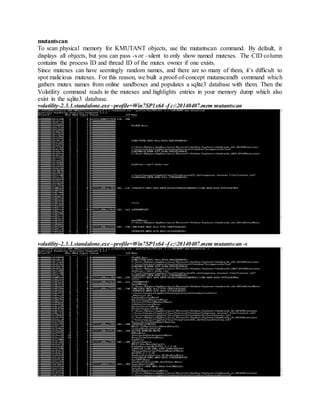
mutantscan
To scan physical memory for KMUTANT objects, use the mutantscan command. By default, it
displays all objects, but you can pass -s or –silent to only show named mutexes. The CID column
contains the process ID and thread ID of the mutex owner if one exists.
Since mutexes can have seemingly random names, and there are so many of them, it’s difficult to
spot malicious mutexes. For this reason, we built a proof-of-concept mutanscandb command which
gathers mutex names from online sandboxes and populates a sqlite3 database with them. Then the
Volatility command reads in the mutexes and highlights entries in your memory dump which also
exist in the sqlite3 database.
volatility-2.3.1.standalone.exe –profile=Win7SP1x64 -f c:20140407.mem mutantscan
volatility-2.3.1.standalone.exe –profile=Win7SP1x64 -f c:20140407.mem mutantscan -s
symlinkscan
This plugin scans for symbolic link objects and outputs their information.
volatility-2.3.1.standalone.exe –profile=Win7SP1x64 -f c:20140407.mem symlinkscan
Networking
connection
To view the active connections, use the connections command. This walks the singly-linked list
of connection structures pointed to by a nonexported symbol in the tcpip.sys module. This
command is for Windows XP and Windows 2003 Server only.
volatility-2.3.1.standalone.exe -f c:20140407.vmem connection
Output includes the virtual offset of the _TCPT_OBJECT by default. The physical offset is
obtained with the -P switch:
volatility-2.3.1.standalone.exe -f c:20140407.vmem connection -p
connscan
To find connection structures using pool tag scanning, use the connscan command. This can find
artifacts from previous connections that have since been terminated. In the output below, you'll
notice some fields have been partially overwritten, but some of the information is still accurate.
Thus, while it may find false positives sometimes, you also get the benefit of detecting as much
information as possible. This command is for Windows XP and Windows 2003 Server only.
volatility-2.3.1.standalone.exe -f c:20140407.vmem connscan
sockets
To detect listening sockets for any protocol (TCP, UDP, RAW, etc), use the sockets command.
This walks a singly-linked list of socket structures which is pointed to by a non-exported symbol
in the tcpip.sys module. This command is for Windows XP and Windows 2003 Server only.
volatility-2.3.1.standalone.exe -f c:winXp.vmem --profile=WinXPSP3x86 sockets
Output includes the virtual offset of the _ADDRESS_OBJECT by default. The physical offset is
obtained with the -P switch:
volatility-2.3.1.standalone.exe -f c:winXp.vmem --profile=WinXPSP3x86 sockets -p
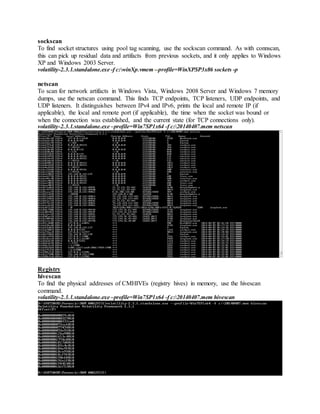
sockscan
To find socket structures using pool tag scanning, use the sockscan command. As with connscan,
this can pick up residual data and artifacts from previous sockets, and it only applies to Windows
XP and Windows 2003 Server.
volatility-2.3.1.standalone.exe -f c:winXp.vmem --profile=WinXPSP3x86 sockets -p
netscan
To scan for network artifacts in Windows Vista, Windows 2008 Server and Windows 7 memory
dumps, use the netscan command. This finds TCP endpoints, TCP listeners, UDP endpoints, and
UDP listeners. It distinguishes between IPv4 and IPv6, prints the local and remote IP (if
applicable), the local and remote port (if applicable), the time when the socket was bound or
when the connection was established, and the current state (for TCP connections only).
volatility-2.3.1.standalone.exe –profile=Win7SP1x64 -f c:20140407.mem netscan
Registry
hivescan
To find the physical addresses of CMHIVEs (registry hives) in memory, use the hivescan
command.
volatility-2.3.1.standalone.exe –profile=Win7SP1x64 -f c:20140407.mem hivescan
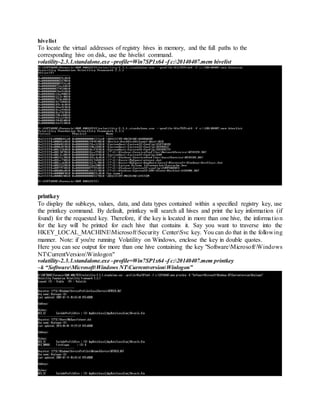
hivelist
To locate the virtual addresses of registry hives in memory, and the full paths to the
corresponding hive on disk, use the hivelist command.
volatility-2.3.1.standalone.exe –profile=Win7SP1x64 -f c:20140407.mem hivelist
printkey
To display the subkeys, values, data, and data types contained within a specified registry key, use
the printkey command. By default, printkey will search all hives and print the key information (if
found) for the requested key. Therefore, if the key is located in more than one hive, the information
for the key will be printed for each hive that contains it. Say you want to traverse into the
HKEY_LOCAL_MACHINEMicrosoftSecurity CenterSvc key. You can do that in the following
manner. Note: if you're running Volatility on Windows, enclose the key in double quotes.
Here you can see output for more than one hive containing the key "SoftwareMicrosoftWindows
NTCurrentVersionWinlogon"
volatility-2.3.1.standalone.exe –profile=Win7SP1x64 -f c:20140407.mem printkey
–k “SoftwareMicrosoftWindows NTCurrentversionWinlogon”
hivedump
To recursively list all subkeys in a hive, use the hivedump command and pass it the virtual
address to the desired hive.
volatility-2.3.1.standalone.exe –profile=Win7SP1x64 -f c:20140407.mem hivedump
–o 0xfffff8a000024010
hashdump
To extract and decrypt cached domain credentials stored in the registry, use the hashdump
command.
To use hashdump, pass the virtual address of the SYSTEM hive as -y and the virtual address of
the SAM hive as -s, like this:
volatility-2.3.1.standalone.exe –profile=Win7SP1x64 -f c:20140407.mem hishdump
–y 0xfffff8a000024010 –s 0xfffff8a0013cd010
Hashes can now be cracked using John the Ripper, rainbow tables, etc.It is possible that a registry
key is not available in memory.
You can try to see if the correct keys are available: "CurrentControlSetControllsa" from
SYSTEM and "SAMDomainsAccount" from SAM. First we need to get the "CurrentControlSet",
for this we can use volshell. (replace [SYSTEM REGISTRY ADDRESS] below with the offset
you get from hivelist)
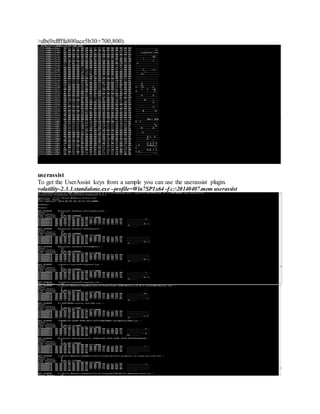
>db(0xfffffa800ace5b30+700,800)
userassist
To get the UserAssist keys from a sample you can use the userassist plugin.
volatility-2.3.1.standalone.exe –profile=Win7SP1x64 -f c:20140407.mem userassist
Crash dump, hibernation, and conversion
crashinfo
Information from the crashdump header can be printed using the crashinfo command.
volatility-2.3.1.standalone.exe –profile=Win7SP1x64 -f c:20140407.mem crashinfo
it may shows like this
Volatile Systems Volatility Framework 2.0
DUMP_HEADER32:
Majorversion: 0x0000000f (15)
Minorversion: 0x00001db0 (7600)
KdSecondaryVersion 0x00000041
DirectoryTableBase 0x00185000
PfnDataBase 0x83a00000
PsLoadedModuleList 0x82984810
PsActiveProcessHead 0x8297ce98
MachineImageType 0x0000014c
NumberProcessors 0x00000001
BugCheckCode 0x5454414d
PaeEnabled 0x00000001
KdDebuggerDataBlock 0x82964be8
ProductType 0x45474150
SuiteMask 0x45474150
WriterStatus 0x45474150
Physical Memory Description:
Number of runs: 3
FileOffset Start Address Length
00001000 00001000 0009e000
0009f000 00100000 3fdf0000
3fe8f000 3ff00000 00100000
3ff8e000 3ffff000
Hibinfo
The hibinfo command reveals additional information stored in the hibernation file, including the
state of the Control Registers, such as CR0, etc. It also identifies the time at which the hibernation
file was created, the state of the hibernation file, and the version of windows being hibernated.
Example output for the function is shown below:
volatility-2.3.1.standalone.exe -f hiberfil.sys hibinfo
Volatile Systems Volatility Framework 2.0
IMAGE_HIBER_HEADER:
Signature: hibr
SystemTime: 2014-19-04 15:33:26
Control registers flags
CR0: 80010031
CR0[PAGING]: 1
CR3: 1a300060
CR4: 000006f9
CR4[PSE]: 1
CR4[PAE]: 1
Windows Version is 5.1 (2600)
imagecopy
The imagecopy command allows one to convert any existing type of address space (such as a
crashdump, hibernation file, or live firewire session) to a raw memory image. The profile should
be specified for any address space from a machine other than Windows XP SP2. Also the output
file is specified with the -O flag. The progress is updated as the file is converted:
Malware and Rootkits
Malfind
The malfind command has several purposes. You can use it to find hidden or injected code/DLLs
in user mode memory, based on characteristics such as VAD tag and page permissions. You can
also use it to locate any sequence of bytes, regular expressions, ANSI strings, or Unicode strings
in user mode or kernel memory.
Note: malfind does not detect DLLs injected into a process using CreateRemoteThread-
>LoadLibrary. DLLs injected with this technique are not hidden and thus you can view them
with dlllist. The purpose of malfind is to locate DLLs that standard methods/tools do not see.
volatility-2.3.1.standalone.exe –profile=Win7SP1x64 -f c:20140407.mem malfind
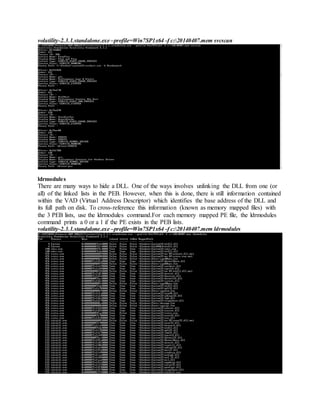
svcscan
Volatility is the only memory forensics framework with the ability to list Windows services. To
see which services are registered on your memory image, use the svcscan command. The output
shows the process ID of each service (if its active and pertains to a usermode process), the service
name, service display name, service type, and current status. It also shows the binary path for the
registered service - which will be an EXE for usermode services and a driver name for services
that run from kernel mode.
volatility-2.3.1.standalone.exe –profile=Win7SP1x64 -f c:20140407.mem svcscan
ldrmodules
There are many ways to hide a DLL. One of the ways involves unlinking the DLL from one (or
all) of the linked lists in the PEB. However, when this is done, there is still information contained
within the VAD (Virtual Address Descriptor) which identifies the base address of the DLL and
its full path on disk. To cross-reference this information (known as memory mapped files) with
the 3 PEB lists, use the ldrmodules command.For each memory mapped PE file, the ldrmodules
command prints a 0 or a 1 if the PE exists in the PEB lists.
volatility-2.3.1.standalone.exe –profile=Win7SP1x64 -f c:20140407.mem ldrmodules
Since the PEB and the DLL lists that it contains all exist in user mode, its also possible for malware to hide
(or obscure) a DLL by simply overwriting the path. Tools that only look for unlinked entries may miss the
fact that malware overwrite C:bad.dll to show C:windowssystem32kernel32.dll. So you can also pass -
v or --verbose to ldrmodules to see the full path of all entries:
volatility-2.3.1.standalone.exe –profile=Win7SP1x64 -f c:20140407.mem ldrmodules –v
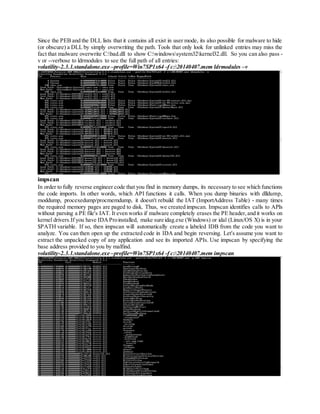
impscan
In order to fully reverse engineer code that you find in memory dumps, its necessary to see which functions
the code imports. In other words, which API functions it calls. When you dump binaries with dlldump,
moddump, procexedump/procmemdump, it doesn't rebuild the IAT (ImportAddress Table) - many times
the required memory pages are paged to disk. Thus, we created impscan. Impscan identifies calls to APIs
without parsing a PE file's IAT. It even works if malware completely erases the PE header,and it works on
kernel drivers.If you have IDAProinstalled, make sure idag.exe (Windows) or idal (Linux/OS X) is in your
$PATH variable. If so, then impscan will automatically create a labeled IDB from the code you want to
analyze. You can then open up the extracted code in IDA and begin reversing. Let's assume you want to
extract the unpacked copy of any application and see its imported APIs. Use impscan by specifying the
base address provided to you by malfind.
volatility-2.3.1.standalone.exe –profile=Win7SP1x64 -f c:20140407.mem impscan
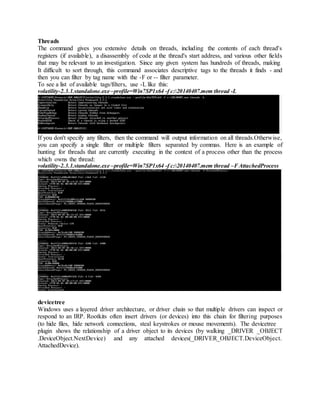
Threads
The command gives you extensive details on threads, including the contents of each thread's
registers (if available), a disassembly of code at the thread's start address, and various other fields
that may be relevant to an investigation. Since any given system has hundreds of threads, making
It difficult to sort through, this command associates descriptive tags to the threads it finds - and
then you can filter by tag name with the -F or -- filter parameter.
To see a list of available tags/filters, use -L like this:
volatility-2.3.1.standalone.exe –profile=Win7SP1x64 -f c:20140407.mem thread -L
If you don't specify any filters, then the command will output information on all threads.Otherwise,
you can specify a single filter or multiple filters separated by commas. Here is an example of
hunting for threads that are currently executing in the context of a process other than the process
which owns the thread:
volatility-2.3.1.standalone.exe –profile=Win7SP1x64 -f c:20140407.mem thread –FAttachedProcess
devicetree
Windows uses a layered driver architecture, or driver chain so that multiple drivers can inspect or
respond to an IRP. Rootkits often insert drivers (or devices) into this chain for filtering purposes
(to hide files, hide network connections, steal keystrokes or mouse movements). The devicetree
plugin shows the relationship of a driver object to its devices (by walking _DRIVER _OBJECT
.DeviceObject.NextDevice) and any attached devices(_DRIVER_OBJECT.DeviceObject.
AttachedDevice).
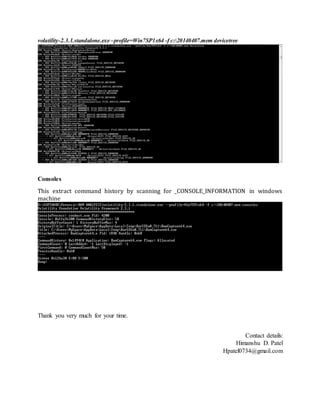
volatility-2.3.1.standalone.exe –profile=Win7SP1x64 -f c:20140407.mem devicetree
Consoles
This extract command history by scanning for _CONSOLE_INFORMATION in windows
machine
Thank you very much for your time.
Contact details:
Himanshu D. Patel
Hpatel0734@gmail.com

Volatile memory analysis

  • 1.
    Volatile memory Analysisusing volatility framework Volatility Framework - Volatile memory extraction utility framework The Volatility Framework is a completely open collection of tools, implemented in Python under the GNU General Public License, for the extraction of digital artifacts from volatile memory (RAM) samples. The extraction techniques are performed completely independent of the system being investigated but offer visibility into the runtime state of the system. The framework is intended to introduce people to the techniques and complexities associated with extracting digital artifacts from volatile memory samples and provide a platform for further work into this exciting area of research. The Volatility distribution is available from: http://code.google.com/p/volatility/downloads/list Volatility should run on any platform that supports Python (http://www.python.org) Volatility supports investigations of the following memory images: Windows: * 32-bit Windows XP Service Pack 2 and 3 * 32-bit Windows 2003 Server Service Pack 0, 1, 2 * 32-bit Windows Vista Service Pack 0, 1, 2 * 32-bit Windows 2008 Server Service Pack 1, 2 (there is no SP0) * 32-bit Windows 7 Service Pack 0, 1 * 64-bit Windows XP Service Pack 1 and 2 (there is no SP0) * 64-bit Windows 2003 Server Service Pack 1 and 2 (there is no SP0) * 64-bit Windows Vista Service Pack 0, 1, 2 * 64-bit Windows 2008 Server Service Pack 1 and 2 (there is no SP0) * 64-bit Windows 2008 R2 Server Service Pack 0 and 1 * 64-bit Windows 7 Service Pack 0 and 1 Linux: * 32-bit Linux kernels 2.6.11 to 3.5 * 64-bit Linux kernels 2.6.11 to 3.5 * OpenSuSE, Ubuntu, Debian, CentOS, Fedora, Mandriva, etc Mac OSX: * 32-bit 10.5.x Leopard (the only 64-bit 10.5 is Server, which isn't supported) * 32-bit 10.6.x Snow Leopard * 64-bit 10.6.x Snow Leopard * 32-bit 10.7.x Lion * 64-bit 10.7.x Lion * 64-bit 10.8.x Mountain Lion (there is no 32-bit version)
  • 2.
    Volatility supports avariety of sample file formats and the ability to convert between these formats: - Raw linear sample (dd) - Hibernation file - Crash dump file - VirtualBox ELF64 core dump - VMware saved state and snapshot files - EWF format (E01) - LiME (Linux Memory Extractor) format - Firewire - HPAK (FDPro) For a more detailed list of capabilities, see the following: https://code.google.com/p/volatility/wiki/Release23 https://code.google.com/p/volatility/wiki/CommandReference23 https://code.google.com/p/volatility/wiki/CommandReferenceGui23 https://code.google.com/p/volatility/wiki/CommandReferenceMal23 https://code.google.com/p/volatility/wiki/CommandReferenceRegistryApi23 https://code.google.com/p/volatility/wiki/LinuxCommandReference23 https://code.google.com/p/volatility/wiki/MacCommandReference23 Requirements - Python 2.6 or later, but not 3.0. http://www.python.org Some plugins may have other requirements which can be found at: https://code.google.com/p/volatility/wiki/VolatilityInstallation Quick Start 1. Unpack the latest version of Volatility from http://code.google.com/p/volatility/downloads/list 2. To see available options, run "python vol.py -h" 3. To get more information on a sample and to make sure Volatility Python vol.py –info or volatility-2.3.1.standalone.exe –info This will show like
  • 5.
    Basic Volatility Usage ImageInformation In Command Prompt run as Administrator and type this command Volatility-2.3.1.standalone.exe –f c:20140407.mem imageinfo The imageinfo output tells you the suggested profile that you should pass as the parameter to --profile=PROFILE; there may be more than one profile suggestion if profiles are closely related. We can figure out which one is more appropriate by checking the "Image Type" field, which is blank for Service Pack 0 and filled in for other Service Packs. The imageinfo output also tells you the address of the KPCR and KDBG (short for _KDDEBUGGER_DATA64). Plugins automatically scan for these values when they need them, however you can specify them directly for any plugin by providing --kpcr=ADDRESS or --kdbg=ADDRESS. By supplying the profile and KDBG (or failing that KPCR) to other Volatility commands, we'll get the most accurate and fastest results possible. Processes and DLLs pslist To list the processes of a system, use the pslist command. This walks the doubly-linked list pointed to by PsActiveProcessHead It does not detect hidden or unlinked processes. Also, if you see processes with 0 threads and 0 handles, the process may not actually still be active. The columns display the offset, process name, process ID, the parent process ID, number of threads, number of handles, and date/time when the process started. If a process has previously terminated, the Time exited field will show the exit time.
  • 6.
    volatility-2.3.1.standalone.exe –profile=Win7SP1x64 -fc:20140407.mem pslist The offset is a virtual address by default, but the physical offset can be obtained with the -P switch: volatility-2.3.1.standalone.exe –profile=Win7SP1x64 -f c:20140407.mem pslist -p
  • 7.
    pstree To view theprocess listing in tree form, use the pstree command. This enumerates processes using the same technique as pslist, so it will also not show hidden or unlinked processes. Child process are indicated using indention and periods. volatility-2.3.1.standalone.exe –profile=Win7SP1x64 -f c:20140407.mem pstree psscan To enumerate processes using pool tag scanning, use the psscan command. This can find processes that previously terminated (inactive) and processes that have been hidden or unlinked by a rootkit. If a process has previously terminated, the Time exited field will show the exit time. If you want to investigate a hidden process (such as displaying its DLLs), then you'll need physical offset of the EPROCESS object, which is shown in the far left column.
  • 8.
    volatility-2.3.1.standalone.exe –profile=Win7SP1x64 -fc:20140407.mem psscan Psxview This plugin helps us detect hidden processes by comparing what PsActiveProcessHead contains with what is reported by various other sources of process listings. It compares the following: PsActiveProcessHead linked list EPROCESS pool scanning ETHREAD pool scanning (then it references the owning EPROCESS) PspCidTable Csrss.exe handle table Csrss.exe internal linked list On Windows Vista and Windows 7 the internal list of processes in csrss.exe is not available. It also may not be available in some XP images where certain pages are not memory resident. A zero in any column indicates that the respective process is missing. We can say process is suspicious like it shows up in every column except pslist (PsActiveProcessHead).
  • 9.
    volatility-2.3.1.standalone.exe –profile=Win7SP1x64 -fc:20140407.mem psxview dlllist To display a process's loaded DLLs, use the dlllist command. It walks the doubly-linked list of LDR_DATA_TABLE_ENTRY structures which is pointed to by the PEB's InLoadOrderModuleList. DLLs are automatically added to this list when a process calls LoadLibrary (or some derivative such as LdrLoadDll) and they aren't removed until FreeLibrary is called and the reference count reaches zero. volatility-2.3.1.standalone.exe –profile=Win7SP1x64 -f c:20140407.mem dlllist To display the DLLs for a specific process instead of all processes, use the -p or --pid filter like this: volatility-2.3.1.standalone.exe –profile=Win7SP1x64 -f c:20140407.mem dlllist --pid=492 To display the DLLs for a process that is hidden or unlinked by a rootkit, first use the psscan to get the physical offset of the EPROCESS object and then: volatility-2.3.1.standalone.exe –profile=Win7SP1x64 -f c:20140407.mem dlllist --offset=0xfffffa800a7e6b30 For more ways to list DLLs in a process, see the ldrmodules command.
  • 10.
    volatility-2.3.1.standalone.exe –profile=Win7SP1x64 -fc:20140407.mem dlllist For more ways to list DLLs in a process, see the ldrmodules command. dlldump To extract a DLL from a process's memory space and dump it to disk for analysis, use the dlldump command. The syntax is nearly the same as what we've shown for dlllist above. You can: Dump all DLLs from all processes Dump all DLLs from a specific process (with --pid=PID) Dump all DLLs from a hidden/unlinked process (with --offset=OFFSET) Dump a PE from anywhere in process memory (with --base=BASEADDR),this option is useful for extracting hidden DLLs To specify an output directory, use --dump-dir=DIR or -d DIR. You can also supply a regular expression to dump a DLL with a particular pattern in its name. If the extraction fails, as it did for a few processes above,it probably means that some of the memory pages in that process were not memory resident at the time (due to paging). volatility-2.3.1.standalone.exe –profile=Win7SP1x64 -f c:20140407.mem dlldump --pid=1680 –D c: To dump a PE file that doesn't exist in the DLLs list (for example, due to code injection or malicious unlinking), just specify the base address of the PE in process memory: volatility-2.3.1.standalone.exe –profile=Win7SP1x64 -f c:20140407.mem dlldump --pid=1680 –D c: -- base=0x000007fefeb90000 You can also specify an EPROCESS offset if the DLL you want is in a hidden process: volatility-2.3.1.standalone.exe –profile=Win7SP1x64 -f c:20140407.mem dlldump –o 0xfffffa800a7e6b30 –D c: --base=0x000007fefeb90000
  • 11.
    volatility-2.3.1.standalone.exe –profile=Win7SP1x64 -fc:20140407.mem dlldump --pid=1680 –D c: Output handles To display the open handles in a process, use the handles command. A process can obtain a file handle by calling functions such as CreateFile, and the handle will stay valid until CloseHandle is called. The same concept applies for registry keys, mutexes, named pipes, events, and window Stations, desktops, threads, and all other types of objects.
  • 12.
    volatility-2.3.1.standalone.exe –profile=Win7SP1x64 -fc:20140407.mem handles You can display handles for a particular process by specifying a process ID (--pid) or the physical offset of an eprocess structure (--physical-offset). You can also filter by object type using -t or -- object-type. For example to only display handles to process objects for pid 688, do the following volatility-2.3.1.standalone.exe –profile=Win7SP1x64 -f c:20140407.mem handles --pid =688 -t Key If you want to hide the less meaningful results and only show named objects, use the --silent parameter to this plugin. getsids To view the SIDs (Security Identifiers) associated with a process,use the getsids command. Among other things, this can help you identify processes which have maliciously escalated privileges.
  • 13.
    volatility-2.3.1.standalone.exe –profile=Win7SP1x64 -fc:20140407.mem getsids Process Memory memmap For a brief inspection of the addressable memory pages in a process, use the memmap command volatility-2.3.1.standalone.exe –profile=Win7SP1x64 -f c:20140407.mem --pid=688 memmap
  • 14.
    memdump To extract alldata from the various memory segments in a process and dump them to a single file, use the memdump command. volatility-2.3.1.standalone.exe –profile=Win7SP1x64 -f c:20140407.mem –pid=688 memdump –D c:memdump procmemdump To dump a process's executable (including the slack space), use the procmemdump command. Optionally, pass the --unsafe or -u flags to bypass certain sanity checks used when parsing the PE header. Some malware will intentionally forge size fields in the PE header so that memory dumping tools fail. volatility-2.3.1.standalone.exe –profile=Win7SP1x64 -f c:20140407.mem –pid=688 procmemdump –D c:memdump- procexedump To dump a process's executable (not including the slack space), use the procexedump command. The syntax is identical to procmemdump. volatility-2.3.1.standalone.exe –profile=Win7SP1x64 -f c:20140407.mem –pid=688 procexememdump –D c:memdump- Output
  • 15.
    vadwalk To briefly inspecta process's VAD nodes, use the vadwalk command. volatility-2.3.1.standalone.exe –profile=Win7SP1x64 -f c:20140407.mem –p 688 vadwalk vadtree To display the VAD nodes in a visual tree form, use the vadtree command. volatility-2.3.1.standalone.exe –profile=Win7SP1x64 -f c:20140407.mem –p 688 vadtree If you want to view the balanced binary tree in Graphviz format, use the dot output rendering: volatility-2.3.1.standalone.exe –profile=Win7SP1x64 -f c:20140407.mem –p 688 vadtree --output=dot --output-file=c:memdumgraph.dot
  • 16.
    Now you canopen graph.dot in any Graphviz-compatible viewer. vadinfo The vadinfo command displays extended information about a process's VAD nodes. In particular, it shows: The address of the MMVAD structure in kernel memory The starting and ending virtual addresses in process memory The VAD Tag The name of the memory mapped file (if one exists) The memory protection constant (permissions). Note there is a difference between the original protection and current protection. The original protection is derived from the flProtect parameter to VirtualAlloc. volatility-2.3.1.standalone.exe –profile=Win7SP1x64 -f c:20140407.mem –p 688 vadinfo
  • 17.
    vaddump To extract thedata contained within each VAD segment, use the vaddump command. This is similar to memdump, except the data ends up in separate files, named according to the address in process memory where the data was found. volatility-2.3.1.standalone.exe –profile=Win7SP1x64 -f c:20140407.mem –p 688 vaddump –D c:memdump The files are named like this: ProcessName PhysicalOffset StartingVPN EndingVPN.dmp The reason the PhysicalOffset field exists is so you can distinguish between two processes with the same name.
  • 18.
    Kernel Memory andObjects Modules To view the list of kernel drivers loaded on the system, use the modules command. This walks the doubly- linked list of LDR_DATA_TABLE_ENTRYstructures pointed to by PsLoadedModuleList. It cannot find hidden/unlinked kernel drivers. volatility-2.3.1.standalone.exe –profile=Win7SP1x64 -f c:20140407.mem modules Included in the output is the offset of the module, which is a virtual address by default but can be specified as a physical address with the –P switch: modscan To scan physical memory for kernel modules, use the modscan command. This can pick up previously unloaded drivers and drivers that have been hidden/unlinked by rootkits. Included in the output is the offset of the module, which is a physical address: volatility-2.3.1.standalone.exe –profile=Win7SP1x64 -f c:20140407.mem modscan
  • 19.
    moddump To extract akernel driver to a file, use the moddump command. It supports filtering by regular expression (case sensitive or not) and by physical offsets. To dump all drivers, don't use any command-line filters volatility-2.3.1.standalone.exe –profile=Win7SP1x64 -f c:20140407.mem moddump –Dc:memdump Output ssdt To list the functions in the Native and GUI SSDTs, use the ssdt command. This displays the index, function name, and owning driver for each entry in the SSDT. There are multiple ways to locate the SSDTs in memory. The order and total number of functions in the SSDT differs across operating system versions. Thus, Volatility stores the information in a per profile (OS) manner.
  • 20.
    volatility-2.3.1.standalone.exe –profile=Win7SP1x64 -fc:20140407.mem ssdt Driverscan To scan for DRIVER_OBJECTs in physical memory, use the driverscan command. This is another way to locate kernel modules, although not all kernel modules have an associated DRIVER_OBJECT. The DRIVER_OBJECT is what contains the 28 IRP (Major Function) tables, thus the driverirp command is based on the methodology used by driverscan. volatility-2.3.1.standalone.exe –profile=Win7SP1x64 -f c:20140407.mem driverscan
  • 21.
    driverirp To print adriver's IRP (Major Function) table, use the driverirp command. This command inherits from driverscan so that it’s able to locate DRIVER_OBJECTs.Thenit cycles through the function table, printing the purpose of each function, the function's address, and the owning module of the address. volatility-2.3.1.standalone.exe –profile=Win7SP1x64 -f c:20140407.mem driverirp filescan To scan physical memory for FILE_OBJECTs,use the filescan command. This will find open files even if a rootkit is hiding the files on disk and if the rootkit hooks some API functions to hide the open handles on a live system. The output shows the physical offset of the FILE_OBJECT,file name, number of pointers to the object, number of handles to the object, and the effective permissions granted to the object. volatility-2.3.1.standalone.exe –profile=Win7SP1x64 -f c:20140407.mem filescan
  • 22.
    mutantscan To scan physicalmemory for KMUTANT objects, use the mutantscan command. By default, it displays all objects, but you can pass -s or –silent to only show named mutexes. The CID column contains the process ID and thread ID of the mutex owner if one exists. Since mutexes can have seemingly random names, and there are so many of them, it’s difficult to spot malicious mutexes. For this reason, we built a proof-of-concept mutanscandb command which gathers mutex names from online sandboxes and populates a sqlite3 database with them. Then the Volatility command reads in the mutexes and highlights entries in your memory dump which also exist in the sqlite3 database. volatility-2.3.1.standalone.exe –profile=Win7SP1x64 -f c:20140407.mem mutantscan volatility-2.3.1.standalone.exe –profile=Win7SP1x64 -f c:20140407.mem mutantscan -s
  • 23.
    symlinkscan This plugin scansfor symbolic link objects and outputs their information. volatility-2.3.1.standalone.exe –profile=Win7SP1x64 -f c:20140407.mem symlinkscan Networking connection To view the active connections, use the connections command. This walks the singly-linked list of connection structures pointed to by a nonexported symbol in the tcpip.sys module. This command is for Windows XP and Windows 2003 Server only. volatility-2.3.1.standalone.exe -f c:20140407.vmem connection Output includes the virtual offset of the _TCPT_OBJECT by default. The physical offset is obtained with the -P switch: volatility-2.3.1.standalone.exe -f c:20140407.vmem connection -p connscan To find connection structures using pool tag scanning, use the connscan command. This can find artifacts from previous connections that have since been terminated. In the output below, you'll notice some fields have been partially overwritten, but some of the information is still accurate. Thus, while it may find false positives sometimes, you also get the benefit of detecting as much information as possible. This command is for Windows XP and Windows 2003 Server only. volatility-2.3.1.standalone.exe -f c:20140407.vmem connscan sockets To detect listening sockets for any protocol (TCP, UDP, RAW, etc), use the sockets command. This walks a singly-linked list of socket structures which is pointed to by a non-exported symbol in the tcpip.sys module. This command is for Windows XP and Windows 2003 Server only. volatility-2.3.1.standalone.exe -f c:winXp.vmem --profile=WinXPSP3x86 sockets Output includes the virtual offset of the _ADDRESS_OBJECT by default. The physical offset is obtained with the -P switch: volatility-2.3.1.standalone.exe -f c:winXp.vmem --profile=WinXPSP3x86 sockets -p
  • 24.
    sockscan To find socketstructures using pool tag scanning, use the sockscan command. As with connscan, this can pick up residual data and artifacts from previous sockets, and it only applies to Windows XP and Windows 2003 Server. volatility-2.3.1.standalone.exe -f c:winXp.vmem --profile=WinXPSP3x86 sockets -p netscan To scan for network artifacts in Windows Vista, Windows 2008 Server and Windows 7 memory dumps, use the netscan command. This finds TCP endpoints, TCP listeners, UDP endpoints, and UDP listeners. It distinguishes between IPv4 and IPv6, prints the local and remote IP (if applicable), the local and remote port (if applicable), the time when the socket was bound or when the connection was established, and the current state (for TCP connections only). volatility-2.3.1.standalone.exe –profile=Win7SP1x64 -f c:20140407.mem netscan Registry hivescan To find the physical addresses of CMHIVEs (registry hives) in memory, use the hivescan command. volatility-2.3.1.standalone.exe –profile=Win7SP1x64 -f c:20140407.mem hivescan
  • 25.
    hivelist To locate thevirtual addresses of registry hives in memory, and the full paths to the corresponding hive on disk, use the hivelist command. volatility-2.3.1.standalone.exe –profile=Win7SP1x64 -f c:20140407.mem hivelist printkey To display the subkeys, values, data, and data types contained within a specified registry key, use the printkey command. By default, printkey will search all hives and print the key information (if found) for the requested key. Therefore, if the key is located in more than one hive, the information for the key will be printed for each hive that contains it. Say you want to traverse into the HKEY_LOCAL_MACHINEMicrosoftSecurity CenterSvc key. You can do that in the following manner. Note: if you're running Volatility on Windows, enclose the key in double quotes. Here you can see output for more than one hive containing the key "SoftwareMicrosoftWindows NTCurrentVersionWinlogon" volatility-2.3.1.standalone.exe –profile=Win7SP1x64 -f c:20140407.mem printkey –k “SoftwareMicrosoftWindows NTCurrentversionWinlogon”
  • 26.
    hivedump To recursively listall subkeys in a hive, use the hivedump command and pass it the virtual address to the desired hive. volatility-2.3.1.standalone.exe –profile=Win7SP1x64 -f c:20140407.mem hivedump –o 0xfffff8a000024010 hashdump To extract and decrypt cached domain credentials stored in the registry, use the hashdump command. To use hashdump, pass the virtual address of the SYSTEM hive as -y and the virtual address of the SAM hive as -s, like this: volatility-2.3.1.standalone.exe –profile=Win7SP1x64 -f c:20140407.mem hishdump –y 0xfffff8a000024010 –s 0xfffff8a0013cd010 Hashes can now be cracked using John the Ripper, rainbow tables, etc.It is possible that a registry key is not available in memory. You can try to see if the correct keys are available: "CurrentControlSetControllsa" from SYSTEM and "SAMDomainsAccount" from SAM. First we need to get the "CurrentControlSet", for this we can use volshell. (replace [SYSTEM REGISTRY ADDRESS] below with the offset you get from hivelist)
  • 27.
    >db(0xfffffa800ace5b30+700,800) userassist To get theUserAssist keys from a sample you can use the userassist plugin. volatility-2.3.1.standalone.exe –profile=Win7SP1x64 -f c:20140407.mem userassist
  • 28.
    Crash dump, hibernation,and conversion crashinfo Information from the crashdump header can be printed using the crashinfo command. volatility-2.3.1.standalone.exe –profile=Win7SP1x64 -f c:20140407.mem crashinfo it may shows like this Volatile Systems Volatility Framework 2.0 DUMP_HEADER32: Majorversion: 0x0000000f (15) Minorversion: 0x00001db0 (7600) KdSecondaryVersion 0x00000041 DirectoryTableBase 0x00185000 PfnDataBase 0x83a00000 PsLoadedModuleList 0x82984810 PsActiveProcessHead 0x8297ce98 MachineImageType 0x0000014c NumberProcessors 0x00000001 BugCheckCode 0x5454414d PaeEnabled 0x00000001 KdDebuggerDataBlock 0x82964be8 ProductType 0x45474150 SuiteMask 0x45474150 WriterStatus 0x45474150 Physical Memory Description: Number of runs: 3 FileOffset Start Address Length 00001000 00001000 0009e000 0009f000 00100000 3fdf0000 3fe8f000 3ff00000 00100000 3ff8e000 3ffff000 Hibinfo The hibinfo command reveals additional information stored in the hibernation file, including the state of the Control Registers, such as CR0, etc. It also identifies the time at which the hibernation file was created, the state of the hibernation file, and the version of windows being hibernated. Example output for the function is shown below: volatility-2.3.1.standalone.exe -f hiberfil.sys hibinfo Volatile Systems Volatility Framework 2.0 IMAGE_HIBER_HEADER: Signature: hibr SystemTime: 2014-19-04 15:33:26 Control registers flags CR0: 80010031 CR0[PAGING]: 1 CR3: 1a300060 CR4: 000006f9 CR4[PSE]: 1 CR4[PAE]: 1 Windows Version is 5.1 (2600)
  • 29.
    imagecopy The imagecopy commandallows one to convert any existing type of address space (such as a crashdump, hibernation file, or live firewire session) to a raw memory image. The profile should be specified for any address space from a machine other than Windows XP SP2. Also the output file is specified with the -O flag. The progress is updated as the file is converted: Malware and Rootkits Malfind The malfind command has several purposes. You can use it to find hidden or injected code/DLLs in user mode memory, based on characteristics such as VAD tag and page permissions. You can also use it to locate any sequence of bytes, regular expressions, ANSI strings, or Unicode strings in user mode or kernel memory. Note: malfind does not detect DLLs injected into a process using CreateRemoteThread- >LoadLibrary. DLLs injected with this technique are not hidden and thus you can view them with dlllist. The purpose of malfind is to locate DLLs that standard methods/tools do not see. volatility-2.3.1.standalone.exe –profile=Win7SP1x64 -f c:20140407.mem malfind svcscan Volatility is the only memory forensics framework with the ability to list Windows services. To see which services are registered on your memory image, use the svcscan command. The output shows the process ID of each service (if its active and pertains to a usermode process), the service name, service display name, service type, and current status. It also shows the binary path for the registered service - which will be an EXE for usermode services and a driver name for services that run from kernel mode.
  • 30.
    volatility-2.3.1.standalone.exe –profile=Win7SP1x64 -fc:20140407.mem svcscan ldrmodules There are many ways to hide a DLL. One of the ways involves unlinking the DLL from one (or all) of the linked lists in the PEB. However, when this is done, there is still information contained within the VAD (Virtual Address Descriptor) which identifies the base address of the DLL and its full path on disk. To cross-reference this information (known as memory mapped files) with the 3 PEB lists, use the ldrmodules command.For each memory mapped PE file, the ldrmodules command prints a 0 or a 1 if the PE exists in the PEB lists. volatility-2.3.1.standalone.exe –profile=Win7SP1x64 -f c:20140407.mem ldrmodules
  • 31.
    Since the PEBand the DLL lists that it contains all exist in user mode, its also possible for malware to hide (or obscure) a DLL by simply overwriting the path. Tools that only look for unlinked entries may miss the fact that malware overwrite C:bad.dll to show C:windowssystem32kernel32.dll. So you can also pass - v or --verbose to ldrmodules to see the full path of all entries: volatility-2.3.1.standalone.exe –profile=Win7SP1x64 -f c:20140407.mem ldrmodules –v impscan In order to fully reverse engineer code that you find in memory dumps, its necessary to see which functions the code imports. In other words, which API functions it calls. When you dump binaries with dlldump, moddump, procexedump/procmemdump, it doesn't rebuild the IAT (ImportAddress Table) - many times the required memory pages are paged to disk. Thus, we created impscan. Impscan identifies calls to APIs without parsing a PE file's IAT. It even works if malware completely erases the PE header,and it works on kernel drivers.If you have IDAProinstalled, make sure idag.exe (Windows) or idal (Linux/OS X) is in your $PATH variable. If so, then impscan will automatically create a labeled IDB from the code you want to analyze. You can then open up the extracted code in IDA and begin reversing. Let's assume you want to extract the unpacked copy of any application and see its imported APIs. Use impscan by specifying the base address provided to you by malfind. volatility-2.3.1.standalone.exe –profile=Win7SP1x64 -f c:20140407.mem impscan
  • 32.
    Threads The command givesyou extensive details on threads, including the contents of each thread's registers (if available), a disassembly of code at the thread's start address, and various other fields that may be relevant to an investigation. Since any given system has hundreds of threads, making It difficult to sort through, this command associates descriptive tags to the threads it finds - and then you can filter by tag name with the -F or -- filter parameter. To see a list of available tags/filters, use -L like this: volatility-2.3.1.standalone.exe –profile=Win7SP1x64 -f c:20140407.mem thread -L If you don't specify any filters, then the command will output information on all threads.Otherwise, you can specify a single filter or multiple filters separated by commas. Here is an example of hunting for threads that are currently executing in the context of a process other than the process which owns the thread: volatility-2.3.1.standalone.exe –profile=Win7SP1x64 -f c:20140407.mem thread –FAttachedProcess devicetree Windows uses a layered driver architecture, or driver chain so that multiple drivers can inspect or respond to an IRP. Rootkits often insert drivers (or devices) into this chain for filtering purposes (to hide files, hide network connections, steal keystrokes or mouse movements). The devicetree plugin shows the relationship of a driver object to its devices (by walking _DRIVER _OBJECT .DeviceObject.NextDevice) and any attached devices(_DRIVER_OBJECT.DeviceObject. AttachedDevice).
  • 33.
    volatility-2.3.1.standalone.exe –profile=Win7SP1x64 -fc:20140407.mem devicetree Consoles This extract command history by scanning for _CONSOLE_INFORMATION in windows machine Thank you very much for your time. Contact details: Himanshu D. Patel Hpatel0734@gmail.com