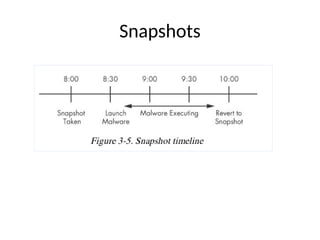
Dynamic Analysis
• Runningmalware deliberately, while
monitoring the results
• Requires a safe environment
• Must prevent malware from spreading to
production machines
• Real machines can be airgapped –no network
connection to the Internet or to other
machines
3.
Real Machines
• Disadvantages
–No Internet connection, so parts of the malware
may not work
– Can be difficult to remove malware, so re-imaging
the machine will be necessary
• Advantage
– Some malware detects virtual machines and won't
run properly in one
4.
Virtual Machines
• Themost common method
• We'll do it that way
• This protects the host machine from the
malware
– Except for a few very rare cases of malware that
escape the virtual machine and infect the host
5.
VMware Player
• Freebut limited
• Cannot take snapshots
• VMware Workstation or Fusion is a better
choice, but they cost money
• You could also use VirtualBox, Hyper-V,
Parallels, or Xen.
6.
Windows XP
• Themalware we are analyzing targets
Windows XP, as most malware does
• The DVD handed out in class contains a Win
XP SP3 virtual machine for you to use
7.
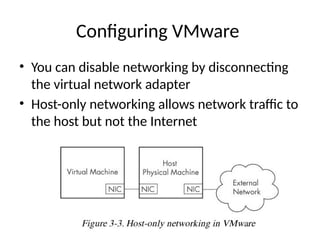
Configuring VMware
• Youcan disable networking by disconnecting
the virtual network adapter
• Host-only networking allows network traffic to
the host but not the Internet
8.
Connecting Malware tothe Internet
• NAT mode lets VMs see each other and the
Internet, but puts a virtual router between the
VM and the LAN
• Bridged networking connects the VM directly to
the LAN
• Can allow malware to do some harm or spread –
controversial
• You could send spam or participate in a DDoS
attack
Risks of UsingVMware for Malware Analysis
• Malware may detect that it is in a VM and run
differently
• VMware has bugs: malware may crash or
exploit it
• Malware may spread or affect the host – don't
use a sensitive host machine
• All the textbook samples are harmless
Why Perform DynamicAnalysis?
• Static analysis can reach a dead-end, due to
– Obfuscation
– Packing
– Examiner has exhausted the available static
analysis techniques
• Dynamic analysis is efficient and will show you
exactly what the malware does
13.
• Obfuscation andpacking are techniques frequently
used by malware developers to make their malicious
software more difficult to detect, analyse, and
reverse-engineer.
• These methods aim to conceal the malware’s true
purpose and evade security measures, such as
antivirus software and manual analysis by security
experts.
14.
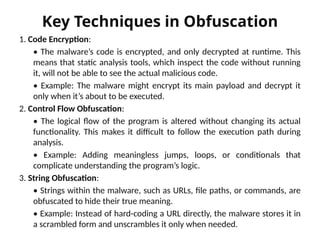
Key Techniques inObfuscation
1. Code Encryption:
• The malware’s code is encrypted, and only decrypted at runtime. This
means that static analysis tools, which inspect the code without running
it, will not be able to see the actual malicious code.
• Example: The malware might encrypt its main payload and decrypt it
only when it’s about to be executed.
2. Control Flow Obfuscation:
• The logical flow of the program is altered without changing its actual
functionality. This makes it difficult to follow the execution path during
analysis.
• Example: Adding meaningless jumps, loops, or conditionals that
complicate understanding the program’s logic.
3. String Obfuscation:
• Strings within the malware, such as URLs, file paths, or commands, are
obfuscated to hide their true meaning.
• Example: Instead of hard-coding a URL directly, the malware stores it in
a scrambled form and unscrambles it only when needed.
15.
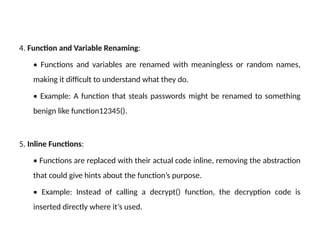
4. Function andVariable Renaming:
• Functions and variables are renamed with meaningless or random names,
making it difficult to understand what they do.
• Example: A function that steals passwords might be renamed to something
benign like function12345().
5. Inline Functions:
• Functions are replaced with their actual code inline, removing the abstraction
that could give hints about the function’s purpose.
• Example: Instead of calling a decrypt() function, the decryption code is
inserted directly where it’s used.
16.
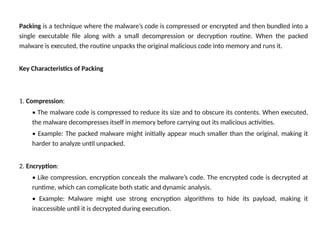
Packing is atechnique where the malware’s code is compressed or encrypted and then bundled into a
single executable file along with a small decompression or decryption routine. When the packed
malware is executed, the routine unpacks the original malicious code into memory and runs it.
Key Characteristics of Packing
1. Compression:
• The malware code is compressed to reduce its size and to obscure its contents. When executed,
the malware decompresses itself in memory before carrying out its malicious activities.
• Example: The packed malware might initially appear much smaller than the original, making it
harder to analyze until unpacked.
2. Encryption:
• Like compression, encryption conceals the malware’s code. The encrypted code is decrypted at
runtime, which can complicate both static and dynamic analysis.
• Example: Malware might use strong encryption algorithms to hide its payload, making it
inaccessible until it is decrypted during execution.
17.
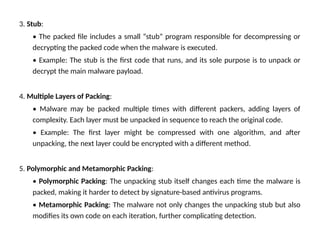
3. Stub:
• Thepacked file includes a small “stub” program responsible for decompressing or
decrypting the packed code when the malware is executed.
• Example: The stub is the first code that runs, and its sole purpose is to unpack or
decrypt the main malware payload.
4. Multiple Layers of Packing:
• Malware may be packed multiple times with different packers, adding layers of
complexity. Each layer must be unpacked in sequence to reach the original code.
• Example: The first layer might be compressed with one algorithm, and after
unpacking, the next layer could be encrypted with a different method.
5. Polymorphic and Metamorphic Packing:
• Polymorphic Packing: The unpacking stub itself changes each time the malware is
packed, making it harder to detect by signature-based antivirus programs.
• Metamorphic Packing: The malware not only changes the unpacking stub but also
modifies its own code on each iteration, further complicating detection.
Sandbox
• All-in-one softwarefor basic dynamic analysis
• Virtualized environment that simulates
network services
• Examples: Norman Sandbox, GFI Sandbox,
Anubis, Joe Sandbox, ThreatExpert, BitBlaze,
Comodo Instant Malware Analysis
• They are expensive but easy to use
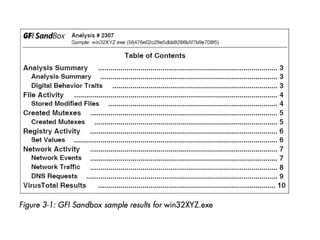
• They produce a nice PDF report of results
21.
Drawbacks
1. Malware sandboxesdo have a few major drawbacks. For example, the sand-
box simply runs the executable, without command-line options. If the malware
executable requires command-line options, it will not execute any code that
runs only when an option is provided.
2. In addition, if your subject malware is waiting for a command-and-control
packet to be returned before launching a backdoor, the backdoor will not be
launched in the sandbox.
3. The sandbox also may not record all events, because neither you nor the
sandbox may wait long enough. For example, if the malware is set to sleep for a
day before it performs malicious activity, you may miss that event.
22.
Malware oftendetects when it is running in a virtual machine, and if a
virtual machine is detected, the malware might stop running or behave
differently. Not all sandboxes take this issue into account.
Some malware requires the presence of certain registry keys or files on
the system that might not be found in the sandbox. These might be
required to contain legitimate data, such as commands or encryption keys.
If the malware is a DLL, certain exported functions will not be invoked
properly, because a DLL will not run as easily as an executable.
The sandbox environment OS may not be correct for the malware. For
example, the malware might crash on Windows XP but run correctly in
Windows 7.
A sandbox cannot tell you what the malware does. It may report basic
functionality, but it cannot tell you that the malware is a custom Security
Accounts Manager (SAM) hash dump utility or an encrypted keylogging
backdoor, for example.
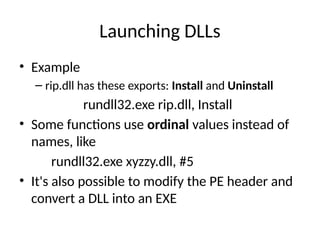
Launching DLLs
• EXEfiles can be run directly, but DLLs can't
• Use Rundll32.exe (included in Windows)
rundll32.exe DLLname, Export arguments
• The Export value is one of the exported
functions you found in Dependency Walker,
PEview, or PE Explorer.
25.
Launching DLLs
• Example
–rip.dll has these exports: Install and Uninstall
rundll32.exe rip.dll, Install
• Some functions use ordinal values instead of
names, like
rundll32.exe xyzzy.dll, #5
• It's also possible to modify the PE header and
convert a DLL into an EXE
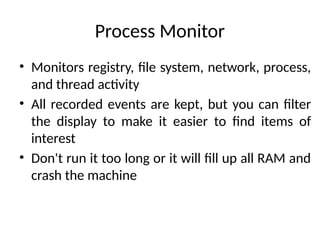
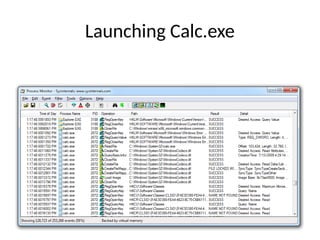
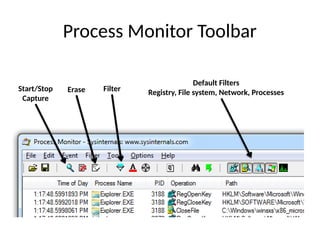
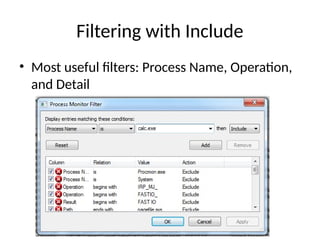
Process Monitor
• Monitorsregistry, file system, network, process,
and thread activity
• All recorded events are kept, but you can filter
the display to make it easier to find items of
interest
• Don't run it too long or it will fill up all RAM and
crash the machine
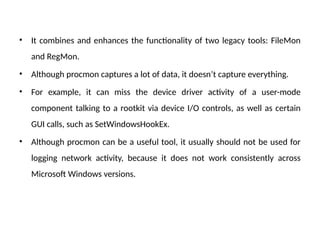
28.
• It combinesand enhances the functionality of two legacy tools: FileMon
and RegMon.
• Although procmon captures a lot of data, it doesn’t capture everything.
• For example, it can miss the device driver activity of a user-mode
component talking to a rootkit via device I/O controls, as well as certain
GUI calls, such as SetWindowsHookEx.
• Although procmon can be a useful tool, it usually should not be used for
logging network activity, because it does not work consistently across
Microsoft Windows versions.
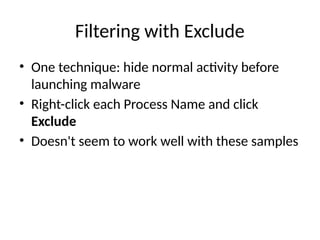
Filtering with Exclude
•One technique: hide normal activity before
launching malware
• Right-click each Process Name and click
Exclude
• Doesn't seem to work well with these samples
Properties
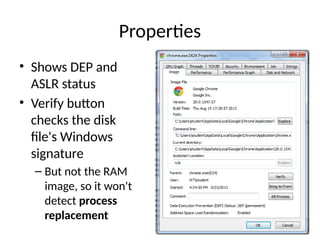
• Shows DEPand
ASLR status
• Verify button
checks the disk
file's Windows
signature
– But not the RAM
image, so it won't
detect process
replacement
38.
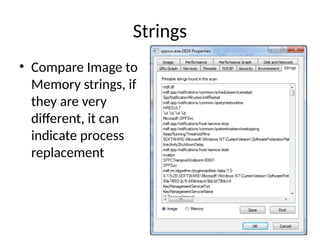
Strings
• Compare Imageto
Memory strings, if
they are very
different, it can
indicate process
replacement
39.
Detecting Malicious Documents
•Open the document (e.g. PDF) on a system
with a vulnerable application
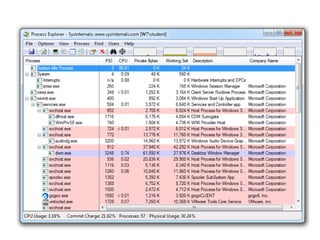
• Watch Process Explorer to see if it launches a
process
• The Image tab of that process's Properties
sheet will show where the malware is
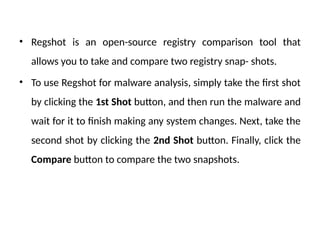
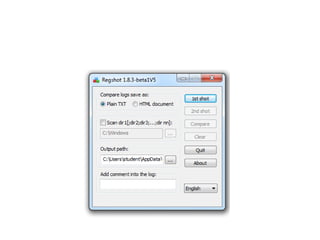
• Regshot isan open-source registry comparison tool that
allows you to take and compare two registry snap- shots.
• To use Regshot for malware analysis, simply take the first shot
by clicking the 1st Shot button, and then run the malware and
wait for it to finish making any system changes. Next, take the
second shot by clicking the 2nd Shot button. Finally, click the
Compare button to compare the two snapshots.
43.
Faking a Network
Youcan create a fake network and quickly obtain network indicators,
without connecting to the Internet. These indicators can include DNS
names, IP addresses, and packet signatures.
To fake a network successfully, you must prevent the malware from
realizing that it is executing in a virtualized environment.
44.
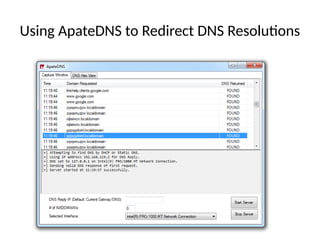
• ApateDNS, afree tool from Mandiant
(www.mandiant.com/products/research/ mandiant_apatedns/download).
• It is the quickest way to see DNS requests made by malware.
• ApateDNS spoofs DNS responses to a user-specified IP address by listening
on UDP port 53 on the local machine.
• It responds to DNS requests with the DNS response set to an IP address
you specify.
• ApateDNS can display the hexadecimal and ASCII results of all requests it
receives
ApateDNS Does NotWork
• I couldn't get it to redirect any traffic in Win XP
or 7
• nslookup works, but you don't see anything in
a browser or with ping
• I decided to ignore it and use INetSim instead
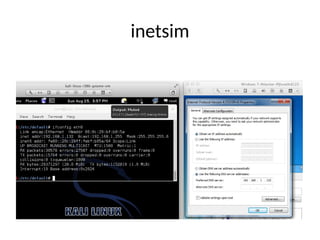
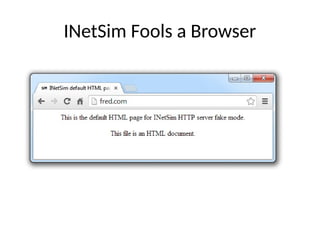
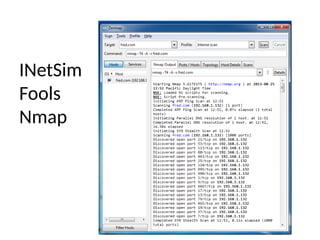
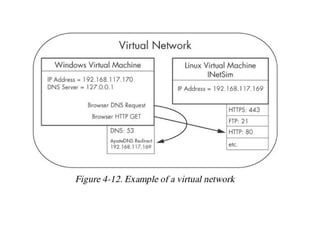
• INetSim isa free, Linux-based software suite for simulating common
Internet services.
• The easiest way to run INetSim if your base operating system is Microsoft
Windows is to install it on a Linux virtual machine and set it up on the
same virtual network as your malware analysis virtual machine.
• INetSim is the best free tool for providing fake services, allowing you to
analyze the network behavior of unknown malware samples by emulating
services such as HTTP, HTTPS, FTP, IRC, DNS, SMTP, and others.
Using the Tools
•Procmon
– Filter on the malware executable name and clear
all events just before running it
• Process Explorer
• Regshot
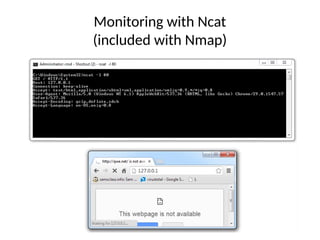
• Virtual Network with INetSim
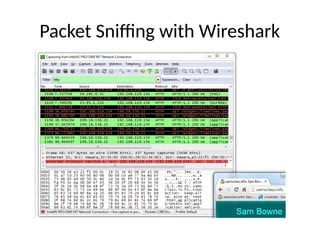
• Wireshark