Oracle® Cloud
Visualizing Data and Building Reports in
Oracle Analytics Cloud
E81765-19
June 2019
Oracle Cloud Visualizing Data and Building Reports in Oracle Analytics Cloud,
E81765-19
Copyright © 2017, 2019, Oracle and/or its affiliates. All rights reserved.
Primary Authors: Pete Brownbridge, Nick Fry
Contributing Authors: Rosie Harvey, Suzanne Gill, Stefanie Rhone
Contributors: Oracle Analytics Cloud development, product management, and quality assurance teams
This software and related documentation are provided under a license agreement containing restrictions on
use and disclosure and are protected by intellectual property laws. Except as expressly permitted in your
license agreement or allowed by law, you may not use, copy, reproduce, translate, broadcast, modify,
license, transmit, distribute, exhibit, perform, publish, or display any part, in any form, or by any means.
Reverse engineering, disassembly, or decompilation of this software, unless required by law for
interoperability, is prohibited.
The information contained herein is subject to change without notice and is not warranted to be error-free. If
you find any errors, please report them to us in writing.
If this is software or related documentation that is delivered to the U.S. Government or anyone licensing it on
behalf of the U.S. Government, then the following notice is applicable:
U.S. GOVERNMENT END USERS: Oracle programs, including any operating system, integrated software,
any programs installed on the hardware, and/or documentation, delivered to U.S. Government end users are
"commercial computer software" pursuant to the applicable Federal Acquisition Regulation and agency-
specific supplemental regulations. As such, use, duplication, disclosure, modification, and adaptation of the
programs, including any operating system, integrated software, any programs installed on the hardware,
and/or documentation, shall be subject to license terms and license restrictions applicable to the programs.
No other rights are granted to the U.S. Government.
This software or hardware is developed for general use in a variety of information management applications.
It is not developed or intended for use in any inherently dangerous applications, including applications that
may create a risk of personal injury. If you use this software or hardware in dangerous applications, then you
shall be responsible to take all appropriate fail-safe, backup, redundancy, and other measures to ensure its
safe use. Oracle Corporation and its affiliates disclaim any liability for any damages caused by use of this
software or hardware in dangerous applications.
Oracle and Java are registered trademarks of Oracle and/or its affiliates. Other names may be trademarks of
their respective owners.
Intel and Intel Xeon are trademarks or registered trademarks of Intel Corporation. All SPARC trademarks are
used under license and are trademarks or registered trademarks of SPARC International, Inc. AMD, Opteron,
the AMD logo, and the AMD Opteron logo are trademarks or registered trademarks of Advanced Micro
Devices. UNIX is a registered trademark of The Open Group.
This software or hardware and documentation may provide access to or information about content, products,
and services from third parties. Oracle Corporation and its affiliates are not responsible for and expressly
disclaim all warranties of any kind with respect to third-party content, products, and services unless otherwise
set forth in an applicable agreement between you and Oracle. Oracle Corporation and its affiliates will not be
responsible for any loss, costs, or damages incurred due to your access to or use of third-party content,
products, or services, except as set forth in an applicable agreement between you and Oracle.
Contents
Preface
Audience xxi
Documentation Accessibility xxi
Related Documents xxi
Conventions xxii
Part I Introduction to Visualization and Reporting in Oracle Analytics
Cloud
1 Get Started with Visualizing Data and Building Reports
About Reports and Dashboards 1-1
Before You Begin 1-2
How to Begin Data Visualization and Building Reports 1-2
Access Oracle Analytics Cloud 1-4
Change Your Own Password 1-5
Find and Explore Your Content 1-6
View Content on Mobile Devices 1-7
View Data Visualization Projects on Mobile Phones and Tablets 1-8
View Analyses, Projects, and Dashboards Through Oracle Business Intelligence
Mobile 1-8
View Instant Analytics from Your Data Using Oracle Analytics Cloud Synopsis 1-8
View and Collaborate on Analytical Charts Using Oracle Analytics Cloud Day by
Day 1-9
Analyze and Interact with Information for Insight 1-9
Top Tasks to Visualize Data and Build Reports 1-9
Top Tasks to Explore Data 1-9
Top Tasks to Analyze 1-10
Top Tasks to Manage Data 1-10
Part II Explore Data in Data Visualization
iii
2 Get Started with Oracle Data Visualization
About Data Visualization 2-1
Access Data Visualization 2-2
3 Explore, Visualize, and Analyze Data
Typical Workflow for Exploring Data 3-1
Create a Project and Add Data Sets 3-2
Build a Visualization by Adding Data from Data Panel 3-3
Different Methods to Add Data 3-3
Automatically Create Best Visualization 3-4
Add Data to the Visualization Using Grammar Panel 3-4
Add Data to the Visualization Using Assignments Panel 3-6
Modify a Visualization's Tooltips 3-6
Use Advanced Analytics Functions 3-7
Add Advanced Analytics Functions to Visualizations 3-7
Add Reference Lines to Visualizations 3-7
Add a Language Narrative Visualization 3-8
About the Language Narrative Visualization 3-8
Create a Language Narrative Visualization 3-12
Create Calculated Data Elements in a Data Set 3-12
Sort Data in Visualizations 3-13
Undo and Redo Edits 3-13
Refresh Data in a Project 3-14
Pause Data Queries in a Project 3-14
Adjust the Visualization Canvas Layout 3-14
Change Visualization Types 3-16
Adjust Visualization Properties 3-16
Apply Color to Visualizations 3-17
About Color Assignments in Visualizations 3-17
Access Color Options 3-18
Change the Color Palette 3-18
Assign Colors to Columns 3-19
Format Numeric Values of Columns 3-21
Format Numeric Values of Visualizations 3-21
Set Currency Symbols for Visualizations 3-21
Apply Map Backgrounds and Map Layers to Enhance Visualizations 3-22
About Map Backgrounds 3-22
Enhance Visualizations with Map Backgrounds 3-23
Use Different Map Backgrounds in a Project 3-23
Interpret Data Values with Color and Size in Map Visualizations 3-24
iv
Add Custom Map Layers 3-25
Update Custom Map Layers 3-26
Apply Multiple Data Layers to a Single Map Visualization 3-27
Create Heatmap Layers on a Map Visualization 3-27
Create Cluster Layers on a Map Visualization 3-28
Represent Point Data With Custom Icons on a Map 3-29
Select Points or Area on a Map 3-30
Represent Line Data Using Size and Color on a Map 3-30
Make Maps Available to Users 3-30
Make Map Backgrounds Available to Users 3-31
Sort and Select Data in Visualization Canvases 3-32
Explore Data on Mobile Devices 3-32
What You See on a Tablet 3-32
What You See on a Mobile Phone 3-34
Replace a Data Set in a Project 3-36
Remove a Data Set from a Project 3-37
Analyze Your Data Set Using Machine Learning 3-37
Use Machine Learning to Discover Data Insights 3-37
Add Data Insights to Visualizations 3-37
About Warnings for Data Issues in Visualizations 3-38
Embed a Visualization in a Dashboard 3-39
4 Create and Apply Filters to Visualize Data
Typical Workflow to Create and Apply Filters 4-1
About Filters and Filter Types 4-2
How Data Sets Interact with Filters 4-2
How the Number of Data Sets Affects Filters 4-3
Synchronize Visualizations in a Project 4-3
About Automatically Applied Filters 4-4
Create Filters on a Project 4-4
Create Filters on a Visualization 4-5
Move Filter Panels 4-6
Apply Range Filters 4-7
Apply Top Bottom N Filters 4-7
Apply List Filters 4-8
Apply Date Range Filters 4-9
Apply Relative Time Filters 4-9
Build Expression Filters 4-10
v
5 Use Other Functions to Visualize Data
Typical Workflow to Prepare, Connect and Search Artifacts 5-1
Build Stories 5-2
Capture Insights 5-2
Create Stories 5-3
View Streamlined Content 5-3
Add Notes 5-4
Edit a Note 5-4
Adjust a Note 5-5
Identify Content with Thumbnails 5-5
Identify Content with Tooltips 5-5
Manage Custom Plug-ins 5-6
Compose Expressions 5-7
Use Data Actions to Connect to Canvases and External URLs and Use in External
Containers 5-7
Create Data Actions to Connect Visualization Canvases 5-8
Create Data Actions to Connect to External URLs from Visualization Canvases 5-8
Create Data Actions to Connect to REST APIs from Visualization Canvases 5-9
Invoke Data Actions from Visualization Canvases 5-10
Create Data Actions in Visualizations Embedded in External Containers 5-11
Execute Data Actions that Contain Embedded Content 5-12
Search Data, Projects, and Visualizations 5-18
Index Data for Search and BI Ask 5-18
Enable Search with BI Ask 5-19
Visualize Data with BI Ask 5-19
Search for Saved Projects and Visualizations 5-21
Search Tips 5-21
Save Your Changes Automatically 5-22
Sort the Items in a Page 5-23
6 Add Data Sources to Analyze and Explore Data
Typical Workflow to Add Data from Data Sources 6-1
About Data Sources 6-2
Data Sources and Subject Areas 6-2
Data Sources and Measure Columns 6-4
Connect to Database Data Sources 6-4
Create Database Connections 6-4
Create Data Sets from Databases 6-5
Edit Database Connections 6-6
Delete Database Connections 6-6
vi
About Specifying Connections to Databases 6-7
Connect to Oracle Applications Data Sources 6-7
Create Oracle Applications Connections 6-7
Configure Impersonate User for the Use Active User's Credentials Option 6-8
Compose Data Sets from Subject Areas 6-10
Compose Data Sets from Analyses 6-11
Edit Oracle Applications Connections 6-11
Delete Oracle Applications Connections 6-11
Create Connections to Dropbox 6-12
Create Connections to Google Drive or Google Analytics 6-12
Create Connections to Oracle Autonomous Data Warehouse 6-13
Create Connections to Oracle Autonomous Transaction Processing 6-14
Create Connections to Oracle Big Data Cloud 6-15
Connect to Essbase Data Sources 6-15
Create Connections to Oracle Analytics Cloud – Essbase 6-15
Create Data Sets from Essbase Cubes 6-16
Create Connections to Oracle Essbase Data on a Private Network 6-16
Create Connections to Oracle Talent Acquisition Cloud 6-18
Create Connections to Snowflake Data Warehouse 6-18
Use a Subject Area as a Data Set 6-19
Add Spreadsheets as Data Sets 6-19
About Adding Spreadsheets or Other Data Files 6-19
Add a Spreadsheet from Your Computer 6-20
Add a Spreadsheet from Dropbox or Google Drive 6-21
Control Share of Data You Added 6-21
Embed Visualizations in Other Web Pages 6-22
Embed Visualizations in Web Pages 6-23
JavaScript Source and API Attributes to Embed in Your HTML Page 6-23
Pass Filters to Embed in Your HTML Page 6-24
Refresh Data in Embedded HTML Pages 6-25
Find the Javascript and HTML to Embed a Specific Data Visualization
Project 6-26
Embed Visualizations in Web Pages When the Embedding Application Doesn’t
Use Oracle JET Technology 6-27
Embed Visualizations in Web Pages When the Embedding Application Is Using
Oracle JET 6-28
7 Manage Data that You Added
Typical Workflow to Manage Added Data 7-1
Manage Data Sets 7-2
Types of Data You Can Refresh 7-2
vii
Refresh Data in a Data Set 7-3
Update Details of Data that You Added 7-3
Delete Data Sets from Data Visualization 7-4
Rename a Data Set 7-4
Duplicate Data Sets 7-4
Blend Data that You Added 7-5
About Mismatched Values in Blended Data 7-6
Change Data Blending in a Project 7-8
View and Edit Object Properties 7-8
Share and Access Permissions for a Project 7-9
Set Permissions for a Project 7-10
Set Permissions for a Shared Folder 7-10
Access and Share Rules 7-11
8 Prepare Your Data Set for Analysis
Typical Workflow to Prepare Your Data Set for Analysis 8-1
About Data Preparation 8-1
Data Profiles and Semantic Recommendations 8-2
Semantic Type Categories 8-3
Semantic Type Recommendations 8-3
Recognized Pattern-Based Semantic Types 8-3
Reference-Based Semantic Types 8-4
Recommended Enrichments 8-4
Required Thresholds 8-5
Accept Enrichment Recommendations 8-5
Transform Data Using Column Menu Options 8-6
Convert Text Columns to Date or Time Columns 8-7
Adjust the Display Format of Date or Time Columns 8-7
General Custom Format Strings 8-8
Create a Bin Column When You Prepare Data 8-10
Edit the Column Properties 8-11
Edit the Data Preparation Script 8-12
9 Use Machine Learning to Analyze Data
Typical Workflow to Analyze Data with Machine Learning 9-1
Create a Train Model using a Data Flow 9-1
Interpret the Effectiveness of the Model 9-2
Apply a Model Using a Data Flow 9-4
viii
Add Scenarios to a Project 9-5
10 Curate Your Data Using Data Flows
Typical Workflow to Curate Data with Data Flows 10-1
About Data Flows 10-2
Working in the Data Flow Editor 10-2
Create a Data Flow 10-3
Zoom Controls in Data Flow Editor 10-4
Run a Data Flow 10-4
Run a Saved Data Flow 10-4
Reuse a Data Flow 10-5
Schedule a Data Flow 10-5
Create a Scheduled Task for a Data Flow 10-6
Modify a Scheduled Task 10-6
Apply Incremental Processing to a Data Flow 10-6
Modify Parameter Prompts When You Run a Data Flow 10-7
Customize the Names and Descriptions of Data Flow Steps 10-7
Create a Sequence of Data Flows 10-8
Using Steps 10-8
Add Columns in a Data Flow 10-9
Add Data in a Data Flow 10-10
Add Aggregates to a Data Flow 10-10
Create a Bin Column in a Data Flow 10-11
Create Multiple Pipelines in a Data Flow Using a Branch 10-12
Create and Customize an Essbase Cube in a Data Flow 10-13
Cut, Paste, and Skip Rules 10-14
Designation Change Rules for Generation Columns 10-14
Add Cumulative Values to a Data Flow 10-15
Filter Your Data in a Data Flow 10-16
Create a Group in a Data Flow 10-16
Add a Join in a Data Flow 10-17
Merge Columns in a Data Flow 10-17
Rename Columns in a Data Flow 10-17
Save Output Data from a Data Flow 10-18
Select Columns to Include in a Data Flow 10-19
Add a Sentiment Analysis to a Data Flow 10-20
Add a Time Series Forecast to a Data Flow 10-20
Train a Binary Classifier Model in a Data Flow 10-21
Train a Clustering Model in a Data Flow 10-21
Train a Multi-Classifier Model in a Data Flow 10-21
ix
Train a Numeric Prediction Model in a Data Flow 10-22
Transform Data in a Data Flow 10-22
Merge Rows in a Data Flow 10-23
11 Import and Share
Typical Workflow to Import and Share Artifacts 11-1
Import and Share Projects or Folders 11-1
Import an Application or Project 11-2
Share a Project or Folder as an Application 11-2
Email Projects and Folders 11-3
Use Oracle Content and Experience Cloud Service to Share a File of a
Visualization, Canvas, or Story 11-3
Use Twitter to Share a File of a Visualization, Canvas, or Story 11-4
Use Slack to Share a File of a Visualization, Canvas, or Story 11-5
Use LinkedIn to Share a File of a Visualization, Canvas, or Story 11-5
Share Visualizations, Canvases, or Stories 11-6
Share a File of a Visualization, Canvas, or Story 11-6
Email a File of a Visualization, Canvas, or Story 11-7
Print a Visualization, Canvas, or Story 11-8
Write Visualization Data to a CSV or TXT File 11-8
Part III Report Data
12 Create Analyses
Typical Workflow to Create Analyses 12-1
Create Your First Analysis 12-2
Set Properties for Columns 12-3
Apply Formatting to Content 12-4
Format Columns 12-4
Make Your Analyses Dynamic 12-5
Add Interactivity to Analyses 12-6
Make Interactions Available 12-7
Set Default Formats for Your System 12-7
Export Content from Analyses and Dashboards 12-8
Export the Results of Analyses 12-8
Export Dashboards and Dashboard Pages 12-8
Tips for Exporting 12-8
Edit Formulas or Calculated Measures 12-9
Edit the Formula for a Column 12-9
x
Edit Calculated Measures 12-11
Set Properties for Analyses 12-11
Set Your Preferences 12-12
Advanced Techniques: Import Formatting from Another Analysis 12-13
About Applying Formatting from Columns 12-13
About Applying Formatting from Views 12-14
About Applying Formatting from Containers 12-14
Import Formatting from a Saved Analysis to a Target Analysis 12-14
Advanced Techniques: Format with HTML Tags 12-14
Advanced Techniques: Combine Columns to Display Data Differently 12-15
Advanced Techniques: Examine the Logical SQL Statements for Analyses 12-17
Set Caching Options for Your Analysis 12-17
Advanced Techniques: Reference Stored Values in Variables 12-17
About Session Variables 12-18
System Session Variables 12-18
Non-System Session Variables 12-19
About Repository Variables 12-19
About Presentation Variables 12-19
About Request Variables 12-20
About Global Variables 12-21
Create Global Variables 12-21
Syntax for Referencing Variables 12-22
Session Variables 12-24
Presentation Variables 12-24
Repository Variables 12-25
Advanced Techniques: Issue Direct Database Requests 12-25
Privileges Required for Direct Database Requests 12-25
Create and Execute Direct Database Requests 12-25
13 View Data in Different Ways
Typical Workflow to View Data in Different Ways 13-1
About Views 13-2
Add Views 13-4
Edit Views 13-5
Edit Various Types of Views 13-6
Edit Table and Pivot Table Views 13-6
Edit Performance Tile Views 13-7
Edit Treemap Views 13-9
Edit Heat Matrix Views 13-10
About Heat Matrix Views 13-11
xi
Edit Trellis Views 13-13
About the Functions of Trellis Views 13-14
About Simple Trellis Versus Advanced Trellis 13-14
Design Considerations for Trellis Views and Microcharts 13-16
Edit Gauge Views 13-17
Set Thresholds 13-18
Edit Map Views 13-18
About Map Views 13-19
About Formats and Layers in Map Views 13-21
Edit Formats and Layers in Map Views 13-24
Apply Formats to Layers in Map Views 13-24
Move Around in Map Views 13-24
Set the Initial View Ports for Map Views 13-26
Edit Narrative Views 13-27
Edit Non-Data Views 13-28
About Column Selector Views 13-29
About View Selector Views 13-29
About Filters Views 13-29
About Selection Steps Views 13-29
About Static Text Views 13-29
About Title Views 13-30
Graph Data in Analyses 13-30
Edit Graph Views 13-30
Zoom and Scroll in Graphs 13-31
Format the Visual Appearance of Graphs 13-32
Format Graphs Based on Position 13-33
Format Graphs Based on Columns 13-33
Rules to Apply Conditional Formats in Graphs 13-34
Graph Exceptions for Conditional Formatting on Columns 13-34
Limit Data Displayed in Graphs and Gauges 13-35
Define Section Sliders in Graphs and Gauges 13-35
Use Section Sliders in Graphs and Gauges 13-35
Save Views 13-36
Rearrange Views 13-36
Refresh the Results in Views 13-37
Print Views 13-37
Change Print Options for Views 13-38
Preview How Views Are Displayed on Dashboards 13-38
Remove Views 13-39
Sort Values in Views 13-39
Clear Sorts in Views 13-40
xii
Drill in Results 13-41
About Drilling 13-41
Drill in Tables and Other Views 13-41
Drill in Graphs 13-42
Drill in Map Views 13-44
Resize Rows and Columns in Views 13-44
Configure to Resize in Views 13-45
Resize in Views 13-45
Suppress Null Values in Views 13-45
Assemble Views for Display 13-46
Link Views in Master-Detail Relationships 13-47
Define Master Views 13-47
Define Detail Views 13-48
Modify the Layout of Data in Views 13-49
Add and Rearrange Columns in Views 13-49
Add Columns to Views 13-50
Remove Columns from Views 13-50
Rearrange Columns in Views 13-50
Set Properties for Sections of Data in Views 13-51
Add Totals to Tables and Pivot Tables 13-52
Display Running Sums and Relative Values in Pivot Tables 13-53
Display Running Sums for Measure Columns in Pivot Tables 13-53
Display Relative Values for Measure Columns in Pivot Tables 13-54
About Drop Targets in the Layout Pane 13-54
About the Types of Drop Targets 13-55
About the Excluded Drop Target 13-55
About the Guidelines for Drop Targets for Various Views 13-56
Drop Target Guidelines for Graphs and Funnel Graphs 13-56
Drop Target Guidelines for Heat Matrixes 13-57
Drop Target Guidelines for Trellises 13-58
Drop Target Guidelines for Treemaps 13-59
14 Build Dashboards
Typical Workflow to Build Dashboards 14-1
Create Your First Dashboard 14-2
Edit Dashboards 14-3
Add and Delete Pages in Dashboards 14-3
Add Pages to Dashboards 14-4
Add Content to Dashboard Pages 14-4
Understand How Dashboard Pages and BI Publisher Reports Interact 14-5
xiii
Change the Properties of a Dashboard and Its Pages 14-6
Change the Properties of Objects Added to Dashboard Pages 14-6
Delete Objects on Dashboard Pages 14-7
Delete Dashboard Pages 14-7
Create and Manage Layouts for Dashboards and Dashboard Pages 14-8
About Custom Print and Export Layouts 14-8
Create Custom Layouts 14-8
Edit, Replace, or Remove Custom Layouts 14-9
Items Not Supported for Custom Print Layouts in BI Publisher 14-10
Print Dashboards 14-10
Organize Dashboard Pages in Briefing Books 14-10
Add Content to New or Existing Briefing Books 14-10
Edit the Content of Briefing Books 14-11
Download Briefing Books 14-12
Add a List of Briefing Books to a Dashboard Page 14-12
Improve the Time to Display Dashboard Pages with Default Selections 14-13
Save and Restore Dashboard State 14-14
Save Customizations of Dashboard Pages 14-14
Apply Saved Customizations 14-15
Edit Saved Customizations 14-15
Clear the Current Customization 14-15
Publish Dashboard Pages 14-15
Link to Dashboard Pages 14-16
About Bookmark Links 14-16
Create Links to Dashboard Pages 14-16
15 Filter and Select Data for Analyses
Typical Workflow to Filter and Select Data 15-1
About Filters and Selection Steps 15-2
About Prompted Filters 15-2
Create Filters for Columns 15-2
Create Inline and Named Filters 15-3
Specify Values for Filters 15-3
Embed an EVALUATE_PREDICATE Function in a Filter 15-5
Combine and Group Filters 15-5
Save Filters 15-6
Edit Filters for Columns 15-6
Reuse Filters 15-7
Use a Saved Analysis as a Filter 15-8
Advanced Techniques: How Dashboard Prompts and Analysis Prompts Interact 15-9
xiv
Refine Selections of Data 15-10
Create Selection Steps 15-10
Edit Selection Steps 15-11
Save Selection Steps for Reuse 15-12
Advanced Techniques: Create Condition Steps 15-12
Manipulate Members with Groups and Calculated Items 15-14
About Groups and Calculated Items 15-14
Create Groups and Calculated Items 15-15
Edit Groups and Calculated Items 15-16
View Group Contents 15-17
Save Groups and Calculated Items 15-17
Reuse a Group or Calculated Item in an Analysis 15-18
Delete Groups and Calculated Items 15-19
16 Prompt in Analyses and Dashboards
Typical Workflow to Prompt in Analyses and Dashboards 16-1
Create Prompts 16-1
Create Column Prompts 16-2
Create Variable Prompts 16-3
Override a Selection Step with a Prompt 16-5
Create Currency Prompts 16-5
Edit Prompts 16-6
Add Prompts to Dashboard Pages 16-7
Add Hidden Prompts to Dashboard Pages 16-8
17 Make Analyses Interactive
Typical Workflow to Make Analyses Interactive 17-1
Create Named Actions for Reuse 17-2
Create Inline Actions 17-2
Add Actions to Analyses 17-3
Add Actions to Dashboard Pages 17-4
Add Actions to Dashboard Pages with Action Links 17-4
Add Actions to Dashboard Pages with Action Link Menus 17-5
Edit Named Actions 17-6
Edit and Delete Action Links in Analyses 17-6
Edit and Delete Action Links in Dashboard Pages 17-7
Save Inline Actions in Analyses to the Catalog 17-7
Save Inline Actions in Dashboards to the Catalog 17-8
xv
18 Manage Content
Typical Workflow to Manage Content 18-1
Rename Content 18-2
Rename Items 18-2
Rename Views 18-2
Access Favorites Easily 18-3
Add Favorites from Catalog Page 18-3
Remove Favorites from Catalog Page 18-3
Add or Remove Favorites from Other Pages 18-3
Access Properties 18-4
Share Your Content with Others 18-4
Share Items 18-5
Share Dashboard Sections 18-6
Send Email Reports and Track Deliveries 18-6
Send Email Reports Once, Weekly, or Daily 18-6
Track the Reports You Distribute By Email or Through Agents 18-7
Email Security Alert 18-8
Automate Business Processes With Agents 18-9
Create Agents to Deliver Content 18-9
Schedule an Agent to Deliver Content Directly from an Analysis 18-10
Disable and Enable the Schedule for an Agent 18-11
Subscribe to Agents 18-11
List Agents You Subscribe To or Own 18-11
Access and Manage Your Alerts 18-11
Configure Your Devices and Delivery Profile 18-12
About Devices and Delivery Profiles 18-12
Configure Your Devices 18-13
Configure Your Delivery Profiles 18-13
Migrate Content to Other Catalogs 18-14
Save Content to a Catalog Archive 18-14
Upload Content from a Catalog Archive 18-15
Assign Ownership of Items 18-15
Assume Ownership of Items 18-16
Embed External Images and Other External Resources in Your Content 18-17
Embed Your Content in Other Applications 18-17
Access Your Reporting Content in Smart View 18-18
Perform Advanced Catalog Management 18-18
Deploy Catalog Manager 18-18
Download and Install Developer Client Tool for Oracle Analytics Cloud 18-19
Create Reports to Display Catalog Data Using Catalog Manager 18-19
xvi
Sample Uses for Reports 18-20
View Catalog Objects in XML 18-21
Edit Catalog Objects in XML 18-22
Part IV Publish Data
19 Introduction to Pixel-Perfect Publishing
Overview 19-1
Tasks for Report Consumers 19-1
My Account Preferences and Groups 19-2
About the Catalog 19-2
Browse the Catalog 19-2
Search the Catalog 19-2
Download Desktop Tools 19-3
20 View Pixel-Perfect Reports
View a Pixel-Perfect Report 20-1
Configure Pixel-Perfect Reports Using Report Viewer 20-1
Specify Parameters 20-2
Search for a Parameter Value 20-3
Select a Layout 20-3
Select an Output Type 20-3
Output Types 20-4
Perform Actions 20-5
Actions 20-5
21 Create Pixel-Perfect Report Jobs
Navigate to the Schedule Report Job Page 21-1
Set General Options 21-1
Set Output Options 21-2
Add Destination Types to Report Output 21-2
Report Output Destination Types 21-3
Content Server Destination Type Properties 21-4
Add Outputs 21-5
Define the Schedule for a Job 21-6
Define a Recurrence Pattern 21-6
Use Schedule Triggers 21-9
About Schedule Trigger 21-9
xvii
Enable a Schedule Trigger 21-9
Configure Notifications 21-10
Submit and Monitor a Job 21-10
Create a Job from an Existing Job 21-10
Create a Bursting Job 21-11
Advanced Topics 21-11
Increment Date Parameters 21-11
Define a Destination File Name Dynamically with a Date Expression 21-12
Examples 21-12
22 View and Manage Pixel-Perfect Report Jobs
About the Manage Report Jobs Page 22-1
Access the Manage Report Jobs Page 22-1
View Jobs for a Specific Report 22-2
Search for Report Jobs 22-2
Set the Time Zone for Viewing Jobs 22-3
View Job Details 22-3
Pause Jobs 22-3
Resume Jobs 22-3
Delete Jobs 22-4
Edit Jobs 22-4
23 View and Manage Pixel-Perfect Report History
View Report Job History and Saved Output 23-1
View Job History for a Specific Report 23-2
Search for Report Job History 23-2
View Details of a Job History 23-2
Download Data from a Report Job 23-3
Republish from History in Report Viewer 23-3
Republish a Report from History 23-3
Send an Output to a New Destination 23-4
Monitor Running Jobs 23-4
Process Stages of Jobs 23-5
Cancel a Running Job 23-5
Get Error and Warning Information for Reports 23-6
Delete a Job History 23-6
xviii
24 Manage Pixel-Perfect Reports
Overview of Folders 24-1
Reporting Components Stored in the Catalog 24-1
Create a Folder or Subfolder 24-2
Perform Tasks on Catalog Objects 24-2
Download and Upload Catalog Objects 24-3
Understand the Impact of Taking Actions on Objects Referenced by Reports 24-3
Export and Import Catalog Translation Files 24-3
Part V Reference
25 Frequently Asked Questions
FAQs to Explore and Report 25-1
26 Troubleshoot
Troubleshoot General Issues 26-1
Troubleshoot Issues with Projects, Analyses, and Dashboards 26-2
Troubleshoot Data Visualization Issues 26-3
27 Data Preparation Reference
Transform Recommendation Reference 27-1
Column Menu Options for Quick Data Transformations 27-2
28 Expression Editor Reference
Data Model Objects 28-1
SQL Operators 28-1
Conditional Expressions 28-3
Functions 28-5
Aggregate Functions 28-5
Analytics Functions 28-8
Calendar Functions 28-9
Conversion Functions 28-11
Display Functions 28-12
Evaluate Functions 28-13
Mathematical Functions 28-13
Running Aggregate Functions 28-16
xix
String Functions 28-17
System Functions 28-21
Time Series Functions 28-21
Constants 28-22
Types 28-22
Variables 28-22
29 Data Sources and Data Types Reference
Supported Data Sources 29-1
Oracle Applications Connector Support 29-5
Data Visualization Supported and Unsupported Data Types 29-6
Unsupported Data Types 29-6
Supported Base Data Types 29-6
Supported Data Types by Database 29-7
xx
Preface
Learn how to use the service to explore and analyze data by creating projects and
reports.
Topics:
• Audience
• Documentation Accessibility
• Related Documents
• Conventions
Audience
This guide is intended for business intelligence consumers and analysts who use
Oracle Analytics Cloud:
• Business intelligence consumers customize dashboard pages and work with their
favorite reports. Dashboards allow consumers to quickly analyze and manage
activity across their system.
• Business intelligence analysts load and model data and create reports for
consumers. Data integration options range from self-service import to operational
ETL updates. Analysts can select interactive visualizations and create advanced
calculations to reveal insights in the data.
Documentation Accessibility
For information about Oracle's commitment to accessibility, visit the Oracle
Accessibility Program website at http://www.oracle.com/pls/topic/lookup?
ctx=acc&id=docacc.
Access to Oracle Support
Oracle customers that have purchased support have access to electronic support
through My Oracle Support. For information, visit http://www.oracle.com/pls/topic/
lookup?ctx=acc&id=info or visit http://www.oracle.com/pls/topic/lookup?ctx=acc&id=trs
if you are hearing impaired.
Related Documents
These related Oracle resources provide more information.
• For a full list of guides, refer to the Books tab in the Oracle Analytics Cloud Help
Center.
xxi
• Oracle Public Cloud: http://cloud.oracle.com
• Managing and Monitoring Oracle Cloud
Conventions
Conventions used in this document are described in this topic.
Text Conventions
Convention Meaning
boldface Boldface type indicates graphical user interface elements associated
with an action, or terms defined in text or the glossary.
italic Italic type indicates book titles, emphasis, or placeholder variables for
which you supply particular values.
monospace Monospace type indicates commands within a paragraph, URLs, code
in examples, text that appears on the screen, or text that you enter.
Videos and Images
Your company can use skins and styles to customize the look of the Oracle Business
Intelligence application, dashboards, reports, and other objects. It is possible that the
videos and images included in the product documentation look different than the skins
and styles your company uses.
Even if your skins and styles are different than those shown in the videos and images,
the product behavior and techniques shown and demonstrated are the same.
Preface
xxii
Part I
Introduction to Visualization and Reporting
in Oracle Analytics Cloud
This part introduces you visualizing data and building reports in Oracle Analytics
Cloud.
Chapters:
• Get Started with Visualizing Data and Building Reports
1
Get Started with Visualizing Data and
Building Reports
This topic describes how to get started with visualizing data and building reports.
Tutorial
Topics:
• About Reports and Dashboards
• Before You Begin
• How to Begin Data Visualization and Building Reports
• Access Oracle Analytics Cloud
• Find and Explore Your Content
• View Content on Mobile Devices
• Analyze and Interact with Information for Insight
• Top Tasks to Visualize Data and Build Reports
About Reports and Dashboards
You use analyses, projects, and dashboards to find the answers that you need from
key business data displayed in graphical formats.
An analysis is a query against your organization's data that provides you with answers
to business questions. Analyses enable you to explore and interact with information
visually in tables, graphs, pivot tables, and other data views. You can also save,
organize, and share the results of analyses with others.
A project enables you to dynamically explore multiple data sets in graphical way, all
within a single interface. You can upload data from many commonly used data
sources to create robust sets of information within project visualizations.
Dashboards can include multiple analyses to give you a complete and consistent view
of your company’s information across all departments and operational data sources.
Dashboards provide you with personalized views of information in the form of one or
more pages, with each page identified with a tab at the top. Dashboard pages display
anything that you have access to or that you can open with a web browser including
analyses results, images, text, links to websites and documents, and embedded
content such as web pages or documents.
1-1
When you embed an analysis in a dashboard, the analysis automatically displays the
most current data every time you access the dashboard. For example, if you are a
sales executive whose company captures sales data on a daily basis, then you can
have the dollar volume by product sold today displayed when you open or run the
dashboard.
Before You Begin
Before you sign in to Oracle Analytics Cloud, familiarize yourself with:
• Oracle Cloud
Your administrator creates and configures your account on Oracle Cloud.
How to Begin Data Visualization and Building Reports
Oracle Analytics Cloud offers features for different kinds of users. Most users develop
or consume content, such as data visualizations, analyses and dashboards, to help
them glean important information about their business.
Tutorial
Chapter 1
Before You Begin
1-2
Before users can sign in, administrators must have configured the user population and
set up any database connections that their users require. After they sign in, users can
get started with Data Visualization right away.
Analyses and dashboards are based on subject area data models. To get started with
these, loaders must have loaded data in to connected databases and modelers must
have modeled the data. When data is modeled, users can create analyses and
dashboards that allow them to glean important information about their business.
Typical Workflow for Data Visualization
Task User More Information
Access the service All Access Oracle Analytics Cloud
Blend data Content developers Blending Data that You Added
Select data sources Content developers Choosing Data Sources
Add data elements Content developers Adding Data Elements to Visualizations
Adjust the canvas layout Content developers Adjusting the Canvas Layout
Filter content Content developers and
content consumers
Create and Apply Filters to Visualize Data
Set visualization interaction
properties
Content developers Specifying How Visualizations Interact with One
Another
Build stories Content developers and
content consumers
Build Stories
Typical Workflow for Analyses and Dashboards
Task User More Information
Access the service All Access Oracle Analytics Cloud
Create analyses that show the
data in views on dashboards.
Share these analyses with co-
workers, clients, and business
partners.
Content developers Creating Your First Analysis
Filter the data in the analyses Content developers Creating Filters for Columns
Add views to the analysis Content developers Adding Views
Add interactivity to the analysis. Content developers Adding Interactivity to Analyses
Create prompts to drive the
display of data in the analyses
on dashboard pages
Content developers Creating Prompts
Build interactive dashboards for
users to analyze data
Content developers Creating Your First Dashboard
Find and explore content Content developers and
content consumers
Finding and Exploring Your Content
Chapter 1
How to Begin Data Visualization and Building Reports
1-3
Access Oracle Analytics Cloud
Your "Welcome to Oracle Analytics Cloud" email contains a direct link to the service.
Simply click this link and sign in. Alternatively, sign in to Oracle Cloud at
cloud.oracle.com and then select Oracle Analytics Cloud.
When you sign in for the first time Oracle Analytics Cloud displays a product tour. At
the end of the tour, you see your Home page, which has links to all of the features
available to you. To dive straight into Data Visualization, click Explore Your Data or
Connect to Your Data.
Use the Navigator option to display the navigator, which provides an alternative way
to access commonly used options.
Chapter 1
Access Oracle Analytics Cloud
1-4
To work with content for reporting, mobile, actionable intelligence, or pixel-perfect
reporting, click the Page Menu and select Open Classic Home.
Change Your Own Password
You can sign in to Oracle Analytics Cloud to change or reset your password. If you
forgot the password you use to sign in to Oracle Analytics Cloud, you can ask the
administrator to reset it.
1. Click your user name or name badge displaying your first initial.
2. Click Change Password.
Chapter 1
Access Oracle Analytics Cloud
1-5
3. Enter your new password twice.
4. Click Update.
Remember to use your new password the next time you sign in.
If you’re signed in as the administrator who set up Oracle Analytics Cloud, you’re
asked to use a script to change your password. See Change the WebLogic
Administrator Password in Administering Oracle Analytics Cloud - Classic.
Find and Explore Your Content
From the home page or Classic home page you can find your dashboards, analyses,
and publication projects, and visualization projects, and other items that you access
frequently.
The catalog contains content that you or someone else defined and saved for future
use (such as analyses and dashboards). You can search your content to find
something that you want to work with or change. You can edit items, share them with
others, access their properties, and so on. For example, a sales analyst needs to use
an analysis to track the weekly sales of a specific beverage brand in the Central and
Eastern regions. The catalog administrator gives the analyst the appropriate
permissions for completing tasks on the targeted content.
1. On the Classic home page, use the main Search box at the top of the page or the
left hand Search pane to locate the content you’re interested in.
2. On the Home page, use the following options to locate the content you’re
interested in.
Option Description
Find content
or visualize
data box
Specify the full or partial name of the item or folder that you are looking
for. The search is case-insensitive.
Enter an asterisk (*) in the search string to perform a wildcard search.
The asterisk specifies zero or more alphanumeric characters within the
name. For example, to search for objects that have the word "brand" in
their name, specify br*.
Alternatively, click Dictate and speak your search term.
Chapter 1
Find and Explore Your Content
1-6
Option Description
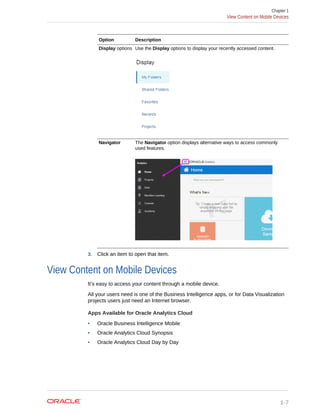
Display options Use the Display options to display your recently accessed content.
Navigator The Navigator option displays alternative ways to access commonly
used features.
3. Click an item to open that item.
View Content on Mobile Devices
It’s easy to access your content through a mobile device.
All your users need is one of the Business Intelligence apps, or for Data Visualization
projects users just need an Internet browser.
Apps Available for Oracle Analytics Cloud
• Oracle Business Intelligence Mobile
• Oracle Analytics Cloud Synopsis
• Oracle Analytics Cloud Day by Day
Chapter 1
View Content on Mobile Devices
1-7
View Data Visualization Projects on Mobile Phones and Tablets
You can view Data Visualization projects on your mobile phone or tablet.
In your mobile phone or tablet, enter in a browser either the IP address (for example,
192.168.1.1) or the fully qualified host name of the computer on which your Cloud
service is running. Don’t use a stand-in URL that redirects to a server (for example
http://tinyurl.com/1234). Enter your user name and password when prompted. The
mobile content is responsive and adaptive.
View Analyses, Projects, and Dashboards Through Oracle Business
Intelligence Mobile
The Oracle Business Intelligence Mobile app lets you see your content on mobile
devices. You see the same content, optimized for viewing on your mobile device.
The Oracle Business Intelligence Mobile app is available from the Apple App Store
and Google Play Store.
To log into the app and configure a server connection, see:
• How do I log into the app? (Android)
• How do I configure a server connection? (Android)
• How do I log into the app? (iOS)
• How do I configure a server connection? (iOS)
To use Oracle Business Intelligence Mobile, see the Help system available within the
mobile application.
View Instant Analytics from Your Data Using Oracle Analytics Cloud
Synopsis
Oracle Analytics Cloud Synopsis provides instant analytics on a mobile device. With
this app, you can quickly open and interact with spreadsheets and business data in a
visual and intuitive way—while you're on the go.
The Oracle Analytics Cloud Synopsis app is available from the Apple App Store and
Google Play Store.
To load data to be analyzed, see:
• How do I load data from a spreadsheet? (Android)
• How do I load data from a data set from Oracle Analytics Cloud? (Android)
• How do I load data to be analyzed? (iOS)
To use Oracle Analytics Cloud Synopsis, see the Help system available within the
mobile application.
Chapter 1
View Content on Mobile Devices
1-8
View and Collaborate on Analytical Charts Using Oracle Analytics
Cloud Day by Day
Oracle Analytics Cloud Day by Day is an innovative app that provides the right
analytics at the right time and place. Based on your searches for business data in the
app, it learns what you’re interested in, when and where you’re interested in it, and it
displays the data in ready-to-use analytical charts. The app displays the analytical
charts as cards.
The Oracle Analytics Cloud Day by Day app is available from the Apple App Store and
Google Play Store.
To log into the app, see:
• How do I log into the app? (Android)
• How do I log into the app? (iOS)
To use Oracle Analytics Cloud Day by Day, see the Help system available within the
mobile application.
Analyze and Interact with Information for Insight
With Analytics Cloud it’s easy to build reports and share them with others. You can
interact with the report data and analyze the data for insight. By focusing on the data
values, you can glean important information about the state of your company or your
products. For example, you can pivot the data. Or you can drill in the data to see
greater detail.
To get started, download some sample data for Data Visualization projects and some
prebuilt analyses and dashboards from Oracle Technology Network. These samples
give you ideas and a starting point for creating your own reports:
http://www.oracle.com/technetwork/middleware/bi-foundation/bics-
sample-2283629.html
Top Tasks to Visualize Data and Build Reports
Choose a category.
• Top Tasks to Explore Data
• Top Tasks to Analyze
• Top Tasks to Manage Data
Top Tasks to Explore Data
The top tasks for exploring are identified in this topic.
• Create a Project and Add Data Sets
• Add Spreadsheets as Data Sets
• Print a Visualization, Canvas, or Story
Chapter 1
Analyze and Interact with Information for Insight
1-9
Top Tasks to Analyze
The top tasks for analyzing are identified in this topic.
• Create Your First Analysis
• Create Your First Dashboard
• Edit Graph Views
Top Tasks to Manage Data
The top tasks for managing are identified in this topic.
• Find and Explore Your Content
• Share Your Content with Others
• Send Email Reports Once, Weekly, or Daily
Chapter 1
Top Tasks to Visualize Data and Build Reports
1-10
Part II
Explore Data in Data Visualization
This part explains how to explore data in Data Visualization.
Topics
• Get Started with Oracle Data Visualization
• Explore, Visualize, and Analyze Data
• Create and Apply Filters to Visualize Data
• Use Other Functions to Visualize Data
• Add Data Sources to Analyze and Explore Data
• Manage Data that You Added
• Use Machine Learning to Analyze Data
• Curate Your Data Using Data Flows
• Import and Share
2
Get Started with Oracle Data Visualization
The topics in this section help you get started with Data Visualization.
Video
Tutorial
Topics
• About Data Visualization
• Access Data Visualization
About Data Visualization
You can use Data Visualization to easily create visualizations and projects that reveal
trends in your company’s data and help you answer questions and discover important
insights about your business.
• Creating visualizations and projects is easy in Data Visualization, because the
application is designed so that your data analysis work is flexible and exploratory.
Exploring data in Data Visualization is different than using pre-built analysis and
dashboards, because they don’t allow you to experiment with your data by adding
or removing columns, creating filters, or applying different visualizations to your
data. Data Visualization helps you to understand your data from different
perspectives and fully explore your data to find correlations, discover patterns, and
see trends.
• Data Visualization allows you to quickly upload data from a variety of sources (for
example, spreadsheets, CSV files, Fusion Applications, and many databases) to
your system and model it in a few easy steps. You can easily blend data sets
together, too, so that you can analyze a larger set of data to reveal different
patterns and information.
• When you discover important trends in your data, you can capture that information
by creating insights and stories that you can revisit later or share with other users.
You can also export projects and applications for other users on different Oracle
Data Visualization products (for example, you can export an application from
Oracle Analytics Cloud and a Oracle Data Visualization Desktop user can import
it). To try Oracle Data Visualization Desktop, see Download Data Visualization for
Desktop.
• Your instance of Data Visualization might contain the sample data sources and
sample project. If you have the sample data sources and project, then you can use
these to quickly familiarize yourself with Data Visualization’s functionality. For
more samples, see The Oracle Analytics Library.
2-1
Access Data Visualization
You access Data Visualization from the Oracle Analytics Cloud Home page. You can
begin all of your data visualization tasks from the Home page.
You can also use the Home page to perform analyses and dashboards tasks (for
example, search the catalog for BI objects, create an analysis, or click a dashboard’s
thumbnail to open and use the dashboard). If you have the proper permissions, you
can access the Console from the Home page to perform administration tasks.
1. Log in to Oracle Analytics Cloud by using one of the following methods:
• Open your "Welcome to Oracle Analytics Cloud" email, click the link to the
service, and sign in.
• Sign in to Oracle Cloud at cloud.oracle.com and then select Oracle Analytics
Cloud.
2. In the Home page, click the option for the data visualization task you want to
perform. Examples of tasks and how to begin them include:
• Display the Create pane to create a new project, data set, connection, data
flow, sequence, or script. See Create a Project and Add Data Sets.
• Click the Navigation icon at the top of the Home page to display options such
as Projects, Data, Machine Learning, Console and Academy. For example,
click Data to view a list of existing data sets. See Typical Workflow to Add
Data from Data Sources.
• Browse the thumbnails that display on the Home page to locate the project
that you want to open. Or use the Projects page’s Search Projects field to
search for a project. See Search for Saved Projects and Visualizations.
• Use the Home page’s What are you interested in? field to use Oracle Ask to
quickly create impromptu visualizations. See Visualize Data with BI Ask.
Chapter 2
Access Data Visualization
2-2
3
Explore, Visualize, and Analyze Data
This topic describes the many ways you can explore and analyze your data.
Video
Topics
• Typical Workflow for Exploring Data
• Create a Project and Add Data Sets
• Build a Visualization by Adding Data from Data Panel
• Use Advanced Analytics Functions
• Create Calculated Data Elements in a Data Set
• Sort Data in Visualizations
• Undo and Redo Edits
• Refresh Data in a Project
• Pause Data Queries in a Project
• Adjust the Visualization Canvas Layout
• Change Visualization Types
• Adjust Visualization Properties
• Apply Color to Visualizations
• Format Numeric Values of Columns
• Format Numeric Values of Visualizations
• Set Currency Symbols for Visualizations
• Apply Map Backgrounds and Map Layers to Enhance Visualizations
• Sort and Select Data in Visualization Canvases
• Explore Data on Mobile Devices
• Replace a Data Set in a Project
• Remove a Data Set from a Project
• Analyze Your Data Set Using Machine Learning
• About Warnings for Data Issues in Visualizations
• Embed a Visualization in a Dashboard
Typical Workflow for Exploring Data
Here are the common tasks for exploring your data.
3-1
Task Description More Information
Create a project and add data sets Create a new data
visualization project and add
one or more data sets to the
project.
Create a Project and Add Data Sets
Add data elements Add data elements (for
example, data columns or
calculations) from the
selected data set to
visualizations on the Prepare
canvas.
Build a Visualization by Adding Data from
Data Panel
Adjust the canvas layout Add, remove, and rearrange
visualizations.
Adjust the Visualization Canvas Layout
Filter content Specify how many results and
which items to include in
visualizations.
Create and Apply Filters to Visualize Data
Build stories Capture your insights about
visualizations within a story to
revisit later, include in a
presentation, or share with a
team member.
Build Stories
Deploy machine learning and
Explain
Use Diagnostic Analytics
(Explain) to show patterns
and uncover insights in your
data set, and add the
visualizations that Explain
provides to your projects.
Analyze Your Data Set Using Machine
Learning
Create a Project and Add Data Sets
Projects contain visualizations that help you to analyze your data in a productive and
meaningful ways.
When you create a project, you add one or more data sets containing the data that you
want to visualize and explore. Data sets contain data from subject areas, Oracle
Applications, databases, or uploaded data files such as spreadsheets. You can also
add multiple data sets to your existing projects.
Tutorial
You can use the Data Set page to familiarize yourself with all available data sets. Data
sets have distinct icons to help you quickly identify them by type.
1. To create a new project, go to the Home Page, click Create, then click Project.
• Alternatively, go to the Data page and click Data Sets. Select a data set you
want to analyze in a project and click Action menu or right-click. Select
Create Project.
• Alternatively, to open an existing project, on the Home page, click Navigator,
then select Projects. Locate an existing project in the My Folders, Shared
Folders, Projects, or Favorites page. You can also locate an existing project by
using the Home page search or by browsing the project thumbnails shown on
the Home page. Click the project’s Action menu, then click Open.
2. You can add data to a project using one of the following options:
Chapter 3
Create a Project and Add Data Sets
3-2
• If you're working with a new project, then in the Add Data Set dialog browse
and select the data sources that you want to analyze, then click Add to
Project.
You can add data sources based on data sets, subject areas, or database
connections.
• If you’re working with an existing project, then in the Data Panel click Add (+),
then Add Data Set to display the Add Data Set dialog and add a data source.
• You can also create a new data source based on a file, subject area, or
connection using the Create Data Set dialog, then add it your projects. .
3. To visualize data from multiple data set in the same project, in the Data Panel click
Add, and then select Add Data Set.
When you’ve multiple data set in a project, click Data Sets in the properties pane
to change the default data blending options. See Blend Data that You Added.
4. Drag the data elements that you want to visualize from the Data Panel onto the
visualization canvas, and start building your project. .
• You can transform your data set to improve the quality of your analysis and
visualization using data preparation script in the Prepare canvas. See Prepare
Your Data Set for Analysis.
Build a Visualization by Adding Data from Data Panel
You can build visualizations by adding data elements such as measure, text, or
attribute from the Data Panel to a canvas.
As you build the visualization, you add as many data elements as required or move
them to specific areas on the canvas to explore and analyze your data.
Topics:
• Different Methods to Add Data
• Automatically Create Best Visualization
• Add Data to the Visualization Using Grammar Panel
• Add Data to the Visualization Using Assignments Panel
• Modify a Visualization's Tooltips
Different Methods to Add Data
You can use different methods to add data from the Data Panel to create or update
visualizations on a canvas.
Use one of the following methods to add data from the Data Panel:
• Drag data elements from the Data Panel and drop them onto the canvas.
• Select a data element or use Shift-click or Ctrl-click to select multiple data
elements in the Data Panel, then right-click to select either a particular
visualization type or the option to create a visualization automatically.
• Double-click a data element or use Shift-click or Ctrl-click to select multiple data
elements in the Data Panel, then right-click to add them to the canvas.
Chapter 3
Build a Visualization by Adding Data from Data Panel
3-3
When you update an existing visualization, you can add data from the Data Panel onto
the Grammar Panel or Assignments Pane on the canvas. You can move the data
elements from one area to another in the Grammar Panel or Assignments Pane. The
visualization is updated based on your selection.
You can create a visualization by selecting a visualization type from the Visualization
tab of the Data Panel and adding data elements to the canvas.
Automatically Create Best Visualization
You can automatically create the best visualization on the canvas based on a set of
data elements.
1. Confirm that you’re working in the Visualize canvas.
2. To automatically create a visualization on the canvas, do one of the following:
• Drag data elements from the Data Panel and drop them directly onto the
canvas.
• Right-click data elements on the Data Panel and click Create Best
Visualization.
• Double-click data elements to add it to the canvas.
A visualization is automatically created on the canvas, and the best visualization
type is selected based on the preconfigured logic. The selected data element is
also positioned on a specific area of the Grammar Panel. For example, if you add
a revenue measure to the canvas, the data element is placed in the Values area of
the Grammar Panel, and Tile is selected as the visualization type.
3. Continue adding data elements directly to the canvas to build your visualization.
The visualization type and the position of the data elements on the Grammar Panel
might change when you add more data elements to the canvas.
You turn off the mode to automatically create visualizations when you perform actions
such as:
• Changing the visualization properties such as type.
• Adding or removing analyses from the Analytics tab in the Data Panel.
• Dropping a data element onto a specific area of the Grammar Panel or
Assignments Pane.
• Changing the filter setting.
When the automatically create visualization mode is turned off, you can select the
wizard icon or Auto Visualization in the visualization type list to turn on the
automatically create mode.
Add Data to the Visualization Using Grammar Panel
After you’ve selected the data sets for your project, you can begin to add data
elements such as measures and attributes to visualizations.
You can select compatible data elements from the data sets and drop them onto the
Grammar Panel in the Visualize canvas. Based on your selections, visualizations are
created on the canvas. The Grammar Panel contains sections such as Columns,
Rows, Values, and Category.
Chapter 3
Build a Visualization by Adding Data from Data Panel
3-4
1. Open or create a project.
2. If you created a project, then add a data set to it.
3. Confirm that you’re working in the Visualize canvas.
Use one of the following methods to add data elements to the Grammar Panel:
You can only drop data elements based on attribute and type onto a specific
Grammar Panel section.
• Drag and drop one or more data elements from the Data Panel to the
Grammar Panel in the Visualize canvas.
The data elements are automatically positioned, and if necessary the
visualization changes to optimize its layout.
• Replace a data element by dragging it from the Data Panel and dropping it
over an existing data element.
• Swap data elements by dragging a data element already inside the Visualize
canvas and dropping it over another data element.
Chapter 3
Build a Visualization by Adding Data from Data Panel
3-5
• Reorder data elements in the Grammar Panel section (for example, Columns,
Rows, Values) to optimize the visualization, if you’ve multiple data elements in
the Grammar Panel section.
• Remove a data element by selecting a data element in the Grammar Panel,
and click X.
Add Data to the Visualization Using Assignments Panel
You can use the Assignment Panel to help you position data elements in the optimal
locations for exploring content.
You must create a project or open an existing project and add one or more data sets
to the project before you can add data elements to the Assignment Panel. The
sections in the Assignment Panel are the same as in the Grammar Panel.
1. Confirm that you’re working on the Visualize canvas.
2. Select a visualization on the canvas.
Alternatively, drag and drop a data element to the blank canvas or between
visualizations on the canvas to create a new visualization.
3. Drag a data element to the visualization (but not to a specific drop target); you'll
see a blue outline around the recommended assignments in the visualization.
Hover the data element on the Assignment Panel to identify other valid
assignments.
4. Drop the data element on the selected assignment.
To display the Assignment Panel, click Show Assignments on the visualization
toolbar.
Modify a Visualization's Tooltips
By default when you hover over a data point in a visualization, a tooltip displays and
provides specific information about the data point. You can choose to see all tooltips or
only the measures included in the Tooltip section of the Grammar Panel.
For example, if you create a simple bar chart visualization that shows revenue for
countries in the Americas region, the tooltip displays the region's name, the country's
name, and exact revenue amount. If you add Target Revenue to the Tooltip section of
the Grammar Panel, then the target revenue amount is displayed in the tooltip and the
user can easily compare the actual revenues with the target revenues. Set the Tooltip
field in the General Properties Pane to Off if you want the tool tip to contain only the
target revenue amount.
Note the following restrictions:
• You can drag and drop only measure columns to the Tooltip section in the
Grammar Panel.
• The Tooltip section in the Grammar Panel doesn't display for all visualization
types.
1. Confirm that you’re working on the Visualize canvas and select a visualization.
2. Drag and drop one or more measure columns from the Data Panel to the Tooltip
section in the Grammar Panel.
Chapter 3
Build a Visualization by Adding Data from Data Panel
3-6
Hover the mouse pointer over a data point on the visualization to display the
tooltip. The tooltip contains the data point's values for all columns included in the
visualization. The data values for the columns that you added to the Tooltip
section are displayed at the bottom of the tooltip.
3. (Optional) Use the Tooltip field to display only the data values that you want or to
turn off the tooltip.
• If you want the tooltip to display data values for only the columns you dragged
to the Tooltip section, then set the Tooltip field to Off.
• If you don't want the tooltip to be displayed, then confirm that there are no
columns in the Tooltip section and set the Tooltip field to Off.
Use Advanced Analytics Functions
Advanced analytics are statistical functions that you apply to enhance the data
displayed in visualizations.
The Analytics area in the Data Panel contains standard analytics functions (for
example, Clusters and Trend Line). You can use analytics functions as they are, or
use them to create your own calculated columns that reference statistical scripts.
Topics:
• Add Advanced Analytics Functions to Visualizations
• Add Reference Lines to Visualizations
Add Advanced Analytics Functions to Visualizations
You can easily apply advanced analytics functions to a project to augment its
visualizations.
1. Confirm that you’re working in the Visualize canvas.
2. To display the available advanced analytic functions, click the Analytics icon in
the Data Panel.
3. To edit the applied advanced analytics in a visualization, highlight the visualization,
and in the properties pane click the Analytics icon.
4. To add advanced analytic functions to a visualization, do one of the following:
• Drag and drop an advanced analytic function (such as Clusters, Outliers,
Reference Line) from the Analytics pane to a visualization.
• Right-click a visualization, and select an advanced analytic function.
• In the properties pane select the Analytics icon and click Add (+), then select
a function such as Add Clusters or Add Outliers.
Add Reference Lines to Visualizations
You can use advanced analytics reference lines to identify the range of data element
values in a visualization.
1. Confirm that you’re working on the Visualize canvas.
Chapter 3
Use Advanced Analytics Functions
3-7
2. In the Data Panel, click the Analytics icon.
3. Drag and drop Reference Line into a visualization. Alternatively, you can double-
click Reference Line to add it to the selected visualization.
4. In the properties pane select the Analytics tab and do the following:
a. Click the current Method and select Line or Band.
b. Click the current reference Function (for example, Average and Custom) and
select the reference function that you want to use.
c. If you choose the Line method, you can select reference functions such as
Median, Percentile, Top N, and Constant.
• Percentile - Percentile rank number ranks the percentile of the data
element added to the visualization.
• Top N - N value marks the highest values (ranked from highest to lowest)
of the data element added to the visualization.
• Bottom N - N value marks the lowest values (ranked from highest to
lowest) of the data element added to the visualization.
d. If you choose the Band method, you can select either Custom or Standard
Deviation as the reference function.
• Custom - Select the to and from range of the data element values (such
as Median to Average).
• Standard Deviation - Select a value from 1 to 3 to show the standard
deviation for the selected value of the data element.
5. Click Save.
Based on the selected Method or reference Function, a line is displayed in the
visualization to highlight the value.
Add a Language Narrative Visualization
The Language Narrative visualization provides insights into your company's data.
These insights can be in the form of breakdown or trend.
Topics:
• About the Language Narrative Visualization
• Create a Language Narrative Visualization
About the Language Narrative Visualization
The Language Narrative visualization creates natural language descriptions of the
attributes and measures in your data set. The descriptions provide insights into your
company's data in the form of breakdown or trend.
For example, if you create a project with Sample Sales and you drag the T00 Calendar
Date time dimension and the 1-Revenue measure to the canvas and then select the
Language Narrative visualization, you'll see the following description:
Chapter 3
Add a Language Narrative Visualization
3-8
The natural language description capabilities are provided by the integration of Oracle
Analytics Cloud with its artificial intelligence technology partner Yseop.
Supported Data Element Combinations
You can use the Language Narrative visualization with the following combinations:
• Two attributes and one measure.
• One attribute and two measures.
The attributes that you select can be regular columns or time dimensions. And
columns may contain long character names and special characters.
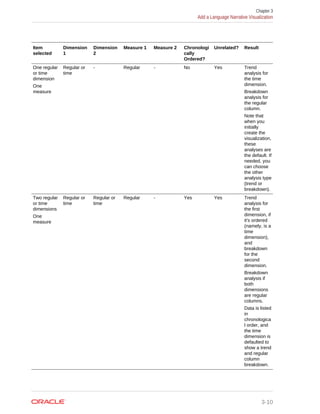
Use this table to help you understand the type of analysis that Oracle Analytics Cloud
performs based on the attribute (regular or time dimensions) and measure
combination that you selected.
Item
selected
Dimension
1
Dimension
2
Measure 1 Measure 2 Chronologi
cally
Ordered?
Unrelated? Result
One regular
or time
dimension
One
measure
Regular or
time
- Regular - Yes Yes Trend
analysis for
the time
dimension.
Breakdown
analysis for
regular
column.
Note that
when you
initially
create the
visualization,
these
analyses are
the default. If
needed, you
can choose
the other
analysis type
(trend or
breakdown).
Chapter 3
Add a Language Narrative Visualization
3-9
Item
selected
Dimension
1
Dimension
2
Measure 1 Measure 2 Chronologi
cally
Ordered?
Unrelated? Result
One regular
or time
dimension
One
measure
Regular or
time
- Regular - No Yes Trend
analysis for
the time
dimension.
Breakdown
analysis for
the regular
column.
Note that
when you
initially
create the
visualization,
these
analyses are
the default. If
needed, you
can choose
the other
analysis type
(trend or
breakdown).
Two regular
or time
dimensions
One
measure
Regular or
time
Regular or
time
Regular - Yes Yes Trend
analysis for
the first
dimension, if
it's ordered
(namely, is a
time
dimension),
and
breakdown
for the
second
dimension.
Breakdown
analysis if
both
dimensions
are regular
columns.
Data is listed
in
chronologica
l order, and
the time
dimension is
defaulted to
show a trend
and regular
column
breakdown.
Chapter 3
Add a Language Narrative Visualization
3-10
Item
selected
Dimension
1
Dimension
2
Measure 1 Measure 2 Chronologi
cally
Ordered?
Unrelated? Result
One time
dimension
One regular
dimension
One
measure
Time Regular Regular - Yes Yes Trend
analysis for
the first
dimension.
Breakdown
analysis for
the second
dimension.
One regular
dimension
One time
dimension
One
measure
Regular Time Regular - Yes Yes Breakdown
analysis for
only the first
regular
dimension.
One regular
dimension
Two
measures
Regular - Regular Regular No Yes Breakdown
analysis for
the first and
second
measures
individually,
based on the
dimension.
One time
dimension
Two
measures
Time - Regular Regular Yes Value verses
reference
Trend
analysis for
the first
measure
with a value
comparison
to the
second
measure.
Other Limitations
Note the following limitations for Language Narrative visualizations:
• The text in the visualization can be displayed in English or French. Other
languages aren't supported. Oracle Analytics Cloud maps French locales (fr and
fr-CA) to the French language, and maps all other locales to English.
• Presentation mode and embedding items such as dashboards aren't supported.
• The color change and data brushing functionality isn't applicable to this
visualization type.
• Data actions aren't applicable to this visualization type.
• Copy and paste of the text isn't supported.
• The Use as Filter option isn't available for this visualization type.
• Oracle Analytics Cloud can't generate a natural language analysis if your
visualization contains two attributes and the second attribute has more than 50
elements.
Chapter 3
Add a Language Narrative Visualization
3-11
Create a Language Narrative Visualization
Use the Language Narrative visualization type for descriptions of the attributes and
measures in your data set. The descriptions provide insights into your company's data
in the form of breakdown or trend.
1. Open or create a project and confirm that you're working in the Visualize canvas.
2. Display the Visualizations pane and double-click the Language Narrative
visualization type to select it.
3. Display the Data pane and drag data elements to the canvas.
The Language Narrative visualization type requires you to select either two
attributes and one measure, or one attribute and two measures. See About the
Language Narrative Visualization.
4. Make any necessary adjustments to see the data from different angles:
• Change the data elements in the drop targets. Remember, you can only use
the supported measure and attribute combinations as described in Step 3.
• If the visualization has a calendar date or time stamp column on the outer
edge, then in the Properties Pane's General tab, change the analysis type.
Select Trend for a trend analysis. Trend analyses are ordered and can't be
disjointed. Select Breakdown for a breakdown of the data based on the
attributes and measure you chose.
• In the Properties Pane's General tab, change the level of detail displayed. By
default, you'll see your data at 7, the most detailed level, but you can change
the level to display the data in larger chunks.
• In the Properties Pane's Values tab, you can use the Meaning of Up field to
indicate if the attribute or measure value's definition is good or bad. For
example, if you select the Revenue measure, then set the Meaning of Up field
to Good. If you select the Average Order Process Time measure, then set the
Meaning of Up field to Bad.
Create Calculated Data Elements in a Data Set
You can create a new data element (typically a measure) to add to your visualization.
For example, you can create a new measure called Profit that uses the Revenue and
Discount Amount measures.
The calculated data elements are stored in the data set’s My Calculations folder and
not in the project. In a project with a single data set only one My Calculations folder is
available and the new calculated data elements are added to it. In a project with
multiple data sets My Calculations folder is available for each set of joined and not-
joined data sets. Ensure that you’re creating the calculated data elements for the
required data set or joined data set. The new calculated data elements are added to
the My Calculations folder of the data sets (joined and non-joined) that you create the
calculation for.
1. In the Visualize canvas navigate to the bottom of the Data Panel, right-click My
Calculations, and click Add Calculation to open the New Calculation dialog.
2. In the expression builder pane, compose and edit an expression. See About
Composing Expressions.
Chapter 3
Create Calculated Data Elements in a Data Set
3-12
You can drag and drop a column into the expression builder pane only if the
column is joined to the data set.
3. Click Validate.
4. Specify a name, then click Save.
Sort Data in Visualizations
Sometimes you're working with a lot of data in visualizations. To optimize your view of
that data in the project’s visualization canvas, you need to sort it.
1. In the Visualize canvas, do one of the following:
• In the main editing panel, click the data element you want to sort, mouse-over
Sort next to the element label, and select a sorting option.
• In the Visualization Grammar Pane, click the data element you want to sort,
mouse-over Sort then click a sorting option (for example, Low to High, A to Z).
Undo and Redo Edits
You can quickly undo your last action and then redo it if you change your mind. For
example, you can try a different visualization type when you don’t like the one you’ve
just selected, or you can go back to where you were before you drilled into the data.
The undo and redo options are useful as you experiment with different visualizations.
You can undo all the edits you've made since you last saved a project. However, in
some cases, you can't undo and then redo an edit. For example, in the Create Data
Set page, you've selected an analysis from an Oracle Application data source to use
as a data set in the project. In the next step, if you use the undo option to remove the
data set, you can't redo this change.
• To undo or redo an edit, go to the toolbar for the project or the data set and click
Undo Last Edit or Redo Last Edit. You can use these options only if you haven't
saved the project since making the changes.
Chapter 3
Sort Data in Visualizations
3-13
• When you’re working on a project, click Menu on the project toolbar and select
Revert to Saved to undo all the edits you've made since you last saved your
project. Revert to Saved is enabled after you've saved the project for the first
time. This option is automatically disabled if you select the Auto Save option.
Refresh Data in a Project
Refresh ensures that you see the most up-to-date data in your projects.
• On the Visualize canvas, click Menu, then click Refresh Data. This option ensures
that you see the most up-to-date data by re-executing the visualization queries for
all views in your project.
Pause Data Queries in a Project
You can disable the Auto Apply Data option to pause issuing new queries as you
change visualization content in a project.
You can quickly configure a visualization without having to wait for data updates after
each change.
1. Open or create a project.
2. If you've created a project, then add a data set to it.
3. Confirm that you’re working in the Visualize canvas.
4. Click the Auto Apply Data button to pause data queries.
Data queries are temporarily disabled.
5. Make changes to a visualization in the project.
Your changes are displayed but data isn't updated, and a bubble is displayed
indicating the number of data requests that have been skipped.
6. Click the bubble if you want to refresh the data now.
Data queries are still disabled.
7. Click the Auto Apply Data button to re-enable data queries.
Adjust the Visualization Canvas Layout
You can adjust the look and feel of visualizations on the Visualize canvas to make
them more visually attractive.
You can copy a visualization and paste it within or between canvases in a project. You
can also duplicate canvases and visualizations to create multiple copies of them. After
copying and pasting or duplicating, you can modify the visualization by changing the
data elements, selecting a different visualization type, resizing it, and so on. You can
also copy selected visualization data to the clipboard.
Here are the options available to alter or modify the format of the visualization canvas.
Chapter 3
Refresh Data in a Project
3-14
Option Location Description
Canvas
Properties
Right-click a canvas tab Change the name, layout, width, and
height of the canvas in the Canvas
Properties dialog.
Use the Synchronize
Visualizations setting to specify how the
visualizations on your canvas interact.
Canvas Layout Right-click a canvas tab Select Canvas Properties, Layout, and
one of the following:
• Freeform – If you select Freeform,
you can perform the following
functions:
– Click Select All Visualizations
to select all the visualizations on
a canvas, and then copy them.
– Select one of the following
Order Visualization options:
Bring to Front, Bring Forward,
Send Backward, or Send to
Back to move a visualization on
a canvas with multiple
visualizations.
– Rearrange a visualization on the
canvas. Drag and drop the
visualization to the location (the
space between visualizations)
where you want it to be placed.
The target drop area is displayed
with a blue outline.
– Resize a visualization by
dragging its edges to the
appropriate dimensions.
• Autofit – Auto-arrange or correctly
align the visualizations on a canvas
with multiple visualizations.
Add Canvas Canvas tabs bar Add a new canvas to the project.
You can right-click and drag a canvas to a
different position on the canvas tabs bar.
Rename Right-click a canvas tab Rename a selected canvas.
Duplicate Canvas Right-click a canvas tab Add a copy of a selected canvas to the
project’s row of canvas tabs.
Clear Canvas Right-click a canvas tab Remove all the visualizations on the
canvas.
Delete Canvas Right-click a canvas tab Delete a specific canvas of a project.
Duplicate
Visualization
Visualization Menu, Edit or
right-click a visualization
Add a copy of a selected visualization to
the canvas.
Copy
Visualization
Visualization Menu, Edit or
right-click a visualization
Copy a visualization on the canvas.
Paste
Visualization
Visualization Menu, Edit, or
right-click a visualization or
blank canvas
Paste a copied visualization into the
current canvas or another canvas.
Copy Data Visualization Menu, Edit, or
right-click a visualization
Copy selected data to the clipboard.
Chapter 3
Adjust the Visualization Canvas Layout
3-15
Option Location Description
Delete
Visualization
Visualization Menu or right-click
a visualization
Delete a visualization from the canvas.
Change Visualization Types
You can change visualization types to best suit the data you’re exploring.
When you create a project and add data elements to the canvas, Auto Visualization
mode chooses the most appropriate visualization type based on the selected data
element. The Auto Visualization mode is on (selected) by default. If you add more data
elements, the visualization type is automatically updated, and the best type is selected
based on the data elements.
If you want to use a different visualization type, then you need to select it from the
visualization type list. When you change the visualization type, Auto Visualization
mode is turned off. When the Auto Visualization mode is off (deselected), adding more
data elements to the canvas won’t change the visualization type automatically.
1. Confirm that you’re working in the Visualize canvas. Select a visualization on the
canvas, and on the visualization toolbar, click Change Visualization Type.
2. Select a visualization type. For example, select Treemap to change the
visualization type from Pivot to Treemap.
When you change the visualization type, the data elements are moved to matching
drop target names. If an equivalent drop target doesn’t exist for the new
visualization type, then the data elements are moved to a Grammar Panel section
labeled Unused. You can then move them to the Grammar Panel section you
prefer.
Adjust Visualization Properties
You can change the visualization properties such as legend, axis values and labels,
data values, and analytics.
The Auto Visualization mode is turned off if you change the visualization properties.
1. In the Visualize canvas, select a visualization to display the properties in the
properties pane.
2. In the properties pane tabs, adjust the visualization properties as needed:
Properties
Pane Tab
Description
General Format the title, legend, and selection effect and customize
descriptions.
Axis Set the axis labels for horizontal and vertical values and the axis values
to start and end.
Data Sets Override the way the system automatically blends data from two data
sets.
Edge Labels Show or hide row or column totals and wrap label text.
Chapter 3
Change Visualization Types
3-16
Properties
Pane Tab
Description
Action Add URLs or links to insights in Tile, Image, and Text Box
visualizations.
If you use Chrome for Windows or Android, the Description text field
displays a Dictate button (microphone) that you can use to record an
audio description.
Style Set the background and border color for Text visualizations.
Values Specify display options for data values including the aggregation
method such as sum or average, and number formatting such as
percent or currency. Specify the format for each value data element in
the visualization; for example, aggregation method, currency, data, or
number format.
Date/Time Specify display options for date and time including how you show the
date or time (for example as Year, Quarter, Month, Week) and what
format to use (for example, Auto or Custom).
Analytics Add reference lines, trend lines, and bands to display at the minimum or
maximum values of a measure included in the visualization.
Apply Color to Visualizations
Use color to enhance visualizations.
Topics:
• About Color Assignments in Visualizations
• Access Color Options
• Change the Color Palette
• Assign Colors to Columns
About Color Assignments in Visualizations
You can work with color to make visualizations more attractive, dynamic, and
informative. You can color a series of measure values (for example, Sales or
Forecasted Sales) or a series of attribute values (for example, Product and Brand).
Your color choices are shared across all visualizations on the canvas, so if you change
the series or data point color in one visualization, then it appears on the other
visualizations.
The Visualize canvas has a Color section in the Grammar Panel where you can put a
measure column, attribute column, or set of attributes columns. Note how the canvas
assigns color to the columns that are included in the Color section:
• When a measure is in the Color section, then you can select different measure
range types (for example, single color, two color, and three color) and specify
advanced measure range options (for example, reverse, number of steps, and
midpoint).
• When you’ve one attribute in the Color section, then the stretch palette is used by
default. Color palettes contain a set number of colors (for example, 12 colors), and
those colors repeat in the visualization. The stretch palette extends the colors in
the palette so that each value has a unique color shade.
Chapter 3
Apply Color to Visualizations
3-17
• If you’ve multiple attributes in the Color section, then the hierarchical palette is
used by default, but you can choose to use the stretch palette, instead. The
hierarchical palette assigns colors to groups of related values. For example, if the
attributes in the Color section are Product and Brand and you’ve selected
Hierarchical Palette, then in your visualization, each brand has its own color, and
within that color, each product has its own shade.
Access Color Options
You can set color options for your project and for individual visualizations within your
project.
1. If you want to edit color options for the whole project.
a. Click Menu on the project toolbar and select Project Properties.
b. Use the General tab to edit the color series or continuous coloring.
2. If you want to edit color options for a visualization.
a. Select the visualization and click Menu or right-click.
b. Select Color. The available color options depend on how the measures and
attributes are set up in your visualization.
c. You can experiment with visualization colors and select Reset Visualization
Colors to revert to the original colors.
d. Select Stretch Palette to turn this option on or off.
Color palettes have a set number of colors, and if your visualization contains
more values than the number of color values, then the palette colors are
repeated. Use the Stretch Palette option to expand the number of colors in the
palette. Stretch coloring adds light and dark shades of the palette colors to
give each value a unique color. For some visualizations, stretch coloring is
used by default.
Change the Color Palette
You can switch between the various color palettes until you find the one you want.
Each color palette contains 12 colors that you can apply to a visualization.
1. Select the visualization that you want to change the color palette for.
2. Click Menu or right-click and select Color, then select Manage Assignments.
3. Locate the Series Color Palette and click the color palette that’s currently used in
the visualization (for example, Default or Alta).
Chapter 3
Apply Color to Visualizations
3-18
4. From the list, select the color palette that you want to apply to the visualization.
Assign Colors to Columns
Instead of using the palette’s default colors, you can choose specific colors to fine-tune
the look of your visualizations.
1. Select the visualization that you want to manage the colors for.
2. Click Menu on the visualization toolbar or right-click and select Color, then select
Manage Assignments.
3. If you’re working with a measure column, you can do the following:
• Click the box containing the color assigned to the measure. From the color
picker dialog, select the color that you want to assign to the measure. Click
OK.
• Specify how you want the color range to be displayed for the measure (for
example, reverse the color range, pick a different color range, and specify how
many shades you want in the color range).
Chapter 3
Apply Color to Visualizations
3-19
4. If you’re working with an attribute column, then click the box containing the color
assignment that you want to change. From the color picker dialog, select the color
that you want to assign to the value. Click OK.
Chapter 3
Apply Color to Visualizations
3-20
Format Numeric Values of Columns
You can format numeric values of a column in your visualizations using a wide range
of ready-to-use formats. For example, you might change the aggregation type from
Sum to Average.
1. Create or open the project that contains the numeric column whose properties you
want to change.
2. In the Data Panel, select the column.
3. In the properties pane for the selected column, use the General or Number
Format tabs to change the numeric properties.
• General - Change the column name, data type, treat as (measure or attribute),
and aggregation type.
For example, to change how a number is aggregated, use the Aggregation
option.
• Number Format - Change the default format of a number column.
4. Click Save.
Format Numeric Values of Visualizations
You can format numeric properties of a visualization using a wide range of ready-to-
use formats. For example, you might change the aggregation type from Sum to
Average.
1. Create or open the project that contains the visualization whose properties you
want to change.
2. In the Visualize canvas, select the visualization.
3. In the properties pane for the selected visualization, use the Values tab to change
the numeric properties.
For example, to change how a number is aggregated, use the Aggregation
Method option.
4. Click Save.
Set Currency Symbols for Visualizations
You can set measure values in a visualization to display an appropriate currency
symbol.
You can configure a measure to use a custom currency to display the symbol
associated with a currency. For example, if you set a canvas filter to display a
European Ledger, then the Euro symbol is displayed for each measure value that's
associated with the custom currency property. The project data must contain a
currency code column, for example, a Ledger Currency column. The currency code
column enables the display of an appropriate currency symbol for the measure
column, for example, a Profit column.
1. Create or open the project.
Chapter 3
Format Numeric Values of Columns
3-21
2. In the Properties panel for a selected measure, click the Values tab, click Number
Format, and select Currency.
3. In the Currency field, click the currently displayed value and select Custom.
4. In the Custom field, add the column that determines the currency code.
5. Click Save.
Apply Map Backgrounds and Map Layers to Enhance
Visualizations
You can use geographical information to enhance the analysis of your data.
Topics:
• About Map Backgrounds
• Enhance Visualizations with Map Backgrounds
• Use Different Map Backgrounds in a Project
• Interpret Data Values with Color and Size in Map Visualizations
• Add Custom Map Layers
• Update Custom Map Layers
• Apply Multiple Data Layers to a Single Map Visualization
• Create Heatmap Layers on a Map Visualization
• Create Cluster Layers on a Map Visualization
• Represent Point Data With Custom Icons on a Map
• Select Points or Area on a Map
• Represent Line Data Using Size and Color on a Map
• Make Maps Available to Users
• Make Map Backgrounds Available to Users
About Map Backgrounds
You can enhance map visualizations in projects by adding and maintaining map
backgrounds.
Oracle Data Visualization includes ready-to-use map backgrounds that you can easily
apply to a project. You can also add backgrounds from the available list of Web Map
Service (WMS) providers such as Google Maps and Baidu Maps. Background maps
from these providers offer details and language support (such as city or region name)
that certain geographic regions (such as Asian countries) require. You can enhance
backgrounds in these ways:
• Modify the background parameters such as map type, format, language and API
keys. The parameters are different for each WMS provider.
• Assign or change the default background in a project.
• Reverse the inherited default background settings in a project.
Chapter 3
Apply Map Backgrounds and Map Layers to Enhance Visualizations
3-22
You can add a WMS provider and perform the following types of functions:
• Add the WMS map servers, and make them available as additional map
background options.
• Select one or more map backgrounds available from the WMS provider.
• Assign an added WMS provider’s map as the default map background.
Enhance Visualizations with Map Backgrounds
You can use map backgrounds to enhance visualizations in a project.
Tutorial
Based on the column values a specific set of dimensions and metrics is displayed on
the map visualization.Data Visualization displays either the default map background or
an existing Oracle map background if no default is set.
1. Create or open a project and confirm that you’re working in the Visualize canvas.
2. To select a column and render it in a map view, do one of the following:
• Right-click a map-related column in the Data Element pane and click Pick
Visualization, then select Map.
• Drag and drop a map-related column from the Data Element pane to the blank
canvas, or between visualizations on the canvas. On the visualization toolbar,
click Change Visualization Type and select Map.
The selected column or attribute is displayed as a data layer in the Category
(Geography) section of the Grammar Panel and in the Data Layers tab of the
properties pane.
3. In the properties pane, click Map and specify the visualization properties.
4. If you want to use a different map background, click the Background Map value in
the properties pane and select a background. For example, select Google Maps,
and the visualization displays Google Maps as the map background.
• If you want to see the list of available map backgrounds or change the
backgrounds that you can use, do one of the following:
– Click the Background Map value and select Manage Map Backgrounds
to display the Map Background tab.
– Open the Console page, click Maps and select the Backgrounds tab.
• Optionally, select another map background such as Satellite, Road, Hybrid, or
Terrain.
5. Click Save.
Use Different Map Backgrounds in a Project
As an author you can use different map backgrounds in map visualizations.
Here is an example of how you might use a map background in a project.
1. On the Home page click Create, then click Project.
2. Select a data set in the Add Data Set dialog.
3. Click Add to Project.
Chapter 3
Apply Map Backgrounds and Map Layers to Enhance Visualizations
3-23
The Project pane and list of Data Elements is displayed.
4. Select a map-related data element (for example, click City), and click Pick
Visualization.
5. Select Map from the list of available visualizations.
Data Visualization displays either the default map background or an existing
Oracle map background if no default is set.
6. In the visualization properties pane, select the Map tab.
7. Click the Background Map value and select a map from the drop-down list.
For example, select Google Maps, and Data Visualization displays Google Maps
as the map background.
8. (Optional) Click another value to change the type of map (such as Satellite, Road,
Hybrid, or Terrain).
9. (Optional) Click Manage Map Backgrounds from the Background Map options
to display the Map Backgrounds pane.
Use this option to maintain the map backgrounds that you want to use.
Interpret Data Values with Color and Size in Map Visualizations
You can use the color and size of a shape such as a polygon or a bubble, to interpret
values in a map visualization.
1. Create or open a project and confirm that you’re working in the Visualize canvas.
2. Select a column and render it in a map view, doing one of the following:
• Right-click a map-related column in the Data Element pane and click Pick
Visualization, then select Map.
• Drag and drop a map-related column from the Data Element pane to the blank
canvas, or between visualizations on the canvas. On the visualization toolbar,
click Change Visualization Type and select Map.
3. Drag and drop columns to the following sections on the Visualization Grammar
Pane:
Section Description
Color Change the color for geometries displayed in the corresponding map
layer (for example, polygon fill color, bubble color) based on the values.
Size (Bubble) Change color bubble size based on the measure column values.
To change the size of the color bubble you’ve to drag and drop measure
columns only. The size shows the aggregated measure for a specific
geographic location in a map visualization.
Trellis Columns /
Rows
Compare multiple map visualizations based on the column values using
filters.
In the map visualization, you can also use the following to interpret measure columns
and attribute values:
• Legend - If a measure column or an attribute has multiple values, then the legend
is displayed that shows values by size or color.
• Tooltip - If you hover the mouse pointer over a color bubble or data point, then the
values are displayed in a tooltip.
Chapter 3
Apply Map Backgrounds and Map Layers to Enhance Visualizations
3-24
Add Custom Map Layers
You can add custom map layers to use in map visualizations.
Video
You add a custom map layer to Data Visualization using a geometric data file with
the .json extension that conforms to GeoJSON schema https://en.wikipedia.org/wiki/
GeoJSON. You then use the custom map layer to view geometric map data in a
project. For example, you might add a Mexico_States.json file to enable you to
visualize geometric data in a map of Mexico States.
When creating a custom map layer, you must select layer keys that correspond with
data columns that you want to analyze in a map visualization. For example, if you want
to analyze Mexican States data on a map visualization, you might start by adding a
custom map layer for Mexican States, and select HASC code layer key from the
Mexican_States.json file. Here is an extract from the Mexican_States.json file that
shows some of the geometric data for the Baja California state.
If you wanted to use the Mexican_States.json file, the layer keys that you select must
match columns that you want to analyze from the Mexican States Data tables. For
example, if you know there is a data cell for the Mexican state Baja California then
select the corresponding name field in the JSON file to display state names in the Map
visualization. When you create a project and select column (such as State, and
HASC), then Mexican states are displayed on the map. When you hover the mouse
pointer over a state, the HASC code (such as MX BN) for each state is displayed on
the map.
1. Open the Console page and click Maps to display the Map Layers page.
You can perform the following actions when managing System Map Layers and
Custom Map Layers.
Chapter 3
Apply Map Backgrounds and Map Layers to Enhance Visualizations
3-25
What action can I
perform?
System Map Layer Custom Map Layer
Enable Yes Yes
Disable Yes Yes
Create No Yes
Delete No Yes
2. To add a custom map layer, click Add Custom Layer or drag and drop a JSON
file from File Explorer to the Custom Maps area.
3. Browse the Open dialog, and select a JSON file (for example,
Mexico_States.json).
The JSON file must be a GeoJSON file that conforms to the standard specified in
https://en.wikipedia.org/wiki/GeoJSON.
Custom layers that use the Line String geometry type aren't fully supported. The
Color and Size section on Visualization Grammer pane doesn't apply to line
geometries.
4. Click Open to display the Map Layer dialog.
5. Enter a Name and an optional Description.
6. Select the layer keys that you want to use from the Layer Keys list.
The layer keys are a set of property attributes for each map feature, such as
different codes for each state in Mexico. The layer keys originate from the JSON
file. Where possible, select only the layer keys that correspond with your data.
7. Click Add. A success message is displayed when the process is complete and the
layer is added.
Update Custom Map Layers
You can maintain custom map layers that you’ve added to Data Visualization.
1. Open the Console page and click Maps to display the Map Layers page.
2. In the Custom Map Layers section, right-click the map layer and click Options,
then do the following:
• To view or make changes to the map layer settings, select Inspect.
The Map Layer dialog is displayed where you can update the Name,
Description, or the Layer Keys used in this layer.
• To upload the JSON file again, select Reload.
• To save the JSON file locally, select Download.
• To delete the custom map layer, select Delete.
You can disable or enable a System Map Layer and a Custom Map Layer, but
you can’t add or delete a System Map Layer.
3. Click the map layer to enable or disable it. For example, if you want to exclude
us_states_hexagon_geo on the map, click the layer to disable it and remove it
from searches.
4. To switch from using one map layer to another, do the follwoing:
a. In the properties pane, select the Map tab to display the map properties.
Chapter 3
Apply Map Backgrounds and Map Layers to Enhance Visualizations
3-26
b. Click the current Map Layer for example Mexican States. This displays a list
of available custom map layers that you can choose from.
c. Click the map layer that you want to use to match your data points.
Apply Multiple Data Layers to a Single Map Visualization
You can use the data layer feature to display multiple data series (different sets of
dimensions and metrics) on a single map visualization. The data layers are overlaid on
one another in a single map visualization.
1. Create or open the project where you want to display multiple data layer overlays
on a single map visualization. Confirm that you’re working in the Visualize canvas.
2. Drag and drop a measure or attribute columns containing map-related data from
the Data Panel to the Category (Geography) section on the Grammar Panel.
If you’re creating a map visualization, in the Data Panel, right-click an attribute
column and click Pick Visualization then select Map.
3. Click Layer options in the Category (Geography) section of the Grammar Panel
and click Add Layer to add a new data layer (for example, Layer 2).
Alternatively in the Data Layers tab click Add Layer (+).
4. Drag and drop a column to the Category (Geography) section. Based on the
column values the map visualization automatically updates with a different set of
dimensions, and it overlays on the previous layer.
5. Repeat step 3 and 4 to add multiple data layers on the map visualization.
6. Click Layer options to use other options such as Order Layer, Hide Layer, and
Manage Layers.
7. In the Data Layers tab of the properties pane, you can specify the options for a
layer such as Layer Type, Map Layer, Transparency, and Show Layer.
8. To refine the data shown for the measure and attribute columns in all the data
layers, you can apply a filter such as a Range Filter or List Filter, to the map
visualization. For example, you can select a measure or attribute for a layer, then
apply filter to reduce the amount of data shown, and add the same measure or
attribute to the Color section on the Grammar Panel.
Create Heatmap Layers on a Map Visualization
You can use a heatmap as a data layer type on a map visualization to identify the
density or high concentration of point values or metric values associated with the
points. For example, you can use a heatmap to identify the high profit stores in a
geographic region or country.
You can create two types of heatmap layers:
• Density heatmap - Uses only map-related column data (such as latitude and
longitude columns). Density heatmap layers show the cumulative sum of a point,
where each point carries a specific weight. A point has a radius of influence
around it, such that other points that fall in the same area also contribute to the
total cumulative result of a point.
• Metric heatmap - Uses measure column data in the same layer. For example, if
you add a measure column to the Color section on the Grammar Panel the
heatmap is updated to show interpolated metric values.
Chapter 3
Apply Map Backgrounds and Map Layers to Enhance Visualizations
3-27
1. Create or open the project where you want to use a heatmap layer on a map
visualization. Confirm that you’re working in the Visualize canvas.
2. Create an empty map visualization.
3. Drag and drop attribute columns containing map-related data from the Data Panel
to the Category (Geography) section on the Grammar Panel.
• If you’re creating a project with a map visualization, in the Data Panel, right-
click an attribute column and click Pick Visualization then select Map.
4. Go to the Data Layers tab of the properties pane.
• Alternatively, click Layer options in the Category (Geography) section and
click Manage Layers.
5. To create a density heatmap, click Layer Type value and select Heatmap.
• Alternatively, you can add a new map layer, change the layer type to
Heatmap, then add attribute columns to the Category (Geography) section.
6. To create a metric heatmap, drag and drop a metric column from the Data Panel
to the Color section. The heatmap visualization changes from density to metric.
7. In the Data Layers tab of the properties pane, specify the options for the heatmap
layer such as Radius, Interpolation, Transparency, and Color.
• The default interpolation method is automatically selected based on the
aggregation rule of the metric column or value that you’ve selected for the
layer.
• You can select the radius value in pixels (px). The radius value is the extent of
influence of a measure around a point value on a map.
The heatmap is automatically updated based on the options selected in the Data
Layers tab.
Create Cluster Layers on a Map Visualization
You can use a cluster layer as a type of data layer on a map visualization. In a cluster
layer, points that are positioned near each other are grouped together into a common
bubble.
The number of points clustered in the group is indicated in the bubble's label. If
selected points are grouped with unselected points, the circle is dotted to indicate a
partial selection. Individual points are displayed as pin icons to emphasize the
distinction between grouped and ungrouped points. Points are grouped based on their
proximity in pixels and on the map's zoom factor.
1. Create or open the project where you want to use a point cluster layer on a map
visualization. Confirm that you’re working in the Visualize canvas.
2. Create an empty map visualization by dragging the Map visualization from the
Data Panel to the canvas.
3. Drag and drop attribute columns containing map-related data from the Data Panel
to the Category (Geography) section on the Grammar Panel.
If you’re creating a project with a map visualization, in the Data Panel, right-click
an attribute column and click Pick Visualization then select Map.
4. Click the Data Layers tab of the properties pane.
Chapter 3
Apply Map Backgrounds and Map Layers to Enhance Visualizations
3-28
Alternatively, click Layer options in the Category (Geography) section and click
Manage Layers.
5. To create a point cluster, click Layer Type value and select Cluster.
Alternatively, you can add a new map layer, change the layer type to Cluster, then
add attribute columns to the Category (Geography) section.
The point cluster is automatically updated based on the zoom level.
Represent Point Data With Custom Icons on a Map
You can use the Shapes edge to represent point data with custom icons in a map
visualization.
You can associate a column with the Shape edge to display a custom shape for point
data. For example, you can distinguish between cities by displaying them using
custom shapes (for example, a square, a triangle, or a currency symbol). You can also
change which custom shape you want to apply to one or more data points.
1. Create or open the project with a map visualization that contains point data and
confirm that you're working on the Visualize canvas.
2. Drag and drop an attribute column containing point data (for example, city) from
the Data Panel to the Category (Geography) edge on the Grammar Panel.
3. Drag and drop a column from the Data Panel to the Shapes edge and optionally to
the Color edge on the Grammar Panel.
The map visualization automatically updates based on your selection and overlays
the previous layer.
4. (Optional) You can change how you assign custom shapes to data points and to
the map legend.
a. Highlight one or more data points on the map using one of the selection tools,
or use Ctrl-click to select one or more data points.
b. Right-click one of the multiple-selected data points, select Custom Shapes
and then select Series or Data Point.
c. Select a custom shape and click Done.
Custom shapes are applied as follows:
• Series dialog - custom data point shape not previously set
Replaces highlighted data points and series items with the custom shape.
• Series dialog - custom data point shape previously set
Replaces only corresponding series items with the custom shape.
• Data Point dialog
Replaces only highlighted data points with the custom shape.
5. If you want to reassign the custom shape for a data point:
a. Right-click any data point, select Shape, and click Custom Shapes.
b. To change the custom shape assigned to a data point, click the shape
corresponding to the data point that you want to change.
c. Select a new custom shape and click Done, then click Done again.
Chapter 3
Apply Map Backgrounds and Map Layers to Enhance Visualizations
3-29
6. If you want to reset all of the custom shapes currently applied to data points on a
map visualization, right-click any data point, select Shape, and click Reset
Custom Shapes.
This resets all of the shapes applied to data points on the map to the default
setting.
Select Points or Area on a Map
You can select multiple points on the map in a specific area that you define using the
selection tools.
1. Create or open the project with map visualizations and confirm that you're working
on the Visualize canvas
2. Select the map visualization.
3. On the visualization toolbar, do one of the following:
• Click the Rectangle Selection tool and drag a rectangle on the map to select
the points or area you want.
• Click the Radial Selection tool and select a point on the map, then drag
outward to create a circle. The unit shows the total distance covered on the
map.
• Click the Polygon Selection tool and drag a freehand border around the
points or area you want to select on the map.
The selected points or area is highlighted on the map.
Represent Line Data Using Size and Color on a Map
You can represent the weight of line data through thickness and color in a map
visualization.
You can associate a measure with the Size edge to indicate the relative weight of a
line. For example, to compare delays in airline routes, you can display flight routes
with varying line thickness, where a thicker line and a darker color correspond to a
higher number of delays.
1. Create or open the project with a map visualization that contains line data and
confirm that you're working on the Visualize canvas.
2. Select the map visualization that displays the line data.
3. Drag and drop a column containing line data (for example airline routes) from the
Data Panel to the Category (Geography) edge on the Grammar Panel.
4. Drag and drop a line measure column from the Data Panel to the Size edge and
optionally to the Color edge on the Grammar Panel.
The map visualization automatically updates based on your selection and overlays
the previous layer.
Make Maps Available to Users
For visualization projects, administrators make maps available to end users or hide
them from end users.
You can include or exclude a map from users.
Chapter 3
Apply Map Backgrounds and Map Layers to Enhance Visualizations
3-30
1. On the Home page, click Console.
2. Click Maps.
3. Use the Include option to make a map layer available to end users or hide it from
end users.
You can hide or display custom map and system map layers.
Make Map Backgrounds Available to Users
Oracle provides two preconfigured map backgrounds with Data Visualization. As an
administrator, you can add map backgrounds for use in map visualizations.
1. On the Home page, click Console, select Maps, and then click Backgrounds.
• To set a background as the default map background, click the Default column.
• To include or exclude a map background as an available option to users, click
the Include column.
2. To add a map background, click Add Background and select a map background
from the list.
Oracle Maps are preconfigured and shipped with the product. Other background
maps that you can add are Google Maps and Baidu Maps. For a map provider
other than Oracle (for example, Google or Baidu), you must obtain an Map API
access key for which you may be charged based on your usage.
3. Copy and paste in the appropriate Maps API access key.
You must sign up with the provider to be able to add and use any of these map
types.
• To use the Google Maps tiles, you must obtain a Google Maps API access key
from Google. Google prompts you to enter your Maps API access key and,
when applicable, your Google “Client ID”. Usage of the tiles must meet the
terms of service specified by Google in the Google Developers Site Terms of
Service.
• To use the Baidu Maps tiles, you must obtain a Baidu Maps API access key
from Baidu. Baidu prompts you to enter your Maps API access key. Usage of
the tiles must meet the terms of service specified by Baidu in the Baidu User
Agreement.
4. Select a default map type if applicable and enter a helpful description if needed.
5. Click Add to include the map in the list of available map backgrounds.
Data Visualization displays a message when the map background is successfully
added.
For Baidu Maps in Oracle Analytics Cloud, you must add the following three URLs
to be white-listed as safe domains. You do this in the Data Visualization Console,
from the Safe Domains page.
• *.map.baidu.com [Image, Script]
• *.map.bdimg.com [Image, Script]
• *.bdstatic.com [Image, Script]
You must select both the Image and Script options. This indicates these domains
can be trusted to provide image tiles and the necessary scripts to run, ensuring
that Baidu map content renders successfully.
Chapter 3
Apply Map Backgrounds and Map Layers to Enhance Visualizations
3-31
Sort and Select Data in Visualization Canvases
While adding filters to visualizations helps you narrow your focus on certain aspects of
your data, you can take a variety of other analytic actions to explore your data (for
example, drilling, sorting, and selecting). When you take any of these analytic actions,
the filters are automatically applied for you.
Select a visualization and click Menu or right-click, then select one of the following
analytics actions:
• Use Sort to sort attributes in a visualization, such as product names from A to Z. If
you’re working with a table view, then the system always sorts the left column first.
In some cases where specific values display in the left column, you can’t sort the
center column. For example, if the left column is Product and the center column is
Product Type, then you can’t sort the Product Type column. To work around this
issue, swap the positions of the columns and try to sort again.
• Use Drill to drill to a data element and drill through hierarchies in data elements,
such as drilling to weeks within a quarter. You can also drill asymmetrically using
multiple data elements. For example, you can select two separate year members
that are columns in a pivot table, and drill into those members to see the details.
• Use Drill to [Attribute Name] to directly drill to a specific attribute within a
visualization.
• Use Keep Selected to keep only the selected members and remove all others
from the visualization and its linked visualizations. For example, you can keep only
the sales that are generated by a specific sales associate.
• Use Remove Selected to remove selected members from the visualization and its
linked visualizations. For example, you can remove the Eastern and Western
regions from the selection.
• Use Add Reference Line to add a reference line to highlight an important fact
depicted in the visualization, such as a minimum or maximum value. For example,
you can add a reference line across the visualization at the height of the maximum
revenue amount.
Explore Data on Mobile Devices
Explore your data at your desk and on the move. You can use mobile devices using
Android, Windows, or Apple operating systems.
Topics:
• What You See on a Tablet
• What You See on a Mobile Phone
What You See on a Tablet
This topic covers the differences you see in projects when you explore data on a
tablet.
• You can search for and use existing data sources in projects. See Create a Project
and Add Data Sets.
Chapter 3
Sort and Select Data in Visualization Canvases
3-32
• To create a project, on the Home page, tap Add Data on the canvas to display the
Explore pane.
In the Explore pane, tap Auto-Add to select data elements. This action
automatically positions the selected data elements and picks the best visualization
type on the canvas.
See Add Data Elements to Visualizations and Change Visualization Types.
• To create a filter, tap Filter to display the Filter pane, and add data elements to the
filter.
Chapter 3
Explore Data on Mobile Devices
3-33
What You See on a Mobile Phone
This topic covers what you’ll see in projects when you explore data on a mobile phone.
• You can only search for and use existing data sources in projects. See Create a
Project and Add Data Sets.
• To create a project, on the Home page, tap the mobile slider, and then select VA
Project.
In the Explore pane, tap Auto-Add to select data elements. This action
automatically positions the selected data elements and picks the best visualization
type on the canvas.
Chapter 3
Explore Data on Mobile Devices
3-34
• When a project contains multiple visualizations on the canvas, they are each
displayed as the same size in a summary view.
Chapter 3
Explore Data on Mobile Devices
3-35
• A visualization can display an aggregated value of all measures within it. To set
this display value, tap Visualization Properties to select the measure that you
want to aggregate or to show or hide the value.
Replace a Data Set in a Project
You can replace a data set by re-mapping columns used in the data visualization
project to columns from a different data set. As part of replacing a data set, you can
review and re-map only those columns that are used in the project and replace them
with columns of the same data type in the replacement data set. For example, you can
replace a test data set with a production data set, or use a project as a template in
which you can replace the data but maintain the added structures, visualizations, and
calculations.
The Replace Data Set option is available only for projects using a single data set. The
option isn't available for projects that use multiple data sets.
1. Create or open the Data Visualization project in which you want to replace the
data set.
Confirm that you’re working in the Visualize canvas.
2. In the Data Panel pane, right-click the data set and select Replace Data Set.
3. In the Replace Data Set dialog, perform the following tasks:
• Select the data set that replaces the existing data set in the project and click
Select.
• Review the mapping of the data between the existing and the new data sets in
the data-mapping table. The data-mapping table includes all the data
elements used in the project’s visualizations, calculations, and filters. The data
elements with similar type and names in the two data sets are automatically
mapped. In the table, based on data types, the data elements are grouped
and sorted alphabetically.
• In the new data set column, click the drop-down arrow in a cell and select a
specific data element to adjust the mapping of the data.
– Only data elements of the same type are displayed in the data element
selection dialog.
– You can navigate back to select a different data set.
4. Click Replace.
The new data set replaces the existing data set in the project. You see a notification if
you’ve selected a data set that is joined to other data sets in the project. Review and
adjust the joins in the project’s Data Diagram.
Chapter 3
Replace a Data Set in a Project
3-36
In the data-mapping table based on the selection, the data is updated throughout the
project. For example, if you map a data element to None, the specific data is removed
from the visualizations, calculations, and filters.
Remove a Data Set from a Project
You can remove a data set from a project.
Removing data from a project differs from deleting the data set from Oracle Analytics
Cloud.
Analyze Your Data Set Using Machine Learning
Machine learning analyzes the data in your data set to provide insights that enable you
to explain the various aspects of that data.
Topics:
• Use Machine Learning to Discover Data Insights
• Add Data Insights to Visualizations
Use Machine Learning to Discover Data Insights
Machine learning analyzes the data to recognize the patterns and trends in your data
set to provide visual insights and enhanced statistical analysis. You can subsequently
use these visual insights and statistical analysis in your project visualization canvas to
interpret the data in your data set.
Video
Machine learning provides accurate, fast, and powerful data insights because it
analyzes and processes technical and statistical complexity and the volume and
variety of the date in your data set. Because of machine learning’s accuracy, speed,
and scale, it’s cheaper and more powerful than the traditional method of analyzing
data.
To discover data insights, you simply select an attribute in your data set. Machine
learning provides you with narratives, visual insights, and statistical analyses such as
charts. You can select specific charts and include them as visualizations in your
project visualization canvas. You manage these visualizations as you do any other
visualizations in your project. With machine learning, you don't have to waste time
guessing and dropping random data elements on the canvas to create a visualization
for data insight.
You can use machine learning to start uncovering insights in your data. See Discover
Insights Using Machine Learning.
Add Data Insights to Visualizations
You can select specific data insights charts provided by machine learning and add
them directly as a visualization in your project’s visualization canvas.
1. Create or open a data visualization project. Confirm that you’re working in the
Visualize canvas.
Chapter 3
Remove a Data Set from a Project
3-37
2. In the Data Panel, right-click a data element (attribute or measure) and select
Explain <Data Element> to display the Explain <Data Element> dialog tabs:
• Basic Facts about <Data Element> - Shows the basic distribution of the data
element (attribute or measure) values across the data set and its breakdown
against each one of the measures in the data set.
• Key Drivers of <Data Element> - Shows data elements (attributes or
measures) that are more highly correlated to the outcome for the selected
data. The charts showing the distribution of the selected attribute value across
each of the correlated attributes values is displayed.
• Segments that Explain <Data Element> - Shows the segments or group in
the data set, after examining all the records, that can predict the value of the
selected data element. You can select a particular segment or group and then
continue to analyze it.
• Anomalies of <Data Element> - Shows the group of anomalies or unusual
values in the data set that you can relate to the selected data element
(attribute or measure). You can review and select particular group of
anomalies.
3. Use the Explain dialog to help you configure your visualizations.
• When you click a data element (attribute or measure), information for the
selected data element is highlighted in the segments below.
• You can select more than one data element (attribute or measure) at the same
time to see results in the segments.
• You can also sort how the information is displayed in the Segments (High to
Low, or Low to High, group by Color, or sort by data element Value).
• For each Segment in the decision tree, summary rules for the percentage of
the data element and other metadata about the section are displayed. For
example, a certain Segment might show that a particular percentage of the
selected attribute (data element) belongs to a specific group like location, data
point, another attribute, or measure. You can then select a specific group, like
location, to analyze the selected attribute.
• The Anomalies section finds data points that don't fit the expected pattern.
4. Click the check mark when you hover the mouse pointer over any of the data
insight charts to select a specific chart.
5. Click Add Selected to add the charts you’ve selected as different visualizations in
your project’s visualization canvas. You can manage data insight visualizations
like any other visualizations you’ve manually created on the canvas.
About Warnings for Data Issues in Visualizations
You see a data warning icon when the full set of data associated with a visualization
isn't rendered or retrieved properly. If the full set of data can't be rendered or retrieved
properly, then the visualization displays as much data as it can as per the fixed limit,
and the remaining data or values are truncated or not displayed.
The warning icon (an exclamation mark icon) is displayed in two locations:
• Next to the title of a visualization that has a data issue.
When you hover over the warning icon, you see a message that includes text such
as the following:
Chapter 3
About Warnings for Data Issues in Visualizations
3-38
Data sampling was applied due to the large quantity of data.
Please filter your data. The limit of 500 categories was
exceeded.
You see the warning icon associated with the visualization until the data issue is
resolved. The warning icon is displayed only in the visualization Canvas; it's not
displayed in Presentation Mode or Insights.
• On the Canvas tabs bar if any visualization on the Canvas page has the data
warning.
By default, visualization warning icons aren't displayed; You can show or hide the
warning icon beside the title of the visualization by clicking the icon on the Canvas
tabs bar. The warning icon is only displayed if a Canvas includes a visualization
with a data issue. If a visualization with a data issue is in multiple canvases, you
see the icon in all those canvases.
Embed a Visualization in a Dashboard
Embed visualizations and insights in dashboards to share them with analysts.
Before you start, create your visualization projects and store them in the catalog. Avoid
using variable prompts and image prompts in your visualization projects. If your project
contains more than one canvas or insight, you can choose which one to display on the
dashboard.
1. From the Classic home page, open or create a dashboard for the visualization.
2. In the Catalog pane, navigate to your visualization project and drag it onto the
dashboard canvas.
For example, you might have stored your visualization project in Shared Folders.
3. To modify its display size or specify which canvas or insight to display, click
Properties.
By default, the last canvas in the project is displayed.
Chapter 3
Embed a Visualization in a Dashboard
3-39
4
Create and Apply Filters to Visualize Data
This topic describes how you can use filters to find and focus on the data you want to
explore.
Topics:
• Typical Workflow to Create and Apply Filters
• About Filters and Filter Types
• How Data Sets Interact with Filters
• How the Number of Data Sets Affects Filters
• Synchronize Visualizations in a Project
• About Automatically Applied Filters
• Create Filters on a Project
• Create Filters on a Visualization
• Move Filter Panels
• Apply Range Filters
• Apply Top Bottom N Filters
• Apply List Filters
• Apply Date Range Filters
• Apply Relative Time Filters
• Build Expression Filters
Typical Workflow to Create and Apply Filters
Here are the common tasks for creating and applying filters to projects, visualizations,
and canvases.
Task Description More Information
Choose the
appropriate filter type
Filter types (Range, Top / Bottom N filter,
List, Date, and Expression) are specific to
either a project, visualization, or canvas.
Apply Range Filters
Apply Top Bottom N Filters
Apply List Filters
Apply Date Range Filters
Create filters on
projects and
visualizations
Create filters on a project or visualization to
limit the data displayed and focus on a
specific section or category.
Create Filters on a Project
Create Filters on a Visualization
Build and use
expression filters
You can build and use expression filters to
define more complex filters using SQL
expressions.
Build Expression Filters
4-1
Task Description More Information
Set visualization
interaction properties
Define how you want visualizations to affect
each other.
How Data Sets Interact with Filters
About Filters and Filter Types
Filters reduce the amount of data shown in visualizations, canvases, and projects.
The Range, List, Date, and Expression filter types are specific to either a visualization,
canvas, or project. Filter types are automatically determined based on the data
elements you choose as filters.
• Range filters - Generated for data elements that are number data types and that
have an aggregation rule set to something other than none. Range filters are
applied to data elements that are measures, and that limit data to a range of
contiguous values, such as revenue of $100,000 to $500,000. Or you can create a
range filter that excludes (as opposed to includes) a contiguous range of values.
Such exclusive filters limit data to noncontiguous ranges (for example, revenue
less than $100,000 or greater than $500,000). See Apply Range Filters.
• List filters - Applied to data elements that are text data types and number data
types that aren’t aggregatable. See Apply List Filters.
• Date filters - Use calendar controls to adjust time or date selections. You can
either select a single contiguous range of dates, or you can use a date range filter
to exclude dates within the specified range. See Apply Date Range Filters.
• Expression filters - Let you define more complex filters using SQL expressions.
See Build Expression Filters.
How Data Sets Interact with Filters
There are several ways that data sets can interact with filters in a project. For
example, filters might interact differently with visualizations depending on the number
of data sets, whether the data sets are joined, and what the filters are applied to.
Various factors affect the interaction of data sets and filters in projects:
• The number of data sets within a project.
• The data sets that are joined (connected) or not-joined (for a project with multiple
data sets).
• The data elements (columns) that are matched between joined data sets.
You can use the Data Diagram in the Prepare canvas of a project to:
• See joined and not-joined data sets.
• Join or connect multiple data sets by matching the data elements in the data sets.
• Disconnect the data sets by removing matched data elements.
Chapter 4
About Filters and Filter Types
4-2
How the Number of Data Sets Affects Filters
Filters can interact differently with visualizations depending on the number of data
sets, whether the data sets are joined, and what the filters are applied to.
You can add filters to the filter bar or to individual visualizations in a project.
Single Data Set Filter Interaction
Add a filter to the
filter bar
It applies to all visualizations in the project.
Add a filter to a
visualization
It is applied after filters on the filter bar are applied.
Add multiple filters By default filters restrict each other based on the values that you select.
Multiple Data Sets Filter Interaction
If you add filters to
the filter bar.
• The filters apply to all the visualizations using the joined data sets. For visualizations
using the not-joined data sets, you must add a separate filter to each data set.
• You can't specify data elements of a data set as a filter of other data sets, if the two
data sets aren't joined.
• If a data element of a data set is specified as a filter, but doesn’t match the joined data
sets, then the filter applies only to the visualization of that particular data set, and does
not apply to other visualizations of joined or not-joined data sets.
• You can select Pin to All Canvases of a filter, to apply a filter to all canvases in the
project.
If you hover the
mouse pointer over a
filter name to see the
visualization to which
the filter is applied.
Any visualizations that don't use the data element of the filter are grayed out.
If you add filters to
visualizations
• If you specify a filter on an individual visualization, that filter applies to that visualization
after the filters on the filter bar are applied.
• If you select the Use as Filter option and select the data points that are used as a filter
in the visualization, then filters are generated in the other visualizations of joined data
sets and matched data elements.
You can use the Limit Values By options to remove or limit how the filters in the filter
bar restrict each other.
Synchronize Visualizations in a Project
You can specify whether or not to synchronize Visualizations in a canvas.
You use the Synchronize Visualizations setting to specify how the visualizations on
your canvas interact. By default, visualizations are linked for automatic
synchronization. You can deselect Synchronize Visualizations to unlink your
visualizations and turn automatic synchronization off.
When Synchronize Visualizations is on (selected), then all filters on the filter bar and
actions that create filters (such as Drill) apply to:
• All the visualizations in a project with a single data set.
• All the visualizations of joined data sets with multiple data sets.
Chapter 4
How the Number of Data Sets Affects Filters
4-3
If a data element from a data set is specified as a filter but isn't matched with the
joined data sets, then the filter only applies to the visualization of the data set that
it was specified for.
When you hover the mouse pointer over a visualization to see the filters applied to the
visualization, any filter that isn't applied to the visualization is grayed out.
Any visualization-level filters are applied only to the visualization.
When Synchronize Visualizations is off (deselected), then analytic actions such as
Drill affect the visualization to which you applied the action.
About Automatically Applied Filters
By default, the filters in the filter bar and filter drop target are automatically applied.
However, you can turn this behavior off if you want to manually apply the filters.
When the Auto-Apply Filters is selected in the filter bar menu, the selections you
make in the filter bar or filter drop target are immediately applied to the visualizations.
When Auto-Apply Filters is off or deselected, the selections you make in the filter bar
or filter drop target aren’t applied to the canvas until you click the Apply button in the
list filter panel.
Create Filters on a Project
You can add filters to limit the data that’s displayed in the visualizations on the
canvases in your project.
If your project contains multiple data sets and some aren’t joined, then there are
restrictions for how you can use filters. Any visualization that doesn't use the data
element of the filter is grayed out.
Instead of or in addition to adding filters to the project or to an individual canvas, you
can add filters to an individual visualization.
1. Click + Add Filter, and select a data element. Alternatively, drag and drop a data
element from the Data Panel to the filter bar.
You can't specify data elements of a data set as a filter of other data sets, if the
two data sets aren’t joined.
2. Set the filter values. How you set the values depends upon the data type that
you’re filtering.
• Apply a range filter to filter on columns such as Cost or Quantity Ordered.
• Apply a list filter to filter on columns such as Product Category or Product
Name.
• Apply a date filter to filters on columns such as Ship Date or Order Date.
3. Optionally, click the filter bar menu or right-click, then select Add Expression
Filter.
4. Optionally, click the filter Menu and hover the mouse pointer over the Limit Value
By option to specify how the filter interacts with the other filters in the filter bar.
Note the following:
• By default, the Auto option causes the filter to limit other related filters in the
filter bar.
Chapter 4
About Automatically Applied Filters
4-4
For example, if you’ve filters for Product Category and Product Name, and if
you set the Product Category filter to Furniture and Office Supplies, then the
options in the Product Name filter value pick list is limited to the product
names of furniture and office supplies. You can select None to turn this limit
functionality off.
• You can specify any individual filter in the filter bar that you don’t want to limit.
For example, if you have filters for Product Category, Product Sub Category,
and Product Name, and in the Limit Value By option for the Product Category
filter you click Product Sub Category, then the product subcategory filter
shows all values and not a list of values limited by what you select for Product
Category. However, the values shown for Product Name is limited to what you
select for Product Category.
5. Optionally, click the filter bar menu or right-click and select Auto-Apply Filters,
then click Off to turn off the automatic apply. When you turn off the automatic
apply, then each filter’s selection displays an Apply button that you must click to
apply the filter to the visualizations on the canvas.
6. Click the filter bar menu or right-click and select Pin to All canvases of a filter to
apply a filter to all canvases in the project.
You can also go to the filter bar and perform the following steps:
• Select a filter and right-click, then select Delete to remove it from the project.
• Right-click and select Clear All Filter Selections to clear the selection list of all
the filters in the filter bar.
• Right-click and select Remove All Filters to remove all the filters in the filter bar.
Create Filters on a Visualization
You can add filters to limit the data that’s displayed in a specific visualization on the
canvas.
If a project contains multiple data sets and some aren't joined, then there are
restrictions for how you can use filters. Any visualization that doesn't use the data
element of the filter is grayed out.
Visualization filters can be automatically created by selecting Drill on the
visualization’s Menu when the Synchronize Visualizations option is turned off in the
Canvas Properties dialog.
Instead of or in addition to adding filters to an individual visualization, you can add
filters to the project or to an individual canvas. Any filters included on the canvas are
applied before the filters that you add to an individual visualization.
1. Confirm that you’re working in the Visualize canvas.
2. Select the visualization that you want to add a filter to.
3. Drag and drop one or more data element from the Data Panel to the Filter drop
target in the Grammar Panel.
Chapter 4
Create Filters on a Visualization
4-5
To use data elements of a data set as a filter in the visualization of another data
set, you’ve to join both the data set, before using the data elements as filters.
4. Set the filter values. How you set the values depends upon the data type that
you’re filtering.
• To set filters on columns such as Cost or Quantity Ordered, see Apply Range
Filters.
• To set filters on columns such as Product Category or Product Name, see
Apply List Filters.
• To set filters on columns such as Ship Date or Order Date, see Apply Date
Range Filters.
5. (Optional) Click the filter bar menu or right-click and click Auto-Apply Filters, then
select Off to turn off automatic apply for all filters on the canvas and within the
visualization. When you turn off automatic apply, then each filter’s selection
displays an Apply button that you must click to apply the filter to the visualization.
Move Filter Panels
You can move filter panels from the filter bar to a different spot on the canvas.
When you expand filters in the filter bar, it can block your view of the visualization that
you’re filtering. Moving the panels makes it easy to specify filter values without having
to collapse and reopen the filter selector.
1. To detach a filter panel from the filter bar, place the cursor at the top of the filter
panel until it changes to a scissors icon, then click it to detach the panel and drag
it to another location on the canvas.
Chapter 4
Move Filter Panels
4-6
2. To reattach the panel to the filter bar, click the reattach panel icon.
Apply Range Filters
You use Range filters for data elements that are numeric data types and have an
aggregation rule set to something other than none.
Range filters are applied only to measure columns and limits data to a range of
contiguous values, such as revenue of $100,000 to $500,000. Alternatively, you can
create a range filter that excludes (as opposed to includes) a contiguous range of
values. Such exclusive filters limit data to two noncontiguous ranges (for example,
revenue of less than $100,000 or greater than $500,000).
1. In the Visualize canvas, go to the filter bar and click the filter to view the Range
list.
2. In the Range list, click By to view the selected list of Attributes. You can optionally
perform any of the following steps:
• Click a member to remove or add it to the selected list.
• Click the Plus (+) icon to add a new member to the selected list.
• Set the range that you want to filter on by moving the sliders in the histogram.
3. Click outside of the filter to close the filter panel.
Apply Top Bottom N Filters
You use the Top Bottom N filter to filter a measure to a subset of its largest (or
smallest) values.
You apply top or bottom filters to data elements that are measures. When you add a
measure to a filter drop target of a visualization, the default filter type is Range, but
you can change the filter type to Top Bottom N from the Filter Type menu option.
You can apply a Top Bottom N filter to either a project canvas (it applies to all
visualizations in the project), or to a selected visualization. All of the following steps
are optional:
1. To apply the Top Bottom N filter to the canvas and all visualizations in the project:
Chapter 4
Apply Range Filters
4-7
a. In the Visualize canvas, select a filter in the filter bar.
b. Click the filter menu or right-click and select Filter Type, then click Top
Bottom N. You can only convert a range filter to Top Bottom N filter
2. To apply the Top Bottom N filter to a specific visualization in the project and
update the filtered data on the canvas:
a. In the Visualize canvas, select the visualization to which you want to apply the
filter.
b. In the Grammar Panel go to the Filters drop target.
c. Select a measure, then right-click and select Filter Type, then click Top
Bottom N.
3. To change which filter method is applied, Top or Bottom, in the Top Bottom N list,
click the Method value.
4. To display a particular number of top or bottom rows, in the Top Bottom N list,
click in the Count field and enter the number.
5. To change which columns to group by, in the Top Bottom N list, click in the By
field, or to display the available columns that you can select from, click Plus (+).
6. To deselect any member from the list of attributes, in the Attributes list, click the
member that you want to deselect.
7. To add a member to the list of attributes, in the Attributes list, click any
nonselected member.
8. Click outside of the filter to close the filter panel.
Apply List Filters
List filters are applied to text and non-aggregatable numbers. After you add a list filter,
you can change the selected members that it includes and excludes.
1. In the Visualize canvas, go to the filter bar and select a filter to view the Selections
list.
2. Locate the member you want to include and click it to add it to the Selections list.
Alternatively, use the Search field to find a member you want to add to the filter.
Use the wildcards * and ? for searching.
3. Optionally, you can also perform the following steps:
• In the Selections list click a member to remove it from the list of selections.
• In the Selections list, you can click the eye icon next to a member to cause it
to be filtered out but not removed from the selections list.
• In the Selections list, you can click the actions icon at the top, and select
Exclude Selections to exclude the members in the Selections list.
• Click Add All or Remove All at the bottom of the filter panel to add or remove
all members to or from the Selections list at one time.
4. Click outside of the filter to close the filter panel.
Chapter 4
Apply List Filters
4-8
Apply Date Range Filters
Date range filters use calendar controls to adjust time or date selections. You can
select a single contiguous range of dates, or use a date range filter to exclude dates
within the specified range.
1. In the Visualize canvas, go to the filter bar and click the filter to view the Calendar
Date list.
2. In Start, select the date that begins the range that you want to filter.
Use the Previous arrow and Next arrow to move backward or forward in time, or
use the drop-down lists to change the month or year.
3. In End, select the date that ends the range that you want to filter.
4. Optionally, to start over and select different dates, right-click the filter in the filter
bar and select Clear Filter Selections.
5. Click outside of the filter to close the filter panel.
Apply Relative Time Filters
Use the relative time filter on a Date or Date/Time column to display data for a
specified time period based upon the current date and time.
You can specify a relative time period as either an explicit number of past or future
time units (for example 2 years), or you can specify a previous period. For example,
Year To Date which includes data from 1-January this year to the current date, and
Month To Date which includes data from the beginning of the month to the current
date.
You can apply a Relative Time filter only to date columns that already exist in the data
source, and not to derived columns such as Year, or Quarter. The Relative Time filter
type supports Date (with no time of day portion) and DateTime (that is, TIMESTAMP
with both date and time of day) column types.
The current date and time used in queries is the Oracle Business Intelligence Server
host's date and time in the server's timezone (not the browser host's time or timezone).
The starting day of the week (Sunday versus Monday) is based on the locale of the
Oracle Business Intelligence Server which is set using the server configuration setting
NLS_TERRITORY.
1. In the Visualize canvas, go to the filter bar and add a date range filter.
2. Click the filter context menu, select Filter Type, and Relative Time to switch to a
relative time filter.
3. In the Relative Time filter, select a Type that defines the range that you want to
filter.
• Last - You specify a Period to apply to the selected Time Level (Years,
Quarters, Months, Weeks, Days, and includes Hours, Minutes, and Seconds if
the column time is TIMESTAMP) relative to today's date, to display records for
the date values for that period.
Last filters that are based on a DateTime column and which have a grain of
Day or longer (for example, Year, Quarter, Month, Week, Day), retrieve data
from the same time of day on the starting day. For example, if the Oracle
Chapter 4
Apply Date Range Filters
4-9
Business Intelligence server date/time is currently Thursday 3:15pm , a Last 2
Days filter on a DateTime column retrieves data with timestamps between
Tuesday 3:15pm and Thursday 3:15pm in the server's timezone. Filter queries
that are based on a DATE column type (which by definition have no time of
day associated) only depend on the server host's date, not the time of day.
• Next - You specify a future Period number to apply to the selected Time
Level (Years, Quarters, Months, Weeks, Days, also Hours, Minutes, and
Seconds if the column time is TIMESTAMP) relative to today's date, to display
records for the date values for that period.
• To Date - You specify a past Time Level (Year, Quarter, Month, Week, Day,
also includes Hour, and Minute if the column time is TIMESTAMP) relative to
today's date, that you want to apply to the date values in the visualization.
A To Date filter retrieves data from the beginning of the chosen period, for
example, Month to Date retrieves data from midnight of the first day of this
month up until the current date and time (that is, Today or Now).
4. Click outside of the filter to close the filter panel.
Build Expression Filters
Using expression filters, you can define more complex filters using SQL expressions.
Expression filters can reference zero or more data elements.
For example, you can create the expression filter "Sample Sales"."Base
Facts"."Revenue" < "Sample Sales"."Base Facts"."Target Revenue". After applying the
filter, you see the items that didn’t achieve their target revenue.
You build expressions using the Expression Builder. You can drag and drop data
elements to the Expression Builder and then choose operators to apply. Expressions
are validated for you before you apply them. See About Composing Expressions.
1. In the Visualize canvas, go to the filter bar and click Action and then select Add
Expression Filter.
2. In the Expression Filter panel, compose an expression.
3. In the Label field, give the expression a name.
4. Click Validate to check if the syntax is correct.
5. When the expression filter is valid, then click Apply. The expression is applied to
the visualizations on the canvas.
Chapter 4
Build Expression Filters
4-10
5
Use Other Functions to Visualize Data
This topic describes other functions that you can use to visualize your data.
Topics:
• Typical Workflow to Prepare, Connect and Search Artifacts
• Build Stories
• Add Notes
• Identify Content with Thumbnails
• Identify Content with Tooltips
• Manage Custom Plug-ins
• Compose Expressions
• Use Data Actions to Connect to Canvases and External URLs and Use in External
Containers
• Search Data, Projects, and Visualizations
• Save Your Changes Automatically
• Sort the Items in a Page
Typical Workflow to Prepare, Connect and Search Artifacts
Here are the common tasks for using available functions to prepare, connect, and
search artifacts.
Task Description More Information
Build stories Capture the insights that you discover in
your visualizations into a story that you can
revisit later, include in a presentation, or
share with team members.
Build Stories
Manage custom plug-
ins
Upload, download, search for, and delete
custom plug-ins that you can use to
customize various objects such as
visualizations types or projects.
Manage Custom Plug-ins
Compose
expressions
Compose expressions to use in filters or in
calculations.
Compose Expressions
Create and apply
data actions
Create data action links to pass context
values from canvases to URLs or project
filters.
Use Data Actions to Connect to Canvases
and External URLs and Use in External
Containers
Search artifacts Search for projects, visualizations, and
columns. Use BI Ask to quickly build
visualizations.
Search Data, Projects, and Visualizations
5-1
Build Stories
This topic covers how you capture insights and group them into stories.
Topics:
• Capture Insights
• Create Stories
• View Streamlined Content
Capture Insights
As you explore data in visualizations, you can capture memorable information in one
or more insights, which build your story. For example, you might notice before and
after trends in your data that you’d like to add to a story to present to colleagues.
Tutorial
Using insights, you can take a snapshot of any information that you see in a
visualization and keep track of any moments of sudden realization while you work with
the data. You can share insights in the form of a story, but you don't have to. Your
insights can remain a list of personal moments of realization that you can go back to,
and perhaps explore more. You can combine multiple insights in a story. You can also
link insights to visualizations using the Interaction property.
Insights don't take a snapshot of data. They take a snapshot of the project definition at
a certain point in time. If someone else views the same insight, but that person has
different permissions to the data, they might see different results than you do.
1. Display the Narrate pane, and build your story:
• Use the Search option in the Canvases pane to locate visualizations to
include in your story. Right-click each canvas to include and click Add To
Story.
• Click Add Note to annotate your canvases with insights, such as notes or web
links.
• Use the tabs on the properties pane to further refine your story. For example,
click Presentation to change the presentation style from compact to film strip.
• To synchronize your story canvases with your visualizations, display the
Visualize pane, click Canvas Settings, then select Synchronize
Visualizations. Alternatively, click Canvas Properties and select this option.
• To synchronize your story canvases with your visualizations, display the
Visualize pane and right-click the canvas tabs to select Canvas Properties,
then change the Synchronize Visualizations setting to on (selected).
2. Continue adding insights to build a story about your data exploration.
The story builds in the Narrate canvas. Each insight has a tab.
Update stories whenever you want and share them with others. See Shape Stories
and Share Stories.
Chapter 5
Build Stories
5-2
Create Stories
After you begin creating insights within a story, you can cultivate the look and feel of
that story. For example, you can rearrange insights, include another insight, or hide an
insight title. Each project can have one story comprising multiple pages (canvas).
1. In your project, click Narrate.
2. Create the story in the following ways:
• Add one or more canvases to the story and select a canvas to annotate.
• To annotate a story with insights, click Add Note. You can add text and web
links.
• To change the default configuration settings for a story, use the properties
pane on the Canvases panel.
• To edit an insight, click or hover the mouse pointer over the insight, click the
menu icon, and select from the editing options.
• To include or exclude an insight, right-click the insight and use the Display or
Hide options. To display insights, on the canvas property pane, click Notes,
then Show All Notes.
• To show or hide insight titles or descriptions, on the canvas property pane,
click General, and use the Hide Page and Description options.
• To rearrange insights, drag and drop them into position on the same canvas.
• To limit the data displayed in a story, on the canvas property pane, click
Filters. If no filters are displayed, go back to the Visualize pane and add one
or more filters first, then click Save.
• To update filters for a story, on the canvas property pane, click Filters, and
use the options to hide, reset, or selectively display filters.
• To rename a story, click the story title and update.
• To add the same canvas multiple times to a story, right-click a canvas and
click Add to Story. You can also right-click the canvases at the bottom of the
Narrate pane and click Duplicate.
• To display the story at any time click Present.
• To close present mode and return to the Narrate pane click X.
• To toggle insights use the Show Notes option.
You can modify the content on a canvas for an insight. For example, you can add
a trend line, change the chart type, or add a text visualization. After changing an
insight, you'll notice that its corresponding wedge (in the Insight pane) or dot (in
the Story Navigator) changes from solid blue to hollow. When you select Update
to apply the changes to the insight, you'll see the wedge or dot return to solid blue.
View Streamlined Content
You can use the presentation mode to view a project and its visualizations without the
visual clutter of the canvas toolbar and authoring options.
1. On the Narrate toolbar, click Present.
Chapter 5
Build Stories
5-3
2. To return to the interaction mode, click X.
Add Notes
You can add notes to a canvas on the Narrate pane to refer to a specific spot or data
point such as a column in a table, a particular horizontal bar, or a cluster in a Scatter
plot.
1. In your project, click Narrate and select the canvas where you want to add notes.
Alternatively, in the Canvases Panel, select a canvas and click Canvases List or
right-click, then click Add to Story. You can also drag and drop the canvas from
the Canvases Panel to the Story page.
2. Select a data point or spot on the visualization where you want to add a data
reference annotation and click Add Note.
Alternatively, click Add Note to annotate your canvas with insights.
3. Enter the text you want to show in the note.
4. In the format text dialog, do the following:
• Define the format of the note text.
• Click Link if you want to insert a web address in the note. In the Hyperlink
dialog, enter the web address and click OK.
5. Continue adding notes to your canvas.
A connector or line connects the note to the data point or spot on the visualization. If
you select more than ten data points, the connectors won't be displayed. To show the
connectors select the note body and click the drop-down arrow, then select Show
Connector. If you change or remove a data point on the Visualize canvas, the note
attached to that data point is automatically hidden.
You can’t connect a note to a data point or spot on the following visualization types:
• List
• Tile
• Correlation Matrix
• Map
• Parallel Coordinates
• Chord Diagram
Edit a Note
You can edit the text or web addresses inserted in notes.
1. Select the canvas where you added the note you want to edit.
2. Click the note on the visualization.
Alternatively, select the note body and click the drop-down arrow, then click Edit.
3. Edit the text or web address in the note.
4. Click outside of the note body.
Chapter 5
Add Notes
5-4
Adjust a Note
You can adjust a note after you add it to a canvas on the Narrate pane. For example,
you can move the note around on the canvas, connect or detach it from a data point,
resize it, or hide it.
1. In the Narrate pane, select the canvas where you added the note that you want to
adjust.
2. Select the note body and click the drop-down arrow, then select the appropriate
option such as Duplicate, Show Connector, or Hide Note.
3. In the properties pane, click the Note tab, and use the options to hide or delete the
note.
4. To connect the note to a data point, hover the mouse pointer over the note to see
the connection dots be displayed on the note body.
Click a connection dot and drag the cursor to a data point on the visualization.
5. To alter the data points attached to the note, do the following:
a. Select the note body and click the drop-down arrow, then select Detach from
Data.
b. Select a connection dot and drag the cursor to the new data points.
6. Select a note body and perform the following actions:
• Drag the selected note to a new position.
• Drag the note body sizing handle left and right or up and down.
Identify Content with Thumbnails
You can quickly visually identify content on the Home page and within projects by
looking at thumbnail representations.
Project thumbnails on the Home page show a miniature visualization of what projects
look like when opened. Project thumbnails are regenerated and refreshed when
projects are saved. If a project uses a Subject Area data set, then the project is
represented with a generic icon instead of a thumbnail.
Identify Content with Tooltips
Use tooltips to make your visualizations more interactive without cluttering them with
too much information.
In the visualization designer page, use the Tooltip pane to display measures and
labels when users click on a measure or hover over a visualization.
Chapter 5
Identify Content with Thumbnails
5-5
Manage Custom Plug-ins
You can upload, download, search for, and delete custom plug-ins in Data
Visualization. Plug-ins are custom visualization types that you create externally and
import into Data Visualization.
For example, you can upload a custom plug-in that provides a visualization type that
you can use in projects.
Tutorial
1. Navigate to Console and click Extensions. You use this page to upload, search
for, delete, or download a custom plug-in.
2. To upload a custom plug-in, click Upload Extension and perform one of the
following actions.
• Browse to the required plug-in file in your file system, and click Open to select
the plug-in.
• Drag the required plug-in file to the Upload Custom Plugin object.
If the uploaded custom plug-in file name is the same as an existing custom plug-in,
then the uploaded file replaces the existing one and is displayed in visualizations.
3. Perform any of the following tasks.
• If the plug-in provides a visualization type, you can select that type from the list
of available types when you create or switch the type of a visualization.
• To search for a custom plug-in, enter your search criteria in the Search field
and click Return to display search results.
Chapter 5
Manage Custom Plug-ins
5-6
• To delete a custom plug-in, click Options on the custom plug-in and select
Delete, and click Yes to delete the custom plug-in.
If you delete a custom visualization type that’s used in a project, then that
project displays an error message in place of the visualization. Either click
Delete to remove the visualization, or upload the same custom plug-in so that
the visualization renders correctly.
• To download a custom plug-in from Data Visualization to your local file
system, click Options on the custom plug-in and select Download.
Compose Expressions
You can use the Expression window to compose expressions to use in expression
filters or in calculations. Expressions that you create for expression filters must be
Boolean (that is, they must evaluate to true or false).
While you compose expressions for both expression filters and calculations, the end
result is different. A calculation becomes a new data element that you can add to your
visualization. An expression filter, on the other hand, appears only in the filter bar and
can’t be added as a data element to a visualization. You can create an expression
filter from a calculation, but you can’t create a calculation from an expression filter.
See Create Calculated Data Elements and Build Expression Filters.
You can compose an expression in various ways:
• Directly enter text and functions in the Expression window.
• Add data elements from the Data Elements pane (drag and drop, or double-click).
• Add functions from the function panel (drag and drop, or double-click).
See Expression Editor Reference.
Use Data Actions to Connect to Canvases and External
URLs and Use in External Containers
A Data Action link can pass context values from Data Visualization as parameters to
external URLs, filters to other projects or to visualizations embedded in external
containers.
When a link navigates to a project, the data context is displayed in the form of canvas
scope filters in the filter bar. The links data context may include attributes associated
with the selections or cell from which the link was initiated.
Topics:
• Create Data Actions to Connect Visualization Canvases
• Create Data Actions to Connect to External URLs from Visualization Canvases
• Create Data Actions to Connect to REST APIs from Visualization Canvases
• Invoke Data Actions from Visualization Canvases
• Create Data Actions in Visualizations Embedded in External Containers
• Execute Data Actions that Contain Embedded Content
Chapter 5
Compose Expressions
5-7
Create Data Actions to Connect Visualization Canvases
You can create data actions to navigate to a canvas in the current project or to a
canvas in another project.
You can also use data actions to transfer context-related information (for example, an
order number) where the link displays details about an order number in another
visualization or project.
1. Create or open a project and confirm that you’re working in the Visualize canvas.
2. Click Menu on the project toolbar and click Project Properties, then select the
Data Actions tab.
3. Click Add Action and enter a name for the new navigation link.
• You can use only letters and numbers in the navigation link’s name.
• You can add multiple navigation links.
4. Click the Type field and select Canvas Link.
5. Click the Anchor To field and select the columns from the current visualization to
associate with this data action. Don't select measure columns or hidden columns.
If you don't specify a value for the Anchor To field, then the data action applies to
all data elements in the visualizations.
6. Click the Project field and select the project you want to use for the anchor:
• Use This Project - Select if you want to link to a canvas in the active project.
Columns that you select must be in the current visualization.
• Select from Catalog - Select to browse for and select the project that you
want to use.
7. Click the Canvas Link field and select the canvas that you want to use.
8. Click the Pass Values field and select which values you want the data action to
pass.
For example, if in the Anchor To field, you specified order number column, then in
the Pass Values field, select Anchor Data to pass the specified column values.
• All - Dynamically determines the intersection of the cell that you click and
passes those values to the target.
• Anchor Data - Ensures that the data action is displayed at runtime, but only if
the required columns specified in the Anchor To field are available in the view
context.
• None - Opens the page (URL or canvas) but doesn't pass any data.
• Custom - Enables you to specify a custom set of columns to pass.
9. Click OK to save.
Create Data Actions to Connect to External URLs from Visualization
Canvases
You can use data actions to navigate to an external URL from a canvas so that when
you select a column such as the supplier ID, it displays a specific external website.
Chapter 5
Use Data Actions to Connect to Canvases and External URLs and Use in External Containers
5-8
1. Create or open a project and confirm that you’re working in the Visualize canvas.
2. Click Menu on the project toolbar and click Project Properties, then select the
Data Actions tab.
3. Click Add Action and enter a name for the new navigation link.
You can add multiple navigation links.
4. Click the Type field and select URL Navigation.
5. Click the Anchor To field and select the columns that you want the URL to apply
to. If you don't specify a value for the Anchor To field, then the data action applies
to all data elements in the visualizations.
6. Enter a URL address and optionally include notation and parameters.
For example, where http://www.example.com?q=$
{keyValuesForColumn:"COLUMN"} is displayed like www.oracle.com?q=$
{keyValuesForColumn:"Sales"."Products"."Brand"} The column names that
you select here are replaced with values when you invoke the data action.
7. Click OK to save.
8. In the Canvas, click a cell, or use Ctrl-click to select multiple cells.
9. Right-click and select from the menu the navigation name that you created earlier.
Selecting the cells determines the values to pass to the parameters (that is, the
URL tokens).
Create Data Actions to Connect to REST APIs from Visualization
Canvases
You can use HTTP API data actions in a canvas so that when you select a column, it
sends the value to a REST API which returns a response from the external website.
1. Create or open a project and confirm that you’re working in the Visualize area.
2. Click Menu on the project toolbar and click Project Properties, then select the
Data Actions tab.
3. Click Add Action and enter a name for the new HTTP API data action. For
example, enter HTTP API Example.
You can add multiple HTTP API data actions.
4. Click the Type field and select HTTP API.
5. Click the Anchor To field and select the columns that you want the HTTP API
data action to apply to. Don't select measure columns or hidden columns. If you
don't specify a value for the Anchor To field, then the data action applies to all
data elements in the visualizations.
6. Click the HTTP Method field and select an appropriate value (that is, GET, POST,
PUT, DELETE) to send to the REST API.
7. Enter the URL for the REST API that starts with http or https and optionally
includes replacement tokens.
Replacement tokens in the URL pass contextual values to a data action (for
example, data values, user name, project path, canvas name).
Chapter 5
Use Data Actions to Connect to Canvases and External URLs and Use in External Containers
5-9
For example, you can pass a column value (for example, a value for the Category
column) to a REST API (for example, the Google books API) using: http://
www.googleapis.com/books/v1/volumes?q=${valuesForColumn:"Category"} The
value that you select from a cell in the Category column (for example, "Books")
passes to the REST API.
8. If you selected the POST method, a field is displayed where you enter each
parameter on a separate line.
You enter each parameter as a name-value pair with the name and value
separated by "=". You can use the same URL token syntax in the name-value
pairs as required by the API that you're calling.
For example:
• paramName1=paramValue1
• paramName2=${valuesForColumn:"Product"}
9. Click OK to save.
10. Click a data point in the visualization.
For example, you might select "Books" from the Category column.
11. Right-click and select HTTP API Example to display the result.
The selected data-points determine which values to pass to the URL tokens.
A success or failure message is displayed confirming the REST API has been
successfully invoked using the selected value.
Invoke Data Actions from Visualization Canvases
You can invoke data actions from a canvas to other canvases and URLs.
1. Create or open a project. Confirm that you’re working in the Visualize canvas.
2. On the canvas that contains a Data Action link leading to another canvas or URL,
perform the following steps:
a. Right-click a data element, or select multiple elements (using Ctrl-click).
b. Select Data Actions from the context menu.
c. Complete the Project Properties dialog.
The name of the data actions that apply in the current view context are displayed
in the context menu.
All the values defined in the Anchor To field must be available in the view context
in order for a data action to be displayed in the context menu.
The following rules apply to matching data elements passed as values with data
elements on the target canvas:
• If the same data element is matched in the target project's canvas, and if the
target canvas doesn't have an existing canvas filter for the data element, a
new canvas filter is added. If there is an existing canvas filter, it’s replaced by
the value from the source project's canvas.
• If the expected data set is unavailable but a different data set is available, the
match is made by using the column name and data type in the different data
set, and the filter is added to that.
Chapter 5
Use Data Actions to Connect to Canvases and External URLs and Use in External Containers
5-10
• If there are multiple column matches by name and data type, then the filter is
added to all those columns in the target project or canvas.
The data action navigates to the target cell or URL that is mapped and filters the
data displayed based on the values specified in the Data Actions dialog.
The Pass Values context, set in the Pass Values field, consists of data elements
used in the visualization from which the data action is invoked. The Pass Values
context doesn't include data elements in the project, canvas, or visualization level
filters.
Create Data Actions in Visualizations Embedded in External
Containers
You can embed data visualizations in external containers (for example, an HTML page
or consumer’s application page), and you can include data actions in the visualization.
An embedded data action allows you to interact with the embedded visualization in the
external container. In the external container, you can also retrieve the set of data
elements values that were selected in the visualization. You can add any number of
embedded data actions.
The Publish Event is one such data action type, which can be defined in a
visualization. When the Publish Event data action is invoked on the visualization, it
enables external applications to receive the visualization context. In this situation, the
word “context” means the set of data element values at the selected location in the
visualization.
1. Create or open a project. Confirm that you’re working in the Visualize canvas.
2. In the project menu select Data Actions.
3. Click Add Action, and enter a name in the Name field for the new data action.
For example, DV Embedded Content DA1. You can use letters and numbers in a
data action’s name.
4. Click Type and select Publish Event.
5. Click Add Data or Select Data in the Anchor To field, and select one or more
data elements that you want to pass values when the data action is applied. Don't
select measure columns or hidden columns.
6. Enter an Event Name. The event name is provided in the external container and is
passed when you publish the context event. The word “context” here means the
set of data element values at a selected location in the visualization. If the data
action is used across multiple projects or multiple data elements in a project,
provide a unique event name for easier tracking.
For example, if you entered DV Embedded Content DA1 as the action name, then
in the Event Name field, you might enter Event from DA1 to indicate which data
action the event comes from.
7. Click the Pass Values field and select which values you want the data action to
pass to the consumer.
For example, if in the Anchor To field you specified Order Number, then in the
Pass Values field, select Anchor Data to pass the Order number values.
Chapter 5
Use Data Actions to Connect to Canvases and External URLs and Use in External Containers
5-11
Values Description
All Dynamically determines the intersection of the cell that you click (for
example, "Product and Year") and passes those values to the target.
Anchor Data Ensures that the data action is displayed at runtime, but only if the
required columns specified in the Anchor To field are available in the
view context.
None Opens the page (URL or canvas) but doesn't pass any data. For
example, you might want to navigate to www.oracle.com without passing
any context.
Custom Enables you to specify a custom set of columns to pass.
8. Click OK to save.
After saving the project, you can embed the project in external containers. The
external container shows the embedded data visualizations. When you right-click
the visualization and it includes applicable data actions, they’re displayed in the
visualization in a drop-down menu. If you click an embedded data action, it
determines the context information for the visualization and passes that
information to the navigation action service to process it. The navigation service
raises an event with the context payload information. You can subscribe to this
event to receive the payload in the event callback and use the payload in other
areas.
9. In the external container, you execute data actions that contain embedded content
by following these steps:
a. Add or modify the path location of the data visualization project.
b. Subscribe to the published event for the data visualization.
c. Define an event listener and an event callback.
Execute Data Actions that Contain Embedded Content
When you configure a data action that contains embedded content, you can embed
the project for that data action into containers such as an HTML page or an application
web page.
Note:
The examples in this section apply to embedded Data Visualization data
actions when the embedding application doesn’t use Oracle JET technology.
See:
• Embed Visualizations in Web Pages When the Embedding Application
Doesn’t Use Oracle JET Technology
• Create Data Actions in Visualizations Embedded in External Containers
Executing Data Actions
The embedded data visualization is displayed within the HTML container. When you
right-click the visualization, any applicable data actions are displayed in the
visualization. When you click a Publish Event data action, it determines the context
information for the visualization and passes that information to the navigation action
service to process it. The service process for the navigation action raises an event
Chapter 5
Use Data Actions to Connect to Canvases and External URLs and Use in External Containers
5-12
called “oracle.bitech.dataaction” with the context payload information. You can
subscribe to this event and receive the payload in the event callback, and you can
make further use of the payload as required.
The following project is embedded inside a HTML page. The project shows the
revenue (in Dollars) for lines of business (for example Communication, Digital,
Electronics) across organizations (For example fFranchises Org, Inbound Org,
International Org) —
Event and Payload Format and Context
The following examples enable an event to be published when the embedded data
action is invoked by one or more data cells that have been right-clicked and the data
action selected from the menu that’s displayed in the embedded project.
The examples below are from a JSON file (for example, obitech-cca/cca/
component.json).
Event Format
"events": {
"oracle.bitech.dataaction": {
"description": "Generic DV Event published from an embedded data
visualization.",
"bubbles": true,
"cancelable": false,
"detail": {
"eventName": {
"description": "The name of the published BI Event",
"type": "string"
},
"payload": {
"description": "The payload contains context and related
information to the event published",
"type": "object"
}
}
}
Payload Format
{"context":[
"or": [
"and":[
{"contextParamValues":[...],
"contextParamValuesKeys":[...],
Chapter 5
Use Data Actions to Connect to Canvases and External URLs and Use in External Containers
5-13
"colFormula":"...",
"displayName":"...",
"isDoubleColumn":true/false,
"dataType":"..."
}
]
]
]
}
Passing a single value for a single column in the Pass By Context
In this example, when you click a column cell, what gets passed is an object with
context information about the column. In this case, the organization name is passed.
{
"context": [
{
"contextParamValues": [
"Inbound Org."
],
"contextParamValuesKeys": [
"Inbound Org."
],
"colFormula": ""A - Sample Sales"."Offices"."D3 Organization
"",
"displayName": "D3 Organization",
"isDoubleColumn": false,
"dataType": "varchar"
}
]
}
Passing a single value for each column in the Pass By Context
In this example, when you click a column cell (for example Inbound Org, and Digital
products), what gets passed when you click the Embedded DA1 menu option to select
the embedded action is the revenue value in Dollars for the selected line of business
and organization. For example, the revenue for Digital products from the Inbound Org
is passed, which is $1, 458,738.42 in this example.
Chapter 5
Use Data Actions to Connect to Canvases and External URLs and Use in External Containers
5-14
{
"context": [
{
"contextParamValues": [
"Digital"
],
"contextParamValuesKeys": [
"Digital"
],
"colFormula": ""A - Sample Sales"."Products"."P3 LOB"",
"displayName": "P3 LOB",
"isDoubleColumn": false,
"dataType": "varchar"
},
{
"contextParamValues": [
"Inbound Org."
],
"contextParamValuesKeys": [
"Inbound Org."
],
"colFormula": ""A - Sample Sales"."Offices"."D3 Organization
"",
"displayName": "D3 Organization",
"isDoubleColumn": false,
"dataType": "varchar"
}
]
}
Passing multiple values in the Pass By Context
In this example, when you click two row cells (for example Inbound Org and
International Org for Digital products) and click the Embedded DA1 menu option to
select the embedded action, what gets passed is the revenue value in dollars for the
two selected cells for organization and lines of business. For example, clicking the
revenue for Digital products from the two selected organizations (Inbound Org and
International Org) passes the values $1, 458,738.42, and $915,528.97.
Chapter 5
Use Data Actions to Connect to Canvases and External URLs and Use in External Containers
5-15
{
"context": [
{
"or": [
{
"and": [
{
"contextParamValues": [
"Digital"
],
"contextParamValuesKeys": [
"Digital"
],
"colFormula": ""A - Sample Sales"."Products".
"P3 LOB"",
"displayName": "P3 LOB",
"isDoubleColumn": false,
"dataType": "varchar"
},
{
"contextParamValues": [
"Inbound Org."
],
"contextParamValuesKeys": [
"Inbound Org."
],
"colFormula": ""A - Sample Sales"."Offices"."D3
Organization"",
"displayName": "D3 Organization",
"isDoubleColumn": false,
"dataType": "varchar"
}
]
},
{
"and": [
{
"contextParamValues": [
"Digital"
],
Chapter 5
Use Data Actions to Connect to Canvases and External URLs and Use in External Containers
5-16
"contextParamValuesKeys": [
"Digital"
],
"colFormula": ""A - Sample Sales"."Products".
"P3 LOB"",
"displayName": "P3 LOB",
"isDoubleColumn": false,
"dataType": "varchar"
},
{
"contextParamValues": [
"International Org."
],
"contextParamValuesKeys": [
"International Org."
],
"colFormula": ""A - Sample Sales"."Offices"."D3
Organization"",
"displayName": "D3 Organization",
"isDoubleColumn": false,
"dataType": "varchar"
}
]
}
]
}
]
}
Use these steps to configure the sample HTML page shown below.
1. Add or modify the path location of the Data Visualization project.
See <======== 1 below.
2. Subscribe to the Data Visualization published event called
‘oracle.bitech.dataaction’.
See <======== 2 below.
3. Define an event listener and an event callback.
See <======== 3 below.
Example of an HTML Page with Data Visualization that Receives Events
The following HTML page has a data visualization embedded and can receive events.
The HTML page is configured to listen for the event “oracle.bitech.dataaction.”
<!DOCTYPE HTML PUBLIC "-//IETF//DTD HTML//EN"><html>
<head>
<meta http-equiv="X-UA-Compatible" content="IE=edge"/>
<title>Standalone DV CCA Demo</title>
<script src="http://hostname:port/bali/ui/api/v1/plugins/embedding/
standalone/embedding.js" type="text/javascript"></script>
</head>
<body>
Chapter 5
Use Data Actions to Connect to Canvases and External URLs and Use in External Containers
5-17
<h1>Standalone DV CCA Embedded Data Action Demo</h1>
<div id="mydiv" style="position: absolute; width: calc(100% - 40px);
height: calc(100% - 120px)" >
<oracle-dv project-path="/shared/RR/sample"></oracle-dv>
<=============== 1
</div>
<script>
requirejs(['knockout', 'ojs/ojcore', 'ojs/ojknockout', 'ojs/
ojcomposite', 'jet-composites/oracle-dv/loader'], function(ko) {
ko.applyBindings();
});
</script>
<script>
var eventName = 'oracle.bitech.dataaction'; <========== 2
var element = document.getElementById("mydiv");
if (element) {
var oEventListener = element.addEventListener(eventName, function
(e) { <================= 3
console.log("***** Payload from DV ***** ");
console.log("eventName = " + e.detail.eventName);
console.log("payload = " + JSON.stringify(e.detail.payload));
console.log("***** Payload from DV end ***** ");
}, true);
}
</script>
</body>
</html>
Search Data, Projects, and Visualizations
This topic describes how you can search for objects, projects, and columns. This topic
also describes how you can use BI Ask to create spontaneous visualizations.
Topics:
• Index Data for Search and BI Ask
• Enable Search Using BI Ask
• Visualize Data with BI Ask
• Search for Saved Projects and Visualizations
• Search Tips
Index Data for Search and BI Ask
When you search or use BI Ask, the search results are determined by what
information has been indexed.
Every two minutes, the system runs a process to index your saved objects, project
content, and data set column information. The indexing process also updates the
index file to reflect any objects, projects, or data sets that you deleted from your
system so that these items are no longer displayed in your search results.
Chapter 5
Search Data, Projects, and Visualizations
5-18
For all data sets, the column metadata is indexed. For example, column name, the
data type used in the column, aggregation type, and so on. Column data is indexed for
Excel spreadsheet, CSV, and TXT data set columns with 1,000 or fewer distinct rows.
Note that no database column data is indexed and therefore that data isn’t available in
your search results.
Enable Search with BI Ask
When you add a data set, you can make it searchable in BI Ask on the home page by
yourself and other users.
1. Add your data set.
2. Make your data set searchable in BI Ask for yourself.
a. In the Data page, click Data Sets.
b. For the data set you’d like to search using BI Ask, click Options, then click
Inspect.
c. Display the Search tab, and select Index Data Set for Searching, and
choose either By names only or By names and values.
To refresh the search index regularly, use the Indexing Schedule options.
After the search is indexed, you can search this data set using yourself using
BI Ask.
3. To enable other users to search this data set using BI Ask, share the data set with
the administrator.
a. On the Inspect page, display the Access tab.
b. Click the Full Control option next to the administrator.
c. Ask the administrator to certify your data set.
When the administrator certifies your data set, after the data is indexed, the other
users who you shared the data set with can search it using BI Ask on the home
page.
Visualize Data with BI Ask
Use BI Ask to enter column names into the search field, select them, and quickly see a
visualization containing those columns. You can use this functionality to perform
impromptu visualizations without having to first build a project.
1. On the Home Page, click the What are you interested in field.
2. Enter your criteria. If you select an item from this drop-down list, then your
visualized data is displayed.
• What you select determines the data set for the visualization, and all other
criteria that you enter is limited to columns or values in that data set.
The name of the data set you’re choosing from is displayed in the right side of
the What are you interested in field.
Chapter 5
Search Data, Projects, and Visualizations
5-19
• You can search for projects and visualizations or use BI Ask. When you enter
your initial search criteria, the drop-down list contains BI Ask results, which are
displayed in the Visualize data using section of the drop-down list. Your initial
search criteria also builds a search string to find projects and visualizations.
That search string is displayed in the Search results containing section of
the drop-down list. See Search Tips.
• Excel, CSV, and TXT data set columns with 1,000 or less distinct rows are
indexed and available as search results. No database data set data values are
indexed and available as search results.
3. Enter additional criteria in the search field, select the item that you want to include,
and the application builds your visualization. You can also optionally perform the
following steps:
• Enter the name of the visualization that you want your results to be displayed
in. For example, enter scatter to show your data in a scatter plot chart, or enter
pie to show your data in a pie chart.
• Click Change Visualization Type to apply a different visualization to your
data.
• Click Open in Data Visualization to further modify and save the visualization.
Chapter 5
Search Data, Projects, and Visualizations
5-20
Search for Saved Projects and Visualizations
On the Home page you can quickly and easily search for saved projects and folders.
Folders and thumbnails for objects that you’ve recently worked with are displayed on
the Home page. Use the search field to locate other content. In the search field you
can also use BI Ask to create spontaneous visualizations.
1. On the Home Page, click the What are you interested in field.
2. Enter your search criteria such as keywords or the full name of the projects or
folders.
3. In the Search results containing section, click a search term to display the
objects.
Search Tips
You must understand how the search functionality works and how to enter valid search
criteria.
Table 5-1
Search Criteria Type Description
Wildcard Searches You can use the asterisk (*) as a wildcard when
searching. For example, you can specify *forecast to find
all items that contain the word “forecast”. However, using
two wildcards to further limit a search returns no results
(for example, *forecast*).
Meaningful Keywords When you search, use meaningful keywords. If you
search with keywords such as by, the, and in it returns
no results. For example, if you want to enter by in the
search field to locate two projects called “Forecasted
Monthly Sales by Product Category” and “Forecasted
Monthly Sales by Product Name,” then it returns no
results.
Items Containing Commas If you use a comma in your search criteria the search
returns no results. For example, if you want to search for
quarterly sales equal to $665,399 and enter 665,399 in
the search field, then no results are returned. However,
entering 655399 does return results.
Chapter 5
Search Data, Projects, and Visualizations
5-21
Table 5-1 (Cont.)
Search Criteria Type Description
Date Search If you want to search for a date attribute, you search
using the year-month-date format. Searching with the
month/date/year format (for example, 8/6/2016) doesn’t
produce any direct matches. Instead, your search results
contain entries containing 8 and entries containing 2016.
Searching in Non-English Locales When you enter criteria in the search field, what displays
in the drop-down list of suggestions can differ depending
upon your locale setting. For example, if you’re using an
English locale and enter sales, then the drop-down list of
suggestions contains items named sale and sales.
However, if you’re using a non-English locale such as
Korean and type sales, then the drop-down list of
suggestions contains only items that are named sales
and items such as sale aren’t included in the drop-down
list of suggestions.
For non-English locales, Oracle suggests that when
needed, you search using stem words rather than full
words. For example, searching for sale rather than sales
returns items containing sale and sales. Or search for
custom to see a results list that contains custom,
customer, and customers.
Searching for Data Values Only Oracle BI Repository (RPD file) data sources are
indexed and returned in your search results.
Save Your Changes Automatically
You can use the auto save option to save your updates to a visualization project in
real-time automatically.
If you’ve already saved your project in a specific location, the Save Project dialog isn’t
displayed after you click Auto Save.
1. Create or open a project.
2. From the Save menu, select Auto Save.
3. In the Save Project dialog, enter the Name and optional Description to identify
your project.
4. Select the folder where you want to save your project.
5. Click Save. Any project updates are saved in real-time.
Suppose that two users are updating the same project and Auto Save is enabled. The
Auto Save option is automatically disabled when different types of updates are made
to the project. A message is displayed that states that another user has updated the
project.
Chapter 5
Save Your Changes Automatically
5-22
Sort the Items in a Page
You can quickly reorganize items in the Projects, Data, and Machine Learning pages
by sorting the items based on their attributes.
As you add more data or projects, sorting items helps you to control the order in which
they're listed. For example, you can reorganize data sets on the Data page based on
their modification dates and times.
1. Go to the page (such as Projects, Data, and Machine Learning) in which you want
to sort your items.
In the Projects and Data page, select a tab to see the list of items.
2. Click the Sort By menu on the page toolbar and select a sort option such as
Modified or Reverse Order.
3. In the table, click a column header to sort the items in that column in ascending or
descending order.
You can see the items listed in a table only in the List View.
The selected sort and column options are automatically saved as user preferences.
Chapter 5
Sort the Items in a Page
5-23
6
Add Data Sources to Analyze and Explore
Data
You can add your own data to visualizations for analysis and exploration.
Topics
• Typical Workflow to Add Data from Data Sources
• About Data Sources
• Connect to Database Data Sources
• Connect to Oracle Applications Data Sources
• Create Connections to Dropbox
• Create Connections to Google Drive or Google Analytics
• Create Connections to Oracle Autonomous Data Warehouse
• Create Connections to Oracle Autonomous Transaction Processing
• Create Connections to Oracle Big Data Cloud
• Connect to Essbase Data Sources
• Create Connections to Oracle Talent Acquisition Cloud
• Create Connections to Snowflake Data Warehouse
• Use a Subject Area as a Data Set
• Add Spreadsheets as Data Sets
• Control Share of Data You Added
• Embed Visualizations in Other Web Pages
Typical Workflow to Add Data from Data Sources
Here are the common tasks for adding data from data sources.
Task Description More Information
Add a connection Create a connection if the data
source that you want to use is either
Oracle Applications or a database.
Create Oracle Applications
Connections
Create Database Connections
6-1
Task Description More Information
Create a data source Upload data from spreadsheets.
Retrieve data from Oracle
Applications (subject areas and
analyses) and databases.
Creating a data source from Oracle
Applications or a database requires
you to create a new connection or
use an existing connection.
Add Spreadsheets as Data Sets
Compose Data Sets from Subject
Areas
Compose Data Sets from Analyses
Create Data Sets from Databases
Extend uploaded data Add new columns to the data source. Prepare Your Data Set for Analysis
Control sharing of data sources Specify which users can access the
data that you added.
Control Share of Data You Added
Remove data Remove data that you added. Remove a Data Set from a Project
About Data Sources
A data source is any tabular structure. You get to see data source values after you
load a file or send a query to a service that returns results (for example, another
Oracle Business Intelligence system or a database).
A data source can contain any of the following:
• Match columns - These contain values that are found in the match column of
another source, which relates this source to the other (for example, Customer ID
or Product ID).
• Attribute columns - These contain text, dates, or numbers that are required
individually and aren’t aggregated (for example, Year, Category Country, Type, or
Name).
• Measure columns - These contain values that should be aggregated (for
example, Revenue or Miles driven).
See Supported Data Sources.
You can analyze a data source on its own, or you can analyze two or more data
sources together, depending on what the data source contains. If you use multiple
sources together, then at least one match column must exist in each source. The
requirements for matching are:
• The sources contain common values (for example, Customer ID or Product ID).
• The match must be of the same data type (for example, number with number, date
with date, or text with text).
When you save a project, the permissions are synchronized between the project and
the external sources that it uses. If you share the project with other users, then the
external sources are also shared with those same users.
Any data that you upload (as a data set) is stored securely in Oracle Cloud.
Data Sources and Subject Areas
You can combine data sources with subject areas to explore and analyze the data.
Chapter 6
About Data Sources
6-2
A subject area either extends a dimension by adding attributes or extends facts by
adding measures and optional attributes. Hierarchies can’t be defined in data sources.
A subject area organizes attributes into dimensions, often with hierarchies, and a set
of measures, often with complex calculations, that can be analyzed against the
dimension attributes. For example, the measure net revenue by customer segment for
the current quarter and the same quarter a year ago.
When you use data from a source such as an Excel file, it adds information that is new
to the subject area. For example, suppose you purchased demographic information for
postal areas or credit risk information for customers and want to use this data in an
analysis before adding the data to the data warehouse or an existing subject area.
Using a source as standalone means that the data from the source is used
independently of a subject area. It’s either a single file used by itself or it’s several files
used together and in both cases a subject area is not involved.
Note the following criteria to extend a dimension by adding attributes from a
data source to a subject area:
• Matches can be made to a single dimension only.
• The set of values in matched columns must be unique in the data source. For
example, if the data source matches on ZIP code, then ZIP codes in the source
must be unique.
• Matches can be between one or composite columns. An example of a one column
match is that product key matches product key. For composite columns, an
example is that company matches company and business unit matches business
unit.
• All other columns must be attributes.
Note the following criteria for adding measures from a data source to a subject
area:
• Matches can be made to one or more dimensions.
• The set of values in matched columns doesn’t need to be unique in the data
source. For example, if the data source is a set of sales matched to date,
customer, and product, then you can have multiple sales of a product to a
customer on the same day.
• Matches can be between one or composite columns. An example of a one column
match is that product key matches product key. For composite columns, an
example is that company matches company and business unit matches business
unit.
A data source that adds measures can include attributes. You can use these attributes
alongside external measures and not alongside curated measures in visualizations.
For example, when you add a source with the sales figures for a new business, you
can match these new business sales to an existing time dimension and nothing else.
The data might include information about the products sold by this new business. You
can show the sales for the existing business with those of the new business by time,
but you can’t show the old business revenue by new business products, nor can you
show new business revenue by old business products. You can show new business
revenue by time and new business products.
Chapter 6
About Data Sources
6-3
Data Sources and Measure Columns
You can work with both types of data sources that either includes or doesn't include a
measure column.
Note the following if you are working with sources with measures.
• You can match tables with measures to other tables with a measure, a dimension,
or both.
• When you match tables to other tables with measures, they don’t need to be at the
same grain. For example, a table of daily sales can be matched to a table with
sales by Quarter if the table with the daily sales also includes a Quarter column.
Note the following if you’re working with sources with no measures.
If a table has no measures, it’s treated as a dimension. Note the following criteria for
extending a dimension:
• Matches can be between one or composite columns. An example of a one column
match is that product key matches product key. For composite columns, an
example is that company matches company and business unit matches business
unit.
• All other columns must be attributes.
Dimension tables can be matched to other dimensions or they can be matched to
tables with measures. For example, a table with Customer attributes can be matched
to a table with demographic attributes provided both dimensions have unique
Customer key columns and Demographic key columns.
Connect to Database Data Sources
You can create, edit, and delete database connections and use the connections to
create data sets from databases.
Topics:
• Create Database Connections
• Create Data Sets from Databases
• Edit Database Connections
• Delete Database Connections
Create Database Connections
You can create connections to databases and use the connections to access data.
1. On the Home page, click Create, then click Connection.
2. In the Create Connection dialog, click the icon for the connection type that you
want to create a connection for (for example Oracle Database).
3. Enter a unique name for the new connection, and specify the required connection
information for the database, such as the hostname, port, credentials, service
name and so on.
Chapter 6
Connect to Database Data Sources
6-4
If you’re creating an SSL connection to an Oracle Database, in the Client Wallet
field, click Select to browse for the cwallet.sso file. Ask your administrator for
the location of the cwallet.sso file.
4. (Optional) When you connect to some database types (for example, Oracle Talent
Acquisition Cloud), you might have to specify the following authentication options
on the Create Connection and Inspect dialogs:
• Select Always use these credentials, so that the login name and password
you provide for the connection are always used and users aren’t prompted to
log in.
• Select Require users to enter their own credentials when you want to
prompt users to enter their own user name and password for the data source.
Users are required to log in see only the data that they have the permissions,
privileges, and role assignments to see.
5. If you're connecting to an on-premises database, click Use Remote Data
Connectivity.
Check with your administrator that you can access the on-premises database.
6. Click Save.
You can now begin creating data sets from the connection.
You can't use remote connections to save a data set from a Data Flow.
Create Data Sets from Databases
After you create database connections, you can use those connections to create data
sets.
You must create the database connection before you can create a data set for it.
1. On the Home page click Create and click Data Set to open the Create Data Set
dialog. In the Create Data Set dialog, select Create Connection and use the
Create Connection dialog to create the connection for your data set.
2. In the Data Set editor, first browse or search for and double-click a schema, and
then choose the table that you want to use in the data set. When you double-click
to select a table, a list of its columns is displayed.
You can use breadcrumbs to quickly move back to the table or schema list.
3. In the column list, browse or search for the columns you want to include in the
data set. You can use Shift-click or Ctrl-click to select multiple columns. Click Add
Selected to add the columns you selected, or click Add All to include all of the
table's columns in the data source.
Alternatively, you can select the Enter SQL option to view or modify the data
source’s SQL statement or to write a SQL statement.
4. You can also optionally perform the following steps:
• After you’ve selected columns, you can go to the Step editor at the top of the
Data Set editor and click the Filter step to add filters to limit the data in the
data set. After you’ve added filters, click Get Preview Data to see how the
filters limit the data.
• Go to the Step editor at the top of the Data Set editor and click the last step in
the Step editor to specify a description for the data source.
Chapter 6
Connect to Database Data Sources
6-5
• Go to the Step editor at the top of the Data Set editor and click the last step in
the Step editor and go to the Refresh field to specify how you want to refresh
the data in the data source. Note the following information:
– Select Live if you want the data source to use data from the database
directly rather than copying the data into the cache. Typically because
database tables are large, they shouldn’t be copied to Data Visualization's
cache.
– If your table is small, then select Auto and the data is copied into Data
Visualization’s cache if possible. If you select Auto, you must refresh the
data when it’s stale.
5. Click Add. The View Data Source page is displayed.
6. In the View Data Source page you can optionally view the column properties and
specify their formatting. The column type determines the available formatting
options.
Edit Database Connections
You can edit the database connection details.
1. In the Data page, click Connections.
2. Select the connection you want to edit and click Action menu or right-click, then
select Inspect.
3. In the Inspect dialog, edit the connection details.
4. Click Save.
If you’re editing an SSL connection to an Oracle Database and you need to use a new
cwallet.sso file, in the Client Wallet field, click Select to browse for the
cwallet.sso file. Ask your administrator for the location of the cwallet.sso file.
You must provide a unique Connection Name. If a connection with the same name
already exists in your system, an error message is displayed. You can’t see or edit the
current password for your connection. If you need to change it, you must create a
connection that uses the same password.
Delete Database Connections
You can delete a database connection. For example, you must delete a database
connection and create a new connection when the database's password has changed.
If the connection contains any data sets, then you must delete the data sets before
you can delete the connection.
1. Go to the Data page and select Connections.
2. Select the connection that you want to delete and click Actions menu or right-
click, then click Delete.
3. Click Yes.
Chapter 6
Connect to Database Data Sources
6-6
About Specifying Connections to Databases
Some database types (for example, Oracle Talent Management Cloud) require you to
specify additional configuration options.
When you connect to some database types, you might have to specify the following
authentication options on the Create Connection and Edit Connection dialogs:
• Enable Bulk Replication - If you’re loading a data set for a data visualization
project, then this option should be turned off and you can ignore it. This option is
reserved for data analysts and advanced users for replicating data from one
database to another database.
• Authentication
– Select Always use these credentials, so that the login name and password
you provide for the connection are always used and users aren’t prompted to
log in.
– Select Require users to enter their own credentials when you want to
prompt users to enter their own user name and password for the data source.
Users required to log in see only the data that they have the permissions,
privileges, and role assignments to see.
Connect to Oracle Applications Data Sources
You can connect to Oracle Applications data sources and create data sets that help
you visualize, explore, and understand your Oracle Applications data.
Topics:
• Create Oracle Applications Connections
• Configure Impersonate User for the Use Active User's Credentials Option
• Compose Data Sets from Subject Areas
• Compose Data Sets from Analyses
• Edit Oracle Applications Connections
• Delete Oracle Applications Connections
Create Oracle Applications Connections
You can create connections to Oracle Applications and use the connections to access
data.
You use the Oracle Applications connection type to create connections to Oracle
Fusion Applications with Oracle Transactional Business Intelligence and to Oracle BI
EE. After you create a connection, you can access and use subject areas and
analyses as data sets for your projects.
1. On the Data page or Home page, click Create, then click Connection.
2. Click the Oracle Applications icon.
Chapter 6
Connect to Oracle Applications Data Sources
6-7
3. Enter a name for the connection, the URL for Oracle Fusion Applications with
Oracle Transactional Business Intelligence or Oracle BI EE, the user name, and
the password.
4. Select the Authentication options.
• Select Always use these credentials, so that the login name and password
that you provide for the connection are always used and users aren’t prompted
to log in.
• Select Require users to enter their own credentials when you want to
prompt users to enter their user name and password to use the data from the
Oracle Applications data source. Users must log in to access only the data
that they have the permissions, privileges, and role assignments to access.
• Select Use the active user's credentials when you don't want to prompt
users to enter their user name and password, but you still want them to access
data from the Oracle Applications data source. Users can access only the data
that they have the permissions, privileges, and role assignments to access.
Before you use the Use the active user's credentials option, your
administrator must configure the impersonation of users after which you can
use those credentials in this dialog. See Configure Impersonate User for the
Use Active User's Credentials Option.
5. Click Save.
You can now create data sets from the connection.
The connection is visible only to you (the creator), but you can create and share data
sets for it.
Configure Impersonate User for the Use Active User's Credentials
Option
You can configure the impersonate user functionality to enable the Use the active
user's credentials option when you create an Oracle Applications connection to
access data.
After you configure the impersonate user functionality, you can use the Use the active
user's credentials option to create an Oracle Applications connection type to connect
to Oracle Fusion Applications with Oracle Transactional Business Intelligence and to
Oracle BI EE using the active user's credentials. You select this option when you don't
want to prompt users to enter their user name and password, but you still want them to
use data from the Oracle Applications data source. Users see only the data that they
have the permissions, privileges, and role assignments to see. Before you use the Use
the active user's credentials option, your administrator must configure the
impersonate user functionality.
1. Use this to provision the impersonate user functionality in Oracle Fusion
Applications when your Oracle Application connection target is Oracle Fusion
Applications with Oracle Transactional Business Intelligence.
Your administrator must connect to Oracle Fusion Applications for your Oracle
Analytics Cloud instance using an administrator account that can create or modify
a role. Create or modify a user to assign a role to the BI Impersonator privilege.
Then use the credentials of Oracle Analytics Cloud users who also have access
rights for the assignment to that role in Oracle Fusion Applications.
Chapter 6
Connect to Oracle Applications Data Sources
6-8
a. Log in to Oracle Fusion Applications as an administrator that can create or
modify a role.
b. Display the Security Console dialog, and display the Users tab.
c. Click Add User Account to create a user. For example, create a user called
dvadmin.
d. Display the Roles tab, and click Create Role.
e. Enter a name in the Role Name field. For example, enter DV Access.
f. Enter a code for the role name in the Role Code field. For example, enter
DV_ACCESS.
g. Select BI - Abstract Roles in the Role Category field.
h. Skip the steps Function Security Policies and Data Security Policies.
i. In the Role Hierarchy step, click (+) Add Role and select the existing
BIImpersonator role in the Add Role Membership dialog.
j. Add the user that you created (for example, DV Admin).
k. Click Add User to Role in the Add User dialog.
l. Click Save and Close.
The DV Admin user is added to the BI Impersonator role, and you can use the
DV Admin user in Oracle Analytics Cloud in conjunction with the Use Active
User's Credentials option in the Create Oracle Application Connection dialog.
2. Use this to provision the impersonate user functionality in Oracle Fusion
Middleware Control when your Oracle Applications connection target is an on-
premises installation of Oracle BI EE.
To create a user or application role with permission to impersonate other users,
your administrator must create a permission grant using the ResourceType
"oracle.bi.user", with a name of "*", and with an action of "impersonate".
a. Log in to Oracle Fusion Middleware Control for your Oracle BI EE instance
using an administrator account.
b. Click the Weblogic Domain option, and select Security and Application
Policies.
c. Click Create to display the Create Application Grant dialog.
d. Click (+) Add in the Permissions area.
e. Select Resource Types.
f. Select oracle.bi.user from the drop-down list.
g. Click Continue.
h. Enter an asterisk (*) in the Resource Name field.
i. Select "impersonate" in Permission Actions.
j. Click Select.
k. Click (+) Add in the Grantee section.
l. Select User from the Type drop-down list.
You can choose to grant the newly created permission to either an application
role or user.
Chapter 6
Connect to Oracle Applications Data Sources
6-9
m. Select Includes from the Principal Name drop-down list and enter an asterisk
(*) into the field.
n. Click the greater-than arrow (>) to display a list of users.
o. Select the user that you want to give the permission to and click OK.
You have now given impersonate permissions to the user.
p. Use the user with the impersonate permissions in Oracle Analytics Cloud in
conjunction with the Use Active User's Credentials option in the Create
Oracle Application Connection dialog.
Compose Data Sets from Subject Areas
You use the Oracle Applications connection type to access the Oracle Fusion
Applications with Oracle Transactional Business Intelligence and Oracle BI EE subject
areas that you want to use as data sets.
You must create an Oracle Applications connection before you can create a subject
area data set.
1. On the Home, Data, or Projects page, click Create and click Data Set. Click
Connection and use the Create Connection dialog to specify the details for your
data set.
2. In the Data Set editor, choose Select Columns to view, browse, and search the
available subject areas and their columns that you include in your data set. You
can use breadcrumbs to quickly move back through the directories.
3. You can also optionally perform the following steps:
• In the breadcrumbs click the Add/Remove Related Subject Areas option to
include or exclude related subject areas. Subject areas are related when they
use the same underlying business or logical model.
• After you’ve selected columns, go to the Step editor at the top of the Data Set
editor and click the Filter step to add filters to limit the data in the data set.
After you’ve added filters, click Get Preview Data to see how the filters limit
the data.
• Click Enter SQL to display the logical SQL statement of the data source. View
or modify the SQL statement in this field.
If you edit the data source’s logical SQL statement, then the SQL statement
determines the data set and any of the column-based selection or
specifications are disregarded.
• Go to the Step editor at the top of the Data Set editor and click the last step in
the Step editor to specify a description for the data set.
4. Before saving the data set, go to the Name field and confirm its name. Click Add.
The Data Set page is displayed.
5. In the Data Set page you can optionally view the column properties and specify
their formatting. The column type determines the available formatting options.
Chapter 6
Connect to Oracle Applications Data Sources
6-10
Compose Data Sets from Analyses
You can use analyses created in Oracle Fusion Applications with Oracle Transactional
Business Intelligence and Oracle BI EE subject areas as data sources.
You must create an Oracle Applications connection before you can create an analysis
data set.
1. On the Home page click Create and click Data Set. In the Create Data Set dialog,
select Create Connection and use the Create Connection dialog to create the
connection for your data set.
2. In the Data Set editor, select the Select an Analysis option to view, browse, and
search the available analyses to use in your data set.
You can use breadcrumbs to quickly move back through the directories.
3. Double-click an analysis to use it for your data set.
4. You can also optionally perform the following steps:
• Click Enter SQL to display the SQL Statement of the data set. View or modify
the SQL statement in this field.
• Click a column’s gear icon to modify its attributes, like data type and whether
to treat the data as a measure or attribute.
• Go to the Step editor at the top of the Data Set editor and click the last step in
the Step editor to specify a description for the data set.
5. Before saving the data set, go to the Name field and confirm its name. Click Add.
6. In the Data Set page you can optionally view the column properties and specify
their formatting. The column type determines the available formatting options.
Edit Oracle Applications Connections
You can edit Oracle Applications connections. For example, you must edit a
connection if your system administrator changed the Oracle Applications login
credentials.
1. In the Data page, click Connections.
2. Locate the connection that you want to edit and click its Actions menu icon and
select Edit.
3. In the Edit Connection dialog, edit the connection details. Note that you can’t see
or edit the password that you entered when you created the connection. If you
need to change the connection’s password, then you must create a new
connection.
4. Click Save.
Delete Oracle Applications Connections
You can delete an Oracle Applications connection. For example, if your list of
connections contains unused connections, then you can delete them to help you keep
your list organized and easy to navigate.
1. Delete any data sets that use the connection you need to delete.
Chapter 6
Connect to Oracle Applications Data Sources
6-11
Oracle Applications connections are only visible to the user that creates them
(connections aren’t shared), but a user can create data sets using those
connections, and share the data sets with others.
2. In the Data page, click Connections.
3. To the right of the connection that you want to delete, click Actions menu, and
then select Delete.
4. Click Yes.
Create Connections to Dropbox
You can create connections to Dropbox and use the connections to access data.
1. Set up a Data Visualization application in Dropbox, if you haven’t done so already:
a. Sign into your Dropbox account, and then go to the Developer’s Area..
b. Click Create app to create and save a Data Visualization application.
c. Open the application’s Settings, paste the redirect URL provided by Data
Visualization, and copy the App key and App secret.
Read the Dropbox documentation for more information about how to perform
these tasks.
2. On the Data or Home page, click Create, then click Connection to display the
Create Connection dialog.
3. Browse or search for the Dropbox icon. Click the Dropbox icon.
4. Enter a name for the connection, and then enter the required connection
information:
Field Description
Redirect
URL
Confirm that the Dropbox application is open and its Settings area is
displaying. Copy the URL in the Redirect URL field and paste it into the
Dropbox application’s OAuth 2 Redirect URIs field and then click Add.
Client ID Go to the Dropbox application, locate the App key field, and copy the key
value. Go to Data Visualization and paste this value into the Client ID field.
Client
Secret
Go to the Dropbox application, locate the App secret field, click Show to
reveal the secret, and copy the secret value. Go to Data Visualization and
paste this value into the Client Secret field.
5. Click Authorize. When prompted by Dropbox to authorize the connection, click
Allow.
The Create Connection dialog refreshes and displays the name of the Dropbox
account and associated email account.
6. Click Save.
You can now create data sets from the Dropbox connection. See Add a
Spreadsheet from Dropbox or Google Drive.
Create Connections to Google Drive or Google Analytics
You can create connections to Google Drive or Google Analytics and use the
connections to access data.
Chapter 6
Create Connections to Dropbox
6-12
1. Set up a Data Visualization application in Google, if you haven’t done so already.
a. Sign into your Google account, and go to the Developer’s Console.
b. Create a project, then go to the API Manager Developers area of the Google
APIs site and click Create app to create and save a Data Visualization
application.
c. Enable the application and create credentials for the application by accessing
the Analytics API.
d. Open the page displaying the credential information, and paste the redirect
URL provided by Data Visualization, and copy the Client ID and Client secret.
Read the Google documentation for more information about how to perform
these tasks.
2. On the Data or Home page, click Create, then click Connection to display the
Create Connection dialog.
3. Browse or search for the Google Drive or the Google Analytics icon, and then click
the icon.
4. Enter a connection name and the required connection information as described in
this table.
Field Description
Redirect
URL
Confirm that the Google application is open and its Credentials area is
displaying. Copy the URL in the Redirect URL field and paste it into the
Google application’s Authorized redirect URIs field.
Client ID Go to the Google application’s Credentials area, locate the Client ID field, and
copy the key value. Go to Data Visualization and paste this value into the
Client ID field.
Client
Secret
Go to the Google application’s credential information, locate the Client secret
field and copy the secret value. Go to Data Visualization and paste this value
into the Client Secret field.
5. Click Authorize.
6. When prompted by Google to authorize the connection, click Allow.
The Create Connection dialog refreshes and displays the name of the Google
account, and its associated email account.
7. Click Save.
You can now create data sets from the Google Drive or Google Analytics
connection. See Add a Spreadsheet from Dropbox or Google Drive.
Create Connections to Oracle Autonomous Data
Warehouse
You can create connections to Oracle Autonomous Data Warehouse and use the
connections to access data sources.
Tutorial
Chapter 6
Create Connections to Oracle Autonomous Data Warehouse
6-13
1. To enable secure communication between Oracle Analytics Cloud and Oracle
Autonomous Data Warehouse, you must upload trusted SSL certificates from
Oracle Autonomous Data Warehouse to Oracle Analytics Cloud.
See Download Client Credentials (Wallets) in Using Oracle Autonomous Data
Warehouse.
The credentials wallet file secures communication between Oracle Analytics
Cloud and Oracle Autonomous Data Warehouse. The wallet file (for example,
wallet_ADWC1.zip) that you upload must contain SSL certificates, to enable
SSL on your Oracle Autonomous Data Warehouse connections.
2. To create a connection to Oracle Autonomous Data Warehouse:
a. On the Home page, click Create then click Connection.
b. Click Oracle Autonomous Data Warehouse to display the fields for the
connection.
c. Enter the Connection Name and Description.
d. In the Client Credentials field, click Select to browse for the Client
Credentials wallet file (for example, wallet_ADWC1.zip).
The Client Credentials field displays the cwallet.sso file.
e. Enter the Username and Password, and select a Service Name from the list.
f. Click Save to create the connection.
You can now create data sets from the connection.
Create Connections to Oracle Autonomous Transaction
Processing
You can create connections to Oracle Autonomous Transaction Processing and use
the connections to access data sources.
1. To enable secure communication between Oracle Analytics Cloud and Oracle
Autonomous Transaction Processing, you must upload trusted SSL certificates
from Oracle Autonomous Transaction Processing to Oracle Analytics Cloud.
See Download Client Credentials (Wallets) in Using Oracle Autonomous
Transaction Processing.
The credentials wallet file secures communication between Oracle Analytics
Cloud and Oracle Autonomous Transaction Processing. The wallet file (for
example, wallet_SALESATP.zip) that you upload contain SSL certificates, to
enable SSL on your Oracle Autonomous Transaction Processing connections.
2. To create a connection to Oracle Autonomous Transaction Processing:
a. On the Home page, click Create then click Connection.
b. Click Oracle Autonomous Transaction Processing to display the fields for
the connection.
c. Enter the Connection Name and Description.
d. In the Client Credentials field, click Select to browse for the Client
Credentials wallet file (for example, wallet_SALESATP.zip).
The Client Credentials field displays the cwallet.sso file.
Chapter 6
Create Connections to Oracle Autonomous Transaction Processing
6-14
e. Enter the Username, and Password, and select a Service Name from the
list.
f. Click Save to create the connection.
You can now create data sets from the connection.
Create Connections to Oracle Big Data Cloud
You can create connections to Oracle Big Data Cloud Service Compute Edition and
use the connections to access data sources.
You create an Oracle Big Data Cloud Service Compute Edition connection using these
steps.
1. In Data Visualization, click Create and then click Connection.
2. Click Oracle Big Data Cloud to display the fields for the connection.
3. Enter the connection criteria.
4. Click Save to create the connection.
You can now create data sets from the connection.
Connect to Essbase Data Sources
You can create, edit, and delete Essbase connections and use the connections to
create data sets from Essbase cubes.
Topics:
• Create Connections to Oracle Analytics Cloud – Essbase
• Create Data Sets from Essbase Cubes
• Create Connections to Oracle Essbase Data on a Private Network
Create Connections to Oracle Analytics Cloud – Essbase
You can create connections to Oracle Analytics Cloud – Essbase and use the
connections to access source data.
1. Click Create, and then click Connection.
2. Click Oracle Essbase.
3. For Connection Name, enter a name that identifies this connection.
4. For DSN (data source name), enter the agent URL for your data source.
For Oracle Analytics Cloud – Essbase use the format:
https://fully_qualified_domain_name/essbase/agent
For example: https://my-example.analytics.ocp.oraclecloud.com/essbase/
agent.
Chapter 6
Create Connections to Oracle Big Data Cloud
6-15
With this URL, you can connect without having to open any ports or performing
additional configuration. Oracle Analytics Cloud – Essbase must have a public IP
address and use the default port.
5. For Username and Password, enter user credentials with access to the Essbase
data source.
6. Select the Authentication option:
• Always use these credentials: The username and password you provide for
the connection are always used. Users aren’t prompted to sign in to access
the data available through this connection.
• Require users to enter their own credentials: Users are prompted to enter
their own username and password if they want access to this data source.
Users see only the data that they have the permissions, privileges, and role
assignments to see.
• Use the active user’s credentials: Users aren’t prompted to sign in to access
the data.
The same credentials they used to sign in to Oracle Analytics Cloud are also
used to access this data source.
7. Click Save to create the connection.
You can now create data sets from the connection.
Create Data Sets from Essbase Cubes
After you create Essbase connections, you can use those connections to create data
sets.
You must create the Essbase connection before you can create a data set for it.
1. On the Home page click Create and click Data Set.
2. In the Create Data Set dialog, select an existing Essbase connection.
3. In the Add Data Set page, double-click the Essbase cube that you want to use as
a data set.
Essbase cube details are displayed.
4. If required, you can edit the Description, and select an Alias value.
If you select an alias value other than the default, then values from the selected
alias table are displayed in visualizations that use this Essbase data set.
5. Click Add to save the Essbase cube.
Create Connections to Oracle Essbase Data on a Private Network
You can create connections to Oracle Essbase data on a private network and use the
connections to access source data.
You secure connections to Oracle Essbase data held on a private network by using
Oracle Remote Data Connector. Your Oracle Analytics Cloud Administrator installs
Oracle Remote Data Connector in your private network. Oracle Remote Data
Connector redirects queries to the Essbase host. See Typical Workflow to Connecting
to On Premises Data Sources.
1. Click Create, and then click Connection.
Chapter 6
Connect to Essbase Data Sources
6-16
2. Click Oracle Essbase.
3. For Connection Name, enter a name that identifies this connection.
4. For DSN (data source name), enter the URL for your data source.
These are the connectivity options to access Oracle Essbase on your private
network:
Note: When you specify the URL for your data source, <hostname>:<port> specify
the hostname and port of the host accessible on the public internet that forwards
traffic to your Remote Data Connector host.
• The basic URL syntax:
http(s)://<hostname>:<port>/essbase/capi/<private essbase host
address>/<Oracle Essbase Agent port on the
specified host>
For example,
https://myproxyhost.example.com:1234/essbase/capi/mylocalhost/1423
• When Oracle Essbase is running on a secure port:
http(s)://<hostname>:<port>/essbase/capi/<private essbase host
address>/<Oracle Essbase Agent Secure port on the specified host>/
secure
• When Oracle Essbase is running on a secure port, with a self-signed
certificate:
http(s)://<hostname>:<port>/essbase/capi/<private essbase host
address>/<Oracle Essbase Agent Secure port on the specified host>/
secure/selfsigned
5. For Username and Password, enter user credentials with access to the Oracle
Essbase data source.
6. Select the Authentication option:
• Always use these credentials: The username and password you provide for
the connection are always used. Users aren’t prompted to sign in to access
the data available through this connection.
• Require users to enter their own credentials: Users are prompted to enter
their own username and password if they want access to this data source.
Users see only the data that they have the permissions, privileges, and role
assignments to see.
• Use the active user’s credentials: Users aren’t prompted to sign in to access
the data.
The same credentials used to sign in to Oracle Analytics Cloud are also used
to access this data source.
7. Click Save to create the connection.
You can now create data sets from the connection.
Chapter 6
Connect to Essbase Data Sources
6-17
Create Connections to Oracle Talent Acquisition Cloud
You can create connections to Oracle Talent Acquisition Cloud (OTAC) and use the
connections to access data sources.
1. Click Create and then click Connection.
2. Click Oracle Talent Acquisition Cloud to display the fields for the connection.
3. Enter the connection criteria.
4. Enter the URL for the Oracle Talent Acquisition Cloud connection.
For example, if the Oracle Talent Acquisition Cloud URL is https://
example.taleo.net, then the connection URL that you must enter is
https://example.taleo.net/smartorg/Bics.jss .
5. Select the Authentication options.
• Select Always use these credentials, so that the login name and password
you provide for the connection are always used and users aren’t prompted to
log in.
• Select Require users to enter their own credentials when you want to
prompt users to enter their user name and password to use the data from the
Oracle Talent Acquisition Cloud data source. Users are required to log in see
only the data that they have the permissions, privileges, and role assignments
to see.
6. Click Save to create the connection.
You can now create data sets from the connection.
Create Connections to Snowflake Data Warehouse
You can create connections to Snowflake Data Warehouse and use the connections to
access data sources.
1. Click Create, and then click Connection.
2. Click Snowflake Data Warehouse.
3. For Connection Name, enter a name that identifies this connection.
4. For Description, enter a description for this connection.
5. For Hostname enter the host account name for your data source.
Use the format, for example:
<account>.snowflakecomputing.com
Where account is the Snowflake account name that you want to use to access the
data.
For example: exampleaccountname.snowflakecomputing.com.
See format guidelines, https://docs.snowflake.net/manuals/user-guide/
connecting.html.
Chapter 6
Create Connections to Oracle Talent Acquisition Cloud
6-18
6. For Username and Password, enter user credentials with access to the
Snowflake data source.
7. For Database Name, enter the name of the database containing the schema
tables and columns that you want to connect to.
8. For Warehouse, enter the name of the warehouse containing the database,
schema tables and columns that you want to connect to. For example, Example-
WH.
9. Click Save to create the connection.
You can now create data sets from the connection.
Use a Subject Area as a Data Set
A project can contain one or more subject areas. You can also create projects that
contain subject areas and any other type of data source, for example a spreadsheet or
database data source.
To see the list of available subject areas, click the Subject Area link in the Select Data
Set page. The subject areas that display in this list are the same subject areas that
you can use to create analyses in the Analyses Editor. Only the data to which you
have the proper permissions to access and work with displays in the data set you
select. Permissions are also applied when another user views or works with the
projects that you create from data sets.
You can’t use Data Visualization to modify the subject areas like you do with other
types of data sets. For example, you can’t exclude a column, change a column’s data
type or aggregation rule, or change the column from a measure column to an attribute
column. You must use the enterprise reporting and modeling tools to make changes to
subject areas.
Add Spreadsheets as Data Sets
Topics
• About Adding Spreadsheets or Other Data Files
• Add a Spreadsheet from Your Computer
• Add a Spreadsheet from Dropbox or Google Drive
About Adding Spreadsheets or Other Data Files
You can create data sets from data stored in Microsoft Excel spreadsheets (XLSX and
XLS ), CSV files, and TXT files. The maximum file size you can upload is 250 MB and
the data column limit for a single file is 250 columns.
You must structure your Excel spreadsheets in a data-oriented way with no pivoted
data. These rules apply for Excel tables:
• Tables must start in Row 1 and Column 1 of the Excel file.
• Tables must have a regular layout with no gaps or inline headings. An example of
an inline heading is one that is repeated on every page of a printed report.
Chapter 6
Use a Subject Area as a Data Set
6-19
• Row 1 must contain the names of the columns in the table. For example,
Customer Given Name, Customer Surname, Year, Product Name, Amount
Purchased, and so on. In this example:
– Column 1 has customer given names.
– Column 2 has customer surnames.
– Column 3 has year values.
– Column 4 has product names.
– Column 5 has the amount each customer purchased for the named product.
• The names in Row 1 must be unique. If two columns hold year values, then you
must add a second word to one or both of the column names to make them
unique. For example, if you have two columns named Year Lease, then you can
rename the columns to Year Lease Starts and Year Lease Expires.
• Row 2 and greater must contain the data for the table, and those rows can't
contain column names.
• Data in a column must be of the same type because it's often processed together.
For example, the Amount Purchased column must contain only numbers (and
possibly nulls), enabling it to be summed or averaged. The Given Name and
Surname columns must contain text values because they might be concatenated,
and you might need to split dates into months, quarters, or years.
• Data must be at the same granularity. A table can't contain both aggregations and
details for those aggregations. For example, suppose that you have a sales table
at the granularity of Customer, Product, and Year that contains the sum of Amount
Purchased for each Product by each Customer by Year. In this case, you wouldn’t
include invoice level details or daily summary values in the same table, because
the sum of the Amount Purchased values wouldn't be calculated correctly. If you
must analyze at the invoice level, the day level, and the month level, then you can
do either of the following:
– Have a table of invoice details: Invoice Number, Invoice Date, Customer,
Product, and Amount Purchased. You can roll these up to the day, month, or
quarter.
– Have multiple tables, one at each granular level (invoice, day, month, quarter,
and year).
Add a Spreadsheet from Your Computer
You can create a data set from an Excel spreadsheet (XLSX or XLS), CSV file, or TXT
file located on your computer.
• Confirm that the spreadsheet you want to use is either an Excel spreadsheet
in .XLSX or .XLS format, a CSV file, or a TXT file.
• For an Excel spreadsheet, ensure that it contains no pivoted data.
• Understand how the spreadsheet needs to be structured for successful import.
Add a spreadsheet from your computer and use it as a data source:
1. On the Home page, click Create, then click Data Set.
2. Click File and browse to select a suitable (unpivoted) XLSX or XLS file, CSV file,
or TXT file.
Chapter 6
Add Spreadsheets as Data Sets
6-20
3. Click Open to upload and open the selected spreadsheet in Data Visualization.
4. Make any required changes to Name, Description, or to column attributes.
If you’re uploading a CSV or TXT file, then in the Separated By field, confirm or
change the delimiter. If needed, choose Custom and enter the character you want
to use as the delimiter. In the CSV or TXT file, a custom delimiter must be one
character. The following example uses a pipe (|) as a delimiter: Year|Product|
Revenue|Quantity|Target Revenue| Target Quantity.
5. Click Add to save your changes and create the data set.
6. If a data set with the same name already exists:
• Click Yes if you want to overwrite the existing data set.
• Click No if you want to update the data set name.
Add a Spreadsheet from Dropbox or Google Drive
You can upload Excel spreadsheets (XLSX or XLS), CSV files, and TXT files directly
from Dropbox or Google Drive.
Before you start, you must set up a connection to Dropbox or Google Drive where your
data files are stored. See Create Connections to Dropbox and Create Connections to
Google Drive or Google Analytics.
• Confirm that the spreadsheet you want to use is either an Excel spreadsheet
in .XLSX or .XLS format, a CSV file, or a TXT file.
• For an Excel spreadsheet, ensure that it contains no pivoted data.
• Understand how the spreadsheet needs to be structured for successful import.
1. In the Data page, click Create and click Data Set.
2. In the Create Data Set dialog, click the connection to Dropbox or Google Drive.
3. In the Data Set editor, search or browse the Dropbox or Google Drive directories
and locate the spreadsheet that you want to use.
You can use breadcrumbs to quickly move back through the directories.
4. Double-click a spreadsheet to select it.
5. Click Add to create the data set.
Control Share of Data You Added
After you add data, the data is visible only to you as the user who uploaded and owns
it. You as the owner or other users with appropriate permissions can specify the data
as a shared resource that other users who have access to the server environment can
include immediately in projects. You control which users can share the external data.
1. In the Data Sources pane, right-click the data source, and select Inspect.
Chapter 6
Control Share of Data You Added
6-21
2. On the Permissions tab, double-click a user or role to grant access. Select the
appropriate level of access:
• Full Control — User can modify and set permissions on the dataset.
• Modify — User can read, refresh data, and edit dataset properties
• Read — User can view and create projects using this dataset.
• No access — User can’t view or access the dataset.
3. On the Permissions tab, click the X beside a user or role to remove it from the
selection of permissions that you’re managing.
Embed Visualizations in Other Web Pages
You can embed visualizations from Oracle Data Visualization in Web pages.
• Embed Visualizations in Web Pages
Chapter 6
Embed Visualizations in Other Web Pages
6-22
• Embed Visualizations in Web Pages When the Embedding Application Doesn’t
Use Oracle JET Technology
• Embed Visualizations in Web Pages When the Embedding Application Is Using
Oracle JET
Embed Visualizations in Web Pages
You can embed your data visualizations in a web page.
Topics:
• JavaScript Source and API Attributes to Embed in Your HTML Page
• Pass Filters to Embed in Your HTML Page
• Refresh Data in Embedded HTML Pages
• Find the Javascript and HTML to Embed a Specific Data Visualization Project
JavaScript Source and API Attributes to Embed in Your HTML Page
You must include a reference to the embedding.js JavaScript source file in your HTML
page.
You must place the embedding.js file in the HEAD section of the HTML page but before
the <oracle-dv> tag.
For example, <script src="http://<dv-server-name>:<dv-server-
port>/dv/ui/api/v1/plugins/embedding/<embedding-mode>/embedding.js"
type="text/javascript"></script>
The value that you use for embedding-mode must be either jet or standalone. You use
"jet" when embedding Data Visualization content within an existing Oracle JET
application, and you use "standalone" where you embed Data Visualization content in
a generic application that doesn’t use Oracle JET. Also if you use "jet", the version of
Oracle JET that’s used by the application must match the version of Oracle JET used
by Data Visualization.
• If the embedding application uses Oracle JET — Data Visualization extends
the application with the components it needs. See Embed Visualizations in Web
Pages When the Embedding Application Is Using Oracle JET
• If the embedding application does not use Oracle JET — Data Visualization
brings its JET distribution to the page with additional components. See Embed
Visualizations in Web Pages When the Embedding Application Doesn’t Use
Oracle JET Technology
Oracle JET is a set of Javascript-based libraries used for the Oracle Analytics Cloud
user interface. See http://www.oracle.com/technetwork/developer-tools/jet/overview/
index.html.
Single Sign-on (SSO) must be enabled between the embedding page and the Data
Visualization server. Before you can embed a Data Visualization object in an external
web page, you must have an authenticated session into Oracle Analytics Cloud. The
best way to achieve this is to use the same SSO between the external application and
Oracle Analytics Cloud. When a user connects to the external application they use
SSO to authenticate into Oracle Analytics Cloud.
Chapter 6
Embed Visualizations in Other Web Pages
6-23
You must add the following snippet with appropriate attribute values in your web page
where you want to embed the visualization:
<oracle-dv project-path="" project-json="" active-page="" active-tab-id=""
filters=""></oracle—dv>
Supported attributes — These attributes support static strings and properties defined
within a Knockout model (Knockout is a technology used in Oracle JET).
• project-path: If you’ve saved the project, then you can specify the path in the
repository to the project that you want to render.
• project-json: If you’ve a project in the JSON format in Oracle Data Visualization,
you can enter it here. You must specify either project-path or project-json.
• active-page: This is optional. You use this attribute if a canvas or insight other
than the default is rendered. When you specify active-page, you also use
active-tab-id to specify the exact canvas or story page that you’re showing.
Valid values are canvas and insight.
• active-tab-id: This is optional. You use this attribute to specify the id of the
canvas or the story page that you’re showing.
• filters: This is optional.
See Embed Visualizations in Web Pages When the Embedding Application Doesn’t
Use Oracle JET Technology for an example of binding these attributes to a Knockout
model.
Pass Filters to Embed in Your HTML Page
Embedding supports Numeric filters and List filters. Using any one of these, any type
of data can be filtered.
The filters payload is a Javascript array containing one filter Javascript object per array
item.
Rendering a project while applying filters looks like this:
<oracle-dv project-path="{{projectPath}}" filters="{{filters}}">
</oracle-dv>
<script>
requirejs(['knockout', 'ojs/ojcore', 'ojs/ojknockout', 'ojs/ojcomposite',
'jet-composites/oracle-dv/loader'], function(ko) {
function MyProject() {
var self = this;
self.projectPath = ko.observable("/users/weblogic/EmbeddingStory");
self.filters = ko.observableArray([{
"sColFormula": ""A - Sample Sales"."Products"."P2 Product
Type"",
"sColName": "P2 Product Type",
"sOperator": "in", /* One of in, notIn, between, less,
lessOrEqual, greater, greaterOrequal */
"isNumericCol": false,
"bIsDoubleColumn": false,
"aCodeValues": [],
"aDisplayValues": ['Audio', 'Camera', 'LCD']
Chapter 6
Embed Visualizations in Other Web Pages
6-24
},{
"sColFormula": ""A - Sample Sales"."Base Facts"."1- Revenue
"",
"sColName": "Rev",
"sOperator": "between", /* One of in, notIn, between, less,
lessOrEqual, greater, greaterOrequal */
"isNumericCol": true,
"bIsDoubleColumn": false,
"aCodeValues": [],
"aDisplayValues": [0, 2400000] /* Because the operator is
"between", this results in values between 0 and 2400000 *
/
}]);
}
ko.applyBindings(MyProject);
});
</script>
Filter supported attributes — Each filter object within the filters payload must contain
the following attributes:
• sColFormula: The three part column formula of the column you want to filter. This
must be three parts. If you don't know what this is, create a project within Data
Visualization using the column, then go to the Debug menu item and look up the
column formula there.
• sColName: A unique name for this column. This must not be empty.
• sOperator: One of in, notIn, between, less, lessOrEqual, greater,
greaterOrequal. in and notIn apply to list filters. between, less, lessOrEqual,
greater, andgreaterOrEqual apply to numeric filters
• isNumericCol: Whether or not this is a numeric filter or a list filter. Values should
betrue or false.
• bIsDoubleColumn: Whether or not this column has double column values behind
the display values. Values should be true or false.
• aCodeValues: When bIsDoubleColumn is true, this array is used.
• aDisplayValues: When bIsDoubleColumn is false, this array is used to filter and
to display values within the user interface. When bIsDoubleColumn is true, the
values in this array are used for display in the user interface while the values in
aCodeValues are used for filtering. When bIsDoubleColumn is true, there must be
the same number of entries in this array as there are in the aCodeValues array,
and the values must line up. That is, if aCodeValues has two values, '1', and '2',
then aDisplayValues must have two values 'a', and 'b', where '1' is the code value
for 'a', and '2' is the code value for 'b'.
Refresh Data in Embedded HTML Pages
When you embed content in a project, that project likely accesses an underlying data
set whose data may change so the project needs refreshing. You can configure the
refresh of data embedded in an HTML page in a Data Visualization project.
Every Data Visualization embedded project (defined with the <oracle-dv> element)
provides a refreshData method that you can invoke when the data shown in the
embedded project should be refreshed.
Chapter 6
Embed Visualizations in Other Web Pages
6-25
The code to refresh data for a single project embedded in an HTML page looks like
this:
<oracle-dv id="project1" project-path="{{projectPath}}">
</oracle-dv>
<script>
function refreshProject() {
$('#project1')
[0].refreshData();
}
</script>
The code to refresh data for multiple projects embedded in an HTML page looks like
this:
<script>
function refreshProject()
{
$('oracle-dv').each(function() {
this.refreshData();
});
}
</script>
Any data changes that you refresh in a Data Visualization project are reflected in the
embedded HTML page when you invoke the method to refresh the data.
Find the Javascript and HTML to Embed a Specific Data Visualization Project
The Javascript and canvas HTML that embeds a Data Visualization project in an
external web page is automatically generated and exposed through the Embed tab
when editing the Data Visualization project. You can copy and paste this code to your
external web page to embed the Data Visualization content.
1. Display a project.
2. Click Developer in the project Menu.
3. Display the Embed page.
4. Click Copy to copy the code for each Embedding Script, Project HTML, or Canvas
HTML that you want to embed.
The following sections are displayed on the Embed page:
• Embedding Script To Include — Script to embed for this instance.
• Default — HTML to embed for the current project.
• Canvas "<Name_of_Canvas>" — HTML to embed one or more specific canvases
of the current project - For example, Canvas "C1 Polygon", Canvas "C2 Cluster",
and so on for each canvas that you want to embed from the current project.
Chapter 6
Embed Visualizations in Other Web Pages
6-26
Embed Visualizations in Web Pages When the Embedding Application
Doesn’t Use Oracle JET Technology
You can embed a visualization in an external web page that isn’t based on JET
technology.
If the embedding application uses a regular, hosted (not local) web page, Data
Visualization brings in the relevant Javascript libraries used to embed the JET-based
Data Visualization content. This is also known as the standalone method.
1. Include the standalone version of embedding.js.
<script src="http://<host_name>:<port>/dv/ui/api/v1/plugins/embedding/
standalone/embedding.js" type="text/javascript"> </script>
2. Include <oracle-dv> under an appropriately sized <div> .
<div style="position: absolute; width: calc(100% - 40px); height:
calc(100% - 120px)">
<oracle-dv project-path="your_project_path">
</oracle-dv>
</div>
3. Apply Knockout bindings after the visualization is fully loaded. This should be
placed inside of a <script> tag after the <oracle-dv> tag, or executed in an
onload body handler.
requirejs(['knockout', 'ojs/ojcore', 'ojs/ojknockout', 'ojs/
ojcomposite', 'jet-composites/oracle-dv/loader'], function(ko) {
ko.applyBindings();
});
Complete Example
<!DOCTYPE HTML PUBLIC "-//IETF//DTD HTML//EN">
<html>
<head>
<title>AJAX Standalone Demo</title>
<script src="
http://example.com/dv/ui/api/v1/plugins/embedding/standalone/embedding.js"
type="text/javascript">
</script>
</head>
<body>
<h1>AJAX Standalone Demo</h1>
<div style="position: absolute; width: calc(100% - 40px); height:
calc(100% -
120px)" >
<oracle-dv project-path="/shared/embed/test-embed">
</oracle-dv>
</div>
<script>
Chapter 6
Embed Visualizations in Other Web Pages
6-27
requirejs(['knockout', 'ojs/ojcore', 'ojs/ojknockout', 'ojs/ojcomposite',
'jet-composites/oracle-dv/loader'], function(ko) { ko.applyBindings();
});
</script
</body
</html
Embed Visualizations in Web Pages When the Embedding Application
Is Using Oracle JET
You can embed a visualization in another web page when the embedding application
is using Oracle JET.
If the embedding application is using Oracle JET, Data Visualization embedding
extends the application with components that it needs. For information about installing
and using Oracle JET, see http://www.oracle.com/technetwork/developer-tools/jet/
overview/index.html.
1. Include the Oracle JET embedding script.
a. Include the Oracle JET version of embedding.js.
<script src="http://example.com/dv/api/ui/v1/plugins/embedding/jet/
embedding.js" type="text/javascript"> </script>
b. Include <oracle-dv> under an appropriately sized <div>.
<div style="position: absolute; width: calc(100% - 40px); height:
calc(100% - 120px)" >
<oracle-dv project-path="/shared/embed/test-embed">
</oracle-dv>
</div>
c. Alternatively, replace the <oracle-dv> attributes with a parameter and add the
relevant values to the model.
<div style="position: absolute; width: calc(100% - 40px); height:
calc(100% - 120px)">
<oracle-dv project-path="{{projectPath}}">
</oracle-dv>
</div>
The following should be placed inside a <script> tag after the <oracle-dv>
tag, or executed in an onload body handler.
function MyViewModel() {
var self = this;
self.projectPath = ko.observable("/shared/embed/test-embed");
//...
}
2. Embed a visualization in Oracle JET QuickStart Application.
Chapter 6
Embed Visualizations in Other Web Pages
6-28
a. Follow the instructions to install the Oracle JET Quickstart app using the --
template=navbar.
See Get Started in Oracle JET . The version of JET that you install must be
3.1 or lower.
b. Edit the index.HTML file of the embedding application (for example,
DVCCAAPP/src/index.html and include embedding.js.
<script src="http://example.com/dv/ui/api/v1/plugins/embedding/jet/
embedding.js" type="text/javascript">
</script>
c. Include <oracle-dv> in the appropriate section (for example
DVCCAAPP/src/js/views/dashboard.html).
<div class="oj-hybrid-padding" style="position: absolute; width:
calc(100% - 40px); height: calc(100% - 120px)">
<h3Dashboard Content Area</h3>
<oracle-dv id="oracle-dv" project-path="/shared/embed/test-embed">
</oracle-dv>#
</div>
d. Run the quick start application using these commands.
grunt build
grunt serve
3. Optionally, you can dynamically change <oracle-dv> properties.
This example dynamically changes <oracle-dv> to the Incidents area.
a. Include a JET selector and <oracle-dv> in an appropriate section (for
example, DVCCAAPP/src/js/views/incidents.html).
<div class="oj-hybrid-padding" style="position: absolute; width:
calc(100% - 40px); height: calc(100% - 120px)"
<label for="Project"Project</label>
<select id="Project" data-bind="ojComponent: {component:
'ojSelect', optionChange: optionChangedHandler,rootAttributes:
{style:'max-width:20em'}}">
<option value="/shared/embed/test-embed"Project 1</option>
<option value="/shared/embed/test-embed-2"Project 2</option>
</select>
<div>
<br/>
<label for="curr-value"Current selected value is </label>
<span id="curr-value" data-bind="text: projectPath"</span>
</div>
<oracle-dv id="oracle-dv" project-path="{{projectPath}}">
</oracle-dv>
</div>
Chapter 6
Embed Visualizations in Other Web Pages
6-29
b. Import ojs/ojselectcombobox in view model (DVCCAAPP/src/js/
viewModels/incidents.js ).
define(['ojs/ojcore', 'knockout', 'jquery', 'ojs/ojselectcombobox'],
c. Add projectPath to view model ( DVCCAAPP/src/js/viewModels/
incidents.js )
function IncidentsViewModel() {
var self = this;
self.projectPath = ko.observable("/shared/embed/test-embed");
};
d. Add optionChangeHandler to view model (DVCCAAPP/src/js/
viewModels/incidents.js).
function IncidentsViewModel() {
//...
self.optionChangedHandler = function (event, data) {
if (data.option == "value") {
self.projectPath(data.value[0]);
}
};
Chapter 6
Embed Visualizations in Other Web Pages
6-30
7
Manage Data that You Added
This topic describes the functions available to manage the data that you added from
data sources.
Topics:
• Typical Workflow to Manage Added Data
• Manage Data Sets
• Types of Data You Can Refresh
• Refresh Data in a Data Set
• Update Details of Data that You Added
• Delete Data Sets from Data Visualization
• Rename a Data Set
• Duplicate Data Sets
• Blend Data that You Added
• About Mismatched Values in Blended Data
• Change Data Blending in a Project
• View and Edit Object Properties
• Share and Access Permissions for a Project
Typical Workflow to Manage Added Data
Here are the common tasks for managing the data added from data sources.
Task Description More Information
Refresh data Refresh data in the data set when newer
data is available. Or refresh the cache for
Oracle Applications and databases if the
data is stale.
Refresh Data in a Data Set
Update details of
added data
Inspect and update the properties of the
added data.
Update Details of Data that You Added
Manage data sets See the available data sets and examine or
update a data set's properties.
Manage Data Sets
Renaming a data set Rename a data set listed on the data sets
page.
Rename a Data Set
Duplicate data sets Duplicate a data set listed on the data sets
page.
Duplicate Data Sets
Blend data Blend data from one data source with data
from another data source.
Blend Data that You Added
About Mismatched Values in Blended Data
7-1
Manage Data Sets
You can modify, update, and delete the data that you added from various data sources
to Data Visualization.
You can use the Data Sets page to examine data set properties, change column
properties such as the aggregation type, set permissions, and delete data sets that
you no longer need to free up space. Data storage quota and space usage information
is displayed, so that you can quickly see how much space is free.
If you have Full Control permissions, you can grant permissions to others and delete
uploaded data sets, but be careful not to delete a data file that is still a data source for
projects. See Delete Data that You Added.
Types of Data You Can Refresh
After you add data, the data might change, so you must refresh the data from its
source.
Rather than refreshing a data set, you can replace it by loading a new data set with the
same name as the existing one. However, replacing a data set can be destructive and
is discouraged. Don’t replace a data set unless you understand the consequences:
• Replacing a data set breaks projects that use the existing data set if the old
column names and data types aren’t all present in the new data set.
• Any data wrangling (modified and new columns added in the data stage) is lost
and projects using the data set are likely to break.
Databases
For databases, the SQL statement is rerun and the data is refreshed.
CSV or TXT
To refresh a CSV or TXT file, you must ensure that it contains the same columns that
are already matched with the date source. If the file that you reload is missing some
columns, then you’ll see an error message that your data reload has failed due to one
or more missing columns.
You can refresh a CSV or TXT file that contains new columns, but after refreshing, the
new columns are marked as hidden and don’t display in the Data Panel for existing
projects using the data set.
Excel
To refresh a Microsoft Excel file, you must ensure that the newer spreadsheet file
contains a sheet with the same name as the original one. In addition, the sheet must
contain the same columns that are already matched with the data source. If the Excel
file that you reload is missing some columns, then you'll see an error message that
your data reload has failed due to one or more missing columns.
You can refresh an Excel file that contains new columns, but after refreshing, the new
columns are marked as hidden and don’t display in the Data Panel for existing projects
using the data set. To resolve this issue, use the Inspect option of the data set to
show the new columns and make them available to existing projects.
Chapter 7
Manage Data Sets
7-2
Oracle Applications
You can reload data and metadata for Oracle Applications data sources, but if the
Oracle Applications data source uses logical SQL, reloading data only reruns the
statement, and any new columns or refreshed data won’t be pulled into the project.
Any new columns come into projects as hidden so that existing projects that use the
data set aren’t affected. To be able to use the new columns in projects, you must
unhide them in data sets after you refresh. This behavior is the same for file-based
data sources.
Refresh Data in a Data Set
You can refresh data in a data set from all source types such as databases, files, and
Oracle Applications.
1. If you're in a project:
• On the Visualize canvas, click Menu, then click Refresh Data to ensure that
you see the most up-to-date data (by re-executing the visualization queries for
all views in your project).
2. If you're on the Data Sets panel on the Data page, click Actions menu next to a
data set and select Reload Data.
After you reload a data set, in each project that uses that data set, on the Visualize
canvas, click Menu, and select Refesh Data.
Update Details of Data that You Added
After you add data, you can inspect its properties and update details such as the name
and description.
1. Go to the Data page and select Data Sets.
2. Select the data set whose properties you want to update and click the Actions
menu or right-click, then select Inspect.
3. View the properties in the following tabs and modify them as appropriate:
• General
• Data Elements
• Search
• Permission
4. (Optional) Change the Data Access query mode for a database table. The default
is Live because database tables are typically large and shouldn’t be copied to the
cache. If your table is small, then select Automatic Caching and the data is
copied into the cache if possible. If you select Automatic Caching, then you’ll
have to refresh the data when it’s stale.
5. Click Save.
Chapter 7
Refresh Data in a Data Set
7-3
Delete Data Sets from Data Visualization
You can delete data sets from Data Visualization when you need to free up space on
your system.
Deleting a data set permanently removes it and breaks any projects that use the
deleted data set. You can’t delete subject areas that you’ve included in projects.
Deleting data differs from removing a data set from a project.
1. Go to the Data page and select Data Sets.
2. Select the data set you want to delete and click the Actions Menu or right-click,
then select Delete.
Rename a Data Set
Renaming a data set helps you to quickly search and identify it in the data set library.
Even if you change the name of a data set, that change doesn't affect the reference for
the project; that is, the project using the specific data set continues to work.
1. Go to the Data page and select Data Sets.
2. Select a data set and click the Actions menu or right-click, then select Open.
3. Click Edit Data Set on the Results toolbar.
4. Select the last step and go to the Name field, then change the value.
5. Click Save.
If a data set with the same name already exits in your system, an error message is
displayed. Click Yes to overwrite the existing data set (with the data set whose name
you're changing) or cancel the name change.
Duplicate Data Sets
You can duplicate an uploaded data set that is listed in the Data Sets page to help you
further curate (organize and integrate from various sources) data in projects.
For example, suppose an accounts team creates a specific preparation of a data set,
and a marketing team wants to prepare the same data set but in a different way. The
marketing team duplicates the data set for their own purposes.
1. Go to the Data page and select Data Sets.
2. Select a data set that you want to duplicate and click the Actions menu or right-
click, then select Duplicate.
• The duplication happens immediately.
• The default name of the duplicated data set is <Data set>Copy.
• If the data set name already exists, the new name is set to <Data
set>Copy# in sequential order based on available names.
• You can rename the duplicate data set by editing it in the Inspector dialog.
• The user that duplicates the data set becomes the owner of the new data set.
• Any user who can view a data set can also duplicate the data set.
Chapter 7
Delete Data Sets from Data Visualization
7-4
• All properties on the new data set, unless specifically stated, are reset (as if
it’s a new data set). For example, ACL, certified, indexed, custom-attributes.
• Data preparation changes made on the source are retained in the new data
set.
• Conformance rules on the source are retained in the new data set.
Blend Data that You Added
You might have a project where you added multiple data sets. You can blend data
from one data set with data from another data set.
Video
For example, Data Set A might contain new dimensions that extend the attributes of
Data Set B. Or Data Set B might contain new facts that you can use alongside the
measures that already exist in Data Set A.
When you add more than one data set to a project, the system tries to find matches for
the data that’s added. It automatically matches external dimensions where they share
a common name and have a compatible data type with attributes in the existing data
set.
Data sets that aren't joined are divided by a line in the Data Panel of the project. If the
project includes multiple data sets and if any aren't joined, then you'll see restrictions
between data elements and visualizations. For example, you can't use the data
elements of a data set in the filters, visualizations, or calculations of another data set if
they're not joined. If you try to do so, you see an error message. You can match data
elements of data sets that aren't joined in the Data Diagram of a project, or you can
create individual filters, visualizations, or calculations for each data set.
You can specify how you want the system to blend your data.
1. Add one or multiple data sets to your project. Confirm that you're working in the
Prepare canvas.
2. Go to the tabs at the bottom of the Prepare canvas and click Data Diagram.
Alternatively, in the Data Panel, right-click and select Data Diagram.
3. Click the number along the line that connects the external source to the newly
loaded source to display the Connect Sources dialog.
Items that were never explicitly matched together may be matched by the system.
For example, Customer.Person_Name is matched to Employee.Name, and
Employee.Name is matched to Spouse.Given_Name.
4. In the Connect Sources dialog, make changes as necessary.
a. To change the match for a column, click the name of each column to select a
different column from the data sets.
If columns have the same name and same data type, then they’re recognized
as a possible match. You can customize this and specify that one column
matches another by explicitly selecting it even if its name isn’t the same. You
can select only those columns with a matching data type.
b. Click Add Another Match, and then select a column from the data sets to
match.
Chapter 7
Blend Data that You Added
7-5
c. For a measure that you’re uploading for the first time, specify the aggregation
type such as Sum or Average.
d. Click the X to delete a match.
5. Click OK to save the matches.
About Mismatched Values in Blended Data
Sometimes Data Visualization omits rows of data that you expect to see in a data set.
This happens when your project includes data from two data sets that contain a
mixture of attributes and values, and there are match values in one source that don’t
exist in the other. When this happens, you must specify which data set to use for data
blending.
Suppose we have two data sets (Source A and Source B) with slightly different rows,
as shown in the following image. Note that Source A doesn‘t include IN-8 and Source
B doesn’t include IN-7.
Chapter 7
About Mismatched Values in Blended Data
7-6
The following results are displayed if you select the All Rows data blending option for
Source A and select the Matching Rows data blending option for Source B. Because
IN-7 doesn’t exist in Source B, the results contain null Rep and null Bonus.
The following results are displayed if you select the Matching Rows data blending
option for Source A and select the All Rows data blending option for Source B.
Because IN-8 doesn’t exist in Source A, the results contain null Date and null
Revenue.
The visualization for Source A includes Date as an attribute, and Source B includes
Rep as an attribute, and the match column is Inv#. Under dimensional rules, you can’t
use these attributes with a measure from the opposite table unless you also use the
match column.
There are two settings for blending tables that contain both attributes and measures.
These are set independently in each visualization based on what columns are used in
the visualization. The settings are All Rows and Matching Rows and they describe
which source rows the system uses when returning data to be visualized.
The system automatically assigns data blending according to the following rules:
Chapter 7
About Mismatched Values in Blended Data
7-7
• If the visualization contains a match column, then the system sets sources with the
match column to All Rows.
• If the visualization contains an attribute, then the system sets its source to All
Rows and sets the other sources to Matching Rows.
• If attributes in the visualization come from the same source, then the system sets
the source to All Rows, and sets the other sources to Matching Rows.
• If attributes come from multiple sources, then the system sets the source listed
first in the project's elements panel to All Rows and sets the other sources to
Matching Rows.
Change Data Blending in a Project
You can change data blending in a project with multiple data sets. Data blending
specifies which data set takes precedence over the other.
1. Select a visualization on the canvas that uses more than one data set and in the
properties pane click Data Sets.
2. To change the default blending, click Data Blending, and select either Auto or
Custom.
If you choose Custom, you can set the blending to either All Rows or Matching
Rows.
• You must assign at least one source to All Rows.
• If both sources are All Rows, then the system assumes that the tables are
purely dimensional.
• You can’t assign both sources to Matching Rows.
View and Edit Object Properties
You can view and edit the properties of standalone objects such as projects, data sets,
connections, and data flows.
For example, you can check and modify the access permissions to specify the users
who can change or read a data set, or see the source and target data sets for the data
flow.
You can use the object inspector in the Home, Data, Projects, and other top-level
pages to view and edit the properties of an object. Based on the object’s level, the
properties also provide references to other objects, such as lower level objects that are
part of the object that you’re inspecting and other standalone objects that are
referenced or used by that object. For example, a project property provides a list of
data sets that are included in the project. The properties of lower level objects aren’t
part of the top-level object’s inspector (such as data set properties), so they’re not
displayed as part of a project’s properties. You can inspect the properties of the
following objects:
• Projects
• Data Sets
• Connections
• Data Flows
Chapter 7
Change Data Blending in a Project
7-8
• Sequences
• Schedules
• Folders
For example, perform the following steps to view or edit data flow properties in the
inspector.
1. Go to the Data page and select Data Flows, then locate a data flow whose
properties you want to view or edit.
2. Click the data flow’s Actions menu or right-click and select Inspect.
3. In the Inspector dialog, check and modify the object properties (such as Name and
Description).
4. In the Inspector dialog, modify the object properties (such as Name and
Description). Common and type-specific properties are organized in tabs in the
Inspector dialog, and the following tabs are displayed:
• General - Lists standard life-cycle properties (such as Name, Description,
Created By, and Modified By) that are common to all types of object.
This tab also lists high-level properties (such as Type, File Name, File Size,
and Location), depending on the type of object that you’re inspecting.
• Sources/Targets - Lists the source and target data sets for the data flow. The
Parameter Name column is displayed if you've applied parameters to the data
flow.
• Schedules - Lists schedules for the object (such as Name, Frequency, and
Next Start Time of the schedule).
• History - Lists the recent activity for the object.
• Permissions - Lists each user’s levels and level of permission.
• Related - Lists objects that are related, referenced, or used by the object that
you’re inspecting. The objects listed depend on the type of object that you’re
inspecting.
The Inspector dialog also displays other specific tabs (such as Data Elements,
Parameters, and Data Flows), depending on the type of object that you’re
inspecting.
5. Click Save.
Share and Access Permissions for a Project
You can set share and access permissions to specify the users who can view, edit, or
read a project.
For example, suppose a user has only read access to your project (but write access in
Oracle Analytics Cloud) and you want that user to update your project. You must
provide that user with editing privileges.
To share a project with specific users, you must save the project in a folder in the
Shared Folders page and change the default permissions. You can't save a project
directly in the Shared Folders page; you can save it only in a folder on that page. You
can add multiple users and roles to a project. If you don’t change the permissions,
then only default users and roles assigned to the project can view, read, or edit the
project.
Chapter 7
Share and Access Permissions for a Project
7-9
Use the following inspectors to set the permissions:
• Project inspector - Share and Access tab
• Folder inspector - Access tab
Set Permissions for a Project
You can use share and access permissions to control view, edit, or read access to a
project.
Before you can set the permissions for a project, save it in a folder in the Shared
Folders page. After you set permissions for a project, a user with read access who
opens the project sees all the save options disabled and a message indicating that the
project is read-only.
1. Go to the Projects page and select Shared Folders, then navigate to the folder
containing the project to which you want to set permissions.
2. Select the project and click the Actions menu or right-click, then click Inspect.
3. In the project inspector, select one of the following:
• Share: Set Edit and View permissions.
• Access: Set the Read-Write and Read-Only permissions.
Select the All, Users, or Roles tab to see a specific list.
4. In the Add search box, enter a keyword or the full name of a user or role, then click
a search term to add it to the list.
You can also delete specific users or roles from the list.
5. Add multiple users and roles, then do the following:
• In the Share tab, click the Edit or View option next to a user or role.
• In the Access tab, click the Read-Write or Read-Only option next to a user or
role.
6. Click Save and Close.
Set Permissions for a Shared Folder
You can use access permissions to control read access to a folder in the Shared
Folders page.
If you set access permissions to a folder, those permissions are automatically applied
to all the subfolders and projects in the folder.
1. Go to the Projects page and select Shared Folders, then select the folder to
which you want to set permissions.
Alternatively, click Page Menu and select Create Folder, then enter a name and
click Create.
2. Click the Actions menu or right-click and click Inspect, then select the Access
tab.
3. In the Add search box, enter a keyword or the full name of a user or role, then click
a search term to add it to the list.
4. Click the Read-Write or Read-Only option next to a user or role.
Chapter 7
Share and Access Permissions for a Project
7-10
5. Add multiple user and roles and set permissions for them. You can also delete
specific users or roles from the list.
6. Click Save and Close.
Access and Share Rules
You can use the access and share rules to set the permissions for each user who can
work with projects.
The following list describes the access and share rules:
• Access (Read-Only and Read-Write) Rules:
– Permissions are evaluated by looking at any hierarchies configured for roles.
– Permissions set for roles closest to the top level in the role hierarchy are
superseded by permissions set for roles at a lower level in the role hierarchy.
– If there are multiple rules at the same level, the permission set for the first role
in the Oracle BI Presentation Catalog list in Oracle Analytics Cloud - Classic
supersedes other roles.
– User permissions always override role permissions.
• Share (Edit and View) Rules:
– If a user is a member of any role with edit permission, that user can edit the
project.
– If a user has edit permission, that user can edit the project.
– If a user is a member of any role with view permission, that user can view the
project.
– If a user has view permission, that user can view the project.
Chapter 7
Share and Access Permissions for a Project
7-11
8
Prepare Your Data Set for Analysis
Data preparation involves cleansing, standardizing, and enriching your data set before
you analyze the data in a visualization canvas.
Topics
• Typical Workflow to Prepare Your Data Set for Analysis
• About Data Preparation
• Data Profiles and Semantic Recommendations
• Accept Enrichment Recommendations
• Transform Data Using Column Menu Options
• Convert Text Columns to Date or Time Columns
• Adjust the Display Format of Date or Time Columns
• General Custom Format Strings
• Create a Bin Column When You Prepare Data
• Edit the Column Properties
• Edit the Data Preparation Script
Typical Workflow to Prepare Your Data Set for Analysis
Here are the common tasks for performing data preparation actions in the Prepare
canvas.
Task Description More Information
Apply enrichment
recommendations
Enhance or add information to column data
using the enrichment recommendations.
Accept Enrichment Recommendations
Apply transform
recommendations
Modify column data using the transformation
recommendations or available options.
Transform Data Using Column Menu Options
Change column
properties
Change the column properties such as data
type, number format.
Edit the Column Properties
Edit the data
preparation script
Select and edit the changes applied to a
column.
Edit the Data Preparation Script
About Data Preparation
You can transform and enrich the data that you're preparing for analysis.
Tutorial
When you create a project and add a data set to it, the data undergoes column level
profiling that runs on a representative sample of the data. After profiling the data, you
8-1
can implement transformation and enrichment recommendations provided for the
recognizable columns in the data set. The following types of recommendations are
provided to perform single-click transforms and enrichments on the data:
• Global positioning system enrichments such as latitude and longitude for cities or
zip codes.
• Reference-based enrichments, for example, adding gender using on the person’s
first name as the attribute for make the gender decision.
• Column concatenations, for example, adding a column with the person’s first and
last name.
• Part extractions, for example, separating out the house number from the street
name in an address.
• Semantic extractions, for example, separating out information from a recognized
semantic type such as domain from an email address.
• Date part extractions, for example, separating out the day of week from a date that
uses a month, day, year format to make the data more useful in the visualizations.
• Full and partial obfuscation or masking of detected sensitive fields.
• Recommendations to delete columns containing detected sensitive fields.
You can use and configure a wide range of data transformations from the column’s
Options menu. See Transform Data Using Column Menu Options.
When you transform data, a step is automatically added to the Preparation Script
pane. A blue dot indicates that Apply Script hasn't been executed. After applying the
script, you can make additional changes to the data set, or you can create a project, or
click Visualize to begin your analysis.
As each transformation and enrichment change is applied to the data, you can review
the changes. You can also compare the data changes with the original source data
verify that the changes are correct.
The data transformation and enrichment changes that you apply to a data set affect all
projects and data flows that use the same data set. When you open the project that
shares the data set, a message appears indicating that the project uses updated data.
You can create a data set from the original source that doesn’t contain the data
preparation changes. When you refresh the data in a data set, the preparation script
changes are automatically applied to the refreshed data.
Data Profiles and Semantic Recommendations
After creating a data set, the data set undergoes column-level profiling to produce a
set of semantic recommendations to repair or enrich your data. These
recommendations are based on the system automatically detecting a specific semantic
type during the profile step.
There are various categories of semantic types such as geographic locations identified
by city names, a specific pattern such as a credit card number or email address, a
specific data type such as a date, or a recurring pattern in the data such as a
hyphenated phrase.
Topics
• Semantic Type Categories
Chapter 8
Data Profiles and Semantic Recommendations
8-2
• Semantic Type Recommendations
• Recognized Pattern-Based Semantic Types
• Reference-Based Semantic Types
• Recommended Enrichments
• Required Thresholds
Semantic Type Categories
Profiling is applied to various semantic types.
Semantic type categories are profiled to identify:
• Geographic locations such as city names.
• Patterns such as those found with credit cards numbers or email addresses.
• Recurring patterns such as hyphenated phrase data.
Semantic Type Recommendations
Recommendations to repair, enhance, or enrich the data set, are determined by the
type of data.
Examples of semantic type recommendations:
• Enrichments - Adding a new column to your data that corresponds to a specific
detected type, such as a geographic location. For example, adding population data
for a city.
• Column Concatenations - When two columns are detected in the data set, one
containing first names and the other containing last names, the system
recommends concatenating the names into a single column. For example, a
first_name_last_name column.
• Semantic Extractions - When a semantic type is composed of subtypes, for
example a us_phone number that includes an area code, the system recommends
extracting the subtype into its own column.
• Part Extraction - When a generic pattern separator is detected in the data, the
system recommends extracting parts of that pattern. For example if the system
detects a repeating hyphenation in the data, it recommends extracting the parts
into separate columns to potentially make the data more useful for analysis.
• Date Extractions - When dates are detected, the system recommends extracting
parts of the date that might augment the analysis of the data. For example, you
might extract the day of week from an invoice or purchase date.
• Full and Partial Obfuscation/Masking/Delete - When sensitive fields are
detected such as a credit card number, the system recommends a full or partial
masking of the column, or even removal.
Recognized Pattern-Based Semantic Types
Semantic types are identified based on patterns found in the data.
Recommendations are provided for these semantic types:
Chapter 8
Data Profiles and Semantic Recommendations
8-3
• Dates (in more than 30 formats)
• US Social Security Numbers (SSN)
• Credit Card Numbers
• Credit Card Attributes (CVV and Expiration Date)
• Email Addresses
• North American Plan Phone Numbers
• First Names (typical first names in the United States)
• Last Names (typical surnames in the United States)
• US Addresses
Reference-Based Semantic Types
Recognition of semantic types is determined by loaded reference knowledge provided
with the service.
Reference-based recommendations are provided for these semantic types:
• Country names
• Country codes
• State names (Provinces)
• State codes
• County names (Jurisdictions)
• City names (Localized Names)
• Zip codes
Recommended Enrichments
Recommended enrichments are based on the semantic types.
Enrichments are determined based on the geographic location hierarchy:
• Country
• Province (State)
• Jurisdiction (County)
• Longitude
• Latitude
• Population
• Elevation (in Meters)
• Time zone
• ISO country codes
• Federal Information Processing Series (FIPS)
• Country name
• Capital
Chapter 8
Data Profiles and Semantic Recommendations
8-4
• Continent
• GeoNames ID
• Languages spoken
• Phone country code
• Postal code format
• Postal code pattern
• Phone country code
• Currency name
• Currency abbreviation
• Geographic top-level domain (GeoLTD)
• Square KM
Required Thresholds
The profiling process uses specific thresholds to make decisions about specific
semantic types.
As a general rule, 85% of the data values in the column must meet the criteria for a
single semantic type in order for the system to make the classification determination.
As a result, a column that might contain 70% first names and 30% “other”, doesn't
meet the threshold requirements and therefore no recommendations are made.
Accept Enrichment Recommendations
You can use the enrichment recommendations to enhance or add information to data.
You can upload or open an existing data set to modify the data using enrichment
recommendations. After making the changes to the data set, you can create a project.
You can add one or more data sets to the project and modify the data by using the
enrichment recommendations.
If an enrichment recommendation adds information to data such as enhancing a zip
code attribute column with the state name, a new column is added to the data set
containing the name of the states associated with the zip codes. When you select a
recommendation, the change is added to the Preparation Script. If you delete or undo
the change, the recommendation is displayed once again as an available option in the
Recommendation Panel.
If you don’t apply the Preparation Script and you close the project or the data set, you
lose all the data changes you’ve performed.
1. Open a project or data set. If you are working with a project, go to the Prepare
canvas. In the Metadata view data panel, select a column to enrich.
2. In the Recommendation Panel, select a recommendation to add the change to the
Preparation Script.
3. Continue implementing enrichment recommendations on the data set.
4. In the Preparation Script Panel, click Apply Script to apply the data changes to
the entire data set.
Chapter 8
Accept Enrichment Recommendations
8-5
If you are working with a project, click Save and click Visualize to review the
enriched columns.
If you’re using a data set with data access query mode set as Live and if you select an
Enrichment or Part Extraction recommendation, you see a message that indicates that
this type of data transformation requires the data set to be in Automatic Caching mode
if you want to modify it.
These type of recommendations use functions that are not fully supported in Oracle BI
Server's query language. For the resulting data to be queried by Oracle BI Server, it
must be executed by the data preparation engine and published to the cache for
Oracle BI Server to read directly. Also, for this type of recommendations,
supplementary data is inserted into the cached data set for external data sets.
To use these semantic type recommendations, you must change the query mode of
the data set (which is accessing data from a database) to Automatic Caching.
Transform Data Using Column Menu Options
You can use column menu options to modify the data’s format.
You can upload or open an existing data set to transform the data using column menu
options. After making the changes to the data set, you can create a project or open an
existing project and add the data set to the project.
The data transform changes update the column data using the selected option or add
a new column to the data set. See Transform Recommendation Reference.
The list of available menu options for a column depends on the type of data in that
column.
If you don’t apply the transformation script and close the project or the data set, you
lose all the data transform changes you’ve performed.
1. Open a project, and click Prepare. In the Preview data panel, select a column to
transform.
2. Click Options, and select a transformation option.
3. In the step editor, update the fields to configure the changes. You can review the
changes in the data preview table.
4. Click Add Step to apply the data changes, close the step editor, and add a step to
the Preparation Script Panel.
5. Continue implementing data transform changes in the data set.
6. Click Apply Script in the Preparation Script Panel to apply the data transform
changes to the entire data set.
7. (Optional) Click Save, and then click Visualize to see the transformed columns.
GenderGroup
1. Open the project or data set with the Gender column. If you are working on a
project, go the Prepare canvas.
2. Select the Gender column and click Options, then click Group.
3. In the group editor, change the new column name to Gender_Fix.
4. Change the name of Group 1 to Female and select F and f.
Chapter 8
Transform Data Using Column Menu Options
8-6
5. Click (+) Group to add a new group and change the name to Male.
6. Click Add all to select the remaining values in the Gender columns that should
represent men.
7. Click Add Step to include the new column Gender_Fix and standardized gender
groups in the data set.
8. In the Preparation Script pane, click Apply Script to apply the data changes.
Convert Text Columns to Date or Time Columns
You can convert any text column to a date, time, or timestamp column.
For example, you can convert an attribute text column to a true date column.
1. Open the project or the data set that includes the column you want to convert.
Confirm that you’re working in the Prepare canvas.
2. Mouse-over the column that you want to convert.
3. Click Options, and select a conversion option (for example, Convert to Number,
Convert to Date).
You can also do this from the Data Sets page when you’re editing a data set.
4. To further refine the format, select the column, and use the options on the
properties pane.
5. If you want to change the Source Format's default value then click Source Format
and select a format. For example, 2017.01.23, 01/23/2017, Mon, Jan 23, 2017, or
Mon, Jan 23, 2017 20:00:00.
The Source Format field automatically displays a suggested format based on the
input column text. However, if the Source Format field doesn’t display a
suggested format (for example, for Sat 03/28 2017 20:10:30:222), then you can
enter a custom format.
6. Click Custom if you need to enter your own format into the field at the bottom of
the Convert to Date/Time dialog.
The custom format you enter must be in a format recognized by Oracle Business
Intelligence before conversion. If you enter a custom format that isn’t recognized,
an error message is displayed.
7. The Hide Source Element is selected by default and hides the original source
column after conversion. If you deselect this option, the original column is
displayed next to the converted column after conversion.
8. Click Convert to convert the text column into a date or time column.
The changes you make apply to all projects using the data source with a modified
date or time column.
Adjust the Display Format of Date or Time Columns
You can adjust the display format of a date or a time column by specifying the format
and the level of granularity.
For example, you might want to change the format of a transaction date column (which
is set by default to show the long date format such as November 1, 2017) to display
instead the International Standards Organization (ISO) date format (such as
Chapter 8
Convert Text Columns to Date or Time Columns
8-7
2017-11-01). You might want to change the level of granularity (for example year,
month, week, or day).
1. Open the project or the data set that includes the date and time column that you
want to update. If you’re working in a project, then confirm that you’re working in
the project's Prepare canvas.
2. Click the date or time column you want to edit.
For example, click a date in the data elements area of the Data Panel, or click or
hover over a date element on the main editing canvas.
3. If you’re working in the main editing canvas, adjust the format by doing one of the
following:
• Click Options, then Extract to display a portion of the date or time (for
example, the year or quarter only).
• Click Options, then Edit to display a Expression Editor that enables you to
create complex functions (for example, with operators, aggregates, or
conversions).
• In the properties pane, click the Date/Time Format tab, and use the options to
adjust your dates or times (for example, click Format) to select from short,
medium, or long date formats, or specify your own format by selecting
Custom and editing the calendar string displayed.
4. If you’re working in the data elements area of the Data Panel, adjust the format by
doing one of the following:
• If you want to display just a portion of a calendar column (for example, the
year or quarter only), then select and expand a calendar column and select
the part of the date that you want to display in your visualization. For example,
to only visualize the year in which orders were taken, you might click Order
Date and select Year.
• In the properties pane, click the Date/Time Format tab, and use the options to
adjust your dates or times.
5. If you’re working in table view, select the column header and click Options, then in
the properties pane click Date/Time Format to display or update the format for that
column.
General Custom Format Strings
You can use these strings to create custom time or date formats.
The table shows the general custom format strings and the results that they display.
These allow the display of date and time fields in the user's locale.
General Format
String
Result
[FMT:dateShort] Formats the date in the locale's short date format. You can also type
[FMT:date].
[FMT:dateLong] Formats the date in the locale's long date format.
[FMT:dateInput] Formats the date in a format acceptable for input back into the system.
[FMT:time] Formats the time in the locale's time format.
Chapter 8
General Custom Format Strings
8-8
General Format
String
Result
[FMT:timeHourMi
n]
Formats the time in the locale's time format but omits the seconds.
[FMT:timeInput] Formats the time in a format acceptable for input back into the system.
[FMT:timeInputH
ourMin]
Formats the time in a format acceptable for input back into the system, but
omits the seconds.
[FMT:timeStamp
Short]
Equivalent to typing [FMT:dateShort] [FMT:time]. Formats the
date in the locale's short date format and the time in the locale's time
format. You can also type [FMT:timeStamp].
[FMT:timeStampL
ong]
Equivalent to typing [FMT:dateLong] [FMT:time]. Formats the
date in the locale's long date format and the time in the locale's time format.
[FMT:timeStampI
nput]
Equivalent to [FMT:dateInput] [FMT:timeInput]. Formats the
date and the time in a format acceptable for input back into the system.
[FMT:timeHour] Formats the hour field only in the locale's format, such as 8 PM.
YY or yy Displays the last two digits of the year, for example 11 for 2011.
YYY or yyy Displays the last three digits of the year, for example, 011 for 2011.
YYYY or yyyy Displays the four-digit year, for example, 2011.
M Displays the numeric month, for example, 2 for February.
MM Displays the numeric month, padded to the left with zero for single-digit
months, for example, 02 for February.
MMM Displays the abbreviated name of the month in the user's locale, for
example, Feb.
MMMM Displays the full name of the month in the user's locale, for example,
February.
D or d Displays the day of the month, for example, 1.
DD or dd Displays the day of the month, padded to the left with zero for single-digit
days, for example, 01.
DDD or ddd Displays the abbreviated name of the day of the week in the user's locale,
for example, Thu for Thursday.
DDDD or dddd Displays the full name of the day of the week in the user's locale, for
example, Thursday.
DDDDD or ddddd Displays the first letter of the name of the day of the week in the user's
locale, for example, T for Thursday.
r Displays the day of year, for example, 1.
rr Displays the day of year, padded to the left with zero for single-digit day of
year, for example, 01.
rrr Displays the day of year, padded to the left with zero for single-digit day of
year, for example, 001.
w Displays the week of year, for example, 1.
ww Displays the week of year, padded to the left with zero for single-digit
weeks, for example, 01.
q Displays the quarter of year, for example, 4.
h Displays the hour in 12-hour time, for example 2.
Chapter 8
General Custom Format Strings
8-9
General Format
String
Result
H Displays the hour in 24-hour time, for example, 23.
hh Displays the hour in 12-hour time, padded to the left with zero for single-
digit hours, for example, 01.
HH Displays the hour in 24-hour time, padded to the left with zero for single
digit hours, for example, 23.
m Displays the minute, for example, 7.
mm Displays the minute, padded to the left with zero for single-digit minutes, for
example, 07.
s Displays the second, for example, 2.
You can also include decimals in the string, such as s.# or s.00 (where #
means an optional digit, and 0 means a required digit).
ss Displays the second, padded to the left with zero for single-digit seconds,
for example, 02.
You can also include decimals in the string, such as ss.# or ss.00 (where #
means an optional digit, and 0 means a required digit).
S Displays the millisecond, for example, 2.
SS Displays the millisecond, padded to the left with zero for single-digit
milliseconds, for example, 02.
SSS Displays the millisecond, padded to the left with zero for single-digit
milliseconds, for example, 002.
t Displays the first letter of the abbreviation for ante meridiem or post
meridiem in the user's locale, for example, a.
tt Displays the abbreviation for ante meridiem or post meridiem in the user's
locale, for example, pm.
gg Displays the era in the user's locale.
Create a Bin Column When You Prepare Data
Binning a measure creates a new column based on the value of the measure.
You can assign a value to the bin dynamically by creating the number of equal-sized
bins or by explicitly specifying the range of values for each bin. You can create a bin
column based on a data element.
1. Open a project, and click Prepare. In the Preview data panel, select a column that
you want to modify using the bin option.
2. Click Options for the selected column, and select Bin.
3. In the Bin step editor, specify the options for the bin column.
• Enter a number or use the arrows to increment or decrement the number of
bins.
• Based on your selection in the Method field, the range and count of the bins
are updated.
– In the Manual method, you select the boundary (that is, minimum and
maximum) of each bin. You can also change the default name of each bin.
Chapter 8
Create a Bin Column When You Prepare Data
8-10
– In the Equal Width method, the boundary of each bin is the same, but the
count differs. Based on your selection in the Bin Labels field, the bin
column labels are updated.
– In the Equal Height method, the height of each bin is the same or very
slightly different but the range is equal.
• If you select the Equal Width method, click to select a dimension (that is, an
attribute data element) on which to apply the bin.
4. Click Add Step to apply the data changes, close the step editor, and add a step to
the Preparation Script Panel.
Edit the Column Properties
You can view and edit the properties of each column in the project’s Prepare canvas.
Column property changes aren’t affected by data transform changes. For example, if
you’ve updated the name of a column after you use a data transform change on the
same column, the name of the column is updated automatically.
You must select the Result step in the Preparation Script Panel to edit column
properties in the properties pane or metadata view.
1. Confirm that you’re working in the Prepare canvas of a project.
If you’ve added more than one data set to the project, go to the tabs at the bottom
of the window and select a data set in which you want to edit the column
properties.
2. In the Preparation Script Panel, select the Results step and do one of the
following:
a. In the Metadata view data panel or Data Panel, select a column.
• In the properties pane, use the General tab to change the selected column
properties such as Treat As and Data Type.
b. Click the view selector list on the Metadata view data panel toolbar and select
metadata view, then click a row in the Metadata view data panel.
You see the properties that you can edit (such as Data Element, Data Type,
and Aggregation) in the Preview data panel. Each row represents a column in
the data set.
• Click a data element and click a property you want to edit, then select an
option. For example, you might change the aggregation type from Sum to
Average.
• Toggle the checkbox in the Hidden column to hide and unhide a data
column in the data set.
For each property change, a step is added to the Preparation Script Panel,
alongside any data transformation changes you have applied to the data set using
the column's Options menu or the Recommendation Panel.
3. Click Apply Script in the Preparation Script Panel to apply the property changes
to the data set.
The Hidden columns icon at the bottom of the window shows the number of hidden
columns in the data set and is available for all views. You can click the Hidden
columns icon to unhide one or all hidden columns.
Chapter 8
Edit the Column Properties
8-11
You can also use the column menu options to hide a column. But you can only use the
metadata view or Hidden columns icon to unhide a column.
Edit the Data Preparation Script
You can edit the data transformation changes added to the Preparation Script.
Both before and after you’ve executed Apply Script, you can edit the data
transformation steps. The edit option isn't available for all types of transform steps. If
you’re editing the steps after executing Apply Script, you must re-apply the script to
the entire data set. If you don't save the updates to a step and navigate to another
step, a warning message is displayed indicating that you haven’t saved the changes.
The updates to the columns are applied only to the data set and not to the
visualization. To ensure that you see the most up-to-date data, on the Visualize
canvas, click Menu, then click Refresh Data.
1. Open a project or data set.
If you are working with a project, go to the Prepare canvas and click the data set
you want to edit.
2. Select a step in the Preparation Script pane and click Edit Transform.
3. Select a transform step in the Preparation Script pane and click the pencil icon or
Edit Transform.
If a step isn’t editable, a message is displayed when you mouse-over the pencil
icon that editing for the transform step has been disabled.
4. In the step editor, update the fields to edit the data transform changes that are
applied to the columns.
5. Click OK to update the column and close the step editor.
6. Click Apply Script in the Preparation Script pane to apply the data transform
changes to the entire data set.
Chapter 8
Edit the Data Preparation Script
8-12
9
Use Machine Learning to Analyze Data
You can use machine learning to make predictions using your existing data.
Topics:
• Typical Workflow to Analyze Data with Machine Learning
• Create a Train Model using a Data Flow
• Interpret the Effectiveness of the Model
• Apply a Model Using a Data Flow
• Add Scenarios to a Project
Typical Workflow to Analyze Data with Machine Learning
Here are the common tasks to use machine learning to analyze data.
Task Description More Information
Create your train
model using sample
data
Use scripts on your sample data to train a
data model to predict trends and patterns in
your data.
Create a Train Model using a Data Flow
Evaluate your model Evaluate the effectiveness of your model,
and iteratively refine the model until you're
satisfied with it.
Interpret the Effectiveness of the Model
Apply your model to
your data
Apply a model to your data to generate a
data set that includes the predicted trends
and patterns.
Apply a Model Using a Data Flow
Add scenarios to a
project
Add scenarios to a project to create a
blended report.
Add Scenarios to a Project
Create a Train Model using a Data Flow
As an advanced analyst, you use a data flow to create a train model to predict trends
and patterns in data.
For example, to perform binary classification on your data, you might use the Naive
Bayes script to train your model using a sample data set. When you're satisfied with
your model, you can apply it to a full data set.
Scripts define the interface and logic (code) for machine learning tasks. You can use a
training task (classification or numeric prediction), for example, to train a model based
on known (labelled) data. After you train a model, you can use the model to score
unknown data (that is, unlabelled) to generate a data set within a data flow, or to
provide a prediction dynamically within a visualization. Machine learning tasks are
available as individual step types (for example, Train Binary, Apply Model).
9-1
For example, you could train a model on a set of data that includes employee salary
information and then apply this model to a set of employee data that doesn't include
salary information. Because the model is based on specific factors and is 67%
accurate, it can accurately predict how many and which employees in the data set
most likely have an annual salary of over $50,000.
1. At the Home page, click Create and select Data Flow to display the Add Data Set
pane.
2. Select the data set that you want to use to create your train model, and click Add.
You typically use a sample data set containing the data that you're trying to
predict.
3. In the data flow, click the Plus (+) symbol.
This displays all available data flow step options, including train model types (for
example, Train Numeric Predictions, Train Multi-Classifier).
4. Click the train model type that you want to apply to the data set.
For example, Train Binary Classifier is a binary train model (a statistical
calculation) that helps predict a binary choice.
5. Select a suitable script from the available scripts for the selected model type (for
example, Binary Classification) and click OK.
For example, select CART for model to build a binary classification train model.
You'll see your new step highlighted in the data flow editor with parameters
specific to the script that you selected displayed below.
6. If you're creating a model that predicts a single value (for example, Binary
Classification), click Target and select a Data Set column that you want to apply
the train model to.
For example, you might want to model the Income Level column to predict a
person's income. A loan officer can use this information to offer loans only to those
whose salary exceeds $50,000.
7. If you want to change the default settings for your model:
a. To change the script, then click the script name next to Model Training
Script, then cick Target to select a Data Set column that you want to apply
the train model to.
b. Click Target to reselect the Data Set column that you want to apply the train
model to.
c. To fine-tune your model, adjust the parameters displayed for the script
selected.
8. Click the Save Model step and provide a name and description.
9. Click Save, enter a name and description, and click OK to save the data flow with
your choice of parameter values for the current train model script.
Now that you've trained your machine learning model, you can apply this model to
your full data set. See Apply a Model Using a Data Flow.
Interpret the Effectiveness of the Model
Once you’ve created a model, you evaluate it to determine how accurately it makes
predictions. For example, you might evaluate how the Naive Bayes script performs
Chapter 9
Interpret the Effectiveness of the Model
9-2
binary classification on your sample data so that you can decide whether to use this or
a different script.
When you run a train model data flow, it produces outputs that you use to interpret and
refine the model.
1. Click the Navigator icon and select Machine Learning.
Machine Learning displays the Scripts and Models tabs.
2. To view the train model data flow outputs, display the Models tab.
All models are displayed.
3. Click the menu icon for a model and select the Inspect option.
This displays three tabs: General, Quality, and Related.
4. (Optional) Click General.
This page shows information about the model including:
• Predicts - The name of whatever the model is trying to predict (for example,
something about IncomeLevel).
• Trained On - The name of the data set that you're using to train the model.
• Script - The name of the script used in the model.
• Class - The class of script (for example, Binary Classification).
5. (Optional) Click Quality.
A portion (configurable) of the training data set is kept aside for validation
purposes. When the model is built, it’s applied to the validation data set with
known labels. A different set of metrics such as Accuracy, Precision, and Recall
are calculated based on Actual (Label) and Predicted Values. Information is also
shown as a matrix, that you can use to provide quick simple summaries of what's
found during validation. For example, a certain percentage (X) of people in the
validation data who's salaries are greater than $50,000, whereas the model
predicted Y% of the people with salaries greater than $50,000.
The Quality page displays:
• A list of standard metrics, where the metrics displayed are related to the model
selected. Each metric helps you determine how good the model is in terms of
its prediction accuracy for the selected Data Set column to which you apply
the train model.
For example, you might model the Income Level column to predict (based on a
range of other values for each person), when someone’s salary is likely to be
greater than $50,000.
• The matrix shows the state of the data used to make the predictions.
The matrix indicates actual values against predicted values to help you
understand if the predicted values are close to the actual values.
You can use this information to return to the model and make changes if
necessary.
6. (Optional) Click Related.
The Related tab displays the data sets created by the machine learning scripts.
The data sets contain specific information related to the script logic that an
advanced user (data scientist) can use to understand the models.
Chapter 9
Interpret the Effectiveness of the Model
9-3
This page shows the training data including:
• Training Data - The data set being used to train the model.
• Generated Data - The data sets created by the script that you use for the
training model (for example, obiee.CART.train). You may see different data
sets if you select another script to train a model.
Apply a Model Using a Data Flow
You use a data flow to apply a model (also known as scoring) to generate a data set
based on a trained machine learning model.
For example, you might have trained a binary classification model using the Naive
Bayes script, and now you're ready to apply this model to your full data set.
You apply a machine learning model using the Apply Model step in the Step editor
pane.
Before you start, create a separate data flow to create a train model for your sample
data. See Create a Train Model using a Data Flow.
1. At the Home page, click Create and select Data Flow to display the Add Data Set
pane.
2. Select the data set that you want to apply the model to, and click Add.
Select a data set with the same table structure as the data set you used to train
the model.
3. In the data flow, click the Plus (+) symbol.
4. Click Apply Model from the available options.
5. In the Select Model dialog, select a model that you created earlier and click OK to
confirm.
6. Select the Output columns that you want generated by this data flow, and update
the Column Name fields if required.
The output columns displayed in the Apply Model pane are created as a data set
when the data flow runs. The output columns are relevant to the model.
7. In the data flow, click the Plus (+) symbol and select Save Data, and change the
default Name to a meaningful name.
If you don't change the default Name value, you'll generate a data set named
untitled. Optionally change the other default data set configuration values as
required.
8. Click Save, enter a name and description and click OK to save the data flow with
the selected model and output.
You can now execute (or run) the data flow to generate your predictions. To
execute the data flow now, click Run Data Flow. To execute the data flow later,
navigate to the Data Flows tab from the home page, right click a data flow, and
click Run. After you run this data flow, you'll see the generated data set including
the predictions in the Data Sets page (click Data from the navigator on the Home
page).
A data set that you create using a scoring data flow can be used within a visualization
just like any other data set.
Chapter 9
Apply a Model Using a Data Flow
9-4
Add Scenarios to a Project
You can apply scenarios within a project by selecting from a list of available machine
learning models, joining the model to the existing data sets within a project, then using
the resulting model columns within a visualization.
A scenario enables you to add a set of virtual model output columns to create a
blended report, which is similar to adding data directly to a project to create blended
visualization. You can use the predicted values for the subset of the data of interest
within a specific visualization. The virtual data set columns don’t physically exist, but
instead they represent the model outputs and their values are dynamically generated
when used in a visualization.
1. Create or open the Data Visualization project in which you want to apply a
scenario.
Confirm that you’re working in the Visualize canvas.
2. To add a scenario, do one of the following:
• Click Add, and select Create Scenario.
• In the Data Panel, right-click the data set and select Create Scenario.
3. In the Create Scenario - Select Model dialog, select the name of the model and
click OK.
4. In the Map Your Data to the Model dialog, specify various options:
• In a project with multiple data set, click Data Set to select a data set that you
want to map to the model.
• In the table, click Select Column to match a column to a model input.
Each model has inputs (that is, data elements) that must match corresponding
columns from the data set. If the data type (for example, column name) of a
model input matches a column, then the input and column are automatically
matched. If a model input has a data type that doesn't match any column, you
must manually specify the appropriate data element.
Click Show all inputs to display the model inputs and the data elements with
which they match. Alternatively, click Show unmatched inputs to display the
model inputs that aren’t matched with a column.
5. Click OK to add the resulting model columns to the Data Panel. You can now use
the model columns with the data set columns.
6. Drag and drop one or more data set and model columns from the Data Panel to
drop targets in the Visualize canvas. You can also double-click the columns to add
them to the canvas.
You can add one or more scenarios to the same or different data sets. In the Data
Panel right-click the model, and select one of the following options:
• Edit Scenario - Open the Map Your Data to the Model dialog to edit a
scenario.
• Reload Data - Update the model columns after you edit the scenario.
• Remove from Project - Open the Remove Scenario dialog to remove a
scenario.
Chapter 9
Add Scenarios to a Project
9-5
10
Curate Your Data Using Data Flows
You can use data flows to produce curated (combined, organized, and integrated) data
sets.
Video
Topics:
• Typical Workflow to Curate Data with Data Flows
• About Data Flows
• Create a Data Flow
• Apply Incremental Processing to a Data Flow
• Customize the Names and Descriptions of Data Flow Steps
• Schedule a Data Flow
• Run a Data Flow
• Save Output Data from a Data Flow
• Run a Saved Data Flow
• Reuse a Data Flow
• Modify Parameter Prompts When You Run a Data Flow
• Create a Sequence of Data Flows
• Using Steps
Typical Workflow to Curate Data with Data Flows
Here are the common tasks for creating curated data sets with data flows.
Task Description More Information
Create a data flow Create data flows from one or more data
sets.
Create a Data Flow
Run a data flow Run (that is, execute) data flows to create
data sets.
Run a Data Flow
Run a saved data
flow
Run a saved data flow to create data sets or
to refresh the data in a data set.
Run a Saved Data Flow
Create a sequence of
data flows
Create and save a sequential list of data
flows.
Create a Sequence of Data Flows
Schedule data flows Create a time-based schedule to run a data
flow.
Schedule a Data Flow
Use Machine
Learning to analyze
data
Create, interpret, and score models using
data flows.
Typical Workflow to Analyze Data with
Machine Learning
10-1
About Data Flows
Data flows enable you to organize and integrate your data to produce a curated data
set that your users can analyze.
You can curate data from data sets, subject areas, or database connections. You can
execute data flows individually or in a sequence. You can add one or more data sets
by selecting Add Data in the data flow editor. Joins are created when you add a data
set; however, you can edit the join details in the Join dialog.
To build a data flow, you add steps. Each step performs a specific function, for
example, add data, join tables, merge columns, transform data, save your data. Use
the data flow diagram pane to add and configure your steps. Oracle Data Visualization
validates each step as you make changes. When you've configured your data flow,
you execute it to produce a data set.
To add steps, either right-click an existing step and click Add step or drag a step from
the left-hand Data Flow Steps pane and drop it on the data flow diagram.
When you add your own columns or transform data, you can use a wide range of SQL
operators (for example, BETWEEN, LIKE, IN), conditional expressions (for example,
CASE), and functions (for example, Avg, Median, Percentile).
Working in the Data Flow Editor
You build data flows in the data flow editor.
Working in the data flow editor:
Icon or pane How to use it
Data Flow Steps icon - Click the Data Flow Steps
icon to display the steps pane, where you can drag and
drop steps onto the data flow editor.
Data pane icon - Click the Data pane icon to display
the data pane, where you can drag and drop data
columns onto the data flow editor.
Step editor - Hide or display the Step editor pane by
clicking the Step editor icon at the bottom right-hand
corner of the data flow editor.
Preview data icon - You can hide or display the
Preview data columns pane by clicking Preview data
at the bottom right-hand corner of the data flow editor.
This pane updates automatically when you make
changes to the data flow. You can specify whether to
automatically refresh step changes in the Preview data
pane by clicking Auto apply.
Show available functions/Hide functions icon -
Display or hide the expression pick list. This icon is
only displayed for steps that enable you to build your
own expressions, for example, the "Add Columns" step
or "Transform Column" step.
Chapter 10
About Data Flows
10-2
Icon or pane How to use it
Expression pick list - When you add your own
columns with the "Add Columns" step or transform data
with the "Transform Column" step, you'll see a list of
SQL operators, conditional expressions, and functions
that you can use to curate your data. To use the
expression pick list:
• Navigate to a function and click the function name
to view a description. Double-click a function name
to add it to the Expression builder pane.
• Click Validate to check that the syntax is correct.
• If the expression is valid, click Apply to update the
step.
Create a Data Flow
You can create a data flow from one or more data sets. With a data flow, you produce
a curated data set that you can use to create meaningful visualizations.
1. On the Home or Data page, click Create and select Data Flow.
2. In the Add Data Set dialog, select a data set or data source and click Add.
You can add more data sources at any time by clicking Add Step (+), then clicking
Add Data.
3. In the Add Data pane, configure your data. For example, you can:
• Replace the selected data set (click the data source name next to Add Data
-).
• Include or exclude columns.
• Rename columns.
• Prompt for a data source when the data flow is executed (using the When
Run Prompt to select Data Set option).
4. Build your data flow:
• For each function that you want to perform, click Add a step (+), click the step
type you want, then specify the properties in the Step editor pane.
Tip: Mouse over the last step to display the Add a step (+) option. You can
also edit your flow and add steps using Options in the Column header. For
example, you can rename, reformat, merge, or transform columns.
• To remove a step, hover over the step and click X or right-click the step and
click Delete. If you've invalidated part of the data flow by deleting a step you'll
see a red X icon over the offending step.
• To undo or redo an edit in a data flow that you haven't saved, go to the
workflow diagram panel toolbar and click Undo Last Edit or Redo Last Edit.
• At the end of your data flow, add a Save Data step and specify a meaningful
name.
Chapter 10
Create a Data Flow
10-3
5. Save your data flow.
You can start the data flow now using the Run Data Flow option or later using the
Data Flows panel on the Data page. If you run it now you can access the
generated data set on the Data Sets panel on the Data page).
Zoom Controls in Data Flow Editor
The zoom controls help you increase or decrease the data flow diagram view and
inspect the flow.
Use the zoom in button (+) or the zoom out button (-) on the workflow diagram panel
toolbar to reset the current zoom level. You can set the zoom level from 30 to 100. In
the zoom controls, you can also insert a zoom level number or select a predefined
level from the menu.
You can't see the Remove step and Add a step (+) icons when zoom level is below
100. Go to a step and right-click to select the Delete or Add step options.
Run a Data Flow
Run (that is, execute) a data flow to produce a data set that you can use to create
visualizations.
To successfully run a data flow, it must be free of validation errors.
1. Create or open the data flow that you want to execute and produce a data set
from.
2. Click Run Data Flow to execute the data flow. If there is no validation error, a
completion message is displayed.
When you execute a data flow without saving it, the data flow isn’t saved and isn't
displayed in the Data Flows list. Therefore, the data flow isn’t available for you to
modify or run.
Go to the Data page and select Data Sets to see your resulting data set in the list.
3. Click Save or Save As. In the Save Data Flow As dialog enter a Name and
Description to identify your data flow.
Go to the Data page and select Data Flows to see your resulting data flow in the
list.
Run a Saved Data Flow
You can run a saved data flow to create a corresponding data set or to refresh the
data in the data set created from the data flow.
You run the data flow manually to create or refresh the corresponding data set. For an
existing data set, run the data flow if you know that the columns and data from the
data set that was used to build the data flow have changed.
If it’s the first time you’re running a data flow, then a new data set is created, and you
can find it in the Data Sets section of the Data page. The data set contains the name
that you specify on the data flow’s Save Data step. If you’ve run the data flow before,
then the resulting data source already exists, and its data is refreshed.
Chapter 10
Run a Data Flow
10-4
When creating a new database data source, set the database’s query mode to Live.
Setting the query mode to Live allows the data flow to access data from the database
(versus the data cache) and pushes any expensive operations such as joins to the
database. See Manage Data Sets.
When you update a data flow that uses data from a database source, the data is either
cached or live depending on the query mode of the source database.
1. In the Data page, go to the Data Flows section, and locate the data flow that you
want to run.
2. Right-click the data flow and select Run now (or click Schedule to run later).
• Complex data flows take longer to run. While the data flow is running, you can
go to and use other parts of the application, and then come back to the Data
Flows pane to check the status of the data flow.
• You can cancel a long-running data flow. To do so, go to the Data Flows
section, click the data flow’s Action menu and select Cancel.
Reuse a Data Flow
In a data flow, you can add parameters so you can reuse the data flow with a different
source data set or use different criteria to process and select data. Parameters help
you identify the type of data appropriate for the data flow and if you want to select an
alternative data set when running or scheduling the data flow. You can also apply
parameters to modify default values when creating an Essbase cube.
For example, using a parameter you can:
• Process a new data set that has the same format as the default input data set.
• Process and store different aspects of a large data set based on date range,
individual departments, or regions into alternative target data sets.
In the Step editor pane, you can apply parameters for the following steps:
Step Name Parameter Field
Add Data 1. Select the When Run Prompt to select Data Set option.
2. Provide the Name and Prompt values for the parameter.
Save Data 1. Select the When Run Prompt to specify Data Set option.
2. Provide the Name and Prompt values for the parameter.
Create Essbase
Cube
1. Select the When Run Prompt to specify Data Set option.
2. Provide the Cube name, Application name, and Prompt value for the
parameter.
Schedule a Data Flow
You can schedule a data flow to run at a particular time or on a recurring basis such as
hourly, daily, monthly, or yearly.
For example, you can create a scheduled task to ensure that the new data is available
on specific days of the week or to run a data flow after the data sources are updated.
Chapter 10
Reuse a Data Flow
10-5
• Create a Scheduled Task for a Data Flow
• Modify a Scheduled Task
Create a Scheduled Task for a Data Flow
You can create a new scheduled task and specify its properties such as date, time,
and frequency.
1. Go to the Data page and select Data Flows.
2. Select a data flow and click the Actions menu or right-click, then click New
schedule.
3. In the Schedule dialog, specify the name, start date, start time, and repeat.
• In the Repeat field, select the frequency of the scheduled task such as Hourly,
Daily, Weekly, Monthly, and Yearly. For each frequency type, you have to
define particular properties such as the end date, specific days of the week, or
dates in the month.
4. If you’ve added parameters to the data flow, in the Parameters section, specify
other values.
• In the Source field, click the source data set. In the Add Data Set dialog, select
a new data set and click Add.
• In the Targets field, change the data set name. For a data flow with Create
Essbase Cube step, change the Application and Cube names.
5. Click OK.
Modify a Scheduled Task
You can check and modify the predefined properties of the scheduled task.
1. Go to the Data page and select Data Flows.
2. Select a data flow for which you’ve added a scheduled task.
3. Click the Actions menu or right-click and click Inspect.
4. In the data flow inspector dialog, click the Schedules tab, then select a scheduled
task.
5. Check and modify the properties such as name, start date, start time, and
frequency.
6. Click Save, then click Close.
Apply Incremental Processing to a Data Flow
Use incremental processing to determine the last data processed in the data flow and
to process only the newly added data.
1. Select a data element column as an incremental identifier for the data set.
You can select an incremental identifier only for those data sets that are sourced
through database connections.
a. Go to the Data page and select Data Sets.
Chapter 10
Apply Incremental Processing to a Data Flow
10-6
b. Select a data set and click the Actions menu or right-click, then select Open.
c. Click Edit Data Set on the Results toolbar.
d. Select the data set node in the diagram. From the New Data Indicator list,
select a column, then click Save.
2. Apply incremental processing to the data flow using the data sets for which you’ve
selected the incremental identifier.
a. Create or open the data flow in which you want to apply incremental
processing.
b. In the Data Flow editor select the data set.
c. In the Step editor pane, select Add new data only to mark the data set as
incremental.
d. Click Save.
In a data flow with multiple data sets, you can select only one data set as incremental.
If you try to select a second data set as incremental, you see a warning message.
Click Yes to enable incremental processing for the second data set for which you’ve
selected Add new data only. Incremental processing is deselected for the first data
set.
Modify Parameter Prompts When You Run a Data Flow
Parameter prompts are displayed before the job runs, when you run a data flow with
parameter prompts. Prompts allow you to review the default values or settings and to
select or define an alternate value or setting.
1. Go to the Data page and click Data Flows to select the data flow with parameter
prompts that you want to run.
2. Click the data flow’s Actions menu or right-click and select Run.
3. In the Data Flow Prompt dialog, either use the default values or define alternate
values.
• In the Sources section, click the default Target - existing data set name, then
select a new source data set in the Add Data Set dialog. Click Add.
• In the Targets section, do one of the following:
– Change the default Target - existing data set name.
– For a data flow with Create Essbase Cube step, change the default
Target - Application and Target - Cube names.
4. Click OK.
Customize the Names and Descriptions of Data Flow Steps
You can change the names of steps and add your own descriptions.
1. Open a data flow.
2. Click the step you want to customize.
Notice that the step name is displayed in the panel below the step diagram.
Chapter 10
Modify Parameter Prompts When You Run a Data Flow
10-7
3. In the panel below the step diagram, click the step name (for example, Merge
Columns).
4. Use the Name and Description fields to change the default values.
The new name that you specify is appended to the default name.
5. To save your changes, click Enter.
Create a Sequence of Data Flows
A sequence is a saved sequential list of specified data flows and is useful when you
want to run multiple data flows as a single transaction. If any flow within a sequence
fails, then all the changes done in the sequence are rolled back.
Video
1. On the Home page click Create and select Sequence.
2. Drag and drop the data flows and sequences to the Sequence pane.
3. Click the menu icon to move an item up or down in the list, and to remove an item.
4. Click Save. When you save a sequence, it’s displayed in the Sequence area of the
Data page.
5. Go to the Sequence area of the Data page, select the sequence, and click
Execute Sequence.
6. Go to the Data page and click Data Sets to see the list of resulting data sets.
Using Steps
You build data flows using steps to curate your data. Steps are functions that change
your data in a specific way. For example, steps can aggregate values, perform time
series analysis, or perform machine learning algorithms.
Step Use this step to: More Information
Add Columns Add a new output data column to your data
flow using a wide range of functions,
conditional expressions, and SQL operators.
Add Columns in a Data Flow
Add Data Add a data source to your data flow. Add Data in a Data Flow
Aggregate Apply aggregate functions to group data in a
data flow.
Add Aggregates to a Data Flow
Analyze Sentiment Detect sentiment for a text column by
applying a sentiment analysis to the data
flow.
Add a Sentiment Analysis to a Data Flow
Apply Model Apply a machine learning model to your data
(also known as scoring a data model).
Apply a Model Using a Data Flow
Bin Assign a value to add a binning column to
the data set.
Create a Bin Column in a Data Flow
Create Essbase
Cube
Create an Essbase cube from a data set. Create and Customize an Essbase Cube in
a Data Flow
Cumulative Value Group data by applying cumulative
aggregate functions in a data flow.
Add Cumulative Values to a Data Flow
Chapter 10
Create a Sequence of Data Flows
10-8
Step Use this step to: More Information
Filters Use filters to limit the data in a data flow
output.
Filter Your Data in a Data Flow
Group Create a group column of attribute values in
a data set.
Create a Group in a Data Flow
Join Join multiple tables or data sets. Add a Join in a Data Flow
Merge Columns Combine two or more columns in your data
flow.
Merge Columns in a Data Flow
Merge Rows Combine two or more rows in your data flow. Merge Rows in a Data Flow
Rename Columns Change the name of data columns to
something more meaningful.
Rename Columns in a Data Flow
Save Data Before running a data flow, modify or select
the database name, attribute or measure,
and aggregation rules for each columns of
the output data set.
Save Output Data from a Data Flow
Save Model Change the default model name (untitled)
and provide a description.
You'll see this step added automatically in
the data flow editor when you add a train
model step.
Select Columns Specify which data columns to include in
your data flow.
Select Columns to Include in a Data Flow
Time Series Forecast Apply a time series forecast calculation to a
data set to create additional rows.
Add a Time Series Forecast to a Data Flow
Train Binary-
Classifier
Apply a machine learning model to classify
your data into one of two predefined
categories.
Train a Binary Classifier Model in a Data
Flow
Train Clustering Apply a machine learning model to you data
to segregate groups with similar traits and
assign them into clusters.
Train a Clustering Model in a Data Flow
Train Multi-Classifier Apply a machine learning model to classify
your data into three or more predefined
categories.
Train a Multi-Classifier Model in a Data Flow
Train Numeric
Prediction
Apply a machine learning model to your data
to predict a numeric value based on known
data values.
Train a Numeric Prediction Model in a Data
Flow
Transform Column Modify data in a column using a wide range
of functions, conditional expressions, and
SQL operators.
Transform Data in a Data Flow
Add Columns in a Data Flow
You can add columns to your target database and customize the format and data. For
example, you might calculate the value of your stock by multiplying the number of units
in a UNITS column by the sale price in a RETAIL_PRICE column.
You add a column using the Add Columns step in the Step editor pane.
1. Create or open a data flow.
2. Click Add a step (+), and select Add Columns.
3. In the Add Columns pane, use the expression builder to define your column. For
example, to calculate the value of stock items you might specify UNITS *
RETAIL_PRICE.
Chapter 10
Using Steps
10-9
Select SQL operators, functions, and conditional expressions from the expression
pick list.
4. Save your changes.
Add Data in a Data Flow
When you create a new data flow and select a data set, you'll see a step with the
name of your data set. You can add additional data from multiple data sources to your
data flow. For example, you might add two data sets and merge them.
You add a new data source to your data flow using the Add Data step in the Step
editor pane.
1. Create or open a data flow.
2. Click Add a step (+), and select Add Data.
3. Select a data set and click Add.
If matching columns are found in data sets, a Join step is automatically added to
enable you to define the relationship between the data sets. For example, you
might want to combine rows from two data sets where the CustomerID in the first
data set matches the CustomerID in the second data set.
4. If you don't get a Join step automatically, click Add a step (+), and select Join.
To complete the join, on the data flow diagram click the circle on the dotted line
between the data source step and the Join step.
5. Use the Join step to configure the relationship between the data sets.
6. Save your changes.
Add Aggregates to a Data Flow
You can group data by applying aggregate functions such as count, sum, and
average.
You add aggregates to a data flow using the Aggregate step in the Step editor pane.
If your data set already contains aggregates, you'll see them displayed when you click
the Aggregate step.
1. Create or open the data flow that you want to add an aggregate step to.
2. Click Add a step (+) and select Aggregate.
In the Aggregate pane you'll see a suggested aggregate column for each numeric
column.
3. In the Aggregate pane, for each aggregate configure:
• Aggregate - Select a column you want to add to the aggregate.
• Function - Select an aggregate function (such as Sum, Average, Minimum,
and Count) you want to apply to the selected column.
• New column name - Change the name of the aggregate column.
You can also perform multiple aggregates by selecting different functions for the
same column.
4. Add or remove aggregates.
Chapter 10
Using Steps
10-10
• To remove an aggregate, select the aggregate and click X.
• To see the Add Aggregate option, scroll to the bottom of the Aggregate pane.
5. Click Save.
Create a Bin Column in a Data Flow
Binning a measure enables you to categorize you data by creating a new column
based on the value of the measure. For example, you might categorize numeric values
into three bins for low, medium, and high.
You create bin categories using the Bin step in the Step editor pane.
1. Create or open the data flow in which you want to create a bin column.
2. Click Add a step (+), and select Bin.
Alternatively, you can select Add Columns, and then click (+) Column to select
Bin.
3. Select the column that you want to categorize.
4. In the Bin pane, specify the options for the bin column:
Field Description
Bin You'll see the column that you selected in Step 3. To change to a different
column, click the column name and select a different column.
New
element
name
Leave the suggested new column name unchanged, or edit this value to
change the new column name.
Number of
Bins
Specify the number of bins into which you categorize your data.
Method Specify how the data boundaries are calculated.
• In the Manual method, the range is divided by the number of bins.
• In the Equal Width method, the histogram range is divided into intervals
of the same size. For equal width binning, the column values are
measured, and the range is divided into equal-sized intervals. The edge
bins can accommodate very low or very high values in the column.
• In the Equal Height method, the height of each bin is same or very
slightly different but the histogram range is equal. For equal height or
frequency binning, the intervals of each bin is based on each interval
containing approximately the equal number of elements (that is,
records). Equal Height method is preferred specifically for the skewed
data.
Histogram
View
Based on the Method selected, the histogram range (width) and histogram
count (height) of the bins are updated.
List View If you select the Manual method, you can change the name of the bins, and
you can define the range for each bin.
Based on your changes, the data preview (for example, the bin column name) is
updated.
5. Click Save.
Chapter 10
Using Steps
10-11
Create Multiple Pipelines in a Data Flow Using a Branch
Creates multiple outputs from a data flow using a branch. For example, you might
create a data flow from a sales transactions data set, then branch and save the data
into multiple data sets based on the sales region.
You add multiple pipelines to a data flow using the Branch step in the Step editor
pane.
1. Create or open the data flow that you want to branch into multiple subsets. You
can add a Branch step before or after a Join step.
Alternatively, create a data flow from a data set you want to branch into multiple
subsets.
2. In the Add step dialog, click Add a step (+) and select Branch.
A Branch step and two Save Data steps are added to the data flow.
3. In the Branch into field of the Branch pane, specify the number of connections or
outputs that you want to branch.
• The Save Data steps count is directly related to the number in the Branch
into field.
• In the Branch into field, the minimum number is two, and the maximum is
five. You can increase the number of connections or outputs only in the
Branch into field.
• You can delete a connection or output. In the Add step dialog, click X or right-
click the Save Data step and select Delete.
• If you’ve only two Save Data steps and you delete one, you see a warning
message indicating that the Branch step is also deleted. Click Yes to delete
the Branch step. Only one Save Data step is added in the data flow.
4. Click each Save Data step and in the Save Data Set pane, specify the properties
for saving the output data sets:
• Save data to - Specify the location where you want to store the data set, such
as Data Set Storage or Database Connection.
If you select Database Connection, specify values for the Connection, Table,
and When Run options.
• When Run Prompt to specify Data Set - Select the option and specify the
following parameters: Name and Prompt.
• Columns - Specify whether to change a column to a measure or attribute as
appropriate. For measures, specify the aggregation type (such as Sum,
Average, Minimum, Maximum, or Count).
5. Click Run Data Flow to run the data flow. If there’s no validation error, you see a
completion message. Go to the Data page and select Data Sets to view your
resulting data sets in the list.
Alternatively, click Save or Save As. In the Save Data Flow As dialog, enter a
Name and Description to identify your data flow. On the Data page, select Data
Flows to see your resulting data flow in the list.
Chapter 10
Using Steps
10-12
Create and Customize an Essbase Cube in a Data Flow
You can add single input data from a spreadsheet or database into a data flow to
create an Essbase cube.
You can also configure the input columns (for example, column order and designation
type) when creating the Essbase cube. You can add data into a data flow to create an
Essbase cube only for Oracle Analytics Cloud – Essbase. When selecting an Essbase
connection for creating a cube, you might see remote connections to on-premises
Oracle Essbase instances. You can't create a cube from data in on-premises Oracle
Essbase instances.
You create Essbase cubes using using the Create Essbase Cube step in the Step
editor pane.
1. Create or open the data flow in which you want to create an Essbase cube.
2. Click Add a step (+), and select Create Essbase Cube.
3. In the Create Essbase Cube pane, specify the values for creating the cube such
as connection and application name.
4. To configure the input columns, do the following:
a. Move the slider to enable the Customize Cube option.
b. Select the number of rows you want to analyze and click Configure.
c. Perform the following actions for each column in the Dimensions, Measure,
and Skip sections:
• Cut
• Paste as Sibling
• Paste as Child
• Skip
• Delete
Section and Designation Type Cut Paste as
Sibling
Paste as
Child
Skip
Dimension Header No No Yes No
Dimension Yes Yes Yes Yes
Generation Yes Yes Yes Yes
Alias, Attribute, UDA Yes Yes No Yes
Measure Header No No Yes No
Measure Yes Yes Yes Yes
Skip Header No No Yes No
Skip Yes Yes No No
d. Change the following column values:
• Column name in the Data Elements column.
• Designation type in the Treat As column.
5. Select the When Run Prompt to specify Data Set option to apply parameters to
change the default values when creating the Essbase cube.
Chapter 10
Using Steps
10-13
6. Click Save.
Go to the Data page and select Data Flows to see the resulting data flow in the
list.
7. Select the data flow and click the Action menu or right-click, then click Run.
8. Go to the Data page and select Data Sets to see your output data set in the list.
Cut, Paste, and Skip Rules
The cut, paste, and skip actions you perform for each column follow pre-configured
rules.
• When you skip a column, it moves to the Skip section of the table. You can only
paste a column as a sibling of the Skip header, or as a sibling of any skipped
column.
• Any columns that are pasted as a Measure follow the rule of the paste command.
Measure hierarchies are allowed, but the designation type doesn’t change.
• Paste as Child action for Dimension columns:
– When a column is pasted as a child of the Dimensions header, the cut column
is pasted as a Dimension.
– When a column is pasted as a child of the Dimension column:
* The cut column is pasted as a Generation.
* If the Dimension column already has a Generation child, the existing
Generation (and its children) becomes the children of the new Generation
column.
– When a column is pasted as a child of the Generation column:
* The cut column is pasted as a child of the Generation if the cut column is
an Alias, Attribute, or UDA.
* The cut column is pasted as a Generation if the cut column isn’t an Alias,
Attribute, or UDA.
– Paste as Child for any Dimension column isn't allowed if the target is an Alias,
Attribute, or UDA.
• Paste as Sibling action for Dimension columns:
– When a column is pasted as a sibling of a Dimension column, it's pasted as a
Dimension.
– When a column is pasted as a sibling of an Attribute, Alias, or UDA and it isn’t
an Alias, Attribute, or UDA, the column is pasted as an Attribute.
– Paste as Sibling for any Dimension column isn't allowed if the target is a
Generation.
Designation Change Rules for Generation Columns
The Generation columns follow specific pre-configured rules when you change their
designation type.
• Generation to Attribute/Alias/UDA - If the Generation column has any children,
they move up a level and become children of the Generation column’s parent.
Chapter 10
Using Steps
10-14
• Attribute/Alias/UDA to Generation - If the new Generation column has a sibling
Generation column, the existing Generation column (and its children) become
children of the new Generation column.
Add Cumulative Values to a Data Flow
You can group data by applying the cumulative aggregate functions such as the
moving and running aggregate. A moving aggregate aggregates values over a row
and a specific number of preceding rows. A running aggregate aggregates values over
all the preceding rows. Because both the moving and running aggregates are based
on the preceding rows, the sort order of rows is important. You can specify the order
as part of the aggregate.
You add cumulative values using the Cumulative Value step in the Step editor pane.
1. Create or open the data flow in which you want to add a cumulative value column.
2. Click Add a step (+), and select Cumulative Value.
3. In the Cumulative Value pane, specify the cumulative aggregate functions for the
new column:
Field Description
Aggregate Select a data column.
Function Select a function. The available types of function are based on the data
column.
If the column data type is incompatible with the function, an error message is
displayed.
Rows Select the value. You can edit this field only for specific functions.
If the value isn't a positive integer, an error message is displayed.
New column
name
Change the aggregate column name.
If two columns have the same name, an error message is displayed.
(+)
Aggregate
Create a new aggregate column.
Select a column. If no aggregate column is defined, an error message is
displayed.
(+) Sort
Column
Select a sort by column for the data column.
Click Options to move a sort column up or down in the list. Select a sort
order. If you add two sort orders to the same column, an error message is
displayed.
Sort order
list
Select the sort order type.
The available types of sort order are based on the selected data element.
(+) Restart
Column
Select a restart column for the data column.
Click Options to move a restart element up or down in the list. Select a
restart element. If you add a duplicate restart column, an error message is
displayed.
Based on your defined values, the data preview (for example, New column name)
is updated.
4. Click Save.
Chapter 10
Using Steps
10-15
Filter Your Data in a Data Flow
You use filters to limit the amount of data included in the data flow output. For
example, you could create a filter to limit sales revenue data of a column to the years
2017 through 2019.
You filter data using the Filter step in the Step editor pane.
1. Create or open the data flow that you want to apply a filter to.
2. Click Add a step (+), and select Filter.
3. In the Filter pane, select the data element you want to filter:
Field Description
Add Filter
(+)
Select the data element you want to filter, in the Available Data dialog.
Alternatively, click Data Elements in the Data Panel, and drag and drop a
data element to the Filter pane.
Filter fields Change the values, data or selection of the filter (for example, maximum and
minimum range). Based on the data element, specific filter fields are
displayed. You can apply multiple filters to a data element.
Filter menu
icon
Select a function to clear the filter selection and disable or delete a filter.
Filter pane
menu icon
Select a function to clear all filter selections, remove all filters, and auto-
apply filters. You can select to add an expression filter.
Add
Expression
Filter
Select to add an Expression Filter. Click f(x), select a function type, and then
double-click to add a function in the Expression field.
Click Apply.
Auto-Apply
Filters
Select an auto-apply option for the filters, such as Default (On).
The data preview is updated using the applied filter.
4. Click Save.
Create a Group in a Data Flow
You can use binning attributes to define groups of attribute values in a data set.
Use Group step in the Step editor pane to group your data.
1. Create or open the data flow in which you want to create a group column.
2. Click Add a step (+), and select Group.
3. Select the data element in the Available Columns dialog. You can’t select the
numbered type data element.
4. Specify the options for the new group column in the Group pane. Note the
following:
• Available values list - Select the values you want to include in a group. The
selected values are displayed in the Selections list. Based on your selection,
the histogram is updated. The height of the horizontal bar is based on the
count of a group in the data set.
• Include Others - Group values that haven't been added to any of the other
groups.
Chapter 10
Using Steps
10-16
5. Click Save.
Add a Join in a Data Flow
When you add data from multiple data sources to your data flow, you can join them on
an common column. For example, you might join a Customers data set to a Customer-
orders data set using a unique Customer ID field.
When you use the Add Data step to add an extra data source, a Join step is
automatically added to your data flow. But you can also manually add a Join step if
you have more than one data source defined in your data flow.
You join columns from different data sets using the Join step in the Step editor pane.
1. Create or open a data flow.
2. Click Add a step (+), and select Add Data.
3. Select a data set and click Add.
A Join step is automatically added where you can define the relationship between
the data sets.
Alternatively, if you have more than one data source in your data flow, add a Join
step. To complete the join, on the data flow diagram click the circle on the dotted
line between the data source step and the Join step.
4. Use the Join step to specify the relationship between the data sources.
5. Save your changes.
Merge Columns in a Data Flow
You can combine two or more columns to display as one. For example, you can merge
the street address, street name, state, and ZIP code columns so that they display as
one item in the visualizations using the data flow’s output.
You merge columns from the same data set using a Merge Columns step in the Step
editor pane.
1. Create or open the data flow that you want to add a merge column to.
2. Click Add a step (+), and select Merge Columns.
3. In the Merge Columns pane, specify the options for combining the columns. Note
the following:
• (+) Column field - Select more columns you want to merge.
• Delimiter field - Select a delimiter to separate column names (for example,
Space, Comma, Dot, or Custom Delimiter).
4. Click Save.
Rename Columns in a Data Flow
Rename columns to create more meaningful data column names in your generated
data sets.
You rename data columns using a Rename Columns step in the Step editor pane.
1. Create or open a data flow.
Chapter 10
Using Steps
10-17
2. Click Add a step (+), and select Rename Columns.
3. Use the Rename fields to specify a more meaningful name for each data column.
4. Save your changes.
Save Output Data from a Data Flow
You can save various information about a data flow. Before running or executing a
data flow, you can select to save details such as the storage location to save the
output data from the data flow; the parameters to reuse in the data flow; the name and
description for identifying the data set; the data type of each column; and the default
aggregation of each column.
You save output data using a Save Data step in the Step editor pane.
1. Create or open the data flow that you want to save with specific values.
2. Click Add a step (+) and select Save Data. Or, if you’ve already saved the data
flow, then click the Save Data step.
• If you want to rename the data flow step, click the step name.
3. In the Save Data Set pane, enter the Name and Description to identify the data
set.
If you don't change the default Name value, you'll generate a data set named
untitled. After you run this data flow, you'll see the generated data set in the Data
Sets page (click Data from the navigator on the Home page).
4. Click Save data to list and select a location:
• Data Set Storage: Specify whether you want to save the data set locally.
• Database Connection: Connect to a database and save the output data from
a data flow to a table in that database. The data flow is securely stored in the
database, and you can take advantage of its managed backup and recovery
facility. You can transform the data source by overwriting it with data from the
data flow. The data source and data flow tables must be in the same database
and have the same name. To successfully save a data flow to a database, it
must have no validation errors.
5. If you’ve selected Database Connection, specify the following options:
a. Click Select connection to display the Save Data to Database Connection
dialog.
b. Select a connection for saving the data flow.
You must create a database connection before you can select one. For
example, you can save to an Oracle database, Apache Hive database,
Hortonworks Hive database, or Map R Hive database. See Create Database
Connections.
c. Enter a name in the Table field. The table name must conform to the naming
conventions of the selected database. For example, the name of a table in an
Oracle database can’t begin with numeric characters.
d. Click the When run list and select to replace existing data or add new data to
existing data.
6. Select the When Run Prompt to specify Data Set option to apply parameters to
the data flow and specify its values.
Chapter 10
Using Steps
10-18
7. In the Columns table, change or select the database name, the attribute or
measure, and the aggregation rules for each column in the output data set:
Column name Description
Treat As Select how each output column is treated, as an attribute or measure.
Default
Aggregation
Select the aggregation rules for each output column (such as Sum,
Average, Minimum, Maximum, Count, or Count Distinct).
You can select the aggregation rules if a specific column is treated as a
measure in the output data set.
Database Name Change the database name of the output columns.
You can change the column name if you’re saving the output data from
a data flow to a database.
8. Click Save or Save As. In the Save Data Flow As dialog, enter
a Name and Description to identify the data flow.
• Go to the Data page and select Data Flows to see your resulting data flow in
the list.
• If you don’t save the data flow and try to navigate to another page, a Save
Changes dialog is displayed that prompts you to save the changes to the data
flow.
9. Click Run Data Flow to execute the data flow. If there’s no error, you see a
completion message and the output data is saved to the data set storage or to the
selected database using the table name that you specified.
• If you’ve selected data set storage, go to the Data page and select Data Sets
to see your output data set in the list.
– Click Actions menu or right-click and select Inspect, to open the data set
dialog.
– In the data set dialog, click Data Elements and check the Treat As and
Aggregation rules that you’ve selected for each column in the Save
Data step.
• If you select a database to save the output data, go to the table in that
database and inspect the output data.
• If you select a table in the database with the same name, the data in the table
is overwritten when you save to the database.
Select Columns to Include in a Data Flow
Select which columns to include in your data flow. By default, all data columns are
included in your data flow.
You select data to include in a data flow using the Select Columns step in the Step
editor pane.
1. Create or open a data flow.
2. Click Add a step (+), and select Select Columns.
3. Use the on-screen options to select or remove columns.
4. Save your changes.
Chapter 10
Using Steps
10-19
Add a Sentiment Analysis to a Data Flow
You can detect sentiment for a given text column by applying a sentiment analysis to
your data flow.
Sentiment analysis evaluates text based on words and phrases that indicate a
positive, neutral, or negative emotion. Based on the outcome of the analysis, a new
column contains a “Positive”, “Neutral”, or “Negative” String type result.
You perform sentiment analysis using a Analyze Sentiment step in the Step editor
pane.
1. Create or open the data flow in which you want to add a cumulative value column.
2. Click Add a step (+), and select Analyze Sentiment.
3. In the Analyze Sentiment pane and Output section, specify an output column for
the emotion result value. The column is named "emotion" by default, and you can
rename it.
4. In the Analyze Sentiment pane and Parameters section, specify the value for Text
to Analyze.
Select a text column with natural language content to analyze.
5. Click Save.
Add a Time Series Forecast to a Data Flow
You can calculate additional rows with forecasted values by applying a Time Series
Forecast calculation.
A forecast takes a time column and a target column from a given data set and
calculates forecasted values for the target column and puts the values in a new
column. All additional columns are used to create groups. For example, if an additional
column “Department” with values “Sales,” “Finance,” and “IT” is present, the
forecasted values of the target column are based on the past values of the given
group.
Note that multiple columns with diverse values lead to a large number of groups that
affect the precision of the forecast. Select only columns that are relevant to the
grouping of the forecast.
You perform time series analysis using a Time Series Forecast step in the Step editor
pane.
1. Create or open the data flow in which you want to add a cumulative value column.
2. Click Add a step (+), and select Time Series Forecast.
3. In the Time Series Forecast pane and Output section, specify an output column for
the forecasted value. The column is named "forecasted" by default, and you can
rename it.
4. In the Time Series Forecast pane and Parameters section, specify the parameters
for the forecast calculation:
Field Description
Target Select a data column with historical values.
Chapter 10
Using Steps
10-20
Field Description
Time Select a column with date information. Forecasted values use a daily grain.
Periods Select the value that indicates how many periods (days) are forecasted per
group.
5. Click Save.
Train a Binary Classifier Model in a Data Flow
Apply a machine learning model to classify your data into one of two predefined
categories. For example, you might predict whether a product instance will pass or fail
a quality control test.
You train a binary classifier model using the Train Binary Classifier step in the Step
editor pane.
1. Create or open a data flow.
2. Click Add a step (+), and select Train Binary Classifier.
3. At the Select Train Two-Classification Model Script dialog, select a script type,
then click OK. For example, you might select Naive Bays.
4. Click Select a column and select the data column to analyze.
5. Use the on-screen options to configure the script parameters.
Create a Train Model using a Data Flow
Train a Clustering Model in a Data Flow
Apply a machine learning model to your data to segregate groups with similar traits
and assign them into clusters.
You train a clustering model using the Train Clustering step in the Step editor pane.
1. Create or open a data flow.
2. Click Add a step (+), and select Train Clustering.
3. At the Select Train Clustering Model Script dialog, select a script type, then click
OK. For example, you might select Hierarchical Clustering for model training.
4. Use the on-screen options to configure the script parameters.
Create a Train Model using a Data Flow
Train a Multi-Classifier Model in a Data Flow
Apply a machine learning model to classify your data into three or more predefined
categories. For example, you might predict whether a piece of fruit is an orangle,
apple, or pear.
You train a multi-classifier model using the Train Multi-Classifier step in the Step
editor pane.
1. Create or open a data flow.
2. Click Add a step (+), and select Train Multi-Classifier.
Chapter 10
Using Steps
10-21
3. At the Select Train Two-Classification Model Script dialog, select a script type,
then click OK. For example, you might select Naive Bays.
4. Click Select a column and select the data column to analyze.
5. Use the on-screen options to configure the script parameters.
Create a Train Model using a Data Flow
Train a Numeric Prediction Model in a Data Flow
Apply a machine learning model to your data to predict a numeric value based on
known data values. For example, you might predict the value of a property based on
square-footage, number of rooms, zip code, and so on.
You train a numeric prediction model using the Train Numeric Prediction step in the
Step editor pane.
1. Create or open a data flow.
2. Click Add a step (+), and select Train Numeric Prediction.
3. At the Select Train Numeric Prediction Model Script dialog, select a script type,
then click OK. For example, you might select Random Forest for Numeric model
training.
4. Click Select a column and select the data column to analyze.
5. Use the on-screen options to configure the train model.
6. Save your changes.
Create a Train Model using a Data Flow
Transform Data in a Data Flow
You can transform the column data of a data set in a data flow.
Use the Transform Column step to manipulate data in a column. You can also quickly
transform the data in a column by using the column menu option in Data Preview. The
list of available menu options for a column depends on the type of data in that column.
You can perform the following types of data transforms:
• Update or modify the data in a column.
• Group or merge multiple columns in a data set.
• Add a column to or remove a column from a data set.
You transform data using the Transform Column step in the Step editor pane.
1. Create or open a data flow, and select a data set.
2. To add a data transform step, do one of the following:
• Click Add a step (+), select Transform Column, then select a column
• Drag and drop the Transform Column step from the Data Flow Steps panel
to the workflow diagram panel and select a column.
• Select a column in the Preview data panel and click Options, then select a
transform option. See Column Menu Options for Quick Data Transformations.
3. In the Step editor pane, compose an expression or update the fields to configure
the changes. You can review the changes in the Preview data panel.
Chapter 10
Using Steps
10-22
If you’re composing an expression, do the following:
• Click Validate to check if the syntax is correct.
• If the expression is valid, click Apply to transform the column data.
4. Click Save.
Merge Rows in a Data Flow
You can merge the rows of two data sets (known as a UNION command in SQL
terminology). The result can include all the rows from both data sets, the unique rows
from each data set, the overlapping rows from both data sets, or the rows unique to
one data set.
Before you merge the rows, do the following:
• Confirm that each data set has the same number of columns.
• Check that the data types of the corresponding columns of the data sets match.
For example, column 1 of data set 1 must have the same data type as column 1 of
data set 2.
You merge data using the Union Rows step in the Step editor pane.
1. Create a data flow and add the data sets you want to merge.
2. Click Add a step (+) and select Union Rows.
3. Select the appropriate option for merging the rows.
4. Click Save.
Chapter 10
Using Steps
10-23
11
Import and Share
You can import and share projects to share them with other users. You can also share
a file of a visualization, canvas, or story that can be used by other users.
Topics:
• Typical Workflow to Import and Share Artifacts
• Import and Share Projects or Folders
• Share Visualizations, Canvases, or Stories
Typical Workflow to Import and Share Artifacts
Here are the common tasks for sharing and importing folders, projects, visualizations,
canvases, and stories with other users.
Task Description More Information
Import projects and
folders
Import projects and folders as applications. Import an Application or Project
Share a folder,
project, visualization,
canvas, or story
Share a project or folder as an application
with users. You can also share your project's
visualizations, canvases, or stories as a file.
Share a Project or Folder as an Application
Share a File of a Visualization, Canvas, or
Story
Email a folder,
project, visualization,
canvas, or story
Export data visualization artifacts using
email.
Email Projects and Folders
Email a File of a Visualization, Canvas, or
Story
Import and Share Projects or Folders
You can import projects and applications from other users and sources, and share
projects to make them available to other users.
Your administrator sets up your share options. See Set Up Social Channels to Share
Visualizations.
Topics
• Import an Application or Project
• Share a Project or Folder as an Application
• Email Projects and Folders
• Use Oracle Content and Experience Cloud Service to Share a File of a
Visualization, Canvas, or Story
• Use Twitter to Share a File of a Visualization, Canvas, or Story
• Use Slack to Share a File of a Visualization, Canvas, or Story
11-1
• Use LinkedIn to Share a File of a Visualization, Canvas, or Story
Import an Application or Project
You can import an application or project created and exported by another user, or you
can import an application from an external source such as Oracle Fusion Applications.
The import includes everything that you need to use the application or project such as
associated data sets, connection string, connection credentials, and stored data.
1. On the Home page, click Projects.
2. On the Projects page click Page Menu, then select Import Project.
3. In the Import dialog, click Select File or drag a project or application file onto the
dialog, then click Import.
4. If an object with the same name already exists in your system, then choose to
replace the existing object or cancel the import.
Share a Project or Folder as an Application
You can share a project to export it as an application that can be imported and used
by other users.
The export produces a .DVA file that includes the items that you specify (such as
associated data sets, the connection string and credentials, and stored data).
1. On the Home page, click Projects.
2. On the Projects page select the project or folder that you want to share and click
Action Menu, then select Export to open the Export dialog.
3. Click File, then specify the options for sharing the project or folder:
• Specify the file name.
• Move the slider to enable the Include Data option to include the data when
sharing a project or folder.
• Move the slider to enable the Connection Credentials option, if you want to
include the user name and password of the data source connection with the
exported project.
Follow these guidelines depending on the data source:
• For a project or folder with an Excel, CSV, or TXT data source - Because
an Excel, CSV, or TXT data source doesn’t use a data connection, clear the
Include Connection Credentials option.
• For a project or folder with a database data source - If you enable the
Connection Credentials option, then the user must provide a valid user name
and password to load data into the imported project.
• For a project with an Oracle Applications, Oracle Analytics Cloud –
Essbase, or Oracle Essbase data source - Selecting the Connection
Credentials option works if on the connection setup’s Create Connection
dialog you specified the Always use this name and password option in the
Authentication field.
If you clear the Connection Credentials option or specify the Require users
to enter their own username and password option in the Authentication
Chapter 11
Import and Share Projects or Folders
11-2
field, then the user must provide a valid user name and password to load data
into the imported project.
4. If you selected the Include Data option or the Connection Credentials option,
then enter and confirm a password that the user must provide to import the project
or folder and decrypt its connection credentials and data.
5. Click Save.
Email Projects and Folders
You can email the .DVA file of a project or folder to enable other users to work with it.
When you start to email the project or folder, you initiate an export process that
produces a .DVA file that includes everything that you need to use the project or folder
(such as associated data sets, the connection string and credentials, and stored data)
1. On the Home page, click Projects.
2. On the Projects page select the project or folder that you want to share and click
Action Menu, then select Export to open the Export dialog.
3. Click Email to open the Email dialog.
4. Move the slider to enable the Include Data option, if you’re sharing a project or
folder that uses an Excel data source and you want to include the data with the
export.
5. Move the slider to enable the Connection Credentials option, if retrieving the
data requires connection credentials. Then enter and confirm the password.
6. If your project or folder includes data from an Oracle Applications or a database
data source and the Include Data option is enabled, then you must enter a
password that’s sent to the database for authentication when the user opens the
application and accesses the data. Disable the Include Data option if you don’t
want to include the password with the project or folder. If you clear this option,
then users must enter the password when opening the application to access the
data.
7. Click Email.
Your email client opens a new partially composed email with the .DVA file
attached.
When you select the Email option, you don’t obtain a file that you can save.
Use Oracle Content and Experience Cloud Service to Share a File of a
Visualization, Canvas, or Story
You can use Oracle Content and Experience Cloud Service to share one or more of
your project's visualizations, canvases, or stories as a file.
1. Create or open a data visualization project.
2. Click the Share icon on the project toolbar, then click OCE to open the Oracle
Content and Experience (OCE) dialog.
3. In the Oracle Content and Experience (OCE) dialog, specify and select the
options.
Chapter 11
Import and Share Projects or Folders
11-3
• Select a Conversation Name. You can post either a new or existing
conversation. You can also search for a conversation.
• Select a file format, such as Powerpoint (pptx), Acrobat (pdf), Image (png),
and Data (csv).
• Based on the pane, do one of the following:
– Visualize: You have to select either to include the active canvas or
visualization or all canvases.
– Narrate: You have to select either to include the active page or
visualization or all story pages.
• Specify the page size and orientation. If you select Data (csv), you can’t select
size and orientation.
• Optionally, you can post a message to the Oracle Content and Experience
conversation.
4. Click Post to open the Oracle Content and Experience conversation in a browser.
5. In the Oracle Content and Experience conversation, click the file URL to display it
in the browser.
Use Twitter to Share a File of a Visualization, Canvas, or Story
You can use Twitter to share one or more of your project's visualizations, canvases, or
stories as a file.
1. Create or open a Data Visualization project.
2. Click the Share icon on the project toolbar, then click Twitter to open the Twitter
dialog.
If you’re opening the Twitter app for the first time from Data Visualization, perform
the following actions:
a. Enter your Twitter account user credentials.
b. Click Sign In.
3. In the Twitter dialog, specify and select the options.
• Select a User Name.
You can click (+) Choose Another User to log in as a different user and
select that user to post to Twitter.
• Select a file format such as Powerpoint (pptx), Acrobat (pdf), or Image
(png).
• Based on the pane, do one of the following:
– Visualize: Select either to include the active canvas or visualization or all
canvases.
– Narrate: Select either to include the active page or visualization or all story
pages.
• Specify the page size and orientation.
• Optionally, enter a Twitter message.
4. Click Tweet.
5. In Twitter, your tweet is displayed:
Chapter 11
Import and Share Projects or Folders
11-4
• If you selected an image, the image and message are displayed to your
followers.
• If you selected Powerpoint or Acrobat, a public storage link and your message
are displayed to your followers.
Use Slack to Share a File of a Visualization, Canvas, or Story
You can use Slack to share one or more of your project's visualizations, canvases, or
stories as a file.
1. Create or open a Data Visualization project.
2. Click the Share icon on the project toolbar, then click Slack to open the Slack
dialog.
If you’re opening the Slack app workspace or team for the first time from Data
Visualization, perform the following actions:
a. Enter your workspace’s Slack URL and click Continue.
b. Enter your workspace credentials and click Sign In. Slack OAuth permission
scopes are displayed.
c. Click Authorize.
3. In the Slack dialog, specify and select the options. The workspace name is
displayed in the dialog title.
• Select the User Name.
You can click (+) Choose Another User to log in to a different Slack
Workspace as a different user and select that user to post to Slack.
• Select a Slack Channel. You can also search for a channel name.
• Select a file format such as Powerpoint (pptx), Acrobat (pdf), or Image
(png).
• Based on the pane, do one of the following:
– Visualize: Select either to include the active canvas or visualization or all
canvases.
– Narrate: Select either to include the active page or visualization or all story
pages.
• Specify the page size and orientation.
• Optionally, enter a Slack message.
4. Click Post to open Slack.
The post is displayed in the selected Slack channel.
Use LinkedIn to Share a File of a Visualization, Canvas, or Story
You can use LinkedIn to share one or more of your project's visualizations, canvases,
or stories as a file.
1. Create or open a Data Visualization project.
2. Click the Share icon on the project toolbar, then click Slack to open the Slack
dialog.
Chapter 11
Import and Share Projects or Folders
11-5
If you’re opening the LinkedIn app for the first time from Data Visualization,
perform the following actions:
a. Enter your LinkedIn account user credentials.
b. Click Sign In.
c. Click Allow to enable the user to post to LinkedIn.
3. In the LinkedIn dialog, specify and select the options.
• Select the User Name.
You can click (+) Choose Another User to log in to a different LinkedIn
account as a different user and select that user to post to LinkedIn.
• Select a file format such as Powerpoint (pptx), Acrobat (pdf), or Image
(png).
• Based on the pane, do one of the following:
– Visualize: Select either to include the active canvas or visualization or all
canvases.
– Narrate: Select either to include the active page or visualization or all story
pages.
• Specify the page size and orientation.
• Optionally, enter a LinkedIn message.
4. Click Post to open LinkedIn.
The post is displayed in the selected LinkedIn account.
Share Visualizations, Canvases, or Stories
You can share visualizations, canvases, or stories to make them available to other
users.
Topics:
• Share a File of a Visualization, Canvas, or Story
• Email a File of a Visualization, Canvas, or Story
• Print a Visualization, Canvas, or Story
• Write Visualization Data to a CSV or TXT File
Share a File of a Visualization, Canvas, or Story
You can share one or more of your project's visualizations, canvases, or stories as a
file.
1. Create or open a Data Visualization project.
2. Click the Share icon on the project toolbar, then click File to open the File dialog.
3. In the File dialog, specify and select the options based on the selected format of
the file.
• Powerpoint (pptx), Acrobat (pdf), and Image (png): Specify the file name,
and paper size and orientation. Based on the pane, do one of the following:
Chapter 11
Share Visualizations, Canvases, or Stories
11-6
– Visualize - Select either to include the active canvas or visualization, or all
canvases.
– Narrate - Select either to include the active page or visualization, or all
story pages.
• Data (csv) - Specify the file name.
• Package (dva) - Specify the file name. Move the slider to select the Include
Data and Connection Credentials options. If you select the Include Data
and Connection Credentials options, enter a password to retrieve the
packaged data.
You can only select Package (dva) as the file format for sharing a project.
4. Click Save.
5. In Save As dialog, change the file name if you want, making sure to including the
file extension, and browse to the location where you want to save the file. Click
Save.
Stop Sharing Links
User ProfileShared Links
Email a File of a Visualization, Canvas, or Story
You can choose to email one or more of your project's visualizations, canvases, or
stories as a file. You can also email a project as a file.
1. Create or open a Data Visualization project.
2. Click the Share icon on the project toolbar, then click Email to open the Email
dialog.
3. In the Email dialog, specify and select the options based on the selected file
format that you want to send as an email attachment.
• Powerpoint (pptx), Acrobat (pdf), and Image (png): Specify the file name
and paper size and orientation. Based on the pane, do one of the following:
– Visualize - Select either to include the active canvas or visualization, or all
canvases.
– Narrate - Select either to include the active page or visualization, or all
story pages.
• Data (csv) - Specify the file name.
• Package (dva) - Specify the file name. Move the slider to select the Include
Data and Connection Credentials options. If you select the Include Data
and Connection Credentials option, enter a password to retrieve the
packaged data.
You can only select Package (dva) as the file format for sharing a project.
4. Click Email.
Your email client opens a new partially composed email with the export file
attached..
When you select the Email option, you don’t obtain a file that you can save.
Chapter 11
Share Visualizations, Canvases, or Stories
11-7
Print a Visualization, Canvas, or Story
You can print one or more of your project's visualizations, canvases, or stories.
1. Create or open a Data Visualization project.
2. Click the Share icon on the project toolbar, then click Print.
3. In the Print dialog, specify the file name, and paper size and orientation. You also
have to select either to include all the open visualization or canvas, or only the
active visualization or canvas in the file.
4. Click Print.
5. Specify other printing preferences such as which printer to use and how many
copies to print and click Print.
Write Visualization Data to a CSV or TXT File
You can write the data from a visualization to a CSV or TXT file. This lets you open
and update the visualization data in a compatible application such as Excel.
1. Locate the visualization with data that you want to write to the CSV or TXT format,
and click Share on the visualization toolbar, and then select File, select the
Format (for example .CSV) and click Save.
2. Name the file and browse to the location where you want to save the file. Change
the file extension to .txt, if needed. Click Save.
Chapter 11
Share Visualizations, Canvases, or Stories
11-8
Part III
Report Data
This part explains how to work with data reports.
Chapters:
• Create Analyses
• View Data in Different Ways
• Build Dashboards
• Filter and Select Data for Analyses
• Prompt in Analyses and Dashboards
• Make Analyses Interactive
• Manage Content
12
Create Analyses
This topic describes how to create an analysis.
Video
Topics:
• Typical Workflow to Create Analyses
• Create Your First Analysis
• Set Properties for Columns
• Export Content from Analyses and Dashboards
• Edit Formulas or Calculated Measures
• Set Properties for Analyses
• Set Your Preferences
• Advanced Techniques: Import Formatting from Another Analysis
• Advanced Techniques: Format with HTML Tags
• Advanced Techniques: Combine Columns to Display Data Differently
• Advanced Techniques: Examine the Logical SQL Statements for Analyses
• Advanced Techniques: Reference Stored Values in Variables
• Advanced Techniques: Issue Direct Database Requests
Typical Workflow to Create Analyses
Here are the common tasks to start creating analyses.
Task Description More Information
Create an analysis Select and arrange
columns that you want
to use in an analysis.
Create Your First Analysis
Set properties for columns Specify properties such
as heading and value
formats, display of data,
and conditional
formatting.
Set Properties for Columns
Work with the data in the
analysis
Add formulas and
calculated measures to
the analysis.
Edit Formulas or Calculated
Measures
Affect the values of data in
the analysis
Specify filters, selection
steps, groups, and
calculated items for the
analysis.
Filter and Select Data for Analyses
12-1
Create Your First Analysis
You can quickly create an analysis to query against your organization's data. The
analysis results help you answer your business questions. For example, you can
create an analysis using the SampleApp subject area Brand and Revenue columns.
Video
1. On the Classic home page, in the Create pane, click Analysis.
2. Use the Select Subject Area dialog to search for and select a subject area.
3. Add the columns that you want to include in the analysis by dragging and dropping
them from the Subject Areas pane to any position within the Selected Columns
pane. You can select multiple non-contiguous columns by using the Ctrl key,
selecting each column to include, and then dragging the columns to the Selected
Columns pane.
4. To change the column order, use the crosshairs on the column to drag and drop
the column to a different position.
5. To save a column to the catalog, in the Selected Columns pane, click Options
beside the column name, and click Save Column As.
6. In the Save As dialog, specify the folder, name, and description for the column and
click OK.
7. To remove a column, in the Selected Columns pane, click Options beside the
column name, and click Delete.
Chapter 12
Create Your First Analysis
12-2
To remove all columns, click Remove all columns from criteria. Note that there
is no undo action available for this option. Instead of removing columns, you can
hide the columns whose appearance adds no value to the analysis.
8. Click the Results tab to see the results of the analysis in a table or pivot table.
9. Click Save Analysis to display the dialog to save the analysis.
10. In the Save As dialog, select a folder, and specify a name, and optional description
for the analysis. If you want others to be able to view the analysis, then save it in
the shared folder area. If you don’t want anyone else but yourself to be able to
view the analysis, then save it in My Folders.
11. Click Refresh at the bottom of the pane to double-check that the analysis is listed
under the folder in which you saved it.
Set Properties for Columns
When you build an analysis, you can edit column properties to control the look and feel
of the column. For example, you can specify that values in the Revenue column are
displayed with two decimal places and a dollar sign.
1. Open the analysis for editing.
2. In the Selected Columns pane, click Options beside the column name, and then
select Column Properties.
Chapter 12
Set Properties for Columns
12-3
3. Specify how you want column values to be displayed.
4. Format column headings and custom text, and add data display conditions.
5. Specify what action you want to happen when a user clicks a column heading or
value.
6. Set default column formatting.
7. Click OK.
Apply Formatting to Content
You can apply basic formatting to values in many types of content including columns,
views, and dashboard page sections.
For example, you might want region names in a column to be displayed as Arial 14
point and red. You might also want state names to be displayed as Calibri 12 point and
blue.
1. Open the analysis and open a column for format editing.
2. Specify the style characteristics of the column such as font, cell alignment, and
border.
3. Click OK.
Format Columns
When you create an analysis, you can edit properties for columns to control their
appearance and layout. You can also specify formatting to apply only if the contents of
the column meet certain conditions.
For example, you can specify that values that exceed $1 million in the Revenue
column are displayed with a green background.
Chapter 12
Set Properties for Columns
12-4
1. Open the analysis and then open the column for format editing.
2. In the Column Properties dialog, click the Column Format tab.
3. To hide the column in the analyses without affecting value aggregation, select the
Hide check box.
For example, you might want to build an analysis that includes only Illinois
customers. You can hide the Customers.State column because you only added
this column for filtering purposes.
4. To enter your own values in the Folder Heading and Column Heading fields,
select Custom Headings . You can use these fields to reference variables and
format the heading values. These values identify the column in the analysis.
5. If you have administrator privileges and want to customize headings with HTML
markup, including JavaScript, select Custom Heading, then select Contains
HTML Markup, and then enter the HTML markup you want to apply.
6. To affect the display of repeating data values for the column, select one of the
Value Suppression options.
When the same value occurs in multiple consecutive rows, you can specify to
show that value only once.
7. To override the default display of data for the column, click the Data Format tab.
The options on the tab differ depending on the data type.
8. To specify if column values are displayed in a certain way based on certain
criteria, click the Conditional Format tab. Conditional formats can include colors,
fonts, images, and so on, for the data and for the cell that contains the data. You
can’t apply conditional formatting to the data cell background or font color in a heat
matrix.
9. Click Add Condition, and then select a column.
10. Select an operator such as is equal to / is in or is greater than.
11. Specify a value for the operator by either entering a value directly (such as
1000000) or by selecting a value from the list.
12. Optionally, click Add More Options to add a variable to the condition.
13. Specify the formatting to apply when the condition is true.
14. Click OK.
Make Your Analyses Dynamic
You can specify what you want to happen when a user clicks a column heading or
value in an analysis. For example, you could specify that when a user clicks the
Chapter 12
Set Properties for Columns
12-5
Product column value, it drills down into the data that was summed to create the
column value.
Video
Topics:
• Add Interactivity to Analyses
• Make Interactions Available
Add Interactivity to Analyses
You can make views more interactive by adding interactions that are available to users
who left-click in a view or right-click to display a popup menu. For example, you might
specify the default primary interaction (the left-click action) for a geographical region
column as Drill. This enables users to drill down to sub-regions.
For hierarchical data, the default left-click interaction is to drill down to detail in the
data. You can add right-click options that display a web page or link to a view.
1. Open the analysis for editing.
2. In the Selected Columns pane, click Options beside the column name, and then
select Column Properties.
3. In the Column Properties dialog, click the Interaction tab.
You can specify interactions for the column heading and data values.
4. Click Primary Interaction next to Column Heading or Value and select the
behavior you want. For example, select None to disable the action or select Drill to
display more detail.
5. Click OK.
You can specify the interactions that are available at runtime when you right-click
a dashboard column or data cell. Here’s an example of the available interactions
when you right-click a product name in the Products column. This column is in a
Top Product Performers Based on Revenue table.
Of the selections shown, you can set Drill, Create Group, and Create Calculated
Item.
Chapter 12
Set Properties for Columns
12-6
Make Interactions Available
When you add interactions to analyses, you then make those interactions available to
others in popup menus.
1. Open the analysis for editing.
2. Click either the Criteria tab or the Results tab.
3. Click Edit Analysis Properties on the toolbar.
4. Click the Interactions tab.
5. Select the interactions that you want to make available for that analysis.
6. Click OK.
Set Default Formats for Your System
If you have the appropriate privileges, then you can save the formatting of a column as
default formatting. When you set a system-wide default, it can provide users with a
more consistent experience and save them time when working with analyses.
For example, you might set Times New Roman as the system-wide default for text
columns.
A best practice is to change the default value rather than overriding the default with
specific values.
1. Open an analysis for editing.
2. In the Selected Columns pane, click Options beside the column name, and then
select Column Properties.
3. In the Column Properties dialog, specify how you want columns to be formatted by
default.
4. Click Save as Default.
5. Click OK.
Chapter 12
Set Properties for Columns
12-7
Export Content from Analyses and Dashboards
You can export content from analyses and dashboards.
Topics:
• Export the Results of Analyses
• Export Dashboards and Dashboard Pages
• Tips for Exporting
Export the Results of Analyses
You can export analyses results to various formats, including data and formatting in
Microsoft Office Excel, Adobe PDF, and CSV formats, and various data-only formats
(that is, with no formatting).
For example, you can export a Stock Control analysis, so that one of your suppliers
can see the results in Microsoft Excel.
If you're exporting data with over one million rows, as your Oracle Analytics Cloud
administrator about the maximum number you're allowed to export.
1. Open the analysis for editing.
2. To export data and formatting, click Export this analysis then Formatted, and
choose an output format.
3. To export just data, click Export this analysis then Data, and choose an output
format.
Export Dashboards and Dashboard Pages
You can export an entire dashboard or a single dashboard page to Microsoft Excel
2007+. When you export dashboard content to Microsoft Excel, the state of the
dashboard (such as prompts or drills) won’t change.
For example, you can export the dashboard page that contains the Brand Revenue
analysis. This enables brand managers to review this data in Microsoft Excel.
1. Open the dashboard or dashboard page that you want to export.
2. On the Dashboard page toolbar, click Page Options, select Export to Excel, and
select either Export Current Page or Export Entire Dashboard.
If you export an entire dashboard:
• Each page is included on its own sheet in an Excel workbook.
• Each sheet is given the name of its corresponding dashboard page.
3. Use the File Download dialog to open or save the dashboard or dashboard page
as a spreadsheet file.
Tips for Exporting
Here are some tips on exporting data from analyses, dashboards, and dashboard
pages.
Chapter 12
Export Content from Analyses and Dashboards
12-8
• If you're exporting data with over one million rows, as your Oracle Analytics Cloud
administrator about the maximum number you're allowed to export.
• By default, the Value Suppression option in the Column Properties
dialog:Column Format tab determines if the cells in tables or pivot tables that span
rows and cells that span columns are repeated when exporting to Excel (rather
than always repeated). Don’t suppress values when exporting to Excel if those
who use the Excel spreadsheets want to manipulate the data.
– If Value Suppression is set to Suppress, then cells that span rows and cells
that span columns aren’t repeated. For example, in a table that has Year and
Month values, Year is displayed only once for Month values. This value
suppression is useful if you want to simply view data in Excel spreadsheets.
– If Value Suppression is set to Repeat, then cells that span rows and cells
that span columns are repeated. For example, in a table that has Year and
Month values, Year is repeated for all Month values.
• In PDF format, rows are split across page breaks rather than kept together.
• Action links aren’t included in exported formats.
• When exporting to Excel, numbers and dates are exported in raw format with full
number precision and format mask, rather than as a string in the data format
specified.
• While you can export directly to an Excel format, you might notice better
performance during the export of large numbers of rows if you export first to CSV,
and then import that file into Excel.
Edit Formulas or Calculated Measures
You can fine-tune the columns in an analysis by editing the formulas of columns or
editing calculated measures.
Topics:
• Edit the Formula for a Column
• Edit Calculated Measures
Edit the Formula for a Column
You can edit the formulas for attribute columns and measure columns when you
specify the criteria for an analysis. This editing affects the column only in the context of
the analysis and doesn’t modify the formula of the original column in the subject area.
Video
A column formula specifies what the column values represent. In its most basic form,
such as "Revenue Metrics"."Revenue", a column takes the data from the data source
as is. You can edit the formula to add functions, conditional expressions, and so on.
This editing enables you to present analysis results in a variety of ways. For example,
you can edit the formula of a Revenue column to display values after a 10% increase
in revenue. You can do this by writing a formula that multiplies the Revenue column by
1.1.
1. Open the analysis for editing.
Chapter 12
Edit Formulas or Calculated Measures
12-9
2. In the Selected Columns pane, click Options beside the column name, and then
select Edit Formula.
3. On the Column Formula tab of the Edit Column Formula dialog, enter a formula in
the Column Formula pane.
By default, the name of the column on the Selected Columns pane is displayed in
the Column Formula pane.
• Use the operator and character buttons on the bottom of the Column Formula
pane to help build the formula.
• Use the f(...) button to display the Insert Function dialog that enables you to
include a function in the column formula. For example, you can build a formula
based on a SQL function, such as RANK("Sales Measures"."Dollars"). See
Expression Editor Reference.
• Use the Filter... button to display the Insert Filter dialog that enables you to
include a filter expression in the column formula. Start the filter expression with
at least one measure column. Include a Boolean expression that contains no
measure columns or nested queries.
For example, you can build a formula that uses the SQL FILTER function to
filter the data, such as FILTER("Sales Measures"."Dollars" USING
("Markets"."Region" = 'EASTERN REGION').
• Reference a column name in the formula using the form Folder-
Name.Column.Name. If either the folder name or the column name includes
non-alphanumeric characters (such as spaces or underscores), then enclose
each name in double quotes. You can enclose the names in double quotes
even if they have all alphanumeric characters.
• Use single quotes to include literals or constants that have a data type of
string. For example, you can include constants such as ‘John Doe’ or ‘Best
Selling Product’ in a formula.
Chapter 12
Edit Formulas or Calculated Measures
12-10
4. Click OK. On the Results tab, the column displays its values with the formula
applied.
Edit Calculated Measures
You can use calculated measures that are derived from other measures and created
by using formulas.
For example, you might need to find the value after discounts are taken off the
revenue. You create a calculated measure that subtracts the Discounted Amount from
the Revenue value.
1. Open the analysis for editing.
2. On the Results tab, click New Calculated Measure on the toolbar to display the
dialog.
3. If you have administrator privileges and want to customize folder and column
headings with HTML markup, including JavaScript, select Contains HTML
Markup, and then enter the HTML markup you want to apply. For examples, see
Advanced Techniques: Format with HTML Tags.
4. Edit the formula for the calculated measure.
5. Click OK.
Set Properties for Analyses
You can set analysis properties to specify how results are displayed and how data is
handled. You can also set which actions are available when users right-click in a pivot
table, table, heat matrix, treemap, or trellis view.
For example, you can create a custom message for the Brand Revenue analysis. This
message could display when a filter on the Revenue column is too restrictive and no
results are displayed.
1. Open the analysis for editing.
2. In the Criteria tab toolbar or the Results tab toolbar, select Edit Analysis
Properties to display the Analysis Properties dialog.
Chapter 12
Set Properties for Analyses
12-11
3. On the Results Display tab, select options to affect the display of results. For
example, in the No Results Settings field, specify the default or custom message
that displays if no results are returned when you run the analysis. You might see
the message, for example, if you have a very restrictive filter placed on the
columns in the analysis. You don’t see the custom message if you simply create
the analysis without including columns.
4. If you have administrator privileges and want to customize messages with HTML
markup, including JavaScript, select Display Custom Message in the No Results
Settings field, then select Contains HTML Markup, and then enter the HTML
markup you want to apply.
5. In the dialog, click the Interactions tab.
6. Specify which actions (for example, Drill) are available when you right-click in a
pivot table, table, graph, heat matrix, treemap, or trellis view.
7. In the dialog, click the Data tab.
8. Click OK.
Set Your Preferences
You can set account preferences to reflect where you live and to support how you
work.
For example, you might select a specific Sales Dashboard as your starting page and
Pacific Standard Time as your time zone. By specifying a starting page, you can start
working with your dashboard right away.
Chapter 12
Set Your Preferences
12-12
1. In the Classic home page, click Signed In As username and select My Account.
If you can’t see Signed In As, first click Open Classic Home from the toolbar or
navigator.
2. Use the tabs of the My Account dialog to specify preferences, such as your
starting page, locale, and time zone.
3. Click OK to save your changes.
Advanced Techniques: Import Formatting from Another
Analysis
You can quickly format new or existing analyses by importing the format of a saved
analysis and its views. Most people don’t need to perform this task.
For example, suppose you applied different colors to the Store, City, and Product
columns of the Last Year's Brand Revenue analysis. You can apply the same colors to
the This Year's Brand Revenue analysis by importing the column color format.
• To import formatting to all applicable views in the layout, click the Import
Formatting button in the Compound Layout toolbar.
• To import formatting just to the view you are editing, click the Import Formatting
button in the view editor toolbar.
Formatting is applied slightly differently depending on whether you import formatting
applied to columns, views, or view containers in the Compound Layout. This table
shows supported view types and formats.
View Type Format
Narrative Text font color only
Pivot table, table, and trellis Columns, green bar specifications, sub-totals and grand totals,
and section properties
Static text Text font color only
Title Title, logo, subtitle, and start time
View Selector Caption only
About Applying Formatting from Columns
Applying formatting from columns works best for views when the saved analysis has
the same number of columns as the target analysis.
For a single column, formatting is applied to all columns in the tables, pivot tables, and
trellises of the target analysis.
For multiple columns, formatting is applied from left to right for column headings and
values. If there are fewer columns in the saved analysis than in the target analysis, the
format of the last column in the saved analysis is repeated in the subsequent columns
of the target.
For example, suppose the saved analysis contains four columns in the following color
order: red, green, blue, yellow. When applied to the six columns in the target analysis,
the color order would be: red, green, blue, yellow, yellow, yellow.
Chapter 12
Advanced Techniques: Import Formatting from Another Analysis
12-13
About Applying Formatting from Views
When you import the format of one type of view, that format gets applied to all the
views of the same type in the target analysis.
For example, suppose you import the custom formatting of a table to a target analysis
containing three tables. The custom format gets applied to all three.
About Applying Formatting from Containers
In the Compound Layout, you can specify formatting properties for view containers,
including background color, borders, and padding.
When you import container formatting, the views in the target analysis inherit the exact
container formatting properties as the views in the saved analysis.
However, the layout of the views in the two analyses don’t have to be exactly the
same. If the target analysis contains more views than the source analysis, the extra
views also inherit the imported formatting.
For example, suppose that a saved analysis contains two tables that are stacked on
top of each other in one layout column and that the target analysis contains four tables
divided between two layout columns. When you import the formatting, the two tables in
each of the first and second layout columns of the target analysis inherit the
formatting.
Import Formatting from a Saved Analysis to a Target Analysis
You can import formatting from one analysis to another.
For example, suppose you have an analysis that contains one column to which you
have applied formatting, such as font family, horizontal alignment, and background
color. You can save the analysis and apply the same formatting to all the columns in
another analysis.
1. Open the analysis for editing.
2. Display the target analysis in the Results tab, or edit the view.
3. Click Import formatting from another analysis on the toolbar.
4. In the Select Analysis dialog, navigate to the saved analysis.
5. Click OK.
Advanced Techniques: Format with HTML Tags
If you have administrator privileges, then you’ll see the option Contains HTML
Markup on some dialogs.
This option allows you to format content with valid HTML markup, including JavaScript.
If you include additional formatting, prefix the HTML markup with “@”. Devices that
don’t support custom formatting just ignore markup after “@” and display the content
without formatting .
For example, this HTML markup sets the width and height of a column in tables and
pivot tables. The prefix @[html] means to apply HTML.
Chapter 12
Advanced Techniques: Format with HTML Tags
12-14
@[html]<span style="width:200px; height:50px>@</span>
The Contains HTML Markup option is available wherever you can apply formatting:
• For analyses:
– In the analysis editor.
– In the Analysis Properties dialog.
– In the Column Properties dialog.
– In the New Calculated Measure dialog.
• For dashboards:
– In the Dashboard Properties dialog.
Here are some examples. If you find an example that is similar to what you want to do,
copy and paste the example and tailor it to your needs.
HTML Element Usage Notes and Examples
Text Any HTML tags can be used to control the
format of the text. For example:
• To center the text in the section:
<CENTER>Centered Text</CENTER>
• To make the text bold:
<B>Bold Text</B>
• To set font size and color:
<FONT SIZE="4" COLOR="red">Red
Text</FONT>
You can also combine tags for additional
effects:
<CENTER><B><FONT COLOR="red">Bold
Centered Red Text</FONT></B></
CENTER>
JavaScript Use self-contained scripts supported by the
browser. Paste or type the script into the
HTML text window, including the begin and
end tags <script> and </script>.
Specify JavaScript in the opening <SCRIPT>
tag: <SCRIPT LANGUAGE="javascript"> .
Advanced Techniques: Combine Columns to Display Data
Differently
You can combine columns based on set operations such as Union or Intersect. By
combining columns, you create a column for displaying the data in a different way.
For example, you can combine a Region column with a City column and create a
column named Regions and Cities.
The analysis must meet certain criteria if you want to use set operations:
• The number and data types of the columns must be the same.
Chapter 12
Advanced Techniques: Combine Columns to Display Data Differently
12-15
• You can’t use hierarchical columns, selection steps, or groups when you combine
criteria.
1. Open the analysis for editing.
2. On the Criteria tab of the analysis editor, in the Selected Columns pane toolbar,
click Combine results based on union, intersection, and difference
operations.
The Set Operations area is displayed in the Selected Columns pane. Boxes with a
dotted line border indicate columns that you must combine with other columns in
the analysis.
3. In the Subject Areas pane, select the columns to combine with the original
columns. Note that the dotted line borders and contents have been replaced.
4. In the Result Columns area on the Set Operations pane, click on the Union button
and select a set operation.
Operation Description
Union Specifies that only nonduplicate rows from all columns are returned.
Union All Specifies that rows from all columns, including duplicate rows, are
returned.
Intersect Specifies that only rows common to all columns are returned.
Minus Specifies that only rows from the first column that aren’t in the second
column are returned.
5. Click the Result Columns link. The Selected Columns pane shows the newly
combined columns.
6. To rename the heading of the column:
a. Click the Options button for the column.
b. Select Column Properties.
c. Select Column Format.
d. Ensure that Custom Headings is selected.
e. In the Column Heading box, enter the new heading.
f. Click OK.
7. Click the Results tab to view the columns in a table view.
Chapter 12
Advanced Techniques: Combine Columns to Display Data Differently
12-16
Advanced Techniques: Examine the Logical SQL
Statements for Analyses
You can examine the logical SQL to see the XML code and logical SQL statement that
is generated for an analysis. You can optionally create an analysis based on that SQL
statement using the Advanced tab of the analysis editor. Most people don’t need to
perform this task.
Before using the Advanced tab, keep in mind that this tab is only for advanced users
and developers who have the appropriate responsibilities to access the Advanced tab.
You must understand advanced SQL statements and have expertise working with the
metadata for analyses. You must also understand the content and structure of the
underlying data sources.
1. Open the analysis for editing.
2. Click the Advanced tab of the analysis editor.
3. Use the read-only box in the SQL Issued area to examine and copy the SQL
statement that is used for executing the analysis.
4. Click New Analysis to create an analysis based on the SQL code.
Set Caching Options for Your Analysis
You can specify whether cached data is displayed in your analysis if it's available.
1. Open the analysis for editing.
2. Click the Advanced tab of the analysis editor.
3. Use the Bypass BI Presentation Services Cache option to specify a caching
policy.
Clear this option to improve performance by displaying cached data if it’s
available. Cached data might be stale if the source data changes rapidly. Select
this option to always pull fresh data from the data source, even if cached data is
available in the system cache. The analysis might take longer to display if it
contains a large amount of data.
Advanced Techniques: Reference Stored Values in
Variables
You might want to create an analysis whose title displays the current user's name. You
can do this by referencing a variable.
You can reference several different types of variable in your analyses, dashboards,
and actions: session, repository, presentation, request, and global. Content authors
can define presentation, request, and global variables themselves but other types
(session and repository) are defined for you in the data model.
Chapter 12
Advanced Techniques: Examine the Logical SQL Statements for Analyses
12-17
Type of Variable Defined in Defined by More Information
Session
• System
• Nonsystem
Data model Data modeler About Session
Variables
Repository
• Dynamic
• Static
Data model Data modeler About Repository
Variables
Presentation Prompts for analyses
and dashboards
Content authors About Presentation
Variables
Request Prompts for analyses
and dashboards
Content authors About Request
Variables
Global Analyses Administrators About Global
Variables and Create
Global Variables
About Session Variables
Session variables are initialized when a user signs in.
These variables exist for each user for the duration of their browsing session and
expire when the user closes the browser or signs out. There are two types of session
variable: system and non-system.
System Session Variables
There are several system session variables that you can use in your reports and
dashboards.
The system session variables have reserved names so you can’t use them for any
other kind of variable. Modelers can define values for these session variables in Data
Modeler. See Creating Variables to Use in Expressions. Note that in Data Modeler, a
session variable is defined with the Update Value set to On sign in.
System Session
Variable
Description Example SQL Query Value
(Variable dialog)
PORTALPATH Identifies the default dashboard a
user sees when they sign in (they
can override this preference after
signing in).
To display ‘mydashboard’ when a
user signs in:
select ‘/shared/_portal/
mydashboard’ from dual;
TIMEZONE Specifies the default time zone for
a user when they sign in.
A user’s time zone is typically
populated from the user’s profile.
Users can change their default
time zone through preferences (My
Account).
To set the time zone when a user
signs in:
select ‘(GMT-08:00)
Pacific Time (US &
Canada)’ from dual;
Chapter 12
Advanced Techniques: Reference Stored Values in Variables
12-18
System Session
Variable
Description Example SQL Query Value
(Variable dialog)
DATA_TZ Specifies an offset from the original
time zone for data.
This variable enables you to
convert a time zone so that users
see the appropriate zone.
To convert time data to Eastern
Standard Time (EST):
select ‘GMT-05:00’ from
dual;
This example means Greenwich
Mean Time (GMT) - 5 hours
DATA_DISPLAY_TZ Specifies the time zone for
displaying data.
To display Eastern Standard Time
(EST):
select ‘GMT-05:00’ from
dual;
This example means Greenwich
Mean Time (GMT) - 5 hours
Non-System Session Variables
The non-system session variables are named and created in your data model. For
example, your data modeler might create a SalesRegion variable that initializes to the
name of a user's sales region when they sign in.
Modelers can define values for these session variables in Data Modeler. See Creating
Variables to Use in Expressions.
About Repository Variables
A repository variable is a variable that has a single value at any point in time.
Repository variables can be static or dynamic. A static repository variable has a value
that persists and doesn’t change until the administrator changes it. A dynamic
repository variable has a value that is refreshed by data returned from queries.
Modelers define dynamic and static repository variables in Data Modeler. The Update
Value option determines whether a variable is dynamic or static. For dynamic
variables, Update Value = On a Schedule. For static variables, Update Value = Never.
See Creating Variables to Use in Expressions.
About Presentation Variables
A presentation variable is a variable that you can create as part of the process of
creating a column prompt or a variable prompt.
Chapter 12
Advanced Techniques: Reference Stored Values in Variables
12-19
Type Description
Column prompt A presentation variable created as part of a column prompt is
associated with a column, and the values that it can take come from the
column values.
To create a presentation variable as part of a column prompt, in the
New Prompt dialog, you must select Presentation Variable in the
Set a variable field. Enter a name for the variable in the
Variable Name field.
Variable prompt A presentation variable created as part of a variable prompt isn’t
associated with any column, and you define the values that it can take.
To create a presentation variable as part of a variable prompt, in the
New Prompt dialog, you must select Presentation Variable in the
Prompt for field. Enter a name for the variable in the Variable Name
field.
The value of a presentation variable is populated by the column or variable prompt
with which it was created. That is, each time a user selects one or more values in the
column or variable prompt, the value of the presentation variable is set to the value or
values that the user selects.
About Request Variables
A request variable enables you to override the value of a session variable but only for
the duration of a database request initiated from a column prompt. You can create a
request variable as part of the process of creating a column prompt.
You can create a request variable as part of the process of creating one of the
following types of dashboard prompts:
• A request variable that is created as part of a column prompt is associated with a
column, and the values that it can take come from the column values.
To create a request variable as part of a column prompt, in the New Prompt
dialog, you must select Request Variable in the Set a variable field. Enter the
name of the session variable to override in the Variable Name field.
• A request variable that is created as part of a variable prompt isn’t associated with
any column, and you define the values that it can take.
To create a request variable as part of a variable prompt, in the New Prompt
dialog (or Edit Prompt dialog), you must select Request Variable in the Prompt
for field. Then enter a name of the session variable that you want to override in
the Variable Name field.
The value of a request variable is populated by the column prompt with which it was
created. That is, each time a user selects a value in the column prompt, the value of
the request variable is set to the value that the user selects. The value, however, is in
effect only from the time the user presses the Go button for the prompt until the
analysis results are returned to the dashboard.
Certain system session variables (such as, USERGUID or ROLES) can’t be
overridden by request variables. Other system session variables, such as DATA_TZ
and DATA_DISPLAY_TZ (Timezone), can be overridden if configured in the Oracle BI
Administration Tool.
Chapter 12
Advanced Techniques: Reference Stored Values in Variables
12-20
Only string and numeric request variables support multiple values. All other data types
pass only the first value.
About Global Variables
A global variable is a column created by combining a specific data type with a value.
The value can be a Date, Date and Time, Number, Text, and Time.
The global variable is evaluated at the time the analysis is executed, and the value of
the global variable is substituted appropriately.
Only users with the BI Service Administrator role can manage (add, edit, and delete)
global variables.
You create a global value during the process of creating an analysis by using the Edit
Column Formula dialog. The global variable is then saved in the catalog and made
available to all other analyses within a specific tenant system.
Create Global Variables
You can save a calculation as a global variable then reuse it in different analyses. By
just creating a global variable, you don’t have to create a new column in the Data
Modeler.
1. Open the analysis for editing.
2. In the Selected Columns pane, click Options beside the column name.
3. Select Edit Formula to display the Column Formula tab.
4. Click Variable and select Global.
5. Click Add New Global Variable.
6. Enter the value for the Name. For example, gv_region,
date_and_time_global_variable, or rev_eastern_region_calc_gv.
The name for a global variable must be fully qualified when referencing the
variable, and therefore is prefixed by the text "global.variables". For example, a
Chapter 12
Advanced Techniques: Reference Stored Values in Variables
12-21
global variable set to calculate revenue is displayed in the Column Formula dialog
as follows:
"Base Facts"."1- Revenue"*@{global.variables.gv_qualified}
7. Enter values for the Type and Value.
• If you’re selecting "Date and Time" as the data type, then enter the value as in
the following example: 03/25/2004 12:00:00 AM
• If you’re entering an expression or a calculation as a value, then you must use
the Text data type, as in the following example: "Base Facts"."1-
Revenue"*3.1415
8. Click OK. The new global variable is added to the Insert Global Variable dialog.
9. Select the new global variable that you just created, and click OK. The Edit
Column Formula dialog is displayed with the global variable inserted in the Column
Formula pane. The Custom Headings check box is automatically selected.
10. Enter a new name for the column to which you have assigned a global variable to
reflect the variable more accurately.
11. Click OK.
Syntax for Referencing Variables
You can reference variables in analyses and dashboards.
How you reference a variable depends on the task that you’re performing. For tasks
where you’re presented with fields in a dialog, you must specify only the type and
name of the variable (not the full syntax), for example, referencing a variable in a filter
definition.
For other tasks, such as referencing a variable in a title view, you specify the variable
syntax. The syntax that you use depends on the type of variable as described in the
following table.
Type Syntax Example
Session @{biServer.variables['NQ_SESSION.va
riablename']}
where variablename is the name of the
session variable, for example
DISPLAYNAME.
@{biServer.variables['NQ_SE
SSION.SalesRegion]}
Repository @{biServer.variables.variablename}
or
@{biServer.variables['variablename']}
where variablename is the name of the
repository variable, for example,
prime_begin
@{biServer.variables.prime_b
egin}
or
@{biServer.variables['prime_b
egin']}
Chapter 12
Advanced Techniques: Reference Stored Values in Variables
12-22
Type Syntax Example
Presentation or
request
@{variables.variablename}[format]
{defaultvalue}
or
@{scope.variables['variablename']}
where:
variablename is the name of the
presentation or request variable, for
example, MyFavoriteRegion.
(optional) format is a format mask
dependent on the data type of the
variable, for example #,##0, MM/DD/YY
hh:mm:ss. (Note that the format isn’t
applied to the default value.)
(optional) defaultvalue is a constant or
variable reference indicating a value to
be used if the variable referenced by
variablename isn’t populated.
scope identifies the qualifiers for the
variable. You must specify the scope
when a variable is used at multiple
levels (analyses, dashboard pages, and
dashboards) and you want to access a
specific value. (If you don’t specify the
scope, then the order of precedence is
analyses, dashboard pages, and
dashboards.)
When using a dashboard prompt with a
presentation variable that can have
multiple values, the syntax differs
depending on the column type. Multiple
values are formatted into comma-
separated values and therefore, any
format clause is applied to each value
before being joined by commas.
@{variables.MyFavoriteRegio
n}{EASTERN REGION}
or
@{MyFavoriteRegion}
or
@{dashboard.variables['MyFa
voriteRegion']}
or
(@{myNumVar}[#,##0]{1000})
or
(@{variables.MyOwnTimesta
mp}[YY-MM-DD hh:mm:ss]{)
or
(@{myTextVar}{A, B, C})
Global @{global.variables.variablename}
where variablename is the name of the
global variable, for example, gv_region.
When referencing a global variable, you
must use the fully qualified name as
indicated in the example.
The naming convention for global
variables must conform to EMCA
Scripting language specifications for
JavaScript. The name must not exceed
200 characters, nor contain embedded
spaces, reserved words, and special
characters. If you’re unfamiliar with
JavaScripting language requirements,
consult a third party reference
@{global.variables.gv_date_n
_time}
You can also reference variables in expressions. The guidelines for referencing
variables in expressions are described in the following topics:
• Session Variables
Chapter 12
Advanced Techniques: Reference Stored Values in Variables
12-23
• Presentation Variables
• Repository Variables
Session Variables
You can use the following guidelines for referencing session variables in expressions.
• Include the session variable as an argument of the VALUEOF function.
• Enclose the variable name in double quotes.
• Precede the session variable by NQ_SESSION and a period.
• Enclose both the NQ_SESSION portion and the session variable name in
parentheses.
For example:
"Market"."Region"=VALUEOF(NQ_SESSION."SalesRegion")
Presentation Variables
You can use the following guidelines for referencing presentation variable in
expressions.
When referencing a presentation variable, use this syntax:
@{variablename}{defaultvalue}
where variablename is the name of the presentation variable and defaultvalue
(optional) is a constant or variable reference indicating a value to be used if the
variable referenced by variablename isn’t populated.
To type-cast (that is, convert) the variable to a string, enclose the entire syntax in
single quotes, for example:
'@{user.displayName}'
If the @ sign isn’t followed by a {, then it’s treated as an @ sign. When using a
presentation variable that can have multiple values, the syntax differs depending on
the column type.
Use the following syntax in SQL for the specified column type in order to generate
valid SQL statements:
• Text — (@{variablename}['@']{'defaultvalue'})
• Numeric — (@{variablename}{defaultvalue})
• Date-time — (@{variablename}{timestamp 'defaultvalue'})
• Date (only the date) — (@{variablename}{date 'defaultvalue'})
• Time (only the time) — (@{variablename}{time 'defaultvalue'})
For example:
"Market"."Region"=VALUEOF(NQ_SESSION."SalesRegion")
Chapter 12
Advanced Techniques: Reference Stored Values in Variables
12-24
Repository Variables
You can use the following guidelines for referencing repository variables in
expressions.
• Include the repository variable as an argument of the VALUEOF function.
• Enclose the variable name in double quotes.
• Refer to a static repository variable by name.
• Refer to a dynamic repository variable by its fully qualified name.
For example:
CASE WHEN "Hour" >= VALUEOF("prime_begin") AND "Hour" <
VALUEOF("prime_end") THEN 'Prime Time' WHEN ... ELSE...END
Advanced Techniques: Issue Direct Database Requests
You can create and issue a direct request to the back-end database using a
connection pool and a database-specific SQL statement, if the administrator has
granted you the appropriate privileges
You can also review and change the result columns of the database request by
changing the SQL statement. After making the changes and retrieving the required
results, you can incorporate the results into dashboards and agents.
Topics:
• Privileges Required for Direct Database Requests
• Create and Execute Direct Database Requests
Privileges Required for Direct Database Requests
Administrators can use the Manage Privileges page in the Classic Administration page
to view and set access permissions for direct database requests.
To create and issue a direct database request, you must have been granted the
following privileges:
• Edit Direct Database Analysis - You can create and edit direct database requests.
• Execute Direct Database Analysis - You can issue direct requests and see the
results
Oracle recommends that you keep the default privileges because they’re optimized for
Oracle Analytics Cloud. Editing privileges might cause unexpected behavior or access
to features.
Create and Execute Direct Database Requests
You can create a direct request to the database from the Classic home page.
Security rules for data are bypassed and can’t be applied when creating direct
database requests.
Chapter 12
Advanced Techniques: Issue Direct Database Requests
12-25
1. On the Classic home page, in the Create pane, click Analysis. Alternatively, on
the Classic home page, click New and select Analysis.
2. In the Select Subject Area dialog, click Create Direct Database Query.
3. In the Criteria tab, enter a connection pool and a query statement:
4. Click Validate SQL and Retrieve Columns and review the retrieved columns in
the Results Columns field.
5. Click the Results tab to issue the request and see the results. The Results
Columns field sometimes doesn’t display any columns, because the SQL
statement you provided in the Criteria tab retrieved no data from the database.
There are some functions you can’t perform in analyses whose columns originated
from direct database requests:
• Select columns in the Subject Areas pane, because you aren’t working with
columns from a repository.
• Create groups or selection steps for this analysis.
• Specify conditional formatting for the columns.
• Sort the values in the retrieved columns using the Sort Ascending and Sort
Descending options in the column header of a pivot table, table, or trellis view.
Chapter 12
Advanced Techniques: Issue Direct Database Requests
12-26
13
View Data in Different Ways
The result of an analysis is represented visually in a view. Depending on your needs
and preferences, you can use different types of views to view the same data in
different ways.
Topics:
• Typical Workflow to View Data in Different Ways
• About Views
• Add Views
• Edit Views
• Edit Various Types of Views
• Graph Data in Analyses
• Save Views
• Rearrange Views
• Refresh the Results in Views
• Print Views
• Change Print Options for Views
• Preview How Views Are Displayed on Dashboards
• Remove Views
• Sort Values in Views
• Clear Sorts in Views
• Drill in Results
• Resize Rows and Columns in Views
• Suppress Null Values in Views
• Assemble Views for Display
• Link Views in Master-Detail Relationships
• Modify the Layout of Data in Views
• About Drop Targets in the Layout Pane
Typical Workflow to View Data in Different Ways
Here are the common tasks to start adding views to analyses to view data in different
ways.
13-1
Task Description More Information
Create an analysis Select and arrange columns that you want to
use in an analysis.
Create Your First
Analysis
Add a view Add views to an analysis to visualize data in
different ways.
Add Views
Edit a view Use the editor that is available for each type of
view to edit that view.
Edit Views
Remove a view Delete a view from a compound layout or from
an analysis.
Remove Views
Save a view Save a view by saving the analysis. Save Views
Print a view Print a single view or group of views in
printable HTML or printable PDF.
Print Views
About Views
A view is a visual representation of the results of an analysis. Views give you different
ways of looking at your data to help you discover patterns, trends, outliers, and other
interesting characteristics.
You can add a variety of views to the results, such as graphs and pivot tables that
allow drilling down to more detailed information, such as explanatory text, filter
controls, and more. This example shows the results of a revenue analysis displayed in
a bar graph view.
This table describes the view types that you can use to present your data (if you have
the required privileges).
View Name Description
Column Selector Adds a column selector in the results. A column selector is a set of drop-
down lists that contain pre-selected columns. Users can dynamically select
columns and change the data that is displayed in the views of the analysis.
Chapter 13
About Views
13-2
View Name Description
Filters Displays the filters in effect for an analysis. Filters, like selection steps,
allow you to constrain an analysis to obtain results that answer a particular
question. Filters are applied before the query is aggregated.
Funnel Displays results as a three-dimensional graph. Typically, funnel graphs
represent data that changes over time. For example, funnel graphs are
often used to represent the volume of sales over a quarter. In funnel
graphs, the thresholds indicate a percentage of the target value, and
colors provide visual information for each stage. You can click one of the
colored areas to drill down to more detailed information.
Graph Displays numeric information on a background, called the graph canvas.
When precise values are needed, graphs should be supplemented with
other data displays, such as tables.
Gauge Displays a single data value on a background, called the gauge canvas.
Due to its compact size, a gauge is often more effective than a graph for
displaying a single data value.
A gauge view might consist of multiple gauges in a gauge set. For
example, if you create a gauge view to show the sales data for the last
twelve months, the gauge view consists of twelve gauges, one for each
month. If you create one to show the total sales in the US, then the gauge
view consists of one gauge.
Heat Matrix Displays a two-dimensional depiction of data in which values are
represented by a gradient of colors. Heat matrixes structure data similarly
to pivot tables in that they are formed by grouping rows and columns.
Legend Adds a legend to the results, which enables you to document the meaning
of special formatting used in results, such as the meaning of custom colors
applied to gauges.
Map Displays results overlain on a map. Depending on the data, the results can
be overlain on top of a map as formats such as images, color fill areas, bar
and pie graphs, and variably sized markers.
Narrative Displays the results as one or more paragraphs of text. You can type in a
sentence with placeholders for each column in the results, and specify how
rows should be separated.
Performance Tile Displays a single piece of aggregate data. Performance tiles use color,
labels, and limited styles to show status and use conditional formatting of
the background color or measure value to make the tile visually prominent.
For example, if revenue isn’t tracking to target, the revenue value may
appear in red.
Pivot Table Pivot tables structure data like standard tables, but can display multiple
levels of both row and column headings. Unlike regular tables, each data
cell in a pivot table contains a unique value. They are ideal for displaying a
large quantity of data, for browsing data hierarchically, and for trend
analysis.
Table Display data organized by rows and columns. Tables provide a summary
view of data and let you see different views of data by dragging and
dropping rows and columns.
Ticker Displays the results as a ticker or marquee, similar in style to the stock
tickers that run across many financial and news sites on the Internet. You
can control what information is presented and how it scrolls across the
page.
Title Displays a title, a subtitle, a logo, a link to a custom online help page, and
timestamps to the results.
Chapter 13
About Views
13-3
View Name Description
Treemap Displays hierarchical data by grouping the data into rectangles (known as
tiles). Treemaps display tiles based on the size of one measure and the
color of the second measure.
Treemaps are limited by a predefined area and display two levels of data.
They are similar to a scatter plot graphs in that the map area is
constrained, and the graph allows you to visualize large quantities of data
and quickly identify trends and anomalies within that data.
Trellis Displays a type of graph view that displays a grid of multiple graphs, one in
each data cell.
A trellis view can be simple or advanced. A simple trellis displays a core
inner graph multiplied across row sets and column sets, displaying many
small multiples that are ideal for comparing and contrasting. An advanced
trellis displays a grid of small spark graphs that are ideal for monitoring
trends and spotting patterns in a data set.
Selection Steps Displays the selection steps in effect for an analysis. Selection steps, like
filters, allow you to obtain results that answer particular questions.
Selection steps are applied after the query is aggregated. See Edit
Selection Steps.
Static Text Adds static text in the results. You can use HTML to add banners, tickers,
ActiveX objects, Java applets, links, instructions, descriptions, graphics,
and so on, in the results.
View Selector Adds a view selector in the results. A view selector is a drop-down list from
which users can select a specific view of the results from among the saved
views.
Add Views
By default when you create an analysis, you see either a table or pivot table view,
depending on the columns that you selected. You can add other views to the analysis
that let you visualize the data in different ways.
For example, you can analyze trends for your Sales Forecast analysis by creating a
new view and selecting Recommended Visualization and the Analyzing Trends
option.
1. Open the analysis for editing.
2. On the Results tab, click New View , and select a view type.
3. To format the container for the views in the analysis, click Format Container.
4. Complete the fields in the Format Container dialog to specify options such as
alignment, colors, and borders.
5. Click OK.
6. Click Save Analysis.
Chapter 13
Add Views
13-4
Edit Views
Each type of view has its own editor. The editors include both common functionality
across views and view-specific functionality.
For example, you can edit a graph in a Brand Revenue analysis in the Graph editor to
show the legend.
The following procedure provides general information on editing views.
1. Open the analysis for editing.
2. Click the Results tab.
3. To edit the view, click Edit View.
4. In the view editor (such as the Graph editor) make the appropriate edits, such as
showing the legend.
Editing Views More Information
Specify which data elements are displayed
on which axis, rows, columns, and so on.
Drag and drop columns.
Modify the Layout of Data in Views.
Associate data views such that one view
drives changes in one or more other views.
Link Views in Master-Detail Relationships.
Drag and drop named groups and named
calculated items from the Catalog pane to
the view.
Manipulate Members with Groups and
Calculated Items.
Customize the selection of data in the view. Refine Selections of Data.
5. Click Done.
6. Save the view. Click Save Analysis or Save As in the toolbar of the Results tab.
Chapter 13
Edit Views
13-5
Edit Various Types of Views
This topic identifies additional information for editing various types of views.
Topics:
• Edit Table and Pivot Table Views
• Edit Performance Tile Views
• Edit Treemap Views
• Edit Heat Matrix Views
• Edit Trellis Views
• Edit Gauge Views
• Edit Map Views
• Edit Narrative Views
• Edit Non-Data Views
Edit Table and Pivot Table Views
Tables and pivot tables are commonly used views, and you can edit them in similar
ways to display data the way you want.
For example, you can edit a pivot table in an analysis by moving the Brand column to
the row edge to display its corresponding Revenue data for each Quarter and Region.
You could also display the same data in a more conventional way by adding a table
next to the pivot table in a compound layout, as shown below.
Chapter 13
Edit Various Types of Views
13-6
1. Open the analysis for editing.
2. Click the Results tab.
3. Click View Properties on the table you want to edit.
4. Edit the table properties.
5. Click OK.
6. Click Edit View to display the Table View editor.
7. For a pivot table view, click the Graph Pivoted Results button on the toolbar to
display the results of the pivot table in a graph view, which is displayed alongside
the pivot table.
8. Click Done.
Edit Performance Tile Views
Performance tile views focus on a single piece of aggregate data. They use color,
labels, and limited styles to show status and use conditional formatting of the
background color or measure value to make the tile visually prominent.
By default, the first measure in the analysis on the Criteria tab is selected as the
performance tile measure. To ensure the correct measure value is displayed in the tile,
set up aggregation and filters on the Criteria tab. To include additional performance tile
views for each measure in an analysis, add a separate view for each measure.
Chapter 13
Edit Various Types of Views
13-7
For example, you might want to edit a performance tile view to use Revenue as the
measure. You can specify that the values and labels utilize the available space. This
example shows performance tiles on a dashboard page.
1. Open the analysis for editing.
2. Click the Results tab.
3. Click View Properties. You can set the following properties:
• The size of the tile — You can select predefined options Small, Medium, or
Large, or you can select Custom and then set the height and weight in pixels.
Other options allow you to autofit the tile to the value that is displayed.
• The position of the tile — Options include Fixed Position, which sets (or
“fixes”) the positions of the labels, meaning the label text is displayed in fixed
positions (recommended for layouts with multiple performance tiles of the
same size in a row) and Utilize available space, which evenly spaces the
label text on the performance tile vertically. The label text utilizes all available
space on the performance tile. Note that when you have multiple tiles placed
beside each other, the labels might be displayed at different heights and look
uneven based on the varying label content.
• The use of abbreviated values — A performance tile can show a value using
its measure's default formatting or the value can be abbreviated to the nearest
thousand, million, and so on. For example, using abbreviated values, the
default formatting of “123,456.50” would be displayed as “123K”.
• The appearance of the tile, such as the background and border colors — Click
the Edit Conditional Formatting link to apply conditional formatting to the tile.
4. Click OK.
5. Click Edit View to display the Performance Tile editor.
6. In the Styles pane, change the tile size to Small, Medium, or Large.
7. Select a themed (or stylized) tile located below the Tile Size option buttons to
change the theme for the performance tile.
8. Click Done.
Chapter 13
Edit Various Types of Views
13-8
Edit Treemap Views
Treemaps organize hierarchical data by grouping the data into rectangles (known as
tiles). Treemaps display tiles based on the size of one measure and the color of the
second measure.
The following figure shows an example of a treemap view. The country names are
grouped by region and area. This treemap shows the correlation of revenue for a
country (based on average order size) across different regions for an area.
By default, the first measure of the analysis in the Criteria tab is selected as the Size
By measure, and the second measure is selected as the Color By measure. If there is
only one measure in the analysis, this measure is the default for both Size By and
Color By options. Additionally, the Style element defaults to Percentile Binning with
"quartile" as the value for the number of bins.
Treemaps have the following characteristics:
• Tiles are colored by percentile bins or continuously.
• First Group By dimension is displayed as the group (header) label.
• The order of the Group By dimensions implies the nesting order within the
treemap. The last dimension in the Group By is the lowest level and this dimension
name is displayed as the tile label. If the label is too long to fit on the tile, then it’s
truncated. Full values for the labels display in the tooltip.
1. Open the analysis for editing.
2. Click the Results tab.
3. Click View Properties. You can set properties such as the following ones:
• The size of the treemap.
• Whether a legend is to be displayed to show the continuous color variations or
binning for the treemap tiles.
• The background color and fill of the legend.
Chapter 13
Edit Various Types of Views
13-9
• The border colors of the groups and tiles.
4. Click OK.
5. Click Edit View to display the treemap view editor.
6. In the Layout pane, select the Percentile Binning or Continuous Color Fill
options to change the color palette of the view.
Style Description
Percentile Binning Specify that the color of the tiles within the treemap is displayed
as a percentile bin. In the Bins list, select the number of bins to
display in the treemap. You can select an integer, Quartile (4),
or Decile (10). Values range from 2 to 12. The number of bins
selected corresponds to the number of colors in the treemap.
For example: You create a treemap for Region and Area. You
specify Revenue as the Size By measure and Avg Order Size
as the Color By measure. Then, you select Percentile Binning
as the Style with 4 (Quartile) bins. The First Quartile represents
those areas within the region that are under performing for the
average order size by revenue.
The Binning Properties area displays the percentage for the
bin based on a total of 100% and is calculated based on the
number of bins selected. Each percentage is color-coded and
corresponds to the Color selection.
Continuous Color Fill Specify that the tiles within the treemap are displayed as a
gradient color scheme. The low value gradient color is the
minimum value for the selected Color By measure. The high
value gradient color is the maximum value for the selected
Color By measure.
7. Change the measures and attribute and hierarchal (excluding skip-level) columns
to visualize the new data in more meaningful ways by using Group By, Size By,
and Color By options.
8. Click Done.
Edit Heat Matrix Views
A heat matrix view visually represents the relationship between data values as a
gradient of colors in a table format. You can edit properties such as view size, the
display of header and data cells, and the display of a legend.
1. Open the analysis for editing.
2. Click the Results tab.
3. Click View Properties on the heat matrix you want to edit.
4. Edit properties as needed, including:
Property Description
Data Viewing Lets you control the size of the view in the layout. Options include
scrolling with optional maximum width and height or paging with
optional number of rows per page.
Legend Select if you want to display a legend showing the continuous color
variations or binning for the heat matrix.
Chapter 13
Edit Various Types of Views
13-10
Property Description
Master-Detail Select if you want to link the table to a master view. In the Event
Channels field, enter the case-sensitive name of the channel the
table listens to for master-detail events. Separate multiple channels
with commas.
Display Folder &
Column Headings
Lets you specify how to display headings for the columns and the
view. Select the Folder.Column option to display the fully qualified
folder name from the Subject Area and column name as the row or
column title (for example, Offices.D1 Offices).
5. Click OK.
6. Left-click to drill in a cell.
When drilling in multiple-level hierarchies, all members from the lowest levels are
displayed as cells, and the detail level data replaces the current data. For
example, when you drill in a country name, such as United States, the heat matrix
displays data for the state (or provinces) in that country, but not for the country
itself.
7. Right-click the outer edges to display a context menu of options, such as Drill,
invoke actions, Keep Only, Remove, or focus on a specific cell.
8. Click Edit View to display the Heat Matrix editor.
9. In the Layout pane:
a. In the Style box, select Percentile Binning or Continuous Color Fill to
change the color palette of the view.
b. Change the measures and columns to visualize the data in more meaningful
ways by using Rows, Columns, and Color By drop targets.
10. To specify sorting, right-click a cell in the view and click Sort. The interactions that
are available in the Sort dialog depend on the location in which you right-click
within the view.
11. Click Done.
About Heat Matrix Views
A heat matrix view shows you a two-dimensional depiction of data in which values are
represented by a gradient of colors. A simple heat matrix provides an immediate visual
summary of information that is well suited for analyzing large amounts of data and
identifying outlier values.
A heat matrix displays data from one measure. Colored cells are formed by the
grouping and intersection of the columns and rows placed in the Prompts, Sections,
Rows, Columns, and Color By drop targets. Cells are displayed as percentile bins or
as a continuous color. You can hover over a cell to display its value or display values
in cells all the time.
By default, the first measure of the analysis in the Criteria tab is selected as the Color
By measure and represents the measure's value. The Style element defaults to
Percentile Binning with "quartile" as the value for the number of bins. Cells display
uniformly, in that each cell has the same width and the same height. Cell height and
width don’t have to be the same. A "transparent" diagonal pattern of stripes indicates
null values.
You can display a legend below the heat matrix that includes:
Chapter 13
Edit Various Types of Views
13-11
• One measure (selected in the Color By list) and its corresponding label.
• The number of specified bins (for example, quartile), color-coded and labeled, or a
gradient bar that is displayed as a continuous color fill and is labeled "low" to
"high."
Here is an example of a heat matrix view on a dashboard page. Each sales
representative's revenue is displayed by region and product and prompted by product
type. Sales revenue is binned by year. This heat matrix depicts the product revenue
outliers for each sales representative (for example, in 2008, Angela Richards has no
sales revenue for Bluetooth Adaptors or MP3 Speakers Systems for any region.)
Chapter 13
Edit Various Types of Views
13-12
Edit Trellis Views
A trellis view is a type of graph view that displays a grid of multiple graphs, one in each
data cell.
A trellis view can be simple or advanced. A simple trellis displays a core inner graph
multiplied across row sets and column sets, displaying many small multiples that are
ideal for comparing and contrasting. An advanced trellis displays a grid of small spark
graphs that are ideal for monitoring trends and spotting patterns in a data set.
The following figure shows a simple trellis view:
The trellis view ( also referred to as a trellis graph) is similar to a pivot table except that
the data cells within the trellis contain graphs. Whereas a standalone graph type such
as a single bar graph or a single scatter graph works on its own, the trellis graph works
only by displaying a grid of nested graphs, known as inner graphs. So a bar graph
trellis view is actually comprised of multiple bar graphs.
1. Open the analysis for editing.
2. Click the Results tab.
3. Click View Properties to edit properties.
You can set the following kinds of properties:
• Related to the grid canvas, such as legend location (simple trellis views only).
• Related to graph size for the visualizations that are included in the trellis.
• That specify the method to be used to browse data — either scrolling or
paging controls.
• That control the appearance of the trellis's grid and its visualizations, such as
various style choices and the way that legends are displayed.
Chapter 13
Edit Various Types of Views
13-13
• That control the type of scale and the appearance of scale markers for each of
the trellis's visualizations (simple trellis views only).
• That control the display of titles and labels (simple trellis views only).
4. Click OK.
5. Click Edit View to display the Trellis editor.
6. In the Layout pane:
a. Drag and drop columns into the Columns and Rows fields to specify how data
is arranged in the trellis.
b. Select the type of graph you want to display for each of the cells in the trellis.
c. Drag and drop columns to indicate how to color the graphs.
7. Right-click a view heading, and click Sort Column to specify how values are
sorted in the view.
8. Click Done.
About the Functions of Trellis Views
For the most part, a trellis view behaves like a pivot table. The main difference
between a trellis and a pivot table is the way the data cells are displayed.
In the row and column label cells of a trellis, you can:
• Right-click to hide or move measure labels.
• Right-click to sort data.
• Drag to reposition rows and columns.
In the data cells of a trellis, you can hover the mouse pointer to display related
contextual information. Numeric data cells in a trellis behave the same as numeric
data cells in a pivot table. The ways in which the behavior of a trellis view differs from
the behavior of a pivot table are the following:
• Graph data cells — There is no right-click functionality for the data cells in simple
trellises, nor drilling in trellis graph data cells (left-click functionality).
• Microchart data cells — When you hover the cursor over the data cells in spark
graphs, you’re shown contextual information (such as first, last, minimum, and
maximum values) that otherwise isn’t displayed as it’s in a pivot table view.
About Simple Trellis Versus Advanced Trellis
A trellis view has one of two types: Simple Trellis and Advanced Trellis.
The Simple Trellis displays a single type of inner visualization, for example, all bar
graphs. The inner visualization always uses a common axis, so that all inner graphs
are viewed on the same scale. Having a common axis makes all graph markers easy
to compare across rows and columns.
This figure shows a simple trellis view:
Chapter 13
Edit Various Types of Views
13-14
The Advanced Trellis accommodates the display of multiple visualization types within
its grid. An advanced trellis that illustrates sales trends might show a grid that contains
numbers in the cells of one column (revenue, for example). Another column alongside
the numbers column displays Spark Line graphs in its cells. Next to that column, a
different microchart might be displayed, such as a column of Spark Bar graphs that
visualize a different measure, such as unit totals.
This figure shows an advanced trellis view:
Each measure that is visualized is assigned a different inner graph type. Each cell of
the grid is scaled independently.
Think of an advanced trellis as a pivot table with spark graphs inside its data cells. But,
for each measure that you add, you can optionally associate a dimension and display
it as a microchart visualization. This makes an advanced trellis very different from a
simple trellis. In a simple trellis, all of the measures are displayed in the same
visualization, along with additional dimensions.
Chapter 13
Edit Various Types of Views
13-15
Design Considerations for Trellis Views and Microcharts
This concept provides ideas to be considered when designing content displayed in
trellis views.
For all trellis views:
• For comparisons, select the Simple Trellis.
• For trend analysis, select the Advanced Trellis.
• Make the inner graphs that comprise a trellis readable and not too dense. A trellis
view isn’t especially useful for displaying multiple series or multiple groups. If you
can’t easily target a data point with the mouse (to display a tooltip), then the inner
graph is likely too dense to be readable.
• For the Simple Trellis:
– Designing a simple trellis is like designing a pivot table, except that the total
number of cells that can be displayed is much less for a trellis.
– The main difference between designing a simple trellis and designing a pivot
table is that for a trellis, one or two of the dimensions can be associated with
the visualization. You add many fewer dimensions to the outer edge.
– Design the trellis with a small number of outer-edge dimensions. The entire
graph series should be visible at once (for easy comparison of like to like) with
no need to scroll. If you must show additional dimensionality, then consider
adding the dimensions to the graph prompt.
– When determining which data to show in column headers and which to show
in row headers, ensure that the column headers show one or two dimensions
(each dimension with a small number of members).
• For the Advanced Trellis:
– A common use case for an advanced trellis is to show trend graphs alongside
numeric values, in a compressed form. So a typical advanced trellis contains a
combination of spark graphs alongside number representations of the same
measure.
– Ideally, include no dimensions in the column headers. Include the measure in
the column headers.
– The dimensionality typically associated with a spark graph is time. Because a
spark graph includes no visible labels, it’s important that the data visualized is
intrinsically ordered. For example, a spark graph that visualizes regions is
meaningless, because the ordering of the regions (which would be the specific
bars, in a Spark Bar graph) isn’t intuitive.
– Just as when designing pivot tables, you generally display time on the
horizontal axis, with the other dimensions displayed on the vertical axis. The
eye then scans from left to right to see how the dimensionality changes over
time.
• Hierarchical columns don’t work well with the Simple Trellis. When a hierarchical
column is displayed on the outer edge, parents and children (such as Year and
Quarter) are shown by default using a common axis scale. However, because
Year and Quarter have different magnitudes, the markers in child graphs might be
extremely small and hard to read against the parent scale. (Hierarchical columns
Chapter 13
Edit Various Types of Views
13-16
do work well with the Advanced Trellis, because each data cell is a different
scale.)
Edit Gauge Views
You use gauge views to compare performance to goals. Due to their compact size,
gauges can be more effective than graphs for showing a single data value. Results
show as a dial, bar, or bulb gauge. For example, you can use a gauge to see whether
Actual Revenue falls within predefined limits for a brand.
The following figures show the same value in a dial, bar, and bulb gauge:
1. Open the analysis for editing.
2. Click the Results tab.
3. Click View Properties on the gauge you want to edit.
4. Edit the gauge properties.
5. Click OK.
6. Click Edit View.
7. Click the Gauge Type button on the toolbar and select the type of gauge.
8. Optionally, define thresholds for the gauge.
9. Click Done.
Chapter 13
Edit Various Types of Views
13-17
Set Thresholds
You can set thresholds for display in gauges and funnel graphs.
Each threshold has a high and a low value and is associated with a color in which the
range identified by the threshold is displayed in the gauge, such as green for
acceptable, yellow for warning, and red for critical.
1. Click Edit View to display the view editor.
2. In the Settings pane, select either High values are desirable or Low values are
desirable.
For example, selecting High values are desirable lists the statuses in order from
the most desirable indicator (such as Excellent) at the top to the least desirable
indicator (such as Warning) at the bottom. Generally with columns such as
Revenue, high values are desirable. With columns such as Expenses, low values
are desirable.
3. In the Threshold list, specify the data values that highlight a particular range of
values.
The values must be between the minimum and maximum values set for the view's
limits. The range that a threshold identifies is filled with a color that differs from the
color of other ranges.
To specify a data value, you can enter a static value directly in a Threshold field,
or you can click Threshold Options to set the value based on a measure column,
a variable expression, or the results of a SQL query. Select Dynamic to enable
the system to determine the threshold value.
4. Enter the labels for the ranges in the Status area.
• Select Threshold Values to use the current threshold values as the label for
the range.
• Select Specify Label to use text that you specify as the label for the range,
such as Excellent.
Edit Map Views
You use map views to present data in spatial form. Through location context, map
views let you easily discover trends and transactions across regions that might not be
obvious in tables or graphs. For example, a map view can show a map of the United
States with the states color-coded by sales performance.
You create a map view after selecting columns to display in that view. The
administrator can specify multiple background maps. Initially, the map view is
displayed with the first background map that has at least one layer associated with a
column that you selected. You can edit a map view by selecting a different background
map, applying layers to the background map, and formatting the layers.
1. Open the analysis for editing.
2. Click the Results tab.
3. Click View Properties.
4. On the Canvas tab, specify the map size.
Chapter 13
Edit Various Types of Views
13-18
5. On the Labels tab, specify whether to show labels for all layers or specific layers
on the map view.
The tab includes a box for each layer on the map view. The labels are displayed in
the same order as that of the layers listed in the Map Formats area of the Map
editor. Custom point layers have labels hidden by default.
6. On the Interaction tab, in the Initial Map View section, choose the initial center of
the map and zoom level.
7. On the Tools tab, specify which tools are available with the map such as the zoom
slider and the distance indicator.
8. Click OK.
9. Apply formats to the layers.
10. Click Edit View.
11. Modify formats and layers.
12. Click Done.
13. Drill in values.
About Map Views
You use map views to display data on maps in several different formats and to interact
with the data.
When data is visualized on a map, relationships among data values that might not
have been obvious previously can be displayed in a much more intuitive manner. For
example, a map view can show a map of a city with the postal codes color-coded by
sales performance, while an image marker displays the average discount given per
order.
Map Components
A map consists of numerous components including a background or template map and
a stack of layers that are displayed on top of each other in a window. A map has an
associated coordinate system that all layers in the map must share. The map can be
an image file, the object representation of an image file, or a URL that refers to an
image file.
• Main Content - The main content is the background or template map, which
provides the background geographic data and zoom levels. The main content can
be an image such as the floor maps of office buildings or the appearance and
presence of items such as countries, cities, and roads.
• Layers - One or more interactive or custom layers can overlay the main content.
• Toolbar - The toolbar is visible by default and you can click its buttons to
manipulate map contents directly. The map view itself has a toolbar. The content
designer specifies whether to display the toolbar for the map view on a dashboard
page. On a dashboard page, the toolbar is displayed directly over the map and
contains only the Pan, Zoom Out, and Zoom In buttons.
The toolbar in the Map editor contains additional options for modifying the map
view.
Chapter 13
Edit Various Types of Views
13-19
• Zoom Controls - These controls adjust the detail of the geographic data that is
shown in the map view. For example, zooming in from a country might show state
and city details.
The administrator specifies which zoom levels each layer is visible for. You can
have multiple zoom levels for one layer, and you can have a single zoom level
associated with multiple layers. When you zoom, you change the map information
at that zoom level, but you do not affect the display of BI data at that level. You
affect the display of data by drilling.
The zoom controls include a zoom slider that is displayed in the upper left-hand
corner of the map view with a thumb for large scale zooming and buttons for
zooming a single level. When the zoom control is zoomed-out all the way, the
zoom level is set to 0 and the entire map view is displayed.
You determine the visibility of the zoom control. When you create a map view, by
default the map is initially zoomed into the highest zoom level that fits the entire
contents of the top-most layer. For example, if the highest ordered layer contains
data only in the state of California, then the map zooms to the highest zoom level
that still shows all of California.
• Scale Tool - Also known as the Distance Indicator, this tool provides a key to
distance interpretation of the map and consists of two horizontal bars that display
in the lower left-hand corner of the map view below the information panel and
above the copyright. The top bar represents miles (mi) and the bottom bar
represents kilometers (km). Labels are displayed above the miles bar and below
the kilometers bar in the format: [distance] [unit of measure]. The length and
distance values of the bars change as the zoom level changes and as the map is
panned.
• Legend - The legend is a semi-transparent area in the upper right-hand corner of
the map view that you can display and hide. The legend shows the information
that relates to the current zoom level. The legend provides a read-only visual key
for symbols, layers, and formatting on the map and displays all visible formats that
are applied to the map. If a format is turned off, then the corresponding legend
item is hidden also. If a format is turned on but zoomed out of view, then it is not
displayed in the legend. The legend displays text such as "No formats defined for
current zoom level" if you have no formats defined at the current zoom level.
When you select a format on the map, the corresponding legend item is
highlighted. Highlights have varying granularity, depending on the selected formats
(for example, a pie graph does not have the level of granularity that color fill has).
Use the Expand Map Legend and Collapse Map Legend buttons in the upper
right-hand corner to control the display of the legend.
• Overview Map - The overview map consists of a miniature view of the main map
that is shown in the lower right-hand corner of the main map. This overview map
provides regional context.
The reticule displays as a small window that you can move across a miniature
view of the main map. The position of the reticule in the miniature map determines
the viewable area of the main map. As you move the reticule, the main map is
updated automatically. You can also pan in the overview map without using the
reticule.
The overview map is automatically hidden if the reticule cannot be shown. This
hiding generally happens when the scale difference between successive zoom
levels is too small to show the miniature view in the overview map.
• Interactive Panel - The top section of the interactive panel enables you to create
and edit BI data formats in the analysis editor. If a format has editable thresholds,
Chapter 13
Edit Various Types of Views
13-20
then a slider is displayed in the Map editor that enables you to edit thresholds by
dragging the slider. The interactive panel enables you to rearrange formats within
a geographic layer. For example, if the States layer has three formats, then you
can select the order in which the formats are displayed.
When displaying a tooltip by hovering the cursor over a map area, the
corresponding detail is updated and highlighted in the interactive panel.
Dashboard users can control the visibility of formats (by turning them on or off)
and can adjust format thresholds if the content designer has allowed them to.
The lower section of the panel includes the Feature Layer area, where you can
select non-BI layers to add to the map. A non-BI layer is one that has not been
associated with a BI column. You cannot apply formats to non-BI layers.
About Formats and Layers in Map Views
This topic describes how formats and layers interact in map views.
Topics:
• About Layers in Map Views
• About Formats in Map Views
About Formats in Map Views
A format defines display properties for a feature such as a point or a line that
represents a city or a river.
For example, if the feature is a polygon that shows a county, then the format can
define the fill color for the county or can define a pie graph to be drawn over the
county. Formats are tied to a particular geographic level such as continent, country,
region, state, or city.
About the Types of Formats
A map view uses columns of BI data. Each column has a set of properties that define
its characteristics, such as for formatting and interaction. Any formatting that has been
applied to a column isn’t applied to the map, except for the settings for interaction. Any
formatting that originates from the map thresholds is applied.
You can apply various kinds of formats to map views and BI layers. You can’t apply
formats to non-BI layers. You can define various formats to apply to BI layers.
Field Description
Color Fill Displays the Color Fill (Layer) dialog, which you use to display areas in fill
colors that indicate that an area meets a particular condition.
Color fill formats apply to regions or polygons. For example, a color fill
format might identify a range of colors to represent the population in the
states of a region or the popularity of a product in the states of a region. A
map view can have multiple color formats visible at different zoom levels.
For example, a color fill format for the layer at zoom levels 1-5 might
represent the population of a state, and the county median income for the
layer at zoom levels 6-10. You can also specify different colors to identify a
range of data values.
Chapter 13
Edit Various Types of Views
13-21
Field Description
Bar Graph Displays the Bar Graph (Layer) dialog, which you use to display a series of
data as a bar graph within an area. Graph formats can show statistics
related to a given region such as states or counties. For example, a graph
format can display the sales values for several products in a state.
Even though you can create multiple graph formats for a particular layer,
such creation isn’t recommend as the formats might overlap on the layer
and the displayed results might be undesirable.
Pie Graph Displays the Pie Graph (Layer) dialog, which you use to display a series of
data as a pie graph within an area.
Shape Displays the Variable Shape (Layer) dialog, which you use to display a
measure column that is associated with an area by drawing markers or
shapes within the region. You can also specify different colors for the shape
to identify a range of data values.
Bubble Displays the Bubble (Layer) dialog, which you use to display a bubble within
an area, similar to the shape format.
Image Displays the Image (Layer) dialog, which you use to display an image within
an area, similar to the shape format. You can specify different images to
identify a range of data values. You select images that have been specified
by the administrator.
Line Displays the Line (Layer) dialog, which you use to display a line on a map.
You can include lines on maps to display paths such as highways, railway
lines, and shipping routes. You can specify the width of lines and you can
use the Map Wrap-Around feature on the Map Properties dialog to allow
lines to be unbroken, such as when showing an airline flight path from San
Francisco to Tokyo.
You can vary the width of a line by each measure to accentuate a feature.
Custom Point Displays the Format Custom Point (Layer) dialog, which you use to display
a point format, such as a bubble, image, or shape in a layer. Custom points
are displayed at all zoom levels and on top of all other map formatting.
When you create a Custom Point format, you select columns to specify the
latitude and longitude
About the Visibility of Formats
The visibility of a format depends on various factors.
The factors on which visibility of a format depends:
• The zoom level on the map and the "zoom range" of the format. For example, a
Color Fill format for States is visible when state boundaries are visible and it’s
turned on, but is no longer visible when the map is zoomed out to the Continent
level.
• The data point limit. Formats are generally visible when they are zoomed into view
and are turned on, but they might not be displayed if a particular layer has
exceeded its maximum number of data points.
Custom point formats are unique in that they are displayed on the map always, for all
zoom levels.
Format data is displayed in the legend only when the format is both turned on and
zoomed into view. A format is turned on when the box beside its name is selected in
the Map Formats area.
Chapter 13
Edit Various Types of Views
13-22
The map can’t display multiple non-point formats at a time (at a single zoom level) but
can display multiple point formats simultaneously, if they don’t share the same latitude
and longitude location. If multiple graph formats are specified at the same geographic
layer, then they are displayed on top of each other.
About the Application of Formats
There are various guidelines which are applied to formats.
• The Color Fill, Bubble, Pie Graph, and Bar Graph formats apply to geographic
areas such as polygons.
• The Bubble, Variable Shape, Image, and Custom Point formats are based on a
single latitude and longitude location (a point).
• The line format is displayed only when a line geometry is present. Line formats are
the only format that you can create for line geometries.
• When you define formats, you can specify that different formats apply to different
measure columns in a layer.
About Layers in Map Views
A layer is any collection of features and formats that have a common set of attributes
and a location.
For example, a layer that shows US states can include color coding of states by sales,
and a pie graph that shows sales per brand for that state. In addition to the US states
layer, you can use a layer that displays stores within a state as individual points, with
popup notes that show sales for each store.
Layers are displayed on a background or template map. When you zoom in and out on
the map, various layers are hidden or displayed. Some layers must be enabled for
data, so you can display it in the map. Other layers, such as one that shows roads,
aren’t related to data.
Layers can be either predefined or custom. A predefined layer is one whose geometry
is defined in a spatial table in an Oracle Database. The administrator makes
predefined layers available, as described in Configuring How Data Is Displayed on
Maps. A custom point layer is one that you define while editing a map view.
Layers can be of different types. A polygon layer represents regions, such as states.
An example is a New England layer for the United States that consists of Connecticut,
Maine, Massachusetts, New Hampshire, Rhode Island, and Vermont.
A point layer represents specific points on a map, based on a coordinate system. For
example, a point layer might identify the locations of warehouses on a map. The layer
can use a different image for the type of inventory (electronics, housewares, garden
supplies) in a set of warehouses to differentiate them from each other.
You can create a custom point layer that applies points to a map using longitude and
latitude coordinates. For example, suppose that your company is headquartered in
New York City. You can create a custom point layer that displays your company icon
over New York City, and that icon is always displayed whenever a map that includes
New York City is shown. The custom point layer is always on top of the other layers
and isn’t affected by zoom levels. The custom point layer is used only by the current
map view in the current analysis; it isn’t used by other map views, even for the same
analysis.
Chapter 13
Edit Various Types of Views
13-23
You can select layers to be visible or hidden on a map, but you can’t modify
predefined layers. You also create formats to apply to the layers, such as colored
regions, bubbles, points, lines, or bar or pie graphs. Not all formats are available for all
layer types. For example, point layers can’t have color fill formats.
Edit Formats and Layers in Map Views
You can edit the formats that are displayed on layers of a map view.
1. Open the map view for editing.
2. Click Edit View to display the Map editor.
3. Click New, select a format type, then select a layer to display the appropriate
dialog for defining that format.
4. If no layers are specified in the map formats area, then click New Map Format.
The map prompts you to import the geo-encoded columns for displaying a format
for a particular geo-layer, if the columns aren’t part of the analysis.
5. Hover over a layer name in the list to display options for modifying the layer.
6. Hover over a format name under a layer name in the list to display options for
reordering, editing, and deleting formats.
7. Click the box beside a format name to make the format visible or invisible on the
map.
8. Click Done.
Apply Formats to Layers in Map Views
You can format a map view, including with colors, bar graphs, pie graphs, variably
sized bubbles, images, lines, or colored shapes that help you to apply binning and
other formatting options.
• Click the Create a new map format link, if no layers are specified in the Map
Formats list.
• Click the Add new map formats button, either in the Map Formats title bar or
beside a layer name.
Move Around in Map Views
This topic describes various techniques for moving around in map views.
Topics:
• Pan in Map Views
• Zoom in Map Views
• Modify Thresholds for Formats on a Map View
• Show or Hide Formats on a Map View
Chapter 13
Edit Various Types of Views
13-24
Pan in Map Views
You pan using the map's toolbar and can pan on the main map or on the overview
map. You can also use the reticule in the overview map to move around.
Pan is the default mode for the map view, and the pan mode is indicated by a hand
cursor. With the Pan tool selected, you can move in various ways:
• Click and drag on the map background.
• Hover over a region of the map to display an information window for that region for
the data that is directly below the cursor.
• Click to display an information window. The information window can be used to
drill or update a detail view.
• Double-click the map to zoom.
To pan in a map view, using the Pan tool, click the Pan button on the toolbar, then
click the map background and drag and drop it to the appropriate location.
Zoom in Map Views
Zooming the map adjusts the detail of the geographic data that is shown on the map.
Zooming in from a country level might show state and city details. Zooming out from a
street-level view might show cities but not street-level information. For master-detail
linking, the map view focuses on the detail feature that was selected in the master
view.
You can zoom in various ways:
• Click on the map background. To zoom by clicking, you must first select the zoom
mode from the toolbar. The default mode is pan, which is indicated by a hand
cursor. When you’re in zoom mode, the mouse pointer changes to a magnifying
glass and you can click-zoom directly on the map itself.
When you’re zooming in, you can either single-click or click and drag to use
marquee zoom. You can draw a box that delineates the area in which you want to
zoom.
• Hover over a region of the map to display an information window for that region for
the data that is directly below the cursor.
• Click to zoom in and out. When you click, the map zooms in one "increment" using
the click location as the center point.
Zooming and drilling aren’t synonymous. When you zoom, no drill is performed (that is,
no new query is issued). However, if you drill on a map layer, that drill likely results in a
new zoom level being displayed, if a new layer is added to the map. If a new layer isn’t
added, then the zoom level doesn’t change.
You can zoom using either the buttons on the toolbar or the zoom slider. When you
use the zoom slider, you zoom in or out of the map as it’s currently displayed. When
you hover over the zoom slider, the names of the map layers are displayed beside
their mid-range zoom level. Click the names to zoom the map to that level. When you
zoom, a new query isn’t issued.
You can zoom in map views with toolbar buttons, or you can use the slider:
Chapter 13
Edit Various Types of Views
13-25
• To zoom using the tools, click the Zoom In or Zoom Out button on the toolbar,
then click the map background to zoom in that spot.
If you’re zooming in, then you can click and drag to draw a rectangle to specify the
area in which to zoom.
• To zoom using the buttons on the slider, click the plus or minus sign on either end
of the slider.
You can also hover over the slider, then click the name of the level to zoom.
Modify Thresholds for Formats on a Map View
You can modify the thresholds that are used for displaying formats on the map view.
You know that you have this ability if you see a slider under a format name in the Map
Formats pane. Modifying thresholds is sometimes referred to as "what-if analysis."
Format ranges are displayed as color fills on the slider background, with a "thumb" for
each threshold that you can edit.
• Hover over a thumb to display the value under that thumb.
• Drag the thumb to adjust the threshold.
• Click a section on the slider to move the thumb to that section.
• Right-click the slider to display a menu with various options.
– Edit Color — Displays a dialog, in which you select a predefined or custom
color for the threshold.
– Add Threshold — Adds another threshold to the slider, including a thumb to
indicate the threshold. This addition creates a new formatting bin with a new
color. For example, if three bins exist (with colors red, yellow, and green) and
you create a threshold, then four bins now exist. A maximum of 12 bins is
allowed.
– Remove Threshold — Removes the threshold above where you right-clicked,
including removing the thumb from the slider and a formatting bin.
• Click on a slider thumb number value to display a text box in which you can edit
the number that corresponds to the threshold value. Press Enter or click outside
the box to update the threshold value and the thumb position.
Show or Hide Formats on a Map View
Content designers can superimpose multiple layers of information (sometimes known
as themes) on a single map view. They can create formats to enhance the layers. You
can display or hide the formats for a map.
• In the Map Formats pane, from the View menu, select either View All Formats or
View Visible Formats.
• In the Map Formats pane, deselect the box beside a format's name.
Set the Initial View Ports for Map Views
You can set the initial view port (the initial center of the map and zoom level) when a
map view is first loaded or refreshed in a browser.
1. Open the map view:
Chapter 13
Edit Various Types of Views
13-26
a. Open the analysis for editing.
b. Click the Results tab of the analysis editor.
c. Click View Properties.
2. In the Initial Map View section of the Interaction tab, select the appropriate value:
Field Description
Dynamic Specifies that the map is zoomed or panned to the actual data
on the map.
This option focuses on the content that the user has added to
the map view. This option is preferable for the initial displaying
of the map view and for refreshing the map view, because it
tries to display all BI content. This setting doesn’t affect the
printing of maps, because the coordinates and zoom level
control all WYSIWYG interaction.
The map is zoomed to the maximum zoom-level that still
allows the content to fit on the map. This zoom-level might
exceed the minimum and maximum visible zoom-levels that
are specified for this layer in the Edit Background Map dialog.
If the minimum and maximum visible zoom-levels are
exceeded, then the format is hidden.
Last Saved Specifies that the map is displayed at the last saved map
center and zoom level.
This option focuses on the last map window that was viewed.
The display is based on the X (longitude) and (Y) latitude
center coordinates and on the zoom level. While you can
select this option for the initial view port, this option is
preferable and is always used for printing maps and other
WYSIWYG interactions.
3. Click OK.
Edit Narrative Views
A narrative view displays data results as one or more paragraphs of text. You use a
narrative view to provide information such as context, explanatory text, or extended
descriptions along with column values.
You can perform various tasks in the narrative view editor:
• Type a sentence with placeholders for each column in the results.
• Specify how rows are separated.
• Apply cosmetic formatting to the fonts used in the narrative view, or import the font
formatting from a previously saved view.
• Add references to variables.
1. Open the analysis for editing.
2. Click the Results tab.
3. Click Edit View to display the narrative view editor.
4. If you have administrator privileges and want to format content in the narrative
view with valid HTML markup, including JavaScript, select Contains HTML
Markup.
Chapter 13
Edit Various Types of Views
13-27
5. In the Prefix field, enter the header for the narrative.
This text is displayed at the beginning of the narrative.
6. In the Narrative box, enter the narrative text that is displayed for each row in the
results.
You can include both text and column values. Include a line break code at the end
of this field to force each line of text and values onto its own line.
To include column values, use an at sign (@), optionally followed by a number.
Use an at sign by itself to indicate the first column. If you include multiple at signs,
then the first occurrence of the sign corresponds to the first column, the second
occurrence corresponds to the second column, and so on.
Use @n to include the results from the designated column in the narrative. For
example, @1 inserts the results from the first column in the analysis, and @3
inserts the results of the third column.
For example, for an analysis that returns the region name in the second column,
specify @2 to include the following values in the view: East Region and West
Region.
7. In the Row separator field, enter a row separator for each line from the Narrative
field that contains values. For example you might enter a string of plus signs (+)
between each line.
8. In the Rows to display field, enter the number of rows from the column to return.
For example, enter 5 to display values from the first 5 rows of the column. For a
hierarchical column, you can use selection steps to display hierarchy levels with
the hierarchical column. For example, create a step to select members based on
hierarchy and add members of the specified level. A hierarchy level is considered
a row.
9. In the Postfix field, enter the footer for the narrative. Ensure that the narrative
ends in a line break, or that the footer begins with a line break.
10. Click Done
Edit Non-Data Views
You often edit views that display data, such as tables, graphs, and gauges. You can
also edit views that don’t contain data.
You can include the following types of views in analyses and dashboards:
• Column Selector
• Filter
• Selection Step
• Static Text
• Title
• View Selector
Chapter 13
Edit Various Types of Views
13-28
About Column Selector Views
A column selector view is a set of drop-down lists that contain pre-selected columns.
Users can dynamically select columns and change the data that is displayed in the
views of the analysis.
One drop-down list can be attached to each column in the analysis, and multiple
columns can be attached to each drop-down list. Updates that you make in the column
selector view affect all the data views in the analysis.
You add columns to drop-down lists from the Subject Areas pane. When you add
columns in this way, they aren’t added to the Criteria tab for the analysis. Instead,
when you display the Criteria tab, you see that the column is now referred to as a
"Column Group" with the default column for the list specified also. The default column
is the one on which you created the drop-down list.
About View Selector Views
A view selector view enables users to select a specific view of the results from among
the saved views for an analysis. When placed on a dashboard, the view selector is
displayed as a list from which users can choose the view that they want to display
below the selector.
Generally, you include views in the view selector that aren’t being displayed in the
Compound Layout view. For example, you might create a table, graph, gauge, and
view selector view for an analysis, but include only the table and view selector view on
the Compound Layout view. When the analysis is displayed on a dashboard page,
users can select the graph or gauge view from the view selector view.
About Filters Views
A filters view displays the filters in effect for an analysis.
Filters, like selection steps, allow you to constrain an analysis to obtain results that
answer a particular question. Filters are applied before the query is aggregated. See
Creating Filters for Columns.
About Selection Steps Views
A selection steps view displays the selection steps in effect for the analysis. Selection
steps, like filters, enable you to obtain results that answer particular questions.
Selection steps are applied after the query is aggregated.
You cannot modify selection steps from this view editor. To modify the selection steps,
exit the Selection Steps editor and use the Selection Steps pane. See Refining
Selections of Data.
About Static Text Views
A static text view adds static text to be displayed with the analysis results.
You can include variables in a static text view, as shown in the following example. See
Advanced Techniques: Referencing Stored Values in Variables.
Chapter 13
Edit Various Types of Views
13-29
[u] Static Text View [/u][br/]
Region: @{variables.myFavoriteRegion} - Year:
@{variables.myFavoriteYear}[br/]
System Time: @{system.currentTime}[dddd,MMMM dd,yyyy][br/]
Product Version: @{system.productVersion}[br/]
[br/]
About Title Views
A title view displays a title, a subtitle, a logo, and timestamps to the results.
If you don’t specify a title, then the name of the saved analysis is used as the title. For
unsaved analyses, the Title text box is blank. You can reference variables in the text
fields of the Title editor.
Graph Data in Analyses
This topic identifies additional information for graphing data in analyses.
Topics:
• Edit Graph Views
• Zoom and Scroll in Graphs
• Format the Visual Appearance of Graphs
• Limit Data Displayed in Graphs and Gauges
Edit Graph Views
You can use graphs of various types for analyzing and displaying data.
For example, in the Brand Revenue analysis, you can edit a bar graph to compare the
product revenue for three different regions, as shown below.
1. Open the analysis for editing.
2. Click the Results tab.
3. Click View Properties on the graph view you want to edit.
4. In the Graph Properties dialog, edit properties as needed.
Chapter 13
Graph Data in Analyses
13-30
The Graph Properties dialog includes four tabs, described in the table below,
Tab Description
General Includes properties related to graph canvas and legend location
Style Includes properties that control the appearance of the graph
Scale Includes properties to set axis limits and tick marks
Titles and Labels Includes properties that control the display of titles and labels for the
graph
5. On the Scale tab of the properties dialog, select Click to edit Scale Markers to
display the Scale Markers dialog.
Scale markers are accenting lines or shaded background ranges that mark key
points, thresholds, ranges, and so on in a graph. The following table describes the
two types of scale markers.
Type Description
Line A line that is drawn across the graph at a specified position on the scale
Range A shaded background area that is displayed behind the graph.
You can apply line or range scale markers on one or more axes depending on the
type of graph.
6. Click OK.
7. Click Edit View to display the Graph editor.
8. Use various toolbar buttons to affect the display of the graph, as described in the
table below.
Button Description
Type Includes bar, line, and pie.
Subtype Includes vertical or horizontal, depending on the graph type.
Style Available choices for style depend on the graph type.
Effect Either a 2D or 3D effect.
9. Optionally:
• Define thresholds for a funnel graph.
• Drill in data in the view.
10. Click Done.
Zoom and Scroll in Graphs
If zooming and scrolling has been enabled for a graph, then the graph includes a
Zoom icon. The Zoom icon enables you to zoom in and out of a graph's plot area using
its axes.
After you zoom in on an axis, you can scroll the axis. Enable zooming and scrolling
with the General tab of the Graph Properties dialog.
Chapter 13
Graph Data in Analyses
13-31
For example, while viewing a graph in results of a Brand Revenue analysis, you can
zoom in on the Product Type axis. Doing so enables you to scroll the axis and view
more data by product type.
To zoom and scroll in a graph, hover the cursor over the graph to reveal the Zoom
button and click Zoom. If only one axis is enabled, select Zoom In or Zoom Out.
If both axes of the graph are enabled for zooming and scrolling:
• Select Horizontal Axis, then either Zoom In or Zoom Out.
A zoom and scroll slider is displayed on the X axis.
To unzoom the X axis, select Actual Size.
• Select Vertical Axis, then either Zoom In or Zoom Out.
A zoom and scroll slider is displayed on the Y axis.
To unzoom the Y axis, select Actual Size.
• To unzoom both the X and Y axes, select Actual Size.
Optionally, use other zoom features:
• Use Zoom to zoom in and out incrementally.
• Drag the scroll thumb on an axis to dynamically scroll the graph, revealing portions
of the graph that are out of view.
• Click the scroll buttons on an axis to scroll left and right (on the X axis), or up and
down (on the Y axis).
• Use the resize handles to zoom in and out on an axis.
Format the Visual Appearance of Graphs
You can format the visual appearance of graphs.
Formatting the visual appearance is based on two settings:
• The position of the graph elements (such as lines or bars in a line-bar graph or
slices in a pie graph).
• Conditions applied to columns.
Chapter 13
Graph Data in Analyses
13-32
Format Graphs Based on Position
Positional formatting enables you to customize the appearance of a graph based on
the position of graph elements; that is, the numeric sequence in which graph elements
(for example, bars) are displayed in a group.
A group is determined by the attribute columns that are displayed in the Group By drop
target area.
You can format the visual appearance of a graph based on position in terms of its
color, line width, and line symbols. You can’t use positional formatting with waterfall
graphs.
Format Graphs Based on Columns
Conditional formatting enables you to customize the appearance of a graph based on
conditions applied to columns. The formatting is applied to the column values that
meet the condition.
You can specify a color in which to display graph data based upon a specific column
value, or range of column values that meet the condition specified for the column. For
example:
• Conditionally changing the color of a graph based on specific column values.
You want to create a bar graph to compare sales between two beverages,
Lemonade and Cola. When creating a bar graph, you specify two conditions, one
where the bar representing Lemonade sales is yellow and another where the bar
representing Cola sales is blue.
• Conditionally changing the color of a graph based on a range of column values.
A sales manager wants to create a bar graph to compare sales for all
representatives across two sales bands. When creating a bar graph the sales
manager specifies two conditions, one where the bar is red for all sales
representatives with sales less than $250,000, and another where the bar is green
for all sales representatives with sales greater than $250,000.
1. Click Edit Graph Properties on the toolbar of the graph editor.
2. Click the Style tab of the Graph Properties dialog.
3. Click Style and Conditional Formatting.
4. Click the Style Formatting tab to format the appearance of a graph based on the
position of the graph elements. To add a custom formatted position:
a. Select the tab for the graph element (for example, bar) to which you want to
add a custom formatted position.
b. Click Add new position. A new position entry is displayed in the Custom
Formatted Positions table.
c. Specify the formatting. For example, to select the color to be applied to the
position, click the down arrow next to the Color box to access the Color
Selector dialog. (Note that the formatting options depend on the element.)
If you specify 0 for the width of a line, then the legend marker changes from
the default line marker to symbol markers for the line and for other lines in the
graph. For example, the symbol markers are shown as the legend markers for
all the lines in the graph.
Chapter 13
Graph Data in Analyses
13-33
5. Click the Conditional Formatting tab to format the appearance of a graph based on
a condition that is applied to columns. To add a condition to a column:
a. Click Add Condition Format and select the column to which you want to
apply a condition.
b. Select the operator and enter a column value, or a range of column values for
this condition.
c. Click OK.
d. To select the color to be applied to column values when the condition is met,
click the down arrow next to the Color box to display the Color Selector dialog.
6. Click OK.
Rules to Apply Conditional Formats in Graphs
Follow these rules when building and using conditions in graphs.
• You can create conditions only from columns that are being used by the graph.
• When format conditions conflict with each other, conflicting conditions are
prioritized in the following order:
1. Conditional formatting on attributes.
2. Conditional formatting on measures
3. Style formatting based on the positions of graph elements.
• When a user drills on a graph that has conditional formatting applied, the following
rules apply:
– A conditional format based on measures isn’t carried to the next level. (It
doesn’t make sense to carry the conditional format to a different level; for
example if, in a geographic hierarchy, from Region to City.)
– A conditional format based on attributes is carried to the next graph if it hasn’t
been drilled on.
For example, if you had the conditional format "Lemonade = Blue" and only
drill on years, then "Lemonade = Blue" stays in place.
• Conditional formatting isn’t supported on subtotals and totals for waterfall graphs.
Graph Exceptions for Conditional Formatting on Columns
This reference lists the graph exceptions that apply to conditional formatting based on
columns.
Graph Type Exception
Line
Line-Bar
Radar
Time Series Line
Only symbol formatting is allowed for the line.
Pareto Formatting is applied only to the bars, not to the Pareto line.
Chapter 13
Graph Data in Analyses
13-34
Limit Data Displayed in Graphs and Gauges
You can limit the data that is shown in graphs or gauges using section sliders. A
section slider displays members of one or more attribute or hierarchical columns as
values on a rectangular bar.
The slider also provides mechanisms to select a value for that column such as
increase and decrease buttons. The play button sequentially moves through the slider
values.
Topics:
• Define Section Sliders in Graphs and Gauges
• Use Section Sliders in Graphs and Gauges
Define Section Sliders in Graphs and Gauges
You can define a section slider to limit the data that is shown in a graph or gauge.
For example, you can limit the data that is shown in a graph to a specific quarter in the
year 2013.
1. Open the analysis for editing.
2. Click the Results tab.
3. Create the graph or gauge.
4. Click Edit View on the graph or gauge view.
5. In the Layout pane, drag columns to the Sections drop target.
6. Select Display as Slider.
7. Click Section properties.
8. Specify the maximum number of values to display in the section slider, and then
click OK.
9. To close the editor, click Done.
10. To save the changes, click Save Analysis.
Use Section Sliders in Graphs and Gauges
You can use a section slider in a graph or gauge.
• Move the slider thumb to the desired value.
• Click the decrease button to move the slider thumb to the left.
• Click the increase button to move the slider thumb to the right.
• To sequentially move the slider through all the values, click the play button.
Chapter 13
Graph Data in Analyses
13-35
The play button changes to a pause button that enables you to stop on a particular
value.
The data in the graph or gauge is limited by the current value indicated by the slider
thumb.
Save Views
You can save a view that you’re working with at any time.
To save a view, you must save the new or existing analysis. For example, you can
create a Brand Revenue analysis, edit its table view, and decide to save it for the first
time.
Click Save Analysis or Save As in the toolbar of the Results tab of the analysis editor.
Rearrange Views
You can rearrange a view within a compound layout to be alongside the boundary of
another view or to the outer boundary of the compound layout (where the view is
displayed across the length or breadth of the compound layout).
For example, you can rearrange the views in the Brand Revenue analysis. You can
arrange the bar graph of Projected Revenue to be displayed before the line graph of
Actual Revenue.
1. Place the cursor just inside the top edge of the view that you want to rearrange.
2. Click and hold the left mouse button on the view.
The view is displayed as a transparent, movable object.
3. Drag and drop the view to the position that you want.
The view is displayed in a position marked by a blue bar (the drop target).
Chapter 13
Save Views
13-36
Refresh the Results in Views
When you work with views that show results data, such as the table and pivot table,
you can refresh the results of the current analysis.
For example, you can add a filter in the Brand Revenue analysis. After doing so, you
might want to see the effects of your change.
On the toolbar of the Results tab, click Refresh the results of the current analysis.
Print Views
You can print views using HTML or Adobe PDF (Portable Document Format).
For example, you can display and print the Brand Revenue analysis in a new browser
window by selecting the Printable HTML option.
1. Print one or more views.
• To print a single view, click Print this analysis on the toolbar of the view's
editor.
Chapter 13
Refresh the Results in Views
13-37
• To print a group of views that displayed in the Compound Layout, click Print
this analysis on the toolbar of the Results tab.
2. Select Printable HTML or Printable PDF.
• For HTML, a new browser window displays the view or views to print.
From the File menu of the new browser window, select Print.
• For PDF, an Adobe Acrobat window displays the view or views to print.
Select the options in the window to save or print the file.
Change Print Options for Views
You can specify settings for printing dashboard pages and views.
For example, when printing the Revenue Dashboard that contains many views side-
by-side on each page, you can set the Orientation to Landscape.
The print selections that you specify apply to PDF output only. If you then print the
PDF file on a local or network printer, then the print selections specified in the browser
are in effect. For example, the selection for paper size for the browser is in effect.
1. On the toolbar of the Results tab, click Print & Export Options.
The Print & Export Options dialog is displayed.
2. Specify the appropriate options on the dialog. For example, specify the paper size
and orientation and whether to include a header and footer.
3. Click OK.
Preview How Views Are Displayed on Dashboards
You can preview views to see how they are displayed on a dashboard page.
For example, you can select Show how results will look on a dashboard. Doing so
previews how results from a group of views are displayed in a dashboard.
1. If you want to preview a single view:
On the toolbar of the view's editor, click Show how results will look on a
dashboard.
Chapter 13
Change Print Options for Views
13-38
2. If you want to preview a group of views that is displayed in the Compound Layout:
On the toolbar of the Results tab, click the Show how results will look on a
dashboard.
The dashboard preview is displayed in a new window. Prompts are displayed and
applied in the preview.
Remove Views
You can remove a view from a compound layout or analysis.
For example, you might find that the trellis view isn’t the best way to show the results
of the Brand Revenue analysis. You can remove that trellis view.
• To remove a view from a compound layout, click Remove View from Compound
Layout on the view's toolbar. Removing a view from a compound layout doesn’t
remove it from the analysis.
• To remove a view from an analysis, select the view, then click Remove View from
Analysis in the Views pane on the Results tab. Removing a view from an analysis
removes it from the analysis and any compound layout to which it was added.
Sort Values in Views
You can sort values in table, pivot table, graph, heat matrix, and trellis views. You can
sort on members, measures, and rows (where you see sideways triangles). You can’t
sort on page or section edges.
You can use many options to sort in views. For example, when you sort a column, you
can select from the following options:
• Sort Ascending — Enables you to sort the values in the column by ascending
order, as a first-level sort. For example, string values sort alphabetically A through
Z, numbers sort lowest to highest, and dates sort earliest to latest.
• Sort Descending — Enables you to sort the values in the column by descending
order, as a first-level sort.
• Add Ascending Sort — Specifies that an ascending sort for this column is added
as another sort for the analysis.
• Add Descending Sort — Specifies that a descending sort for this column is
added as another sort for the analysis.
• Clear Sort — Removes the sort specification for the specified column. This option
works differently in the Selected Columns pane than in other places. If you make
sort specifications in both the Selected Columns pane and in the view itself, then
you return to the Selected Columns pane and click Clear Sort, only the sort that
you specified in the Selected Columns pane is removed. A sort that you specified
in the view remains.
• Clear All Sorts in All Columns — Removes all sort specifications that you have
made. This option works differently in the Selected Columns pane than in other
places, as described for Clear Sort.
For example, in a table in the Brand Revenue analysis, you can select an ascending
sort on the Revenue column. Doing so sorts revenue values from the lowest to
highest.
Chapter 13
Remove Views
13-39
You can sort values in the following ways:
• Right-click in a view heading, click Sort Column, and select the appropriate
option.
• Click the upwards and downward triangles that are found in column headings.
• Right-click a cell in a view and click Sort to display the Sort dialog. The
interactions that are available in the Sort dialog depend on the type of data view
(for example, graph or table) and the location in which you right-click within the
view.
• From the Selected Columns pane of the Criteria tab, click Options beside a
column, click Sort, and select the appropriate option.
Clear Sorts in Views
You can clear sorts that you have applied to columns in a view or analysis.
For example, you can clear all sorts in the Time column of the Brand Revenue
analysis.
To clear sorts that you have applied in a pivot table, table, heat matrix, or trellis view,
right-click in the view heading and click Clear All Sorts in View.
1. Display the Selected Columns pane of the Criteria tab.
Chapter 13
Clear Sorts in Views
13-40
2. Click Options beside the column.
3. Select Sort, then Clear Sort.
When you clear sorts from the Criteria tab, you clear only the sorts that were defined
from the Column Options menu. You don’t clear the sorting done within a specific
view.
To remove the primary sort from the column to which it now applies and apply it to the
column whose button you just clicked, click a sort button in an unsorted column.
Drill in Results
You can drill in results.
Topics:
• About Drilling
• Drill in Tables and Other Views
• Drill in Graphs
• Drill in Map Views
About Drilling
Many of the results that are displayed in views represent hierarchical data structures.
The metadata specifies these hierarchies, and this enables you to access the different
levels of detail within them. Drilling is a way to navigate through data in views quickly
and easily.
• Drill down to display data in more detail, which displays more members.
• Drill up to display less data.
For example, in the results of the Brand Revenue analysis, you can drill for more data
in the graph of Revenue by Product. To do this you can click on the MobilePhones
data point. More data is displayed in the graph, such as the MobilePhones revenue
per sales office for each of the last three years.
Drill in Tables and Other Views
When you drill down in a table, pivot table, heat matrix, or trellis, the detail level data is
added to the current data.
For example, when you drill from a continent, the table displays data for the continent
and for the countries in that continent.
1. Hover over a value in a view.
The value is underlined.
Chapter 13
Drill in Results
13-41
2. Click the heading or member in which you want to drill.
More detail is added to the table or trellis.
To drill in a hierarchical column in tables, pivot tables, and trellises, click the
Expand or Collapse icon beside a member.
You can also use the right-click menu to expand and collapse columns.
Drill in Graphs
When you drill down in a graph, the detail level data replaces the current data.
For example, when you drill down from a continent, the graph displays data for the
countries in that continent, but not for the continent itself.
• Click a label on any axis or in the legend.
Chapter 13
Drill in Results
13-42
• Click on a data point.
• More detail is shown in the graph.
Chapter 13
Drill in Results
13-43
Drill in Map Views
Drilling in a map enables you to navigate through the data. Drilling is available when
the Pan tool is selected, as indicated by a hand cursor. If you hover over map data,
then an information window is displayed with various information about that location.
When you click a region or a point on the map:
• If the column is configured as a master for another view, then that view is updated
with the latest information.
• If the column or map is configured to drill into a column or to perform a single
action, then the drill or action is immediately initiated.
• If the column is configured to perform multiple actions or if multiple drills are
possible, then the information window that is displayed contains a list of the
actions or links for the multiple columns.
All columns in which you can drill are displayed in the information window as link text.
When you click the link for a simple drill, you drill in the data, the map is redrawn with a
different layer, and the information window is closed. If action links are defined, then
you see a popup window that shows additional links.
Drilling updates map formatting to reflect the newly drilled data. For some drills (such
as drilling on a State), the map zooms to the specified region while simultaneously
updating the formatting. How you zoom and the formats and geographic levels that the
map contains affect what is displayed. Formats have particular "zoom ranges" and are
visible at different zoom levels. Zooming back up might display a new format, if you
zoom out past the zoom level of the drilled format.
After you have drilled down, use the zoom slider to drill back up. Use the Return
button on a dashboard page to display the original map view at the zoom or drill level
that was in place before you started drilling.
Resize Rows and Columns in Views
You can resize the row and column edges of table, pivot table, and advanced trellis
views.
For example, you can resize the Time column in a table of results of the Brand
Revenue analysis.
Note that the resizing of rows and columns:
• Isn’t persisted if you resize rows and columns interactively. If you leave a table,
then display it again, the interactive resizing is lost. If you set columns widths using
properties, those widths are persisted.
• Is ignored if you export the view to PDF.
Topics:
• Configure to Resize in Views
• Resize in Views
Chapter 13
Resize Rows and Columns in Views
13-44
Configure to Resize in Views
You must configure views to use scrolling as the method for browsing data before
resizing can occur.
1. On the view's toolbar, click View Properties.
2. Select Fixed headers with scrolling content in the properties dialog.
3. Click OK. The scroll bar is displayed on the view, and rows and columns can be
resized.
Resize in Views
You can resize a row or column edge in a table view, pivot table view, or advanced
trellis.
1. Hover the mouse pointer over the border of the column or row edge.
2. Click and hold the mouse button down.
3. Drag the dotted line to the required size.
4. Release the mouse button.
Suppress Null Values in Views
You can select whether to include null values in an analysis when an entire row or
column contains all null values. By default, null measure values are suppressed for all
analyses.
For example, you might decide to display null values in the Revenue column of a
Sales analysis.
1. Display the Results tab for the analysis that includes the view.
2. Click View Properties.
3. Select the appropriate Include Null Values options for the view.
For example, suppose that you want to turn off null suppression for both rows and
columns in a pivot table. Select Include rows with only Null values and Include
columns with only Null values.
Chapter 13
Suppress Null Values in Views
13-45
This setting displays corresponding dimensions that have data, as well as null
values. Note that if the view contains prompts or section edges, then they also
inherit the null suppression value from either the row or column edge.
Note:
Turning null suppression off might increase the volume of the data
returned and impact performance. Contact your administrator for
additional information.
If results for analyses that include null values aren’t as you expect, then
contact your administrator. Verify that data in your sources is consistent.
Assemble Views for Display
You use a compound layout to assemble different views for display on a dashboard.
The views are displayed in separate containers within a compound layout.
• You can create additional compound layouts to vary presentation of analyses. You
can use different compound layouts for different dashboards or for different
devices. For example, a Brand Revenue dashboard might have one compound
layout that shows a table and a graph, and another that shows a pie chart.
• You can duplicate a compound layout as a shortcut to creating a new compound
layout. Views from the original compound layout are preserved. You can add
views in addition to views that are already there, and delete views you don’t want.
For example, suppose you have a duplicate compound layout for the Brand
Revenue analysis. You can keep the table, graph, pie chart, and gauge views, and
add a performance tile view.
• You can rename a view so that the name is more meaningful to you. For example,
for a Brand Revenue analysis, suppose a western region now consists only of
California. You can rename the Western Region compound layout to California.
• You can delete compound layouts that are no longer useful for you. For example,
for a Brand Revenue analysis, you might not need views for the Western region.
You can delete the compound layout that contains those views.
1. Open the analysis for editing.
2. Click the Results tab, and use the toolbar options to assemble the view:
• To create a compound layout, click on Create Compound Layout.
A compound layout tab is displayed with only a title view. You can add views
as needed.
• To duplicate a compound layout, click on Duplicate Compound Layout.
A compound layout tab that contains the same views as the selected
compound layout is displayed. You can add or delete views as needed.
• To rename a compound layout, click Rename Compound Layout.
On the Rename dialog, type a new name for the compound layout and click
OK.
• To delete a compound layout, click on Delete Compound Layout.
Chapter 13
Assemble Views for Display
13-46
Link Views in Master-Detail Relationships
You can link views such that one view drives changes in one or more other views.
For example, you can link two views so that when you click a particular Region in a
table, your selection affects a graph. The Region on the section slider or prompt in a
graph and the data in the graph changes to reflect the Region that you clicked on the
table.
You must define the two types of views to link:
• Master view – Drives data changes in one or more detail views.
The following types of views can be master views: funnel graph, gauge, graph,
heat matrix, map, pivot table, table, and trellis. In a trellis view, only on the outer
edges, can be master views, not the inner visualizations.
A master view can be the same analysis as the detail view or in a different
analysis. A master view can update the data in one or more detail views.
A master view contains a master column, where you set up the interaction that
sends master-detail events on a channel. A channel carries master-detail events
to the detail view. The master column can’t display on the page edge or section
slider. It must be displayed in the body of the view.
• Detail view – Responds to master-detail events such as clicking on a value in a
master view table.
The following types of views can be detail views: funnel graph, gauge, graph, heat
matrix, map, pivot table, table, and trellis. In a trellis view, only the outer edge can
be detail views, not the inner visualizations.
A detail view:
– Can listen for events from multiple master views
– Can be in the same analysis as the master view or in a different analysis
– Can’t act as a master view to another view
Topics
• Define Master Views
• Define Detail Views
Define Master Views
As part of the process of linking views in master-detail relationships, you define the
master view that sends changes to the detail views.
1. Open the analysis for editing.
2. For the column that is to be the master column, in the Criteria tab, click the
Options button and select Column Properties.
3. On the Column Properties dialog, click the Interaction tab.
4. In the Primary Interaction box in the Value area, select Send Master-Detail
Events.
Chapter 13
Link Views in Master-Detail Relationships
13-47
5. In the Specify channel field, enter a name for the channel on which the master
view sends master-detail events.
6. Click the Results tab to view the default table or pivot table view.
7. Optionally, create a different view to be the master view.
8. Click OK.
Define Detail Views
As part of the process of linking views in master-detail relationships, you define the
detail views that receive changes from the master view.
1. Open the analysis for editing.
2. Click the Results tab.
3. Create the view that you want to use as the detail view.
4. Edit the view.
5. Click the Property button on the toolbar of the view's editor. The view's property
dialog is displayed.
6. Select Listen to Master-Detail Events on one of the following dialogs:
• Gauge Properties dialog: General tab
• Graph Properties dialog: General tab (for a graph or funnel graph)
• Heat Matrix Properties dialog: General tab
• Map Properties dialog: Interaction tab
• Pivot Table Properties dialog: Style tab
• Table Properties dialog: Style tab
If a map view can’t find the detail feature with the master value, then a warning
message, "No data to display for ID: nnn" is displayed.
7. In the Event Channels field, enter the name of the channel on which the detail
view is to listen for master-detail events.
The channel name is case-sensitive and must match exactly the channel name
specified in the master view. Separate channels with commas, for example,
channel a, channel b.
8. Click OK.
Chapter 13
Link Views in Master-Detail Relationships
13-48
In the following example, a table view of a City Revenue analysis is linked to a bar
graph through a master-detail relationship.
In the graph view, the City column is configured as the master view. The City column
sends events to the graph view through the specified CityChoice channel.
The graph view has a prompt that enables users to choose a city. Data on the graph is
displayed based on the city choice.
The graph is the detail view, with the City prompt listening for events from the table
view on the specified CityChoice channel. Suppose the user clicks on a value in the
City column in the table view. The prompt in the graph view is set to that city, and the
graph is refreshed.
Modify the Layout of Data in Views
Use the Layout pane to modify the way that data is arranged in a view.
Perform tasks such as adding and rearranging columns and adding totals.
Topics:
• Add and Rearrange Columns in Views
• Set Properties for Sections of Data in Views
• Add Totals to Tables and Pivot Tables
• Display Running Sums and Relative Values in Pivot Tables
Add and Rearrange Columns in Views
You can add and rearrange columns in views.
Topics
• Add Columns to Views
• Remove Columns from Views
Chapter 13
Modify the Layout of Data in Views
13-49
• Rearrange Columns in Views
Add Columns to Views
This topic explains how to add a column to a view.
• Drag the column from the Subject Areas pane to the appropriate location in the
view editor.
• Drag the column from the Subject Areas pane and drop it on a drop target on the
Layout pane of the view's editor.
For example, suppose you want to include the Office column in a table of the Brand
Revenue analysis. You can drag the Office column from the Subject Areas pane to a
drop target after the Product column.
Remove Columns from Views
You can remove columns from views.
Removing a column from a particular view doesn’t remove it from the underlying
analysis or remove it from other views. If you want to remove the column from the
analysis and all views, remove it using the Criteria tab.
1. Open the view for editing.
2. In the Columns and Measures section of the Layout pane, click More Options.
3. Select Remove Column.
Rearrange Columns in Views
You can rearrange columns in views.
1. Open the view for editing.
2. Drag the column using the column handles and drop the column at a drop target.
To rearrange columns in the Layout pane:
1. Open the view for editing.
2. In the Layout pane, drag and drop the column to the required location.
This procedure provides the most basic steps for using the Layout pane to
rearrange columns. Many options are available for arranging columns in the
Layout pane. See About Drop Targets in the Layout Pane.
Chapter 13
Modify the Layout of Data in Views
13-50
Set Properties for Sections of Data in Views
You can specify properties for the view body (such as a pivot table) or drop target
(such as a section).
For example, you can set the background color to light green and insert a page break
in a long table of revenue values.
1. Open the view for editing.
2. In the view editor, display the Layout pane.
3. Click Section Properties next to the view body or drop target.
4. Set the appropriate properties. The following table describes some of the
properties:
Property Description
Insert Page Break Specifies whether to create a page break before the section,
so that every time a value changes in the section drop target,
the new section for that column is displayed on a new page.
Page breaks are visible when you export an analysis to PDF.
This is useful for data-driven detail analyses.
You can select from the following:
• No Page Break — Don’t break pages.
• Innermost Column — Break at the innermost column,
which inserts a page break between every section.
• Outermost Column — Break at the outermost column,
which inserts a page break when the section label in the
outermost column changes.
When the value of an outermost column changes, the
value of the inner column is also considered changed.
Therefore, setting page breaks at the outermost column
inserts manual page breaks between every section.
• Folder.Column — For example, Markets.Region, or
Products.Brand. Inserts a page break when the section
label in the specified column changes. This option is
available only when the Sections drop target contains a
column.
Chapter 13
Modify the Layout of Data in Views
13-51
Property Description
Show Blank Rows Specifies whether to display rows that have no data in the
section. Select this option to display all rows, even if a row is
an empty text string and contains no value. Deselect the
option to hide rows when there are no results to display.
This option might be useful for example, to hide empty
address lines.
Maximum number of
section slider values
For graphs, specifies the maximum number of values to
display on a section slider bar, but not to exceed the system
maximum. The administrator configures the system
maximum. If you enter a number that exceeds the system
maximum, then it’s ignored.
5. Click OK.
Add Totals to Tables and Pivot Tables
In the Layout pane, you can add totals for columns in tables and pivot tables.
You can position the totals at various locations in the view. You can add totals for
columns that are displayed on the various edges. For each measure, the total uses the
aggregation rule for that measure.
If you specify a total in the Rows or Columns drop target of a pivot table, then the
totals that are displayed are the result of the columns that are specified in the
Measures drop target. Total values aren’t displayed on the Columns or Rows edges of
the pivot table but rather in the data in the center of the pivot table.
1. Display the Layout pane for the view.
2. To add grand totals to the entire table, in the Columns and Measures drop target,
click the Totals button, then click the location such as Before.
For an entire pivot table, in the Rows or the Columns drop target, click Totals,
then the location.
3. To turn on and off the totals that apply to all the values in the drop target, click the
Totals button beside the drop target name, such as Sections.
Then select the location for the total, such as Before the data items. A totals area
is added to the view.
4. To specify custom text to insert into a total heading in tables and pivot tables,
enter text in the Caption box.
The following table describes the text to enter.
Text Description
@ Displays the value of the data. Suppose a total is specified for the Region
column, and you enter the following text into the Caption box for the total
heading:
- All values in the @
The total heading displays the following text for the Western Region:
- All values in the Western Region
"@" Displays the @ symbol.
Chapter 13
Modify the Layout of Data in Views
13-52
Text Description
"" Displays the double quote.
The double quote syntax isn’t limited to a single character. In general, you
can use a backslash escaped string inside double quotes. For example:
"1234567890abcd"x"yz!@#$%ˆ&*()-+=_{}[];:'|?/><,.` ~"
Is displayed as:
1234567890abcd"x"yz!@#$%ˆ&*()-+=_{}[];:'|?/><,.` ~
"" Displays the  symbol.
 Displays the  symbol.
Display Running Sums and Relative Values in Pivot Tables
You can use the Layout pane to display running sums or the relative value of measure
columns in pivot tables.
Topics
• Display Running Sums for Measure Columns in Pivot Tables
• Display Relative Values for Measure Columns in Pivot Tables
Display Running Sums for Measure Columns in Pivot Tables
In a pivot table, you can display numeric measures as running sums, where each
consecutive cell for the measure displays the total of all previous cells for that
measure. This option is a display feature only that has no effect on actual pivot table
results.
Typically, running sums are displayed for duplicated attribute columns or for measure
columns for which the option to show data as a percentage of the column has been
selected, with the last value being 100 percent. For example, you can display a
running sum and percentage, to view progress toward next year's revenue target of $2
million. Running sums apply to all totals. The running sum for each level of detail is
computed separately.
Column headings aren’t affected when the running sum option is selected. You can
format the column heading if you want it to indicate that the running sum option is in
effect.
The following usage rules are in effect for running sums:
• A running sum is incompatible with the SQL RSUM function (the effect would be a
running sum of the running sum).
• All running sums are reset with each new section. A running sum doesn’t reset at
a break within a section or continued across sections.
• If a measure doesn’t display in a single column or in a single row, then the
measure is summed left to right and then top to bottom. (The lower right cell
contains the grand total.) A running sum doesn’t reset with each row or column.
1. Open the pivot table view in the view editor.
2. In the Layout pane, in the Measures area, click More Options for the row or
column to be summed.
Chapter 13
Modify the Layout of Data in Views
13-53
3. Select Display as Running Sum.
Display Relative Values for Measure Columns in Pivot Tables
In a pivot table, you can dynamically convert a stored or calculated measure into a
percent or an index.
This shows the relative value of the item, compared to the total, without the need to
explicitly create a calculated item for it. You can view the measure as a percentage
between 0.00 and 100.00, or as an index between 0 and 1.
For example, if you’re using a pivot table to examine sales by product, then you can
duplicate the sales measure and view it as a percentage of the total. This enables you
to see the actual sales, and the percentage of sales, that each product accounts for.
1. Open the pivot table in the view editor.
2. In the Layout pane, click More Options for the item that you want to show as a
relative value.
3. Optionally, to duplicate the measure column, select Duplicate Layer.
The item is displayed in the pivot table, with the same name.
4. Select Show Data As.
5. Select Percent of or Index of.
6. Select the appropriate value such as Column, Row, or Section.
The column is displayed in the pivot table view.
7. To rename the column, click More Options then Format Headings.
In the Edit Format dialog, enter a value in the Caption field.
About Drop Targets in the Layout Pane
Each editor for a data view contains the Layout pane. The Layout pane is displayed
slightly differently for each view type, such as graphs, performance tiles, and pivot
tables. The Layout pane shows how the data in a view is laid out.
In the Layout pane, the columns in a data view are displayed in drop targets. Drop
targets indicate where you can insert, move, or drop a column. They represent a valid
position for a column. Each drop target has properties that you can set. You use drop
targets to modify the way data is arranged in a data view by dragging and dropping
columns to different targets within the view.
Concepts
• About the Types of Drop Targets
• About the Excluded Drop Target
Chapter 13
About Drop Targets in the Layout Pane
13-54
• About the Guidelines for Drop Targets for Various Views
About the Types of Drop Targets
This concept describes the types of drop targets.
A data view can contain one or more of the following drop targets, depending on the
type of view:
Target Description
<view-type> Prompts Provides an interactive result set that enables you to select the data
to view. The values from the columns that are displayed in this drop
target are used as the initial criteria. In a view, these values are
displayed in a drop-down list for selection, which is often referred to
as the "page edge."
Sections Populates the areas that divide the view into sections. If you select
the Display as Slider option in this drop target, then the values of
the columns that are dropped in the Sections drop target are
displayed as a section slider rather than as unique views.
<view-type> area Simulates the plot area or the body of the view itself and assists you
in seeing what the view looks like. You can drag and drop columns
to and from this area.
In addition to the drop targets explained in the table, the Layout pane shows excluded
drop targets. The Layout pane includes other drop targets that are specific to the type
of view. For example, the Layout pane for the radar graph includes a Radar Sections
drop target that shows the columns values as points on each line along a radius of a
circle.
About the Excluded Drop Target
To modify the layout of data, you must understand the Excluded drop target. A column
in the Excluded drop target isn’t included in the view results but still remains as part of
the analysis.
A general rule is that a column is placed in the Excluded drop target for a view if it isn’t
added explicitly to one or all views.
If you want a column that is in the Excluded drop target to be displayed in a view, then
you can easily move it. Simply display the Layout pane for the view, and drag and drop
the column from the Excluded drop target to the desired one.
Excluding columns differs from removing columns. You can use the Remove Column
option from the More Options button in the Layout pane for a view to remove a
column entirely from the analysis.
You place a column in the Excluded drop target after views have been created for the
analysis in various ways. For example, you can select Exclude Column from the
right-click menu of a view. Suppose that you’re editing a view in its editor and you add
a column to that view from the Subject Areas pane. The column is placed in the
Excluded drop target for all other views in the analysis.
Chapter 13
About Drop Targets in the Layout Pane
13-55
About the Guidelines for Drop Targets for Various Views
As you modify the layout of views, there are guidelines that you need to bear in mind
for drop targets in the Layout pane.
• Drop Target Guidelines for Graphs and Funnel Graphs
• Drop Target Guidelines for Heat Matrices
• Drop Target Guidelines for Trellises
• Drop Target Guidelines for Treemaps
Drop Target Guidelines for Graphs and Funnel Graphs
This reference describes the restrictions and guidelines that apply to dragging columns
from one drop target and dropping them in another in graphs and funnel graphs.
• A bubble graph requires at least three measures. Plot one measure on the
horizontal axis, another measure on the vertical axis, and a third measure on the
bubble size axis.
• A pareto graph can have only one measure.
Chapter 13
About Drop Targets in the Layout Pane
13-56
If you drop another measure on the Measures drop target, then the measures are
swapped; that is, the existing measure is replaced by the newly dropped measure
and is moved automatically to the Excluded drop target.
• A time series line graph requires a single date or date-time data column to be
selected on the horizontal axis. It has a single vertical axis, but supports multiple
data series.
• A scatter graph requires at least two measures. For example, you can plot one
measure column on the horizontal axis and another measure column on the
vertical axis. These measures are plotted for values on the Group By axis.
• A funnel graph uses two measures but only one is required. If you don’t select a
second measure, then the first measure is used for the second measure. If you
have selected two measures and then select a new measure, then the new
measure replaces the measure currently in the Actual Measures drop target.
• A stacked bar graph requires at least two measures to allow comparison of values.
Drop Target Guidelines for Heat Matrixes
You use the Layout pane areas to visualize heat matrixes. You can quickly spot
anomalies in large quantities of data and study individual values.
The Layout pane for heat matrixes is composed of various drop target areas:
Area Guidelines
Prompts Select an attribute or hierarchical column by which to filter the heat matrix.
The Prompts area is initially empty. You can drag and drop one or more
columns from the Sections, Rows, or Columns area or from the Subject
Areas pane to the Prompts area.
Sections Select an attribute or hierarchical column by which to section the heat
matrix. The Sections area is initially empty. You can drag and drop one or
more columns from the Prompts, Rows, or Columns area or from the
Subject Areas pane to the Sections area.
Rows Represents a column displayed in row alignment. All attribute and
hierarchical columns defined on the Criteria tab are initially displayed in the
Rows area in the order in which they were added to the Criteria tab.
You can drag one or more attribute or hierarchical columns from the
Subject Areas pane to the Rows drop target, or you can double-click one
or more attribute or hierarchical columns to include in the Rows drop
target. You can also drag and drop one or more attribute or hierarchical
column from the Columns, Prompts, or Sections areas.
If you add an attribute or hierarchical column to the heat matrix view after
displaying the analysis results, then the new column is added as a
subordinate column to the Rows drop target.
Columns Represents a column displayed in column alignment. The Columns drop
target is initially empty.
You can drag one or more attribute or hierarchical column from the Subject
Areas pane to the Columns drop target. You can also drag and drop one
or more attribute or hierarchical column from the Rows, Prompts, or
Sections areas.
Color By See the next section for details.
Chapter 13
About Drop Targets in the Layout Pane
13-57
Details of the Color By Area
The Color By area represents the measure value for the grouping and intersection of
the row and column.
• The first measure added in the Criteria tab is displayed as the Color By measure.
• You can select a measure from the Color By list. This list initially contains all
measures added to the analysis in the Criteria tab.
• You can drag and drop a measure column from the Subject Areas pane to the
Color By drop target. The current Color By measure is replaced with the new
measure, and the heat matrix redraws to reflect the new measure.
If you add a measure column to the heat matrix view after displaying the analysis
results, then the new column replaces the existing column in the view and in the
Color By drop target.
• If you remove the Color By measure column in the Criteria tab, then it’s removed
from the Color By list. The new measure value for the Color By list defaults to the
last measure value added to the analysis.
The Color By drop target is divided into two options:
– Style: Select the style for the heat matrix. Style contains two options:
Percentile Binning and Continuous Color Fill. If you select Percentile
Binning as an option, then you can enter the number of bins, choose a color
palette, and enter a custom label for the bins. If you select Continuous Color
Fill, then the heat matrix tiles are displayed as a gradient color scheme.
– Color: Select the color palette for the heat matrix.
Drop Target Guidelines for Trellises
This reference describes the guidelines that apply to working with drop targets in
trellises.
• In advanced trellis views, measures comprise the innermost column headers of
the trellis.
• When moving measures from the Color By drop target to or from the Group By
drop target:
– Dragging a single measure moves all the measures along with it. (This is
known as sticky behavior.)
– Dragging a new measure into the view moves all existing measures to
wherever you place the new measure.
• To place a measure on the non-measure edge of a visualization, or in the Rows
target or Columns target, you must first convert the measure to an attribute
column. For information, see Editing the Formula for a Column.
• Attribute columns can be dragged out of the Measures drop target without causing
the drop target or the measures inside it to move with the attributes.
Chapter 13
About Drop Targets in the Layout Pane
13-58
Drop Target Guidelines for Treemaps
You use the Layout pane areas to visualize treemaps, which are constrained,
hierarchical data. You can quickly spot trends and anomalies in large quantities of data
and study individual values.
The Layout pane for treemaps is composed of various drop-target areas:
Area Guidelines
Prompts Select an attribute or hierarchical column (excluding ragged and skip-level)
by which to filter the treemap.
Sections Select an attribute or hierarchical column (excluding ragged and skip-level)
by which to section the treemap. For example, region that is grouped by
year might be the container to display a treemap that is sized by revenue
and colored by year-ago revenue.
Group By Represents the top level of the hierarchical data that is sliced to produce or
describe a container of aggregated values. The aggregated values display
as tiles.
The group area creates a header or group for the measure columns that
are specified in the Size By and Color By areas. If more than one column
of data is represented in the treemap, then a title bar is displayed for the
grouping. For example, region that is grouped by year might be the
container to display a treemap that is sized by revenue and colored by
year-ago revenue. Region displays in the title bar.
Size By Represents the distribution of the tiles within their parent. The size of the
children is always equal to the size of the parent. Each rectangle's area is
the aggregated value for the associated measure based on the applied
filters (for example, prompted or filtered by region).
Color By Represents a distribution of values across all of the tiles at the same level
and adds additional scope to the analysis providing a "qualitative"
perspective to the treemap.
Chapter 13
About Drop Targets in the Layout Pane
13-59
14
Build Dashboards
This topic describes how to build dashboards to provide personalized views of
corporate and external information.
Video
Topics:
• Typical Workflow to Build Dashboards
• Create Your First Dashboard
• Edit Dashboards
• Add and Delete Pages in Dashboards
• Create and Manage Layouts for Dashboards and Dashboard Pages
• Print Dashboards
• Organize Dashboard Pages in Briefing Books
• Improve the Time to Display Dashboard Pages with Default Selections
• Save and Restore Dashboard State
• Publish Dashboard Pages
• Link to Dashboard Pages
Typical Workflow to Build Dashboards
Here are the common tasks to start building dashboards.
Task Description More Information
Create multiple analyses Build analyses on which you can
create views that you display on a
dashboard.
Create Your First
Analysis
Create a dashboard Create a dashboard to display data
from analysis.
Create Your First
Dashboard
Add content to a dashboard
page
Add content to dashboard pages to
display items such as views and
prompts.
Add Content to
Dashboard Pages
Add prompts to dashboard
pages
Add prompts to dashboard pages to
drive the content on the pages.
Add Prompts to
Dashboard Pages
Add pages to a dashboard Optionally add one or more pages to
the dashboard to display the data in
various ways.
Add Pages to
Dashboards
14-1
Task Description More Information
Recall personal settings for
dashboards
Create customizations that enable
you to view pages in their current
state or with your favorite choices
already selected.
Save and Restore
Dashboard State
Run the dashboard Try out the completed dashboard.
Click Run.
Create Your First Dashboard
You can create dashboards to provide personalized views of corporate and external
information. A dashboard consists of one or more pages that display results of an
analysis.
Video
For example, you can create a Sales Performance dashboard and add content to track
your team's revenue. Suppose you create three views for an analysis: performance tile
view, a table view, and treemap view. You can create a dashboard that displays these
three views. You can include prompts on the dashboard to enable users to specify the
values to display in the views.
1. On the Classic home page, in the Create pane, click Dashboard.
2. In the New Dashboard dialog, enter a short name and description for the
dashboard.
3. Under Location, select where to save the dashboard.
Where you save a dashboard determines whether the dashboard is private to you
or shared with others.
Chapter 14
Create Your First Dashboard
14-2
Shared or Personal Location
To save for your
personal use and private
to you
Save the dashboard in /MyFolders.
To share with others Save the dashboard in /Shared Folders.
To share a dashboard with others and to not list the dashboard
in the Dashboard menu in the global header, save the
dashboard in any level (such as /shared/Company/
Sales/Eastern).
To share a dashboard with others and to list the dashboard in
the Dashboard menu in the global header, save the dashboard
in the /shared/first level subfolder.
If you specify a shared folder in which no dashboards have
been saved, then a new Dashboards sub-folder is created
automatically in the folder.
For example, if you select a folder named /Shared Folders/
Company/Sales in which no dashboards have been saved, a
new Dashboards folder is created. The Location entry changes
to /shared/Sales/Dashboards. (A new Dashboards
folder isn’t automatically created if you choose a folder at any
other level.)
4. Specify that you want to add content to the new dashboard now.
5. Click OK.
The new dashboard, which contains one blank page, is displayed in the Dashboard
builder for editing.
Edit Dashboards
You can edit dashboards to which you have appropriate permissions and privileges.
You can add or delete dashboard pages, add content such as columns and sections,
and edit properties and settings such as print options.
For example, you can add content to a Sales Performance dashboard to track your
team's progress by adding a Brand Revenue analysis from the catalog.
1. Open the dashboard.
2. Click Page Options, then select Edit Dashboard, and make your changes.
3. Use the Tools options in the Dashboard builder to work with your dashboard.
Add and Delete Pages in Dashboards
You can add and delete pages in dashboards.
Topics:
• Add Pages to Dashboards
• Add Content to Dashboard Pages
• Understand How Dashboard Pages and BI Publisher Reports Interact
• Change the Properties of a Dashboard and Its Pages
Chapter 14
Edit Dashboards
14-3
• Change the Properties of Objects Added to Dashboard Pages
• Delete Objects on Dashboard Pages
• Delete Dashboard Pages
Add Pages to Dashboards
You can add new pages to organize content of a dashboard.
For example, you can first add a new dashboard page that contains regional sales
data in a table and in a bar graph. Then, you can add another that contains links to
various competitors' web sites.
1. Open the dashboard for editing.
2. On the toolbar of the Dashboard builder, click Add Dashboard Page.
3. Follow the on-screen instructions.
Add Content to Dashboard Pages
You can add dashboard objects (any of the objects from the Dashboard objects pane)
to dashboard pages. You can also add objects that you have saved in the catalog.
For example, you can add content to the newly created Sales Performance dashboard
to track your team's progress. To do so, you can add a Brand Revenue analysis from
the catalog.
1. Open the dashboard for editing.
2. Navigate to the page to which you want to add content.
3. In the Dashboard Builder, select the objects to analyze in the Dashboard Objects
pane or the Catalog pane and drag and drop them to the Page Layout area.
The following table describes some of the objects that you can add.
Object Description
Column Add a column to align content on a dashboard. You can create as
many columns on a dashboard page as you need. You can place
columns horizontally or vertically.
Section Add sections within columns to hold the content for the page, such
as action links and analyses. You can include as many sections as
you need for a column.
BI Publisher Report Add one or more reports to make them available to other users. You
can use a report to add configured analyses to a dashboard page.
You can add a report as embedded content for display on the
dashboard page or as a link to open the report in BI Publisher.
If you modify in BI Publisher a report you added to a dashboard
page and save your changes, then you must refresh the dashboard
page to see those modifications.
Chapter 14
Add and Delete Pages in Dashboards
14-4
Object Description
Visualizations Embed visualizations and insights in dashboards to share them with
analysts. Drag the data visualization project onto the canvas, then
choose which canvas or insight to display.
4. Set the properties of each object, as appropriate by clicking Properties.
5. Click Save.
Understand How Dashboard Pages and BI Publisher Reports Interact
You can run, view, and interact with a BI Publisher report on a dashboard page.
When you add a BI Publisher report to a dashboard page, the report includes a toolbar
that provides these options:
• Analyze the data in the report.
• Select the layout template of the report.
• Change the output format of the report.
• Export the report.
• Send the report to an available destination such as a printer, fax, email, or FTP.
• Schedule the report.
When you configure an agent for a dashboard page that contains a BI Publisher
report, be aware of these criteria:
• The output format of the BI Publisher report must be PDF.
• The agent must be set to deliver content in PDF format.
You can print a dashboard page or a briefing book that contains a BI Publisher report
in certain formats.
If you want to print a dashboard page that contains a BI Publisher report or to include
the page in a briefing book, then you must keep the following points in mind:
• If you print the briefing book as PDF and if the output format of the BI Publisher
report is PDF, then the BI Publisher report is printed after the other objects on the
page. If you print a dashboard page that contains a BI Publisher report as PDF,
but the dashboard page isn’t part of a briefing book, then the BI Publisher report
isn’t printed.
• If you print the dashboard page or briefing book as MHTML, then the BI Publisher
report isn’t printed.
Chapter 14
Add and Delete Pages in Dashboards
14-5
Change the Properties of a Dashboard and Its Pages
You can change the style and description of the dashboard or specify links to include
at the dashboard level by setting dashboard properties.
For example, you can specify the options that your team members have when they
view the Brand Revenue analysis on a dashboard page. You might give them options
to export, refresh, and print the analysis.
1. Open the dashboard for editing.
2. Click Tools and select Dashboard Properties.
3. In the Dashboard Properties dialog, make the property changes that you want.
The following table describes some of the properties.
Option Description
Style A list of available dashboard styles, which change dashboard
properties such as logo, branding, page color, and link color.
Administrators create styles and make them available to
dashboard builders and users. If you want to use a style that
isn’t listed, ask your administrator to create a new style for
you then start a new browser session and try again.
Contains HTML Markup If you have administrator privileges you’ll see this option,
which allows you to format content with valid HTML markup,
including JavaScript. See Advanced Techniques: Format with
HTML Tags.
Page Size Specify whether you want the dashboard to fit content or fill
the browser window.
Filters and Variables Specify to embed dashboard prompts with default values.
Dashboard Report Links Set the links to display with analyses on the dashboard:
analyze, edit, refresh, print, export, or add to briefing book.
Prompts Apply Buttons Specify whether to show or hide Reset buttons.
Dashboard Pages Hide a dashboard page, show "Add to Briefing Book," or
display a prompt before opening the dashboard page.
4. Click OK, and then Save.
Change the Properties of Objects Added to Dashboard Pages
You can change the properties of objects that have been added to a dashboard page.
For example, you can change the column properties of the Brand Revenue analysis to
specify the heading display in 14-point bold Helvetica font.
1. Open the dashboard for editing.
2. Navigate to the page that contains the object.
3. Hover the mouse pointer over the object in the Page Layout area to display the
object's toolbar and click Properties.
Depending on the object type, you’ll either display a menu of editing options or a
properties dialog.
4. Make the property changes that you want.
Chapter 14
Add and Delete Pages in Dashboards
14-6
For example, for a dashboard section, you might select Rename to change the
default section name, or for a dashboard web link you might change the caption or
target URL.
5. Save your changes.
Delete Objects on Dashboard Pages
If you add an object that you later decide that you don’t want, then you can delete it.
For example, you can delete last year's Brand Revenue analysis from the Sales
Performance dashboard, to replace it with the current year's analysis.
1. Open the dashboard for editing.
2. Navigate to the page that contains the object to delete.
3. Hover the mouse pointer over the object in the Page Layout area to display the
object's toolbar and click Delete.
Delete Dashboard Pages
You can delete the current dashboard page, or one or more dashboard pages.
For example, you can delete pages 2 and 3 from the Sales Performance dashboard.
Doing so, you retain only the page with the most recent Brand Revenue analysis.
Delete the current dashboard page:
1. Open the dashboard for editing.
2. Navigate to the page to delete.
3. Click Delete Current Page.
4. Confirm the deletion.
Delete one or more dashboard pages:
1. Open the dashboard for editing.
2. Click Tools and select Dashboard Properties.
3. For each page to delete:
a. In the Dashboard Pages area of the dialog, select the page.
b. On the Dashboard Pages toolbar, click Delete.
c. Confirm the deletion.
Chapter 14
Add and Delete Pages in Dashboards
14-7
4. Click OK.
Create and Manage Layouts for Dashboards and
Dashboard Pages
You can specify and manage the layouts of a dashboard for printing or exporting.
• About Custom Print and Export Layouts
• Create Custom Layouts
• Edit, Replace, or Remove Custom Layouts
• Items Not Supported for Custom Print Layouts in BI Publisher
About Custom Print and Export Layouts
You can create and define custom layouts for printing and exporting an entire
dashboard or a single dashboard page.
Custom layouts allow you to:
• Produce high-quality printed dashboard content.
• Export dashboard content customized for Excel.
When you create a custom layout:
• The dashboard page is exported to BI Publisher, and the following items are auto-
generated:
– A BI Publisher report with a layout based on the exported dashboard layout.
– A data model to retrieve data for the dashboard page components.
• The BI Publisher Report Editor opens in a new browser window with the auto-
generated layout displayed as a thumbnail. The report editor allows you to edit,
delete, or add a layout.
When you’re creating a print layout, BI Publisher doesn’t support some of the
customizations and views such as hierarchical columns and map views.
After you’ve saved the custom layouts in BI Publisher, they’re available for that
dashboard and appear in the Custom Print & Export Layouts area of the Print & Export
Options dialog.
If you delete the data model or the layouts manually from the Oracle BI Presentation
Catalog, then the associated BI Publisher report won’t work, and the layouts aren’t
available. If you delete an analysis, then the data model and layout are available but
fail when run.
Create Custom Layouts
You can create one or more custom layouts for printing and exporting an entire
dashboard or a single dashboard page.
The administrator can control the display of the Custom Print & Export Layouts
component.
1. Open the dashboard or dashboard page that you want to print or export.
Chapter 14
Create and Manage Layouts for Dashboards and Dashboard Pages
14-8
2. On the Dashboard page toolbar, click Tools and select Print & Export Options.
3. In the Custom Print & Export Layouts area, click the gear icon, then select Create
Layouts.
The BI Publisher Report Editor opens in a new browser window with the auto-
generated layout displayed as a thumbnail.
4. Make your changes in BI Publisher, and save the changes.
5. Close BI Publisher and save the dashboard.
6. To make the custom layouts available to end users, do the following:
a. Open the Print & Export Options dialog and go to the Custom Print & Export
Layouts area.
b. For each custom layout that you want to make available, select the following:
• PDF - To make the layout available in the Print menu of a dashboard
page.
• Excel - To make the layout available in the Export to Excel menu of a
dashboard page.
c. Click OK to close the Print & Export Options dialog.
d. Save the dashboard.
The analysis and dashboard font size is in pixels, but the Excel font size is in points.
Therefore, when you export to Excel from an analysis or dashboard, the font size
decreases to 75% of the analysis or dashboard font size.
Edit, Replace, or Remove Custom Layouts
You can edit, replace, or remove custom print and export layouts that you’ve created.
For example, you might want to remove a custom print layout if the dashboard page to
which the layout is associated has changed.
1. Open the dashboard or dashboard page.
2. On the Dashboard page toolbar, click Tools and select Print & Export Options.
3. In the Print & Export Options dialog, go to the Custom Print & Export Layouts area
and click the gear icon, then select one of the following:
• Create and Edit Layouts - A warning message is displayed indicating that the
existing print layouts may not work properly if the dashboard page has been
modified. Select one of the following and click OK:
– Keep existing layouts - The BI Publisher Report Editor opens in a new
browser window, where you can edit the existing layouts.
– Remove existing layouts and create new layouts - The BI Publisher
Report Editor opens in a new browser window, where you can create new
layouts.
• Replace Layouts - A warning message is displayed indicating that all the
existing layouts will be replaced. Click OK to delete the associated BI
Publisher report and data model, and auto-generate new layouts. The BI
Publisher Report Editor opens in a new browser window, where you can
create new layouts.
Chapter 14
Create and Manage Layouts for Dashboards and Dashboard Pages
14-9
• Remove Layouts - A warning message is displayed indicating that all the
existing layouts will be removed. Click OK to remove the layouts and the
associated BI Publisher report and data model.
4. When you’ve finished editing, replacing, or removing layouts, click OK to close the
Print & Export Options dialog.
5. Save the dashboard.
Items Not Supported for Custom Print Layouts in BI Publisher
Custom print layouts support a limited set of items.
If BI Publisher doesn’t support an item, that item is removed from the layout and you
see a message that indicates the reason for the unsupported item.
Print Dashboards
You typically view dashboards in electronic form. You can easily print a dashboard if
you want to see its pages in PDF or HTML format.
For example, you can print a Stock Control dashboard page so you can refer to it
during a visit to a supplier's factory. At this location, no external computing devices are
permitted.
1. Open the dashboard.
2. Navigate to the dashboard page to print.
3. Click Page Options, then select Print.
4. Select Printable PDF or Printable HTML.
5. Open Adobe Acrobat or a browser window and print from there.
Organize Dashboard Pages in Briefing Books
You can organize dashboard pages in briefing books.
Topics:
• Add Content to New or Existing Briefing Books
• Edit the Content of Briefing Books
• Download Briefing Books
• Add a List of Briefing Books to a Dashboard Page
Add Content to New or Existing Briefing Books
You can add the content of dashboard pages or individual analyses to new or existing
briefing books. A briefing book is a collection of static or updatable snapshots of
dashboard pages and individual analyses.
For example, you might add the contents of a Regional Revenue analysis to a briefing
book each quarter so that you can review quarterly revenue.
1. Open the dashboard.
Chapter 14
Print Dashboards
14-10
2. Navigate to the page to add or that contains the analysis to add.
3. To add the results of an individual analysis to a briefing book:
a. Edit the dashboard, and select Tools, then Page Report Links.
b. Select the Customize option and click Add to Briefing Book.
c. Click OK.
4. To add the contents of the dashboard page to a briefing book:
a. Click Page Options and select Add To Briefing Book.
b. In the Save Briefing Book Content dialog, click Browse.
c. In the Save As dialog, choose where to save content.
d. In the Save Briefing Book Content dialog, complete the remaining fields as
appropriate.
e. Click OK.
Edit the Content of Briefing Books
You can edit briefing books to reorder content, delete content, and change the content
type, navigation link properties, and content description.
For example, you can edit a briefing book to change the content description to reflect
the periods of Brand Revenue analysis data.
1. In the global header, click Catalog to display the Catalog page.
2. Navigate to the briefing book to edit and click Edit.
3. In the Edit Briefing Book dialog, change the content:
a. Select the content.
b. Click Edit Page and change the content type, the number of navigation links
to follow for updatable content, or the content description.
c. Click OK.
Chapter 14
Organize Dashboard Pages in Briefing Books
14-11
4. Click OK.
Download Briefing Books
You can download briefing books.
You can:
• Download briefing books to your computer in MHTML format and then share them
for offline viewing.
• Download briefing books in PDF format and print them (you'll need Adobe
Reader). The PDF version of a briefing book contains an automatically generated
table of contents.
For example, you can download a briefing book that contains all the Brand Revenue
analyses for the year. After downloading, you can view the briefing book in Adobe
Reader and print it in preparation for a sales presentation.
1. In the global header, click Catalog to display the Catalog page.
2. Navigate to the briefing book to download.
3. Perform one of the following actions:
• To download the briefing book in PDF format, click PDF and open or save the
file.
• To download the briefing book in MHTML format, click Web Archive (.mht)
and open or save the file.
Downloaded briefing books are saved with an .mht file extension and can be
opened in a browser. You can then email or share the briefing book.
Add a List of Briefing Books to a Dashboard Page
You can add a list of briefing books to a dashboard page.
For example, you can add a list of briefing books that contain Brand Revenue
analyses to a Sales Performance dashboard page.
1. Open the dashboard for editing.
2. Navigate to the page to which you want to add a list of briefing books.
3. From the Dashboard Objects pane, drag and drop a folder object into a section.
4. Hover the mouse pointer over the folder object in the Page Layout area to display
the object's toolbar and click Properties.
5. In the Folder Properties dialog, in the Folder field, enter the folder that contains
the briefing books to list.
Chapter 14
Organize Dashboard Pages in Briefing Books
14-12
6. In the Expand box, specify whether to show an expanded view of the folder.
7. Click OK and click Save to save the dashboard.
Improve the Time to Display Dashboard Pages with Default
Selections
You can improve the time that it takes to display dashboard pages.
Under certain circumstances, dashboard pages might take several moments to display
in a browser. When the pages are displayed, they might show the values that users
had wanted to see in analyses based on the selection of prompts. You can enable
users to specify prompt values (rather than using default prompt values) before
analyses content is displayed on dashboard pages. This confirmation in displaying
content initially improves the wait time for displaying the page with default prompt
selections. The content of analyses isn’t displayed on the page until the user responds
to prompts. Other objects (such as dashboard prompts, text, and so on) are displayed
For example, you can prompt for which regions to include before displaying the Brand
Revenue analysis on the Sales Performance dashboard page.
When you prompt users for values before displaying analyses, the following occurs:
• A message is displayed at the top of the page, which indicates that the page isn’t
fully loaded. The message also instructs the user to select prompt values and click
Continue. Clicking Continue displays the content on the page using the prompt
values that the user specifies. If the user doesn’t specify any prompt values, then
the analysis is displayed with default prompt values.
• The page displays static information about the objects that haven’t yet been
displayed. The information includes the object name, an icon that represents the
object view, the view name, and the object description (if available).
• On the Page Options menu (displayed from Page Options on the Dashboard
page toolbar), all options except Edit Dashboard are disabled.
• The Apply button on dashboard prompts isn’t displayed. Instead any prompt
values are applied automatically when the user clicks Continue.
1. Open the dashboard for editing.
2. Click Tools and select Dashboard Properties.
The Dashboard Properties dialog is displayed.
3. Locate the page in the Dashboard Pages area and select Prompt before
Opening.
Chapter 14
Improve the Time to Display Dashboard Pages with Default Selections
14-13
4. Click OK.
5. Click Save.
Save and Restore Dashboard State
You can save personalized settings that you make for a dashboard page and later
apply these settings to any dashboard.
As you work with dashboard pages, you frequently make the following types of
settings:
• Filters
• Prompts
• Column sorts
• Drills in analyses
• Section expansion and collapse
If you save the settings as a customization, you don’t have to make these choices
manually each time you access the dashboard page.
Topics:
• Save Customizations of Dashboard Pages
• Apply Saved Customizations
• Edit Saved Customizations
• Clear the Current Customization
Save Customizations of Dashboard Pages
You can save customization for use by you or by others who have author, but not a
consumer, role. You can also specify whether the customization is to be the default
customization for a dashboard page, for you or for others.
For example, you can save a customization of the Sales Performance dashboard. The
customization enables sales managers with permission to see a customized view of
the Brand Revenue analysis.
1. Open the dashboard.
2. Navigate to the page on which you want to save a customization.
3. Make your personalized settings.
4. Click Page Options and select Save Current Customization.
5. Enter a descriptive name for the customization and specify for whom the
customization is to be saved.
6. Click OK.
Chapter 14
Save and Restore Dashboard State
14-14
Apply Saved Customizations
You can apply customizations that you have saved for your own personal use. You
can also apply customizations that have been saved by someone else for your use.
For example, you can apply a shared Sales Team customization that was created for
customized viewing of a Brand Revenue analysis by members of the sales team.
1. Open the dashboard for editing.
2. Navigate to the page that contains the customization to apply.
3. Click Page Options and select Apply Saved Customization.
Your personal saved customizations are shown, followed by shared saved
customizations.
4. Click a saved customization in the list to apply it to the dashboard page.
Edit Saved Customizations
You can rename and delete customizations and change which customization to use as
your default.
For example, you can change your default customization to one that you just saved for
the Sales Performance dashboard.
1. Open the dashboard for editing.
2. Navigate to the page that contains the customization to edit.
3. Click Page Options and select Edit Saved Customizations.
4. Rename or delete customizations or change the default customization, as
appropriate.
5. Click OK.
Clear the Current Customization
You can clear the current customization if you decide that the choices for items such
as filters, prompts, column sorts, drills in analyses, and section expansion and
collapse aren’t what you want.
For example, you can clear a customization that collapses the display of the Brand
Revenue analysis.
To clear the current customization, click Page Options and select Clear My
Customization. The current customization is cleared.
Publish Dashboard Pages
You can publish your dashboard pages to a shared dashboard and make them
available to other users.
When you publish a dashboard page:
• Contents on the dashboard page are copied to the destination dashboard, and
their references are updated.
Chapter 14
Publish Dashboard Pages
14-15
• References to the shared content are retained.
• Unsaved contents on the dashboard page are published with the saved contents.
• Ensure that other users who might display the published dashboard have the
appropriate privileges for the objects on those pages. For example, if a page
contains a BI Publisher report, then users must have privileges to view that report.
1. Open the dashboard for editing and navigate to the page you want to publish.
2. Click Tools and select Publish Page to Dashboard.
A message is displayed if you have unsaved contents on the dashboard page.
Click OK to publish them.
3. In the Publish Page to Dashboard dialog, specify the destination dashboard in the
Dashboard field.
A message is displayed if contents such as a page, analyses, and prompts exist in
the destination dashboard. Click OK to replace the existing content in the
destination dashboard.
4. 5. Click OK to publish the page to the destination dashboard.
Link to Dashboard Pages
You can create links to dashboard pages so that you can easily enable other users to
display those pages.
For example, you can create a link to the Sales Performance dashboard and send the
link to team members in an email.
Topics:
• About Bookmark Links
• Create Links to Dashboard Pages
About Bookmark Links
A bookmark link is a URL that captures the path to a dashboard page and all aspects
of the page state.
After you create a bookmark link, you can:
• Save the link as a bookmark so that you can return to the exact same page
content at a later time.
• Copy and send the link to other users who then can view the exact same content
that you’re viewing. They can do this providing they have the same permissions as
you and have access to the page.
When you create a bookmark link, the state of a dashboard page is saved in the
catalog as a hidden bookmark object. The default number of days to save the object is
30.
Create Links to Dashboard Pages
You can create links to dashboard pages.
Chapter 14
Link to Dashboard Pages
14-16
1. Open the dashboard.
2. Navigate to the page for which you want to create the link.
3. From the Page Options menu, select Create Bookmark Link.
The link is displayed in the Address Bar of the browser. If the link is a bookmark link,
then you can save it as a bookmark or copy and send it to other users.
You can drill in an analysis that has been set to replace the dashboard with the new
results. You can do the replacement rather than showing the new results directly on
the dashboard. In this case, the Create Bookmark Link option is displayed as a link
below the new results. This option isn’t displayed on the Page Options menu.
Chapter 14
Link to Dashboard Pages
14-17
15
Filter and Select Data for Analyses
This topic describes how to filter and select data for analyses.
Topics:
• Typical Workflow to Filter and Select Data
• About Filters and Selection Steps
• Create Filters for Columns
• Edit Filters for Columns
• Reuse Filters
• Use a Saved Analysis as a Filter
• Advanced Techniques: How Dashboard Prompts and Analysis Prompts Interact
• Refine Selections of Data
• Manipulate Members with Groups and Calculated Items
Typical Workflow to Filter and Select Data
Here are the common tasks to start filtering and selecting data to display in analyses.
Task Description More Information
Create an analysis Select and arrange columns that you
want to use in an analysis.
Create Your First Analysis
Create a filter Limit the results that are displayed
when an analysis runs.
Create Filters for Columns
Edit a filter Change the operator and values in a
filter.
Edit Filters for Columns
Save a filter Save filters in the catalog or with the
analysis.
Save Filters
Create a selection step Select members, new groups,
existing groups, new calculated
items and conditions for displaying
data.
Create Selection Steps
Create a group Group column values for display in
an analysis.
Create Groups and
Calculated Items
Create a calculated item Apply a function to column values to
calculate a new value.
Create Groups and
Calculated Items
15-1
About Filters and Selection Steps
You use both filters and selection steps to limit the results that are displayed when an
analysis is run.
This means that the results answer a particular question. Together with the columns
that you select for an analysis, filters and selection steps determine what the results
contain. Based on the filters and selection steps, only those results that match the
criteria are shown. For example, depending on the industry in which you work, you can
use filters and selection steps to learn who are the top ten performers. You can also
learn the dollar sales for a particular brand, and which are the most profitable
customers.
Filters and selection steps are applied on a column-level basis and provide two
methods for limiting the data in an analysis. A filter is always applied to a column
before any selection steps are applied. Steps are applied in their specified order.
Filters and selection steps differ in various ways:
• Filters are applied directly to columns before the query is aggregated. Filters affect
the query and thus the resulting values for measures. For example, suppose that
you have a list of members in which the aggregate sums to 100. Over time, more
members meet the filter criteria and are filtered in, which increases the aggregate
sum to 200.
• Selection steps are applied after the query is aggregated and affect only the
members displayed, not the resulting aggregate values. For example, suppose
that you have a list of members in which the aggregate sums to 100. If you remove
one of the members using a selection step, then the aggregate sum remains at
100.
Selection steps are per column and can’t cross columns.
Another kind of filter, called a prompt, can apply to all items in a dashboard. Prompts
can be used to complete selection steps and filters at runtime.
About Prompted Filters
A prompted filter is a filter whose operator is set to is prompted. This operator is valid
for a column that contains text, numbers, or dates.
When you select the is prompted operator for a filter's column, you flag the column as
ready to be filtered by a prompt. When a prompt is used, results include only records
where the data in the column that is prompted matches the user's choices.
The is prompted operator is required for columns that are included in prompts where
no prefiltered values are wanted.
Create Filters for Columns
You can create filters for columns.
Video
Topics:
• Create Inline and Named Filters
Chapter 15
About Filters and Selection Steps
15-2
• Specify Values for Filters
• Embed an EVALUATE_PREDICATE Function in a Filter
• Combine and Group Filters
• Save Filters
A filter limits the results that are displayed when an analysis is run. Together with the
columns that you select for the analysis, filters determine what the results contain. You
specify filter criteria to display only the results that you want to show.
Create Inline and Named Filters
In most cases, you create and include a filter "inline" for use in only one analysis. You
can also create a named filter to reuse the filter across all analyses and dashboards.
Unless you want to reuse the filter, create an inline filter.
For example, as a sales consultant, you can analyze revenue for only those brands for
which you’re responsible.
Create an inline filter from the Selected Columns pane on the Criteria tab
1. Open the analysis for editing.
2. On the Selected Columns pane of the Criteria tab, click Options beside the
column name and select Filter.
Create an inline filter from the Filters pane on the Criteria tab
1. Open the analysis for editing.
2. On the Filters pane of the Criteria tab, click Create a filter for the current
Subject Area.
3. Select a column name from the menu.
Create a named filter from the Home page
1. From the Classic home page, in the Create pane, click More under Analysis and
Interactive Reporting, then click Filter.
2. In the Select Subject Area dialog, select the data source that you want to filter.
The New Filters dialog is displayed.
Specify Values for Filters
You can specify the values for a filter that displays in an analysis only those values in
which you’re interested.
For example, in the Brand Revenue analysis, a filter can limit the analysis results to
only the first quarter values in three years. As a result, you can discover how revenue
performed year-to-year in these quarters.
1. In the New Filter dialog, select the appropriate operator such as is equal to / is in.
Chapter 15
Create Filters for Columns
15-3
2. Select values from the list or click the Search icon to find more values from which
to select.
3. Optionally, select Protect Filter to prevent prompts from overwriting the filter.
4. Optionally, select Convert this Filter to SQL.
5. Click OK.
• For inline filters, the filter is displayed in the Filters pane on the Criteria tab.
• For named filters, the filter is displayed in the Saved Filters pane.
Chapter 15
Create Filters for Columns
15-4
After specifying values, save the filter as named or inline.
Embed an EVALUATE_PREDICATE Function in a Filter
You can add an EVALUATE_PREDICATE function as an inline filter clause.
You can use this function when you can’t create the required inline filter clause with
filter operators. Use this function only for SQL functions and for database functions
with a return type of Boolean. You can’t use this function with hierarchical columns,
XML data sources, and all multidimensional data sources. You need the Add
EVALUATE_PREDICATE Function privilege granted by an administrator to embed this
function in a filter.
1. Open the analysis for editing.
2. On the Filters pane of the Criteria tab, click More options and select Add
EVALUATE_PREDICATE Function.
3. Enter the function’s formula in the New EVALUATE_PREDICATE Function dialog.
4. Click OK to add the EVALUATE_PREDICATE function in the Filters pane.
For example, you can add the following filter clause using an
EVALUATE_PREDICATE function to exclude values with less than six letters in the
Products.P4 Brand column.
SELECT
0 s_0,
"A - Sample Sales"."Products"."P3 LOB s_1,
"A - Sample Sales"."Products"."P4 Brand" s_2,
"A - Sample Sales"."Base Facts"."1- Revenue" s_3
FROM "A - Sample Sales"
Where EVALUATE_PREDICATE('length(%1)>6',"A - Sample Sales"."Products"."P4
Brand").
ORDER BY 1,2,3
Combine and Group Filters
You can combine and group multiple inline filters to create complex filters without
using SQL statements.
You group or combine filters to establish the precedence in which data in an analysis
is filtered. When you add two or more inline filters to an analysis or named filters, by
default, the inline filters are combined using the AND Boolean operator. The AND
operator indicates that the criteria specified in all the inline filters must be met to
determine the results when an analysis is run.
You use the OR Boolean operator to indicate that the criteria specified in at least one
of the filters must be met to determine the results of the analysis. The OR operator
helps you to create a group of multiple filters using alternate criteria.
1. Open for editing a named filter or an analysis that contains inline filters.
2. On the Filters pane of the Criteria tab, confirm that the analysis contains two or
more inline filters. Alternatively, on the Saved Filter pane, confirm that the named
filter contains two or more inline filters.
Chapter 15
Create Filters for Columns
15-5
3. On the Saved Filter pane or in the Filters pane of the Criteria tab, notice how the
inline filters are combined using AND or OR operators.
4. Click the word AND before an inline filter to change an AND operator to an OR
operator. You can toggle between the AND and OR operator in this way.
5. Change the AND and OR operators for other inline filters to create the required
filter combinations. Alternatively, create more inline filters and change the AND
and OR operators.
6. Click Save Analysis or Save Filter to save the filter combinations.
Save Filters
You can save inline filters and named filters.
When you create an inline filter in the Filters pane, you can optionally save the inline
filter as a named filter. When you save an inline filter as a named filter, other people on
your team can use this filter in a new analysis. You can also create a named filter as a
standalone object from the global header.
For example, you can save a filter for the Quarter column in a shared folder in the
catalog. As a result, your manager has access to that filter. Suppose that you save the
filter that limits quarters to 2011 Q1, 2012 Q1, and 2013 Q1. Your manager can use
this filter in a Product Revenue analysis to find how products performed only during
these quarters.
To save a named filter, simply click Save As on the toolbar, specify folder in the
catalog, and click OK.
To save an inline filter as a named filter, do the following:
1. On the Filters pane on the Criteria tab, click More options and select Save
Filters.
2. Specify a folder in the Oracle BI Presentation Catalog.
3. Click OK.
Edit Filters for Columns
You can edit an inline filter when you need to make changes to it. When you edit and
save a named filter, the changes that you make to the filter propagate to wherever the
filter is used.
For example, you can edit the filter for the Quarter column to include data for the "2010
Q1" quarter. This data is propagated to every analysis where the filter is applied.
1. Display the Edit Filter dialog.
For example, on the Saved Filter pane or in the Filters pane of the Criteria tab,
hover the cursor over the filter, then click Edit Filter.
Chapter 15
Edit Filters for Columns
15-6
2. In the Edit Filter dialog, change the selection for any of the options that are
described in the following table:
Option Description
Operator Select an operator to apply to the values that are specified in the
Value field. The Operator list is populated based on the function
that you’re performing (such as creating a filter or creating a
dashboard prompt). It’s also populated based on the type of
column that you selected.
For example, you can choose is greater than to use only values
greater than the value that you select in the Value list. If you select
100,000 from the Value list, then the filter uses values from the
column that are greater than 100,000. You can use this
information in an analysis to focus on products that are performing
best.
Value Specify a value or values from the list that contains members of
the column that you select. You can also enter the value into the
field manually or search.
For example, suppose that you want to edit a filter that you have
created for the Products column of an analysis. The Value field
contains a list of products from the column. Depending on the
operator that you chose, you can select one or more products to
include in the analysis.
Protect Filter Select this option to prevent prompts from overwriting the filter.
Convert this Filter to
SQL
Select this option to convert the filter to a SQL WHERE clause that
you can edit manually. After you convert a filter to SQL code, you
can no longer view and edit the filter in the Edit Filter dialog.
3. Click OK.
Reuse Filters
You can reuse a filter that you have saved as a named filter in the catalog. You can
apply a saved filter to an existing analysis.
For example, you can apply a filter for the Quarter column to the Brand Revenue
analysis.
Chapter 15
Reuse Filters
15-7
1. On the Catalog pane on the Criteria tab, select a named filter.
2. Click Add More Options.
3. Click OK.
Use a Saved Analysis as a Filter
You can create a filter based on the values that are returned by another analysis. You
can use any saved analysis that returns a column of values to filter the matching
column in an analysis.
For example, you can create a filter that is based on the results of the Brand Revenue
analysis.
1. Create or open a named filter or analysis to which you want to apply an inline filter.
2. Find the filter.
• If you’re working with a named filter, then locate the Saved Filter pane. From
the Subject Areas pane, select the column for which you want to create a filter.
• If you’re working with an inline filter, then locate the Filters Pane. From the
Filters Pane toolbar, click Create a filter for the current Subject Area. Select
the column for which you want to create the filter.
3. In the Operator field of the New Filter dialog, select is based on the results of
another analysis.
4. In the Saved Analysis field, enter the path to the analysis or click Browse to
locate it.
5. Select a column name from the Use Values in Column menu.
Chapter 15
Use a Saved Analysis as a Filter
15-8
6. In the Relationship field, select the appropriate relationship between the results
and the column to be filtered.
7. Click OK.
Advanced Techniques: How Dashboard Prompts and
Analysis Prompts Interact
You can combine and wire prompts in various ways to create dashboards that enable
users to quickly and easily request precise, meaningful data. Most people don’t need
to perform this task.
Combining and wiring prompts enables you to specify how dashboard prompts interact
with analysis prompts. Variable prompts can’t be combined or wired.
For example, you can create analysis A that contains information about the amount of
product that is sold by region. To the Region column, add the Is protected option and
then add a Region prompt. You can then create analysis B that contains information
about sales person by region. You can also create analysis C that contains information
about city by region. You then create and save a dashboard prompt for Region. You
create a dashboard and add analyses A, B, and C and the Region dashboard prompt.
When you run the dashboard, the dashboard prompt input drives only what is
displayed in analyses B and C. In this scenario, analysis A doesn’t use the Region
value that is specified in the dashboard prompt. This is because you set analysis A's
Region column filter value to Is protected. The only way that analysis A accepts a
prompt value is if the user specifies a prompt value in Region A's prompt fields.
There are various ways that you can combine and wire prompts, as described in the
following table.
Wiring Method Description
Auto wiring Auto wiring assumes that you intended to create a functioning
prompt for the column and, therefore, activates and applies the
prompt. Auto wiring is applied when you create an analysis and
add a column prompt. This method doesn’t require the is
prompted filter operator. Any unprotected filter can be used.
Setting the filter operator to is prompted provides a more
precise level of control between prompts and filters than the auto
wiring method. See the "Filter operator is set to is prompted"
row in this table.
Constrained prompts Use this method with several columns in a prompt to constrain
the user's prompt choice based on subsequent choices.
Constrained prompts can be set up on the Prompt options dialog
to specify which prompt narrows the choices. For example,
suppose one column filters on region and the next column filters
on city. Then, the city column can be constrained to show only
cities in the selected region.
Filter operator is set to
is Prompted.
Use this method to build complex prompts that interact with
filters. When you use this method, you have full control over how
the dashboard prompts, inline prompts, and filters apply to the
embedded analysis. See About Prompted Filters.
Chapter 15
Advanced Techniques: How Dashboard Prompts and Analysis Prompts Interact
15-9
Wiring Method Description
Selection Steps Override
with Prompts Option
Use this method to use an analysis or dashboard column prompt
to provide the data choices for a specific member selection step.
Because you can’t use filters with hierarchical columns, selection
steps are the only way that you can use prompts with
hierarchical columns. Only one selection step per column
selection step set can be overridden with a prompt. All selection
steps before and after the overridden step are processed as
specified. See Refining Selections of Data and Overriding a
Selection Step with a Prompt.
Protected versus
Unprotected filters
Use this method to determine whether the dashboard prompt can
supply the inline prompt's value when the corresponding
column's filter value is set to something other than Is prompted.
The unprotected and protected filter settings can be used when a
dashboard prompt and inline prompt reside on the same
dashboard. Also, both prompts must have been created for the
same column.
When the column's filter value is unprotected, the dashboard
prompt value determines the analysis' results. Suppose the filter
value is set to something other than Is prompted (for example,
Is equal to/is in) and the filter is set to protected filter. Then, the
dashboard prompt can’t determine the report results.
Refine Selections of Data
As you specify which data members to include in an analysis, you create selections of
data from the data source. Each selection specifies the criteria for a set of members
for a particular column, such as Product or Geography.
Each selection consists of one or more steps. A step is an instruction that affects the
selection, such as add Product members whose values contain the text "ABC." The
order in which steps are performed affects the selection of data. Each step acts
incrementally on the results from previous steps, rather than acting on all the members
for that column.
Topics:
• Create Selection Steps
• Edit Selection Steps
• Save Selection Steps for Reuse
• Advanced Techniques: Create Condition Steps
Create Selection Steps
Selection steps help users display the data they want to analyze. When you add a
column to an analysis, an implicit "Start with all members" step is added. The "all"
implies all the members of the column after filters are applied.
For example, you can create a selection step to specify criteria for the following
members in an Office column: Baltimore, Austin, and Athens.
1. Open the analysis for editing.
Chapter 15
Refine Selections of Data
15-10
2. Select the Criteria tab.
3. Display the Selection Steps pane by clicking Show Selection Steps Pane on the
toolbar.
4. Click Then, New Step, and select the kind of step to create. For example, you can
specify a list of selected members for the step.
5. For a member step, select Add, Keep Only, or Remove from the Action list.
6. If you’re creating a member step, then move the members to include in the step
from the Available area to the Selected area.
7. Specify the appropriate values for the condition such as the action, measure, and
operator to use for the values of the column.
8. Click OK.
Edit Selection Steps
You can edit a selection step for an analysis or a selection step that has been saved
as a group object.
For example, you can edit a member step for the Offices column in the Brand
Revenue analysis. You can add then add another city to the list of cities.
1. Open the analysis for editing.
2. Click on the Results tab.
3. On the Selection Steps pane, hover the mouse pointer over the selection step that
you want to edit.
4. Click the pencil icon on the toolbar.
5. Perform the appropriate edits. For example, add one or more members from the
column to the step.
Chapter 15
Refine Selections of Data
15-11
6. Click OK.
Save Selection Steps for Reuse
If you have created a set of selection steps, then you can reuse them if you save them
as a group in the catalog.
For example, you can reuse the selection steps for the Offices column as a group
object. Doing this enables the set to be used inline with the Brand Revenue analysis.
1. Open the analysis for editing.
2. On the Results tab, display the Selection Steps pane.
3. Click Save Selection Steps to the far right of the column name.
4. In the Save In field, save it in /My Folders/subfolder (for personal use) or /shared/
subfolder to share it with other users.
5. Enter a name for the saved selection steps.
6. Click OK.
Advanced Techniques: Create Condition Steps
One type of selection step that you can create is a condition step. Most people don’t
need to perform this task.
You specify that members are selected from a column based on a condition. The
condition can be one of various types including based on measures or on top/bottom
values. This member list is dynamic and determined at runtime. For example, you can
select the top 5% of members based on Brand Revenue.
1. Open the analysis for editing.
2. Select the Criteria tab.
3. Display the Selection Steps pane by clicking Show Selection Steps Pane on the
toolbar.
4. Click Then, New Step, then select Apply a Condition.
5. In the New Condition Step dialog, select the type of condition to create, as
described in the following table.
Type Description
Exception Select members using comparison values for measure columns. A
sample condition is "Sales > Cost +10%."
Top/Bottom Select the specified number of members after ranking the members
by the specified measure column. You can specify an exact number
of members or a percentage of the total members. Sample
conditions are "Top 10 based on Sales" and "Top 5% based on cost.
Match Select members based on matches with text strings and attribute
values. A sample condition is "Name contains abc." This type is
available only for columns that have a data type of string.
Time/Ordinal Select members based on ranges of time and on hierarchical levels.
A sample condition is "From July 2012 to December 2012." This
type is available only for columns with a data type that relates to
time.
Chapter 15
Refine Selections of Data
15-12
The components in this dialog differ slightly, depending on which type you select.
6. In the Action box, select the type of action to create for the members. You can
select to add the selected members to the selection, keep only the selected
members and remove all others. Or, you can select to remove the selected
members from the selection.
7. In the box beside the action type, select the column for whose members you’re
creating the condition step.
8. Enter the appropriate values for the various fields of the dialog.
For example, select the Operator based on the type of condition. For example,
select Within for the Exception type.
9. Use the Override with box to specify whether an analysis prompt, a dashboard
prompt, or a variable can override the values that you specify in this condition.
Depending on what you’re overriding, you can override certain values with a
prompt, a presentation variable, a session variable, or a repository variable.
If you select a variable type, then enter the name of the variable in the field. For
example, suppose that you have a column called EMPLOYEE_ID. You can specify
USER as the session variable with which to override the value of that column.
When a user signs in, the column value is set to his user name. See Advanced
Techniques: Reference Stored Values in Variables.
In a list of steps, specify that only one step in the list can be overridden by a
prompt or presentation variable.
10. In the For area, qualify all of the dimensions of the analysis other than the
dimension whose members you want to select.
Do this when creating condition steps of type Exception or Top/Bottom. For each
dimension, you select which of its members to include. You can select specific
members, or All, which specifies to aggregate the members when creating the
condition. For example, suppose that you’re qualifying the Region dimension. You
can select a specific region, such as East, whose value is used in the New
Condition Step dialog condition. If you select All, then the values of all regions are
aggregated and used in the condition.
You can use the For area to create a qualified data reference (QDR). A QDR is a
qualifier that limits one or more of the dimensions to retrieve a single value for a
Chapter 15
Refine Selections of Data
15-13
measure column. A QDR is useful when you want to temporarily reference a
measure column value without affecting the current status of the dimensions. The
following is an example of a QDR:
Add members of Total Products (Rgd Sk Lvl) where "A - Sample
Sales"."Base Facts"."1- Revenue", For: Cust Segments Hier: 'Active
Singles', 'Baby Boomers' is greater than "A - Sample Sales"."Base
Facts"."1- Revenue", For: Cust Segments"
When you specify a QDR, you can specify multiple members for limiting the
dimensions. When you specify multiple members, the measure column value is
aggregated using the default aggregation. For example, suppose that you want to
create a condition for displaying those Regions in which Units is greater than 100.
Suppose that you create a QDR for the Year dimension that specifies 2010 and
2011 and that the default aggregation is Sum. If the values for 2010 and 2011 for
the Central region are 50 and 60 respectively, then both those years are
displayed. Their sum exceeds the 100 units that were indicated.
11. Click OK.
Manipulate Members with Groups and Calculated Items
You can manipulate members using groups and calculated items.
Topics:
• About Groups and Calculated Items
• Create Groups and Calculated Items
• Edit Groups and Calculated Items
• View Group Contents
• Save Groups and Calculated Items
• Reuse a Group or Calculated Item in an Analysis
• Delete Groups and Calculated Items
About Groups and Calculated Items
You can create a group or calculated item as a way to display data in a table, pivot
table, trellis, heat matrix, or graph.
Groups and calculated items enable you to add new "members" to a column, when
those members don’t exist in the data source. These members are also known as
"custom members."
Use a group to define members of a column, as a list of members or a set of selection
steps that generate a list of members. A group is represented as a member.
A calculated item is a computation between members, which is represented as a
single member that can’t be drilled. When you create a calculated item, you add a new
member in which you have selected how to aggregate the item. You can aggregate
using Sum or Average or custom formula.
Chapter 15
Manipulate Members with Groups and Calculated Items
15-14
Create Groups and Calculated Items
Use a group or calculated item to add new "members" to a column.
For example, you can review how much revenue was generated for mobile devices
and compare that number to other product types. You can create a group called
Mobile Devices for the Product column that includes Flip Phones and Smart Phones.
Video
1. Open the analysis for editing.
2. On the toolbar of the Results tab, click New Group or New Calculated Item.
The New Group or New Calculated Item dialog is displayed.
3. Enter a value for Display Label for the group or calculated item when it’s
displayed in a view.
4. In the Values From list, select the column whose values you want to include in the
group or calculated item.
5. If you’re creating a calculated item, select the function for the calculated item.
6. Move the appropriate column values from the Available area to the Selected area.
7. For a calculated item with Custom Formula selected as the function, select
mathematical operators to include in the function using the toolbar. You can also
use these functions: Absolute, Ceiling, Floor, Round, and Sqrt.
A formula creates a dynamic custom grouping within the view. All measures
referenced in a formula must be from the same column and must be present in the
results. Formulas can be inserted into, or combined with, other calculated items.
Instead of specifying a named item for columns, you can specify $n or $-n. Here, n
is an integer that indicates the item's row position. If you specify $n, then the
Chapter 15
Manipulate Members with Groups and Calculated Items
15-15
measure is taken from the nth row. If you specify $-n, then the measure is taken
from the nth to the last row.
8. Optionally, if you’re creating a calculated item, select Remove calculated item
members from view.
Use this box to suppress the display of members that you have included in the
calculated item in the view.
9. Click OK.
By default, the new group or calculated item is created for all views in the analysis.
Edit Groups and Calculated Items
You can edit groups and calculated items through the Selection Steps pane or from
the catalog pane. You can also edit groups and calculated items in a table, pivot table,
heat matrix, or trellis.
For example, you can edit a group to include the Game Station and Plasma Television
members.
Use one the following methods to edit a group or calculated item:
• In the Selection Steps pane, click the link to the group or calculated item, and then
click Edit.
• In the Catalog pane (if you saved it in the Catalog), select the object, and click
Edit.
• In a table, pivot table, heat matrix, or trellis (on an outside edge), right-click the
group or calculated item and select Edit Group or Edit Calculated Item.
Chapter 15
Manipulate Members with Groups and Calculated Items
15-16
View Group Contents
You can view the contents of a group to verify that it contains the members that you
want.
For example, suppose you created a group of categories in a Product Category
column. You can view the group contents to verify that it contains the appropriate
categories.
1. Open the analysis for editing.
2. Click on the Results tab.
3. In the table view, right-click on the cell that contains the group.
4. Select View Group Definition.
5. Click Close.
Save Groups and Calculated Items
You can save a group or calculated item as either an inline object (with an analysis) or
as a named object (a standalone object).
For example, you can save the Mobile Devices group as a named object in the
catalog, for reuse in the Brand Revenue analysis.
Save a group or calculated item as an inline object
• To save the analysis and the group or calculated item that it contains, click Save
Analysis.
The group or calculated item is saved as a part of the analysis.
Save a group or calculated item as a named object
1. On the Results tab, display the Selection Steps pane.
2. Click the link for the group or calculated item.
3. Select Save Group As or Save Calculated Item As.
Chapter 15
Manipulate Members with Groups and Calculated Items
15-17
4. Enter a folder in the Save In field.
5. Click OK.
Reuse a Group or Calculated Item in an Analysis
You can add a group or calculated item to the same column on which it was created in
another analysis. The group or calculated item can be either a list of members or a set
of selection steps.
For example, you can display the Brand Revenue analysis and add the group
members from the Mobile Devices group. The members of the Mobile Devices group
are included as an "Add" step in the Selection Steps pane.
1. On the Results tab, display an analysis containing the same column to which you
want to apply the selections from a group or calculated item.
2. In the Catalog pane, select the group or calculated item.
3. On the toolbar of the Catalog pane, click Add More Options.
4. Select Add to add the group or calculated item itself. Select Add Members to add
only the group or calculated item members.
Reuse a group or calculated item from the Edit Member Step dialog:
1. On the Results tab, display an analysis containing the same column to which you
want to apply the selections from a group or calculated item.
2. Display the Selection Steps pane.
3. In the entry for the column you want, click the pencil icon.
Chapter 15
Manipulate Members with Groups and Calculated Items
15-18
4. From the Action menu, select Start with Group or Calculated Item.
5. Move the saved group or calculated item from the Available area to the Selected
area.
6. Click OK.
Reuse a group or calculated item from the Selection Steps pane:
1. On the Results tab, display an analysis containing the same column to which you
want to apply the selections from a group or calculated item.
2. On the Selection Steps pane select Then, New Step for the appropriate column.
3. Select Add Groups or Calculated Items.
4. Select Select Existing Groups and Calculated Items.
5. On the resulting dialog, select the group or calculated item from the Available area
and move it to the Selected area.
6. Click OK.
Delete Groups and Calculated Items
You can delete inline and named groups and calculated items.
For example, suppose you no longer need the combination of Flip Phones and Smart
Phones in the analysis. You can delete the Mobile Devices group.
Delete an inline group or calculated item:
1. On the Results tab, right-click on the cell that contains the group or calculated item
that you want to delete.
2. Click Remove.
Delete a named group or calculated item:
1. On the global toolbar, click Catalog.
2. Locate the group or calculated item in the Catalog page.
3. Click More on the group or calculated item.
4. Select Delete.
Chapter 15
Manipulate Members with Groups and Calculated Items
15-19
16
Prompt in Analyses and Dashboards
This topic describes how to create prompts for soliciting values to display in analyses
and dashboards.
Topics:
• Typical Workflow to Prompt in Analyses and Dashboards
• Create Prompts
• Edit Prompts
• Add Prompts to Dashboard Pages
• Add Hidden Prompts to Dashboard Pages
Typical Workflow to Prompt in Analyses and Dashboards
Here are the common tasks to start creating prompts for soliciting values to display in
analyses and dashboards.
Tasks Description More Information
Create an analysis Select and arrange columns that you
want to use in an analysis.
Create Your First Analysis
Create a column prompt Create a prompt to filter the data that
you see displayed.
Create Column Prompts
Edit a prompt Edit the prompt to change it in every
place where it’s used.
Edit Prompts
Add a column prompt to a
dashboard page
Add a prompt to a new or existing
dashboard.
Add Prompts to
Dashboard Pages
Create a currency prompt Create a prompt to display money data
in a different currency.
Create Currency Prompts
Create Prompts
You create prompts to enable analysts to display the data they're interested in.
Topics:
• Create Column Prompts
• Create Variable Prompts
• Override a Selection Step with a Prompt
• Create Currency Prompts
16-1
Create Column Prompts
A prompt enables you to filter the data that you see. A column prompt enables users
viewing a dashboard to select a value for a column that affects what they see on the
dashboard.
Video
Use the following procedure to create:
• A named column prompt that you can apply to one or more dashboards.
• An inline column prompt that is embedded in an analysis. For example, you can
add a prompt to the Brand Revenue analysis so that the analysis can be reviewed
for specific brands. You add a prompt directly to a column in the analysis (an inline
prompt).
1. Open the analysis for editing.
2. On the Definition pane of the Prompts tab, click New to access the prompt type
selection list. Select Column Prompt and select the appropriate column.
3. In the Label field, change the default label by entering a caption for the column
filter prompt. The caption displays as the field label for the prompt.
For example, "Select a currency."
4. In the Description field, enter a short description for the prompt.
This description becomes tooltip text, which is displayed when the user hovers the
mouse pointer over the prompt's label in the dashboard or analysis.
5. From the Operator list, select the operator to use, such as "is greater than." If you
want the user to select the operator at runtime, then select the *Prompt User
operator.
If you’re creating a prompt that includes a group in the prompt's value selection
list, then you must set the Operator to either is equal to/is in or is not equal to/is
not in. See About Groups and Calculated Items.
6. In the User Input field, select how you want the prompt interface to ask the user
for input. For example, prompt the user with a radio button to select only one
prompt value.
7. Depending on the type of user input that you specified, enter the appropriate
values in the User Input field.
Chapter 16
Create Prompts
16-2
For example, select Custom Values to indicate that users can select from a list of
prompt values that you created rather than the values supplied by the column.
8. Within the Options section, select prompt options to specify the display of list
values and user interaction with the prompt. The prompt options vary depending
on the user input type and list values type that you selected.
9. In the Default selection field, select the prompt value or values that users see
initially.
If you select a default type, then a field is displayed where you can either select
specific values, or specify how you want the default values to be determined. For
example, if you select SQL Results, you must then supply a SQL statement to
generate the list of values.
10. Click OK.
11. Click Save Prompt in the editor or save the analysis.
12. Use the arrow buttons in the Definition pane to reorder the selected prompt.
Reordering the prompts controls the order in which the choices are displayed to
users at runtime.
13. Select the type of layout you want on the prompts page by clicking New Row or
New Column in the Definition pane.
A row-based layout saves space because it organizes prompts horizontally. A
column-based layout aligns prompts into neat columns. Click the boxes in the New
Column or New Row column in the Definition table that correspond to where you
want to add a new column or row to the prompts page.
14. Preview the prompt with sample data using the Display pane, or click Preview (if
available) in the Definition pane toolbar to view the prompt with actual prompt
values.
Create Variable Prompts
A variable prompt enables the user to select a value that is specified in the variable
prompt to display on the dashboard.
A variable prompt isn’t dependent upon a column, but can still use a column. You can
use variable prompts to enable the user to specify existing data to perform sales
projections.
For example, you can create a variable prompt called Sales Projections and specify
the variable prompt values as 10, 20, and 30 percent. Then you create an analysis that
Chapter 16
Create Prompts
16-3
contains the Region and Dollars columns. Within the Dollars column formula, you
select the multiply operator and insert the Sales Projection variable. When users run
this analysis, they can select a percentage by which to recalculate the Dollars column.
1. Open the analysis for editing.
2. Display the Prompts tab.
3. On the Definition pane of the Prompts tab, click New then Variable Prompt to
display the New Prompt dialog.
4. In the Prompt for field, select the variable type that you’re creating and then enter
the name of the variable.
This variable name is the name that you add to the analysis or dashboard where
you want the variable prompt's value specified by the user to display. Currently,
you can create only presentation variables.
5. In the Label field, enter a caption for the variable filter prompt. The caption is
displayed as the prompt's field label.
6. In the Description field, enter a short description for the prompt. This description
is displayed as tooltip text, which is displayed when the user hovers the mouse
pointer over the prompt's label in the dashboard or analysis.
7. In the User Input field, select how you want the prompt interface to ask the user
for input. For example, prompt the user with a radio button to select only one
prompt value.
8. If you selected either the Choice List, Check boxes, Radio buttons, and List
box user input type, then you must also specify the prompt's list of values.
9. Within the Options section, select the prompt options. The prompt options vary
depending on the user input type that you selected.
The prompt options enable you to further specify how you want the user to interact
with the prompt. For example, whether user input is required.
10. In the Default selection field, select the prompt value that users see initially. If
you select a specific value, then the Default Value field is displayed in which you
can enter a value.
11. Click OK to display the prompt is displayed in the Definition pane.
12. Save your changes.
Chapter 16
Create Prompts
16-4
Override a Selection Step with a Prompt
You can override a selection step with either a dashboard prompt or an inline prompt.
For example, you can specify that the Products.Brand selection step be overridden
with a column prompt specifying the BizTech and FunPod members.
1. Open the analysis for editing.
2. After you have specified the columns for the analysis, navigate to the Selection
Steps pane by selecting Show/Hide Selection Steps Pane.
3. Specify the selection steps for the analysis.
4. Determine which selection step you want to override with a column prompt and
click Edit.
5. In the dialog, select Override with prompt, if it’s available for that type of step.
6. Click OK and save the analysis.
Create Currency Prompts
A currency prompt enables users to change the currency type that is displayed in a
dashboard or analysis.
Use this procedure to create a currency prompt that you can apply to one or more
dashboards, or to create a currency prompt that's embedded in an analysis.
1. Open the analysis for editing.
2. Display the Prompts tab.
3. In the Definition pane, click the New button and select Currency Prompt.
4. In the Label field, enter a caption.
5. In the Description field, enter a short description. This description is displayed as
tooltip text, which is displayed when the user hovers the mouse pointer over the
prompt's label in the dashboard or analysis.
6. Click OK.
7. Save the prompt.
Chapter 16
Create Prompts
16-5
• If you’re creating a dashboard prompt, then click the Save button in the
prompt's editor, specify the folder in which you want to save the prompt, and
give the prompt a descriptive name. Dashboard prompts that are saved in
personal folders are available only to you. Dashboard prompts that are saved
in shared folders are available to other users that have permission to access
the object.
• If you’re creating an inline prompt, then save the analysis.
8. Use the arrow buttons in the Definition pane to reorder the selected prompt.
Reordering the prompts controls the order in which the choices are displayed to
users at runtime, so ensure that the order is logical, especially if you’re creating
constrained prompts.
9. If you want to add a new row or column to the prompts page, then click the New
Row button or New Column button in the toolbar. In the Definition table, click the
check box corresponding to the prompt that you want to display in a new row or
column.
10. To preview how the prompt is displayed on the dashboard, either use the Display
pane to preview the prompt with sample data, or click the Preview button in the
toolbar to view the prompt with actual prompt values.
Edit Prompts
You can edit a saved dashboard prompt or inline prompt, to propagate its changes to
wherever the prompt is used.
For example, you can edit the prompt for the Brand column to change the user input to
a choice list. This change is propagated to the Brand Revenue analysis where the
prompt is used.
1. In the Definition pane on the Prompts tab, double-click to open the appropriate
prompt.
Alternatively, in the Definition pane on the Prompts tab, select the appropriate
prompt and click Edit.
2. Make the appropriate changes in the Edit Prompt window.
For example, change the label for the prompt or change the user input to a choice
list.
Chapter 16
Edit Prompts
16-6
3. Click OK.
4. Click Save Prompt.
The changes are propagated to wherever the prompt is used.
Add Prompts to Dashboard Pages
You can add a prompt to a dashboard or dashboard page.
Video
For example, you can create a dashboard prompt for the Brand column. You add the
prompt to the Sales Performance dashboard, to drive the content on the dashboard
page. You add a filter for Brand that uses the "is prompted" operator to flag the column
as ready to be filtered by a prompt. When the prompt is used, the results include only
records where the data in the column that is prompted matches the user's choices.
1. Open the dashboard for editing.
2. In the Dashboard builder's Catalog pane, locate and drag and drop an object such
as an analysis onto a section in the dashboard page.
3. Add a new or pre-created prompt:
• To add a new prompt, click New, then Dashboard Prompt, and follow the on-
screen instructions.
• To add a pre-created prompt, in the Dashboard builder's Catalog pane, locate
and drag and drop the dashboard prompt onto a section in the dashboard
page.
The dashboard prompt is added to the dashboard page.
4. To specify whether to include the prompt's Apply and Reset buttons on the
dashboard page, in the toolbar of the Dashboard builder, click Tools. Then select
Prompts Buttons on Current Page and either Apply Buttons or Reset Buttons,
and one of the following options:
Option Description
Use Prompt Setting Uses the buttons as specified in the Prompt definition
in the Prompt editor.
Show All Apply Buttons or Show
All Reset Buttons
Shows the buttons for the prompts.
Hide All Apply Buttons or Hide All
Reset Buttons
Hides the buttons for the prompts.
These options apply to the dashboard page and override the settings for the
Apply and Reset buttons for the prompt definition and dashboard properties with
one exception. The settings aren’t overridden if the Prompts Apply Button and
Prompts Reset Button fields on the Dashboard Properties dialog are set to Use
page settings.
5. Click Save in the dashboard toolbar.
6. To preview the dashboard page, click Preview in the dashboard toolbar.
Chapter 16
Add Prompts to Dashboard Pages
16-7
Add Hidden Prompts to Dashboard Pages
You can add a hidden prompt to a dashboard or dashboard page.
1. Create and save a prompt to use as a hidden prompt.
2. Open a dashboard for editing.
3. On the Dashboard page toolbar, click Tools and select Dashboard Properties.
4. In the Dashboard Properties dialog, click the Filters and Variables pencil icon to
add a hidden prompt to the entire dashboard.
Alternatively, to add a hidden prompt to a page, locate the page in the Dashboard
Pages area and click Select a prompt to capture default filters and variables
icon.
5. In the Dashboard Filters and Variables dialog, click the Embed new hidden
dashboard prompt plus icon to browse for and select the prompt. Click OK to add
the hidden prompt.
6. Click OK to save the dashboard properties.
7. Click Save in the dashboard toolbar.
8. To preview the dashboard page, click Preview in the dashboard toolbar.
Chapter 16
Add Hidden Prompts to Dashboard Pages
16-8
17
Make Analyses Interactive
Make your analyses and dashboards more interactive. Embed hyperlinks to some
related BI content or add links to other web pages.
Video
Topics:
• Typical Workflow to Make Analyses Interactive
• Create Named Actions for Reuse
• Create Inline Actions
• Add Actions to Analyses
• Add Actions to Dashboard Pages
• Edit Named Actions
• Edit and Delete Action Links in Analyses
• Edit and Delete Action Links in Dashboard Pages
• Save Inline Actions in Analyses to the Catalog
• Save Inline Actions in Dashboards to the Catalog
Typical Workflow to Make Analyses Interactive
Here are the common tasks to start making analyses more interactive.
Task Description More Information
Create an analysis Select and arrange columns that
you want to use in an analysis.
Create Analyses
Create a named action Create an action and save it to the
catalog.
Create Named Actions for
Reuse
Create an inline action Create an action and save it with an
analysis.
Create Inline Actions
Add an action to an analysis Add an action to a column value in
an analysis.
Add Actions to Analyses
Add an action to a
dashboard
Add an action or an action menu to
a dashboard.
Add Actions to Dashboard
Pages
17-1
Create Named Actions for Reuse
Create action links so users can navigate to related BI content such as websites and
reports, or perform business tasks. You save named actions to the catalog to that
they’re available to your analysts and business users.
Users can click an analysis that is embedded within column headings and column
values. Users can also click links in views such as graphs, and on grand totals within
tables and pivot tables.
1. From the Classic home page, in the Create pane, click Action under Actionable
Intelligence.
2. Click the option for the type of action you want to create
Action What does it enable me to do?
Navigate to BI
Content
Display an analysis or dashboard stored in the My Folders or the
shared folder area.
Navigate to a Web
Page
Display a web page.
Invoke a Web
Service
Invoke a web service operation or any Service-Oriented Architecture
(SOA) service that is exposed as a Web Service (for example, a
Business Process Execution Language (BPEL).
Invoke a HTTP
Request
Invoke an external system command that is exposed by a URL API.
This sends a HTTP request through the server to a target URL.
Invoke a Browser
Script
Invokes a JavaScript function that the Oracle Analytics Cloud
administrator has made available to you. Click Browse to see a list
of functions that the administrator has made available, or type the
name of a function in the Function Name field. For example, you
might specify USERSCRIPT.mycurrencyconversion.
3. Optionally, change the default parameters to change the information that is
displayed when the action executes.
4. Click Save Action and choose where to save the action.
5. Verify that the action runs properly:
a. Navigate to the named action in the catalog.
b. Click Execute.
c. Respond to any request for more information or any confirmation prompt that
is displayed.
Create Inline Actions
An inline action is an action that you define for a particular analysis or dashboard and
don’t save by name in the catalog.
For example, in the Brand Revenue analysis, you might decide to create a link to an
Opportunity Detail web site.
• Analyses – Add actions to column headings, column values, or hierarchy level
values using an action link. See Add Actions to Analyses.
Chapter 17
Create Named Actions for Reuse
17-2
• Dashboard page - Add action links or action link menus to the page. See Add
Actions to Dashboard Pages.
Add Actions to Analyses
You can use an action link to add actions to a column heading, column value, or
hierarchy level value in an analysis.
For example, in the Brand Revenue analysis, you can include an action that contains
an action link to an Opportunity Detail web site. Sale consultants can query the site for
an opportunity by responding to a prompt for Opportunity Name or Opportunity ID.
1. Open the analysis for editing.
2. On the Criteria tab, open the Options menu for a column and select Column
Properties.
3. Click the Interaction tab.
4. In the Primary Interaction box in the Column Heading area or the Value area,
select Action Links.
5. Click Add Action Link.
6. In the Link Text field, enter the text you want the link to display.
7. To create a new action, click Create New Action, select the type of action you
want, and specify the settings for the action.
Action What does it enable me to do?
Navigate to BI
Content
Display an analysis or dashboard stored in the My Folders or the
shared folder area.
Navigate to a Web
Page
Display a web page.
Invoke a Web
Service
Invoke a web service operation or any Service-Oriented Architecture
(SOA) service that is exposed as a Web Service (for example, a
Business Process Execution Language (BPEL).
Chapter 17
Add Actions to Analyses
17-3
Action What does it enable me to do?
Invoke a HTTP
Request
Invoke an external system command that is exposed by a URL API.
This sends a HTTP request through the server to a target URL.
Invoke a Browser
Script
Invokes a JavaScript function that the Oracle Analytics Cloud
administrator has made available to you. Click Browse to see a list
of functions that the administrator has made available, or type the
name of a function in the Function Name field. For example, you
might specify USERSCRIPT.mycurrencyconversion.
Alternatively, click Select existing action , select the action you want, and specify
any associated parameters in the Edit Parameter Mapping dialog.
8. Save your changes.
Add Actions to Dashboard Pages
You can add actions to dashboard pages using action links and action link menus.
Topics
• Add Actions to Dashboard Pages with Action Links
• Add Actions to Dashboard Pages with Action Link Menus
Add Actions to Dashboard Pages with Action Links
Link a related report or a useful web site to your dashboard. For example, give sales
consultants a direct link to an Opportunity web site from the Sales Performance
dashboard so they can query opportunities by responding to a prompt for Opportunity
Name or Opportunity ID.
1. Open the dashboard page for editing.
2. From the Dashboard Objects pane, drag and drop an Action Link object on the
dashboard page.
3. Click Properties for the new link.
4. Complete the fields in the dialog, described in the table below.
Field Description
Open Link in New Window Select to open the link in a new browser window or tab.
Deselect this option to open the link in the same window
Chapter 17
Add Actions to Dashboard Pages
17-4
Field Description
Add to Briefing Book Select to allow the action to run if the dashboard
appears in a briefing book. A briefing book icon displays
to the left of the link to indicate you can run the action in
a briefing book.
Deselect this option to disable the link if it displays in a
briefing book.
5. Click OK.
6. In Dashboard builder, click Save.
Add Actions to Dashboard Pages with Action Link Menus
You may want to offer several action links on your dashboards. Use menus to group
your links together and keep things organized.
For example, you can give sales consultants a Related Information menu on the Sales
Performance dashboard with useful links, such as an external Opportunity web site or
a related Brand Revenue dashboard.
1. Open the dashboard for editing.
2. From the Dashboard Objects pane, drag and drop an Action Link Menu object on
the dashboard page.
3. Click Properties for the new menu.
4. Add the action links to the menu. There are several ways to do this:
Goal Procedure
Add an action link that already exists on the
page
Drag and drop the existing Action Link object
onto the Action Link Menu object.
Add a new action link. Click Add and define the link.
Change the display order for links on the
menu.
Use the arrows to the right of the list.
5. Click OK.
6. In Dashboard builder, click Save.
Chapter 17
Add Actions to Dashboard Pages
17-5
Edit Named Actions
You can edit existing named actions. For example, you can edit the Brand Analysis
action in the Sales Performance dashboard to navigate to a newly created analysis.
1. Navigate to the action in the catalog.
2. Click Edit.
3. Edit the action and click OK.
4. Click Save Action.
Edit and Delete Action Links in Analyses
You can edit action links or delete action links you don't want any more. So, if an
action link navigates to an obsolete analysis or web site you can point somewhere new
or remove the link.
1. Open the analysis for editing.
2. On the Criteria tab, open the Options menu for a column and select Column
Properties.
3. Click the Interaction tab.
Chapter 17
Edit Named Actions
17-6
4. To edit an action or action link:
a. In the Action Links area, select the action to edit and click Edit Action Link.
b. Make the changes you want.
c. To edit the associated action, click More and select Edit Action.
d. Make the changes you want.
5. To delete an action link:
a. In the Action Links area, select the action link that you want to delete.
b. Click Delete.
6. Click OK.
7. Click Save Analysis in the Criteria tab.
Edit and Delete Action Links in Dashboard Pages
You can edit action links or delete those you don't want any more. For example, if the
URL to an "Opportunity" site changes you can point to the new URL.
1. Open the dashboard for editing.
2. If the action and action link are associated with an action link menu:
a. Click Properties for the action link menu.
b. Make the appropriate changes to the menu label and caption.
c. In the Action Links area, select the action you want and click Edit.
3. To edit an action that isn’t part of a menu, click Properties for the action link.
4. Update the action link.
5. Click More and select Edit Action to edit the action.
6. Edit the action and click OK.
7. Click OK in the Action Link Properties dialog, and in the Action Link Menu
Properties dialog (if displayed).
8. Click Save.
9. Click Delete on the action link (or action link menu) toolbar to remove actions you
don't want any more.
Save Inline Actions in Analyses to the Catalog
You can save useful inline actions to the catalog and reuse them in other analyses and
dashboards.
1. Open the analysis for editing.
2. On the Criteria tab, open the Options menu for a column and select Column
Properties.
Chapter 17
Edit and Delete Action Links in Dashboard Pages
17-7
3. Click the Interaction tab.
4. In the Action Links area, select the action you want and click Edit Action Link.
5. Click More and select Save Action As.
6. Specify how the action appears in the catalog, then click OK to save it.
Save Inline Actions in Dashboards to the Catalog
You can save useful inline actions to the catalog and reuse them in other analyses and
dashboards.
1. Open the dashboard for editing.
2. If the action and action link are associated with an action link menu:
a. Click Properties for the action link menu.
b. Make the appropriate changes to the menu label and caption.
c. In the Action Links area, select the action you want to save to the catalog.
3. To save an action that isn’t part of a menu, click Properties for the action link.
Chapter 17
Save Inline Actions in Dashboards to the Catalog
17-8
4. Click More and select Save Action As.
5. Specify how the action appears in the catalog and click OK.
6. Click Save.
Chapter 17
Save Inline Actions in Dashboards to the Catalog
17-9
18
Manage Content
This topic describes how to manage your content in the catalog.
Topics:
• Typical Workflow to Manage Content
• Rename Content
• Access Favorites Easily
• Access Properties
• Share Your Content with Others
• Send Email Reports and Track Deliveries
• Automate Business Processes With Agents
• Migrate Content to Other Catalogs
• Assign Ownership of Items
• Assume Ownership of Items
• Embed External Images and Other External Resources in Your Content
• Embed Your Content in Other Applications
• Access Your Reporting Content in Smart View
• Perform Advanced Catalog Management
Typical Workflow to Manage Content
Here are some common tasks that you perform to access and organize content in the
catalog.
Task Description For More Information
Find and explore your
content
Exploring your content, including
searching for items that you need to
edit.
Find and Explore Your
Content
Rename content Improve or update the naming of
your content.
Rename Content
View or set content
properties
Display information about your
content or change various content
options and properties.
Access Properties
Share your content with
others
Assign permissions so that you can
share your content with others.
Share Your Content with
Others
Email reports and track
deliveries
Email reports to anyone inside or
outside the organization. Keep
everyone up to date with daily or
weekly reports.
Send Email Reports and
Track Deliveries
18-1
Task Description For More Information
Automate business
processes
Create agents that deliver analyses,
dashboards, and briefing books to
targeted audiences on-demand or on
a regular schedule.
Automate Business
Processes With Agents
Configure devices and
delivery profiles
Configure the devices and delivery
profiles to be used to reach you
when an alert is generated by an
agent.
Configure Your Devices
and Delivery Profile
Change content ownership Assign another user as the content
owner.
Assign Ownership of Items
Analyze using Smart View Analyze reporting content in Smart
View.
Access Your Reporting
Content in Smart View
Perform advanced catalog
management
Generate advanced reports about
your catalog, review the underlying
XML for individual items, and more.
Perform Advanced Catalog
Management
Rename Content
You can rename items and views to make their names more meaningful to you.
Topics:
• Rename Items
• Rename Views
Rename Items
You can rename items to make their names more meaningful to you. For example, you
can change the name of the "High Products" filter to "Top 3 Products."
1. On the Classic home page, click Catalog.
2. In the Catalog page, search for the item that you want to rename.
3. In the search results for the item, click More, and then Rename.
4. Give the item a new name.
5. Optionally, click Preserve references to the old name of the item, if the option is
available for the item.
Use this option to specify that existing references to the previous name of the item
are maintained. This creates a shortcut with the old name that points to the
renamed item in the catalog. If you don’t select this option, then existing
references break.
6. Click OK.
Rename Views
You can rename views to make their names more meaningful to you. For example,
you can change the name of a view from "Sales Forecast 2014" to "Forecast 2014."
Chapter 18
Rename Content
18-2
1. Open the analysis for editing.
2. On the Results tab, click Edit View.
3. In the view editor toolbar, click Rename View.
4. In the Rename View dialog, give the view a new name.
5. Click OK.
Access Favorites Easily
You can access favorites easily using the Favorites option on the Home page.
Topics:
• Add Favorites from Catalog Page
• Remove Favorites from Catalog Page
• Add or Remove Favorites from Other Pages
Add Favorites from Catalog Page
You can bookmark as favorites the content that you work with the most. Your favorites
are displayed with a gold star, and you can view all of your favorites by clicking
Favorites on the Home page.
For example, you might regularly view the "Box Plot & Bar" project. You can flag the
project as a favorite to help you quickly access it.
1. From the Classic home page, click Catalog.
2. In the Catalog page, search for the content that you want to mark as a favorite.
3. In the search results for the item, click More, and then Add to Favorites.
Remove Favorites from Catalog Page
You can remove content from your favorites list that you no longer need to access as
often. For example, you might remove the "Box Plot & Bar" project from your favorites
because it’s now out-of-date.
1. From the Classic home page, click Catalog.
2. In the Catalog page, search for the favorite to remove.
3. In the search results for the item, click More, and then Remove from Favorites.
Add or Remove Favorites from Other Pages
You can add or remove content from your favorites list from other pages.
For example, you might want to flag an analysis in the Recent, or Others list on the
Home page, or Shared Folder as a favorite to help you quickly access it.
1. Go to the page or folder and search for the content you want to add or remove
from the favorites list.
2. Select the item and click More or right-click.
Chapter 18
Access Favorites Easily
18-3
3. From the Action menu of the item, click Add to Favorites or Remove from
Favorites.
Access Properties
Administrators can access the properties of any item or folder to perform tasks such as
view system information or change access levels. All other users can access and
modify the properties for only those items that they create or own.
For example, you might want to change the Brand Revenue analysis to be read-only
so that other users can’t modify it.
1. On the Classic home page, click Catalog.
2. In the Home page or Catalog page, locate the catalog item that you want to edit.
You can locate a catalog item in the Recent or Others list on the Home page, or
use the Search tool to locate a catalog item. For example, you might locate an
analysis named ‘Revenue by Region’.
3. Click More, then Properties.
4. Review or change the settings in the Properties dialog.
For example, you can set an item as read-only or take ownership of an item.
5. Click OK to save changes or click Cancel.
Share Your Content with Others
You can give others access to items in the catalog and to dashboard sections. This
helps you to control the content that users can view or edit.
Topics:
• Share Items
Chapter 18
Access Properties
18-4
• Share Dashboard Sections
Share Items
To share content with other users, you must give them the appropriate permissions to
access the items.
The permissions that you can assign to others vary depending on the type of content.
To change permissions, you must have the Change Permission privilege. For
example, you might want to grant the Change Permission privilege to another sales
consultant. This enables the user to assign permissions to the Sales Forecast
analysis.
1. On the Classic home page, click Catalog.
2. In the Catalog page, search for the content to which you want to assign
permissions.
3. In the search results for the item, click More and Permissions.
4. In the Permission dialog, click Add users/roles to access the Add Application
Roles and Users dialog to add any required accounts.
The roles and users inherit permissions from the roles of which they are members.
For example, you can grant Full Control permission to the BIServiceAdministrator
application role on the Sales Revenue analysis. This enables any user or
application role with that role to have Full Control on the item. You can see the
permissions that users and roles have on items (either granted directly or
inherited). Click the Click to see effective permissions button in the Add
Application Roles and Users dialog.
5. In the Permissions dialog, click the Permissions list. Most of the items in the list
are parent permissions and contain several child permissions.
6. Optionally, to build a specific list of permissions, click Custom. This option gives
the user authority to bypass any permissions set on the folder that prevent the
user from accessing the item from the Catalog or a dashboard. This option doesn’t
change the folder permissions.
For example, you can grant users the Traverse permission for the Test folder in
the shared folder area. Then, they can access items embedded in dashboards
stored in this folder. Also, they can access embedded items in dashboards stored
in sub-folders, such as /<shared folder area>/Test/Guest folder. However, users
can’t access (meaning view, expand, or browse) the folder and sub-folders from
the Catalog.
Chapter 18
Share Your Content with Others
18-5
7. Click OK twice.
Share Dashboard Sections
You can give others access to dashboard sections, thereby controlling which users
have access to those sections. To grant access, you assign permissions to users of
the dashboard.
For example, you assign permissions for the Project Costs section of the dashboard to
the BI administrator. You can restrict access to BI consumers to prevent unwanted
changes.
1. Open a dashboard for editing.
2. Select Properties in the section toolbar.
3. Select Permissions.
4. In the Permissions dialog, click the Permissions list to select permissions.
5. Click OK.
Send Email Reports and Track Deliveries
Send Email reports to anyone inside or outside the organization or use agents to send
reports to a range of other devices. Keep everyone up-to-date with regular daily or
weekly reports.
Topics
• Send Email Reports Once, Weekly, or Daily
• Track the Reports You Distribute By Email or Through Agents
• Email Security Alert
Send Email Reports Once, Weekly, or Daily
Send Email reports to one or more recipients directly from the catalog. It’s easy to
distribute reports this way and quicker than downloading a report and mailing it from
your email client. To keep everyone up-to-date, schedule daily or weekly emails.
1. On the Classic home page, click Catalog.
2. Navigate to the item you want to email, click the More action menu, and select
Email.
3. Enter the email address for one or more recipients.
Separate multiple email addresses with a comma. For example:
jane.white@abc.com, steve.brown@abc.com.
4. Customize the Subject line.
5. Send the email Now or click Later to set a date and time in the future.
6. To email report updates on a daily or weekly basis, click Repeat and then select
Daily or Weekly.
You can check the status of email deliveries from the Console.
Chapter 18
Send Email Reports and Track Deliveries
18-6
Track the Reports You Distribute By Email or Through Agents
Track the reports you’ve chosen to send to people by email from the Console. Quickly
see when reports were sent and which items are pending. Review, change, or delete
your deliveries (scheduled or completed) from the same page.
Any agents that you set up to deliver content are displayed in the Console too. This
way, all your delivery information is in one place.
You can filter the deliveries by their status to track deliveries most important to you.
The various status messages are explained here.
Delivery Status Description
Canceled Someone canceled the delivery.
Users can cancel any delivery that they own.
Completed Delivery ran successfully.
Disabled Users can temporarily disable any delivery or
agent that they own through the catalog.
For example, you might stop a job running on
its defined schedule if you want to edit the
report or change who sees the report.
Failed Delivery ran as scheduled but it didn't
complete successfully.
Click the error icon to find out what went
wrong so you can fix it.
Not Scheduled No one has set up a schedule for the delivery
or the scheduled run date is for a date in the
past (rather than a future date).
Pending Delivery is scheduled to run.
For example, you might have a delivery
scheduled to run every day at 9am. If you look
at the delivery the night before or at 8am, it
shows as pending to indicate it's due to run
soon.
Running Delivery is in progress.
Suspended Administrators can temporarily suspend
deliveries that other users set up.
For example, before you migrate from a test
environment to a production environment, your
administrator might suspend deliveries in the
test environment, and resume them in the
production environment.
Timed out Delivery timed out because it took too long to
complete.
Try Again Something went wrong. Try to run the delivery
again.
Chapter 18
Send Email Reports and Track Deliveries
18-7
Delivery Status Description
Warning Delivery ran as scheduled but it wasn't 100%
successful.
For example, the delivery specifies 10
recipients but only 9 of them received it
because 1 of the email addresses was
incorrect.
Click the error icon to find out more.
To track deliveries from the Console:
1. Click Console.
2. Click Monitor Deliveries.
Initially, minimal historical information is displayed to prevent clutter. To see more
detail, click the Action menu for the page and select History Level.
3. To filter deliveries by name, start typing the name of the delivery you’re looking for
in the search box.
Or click Today, to quickly navigate down the list to the first report scheduled for
delivery today.
You can also filter by delivery status. Click the Filter icon and select one or more
from: Failed, Warning, Completed, Canceled, Timed Out, Try Again, Running,
Pending, Disabled, Suspended, Not Scheduled.
4. To preview the content, click the Actions menu for the delivery, and select View
Report.
This option isn’t available if the delivery is generated by an agent.
5. To edit a delivery, click the Actions menu for the delivery, and select Edit
Delivery.
• Email deliveries — Update the email options.
• Agent deliveries — Edit the agent associated with the delivery.
6. To disable a delivery, click the Actions menu for the delivery, and select Disable
Delivery.
If you want to enable the delivery later on, click the Actions menu for the delivery,
and select Edit Delivery.
7. To delete a delivery and all future scheduled deliveries, select Delete Delivery,
then OK to confirm.
8. To delete delivery information only, select Delete Delivery History from the
Actions menu.
Use this option to remove historical information that you don't want to see any
more.
Email Security Alert
Content that you send by email isn’t encrypted. It's your responsibility to safeguard any
sensitive data that you send.
Chapter 18
Send Email Reports and Track Deliveries
18-8
See Send Reports by Email and Track Deliveries.
Automate Business Processes With Agents
Content authors can create agents that deliver analyses, dashboards, and briefing
books to targeted audiences on-demand or on a regular schedule.
Topics:
• Create Agents to Deliver Content
• Schedule an Agent to Deliver Content Directly from an Analysis
• Disable and Enable the Schedule for an Agent
• Subscribe to Agents
• List Agents You Subscribe To or Own
• Access and Manage Your Alerts
Create Agents to Deliver Content
You can create agents that deliver analyses, dashboards, and briefing books to
specific recipients and subscribers. These agents can deliver content on-demand or
on a regular schedule.
To create an agent to deliver an analysis, dashboard, or briefing book:
1. On the Classic home page, click New and select Agent.
2. Optional: Set some general options for the agent.
a. Set a priority level for the agent.
Consider the importance of the content you want to deliver.
b. Define how you want to generate the content, that is, which user do you want
to run report queries as.
3. Set up a delivery schedule.
a. Click the Schedule tab.
b. Select whether you want the agent to run on a schedule, how often it runs,
when to start, and when to stop.
When you select the date and time, for time zones where daylight savings
applies, the time zone reflects the daylight savings time. For example, if,
during the summer months, you select (GMT) Greenwich Mean Time:
Dublin, Edinburgh, Lisbon, London, this means BST (British Summer
Time).
4. Optional: Click the Condition tab, and select Use a condition if you want the
agent to only run under certain conditions.
• Click Create to define the condition.
• Click Browse to select an existing condition from the catalog.
Keep the default (Do not use a condition), if you want the agent always deliver
its content.
5. Select the content you want to deliver, such as a dashboard page or analysis.
Chapter 18
Automate Business Processes With Agents
18-9
a. Click the Delivery Content tab.
b. Select the content you want to deliver and the format you want to send.
6. Specify who you want the content to be delivered to and who else is allowed to
subscribe to this agent.
a. Click the Recipients tab.
b. Click Add Recipient to add users individually or add users by their application
role.
c. Click Add Email Recipient to enter the email address of one or more
recipient.
d. To allow other people to subscribe to this agent, select Publish Agent for
Subscription and then define who can subscribe, by selecting their user
name or an application role.
7. Specify how you want content to be delivered to the recipients. You can send
deliveries to Oracle Analytics Cloud, by email, and to devices such as mobile
phones and pagers.
a. Click the Destinations tab.
b. Click Home Page and Dashboard to deliver content through Oracle Analytics
Cloud. Users receive alerts in Oracle Analytics Cloud whenever deliveries are
sent to them.
c. Click Devices to deliver the content in other ways.
• To let users decide how they receive deliveries, select Active Delivery
Profile.
• To restrict the types of devices that deliveries can be sent to, select
Specific Devices and select only the device types you want.
Users set up their deliveries profile through Delivery Options preferences (My
Account).
8. Save the agent.
If you want other people to subscribe to the agent, you must save it in a subfolder
under /Shared Folders so they can find it. For example, /Shared Folders/
MySharedAgents/Sales/MonthlySalesTarget_Agent.
After saving the agent, you can run the agent by clicking the Run Agent Now
button. This is helpful, for example, if you want to test the agent.
The Actions tab is reserved for future use.
Schedule an Agent to Deliver Content Directly from an Analysis
You can set up an agent to deliver content directly from an analysis. When you create
an agent in this way, Oracle Analytics Cloud sets the Content property for you and
creates a delivery condition for the agent to help you get started.
1. Navigate to the analysis in the catalog.
2. Click the More action menu, and select Schedule.
3. Further define the agent, as required.
Chapter 18
Automate Business Processes With Agents
18-10
Disable and Enable the Schedule for an Agent
You can temporarily disable (and then enable) an agent's schedule.
Disabling an agent's schedule stops the agent from running on its defined schedule. It
doesn’t stop you from running it by other means, for example, by the Run Agent Now
button in the agent editor.
1. On the Classic home page, click Catalog and navigate to the agent whose
schedule you want to disable or enable.
2. Click the More action menu, and select Disable Schedule to disable the agent's
schedule.
3. Click the More action menu, and select Enable Schedule to run the agent on
schedule again.
You also can disable and enable an agent's schedule by using the Enabled box in the
Schedule tab of the agent editor.
Subscribe to Agents
Subscribe to an agent if you want to receive the most up-to-date information generated
by the agent. You can only subscribe to agents if the owner allows you to do so.
1. On the Classic Home page, click Catalog.
2. Navigate to the agent you want to subscribe to.
3. Click the More action menu, and select Subscribe.
To make an agent available for subscription, the owner must select Publish
Agent for Subscription (Recipients tab) and identify who’s allowed to subscribe.
4. To unsubscribe at any time, click the More action menu, and select Unsubscribe.
List Agents You Subscribe To or Own
You can display a list of agents that you subscribe to and any agents that you own.
1. On the Classic home page, click Catalog.
2. Click Search.
3. To find all the agents, enter * (asterisk) in the Search box, select All from the
Location list, and then select Agent from the Type list.
Alternatively, enter the name or part of the name of an agent in the Search field,
select a specific Location, and then select Agent from the Type list.
4. Click Search.
Access and Manage Your Alerts
Alerts notify you when content arrives from an agent.
1. On the Classic home page, click Alerts!
Chapter 18
Automate Business Processes With Agents
18-11
2. View and manage your alerts.
• View the content for an alert.
• Clear an alert and all its occurrences.
• Edit the agent that generated the alert, if you have permission to do so.
• Run the agent that generated the alert, if you have permission to do so.
• Subscribe to the alert.
• Clear all your alerts and all their occurrences.
Configure Your Devices and Delivery Profile
You use the Delivery Options tab of the My Account dialog to configure the devices
and delivery profiles to be used to reach you when an alert is generated by an agent.
• About Devices and Delivery Profiles
• Configure Your Devices
• Configure Your Delivery Profiles
About Devices and Delivery Profiles
Devices and delivery profiles control how best to reach you when an alert is generated
by an agent and on which devices you want to receive the content.
• Device — A device is the medium used to deliver content to you. The content of
an agent can be delivered to you in different ways, such as, an email or SMS
message.
• Delivery profile — A delivery profile specifies which devices to use to deliver
content to you, based on the priority of the content. You can define several
delivery profiles to meet your needs, and switch among them. However, only one
profile can be active at any given time.
For example, you might have an In the Office delivery profile that delivers content
to an office email, and an On the Road profile that delivers content to your cell
phone, depending on the priority of the information.
You configure your devices and your delivery profiles from the Delivery Options tab of
the My Account dialog.
Your administrator manages the types of devices that are available to you. See
Managing the Types of Devices That Deliver Content in Preparing Data in Oracle
Analytics Cloud.
Depending on the destinations that are specified for an agent, content can be
delivered to the:
• Home page and dashboard (Alerts section).
• Active delivery profile or specific devices.
When the destinations are specific devices, content is delivered to the devices that
you have configured rather than to the devices in your active delivery profile. For
example, if an agent is defined to be delivered by email devices, then the default
email device that you configured is used rather than any email devices that you
configured in your active delivery profile.
Chapter 18
Configure Your Devices and Delivery Profile
18-12
Delivery content is assigned a specific priority. The default priority is normal. When
you select devices for your active profile, you can indicate what priority content should
be sent to that device. For example, if you have added a cell phone to your delivery
profile, then you might associate it with high priority content only.
Configure Your Devices
You can configure one or more devices where you want alerts from Oracle Analytics
Cloud to be delivered.
1. On the Classic home page, click Signed In As Your_Username and then select
My Account.
2. Click the Delivery Options tab.
3. In the Devices area, click Create Device to add a device.
Some agents are set up to deliver alerts according to your active delivery profile
but some agents only deliver to specific devices and you define those here. For
example, if an agent is set up to deliver to email devices, then the email device
that you specify here is used rather than any email devices that you specify in your
active delivery profile.
4. For Name, enter a name for the device that’s easy to recognize. For example, My
Work Email or My Work Mobile.
5. Select the device category. For example, Email.
6. For Device Type, specify the type that describes your device.
7. For Address/Number, enter the address or number associated with your device.
For example, your work email address or work mobile phone number.
Don’t use punctuation such as spaces, dashes, or parentheses when you enter a
number.
8. Click OK to return to the Deliver Options tab of the My Account dialog.
The device is displayed in the Devices list for the appropriate category (for
example, Email).
9. If you want this device to be the default device, then select the Default option to
the right of the device name.
10. To edit a device, perform the following steps:
a. Select the device in the list.
b. Click the Edit Device button to display the Edit Device dialog.
c. Make your edits and click OK to return to the Deliver Options tab of the My
Account dialog.
11. Click OK.
Configure Your Delivery Profiles
You can set up one or more delivery profiles to say where you want alerts from Oracle
Analytics Cloud to be delivered.
1. On the Classic home page, click Signed In As Your_Username, and then select
My Account.
Chapter 18
Configure Your Devices and Delivery Profile
18-13
2. Click the Delivery Options tab.
3. In the Delivery Profile area, click Create Delivery Profile.
4. For Name, enter a name for the delivery profile that’s easy to recognize. For
example, In the Office or On the Road.
5. For each delivery device you want to use when this is the active profile, select one
or more priority options — High, Normal, or Low.
These priorities are used together with the priority of the delivery content to
determine which device the content is delivered to.
Don’t set the priority for devices that you don’t want to use. Devices that don’t
have a priority selected aren’t used by the profile.
6. Click OK.
7. If you want this delivery profile to be your active profile, select the Active option.
Migrate Content to Other Catalogs
You can copy catalog content from one environment to another using the catalog
archive/unarchive options. Archiving saves your content to a .catalog file on your
local file system. Unarchiving uploads content from catalog files to another catalog
location.
Topics
• Save Content to a Catalog Archive
• Upload Content from a Catalog Archive
Save Content to a Catalog Archive
You can copy or move content you create in one environment to another environment
using the catalog archive/unarchive feature. Archiving saves a single object or a folder
containing multiple objects to a .catalog file on your local file system.
You can upload the .catalog file at a different location.
1. On the Classic home page, click Catalog.
2. Navigate to the folder or object you want to copy or move to another catalog.
If you select a folder, all the content in that folder is included in the catalog archive,
including any subfolders.
3. Select Archive.
4. Select Keep Permissions to save the permission settings, if any.
If you don’t select this option, permissions are excluded. This can be useful if you
are migrating content from a test environment and none of the permissions you
assigned to test users are required in the production system. When you unarchive,
the content inherits permissions from the parent folder on the target system.
5. Select Keep Timestamps to save information such as time created, last modified,
and last accessed.
When you unarchive, timestamp information is retained and you can choose to
only overwrite items that are older than those in the catalog archive.
Chapter 18
Migrate Content to Other Catalogs
18-14
If you don’t select Keep Timestamps, the original age of content isn’t saved or
considered when you unarchive the content.
6. Click OK.
7. Select Save File.
If you want to, change the name of the catalog file.
8. Select a folder and click Save.
Upload Content from a Catalog Archive
You can upload business intelligence content from Oracle Analytics Cloud, and Oracle
BI Enterprise Edition 11.1.1.9.0 or later. Select the catalog folder where you want the
content to go, and , if you have BI Consumer permissions, you'll see an Unarchive
option. Point to a catalog archive, any valid .catalog file, to copy its content to this
folder.
1. On the Classic home page, click Catalog.
If you’re not on the Classic home page, first click Open Classic Home on the
toolbar or navigator bar.
2. Navigate to the folder where you want to unarchive the content of your file.
3. Select Unarchive.
4. Click Browse. to find the catalog file.
5. New content is always uploaded but you can decide what happens when matching
content exists in the target catalog.
For Replace, select one from:
• None: Never overwrite existing content. This is the default setting.
• All: Overwrite existing content, except for content marked Read-Only.
• Old: Overwrite existing content if it’s older than the content in the file.
• Force: Overwrite all content, even newer content and content marked Read-
Only.
6. Click OK.
For reports to work, all the required tables and data must be available to Oracle
Analytics Cloud. Load the data or connect to the data if it’s stored in an Oracle Cloud
database.
Assign Ownership of Items
When you create content in the catalog, you can grant ownership of the content to
others. Also, a user who has been granted the proper privileges can take ownership of
content.
For example, you can create a Brand Revenue analysis and grant ownership to a
Regional Sales Analyst tasked with maintaining the analysis going forward.
1. On the Classic home page, click Catalog.
If you’re not on the Classic home page, first click Open Classic Home on the
toolbar or navigator bar.
Chapter 18
Assign Ownership of Items
18-15
2. In the Catalog page, search for the content to which you want to assign ownership.
3. In the search results for the item, click More and Permissions.
4. In the Permissions table, click the Owner column to specify the new owner.
5. Click OK.
Assume Ownership of Items
As a user or a member of a role, you can take ownership of shared folder content if
you’re assigned the BIServiceAdministrator role.
For example, if you’re a user of the Sales group, you can assign properties to the
Sales Forecast analysis to mark yourself as an owner.
1. On the Classic home page, click Catalog.
If you’re not on the Classic home page, first click Open Classic Home on the
toolbar or navigator bar.
2. In the Catalog page, search for the content that you want to own.
3. In the search results for the item, click More and Properties.
4. In the Ownership area, select whether to take ownership of just the item or of the
item and its child items.
5. Click OK.
Chapter 18
Assume Ownership of Items
18-16
Embed External Images and Other External Resources in
Your Content
You can embed external images in reports providing your administrator considers it
safe to do so. If you try to add an image from an unapproved source, an error like this
prompts you to contact your administrator.
Your administrator registers safe domains in an Allow Importing From whitelist. For
example, you might want to use images from *.example.org. See Whitelist Safe
Domains.
In addition to images, your administrator can authorize or restrict access to other web
resources, such as frames, scripts, fonts, stylesheets, audio, video, connections.
Embed Your Content in Other Applications
You can embed your reports, visualizations, and dashboards in other applications and
portals. This is a good way to share content and data among multiple systems.
When other users click on embedded content, if you don't have single sign-on they
might have to login again.
1. Whitelist the domain name to which you want to link. For example, to link to URLs
for myportal.com, whitelist *.myportal.com.
You need to be an administrator to do this. See Whitelisting Safe Domains.
2. Obtain the URL of the report, dashboard, or visualization that you want to embed.
a. Go to the Catalog and open the report, dashboard, or visualization.
b. Copy the URL displayed in the browser’s address bar.
Content Example URL
Reports http://example.com/analytics/saw.dll?PortalGo&path=
%2Fshared%2FRevenuehttp://example.com/analytics/
saw.dll?PortalGo&Action=prompt&path=%2Fshared
%2FSaled%2FSales%20by%20Brand
Dashboards http://example.com/analytics/saw.dll?
Dashboard&PortalPath=%2Fshared%2FSales%2F_portal
%2FQuickStart&page=Top%20Products
Data
Visualization
Projects
http://example.com/va/project.jsp?
pageid=visualAnalyzer&reportmode=full&reportpath=
%2Fshared%2FMySalesProject
Chapter 18
Embed External Images and Other External Resources in Your Content
18-17
3. Sign in to the target application or portal, then embed the content inside an iFrame
and use the copied URL.
Access Your Reporting Content in Smart View
Oracle Smart View for Office (Smart View) provides a common Microsoft Office
interface designed specifically for Oracle's Enterprise Performance Management
(EPM) and Business Intelligence (BI).
Using Smart View, you can view, import, manipulate, distribute and share data in
Microsoft Excel, Word and PowerPoint interfaces. It’s a comprehensive tool for
accessing and integrating EPM and BI content from Microsoft Office products.
For detailed information about making your dashboards and reports available to your
BI consumers in Smart View, refer to Smart View and Oracle Analytics Cloud.
Perform Advanced Catalog Management
You can use the Catalog page in Classic view in Oracle Analytics Cloud to perform
most management tasks for your catalog. If you want to perform advanced tasks, you
can deploy Catalog Manager on a local Windows machine. For example, Catalog
Manager enables you to create advanced catalog reports and diagnose catalog issues
by viewing the underlying XML code of catalog objects.
Topics:
• Deploy Catalog Manager
• Create Reports to Display Catalog Data Using Catalog Manager
• View Catalog Objects in XML
• Edit Catalog Objects in XML
Deploy Catalog Manager
You deploy Catalog Manager on a local Windows machine.
If you've already downloaded and installed Oracle Analytics Cloud Developer Client
Tool, you can skip Step 1.
1. Download Oracle Analytics Cloud Developer Client Tool from Oracle Technology
Network. See Download and Install Developer Client Tool for Oracle Analytics
Cloud.
2. In your Oracle Analytics Cloud instance, navigate to the Catalog page in the
Classic view, and copy the URL. For example, https://biupg12345oac-
oacp1ccm12345-analytics.ocp.oc-test.com/analytics/saw.dll?catalog.
You'll use part of this URL when you log into Catalog Manager.
3. On the machine where you installed Oracle Analytics Cloud Developer Client Tool,
from the Windows Start menu click Oracle Business Intelligence Client, the
<Name of Oracle Home>, then Catalog Manager.
4. In Catalog Manager, click File, then Open Catalog.
5. Specify the following:
Chapter 18
Access Your Reporting Content in Smart View
18-18
• Type - Choose Online.
• URL - Paste in the URL that you copied in Step 2, append "-ws" to the URL
after '.com/analytics', and remove the remaining URL characters '/saw.dll?
catalog'.
For example, if your URL is https://biupg12345oac-oacp1ccm12345-
analytics.ocp.oc-test.com/analytics/saw.dll?catalog, change it to
https://biupg12345oac-oacp1ccm12345-analytics.ocp.oc-test.com/
analytics-ws.
• User and Password - enter the credentials of a user with admininstrator
privileges.
• (Optional) View Only Mode - we recommend that you click this option to avoid
making changes to the catalog. If you want to make changes, we recommend
that you archive the catalog first so that you can restore it if necessary.
Download and Install Developer Client Tool for Oracle Analytics Cloud
Download Developer Client Tool for Oracle Analytics Cloud if you want to edit data
models in the cloud or configure connections to on-premises databases for Data
Gateway. You install Developer Client Tool for Oracle Analytics Cloud on a Windows
machine on the same network as your database.
1. Download the latest Developer Client Tool for Oracle Analytics Cloud.
a. Navigate to:
http://www.oracle.com/technetwork/middleware/oac/downloads/oac-
tools-4392272.html
b. Click Accept license agreement.
c. To start the download, click the latest Oracle Analytics Developer Client
Tool link.
If you’re not sure which version to download, ask your Oracle Analytics Cloud
administrator.
2. Install Oracle Analytics Developer Client Tool.
a. From the downloaded ZIP file, extract the setup_bi_client-<version
number>-win64.exe file.
b. In the local download area, double-click the setup_bi_client-<version
number>-win64.exe file to start the installer.
c. Follow the on-screen instructions.
To start the applications, from the Windows Start menu, click Oracle Business
Intelligence Client, click <BI Client Home Name> , and then click Administration.
Create Reports to Display Catalog Data Using Catalog Manager
You can create reports to display catalog data for catalog objects. You can either
display the report on the screen or save it to a file. For example, you might create a
Chapter 18
Perform Advanced Catalog Management
18-19
report that shows the SQL statement that is sent to Oracle Analytics Cloud for each
object.
When you create a report, a blank or empty field is exported as a tab character. If you
create a report with the default of a tab as the field separator, then two tab characters
in the report file indicate a blank field.
1. In Catalog Manager, select the top folder for the catalog.
2. From the Tools menu, select Create Report.
3. Select the catalog object type for which you want to create a report.
4. To eliminate any rows that are the same from the report, select the Distinct box.
5. Specify the columns to be displayed in the report in the Columns in Report list.
Use the left and right-arrow buttons (< and >) to move the columns between the
Available Columns list and the Columns in Report list, and the plus and minus
buttons (+ and -) to set the order in which columns are displayed in the report.
6. Click OK.
7. Repeat Steps 4 through 7 until the report contains the appropriate columns.
8. To save the report to a file, in the Save report to field, specify the path name of
the file. Click the Browse button to display the Save As dialog for selecting the
path name (if the file does not exist, then it is created).
9. Select Excel Format to create a file with a .tab extension that can be imported into
Microsoft Excel.
10. Click OK.
When you create a report and export it, blank or empty fields are exported as a tab
character. If you also use a tab character as the field separator, blank fields display as
two tab characters.
Sample Uses for Reports
You can use reports from Catalog Manager to maintain data within the instance and to
identify issues before they become problematic.
For example, you can:
• Find out which dashboards are using an analysis. Create a Dashboard report
including analyses, and search that report for the analysis.
• Find out which analyses are affected by a changed column in a repository table.
Create an Analysis report that includes all columns and formulas, and then search
the report for the items that must then be replaced in Catalog Manager.
• Find out which dashboard prompts and related fields (such as column, formula,
and subject area) are used in dashboards. Create a report of analyses and extract
the filters that are used within those analyses. The following is an example of
extracting filters in which the formula is derived using a saved filter that is
prompted:
Example: "Markets"."Region" [Filter, prompted]
• Find out the ACLs for objects. By reviewing the ACLs in the report, you can verify
that access to objects is granted to the proper roles with the proper permissions,
such as Read/Write. For example, to show ACLs, specify:
^biconsumer=RX:steve=F, where the caret (^) indicates an application role.
Chapter 18
Perform Advanced Catalog Management
18-20
View Catalog Objects in XML
In Catalog Manager, you can view the XML description of catalog objects such as
analyses, dashboards, filters, and so on.
1. In Catalog Manager, navigate to the object.
2. Right-click the object in the Name column and select Properties.
3. Click Edit XML.
4. When you have finished viewing the XML definition, click Cancel.
5. Click OK in the Properties dialog.
The illustration shows sample XML code in Catalog Manager for an object.
Chapter 18
Perform Advanced Catalog Management
18-21
Edit Catalog Objects in XML
In Catalog Manager you can edit the XML description of catalog objects such as
analyses, dashboards, filters, and so on.
When you edit the XML description of an object, Catalog Manager checks that the
XML is well-formed, but it doesn't validate the content. Before you start, backup your
catalog so that you can restore it if necessary.
1. In Catalog Manager, navigate to the object that you want to edit.
2. Right-click the object in the Name column and select Properties.
3. Click Edit XML, then Edit.
4. Make the changes in the Object XML area.
5. Click OK in the Edit XML dialog.
6. Click OK in the Properties dialog.
Chapter 18
Perform Advanced Catalog Management
18-22
Part IV
Publish Data
This part explains how to view and schedule pixel-perfect reports.
Topics:
• Introduction to Pixel-Perfect Publishing
• View Pixel-Perfect Reports
• Create Pixel-Perfect Report Jobs
• View and Manage Pixel-Perfect Report Jobs
• View and Manage Pixel-Perfect Report History
• Manage Pixel-Perfect Reports
19
Introduction to Pixel-Perfect Publishing
This topic introduces the features specific to viewing and scheduling pixel-perfect
reports.
Topics:
• Overview
• Tasks for Report Consumers
• My Account Preferences and Groups
• About the Catalog
• Download Desktop Tools
Overview
You can use the pixel-perfect published reporting solution for authoring, managing,
and delivering all your highly formatted documents, such as operational reports,
electronic funds transfer documents, government PDF forms, shipping labels, checks,
sales and marketing letters.
The tasks that are available to you depend on the permission that is assigned to you
by your administrator. This guide describes how report consumers can view and
schedule reports. See the other guides that are listed in the table for information about
using the product for other business roles.
Role Sample Tasks
Administrator Configure system settings
Set up data sources
Configure connections to delivery servers
Configure the scheduler
Diagnose and monitor system processes
Data Model developer Fetch and structure the data to use in reports
Report designer Create report definitions and design layouts
Tasks for Report Consumers
Report consumers can view and schedule reports.
A report consumer performs the following tasks:
• Run and view reports in real-time from the catalog.
• Schedule reports to run at selected intervals and to various destinations such as
printer, fax, or e-mail.
• View the history and the saved output of the report job.
19-1
My Account Preferences and Groups
Use the My Account dialog to view your account preferences and groups.
To view your account preferences or groups
1. Navigate to the My Account dialog from the global header.
a. In the global header, click your user name displayed after Signed In As.
b. Select My Account.
2. View your account preferences in the General tab.
The Report Locale, UI Language, and Time Zone user preferences are set in the
Oracle BI EE.
3. View the groups assigned to you in the My Groups tab.
Your user groups are the application roles to which you are assigned. You cannot
modify this list.
About the Catalog
The catalog stores the BI Publisher objects, such as reports, data models, and style
templates.
Use the Catalog page to locate objects in the catalog and perform tasks specific to
those objects. The objects and options that are available to you are determined by
your system privileges and the permissions assigned to individual folders and objects.
You can use the Catalog page to perform more specialized tasks such as:
• Setting object-level permissions
• Downloading and uploading objects
• Exporting and importing catalog translations
Browse the Catalog
Browsing the catalog enables you to view the contents of a folder.
Use the Folders pane of the Catalog page to display and navigate the content of
personal, My Folders, and shared folders that all users can access. Select a folder to
view its contents in the display area.
Search the Catalog
Use the global header search feature to quickly locate an object by type and name
from anywhere in the catalog.
From the Search menu, select the object type and enter all or part of the object's
name in the search field. Click the Search button to display the results that match your
criteria.
From the results page you can select and perform an action on an object from the
results, filter the search results, or start a new search.
Chapter 19
My Account Preferences and Groups
19-2
Download Desktop Tools
Download the BI Publisher desktop tools to use the Template Builder and the
Template Viewer.
You can download the BI Publisher desktop tools from:
• Classic Home page
The Download BI Desktop Tools contains additional products that you can
download and install. If you are designing BI Publisher RTF or Excel templates,
select the Template Builder for Word, which downloads the BI Publisher Desktop
installer.
• BI Publisher Home page
BI Publisher Desktop includes:
• Template Builder for Microsoft Word
• Template Builder for Microsoft Excel
• Template Viewer
This add-in for Microsoft Word facilitates the design of RTF templates.
The Template Builder for Excel is included in the Template Builder for Word
installation. The Template Builder for Excel is an add-in for Microsoft Excel that
facilitates the design of Excel Templates.
The Template Viewer enables the testing of most template types from your desktop.
Oracle SQL Developer is a free and fully supported graphical tool for database
development. With SQL Developer, you can browse database objects, run SQL
statements and SQL scripts, and edit and debug PL/SQL statements. You can also
run any number of provided reports, as well as create and save your own. SQL
Developer enhances productivity and simplifies your database development tasks.
Chapter 19
Download Desktop Tools
19-3
20
View Pixel-Perfect Reports
This topic describes viewing pixel-perfect reports, interacting with report components,
viewing alternative layouts, and changing output options.
Topics:
• View a Pixel-Perfect Report
• Configure Pixel-Perfect Reports Using Report Viewer
View a Pixel-Perfect Report
All reports reside in the catalog. The Home page displays recently viewed reports and
your favorite reports for quick access.
You can view a report using the report viewer. Depending on the report properties and
your user permissions, you can select and view different layouts, interact directly with
displayed data, change the output type, or send the report to someone else.
The Catalog displays two main reports folders:
• Shared Folders contains the reports and folders you have been granted access to
based on your role.
• My Folders contains the reports and folders you have created.
To open a report:
1. Navigate to the report in the Catalog.
2. Do one of the following:
• Click the report name.
• Click the Open link for the report.
The Open action runs the report using the options set in the report definition.
Some reports are not configured for online viewing. For these reports, the Open
link does not display. Select Schedule to schedule a report job.
Some reports require selecting parameter values before running the report. If the
report does not immediately display data, then select values for the displayed
parameters and click Apply.
Configure Pixel-Perfect Reports Using Report Viewer
Use the illustrated Report Viewer to configure pixel-perfect reports.
The following options are available in Report Viewer. Not all options are available for
all reports.
• Specify parameters
20-1
• Select layout
• Select output type
• Perform actions
The image shows the Report Viewer options.
Specify Parameters
Reports that require parameter value input present the parameter selection prompts in
the report viewer. The presentation of the prompts varies according to the report
configuration.
Parameters can be presented on the top of the report viewing area, to the left side of
the report viewing area, as a pop-up dialog, or as prompts on the page before the
report is displayed. Use the report editor to configure the parameter settings
specifically for each report.
To input parameters:
1. Click Parameters in the upper right area of the report viewer to display or hide
parameter prompts.
2. Input the parameter values.
Depending on the report configuration, the following prompt types are available to
you for providing the parameter values:
• Calendar to select a date.
• Text box to type a value. Separate multiple values with a comma.
• Choice list to select a value. Some lists support multiple selections. Lists with
many values support search. Click Search at the bottom of the scroll list to
open the Search dialog.
• Check box to make multiple selections.
Chapter 20
Configure Pixel-Perfect Reports Using Report Viewer
20-2
• Radio button to make a single selection.
3. Click Apply to re-display the report after selecting parameters. If there is no Apply
button, the report is regenerated automatically after you make a new value
selection.
The display of the Apply button is a parameter property setting.
Search for a Parameter Value
Use the parameter search option to search for a parameter value in a list.
To search for a parameter value in a list:
1. Click Search at the bottom of the parameter scroll list to launch the Search dialog.
2. Enter a search string and then choose whether the value you are looking for starts
with, ends with, or contains the entered string.
You can use % and _ as wild cards in your search string:
• % allows you to match any string of any length, including zero length.
• _ allows you to match on a single character.
For parameters that support multiple value selections, the Search dialog includes
a shuttle interface to select multiple returned values.
Select a Layout
When multiple layouts are available, they are displayed as separate tabs in the Report
Viewer page. Different layouts can have different output types.
To select a report layout:
1. Open the report in the Report Viewer.
2. Select the report layout tab you want to view.
Select an Output Type
You can select an output option from the menu in the Report Viewer.
To select an output option for a report:
1. Open the report in the Report Viewer .
2. Select the output option for the report from the output type menu.
The output automatically renders either in the browser or in a spawned application.
Chapter 20
Configure Pixel-Perfect Reports Using Report Viewer
20-3
Output Types
The View Report list contains the output types that are available for a report.
Output Types
Output Type Description
Interactive Enables pop-up chart value displays, navigable and filterable tables,
and other interactive features for a report. This output is only available
for layouts designed using the Layout Editor.
HTML Generates the report as an HTML (Hypertext Markup Language) file for
browser viewing.
PDF Generates the report as a PDF (Portable Document Format) file and
opens the report in Adobe Acrobat reader. This output type is optimized
for printing.
RTF Generates the report as a RTF (Rich Text Format) file . If you have a
word processing application installed, such as Microsoft Word or
OpenOffice.org, then you are prompted to open the application for
viewing.
Word Generates the report as a Microsoft Word document in the .docx
format.
Excel (*.xlsx) Generates the report as an Excel.xlsx (Excel XML format) file. If you
have Excel 2007 or later installed, this option provides the best
preservation of layout and formatting.
For output format Excel 2007, that uses the xlsx file extension, BI
Publisher doesn’t apply any formatting for number and date. BI
Publisher saves the formatting mask and the actual value (date or
number) into the XLSX output file. The formatting is handled by
Microsoft Excel. For example:
• If the Microsoft Windows Region and Language of the client
computer is set to English (United States), then the numbers and
dates are formatted in en-US locale in the Excel 2007 output file.
• If the Microsoft Windows Region and Language of the client
computer is set to French (France), then the numbers and dates in
the same Excel 2007 output file are formatted in fr-FR locale.
MHTML Generates a MHTML (Mime HyperText Markup Language) file. This
option enables you to save a Web page and its resources as a single
MHTML file (.mht), in which all images and linked files are saved as a
single entity. Use this option to send or save HTML output and retain
the embedded images and stylesheet formatting.
PDF/A Generates a PDF file, which has an archiving standard to support
reports that require long-term preservation. PDF/A is a specialized
subset of the PDF standard that prohibits elements that may interfere
with the preservation of the file as a self-contained document.
PDF/X Generates a PDF file, which supports pre-press graphics exchange.
PDF/X is a specialized subset of the PDF standard that streamlines
documents for high-quality print production output and restricts content
that does not serve the print production, such as signatures, comments,
and embedded multimedia.
Zipped PDFs Generates a zip file containing the report PDF output and index files.
This option is only available for reports that have been designed to
enable zipped PDF output.
FO Formatted XML Generates an XML file with the XSL-FO information.
Chapter 20
Configure Pixel-Perfect Reports Using Report Viewer
20-4
Output Type Description
Data (XML) Generates the XML data.
For Safari browser users, the Safari browser renders XML as text. To
view the XML generated by the data engine as XML, right-click inside
the frame displaying the data and then click View Frame Source. This
is a display issue only. The data is saved properly if you choose to
export the data.
Data (CSV) Generates the data in comma separated value format. The data must
be in a simple <rowset>/<row> structure.
Perform Actions
The Actions menu provides more commands and operations that you can perform on
a report.
To perform an action on a report:
1. Open the report in the Report Viewer.
2. Select the action from the Actions menu.
Actions
The options available to you in the Actions menu depend on your user privileges and
properties set for the report.
Menu Option Description
Add to My Favorite Adds the report to your My Favorites list on
your Home page.
Edit Report Enables you to update the report definition.
For example, you can add or create new
layouts, update the report properties, or
change the default parameter values.
Edit Layout Enables you to update the layout you are
viewing. When the layout was created using
the BI Publisher Layout Editor, the Layout
Editor launches in the browser. If the layout is
based on another supported template type
such as RTF, PDF, or Excel then you are
prompted to save the template file. You can
then open it in the appropriate application.
Export Exports the report to the default application for
the output type you select, for example, Adobe
Acrobat for PDF output or Microsoft Excel for
Excel output.
Chapter 20
Configure Pixel-Perfect Reports Using Report Viewer
20-5
Menu Option Description
Send Enables you to schedule the report for
immediate delivery to an e-mail address,
printer, or other destination.
The Send action launches the Schedule
Report Job page where you can select the
output, destination, and notification options.
You cannot send a report in Interactive mode.
You must select a different output type such
as PDF or HTML from the View Report list,
and then click Send.
Schedule Creates a job to run and distribute the report.
Jobs Enables you to view and manage currently
scheduled jobs for this report.
Job History Enables you to view completed and running
report jobs.
Republish from History Enables you to select a previously scheduled,
completed job and specific output for viewing
in the report viewer.
Share Report Link Enables you to generate a link that you can
copy and reuse, based on the report that you
are currently viewing. When you select an
option, a dialog displays the URL to the report.
You can control what the URL displays as
follows:
• Current Page displays the current page
as shown.
• No Header displays the current report
without the BI Publisher logo, tabs, or
navigation path.
• No Parameters displays the current
report without the header or any
parameter selections. The Actions,
Export, and View Report menus are still
available.
• Document Only displays the URL to the
current report document only. Displays no
other page information or options.
Chapter 20
Configure Pixel-Perfect Reports Using Report Viewer
20-6
21
Create Pixel-Perfect Report Jobs
This topic describes how to create and monitor pixel-perfect report jobs. Report jobs
can be scheduled to run at defined intervals and to be delivered to multiple
destinations.
Topics:
• Navigate to the Schedule Report Job Page
• Set General Options
• Set Output Options
• Define the Schedule for a Job
• Configure Notifications
• Submit and Monitor a Job
• Create a Job from an Existing Job
• Create a Bursting Job
• Advanced Topics
Navigate to the Schedule Report Job Page
Navigate to the Schedule Report Job page to schedule a report job.
To navigate to the Schedule Report Job page:
1. Do one of the following:
• From the Home page, under Create, select Report Job.
• From the Catalog, navigate to the report you want to schedule, then select the
Schedule link.
• From the Report Viewer, click Actions and then click Schedule.
2. Use the Schedule Report Job tabs to define the options for your report job.
Set General Options
Use the General tab to enter the general information in the table for a report job.
To set the general options of a report job:
1. Select the General tab.
2. Enter the following information for the report job:
21-1
Field Description
Report If you accessed the Schedule page from the report, this field
displays the report path and name. If you accessed the
Schedule page from the Create region or the global header,
click Choose to browse for and select the report to schedule.
Parameters Any parameters defined for the report are displayed. Enter
the values for this job. For parameters that allow text entry,
separate multiple values with a comma.
For date parameters, you can use an expression to
increment the date for each run.
Set Output Options
The Output tab has two regions: Output and Destination. Each scheduled job can
have multiple output files with distinct characteristics. Each output file can have
multiple destinations.
To set the output options for a report job:
1. Select the Output tab.
2. Select the output options.
Option Description
Use Bursting
Definition to
Determine Output
and Delivery
Destination
Enable this option to use the report bursting definition for output and
delivery. Once selected, all other fields on this page are disabled for
selection. This option is only available when bursting is enabled for the
report.
Make Output
Public
Enable this option to make this job output available to all users with
permission to access this report. Users with access can view the report
from the Report Job History page.
Save Data for
Republishing
Enable this option to save the XML data that is generated for this job.
Access the saved data from the Report Job History page where you
can republish it, selecting a new layout and output options.
Compress output
prior to delivery
Enable this option to compress each report (all report formats except
HTML) before delivery. The format for the file name of each
compressed report is Name_Output Format.zip. For example, if the
delivery destination is email for Order.pdf and Invoice.xlsx reports, the
order_PDF.zip and Invoice_XLSX.zip reports are attached to the
email.
Supports email, HTTP, Content Server, and Documents Cloud Service
(Oracle Content and Experience Cloud) delivery channels.
In the Report Job History page, if you view the details of a job that was
configured with the Compress output prior to delivery option, and
then click Send in the Output & Delivery section, the delivered output
isn’t compressed.
Add Destination Types to Report Output
Enter delivery details in the report’s Destination region to deliver a report to multiple
destinations.
Administrator must set up the delivery servers in the Administration page.
Chapter 21
Set Output Options
21-2
To add destination types to report output:
1. From an existing report in the Report Viewer, select Actions, and then select
Schedule.
2. In Schedule Report Job, click the Output tab.
3. In the Output tab, open Destinations, and from the Destination Type list, choose
a destination type.
Only those destination types set up by your administrator are displayed in the
Destination Type list.
4. For each destination, from the Output list, select the documents to send to the
destination.
5. Click Add Destination to deliver a report document to multiple destinations.
6. Select Save Output to view the output from the Report Job History page.
Report Output Destination Types
Select and define the destination types for your report’s output in the Schedule Report
Job page.
Only the destination types configured by the administrator are available for selection.
You can add multiple destinations for the report’s output.
Destination Type Description
Email Enter multiple email addresses separated by a
comma. Enter any Message text to include
with the report.
To format the message text, you can use
HTML 4 elements such as fonts, lists, table
cells, hyperlinks, and embedded GIF images.
Use these options to configure a notification
for email receipt and email read.
• Request Delivery Status Notification
Select this option to email a notification
message to the sender when the email
delivery is successful, delayed, or failed.
• Request Read Receipt
Select this option to email a notification
message to the sender when the recipient
opens the email message.
Printer Select the Printer Group and the Printer,
enter the Number of copies, and select
Single sided or Double sided, the printer must
support duplex printing for this option to take
effect. Optionally select the printer Default
Tray from which to print the report, and the
Print Range pages.
Fax Select the Fax Server to deliver the report and
enter the Fax Number to which to send the
report.
Chapter 21
Set Output Options
21-3
Destination Type Description
FTP When you select the FTP, you must enter a
valid Username and Password credentials.
Specify the following properties:
• Remote Directory
(Required) Enter the delivery directory
location, for example, /pub/.
To deliver the document to the user's
home directory, enter . (period).
• Remote File Name
(Required) Enter the file name for BI
Publisher to assign to the delivery
document on the remote server, for
example, myreport.pdf.
You must include the file extension in the
name, for example, .pdf.
You can assign a file name dynamically
using a date expression.
• Select Use Secure FTP to send the output
using the Secure FTP protocol.
Content Server Select Content Server to limit access to the
report on the content server, assign a Security
Group and Account to the report. Oracle BI
Publisher retrieves the Security Group and
Account values from the Administrator
specified content server.
Document Cloud Services Select the ODCS Server and the destination
Folder Name.
Content Server Destination Type Properties
Content Server is one of the destination types to deliver your report document. Select
the content server where you want the report delivered.
Use the information in this table to enter appropriate values for the Content Server
properties.
Property Name Description
Security Group (Optional) Select the WebContent Server
security group to assign to the report.
Account (Optional) Select an Account within the
Security Group to assign to the report.
You can enter values for the following required
metadata fields. If you do not enter values for
these fields, the values from the default report
information apply.
Author (Optional) enter a value for Author. If you do
not enter an Author, your user name is used
for the Author metadata field on the
WebContent Server.
Chapter 21
Set Output Options
21-4
Property Name Description
Title (Optional) Type a Title for the report. If you
do not enter a Title, the Layout name is used
for the Title on the WebContent Server.
File Name Enter the file name to assign to the delivered
document on the remote server, for example,
myreport.pdf. The File Name field is used as
the Native File Name on the WebContent
Server. If you do not supply a file name value,
the Output name is used.
Comments (Optional) Type a description to include with
the document on the WebContent Server.
Include Custom Metadata The Include Custom Metadata option is
only available if the data model for the report
includes a Custom Metadata component.
When you select the Include Custom Metadata
option, the delivered document includes the
custom metadata fields specified in the data
model.
When you can configure an embedded parameterized report to display online, the
parameters display the appropriate values from an analysis or a direct connection to a
subject area. When you schedule a an embedded parameterized report, the
parameters from the analysis are not passed to the report. As a result, the report
displays default values of the parameters used in the analysis. For a direct connection
with a scheduled report, the parameters are passed and the values are displayed
correctly in the report.
Add Outputs
You can create multiple report documents for one or more layouts using a combination
of output format, locale, time zone, and calendar.
To add outputs to the report job:
1. From an existing report in the Report Viewer, select Actions, and then select
Schedule.
2. In Schedule Report Job page, click the Output tab.
3. In the Output tab, click + to add an output.
4. In Name, type a name for the output.
5. Select the options to use from the Layout, Format, Locale, Timezone, and
Calendar lists.
The output format is the type of document that is generated, for example, PDF,
HTML, or Excel. The options available here are specified in the report definition.
Locale defaults to the Report Locale defined in the user Preferences. If the
layout does not have an available translation for the selected locale, BI Publisher
applies a locale fallback logic to select the layout. The appropriate number and
date formatting are applied independently of the template translation.
6. Click Save Output.
Chapter 21
Set Output Options
21-5
Define the Schedule for a Job
You can define a schedule for executing a report job.
To schedule a report job:
1. From the Oracle BI Publisher Home page, under Create, select Report Job.
2. In Schedule Report Job, on the General tab, click search next to the Report field.
3. In Open, navigate to and select the report, and then click Open.
4. In Schedule Report Job, click the Schedule tab.
5. In the Frequency list, select the option to use for this report.
6. Complete the options for the specified frequency.
7. Click Submit.
8. (Optional) In Submit, in the Report Job Name field, type a name, and click OK.
Define a Recurrence Pattern
In the Schedule Report Job page’s Schedule tab, define the when the report is run
from these recurrence pattern options.
Option Description Values
Frequency Defines when to execute the
report job using the scheduler
from the Frequency list.
NA
Frequency Once Use the Run Now option or
use the date selector to enter
the specific Start date and
time
Frequency Hourly/Minute Use the following values:
• Every - Select Hour(s) or
Minute(s) and enter the
appropriate integer value
for the increment.
• Start - Use the date
selector to enter the date
and time to start running
this job.
• End - (optional) Use the
date selector to enter an
end date and time for this
job.
Chapter 21
Define the Schedule for a Job
21-6
Option Description Values
Frequency Daily Use the following values:
• Every - Enter the
increment in days, for
example, to run the report
every day enter 1, or to
run the report every other
day, enter 2.
• Start - Use the date
selector to enter the date
and time to start running
this job. The time selected
determines when (hour of
the day) the job is
executed each day that it
runs.
• End - (Optional) Use the
date selector to enter an
end date and time for this
job.
Frequency Weekly Use the following values:
• Every - Enter the
increment in weeks and
select the desired day or
days of the week. For
example, to run the report
every Tuesday and
Thursday, enter 1, and
then select Tuesday and
Thursday. To run the
report every other
Wednesday, in the
Schedule tab, select
Frequency = Daily,
Every =14, Start = first
Wednesday when you
want to run the report,
and End = future end
date.
• Start - Use the date
selector to enter the date
and time to start running
this job. The time selected
determines the time that
the job is executed for
each run.
• End - (optional) Use the
date selector to enter an
end date for this job.
Chapter 21
Define the Schedule for a Job
21-7
Option Description Values
Frequency Monthly Use the following values:
• Every - Select each
month that the job
executes.
• On - Select either a day
of the week, for example,
1st Monday of every
month; or select a specific
day of the month, for
example, 15.
• Start - Use the date
selector to enter the date
and time to start running
this job. The time selected
determines the time that
the job is executed for
each run.
• End - (Optional) Use the
date selector to enter an
end date for this job.
Frequency Annually Use the following values:
• Every - Enter the
increment in years that
the job executes.
• On - Select either a day in
a month, for example,
Day 1 of January, or
select a day of the week
for the month, for
example, First Monday of
January.
• Start - Use the date
selector to enter the date
and time to start running
this job. The time selected
determines the time that
the job is executed for
each run.
• End - (Optional) Use the
date selector to enter an
end date for this job.
Frequency Specific Dates Use the Add Date option to
specify the date and time to
run the job. Add multiple
specific dates as needed.
Run Now This option depends on the
selection made from the
Frequency options.
NA
Start This option depends on the
selection made from the
Frequency options.
Specifies the date and time to
start the report job.
NA
Chapter 21
Define the Schedule for a Job
21-8
Use Schedule Triggers
You can associate a schedule trigger that is defined in any data model.
One trigger per report job is supported. A report runs even if trigger in not defined in
the report’s data model.
About Schedule Trigger
A schedule trigger tests for a condition.
If the trigger condition returns a result, the specified job executes. If the trigger
condition is not met, the job instance is skipped. You can also set up a repeat
schedule for the trigger to keep checking for the condition. If the condition is not met,
you can set the time interval, in minutes, to wait before the trigger is executed again.
You could use a schedule trigger when:
• A report job should only run after the successful completion of an extract, transfer,
and load process.
• Account management wants a report triggered if any of the receipts from the
previous day exceed a specified amount.
• Human resources needs a report only when new hires entered the system in the
previous week.
Set the triggers in the data model and then they are available for selection from the
Schedules tab.
Enable a Schedule Trigger
You can enable a trigger defined in the data model.
To enable a schedule trigger:
1. Select Use Trigger.
2. Optionally, set the Retry Limit value to specify the maximum number of times to
execute the schedule trigger to check for the condition. The default value is 1 and
only positive integer values are allowed in this field.
3. Optionally, set the Pause Time value to specify the number of minutes to wait
before re-executing the schedule trigger. If the Retry Limit value is set to a value
greater than 1, this field is enabled. Only positive integer values are allowed in this
field.
The retry limit and pause time should not exceed the recurrence schedule time
interval. If the condition returns false when the maximum number of attempts is
reached, then the job status is displayed as Skipped.
4. Select the Data Model that defines the schedule trigger. When the data model is
selected, the Trigger list displays the schedule triggers defined in the data model.
5. Select the trigger from the list.
6. If the schedule trigger includes parameters, select values as appropriate.
Chapter 21
Define the Schedule for a Job
21-9
Configure Notifications
You can configure email and HTTP notifications.
A notification is a message that a job has finished processing. Oracle BI Publisher
supports the following notification statuses:
• Report completed
• Report completed with warnings
• Report failed
• Report skipped
Administrator must configure the delivery email servers and HTTP servers in the
Administration Delivery Configuration page.
To configure notification:
1. Select the Notification tab.
2. To enable email notification, perform these steps:
a. For Notify By, select Email.
b. Select the report completion statuses for which to send the notification.
c. Enter a comma-separated list of addresses.
3. To enable HTTP notification, perform these steps:
a. For Notify By, select HTTP.
b. Specify the HTTP server to which to send the notification.
c. Specify the user name and password for the HTTP server, if required.
d. Select the report completion statuses for which to send the notification.
Submit and Monitor a Job
Use the Submit Job dialog to review the confirmation details of the job.
To submit and monitor a job:
1. Select Submit to invoke the Submit Job dialog with confirmation details for you to
review.
2. Enter a name for this job and click Submit.
3. Optionally, on the global header, click Open and then click Report Jobs to
suspend, edit, or delete a job.
4. Optionally, on the global header, click Open and then click Report Job History to
monitor a running job or to see the results.
Create a Job from an Existing Job
You can create a job from an existing job in the Manage Report Jobs page.
To create a job from an existing job:
Chapter 21
Configure Notifications
21-10
1. From the Oracle BI Publisher Home page, under Browse/Manage, click Report
Jobs.
2. In Manage Report Jobs select filter criteria to find the existing job.
3. In the results table, click Edit to open the job for editing.
4. Enter the details for the new job definition. When finished, click Save As.
5. Enter a name for the new job and click Save.
Create a Bursting Job
You can create a bursting job if the report is configured for bursting.
Bursting is splitting of the report data into multiple blocks based on a key field in the
data and then applying specific parameters for the layout and delivery for each block
of data. For example, a customer invoice report can be burst to deliver each
customer's invoice to their own email address.
You must configure the bursting definition for a report in the report's data model.
To create a bursting job:
1. Make sure the report is enabled for bursting.
2. Select the Use Bursting Definition to Determine Output & Delivery
Destination box on the Output tab.
The Output and Destination options for the job are disabled because output and
destination details are supplied by the bursting definition.
Advanced Topics
You can increment date parameters and dynamically define a destination file name.
Topics:
• Increment Date Parameters
• Define a Destination File Name Dynamically with a Date Expression
Increment Date Parameters
You can provide expressions in the report's date parameter fields.
If the scheduled report includes date parameters, when you enter values for the
schedule dates, you cannot change the date values. Every time a scheduled instance
of the report is run, the same date parameters are used. If changing the date
parameters is required for each run, you can enter an expression in the date
parameter field of the scheduler to calculate the date each time the report job
executes.
For example, if you create a schedule for a report that runs every Monday to capture
data from the previous week, you need to update the date parameters for the report to
increment to the first and last days of the previous week.
Enter one of the following functions using the syntax shown to calculate the
appropriate date at the scheduled runtime for the report:
Chapter 21
Create a Bursting Job
21-11
• {$SYSDATE()$} - Current date, the system date of the server on which BI
Publisher is running.
• {$FIRST_DAY_OF_MONTH()$} - First day of the current month
• {$LAST_DAY_OF_MONTH()$} - Last day of the current month
• {$FIRST_DAY_OF_YEAR()$} - First day of the current year
• {$LAST_DAY_OF_YEAR()$} - Last day of the current year
The date function calls in the parameter values are not evaluated until the report job is
executed by the Scheduler.
You can also enter expressions using the plus sign (+) and minus sign (-) to add or
subtract days as follows:
• {$SYSDATE()+1$}
• {$SYSDATE()-7$}
For this example, to capture data from the previous week, each time the schedule
runs, enter the following in the report's date parameter fields:
• Date From: {$SYSDATE()-7$}
• Date To: {$SYSDATE()-1$}
You can set up the date functions as default parameter values in the data model. In
this case, every time a user views the report from the report viewer, the date
parameter is calculated according to the expression supplied for the default value.
Define a Destination File Name Dynamically with a Date Expression
When entering the remote file name for a Web folder or FTP destination, you can enter
a date expression to dynamically include a date expression in the file name. The date
is set at runtime, using the server time zone.
The date expressions are described in the following table.
Expression Description
%y Displays the year in four digits: Example: 2011
%m Displays the month in two digits: 01-12 (where 01 = January)
%d Displays the date in two digits: 01-31
%H Displays the hour in two digits based on 24-hour day: 00-24
%M Displays the minute in two digits: 00 - 59
%S Displays the number of seconds in two digits: 00 - 59
%l Displays milliseconds in three digits: 000 - 999
Examples
Use these steps to create a file name that appends a date and a file name that
prefixes a date and appends a time.
To create a file name that appends the day, month, and year such as:
myfile_01_11_2010.pdf
Chapter 21
Advanced Topics
21-12
Enter the following:
myfile_%d_%m_%y.pdf
To create a file name that prefixes the day, month, and year and appends the hour
and minute such as:
01_01_2010_myfile_22_57.pdf
Enter the following:
%d_%m_%y_myfile_%H_%M.pdf
If the file name includes an undefined expression such as my_file_%a%b%c.pdf, the
file is created as named my_file_%a%b%c.pdf.
Chapter 21
Advanced Topics
21-13
22
View and Manage Pixel-Perfect Report
Jobs
This topic describes how to view and manage pixel-perfect report jobs submitted to the
BI Publisher scheduler.
Topics:
• About the Manage Report Jobs Page
• View Jobs for a Specific Report
• Search for Report Jobs
• Set the Time Zone for Viewing Jobs
• View Job Details
• Pause Jobs
• Resume Jobs
• Delete Jobs
• Edit Jobs
About the Manage Report Jobs Page
The Manage Report Jobs page displays information about future scheduled and
recurring report jobs and enables you to take actions on these jobs.
Use the Manage Report Jobs page to:
• View the future scheduled and recurring jobs for your private, shared, and public
reports.
• Select the time zone in which you want to view the job start and end time.
• Refresh the display page to display the recently submitted jobs.
• Link to the report history to view the output of completed job runs.
• Edit a report job.
• Delete a report job.
• Suspend/Resume a report job.
• View the job details.
Access the Manage Report Jobs Page
You can access the Manage Report Jobs page and then search for the report jobs to
manage; or, you can access this page from the context of a specific report.
To access the Manage Report Jobs page:
22-1
1. To search for jobs to manage, navigate to the Manage Report Jobs page in one of
the following ways:
• On the Home page, select Browse/Manage, then Report Jobs.
• On the global header, click Open, and then click Report Jobs.
2. To access the Manage Report Jobs page from the context of a specific report
perform one of the following:
• From the catalog, navigate to the report in the catalog and click Jobs.
• From the Report Viewer page, click Actions, and then click Jobs.
View Jobs for a Specific Report
In the Manage Report Jobs page, you can specify the search criteria and view jobs of
a specific report.
To view the jobs of a specific report:
1. Use Catalog or Report Viewer and navigate to Manage Report Jobs from the
context of a specific report.
If you navigated to Manage Report Jobs from the context of a specific report, the
jobs for that report are automatically displayed in the table with the default filters
applied. Following are the default filters applied:
• Report Name - The name of the report from which you launched the Manage
Report Jobs page
• Owner - Equals your user ID
• Scope - Equals All (public and private jobs)
• Status - Equals All (active and suspended jobs)
2. Specify the search criteria to further filter the results.
3. View the reports listed under Report Jobs.
Search for Report Jobs
You can specify search criteria and search for report jobs.
To search for report jobs:
1. Enter values for the Filter criteria to search for a specific job or group of jobs.
2. Click Search. The jobs that meet the filter criteria are displayed in the Report
Jobs table.
The Report Jobs table displays the general information about the job as well as
the status.
You can sort the table by a particular column by clicking the column heading and
selecting the up arrow or down arrow for ascending or descending.
Possible status values are:
• Active - The job runs when the schedule event occurs.
Chapter 22
View Jobs for a Specific Report
22-2
• Paused - The job is suspended. The report job does not run again until it has
been resumed. Paused jobs are displayed when searching for Suspended
jobs using the filter criteria.
Set the Time Zone for Viewing Jobs
You can select the time zone for viewing the job start and end times on the Manage
Report Jobs page.
To set the time zone for viewing jobs:
1. Select the time zone from the list.
2. Click Refresh. The Report Jobs table refreshes and displays job start and end
times in the selected time zone.
View Job Details
You can view the details of a job listed in the Manage Report Jobs page.
To view details of a job:
1. Click the Report Job Name to view the details of the job.
2. To view the delivery information for each output, click the expand icon next to the
output name.
3. Click Return to return to the Manage Report Jobs page.
Pause Jobs
You can search for report jobs in the Manage Report Jobs page and pause jobs.
To pause a job:
1. In the Manage Report Jobs page, select the job by clicking anywhere except the
job name link in the table row that lists the job information.
You can select multiple jobs by pressing Ctrl+Shift and then clicking the
additional rows. Deselect a row by clicking it again.
2. Click Pause.
Resume Jobs
You can search for report jobs in the Manage Report Jobs page and change the status
of a paused job to active.
To resume a job:
1. Select the job by clicking anywhere except the job name link in the table row of the
paused job.
You can select multiple jobs by pressing Ctrl+Shift and then clicking the
additional rows. Deselect a row by clicking it again.
2. Click Resume.
The status of the job changes to Active.
Chapter 22
Set the Time Zone for Viewing Jobs
22-3
Delete Jobs
You can search for report jobs in the Manage Report Jobs page and delete a job.
To delete a job:
1. Select the job by clicking anywhere except the job name link in the table row that
lists the job information.
You can select multiple jobs by clicking additional rows.
2. Click Delete.
Edit Jobs
You can search for report jobs in the Manage Report Jobs page and edit a job.
To edit a job:
1. In the Manage Report Jobs page, do one of the following:
• Click the Edit icon for the job in the results table.
• Click the Report Job Name to view the detail page for the job and then click e
Edit icon next to the job name.
2. Edit the job details using the General, Output, Schedule, and Notification tabs.
3. Click Update Job to save your changes to this job or, to save the edited job as a
new job, click Save as New and enter a name for the new job.
Chapter 22
Delete Jobs
22-4
23
View and Manage Pixel-Perfect Report
History
This topic describes the job history features including republishing data from history,
sending the job output to new destinations, and getting error information on report jobs
that did not complete successfully.
Topics:
• View Report Job History and Saved Output
• View Job History for a Specific Report
• Search for Report Job History
• View Details of a Job History
• Download Data from a Report Job
• Republish a Report from History
• Send an Output to a New Destination
• Monitor Running Jobs
• Cancel a Running Job
• Get Error and Warning Information for Reports
• Delete a Job History
View Report Job History and Saved Output
The Report Job History page displays information about running and completed report
jobs.
You can access the Report Job History page and then search for the report job history.
You can also access this page from the context of a specific report. Use one of the
following to select Report Job History.
• Browse/Manage in the Home page.
• Open on the global header.
Use the Report Job History page to:
• View the status and details of running and completed report jobs.
• Identify the critical jobs.
• Cancel a running job.
• Monitor a running job.
• View job submission details.
• Download or view the XML data produced from the report, if you selected Save
Data for the report.
23-1
• Download or view the report document, if you selected Save output.
• Republish the report data using other formats or templates, if you selected Save
Data for the report.
• Delete report jobs from history.
View Job History for a Specific Report
If you navigate to the Report Job History page from the context of a specific report,
then the jobs for that report are automatically displayed with the default filters applied.
To view the job history of a specific report:
1. Perform one of the following:
• From the Catalog, navigate to the report, and click Job History.
• From the Report Viewer, navigate to the report, and click Job History.
2. In the Report Job History page, specify the filters if required and click Search.
Following are the default filters:
• Report Path - Equals the path to the report from which you launched the
Report Jobs History page.
• Start Processing - Equals to or later than one week ago.
• Owner - Equals your user ID.
• Scope - Equals All Histories. Includes Private Job Histories and Public Job
Histories.
• Status - Equals All. Includes all the possible values for status — Success,
Failed, Running, Has output errors, Canceled, Cancelling, Has delivery errors,
Skipped, and Waiting.
Search for Report Job History
Specify the filter criteria for searching a report job history.
To search for report job history:
1. Enter values for the Filter criteria to search for a specific job history or group of
completed report jobs.
2. Click Search. The jobs that meet the filter criteria are displayed in the Report Job
Histories table.
You can sort the table by a particular column by clicking the column heading and
selecting the up arrow or down arrow for ascending or descending.
View Details of a Job History
Use the Report Job History page to view the details of a job history.
To view details of a job history:
1. In the Report Job History page, click the Report Job Name to view a detail page
for the job.
Chapter 23
View Job History for a Specific Report
23-2
2. To view delivery information for each output, click the expand icon next to the
output name.
3. Click Return to return to the Report Job History page.
Download Data from a Report Job
You can view the details of a report job, download the XML data, and save the file to
your preferred location.
You must enable the Save Data for Republishing option when you create the job to
make the data available for republishing.
To download XML data from a report job:
1. In the Report Job History page, click the report job name in the
Report Job Histories table to view the job detail page.
2. In the Output & Delivery section, click the XML Data download button.
3. When prompted, select the location to save the file.
Republish from History in Report Viewer
In Report Viewer, you can use your job history to republish data.
On successful completion of the jobs that save data for republishing, you can republish
data using any of the supported output formats for the layout templates included in the
report.
To republish from history in Report Viewer:
1. Select the report in the BI catalog.
2. Click Open to run the report in Report Viewer.
3. On the Actions menu, click Republish from History.
4. In the Open dialog, select the job name and specify the output format.
In the Job Name drop-down list, you can view only ten jobs. To view all the jobs
submitted by you in the Report Job History page, click View full history for this
report.
5. Click Okay.
You can apply a new layout, choose a different output format, or export the report.
Because you are using the data retrieved from a previous report run, you cannot
update the parameters.
Republish a Report from History
You can republish a report from history.
You must enable the Save Data for Republishing option when you create the job to
make the data available for republishing.
To republish a report from history:
Chapter 23
Download Data from a Report Job
23-3
1. In the Report Job History page, click the Report Job Name to view the job detail
page.
2. From the Output & Delivery section, click Republish. This launches the Report
Viewer.
3. From the Report Viewer you can now apply a new layout, choose a different
output type or export the report. Because you are using data the retrieved from the
previous report run, you cannot update the parameters.
4. To return to the Report Job History page, click the Actions menu and select
Return.
Send an Output to a New Destination
You can send the output of a report to a new destination.
You must enable the Save Output option when you create the job to make the output
available in the history table. The send functionality doesn't create history or save the
delivery status. It simply sends the output to the destination selected.
To send an output to a new destination:
1. In the Report Job History page, click the Report Job Name to view the job detail
page.
2. In the Output & Delivery section, locate the output that you want to send to a new
destination, and click Send.
3. In the Send dialog, do the following:
a. Select the delivery type.
b. Click Add Destination.
c. Enter the appropriate fields for your delivery type.
4. After you finish adding the destinations, click Submit.
Monitor Running Jobs
You can monitor the stages of the report processing when a job is in running status.
To monitor a running job:
1. In the Report Job History page, hover over the Running status indicator in the
Report Job Histories table.
The status displays with the instance ID of the cluster instance handling the
processing.
2. To check the latest status, refresh the page. The status does not automatically
update while you are viewing the page.
Chapter 23
Send an Output to a New Destination
23-4
Process Stages of Jobs
This topic lists the processing stages of a job.
Processing Stage Substages
Job Processor Sending to Job Queue
In job queue
In job processor
Job processor completed
Job processor caused exception
Data Fetching Fetching XML Data
XML Data Fetched
Before calling data model pre-trigger
After calling data model pre-trigger
Before calling data model post-trigger
After calling data model post-trigger
Fetching Bursting Control File (for
bursting jobs only)
Fetching bursting control
XML Bursting control xml fetched
Data Processor In data processor
Parsing control file (applies only to bursting jobs)
Control file parsed (applies only to bursting jobs)
Cutting data based on split key (applies only to bursting
jobs)
Data cutting completed (applies only to bursting jobs)
Total sub-jobs (applies only to bursting jobs)
Data processor completed
Report Processor
Once the job reaches this stage,
outputs can be viewed as they are
completed by clicking the Report
Job Name.
In report processor
Rendering report document
Report document rendering completed
Report processor completed
Error rendering report document
Delivery Processor In <delivery> processor
Delivering to <delivery> processor
Document delivered to <delivery> server
<Delivery> processor completed
Cancel a Running Job
You can cancel a running job.
To cancel a running job:
1. In the Report Job History page, click anywhere within the table row for the report
job to select it (except the job name link).
Chapter 23
Cancel a Running Job
23-5
You can select multiple jobs by pressing Ctrl + Shift and clicking the additional
rows. Deselect a row by clicking it again. You can only cancel a job that has the
status, Running.
2. Click the Cancel Running Jobs icon at the top of the table.
3. Click OK in the confirmation message.
Get Error and Warning Information for Reports
If a report job fails or completes with warnings, you can view the error and warning
information.
To get error and warning information for a report:
• In the Report Job History page, hover over the error or warning status indicator in
the results table
The job details page also displays error and warning.
For more complete diagnostic information on errors or warnings, you can view the
diagnostic log files for the job in Oracle Fusion Middleware Control.
Delete a Job History
You can delete a job history.
To delete a job history:
1. In the Report Job History page, click anywhere within the table row for the report
job to select it (except the job name link).
You can select multiple rows.
2. Click the Delete icon at the top of the table.
3. Click OK on the Confirmation dialog.
Chapter 23
Get Error and Warning Information for Reports
23-6
24
Manage Pixel-Perfect Reports
This topic describes how to manage the pixel-perfect report components in the folders.
It includes setting permissions, downloading and uploading reports and folders, and
moving report components in the catalog.
Topics:
• Overview of Folders
• Reporting Components Stored in the Catalog
• Create a Folder or Subfolder
• Perform Tasks on Catalog Objects
• Download and Upload Catalog Objects
• Understand the Impact of Taking Actions on Objects Referenced by Reports
• Export and Import Catalog Translation Files
Overview of Folders
The BI Publisher folders store the reports, data models, and style templates, that you
create.
You and every other user have their own personal folders, My Folders. Reports in
personal folders can only be accessed by the user who created and saved the content
into the folder. You can add subfolders to My Folders to organize the content in the
way that is most logical to you.
You can also save reports in shared folders where other users or groups can access
them. User permissions determine which folders are available to which users.
Permissions are assigned at the object-level and determine who can view, edit, and
schedule reports within that folder. Your administrator creates and maintains the
shared folder structure.
Reporting Components Stored in the Catalog
Each reporting component has an identifying icon and lists the creation and
modification information. Next to each item is a list of actions you can take.
The following reporting components are shown in the catalog:
• Folders
• Reports
• Data Models
• Style Templates
• Sub Templates
24-1
Create a Folder or Subfolder
You can create a subfolder within your My Folder or, if you have the required
permissions, you can create a shared system folder.
To create a folder or subfolder:
1. Navigate to the desired location in the Folders pane in Catalog.
2. On the Catalog toolbar, click New and select Folder.
3. In New Folder, enter the folder name and enter a description (optional).
4. Click Create.
Perform Tasks on Catalog Objects
You can perform tasks such as edit, copy, paste, rename, download, and set
permission on catalog objects.
You can perform tasks on objects in multiple ways such as:
• By using the links next to the object.
• By using the catalog toolbar.
• By selecting the object and choosing the task from the Tasks region.
The image shows the Catalog page.
Your access to these actions depends on the permissions granted to you by your
administrator.
Chapter 24
Create a Folder or Subfolder
24-2
Download and Upload Catalog Objects
The download feature of the BI Publisher catalog enables you to bundle and download
multi-component objects such as reports in an archive file. You can then use the
upload feature to unarchive the data to another location in the catalog.
The ability to download and upload catalog objects enables you to transfer objects
across environments. For example, you can use this feature to transfer BI Publisher
objects from a development environment to a production environment.
Extensions for Archived Objects table lists the file extensions that BI Publisher assigns
to each type of archived object when downloaded.
Catalog Object Extension Assigned to Downloaded Files
Data Model .xdmz
Folder .xdrz
Report .xdoz
Style Template .xssz
Subtemplate .xsbz
Understand the Impact of Taking Actions on Objects
Referenced by Reports
When you move, cut, rename, or delete a Data Model, a Sub Template, or a Style
Template that is used as a resource for a report, the references to the resource are
broken and the report cannot run as expected.
For example, if you have a report that was created with a data model that resides in a
folder called My Data Models, and you move the data model to another folder, the
report cannot run because the report definition is expecting to find the data model in
the My Data Models folder.
If moving a resource object is unavoidable, then you must edit each report that
references the object to refer to the object in its new location.
Export and Import Catalog Translation Files
Export and import catalog translation files function enables administrators to export an
XLIFF file that contains the translation strings.
For users with administrator privileges, the catalog toolbar includes the Export XLIFF
and Import XLIFF function.
This function enables administrators to export an XLIFF file that contains the
translation strings the selected catalog object or group of objects. The XLIFF strings
can then be translated to the desired target language. After the XLIFF file is translated,
the administrator can import the XLIFF file back to the catalog and assign it the
appropriate locale.
To export and import Catalog translation files:
Chapter 24
Download and Upload Catalog Objects
24-3
• Select the files in the Catalog and use the Export XLIFF and Import XLIFF
function.
Chapter 24
Export and Import Catalog Translation Files
24-4
Part V
Reference
This part provides reference information.
Chapters:
• Frequently Asked Questions
• Troubleshoot
• Data Preparation Reference
• Expression Editor Reference
• Data Sources and Data Types Reference
25
Frequently Asked Questions
This reference provides answers to frequently asked questions about data
visualization and reporting.
Topics:
• FAQs for Exploring and Reporting
– When I want to save an object, where does the default location come from?
– Can I enable other users to access my custom analyses, dashboards, and
projects?
– Can I make analyses and dashboards interact with prompts and other
analyses?
– I have interacted with a dashboard drilling and applying filters. How do I save
the state of my dashboard and share the dashboard with others?
– Can I migrate analyses between different environments?
– Can I delete data files that I uploaded to my Cloud service?
– Can I delete data files uploaded by a deleted user from my Cloud service?
– Why are background map images not included in exported images in PDF,
PPT, PNG, and print?
FAQs to Explore and Report
FAQs for exploring and reporting data are identified in this topic.
When I want to save an object, where does the default location come from?
You can save any object in any location. However, the Save In field in the Save dialog
sometimes recommends the best location based on the object type that you’re saving.
For example, you should save filters, groups, and calculated items within a subject
area folder so that these items are available when you build an analysis for the same
subject area. If a subject area folder doesn’t exist in your /My Folders or within /
Shared Folders, then a subject area folder is created automatically. The Save In
field defaults a save path to /My Folders/Subject Area Contents/<subject
area>; however, the dialog's Folders area displays all instances of the subject area
folder in the catalog.
You can save other objects such as analyses and prompts in any folder. Bear in mind
the distinctions between shared and personal folders, when deciding whether to share
the object that you’re saving with others.
25-1
Can I enable other users to access my custom analyses, dashboards, and
projects?
Yes. You can enable other users to access your analyses, dashboards, and projects.
You can give other users permissions to access the objects. See Assigning
Permissions to Objects.
You can also move the objects to the Shared folder.
Can I make analyses and dashboards interact with prompts and other analyses?
Yes, analyses and dashboards interact with prompts. See Advanced Techniques: How
Dashboard Prompts and Analysis Prompts Interact. You can link views such that one
view drives changes in one or more other views. See Linking Views in Master-Detail
Relationships.
I have interacted with a dashboard drilling and applying filters. How do I save
the state of my dashboard and share the dashboard with others?
You can save and get back the settings that you make on a dashboard. See Recalling
Personalized Settings. You can share dashboard pages with other users by sharing
links to those pages. See Linking to Dashboard Pages.
Can I migrate analyses between different environments?
Yes. You can migrate analyses between service environments by copying and pasting
the XML code for the analyses using the Advanced tab of the analysis editor. See
Advanced Techniques: Examining the Logical SQL Statements for Analyses.
Can I delete data files that I uploaded to my Cloud service?
Yes. You can delete data files from the Data Sources page. See Managing Data
Sources. You can also delete data files in projects and analyses. See Deleting Data
that You Added.
Can I delete data files uploaded by a deleted user from my Cloud service?
Yes. Reinstate the deleted user, then delete the data set files.
Can BI users access reporting dashboards and reports in Smart View?
Yes. See Smart View and Oracle Analytics Cloud.
Can I change default logo and dashboard style?
Yes. On the Dashboard Properties page, choose a predefined theme that includes a
custom logo from the Style list. Administrators create these themes and make them
available to dashboard builders.
Can I use initialization blocks in Oracle Analytics Cloud?
You can use initialization blocks (init blocks) to set session variables but you can’t use
them to set users, roles, or groups. If you subscribe to Oracle Analytics Cloud through
Universal Credits, then USER and ROLE (GROUP) session variables are set in Oracle
Identity Cloud Service.
Chapter 25
FAQs to Explore and Report
25-2
Why don't I see images from background maps when I print pages or when I
export images in formats such as PDF, PPT, and PNG?
You or a visualization builder might have added an image to a background map by
referencing that image with a URL. For the image to print or be exported in various
formats, the external website hosting that image must have the Access-Control-Allow-
Origin header from the host server. If a map background includes an image reference
that's taken from an external website that doesn't have this header, you won't see the
image.
For more information about this header, see https://www.w3.org/wiki/CORS_Enabled
Chapter 25
FAQs to Explore and Report
25-3
26
Troubleshoot
This topic describes common problems that you might encounter when using your
Cloud service and explains how to solve them.
Topics:
• Troubleshoot General Issues
• Troubleshoot Issues with Projects, Analyses, and Dashboards
• Troubleshoot Data Visualization Issues
Troubleshoot General Issues
This topic describes common problems that you might encounter and explains how to
solve them.
I can’t sign in to Oracle Analytics Cloud
You’re likely trying to sign in using the incorrect credentials. You must sign in to Oracle
Analytics Cloud using the Oracle Cloud Identity Domain credentials that were mailed
to you from Oracle or provided by your administrator. You can’t sign in to Oracle
Analytics Cloud using your account credentials for Oracle.com.
I'm having trouble resetting my password
When you sign up to use Oracle Analytics Cloud, you get an e-mail with a temporary
password. Be careful if you copy and paste this password. If you accidentally include a
blank space at the start or end of it when copying, then the password won't be
recognized when you paste it in. Make sure that you paste only the password without
any blank spaces.
I can’t access certain options from the Home page
Check with your administrator to ensure that you have the correct permissions to
access the options that you need.
I see a performance decrease when using Mozilla Firefox
If you use Mozilla Firefox and notice a decrease in the performance of the cloud
service, then ensure that the Remember History option is enabled. When Firefox is
set to not remember the history of visited pages, then web content caching is also
disabled, which greatly affects the performance of the service. See Firefox
documentation for details on setting this option.
I'm having trouble uploading data from a spreadsheet (XLSX) exported from
Microsoft Access
Open your spreadsheet in Microsoft Excel and resave it as an Excel Workbook
(*.xlsx).
26-1
When you export spreadsheets from other tools the file format can vary slightly.
Saving your data again from Microsoft Excel can fix this.
Troubleshoot Issues with Projects, Analyses, and
Dashboards
This topic describes common problems that you might encounter when using projects,
analyses and dashboards, and explains how to solve them.
I can’t see data in an analysis or project
You open an analysis or project, but you don’t see any data in it.
There might be some temporary issue with the database. Contact your administrator
for assistance.
I can’t access a particular analysis, dashboard, or project
You attempt to display an analysis, dashboard, or project and find that you don’t have
access.
Typically you can’t access an analysis, dashboard, or project if you lack the
appropriate permissions or application role for accessing it. Contact the owner of the
analysis, dashboard, or project or your administrator for assistance in obtaining the
proper permissions or application role.
I can’t find an analysis, dashboard, or project
Try searching the catalog. You can search for analyses, dashboards, or projects by
name (full or partial) and by folder location. The search isn’t case-sensitive. Searches
of the catalog return only those objects that you have permission to see.
Contact your administrator if you still can’t find an analysis, dashboard, or project and
you suspect that it was deleted by mistake. Your administrator can restore earlier
versions of the catalog from recent snapshots, if required.
The analysis or project is running very slowly
You attempt to run an analysis or project and find that it takes a long time.
Various underlying circumstances can cause an analysis or project to run slowly.
Contact your administrator and ask that he review log files associated with the analysis
or project. After reviewing the log files with the administrator, make the appropriate
adjustments in the analysis or project.
The analysis or project returned data that I didn’t expect
Various underlying circumstances can cause an analysis or project to return
unexpected results. For an analysis, in the Subject Areas pane of the Criteria tab, click
Refresh to ensure that you’re seeing the most recent information. For a project,
refresh the source data.
Alternatively:
• Ask a Data Modeler or an administrator to reload underlying data to ensure that
any recent changes to the data model are reflected in the analysis. For analyses,
Chapter 26
Troubleshoot Issues with Projects, Analyses, and Dashboards
26-2
Data Modelers and administrators can access the Reload Server Metadata option
when they click the Refresh icon in the Subject Areas pane of the Criteria tab.
• Ask your administrator to review log files for the analysis or project. After reviewing
the log files with the administrator, make appropriate adjustments in the analysis
or project.
I don’t understand why my analysis or project shows a view display error
When you display an analysis or project, you might see a message such as the
following: "View Display Error. Exceed configured maximum number of allowed input
records." This message indicates that you've selected more data than can be
displayed in a view of that type. Add one or more filters to the analysis or project to
reduce the amount of data. For example, add a filter that specifies a date range of only
a few years.
The matched Year columns for a subject area and external data source don’t
work properly
This mismatch is generic to a column that contains numbers but that should be
handled as if it contains characters. Microsoft Excel typically sets the data type of a
column that contains only numbers to numeric. Numbers are then prefixed with a
single quote that creates the problem of an added space at the start of the number. In
the case of matches and filters, this leading space causes the match to fail.
To work around this issue, create a formula that concatenates a zero-length string
(single quotes with nothing between them) to the column with the number. For
example, if the column with numbers is in column A, you create a string equivalent by
adding a column for each cell with the formula =concatenate(A2,’’),
=concatenate(A3,’’).
Troubleshoot Data Visualization Issues
This topic describes common problems that you might encounter when working with
Data Visualization and explains how to solve them.
When I import a project, I get an error saying something went wrong and I'm
unable to import my .dva file
This message displays for various reasons:
• A file in the archive is larger than the maximum upload size (100 MB).
• One or more data sources use a connection with the same name as a connection
you're trying to import. Delete these data sources.
When I import a project, I get an error stating that the project, data source, or
connection already exists
When you’re trying to import a project, you might receive the following error message:
“There is already a project, data source or connection with the same name as
something you’re trying to import. Do you want to continue the import and replace the
existing content?”
This error message is displayed because one or more of the components exported
with the project is already on your system. When a project is exported, the
outputted .DVA file includes the project’s associated data sources and connection
Chapter 26
Troubleshoot Data Visualization Issues
26-3
string. To resolve this error, you can either click OK to replace the components on
your system, or you can click Cancel and go into your system and manually delete the
components.
This error message is also displayed when the project you’re trying to import contains
no data. When you export a project without data, the project’s and data sources’
metadata are included in the .DVA. To resolve this issue, you can click OK to replace
the components on your system, or you can click Cancel and go into your system and
manually delete the data source or connection that’s causing the error.
I have issues when I try to refresh data for file-based data sources
Keep in mind the following requirements when you refresh data for Microsoft Excel,
CSV, or TXT data sources:
• To refresh an Excel file, ensure that the newer spreadsheet file contains a sheet
with the same name as the original file you uploaded. If a sheet is missing, then
you must fix the file to match the sheets in the original uploaded file.
• If the Excel, CSV, or TXT file that you reload is missing some columns, then you’ll
get an error stating that your data reload has failed. If this happens, then you must
fix the file to match the columns in the original uploaded file.
• If the Excel, CSV, or TXT file you used to create the data source was moved or
deleted, then the connection path is crossed out in the Data Source dialog. You
can reconnect the data source to its original source file, or connect it to a
replacement file, by right-clicking the data source in the Display pane and in the
Options menu select Reload Data. You can then browse for and select the file to
load.
• If you reloaded an Excel, CSV, or TXT file with new columns, then the new
columns are marked as hidden and don’t display in the Data Panel for existing
projects using the data set. To unhide these columns, click the Hidden option.
Data Visualization requires that Excel spreadsheets have a specific structure. See
About Adding Spreadsheets or Other Data Files.
I can’t refresh data from a MongoDB data source
The first time Data Visualization connects to MongoDB, the MongoDB driver creates a
cache file. If the MongoDB schema was renamed and you try to reload a MongoDB
data source or use the data source in a project, then you might get an error or Data
Visualization doesn’t respond.
To correct this error, ask your administrator to clear the MongoDB cache.
Chapter 26
Troubleshoot Data Visualization Issues
26-4
27
Data Preparation Reference
This topic describes the set and types of recommendation and options you can use to
perform data transform changes to a data set.
Topics:
• Transform Recommendation Reference
• Column Menu Options for Quick Data Transformations
Transform Recommendation Reference
Find out about the data transform options in the project's Prepare canvas.
Option Description
Edit Edits the column. For example, you can change the name, select another
column, or update functions.
Hide Hides the column in the Data Panel and in the visualizations. If you want to
see the hidden columns, click Hidden columns (ghost icon) on the page
footer. You can then unhide individual columns or unhide all the hidden
columns at the same time.
Group, Conditional Group Select Group to create your own custom groups. For example, you can group
States together with custom regions, and you can categorize dollar amounts
into groups indicating small, medium, and large.
Split Splits a specific column value into parts. For example, you can split a column
called, Name, into first and last name.
Uppercase Updates the contents of a column with the values in all uppercase letters.
Lowercase Updates the contents of a column with the values all in lowercase letters.
Sentence Case Updates the contents of a column to make the first letter of the first word of a
sentence uppercase.
Rename Allows you to change the name of any column.
Duplicate Creates a column with identical content of the selected column.
Convert to Text Changes the data type of a column to text.
Replace Changes specific text in the selected column to any value that you
specify. For example, you can change all instances of Mister to Mr. in the
column.
Create Creates a column based on a function.
Convert to Number Changes the data type of the column to number, which deletes any values
that aren't numbers from the column.
Convert to Date Changes the data type of the column to date and deletes any values that
aren’t dates from the column.
Bin Creates your own custom groups for number ranges. For example, you can
create bins for an Age column with age ranges binned into Pre-Teen, Young
Adult, Adult, or Senior based on custom requirements.
Log Calculates the natural logarithm of an expression.
27-1
Option Description
Power Raises the values of a column to the power that you specify. The default
power is 2.
Square Root Creates a column populated with the square root of the value in the column
selected.
Column Menu Options for Quick Data Transformations
You can use the following column menu options to transform data in a data flow.
Options Description
Rename Change the column name.
Duplicate Create a column with data that’s
identical to the selected column.
Delete Select and remove a column from the
data set.
Convert to Number Change the data type of the column to
number and delete any values that
aren't numbers.
Convert to Text Change the data type of a column to
text.
Uppercase Convert all the text in the column to
uppercase.
Lowercase Convert all the text in the column to
lowercase.
Sentence Case Convert the first letter of the first word
to uppercase on each row in a column.
Group Create a custom group to combine
related values. For example, you can
group states with custom regions and
categorize dollar amounts into groups
showing small, medium, and large.
Merge Columns Combine two or more columns to
display as one.
Transform Modify the column data by using an
expression.
Bin Create your custom groups for number
ranges.
Chapter 27
Column Menu Options for Quick Data Transformations
27-2
28
Expression Editor Reference
This topic describes the expression elements that you can use in the Expression
Editor.
Topics:
• Data Model Objects
• SQL Operators
• Conditional Expressions
• Functions
• Constants
• Types
• Variables
Data Model Objects
You can use data model objects in expressions, like time levels, dimension columns,
and fact columns.
To reference a data model object, use the syntax:
"Fact/Dimension Table Name"."Column Name"
For example: "Order Metrics"."Booked Amount"-"Order Metrics"."Fulfilled
Amount"
The Expression Elements section includes only items that are relevant for your task,
so not all fact tables and dimension tables might be listed. Similarly, time hierarchies
are included only if the Time fact table is joined to the current table.
SQL Operators
SQL operators are used to specify comparisons between expressions.
You can use various types of SQL operators.
Operator Example Description Syntax
BETWEEN "COSTS"."UNIT
_COST"
BETWEEN 100.0
AND 5000.0
Determines if a value is between two
non-inclusive bounds.
BETWEEN can be preceded with NOT
to negate the condition.
BETWEEN
[LowerBound] AND
[UpperBound]
28-1
Operator Example Description Syntax
IN "COSTS"."UNIT
_COST"
IN(200, 600,
'A')
Determines if a value is present in a
set of values.
IN ([Comma
Separated List])
IS NULL "PRODUCTS"."P
ROD_NAME" IS
NULL
Determines if a value is null. IS NULL
LIKE "PRODUCTS"."P
ROD_NAME"
LIKE 'prod%'
Determines if a value matches all or
part of a string. Often used with
wildcard characters to indicate any
character string match of zero or
more characters (%) or any single
character match (_).
LIKE
+ (FEDERAL_REVE
NUE +
LOCAL_REVENUE
) -
TOTAL_EXPENDI
TURE
Plus sign for addition. +
- (FEDERAL_REVE
NUE +
LOCAL_REVENUE
) -
TOTAL_EXPENDI
TURE
Minus sign for subtraction. -
* or X SUPPORT_SERVI
CES_EXPENDITU
RE * 1.5
Multiply sign for multiplication. *
X
/ CAPITAL_OUTLA
Y_EXPENDITURE
/1.05
Divide by sign for division. /
% Percentage %
|| STATE||
CAST(YEAR AS
CHAR(4))
Character string concatenation. ||
( (FEDERAL_REVE
NUE +
LOCAL_REVENUE
) -
TOTAL_EXPENDI
TURE
Open parenthesis. (
) (FEDERAL_REVE
NUE +
LOCAL_REVENUE
) -
TOTAL_EXPENDI
TURE
Closed parenthesis. )
Chapter 28
SQL Operators
28-2
Operator Example Description Syntax
> YEAR > 2000
and year <
2016 and year
<> 2013
Greater than sign, indicating values
higher than the comparison.
>
< YEAR > 2000
and year <
2016 and year
<> 2013
Less than sign, indicating values
lower than the comparison.
<
= Equal sign, indicating the same
value.
=
>= Greater than or equal to sign,
indicating values the same or higher
than the comparison.
>=
<= Less than or equal to sign, indicating
values the same or lower than the
comparison.
<=
<> YEAR > 2000
and year <
2016 and year
<> 2013
Not equal to, indicating values higher
or lower, but different.
<>
, STATE in
('ALABAMA','C
ALIFORNIA')
Comma, used to separate elements
in a list.
,
Conditional Expressions
You use conditional expressions to create expressions that convert values.
The conditional expressions described in this section are building blocks for creating
expressions that convert a value from one form to another.
Follow these rules:
• In CASE statements, AND has precedence over OR
• Strings must be in single quotes
Chapter 28
Conditional Expressions
28-3
Expression Example Description Syntax
CASE (If) CASE
WHEN score-par < 0 THEN
'Under Par'
WHEN score-par = 0 THEN
'Par'
WHEN score-par = 1 THEN
'Bogey'
WHEN score-par = 2 THEN
'Double Bogey'
ELSE 'Triple Bogey or
Worse'
END
Evaluates each WHEN condition
and if satisfied, assigns the value
in the corresponding THEN
expression.
If none of the WHEN conditions
are satisfied, it assigns the
default value specified in the
ELSE expression. If no ELSE
expression is specified, the
system automatically adds an
ELSE NULL.
CASE WHEN
request_condition1
THEN expr1 ELSE expr2
END
CASE (Switch) CASE Score-par
WHEN -5 THEN 'Birdie on
Par 6'
WHEN -4 THEN 'Must be
Tiger'
WHEN -3 THEN 'Three under
par'
WHEN -2 THEN 'Two under
par'
WHEN -1 THEN 'Birdie'
WHEN 0 THEN 'Par'
WHEN 1 THEN 'Bogey'
WHEN 2 THEN 'Double
Bogey'
ELSE 'Triple Bogey or
Worse'
END
Also referred to as CASE
(Lookup). The value of the first
expression is examined, then the
WHEN expressions. If the first
expression matches any WHEN
expression, it assigns the value
in the corresponding THEN
expression.
If none of the WHEN expressions
match, it assigns the default
value specified in the ELSE
expression. If no ELSE
expression is specified, the
system automatically adds an
ELSE NULL.
If the first expression matches an
expression in multiple WHEN
clauses, only the expression
following the first match is
assigned.
CASE expr1 WHEN expr2
THEN expr3 ELSE expr4
END
IfCase > Else ELSE [expr]
IfCase > IfNull IfNull([expr],
[value])
IfCase > NullIf NullIf([expr],
[expr])
IfCase > When WHEN [Condition] THEN
[expr]
IfCase > Case CASE WHEN [Condition]
THEN [expr] END
SwitchCase >
Else
ELSE [expr]
SwitchCase >
IfNull
IfNull([expr],
[value])
Chapter 28
Conditional Expressions
28-4
Expression Example Description Syntax
SwitchCase >
NullIf
NullIf([expr],
[expr])
SwitchCase >
When
WHEN [Condition] THEN
[expr]
Functions
There are various types of functions that you can use in expressions.
Topics:
• Aggregate Functions
• Analytics Functions
• Calendar Functions
• Conversion Functions
• Display Functions
• Evaluate Functions
• Mathematical Functions
• Running Aggregate Functions
• String Functions
• System Functions
• Time Series Functions
Aggregate Functions
Aggregate functions perform operations on multiple values to create summary results.
Function Example Description Syntax
Aggregate At AGGREGATE(sales
AT month,
region)
This function aggregates columns based on
the level or levels you specify.
measure is the name of a measure column.
level is the level at which you want to
aggregate. You can optionally specify more
than one level. You cannot specify a level
from a dimension that contains levels that
are being used as the measure level for the
measure you specified in the first argument.
For example, you cannot write the function
as AGGREGATE(yearly_sales AT month)
because "month" is from the same time
dimension that is being used as the measure
level for "yearly_sales".
AGGREGATE(measure AT
level [, level1,
levelN])
Avg Avg(Sales) Calculates the average (mean) of a numeric
set of values.
Avg(expr)
Chapter 28
Functions
28-5
Function Example Description Syntax
AvgDistinct Calculates the average (mean) of all distinct
values of an expression.
Avg(DISTINCT expr)
Bin BIN(revenue BY
productid, year
WHERE productid
> 2 INTO 4 BINS
RETURNING
RANGE_LOW)
The BIN function classifies a given numeric
expression into a specified number of equal
width buckets. The function can return either
the bin number or one of the two end points
of the bin interval. numeric_expr is the
measure or numeric attribute to bin BY
grain_expr1,…, grain_exprN is a list of
expressions that define the grain at which
the numeric_expr will be calculated. BY is
required for measure expressions and is
optional for attribute expressions. WHERE a
filter to apply to the numeric_expr before the
numeric values are assigned to bins INTO
number_of_bins BINS is the number of bins
to return BETWEEN min_value AND
max_value is the min and max values used
for the end points of the outermost bins
RETURNING NUMBER indicates that the
return value should be the bin number (1, 2,
3, 4, etc.). This is the default. RETURNING
RANGE_LOW indicates the lower value of
the bin interval RETURNING RANGE_HIGH
indicates the higher value of the bin interval
BIN(numeric_expr [BY
grain_expr1, ...,
grain_exprN] [WHERE
condition] INTO
number_of_bins BINS
[BETWEEN min_value
AND max_value]
[RETURNING {NUMBER |
RANGE_LOW |
RANGE_HIGH}])
BottomN Ranks the lowest n values of the expression
argument from 1 to n, 1 corresponding to the
lowest numerical value.
expr is any expression that evaluates to a
numerical value. integer is any positive
integer. Represents the bottom number of
rankings displayed in the result set, 1 being
the lowest rank.
BottomN(expr,
integer)
Count Count(Products) Determines the number of items with a non-
null value.
COUNT(expr)
CountDistinct Adds distinct processing to the Count
function.
expr is any expression.
COUNT(DISTINCT expr)
Count* SELECT COUNT(*)
FROM Facts
Counts the number of rows. COUNT(*)
First First(Sales) Selects the first non-null returned value of
the expression argument. The First
function operates at the most detailed level
specified in your explicitly defined dimension.
First([NumericExpress
ion)]
Last Last(Sales) Selects the last non-null returned value of
the expression.
Last([NumericExpressi
on)]
Chapter 28
Functions
28-6
Function Example Description Syntax
Mavg Calculates a moving average (mean) for the
last n rows of data in the result set, inclusive
of the current row.
expr is any expression that evaluates to a
numerical value. integer is any positive
integer. Represents the average of the last n
rows of data.
MAVG(expr, integer)
Max Max(Revenue) Calculates the maximum value (highest
numeric value) of the rows satisfying the
numeric expression argument.
MAX(expr)
Median Median(Sales) Calculates the median (middle) value of the
rows satisfying the numeric expression
argument. When there are an even number
of rows, the median is the mean of the two
middle rows. This function always returns a
double.
MEDIAN(expr)
Min Min(Revenue) Calculates the minimum value (lowest
numeric value) of the rows satisfying the
numeric expression argument.
MIN(expr)
NTile Determines the rank of a value in terms of a
user-specified range. It returns integers to
represent any range of ranks. NTile with
numTiles=100 returns what is commonly
called the "percentile" (with numbers ranging
from 1 to 100, with 100 representing the high
end of the sort).
expr is any expression that evaluates to a
numerical value. numTiles is a positive,
nonnull integer that represents the number of
tiles.
NTILE(expr, numTiles)
Percentile Calculates a percentile rank for each value
satisfying the numeric expression argument.
The percentile rank ranges are between 0
(0th percentile) to 1 (100th percentile).
expr is any expression that evaluates to a
numerical value.
PERCENTILE(expr)
Rank RANK(chronologic
al_key, null,
year_key_columns
)
Calculates the rank for each value satisfying
the numeric expression argument. The
highest number is assigned a rank of 1, and
each successive rank is assigned the next
consecutive integer (2, 3, 4,...). If certain
values are equal, they are assigned the
same rank (for example, 1, 1, 1, 4, 5, 5, 7...).
expr is any expression that evaluates to a
numerical value.
RANK(expr)
StdDev StdDev(Sales)
StdDev(DISTINCT
Sales)
Returns the standard deviation for a set of
values. The return type is always a double.
STDDEV(expr)
Chapter 28
Functions
28-7
Function Example Description Syntax
StdDev_Pop StdDev_Pop(Sales
)
StdDev_Pop(DISTI
NCT Sales)
Returns the standard deviation for a set of
values using the computational formula for
population variance and standard deviation.
StdDev_Pop([NumericEx
pression])
Sum Sum(Revenue) Calculates the sum obtained by adding up all
values satisfying the numeric expression
argument.
SUM(expr)
SumDistinct Calculates the sum obtained by adding all of
the distinct values satisfying the numeric
expression argument.
expr is any expression that evaluates to a
numerical value.
SUM(DISTINCT expr)
TopN Ranks the highest n values of the expression
argument from 1 to n, 1 corresponding to the
highest numerical value.
expr is any expression that evaluates to a
numerical value. integer is any positive
integer. Represents the top number of
rankings displayed in the result set, 1 being
the highest rank.
TOPN(expr, integer)
Analytics Functions
Analytics functions allow you to explore data using models such as trendline and
cluster.
Function Example Description Syntax
Trendline TRENDLINE(revenue,
(calendar_year,
calendar_quarter,
calendar_month) BY
(product), 'LINEAR',
'VALUE')
Fits a linear or exponential
model and returns the fitted
values or model. The
numeric_expr represents
the Y value for the trend
and the series (time
columns) represent the X
value.
TRENDLINE(numeric_expr,
([series]) BY
([partitionBy]),
model_type, result_type)
Cluster CLUSTER((product,
company),
(billed_quantity,
revenue), 'clusterName',
'algorithm=k-
means;numClusters=
%1;maxIter=
%2;useRandomSeed=FALSE;en
ablePartitioning=TRUE',
5, 10)
Collects a set of records
into groups based on one
or more input expressions
using K-Means or
Hierarchical Clustering.
CLUSTER((dimension_expr1
, ... dimension_exprN),
(expr1, ... exprN),
output_column_name,
options,
[runtime_binded_options])
Chapter 28
Functions
28-8
Function Example Description Syntax
Outlier OUTLIER((product,
company),
(billed_quantity,
revenue), 'isOutlier',
'algorithm=kmeans')
This function classifies a
record as Outlier based on
one or more input
expressions using K-
Means or Hierarchical
Clustering or Multi-Variate
Outlier detection
Algorithms.
OUTLIER((dimension_expr1
, ... dimension_exprN),
(expr1, ... exprN),
output_column_name,
options,
[runtime_binded_options])
Regr REGR(revenue,
(discount_amount),
(product_type, brand),
'fitted', '')
Fits a linear model and
returns the fitted values or
model. This function can be
used to fit a linear curve on
two measures.
REGR(y_axis_measure_expr,
(x_axis_expr),
(category_expr1, ...,
category_exprN),
output_column_name,
options,
[runtime_binded_options])
Evaluate_Script EVALUATE_SCRIPT('filerepo
://obiee.Outliers.xml',
'isOutlier',
'algorithm=kmeans;id=
%1;arg1=%2;arg2=
%3;useRandomSeed=False;',
customer_number,
expected_revenue,
customer_age)
Executes a Python script
as specified in the
script_file_path, passing in
one or more columns or
literal expressions as input.
The output of the function
is determined by the
output_column_name.
EVALUATE_SCRIPT(script_fi
le_path,
output_column_name,
options,
[runtime_binded_options])
Calendar Functions
Calendar functions manipulate data of the data types DATE and DATETIME based on a
calendar year.
Function Example Description Syntax
CURRENT_Dat
e
CURRENT_DATE Returns the current date.
The date is determined by the system in
which the Oracle BI is running.
CURRENT_DATE
CURRENT_TI
ME
CURRENT_TIME(3) Returns the current time to the specified
number of digits of precision, for example:
HH:MM:SS.SSS
If no argument is specified, the function
returns the default precision.
CURRENT_TIME(expr)
CURRENT_TI
MESTAMP
CURRENT_TIMESTAM
P(3)
Returns the current date/timestamp to the
specified number of digits of precision.
CURRENT_TIMESTAMP(exp
r)
DAYNAME DAYNAME(Order_Da
te)
Returns the name of the day of the week for
a specified date expression.
DAYNAME(expr)
DAYOFMONTH DAYOFMONTH(Order
_Date)
Returns the number corresponding to the
day of the month for a specified date
expression.
DAYOFMONTH(expr)
Chapter 28
Functions
28-9
Function Example Description Syntax
DAYOFWEEK DAYOFWEEK(Order_
Date)
Returns a number between 1 and 7
corresponding to the day of the week for a
specified date expression. For example, 1
always corresponds to Sunday, 2
corresponds to Monday, and so on through
to Saturday which returns 7.
DAYOFWEEK(expr)
DAYOFYEAR DAYOFYEAR(Order_
Date)
Returns the number (between 1 and 366)
corresponding to the day of the year for a
specified date expression.
DAYOFYEAR(expr)
DAY_OF_QUA
RTER
DAY_OF_QUARTER(O
rder_Date)
Returns a number (between 1 and 92)
corresponding to the day of the quarter for
the specified date expression.
DAY_OF_QUARTER(expr)
HOUR HOUR(Order_Time) Returns a number (between 0 and 23)
corresponding to the hour for a specified
time expression. For example, 0
corresponds to 12 a.m. and 23 corresponds
to 11 p.m.
HOUR(expr)
MINUTE MINUTE(Order_Tim
e)
Returns a number (between 0 and 59)
corresponding to the minute for a specified
time expression.
MINUTE(expr)
MONTH MONTH(Order_Time
)
Returns the number (between 1 and 12)
corresponding to the month for a specified
date expression.
MONTH(expr)
MONTHNAME MONTHNAME(Order_
Time)
Returns the name of the month for a
specified date expression.
MONTHNAME(expr)
MONTH_OF_Q
UARTER
MONTH_OF_QUARTE
R(Order_Date)
Returns the number (between 1 and 3)
corresponding to the month in the quarter for
a specified date expression.
MONTH_OF_QUARTER(expr
)
NOW NOW() Returns the current timestamp. The Now
function is equivalent to the
Current_Timestamp function.
NOW()
QUARTER_OF
_YEAR
QUARTER_OF_YEAR(
Order_Date)
Returns the number (between 1 and 4)
corresponding to the quarter of the year for a
specified date expression.
QUARTER_OF_YEAR(expr)
SECOND SECOND(Order_Tim
e)
Returns the number (between 0 and 59)
corresponding to the seconds for a specified
time expression.
SECOND(expr)
TIMESTAMPA
DD
TIMESTAMPADD(SQL
_TSI_MONTH,
12,Time."Order
Date")
Adds a specified number of intervals to a
timestamp, and returns a single timestamp.
Interval options are: SQL_TSI_SECOND,
SQL_TSI_MINUTE, SQL_TSI_HOUR,
SQL_TSI_DAY, SQL_TSI_WEEK,
SQL_TSI_MONTH, SQL_TSI_QUARTER,
SQL_TSI_YEAR
TIMESTAMPADD(interval
, expr, timestamp)
TIMESTAMPDI
FF
TIMESTAMPDIFF(SQ
L_TSI_MONTH,
Time."Order
Date",CURRENT_DA
TE)
Returns the total number of specified
intervals between two timestamps.
Use the same intervals as TimeStampAdd.
TIMESTAMPDIFF(interva
l, expr, timestamp2)
Chapter 28
Functions
28-10
Function Example Description Syntax
WEEK_OF_QU
ARTER
WEEK_OF_QUARTER(
Order_Date)
Returns a number (between 1 and 13)
corresponding to the week of the quarter for
the specified date expression.
WEEK_OF_QUARTER(expr)
WEEK_OF_YE
AR
WEEK_OF_YEAR(Ord
er_Date)
Returns a number (between 1 and 53)
corresponding to the week of the year for the
specified date expression.
WEEK_OF_YEAR(expr)
YEAR YEAR(Order_Date) Returns the year for the specified date
expression.
YEAR(expr)
Conversion Functions
Conversion functions convert a value from one form to another.
Function Example Description Syntax
CAST CAST(hiredate AS
CHAR(40)) FROM
employee
Changes the data type of an
expression or a null literal to another
data type. For example, you can cast a
customer_name (a data type of Char
or Varchar) or birthdate (a datetime
literal).
Use CAST to change to a Date data
type.
Don’t use ToDate.
CAST(expr AS type)
IfNull IfNull(Sales, 0) Tests if an expression evaluates to a
null value, and if it does, assigns the
specified value to the expression.
IFNULL(expr, value)
INDEXCOL SELECT
IndexCol(VALUEOF
(NQ_SESSION.GEOGRAPHY
_LEVEL), Country,
State, City), Revenue
FROM Sales
Uses external information to return the
appropriate column for the signed-in
user to see.
IndexCol([integer
literal], [expr1] [,
[expr2], ?-])
NullIf SELECT e.last_name,
NullIf(e.job_id,
j.job_id) "Old Job
ID" FROM employees e,
job_history j WHERE
e.employee_id =
j.employee_id ORDER
BY last_name, "Old
Job ID";
Compares two expressions. If they’re
equal, then the function returns NULL.
If they’re not equal, then the function
returns the first expression. You can’t
specify the literal NULL for the first
expression.
NullIf([expression],
[expression])
To_DateTime SELECT To_DateTime
('2009-03-0301:01:00'
, 'yyyy-mm-dd
hh:mi:ss') FROM sales
Converts string literals of DateTime
format to a DateTime data type.
To_DateTime([expressi
on], [literal])
Chapter 28
Functions
28-11
Function Example Description Syntax
VALUEOF SalesSubjectArea.Cust
omer.Region =
VALUEOF("Region
Security"."REGION")
References the value of an Oracle BI
repository variable in a filter.
Use expr variables as arguments of
the VALUEOF function. Refer to static
repository variables by name.
ValueOf(expr)
Display Functions
Display functions operate on the result set of a query.
Function Example Description Syntax
BottomN BottomN(Sales,
10)
Returns the n lowest values of expression,
ranked from lowest to highest.
BottomN([NumericExpre
ssion], [integer])
Filter Filter(Sales
USING Product =
'widget')
Computes the expression using the given
preaggregate filter.
FILTER(measure USING
filter_expr)
Mavg Mavg(Sales, 10) Calculates a moving average (mean) for the
last n rows of data in the result set, inclusive
of the current row.
Mavg([NumericExpressi
on], [integer])
Msum SELECT Month,
Revenue,
Msum(Revenue, 3)
as 3_MO_SUM FROM
Sales
Calculates a moving sum for the last n rows
of data, inclusive of the current row.
The sum for the first row is equal to the
numeric expression for the first row. The
sum for the second row is calculated by
taking the sum of the first two rows of data,
and so on. When the nth row is reached, the
sum is calculated based on the last n rows of
data.
Msum([NumericExpressi
on], [integer])
NTile Ntile(Sales,
100)
Determines the rank of a value in terms of a
user-specified range. It returns integers to
represent any range of ranks. The example
shows a range from 1 to 100, with the lowest
sale = 1 and the highest sale = 100.
NTile([NumericExpress
sion], [integer])
Percentile Percentile(Sales
)
Calculates a percent rank for each value
satisfying the numeric expression argument.
The percentile rank ranges are from 0 (1st
percentile) to 1 (100th percentile), inclusive.
Percentile([NumericEx
pression])
Rank Rank(Sales) Calculates the rank for each value satisfying
the numeric expression argument. The
highest number is assigned a rank of 1, and
each successive rank is assigned the next
consecutive integer (2, 3, 4,...). If certain
values are equal, they are assigned the
same rank (for example, 1, 1, 1, 4, 5, 5, 7...).
Rank([NumericExpressi
on])
Rcount SELECT month,
profit,
Rcount(profit)
FROM sales WHERE
profit > 200
Takes a set of records as input and counts
the number of records encountered so far.
Rcount([NumericExpres
sion])
Chapter 28
Functions
28-12
Function Example Description Syntax
Rmax SELECT month,
profit,
Rmax(profit)
FROM sales
Takes a set of records as input and shows
the maximum value based on records
encountered so far. The specified data type
must be one that can be ordered.
Rmax([NumericExpressi
on])
Rmin SELECT month,
profit,
Rmin(profit)
FROM sales
Takes a set of records as input and shows
the minimum value based on records
encountered so far. The specified data type
must be one that can be ordered.
Rmin([NumericExpressi
on])
Rsum SELECT month,
revenue,
Rsum(revenue) as
RUNNING_SUM FROM
sales
Calculates a running sum based on records
encountered so far.
The sum for the first row is equal to the
numeric expression for the first row. The
sum for the second row is calculated by
taking the sum of the first two rows of data,
and so on.
Rsum([NumericExpressi
on])
TopN TopN(Sales, 10) Returns the n highest values of expression,
ranked from highest to lowest.
TopN([NumericExpressi
on], [integer])
Evaluate Functions
Evaluate functions are database functions that can be used to pass through
expressions to get advanced calculations.
Embedded database functions can require one or more columns. These columns are
referenced by %1 ... %N within the function. The actual columns must be listed after
the function.
Function Example Description Syntax
Evaluate SELECT
EVALUATE('instr(
%1, %2)',
address, 'Foster
City') FROM
employees
Passes the specified database function with
optional referenced columns as parameters
to the database for evaluation.
Evaluate([string
expression], [comma
separated
expressions])
Evaluate_Aggr EVALUATE_AGGR('R
EGR_SLOPE(%1,
%2)',
sales.quantity,
market.marketkey
)
Passes the specified database function with
optional referenced columns as parameters
to the database for evaluation. This function
is intended for aggregate functions with a
GROUP BY clause.
EVALUATE_AGGR('db_agg
_function(%1...%N)'
[AS datatype] [,
column1, columnN])
Mathematical Functions
The mathematical functions described in this section perform mathematical operations.
Chapter 28
Functions
28-13
Function Example Description Syntax
Abs Abs(Profit) Calculates the absolute value of a numeric
expression.
expr is any expression that evaluates to a
numerical value.
ABS(expr)
Acos Acos(1) Calculates the arc cosine of a numeric
expression.
expr is any expression that evaluates to a
numerical value.
ACOS(expr)
Asin Asin(1) Calculates the arc sine of a numeric
expression.
expr is any expression that evaluates to a
numerical value.
ASIN(expr)
Atan Atan(1) Calculates the arc tangent of a numeric
expression.
expr is any expression that evaluates to a
numerical value.
ATAN(expr)
Atan2 Atan2(1, 2) Calculates the arc tangent of y/x, where y is
the first numeric expression and x is the
second numeric expression.
ATAN2(expr1, expr2)
Ceiling Ceiling(Profit) Rounds a non-integer numeric expression to
the next highest integer. If the numeric
expression evaluates to an integer, the
CEILING function returns that integer.
CEILING(expr)
Cos Cos(1) Calculates the cosine of a numeric
expression.
expr is any expression that evaluates to a
numerical value.
COS(expr)
Cot Cot(1) Calculates the cotangent of a numeric
expression.
expr is any expression that evaluates to a
numerical value.
COT(expr)
Degrees Degrees(1) Converts an expression from radians to
degrees.
expr is any expression that evaluates to a
numerical value.
DEGREES(expr)
Exp Exp(4) Sends the value to the power specified.
Calculates e raised to the n-th power, where
e is the base of the natural logarithm.
EXP(expr)
ExtractBit Int
ExtractBit(1, 5)
Retrieves a bit at a particular position in an
integer. It returns an integer of either 0 or 1
corresponding to the position of the bit.
ExtractBit([Source
Number], [Digits])
Floor Floor(Profit) Rounds a non-integer numeric expression to
the next lowest integer. If the numeric
expression evaluates to an integer, the
FLOOR function returns that integer.
FLOOR(expr)
Chapter 28
Functions
28-14
Function Example Description Syntax
Log Log(1) Calculates the natural logarithm of an
expression.
expr is any expression that evaluates to a
numerical value.
LOG(expr)
Log10 Log10(1) Calculates the base 10 logarithm of an
expression.
expr is any expression that evaluates to a
numerical value.
LOG10(expr)
Mod Mod(10, 3) Divides the first numeric expression by the
second numeric expression and returns the
remainder portion of the quotient.
MOD(expr1, expr2)
Pi Pi() Returns the constant value of pi. PI()
Power Power(Profit, 2) Takes the first numeric expression and
raises it to the power specified in the second
numeric expression.
POWER(expr1, expr2)
Radians Radians(30) Converts an expression from degrees to
radians.
expr is any expression that evaluates to a
numerical value.
RADIANS(expr)
Rand Rand() Returns a pseudo-random number between
0 and 1.
RAND()
RandFromSeed Rand(2) Returns a pseudo-random number based on
a seed value. For a given seed value, the
same set of random numbers are generated.
RAND(expr)
Round Round(2.166000,
2)
Rounds a numeric expression to n digits of
precision.
expr is any expression that evaluates to a
numerical value.
integer is any positive integer that represents
the number of digits of precision.
ROUND(expr, integer)
Sign Sign(Profit) This function returns the following:
• 1 if the numeric expression evaluates to
a positive number
• -1 if the numeric expression evaluates to
a negative number
• 0 if the numeric expression evaluates to
zero
SIGN(expr)
Sin Sin(1) Calculates the sine of a numeric expression. SIN(expr)
Sqrt Sqrt(7) Calculates the square root of the numeric
expression argument. The numeric
expression must evaluate to a nonnegative
number.
SQRT(expr)
Tan Tan(1) Calculates the tangent of a numeric
expression.
expr is any expression that evaluates to a
numerical value.
TAN(expr)
Chapter 28
Functions
28-15
Function Example Description Syntax
Truncate Truncate(45.1234
5, 2)
Truncates a decimal number to return a
specified number of places from the decimal
point.
expr is any expression that evaluates to a
numerical value.
integer is any positive integer that represents
the number of characters to the right of the
decimal place to return.
TRUNCATE(expr,
integer)
Running Aggregate Functions
Running aggregate functions perform operations on multiple values to create summary
results.
Function Example Description Syntax
Mavg Calculates a moving average (mean) for the
last n rows of data in the result set, inclusive
of the current row.
expr is any expression that evaluates to a
numerical value. integer is any positive
integer. Represents the average of the last n
rows of data.
MAVG (expr, integer)
Msum select month,
revenue,
MSUM(revenue, 3)
as 3_MO_SUM from
sales_subject_ar
ea
This function calculates a moving sum for
the last n rows of data, inclusive of the
current row.
expr is any expression that evaluates to a
numerical value. integer is any positive
integer. Represents the sum of the last n
rows of data.
MSUM(expr, integer)
Rsum SELECT month,
revenue,
RSUM(revenue) as
RUNNING_SUM from
sales_subject_ar
ea
This function calculates a running sum
based on records encountered so far.
expr is any expression that evaluates to a
numerical value.
RSUM(expr)
Rcount select month,
profit,
RCOUNT(profit)
from
sales_subject_ar
ea where profit
> 200
This function takes a set of records as input
and counts the number of records
encountered so far.
expr is an expression of any datatype.
RCOUNT(expr)
Rmax SELECT month,
profit,RMAX(prof
it) from
sales_subject_ar
ea
This function takes a set of records as input
and shows the maximum value based on
records encountered so far.
expr is an expression of any datatype.
RMAX(expr)
Chapter 28
Functions
28-16
Function Example Description Syntax
Rmin select month,
profit,RMIN(prof
it) from
sales_subject_ar
ea
This function takes a set of records as input
and shows the minimum value based on
records encountered so far.
expr is an expression of any datatype.
RMIN(expr)
String Functions
String functions perform various character manipulations. They operate on character
strings.
Function Example Description Syntax
Ascii Ascii('a') Converts a single character string to its
corresponding ASCII code, between 0 and
255. If the character expression evaluates to
multiple characters, the ASCII code
corresponding to the first character in the
expression is returned.
expr is any expression that evaluates to a
character string.
ASCII(expr)
Bit_Length Bit_Length('abcd
ef')
Returns the length, in bits, of a specified
string. Each Unicode character is 2 bytes in
length (equal to 16 bits).
expr is any expression that evaluates to a
character string.
BIT_LENGTH(expr)
Char Char(35) Converts a numeric value between 0 and
255 to the character value corresponding to
the ASCII code.
expr is any expression that evaluates to a
numerical value between 0 and 255.
CHAR(expr)
Char_Length Char_Length(Cust
omer_Name)
Returns the length, in number of characters,
of a specified string. Leading and trailing
blanks aren’t counted in the length of the
string.
expr is any expression that evaluates to a
character string.
CHAR_LENGTH(expr)
Concat SELECT DISTINCT
Concat ('abc',
'def') FROM
employee
Concatenates two character strings.
exprs are expressions that evaluate to
character strings, separated by commas.
CONCAT(expr1, expr2)
Chapter 28
Functions
28-17
Function Example Description Syntax
Insert SELECT
Insert('123456',
2, 3, 'abcd')
FROM table
Inserts a specified character string into a
specified location in another character string.
expr1 is any expression that evaluates to a
character string. Identifies the target
character string.
integer1 is any positive integer that
represents the number of characters from
the beginning of the target string where the
second string is to be inserted.
integer2 is any positive integer that
represents the number of characters in the
target string to be replaced by the second
string.
expr2 is any expression that evaluates to a
character string. Identifies the character
string to be inserted into the target string.
INSERT(expr1,
integer1, integer2,
expr2)
Left SELECT
Left('123456',
3) FROM table
Returns a specified number of characters
from the left of a string.
expr is any expression that evaluates to a
character string
integer is any positive integer that represents
the number of characters from the left of the
string to return.
LEFT(expr, integer)
Length Length(Customer_
Name)
Returns the length, in number of characters,
of a specified string. The length is returned
excluding any trailing blank characters.
expr is any expression that evaluates to a
character string.
LENGTH(expr)
Locate Locate('d'
'abcdef')
Returns the numeric position of a character
string in another character string. If the
character string isn’t found in the string being
searched, the function returns a value of 0.
expr1 is any expression that evaluates to a
character string. Identifies the string for
which to search.
expr2 is any expression that evaluates to a
character string.
Identifies the string to be searched.
LOCATE(expr1, expr2)
LocateN Locate('d'
'abcdef', 3)
Like Locate, returns the numeric position of a
character string in another character string.
LocateN includes an integer argument that
enables you to specify a starting position to
begin the search.
expr1 is any expression that evaluates to a
character string. Identifies the string for
which to search.
expr2 is any expression that evaluates to a
character string. Identifies the string to be
searched.
integer is any positive (nonzero) integer that
represents the starting position to begin to
look for the character string.
LOCATEN(expr1, expr2,
integer)
Chapter 28
Functions
28-18
Function Example Description Syntax
Lower Lower(Customer_N
ame)
Converts a character string to lowercase.
expr is any expression that evaluates to a
character string.
LOWER(expr)
Octet_Length Octet_Length('ab
cdef')
Returns the number of bytes of a specified
string.
expr is any expression that evaluates to a
character string.
OCTET_LENGTH(expr)
Position Position('d',
'abcdef')
Returns the numeric position of strExpr1 in
a character expression. If strExpr1 isn’t
found, the function returns 0.
expr1 is any expression that evaluates to a
character string. Identifies the string to
search for in the target string.
expr2 is any expression that evaluates to a
character string. Identifies the target string to
be searched.
POSITION(expr1 IN
expr2)
Repeat Repeat('abc', 4) Repeats a specified expression n times.
expr is any expression that evaluates to a
character string
integer is any positive integer that represents
the number of times to repeat the character
string.
REPEAT(expr, integer)
Replace Replace('abcd123
4', '123', 'zz')
Replaces one or more characters from a
specified character expression with one or
more other characters.
expr1 is any expression that evaluates to a
character string. This is the string in which
characters are to be replaced.
expr2 is any expression that evaluates to a
character string. This second string identifies
the characters from the first string that are to
be replaced.
expr3 is any expression that evaluates to a
character string. This third string specifies
the characters to substitute into the first
string.
REPLACE(expr1, expr2,
expr3)
Right SELECT
Right('123456',
3) FROM table
Returns a specified number of characters
from the right of a string.
expr is any expression that evaluates to a
character string.
integer is any positive integer that represents
the number of characters from the right of
the string to return
RIGHT(expr, integer)
Space Space(2) Inserts blank spaces.
integer is any positive integer that indicates
the number of spaces to insert.
SPACE(expr)
Chapter 28
Functions
28-19
Function Example Description Syntax
Substring Substring('abcde
f' FROM 2)
Creates a new string starting from a fixed
number of characters into the original string.
expr is any expression that evaluates to a
character string.
startPos is any positive integer that
represents the number of characters from
the start of the left side of the string where
the result is to begin.
Substring([SourceStri
ng] FROM
[StartPostition])
SubstringN Substring('abcde
f' FROM 2 FOR 3)
Like Substring, creates a new string starting
from a fixed number of characters into the
original string.
SubstringN includes an integer argument
that enables you to specify the length of the
new string, in number of characters.
xpr is any expression that evaluates to a
character string.
startPos is any positive integer that
represents the number of characters from
the start of the left side of the string where
the result is to begin.
SUBSTRING(expr FROM
startPos FOR length)
TrimBoth Trim(BOTH '_'
FROM '_abcdef_')
Strips specified leading and trailing
characters from a character string.
char is any single character. If you omit this
specification (and the required single
quotes), a blank character is used as the
default.
expr is any expression that evaluates to a
character string.
TRIM(BOTH char FROM
expr)
TrimLeading Trim(LEADING '_'
FROM '_abcdef')
Strips specified leading characters from a
character string.
char is any single character. If you omit this
specification (and the required single
quotes), a blank character is used as the
default.
expr is any expression that evaluates to a
character string.
TRIM(LEADING char
FROM expr)
TrimTrailing Trim(TRAILING
'_' FROM
'abcdef_')
Strips specified trailing characters from a
character string.
char is any single character. If you omit this
specification (and the required single
quotes), a blank character is used as the
default.
expr is any expression that evaluates to a
character string.
TRIM(TRAILING char
FROM expr)
Upper Upper(Customer_N
ame)
Converts a character string to uppercase.
Expr is any expression that evaluates to a
character string.
UPPER(expr)
Chapter 28
Functions
28-20
System Functions
The USER system function returns values relating to the session.
It returns the user name you signed in with.
Function Example Description Syntax
Database Returns the name of the Oracle BI subject
area to which you are logged on.
DATABASE()
User Returns the user name for the Oracle BI
Repository to which you are logged on.
USER()
Time Series Functions
Time series functions are aggregate functions that operate on time dimensions.
The time dimension members must be at or below the level of the function. Because of
this, one or more columns that uniquely identify members at or below the given level
must be projected in the query.
Function Example Description Syntax
Ago SELECT Year_ID,
Ago(sales, year,
1)
Calculates the aggregated value of a
measure from the current time to a specified
time period in the past. For example, AGO
can produce sales for every month of the
current quarter and the corresponding
quarter-ago sales.
AGO(expr, time_level,
offset)
Periodrolling SELECT Month_ID,
Periodrolling
(monthly_sales,
-1, 1)
Computes the aggregate of a measure over
the period starting x units of time and ending
y units of time from the current time. For
example, PERIODROLLING can compute
sales for a period that starts at a quarter
before and ends at a quarter after the current
quarter.
measure is the name of a measure column.
x is an integer that specifies the
offset from the current time.
y specifies the number of time units over
which the function will compute.
hierarchy is an optional argument that
specifies the name of a hierarchy in a time
dimension, such as yr, mon, day, that you
want to use to compute the time window.
PERIODROLLING(measure
, x [,y])
ToDate SELECT Year_ID,
Month_ID, ToDate
(sales, year)
Aggregates a measure from the beginning of
a specified time period to the currently
displayed time. For example, this function
can calculate Year to Date sales.
expr is an expression that references at least
one measure column.
time_level is the type of time period, such as
quarter, month, or year.
TODATE(expr,
time_level)
Chapter 28
Functions
28-21
Function Example Description Syntax
Forecast FORECAST(numeric
_expr,
([series]),
output_column_na
me, options,
[runtime_binded_
options])
Creates a time-series model of the specified
measure over the series using Exponential
Smoothing (ETS) or Seasonal ARIMA or
ARIMA, and outputs a forecast for a set of
periods as specified by numPeriods.
numeric _expr represents the measure to
forecast.
series is the time grain at which the forecast
model is built. It is a list of one or more time
dimension columns. If series is omitted, the
time grain is determined from the query.
output_column_name is the output column.
The valid values are 'forecast', 'low', 'high',
'predictionInterval' .
options is a string list of name=value pairs
separated by ';'. The value can include %1 ...
%N, which can be specified using
runtime_binded_options.
runtime_binded_options is an optional
comma separated list of runtime binded
columns or literal expressions.
FORECAST(revenue,
(time_year,
time_quarter),
'forecast',
'modelType=arima;numP
eriods=
%1;predictionInterval
=70;', 3)
Constants
You can use constants in expressions.
Available constants include Date, Time, and Timestamp. See Current_Date, Current
_Time, and Current_TimeStamp.
Constant Example Description Syntax
Date DATE
[2014-04-09]
Inserts a specific date. DATE [yyyy-mm-dd]
Time TIME [12:00:00] Inserts a specific time. TIME [hh:mi:ss]
TimeStamp TIMESTAMP
[2014-04-09
12:00:00]
Inserts a specific timestamp. TIMESTAMP [yyyy-mm-
dd hh:mi:ss]
Types
You can use data types, such as CHAR, INT, and NUMERIC in expressions.
For example, you use types when creating CAST expressions that change the data type
of an expression or a null literal to another data type.
Variables
Variables are used in expressions.
You can use a variable in an expression. See Defining Variables.
Chapter 28
Constants
28-22
29
Data Sources and Data Types Reference
Find out about supported data sources, databases, and data types.
Topics
• Supported Data Sources
• Oracle Applications Connector Support
• Data Visualization Supported and Unsupported Data Types
Supported Data Sources
You can connect to many different data sources.
Data Sources Supported for Use with Oracle Analytics Cloud
Data Source Support
ed
Version
s
Data
Sets
Data
Models
Remote
Connect
ion for
Data
Sets
Remote
Connect
ion for
Data
Models
SSL More Information
Oracle Applications 11.1.1.9
+ or
Fusion
Applicati
ons
Release
8 and
later
Yes - - - Yes Connector supports several
Oracle SaaS Applications.
See Oracle Applications
Connector Support.
See also Create Oracle
Applications Connections.
Oracle
Autonomous Data
Warehouse
18.2.4-2
0 and
later
Yes Yes - - Yes Connection to public IP
address only.
You can have one wallet per
Data Set connection, which
means you can connect to
multiple Oracle Autonomous
Data Warehouse or Oracle
Database instances.
Only one global wallet is
possible for Data Model
connections so you can only
connect to one Oracle
Autonomous Data Warehouse
or Oracle Database through
the RPD.
See Create Connections to
Oracle Autonomous Data
Warehouse.
29-1
Data Source Support
ed
Version
s
Data
Sets
Data
Models
Remote
Connect
ion for
Data
Sets
Remote
Connect
ion for
Data
Models
SSL More Information
Oracle
Autonomous
Transaction
Processing
Current
version
Yes Yes - - Yes You can have one wallet per
Data Set connection, which
means you can connect to
multiple ADWC or Oracle
Database instances. You can
only have one global wallet
per Data Model connection,
which means you can connect
to one ADWC or Oracle
Database through the RPD.
Connection to public IP
address only.
Oracle Big Data
Cloud
18.2.4-2
0
Yes - - - Yes Oracle Analytics Cloud -
Classic on Oracle Cloud
Infrastructure Classic:
Connects to Oracle Big Data
Cloud with or without Oracle
Identity Cloud Service
integration. If your Oracle Big
Data Cloud isn’t using Oracle
Identity Cloud Service, you
must set up the connection to
Oracle Big Data Cloud when
you create your service with
Oracle Analytics Cloud -
Classic .
Oracle Analytics Cloud on
Oracle Cloud Infrastructure:
Oracle Big Data Cloud must
be integrated with Oracle
Identity Cloud Service.
See Create Connections to
Oracle Big Data Cloud.
Oracle Big Data
Cloud Service
Yes Yes
Chapter 29
Supported Data Sources
29-2
Data Source Support
ed
Version
s
Data
Sets
Data
Models
Remote
Connect
ion for
Data
Sets
Remote
Connect
ion for
Data
Models
SSL More Information
Oracle Database 11.2.0.4
+
12.1+
12.2+
Yes Yes Yes Yes Yes Use the Oracle Database
connection type to connect to
Oracle Database Cloud
Service.
You can connect to multiple
database services. Upload a
wallet for each connection.
For Data Model connections,
you can only have one global
wallet per Data Model
connection.
Ensure that the appropriate
security access rules are in
place for Oracle Analytics
Cloud to make a network
connection to the database
service on the database
listening port.
See Create Database
Connections.
Oracle Content and
Experience Cloud
- Yes - - - - -
Oracle Essbase Oracle
Essbase
11.1.2.4.
0+
Yes Yes Yes Yes - For direct connections, see
Create Connections to Oracle
Analytics Cloud – Essbase.
For remote connections, see
Create Connections to Oracle
Essbase Data on a Private
Network .
Oracle Service
Cloud
1.2 Yes - - - - -
Oracle Talent
Acquisition Cloud
17.4+
15b.9.3+
Yes - - - - See Create Connections to
Oracle Talent Acquisition
Cloud.
Oracle Hyperion
Planning
11.1.2.4
+
- Yes - - -
Oracle Planning
and Budgeting
Cloud Service
- - Yes - - - -
Chapter 29
Supported Data Sources
29-3
Data Source Support
ed
Version
s
Data
Sets
Data
Models
Remote
Connect
ion for
Data
Sets
Remote
Connect
ion for
Data
Models
SSL More Information
Amazon EMR Amazon
EMR
4.7.2
running
Amazon
Hadoop
2.7.2
and Hive
1.0.0
Amazon
EMR
(MapR) -
Amazon
Machine
Image
(AMI)
3.3.2
running
MapR
Hadoop
M3 and
Hive
0.13.1
Yes - - - - Complex data types not
supported.
Amazon Redshift 1.0.1036
+
Yes - - - Yes -
Apache Hive 2.3.0+
3.0+
Yes - - Yes - -
DB2 10.1+
10.5+
Yes - Yes Yes Yes* * SSL between Remote Data
Connector and Oracle
Analytics Cloud.
DropBox - Yes - - - - See Create Connections to
Dropbox .
Google Analytics - Yes - - - - See Create Connections to
Google Drive or Google
Analytics.
Google Drive - Yes - - - - See Create Connections to
Google Drive or Google
Analytics.
GreenPlum 4.3.8+ Yes - - - - -
HortonWorks Hive 1.2+ Yes - - - - -
IBM BigInsights
Hive
1.2+ Yes - - - - -
Impala 2.7+ Yes - - Yes - -
Informix 12.10+ Yes - - - - -
MapR Hive 1.2+ Yes - - - - -
Microsoft SQL
Server Analysis
Services (MSAS)
MSAS
2016
- Yes - - - -
Chapter 29
Supported Data Sources
29-4
Data Source Support
ed
Version
s
Data
Sets
Data
Models
Remote
Connect
ion for
Data
Sets
Remote
Connect
ion for
Data
Models
SSL More Information
MongoDB 3.2.5 Yes - - - -
MySQL 5.6+
5.7+
Yes - - Yes* - * Including MySQL
Community Edition.
Pivotal HD Hive - Yes - - - - -
PostgreSQL 9.0+ Yes - - - - -
Snowflake 3.16.1 Yes Yes - - Yes* * SSL is implicit. Connection
from Oracle BI Publisher is
via one of the Data Set or
RPD connections.
Salesforce - Yes - - - - -
Spark 1.6+ Yes - - Yes - -
SQL Server 2014
2016
Yes - Yes Yes Yes* * SSL between Remote Data
Connector and Oracle
Analytics Cloud.
Sybase ASE 15.7+ Yes - - - - -
Sybase IQ 16+ Yes - - - - -
Teradata - - - Yes Yes Yes* * SSL between Remote Data
Connector and Oracle
Analytics Cloud.
OData 2.0 Yes - - - - -
CSV File - Yes - - - - See Add Spreadsheets as
Data Sets .
Microsoft Excel File - Yes - - - - Only XLSX files.
See Add Spreadsheets as
Data Sets.
Local Subject Area
in Oracle Analytics
Cloud
- Yes Yes - - - See About Adding a Subject
Area as a Data Set.
Oracle Applications Connector Support
Oracle Applications Connector supports several Oracle SaaS Applications. You can
also use Oracle Applications Connector to connect to your on-premises Oracle BI
Enterprise Edition deployments (if patched to an appropriate level) and another Oracle
Analytics Cloud service.
Oracle SaaS applications you can connect to:
• Oracle Sales Cloud
• Oracle Financials Cloud
• Oracle Human Capital Management Cloud
• Oracle Supply Chain Cloud
• Oracle Procurement Cloud
Chapter 29
Oracle Applications Connector Support
29-5
• Oracle Project Cloud
• Oracle Loyalty Cloud
Data Visualization Supported and Unsupported Data Types
Read about the data types that Data Visualization supports and doesn’t support.
Topics:
• Unsupported Data Types
• Supported Base Data Types
• Supported Data Types by Database
Unsupported Data Types
Some data types aren’t supported.
You'll see an error message if the data source contains data types that Data
Visualization doesn't support.
Supported Base Data Types
When reading from a data source, Data Visualization attempts to map incoming data
types to the supported data types.
For example, a database column that contains only date values is formatted as a
DATE, a spreadsheet column that contains a mix of numerical and string values is
formatted as a VARCHAR, and a data column that contains numerical data with
fractional values uses DOUBLE or FLOAT.
In some cases Data Visualization can’t convert a source data type. To work around
this data type issue, you can manually convert a data column to a supported type by
entering SQL commands. In other cases, Data Visualization can't represent binary and
complex data types such as BLOB, JSON, and XML.
Data Visualization supports the following base data types:
• Number Types — SMALLINT, SMALLUNIT, TINYINT, TINYUINT, UINT, BIT,
FLOAT, INT, NUMERIC, DOUBLE
• Date Types — DATE, DATETIME, TIMESTAMP, TIME
• String Types — LONGVARCHAR, CHAR, VARCHAR
Chapter 29
Data Visualization Supported and Unsupported Data Types
29-6
Supported Data Types by Database
Data Visualization supports the following data types.
Database Type Supported Data Types
Oracle BINARY DOUBLE, BINARY FLOAT
CHAR, NCHAR
CLOB, NCLOB
DATE
FLOAT
NUMBER, NUMBER (p,s),
NVARCHAR2, VARCHAR2
ROWID
TIMESTAMP, TIMESTAMP WITH LOCAL TIMEZONE, TIMESTAMP WITH
TIMEZONE
DB2 BIGINT
CHAR, CLOB
DATE, DECFLOAT, DECIMAL, DOUBLE
FLOAT
INTEGER
LONGVAR
NUMERIC
REAL
SMALLINT
TIME, TIMESTAMP
VARCHAR
SQL Server BIGINT, BIT
CHAR
DATE, DATETIME, DATETIME2, DATETIMEOFFSET, DECIMAL
FLOAT
INT
MONEY
NCHAR, NTEXT, NUMERIC, NVARCHAR, NVARCHAR(MAX)
REAL
SMALLDATETIME, SMALLINT, SMALLMONEY
TEXT, TIME, TINYINT
VARCHAR, VARCHAR(MAX)
XML
Chapter 29
Data Visualization Supported and Unsupported Data Types
29-7
Database Type Supported Data Types
MySQL BIGINT, BIGINT UNSIGNED
CHAR
DATE, DATETIME, DECIMAL, DECIMAL UNSIGNED, DOUBLE, DOUBLE
UNSIGNED
FLOAT, FLOAT UNSIGNED
INTEGER, INTEGER UNSIGNED
LONGTEXT
MEDIUMINT, MEDIUMINT UNSIGNED, MEDIUMTEXT
SMALLINT, SMALLINT UNSIGNED
TEXT, TIME, TIMESTAMP, TINYINT, TINYINT UNSIGNED, TINYTEXT
VARCHAR
YEAR
Apache Spark BIGINT, BOOLEAN
DATE, DECIMAL, DOUBLE
FLOAT
INT
SMALLINT, STRING
TIMESTAMP, TINYINT
VARCHAR
Teradata BIGINT, BYTE, BYTEINT
CHAR, CLOB
DATE, DECIMAL, DOUBLE
FLOAT
INTEGER
NUMERIC
REAL
SMALLINT
TIME, TIMESTAMP
VARCHAR
Chapter 29
Data Visualization Supported and Unsupported Data Types
29-8

visualizing-data-and-building-reports-oracle-analytics-cloud.pdf

  • 1.
    Oracle® Cloud Visualizing Dataand Building Reports in Oracle Analytics Cloud E81765-19 June 2019
  • 2.
    Oracle Cloud VisualizingData and Building Reports in Oracle Analytics Cloud, E81765-19 Copyright © 2017, 2019, Oracle and/or its affiliates. All rights reserved. Primary Authors: Pete Brownbridge, Nick Fry Contributing Authors: Rosie Harvey, Suzanne Gill, Stefanie Rhone Contributors: Oracle Analytics Cloud development, product management, and quality assurance teams This software and related documentation are provided under a license agreement containing restrictions on use and disclosure and are protected by intellectual property laws. Except as expressly permitted in your license agreement or allowed by law, you may not use, copy, reproduce, translate, broadcast, modify, license, transmit, distribute, exhibit, perform, publish, or display any part, in any form, or by any means. Reverse engineering, disassembly, or decompilation of this software, unless required by law for interoperability, is prohibited. The information contained herein is subject to change without notice and is not warranted to be error-free. If you find any errors, please report them to us in writing. If this is software or related documentation that is delivered to the U.S. Government or anyone licensing it on behalf of the U.S. Government, then the following notice is applicable: U.S. GOVERNMENT END USERS: Oracle programs, including any operating system, integrated software, any programs installed on the hardware, and/or documentation, delivered to U.S. Government end users are "commercial computer software" pursuant to the applicable Federal Acquisition Regulation and agency- specific supplemental regulations. As such, use, duplication, disclosure, modification, and adaptation of the programs, including any operating system, integrated software, any programs installed on the hardware, and/or documentation, shall be subject to license terms and license restrictions applicable to the programs. No other rights are granted to the U.S. Government. This software or hardware is developed for general use in a variety of information management applications. It is not developed or intended for use in any inherently dangerous applications, including applications that may create a risk of personal injury. If you use this software or hardware in dangerous applications, then you shall be responsible to take all appropriate fail-safe, backup, redundancy, and other measures to ensure its safe use. Oracle Corporation and its affiliates disclaim any liability for any damages caused by use of this software or hardware in dangerous applications. Oracle and Java are registered trademarks of Oracle and/or its affiliates. Other names may be trademarks of their respective owners. Intel and Intel Xeon are trademarks or registered trademarks of Intel Corporation. All SPARC trademarks are used under license and are trademarks or registered trademarks of SPARC International, Inc. AMD, Opteron, the AMD logo, and the AMD Opteron logo are trademarks or registered trademarks of Advanced Micro Devices. UNIX is a registered trademark of The Open Group. This software or hardware and documentation may provide access to or information about content, products, and services from third parties. Oracle Corporation and its affiliates are not responsible for and expressly disclaim all warranties of any kind with respect to third-party content, products, and services unless otherwise set forth in an applicable agreement between you and Oracle. Oracle Corporation and its affiliates will not be responsible for any loss, costs, or damages incurred due to your access to or use of third-party content, products, or services, except as set forth in an applicable agreement between you and Oracle.
  • 3.
    Contents Preface Audience xxi Documentation Accessibilityxxi Related Documents xxi Conventions xxii Part I Introduction to Visualization and Reporting in Oracle Analytics Cloud 1 Get Started with Visualizing Data and Building Reports About Reports and Dashboards 1-1 Before You Begin 1-2 How to Begin Data Visualization and Building Reports 1-2 Access Oracle Analytics Cloud 1-4 Change Your Own Password 1-5 Find and Explore Your Content 1-6 View Content on Mobile Devices 1-7 View Data Visualization Projects on Mobile Phones and Tablets 1-8 View Analyses, Projects, and Dashboards Through Oracle Business Intelligence Mobile 1-8 View Instant Analytics from Your Data Using Oracle Analytics Cloud Synopsis 1-8 View and Collaborate on Analytical Charts Using Oracle Analytics Cloud Day by Day 1-9 Analyze and Interact with Information for Insight 1-9 Top Tasks to Visualize Data and Build Reports 1-9 Top Tasks to Explore Data 1-9 Top Tasks to Analyze 1-10 Top Tasks to Manage Data 1-10 Part II Explore Data in Data Visualization iii
  • 4.
    2 Get Startedwith Oracle Data Visualization About Data Visualization 2-1 Access Data Visualization 2-2 3 Explore, Visualize, and Analyze Data Typical Workflow for Exploring Data 3-1 Create a Project and Add Data Sets 3-2 Build a Visualization by Adding Data from Data Panel 3-3 Different Methods to Add Data 3-3 Automatically Create Best Visualization 3-4 Add Data to the Visualization Using Grammar Panel 3-4 Add Data to the Visualization Using Assignments Panel 3-6 Modify a Visualization's Tooltips 3-6 Use Advanced Analytics Functions 3-7 Add Advanced Analytics Functions to Visualizations 3-7 Add Reference Lines to Visualizations 3-7 Add a Language Narrative Visualization 3-8 About the Language Narrative Visualization 3-8 Create a Language Narrative Visualization 3-12 Create Calculated Data Elements in a Data Set 3-12 Sort Data in Visualizations 3-13 Undo and Redo Edits 3-13 Refresh Data in a Project 3-14 Pause Data Queries in a Project 3-14 Adjust the Visualization Canvas Layout 3-14 Change Visualization Types 3-16 Adjust Visualization Properties 3-16 Apply Color to Visualizations 3-17 About Color Assignments in Visualizations 3-17 Access Color Options 3-18 Change the Color Palette 3-18 Assign Colors to Columns 3-19 Format Numeric Values of Columns 3-21 Format Numeric Values of Visualizations 3-21 Set Currency Symbols for Visualizations 3-21 Apply Map Backgrounds and Map Layers to Enhance Visualizations 3-22 About Map Backgrounds 3-22 Enhance Visualizations with Map Backgrounds 3-23 Use Different Map Backgrounds in a Project 3-23 Interpret Data Values with Color and Size in Map Visualizations 3-24 iv
  • 5.
    Add Custom MapLayers 3-25 Update Custom Map Layers 3-26 Apply Multiple Data Layers to a Single Map Visualization 3-27 Create Heatmap Layers on a Map Visualization 3-27 Create Cluster Layers on a Map Visualization 3-28 Represent Point Data With Custom Icons on a Map 3-29 Select Points or Area on a Map 3-30 Represent Line Data Using Size and Color on a Map 3-30 Make Maps Available to Users 3-30 Make Map Backgrounds Available to Users 3-31 Sort and Select Data in Visualization Canvases 3-32 Explore Data on Mobile Devices 3-32 What You See on a Tablet 3-32 What You See on a Mobile Phone 3-34 Replace a Data Set in a Project 3-36 Remove a Data Set from a Project 3-37 Analyze Your Data Set Using Machine Learning 3-37 Use Machine Learning to Discover Data Insights 3-37 Add Data Insights to Visualizations 3-37 About Warnings for Data Issues in Visualizations 3-38 Embed a Visualization in a Dashboard 3-39 4 Create and Apply Filters to Visualize Data Typical Workflow to Create and Apply Filters 4-1 About Filters and Filter Types 4-2 How Data Sets Interact with Filters 4-2 How the Number of Data Sets Affects Filters 4-3 Synchronize Visualizations in a Project 4-3 About Automatically Applied Filters 4-4 Create Filters on a Project 4-4 Create Filters on a Visualization 4-5 Move Filter Panels 4-6 Apply Range Filters 4-7 Apply Top Bottom N Filters 4-7 Apply List Filters 4-8 Apply Date Range Filters 4-9 Apply Relative Time Filters 4-9 Build Expression Filters 4-10 v
  • 6.
    5 Use OtherFunctions to Visualize Data Typical Workflow to Prepare, Connect and Search Artifacts 5-1 Build Stories 5-2 Capture Insights 5-2 Create Stories 5-3 View Streamlined Content 5-3 Add Notes 5-4 Edit a Note 5-4 Adjust a Note 5-5 Identify Content with Thumbnails 5-5 Identify Content with Tooltips 5-5 Manage Custom Plug-ins 5-6 Compose Expressions 5-7 Use Data Actions to Connect to Canvases and External URLs and Use in External Containers 5-7 Create Data Actions to Connect Visualization Canvases 5-8 Create Data Actions to Connect to External URLs from Visualization Canvases 5-8 Create Data Actions to Connect to REST APIs from Visualization Canvases 5-9 Invoke Data Actions from Visualization Canvases 5-10 Create Data Actions in Visualizations Embedded in External Containers 5-11 Execute Data Actions that Contain Embedded Content 5-12 Search Data, Projects, and Visualizations 5-18 Index Data for Search and BI Ask 5-18 Enable Search with BI Ask 5-19 Visualize Data with BI Ask 5-19 Search for Saved Projects and Visualizations 5-21 Search Tips 5-21 Save Your Changes Automatically 5-22 Sort the Items in a Page 5-23 6 Add Data Sources to Analyze and Explore Data Typical Workflow to Add Data from Data Sources 6-1 About Data Sources 6-2 Data Sources and Subject Areas 6-2 Data Sources and Measure Columns 6-4 Connect to Database Data Sources 6-4 Create Database Connections 6-4 Create Data Sets from Databases 6-5 Edit Database Connections 6-6 Delete Database Connections 6-6 vi
  • 7.
    About Specifying Connectionsto Databases 6-7 Connect to Oracle Applications Data Sources 6-7 Create Oracle Applications Connections 6-7 Configure Impersonate User for the Use Active User's Credentials Option 6-8 Compose Data Sets from Subject Areas 6-10 Compose Data Sets from Analyses 6-11 Edit Oracle Applications Connections 6-11 Delete Oracle Applications Connections 6-11 Create Connections to Dropbox 6-12 Create Connections to Google Drive or Google Analytics 6-12 Create Connections to Oracle Autonomous Data Warehouse 6-13 Create Connections to Oracle Autonomous Transaction Processing 6-14 Create Connections to Oracle Big Data Cloud 6-15 Connect to Essbase Data Sources 6-15 Create Connections to Oracle Analytics Cloud – Essbase 6-15 Create Data Sets from Essbase Cubes 6-16 Create Connections to Oracle Essbase Data on a Private Network 6-16 Create Connections to Oracle Talent Acquisition Cloud 6-18 Create Connections to Snowflake Data Warehouse 6-18 Use a Subject Area as a Data Set 6-19 Add Spreadsheets as Data Sets 6-19 About Adding Spreadsheets or Other Data Files 6-19 Add a Spreadsheet from Your Computer 6-20 Add a Spreadsheet from Dropbox or Google Drive 6-21 Control Share of Data You Added 6-21 Embed Visualizations in Other Web Pages 6-22 Embed Visualizations in Web Pages 6-23 JavaScript Source and API Attributes to Embed in Your HTML Page 6-23 Pass Filters to Embed in Your HTML Page 6-24 Refresh Data in Embedded HTML Pages 6-25 Find the Javascript and HTML to Embed a Specific Data Visualization Project 6-26 Embed Visualizations in Web Pages When the Embedding Application Doesn’t Use Oracle JET Technology 6-27 Embed Visualizations in Web Pages When the Embedding Application Is Using Oracle JET 6-28 7 Manage Data that You Added Typical Workflow to Manage Added Data 7-1 Manage Data Sets 7-2 Types of Data You Can Refresh 7-2 vii
  • 8.
    Refresh Data ina Data Set 7-3 Update Details of Data that You Added 7-3 Delete Data Sets from Data Visualization 7-4 Rename a Data Set 7-4 Duplicate Data Sets 7-4 Blend Data that You Added 7-5 About Mismatched Values in Blended Data 7-6 Change Data Blending in a Project 7-8 View and Edit Object Properties 7-8 Share and Access Permissions for a Project 7-9 Set Permissions for a Project 7-10 Set Permissions for a Shared Folder 7-10 Access and Share Rules 7-11 8 Prepare Your Data Set for Analysis Typical Workflow to Prepare Your Data Set for Analysis 8-1 About Data Preparation 8-1 Data Profiles and Semantic Recommendations 8-2 Semantic Type Categories 8-3 Semantic Type Recommendations 8-3 Recognized Pattern-Based Semantic Types 8-3 Reference-Based Semantic Types 8-4 Recommended Enrichments 8-4 Required Thresholds 8-5 Accept Enrichment Recommendations 8-5 Transform Data Using Column Menu Options 8-6 Convert Text Columns to Date or Time Columns 8-7 Adjust the Display Format of Date or Time Columns 8-7 General Custom Format Strings 8-8 Create a Bin Column When You Prepare Data 8-10 Edit the Column Properties 8-11 Edit the Data Preparation Script 8-12 9 Use Machine Learning to Analyze Data Typical Workflow to Analyze Data with Machine Learning 9-1 Create a Train Model using a Data Flow 9-1 Interpret the Effectiveness of the Model 9-2 Apply a Model Using a Data Flow 9-4 viii
  • 9.
    Add Scenarios toa Project 9-5 10 Curate Your Data Using Data Flows Typical Workflow to Curate Data with Data Flows 10-1 About Data Flows 10-2 Working in the Data Flow Editor 10-2 Create a Data Flow 10-3 Zoom Controls in Data Flow Editor 10-4 Run a Data Flow 10-4 Run a Saved Data Flow 10-4 Reuse a Data Flow 10-5 Schedule a Data Flow 10-5 Create a Scheduled Task for a Data Flow 10-6 Modify a Scheduled Task 10-6 Apply Incremental Processing to a Data Flow 10-6 Modify Parameter Prompts When You Run a Data Flow 10-7 Customize the Names and Descriptions of Data Flow Steps 10-7 Create a Sequence of Data Flows 10-8 Using Steps 10-8 Add Columns in a Data Flow 10-9 Add Data in a Data Flow 10-10 Add Aggregates to a Data Flow 10-10 Create a Bin Column in a Data Flow 10-11 Create Multiple Pipelines in a Data Flow Using a Branch 10-12 Create and Customize an Essbase Cube in a Data Flow 10-13 Cut, Paste, and Skip Rules 10-14 Designation Change Rules for Generation Columns 10-14 Add Cumulative Values to a Data Flow 10-15 Filter Your Data in a Data Flow 10-16 Create a Group in a Data Flow 10-16 Add a Join in a Data Flow 10-17 Merge Columns in a Data Flow 10-17 Rename Columns in a Data Flow 10-17 Save Output Data from a Data Flow 10-18 Select Columns to Include in a Data Flow 10-19 Add a Sentiment Analysis to a Data Flow 10-20 Add a Time Series Forecast to a Data Flow 10-20 Train a Binary Classifier Model in a Data Flow 10-21 Train a Clustering Model in a Data Flow 10-21 Train a Multi-Classifier Model in a Data Flow 10-21 ix
  • 10.
    Train a NumericPrediction Model in a Data Flow 10-22 Transform Data in a Data Flow 10-22 Merge Rows in a Data Flow 10-23 11 Import and Share Typical Workflow to Import and Share Artifacts 11-1 Import and Share Projects or Folders 11-1 Import an Application or Project 11-2 Share a Project or Folder as an Application 11-2 Email Projects and Folders 11-3 Use Oracle Content and Experience Cloud Service to Share a File of a Visualization, Canvas, or Story 11-3 Use Twitter to Share a File of a Visualization, Canvas, or Story 11-4 Use Slack to Share a File of a Visualization, Canvas, or Story 11-5 Use LinkedIn to Share a File of a Visualization, Canvas, or Story 11-5 Share Visualizations, Canvases, or Stories 11-6 Share a File of a Visualization, Canvas, or Story 11-6 Email a File of a Visualization, Canvas, or Story 11-7 Print a Visualization, Canvas, or Story 11-8 Write Visualization Data to a CSV or TXT File 11-8 Part III Report Data 12 Create Analyses Typical Workflow to Create Analyses 12-1 Create Your First Analysis 12-2 Set Properties for Columns 12-3 Apply Formatting to Content 12-4 Format Columns 12-4 Make Your Analyses Dynamic 12-5 Add Interactivity to Analyses 12-6 Make Interactions Available 12-7 Set Default Formats for Your System 12-7 Export Content from Analyses and Dashboards 12-8 Export the Results of Analyses 12-8 Export Dashboards and Dashboard Pages 12-8 Tips for Exporting 12-8 Edit Formulas or Calculated Measures 12-9 Edit the Formula for a Column 12-9 x
  • 11.
    Edit Calculated Measures12-11 Set Properties for Analyses 12-11 Set Your Preferences 12-12 Advanced Techniques: Import Formatting from Another Analysis 12-13 About Applying Formatting from Columns 12-13 About Applying Formatting from Views 12-14 About Applying Formatting from Containers 12-14 Import Formatting from a Saved Analysis to a Target Analysis 12-14 Advanced Techniques: Format with HTML Tags 12-14 Advanced Techniques: Combine Columns to Display Data Differently 12-15 Advanced Techniques: Examine the Logical SQL Statements for Analyses 12-17 Set Caching Options for Your Analysis 12-17 Advanced Techniques: Reference Stored Values in Variables 12-17 About Session Variables 12-18 System Session Variables 12-18 Non-System Session Variables 12-19 About Repository Variables 12-19 About Presentation Variables 12-19 About Request Variables 12-20 About Global Variables 12-21 Create Global Variables 12-21 Syntax for Referencing Variables 12-22 Session Variables 12-24 Presentation Variables 12-24 Repository Variables 12-25 Advanced Techniques: Issue Direct Database Requests 12-25 Privileges Required for Direct Database Requests 12-25 Create and Execute Direct Database Requests 12-25 13 View Data in Different Ways Typical Workflow to View Data in Different Ways 13-1 About Views 13-2 Add Views 13-4 Edit Views 13-5 Edit Various Types of Views 13-6 Edit Table and Pivot Table Views 13-6 Edit Performance Tile Views 13-7 Edit Treemap Views 13-9 Edit Heat Matrix Views 13-10 About Heat Matrix Views 13-11 xi
  • 12.
    Edit Trellis Views13-13 About the Functions of Trellis Views 13-14 About Simple Trellis Versus Advanced Trellis 13-14 Design Considerations for Trellis Views and Microcharts 13-16 Edit Gauge Views 13-17 Set Thresholds 13-18 Edit Map Views 13-18 About Map Views 13-19 About Formats and Layers in Map Views 13-21 Edit Formats and Layers in Map Views 13-24 Apply Formats to Layers in Map Views 13-24 Move Around in Map Views 13-24 Set the Initial View Ports for Map Views 13-26 Edit Narrative Views 13-27 Edit Non-Data Views 13-28 About Column Selector Views 13-29 About View Selector Views 13-29 About Filters Views 13-29 About Selection Steps Views 13-29 About Static Text Views 13-29 About Title Views 13-30 Graph Data in Analyses 13-30 Edit Graph Views 13-30 Zoom and Scroll in Graphs 13-31 Format the Visual Appearance of Graphs 13-32 Format Graphs Based on Position 13-33 Format Graphs Based on Columns 13-33 Rules to Apply Conditional Formats in Graphs 13-34 Graph Exceptions for Conditional Formatting on Columns 13-34 Limit Data Displayed in Graphs and Gauges 13-35 Define Section Sliders in Graphs and Gauges 13-35 Use Section Sliders in Graphs and Gauges 13-35 Save Views 13-36 Rearrange Views 13-36 Refresh the Results in Views 13-37 Print Views 13-37 Change Print Options for Views 13-38 Preview How Views Are Displayed on Dashboards 13-38 Remove Views 13-39 Sort Values in Views 13-39 Clear Sorts in Views 13-40 xii
  • 13.
    Drill in Results13-41 About Drilling 13-41 Drill in Tables and Other Views 13-41 Drill in Graphs 13-42 Drill in Map Views 13-44 Resize Rows and Columns in Views 13-44 Configure to Resize in Views 13-45 Resize in Views 13-45 Suppress Null Values in Views 13-45 Assemble Views for Display 13-46 Link Views in Master-Detail Relationships 13-47 Define Master Views 13-47 Define Detail Views 13-48 Modify the Layout of Data in Views 13-49 Add and Rearrange Columns in Views 13-49 Add Columns to Views 13-50 Remove Columns from Views 13-50 Rearrange Columns in Views 13-50 Set Properties for Sections of Data in Views 13-51 Add Totals to Tables and Pivot Tables 13-52 Display Running Sums and Relative Values in Pivot Tables 13-53 Display Running Sums for Measure Columns in Pivot Tables 13-53 Display Relative Values for Measure Columns in Pivot Tables 13-54 About Drop Targets in the Layout Pane 13-54 About the Types of Drop Targets 13-55 About the Excluded Drop Target 13-55 About the Guidelines for Drop Targets for Various Views 13-56 Drop Target Guidelines for Graphs and Funnel Graphs 13-56 Drop Target Guidelines for Heat Matrixes 13-57 Drop Target Guidelines for Trellises 13-58 Drop Target Guidelines for Treemaps 13-59 14 Build Dashboards Typical Workflow to Build Dashboards 14-1 Create Your First Dashboard 14-2 Edit Dashboards 14-3 Add and Delete Pages in Dashboards 14-3 Add Pages to Dashboards 14-4 Add Content to Dashboard Pages 14-4 Understand How Dashboard Pages and BI Publisher Reports Interact 14-5 xiii
  • 14.
    Change the Propertiesof a Dashboard and Its Pages 14-6 Change the Properties of Objects Added to Dashboard Pages 14-6 Delete Objects on Dashboard Pages 14-7 Delete Dashboard Pages 14-7 Create and Manage Layouts for Dashboards and Dashboard Pages 14-8 About Custom Print and Export Layouts 14-8 Create Custom Layouts 14-8 Edit, Replace, or Remove Custom Layouts 14-9 Items Not Supported for Custom Print Layouts in BI Publisher 14-10 Print Dashboards 14-10 Organize Dashboard Pages in Briefing Books 14-10 Add Content to New or Existing Briefing Books 14-10 Edit the Content of Briefing Books 14-11 Download Briefing Books 14-12 Add a List of Briefing Books to a Dashboard Page 14-12 Improve the Time to Display Dashboard Pages with Default Selections 14-13 Save and Restore Dashboard State 14-14 Save Customizations of Dashboard Pages 14-14 Apply Saved Customizations 14-15 Edit Saved Customizations 14-15 Clear the Current Customization 14-15 Publish Dashboard Pages 14-15 Link to Dashboard Pages 14-16 About Bookmark Links 14-16 Create Links to Dashboard Pages 14-16 15 Filter and Select Data for Analyses Typical Workflow to Filter and Select Data 15-1 About Filters and Selection Steps 15-2 About Prompted Filters 15-2 Create Filters for Columns 15-2 Create Inline and Named Filters 15-3 Specify Values for Filters 15-3 Embed an EVALUATE_PREDICATE Function in a Filter 15-5 Combine and Group Filters 15-5 Save Filters 15-6 Edit Filters for Columns 15-6 Reuse Filters 15-7 Use a Saved Analysis as a Filter 15-8 Advanced Techniques: How Dashboard Prompts and Analysis Prompts Interact 15-9 xiv
  • 15.
    Refine Selections ofData 15-10 Create Selection Steps 15-10 Edit Selection Steps 15-11 Save Selection Steps for Reuse 15-12 Advanced Techniques: Create Condition Steps 15-12 Manipulate Members with Groups and Calculated Items 15-14 About Groups and Calculated Items 15-14 Create Groups and Calculated Items 15-15 Edit Groups and Calculated Items 15-16 View Group Contents 15-17 Save Groups and Calculated Items 15-17 Reuse a Group or Calculated Item in an Analysis 15-18 Delete Groups and Calculated Items 15-19 16 Prompt in Analyses and Dashboards Typical Workflow to Prompt in Analyses and Dashboards 16-1 Create Prompts 16-1 Create Column Prompts 16-2 Create Variable Prompts 16-3 Override a Selection Step with a Prompt 16-5 Create Currency Prompts 16-5 Edit Prompts 16-6 Add Prompts to Dashboard Pages 16-7 Add Hidden Prompts to Dashboard Pages 16-8 17 Make Analyses Interactive Typical Workflow to Make Analyses Interactive 17-1 Create Named Actions for Reuse 17-2 Create Inline Actions 17-2 Add Actions to Analyses 17-3 Add Actions to Dashboard Pages 17-4 Add Actions to Dashboard Pages with Action Links 17-4 Add Actions to Dashboard Pages with Action Link Menus 17-5 Edit Named Actions 17-6 Edit and Delete Action Links in Analyses 17-6 Edit and Delete Action Links in Dashboard Pages 17-7 Save Inline Actions in Analyses to the Catalog 17-7 Save Inline Actions in Dashboards to the Catalog 17-8 xv
  • 16.
    18 Manage Content TypicalWorkflow to Manage Content 18-1 Rename Content 18-2 Rename Items 18-2 Rename Views 18-2 Access Favorites Easily 18-3 Add Favorites from Catalog Page 18-3 Remove Favorites from Catalog Page 18-3 Add or Remove Favorites from Other Pages 18-3 Access Properties 18-4 Share Your Content with Others 18-4 Share Items 18-5 Share Dashboard Sections 18-6 Send Email Reports and Track Deliveries 18-6 Send Email Reports Once, Weekly, or Daily 18-6 Track the Reports You Distribute By Email or Through Agents 18-7 Email Security Alert 18-8 Automate Business Processes With Agents 18-9 Create Agents to Deliver Content 18-9 Schedule an Agent to Deliver Content Directly from an Analysis 18-10 Disable and Enable the Schedule for an Agent 18-11 Subscribe to Agents 18-11 List Agents You Subscribe To or Own 18-11 Access and Manage Your Alerts 18-11 Configure Your Devices and Delivery Profile 18-12 About Devices and Delivery Profiles 18-12 Configure Your Devices 18-13 Configure Your Delivery Profiles 18-13 Migrate Content to Other Catalogs 18-14 Save Content to a Catalog Archive 18-14 Upload Content from a Catalog Archive 18-15 Assign Ownership of Items 18-15 Assume Ownership of Items 18-16 Embed External Images and Other External Resources in Your Content 18-17 Embed Your Content in Other Applications 18-17 Access Your Reporting Content in Smart View 18-18 Perform Advanced Catalog Management 18-18 Deploy Catalog Manager 18-18 Download and Install Developer Client Tool for Oracle Analytics Cloud 18-19 Create Reports to Display Catalog Data Using Catalog Manager 18-19 xvi
  • 17.
    Sample Uses forReports 18-20 View Catalog Objects in XML 18-21 Edit Catalog Objects in XML 18-22 Part IV Publish Data 19 Introduction to Pixel-Perfect Publishing Overview 19-1 Tasks for Report Consumers 19-1 My Account Preferences and Groups 19-2 About the Catalog 19-2 Browse the Catalog 19-2 Search the Catalog 19-2 Download Desktop Tools 19-3 20 View Pixel-Perfect Reports View a Pixel-Perfect Report 20-1 Configure Pixel-Perfect Reports Using Report Viewer 20-1 Specify Parameters 20-2 Search for a Parameter Value 20-3 Select a Layout 20-3 Select an Output Type 20-3 Output Types 20-4 Perform Actions 20-5 Actions 20-5 21 Create Pixel-Perfect Report Jobs Navigate to the Schedule Report Job Page 21-1 Set General Options 21-1 Set Output Options 21-2 Add Destination Types to Report Output 21-2 Report Output Destination Types 21-3 Content Server Destination Type Properties 21-4 Add Outputs 21-5 Define the Schedule for a Job 21-6 Define a Recurrence Pattern 21-6 Use Schedule Triggers 21-9 About Schedule Trigger 21-9 xvii
  • 18.
    Enable a ScheduleTrigger 21-9 Configure Notifications 21-10 Submit and Monitor a Job 21-10 Create a Job from an Existing Job 21-10 Create a Bursting Job 21-11 Advanced Topics 21-11 Increment Date Parameters 21-11 Define a Destination File Name Dynamically with a Date Expression 21-12 Examples 21-12 22 View and Manage Pixel-Perfect Report Jobs About the Manage Report Jobs Page 22-1 Access the Manage Report Jobs Page 22-1 View Jobs for a Specific Report 22-2 Search for Report Jobs 22-2 Set the Time Zone for Viewing Jobs 22-3 View Job Details 22-3 Pause Jobs 22-3 Resume Jobs 22-3 Delete Jobs 22-4 Edit Jobs 22-4 23 View and Manage Pixel-Perfect Report History View Report Job History and Saved Output 23-1 View Job History for a Specific Report 23-2 Search for Report Job History 23-2 View Details of a Job History 23-2 Download Data from a Report Job 23-3 Republish from History in Report Viewer 23-3 Republish a Report from History 23-3 Send an Output to a New Destination 23-4 Monitor Running Jobs 23-4 Process Stages of Jobs 23-5 Cancel a Running Job 23-5 Get Error and Warning Information for Reports 23-6 Delete a Job History 23-6 xviii
  • 19.
    24 Manage Pixel-PerfectReports Overview of Folders 24-1 Reporting Components Stored in the Catalog 24-1 Create a Folder or Subfolder 24-2 Perform Tasks on Catalog Objects 24-2 Download and Upload Catalog Objects 24-3 Understand the Impact of Taking Actions on Objects Referenced by Reports 24-3 Export and Import Catalog Translation Files 24-3 Part V Reference 25 Frequently Asked Questions FAQs to Explore and Report 25-1 26 Troubleshoot Troubleshoot General Issues 26-1 Troubleshoot Issues with Projects, Analyses, and Dashboards 26-2 Troubleshoot Data Visualization Issues 26-3 27 Data Preparation Reference Transform Recommendation Reference 27-1 Column Menu Options for Quick Data Transformations 27-2 28 Expression Editor Reference Data Model Objects 28-1 SQL Operators 28-1 Conditional Expressions 28-3 Functions 28-5 Aggregate Functions 28-5 Analytics Functions 28-8 Calendar Functions 28-9 Conversion Functions 28-11 Display Functions 28-12 Evaluate Functions 28-13 Mathematical Functions 28-13 Running Aggregate Functions 28-16 xix
  • 20.
    String Functions 28-17 SystemFunctions 28-21 Time Series Functions 28-21 Constants 28-22 Types 28-22 Variables 28-22 29 Data Sources and Data Types Reference Supported Data Sources 29-1 Oracle Applications Connector Support 29-5 Data Visualization Supported and Unsupported Data Types 29-6 Unsupported Data Types 29-6 Supported Base Data Types 29-6 Supported Data Types by Database 29-7 xx
  • 21.
    Preface Learn how touse the service to explore and analyze data by creating projects and reports. Topics: • Audience • Documentation Accessibility • Related Documents • Conventions Audience This guide is intended for business intelligence consumers and analysts who use Oracle Analytics Cloud: • Business intelligence consumers customize dashboard pages and work with their favorite reports. Dashboards allow consumers to quickly analyze and manage activity across their system. • Business intelligence analysts load and model data and create reports for consumers. Data integration options range from self-service import to operational ETL updates. Analysts can select interactive visualizations and create advanced calculations to reveal insights in the data. Documentation Accessibility For information about Oracle's commitment to accessibility, visit the Oracle Accessibility Program website at http://www.oracle.com/pls/topic/lookup? ctx=acc&id=docacc. Access to Oracle Support Oracle customers that have purchased support have access to electronic support through My Oracle Support. For information, visit http://www.oracle.com/pls/topic/ lookup?ctx=acc&id=info or visit http://www.oracle.com/pls/topic/lookup?ctx=acc&id=trs if you are hearing impaired. Related Documents These related Oracle resources provide more information. • For a full list of guides, refer to the Books tab in the Oracle Analytics Cloud Help Center. xxi
  • 22.
    • Oracle PublicCloud: http://cloud.oracle.com • Managing and Monitoring Oracle Cloud Conventions Conventions used in this document are described in this topic. Text Conventions Convention Meaning boldface Boldface type indicates graphical user interface elements associated with an action, or terms defined in text or the glossary. italic Italic type indicates book titles, emphasis, or placeholder variables for which you supply particular values. monospace Monospace type indicates commands within a paragraph, URLs, code in examples, text that appears on the screen, or text that you enter. Videos and Images Your company can use skins and styles to customize the look of the Oracle Business Intelligence application, dashboards, reports, and other objects. It is possible that the videos and images included in the product documentation look different than the skins and styles your company uses. Even if your skins and styles are different than those shown in the videos and images, the product behavior and techniques shown and demonstrated are the same. Preface xxii
  • 23.
    Part I Introduction toVisualization and Reporting in Oracle Analytics Cloud This part introduces you visualizing data and building reports in Oracle Analytics Cloud. Chapters: • Get Started with Visualizing Data and Building Reports
  • 24.
    1 Get Started withVisualizing Data and Building Reports This topic describes how to get started with visualizing data and building reports. Tutorial Topics: • About Reports and Dashboards • Before You Begin • How to Begin Data Visualization and Building Reports • Access Oracle Analytics Cloud • Find and Explore Your Content • View Content on Mobile Devices • Analyze and Interact with Information for Insight • Top Tasks to Visualize Data and Build Reports About Reports and Dashboards You use analyses, projects, and dashboards to find the answers that you need from key business data displayed in graphical formats. An analysis is a query against your organization's data that provides you with answers to business questions. Analyses enable you to explore and interact with information visually in tables, graphs, pivot tables, and other data views. You can also save, organize, and share the results of analyses with others. A project enables you to dynamically explore multiple data sets in graphical way, all within a single interface. You can upload data from many commonly used data sources to create robust sets of information within project visualizations. Dashboards can include multiple analyses to give you a complete and consistent view of your company’s information across all departments and operational data sources. Dashboards provide you with personalized views of information in the form of one or more pages, with each page identified with a tab at the top. Dashboard pages display anything that you have access to or that you can open with a web browser including analyses results, images, text, links to websites and documents, and embedded content such as web pages or documents. 1-1
  • 25.
    When you embedan analysis in a dashboard, the analysis automatically displays the most current data every time you access the dashboard. For example, if you are a sales executive whose company captures sales data on a daily basis, then you can have the dollar volume by product sold today displayed when you open or run the dashboard. Before You Begin Before you sign in to Oracle Analytics Cloud, familiarize yourself with: • Oracle Cloud Your administrator creates and configures your account on Oracle Cloud. How to Begin Data Visualization and Building Reports Oracle Analytics Cloud offers features for different kinds of users. Most users develop or consume content, such as data visualizations, analyses and dashboards, to help them glean important information about their business. Tutorial Chapter 1 Before You Begin 1-2
  • 26.
    Before users cansign in, administrators must have configured the user population and set up any database connections that their users require. After they sign in, users can get started with Data Visualization right away. Analyses and dashboards are based on subject area data models. To get started with these, loaders must have loaded data in to connected databases and modelers must have modeled the data. When data is modeled, users can create analyses and dashboards that allow them to glean important information about their business. Typical Workflow for Data Visualization Task User More Information Access the service All Access Oracle Analytics Cloud Blend data Content developers Blending Data that You Added Select data sources Content developers Choosing Data Sources Add data elements Content developers Adding Data Elements to Visualizations Adjust the canvas layout Content developers Adjusting the Canvas Layout Filter content Content developers and content consumers Create and Apply Filters to Visualize Data Set visualization interaction properties Content developers Specifying How Visualizations Interact with One Another Build stories Content developers and content consumers Build Stories Typical Workflow for Analyses and Dashboards Task User More Information Access the service All Access Oracle Analytics Cloud Create analyses that show the data in views on dashboards. Share these analyses with co- workers, clients, and business partners. Content developers Creating Your First Analysis Filter the data in the analyses Content developers Creating Filters for Columns Add views to the analysis Content developers Adding Views Add interactivity to the analysis. Content developers Adding Interactivity to Analyses Create prompts to drive the display of data in the analyses on dashboard pages Content developers Creating Prompts Build interactive dashboards for users to analyze data Content developers Creating Your First Dashboard Find and explore content Content developers and content consumers Finding and Exploring Your Content Chapter 1 How to Begin Data Visualization and Building Reports 1-3
  • 27.
    Access Oracle AnalyticsCloud Your "Welcome to Oracle Analytics Cloud" email contains a direct link to the service. Simply click this link and sign in. Alternatively, sign in to Oracle Cloud at cloud.oracle.com and then select Oracle Analytics Cloud. When you sign in for the first time Oracle Analytics Cloud displays a product tour. At the end of the tour, you see your Home page, which has links to all of the features available to you. To dive straight into Data Visualization, click Explore Your Data or Connect to Your Data. Use the Navigator option to display the navigator, which provides an alternative way to access commonly used options. Chapter 1 Access Oracle Analytics Cloud 1-4
  • 28.
    To work withcontent for reporting, mobile, actionable intelligence, or pixel-perfect reporting, click the Page Menu and select Open Classic Home. Change Your Own Password You can sign in to Oracle Analytics Cloud to change or reset your password. If you forgot the password you use to sign in to Oracle Analytics Cloud, you can ask the administrator to reset it. 1. Click your user name or name badge displaying your first initial. 2. Click Change Password. Chapter 1 Access Oracle Analytics Cloud 1-5
  • 29.
    3. Enter yournew password twice. 4. Click Update. Remember to use your new password the next time you sign in. If you’re signed in as the administrator who set up Oracle Analytics Cloud, you’re asked to use a script to change your password. See Change the WebLogic Administrator Password in Administering Oracle Analytics Cloud - Classic. Find and Explore Your Content From the home page or Classic home page you can find your dashboards, analyses, and publication projects, and visualization projects, and other items that you access frequently. The catalog contains content that you or someone else defined and saved for future use (such as analyses and dashboards). You can search your content to find something that you want to work with or change. You can edit items, share them with others, access their properties, and so on. For example, a sales analyst needs to use an analysis to track the weekly sales of a specific beverage brand in the Central and Eastern regions. The catalog administrator gives the analyst the appropriate permissions for completing tasks on the targeted content. 1. On the Classic home page, use the main Search box at the top of the page or the left hand Search pane to locate the content you’re interested in. 2. On the Home page, use the following options to locate the content you’re interested in. Option Description Find content or visualize data box Specify the full or partial name of the item or folder that you are looking for. The search is case-insensitive. Enter an asterisk (*) in the search string to perform a wildcard search. The asterisk specifies zero or more alphanumeric characters within the name. For example, to search for objects that have the word "brand" in their name, specify br*. Alternatively, click Dictate and speak your search term. Chapter 1 Find and Explore Your Content 1-6
  • 30.
    Option Description Display optionsUse the Display options to display your recently accessed content. Navigator The Navigator option displays alternative ways to access commonly used features. 3. Click an item to open that item. View Content on Mobile Devices It’s easy to access your content through a mobile device. All your users need is one of the Business Intelligence apps, or for Data Visualization projects users just need an Internet browser. Apps Available for Oracle Analytics Cloud • Oracle Business Intelligence Mobile • Oracle Analytics Cloud Synopsis • Oracle Analytics Cloud Day by Day Chapter 1 View Content on Mobile Devices 1-7
  • 31.
    View Data VisualizationProjects on Mobile Phones and Tablets You can view Data Visualization projects on your mobile phone or tablet. In your mobile phone or tablet, enter in a browser either the IP address (for example, 192.168.1.1) or the fully qualified host name of the computer on which your Cloud service is running. Don’t use a stand-in URL that redirects to a server (for example http://tinyurl.com/1234). Enter your user name and password when prompted. The mobile content is responsive and adaptive. View Analyses, Projects, and Dashboards Through Oracle Business Intelligence Mobile The Oracle Business Intelligence Mobile app lets you see your content on mobile devices. You see the same content, optimized for viewing on your mobile device. The Oracle Business Intelligence Mobile app is available from the Apple App Store and Google Play Store. To log into the app and configure a server connection, see: • How do I log into the app? (Android) • How do I configure a server connection? (Android) • How do I log into the app? (iOS) • How do I configure a server connection? (iOS) To use Oracle Business Intelligence Mobile, see the Help system available within the mobile application. View Instant Analytics from Your Data Using Oracle Analytics Cloud Synopsis Oracle Analytics Cloud Synopsis provides instant analytics on a mobile device. With this app, you can quickly open and interact with spreadsheets and business data in a visual and intuitive way—while you're on the go. The Oracle Analytics Cloud Synopsis app is available from the Apple App Store and Google Play Store. To load data to be analyzed, see: • How do I load data from a spreadsheet? (Android) • How do I load data from a data set from Oracle Analytics Cloud? (Android) • How do I load data to be analyzed? (iOS) To use Oracle Analytics Cloud Synopsis, see the Help system available within the mobile application. Chapter 1 View Content on Mobile Devices 1-8
  • 32.
    View and Collaborateon Analytical Charts Using Oracle Analytics Cloud Day by Day Oracle Analytics Cloud Day by Day is an innovative app that provides the right analytics at the right time and place. Based on your searches for business data in the app, it learns what you’re interested in, when and where you’re interested in it, and it displays the data in ready-to-use analytical charts. The app displays the analytical charts as cards. The Oracle Analytics Cloud Day by Day app is available from the Apple App Store and Google Play Store. To log into the app, see: • How do I log into the app? (Android) • How do I log into the app? (iOS) To use Oracle Analytics Cloud Day by Day, see the Help system available within the mobile application. Analyze and Interact with Information for Insight With Analytics Cloud it’s easy to build reports and share them with others. You can interact with the report data and analyze the data for insight. By focusing on the data values, you can glean important information about the state of your company or your products. For example, you can pivot the data. Or you can drill in the data to see greater detail. To get started, download some sample data for Data Visualization projects and some prebuilt analyses and dashboards from Oracle Technology Network. These samples give you ideas and a starting point for creating your own reports: http://www.oracle.com/technetwork/middleware/bi-foundation/bics- sample-2283629.html Top Tasks to Visualize Data and Build Reports Choose a category. • Top Tasks to Explore Data • Top Tasks to Analyze • Top Tasks to Manage Data Top Tasks to Explore Data The top tasks for exploring are identified in this topic. • Create a Project and Add Data Sets • Add Spreadsheets as Data Sets • Print a Visualization, Canvas, or Story Chapter 1 Analyze and Interact with Information for Insight 1-9
  • 33.
    Top Tasks toAnalyze The top tasks for analyzing are identified in this topic. • Create Your First Analysis • Create Your First Dashboard • Edit Graph Views Top Tasks to Manage Data The top tasks for managing are identified in this topic. • Find and Explore Your Content • Share Your Content with Others • Send Email Reports Once, Weekly, or Daily Chapter 1 Top Tasks to Visualize Data and Build Reports 1-10
  • 34.
    Part II Explore Datain Data Visualization This part explains how to explore data in Data Visualization. Topics • Get Started with Oracle Data Visualization • Explore, Visualize, and Analyze Data • Create and Apply Filters to Visualize Data • Use Other Functions to Visualize Data • Add Data Sources to Analyze and Explore Data • Manage Data that You Added • Use Machine Learning to Analyze Data • Curate Your Data Using Data Flows • Import and Share
  • 35.
    2 Get Started withOracle Data Visualization The topics in this section help you get started with Data Visualization. Video Tutorial Topics • About Data Visualization • Access Data Visualization About Data Visualization You can use Data Visualization to easily create visualizations and projects that reveal trends in your company’s data and help you answer questions and discover important insights about your business. • Creating visualizations and projects is easy in Data Visualization, because the application is designed so that your data analysis work is flexible and exploratory. Exploring data in Data Visualization is different than using pre-built analysis and dashboards, because they don’t allow you to experiment with your data by adding or removing columns, creating filters, or applying different visualizations to your data. Data Visualization helps you to understand your data from different perspectives and fully explore your data to find correlations, discover patterns, and see trends. • Data Visualization allows you to quickly upload data from a variety of sources (for example, spreadsheets, CSV files, Fusion Applications, and many databases) to your system and model it in a few easy steps. You can easily blend data sets together, too, so that you can analyze a larger set of data to reveal different patterns and information. • When you discover important trends in your data, you can capture that information by creating insights and stories that you can revisit later or share with other users. You can also export projects and applications for other users on different Oracle Data Visualization products (for example, you can export an application from Oracle Analytics Cloud and a Oracle Data Visualization Desktop user can import it). To try Oracle Data Visualization Desktop, see Download Data Visualization for Desktop. • Your instance of Data Visualization might contain the sample data sources and sample project. If you have the sample data sources and project, then you can use these to quickly familiarize yourself with Data Visualization’s functionality. For more samples, see The Oracle Analytics Library. 2-1
  • 36.
    Access Data Visualization Youaccess Data Visualization from the Oracle Analytics Cloud Home page. You can begin all of your data visualization tasks from the Home page. You can also use the Home page to perform analyses and dashboards tasks (for example, search the catalog for BI objects, create an analysis, or click a dashboard’s thumbnail to open and use the dashboard). If you have the proper permissions, you can access the Console from the Home page to perform administration tasks. 1. Log in to Oracle Analytics Cloud by using one of the following methods: • Open your "Welcome to Oracle Analytics Cloud" email, click the link to the service, and sign in. • Sign in to Oracle Cloud at cloud.oracle.com and then select Oracle Analytics Cloud. 2. In the Home page, click the option for the data visualization task you want to perform. Examples of tasks and how to begin them include: • Display the Create pane to create a new project, data set, connection, data flow, sequence, or script. See Create a Project and Add Data Sets. • Click the Navigation icon at the top of the Home page to display options such as Projects, Data, Machine Learning, Console and Academy. For example, click Data to view a list of existing data sets. See Typical Workflow to Add Data from Data Sources. • Browse the thumbnails that display on the Home page to locate the project that you want to open. Or use the Projects page’s Search Projects field to search for a project. See Search for Saved Projects and Visualizations. • Use the Home page’s What are you interested in? field to use Oracle Ask to quickly create impromptu visualizations. See Visualize Data with BI Ask. Chapter 2 Access Data Visualization 2-2
  • 37.
    3 Explore, Visualize, andAnalyze Data This topic describes the many ways you can explore and analyze your data. Video Topics • Typical Workflow for Exploring Data • Create a Project and Add Data Sets • Build a Visualization by Adding Data from Data Panel • Use Advanced Analytics Functions • Create Calculated Data Elements in a Data Set • Sort Data in Visualizations • Undo and Redo Edits • Refresh Data in a Project • Pause Data Queries in a Project • Adjust the Visualization Canvas Layout • Change Visualization Types • Adjust Visualization Properties • Apply Color to Visualizations • Format Numeric Values of Columns • Format Numeric Values of Visualizations • Set Currency Symbols for Visualizations • Apply Map Backgrounds and Map Layers to Enhance Visualizations • Sort and Select Data in Visualization Canvases • Explore Data on Mobile Devices • Replace a Data Set in a Project • Remove a Data Set from a Project • Analyze Your Data Set Using Machine Learning • About Warnings for Data Issues in Visualizations • Embed a Visualization in a Dashboard Typical Workflow for Exploring Data Here are the common tasks for exploring your data. 3-1
  • 38.
    Task Description MoreInformation Create a project and add data sets Create a new data visualization project and add one or more data sets to the project. Create a Project and Add Data Sets Add data elements Add data elements (for example, data columns or calculations) from the selected data set to visualizations on the Prepare canvas. Build a Visualization by Adding Data from Data Panel Adjust the canvas layout Add, remove, and rearrange visualizations. Adjust the Visualization Canvas Layout Filter content Specify how many results and which items to include in visualizations. Create and Apply Filters to Visualize Data Build stories Capture your insights about visualizations within a story to revisit later, include in a presentation, or share with a team member. Build Stories Deploy machine learning and Explain Use Diagnostic Analytics (Explain) to show patterns and uncover insights in your data set, and add the visualizations that Explain provides to your projects. Analyze Your Data Set Using Machine Learning Create a Project and Add Data Sets Projects contain visualizations that help you to analyze your data in a productive and meaningful ways. When you create a project, you add one or more data sets containing the data that you want to visualize and explore. Data sets contain data from subject areas, Oracle Applications, databases, or uploaded data files such as spreadsheets. You can also add multiple data sets to your existing projects. Tutorial You can use the Data Set page to familiarize yourself with all available data sets. Data sets have distinct icons to help you quickly identify them by type. 1. To create a new project, go to the Home Page, click Create, then click Project. • Alternatively, go to the Data page and click Data Sets. Select a data set you want to analyze in a project and click Action menu or right-click. Select Create Project. • Alternatively, to open an existing project, on the Home page, click Navigator, then select Projects. Locate an existing project in the My Folders, Shared Folders, Projects, or Favorites page. You can also locate an existing project by using the Home page search or by browsing the project thumbnails shown on the Home page. Click the project’s Action menu, then click Open. 2. You can add data to a project using one of the following options: Chapter 3 Create a Project and Add Data Sets 3-2
  • 39.
    • If you'reworking with a new project, then in the Add Data Set dialog browse and select the data sources that you want to analyze, then click Add to Project. You can add data sources based on data sets, subject areas, or database connections. • If you’re working with an existing project, then in the Data Panel click Add (+), then Add Data Set to display the Add Data Set dialog and add a data source. • You can also create a new data source based on a file, subject area, or connection using the Create Data Set dialog, then add it your projects. . 3. To visualize data from multiple data set in the same project, in the Data Panel click Add, and then select Add Data Set. When you’ve multiple data set in a project, click Data Sets in the properties pane to change the default data blending options. See Blend Data that You Added. 4. Drag the data elements that you want to visualize from the Data Panel onto the visualization canvas, and start building your project. . • You can transform your data set to improve the quality of your analysis and visualization using data preparation script in the Prepare canvas. See Prepare Your Data Set for Analysis. Build a Visualization by Adding Data from Data Panel You can build visualizations by adding data elements such as measure, text, or attribute from the Data Panel to a canvas. As you build the visualization, you add as many data elements as required or move them to specific areas on the canvas to explore and analyze your data. Topics: • Different Methods to Add Data • Automatically Create Best Visualization • Add Data to the Visualization Using Grammar Panel • Add Data to the Visualization Using Assignments Panel • Modify a Visualization's Tooltips Different Methods to Add Data You can use different methods to add data from the Data Panel to create or update visualizations on a canvas. Use one of the following methods to add data from the Data Panel: • Drag data elements from the Data Panel and drop them onto the canvas. • Select a data element or use Shift-click or Ctrl-click to select multiple data elements in the Data Panel, then right-click to select either a particular visualization type or the option to create a visualization automatically. • Double-click a data element or use Shift-click or Ctrl-click to select multiple data elements in the Data Panel, then right-click to add them to the canvas. Chapter 3 Build a Visualization by Adding Data from Data Panel 3-3
  • 40.
    When you updatean existing visualization, you can add data from the Data Panel onto the Grammar Panel or Assignments Pane on the canvas. You can move the data elements from one area to another in the Grammar Panel or Assignments Pane. The visualization is updated based on your selection. You can create a visualization by selecting a visualization type from the Visualization tab of the Data Panel and adding data elements to the canvas. Automatically Create Best Visualization You can automatically create the best visualization on the canvas based on a set of data elements. 1. Confirm that you’re working in the Visualize canvas. 2. To automatically create a visualization on the canvas, do one of the following: • Drag data elements from the Data Panel and drop them directly onto the canvas. • Right-click data elements on the Data Panel and click Create Best Visualization. • Double-click data elements to add it to the canvas. A visualization is automatically created on the canvas, and the best visualization type is selected based on the preconfigured logic. The selected data element is also positioned on a specific area of the Grammar Panel. For example, if you add a revenue measure to the canvas, the data element is placed in the Values area of the Grammar Panel, and Tile is selected as the visualization type. 3. Continue adding data elements directly to the canvas to build your visualization. The visualization type and the position of the data elements on the Grammar Panel might change when you add more data elements to the canvas. You turn off the mode to automatically create visualizations when you perform actions such as: • Changing the visualization properties such as type. • Adding or removing analyses from the Analytics tab in the Data Panel. • Dropping a data element onto a specific area of the Grammar Panel or Assignments Pane. • Changing the filter setting. When the automatically create visualization mode is turned off, you can select the wizard icon or Auto Visualization in the visualization type list to turn on the automatically create mode. Add Data to the Visualization Using Grammar Panel After you’ve selected the data sets for your project, you can begin to add data elements such as measures and attributes to visualizations. You can select compatible data elements from the data sets and drop them onto the Grammar Panel in the Visualize canvas. Based on your selections, visualizations are created on the canvas. The Grammar Panel contains sections such as Columns, Rows, Values, and Category. Chapter 3 Build a Visualization by Adding Data from Data Panel 3-4
  • 41.
    1. Open orcreate a project. 2. If you created a project, then add a data set to it. 3. Confirm that you’re working in the Visualize canvas. Use one of the following methods to add data elements to the Grammar Panel: You can only drop data elements based on attribute and type onto a specific Grammar Panel section. • Drag and drop one or more data elements from the Data Panel to the Grammar Panel in the Visualize canvas. The data elements are automatically positioned, and if necessary the visualization changes to optimize its layout. • Replace a data element by dragging it from the Data Panel and dropping it over an existing data element. • Swap data elements by dragging a data element already inside the Visualize canvas and dropping it over another data element. Chapter 3 Build a Visualization by Adding Data from Data Panel 3-5
  • 42.
    • Reorder dataelements in the Grammar Panel section (for example, Columns, Rows, Values) to optimize the visualization, if you’ve multiple data elements in the Grammar Panel section. • Remove a data element by selecting a data element in the Grammar Panel, and click X. Add Data to the Visualization Using Assignments Panel You can use the Assignment Panel to help you position data elements in the optimal locations for exploring content. You must create a project or open an existing project and add one or more data sets to the project before you can add data elements to the Assignment Panel. The sections in the Assignment Panel are the same as in the Grammar Panel. 1. Confirm that you’re working on the Visualize canvas. 2. Select a visualization on the canvas. Alternatively, drag and drop a data element to the blank canvas or between visualizations on the canvas to create a new visualization. 3. Drag a data element to the visualization (but not to a specific drop target); you'll see a blue outline around the recommended assignments in the visualization. Hover the data element on the Assignment Panel to identify other valid assignments. 4. Drop the data element on the selected assignment. To display the Assignment Panel, click Show Assignments on the visualization toolbar. Modify a Visualization's Tooltips By default when you hover over a data point in a visualization, a tooltip displays and provides specific information about the data point. You can choose to see all tooltips or only the measures included in the Tooltip section of the Grammar Panel. For example, if you create a simple bar chart visualization that shows revenue for countries in the Americas region, the tooltip displays the region's name, the country's name, and exact revenue amount. If you add Target Revenue to the Tooltip section of the Grammar Panel, then the target revenue amount is displayed in the tooltip and the user can easily compare the actual revenues with the target revenues. Set the Tooltip field in the General Properties Pane to Off if you want the tool tip to contain only the target revenue amount. Note the following restrictions: • You can drag and drop only measure columns to the Tooltip section in the Grammar Panel. • The Tooltip section in the Grammar Panel doesn't display for all visualization types. 1. Confirm that you’re working on the Visualize canvas and select a visualization. 2. Drag and drop one or more measure columns from the Data Panel to the Tooltip section in the Grammar Panel. Chapter 3 Build a Visualization by Adding Data from Data Panel 3-6
  • 43.
    Hover the mousepointer over a data point on the visualization to display the tooltip. The tooltip contains the data point's values for all columns included in the visualization. The data values for the columns that you added to the Tooltip section are displayed at the bottom of the tooltip. 3. (Optional) Use the Tooltip field to display only the data values that you want or to turn off the tooltip. • If you want the tooltip to display data values for only the columns you dragged to the Tooltip section, then set the Tooltip field to Off. • If you don't want the tooltip to be displayed, then confirm that there are no columns in the Tooltip section and set the Tooltip field to Off. Use Advanced Analytics Functions Advanced analytics are statistical functions that you apply to enhance the data displayed in visualizations. The Analytics area in the Data Panel contains standard analytics functions (for example, Clusters and Trend Line). You can use analytics functions as they are, or use them to create your own calculated columns that reference statistical scripts. Topics: • Add Advanced Analytics Functions to Visualizations • Add Reference Lines to Visualizations Add Advanced Analytics Functions to Visualizations You can easily apply advanced analytics functions to a project to augment its visualizations. 1. Confirm that you’re working in the Visualize canvas. 2. To display the available advanced analytic functions, click the Analytics icon in the Data Panel. 3. To edit the applied advanced analytics in a visualization, highlight the visualization, and in the properties pane click the Analytics icon. 4. To add advanced analytic functions to a visualization, do one of the following: • Drag and drop an advanced analytic function (such as Clusters, Outliers, Reference Line) from the Analytics pane to a visualization. • Right-click a visualization, and select an advanced analytic function. • In the properties pane select the Analytics icon and click Add (+), then select a function such as Add Clusters or Add Outliers. Add Reference Lines to Visualizations You can use advanced analytics reference lines to identify the range of data element values in a visualization. 1. Confirm that you’re working on the Visualize canvas. Chapter 3 Use Advanced Analytics Functions 3-7
  • 44.
    2. In theData Panel, click the Analytics icon. 3. Drag and drop Reference Line into a visualization. Alternatively, you can double- click Reference Line to add it to the selected visualization. 4. In the properties pane select the Analytics tab and do the following: a. Click the current Method and select Line or Band. b. Click the current reference Function (for example, Average and Custom) and select the reference function that you want to use. c. If you choose the Line method, you can select reference functions such as Median, Percentile, Top N, and Constant. • Percentile - Percentile rank number ranks the percentile of the data element added to the visualization. • Top N - N value marks the highest values (ranked from highest to lowest) of the data element added to the visualization. • Bottom N - N value marks the lowest values (ranked from highest to lowest) of the data element added to the visualization. d. If you choose the Band method, you can select either Custom or Standard Deviation as the reference function. • Custom - Select the to and from range of the data element values (such as Median to Average). • Standard Deviation - Select a value from 1 to 3 to show the standard deviation for the selected value of the data element. 5. Click Save. Based on the selected Method or reference Function, a line is displayed in the visualization to highlight the value. Add a Language Narrative Visualization The Language Narrative visualization provides insights into your company's data. These insights can be in the form of breakdown or trend. Topics: • About the Language Narrative Visualization • Create a Language Narrative Visualization About the Language Narrative Visualization The Language Narrative visualization creates natural language descriptions of the attributes and measures in your data set. The descriptions provide insights into your company's data in the form of breakdown or trend. For example, if you create a project with Sample Sales and you drag the T00 Calendar Date time dimension and the 1-Revenue measure to the canvas and then select the Language Narrative visualization, you'll see the following description: Chapter 3 Add a Language Narrative Visualization 3-8
  • 45.
    The natural languagedescription capabilities are provided by the integration of Oracle Analytics Cloud with its artificial intelligence technology partner Yseop. Supported Data Element Combinations You can use the Language Narrative visualization with the following combinations: • Two attributes and one measure. • One attribute and two measures. The attributes that you select can be regular columns or time dimensions. And columns may contain long character names and special characters. Use this table to help you understand the type of analysis that Oracle Analytics Cloud performs based on the attribute (regular or time dimensions) and measure combination that you selected. Item selected Dimension 1 Dimension 2 Measure 1 Measure 2 Chronologi cally Ordered? Unrelated? Result One regular or time dimension One measure Regular or time - Regular - Yes Yes Trend analysis for the time dimension. Breakdown analysis for regular column. Note that when you initially create the visualization, these analyses are the default. If needed, you can choose the other analysis type (trend or breakdown). Chapter 3 Add a Language Narrative Visualization 3-9
  • 46.
    Item selected Dimension 1 Dimension 2 Measure 1 Measure2 Chronologi cally Ordered? Unrelated? Result One regular or time dimension One measure Regular or time - Regular - No Yes Trend analysis for the time dimension. Breakdown analysis for the regular column. Note that when you initially create the visualization, these analyses are the default. If needed, you can choose the other analysis type (trend or breakdown). Two regular or time dimensions One measure Regular or time Regular or time Regular - Yes Yes Trend analysis for the first dimension, if it's ordered (namely, is a time dimension), and breakdown for the second dimension. Breakdown analysis if both dimensions are regular columns. Data is listed in chronologica l order, and the time dimension is defaulted to show a trend and regular column breakdown. Chapter 3 Add a Language Narrative Visualization 3-10
  • 47.
    Item selected Dimension 1 Dimension 2 Measure 1 Measure2 Chronologi cally Ordered? Unrelated? Result One time dimension One regular dimension One measure Time Regular Regular - Yes Yes Trend analysis for the first dimension. Breakdown analysis for the second dimension. One regular dimension One time dimension One measure Regular Time Regular - Yes Yes Breakdown analysis for only the first regular dimension. One regular dimension Two measures Regular - Regular Regular No Yes Breakdown analysis for the first and second measures individually, based on the dimension. One time dimension Two measures Time - Regular Regular Yes Value verses reference Trend analysis for the first measure with a value comparison to the second measure. Other Limitations Note the following limitations for Language Narrative visualizations: • The text in the visualization can be displayed in English or French. Other languages aren't supported. Oracle Analytics Cloud maps French locales (fr and fr-CA) to the French language, and maps all other locales to English. • Presentation mode and embedding items such as dashboards aren't supported. • The color change and data brushing functionality isn't applicable to this visualization type. • Data actions aren't applicable to this visualization type. • Copy and paste of the text isn't supported. • The Use as Filter option isn't available for this visualization type. • Oracle Analytics Cloud can't generate a natural language analysis if your visualization contains two attributes and the second attribute has more than 50 elements. Chapter 3 Add a Language Narrative Visualization 3-11
  • 48.
    Create a LanguageNarrative Visualization Use the Language Narrative visualization type for descriptions of the attributes and measures in your data set. The descriptions provide insights into your company's data in the form of breakdown or trend. 1. Open or create a project and confirm that you're working in the Visualize canvas. 2. Display the Visualizations pane and double-click the Language Narrative visualization type to select it. 3. Display the Data pane and drag data elements to the canvas. The Language Narrative visualization type requires you to select either two attributes and one measure, or one attribute and two measures. See About the Language Narrative Visualization. 4. Make any necessary adjustments to see the data from different angles: • Change the data elements in the drop targets. Remember, you can only use the supported measure and attribute combinations as described in Step 3. • If the visualization has a calendar date or time stamp column on the outer edge, then in the Properties Pane's General tab, change the analysis type. Select Trend for a trend analysis. Trend analyses are ordered and can't be disjointed. Select Breakdown for a breakdown of the data based on the attributes and measure you chose. • In the Properties Pane's General tab, change the level of detail displayed. By default, you'll see your data at 7, the most detailed level, but you can change the level to display the data in larger chunks. • In the Properties Pane's Values tab, you can use the Meaning of Up field to indicate if the attribute or measure value's definition is good or bad. For example, if you select the Revenue measure, then set the Meaning of Up field to Good. If you select the Average Order Process Time measure, then set the Meaning of Up field to Bad. Create Calculated Data Elements in a Data Set You can create a new data element (typically a measure) to add to your visualization. For example, you can create a new measure called Profit that uses the Revenue and Discount Amount measures. The calculated data elements are stored in the data set’s My Calculations folder and not in the project. In a project with a single data set only one My Calculations folder is available and the new calculated data elements are added to it. In a project with multiple data sets My Calculations folder is available for each set of joined and not- joined data sets. Ensure that you’re creating the calculated data elements for the required data set or joined data set. The new calculated data elements are added to the My Calculations folder of the data sets (joined and non-joined) that you create the calculation for. 1. In the Visualize canvas navigate to the bottom of the Data Panel, right-click My Calculations, and click Add Calculation to open the New Calculation dialog. 2. In the expression builder pane, compose and edit an expression. See About Composing Expressions. Chapter 3 Create Calculated Data Elements in a Data Set 3-12
  • 49.
    You can dragand drop a column into the expression builder pane only if the column is joined to the data set. 3. Click Validate. 4. Specify a name, then click Save. Sort Data in Visualizations Sometimes you're working with a lot of data in visualizations. To optimize your view of that data in the project’s visualization canvas, you need to sort it. 1. In the Visualize canvas, do one of the following: • In the main editing panel, click the data element you want to sort, mouse-over Sort next to the element label, and select a sorting option. • In the Visualization Grammar Pane, click the data element you want to sort, mouse-over Sort then click a sorting option (for example, Low to High, A to Z). Undo and Redo Edits You can quickly undo your last action and then redo it if you change your mind. For example, you can try a different visualization type when you don’t like the one you’ve just selected, or you can go back to where you were before you drilled into the data. The undo and redo options are useful as you experiment with different visualizations. You can undo all the edits you've made since you last saved a project. However, in some cases, you can't undo and then redo an edit. For example, in the Create Data Set page, you've selected an analysis from an Oracle Application data source to use as a data set in the project. In the next step, if you use the undo option to remove the data set, you can't redo this change. • To undo or redo an edit, go to the toolbar for the project or the data set and click Undo Last Edit or Redo Last Edit. You can use these options only if you haven't saved the project since making the changes. Chapter 3 Sort Data in Visualizations 3-13
  • 50.
    • When you’reworking on a project, click Menu on the project toolbar and select Revert to Saved to undo all the edits you've made since you last saved your project. Revert to Saved is enabled after you've saved the project for the first time. This option is automatically disabled if you select the Auto Save option. Refresh Data in a Project Refresh ensures that you see the most up-to-date data in your projects. • On the Visualize canvas, click Menu, then click Refresh Data. This option ensures that you see the most up-to-date data by re-executing the visualization queries for all views in your project. Pause Data Queries in a Project You can disable the Auto Apply Data option to pause issuing new queries as you change visualization content in a project. You can quickly configure a visualization without having to wait for data updates after each change. 1. Open or create a project. 2. If you've created a project, then add a data set to it. 3. Confirm that you’re working in the Visualize canvas. 4. Click the Auto Apply Data button to pause data queries. Data queries are temporarily disabled. 5. Make changes to a visualization in the project. Your changes are displayed but data isn't updated, and a bubble is displayed indicating the number of data requests that have been skipped. 6. Click the bubble if you want to refresh the data now. Data queries are still disabled. 7. Click the Auto Apply Data button to re-enable data queries. Adjust the Visualization Canvas Layout You can adjust the look and feel of visualizations on the Visualize canvas to make them more visually attractive. You can copy a visualization and paste it within or between canvases in a project. You can also duplicate canvases and visualizations to create multiple copies of them. After copying and pasting or duplicating, you can modify the visualization by changing the data elements, selecting a different visualization type, resizing it, and so on. You can also copy selected visualization data to the clipboard. Here are the options available to alter or modify the format of the visualization canvas. Chapter 3 Refresh Data in a Project 3-14
  • 51.
    Option Location Description Canvas Properties Right-clicka canvas tab Change the name, layout, width, and height of the canvas in the Canvas Properties dialog. Use the Synchronize Visualizations setting to specify how the visualizations on your canvas interact. Canvas Layout Right-click a canvas tab Select Canvas Properties, Layout, and one of the following: • Freeform – If you select Freeform, you can perform the following functions: – Click Select All Visualizations to select all the visualizations on a canvas, and then copy them. – Select one of the following Order Visualization options: Bring to Front, Bring Forward, Send Backward, or Send to Back to move a visualization on a canvas with multiple visualizations. – Rearrange a visualization on the canvas. Drag and drop the visualization to the location (the space between visualizations) where you want it to be placed. The target drop area is displayed with a blue outline. – Resize a visualization by dragging its edges to the appropriate dimensions. • Autofit – Auto-arrange or correctly align the visualizations on a canvas with multiple visualizations. Add Canvas Canvas tabs bar Add a new canvas to the project. You can right-click and drag a canvas to a different position on the canvas tabs bar. Rename Right-click a canvas tab Rename a selected canvas. Duplicate Canvas Right-click a canvas tab Add a copy of a selected canvas to the project’s row of canvas tabs. Clear Canvas Right-click a canvas tab Remove all the visualizations on the canvas. Delete Canvas Right-click a canvas tab Delete a specific canvas of a project. Duplicate Visualization Visualization Menu, Edit or right-click a visualization Add a copy of a selected visualization to the canvas. Copy Visualization Visualization Menu, Edit or right-click a visualization Copy a visualization on the canvas. Paste Visualization Visualization Menu, Edit, or right-click a visualization or blank canvas Paste a copied visualization into the current canvas or another canvas. Copy Data Visualization Menu, Edit, or right-click a visualization Copy selected data to the clipboard. Chapter 3 Adjust the Visualization Canvas Layout 3-15
  • 52.
    Option Location Description Delete Visualization VisualizationMenu or right-click a visualization Delete a visualization from the canvas. Change Visualization Types You can change visualization types to best suit the data you’re exploring. When you create a project and add data elements to the canvas, Auto Visualization mode chooses the most appropriate visualization type based on the selected data element. The Auto Visualization mode is on (selected) by default. If you add more data elements, the visualization type is automatically updated, and the best type is selected based on the data elements. If you want to use a different visualization type, then you need to select it from the visualization type list. When you change the visualization type, Auto Visualization mode is turned off. When the Auto Visualization mode is off (deselected), adding more data elements to the canvas won’t change the visualization type automatically. 1. Confirm that you’re working in the Visualize canvas. Select a visualization on the canvas, and on the visualization toolbar, click Change Visualization Type. 2. Select a visualization type. For example, select Treemap to change the visualization type from Pivot to Treemap. When you change the visualization type, the data elements are moved to matching drop target names. If an equivalent drop target doesn’t exist for the new visualization type, then the data elements are moved to a Grammar Panel section labeled Unused. You can then move them to the Grammar Panel section you prefer. Adjust Visualization Properties You can change the visualization properties such as legend, axis values and labels, data values, and analytics. The Auto Visualization mode is turned off if you change the visualization properties. 1. In the Visualize canvas, select a visualization to display the properties in the properties pane. 2. In the properties pane tabs, adjust the visualization properties as needed: Properties Pane Tab Description General Format the title, legend, and selection effect and customize descriptions. Axis Set the axis labels for horizontal and vertical values and the axis values to start and end. Data Sets Override the way the system automatically blends data from two data sets. Edge Labels Show or hide row or column totals and wrap label text. Chapter 3 Change Visualization Types 3-16
  • 53.
    Properties Pane Tab Description Action AddURLs or links to insights in Tile, Image, and Text Box visualizations. If you use Chrome for Windows or Android, the Description text field displays a Dictate button (microphone) that you can use to record an audio description. Style Set the background and border color for Text visualizations. Values Specify display options for data values including the aggregation method such as sum or average, and number formatting such as percent or currency. Specify the format for each value data element in the visualization; for example, aggregation method, currency, data, or number format. Date/Time Specify display options for date and time including how you show the date or time (for example as Year, Quarter, Month, Week) and what format to use (for example, Auto or Custom). Analytics Add reference lines, trend lines, and bands to display at the minimum or maximum values of a measure included in the visualization. Apply Color to Visualizations Use color to enhance visualizations. Topics: • About Color Assignments in Visualizations • Access Color Options • Change the Color Palette • Assign Colors to Columns About Color Assignments in Visualizations You can work with color to make visualizations more attractive, dynamic, and informative. You can color a series of measure values (for example, Sales or Forecasted Sales) or a series of attribute values (for example, Product and Brand). Your color choices are shared across all visualizations on the canvas, so if you change the series or data point color in one visualization, then it appears on the other visualizations. The Visualize canvas has a Color section in the Grammar Panel where you can put a measure column, attribute column, or set of attributes columns. Note how the canvas assigns color to the columns that are included in the Color section: • When a measure is in the Color section, then you can select different measure range types (for example, single color, two color, and three color) and specify advanced measure range options (for example, reverse, number of steps, and midpoint). • When you’ve one attribute in the Color section, then the stretch palette is used by default. Color palettes contain a set number of colors (for example, 12 colors), and those colors repeat in the visualization. The stretch palette extends the colors in the palette so that each value has a unique color shade. Chapter 3 Apply Color to Visualizations 3-17
  • 54.
    • If you’vemultiple attributes in the Color section, then the hierarchical palette is used by default, but you can choose to use the stretch palette, instead. The hierarchical palette assigns colors to groups of related values. For example, if the attributes in the Color section are Product and Brand and you’ve selected Hierarchical Palette, then in your visualization, each brand has its own color, and within that color, each product has its own shade. Access Color Options You can set color options for your project and for individual visualizations within your project. 1. If you want to edit color options for the whole project. a. Click Menu on the project toolbar and select Project Properties. b. Use the General tab to edit the color series or continuous coloring. 2. If you want to edit color options for a visualization. a. Select the visualization and click Menu or right-click. b. Select Color. The available color options depend on how the measures and attributes are set up in your visualization. c. You can experiment with visualization colors and select Reset Visualization Colors to revert to the original colors. d. Select Stretch Palette to turn this option on or off. Color palettes have a set number of colors, and if your visualization contains more values than the number of color values, then the palette colors are repeated. Use the Stretch Palette option to expand the number of colors in the palette. Stretch coloring adds light and dark shades of the palette colors to give each value a unique color. For some visualizations, stretch coloring is used by default. Change the Color Palette You can switch between the various color palettes until you find the one you want. Each color palette contains 12 colors that you can apply to a visualization. 1. Select the visualization that you want to change the color palette for. 2. Click Menu or right-click and select Color, then select Manage Assignments. 3. Locate the Series Color Palette and click the color palette that’s currently used in the visualization (for example, Default or Alta). Chapter 3 Apply Color to Visualizations 3-18
  • 55.
    4. From thelist, select the color palette that you want to apply to the visualization. Assign Colors to Columns Instead of using the palette’s default colors, you can choose specific colors to fine-tune the look of your visualizations. 1. Select the visualization that you want to manage the colors for. 2. Click Menu on the visualization toolbar or right-click and select Color, then select Manage Assignments. 3. If you’re working with a measure column, you can do the following: • Click the box containing the color assigned to the measure. From the color picker dialog, select the color that you want to assign to the measure. Click OK. • Specify how you want the color range to be displayed for the measure (for example, reverse the color range, pick a different color range, and specify how many shades you want in the color range). Chapter 3 Apply Color to Visualizations 3-19
  • 56.
    4. If you’reworking with an attribute column, then click the box containing the color assignment that you want to change. From the color picker dialog, select the color that you want to assign to the value. Click OK. Chapter 3 Apply Color to Visualizations 3-20
  • 57.
    Format Numeric Valuesof Columns You can format numeric values of a column in your visualizations using a wide range of ready-to-use formats. For example, you might change the aggregation type from Sum to Average. 1. Create or open the project that contains the numeric column whose properties you want to change. 2. In the Data Panel, select the column. 3. In the properties pane for the selected column, use the General or Number Format tabs to change the numeric properties. • General - Change the column name, data type, treat as (measure or attribute), and aggregation type. For example, to change how a number is aggregated, use the Aggregation option. • Number Format - Change the default format of a number column. 4. Click Save. Format Numeric Values of Visualizations You can format numeric properties of a visualization using a wide range of ready-to- use formats. For example, you might change the aggregation type from Sum to Average. 1. Create or open the project that contains the visualization whose properties you want to change. 2. In the Visualize canvas, select the visualization. 3. In the properties pane for the selected visualization, use the Values tab to change the numeric properties. For example, to change how a number is aggregated, use the Aggregation Method option. 4. Click Save. Set Currency Symbols for Visualizations You can set measure values in a visualization to display an appropriate currency symbol. You can configure a measure to use a custom currency to display the symbol associated with a currency. For example, if you set a canvas filter to display a European Ledger, then the Euro symbol is displayed for each measure value that's associated with the custom currency property. The project data must contain a currency code column, for example, a Ledger Currency column. The currency code column enables the display of an appropriate currency symbol for the measure column, for example, a Profit column. 1. Create or open the project. Chapter 3 Format Numeric Values of Columns 3-21
  • 58.
    2. In theProperties panel for a selected measure, click the Values tab, click Number Format, and select Currency. 3. In the Currency field, click the currently displayed value and select Custom. 4. In the Custom field, add the column that determines the currency code. 5. Click Save. Apply Map Backgrounds and Map Layers to Enhance Visualizations You can use geographical information to enhance the analysis of your data. Topics: • About Map Backgrounds • Enhance Visualizations with Map Backgrounds • Use Different Map Backgrounds in a Project • Interpret Data Values with Color and Size in Map Visualizations • Add Custom Map Layers • Update Custom Map Layers • Apply Multiple Data Layers to a Single Map Visualization • Create Heatmap Layers on a Map Visualization • Create Cluster Layers on a Map Visualization • Represent Point Data With Custom Icons on a Map • Select Points or Area on a Map • Represent Line Data Using Size and Color on a Map • Make Maps Available to Users • Make Map Backgrounds Available to Users About Map Backgrounds You can enhance map visualizations in projects by adding and maintaining map backgrounds. Oracle Data Visualization includes ready-to-use map backgrounds that you can easily apply to a project. You can also add backgrounds from the available list of Web Map Service (WMS) providers such as Google Maps and Baidu Maps. Background maps from these providers offer details and language support (such as city or region name) that certain geographic regions (such as Asian countries) require. You can enhance backgrounds in these ways: • Modify the background parameters such as map type, format, language and API keys. The parameters are different for each WMS provider. • Assign or change the default background in a project. • Reverse the inherited default background settings in a project. Chapter 3 Apply Map Backgrounds and Map Layers to Enhance Visualizations 3-22
  • 59.
    You can adda WMS provider and perform the following types of functions: • Add the WMS map servers, and make them available as additional map background options. • Select one or more map backgrounds available from the WMS provider. • Assign an added WMS provider’s map as the default map background. Enhance Visualizations with Map Backgrounds You can use map backgrounds to enhance visualizations in a project. Tutorial Based on the column values a specific set of dimensions and metrics is displayed on the map visualization.Data Visualization displays either the default map background or an existing Oracle map background if no default is set. 1. Create or open a project and confirm that you’re working in the Visualize canvas. 2. To select a column and render it in a map view, do one of the following: • Right-click a map-related column in the Data Element pane and click Pick Visualization, then select Map. • Drag and drop a map-related column from the Data Element pane to the blank canvas, or between visualizations on the canvas. On the visualization toolbar, click Change Visualization Type and select Map. The selected column or attribute is displayed as a data layer in the Category (Geography) section of the Grammar Panel and in the Data Layers tab of the properties pane. 3. In the properties pane, click Map and specify the visualization properties. 4. If you want to use a different map background, click the Background Map value in the properties pane and select a background. For example, select Google Maps, and the visualization displays Google Maps as the map background. • If you want to see the list of available map backgrounds or change the backgrounds that you can use, do one of the following: – Click the Background Map value and select Manage Map Backgrounds to display the Map Background tab. – Open the Console page, click Maps and select the Backgrounds tab. • Optionally, select another map background such as Satellite, Road, Hybrid, or Terrain. 5. Click Save. Use Different Map Backgrounds in a Project As an author you can use different map backgrounds in map visualizations. Here is an example of how you might use a map background in a project. 1. On the Home page click Create, then click Project. 2. Select a data set in the Add Data Set dialog. 3. Click Add to Project. Chapter 3 Apply Map Backgrounds and Map Layers to Enhance Visualizations 3-23
  • 60.
    The Project paneand list of Data Elements is displayed. 4. Select a map-related data element (for example, click City), and click Pick Visualization. 5. Select Map from the list of available visualizations. Data Visualization displays either the default map background or an existing Oracle map background if no default is set. 6. In the visualization properties pane, select the Map tab. 7. Click the Background Map value and select a map from the drop-down list. For example, select Google Maps, and Data Visualization displays Google Maps as the map background. 8. (Optional) Click another value to change the type of map (such as Satellite, Road, Hybrid, or Terrain). 9. (Optional) Click Manage Map Backgrounds from the Background Map options to display the Map Backgrounds pane. Use this option to maintain the map backgrounds that you want to use. Interpret Data Values with Color and Size in Map Visualizations You can use the color and size of a shape such as a polygon or a bubble, to interpret values in a map visualization. 1. Create or open a project and confirm that you’re working in the Visualize canvas. 2. Select a column and render it in a map view, doing one of the following: • Right-click a map-related column in the Data Element pane and click Pick Visualization, then select Map. • Drag and drop a map-related column from the Data Element pane to the blank canvas, or between visualizations on the canvas. On the visualization toolbar, click Change Visualization Type and select Map. 3. Drag and drop columns to the following sections on the Visualization Grammar Pane: Section Description Color Change the color for geometries displayed in the corresponding map layer (for example, polygon fill color, bubble color) based on the values. Size (Bubble) Change color bubble size based on the measure column values. To change the size of the color bubble you’ve to drag and drop measure columns only. The size shows the aggregated measure for a specific geographic location in a map visualization. Trellis Columns / Rows Compare multiple map visualizations based on the column values using filters. In the map visualization, you can also use the following to interpret measure columns and attribute values: • Legend - If a measure column or an attribute has multiple values, then the legend is displayed that shows values by size or color. • Tooltip - If you hover the mouse pointer over a color bubble or data point, then the values are displayed in a tooltip. Chapter 3 Apply Map Backgrounds and Map Layers to Enhance Visualizations 3-24
  • 61.
    Add Custom MapLayers You can add custom map layers to use in map visualizations. Video You add a custom map layer to Data Visualization using a geometric data file with the .json extension that conforms to GeoJSON schema https://en.wikipedia.org/wiki/ GeoJSON. You then use the custom map layer to view geometric map data in a project. For example, you might add a Mexico_States.json file to enable you to visualize geometric data in a map of Mexico States. When creating a custom map layer, you must select layer keys that correspond with data columns that you want to analyze in a map visualization. For example, if you want to analyze Mexican States data on a map visualization, you might start by adding a custom map layer for Mexican States, and select HASC code layer key from the Mexican_States.json file. Here is an extract from the Mexican_States.json file that shows some of the geometric data for the Baja California state. If you wanted to use the Mexican_States.json file, the layer keys that you select must match columns that you want to analyze from the Mexican States Data tables. For example, if you know there is a data cell for the Mexican state Baja California then select the corresponding name field in the JSON file to display state names in the Map visualization. When you create a project and select column (such as State, and HASC), then Mexican states are displayed on the map. When you hover the mouse pointer over a state, the HASC code (such as MX BN) for each state is displayed on the map. 1. Open the Console page and click Maps to display the Map Layers page. You can perform the following actions when managing System Map Layers and Custom Map Layers. Chapter 3 Apply Map Backgrounds and Map Layers to Enhance Visualizations 3-25
  • 62.
    What action canI perform? System Map Layer Custom Map Layer Enable Yes Yes Disable Yes Yes Create No Yes Delete No Yes 2. To add a custom map layer, click Add Custom Layer or drag and drop a JSON file from File Explorer to the Custom Maps area. 3. Browse the Open dialog, and select a JSON file (for example, Mexico_States.json). The JSON file must be a GeoJSON file that conforms to the standard specified in https://en.wikipedia.org/wiki/GeoJSON. Custom layers that use the Line String geometry type aren't fully supported. The Color and Size section on Visualization Grammer pane doesn't apply to line geometries. 4. Click Open to display the Map Layer dialog. 5. Enter a Name and an optional Description. 6. Select the layer keys that you want to use from the Layer Keys list. The layer keys are a set of property attributes for each map feature, such as different codes for each state in Mexico. The layer keys originate from the JSON file. Where possible, select only the layer keys that correspond with your data. 7. Click Add. A success message is displayed when the process is complete and the layer is added. Update Custom Map Layers You can maintain custom map layers that you’ve added to Data Visualization. 1. Open the Console page and click Maps to display the Map Layers page. 2. In the Custom Map Layers section, right-click the map layer and click Options, then do the following: • To view or make changes to the map layer settings, select Inspect. The Map Layer dialog is displayed where you can update the Name, Description, or the Layer Keys used in this layer. • To upload the JSON file again, select Reload. • To save the JSON file locally, select Download. • To delete the custom map layer, select Delete. You can disable or enable a System Map Layer and a Custom Map Layer, but you can’t add or delete a System Map Layer. 3. Click the map layer to enable or disable it. For example, if you want to exclude us_states_hexagon_geo on the map, click the layer to disable it and remove it from searches. 4. To switch from using one map layer to another, do the follwoing: a. In the properties pane, select the Map tab to display the map properties. Chapter 3 Apply Map Backgrounds and Map Layers to Enhance Visualizations 3-26
  • 63.
    b. Click thecurrent Map Layer for example Mexican States. This displays a list of available custom map layers that you can choose from. c. Click the map layer that you want to use to match your data points. Apply Multiple Data Layers to a Single Map Visualization You can use the data layer feature to display multiple data series (different sets of dimensions and metrics) on a single map visualization. The data layers are overlaid on one another in a single map visualization. 1. Create or open the project where you want to display multiple data layer overlays on a single map visualization. Confirm that you’re working in the Visualize canvas. 2. Drag and drop a measure or attribute columns containing map-related data from the Data Panel to the Category (Geography) section on the Grammar Panel. If you’re creating a map visualization, in the Data Panel, right-click an attribute column and click Pick Visualization then select Map. 3. Click Layer options in the Category (Geography) section of the Grammar Panel and click Add Layer to add a new data layer (for example, Layer 2). Alternatively in the Data Layers tab click Add Layer (+). 4. Drag and drop a column to the Category (Geography) section. Based on the column values the map visualization automatically updates with a different set of dimensions, and it overlays on the previous layer. 5. Repeat step 3 and 4 to add multiple data layers on the map visualization. 6. Click Layer options to use other options such as Order Layer, Hide Layer, and Manage Layers. 7. In the Data Layers tab of the properties pane, you can specify the options for a layer such as Layer Type, Map Layer, Transparency, and Show Layer. 8. To refine the data shown for the measure and attribute columns in all the data layers, you can apply a filter such as a Range Filter or List Filter, to the map visualization. For example, you can select a measure or attribute for a layer, then apply filter to reduce the amount of data shown, and add the same measure or attribute to the Color section on the Grammar Panel. Create Heatmap Layers on a Map Visualization You can use a heatmap as a data layer type on a map visualization to identify the density or high concentration of point values or metric values associated with the points. For example, you can use a heatmap to identify the high profit stores in a geographic region or country. You can create two types of heatmap layers: • Density heatmap - Uses only map-related column data (such as latitude and longitude columns). Density heatmap layers show the cumulative sum of a point, where each point carries a specific weight. A point has a radius of influence around it, such that other points that fall in the same area also contribute to the total cumulative result of a point. • Metric heatmap - Uses measure column data in the same layer. For example, if you add a measure column to the Color section on the Grammar Panel the heatmap is updated to show interpolated metric values. Chapter 3 Apply Map Backgrounds and Map Layers to Enhance Visualizations 3-27
  • 64.
    1. Create oropen the project where you want to use a heatmap layer on a map visualization. Confirm that you’re working in the Visualize canvas. 2. Create an empty map visualization. 3. Drag and drop attribute columns containing map-related data from the Data Panel to the Category (Geography) section on the Grammar Panel. • If you’re creating a project with a map visualization, in the Data Panel, right- click an attribute column and click Pick Visualization then select Map. 4. Go to the Data Layers tab of the properties pane. • Alternatively, click Layer options in the Category (Geography) section and click Manage Layers. 5. To create a density heatmap, click Layer Type value and select Heatmap. • Alternatively, you can add a new map layer, change the layer type to Heatmap, then add attribute columns to the Category (Geography) section. 6. To create a metric heatmap, drag and drop a metric column from the Data Panel to the Color section. The heatmap visualization changes from density to metric. 7. In the Data Layers tab of the properties pane, specify the options for the heatmap layer such as Radius, Interpolation, Transparency, and Color. • The default interpolation method is automatically selected based on the aggregation rule of the metric column or value that you’ve selected for the layer. • You can select the radius value in pixels (px). The radius value is the extent of influence of a measure around a point value on a map. The heatmap is automatically updated based on the options selected in the Data Layers tab. Create Cluster Layers on a Map Visualization You can use a cluster layer as a type of data layer on a map visualization. In a cluster layer, points that are positioned near each other are grouped together into a common bubble. The number of points clustered in the group is indicated in the bubble's label. If selected points are grouped with unselected points, the circle is dotted to indicate a partial selection. Individual points are displayed as pin icons to emphasize the distinction between grouped and ungrouped points. Points are grouped based on their proximity in pixels and on the map's zoom factor. 1. Create or open the project where you want to use a point cluster layer on a map visualization. Confirm that you’re working in the Visualize canvas. 2. Create an empty map visualization by dragging the Map visualization from the Data Panel to the canvas. 3. Drag and drop attribute columns containing map-related data from the Data Panel to the Category (Geography) section on the Grammar Panel. If you’re creating a project with a map visualization, in the Data Panel, right-click an attribute column and click Pick Visualization then select Map. 4. Click the Data Layers tab of the properties pane. Chapter 3 Apply Map Backgrounds and Map Layers to Enhance Visualizations 3-28
  • 65.
    Alternatively, click Layeroptions in the Category (Geography) section and click Manage Layers. 5. To create a point cluster, click Layer Type value and select Cluster. Alternatively, you can add a new map layer, change the layer type to Cluster, then add attribute columns to the Category (Geography) section. The point cluster is automatically updated based on the zoom level. Represent Point Data With Custom Icons on a Map You can use the Shapes edge to represent point data with custom icons in a map visualization. You can associate a column with the Shape edge to display a custom shape for point data. For example, you can distinguish between cities by displaying them using custom shapes (for example, a square, a triangle, or a currency symbol). You can also change which custom shape you want to apply to one or more data points. 1. Create or open the project with a map visualization that contains point data and confirm that you're working on the Visualize canvas. 2. Drag and drop an attribute column containing point data (for example, city) from the Data Panel to the Category (Geography) edge on the Grammar Panel. 3. Drag and drop a column from the Data Panel to the Shapes edge and optionally to the Color edge on the Grammar Panel. The map visualization automatically updates based on your selection and overlays the previous layer. 4. (Optional) You can change how you assign custom shapes to data points and to the map legend. a. Highlight one or more data points on the map using one of the selection tools, or use Ctrl-click to select one or more data points. b. Right-click one of the multiple-selected data points, select Custom Shapes and then select Series or Data Point. c. Select a custom shape and click Done. Custom shapes are applied as follows: • Series dialog - custom data point shape not previously set Replaces highlighted data points and series items with the custom shape. • Series dialog - custom data point shape previously set Replaces only corresponding series items with the custom shape. • Data Point dialog Replaces only highlighted data points with the custom shape. 5. If you want to reassign the custom shape for a data point: a. Right-click any data point, select Shape, and click Custom Shapes. b. To change the custom shape assigned to a data point, click the shape corresponding to the data point that you want to change. c. Select a new custom shape and click Done, then click Done again. Chapter 3 Apply Map Backgrounds and Map Layers to Enhance Visualizations 3-29
  • 66.
    6. If youwant to reset all of the custom shapes currently applied to data points on a map visualization, right-click any data point, select Shape, and click Reset Custom Shapes. This resets all of the shapes applied to data points on the map to the default setting. Select Points or Area on a Map You can select multiple points on the map in a specific area that you define using the selection tools. 1. Create or open the project with map visualizations and confirm that you're working on the Visualize canvas 2. Select the map visualization. 3. On the visualization toolbar, do one of the following: • Click the Rectangle Selection tool and drag a rectangle on the map to select the points or area you want. • Click the Radial Selection tool and select a point on the map, then drag outward to create a circle. The unit shows the total distance covered on the map. • Click the Polygon Selection tool and drag a freehand border around the points or area you want to select on the map. The selected points or area is highlighted on the map. Represent Line Data Using Size and Color on a Map You can represent the weight of line data through thickness and color in a map visualization. You can associate a measure with the Size edge to indicate the relative weight of a line. For example, to compare delays in airline routes, you can display flight routes with varying line thickness, where a thicker line and a darker color correspond to a higher number of delays. 1. Create or open the project with a map visualization that contains line data and confirm that you're working on the Visualize canvas. 2. Select the map visualization that displays the line data. 3. Drag and drop a column containing line data (for example airline routes) from the Data Panel to the Category (Geography) edge on the Grammar Panel. 4. Drag and drop a line measure column from the Data Panel to the Size edge and optionally to the Color edge on the Grammar Panel. The map visualization automatically updates based on your selection and overlays the previous layer. Make Maps Available to Users For visualization projects, administrators make maps available to end users or hide them from end users. You can include or exclude a map from users. Chapter 3 Apply Map Backgrounds and Map Layers to Enhance Visualizations 3-30
  • 67.
    1. On theHome page, click Console. 2. Click Maps. 3. Use the Include option to make a map layer available to end users or hide it from end users. You can hide or display custom map and system map layers. Make Map Backgrounds Available to Users Oracle provides two preconfigured map backgrounds with Data Visualization. As an administrator, you can add map backgrounds for use in map visualizations. 1. On the Home page, click Console, select Maps, and then click Backgrounds. • To set a background as the default map background, click the Default column. • To include or exclude a map background as an available option to users, click the Include column. 2. To add a map background, click Add Background and select a map background from the list. Oracle Maps are preconfigured and shipped with the product. Other background maps that you can add are Google Maps and Baidu Maps. For a map provider other than Oracle (for example, Google or Baidu), you must obtain an Map API access key for which you may be charged based on your usage. 3. Copy and paste in the appropriate Maps API access key. You must sign up with the provider to be able to add and use any of these map types. • To use the Google Maps tiles, you must obtain a Google Maps API access key from Google. Google prompts you to enter your Maps API access key and, when applicable, your Google “Client ID”. Usage of the tiles must meet the terms of service specified by Google in the Google Developers Site Terms of Service. • To use the Baidu Maps tiles, you must obtain a Baidu Maps API access key from Baidu. Baidu prompts you to enter your Maps API access key. Usage of the tiles must meet the terms of service specified by Baidu in the Baidu User Agreement. 4. Select a default map type if applicable and enter a helpful description if needed. 5. Click Add to include the map in the list of available map backgrounds. Data Visualization displays a message when the map background is successfully added. For Baidu Maps in Oracle Analytics Cloud, you must add the following three URLs to be white-listed as safe domains. You do this in the Data Visualization Console, from the Safe Domains page. • *.map.baidu.com [Image, Script] • *.map.bdimg.com [Image, Script] • *.bdstatic.com [Image, Script] You must select both the Image and Script options. This indicates these domains can be trusted to provide image tiles and the necessary scripts to run, ensuring that Baidu map content renders successfully. Chapter 3 Apply Map Backgrounds and Map Layers to Enhance Visualizations 3-31
  • 68.
    Sort and SelectData in Visualization Canvases While adding filters to visualizations helps you narrow your focus on certain aspects of your data, you can take a variety of other analytic actions to explore your data (for example, drilling, sorting, and selecting). When you take any of these analytic actions, the filters are automatically applied for you. Select a visualization and click Menu or right-click, then select one of the following analytics actions: • Use Sort to sort attributes in a visualization, such as product names from A to Z. If you’re working with a table view, then the system always sorts the left column first. In some cases where specific values display in the left column, you can’t sort the center column. For example, if the left column is Product and the center column is Product Type, then you can’t sort the Product Type column. To work around this issue, swap the positions of the columns and try to sort again. • Use Drill to drill to a data element and drill through hierarchies in data elements, such as drilling to weeks within a quarter. You can also drill asymmetrically using multiple data elements. For example, you can select two separate year members that are columns in a pivot table, and drill into those members to see the details. • Use Drill to [Attribute Name] to directly drill to a specific attribute within a visualization. • Use Keep Selected to keep only the selected members and remove all others from the visualization and its linked visualizations. For example, you can keep only the sales that are generated by a specific sales associate. • Use Remove Selected to remove selected members from the visualization and its linked visualizations. For example, you can remove the Eastern and Western regions from the selection. • Use Add Reference Line to add a reference line to highlight an important fact depicted in the visualization, such as a minimum or maximum value. For example, you can add a reference line across the visualization at the height of the maximum revenue amount. Explore Data on Mobile Devices Explore your data at your desk and on the move. You can use mobile devices using Android, Windows, or Apple operating systems. Topics: • What You See on a Tablet • What You See on a Mobile Phone What You See on a Tablet This topic covers the differences you see in projects when you explore data on a tablet. • You can search for and use existing data sources in projects. See Create a Project and Add Data Sets. Chapter 3 Sort and Select Data in Visualization Canvases 3-32
  • 69.
    • To createa project, on the Home page, tap Add Data on the canvas to display the Explore pane. In the Explore pane, tap Auto-Add to select data elements. This action automatically positions the selected data elements and picks the best visualization type on the canvas. See Add Data Elements to Visualizations and Change Visualization Types. • To create a filter, tap Filter to display the Filter pane, and add data elements to the filter. Chapter 3 Explore Data on Mobile Devices 3-33
  • 70.
    What You Seeon a Mobile Phone This topic covers what you’ll see in projects when you explore data on a mobile phone. • You can only search for and use existing data sources in projects. See Create a Project and Add Data Sets. • To create a project, on the Home page, tap the mobile slider, and then select VA Project. In the Explore pane, tap Auto-Add to select data elements. This action automatically positions the selected data elements and picks the best visualization type on the canvas. Chapter 3 Explore Data on Mobile Devices 3-34
  • 71.
    • When aproject contains multiple visualizations on the canvas, they are each displayed as the same size in a summary view. Chapter 3 Explore Data on Mobile Devices 3-35
  • 72.
    • A visualizationcan display an aggregated value of all measures within it. To set this display value, tap Visualization Properties to select the measure that you want to aggregate or to show or hide the value. Replace a Data Set in a Project You can replace a data set by re-mapping columns used in the data visualization project to columns from a different data set. As part of replacing a data set, you can review and re-map only those columns that are used in the project and replace them with columns of the same data type in the replacement data set. For example, you can replace a test data set with a production data set, or use a project as a template in which you can replace the data but maintain the added structures, visualizations, and calculations. The Replace Data Set option is available only for projects using a single data set. The option isn't available for projects that use multiple data sets. 1. Create or open the Data Visualization project in which you want to replace the data set. Confirm that you’re working in the Visualize canvas. 2. In the Data Panel pane, right-click the data set and select Replace Data Set. 3. In the Replace Data Set dialog, perform the following tasks: • Select the data set that replaces the existing data set in the project and click Select. • Review the mapping of the data between the existing and the new data sets in the data-mapping table. The data-mapping table includes all the data elements used in the project’s visualizations, calculations, and filters. The data elements with similar type and names in the two data sets are automatically mapped. In the table, based on data types, the data elements are grouped and sorted alphabetically. • In the new data set column, click the drop-down arrow in a cell and select a specific data element to adjust the mapping of the data. – Only data elements of the same type are displayed in the data element selection dialog. – You can navigate back to select a different data set. 4. Click Replace. The new data set replaces the existing data set in the project. You see a notification if you’ve selected a data set that is joined to other data sets in the project. Review and adjust the joins in the project’s Data Diagram. Chapter 3 Replace a Data Set in a Project 3-36
  • 73.
    In the data-mappingtable based on the selection, the data is updated throughout the project. For example, if you map a data element to None, the specific data is removed from the visualizations, calculations, and filters. Remove a Data Set from a Project You can remove a data set from a project. Removing data from a project differs from deleting the data set from Oracle Analytics Cloud. Analyze Your Data Set Using Machine Learning Machine learning analyzes the data in your data set to provide insights that enable you to explain the various aspects of that data. Topics: • Use Machine Learning to Discover Data Insights • Add Data Insights to Visualizations Use Machine Learning to Discover Data Insights Machine learning analyzes the data to recognize the patterns and trends in your data set to provide visual insights and enhanced statistical analysis. You can subsequently use these visual insights and statistical analysis in your project visualization canvas to interpret the data in your data set. Video Machine learning provides accurate, fast, and powerful data insights because it analyzes and processes technical and statistical complexity and the volume and variety of the date in your data set. Because of machine learning’s accuracy, speed, and scale, it’s cheaper and more powerful than the traditional method of analyzing data. To discover data insights, you simply select an attribute in your data set. Machine learning provides you with narratives, visual insights, and statistical analyses such as charts. You can select specific charts and include them as visualizations in your project visualization canvas. You manage these visualizations as you do any other visualizations in your project. With machine learning, you don't have to waste time guessing and dropping random data elements on the canvas to create a visualization for data insight. You can use machine learning to start uncovering insights in your data. See Discover Insights Using Machine Learning. Add Data Insights to Visualizations You can select specific data insights charts provided by machine learning and add them directly as a visualization in your project’s visualization canvas. 1. Create or open a data visualization project. Confirm that you’re working in the Visualize canvas. Chapter 3 Remove a Data Set from a Project 3-37
  • 74.
    2. In theData Panel, right-click a data element (attribute or measure) and select Explain <Data Element> to display the Explain <Data Element> dialog tabs: • Basic Facts about <Data Element> - Shows the basic distribution of the data element (attribute or measure) values across the data set and its breakdown against each one of the measures in the data set. • Key Drivers of <Data Element> - Shows data elements (attributes or measures) that are more highly correlated to the outcome for the selected data. The charts showing the distribution of the selected attribute value across each of the correlated attributes values is displayed. • Segments that Explain <Data Element> - Shows the segments or group in the data set, after examining all the records, that can predict the value of the selected data element. You can select a particular segment or group and then continue to analyze it. • Anomalies of <Data Element> - Shows the group of anomalies or unusual values in the data set that you can relate to the selected data element (attribute or measure). You can review and select particular group of anomalies. 3. Use the Explain dialog to help you configure your visualizations. • When you click a data element (attribute or measure), information for the selected data element is highlighted in the segments below. • You can select more than one data element (attribute or measure) at the same time to see results in the segments. • You can also sort how the information is displayed in the Segments (High to Low, or Low to High, group by Color, or sort by data element Value). • For each Segment in the decision tree, summary rules for the percentage of the data element and other metadata about the section are displayed. For example, a certain Segment might show that a particular percentage of the selected attribute (data element) belongs to a specific group like location, data point, another attribute, or measure. You can then select a specific group, like location, to analyze the selected attribute. • The Anomalies section finds data points that don't fit the expected pattern. 4. Click the check mark when you hover the mouse pointer over any of the data insight charts to select a specific chart. 5. Click Add Selected to add the charts you’ve selected as different visualizations in your project’s visualization canvas. You can manage data insight visualizations like any other visualizations you’ve manually created on the canvas. About Warnings for Data Issues in Visualizations You see a data warning icon when the full set of data associated with a visualization isn't rendered or retrieved properly. If the full set of data can't be rendered or retrieved properly, then the visualization displays as much data as it can as per the fixed limit, and the remaining data or values are truncated or not displayed. The warning icon (an exclamation mark icon) is displayed in two locations: • Next to the title of a visualization that has a data issue. When you hover over the warning icon, you see a message that includes text such as the following: Chapter 3 About Warnings for Data Issues in Visualizations 3-38
  • 75.
    Data sampling wasapplied due to the large quantity of data. Please filter your data. The limit of 500 categories was exceeded. You see the warning icon associated with the visualization until the data issue is resolved. The warning icon is displayed only in the visualization Canvas; it's not displayed in Presentation Mode or Insights. • On the Canvas tabs bar if any visualization on the Canvas page has the data warning. By default, visualization warning icons aren't displayed; You can show or hide the warning icon beside the title of the visualization by clicking the icon on the Canvas tabs bar. The warning icon is only displayed if a Canvas includes a visualization with a data issue. If a visualization with a data issue is in multiple canvases, you see the icon in all those canvases. Embed a Visualization in a Dashboard Embed visualizations and insights in dashboards to share them with analysts. Before you start, create your visualization projects and store them in the catalog. Avoid using variable prompts and image prompts in your visualization projects. If your project contains more than one canvas or insight, you can choose which one to display on the dashboard. 1. From the Classic home page, open or create a dashboard for the visualization. 2. In the Catalog pane, navigate to your visualization project and drag it onto the dashboard canvas. For example, you might have stored your visualization project in Shared Folders. 3. To modify its display size or specify which canvas or insight to display, click Properties. By default, the last canvas in the project is displayed. Chapter 3 Embed a Visualization in a Dashboard 3-39
  • 76.
    4 Create and ApplyFilters to Visualize Data This topic describes how you can use filters to find and focus on the data you want to explore. Topics: • Typical Workflow to Create and Apply Filters • About Filters and Filter Types • How Data Sets Interact with Filters • How the Number of Data Sets Affects Filters • Synchronize Visualizations in a Project • About Automatically Applied Filters • Create Filters on a Project • Create Filters on a Visualization • Move Filter Panels • Apply Range Filters • Apply Top Bottom N Filters • Apply List Filters • Apply Date Range Filters • Apply Relative Time Filters • Build Expression Filters Typical Workflow to Create and Apply Filters Here are the common tasks for creating and applying filters to projects, visualizations, and canvases. Task Description More Information Choose the appropriate filter type Filter types (Range, Top / Bottom N filter, List, Date, and Expression) are specific to either a project, visualization, or canvas. Apply Range Filters Apply Top Bottom N Filters Apply List Filters Apply Date Range Filters Create filters on projects and visualizations Create filters on a project or visualization to limit the data displayed and focus on a specific section or category. Create Filters on a Project Create Filters on a Visualization Build and use expression filters You can build and use expression filters to define more complex filters using SQL expressions. Build Expression Filters 4-1
  • 77.
    Task Description MoreInformation Set visualization interaction properties Define how you want visualizations to affect each other. How Data Sets Interact with Filters About Filters and Filter Types Filters reduce the amount of data shown in visualizations, canvases, and projects. The Range, List, Date, and Expression filter types are specific to either a visualization, canvas, or project. Filter types are automatically determined based on the data elements you choose as filters. • Range filters - Generated for data elements that are number data types and that have an aggregation rule set to something other than none. Range filters are applied to data elements that are measures, and that limit data to a range of contiguous values, such as revenue of $100,000 to $500,000. Or you can create a range filter that excludes (as opposed to includes) a contiguous range of values. Such exclusive filters limit data to noncontiguous ranges (for example, revenue less than $100,000 or greater than $500,000). See Apply Range Filters. • List filters - Applied to data elements that are text data types and number data types that aren’t aggregatable. See Apply List Filters. • Date filters - Use calendar controls to adjust time or date selections. You can either select a single contiguous range of dates, or you can use a date range filter to exclude dates within the specified range. See Apply Date Range Filters. • Expression filters - Let you define more complex filters using SQL expressions. See Build Expression Filters. How Data Sets Interact with Filters There are several ways that data sets can interact with filters in a project. For example, filters might interact differently with visualizations depending on the number of data sets, whether the data sets are joined, and what the filters are applied to. Various factors affect the interaction of data sets and filters in projects: • The number of data sets within a project. • The data sets that are joined (connected) or not-joined (for a project with multiple data sets). • The data elements (columns) that are matched between joined data sets. You can use the Data Diagram in the Prepare canvas of a project to: • See joined and not-joined data sets. • Join or connect multiple data sets by matching the data elements in the data sets. • Disconnect the data sets by removing matched data elements. Chapter 4 About Filters and Filter Types 4-2
  • 78.
    How the Numberof Data Sets Affects Filters Filters can interact differently with visualizations depending on the number of data sets, whether the data sets are joined, and what the filters are applied to. You can add filters to the filter bar or to individual visualizations in a project. Single Data Set Filter Interaction Add a filter to the filter bar It applies to all visualizations in the project. Add a filter to a visualization It is applied after filters on the filter bar are applied. Add multiple filters By default filters restrict each other based on the values that you select. Multiple Data Sets Filter Interaction If you add filters to the filter bar. • The filters apply to all the visualizations using the joined data sets. For visualizations using the not-joined data sets, you must add a separate filter to each data set. • You can't specify data elements of a data set as a filter of other data sets, if the two data sets aren't joined. • If a data element of a data set is specified as a filter, but doesn’t match the joined data sets, then the filter applies only to the visualization of that particular data set, and does not apply to other visualizations of joined or not-joined data sets. • You can select Pin to All Canvases of a filter, to apply a filter to all canvases in the project. If you hover the mouse pointer over a filter name to see the visualization to which the filter is applied. Any visualizations that don't use the data element of the filter are grayed out. If you add filters to visualizations • If you specify a filter on an individual visualization, that filter applies to that visualization after the filters on the filter bar are applied. • If you select the Use as Filter option and select the data points that are used as a filter in the visualization, then filters are generated in the other visualizations of joined data sets and matched data elements. You can use the Limit Values By options to remove or limit how the filters in the filter bar restrict each other. Synchronize Visualizations in a Project You can specify whether or not to synchronize Visualizations in a canvas. You use the Synchronize Visualizations setting to specify how the visualizations on your canvas interact. By default, visualizations are linked for automatic synchronization. You can deselect Synchronize Visualizations to unlink your visualizations and turn automatic synchronization off. When Synchronize Visualizations is on (selected), then all filters on the filter bar and actions that create filters (such as Drill) apply to: • All the visualizations in a project with a single data set. • All the visualizations of joined data sets with multiple data sets. Chapter 4 How the Number of Data Sets Affects Filters 4-3
  • 79.
    If a dataelement from a data set is specified as a filter but isn't matched with the joined data sets, then the filter only applies to the visualization of the data set that it was specified for. When you hover the mouse pointer over a visualization to see the filters applied to the visualization, any filter that isn't applied to the visualization is grayed out. Any visualization-level filters are applied only to the visualization. When Synchronize Visualizations is off (deselected), then analytic actions such as Drill affect the visualization to which you applied the action. About Automatically Applied Filters By default, the filters in the filter bar and filter drop target are automatically applied. However, you can turn this behavior off if you want to manually apply the filters. When the Auto-Apply Filters is selected in the filter bar menu, the selections you make in the filter bar or filter drop target are immediately applied to the visualizations. When Auto-Apply Filters is off or deselected, the selections you make in the filter bar or filter drop target aren’t applied to the canvas until you click the Apply button in the list filter panel. Create Filters on a Project You can add filters to limit the data that’s displayed in the visualizations on the canvases in your project. If your project contains multiple data sets and some aren’t joined, then there are restrictions for how you can use filters. Any visualization that doesn't use the data element of the filter is grayed out. Instead of or in addition to adding filters to the project or to an individual canvas, you can add filters to an individual visualization. 1. Click + Add Filter, and select a data element. Alternatively, drag and drop a data element from the Data Panel to the filter bar. You can't specify data elements of a data set as a filter of other data sets, if the two data sets aren’t joined. 2. Set the filter values. How you set the values depends upon the data type that you’re filtering. • Apply a range filter to filter on columns such as Cost or Quantity Ordered. • Apply a list filter to filter on columns such as Product Category or Product Name. • Apply a date filter to filters on columns such as Ship Date or Order Date. 3. Optionally, click the filter bar menu or right-click, then select Add Expression Filter. 4. Optionally, click the filter Menu and hover the mouse pointer over the Limit Value By option to specify how the filter interacts with the other filters in the filter bar. Note the following: • By default, the Auto option causes the filter to limit other related filters in the filter bar. Chapter 4 About Automatically Applied Filters 4-4
  • 80.
    For example, ifyou’ve filters for Product Category and Product Name, and if you set the Product Category filter to Furniture and Office Supplies, then the options in the Product Name filter value pick list is limited to the product names of furniture and office supplies. You can select None to turn this limit functionality off. • You can specify any individual filter in the filter bar that you don’t want to limit. For example, if you have filters for Product Category, Product Sub Category, and Product Name, and in the Limit Value By option for the Product Category filter you click Product Sub Category, then the product subcategory filter shows all values and not a list of values limited by what you select for Product Category. However, the values shown for Product Name is limited to what you select for Product Category. 5. Optionally, click the filter bar menu or right-click and select Auto-Apply Filters, then click Off to turn off the automatic apply. When you turn off the automatic apply, then each filter’s selection displays an Apply button that you must click to apply the filter to the visualizations on the canvas. 6. Click the filter bar menu or right-click and select Pin to All canvases of a filter to apply a filter to all canvases in the project. You can also go to the filter bar and perform the following steps: • Select a filter and right-click, then select Delete to remove it from the project. • Right-click and select Clear All Filter Selections to clear the selection list of all the filters in the filter bar. • Right-click and select Remove All Filters to remove all the filters in the filter bar. Create Filters on a Visualization You can add filters to limit the data that’s displayed in a specific visualization on the canvas. If a project contains multiple data sets and some aren't joined, then there are restrictions for how you can use filters. Any visualization that doesn't use the data element of the filter is grayed out. Visualization filters can be automatically created by selecting Drill on the visualization’s Menu when the Synchronize Visualizations option is turned off in the Canvas Properties dialog. Instead of or in addition to adding filters to an individual visualization, you can add filters to the project or to an individual canvas. Any filters included on the canvas are applied before the filters that you add to an individual visualization. 1. Confirm that you’re working in the Visualize canvas. 2. Select the visualization that you want to add a filter to. 3. Drag and drop one or more data element from the Data Panel to the Filter drop target in the Grammar Panel. Chapter 4 Create Filters on a Visualization 4-5
  • 81.
    To use dataelements of a data set as a filter in the visualization of another data set, you’ve to join both the data set, before using the data elements as filters. 4. Set the filter values. How you set the values depends upon the data type that you’re filtering. • To set filters on columns such as Cost or Quantity Ordered, see Apply Range Filters. • To set filters on columns such as Product Category or Product Name, see Apply List Filters. • To set filters on columns such as Ship Date or Order Date, see Apply Date Range Filters. 5. (Optional) Click the filter bar menu or right-click and click Auto-Apply Filters, then select Off to turn off automatic apply for all filters on the canvas and within the visualization. When you turn off automatic apply, then each filter’s selection displays an Apply button that you must click to apply the filter to the visualization. Move Filter Panels You can move filter panels from the filter bar to a different spot on the canvas. When you expand filters in the filter bar, it can block your view of the visualization that you’re filtering. Moving the panels makes it easy to specify filter values without having to collapse and reopen the filter selector. 1. To detach a filter panel from the filter bar, place the cursor at the top of the filter panel until it changes to a scissors icon, then click it to detach the panel and drag it to another location on the canvas. Chapter 4 Move Filter Panels 4-6
  • 82.
    2. To reattachthe panel to the filter bar, click the reattach panel icon. Apply Range Filters You use Range filters for data elements that are numeric data types and have an aggregation rule set to something other than none. Range filters are applied only to measure columns and limits data to a range of contiguous values, such as revenue of $100,000 to $500,000. Alternatively, you can create a range filter that excludes (as opposed to includes) a contiguous range of values. Such exclusive filters limit data to two noncontiguous ranges (for example, revenue of less than $100,000 or greater than $500,000). 1. In the Visualize canvas, go to the filter bar and click the filter to view the Range list. 2. In the Range list, click By to view the selected list of Attributes. You can optionally perform any of the following steps: • Click a member to remove or add it to the selected list. • Click the Plus (+) icon to add a new member to the selected list. • Set the range that you want to filter on by moving the sliders in the histogram. 3. Click outside of the filter to close the filter panel. Apply Top Bottom N Filters You use the Top Bottom N filter to filter a measure to a subset of its largest (or smallest) values. You apply top or bottom filters to data elements that are measures. When you add a measure to a filter drop target of a visualization, the default filter type is Range, but you can change the filter type to Top Bottom N from the Filter Type menu option. You can apply a Top Bottom N filter to either a project canvas (it applies to all visualizations in the project), or to a selected visualization. All of the following steps are optional: 1. To apply the Top Bottom N filter to the canvas and all visualizations in the project: Chapter 4 Apply Range Filters 4-7
  • 83.
    a. In theVisualize canvas, select a filter in the filter bar. b. Click the filter menu or right-click and select Filter Type, then click Top Bottom N. You can only convert a range filter to Top Bottom N filter 2. To apply the Top Bottom N filter to a specific visualization in the project and update the filtered data on the canvas: a. In the Visualize canvas, select the visualization to which you want to apply the filter. b. In the Grammar Panel go to the Filters drop target. c. Select a measure, then right-click and select Filter Type, then click Top Bottom N. 3. To change which filter method is applied, Top or Bottom, in the Top Bottom N list, click the Method value. 4. To display a particular number of top or bottom rows, in the Top Bottom N list, click in the Count field and enter the number. 5. To change which columns to group by, in the Top Bottom N list, click in the By field, or to display the available columns that you can select from, click Plus (+). 6. To deselect any member from the list of attributes, in the Attributes list, click the member that you want to deselect. 7. To add a member to the list of attributes, in the Attributes list, click any nonselected member. 8. Click outside of the filter to close the filter panel. Apply List Filters List filters are applied to text and non-aggregatable numbers. After you add a list filter, you can change the selected members that it includes and excludes. 1. In the Visualize canvas, go to the filter bar and select a filter to view the Selections list. 2. Locate the member you want to include and click it to add it to the Selections list. Alternatively, use the Search field to find a member you want to add to the filter. Use the wildcards * and ? for searching. 3. Optionally, you can also perform the following steps: • In the Selections list click a member to remove it from the list of selections. • In the Selections list, you can click the eye icon next to a member to cause it to be filtered out but not removed from the selections list. • In the Selections list, you can click the actions icon at the top, and select Exclude Selections to exclude the members in the Selections list. • Click Add All or Remove All at the bottom of the filter panel to add or remove all members to or from the Selections list at one time. 4. Click outside of the filter to close the filter panel. Chapter 4 Apply List Filters 4-8
  • 84.
    Apply Date RangeFilters Date range filters use calendar controls to adjust time or date selections. You can select a single contiguous range of dates, or use a date range filter to exclude dates within the specified range. 1. In the Visualize canvas, go to the filter bar and click the filter to view the Calendar Date list. 2. In Start, select the date that begins the range that you want to filter. Use the Previous arrow and Next arrow to move backward or forward in time, or use the drop-down lists to change the month or year. 3. In End, select the date that ends the range that you want to filter. 4. Optionally, to start over and select different dates, right-click the filter in the filter bar and select Clear Filter Selections. 5. Click outside of the filter to close the filter panel. Apply Relative Time Filters Use the relative time filter on a Date or Date/Time column to display data for a specified time period based upon the current date and time. You can specify a relative time period as either an explicit number of past or future time units (for example 2 years), or you can specify a previous period. For example, Year To Date which includes data from 1-January this year to the current date, and Month To Date which includes data from the beginning of the month to the current date. You can apply a Relative Time filter only to date columns that already exist in the data source, and not to derived columns such as Year, or Quarter. The Relative Time filter type supports Date (with no time of day portion) and DateTime (that is, TIMESTAMP with both date and time of day) column types. The current date and time used in queries is the Oracle Business Intelligence Server host's date and time in the server's timezone (not the browser host's time or timezone). The starting day of the week (Sunday versus Monday) is based on the locale of the Oracle Business Intelligence Server which is set using the server configuration setting NLS_TERRITORY. 1. In the Visualize canvas, go to the filter bar and add a date range filter. 2. Click the filter context menu, select Filter Type, and Relative Time to switch to a relative time filter. 3. In the Relative Time filter, select a Type that defines the range that you want to filter. • Last - You specify a Period to apply to the selected Time Level (Years, Quarters, Months, Weeks, Days, and includes Hours, Minutes, and Seconds if the column time is TIMESTAMP) relative to today's date, to display records for the date values for that period. Last filters that are based on a DateTime column and which have a grain of Day or longer (for example, Year, Quarter, Month, Week, Day), retrieve data from the same time of day on the starting day. For example, if the Oracle Chapter 4 Apply Date Range Filters 4-9
  • 85.
    Business Intelligence serverdate/time is currently Thursday 3:15pm , a Last 2 Days filter on a DateTime column retrieves data with timestamps between Tuesday 3:15pm and Thursday 3:15pm in the server's timezone. Filter queries that are based on a DATE column type (which by definition have no time of day associated) only depend on the server host's date, not the time of day. • Next - You specify a future Period number to apply to the selected Time Level (Years, Quarters, Months, Weeks, Days, also Hours, Minutes, and Seconds if the column time is TIMESTAMP) relative to today's date, to display records for the date values for that period. • To Date - You specify a past Time Level (Year, Quarter, Month, Week, Day, also includes Hour, and Minute if the column time is TIMESTAMP) relative to today's date, that you want to apply to the date values in the visualization. A To Date filter retrieves data from the beginning of the chosen period, for example, Month to Date retrieves data from midnight of the first day of this month up until the current date and time (that is, Today or Now). 4. Click outside of the filter to close the filter panel. Build Expression Filters Using expression filters, you can define more complex filters using SQL expressions. Expression filters can reference zero or more data elements. For example, you can create the expression filter "Sample Sales"."Base Facts"."Revenue" < "Sample Sales"."Base Facts"."Target Revenue". After applying the filter, you see the items that didn’t achieve their target revenue. You build expressions using the Expression Builder. You can drag and drop data elements to the Expression Builder and then choose operators to apply. Expressions are validated for you before you apply them. See About Composing Expressions. 1. In the Visualize canvas, go to the filter bar and click Action and then select Add Expression Filter. 2. In the Expression Filter panel, compose an expression. 3. In the Label field, give the expression a name. 4. Click Validate to check if the syntax is correct. 5. When the expression filter is valid, then click Apply. The expression is applied to the visualizations on the canvas. Chapter 4 Build Expression Filters 4-10
  • 86.
    5 Use Other Functionsto Visualize Data This topic describes other functions that you can use to visualize your data. Topics: • Typical Workflow to Prepare, Connect and Search Artifacts • Build Stories • Add Notes • Identify Content with Thumbnails • Identify Content with Tooltips • Manage Custom Plug-ins • Compose Expressions • Use Data Actions to Connect to Canvases and External URLs and Use in External Containers • Search Data, Projects, and Visualizations • Save Your Changes Automatically • Sort the Items in a Page Typical Workflow to Prepare, Connect and Search Artifacts Here are the common tasks for using available functions to prepare, connect, and search artifacts. Task Description More Information Build stories Capture the insights that you discover in your visualizations into a story that you can revisit later, include in a presentation, or share with team members. Build Stories Manage custom plug- ins Upload, download, search for, and delete custom plug-ins that you can use to customize various objects such as visualizations types or projects. Manage Custom Plug-ins Compose expressions Compose expressions to use in filters or in calculations. Compose Expressions Create and apply data actions Create data action links to pass context values from canvases to URLs or project filters. Use Data Actions to Connect to Canvases and External URLs and Use in External Containers Search artifacts Search for projects, visualizations, and columns. Use BI Ask to quickly build visualizations. Search Data, Projects, and Visualizations 5-1
  • 87.
    Build Stories This topiccovers how you capture insights and group them into stories. Topics: • Capture Insights • Create Stories • View Streamlined Content Capture Insights As you explore data in visualizations, you can capture memorable information in one or more insights, which build your story. For example, you might notice before and after trends in your data that you’d like to add to a story to present to colleagues. Tutorial Using insights, you can take a snapshot of any information that you see in a visualization and keep track of any moments of sudden realization while you work with the data. You can share insights in the form of a story, but you don't have to. Your insights can remain a list of personal moments of realization that you can go back to, and perhaps explore more. You can combine multiple insights in a story. You can also link insights to visualizations using the Interaction property. Insights don't take a snapshot of data. They take a snapshot of the project definition at a certain point in time. If someone else views the same insight, but that person has different permissions to the data, they might see different results than you do. 1. Display the Narrate pane, and build your story: • Use the Search option in the Canvases pane to locate visualizations to include in your story. Right-click each canvas to include and click Add To Story. • Click Add Note to annotate your canvases with insights, such as notes or web links. • Use the tabs on the properties pane to further refine your story. For example, click Presentation to change the presentation style from compact to film strip. • To synchronize your story canvases with your visualizations, display the Visualize pane, click Canvas Settings, then select Synchronize Visualizations. Alternatively, click Canvas Properties and select this option. • To synchronize your story canvases with your visualizations, display the Visualize pane and right-click the canvas tabs to select Canvas Properties, then change the Synchronize Visualizations setting to on (selected). 2. Continue adding insights to build a story about your data exploration. The story builds in the Narrate canvas. Each insight has a tab. Update stories whenever you want and share them with others. See Shape Stories and Share Stories. Chapter 5 Build Stories 5-2
  • 88.
    Create Stories After youbegin creating insights within a story, you can cultivate the look and feel of that story. For example, you can rearrange insights, include another insight, or hide an insight title. Each project can have one story comprising multiple pages (canvas). 1. In your project, click Narrate. 2. Create the story in the following ways: • Add one or more canvases to the story and select a canvas to annotate. • To annotate a story with insights, click Add Note. You can add text and web links. • To change the default configuration settings for a story, use the properties pane on the Canvases panel. • To edit an insight, click or hover the mouse pointer over the insight, click the menu icon, and select from the editing options. • To include or exclude an insight, right-click the insight and use the Display or Hide options. To display insights, on the canvas property pane, click Notes, then Show All Notes. • To show or hide insight titles or descriptions, on the canvas property pane, click General, and use the Hide Page and Description options. • To rearrange insights, drag and drop them into position on the same canvas. • To limit the data displayed in a story, on the canvas property pane, click Filters. If no filters are displayed, go back to the Visualize pane and add one or more filters first, then click Save. • To update filters for a story, on the canvas property pane, click Filters, and use the options to hide, reset, or selectively display filters. • To rename a story, click the story title and update. • To add the same canvas multiple times to a story, right-click a canvas and click Add to Story. You can also right-click the canvases at the bottom of the Narrate pane and click Duplicate. • To display the story at any time click Present. • To close present mode and return to the Narrate pane click X. • To toggle insights use the Show Notes option. You can modify the content on a canvas for an insight. For example, you can add a trend line, change the chart type, or add a text visualization. After changing an insight, you'll notice that its corresponding wedge (in the Insight pane) or dot (in the Story Navigator) changes from solid blue to hollow. When you select Update to apply the changes to the insight, you'll see the wedge or dot return to solid blue. View Streamlined Content You can use the presentation mode to view a project and its visualizations without the visual clutter of the canvas toolbar and authoring options. 1. On the Narrate toolbar, click Present. Chapter 5 Build Stories 5-3
  • 89.
    2. To returnto the interaction mode, click X. Add Notes You can add notes to a canvas on the Narrate pane to refer to a specific spot or data point such as a column in a table, a particular horizontal bar, or a cluster in a Scatter plot. 1. In your project, click Narrate and select the canvas where you want to add notes. Alternatively, in the Canvases Panel, select a canvas and click Canvases List or right-click, then click Add to Story. You can also drag and drop the canvas from the Canvases Panel to the Story page. 2. Select a data point or spot on the visualization where you want to add a data reference annotation and click Add Note. Alternatively, click Add Note to annotate your canvas with insights. 3. Enter the text you want to show in the note. 4. In the format text dialog, do the following: • Define the format of the note text. • Click Link if you want to insert a web address in the note. In the Hyperlink dialog, enter the web address and click OK. 5. Continue adding notes to your canvas. A connector or line connects the note to the data point or spot on the visualization. If you select more than ten data points, the connectors won't be displayed. To show the connectors select the note body and click the drop-down arrow, then select Show Connector. If you change or remove a data point on the Visualize canvas, the note attached to that data point is automatically hidden. You can’t connect a note to a data point or spot on the following visualization types: • List • Tile • Correlation Matrix • Map • Parallel Coordinates • Chord Diagram Edit a Note You can edit the text or web addresses inserted in notes. 1. Select the canvas where you added the note you want to edit. 2. Click the note on the visualization. Alternatively, select the note body and click the drop-down arrow, then click Edit. 3. Edit the text or web address in the note. 4. Click outside of the note body. Chapter 5 Add Notes 5-4
  • 90.
    Adjust a Note Youcan adjust a note after you add it to a canvas on the Narrate pane. For example, you can move the note around on the canvas, connect or detach it from a data point, resize it, or hide it. 1. In the Narrate pane, select the canvas where you added the note that you want to adjust. 2. Select the note body and click the drop-down arrow, then select the appropriate option such as Duplicate, Show Connector, or Hide Note. 3. In the properties pane, click the Note tab, and use the options to hide or delete the note. 4. To connect the note to a data point, hover the mouse pointer over the note to see the connection dots be displayed on the note body. Click a connection dot and drag the cursor to a data point on the visualization. 5. To alter the data points attached to the note, do the following: a. Select the note body and click the drop-down arrow, then select Detach from Data. b. Select a connection dot and drag the cursor to the new data points. 6. Select a note body and perform the following actions: • Drag the selected note to a new position. • Drag the note body sizing handle left and right or up and down. Identify Content with Thumbnails You can quickly visually identify content on the Home page and within projects by looking at thumbnail representations. Project thumbnails on the Home page show a miniature visualization of what projects look like when opened. Project thumbnails are regenerated and refreshed when projects are saved. If a project uses a Subject Area data set, then the project is represented with a generic icon instead of a thumbnail. Identify Content with Tooltips Use tooltips to make your visualizations more interactive without cluttering them with too much information. In the visualization designer page, use the Tooltip pane to display measures and labels when users click on a measure or hover over a visualization. Chapter 5 Identify Content with Thumbnails 5-5
  • 91.
    Manage Custom Plug-ins Youcan upload, download, search for, and delete custom plug-ins in Data Visualization. Plug-ins are custom visualization types that you create externally and import into Data Visualization. For example, you can upload a custom plug-in that provides a visualization type that you can use in projects. Tutorial 1. Navigate to Console and click Extensions. You use this page to upload, search for, delete, or download a custom plug-in. 2. To upload a custom plug-in, click Upload Extension and perform one of the following actions. • Browse to the required plug-in file in your file system, and click Open to select the plug-in. • Drag the required plug-in file to the Upload Custom Plugin object. If the uploaded custom plug-in file name is the same as an existing custom plug-in, then the uploaded file replaces the existing one and is displayed in visualizations. 3. Perform any of the following tasks. • If the plug-in provides a visualization type, you can select that type from the list of available types when you create or switch the type of a visualization. • To search for a custom plug-in, enter your search criteria in the Search field and click Return to display search results. Chapter 5 Manage Custom Plug-ins 5-6
  • 92.
    • To deletea custom plug-in, click Options on the custom plug-in and select Delete, and click Yes to delete the custom plug-in. If you delete a custom visualization type that’s used in a project, then that project displays an error message in place of the visualization. Either click Delete to remove the visualization, or upload the same custom plug-in so that the visualization renders correctly. • To download a custom plug-in from Data Visualization to your local file system, click Options on the custom plug-in and select Download. Compose Expressions You can use the Expression window to compose expressions to use in expression filters or in calculations. Expressions that you create for expression filters must be Boolean (that is, they must evaluate to true or false). While you compose expressions for both expression filters and calculations, the end result is different. A calculation becomes a new data element that you can add to your visualization. An expression filter, on the other hand, appears only in the filter bar and can’t be added as a data element to a visualization. You can create an expression filter from a calculation, but you can’t create a calculation from an expression filter. See Create Calculated Data Elements and Build Expression Filters. You can compose an expression in various ways: • Directly enter text and functions in the Expression window. • Add data elements from the Data Elements pane (drag and drop, or double-click). • Add functions from the function panel (drag and drop, or double-click). See Expression Editor Reference. Use Data Actions to Connect to Canvases and External URLs and Use in External Containers A Data Action link can pass context values from Data Visualization as parameters to external URLs, filters to other projects or to visualizations embedded in external containers. When a link navigates to a project, the data context is displayed in the form of canvas scope filters in the filter bar. The links data context may include attributes associated with the selections or cell from which the link was initiated. Topics: • Create Data Actions to Connect Visualization Canvases • Create Data Actions to Connect to External URLs from Visualization Canvases • Create Data Actions to Connect to REST APIs from Visualization Canvases • Invoke Data Actions from Visualization Canvases • Create Data Actions in Visualizations Embedded in External Containers • Execute Data Actions that Contain Embedded Content Chapter 5 Compose Expressions 5-7
  • 93.
    Create Data Actionsto Connect Visualization Canvases You can create data actions to navigate to a canvas in the current project or to a canvas in another project. You can also use data actions to transfer context-related information (for example, an order number) where the link displays details about an order number in another visualization or project. 1. Create or open a project and confirm that you’re working in the Visualize canvas. 2. Click Menu on the project toolbar and click Project Properties, then select the Data Actions tab. 3. Click Add Action and enter a name for the new navigation link. • You can use only letters and numbers in the navigation link’s name. • You can add multiple navigation links. 4. Click the Type field and select Canvas Link. 5. Click the Anchor To field and select the columns from the current visualization to associate with this data action. Don't select measure columns or hidden columns. If you don't specify a value for the Anchor To field, then the data action applies to all data elements in the visualizations. 6. Click the Project field and select the project you want to use for the anchor: • Use This Project - Select if you want to link to a canvas in the active project. Columns that you select must be in the current visualization. • Select from Catalog - Select to browse for and select the project that you want to use. 7. Click the Canvas Link field and select the canvas that you want to use. 8. Click the Pass Values field and select which values you want the data action to pass. For example, if in the Anchor To field, you specified order number column, then in the Pass Values field, select Anchor Data to pass the specified column values. • All - Dynamically determines the intersection of the cell that you click and passes those values to the target. • Anchor Data - Ensures that the data action is displayed at runtime, but only if the required columns specified in the Anchor To field are available in the view context. • None - Opens the page (URL or canvas) but doesn't pass any data. • Custom - Enables you to specify a custom set of columns to pass. 9. Click OK to save. Create Data Actions to Connect to External URLs from Visualization Canvases You can use data actions to navigate to an external URL from a canvas so that when you select a column such as the supplier ID, it displays a specific external website. Chapter 5 Use Data Actions to Connect to Canvases and External URLs and Use in External Containers 5-8
  • 94.
    1. Create oropen a project and confirm that you’re working in the Visualize canvas. 2. Click Menu on the project toolbar and click Project Properties, then select the Data Actions tab. 3. Click Add Action and enter a name for the new navigation link. You can add multiple navigation links. 4. Click the Type field and select URL Navigation. 5. Click the Anchor To field and select the columns that you want the URL to apply to. If you don't specify a value for the Anchor To field, then the data action applies to all data elements in the visualizations. 6. Enter a URL address and optionally include notation and parameters. For example, where http://www.example.com?q=$ {keyValuesForColumn:"COLUMN"} is displayed like www.oracle.com?q=$ {keyValuesForColumn:"Sales"."Products"."Brand"} The column names that you select here are replaced with values when you invoke the data action. 7. Click OK to save. 8. In the Canvas, click a cell, or use Ctrl-click to select multiple cells. 9. Right-click and select from the menu the navigation name that you created earlier. Selecting the cells determines the values to pass to the parameters (that is, the URL tokens). Create Data Actions to Connect to REST APIs from Visualization Canvases You can use HTTP API data actions in a canvas so that when you select a column, it sends the value to a REST API which returns a response from the external website. 1. Create or open a project and confirm that you’re working in the Visualize area. 2. Click Menu on the project toolbar and click Project Properties, then select the Data Actions tab. 3. Click Add Action and enter a name for the new HTTP API data action. For example, enter HTTP API Example. You can add multiple HTTP API data actions. 4. Click the Type field and select HTTP API. 5. Click the Anchor To field and select the columns that you want the HTTP API data action to apply to. Don't select measure columns or hidden columns. If you don't specify a value for the Anchor To field, then the data action applies to all data elements in the visualizations. 6. Click the HTTP Method field and select an appropriate value (that is, GET, POST, PUT, DELETE) to send to the REST API. 7. Enter the URL for the REST API that starts with http or https and optionally includes replacement tokens. Replacement tokens in the URL pass contextual values to a data action (for example, data values, user name, project path, canvas name). Chapter 5 Use Data Actions to Connect to Canvases and External URLs and Use in External Containers 5-9
  • 95.
    For example, youcan pass a column value (for example, a value for the Category column) to a REST API (for example, the Google books API) using: http:// www.googleapis.com/books/v1/volumes?q=${valuesForColumn:"Category"} The value that you select from a cell in the Category column (for example, "Books") passes to the REST API. 8. If you selected the POST method, a field is displayed where you enter each parameter on a separate line. You enter each parameter as a name-value pair with the name and value separated by "=". You can use the same URL token syntax in the name-value pairs as required by the API that you're calling. For example: • paramName1=paramValue1 • paramName2=${valuesForColumn:"Product"} 9. Click OK to save. 10. Click a data point in the visualization. For example, you might select "Books" from the Category column. 11. Right-click and select HTTP API Example to display the result. The selected data-points determine which values to pass to the URL tokens. A success or failure message is displayed confirming the REST API has been successfully invoked using the selected value. Invoke Data Actions from Visualization Canvases You can invoke data actions from a canvas to other canvases and URLs. 1. Create or open a project. Confirm that you’re working in the Visualize canvas. 2. On the canvas that contains a Data Action link leading to another canvas or URL, perform the following steps: a. Right-click a data element, or select multiple elements (using Ctrl-click). b. Select Data Actions from the context menu. c. Complete the Project Properties dialog. The name of the data actions that apply in the current view context are displayed in the context menu. All the values defined in the Anchor To field must be available in the view context in order for a data action to be displayed in the context menu. The following rules apply to matching data elements passed as values with data elements on the target canvas: • If the same data element is matched in the target project's canvas, and if the target canvas doesn't have an existing canvas filter for the data element, a new canvas filter is added. If there is an existing canvas filter, it’s replaced by the value from the source project's canvas. • If the expected data set is unavailable but a different data set is available, the match is made by using the column name and data type in the different data set, and the filter is added to that. Chapter 5 Use Data Actions to Connect to Canvases and External URLs and Use in External Containers 5-10
  • 96.
    • If thereare multiple column matches by name and data type, then the filter is added to all those columns in the target project or canvas. The data action navigates to the target cell or URL that is mapped and filters the data displayed based on the values specified in the Data Actions dialog. The Pass Values context, set in the Pass Values field, consists of data elements used in the visualization from which the data action is invoked. The Pass Values context doesn't include data elements in the project, canvas, or visualization level filters. Create Data Actions in Visualizations Embedded in External Containers You can embed data visualizations in external containers (for example, an HTML page or consumer’s application page), and you can include data actions in the visualization. An embedded data action allows you to interact with the embedded visualization in the external container. In the external container, you can also retrieve the set of data elements values that were selected in the visualization. You can add any number of embedded data actions. The Publish Event is one such data action type, which can be defined in a visualization. When the Publish Event data action is invoked on the visualization, it enables external applications to receive the visualization context. In this situation, the word “context” means the set of data element values at the selected location in the visualization. 1. Create or open a project. Confirm that you’re working in the Visualize canvas. 2. In the project menu select Data Actions. 3. Click Add Action, and enter a name in the Name field for the new data action. For example, DV Embedded Content DA1. You can use letters and numbers in a data action’s name. 4. Click Type and select Publish Event. 5. Click Add Data or Select Data in the Anchor To field, and select one or more data elements that you want to pass values when the data action is applied. Don't select measure columns or hidden columns. 6. Enter an Event Name. The event name is provided in the external container and is passed when you publish the context event. The word “context” here means the set of data element values at a selected location in the visualization. If the data action is used across multiple projects or multiple data elements in a project, provide a unique event name for easier tracking. For example, if you entered DV Embedded Content DA1 as the action name, then in the Event Name field, you might enter Event from DA1 to indicate which data action the event comes from. 7. Click the Pass Values field and select which values you want the data action to pass to the consumer. For example, if in the Anchor To field you specified Order Number, then in the Pass Values field, select Anchor Data to pass the Order number values. Chapter 5 Use Data Actions to Connect to Canvases and External URLs and Use in External Containers 5-11
  • 97.
    Values Description All Dynamicallydetermines the intersection of the cell that you click (for example, "Product and Year") and passes those values to the target. Anchor Data Ensures that the data action is displayed at runtime, but only if the required columns specified in the Anchor To field are available in the view context. None Opens the page (URL or canvas) but doesn't pass any data. For example, you might want to navigate to www.oracle.com without passing any context. Custom Enables you to specify a custom set of columns to pass. 8. Click OK to save. After saving the project, you can embed the project in external containers. The external container shows the embedded data visualizations. When you right-click the visualization and it includes applicable data actions, they’re displayed in the visualization in a drop-down menu. If you click an embedded data action, it determines the context information for the visualization and passes that information to the navigation action service to process it. The navigation service raises an event with the context payload information. You can subscribe to this event to receive the payload in the event callback and use the payload in other areas. 9. In the external container, you execute data actions that contain embedded content by following these steps: a. Add or modify the path location of the data visualization project. b. Subscribe to the published event for the data visualization. c. Define an event listener and an event callback. Execute Data Actions that Contain Embedded Content When you configure a data action that contains embedded content, you can embed the project for that data action into containers such as an HTML page or an application web page. Note: The examples in this section apply to embedded Data Visualization data actions when the embedding application doesn’t use Oracle JET technology. See: • Embed Visualizations in Web Pages When the Embedding Application Doesn’t Use Oracle JET Technology • Create Data Actions in Visualizations Embedded in External Containers Executing Data Actions The embedded data visualization is displayed within the HTML container. When you right-click the visualization, any applicable data actions are displayed in the visualization. When you click a Publish Event data action, it determines the context information for the visualization and passes that information to the navigation action service to process it. The service process for the navigation action raises an event Chapter 5 Use Data Actions to Connect to Canvases and External URLs and Use in External Containers 5-12
  • 98.
    called “oracle.bitech.dataaction” withthe context payload information. You can subscribe to this event and receive the payload in the event callback, and you can make further use of the payload as required. The following project is embedded inside a HTML page. The project shows the revenue (in Dollars) for lines of business (for example Communication, Digital, Electronics) across organizations (For example fFranchises Org, Inbound Org, International Org) — Event and Payload Format and Context The following examples enable an event to be published when the embedded data action is invoked by one or more data cells that have been right-clicked and the data action selected from the menu that’s displayed in the embedded project. The examples below are from a JSON file (for example, obitech-cca/cca/ component.json). Event Format "events": { "oracle.bitech.dataaction": { "description": "Generic DV Event published from an embedded data visualization.", "bubbles": true, "cancelable": false, "detail": { "eventName": { "description": "The name of the published BI Event", "type": "string" }, "payload": { "description": "The payload contains context and related information to the event published", "type": "object" } } } Payload Format {"context":[ "or": [ "and":[ {"contextParamValues":[...], "contextParamValuesKeys":[...], Chapter 5 Use Data Actions to Connect to Canvases and External URLs and Use in External Containers 5-13
  • 99.
    "colFormula":"...", "displayName":"...", "isDoubleColumn":true/false, "dataType":"..." } ] ] ] } Passing a singlevalue for a single column in the Pass By Context In this example, when you click a column cell, what gets passed is an object with context information about the column. In this case, the organization name is passed. { "context": [ { "contextParamValues": [ "Inbound Org." ], "contextParamValuesKeys": [ "Inbound Org." ], "colFormula": ""A - Sample Sales"."Offices"."D3 Organization "", "displayName": "D3 Organization", "isDoubleColumn": false, "dataType": "varchar" } ] } Passing a single value for each column in the Pass By Context In this example, when you click a column cell (for example Inbound Org, and Digital products), what gets passed when you click the Embedded DA1 menu option to select the embedded action is the revenue value in Dollars for the selected line of business and organization. For example, the revenue for Digital products from the Inbound Org is passed, which is $1, 458,738.42 in this example. Chapter 5 Use Data Actions to Connect to Canvases and External URLs and Use in External Containers 5-14
  • 100.
    { "context": [ { "contextParamValues": [ "Digital" ], "contextParamValuesKeys":[ "Digital" ], "colFormula": ""A - Sample Sales"."Products"."P3 LOB"", "displayName": "P3 LOB", "isDoubleColumn": false, "dataType": "varchar" }, { "contextParamValues": [ "Inbound Org." ], "contextParamValuesKeys": [ "Inbound Org." ], "colFormula": ""A - Sample Sales"."Offices"."D3 Organization "", "displayName": "D3 Organization", "isDoubleColumn": false, "dataType": "varchar" } ] } Passing multiple values in the Pass By Context In this example, when you click two row cells (for example Inbound Org and International Org for Digital products) and click the Embedded DA1 menu option to select the embedded action, what gets passed is the revenue value in dollars for the two selected cells for organization and lines of business. For example, clicking the revenue for Digital products from the two selected organizations (Inbound Org and International Org) passes the values $1, 458,738.42, and $915,528.97. Chapter 5 Use Data Actions to Connect to Canvases and External URLs and Use in External Containers 5-15
  • 101.
    { "context": [ { "or": [ { "and":[ { "contextParamValues": [ "Digital" ], "contextParamValuesKeys": [ "Digital" ], "colFormula": ""A - Sample Sales"."Products". "P3 LOB"", "displayName": "P3 LOB", "isDoubleColumn": false, "dataType": "varchar" }, { "contextParamValues": [ "Inbound Org." ], "contextParamValuesKeys": [ "Inbound Org." ], "colFormula": ""A - Sample Sales"."Offices"."D3 Organization"", "displayName": "D3 Organization", "isDoubleColumn": false, "dataType": "varchar" } ] }, { "and": [ { "contextParamValues": [ "Digital" ], Chapter 5 Use Data Actions to Connect to Canvases and External URLs and Use in External Containers 5-16
  • 102.
    "contextParamValuesKeys": [ "Digital" ], "colFormula": ""A- Sample Sales"."Products". "P3 LOB"", "displayName": "P3 LOB", "isDoubleColumn": false, "dataType": "varchar" }, { "contextParamValues": [ "International Org." ], "contextParamValuesKeys": [ "International Org." ], "colFormula": ""A - Sample Sales"."Offices"."D3 Organization"", "displayName": "D3 Organization", "isDoubleColumn": false, "dataType": "varchar" } ] } ] } ] } Use these steps to configure the sample HTML page shown below. 1. Add or modify the path location of the Data Visualization project. See <======== 1 below. 2. Subscribe to the Data Visualization published event called ‘oracle.bitech.dataaction’. See <======== 2 below. 3. Define an event listener and an event callback. See <======== 3 below. Example of an HTML Page with Data Visualization that Receives Events The following HTML page has a data visualization embedded and can receive events. The HTML page is configured to listen for the event “oracle.bitech.dataaction.” <!DOCTYPE HTML PUBLIC "-//IETF//DTD HTML//EN"><html> <head> <meta http-equiv="X-UA-Compatible" content="IE=edge"/> <title>Standalone DV CCA Demo</title> <script src="http://hostname:port/bali/ui/api/v1/plugins/embedding/ standalone/embedding.js" type="text/javascript"></script> </head> <body> Chapter 5 Use Data Actions to Connect to Canvases and External URLs and Use in External Containers 5-17
  • 103.
    <h1>Standalone DV CCAEmbedded Data Action Demo</h1> <div id="mydiv" style="position: absolute; width: calc(100% - 40px); height: calc(100% - 120px)" > <oracle-dv project-path="/shared/RR/sample"></oracle-dv> <=============== 1 </div> <script> requirejs(['knockout', 'ojs/ojcore', 'ojs/ojknockout', 'ojs/ ojcomposite', 'jet-composites/oracle-dv/loader'], function(ko) { ko.applyBindings(); }); </script> <script> var eventName = 'oracle.bitech.dataaction'; <========== 2 var element = document.getElementById("mydiv"); if (element) { var oEventListener = element.addEventListener(eventName, function (e) { <================= 3 console.log("***** Payload from DV ***** "); console.log("eventName = " + e.detail.eventName); console.log("payload = " + JSON.stringify(e.detail.payload)); console.log("***** Payload from DV end ***** "); }, true); } </script> </body> </html> Search Data, Projects, and Visualizations This topic describes how you can search for objects, projects, and columns. This topic also describes how you can use BI Ask to create spontaneous visualizations. Topics: • Index Data for Search and BI Ask • Enable Search Using BI Ask • Visualize Data with BI Ask • Search for Saved Projects and Visualizations • Search Tips Index Data for Search and BI Ask When you search or use BI Ask, the search results are determined by what information has been indexed. Every two minutes, the system runs a process to index your saved objects, project content, and data set column information. The indexing process also updates the index file to reflect any objects, projects, or data sets that you deleted from your system so that these items are no longer displayed in your search results. Chapter 5 Search Data, Projects, and Visualizations 5-18
  • 104.
    For all datasets, the column metadata is indexed. For example, column name, the data type used in the column, aggregation type, and so on. Column data is indexed for Excel spreadsheet, CSV, and TXT data set columns with 1,000 or fewer distinct rows. Note that no database column data is indexed and therefore that data isn’t available in your search results. Enable Search with BI Ask When you add a data set, you can make it searchable in BI Ask on the home page by yourself and other users. 1. Add your data set. 2. Make your data set searchable in BI Ask for yourself. a. In the Data page, click Data Sets. b. For the data set you’d like to search using BI Ask, click Options, then click Inspect. c. Display the Search tab, and select Index Data Set for Searching, and choose either By names only or By names and values. To refresh the search index regularly, use the Indexing Schedule options. After the search is indexed, you can search this data set using yourself using BI Ask. 3. To enable other users to search this data set using BI Ask, share the data set with the administrator. a. On the Inspect page, display the Access tab. b. Click the Full Control option next to the administrator. c. Ask the administrator to certify your data set. When the administrator certifies your data set, after the data is indexed, the other users who you shared the data set with can search it using BI Ask on the home page. Visualize Data with BI Ask Use BI Ask to enter column names into the search field, select them, and quickly see a visualization containing those columns. You can use this functionality to perform impromptu visualizations without having to first build a project. 1. On the Home Page, click the What are you interested in field. 2. Enter your criteria. If you select an item from this drop-down list, then your visualized data is displayed. • What you select determines the data set for the visualization, and all other criteria that you enter is limited to columns or values in that data set. The name of the data set you’re choosing from is displayed in the right side of the What are you interested in field. Chapter 5 Search Data, Projects, and Visualizations 5-19
  • 105.
    • You cansearch for projects and visualizations or use BI Ask. When you enter your initial search criteria, the drop-down list contains BI Ask results, which are displayed in the Visualize data using section of the drop-down list. Your initial search criteria also builds a search string to find projects and visualizations. That search string is displayed in the Search results containing section of the drop-down list. See Search Tips. • Excel, CSV, and TXT data set columns with 1,000 or less distinct rows are indexed and available as search results. No database data set data values are indexed and available as search results. 3. Enter additional criteria in the search field, select the item that you want to include, and the application builds your visualization. You can also optionally perform the following steps: • Enter the name of the visualization that you want your results to be displayed in. For example, enter scatter to show your data in a scatter plot chart, or enter pie to show your data in a pie chart. • Click Change Visualization Type to apply a different visualization to your data. • Click Open in Data Visualization to further modify and save the visualization. Chapter 5 Search Data, Projects, and Visualizations 5-20
  • 106.
    Search for SavedProjects and Visualizations On the Home page you can quickly and easily search for saved projects and folders. Folders and thumbnails for objects that you’ve recently worked with are displayed on the Home page. Use the search field to locate other content. In the search field you can also use BI Ask to create spontaneous visualizations. 1. On the Home Page, click the What are you interested in field. 2. Enter your search criteria such as keywords or the full name of the projects or folders. 3. In the Search results containing section, click a search term to display the objects. Search Tips You must understand how the search functionality works and how to enter valid search criteria. Table 5-1 Search Criteria Type Description Wildcard Searches You can use the asterisk (*) as a wildcard when searching. For example, you can specify *forecast to find all items that contain the word “forecast”. However, using two wildcards to further limit a search returns no results (for example, *forecast*). Meaningful Keywords When you search, use meaningful keywords. If you search with keywords such as by, the, and in it returns no results. For example, if you want to enter by in the search field to locate two projects called “Forecasted Monthly Sales by Product Category” and “Forecasted Monthly Sales by Product Name,” then it returns no results. Items Containing Commas If you use a comma in your search criteria the search returns no results. For example, if you want to search for quarterly sales equal to $665,399 and enter 665,399 in the search field, then no results are returned. However, entering 655399 does return results. Chapter 5 Search Data, Projects, and Visualizations 5-21
  • 107.
    Table 5-1 (Cont.) SearchCriteria Type Description Date Search If you want to search for a date attribute, you search using the year-month-date format. Searching with the month/date/year format (for example, 8/6/2016) doesn’t produce any direct matches. Instead, your search results contain entries containing 8 and entries containing 2016. Searching in Non-English Locales When you enter criteria in the search field, what displays in the drop-down list of suggestions can differ depending upon your locale setting. For example, if you’re using an English locale and enter sales, then the drop-down list of suggestions contains items named sale and sales. However, if you’re using a non-English locale such as Korean and type sales, then the drop-down list of suggestions contains only items that are named sales and items such as sale aren’t included in the drop-down list of suggestions. For non-English locales, Oracle suggests that when needed, you search using stem words rather than full words. For example, searching for sale rather than sales returns items containing sale and sales. Or search for custom to see a results list that contains custom, customer, and customers. Searching for Data Values Only Oracle BI Repository (RPD file) data sources are indexed and returned in your search results. Save Your Changes Automatically You can use the auto save option to save your updates to a visualization project in real-time automatically. If you’ve already saved your project in a specific location, the Save Project dialog isn’t displayed after you click Auto Save. 1. Create or open a project. 2. From the Save menu, select Auto Save. 3. In the Save Project dialog, enter the Name and optional Description to identify your project. 4. Select the folder where you want to save your project. 5. Click Save. Any project updates are saved in real-time. Suppose that two users are updating the same project and Auto Save is enabled. The Auto Save option is automatically disabled when different types of updates are made to the project. A message is displayed that states that another user has updated the project. Chapter 5 Save Your Changes Automatically 5-22
  • 108.
    Sort the Itemsin a Page You can quickly reorganize items in the Projects, Data, and Machine Learning pages by sorting the items based on their attributes. As you add more data or projects, sorting items helps you to control the order in which they're listed. For example, you can reorganize data sets on the Data page based on their modification dates and times. 1. Go to the page (such as Projects, Data, and Machine Learning) in which you want to sort your items. In the Projects and Data page, select a tab to see the list of items. 2. Click the Sort By menu on the page toolbar and select a sort option such as Modified or Reverse Order. 3. In the table, click a column header to sort the items in that column in ascending or descending order. You can see the items listed in a table only in the List View. The selected sort and column options are automatically saved as user preferences. Chapter 5 Sort the Items in a Page 5-23
  • 109.
    6 Add Data Sourcesto Analyze and Explore Data You can add your own data to visualizations for analysis and exploration. Topics • Typical Workflow to Add Data from Data Sources • About Data Sources • Connect to Database Data Sources • Connect to Oracle Applications Data Sources • Create Connections to Dropbox • Create Connections to Google Drive or Google Analytics • Create Connections to Oracle Autonomous Data Warehouse • Create Connections to Oracle Autonomous Transaction Processing • Create Connections to Oracle Big Data Cloud • Connect to Essbase Data Sources • Create Connections to Oracle Talent Acquisition Cloud • Create Connections to Snowflake Data Warehouse • Use a Subject Area as a Data Set • Add Spreadsheets as Data Sets • Control Share of Data You Added • Embed Visualizations in Other Web Pages Typical Workflow to Add Data from Data Sources Here are the common tasks for adding data from data sources. Task Description More Information Add a connection Create a connection if the data source that you want to use is either Oracle Applications or a database. Create Oracle Applications Connections Create Database Connections 6-1
  • 110.
    Task Description MoreInformation Create a data source Upload data from spreadsheets. Retrieve data from Oracle Applications (subject areas and analyses) and databases. Creating a data source from Oracle Applications or a database requires you to create a new connection or use an existing connection. Add Spreadsheets as Data Sets Compose Data Sets from Subject Areas Compose Data Sets from Analyses Create Data Sets from Databases Extend uploaded data Add new columns to the data source. Prepare Your Data Set for Analysis Control sharing of data sources Specify which users can access the data that you added. Control Share of Data You Added Remove data Remove data that you added. Remove a Data Set from a Project About Data Sources A data source is any tabular structure. You get to see data source values after you load a file or send a query to a service that returns results (for example, another Oracle Business Intelligence system or a database). A data source can contain any of the following: • Match columns - These contain values that are found in the match column of another source, which relates this source to the other (for example, Customer ID or Product ID). • Attribute columns - These contain text, dates, or numbers that are required individually and aren’t aggregated (for example, Year, Category Country, Type, or Name). • Measure columns - These contain values that should be aggregated (for example, Revenue or Miles driven). See Supported Data Sources. You can analyze a data source on its own, or you can analyze two or more data sources together, depending on what the data source contains. If you use multiple sources together, then at least one match column must exist in each source. The requirements for matching are: • The sources contain common values (for example, Customer ID or Product ID). • The match must be of the same data type (for example, number with number, date with date, or text with text). When you save a project, the permissions are synchronized between the project and the external sources that it uses. If you share the project with other users, then the external sources are also shared with those same users. Any data that you upload (as a data set) is stored securely in Oracle Cloud. Data Sources and Subject Areas You can combine data sources with subject areas to explore and analyze the data. Chapter 6 About Data Sources 6-2
  • 111.
    A subject areaeither extends a dimension by adding attributes or extends facts by adding measures and optional attributes. Hierarchies can’t be defined in data sources. A subject area organizes attributes into dimensions, often with hierarchies, and a set of measures, often with complex calculations, that can be analyzed against the dimension attributes. For example, the measure net revenue by customer segment for the current quarter and the same quarter a year ago. When you use data from a source such as an Excel file, it adds information that is new to the subject area. For example, suppose you purchased demographic information for postal areas or credit risk information for customers and want to use this data in an analysis before adding the data to the data warehouse or an existing subject area. Using a source as standalone means that the data from the source is used independently of a subject area. It’s either a single file used by itself or it’s several files used together and in both cases a subject area is not involved. Note the following criteria to extend a dimension by adding attributes from a data source to a subject area: • Matches can be made to a single dimension only. • The set of values in matched columns must be unique in the data source. For example, if the data source matches on ZIP code, then ZIP codes in the source must be unique. • Matches can be between one or composite columns. An example of a one column match is that product key matches product key. For composite columns, an example is that company matches company and business unit matches business unit. • All other columns must be attributes. Note the following criteria for adding measures from a data source to a subject area: • Matches can be made to one or more dimensions. • The set of values in matched columns doesn’t need to be unique in the data source. For example, if the data source is a set of sales matched to date, customer, and product, then you can have multiple sales of a product to a customer on the same day. • Matches can be between one or composite columns. An example of a one column match is that product key matches product key. For composite columns, an example is that company matches company and business unit matches business unit. A data source that adds measures can include attributes. You can use these attributes alongside external measures and not alongside curated measures in visualizations. For example, when you add a source with the sales figures for a new business, you can match these new business sales to an existing time dimension and nothing else. The data might include information about the products sold by this new business. You can show the sales for the existing business with those of the new business by time, but you can’t show the old business revenue by new business products, nor can you show new business revenue by old business products. You can show new business revenue by time and new business products. Chapter 6 About Data Sources 6-3
  • 112.
    Data Sources andMeasure Columns You can work with both types of data sources that either includes or doesn't include a measure column. Note the following if you are working with sources with measures. • You can match tables with measures to other tables with a measure, a dimension, or both. • When you match tables to other tables with measures, they don’t need to be at the same grain. For example, a table of daily sales can be matched to a table with sales by Quarter if the table with the daily sales also includes a Quarter column. Note the following if you’re working with sources with no measures. If a table has no measures, it’s treated as a dimension. Note the following criteria for extending a dimension: • Matches can be between one or composite columns. An example of a one column match is that product key matches product key. For composite columns, an example is that company matches company and business unit matches business unit. • All other columns must be attributes. Dimension tables can be matched to other dimensions or they can be matched to tables with measures. For example, a table with Customer attributes can be matched to a table with demographic attributes provided both dimensions have unique Customer key columns and Demographic key columns. Connect to Database Data Sources You can create, edit, and delete database connections and use the connections to create data sets from databases. Topics: • Create Database Connections • Create Data Sets from Databases • Edit Database Connections • Delete Database Connections Create Database Connections You can create connections to databases and use the connections to access data. 1. On the Home page, click Create, then click Connection. 2. In the Create Connection dialog, click the icon for the connection type that you want to create a connection for (for example Oracle Database). 3. Enter a unique name for the new connection, and specify the required connection information for the database, such as the hostname, port, credentials, service name and so on. Chapter 6 Connect to Database Data Sources 6-4
  • 113.
    If you’re creatingan SSL connection to an Oracle Database, in the Client Wallet field, click Select to browse for the cwallet.sso file. Ask your administrator for the location of the cwallet.sso file. 4. (Optional) When you connect to some database types (for example, Oracle Talent Acquisition Cloud), you might have to specify the following authentication options on the Create Connection and Inspect dialogs: • Select Always use these credentials, so that the login name and password you provide for the connection are always used and users aren’t prompted to log in. • Select Require users to enter their own credentials when you want to prompt users to enter their own user name and password for the data source. Users are required to log in see only the data that they have the permissions, privileges, and role assignments to see. 5. If you're connecting to an on-premises database, click Use Remote Data Connectivity. Check with your administrator that you can access the on-premises database. 6. Click Save. You can now begin creating data sets from the connection. You can't use remote connections to save a data set from a Data Flow. Create Data Sets from Databases After you create database connections, you can use those connections to create data sets. You must create the database connection before you can create a data set for it. 1. On the Home page click Create and click Data Set to open the Create Data Set dialog. In the Create Data Set dialog, select Create Connection and use the Create Connection dialog to create the connection for your data set. 2. In the Data Set editor, first browse or search for and double-click a schema, and then choose the table that you want to use in the data set. When you double-click to select a table, a list of its columns is displayed. You can use breadcrumbs to quickly move back to the table or schema list. 3. In the column list, browse or search for the columns you want to include in the data set. You can use Shift-click or Ctrl-click to select multiple columns. Click Add Selected to add the columns you selected, or click Add All to include all of the table's columns in the data source. Alternatively, you can select the Enter SQL option to view or modify the data source’s SQL statement or to write a SQL statement. 4. You can also optionally perform the following steps: • After you’ve selected columns, you can go to the Step editor at the top of the Data Set editor and click the Filter step to add filters to limit the data in the data set. After you’ve added filters, click Get Preview Data to see how the filters limit the data. • Go to the Step editor at the top of the Data Set editor and click the last step in the Step editor to specify a description for the data source. Chapter 6 Connect to Database Data Sources 6-5
  • 114.
    • Go tothe Step editor at the top of the Data Set editor and click the last step in the Step editor and go to the Refresh field to specify how you want to refresh the data in the data source. Note the following information: – Select Live if you want the data source to use data from the database directly rather than copying the data into the cache. Typically because database tables are large, they shouldn’t be copied to Data Visualization's cache. – If your table is small, then select Auto and the data is copied into Data Visualization’s cache if possible. If you select Auto, you must refresh the data when it’s stale. 5. Click Add. The View Data Source page is displayed. 6. In the View Data Source page you can optionally view the column properties and specify their formatting. The column type determines the available formatting options. Edit Database Connections You can edit the database connection details. 1. In the Data page, click Connections. 2. Select the connection you want to edit and click Action menu or right-click, then select Inspect. 3. In the Inspect dialog, edit the connection details. 4. Click Save. If you’re editing an SSL connection to an Oracle Database and you need to use a new cwallet.sso file, in the Client Wallet field, click Select to browse for the cwallet.sso file. Ask your administrator for the location of the cwallet.sso file. You must provide a unique Connection Name. If a connection with the same name already exists in your system, an error message is displayed. You can’t see or edit the current password for your connection. If you need to change it, you must create a connection that uses the same password. Delete Database Connections You can delete a database connection. For example, you must delete a database connection and create a new connection when the database's password has changed. If the connection contains any data sets, then you must delete the data sets before you can delete the connection. 1. Go to the Data page and select Connections. 2. Select the connection that you want to delete and click Actions menu or right- click, then click Delete. 3. Click Yes. Chapter 6 Connect to Database Data Sources 6-6
  • 115.
    About Specifying Connectionsto Databases Some database types (for example, Oracle Talent Management Cloud) require you to specify additional configuration options. When you connect to some database types, you might have to specify the following authentication options on the Create Connection and Edit Connection dialogs: • Enable Bulk Replication - If you’re loading a data set for a data visualization project, then this option should be turned off and you can ignore it. This option is reserved for data analysts and advanced users for replicating data from one database to another database. • Authentication – Select Always use these credentials, so that the login name and password you provide for the connection are always used and users aren’t prompted to log in. – Select Require users to enter their own credentials when you want to prompt users to enter their own user name and password for the data source. Users required to log in see only the data that they have the permissions, privileges, and role assignments to see. Connect to Oracle Applications Data Sources You can connect to Oracle Applications data sources and create data sets that help you visualize, explore, and understand your Oracle Applications data. Topics: • Create Oracle Applications Connections • Configure Impersonate User for the Use Active User's Credentials Option • Compose Data Sets from Subject Areas • Compose Data Sets from Analyses • Edit Oracle Applications Connections • Delete Oracle Applications Connections Create Oracle Applications Connections You can create connections to Oracle Applications and use the connections to access data. You use the Oracle Applications connection type to create connections to Oracle Fusion Applications with Oracle Transactional Business Intelligence and to Oracle BI EE. After you create a connection, you can access and use subject areas and analyses as data sets for your projects. 1. On the Data page or Home page, click Create, then click Connection. 2. Click the Oracle Applications icon. Chapter 6 Connect to Oracle Applications Data Sources 6-7
  • 116.
    3. Enter aname for the connection, the URL for Oracle Fusion Applications with Oracle Transactional Business Intelligence or Oracle BI EE, the user name, and the password. 4. Select the Authentication options. • Select Always use these credentials, so that the login name and password that you provide for the connection are always used and users aren’t prompted to log in. • Select Require users to enter their own credentials when you want to prompt users to enter their user name and password to use the data from the Oracle Applications data source. Users must log in to access only the data that they have the permissions, privileges, and role assignments to access. • Select Use the active user's credentials when you don't want to prompt users to enter their user name and password, but you still want them to access data from the Oracle Applications data source. Users can access only the data that they have the permissions, privileges, and role assignments to access. Before you use the Use the active user's credentials option, your administrator must configure the impersonation of users after which you can use those credentials in this dialog. See Configure Impersonate User for the Use Active User's Credentials Option. 5. Click Save. You can now create data sets from the connection. The connection is visible only to you (the creator), but you can create and share data sets for it. Configure Impersonate User for the Use Active User's Credentials Option You can configure the impersonate user functionality to enable the Use the active user's credentials option when you create an Oracle Applications connection to access data. After you configure the impersonate user functionality, you can use the Use the active user's credentials option to create an Oracle Applications connection type to connect to Oracle Fusion Applications with Oracle Transactional Business Intelligence and to Oracle BI EE using the active user's credentials. You select this option when you don't want to prompt users to enter their user name and password, but you still want them to use data from the Oracle Applications data source. Users see only the data that they have the permissions, privileges, and role assignments to see. Before you use the Use the active user's credentials option, your administrator must configure the impersonate user functionality. 1. Use this to provision the impersonate user functionality in Oracle Fusion Applications when your Oracle Application connection target is Oracle Fusion Applications with Oracle Transactional Business Intelligence. Your administrator must connect to Oracle Fusion Applications for your Oracle Analytics Cloud instance using an administrator account that can create or modify a role. Create or modify a user to assign a role to the BI Impersonator privilege. Then use the credentials of Oracle Analytics Cloud users who also have access rights for the assignment to that role in Oracle Fusion Applications. Chapter 6 Connect to Oracle Applications Data Sources 6-8
  • 117.
    a. Log into Oracle Fusion Applications as an administrator that can create or modify a role. b. Display the Security Console dialog, and display the Users tab. c. Click Add User Account to create a user. For example, create a user called dvadmin. d. Display the Roles tab, and click Create Role. e. Enter a name in the Role Name field. For example, enter DV Access. f. Enter a code for the role name in the Role Code field. For example, enter DV_ACCESS. g. Select BI - Abstract Roles in the Role Category field. h. Skip the steps Function Security Policies and Data Security Policies. i. In the Role Hierarchy step, click (+) Add Role and select the existing BIImpersonator role in the Add Role Membership dialog. j. Add the user that you created (for example, DV Admin). k. Click Add User to Role in the Add User dialog. l. Click Save and Close. The DV Admin user is added to the BI Impersonator role, and you can use the DV Admin user in Oracle Analytics Cloud in conjunction with the Use Active User's Credentials option in the Create Oracle Application Connection dialog. 2. Use this to provision the impersonate user functionality in Oracle Fusion Middleware Control when your Oracle Applications connection target is an on- premises installation of Oracle BI EE. To create a user or application role with permission to impersonate other users, your administrator must create a permission grant using the ResourceType "oracle.bi.user", with a name of "*", and with an action of "impersonate". a. Log in to Oracle Fusion Middleware Control for your Oracle BI EE instance using an administrator account. b. Click the Weblogic Domain option, and select Security and Application Policies. c. Click Create to display the Create Application Grant dialog. d. Click (+) Add in the Permissions area. e. Select Resource Types. f. Select oracle.bi.user from the drop-down list. g. Click Continue. h. Enter an asterisk (*) in the Resource Name field. i. Select "impersonate" in Permission Actions. j. Click Select. k. Click (+) Add in the Grantee section. l. Select User from the Type drop-down list. You can choose to grant the newly created permission to either an application role or user. Chapter 6 Connect to Oracle Applications Data Sources 6-9
  • 118.
    m. Select Includesfrom the Principal Name drop-down list and enter an asterisk (*) into the field. n. Click the greater-than arrow (>) to display a list of users. o. Select the user that you want to give the permission to and click OK. You have now given impersonate permissions to the user. p. Use the user with the impersonate permissions in Oracle Analytics Cloud in conjunction with the Use Active User's Credentials option in the Create Oracle Application Connection dialog. Compose Data Sets from Subject Areas You use the Oracle Applications connection type to access the Oracle Fusion Applications with Oracle Transactional Business Intelligence and Oracle BI EE subject areas that you want to use as data sets. You must create an Oracle Applications connection before you can create a subject area data set. 1. On the Home, Data, or Projects page, click Create and click Data Set. Click Connection and use the Create Connection dialog to specify the details for your data set. 2. In the Data Set editor, choose Select Columns to view, browse, and search the available subject areas and their columns that you include in your data set. You can use breadcrumbs to quickly move back through the directories. 3. You can also optionally perform the following steps: • In the breadcrumbs click the Add/Remove Related Subject Areas option to include or exclude related subject areas. Subject areas are related when they use the same underlying business or logical model. • After you’ve selected columns, go to the Step editor at the top of the Data Set editor and click the Filter step to add filters to limit the data in the data set. After you’ve added filters, click Get Preview Data to see how the filters limit the data. • Click Enter SQL to display the logical SQL statement of the data source. View or modify the SQL statement in this field. If you edit the data source’s logical SQL statement, then the SQL statement determines the data set and any of the column-based selection or specifications are disregarded. • Go to the Step editor at the top of the Data Set editor and click the last step in the Step editor to specify a description for the data set. 4. Before saving the data set, go to the Name field and confirm its name. Click Add. The Data Set page is displayed. 5. In the Data Set page you can optionally view the column properties and specify their formatting. The column type determines the available formatting options. Chapter 6 Connect to Oracle Applications Data Sources 6-10
  • 119.
    Compose Data Setsfrom Analyses You can use analyses created in Oracle Fusion Applications with Oracle Transactional Business Intelligence and Oracle BI EE subject areas as data sources. You must create an Oracle Applications connection before you can create an analysis data set. 1. On the Home page click Create and click Data Set. In the Create Data Set dialog, select Create Connection and use the Create Connection dialog to create the connection for your data set. 2. In the Data Set editor, select the Select an Analysis option to view, browse, and search the available analyses to use in your data set. You can use breadcrumbs to quickly move back through the directories. 3. Double-click an analysis to use it for your data set. 4. You can also optionally perform the following steps: • Click Enter SQL to display the SQL Statement of the data set. View or modify the SQL statement in this field. • Click a column’s gear icon to modify its attributes, like data type and whether to treat the data as a measure or attribute. • Go to the Step editor at the top of the Data Set editor and click the last step in the Step editor to specify a description for the data set. 5. Before saving the data set, go to the Name field and confirm its name. Click Add. 6. In the Data Set page you can optionally view the column properties and specify their formatting. The column type determines the available formatting options. Edit Oracle Applications Connections You can edit Oracle Applications connections. For example, you must edit a connection if your system administrator changed the Oracle Applications login credentials. 1. In the Data page, click Connections. 2. Locate the connection that you want to edit and click its Actions menu icon and select Edit. 3. In the Edit Connection dialog, edit the connection details. Note that you can’t see or edit the password that you entered when you created the connection. If you need to change the connection’s password, then you must create a new connection. 4. Click Save. Delete Oracle Applications Connections You can delete an Oracle Applications connection. For example, if your list of connections contains unused connections, then you can delete them to help you keep your list organized and easy to navigate. 1. Delete any data sets that use the connection you need to delete. Chapter 6 Connect to Oracle Applications Data Sources 6-11
  • 120.
    Oracle Applications connectionsare only visible to the user that creates them (connections aren’t shared), but a user can create data sets using those connections, and share the data sets with others. 2. In the Data page, click Connections. 3. To the right of the connection that you want to delete, click Actions menu, and then select Delete. 4. Click Yes. Create Connections to Dropbox You can create connections to Dropbox and use the connections to access data. 1. Set up a Data Visualization application in Dropbox, if you haven’t done so already: a. Sign into your Dropbox account, and then go to the Developer’s Area.. b. Click Create app to create and save a Data Visualization application. c. Open the application’s Settings, paste the redirect URL provided by Data Visualization, and copy the App key and App secret. Read the Dropbox documentation for more information about how to perform these tasks. 2. On the Data or Home page, click Create, then click Connection to display the Create Connection dialog. 3. Browse or search for the Dropbox icon. Click the Dropbox icon. 4. Enter a name for the connection, and then enter the required connection information: Field Description Redirect URL Confirm that the Dropbox application is open and its Settings area is displaying. Copy the URL in the Redirect URL field and paste it into the Dropbox application’s OAuth 2 Redirect URIs field and then click Add. Client ID Go to the Dropbox application, locate the App key field, and copy the key value. Go to Data Visualization and paste this value into the Client ID field. Client Secret Go to the Dropbox application, locate the App secret field, click Show to reveal the secret, and copy the secret value. Go to Data Visualization and paste this value into the Client Secret field. 5. Click Authorize. When prompted by Dropbox to authorize the connection, click Allow. The Create Connection dialog refreshes and displays the name of the Dropbox account and associated email account. 6. Click Save. You can now create data sets from the Dropbox connection. See Add a Spreadsheet from Dropbox or Google Drive. Create Connections to Google Drive or Google Analytics You can create connections to Google Drive or Google Analytics and use the connections to access data. Chapter 6 Create Connections to Dropbox 6-12
  • 121.
    1. Set upa Data Visualization application in Google, if you haven’t done so already. a. Sign into your Google account, and go to the Developer’s Console. b. Create a project, then go to the API Manager Developers area of the Google APIs site and click Create app to create and save a Data Visualization application. c. Enable the application and create credentials for the application by accessing the Analytics API. d. Open the page displaying the credential information, and paste the redirect URL provided by Data Visualization, and copy the Client ID and Client secret. Read the Google documentation for more information about how to perform these tasks. 2. On the Data or Home page, click Create, then click Connection to display the Create Connection dialog. 3. Browse or search for the Google Drive or the Google Analytics icon, and then click the icon. 4. Enter a connection name and the required connection information as described in this table. Field Description Redirect URL Confirm that the Google application is open and its Credentials area is displaying. Copy the URL in the Redirect URL field and paste it into the Google application’s Authorized redirect URIs field. Client ID Go to the Google application’s Credentials area, locate the Client ID field, and copy the key value. Go to Data Visualization and paste this value into the Client ID field. Client Secret Go to the Google application’s credential information, locate the Client secret field and copy the secret value. Go to Data Visualization and paste this value into the Client Secret field. 5. Click Authorize. 6. When prompted by Google to authorize the connection, click Allow. The Create Connection dialog refreshes and displays the name of the Google account, and its associated email account. 7. Click Save. You can now create data sets from the Google Drive or Google Analytics connection. See Add a Spreadsheet from Dropbox or Google Drive. Create Connections to Oracle Autonomous Data Warehouse You can create connections to Oracle Autonomous Data Warehouse and use the connections to access data sources. Tutorial Chapter 6 Create Connections to Oracle Autonomous Data Warehouse 6-13
  • 122.
    1. To enablesecure communication between Oracle Analytics Cloud and Oracle Autonomous Data Warehouse, you must upload trusted SSL certificates from Oracle Autonomous Data Warehouse to Oracle Analytics Cloud. See Download Client Credentials (Wallets) in Using Oracle Autonomous Data Warehouse. The credentials wallet file secures communication between Oracle Analytics Cloud and Oracle Autonomous Data Warehouse. The wallet file (for example, wallet_ADWC1.zip) that you upload must contain SSL certificates, to enable SSL on your Oracle Autonomous Data Warehouse connections. 2. To create a connection to Oracle Autonomous Data Warehouse: a. On the Home page, click Create then click Connection. b. Click Oracle Autonomous Data Warehouse to display the fields for the connection. c. Enter the Connection Name and Description. d. In the Client Credentials field, click Select to browse for the Client Credentials wallet file (for example, wallet_ADWC1.zip). The Client Credentials field displays the cwallet.sso file. e. Enter the Username and Password, and select a Service Name from the list. f. Click Save to create the connection. You can now create data sets from the connection. Create Connections to Oracle Autonomous Transaction Processing You can create connections to Oracle Autonomous Transaction Processing and use the connections to access data sources. 1. To enable secure communication between Oracle Analytics Cloud and Oracle Autonomous Transaction Processing, you must upload trusted SSL certificates from Oracle Autonomous Transaction Processing to Oracle Analytics Cloud. See Download Client Credentials (Wallets) in Using Oracle Autonomous Transaction Processing. The credentials wallet file secures communication between Oracle Analytics Cloud and Oracle Autonomous Transaction Processing. The wallet file (for example, wallet_SALESATP.zip) that you upload contain SSL certificates, to enable SSL on your Oracle Autonomous Transaction Processing connections. 2. To create a connection to Oracle Autonomous Transaction Processing: a. On the Home page, click Create then click Connection. b. Click Oracle Autonomous Transaction Processing to display the fields for the connection. c. Enter the Connection Name and Description. d. In the Client Credentials field, click Select to browse for the Client Credentials wallet file (for example, wallet_SALESATP.zip). The Client Credentials field displays the cwallet.sso file. Chapter 6 Create Connections to Oracle Autonomous Transaction Processing 6-14
  • 123.
    e. Enter theUsername, and Password, and select a Service Name from the list. f. Click Save to create the connection. You can now create data sets from the connection. Create Connections to Oracle Big Data Cloud You can create connections to Oracle Big Data Cloud Service Compute Edition and use the connections to access data sources. You create an Oracle Big Data Cloud Service Compute Edition connection using these steps. 1. In Data Visualization, click Create and then click Connection. 2. Click Oracle Big Data Cloud to display the fields for the connection. 3. Enter the connection criteria. 4. Click Save to create the connection. You can now create data sets from the connection. Connect to Essbase Data Sources You can create, edit, and delete Essbase connections and use the connections to create data sets from Essbase cubes. Topics: • Create Connections to Oracle Analytics Cloud – Essbase • Create Data Sets from Essbase Cubes • Create Connections to Oracle Essbase Data on a Private Network Create Connections to Oracle Analytics Cloud – Essbase You can create connections to Oracle Analytics Cloud – Essbase and use the connections to access source data. 1. Click Create, and then click Connection. 2. Click Oracle Essbase. 3. For Connection Name, enter a name that identifies this connection. 4. For DSN (data source name), enter the agent URL for your data source. For Oracle Analytics Cloud – Essbase use the format: https://fully_qualified_domain_name/essbase/agent For example: https://my-example.analytics.ocp.oraclecloud.com/essbase/ agent. Chapter 6 Create Connections to Oracle Big Data Cloud 6-15
  • 124.
    With this URL,you can connect without having to open any ports or performing additional configuration. Oracle Analytics Cloud – Essbase must have a public IP address and use the default port. 5. For Username and Password, enter user credentials with access to the Essbase data source. 6. Select the Authentication option: • Always use these credentials: The username and password you provide for the connection are always used. Users aren’t prompted to sign in to access the data available through this connection. • Require users to enter their own credentials: Users are prompted to enter their own username and password if they want access to this data source. Users see only the data that they have the permissions, privileges, and role assignments to see. • Use the active user’s credentials: Users aren’t prompted to sign in to access the data. The same credentials they used to sign in to Oracle Analytics Cloud are also used to access this data source. 7. Click Save to create the connection. You can now create data sets from the connection. Create Data Sets from Essbase Cubes After you create Essbase connections, you can use those connections to create data sets. You must create the Essbase connection before you can create a data set for it. 1. On the Home page click Create and click Data Set. 2. In the Create Data Set dialog, select an existing Essbase connection. 3. In the Add Data Set page, double-click the Essbase cube that you want to use as a data set. Essbase cube details are displayed. 4. If required, you can edit the Description, and select an Alias value. If you select an alias value other than the default, then values from the selected alias table are displayed in visualizations that use this Essbase data set. 5. Click Add to save the Essbase cube. Create Connections to Oracle Essbase Data on a Private Network You can create connections to Oracle Essbase data on a private network and use the connections to access source data. You secure connections to Oracle Essbase data held on a private network by using Oracle Remote Data Connector. Your Oracle Analytics Cloud Administrator installs Oracle Remote Data Connector in your private network. Oracle Remote Data Connector redirects queries to the Essbase host. See Typical Workflow to Connecting to On Premises Data Sources. 1. Click Create, and then click Connection. Chapter 6 Connect to Essbase Data Sources 6-16
  • 125.
    2. Click OracleEssbase. 3. For Connection Name, enter a name that identifies this connection. 4. For DSN (data source name), enter the URL for your data source. These are the connectivity options to access Oracle Essbase on your private network: Note: When you specify the URL for your data source, <hostname>:<port> specify the hostname and port of the host accessible on the public internet that forwards traffic to your Remote Data Connector host. • The basic URL syntax: http(s)://<hostname>:<port>/essbase/capi/<private essbase host address>/<Oracle Essbase Agent port on the specified host> For example, https://myproxyhost.example.com:1234/essbase/capi/mylocalhost/1423 • When Oracle Essbase is running on a secure port: http(s)://<hostname>:<port>/essbase/capi/<private essbase host address>/<Oracle Essbase Agent Secure port on the specified host>/ secure • When Oracle Essbase is running on a secure port, with a self-signed certificate: http(s)://<hostname>:<port>/essbase/capi/<private essbase host address>/<Oracle Essbase Agent Secure port on the specified host>/ secure/selfsigned 5. For Username and Password, enter user credentials with access to the Oracle Essbase data source. 6. Select the Authentication option: • Always use these credentials: The username and password you provide for the connection are always used. Users aren’t prompted to sign in to access the data available through this connection. • Require users to enter their own credentials: Users are prompted to enter their own username and password if they want access to this data source. Users see only the data that they have the permissions, privileges, and role assignments to see. • Use the active user’s credentials: Users aren’t prompted to sign in to access the data. The same credentials used to sign in to Oracle Analytics Cloud are also used to access this data source. 7. Click Save to create the connection. You can now create data sets from the connection. Chapter 6 Connect to Essbase Data Sources 6-17
  • 126.
    Create Connections toOracle Talent Acquisition Cloud You can create connections to Oracle Talent Acquisition Cloud (OTAC) and use the connections to access data sources. 1. Click Create and then click Connection. 2. Click Oracle Talent Acquisition Cloud to display the fields for the connection. 3. Enter the connection criteria. 4. Enter the URL for the Oracle Talent Acquisition Cloud connection. For example, if the Oracle Talent Acquisition Cloud URL is https:// example.taleo.net, then the connection URL that you must enter is https://example.taleo.net/smartorg/Bics.jss . 5. Select the Authentication options. • Select Always use these credentials, so that the login name and password you provide for the connection are always used and users aren’t prompted to log in. • Select Require users to enter their own credentials when you want to prompt users to enter their user name and password to use the data from the Oracle Talent Acquisition Cloud data source. Users are required to log in see only the data that they have the permissions, privileges, and role assignments to see. 6. Click Save to create the connection. You can now create data sets from the connection. Create Connections to Snowflake Data Warehouse You can create connections to Snowflake Data Warehouse and use the connections to access data sources. 1. Click Create, and then click Connection. 2. Click Snowflake Data Warehouse. 3. For Connection Name, enter a name that identifies this connection. 4. For Description, enter a description for this connection. 5. For Hostname enter the host account name for your data source. Use the format, for example: <account>.snowflakecomputing.com Where account is the Snowflake account name that you want to use to access the data. For example: exampleaccountname.snowflakecomputing.com. See format guidelines, https://docs.snowflake.net/manuals/user-guide/ connecting.html. Chapter 6 Create Connections to Oracle Talent Acquisition Cloud 6-18
  • 127.
    6. For Usernameand Password, enter user credentials with access to the Snowflake data source. 7. For Database Name, enter the name of the database containing the schema tables and columns that you want to connect to. 8. For Warehouse, enter the name of the warehouse containing the database, schema tables and columns that you want to connect to. For example, Example- WH. 9. Click Save to create the connection. You can now create data sets from the connection. Use a Subject Area as a Data Set A project can contain one or more subject areas. You can also create projects that contain subject areas and any other type of data source, for example a spreadsheet or database data source. To see the list of available subject areas, click the Subject Area link in the Select Data Set page. The subject areas that display in this list are the same subject areas that you can use to create analyses in the Analyses Editor. Only the data to which you have the proper permissions to access and work with displays in the data set you select. Permissions are also applied when another user views or works with the projects that you create from data sets. You can’t use Data Visualization to modify the subject areas like you do with other types of data sets. For example, you can’t exclude a column, change a column’s data type or aggregation rule, or change the column from a measure column to an attribute column. You must use the enterprise reporting and modeling tools to make changes to subject areas. Add Spreadsheets as Data Sets Topics • About Adding Spreadsheets or Other Data Files • Add a Spreadsheet from Your Computer • Add a Spreadsheet from Dropbox or Google Drive About Adding Spreadsheets or Other Data Files You can create data sets from data stored in Microsoft Excel spreadsheets (XLSX and XLS ), CSV files, and TXT files. The maximum file size you can upload is 250 MB and the data column limit for a single file is 250 columns. You must structure your Excel spreadsheets in a data-oriented way with no pivoted data. These rules apply for Excel tables: • Tables must start in Row 1 and Column 1 of the Excel file. • Tables must have a regular layout with no gaps or inline headings. An example of an inline heading is one that is repeated on every page of a printed report. Chapter 6 Use a Subject Area as a Data Set 6-19
  • 128.
    • Row 1must contain the names of the columns in the table. For example, Customer Given Name, Customer Surname, Year, Product Name, Amount Purchased, and so on. In this example: – Column 1 has customer given names. – Column 2 has customer surnames. – Column 3 has year values. – Column 4 has product names. – Column 5 has the amount each customer purchased for the named product. • The names in Row 1 must be unique. If two columns hold year values, then you must add a second word to one or both of the column names to make them unique. For example, if you have two columns named Year Lease, then you can rename the columns to Year Lease Starts and Year Lease Expires. • Row 2 and greater must contain the data for the table, and those rows can't contain column names. • Data in a column must be of the same type because it's often processed together. For example, the Amount Purchased column must contain only numbers (and possibly nulls), enabling it to be summed or averaged. The Given Name and Surname columns must contain text values because they might be concatenated, and you might need to split dates into months, quarters, or years. • Data must be at the same granularity. A table can't contain both aggregations and details for those aggregations. For example, suppose that you have a sales table at the granularity of Customer, Product, and Year that contains the sum of Amount Purchased for each Product by each Customer by Year. In this case, you wouldn’t include invoice level details or daily summary values in the same table, because the sum of the Amount Purchased values wouldn't be calculated correctly. If you must analyze at the invoice level, the day level, and the month level, then you can do either of the following: – Have a table of invoice details: Invoice Number, Invoice Date, Customer, Product, and Amount Purchased. You can roll these up to the day, month, or quarter. – Have multiple tables, one at each granular level (invoice, day, month, quarter, and year). Add a Spreadsheet from Your Computer You can create a data set from an Excel spreadsheet (XLSX or XLS), CSV file, or TXT file located on your computer. • Confirm that the spreadsheet you want to use is either an Excel spreadsheet in .XLSX or .XLS format, a CSV file, or a TXT file. • For an Excel spreadsheet, ensure that it contains no pivoted data. • Understand how the spreadsheet needs to be structured for successful import. Add a spreadsheet from your computer and use it as a data source: 1. On the Home page, click Create, then click Data Set. 2. Click File and browse to select a suitable (unpivoted) XLSX or XLS file, CSV file, or TXT file. Chapter 6 Add Spreadsheets as Data Sets 6-20
  • 129.
    3. Click Opento upload and open the selected spreadsheet in Data Visualization. 4. Make any required changes to Name, Description, or to column attributes. If you’re uploading a CSV or TXT file, then in the Separated By field, confirm or change the delimiter. If needed, choose Custom and enter the character you want to use as the delimiter. In the CSV or TXT file, a custom delimiter must be one character. The following example uses a pipe (|) as a delimiter: Year|Product| Revenue|Quantity|Target Revenue| Target Quantity. 5. Click Add to save your changes and create the data set. 6. If a data set with the same name already exists: • Click Yes if you want to overwrite the existing data set. • Click No if you want to update the data set name. Add a Spreadsheet from Dropbox or Google Drive You can upload Excel spreadsheets (XLSX or XLS), CSV files, and TXT files directly from Dropbox or Google Drive. Before you start, you must set up a connection to Dropbox or Google Drive where your data files are stored. See Create Connections to Dropbox and Create Connections to Google Drive or Google Analytics. • Confirm that the spreadsheet you want to use is either an Excel spreadsheet in .XLSX or .XLS format, a CSV file, or a TXT file. • For an Excel spreadsheet, ensure that it contains no pivoted data. • Understand how the spreadsheet needs to be structured for successful import. 1. In the Data page, click Create and click Data Set. 2. In the Create Data Set dialog, click the connection to Dropbox or Google Drive. 3. In the Data Set editor, search or browse the Dropbox or Google Drive directories and locate the spreadsheet that you want to use. You can use breadcrumbs to quickly move back through the directories. 4. Double-click a spreadsheet to select it. 5. Click Add to create the data set. Control Share of Data You Added After you add data, the data is visible only to you as the user who uploaded and owns it. You as the owner or other users with appropriate permissions can specify the data as a shared resource that other users who have access to the server environment can include immediately in projects. You control which users can share the external data. 1. In the Data Sources pane, right-click the data source, and select Inspect. Chapter 6 Control Share of Data You Added 6-21
  • 130.
    2. On thePermissions tab, double-click a user or role to grant access. Select the appropriate level of access: • Full Control — User can modify and set permissions on the dataset. • Modify — User can read, refresh data, and edit dataset properties • Read — User can view and create projects using this dataset. • No access — User can’t view or access the dataset. 3. On the Permissions tab, click the X beside a user or role to remove it from the selection of permissions that you’re managing. Embed Visualizations in Other Web Pages You can embed visualizations from Oracle Data Visualization in Web pages. • Embed Visualizations in Web Pages Chapter 6 Embed Visualizations in Other Web Pages 6-22
  • 131.
    • Embed Visualizationsin Web Pages When the Embedding Application Doesn’t Use Oracle JET Technology • Embed Visualizations in Web Pages When the Embedding Application Is Using Oracle JET Embed Visualizations in Web Pages You can embed your data visualizations in a web page. Topics: • JavaScript Source and API Attributes to Embed in Your HTML Page • Pass Filters to Embed in Your HTML Page • Refresh Data in Embedded HTML Pages • Find the Javascript and HTML to Embed a Specific Data Visualization Project JavaScript Source and API Attributes to Embed in Your HTML Page You must include a reference to the embedding.js JavaScript source file in your HTML page. You must place the embedding.js file in the HEAD section of the HTML page but before the <oracle-dv> tag. For example, <script src="http://<dv-server-name>:<dv-server- port>/dv/ui/api/v1/plugins/embedding/<embedding-mode>/embedding.js" type="text/javascript"></script> The value that you use for embedding-mode must be either jet or standalone. You use "jet" when embedding Data Visualization content within an existing Oracle JET application, and you use "standalone" where you embed Data Visualization content in a generic application that doesn’t use Oracle JET. Also if you use "jet", the version of Oracle JET that’s used by the application must match the version of Oracle JET used by Data Visualization. • If the embedding application uses Oracle JET — Data Visualization extends the application with the components it needs. See Embed Visualizations in Web Pages When the Embedding Application Is Using Oracle JET • If the embedding application does not use Oracle JET — Data Visualization brings its JET distribution to the page with additional components. See Embed Visualizations in Web Pages When the Embedding Application Doesn’t Use Oracle JET Technology Oracle JET is a set of Javascript-based libraries used for the Oracle Analytics Cloud user interface. See http://www.oracle.com/technetwork/developer-tools/jet/overview/ index.html. Single Sign-on (SSO) must be enabled between the embedding page and the Data Visualization server. Before you can embed a Data Visualization object in an external web page, you must have an authenticated session into Oracle Analytics Cloud. The best way to achieve this is to use the same SSO between the external application and Oracle Analytics Cloud. When a user connects to the external application they use SSO to authenticate into Oracle Analytics Cloud. Chapter 6 Embed Visualizations in Other Web Pages 6-23
  • 132.
    You must addthe following snippet with appropriate attribute values in your web page where you want to embed the visualization: <oracle-dv project-path="" project-json="" active-page="" active-tab-id="" filters=""></oracle—dv> Supported attributes — These attributes support static strings and properties defined within a Knockout model (Knockout is a technology used in Oracle JET). • project-path: If you’ve saved the project, then you can specify the path in the repository to the project that you want to render. • project-json: If you’ve a project in the JSON format in Oracle Data Visualization, you can enter it here. You must specify either project-path or project-json. • active-page: This is optional. You use this attribute if a canvas or insight other than the default is rendered. When you specify active-page, you also use active-tab-id to specify the exact canvas or story page that you’re showing. Valid values are canvas and insight. • active-tab-id: This is optional. You use this attribute to specify the id of the canvas or the story page that you’re showing. • filters: This is optional. See Embed Visualizations in Web Pages When the Embedding Application Doesn’t Use Oracle JET Technology for an example of binding these attributes to a Knockout model. Pass Filters to Embed in Your HTML Page Embedding supports Numeric filters and List filters. Using any one of these, any type of data can be filtered. The filters payload is a Javascript array containing one filter Javascript object per array item. Rendering a project while applying filters looks like this: <oracle-dv project-path="{{projectPath}}" filters="{{filters}}"> </oracle-dv> <script> requirejs(['knockout', 'ojs/ojcore', 'ojs/ojknockout', 'ojs/ojcomposite', 'jet-composites/oracle-dv/loader'], function(ko) { function MyProject() { var self = this; self.projectPath = ko.observable("/users/weblogic/EmbeddingStory"); self.filters = ko.observableArray([{ "sColFormula": ""A - Sample Sales"."Products"."P2 Product Type"", "sColName": "P2 Product Type", "sOperator": "in", /* One of in, notIn, between, less, lessOrEqual, greater, greaterOrequal */ "isNumericCol": false, "bIsDoubleColumn": false, "aCodeValues": [], "aDisplayValues": ['Audio', 'Camera', 'LCD'] Chapter 6 Embed Visualizations in Other Web Pages 6-24
  • 133.
    },{ "sColFormula": ""A -Sample Sales"."Base Facts"."1- Revenue "", "sColName": "Rev", "sOperator": "between", /* One of in, notIn, between, less, lessOrEqual, greater, greaterOrequal */ "isNumericCol": true, "bIsDoubleColumn": false, "aCodeValues": [], "aDisplayValues": [0, 2400000] /* Because the operator is "between", this results in values between 0 and 2400000 * / }]); } ko.applyBindings(MyProject); }); </script> Filter supported attributes — Each filter object within the filters payload must contain the following attributes: • sColFormula: The three part column formula of the column you want to filter. This must be three parts. If you don't know what this is, create a project within Data Visualization using the column, then go to the Debug menu item and look up the column formula there. • sColName: A unique name for this column. This must not be empty. • sOperator: One of in, notIn, between, less, lessOrEqual, greater, greaterOrequal. in and notIn apply to list filters. between, less, lessOrEqual, greater, andgreaterOrEqual apply to numeric filters • isNumericCol: Whether or not this is a numeric filter or a list filter. Values should betrue or false. • bIsDoubleColumn: Whether or not this column has double column values behind the display values. Values should be true or false. • aCodeValues: When bIsDoubleColumn is true, this array is used. • aDisplayValues: When bIsDoubleColumn is false, this array is used to filter and to display values within the user interface. When bIsDoubleColumn is true, the values in this array are used for display in the user interface while the values in aCodeValues are used for filtering. When bIsDoubleColumn is true, there must be the same number of entries in this array as there are in the aCodeValues array, and the values must line up. That is, if aCodeValues has two values, '1', and '2', then aDisplayValues must have two values 'a', and 'b', where '1' is the code value for 'a', and '2' is the code value for 'b'. Refresh Data in Embedded HTML Pages When you embed content in a project, that project likely accesses an underlying data set whose data may change so the project needs refreshing. You can configure the refresh of data embedded in an HTML page in a Data Visualization project. Every Data Visualization embedded project (defined with the <oracle-dv> element) provides a refreshData method that you can invoke when the data shown in the embedded project should be refreshed. Chapter 6 Embed Visualizations in Other Web Pages 6-25
  • 134.
    The code torefresh data for a single project embedded in an HTML page looks like this: <oracle-dv id="project1" project-path="{{projectPath}}"> </oracle-dv> <script> function refreshProject() { $('#project1') [0].refreshData(); } </script> The code to refresh data for multiple projects embedded in an HTML page looks like this: <script> function refreshProject() { $('oracle-dv').each(function() { this.refreshData(); }); } </script> Any data changes that you refresh in a Data Visualization project are reflected in the embedded HTML page when you invoke the method to refresh the data. Find the Javascript and HTML to Embed a Specific Data Visualization Project The Javascript and canvas HTML that embeds a Data Visualization project in an external web page is automatically generated and exposed through the Embed tab when editing the Data Visualization project. You can copy and paste this code to your external web page to embed the Data Visualization content. 1. Display a project. 2. Click Developer in the project Menu. 3. Display the Embed page. 4. Click Copy to copy the code for each Embedding Script, Project HTML, or Canvas HTML that you want to embed. The following sections are displayed on the Embed page: • Embedding Script To Include — Script to embed for this instance. • Default — HTML to embed for the current project. • Canvas "<Name_of_Canvas>" — HTML to embed one or more specific canvases of the current project - For example, Canvas "C1 Polygon", Canvas "C2 Cluster", and so on for each canvas that you want to embed from the current project. Chapter 6 Embed Visualizations in Other Web Pages 6-26
  • 135.
    Embed Visualizations inWeb Pages When the Embedding Application Doesn’t Use Oracle JET Technology You can embed a visualization in an external web page that isn’t based on JET technology. If the embedding application uses a regular, hosted (not local) web page, Data Visualization brings in the relevant Javascript libraries used to embed the JET-based Data Visualization content. This is also known as the standalone method. 1. Include the standalone version of embedding.js. <script src="http://<host_name>:<port>/dv/ui/api/v1/plugins/embedding/ standalone/embedding.js" type="text/javascript"> </script> 2. Include <oracle-dv> under an appropriately sized <div> . <div style="position: absolute; width: calc(100% - 40px); height: calc(100% - 120px)"> <oracle-dv project-path="your_project_path"> </oracle-dv> </div> 3. Apply Knockout bindings after the visualization is fully loaded. This should be placed inside of a <script> tag after the <oracle-dv> tag, or executed in an onload body handler. requirejs(['knockout', 'ojs/ojcore', 'ojs/ojknockout', 'ojs/ ojcomposite', 'jet-composites/oracle-dv/loader'], function(ko) { ko.applyBindings(); }); Complete Example <!DOCTYPE HTML PUBLIC "-//IETF//DTD HTML//EN"> <html> <head> <title>AJAX Standalone Demo</title> <script src=" http://example.com/dv/ui/api/v1/plugins/embedding/standalone/embedding.js" type="text/javascript"> </script> </head> <body> <h1>AJAX Standalone Demo</h1> <div style="position: absolute; width: calc(100% - 40px); height: calc(100% - 120px)" > <oracle-dv project-path="/shared/embed/test-embed"> </oracle-dv> </div> <script> Chapter 6 Embed Visualizations in Other Web Pages 6-27
  • 136.
    requirejs(['knockout', 'ojs/ojcore', 'ojs/ojknockout','ojs/ojcomposite', 'jet-composites/oracle-dv/loader'], function(ko) { ko.applyBindings(); }); </script </body </html Embed Visualizations in Web Pages When the Embedding Application Is Using Oracle JET You can embed a visualization in another web page when the embedding application is using Oracle JET. If the embedding application is using Oracle JET, Data Visualization embedding extends the application with components that it needs. For information about installing and using Oracle JET, see http://www.oracle.com/technetwork/developer-tools/jet/ overview/index.html. 1. Include the Oracle JET embedding script. a. Include the Oracle JET version of embedding.js. <script src="http://example.com/dv/api/ui/v1/plugins/embedding/jet/ embedding.js" type="text/javascript"> </script> b. Include <oracle-dv> under an appropriately sized <div>. <div style="position: absolute; width: calc(100% - 40px); height: calc(100% - 120px)" > <oracle-dv project-path="/shared/embed/test-embed"> </oracle-dv> </div> c. Alternatively, replace the <oracle-dv> attributes with a parameter and add the relevant values to the model. <div style="position: absolute; width: calc(100% - 40px); height: calc(100% - 120px)"> <oracle-dv project-path="{{projectPath}}"> </oracle-dv> </div> The following should be placed inside a <script> tag after the <oracle-dv> tag, or executed in an onload body handler. function MyViewModel() { var self = this; self.projectPath = ko.observable("/shared/embed/test-embed"); //... } 2. Embed a visualization in Oracle JET QuickStart Application. Chapter 6 Embed Visualizations in Other Web Pages 6-28
  • 137.
    a. Follow theinstructions to install the Oracle JET Quickstart app using the -- template=navbar. See Get Started in Oracle JET . The version of JET that you install must be 3.1 or lower. b. Edit the index.HTML file of the embedding application (for example, DVCCAAPP/src/index.html and include embedding.js. <script src="http://example.com/dv/ui/api/v1/plugins/embedding/jet/ embedding.js" type="text/javascript"> </script> c. Include <oracle-dv> in the appropriate section (for example DVCCAAPP/src/js/views/dashboard.html). <div class="oj-hybrid-padding" style="position: absolute; width: calc(100% - 40px); height: calc(100% - 120px)"> <h3Dashboard Content Area</h3> <oracle-dv id="oracle-dv" project-path="/shared/embed/test-embed"> </oracle-dv># </div> d. Run the quick start application using these commands. grunt build grunt serve 3. Optionally, you can dynamically change <oracle-dv> properties. This example dynamically changes <oracle-dv> to the Incidents area. a. Include a JET selector and <oracle-dv> in an appropriate section (for example, DVCCAAPP/src/js/views/incidents.html). <div class="oj-hybrid-padding" style="position: absolute; width: calc(100% - 40px); height: calc(100% - 120px)" <label for="Project"Project</label> <select id="Project" data-bind="ojComponent: {component: 'ojSelect', optionChange: optionChangedHandler,rootAttributes: {style:'max-width:20em'}}"> <option value="/shared/embed/test-embed"Project 1</option> <option value="/shared/embed/test-embed-2"Project 2</option> </select> <div> <br/> <label for="curr-value"Current selected value is </label> <span id="curr-value" data-bind="text: projectPath"</span> </div> <oracle-dv id="oracle-dv" project-path="{{projectPath}}"> </oracle-dv> </div> Chapter 6 Embed Visualizations in Other Web Pages 6-29
  • 138.
    b. Import ojs/ojselectcomboboxin view model (DVCCAAPP/src/js/ viewModels/incidents.js ). define(['ojs/ojcore', 'knockout', 'jquery', 'ojs/ojselectcombobox'], c. Add projectPath to view model ( DVCCAAPP/src/js/viewModels/ incidents.js ) function IncidentsViewModel() { var self = this; self.projectPath = ko.observable("/shared/embed/test-embed"); }; d. Add optionChangeHandler to view model (DVCCAAPP/src/js/ viewModels/incidents.js). function IncidentsViewModel() { //... self.optionChangedHandler = function (event, data) { if (data.option == "value") { self.projectPath(data.value[0]); } }; Chapter 6 Embed Visualizations in Other Web Pages 6-30
  • 139.
    7 Manage Data thatYou Added This topic describes the functions available to manage the data that you added from data sources. Topics: • Typical Workflow to Manage Added Data • Manage Data Sets • Types of Data You Can Refresh • Refresh Data in a Data Set • Update Details of Data that You Added • Delete Data Sets from Data Visualization • Rename a Data Set • Duplicate Data Sets • Blend Data that You Added • About Mismatched Values in Blended Data • Change Data Blending in a Project • View and Edit Object Properties • Share and Access Permissions for a Project Typical Workflow to Manage Added Data Here are the common tasks for managing the data added from data sources. Task Description More Information Refresh data Refresh data in the data set when newer data is available. Or refresh the cache for Oracle Applications and databases if the data is stale. Refresh Data in a Data Set Update details of added data Inspect and update the properties of the added data. Update Details of Data that You Added Manage data sets See the available data sets and examine or update a data set's properties. Manage Data Sets Renaming a data set Rename a data set listed on the data sets page. Rename a Data Set Duplicate data sets Duplicate a data set listed on the data sets page. Duplicate Data Sets Blend data Blend data from one data source with data from another data source. Blend Data that You Added About Mismatched Values in Blended Data 7-1
  • 140.
    Manage Data Sets Youcan modify, update, and delete the data that you added from various data sources to Data Visualization. You can use the Data Sets page to examine data set properties, change column properties such as the aggregation type, set permissions, and delete data sets that you no longer need to free up space. Data storage quota and space usage information is displayed, so that you can quickly see how much space is free. If you have Full Control permissions, you can grant permissions to others and delete uploaded data sets, but be careful not to delete a data file that is still a data source for projects. See Delete Data that You Added. Types of Data You Can Refresh After you add data, the data might change, so you must refresh the data from its source. Rather than refreshing a data set, you can replace it by loading a new data set with the same name as the existing one. However, replacing a data set can be destructive and is discouraged. Don’t replace a data set unless you understand the consequences: • Replacing a data set breaks projects that use the existing data set if the old column names and data types aren’t all present in the new data set. • Any data wrangling (modified and new columns added in the data stage) is lost and projects using the data set are likely to break. Databases For databases, the SQL statement is rerun and the data is refreshed. CSV or TXT To refresh a CSV or TXT file, you must ensure that it contains the same columns that are already matched with the date source. If the file that you reload is missing some columns, then you’ll see an error message that your data reload has failed due to one or more missing columns. You can refresh a CSV or TXT file that contains new columns, but after refreshing, the new columns are marked as hidden and don’t display in the Data Panel for existing projects using the data set. Excel To refresh a Microsoft Excel file, you must ensure that the newer spreadsheet file contains a sheet with the same name as the original one. In addition, the sheet must contain the same columns that are already matched with the data source. If the Excel file that you reload is missing some columns, then you'll see an error message that your data reload has failed due to one or more missing columns. You can refresh an Excel file that contains new columns, but after refreshing, the new columns are marked as hidden and don’t display in the Data Panel for existing projects using the data set. To resolve this issue, use the Inspect option of the data set to show the new columns and make them available to existing projects. Chapter 7 Manage Data Sets 7-2
  • 141.
    Oracle Applications You canreload data and metadata for Oracle Applications data sources, but if the Oracle Applications data source uses logical SQL, reloading data only reruns the statement, and any new columns or refreshed data won’t be pulled into the project. Any new columns come into projects as hidden so that existing projects that use the data set aren’t affected. To be able to use the new columns in projects, you must unhide them in data sets after you refresh. This behavior is the same for file-based data sources. Refresh Data in a Data Set You can refresh data in a data set from all source types such as databases, files, and Oracle Applications. 1. If you're in a project: • On the Visualize canvas, click Menu, then click Refresh Data to ensure that you see the most up-to-date data (by re-executing the visualization queries for all views in your project). 2. If you're on the Data Sets panel on the Data page, click Actions menu next to a data set and select Reload Data. After you reload a data set, in each project that uses that data set, on the Visualize canvas, click Menu, and select Refesh Data. Update Details of Data that You Added After you add data, you can inspect its properties and update details such as the name and description. 1. Go to the Data page and select Data Sets. 2. Select the data set whose properties you want to update and click the Actions menu or right-click, then select Inspect. 3. View the properties in the following tabs and modify them as appropriate: • General • Data Elements • Search • Permission 4. (Optional) Change the Data Access query mode for a database table. The default is Live because database tables are typically large and shouldn’t be copied to the cache. If your table is small, then select Automatic Caching and the data is copied into the cache if possible. If you select Automatic Caching, then you’ll have to refresh the data when it’s stale. 5. Click Save. Chapter 7 Refresh Data in a Data Set 7-3
  • 142.
    Delete Data Setsfrom Data Visualization You can delete data sets from Data Visualization when you need to free up space on your system. Deleting a data set permanently removes it and breaks any projects that use the deleted data set. You can’t delete subject areas that you’ve included in projects. Deleting data differs from removing a data set from a project. 1. Go to the Data page and select Data Sets. 2. Select the data set you want to delete and click the Actions Menu or right-click, then select Delete. Rename a Data Set Renaming a data set helps you to quickly search and identify it in the data set library. Even if you change the name of a data set, that change doesn't affect the reference for the project; that is, the project using the specific data set continues to work. 1. Go to the Data page and select Data Sets. 2. Select a data set and click the Actions menu or right-click, then select Open. 3. Click Edit Data Set on the Results toolbar. 4. Select the last step and go to the Name field, then change the value. 5. Click Save. If a data set with the same name already exits in your system, an error message is displayed. Click Yes to overwrite the existing data set (with the data set whose name you're changing) or cancel the name change. Duplicate Data Sets You can duplicate an uploaded data set that is listed in the Data Sets page to help you further curate (organize and integrate from various sources) data in projects. For example, suppose an accounts team creates a specific preparation of a data set, and a marketing team wants to prepare the same data set but in a different way. The marketing team duplicates the data set for their own purposes. 1. Go to the Data page and select Data Sets. 2. Select a data set that you want to duplicate and click the Actions menu or right- click, then select Duplicate. • The duplication happens immediately. • The default name of the duplicated data set is <Data set>Copy. • If the data set name already exists, the new name is set to <Data set>Copy# in sequential order based on available names. • You can rename the duplicate data set by editing it in the Inspector dialog. • The user that duplicates the data set becomes the owner of the new data set. • Any user who can view a data set can also duplicate the data set. Chapter 7 Delete Data Sets from Data Visualization 7-4
  • 143.
    • All propertieson the new data set, unless specifically stated, are reset (as if it’s a new data set). For example, ACL, certified, indexed, custom-attributes. • Data preparation changes made on the source are retained in the new data set. • Conformance rules on the source are retained in the new data set. Blend Data that You Added You might have a project where you added multiple data sets. You can blend data from one data set with data from another data set. Video For example, Data Set A might contain new dimensions that extend the attributes of Data Set B. Or Data Set B might contain new facts that you can use alongside the measures that already exist in Data Set A. When you add more than one data set to a project, the system tries to find matches for the data that’s added. It automatically matches external dimensions where they share a common name and have a compatible data type with attributes in the existing data set. Data sets that aren't joined are divided by a line in the Data Panel of the project. If the project includes multiple data sets and if any aren't joined, then you'll see restrictions between data elements and visualizations. For example, you can't use the data elements of a data set in the filters, visualizations, or calculations of another data set if they're not joined. If you try to do so, you see an error message. You can match data elements of data sets that aren't joined in the Data Diagram of a project, or you can create individual filters, visualizations, or calculations for each data set. You can specify how you want the system to blend your data. 1. Add one or multiple data sets to your project. Confirm that you're working in the Prepare canvas. 2. Go to the tabs at the bottom of the Prepare canvas and click Data Diagram. Alternatively, in the Data Panel, right-click and select Data Diagram. 3. Click the number along the line that connects the external source to the newly loaded source to display the Connect Sources dialog. Items that were never explicitly matched together may be matched by the system. For example, Customer.Person_Name is matched to Employee.Name, and Employee.Name is matched to Spouse.Given_Name. 4. In the Connect Sources dialog, make changes as necessary. a. To change the match for a column, click the name of each column to select a different column from the data sets. If columns have the same name and same data type, then they’re recognized as a possible match. You can customize this and specify that one column matches another by explicitly selecting it even if its name isn’t the same. You can select only those columns with a matching data type. b. Click Add Another Match, and then select a column from the data sets to match. Chapter 7 Blend Data that You Added 7-5
  • 144.
    c. For ameasure that you’re uploading for the first time, specify the aggregation type such as Sum or Average. d. Click the X to delete a match. 5. Click OK to save the matches. About Mismatched Values in Blended Data Sometimes Data Visualization omits rows of data that you expect to see in a data set. This happens when your project includes data from two data sets that contain a mixture of attributes and values, and there are match values in one source that don’t exist in the other. When this happens, you must specify which data set to use for data blending. Suppose we have two data sets (Source A and Source B) with slightly different rows, as shown in the following image. Note that Source A doesn‘t include IN-8 and Source B doesn’t include IN-7. Chapter 7 About Mismatched Values in Blended Data 7-6
  • 145.
    The following resultsare displayed if you select the All Rows data blending option for Source A and select the Matching Rows data blending option for Source B. Because IN-7 doesn’t exist in Source B, the results contain null Rep and null Bonus. The following results are displayed if you select the Matching Rows data blending option for Source A and select the All Rows data blending option for Source B. Because IN-8 doesn’t exist in Source A, the results contain null Date and null Revenue. The visualization for Source A includes Date as an attribute, and Source B includes Rep as an attribute, and the match column is Inv#. Under dimensional rules, you can’t use these attributes with a measure from the opposite table unless you also use the match column. There are two settings for blending tables that contain both attributes and measures. These are set independently in each visualization based on what columns are used in the visualization. The settings are All Rows and Matching Rows and they describe which source rows the system uses when returning data to be visualized. The system automatically assigns data blending according to the following rules: Chapter 7 About Mismatched Values in Blended Data 7-7
  • 146.
    • If thevisualization contains a match column, then the system sets sources with the match column to All Rows. • If the visualization contains an attribute, then the system sets its source to All Rows and sets the other sources to Matching Rows. • If attributes in the visualization come from the same source, then the system sets the source to All Rows, and sets the other sources to Matching Rows. • If attributes come from multiple sources, then the system sets the source listed first in the project's elements panel to All Rows and sets the other sources to Matching Rows. Change Data Blending in a Project You can change data blending in a project with multiple data sets. Data blending specifies which data set takes precedence over the other. 1. Select a visualization on the canvas that uses more than one data set and in the properties pane click Data Sets. 2. To change the default blending, click Data Blending, and select either Auto or Custom. If you choose Custom, you can set the blending to either All Rows or Matching Rows. • You must assign at least one source to All Rows. • If both sources are All Rows, then the system assumes that the tables are purely dimensional. • You can’t assign both sources to Matching Rows. View and Edit Object Properties You can view and edit the properties of standalone objects such as projects, data sets, connections, and data flows. For example, you can check and modify the access permissions to specify the users who can change or read a data set, or see the source and target data sets for the data flow. You can use the object inspector in the Home, Data, Projects, and other top-level pages to view and edit the properties of an object. Based on the object’s level, the properties also provide references to other objects, such as lower level objects that are part of the object that you’re inspecting and other standalone objects that are referenced or used by that object. For example, a project property provides a list of data sets that are included in the project. The properties of lower level objects aren’t part of the top-level object’s inspector (such as data set properties), so they’re not displayed as part of a project’s properties. You can inspect the properties of the following objects: • Projects • Data Sets • Connections • Data Flows Chapter 7 Change Data Blending in a Project 7-8
  • 147.
    • Sequences • Schedules •Folders For example, perform the following steps to view or edit data flow properties in the inspector. 1. Go to the Data page and select Data Flows, then locate a data flow whose properties you want to view or edit. 2. Click the data flow’s Actions menu or right-click and select Inspect. 3. In the Inspector dialog, check and modify the object properties (such as Name and Description). 4. In the Inspector dialog, modify the object properties (such as Name and Description). Common and type-specific properties are organized in tabs in the Inspector dialog, and the following tabs are displayed: • General - Lists standard life-cycle properties (such as Name, Description, Created By, and Modified By) that are common to all types of object. This tab also lists high-level properties (such as Type, File Name, File Size, and Location), depending on the type of object that you’re inspecting. • Sources/Targets - Lists the source and target data sets for the data flow. The Parameter Name column is displayed if you've applied parameters to the data flow. • Schedules - Lists schedules for the object (such as Name, Frequency, and Next Start Time of the schedule). • History - Lists the recent activity for the object. • Permissions - Lists each user’s levels and level of permission. • Related - Lists objects that are related, referenced, or used by the object that you’re inspecting. The objects listed depend on the type of object that you’re inspecting. The Inspector dialog also displays other specific tabs (such as Data Elements, Parameters, and Data Flows), depending on the type of object that you’re inspecting. 5. Click Save. Share and Access Permissions for a Project You can set share and access permissions to specify the users who can view, edit, or read a project. For example, suppose a user has only read access to your project (but write access in Oracle Analytics Cloud) and you want that user to update your project. You must provide that user with editing privileges. To share a project with specific users, you must save the project in a folder in the Shared Folders page and change the default permissions. You can't save a project directly in the Shared Folders page; you can save it only in a folder on that page. You can add multiple users and roles to a project. If you don’t change the permissions, then only default users and roles assigned to the project can view, read, or edit the project. Chapter 7 Share and Access Permissions for a Project 7-9
  • 148.
    Use the followinginspectors to set the permissions: • Project inspector - Share and Access tab • Folder inspector - Access tab Set Permissions for a Project You can use share and access permissions to control view, edit, or read access to a project. Before you can set the permissions for a project, save it in a folder in the Shared Folders page. After you set permissions for a project, a user with read access who opens the project sees all the save options disabled and a message indicating that the project is read-only. 1. Go to the Projects page and select Shared Folders, then navigate to the folder containing the project to which you want to set permissions. 2. Select the project and click the Actions menu or right-click, then click Inspect. 3. In the project inspector, select one of the following: • Share: Set Edit and View permissions. • Access: Set the Read-Write and Read-Only permissions. Select the All, Users, or Roles tab to see a specific list. 4. In the Add search box, enter a keyword or the full name of a user or role, then click a search term to add it to the list. You can also delete specific users or roles from the list. 5. Add multiple users and roles, then do the following: • In the Share tab, click the Edit or View option next to a user or role. • In the Access tab, click the Read-Write or Read-Only option next to a user or role. 6. Click Save and Close. Set Permissions for a Shared Folder You can use access permissions to control read access to a folder in the Shared Folders page. If you set access permissions to a folder, those permissions are automatically applied to all the subfolders and projects in the folder. 1. Go to the Projects page and select Shared Folders, then select the folder to which you want to set permissions. Alternatively, click Page Menu and select Create Folder, then enter a name and click Create. 2. Click the Actions menu or right-click and click Inspect, then select the Access tab. 3. In the Add search box, enter a keyword or the full name of a user or role, then click a search term to add it to the list. 4. Click the Read-Write or Read-Only option next to a user or role. Chapter 7 Share and Access Permissions for a Project 7-10
  • 149.
    5. Add multipleuser and roles and set permissions for them. You can also delete specific users or roles from the list. 6. Click Save and Close. Access and Share Rules You can use the access and share rules to set the permissions for each user who can work with projects. The following list describes the access and share rules: • Access (Read-Only and Read-Write) Rules: – Permissions are evaluated by looking at any hierarchies configured for roles. – Permissions set for roles closest to the top level in the role hierarchy are superseded by permissions set for roles at a lower level in the role hierarchy. – If there are multiple rules at the same level, the permission set for the first role in the Oracle BI Presentation Catalog list in Oracle Analytics Cloud - Classic supersedes other roles. – User permissions always override role permissions. • Share (Edit and View) Rules: – If a user is a member of any role with edit permission, that user can edit the project. – If a user has edit permission, that user can edit the project. – If a user is a member of any role with view permission, that user can view the project. – If a user has view permission, that user can view the project. Chapter 7 Share and Access Permissions for a Project 7-11
  • 150.
    8 Prepare Your DataSet for Analysis Data preparation involves cleansing, standardizing, and enriching your data set before you analyze the data in a visualization canvas. Topics • Typical Workflow to Prepare Your Data Set for Analysis • About Data Preparation • Data Profiles and Semantic Recommendations • Accept Enrichment Recommendations • Transform Data Using Column Menu Options • Convert Text Columns to Date or Time Columns • Adjust the Display Format of Date or Time Columns • General Custom Format Strings • Create a Bin Column When You Prepare Data • Edit the Column Properties • Edit the Data Preparation Script Typical Workflow to Prepare Your Data Set for Analysis Here are the common tasks for performing data preparation actions in the Prepare canvas. Task Description More Information Apply enrichment recommendations Enhance or add information to column data using the enrichment recommendations. Accept Enrichment Recommendations Apply transform recommendations Modify column data using the transformation recommendations or available options. Transform Data Using Column Menu Options Change column properties Change the column properties such as data type, number format. Edit the Column Properties Edit the data preparation script Select and edit the changes applied to a column. Edit the Data Preparation Script About Data Preparation You can transform and enrich the data that you're preparing for analysis. Tutorial When you create a project and add a data set to it, the data undergoes column level profiling that runs on a representative sample of the data. After profiling the data, you 8-1
  • 151.
    can implement transformationand enrichment recommendations provided for the recognizable columns in the data set. The following types of recommendations are provided to perform single-click transforms and enrichments on the data: • Global positioning system enrichments such as latitude and longitude for cities or zip codes. • Reference-based enrichments, for example, adding gender using on the person’s first name as the attribute for make the gender decision. • Column concatenations, for example, adding a column with the person’s first and last name. • Part extractions, for example, separating out the house number from the street name in an address. • Semantic extractions, for example, separating out information from a recognized semantic type such as domain from an email address. • Date part extractions, for example, separating out the day of week from a date that uses a month, day, year format to make the data more useful in the visualizations. • Full and partial obfuscation or masking of detected sensitive fields. • Recommendations to delete columns containing detected sensitive fields. You can use and configure a wide range of data transformations from the column’s Options menu. See Transform Data Using Column Menu Options. When you transform data, a step is automatically added to the Preparation Script pane. A blue dot indicates that Apply Script hasn't been executed. After applying the script, you can make additional changes to the data set, or you can create a project, or click Visualize to begin your analysis. As each transformation and enrichment change is applied to the data, you can review the changes. You can also compare the data changes with the original source data verify that the changes are correct. The data transformation and enrichment changes that you apply to a data set affect all projects and data flows that use the same data set. When you open the project that shares the data set, a message appears indicating that the project uses updated data. You can create a data set from the original source that doesn’t contain the data preparation changes. When you refresh the data in a data set, the preparation script changes are automatically applied to the refreshed data. Data Profiles and Semantic Recommendations After creating a data set, the data set undergoes column-level profiling to produce a set of semantic recommendations to repair or enrich your data. These recommendations are based on the system automatically detecting a specific semantic type during the profile step. There are various categories of semantic types such as geographic locations identified by city names, a specific pattern such as a credit card number or email address, a specific data type such as a date, or a recurring pattern in the data such as a hyphenated phrase. Topics • Semantic Type Categories Chapter 8 Data Profiles and Semantic Recommendations 8-2
  • 152.
    • Semantic TypeRecommendations • Recognized Pattern-Based Semantic Types • Reference-Based Semantic Types • Recommended Enrichments • Required Thresholds Semantic Type Categories Profiling is applied to various semantic types. Semantic type categories are profiled to identify: • Geographic locations such as city names. • Patterns such as those found with credit cards numbers or email addresses. • Recurring patterns such as hyphenated phrase data. Semantic Type Recommendations Recommendations to repair, enhance, or enrich the data set, are determined by the type of data. Examples of semantic type recommendations: • Enrichments - Adding a new column to your data that corresponds to a specific detected type, such as a geographic location. For example, adding population data for a city. • Column Concatenations - When two columns are detected in the data set, one containing first names and the other containing last names, the system recommends concatenating the names into a single column. For example, a first_name_last_name column. • Semantic Extractions - When a semantic type is composed of subtypes, for example a us_phone number that includes an area code, the system recommends extracting the subtype into its own column. • Part Extraction - When a generic pattern separator is detected in the data, the system recommends extracting parts of that pattern. For example if the system detects a repeating hyphenation in the data, it recommends extracting the parts into separate columns to potentially make the data more useful for analysis. • Date Extractions - When dates are detected, the system recommends extracting parts of the date that might augment the analysis of the data. For example, you might extract the day of week from an invoice or purchase date. • Full and Partial Obfuscation/Masking/Delete - When sensitive fields are detected such as a credit card number, the system recommends a full or partial masking of the column, or even removal. Recognized Pattern-Based Semantic Types Semantic types are identified based on patterns found in the data. Recommendations are provided for these semantic types: Chapter 8 Data Profiles and Semantic Recommendations 8-3
  • 153.
    • Dates (inmore than 30 formats) • US Social Security Numbers (SSN) • Credit Card Numbers • Credit Card Attributes (CVV and Expiration Date) • Email Addresses • North American Plan Phone Numbers • First Names (typical first names in the United States) • Last Names (typical surnames in the United States) • US Addresses Reference-Based Semantic Types Recognition of semantic types is determined by loaded reference knowledge provided with the service. Reference-based recommendations are provided for these semantic types: • Country names • Country codes • State names (Provinces) • State codes • County names (Jurisdictions) • City names (Localized Names) • Zip codes Recommended Enrichments Recommended enrichments are based on the semantic types. Enrichments are determined based on the geographic location hierarchy: • Country • Province (State) • Jurisdiction (County) • Longitude • Latitude • Population • Elevation (in Meters) • Time zone • ISO country codes • Federal Information Processing Series (FIPS) • Country name • Capital Chapter 8 Data Profiles and Semantic Recommendations 8-4
  • 154.
    • Continent • GeoNamesID • Languages spoken • Phone country code • Postal code format • Postal code pattern • Phone country code • Currency name • Currency abbreviation • Geographic top-level domain (GeoLTD) • Square KM Required Thresholds The profiling process uses specific thresholds to make decisions about specific semantic types. As a general rule, 85% of the data values in the column must meet the criteria for a single semantic type in order for the system to make the classification determination. As a result, a column that might contain 70% first names and 30% “other”, doesn't meet the threshold requirements and therefore no recommendations are made. Accept Enrichment Recommendations You can use the enrichment recommendations to enhance or add information to data. You can upload or open an existing data set to modify the data using enrichment recommendations. After making the changes to the data set, you can create a project. You can add one or more data sets to the project and modify the data by using the enrichment recommendations. If an enrichment recommendation adds information to data such as enhancing a zip code attribute column with the state name, a new column is added to the data set containing the name of the states associated with the zip codes. When you select a recommendation, the change is added to the Preparation Script. If you delete or undo the change, the recommendation is displayed once again as an available option in the Recommendation Panel. If you don’t apply the Preparation Script and you close the project or the data set, you lose all the data changes you’ve performed. 1. Open a project or data set. If you are working with a project, go to the Prepare canvas. In the Metadata view data panel, select a column to enrich. 2. In the Recommendation Panel, select a recommendation to add the change to the Preparation Script. 3. Continue implementing enrichment recommendations on the data set. 4. In the Preparation Script Panel, click Apply Script to apply the data changes to the entire data set. Chapter 8 Accept Enrichment Recommendations 8-5
  • 155.
    If you areworking with a project, click Save and click Visualize to review the enriched columns. If you’re using a data set with data access query mode set as Live and if you select an Enrichment or Part Extraction recommendation, you see a message that indicates that this type of data transformation requires the data set to be in Automatic Caching mode if you want to modify it. These type of recommendations use functions that are not fully supported in Oracle BI Server's query language. For the resulting data to be queried by Oracle BI Server, it must be executed by the data preparation engine and published to the cache for Oracle BI Server to read directly. Also, for this type of recommendations, supplementary data is inserted into the cached data set for external data sets. To use these semantic type recommendations, you must change the query mode of the data set (which is accessing data from a database) to Automatic Caching. Transform Data Using Column Menu Options You can use column menu options to modify the data’s format. You can upload or open an existing data set to transform the data using column menu options. After making the changes to the data set, you can create a project or open an existing project and add the data set to the project. The data transform changes update the column data using the selected option or add a new column to the data set. See Transform Recommendation Reference. The list of available menu options for a column depends on the type of data in that column. If you don’t apply the transformation script and close the project or the data set, you lose all the data transform changes you’ve performed. 1. Open a project, and click Prepare. In the Preview data panel, select a column to transform. 2. Click Options, and select a transformation option. 3. In the step editor, update the fields to configure the changes. You can review the changes in the data preview table. 4. Click Add Step to apply the data changes, close the step editor, and add a step to the Preparation Script Panel. 5. Continue implementing data transform changes in the data set. 6. Click Apply Script in the Preparation Script Panel to apply the data transform changes to the entire data set. 7. (Optional) Click Save, and then click Visualize to see the transformed columns. GenderGroup 1. Open the project or data set with the Gender column. If you are working on a project, go the Prepare canvas. 2. Select the Gender column and click Options, then click Group. 3. In the group editor, change the new column name to Gender_Fix. 4. Change the name of Group 1 to Female and select F and f. Chapter 8 Transform Data Using Column Menu Options 8-6
  • 156.
    5. Click (+)Group to add a new group and change the name to Male. 6. Click Add all to select the remaining values in the Gender columns that should represent men. 7. Click Add Step to include the new column Gender_Fix and standardized gender groups in the data set. 8. In the Preparation Script pane, click Apply Script to apply the data changes. Convert Text Columns to Date or Time Columns You can convert any text column to a date, time, or timestamp column. For example, you can convert an attribute text column to a true date column. 1. Open the project or the data set that includes the column you want to convert. Confirm that you’re working in the Prepare canvas. 2. Mouse-over the column that you want to convert. 3. Click Options, and select a conversion option (for example, Convert to Number, Convert to Date). You can also do this from the Data Sets page when you’re editing a data set. 4. To further refine the format, select the column, and use the options on the properties pane. 5. If you want to change the Source Format's default value then click Source Format and select a format. For example, 2017.01.23, 01/23/2017, Mon, Jan 23, 2017, or Mon, Jan 23, 2017 20:00:00. The Source Format field automatically displays a suggested format based on the input column text. However, if the Source Format field doesn’t display a suggested format (for example, for Sat 03/28 2017 20:10:30:222), then you can enter a custom format. 6. Click Custom if you need to enter your own format into the field at the bottom of the Convert to Date/Time dialog. The custom format you enter must be in a format recognized by Oracle Business Intelligence before conversion. If you enter a custom format that isn’t recognized, an error message is displayed. 7. The Hide Source Element is selected by default and hides the original source column after conversion. If you deselect this option, the original column is displayed next to the converted column after conversion. 8. Click Convert to convert the text column into a date or time column. The changes you make apply to all projects using the data source with a modified date or time column. Adjust the Display Format of Date or Time Columns You can adjust the display format of a date or a time column by specifying the format and the level of granularity. For example, you might want to change the format of a transaction date column (which is set by default to show the long date format such as November 1, 2017) to display instead the International Standards Organization (ISO) date format (such as Chapter 8 Convert Text Columns to Date or Time Columns 8-7
  • 157.
    2017-11-01). You mightwant to change the level of granularity (for example year, month, week, or day). 1. Open the project or the data set that includes the date and time column that you want to update. If you’re working in a project, then confirm that you’re working in the project's Prepare canvas. 2. Click the date or time column you want to edit. For example, click a date in the data elements area of the Data Panel, or click or hover over a date element on the main editing canvas. 3. If you’re working in the main editing canvas, adjust the format by doing one of the following: • Click Options, then Extract to display a portion of the date or time (for example, the year or quarter only). • Click Options, then Edit to display a Expression Editor that enables you to create complex functions (for example, with operators, aggregates, or conversions). • In the properties pane, click the Date/Time Format tab, and use the options to adjust your dates or times (for example, click Format) to select from short, medium, or long date formats, or specify your own format by selecting Custom and editing the calendar string displayed. 4. If you’re working in the data elements area of the Data Panel, adjust the format by doing one of the following: • If you want to display just a portion of a calendar column (for example, the year or quarter only), then select and expand a calendar column and select the part of the date that you want to display in your visualization. For example, to only visualize the year in which orders were taken, you might click Order Date and select Year. • In the properties pane, click the Date/Time Format tab, and use the options to adjust your dates or times. 5. If you’re working in table view, select the column header and click Options, then in the properties pane click Date/Time Format to display or update the format for that column. General Custom Format Strings You can use these strings to create custom time or date formats. The table shows the general custom format strings and the results that they display. These allow the display of date and time fields in the user's locale. General Format String Result [FMT:dateShort] Formats the date in the locale's short date format. You can also type [FMT:date]. [FMT:dateLong] Formats the date in the locale's long date format. [FMT:dateInput] Formats the date in a format acceptable for input back into the system. [FMT:time] Formats the time in the locale's time format. Chapter 8 General Custom Format Strings 8-8
  • 158.
    General Format String Result [FMT:timeHourMi n] Formats thetime in the locale's time format but omits the seconds. [FMT:timeInput] Formats the time in a format acceptable for input back into the system. [FMT:timeInputH ourMin] Formats the time in a format acceptable for input back into the system, but omits the seconds. [FMT:timeStamp Short] Equivalent to typing [FMT:dateShort] [FMT:time]. Formats the date in the locale's short date format and the time in the locale's time format. You can also type [FMT:timeStamp]. [FMT:timeStampL ong] Equivalent to typing [FMT:dateLong] [FMT:time]. Formats the date in the locale's long date format and the time in the locale's time format. [FMT:timeStampI nput] Equivalent to [FMT:dateInput] [FMT:timeInput]. Formats the date and the time in a format acceptable for input back into the system. [FMT:timeHour] Formats the hour field only in the locale's format, such as 8 PM. YY or yy Displays the last two digits of the year, for example 11 for 2011. YYY or yyy Displays the last three digits of the year, for example, 011 for 2011. YYYY or yyyy Displays the four-digit year, for example, 2011. M Displays the numeric month, for example, 2 for February. MM Displays the numeric month, padded to the left with zero for single-digit months, for example, 02 for February. MMM Displays the abbreviated name of the month in the user's locale, for example, Feb. MMMM Displays the full name of the month in the user's locale, for example, February. D or d Displays the day of the month, for example, 1. DD or dd Displays the day of the month, padded to the left with zero for single-digit days, for example, 01. DDD or ddd Displays the abbreviated name of the day of the week in the user's locale, for example, Thu for Thursday. DDDD or dddd Displays the full name of the day of the week in the user's locale, for example, Thursday. DDDDD or ddddd Displays the first letter of the name of the day of the week in the user's locale, for example, T for Thursday. r Displays the day of year, for example, 1. rr Displays the day of year, padded to the left with zero for single-digit day of year, for example, 01. rrr Displays the day of year, padded to the left with zero for single-digit day of year, for example, 001. w Displays the week of year, for example, 1. ww Displays the week of year, padded to the left with zero for single-digit weeks, for example, 01. q Displays the quarter of year, for example, 4. h Displays the hour in 12-hour time, for example 2. Chapter 8 General Custom Format Strings 8-9
  • 159.
    General Format String Result H Displaysthe hour in 24-hour time, for example, 23. hh Displays the hour in 12-hour time, padded to the left with zero for single- digit hours, for example, 01. HH Displays the hour in 24-hour time, padded to the left with zero for single digit hours, for example, 23. m Displays the minute, for example, 7. mm Displays the minute, padded to the left with zero for single-digit minutes, for example, 07. s Displays the second, for example, 2. You can also include decimals in the string, such as s.# or s.00 (where # means an optional digit, and 0 means a required digit). ss Displays the second, padded to the left with zero for single-digit seconds, for example, 02. You can also include decimals in the string, such as ss.# or ss.00 (where # means an optional digit, and 0 means a required digit). S Displays the millisecond, for example, 2. SS Displays the millisecond, padded to the left with zero for single-digit milliseconds, for example, 02. SSS Displays the millisecond, padded to the left with zero for single-digit milliseconds, for example, 002. t Displays the first letter of the abbreviation for ante meridiem or post meridiem in the user's locale, for example, a. tt Displays the abbreviation for ante meridiem or post meridiem in the user's locale, for example, pm. gg Displays the era in the user's locale. Create a Bin Column When You Prepare Data Binning a measure creates a new column based on the value of the measure. You can assign a value to the bin dynamically by creating the number of equal-sized bins or by explicitly specifying the range of values for each bin. You can create a bin column based on a data element. 1. Open a project, and click Prepare. In the Preview data panel, select a column that you want to modify using the bin option. 2. Click Options for the selected column, and select Bin. 3. In the Bin step editor, specify the options for the bin column. • Enter a number or use the arrows to increment or decrement the number of bins. • Based on your selection in the Method field, the range and count of the bins are updated. – In the Manual method, you select the boundary (that is, minimum and maximum) of each bin. You can also change the default name of each bin. Chapter 8 Create a Bin Column When You Prepare Data 8-10
  • 160.
    – In theEqual Width method, the boundary of each bin is the same, but the count differs. Based on your selection in the Bin Labels field, the bin column labels are updated. – In the Equal Height method, the height of each bin is the same or very slightly different but the range is equal. • If you select the Equal Width method, click to select a dimension (that is, an attribute data element) on which to apply the bin. 4. Click Add Step to apply the data changes, close the step editor, and add a step to the Preparation Script Panel. Edit the Column Properties You can view and edit the properties of each column in the project’s Prepare canvas. Column property changes aren’t affected by data transform changes. For example, if you’ve updated the name of a column after you use a data transform change on the same column, the name of the column is updated automatically. You must select the Result step in the Preparation Script Panel to edit column properties in the properties pane or metadata view. 1. Confirm that you’re working in the Prepare canvas of a project. If you’ve added more than one data set to the project, go to the tabs at the bottom of the window and select a data set in which you want to edit the column properties. 2. In the Preparation Script Panel, select the Results step and do one of the following: a. In the Metadata view data panel or Data Panel, select a column. • In the properties pane, use the General tab to change the selected column properties such as Treat As and Data Type. b. Click the view selector list on the Metadata view data panel toolbar and select metadata view, then click a row in the Metadata view data panel. You see the properties that you can edit (such as Data Element, Data Type, and Aggregation) in the Preview data panel. Each row represents a column in the data set. • Click a data element and click a property you want to edit, then select an option. For example, you might change the aggregation type from Sum to Average. • Toggle the checkbox in the Hidden column to hide and unhide a data column in the data set. For each property change, a step is added to the Preparation Script Panel, alongside any data transformation changes you have applied to the data set using the column's Options menu or the Recommendation Panel. 3. Click Apply Script in the Preparation Script Panel to apply the property changes to the data set. The Hidden columns icon at the bottom of the window shows the number of hidden columns in the data set and is available for all views. You can click the Hidden columns icon to unhide one or all hidden columns. Chapter 8 Edit the Column Properties 8-11
  • 161.
    You can alsouse the column menu options to hide a column. But you can only use the metadata view or Hidden columns icon to unhide a column. Edit the Data Preparation Script You can edit the data transformation changes added to the Preparation Script. Both before and after you’ve executed Apply Script, you can edit the data transformation steps. The edit option isn't available for all types of transform steps. If you’re editing the steps after executing Apply Script, you must re-apply the script to the entire data set. If you don't save the updates to a step and navigate to another step, a warning message is displayed indicating that you haven’t saved the changes. The updates to the columns are applied only to the data set and not to the visualization. To ensure that you see the most up-to-date data, on the Visualize canvas, click Menu, then click Refresh Data. 1. Open a project or data set. If you are working with a project, go to the Prepare canvas and click the data set you want to edit. 2. Select a step in the Preparation Script pane and click Edit Transform. 3. Select a transform step in the Preparation Script pane and click the pencil icon or Edit Transform. If a step isn’t editable, a message is displayed when you mouse-over the pencil icon that editing for the transform step has been disabled. 4. In the step editor, update the fields to edit the data transform changes that are applied to the columns. 5. Click OK to update the column and close the step editor. 6. Click Apply Script in the Preparation Script pane to apply the data transform changes to the entire data set. Chapter 8 Edit the Data Preparation Script 8-12
  • 162.
    9 Use Machine Learningto Analyze Data You can use machine learning to make predictions using your existing data. Topics: • Typical Workflow to Analyze Data with Machine Learning • Create a Train Model using a Data Flow • Interpret the Effectiveness of the Model • Apply a Model Using a Data Flow • Add Scenarios to a Project Typical Workflow to Analyze Data with Machine Learning Here are the common tasks to use machine learning to analyze data. Task Description More Information Create your train model using sample data Use scripts on your sample data to train a data model to predict trends and patterns in your data. Create a Train Model using a Data Flow Evaluate your model Evaluate the effectiveness of your model, and iteratively refine the model until you're satisfied with it. Interpret the Effectiveness of the Model Apply your model to your data Apply a model to your data to generate a data set that includes the predicted trends and patterns. Apply a Model Using a Data Flow Add scenarios to a project Add scenarios to a project to create a blended report. Add Scenarios to a Project Create a Train Model using a Data Flow As an advanced analyst, you use a data flow to create a train model to predict trends and patterns in data. For example, to perform binary classification on your data, you might use the Naive Bayes script to train your model using a sample data set. When you're satisfied with your model, you can apply it to a full data set. Scripts define the interface and logic (code) for machine learning tasks. You can use a training task (classification or numeric prediction), for example, to train a model based on known (labelled) data. After you train a model, you can use the model to score unknown data (that is, unlabelled) to generate a data set within a data flow, or to provide a prediction dynamically within a visualization. Machine learning tasks are available as individual step types (for example, Train Binary, Apply Model). 9-1
  • 163.
    For example, youcould train a model on a set of data that includes employee salary information and then apply this model to a set of employee data that doesn't include salary information. Because the model is based on specific factors and is 67% accurate, it can accurately predict how many and which employees in the data set most likely have an annual salary of over $50,000. 1. At the Home page, click Create and select Data Flow to display the Add Data Set pane. 2. Select the data set that you want to use to create your train model, and click Add. You typically use a sample data set containing the data that you're trying to predict. 3. In the data flow, click the Plus (+) symbol. This displays all available data flow step options, including train model types (for example, Train Numeric Predictions, Train Multi-Classifier). 4. Click the train model type that you want to apply to the data set. For example, Train Binary Classifier is a binary train model (a statistical calculation) that helps predict a binary choice. 5. Select a suitable script from the available scripts for the selected model type (for example, Binary Classification) and click OK. For example, select CART for model to build a binary classification train model. You'll see your new step highlighted in the data flow editor with parameters specific to the script that you selected displayed below. 6. If you're creating a model that predicts a single value (for example, Binary Classification), click Target and select a Data Set column that you want to apply the train model to. For example, you might want to model the Income Level column to predict a person's income. A loan officer can use this information to offer loans only to those whose salary exceeds $50,000. 7. If you want to change the default settings for your model: a. To change the script, then click the script name next to Model Training Script, then cick Target to select a Data Set column that you want to apply the train model to. b. Click Target to reselect the Data Set column that you want to apply the train model to. c. To fine-tune your model, adjust the parameters displayed for the script selected. 8. Click the Save Model step and provide a name and description. 9. Click Save, enter a name and description, and click OK to save the data flow with your choice of parameter values for the current train model script. Now that you've trained your machine learning model, you can apply this model to your full data set. See Apply a Model Using a Data Flow. Interpret the Effectiveness of the Model Once you’ve created a model, you evaluate it to determine how accurately it makes predictions. For example, you might evaluate how the Naive Bayes script performs Chapter 9 Interpret the Effectiveness of the Model 9-2
  • 164.
    binary classification onyour sample data so that you can decide whether to use this or a different script. When you run a train model data flow, it produces outputs that you use to interpret and refine the model. 1. Click the Navigator icon and select Machine Learning. Machine Learning displays the Scripts and Models tabs. 2. To view the train model data flow outputs, display the Models tab. All models are displayed. 3. Click the menu icon for a model and select the Inspect option. This displays three tabs: General, Quality, and Related. 4. (Optional) Click General. This page shows information about the model including: • Predicts - The name of whatever the model is trying to predict (for example, something about IncomeLevel). • Trained On - The name of the data set that you're using to train the model. • Script - The name of the script used in the model. • Class - The class of script (for example, Binary Classification). 5. (Optional) Click Quality. A portion (configurable) of the training data set is kept aside for validation purposes. When the model is built, it’s applied to the validation data set with known labels. A different set of metrics such as Accuracy, Precision, and Recall are calculated based on Actual (Label) and Predicted Values. Information is also shown as a matrix, that you can use to provide quick simple summaries of what's found during validation. For example, a certain percentage (X) of people in the validation data who's salaries are greater than $50,000, whereas the model predicted Y% of the people with salaries greater than $50,000. The Quality page displays: • A list of standard metrics, where the metrics displayed are related to the model selected. Each metric helps you determine how good the model is in terms of its prediction accuracy for the selected Data Set column to which you apply the train model. For example, you might model the Income Level column to predict (based on a range of other values for each person), when someone’s salary is likely to be greater than $50,000. • The matrix shows the state of the data used to make the predictions. The matrix indicates actual values against predicted values to help you understand if the predicted values are close to the actual values. You can use this information to return to the model and make changes if necessary. 6. (Optional) Click Related. The Related tab displays the data sets created by the machine learning scripts. The data sets contain specific information related to the script logic that an advanced user (data scientist) can use to understand the models. Chapter 9 Interpret the Effectiveness of the Model 9-3
  • 165.
    This page showsthe training data including: • Training Data - The data set being used to train the model. • Generated Data - The data sets created by the script that you use for the training model (for example, obiee.CART.train). You may see different data sets if you select another script to train a model. Apply a Model Using a Data Flow You use a data flow to apply a model (also known as scoring) to generate a data set based on a trained machine learning model. For example, you might have trained a binary classification model using the Naive Bayes script, and now you're ready to apply this model to your full data set. You apply a machine learning model using the Apply Model step in the Step editor pane. Before you start, create a separate data flow to create a train model for your sample data. See Create a Train Model using a Data Flow. 1. At the Home page, click Create and select Data Flow to display the Add Data Set pane. 2. Select the data set that you want to apply the model to, and click Add. Select a data set with the same table structure as the data set you used to train the model. 3. In the data flow, click the Plus (+) symbol. 4. Click Apply Model from the available options. 5. In the Select Model dialog, select a model that you created earlier and click OK to confirm. 6. Select the Output columns that you want generated by this data flow, and update the Column Name fields if required. The output columns displayed in the Apply Model pane are created as a data set when the data flow runs. The output columns are relevant to the model. 7. In the data flow, click the Plus (+) symbol and select Save Data, and change the default Name to a meaningful name. If you don't change the default Name value, you'll generate a data set named untitled. Optionally change the other default data set configuration values as required. 8. Click Save, enter a name and description and click OK to save the data flow with the selected model and output. You can now execute (or run) the data flow to generate your predictions. To execute the data flow now, click Run Data Flow. To execute the data flow later, navigate to the Data Flows tab from the home page, right click a data flow, and click Run. After you run this data flow, you'll see the generated data set including the predictions in the Data Sets page (click Data from the navigator on the Home page). A data set that you create using a scoring data flow can be used within a visualization just like any other data set. Chapter 9 Apply a Model Using a Data Flow 9-4
  • 166.
    Add Scenarios toa Project You can apply scenarios within a project by selecting from a list of available machine learning models, joining the model to the existing data sets within a project, then using the resulting model columns within a visualization. A scenario enables you to add a set of virtual model output columns to create a blended report, which is similar to adding data directly to a project to create blended visualization. You can use the predicted values for the subset of the data of interest within a specific visualization. The virtual data set columns don’t physically exist, but instead they represent the model outputs and their values are dynamically generated when used in a visualization. 1. Create or open the Data Visualization project in which you want to apply a scenario. Confirm that you’re working in the Visualize canvas. 2. To add a scenario, do one of the following: • Click Add, and select Create Scenario. • In the Data Panel, right-click the data set and select Create Scenario. 3. In the Create Scenario - Select Model dialog, select the name of the model and click OK. 4. In the Map Your Data to the Model dialog, specify various options: • In a project with multiple data set, click Data Set to select a data set that you want to map to the model. • In the table, click Select Column to match a column to a model input. Each model has inputs (that is, data elements) that must match corresponding columns from the data set. If the data type (for example, column name) of a model input matches a column, then the input and column are automatically matched. If a model input has a data type that doesn't match any column, you must manually specify the appropriate data element. Click Show all inputs to display the model inputs and the data elements with which they match. Alternatively, click Show unmatched inputs to display the model inputs that aren’t matched with a column. 5. Click OK to add the resulting model columns to the Data Panel. You can now use the model columns with the data set columns. 6. Drag and drop one or more data set and model columns from the Data Panel to drop targets in the Visualize canvas. You can also double-click the columns to add them to the canvas. You can add one or more scenarios to the same or different data sets. In the Data Panel right-click the model, and select one of the following options: • Edit Scenario - Open the Map Your Data to the Model dialog to edit a scenario. • Reload Data - Update the model columns after you edit the scenario. • Remove from Project - Open the Remove Scenario dialog to remove a scenario. Chapter 9 Add Scenarios to a Project 9-5
  • 167.
    10 Curate Your DataUsing Data Flows You can use data flows to produce curated (combined, organized, and integrated) data sets. Video Topics: • Typical Workflow to Curate Data with Data Flows • About Data Flows • Create a Data Flow • Apply Incremental Processing to a Data Flow • Customize the Names and Descriptions of Data Flow Steps • Schedule a Data Flow • Run a Data Flow • Save Output Data from a Data Flow • Run a Saved Data Flow • Reuse a Data Flow • Modify Parameter Prompts When You Run a Data Flow • Create a Sequence of Data Flows • Using Steps Typical Workflow to Curate Data with Data Flows Here are the common tasks for creating curated data sets with data flows. Task Description More Information Create a data flow Create data flows from one or more data sets. Create a Data Flow Run a data flow Run (that is, execute) data flows to create data sets. Run a Data Flow Run a saved data flow Run a saved data flow to create data sets or to refresh the data in a data set. Run a Saved Data Flow Create a sequence of data flows Create and save a sequential list of data flows. Create a Sequence of Data Flows Schedule data flows Create a time-based schedule to run a data flow. Schedule a Data Flow Use Machine Learning to analyze data Create, interpret, and score models using data flows. Typical Workflow to Analyze Data with Machine Learning 10-1
  • 168.
    About Data Flows Dataflows enable you to organize and integrate your data to produce a curated data set that your users can analyze. You can curate data from data sets, subject areas, or database connections. You can execute data flows individually or in a sequence. You can add one or more data sets by selecting Add Data in the data flow editor. Joins are created when you add a data set; however, you can edit the join details in the Join dialog. To build a data flow, you add steps. Each step performs a specific function, for example, add data, join tables, merge columns, transform data, save your data. Use the data flow diagram pane to add and configure your steps. Oracle Data Visualization validates each step as you make changes. When you've configured your data flow, you execute it to produce a data set. To add steps, either right-click an existing step and click Add step or drag a step from the left-hand Data Flow Steps pane and drop it on the data flow diagram. When you add your own columns or transform data, you can use a wide range of SQL operators (for example, BETWEEN, LIKE, IN), conditional expressions (for example, CASE), and functions (for example, Avg, Median, Percentile). Working in the Data Flow Editor You build data flows in the data flow editor. Working in the data flow editor: Icon or pane How to use it Data Flow Steps icon - Click the Data Flow Steps icon to display the steps pane, where you can drag and drop steps onto the data flow editor. Data pane icon - Click the Data pane icon to display the data pane, where you can drag and drop data columns onto the data flow editor. Step editor - Hide or display the Step editor pane by clicking the Step editor icon at the bottom right-hand corner of the data flow editor. Preview data icon - You can hide or display the Preview data columns pane by clicking Preview data at the bottom right-hand corner of the data flow editor. This pane updates automatically when you make changes to the data flow. You can specify whether to automatically refresh step changes in the Preview data pane by clicking Auto apply. Show available functions/Hide functions icon - Display or hide the expression pick list. This icon is only displayed for steps that enable you to build your own expressions, for example, the "Add Columns" step or "Transform Column" step. Chapter 10 About Data Flows 10-2
  • 169.
    Icon or paneHow to use it Expression pick list - When you add your own columns with the "Add Columns" step or transform data with the "Transform Column" step, you'll see a list of SQL operators, conditional expressions, and functions that you can use to curate your data. To use the expression pick list: • Navigate to a function and click the function name to view a description. Double-click a function name to add it to the Expression builder pane. • Click Validate to check that the syntax is correct. • If the expression is valid, click Apply to update the step. Create a Data Flow You can create a data flow from one or more data sets. With a data flow, you produce a curated data set that you can use to create meaningful visualizations. 1. On the Home or Data page, click Create and select Data Flow. 2. In the Add Data Set dialog, select a data set or data source and click Add. You can add more data sources at any time by clicking Add Step (+), then clicking Add Data. 3. In the Add Data pane, configure your data. For example, you can: • Replace the selected data set (click the data source name next to Add Data -). • Include or exclude columns. • Rename columns. • Prompt for a data source when the data flow is executed (using the When Run Prompt to select Data Set option). 4. Build your data flow: • For each function that you want to perform, click Add a step (+), click the step type you want, then specify the properties in the Step editor pane. Tip: Mouse over the last step to display the Add a step (+) option. You can also edit your flow and add steps using Options in the Column header. For example, you can rename, reformat, merge, or transform columns. • To remove a step, hover over the step and click X or right-click the step and click Delete. If you've invalidated part of the data flow by deleting a step you'll see a red X icon over the offending step. • To undo or redo an edit in a data flow that you haven't saved, go to the workflow diagram panel toolbar and click Undo Last Edit or Redo Last Edit. • At the end of your data flow, add a Save Data step and specify a meaningful name. Chapter 10 Create a Data Flow 10-3
  • 170.
    5. Save yourdata flow. You can start the data flow now using the Run Data Flow option or later using the Data Flows panel on the Data page. If you run it now you can access the generated data set on the Data Sets panel on the Data page). Zoom Controls in Data Flow Editor The zoom controls help you increase or decrease the data flow diagram view and inspect the flow. Use the zoom in button (+) or the zoom out button (-) on the workflow diagram panel toolbar to reset the current zoom level. You can set the zoom level from 30 to 100. In the zoom controls, you can also insert a zoom level number or select a predefined level from the menu. You can't see the Remove step and Add a step (+) icons when zoom level is below 100. Go to a step and right-click to select the Delete or Add step options. Run a Data Flow Run (that is, execute) a data flow to produce a data set that you can use to create visualizations. To successfully run a data flow, it must be free of validation errors. 1. Create or open the data flow that you want to execute and produce a data set from. 2. Click Run Data Flow to execute the data flow. If there is no validation error, a completion message is displayed. When you execute a data flow without saving it, the data flow isn’t saved and isn't displayed in the Data Flows list. Therefore, the data flow isn’t available for you to modify or run. Go to the Data page and select Data Sets to see your resulting data set in the list. 3. Click Save or Save As. In the Save Data Flow As dialog enter a Name and Description to identify your data flow. Go to the Data page and select Data Flows to see your resulting data flow in the list. Run a Saved Data Flow You can run a saved data flow to create a corresponding data set or to refresh the data in the data set created from the data flow. You run the data flow manually to create or refresh the corresponding data set. For an existing data set, run the data flow if you know that the columns and data from the data set that was used to build the data flow have changed. If it’s the first time you’re running a data flow, then a new data set is created, and you can find it in the Data Sets section of the Data page. The data set contains the name that you specify on the data flow’s Save Data step. If you’ve run the data flow before, then the resulting data source already exists, and its data is refreshed. Chapter 10 Run a Data Flow 10-4
  • 171.
    When creating anew database data source, set the database’s query mode to Live. Setting the query mode to Live allows the data flow to access data from the database (versus the data cache) and pushes any expensive operations such as joins to the database. See Manage Data Sets. When you update a data flow that uses data from a database source, the data is either cached or live depending on the query mode of the source database. 1. In the Data page, go to the Data Flows section, and locate the data flow that you want to run. 2. Right-click the data flow and select Run now (or click Schedule to run later). • Complex data flows take longer to run. While the data flow is running, you can go to and use other parts of the application, and then come back to the Data Flows pane to check the status of the data flow. • You can cancel a long-running data flow. To do so, go to the Data Flows section, click the data flow’s Action menu and select Cancel. Reuse a Data Flow In a data flow, you can add parameters so you can reuse the data flow with a different source data set or use different criteria to process and select data. Parameters help you identify the type of data appropriate for the data flow and if you want to select an alternative data set when running or scheduling the data flow. You can also apply parameters to modify default values when creating an Essbase cube. For example, using a parameter you can: • Process a new data set that has the same format as the default input data set. • Process and store different aspects of a large data set based on date range, individual departments, or regions into alternative target data sets. In the Step editor pane, you can apply parameters for the following steps: Step Name Parameter Field Add Data 1. Select the When Run Prompt to select Data Set option. 2. Provide the Name and Prompt values for the parameter. Save Data 1. Select the When Run Prompt to specify Data Set option. 2. Provide the Name and Prompt values for the parameter. Create Essbase Cube 1. Select the When Run Prompt to specify Data Set option. 2. Provide the Cube name, Application name, and Prompt value for the parameter. Schedule a Data Flow You can schedule a data flow to run at a particular time or on a recurring basis such as hourly, daily, monthly, or yearly. For example, you can create a scheduled task to ensure that the new data is available on specific days of the week or to run a data flow after the data sources are updated. Chapter 10 Reuse a Data Flow 10-5
  • 172.
    • Create aScheduled Task for a Data Flow • Modify a Scheduled Task Create a Scheduled Task for a Data Flow You can create a new scheduled task and specify its properties such as date, time, and frequency. 1. Go to the Data page and select Data Flows. 2. Select a data flow and click the Actions menu or right-click, then click New schedule. 3. In the Schedule dialog, specify the name, start date, start time, and repeat. • In the Repeat field, select the frequency of the scheduled task such as Hourly, Daily, Weekly, Monthly, and Yearly. For each frequency type, you have to define particular properties such as the end date, specific days of the week, or dates in the month. 4. If you’ve added parameters to the data flow, in the Parameters section, specify other values. • In the Source field, click the source data set. In the Add Data Set dialog, select a new data set and click Add. • In the Targets field, change the data set name. For a data flow with Create Essbase Cube step, change the Application and Cube names. 5. Click OK. Modify a Scheduled Task You can check and modify the predefined properties of the scheduled task. 1. Go to the Data page and select Data Flows. 2. Select a data flow for which you’ve added a scheduled task. 3. Click the Actions menu or right-click and click Inspect. 4. In the data flow inspector dialog, click the Schedules tab, then select a scheduled task. 5. Check and modify the properties such as name, start date, start time, and frequency. 6. Click Save, then click Close. Apply Incremental Processing to a Data Flow Use incremental processing to determine the last data processed in the data flow and to process only the newly added data. 1. Select a data element column as an incremental identifier for the data set. You can select an incremental identifier only for those data sets that are sourced through database connections. a. Go to the Data page and select Data Sets. Chapter 10 Apply Incremental Processing to a Data Flow 10-6
  • 173.
    b. Select adata set and click the Actions menu or right-click, then select Open. c. Click Edit Data Set on the Results toolbar. d. Select the data set node in the diagram. From the New Data Indicator list, select a column, then click Save. 2. Apply incremental processing to the data flow using the data sets for which you’ve selected the incremental identifier. a. Create or open the data flow in which you want to apply incremental processing. b. In the Data Flow editor select the data set. c. In the Step editor pane, select Add new data only to mark the data set as incremental. d. Click Save. In a data flow with multiple data sets, you can select only one data set as incremental. If you try to select a second data set as incremental, you see a warning message. Click Yes to enable incremental processing for the second data set for which you’ve selected Add new data only. Incremental processing is deselected for the first data set. Modify Parameter Prompts When You Run a Data Flow Parameter prompts are displayed before the job runs, when you run a data flow with parameter prompts. Prompts allow you to review the default values or settings and to select or define an alternate value or setting. 1. Go to the Data page and click Data Flows to select the data flow with parameter prompts that you want to run. 2. Click the data flow’s Actions menu or right-click and select Run. 3. In the Data Flow Prompt dialog, either use the default values or define alternate values. • In the Sources section, click the default Target - existing data set name, then select a new source data set in the Add Data Set dialog. Click Add. • In the Targets section, do one of the following: – Change the default Target - existing data set name. – For a data flow with Create Essbase Cube step, change the default Target - Application and Target - Cube names. 4. Click OK. Customize the Names and Descriptions of Data Flow Steps You can change the names of steps and add your own descriptions. 1. Open a data flow. 2. Click the step you want to customize. Notice that the step name is displayed in the panel below the step diagram. Chapter 10 Modify Parameter Prompts When You Run a Data Flow 10-7
  • 174.
    3. In thepanel below the step diagram, click the step name (for example, Merge Columns). 4. Use the Name and Description fields to change the default values. The new name that you specify is appended to the default name. 5. To save your changes, click Enter. Create a Sequence of Data Flows A sequence is a saved sequential list of specified data flows and is useful when you want to run multiple data flows as a single transaction. If any flow within a sequence fails, then all the changes done in the sequence are rolled back. Video 1. On the Home page click Create and select Sequence. 2. Drag and drop the data flows and sequences to the Sequence pane. 3. Click the menu icon to move an item up or down in the list, and to remove an item. 4. Click Save. When you save a sequence, it’s displayed in the Sequence area of the Data page. 5. Go to the Sequence area of the Data page, select the sequence, and click Execute Sequence. 6. Go to the Data page and click Data Sets to see the list of resulting data sets. Using Steps You build data flows using steps to curate your data. Steps are functions that change your data in a specific way. For example, steps can aggregate values, perform time series analysis, or perform machine learning algorithms. Step Use this step to: More Information Add Columns Add a new output data column to your data flow using a wide range of functions, conditional expressions, and SQL operators. Add Columns in a Data Flow Add Data Add a data source to your data flow. Add Data in a Data Flow Aggregate Apply aggregate functions to group data in a data flow. Add Aggregates to a Data Flow Analyze Sentiment Detect sentiment for a text column by applying a sentiment analysis to the data flow. Add a Sentiment Analysis to a Data Flow Apply Model Apply a machine learning model to your data (also known as scoring a data model). Apply a Model Using a Data Flow Bin Assign a value to add a binning column to the data set. Create a Bin Column in a Data Flow Create Essbase Cube Create an Essbase cube from a data set. Create and Customize an Essbase Cube in a Data Flow Cumulative Value Group data by applying cumulative aggregate functions in a data flow. Add Cumulative Values to a Data Flow Chapter 10 Create a Sequence of Data Flows 10-8
  • 175.
    Step Use thisstep to: More Information Filters Use filters to limit the data in a data flow output. Filter Your Data in a Data Flow Group Create a group column of attribute values in a data set. Create a Group in a Data Flow Join Join multiple tables or data sets. Add a Join in a Data Flow Merge Columns Combine two or more columns in your data flow. Merge Columns in a Data Flow Merge Rows Combine two or more rows in your data flow. Merge Rows in a Data Flow Rename Columns Change the name of data columns to something more meaningful. Rename Columns in a Data Flow Save Data Before running a data flow, modify or select the database name, attribute or measure, and aggregation rules for each columns of the output data set. Save Output Data from a Data Flow Save Model Change the default model name (untitled) and provide a description. You'll see this step added automatically in the data flow editor when you add a train model step. Select Columns Specify which data columns to include in your data flow. Select Columns to Include in a Data Flow Time Series Forecast Apply a time series forecast calculation to a data set to create additional rows. Add a Time Series Forecast to a Data Flow Train Binary- Classifier Apply a machine learning model to classify your data into one of two predefined categories. Train a Binary Classifier Model in a Data Flow Train Clustering Apply a machine learning model to you data to segregate groups with similar traits and assign them into clusters. Train a Clustering Model in a Data Flow Train Multi-Classifier Apply a machine learning model to classify your data into three or more predefined categories. Train a Multi-Classifier Model in a Data Flow Train Numeric Prediction Apply a machine learning model to your data to predict a numeric value based on known data values. Train a Numeric Prediction Model in a Data Flow Transform Column Modify data in a column using a wide range of functions, conditional expressions, and SQL operators. Transform Data in a Data Flow Add Columns in a Data Flow You can add columns to your target database and customize the format and data. For example, you might calculate the value of your stock by multiplying the number of units in a UNITS column by the sale price in a RETAIL_PRICE column. You add a column using the Add Columns step in the Step editor pane. 1. Create or open a data flow. 2. Click Add a step (+), and select Add Columns. 3. In the Add Columns pane, use the expression builder to define your column. For example, to calculate the value of stock items you might specify UNITS * RETAIL_PRICE. Chapter 10 Using Steps 10-9
  • 176.
    Select SQL operators,functions, and conditional expressions from the expression pick list. 4. Save your changes. Add Data in a Data Flow When you create a new data flow and select a data set, you'll see a step with the name of your data set. You can add additional data from multiple data sources to your data flow. For example, you might add two data sets and merge them. You add a new data source to your data flow using the Add Data step in the Step editor pane. 1. Create or open a data flow. 2. Click Add a step (+), and select Add Data. 3. Select a data set and click Add. If matching columns are found in data sets, a Join step is automatically added to enable you to define the relationship between the data sets. For example, you might want to combine rows from two data sets where the CustomerID in the first data set matches the CustomerID in the second data set. 4. If you don't get a Join step automatically, click Add a step (+), and select Join. To complete the join, on the data flow diagram click the circle on the dotted line between the data source step and the Join step. 5. Use the Join step to configure the relationship between the data sets. 6. Save your changes. Add Aggregates to a Data Flow You can group data by applying aggregate functions such as count, sum, and average. You add aggregates to a data flow using the Aggregate step in the Step editor pane. If your data set already contains aggregates, you'll see them displayed when you click the Aggregate step. 1. Create or open the data flow that you want to add an aggregate step to. 2. Click Add a step (+) and select Aggregate. In the Aggregate pane you'll see a suggested aggregate column for each numeric column. 3. In the Aggregate pane, for each aggregate configure: • Aggregate - Select a column you want to add to the aggregate. • Function - Select an aggregate function (such as Sum, Average, Minimum, and Count) you want to apply to the selected column. • New column name - Change the name of the aggregate column. You can also perform multiple aggregates by selecting different functions for the same column. 4. Add or remove aggregates. Chapter 10 Using Steps 10-10
  • 177.
    • To removean aggregate, select the aggregate and click X. • To see the Add Aggregate option, scroll to the bottom of the Aggregate pane. 5. Click Save. Create a Bin Column in a Data Flow Binning a measure enables you to categorize you data by creating a new column based on the value of the measure. For example, you might categorize numeric values into three bins for low, medium, and high. You create bin categories using the Bin step in the Step editor pane. 1. Create or open the data flow in which you want to create a bin column. 2. Click Add a step (+), and select Bin. Alternatively, you can select Add Columns, and then click (+) Column to select Bin. 3. Select the column that you want to categorize. 4. In the Bin pane, specify the options for the bin column: Field Description Bin You'll see the column that you selected in Step 3. To change to a different column, click the column name and select a different column. New element name Leave the suggested new column name unchanged, or edit this value to change the new column name. Number of Bins Specify the number of bins into which you categorize your data. Method Specify how the data boundaries are calculated. • In the Manual method, the range is divided by the number of bins. • In the Equal Width method, the histogram range is divided into intervals of the same size. For equal width binning, the column values are measured, and the range is divided into equal-sized intervals. The edge bins can accommodate very low or very high values in the column. • In the Equal Height method, the height of each bin is same or very slightly different but the histogram range is equal. For equal height or frequency binning, the intervals of each bin is based on each interval containing approximately the equal number of elements (that is, records). Equal Height method is preferred specifically for the skewed data. Histogram View Based on the Method selected, the histogram range (width) and histogram count (height) of the bins are updated. List View If you select the Manual method, you can change the name of the bins, and you can define the range for each bin. Based on your changes, the data preview (for example, the bin column name) is updated. 5. Click Save. Chapter 10 Using Steps 10-11
  • 178.
    Create Multiple Pipelinesin a Data Flow Using a Branch Creates multiple outputs from a data flow using a branch. For example, you might create a data flow from a sales transactions data set, then branch and save the data into multiple data sets based on the sales region. You add multiple pipelines to a data flow using the Branch step in the Step editor pane. 1. Create or open the data flow that you want to branch into multiple subsets. You can add a Branch step before or after a Join step. Alternatively, create a data flow from a data set you want to branch into multiple subsets. 2. In the Add step dialog, click Add a step (+) and select Branch. A Branch step and two Save Data steps are added to the data flow. 3. In the Branch into field of the Branch pane, specify the number of connections or outputs that you want to branch. • The Save Data steps count is directly related to the number in the Branch into field. • In the Branch into field, the minimum number is two, and the maximum is five. You can increase the number of connections or outputs only in the Branch into field. • You can delete a connection or output. In the Add step dialog, click X or right- click the Save Data step and select Delete. • If you’ve only two Save Data steps and you delete one, you see a warning message indicating that the Branch step is also deleted. Click Yes to delete the Branch step. Only one Save Data step is added in the data flow. 4. Click each Save Data step and in the Save Data Set pane, specify the properties for saving the output data sets: • Save data to - Specify the location where you want to store the data set, such as Data Set Storage or Database Connection. If you select Database Connection, specify values for the Connection, Table, and When Run options. • When Run Prompt to specify Data Set - Select the option and specify the following parameters: Name and Prompt. • Columns - Specify whether to change a column to a measure or attribute as appropriate. For measures, specify the aggregation type (such as Sum, Average, Minimum, Maximum, or Count). 5. Click Run Data Flow to run the data flow. If there’s no validation error, you see a completion message. Go to the Data page and select Data Sets to view your resulting data sets in the list. Alternatively, click Save or Save As. In the Save Data Flow As dialog, enter a Name and Description to identify your data flow. On the Data page, select Data Flows to see your resulting data flow in the list. Chapter 10 Using Steps 10-12
  • 179.
    Create and Customizean Essbase Cube in a Data Flow You can add single input data from a spreadsheet or database into a data flow to create an Essbase cube. You can also configure the input columns (for example, column order and designation type) when creating the Essbase cube. You can add data into a data flow to create an Essbase cube only for Oracle Analytics Cloud – Essbase. When selecting an Essbase connection for creating a cube, you might see remote connections to on-premises Oracle Essbase instances. You can't create a cube from data in on-premises Oracle Essbase instances. You create Essbase cubes using using the Create Essbase Cube step in the Step editor pane. 1. Create or open the data flow in which you want to create an Essbase cube. 2. Click Add a step (+), and select Create Essbase Cube. 3. In the Create Essbase Cube pane, specify the values for creating the cube such as connection and application name. 4. To configure the input columns, do the following: a. Move the slider to enable the Customize Cube option. b. Select the number of rows you want to analyze and click Configure. c. Perform the following actions for each column in the Dimensions, Measure, and Skip sections: • Cut • Paste as Sibling • Paste as Child • Skip • Delete Section and Designation Type Cut Paste as Sibling Paste as Child Skip Dimension Header No No Yes No Dimension Yes Yes Yes Yes Generation Yes Yes Yes Yes Alias, Attribute, UDA Yes Yes No Yes Measure Header No No Yes No Measure Yes Yes Yes Yes Skip Header No No Yes No Skip Yes Yes No No d. Change the following column values: • Column name in the Data Elements column. • Designation type in the Treat As column. 5. Select the When Run Prompt to specify Data Set option to apply parameters to change the default values when creating the Essbase cube. Chapter 10 Using Steps 10-13
  • 180.
    6. Click Save. Goto the Data page and select Data Flows to see the resulting data flow in the list. 7. Select the data flow and click the Action menu or right-click, then click Run. 8. Go to the Data page and select Data Sets to see your output data set in the list. Cut, Paste, and Skip Rules The cut, paste, and skip actions you perform for each column follow pre-configured rules. • When you skip a column, it moves to the Skip section of the table. You can only paste a column as a sibling of the Skip header, or as a sibling of any skipped column. • Any columns that are pasted as a Measure follow the rule of the paste command. Measure hierarchies are allowed, but the designation type doesn’t change. • Paste as Child action for Dimension columns: – When a column is pasted as a child of the Dimensions header, the cut column is pasted as a Dimension. – When a column is pasted as a child of the Dimension column: * The cut column is pasted as a Generation. * If the Dimension column already has a Generation child, the existing Generation (and its children) becomes the children of the new Generation column. – When a column is pasted as a child of the Generation column: * The cut column is pasted as a child of the Generation if the cut column is an Alias, Attribute, or UDA. * The cut column is pasted as a Generation if the cut column isn’t an Alias, Attribute, or UDA. – Paste as Child for any Dimension column isn't allowed if the target is an Alias, Attribute, or UDA. • Paste as Sibling action for Dimension columns: – When a column is pasted as a sibling of a Dimension column, it's pasted as a Dimension. – When a column is pasted as a sibling of an Attribute, Alias, or UDA and it isn’t an Alias, Attribute, or UDA, the column is pasted as an Attribute. – Paste as Sibling for any Dimension column isn't allowed if the target is a Generation. Designation Change Rules for Generation Columns The Generation columns follow specific pre-configured rules when you change their designation type. • Generation to Attribute/Alias/UDA - If the Generation column has any children, they move up a level and become children of the Generation column’s parent. Chapter 10 Using Steps 10-14
  • 181.
    • Attribute/Alias/UDA toGeneration - If the new Generation column has a sibling Generation column, the existing Generation column (and its children) become children of the new Generation column. Add Cumulative Values to a Data Flow You can group data by applying the cumulative aggregate functions such as the moving and running aggregate. A moving aggregate aggregates values over a row and a specific number of preceding rows. A running aggregate aggregates values over all the preceding rows. Because both the moving and running aggregates are based on the preceding rows, the sort order of rows is important. You can specify the order as part of the aggregate. You add cumulative values using the Cumulative Value step in the Step editor pane. 1. Create or open the data flow in which you want to add a cumulative value column. 2. Click Add a step (+), and select Cumulative Value. 3. In the Cumulative Value pane, specify the cumulative aggregate functions for the new column: Field Description Aggregate Select a data column. Function Select a function. The available types of function are based on the data column. If the column data type is incompatible with the function, an error message is displayed. Rows Select the value. You can edit this field only for specific functions. If the value isn't a positive integer, an error message is displayed. New column name Change the aggregate column name. If two columns have the same name, an error message is displayed. (+) Aggregate Create a new aggregate column. Select a column. If no aggregate column is defined, an error message is displayed. (+) Sort Column Select a sort by column for the data column. Click Options to move a sort column up or down in the list. Select a sort order. If you add two sort orders to the same column, an error message is displayed. Sort order list Select the sort order type. The available types of sort order are based on the selected data element. (+) Restart Column Select a restart column for the data column. Click Options to move a restart element up or down in the list. Select a restart element. If you add a duplicate restart column, an error message is displayed. Based on your defined values, the data preview (for example, New column name) is updated. 4. Click Save. Chapter 10 Using Steps 10-15
  • 182.
    Filter Your Datain a Data Flow You use filters to limit the amount of data included in the data flow output. For example, you could create a filter to limit sales revenue data of a column to the years 2017 through 2019. You filter data using the Filter step in the Step editor pane. 1. Create or open the data flow that you want to apply a filter to. 2. Click Add a step (+), and select Filter. 3. In the Filter pane, select the data element you want to filter: Field Description Add Filter (+) Select the data element you want to filter, in the Available Data dialog. Alternatively, click Data Elements in the Data Panel, and drag and drop a data element to the Filter pane. Filter fields Change the values, data or selection of the filter (for example, maximum and minimum range). Based on the data element, specific filter fields are displayed. You can apply multiple filters to a data element. Filter menu icon Select a function to clear the filter selection and disable or delete a filter. Filter pane menu icon Select a function to clear all filter selections, remove all filters, and auto- apply filters. You can select to add an expression filter. Add Expression Filter Select to add an Expression Filter. Click f(x), select a function type, and then double-click to add a function in the Expression field. Click Apply. Auto-Apply Filters Select an auto-apply option for the filters, such as Default (On). The data preview is updated using the applied filter. 4. Click Save. Create a Group in a Data Flow You can use binning attributes to define groups of attribute values in a data set. Use Group step in the Step editor pane to group your data. 1. Create or open the data flow in which you want to create a group column. 2. Click Add a step (+), and select Group. 3. Select the data element in the Available Columns dialog. You can’t select the numbered type data element. 4. Specify the options for the new group column in the Group pane. Note the following: • Available values list - Select the values you want to include in a group. The selected values are displayed in the Selections list. Based on your selection, the histogram is updated. The height of the horizontal bar is based on the count of a group in the data set. • Include Others - Group values that haven't been added to any of the other groups. Chapter 10 Using Steps 10-16
  • 183.
    5. Click Save. Adda Join in a Data Flow When you add data from multiple data sources to your data flow, you can join them on an common column. For example, you might join a Customers data set to a Customer- orders data set using a unique Customer ID field. When you use the Add Data step to add an extra data source, a Join step is automatically added to your data flow. But you can also manually add a Join step if you have more than one data source defined in your data flow. You join columns from different data sets using the Join step in the Step editor pane. 1. Create or open a data flow. 2. Click Add a step (+), and select Add Data. 3. Select a data set and click Add. A Join step is automatically added where you can define the relationship between the data sets. Alternatively, if you have more than one data source in your data flow, add a Join step. To complete the join, on the data flow diagram click the circle on the dotted line between the data source step and the Join step. 4. Use the Join step to specify the relationship between the data sources. 5. Save your changes. Merge Columns in a Data Flow You can combine two or more columns to display as one. For example, you can merge the street address, street name, state, and ZIP code columns so that they display as one item in the visualizations using the data flow’s output. You merge columns from the same data set using a Merge Columns step in the Step editor pane. 1. Create or open the data flow that you want to add a merge column to. 2. Click Add a step (+), and select Merge Columns. 3. In the Merge Columns pane, specify the options for combining the columns. Note the following: • (+) Column field - Select more columns you want to merge. • Delimiter field - Select a delimiter to separate column names (for example, Space, Comma, Dot, or Custom Delimiter). 4. Click Save. Rename Columns in a Data Flow Rename columns to create more meaningful data column names in your generated data sets. You rename data columns using a Rename Columns step in the Step editor pane. 1. Create or open a data flow. Chapter 10 Using Steps 10-17
  • 184.
    2. Click Adda step (+), and select Rename Columns. 3. Use the Rename fields to specify a more meaningful name for each data column. 4. Save your changes. Save Output Data from a Data Flow You can save various information about a data flow. Before running or executing a data flow, you can select to save details such as the storage location to save the output data from the data flow; the parameters to reuse in the data flow; the name and description for identifying the data set; the data type of each column; and the default aggregation of each column. You save output data using a Save Data step in the Step editor pane. 1. Create or open the data flow that you want to save with specific values. 2. Click Add a step (+) and select Save Data. Or, if you’ve already saved the data flow, then click the Save Data step. • If you want to rename the data flow step, click the step name. 3. In the Save Data Set pane, enter the Name and Description to identify the data set. If you don't change the default Name value, you'll generate a data set named untitled. After you run this data flow, you'll see the generated data set in the Data Sets page (click Data from the navigator on the Home page). 4. Click Save data to list and select a location: • Data Set Storage: Specify whether you want to save the data set locally. • Database Connection: Connect to a database and save the output data from a data flow to a table in that database. The data flow is securely stored in the database, and you can take advantage of its managed backup and recovery facility. You can transform the data source by overwriting it with data from the data flow. The data source and data flow tables must be in the same database and have the same name. To successfully save a data flow to a database, it must have no validation errors. 5. If you’ve selected Database Connection, specify the following options: a. Click Select connection to display the Save Data to Database Connection dialog. b. Select a connection for saving the data flow. You must create a database connection before you can select one. For example, you can save to an Oracle database, Apache Hive database, Hortonworks Hive database, or Map R Hive database. See Create Database Connections. c. Enter a name in the Table field. The table name must conform to the naming conventions of the selected database. For example, the name of a table in an Oracle database can’t begin with numeric characters. d. Click the When run list and select to replace existing data or add new data to existing data. 6. Select the When Run Prompt to specify Data Set option to apply parameters to the data flow and specify its values. Chapter 10 Using Steps 10-18
  • 185.
    7. In theColumns table, change or select the database name, the attribute or measure, and the aggregation rules for each column in the output data set: Column name Description Treat As Select how each output column is treated, as an attribute or measure. Default Aggregation Select the aggregation rules for each output column (such as Sum, Average, Minimum, Maximum, Count, or Count Distinct). You can select the aggregation rules if a specific column is treated as a measure in the output data set. Database Name Change the database name of the output columns. You can change the column name if you’re saving the output data from a data flow to a database. 8. Click Save or Save As. In the Save Data Flow As dialog, enter a Name and Description to identify the data flow. • Go to the Data page and select Data Flows to see your resulting data flow in the list. • If you don’t save the data flow and try to navigate to another page, a Save Changes dialog is displayed that prompts you to save the changes to the data flow. 9. Click Run Data Flow to execute the data flow. If there’s no error, you see a completion message and the output data is saved to the data set storage or to the selected database using the table name that you specified. • If you’ve selected data set storage, go to the Data page and select Data Sets to see your output data set in the list. – Click Actions menu or right-click and select Inspect, to open the data set dialog. – In the data set dialog, click Data Elements and check the Treat As and Aggregation rules that you’ve selected for each column in the Save Data step. • If you select a database to save the output data, go to the table in that database and inspect the output data. • If you select a table in the database with the same name, the data in the table is overwritten when you save to the database. Select Columns to Include in a Data Flow Select which columns to include in your data flow. By default, all data columns are included in your data flow. You select data to include in a data flow using the Select Columns step in the Step editor pane. 1. Create or open a data flow. 2. Click Add a step (+), and select Select Columns. 3. Use the on-screen options to select or remove columns. 4. Save your changes. Chapter 10 Using Steps 10-19
  • 186.
    Add a SentimentAnalysis to a Data Flow You can detect sentiment for a given text column by applying a sentiment analysis to your data flow. Sentiment analysis evaluates text based on words and phrases that indicate a positive, neutral, or negative emotion. Based on the outcome of the analysis, a new column contains a “Positive”, “Neutral”, or “Negative” String type result. You perform sentiment analysis using a Analyze Sentiment step in the Step editor pane. 1. Create or open the data flow in which you want to add a cumulative value column. 2. Click Add a step (+), and select Analyze Sentiment. 3. In the Analyze Sentiment pane and Output section, specify an output column for the emotion result value. The column is named "emotion" by default, and you can rename it. 4. In the Analyze Sentiment pane and Parameters section, specify the value for Text to Analyze. Select a text column with natural language content to analyze. 5. Click Save. Add a Time Series Forecast to a Data Flow You can calculate additional rows with forecasted values by applying a Time Series Forecast calculation. A forecast takes a time column and a target column from a given data set and calculates forecasted values for the target column and puts the values in a new column. All additional columns are used to create groups. For example, if an additional column “Department” with values “Sales,” “Finance,” and “IT” is present, the forecasted values of the target column are based on the past values of the given group. Note that multiple columns with diverse values lead to a large number of groups that affect the precision of the forecast. Select only columns that are relevant to the grouping of the forecast. You perform time series analysis using a Time Series Forecast step in the Step editor pane. 1. Create or open the data flow in which you want to add a cumulative value column. 2. Click Add a step (+), and select Time Series Forecast. 3. In the Time Series Forecast pane and Output section, specify an output column for the forecasted value. The column is named "forecasted" by default, and you can rename it. 4. In the Time Series Forecast pane and Parameters section, specify the parameters for the forecast calculation: Field Description Target Select a data column with historical values. Chapter 10 Using Steps 10-20
  • 187.
    Field Description Time Selecta column with date information. Forecasted values use a daily grain. Periods Select the value that indicates how many periods (days) are forecasted per group. 5. Click Save. Train a Binary Classifier Model in a Data Flow Apply a machine learning model to classify your data into one of two predefined categories. For example, you might predict whether a product instance will pass or fail a quality control test. You train a binary classifier model using the Train Binary Classifier step in the Step editor pane. 1. Create or open a data flow. 2. Click Add a step (+), and select Train Binary Classifier. 3. At the Select Train Two-Classification Model Script dialog, select a script type, then click OK. For example, you might select Naive Bays. 4. Click Select a column and select the data column to analyze. 5. Use the on-screen options to configure the script parameters. Create a Train Model using a Data Flow Train a Clustering Model in a Data Flow Apply a machine learning model to your data to segregate groups with similar traits and assign them into clusters. You train a clustering model using the Train Clustering step in the Step editor pane. 1. Create or open a data flow. 2. Click Add a step (+), and select Train Clustering. 3. At the Select Train Clustering Model Script dialog, select a script type, then click OK. For example, you might select Hierarchical Clustering for model training. 4. Use the on-screen options to configure the script parameters. Create a Train Model using a Data Flow Train a Multi-Classifier Model in a Data Flow Apply a machine learning model to classify your data into three or more predefined categories. For example, you might predict whether a piece of fruit is an orangle, apple, or pear. You train a multi-classifier model using the Train Multi-Classifier step in the Step editor pane. 1. Create or open a data flow. 2. Click Add a step (+), and select Train Multi-Classifier. Chapter 10 Using Steps 10-21
  • 188.
    3. At theSelect Train Two-Classification Model Script dialog, select a script type, then click OK. For example, you might select Naive Bays. 4. Click Select a column and select the data column to analyze. 5. Use the on-screen options to configure the script parameters. Create a Train Model using a Data Flow Train a Numeric Prediction Model in a Data Flow Apply a machine learning model to your data to predict a numeric value based on known data values. For example, you might predict the value of a property based on square-footage, number of rooms, zip code, and so on. You train a numeric prediction model using the Train Numeric Prediction step in the Step editor pane. 1. Create or open a data flow. 2. Click Add a step (+), and select Train Numeric Prediction. 3. At the Select Train Numeric Prediction Model Script dialog, select a script type, then click OK. For example, you might select Random Forest for Numeric model training. 4. Click Select a column and select the data column to analyze. 5. Use the on-screen options to configure the train model. 6. Save your changes. Create a Train Model using a Data Flow Transform Data in a Data Flow You can transform the column data of a data set in a data flow. Use the Transform Column step to manipulate data in a column. You can also quickly transform the data in a column by using the column menu option in Data Preview. The list of available menu options for a column depends on the type of data in that column. You can perform the following types of data transforms: • Update or modify the data in a column. • Group or merge multiple columns in a data set. • Add a column to or remove a column from a data set. You transform data using the Transform Column step in the Step editor pane. 1. Create or open a data flow, and select a data set. 2. To add a data transform step, do one of the following: • Click Add a step (+), select Transform Column, then select a column • Drag and drop the Transform Column step from the Data Flow Steps panel to the workflow diagram panel and select a column. • Select a column in the Preview data panel and click Options, then select a transform option. See Column Menu Options for Quick Data Transformations. 3. In the Step editor pane, compose an expression or update the fields to configure the changes. You can review the changes in the Preview data panel. Chapter 10 Using Steps 10-22
  • 189.
    If you’re composingan expression, do the following: • Click Validate to check if the syntax is correct. • If the expression is valid, click Apply to transform the column data. 4. Click Save. Merge Rows in a Data Flow You can merge the rows of two data sets (known as a UNION command in SQL terminology). The result can include all the rows from both data sets, the unique rows from each data set, the overlapping rows from both data sets, or the rows unique to one data set. Before you merge the rows, do the following: • Confirm that each data set has the same number of columns. • Check that the data types of the corresponding columns of the data sets match. For example, column 1 of data set 1 must have the same data type as column 1 of data set 2. You merge data using the Union Rows step in the Step editor pane. 1. Create a data flow and add the data sets you want to merge. 2. Click Add a step (+) and select Union Rows. 3. Select the appropriate option for merging the rows. 4. Click Save. Chapter 10 Using Steps 10-23
  • 190.
    11 Import and Share Youcan import and share projects to share them with other users. You can also share a file of a visualization, canvas, or story that can be used by other users. Topics: • Typical Workflow to Import and Share Artifacts • Import and Share Projects or Folders • Share Visualizations, Canvases, or Stories Typical Workflow to Import and Share Artifacts Here are the common tasks for sharing and importing folders, projects, visualizations, canvases, and stories with other users. Task Description More Information Import projects and folders Import projects and folders as applications. Import an Application or Project Share a folder, project, visualization, canvas, or story Share a project or folder as an application with users. You can also share your project's visualizations, canvases, or stories as a file. Share a Project or Folder as an Application Share a File of a Visualization, Canvas, or Story Email a folder, project, visualization, canvas, or story Export data visualization artifacts using email. Email Projects and Folders Email a File of a Visualization, Canvas, or Story Import and Share Projects or Folders You can import projects and applications from other users and sources, and share projects to make them available to other users. Your administrator sets up your share options. See Set Up Social Channels to Share Visualizations. Topics • Import an Application or Project • Share a Project or Folder as an Application • Email Projects and Folders • Use Oracle Content and Experience Cloud Service to Share a File of a Visualization, Canvas, or Story • Use Twitter to Share a File of a Visualization, Canvas, or Story • Use Slack to Share a File of a Visualization, Canvas, or Story 11-1
  • 191.
    • Use LinkedInto Share a File of a Visualization, Canvas, or Story Import an Application or Project You can import an application or project created and exported by another user, or you can import an application from an external source such as Oracle Fusion Applications. The import includes everything that you need to use the application or project such as associated data sets, connection string, connection credentials, and stored data. 1. On the Home page, click Projects. 2. On the Projects page click Page Menu, then select Import Project. 3. In the Import dialog, click Select File or drag a project or application file onto the dialog, then click Import. 4. If an object with the same name already exists in your system, then choose to replace the existing object or cancel the import. Share a Project or Folder as an Application You can share a project to export it as an application that can be imported and used by other users. The export produces a .DVA file that includes the items that you specify (such as associated data sets, the connection string and credentials, and stored data). 1. On the Home page, click Projects. 2. On the Projects page select the project or folder that you want to share and click Action Menu, then select Export to open the Export dialog. 3. Click File, then specify the options for sharing the project or folder: • Specify the file name. • Move the slider to enable the Include Data option to include the data when sharing a project or folder. • Move the slider to enable the Connection Credentials option, if you want to include the user name and password of the data source connection with the exported project. Follow these guidelines depending on the data source: • For a project or folder with an Excel, CSV, or TXT data source - Because an Excel, CSV, or TXT data source doesn’t use a data connection, clear the Include Connection Credentials option. • For a project or folder with a database data source - If you enable the Connection Credentials option, then the user must provide a valid user name and password to load data into the imported project. • For a project with an Oracle Applications, Oracle Analytics Cloud – Essbase, or Oracle Essbase data source - Selecting the Connection Credentials option works if on the connection setup’s Create Connection dialog you specified the Always use this name and password option in the Authentication field. If you clear the Connection Credentials option or specify the Require users to enter their own username and password option in the Authentication Chapter 11 Import and Share Projects or Folders 11-2
  • 192.
    field, then theuser must provide a valid user name and password to load data into the imported project. 4. If you selected the Include Data option or the Connection Credentials option, then enter and confirm a password that the user must provide to import the project or folder and decrypt its connection credentials and data. 5. Click Save. Email Projects and Folders You can email the .DVA file of a project or folder to enable other users to work with it. When you start to email the project or folder, you initiate an export process that produces a .DVA file that includes everything that you need to use the project or folder (such as associated data sets, the connection string and credentials, and stored data) 1. On the Home page, click Projects. 2. On the Projects page select the project or folder that you want to share and click Action Menu, then select Export to open the Export dialog. 3. Click Email to open the Email dialog. 4. Move the slider to enable the Include Data option, if you’re sharing a project or folder that uses an Excel data source and you want to include the data with the export. 5. Move the slider to enable the Connection Credentials option, if retrieving the data requires connection credentials. Then enter and confirm the password. 6. If your project or folder includes data from an Oracle Applications or a database data source and the Include Data option is enabled, then you must enter a password that’s sent to the database for authentication when the user opens the application and accesses the data. Disable the Include Data option if you don’t want to include the password with the project or folder. If you clear this option, then users must enter the password when opening the application to access the data. 7. Click Email. Your email client opens a new partially composed email with the .DVA file attached. When you select the Email option, you don’t obtain a file that you can save. Use Oracle Content and Experience Cloud Service to Share a File of a Visualization, Canvas, or Story You can use Oracle Content and Experience Cloud Service to share one or more of your project's visualizations, canvases, or stories as a file. 1. Create or open a data visualization project. 2. Click the Share icon on the project toolbar, then click OCE to open the Oracle Content and Experience (OCE) dialog. 3. In the Oracle Content and Experience (OCE) dialog, specify and select the options. Chapter 11 Import and Share Projects or Folders 11-3
  • 193.
    • Select aConversation Name. You can post either a new or existing conversation. You can also search for a conversation. • Select a file format, such as Powerpoint (pptx), Acrobat (pdf), Image (png), and Data (csv). • Based on the pane, do one of the following: – Visualize: You have to select either to include the active canvas or visualization or all canvases. – Narrate: You have to select either to include the active page or visualization or all story pages. • Specify the page size and orientation. If you select Data (csv), you can’t select size and orientation. • Optionally, you can post a message to the Oracle Content and Experience conversation. 4. Click Post to open the Oracle Content and Experience conversation in a browser. 5. In the Oracle Content and Experience conversation, click the file URL to display it in the browser. Use Twitter to Share a File of a Visualization, Canvas, or Story You can use Twitter to share one or more of your project's visualizations, canvases, or stories as a file. 1. Create or open a Data Visualization project. 2. Click the Share icon on the project toolbar, then click Twitter to open the Twitter dialog. If you’re opening the Twitter app for the first time from Data Visualization, perform the following actions: a. Enter your Twitter account user credentials. b. Click Sign In. 3. In the Twitter dialog, specify and select the options. • Select a User Name. You can click (+) Choose Another User to log in as a different user and select that user to post to Twitter. • Select a file format such as Powerpoint (pptx), Acrobat (pdf), or Image (png). • Based on the pane, do one of the following: – Visualize: Select either to include the active canvas or visualization or all canvases. – Narrate: Select either to include the active page or visualization or all story pages. • Specify the page size and orientation. • Optionally, enter a Twitter message. 4. Click Tweet. 5. In Twitter, your tweet is displayed: Chapter 11 Import and Share Projects or Folders 11-4
  • 194.
    • If youselected an image, the image and message are displayed to your followers. • If you selected Powerpoint or Acrobat, a public storage link and your message are displayed to your followers. Use Slack to Share a File of a Visualization, Canvas, or Story You can use Slack to share one or more of your project's visualizations, canvases, or stories as a file. 1. Create or open a Data Visualization project. 2. Click the Share icon on the project toolbar, then click Slack to open the Slack dialog. If you’re opening the Slack app workspace or team for the first time from Data Visualization, perform the following actions: a. Enter your workspace’s Slack URL and click Continue. b. Enter your workspace credentials and click Sign In. Slack OAuth permission scopes are displayed. c. Click Authorize. 3. In the Slack dialog, specify and select the options. The workspace name is displayed in the dialog title. • Select the User Name. You can click (+) Choose Another User to log in to a different Slack Workspace as a different user and select that user to post to Slack. • Select a Slack Channel. You can also search for a channel name. • Select a file format such as Powerpoint (pptx), Acrobat (pdf), or Image (png). • Based on the pane, do one of the following: – Visualize: Select either to include the active canvas or visualization or all canvases. – Narrate: Select either to include the active page or visualization or all story pages. • Specify the page size and orientation. • Optionally, enter a Slack message. 4. Click Post to open Slack. The post is displayed in the selected Slack channel. Use LinkedIn to Share a File of a Visualization, Canvas, or Story You can use LinkedIn to share one or more of your project's visualizations, canvases, or stories as a file. 1. Create or open a Data Visualization project. 2. Click the Share icon on the project toolbar, then click Slack to open the Slack dialog. Chapter 11 Import and Share Projects or Folders 11-5
  • 195.
    If you’re openingthe LinkedIn app for the first time from Data Visualization, perform the following actions: a. Enter your LinkedIn account user credentials. b. Click Sign In. c. Click Allow to enable the user to post to LinkedIn. 3. In the LinkedIn dialog, specify and select the options. • Select the User Name. You can click (+) Choose Another User to log in to a different LinkedIn account as a different user and select that user to post to LinkedIn. • Select a file format such as Powerpoint (pptx), Acrobat (pdf), or Image (png). • Based on the pane, do one of the following: – Visualize: Select either to include the active canvas or visualization or all canvases. – Narrate: Select either to include the active page or visualization or all story pages. • Specify the page size and orientation. • Optionally, enter a LinkedIn message. 4. Click Post to open LinkedIn. The post is displayed in the selected LinkedIn account. Share Visualizations, Canvases, or Stories You can share visualizations, canvases, or stories to make them available to other users. Topics: • Share a File of a Visualization, Canvas, or Story • Email a File of a Visualization, Canvas, or Story • Print a Visualization, Canvas, or Story • Write Visualization Data to a CSV or TXT File Share a File of a Visualization, Canvas, or Story You can share one or more of your project's visualizations, canvases, or stories as a file. 1. Create or open a Data Visualization project. 2. Click the Share icon on the project toolbar, then click File to open the File dialog. 3. In the File dialog, specify and select the options based on the selected format of the file. • Powerpoint (pptx), Acrobat (pdf), and Image (png): Specify the file name, and paper size and orientation. Based on the pane, do one of the following: Chapter 11 Share Visualizations, Canvases, or Stories 11-6
  • 196.
    – Visualize -Select either to include the active canvas or visualization, or all canvases. – Narrate - Select either to include the active page or visualization, or all story pages. • Data (csv) - Specify the file name. • Package (dva) - Specify the file name. Move the slider to select the Include Data and Connection Credentials options. If you select the Include Data and Connection Credentials options, enter a password to retrieve the packaged data. You can only select Package (dva) as the file format for sharing a project. 4. Click Save. 5. In Save As dialog, change the file name if you want, making sure to including the file extension, and browse to the location where you want to save the file. Click Save. Stop Sharing Links User ProfileShared Links Email a File of a Visualization, Canvas, or Story You can choose to email one or more of your project's visualizations, canvases, or stories as a file. You can also email a project as a file. 1. Create or open a Data Visualization project. 2. Click the Share icon on the project toolbar, then click Email to open the Email dialog. 3. In the Email dialog, specify and select the options based on the selected file format that you want to send as an email attachment. • Powerpoint (pptx), Acrobat (pdf), and Image (png): Specify the file name and paper size and orientation. Based on the pane, do one of the following: – Visualize - Select either to include the active canvas or visualization, or all canvases. – Narrate - Select either to include the active page or visualization, or all story pages. • Data (csv) - Specify the file name. • Package (dva) - Specify the file name. Move the slider to select the Include Data and Connection Credentials options. If you select the Include Data and Connection Credentials option, enter a password to retrieve the packaged data. You can only select Package (dva) as the file format for sharing a project. 4. Click Email. Your email client opens a new partially composed email with the export file attached.. When you select the Email option, you don’t obtain a file that you can save. Chapter 11 Share Visualizations, Canvases, or Stories 11-7
  • 197.
    Print a Visualization,Canvas, or Story You can print one or more of your project's visualizations, canvases, or stories. 1. Create or open a Data Visualization project. 2. Click the Share icon on the project toolbar, then click Print. 3. In the Print dialog, specify the file name, and paper size and orientation. You also have to select either to include all the open visualization or canvas, or only the active visualization or canvas in the file. 4. Click Print. 5. Specify other printing preferences such as which printer to use and how many copies to print and click Print. Write Visualization Data to a CSV or TXT File You can write the data from a visualization to a CSV or TXT file. This lets you open and update the visualization data in a compatible application such as Excel. 1. Locate the visualization with data that you want to write to the CSV or TXT format, and click Share on the visualization toolbar, and then select File, select the Format (for example .CSV) and click Save. 2. Name the file and browse to the location where you want to save the file. Change the file extension to .txt, if needed. Click Save. Chapter 11 Share Visualizations, Canvases, or Stories 11-8
  • 198.
    Part III Report Data Thispart explains how to work with data reports. Chapters: • Create Analyses • View Data in Different Ways • Build Dashboards • Filter and Select Data for Analyses • Prompt in Analyses and Dashboards • Make Analyses Interactive • Manage Content
  • 199.
    12 Create Analyses This topicdescribes how to create an analysis. Video Topics: • Typical Workflow to Create Analyses • Create Your First Analysis • Set Properties for Columns • Export Content from Analyses and Dashboards • Edit Formulas or Calculated Measures • Set Properties for Analyses • Set Your Preferences • Advanced Techniques: Import Formatting from Another Analysis • Advanced Techniques: Format with HTML Tags • Advanced Techniques: Combine Columns to Display Data Differently • Advanced Techniques: Examine the Logical SQL Statements for Analyses • Advanced Techniques: Reference Stored Values in Variables • Advanced Techniques: Issue Direct Database Requests Typical Workflow to Create Analyses Here are the common tasks to start creating analyses. Task Description More Information Create an analysis Select and arrange columns that you want to use in an analysis. Create Your First Analysis Set properties for columns Specify properties such as heading and value formats, display of data, and conditional formatting. Set Properties for Columns Work with the data in the analysis Add formulas and calculated measures to the analysis. Edit Formulas or Calculated Measures Affect the values of data in the analysis Specify filters, selection steps, groups, and calculated items for the analysis. Filter and Select Data for Analyses 12-1
  • 200.
    Create Your FirstAnalysis You can quickly create an analysis to query against your organization's data. The analysis results help you answer your business questions. For example, you can create an analysis using the SampleApp subject area Brand and Revenue columns. Video 1. On the Classic home page, in the Create pane, click Analysis. 2. Use the Select Subject Area dialog to search for and select a subject area. 3. Add the columns that you want to include in the analysis by dragging and dropping them from the Subject Areas pane to any position within the Selected Columns pane. You can select multiple non-contiguous columns by using the Ctrl key, selecting each column to include, and then dragging the columns to the Selected Columns pane. 4. To change the column order, use the crosshairs on the column to drag and drop the column to a different position. 5. To save a column to the catalog, in the Selected Columns pane, click Options beside the column name, and click Save Column As. 6. In the Save As dialog, specify the folder, name, and description for the column and click OK. 7. To remove a column, in the Selected Columns pane, click Options beside the column name, and click Delete. Chapter 12 Create Your First Analysis 12-2
  • 201.
    To remove allcolumns, click Remove all columns from criteria. Note that there is no undo action available for this option. Instead of removing columns, you can hide the columns whose appearance adds no value to the analysis. 8. Click the Results tab to see the results of the analysis in a table or pivot table. 9. Click Save Analysis to display the dialog to save the analysis. 10. In the Save As dialog, select a folder, and specify a name, and optional description for the analysis. If you want others to be able to view the analysis, then save it in the shared folder area. If you don’t want anyone else but yourself to be able to view the analysis, then save it in My Folders. 11. Click Refresh at the bottom of the pane to double-check that the analysis is listed under the folder in which you saved it. Set Properties for Columns When you build an analysis, you can edit column properties to control the look and feel of the column. For example, you can specify that values in the Revenue column are displayed with two decimal places and a dollar sign. 1. Open the analysis for editing. 2. In the Selected Columns pane, click Options beside the column name, and then select Column Properties. Chapter 12 Set Properties for Columns 12-3
  • 202.
    3. Specify howyou want column values to be displayed. 4. Format column headings and custom text, and add data display conditions. 5. Specify what action you want to happen when a user clicks a column heading or value. 6. Set default column formatting. 7. Click OK. Apply Formatting to Content You can apply basic formatting to values in many types of content including columns, views, and dashboard page sections. For example, you might want region names in a column to be displayed as Arial 14 point and red. You might also want state names to be displayed as Calibri 12 point and blue. 1. Open the analysis and open a column for format editing. 2. Specify the style characteristics of the column such as font, cell alignment, and border. 3. Click OK. Format Columns When you create an analysis, you can edit properties for columns to control their appearance and layout. You can also specify formatting to apply only if the contents of the column meet certain conditions. For example, you can specify that values that exceed $1 million in the Revenue column are displayed with a green background. Chapter 12 Set Properties for Columns 12-4
  • 203.
    1. Open theanalysis and then open the column for format editing. 2. In the Column Properties dialog, click the Column Format tab. 3. To hide the column in the analyses without affecting value aggregation, select the Hide check box. For example, you might want to build an analysis that includes only Illinois customers. You can hide the Customers.State column because you only added this column for filtering purposes. 4. To enter your own values in the Folder Heading and Column Heading fields, select Custom Headings . You can use these fields to reference variables and format the heading values. These values identify the column in the analysis. 5. If you have administrator privileges and want to customize headings with HTML markup, including JavaScript, select Custom Heading, then select Contains HTML Markup, and then enter the HTML markup you want to apply. 6. To affect the display of repeating data values for the column, select one of the Value Suppression options. When the same value occurs in multiple consecutive rows, you can specify to show that value only once. 7. To override the default display of data for the column, click the Data Format tab. The options on the tab differ depending on the data type. 8. To specify if column values are displayed in a certain way based on certain criteria, click the Conditional Format tab. Conditional formats can include colors, fonts, images, and so on, for the data and for the cell that contains the data. You can’t apply conditional formatting to the data cell background or font color in a heat matrix. 9. Click Add Condition, and then select a column. 10. Select an operator such as is equal to / is in or is greater than. 11. Specify a value for the operator by either entering a value directly (such as 1000000) or by selecting a value from the list. 12. Optionally, click Add More Options to add a variable to the condition. 13. Specify the formatting to apply when the condition is true. 14. Click OK. Make Your Analyses Dynamic You can specify what you want to happen when a user clicks a column heading or value in an analysis. For example, you could specify that when a user clicks the Chapter 12 Set Properties for Columns 12-5
  • 204.
    Product column value,it drills down into the data that was summed to create the column value. Video Topics: • Add Interactivity to Analyses • Make Interactions Available Add Interactivity to Analyses You can make views more interactive by adding interactions that are available to users who left-click in a view or right-click to display a popup menu. For example, you might specify the default primary interaction (the left-click action) for a geographical region column as Drill. This enables users to drill down to sub-regions. For hierarchical data, the default left-click interaction is to drill down to detail in the data. You can add right-click options that display a web page or link to a view. 1. Open the analysis for editing. 2. In the Selected Columns pane, click Options beside the column name, and then select Column Properties. 3. In the Column Properties dialog, click the Interaction tab. You can specify interactions for the column heading and data values. 4. Click Primary Interaction next to Column Heading or Value and select the behavior you want. For example, select None to disable the action or select Drill to display more detail. 5. Click OK. You can specify the interactions that are available at runtime when you right-click a dashboard column or data cell. Here’s an example of the available interactions when you right-click a product name in the Products column. This column is in a Top Product Performers Based on Revenue table. Of the selections shown, you can set Drill, Create Group, and Create Calculated Item. Chapter 12 Set Properties for Columns 12-6
  • 205.
    Make Interactions Available Whenyou add interactions to analyses, you then make those interactions available to others in popup menus. 1. Open the analysis for editing. 2. Click either the Criteria tab or the Results tab. 3. Click Edit Analysis Properties on the toolbar. 4. Click the Interactions tab. 5. Select the interactions that you want to make available for that analysis. 6. Click OK. Set Default Formats for Your System If you have the appropriate privileges, then you can save the formatting of a column as default formatting. When you set a system-wide default, it can provide users with a more consistent experience and save them time when working with analyses. For example, you might set Times New Roman as the system-wide default for text columns. A best practice is to change the default value rather than overriding the default with specific values. 1. Open an analysis for editing. 2. In the Selected Columns pane, click Options beside the column name, and then select Column Properties. 3. In the Column Properties dialog, specify how you want columns to be formatted by default. 4. Click Save as Default. 5. Click OK. Chapter 12 Set Properties for Columns 12-7
  • 206.
    Export Content fromAnalyses and Dashboards You can export content from analyses and dashboards. Topics: • Export the Results of Analyses • Export Dashboards and Dashboard Pages • Tips for Exporting Export the Results of Analyses You can export analyses results to various formats, including data and formatting in Microsoft Office Excel, Adobe PDF, and CSV formats, and various data-only formats (that is, with no formatting). For example, you can export a Stock Control analysis, so that one of your suppliers can see the results in Microsoft Excel. If you're exporting data with over one million rows, as your Oracle Analytics Cloud administrator about the maximum number you're allowed to export. 1. Open the analysis for editing. 2. To export data and formatting, click Export this analysis then Formatted, and choose an output format. 3. To export just data, click Export this analysis then Data, and choose an output format. Export Dashboards and Dashboard Pages You can export an entire dashboard or a single dashboard page to Microsoft Excel 2007+. When you export dashboard content to Microsoft Excel, the state of the dashboard (such as prompts or drills) won’t change. For example, you can export the dashboard page that contains the Brand Revenue analysis. This enables brand managers to review this data in Microsoft Excel. 1. Open the dashboard or dashboard page that you want to export. 2. On the Dashboard page toolbar, click Page Options, select Export to Excel, and select either Export Current Page or Export Entire Dashboard. If you export an entire dashboard: • Each page is included on its own sheet in an Excel workbook. • Each sheet is given the name of its corresponding dashboard page. 3. Use the File Download dialog to open or save the dashboard or dashboard page as a spreadsheet file. Tips for Exporting Here are some tips on exporting data from analyses, dashboards, and dashboard pages. Chapter 12 Export Content from Analyses and Dashboards 12-8
  • 207.
    • If you'reexporting data with over one million rows, as your Oracle Analytics Cloud administrator about the maximum number you're allowed to export. • By default, the Value Suppression option in the Column Properties dialog:Column Format tab determines if the cells in tables or pivot tables that span rows and cells that span columns are repeated when exporting to Excel (rather than always repeated). Don’t suppress values when exporting to Excel if those who use the Excel spreadsheets want to manipulate the data. – If Value Suppression is set to Suppress, then cells that span rows and cells that span columns aren’t repeated. For example, in a table that has Year and Month values, Year is displayed only once for Month values. This value suppression is useful if you want to simply view data in Excel spreadsheets. – If Value Suppression is set to Repeat, then cells that span rows and cells that span columns are repeated. For example, in a table that has Year and Month values, Year is repeated for all Month values. • In PDF format, rows are split across page breaks rather than kept together. • Action links aren’t included in exported formats. • When exporting to Excel, numbers and dates are exported in raw format with full number precision and format mask, rather than as a string in the data format specified. • While you can export directly to an Excel format, you might notice better performance during the export of large numbers of rows if you export first to CSV, and then import that file into Excel. Edit Formulas or Calculated Measures You can fine-tune the columns in an analysis by editing the formulas of columns or editing calculated measures. Topics: • Edit the Formula for a Column • Edit Calculated Measures Edit the Formula for a Column You can edit the formulas for attribute columns and measure columns when you specify the criteria for an analysis. This editing affects the column only in the context of the analysis and doesn’t modify the formula of the original column in the subject area. Video A column formula specifies what the column values represent. In its most basic form, such as "Revenue Metrics"."Revenue", a column takes the data from the data source as is. You can edit the formula to add functions, conditional expressions, and so on. This editing enables you to present analysis results in a variety of ways. For example, you can edit the formula of a Revenue column to display values after a 10% increase in revenue. You can do this by writing a formula that multiplies the Revenue column by 1.1. 1. Open the analysis for editing. Chapter 12 Edit Formulas or Calculated Measures 12-9
  • 208.
    2. In theSelected Columns pane, click Options beside the column name, and then select Edit Formula. 3. On the Column Formula tab of the Edit Column Formula dialog, enter a formula in the Column Formula pane. By default, the name of the column on the Selected Columns pane is displayed in the Column Formula pane. • Use the operator and character buttons on the bottom of the Column Formula pane to help build the formula. • Use the f(...) button to display the Insert Function dialog that enables you to include a function in the column formula. For example, you can build a formula based on a SQL function, such as RANK("Sales Measures"."Dollars"). See Expression Editor Reference. • Use the Filter... button to display the Insert Filter dialog that enables you to include a filter expression in the column formula. Start the filter expression with at least one measure column. Include a Boolean expression that contains no measure columns or nested queries. For example, you can build a formula that uses the SQL FILTER function to filter the data, such as FILTER("Sales Measures"."Dollars" USING ("Markets"."Region" = 'EASTERN REGION'). • Reference a column name in the formula using the form Folder- Name.Column.Name. If either the folder name or the column name includes non-alphanumeric characters (such as spaces or underscores), then enclose each name in double quotes. You can enclose the names in double quotes even if they have all alphanumeric characters. • Use single quotes to include literals or constants that have a data type of string. For example, you can include constants such as ‘John Doe’ or ‘Best Selling Product’ in a formula. Chapter 12 Edit Formulas or Calculated Measures 12-10
  • 209.
    4. Click OK.On the Results tab, the column displays its values with the formula applied. Edit Calculated Measures You can use calculated measures that are derived from other measures and created by using formulas. For example, you might need to find the value after discounts are taken off the revenue. You create a calculated measure that subtracts the Discounted Amount from the Revenue value. 1. Open the analysis for editing. 2. On the Results tab, click New Calculated Measure on the toolbar to display the dialog. 3. If you have administrator privileges and want to customize folder and column headings with HTML markup, including JavaScript, select Contains HTML Markup, and then enter the HTML markup you want to apply. For examples, see Advanced Techniques: Format with HTML Tags. 4. Edit the formula for the calculated measure. 5. Click OK. Set Properties for Analyses You can set analysis properties to specify how results are displayed and how data is handled. You can also set which actions are available when users right-click in a pivot table, table, heat matrix, treemap, or trellis view. For example, you can create a custom message for the Brand Revenue analysis. This message could display when a filter on the Revenue column is too restrictive and no results are displayed. 1. Open the analysis for editing. 2. In the Criteria tab toolbar or the Results tab toolbar, select Edit Analysis Properties to display the Analysis Properties dialog. Chapter 12 Set Properties for Analyses 12-11
  • 210.
    3. On theResults Display tab, select options to affect the display of results. For example, in the No Results Settings field, specify the default or custom message that displays if no results are returned when you run the analysis. You might see the message, for example, if you have a very restrictive filter placed on the columns in the analysis. You don’t see the custom message if you simply create the analysis without including columns. 4. If you have administrator privileges and want to customize messages with HTML markup, including JavaScript, select Display Custom Message in the No Results Settings field, then select Contains HTML Markup, and then enter the HTML markup you want to apply. 5. In the dialog, click the Interactions tab. 6. Specify which actions (for example, Drill) are available when you right-click in a pivot table, table, graph, heat matrix, treemap, or trellis view. 7. In the dialog, click the Data tab. 8. Click OK. Set Your Preferences You can set account preferences to reflect where you live and to support how you work. For example, you might select a specific Sales Dashboard as your starting page and Pacific Standard Time as your time zone. By specifying a starting page, you can start working with your dashboard right away. Chapter 12 Set Your Preferences 12-12
  • 211.
    1. In theClassic home page, click Signed In As username and select My Account. If you can’t see Signed In As, first click Open Classic Home from the toolbar or navigator. 2. Use the tabs of the My Account dialog to specify preferences, such as your starting page, locale, and time zone. 3. Click OK to save your changes. Advanced Techniques: Import Formatting from Another Analysis You can quickly format new or existing analyses by importing the format of a saved analysis and its views. Most people don’t need to perform this task. For example, suppose you applied different colors to the Store, City, and Product columns of the Last Year's Brand Revenue analysis. You can apply the same colors to the This Year's Brand Revenue analysis by importing the column color format. • To import formatting to all applicable views in the layout, click the Import Formatting button in the Compound Layout toolbar. • To import formatting just to the view you are editing, click the Import Formatting button in the view editor toolbar. Formatting is applied slightly differently depending on whether you import formatting applied to columns, views, or view containers in the Compound Layout. This table shows supported view types and formats. View Type Format Narrative Text font color only Pivot table, table, and trellis Columns, green bar specifications, sub-totals and grand totals, and section properties Static text Text font color only Title Title, logo, subtitle, and start time View Selector Caption only About Applying Formatting from Columns Applying formatting from columns works best for views when the saved analysis has the same number of columns as the target analysis. For a single column, formatting is applied to all columns in the tables, pivot tables, and trellises of the target analysis. For multiple columns, formatting is applied from left to right for column headings and values. If there are fewer columns in the saved analysis than in the target analysis, the format of the last column in the saved analysis is repeated in the subsequent columns of the target. For example, suppose the saved analysis contains four columns in the following color order: red, green, blue, yellow. When applied to the six columns in the target analysis, the color order would be: red, green, blue, yellow, yellow, yellow. Chapter 12 Advanced Techniques: Import Formatting from Another Analysis 12-13
  • 212.
    About Applying Formattingfrom Views When you import the format of one type of view, that format gets applied to all the views of the same type in the target analysis. For example, suppose you import the custom formatting of a table to a target analysis containing three tables. The custom format gets applied to all three. About Applying Formatting from Containers In the Compound Layout, you can specify formatting properties for view containers, including background color, borders, and padding. When you import container formatting, the views in the target analysis inherit the exact container formatting properties as the views in the saved analysis. However, the layout of the views in the two analyses don’t have to be exactly the same. If the target analysis contains more views than the source analysis, the extra views also inherit the imported formatting. For example, suppose that a saved analysis contains two tables that are stacked on top of each other in one layout column and that the target analysis contains four tables divided between two layout columns. When you import the formatting, the two tables in each of the first and second layout columns of the target analysis inherit the formatting. Import Formatting from a Saved Analysis to a Target Analysis You can import formatting from one analysis to another. For example, suppose you have an analysis that contains one column to which you have applied formatting, such as font family, horizontal alignment, and background color. You can save the analysis and apply the same formatting to all the columns in another analysis. 1. Open the analysis for editing. 2. Display the target analysis in the Results tab, or edit the view. 3. Click Import formatting from another analysis on the toolbar. 4. In the Select Analysis dialog, navigate to the saved analysis. 5. Click OK. Advanced Techniques: Format with HTML Tags If you have administrator privileges, then you’ll see the option Contains HTML Markup on some dialogs. This option allows you to format content with valid HTML markup, including JavaScript. If you include additional formatting, prefix the HTML markup with “@”. Devices that don’t support custom formatting just ignore markup after “@” and display the content without formatting . For example, this HTML markup sets the width and height of a column in tables and pivot tables. The prefix @[html] means to apply HTML. Chapter 12 Advanced Techniques: Format with HTML Tags 12-14
  • 213.
    @[html]<span style="width:200px; height:50px>@</span> TheContains HTML Markup option is available wherever you can apply formatting: • For analyses: – In the analysis editor. – In the Analysis Properties dialog. – In the Column Properties dialog. – In the New Calculated Measure dialog. • For dashboards: – In the Dashboard Properties dialog. Here are some examples. If you find an example that is similar to what you want to do, copy and paste the example and tailor it to your needs. HTML Element Usage Notes and Examples Text Any HTML tags can be used to control the format of the text. For example: • To center the text in the section: <CENTER>Centered Text</CENTER> • To make the text bold: <B>Bold Text</B> • To set font size and color: <FONT SIZE="4" COLOR="red">Red Text</FONT> You can also combine tags for additional effects: <CENTER><B><FONT COLOR="red">Bold Centered Red Text</FONT></B></ CENTER> JavaScript Use self-contained scripts supported by the browser. Paste or type the script into the HTML text window, including the begin and end tags <script> and </script>. Specify JavaScript in the opening <SCRIPT> tag: <SCRIPT LANGUAGE="javascript"> . Advanced Techniques: Combine Columns to Display Data Differently You can combine columns based on set operations such as Union or Intersect. By combining columns, you create a column for displaying the data in a different way. For example, you can combine a Region column with a City column and create a column named Regions and Cities. The analysis must meet certain criteria if you want to use set operations: • The number and data types of the columns must be the same. Chapter 12 Advanced Techniques: Combine Columns to Display Data Differently 12-15
  • 214.
    • You can’tuse hierarchical columns, selection steps, or groups when you combine criteria. 1. Open the analysis for editing. 2. On the Criteria tab of the analysis editor, in the Selected Columns pane toolbar, click Combine results based on union, intersection, and difference operations. The Set Operations area is displayed in the Selected Columns pane. Boxes with a dotted line border indicate columns that you must combine with other columns in the analysis. 3. In the Subject Areas pane, select the columns to combine with the original columns. Note that the dotted line borders and contents have been replaced. 4. In the Result Columns area on the Set Operations pane, click on the Union button and select a set operation. Operation Description Union Specifies that only nonduplicate rows from all columns are returned. Union All Specifies that rows from all columns, including duplicate rows, are returned. Intersect Specifies that only rows common to all columns are returned. Minus Specifies that only rows from the first column that aren’t in the second column are returned. 5. Click the Result Columns link. The Selected Columns pane shows the newly combined columns. 6. To rename the heading of the column: a. Click the Options button for the column. b. Select Column Properties. c. Select Column Format. d. Ensure that Custom Headings is selected. e. In the Column Heading box, enter the new heading. f. Click OK. 7. Click the Results tab to view the columns in a table view. Chapter 12 Advanced Techniques: Combine Columns to Display Data Differently 12-16
  • 215.
    Advanced Techniques: Examinethe Logical SQL Statements for Analyses You can examine the logical SQL to see the XML code and logical SQL statement that is generated for an analysis. You can optionally create an analysis based on that SQL statement using the Advanced tab of the analysis editor. Most people don’t need to perform this task. Before using the Advanced tab, keep in mind that this tab is only for advanced users and developers who have the appropriate responsibilities to access the Advanced tab. You must understand advanced SQL statements and have expertise working with the metadata for analyses. You must also understand the content and structure of the underlying data sources. 1. Open the analysis for editing. 2. Click the Advanced tab of the analysis editor. 3. Use the read-only box in the SQL Issued area to examine and copy the SQL statement that is used for executing the analysis. 4. Click New Analysis to create an analysis based on the SQL code. Set Caching Options for Your Analysis You can specify whether cached data is displayed in your analysis if it's available. 1. Open the analysis for editing. 2. Click the Advanced tab of the analysis editor. 3. Use the Bypass BI Presentation Services Cache option to specify a caching policy. Clear this option to improve performance by displaying cached data if it’s available. Cached data might be stale if the source data changes rapidly. Select this option to always pull fresh data from the data source, even if cached data is available in the system cache. The analysis might take longer to display if it contains a large amount of data. Advanced Techniques: Reference Stored Values in Variables You might want to create an analysis whose title displays the current user's name. You can do this by referencing a variable. You can reference several different types of variable in your analyses, dashboards, and actions: session, repository, presentation, request, and global. Content authors can define presentation, request, and global variables themselves but other types (session and repository) are defined for you in the data model. Chapter 12 Advanced Techniques: Examine the Logical SQL Statements for Analyses 12-17
  • 216.
    Type of VariableDefined in Defined by More Information Session • System • Nonsystem Data model Data modeler About Session Variables Repository • Dynamic • Static Data model Data modeler About Repository Variables Presentation Prompts for analyses and dashboards Content authors About Presentation Variables Request Prompts for analyses and dashboards Content authors About Request Variables Global Analyses Administrators About Global Variables and Create Global Variables About Session Variables Session variables are initialized when a user signs in. These variables exist for each user for the duration of their browsing session and expire when the user closes the browser or signs out. There are two types of session variable: system and non-system. System Session Variables There are several system session variables that you can use in your reports and dashboards. The system session variables have reserved names so you can’t use them for any other kind of variable. Modelers can define values for these session variables in Data Modeler. See Creating Variables to Use in Expressions. Note that in Data Modeler, a session variable is defined with the Update Value set to On sign in. System Session Variable Description Example SQL Query Value (Variable dialog) PORTALPATH Identifies the default dashboard a user sees when they sign in (they can override this preference after signing in). To display ‘mydashboard’ when a user signs in: select ‘/shared/_portal/ mydashboard’ from dual; TIMEZONE Specifies the default time zone for a user when they sign in. A user’s time zone is typically populated from the user’s profile. Users can change their default time zone through preferences (My Account). To set the time zone when a user signs in: select ‘(GMT-08:00) Pacific Time (US & Canada)’ from dual; Chapter 12 Advanced Techniques: Reference Stored Values in Variables 12-18
  • 217.
    System Session Variable Description ExampleSQL Query Value (Variable dialog) DATA_TZ Specifies an offset from the original time zone for data. This variable enables you to convert a time zone so that users see the appropriate zone. To convert time data to Eastern Standard Time (EST): select ‘GMT-05:00’ from dual; This example means Greenwich Mean Time (GMT) - 5 hours DATA_DISPLAY_TZ Specifies the time zone for displaying data. To display Eastern Standard Time (EST): select ‘GMT-05:00’ from dual; This example means Greenwich Mean Time (GMT) - 5 hours Non-System Session Variables The non-system session variables are named and created in your data model. For example, your data modeler might create a SalesRegion variable that initializes to the name of a user's sales region when they sign in. Modelers can define values for these session variables in Data Modeler. See Creating Variables to Use in Expressions. About Repository Variables A repository variable is a variable that has a single value at any point in time. Repository variables can be static or dynamic. A static repository variable has a value that persists and doesn’t change until the administrator changes it. A dynamic repository variable has a value that is refreshed by data returned from queries. Modelers define dynamic and static repository variables in Data Modeler. The Update Value option determines whether a variable is dynamic or static. For dynamic variables, Update Value = On a Schedule. For static variables, Update Value = Never. See Creating Variables to Use in Expressions. About Presentation Variables A presentation variable is a variable that you can create as part of the process of creating a column prompt or a variable prompt. Chapter 12 Advanced Techniques: Reference Stored Values in Variables 12-19
  • 218.
    Type Description Column promptA presentation variable created as part of a column prompt is associated with a column, and the values that it can take come from the column values. To create a presentation variable as part of a column prompt, in the New Prompt dialog, you must select Presentation Variable in the Set a variable field. Enter a name for the variable in the Variable Name field. Variable prompt A presentation variable created as part of a variable prompt isn’t associated with any column, and you define the values that it can take. To create a presentation variable as part of a variable prompt, in the New Prompt dialog, you must select Presentation Variable in the Prompt for field. Enter a name for the variable in the Variable Name field. The value of a presentation variable is populated by the column or variable prompt with which it was created. That is, each time a user selects one or more values in the column or variable prompt, the value of the presentation variable is set to the value or values that the user selects. About Request Variables A request variable enables you to override the value of a session variable but only for the duration of a database request initiated from a column prompt. You can create a request variable as part of the process of creating a column prompt. You can create a request variable as part of the process of creating one of the following types of dashboard prompts: • A request variable that is created as part of a column prompt is associated with a column, and the values that it can take come from the column values. To create a request variable as part of a column prompt, in the New Prompt dialog, you must select Request Variable in the Set a variable field. Enter the name of the session variable to override in the Variable Name field. • A request variable that is created as part of a variable prompt isn’t associated with any column, and you define the values that it can take. To create a request variable as part of a variable prompt, in the New Prompt dialog (or Edit Prompt dialog), you must select Request Variable in the Prompt for field. Then enter a name of the session variable that you want to override in the Variable Name field. The value of a request variable is populated by the column prompt with which it was created. That is, each time a user selects a value in the column prompt, the value of the request variable is set to the value that the user selects. The value, however, is in effect only from the time the user presses the Go button for the prompt until the analysis results are returned to the dashboard. Certain system session variables (such as, USERGUID or ROLES) can’t be overridden by request variables. Other system session variables, such as DATA_TZ and DATA_DISPLAY_TZ (Timezone), can be overridden if configured in the Oracle BI Administration Tool. Chapter 12 Advanced Techniques: Reference Stored Values in Variables 12-20
  • 219.
    Only string andnumeric request variables support multiple values. All other data types pass only the first value. About Global Variables A global variable is a column created by combining a specific data type with a value. The value can be a Date, Date and Time, Number, Text, and Time. The global variable is evaluated at the time the analysis is executed, and the value of the global variable is substituted appropriately. Only users with the BI Service Administrator role can manage (add, edit, and delete) global variables. You create a global value during the process of creating an analysis by using the Edit Column Formula dialog. The global variable is then saved in the catalog and made available to all other analyses within a specific tenant system. Create Global Variables You can save a calculation as a global variable then reuse it in different analyses. By just creating a global variable, you don’t have to create a new column in the Data Modeler. 1. Open the analysis for editing. 2. In the Selected Columns pane, click Options beside the column name. 3. Select Edit Formula to display the Column Formula tab. 4. Click Variable and select Global. 5. Click Add New Global Variable. 6. Enter the value for the Name. For example, gv_region, date_and_time_global_variable, or rev_eastern_region_calc_gv. The name for a global variable must be fully qualified when referencing the variable, and therefore is prefixed by the text "global.variables". For example, a Chapter 12 Advanced Techniques: Reference Stored Values in Variables 12-21
  • 220.
    global variable setto calculate revenue is displayed in the Column Formula dialog as follows: "Base Facts"."1- Revenue"*@{global.variables.gv_qualified} 7. Enter values for the Type and Value. • If you’re selecting "Date and Time" as the data type, then enter the value as in the following example: 03/25/2004 12:00:00 AM • If you’re entering an expression or a calculation as a value, then you must use the Text data type, as in the following example: "Base Facts"."1- Revenue"*3.1415 8. Click OK. The new global variable is added to the Insert Global Variable dialog. 9. Select the new global variable that you just created, and click OK. The Edit Column Formula dialog is displayed with the global variable inserted in the Column Formula pane. The Custom Headings check box is automatically selected. 10. Enter a new name for the column to which you have assigned a global variable to reflect the variable more accurately. 11. Click OK. Syntax for Referencing Variables You can reference variables in analyses and dashboards. How you reference a variable depends on the task that you’re performing. For tasks where you’re presented with fields in a dialog, you must specify only the type and name of the variable (not the full syntax), for example, referencing a variable in a filter definition. For other tasks, such as referencing a variable in a title view, you specify the variable syntax. The syntax that you use depends on the type of variable as described in the following table. Type Syntax Example Session @{biServer.variables['NQ_SESSION.va riablename']} where variablename is the name of the session variable, for example DISPLAYNAME. @{biServer.variables['NQ_SE SSION.SalesRegion]} Repository @{biServer.variables.variablename} or @{biServer.variables['variablename']} where variablename is the name of the repository variable, for example, prime_begin @{biServer.variables.prime_b egin} or @{biServer.variables['prime_b egin']} Chapter 12 Advanced Techniques: Reference Stored Values in Variables 12-22
  • 221.
    Type Syntax Example Presentationor request @{variables.variablename}[format] {defaultvalue} or @{scope.variables['variablename']} where: variablename is the name of the presentation or request variable, for example, MyFavoriteRegion. (optional) format is a format mask dependent on the data type of the variable, for example #,##0, MM/DD/YY hh:mm:ss. (Note that the format isn’t applied to the default value.) (optional) defaultvalue is a constant or variable reference indicating a value to be used if the variable referenced by variablename isn’t populated. scope identifies the qualifiers for the variable. You must specify the scope when a variable is used at multiple levels (analyses, dashboard pages, and dashboards) and you want to access a specific value. (If you don’t specify the scope, then the order of precedence is analyses, dashboard pages, and dashboards.) When using a dashboard prompt with a presentation variable that can have multiple values, the syntax differs depending on the column type. Multiple values are formatted into comma- separated values and therefore, any format clause is applied to each value before being joined by commas. @{variables.MyFavoriteRegio n}{EASTERN REGION} or @{MyFavoriteRegion} or @{dashboard.variables['MyFa voriteRegion']} or (@{myNumVar}[#,##0]{1000}) or (@{variables.MyOwnTimesta mp}[YY-MM-DD hh:mm:ss]{) or (@{myTextVar}{A, B, C}) Global @{global.variables.variablename} where variablename is the name of the global variable, for example, gv_region. When referencing a global variable, you must use the fully qualified name as indicated in the example. The naming convention for global variables must conform to EMCA Scripting language specifications for JavaScript. The name must not exceed 200 characters, nor contain embedded spaces, reserved words, and special characters. If you’re unfamiliar with JavaScripting language requirements, consult a third party reference @{global.variables.gv_date_n _time} You can also reference variables in expressions. The guidelines for referencing variables in expressions are described in the following topics: • Session Variables Chapter 12 Advanced Techniques: Reference Stored Values in Variables 12-23
  • 222.
    • Presentation Variables •Repository Variables Session Variables You can use the following guidelines for referencing session variables in expressions. • Include the session variable as an argument of the VALUEOF function. • Enclose the variable name in double quotes. • Precede the session variable by NQ_SESSION and a period. • Enclose both the NQ_SESSION portion and the session variable name in parentheses. For example: "Market"."Region"=VALUEOF(NQ_SESSION."SalesRegion") Presentation Variables You can use the following guidelines for referencing presentation variable in expressions. When referencing a presentation variable, use this syntax: @{variablename}{defaultvalue} where variablename is the name of the presentation variable and defaultvalue (optional) is a constant or variable reference indicating a value to be used if the variable referenced by variablename isn’t populated. To type-cast (that is, convert) the variable to a string, enclose the entire syntax in single quotes, for example: '@{user.displayName}' If the @ sign isn’t followed by a {, then it’s treated as an @ sign. When using a presentation variable that can have multiple values, the syntax differs depending on the column type. Use the following syntax in SQL for the specified column type in order to generate valid SQL statements: • Text — (@{variablename}['@']{'defaultvalue'}) • Numeric — (@{variablename}{defaultvalue}) • Date-time — (@{variablename}{timestamp 'defaultvalue'}) • Date (only the date) — (@{variablename}{date 'defaultvalue'}) • Time (only the time) — (@{variablename}{time 'defaultvalue'}) For example: "Market"."Region"=VALUEOF(NQ_SESSION."SalesRegion") Chapter 12 Advanced Techniques: Reference Stored Values in Variables 12-24
  • 223.
    Repository Variables You canuse the following guidelines for referencing repository variables in expressions. • Include the repository variable as an argument of the VALUEOF function. • Enclose the variable name in double quotes. • Refer to a static repository variable by name. • Refer to a dynamic repository variable by its fully qualified name. For example: CASE WHEN "Hour" >= VALUEOF("prime_begin") AND "Hour" < VALUEOF("prime_end") THEN 'Prime Time' WHEN ... ELSE...END Advanced Techniques: Issue Direct Database Requests You can create and issue a direct request to the back-end database using a connection pool and a database-specific SQL statement, if the administrator has granted you the appropriate privileges You can also review and change the result columns of the database request by changing the SQL statement. After making the changes and retrieving the required results, you can incorporate the results into dashboards and agents. Topics: • Privileges Required for Direct Database Requests • Create and Execute Direct Database Requests Privileges Required for Direct Database Requests Administrators can use the Manage Privileges page in the Classic Administration page to view and set access permissions for direct database requests. To create and issue a direct database request, you must have been granted the following privileges: • Edit Direct Database Analysis - You can create and edit direct database requests. • Execute Direct Database Analysis - You can issue direct requests and see the results Oracle recommends that you keep the default privileges because they’re optimized for Oracle Analytics Cloud. Editing privileges might cause unexpected behavior or access to features. Create and Execute Direct Database Requests You can create a direct request to the database from the Classic home page. Security rules for data are bypassed and can’t be applied when creating direct database requests. Chapter 12 Advanced Techniques: Issue Direct Database Requests 12-25
  • 224.
    1. On theClassic home page, in the Create pane, click Analysis. Alternatively, on the Classic home page, click New and select Analysis. 2. In the Select Subject Area dialog, click Create Direct Database Query. 3. In the Criteria tab, enter a connection pool and a query statement: 4. Click Validate SQL and Retrieve Columns and review the retrieved columns in the Results Columns field. 5. Click the Results tab to issue the request and see the results. The Results Columns field sometimes doesn’t display any columns, because the SQL statement you provided in the Criteria tab retrieved no data from the database. There are some functions you can’t perform in analyses whose columns originated from direct database requests: • Select columns in the Subject Areas pane, because you aren’t working with columns from a repository. • Create groups or selection steps for this analysis. • Specify conditional formatting for the columns. • Sort the values in the retrieved columns using the Sort Ascending and Sort Descending options in the column header of a pivot table, table, or trellis view. Chapter 12 Advanced Techniques: Issue Direct Database Requests 12-26
  • 225.
    13 View Data inDifferent Ways The result of an analysis is represented visually in a view. Depending on your needs and preferences, you can use different types of views to view the same data in different ways. Topics: • Typical Workflow to View Data in Different Ways • About Views • Add Views • Edit Views • Edit Various Types of Views • Graph Data in Analyses • Save Views • Rearrange Views • Refresh the Results in Views • Print Views • Change Print Options for Views • Preview How Views Are Displayed on Dashboards • Remove Views • Sort Values in Views • Clear Sorts in Views • Drill in Results • Resize Rows and Columns in Views • Suppress Null Values in Views • Assemble Views for Display • Link Views in Master-Detail Relationships • Modify the Layout of Data in Views • About Drop Targets in the Layout Pane Typical Workflow to View Data in Different Ways Here are the common tasks to start adding views to analyses to view data in different ways. 13-1
  • 226.
    Task Description MoreInformation Create an analysis Select and arrange columns that you want to use in an analysis. Create Your First Analysis Add a view Add views to an analysis to visualize data in different ways. Add Views Edit a view Use the editor that is available for each type of view to edit that view. Edit Views Remove a view Delete a view from a compound layout or from an analysis. Remove Views Save a view Save a view by saving the analysis. Save Views Print a view Print a single view or group of views in printable HTML or printable PDF. Print Views About Views A view is a visual representation of the results of an analysis. Views give you different ways of looking at your data to help you discover patterns, trends, outliers, and other interesting characteristics. You can add a variety of views to the results, such as graphs and pivot tables that allow drilling down to more detailed information, such as explanatory text, filter controls, and more. This example shows the results of a revenue analysis displayed in a bar graph view. This table describes the view types that you can use to present your data (if you have the required privileges). View Name Description Column Selector Adds a column selector in the results. A column selector is a set of drop- down lists that contain pre-selected columns. Users can dynamically select columns and change the data that is displayed in the views of the analysis. Chapter 13 About Views 13-2
  • 227.
    View Name Description FiltersDisplays the filters in effect for an analysis. Filters, like selection steps, allow you to constrain an analysis to obtain results that answer a particular question. Filters are applied before the query is aggregated. Funnel Displays results as a three-dimensional graph. Typically, funnel graphs represent data that changes over time. For example, funnel graphs are often used to represent the volume of sales over a quarter. In funnel graphs, the thresholds indicate a percentage of the target value, and colors provide visual information for each stage. You can click one of the colored areas to drill down to more detailed information. Graph Displays numeric information on a background, called the graph canvas. When precise values are needed, graphs should be supplemented with other data displays, such as tables. Gauge Displays a single data value on a background, called the gauge canvas. Due to its compact size, a gauge is often more effective than a graph for displaying a single data value. A gauge view might consist of multiple gauges in a gauge set. For example, if you create a gauge view to show the sales data for the last twelve months, the gauge view consists of twelve gauges, one for each month. If you create one to show the total sales in the US, then the gauge view consists of one gauge. Heat Matrix Displays a two-dimensional depiction of data in which values are represented by a gradient of colors. Heat matrixes structure data similarly to pivot tables in that they are formed by grouping rows and columns. Legend Adds a legend to the results, which enables you to document the meaning of special formatting used in results, such as the meaning of custom colors applied to gauges. Map Displays results overlain on a map. Depending on the data, the results can be overlain on top of a map as formats such as images, color fill areas, bar and pie graphs, and variably sized markers. Narrative Displays the results as one or more paragraphs of text. You can type in a sentence with placeholders for each column in the results, and specify how rows should be separated. Performance Tile Displays a single piece of aggregate data. Performance tiles use color, labels, and limited styles to show status and use conditional formatting of the background color or measure value to make the tile visually prominent. For example, if revenue isn’t tracking to target, the revenue value may appear in red. Pivot Table Pivot tables structure data like standard tables, but can display multiple levels of both row and column headings. Unlike regular tables, each data cell in a pivot table contains a unique value. They are ideal for displaying a large quantity of data, for browsing data hierarchically, and for trend analysis. Table Display data organized by rows and columns. Tables provide a summary view of data and let you see different views of data by dragging and dropping rows and columns. Ticker Displays the results as a ticker or marquee, similar in style to the stock tickers that run across many financial and news sites on the Internet. You can control what information is presented and how it scrolls across the page. Title Displays a title, a subtitle, a logo, a link to a custom online help page, and timestamps to the results. Chapter 13 About Views 13-3
  • 228.
    View Name Description TreemapDisplays hierarchical data by grouping the data into rectangles (known as tiles). Treemaps display tiles based on the size of one measure and the color of the second measure. Treemaps are limited by a predefined area and display two levels of data. They are similar to a scatter plot graphs in that the map area is constrained, and the graph allows you to visualize large quantities of data and quickly identify trends and anomalies within that data. Trellis Displays a type of graph view that displays a grid of multiple graphs, one in each data cell. A trellis view can be simple or advanced. A simple trellis displays a core inner graph multiplied across row sets and column sets, displaying many small multiples that are ideal for comparing and contrasting. An advanced trellis displays a grid of small spark graphs that are ideal for monitoring trends and spotting patterns in a data set. Selection Steps Displays the selection steps in effect for an analysis. Selection steps, like filters, allow you to obtain results that answer particular questions. Selection steps are applied after the query is aggregated. See Edit Selection Steps. Static Text Adds static text in the results. You can use HTML to add banners, tickers, ActiveX objects, Java applets, links, instructions, descriptions, graphics, and so on, in the results. View Selector Adds a view selector in the results. A view selector is a drop-down list from which users can select a specific view of the results from among the saved views. Add Views By default when you create an analysis, you see either a table or pivot table view, depending on the columns that you selected. You can add other views to the analysis that let you visualize the data in different ways. For example, you can analyze trends for your Sales Forecast analysis by creating a new view and selecting Recommended Visualization and the Analyzing Trends option. 1. Open the analysis for editing. 2. On the Results tab, click New View , and select a view type. 3. To format the container for the views in the analysis, click Format Container. 4. Complete the fields in the Format Container dialog to specify options such as alignment, colors, and borders. 5. Click OK. 6. Click Save Analysis. Chapter 13 Add Views 13-4
  • 229.
    Edit Views Each typeof view has its own editor. The editors include both common functionality across views and view-specific functionality. For example, you can edit a graph in a Brand Revenue analysis in the Graph editor to show the legend. The following procedure provides general information on editing views. 1. Open the analysis for editing. 2. Click the Results tab. 3. To edit the view, click Edit View. 4. In the view editor (such as the Graph editor) make the appropriate edits, such as showing the legend. Editing Views More Information Specify which data elements are displayed on which axis, rows, columns, and so on. Drag and drop columns. Modify the Layout of Data in Views. Associate data views such that one view drives changes in one or more other views. Link Views in Master-Detail Relationships. Drag and drop named groups and named calculated items from the Catalog pane to the view. Manipulate Members with Groups and Calculated Items. Customize the selection of data in the view. Refine Selections of Data. 5. Click Done. 6. Save the view. Click Save Analysis or Save As in the toolbar of the Results tab. Chapter 13 Edit Views 13-5
  • 230.
    Edit Various Typesof Views This topic identifies additional information for editing various types of views. Topics: • Edit Table and Pivot Table Views • Edit Performance Tile Views • Edit Treemap Views • Edit Heat Matrix Views • Edit Trellis Views • Edit Gauge Views • Edit Map Views • Edit Narrative Views • Edit Non-Data Views Edit Table and Pivot Table Views Tables and pivot tables are commonly used views, and you can edit them in similar ways to display data the way you want. For example, you can edit a pivot table in an analysis by moving the Brand column to the row edge to display its corresponding Revenue data for each Quarter and Region. You could also display the same data in a more conventional way by adding a table next to the pivot table in a compound layout, as shown below. Chapter 13 Edit Various Types of Views 13-6
  • 231.
    1. Open theanalysis for editing. 2. Click the Results tab. 3. Click View Properties on the table you want to edit. 4. Edit the table properties. 5. Click OK. 6. Click Edit View to display the Table View editor. 7. For a pivot table view, click the Graph Pivoted Results button on the toolbar to display the results of the pivot table in a graph view, which is displayed alongside the pivot table. 8. Click Done. Edit Performance Tile Views Performance tile views focus on a single piece of aggregate data. They use color, labels, and limited styles to show status and use conditional formatting of the background color or measure value to make the tile visually prominent. By default, the first measure in the analysis on the Criteria tab is selected as the performance tile measure. To ensure the correct measure value is displayed in the tile, set up aggregation and filters on the Criteria tab. To include additional performance tile views for each measure in an analysis, add a separate view for each measure. Chapter 13 Edit Various Types of Views 13-7
  • 232.
    For example, youmight want to edit a performance tile view to use Revenue as the measure. You can specify that the values and labels utilize the available space. This example shows performance tiles on a dashboard page. 1. Open the analysis for editing. 2. Click the Results tab. 3. Click View Properties. You can set the following properties: • The size of the tile — You can select predefined options Small, Medium, or Large, or you can select Custom and then set the height and weight in pixels. Other options allow you to autofit the tile to the value that is displayed. • The position of the tile — Options include Fixed Position, which sets (or “fixes”) the positions of the labels, meaning the label text is displayed in fixed positions (recommended for layouts with multiple performance tiles of the same size in a row) and Utilize available space, which evenly spaces the label text on the performance tile vertically. The label text utilizes all available space on the performance tile. Note that when you have multiple tiles placed beside each other, the labels might be displayed at different heights and look uneven based on the varying label content. • The use of abbreviated values — A performance tile can show a value using its measure's default formatting or the value can be abbreviated to the nearest thousand, million, and so on. For example, using abbreviated values, the default formatting of “123,456.50” would be displayed as “123K”. • The appearance of the tile, such as the background and border colors — Click the Edit Conditional Formatting link to apply conditional formatting to the tile. 4. Click OK. 5. Click Edit View to display the Performance Tile editor. 6. In the Styles pane, change the tile size to Small, Medium, or Large. 7. Select a themed (or stylized) tile located below the Tile Size option buttons to change the theme for the performance tile. 8. Click Done. Chapter 13 Edit Various Types of Views 13-8
  • 233.
    Edit Treemap Views Treemapsorganize hierarchical data by grouping the data into rectangles (known as tiles). Treemaps display tiles based on the size of one measure and the color of the second measure. The following figure shows an example of a treemap view. The country names are grouped by region and area. This treemap shows the correlation of revenue for a country (based on average order size) across different regions for an area. By default, the first measure of the analysis in the Criteria tab is selected as the Size By measure, and the second measure is selected as the Color By measure. If there is only one measure in the analysis, this measure is the default for both Size By and Color By options. Additionally, the Style element defaults to Percentile Binning with "quartile" as the value for the number of bins. Treemaps have the following characteristics: • Tiles are colored by percentile bins or continuously. • First Group By dimension is displayed as the group (header) label. • The order of the Group By dimensions implies the nesting order within the treemap. The last dimension in the Group By is the lowest level and this dimension name is displayed as the tile label. If the label is too long to fit on the tile, then it’s truncated. Full values for the labels display in the tooltip. 1. Open the analysis for editing. 2. Click the Results tab. 3. Click View Properties. You can set properties such as the following ones: • The size of the treemap. • Whether a legend is to be displayed to show the continuous color variations or binning for the treemap tiles. • The background color and fill of the legend. Chapter 13 Edit Various Types of Views 13-9
  • 234.
    • The bordercolors of the groups and tiles. 4. Click OK. 5. Click Edit View to display the treemap view editor. 6. In the Layout pane, select the Percentile Binning or Continuous Color Fill options to change the color palette of the view. Style Description Percentile Binning Specify that the color of the tiles within the treemap is displayed as a percentile bin. In the Bins list, select the number of bins to display in the treemap. You can select an integer, Quartile (4), or Decile (10). Values range from 2 to 12. The number of bins selected corresponds to the number of colors in the treemap. For example: You create a treemap for Region and Area. You specify Revenue as the Size By measure and Avg Order Size as the Color By measure. Then, you select Percentile Binning as the Style with 4 (Quartile) bins. The First Quartile represents those areas within the region that are under performing for the average order size by revenue. The Binning Properties area displays the percentage for the bin based on a total of 100% and is calculated based on the number of bins selected. Each percentage is color-coded and corresponds to the Color selection. Continuous Color Fill Specify that the tiles within the treemap are displayed as a gradient color scheme. The low value gradient color is the minimum value for the selected Color By measure. The high value gradient color is the maximum value for the selected Color By measure. 7. Change the measures and attribute and hierarchal (excluding skip-level) columns to visualize the new data in more meaningful ways by using Group By, Size By, and Color By options. 8. Click Done. Edit Heat Matrix Views A heat matrix view visually represents the relationship between data values as a gradient of colors in a table format. You can edit properties such as view size, the display of header and data cells, and the display of a legend. 1. Open the analysis for editing. 2. Click the Results tab. 3. Click View Properties on the heat matrix you want to edit. 4. Edit properties as needed, including: Property Description Data Viewing Lets you control the size of the view in the layout. Options include scrolling with optional maximum width and height or paging with optional number of rows per page. Legend Select if you want to display a legend showing the continuous color variations or binning for the heat matrix. Chapter 13 Edit Various Types of Views 13-10
  • 235.
    Property Description Master-Detail Selectif you want to link the table to a master view. In the Event Channels field, enter the case-sensitive name of the channel the table listens to for master-detail events. Separate multiple channels with commas. Display Folder & Column Headings Lets you specify how to display headings for the columns and the view. Select the Folder.Column option to display the fully qualified folder name from the Subject Area and column name as the row or column title (for example, Offices.D1 Offices). 5. Click OK. 6. Left-click to drill in a cell. When drilling in multiple-level hierarchies, all members from the lowest levels are displayed as cells, and the detail level data replaces the current data. For example, when you drill in a country name, such as United States, the heat matrix displays data for the state (or provinces) in that country, but not for the country itself. 7. Right-click the outer edges to display a context menu of options, such as Drill, invoke actions, Keep Only, Remove, or focus on a specific cell. 8. Click Edit View to display the Heat Matrix editor. 9. In the Layout pane: a. In the Style box, select Percentile Binning or Continuous Color Fill to change the color palette of the view. b. Change the measures and columns to visualize the data in more meaningful ways by using Rows, Columns, and Color By drop targets. 10. To specify sorting, right-click a cell in the view and click Sort. The interactions that are available in the Sort dialog depend on the location in which you right-click within the view. 11. Click Done. About Heat Matrix Views A heat matrix view shows you a two-dimensional depiction of data in which values are represented by a gradient of colors. A simple heat matrix provides an immediate visual summary of information that is well suited for analyzing large amounts of data and identifying outlier values. A heat matrix displays data from one measure. Colored cells are formed by the grouping and intersection of the columns and rows placed in the Prompts, Sections, Rows, Columns, and Color By drop targets. Cells are displayed as percentile bins or as a continuous color. You can hover over a cell to display its value or display values in cells all the time. By default, the first measure of the analysis in the Criteria tab is selected as the Color By measure and represents the measure's value. The Style element defaults to Percentile Binning with "quartile" as the value for the number of bins. Cells display uniformly, in that each cell has the same width and the same height. Cell height and width don’t have to be the same. A "transparent" diagonal pattern of stripes indicates null values. You can display a legend below the heat matrix that includes: Chapter 13 Edit Various Types of Views 13-11
  • 236.
    • One measure(selected in the Color By list) and its corresponding label. • The number of specified bins (for example, quartile), color-coded and labeled, or a gradient bar that is displayed as a continuous color fill and is labeled "low" to "high." Here is an example of a heat matrix view on a dashboard page. Each sales representative's revenue is displayed by region and product and prompted by product type. Sales revenue is binned by year. This heat matrix depicts the product revenue outliers for each sales representative (for example, in 2008, Angela Richards has no sales revenue for Bluetooth Adaptors or MP3 Speakers Systems for any region.) Chapter 13 Edit Various Types of Views 13-12
  • 237.
    Edit Trellis Views Atrellis view is a type of graph view that displays a grid of multiple graphs, one in each data cell. A trellis view can be simple or advanced. A simple trellis displays a core inner graph multiplied across row sets and column sets, displaying many small multiples that are ideal for comparing and contrasting. An advanced trellis displays a grid of small spark graphs that are ideal for monitoring trends and spotting patterns in a data set. The following figure shows a simple trellis view: The trellis view ( also referred to as a trellis graph) is similar to a pivot table except that the data cells within the trellis contain graphs. Whereas a standalone graph type such as a single bar graph or a single scatter graph works on its own, the trellis graph works only by displaying a grid of nested graphs, known as inner graphs. So a bar graph trellis view is actually comprised of multiple bar graphs. 1. Open the analysis for editing. 2. Click the Results tab. 3. Click View Properties to edit properties. You can set the following kinds of properties: • Related to the grid canvas, such as legend location (simple trellis views only). • Related to graph size for the visualizations that are included in the trellis. • That specify the method to be used to browse data — either scrolling or paging controls. • That control the appearance of the trellis's grid and its visualizations, such as various style choices and the way that legends are displayed. Chapter 13 Edit Various Types of Views 13-13
  • 238.
    • That controlthe type of scale and the appearance of scale markers for each of the trellis's visualizations (simple trellis views only). • That control the display of titles and labels (simple trellis views only). 4. Click OK. 5. Click Edit View to display the Trellis editor. 6. In the Layout pane: a. Drag and drop columns into the Columns and Rows fields to specify how data is arranged in the trellis. b. Select the type of graph you want to display for each of the cells in the trellis. c. Drag and drop columns to indicate how to color the graphs. 7. Right-click a view heading, and click Sort Column to specify how values are sorted in the view. 8. Click Done. About the Functions of Trellis Views For the most part, a trellis view behaves like a pivot table. The main difference between a trellis and a pivot table is the way the data cells are displayed. In the row and column label cells of a trellis, you can: • Right-click to hide or move measure labels. • Right-click to sort data. • Drag to reposition rows and columns. In the data cells of a trellis, you can hover the mouse pointer to display related contextual information. Numeric data cells in a trellis behave the same as numeric data cells in a pivot table. The ways in which the behavior of a trellis view differs from the behavior of a pivot table are the following: • Graph data cells — There is no right-click functionality for the data cells in simple trellises, nor drilling in trellis graph data cells (left-click functionality). • Microchart data cells — When you hover the cursor over the data cells in spark graphs, you’re shown contextual information (such as first, last, minimum, and maximum values) that otherwise isn’t displayed as it’s in a pivot table view. About Simple Trellis Versus Advanced Trellis A trellis view has one of two types: Simple Trellis and Advanced Trellis. The Simple Trellis displays a single type of inner visualization, for example, all bar graphs. The inner visualization always uses a common axis, so that all inner graphs are viewed on the same scale. Having a common axis makes all graph markers easy to compare across rows and columns. This figure shows a simple trellis view: Chapter 13 Edit Various Types of Views 13-14
  • 239.
    The Advanced Trellisaccommodates the display of multiple visualization types within its grid. An advanced trellis that illustrates sales trends might show a grid that contains numbers in the cells of one column (revenue, for example). Another column alongside the numbers column displays Spark Line graphs in its cells. Next to that column, a different microchart might be displayed, such as a column of Spark Bar graphs that visualize a different measure, such as unit totals. This figure shows an advanced trellis view: Each measure that is visualized is assigned a different inner graph type. Each cell of the grid is scaled independently. Think of an advanced trellis as a pivot table with spark graphs inside its data cells. But, for each measure that you add, you can optionally associate a dimension and display it as a microchart visualization. This makes an advanced trellis very different from a simple trellis. In a simple trellis, all of the measures are displayed in the same visualization, along with additional dimensions. Chapter 13 Edit Various Types of Views 13-15
  • 240.
    Design Considerations forTrellis Views and Microcharts This concept provides ideas to be considered when designing content displayed in trellis views. For all trellis views: • For comparisons, select the Simple Trellis. • For trend analysis, select the Advanced Trellis. • Make the inner graphs that comprise a trellis readable and not too dense. A trellis view isn’t especially useful for displaying multiple series or multiple groups. If you can’t easily target a data point with the mouse (to display a tooltip), then the inner graph is likely too dense to be readable. • For the Simple Trellis: – Designing a simple trellis is like designing a pivot table, except that the total number of cells that can be displayed is much less for a trellis. – The main difference between designing a simple trellis and designing a pivot table is that for a trellis, one or two of the dimensions can be associated with the visualization. You add many fewer dimensions to the outer edge. – Design the trellis with a small number of outer-edge dimensions. The entire graph series should be visible at once (for easy comparison of like to like) with no need to scroll. If you must show additional dimensionality, then consider adding the dimensions to the graph prompt. – When determining which data to show in column headers and which to show in row headers, ensure that the column headers show one or two dimensions (each dimension with a small number of members). • For the Advanced Trellis: – A common use case for an advanced trellis is to show trend graphs alongside numeric values, in a compressed form. So a typical advanced trellis contains a combination of spark graphs alongside number representations of the same measure. – Ideally, include no dimensions in the column headers. Include the measure in the column headers. – The dimensionality typically associated with a spark graph is time. Because a spark graph includes no visible labels, it’s important that the data visualized is intrinsically ordered. For example, a spark graph that visualizes regions is meaningless, because the ordering of the regions (which would be the specific bars, in a Spark Bar graph) isn’t intuitive. – Just as when designing pivot tables, you generally display time on the horizontal axis, with the other dimensions displayed on the vertical axis. The eye then scans from left to right to see how the dimensionality changes over time. • Hierarchical columns don’t work well with the Simple Trellis. When a hierarchical column is displayed on the outer edge, parents and children (such as Year and Quarter) are shown by default using a common axis scale. However, because Year and Quarter have different magnitudes, the markers in child graphs might be extremely small and hard to read against the parent scale. (Hierarchical columns Chapter 13 Edit Various Types of Views 13-16
  • 241.
    do work wellwith the Advanced Trellis, because each data cell is a different scale.) Edit Gauge Views You use gauge views to compare performance to goals. Due to their compact size, gauges can be more effective than graphs for showing a single data value. Results show as a dial, bar, or bulb gauge. For example, you can use a gauge to see whether Actual Revenue falls within predefined limits for a brand. The following figures show the same value in a dial, bar, and bulb gauge: 1. Open the analysis for editing. 2. Click the Results tab. 3. Click View Properties on the gauge you want to edit. 4. Edit the gauge properties. 5. Click OK. 6. Click Edit View. 7. Click the Gauge Type button on the toolbar and select the type of gauge. 8. Optionally, define thresholds for the gauge. 9. Click Done. Chapter 13 Edit Various Types of Views 13-17
  • 242.
    Set Thresholds You canset thresholds for display in gauges and funnel graphs. Each threshold has a high and a low value and is associated with a color in which the range identified by the threshold is displayed in the gauge, such as green for acceptable, yellow for warning, and red for critical. 1. Click Edit View to display the view editor. 2. In the Settings pane, select either High values are desirable or Low values are desirable. For example, selecting High values are desirable lists the statuses in order from the most desirable indicator (such as Excellent) at the top to the least desirable indicator (such as Warning) at the bottom. Generally with columns such as Revenue, high values are desirable. With columns such as Expenses, low values are desirable. 3. In the Threshold list, specify the data values that highlight a particular range of values. The values must be between the minimum and maximum values set for the view's limits. The range that a threshold identifies is filled with a color that differs from the color of other ranges. To specify a data value, you can enter a static value directly in a Threshold field, or you can click Threshold Options to set the value based on a measure column, a variable expression, or the results of a SQL query. Select Dynamic to enable the system to determine the threshold value. 4. Enter the labels for the ranges in the Status area. • Select Threshold Values to use the current threshold values as the label for the range. • Select Specify Label to use text that you specify as the label for the range, such as Excellent. Edit Map Views You use map views to present data in spatial form. Through location context, map views let you easily discover trends and transactions across regions that might not be obvious in tables or graphs. For example, a map view can show a map of the United States with the states color-coded by sales performance. You create a map view after selecting columns to display in that view. The administrator can specify multiple background maps. Initially, the map view is displayed with the first background map that has at least one layer associated with a column that you selected. You can edit a map view by selecting a different background map, applying layers to the background map, and formatting the layers. 1. Open the analysis for editing. 2. Click the Results tab. 3. Click View Properties. 4. On the Canvas tab, specify the map size. Chapter 13 Edit Various Types of Views 13-18
  • 243.
    5. On theLabels tab, specify whether to show labels for all layers or specific layers on the map view. The tab includes a box for each layer on the map view. The labels are displayed in the same order as that of the layers listed in the Map Formats area of the Map editor. Custom point layers have labels hidden by default. 6. On the Interaction tab, in the Initial Map View section, choose the initial center of the map and zoom level. 7. On the Tools tab, specify which tools are available with the map such as the zoom slider and the distance indicator. 8. Click OK. 9. Apply formats to the layers. 10. Click Edit View. 11. Modify formats and layers. 12. Click Done. 13. Drill in values. About Map Views You use map views to display data on maps in several different formats and to interact with the data. When data is visualized on a map, relationships among data values that might not have been obvious previously can be displayed in a much more intuitive manner. For example, a map view can show a map of a city with the postal codes color-coded by sales performance, while an image marker displays the average discount given per order. Map Components A map consists of numerous components including a background or template map and a stack of layers that are displayed on top of each other in a window. A map has an associated coordinate system that all layers in the map must share. The map can be an image file, the object representation of an image file, or a URL that refers to an image file. • Main Content - The main content is the background or template map, which provides the background geographic data and zoom levels. The main content can be an image such as the floor maps of office buildings or the appearance and presence of items such as countries, cities, and roads. • Layers - One or more interactive or custom layers can overlay the main content. • Toolbar - The toolbar is visible by default and you can click its buttons to manipulate map contents directly. The map view itself has a toolbar. The content designer specifies whether to display the toolbar for the map view on a dashboard page. On a dashboard page, the toolbar is displayed directly over the map and contains only the Pan, Zoom Out, and Zoom In buttons. The toolbar in the Map editor contains additional options for modifying the map view. Chapter 13 Edit Various Types of Views 13-19
  • 244.
    • Zoom Controls- These controls adjust the detail of the geographic data that is shown in the map view. For example, zooming in from a country might show state and city details. The administrator specifies which zoom levels each layer is visible for. You can have multiple zoom levels for one layer, and you can have a single zoom level associated with multiple layers. When you zoom, you change the map information at that zoom level, but you do not affect the display of BI data at that level. You affect the display of data by drilling. The zoom controls include a zoom slider that is displayed in the upper left-hand corner of the map view with a thumb for large scale zooming and buttons for zooming a single level. When the zoom control is zoomed-out all the way, the zoom level is set to 0 and the entire map view is displayed. You determine the visibility of the zoom control. When you create a map view, by default the map is initially zoomed into the highest zoom level that fits the entire contents of the top-most layer. For example, if the highest ordered layer contains data only in the state of California, then the map zooms to the highest zoom level that still shows all of California. • Scale Tool - Also known as the Distance Indicator, this tool provides a key to distance interpretation of the map and consists of two horizontal bars that display in the lower left-hand corner of the map view below the information panel and above the copyright. The top bar represents miles (mi) and the bottom bar represents kilometers (km). Labels are displayed above the miles bar and below the kilometers bar in the format: [distance] [unit of measure]. The length and distance values of the bars change as the zoom level changes and as the map is panned. • Legend - The legend is a semi-transparent area in the upper right-hand corner of the map view that you can display and hide. The legend shows the information that relates to the current zoom level. The legend provides a read-only visual key for symbols, layers, and formatting on the map and displays all visible formats that are applied to the map. If a format is turned off, then the corresponding legend item is hidden also. If a format is turned on but zoomed out of view, then it is not displayed in the legend. The legend displays text such as "No formats defined for current zoom level" if you have no formats defined at the current zoom level. When you select a format on the map, the corresponding legend item is highlighted. Highlights have varying granularity, depending on the selected formats (for example, a pie graph does not have the level of granularity that color fill has). Use the Expand Map Legend and Collapse Map Legend buttons in the upper right-hand corner to control the display of the legend. • Overview Map - The overview map consists of a miniature view of the main map that is shown in the lower right-hand corner of the main map. This overview map provides regional context. The reticule displays as a small window that you can move across a miniature view of the main map. The position of the reticule in the miniature map determines the viewable area of the main map. As you move the reticule, the main map is updated automatically. You can also pan in the overview map without using the reticule. The overview map is automatically hidden if the reticule cannot be shown. This hiding generally happens when the scale difference between successive zoom levels is too small to show the miniature view in the overview map. • Interactive Panel - The top section of the interactive panel enables you to create and edit BI data formats in the analysis editor. If a format has editable thresholds, Chapter 13 Edit Various Types of Views 13-20
  • 245.
    then a slideris displayed in the Map editor that enables you to edit thresholds by dragging the slider. The interactive panel enables you to rearrange formats within a geographic layer. For example, if the States layer has three formats, then you can select the order in which the formats are displayed. When displaying a tooltip by hovering the cursor over a map area, the corresponding detail is updated and highlighted in the interactive panel. Dashboard users can control the visibility of formats (by turning them on or off) and can adjust format thresholds if the content designer has allowed them to. The lower section of the panel includes the Feature Layer area, where you can select non-BI layers to add to the map. A non-BI layer is one that has not been associated with a BI column. You cannot apply formats to non-BI layers. About Formats and Layers in Map Views This topic describes how formats and layers interact in map views. Topics: • About Layers in Map Views • About Formats in Map Views About Formats in Map Views A format defines display properties for a feature such as a point or a line that represents a city or a river. For example, if the feature is a polygon that shows a county, then the format can define the fill color for the county or can define a pie graph to be drawn over the county. Formats are tied to a particular geographic level such as continent, country, region, state, or city. About the Types of Formats A map view uses columns of BI data. Each column has a set of properties that define its characteristics, such as for formatting and interaction. Any formatting that has been applied to a column isn’t applied to the map, except for the settings for interaction. Any formatting that originates from the map thresholds is applied. You can apply various kinds of formats to map views and BI layers. You can’t apply formats to non-BI layers. You can define various formats to apply to BI layers. Field Description Color Fill Displays the Color Fill (Layer) dialog, which you use to display areas in fill colors that indicate that an area meets a particular condition. Color fill formats apply to regions or polygons. For example, a color fill format might identify a range of colors to represent the population in the states of a region or the popularity of a product in the states of a region. A map view can have multiple color formats visible at different zoom levels. For example, a color fill format for the layer at zoom levels 1-5 might represent the population of a state, and the county median income for the layer at zoom levels 6-10. You can also specify different colors to identify a range of data values. Chapter 13 Edit Various Types of Views 13-21
  • 246.
    Field Description Bar GraphDisplays the Bar Graph (Layer) dialog, which you use to display a series of data as a bar graph within an area. Graph formats can show statistics related to a given region such as states or counties. For example, a graph format can display the sales values for several products in a state. Even though you can create multiple graph formats for a particular layer, such creation isn’t recommend as the formats might overlap on the layer and the displayed results might be undesirable. Pie Graph Displays the Pie Graph (Layer) dialog, which you use to display a series of data as a pie graph within an area. Shape Displays the Variable Shape (Layer) dialog, which you use to display a measure column that is associated with an area by drawing markers or shapes within the region. You can also specify different colors for the shape to identify a range of data values. Bubble Displays the Bubble (Layer) dialog, which you use to display a bubble within an area, similar to the shape format. Image Displays the Image (Layer) dialog, which you use to display an image within an area, similar to the shape format. You can specify different images to identify a range of data values. You select images that have been specified by the administrator. Line Displays the Line (Layer) dialog, which you use to display a line on a map. You can include lines on maps to display paths such as highways, railway lines, and shipping routes. You can specify the width of lines and you can use the Map Wrap-Around feature on the Map Properties dialog to allow lines to be unbroken, such as when showing an airline flight path from San Francisco to Tokyo. You can vary the width of a line by each measure to accentuate a feature. Custom Point Displays the Format Custom Point (Layer) dialog, which you use to display a point format, such as a bubble, image, or shape in a layer. Custom points are displayed at all zoom levels and on top of all other map formatting. When you create a Custom Point format, you select columns to specify the latitude and longitude About the Visibility of Formats The visibility of a format depends on various factors. The factors on which visibility of a format depends: • The zoom level on the map and the "zoom range" of the format. For example, a Color Fill format for States is visible when state boundaries are visible and it’s turned on, but is no longer visible when the map is zoomed out to the Continent level. • The data point limit. Formats are generally visible when they are zoomed into view and are turned on, but they might not be displayed if a particular layer has exceeded its maximum number of data points. Custom point formats are unique in that they are displayed on the map always, for all zoom levels. Format data is displayed in the legend only when the format is both turned on and zoomed into view. A format is turned on when the box beside its name is selected in the Map Formats area. Chapter 13 Edit Various Types of Views 13-22
  • 247.
    The map can’tdisplay multiple non-point formats at a time (at a single zoom level) but can display multiple point formats simultaneously, if they don’t share the same latitude and longitude location. If multiple graph formats are specified at the same geographic layer, then they are displayed on top of each other. About the Application of Formats There are various guidelines which are applied to formats. • The Color Fill, Bubble, Pie Graph, and Bar Graph formats apply to geographic areas such as polygons. • The Bubble, Variable Shape, Image, and Custom Point formats are based on a single latitude and longitude location (a point). • The line format is displayed only when a line geometry is present. Line formats are the only format that you can create for line geometries. • When you define formats, you can specify that different formats apply to different measure columns in a layer. About Layers in Map Views A layer is any collection of features and formats that have a common set of attributes and a location. For example, a layer that shows US states can include color coding of states by sales, and a pie graph that shows sales per brand for that state. In addition to the US states layer, you can use a layer that displays stores within a state as individual points, with popup notes that show sales for each store. Layers are displayed on a background or template map. When you zoom in and out on the map, various layers are hidden or displayed. Some layers must be enabled for data, so you can display it in the map. Other layers, such as one that shows roads, aren’t related to data. Layers can be either predefined or custom. A predefined layer is one whose geometry is defined in a spatial table in an Oracle Database. The administrator makes predefined layers available, as described in Configuring How Data Is Displayed on Maps. A custom point layer is one that you define while editing a map view. Layers can be of different types. A polygon layer represents regions, such as states. An example is a New England layer for the United States that consists of Connecticut, Maine, Massachusetts, New Hampshire, Rhode Island, and Vermont. A point layer represents specific points on a map, based on a coordinate system. For example, a point layer might identify the locations of warehouses on a map. The layer can use a different image for the type of inventory (electronics, housewares, garden supplies) in a set of warehouses to differentiate them from each other. You can create a custom point layer that applies points to a map using longitude and latitude coordinates. For example, suppose that your company is headquartered in New York City. You can create a custom point layer that displays your company icon over New York City, and that icon is always displayed whenever a map that includes New York City is shown. The custom point layer is always on top of the other layers and isn’t affected by zoom levels. The custom point layer is used only by the current map view in the current analysis; it isn’t used by other map views, even for the same analysis. Chapter 13 Edit Various Types of Views 13-23
  • 248.
    You can selectlayers to be visible or hidden on a map, but you can’t modify predefined layers. You also create formats to apply to the layers, such as colored regions, bubbles, points, lines, or bar or pie graphs. Not all formats are available for all layer types. For example, point layers can’t have color fill formats. Edit Formats and Layers in Map Views You can edit the formats that are displayed on layers of a map view. 1. Open the map view for editing. 2. Click Edit View to display the Map editor. 3. Click New, select a format type, then select a layer to display the appropriate dialog for defining that format. 4. If no layers are specified in the map formats area, then click New Map Format. The map prompts you to import the geo-encoded columns for displaying a format for a particular geo-layer, if the columns aren’t part of the analysis. 5. Hover over a layer name in the list to display options for modifying the layer. 6. Hover over a format name under a layer name in the list to display options for reordering, editing, and deleting formats. 7. Click the box beside a format name to make the format visible or invisible on the map. 8. Click Done. Apply Formats to Layers in Map Views You can format a map view, including with colors, bar graphs, pie graphs, variably sized bubbles, images, lines, or colored shapes that help you to apply binning and other formatting options. • Click the Create a new map format link, if no layers are specified in the Map Formats list. • Click the Add new map formats button, either in the Map Formats title bar or beside a layer name. Move Around in Map Views This topic describes various techniques for moving around in map views. Topics: • Pan in Map Views • Zoom in Map Views • Modify Thresholds for Formats on a Map View • Show or Hide Formats on a Map View Chapter 13 Edit Various Types of Views 13-24
  • 249.
    Pan in MapViews You pan using the map's toolbar and can pan on the main map or on the overview map. You can also use the reticule in the overview map to move around. Pan is the default mode for the map view, and the pan mode is indicated by a hand cursor. With the Pan tool selected, you can move in various ways: • Click and drag on the map background. • Hover over a region of the map to display an information window for that region for the data that is directly below the cursor. • Click to display an information window. The information window can be used to drill or update a detail view. • Double-click the map to zoom. To pan in a map view, using the Pan tool, click the Pan button on the toolbar, then click the map background and drag and drop it to the appropriate location. Zoom in Map Views Zooming the map adjusts the detail of the geographic data that is shown on the map. Zooming in from a country level might show state and city details. Zooming out from a street-level view might show cities but not street-level information. For master-detail linking, the map view focuses on the detail feature that was selected in the master view. You can zoom in various ways: • Click on the map background. To zoom by clicking, you must first select the zoom mode from the toolbar. The default mode is pan, which is indicated by a hand cursor. When you’re in zoom mode, the mouse pointer changes to a magnifying glass and you can click-zoom directly on the map itself. When you’re zooming in, you can either single-click or click and drag to use marquee zoom. You can draw a box that delineates the area in which you want to zoom. • Hover over a region of the map to display an information window for that region for the data that is directly below the cursor. • Click to zoom in and out. When you click, the map zooms in one "increment" using the click location as the center point. Zooming and drilling aren’t synonymous. When you zoom, no drill is performed (that is, no new query is issued). However, if you drill on a map layer, that drill likely results in a new zoom level being displayed, if a new layer is added to the map. If a new layer isn’t added, then the zoom level doesn’t change. You can zoom using either the buttons on the toolbar or the zoom slider. When you use the zoom slider, you zoom in or out of the map as it’s currently displayed. When you hover over the zoom slider, the names of the map layers are displayed beside their mid-range zoom level. Click the names to zoom the map to that level. When you zoom, a new query isn’t issued. You can zoom in map views with toolbar buttons, or you can use the slider: Chapter 13 Edit Various Types of Views 13-25
  • 250.
    • To zoomusing the tools, click the Zoom In or Zoom Out button on the toolbar, then click the map background to zoom in that spot. If you’re zooming in, then you can click and drag to draw a rectangle to specify the area in which to zoom. • To zoom using the buttons on the slider, click the plus or minus sign on either end of the slider. You can also hover over the slider, then click the name of the level to zoom. Modify Thresholds for Formats on a Map View You can modify the thresholds that are used for displaying formats on the map view. You know that you have this ability if you see a slider under a format name in the Map Formats pane. Modifying thresholds is sometimes referred to as "what-if analysis." Format ranges are displayed as color fills on the slider background, with a "thumb" for each threshold that you can edit. • Hover over a thumb to display the value under that thumb. • Drag the thumb to adjust the threshold. • Click a section on the slider to move the thumb to that section. • Right-click the slider to display a menu with various options. – Edit Color — Displays a dialog, in which you select a predefined or custom color for the threshold. – Add Threshold — Adds another threshold to the slider, including a thumb to indicate the threshold. This addition creates a new formatting bin with a new color. For example, if three bins exist (with colors red, yellow, and green) and you create a threshold, then four bins now exist. A maximum of 12 bins is allowed. – Remove Threshold — Removes the threshold above where you right-clicked, including removing the thumb from the slider and a formatting bin. • Click on a slider thumb number value to display a text box in which you can edit the number that corresponds to the threshold value. Press Enter or click outside the box to update the threshold value and the thumb position. Show or Hide Formats on a Map View Content designers can superimpose multiple layers of information (sometimes known as themes) on a single map view. They can create formats to enhance the layers. You can display or hide the formats for a map. • In the Map Formats pane, from the View menu, select either View All Formats or View Visible Formats. • In the Map Formats pane, deselect the box beside a format's name. Set the Initial View Ports for Map Views You can set the initial view port (the initial center of the map and zoom level) when a map view is first loaded or refreshed in a browser. 1. Open the map view: Chapter 13 Edit Various Types of Views 13-26
  • 251.
    a. Open theanalysis for editing. b. Click the Results tab of the analysis editor. c. Click View Properties. 2. In the Initial Map View section of the Interaction tab, select the appropriate value: Field Description Dynamic Specifies that the map is zoomed or panned to the actual data on the map. This option focuses on the content that the user has added to the map view. This option is preferable for the initial displaying of the map view and for refreshing the map view, because it tries to display all BI content. This setting doesn’t affect the printing of maps, because the coordinates and zoom level control all WYSIWYG interaction. The map is zoomed to the maximum zoom-level that still allows the content to fit on the map. This zoom-level might exceed the minimum and maximum visible zoom-levels that are specified for this layer in the Edit Background Map dialog. If the minimum and maximum visible zoom-levels are exceeded, then the format is hidden. Last Saved Specifies that the map is displayed at the last saved map center and zoom level. This option focuses on the last map window that was viewed. The display is based on the X (longitude) and (Y) latitude center coordinates and on the zoom level. While you can select this option for the initial view port, this option is preferable and is always used for printing maps and other WYSIWYG interactions. 3. Click OK. Edit Narrative Views A narrative view displays data results as one or more paragraphs of text. You use a narrative view to provide information such as context, explanatory text, or extended descriptions along with column values. You can perform various tasks in the narrative view editor: • Type a sentence with placeholders for each column in the results. • Specify how rows are separated. • Apply cosmetic formatting to the fonts used in the narrative view, or import the font formatting from a previously saved view. • Add references to variables. 1. Open the analysis for editing. 2. Click the Results tab. 3. Click Edit View to display the narrative view editor. 4. If you have administrator privileges and want to format content in the narrative view with valid HTML markup, including JavaScript, select Contains HTML Markup. Chapter 13 Edit Various Types of Views 13-27
  • 252.
    5. In thePrefix field, enter the header for the narrative. This text is displayed at the beginning of the narrative. 6. In the Narrative box, enter the narrative text that is displayed for each row in the results. You can include both text and column values. Include a line break code at the end of this field to force each line of text and values onto its own line. To include column values, use an at sign (@), optionally followed by a number. Use an at sign by itself to indicate the first column. If you include multiple at signs, then the first occurrence of the sign corresponds to the first column, the second occurrence corresponds to the second column, and so on. Use @n to include the results from the designated column in the narrative. For example, @1 inserts the results from the first column in the analysis, and @3 inserts the results of the third column. For example, for an analysis that returns the region name in the second column, specify @2 to include the following values in the view: East Region and West Region. 7. In the Row separator field, enter a row separator for each line from the Narrative field that contains values. For example you might enter a string of plus signs (+) between each line. 8. In the Rows to display field, enter the number of rows from the column to return. For example, enter 5 to display values from the first 5 rows of the column. For a hierarchical column, you can use selection steps to display hierarchy levels with the hierarchical column. For example, create a step to select members based on hierarchy and add members of the specified level. A hierarchy level is considered a row. 9. In the Postfix field, enter the footer for the narrative. Ensure that the narrative ends in a line break, or that the footer begins with a line break. 10. Click Done Edit Non-Data Views You often edit views that display data, such as tables, graphs, and gauges. You can also edit views that don’t contain data. You can include the following types of views in analyses and dashboards: • Column Selector • Filter • Selection Step • Static Text • Title • View Selector Chapter 13 Edit Various Types of Views 13-28
  • 253.
    About Column SelectorViews A column selector view is a set of drop-down lists that contain pre-selected columns. Users can dynamically select columns and change the data that is displayed in the views of the analysis. One drop-down list can be attached to each column in the analysis, and multiple columns can be attached to each drop-down list. Updates that you make in the column selector view affect all the data views in the analysis. You add columns to drop-down lists from the Subject Areas pane. When you add columns in this way, they aren’t added to the Criteria tab for the analysis. Instead, when you display the Criteria tab, you see that the column is now referred to as a "Column Group" with the default column for the list specified also. The default column is the one on which you created the drop-down list. About View Selector Views A view selector view enables users to select a specific view of the results from among the saved views for an analysis. When placed on a dashboard, the view selector is displayed as a list from which users can choose the view that they want to display below the selector. Generally, you include views in the view selector that aren’t being displayed in the Compound Layout view. For example, you might create a table, graph, gauge, and view selector view for an analysis, but include only the table and view selector view on the Compound Layout view. When the analysis is displayed on a dashboard page, users can select the graph or gauge view from the view selector view. About Filters Views A filters view displays the filters in effect for an analysis. Filters, like selection steps, allow you to constrain an analysis to obtain results that answer a particular question. Filters are applied before the query is aggregated. See Creating Filters for Columns. About Selection Steps Views A selection steps view displays the selection steps in effect for the analysis. Selection steps, like filters, enable you to obtain results that answer particular questions. Selection steps are applied after the query is aggregated. You cannot modify selection steps from this view editor. To modify the selection steps, exit the Selection Steps editor and use the Selection Steps pane. See Refining Selections of Data. About Static Text Views A static text view adds static text to be displayed with the analysis results. You can include variables in a static text view, as shown in the following example. See Advanced Techniques: Referencing Stored Values in Variables. Chapter 13 Edit Various Types of Views 13-29
  • 254.
    [u] Static TextView [/u][br/] Region: @{variables.myFavoriteRegion} - Year: @{variables.myFavoriteYear}[br/] System Time: @{system.currentTime}[dddd,MMMM dd,yyyy][br/] Product Version: @{system.productVersion}[br/] [br/] About Title Views A title view displays a title, a subtitle, a logo, and timestamps to the results. If you don’t specify a title, then the name of the saved analysis is used as the title. For unsaved analyses, the Title text box is blank. You can reference variables in the text fields of the Title editor. Graph Data in Analyses This topic identifies additional information for graphing data in analyses. Topics: • Edit Graph Views • Zoom and Scroll in Graphs • Format the Visual Appearance of Graphs • Limit Data Displayed in Graphs and Gauges Edit Graph Views You can use graphs of various types for analyzing and displaying data. For example, in the Brand Revenue analysis, you can edit a bar graph to compare the product revenue for three different regions, as shown below. 1. Open the analysis for editing. 2. Click the Results tab. 3. Click View Properties on the graph view you want to edit. 4. In the Graph Properties dialog, edit properties as needed. Chapter 13 Graph Data in Analyses 13-30
  • 255.
    The Graph Propertiesdialog includes four tabs, described in the table below, Tab Description General Includes properties related to graph canvas and legend location Style Includes properties that control the appearance of the graph Scale Includes properties to set axis limits and tick marks Titles and Labels Includes properties that control the display of titles and labels for the graph 5. On the Scale tab of the properties dialog, select Click to edit Scale Markers to display the Scale Markers dialog. Scale markers are accenting lines or shaded background ranges that mark key points, thresholds, ranges, and so on in a graph. The following table describes the two types of scale markers. Type Description Line A line that is drawn across the graph at a specified position on the scale Range A shaded background area that is displayed behind the graph. You can apply line or range scale markers on one or more axes depending on the type of graph. 6. Click OK. 7. Click Edit View to display the Graph editor. 8. Use various toolbar buttons to affect the display of the graph, as described in the table below. Button Description Type Includes bar, line, and pie. Subtype Includes vertical or horizontal, depending on the graph type. Style Available choices for style depend on the graph type. Effect Either a 2D or 3D effect. 9. Optionally: • Define thresholds for a funnel graph. • Drill in data in the view. 10. Click Done. Zoom and Scroll in Graphs If zooming and scrolling has been enabled for a graph, then the graph includes a Zoom icon. The Zoom icon enables you to zoom in and out of a graph's plot area using its axes. After you zoom in on an axis, you can scroll the axis. Enable zooming and scrolling with the General tab of the Graph Properties dialog. Chapter 13 Graph Data in Analyses 13-31
  • 256.
    For example, whileviewing a graph in results of a Brand Revenue analysis, you can zoom in on the Product Type axis. Doing so enables you to scroll the axis and view more data by product type. To zoom and scroll in a graph, hover the cursor over the graph to reveal the Zoom button and click Zoom. If only one axis is enabled, select Zoom In or Zoom Out. If both axes of the graph are enabled for zooming and scrolling: • Select Horizontal Axis, then either Zoom In or Zoom Out. A zoom and scroll slider is displayed on the X axis. To unzoom the X axis, select Actual Size. • Select Vertical Axis, then either Zoom In or Zoom Out. A zoom and scroll slider is displayed on the Y axis. To unzoom the Y axis, select Actual Size. • To unzoom both the X and Y axes, select Actual Size. Optionally, use other zoom features: • Use Zoom to zoom in and out incrementally. • Drag the scroll thumb on an axis to dynamically scroll the graph, revealing portions of the graph that are out of view. • Click the scroll buttons on an axis to scroll left and right (on the X axis), or up and down (on the Y axis). • Use the resize handles to zoom in and out on an axis. Format the Visual Appearance of Graphs You can format the visual appearance of graphs. Formatting the visual appearance is based on two settings: • The position of the graph elements (such as lines or bars in a line-bar graph or slices in a pie graph). • Conditions applied to columns. Chapter 13 Graph Data in Analyses 13-32
  • 257.
    Format Graphs Basedon Position Positional formatting enables you to customize the appearance of a graph based on the position of graph elements; that is, the numeric sequence in which graph elements (for example, bars) are displayed in a group. A group is determined by the attribute columns that are displayed in the Group By drop target area. You can format the visual appearance of a graph based on position in terms of its color, line width, and line symbols. You can’t use positional formatting with waterfall graphs. Format Graphs Based on Columns Conditional formatting enables you to customize the appearance of a graph based on conditions applied to columns. The formatting is applied to the column values that meet the condition. You can specify a color in which to display graph data based upon a specific column value, or range of column values that meet the condition specified for the column. For example: • Conditionally changing the color of a graph based on specific column values. You want to create a bar graph to compare sales between two beverages, Lemonade and Cola. When creating a bar graph, you specify two conditions, one where the bar representing Lemonade sales is yellow and another where the bar representing Cola sales is blue. • Conditionally changing the color of a graph based on a range of column values. A sales manager wants to create a bar graph to compare sales for all representatives across two sales bands. When creating a bar graph the sales manager specifies two conditions, one where the bar is red for all sales representatives with sales less than $250,000, and another where the bar is green for all sales representatives with sales greater than $250,000. 1. Click Edit Graph Properties on the toolbar of the graph editor. 2. Click the Style tab of the Graph Properties dialog. 3. Click Style and Conditional Formatting. 4. Click the Style Formatting tab to format the appearance of a graph based on the position of the graph elements. To add a custom formatted position: a. Select the tab for the graph element (for example, bar) to which you want to add a custom formatted position. b. Click Add new position. A new position entry is displayed in the Custom Formatted Positions table. c. Specify the formatting. For example, to select the color to be applied to the position, click the down arrow next to the Color box to access the Color Selector dialog. (Note that the formatting options depend on the element.) If you specify 0 for the width of a line, then the legend marker changes from the default line marker to symbol markers for the line and for other lines in the graph. For example, the symbol markers are shown as the legend markers for all the lines in the graph. Chapter 13 Graph Data in Analyses 13-33
  • 258.
    5. Click theConditional Formatting tab to format the appearance of a graph based on a condition that is applied to columns. To add a condition to a column: a. Click Add Condition Format and select the column to which you want to apply a condition. b. Select the operator and enter a column value, or a range of column values for this condition. c. Click OK. d. To select the color to be applied to column values when the condition is met, click the down arrow next to the Color box to display the Color Selector dialog. 6. Click OK. Rules to Apply Conditional Formats in Graphs Follow these rules when building and using conditions in graphs. • You can create conditions only from columns that are being used by the graph. • When format conditions conflict with each other, conflicting conditions are prioritized in the following order: 1. Conditional formatting on attributes. 2. Conditional formatting on measures 3. Style formatting based on the positions of graph elements. • When a user drills on a graph that has conditional formatting applied, the following rules apply: – A conditional format based on measures isn’t carried to the next level. (It doesn’t make sense to carry the conditional format to a different level; for example if, in a geographic hierarchy, from Region to City.) – A conditional format based on attributes is carried to the next graph if it hasn’t been drilled on. For example, if you had the conditional format "Lemonade = Blue" and only drill on years, then "Lemonade = Blue" stays in place. • Conditional formatting isn’t supported on subtotals and totals for waterfall graphs. Graph Exceptions for Conditional Formatting on Columns This reference lists the graph exceptions that apply to conditional formatting based on columns. Graph Type Exception Line Line-Bar Radar Time Series Line Only symbol formatting is allowed for the line. Pareto Formatting is applied only to the bars, not to the Pareto line. Chapter 13 Graph Data in Analyses 13-34
  • 259.
    Limit Data Displayedin Graphs and Gauges You can limit the data that is shown in graphs or gauges using section sliders. A section slider displays members of one or more attribute or hierarchical columns as values on a rectangular bar. The slider also provides mechanisms to select a value for that column such as increase and decrease buttons. The play button sequentially moves through the slider values. Topics: • Define Section Sliders in Graphs and Gauges • Use Section Sliders in Graphs and Gauges Define Section Sliders in Graphs and Gauges You can define a section slider to limit the data that is shown in a graph or gauge. For example, you can limit the data that is shown in a graph to a specific quarter in the year 2013. 1. Open the analysis for editing. 2. Click the Results tab. 3. Create the graph or gauge. 4. Click Edit View on the graph or gauge view. 5. In the Layout pane, drag columns to the Sections drop target. 6. Select Display as Slider. 7. Click Section properties. 8. Specify the maximum number of values to display in the section slider, and then click OK. 9. To close the editor, click Done. 10. To save the changes, click Save Analysis. Use Section Sliders in Graphs and Gauges You can use a section slider in a graph or gauge. • Move the slider thumb to the desired value. • Click the decrease button to move the slider thumb to the left. • Click the increase button to move the slider thumb to the right. • To sequentially move the slider through all the values, click the play button. Chapter 13 Graph Data in Analyses 13-35
  • 260.
    The play buttonchanges to a pause button that enables you to stop on a particular value. The data in the graph or gauge is limited by the current value indicated by the slider thumb. Save Views You can save a view that you’re working with at any time. To save a view, you must save the new or existing analysis. For example, you can create a Brand Revenue analysis, edit its table view, and decide to save it for the first time. Click Save Analysis or Save As in the toolbar of the Results tab of the analysis editor. Rearrange Views You can rearrange a view within a compound layout to be alongside the boundary of another view or to the outer boundary of the compound layout (where the view is displayed across the length or breadth of the compound layout). For example, you can rearrange the views in the Brand Revenue analysis. You can arrange the bar graph of Projected Revenue to be displayed before the line graph of Actual Revenue. 1. Place the cursor just inside the top edge of the view that you want to rearrange. 2. Click and hold the left mouse button on the view. The view is displayed as a transparent, movable object. 3. Drag and drop the view to the position that you want. The view is displayed in a position marked by a blue bar (the drop target). Chapter 13 Save Views 13-36
  • 261.
    Refresh the Resultsin Views When you work with views that show results data, such as the table and pivot table, you can refresh the results of the current analysis. For example, you can add a filter in the Brand Revenue analysis. After doing so, you might want to see the effects of your change. On the toolbar of the Results tab, click Refresh the results of the current analysis. Print Views You can print views using HTML or Adobe PDF (Portable Document Format). For example, you can display and print the Brand Revenue analysis in a new browser window by selecting the Printable HTML option. 1. Print one or more views. • To print a single view, click Print this analysis on the toolbar of the view's editor. Chapter 13 Refresh the Results in Views 13-37
  • 262.
    • To printa group of views that displayed in the Compound Layout, click Print this analysis on the toolbar of the Results tab. 2. Select Printable HTML or Printable PDF. • For HTML, a new browser window displays the view or views to print. From the File menu of the new browser window, select Print. • For PDF, an Adobe Acrobat window displays the view or views to print. Select the options in the window to save or print the file. Change Print Options for Views You can specify settings for printing dashboard pages and views. For example, when printing the Revenue Dashboard that contains many views side- by-side on each page, you can set the Orientation to Landscape. The print selections that you specify apply to PDF output only. If you then print the PDF file on a local or network printer, then the print selections specified in the browser are in effect. For example, the selection for paper size for the browser is in effect. 1. On the toolbar of the Results tab, click Print & Export Options. The Print & Export Options dialog is displayed. 2. Specify the appropriate options on the dialog. For example, specify the paper size and orientation and whether to include a header and footer. 3. Click OK. Preview How Views Are Displayed on Dashboards You can preview views to see how they are displayed on a dashboard page. For example, you can select Show how results will look on a dashboard. Doing so previews how results from a group of views are displayed in a dashboard. 1. If you want to preview a single view: On the toolbar of the view's editor, click Show how results will look on a dashboard. Chapter 13 Change Print Options for Views 13-38
  • 263.
    2. If youwant to preview a group of views that is displayed in the Compound Layout: On the toolbar of the Results tab, click the Show how results will look on a dashboard. The dashboard preview is displayed in a new window. Prompts are displayed and applied in the preview. Remove Views You can remove a view from a compound layout or analysis. For example, you might find that the trellis view isn’t the best way to show the results of the Brand Revenue analysis. You can remove that trellis view. • To remove a view from a compound layout, click Remove View from Compound Layout on the view's toolbar. Removing a view from a compound layout doesn’t remove it from the analysis. • To remove a view from an analysis, select the view, then click Remove View from Analysis in the Views pane on the Results tab. Removing a view from an analysis removes it from the analysis and any compound layout to which it was added. Sort Values in Views You can sort values in table, pivot table, graph, heat matrix, and trellis views. You can sort on members, measures, and rows (where you see sideways triangles). You can’t sort on page or section edges. You can use many options to sort in views. For example, when you sort a column, you can select from the following options: • Sort Ascending — Enables you to sort the values in the column by ascending order, as a first-level sort. For example, string values sort alphabetically A through Z, numbers sort lowest to highest, and dates sort earliest to latest. • Sort Descending — Enables you to sort the values in the column by descending order, as a first-level sort. • Add Ascending Sort — Specifies that an ascending sort for this column is added as another sort for the analysis. • Add Descending Sort — Specifies that a descending sort for this column is added as another sort for the analysis. • Clear Sort — Removes the sort specification for the specified column. This option works differently in the Selected Columns pane than in other places. If you make sort specifications in both the Selected Columns pane and in the view itself, then you return to the Selected Columns pane and click Clear Sort, only the sort that you specified in the Selected Columns pane is removed. A sort that you specified in the view remains. • Clear All Sorts in All Columns — Removes all sort specifications that you have made. This option works differently in the Selected Columns pane than in other places, as described for Clear Sort. For example, in a table in the Brand Revenue analysis, you can select an ascending sort on the Revenue column. Doing so sorts revenue values from the lowest to highest. Chapter 13 Remove Views 13-39
  • 264.
    You can sortvalues in the following ways: • Right-click in a view heading, click Sort Column, and select the appropriate option. • Click the upwards and downward triangles that are found in column headings. • Right-click a cell in a view and click Sort to display the Sort dialog. The interactions that are available in the Sort dialog depend on the type of data view (for example, graph or table) and the location in which you right-click within the view. • From the Selected Columns pane of the Criteria tab, click Options beside a column, click Sort, and select the appropriate option. Clear Sorts in Views You can clear sorts that you have applied to columns in a view or analysis. For example, you can clear all sorts in the Time column of the Brand Revenue analysis. To clear sorts that you have applied in a pivot table, table, heat matrix, or trellis view, right-click in the view heading and click Clear All Sorts in View. 1. Display the Selected Columns pane of the Criteria tab. Chapter 13 Clear Sorts in Views 13-40
  • 265.
    2. Click Optionsbeside the column. 3. Select Sort, then Clear Sort. When you clear sorts from the Criteria tab, you clear only the sorts that were defined from the Column Options menu. You don’t clear the sorting done within a specific view. To remove the primary sort from the column to which it now applies and apply it to the column whose button you just clicked, click a sort button in an unsorted column. Drill in Results You can drill in results. Topics: • About Drilling • Drill in Tables and Other Views • Drill in Graphs • Drill in Map Views About Drilling Many of the results that are displayed in views represent hierarchical data structures. The metadata specifies these hierarchies, and this enables you to access the different levels of detail within them. Drilling is a way to navigate through data in views quickly and easily. • Drill down to display data in more detail, which displays more members. • Drill up to display less data. For example, in the results of the Brand Revenue analysis, you can drill for more data in the graph of Revenue by Product. To do this you can click on the MobilePhones data point. More data is displayed in the graph, such as the MobilePhones revenue per sales office for each of the last three years. Drill in Tables and Other Views When you drill down in a table, pivot table, heat matrix, or trellis, the detail level data is added to the current data. For example, when you drill from a continent, the table displays data for the continent and for the countries in that continent. 1. Hover over a value in a view. The value is underlined. Chapter 13 Drill in Results 13-41
  • 266.
    2. Click theheading or member in which you want to drill. More detail is added to the table or trellis. To drill in a hierarchical column in tables, pivot tables, and trellises, click the Expand or Collapse icon beside a member. You can also use the right-click menu to expand and collapse columns. Drill in Graphs When you drill down in a graph, the detail level data replaces the current data. For example, when you drill down from a continent, the graph displays data for the countries in that continent, but not for the continent itself. • Click a label on any axis or in the legend. Chapter 13 Drill in Results 13-42
  • 267.
    • Click ona data point. • More detail is shown in the graph. Chapter 13 Drill in Results 13-43
  • 268.
    Drill in MapViews Drilling in a map enables you to navigate through the data. Drilling is available when the Pan tool is selected, as indicated by a hand cursor. If you hover over map data, then an information window is displayed with various information about that location. When you click a region or a point on the map: • If the column is configured as a master for another view, then that view is updated with the latest information. • If the column or map is configured to drill into a column or to perform a single action, then the drill or action is immediately initiated. • If the column is configured to perform multiple actions or if multiple drills are possible, then the information window that is displayed contains a list of the actions or links for the multiple columns. All columns in which you can drill are displayed in the information window as link text. When you click the link for a simple drill, you drill in the data, the map is redrawn with a different layer, and the information window is closed. If action links are defined, then you see a popup window that shows additional links. Drilling updates map formatting to reflect the newly drilled data. For some drills (such as drilling on a State), the map zooms to the specified region while simultaneously updating the formatting. How you zoom and the formats and geographic levels that the map contains affect what is displayed. Formats have particular "zoom ranges" and are visible at different zoom levels. Zooming back up might display a new format, if you zoom out past the zoom level of the drilled format. After you have drilled down, use the zoom slider to drill back up. Use the Return button on a dashboard page to display the original map view at the zoom or drill level that was in place before you started drilling. Resize Rows and Columns in Views You can resize the row and column edges of table, pivot table, and advanced trellis views. For example, you can resize the Time column in a table of results of the Brand Revenue analysis. Note that the resizing of rows and columns: • Isn’t persisted if you resize rows and columns interactively. If you leave a table, then display it again, the interactive resizing is lost. If you set columns widths using properties, those widths are persisted. • Is ignored if you export the view to PDF. Topics: • Configure to Resize in Views • Resize in Views Chapter 13 Resize Rows and Columns in Views 13-44
  • 269.
    Configure to Resizein Views You must configure views to use scrolling as the method for browsing data before resizing can occur. 1. On the view's toolbar, click View Properties. 2. Select Fixed headers with scrolling content in the properties dialog. 3. Click OK. The scroll bar is displayed on the view, and rows and columns can be resized. Resize in Views You can resize a row or column edge in a table view, pivot table view, or advanced trellis. 1. Hover the mouse pointer over the border of the column or row edge. 2. Click and hold the mouse button down. 3. Drag the dotted line to the required size. 4. Release the mouse button. Suppress Null Values in Views You can select whether to include null values in an analysis when an entire row or column contains all null values. By default, null measure values are suppressed for all analyses. For example, you might decide to display null values in the Revenue column of a Sales analysis. 1. Display the Results tab for the analysis that includes the view. 2. Click View Properties. 3. Select the appropriate Include Null Values options for the view. For example, suppose that you want to turn off null suppression for both rows and columns in a pivot table. Select Include rows with only Null values and Include columns with only Null values. Chapter 13 Suppress Null Values in Views 13-45
  • 270.
    This setting displayscorresponding dimensions that have data, as well as null values. Note that if the view contains prompts or section edges, then they also inherit the null suppression value from either the row or column edge. Note: Turning null suppression off might increase the volume of the data returned and impact performance. Contact your administrator for additional information. If results for analyses that include null values aren’t as you expect, then contact your administrator. Verify that data in your sources is consistent. Assemble Views for Display You use a compound layout to assemble different views for display on a dashboard. The views are displayed in separate containers within a compound layout. • You can create additional compound layouts to vary presentation of analyses. You can use different compound layouts for different dashboards or for different devices. For example, a Brand Revenue dashboard might have one compound layout that shows a table and a graph, and another that shows a pie chart. • You can duplicate a compound layout as a shortcut to creating a new compound layout. Views from the original compound layout are preserved. You can add views in addition to views that are already there, and delete views you don’t want. For example, suppose you have a duplicate compound layout for the Brand Revenue analysis. You can keep the table, graph, pie chart, and gauge views, and add a performance tile view. • You can rename a view so that the name is more meaningful to you. For example, for a Brand Revenue analysis, suppose a western region now consists only of California. You can rename the Western Region compound layout to California. • You can delete compound layouts that are no longer useful for you. For example, for a Brand Revenue analysis, you might not need views for the Western region. You can delete the compound layout that contains those views. 1. Open the analysis for editing. 2. Click the Results tab, and use the toolbar options to assemble the view: • To create a compound layout, click on Create Compound Layout. A compound layout tab is displayed with only a title view. You can add views as needed. • To duplicate a compound layout, click on Duplicate Compound Layout. A compound layout tab that contains the same views as the selected compound layout is displayed. You can add or delete views as needed. • To rename a compound layout, click Rename Compound Layout. On the Rename dialog, type a new name for the compound layout and click OK. • To delete a compound layout, click on Delete Compound Layout. Chapter 13 Assemble Views for Display 13-46
  • 271.
    Link Views inMaster-Detail Relationships You can link views such that one view drives changes in one or more other views. For example, you can link two views so that when you click a particular Region in a table, your selection affects a graph. The Region on the section slider or prompt in a graph and the data in the graph changes to reflect the Region that you clicked on the table. You must define the two types of views to link: • Master view – Drives data changes in one or more detail views. The following types of views can be master views: funnel graph, gauge, graph, heat matrix, map, pivot table, table, and trellis. In a trellis view, only on the outer edges, can be master views, not the inner visualizations. A master view can be the same analysis as the detail view or in a different analysis. A master view can update the data in one or more detail views. A master view contains a master column, where you set up the interaction that sends master-detail events on a channel. A channel carries master-detail events to the detail view. The master column can’t display on the page edge or section slider. It must be displayed in the body of the view. • Detail view – Responds to master-detail events such as clicking on a value in a master view table. The following types of views can be detail views: funnel graph, gauge, graph, heat matrix, map, pivot table, table, and trellis. In a trellis view, only the outer edge can be detail views, not the inner visualizations. A detail view: – Can listen for events from multiple master views – Can be in the same analysis as the master view or in a different analysis – Can’t act as a master view to another view Topics • Define Master Views • Define Detail Views Define Master Views As part of the process of linking views in master-detail relationships, you define the master view that sends changes to the detail views. 1. Open the analysis for editing. 2. For the column that is to be the master column, in the Criteria tab, click the Options button and select Column Properties. 3. On the Column Properties dialog, click the Interaction tab. 4. In the Primary Interaction box in the Value area, select Send Master-Detail Events. Chapter 13 Link Views in Master-Detail Relationships 13-47
  • 272.
    5. In theSpecify channel field, enter a name for the channel on which the master view sends master-detail events. 6. Click the Results tab to view the default table or pivot table view. 7. Optionally, create a different view to be the master view. 8. Click OK. Define Detail Views As part of the process of linking views in master-detail relationships, you define the detail views that receive changes from the master view. 1. Open the analysis for editing. 2. Click the Results tab. 3. Create the view that you want to use as the detail view. 4. Edit the view. 5. Click the Property button on the toolbar of the view's editor. The view's property dialog is displayed. 6. Select Listen to Master-Detail Events on one of the following dialogs: • Gauge Properties dialog: General tab • Graph Properties dialog: General tab (for a graph or funnel graph) • Heat Matrix Properties dialog: General tab • Map Properties dialog: Interaction tab • Pivot Table Properties dialog: Style tab • Table Properties dialog: Style tab If a map view can’t find the detail feature with the master value, then a warning message, "No data to display for ID: nnn" is displayed. 7. In the Event Channels field, enter the name of the channel on which the detail view is to listen for master-detail events. The channel name is case-sensitive and must match exactly the channel name specified in the master view. Separate channels with commas, for example, channel a, channel b. 8. Click OK. Chapter 13 Link Views in Master-Detail Relationships 13-48
  • 273.
    In the followingexample, a table view of a City Revenue analysis is linked to a bar graph through a master-detail relationship. In the graph view, the City column is configured as the master view. The City column sends events to the graph view through the specified CityChoice channel. The graph view has a prompt that enables users to choose a city. Data on the graph is displayed based on the city choice. The graph is the detail view, with the City prompt listening for events from the table view on the specified CityChoice channel. Suppose the user clicks on a value in the City column in the table view. The prompt in the graph view is set to that city, and the graph is refreshed. Modify the Layout of Data in Views Use the Layout pane to modify the way that data is arranged in a view. Perform tasks such as adding and rearranging columns and adding totals. Topics: • Add and Rearrange Columns in Views • Set Properties for Sections of Data in Views • Add Totals to Tables and Pivot Tables • Display Running Sums and Relative Values in Pivot Tables Add and Rearrange Columns in Views You can add and rearrange columns in views. Topics • Add Columns to Views • Remove Columns from Views Chapter 13 Modify the Layout of Data in Views 13-49
  • 274.
    • Rearrange Columnsin Views Add Columns to Views This topic explains how to add a column to a view. • Drag the column from the Subject Areas pane to the appropriate location in the view editor. • Drag the column from the Subject Areas pane and drop it on a drop target on the Layout pane of the view's editor. For example, suppose you want to include the Office column in a table of the Brand Revenue analysis. You can drag the Office column from the Subject Areas pane to a drop target after the Product column. Remove Columns from Views You can remove columns from views. Removing a column from a particular view doesn’t remove it from the underlying analysis or remove it from other views. If you want to remove the column from the analysis and all views, remove it using the Criteria tab. 1. Open the view for editing. 2. In the Columns and Measures section of the Layout pane, click More Options. 3. Select Remove Column. Rearrange Columns in Views You can rearrange columns in views. 1. Open the view for editing. 2. Drag the column using the column handles and drop the column at a drop target. To rearrange columns in the Layout pane: 1. Open the view for editing. 2. In the Layout pane, drag and drop the column to the required location. This procedure provides the most basic steps for using the Layout pane to rearrange columns. Many options are available for arranging columns in the Layout pane. See About Drop Targets in the Layout Pane. Chapter 13 Modify the Layout of Data in Views 13-50
  • 275.
    Set Properties forSections of Data in Views You can specify properties for the view body (such as a pivot table) or drop target (such as a section). For example, you can set the background color to light green and insert a page break in a long table of revenue values. 1. Open the view for editing. 2. In the view editor, display the Layout pane. 3. Click Section Properties next to the view body or drop target. 4. Set the appropriate properties. The following table describes some of the properties: Property Description Insert Page Break Specifies whether to create a page break before the section, so that every time a value changes in the section drop target, the new section for that column is displayed on a new page. Page breaks are visible when you export an analysis to PDF. This is useful for data-driven detail analyses. You can select from the following: • No Page Break — Don’t break pages. • Innermost Column — Break at the innermost column, which inserts a page break between every section. • Outermost Column — Break at the outermost column, which inserts a page break when the section label in the outermost column changes. When the value of an outermost column changes, the value of the inner column is also considered changed. Therefore, setting page breaks at the outermost column inserts manual page breaks between every section. • Folder.Column — For example, Markets.Region, or Products.Brand. Inserts a page break when the section label in the specified column changes. This option is available only when the Sections drop target contains a column. Chapter 13 Modify the Layout of Data in Views 13-51
  • 276.
    Property Description Show BlankRows Specifies whether to display rows that have no data in the section. Select this option to display all rows, even if a row is an empty text string and contains no value. Deselect the option to hide rows when there are no results to display. This option might be useful for example, to hide empty address lines. Maximum number of section slider values For graphs, specifies the maximum number of values to display on a section slider bar, but not to exceed the system maximum. The administrator configures the system maximum. If you enter a number that exceeds the system maximum, then it’s ignored. 5. Click OK. Add Totals to Tables and Pivot Tables In the Layout pane, you can add totals for columns in tables and pivot tables. You can position the totals at various locations in the view. You can add totals for columns that are displayed on the various edges. For each measure, the total uses the aggregation rule for that measure. If you specify a total in the Rows or Columns drop target of a pivot table, then the totals that are displayed are the result of the columns that are specified in the Measures drop target. Total values aren’t displayed on the Columns or Rows edges of the pivot table but rather in the data in the center of the pivot table. 1. Display the Layout pane for the view. 2. To add grand totals to the entire table, in the Columns and Measures drop target, click the Totals button, then click the location such as Before. For an entire pivot table, in the Rows or the Columns drop target, click Totals, then the location. 3. To turn on and off the totals that apply to all the values in the drop target, click the Totals button beside the drop target name, such as Sections. Then select the location for the total, such as Before the data items. A totals area is added to the view. 4. To specify custom text to insert into a total heading in tables and pivot tables, enter text in the Caption box. The following table describes the text to enter. Text Description @ Displays the value of the data. Suppose a total is specified for the Region column, and you enter the following text into the Caption box for the total heading: - All values in the @ The total heading displays the following text for the Western Region: - All values in the Western Region "@" Displays the @ symbol. Chapter 13 Modify the Layout of Data in Views 13-52
  • 277.
    Text Description "" Displaysthe double quote. The double quote syntax isn’t limited to a single character. In general, you can use a backslash escaped string inside double quotes. For example: "1234567890abcd"x"yz!@#$%ˆ&*()-+=_{}[];:'|?/><,.` ~" Is displayed as: 1234567890abcd"x"yz!@#$%ˆ&*()-+=_{}[];:'|?/><,.` ~ "" Displays the symbol. Displays the symbol. Display Running Sums and Relative Values in Pivot Tables You can use the Layout pane to display running sums or the relative value of measure columns in pivot tables. Topics • Display Running Sums for Measure Columns in Pivot Tables • Display Relative Values for Measure Columns in Pivot Tables Display Running Sums for Measure Columns in Pivot Tables In a pivot table, you can display numeric measures as running sums, where each consecutive cell for the measure displays the total of all previous cells for that measure. This option is a display feature only that has no effect on actual pivot table results. Typically, running sums are displayed for duplicated attribute columns or for measure columns for which the option to show data as a percentage of the column has been selected, with the last value being 100 percent. For example, you can display a running sum and percentage, to view progress toward next year's revenue target of $2 million. Running sums apply to all totals. The running sum for each level of detail is computed separately. Column headings aren’t affected when the running sum option is selected. You can format the column heading if you want it to indicate that the running sum option is in effect. The following usage rules are in effect for running sums: • A running sum is incompatible with the SQL RSUM function (the effect would be a running sum of the running sum). • All running sums are reset with each new section. A running sum doesn’t reset at a break within a section or continued across sections. • If a measure doesn’t display in a single column or in a single row, then the measure is summed left to right and then top to bottom. (The lower right cell contains the grand total.) A running sum doesn’t reset with each row or column. 1. Open the pivot table view in the view editor. 2. In the Layout pane, in the Measures area, click More Options for the row or column to be summed. Chapter 13 Modify the Layout of Data in Views 13-53
  • 278.
    3. Select Displayas Running Sum. Display Relative Values for Measure Columns in Pivot Tables In a pivot table, you can dynamically convert a stored or calculated measure into a percent or an index. This shows the relative value of the item, compared to the total, without the need to explicitly create a calculated item for it. You can view the measure as a percentage between 0.00 and 100.00, or as an index between 0 and 1. For example, if you’re using a pivot table to examine sales by product, then you can duplicate the sales measure and view it as a percentage of the total. This enables you to see the actual sales, and the percentage of sales, that each product accounts for. 1. Open the pivot table in the view editor. 2. In the Layout pane, click More Options for the item that you want to show as a relative value. 3. Optionally, to duplicate the measure column, select Duplicate Layer. The item is displayed in the pivot table, with the same name. 4. Select Show Data As. 5. Select Percent of or Index of. 6. Select the appropriate value such as Column, Row, or Section. The column is displayed in the pivot table view. 7. To rename the column, click More Options then Format Headings. In the Edit Format dialog, enter a value in the Caption field. About Drop Targets in the Layout Pane Each editor for a data view contains the Layout pane. The Layout pane is displayed slightly differently for each view type, such as graphs, performance tiles, and pivot tables. The Layout pane shows how the data in a view is laid out. In the Layout pane, the columns in a data view are displayed in drop targets. Drop targets indicate where you can insert, move, or drop a column. They represent a valid position for a column. Each drop target has properties that you can set. You use drop targets to modify the way data is arranged in a data view by dragging and dropping columns to different targets within the view. Concepts • About the Types of Drop Targets • About the Excluded Drop Target Chapter 13 About Drop Targets in the Layout Pane 13-54
  • 279.
    • About theGuidelines for Drop Targets for Various Views About the Types of Drop Targets This concept describes the types of drop targets. A data view can contain one or more of the following drop targets, depending on the type of view: Target Description <view-type> Prompts Provides an interactive result set that enables you to select the data to view. The values from the columns that are displayed in this drop target are used as the initial criteria. In a view, these values are displayed in a drop-down list for selection, which is often referred to as the "page edge." Sections Populates the areas that divide the view into sections. If you select the Display as Slider option in this drop target, then the values of the columns that are dropped in the Sections drop target are displayed as a section slider rather than as unique views. <view-type> area Simulates the plot area or the body of the view itself and assists you in seeing what the view looks like. You can drag and drop columns to and from this area. In addition to the drop targets explained in the table, the Layout pane shows excluded drop targets. The Layout pane includes other drop targets that are specific to the type of view. For example, the Layout pane for the radar graph includes a Radar Sections drop target that shows the columns values as points on each line along a radius of a circle. About the Excluded Drop Target To modify the layout of data, you must understand the Excluded drop target. A column in the Excluded drop target isn’t included in the view results but still remains as part of the analysis. A general rule is that a column is placed in the Excluded drop target for a view if it isn’t added explicitly to one or all views. If you want a column that is in the Excluded drop target to be displayed in a view, then you can easily move it. Simply display the Layout pane for the view, and drag and drop the column from the Excluded drop target to the desired one. Excluding columns differs from removing columns. You can use the Remove Column option from the More Options button in the Layout pane for a view to remove a column entirely from the analysis. You place a column in the Excluded drop target after views have been created for the analysis in various ways. For example, you can select Exclude Column from the right-click menu of a view. Suppose that you’re editing a view in its editor and you add a column to that view from the Subject Areas pane. The column is placed in the Excluded drop target for all other views in the analysis. Chapter 13 About Drop Targets in the Layout Pane 13-55
  • 280.
    About the Guidelinesfor Drop Targets for Various Views As you modify the layout of views, there are guidelines that you need to bear in mind for drop targets in the Layout pane. • Drop Target Guidelines for Graphs and Funnel Graphs • Drop Target Guidelines for Heat Matrices • Drop Target Guidelines for Trellises • Drop Target Guidelines for Treemaps Drop Target Guidelines for Graphs and Funnel Graphs This reference describes the restrictions and guidelines that apply to dragging columns from one drop target and dropping them in another in graphs and funnel graphs. • A bubble graph requires at least three measures. Plot one measure on the horizontal axis, another measure on the vertical axis, and a third measure on the bubble size axis. • A pareto graph can have only one measure. Chapter 13 About Drop Targets in the Layout Pane 13-56
  • 281.
    If you dropanother measure on the Measures drop target, then the measures are swapped; that is, the existing measure is replaced by the newly dropped measure and is moved automatically to the Excluded drop target. • A time series line graph requires a single date or date-time data column to be selected on the horizontal axis. It has a single vertical axis, but supports multiple data series. • A scatter graph requires at least two measures. For example, you can plot one measure column on the horizontal axis and another measure column on the vertical axis. These measures are plotted for values on the Group By axis. • A funnel graph uses two measures but only one is required. If you don’t select a second measure, then the first measure is used for the second measure. If you have selected two measures and then select a new measure, then the new measure replaces the measure currently in the Actual Measures drop target. • A stacked bar graph requires at least two measures to allow comparison of values. Drop Target Guidelines for Heat Matrixes You use the Layout pane areas to visualize heat matrixes. You can quickly spot anomalies in large quantities of data and study individual values. The Layout pane for heat matrixes is composed of various drop target areas: Area Guidelines Prompts Select an attribute or hierarchical column by which to filter the heat matrix. The Prompts area is initially empty. You can drag and drop one or more columns from the Sections, Rows, or Columns area or from the Subject Areas pane to the Prompts area. Sections Select an attribute or hierarchical column by which to section the heat matrix. The Sections area is initially empty. You can drag and drop one or more columns from the Prompts, Rows, or Columns area or from the Subject Areas pane to the Sections area. Rows Represents a column displayed in row alignment. All attribute and hierarchical columns defined on the Criteria tab are initially displayed in the Rows area in the order in which they were added to the Criteria tab. You can drag one or more attribute or hierarchical columns from the Subject Areas pane to the Rows drop target, or you can double-click one or more attribute or hierarchical columns to include in the Rows drop target. You can also drag and drop one or more attribute or hierarchical column from the Columns, Prompts, or Sections areas. If you add an attribute or hierarchical column to the heat matrix view after displaying the analysis results, then the new column is added as a subordinate column to the Rows drop target. Columns Represents a column displayed in column alignment. The Columns drop target is initially empty. You can drag one or more attribute or hierarchical column from the Subject Areas pane to the Columns drop target. You can also drag and drop one or more attribute or hierarchical column from the Rows, Prompts, or Sections areas. Color By See the next section for details. Chapter 13 About Drop Targets in the Layout Pane 13-57
  • 282.
    Details of theColor By Area The Color By area represents the measure value for the grouping and intersection of the row and column. • The first measure added in the Criteria tab is displayed as the Color By measure. • You can select a measure from the Color By list. This list initially contains all measures added to the analysis in the Criteria tab. • You can drag and drop a measure column from the Subject Areas pane to the Color By drop target. The current Color By measure is replaced with the new measure, and the heat matrix redraws to reflect the new measure. If you add a measure column to the heat matrix view after displaying the analysis results, then the new column replaces the existing column in the view and in the Color By drop target. • If you remove the Color By measure column in the Criteria tab, then it’s removed from the Color By list. The new measure value for the Color By list defaults to the last measure value added to the analysis. The Color By drop target is divided into two options: – Style: Select the style for the heat matrix. Style contains two options: Percentile Binning and Continuous Color Fill. If you select Percentile Binning as an option, then you can enter the number of bins, choose a color palette, and enter a custom label for the bins. If you select Continuous Color Fill, then the heat matrix tiles are displayed as a gradient color scheme. – Color: Select the color palette for the heat matrix. Drop Target Guidelines for Trellises This reference describes the guidelines that apply to working with drop targets in trellises. • In advanced trellis views, measures comprise the innermost column headers of the trellis. • When moving measures from the Color By drop target to or from the Group By drop target: – Dragging a single measure moves all the measures along with it. (This is known as sticky behavior.) – Dragging a new measure into the view moves all existing measures to wherever you place the new measure. • To place a measure on the non-measure edge of a visualization, or in the Rows target or Columns target, you must first convert the measure to an attribute column. For information, see Editing the Formula for a Column. • Attribute columns can be dragged out of the Measures drop target without causing the drop target or the measures inside it to move with the attributes. Chapter 13 About Drop Targets in the Layout Pane 13-58
  • 283.
    Drop Target Guidelinesfor Treemaps You use the Layout pane areas to visualize treemaps, which are constrained, hierarchical data. You can quickly spot trends and anomalies in large quantities of data and study individual values. The Layout pane for treemaps is composed of various drop-target areas: Area Guidelines Prompts Select an attribute or hierarchical column (excluding ragged and skip-level) by which to filter the treemap. Sections Select an attribute or hierarchical column (excluding ragged and skip-level) by which to section the treemap. For example, region that is grouped by year might be the container to display a treemap that is sized by revenue and colored by year-ago revenue. Group By Represents the top level of the hierarchical data that is sliced to produce or describe a container of aggregated values. The aggregated values display as tiles. The group area creates a header or group for the measure columns that are specified in the Size By and Color By areas. If more than one column of data is represented in the treemap, then a title bar is displayed for the grouping. For example, region that is grouped by year might be the container to display a treemap that is sized by revenue and colored by year-ago revenue. Region displays in the title bar. Size By Represents the distribution of the tiles within their parent. The size of the children is always equal to the size of the parent. Each rectangle's area is the aggregated value for the associated measure based on the applied filters (for example, prompted or filtered by region). Color By Represents a distribution of values across all of the tiles at the same level and adds additional scope to the analysis providing a "qualitative" perspective to the treemap. Chapter 13 About Drop Targets in the Layout Pane 13-59
  • 284.
    14 Build Dashboards This topicdescribes how to build dashboards to provide personalized views of corporate and external information. Video Topics: • Typical Workflow to Build Dashboards • Create Your First Dashboard • Edit Dashboards • Add and Delete Pages in Dashboards • Create and Manage Layouts for Dashboards and Dashboard Pages • Print Dashboards • Organize Dashboard Pages in Briefing Books • Improve the Time to Display Dashboard Pages with Default Selections • Save and Restore Dashboard State • Publish Dashboard Pages • Link to Dashboard Pages Typical Workflow to Build Dashboards Here are the common tasks to start building dashboards. Task Description More Information Create multiple analyses Build analyses on which you can create views that you display on a dashboard. Create Your First Analysis Create a dashboard Create a dashboard to display data from analysis. Create Your First Dashboard Add content to a dashboard page Add content to dashboard pages to display items such as views and prompts. Add Content to Dashboard Pages Add prompts to dashboard pages Add prompts to dashboard pages to drive the content on the pages. Add Prompts to Dashboard Pages Add pages to a dashboard Optionally add one or more pages to the dashboard to display the data in various ways. Add Pages to Dashboards 14-1
  • 285.
    Task Description MoreInformation Recall personal settings for dashboards Create customizations that enable you to view pages in their current state or with your favorite choices already selected. Save and Restore Dashboard State Run the dashboard Try out the completed dashboard. Click Run. Create Your First Dashboard You can create dashboards to provide personalized views of corporate and external information. A dashboard consists of one or more pages that display results of an analysis. Video For example, you can create a Sales Performance dashboard and add content to track your team's revenue. Suppose you create three views for an analysis: performance tile view, a table view, and treemap view. You can create a dashboard that displays these three views. You can include prompts on the dashboard to enable users to specify the values to display in the views. 1. On the Classic home page, in the Create pane, click Dashboard. 2. In the New Dashboard dialog, enter a short name and description for the dashboard. 3. Under Location, select where to save the dashboard. Where you save a dashboard determines whether the dashboard is private to you or shared with others. Chapter 14 Create Your First Dashboard 14-2
  • 286.
    Shared or PersonalLocation To save for your personal use and private to you Save the dashboard in /MyFolders. To share with others Save the dashboard in /Shared Folders. To share a dashboard with others and to not list the dashboard in the Dashboard menu in the global header, save the dashboard in any level (such as /shared/Company/ Sales/Eastern). To share a dashboard with others and to list the dashboard in the Dashboard menu in the global header, save the dashboard in the /shared/first level subfolder. If you specify a shared folder in which no dashboards have been saved, then a new Dashboards sub-folder is created automatically in the folder. For example, if you select a folder named /Shared Folders/ Company/Sales in which no dashboards have been saved, a new Dashboards folder is created. The Location entry changes to /shared/Sales/Dashboards. (A new Dashboards folder isn’t automatically created if you choose a folder at any other level.) 4. Specify that you want to add content to the new dashboard now. 5. Click OK. The new dashboard, which contains one blank page, is displayed in the Dashboard builder for editing. Edit Dashboards You can edit dashboards to which you have appropriate permissions and privileges. You can add or delete dashboard pages, add content such as columns and sections, and edit properties and settings such as print options. For example, you can add content to a Sales Performance dashboard to track your team's progress by adding a Brand Revenue analysis from the catalog. 1. Open the dashboard. 2. Click Page Options, then select Edit Dashboard, and make your changes. 3. Use the Tools options in the Dashboard builder to work with your dashboard. Add and Delete Pages in Dashboards You can add and delete pages in dashboards. Topics: • Add Pages to Dashboards • Add Content to Dashboard Pages • Understand How Dashboard Pages and BI Publisher Reports Interact • Change the Properties of a Dashboard and Its Pages Chapter 14 Edit Dashboards 14-3
  • 287.
    • Change theProperties of Objects Added to Dashboard Pages • Delete Objects on Dashboard Pages • Delete Dashboard Pages Add Pages to Dashboards You can add new pages to organize content of a dashboard. For example, you can first add a new dashboard page that contains regional sales data in a table and in a bar graph. Then, you can add another that contains links to various competitors' web sites. 1. Open the dashboard for editing. 2. On the toolbar of the Dashboard builder, click Add Dashboard Page. 3. Follow the on-screen instructions. Add Content to Dashboard Pages You can add dashboard objects (any of the objects from the Dashboard objects pane) to dashboard pages. You can also add objects that you have saved in the catalog. For example, you can add content to the newly created Sales Performance dashboard to track your team's progress. To do so, you can add a Brand Revenue analysis from the catalog. 1. Open the dashboard for editing. 2. Navigate to the page to which you want to add content. 3. In the Dashboard Builder, select the objects to analyze in the Dashboard Objects pane or the Catalog pane and drag and drop them to the Page Layout area. The following table describes some of the objects that you can add. Object Description Column Add a column to align content on a dashboard. You can create as many columns on a dashboard page as you need. You can place columns horizontally or vertically. Section Add sections within columns to hold the content for the page, such as action links and analyses. You can include as many sections as you need for a column. BI Publisher Report Add one or more reports to make them available to other users. You can use a report to add configured analyses to a dashboard page. You can add a report as embedded content for display on the dashboard page or as a link to open the report in BI Publisher. If you modify in BI Publisher a report you added to a dashboard page and save your changes, then you must refresh the dashboard page to see those modifications. Chapter 14 Add and Delete Pages in Dashboards 14-4
  • 288.
    Object Description Visualizations Embedvisualizations and insights in dashboards to share them with analysts. Drag the data visualization project onto the canvas, then choose which canvas or insight to display. 4. Set the properties of each object, as appropriate by clicking Properties. 5. Click Save. Understand How Dashboard Pages and BI Publisher Reports Interact You can run, view, and interact with a BI Publisher report on a dashboard page. When you add a BI Publisher report to a dashboard page, the report includes a toolbar that provides these options: • Analyze the data in the report. • Select the layout template of the report. • Change the output format of the report. • Export the report. • Send the report to an available destination such as a printer, fax, email, or FTP. • Schedule the report. When you configure an agent for a dashboard page that contains a BI Publisher report, be aware of these criteria: • The output format of the BI Publisher report must be PDF. • The agent must be set to deliver content in PDF format. You can print a dashboard page or a briefing book that contains a BI Publisher report in certain formats. If you want to print a dashboard page that contains a BI Publisher report or to include the page in a briefing book, then you must keep the following points in mind: • If you print the briefing book as PDF and if the output format of the BI Publisher report is PDF, then the BI Publisher report is printed after the other objects on the page. If you print a dashboard page that contains a BI Publisher report as PDF, but the dashboard page isn’t part of a briefing book, then the BI Publisher report isn’t printed. • If you print the dashboard page or briefing book as MHTML, then the BI Publisher report isn’t printed. Chapter 14 Add and Delete Pages in Dashboards 14-5
  • 289.
    Change the Propertiesof a Dashboard and Its Pages You can change the style and description of the dashboard or specify links to include at the dashboard level by setting dashboard properties. For example, you can specify the options that your team members have when they view the Brand Revenue analysis on a dashboard page. You might give them options to export, refresh, and print the analysis. 1. Open the dashboard for editing. 2. Click Tools and select Dashboard Properties. 3. In the Dashboard Properties dialog, make the property changes that you want. The following table describes some of the properties. Option Description Style A list of available dashboard styles, which change dashboard properties such as logo, branding, page color, and link color. Administrators create styles and make them available to dashboard builders and users. If you want to use a style that isn’t listed, ask your administrator to create a new style for you then start a new browser session and try again. Contains HTML Markup If you have administrator privileges you’ll see this option, which allows you to format content with valid HTML markup, including JavaScript. See Advanced Techniques: Format with HTML Tags. Page Size Specify whether you want the dashboard to fit content or fill the browser window. Filters and Variables Specify to embed dashboard prompts with default values. Dashboard Report Links Set the links to display with analyses on the dashboard: analyze, edit, refresh, print, export, or add to briefing book. Prompts Apply Buttons Specify whether to show or hide Reset buttons. Dashboard Pages Hide a dashboard page, show "Add to Briefing Book," or display a prompt before opening the dashboard page. 4. Click OK, and then Save. Change the Properties of Objects Added to Dashboard Pages You can change the properties of objects that have been added to a dashboard page. For example, you can change the column properties of the Brand Revenue analysis to specify the heading display in 14-point bold Helvetica font. 1. Open the dashboard for editing. 2. Navigate to the page that contains the object. 3. Hover the mouse pointer over the object in the Page Layout area to display the object's toolbar and click Properties. Depending on the object type, you’ll either display a menu of editing options or a properties dialog. 4. Make the property changes that you want. Chapter 14 Add and Delete Pages in Dashboards 14-6
  • 290.
    For example, fora dashboard section, you might select Rename to change the default section name, or for a dashboard web link you might change the caption or target URL. 5. Save your changes. Delete Objects on Dashboard Pages If you add an object that you later decide that you don’t want, then you can delete it. For example, you can delete last year's Brand Revenue analysis from the Sales Performance dashboard, to replace it with the current year's analysis. 1. Open the dashboard for editing. 2. Navigate to the page that contains the object to delete. 3. Hover the mouse pointer over the object in the Page Layout area to display the object's toolbar and click Delete. Delete Dashboard Pages You can delete the current dashboard page, or one or more dashboard pages. For example, you can delete pages 2 and 3 from the Sales Performance dashboard. Doing so, you retain only the page with the most recent Brand Revenue analysis. Delete the current dashboard page: 1. Open the dashboard for editing. 2. Navigate to the page to delete. 3. Click Delete Current Page. 4. Confirm the deletion. Delete one or more dashboard pages: 1. Open the dashboard for editing. 2. Click Tools and select Dashboard Properties. 3. For each page to delete: a. In the Dashboard Pages area of the dialog, select the page. b. On the Dashboard Pages toolbar, click Delete. c. Confirm the deletion. Chapter 14 Add and Delete Pages in Dashboards 14-7
  • 291.
    4. Click OK. Createand Manage Layouts for Dashboards and Dashboard Pages You can specify and manage the layouts of a dashboard for printing or exporting. • About Custom Print and Export Layouts • Create Custom Layouts • Edit, Replace, or Remove Custom Layouts • Items Not Supported for Custom Print Layouts in BI Publisher About Custom Print and Export Layouts You can create and define custom layouts for printing and exporting an entire dashboard or a single dashboard page. Custom layouts allow you to: • Produce high-quality printed dashboard content. • Export dashboard content customized for Excel. When you create a custom layout: • The dashboard page is exported to BI Publisher, and the following items are auto- generated: – A BI Publisher report with a layout based on the exported dashboard layout. – A data model to retrieve data for the dashboard page components. • The BI Publisher Report Editor opens in a new browser window with the auto- generated layout displayed as a thumbnail. The report editor allows you to edit, delete, or add a layout. When you’re creating a print layout, BI Publisher doesn’t support some of the customizations and views such as hierarchical columns and map views. After you’ve saved the custom layouts in BI Publisher, they’re available for that dashboard and appear in the Custom Print & Export Layouts area of the Print & Export Options dialog. If you delete the data model or the layouts manually from the Oracle BI Presentation Catalog, then the associated BI Publisher report won’t work, and the layouts aren’t available. If you delete an analysis, then the data model and layout are available but fail when run. Create Custom Layouts You can create one or more custom layouts for printing and exporting an entire dashboard or a single dashboard page. The administrator can control the display of the Custom Print & Export Layouts component. 1. Open the dashboard or dashboard page that you want to print or export. Chapter 14 Create and Manage Layouts for Dashboards and Dashboard Pages 14-8
  • 292.
    2. On theDashboard page toolbar, click Tools and select Print & Export Options. 3. In the Custom Print & Export Layouts area, click the gear icon, then select Create Layouts. The BI Publisher Report Editor opens in a new browser window with the auto- generated layout displayed as a thumbnail. 4. Make your changes in BI Publisher, and save the changes. 5. Close BI Publisher and save the dashboard. 6. To make the custom layouts available to end users, do the following: a. Open the Print & Export Options dialog and go to the Custom Print & Export Layouts area. b. For each custom layout that you want to make available, select the following: • PDF - To make the layout available in the Print menu of a dashboard page. • Excel - To make the layout available in the Export to Excel menu of a dashboard page. c. Click OK to close the Print & Export Options dialog. d. Save the dashboard. The analysis and dashboard font size is in pixels, but the Excel font size is in points. Therefore, when you export to Excel from an analysis or dashboard, the font size decreases to 75% of the analysis or dashboard font size. Edit, Replace, or Remove Custom Layouts You can edit, replace, or remove custom print and export layouts that you’ve created. For example, you might want to remove a custom print layout if the dashboard page to which the layout is associated has changed. 1. Open the dashboard or dashboard page. 2. On the Dashboard page toolbar, click Tools and select Print & Export Options. 3. In the Print & Export Options dialog, go to the Custom Print & Export Layouts area and click the gear icon, then select one of the following: • Create and Edit Layouts - A warning message is displayed indicating that the existing print layouts may not work properly if the dashboard page has been modified. Select one of the following and click OK: – Keep existing layouts - The BI Publisher Report Editor opens in a new browser window, where you can edit the existing layouts. – Remove existing layouts and create new layouts - The BI Publisher Report Editor opens in a new browser window, where you can create new layouts. • Replace Layouts - A warning message is displayed indicating that all the existing layouts will be replaced. Click OK to delete the associated BI Publisher report and data model, and auto-generate new layouts. The BI Publisher Report Editor opens in a new browser window, where you can create new layouts. Chapter 14 Create and Manage Layouts for Dashboards and Dashboard Pages 14-9
  • 293.
    • Remove Layouts- A warning message is displayed indicating that all the existing layouts will be removed. Click OK to remove the layouts and the associated BI Publisher report and data model. 4. When you’ve finished editing, replacing, or removing layouts, click OK to close the Print & Export Options dialog. 5. Save the dashboard. Items Not Supported for Custom Print Layouts in BI Publisher Custom print layouts support a limited set of items. If BI Publisher doesn’t support an item, that item is removed from the layout and you see a message that indicates the reason for the unsupported item. Print Dashboards You typically view dashboards in electronic form. You can easily print a dashboard if you want to see its pages in PDF or HTML format. For example, you can print a Stock Control dashboard page so you can refer to it during a visit to a supplier's factory. At this location, no external computing devices are permitted. 1. Open the dashboard. 2. Navigate to the dashboard page to print. 3. Click Page Options, then select Print. 4. Select Printable PDF or Printable HTML. 5. Open Adobe Acrobat or a browser window and print from there. Organize Dashboard Pages in Briefing Books You can organize dashboard pages in briefing books. Topics: • Add Content to New or Existing Briefing Books • Edit the Content of Briefing Books • Download Briefing Books • Add a List of Briefing Books to a Dashboard Page Add Content to New or Existing Briefing Books You can add the content of dashboard pages or individual analyses to new or existing briefing books. A briefing book is a collection of static or updatable snapshots of dashboard pages and individual analyses. For example, you might add the contents of a Regional Revenue analysis to a briefing book each quarter so that you can review quarterly revenue. 1. Open the dashboard. Chapter 14 Print Dashboards 14-10
  • 294.
    2. Navigate tothe page to add or that contains the analysis to add. 3. To add the results of an individual analysis to a briefing book: a. Edit the dashboard, and select Tools, then Page Report Links. b. Select the Customize option and click Add to Briefing Book. c. Click OK. 4. To add the contents of the dashboard page to a briefing book: a. Click Page Options and select Add To Briefing Book. b. In the Save Briefing Book Content dialog, click Browse. c. In the Save As dialog, choose where to save content. d. In the Save Briefing Book Content dialog, complete the remaining fields as appropriate. e. Click OK. Edit the Content of Briefing Books You can edit briefing books to reorder content, delete content, and change the content type, navigation link properties, and content description. For example, you can edit a briefing book to change the content description to reflect the periods of Brand Revenue analysis data. 1. In the global header, click Catalog to display the Catalog page. 2. Navigate to the briefing book to edit and click Edit. 3. In the Edit Briefing Book dialog, change the content: a. Select the content. b. Click Edit Page and change the content type, the number of navigation links to follow for updatable content, or the content description. c. Click OK. Chapter 14 Organize Dashboard Pages in Briefing Books 14-11
  • 295.
    4. Click OK. DownloadBriefing Books You can download briefing books. You can: • Download briefing books to your computer in MHTML format and then share them for offline viewing. • Download briefing books in PDF format and print them (you'll need Adobe Reader). The PDF version of a briefing book contains an automatically generated table of contents. For example, you can download a briefing book that contains all the Brand Revenue analyses for the year. After downloading, you can view the briefing book in Adobe Reader and print it in preparation for a sales presentation. 1. In the global header, click Catalog to display the Catalog page. 2. Navigate to the briefing book to download. 3. Perform one of the following actions: • To download the briefing book in PDF format, click PDF and open or save the file. • To download the briefing book in MHTML format, click Web Archive (.mht) and open or save the file. Downloaded briefing books are saved with an .mht file extension and can be opened in a browser. You can then email or share the briefing book. Add a List of Briefing Books to a Dashboard Page You can add a list of briefing books to a dashboard page. For example, you can add a list of briefing books that contain Brand Revenue analyses to a Sales Performance dashboard page. 1. Open the dashboard for editing. 2. Navigate to the page to which you want to add a list of briefing books. 3. From the Dashboard Objects pane, drag and drop a folder object into a section. 4. Hover the mouse pointer over the folder object in the Page Layout area to display the object's toolbar and click Properties. 5. In the Folder Properties dialog, in the Folder field, enter the folder that contains the briefing books to list. Chapter 14 Organize Dashboard Pages in Briefing Books 14-12
  • 296.
    6. In theExpand box, specify whether to show an expanded view of the folder. 7. Click OK and click Save to save the dashboard. Improve the Time to Display Dashboard Pages with Default Selections You can improve the time that it takes to display dashboard pages. Under certain circumstances, dashboard pages might take several moments to display in a browser. When the pages are displayed, they might show the values that users had wanted to see in analyses based on the selection of prompts. You can enable users to specify prompt values (rather than using default prompt values) before analyses content is displayed on dashboard pages. This confirmation in displaying content initially improves the wait time for displaying the page with default prompt selections. The content of analyses isn’t displayed on the page until the user responds to prompts. Other objects (such as dashboard prompts, text, and so on) are displayed For example, you can prompt for which regions to include before displaying the Brand Revenue analysis on the Sales Performance dashboard page. When you prompt users for values before displaying analyses, the following occurs: • A message is displayed at the top of the page, which indicates that the page isn’t fully loaded. The message also instructs the user to select prompt values and click Continue. Clicking Continue displays the content on the page using the prompt values that the user specifies. If the user doesn’t specify any prompt values, then the analysis is displayed with default prompt values. • The page displays static information about the objects that haven’t yet been displayed. The information includes the object name, an icon that represents the object view, the view name, and the object description (if available). • On the Page Options menu (displayed from Page Options on the Dashboard page toolbar), all options except Edit Dashboard are disabled. • The Apply button on dashboard prompts isn’t displayed. Instead any prompt values are applied automatically when the user clicks Continue. 1. Open the dashboard for editing. 2. Click Tools and select Dashboard Properties. The Dashboard Properties dialog is displayed. 3. Locate the page in the Dashboard Pages area and select Prompt before Opening. Chapter 14 Improve the Time to Display Dashboard Pages with Default Selections 14-13
  • 297.
    4. Click OK. 5.Click Save. Save and Restore Dashboard State You can save personalized settings that you make for a dashboard page and later apply these settings to any dashboard. As you work with dashboard pages, you frequently make the following types of settings: • Filters • Prompts • Column sorts • Drills in analyses • Section expansion and collapse If you save the settings as a customization, you don’t have to make these choices manually each time you access the dashboard page. Topics: • Save Customizations of Dashboard Pages • Apply Saved Customizations • Edit Saved Customizations • Clear the Current Customization Save Customizations of Dashboard Pages You can save customization for use by you or by others who have author, but not a consumer, role. You can also specify whether the customization is to be the default customization for a dashboard page, for you or for others. For example, you can save a customization of the Sales Performance dashboard. The customization enables sales managers with permission to see a customized view of the Brand Revenue analysis. 1. Open the dashboard. 2. Navigate to the page on which you want to save a customization. 3. Make your personalized settings. 4. Click Page Options and select Save Current Customization. 5. Enter a descriptive name for the customization and specify for whom the customization is to be saved. 6. Click OK. Chapter 14 Save and Restore Dashboard State 14-14
  • 298.
    Apply Saved Customizations Youcan apply customizations that you have saved for your own personal use. You can also apply customizations that have been saved by someone else for your use. For example, you can apply a shared Sales Team customization that was created for customized viewing of a Brand Revenue analysis by members of the sales team. 1. Open the dashboard for editing. 2. Navigate to the page that contains the customization to apply. 3. Click Page Options and select Apply Saved Customization. Your personal saved customizations are shown, followed by shared saved customizations. 4. Click a saved customization in the list to apply it to the dashboard page. Edit Saved Customizations You can rename and delete customizations and change which customization to use as your default. For example, you can change your default customization to one that you just saved for the Sales Performance dashboard. 1. Open the dashboard for editing. 2. Navigate to the page that contains the customization to edit. 3. Click Page Options and select Edit Saved Customizations. 4. Rename or delete customizations or change the default customization, as appropriate. 5. Click OK. Clear the Current Customization You can clear the current customization if you decide that the choices for items such as filters, prompts, column sorts, drills in analyses, and section expansion and collapse aren’t what you want. For example, you can clear a customization that collapses the display of the Brand Revenue analysis. To clear the current customization, click Page Options and select Clear My Customization. The current customization is cleared. Publish Dashboard Pages You can publish your dashboard pages to a shared dashboard and make them available to other users. When you publish a dashboard page: • Contents on the dashboard page are copied to the destination dashboard, and their references are updated. Chapter 14 Publish Dashboard Pages 14-15
  • 299.
    • References tothe shared content are retained. • Unsaved contents on the dashboard page are published with the saved contents. • Ensure that other users who might display the published dashboard have the appropriate privileges for the objects on those pages. For example, if a page contains a BI Publisher report, then users must have privileges to view that report. 1. Open the dashboard for editing and navigate to the page you want to publish. 2. Click Tools and select Publish Page to Dashboard. A message is displayed if you have unsaved contents on the dashboard page. Click OK to publish them. 3. In the Publish Page to Dashboard dialog, specify the destination dashboard in the Dashboard field. A message is displayed if contents such as a page, analyses, and prompts exist in the destination dashboard. Click OK to replace the existing content in the destination dashboard. 4. 5. Click OK to publish the page to the destination dashboard. Link to Dashboard Pages You can create links to dashboard pages so that you can easily enable other users to display those pages. For example, you can create a link to the Sales Performance dashboard and send the link to team members in an email. Topics: • About Bookmark Links • Create Links to Dashboard Pages About Bookmark Links A bookmark link is a URL that captures the path to a dashboard page and all aspects of the page state. After you create a bookmark link, you can: • Save the link as a bookmark so that you can return to the exact same page content at a later time. • Copy and send the link to other users who then can view the exact same content that you’re viewing. They can do this providing they have the same permissions as you and have access to the page. When you create a bookmark link, the state of a dashboard page is saved in the catalog as a hidden bookmark object. The default number of days to save the object is 30. Create Links to Dashboard Pages You can create links to dashboard pages. Chapter 14 Link to Dashboard Pages 14-16
  • 300.
    1. Open thedashboard. 2. Navigate to the page for which you want to create the link. 3. From the Page Options menu, select Create Bookmark Link. The link is displayed in the Address Bar of the browser. If the link is a bookmark link, then you can save it as a bookmark or copy and send it to other users. You can drill in an analysis that has been set to replace the dashboard with the new results. You can do the replacement rather than showing the new results directly on the dashboard. In this case, the Create Bookmark Link option is displayed as a link below the new results. This option isn’t displayed on the Page Options menu. Chapter 14 Link to Dashboard Pages 14-17
  • 301.
    15 Filter and SelectData for Analyses This topic describes how to filter and select data for analyses. Topics: • Typical Workflow to Filter and Select Data • About Filters and Selection Steps • Create Filters for Columns • Edit Filters for Columns • Reuse Filters • Use a Saved Analysis as a Filter • Advanced Techniques: How Dashboard Prompts and Analysis Prompts Interact • Refine Selections of Data • Manipulate Members with Groups and Calculated Items Typical Workflow to Filter and Select Data Here are the common tasks to start filtering and selecting data to display in analyses. Task Description More Information Create an analysis Select and arrange columns that you want to use in an analysis. Create Your First Analysis Create a filter Limit the results that are displayed when an analysis runs. Create Filters for Columns Edit a filter Change the operator and values in a filter. Edit Filters for Columns Save a filter Save filters in the catalog or with the analysis. Save Filters Create a selection step Select members, new groups, existing groups, new calculated items and conditions for displaying data. Create Selection Steps Create a group Group column values for display in an analysis. Create Groups and Calculated Items Create a calculated item Apply a function to column values to calculate a new value. Create Groups and Calculated Items 15-1
  • 302.
    About Filters andSelection Steps You use both filters and selection steps to limit the results that are displayed when an analysis is run. This means that the results answer a particular question. Together with the columns that you select for an analysis, filters and selection steps determine what the results contain. Based on the filters and selection steps, only those results that match the criteria are shown. For example, depending on the industry in which you work, you can use filters and selection steps to learn who are the top ten performers. You can also learn the dollar sales for a particular brand, and which are the most profitable customers. Filters and selection steps are applied on a column-level basis and provide two methods for limiting the data in an analysis. A filter is always applied to a column before any selection steps are applied. Steps are applied in their specified order. Filters and selection steps differ in various ways: • Filters are applied directly to columns before the query is aggregated. Filters affect the query and thus the resulting values for measures. For example, suppose that you have a list of members in which the aggregate sums to 100. Over time, more members meet the filter criteria and are filtered in, which increases the aggregate sum to 200. • Selection steps are applied after the query is aggregated and affect only the members displayed, not the resulting aggregate values. For example, suppose that you have a list of members in which the aggregate sums to 100. If you remove one of the members using a selection step, then the aggregate sum remains at 100. Selection steps are per column and can’t cross columns. Another kind of filter, called a prompt, can apply to all items in a dashboard. Prompts can be used to complete selection steps and filters at runtime. About Prompted Filters A prompted filter is a filter whose operator is set to is prompted. This operator is valid for a column that contains text, numbers, or dates. When you select the is prompted operator for a filter's column, you flag the column as ready to be filtered by a prompt. When a prompt is used, results include only records where the data in the column that is prompted matches the user's choices. The is prompted operator is required for columns that are included in prompts where no prefiltered values are wanted. Create Filters for Columns You can create filters for columns. Video Topics: • Create Inline and Named Filters Chapter 15 About Filters and Selection Steps 15-2
  • 303.
    • Specify Valuesfor Filters • Embed an EVALUATE_PREDICATE Function in a Filter • Combine and Group Filters • Save Filters A filter limits the results that are displayed when an analysis is run. Together with the columns that you select for the analysis, filters determine what the results contain. You specify filter criteria to display only the results that you want to show. Create Inline and Named Filters In most cases, you create and include a filter "inline" for use in only one analysis. You can also create a named filter to reuse the filter across all analyses and dashboards. Unless you want to reuse the filter, create an inline filter. For example, as a sales consultant, you can analyze revenue for only those brands for which you’re responsible. Create an inline filter from the Selected Columns pane on the Criteria tab 1. Open the analysis for editing. 2. On the Selected Columns pane of the Criteria tab, click Options beside the column name and select Filter. Create an inline filter from the Filters pane on the Criteria tab 1. Open the analysis for editing. 2. On the Filters pane of the Criteria tab, click Create a filter for the current Subject Area. 3. Select a column name from the menu. Create a named filter from the Home page 1. From the Classic home page, in the Create pane, click More under Analysis and Interactive Reporting, then click Filter. 2. In the Select Subject Area dialog, select the data source that you want to filter. The New Filters dialog is displayed. Specify Values for Filters You can specify the values for a filter that displays in an analysis only those values in which you’re interested. For example, in the Brand Revenue analysis, a filter can limit the analysis results to only the first quarter values in three years. As a result, you can discover how revenue performed year-to-year in these quarters. 1. In the New Filter dialog, select the appropriate operator such as is equal to / is in. Chapter 15 Create Filters for Columns 15-3
  • 304.
    2. Select valuesfrom the list or click the Search icon to find more values from which to select. 3. Optionally, select Protect Filter to prevent prompts from overwriting the filter. 4. Optionally, select Convert this Filter to SQL. 5. Click OK. • For inline filters, the filter is displayed in the Filters pane on the Criteria tab. • For named filters, the filter is displayed in the Saved Filters pane. Chapter 15 Create Filters for Columns 15-4
  • 305.
    After specifying values,save the filter as named or inline. Embed an EVALUATE_PREDICATE Function in a Filter You can add an EVALUATE_PREDICATE function as an inline filter clause. You can use this function when you can’t create the required inline filter clause with filter operators. Use this function only for SQL functions and for database functions with a return type of Boolean. You can’t use this function with hierarchical columns, XML data sources, and all multidimensional data sources. You need the Add EVALUATE_PREDICATE Function privilege granted by an administrator to embed this function in a filter. 1. Open the analysis for editing. 2. On the Filters pane of the Criteria tab, click More options and select Add EVALUATE_PREDICATE Function. 3. Enter the function’s formula in the New EVALUATE_PREDICATE Function dialog. 4. Click OK to add the EVALUATE_PREDICATE function in the Filters pane. For example, you can add the following filter clause using an EVALUATE_PREDICATE function to exclude values with less than six letters in the Products.P4 Brand column. SELECT 0 s_0, "A - Sample Sales"."Products"."P3 LOB s_1, "A - Sample Sales"."Products"."P4 Brand" s_2, "A - Sample Sales"."Base Facts"."1- Revenue" s_3 FROM "A - Sample Sales" Where EVALUATE_PREDICATE('length(%1)>6',"A - Sample Sales"."Products"."P4 Brand"). ORDER BY 1,2,3 Combine and Group Filters You can combine and group multiple inline filters to create complex filters without using SQL statements. You group or combine filters to establish the precedence in which data in an analysis is filtered. When you add two or more inline filters to an analysis or named filters, by default, the inline filters are combined using the AND Boolean operator. The AND operator indicates that the criteria specified in all the inline filters must be met to determine the results when an analysis is run. You use the OR Boolean operator to indicate that the criteria specified in at least one of the filters must be met to determine the results of the analysis. The OR operator helps you to create a group of multiple filters using alternate criteria. 1. Open for editing a named filter or an analysis that contains inline filters. 2. On the Filters pane of the Criteria tab, confirm that the analysis contains two or more inline filters. Alternatively, on the Saved Filter pane, confirm that the named filter contains two or more inline filters. Chapter 15 Create Filters for Columns 15-5
  • 306.
    3. On theSaved Filter pane or in the Filters pane of the Criteria tab, notice how the inline filters are combined using AND or OR operators. 4. Click the word AND before an inline filter to change an AND operator to an OR operator. You can toggle between the AND and OR operator in this way. 5. Change the AND and OR operators for other inline filters to create the required filter combinations. Alternatively, create more inline filters and change the AND and OR operators. 6. Click Save Analysis or Save Filter to save the filter combinations. Save Filters You can save inline filters and named filters. When you create an inline filter in the Filters pane, you can optionally save the inline filter as a named filter. When you save an inline filter as a named filter, other people on your team can use this filter in a new analysis. You can also create a named filter as a standalone object from the global header. For example, you can save a filter for the Quarter column in a shared folder in the catalog. As a result, your manager has access to that filter. Suppose that you save the filter that limits quarters to 2011 Q1, 2012 Q1, and 2013 Q1. Your manager can use this filter in a Product Revenue analysis to find how products performed only during these quarters. To save a named filter, simply click Save As on the toolbar, specify folder in the catalog, and click OK. To save an inline filter as a named filter, do the following: 1. On the Filters pane on the Criteria tab, click More options and select Save Filters. 2. Specify a folder in the Oracle BI Presentation Catalog. 3. Click OK. Edit Filters for Columns You can edit an inline filter when you need to make changes to it. When you edit and save a named filter, the changes that you make to the filter propagate to wherever the filter is used. For example, you can edit the filter for the Quarter column to include data for the "2010 Q1" quarter. This data is propagated to every analysis where the filter is applied. 1. Display the Edit Filter dialog. For example, on the Saved Filter pane or in the Filters pane of the Criteria tab, hover the cursor over the filter, then click Edit Filter. Chapter 15 Edit Filters for Columns 15-6
  • 307.
    2. In theEdit Filter dialog, change the selection for any of the options that are described in the following table: Option Description Operator Select an operator to apply to the values that are specified in the Value field. The Operator list is populated based on the function that you’re performing (such as creating a filter or creating a dashboard prompt). It’s also populated based on the type of column that you selected. For example, you can choose is greater than to use only values greater than the value that you select in the Value list. If you select 100,000 from the Value list, then the filter uses values from the column that are greater than 100,000. You can use this information in an analysis to focus on products that are performing best. Value Specify a value or values from the list that contains members of the column that you select. You can also enter the value into the field manually or search. For example, suppose that you want to edit a filter that you have created for the Products column of an analysis. The Value field contains a list of products from the column. Depending on the operator that you chose, you can select one or more products to include in the analysis. Protect Filter Select this option to prevent prompts from overwriting the filter. Convert this Filter to SQL Select this option to convert the filter to a SQL WHERE clause that you can edit manually. After you convert a filter to SQL code, you can no longer view and edit the filter in the Edit Filter dialog. 3. Click OK. Reuse Filters You can reuse a filter that you have saved as a named filter in the catalog. You can apply a saved filter to an existing analysis. For example, you can apply a filter for the Quarter column to the Brand Revenue analysis. Chapter 15 Reuse Filters 15-7
  • 308.
    1. On theCatalog pane on the Criteria tab, select a named filter. 2. Click Add More Options. 3. Click OK. Use a Saved Analysis as a Filter You can create a filter based on the values that are returned by another analysis. You can use any saved analysis that returns a column of values to filter the matching column in an analysis. For example, you can create a filter that is based on the results of the Brand Revenue analysis. 1. Create or open a named filter or analysis to which you want to apply an inline filter. 2. Find the filter. • If you’re working with a named filter, then locate the Saved Filter pane. From the Subject Areas pane, select the column for which you want to create a filter. • If you’re working with an inline filter, then locate the Filters Pane. From the Filters Pane toolbar, click Create a filter for the current Subject Area. Select the column for which you want to create the filter. 3. In the Operator field of the New Filter dialog, select is based on the results of another analysis. 4. In the Saved Analysis field, enter the path to the analysis or click Browse to locate it. 5. Select a column name from the Use Values in Column menu. Chapter 15 Use a Saved Analysis as a Filter 15-8
  • 309.
    6. In theRelationship field, select the appropriate relationship between the results and the column to be filtered. 7. Click OK. Advanced Techniques: How Dashboard Prompts and Analysis Prompts Interact You can combine and wire prompts in various ways to create dashboards that enable users to quickly and easily request precise, meaningful data. Most people don’t need to perform this task. Combining and wiring prompts enables you to specify how dashboard prompts interact with analysis prompts. Variable prompts can’t be combined or wired. For example, you can create analysis A that contains information about the amount of product that is sold by region. To the Region column, add the Is protected option and then add a Region prompt. You can then create analysis B that contains information about sales person by region. You can also create analysis C that contains information about city by region. You then create and save a dashboard prompt for Region. You create a dashboard and add analyses A, B, and C and the Region dashboard prompt. When you run the dashboard, the dashboard prompt input drives only what is displayed in analyses B and C. In this scenario, analysis A doesn’t use the Region value that is specified in the dashboard prompt. This is because you set analysis A's Region column filter value to Is protected. The only way that analysis A accepts a prompt value is if the user specifies a prompt value in Region A's prompt fields. There are various ways that you can combine and wire prompts, as described in the following table. Wiring Method Description Auto wiring Auto wiring assumes that you intended to create a functioning prompt for the column and, therefore, activates and applies the prompt. Auto wiring is applied when you create an analysis and add a column prompt. This method doesn’t require the is prompted filter operator. Any unprotected filter can be used. Setting the filter operator to is prompted provides a more precise level of control between prompts and filters than the auto wiring method. See the "Filter operator is set to is prompted" row in this table. Constrained prompts Use this method with several columns in a prompt to constrain the user's prompt choice based on subsequent choices. Constrained prompts can be set up on the Prompt options dialog to specify which prompt narrows the choices. For example, suppose one column filters on region and the next column filters on city. Then, the city column can be constrained to show only cities in the selected region. Filter operator is set to is Prompted. Use this method to build complex prompts that interact with filters. When you use this method, you have full control over how the dashboard prompts, inline prompts, and filters apply to the embedded analysis. See About Prompted Filters. Chapter 15 Advanced Techniques: How Dashboard Prompts and Analysis Prompts Interact 15-9
  • 310.
    Wiring Method Description SelectionSteps Override with Prompts Option Use this method to use an analysis or dashboard column prompt to provide the data choices for a specific member selection step. Because you can’t use filters with hierarchical columns, selection steps are the only way that you can use prompts with hierarchical columns. Only one selection step per column selection step set can be overridden with a prompt. All selection steps before and after the overridden step are processed as specified. See Refining Selections of Data and Overriding a Selection Step with a Prompt. Protected versus Unprotected filters Use this method to determine whether the dashboard prompt can supply the inline prompt's value when the corresponding column's filter value is set to something other than Is prompted. The unprotected and protected filter settings can be used when a dashboard prompt and inline prompt reside on the same dashboard. Also, both prompts must have been created for the same column. When the column's filter value is unprotected, the dashboard prompt value determines the analysis' results. Suppose the filter value is set to something other than Is prompted (for example, Is equal to/is in) and the filter is set to protected filter. Then, the dashboard prompt can’t determine the report results. Refine Selections of Data As you specify which data members to include in an analysis, you create selections of data from the data source. Each selection specifies the criteria for a set of members for a particular column, such as Product or Geography. Each selection consists of one or more steps. A step is an instruction that affects the selection, such as add Product members whose values contain the text "ABC." The order in which steps are performed affects the selection of data. Each step acts incrementally on the results from previous steps, rather than acting on all the members for that column. Topics: • Create Selection Steps • Edit Selection Steps • Save Selection Steps for Reuse • Advanced Techniques: Create Condition Steps Create Selection Steps Selection steps help users display the data they want to analyze. When you add a column to an analysis, an implicit "Start with all members" step is added. The "all" implies all the members of the column after filters are applied. For example, you can create a selection step to specify criteria for the following members in an Office column: Baltimore, Austin, and Athens. 1. Open the analysis for editing. Chapter 15 Refine Selections of Data 15-10
  • 311.
    2. Select theCriteria tab. 3. Display the Selection Steps pane by clicking Show Selection Steps Pane on the toolbar. 4. Click Then, New Step, and select the kind of step to create. For example, you can specify a list of selected members for the step. 5. For a member step, select Add, Keep Only, or Remove from the Action list. 6. If you’re creating a member step, then move the members to include in the step from the Available area to the Selected area. 7. Specify the appropriate values for the condition such as the action, measure, and operator to use for the values of the column. 8. Click OK. Edit Selection Steps You can edit a selection step for an analysis or a selection step that has been saved as a group object. For example, you can edit a member step for the Offices column in the Brand Revenue analysis. You can add then add another city to the list of cities. 1. Open the analysis for editing. 2. Click on the Results tab. 3. On the Selection Steps pane, hover the mouse pointer over the selection step that you want to edit. 4. Click the pencil icon on the toolbar. 5. Perform the appropriate edits. For example, add one or more members from the column to the step. Chapter 15 Refine Selections of Data 15-11
  • 312.
    6. Click OK. SaveSelection Steps for Reuse If you have created a set of selection steps, then you can reuse them if you save them as a group in the catalog. For example, you can reuse the selection steps for the Offices column as a group object. Doing this enables the set to be used inline with the Brand Revenue analysis. 1. Open the analysis for editing. 2. On the Results tab, display the Selection Steps pane. 3. Click Save Selection Steps to the far right of the column name. 4. In the Save In field, save it in /My Folders/subfolder (for personal use) or /shared/ subfolder to share it with other users. 5. Enter a name for the saved selection steps. 6. Click OK. Advanced Techniques: Create Condition Steps One type of selection step that you can create is a condition step. Most people don’t need to perform this task. You specify that members are selected from a column based on a condition. The condition can be one of various types including based on measures or on top/bottom values. This member list is dynamic and determined at runtime. For example, you can select the top 5% of members based on Brand Revenue. 1. Open the analysis for editing. 2. Select the Criteria tab. 3. Display the Selection Steps pane by clicking Show Selection Steps Pane on the toolbar. 4. Click Then, New Step, then select Apply a Condition. 5. In the New Condition Step dialog, select the type of condition to create, as described in the following table. Type Description Exception Select members using comparison values for measure columns. A sample condition is "Sales > Cost +10%." Top/Bottom Select the specified number of members after ranking the members by the specified measure column. You can specify an exact number of members or a percentage of the total members. Sample conditions are "Top 10 based on Sales" and "Top 5% based on cost. Match Select members based on matches with text strings and attribute values. A sample condition is "Name contains abc." This type is available only for columns that have a data type of string. Time/Ordinal Select members based on ranges of time and on hierarchical levels. A sample condition is "From July 2012 to December 2012." This type is available only for columns with a data type that relates to time. Chapter 15 Refine Selections of Data 15-12
  • 313.
    The components inthis dialog differ slightly, depending on which type you select. 6. In the Action box, select the type of action to create for the members. You can select to add the selected members to the selection, keep only the selected members and remove all others. Or, you can select to remove the selected members from the selection. 7. In the box beside the action type, select the column for whose members you’re creating the condition step. 8. Enter the appropriate values for the various fields of the dialog. For example, select the Operator based on the type of condition. For example, select Within for the Exception type. 9. Use the Override with box to specify whether an analysis prompt, a dashboard prompt, or a variable can override the values that you specify in this condition. Depending on what you’re overriding, you can override certain values with a prompt, a presentation variable, a session variable, or a repository variable. If you select a variable type, then enter the name of the variable in the field. For example, suppose that you have a column called EMPLOYEE_ID. You can specify USER as the session variable with which to override the value of that column. When a user signs in, the column value is set to his user name. See Advanced Techniques: Reference Stored Values in Variables. In a list of steps, specify that only one step in the list can be overridden by a prompt or presentation variable. 10. In the For area, qualify all of the dimensions of the analysis other than the dimension whose members you want to select. Do this when creating condition steps of type Exception or Top/Bottom. For each dimension, you select which of its members to include. You can select specific members, or All, which specifies to aggregate the members when creating the condition. For example, suppose that you’re qualifying the Region dimension. You can select a specific region, such as East, whose value is used in the New Condition Step dialog condition. If you select All, then the values of all regions are aggregated and used in the condition. You can use the For area to create a qualified data reference (QDR). A QDR is a qualifier that limits one or more of the dimensions to retrieve a single value for a Chapter 15 Refine Selections of Data 15-13
  • 314.
    measure column. AQDR is useful when you want to temporarily reference a measure column value without affecting the current status of the dimensions. The following is an example of a QDR: Add members of Total Products (Rgd Sk Lvl) where "A - Sample Sales"."Base Facts"."1- Revenue", For: Cust Segments Hier: 'Active Singles', 'Baby Boomers' is greater than "A - Sample Sales"."Base Facts"."1- Revenue", For: Cust Segments" When you specify a QDR, you can specify multiple members for limiting the dimensions. When you specify multiple members, the measure column value is aggregated using the default aggregation. For example, suppose that you want to create a condition for displaying those Regions in which Units is greater than 100. Suppose that you create a QDR for the Year dimension that specifies 2010 and 2011 and that the default aggregation is Sum. If the values for 2010 and 2011 for the Central region are 50 and 60 respectively, then both those years are displayed. Their sum exceeds the 100 units that were indicated. 11. Click OK. Manipulate Members with Groups and Calculated Items You can manipulate members using groups and calculated items. Topics: • About Groups and Calculated Items • Create Groups and Calculated Items • Edit Groups and Calculated Items • View Group Contents • Save Groups and Calculated Items • Reuse a Group or Calculated Item in an Analysis • Delete Groups and Calculated Items About Groups and Calculated Items You can create a group or calculated item as a way to display data in a table, pivot table, trellis, heat matrix, or graph. Groups and calculated items enable you to add new "members" to a column, when those members don’t exist in the data source. These members are also known as "custom members." Use a group to define members of a column, as a list of members or a set of selection steps that generate a list of members. A group is represented as a member. A calculated item is a computation between members, which is represented as a single member that can’t be drilled. When you create a calculated item, you add a new member in which you have selected how to aggregate the item. You can aggregate using Sum or Average or custom formula. Chapter 15 Manipulate Members with Groups and Calculated Items 15-14
  • 315.
    Create Groups andCalculated Items Use a group or calculated item to add new "members" to a column. For example, you can review how much revenue was generated for mobile devices and compare that number to other product types. You can create a group called Mobile Devices for the Product column that includes Flip Phones and Smart Phones. Video 1. Open the analysis for editing. 2. On the toolbar of the Results tab, click New Group or New Calculated Item. The New Group or New Calculated Item dialog is displayed. 3. Enter a value for Display Label for the group or calculated item when it’s displayed in a view. 4. In the Values From list, select the column whose values you want to include in the group or calculated item. 5. If you’re creating a calculated item, select the function for the calculated item. 6. Move the appropriate column values from the Available area to the Selected area. 7. For a calculated item with Custom Formula selected as the function, select mathematical operators to include in the function using the toolbar. You can also use these functions: Absolute, Ceiling, Floor, Round, and Sqrt. A formula creates a dynamic custom grouping within the view. All measures referenced in a formula must be from the same column and must be present in the results. Formulas can be inserted into, or combined with, other calculated items. Instead of specifying a named item for columns, you can specify $n or $-n. Here, n is an integer that indicates the item's row position. If you specify $n, then the Chapter 15 Manipulate Members with Groups and Calculated Items 15-15
  • 316.
    measure is takenfrom the nth row. If you specify $-n, then the measure is taken from the nth to the last row. 8. Optionally, if you’re creating a calculated item, select Remove calculated item members from view. Use this box to suppress the display of members that you have included in the calculated item in the view. 9. Click OK. By default, the new group or calculated item is created for all views in the analysis. Edit Groups and Calculated Items You can edit groups and calculated items through the Selection Steps pane or from the catalog pane. You can also edit groups and calculated items in a table, pivot table, heat matrix, or trellis. For example, you can edit a group to include the Game Station and Plasma Television members. Use one the following methods to edit a group or calculated item: • In the Selection Steps pane, click the link to the group or calculated item, and then click Edit. • In the Catalog pane (if you saved it in the Catalog), select the object, and click Edit. • In a table, pivot table, heat matrix, or trellis (on an outside edge), right-click the group or calculated item and select Edit Group or Edit Calculated Item. Chapter 15 Manipulate Members with Groups and Calculated Items 15-16
  • 317.
    View Group Contents Youcan view the contents of a group to verify that it contains the members that you want. For example, suppose you created a group of categories in a Product Category column. You can view the group contents to verify that it contains the appropriate categories. 1. Open the analysis for editing. 2. Click on the Results tab. 3. In the table view, right-click on the cell that contains the group. 4. Select View Group Definition. 5. Click Close. Save Groups and Calculated Items You can save a group or calculated item as either an inline object (with an analysis) or as a named object (a standalone object). For example, you can save the Mobile Devices group as a named object in the catalog, for reuse in the Brand Revenue analysis. Save a group or calculated item as an inline object • To save the analysis and the group or calculated item that it contains, click Save Analysis. The group or calculated item is saved as a part of the analysis. Save a group or calculated item as a named object 1. On the Results tab, display the Selection Steps pane. 2. Click the link for the group or calculated item. 3. Select Save Group As or Save Calculated Item As. Chapter 15 Manipulate Members with Groups and Calculated Items 15-17
  • 318.
    4. Enter afolder in the Save In field. 5. Click OK. Reuse a Group or Calculated Item in an Analysis You can add a group or calculated item to the same column on which it was created in another analysis. The group or calculated item can be either a list of members or a set of selection steps. For example, you can display the Brand Revenue analysis and add the group members from the Mobile Devices group. The members of the Mobile Devices group are included as an "Add" step in the Selection Steps pane. 1. On the Results tab, display an analysis containing the same column to which you want to apply the selections from a group or calculated item. 2. In the Catalog pane, select the group or calculated item. 3. On the toolbar of the Catalog pane, click Add More Options. 4. Select Add to add the group or calculated item itself. Select Add Members to add only the group or calculated item members. Reuse a group or calculated item from the Edit Member Step dialog: 1. On the Results tab, display an analysis containing the same column to which you want to apply the selections from a group or calculated item. 2. Display the Selection Steps pane. 3. In the entry for the column you want, click the pencil icon. Chapter 15 Manipulate Members with Groups and Calculated Items 15-18
  • 319.
    4. From theAction menu, select Start with Group or Calculated Item. 5. Move the saved group or calculated item from the Available area to the Selected area. 6. Click OK. Reuse a group or calculated item from the Selection Steps pane: 1. On the Results tab, display an analysis containing the same column to which you want to apply the selections from a group or calculated item. 2. On the Selection Steps pane select Then, New Step for the appropriate column. 3. Select Add Groups or Calculated Items. 4. Select Select Existing Groups and Calculated Items. 5. On the resulting dialog, select the group or calculated item from the Available area and move it to the Selected area. 6. Click OK. Delete Groups and Calculated Items You can delete inline and named groups and calculated items. For example, suppose you no longer need the combination of Flip Phones and Smart Phones in the analysis. You can delete the Mobile Devices group. Delete an inline group or calculated item: 1. On the Results tab, right-click on the cell that contains the group or calculated item that you want to delete. 2. Click Remove. Delete a named group or calculated item: 1. On the global toolbar, click Catalog. 2. Locate the group or calculated item in the Catalog page. 3. Click More on the group or calculated item. 4. Select Delete. Chapter 15 Manipulate Members with Groups and Calculated Items 15-19
  • 320.
    16 Prompt in Analysesand Dashboards This topic describes how to create prompts for soliciting values to display in analyses and dashboards. Topics: • Typical Workflow to Prompt in Analyses and Dashboards • Create Prompts • Edit Prompts • Add Prompts to Dashboard Pages • Add Hidden Prompts to Dashboard Pages Typical Workflow to Prompt in Analyses and Dashboards Here are the common tasks to start creating prompts for soliciting values to display in analyses and dashboards. Tasks Description More Information Create an analysis Select and arrange columns that you want to use in an analysis. Create Your First Analysis Create a column prompt Create a prompt to filter the data that you see displayed. Create Column Prompts Edit a prompt Edit the prompt to change it in every place where it’s used. Edit Prompts Add a column prompt to a dashboard page Add a prompt to a new or existing dashboard. Add Prompts to Dashboard Pages Create a currency prompt Create a prompt to display money data in a different currency. Create Currency Prompts Create Prompts You create prompts to enable analysts to display the data they're interested in. Topics: • Create Column Prompts • Create Variable Prompts • Override a Selection Step with a Prompt • Create Currency Prompts 16-1
  • 321.
    Create Column Prompts Aprompt enables you to filter the data that you see. A column prompt enables users viewing a dashboard to select a value for a column that affects what they see on the dashboard. Video Use the following procedure to create: • A named column prompt that you can apply to one or more dashboards. • An inline column prompt that is embedded in an analysis. For example, you can add a prompt to the Brand Revenue analysis so that the analysis can be reviewed for specific brands. You add a prompt directly to a column in the analysis (an inline prompt). 1. Open the analysis for editing. 2. On the Definition pane of the Prompts tab, click New to access the prompt type selection list. Select Column Prompt and select the appropriate column. 3. In the Label field, change the default label by entering a caption for the column filter prompt. The caption displays as the field label for the prompt. For example, "Select a currency." 4. In the Description field, enter a short description for the prompt. This description becomes tooltip text, which is displayed when the user hovers the mouse pointer over the prompt's label in the dashboard or analysis. 5. From the Operator list, select the operator to use, such as "is greater than." If you want the user to select the operator at runtime, then select the *Prompt User operator. If you’re creating a prompt that includes a group in the prompt's value selection list, then you must set the Operator to either is equal to/is in or is not equal to/is not in. See About Groups and Calculated Items. 6. In the User Input field, select how you want the prompt interface to ask the user for input. For example, prompt the user with a radio button to select only one prompt value. 7. Depending on the type of user input that you specified, enter the appropriate values in the User Input field. Chapter 16 Create Prompts 16-2
  • 322.
    For example, selectCustom Values to indicate that users can select from a list of prompt values that you created rather than the values supplied by the column. 8. Within the Options section, select prompt options to specify the display of list values and user interaction with the prompt. The prompt options vary depending on the user input type and list values type that you selected. 9. In the Default selection field, select the prompt value or values that users see initially. If you select a default type, then a field is displayed where you can either select specific values, or specify how you want the default values to be determined. For example, if you select SQL Results, you must then supply a SQL statement to generate the list of values. 10. Click OK. 11. Click Save Prompt in the editor or save the analysis. 12. Use the arrow buttons in the Definition pane to reorder the selected prompt. Reordering the prompts controls the order in which the choices are displayed to users at runtime. 13. Select the type of layout you want on the prompts page by clicking New Row or New Column in the Definition pane. A row-based layout saves space because it organizes prompts horizontally. A column-based layout aligns prompts into neat columns. Click the boxes in the New Column or New Row column in the Definition table that correspond to where you want to add a new column or row to the prompts page. 14. Preview the prompt with sample data using the Display pane, or click Preview (if available) in the Definition pane toolbar to view the prompt with actual prompt values. Create Variable Prompts A variable prompt enables the user to select a value that is specified in the variable prompt to display on the dashboard. A variable prompt isn’t dependent upon a column, but can still use a column. You can use variable prompts to enable the user to specify existing data to perform sales projections. For example, you can create a variable prompt called Sales Projections and specify the variable prompt values as 10, 20, and 30 percent. Then you create an analysis that Chapter 16 Create Prompts 16-3
  • 323.
    contains the Regionand Dollars columns. Within the Dollars column formula, you select the multiply operator and insert the Sales Projection variable. When users run this analysis, they can select a percentage by which to recalculate the Dollars column. 1. Open the analysis for editing. 2. Display the Prompts tab. 3. On the Definition pane of the Prompts tab, click New then Variable Prompt to display the New Prompt dialog. 4. In the Prompt for field, select the variable type that you’re creating and then enter the name of the variable. This variable name is the name that you add to the analysis or dashboard where you want the variable prompt's value specified by the user to display. Currently, you can create only presentation variables. 5. In the Label field, enter a caption for the variable filter prompt. The caption is displayed as the prompt's field label. 6. In the Description field, enter a short description for the prompt. This description is displayed as tooltip text, which is displayed when the user hovers the mouse pointer over the prompt's label in the dashboard or analysis. 7. In the User Input field, select how you want the prompt interface to ask the user for input. For example, prompt the user with a radio button to select only one prompt value. 8. If you selected either the Choice List, Check boxes, Radio buttons, and List box user input type, then you must also specify the prompt's list of values. 9. Within the Options section, select the prompt options. The prompt options vary depending on the user input type that you selected. The prompt options enable you to further specify how you want the user to interact with the prompt. For example, whether user input is required. 10. In the Default selection field, select the prompt value that users see initially. If you select a specific value, then the Default Value field is displayed in which you can enter a value. 11. Click OK to display the prompt is displayed in the Definition pane. 12. Save your changes. Chapter 16 Create Prompts 16-4
  • 324.
    Override a SelectionStep with a Prompt You can override a selection step with either a dashboard prompt or an inline prompt. For example, you can specify that the Products.Brand selection step be overridden with a column prompt specifying the BizTech and FunPod members. 1. Open the analysis for editing. 2. After you have specified the columns for the analysis, navigate to the Selection Steps pane by selecting Show/Hide Selection Steps Pane. 3. Specify the selection steps for the analysis. 4. Determine which selection step you want to override with a column prompt and click Edit. 5. In the dialog, select Override with prompt, if it’s available for that type of step. 6. Click OK and save the analysis. Create Currency Prompts A currency prompt enables users to change the currency type that is displayed in a dashboard or analysis. Use this procedure to create a currency prompt that you can apply to one or more dashboards, or to create a currency prompt that's embedded in an analysis. 1. Open the analysis for editing. 2. Display the Prompts tab. 3. In the Definition pane, click the New button and select Currency Prompt. 4. In the Label field, enter a caption. 5. In the Description field, enter a short description. This description is displayed as tooltip text, which is displayed when the user hovers the mouse pointer over the prompt's label in the dashboard or analysis. 6. Click OK. 7. Save the prompt. Chapter 16 Create Prompts 16-5
  • 325.
    • If you’recreating a dashboard prompt, then click the Save button in the prompt's editor, specify the folder in which you want to save the prompt, and give the prompt a descriptive name. Dashboard prompts that are saved in personal folders are available only to you. Dashboard prompts that are saved in shared folders are available to other users that have permission to access the object. • If you’re creating an inline prompt, then save the analysis. 8. Use the arrow buttons in the Definition pane to reorder the selected prompt. Reordering the prompts controls the order in which the choices are displayed to users at runtime, so ensure that the order is logical, especially if you’re creating constrained prompts. 9. If you want to add a new row or column to the prompts page, then click the New Row button or New Column button in the toolbar. In the Definition table, click the check box corresponding to the prompt that you want to display in a new row or column. 10. To preview how the prompt is displayed on the dashboard, either use the Display pane to preview the prompt with sample data, or click the Preview button in the toolbar to view the prompt with actual prompt values. Edit Prompts You can edit a saved dashboard prompt or inline prompt, to propagate its changes to wherever the prompt is used. For example, you can edit the prompt for the Brand column to change the user input to a choice list. This change is propagated to the Brand Revenue analysis where the prompt is used. 1. In the Definition pane on the Prompts tab, double-click to open the appropriate prompt. Alternatively, in the Definition pane on the Prompts tab, select the appropriate prompt and click Edit. 2. Make the appropriate changes in the Edit Prompt window. For example, change the label for the prompt or change the user input to a choice list. Chapter 16 Edit Prompts 16-6
  • 326.
    3. Click OK. 4.Click Save Prompt. The changes are propagated to wherever the prompt is used. Add Prompts to Dashboard Pages You can add a prompt to a dashboard or dashboard page. Video For example, you can create a dashboard prompt for the Brand column. You add the prompt to the Sales Performance dashboard, to drive the content on the dashboard page. You add a filter for Brand that uses the "is prompted" operator to flag the column as ready to be filtered by a prompt. When the prompt is used, the results include only records where the data in the column that is prompted matches the user's choices. 1. Open the dashboard for editing. 2. In the Dashboard builder's Catalog pane, locate and drag and drop an object such as an analysis onto a section in the dashboard page. 3. Add a new or pre-created prompt: • To add a new prompt, click New, then Dashboard Prompt, and follow the on- screen instructions. • To add a pre-created prompt, in the Dashboard builder's Catalog pane, locate and drag and drop the dashboard prompt onto a section in the dashboard page. The dashboard prompt is added to the dashboard page. 4. To specify whether to include the prompt's Apply and Reset buttons on the dashboard page, in the toolbar of the Dashboard builder, click Tools. Then select Prompts Buttons on Current Page and either Apply Buttons or Reset Buttons, and one of the following options: Option Description Use Prompt Setting Uses the buttons as specified in the Prompt definition in the Prompt editor. Show All Apply Buttons or Show All Reset Buttons Shows the buttons for the prompts. Hide All Apply Buttons or Hide All Reset Buttons Hides the buttons for the prompts. These options apply to the dashboard page and override the settings for the Apply and Reset buttons for the prompt definition and dashboard properties with one exception. The settings aren’t overridden if the Prompts Apply Button and Prompts Reset Button fields on the Dashboard Properties dialog are set to Use page settings. 5. Click Save in the dashboard toolbar. 6. To preview the dashboard page, click Preview in the dashboard toolbar. Chapter 16 Add Prompts to Dashboard Pages 16-7
  • 327.
    Add Hidden Promptsto Dashboard Pages You can add a hidden prompt to a dashboard or dashboard page. 1. Create and save a prompt to use as a hidden prompt. 2. Open a dashboard for editing. 3. On the Dashboard page toolbar, click Tools and select Dashboard Properties. 4. In the Dashboard Properties dialog, click the Filters and Variables pencil icon to add a hidden prompt to the entire dashboard. Alternatively, to add a hidden prompt to a page, locate the page in the Dashboard Pages area and click Select a prompt to capture default filters and variables icon. 5. In the Dashboard Filters and Variables dialog, click the Embed new hidden dashboard prompt plus icon to browse for and select the prompt. Click OK to add the hidden prompt. 6. Click OK to save the dashboard properties. 7. Click Save in the dashboard toolbar. 8. To preview the dashboard page, click Preview in the dashboard toolbar. Chapter 16 Add Hidden Prompts to Dashboard Pages 16-8
  • 328.
    17 Make Analyses Interactive Makeyour analyses and dashboards more interactive. Embed hyperlinks to some related BI content or add links to other web pages. Video Topics: • Typical Workflow to Make Analyses Interactive • Create Named Actions for Reuse • Create Inline Actions • Add Actions to Analyses • Add Actions to Dashboard Pages • Edit Named Actions • Edit and Delete Action Links in Analyses • Edit and Delete Action Links in Dashboard Pages • Save Inline Actions in Analyses to the Catalog • Save Inline Actions in Dashboards to the Catalog Typical Workflow to Make Analyses Interactive Here are the common tasks to start making analyses more interactive. Task Description More Information Create an analysis Select and arrange columns that you want to use in an analysis. Create Analyses Create a named action Create an action and save it to the catalog. Create Named Actions for Reuse Create an inline action Create an action and save it with an analysis. Create Inline Actions Add an action to an analysis Add an action to a column value in an analysis. Add Actions to Analyses Add an action to a dashboard Add an action or an action menu to a dashboard. Add Actions to Dashboard Pages 17-1
  • 329.
    Create Named Actionsfor Reuse Create action links so users can navigate to related BI content such as websites and reports, or perform business tasks. You save named actions to the catalog to that they’re available to your analysts and business users. Users can click an analysis that is embedded within column headings and column values. Users can also click links in views such as graphs, and on grand totals within tables and pivot tables. 1. From the Classic home page, in the Create pane, click Action under Actionable Intelligence. 2. Click the option for the type of action you want to create Action What does it enable me to do? Navigate to BI Content Display an analysis or dashboard stored in the My Folders or the shared folder area. Navigate to a Web Page Display a web page. Invoke a Web Service Invoke a web service operation or any Service-Oriented Architecture (SOA) service that is exposed as a Web Service (for example, a Business Process Execution Language (BPEL). Invoke a HTTP Request Invoke an external system command that is exposed by a URL API. This sends a HTTP request through the server to a target URL. Invoke a Browser Script Invokes a JavaScript function that the Oracle Analytics Cloud administrator has made available to you. Click Browse to see a list of functions that the administrator has made available, or type the name of a function in the Function Name field. For example, you might specify USERSCRIPT.mycurrencyconversion. 3. Optionally, change the default parameters to change the information that is displayed when the action executes. 4. Click Save Action and choose where to save the action. 5. Verify that the action runs properly: a. Navigate to the named action in the catalog. b. Click Execute. c. Respond to any request for more information or any confirmation prompt that is displayed. Create Inline Actions An inline action is an action that you define for a particular analysis or dashboard and don’t save by name in the catalog. For example, in the Brand Revenue analysis, you might decide to create a link to an Opportunity Detail web site. • Analyses – Add actions to column headings, column values, or hierarchy level values using an action link. See Add Actions to Analyses. Chapter 17 Create Named Actions for Reuse 17-2
  • 330.
    • Dashboard page- Add action links or action link menus to the page. See Add Actions to Dashboard Pages. Add Actions to Analyses You can use an action link to add actions to a column heading, column value, or hierarchy level value in an analysis. For example, in the Brand Revenue analysis, you can include an action that contains an action link to an Opportunity Detail web site. Sale consultants can query the site for an opportunity by responding to a prompt for Opportunity Name or Opportunity ID. 1. Open the analysis for editing. 2. On the Criteria tab, open the Options menu for a column and select Column Properties. 3. Click the Interaction tab. 4. In the Primary Interaction box in the Column Heading area or the Value area, select Action Links. 5. Click Add Action Link. 6. In the Link Text field, enter the text you want the link to display. 7. To create a new action, click Create New Action, select the type of action you want, and specify the settings for the action. Action What does it enable me to do? Navigate to BI Content Display an analysis or dashboard stored in the My Folders or the shared folder area. Navigate to a Web Page Display a web page. Invoke a Web Service Invoke a web service operation or any Service-Oriented Architecture (SOA) service that is exposed as a Web Service (for example, a Business Process Execution Language (BPEL). Chapter 17 Add Actions to Analyses 17-3
  • 331.
    Action What doesit enable me to do? Invoke a HTTP Request Invoke an external system command that is exposed by a URL API. This sends a HTTP request through the server to a target URL. Invoke a Browser Script Invokes a JavaScript function that the Oracle Analytics Cloud administrator has made available to you. Click Browse to see a list of functions that the administrator has made available, or type the name of a function in the Function Name field. For example, you might specify USERSCRIPT.mycurrencyconversion. Alternatively, click Select existing action , select the action you want, and specify any associated parameters in the Edit Parameter Mapping dialog. 8. Save your changes. Add Actions to Dashboard Pages You can add actions to dashboard pages using action links and action link menus. Topics • Add Actions to Dashboard Pages with Action Links • Add Actions to Dashboard Pages with Action Link Menus Add Actions to Dashboard Pages with Action Links Link a related report or a useful web site to your dashboard. For example, give sales consultants a direct link to an Opportunity web site from the Sales Performance dashboard so they can query opportunities by responding to a prompt for Opportunity Name or Opportunity ID. 1. Open the dashboard page for editing. 2. From the Dashboard Objects pane, drag and drop an Action Link object on the dashboard page. 3. Click Properties for the new link. 4. Complete the fields in the dialog, described in the table below. Field Description Open Link in New Window Select to open the link in a new browser window or tab. Deselect this option to open the link in the same window Chapter 17 Add Actions to Dashboard Pages 17-4
  • 332.
    Field Description Add toBriefing Book Select to allow the action to run if the dashboard appears in a briefing book. A briefing book icon displays to the left of the link to indicate you can run the action in a briefing book. Deselect this option to disable the link if it displays in a briefing book. 5. Click OK. 6. In Dashboard builder, click Save. Add Actions to Dashboard Pages with Action Link Menus You may want to offer several action links on your dashboards. Use menus to group your links together and keep things organized. For example, you can give sales consultants a Related Information menu on the Sales Performance dashboard with useful links, such as an external Opportunity web site or a related Brand Revenue dashboard. 1. Open the dashboard for editing. 2. From the Dashboard Objects pane, drag and drop an Action Link Menu object on the dashboard page. 3. Click Properties for the new menu. 4. Add the action links to the menu. There are several ways to do this: Goal Procedure Add an action link that already exists on the page Drag and drop the existing Action Link object onto the Action Link Menu object. Add a new action link. Click Add and define the link. Change the display order for links on the menu. Use the arrows to the right of the list. 5. Click OK. 6. In Dashboard builder, click Save. Chapter 17 Add Actions to Dashboard Pages 17-5
  • 333.
    Edit Named Actions Youcan edit existing named actions. For example, you can edit the Brand Analysis action in the Sales Performance dashboard to navigate to a newly created analysis. 1. Navigate to the action in the catalog. 2. Click Edit. 3. Edit the action and click OK. 4. Click Save Action. Edit and Delete Action Links in Analyses You can edit action links or delete action links you don't want any more. So, if an action link navigates to an obsolete analysis or web site you can point somewhere new or remove the link. 1. Open the analysis for editing. 2. On the Criteria tab, open the Options menu for a column and select Column Properties. 3. Click the Interaction tab. Chapter 17 Edit Named Actions 17-6
  • 334.
    4. To editan action or action link: a. In the Action Links area, select the action to edit and click Edit Action Link. b. Make the changes you want. c. To edit the associated action, click More and select Edit Action. d. Make the changes you want. 5. To delete an action link: a. In the Action Links area, select the action link that you want to delete. b. Click Delete. 6. Click OK. 7. Click Save Analysis in the Criteria tab. Edit and Delete Action Links in Dashboard Pages You can edit action links or delete those you don't want any more. For example, if the URL to an "Opportunity" site changes you can point to the new URL. 1. Open the dashboard for editing. 2. If the action and action link are associated with an action link menu: a. Click Properties for the action link menu. b. Make the appropriate changes to the menu label and caption. c. In the Action Links area, select the action you want and click Edit. 3. To edit an action that isn’t part of a menu, click Properties for the action link. 4. Update the action link. 5. Click More and select Edit Action to edit the action. 6. Edit the action and click OK. 7. Click OK in the Action Link Properties dialog, and in the Action Link Menu Properties dialog (if displayed). 8. Click Save. 9. Click Delete on the action link (or action link menu) toolbar to remove actions you don't want any more. Save Inline Actions in Analyses to the Catalog You can save useful inline actions to the catalog and reuse them in other analyses and dashboards. 1. Open the analysis for editing. 2. On the Criteria tab, open the Options menu for a column and select Column Properties. Chapter 17 Edit and Delete Action Links in Dashboard Pages 17-7
  • 335.
    3. Click theInteraction tab. 4. In the Action Links area, select the action you want and click Edit Action Link. 5. Click More and select Save Action As. 6. Specify how the action appears in the catalog, then click OK to save it. Save Inline Actions in Dashboards to the Catalog You can save useful inline actions to the catalog and reuse them in other analyses and dashboards. 1. Open the dashboard for editing. 2. If the action and action link are associated with an action link menu: a. Click Properties for the action link menu. b. Make the appropriate changes to the menu label and caption. c. In the Action Links area, select the action you want to save to the catalog. 3. To save an action that isn’t part of a menu, click Properties for the action link. Chapter 17 Save Inline Actions in Dashboards to the Catalog 17-8
  • 336.
    4. Click Moreand select Save Action As. 5. Specify how the action appears in the catalog and click OK. 6. Click Save. Chapter 17 Save Inline Actions in Dashboards to the Catalog 17-9
  • 337.
    18 Manage Content This topicdescribes how to manage your content in the catalog. Topics: • Typical Workflow to Manage Content • Rename Content • Access Favorites Easily • Access Properties • Share Your Content with Others • Send Email Reports and Track Deliveries • Automate Business Processes With Agents • Migrate Content to Other Catalogs • Assign Ownership of Items • Assume Ownership of Items • Embed External Images and Other External Resources in Your Content • Embed Your Content in Other Applications • Access Your Reporting Content in Smart View • Perform Advanced Catalog Management Typical Workflow to Manage Content Here are some common tasks that you perform to access and organize content in the catalog. Task Description For More Information Find and explore your content Exploring your content, including searching for items that you need to edit. Find and Explore Your Content Rename content Improve or update the naming of your content. Rename Content View or set content properties Display information about your content or change various content options and properties. Access Properties Share your content with others Assign permissions so that you can share your content with others. Share Your Content with Others Email reports and track deliveries Email reports to anyone inside or outside the organization. Keep everyone up to date with daily or weekly reports. Send Email Reports and Track Deliveries 18-1
  • 338.
    Task Description ForMore Information Automate business processes Create agents that deliver analyses, dashboards, and briefing books to targeted audiences on-demand or on a regular schedule. Automate Business Processes With Agents Configure devices and delivery profiles Configure the devices and delivery profiles to be used to reach you when an alert is generated by an agent. Configure Your Devices and Delivery Profile Change content ownership Assign another user as the content owner. Assign Ownership of Items Analyze using Smart View Analyze reporting content in Smart View. Access Your Reporting Content in Smart View Perform advanced catalog management Generate advanced reports about your catalog, review the underlying XML for individual items, and more. Perform Advanced Catalog Management Rename Content You can rename items and views to make their names more meaningful to you. Topics: • Rename Items • Rename Views Rename Items You can rename items to make their names more meaningful to you. For example, you can change the name of the "High Products" filter to "Top 3 Products." 1. On the Classic home page, click Catalog. 2. In the Catalog page, search for the item that you want to rename. 3. In the search results for the item, click More, and then Rename. 4. Give the item a new name. 5. Optionally, click Preserve references to the old name of the item, if the option is available for the item. Use this option to specify that existing references to the previous name of the item are maintained. This creates a shortcut with the old name that points to the renamed item in the catalog. If you don’t select this option, then existing references break. 6. Click OK. Rename Views You can rename views to make their names more meaningful to you. For example, you can change the name of a view from "Sales Forecast 2014" to "Forecast 2014." Chapter 18 Rename Content 18-2
  • 339.
    1. Open theanalysis for editing. 2. On the Results tab, click Edit View. 3. In the view editor toolbar, click Rename View. 4. In the Rename View dialog, give the view a new name. 5. Click OK. Access Favorites Easily You can access favorites easily using the Favorites option on the Home page. Topics: • Add Favorites from Catalog Page • Remove Favorites from Catalog Page • Add or Remove Favorites from Other Pages Add Favorites from Catalog Page You can bookmark as favorites the content that you work with the most. Your favorites are displayed with a gold star, and you can view all of your favorites by clicking Favorites on the Home page. For example, you might regularly view the "Box Plot & Bar" project. You can flag the project as a favorite to help you quickly access it. 1. From the Classic home page, click Catalog. 2. In the Catalog page, search for the content that you want to mark as a favorite. 3. In the search results for the item, click More, and then Add to Favorites. Remove Favorites from Catalog Page You can remove content from your favorites list that you no longer need to access as often. For example, you might remove the "Box Plot & Bar" project from your favorites because it’s now out-of-date. 1. From the Classic home page, click Catalog. 2. In the Catalog page, search for the favorite to remove. 3. In the search results for the item, click More, and then Remove from Favorites. Add or Remove Favorites from Other Pages You can add or remove content from your favorites list from other pages. For example, you might want to flag an analysis in the Recent, or Others list on the Home page, or Shared Folder as a favorite to help you quickly access it. 1. Go to the page or folder and search for the content you want to add or remove from the favorites list. 2. Select the item and click More or right-click. Chapter 18 Access Favorites Easily 18-3
  • 340.
    3. From theAction menu of the item, click Add to Favorites or Remove from Favorites. Access Properties Administrators can access the properties of any item or folder to perform tasks such as view system information or change access levels. All other users can access and modify the properties for only those items that they create or own. For example, you might want to change the Brand Revenue analysis to be read-only so that other users can’t modify it. 1. On the Classic home page, click Catalog. 2. In the Home page or Catalog page, locate the catalog item that you want to edit. You can locate a catalog item in the Recent or Others list on the Home page, or use the Search tool to locate a catalog item. For example, you might locate an analysis named ‘Revenue by Region’. 3. Click More, then Properties. 4. Review or change the settings in the Properties dialog. For example, you can set an item as read-only or take ownership of an item. 5. Click OK to save changes or click Cancel. Share Your Content with Others You can give others access to items in the catalog and to dashboard sections. This helps you to control the content that users can view or edit. Topics: • Share Items Chapter 18 Access Properties 18-4
  • 341.
    • Share DashboardSections Share Items To share content with other users, you must give them the appropriate permissions to access the items. The permissions that you can assign to others vary depending on the type of content. To change permissions, you must have the Change Permission privilege. For example, you might want to grant the Change Permission privilege to another sales consultant. This enables the user to assign permissions to the Sales Forecast analysis. 1. On the Classic home page, click Catalog. 2. In the Catalog page, search for the content to which you want to assign permissions. 3. In the search results for the item, click More and Permissions. 4. In the Permission dialog, click Add users/roles to access the Add Application Roles and Users dialog to add any required accounts. The roles and users inherit permissions from the roles of which they are members. For example, you can grant Full Control permission to the BIServiceAdministrator application role on the Sales Revenue analysis. This enables any user or application role with that role to have Full Control on the item. You can see the permissions that users and roles have on items (either granted directly or inherited). Click the Click to see effective permissions button in the Add Application Roles and Users dialog. 5. In the Permissions dialog, click the Permissions list. Most of the items in the list are parent permissions and contain several child permissions. 6. Optionally, to build a specific list of permissions, click Custom. This option gives the user authority to bypass any permissions set on the folder that prevent the user from accessing the item from the Catalog or a dashboard. This option doesn’t change the folder permissions. For example, you can grant users the Traverse permission for the Test folder in the shared folder area. Then, they can access items embedded in dashboards stored in this folder. Also, they can access embedded items in dashboards stored in sub-folders, such as /<shared folder area>/Test/Guest folder. However, users can’t access (meaning view, expand, or browse) the folder and sub-folders from the Catalog. Chapter 18 Share Your Content with Others 18-5
  • 342.
    7. Click OKtwice. Share Dashboard Sections You can give others access to dashboard sections, thereby controlling which users have access to those sections. To grant access, you assign permissions to users of the dashboard. For example, you assign permissions for the Project Costs section of the dashboard to the BI administrator. You can restrict access to BI consumers to prevent unwanted changes. 1. Open a dashboard for editing. 2. Select Properties in the section toolbar. 3. Select Permissions. 4. In the Permissions dialog, click the Permissions list to select permissions. 5. Click OK. Send Email Reports and Track Deliveries Send Email reports to anyone inside or outside the organization or use agents to send reports to a range of other devices. Keep everyone up-to-date with regular daily or weekly reports. Topics • Send Email Reports Once, Weekly, or Daily • Track the Reports You Distribute By Email or Through Agents • Email Security Alert Send Email Reports Once, Weekly, or Daily Send Email reports to one or more recipients directly from the catalog. It’s easy to distribute reports this way and quicker than downloading a report and mailing it from your email client. To keep everyone up-to-date, schedule daily or weekly emails. 1. On the Classic home page, click Catalog. 2. Navigate to the item you want to email, click the More action menu, and select Email. 3. Enter the email address for one or more recipients. Separate multiple email addresses with a comma. For example: jane.white@abc.com, steve.brown@abc.com. 4. Customize the Subject line. 5. Send the email Now or click Later to set a date and time in the future. 6. To email report updates on a daily or weekly basis, click Repeat and then select Daily or Weekly. You can check the status of email deliveries from the Console. Chapter 18 Send Email Reports and Track Deliveries 18-6
  • 343.
    Track the ReportsYou Distribute By Email or Through Agents Track the reports you’ve chosen to send to people by email from the Console. Quickly see when reports were sent and which items are pending. Review, change, or delete your deliveries (scheduled or completed) from the same page. Any agents that you set up to deliver content are displayed in the Console too. This way, all your delivery information is in one place. You can filter the deliveries by their status to track deliveries most important to you. The various status messages are explained here. Delivery Status Description Canceled Someone canceled the delivery. Users can cancel any delivery that they own. Completed Delivery ran successfully. Disabled Users can temporarily disable any delivery or agent that they own through the catalog. For example, you might stop a job running on its defined schedule if you want to edit the report or change who sees the report. Failed Delivery ran as scheduled but it didn't complete successfully. Click the error icon to find out what went wrong so you can fix it. Not Scheduled No one has set up a schedule for the delivery or the scheduled run date is for a date in the past (rather than a future date). Pending Delivery is scheduled to run. For example, you might have a delivery scheduled to run every day at 9am. If you look at the delivery the night before or at 8am, it shows as pending to indicate it's due to run soon. Running Delivery is in progress. Suspended Administrators can temporarily suspend deliveries that other users set up. For example, before you migrate from a test environment to a production environment, your administrator might suspend deliveries in the test environment, and resume them in the production environment. Timed out Delivery timed out because it took too long to complete. Try Again Something went wrong. Try to run the delivery again. Chapter 18 Send Email Reports and Track Deliveries 18-7
  • 344.
    Delivery Status Description WarningDelivery ran as scheduled but it wasn't 100% successful. For example, the delivery specifies 10 recipients but only 9 of them received it because 1 of the email addresses was incorrect. Click the error icon to find out more. To track deliveries from the Console: 1. Click Console. 2. Click Monitor Deliveries. Initially, minimal historical information is displayed to prevent clutter. To see more detail, click the Action menu for the page and select History Level. 3. To filter deliveries by name, start typing the name of the delivery you’re looking for in the search box. Or click Today, to quickly navigate down the list to the first report scheduled for delivery today. You can also filter by delivery status. Click the Filter icon and select one or more from: Failed, Warning, Completed, Canceled, Timed Out, Try Again, Running, Pending, Disabled, Suspended, Not Scheduled. 4. To preview the content, click the Actions menu for the delivery, and select View Report. This option isn’t available if the delivery is generated by an agent. 5. To edit a delivery, click the Actions menu for the delivery, and select Edit Delivery. • Email deliveries — Update the email options. • Agent deliveries — Edit the agent associated with the delivery. 6. To disable a delivery, click the Actions menu for the delivery, and select Disable Delivery. If you want to enable the delivery later on, click the Actions menu for the delivery, and select Edit Delivery. 7. To delete a delivery and all future scheduled deliveries, select Delete Delivery, then OK to confirm. 8. To delete delivery information only, select Delete Delivery History from the Actions menu. Use this option to remove historical information that you don't want to see any more. Email Security Alert Content that you send by email isn’t encrypted. It's your responsibility to safeguard any sensitive data that you send. Chapter 18 Send Email Reports and Track Deliveries 18-8
  • 345.
    See Send Reportsby Email and Track Deliveries. Automate Business Processes With Agents Content authors can create agents that deliver analyses, dashboards, and briefing books to targeted audiences on-demand or on a regular schedule. Topics: • Create Agents to Deliver Content • Schedule an Agent to Deliver Content Directly from an Analysis • Disable and Enable the Schedule for an Agent • Subscribe to Agents • List Agents You Subscribe To or Own • Access and Manage Your Alerts Create Agents to Deliver Content You can create agents that deliver analyses, dashboards, and briefing books to specific recipients and subscribers. These agents can deliver content on-demand or on a regular schedule. To create an agent to deliver an analysis, dashboard, or briefing book: 1. On the Classic home page, click New and select Agent. 2. Optional: Set some general options for the agent. a. Set a priority level for the agent. Consider the importance of the content you want to deliver. b. Define how you want to generate the content, that is, which user do you want to run report queries as. 3. Set up a delivery schedule. a. Click the Schedule tab. b. Select whether you want the agent to run on a schedule, how often it runs, when to start, and when to stop. When you select the date and time, for time zones where daylight savings applies, the time zone reflects the daylight savings time. For example, if, during the summer months, you select (GMT) Greenwich Mean Time: Dublin, Edinburgh, Lisbon, London, this means BST (British Summer Time). 4. Optional: Click the Condition tab, and select Use a condition if you want the agent to only run under certain conditions. • Click Create to define the condition. • Click Browse to select an existing condition from the catalog. Keep the default (Do not use a condition), if you want the agent always deliver its content. 5. Select the content you want to deliver, such as a dashboard page or analysis. Chapter 18 Automate Business Processes With Agents 18-9
  • 346.
    a. Click theDelivery Content tab. b. Select the content you want to deliver and the format you want to send. 6. Specify who you want the content to be delivered to and who else is allowed to subscribe to this agent. a. Click the Recipients tab. b. Click Add Recipient to add users individually or add users by their application role. c. Click Add Email Recipient to enter the email address of one or more recipient. d. To allow other people to subscribe to this agent, select Publish Agent for Subscription and then define who can subscribe, by selecting their user name or an application role. 7. Specify how you want content to be delivered to the recipients. You can send deliveries to Oracle Analytics Cloud, by email, and to devices such as mobile phones and pagers. a. Click the Destinations tab. b. Click Home Page and Dashboard to deliver content through Oracle Analytics Cloud. Users receive alerts in Oracle Analytics Cloud whenever deliveries are sent to them. c. Click Devices to deliver the content in other ways. • To let users decide how they receive deliveries, select Active Delivery Profile. • To restrict the types of devices that deliveries can be sent to, select Specific Devices and select only the device types you want. Users set up their deliveries profile through Delivery Options preferences (My Account). 8. Save the agent. If you want other people to subscribe to the agent, you must save it in a subfolder under /Shared Folders so they can find it. For example, /Shared Folders/ MySharedAgents/Sales/MonthlySalesTarget_Agent. After saving the agent, you can run the agent by clicking the Run Agent Now button. This is helpful, for example, if you want to test the agent. The Actions tab is reserved for future use. Schedule an Agent to Deliver Content Directly from an Analysis You can set up an agent to deliver content directly from an analysis. When you create an agent in this way, Oracle Analytics Cloud sets the Content property for you and creates a delivery condition for the agent to help you get started. 1. Navigate to the analysis in the catalog. 2. Click the More action menu, and select Schedule. 3. Further define the agent, as required. Chapter 18 Automate Business Processes With Agents 18-10
  • 347.
    Disable and Enablethe Schedule for an Agent You can temporarily disable (and then enable) an agent's schedule. Disabling an agent's schedule stops the agent from running on its defined schedule. It doesn’t stop you from running it by other means, for example, by the Run Agent Now button in the agent editor. 1. On the Classic home page, click Catalog and navigate to the agent whose schedule you want to disable or enable. 2. Click the More action menu, and select Disable Schedule to disable the agent's schedule. 3. Click the More action menu, and select Enable Schedule to run the agent on schedule again. You also can disable and enable an agent's schedule by using the Enabled box in the Schedule tab of the agent editor. Subscribe to Agents Subscribe to an agent if you want to receive the most up-to-date information generated by the agent. You can only subscribe to agents if the owner allows you to do so. 1. On the Classic Home page, click Catalog. 2. Navigate to the agent you want to subscribe to. 3. Click the More action menu, and select Subscribe. To make an agent available for subscription, the owner must select Publish Agent for Subscription (Recipients tab) and identify who’s allowed to subscribe. 4. To unsubscribe at any time, click the More action menu, and select Unsubscribe. List Agents You Subscribe To or Own You can display a list of agents that you subscribe to and any agents that you own. 1. On the Classic home page, click Catalog. 2. Click Search. 3. To find all the agents, enter * (asterisk) in the Search box, select All from the Location list, and then select Agent from the Type list. Alternatively, enter the name or part of the name of an agent in the Search field, select a specific Location, and then select Agent from the Type list. 4. Click Search. Access and Manage Your Alerts Alerts notify you when content arrives from an agent. 1. On the Classic home page, click Alerts! Chapter 18 Automate Business Processes With Agents 18-11
  • 348.
    2. View andmanage your alerts. • View the content for an alert. • Clear an alert and all its occurrences. • Edit the agent that generated the alert, if you have permission to do so. • Run the agent that generated the alert, if you have permission to do so. • Subscribe to the alert. • Clear all your alerts and all their occurrences. Configure Your Devices and Delivery Profile You use the Delivery Options tab of the My Account dialog to configure the devices and delivery profiles to be used to reach you when an alert is generated by an agent. • About Devices and Delivery Profiles • Configure Your Devices • Configure Your Delivery Profiles About Devices and Delivery Profiles Devices and delivery profiles control how best to reach you when an alert is generated by an agent and on which devices you want to receive the content. • Device — A device is the medium used to deliver content to you. The content of an agent can be delivered to you in different ways, such as, an email or SMS message. • Delivery profile — A delivery profile specifies which devices to use to deliver content to you, based on the priority of the content. You can define several delivery profiles to meet your needs, and switch among them. However, only one profile can be active at any given time. For example, you might have an In the Office delivery profile that delivers content to an office email, and an On the Road profile that delivers content to your cell phone, depending on the priority of the information. You configure your devices and your delivery profiles from the Delivery Options tab of the My Account dialog. Your administrator manages the types of devices that are available to you. See Managing the Types of Devices That Deliver Content in Preparing Data in Oracle Analytics Cloud. Depending on the destinations that are specified for an agent, content can be delivered to the: • Home page and dashboard (Alerts section). • Active delivery profile or specific devices. When the destinations are specific devices, content is delivered to the devices that you have configured rather than to the devices in your active delivery profile. For example, if an agent is defined to be delivered by email devices, then the default email device that you configured is used rather than any email devices that you configured in your active delivery profile. Chapter 18 Configure Your Devices and Delivery Profile 18-12
  • 349.
    Delivery content isassigned a specific priority. The default priority is normal. When you select devices for your active profile, you can indicate what priority content should be sent to that device. For example, if you have added a cell phone to your delivery profile, then you might associate it with high priority content only. Configure Your Devices You can configure one or more devices where you want alerts from Oracle Analytics Cloud to be delivered. 1. On the Classic home page, click Signed In As Your_Username and then select My Account. 2. Click the Delivery Options tab. 3. In the Devices area, click Create Device to add a device. Some agents are set up to deliver alerts according to your active delivery profile but some agents only deliver to specific devices and you define those here. For example, if an agent is set up to deliver to email devices, then the email device that you specify here is used rather than any email devices that you specify in your active delivery profile. 4. For Name, enter a name for the device that’s easy to recognize. For example, My Work Email or My Work Mobile. 5. Select the device category. For example, Email. 6. For Device Type, specify the type that describes your device. 7. For Address/Number, enter the address or number associated with your device. For example, your work email address or work mobile phone number. Don’t use punctuation such as spaces, dashes, or parentheses when you enter a number. 8. Click OK to return to the Deliver Options tab of the My Account dialog. The device is displayed in the Devices list for the appropriate category (for example, Email). 9. If you want this device to be the default device, then select the Default option to the right of the device name. 10. To edit a device, perform the following steps: a. Select the device in the list. b. Click the Edit Device button to display the Edit Device dialog. c. Make your edits and click OK to return to the Deliver Options tab of the My Account dialog. 11. Click OK. Configure Your Delivery Profiles You can set up one or more delivery profiles to say where you want alerts from Oracle Analytics Cloud to be delivered. 1. On the Classic home page, click Signed In As Your_Username, and then select My Account. Chapter 18 Configure Your Devices and Delivery Profile 18-13
  • 350.
    2. Click theDelivery Options tab. 3. In the Delivery Profile area, click Create Delivery Profile. 4. For Name, enter a name for the delivery profile that’s easy to recognize. For example, In the Office or On the Road. 5. For each delivery device you want to use when this is the active profile, select one or more priority options — High, Normal, or Low. These priorities are used together with the priority of the delivery content to determine which device the content is delivered to. Don’t set the priority for devices that you don’t want to use. Devices that don’t have a priority selected aren’t used by the profile. 6. Click OK. 7. If you want this delivery profile to be your active profile, select the Active option. Migrate Content to Other Catalogs You can copy catalog content from one environment to another using the catalog archive/unarchive options. Archiving saves your content to a .catalog file on your local file system. Unarchiving uploads content from catalog files to another catalog location. Topics • Save Content to a Catalog Archive • Upload Content from a Catalog Archive Save Content to a Catalog Archive You can copy or move content you create in one environment to another environment using the catalog archive/unarchive feature. Archiving saves a single object or a folder containing multiple objects to a .catalog file on your local file system. You can upload the .catalog file at a different location. 1. On the Classic home page, click Catalog. 2. Navigate to the folder or object you want to copy or move to another catalog. If you select a folder, all the content in that folder is included in the catalog archive, including any subfolders. 3. Select Archive. 4. Select Keep Permissions to save the permission settings, if any. If you don’t select this option, permissions are excluded. This can be useful if you are migrating content from a test environment and none of the permissions you assigned to test users are required in the production system. When you unarchive, the content inherits permissions from the parent folder on the target system. 5. Select Keep Timestamps to save information such as time created, last modified, and last accessed. When you unarchive, timestamp information is retained and you can choose to only overwrite items that are older than those in the catalog archive. Chapter 18 Migrate Content to Other Catalogs 18-14
  • 351.
    If you don’tselect Keep Timestamps, the original age of content isn’t saved or considered when you unarchive the content. 6. Click OK. 7. Select Save File. If you want to, change the name of the catalog file. 8. Select a folder and click Save. Upload Content from a Catalog Archive You can upload business intelligence content from Oracle Analytics Cloud, and Oracle BI Enterprise Edition 11.1.1.9.0 or later. Select the catalog folder where you want the content to go, and , if you have BI Consumer permissions, you'll see an Unarchive option. Point to a catalog archive, any valid .catalog file, to copy its content to this folder. 1. On the Classic home page, click Catalog. If you’re not on the Classic home page, first click Open Classic Home on the toolbar or navigator bar. 2. Navigate to the folder where you want to unarchive the content of your file. 3. Select Unarchive. 4. Click Browse. to find the catalog file. 5. New content is always uploaded but you can decide what happens when matching content exists in the target catalog. For Replace, select one from: • None: Never overwrite existing content. This is the default setting. • All: Overwrite existing content, except for content marked Read-Only. • Old: Overwrite existing content if it’s older than the content in the file. • Force: Overwrite all content, even newer content and content marked Read- Only. 6. Click OK. For reports to work, all the required tables and data must be available to Oracle Analytics Cloud. Load the data or connect to the data if it’s stored in an Oracle Cloud database. Assign Ownership of Items When you create content in the catalog, you can grant ownership of the content to others. Also, a user who has been granted the proper privileges can take ownership of content. For example, you can create a Brand Revenue analysis and grant ownership to a Regional Sales Analyst tasked with maintaining the analysis going forward. 1. On the Classic home page, click Catalog. If you’re not on the Classic home page, first click Open Classic Home on the toolbar or navigator bar. Chapter 18 Assign Ownership of Items 18-15
  • 352.
    2. In theCatalog page, search for the content to which you want to assign ownership. 3. In the search results for the item, click More and Permissions. 4. In the Permissions table, click the Owner column to specify the new owner. 5. Click OK. Assume Ownership of Items As a user or a member of a role, you can take ownership of shared folder content if you’re assigned the BIServiceAdministrator role. For example, if you’re a user of the Sales group, you can assign properties to the Sales Forecast analysis to mark yourself as an owner. 1. On the Classic home page, click Catalog. If you’re not on the Classic home page, first click Open Classic Home on the toolbar or navigator bar. 2. In the Catalog page, search for the content that you want to own. 3. In the search results for the item, click More and Properties. 4. In the Ownership area, select whether to take ownership of just the item or of the item and its child items. 5. Click OK. Chapter 18 Assume Ownership of Items 18-16
  • 353.
    Embed External Imagesand Other External Resources in Your Content You can embed external images in reports providing your administrator considers it safe to do so. If you try to add an image from an unapproved source, an error like this prompts you to contact your administrator. Your administrator registers safe domains in an Allow Importing From whitelist. For example, you might want to use images from *.example.org. See Whitelist Safe Domains. In addition to images, your administrator can authorize or restrict access to other web resources, such as frames, scripts, fonts, stylesheets, audio, video, connections. Embed Your Content in Other Applications You can embed your reports, visualizations, and dashboards in other applications and portals. This is a good way to share content and data among multiple systems. When other users click on embedded content, if you don't have single sign-on they might have to login again. 1. Whitelist the domain name to which you want to link. For example, to link to URLs for myportal.com, whitelist *.myportal.com. You need to be an administrator to do this. See Whitelisting Safe Domains. 2. Obtain the URL of the report, dashboard, or visualization that you want to embed. a. Go to the Catalog and open the report, dashboard, or visualization. b. Copy the URL displayed in the browser’s address bar. Content Example URL Reports http://example.com/analytics/saw.dll?PortalGo&path= %2Fshared%2FRevenuehttp://example.com/analytics/ saw.dll?PortalGo&Action=prompt&path=%2Fshared %2FSaled%2FSales%20by%20Brand Dashboards http://example.com/analytics/saw.dll? Dashboard&PortalPath=%2Fshared%2FSales%2F_portal %2FQuickStart&page=Top%20Products Data Visualization Projects http://example.com/va/project.jsp? pageid=visualAnalyzer&reportmode=full&reportpath= %2Fshared%2FMySalesProject Chapter 18 Embed External Images and Other External Resources in Your Content 18-17
  • 354.
    3. Sign into the target application or portal, then embed the content inside an iFrame and use the copied URL. Access Your Reporting Content in Smart View Oracle Smart View for Office (Smart View) provides a common Microsoft Office interface designed specifically for Oracle's Enterprise Performance Management (EPM) and Business Intelligence (BI). Using Smart View, you can view, import, manipulate, distribute and share data in Microsoft Excel, Word and PowerPoint interfaces. It’s a comprehensive tool for accessing and integrating EPM and BI content from Microsoft Office products. For detailed information about making your dashboards and reports available to your BI consumers in Smart View, refer to Smart View and Oracle Analytics Cloud. Perform Advanced Catalog Management You can use the Catalog page in Classic view in Oracle Analytics Cloud to perform most management tasks for your catalog. If you want to perform advanced tasks, you can deploy Catalog Manager on a local Windows machine. For example, Catalog Manager enables you to create advanced catalog reports and diagnose catalog issues by viewing the underlying XML code of catalog objects. Topics: • Deploy Catalog Manager • Create Reports to Display Catalog Data Using Catalog Manager • View Catalog Objects in XML • Edit Catalog Objects in XML Deploy Catalog Manager You deploy Catalog Manager on a local Windows machine. If you've already downloaded and installed Oracle Analytics Cloud Developer Client Tool, you can skip Step 1. 1. Download Oracle Analytics Cloud Developer Client Tool from Oracle Technology Network. See Download and Install Developer Client Tool for Oracle Analytics Cloud. 2. In your Oracle Analytics Cloud instance, navigate to the Catalog page in the Classic view, and copy the URL. For example, https://biupg12345oac- oacp1ccm12345-analytics.ocp.oc-test.com/analytics/saw.dll?catalog. You'll use part of this URL when you log into Catalog Manager. 3. On the machine where you installed Oracle Analytics Cloud Developer Client Tool, from the Windows Start menu click Oracle Business Intelligence Client, the <Name of Oracle Home>, then Catalog Manager. 4. In Catalog Manager, click File, then Open Catalog. 5. Specify the following: Chapter 18 Access Your Reporting Content in Smart View 18-18
  • 355.
    • Type -Choose Online. • URL - Paste in the URL that you copied in Step 2, append "-ws" to the URL after '.com/analytics', and remove the remaining URL characters '/saw.dll? catalog'. For example, if your URL is https://biupg12345oac-oacp1ccm12345- analytics.ocp.oc-test.com/analytics/saw.dll?catalog, change it to https://biupg12345oac-oacp1ccm12345-analytics.ocp.oc-test.com/ analytics-ws. • User and Password - enter the credentials of a user with admininstrator privileges. • (Optional) View Only Mode - we recommend that you click this option to avoid making changes to the catalog. If you want to make changes, we recommend that you archive the catalog first so that you can restore it if necessary. Download and Install Developer Client Tool for Oracle Analytics Cloud Download Developer Client Tool for Oracle Analytics Cloud if you want to edit data models in the cloud or configure connections to on-premises databases for Data Gateway. You install Developer Client Tool for Oracle Analytics Cloud on a Windows machine on the same network as your database. 1. Download the latest Developer Client Tool for Oracle Analytics Cloud. a. Navigate to: http://www.oracle.com/technetwork/middleware/oac/downloads/oac- tools-4392272.html b. Click Accept license agreement. c. To start the download, click the latest Oracle Analytics Developer Client Tool link. If you’re not sure which version to download, ask your Oracle Analytics Cloud administrator. 2. Install Oracle Analytics Developer Client Tool. a. From the downloaded ZIP file, extract the setup_bi_client-<version number>-win64.exe file. b. In the local download area, double-click the setup_bi_client-<version number>-win64.exe file to start the installer. c. Follow the on-screen instructions. To start the applications, from the Windows Start menu, click Oracle Business Intelligence Client, click <BI Client Home Name> , and then click Administration. Create Reports to Display Catalog Data Using Catalog Manager You can create reports to display catalog data for catalog objects. You can either display the report on the screen or save it to a file. For example, you might create a Chapter 18 Perform Advanced Catalog Management 18-19
  • 356.
    report that showsthe SQL statement that is sent to Oracle Analytics Cloud for each object. When you create a report, a blank or empty field is exported as a tab character. If you create a report with the default of a tab as the field separator, then two tab characters in the report file indicate a blank field. 1. In Catalog Manager, select the top folder for the catalog. 2. From the Tools menu, select Create Report. 3. Select the catalog object type for which you want to create a report. 4. To eliminate any rows that are the same from the report, select the Distinct box. 5. Specify the columns to be displayed in the report in the Columns in Report list. Use the left and right-arrow buttons (< and >) to move the columns between the Available Columns list and the Columns in Report list, and the plus and minus buttons (+ and -) to set the order in which columns are displayed in the report. 6. Click OK. 7. Repeat Steps 4 through 7 until the report contains the appropriate columns. 8. To save the report to a file, in the Save report to field, specify the path name of the file. Click the Browse button to display the Save As dialog for selecting the path name (if the file does not exist, then it is created). 9. Select Excel Format to create a file with a .tab extension that can be imported into Microsoft Excel. 10. Click OK. When you create a report and export it, blank or empty fields are exported as a tab character. If you also use a tab character as the field separator, blank fields display as two tab characters. Sample Uses for Reports You can use reports from Catalog Manager to maintain data within the instance and to identify issues before they become problematic. For example, you can: • Find out which dashboards are using an analysis. Create a Dashboard report including analyses, and search that report for the analysis. • Find out which analyses are affected by a changed column in a repository table. Create an Analysis report that includes all columns and formulas, and then search the report for the items that must then be replaced in Catalog Manager. • Find out which dashboard prompts and related fields (such as column, formula, and subject area) are used in dashboards. Create a report of analyses and extract the filters that are used within those analyses. The following is an example of extracting filters in which the formula is derived using a saved filter that is prompted: Example: "Markets"."Region" [Filter, prompted] • Find out the ACLs for objects. By reviewing the ACLs in the report, you can verify that access to objects is granted to the proper roles with the proper permissions, such as Read/Write. For example, to show ACLs, specify: ^biconsumer=RX:steve=F, where the caret (^) indicates an application role. Chapter 18 Perform Advanced Catalog Management 18-20
  • 357.
    View Catalog Objectsin XML In Catalog Manager, you can view the XML description of catalog objects such as analyses, dashboards, filters, and so on. 1. In Catalog Manager, navigate to the object. 2. Right-click the object in the Name column and select Properties. 3. Click Edit XML. 4. When you have finished viewing the XML definition, click Cancel. 5. Click OK in the Properties dialog. The illustration shows sample XML code in Catalog Manager for an object. Chapter 18 Perform Advanced Catalog Management 18-21
  • 358.
    Edit Catalog Objectsin XML In Catalog Manager you can edit the XML description of catalog objects such as analyses, dashboards, filters, and so on. When you edit the XML description of an object, Catalog Manager checks that the XML is well-formed, but it doesn't validate the content. Before you start, backup your catalog so that you can restore it if necessary. 1. In Catalog Manager, navigate to the object that you want to edit. 2. Right-click the object in the Name column and select Properties. 3. Click Edit XML, then Edit. 4. Make the changes in the Object XML area. 5. Click OK in the Edit XML dialog. 6. Click OK in the Properties dialog. Chapter 18 Perform Advanced Catalog Management 18-22
  • 359.
    Part IV Publish Data Thispart explains how to view and schedule pixel-perfect reports. Topics: • Introduction to Pixel-Perfect Publishing • View Pixel-Perfect Reports • Create Pixel-Perfect Report Jobs • View and Manage Pixel-Perfect Report Jobs • View and Manage Pixel-Perfect Report History • Manage Pixel-Perfect Reports
  • 360.
    19 Introduction to Pixel-PerfectPublishing This topic introduces the features specific to viewing and scheduling pixel-perfect reports. Topics: • Overview • Tasks for Report Consumers • My Account Preferences and Groups • About the Catalog • Download Desktop Tools Overview You can use the pixel-perfect published reporting solution for authoring, managing, and delivering all your highly formatted documents, such as operational reports, electronic funds transfer documents, government PDF forms, shipping labels, checks, sales and marketing letters. The tasks that are available to you depend on the permission that is assigned to you by your administrator. This guide describes how report consumers can view and schedule reports. See the other guides that are listed in the table for information about using the product for other business roles. Role Sample Tasks Administrator Configure system settings Set up data sources Configure connections to delivery servers Configure the scheduler Diagnose and monitor system processes Data Model developer Fetch and structure the data to use in reports Report designer Create report definitions and design layouts Tasks for Report Consumers Report consumers can view and schedule reports. A report consumer performs the following tasks: • Run and view reports in real-time from the catalog. • Schedule reports to run at selected intervals and to various destinations such as printer, fax, or e-mail. • View the history and the saved output of the report job. 19-1
  • 361.
    My Account Preferencesand Groups Use the My Account dialog to view your account preferences and groups. To view your account preferences or groups 1. Navigate to the My Account dialog from the global header. a. In the global header, click your user name displayed after Signed In As. b. Select My Account. 2. View your account preferences in the General tab. The Report Locale, UI Language, and Time Zone user preferences are set in the Oracle BI EE. 3. View the groups assigned to you in the My Groups tab. Your user groups are the application roles to which you are assigned. You cannot modify this list. About the Catalog The catalog stores the BI Publisher objects, such as reports, data models, and style templates. Use the Catalog page to locate objects in the catalog and perform tasks specific to those objects. The objects and options that are available to you are determined by your system privileges and the permissions assigned to individual folders and objects. You can use the Catalog page to perform more specialized tasks such as: • Setting object-level permissions • Downloading and uploading objects • Exporting and importing catalog translations Browse the Catalog Browsing the catalog enables you to view the contents of a folder. Use the Folders pane of the Catalog page to display and navigate the content of personal, My Folders, and shared folders that all users can access. Select a folder to view its contents in the display area. Search the Catalog Use the global header search feature to quickly locate an object by type and name from anywhere in the catalog. From the Search menu, select the object type and enter all or part of the object's name in the search field. Click the Search button to display the results that match your criteria. From the results page you can select and perform an action on an object from the results, filter the search results, or start a new search. Chapter 19 My Account Preferences and Groups 19-2
  • 362.
    Download Desktop Tools Downloadthe BI Publisher desktop tools to use the Template Builder and the Template Viewer. You can download the BI Publisher desktop tools from: • Classic Home page The Download BI Desktop Tools contains additional products that you can download and install. If you are designing BI Publisher RTF or Excel templates, select the Template Builder for Word, which downloads the BI Publisher Desktop installer. • BI Publisher Home page BI Publisher Desktop includes: • Template Builder for Microsoft Word • Template Builder for Microsoft Excel • Template Viewer This add-in for Microsoft Word facilitates the design of RTF templates. The Template Builder for Excel is included in the Template Builder for Word installation. The Template Builder for Excel is an add-in for Microsoft Excel that facilitates the design of Excel Templates. The Template Viewer enables the testing of most template types from your desktop. Oracle SQL Developer is a free and fully supported graphical tool for database development. With SQL Developer, you can browse database objects, run SQL statements and SQL scripts, and edit and debug PL/SQL statements. You can also run any number of provided reports, as well as create and save your own. SQL Developer enhances productivity and simplifies your database development tasks. Chapter 19 Download Desktop Tools 19-3
  • 363.
    20 View Pixel-Perfect Reports Thistopic describes viewing pixel-perfect reports, interacting with report components, viewing alternative layouts, and changing output options. Topics: • View a Pixel-Perfect Report • Configure Pixel-Perfect Reports Using Report Viewer View a Pixel-Perfect Report All reports reside in the catalog. The Home page displays recently viewed reports and your favorite reports for quick access. You can view a report using the report viewer. Depending on the report properties and your user permissions, you can select and view different layouts, interact directly with displayed data, change the output type, or send the report to someone else. The Catalog displays two main reports folders: • Shared Folders contains the reports and folders you have been granted access to based on your role. • My Folders contains the reports and folders you have created. To open a report: 1. Navigate to the report in the Catalog. 2. Do one of the following: • Click the report name. • Click the Open link for the report. The Open action runs the report using the options set in the report definition. Some reports are not configured for online viewing. For these reports, the Open link does not display. Select Schedule to schedule a report job. Some reports require selecting parameter values before running the report. If the report does not immediately display data, then select values for the displayed parameters and click Apply. Configure Pixel-Perfect Reports Using Report Viewer Use the illustrated Report Viewer to configure pixel-perfect reports. The following options are available in Report Viewer. Not all options are available for all reports. • Specify parameters 20-1
  • 364.
    • Select layout •Select output type • Perform actions The image shows the Report Viewer options. Specify Parameters Reports that require parameter value input present the parameter selection prompts in the report viewer. The presentation of the prompts varies according to the report configuration. Parameters can be presented on the top of the report viewing area, to the left side of the report viewing area, as a pop-up dialog, or as prompts on the page before the report is displayed. Use the report editor to configure the parameter settings specifically for each report. To input parameters: 1. Click Parameters in the upper right area of the report viewer to display or hide parameter prompts. 2. Input the parameter values. Depending on the report configuration, the following prompt types are available to you for providing the parameter values: • Calendar to select a date. • Text box to type a value. Separate multiple values with a comma. • Choice list to select a value. Some lists support multiple selections. Lists with many values support search. Click Search at the bottom of the scroll list to open the Search dialog. • Check box to make multiple selections. Chapter 20 Configure Pixel-Perfect Reports Using Report Viewer 20-2
  • 365.
    • Radio buttonto make a single selection. 3. Click Apply to re-display the report after selecting parameters. If there is no Apply button, the report is regenerated automatically after you make a new value selection. The display of the Apply button is a parameter property setting. Search for a Parameter Value Use the parameter search option to search for a parameter value in a list. To search for a parameter value in a list: 1. Click Search at the bottom of the parameter scroll list to launch the Search dialog. 2. Enter a search string and then choose whether the value you are looking for starts with, ends with, or contains the entered string. You can use % and _ as wild cards in your search string: • % allows you to match any string of any length, including zero length. • _ allows you to match on a single character. For parameters that support multiple value selections, the Search dialog includes a shuttle interface to select multiple returned values. Select a Layout When multiple layouts are available, they are displayed as separate tabs in the Report Viewer page. Different layouts can have different output types. To select a report layout: 1. Open the report in the Report Viewer. 2. Select the report layout tab you want to view. Select an Output Type You can select an output option from the menu in the Report Viewer. To select an output option for a report: 1. Open the report in the Report Viewer . 2. Select the output option for the report from the output type menu. The output automatically renders either in the browser or in a spawned application. Chapter 20 Configure Pixel-Perfect Reports Using Report Viewer 20-3
  • 366.
    Output Types The ViewReport list contains the output types that are available for a report. Output Types Output Type Description Interactive Enables pop-up chart value displays, navigable and filterable tables, and other interactive features for a report. This output is only available for layouts designed using the Layout Editor. HTML Generates the report as an HTML (Hypertext Markup Language) file for browser viewing. PDF Generates the report as a PDF (Portable Document Format) file and opens the report in Adobe Acrobat reader. This output type is optimized for printing. RTF Generates the report as a RTF (Rich Text Format) file . If you have a word processing application installed, such as Microsoft Word or OpenOffice.org, then you are prompted to open the application for viewing. Word Generates the report as a Microsoft Word document in the .docx format. Excel (*.xlsx) Generates the report as an Excel.xlsx (Excel XML format) file. If you have Excel 2007 or later installed, this option provides the best preservation of layout and formatting. For output format Excel 2007, that uses the xlsx file extension, BI Publisher doesn’t apply any formatting for number and date. BI Publisher saves the formatting mask and the actual value (date or number) into the XLSX output file. The formatting is handled by Microsoft Excel. For example: • If the Microsoft Windows Region and Language of the client computer is set to English (United States), then the numbers and dates are formatted in en-US locale in the Excel 2007 output file. • If the Microsoft Windows Region and Language of the client computer is set to French (France), then the numbers and dates in the same Excel 2007 output file are formatted in fr-FR locale. MHTML Generates a MHTML (Mime HyperText Markup Language) file. This option enables you to save a Web page and its resources as a single MHTML file (.mht), in which all images and linked files are saved as a single entity. Use this option to send or save HTML output and retain the embedded images and stylesheet formatting. PDF/A Generates a PDF file, which has an archiving standard to support reports that require long-term preservation. PDF/A is a specialized subset of the PDF standard that prohibits elements that may interfere with the preservation of the file as a self-contained document. PDF/X Generates a PDF file, which supports pre-press graphics exchange. PDF/X is a specialized subset of the PDF standard that streamlines documents for high-quality print production output and restricts content that does not serve the print production, such as signatures, comments, and embedded multimedia. Zipped PDFs Generates a zip file containing the report PDF output and index files. This option is only available for reports that have been designed to enable zipped PDF output. FO Formatted XML Generates an XML file with the XSL-FO information. Chapter 20 Configure Pixel-Perfect Reports Using Report Viewer 20-4
  • 367.
    Output Type Description Data(XML) Generates the XML data. For Safari browser users, the Safari browser renders XML as text. To view the XML generated by the data engine as XML, right-click inside the frame displaying the data and then click View Frame Source. This is a display issue only. The data is saved properly if you choose to export the data. Data (CSV) Generates the data in comma separated value format. The data must be in a simple <rowset>/<row> structure. Perform Actions The Actions menu provides more commands and operations that you can perform on a report. To perform an action on a report: 1. Open the report in the Report Viewer. 2. Select the action from the Actions menu. Actions The options available to you in the Actions menu depend on your user privileges and properties set for the report. Menu Option Description Add to My Favorite Adds the report to your My Favorites list on your Home page. Edit Report Enables you to update the report definition. For example, you can add or create new layouts, update the report properties, or change the default parameter values. Edit Layout Enables you to update the layout you are viewing. When the layout was created using the BI Publisher Layout Editor, the Layout Editor launches in the browser. If the layout is based on another supported template type such as RTF, PDF, or Excel then you are prompted to save the template file. You can then open it in the appropriate application. Export Exports the report to the default application for the output type you select, for example, Adobe Acrobat for PDF output or Microsoft Excel for Excel output. Chapter 20 Configure Pixel-Perfect Reports Using Report Viewer 20-5
  • 368.
    Menu Option Description SendEnables you to schedule the report for immediate delivery to an e-mail address, printer, or other destination. The Send action launches the Schedule Report Job page where you can select the output, destination, and notification options. You cannot send a report in Interactive mode. You must select a different output type such as PDF or HTML from the View Report list, and then click Send. Schedule Creates a job to run and distribute the report. Jobs Enables you to view and manage currently scheduled jobs for this report. Job History Enables you to view completed and running report jobs. Republish from History Enables you to select a previously scheduled, completed job and specific output for viewing in the report viewer. Share Report Link Enables you to generate a link that you can copy and reuse, based on the report that you are currently viewing. When you select an option, a dialog displays the URL to the report. You can control what the URL displays as follows: • Current Page displays the current page as shown. • No Header displays the current report without the BI Publisher logo, tabs, or navigation path. • No Parameters displays the current report without the header or any parameter selections. The Actions, Export, and View Report menus are still available. • Document Only displays the URL to the current report document only. Displays no other page information or options. Chapter 20 Configure Pixel-Perfect Reports Using Report Viewer 20-6
  • 369.
    21 Create Pixel-Perfect ReportJobs This topic describes how to create and monitor pixel-perfect report jobs. Report jobs can be scheduled to run at defined intervals and to be delivered to multiple destinations. Topics: • Navigate to the Schedule Report Job Page • Set General Options • Set Output Options • Define the Schedule for a Job • Configure Notifications • Submit and Monitor a Job • Create a Job from an Existing Job • Create a Bursting Job • Advanced Topics Navigate to the Schedule Report Job Page Navigate to the Schedule Report Job page to schedule a report job. To navigate to the Schedule Report Job page: 1. Do one of the following: • From the Home page, under Create, select Report Job. • From the Catalog, navigate to the report you want to schedule, then select the Schedule link. • From the Report Viewer, click Actions and then click Schedule. 2. Use the Schedule Report Job tabs to define the options for your report job. Set General Options Use the General tab to enter the general information in the table for a report job. To set the general options of a report job: 1. Select the General tab. 2. Enter the following information for the report job: 21-1
  • 370.
    Field Description Report Ifyou accessed the Schedule page from the report, this field displays the report path and name. If you accessed the Schedule page from the Create region or the global header, click Choose to browse for and select the report to schedule. Parameters Any parameters defined for the report are displayed. Enter the values for this job. For parameters that allow text entry, separate multiple values with a comma. For date parameters, you can use an expression to increment the date for each run. Set Output Options The Output tab has two regions: Output and Destination. Each scheduled job can have multiple output files with distinct characteristics. Each output file can have multiple destinations. To set the output options for a report job: 1. Select the Output tab. 2. Select the output options. Option Description Use Bursting Definition to Determine Output and Delivery Destination Enable this option to use the report bursting definition for output and delivery. Once selected, all other fields on this page are disabled for selection. This option is only available when bursting is enabled for the report. Make Output Public Enable this option to make this job output available to all users with permission to access this report. Users with access can view the report from the Report Job History page. Save Data for Republishing Enable this option to save the XML data that is generated for this job. Access the saved data from the Report Job History page where you can republish it, selecting a new layout and output options. Compress output prior to delivery Enable this option to compress each report (all report formats except HTML) before delivery. The format for the file name of each compressed report is Name_Output Format.zip. For example, if the delivery destination is email for Order.pdf and Invoice.xlsx reports, the order_PDF.zip and Invoice_XLSX.zip reports are attached to the email. Supports email, HTTP, Content Server, and Documents Cloud Service (Oracle Content and Experience Cloud) delivery channels. In the Report Job History page, if you view the details of a job that was configured with the Compress output prior to delivery option, and then click Send in the Output & Delivery section, the delivered output isn’t compressed. Add Destination Types to Report Output Enter delivery details in the report’s Destination region to deliver a report to multiple destinations. Administrator must set up the delivery servers in the Administration page. Chapter 21 Set Output Options 21-2
  • 371.
    To add destinationtypes to report output: 1. From an existing report in the Report Viewer, select Actions, and then select Schedule. 2. In Schedule Report Job, click the Output tab. 3. In the Output tab, open Destinations, and from the Destination Type list, choose a destination type. Only those destination types set up by your administrator are displayed in the Destination Type list. 4. For each destination, from the Output list, select the documents to send to the destination. 5. Click Add Destination to deliver a report document to multiple destinations. 6. Select Save Output to view the output from the Report Job History page. Report Output Destination Types Select and define the destination types for your report’s output in the Schedule Report Job page. Only the destination types configured by the administrator are available for selection. You can add multiple destinations for the report’s output. Destination Type Description Email Enter multiple email addresses separated by a comma. Enter any Message text to include with the report. To format the message text, you can use HTML 4 elements such as fonts, lists, table cells, hyperlinks, and embedded GIF images. Use these options to configure a notification for email receipt and email read. • Request Delivery Status Notification Select this option to email a notification message to the sender when the email delivery is successful, delayed, or failed. • Request Read Receipt Select this option to email a notification message to the sender when the recipient opens the email message. Printer Select the Printer Group and the Printer, enter the Number of copies, and select Single sided or Double sided, the printer must support duplex printing for this option to take effect. Optionally select the printer Default Tray from which to print the report, and the Print Range pages. Fax Select the Fax Server to deliver the report and enter the Fax Number to which to send the report. Chapter 21 Set Output Options 21-3
  • 372.
    Destination Type Description FTPWhen you select the FTP, you must enter a valid Username and Password credentials. Specify the following properties: • Remote Directory (Required) Enter the delivery directory location, for example, /pub/. To deliver the document to the user's home directory, enter . (period). • Remote File Name (Required) Enter the file name for BI Publisher to assign to the delivery document on the remote server, for example, myreport.pdf. You must include the file extension in the name, for example, .pdf. You can assign a file name dynamically using a date expression. • Select Use Secure FTP to send the output using the Secure FTP protocol. Content Server Select Content Server to limit access to the report on the content server, assign a Security Group and Account to the report. Oracle BI Publisher retrieves the Security Group and Account values from the Administrator specified content server. Document Cloud Services Select the ODCS Server and the destination Folder Name. Content Server Destination Type Properties Content Server is one of the destination types to deliver your report document. Select the content server where you want the report delivered. Use the information in this table to enter appropriate values for the Content Server properties. Property Name Description Security Group (Optional) Select the WebContent Server security group to assign to the report. Account (Optional) Select an Account within the Security Group to assign to the report. You can enter values for the following required metadata fields. If you do not enter values for these fields, the values from the default report information apply. Author (Optional) enter a value for Author. If you do not enter an Author, your user name is used for the Author metadata field on the WebContent Server. Chapter 21 Set Output Options 21-4
  • 373.
    Property Name Description Title(Optional) Type a Title for the report. If you do not enter a Title, the Layout name is used for the Title on the WebContent Server. File Name Enter the file name to assign to the delivered document on the remote server, for example, myreport.pdf. The File Name field is used as the Native File Name on the WebContent Server. If you do not supply a file name value, the Output name is used. Comments (Optional) Type a description to include with the document on the WebContent Server. Include Custom Metadata The Include Custom Metadata option is only available if the data model for the report includes a Custom Metadata component. When you select the Include Custom Metadata option, the delivered document includes the custom metadata fields specified in the data model. When you can configure an embedded parameterized report to display online, the parameters display the appropriate values from an analysis or a direct connection to a subject area. When you schedule a an embedded parameterized report, the parameters from the analysis are not passed to the report. As a result, the report displays default values of the parameters used in the analysis. For a direct connection with a scheduled report, the parameters are passed and the values are displayed correctly in the report. Add Outputs You can create multiple report documents for one or more layouts using a combination of output format, locale, time zone, and calendar. To add outputs to the report job: 1. From an existing report in the Report Viewer, select Actions, and then select Schedule. 2. In Schedule Report Job page, click the Output tab. 3. In the Output tab, click + to add an output. 4. In Name, type a name for the output. 5. Select the options to use from the Layout, Format, Locale, Timezone, and Calendar lists. The output format is the type of document that is generated, for example, PDF, HTML, or Excel. The options available here are specified in the report definition. Locale defaults to the Report Locale defined in the user Preferences. If the layout does not have an available translation for the selected locale, BI Publisher applies a locale fallback logic to select the layout. The appropriate number and date formatting are applied independently of the template translation. 6. Click Save Output. Chapter 21 Set Output Options 21-5
  • 374.
    Define the Schedulefor a Job You can define a schedule for executing a report job. To schedule a report job: 1. From the Oracle BI Publisher Home page, under Create, select Report Job. 2. In Schedule Report Job, on the General tab, click search next to the Report field. 3. In Open, navigate to and select the report, and then click Open. 4. In Schedule Report Job, click the Schedule tab. 5. In the Frequency list, select the option to use for this report. 6. Complete the options for the specified frequency. 7. Click Submit. 8. (Optional) In Submit, in the Report Job Name field, type a name, and click OK. Define a Recurrence Pattern In the Schedule Report Job page’s Schedule tab, define the when the report is run from these recurrence pattern options. Option Description Values Frequency Defines when to execute the report job using the scheduler from the Frequency list. NA Frequency Once Use the Run Now option or use the date selector to enter the specific Start date and time Frequency Hourly/Minute Use the following values: • Every - Select Hour(s) or Minute(s) and enter the appropriate integer value for the increment. • Start - Use the date selector to enter the date and time to start running this job. • End - (optional) Use the date selector to enter an end date and time for this job. Chapter 21 Define the Schedule for a Job 21-6
  • 375.
    Option Description Values FrequencyDaily Use the following values: • Every - Enter the increment in days, for example, to run the report every day enter 1, or to run the report every other day, enter 2. • Start - Use the date selector to enter the date and time to start running this job. The time selected determines when (hour of the day) the job is executed each day that it runs. • End - (Optional) Use the date selector to enter an end date and time for this job. Frequency Weekly Use the following values: • Every - Enter the increment in weeks and select the desired day or days of the week. For example, to run the report every Tuesday and Thursday, enter 1, and then select Tuesday and Thursday. To run the report every other Wednesday, in the Schedule tab, select Frequency = Daily, Every =14, Start = first Wednesday when you want to run the report, and End = future end date. • Start - Use the date selector to enter the date and time to start running this job. The time selected determines the time that the job is executed for each run. • End - (optional) Use the date selector to enter an end date for this job. Chapter 21 Define the Schedule for a Job 21-7
  • 376.
    Option Description Values FrequencyMonthly Use the following values: • Every - Select each month that the job executes. • On - Select either a day of the week, for example, 1st Monday of every month; or select a specific day of the month, for example, 15. • Start - Use the date selector to enter the date and time to start running this job. The time selected determines the time that the job is executed for each run. • End - (Optional) Use the date selector to enter an end date for this job. Frequency Annually Use the following values: • Every - Enter the increment in years that the job executes. • On - Select either a day in a month, for example, Day 1 of January, or select a day of the week for the month, for example, First Monday of January. • Start - Use the date selector to enter the date and time to start running this job. The time selected determines the time that the job is executed for each run. • End - (Optional) Use the date selector to enter an end date for this job. Frequency Specific Dates Use the Add Date option to specify the date and time to run the job. Add multiple specific dates as needed. Run Now This option depends on the selection made from the Frequency options. NA Start This option depends on the selection made from the Frequency options. Specifies the date and time to start the report job. NA Chapter 21 Define the Schedule for a Job 21-8
  • 377.
    Use Schedule Triggers Youcan associate a schedule trigger that is defined in any data model. One trigger per report job is supported. A report runs even if trigger in not defined in the report’s data model. About Schedule Trigger A schedule trigger tests for a condition. If the trigger condition returns a result, the specified job executes. If the trigger condition is not met, the job instance is skipped. You can also set up a repeat schedule for the trigger to keep checking for the condition. If the condition is not met, you can set the time interval, in minutes, to wait before the trigger is executed again. You could use a schedule trigger when: • A report job should only run after the successful completion of an extract, transfer, and load process. • Account management wants a report triggered if any of the receipts from the previous day exceed a specified amount. • Human resources needs a report only when new hires entered the system in the previous week. Set the triggers in the data model and then they are available for selection from the Schedules tab. Enable a Schedule Trigger You can enable a trigger defined in the data model. To enable a schedule trigger: 1. Select Use Trigger. 2. Optionally, set the Retry Limit value to specify the maximum number of times to execute the schedule trigger to check for the condition. The default value is 1 and only positive integer values are allowed in this field. 3. Optionally, set the Pause Time value to specify the number of minutes to wait before re-executing the schedule trigger. If the Retry Limit value is set to a value greater than 1, this field is enabled. Only positive integer values are allowed in this field. The retry limit and pause time should not exceed the recurrence schedule time interval. If the condition returns false when the maximum number of attempts is reached, then the job status is displayed as Skipped. 4. Select the Data Model that defines the schedule trigger. When the data model is selected, the Trigger list displays the schedule triggers defined in the data model. 5. Select the trigger from the list. 6. If the schedule trigger includes parameters, select values as appropriate. Chapter 21 Define the Schedule for a Job 21-9
  • 378.
    Configure Notifications You canconfigure email and HTTP notifications. A notification is a message that a job has finished processing. Oracle BI Publisher supports the following notification statuses: • Report completed • Report completed with warnings • Report failed • Report skipped Administrator must configure the delivery email servers and HTTP servers in the Administration Delivery Configuration page. To configure notification: 1. Select the Notification tab. 2. To enable email notification, perform these steps: a. For Notify By, select Email. b. Select the report completion statuses for which to send the notification. c. Enter a comma-separated list of addresses. 3. To enable HTTP notification, perform these steps: a. For Notify By, select HTTP. b. Specify the HTTP server to which to send the notification. c. Specify the user name and password for the HTTP server, if required. d. Select the report completion statuses for which to send the notification. Submit and Monitor a Job Use the Submit Job dialog to review the confirmation details of the job. To submit and monitor a job: 1. Select Submit to invoke the Submit Job dialog with confirmation details for you to review. 2. Enter a name for this job and click Submit. 3. Optionally, on the global header, click Open and then click Report Jobs to suspend, edit, or delete a job. 4. Optionally, on the global header, click Open and then click Report Job History to monitor a running job or to see the results. Create a Job from an Existing Job You can create a job from an existing job in the Manage Report Jobs page. To create a job from an existing job: Chapter 21 Configure Notifications 21-10
  • 379.
    1. From theOracle BI Publisher Home page, under Browse/Manage, click Report Jobs. 2. In Manage Report Jobs select filter criteria to find the existing job. 3. In the results table, click Edit to open the job for editing. 4. Enter the details for the new job definition. When finished, click Save As. 5. Enter a name for the new job and click Save. Create a Bursting Job You can create a bursting job if the report is configured for bursting. Bursting is splitting of the report data into multiple blocks based on a key field in the data and then applying specific parameters for the layout and delivery for each block of data. For example, a customer invoice report can be burst to deliver each customer's invoice to their own email address. You must configure the bursting definition for a report in the report's data model. To create a bursting job: 1. Make sure the report is enabled for bursting. 2. Select the Use Bursting Definition to Determine Output & Delivery Destination box on the Output tab. The Output and Destination options for the job are disabled because output and destination details are supplied by the bursting definition. Advanced Topics You can increment date parameters and dynamically define a destination file name. Topics: • Increment Date Parameters • Define a Destination File Name Dynamically with a Date Expression Increment Date Parameters You can provide expressions in the report's date parameter fields. If the scheduled report includes date parameters, when you enter values for the schedule dates, you cannot change the date values. Every time a scheduled instance of the report is run, the same date parameters are used. If changing the date parameters is required for each run, you can enter an expression in the date parameter field of the scheduler to calculate the date each time the report job executes. For example, if you create a schedule for a report that runs every Monday to capture data from the previous week, you need to update the date parameters for the report to increment to the first and last days of the previous week. Enter one of the following functions using the syntax shown to calculate the appropriate date at the scheduled runtime for the report: Chapter 21 Create a Bursting Job 21-11
  • 380.
    • {$SYSDATE()$} -Current date, the system date of the server on which BI Publisher is running. • {$FIRST_DAY_OF_MONTH()$} - First day of the current month • {$LAST_DAY_OF_MONTH()$} - Last day of the current month • {$FIRST_DAY_OF_YEAR()$} - First day of the current year • {$LAST_DAY_OF_YEAR()$} - Last day of the current year The date function calls in the parameter values are not evaluated until the report job is executed by the Scheduler. You can also enter expressions using the plus sign (+) and minus sign (-) to add or subtract days as follows: • {$SYSDATE()+1$} • {$SYSDATE()-7$} For this example, to capture data from the previous week, each time the schedule runs, enter the following in the report's date parameter fields: • Date From: {$SYSDATE()-7$} • Date To: {$SYSDATE()-1$} You can set up the date functions as default parameter values in the data model. In this case, every time a user views the report from the report viewer, the date parameter is calculated according to the expression supplied for the default value. Define a Destination File Name Dynamically with a Date Expression When entering the remote file name for a Web folder or FTP destination, you can enter a date expression to dynamically include a date expression in the file name. The date is set at runtime, using the server time zone. The date expressions are described in the following table. Expression Description %y Displays the year in four digits: Example: 2011 %m Displays the month in two digits: 01-12 (where 01 = January) %d Displays the date in two digits: 01-31 %H Displays the hour in two digits based on 24-hour day: 00-24 %M Displays the minute in two digits: 00 - 59 %S Displays the number of seconds in two digits: 00 - 59 %l Displays milliseconds in three digits: 000 - 999 Examples Use these steps to create a file name that appends a date and a file name that prefixes a date and appends a time. To create a file name that appends the day, month, and year such as: myfile_01_11_2010.pdf Chapter 21 Advanced Topics 21-12
  • 381.
    Enter the following: myfile_%d_%m_%y.pdf Tocreate a file name that prefixes the day, month, and year and appends the hour and minute such as: 01_01_2010_myfile_22_57.pdf Enter the following: %d_%m_%y_myfile_%H_%M.pdf If the file name includes an undefined expression such as my_file_%a%b%c.pdf, the file is created as named my_file_%a%b%c.pdf. Chapter 21 Advanced Topics 21-13
  • 382.
    22 View and ManagePixel-Perfect Report Jobs This topic describes how to view and manage pixel-perfect report jobs submitted to the BI Publisher scheduler. Topics: • About the Manage Report Jobs Page • View Jobs for a Specific Report • Search for Report Jobs • Set the Time Zone for Viewing Jobs • View Job Details • Pause Jobs • Resume Jobs • Delete Jobs • Edit Jobs About the Manage Report Jobs Page The Manage Report Jobs page displays information about future scheduled and recurring report jobs and enables you to take actions on these jobs. Use the Manage Report Jobs page to: • View the future scheduled and recurring jobs for your private, shared, and public reports. • Select the time zone in which you want to view the job start and end time. • Refresh the display page to display the recently submitted jobs. • Link to the report history to view the output of completed job runs. • Edit a report job. • Delete a report job. • Suspend/Resume a report job. • View the job details. Access the Manage Report Jobs Page You can access the Manage Report Jobs page and then search for the report jobs to manage; or, you can access this page from the context of a specific report. To access the Manage Report Jobs page: 22-1
  • 383.
    1. To searchfor jobs to manage, navigate to the Manage Report Jobs page in one of the following ways: • On the Home page, select Browse/Manage, then Report Jobs. • On the global header, click Open, and then click Report Jobs. 2. To access the Manage Report Jobs page from the context of a specific report perform one of the following: • From the catalog, navigate to the report in the catalog and click Jobs. • From the Report Viewer page, click Actions, and then click Jobs. View Jobs for a Specific Report In the Manage Report Jobs page, you can specify the search criteria and view jobs of a specific report. To view the jobs of a specific report: 1. Use Catalog or Report Viewer and navigate to Manage Report Jobs from the context of a specific report. If you navigated to Manage Report Jobs from the context of a specific report, the jobs for that report are automatically displayed in the table with the default filters applied. Following are the default filters applied: • Report Name - The name of the report from which you launched the Manage Report Jobs page • Owner - Equals your user ID • Scope - Equals All (public and private jobs) • Status - Equals All (active and suspended jobs) 2. Specify the search criteria to further filter the results. 3. View the reports listed under Report Jobs. Search for Report Jobs You can specify search criteria and search for report jobs. To search for report jobs: 1. Enter values for the Filter criteria to search for a specific job or group of jobs. 2. Click Search. The jobs that meet the filter criteria are displayed in the Report Jobs table. The Report Jobs table displays the general information about the job as well as the status. You can sort the table by a particular column by clicking the column heading and selecting the up arrow or down arrow for ascending or descending. Possible status values are: • Active - The job runs when the schedule event occurs. Chapter 22 View Jobs for a Specific Report 22-2
  • 384.
    • Paused -The job is suspended. The report job does not run again until it has been resumed. Paused jobs are displayed when searching for Suspended jobs using the filter criteria. Set the Time Zone for Viewing Jobs You can select the time zone for viewing the job start and end times on the Manage Report Jobs page. To set the time zone for viewing jobs: 1. Select the time zone from the list. 2. Click Refresh. The Report Jobs table refreshes and displays job start and end times in the selected time zone. View Job Details You can view the details of a job listed in the Manage Report Jobs page. To view details of a job: 1. Click the Report Job Name to view the details of the job. 2. To view the delivery information for each output, click the expand icon next to the output name. 3. Click Return to return to the Manage Report Jobs page. Pause Jobs You can search for report jobs in the Manage Report Jobs page and pause jobs. To pause a job: 1. In the Manage Report Jobs page, select the job by clicking anywhere except the job name link in the table row that lists the job information. You can select multiple jobs by pressing Ctrl+Shift and then clicking the additional rows. Deselect a row by clicking it again. 2. Click Pause. Resume Jobs You can search for report jobs in the Manage Report Jobs page and change the status of a paused job to active. To resume a job: 1. Select the job by clicking anywhere except the job name link in the table row of the paused job. You can select multiple jobs by pressing Ctrl+Shift and then clicking the additional rows. Deselect a row by clicking it again. 2. Click Resume. The status of the job changes to Active. Chapter 22 Set the Time Zone for Viewing Jobs 22-3
  • 385.
    Delete Jobs You cansearch for report jobs in the Manage Report Jobs page and delete a job. To delete a job: 1. Select the job by clicking anywhere except the job name link in the table row that lists the job information. You can select multiple jobs by clicking additional rows. 2. Click Delete. Edit Jobs You can search for report jobs in the Manage Report Jobs page and edit a job. To edit a job: 1. In the Manage Report Jobs page, do one of the following: • Click the Edit icon for the job in the results table. • Click the Report Job Name to view the detail page for the job and then click e Edit icon next to the job name. 2. Edit the job details using the General, Output, Schedule, and Notification tabs. 3. Click Update Job to save your changes to this job or, to save the edited job as a new job, click Save as New and enter a name for the new job. Chapter 22 Delete Jobs 22-4
  • 386.
    23 View and ManagePixel-Perfect Report History This topic describes the job history features including republishing data from history, sending the job output to new destinations, and getting error information on report jobs that did not complete successfully. Topics: • View Report Job History and Saved Output • View Job History for a Specific Report • Search for Report Job History • View Details of a Job History • Download Data from a Report Job • Republish a Report from History • Send an Output to a New Destination • Monitor Running Jobs • Cancel a Running Job • Get Error and Warning Information for Reports • Delete a Job History View Report Job History and Saved Output The Report Job History page displays information about running and completed report jobs. You can access the Report Job History page and then search for the report job history. You can also access this page from the context of a specific report. Use one of the following to select Report Job History. • Browse/Manage in the Home page. • Open on the global header. Use the Report Job History page to: • View the status and details of running and completed report jobs. • Identify the critical jobs. • Cancel a running job. • Monitor a running job. • View job submission details. • Download or view the XML data produced from the report, if you selected Save Data for the report. 23-1
  • 387.
    • Download orview the report document, if you selected Save output. • Republish the report data using other formats or templates, if you selected Save Data for the report. • Delete report jobs from history. View Job History for a Specific Report If you navigate to the Report Job History page from the context of a specific report, then the jobs for that report are automatically displayed with the default filters applied. To view the job history of a specific report: 1. Perform one of the following: • From the Catalog, navigate to the report, and click Job History. • From the Report Viewer, navigate to the report, and click Job History. 2. In the Report Job History page, specify the filters if required and click Search. Following are the default filters: • Report Path - Equals the path to the report from which you launched the Report Jobs History page. • Start Processing - Equals to or later than one week ago. • Owner - Equals your user ID. • Scope - Equals All Histories. Includes Private Job Histories and Public Job Histories. • Status - Equals All. Includes all the possible values for status — Success, Failed, Running, Has output errors, Canceled, Cancelling, Has delivery errors, Skipped, and Waiting. Search for Report Job History Specify the filter criteria for searching a report job history. To search for report job history: 1. Enter values for the Filter criteria to search for a specific job history or group of completed report jobs. 2. Click Search. The jobs that meet the filter criteria are displayed in the Report Job Histories table. You can sort the table by a particular column by clicking the column heading and selecting the up arrow or down arrow for ascending or descending. View Details of a Job History Use the Report Job History page to view the details of a job history. To view details of a job history: 1. In the Report Job History page, click the Report Job Name to view a detail page for the job. Chapter 23 View Job History for a Specific Report 23-2
  • 388.
    2. To viewdelivery information for each output, click the expand icon next to the output name. 3. Click Return to return to the Report Job History page. Download Data from a Report Job You can view the details of a report job, download the XML data, and save the file to your preferred location. You must enable the Save Data for Republishing option when you create the job to make the data available for republishing. To download XML data from a report job: 1. In the Report Job History page, click the report job name in the Report Job Histories table to view the job detail page. 2. In the Output & Delivery section, click the XML Data download button. 3. When prompted, select the location to save the file. Republish from History in Report Viewer In Report Viewer, you can use your job history to republish data. On successful completion of the jobs that save data for republishing, you can republish data using any of the supported output formats for the layout templates included in the report. To republish from history in Report Viewer: 1. Select the report in the BI catalog. 2. Click Open to run the report in Report Viewer. 3. On the Actions menu, click Republish from History. 4. In the Open dialog, select the job name and specify the output format. In the Job Name drop-down list, you can view only ten jobs. To view all the jobs submitted by you in the Report Job History page, click View full history for this report. 5. Click Okay. You can apply a new layout, choose a different output format, or export the report. Because you are using the data retrieved from a previous report run, you cannot update the parameters. Republish a Report from History You can republish a report from history. You must enable the Save Data for Republishing option when you create the job to make the data available for republishing. To republish a report from history: Chapter 23 Download Data from a Report Job 23-3
  • 389.
    1. In theReport Job History page, click the Report Job Name to view the job detail page. 2. From the Output & Delivery section, click Republish. This launches the Report Viewer. 3. From the Report Viewer you can now apply a new layout, choose a different output type or export the report. Because you are using data the retrieved from the previous report run, you cannot update the parameters. 4. To return to the Report Job History page, click the Actions menu and select Return. Send an Output to a New Destination You can send the output of a report to a new destination. You must enable the Save Output option when you create the job to make the output available in the history table. The send functionality doesn't create history or save the delivery status. It simply sends the output to the destination selected. To send an output to a new destination: 1. In the Report Job History page, click the Report Job Name to view the job detail page. 2. In the Output & Delivery section, locate the output that you want to send to a new destination, and click Send. 3. In the Send dialog, do the following: a. Select the delivery type. b. Click Add Destination. c. Enter the appropriate fields for your delivery type. 4. After you finish adding the destinations, click Submit. Monitor Running Jobs You can monitor the stages of the report processing when a job is in running status. To monitor a running job: 1. In the Report Job History page, hover over the Running status indicator in the Report Job Histories table. The status displays with the instance ID of the cluster instance handling the processing. 2. To check the latest status, refresh the page. The status does not automatically update while you are viewing the page. Chapter 23 Send an Output to a New Destination 23-4
  • 390.
    Process Stages ofJobs This topic lists the processing stages of a job. Processing Stage Substages Job Processor Sending to Job Queue In job queue In job processor Job processor completed Job processor caused exception Data Fetching Fetching XML Data XML Data Fetched Before calling data model pre-trigger After calling data model pre-trigger Before calling data model post-trigger After calling data model post-trigger Fetching Bursting Control File (for bursting jobs only) Fetching bursting control XML Bursting control xml fetched Data Processor In data processor Parsing control file (applies only to bursting jobs) Control file parsed (applies only to bursting jobs) Cutting data based on split key (applies only to bursting jobs) Data cutting completed (applies only to bursting jobs) Total sub-jobs (applies only to bursting jobs) Data processor completed Report Processor Once the job reaches this stage, outputs can be viewed as they are completed by clicking the Report Job Name. In report processor Rendering report document Report document rendering completed Report processor completed Error rendering report document Delivery Processor In <delivery> processor Delivering to <delivery> processor Document delivered to <delivery> server <Delivery> processor completed Cancel a Running Job You can cancel a running job. To cancel a running job: 1. In the Report Job History page, click anywhere within the table row for the report job to select it (except the job name link). Chapter 23 Cancel a Running Job 23-5
  • 391.
    You can selectmultiple jobs by pressing Ctrl + Shift and clicking the additional rows. Deselect a row by clicking it again. You can only cancel a job that has the status, Running. 2. Click the Cancel Running Jobs icon at the top of the table. 3. Click OK in the confirmation message. Get Error and Warning Information for Reports If a report job fails or completes with warnings, you can view the error and warning information. To get error and warning information for a report: • In the Report Job History page, hover over the error or warning status indicator in the results table The job details page also displays error and warning. For more complete diagnostic information on errors or warnings, you can view the diagnostic log files for the job in Oracle Fusion Middleware Control. Delete a Job History You can delete a job history. To delete a job history: 1. In the Report Job History page, click anywhere within the table row for the report job to select it (except the job name link). You can select multiple rows. 2. Click the Delete icon at the top of the table. 3. Click OK on the Confirmation dialog. Chapter 23 Get Error and Warning Information for Reports 23-6
  • 392.
    24 Manage Pixel-Perfect Reports Thistopic describes how to manage the pixel-perfect report components in the folders. It includes setting permissions, downloading and uploading reports and folders, and moving report components in the catalog. Topics: • Overview of Folders • Reporting Components Stored in the Catalog • Create a Folder or Subfolder • Perform Tasks on Catalog Objects • Download and Upload Catalog Objects • Understand the Impact of Taking Actions on Objects Referenced by Reports • Export and Import Catalog Translation Files Overview of Folders The BI Publisher folders store the reports, data models, and style templates, that you create. You and every other user have their own personal folders, My Folders. Reports in personal folders can only be accessed by the user who created and saved the content into the folder. You can add subfolders to My Folders to organize the content in the way that is most logical to you. You can also save reports in shared folders where other users or groups can access them. User permissions determine which folders are available to which users. Permissions are assigned at the object-level and determine who can view, edit, and schedule reports within that folder. Your administrator creates and maintains the shared folder structure. Reporting Components Stored in the Catalog Each reporting component has an identifying icon and lists the creation and modification information. Next to each item is a list of actions you can take. The following reporting components are shown in the catalog: • Folders • Reports • Data Models • Style Templates • Sub Templates 24-1
  • 393.
    Create a Folderor Subfolder You can create a subfolder within your My Folder or, if you have the required permissions, you can create a shared system folder. To create a folder or subfolder: 1. Navigate to the desired location in the Folders pane in Catalog. 2. On the Catalog toolbar, click New and select Folder. 3. In New Folder, enter the folder name and enter a description (optional). 4. Click Create. Perform Tasks on Catalog Objects You can perform tasks such as edit, copy, paste, rename, download, and set permission on catalog objects. You can perform tasks on objects in multiple ways such as: • By using the links next to the object. • By using the catalog toolbar. • By selecting the object and choosing the task from the Tasks region. The image shows the Catalog page. Your access to these actions depends on the permissions granted to you by your administrator. Chapter 24 Create a Folder or Subfolder 24-2
  • 394.
    Download and UploadCatalog Objects The download feature of the BI Publisher catalog enables you to bundle and download multi-component objects such as reports in an archive file. You can then use the upload feature to unarchive the data to another location in the catalog. The ability to download and upload catalog objects enables you to transfer objects across environments. For example, you can use this feature to transfer BI Publisher objects from a development environment to a production environment. Extensions for Archived Objects table lists the file extensions that BI Publisher assigns to each type of archived object when downloaded. Catalog Object Extension Assigned to Downloaded Files Data Model .xdmz Folder .xdrz Report .xdoz Style Template .xssz Subtemplate .xsbz Understand the Impact of Taking Actions on Objects Referenced by Reports When you move, cut, rename, or delete a Data Model, a Sub Template, or a Style Template that is used as a resource for a report, the references to the resource are broken and the report cannot run as expected. For example, if you have a report that was created with a data model that resides in a folder called My Data Models, and you move the data model to another folder, the report cannot run because the report definition is expecting to find the data model in the My Data Models folder. If moving a resource object is unavoidable, then you must edit each report that references the object to refer to the object in its new location. Export and Import Catalog Translation Files Export and import catalog translation files function enables administrators to export an XLIFF file that contains the translation strings. For users with administrator privileges, the catalog toolbar includes the Export XLIFF and Import XLIFF function. This function enables administrators to export an XLIFF file that contains the translation strings the selected catalog object or group of objects. The XLIFF strings can then be translated to the desired target language. After the XLIFF file is translated, the administrator can import the XLIFF file back to the catalog and assign it the appropriate locale. To export and import Catalog translation files: Chapter 24 Download and Upload Catalog Objects 24-3
  • 395.
    • Select thefiles in the Catalog and use the Export XLIFF and Import XLIFF function. Chapter 24 Export and Import Catalog Translation Files 24-4
  • 396.
    Part V Reference This partprovides reference information. Chapters: • Frequently Asked Questions • Troubleshoot • Data Preparation Reference • Expression Editor Reference • Data Sources and Data Types Reference
  • 397.
    25 Frequently Asked Questions Thisreference provides answers to frequently asked questions about data visualization and reporting. Topics: • FAQs for Exploring and Reporting – When I want to save an object, where does the default location come from? – Can I enable other users to access my custom analyses, dashboards, and projects? – Can I make analyses and dashboards interact with prompts and other analyses? – I have interacted with a dashboard drilling and applying filters. How do I save the state of my dashboard and share the dashboard with others? – Can I migrate analyses between different environments? – Can I delete data files that I uploaded to my Cloud service? – Can I delete data files uploaded by a deleted user from my Cloud service? – Why are background map images not included in exported images in PDF, PPT, PNG, and print? FAQs to Explore and Report FAQs for exploring and reporting data are identified in this topic. When I want to save an object, where does the default location come from? You can save any object in any location. However, the Save In field in the Save dialog sometimes recommends the best location based on the object type that you’re saving. For example, you should save filters, groups, and calculated items within a subject area folder so that these items are available when you build an analysis for the same subject area. If a subject area folder doesn’t exist in your /My Folders or within / Shared Folders, then a subject area folder is created automatically. The Save In field defaults a save path to /My Folders/Subject Area Contents/<subject area>; however, the dialog's Folders area displays all instances of the subject area folder in the catalog. You can save other objects such as analyses and prompts in any folder. Bear in mind the distinctions between shared and personal folders, when deciding whether to share the object that you’re saving with others. 25-1
  • 398.
    Can I enableother users to access my custom analyses, dashboards, and projects? Yes. You can enable other users to access your analyses, dashboards, and projects. You can give other users permissions to access the objects. See Assigning Permissions to Objects. You can also move the objects to the Shared folder. Can I make analyses and dashboards interact with prompts and other analyses? Yes, analyses and dashboards interact with prompts. See Advanced Techniques: How Dashboard Prompts and Analysis Prompts Interact. You can link views such that one view drives changes in one or more other views. See Linking Views in Master-Detail Relationships. I have interacted with a dashboard drilling and applying filters. How do I save the state of my dashboard and share the dashboard with others? You can save and get back the settings that you make on a dashboard. See Recalling Personalized Settings. You can share dashboard pages with other users by sharing links to those pages. See Linking to Dashboard Pages. Can I migrate analyses between different environments? Yes. You can migrate analyses between service environments by copying and pasting the XML code for the analyses using the Advanced tab of the analysis editor. See Advanced Techniques: Examining the Logical SQL Statements for Analyses. Can I delete data files that I uploaded to my Cloud service? Yes. You can delete data files from the Data Sources page. See Managing Data Sources. You can also delete data files in projects and analyses. See Deleting Data that You Added. Can I delete data files uploaded by a deleted user from my Cloud service? Yes. Reinstate the deleted user, then delete the data set files. Can BI users access reporting dashboards and reports in Smart View? Yes. See Smart View and Oracle Analytics Cloud. Can I change default logo and dashboard style? Yes. On the Dashboard Properties page, choose a predefined theme that includes a custom logo from the Style list. Administrators create these themes and make them available to dashboard builders. Can I use initialization blocks in Oracle Analytics Cloud? You can use initialization blocks (init blocks) to set session variables but you can’t use them to set users, roles, or groups. If you subscribe to Oracle Analytics Cloud through Universal Credits, then USER and ROLE (GROUP) session variables are set in Oracle Identity Cloud Service. Chapter 25 FAQs to Explore and Report 25-2
  • 399.
    Why don't Isee images from background maps when I print pages or when I export images in formats such as PDF, PPT, and PNG? You or a visualization builder might have added an image to a background map by referencing that image with a URL. For the image to print or be exported in various formats, the external website hosting that image must have the Access-Control-Allow- Origin header from the host server. If a map background includes an image reference that's taken from an external website that doesn't have this header, you won't see the image. For more information about this header, see https://www.w3.org/wiki/CORS_Enabled Chapter 25 FAQs to Explore and Report 25-3
  • 400.
    26 Troubleshoot This topic describescommon problems that you might encounter when using your Cloud service and explains how to solve them. Topics: • Troubleshoot General Issues • Troubleshoot Issues with Projects, Analyses, and Dashboards • Troubleshoot Data Visualization Issues Troubleshoot General Issues This topic describes common problems that you might encounter and explains how to solve them. I can’t sign in to Oracle Analytics Cloud You’re likely trying to sign in using the incorrect credentials. You must sign in to Oracle Analytics Cloud using the Oracle Cloud Identity Domain credentials that were mailed to you from Oracle or provided by your administrator. You can’t sign in to Oracle Analytics Cloud using your account credentials for Oracle.com. I'm having trouble resetting my password When you sign up to use Oracle Analytics Cloud, you get an e-mail with a temporary password. Be careful if you copy and paste this password. If you accidentally include a blank space at the start or end of it when copying, then the password won't be recognized when you paste it in. Make sure that you paste only the password without any blank spaces. I can’t access certain options from the Home page Check with your administrator to ensure that you have the correct permissions to access the options that you need. I see a performance decrease when using Mozilla Firefox If you use Mozilla Firefox and notice a decrease in the performance of the cloud service, then ensure that the Remember History option is enabled. When Firefox is set to not remember the history of visited pages, then web content caching is also disabled, which greatly affects the performance of the service. See Firefox documentation for details on setting this option. I'm having trouble uploading data from a spreadsheet (XLSX) exported from Microsoft Access Open your spreadsheet in Microsoft Excel and resave it as an Excel Workbook (*.xlsx). 26-1
  • 401.
    When you exportspreadsheets from other tools the file format can vary slightly. Saving your data again from Microsoft Excel can fix this. Troubleshoot Issues with Projects, Analyses, and Dashboards This topic describes common problems that you might encounter when using projects, analyses and dashboards, and explains how to solve them. I can’t see data in an analysis or project You open an analysis or project, but you don’t see any data in it. There might be some temporary issue with the database. Contact your administrator for assistance. I can’t access a particular analysis, dashboard, or project You attempt to display an analysis, dashboard, or project and find that you don’t have access. Typically you can’t access an analysis, dashboard, or project if you lack the appropriate permissions or application role for accessing it. Contact the owner of the analysis, dashboard, or project or your administrator for assistance in obtaining the proper permissions or application role. I can’t find an analysis, dashboard, or project Try searching the catalog. You can search for analyses, dashboards, or projects by name (full or partial) and by folder location. The search isn’t case-sensitive. Searches of the catalog return only those objects that you have permission to see. Contact your administrator if you still can’t find an analysis, dashboard, or project and you suspect that it was deleted by mistake. Your administrator can restore earlier versions of the catalog from recent snapshots, if required. The analysis or project is running very slowly You attempt to run an analysis or project and find that it takes a long time. Various underlying circumstances can cause an analysis or project to run slowly. Contact your administrator and ask that he review log files associated with the analysis or project. After reviewing the log files with the administrator, make the appropriate adjustments in the analysis or project. The analysis or project returned data that I didn’t expect Various underlying circumstances can cause an analysis or project to return unexpected results. For an analysis, in the Subject Areas pane of the Criteria tab, click Refresh to ensure that you’re seeing the most recent information. For a project, refresh the source data. Alternatively: • Ask a Data Modeler or an administrator to reload underlying data to ensure that any recent changes to the data model are reflected in the analysis. For analyses, Chapter 26 Troubleshoot Issues with Projects, Analyses, and Dashboards 26-2
  • 402.
    Data Modelers andadministrators can access the Reload Server Metadata option when they click the Refresh icon in the Subject Areas pane of the Criteria tab. • Ask your administrator to review log files for the analysis or project. After reviewing the log files with the administrator, make appropriate adjustments in the analysis or project. I don’t understand why my analysis or project shows a view display error When you display an analysis or project, you might see a message such as the following: "View Display Error. Exceed configured maximum number of allowed input records." This message indicates that you've selected more data than can be displayed in a view of that type. Add one or more filters to the analysis or project to reduce the amount of data. For example, add a filter that specifies a date range of only a few years. The matched Year columns for a subject area and external data source don’t work properly This mismatch is generic to a column that contains numbers but that should be handled as if it contains characters. Microsoft Excel typically sets the data type of a column that contains only numbers to numeric. Numbers are then prefixed with a single quote that creates the problem of an added space at the start of the number. In the case of matches and filters, this leading space causes the match to fail. To work around this issue, create a formula that concatenates a zero-length string (single quotes with nothing between them) to the column with the number. For example, if the column with numbers is in column A, you create a string equivalent by adding a column for each cell with the formula =concatenate(A2,’’), =concatenate(A3,’’). Troubleshoot Data Visualization Issues This topic describes common problems that you might encounter when working with Data Visualization and explains how to solve them. When I import a project, I get an error saying something went wrong and I'm unable to import my .dva file This message displays for various reasons: • A file in the archive is larger than the maximum upload size (100 MB). • One or more data sources use a connection with the same name as a connection you're trying to import. Delete these data sources. When I import a project, I get an error stating that the project, data source, or connection already exists When you’re trying to import a project, you might receive the following error message: “There is already a project, data source or connection with the same name as something you’re trying to import. Do you want to continue the import and replace the existing content?” This error message is displayed because one or more of the components exported with the project is already on your system. When a project is exported, the outputted .DVA file includes the project’s associated data sources and connection Chapter 26 Troubleshoot Data Visualization Issues 26-3
  • 403.
    string. To resolvethis error, you can either click OK to replace the components on your system, or you can click Cancel and go into your system and manually delete the components. This error message is also displayed when the project you’re trying to import contains no data. When you export a project without data, the project’s and data sources’ metadata are included in the .DVA. To resolve this issue, you can click OK to replace the components on your system, or you can click Cancel and go into your system and manually delete the data source or connection that’s causing the error. I have issues when I try to refresh data for file-based data sources Keep in mind the following requirements when you refresh data for Microsoft Excel, CSV, or TXT data sources: • To refresh an Excel file, ensure that the newer spreadsheet file contains a sheet with the same name as the original file you uploaded. If a sheet is missing, then you must fix the file to match the sheets in the original uploaded file. • If the Excel, CSV, or TXT file that you reload is missing some columns, then you’ll get an error stating that your data reload has failed. If this happens, then you must fix the file to match the columns in the original uploaded file. • If the Excel, CSV, or TXT file you used to create the data source was moved or deleted, then the connection path is crossed out in the Data Source dialog. You can reconnect the data source to its original source file, or connect it to a replacement file, by right-clicking the data source in the Display pane and in the Options menu select Reload Data. You can then browse for and select the file to load. • If you reloaded an Excel, CSV, or TXT file with new columns, then the new columns are marked as hidden and don’t display in the Data Panel for existing projects using the data set. To unhide these columns, click the Hidden option. Data Visualization requires that Excel spreadsheets have a specific structure. See About Adding Spreadsheets or Other Data Files. I can’t refresh data from a MongoDB data source The first time Data Visualization connects to MongoDB, the MongoDB driver creates a cache file. If the MongoDB schema was renamed and you try to reload a MongoDB data source or use the data source in a project, then you might get an error or Data Visualization doesn’t respond. To correct this error, ask your administrator to clear the MongoDB cache. Chapter 26 Troubleshoot Data Visualization Issues 26-4
  • 404.
    27 Data Preparation Reference Thistopic describes the set and types of recommendation and options you can use to perform data transform changes to a data set. Topics: • Transform Recommendation Reference • Column Menu Options for Quick Data Transformations Transform Recommendation Reference Find out about the data transform options in the project's Prepare canvas. Option Description Edit Edits the column. For example, you can change the name, select another column, or update functions. Hide Hides the column in the Data Panel and in the visualizations. If you want to see the hidden columns, click Hidden columns (ghost icon) on the page footer. You can then unhide individual columns or unhide all the hidden columns at the same time. Group, Conditional Group Select Group to create your own custom groups. For example, you can group States together with custom regions, and you can categorize dollar amounts into groups indicating small, medium, and large. Split Splits a specific column value into parts. For example, you can split a column called, Name, into first and last name. Uppercase Updates the contents of a column with the values in all uppercase letters. Lowercase Updates the contents of a column with the values all in lowercase letters. Sentence Case Updates the contents of a column to make the first letter of the first word of a sentence uppercase. Rename Allows you to change the name of any column. Duplicate Creates a column with identical content of the selected column. Convert to Text Changes the data type of a column to text. Replace Changes specific text in the selected column to any value that you specify. For example, you can change all instances of Mister to Mr. in the column. Create Creates a column based on a function. Convert to Number Changes the data type of the column to number, which deletes any values that aren't numbers from the column. Convert to Date Changes the data type of the column to date and deletes any values that aren’t dates from the column. Bin Creates your own custom groups for number ranges. For example, you can create bins for an Age column with age ranges binned into Pre-Teen, Young Adult, Adult, or Senior based on custom requirements. Log Calculates the natural logarithm of an expression. 27-1
  • 405.
    Option Description Power Raisesthe values of a column to the power that you specify. The default power is 2. Square Root Creates a column populated with the square root of the value in the column selected. Column Menu Options for Quick Data Transformations You can use the following column menu options to transform data in a data flow. Options Description Rename Change the column name. Duplicate Create a column with data that’s identical to the selected column. Delete Select and remove a column from the data set. Convert to Number Change the data type of the column to number and delete any values that aren't numbers. Convert to Text Change the data type of a column to text. Uppercase Convert all the text in the column to uppercase. Lowercase Convert all the text in the column to lowercase. Sentence Case Convert the first letter of the first word to uppercase on each row in a column. Group Create a custom group to combine related values. For example, you can group states with custom regions and categorize dollar amounts into groups showing small, medium, and large. Merge Columns Combine two or more columns to display as one. Transform Modify the column data by using an expression. Bin Create your custom groups for number ranges. Chapter 27 Column Menu Options for Quick Data Transformations 27-2
  • 406.
    28 Expression Editor Reference Thistopic describes the expression elements that you can use in the Expression Editor. Topics: • Data Model Objects • SQL Operators • Conditional Expressions • Functions • Constants • Types • Variables Data Model Objects You can use data model objects in expressions, like time levels, dimension columns, and fact columns. To reference a data model object, use the syntax: "Fact/Dimension Table Name"."Column Name" For example: "Order Metrics"."Booked Amount"-"Order Metrics"."Fulfilled Amount" The Expression Elements section includes only items that are relevant for your task, so not all fact tables and dimension tables might be listed. Similarly, time hierarchies are included only if the Time fact table is joined to the current table. SQL Operators SQL operators are used to specify comparisons between expressions. You can use various types of SQL operators. Operator Example Description Syntax BETWEEN "COSTS"."UNIT _COST" BETWEEN 100.0 AND 5000.0 Determines if a value is between two non-inclusive bounds. BETWEEN can be preceded with NOT to negate the condition. BETWEEN [LowerBound] AND [UpperBound] 28-1
  • 407.
    Operator Example DescriptionSyntax IN "COSTS"."UNIT _COST" IN(200, 600, 'A') Determines if a value is present in a set of values. IN ([Comma Separated List]) IS NULL "PRODUCTS"."P ROD_NAME" IS NULL Determines if a value is null. IS NULL LIKE "PRODUCTS"."P ROD_NAME" LIKE 'prod%' Determines if a value matches all or part of a string. Often used with wildcard characters to indicate any character string match of zero or more characters (%) or any single character match (_). LIKE + (FEDERAL_REVE NUE + LOCAL_REVENUE ) - TOTAL_EXPENDI TURE Plus sign for addition. + - (FEDERAL_REVE NUE + LOCAL_REVENUE ) - TOTAL_EXPENDI TURE Minus sign for subtraction. - * or X SUPPORT_SERVI CES_EXPENDITU RE * 1.5 Multiply sign for multiplication. * X / CAPITAL_OUTLA Y_EXPENDITURE /1.05 Divide by sign for division. / % Percentage % || STATE|| CAST(YEAR AS CHAR(4)) Character string concatenation. || ( (FEDERAL_REVE NUE + LOCAL_REVENUE ) - TOTAL_EXPENDI TURE Open parenthesis. ( ) (FEDERAL_REVE NUE + LOCAL_REVENUE ) - TOTAL_EXPENDI TURE Closed parenthesis. ) Chapter 28 SQL Operators 28-2
  • 408.
    Operator Example DescriptionSyntax > YEAR > 2000 and year < 2016 and year <> 2013 Greater than sign, indicating values higher than the comparison. > < YEAR > 2000 and year < 2016 and year <> 2013 Less than sign, indicating values lower than the comparison. < = Equal sign, indicating the same value. = >= Greater than or equal to sign, indicating values the same or higher than the comparison. >= <= Less than or equal to sign, indicating values the same or lower than the comparison. <= <> YEAR > 2000 and year < 2016 and year <> 2013 Not equal to, indicating values higher or lower, but different. <> , STATE in ('ALABAMA','C ALIFORNIA') Comma, used to separate elements in a list. , Conditional Expressions You use conditional expressions to create expressions that convert values. The conditional expressions described in this section are building blocks for creating expressions that convert a value from one form to another. Follow these rules: • In CASE statements, AND has precedence over OR • Strings must be in single quotes Chapter 28 Conditional Expressions 28-3
  • 409.
    Expression Example DescriptionSyntax CASE (If) CASE WHEN score-par < 0 THEN 'Under Par' WHEN score-par = 0 THEN 'Par' WHEN score-par = 1 THEN 'Bogey' WHEN score-par = 2 THEN 'Double Bogey' ELSE 'Triple Bogey or Worse' END Evaluates each WHEN condition and if satisfied, assigns the value in the corresponding THEN expression. If none of the WHEN conditions are satisfied, it assigns the default value specified in the ELSE expression. If no ELSE expression is specified, the system automatically adds an ELSE NULL. CASE WHEN request_condition1 THEN expr1 ELSE expr2 END CASE (Switch) CASE Score-par WHEN -5 THEN 'Birdie on Par 6' WHEN -4 THEN 'Must be Tiger' WHEN -3 THEN 'Three under par' WHEN -2 THEN 'Two under par' WHEN -1 THEN 'Birdie' WHEN 0 THEN 'Par' WHEN 1 THEN 'Bogey' WHEN 2 THEN 'Double Bogey' ELSE 'Triple Bogey or Worse' END Also referred to as CASE (Lookup). The value of the first expression is examined, then the WHEN expressions. If the first expression matches any WHEN expression, it assigns the value in the corresponding THEN expression. If none of the WHEN expressions match, it assigns the default value specified in the ELSE expression. If no ELSE expression is specified, the system automatically adds an ELSE NULL. If the first expression matches an expression in multiple WHEN clauses, only the expression following the first match is assigned. CASE expr1 WHEN expr2 THEN expr3 ELSE expr4 END IfCase > Else ELSE [expr] IfCase > IfNull IfNull([expr], [value]) IfCase > NullIf NullIf([expr], [expr]) IfCase > When WHEN [Condition] THEN [expr] IfCase > Case CASE WHEN [Condition] THEN [expr] END SwitchCase > Else ELSE [expr] SwitchCase > IfNull IfNull([expr], [value]) Chapter 28 Conditional Expressions 28-4
  • 410.
    Expression Example DescriptionSyntax SwitchCase > NullIf NullIf([expr], [expr]) SwitchCase > When WHEN [Condition] THEN [expr] Functions There are various types of functions that you can use in expressions. Topics: • Aggregate Functions • Analytics Functions • Calendar Functions • Conversion Functions • Display Functions • Evaluate Functions • Mathematical Functions • Running Aggregate Functions • String Functions • System Functions • Time Series Functions Aggregate Functions Aggregate functions perform operations on multiple values to create summary results. Function Example Description Syntax Aggregate At AGGREGATE(sales AT month, region) This function aggregates columns based on the level or levels you specify. measure is the name of a measure column. level is the level at which you want to aggregate. You can optionally specify more than one level. You cannot specify a level from a dimension that contains levels that are being used as the measure level for the measure you specified in the first argument. For example, you cannot write the function as AGGREGATE(yearly_sales AT month) because "month" is from the same time dimension that is being used as the measure level for "yearly_sales". AGGREGATE(measure AT level [, level1, levelN]) Avg Avg(Sales) Calculates the average (mean) of a numeric set of values. Avg(expr) Chapter 28 Functions 28-5
  • 411.
    Function Example DescriptionSyntax AvgDistinct Calculates the average (mean) of all distinct values of an expression. Avg(DISTINCT expr) Bin BIN(revenue BY productid, year WHERE productid > 2 INTO 4 BINS RETURNING RANGE_LOW) The BIN function classifies a given numeric expression into a specified number of equal width buckets. The function can return either the bin number or one of the two end points of the bin interval. numeric_expr is the measure or numeric attribute to bin BY grain_expr1,…, grain_exprN is a list of expressions that define the grain at which the numeric_expr will be calculated. BY is required for measure expressions and is optional for attribute expressions. WHERE a filter to apply to the numeric_expr before the numeric values are assigned to bins INTO number_of_bins BINS is the number of bins to return BETWEEN min_value AND max_value is the min and max values used for the end points of the outermost bins RETURNING NUMBER indicates that the return value should be the bin number (1, 2, 3, 4, etc.). This is the default. RETURNING RANGE_LOW indicates the lower value of the bin interval RETURNING RANGE_HIGH indicates the higher value of the bin interval BIN(numeric_expr [BY grain_expr1, ..., grain_exprN] [WHERE condition] INTO number_of_bins BINS [BETWEEN min_value AND max_value] [RETURNING {NUMBER | RANGE_LOW | RANGE_HIGH}]) BottomN Ranks the lowest n values of the expression argument from 1 to n, 1 corresponding to the lowest numerical value. expr is any expression that evaluates to a numerical value. integer is any positive integer. Represents the bottom number of rankings displayed in the result set, 1 being the lowest rank. BottomN(expr, integer) Count Count(Products) Determines the number of items with a non- null value. COUNT(expr) CountDistinct Adds distinct processing to the Count function. expr is any expression. COUNT(DISTINCT expr) Count* SELECT COUNT(*) FROM Facts Counts the number of rows. COUNT(*) First First(Sales) Selects the first non-null returned value of the expression argument. The First function operates at the most detailed level specified in your explicitly defined dimension. First([NumericExpress ion)] Last Last(Sales) Selects the last non-null returned value of the expression. Last([NumericExpressi on)] Chapter 28 Functions 28-6
  • 412.
    Function Example DescriptionSyntax Mavg Calculates a moving average (mean) for the last n rows of data in the result set, inclusive of the current row. expr is any expression that evaluates to a numerical value. integer is any positive integer. Represents the average of the last n rows of data. MAVG(expr, integer) Max Max(Revenue) Calculates the maximum value (highest numeric value) of the rows satisfying the numeric expression argument. MAX(expr) Median Median(Sales) Calculates the median (middle) value of the rows satisfying the numeric expression argument. When there are an even number of rows, the median is the mean of the two middle rows. This function always returns a double. MEDIAN(expr) Min Min(Revenue) Calculates the minimum value (lowest numeric value) of the rows satisfying the numeric expression argument. MIN(expr) NTile Determines the rank of a value in terms of a user-specified range. It returns integers to represent any range of ranks. NTile with numTiles=100 returns what is commonly called the "percentile" (with numbers ranging from 1 to 100, with 100 representing the high end of the sort). expr is any expression that evaluates to a numerical value. numTiles is a positive, nonnull integer that represents the number of tiles. NTILE(expr, numTiles) Percentile Calculates a percentile rank for each value satisfying the numeric expression argument. The percentile rank ranges are between 0 (0th percentile) to 1 (100th percentile). expr is any expression that evaluates to a numerical value. PERCENTILE(expr) Rank RANK(chronologic al_key, null, year_key_columns ) Calculates the rank for each value satisfying the numeric expression argument. The highest number is assigned a rank of 1, and each successive rank is assigned the next consecutive integer (2, 3, 4,...). If certain values are equal, they are assigned the same rank (for example, 1, 1, 1, 4, 5, 5, 7...). expr is any expression that evaluates to a numerical value. RANK(expr) StdDev StdDev(Sales) StdDev(DISTINCT Sales) Returns the standard deviation for a set of values. The return type is always a double. STDDEV(expr) Chapter 28 Functions 28-7
  • 413.
    Function Example DescriptionSyntax StdDev_Pop StdDev_Pop(Sales ) StdDev_Pop(DISTI NCT Sales) Returns the standard deviation for a set of values using the computational formula for population variance and standard deviation. StdDev_Pop([NumericEx pression]) Sum Sum(Revenue) Calculates the sum obtained by adding up all values satisfying the numeric expression argument. SUM(expr) SumDistinct Calculates the sum obtained by adding all of the distinct values satisfying the numeric expression argument. expr is any expression that evaluates to a numerical value. SUM(DISTINCT expr) TopN Ranks the highest n values of the expression argument from 1 to n, 1 corresponding to the highest numerical value. expr is any expression that evaluates to a numerical value. integer is any positive integer. Represents the top number of rankings displayed in the result set, 1 being the highest rank. TOPN(expr, integer) Analytics Functions Analytics functions allow you to explore data using models such as trendline and cluster. Function Example Description Syntax Trendline TRENDLINE(revenue, (calendar_year, calendar_quarter, calendar_month) BY (product), 'LINEAR', 'VALUE') Fits a linear or exponential model and returns the fitted values or model. The numeric_expr represents the Y value for the trend and the series (time columns) represent the X value. TRENDLINE(numeric_expr, ([series]) BY ([partitionBy]), model_type, result_type) Cluster CLUSTER((product, company), (billed_quantity, revenue), 'clusterName', 'algorithm=k- means;numClusters= %1;maxIter= %2;useRandomSeed=FALSE;en ablePartitioning=TRUE', 5, 10) Collects a set of records into groups based on one or more input expressions using K-Means or Hierarchical Clustering. CLUSTER((dimension_expr1 , ... dimension_exprN), (expr1, ... exprN), output_column_name, options, [runtime_binded_options]) Chapter 28 Functions 28-8
  • 414.
    Function Example DescriptionSyntax Outlier OUTLIER((product, company), (billed_quantity, revenue), 'isOutlier', 'algorithm=kmeans') This function classifies a record as Outlier based on one or more input expressions using K- Means or Hierarchical Clustering or Multi-Variate Outlier detection Algorithms. OUTLIER((dimension_expr1 , ... dimension_exprN), (expr1, ... exprN), output_column_name, options, [runtime_binded_options]) Regr REGR(revenue, (discount_amount), (product_type, brand), 'fitted', '') Fits a linear model and returns the fitted values or model. This function can be used to fit a linear curve on two measures. REGR(y_axis_measure_expr, (x_axis_expr), (category_expr1, ..., category_exprN), output_column_name, options, [runtime_binded_options]) Evaluate_Script EVALUATE_SCRIPT('filerepo ://obiee.Outliers.xml', 'isOutlier', 'algorithm=kmeans;id= %1;arg1=%2;arg2= %3;useRandomSeed=False;', customer_number, expected_revenue, customer_age) Executes a Python script as specified in the script_file_path, passing in one or more columns or literal expressions as input. The output of the function is determined by the output_column_name. EVALUATE_SCRIPT(script_fi le_path, output_column_name, options, [runtime_binded_options]) Calendar Functions Calendar functions manipulate data of the data types DATE and DATETIME based on a calendar year. Function Example Description Syntax CURRENT_Dat e CURRENT_DATE Returns the current date. The date is determined by the system in which the Oracle BI is running. CURRENT_DATE CURRENT_TI ME CURRENT_TIME(3) Returns the current time to the specified number of digits of precision, for example: HH:MM:SS.SSS If no argument is specified, the function returns the default precision. CURRENT_TIME(expr) CURRENT_TI MESTAMP CURRENT_TIMESTAM P(3) Returns the current date/timestamp to the specified number of digits of precision. CURRENT_TIMESTAMP(exp r) DAYNAME DAYNAME(Order_Da te) Returns the name of the day of the week for a specified date expression. DAYNAME(expr) DAYOFMONTH DAYOFMONTH(Order _Date) Returns the number corresponding to the day of the month for a specified date expression. DAYOFMONTH(expr) Chapter 28 Functions 28-9
  • 415.
    Function Example DescriptionSyntax DAYOFWEEK DAYOFWEEK(Order_ Date) Returns a number between 1 and 7 corresponding to the day of the week for a specified date expression. For example, 1 always corresponds to Sunday, 2 corresponds to Monday, and so on through to Saturday which returns 7. DAYOFWEEK(expr) DAYOFYEAR DAYOFYEAR(Order_ Date) Returns the number (between 1 and 366) corresponding to the day of the year for a specified date expression. DAYOFYEAR(expr) DAY_OF_QUA RTER DAY_OF_QUARTER(O rder_Date) Returns a number (between 1 and 92) corresponding to the day of the quarter for the specified date expression. DAY_OF_QUARTER(expr) HOUR HOUR(Order_Time) Returns a number (between 0 and 23) corresponding to the hour for a specified time expression. For example, 0 corresponds to 12 a.m. and 23 corresponds to 11 p.m. HOUR(expr) MINUTE MINUTE(Order_Tim e) Returns a number (between 0 and 59) corresponding to the minute for a specified time expression. MINUTE(expr) MONTH MONTH(Order_Time ) Returns the number (between 1 and 12) corresponding to the month for a specified date expression. MONTH(expr) MONTHNAME MONTHNAME(Order_ Time) Returns the name of the month for a specified date expression. MONTHNAME(expr) MONTH_OF_Q UARTER MONTH_OF_QUARTE R(Order_Date) Returns the number (between 1 and 3) corresponding to the month in the quarter for a specified date expression. MONTH_OF_QUARTER(expr ) NOW NOW() Returns the current timestamp. The Now function is equivalent to the Current_Timestamp function. NOW() QUARTER_OF _YEAR QUARTER_OF_YEAR( Order_Date) Returns the number (between 1 and 4) corresponding to the quarter of the year for a specified date expression. QUARTER_OF_YEAR(expr) SECOND SECOND(Order_Tim e) Returns the number (between 0 and 59) corresponding to the seconds for a specified time expression. SECOND(expr) TIMESTAMPA DD TIMESTAMPADD(SQL _TSI_MONTH, 12,Time."Order Date") Adds a specified number of intervals to a timestamp, and returns a single timestamp. Interval options are: SQL_TSI_SECOND, SQL_TSI_MINUTE, SQL_TSI_HOUR, SQL_TSI_DAY, SQL_TSI_WEEK, SQL_TSI_MONTH, SQL_TSI_QUARTER, SQL_TSI_YEAR TIMESTAMPADD(interval , expr, timestamp) TIMESTAMPDI FF TIMESTAMPDIFF(SQ L_TSI_MONTH, Time."Order Date",CURRENT_DA TE) Returns the total number of specified intervals between two timestamps. Use the same intervals as TimeStampAdd. TIMESTAMPDIFF(interva l, expr, timestamp2) Chapter 28 Functions 28-10
  • 416.
    Function Example DescriptionSyntax WEEK_OF_QU ARTER WEEK_OF_QUARTER( Order_Date) Returns a number (between 1 and 13) corresponding to the week of the quarter for the specified date expression. WEEK_OF_QUARTER(expr) WEEK_OF_YE AR WEEK_OF_YEAR(Ord er_Date) Returns a number (between 1 and 53) corresponding to the week of the year for the specified date expression. WEEK_OF_YEAR(expr) YEAR YEAR(Order_Date) Returns the year for the specified date expression. YEAR(expr) Conversion Functions Conversion functions convert a value from one form to another. Function Example Description Syntax CAST CAST(hiredate AS CHAR(40)) FROM employee Changes the data type of an expression or a null literal to another data type. For example, you can cast a customer_name (a data type of Char or Varchar) or birthdate (a datetime literal). Use CAST to change to a Date data type. Don’t use ToDate. CAST(expr AS type) IfNull IfNull(Sales, 0) Tests if an expression evaluates to a null value, and if it does, assigns the specified value to the expression. IFNULL(expr, value) INDEXCOL SELECT IndexCol(VALUEOF (NQ_SESSION.GEOGRAPHY _LEVEL), Country, State, City), Revenue FROM Sales Uses external information to return the appropriate column for the signed-in user to see. IndexCol([integer literal], [expr1] [, [expr2], ?-]) NullIf SELECT e.last_name, NullIf(e.job_id, j.job_id) "Old Job ID" FROM employees e, job_history j WHERE e.employee_id = j.employee_id ORDER BY last_name, "Old Job ID"; Compares two expressions. If they’re equal, then the function returns NULL. If they’re not equal, then the function returns the first expression. You can’t specify the literal NULL for the first expression. NullIf([expression], [expression]) To_DateTime SELECT To_DateTime ('2009-03-0301:01:00' , 'yyyy-mm-dd hh:mi:ss') FROM sales Converts string literals of DateTime format to a DateTime data type. To_DateTime([expressi on], [literal]) Chapter 28 Functions 28-11
  • 417.
    Function Example DescriptionSyntax VALUEOF SalesSubjectArea.Cust omer.Region = VALUEOF("Region Security"."REGION") References the value of an Oracle BI repository variable in a filter. Use expr variables as arguments of the VALUEOF function. Refer to static repository variables by name. ValueOf(expr) Display Functions Display functions operate on the result set of a query. Function Example Description Syntax BottomN BottomN(Sales, 10) Returns the n lowest values of expression, ranked from lowest to highest. BottomN([NumericExpre ssion], [integer]) Filter Filter(Sales USING Product = 'widget') Computes the expression using the given preaggregate filter. FILTER(measure USING filter_expr) Mavg Mavg(Sales, 10) Calculates a moving average (mean) for the last n rows of data in the result set, inclusive of the current row. Mavg([NumericExpressi on], [integer]) Msum SELECT Month, Revenue, Msum(Revenue, 3) as 3_MO_SUM FROM Sales Calculates a moving sum for the last n rows of data, inclusive of the current row. The sum for the first row is equal to the numeric expression for the first row. The sum for the second row is calculated by taking the sum of the first two rows of data, and so on. When the nth row is reached, the sum is calculated based on the last n rows of data. Msum([NumericExpressi on], [integer]) NTile Ntile(Sales, 100) Determines the rank of a value in terms of a user-specified range. It returns integers to represent any range of ranks. The example shows a range from 1 to 100, with the lowest sale = 1 and the highest sale = 100. NTile([NumericExpress sion], [integer]) Percentile Percentile(Sales ) Calculates a percent rank for each value satisfying the numeric expression argument. The percentile rank ranges are from 0 (1st percentile) to 1 (100th percentile), inclusive. Percentile([NumericEx pression]) Rank Rank(Sales) Calculates the rank for each value satisfying the numeric expression argument. The highest number is assigned a rank of 1, and each successive rank is assigned the next consecutive integer (2, 3, 4,...). If certain values are equal, they are assigned the same rank (for example, 1, 1, 1, 4, 5, 5, 7...). Rank([NumericExpressi on]) Rcount SELECT month, profit, Rcount(profit) FROM sales WHERE profit > 200 Takes a set of records as input and counts the number of records encountered so far. Rcount([NumericExpres sion]) Chapter 28 Functions 28-12
  • 418.
    Function Example DescriptionSyntax Rmax SELECT month, profit, Rmax(profit) FROM sales Takes a set of records as input and shows the maximum value based on records encountered so far. The specified data type must be one that can be ordered. Rmax([NumericExpressi on]) Rmin SELECT month, profit, Rmin(profit) FROM sales Takes a set of records as input and shows the minimum value based on records encountered so far. The specified data type must be one that can be ordered. Rmin([NumericExpressi on]) Rsum SELECT month, revenue, Rsum(revenue) as RUNNING_SUM FROM sales Calculates a running sum based on records encountered so far. The sum for the first row is equal to the numeric expression for the first row. The sum for the second row is calculated by taking the sum of the first two rows of data, and so on. Rsum([NumericExpressi on]) TopN TopN(Sales, 10) Returns the n highest values of expression, ranked from highest to lowest. TopN([NumericExpressi on], [integer]) Evaluate Functions Evaluate functions are database functions that can be used to pass through expressions to get advanced calculations. Embedded database functions can require one or more columns. These columns are referenced by %1 ... %N within the function. The actual columns must be listed after the function. Function Example Description Syntax Evaluate SELECT EVALUATE('instr( %1, %2)', address, 'Foster City') FROM employees Passes the specified database function with optional referenced columns as parameters to the database for evaluation. Evaluate([string expression], [comma separated expressions]) Evaluate_Aggr EVALUATE_AGGR('R EGR_SLOPE(%1, %2)', sales.quantity, market.marketkey ) Passes the specified database function with optional referenced columns as parameters to the database for evaluation. This function is intended for aggregate functions with a GROUP BY clause. EVALUATE_AGGR('db_agg _function(%1...%N)' [AS datatype] [, column1, columnN]) Mathematical Functions The mathematical functions described in this section perform mathematical operations. Chapter 28 Functions 28-13
  • 419.
    Function Example DescriptionSyntax Abs Abs(Profit) Calculates the absolute value of a numeric expression. expr is any expression that evaluates to a numerical value. ABS(expr) Acos Acos(1) Calculates the arc cosine of a numeric expression. expr is any expression that evaluates to a numerical value. ACOS(expr) Asin Asin(1) Calculates the arc sine of a numeric expression. expr is any expression that evaluates to a numerical value. ASIN(expr) Atan Atan(1) Calculates the arc tangent of a numeric expression. expr is any expression that evaluates to a numerical value. ATAN(expr) Atan2 Atan2(1, 2) Calculates the arc tangent of y/x, where y is the first numeric expression and x is the second numeric expression. ATAN2(expr1, expr2) Ceiling Ceiling(Profit) Rounds a non-integer numeric expression to the next highest integer. If the numeric expression evaluates to an integer, the CEILING function returns that integer. CEILING(expr) Cos Cos(1) Calculates the cosine of a numeric expression. expr is any expression that evaluates to a numerical value. COS(expr) Cot Cot(1) Calculates the cotangent of a numeric expression. expr is any expression that evaluates to a numerical value. COT(expr) Degrees Degrees(1) Converts an expression from radians to degrees. expr is any expression that evaluates to a numerical value. DEGREES(expr) Exp Exp(4) Sends the value to the power specified. Calculates e raised to the n-th power, where e is the base of the natural logarithm. EXP(expr) ExtractBit Int ExtractBit(1, 5) Retrieves a bit at a particular position in an integer. It returns an integer of either 0 or 1 corresponding to the position of the bit. ExtractBit([Source Number], [Digits]) Floor Floor(Profit) Rounds a non-integer numeric expression to the next lowest integer. If the numeric expression evaluates to an integer, the FLOOR function returns that integer. FLOOR(expr) Chapter 28 Functions 28-14
  • 420.
    Function Example DescriptionSyntax Log Log(1) Calculates the natural logarithm of an expression. expr is any expression that evaluates to a numerical value. LOG(expr) Log10 Log10(1) Calculates the base 10 logarithm of an expression. expr is any expression that evaluates to a numerical value. LOG10(expr) Mod Mod(10, 3) Divides the first numeric expression by the second numeric expression and returns the remainder portion of the quotient. MOD(expr1, expr2) Pi Pi() Returns the constant value of pi. PI() Power Power(Profit, 2) Takes the first numeric expression and raises it to the power specified in the second numeric expression. POWER(expr1, expr2) Radians Radians(30) Converts an expression from degrees to radians. expr is any expression that evaluates to a numerical value. RADIANS(expr) Rand Rand() Returns a pseudo-random number between 0 and 1. RAND() RandFromSeed Rand(2) Returns a pseudo-random number based on a seed value. For a given seed value, the same set of random numbers are generated. RAND(expr) Round Round(2.166000, 2) Rounds a numeric expression to n digits of precision. expr is any expression that evaluates to a numerical value. integer is any positive integer that represents the number of digits of precision. ROUND(expr, integer) Sign Sign(Profit) This function returns the following: • 1 if the numeric expression evaluates to a positive number • -1 if the numeric expression evaluates to a negative number • 0 if the numeric expression evaluates to zero SIGN(expr) Sin Sin(1) Calculates the sine of a numeric expression. SIN(expr) Sqrt Sqrt(7) Calculates the square root of the numeric expression argument. The numeric expression must evaluate to a nonnegative number. SQRT(expr) Tan Tan(1) Calculates the tangent of a numeric expression. expr is any expression that evaluates to a numerical value. TAN(expr) Chapter 28 Functions 28-15
  • 421.
    Function Example DescriptionSyntax Truncate Truncate(45.1234 5, 2) Truncates a decimal number to return a specified number of places from the decimal point. expr is any expression that evaluates to a numerical value. integer is any positive integer that represents the number of characters to the right of the decimal place to return. TRUNCATE(expr, integer) Running Aggregate Functions Running aggregate functions perform operations on multiple values to create summary results. Function Example Description Syntax Mavg Calculates a moving average (mean) for the last n rows of data in the result set, inclusive of the current row. expr is any expression that evaluates to a numerical value. integer is any positive integer. Represents the average of the last n rows of data. MAVG (expr, integer) Msum select month, revenue, MSUM(revenue, 3) as 3_MO_SUM from sales_subject_ar ea This function calculates a moving sum for the last n rows of data, inclusive of the current row. expr is any expression that evaluates to a numerical value. integer is any positive integer. Represents the sum of the last n rows of data. MSUM(expr, integer) Rsum SELECT month, revenue, RSUM(revenue) as RUNNING_SUM from sales_subject_ar ea This function calculates a running sum based on records encountered so far. expr is any expression that evaluates to a numerical value. RSUM(expr) Rcount select month, profit, RCOUNT(profit) from sales_subject_ar ea where profit > 200 This function takes a set of records as input and counts the number of records encountered so far. expr is an expression of any datatype. RCOUNT(expr) Rmax SELECT month, profit,RMAX(prof it) from sales_subject_ar ea This function takes a set of records as input and shows the maximum value based on records encountered so far. expr is an expression of any datatype. RMAX(expr) Chapter 28 Functions 28-16
  • 422.
    Function Example DescriptionSyntax Rmin select month, profit,RMIN(prof it) from sales_subject_ar ea This function takes a set of records as input and shows the minimum value based on records encountered so far. expr is an expression of any datatype. RMIN(expr) String Functions String functions perform various character manipulations. They operate on character strings. Function Example Description Syntax Ascii Ascii('a') Converts a single character string to its corresponding ASCII code, between 0 and 255. If the character expression evaluates to multiple characters, the ASCII code corresponding to the first character in the expression is returned. expr is any expression that evaluates to a character string. ASCII(expr) Bit_Length Bit_Length('abcd ef') Returns the length, in bits, of a specified string. Each Unicode character is 2 bytes in length (equal to 16 bits). expr is any expression that evaluates to a character string. BIT_LENGTH(expr) Char Char(35) Converts a numeric value between 0 and 255 to the character value corresponding to the ASCII code. expr is any expression that evaluates to a numerical value between 0 and 255. CHAR(expr) Char_Length Char_Length(Cust omer_Name) Returns the length, in number of characters, of a specified string. Leading and trailing blanks aren’t counted in the length of the string. expr is any expression that evaluates to a character string. CHAR_LENGTH(expr) Concat SELECT DISTINCT Concat ('abc', 'def') FROM employee Concatenates two character strings. exprs are expressions that evaluate to character strings, separated by commas. CONCAT(expr1, expr2) Chapter 28 Functions 28-17
  • 423.
    Function Example DescriptionSyntax Insert SELECT Insert('123456', 2, 3, 'abcd') FROM table Inserts a specified character string into a specified location in another character string. expr1 is any expression that evaluates to a character string. Identifies the target character string. integer1 is any positive integer that represents the number of characters from the beginning of the target string where the second string is to be inserted. integer2 is any positive integer that represents the number of characters in the target string to be replaced by the second string. expr2 is any expression that evaluates to a character string. Identifies the character string to be inserted into the target string. INSERT(expr1, integer1, integer2, expr2) Left SELECT Left('123456', 3) FROM table Returns a specified number of characters from the left of a string. expr is any expression that evaluates to a character string integer is any positive integer that represents the number of characters from the left of the string to return. LEFT(expr, integer) Length Length(Customer_ Name) Returns the length, in number of characters, of a specified string. The length is returned excluding any trailing blank characters. expr is any expression that evaluates to a character string. LENGTH(expr) Locate Locate('d' 'abcdef') Returns the numeric position of a character string in another character string. If the character string isn’t found in the string being searched, the function returns a value of 0. expr1 is any expression that evaluates to a character string. Identifies the string for which to search. expr2 is any expression that evaluates to a character string. Identifies the string to be searched. LOCATE(expr1, expr2) LocateN Locate('d' 'abcdef', 3) Like Locate, returns the numeric position of a character string in another character string. LocateN includes an integer argument that enables you to specify a starting position to begin the search. expr1 is any expression that evaluates to a character string. Identifies the string for which to search. expr2 is any expression that evaluates to a character string. Identifies the string to be searched. integer is any positive (nonzero) integer that represents the starting position to begin to look for the character string. LOCATEN(expr1, expr2, integer) Chapter 28 Functions 28-18
  • 424.
    Function Example DescriptionSyntax Lower Lower(Customer_N ame) Converts a character string to lowercase. expr is any expression that evaluates to a character string. LOWER(expr) Octet_Length Octet_Length('ab cdef') Returns the number of bytes of a specified string. expr is any expression that evaluates to a character string. OCTET_LENGTH(expr) Position Position('d', 'abcdef') Returns the numeric position of strExpr1 in a character expression. If strExpr1 isn’t found, the function returns 0. expr1 is any expression that evaluates to a character string. Identifies the string to search for in the target string. expr2 is any expression that evaluates to a character string. Identifies the target string to be searched. POSITION(expr1 IN expr2) Repeat Repeat('abc', 4) Repeats a specified expression n times. expr is any expression that evaluates to a character string integer is any positive integer that represents the number of times to repeat the character string. REPEAT(expr, integer) Replace Replace('abcd123 4', '123', 'zz') Replaces one or more characters from a specified character expression with one or more other characters. expr1 is any expression that evaluates to a character string. This is the string in which characters are to be replaced. expr2 is any expression that evaluates to a character string. This second string identifies the characters from the first string that are to be replaced. expr3 is any expression that evaluates to a character string. This third string specifies the characters to substitute into the first string. REPLACE(expr1, expr2, expr3) Right SELECT Right('123456', 3) FROM table Returns a specified number of characters from the right of a string. expr is any expression that evaluates to a character string. integer is any positive integer that represents the number of characters from the right of the string to return RIGHT(expr, integer) Space Space(2) Inserts blank spaces. integer is any positive integer that indicates the number of spaces to insert. SPACE(expr) Chapter 28 Functions 28-19
  • 425.
    Function Example DescriptionSyntax Substring Substring('abcde f' FROM 2) Creates a new string starting from a fixed number of characters into the original string. expr is any expression that evaluates to a character string. startPos is any positive integer that represents the number of characters from the start of the left side of the string where the result is to begin. Substring([SourceStri ng] FROM [StartPostition]) SubstringN Substring('abcde f' FROM 2 FOR 3) Like Substring, creates a new string starting from a fixed number of characters into the original string. SubstringN includes an integer argument that enables you to specify the length of the new string, in number of characters. xpr is any expression that evaluates to a character string. startPos is any positive integer that represents the number of characters from the start of the left side of the string where the result is to begin. SUBSTRING(expr FROM startPos FOR length) TrimBoth Trim(BOTH '_' FROM '_abcdef_') Strips specified leading and trailing characters from a character string. char is any single character. If you omit this specification (and the required single quotes), a blank character is used as the default. expr is any expression that evaluates to a character string. TRIM(BOTH char FROM expr) TrimLeading Trim(LEADING '_' FROM '_abcdef') Strips specified leading characters from a character string. char is any single character. If you omit this specification (and the required single quotes), a blank character is used as the default. expr is any expression that evaluates to a character string. TRIM(LEADING char FROM expr) TrimTrailing Trim(TRAILING '_' FROM 'abcdef_') Strips specified trailing characters from a character string. char is any single character. If you omit this specification (and the required single quotes), a blank character is used as the default. expr is any expression that evaluates to a character string. TRIM(TRAILING char FROM expr) Upper Upper(Customer_N ame) Converts a character string to uppercase. Expr is any expression that evaluates to a character string. UPPER(expr) Chapter 28 Functions 28-20
  • 426.
    System Functions The USERsystem function returns values relating to the session. It returns the user name you signed in with. Function Example Description Syntax Database Returns the name of the Oracle BI subject area to which you are logged on. DATABASE() User Returns the user name for the Oracle BI Repository to which you are logged on. USER() Time Series Functions Time series functions are aggregate functions that operate on time dimensions. The time dimension members must be at or below the level of the function. Because of this, one or more columns that uniquely identify members at or below the given level must be projected in the query. Function Example Description Syntax Ago SELECT Year_ID, Ago(sales, year, 1) Calculates the aggregated value of a measure from the current time to a specified time period in the past. For example, AGO can produce sales for every month of the current quarter and the corresponding quarter-ago sales. AGO(expr, time_level, offset) Periodrolling SELECT Month_ID, Periodrolling (monthly_sales, -1, 1) Computes the aggregate of a measure over the period starting x units of time and ending y units of time from the current time. For example, PERIODROLLING can compute sales for a period that starts at a quarter before and ends at a quarter after the current quarter. measure is the name of a measure column. x is an integer that specifies the offset from the current time. y specifies the number of time units over which the function will compute. hierarchy is an optional argument that specifies the name of a hierarchy in a time dimension, such as yr, mon, day, that you want to use to compute the time window. PERIODROLLING(measure , x [,y]) ToDate SELECT Year_ID, Month_ID, ToDate (sales, year) Aggregates a measure from the beginning of a specified time period to the currently displayed time. For example, this function can calculate Year to Date sales. expr is an expression that references at least one measure column. time_level is the type of time period, such as quarter, month, or year. TODATE(expr, time_level) Chapter 28 Functions 28-21
  • 427.
    Function Example DescriptionSyntax Forecast FORECAST(numeric _expr, ([series]), output_column_na me, options, [runtime_binded_ options]) Creates a time-series model of the specified measure over the series using Exponential Smoothing (ETS) or Seasonal ARIMA or ARIMA, and outputs a forecast for a set of periods as specified by numPeriods. numeric _expr represents the measure to forecast. series is the time grain at which the forecast model is built. It is a list of one or more time dimension columns. If series is omitted, the time grain is determined from the query. output_column_name is the output column. The valid values are 'forecast', 'low', 'high', 'predictionInterval' . options is a string list of name=value pairs separated by ';'. The value can include %1 ... %N, which can be specified using runtime_binded_options. runtime_binded_options is an optional comma separated list of runtime binded columns or literal expressions. FORECAST(revenue, (time_year, time_quarter), 'forecast', 'modelType=arima;numP eriods= %1;predictionInterval =70;', 3) Constants You can use constants in expressions. Available constants include Date, Time, and Timestamp. See Current_Date, Current _Time, and Current_TimeStamp. Constant Example Description Syntax Date DATE [2014-04-09] Inserts a specific date. DATE [yyyy-mm-dd] Time TIME [12:00:00] Inserts a specific time. TIME [hh:mi:ss] TimeStamp TIMESTAMP [2014-04-09 12:00:00] Inserts a specific timestamp. TIMESTAMP [yyyy-mm- dd hh:mi:ss] Types You can use data types, such as CHAR, INT, and NUMERIC in expressions. For example, you use types when creating CAST expressions that change the data type of an expression or a null literal to another data type. Variables Variables are used in expressions. You can use a variable in an expression. See Defining Variables. Chapter 28 Constants 28-22
  • 428.
    29 Data Sources andData Types Reference Find out about supported data sources, databases, and data types. Topics • Supported Data Sources • Oracle Applications Connector Support • Data Visualization Supported and Unsupported Data Types Supported Data Sources You can connect to many different data sources. Data Sources Supported for Use with Oracle Analytics Cloud Data Source Support ed Version s Data Sets Data Models Remote Connect ion for Data Sets Remote Connect ion for Data Models SSL More Information Oracle Applications 11.1.1.9 + or Fusion Applicati ons Release 8 and later Yes - - - Yes Connector supports several Oracle SaaS Applications. See Oracle Applications Connector Support. See also Create Oracle Applications Connections. Oracle Autonomous Data Warehouse 18.2.4-2 0 and later Yes Yes - - Yes Connection to public IP address only. You can have one wallet per Data Set connection, which means you can connect to multiple Oracle Autonomous Data Warehouse or Oracle Database instances. Only one global wallet is possible for Data Model connections so you can only connect to one Oracle Autonomous Data Warehouse or Oracle Database through the RPD. See Create Connections to Oracle Autonomous Data Warehouse. 29-1
  • 429.
    Data Source Support ed Version s Data Sets Data Models Remote Connect ionfor Data Sets Remote Connect ion for Data Models SSL More Information Oracle Autonomous Transaction Processing Current version Yes Yes - - Yes You can have one wallet per Data Set connection, which means you can connect to multiple ADWC or Oracle Database instances. You can only have one global wallet per Data Model connection, which means you can connect to one ADWC or Oracle Database through the RPD. Connection to public IP address only. Oracle Big Data Cloud 18.2.4-2 0 Yes - - - Yes Oracle Analytics Cloud - Classic on Oracle Cloud Infrastructure Classic: Connects to Oracle Big Data Cloud with or without Oracle Identity Cloud Service integration. If your Oracle Big Data Cloud isn’t using Oracle Identity Cloud Service, you must set up the connection to Oracle Big Data Cloud when you create your service with Oracle Analytics Cloud - Classic . Oracle Analytics Cloud on Oracle Cloud Infrastructure: Oracle Big Data Cloud must be integrated with Oracle Identity Cloud Service. See Create Connections to Oracle Big Data Cloud. Oracle Big Data Cloud Service Yes Yes Chapter 29 Supported Data Sources 29-2
  • 430.
    Data Source Support ed Version s Data Sets Data Models Remote Connect ionfor Data Sets Remote Connect ion for Data Models SSL More Information Oracle Database 11.2.0.4 + 12.1+ 12.2+ Yes Yes Yes Yes Yes Use the Oracle Database connection type to connect to Oracle Database Cloud Service. You can connect to multiple database services. Upload a wallet for each connection. For Data Model connections, you can only have one global wallet per Data Model connection. Ensure that the appropriate security access rules are in place for Oracle Analytics Cloud to make a network connection to the database service on the database listening port. See Create Database Connections. Oracle Content and Experience Cloud - Yes - - - - - Oracle Essbase Oracle Essbase 11.1.2.4. 0+ Yes Yes Yes Yes - For direct connections, see Create Connections to Oracle Analytics Cloud – Essbase. For remote connections, see Create Connections to Oracle Essbase Data on a Private Network . Oracle Service Cloud 1.2 Yes - - - - - Oracle Talent Acquisition Cloud 17.4+ 15b.9.3+ Yes - - - - See Create Connections to Oracle Talent Acquisition Cloud. Oracle Hyperion Planning 11.1.2.4 + - Yes - - - Oracle Planning and Budgeting Cloud Service - - Yes - - - - Chapter 29 Supported Data Sources 29-3
  • 431.
    Data Source Support ed Version s Data Sets Data Models Remote Connect ionfor Data Sets Remote Connect ion for Data Models SSL More Information Amazon EMR Amazon EMR 4.7.2 running Amazon Hadoop 2.7.2 and Hive 1.0.0 Amazon EMR (MapR) - Amazon Machine Image (AMI) 3.3.2 running MapR Hadoop M3 and Hive 0.13.1 Yes - - - - Complex data types not supported. Amazon Redshift 1.0.1036 + Yes - - - Yes - Apache Hive 2.3.0+ 3.0+ Yes - - Yes - - DB2 10.1+ 10.5+ Yes - Yes Yes Yes* * SSL between Remote Data Connector and Oracle Analytics Cloud. DropBox - Yes - - - - See Create Connections to Dropbox . Google Analytics - Yes - - - - See Create Connections to Google Drive or Google Analytics. Google Drive - Yes - - - - See Create Connections to Google Drive or Google Analytics. GreenPlum 4.3.8+ Yes - - - - - HortonWorks Hive 1.2+ Yes - - - - - IBM BigInsights Hive 1.2+ Yes - - - - - Impala 2.7+ Yes - - Yes - - Informix 12.10+ Yes - - - - - MapR Hive 1.2+ Yes - - - - - Microsoft SQL Server Analysis Services (MSAS) MSAS 2016 - Yes - - - - Chapter 29 Supported Data Sources 29-4
  • 432.
    Data Source Support ed Version s Data Sets Data Models Remote Connect ionfor Data Sets Remote Connect ion for Data Models SSL More Information MongoDB 3.2.5 Yes - - - - MySQL 5.6+ 5.7+ Yes - - Yes* - * Including MySQL Community Edition. Pivotal HD Hive - Yes - - - - - PostgreSQL 9.0+ Yes - - - - - Snowflake 3.16.1 Yes Yes - - Yes* * SSL is implicit. Connection from Oracle BI Publisher is via one of the Data Set or RPD connections. Salesforce - Yes - - - - - Spark 1.6+ Yes - - Yes - - SQL Server 2014 2016 Yes - Yes Yes Yes* * SSL between Remote Data Connector and Oracle Analytics Cloud. Sybase ASE 15.7+ Yes - - - - - Sybase IQ 16+ Yes - - - - - Teradata - - - Yes Yes Yes* * SSL between Remote Data Connector and Oracle Analytics Cloud. OData 2.0 Yes - - - - - CSV File - Yes - - - - See Add Spreadsheets as Data Sets . Microsoft Excel File - Yes - - - - Only XLSX files. See Add Spreadsheets as Data Sets. Local Subject Area in Oracle Analytics Cloud - Yes Yes - - - See About Adding a Subject Area as a Data Set. Oracle Applications Connector Support Oracle Applications Connector supports several Oracle SaaS Applications. You can also use Oracle Applications Connector to connect to your on-premises Oracle BI Enterprise Edition deployments (if patched to an appropriate level) and another Oracle Analytics Cloud service. Oracle SaaS applications you can connect to: • Oracle Sales Cloud • Oracle Financials Cloud • Oracle Human Capital Management Cloud • Oracle Supply Chain Cloud • Oracle Procurement Cloud Chapter 29 Oracle Applications Connector Support 29-5
  • 433.
    • Oracle ProjectCloud • Oracle Loyalty Cloud Data Visualization Supported and Unsupported Data Types Read about the data types that Data Visualization supports and doesn’t support. Topics: • Unsupported Data Types • Supported Base Data Types • Supported Data Types by Database Unsupported Data Types Some data types aren’t supported. You'll see an error message if the data source contains data types that Data Visualization doesn't support. Supported Base Data Types When reading from a data source, Data Visualization attempts to map incoming data types to the supported data types. For example, a database column that contains only date values is formatted as a DATE, a spreadsheet column that contains a mix of numerical and string values is formatted as a VARCHAR, and a data column that contains numerical data with fractional values uses DOUBLE or FLOAT. In some cases Data Visualization can’t convert a source data type. To work around this data type issue, you can manually convert a data column to a supported type by entering SQL commands. In other cases, Data Visualization can't represent binary and complex data types such as BLOB, JSON, and XML. Data Visualization supports the following base data types: • Number Types — SMALLINT, SMALLUNIT, TINYINT, TINYUINT, UINT, BIT, FLOAT, INT, NUMERIC, DOUBLE • Date Types — DATE, DATETIME, TIMESTAMP, TIME • String Types — LONGVARCHAR, CHAR, VARCHAR Chapter 29 Data Visualization Supported and Unsupported Data Types 29-6
  • 434.
    Supported Data Typesby Database Data Visualization supports the following data types. Database Type Supported Data Types Oracle BINARY DOUBLE, BINARY FLOAT CHAR, NCHAR CLOB, NCLOB DATE FLOAT NUMBER, NUMBER (p,s), NVARCHAR2, VARCHAR2 ROWID TIMESTAMP, TIMESTAMP WITH LOCAL TIMEZONE, TIMESTAMP WITH TIMEZONE DB2 BIGINT CHAR, CLOB DATE, DECFLOAT, DECIMAL, DOUBLE FLOAT INTEGER LONGVAR NUMERIC REAL SMALLINT TIME, TIMESTAMP VARCHAR SQL Server BIGINT, BIT CHAR DATE, DATETIME, DATETIME2, DATETIMEOFFSET, DECIMAL FLOAT INT MONEY NCHAR, NTEXT, NUMERIC, NVARCHAR, NVARCHAR(MAX) REAL SMALLDATETIME, SMALLINT, SMALLMONEY TEXT, TIME, TINYINT VARCHAR, VARCHAR(MAX) XML Chapter 29 Data Visualization Supported and Unsupported Data Types 29-7
  • 435.
    Database Type SupportedData Types MySQL BIGINT, BIGINT UNSIGNED CHAR DATE, DATETIME, DECIMAL, DECIMAL UNSIGNED, DOUBLE, DOUBLE UNSIGNED FLOAT, FLOAT UNSIGNED INTEGER, INTEGER UNSIGNED LONGTEXT MEDIUMINT, MEDIUMINT UNSIGNED, MEDIUMTEXT SMALLINT, SMALLINT UNSIGNED TEXT, TIME, TIMESTAMP, TINYINT, TINYINT UNSIGNED, TINYTEXT VARCHAR YEAR Apache Spark BIGINT, BOOLEAN DATE, DECIMAL, DOUBLE FLOAT INT SMALLINT, STRING TIMESTAMP, TINYINT VARCHAR Teradata BIGINT, BYTE, BYTEINT CHAR, CLOB DATE, DECIMAL, DOUBLE FLOAT INTEGER NUMERIC REAL SMALLINT TIME, TIMESTAMP VARCHAR Chapter 29 Data Visualization Supported and Unsupported Data Types 29-8