Python : 
Virtual Environment Creation and Web application development Using 
Django Framework  
 
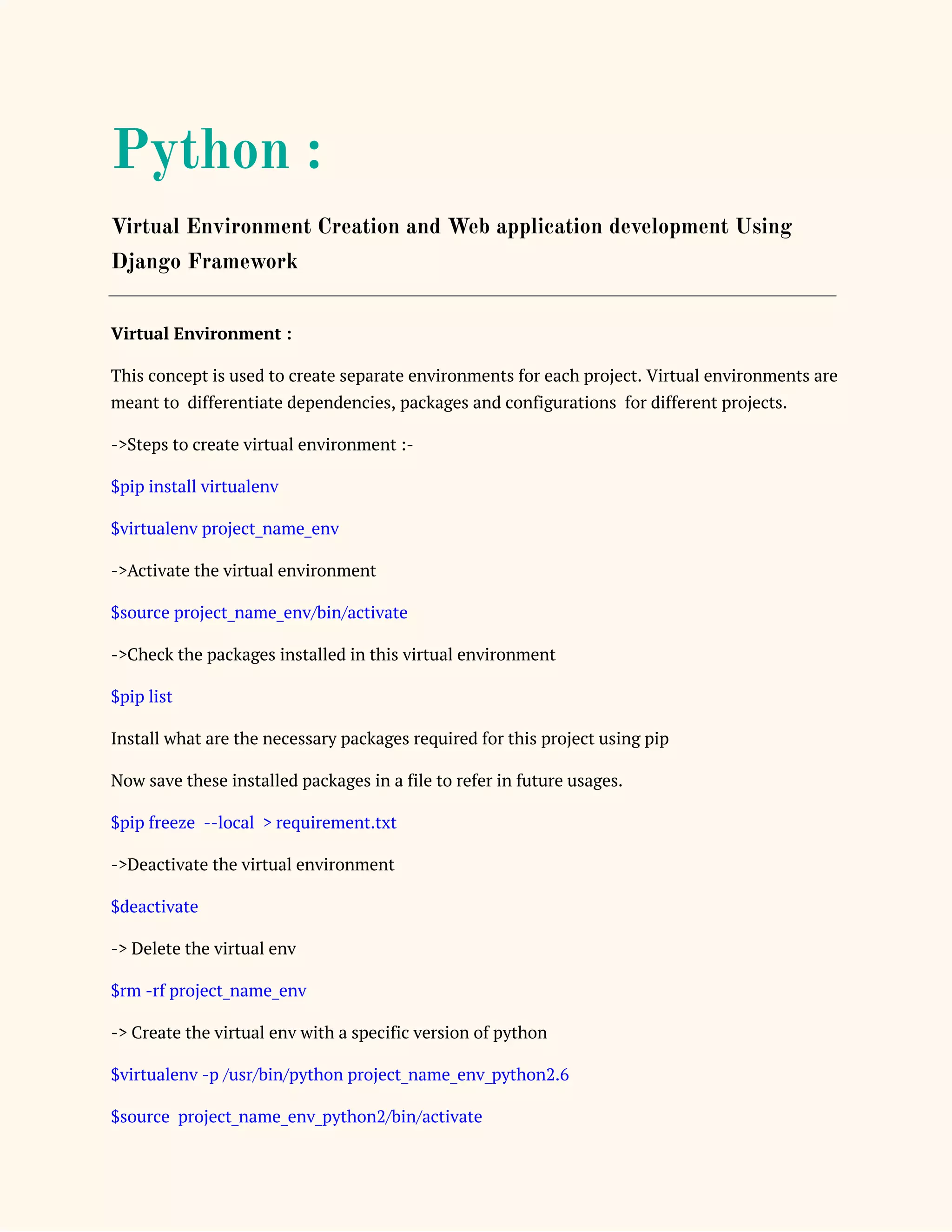
Virtual Environment : 
This concept is used to create separate environments for each project. Virtual environments are 
meant to differentiate dependencies, packages and configurations for different projects.  
->Steps to create virtual environment :- 
$pip install virtualenv 
$virtualenv project_name_env 
->Activate the virtual environment 
$source project_name_env/bin/activate 
->Check the packages installed in this virtual environment 
$pip list 
Install what are the necessary packages required for this project using pip 
Now save these installed packages in a file to refer in future usages. 
$pip freeze --local > requirement.txt 
->Deactivate the virtual environment 
$deactivate 
-> Delete the virtual env 
$rm -rf project_name_env 
-> Create the virtual env with a specific version of python 
$virtualenv -p /usr/bin/python project_name_env_python2.6 
$source project_name_env_python2/bin/activate 
$pip install -r requirements.txt 
Django web Development
 
Django is a web development framework in python. To develop the 1st web project using Django 
follow the below steps. 
-> create the virtual environment as discussed in the previous section. Use the desired python 
version 
-> install Django in pip 
$pip install django 
-> Create your base project directory 
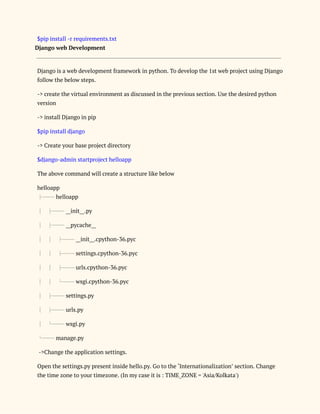
$django-admin startproject helloapp 
The above command will create a structure like below 
helloapp 
├── helloapp 
│ ├── __init__.py 
│ ├── __pycache__ 
│ │ ├── __init__.cpython-36.pyc 
│ │ ├── settings.cpython-36.pyc 
│ │ ├── urls.cpython-36.pyc 
│ │ └── wsgi.cpython-36.pyc 
│ ├── settings.py 
│ ├── urls.py 
│ └── wsgi.py 
└── manage.py 
->Change the application settings.  
Open the settings.py present inside hello.py. Go to the ‘Internationalization’ section. Change 
the time zone to your timezone. (In my case it is : TIME_ZONE = 'Asia/Kolkata') 
 
->Create your own app 
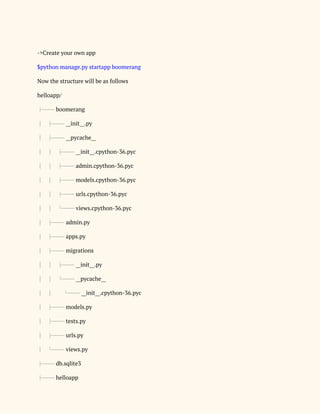
$python manage.py startapp boomerang 
Now the structure will be as follows 
helloapp/ 
├── boomerang 
│ ├── __init__.py 
│ ├── __pycache__ 
│ │ ├── __init__.cpython-36.pyc 
│ │ ├── admin.cpython-36.pyc 
│ │ ├── models.cpython-36.pyc 
│ │ ├── urls.cpython-36.pyc 
│ │ └── views.cpython-36.pyc 
│ ├── admin.py 
│ ├── apps.py 
│ ├── migrations 
│ │ ├── __init__.py 
│ │ └── __pycache__ 
│ │ └── __init__.cpython-36.pyc 
│ ├── models.py 
│ ├── tests.py 
│ ├── urls.py 
│ └── views.py 
├── db.sqlite3 
├── helloapp 
│ ├── __init__.py 
│ ├── __pycache__ 
│ │ ├── __init__.cpython-36.pyc 
│ │ ├── settings.cpython-36.pyc 
│ │ ├── urls.cpython-36.pyc 
│ │ └── wsgi.cpython-36.pyc 
│ ├── settings.py 
│ ├── urls.py 
│ └── wsgi.py 
└── manage.py 
 
-> Configured the boomerang app in the settings.py of helloapp 
Open the settings.py and go to the ‘INSTALLED_APPS’ section and add ‘boomerang’ there. 
INSTALLED_APPS = [ 
'django.contrib.admin', 
'django.contrib.auth',  
  'django.contrib.contenttypes', 
'django.contrib.sessions', 
'django.contrib.messages', 
'django.contrib.staticfiles', 
'boomerang' 
] 
-> Start the server  
Form the base directory trigger the below command 
$python manage.py runserver 
The console output will be something like below 
System check identified no issues (0 silenced). 
January 20, 2018 - 12:09:54 
Django version 2.0.1, using settings 'helloapp.settings' 
Starting development server at http://127.0.0.1:8000/ 
Now hit the above url in browser and we can see the Django welcome page. Here Django 
displayed us the default welcome page. Let’s tell Django to access our boomerang application 
when someone visits the home page with url ‘/’ . 
->Open the urls.py of helloapp & go to the ‘urlpatterns’ section. Modify that section as follows : 
from django.contrib import admin 
from django.urls import path 
from django.conf.urls import url, include 
urlpatterns = [ 
path('admin/', admin.site.urls), 
path(' ', include('boomerang.urls')) 
] 
-> Now open the urls.py of boomerang and edit the ‘urlpatterns’ as follows. 
from django.conf.urls import url 
from boomerang import views 
urlpatterns = [ 
url(r'^$', views.WelcomePage.as_view()), 
] 
-> Now configure the view page class (WelcomePage) in views.py of boomerang . open the 
views.py of boomerang and add the below snippet. 
from django.shortcuts import render 
from django.views.generic import TemplateView 
# Create your views here. 
class WelcomePage(TemplateView): 
def get(self,request,**kwargs): 
return render(request,'index.html',context=None) 
-> Time to create the templates : 
In the boomerang app folder create a subdirectory named ‘templates’ 
$mkdir templates 
Create a page named index.html inside the templates folder  
$touch index.html 
 
Add sample html code to the index.html whatever you want to display as the welcome page at 
the starting. Something like below : 
<!DOCTYPE html> 
<html> 
<head> 
<meta charset="utf-8"> 
<title>Welcome!</title> 
</head> 
<body> 
<h1>1st Django application</h1> 
</body> 
</html> 
-> Now start the server 
$python manage.py runserver 
We should see the “1st Django application” in the browser. 
-> Add multiple urls : 
If you want to drive multiple webpages based on urls, register the urls in your app (in our case 
‘boomerang’) 
I need to show a second page for the url ‘http://127.0.0.1:8000/second’  
-> Register the pattern in the urls.py of boomerang 
from django.conf.urls import url 
from boomerang import views 
urlpatterns = [ 
url(r'^$', views.WelcomePage.as_view()), 
url('second',views.SecondPage.as_view()), 
] 
-> Add the SecondPage class in views.py of boomerang 
from django.shortcuts import render 
from django.views.generic import TemplateView 
# Create your views here. 
class WelcomePage(TemplateView): 
def get(self,request,**kwargs): 
return render(request,'index.html',context=None) 
class SecondPage(TemplateView): 
def get(self,request,**kwargs): 
return render(request,'secondpage.html',context=None) 
-> Create the secondpage.html in the templates directory of boomerang 
<!DOCTYPE html> 
<html> 
<head> 
<meta charset="utf-8"> 
<title>Welcome!</title> 
</head> 
<body> 
<h1>1st Django application</h1> 
</body> 
</html> 
-> Start the server 
$python manage.py runserver 
Hit the url ‘http://127.0.0.1:8000/second’ 
We should able to see  
2nd page 
 
We covered the basics on creating the virtual environment along with sample web application 
development using Django. From here anyone can proceed further and start exploring more on 
web development using python. 


Virtual Environment and Web development using Django

  • 1.
    Python :  Virtual EnvironmentCreation and Web application development Using  Django Framework     Virtual Environment :  This concept is used to create separate environments for each project. Virtual environments are  meant to differentiate dependencies, packages and configurations for different projects.   ->Steps to create virtual environment :-  $pip install virtualenv  $virtualenv project_name_env  ->Activate the virtual environment  $source project_name_env/bin/activate  ->Check the packages installed in this virtual environment  $pip list  Install what are the necessary packages required for this project using pip  Now save these installed packages in a file to refer in future usages.  $pip freeze --local > requirement.txt  ->Deactivate the virtual environment  $deactivate  -> Delete the virtual env  $rm -rf project_name_env  -> Create the virtual env with a specific version of python  $virtualenv -p /usr/bin/python project_name_env_python2.6  $source project_name_env_python2/bin/activate 
  • 2.
    $pip install -rrequirements.txt  Django web Development   Django is a web development framework in python. To develop the 1st web project using Django  follow the below steps.  -> create the virtual environment as discussed in the previous section. Use the desired python  version  -> install Django in pip  $pip install django  -> Create your base project directory  $django-admin startproject helloapp  The above command will create a structure like below  helloapp  ├── helloapp  │ ├── __init__.py  │ ├── __pycache__  │ │ ├── __init__.cpython-36.pyc  │ │ ├── settings.cpython-36.pyc  │ │ ├── urls.cpython-36.pyc  │ │ └── wsgi.cpython-36.pyc  │ ├── settings.py  │ ├── urls.py  │ └── wsgi.py  └── manage.py  ->Change the application settings.   Open the settings.py present inside hello.py. Go to the ‘Internationalization’ section. Change  the time zone to your timezone. (In my case it is : TIME_ZONE = 'Asia/Kolkata') 
  • 3.
      ->Create your ownapp  $python manage.py startapp boomerang  Now the structure will be as follows  helloapp/  ├── boomerang  │ ├── __init__.py  │ ├── __pycache__  │ │ ├── __init__.cpython-36.pyc  │ │ ├── admin.cpython-36.pyc  │ │ ├── models.cpython-36.pyc  │ │ ├── urls.cpython-36.pyc  │ │ └── views.cpython-36.pyc  │ ├── admin.py  │ ├── apps.py  │ ├── migrations  │ │ ├── __init__.py  │ │ └── __pycache__  │ │ └── __init__.cpython-36.pyc  │ ├── models.py  │ ├── tests.py  │ ├── urls.py  │ └── views.py  ├── db.sqlite3  ├── helloapp 
  • 4.
    │ ├── __init__.py  │├── __pycache__  │ │ ├── __init__.cpython-36.pyc  │ │ ├── settings.cpython-36.pyc  │ │ ├── urls.cpython-36.pyc  │ │ └── wsgi.cpython-36.pyc  │ ├── settings.py  │ ├── urls.py  │ └── wsgi.py  └── manage.py    -> Configured the boomerang app in the settings.py of helloapp  Open the settings.py and go to the ‘INSTALLED_APPS’ section and add ‘boomerang’ there.  INSTALLED_APPS = [  'django.contrib.admin',  'django.contrib.auth',     'django.contrib.contenttypes',  'django.contrib.sessions',  'django.contrib.messages',  'django.contrib.staticfiles',  'boomerang'  ]  -> Start the server   Form the base directory trigger the below command  $python manage.py runserver  The console output will be something like below  System check identified no issues (0 silenced).  January 20, 2018 - 12:09:54 
  • 5.
    Django version 2.0.1,using settings 'helloapp.settings'  Starting development server at http://127.0.0.1:8000/  Now hit the above url in browser and we can see the Django welcome page. Here Django  displayed us the default welcome page. Let’s tell Django to access our boomerang application  when someone visits the home page with url ‘/’ .  ->Open the urls.py of helloapp & go to the ‘urlpatterns’ section. Modify that section as follows :  from django.contrib import admin  from django.urls import path  from django.conf.urls import url, include  urlpatterns = [  path('admin/', admin.site.urls),  path(' ', include('boomerang.urls'))  ]  -> Now open the urls.py of boomerang and edit the ‘urlpatterns’ as follows.  from django.conf.urls import url  from boomerang import views  urlpatterns = [  url(r'^$', views.WelcomePage.as_view()),  ]  -> Now configure the view page class (WelcomePage) in views.py of boomerang . open the  views.py of boomerang and add the below snippet.  from django.shortcuts import render  from django.views.generic import TemplateView  # Create your views here.  class WelcomePage(TemplateView):  def get(self,request,**kwargs):  return render(request,'index.html',context=None)  -> Time to create the templates :  In the boomerang app folder create a subdirectory named ‘templates’  $mkdir templates 
  • 6.
    Create a pagenamed index.html inside the templates folder   $touch index.html    Add sample html code to the index.html whatever you want to display as the welcome page at  the starting. Something like below :  <!DOCTYPE html>  <html>  <head>  <meta charset="utf-8">  <title>Welcome!</title>  </head>  <body>  <h1>1st Django application</h1>  </body>  </html>  -> Now start the server  $python manage.py runserver  We should see the “1st Django application” in the browser.  -> Add multiple urls :  If you want to drive multiple webpages based on urls, register the urls in your app (in our case  ‘boomerang’)  I need to show a second page for the url ‘http://127.0.0.1:8000/second’   -> Register the pattern in the urls.py of boomerang  from django.conf.urls import url  from boomerang import views  urlpatterns = [  url(r'^$', views.WelcomePage.as_view()),  url('second',views.SecondPage.as_view()),  ]  -> Add the SecondPage class in views.py of boomerang 
  • 7.
    from django.shortcuts importrender  from django.views.generic import TemplateView  # Create your views here.  class WelcomePage(TemplateView):  def get(self,request,**kwargs):  return render(request,'index.html',context=None)  class SecondPage(TemplateView):  def get(self,request,**kwargs):  return render(request,'secondpage.html',context=None)  -> Create the secondpage.html in the templates directory of boomerang  <!DOCTYPE html>  <html>  <head>  <meta charset="utf-8">  <title>Welcome!</title>  </head>  <body>  <h1>1st Django application</h1>  </body>  </html>  -> Start the server  $python manage.py runserver  Hit the url ‘http://127.0.0.1:8000/second’  We should able to see   2nd page    We covered the basics on creating the virtual environment along with sample web application  development using Django. From here anyone can proceed further and start exploring more on  web development using python.   
  • 8.