Vigor 3910 Docker Firmware
Quick Start Guide
2021/10/1
RD3 Jimmy
jtu@draytek.com
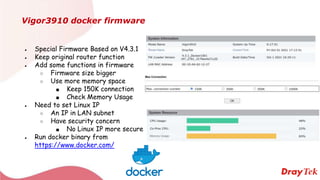
Vigor3910 docker firmware
● Special Firmware Based on V4.3.1
● Keep original router function
● Add some functions in firmware
○ Firmware size bigger
○ Use more memory space
■ Keep 150K connection
■ Check Memory Usage
● Need to set Linux IP
○ An IP in LAN subnet
○ Have security concern
■ No Linux IP more secure
● Run docker binary from
https://www.docker.com/
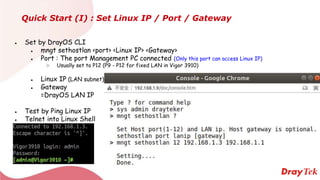
Quick Start (I) : Set Linux IP / Port / Gateway
● Set by DrayOS CLI
● mngt sethostlan <port> <Linux IP> <Gateway>
● Port : The port Management PC connected (Only this port can access Linux IP)
○ Usually set to P12 (P9 - P12 for fixed LAN in Vigor 3910)
● Linux IP (LAN subnet)
● Gateway
=DrayOS LAN IP
● Test by Ping Linux IP
● Telnet into Linux Shell
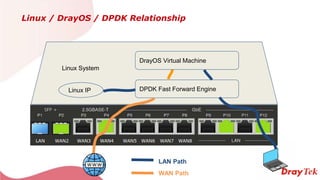
Linux / DrayOS / DPDK Relationship
DPDK Fast Forward Engine
Linux System
DrayOS Virtual Machine
Linux IP
LAN Path
WAN Path
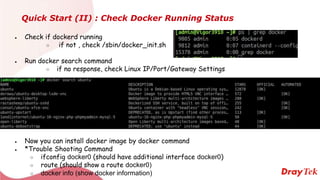
Quick Start (II) : Check Docker Running Status
● Check if dockerd running
○ if not , check /sbin/docker_init.sh
● Run docker search command
○ if no response, check Linux IP/Port/Gateway Settings
● Now you can install docker image by docker command
● *Trouble Shooting Command
○ ifconfig docker0 (should have additional interface docker0)
○ route (should show a route docker0)
○ docker info (show docker information)
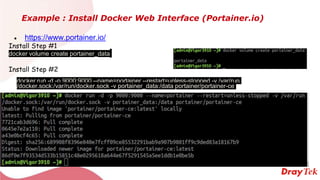
Example : Install Docker Web Interface (Portainer.io)
● https://www.portainer.io/
Install Step #1
docker volume create portainer_data
Install Step #2
docker run -d -p 9000:9000 --name=portainer --restart=unless-stopped -v /var/run
/docker.sock:/var/run/docker.sock -v portainer_data:/data portainer/portainer-ce
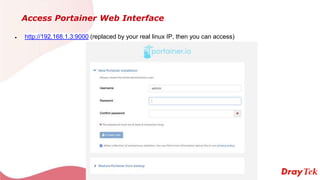
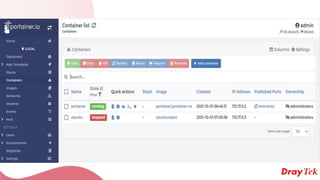
Access Portainer Web Interface
● http://192.168.1.3:9000 (replaced by your real linux IP, then you can access)
Thank You

Vigor 3910 docker firmware quick start

  • 1.
    Vigor 3910 DockerFirmware Quick Start Guide 2021/10/1 RD3 Jimmy jtu@draytek.com
  • 2.
    Vigor3910 docker firmware ●Special Firmware Based on V4.3.1 ● Keep original router function ● Add some functions in firmware ○ Firmware size bigger ○ Use more memory space ■ Keep 150K connection ■ Check Memory Usage ● Need to set Linux IP ○ An IP in LAN subnet ○ Have security concern ■ No Linux IP more secure ● Run docker binary from https://www.docker.com/
  • 3.
    Quick Start (I): Set Linux IP / Port / Gateway ● Set by DrayOS CLI ● mngt sethostlan <port> <Linux IP> <Gateway> ● Port : The port Management PC connected (Only this port can access Linux IP) ○ Usually set to P12 (P9 - P12 for fixed LAN in Vigor 3910) ● Linux IP (LAN subnet) ● Gateway =DrayOS LAN IP ● Test by Ping Linux IP ● Telnet into Linux Shell
  • 4.
    Linux / DrayOS/ DPDK Relationship DPDK Fast Forward Engine Linux System DrayOS Virtual Machine Linux IP LAN Path WAN Path
  • 5.
    Quick Start (II): Check Docker Running Status ● Check if dockerd running ○ if not , check /sbin/docker_init.sh ● Run docker search command ○ if no response, check Linux IP/Port/Gateway Settings ● Now you can install docker image by docker command ● *Trouble Shooting Command ○ ifconfig docker0 (should have additional interface docker0) ○ route (should show a route docker0) ○ docker info (show docker information)
  • 6.
    Example : InstallDocker Web Interface (Portainer.io) ● https://www.portainer.io/ Install Step #1 docker volume create portainer_data Install Step #2 docker run -d -p 9000:9000 --name=portainer --restart=unless-stopped -v /var/run /docker.sock:/var/run/docker.sock -v portainer_data:/data portainer/portainer-ce
  • 7.
    Access Portainer WebInterface ● http://192.168.1.3:9000 (replaced by your real linux IP, then you can access)
  • 9.