VERSION CONTROL SYSTEMS
Saman Najafi
WHAT IS VCS?
 A TOOL
to track changes of source code
 What had changed
 When changed
 Why changed
 Who changed it
WHY USING VCS?
 Some expert’s comments:
WHY USING VCS?
 Some expert’s comments (cont.):
WHY USING VCS?
 Some expert’s comments (cont.):
“If it’s not in source control, it
doesn’t exist.”
WHY USING VCS?
 And really why?
 Prevent from accidentally deletion
 Access to the different and older
versions of your files
 Some logs maybe useful while
reviewing your project
 Managing conflicts in team works
Ayyyy…
WHY USING VCS?
 And really why? (cont.)
 Create Several versions with different functionalities
and features
 Share your code, or let other people work on your code
 Experiment with a new feature without interfering with
working code
SCENARIO I: BUG FIX
Time
1.0
First public release
of the hot new
product
Releases
SCENARIO I: BUG FIX
1.0
Releases
Internal development
continues,
progressing to version
1.3
1.3
Time
SCENARIO I: BUG FIX
1.0
Time
Releases
A fatal bug is
discovered in the
product (1.0), but 1.3
is not stable enough
to release. Solution:
Create a version
based on 1.0 with the
bug fix.
1.3
1.0 bugfix
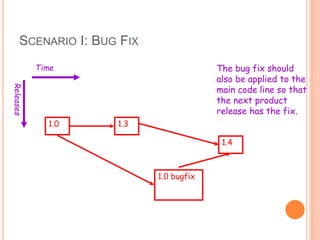
SCENARIO I: BUG FIX
1.0
Time
Releases
The bug fix should
also be applied to the
main code line so that
the next product
release has the fix.
1.3
1.0 bugfix
1.4
SCENARIO I: BUG FIX
1.0
Time
Releases
Note that two
separate lines of
development come
back together in 1.4.
This is merging or
updating.1.3
1.0 bugfix
1.4
SCENARIO II: NORMAL DEVELOPMENT
1.5
Time
Releases
You are in the middle
of a project with
three developers
named a, b, and c.
SCENARIO II: NORMAL DEVELOPMENT
1.5
Time
Releases
The local versions
isolate the developers
from each other’s
possibly unstable
changes. Each builds
on 1.5, the most
recent stable version.
1.5a
1.5b
1.5c
SCENARIO II: NORMAL DEVELOPMENT
1.5
Time
Releases
1.5a
1.5b
1.5c
1.6
At 4:00 pm everyone
checks in their tested
modifications. A
check in is a kind of
merge where local
versions are copied
back into the version
control system.
SCENARIO II: NORMAL DEVELOPMENT
1.5
Time
Releases
1.5a
1.5b
1.5c
1.6
In many organizations
check in automatically
runs a test suite
against the result of
the check in. If the
tests fail the changes
are not accepted.
This prevents a
sloppy developer from
causing all work to
stop by, e.g., creating
a version of the
system that does not
compile.
SCENARIO III: DEBUGGING
1.5
Time
Releases
1.6
You develop a
software system
through several
revisions.
1.7
SCENARIO III: DEBUGGING
1.5
Time
Releases
1.6
In 1.7 you suddenly
discover a bug has
crept into the
system. When was it
introduced?
With version control
you can check out old
versions of the
system and see which
revision introduced
the bug.
1.7
SCENARIO IV: LIBRARIES
Time
Releases
You are building
software on top of a
third-party library,
for which you have
source.
Library A
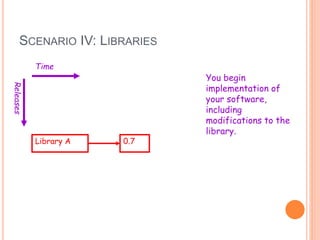
SCENARIO IV: LIBRARIES
Time
Releases
Library A
You begin
implementation of
your software,
including
modifications to the
library.
0.7
SCENARIO IV: LIBRARIES
Time
Releases
Library A 0.7
Library B
A new version of the
library is released.
Logically this is a
branch: library
development has
proceeded
independently of your
own development.
TWO MAIN TYPES OF VCS
 Centralized version control
CENTRALIZED VERSION CONTROL
 Have a single server that contains all the versioned
files, and a number of clients that check out files
from that central place.
 For many years, this has been the standard for
version control
 Distributed version control
DISTRIBUTED VERSION CONTROL SYSTEMS
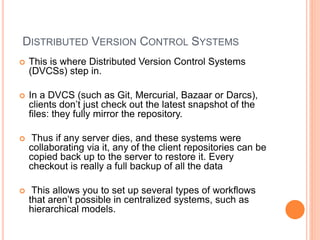
 This is where Distributed Version Control Systems
(DVCSs) step in.
 In a DVCS (such as Git, Mercurial, Bazaar or Darcs),
clients don’t just check out the latest snapshot of the
files: they fully mirror the repository.
 Thus if any server dies, and these systems were
collaborating via it, any of the client repositories can be
copied back up to the server to restore it. Every
checkout is really a full backup of all the data
 This allows you to set up several types of workflows
that aren’t possible in centralized systems, such as
hierarchical models.
KEY TERMS
 Projects : set of files in version control
 Version control doesn’t care what files
 Not a build system
 Or a test system
 Though there are often hooks to these other systems
KEY TERMS
 Repository : kind of DB stores changes on source
code during its life (such as .git directory in the git
system or .svn in the sub version)
KEY TERMS
 Working directory : local directory of files, where
you make changes
KEY TERMS
 Revision: snapshot of code at specific time
Consider
 Check out a file
 Edit it
 Check the file back in
This creates a new version of the file
 Usually increment minor version number
 E.g., 1.5 -> 1.6
KEY TERMS
 Revision (Cont.)
 For efficiency, don’t store entire new file
 Store diff with previous version
 Minimizes space
 Makes check-in, check-out potentially slower
 Must apply diffs from all previous versions to compute current
file
KEY TERMS
 With each revision, system stores
 The diffs for that version
 The new minor version number
 Other metadata
 Author
 Time of check in
 Log file message
 Head: The latest revision in current branch
KEY TERMS
 Branch: a branch is just two revisions of a file
 Two people check out 1.5
 Check in 1.5.1
 Check in 1.5.2
 Notes
 Normally checking in does not create a branch
 Changes merged into main code line
 Must explicitly ask to create a branch
KEY TERMS
Merging:
 Start with a file, say 1.5
 Bob makes changes A to 1.5
 Alice makes changes B to 1.5
 Assume Alice checks in first
 Current revision is 1.6 = apply(B,1.5)
KEY TERMS
Merging (Cont.)
 Now Bob checks in
 System notices that Bob checked out 1.5
 But current version is 1.6
 Bob has not made his changes in the current version!
 The system complains
 Bob is told to update his local copy of the code
KEY TERMS
Merging (Cont.)
 Bob does an update
 This applies Alice’s changes B to Bob’s code
 Remember Bob’s code is apply(A,1.5)
 Two possible outcomes of an update
 Success
 Conflicts
KEY TERMS
Merging (Cont.)
 Assume that
apply(A,apply(B,1.5) = apply(B,apply(A,1.5))
 Then order of changes didn’t matter
 Same result whether Bob or Alice checks in first
 The version control system is happy with this
 Bob can now check in his changes
 Because apply(B,apply(A,1.6)) = apply(B,1.6)
KEY TERMS
Merging (Cont.)
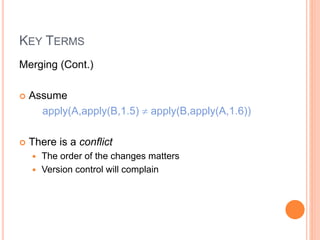
 Assume
apply(A,apply(B,1.5)  apply(B,apply(A,1.6))
 There is a conflict
 The order of the changes matters
 Version control will complain
KEY TERMS
Conflicts:
 Arise when two programmers edit the same piece
of code
 One change overwrites another
1.5: a = b;
Alice: a = b++;
Bob: a = ++b;
The system doesn’t know what should be done, and so
complains of a conflict.
KEY TERMS
Conflicts (Cont.):
 System cannot apply changes when there are
conflicts
 Final result is not unique
 Depends on order in which changes are applied
 Version control shows conflicts on update
 Generally based on diff3
 Conflicts must be resolved by hand
KEY TERMS
Conflicts (Cont.):
 Conflict detection is based on “nearness” of
changes
 Changes to the same line will conflict
 Changes to different lines will likely not conflict
 Note: Lack of conflicts does not mean Alice’s and
Bob’s changes work together
KEY TERMS
Example With No Conflict:
 Revision 1.5: int f(int a, int b) { … }
 Alice: int f(int a, int b, int c) { … }
add argument to all calls to f
 Bob: add call f(x,y)
 Merged program
 Has no conflicts
 But will not even compile
KEY TERMS
 Locking:
 Keep file in lock to prevent other users changes
1. Strict locking
2. Optimistic locking
KEY TERMS
 Pushing:
 Transfer changes of local repository to remote
repository
KEY TERMS
 Pulling:
 Get last update from remote repository to
workspace
GETTING STARTED- GIT
 The major difference between Git and any other
VCS (Subversion and friends included) is the way
Git thinks about its data..
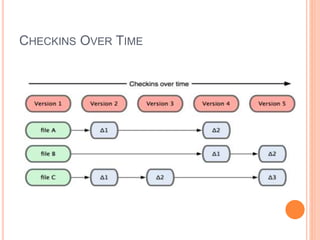
 Conceptually, most other systems store information
as a list of file-based changes. These systems
(CVS, Subversion, Perforce, Bazaar, and so on)
think of the information they keep as a set of files
and the changes made to each file over time
CHECKINS OVER TIME
CHECKINS OVER TIME
Git thinks of its data more like a set of snapshots of a
mini filesystem.
Every time you commit, or save the state of your
project in Git, it basically takes a picture of what all
your files look like at that moment and stores a
reference to that snapshot.
To be efficient, if files have not changed, Git doesn’t
store the file again—just a link to the previous
identical file it has already stored
GIT STORES DATA AS SNAPSHOTS OF THE
PROJECT OVER TIME.
GIT STRUCTURE
Version control

Version control

  • 1.
  • 2.
    WHAT IS VCS? A TOOL to track changes of source code  What had changed  When changed  Why changed  Who changed it
  • 3.
    WHY USING VCS? Some expert’s comments:
  • 4.
    WHY USING VCS? Some expert’s comments (cont.):
  • 5.
    WHY USING VCS? Some expert’s comments (cont.): “If it’s not in source control, it doesn’t exist.”
  • 6.
    WHY USING VCS? And really why?  Prevent from accidentally deletion  Access to the different and older versions of your files  Some logs maybe useful while reviewing your project  Managing conflicts in team works Ayyyy…
  • 7.
    WHY USING VCS? And really why? (cont.)  Create Several versions with different functionalities and features  Share your code, or let other people work on your code  Experiment with a new feature without interfering with working code
  • 8.
    SCENARIO I: BUGFIX Time 1.0 First public release of the hot new product Releases
  • 9.
    SCENARIO I: BUGFIX 1.0 Releases Internal development continues, progressing to version 1.3 1.3 Time
  • 10.
    SCENARIO I: BUGFIX 1.0 Time Releases A fatal bug is discovered in the product (1.0), but 1.3 is not stable enough to release. Solution: Create a version based on 1.0 with the bug fix. 1.3 1.0 bugfix
  • 11.
    SCENARIO I: BUGFIX 1.0 Time Releases The bug fix should also be applied to the main code line so that the next product release has the fix. 1.3 1.0 bugfix 1.4
  • 12.
    SCENARIO I: BUGFIX 1.0 Time Releases Note that two separate lines of development come back together in 1.4. This is merging or updating.1.3 1.0 bugfix 1.4
  • 13.
    SCENARIO II: NORMALDEVELOPMENT 1.5 Time Releases You are in the middle of a project with three developers named a, b, and c.
  • 14.
    SCENARIO II: NORMALDEVELOPMENT 1.5 Time Releases The local versions isolate the developers from each other’s possibly unstable changes. Each builds on 1.5, the most recent stable version. 1.5a 1.5b 1.5c
  • 15.
    SCENARIO II: NORMALDEVELOPMENT 1.5 Time Releases 1.5a 1.5b 1.5c 1.6 At 4:00 pm everyone checks in their tested modifications. A check in is a kind of merge where local versions are copied back into the version control system.
  • 16.
    SCENARIO II: NORMALDEVELOPMENT 1.5 Time Releases 1.5a 1.5b 1.5c 1.6 In many organizations check in automatically runs a test suite against the result of the check in. If the tests fail the changes are not accepted. This prevents a sloppy developer from causing all work to stop by, e.g., creating a version of the system that does not compile.
  • 17.
    SCENARIO III: DEBUGGING 1.5 Time Releases 1.6 Youdevelop a software system through several revisions. 1.7
  • 18.
    SCENARIO III: DEBUGGING 1.5 Time Releases 1.6 In1.7 you suddenly discover a bug has crept into the system. When was it introduced? With version control you can check out old versions of the system and see which revision introduced the bug. 1.7
  • 19.
    SCENARIO IV: LIBRARIES Time Releases Youare building software on top of a third-party library, for which you have source. Library A
  • 20.
    SCENARIO IV: LIBRARIES Time Releases LibraryA You begin implementation of your software, including modifications to the library. 0.7
  • 21.
    SCENARIO IV: LIBRARIES Time Releases LibraryA 0.7 Library B A new version of the library is released. Logically this is a branch: library development has proceeded independently of your own development.
  • 22.
    TWO MAIN TYPESOF VCS  Centralized version control
  • 23.
    CENTRALIZED VERSION CONTROL Have a single server that contains all the versioned files, and a number of clients that check out files from that central place.  For many years, this has been the standard for version control
  • 24.
  • 25.
    DISTRIBUTED VERSION CONTROLSYSTEMS  This is where Distributed Version Control Systems (DVCSs) step in.  In a DVCS (such as Git, Mercurial, Bazaar or Darcs), clients don’t just check out the latest snapshot of the files: they fully mirror the repository.  Thus if any server dies, and these systems were collaborating via it, any of the client repositories can be copied back up to the server to restore it. Every checkout is really a full backup of all the data  This allows you to set up several types of workflows that aren’t possible in centralized systems, such as hierarchical models.
  • 26.
    KEY TERMS  Projects: set of files in version control  Version control doesn’t care what files  Not a build system  Or a test system  Though there are often hooks to these other systems
  • 27.
    KEY TERMS  Repository: kind of DB stores changes on source code during its life (such as .git directory in the git system or .svn in the sub version)
  • 28.
    KEY TERMS  Workingdirectory : local directory of files, where you make changes
  • 29.
    KEY TERMS  Revision:snapshot of code at specific time Consider  Check out a file  Edit it  Check the file back in This creates a new version of the file  Usually increment minor version number  E.g., 1.5 -> 1.6
  • 30.
    KEY TERMS  Revision(Cont.)  For efficiency, don’t store entire new file  Store diff with previous version  Minimizes space  Makes check-in, check-out potentially slower  Must apply diffs from all previous versions to compute current file
  • 31.
    KEY TERMS  Witheach revision, system stores  The diffs for that version  The new minor version number  Other metadata  Author  Time of check in  Log file message  Head: The latest revision in current branch
  • 32.
    KEY TERMS  Branch:a branch is just two revisions of a file  Two people check out 1.5  Check in 1.5.1  Check in 1.5.2  Notes  Normally checking in does not create a branch  Changes merged into main code line  Must explicitly ask to create a branch
  • 33.
    KEY TERMS Merging:  Startwith a file, say 1.5  Bob makes changes A to 1.5  Alice makes changes B to 1.5  Assume Alice checks in first  Current revision is 1.6 = apply(B,1.5)
  • 34.
    KEY TERMS Merging (Cont.) Now Bob checks in  System notices that Bob checked out 1.5  But current version is 1.6  Bob has not made his changes in the current version!  The system complains  Bob is told to update his local copy of the code
  • 35.
    KEY TERMS Merging (Cont.) Bob does an update  This applies Alice’s changes B to Bob’s code  Remember Bob’s code is apply(A,1.5)  Two possible outcomes of an update  Success  Conflicts
  • 36.
    KEY TERMS Merging (Cont.) Assume that apply(A,apply(B,1.5) = apply(B,apply(A,1.5))  Then order of changes didn’t matter  Same result whether Bob or Alice checks in first  The version control system is happy with this  Bob can now check in his changes  Because apply(B,apply(A,1.6)) = apply(B,1.6)
  • 37.
    KEY TERMS Merging (Cont.) Assume apply(A,apply(B,1.5)  apply(B,apply(A,1.6))  There is a conflict  The order of the changes matters  Version control will complain
  • 38.
    KEY TERMS Conflicts:  Arisewhen two programmers edit the same piece of code  One change overwrites another 1.5: a = b; Alice: a = b++; Bob: a = ++b; The system doesn’t know what should be done, and so complains of a conflict.
  • 39.
    KEY TERMS Conflicts (Cont.): System cannot apply changes when there are conflicts  Final result is not unique  Depends on order in which changes are applied  Version control shows conflicts on update  Generally based on diff3  Conflicts must be resolved by hand
  • 40.
    KEY TERMS Conflicts (Cont.): Conflict detection is based on “nearness” of changes  Changes to the same line will conflict  Changes to different lines will likely not conflict  Note: Lack of conflicts does not mean Alice’s and Bob’s changes work together
  • 41.
    KEY TERMS Example WithNo Conflict:  Revision 1.5: int f(int a, int b) { … }  Alice: int f(int a, int b, int c) { … } add argument to all calls to f  Bob: add call f(x,y)  Merged program  Has no conflicts  But will not even compile
  • 42.
    KEY TERMS  Locking: Keep file in lock to prevent other users changes 1. Strict locking 2. Optimistic locking
  • 43.
    KEY TERMS  Pushing: Transfer changes of local repository to remote repository
  • 44.
    KEY TERMS  Pulling: Get last update from remote repository to workspace
  • 45.
    GETTING STARTED- GIT The major difference between Git and any other VCS (Subversion and friends included) is the way Git thinks about its data..  Conceptually, most other systems store information as a list of file-based changes. These systems (CVS, Subversion, Perforce, Bazaar, and so on) think of the information they keep as a set of files and the changes made to each file over time
  • 46.
  • 47.
    CHECKINS OVER TIME Gitthinks of its data more like a set of snapshots of a mini filesystem. Every time you commit, or save the state of your project in Git, it basically takes a picture of what all your files look like at that moment and stores a reference to that snapshot. To be efficient, if files have not changed, Git doesn’t store the file again—just a link to the previous identical file it has already stored
  • 48.
    GIT STORES DATAAS SNAPSHOTS OF THE PROJECT OVER TIME.
  • 49.