teachers guide

http://www.studyblue.com
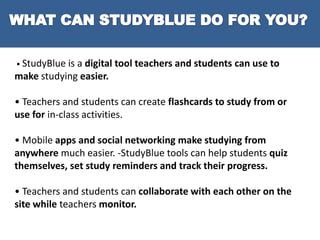
• StudyBlue is

a digital tool teachers and students can use to
make studying easier.
• Teachers and students can create flashcards to study from or
use for in-class activities.
• Mobile apps and social networking make studying from
anywhere much easier. -StudyBlue tools can help students quiz
themselves, set study reminders and track their progress.
• Teachers and students can collaborate with each other on the
site while teachers monitor.
 1.- Create your free account and connect with your school, you
will be asked for the name of your school.
If you don’t see the name, add your school.”The request will be
reviewed within 48 hours. (You can still use StudyBlue features
while you wait!)

 2.- ADD YOUR FIRST CLASS, Once your school has been
added, enter the name and level of your class in the blue box
underneath it.
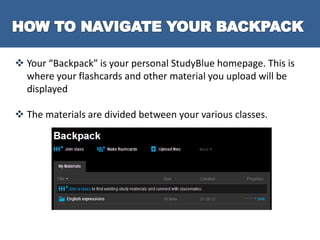
 Your “Backpack” is your personal StudyBlue homepage. This is
where your flashcards and other material you upload will be
displayed
 The materials are divided between your various classes.
 Once a class has been created, you
can reach out to your students to
join.
 In the “Materials” and
“Classmates” tab, click on “Send
Invites”. This will allow you to
enter the email addresses of your
students and a customized
message.
 You can also connect with them via
Facebook, Twitter, or a link.
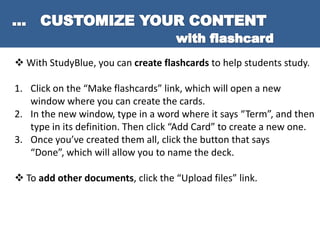
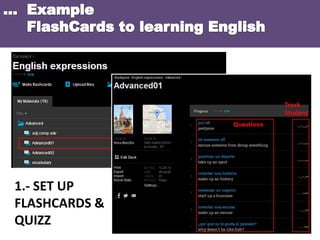
 With StudyBlue, you can create flashcards to help students study.
1. Click on the “Make flashcards” link, which will open a new
window where you can create the cards.
2. In the new window, type in a word where it says “Term”, and then
type in its definition. Then click “Add Card” to create a new one.
3. Once you’ve created them all, click the button that says
“Done”, which will allow you to name the deck.
 To add other documents, click the “Upload files” link.
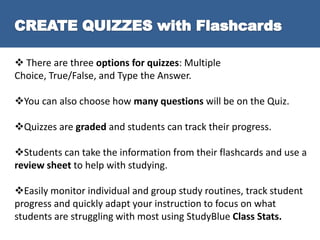
 There are three options for quizzes: Multiple
Choice, True/False, and Type the Answer.

You can also choose how many questions will be on the Quiz.
Quizzes are graded and students can track their progress.
Students can take the information from their flashcards and use a
review sheet to help with studying.
Easily monitor individual and group study routines, track student
progress and quickly adapt your instruction to focus on what
students are struggling with most using StudyBlue Class Stats.
1.- SET UP
FLASHCARDS &
QUIZZ
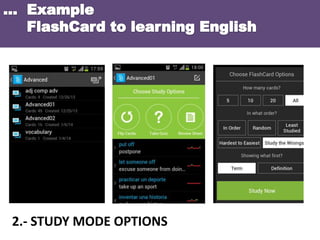
2.- STUDY MODE OPTIONS
3.- STARTING SESSION

4.- SCORING THIS
STUDY SESSIONS
http://www.studyblue.com
http://www.slideshare.net/studyblue/studyblue-teacher-guide?from_search=2
http://www.slideshare.net/studyblue/using-the-mobile-app

http://es.linkedin.com/in/lamarcilla
@annamarcilla
lamarcilla@gmail.com

Studyblue Teacher Guide

  • 1.
  • 2.
    • StudyBlue is adigital tool teachers and students can use to make studying easier. • Teachers and students can create flashcards to study from or use for in-class activities. • Mobile apps and social networking make studying from anywhere much easier. -StudyBlue tools can help students quiz themselves, set study reminders and track their progress. • Teachers and students can collaborate with each other on the site while teachers monitor.
  • 3.
     1.- Createyour free account and connect with your school, you will be asked for the name of your school. If you don’t see the name, add your school.”The request will be reviewed within 48 hours. (You can still use StudyBlue features while you wait!)  2.- ADD YOUR FIRST CLASS, Once your school has been added, enter the name and level of your class in the blue box underneath it.
  • 4.
     Your “Backpack”is your personal StudyBlue homepage. This is where your flashcards and other material you upload will be displayed  The materials are divided between your various classes.
  • 5.
     Once aclass has been created, you can reach out to your students to join.  In the “Materials” and “Classmates” tab, click on “Send Invites”. This will allow you to enter the email addresses of your students and a customized message.  You can also connect with them via Facebook, Twitter, or a link.
  • 6.
     With StudyBlue,you can create flashcards to help students study. 1. Click on the “Make flashcards” link, which will open a new window where you can create the cards. 2. In the new window, type in a word where it says “Term”, and then type in its definition. Then click “Add Card” to create a new one. 3. Once you’ve created them all, click the button that says “Done”, which will allow you to name the deck.  To add other documents, click the “Upload files” link.
  • 7.
     There arethree options for quizzes: Multiple Choice, True/False, and Type the Answer. You can also choose how many questions will be on the Quiz. Quizzes are graded and students can track their progress. Students can take the information from their flashcards and use a review sheet to help with studying. Easily monitor individual and group study routines, track student progress and quickly adapt your instruction to focus on what students are struggling with most using StudyBlue Class Stats.
  • 8.
  • 9.
  • 10.
    3.- STARTING SESSION 4.-SCORING THIS STUDY SESSIONS
  • 11.