Printing How to always select the printer you want, and a few tips and tricks you might not have known about but will help to save you time.
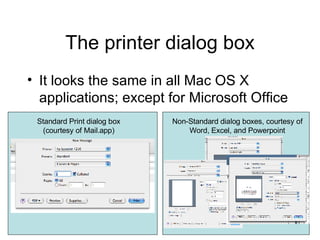
The printer dialog box It looks the same in all Mac OS X applications; except for Microsoft Office Standard Print dialog box (courtesy of Mail.app) Non-Standard dialog boxes, courtesy of Word, Excel, and Powerpoint
The printer dialog box But you can always select the printer you want to send your document to, no matter what the application Standard Print dialog box (courtesy of Mail.app) Non-Standard dialog boxes, courtesy of Word, Excel, and Powerpoint
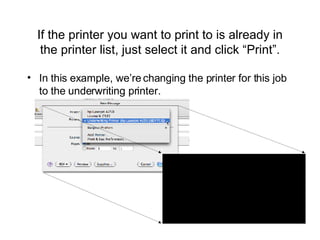
If the printer you want to print to is already in the printer list, just select it and click “Print”. In this example, we’re changing the printer for this job to the underwriting printer.
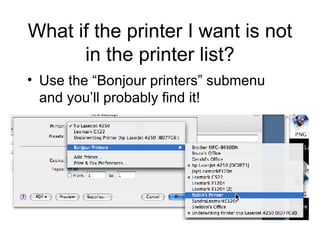
What if the printer I want is not in the printer list? Use the “Bonjour printers” submenu and you’ll probably find it!
Selecting a printer from the “Bonjour Printers” list will automatically add it to your printer list Now you can print to “Robin’s Printer” without having to find it in your “Bonjour Printers” list.
Printing to things other than printers You can print to: PDF Fax Printers
Printing to things other than printers You can print to: PDF Printing to a PDF allows you to: Preview your print before you send it to a printer Save your document in a format that can be viewed and printed on machines that don’t have the software you used to create your document. Save the web page you are looking at for sending or archiving; useful if the person you’re sending the page to doesn’t have access to the page you are looking at.

Using the Mac OS X print dialog

  • 1.
    Printing How toalways select the printer you want, and a few tips and tricks you might not have known about but will help to save you time.
  • 2.
    The printer dialogbox It looks the same in all Mac OS X applications; except for Microsoft Office Standard Print dialog box (courtesy of Mail.app) Non-Standard dialog boxes, courtesy of Word, Excel, and Powerpoint
  • 3.
    The printer dialogbox But you can always select the printer you want to send your document to, no matter what the application Standard Print dialog box (courtesy of Mail.app) Non-Standard dialog boxes, courtesy of Word, Excel, and Powerpoint
  • 4.
    If the printeryou want to print to is already in the printer list, just select it and click “Print”. In this example, we’re changing the printer for this job to the underwriting printer.
  • 5.
    What if theprinter I want is not in the printer list? Use the “Bonjour printers” submenu and you’ll probably find it!
  • 6.
    Selecting a printerfrom the “Bonjour Printers” list will automatically add it to your printer list Now you can print to “Robin’s Printer” without having to find it in your “Bonjour Printers” list.
  • 7.
    Printing to thingsother than printers You can print to: PDF Fax Printers
  • 8.
    Printing to thingsother than printers You can print to: PDF Printing to a PDF allows you to: Preview your print before you send it to a printer Save your document in a format that can be viewed and printed on machines that don’t have the software you used to create your document. Save the web page you are looking at for sending or archiving; useful if the person you’re sending the page to doesn’t have access to the page you are looking at.