Using Technology to Enhance Classroom LearningFacilitated by Dr. Sophia Scott
AgendaUnderstanding our studentsTechnology & LearningTips & Techniques for using PowerPoint technology to enhance learning in the classroomTips & Techniques for using Website technology to enhance learning in the classroom
Understanding Our Students
Pop QuizWhat does this mean?    ROTFLPneumonic for remembering the 5 plant cell types  Reserve Officers Training FloridaRecord of True Foreign Languages Rolling On The Floor Laughing
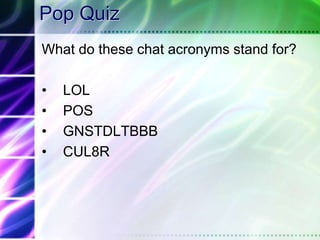
Pop QuizWhat do these chat acronyms stand for?LOL POS GNSTDLTBBB CUL8R
Pop QuizWhat do these emoticons mean?	;-)	>:-(          	^5             	(((((name)))) 	(::()::)      	@[_]~~ 
Pop QuizWeb site comparisonsWhich of each pair of Web sites is designed for younger learners, which is designed for “us”?
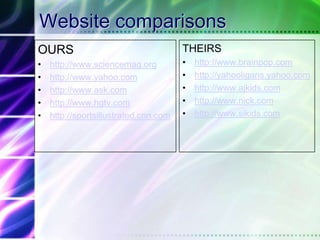
Website comparisonsOURShttp://www.sciencemag.orghttp://www.yahoo.comhttp://www.ask.comhttp://www.hgtv.comhttp://sportsillustrated.cnn.comTHEIRShttp://www.brainpop.comhttp://yahooligans.yahoo.comhttp://www.ajkids.comhttp://www.nick.comhttp://www.sikids.com
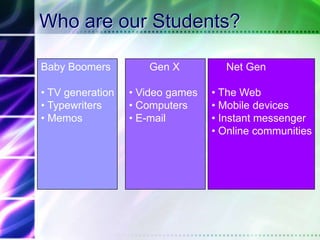
Who are our Students?Baby Boomers TV generation
 Typewriters
 Memos       Gen X Video games
 Computers
 E-mail     Net Gen The Web
 Mobile devices
 Instant messenger
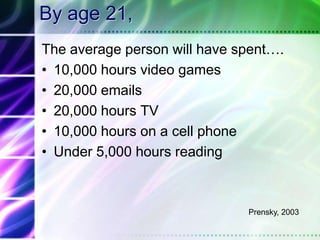
 Online communities By age 21,The average person will have spent….10,000 hours video games20,000 emails20,000 hours TV10,000 hours on a cell phoneUnder 5,000 hours readingPrensky, 2003
Children are exposed to technology for play and learning at a very young age
NeuroplasticityThe brain reorganizes itself through lifeStimulationDevelopmental experiencesTheir brains are really “wired” differently
The Net Generation…Born in or after 1982Gravitate toward group activity8 out of 10 say “it’s cool to be smart”Focused on grades and performanceBusy with extracurricular activitiesIdentify with parents’ values; feel close to parentsRespectful of social conventions and institutionsFascination for new technologiesRacially and ethnically diverseHowe & Strauss, 2003
Teen use of Web100% use it to search for information on colleges, careers & jobs74% use instant messaging as a major communication vehicle 54% of students (7-12 grade) know more IM screen names than home phone numbers
Teen use of Web for Communication81% e-mail friends & relatives70% instant message56% prefer the Internet over the telephone
Why do teens go the Web?Find new & exciting informationLearn more/betterFor communityShow others what they can doBe heard
The Net Gen is Self-teaching – What does that mean for the classroom?
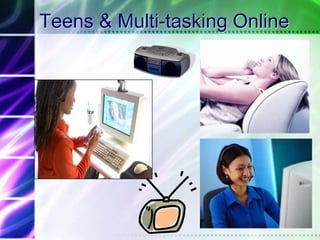
Teens & Multi-tasking Online
Technology & Learning
Today’s Learners…Digitally literate MobileAlways onExperientialSocial (stay connected)Oblinger, 2004
Hypertext minds: QualitiesCrave interactivityRead visual imagesVisual-spatial skillsParallel processingInductive discoveryFast response timePrensky, 2001
Concerns…Short attention spanChoose NOT to pay attentionLack reflectionLack text literacyLack identification of source quality
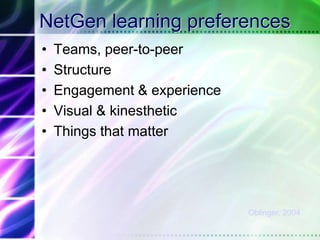
NetGen learning preferencesTeams, peer-to-peerStructureEngagement & experienceVisual & kinestheticThings that matterOblinger, 2004
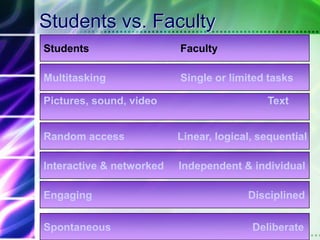
Students vs. FacultyStudents			   FacultyMultitaskingSingle or limited tasksPictures, sound, videoTextRandom accessLinear, logical, sequentialInteractive & networkedIndependent & individualEngagingDisciplinedSpontaneousDeliberate
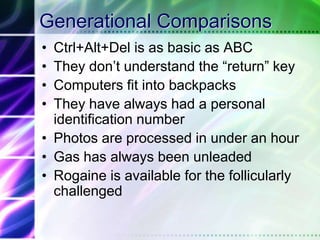
Generational ComparisonsCtrl+Alt+Del is as basic as ABCThey don’t understand the “return” keyComputers fit into backpacksThey have always had a personal identification numberPhotos are processed in under an hourGas has always been unleadedRogaine is available for the follicularly challenged
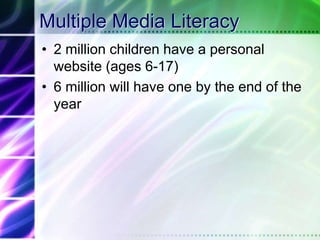
Multiple Media Literacy2 million children have a personal website (ages 6-17)6 million will have one by the end of the year
It is not about AGE…We live in a technologically enriched environment
Compare yourselfAre you comfortable composing documents longhand?Have you turned “remembering” over to a technology?Are you connected? (Internet, cell phone)Do you engage in more than one activity at a time?Do you play computer or video games?
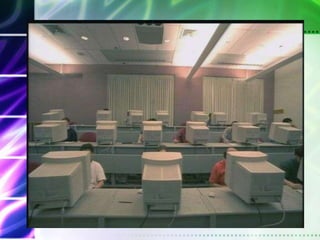
What does the learning environment look like?
Environments for learningEvery students learns all the timeLearning is in & out of classroomEvery setting can be a learning environmentDirect experience shapes individual understandingIndividuals learn by establishing & reworking patterns, relationships & connectionsChange is stimulating
The Big Question…How can teachers enable students to be successful in education?
What students want in a learning environment…Teacher to have an in-depth knowledge in their fieldFaculty ability to use technology EffectivelyDon’t overuse the technology
InteractionStudents learn from thinking…thinking is engaged by activityJunassen, 2003
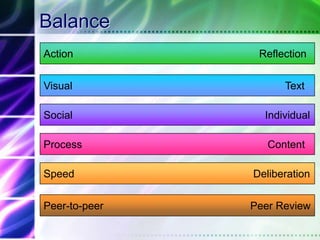
BalanceAction						        ReflectionVisual							      TextSocial						          IndividualProcess						ContentSpeed						      DeliberationPeer-to-peer					     Peer Review
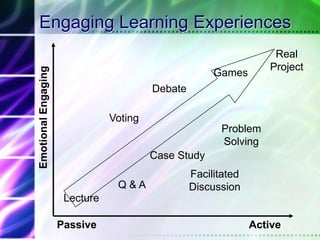
Engaging Learning ExperiencesReal ProjectGamesDebateEmotional EngagingVotingProblem SolvingCase StudyFacilitated DiscussionQ & ALecturePassive					Active
Tips & Techniques for using PowerPoint technology to enhance learning in the classroom
Preparing PresentationsUse a design template so you can focus on contentUse PowerPoint interactivelyOutline the lecture using PowerPointUse text sparinglyThe “Joy of Six” – max of six points & six words per point
How to Design Effective PowerPoint Presentations
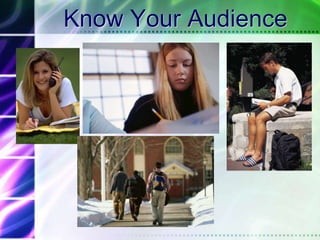
Know Your Audience
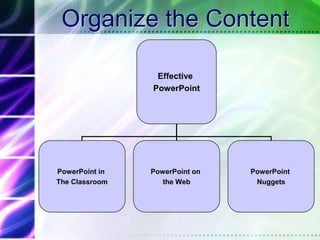
Organize the Content
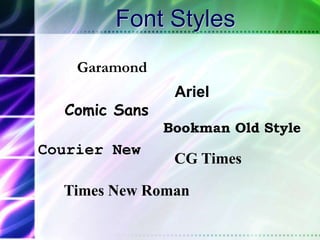
Font StylesGaramondArielComic SansBookman Old StyleCourier NewCG TimesTimes New Roman
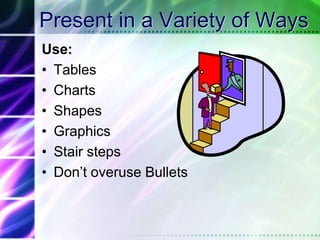
Present in a Variety of WaysUse:TablesChartsShapesGraphicsStair steps Don’t overuse Bullets
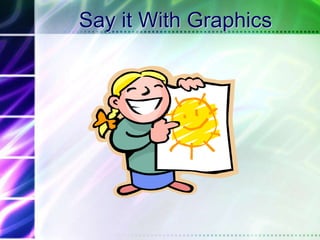
Say it With Graphics
Which slide communicates the clearest visual message?
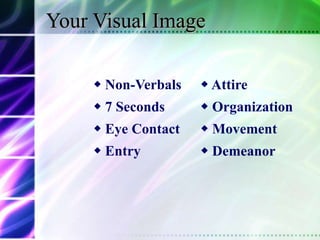
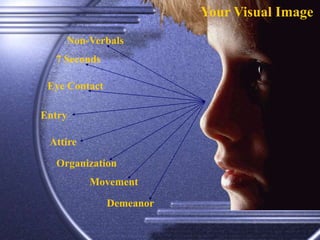
 Non-Verbals Attire 7 Seconds Organization Eye Contact Movement Entry DemeanorYour Visual Image
Your Visual ImageNon-Verbals7 SecondsEye ContactEntryAttireOrganizationMovementDemeanor
Use Animation When Appropriate
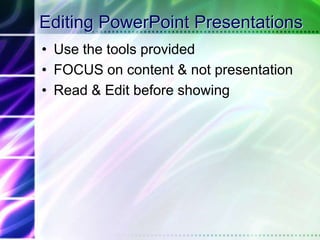
Editing PowerPoint PresentationsUse the tools providedFOCUS on content & not presentationRead & Edit before showing
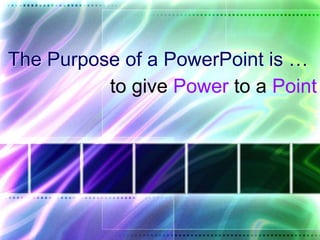
The Purpose of a PowerPoint is … to give Power to a Point
What do you think of the Following Slides?
Great Graphics
Keep it RealFirst Year SuccessAt Southeast, you’ll learn two kinds of skills and knowledge:  those particularly targeted for a specific career or profession (your major), and those that will serve you regardless of your chosen profession (University Studies).  In your major, you’ll learn leading-edge information that will allow you to be successful in your first job.  In University Studies, you’ll learn skills and knowledge that will go beyond job-specific abilities.  These are the skills that will make you a valuable employee and a valued colleague.  Advising: At Southeast, you are encouraged to consider many academic and career interests. Our academic advisors can help by providing guidance related to course selection and registration. If you haven’t selected a major, the University Studies advisor can provide you with assistance. First STEP Orientation: Sign up for our specially designed Southeast orientation program. This critical program connects students and parents with faculty, staff and other Southeast students and parents. During the day you not only will meet with an adviser and get that all-important class schedule but also you will get your official I.D. card, get advice about academic majors and possible careers, learn about social activities and find out where those critical offices and services you will need are located. First Year Seminar: Check out our nationally recognized and required First Year Seminar, where you’ll be introduced to the University Studies program and the value of a liberal education while addressing one of a variety of themes. Kent Library: Southeast's Kent Library is your partner in finding information for completing research papers and class assignments. Library professionals can work with you in person, by phone or e-mail. Online resources bring the library to wherever you are, 24 hours a day, seven days a week.
I like ColorDo you like this color?Do you like this color?Do you like this color?Do you like this color?Do you like this color?Do you like this color?Do you like this color?
Animation and sound too far…This is point oneThis is point twoThis is point threeThis is point four
Preparing MaterialsUse notesPrepare handoutsCan use PowerPoint for transparency handouts
PowerPoint in the ClassroomMake it interactiveUse text sparinglyPrint slides in advancePut on websiteUse as an outlineLeave out information – to be filled in class
PowerPoint in the ClassroomRemember the “Joy of Six”Minimize animated text, sound and transitionsBlack out the screen (use B on keyboard)Use three slides per minuteUse 24 font or biggerDon’t turn your back on your students
 Avoid PowerPoint Overload
	Focus on minimizing Distractions!
Mix Lecture with Technology
PowerPoint on the WebCan enhance learning onlineDo not overuseUse creative ways to present the informationSpecify what you want your students to look for (terms, concepts, examples)Narrative the clips for added interactivityView as both PowerPoint & HTML
Issues with PowerPoint on the Web Some animations & slide transitions are not supportedSome images do not show in certain resolutionsFrames could be a problemSounds do not play
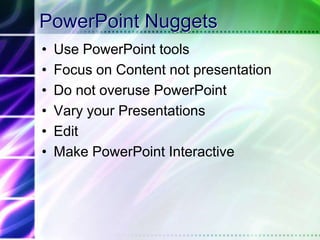
PowerPoint NuggetsUse PowerPoint toolsFocus on Content not presentationDo not overuse PowerPointVary your PresentationsEditMake PowerPoint Interactive
What are some tips you can offer using PowerPoint in the classroom & Web?
Tips & Techniques for using Website technology to enhance learning in the classroom
Assembling web-based materials
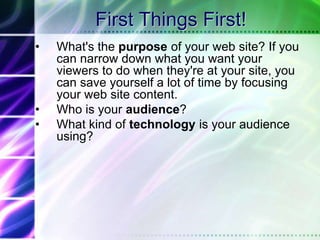
First Things First! What's the purpose of your web site? If you can narrow down what you want your viewers to do when they're at your site, you can save yourself a lot of time by focusing your web site content. Who is your audience? What kind of technology is your audience using?
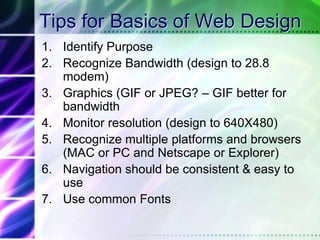
Tips for Basics of Web DesignIdentify PurposeRecognize Bandwidth (design to 28.8 modem)Graphics (GIF or JPEG? – GIF better for bandwidthMonitor resolution (design to 640X480)Recognize multiple platforms and browsers (MAC or PC and Netscape or Explorer)Navigation should be consistent & easy to useUse common Fonts

Using technology to enhance classroom learning

  • 1.
    Using Technology toEnhance Classroom LearningFacilitated by Dr. Sophia Scott
  • 2.
    AgendaUnderstanding our studentsTechnology& LearningTips & Techniques for using PowerPoint technology to enhance learning in the classroomTips & Techniques for using Website technology to enhance learning in the classroom
  • 3.
  • 4.
    Pop QuizWhat doesthis mean? ROTFLPneumonic for remembering the 5 plant cell types Reserve Officers Training FloridaRecord of True Foreign Languages Rolling On The Floor Laughing
  • 5.
    Pop QuizWhat dothese chat acronyms stand for?LOL POS GNSTDLTBBB CUL8R
  • 6.
    Pop QuizWhat dothese emoticons mean? ;-) >:-(  ^5 (((((name))))  (::()::) @[_]~~ 
  • 7.
    Pop QuizWeb sitecomparisonsWhich of each pair of Web sites is designed for younger learners, which is designed for “us”?
  • 8.
  • 9.
    Who are ourStudents?Baby Boomers TV generation
  • 10.
  • 11.
    Memos Gen X Video games
  • 12.
  • 13.
    E-mail Net Gen The Web
  • 14.
  • 15.
  • 16.
    Online communitiesBy age 21,The average person will have spent….10,000 hours video games20,000 emails20,000 hours TV10,000 hours on a cell phoneUnder 5,000 hours readingPrensky, 2003
  • 17.
    Children are exposedto technology for play and learning at a very young age
  • 18.
    NeuroplasticityThe brain reorganizesitself through lifeStimulationDevelopmental experiencesTheir brains are really “wired” differently
  • 19.
    The Net Generation…Bornin or after 1982Gravitate toward group activity8 out of 10 say “it’s cool to be smart”Focused on grades and performanceBusy with extracurricular activitiesIdentify with parents’ values; feel close to parentsRespectful of social conventions and institutionsFascination for new technologiesRacially and ethnically diverseHowe & Strauss, 2003
  • 20.
    Teen use ofWeb100% use it to search for information on colleges, careers & jobs74% use instant messaging as a major communication vehicle 54% of students (7-12 grade) know more IM screen names than home phone numbers
  • 21.
    Teen use ofWeb for Communication81% e-mail friends & relatives70% instant message56% prefer the Internet over the telephone
  • 22.
    Why do teensgo the Web?Find new & exciting informationLearn more/betterFor communityShow others what they can doBe heard
  • 23.
    The Net Genis Self-teaching – What does that mean for the classroom?
  • 24.
  • 25.
  • 26.
    Today’s Learners…Digitally literateMobileAlways onExperientialSocial (stay connected)Oblinger, 2004
  • 27.
    Hypertext minds: QualitiesCraveinteractivityRead visual imagesVisual-spatial skillsParallel processingInductive discoveryFast response timePrensky, 2001
  • 28.
    Concerns…Short attention spanChooseNOT to pay attentionLack reflectionLack text literacyLack identification of source quality
  • 29.
    NetGen learning preferencesTeams,peer-to-peerStructureEngagement & experienceVisual & kinestheticThings that matterOblinger, 2004
  • 30.
    Students vs. FacultyStudents FacultyMultitaskingSingle or limited tasksPictures, sound, videoTextRandom accessLinear, logical, sequentialInteractive & networkedIndependent & individualEngagingDisciplinedSpontaneousDeliberate
  • 31.
    Generational ComparisonsCtrl+Alt+Del isas basic as ABCThey don’t understand the “return” keyComputers fit into backpacksThey have always had a personal identification numberPhotos are processed in under an hourGas has always been unleadedRogaine is available for the follicularly challenged
  • 32.
    Multiple Media Literacy2million children have a personal website (ages 6-17)6 million will have one by the end of the year
  • 33.
    It is notabout AGE…We live in a technologically enriched environment
  • 34.
    Compare yourselfAre youcomfortable composing documents longhand?Have you turned “remembering” over to a technology?Are you connected? (Internet, cell phone)Do you engage in more than one activity at a time?Do you play computer or video games?
  • 35.
    What does thelearning environment look like?
  • 39.
    Environments for learningEverystudents learns all the timeLearning is in & out of classroomEvery setting can be a learning environmentDirect experience shapes individual understandingIndividuals learn by establishing & reworking patterns, relationships & connectionsChange is stimulating
  • 40.
    The Big Question…Howcan teachers enable students to be successful in education?
  • 41.
    What students wantin a learning environment…Teacher to have an in-depth knowledge in their fieldFaculty ability to use technology EffectivelyDon’t overuse the technology
  • 42.
    InteractionStudents learn fromthinking…thinking is engaged by activityJunassen, 2003
  • 43.
    BalanceAction ReflectionVisual TextSocial IndividualProcess ContentSpeed DeliberationPeer-to-peer Peer Review
  • 44.
    Engaging Learning ExperiencesRealProjectGamesDebateEmotional EngagingVotingProblem SolvingCase StudyFacilitated DiscussionQ & ALecturePassive Active
  • 45.
    Tips & Techniquesfor using PowerPoint technology to enhance learning in the classroom
  • 46.
    Preparing PresentationsUse adesign template so you can focus on contentUse PowerPoint interactivelyOutline the lecture using PowerPointUse text sparinglyThe “Joy of Six” – max of six points & six words per point
  • 47.
    How to DesignEffective PowerPoint Presentations
  • 48.
  • 49.
  • 50.
    Font StylesGaramondArielComic SansBookmanOld StyleCourier NewCG TimesTimes New Roman
  • 51.
    Present in aVariety of WaysUse:TablesChartsShapesGraphicsStair steps Don’t overuse Bullets
  • 52.
    Say it WithGraphics
  • 53.
    Which slide communicatesthe clearest visual message?
  • 54.
     Non-Verbals Attire7 Seconds Organization Eye Contact Movement Entry DemeanorYour Visual Image
  • 55.
    Your Visual ImageNon-Verbals7SecondsEye ContactEntryAttireOrganizationMovementDemeanor
  • 56.
  • 57.
    Editing PowerPoint PresentationsUsethe tools providedFOCUS on content & not presentationRead & Edit before showing
  • 58.
    The Purpose ofa PowerPoint is … to give Power to a Point
  • 59.
    What do youthink of the Following Slides?
  • 60.
  • 61.
    Keep it RealFirstYear SuccessAt Southeast, you’ll learn two kinds of skills and knowledge:  those particularly targeted for a specific career or profession (your major), and those that will serve you regardless of your chosen profession (University Studies).  In your major, you’ll learn leading-edge information that will allow you to be successful in your first job.  In University Studies, you’ll learn skills and knowledge that will go beyond job-specific abilities.  These are the skills that will make you a valuable employee and a valued colleague.  Advising: At Southeast, you are encouraged to consider many academic and career interests. Our academic advisors can help by providing guidance related to course selection and registration. If you haven’t selected a major, the University Studies advisor can provide you with assistance. First STEP Orientation: Sign up for our specially designed Southeast orientation program. This critical program connects students and parents with faculty, staff and other Southeast students and parents. During the day you not only will meet with an adviser and get that all-important class schedule but also you will get your official I.D. card, get advice about academic majors and possible careers, learn about social activities and find out where those critical offices and services you will need are located. First Year Seminar: Check out our nationally recognized and required First Year Seminar, where you’ll be introduced to the University Studies program and the value of a liberal education while addressing one of a variety of themes. Kent Library: Southeast's Kent Library is your partner in finding information for completing research papers and class assignments. Library professionals can work with you in person, by phone or e-mail. Online resources bring the library to wherever you are, 24 hours a day, seven days a week.
  • 62.
    I like ColorDoyou like this color?Do you like this color?Do you like this color?Do you like this color?Do you like this color?Do you like this color?Do you like this color?
  • 63.
    Animation and soundtoo far…This is point oneThis is point twoThis is point threeThis is point four
  • 64.
    Preparing MaterialsUse notesPreparehandoutsCan use PowerPoint for transparency handouts
  • 65.
    PowerPoint in theClassroomMake it interactiveUse text sparinglyPrint slides in advancePut on websiteUse as an outlineLeave out information – to be filled in class
  • 66.
    PowerPoint in theClassroomRemember the “Joy of Six”Minimize animated text, sound and transitionsBlack out the screen (use B on keyboard)Use three slides per minuteUse 24 font or biggerDon’t turn your back on your students
  • 67.
  • 68.
  • 69.
    Mix Lecture withTechnology
  • 70.
    PowerPoint on theWebCan enhance learning onlineDo not overuseUse creative ways to present the informationSpecify what you want your students to look for (terms, concepts, examples)Narrative the clips for added interactivityView as both PowerPoint & HTML
  • 71.
    Issues with PowerPointon the Web Some animations & slide transitions are not supportedSome images do not show in certain resolutionsFrames could be a problemSounds do not play
  • 72.
    PowerPoint NuggetsUse PowerPointtoolsFocus on Content not presentationDo not overuse PowerPointVary your PresentationsEditMake PowerPoint Interactive
  • 73.
    What are sometips you can offer using PowerPoint in the classroom & Web?
  • 74.
    Tips & Techniquesfor using Website technology to enhance learning in the classroom
  • 75.
  • 76.
    First Things First!What's the purpose of your web site? If you can narrow down what you want your viewers to do when they're at your site, you can save yourself a lot of time by focusing your web site content. Who is your audience? What kind of technology is your audience using?
  • 77.
    Tips for Basicsof Web DesignIdentify PurposeRecognize Bandwidth (design to 28.8 modem)Graphics (GIF or JPEG? – GIF better for bandwidthMonitor resolution (design to 640X480)Recognize multiple platforms and browsers (MAC or PC and Netscape or Explorer)Navigation should be consistent & easy to useUse common Fonts