Professor Katrina Pritchard
School of Management, Swansea University
October 2023
• This short presentation provides an overview
of using the macro developed by Babbage
and Terry in the early stages of a qualitative
research project
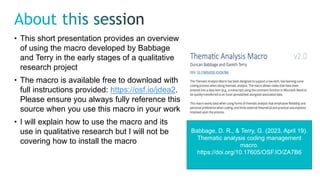
• The macro is available free to download with
full instructions provided: https://osf.io/jdea2.
Please ensure you always fully reference this
source when you use this macro in your work
• I will explain how to use the macro and its
use in qualitative research but I will not be
covering how to install the macro
Babbage, D. R., & Terry, G. (2023, April 19).
Thematic analysis coding management
macro.
https://doi.org/10.17605/OSF.IO/ZA7B6
• This macro helps with the process of coding qualitative data – the first step in many qualitative
analytic methods.
• Your data need to be available in Microsoft Word and you must use a Windows NOT Mac
operating system for the macro to function.
• However, you only need to run the macro on a Windows PC, other steps can be performed on a
Mac.
• It is always recommended to work on a specific version of your data files during each stage.
That is to say you should keep a ‘clean’ version so that you can return to this at any stage.
• You should also ensure you have completed any data anonymisation, checking and review
before starting this process.
• You are also advised to keep a notebook to record observations, issues or ideas about your data
as you go through the coding exercise
STEP ONE:
• Open your Word file
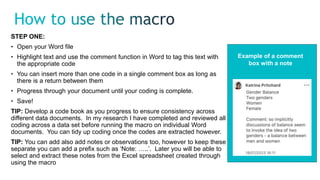
• Highlight text and use the comment function in Word to tag this text with
the appropriate code
• You can insert more than one code in a single comment box as long as
there is a return between them
• Progress through your document until your coding is complete.
• Save!
TIP: Develop a code book as you progress to ensure consistency across
different data documents. In my research I have completed and reviewed all
coding across a data set before running the macro on individual Word
documents. You can tidy up coding once the codes are extracted however.
TIP: You can add also add notes or observations too, however to keep these
separate you can add a prefix such as ‘Note: …..’. Later you will be able to
select and extract these notes from the Excel spreadsheet created through
using the macro
Example of a comment
box with a note
STEP TWO:
• Once you have completed the coding in your Word document, run the macro.
• Depending on the set up, you may need to reselect the file name you wish to run
• You will be asked if you wish to create a new excel spreadsheet or add the extraction to a
previous spreadsheet.
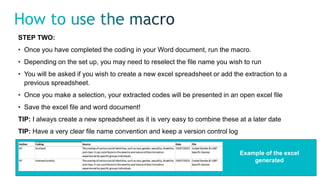
• Once you make a selection, your extracted codes will be presented in an open excel file
• Save the excel file and word document!
TIP: I always create a new spreadsheet as it is very easy to combine these at a later date
TIP: Have a very clear file name convention and keep a version control log
Example of the excel
generated
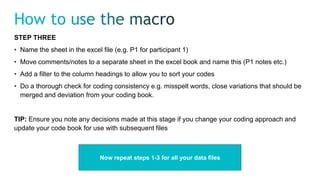
STEP THREE
• Name the sheet in the excel file (e.g. P1 for participant 1)
• Move comments/notes to a separate sheet in the excel book and name this (P1 notes etc.)
• Add a filter to the column headings to allow you to sort your codes
• Do a thorough check for coding consistency e.g. misspelt words, close variations that should be
merged and deviation from your coding book.
TIP: Ensure you note any decisions made at this stage if you change your coding approach and
update your code book for use with subsequent files
Now repeat steps 1-3 for all your data files
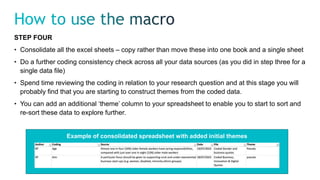
STEP FOUR
• Consolidate all the excel sheets – copy rather than move these into one book and a single sheet
• Do a further coding consistency check across all your data sources (as you did in step three for a
single data file)
• Spend time reviewing the coding in relation to your research question and at this stage you will
probably find that you are starting to construct themes from the coded data.
• You can add an additional ‘theme’ column to your spreadsheet to enable you to start to sort and
re-sort these data to explore further.
Example of consolidated spreadsheet with added initial themes
• Steps 1-4 align closely with stages 2 & 3 of Braun and Clarke (2021) reflexive thematic analysis
which you can read more about on their excellent website: https://www.thematicanalysis.net/
• Many qualitative approaches begin with a similar process of coding and developing initial themes
and so this macro can be used at the start of other methods too
BUT
• This is only the start of the analytic process, Braun and Clarke (2021) have another three stages
in their reflexive thematic analysis approach.
• No macro or any other software does the analysis for you – the analysis is something you need
to do yourself
• This coding is just the start of your qualitative analysis journey!

Using macros.pptx

  • 1.
    Professor Katrina Pritchard Schoolof Management, Swansea University October 2023
  • 2.
    • This shortpresentation provides an overview of using the macro developed by Babbage and Terry in the early stages of a qualitative research project • The macro is available free to download with full instructions provided: https://osf.io/jdea2. Please ensure you always fully reference this source when you use this macro in your work • I will explain how to use the macro and its use in qualitative research but I will not be covering how to install the macro Babbage, D. R., & Terry, G. (2023, April 19). Thematic analysis coding management macro. https://doi.org/10.17605/OSF.IO/ZA7B6
  • 3.
    • This macrohelps with the process of coding qualitative data – the first step in many qualitative analytic methods. • Your data need to be available in Microsoft Word and you must use a Windows NOT Mac operating system for the macro to function. • However, you only need to run the macro on a Windows PC, other steps can be performed on a Mac. • It is always recommended to work on a specific version of your data files during each stage. That is to say you should keep a ‘clean’ version so that you can return to this at any stage. • You should also ensure you have completed any data anonymisation, checking and review before starting this process. • You are also advised to keep a notebook to record observations, issues or ideas about your data as you go through the coding exercise
  • 4.
    STEP ONE: • Openyour Word file • Highlight text and use the comment function in Word to tag this text with the appropriate code • You can insert more than one code in a single comment box as long as there is a return between them • Progress through your document until your coding is complete. • Save! TIP: Develop a code book as you progress to ensure consistency across different data documents. In my research I have completed and reviewed all coding across a data set before running the macro on individual Word documents. You can tidy up coding once the codes are extracted however. TIP: You can add also add notes or observations too, however to keep these separate you can add a prefix such as ‘Note: …..’. Later you will be able to select and extract these notes from the Excel spreadsheet created through using the macro Example of a comment box with a note
  • 5.
    STEP TWO: • Onceyou have completed the coding in your Word document, run the macro. • Depending on the set up, you may need to reselect the file name you wish to run • You will be asked if you wish to create a new excel spreadsheet or add the extraction to a previous spreadsheet. • Once you make a selection, your extracted codes will be presented in an open excel file • Save the excel file and word document! TIP: I always create a new spreadsheet as it is very easy to combine these at a later date TIP: Have a very clear file name convention and keep a version control log Example of the excel generated
  • 6.
    STEP THREE • Namethe sheet in the excel file (e.g. P1 for participant 1) • Move comments/notes to a separate sheet in the excel book and name this (P1 notes etc.) • Add a filter to the column headings to allow you to sort your codes • Do a thorough check for coding consistency e.g. misspelt words, close variations that should be merged and deviation from your coding book. TIP: Ensure you note any decisions made at this stage if you change your coding approach and update your code book for use with subsequent files Now repeat steps 1-3 for all your data files
  • 7.
    STEP FOUR • Consolidateall the excel sheets – copy rather than move these into one book and a single sheet • Do a further coding consistency check across all your data sources (as you did in step three for a single data file) • Spend time reviewing the coding in relation to your research question and at this stage you will probably find that you are starting to construct themes from the coded data. • You can add an additional ‘theme’ column to your spreadsheet to enable you to start to sort and re-sort these data to explore further. Example of consolidated spreadsheet with added initial themes
  • 8.
    • Steps 1-4align closely with stages 2 & 3 of Braun and Clarke (2021) reflexive thematic analysis which you can read more about on their excellent website: https://www.thematicanalysis.net/ • Many qualitative approaches begin with a similar process of coding and developing initial themes and so this macro can be used at the start of other methods too BUT • This is only the start of the analytic process, Braun and Clarke (2021) have another three stages in their reflexive thematic analysis approach. • No macro or any other software does the analysis for you – the analysis is something you need to do yourself • This coding is just the start of your qualitative analysis journey!