How Closed-Loop Payments UX stacks up
User
Experience
“
”
Despite the differences between in-store and in-app payments, the steps to improve
them are the same. One is to remove as much friction as possible from the payments
process to eliminate consumer frustration and prevent abandonment. Another is to
enhance the 'buying experience' to make payments more than just, well, paying. -
Andre Stoorvogel, CVS Head of Marketing, 2016
WHY UX MATTERS
Rewards are the best way to capture customers' loyalty to business.
WHY CLOSED-LOOP PAYMENTS MATTERS
METHODOLOGY
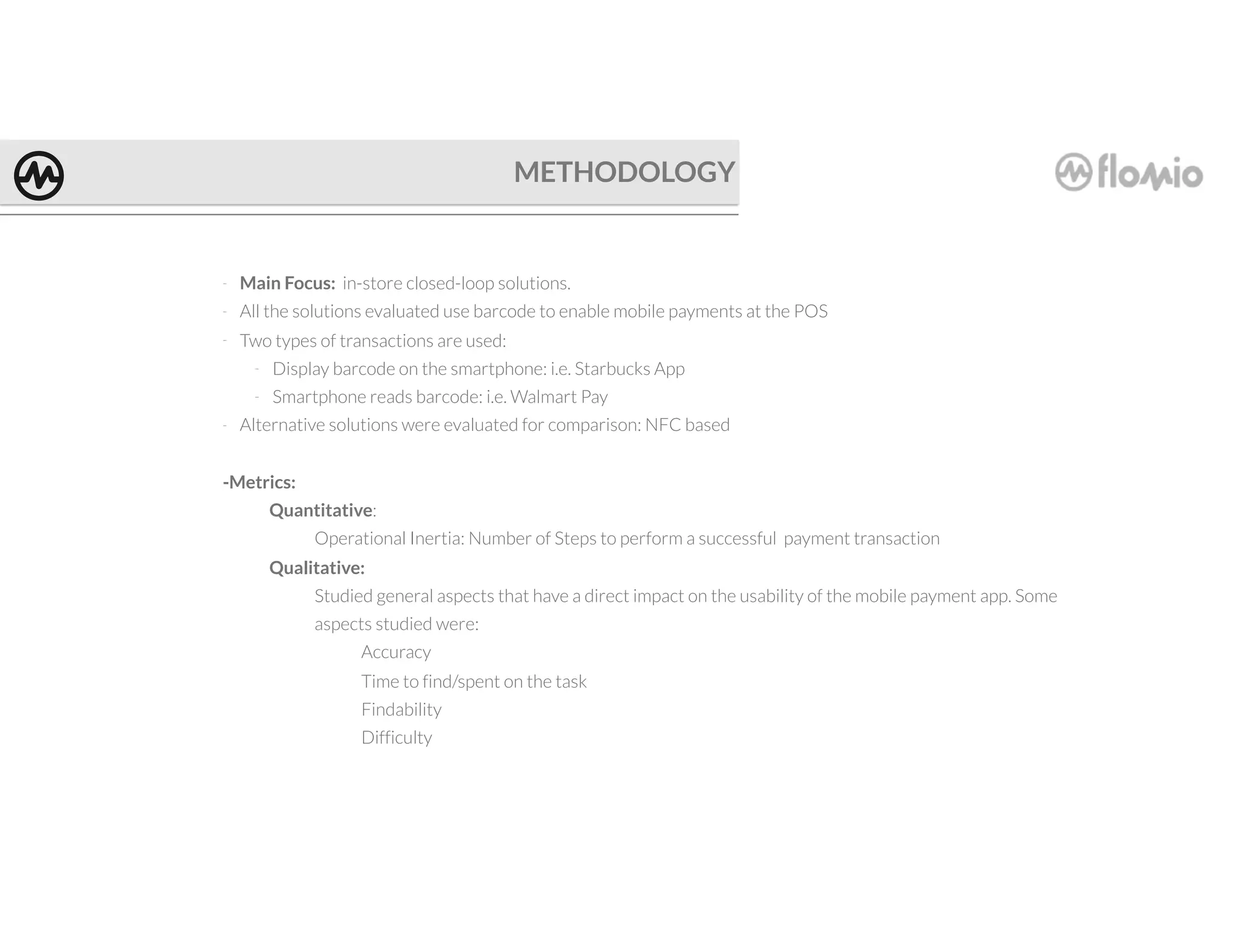
- Main Focus: in-store closed-loop solutions.
- All the solutions evaluated use barcode to enable mobile payments at the POS
- Two types of transactions are used:
- Display barcode on the smartphone: i.e. Starbucks App
- Smartphone reads barcode: i.e. Walmart Pay
- Alternative solutions were evaluated for comparison: NFC based
-Metrics:
Quantitative:
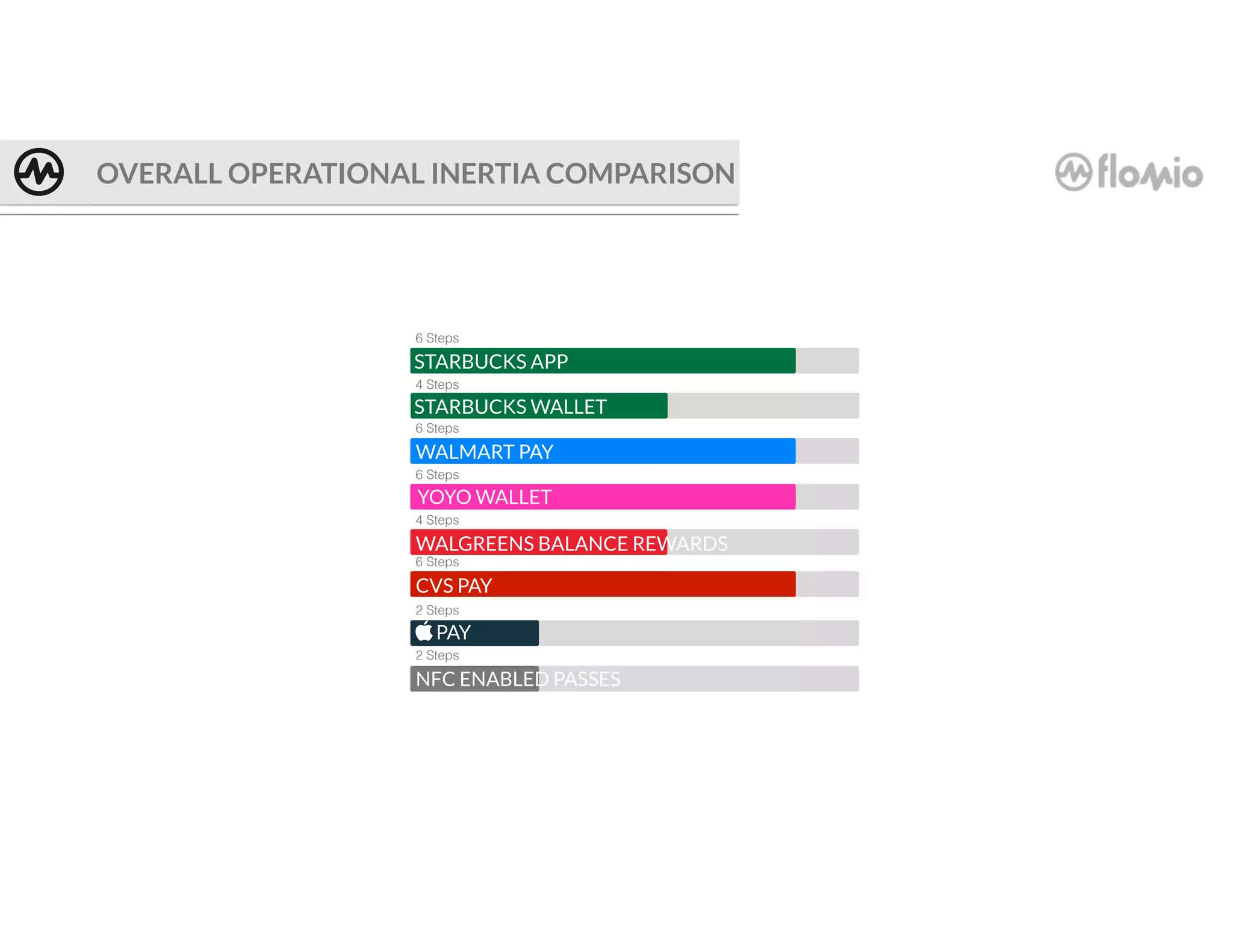
Operational Inertia: Number of Steps to perform a successful payment transaction
Qualitative:
Studied general aspects that have a direct impact on the usability of the mobile payment app. Some
aspects studied were:
Accuracy
Time to find/spent on the task
Findability
Difficulty
METHODOLOGY (cont’d)
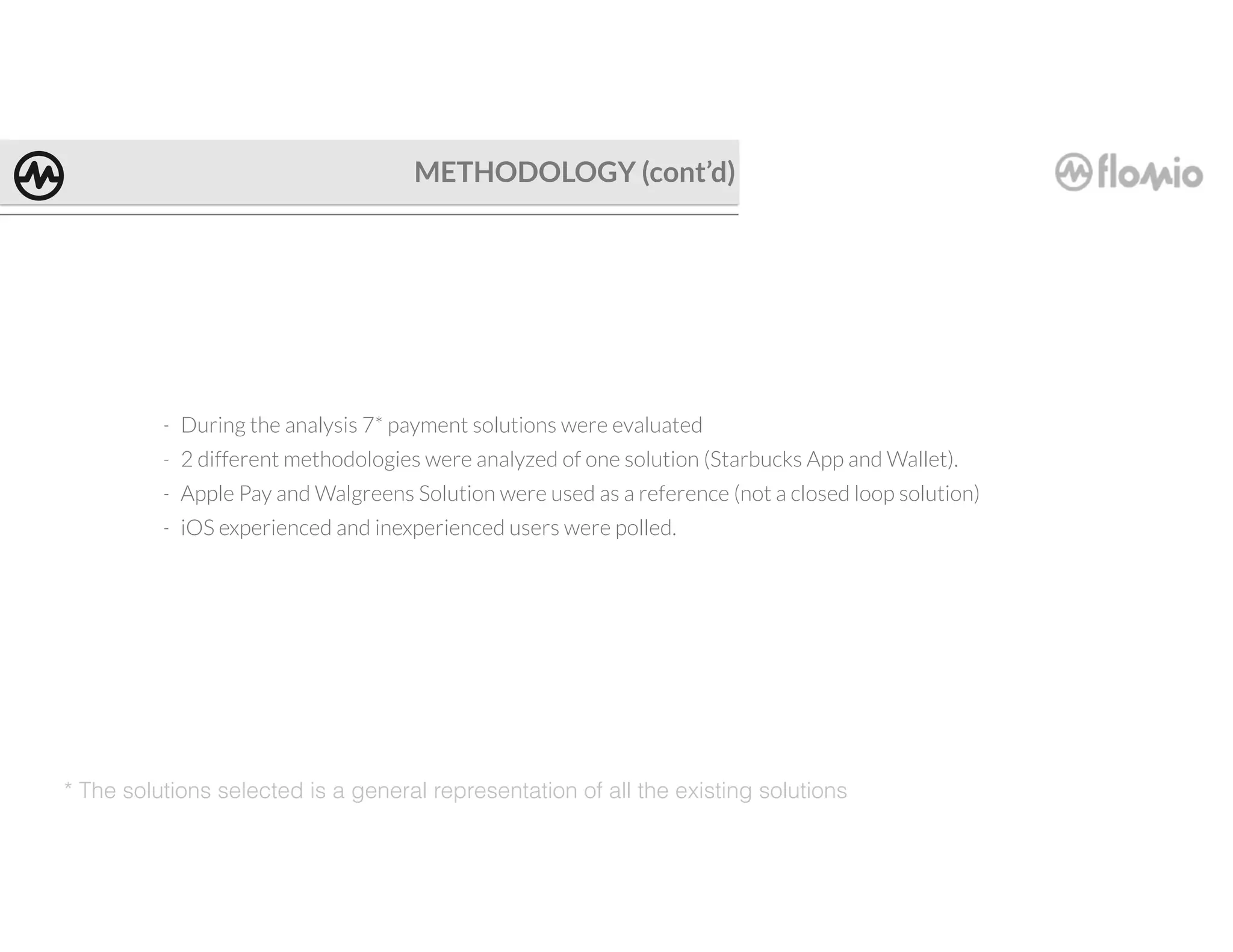
* The solutions selected is a general representation of all the existing solutions
- During the analysis 7* payment solutions were evaluated
- 2 different methodologies were analyzed of one solution (Starbucks App and Wallet).
- Apple Pay and Walgreens Solution were used as a reference (not a closed loop solution)
- iOS experienced and inexperienced users were polled.
Quantitative
Results
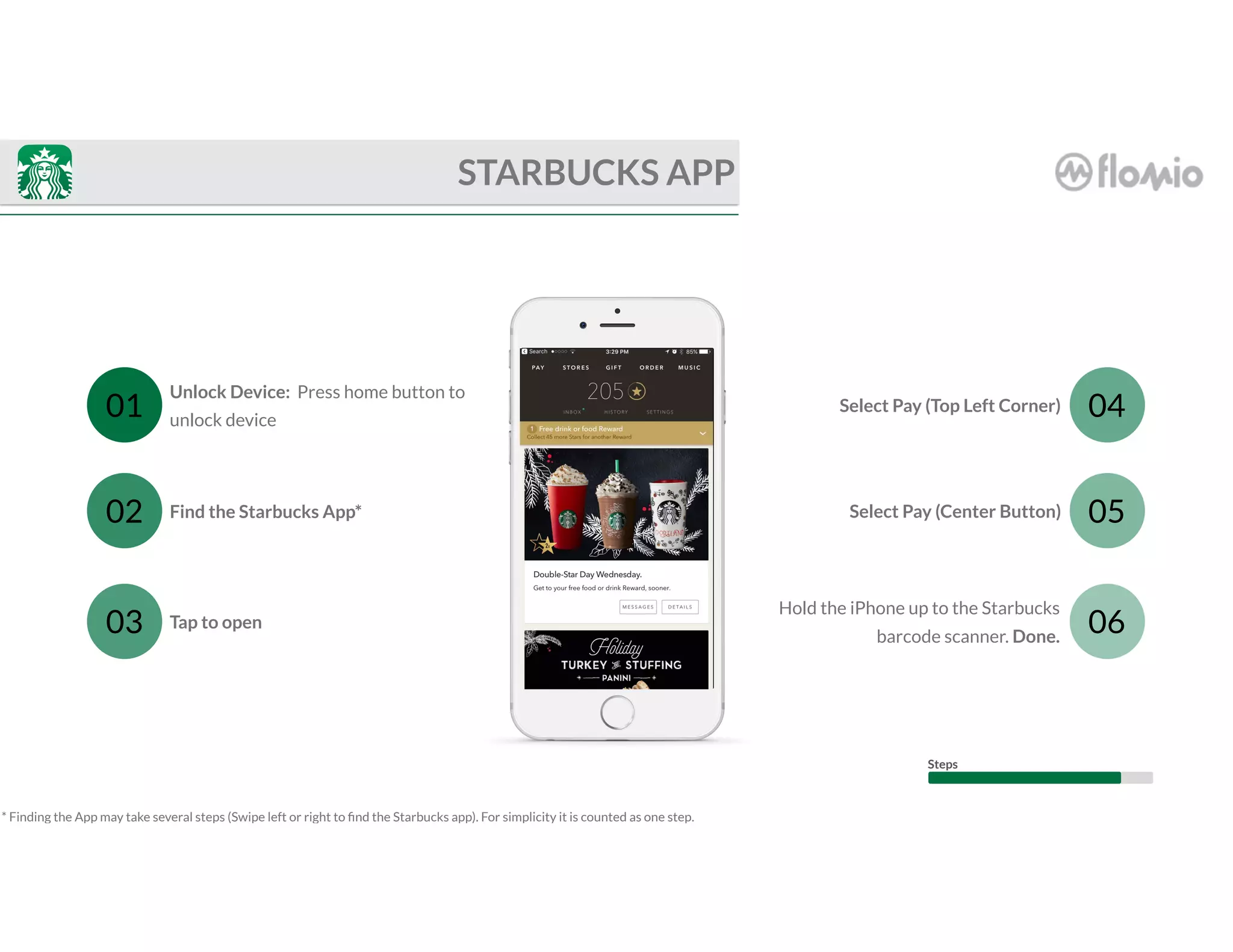
Select Pay (Center Button)Find the Starbucks App*
Hold the iPhone up to the Starbucks
barcode scanner. Done.
Tap to open
Select Pay (Top Left Corner)
Unlock Device: Press home button to
unlock device
01
02
03
04
05
06
STARBUCKS APP
* Finding the App may take several steps (Swipe left or right to find the Starbucks app). For simplicity it is counted as one step.
Steps
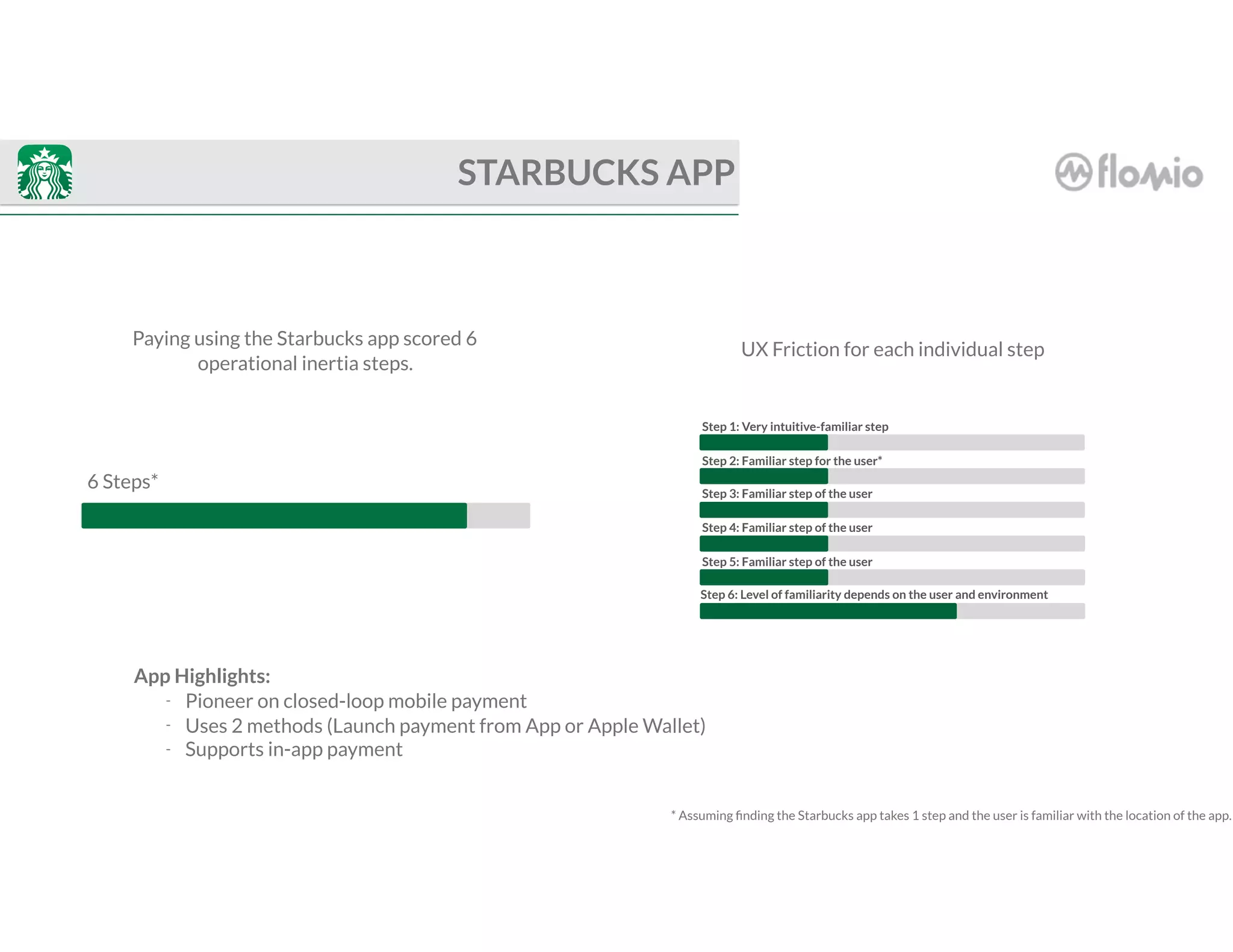
6 Steps*
* Assuming finding the Starbucks app takes 1 step and the user is familiar with the location of the app.
STARBUCKS APP
Paying using the Starbucks app scored 6
operational inertia steps.
Step 1: Very intuitive-familiar step
Step 2: Familiar step for the user*
Step 3: Familiar step of the user
Step 4: Familiar step of the user
Step 5: Familiar step of the user
Step 6: Level of familiarity depends on the user and environment
UX Friction for each individual step
App Highlights:
- Pioneer on closed-loop mobile payment
- Uses 2 methods (Launch payment from App or Apple Wallet)
- Supports in-app payment
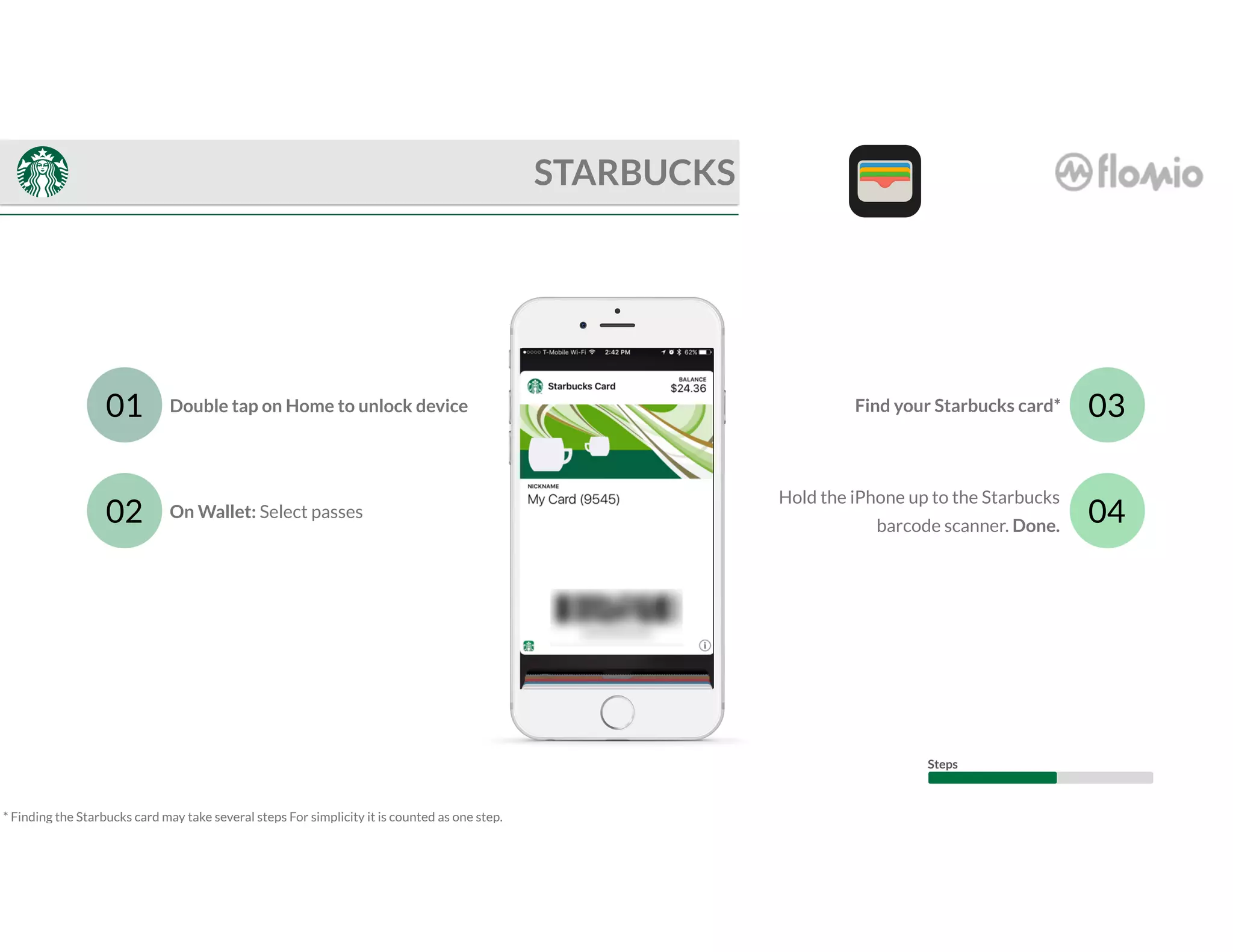
On Wallet: Select passes
Find your Starbucks card*Double tap on Home to unlock device01
02
03
04
STARBUCKS
Hold the iPhone up to the Starbucks
barcode scanner. Done.
* Finding the Starbucks card may take several steps For simplicity it is counted as one step.
Steps
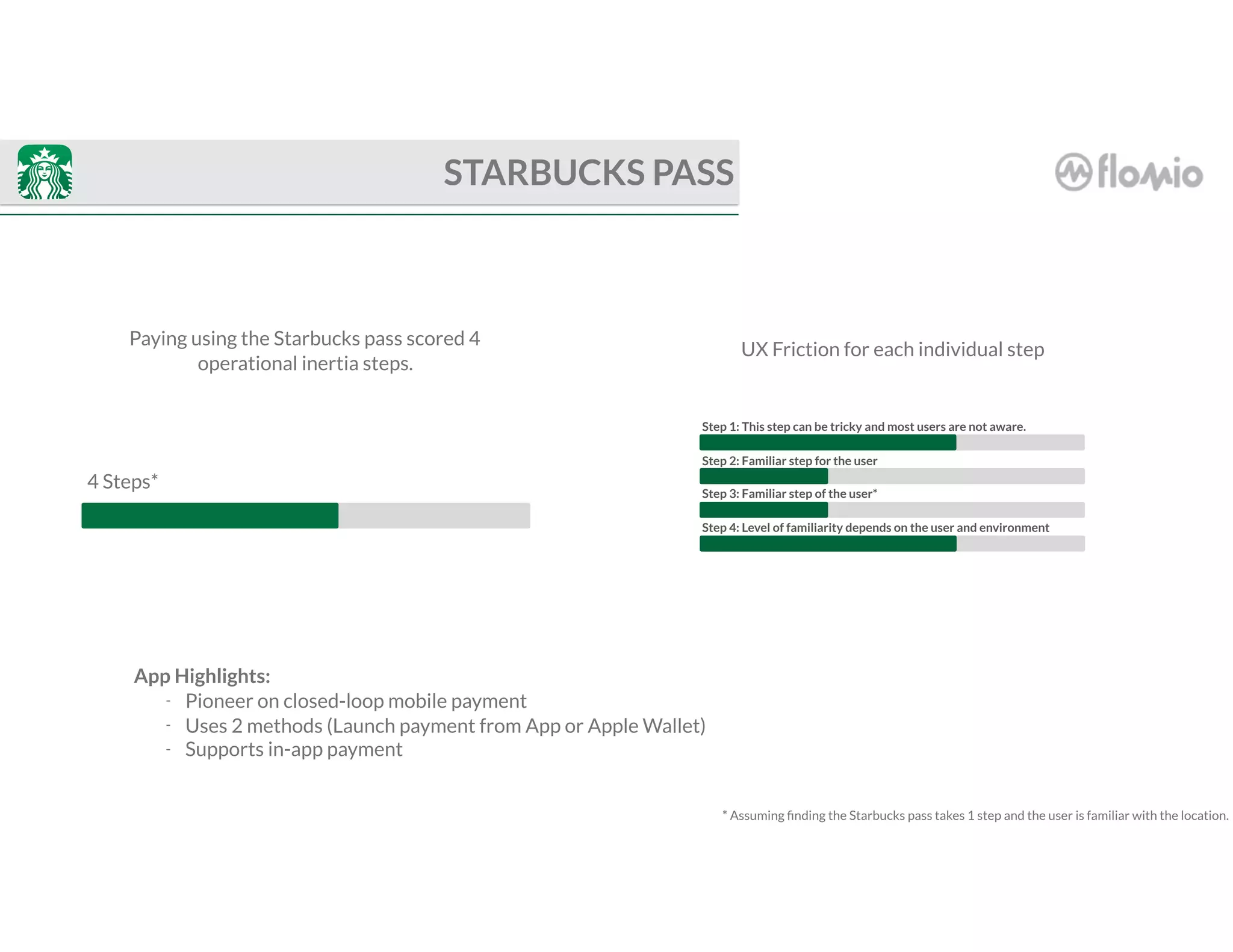
4 Steps*
* Assuming finding the Starbucks pass takes 1 step and the user is familiar with the location.
STARBUCKS PASS
Paying using the Starbucks pass scored 4
operational inertia steps.
Step 1: This step can be tricky and most users are not aware.
Step 2: Familiar step for the user
Step 3: Familiar step of the user*
Step 4: Level of familiarity depends on the user and environment
UX Friction for each individual step
App Highlights:
- Pioneer on closed-loop mobile payment
- Uses 2 methods (Launch payment from App or Apple Wallet)
- Supports in-app payment
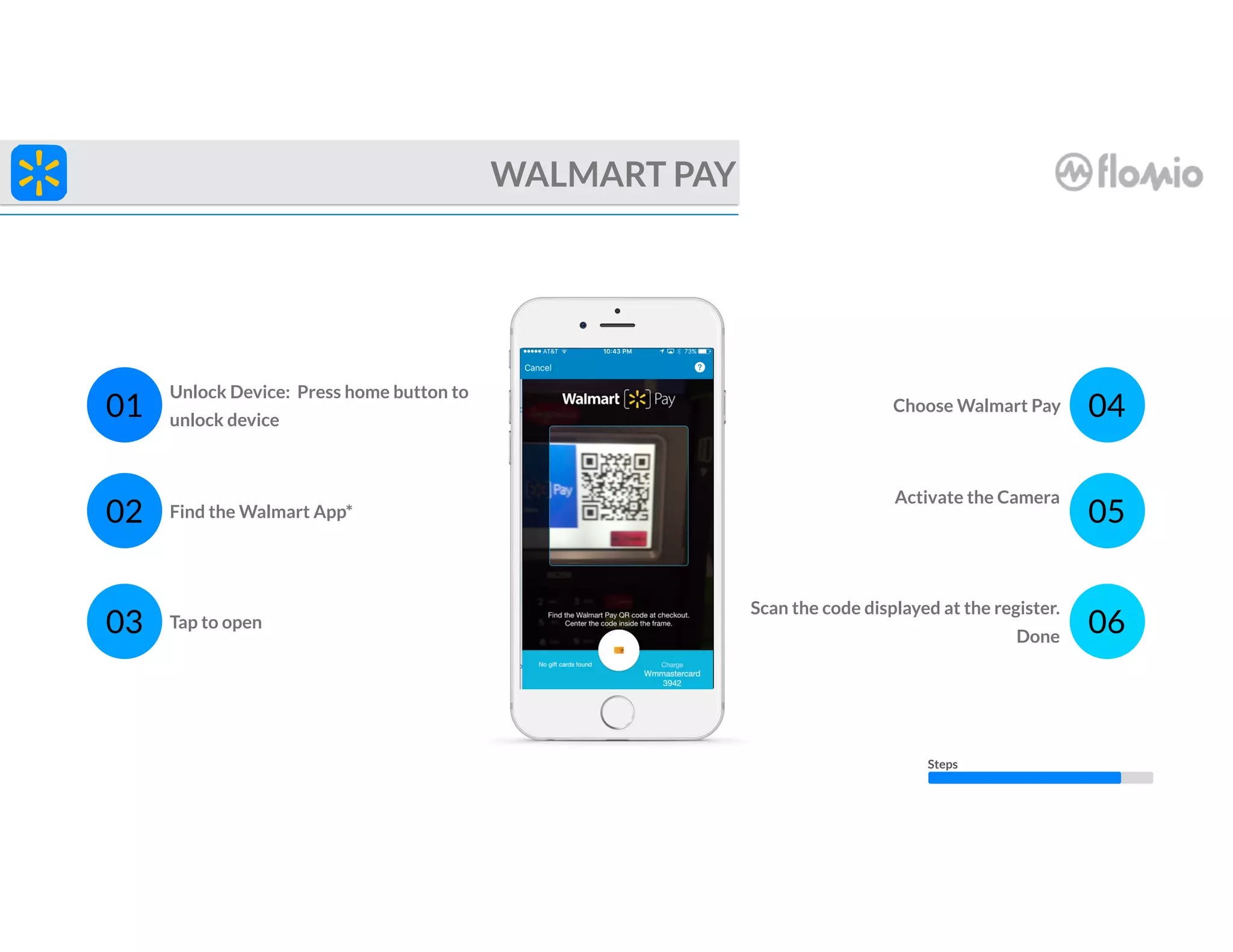
Find the Walmart App*
Choose Walmart Pay
Unlock Device: Press home button to
unlock device
01
02
04
05
Activate the Camera
WALMART PAY
Scan the code displayed at the register.
Done
Tap to open03 06
Steps
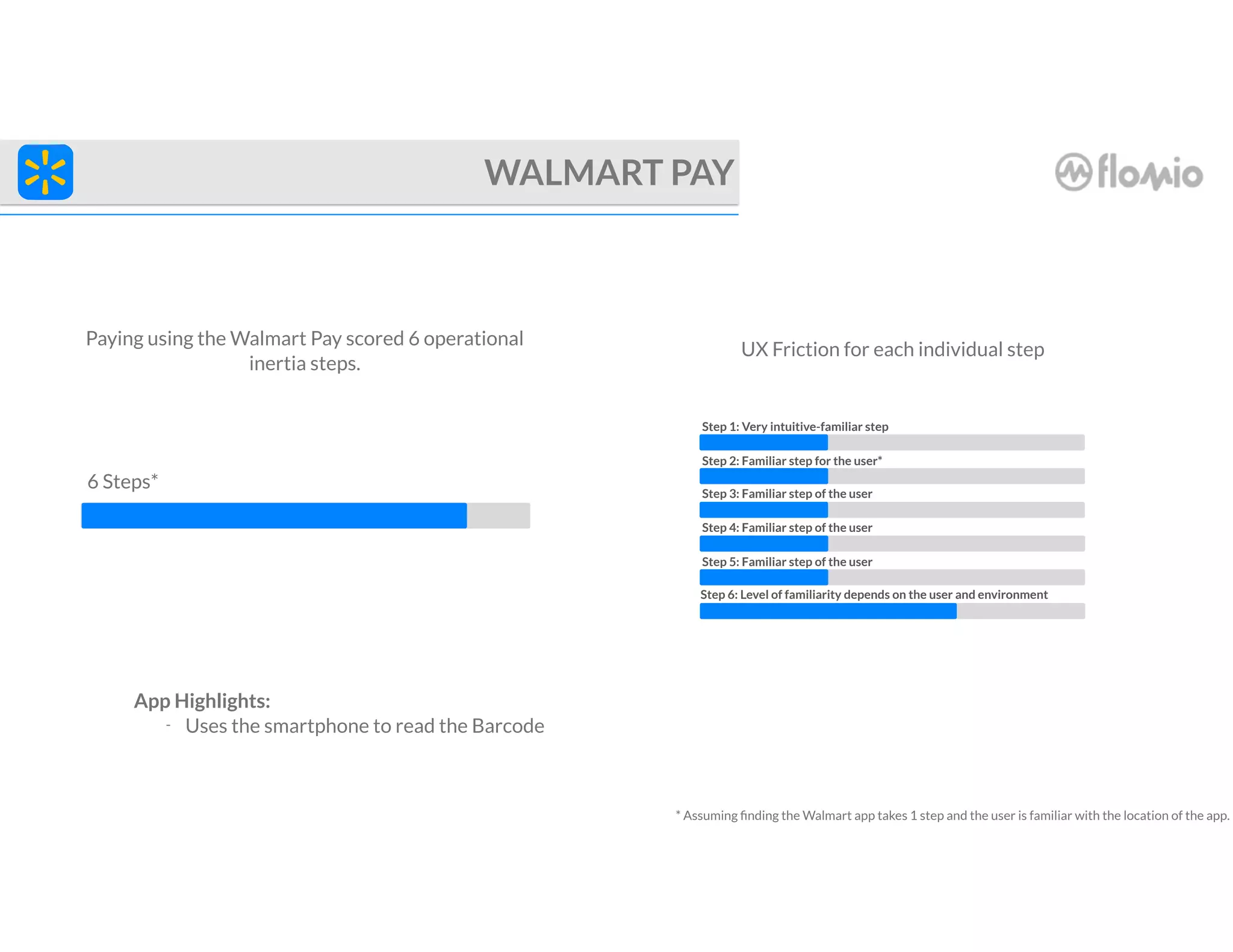
6 Steps*
* Assuming finding the Walmart app takes 1 step and the user is familiar with the location of the app.
WALMART PAY
Paying using the Walmart Pay scored 6 operational
inertia steps.
Step 1: Very intuitive-familiar step
Step 2: Familiar step for the user*
Step 3: Familiar step of the user
Step 4: Familiar step of the user
Step 5: Familiar step of the user
Step 6: Level of familiarity depends on the user and environment
UX Friction for each individual step
App Highlights:
- Uses the smartphone to read the Barcode
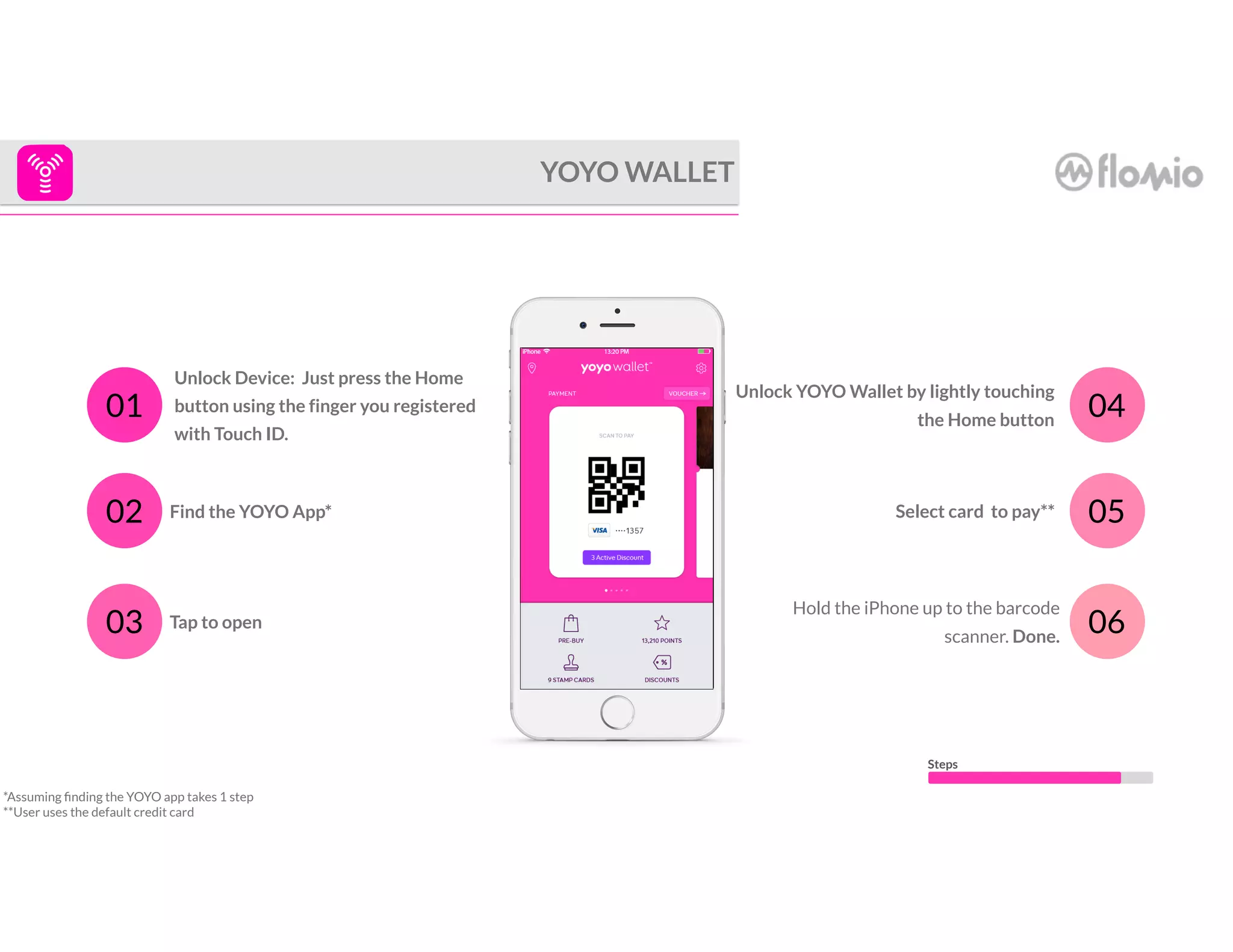
Find the YOYO App*
Unlock YOYO Wallet by lightly touching
the Home button
Unlock Device: Just press the Home
button using the finger you registered
with Touch ID.
01
02
04
05Select card to pay**
YOYO WALLET
Hold the iPhone up to the barcode
scanner. Done.
Tap to open03 06
Steps
*Assuming finding the YOYO app takes 1 step
**User uses the default credit card
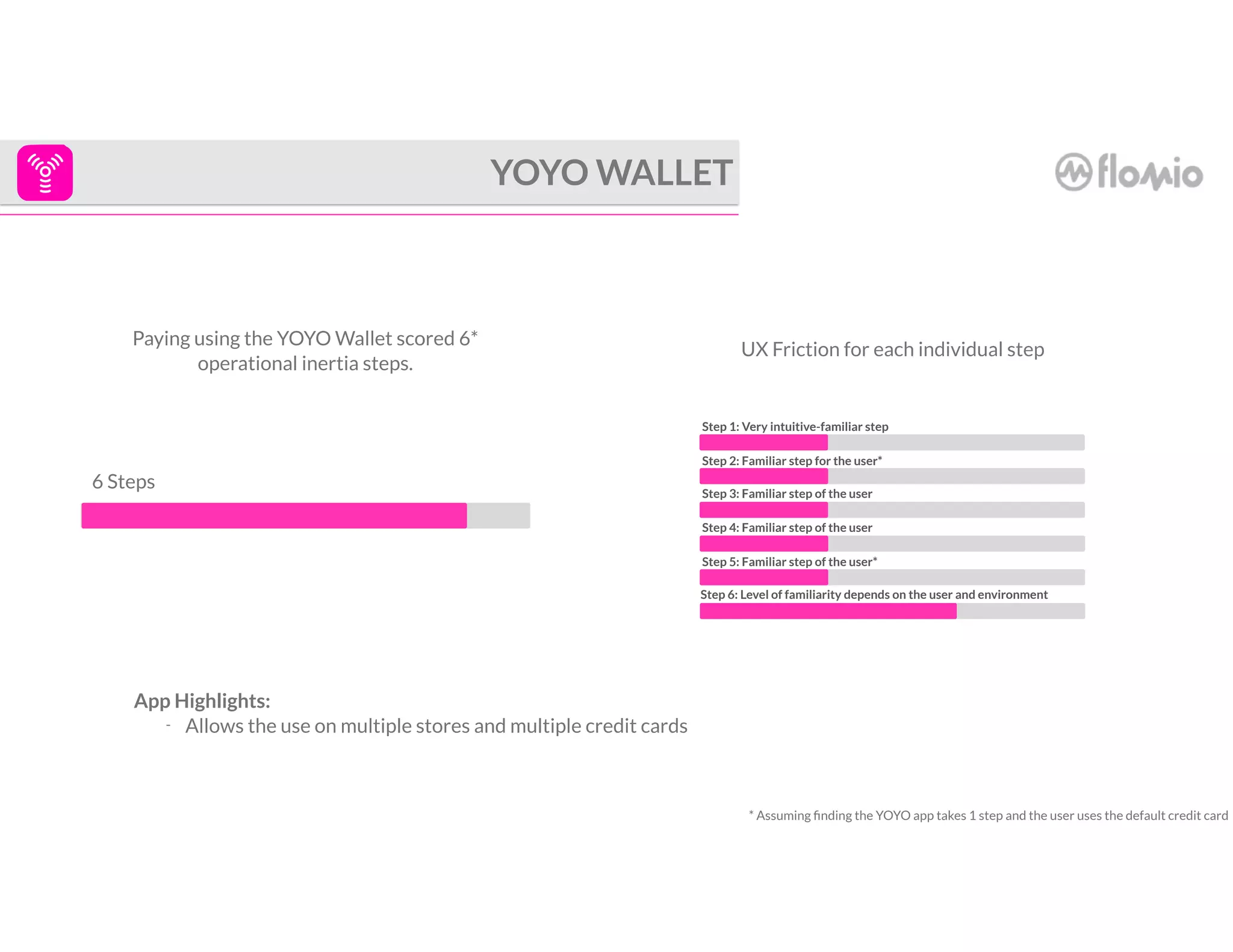
6 Steps
* Assuming finding the YOYO app takes 1 step and the user uses the default credit card
YOYO WALLET
Paying using the YOYO Wallet scored 6*
operational inertia steps.
Step 1: Very intuitive-familiar step
Step 2: Familiar step for the user*
Step 3: Familiar step of the user
Step 4: Familiar step of the user
Step 5: Familiar step of the user*
Step 6: Level of familiarity depends on the user and environment
UX Friction for each individual step
App Highlights:
- Allows the use on multiple stores and multiple credit cards
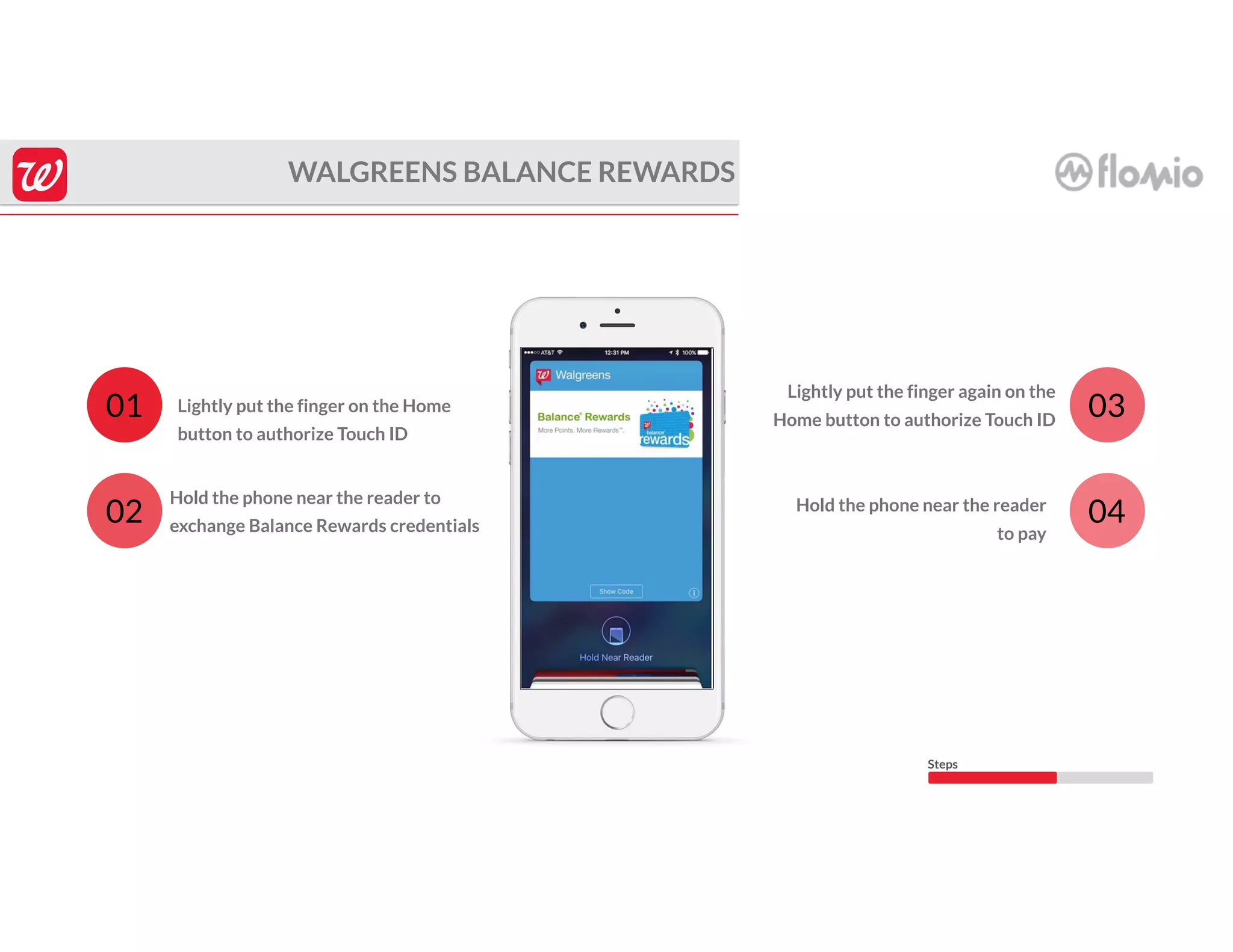
Hold the phone near the reader to
exchange Balance Rewards credentials
Lightly put the finger on the Home
button to authorize Touch ID
01
02
03
04
WALGREENS BALANCE REWARDS
Hold the phone near the reader
to pay
Lightly put the finger again on the
Home button to authorize Touch ID
Steps
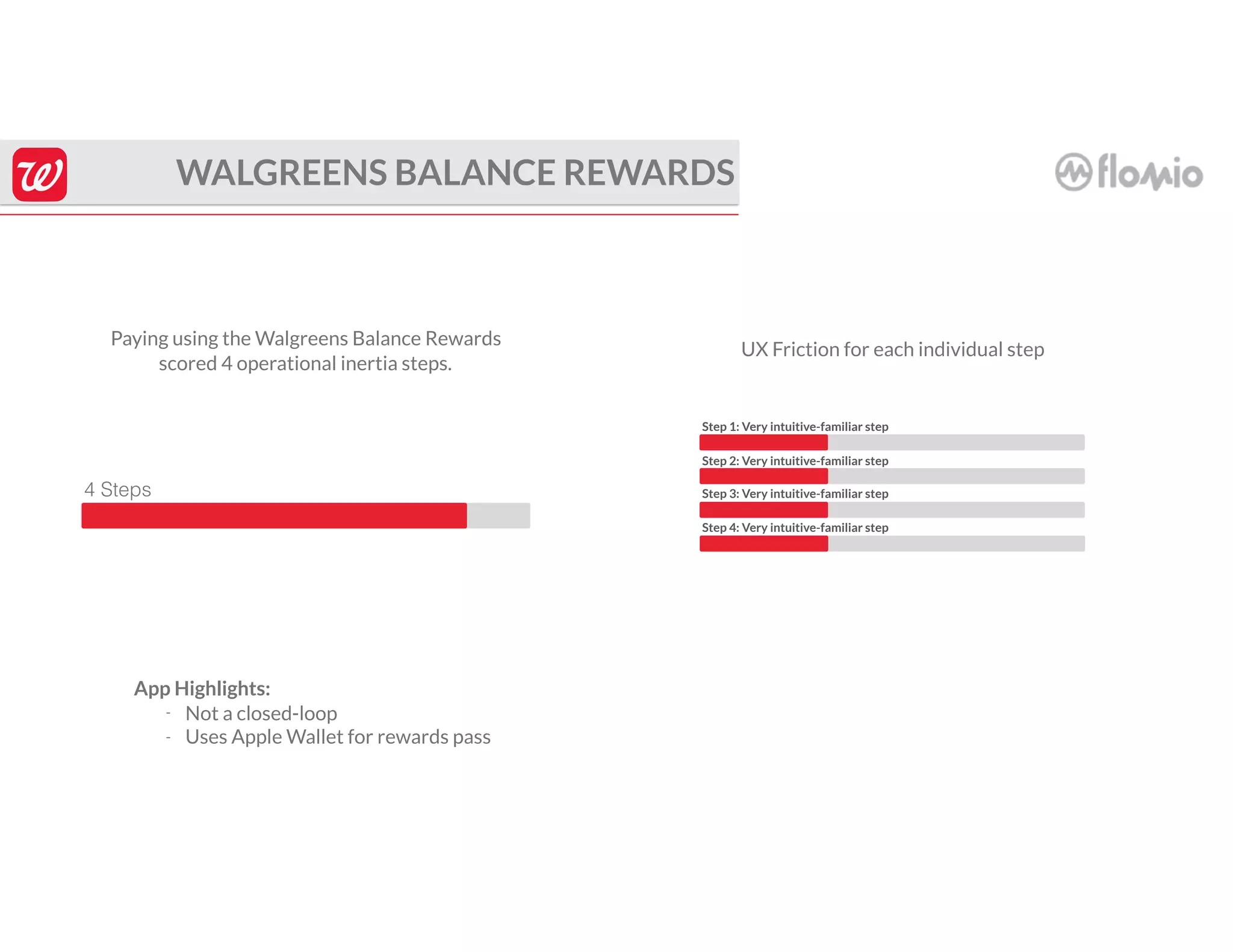
4 Steps
WALGREENS BALANCE REWARDS
Paying using the Walgreens Balance Rewards
scored 4 operational inertia steps.
Step 1: Very intuitive-familiar step
Step 2: Very intuitive-familiar step
Step 3: Very intuitive-familiar step
Step 4: Very intuitive-familiar step
UX Friction for each individual step
App Highlights:
- Not a closed-loop
- Uses Apple Wallet for rewards pass
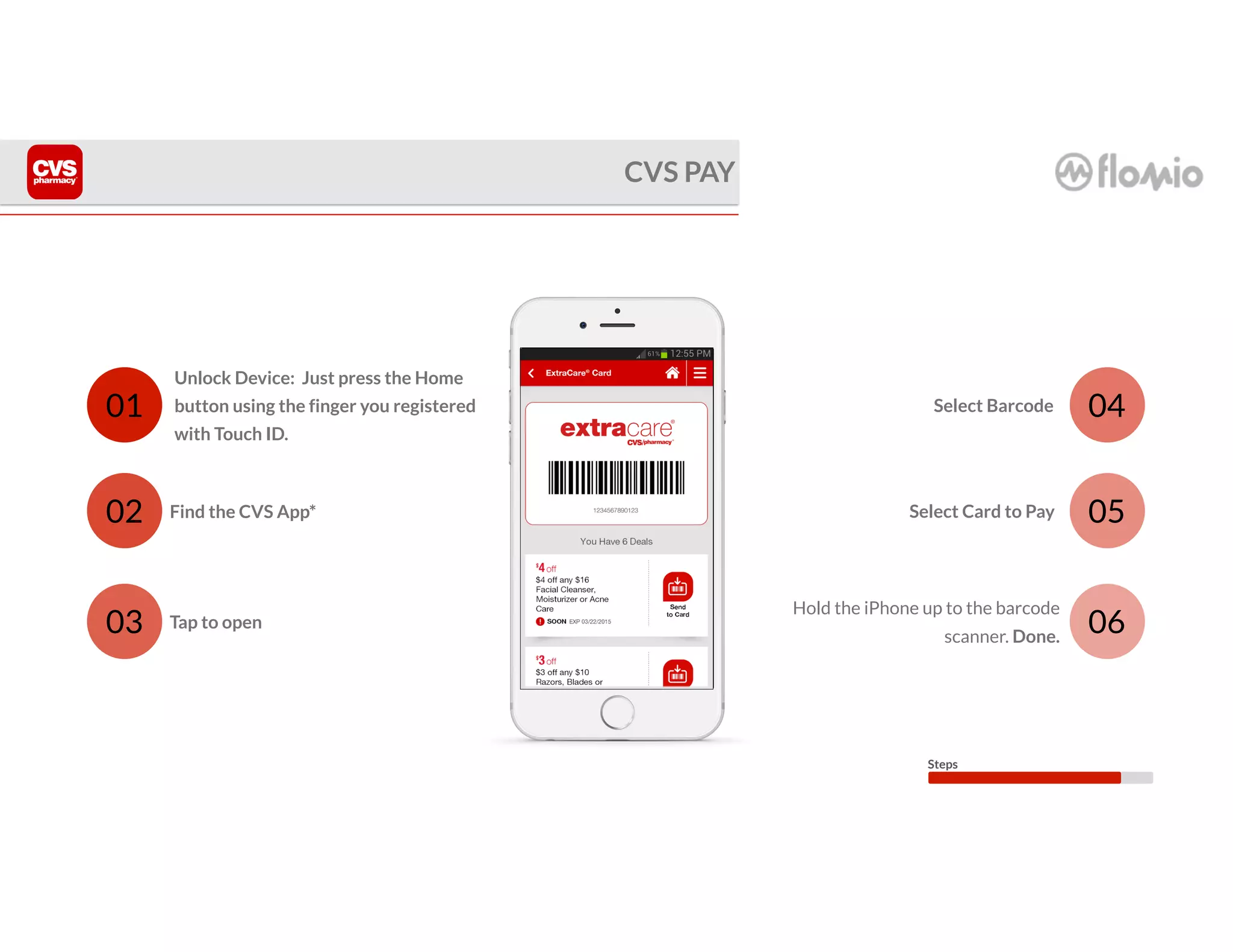
Find the CVS App*
Select Barcode
Unlock Device: Just press the Home
button using the finger you registered
with Touch ID.
01
02
04
05Select Card to Pay
CVS PAY
Hold the iPhone up to the barcode
scanner. Done.
Tap to open03 06
Steps
4 Steps
WALGREENS BALANCE REWARDS
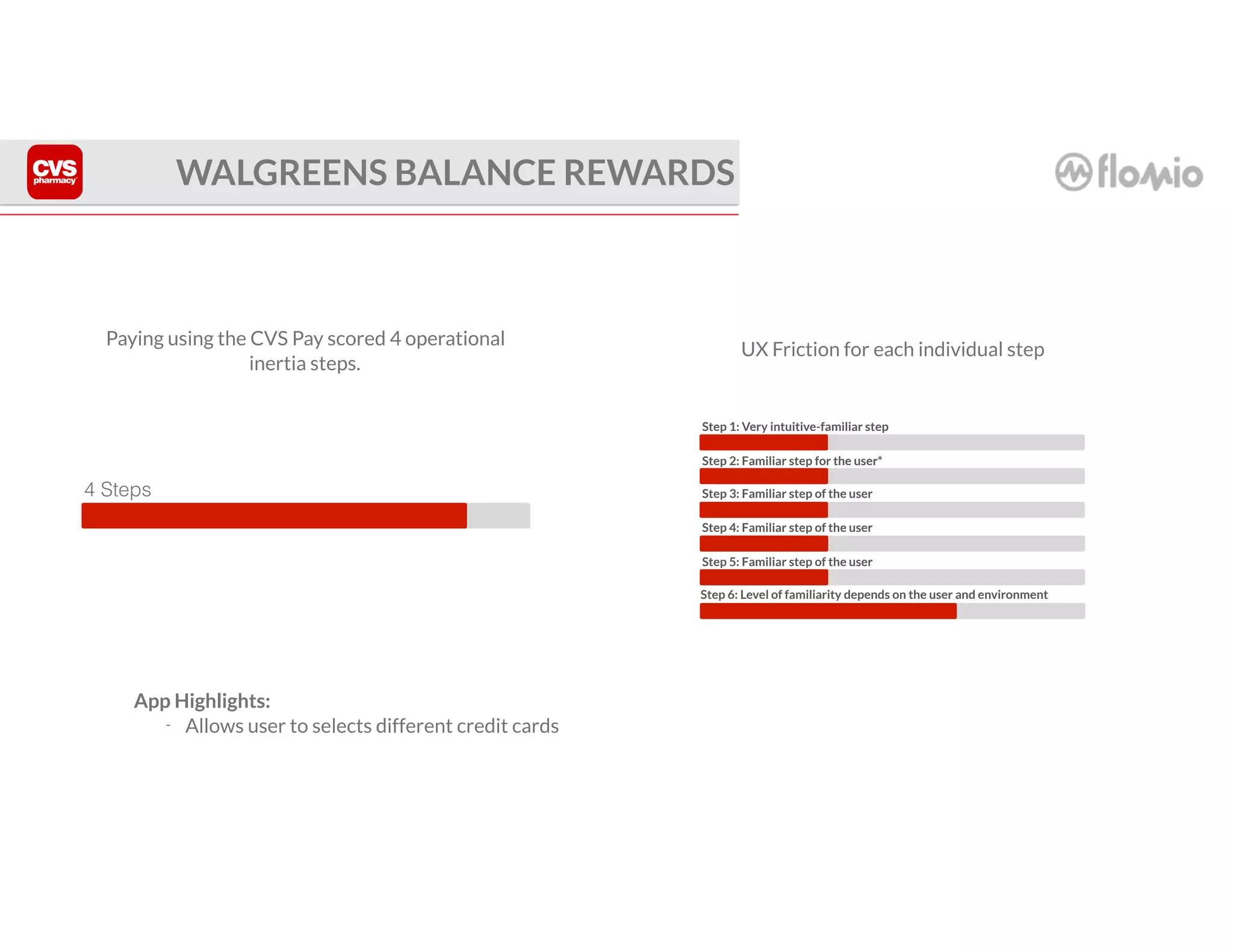
Paying using the CVS Pay scored 4 operational
inertia steps.
UX Friction for each individual step
App Highlights:
- Allows user to selects different credit cards
Step 1: Very intuitive-familiar step
Step 2: Familiar step for the user*
Step 3: Familiar step of the user
Step 4: Familiar step of the user
Step 5: Familiar step of the user
Step 6: Level of familiarity depends on the user and environment
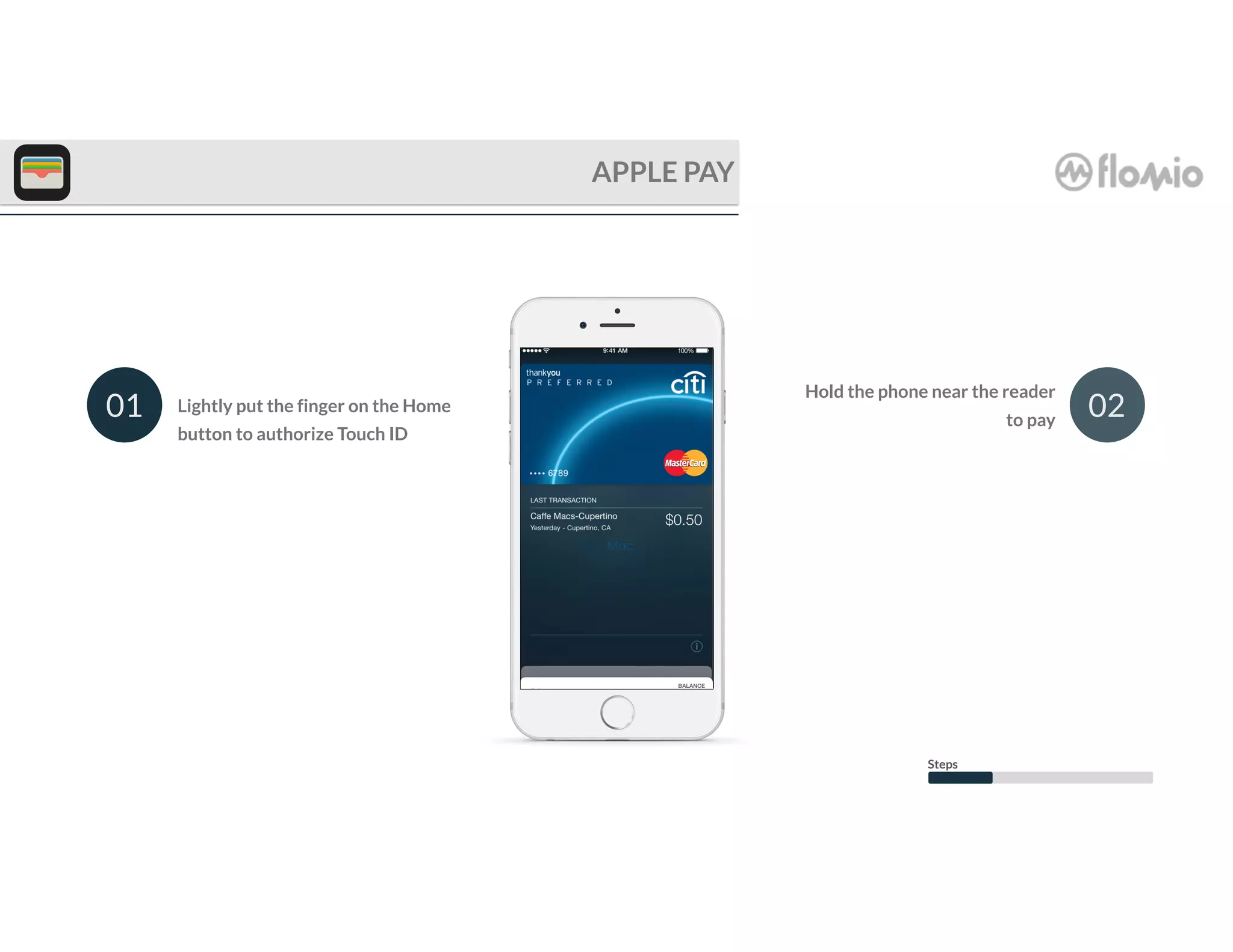
Lightly put the finger on the Home
button to authorize Touch ID
01
APPLE PAY
02
Hold the phone near the reader
to pay
Steps
2 Steps
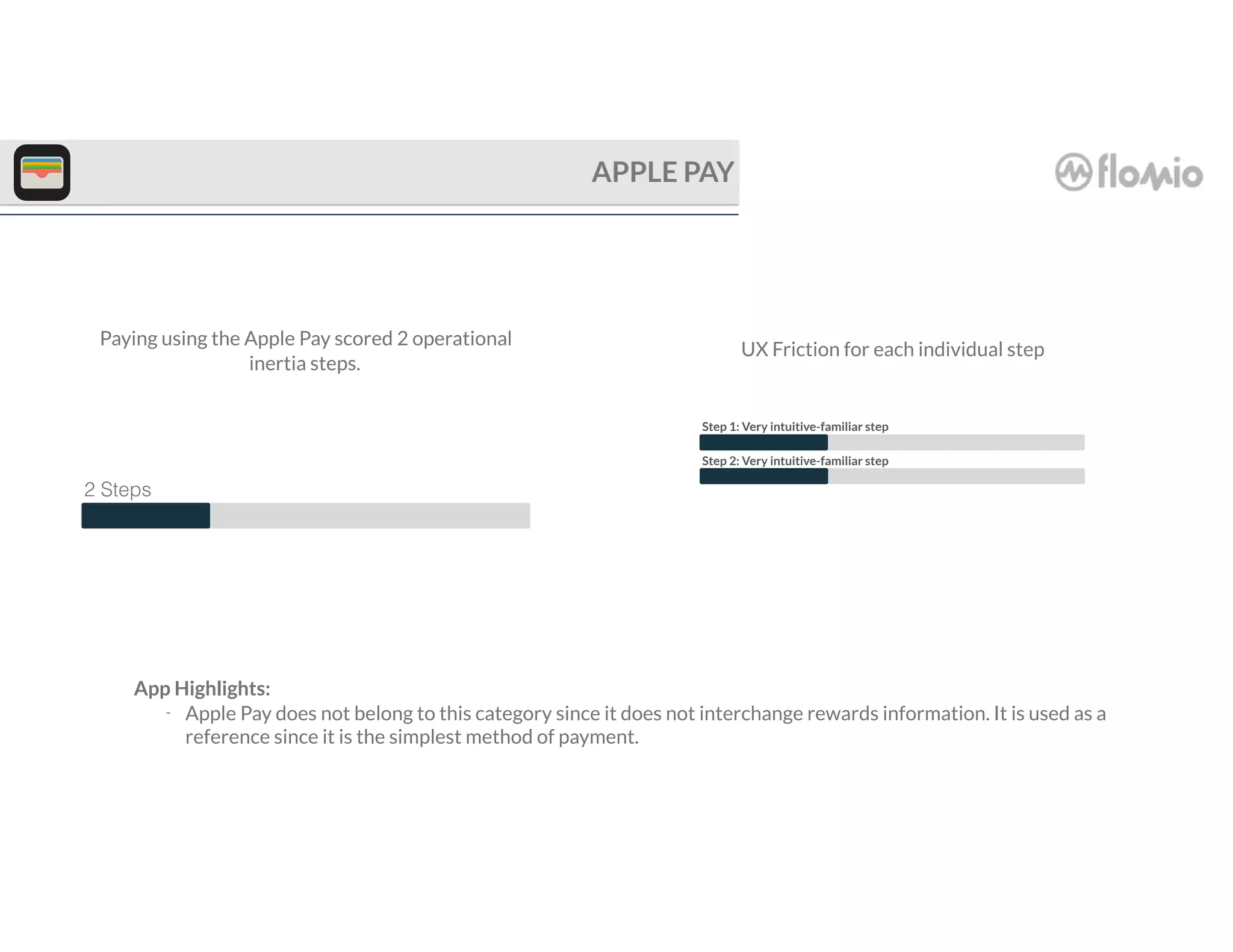
Paying using the Apple Pay scored 2 operational
inertia steps.
Step 1: Very intuitive-familiar step
Step 2: Very intuitive-familiar step
UX Friction for each individual step
APPLE PAY
App Highlights:
- Apple Pay does not belong to this category since it does not interchange rewards information. It is used as a
reference since it is the simplest method of payment.
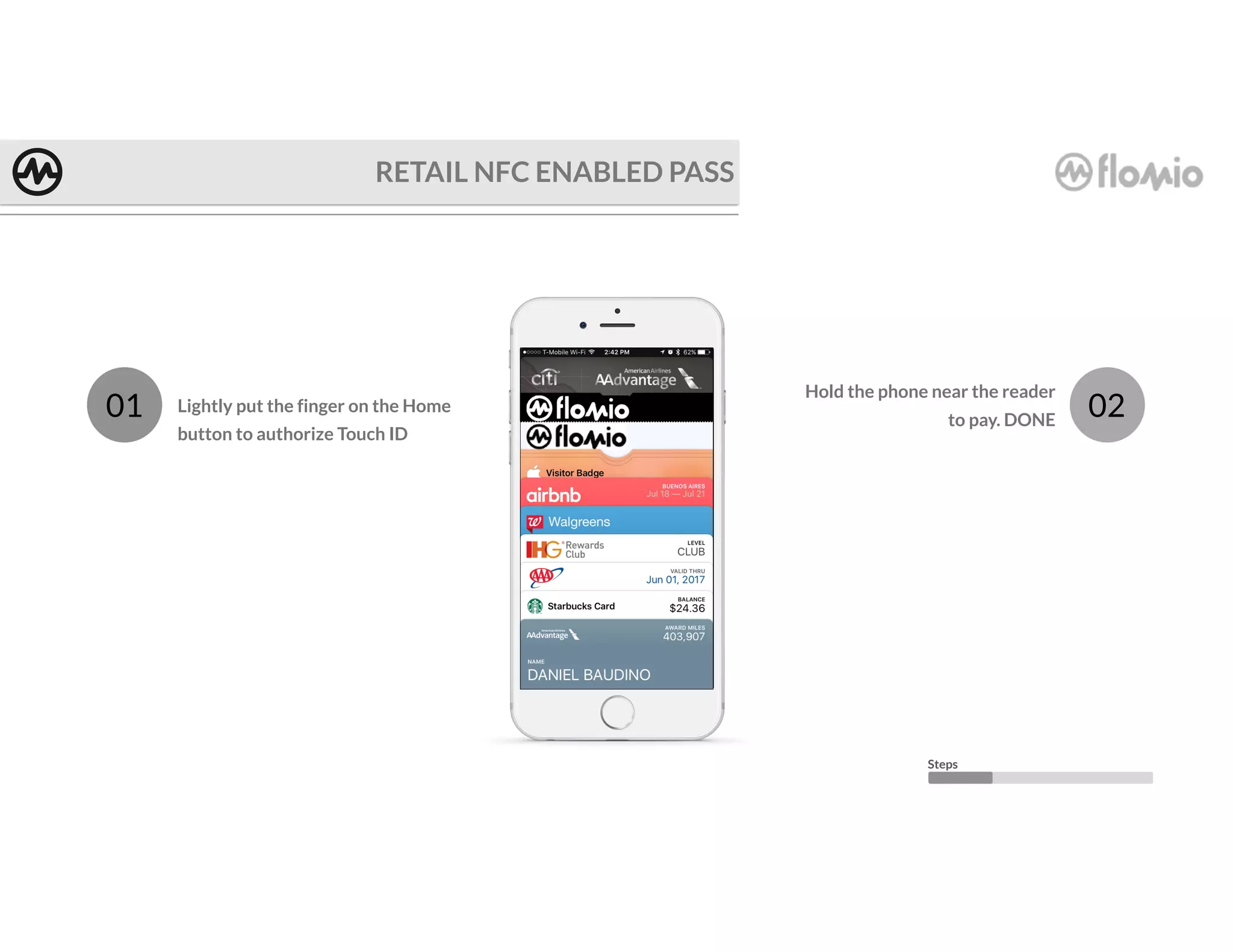
Lightly put the finger on the Home
button to authorize Touch ID
01
RETAIL NFC ENABLED PASS
02
Hold the phone near the reader
to pay. DONE
Steps
2 Steps
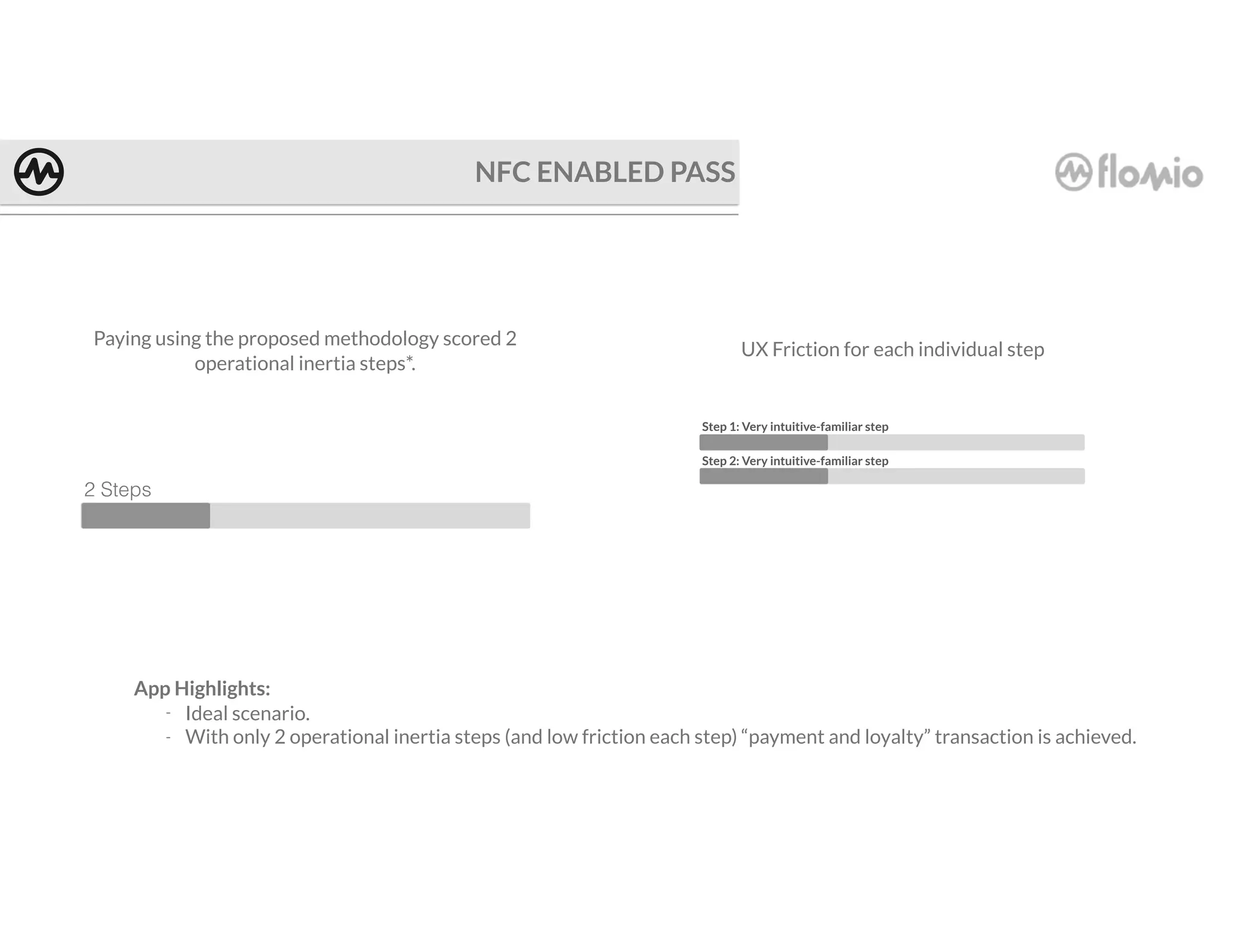
Paying using the proposed methodology scored 2
operational inertia steps*.
Step 1: Very intuitive-familiar step
Step 2: Very intuitive-familiar step
UX Friction for each individual step
NFC ENABLED PASS
App Highlights:
- Ideal scenario.
- With only 2 operational inertia steps (and low friction each step) “payment and loyalty” transaction is achieved.
6 Steps
STARBUCKS APP
STARBUCKS WALLET
4 Steps
6 Steps
6 Steps
4 Steps
2 Steps
WALMART PAY
YOYO WALLET
WALGREENS BALANCE REWARDS
6 Steps
CVS PAY
PAY
2 Steps
NFC ENABLED PASSES
OVERALL OPERATIONAL INERTIA COMPARISON
Qualitative
Results
QUALITATIVE METRIC METHODOLOGY
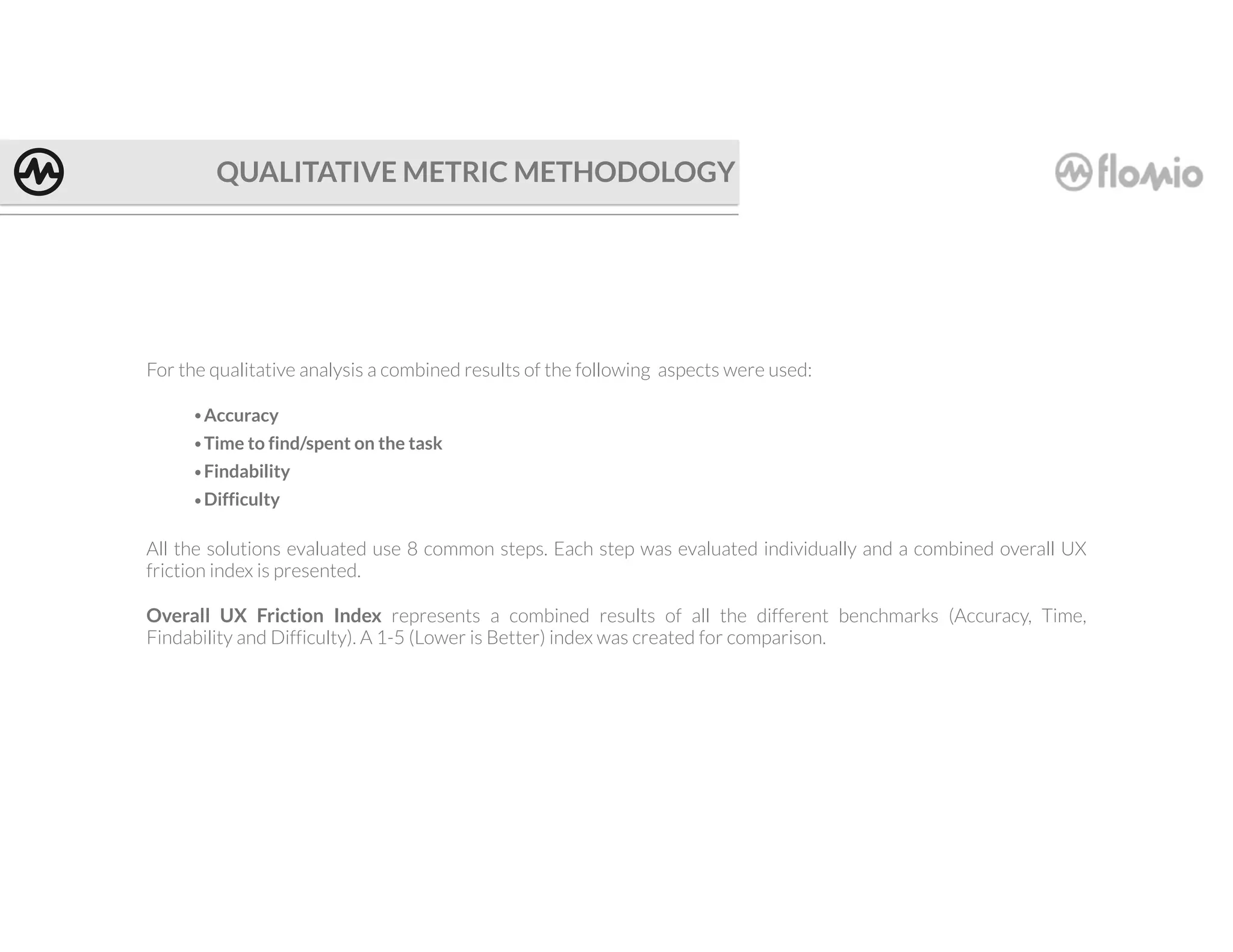
For the qualitative analysis a combined results of the following aspects were used:
•Accuracy
•Time to find/spent on the task
•Findability
•Difficulty
All the solutions evaluated use 8 common steps. Each step was evaluated individually and a combined overall UX
friction index is presented.
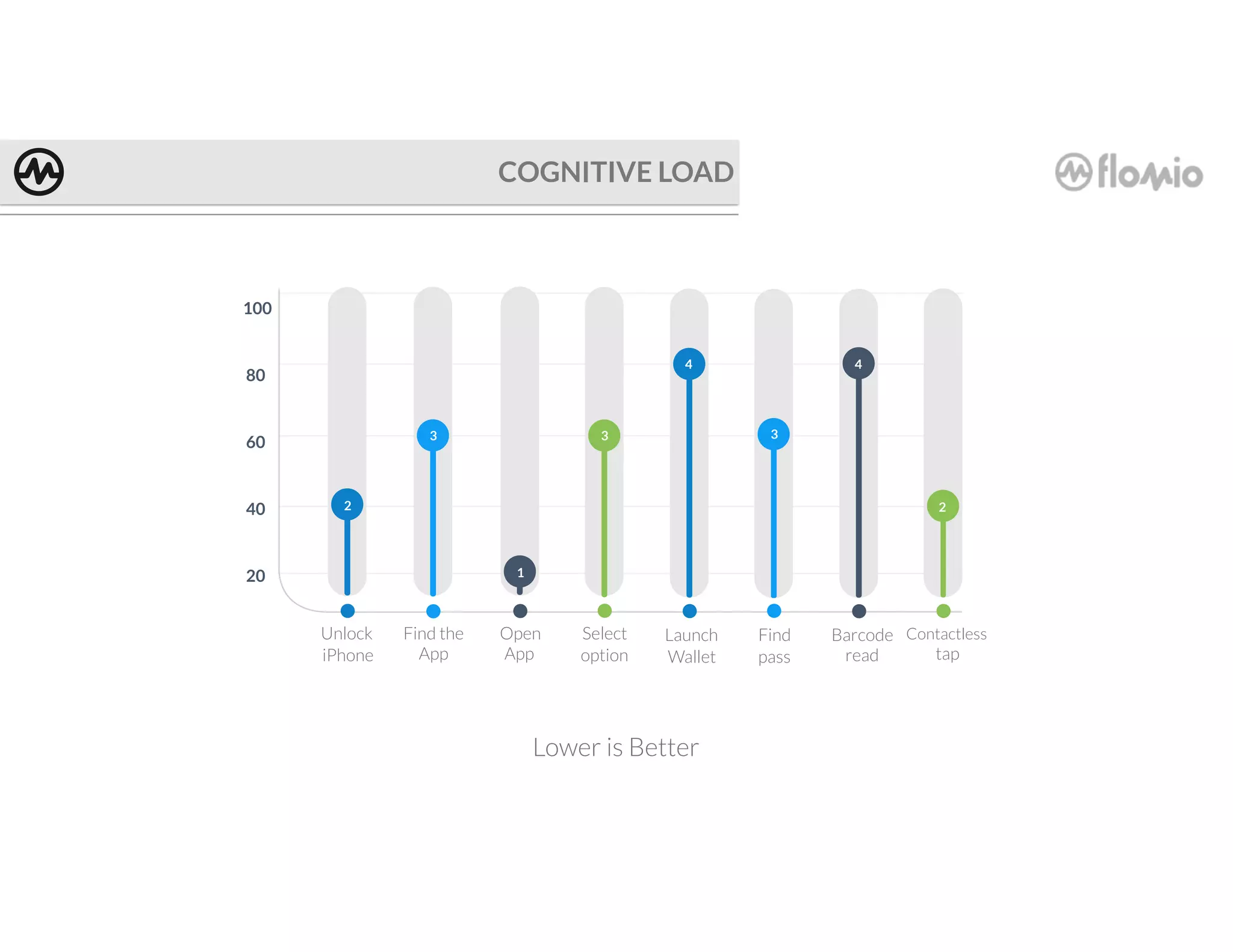
Overall UX Friction Index represents a combined results of all the different benchmarks (Accuracy, Time,
Findability and Difficulty). A 1-5 (Lower is Better) index was created for comparison.
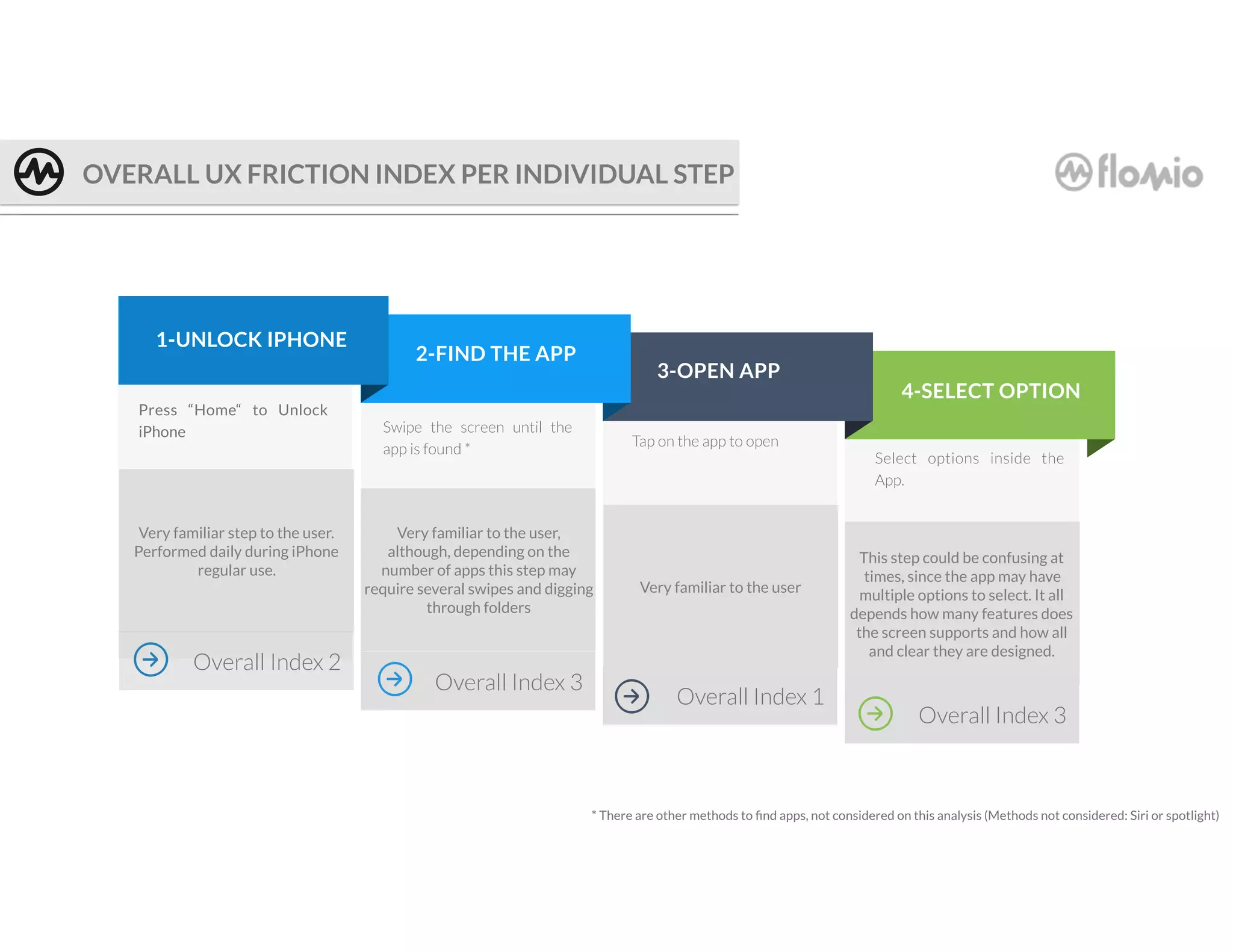
Overall Index 3
Overall Index 1
Press “Home“ to Unlock
iPhone Swipe the screen until the
app is found *
Tap on the app to open
Select options inside the
App.
1-UNLOCK IPHONE
2-FIND THE APP
3-OPEN APP
4-SELECT OPTION
OVERALL UX FRICTION INDEX PER INDIVIDUAL STEP
Very familiar step to the user.
Performed daily during iPhone
regular use.
Very familiar to the user,
although, depending on the
number of apps this step may
require several swipes and digging
through folders
* There are other methods to find apps, not considered on this analysis (Methods not considered: Siri or spotlight)
Very familiar to the user
Overall Index 3
Overall Index 2
This step could be confusing at
times, since the app may have
multiple options to select. It all
depends how many features does
the screen supports and how all
and clear they are designed.
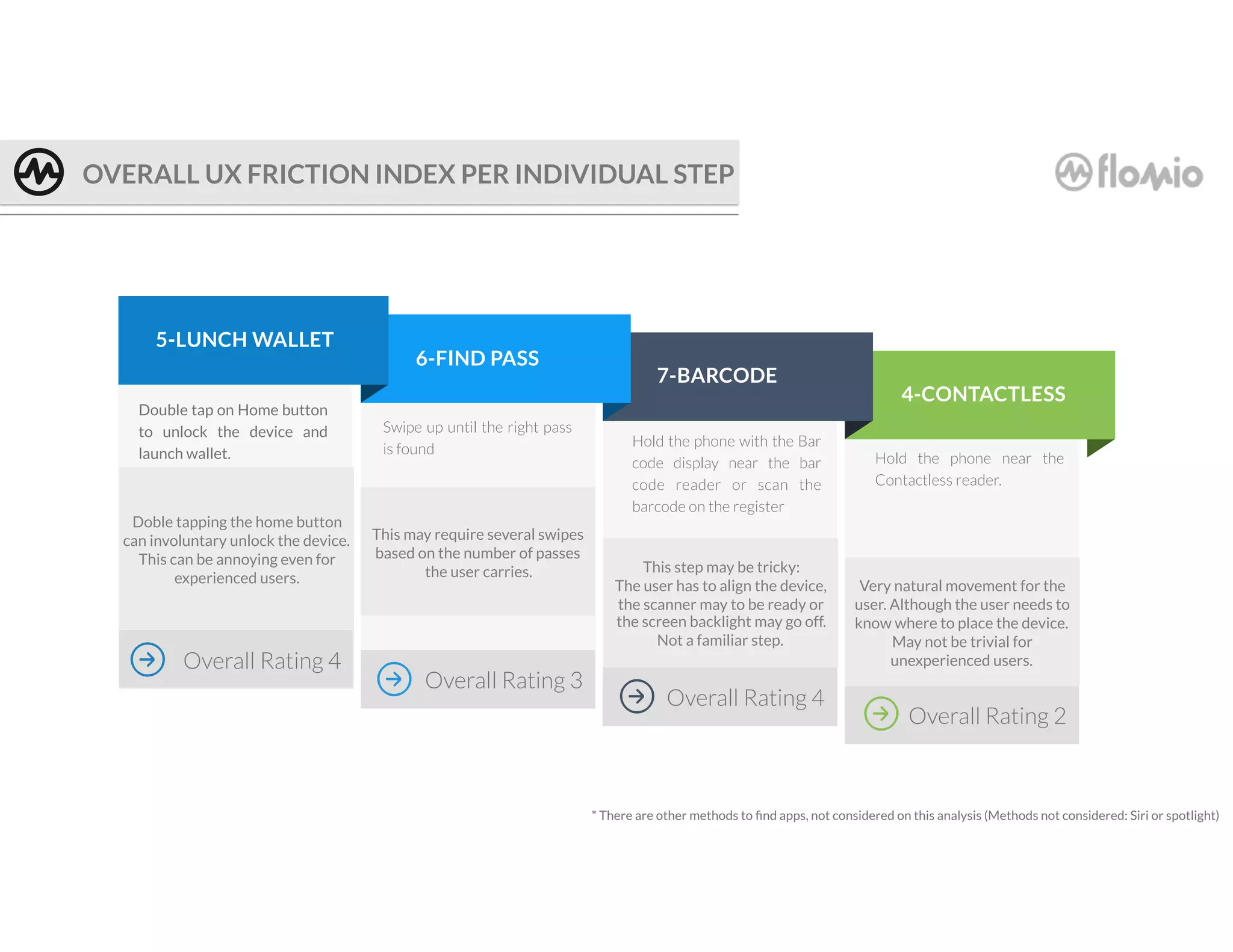
Overall Rating 2
Overall Rating 4
Double tap on Home button
to unlock the device and
launch wallet.
Swipe up until the right pass
is found
Hold the phone with the Bar
code display near the bar
code reader or scan the
barcode on the register
Hold the phone near the
Contactless reader.
5-LUNCH WALLET
6-FIND PASS
7-BARCODE
4-CONTACTLESS
Doble tapping the home button
can involuntary unlock the device.
This can be annoying even for
experienced users.
This may require several swipes
based on the number of passes
the user carries.
* There are other methods to find apps, not considered on this analysis (Methods not considered: Siri or spotlight)
This step may be tricky:
The user has to align the device,
the scanner may to be ready or
the screen backlight may go off.
Not a familiar step.
Overall Rating 3
Overall Rating 4
Very natural movement for the
user. Although the user needs to
know where to place the device.
May not be trivial for
unexperienced users.
OVERALL UX FRICTION INDEX PER INDIVIDUAL STEP
2
Unlock
iPhone
3
Find the
App
1
Open
App
3
Select
option
4
3
Launch
Wallet
4
Find
pass
2
Barcode
read
Contactless
tap
20
40
60
80
100
COGNITIVE LOAD
Lower is Better
ThankYou!
41
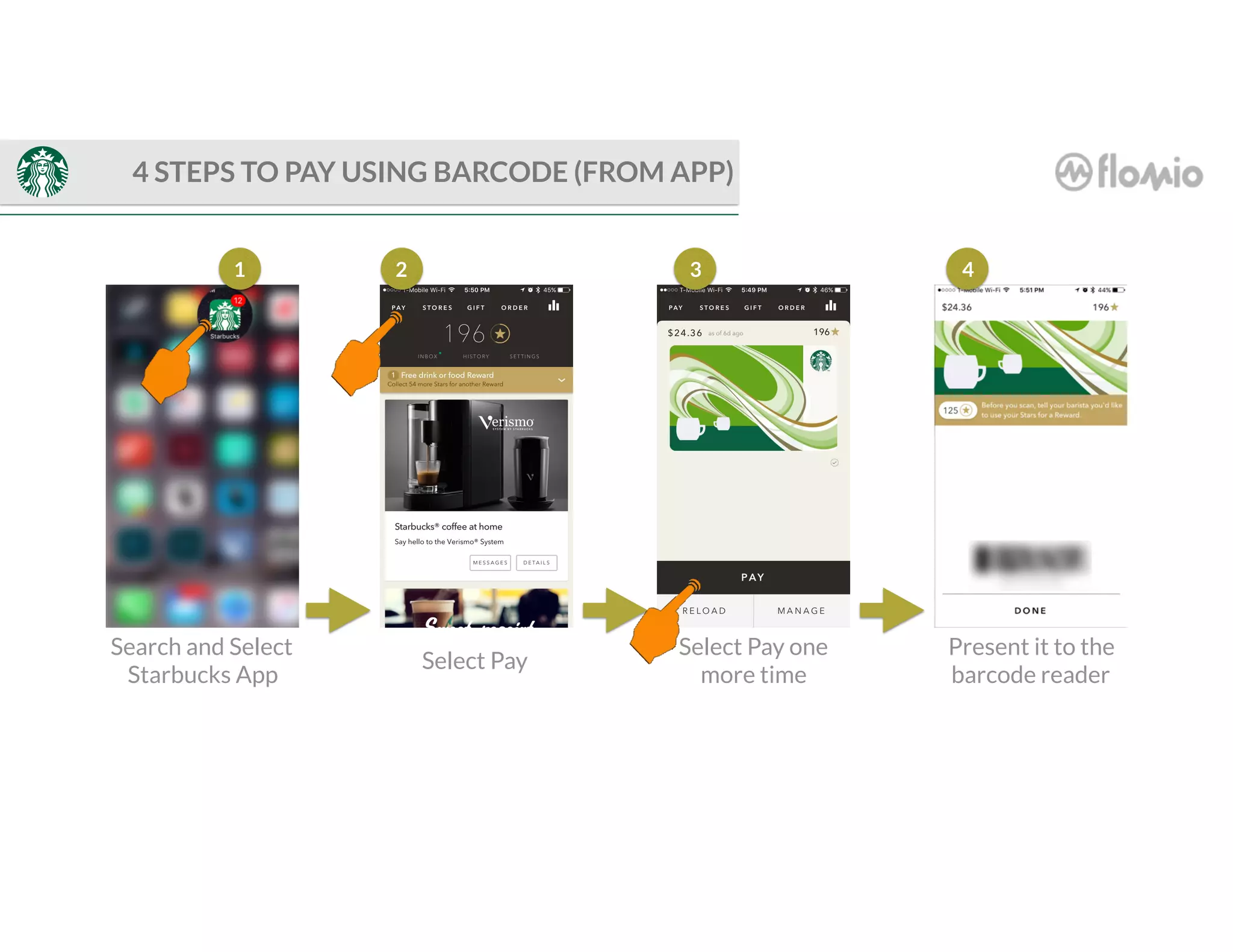
Search and Select
Starbucks App
Select Pay
2
Select Pay one
more time
Present it to the
barcode reader
3
4 STEPS TO PAY USING BARCODE (FROM APP)
41
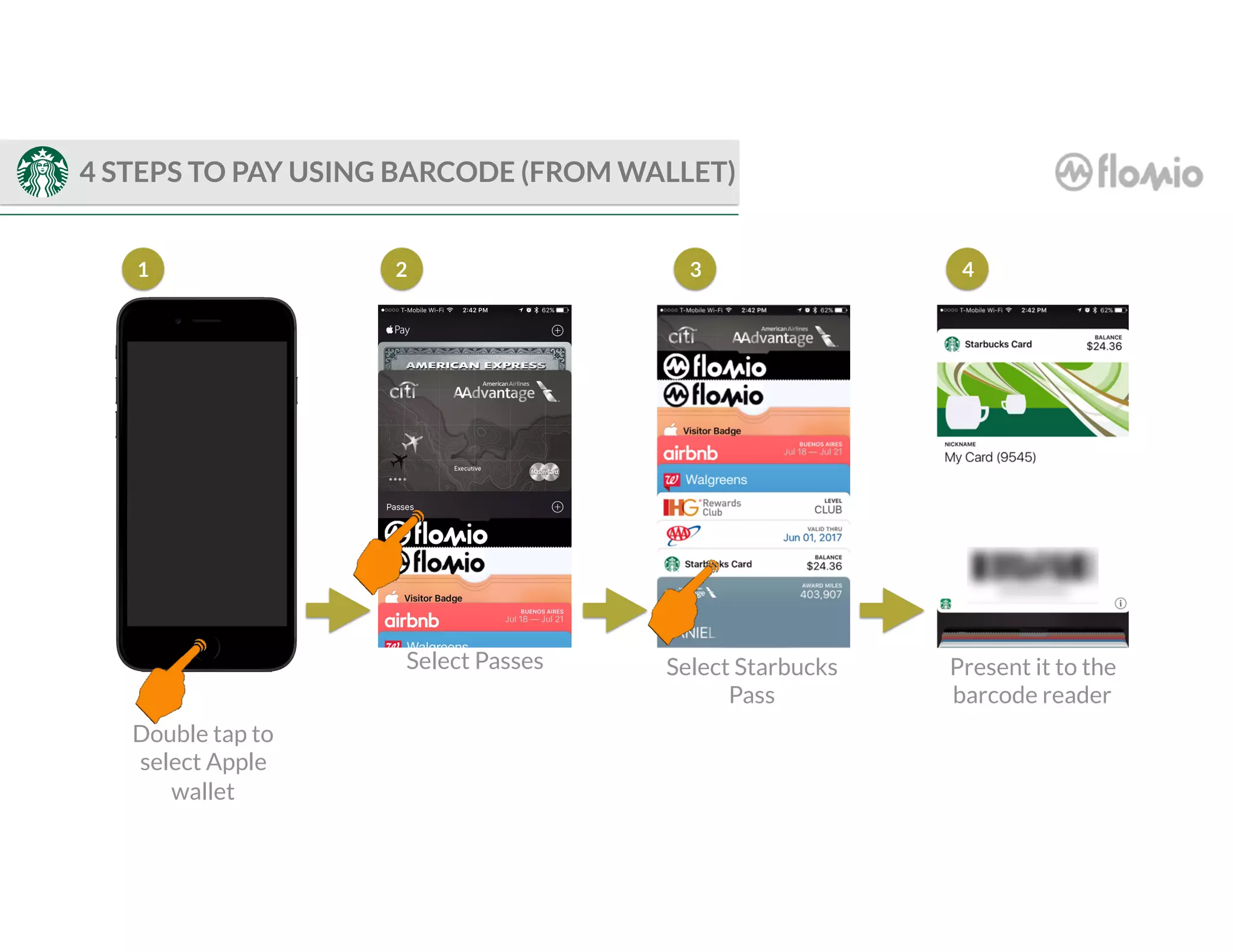
Double tap to
select Apple
wallet
Select Passes
2
Select Starbucks
Pass
Present it to the
barcode reader
3
4 STEPS TO PAY USING BARCODE (FROM WALLET)
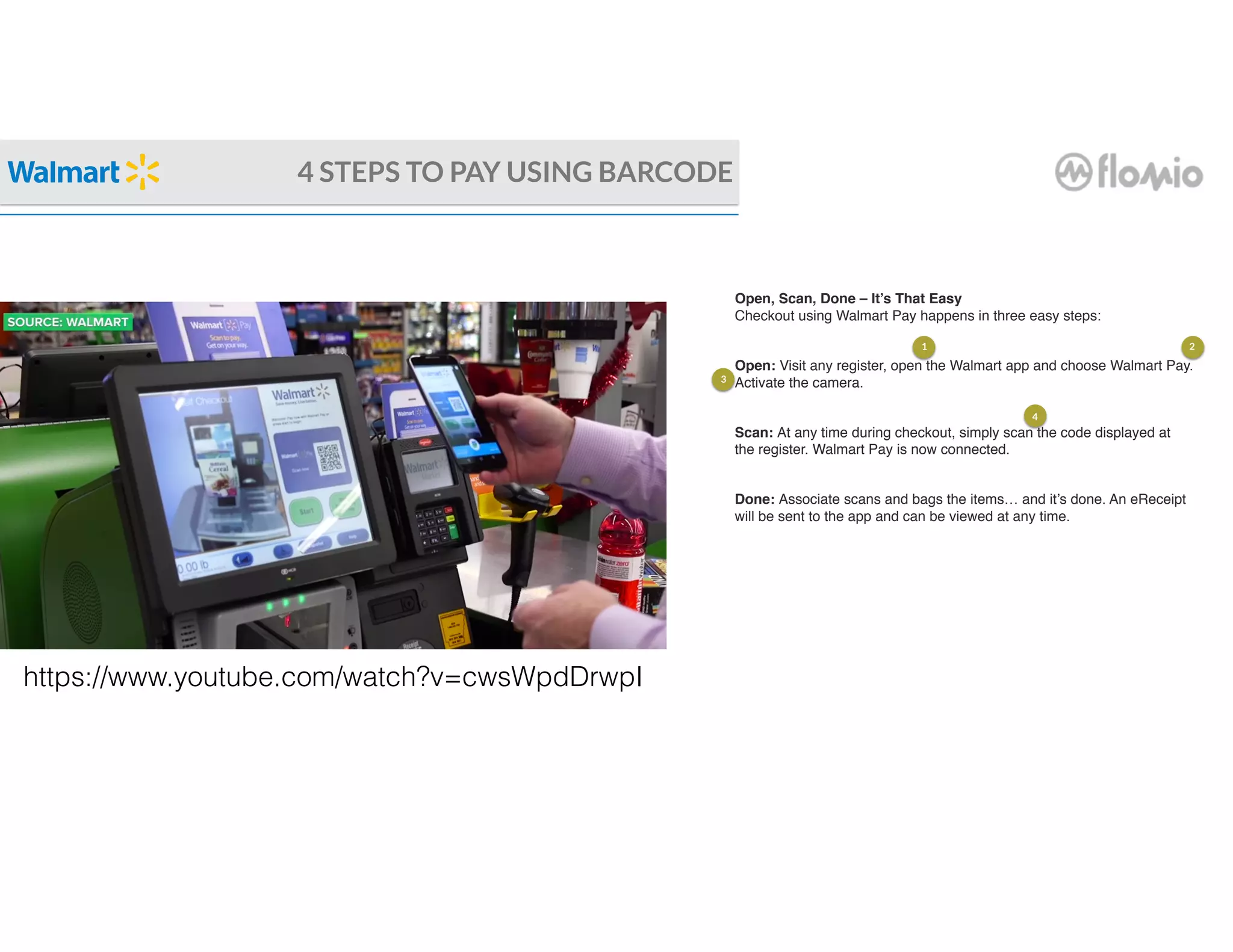
4 STEPS TO PAY USING BARCODE
https://www.youtube.com/watch?v=cwsWpdDrwpI
Open, Scan, Done – It’s That Easy
Checkout using Walmart Pay happens in three easy steps:
Open: Visit any register, open the Walmart app and choose Walmart Pay.
Activate the camera.
Scan: At any time during checkout, simply scan the code displayed at
the register. Walmart Pay is now connected.
Done: Associate scans and bags the items… and it’s done. An eReceipt
will be sent to the app and can be viewed at any time.
1 2
3
4
1
2
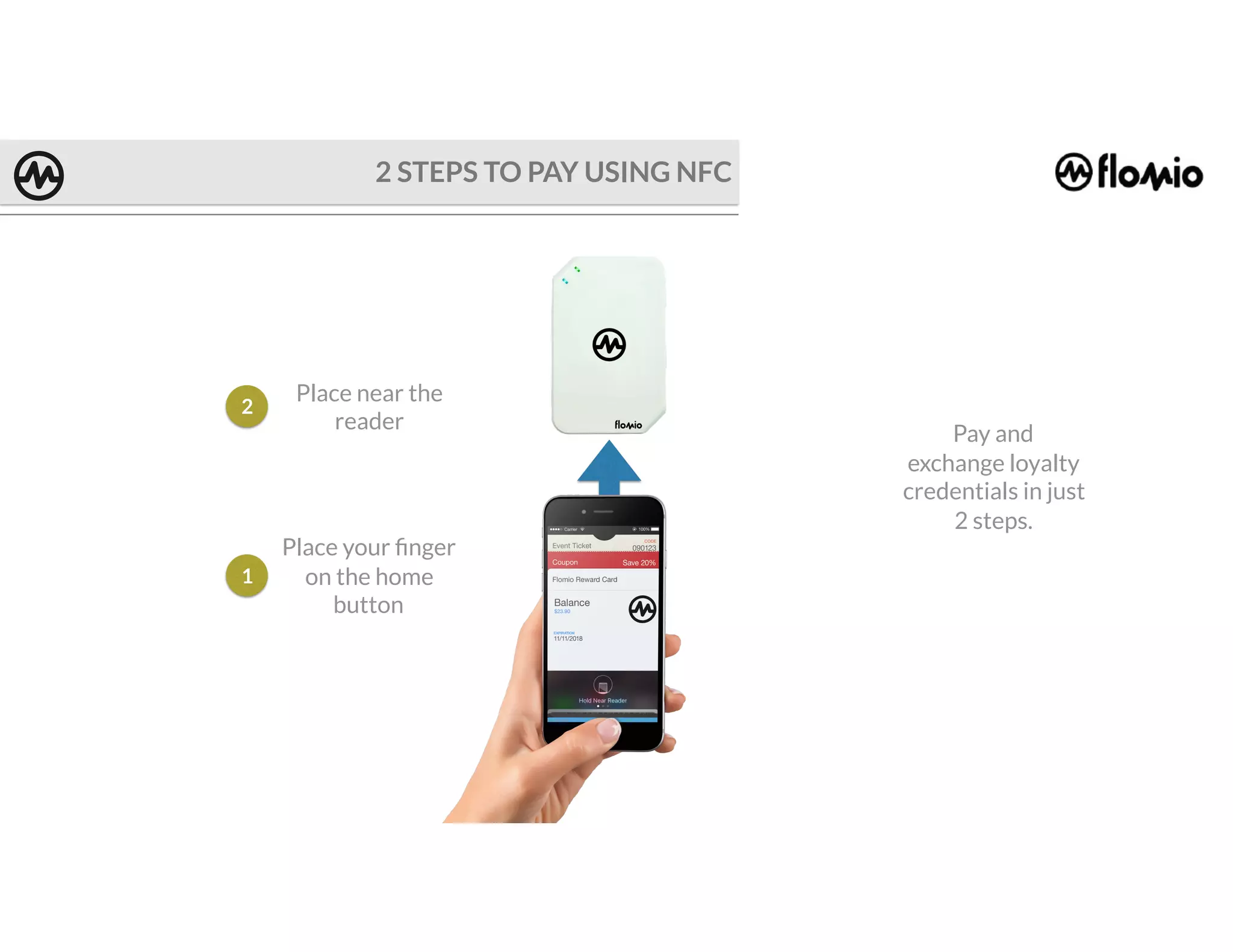
2 STEPS TO PAY USING NFC
Place near the
reader
Pay and
exchange loyalty
credentials in just
2 steps.
Place your finger
on the home
button

User Experience: How Closed-loop payments app stack up

  • 1.
    How Closed-Loop PaymentsUX stacks up User Experience
  • 2.
    “ ” Despite the differencesbetween in-store and in-app payments, the steps to improve them are the same. One is to remove as much friction as possible from the payments process to eliminate consumer frustration and prevent abandonment. Another is to enhance the 'buying experience' to make payments more than just, well, paying. - Andre Stoorvogel, CVS Head of Marketing, 2016 WHY UX MATTERS
  • 3.
    Rewards are thebest way to capture customers' loyalty to business. WHY CLOSED-LOOP PAYMENTS MATTERS
  • 4.
    METHODOLOGY - Main Focus:in-store closed-loop solutions. - All the solutions evaluated use barcode to enable mobile payments at the POS - Two types of transactions are used: - Display barcode on the smartphone: i.e. Starbucks App - Smartphone reads barcode: i.e. Walmart Pay - Alternative solutions were evaluated for comparison: NFC based -Metrics: Quantitative: Operational Inertia: Number of Steps to perform a successful payment transaction Qualitative: Studied general aspects that have a direct impact on the usability of the mobile payment app. Some aspects studied were: Accuracy Time to find/spent on the task Findability Difficulty
  • 5.
    METHODOLOGY (cont’d) * Thesolutions selected is a general representation of all the existing solutions - During the analysis 7* payment solutions were evaluated - 2 different methodologies were analyzed of one solution (Starbucks App and Wallet). - Apple Pay and Walgreens Solution were used as a reference (not a closed loop solution) - iOS experienced and inexperienced users were polled.
  • 6.
  • 7.
    Select Pay (CenterButton)Find the Starbucks App* Hold the iPhone up to the Starbucks barcode scanner. Done. Tap to open Select Pay (Top Left Corner) Unlock Device: Press home button to unlock device 01 02 03 04 05 06 STARBUCKS APP * Finding the App may take several steps (Swipe left or right to find the Starbucks app). For simplicity it is counted as one step. Steps
  • 8.
    6 Steps* * Assumingfinding the Starbucks app takes 1 step and the user is familiar with the location of the app. STARBUCKS APP Paying using the Starbucks app scored 6 operational inertia steps. Step 1: Very intuitive-familiar step Step 2: Familiar step for the user* Step 3: Familiar step of the user Step 4: Familiar step of the user Step 5: Familiar step of the user Step 6: Level of familiarity depends on the user and environment UX Friction for each individual step App Highlights: - Pioneer on closed-loop mobile payment - Uses 2 methods (Launch payment from App or Apple Wallet) - Supports in-app payment
  • 9.
    On Wallet: Selectpasses Find your Starbucks card*Double tap on Home to unlock device01 02 03 04 STARBUCKS Hold the iPhone up to the Starbucks barcode scanner. Done. * Finding the Starbucks card may take several steps For simplicity it is counted as one step. Steps
  • 10.
    4 Steps* * Assumingfinding the Starbucks pass takes 1 step and the user is familiar with the location. STARBUCKS PASS Paying using the Starbucks pass scored 4 operational inertia steps. Step 1: This step can be tricky and most users are not aware. Step 2: Familiar step for the user Step 3: Familiar step of the user* Step 4: Level of familiarity depends on the user and environment UX Friction for each individual step App Highlights: - Pioneer on closed-loop mobile payment - Uses 2 methods (Launch payment from App or Apple Wallet) - Supports in-app payment
  • 11.
    Find the WalmartApp* Choose Walmart Pay Unlock Device: Press home button to unlock device 01 02 04 05 Activate the Camera WALMART PAY Scan the code displayed at the register. Done Tap to open03 06 Steps
  • 12.
    6 Steps* * Assumingfinding the Walmart app takes 1 step and the user is familiar with the location of the app. WALMART PAY Paying using the Walmart Pay scored 6 operational inertia steps. Step 1: Very intuitive-familiar step Step 2: Familiar step for the user* Step 3: Familiar step of the user Step 4: Familiar step of the user Step 5: Familiar step of the user Step 6: Level of familiarity depends on the user and environment UX Friction for each individual step App Highlights: - Uses the smartphone to read the Barcode
  • 13.
    Find the YOYOApp* Unlock YOYO Wallet by lightly touching the Home button Unlock Device: Just press the Home button using the finger you registered with Touch ID. 01 02 04 05Select card to pay** YOYO WALLET Hold the iPhone up to the barcode scanner. Done. Tap to open03 06 Steps *Assuming finding the YOYO app takes 1 step **User uses the default credit card
  • 14.
    6 Steps * Assumingfinding the YOYO app takes 1 step and the user uses the default credit card YOYO WALLET Paying using the YOYO Wallet scored 6* operational inertia steps. Step 1: Very intuitive-familiar step Step 2: Familiar step for the user* Step 3: Familiar step of the user Step 4: Familiar step of the user Step 5: Familiar step of the user* Step 6: Level of familiarity depends on the user and environment UX Friction for each individual step App Highlights: - Allows the use on multiple stores and multiple credit cards
  • 15.
    Hold the phonenear the reader to exchange Balance Rewards credentials Lightly put the finger on the Home button to authorize Touch ID 01 02 03 04 WALGREENS BALANCE REWARDS Hold the phone near the reader to pay Lightly put the finger again on the Home button to authorize Touch ID Steps
  • 16.
    4 Steps WALGREENS BALANCEREWARDS Paying using the Walgreens Balance Rewards scored 4 operational inertia steps. Step 1: Very intuitive-familiar step Step 2: Very intuitive-familiar step Step 3: Very intuitive-familiar step Step 4: Very intuitive-familiar step UX Friction for each individual step App Highlights: - Not a closed-loop - Uses Apple Wallet for rewards pass
  • 17.
    Find the CVSApp* Select Barcode Unlock Device: Just press the Home button using the finger you registered with Touch ID. 01 02 04 05Select Card to Pay CVS PAY Hold the iPhone up to the barcode scanner. Done. Tap to open03 06 Steps
  • 18.
    4 Steps WALGREENS BALANCEREWARDS Paying using the CVS Pay scored 4 operational inertia steps. UX Friction for each individual step App Highlights: - Allows user to selects different credit cards Step 1: Very intuitive-familiar step Step 2: Familiar step for the user* Step 3: Familiar step of the user Step 4: Familiar step of the user Step 5: Familiar step of the user Step 6: Level of familiarity depends on the user and environment
  • 19.
    Lightly put thefinger on the Home button to authorize Touch ID 01 APPLE PAY 02 Hold the phone near the reader to pay Steps
  • 20.
    2 Steps Paying usingthe Apple Pay scored 2 operational inertia steps. Step 1: Very intuitive-familiar step Step 2: Very intuitive-familiar step UX Friction for each individual step APPLE PAY App Highlights: - Apple Pay does not belong to this category since it does not interchange rewards information. It is used as a reference since it is the simplest method of payment.
  • 21.
    Lightly put thefinger on the Home button to authorize Touch ID 01 RETAIL NFC ENABLED PASS 02 Hold the phone near the reader to pay. DONE Steps
  • 22.
    2 Steps Paying usingthe proposed methodology scored 2 operational inertia steps*. Step 1: Very intuitive-familiar step Step 2: Very intuitive-familiar step UX Friction for each individual step NFC ENABLED PASS App Highlights: - Ideal scenario. - With only 2 operational inertia steps (and low friction each step) “payment and loyalty” transaction is achieved.
  • 23.
    6 Steps STARBUCKS APP STARBUCKSWALLET 4 Steps 6 Steps 6 Steps 4 Steps 2 Steps WALMART PAY YOYO WALLET WALGREENS BALANCE REWARDS 6 Steps CVS PAY PAY 2 Steps NFC ENABLED PASSES OVERALL OPERATIONAL INERTIA COMPARISON
  • 24.
  • 25.
    QUALITATIVE METRIC METHODOLOGY Forthe qualitative analysis a combined results of the following aspects were used: •Accuracy •Time to find/spent on the task •Findability •Difficulty All the solutions evaluated use 8 common steps. Each step was evaluated individually and a combined overall UX friction index is presented. Overall UX Friction Index represents a combined results of all the different benchmarks (Accuracy, Time, Findability and Difficulty). A 1-5 (Lower is Better) index was created for comparison.
  • 26.
    Overall Index 3 OverallIndex 1 Press “Home“ to Unlock iPhone Swipe the screen until the app is found * Tap on the app to open Select options inside the App. 1-UNLOCK IPHONE 2-FIND THE APP 3-OPEN APP 4-SELECT OPTION OVERALL UX FRICTION INDEX PER INDIVIDUAL STEP Very familiar step to the user. Performed daily during iPhone regular use. Very familiar to the user, although, depending on the number of apps this step may require several swipes and digging through folders * There are other methods to find apps, not considered on this analysis (Methods not considered: Siri or spotlight) Very familiar to the user Overall Index 3 Overall Index 2 This step could be confusing at times, since the app may have multiple options to select. It all depends how many features does the screen supports and how all and clear they are designed.
  • 27.
    Overall Rating 2 OverallRating 4 Double tap on Home button to unlock the device and launch wallet. Swipe up until the right pass is found Hold the phone with the Bar code display near the bar code reader or scan the barcode on the register Hold the phone near the Contactless reader. 5-LUNCH WALLET 6-FIND PASS 7-BARCODE 4-CONTACTLESS Doble tapping the home button can involuntary unlock the device. This can be annoying even for experienced users. This may require several swipes based on the number of passes the user carries. * There are other methods to find apps, not considered on this analysis (Methods not considered: Siri or spotlight) This step may be tricky: The user has to align the device, the scanner may to be ready or the screen backlight may go off. Not a familiar step. Overall Rating 3 Overall Rating 4 Very natural movement for the user. Although the user needs to know where to place the device. May not be trivial for unexperienced users. OVERALL UX FRICTION INDEX PER INDIVIDUAL STEP
  • 28.
  • 29.
  • 30.
    41 Search and Select StarbucksApp Select Pay 2 Select Pay one more time Present it to the barcode reader 3 4 STEPS TO PAY USING BARCODE (FROM APP)
  • 31.
    41 Double tap to selectApple wallet Select Passes 2 Select Starbucks Pass Present it to the barcode reader 3 4 STEPS TO PAY USING BARCODE (FROM WALLET)
  • 32.
    4 STEPS TOPAY USING BARCODE https://www.youtube.com/watch?v=cwsWpdDrwpI Open, Scan, Done – It’s That Easy Checkout using Walmart Pay happens in three easy steps: Open: Visit any register, open the Walmart app and choose Walmart Pay. Activate the camera. Scan: At any time during checkout, simply scan the code displayed at the register. Walmart Pay is now connected. Done: Associate scans and bags the items… and it’s done. An eReceipt will be sent to the app and can be viewed at any time. 1 2 3 4
  • 33.
    1 2 2 STEPS TOPAY USING NFC Place near the reader Pay and exchange loyalty credentials in just 2 steps. Place your finger on the home button