UGB / Manual of Practice of HDDVR
Welcome to the next level in TV viewing.
With Videocon d2h’s High Definition Digital Video Recorder (HD DVR), you can watch TV at your own convenience!
The HD DVR blends a superior picture and sound quality with an intelligent recording feature, giving you more
control over your TV.
Superior picture and sound quality :
Videocon d2h’s HD DVR uses the latest technology. This gives you ultra-sharp pictures and crystal-clear sound,
dramatically improving your TV viewing experience.
Recording:
With the recording feature, you can record, play back, pause and rewind your favourite TV programmes.

Get Started

Connect Correct

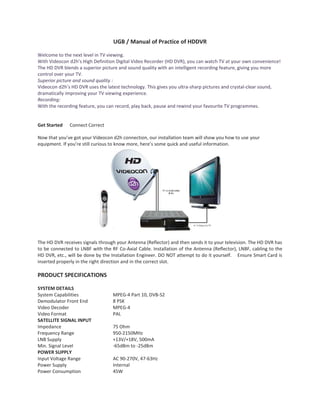
Now that you’ve got your Videocon d2h connection, our installation team will show you how to use your
equipment. If you’re still curious to know more, here’s some quick and useful information.

The HD DVR receives signals through your Antenna (Reflector) and then sends it to your television. The HD DVR has
to be connected to LNBF with the RF Co-Axial Cable. Installation of the Antenna (Reflector), LNBF, cabling to the
HD DVR, etc., will be done by the Installation Engineer. DO NOT attempt to do it yourself. Ensure Smart Card is
inserted properly in the right direction and in the correct slot.

PRODUCT SPECIFICATIONS
SYSTEM DETAILS
System Capabilities
Demodulator Front End
Video Decoder
Video Format
SATELLITE SIGNAL INPUT
Impedance
Frequency Range
LNB Supply
Min. Signal Level
POWER SUPPLY
Input Voltage Range
Power Supply
Power Consumption

MPEG-4 Part 10, DVB-S2
8 PSK
MPEG-4
PAL
75 Ohm
950-2150MHz
+13V/+18V, 500mA
-65dBm to -25dBm
AC 90-270V, 47-63Hz
Internal
45W
CONNECTIONS
Mains
2 Satellite Signal Inputs
Composite Video Output
HDMI Video Output
SPDIF Output
Composite Audio Output
USB Port
Ethernet Connection
GENERAL
Hard Disk Size
Dimensions
Weight
Operating Temperature Range
ACCESSORIES
HDMI Cable
Remote Control
Batteries for Remote

2 Pin Indian Plug
F-Type Female IEC 60169-24
IEC 48B Sec 316(RCA) Female (Yellow)
HDMI Receptacle Connector
Co-Axial, Optical
IEC 48B Sec 316(RCA) Female (White & Red)
USB 2.0, Type A Socket
RJ 45
500 GB
260mm (W) x 210mm(D) x 55mm(H)
1.46Kg
5-45deg C
HDMI 19P/M Moulding Type, 1500mm
IR Remote Control
2 AAA Size Batteries

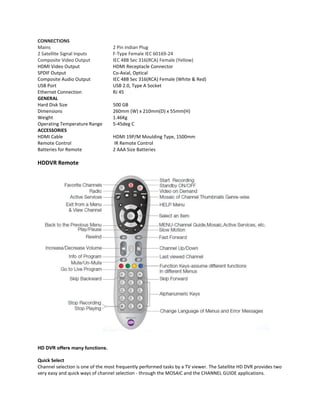
HDDVR Remote

HD DVR offers many functions.

Quick Select
Channel selection is one of the most frequently performed tasks by a TV viewer. The Satellite HD DVR provides two
very easy and quick ways of channel selection - through the MOSAIC and the CHANNEL GUIDE applications.
Mosaic
The Mosaic application displays all channel genres - Hindi GEC, Kids, Movies, Music, News, Religious, Sports, etc.
Mosaic is an easy way to select channels, if you are not seeking extra info that is available in a Channel Guide.
Channel Guide
Select the channel guide. A list of genres is displayed to narrow down your selection.
The FULL GUIDE
You get the FULL GUIDE when you select a genre. You can scroll Up and Down in the list of channels. In each
channel, you can scroll to the Right and Left for the daily program schedule.
The MINI GUIDE
You can toggle between the FULL GUIDE and the MINI GUIDE by pressing the ‘Yellow color’ special key.
The MINI GUIDE is the program schedule for one particular channel. This is a more reader-friendly list with most of
the program names displayed fully.
RECORDING FEATURES
With the HD DVR, it is possible to:
Pause Live TV
Rewind Live TV
Record
o what you are watching
o a Future Program
o by giving a Start and End Time
o all episodes of a series automatically
PAUSE LIVE TV
The HDDVR allows you to Pause Live TV and resume from where you paused.
Press the Play / Pause Key to pause and again press the same key to resume the program.
REWIND FROM LIVE TV
Whenever the HD DVR is ON and is being used, it stores the channel viewed during the past few minutes. This
duration is configurable. For example, if you set the duration as 30 minutes, the HD DVR stores the channel viewed
by you in the last 30 minutes. This stored video is called the Time Shift Buffer (TSB).
You can Rewind and watch this stored video, or the ‘TSB’ by pressing ‘Rewind’ the key. Pressing the ‘Rewind’ key
repeatedly will increase the speed. Press the ‘Live’ key to jump back to the LIVE point or what is currently being
broadcast.
VARIOUS WAYS OF RECORDING
Record What You Are Watching
If you are watching a program, Press the ‘REC’ key to start the recording.
To stop the recording press the Stop key
Recording continues till the end of program if Stop key is not pressed
Recording a Future Program
You can schedule recording of a future program through the Channel Guide or the Info Bar.
When inside the Channel Guide, press ‘OK’ on the program you want to record. More options pop-up
Select the “Record” option to schedule the Recording
You can schedule a Recording from the Info Bar by first moving the highlighter to the required
Program
Next, press ‘OK’ More options pop-up
Select the “Record This Program” option to schedule the Recording
Record By Giving a ‘Start’ And ‘End’ Time
Sometimes you cannot schedule a future recording by selecting a program in the Channel Guide or Info Banner due
to various reasons:
Channel Guide absent for the channel you want to record
Recording part of a lengthy program, say the last few over’s of a Cricket match.
The HD DVR allows you to schedule a Recording by specifying its ‘Start’ and ‘End’ time. To schedule such a
Recording:
Select Menu > HDDVR > Set Time Based Recording (Flexi-Time Recording)
Set the Mode to ‘Record’ after pressing the left arrow or the right arrow key.
Set the Channel Name, Date, Start and End time.
Periodicity is the frequency of the Recording:
Once Off - Only once
Weekdays - From Monday to Friday
Weekly - Selected day of every week
Daily – Everyday
Record All Episodes of a Series Automatically
It is a serial which you like very much, but the time of broadcast does not match your leisure time, or it is a late
night program which you cannot watch during weekdays. But you just don’t want to miss it…
 With the HD DVR you can just schedule an automatic Series Recording:
 Select Menu > HDDVR > Set Time Based Recording (Flexi-Time Recording)
 Set the Mode to ‘Record’ by pressing the left arrow or the right arrow key
 Set the Channel Name, Date, Start and End time
 Set the periodicity of the serial to any of the following depending on the frequency of the serial:
Weekdays - From Monday to Friday
Weekly - Selected day of every week
Daily - Everyday
Note: The HD DVR should be kept ON to facilitate Scheduled Recordings.
VIEWING RECORDINGS
All Recordings – Series and Individual can be found in the Record Library. Recordings are listed in the reverse
chronological order – recent to earliest by default.
Select MENU > HDDVR > Record Library OR simply press ‘Red’ special key.
Move the highlighter to the Recording of your choice and press the right arrow key for more options.
Select the Play Option to view the Recording.
While viewing a Recording, all controls – Pause, Fast Forward, Rewind, and Slow Motion are available by just
pressing a Remote key.
DELETING/PRESERVING/PARENTAL LOCKING YOUR RECORDINGS
Once you have a collection of Recordings, managing the list of Recordings – deleting, re-scheduling, etc tasks
become important. For example, HD DVR automatically deletes Recordings when there is shortage of storage
space and the earliest Recordings are deleted first. You may want to preserve some Recordings from getting
deleted in such an exercise.
The collection of Recordings can be managed from the Record Library. To manage the list of Recordings:
Select Menu > HDDVR > Record Library
Move the highlighter to the Program to be preserved and press the right arrow key
 You can now see following options
o Play
o Delete Recording
o Content Lock Recording
o Parental Lock Recording
o Rename Recording
 To Preserve a Recording select ‘Content Lock Recording’
 To apply Parental Lock, select ‘Parental Lock Recording’
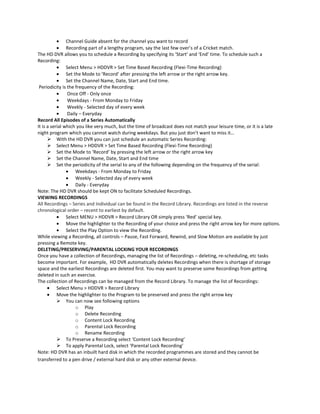
Note: HD DVR has an inbuilt hard disk in which the recorded programmes are stored and they cannot be
transferred to a pen drive / external hard disk or any other external device.
CONFLICTS IN SCHEDULING RECORDINGS
Before stating the possible conflicts which can arise while scheduling Recordings, it is good to understand a few
things about how the HD DVR tunes into a channel and displays it.
In the case of the Videocon d2h service, TV channels are being digitally broadcast. Several TV channels are
broadcast over a single frequency. The HD DVR has tuners using which it tunes to a chosen frequency, and
accesses the collection of channels in that frequency. Now, the HD DVR has two tuners and so at any particular
time the HD DVR can tune into a maximum of two different frequencies - which means a maximum of two
different channel bouquets.
So, in the HD DVR,
 You can watch one channel while a different one is getting recorded



If you set two Recordings simultaneously, you CANNOT watch a channel other than these two channels

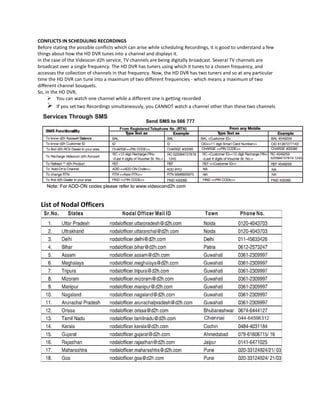
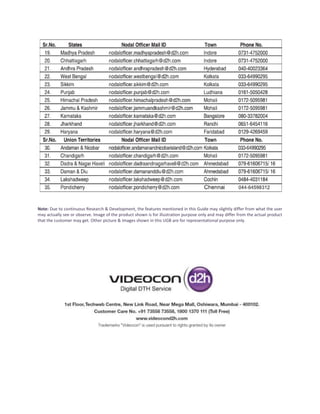
List of Nodal Officers
Note: Due to continuous Research & Development, the features mentioned in this Guide may slightly differ from what the user
may actually see or observe. Image of the product shown is for illustration purpose only and may differ from the actual product
that the customer may get. Other picture & images shown in this UGB are for representational purpose only.

Hddvr videocon

  • 1.
    UGB / Manualof Practice of HDDVR Welcome to the next level in TV viewing. With Videocon d2h’s High Definition Digital Video Recorder (HD DVR), you can watch TV at your own convenience! The HD DVR blends a superior picture and sound quality with an intelligent recording feature, giving you more control over your TV. Superior picture and sound quality : Videocon d2h’s HD DVR uses the latest technology. This gives you ultra-sharp pictures and crystal-clear sound, dramatically improving your TV viewing experience. Recording: With the recording feature, you can record, play back, pause and rewind your favourite TV programmes. Get Started Connect Correct Now that you’ve got your Videocon d2h connection, our installation team will show you how to use your equipment. If you’re still curious to know more, here’s some quick and useful information. The HD DVR receives signals through your Antenna (Reflector) and then sends it to your television. The HD DVR has to be connected to LNBF with the RF Co-Axial Cable. Installation of the Antenna (Reflector), LNBF, cabling to the HD DVR, etc., will be done by the Installation Engineer. DO NOT attempt to do it yourself. Ensure Smart Card is inserted properly in the right direction and in the correct slot. PRODUCT SPECIFICATIONS SYSTEM DETAILS System Capabilities Demodulator Front End Video Decoder Video Format SATELLITE SIGNAL INPUT Impedance Frequency Range LNB Supply Min. Signal Level POWER SUPPLY Input Voltage Range Power Supply Power Consumption MPEG-4 Part 10, DVB-S2 8 PSK MPEG-4 PAL 75 Ohm 950-2150MHz +13V/+18V, 500mA -65dBm to -25dBm AC 90-270V, 47-63Hz Internal 45W
  • 2.
    CONNECTIONS Mains 2 Satellite SignalInputs Composite Video Output HDMI Video Output SPDIF Output Composite Audio Output USB Port Ethernet Connection GENERAL Hard Disk Size Dimensions Weight Operating Temperature Range ACCESSORIES HDMI Cable Remote Control Batteries for Remote 2 Pin Indian Plug F-Type Female IEC 60169-24 IEC 48B Sec 316(RCA) Female (Yellow) HDMI Receptacle Connector Co-Axial, Optical IEC 48B Sec 316(RCA) Female (White & Red) USB 2.0, Type A Socket RJ 45 500 GB 260mm (W) x 210mm(D) x 55mm(H) 1.46Kg 5-45deg C HDMI 19P/M Moulding Type, 1500mm IR Remote Control 2 AAA Size Batteries HDDVR Remote HD DVR offers many functions. Quick Select Channel selection is one of the most frequently performed tasks by a TV viewer. The Satellite HD DVR provides two very easy and quick ways of channel selection - through the MOSAIC and the CHANNEL GUIDE applications.
  • 3.
    Mosaic The Mosaic applicationdisplays all channel genres - Hindi GEC, Kids, Movies, Music, News, Religious, Sports, etc. Mosaic is an easy way to select channels, if you are not seeking extra info that is available in a Channel Guide. Channel Guide Select the channel guide. A list of genres is displayed to narrow down your selection. The FULL GUIDE You get the FULL GUIDE when you select a genre. You can scroll Up and Down in the list of channels. In each channel, you can scroll to the Right and Left for the daily program schedule. The MINI GUIDE You can toggle between the FULL GUIDE and the MINI GUIDE by pressing the ‘Yellow color’ special key. The MINI GUIDE is the program schedule for one particular channel. This is a more reader-friendly list with most of the program names displayed fully. RECORDING FEATURES With the HD DVR, it is possible to: Pause Live TV Rewind Live TV Record o what you are watching o a Future Program o by giving a Start and End Time o all episodes of a series automatically PAUSE LIVE TV The HDDVR allows you to Pause Live TV and resume from where you paused. Press the Play / Pause Key to pause and again press the same key to resume the program. REWIND FROM LIVE TV Whenever the HD DVR is ON and is being used, it stores the channel viewed during the past few minutes. This duration is configurable. For example, if you set the duration as 30 minutes, the HD DVR stores the channel viewed by you in the last 30 minutes. This stored video is called the Time Shift Buffer (TSB). You can Rewind and watch this stored video, or the ‘TSB’ by pressing ‘Rewind’ the key. Pressing the ‘Rewind’ key repeatedly will increase the speed. Press the ‘Live’ key to jump back to the LIVE point or what is currently being broadcast. VARIOUS WAYS OF RECORDING Record What You Are Watching If you are watching a program, Press the ‘REC’ key to start the recording. To stop the recording press the Stop key Recording continues till the end of program if Stop key is not pressed Recording a Future Program You can schedule recording of a future program through the Channel Guide or the Info Bar. When inside the Channel Guide, press ‘OK’ on the program you want to record. More options pop-up Select the “Record” option to schedule the Recording You can schedule a Recording from the Info Bar by first moving the highlighter to the required Program Next, press ‘OK’ More options pop-up Select the “Record This Program” option to schedule the Recording Record By Giving a ‘Start’ And ‘End’ Time Sometimes you cannot schedule a future recording by selecting a program in the Channel Guide or Info Banner due to various reasons:
  • 4.
    Channel Guide absentfor the channel you want to record Recording part of a lengthy program, say the last few over’s of a Cricket match. The HD DVR allows you to schedule a Recording by specifying its ‘Start’ and ‘End’ time. To schedule such a Recording: Select Menu > HDDVR > Set Time Based Recording (Flexi-Time Recording) Set the Mode to ‘Record’ after pressing the left arrow or the right arrow key. Set the Channel Name, Date, Start and End time. Periodicity is the frequency of the Recording: Once Off - Only once Weekdays - From Monday to Friday Weekly - Selected day of every week Daily – Everyday Record All Episodes of a Series Automatically It is a serial which you like very much, but the time of broadcast does not match your leisure time, or it is a late night program which you cannot watch during weekdays. But you just don’t want to miss it…  With the HD DVR you can just schedule an automatic Series Recording:  Select Menu > HDDVR > Set Time Based Recording (Flexi-Time Recording)  Set the Mode to ‘Record’ by pressing the left arrow or the right arrow key  Set the Channel Name, Date, Start and End time  Set the periodicity of the serial to any of the following depending on the frequency of the serial: Weekdays - From Monday to Friday Weekly - Selected day of every week Daily - Everyday Note: The HD DVR should be kept ON to facilitate Scheduled Recordings. VIEWING RECORDINGS All Recordings – Series and Individual can be found in the Record Library. Recordings are listed in the reverse chronological order – recent to earliest by default. Select MENU > HDDVR > Record Library OR simply press ‘Red’ special key. Move the highlighter to the Recording of your choice and press the right arrow key for more options. Select the Play Option to view the Recording. While viewing a Recording, all controls – Pause, Fast Forward, Rewind, and Slow Motion are available by just pressing a Remote key. DELETING/PRESERVING/PARENTAL LOCKING YOUR RECORDINGS Once you have a collection of Recordings, managing the list of Recordings – deleting, re-scheduling, etc tasks become important. For example, HD DVR automatically deletes Recordings when there is shortage of storage space and the earliest Recordings are deleted first. You may want to preserve some Recordings from getting deleted in such an exercise. The collection of Recordings can be managed from the Record Library. To manage the list of Recordings: Select Menu > HDDVR > Record Library Move the highlighter to the Program to be preserved and press the right arrow key  You can now see following options o Play o Delete Recording o Content Lock Recording o Parental Lock Recording o Rename Recording  To Preserve a Recording select ‘Content Lock Recording’  To apply Parental Lock, select ‘Parental Lock Recording’ Note: HD DVR has an inbuilt hard disk in which the recorded programmes are stored and they cannot be transferred to a pen drive / external hard disk or any other external device.
  • 5.
    CONFLICTS IN SCHEDULINGRECORDINGS Before stating the possible conflicts which can arise while scheduling Recordings, it is good to understand a few things about how the HD DVR tunes into a channel and displays it. In the case of the Videocon d2h service, TV channels are being digitally broadcast. Several TV channels are broadcast over a single frequency. The HD DVR has tuners using which it tunes to a chosen frequency, and accesses the collection of channels in that frequency. Now, the HD DVR has two tuners and so at any particular time the HD DVR can tune into a maximum of two different frequencies - which means a maximum of two different channel bouquets. So, in the HD DVR,  You can watch one channel while a different one is getting recorded  If you set two Recordings simultaneously, you CANNOT watch a channel other than these two channels List of Nodal Officers
  • 6.
    Note: Due tocontinuous Research & Development, the features mentioned in this Guide may slightly differ from what the user may actually see or observe. Image of the product shown is for illustration purpose only and may differ from the actual product that the customer may get. Other picture & images shown in this UGB are for representational purpose only.