SOCIAL NETWOKING
CLONE
PRESENTED BY:
Durga Sankar puhan:220301120166
Kanta Anurag Sahoo: 220301120178
Twitter-Clone
log in
Page
Twitter-Clone
sign up
Page
AUTHENTICATION
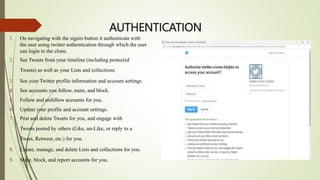
1. On navigating with the signin button it authenticate with
the user using twitter authentication through which the user
can login to the clone.
2. See Tweets from your timeline (including protected
Tweets) as well as your Lists and collections.
3. See your Twitter profile information and account settings.
4. See accounts you follow, mute, and block.
5. Follow and unfollow accounts for you.
6. Update your profile and account settings.
7. Post and delete Tweets for you, and engage with
Tweets posted by others (Like, un-Like, or reply to a
Tweet, Retweet, etc.) for you.
8. Create, manage, and delete Lists and collections for you.
9. Mute, block, and report accounts for you.
Home Page
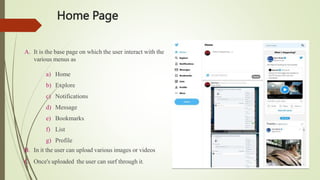
A. It is the base page on which the user interact with the
various menus as
a) Home
b) Explore
c) Notifications
d) Message
e) Bookmarks
f) List
g) Profile
B. In it the user can upload various images or videos
C. Once's uploaded the user can surf through it.
Image Upload
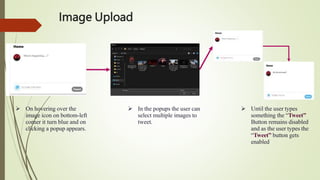
 On hovering over the
image icon on bottom-left
corner it turn blue and on
clicking a popup appears.
 In the popups the user can
select multiple images to
tweet.
 Until the user types
something the “Tweet”
Button remains disabled
and as the user types the
“Tweet” button gets
enabled
Uploading and Rendering



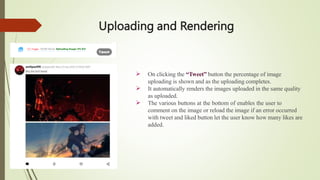
On clicking the “Tweet” button the percentage of image
uploading is shown and as the uploading completes.
It automatically renders the images uploaded in the same quality
as uploaded.
The various buttons at the bottom of enables the user to
comment on the image or reload the image if an error occurred
with tweet and liked button let the user know how many likes are
added.
Firebase


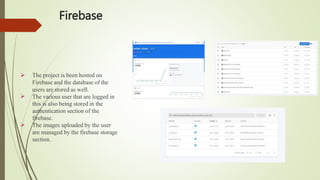
 The project is been hosted on
Firebase and the database of the
users are stored as well.
The various user that are logged in
this is also being stored in the
authentication section of the
firebase.
The images uploaded by the user
are managed by the firebase storage
section.
Hosting
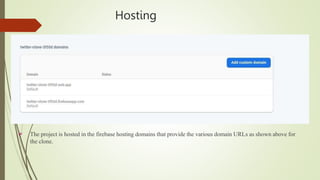
 The project is hosted in the firebase hosting domains that provide the various domain URLs as shown above for
the clone.
Git
Analysis


The project had been created with the combination of various language such as React-Js, CSS,HTML5.
The project code is sequentially divided in various folder and files as shown below.
Project-Code
import {Avatar, Button } from '@material-ui/core';
import React, { useState } from 'react';
import './Tweetinput.css';
import PhotoLibraryIcon from '@material-ui/icons/PhotoLibrary';
import firebase from 'firebase';
import db,{storage} from '../../Firebase/Firebase';
import { connect } from 'react-redux';
const Tweetinput = (props) => {
const [tweetContent,settweetContent] = useState(""); const
[uploadImages,setuploadImages] = useState(null); const [tweeting,setTweeting]
= useState(false);
const [uploadedAmount,setuploadedAmount] = useState(0); const
[uploadedNumber,setuploadedNumber] = useState(0);
const tweetTWEET = (e) =>{ e.preventDefault();
setTweeting(true);
const data = {
displayName: props.user.displayName, userName:
props.user.userName, profileUrl: props.user.photoURL,
verified: props.user.verified,
timeStamp: firebase.firestore.FieldValue.serverTimestamp(), tweetText:
tweetContent,
images: []
}
const uploadedImages = [];
}
const imageSourceChangeHandler = (e)=>{ e.preventDefault();
if(e.target.files[0]){ setuploadImages([e.target.files[0],e.target.files[1]]);
}else{
setuploadImages(null)
}
}
return (
<div className="selftweet">
<div className="selftweet body">
<Avatar className="selftweet body avatar" src={props.user.photoURL} alt="avatar"
>{props.user.displayName[0]}</Avatar>
<textarea value={tweetContent}
onChange={(e)=>{if(tweetContent.length<300 || e.target.value.length<300){settweetContent(e.target.value)}}}
placeholder="What's Happening......?"/>
</div>
<div className="selftweet tweet">
<div className="selftweet tweet details">
<label className="image uploader"><PhotoLibraryIcon id="image uploader label"/> <input type="file"
multiple max={2} onChange={(e)=>{imageSourceChangeHandler(e)}} /></label>
<p style={{color: uploadImages?uploadImages.length===2?"red":"grey":"grey"}}>{uploadImages?
uploadImages.length:0}/2 Images</p>
<p style={{color: tweetContent.length>250?"red":"grey"}}>{tweetContent.length}/300 Words</p>
<p style={{display: tweeting?"initial":"none",color: "green",fontWeight: 900}}>Uploading Image: {uploadedAmount}
% {uploadedNumber}/{uploadImages?uploadImages.length:0}</p>
</div>
<Button disabled={tweeting || tweetContent.trim()==="" } onClick={(e)=>{tweetTWEET(e);}}
className="selftweet button">Tweet</Button>
</div>
</div>
)
};
const mapStateToProps = (state) =>{
return{
user: state.auth.user
}
}
export default connect(mapStateToProps)(Tweetinput);
THANK-YOU

twitter ppt .pptx

  • 1.
    SOCIAL NETWOKING CLONE PRESENTED BY: DurgaSankar puhan:220301120166 Kanta Anurag Sahoo: 220301120178
  • 2.
  • 3.
  • 4.
    AUTHENTICATION 1. On navigatingwith the signin button it authenticate with the user using twitter authentication through which the user can login to the clone. 2. See Tweets from your timeline (including protected Tweets) as well as your Lists and collections. 3. See your Twitter profile information and account settings. 4. See accounts you follow, mute, and block. 5. Follow and unfollow accounts for you. 6. Update your profile and account settings. 7. Post and delete Tweets for you, and engage with Tweets posted by others (Like, un-Like, or reply to a Tweet, Retweet, etc.) for you. 8. Create, manage, and delete Lists and collections for you. 9. Mute, block, and report accounts for you.
  • 5.
    Home Page A. Itis the base page on which the user interact with the various menus as a) Home b) Explore c) Notifications d) Message e) Bookmarks f) List g) Profile B. In it the user can upload various images or videos C. Once's uploaded the user can surf through it.
  • 6.
    Image Upload  Onhovering over the image icon on bottom-left corner it turn blue and on clicking a popup appears.  In the popups the user can select multiple images to tweet.  Until the user types something the “Tweet” Button remains disabled and as the user types the “Tweet” button gets enabled
  • 7.
    Uploading and Rendering    Onclicking the “Tweet” button the percentage of image uploading is shown and as the uploading completes. It automatically renders the images uploaded in the same quality as uploaded. The various buttons at the bottom of enables the user to comment on the image or reload the image if an error occurred with tweet and liked button let the user know how many likes are added.
  • 8.
    Firebase    The projectis been hosted on Firebase and the database of the users are stored as well. The various user that are logged in this is also being stored in the authentication section of the firebase. The images uploaded by the user are managed by the firebase storage section.
  • 9.
    Hosting  The projectis hosted in the firebase hosting domains that provide the various domain URLs as shown above for the clone.
  • 10.
    Git Analysis   The project hadbeen created with the combination of various language such as React-Js, CSS,HTML5. The project code is sequentially divided in various folder and files as shown below.
  • 11.
    Project-Code import {Avatar, Button} from '@material-ui/core'; import React, { useState } from 'react'; import './Tweetinput.css'; import PhotoLibraryIcon from '@material-ui/icons/PhotoLibrary'; import firebase from 'firebase'; import db,{storage} from '../../Firebase/Firebase'; import { connect } from 'react-redux'; const Tweetinput = (props) => { const [tweetContent,settweetContent] = useState(""); const [uploadImages,setuploadImages] = useState(null); const [tweeting,setTweeting] = useState(false); const [uploadedAmount,setuploadedAmount] = useState(0); const [uploadedNumber,setuploadedNumber] = useState(0); const tweetTWEET = (e) =>{ e.preventDefault(); setTweeting(true); const data = { displayName: props.user.displayName, userName: props.user.userName, profileUrl: props.user.photoURL, verified: props.user.verified, timeStamp: firebase.firestore.FieldValue.serverTimestamp(), tweetText: tweetContent, images: [] } const uploadedImages = []; } const imageSourceChangeHandler = (e)=>{ e.preventDefault(); if(e.target.files[0]){ setuploadImages([e.target.files[0],e.target.files[1]]); }else{ setuploadImages(null) } } return ( <div className="selftweet"> <div className="selftweet body"> <Avatar className="selftweet body avatar" src={props.user.photoURL} alt="avatar" >{props.user.displayName[0]}</Avatar> <textarea value={tweetContent} onChange={(e)=>{if(tweetContent.length<300 || e.target.value.length<300){settweetContent(e.target.value)}}} placeholder="What's Happening......?"/> </div> <div className="selftweet tweet"> <div className="selftweet tweet details"> <label className="image uploader"><PhotoLibraryIcon id="image uploader label"/> <input type="file" multiple max={2} onChange={(e)=>{imageSourceChangeHandler(e)}} /></label> <p style={{color: uploadImages?uploadImages.length===2?"red":"grey":"grey"}}>{uploadImages? uploadImages.length:0}/2 Images</p> <p style={{color: tweetContent.length>250?"red":"grey"}}>{tweetContent.length}/300 Words</p> <p style={{display: tweeting?"initial":"none",color: "green",fontWeight: 900}}>Uploading Image: {uploadedAmount} % {uploadedNumber}/{uploadImages?uploadImages.length:0}</p> </div> <Button disabled={tweeting || tweetContent.trim()==="" } onClick={(e)=>{tweetTWEET(e);}} className="selftweet button">Tweet</Button> </div> </div> ) }; const mapStateToProps = (state) =>{ return{ user: state.auth.user } } export default connect(mapStateToProps)(Tweetinput);
  • 12.