Twitter for Starters Learn Twitter Basics
How to Watch  a video overview of Twitter Create  a Twitter account Update  your status (start twittering) Search  for people with the same interests to follow Reply  to someones tweet Save  a tweet (favourite) to read later Direct message  someone you are following
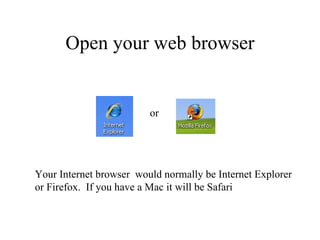
Open your web browser or Your Internet browser  would normally be Internet Explorer  or Firefox.  If you have a Mac it will be Safari
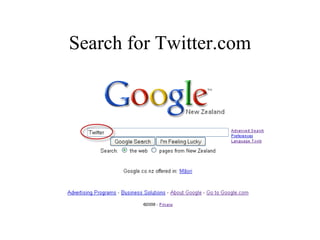
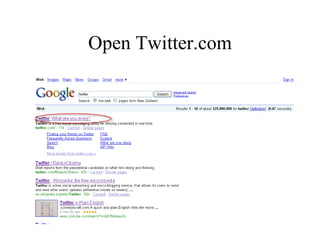
Search for Twitter.com
Open Twitter.com
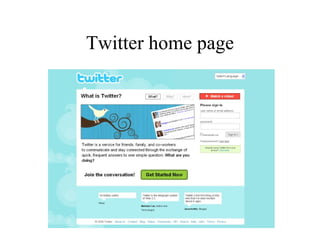
Twitter home page
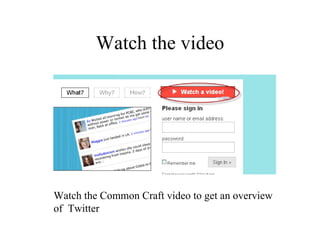
Watch the video Watch the Common Craft video to get an overview of  Twitter
Get started with Twitter
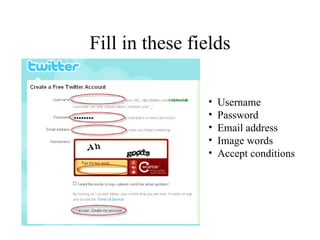
You need to: Decide and enter a username Remember you are creating an online identity Your password Your email address The words you see in the image Accept the conditions to save and continue
Fill in these fields Username Password Email address Image words Accept conditions
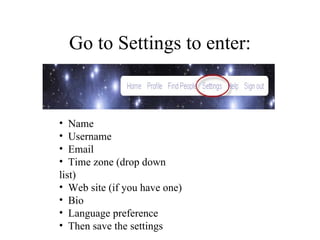
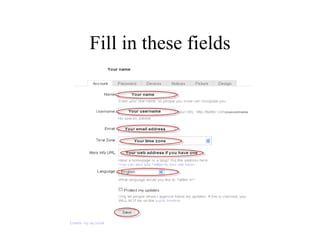
Go to Settings to enter: Name  Username Email Time zone (drop down list) Web site (if you have one)  Bio Language preference Then save the settings
Fill in these fields
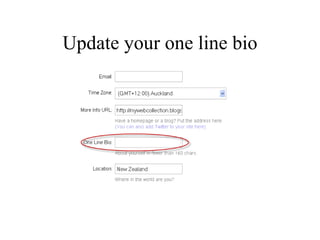
Update your one line bio
Your bio Make sure you write something meaningful  in your Bio so other can learn something  about you.  Bios are searchable.
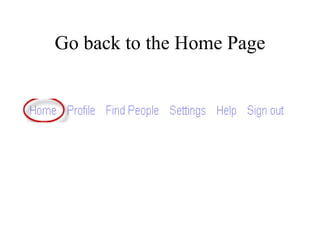
Go back to the Home Page
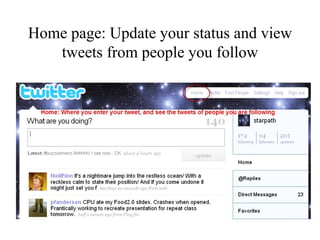
Home page: Update your status and view tweets from people you follow
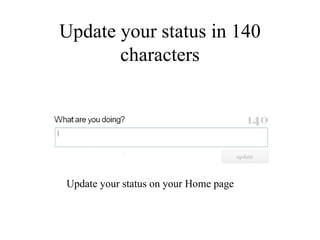
Update your status in 140 characters Update your status on your Home page
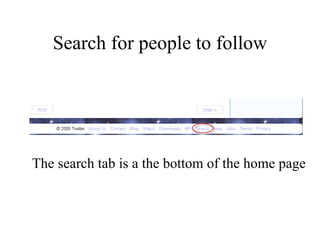
Search for people to follow The search tab is a the bottom of the home page
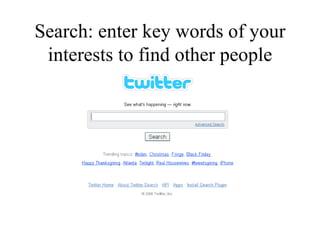
Search: enter key words of your interests to find other people
Decide who you want to follow Enter keywords of topics you want to follow This will return tweets by people who have used these words. Look at their bio to see who they are and who their followers are.
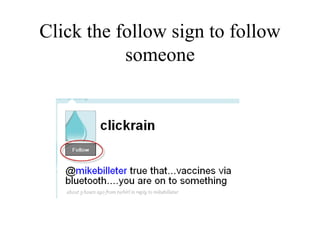
Click the follow sign to follow someone
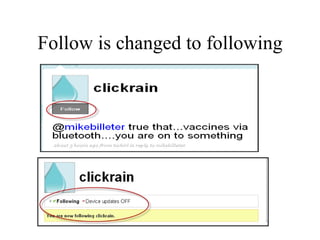
Follow is changed to following
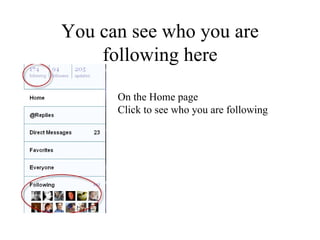
You can see who you are following here On the Home page Click to see who you are following
Read your tweets
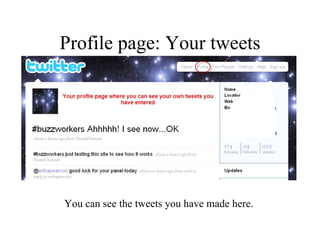
Profile page: Your tweets You can see the tweets you have made here.
Reply to other people’s  tweets
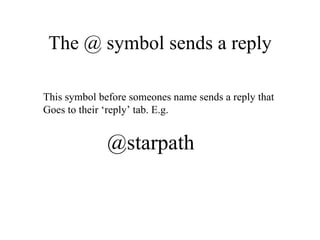
The @ symbol sends a reply This symbol before someones name sends a reply that  Goes to their ‘reply’ tab. E.g. @starpath
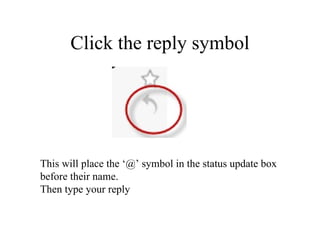
Click the reply symbol This will place the ‘@’ symbol in the status update box  before their name. Then type your reply
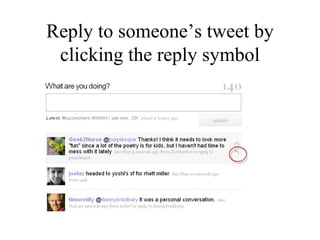
Reply to someone’s tweet by clicking the reply symbol
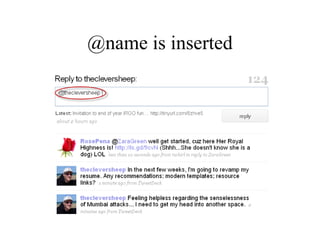
@name is inserted
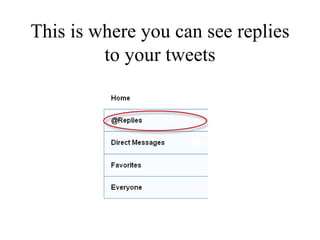
This is where you can see replies to your tweets
Favourites
Save interesting tweets to read and reply to later
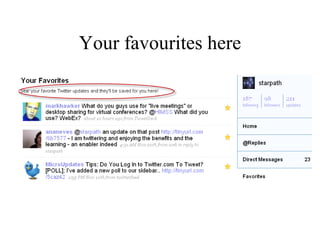
‘Favourite’ a tweet by clicking the star This saves it into the ‘Favourites’ tab to go back  and  read when there is more time.
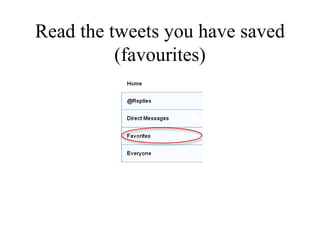
Read the tweets you have saved (favourites)
Your favourites here
Direct Messages These are private messages between you and one other person
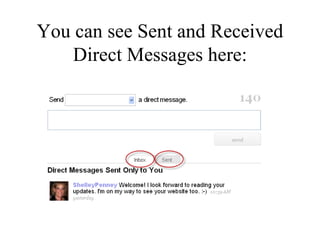
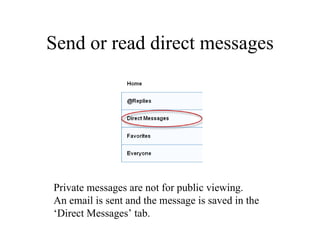
Send or read direct messages Private messages are not for public viewing.  An email is sent and the message is saved in the  ‘ Direct Messages’ tab.
You can see Sent and Received Direct Messages here:
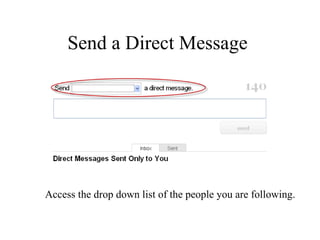
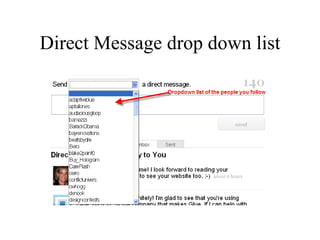
Send a Direct Message  Access the drop down list of the people you are following.
Direct Message drop down list
Send direct messages from: The ‘message’ link on the profile page The reply icon from your direct messages The drop down box  on the direct message inbox page The status update box using:   d + username + message

Twitter Basics for Non-techies (like me)

  • 1.
    Twitter for StartersLearn Twitter Basics
  • 2.
    How to Watch a video overview of Twitter Create a Twitter account Update your status (start twittering) Search for people with the same interests to follow Reply to someones tweet Save a tweet (favourite) to read later Direct message someone you are following
  • 3.
    Open your webbrowser or Your Internet browser would normally be Internet Explorer or Firefox. If you have a Mac it will be Safari
  • 4.
  • 5.
  • 6.
  • 7.
    Watch the videoWatch the Common Craft video to get an overview of Twitter
  • 8.
  • 9.
    You need to:Decide and enter a username Remember you are creating an online identity Your password Your email address The words you see in the image Accept the conditions to save and continue
  • 10.
    Fill in thesefields Username Password Email address Image words Accept conditions
  • 11.
    Go to Settingsto enter: Name Username Email Time zone (drop down list) Web site (if you have one) Bio Language preference Then save the settings
  • 12.
  • 13.
  • 14.
    Your bio Makesure you write something meaningful in your Bio so other can learn something about you. Bios are searchable.
  • 15.
    Go back tothe Home Page
  • 16.
    Home page: Updateyour status and view tweets from people you follow
  • 17.
    Update your statusin 140 characters Update your status on your Home page
  • 18.
    Search for peopleto follow The search tab is a the bottom of the home page
  • 19.
    Search: enter keywords of your interests to find other people
  • 20.
    Decide who youwant to follow Enter keywords of topics you want to follow This will return tweets by people who have used these words. Look at their bio to see who they are and who their followers are.
  • 21.
    Click the followsign to follow someone
  • 22.
    Follow is changedto following
  • 23.
    You can seewho you are following here On the Home page Click to see who you are following
  • 24.
  • 25.
    Profile page: Yourtweets You can see the tweets you have made here.
  • 26.
    Reply to otherpeople’s tweets
  • 27.
    The @ symbolsends a reply This symbol before someones name sends a reply that Goes to their ‘reply’ tab. E.g. @starpath
  • 28.
    Click the replysymbol This will place the ‘@’ symbol in the status update box before their name. Then type your reply
  • 29.
    Reply to someone’stweet by clicking the reply symbol
  • 30.
  • 31.
    This is whereyou can see replies to your tweets
  • 32.
  • 33.
    Save interesting tweetsto read and reply to later
  • 34.
    ‘Favourite’ a tweetby clicking the star This saves it into the ‘Favourites’ tab to go back and read when there is more time.
  • 35.
    Read the tweetsyou have saved (favourites)
  • 36.
  • 37.
    Direct Messages Theseare private messages between you and one other person
  • 38.
    Send or readdirect messages Private messages are not for public viewing. An email is sent and the message is saved in the ‘ Direct Messages’ tab.
  • 39.
    You can seeSent and Received Direct Messages here:
  • 40.
    Send a DirectMessage Access the drop down list of the people you are following.
  • 41.
  • 42.
    Send direct messagesfrom: The ‘message’ link on the profile page The reply icon from your direct messages The drop down box on the direct message inbox page The status update box using: d + username + message