Tutorial on making a video
using Windows Movie Maker
westlean.wordpress.com 1
First, let us learn what is
Windows Movie Maker?
westlean.wordpress.com 2
Windows Movie Maker
is a freeware video editing
software by Microsoft.
westlean.wordpress.com 3
(codenamed Sundance,
formerly known as Windows
Live Movie Maker in Windows 7)
westlean.wordpress.com 4
It is a part of Windows
Essentials software suite
westlean.wordpress.com 5
and offers the ability to create
and edit videos
westlean.wordpress.com 6
as well as to publish them
on OneDrive, Facebook, Vimeo,
YouTube, and Flickr.
westlean.wordpress.com 7
The first release of Windows
Movie Maker was included
with Windows ME in 2000.
westlean.wordpress.com 8
Version 1.1 was included in
Windows XP a year later,
westlean.wordpress.com 9
and included support for
creating DV AVI and WMV 8 files.
westlean.wordpress.com 10
Version 2.0 was released as a
free update in November
2002, and added a number of
new features
westlean.wordpress.com 11
Version 2.1, a minor update, is
included in Windows XP Service
Pack 2.
westlean.wordpress.com 12
The Movie Maker in Windows XP
Media Center Edition 2005 had
more transitions and support
for DVD burning.
westlean.wordpress.com 13
An updated version, Windows
Live Movie Maker 2011,
westlean.wordpress.com 14
was released on August 17,
2010, adding webcam capture,
support for high-definition
video,
westlean.wordpress.com 15
the ability to upload videos
directly to SkyDrive
and Facebook,
westlean.wordpress.com 16
and the ability to add media files
stored on network shares to
projects.
westlean.wordpress.com 17
With the discontinuation of
the Windows Live brand
westlean.wordpress.com 18
(and the re-branding of the
Windows Live suite as
Windows Essentials),
westlean.wordpress.com 19
Windows Movie Maker 2012
was released in April 2012.
westlean.wordpress.com 20
Support for recording
voiceovers was restored, along
with an audio mixer and
integration
westlean.wordpress.com 21
with several free stock
music services. H.264/MP4
became the default export
format
westlean.wordpress.com 22
(replacing Windows Media
Video), support for uploading
to Vimeo was introduced,
westlean.wordpress.com 23
and hardware accelerated video
stabilization was also added as
an exclusive feature
for Windows 8 users.
westlean.wordpress.com 24
Now, lets start
this tutorial.
westlean.wordpress.com 25
Open Windows movie maker
by clicking the start icon in
lower left of our screen.
westlean.wordpress.com 26
westlean.wordpress.com 27
Then click
Windows live movie maker.
westlean.wordpress.com 28
westlean.wordpress.com 29
westlean.wordpress.com 30
To start our movie making
project,
Click Add videos and photo.
westlean.wordpress.com 31
westlean.wordpress.com 32
westlean.wordpress.com 33
Now, open the folder where
your picture are saved then
hilight it and click open
westlean.wordpress.com 34
westlean.wordpress.com 35
westlean.wordpress.com 36
To add more picture
for your video project,
just click again the Add video
and photo to repeat the process.
westlean.wordpress.com 37
westlean.wordpress.com 38
To delete the photo that you
dont want to be added in your
movie project,
Click the photo then press
delete button on your
keyboard.
westlean.wordpress.com 39
westlean.wordpress.com 40
westlean.wordpress.com 41
To add music for your movie
project,
click Add music.
westlean.wordpress.com 42
westlean.wordpress.com 43
westlean.wordpress.com 44
Select the music for
your movie project,
then click open
westlean.wordpress.com 45
westlean.wordpress.com 46
westlean.wordpress.com 47
To add title for
your movie project,
click Title.
westlean.wordpress.com 48
westlean.wordpress.com 49
westlean.wordpress.com 50
Now edit the title
for your movie project.
“Life of Truth Church
Workers Convention
@ Peniel 2011”
westlean.wordpress.com 51
westlean.wordpress.com 52
westlean.wordpress.com 53
To put closing credits to our
movie project,
click the down arrow beside the
Credits then click credits.
westlean.wordpress.com 54
westlean.wordpress.com 55
westlean.wordpress.com 56
Add the closing credits
for your movie project.
westlean.wordpress.com 57
westlean.wordpress.com 58
westlean.wordpress.com 59
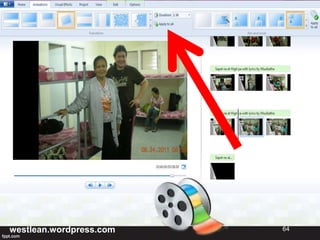
Now to add animation
to our movie project,
click Animation
westlean.wordpress.com 60
westlean.wordpress.com 61
westlean.wordpress.com 62
Select animations for
Transitions,
this can apply to all or
individually.
For now I will select
Apply to all.
westlean.wordpress.com 63
westlean.wordpress.com 64
westlean.wordpress.com 65
Click any picture
to select for Pan and Zoom
animation.
Then click selected animation
then click apply to all.
westlean.wordpress.com 66
westlean.wordpress.com 67
westlean.wordpress.com 68
Now that you added your music,
animation and credits to your
movie project. Its time to edit the
timing of each slides to insync
with the music.
westlean.wordpress.com 69
Since the music we added has
4 minutes and 41 seconds
duration and our slides only has
3 minutes and 58 seconds.
westlean.wordpress.com 70
Click Edit,
then add seconds to
the slide that you chose.
Do this until you reach
the same length of
time of your music,
westlean.wordpress.com 71
westlean.wordpress.com 72
westlean.wordpress.com 73
Since we already insync our slides
and music, we can now play our
movie project.
Click the play button
westlean.wordpress.com 74
westlean.wordpress.com 75
Now to save our movie project,
click the arrow besides
the movie maker
westlean.wordpress.com 76
westlean.wordpress.com 77
westlean.wordpress.com 78
Click save project as.
westlean.wordpress.com 79
westlean.wordpress.com 80
Then name your
movie project and click save.
westlean.wordpress.com 81
westlean.wordpress.com 82
Or we can save our movie
project to a movie file,
Click the Save movie.
westlean.wordpress.com 83
westlean.wordpress.com 84
westlean.wordpress.com 85
Then click
Recommended for this project
westlean.wordpress.com 86
westlean.wordpress.com 87
westlean.wordpress.com 88
Lets upload our movie in
Youtube
westlean.wordpress.com 89
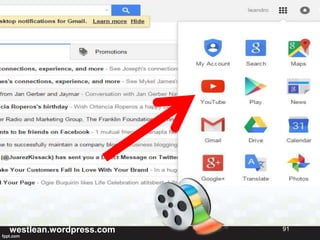
Open your Gmail Account then
click Youtube
westlean.wordpress.com 90
westlean.wordpress.com 91
westlean.wordpress.com 92
Click upload
westlean.wordpress.com 93
westlean.wordpress.com 94
westlean.wordpress.com 95
Then click the
Select files to upload
westlean.wordpress.com 96
westlean.wordpress.com 97
westlean.wordpress.com 98
Click the saved movie project
and click open
westlean.wordpress.com 99
westlean.wordpress.com 100
westlean.wordpress.com 101
Once uploading is done,
Click the publish button to finish
the process.
westlean.wordpress.com 102
westlean.wordpress.com 103
You can now see your movie in
your Youtube channel
westlean.wordpress.com 104
westlean.wordpress.com 105
Thanks for your time and
I hope you have learned
from this tutorial.
westlean.wordpress.com 106
Please visit my Blogsite:
www.westlean.wordpress.com
Facebook Page:
www.facebook.com/Virtual-
Assistant-Entrepreneur
God bless.
westlean.wordpress.com 107

Tutorial on making a video using windows movie maker