EAGLE
      EASILY APPLICABLE GRAPHICAL LAYOUT EDITOR


                           Tutorial

                           Version 5


               Schematic – Layout – Autorouter
                    for Linux® Mac® Windows®


                    CadSoft Computer Inc.
                    www.cadsoftusa.com


                            3rd Edition
                              90327550


Copyright © 2009 CadSoft                       All Rights Reserved
If you have any questions please feel free to contact us:

USA and other countries:
       Phone:               +1 (954) 237 0932
       Fax:                 +1 (954) 237 0968
       Internet:            www.cadsoftusa.com
       Email:               Info@cadsoftusa.com

Germany and other European countries:
       Phone:          +49 (0)8635 6989­10
       Hotline:        +49 (0)8635 6989­30
       Fax:            +49 (0)8635 6989­40
       Internet:       www.cadsoft.de
       Email:          Info@cadsoft.de

And remember that we offer a free hotline for our customers!


Copyright 2009 CadSoft Computer, Inc. All rights reserved worldwide.
No part of this publication may be reproduced, stored in a retrieval system, or 
transmitted,   in   any   form   or   by   any   means,   electronic,   mechanical, 
photocopying, recording, scanning, digitizing, or otherwise, without the prior 
consense of CadSoft.


Windows is a registered trademark of Microsoft Corporation.
Linux is a registered trademark of Linus Torvalds.
Mac is a registered trademark of Apple Computer Inc.
Table Of Contents
1 What to expect from this Tutorial...............................................................6
2 Features of EAGLE.......................................................................................7
   System Requirements...............................................................................7
   Professional Edition..................................................................................7
     General...................................................................................................7
     Layout Editor..........................................................................................8
     Schematic Editor....................................................................................8
     Autorouter Module.................................................................................9
   Standard Edition.......................................................................................9
   Light Edition.............................................................................................9
3 Installation................................................................................................10
    Windows.................................................................................................10
    Linux......................................................................................................11
    Mac OS X................................................................................................12
4 Individual EAGLE Setup............................................................................13
    The Script File eagle.scr..........................................................................13
    User Interface.........................................................................................13
    Function Keys.........................................................................................13
    Layer Colors............................................................................................14
5 The Concept of the EAGLE User Interface.................................................15
   Selecting Menu Items.............................................................................15
   Mouse Click............................................................................................15
   Several Input Alternatives......................................................................16
   Use of Key Combinations........................................................................16
   The Context menu..................................................................................16
   Command and Parameter Input via the Command Line.........................16
6 Control Panel............................................................................................19
   EAGLE Files............................................................................................20
   Backup Files............................................................................................20
   Create EAGLE Projects............................................................................20
7 Load File and Select Monitor Zoom...........................................................22
8 Selecting Layers for Display......................................................................24
9 Setting up Grid and Unit...........................................................................25
10 Wires, Circles, Arcs, Rectangles, and Text...............................................26
   The WIRE Command..............................................................................26
   Changing Line Width..............................................................................27
   Change Object to another Layer.............................................................28
   Undo/Redo Function..............................................................................28
The CIRCLE Command...........................................................................28
     The ARC Command................................................................................29
     The RECT Command..............................................................................29
     The TEXT Command...............................................................................29
     Special Text Variables.............................................................................31
11 Using Libraries........................................................................................32
   The ADD Command................................................................................32
   The USE Command................................................................................34
   The INVOKE Command..........................................................................34
12 Drawing a Schematic..............................................................................36
   Grid........................................................................................................36
   Adding a Frame to a Schematic..............................................................36
   Adding and Changing Text.....................................................................36
   Entering a Schematic..............................................................................38
    The NET Command..............................................................................39
    The NAME Command...........................................................................39
    The LABEL Command...........................................................................39
    The DELETE Command........................................................................40
    The JUNCTION Command...................................................................40
    The SHOW Command..........................................................................40
    The MOVE Command...........................................................................41
    History Function...................................................................................41
   Completing the Schematic......................................................................42
    The SMASH Command.........................................................................42
    The VALUE Command..........................................................................43
   The Electrical Rule Check (ERC)............................................................44
   Generating a Board from a Schematic....................................................44
   The BUS Command................................................................................44
13 Automatic Forward&Back Annotation.....................................................46
14 Designing a PC Board..............................................................................47
   Designing a Board without a Schematic.................................................47
    Defining Board Shape...........................................................................47
    Placement Grid.....................................................................................48
    Placing Components.............................................................................48
    Placing SMD Packages..........................................................................48
    Providing Names..................................................................................49
    Providing Values..................................................................................49
    Defining Signals...................................................................................49
    Defining Net Classes.............................................................................50
   Creating a Board from a Schematic........................................................50
    Generating a Board File........................................................................51
    Component Placement.........................................................................51
    Autorouter: A Brief Example................................................................52
Routing Manually.................................................................................52
      Follow­me Router.................................................................................53
      Board Changes.....................................................................................54
     Further Usage of the Layout Editor.........................................................55
      The DISPLAY Command.......................................................................55
      The MOVE Command...........................................................................55
      The GROUP Command.........................................................................56
      The SPLIT Command............................................................................57
      The CHANGE Command......................................................................57
      The ROUTE Command.........................................................................57
      The RIPUP Command...........................................................................58
      The SHOW Command..........................................................................58
      Refresh Screen.....................................................................................58
      Undo/Redo Function............................................................................58
      Inner Layers.........................................................................................58
      Supply Layers.......................................................................................58
      Copper Pouring with the POLYGON Command....................................59
15 Autorouter...............................................................................................61
16 Design Rule Check..................................................................................63
17 Libraries..................................................................................................64
   Resistor Package.....................................................................................64
   Resistor Symbol......................................................................................66
   Resistor Device.......................................................................................66
18 Output of Drawings and Manufacturing Data.........................................70
   Output a Schematic with the PRINT Command......................................70
   Generating Image Files for Documentation Purpose...............................71
   Generating Gerber Data with the CAM Processor...................................71
   Generating Drill Data.............................................................................71
   Further Manufacturing Data...................................................................72
19 Data Exchange........................................................................................73
   The EAGLE User Language.....................................................................73
   Script Files – A Flexible Input Interface..................................................73
EAGLE 5 – Tutorial


1  What to expect from this Tutorial

This tutorial provides a basic introduction to the EAGLE PCB­Design Package.
It   covers   the   use   of   the   EAGLE   Schematic   Editor,   Layout   Editor,   and 
Autorouter.   This   guide   will   lead   you   through   the   program   in   the   natural 
order,   starting   with   the   Schematic   Editor   and   working   through   to   board 
design and autorouting. You will benefit most by going through the entire 
document.
You should be familiar with the use of the basic functions of your operating 
system.   Expressions   like  enlarge   the   editor   window  will   be   used   without 
further explanation.
Having   completed   this   tutorial   you   should   be   able   to   start   working   on   a 
serious   project.   While   creating   your   initial   designs,   however,   you   should 
frequently use the help function and the EAGLE Manual to learn more about 
specific details. Only then will you be able to take full advantage of EAGLE's 
capabilities.
You will learn how to use most of the program commands, although not all of 
the features which make EAGLE so powerful and flexible are discussed in this 
introduction  –  for  example  the  possibilities   of  the  SET,  SCRIPT, and RUN 
commands (see help).
Before you begin you should consult the README file and the files with the 
extension *.txt in eagle/doc.
The differences between EAGLE for Linux, Mac, and Windows are minimal.


6
EAGLE 5 – Tutorial


2  Features of EAGLE

System Requirements
EAGLE   is   a   powerful   graphics   editor   for   designing   PC­board   layouts   and 
schematics. In order to run EAGLE the following is required:
     Windows 2000, XP, or Vista,
      Linux based on kernel 2.x for Intel computers, libc6 and X11 
       with a minimum color depth of 8 bpp,
      Mac OS X version 10.4 or above (for Power PC or Intel computer),
      a harddisk with a minimum of 70 MByte free disc space,
      a minimum graphics resolution of 1024 x 768 pixels,
      preferably a 3­button mouse.

Professional Edition
General
    maximum drawing area 64 x 64 inches (about 1600 x 1600 mm)
      resolution 1/10.000 mm (0.1 microns)
      grid in mm or inch
      up to 255 drawing layers
      command (Script) files
      C­like User Language for data import and export
      easy library editing
      composition of self­defined libraries with already existing
       elements by Drag&Drop
      easy generation of new package variants from any library 
       by Drag&Drop
      free rotation of package variants (0.1 degree steps)
      library browser with powerful search function
      support of technology feature (e.g. 74L00, 74LS00..)
      Easy definition of labelled drawing frames
      free definable attributes, applicable for Devices in the Libraries 
       and in Schematic or Layout
      integrated PDF data export function
      export function for graphic files (BMP, TIF, PNG...)
      printouts via the OS's printer drivers with print preview
      partlist generation with database support (bom.ulp)


                                                                                        7
EAGLE 5 – Tutorial

     Drag&Drop in the Control Panel
     context menu with object­specific commands for all objects, available 
      through a right mouse click
     properties of objects can be accessed and edited via context menu
     automatic backup function
Layout Editor
    full SMD support
     support of Blind and Buried vias
     rotation of objects in arbitrary angles (0.1­degree steps)
     components can be locked against moving
     texts can be placed in any orientation
     dynamic calculation of signal lines while routing the layout
     magnetic­pads function 
     tracks can be drawn with rounded corners in any radius
     mitering to smooth wire joints
     Design Rule Check for board layouts (checks e.g. overlaps, 
      measures of pads or tracks)
     copper pouring (ground plains)
     package variants support
     user­definable, free programmable User Language to generate data for 
      mounting machines, test equipments, milling machines or any other 
      data format
     output   of   manufacturing   data   for   pen   plotters,   photo   plotters   and 
      drilling machines with the CAM Processor
Schematic Editor
    up to 999 sheets per schematic
     icon preview for sheets
     sorting sheets with Drag&Drop
     cross references for nets
     automatic generation of contact cross references
     simple copying of parts
     replace function for parts without loss of consistency
      between schematic and layout
     Online­Forward&Back Annotation between schematic and board
     automatic board generation
     automatic generation of supply signals
     Electrical Rule Check (error check in the Schematic and consistency 


8
EAGLE 5 – Tutorial

       check between Schematic and Layout)
Autorouter Module
    fully integrated into basic program
     uses the layout's Design Rules
     change between manual and automatic routing at any time
     basic engine for the Follow­me router, a tool that supports 
      you in manual routing; the trace of a selected signal will be
      calculated automatically
     ripup&retry algorithm
     user­definable strategy by cost factors
     routing grid down to 0.02 mm (about 0.8 mil)
     no placement restrictions
     up to 16 signal layers (with user definable preferred directions)
     up to 14 supply layers
     full support of Blind and Buried vias
     takes into consideration various net classes

Standard Edition
The following restrictions apply to the Standard Edition:
     The layout area is restricted to a maximum of 160 x 100 mm
       (about 6.3 x 3.9 inches). Outside this area it is not possible to place 
       packages and draw signals.
     A maximum number of 4 signal layers are allowed (top, bottom,
      and 2 inner layer).
     The Schematic can have a maximum of 99 sheets.

Light Edition
The following restrictions apply to the EAGLE Light Edition:
     The board area is restricted to 100 x 80 mm (about 3.9 x 3.2 inches). 
       Outside this area it is not possible to place packages and draw signals.
     Only two signal layers can be used (no inner layers).
     A schematic can consist of only one single sheet.
Larger Layout and Schematic files can be printed with the  smaller  editions. 
The CAM processor can generate manufacturing data as well.

  It is not possible to combine modules of different editions.
  The Light Edition  is  available as Freeware for  testing, evaluation, and  
  non­commercial use. 


                                                                                 9
EAGLE 5 – Tutorial


3  Installation

Windows
EAGLE for Windows is available as a self­extracting file on CD­ROM or from 
the Download area of CadSoft's web site.
CD­ROM:
Place the CD­ROM in the drive. After a short delay the set­up routine should 
begin. If this does not happen, double­click on the CD­ROM symbol in the My  
Computer folder on the Windows desktop.
Download version:
If you have downloaded the EAGLE archive from our web server, you will see 
an icon, named eagle­win­5.0.0.exe, depending on where you downloaded it 
to;   probably   your   desktop.   Double­click   this   icon   and   the  WinZip   Self­
Extractor window  will appear. The installation routine starts with extracting 
the files from the archive. Click the Setup button to begin.
The version number in the file name may, depending on the current version, 
differ.
Now   the   actual   installation   process   starts.   Follow   the   instructions   step   by 
step. 
At the  end   of  the  installation   you  will   be  asked   how you want  to license 
EAGLE:
  Use License disk
  This implies that you have already bought an EAGLE license. In this 
  case   the   following   dialog   asks   you   for   the   path   to   your   license   file 
  (probably on CD­ROM) and for your personal installation code which 
  can be found on your License Certificate.
  Run as Freeware
  EAGLE will be licensed with the limits of the Light Edition. It's possible 
  to upgrade to a purchased license without reinstallation at any time.
  Don't license now
  postpones the licensing on the first EAGLE start.
The   Windows   Start   menu   now   contains   in   the  Programs  section   the   new 
entry  EAGLE Layout Editor 5.0.0. Tutorial and manual in pdf file format are 
also part of the installation. 


10
EAGLE 5 – Tutorial


Linux
EAGLE for Linux is available as self­extracting shell script with set­up dialog 
on CD­ROM or from the Download area of CadSoft's web site. You may install 
the program as Root/Administrator or as a normal User. 
Initiate the installation process in a file manager with a double­click on the 
shell script file  eagle­lin­5.0.0.run  which is located in the  Linux  directory of 
the EAGLE CD­ROM. In the case you downloaded the file from the Internet 
this file may be located in any other directory. 
Please check, if the file is marked as executable after downloading it. If this is 
not the case, you could, for example, use the chmod command in the console 
to change its attributes. You can start the shell script form the console, as 
well, by typing:
       /path_to_file/eagle-lin-5.0.0.run
The version number in the file name may differ, depending on the currently 
available EAGLE version.
The installation routine starts with extracting the files from the archive. Then 
the actual installation process starts. Follow the instructions step by step.
At the end you will be asked how you want to license EAGLE:
  Use License disk
  This implies that you have already bought an EAGLE license. In this 
  case   the   following   dialog   asks   you   for   the   path   to   your   license   file 
  (probably on CD­ROM) and for your personal installation code which 
  can be found on your License Certificate.
  Run as Freeware
  EAGLE will be licensed with the limits of the Light Edition. It's possible 
  to upgrade to a purchased license without reinstallation at any time.
  Don't license now
  postpones the licensing on the first EAGLE start.
To start EAGLE, execute bin/eagle in the installation directory.
Tutorial and manual in pdf file format are also part of the installation. They 
can be found in the doc directory of the EAGLE installation.


                                                                                          11
EAGLE 5 – Tutorial


Mac OS X
EAGLE for Mac OS X is available as Universal Binary and works on Power­PC 
and on Intel based computers.
The installation archive is either on CD­ROM, or is stored anywhere on your 
computer, if you downloaded it from CadSoft's web site.
CD­ROM:
Place the CD­ROM in the drive. After a short delay the  Finder  should show 
you   the   content   of   the   CD­ROM.   Change   into   the   MacOSX   directory   and 
double­click   the   installation   archive   named  eagle­5.0.0.pkg.   The   version 
number in the file name may differ, depending on the current EAGLE version.
Download version:
If you have downloaded the file from our web server, you will see an icon 
that represents the EAGLE archive named  eagle­mac­5.0.0.zip, depending on 
where you downloaded it to; probably on your desktop. Double­click this icon 
and the  archive  will  be  extracted   automatically.  A new folder icon named 
eagle­mac­5.0.0.pkg will appear on the Desktop now. Click it with the mouse 
and the installation routine starts. 
The version number in the file name may differ, depending on the current 
EAGLE version.
Now   the   actual   installation   process   starts.   Follow   the   instructions   step   by 
step.
After  finishing the  installation you are  able  to start EAGLE by clicking the 
EAGLE icon in the Finder's Applications/EAGLE entry.
While  starting   EAGLE  for  the  first  time,  you  will  be asked how to license 
EAGLE:
  Use License disk
  This implies that you have already bought an EAGLE license. In this 
  case   the   following   dialog   asks   you   for   the   path   to   your   license   file 
  (probably on CD­ROM) and for your personal installation code which 
  can be found on your License Certificate.
  Run as Freeware
  EAGLE will be licensed with the limits of the Light Edition. It's possible 
  to upgrade to a purchased license without reinstallation at any time.
Tutorial and manual in pdf file format are also part of the installation and are 
located in the doc folder of the EAGLE installation.


12
EAGLE 5 – Tutorial


4  Individual EAGLE Setup

Apart from the basic installation, EAGLE allows the user to customize certain 
program   features,   such   as   the   configuration   of   menus,   function   keys,   or 
screen colors. A lot of these settings can be made in the Options menu in the 
Control Panel or in one of the editor windows.

The Script File eagle.scr
In   the   special   command   file   (script   file)  eagle.scr  preset   values   for   the 
Schematic, Layout, and Library Editors can be entered in the form of EAGLE 
commands.   Those   who   would   like   to   use   these   possibilities   should   get 
acquainted with the EAGLE command language. The syntax of each EAGLE 
command is described in the EAGLE help.

User Interface
The user  interface  can be set  individually.  Click the  Options/User  interface 
menu   in   the  Control  Panel   or  in   one   of   the  Editor windows.  The  tutorial 
presupposes that you are using the default settings.

Function Keys
Several function keys are predefined with different commands. This layout 
can be changed by the user at any time. However, operating system specific 
keys (like F1  for the help function in Windows) must not be redefined. The 
current function keys layout can be found in the menu Options/Assign.
The following keys are assigned by default:
       Alt+BS         UNDO                 undo action
 Shift+Alt+BS         REDO                 redo action
            F2        WINDOW;              redraw window content
       Alt+ F2        WINDOW FIT;          zoom to fit
            F3        WINDOW 2             zoom in with factor 2
            F4        WINDOW 0.5           zoom out with factor 0.5
            F5        WINDOW (@);          center cursor position
            F6        GRID;                display/hide grid lines
            F7        MOVE                 activate MOVE
            F8        SPLIT                activate SPLIT
            F9        UNDO                 undo action
           F10        REDO                 redo action


                                                                                         13
EAGLE 5 – Tutorial


Layer Colors
The layer colors are freely definable. In the  Options/Set,  Color  tab, you can 
define color values. You always have to define a pair of colors:
The   normal   color   of   the   layer   and   the  highlight  color,   which   is   used   to 
emphasize   an   object  while   using   the   SHOW   or  MOVE   command.   Use   the 
DISPLAY menu, Change button, Color item to assign colors to layers.
Additional   information   concerning   configuration   can   be  found   in   the   help 
function. See the items SET, ASSIGN, User Interface, CHANGE, and Project.


14
EAGLE 5 – Tutorial


5  The Concept of the EAGLE User Interface

Internally, EAGLE has been set up in such a way, that any action is initiated 
by   a   command   string.   Normally   the   user   activates   these   commands   by 
clicking on menu  items  or toolbar icons.  Values are normally entered into 
appropriate fields.
As an alternative you can click on an object with the right mouse button and 
select one of the object­specific commands from the context menu.
The   knowledge   of   the   internal   command  language   is   not   necessary   to 
successfully   design   schematics   and   boards   with   EAGLE.   However,   this 
concept offers further possibilities which make EAGLE a very flexible tool:
Any command, for instance, can be entered in text format via the command 
line   or   can   be   read   from   a   file.   Furthermore,   command   strings   can   be 
assigned individually to function keys (ASSIGN command). This enables the 
user e.g. to execute command sequences with a key stroke or a few mouse 
clicks (see SCRIPT command).
This tutorial uses a simplified notation for various actions in EAGLE which is 
explained in the following examples.

Selecting Menu Items
The character  means, that a menu selection is to be made. For example
      File/Save
means: click the File menu with the left mouse button and next click Save.

Mouse Click
Actions to be carried out with a click of the left mouse button are represented 
with a dot. For example:
      MOVE and F1
means: click the MOVE command with the left mouse button and then press 
the function key F1.
Actions to be carried out with a double click of the left mouse button are 
represented with two dots. For example
        linear.lbr
means: select linear.lbr with a double click of the left mouse button from the 
menu.

   Some commands have special functions in combination with the Shift, 
   Ctrl, and Alt key. Please see detailed information in the command  
   reference of the help function.


                                                                                        15
EAGLE 5 – Tutorial


  In this context Mac OS­X users have to use the Cmd key instead of Ctrl!


Several Input Alternatives
EAGLE commands can be entered via keyboard, by clicking icons or by click­
ing menu items.
The following actions, for example, will execute the MOVE command:
      Clicking the icon      , then  on the object

      Typing MOVE in the command line, followed by the Enter key, then 
       clicking the object
      Typing MOVE and the object name in the command line, followed
       by the Enter key, for example:  MOVE IC1
      Opening the context menu with a right mouse click on the object,
       then selecting Move
      Pressing the function key F7 which is assigned to the MOVE command
      Selecting the menu item  Edit/Move
In this tutorial we will mainly work with the toolbars. For the sake of clarity 
the commands are show as text:
       MOVE
means: click the MOVE icon         

Use of Key Combinations
The + character indicates that the first key is held down while pressing the 
second key. For example:
     Alt+F2
The Alt key is held down while pressing F2, then release both keys.

The Context menu
You may  also  click with  the  right  mouse  button  on an object to open the 
context menu that offers object­specific commands. 
Furthermore the context menu contains the entry Properties, that allows you 
to change the object's properties, if applicable. This window can be opened 
with the INFO command, as well.

Command and Parameter Input via the Command Line
Actions which need to be terminated with the Enter key are symbolized with 
the character . For example
      USE 
means: type USE and next press the Enter key.


16
EAGLE 5 – Tutorial

Anything that is to be typed exactly as it appears, will appear in the text as 
follows:
       CHANGE WIDTH 0.024 
Normally EAGLE does not differentiate between upper and lower case charac­
ters. Therefore you can enter the above command as
       change width 0.024 
You may abbreviate the key words. The above input may therefore be simpli­
fied to
       cha wid 0.024 
In this tutorial, however, the full commands are used.

The following images show which commands are activated with the various 
toolbar   icons.   Additional   help   is   offered   by   the  Bubble   Help  text   which 
appears as soon as the mouse cursor is positioned on an icon for a certain 
time. This text shows the command name.


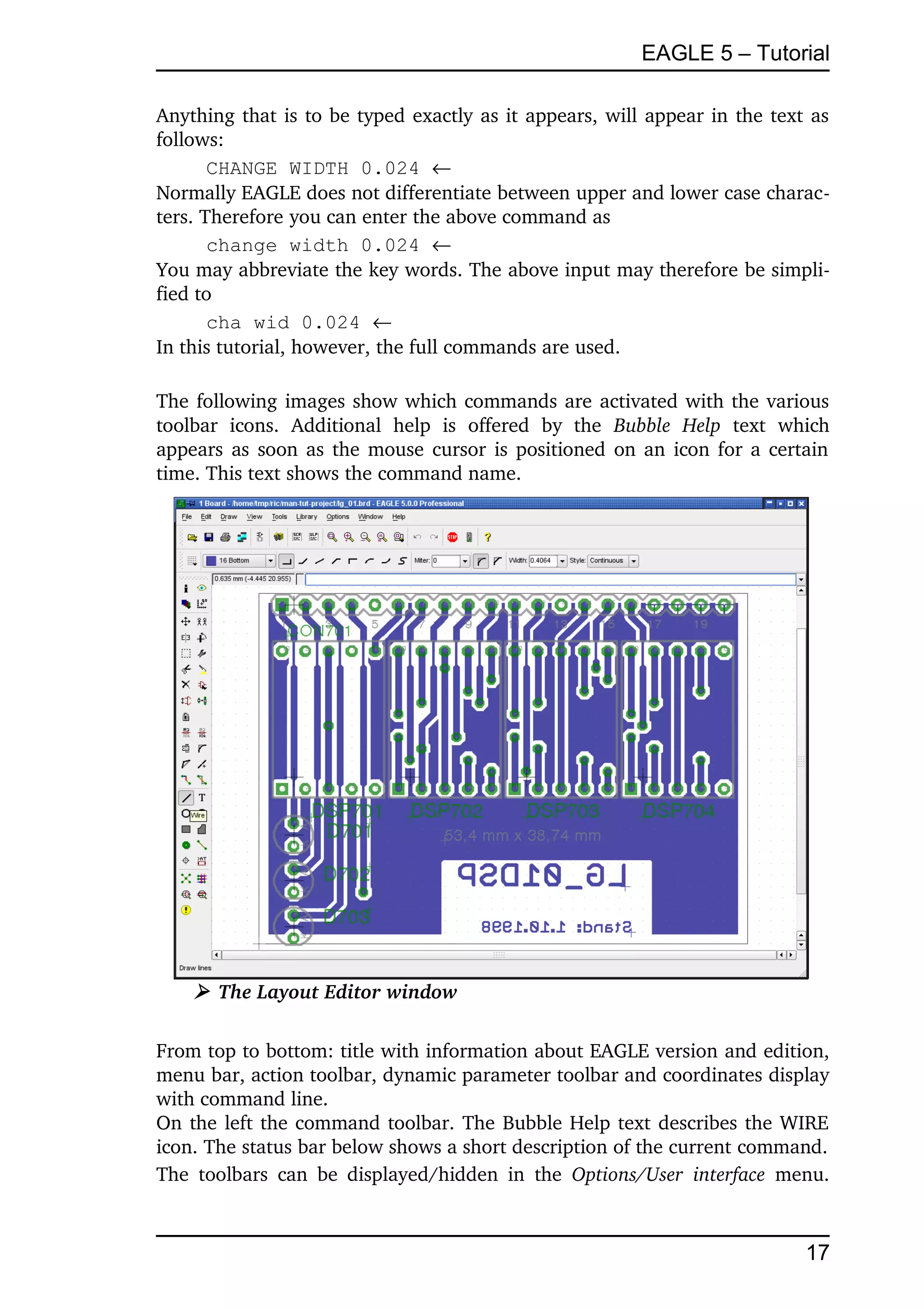
     ➢ The Layout Editor window

From top to bottom: title with information about EAGLE version and edition, 
menu bar, action toolbar, dynamic parameter toolbar and coordinates display 
with command line.
On the left the command toolbar. The Bubble Help text describes the WIRE 
icon. The status bar below shows a short description of the current command.
The   toolbars   can  be  displayed/hidden   in   the  Options/User   interface  menu. 


                                                                                       17
EAGLE 5 – Tutorial

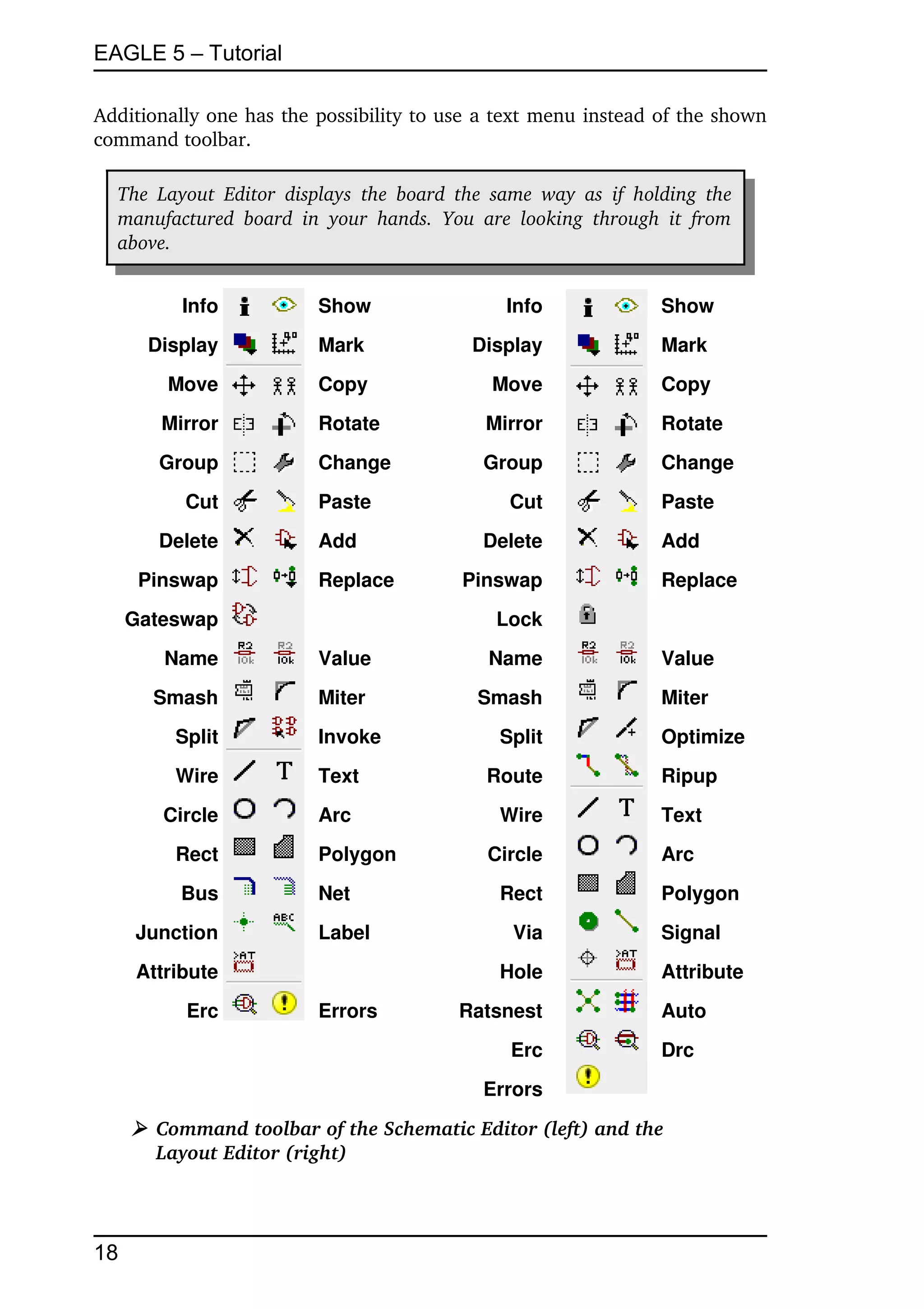
Additionally one has the possibility to use a text menu instead of the shown 
command toolbar.

  The  Layout   Editor   displays   the  board  the  same   way  as  if  holding  the  
  manufactured   board  in   your   hands.   You   are   looking   through   it   from  
  above.


          Info               Show                      Info                  Show
      Display                Mark                  Display                   Mark
        Move                 Copy                    Move                    Copy
        Mirror               Rotate                 Mirror                   Rotate
       Group                 Change                 Group                    Change
           Cut               Paste                      Cut                  Paste
       Delete                Add                    Delete                   Add
      Pinswap                Replace             Pinswap                     Replace
     Gateswap                                         Lock
        Name                 Value                   Name                    Value
       Smash                 Miter                 Smash                     Miter
          Split              Invoke                   Split                  Optimize
          Wire               Text                    Route                   Ripup
        Circle               Arc                      Wire                   Text
          Rect               Polygon                 Circle                  Arc
          Bus                Net                      Rect                   Polygon
     Junction                Label                      Via                  Signal
     Attribute                                        Hole                   Attribute
           Erc               Errors              Ratsnest                    Auto
                                                        Erc                  Drc
                                                    Errors
     ➢ Command toolbar of the Schematic Editor (left) and the
       Layout Editor (right)


18
EAGLE 5 – Tutorial


6  Control Panel

After starting EAGLE, the Control Panel will be opened. It allows you to load 
and  save  projects  as  well  as  to setup  certain program parameters. A right 
mouse click to an entry in the Projects branch of the tree view opens a context 
menu that allows to start a new project ( New/Project).
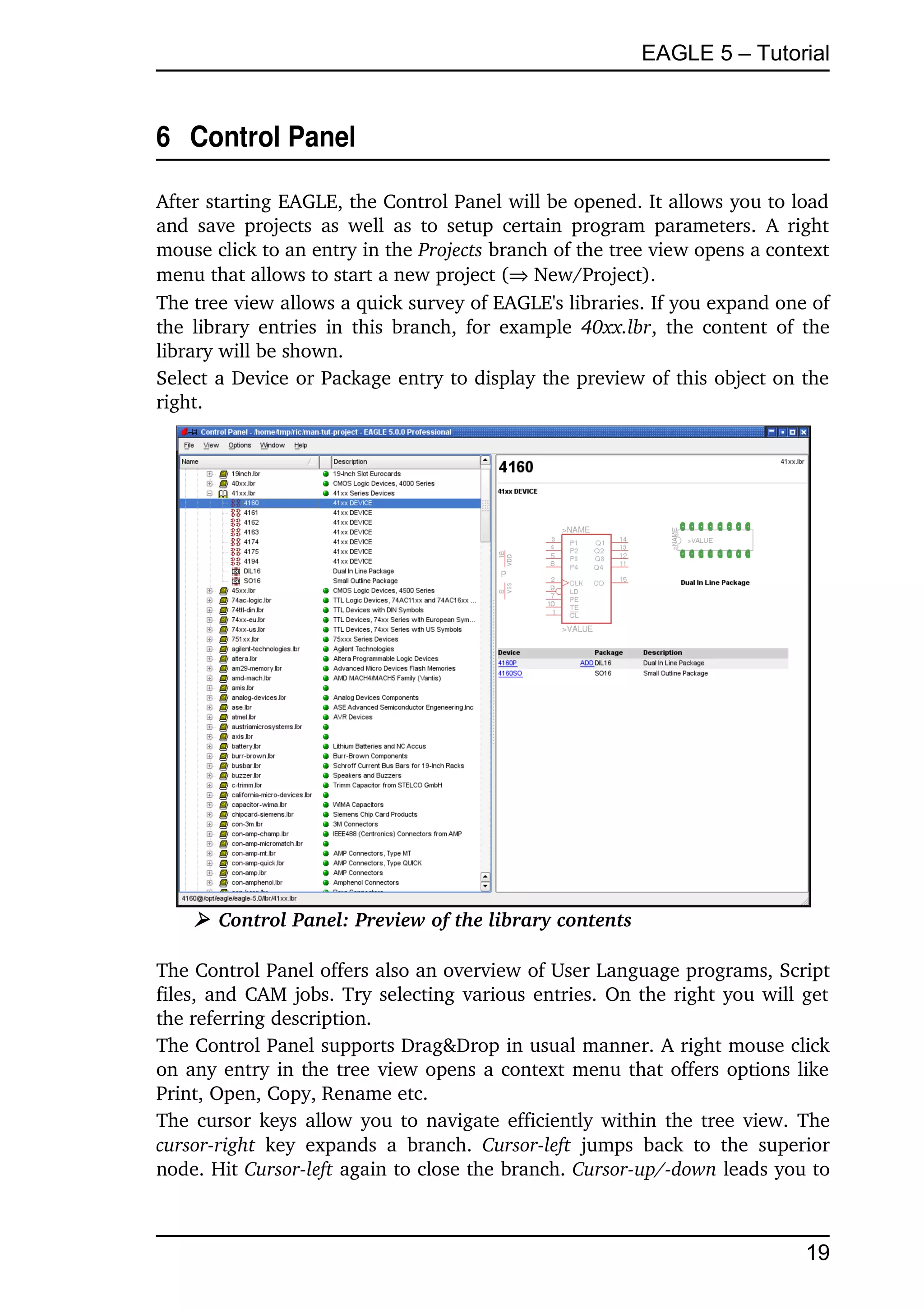
The tree view allows a quick survey of EAGLE's libraries. If you expand one of 
the library entries  in  this branch, for example  40xx.lbr, the content of the 
library will be shown. 
Select a Device or Package entry to display the preview of this object on the 
right.


     ➢ Control Panel: Preview of the library contents

The Control Panel offers also an overview of User Language programs, Script 
files, and CAM jobs. Try selecting various entries. On the right you will get 
the referring description.
The Control Panel supports Drag&Drop in usual manner. A right mouse click 
on any entry in the tree view opens a context menu that offers options like 
Print, Open, Copy, Rename etc.
The cursor keys allow you to navigate efficiently within the tree view. The 
cursor­right  key   expands   a   branch.  Cursor­left  jumps   back   to   the   superior 
node. Hit Cursor­left again to close the branch. Cursor­up/­down leads you to 


                                                                                       19
EAGLE 5 – Tutorial

the previous/next entry.
The paths for each branch of the tree view are set in Options/Directories.

EAGLE Files
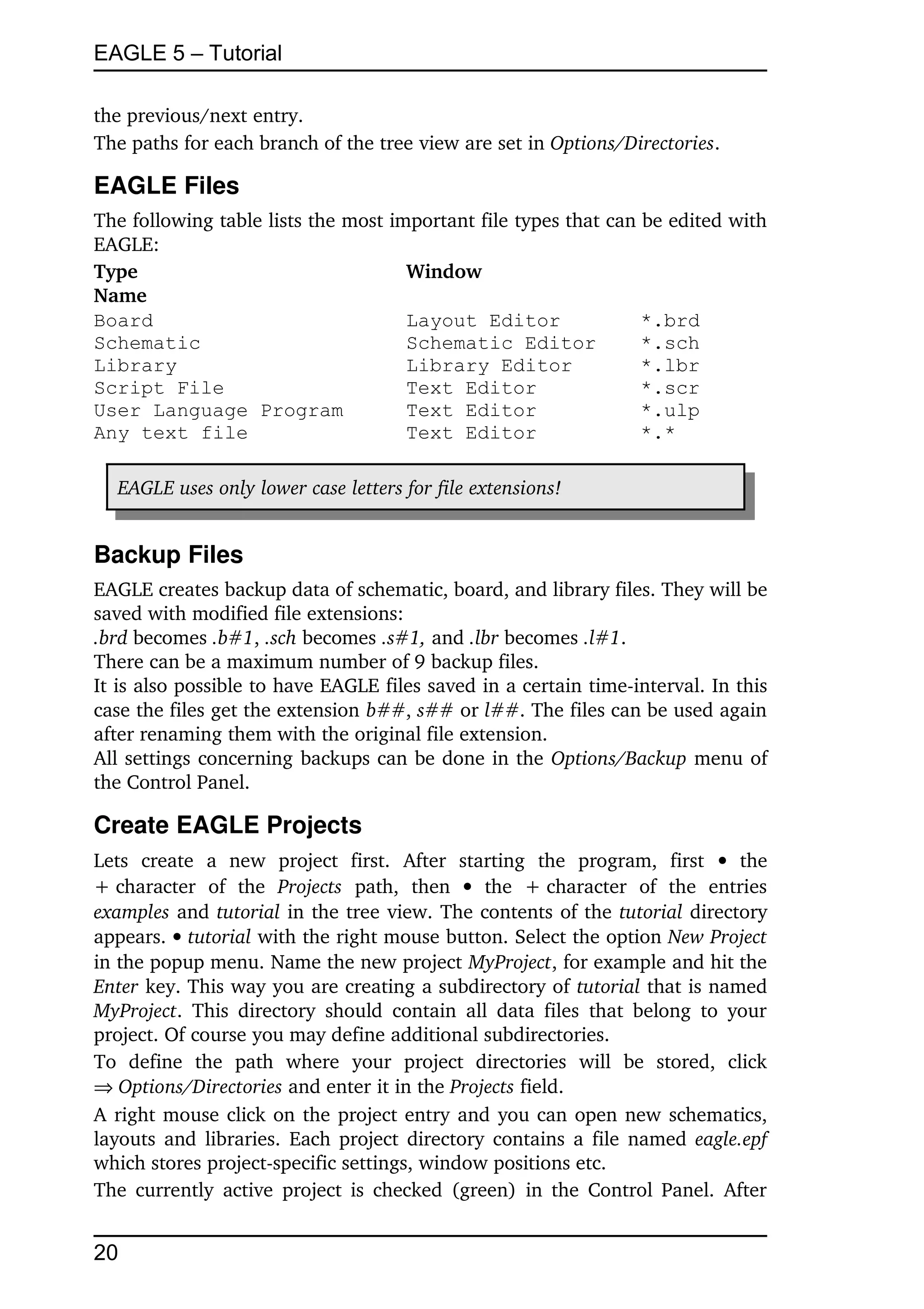
The following table lists the most important file types that can be edited with 
EAGLE:
Type                                 Window
Name
Board                                Layout Editor               *.brd
Schematic                            Schematic Editor            *.sch
Library                              Library Editor              *.lbr
Script File                          Text Editor                 *.scr
User Language Program                Text Editor                 *.ulp
Any text file                        Text Editor                 *.*

   EAGLE uses only lower case letters for file extensions!


Backup Files
EAGLE creates backup data of schematic, board, and library files. They will be 
saved with modified file extensions:
.brd becomes .b#1, .sch becomes .s#1, and .lbr becomes .l#1.
There can be a maximum number of 9 backup files.
It is also possible to have EAGLE files saved in a certain time­interval. In this 
case the files get the extension b##, s## or l##. The files can be used again 
after renaming them with the original file extension.
All settings concerning backups can be done in the Options/Backup menu of 
the Control Panel.

Create EAGLE Projects
Lets   create   a   new   project   first.   After   starting   the   program,   first    the 
+ character   of   the  Projects  path,   then    the   + character   of   the   entries 
examples and tutorial in the tree view. The contents of the tutorial directory 
appears.  tutorial with the right mouse button. Select the option New Project 
in the popup menu. Name the new project MyProject, for example and hit the 
Enter key. This way you are creating a subdirectory of tutorial that is named 
MyProject.   This   directory   should   contain   all  data   files   that belong  to  your 
project. Of course you may define additional subdirectories.
To   define   the   path   where   your   project   directories   will   be   stored,   click 
Options/Directories and enter it in the Projects field.
A right mouse click on the project entry and you can open new schematics, 
layouts and libraries. Each project directory contains a file named  eagle.epf 
which stores project­specific settings, window positions etc.
The currently  active project is checked  (green)  in the Control Panel. After 


20
EAGLE 5 – Tutorial

starting the program again the previous situation will be restored. The last 
used project and other user­specific settings are saved in the file ~/.eaglerc 
(Linux, Mac) or eaglerc.usr (Windows).
Before starting the following examples, we want to copy the files demo1.sch, 
demo2.sch,   and  demo2.brd  from   the   tutorial   directory   into   the   directory 
MyProject.
Press the  Ctrl  key, click the desired file and drag it to the  MyProject  entry. 
Release the mouse button now. Repeat this for the other files.
The Ctrl key effectuates that the files will be copied, otherwise they would be 
moved to the target directory.
Now open the schematic file demo1.sch with a double click.
If   you   end   the   program   with  Alt+X  and   start   it   again,   you   will   get   the 
previous settings and editor windows.


                                                                                            21
EAGLE 5 – Tutorial


7  Load File and Select Monitor Zoom

Now   let   us   start   doing   some   exercises.   Start   EAGLE,   and   wait   until   the 
Control Panel appears.
Expand   the   entry  Projects/examples/tutorial/MyProject  of   the   tree   view.   If 
MyProject  does  not  yet  exist,   please  create  it  as  explained   in the  previous 
chapter.
Now load the demo2.brd file. You can do this either by   the entry
demo2.brd, or by selecting the file from the menu  File/Open/Board. The 
schematic with the same name will be loaded along with the board.
Enlarge the board editor window.
First click the icon          in the action toolbar to zoom into the drawing. This 
WINDOW command can also be executed by pressing the function key F3. 
If you are working with a wheel mouse,  you can zoom into or out of the 
drawing by turning the mouse wheel. 
If   you   want   to   deactivate   this   feature,   set  Mouse   wheel   zoom   =  0  in   the 
Options/User Interface menu.
Click this icon         or press F4 to zoom out of the drawing.

By clicking this icon             the drawing will be shown in full size to fit your 
screen (you can also use Alt+F2 instead).
Click this icon         and then mark a rectangular area by dragging the mouse 
cursor while the left mouse button is pressed. Then release the mouse button. 
The marked area will now be displayed.
It's possible to define a certain area of the drawing as a so­called alias that 
can be used as a parameter with the WINDOW command. Open the popup 
menu of Window select icon with a right­click on the icon. Select New... and 
name the alias.

   To pan the current drawing area simply click the middle mouse button  
   and move the mouse. This also works while an editor command is active,  
   for example, while drawing nets or wires.


If the cursor is over the vertical or horizontal scroll bar and you are working 
with a wheel mouse, you can move the screen up and down or to the right or 
left by turning the mouse wheel.  During certain actions it may happen that 
objects in the drawing  disappear or get corrupted. In this case refresh  the 
screen by clicking the Redraw icon               (also F2 possible).


22
EAGLE 5 – Tutorial

WINDOW LAST restores the previously displayed window area.
The WINDOW command is more versatile than in other programs:
Click this icon         if you want to select a new center with the same zoom 
factor, mark the center with a click and finally click on the traffic light icon in 
the action toolbar.
If you want to select a new center and a new zoom factor simultaneously, 
click on the same icon. Three mouse clicks will give you the desired result: 
the first click will define the new center and both last clicks will define the 
zoom factor. If the third point is further away from the first, the program will 
zoom into the drawing and vice versa. Try it to find out how it works.

Further   possibilities   can   be   found   on   the   help   pages   of   the   WINDOW 
command. These can be called up by simply typing in the command line:
     HELP WINDOW 


                                                                                     23
EAGLE 5 – Tutorial


8  Selecting Layers for Display

EAGLE­Drawings   contain   objects   in   different   drawing   layers.   In   order   to 
obtain   a   useful   result   several   layers   are   combined   for   the   output.   For 
example, the combination of Top, Pad, and Via layers is used to generate a 
film   for   etching   the   component   side   of   the   printed­circuit   board. 
Consequently   the   combination   of   Bottom,   Pad,   and   Via   layers   is   used   to 
generate the film for the solder side of the board. The Pad layer contains the 
through­holes for the component connections and the via layer contains the 
via­holes which are needed when a signal track changes to another layer.
Load the board demo2.brd (File/Open/Board) in the Control Panel or in the 
Layout Editor window and click in the command toolbar on the icon for the 
DISPLAY   command              .   The   marked   layers   are   currently   displayed.   By 
clicking on the layer number the display of each layer can be switched on or 
off. The All and None buttons switch on or off all layers.

   Components   on   layer   1,  Top,  can   only   be   moved   or   selected   in   the  
   drawing if layer 23, tOrigins, is on. The same applies to components on  
   layer 16, Bottom, and the layer 24, bOrigins.


To select a certain layer in the DISPLAY menu click on the layer name. Now 
you can use the  Change  button to modify the layer's properties like name, 
color, or fill style.
To restore the recent layer selection, use DISPLAY LAST .
Please consult the help page of the  Layer  command for the meaning of the 
different EAGLE layers.


24
EAGLE 5 – Tutorial


9  Setting up Grid and Unit

Schematics should always be drawn on a grid of 0.1 inches (2,54 mm) since 
the libraries are defined this way.
The   grid   for  boards  is   determined   by   the   components   used   and   by   the 
complexity of the board.
Grid and unit are setup by clicking on the GRID icon                 in the parameter 
toolbar.
Clicking with the right mouse button on the GRID icon opens a popup menu. 
It contains the entry Last which switches to the grid used before. With New.. 
you are allowed to define so­called aliases representing certain grid settings. 
The alias name can be used as a parameter with the GRID command. Quick 
switches from one grid setting to another are possible now.
All values  are given in the currently  selected unit. Please consult the help 
pages of the GRID command for detailed information.
For all settings in the Design Rules window (Edit/Design Rules...) one can 
use values in mil or in Millimetres (1 mil = 1/1000 inch). The default unit is 
mil.
If you prefer to work with Millimetres simply add the unit to the value, for 
example:
      0.2mm
Inch ­ Mil – Millimetre Table for the Most Usual Values:
      inch               mil               mm
      0,008                 8              0,2032
      0,010               10               0,2540
      0,012               12               0,3048
      0,016               16               0,4064
      0,024               24               0,6096
      0,032               32               0,8128
      0,040               40               1,0160
      0,050               50               1,2700
      0,100              100               2,5400

   The GRID dialog allows setting an alternative grid which can be activated  
   by pressing the Alt key in the Editor window.


                                                                                      25
EAGLE 5 – Tutorial


10  Wires, Circles, Arcs, Rectangles, and Text

Wires,   circles,   arcs,   rectangles,   and   text   are   created   with   the   WIRE         , 

CIRCLE         , ARC         , RECTANGLE              and TEXT           commands. On one 
hand  these  objects  serve  as  pure  drawing  elements  for symbols, packages, 
frames etc., and on the other hand they can perform special functions, such 
as the definition of restricted areas.
First a new schematic file is to be created. Close all of the editor windows and 
select File/New/Schematic from the Control Panel.
A new file with the name  untitled.sch  is now created. Normally you should 
never save a file with the name untitled, but should use File/Save as... to 
choose a different name. However, in this tutorial no file is to be saved at all.
Now enlarge the editor window.

The WIRE Command
      The WIRE command is used to draw lines.


     ➢ Parameters of the WIRE command

Click   the   WIRE   icon   in   the   command   toolbar.   All   parameters   for   this 
command can be set up in the parameter toolbar. Select layer 94,  Symbols, 
from the layer selection box. Draw a rectangular line in this layer now:
Define the starting point by a click on the left hand mouse button. Move the 
cursor   slightly   up   to   the   right   and   select   the   various   bend   modes   in   the 
parameter toolbar. Among some diagonal and orthogonal modes you will find 
some to draw 90° arcs and free definable arcs.
If the connection is displayed in a square angle, press the left mouse button 
to fix its position. Move the cursor to the starting point and    to drop the 
line. Now you should see a rectangular outline. 
As observed before, various wire bend styles can be used by clicking the wire 
bend icons in the parameter toolbar. More efficient is using the right mouse 
button while drawing a wire. Activate the WIRE command, start drawing the 
line, and click the right mouse button a few times to go through the different 
wire bend modes.
However, in the Schematic Editor, the three arc modes can be selected only 
in the parameter  toolbar,  not  with  the  right mouse, as it is in the Layout 
Editor.
Keeping   the  Shift  key   pressed   while   clicking   the   right   mouse   button   will 
inverse   the   selection   order.   Pressing   the  Ctrl  key   toggles   between 


26
EAGLE 5 – Tutorial

corresponding wire bends.

   Do not use the WIRE command to draw net or bus lines in the schematic.  
   Use NET or BUS instead!

   Use ROUTE and not WIRE to dissolve airwires to tracks in the Layout 
   editor. Otherwise EAGLE would not set vias automatically when changing  
   signal layers.


In the Layout Editor:
If the lines (WIRE command) are placed on the board layers Top, Bottom, or 
Route2..15   EAGLE   treats   them   as   electrically   conducting  tracks. Wires  are 
also used to create board outlines in layer 20, Dimension. Let's start using this 
command.

Changing Line Width
As long as the WIRE command is active, you can select the line width from 
the combo box in the parameter toolbar or type in a specific value, separate 
for each segment.
To change the line width of an existing object,
       CHANGE           and a popup menu will open up.
       WIDTH entry and a further popup menu will show up where the 
      present value is marked.
Select  the  desired   value   by  a  left  mouse  click, then click the object  to be 
changed.
To change the line width to a value that is not shown in the menu of the 
CHANGE command, click the entry ... and type in the value in the Change  
Width window.
Alternatively use the command line to type in the value, for example:
      CHANGE WIDTH 0.017 
Then click on the wire segment you want to change or start drawing a new 
wire.
To change the wire style    CHANGE and    Style. Select the style and    the 
wire you want to change.

   Wire  properties  like  Width,   Style  or  Layer  can  be altered through  the 
   Properties entry  of the context  menu. Select  the wire in question by a  
   right mouse click to open the context menu.

   As an alternative use the INFO command to open die properties dialog.


                                                                                      27
EAGLE 5 – Tutorial


Change Object to another Layer
To move an object, for example a wire segment, to another layer
      CHANGE
      LAYER
Select the target layer, for example 94  Symbols, by  . Then    OK, and then 
on the selected object(s). Note that some objects, such as bus or net lines, 
cannot be moved to another layer as they have a special meaning.
This can be done with groups, too:
      GROUP and draw a frame around all objects, then
       CHANGE  and in the popup menu  Layer, then select the layer in 
      the Layer list, now  hold the  Ctrl  key pressed and click with the right 
      mouse button into the group

Undo/Redo Function
            One of the most useful features of EAGLE is the unlimited Undo 
function.   Click  the left  icon  as  many  times  as  you want  to undo  previous 
actions. Use the right icon to redo the actions which have been cancelled by 
undo.

The CIRCLE Command
      To activate CIRCLE, which is used to draw a circle,

       CIRCLE
EAGLE requires two mouse clicks to define a circle. The first click sets the 
center of the circle and the second click defines the radius.
Place the cursor at any grid point and . Drag the cursor several grid points to 
the right. When the circle has the diameter you want,  to fix it and terminate 
the command. The line width of the circle can be changed as described before 
for wires. A circle with line width 0 will be filled.
Example for drawing a circle using coordinate values:
A circle with the origin at position x = 10 and y = 25 and a radius of 15mm 
should be drawn.
First set the grid to Millimetre:
       GRID MM 
Draw the circle now:
       CIRCLE (10 25) (10 40) 
or
       CIRCLE (10 25) (10 10) 
The second pair of coordinates describes any location on the circumference. 
So various values are possible to describe one certain circle.
To find out more about the CIRCLE command press  F1 as long as the com­


28
EAGLE 5 – Tutorial

mand is activated or type
    HELP CIRCLE 
To   cancel   a   command,   click   the   stop   sign   icon          or   activate   another 
command. Pressing the Esc key generally unlocks an object from the cursor.

The ARC Command
      To activate the ARC command, which is used for drawing arcs,
      ARC
An  arc  is   defined   with   three   mouse  clicks:   the  first  click   defines   the  start 
point, the second the diameter and the third the end point.
Place the cursor at the desired starting point and  . Now move the cursor 
some grid units to the right but remain on the same Y­coordinate. A circle 
appears which shows the diameter of the arc.  and the circle will become an 
arc. Now you can change the direction of the arc with the right mouse button. 
Click several times with the right button and you will see what is meant. You 
can also enlarge or minimize the arc by moving the mouse. After reaching the 
desired form,  to fix the arc.
The parameters flat and round determine the shape of the arc's ends.
Practice by drawing some arcs. Use the help function to find out more about 
the ARC command.

   All this can be done with the WIRE command as well!


The RECT Command
      To activate the RECT command, used for creating filled rectangles,

       RECT
To   define   a   rectangle   two   mouse   clicks   are   required:   The   first   one   will 
determine one corner and the second determines the position of the opposite 
corner.
Move the cursor to the point where a corner of the rectangle should be and 
Move the cursor slightly to the right and up. When the rectangle has reached 
the desired size,  to fix it. The rectangle is filled with the color of the layer in 
use.
Use the help function to find out more about the RECT command.

The TEXT Command
      To activate the TEXT command, used for placing text,


                                                                                            29
EAGLE 5 – Tutorial

       TEXT
Now a text input window opens where you can type the text. Then    OK. 
Place the text with . A copy of the same text is now attached to the cursor. 
To stop placing text, simply click the next command icon or the Stop icon. For 
placing a different text, type the text in the command line and terminate it 
with the Enter key. The text shows up at the mouse cursor and you can place 
it.
Texts containing spaces or a semicolon have to be enclosed in single quotes, 
like this one:
       'This is a text'

  Selecting the  Properties  entry   of the  context  menu  allows you to alter  
  properties like  Size,  Ratio,  Font, Layer,  and the  text  itself. To open the  
  context menu click with the right mouse button on the text's origin.


Alternative methods for changing text properties:
To change the text font:
      CHANGE
      FONT
EAGLE supports a vector, a proportional, and a fixed font.
To change the size of a text:
      CHANGE
      SIZE
      Value in the menu
or type in any desired value in the command line (confirm with the  Enter 
key) and  lower left corner of the text. At a rotated text the point of origin 
can move to its upper right corner. A text in a schematic is always displayed 
in a way that it can be read from the front or from the right.
The  Layout Editor  allows to display texts in any orientation. Use the  Spin 
flag which  is   located   in  the  parameter   toolbar  while  the TEXT, MOVE,  or 
ROTATE command is active to get texts readable from all directions.
To change a text:
      CHANGE
      TEXT
      at the point of origin of the text
Then edit the text and  OK.
Using
      CHANGE
      RATIO
you are able to change the line width in a text in relation to the height of the 
Vector font (not Proportional or Fixed font).


30
EAGLE 5 – Tutorial


Special Text Variables
If you place the text
       >SHEET
this string will be substituted with the current sheet number, e.g. 1/1 (sheet 
one of totally 1).
EAGLE  offers  a  number   of  similar   text  variables,  e.g. for date/time  which 
reflect   the   latest   change   in   the   file   (>LAST_DATE_TIME)   or   the   drawing 
output (>PLOT_DATE_TIME).
Library parts are defined with text variables for the name >NAME and the 
value >VALUE of a component. Furthermore one can use >PART and >GATE 
for symbols.
Apart   from   the   predefined   placeholder   texts,   EAGLE   interprets   text   that 
begins   with   the   '>'   character   as   a   user­definable,   component­specific   or 
global attribute. For more, see the help pages of the ATTRIBUTE command.


                                                                                       31
EAGLE 5 – Tutorial


11  Using Libraries

EAGLE comes with a lot of library files that contain through­hole and surface 
mount   devices.   The   tree   view   in   EAGLE's   Control   Panel   offers   detailed 
information about the contents of the libraries.
In this section you will learn how to insert schematic symbols into a drawing 
and how to use them.
Open a new schematic to start with a blank drawing area:
File/New/Schematic.

The ADD Command
      To select symbols from a library,  ADD in the command toolbar, and a 
window pops up. On the left side a list of available libraries should appear. 
Each   library   entry   can   be   opened   by   clicking   the   +   character.   Now   it's 
contents will be shown. Select an entry and you will see the corresponding 
preview on the right.
The cursor keys allow you to navigate efficiently within the Library list. The 
cursor­right key expands the Library or Device entry. Cursor­left jumps back to 
the superior entry. Hit  Cursor­left  a second time to close it.  Cursor­up/down 
leads you to the previous/next entry.
If  you  type  in  any   letter,   the  first  entry   beginning   with  this letter  will  be 
selected. Typing more letters swiftly one after the other, for example con, the 
first entry beginning with con will be selected. 
You can enter one or more search patterns in the Search field. You may use 
the name of a Device or any word of the Device description. Wild cards like * 
and ? are allowed.
If there are no entries visible after using ADD for the first time, no libraries 
have been loaded. In this case, please read the following chapter dealing with 
the USE command.
We want to place, for example, the device 74LS00. Enter in the Search field:
       74*00* or 74LS00*
* is the wild card of the technology and/or the package variant. The search 
result shows the device in various technologies and package variants. Select 
the desired device and  OK. Now you can place it in the schematic.
Place  the  cursor  slightly  to the left  of  the  display  center  and  . Move the 
cursor to the right, and place a second gate with the next mouse click. Place 
four gates around the center of the drawing area in this way.
Now place a fifth gate somewhere nearby. Please note that EAGLE has named 
the first four gates IC1A..IC1D, whereas the fifth gate has been named IC2A, 
since this gate requires a second IC.
If you now show the layer 93, Pins, either as described before or by typing


32
EAGLE 5 – Tutorial

      DISPLAY PINS 
in the command line, further pin parameters are displayed in green. Zoom in 
on the drawing, so that a gate is shown on a large scale. You will see that the 
pins are marked as Input (In) or Output (Out), and that a number shows the 
Swaplevel.
A   Swaplevel   greater   than   0   indicates   that   this   pin   can   be   swapped   with 
another pin of the same device which has the same Swaplevel assignment 
(see command PINSWAP). A pin with a Swaplevel of 1, for example, can be 
swapped with any other pin that has a Swaplevel of 1. Swaplevel 0 means 
that this pin cannot be swapped.

   The layer 93, Pins, is not usually printed.


As long as the ADD command is still active, a gate symbol will be attached to 
the cursor.
Now  use   the  Zoom­in   icon  or  the  F4  key   to  view  a   larger   portion   of   the 
schematic on the display. Then press the Esc key to the selection window of 
the ADD command.
Enter the following pattern in the Search field:
       *555N* or *555*
Select, for example, the device LM555N from linear.lbr with ● ●, rotate it 180 
degrees with two right mouse clicks, and place it somewhere on the drawing 
area with the left mouse button.
Repeat this with other symbols. You will find out that the libraries contain 
symbols drawn in the European and the American way. Choose whatever you 
prefer.
While   the   ADD   command   is   active,   you   can   return   to   the   ADD   menu   by 
pressing   the  Esc  key.   Press   the  Esc  key   again   and   the   command   will   be 
cancelled.
The quickest way to add a component you already placed in the drawing is to 
right­click   the   ADD   icon.   A  popup  menu   opens  that contains   a  list  of  the 
previously placed components. Select one of them and place it.
Another way to place devices in the schematic is to drag them from the tree 
view in the Control Panel into the Schematic Editor window.
Arrange the windows in a way that you can see both on the screen. Select, for 
example,   the   device   LM555N   from  linear.lbr  in   the   tree   view   (Libraries 
branch). Use Drag&Drop to move the device into the Schematic Editor.
If  you  select  a device that  supports  more  than one package or technology 
variant, you will be asked to select the variant in a menu before dropping it.


                                                                                          33
EAGLE 5 – Tutorial


   EAGLE, by default, assumes that all active components will be attached to  
   the  same power  source  and  ground.  The power  pins  are therefore  not  
   shown, and are automatically connected to the Power Source and Ground  
   when   generating   a   board   (unless   the   user   connects   them   to   other 
   signals). Use the INVOKE command in case you want to place it in the  
   schematic.

   Most of the EAGLE library devices,  which have only  one VCC and one  
   GND pin, are defined so that the power pins, by default, are not visible.  
   In some cases it makes sense to make the power pins in an IC visible, as  
   in the 555N stored in the linear library. In such a case connect the power  
   pins with the appropriate nets.


The help function in EAGLE offers information about further options of the 
commands   ADD   and   UPDATE   concerning   the   update   of   library   objects   in 
schematic and layout with their respective parts of the current libraries.

The USE Command
       The default setting causes the ADD command to search in all libraries 
that are available in the given libraries directories (Options/Directories in 
the Control  Panel).   You  can  exclude   libraries   from   the  search  function by 
clicking the green marker in the Control Panel's tree view,  Libraries branch. 
Green means in use, gray not used. This is exactly the function of the USE 
command you can also type on the command line.
For example, the command
      USE *
makes   available   all  libraries   that  can  be  found   in   the  given  library   paths. 
More about this can be found in the help function.

The INVOKE Command
       The INVOKE command can be used to allow the connection of active 
components to a power source other than VCC and GND. To demonstrate its 
use
      INVOKE
and left click on the gate IC2A. A popup menu appears.
 ● ● PWRN  and the power pins for IC2 are attached to the cursor. You can 
now place them anywhere with a ● and connect them to any net.
Another feature of the INVOKE command allows you to alter the sequence of 
the reference designators before EAGLE automatically makes an assignment. 
Assuming the INVOKE command is still active,   IC2A, and the popup menu 


34
EAGLE 5 – Tutorial

appears.  The grey font assigned to gate A indicates that the gate has been 
used; those printed in black font are available for use.
If you want IC2C to be placed before IC2B,      C  in the popup menu. The 
menu closes, and IC2C is attached to the cursor to be placed with a ●. Once 
IC2C is placed, EAGLE will use up the remaining gates in that package before 
assigning an additional package.
If you want to place gates over more than one sheet, use the INVOKE com­
mand on the new sheet and type in the part's name in the command line. 
Now the invoke menu pops up.
Don't   hesitate  to   experiment   with   different   libraries  and   with  placing  and 
rotating schematic symbols.

   You can place Devices in a drawing from as many libraries as you want.  
   Devices are saved in the Schematic or Board files in their entirety. When  
   passing on a file, there is no need to supply the Libraries with it.


                                                                                       35
EAGLE 5 – Tutorial


12  Drawing a Schematic

In this section you will learn how nets and buses are used in a drawing. You 
will then be able to create a schematic.
To create an empty schematic, open a new drawing and enlarge the editor 
window.

Grid

   The standard grid for schematics is 0.1 inches. Symbols should be placed  
   on this grid or a multiple of it, since otherwise it can happen that nets  
   cannot be connected to the pins.


       Set the alternative  grid to 0.25  inch. This would allow to adjust, for 
example, labels in a finer grid which will be activated by pressing the Alt key.

Adding a Frame to a Schematic
As a start, select a drawing frame from the library frames.lbr, which contains 
predefined frames in miscellaneous formats.
 ADD, and enter the word letter or frame in the search field. Select a suitable 
frame and     for example LETTER_P.  A frame with document filed which 
fits on a letter format page (portrait) is now attached to the cursor.
If you cannot see it completely, press function key  F4  until it matches your 
screen, then place it with a click of the left hand mouse button so that its 
lower left corner is placed on the coordinates (X=0, Y=0).
Now a further frame is attached to the cursor. Click the icon with the stop 
symbol        to terminate the ADD command. Press Alt+F2 to show the frame 

in full size or click the Zoom­to­fit icon     in the action toolbar.


   You could also use the FRAME command ( Draw/Frame..)  to draw a 
   frame by yourself. See the help function about FRAME for details.


Adding and Changing Text
You can add lines, text and other objects to predefined frames and text fields 
in the library. 
Variable texts, e.g. the project title or the revision number, can be inserted 
directly in the Schematic Editor where you are now.


36
EAGLE 5 – Tutorial

Frames are saved as symbols in the library, therefore it makes sense to write 
the text in layer 94, Symbols.
Now bring the frame text field into the editor window so that it is completely 
visible. Next click the icon for the TEXT command and enter the following 
text
       CadSoft
After clicking the OK button, the text is attached to the cursor and can be 
placed with the left mouse button. Move the text in the upper empty line of 
the text field and place it with a  . A further copy of the text, which will 
disappear as soon as another command is activated or the stop sign icon is 
clicked, is still attached to the cursor.
If you did not define the size of the text while the TEXT command was active, 
you can use the CHANGE command to set it to another value:
       CHANGE
From the menu select:
       SIZE
and a further window opens in which the presently selected text height is 
shown.
       0.15
and move the cursor to the lower left corner of the text CadSoft. Click the 
left mouse button and the text height will be changed to 0.15 inches. Just in 
case you would like to set a size not present in the CHANGE SIZE menu, like. 
0.17, simply type:
       CHANGE SIZE 0.17 
and then click the lower left corner of the text.
It is also possible to type in the value in combination with its unit. If you 
prefer, for example, a value in Millimetres (without changing the grid), type 
in:
       CHANGE SIZE 3.5mm

   Use dots for decimals! The current grid setting determines the unit, unless  
   you specify it in the command line!

   Property changes can be made in the context menu's Properties entry, as  
   well.


Practice manipulating texts by adding an address or a document number in 
the text field.
TITLE:  contains   the   file   name   in   use   (text   variable  >DRAWING_NAME). 
DATE:  contains   the   date   of   the   most   recent   save   command   (text   variable 
>LAST_DATE_TIME).
Both fields are automatically filled with the actual data when the drawing is 
saved, since the frames stored in the  frames  library have been defined with 


                                                                                       37
EAGLE 5 – Tutorial

the appropriate text variables.

Entering a Schematic
Now lets start drawing a schematic. We will be drawing the schematic shown 
in the following figure, which you can use for reference. If you don't want to 
enter the whole schematic you can use the file demo1.sch stored in the eagle/
examples/tutorial directory.
Start by pressing  Alt+F2  or clicking the Zoom­to­fit icon to fill the window 
with the drawing frame.
The schematic consists of the following elements:
Part     Value          Device              Package          Library      Sheet
C1       30p            C-EUC1206           C1206            rcl          1
C2       30p            C-EUC1206           C1206            rcl          1
C3       10n            C-EU025-025X050     C025-025X050     rcl          1
C4       47u/25V        CPOL-EUTAP5-45      TAP5-45          rcl          1
C5       47u            CPOL-EUTAP5-45      TAP5-45          rcl          1
D1       1N4148         1N4148              DO35-10          diode        1
IC1      PIC16F84AP     PIC16F84AP          DIL18            microchip    1
IC2      78L05Z         78L05Z              TO92             linear       1
JP1      PROG           PINHD-1X4           1X04             pinhead      1
JP2      APPL           PINHD-1X17          1X17             pinhead      1
Q1                      XTAL/S              QS               special      1
R1       2,2k           R-EU_R1206          R1206            rcl          1

F1                      DINA4_L                              frames       1
Use the ADD command to place the listed devices.

     Please keep in mind:
     You really should not change the default grid of 100 mil (= 2.54 mm) in  
     the Schematic Editor. Only this way you can be sure that nets will be  
     connected to the Devices' pins. 


You can toggle the grid on and off by clicking the GRID icon or more easily by 
using F6, to help you locating the parts.
Once you have placed the parts you can relocate them with the MOVE com­
mand. Activate the MOVE command by clicking the appropriate icon in the 
command toolbar, then move the cursor to the part you want to move and . 
EAGLE will highlight the part, to let you know that it is attached to the cursor 
and ready to be relocated.
Relocate the part, and  to place it in its new location. The MOVE command 
is still active and ready to move the next part. Press the right mouse button if 
you want to rotate a part.
For duplicating parts you may use the COPY command (for example, C1 and 
C2). Thus you don't have to fetch each part with the ADD command.
When you have located the parts, start connecting them using the NET com­
mand.


38
EAGLE 5 – Tutorial


   Use the NET command, not WIRE to draw net connections!

   Keep in mind:
   A right mouse click  on an object  opens the context menu. It offers all  
   commands available for the object.


The NET Command

      A net is only connected to a pin if it is placed on the connection point of 
the   pin.   Display   the  layer   93,  Pins,   with   the DISPLAY  command  to locate 
these connection points. They are marked with a green circle.
EAGLE automatically names electrical connections (nets). In our example de­
mo1.sch the net lines at C5 pin +, U1 pin 3(VI), and JP2 pin16 have the same 
name. The pins are connected to the same net, although the net lines are not 
drawn   continuously.   Activate   the   SHOW   command   and   click   on   a   net 
segment: the whole net is displayed highlighted now.
While the NET command is active, the status bar below shows properties of 
the selected net.

   Nets with the same name are affiliated with each other!


The NAME Command

      EAGLE automatically allocates names such as B$.. for buses, P$.. for pins 
and N$.. for nets.
NAME and then  the net connected to IC1 pin OSC1 (16). A popup menu 
shows the predefined name of the net. Type in
     OSC1
and  OK. The net immediately now has this name.
The names of components and busses can be changed in the same way.
The LABEL Command

       The   LABEL   command   allows   you   to   place   bus   or   net   names   in   any 
location.  LABEL, locate the cursor on the net MCLR/PGM and .
The name of the net is attached to the cursor and a line points to the nearest 
part of the related net. Place the text at any location. You can also rotate the 
label with the right mouse button. Locate the label approximately as shown 
in the figure and ● to fix its position (near JP1 pin 3).
If net or bus names are changed, the relevant labels are also changed. Label 
text is not changed with the CHANGE TEXT command but with the NAME 
command   and   a   click   on   the   net   line   or  the  bus  line.   CHANGE   FONT  or 
CHANGE SIZE changes the font or the text size.


                                                                                        39
EAGLE 5 – Tutorial

If   a   schematic   consists   of  more   than   one   sheet   (not  possible   in   the   Light 
Edition), it is possible to set the XREF option for labels. This can be used for 
generating   a   cross   reference   to   the   referring   net   on   the   next   sheet.   This 
option works only in combination with drawing frames that are drawn with 
the   FRAME   command.   More   details   about   this   can   be   found   in   the   help 
function of FRAME and LABEL.
The DELETE Command

      You can delete objects with this command. If it is applied to nets, wires 
or   busses,   a   single   segment   is   deleted   at   a   time.   To   use   this   command, 
DELETE in the command toolbar, take the cursor to the object that is to be 
deleted, and .
Keep  the  Shift  key pressed while deleting an object in order to delete the 
whole net or bus. More about this in the help function.
UNDO and REDO work here as well.
To delete whole groups, use Ctrl + DELETE and a right mouse click into the 
group.
The JUNCTION Command

       Dropping   a   net   on   another   net   line   generates   a  connection  between 
these two nets. The connection will be represented by a junction, that will be 
set automatically. Automatic setting of junctions can be switched off with the 
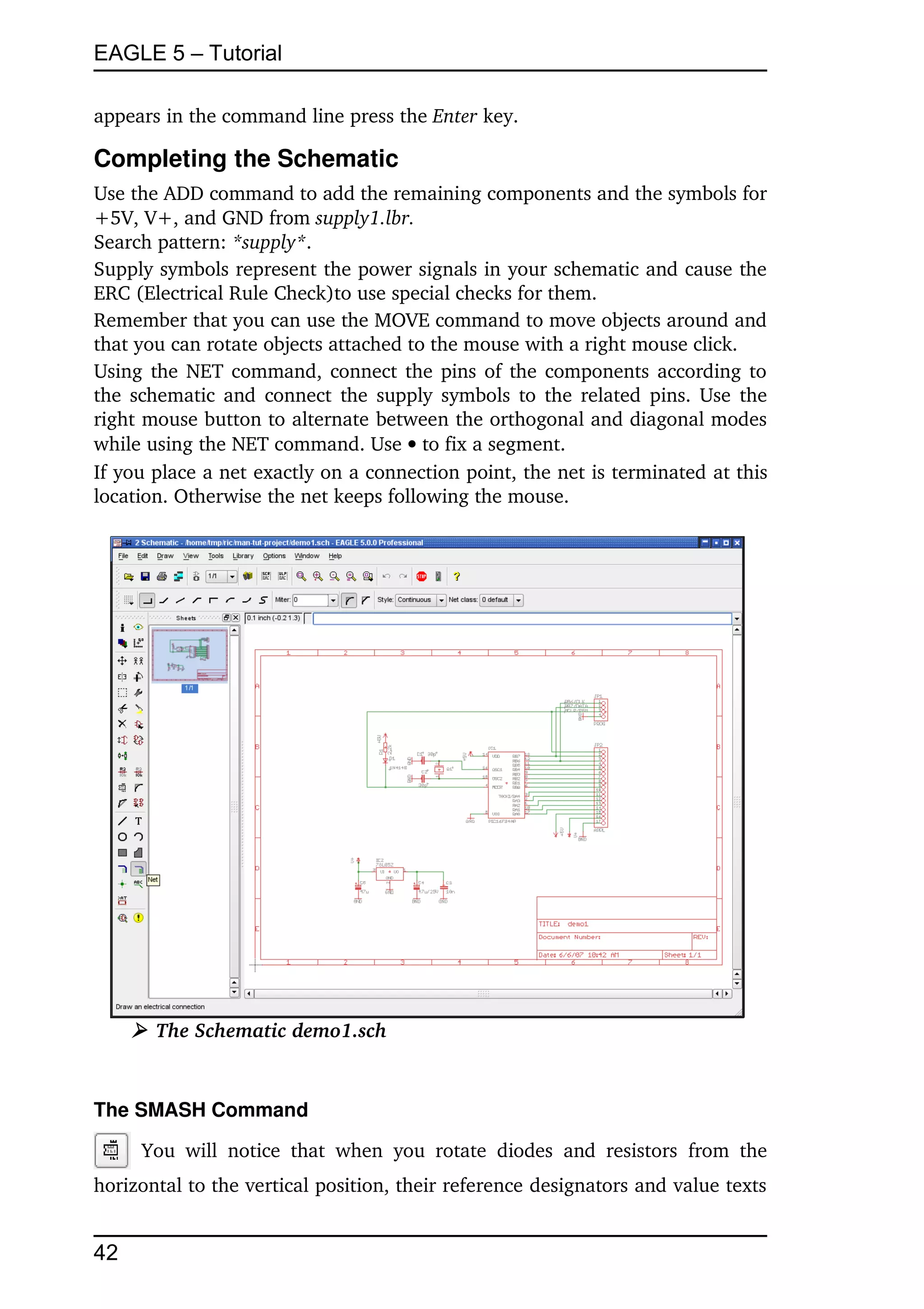
option Auto set junctions (Options/Set/Misc).
In this case the JUNCTION command is used to draw a connecting node at 
the intersection of nets which are to be connected to each other.
 JUNCTION  and a node is attached to the cursor. Locate the node at the 
junction of two net lines and  to fix it into place.
The SHOW Command

      This is a good time to demonstrate the function of the SHOW command. 
This command is used to show names and other details of objects and objects. 
Complete signals and nets can be highlighted, as well as components.
To show for example the net V+,  SHOW in the command toolbar then move 
the cursor to the connection point of IC2 pin VI (3) and .
Please notice that EAGLE highlights the net wires and each pin connected by 
this net, as well as the pin name of each part to which it is connected.
In addition, the signal is listed in the status bar as:
       Net: V+, Class: 1 Power
While the  SHOW command is active  the net remains highlighted although 
you   are   panning   the   window   by   pressing   the   middle   mouse   button   and 
moving the mouse or using the WINDOW command.  Deactivate the SHOW 
command  by clicking  the  stop  sign  icon or pressing  the  Esc  key.  Now the 


40
EAGLE 5 – Tutorial

objects are no longer highlighted.
To show a certain object,  SHOW and type the name (for example RA4 ) in 
the command line. Hit the Enter key then. 
You can subsequently type other names without the need to reactivate the 
SHOW command.
      SHOW RA4 
      RA3 
      RA2 
This way you can mark one net after the other.
The SHOW command works also with placeholders. Type
      SHOW RA* 
to get all nets beginning with RA highlighted at the same time.
In case you wish to highlight several nets at the same time, click with the left 
mouse button, for example on net RA2. Now press the Ctrl key and click on 
nets RA3 and RA4. All three nets are highlighted now.
Click again with pressed Ctrl key on net RA3 and the net won't be highlighted 
anymore. Ctrl inverts the highlight. 
If the SHOW command doesn't find the object, the  SHOW  window pops up 
and marks its Sheet column with a ' ­ ' character. This tells us that the object 
doesn't exist on any of the sheets. 
The MOVE Command

     No electrical connection will be generated if you MOVE a net line over a 
pin. 
On the other hand: if you move a pin over another pin or over a net line, an 
electrical connection will be generated, and a net line will be attached to the 
pin when the component is moved further. Remember the UNDO command if 
you want to detach the net line.
Check the connections with the SHOW command (net and connected pins are 
highlighted), as mentioned before. Additionally you can export a net list or 
pin list with the EXPORT command.
History Function
With   the  keys  up­arrow  and  down­arrow  you   can  recall   the  last   keyboard 
instruction into the command line and execute it with the Enter key. The Esc 
key will delete the command line.
Use Alt+F2 to show the whole schematic on the screen, then type:
        SHOW R1 
        SHOW C1 
        SHOW IC1 
Quit the SHOW command by clicking the stop sign icon. Press the up­arrow 
and  down­arrow  keys several times. As you can see, you can scroll through 
the   list  of  the  recently   used   commands.   As   soon as the  desired   command 


                                                                                   41
EAGLE 5 – Tutorial

appears in the command line press the Enter key.

Completing the Schematic
Use the ADD command to add the remaining components and the symbols for 
+5V, V+, and GND from supply1.lbr.
Search pattern: *supply*.
Supply symbols represent the power signals in your schematic and cause the 
ERC (Electrical Rule Check)to use special checks for them.
Remember that you can use the MOVE command to move objects around and 
that you can rotate objects attached to the mouse with a right mouse click.
Using the NET command, connect the pins of the components according to 
the schematic and connect the supply symbols to the related pins. Use the 
right mouse button to alternate between the orthogonal and diagonal modes 
while using the NET command. Use  to fix a segment.
If you place a net exactly on a connection point, the net is terminated at this 
location. Otherwise the net keeps following the mouse.


     ➢ The Schematic demo1.sch


The SMASH Command

       You   will   notice   that   when   you   rotate   diodes   and   resistors   from   the 
horizontal to the vertical position, their reference designators and value texts 


42
EAGLE 5 – Tutorial

rotate with the part. EAGLE provides a SMASH command that allows you to 
MOVE and ROTATE the name and value texts independently of the symbol. 
While moving such a detached (smashed) text, EAGLE draws a line from the 
text to the part's origin to show where the text belongs to.
To activate the command
       SMASH
Locate the cursor on the diode symbol and .
You could also type in the part's name in the command line and hit the enter 
key.
There is still another method to execute the SMASH command.:
Click onto the part with the right mouse button to activate the context menu. 
Select the entry Properties and activate or deactivate the Smashed option.
After separating the text from the symbol,   MOVE, move the cursor to the 
designator  D1  of the diode, and  . The text selection point is marked as a 
cross and resides, depending on text's the rotation, on the lower left or the 
upper right corner. The name is now attached to the cursor. It can be moved 
to a better location and rotated with the right mouse button. When you have 
rotated and relocated D1,  to fix its location.
If  you  want to  change  the  size  of name and value texts which have been 
separated from the part with the SMASH command, use the CHANGE SIZE 
command (click the CHANGE icon and select Size from the menu).
SMASH   may   be   used   with   groups,   too.   Therefore   activate   the   SMASH 
command, press the Ctrl key, and click with the right mouse button into the 
drawing.
If you keep the Shift key pressed while you are clicking with the left mouse 
button onto a part, all texts will return to their original locations and will be 
fixed to the part as it was before SMASHing them (unsmash).
For groups you have to keep the Shift and the Ctrl key pressed. The command 
will  be  executed   immediately.   If   you  press   the  Shift  key only, the context 
menu opens and you have to select Smash:Group there.
The VALUE Command

     EAGLE allows you to define or to change the value for parts like resistors 
or capacitors. In the case of ICs the value informs you about the element type 
(e.g. 74LS00N).
      VALUE
      the resistor,
type the new value, 2.2k,  OK, and the new value is now displayed.
You   can   use   the   NAME   command   to   change   the   names   of   resistors, 
capacitors, ICs, nets and buses accordingly. You can change the net names 
but you don't have to, unless you want to get a descriptive netlist.


                                                                                    43
EAGLE 5 – Tutorial


The Electrical Rule Check (ERC)
If you haven't entered the complete schematic yourself you can now load the 
file demo1.sch.
The ERC command is used to test schematics for electrical errors. The results 
are   warnings   and   error   messages   listed   in   the   ERC   window.   To   start   the 
Electrical Rule Check click the ERC icon               in the command toolbar.
The ERC finds two warnings in our sample:
  POWER Pin IC1 VSS connected to GND
  POWER Pin IC1 VDD connected to +5V

These   messages   inform   you   that   the   power   pins   are   connected   to   other 
signals than expected. The power pins were named VSS or VDD in the library 
but   are   connected   to   GND   and   +5V.  In   our   case   this   has   been   done   on 
purpose. Click on one of the message entries and EAGLE will show where the 
reason for the problem is located in the schematic.
Both warnings don't cause any problems and could be avoided by changing 
the names  of  the  power  pins   in  the  library   definition.  But you could  also 
Approve  these   warnings.   The   messages   are   now   shown   in   the  Approved 
branch, no longer in the Warnings branch of the menu.

   Please note that the ERC can only discover possible error sources. It is up 
   to you to properly interpret the ERC messages!


If you want to learn more about the ERC command, type HELP ERC  in the 
command line.

Generating a Board from a Schematic

      After loading a schematic from which you would like to design a board, 
click on the BOARD icon in the action toolbar:
A board file will be generated in which the packages are positioned next to an 
empty board.
A further description follows in the chapter Designing a PC Board.
But now we want to introduce another important command that is necessary 
to design schematics first.

The BUS Command
      Load the schematic bus.sch from the /eagle/examples/tutorial directory.
A schematic with a bus structure appears. A bus has to be drawn with the 
BUS command. It is named automatically (B$1..).


44
EAGLE 5 – Tutorial

A   bus   has   no   logical   significance.   It   is   a   drawing   object   only.   Logical 
connections (nets) are only defined with the NET command. Nets with the 
same name are identical even if they are on different pages of a schematic or 
optically not connected.
The bus name determines the signals contained in the bus. In our example 
the bus contains the signals VALVE0 to VALVE 11 and a signal named EN. 
Therefore   the   bus   has   been   named  EN,VALVE[0..11]  with   the   NAME 
command.
The   bus   in   our   example   has   not   been   finished,   yet.   There   are   still   some 
connections to draw. Start to connect the following signals to IC7 by selecting 
the NET command and clicking on the bus line:
        EN                   IC7 Pin 14 EN
        VALVE0               IC7 Pin 16 INA
        VALVE1               IC7 Pin 15 INB
        VALVE2               IC7 Pin 10 INC
        VALVE3               IC7 Pin 9 IND
 NET  in the command toolbar and move the cursor over the bus, one grid 
line over the pin IC7­14. The net connection to the bus must originate from 
the   bus   and   be   drawn   to   the   component   pin,   if   you   want   to   use   this 
convenient way to name it.  to set the starting point of the net, and a popup 
menu will appear with the net names for the bus.  EN to select net EN, and 
move the cursor to IC7­14, using the right mouse button to change the line 
until it is drawn like the other net lines in this area.    the pin's connection 
point to finish the net line.
Repeat this action for VALVE0 .. VALVE3.
Use the LABEL command to make the net names visible in the schematic.
If   you  want  to  cancel  an  action,   click   the  UNDO icon, or use the  F9  key. 
Either by clicking on the REDO icon or by use of the F10 key you can perform 
the cancelled action once again.
Use the MOVE command to move individual bus segments. Select a segment 
near to the end in order to move the end point. Select a segment somewhere 
in the middle, to move it to a parallel location.
You can delete individual segments with DELETE.
If you want to move the bus the already drawn nets won't follow. To move 
them together you have to use GROUP and MOVE.

   The cursor takes on the form of four arrows when you want to select an  
   object whose origin is very close to the origin of another object. In this  
   sort of case, click the left mouse button to select the highlighted object.  
   Click the right mouse button, if you want to go on to the next possible  
   object. Information about the selected object is shown in the status bar.


                                                                                             45
EAGLE 5 – Tutorial


13  Automatic Forward&Back Annotation

You   should   always   design   your   boards   using   Forward&Back   Annotation 
controls;   only   then   can   you   be   sure   that   boards   and   schematics   will   be 
consistent  with  each  other.  This  control  mechanism  is activated when you 
load  a   schematic  and   a  board   which   have  the  same  name  and   which   are 
consistent with each other. EAGLE always loads both files if they exist in the 
same directory.
Consistent in this context implies that the netlist, components, and values are 
identical.
If you load a schematic and a board which has the same name and which can 
be found in the same directory (or vice versa), EAGLE launches a consistency 
check. You ought to start the ERC if any differences are found. The results are 
shown in the ERC window. The Consistency errors branch lists the differences 
between schematic and layout. Using this information you are able to make 
them step by step consistent again.
The Forward&Back Annotation will be cancelled if either only the schematic 
window or only the board window is activated. Any changes made can then 
lead to discrepancies in the files for the board and the schematic. Therefore 
always make follow this rule:

   When working on a board, never close the schematic window (you can  
   minimize it to an icon, however) – and vice versa.


EAGLE  generates   warnings   before  operations   are  carried  out which would 
terminate the Forward&Back Annotation.
Under   the   control   of   the   Forward&Back   Annotation   any   change   in   the 
schematic results in an equivalent change of the board, and vice versa. Some 
changes can be made either in the board or in the schematic (e.g. naming 
components,   nets,   etc.).   Others   are   possible   only   in   the   schematic   (e.g. 
adding   components).   EAGLE   prevents   such   operations   in   the   board   and 
prompts you to use the Schematic Editor.
To monitor the Forward&Back Annotation load the demo2.sch file. The board 
demo2.brd will be loaded automatically into the Layout Editor.
Now size both of the windows so that you can see them both on the screen. 
Change some names and values with the NAME and VALUE commands. You 
will notice that the names and values change in both windows. Experiment 
also   with   the   DELETE   command   and   remember   the   UNDO   and   REDO 
commands.


46
EAGLE 5 – Tutorial


14  Designing a PC Board

In  this  section  you will  create  a  small PCB  design and modify an existing 
design   using   the   Layout   Editor.   First,   you   will   create   a   board   without   a 
schematic.
This section is useful mainly for those users who have no Schematic Editor. If 
you have the Schematic Editor you would normally not have to deal with the 
steps described in the following section. You should, however, read through 
this section as it deals with some generally useful points.

   The   Layout   Editor   displays   the   board   in   top   view.   Imagine   you   are  
   holding   your   printed   circuit   board   in   your   hands   and   are   looking  
   through it from above. This is the reason why, for example, the texts on  
   the bottom side are displayed mirrored.


Designing a Board without a Schematic
Open a new file (  File/New/Board  in the Control Panel) and enlarge the 
editor window.
Defining Board Shape
The first thing we will do is define the shape of the board. Before defining the 
shape, we must establish the unit of measurement we will be using to draw 
the board outline. We want to use the default grid which can be chosen by 
clicking   the   GRID   icon          in   the   parameter   toolbar.  Then    the  Default 
button and  OK.
The   board   outlines   must   be  drawn   with   the   WIRE   command  in  layer   20, 
Dimension:  WIRE, and select layer 20 from the combo box in the parameter 
toolbar.
Position the cursor at the zero point of the coordinates, and    to determine 
the starting point of the outline. Move the cursor slightly to the right, click 
the   right  mouse   button   until   both  lines   are   orthogonal  (90  degrees),   and 
position the cursor near the coordinates (4.00 3.00).
Fix   the   outline   at   this   point   with    and   move   the   cursor   back   to   the 
coordinates' zero point.
 ● ● will terminate the WIRE command. The board outlines are now defined.
Using the MOVE command                  , the edges can be moved, or use UNDO and 
REDO to recall the previous actions and perhaps make changes.
Alt+F2, or clicking the Zoom­to­fit icon, will fit the board into the screen.


                                                                                               47
EAGLE 5 – Tutorial

Placement Grid
Before placing components, it is important to set up the grid for component 
placement.  The component placement grid  may be different from the grid 
used for drawing the board shape, and is almost always different from the 
grid used for routing interconnect wires. For the following exercise we will 
use the default grid of 0.05, inches which is already set.
Placing Components

 ADD in the command toolbar                 and search for DIL14.
 ● ● on a 14­pin DIL package entry. Now it is attached to the cursor. It can be 
rotated   with   the  right  mouse  button  and   then   placed  with  the  left  mouse 
button. Place two DIL14 packages.
Use the F3 and F4 key to zoom in and out.
If you like to place the component in any rotation in your layout it is possible 
to  define   any   value   in   the  Angle  field   of  the  parameter   toolbar   while   the 
component is attached to the mouse. To do this click into the combo box, 
type   in   the   value   for   rotation,   and   press   the  Enter  key.   Now   the   rotated 
component follows the mouse and can be placed.
Use the ROTATE  command  to  change  the  orientation of components after 
they have been placed in the layout.
ROTATE works in 90­degree steps by default.
To rotate components in any angle enter the desired value in the Angle field 
of   the   parameter   toolbar   while   the   command   is   active.   Now   click   the 
component to  rotate  it. Keep  the  mouse button pressed after selecting the 
component and you can rotate it while moving the mouse. The current angle 
will be shown in the parameter toolbar.
If   you   like   to   use   another   package   than   the   predefined   one   (e.g.   a   SMD 
instead of a through­hole package), you can use the REPLACE command. For 
detailed information please take a look into the help function.
Placing SMD Packages
Now  use   ADD  to   place   two   1210   packages   on  the  board   (search   pattern: 
R1210). If you know the package name, you can type
       ADD R1210 
or
       ADD R1210@smd-ipc 
in the command line to fetch the package from a certain library.
If you intend to place the package in a certain angle, you can enter the value 
directly:
       ADD R1210@smd-ipc R22.5 
The SMD pads appear in red, which means, that they are on the layer 1, Top, 
of   the   board.   To   transfer   them   to   the   Bottom   layer   use   the   MIRROR 
command. Click the MIRROR icon                   in the command toolbar and  on the 


48
EAGLE 5 – Tutorial

package or type the name of the part in the command line.
As long as the MIRROR command is active, you can move packages to the 
other side of the board. For the next exercise the packages should be placed 
on the Top layer (red).
As soon as a component is positioned and you don't want to have it moved 
again,  you can fix it with  the LOCK command. For clarification the origin 
cross of a locked component is displayed like an 'x'.
Shift + LOCK and a mouse click on the component releases it again.
Providing Names
To assign a name to the packages just placed:
        NAME in the command toolbar                .
Move the cursor near the origin point (marked with a cross) of the first DIL14 
and . A popup window appears. Type
         IC1 
and the new name is assigned to the package. Repeat this process to name 
the remaining packages IC2, R1, and R2.
It's   also   possible   to   change   the   object's   name   in   the   command   line,   for 
example:
         NAME R22 R2 
In this case R22 is renamed R2.
Providing Values
To assign values to a component:
        VALUE in the command toolbar                   .
Move the cursor near the origin of IC1 and • .
A popup window appears. Type
       CD4001 
and   IC1   now   has   the   value  CD4001.   Using   the   VALUE   command   assign 
CD4002 to IC2, 100k to R1, and 22k to R2.
Defining Signals
The   next   step   is   to   define   signals   and   establish   their   connections   using 
airwires (rubberbands). First, connect the ground pads:
        SIGNAL             and type
      GND 
 on pad 7 of IC1 (IC1­7) and move the cursor to IC2­7 and  to terminate 
the GND airwire.
The two pads are now connected to the GND signal.
Next we will connect VCC. Type
      VCC 


                                                                                           49
EAGLE 5 – Tutorial

 on IC1­14, move the cursor to IC2­14 and   to terminate the VCC airwire.
Define further signals using the same procedure.
If you don't want to specify names for the signals at this time  a pad to start 
a signal and   a pad to terminate it (or click the stop sign icon). EAGLE will 
then generate net names automatically which can be changed with the NAME 
command.

   EAGLE   terminology:  Pads   are   through­holes   for   conventional  
   components (used in packages). Pins are connection points for schematic  
   symbols.   SMD's   are   the   pads   of   surface   mounted   devices   (used   in  
   packages).


Airwires can be deleted with the DELETE command if you don't work under 
Forward&Back Annotation control (in such a case you have to delete a signal 
by deleting the related nets in the schematic).
Please note that UNDO (F9)  and REDO (F10) function under the control of 
the Forward&Back Annotation, too.
Defining Net Classes
The CLASS   command  (  Edit/Net   classes..)  allows  you to define  different 
properties for nets:
Width defines the minimum wire width,
Clearance defines the minimum distance to signals of other net classes,
Drill defines the minimum drill diameter of vias.
For example, power supply signals may be routed with a greater wire width 
(higher current) or a greater value for clearance (higher voltage).
The autorouter/follow­me router uses these values for routing, too.
The default value is 0 for all properties (no classes defined). This means the 
values set in the Design Rules are valid for all signals.
If there are values defined in the Design Rules and for Net Classes, the higher 
one of both will be valid.
In the case you have to use different values for the clearances between each 
single   net   class,   you   can   set   them   in   the  Clearance   Matrix  which   can   be 
accessed with the >> button in the Net Classes window.
As an example various classes are used in the board file hexapodu.brd.

Creating a Board from a Schematic
If you have the Schematic Editor and the schematic is already drawn, you 
only need  a few steps to get the same  result  as  described in the previous 
section:
A board containing parts that have already names and values and whose pads 
or SMDs are connected through airwires.


50
EAGLE 5 – Tutorial

Generating a Board File

Load the file demo1.sch and click the BOARD icon                     :
With this command you create a board file with the same name as the loaded 
schematic (demo1.brd). Answer the Create file? question with  OK. Maximize 
the Layout Editor window.
The white frame on the right of the window symbolizes the board outlines. It 
is made up of wires in the layer 20, Dimension.
  MOVE, and    the right vertical edge of the board shape somewhere in the 
middle. Move the cursor a little to the left and .
You have now reduced the size of the board. You can change the board size 
at any time.
Of   course   you   could   also   DELETE   the   border   and   import,   for   example, 
predefined board outlines via a script file (SCRIPT command).
Component Placement

Click on the Window­Fit icon                 , to fit the drawing in the window. The 
components are located on the left side of the board.
 MOVE,  the biggest IC somewhere in its center and move the cursor inside 
the board outlines. The component and the airwires remain attached to the 
cursor. Press the right mouse button if you want to rotate the component. 
to fix the position of the component. Place all of the components using the 
MOVE command.
An other way to move a component is to select it by its name.  MOVE                                
and type in the command line.
       JP1 
This part is now attached to the mouse cursor.
Do you want to have a component fixed at its location? Then use the LOCK 
command.
Click   the   RATSNEST   icon   to   calculate   the   airwires   so   that  they   show   the 
shortest possible connections. Repeat this command whenever you want to 
check how good your current placement is (short airwires, no twisted buses 
etc.).

   After generating a board file with the BOARD command EAGLE arranges  
   all   packages   on   the   left   side   of   the   board   outline   in   the   negative  
   coordinates   area.  In   the   Light   Edition   for   example,   you   may   drop  
   elements within the limits of about 3.9 x 3.2 inch. To route the layout  
   manually or to use the autorouter or the follow­me router you have to  
   move all components into this area first. 


                                                                                                  51
EAGLE 5 – Tutorial

Autorouter: A Brief Example
If you would like to see a small demo of the Autorouter, click the icon for the 
AUTO command                in the command toolbar. Choose a finer Routing Grid 
(default 50 mil), if necessary and OK.
It should be finished in no time at all, provided the placement is not too bad 
(watch the status bar). If it is taking too long, interrupt the Autorouter by 
clicking the stop sign icon. Confirm the question Interrupt? with  Yes.
If you don't  like  the result,  reverse  it  with  the command    RIPUP. If you 
would like to change certain routed tracks into airwires, click these tracks 
and start the ripup process by a click on the traffic light icon in the action 
toolbar.   If   you  would   like   to  change   all  routed   tracks into  airwires,    the 
RIPUP icon and then    the traffic light icon. Confirm the question Ripup all  
signals? with  OK.
You can start the Autorouter at any time,  regardless of whether there are 
routed   tracks   or  only   airwires   on  the  board.   Typically, supply  signals and 
other critical signal paths are routed manually, before the Autorouter is used.
Tracks which are layed out before starting the autorouter won't be changed 
anymore.

   If you want to have a board routed single sided, draw a restricted area  
   for   the  top   side   over   the  whole   board  in   layer   41,  tRestrict,  with the  
   RECT command. 


Routing Manually

The ROUTE command                  transforms the airwires into routed tracks.
       ROUTE in the command toolbar.
       starting point of an airwire or type in the signal's name in the 
      command line. The starting point of the track is next to the current 
      mouse cursor position.
You can set further parameters, like width or layer, in the parameter toolbar. 
The selected width is valid until you decide to choose a new value.
If an airwire begins at an already routed track which has another width than 
the currently chosen, and you would like to lay out the new track with this 
width, keep the  Shift  key pressed while clicking onto the airwire. The new 
wire adopts the width of the already present track.

   All values are related to the currently selected GRID unit.


Activate ROUTE, an airwire, move the cursor to route the signal,  to fix the 
current segment, and move the mouse again to change the routing direction 


52
EAGLE 5 – Tutorial

for the following segment.      to fix the last segment and end the routing 
operation   for   the   signal   at   the   current   mouse   position.   Since   the   ROUTE 
command is still active, you can immediately start routing a new signal.
While the ROUTE command is active, it is possible to change the bend mode 
between   two   wire   segments   with   the   right   mouse   button.   Simply   try   the 
various   options;   it  is   also  possible  to   lay   out tracks as arcs (see  also  SET 
command, parameter Wire_Bend). Two follow­me modes (wire_bend 8 and 9) 
are available in the parameter toolbar only. They are explained in the next 
section.
If you change the target layer during the routing process by selecting it from 
the combo box in the parameter toolbar, the following wire segments will be 
drawn on the new layer. EAGLE sets the necessary via automatically.
In case of ending a track at the same position as another track which belongs 
to   the   same   signal   but   lies   in   another   signal   layer,   EAGLE   does   not 
automatically set a via. To have one placed, keep the Shift key pressed while 
ending the wire.
While laying out tracks EAGLE calculates at any time the shortest connection 
to the next point which belongs to the same signal and shows this with an 
airwire.
In  case  you  are   approaching  a   pad   or  SMD  which  belongs  to   the  current 
signal, and the length of the calculated airwire is getting shorter than the so­
called snap length, the wire will be snapped into the center of the pad or SMD 
(magnetic­pads function).
The value for snap length is defined in the Options/Set/Misc menu.
Use the MITER command                   to bevel wire bends. You can do this with a 
straight line or with an arc, which will be determined by the miter radius. 
Some wire bend modes are influenced by the miter radius. More details can 
be found on the MITER, SET, WIRE commands' help pages.
Follow­me Router
The ROUTE command knows two operating modes, wire bend 8 and 9, that 
help you to route signals. Simply select an airwire with the mouse and let the 
Follow­me router calculate the trace of the connection. The position of the 
mouse   cursor   influences   the   process   of   routing.   The   so­called   Follow­me 
router works either in partial mode               or in full mode           , depending on 
the icon you click on in the parameter toolbar. 

   The   Follow­me   router   is   supported   only,   if   the   Autorouer   module   is  
   available. 


After selecting an airwire in  partial  mode, the track will be calculated from 
the current mouse position to the nearer end of the airwire and displayed on 


                                                                                              53
EAGLE 5 – Tutorial

the screen. Change the mouse cursor and the Follow­me router beginns to 
calculate and display the new trace. The connection follows the mouse. If you 
like the result, fix it with a mouse click. Go on with the next section now. 
Move the mouse cursor to a new positon and the Follow­me router calculates 
the further trace of the connection.
In full mode the Follow­me router calculates the whole connection. Click onto 
an airwire and the trace will be calculated beginning with the current mouse 
position into both directions of the airwire.
The Follow­me router respects the standards given in the Design Rules and 
the net classes. Settings that concern the routing strategy are defined in the 
General  and  Follow­me  tab of the  Autorouter Setup  window. To access this 

window   click   onto   the   AUTO   icon         in   the   parameter   toolbar   of   the 
ROUTE   command.   This   icon   is   not  displayed   until   clicking   on  one   of   the 
follow­me icons. 
The current   grid   setting   of  the  Layout  Editor  serves  as  routing  grid. Wire 
width, drill diameter of vias, and the layer the wire starts in at the mouse 
cursor position can be set in the parameter toolbar. 
Additional information concerning the Follow­me router is found in the help 
function of the ROUTE command and in the EAGLE manual. 

   The Light Edition  does not support  Blind and Buried vias due to their  
   limitation of the number of signal layers. 


Board Changes
Once you have completed the routing of the board you can make changes, 
e.g. you can:
      move and arrange wire segments and components with MOVE                               

        and SPLIT         ,

      use the RIPUP            command to change routed tracks to airwires,

      use   DELETE              to   erase   signals   (only   without   Forward&Back 
        annotation),

      replace package variants with CHANGE PACKAGE                       

        (also PACKAGE) or  REPLACE                . In  demo3.brd  the package of IC1 
        has been replaced by a SMD package,


54
EAGLE 5 – Tutorial

     modify the Design Rules (for example, Restring settings),

     use SMASH          to detach texts from components in order to 

       MOVE       , ROTATE         , or CHANGE       them,

     MITER         wire joints.

Further Usage of the Layout Editor
In this section you will modify a routed demo board. Load the file
demo2.brd, and enlarge the editor window.
Next a few important commands will be repeated.
The DISPLAY Command

     It is often easier to maintain a good overview if some information is not 
shown.
        DISPLAY
and deselect with your mouse the layer 21, tPlace, which shows the top side 
silkscreen of the board, and 23,  tOrigins, 25,  tNames, 27,  tValues, and 51, 
tDocu.
To execute this change,  OK.
It is possible to define so­called aliases. This allows you to switch quick and 
comfortably from one layer combination to another. An alias can be defined 
with the popup menu of the DISPLAY icon. See also the help pages of the 
DISPLAY command.
The MOVE Command

      With the MOVE command you  can  move for instance wires (lines or 
signal tracks). Selecting a wire segment near an end point will move the end 
point of the wire. Keep the  Ctrl  key pressed while selecting it and the end 
point will jump on the current grid.
Selecting the wire in the middle will move it in parallel. Keeping the Ctrl key 
pressed changes the wire into an arc.
You can also move vias (through­holes which connect Top and Bottom layer 
tracks). When moving vias, the attached wires are also moved.

  To move components placed on the Top layer, layer 23 tOrigins has to be 
  displayed. The same applies to components placed on the Bottom layer  
  and layer 24 bOrigins.


As long as the MOVE command is active, you can rotate the object with the 
right mouse button by 90 degrees or by any angle given in the Angle combo 


                                                                             55
EAGLE 5 – Tutorial

box in the parameter toolbar.
The Spin flag (only available in the Layout Editor) determines if texts with a 
rotation of 180 degrees will be shown upside down or stay readable from the 
bottom   of   the   drawing   (default).   This   also   works   with   the   ROTATE 
command.
The status bar shows information about the selected object.
The GROUP Command

      One of the most useful commands of EAGLE is the GROUP command. It 
allows you to select several objects, change their properties and move, rotate 
or mirror them all at once. To use the GROUP command  GROUP. Then, by 
clicking and releasing the left mouse button, draw a polygon around a group 
of objects and close the polygon by pressing the right mouse button (don't use 
the POLYGON command). The selected objects are now highlighted.
Alternatively keep the left mouse button clicked and drag a rectangle to mark 
the group's area.
The   command  GROUP ALL  selects   all   objects,   if   the   respective   layers   are 
displayed and if components are not locked by the LOCK command.
Holding down the  Shift  key while clicking the mouse the first time for the 
group selection, an already existing group, if any, will be extended by the 
selected objects.
Ctrl + GROUP allows you to toggle the group membership for single objects.

   Please make sure that you only select objects which are in a visible layer.  
   Packages  on  the  Top layer can only  be selected if layer 23  tOrigins  is  
   visible, and packages at the Bottom layer can only be selected if layer 24  
   bOrigins is visible. Use the DISPLAY command to show or hide layers.


Next select the MOVE command, press the Ctrl key, and use the right mouse 
button to attach the group to the cursor. Now you can move all the objects 
simultaneously. Click the right mouse button to rotate the group by a given 
angle counterclockwise. If you additionally press the Shift key, the group will 
be rotated clockwise.  The angle can be specified directly in the parameter 
toolbar's  Angle  combo   box.   The   left   mouse   button   finally   fixes   the   group 
again.
After a group has been defined with the GROUP command, the properties of 
the contained objects can be changed with the CHANGE command. Select a 
group that contains some wires,  CHANGE in the command toolbar,  Width, 
and    0.032. Then click the  right  mouse button  somewhere in the editor 
window while the Ctrl key is pressed.
You can reverse the action with the UNDO command.


56
EAGLE 5 – Tutorial

The SPLIT Command

      With the SPLIT command you add a bend in a wire.
        SPLIT in the command toolbar
        on a wire segment
Drag   the   wire   on   the   screen   a   bit.   You   will   see   that   the   longer   segment 
remains as a direct line to the selected point, while the shorter segment splits 
into two.  The angle  of  the  two  new  segments is controlled with  the right 
mouse   button.   Click   the   right   mouse   button   several   times   to   explore   the 
various bend styles. 
A   further   click   with   the   left   mouse   button   fixes   the   wire   segment.   The 
following wire segment is already attached to the mouse cursor now. It's very 
easy to re­route a track with this method. The hitherto existing track can be 
erased, for example, with MOVE and RIPUP.
The Esc key or clicking the Stop icon ends the command. 
The CHANGE Command

      Use the CHANGE command, to change the width of wires or to move a 
wire to another layer. To change the width of the wire:
       CHANGE
       WIDTH in the popup menu
       the value for the new width
Then move the cursor to the wire segment to be changed and .
To change the width to a value not present in the menu, e.g. to 0.23 inches, •
the entry ... . A window pops up where you can type in the value.
You could also use the command line:
      CHANGE WIDTH .23 
and click the wire segment.
To move a wire segment to another layer :
       CHANGE
       LAYER
       desired layer
       wire segment
In case a via is needed to complete the signal path, EAGLE will automatically 
insert it. If a via becomes redundant, EAGLE will automatically remove it.
The ROUTE Command

      Use the ROUTE command to change an airwire into a wire. You can fix 
the position of a wire segment with , then change direction and fix the next 
segment until the airwire is completed.
See also the section Routing Manually some pages before.


                                                                                               57
EAGLE 5 – Tutorial

The RIPUP Command

      If you would like to turn for example the routed signal tracks GND and 
VCC into airwires (this process is called  ripup), click the RIPUP icon in the 
command toolbar and type:
       GND VCC 
Pressing F9 twice reverses the action.
If you would like to ripup all signals except GND and VCC, type:
       ! GND VCC 
after the RIPUP command has been activated. Now both signals are displayed 
highlighted. Click the Go icon to execute the command now.
You could also add a semicolon in the command line to have the command 
executed immediately
       ! GNC VCC ; 
The SHOW Command

       Use the SHOW command to highlight airwires, wires or components. 
Click on the Zoom­to­fit icon and then the SHOW icon. Then type:
      IC1 
to locate IC1. The status bar shows information about the object.
Refresh Screen

      Use the F2 key to refresh the screen contents or click the Redraw icon.

Undo/Redo Function

            All actions mentioned can be reversed with the UNDO icon in the 
action toolbar (F9) and repeated with the REDO icon (F10).
Inner Layers
Inner layers (Route2...15) can be used for routing in the same way as the Top 
and Bottom layers.

   This is not possible in the Light Edition!


Supply Layers

   Only possible in Standard and Professional Edition!


Inner layers (Route 2..15) can be used as a signal or ground plane simply by 
renaming the layer $signalname, when all signals with that name will then be 
connected   to   this   layer.   To   demonstrate   this   feature   load   the   board   file 


58
EAGLE 5 – Tutorial

demo2.brd and type:
      SHOW GND 
The GND signal will be highlighted.
Then type:
      RIPUP GND 
The signal GND will now be displayed as airwires only.
Now we will define layer 2 as the ground layer by naming it $GND (the name 
of the signal must be preceded with the $ character):
      LAYER 2 $GND 
You can also select Layer 2  Route2  in the DISPLAY menu, click the  Change 
button, activate the option Supply Layer and type in the name GND.
Click the RATSNEST icon to make the airwires of the signal GND disappear.
To have a look at the result switch of all layers except for the $GND layer. 
This can be achieved by clicking on the DISPLAY icon, or simply by typing the 
following command on the command line:
      DISPLAY NONE $GND 
Remember you can use lower case characters and abbreviate key words. So 
you can type
      dis none $gnd 
Now type
      SHOW GND 
and the Thermal symbols which connect the GND signal to the supply layer 
are highlighted. The Annulus symbols (round) isolate the through­holes not 
belonging to the GND signal.
In our example  the parts C1 and C2 don't have a connection to the inner 
layer yet. You have to ROUTE a short track out of the SMD and place a via on 
the track's end. To achieve this, keep the  Shift  key pressed while fixing the 
track with the left mouse button. Now the connection to the inner layer is 
made.

   Supply layers defined with $... are plotted inversely, i.e., objects with the  
   color of the supply layer define copper­free areas. The Thermal symbols  
   connect  the ground plane with the through­hole using four conducting  
   paths.


Copper Pouring with the POLYGON Command

     The POLYGON command enables you to define areas which belong to a 
signal, connecting all of the related pads to this signal with Thermal symbols. 
Such a signal retains a user­defined distance to any other signal path. You 
can   design   layers   that  contain   multiple   polygons such   as  different   ground 
areas, and you can design polygons on multiple layers.


                                                                                      59
EAGLE 5 – Tutorial

To demonstrate this feature of EAGLE, let's fill the Top layer of a board with 
the GND signal. Reload the board demo2.brd once again, enlarge the window, 
and ripup the GND signal:
       RIPUP GND 
Use the DISPLAY command to switch on the layer 1  Top,  17  Pads,  18  Vias, 
and   20  Dimension.   Use   the   button  None,   in   the   menu,   to   switch   off   the 
display of all other layers first.
Click the POLYGON icon in the command toolbar and type:
       GND 
to provide the name GND for the polygon to be defined. Only then will it be­
long to the GND signal.
Select the Layer Top from the combo box in the parameter toolbar. Then:
        left hand upper corner of the board outlines,
        right hand upper corner,
        right hand lower corner,
         left hand lower corner.
The double click closes the polygon.
To start the calculation of the filled area, click the RATSNEST icon.
The contour of a polygon in the outline mode is displayed as a dotted line.
Since this is a very complex operation it can take some time.
As before, the pads belonging to the GND signal are connected with Thermal 
symbols. Check this with:
       SHOW GND 

   After a board has been loaded, polygons are displayed with their outlines.  
   The filled areas are displayed only  after  the  RATSNEST command has  
   been executed. Inversely, the RIPUP command and a single click on the  
   edge of a polygon results in the outline display of this particular polygon.  


Call up the help function to find out more about the POLYGON command.


60
EAGLE 5 – Tutorial


15  Autorouter

No Autorouter on earth will lay your board out exactly as you would like. But 
it can free you of a lot of boring work. In this section we want to demonstrate 
that you can easily combine manual and automated routing.
Load the board hexapodu.brd.
Switch  off  layers   21,  tPlace,  23,  tOrigins,  25  tNames, 27,  tValues,  and  51, 
tDocu, using the DISPLAY command, so that the components are not shown 
any more.
This board contains manually routed signals named AC1 and AC2. Rectangles 
in   the   layers   41,  tRestrict,   and   42,  bRestrict,   have   been   used   to   create 
restricted areas for the Autorouter. Within these areas the Autorouter is not 
allowed   to   route   tracks   on   the   Top   or   Bottom   layers.   Component   B1   is 
covered   by   a  restricted   area   drawn   in   layer   43,  vRestrict.   This  means   the 
Autorouter must not set vias there.
      Start the Autorouter by clicking the AUTO icon in the command toolbar.
A  popup  menu   appears   where   you  can  enter  individual settings  (see  help 
function and EAGLE manual).

   Depending on the way EAGLE has been installed, it might happen that  
   you don't have enough rights to start this job. In this case please contact  
   your   system   administrator   or   copy   the   contents   of   this   folder   into   a 
   private folder where you have full access rights.


You should choose a routing grid of 10 mil (0.254 mm) for hexapodu.brd.
You can also load the autorouter parameters for this file from the control file 
hexapodu.ctl by clicking the Load.. button.
As we want to route all of the unrouted signals  OK.
In case you don't want to change the settings of the Autorouter you can start 
it by typing:
       AUTO; 
in the command line. The menu is skipped in this case.
Watch the status messages appearing in the status bar. They inform you, for 
instance, of how many signals have been routed, or of how many vias have 
been  placed  at the  moment.   You  will  notice that the number  of vias goes 
down during the Optimize passes.
If you want to interrupt the Autorouter click on the stop icon.
A protocol of the routing run is stored in the file hexapodu.pro. Load it into a 
Text Editor window to have a look at it.
The   board   routed   by   the   Autorouter   can   be   edited   like   any   other   board. 


                                                                                                 61
EAGLE 5 – Tutorial

Should the routing result be less than 100 %, you can ripup a few critical 
signals and route some of the remaining airwires manually. If you want to 
restore   the   original   status,   turn   routed   tracks   into   airwires   (with   the 
exception of AC1 and AC2) with the command
       RIPUP ! AC1 AC2 
The   autorouter   uses   the   width   given   in   the   Design   Rules   (  Edit/Design  
Rules,  Sizes  tab,  Minimum width) for his tracks. If there are values given in 
the CLASS   command  to   define   various   net   classes   (as in  the  example  file 
hexapod.brd)   the   autorouter   will   also   take   care   of   them.   In   this   case   the 
greater value will be taken.
To define restricted areas for the autorouter use layer 41,  tRestrict, for the 
Top layer, respectively layer 42, bRestrict, for the Bottom layer.
Restricted areas in layer 43, vRestrict, forbids setting vias.

   The autorouter is not able to route rounded tracks.


62
EAGLE 5 – Tutorial


16  Design Rule Check

When starting  the layout  development you  should already think about the 
Design Rules. Rules that have to be confirmed with the board manufacturer 
as well. You can define them with the help of the DRC dialog. 
Click the DRC icon             and verify or change the default values. A click into 
one of the parameter fields shows a describing picture (for example in the 
Restring tab).
  Apply  to save the Design Rules in the board file.  Check  starts the Design 
Rule Check. The Select button allows you to select a certain area of the layout 
to be checked. Simply drag a rectangle with the mouse around the area.
The  DRC  command  checks  if  the  board  corresponds with  the user­defined 
Design Rules.
Load   the   file  demo3.brd.   To   run   the   test,   click   on   the   DRC   icon   in   the 
command toolbar. A menu appears which allows you to set up your Design 
Rules.  Check to start the DRC.
After finishing the checks the status bar should show the message
No errors. Now you can be sure the board matches your Design Rules.
Move a red wire across a few other red wires. Then start the DRC once again 
by typing
      DRC; 
The semicolon prevents the DRC menu from appearing and starts the check 
at once.
Now the status bar shows the number of errors. An DRC Errors window will 
open automatically showing the error list.
Selecting one of the entries, EAGLE shows where the error is located in the 
board. Errors are marked with so­called error polygons.
In some cases maybe you wish to tolerate an error. Use the  Approve  button 
for this. The error polygon of the approved error will be deleted then.
As  soon as you have corrected  an error  in the layout, you can mark it as 
Processed. If you want to delete it, click the Clear button.

   Objects  that cannot  be deleted in  your board might be error  polygons  
   drawn by the DRC. You can erase them with DRC CLEAR.


                                                                                             63
EAGLE 5 – Tutorial


17  Libraries

The   components   you   are   adding   to   schematics   and   boards   are   stored   in 
libraries. The Library Editor has the same user interface as the Schematic and 
the   Layout   Editor.   Therefore,   you   only   need   to   know   a   few   additional 
commands for defining your own components.
A library normally consists of three basic elements:
      Package: The footprint in the layout
      Symbol: The drawing for the schematic
      Device: The real component, consisting of symbols and packages

   In  case   your   EAGLE  license   has  a  single   Schematic   Editor  or   a  single  
   Layout   Editor   module,   you   nevertheless   are   able   to   define   complete  
   components in the Libraries.


Here a short example for library creation:
Open a new library file via the menu File/New/Library in the Control Panel. 
The Library Editor windows opens.

Resistor Package
      Select the package editing mode via the icon in the action toolbar, and 
enter the package name  R­10  in the  New  field. Answer the question  Create  
new package 'R­10'?  with  Yes. Later when creating a new symbol and a new 
device you will again have to answer the corresponding questions with Yes.

       Use   the   GRID   command   to   set   an   appropriate   grid   size   for   the   pad 
placement. 0.05 inch (i.e. 50 mil) is usual for standard components with lead 
wires.
      For a resistor with lead­wires, select PAD, and set the pad shape and the 
drill  diameter   in  the  parameter   toolbar.   Default   value  for pad diameter  is 
auto. It should not be changed. The final diameter in the layout results from 
the values   given  in  the Design   Rules.   Then  place  two  pads at the desired 
distance. The origin of the drawing will later be the identifying point with 
which a component is selected. For this reason it should be somewhere near 
the center of the device.
       For   a   SMD   resistor,   select   SMD,   and   set   the   pad   dimensions   in   the 
parameter toolbar. You can either select one of the offered values, or directly 
type the length and breadth into the entry field.


64
EAGLE 5 – Tutorial

Select  Top  as the layer, even if the component will later be placed on the 
underside of the board. SMD components are located on the other side of a 
board   using   the  MIRROR  command.   This   moves  the  objects  in  all  the  t..­
layers into the corresponding b..­layers.
Place   the   two   SMD   pads   (which   in   EAGLE   are   just   called   SMDs)   at   the 
desired distance.
To use round SMDs (BGAs) define a square one first, then CHANGE the value 
for Roundness = 100 %.
       You can now enter the names, such as  1  and  2, for the pads or SMDs 
using the NAME command.
A different procedure is however recommended for components with many 
sequentially numbered pads:
Select   the   PAD   command,   type   in   the   name   of   the   first   pad,   e.g.  '1'  (the 
inverted commas must also be entered), then place the pads in sequence.
      Now use the WIRE command to draw the silkscreen symbol in layer 21 
tPlace. This layer contains what will be printed on the board. It is up to you 
how much detail you give to the symbol. Set a finer grid size if it helps.
Take the information provided in library.txt (in eagle/doc) as a guideline for 
the   design   of   components.You   may   also   use   the  ARC,  CIRCLE,  RECT   and 
POLYGON command to draw silkscreen symbols.
Please take care in layer 21  tPlace  not to cover any areas that have to be 
soldered. In layer 51 tDocu a more realistic appearance can be given which is 
not subject to this limitation. Layer 51  tDocu  is not used to print onto the 
board itself, but is a supplement to the graphical presentation which might be 
used for print documentation. In the example of the resistor, the symbol can 
be drawn in layer 21 tPlace, but the wires, which go over the pads, are drawn 
in layer 51 tDocu.
      With the TEXT command you place the texts >NAME in layer 25 tNames 
and >VALUE in layer 27 tValues in those places where in the board the actual 
name and the actual value are to appear.
SMASH   and   MOVE   can   be   used   later   to   change   the   position   of   this   text 
relative to the package symbol on the board.

   We recommend to write these texts in vector font. So you can be sure that  
   it looks exactly the same on the printed board as it looks in the Layout  
   Editor.


       The   CHANGE   command   can   be   used   at   a   later   stage   to   alter   object 
properties  such  as  the  stroke thickness   of texts (ratio), text height, or the 


                                                                                              65
EAGLE 5 – Tutorial

layer in which the object is located.
If you want to change the properties of several objects at one go, define a 
group with the GROUP command,  click  the CHANGE command, select the 
parameter   and   the   value,   and   click   into   the   group   with   the  right  mouse 
button while the Ctrl key is pressed.
Example: Use GROUP to define a group that contains both pads, then select 
CHANGE and SHAPE/SQUARE. Press the  Ctrl  key and click on the drawing 
surface with the right mouse button. The shape of both pads changes.
The DESCRIPTION command allows an info text about the package. This text 
and the package's name will be taken in consideration by the search function 
of the ADD command.

Resistor Symbol
       Select the symbol editing mode, and enter the symbol name  R  in the 
New field. This name only has a meaning internal to the program, and does 
not appear in the schematic.
Now check that 0.1 inch is set as the grid size. The pins in the symbol must 
be placed on this grid, since this is what EAGLE expects.
      Select the PIN command. You can now set the properties of these pins in 
the parameter toolbar, before placing them with the left mouse button. All 
these properties can be changed at a later stage with the CHANGE command. 
Groups can again be defined (GROUP) whose properties can then be altered 
with CHANGE and Ctrl key plus the right mouse button. See help function for 
further details.
       The   NAME   command   allows   you  to  name  pins  after   they   have  been 
placed.
            The schematic symbol is drawn in layer 94 Symbols using WIRE and 
the other drawing commands. Place the texts  >NAME  and  >VALUE  in the 
layer 95  Names  and 96  Values  with the TEXT command. Place them where 
the name and value of the component are to appear in the schematic.
For fine adjustment choose a finer grid. This can be done while the TEXT 
command   is   active.   Afterwards   change   the   grid   to   default   value   0.1   inch 
again.  Layer   97  Info  can   be   used   for   further   information,   for   example, 
descriptive text.

Resistor Device
      Create the new device R­10 with this icon. When you later use the ADD 
command to fetch the component  into  the  schematic, you will select it by 
using this name. It is only a coincidence that in this case the name of the 


66
EAGLE 5 – Tutorial

package and the name of the device are the same.
To define devices that are available in several technologies and package vari­
ants you have to use wild cards in the device name to determine the position 
of these names.
*  represents   the   position   of   the   technology   name,  ?  the   package   name. 
Defining for example a device like a 7400  in two technologies (L,  LS) the 
correct device name is 74*00. The name of the package variant will be added 
at the end of the name automatically. If you wish to see the package variant's 
name, for example, at the beginning of the device name you have to use the ? 
like this: ?74*00.
Click the New button on the right lower area of the Device Editor window to 
assign a package. For our example, please choose the package R­10. To allow 
further package variants click New again.
The PREFIX command is used to specify a prefix for a name. The name itself 
will initially be automatically allocated in the schematic. For a resistor this 
would, naturally enough, be R. The resistors will then be identified as R1, R2, 
R3 etc.. The names can be altered at any time with the NAME command.
You can specify with the VALUE command whether the device's value can be 
altered in the schematic or in the board. Value must be On for resistors. For 
other devices it may be wise to set value Off.
       The previously defined resistor symbol is fetched into the device with 
the ADD command.
If   a   device   consists   of   several   schematic   symbols   which   can   be   placed 
independently of one another in the circuit (in EAGLE these are known as 
gates) then each gate is to be individually brought into the schematic with the 
ADD command.
Set an Addlevel of Next  and a Swaplevel of 0 in the parameter toolbar, and 
then place the gate near the origin.
The Swaplevel of a gate behaves very much like the Swaplevel of a pin. The 
value of 0 means that the gate cannot be exchanged for another gate in the 
device. A value greater than 0 means that the gate can be swapped within the 
schematic   for   another   gate   in   the   same   device   and   having   the   same 
Swaplevel. The command required for this is GATESWAP.
      You can change the name of the gate or gates with the NAME command. 
The name is unimportant for a device with only one gate, since it does not 
appear in the schematic. If a device consists of several gates the element's 
name in the schematic will be expanded by the gate name.
Example:
The gates are called A, B, C and D, and the name of the component in the 
schematic is IC1, so the names which appear are IC1A, IC1B, IC1C and IC1D.
With   the  CONNECT   command   you  specify   which   pins   are  taken   to  which 
package pads.


                                                                                       67
EAGLE 5 – Tutorial

Click the Connect button now.


        ➢ The Connect window

In this example the resistor gate has been named G$1 automatically. This is 
the reason why you see the pin name G$1.1 and G$1.2 in the column Pins.  
The column Pad shows the pads placed in the package. Click on a pin and a 
pad entry and click the Connect button. If you want to disconnect a pin from 
a pad, select the pair in the Connection column and click Disconnect. OK ends 
this command and closes the window.

You  can   enter   descriptive   text   for   your   Device   clicking   the   DESCRIPTION 
command. The entered text will be displayed in the Control Panel, when you 
select   the   device   in   the   tree   view.   It   will   also   be   checked   by   the   search 
function of the ADD command.


68
EAGLE 5 – Tutorial


     ➢ The Device Editor
Now the definition of the resistor is complete. You can use it in a schematic 
now.

  Keep in mind to load the new library with the USE command. Otherwise  
  it is not available for ADD.


                                                                           69
EAGLE 5 – Tutorial


18  Output of Drawings and Manufacturing Data

EAGLE can output drawings, for example for documentation purposes, using 
the PRINT command which can be found in the File menus of the Schematic 
or Layout Editor or initiated by clicking the printer icon                       in the Action 
toolbar.   The   printer   drivers   of   your   operating   system   are   used   for   the 
printout. The drawing shown in the currently active Editor window will be 
printed. The layers that are actually visible in the Editor window (selectable 
with DISPLAY) will be visible on the printout.
The PRINT command allows generating PDF files, too.
Film and manufacturing data are generated with the CAM Processor. Start it 
with the icon in the action toolbar of the Layout Editor window.
The CAM Processor uses its own drivers, which can be defined or modified by 
the user (see file eagle.def in directory eagle/bin).
Data for a bill of material, for mounting, milling or testing machines etc. can 
be generated with the help of EAGLE User Language Programs. Information 
about   ULP's   can   be   found   in   the   file   headers   or   with   the   help   of   the 
descriptions in the Control Panel.

Output a Schematic with the PRINT Command
The schematic  demo1.sch  is to be printed in black/white and full format on 
one page.
Load the file  demo1.sch  and choose the layers which should appear on the 
print­out with the DISPLAY command. All layers visible on the screen will be 
printed.
Click the printer icon            in the action toolbar. Check the boxes Black, Solid 
and  Rotate  (as the drawing is in landscape format). The boxes  Mirror  and 
Upside down are not marked.
For both Scale factor and Page limit type in 1. This specifies that the drawing 
is to be output at a scale factor of 1, provided it fits onto one page. If not, 
EAGLE changes the scale factor, so that the drawing does fit onto one page. 
With Page limit 0 the drawing will always be printed with the set scale factor.
The printer can be selected by using the button Printer.
If   the   box  Caption  is   checked,   the   drawing   will   be   printed   with   a   footer, 
containing the file name, date, time, and scale factor.


70
EAGLE 5 – Tutorial


Generating Image Files for Documentation Purpose
EAGLE can generate PDF files. Therefore select the PDF.. button in the PRINT 
dialog and enter a file name for the PDF output file.
To generate image files use the EXPORT command ( File/Export..) with its 
IMAGE   option.   You   can   generate   different   pixel   graphic   file   formats   (like 
bmp, tif, png and others) or use the clipboard.

Generating Gerber Data with the CAM Processor
The   same   steps   are   usually   required   for   each   board   whenever   films   and 
manufacturing   data   are  generated.   This   process can be  defined  as a CAM 
Processor job.
The file  gerb274x.cam, which  can  be found in the default subdirectory for 
CAM jobs, automates the output of the most common Extended Gerber data 
for double sided boards.
Please contact your board house to confirm which data are needed.
Load the job into the CAM Processor, either by double­clicking the entry with 
the name  gerb274x.cam  in the Control Panel's tree view (CAM Jobs), or by 
clicking the CAM Processor icon in the Layout Editor window and selecting 
gerb274x.cam in the file dialog (File/Open/Job).
In case you have started the CAM processor from the Control Panel, load the 
board file demo3.brd:  File/Open/Board and   demo3.brd
Click the button Process Job.  Now all the necessary files will be written into 
the directory where the board file is located.
The files have the following meanings:
          demo3.cmp             Component side
          demo3.sol             Solder side
          demo3.plc             Silkscreen for component side
          demo3.stc             Soldering mask for the component side
          demo3.sts             Soldering mask for the solder side
          demo3.gpi             Information file, not relevant here
The first five files need to be sent to your board manufacturer.

Generating Drill Data
Drilling data can be generated accordingly by using the job excellon.cam. This 
job consists of one single step. The EXCELLON device generates a file that 
contains both drill data and drill table. The output file has the file extension 
.drd.
This file has also to be sent to your board manufacturer.
Further information can be found on the CAM Processor help pages and in 
the EAGLE manual.


                                                                                         71
EAGLE 5 – Tutorial


Further Manufacturing Data
EAGLE provides a number of so called User Language Programs, which are 
able to generate a variety of data. For instance, data for mounting machines, 
test equipment, statistic data for the board manufacturer (number of drills, 
parts, layer and so on), bills of material, or even data for milling a prototype 
board.
A list of all User Language Programs can be found in the tree view of the 
Control  Panel,  User   Language   Programs  branch.   Select   an entry  to  get the 
description on the right.


72
EAGLE 5 – Tutorial


19  Data Exchange

The EAGLE User Language
EAGLE comes with an integrated C­like User Language interpreter which has 
access to virtually all data (in EAGLE or external files). User Language pro­
grams can create any file type and therefore generate any data format used 
by other software or hardware.
A good example is the file bom.ulp which generates a bill of material.
With   the   EAGLE   User   Language   one   has   a   powerful   tool   to   define   user­
specific commands which even could be assigned, for example, to a certain 
function key.
Please have a look at the files with the extension *.ulp and the User Language 
section of the help function to get a better idea of the possibilities inherent in 
the program.
User Language Programs are started with the RUN icon                          in the action 
toolbar.

   Additional   User   Language   programs   can   be   found   on   our   web   pages:  
   http://www.cadsoftusa.com/download.htm.


Script Files – A Flexible Input Interface
       Script files are text files which can contain any EAGLE command (see 
SCRIPT   command).   Script   files   enable   the   user   to   implement   his   own 
functions.   Thus   you  have   a   flexible   input   interface   defined   by  the  EAGLE 
command syntax (see EAGLE help).
Start the Library Editor and use EXPORT SCRIPT to generate a Script file of 
this   library.   This   is   a   good   example   to   learn   about   the   EAGLE   command 
syntax.


                                                                                            73

Tutorial en

  • 1.
    EAGLE EASILY APPLICABLE GRAPHICAL LAYOUT EDITOR Tutorial Version 5 Schematic – Layout – Autorouter for Linux® Mac® Windows® CadSoft Computer Inc. www.cadsoftusa.com 3rd Edition 90327550 Copyright © 2009 CadSoft All Rights Reserved
  • 2.
    If you have any questions please feel free to contact us: USA and other countries: Phone: +1 (954) 237 0932 Fax: +1 (954) 237 0968 Internet: www.cadsoftusa.com Email:  Info@cadsoftusa.com Germany and other European countries: Phone:  +49 (0)8635 6989­10 Hotline:  +49 (0)8635 6989­30 Fax:  +49 (0)8635 6989­40 Internet:  www.cadsoft.de Email:  Info@cadsoft.de And remember that we offer a free hotline for our customers! Copyright 2009 CadSoft Computer, Inc. All rights reserved worldwide. No part of this publication may be reproduced, stored in a retrieval system, or  transmitted,   in   any   form   or   by   any   means,   electronic,   mechanical,  photocopying, recording, scanning, digitizing, or otherwise, without the prior  consense of CadSoft. Windows is a registered trademark of Microsoft Corporation. Linux is a registered trademark of Linus Torvalds. Mac is a registered trademark of Apple Computer Inc.
  • 3.
    Table Of Contents 1 What to expect from this Tutorial...............................................................6 2 Features of EAGLE.......................................................................................7 System Requirements...............................................................................7 Professional Edition..................................................................................7 General...................................................................................................7 Layout Editor..........................................................................................8 Schematic Editor....................................................................................8 Autorouter Module.................................................................................9 Standard Edition.......................................................................................9 Light Edition.............................................................................................9 3 Installation................................................................................................10 Windows.................................................................................................10 Linux......................................................................................................11 Mac OS X................................................................................................12 4 Individual EAGLE Setup............................................................................13 The Script File eagle.scr..........................................................................13 User Interface.........................................................................................13 Function Keys.........................................................................................13 Layer Colors............................................................................................14 5 The Concept of the EAGLE User Interface.................................................15 Selecting Menu Items.............................................................................15 Mouse Click............................................................................................15 Several Input Alternatives......................................................................16 Use of Key Combinations........................................................................16 The Context menu..................................................................................16 Command and Parameter Input via the Command Line.........................16 6 Control Panel............................................................................................19 EAGLE Files............................................................................................20 Backup Files............................................................................................20 Create EAGLE Projects............................................................................20 7 Load File and Select Monitor Zoom...........................................................22 8 Selecting Layers for Display......................................................................24 9 Setting up Grid and Unit...........................................................................25 10 Wires, Circles, Arcs, Rectangles, and Text...............................................26 The WIRE Command..............................................................................26 Changing Line Width..............................................................................27 Change Object to another Layer.............................................................28 Undo/Redo Function..............................................................................28
  • 4.
    The CIRCLE Command...........................................................................28 The ARC Command................................................................................29 The RECT Command..............................................................................29 The TEXT Command...............................................................................29 Special Text Variables.............................................................................31 11 Using Libraries........................................................................................32 The ADD Command................................................................................32 The USE Command................................................................................34 The INVOKE Command..........................................................................34 12 Drawing a Schematic..............................................................................36 Grid........................................................................................................36 Adding a Frame to a Schematic..............................................................36 Adding and Changing Text.....................................................................36 Entering a Schematic..............................................................................38 The NET Command..............................................................................39 The NAME Command...........................................................................39 The LABEL Command...........................................................................39 The DELETE Command........................................................................40 The JUNCTION Command...................................................................40 The SHOW Command..........................................................................40 The MOVE Command...........................................................................41 History Function...................................................................................41 Completing the Schematic......................................................................42 The SMASH Command.........................................................................42 The VALUE Command..........................................................................43 The Electrical Rule Check (ERC)............................................................44 Generating a Board from a Schematic....................................................44 The BUS Command................................................................................44 13 Automatic Forward&Back Annotation.....................................................46 14 Designing a PC Board..............................................................................47 Designing a Board without a Schematic.................................................47 Defining Board Shape...........................................................................47 Placement Grid.....................................................................................48 Placing Components.............................................................................48 Placing SMD Packages..........................................................................48 Providing Names..................................................................................49 Providing Values..................................................................................49 Defining Signals...................................................................................49 Defining Net Classes.............................................................................50 Creating a Board from a Schematic........................................................50 Generating a Board File........................................................................51 Component Placement.........................................................................51 Autorouter: A Brief Example................................................................52
  • 5.
    Routing Manually.................................................................................52 Follow­me Router.................................................................................53 Board Changes.....................................................................................54 Further Usage of the Layout Editor.........................................................55 The DISPLAY Command.......................................................................55 The MOVE Command...........................................................................55 The GROUP Command.........................................................................56 The SPLIT Command............................................................................57 The CHANGE Command......................................................................57 The ROUTE Command.........................................................................57 The RIPUP Command...........................................................................58 The SHOW Command..........................................................................58 Refresh Screen.....................................................................................58 Undo/Redo Function............................................................................58 Inner Layers.........................................................................................58 Supply Layers.......................................................................................58 Copper Pouring with the POLYGON Command....................................59 15 Autorouter...............................................................................................61 16 Design Rule Check..................................................................................63 17 Libraries..................................................................................................64 Resistor Package.....................................................................................64 Resistor Symbol......................................................................................66 Resistor Device.......................................................................................66 18 Output of Drawings and Manufacturing Data.........................................70 Output a Schematic with the PRINT Command......................................70 Generating Image Files for Documentation Purpose...............................71 Generating Gerber Data with the CAM Processor...................................71 Generating Drill Data.............................................................................71 Further Manufacturing Data...................................................................72 19 Data Exchange........................................................................................73 The EAGLE User Language.....................................................................73 Script Files – A Flexible Input Interface..................................................73
  • 6.
    EAGLE 5 –Tutorial 1  What to expect from this Tutorial This tutorial provides a basic introduction to the EAGLE PCB­Design Package. It   covers   the   use   of   the   EAGLE   Schematic   Editor,   Layout   Editor,   and  Autorouter.   This   guide   will   lead   you   through   the   program   in   the   natural  order,   starting   with   the   Schematic   Editor   and   working   through   to   board  design and autorouting. You will benefit most by going through the entire  document. You should be familiar with the use of the basic functions of your operating  system.   Expressions   like  enlarge   the   editor   window  will   be   used   without  further explanation. Having   completed   this   tutorial   you   should   be   able   to   start   working   on   a  serious   project.   While   creating   your   initial   designs,   however,   you   should  frequently use the help function and the EAGLE Manual to learn more about  specific details. Only then will you be able to take full advantage of EAGLE's  capabilities. You will learn how to use most of the program commands, although not all of  the features which make EAGLE so powerful and flexible are discussed in this  introduction  –  for  example  the  possibilities   of  the  SET,  SCRIPT, and RUN  commands (see help). Before you begin you should consult the README file and the files with the  extension *.txt in eagle/doc. The differences between EAGLE for Linux, Mac, and Windows are minimal. 6
  • 7.
    EAGLE 5 –Tutorial 2  Features of EAGLE System Requirements EAGLE   is   a   powerful   graphics   editor   for   designing   PC­board   layouts   and  schematics. In order to run EAGLE the following is required:  Windows 2000, XP, or Vista,  Linux based on kernel 2.x for Intel computers, libc6 and X11  with a minimum color depth of 8 bpp,  Mac OS X version 10.4 or above (for Power PC or Intel computer),  a harddisk with a minimum of 70 MByte free disc space,  a minimum graphics resolution of 1024 x 768 pixels,  preferably a 3­button mouse. Professional Edition General  maximum drawing area 64 x 64 inches (about 1600 x 1600 mm)  resolution 1/10.000 mm (0.1 microns)  grid in mm or inch  up to 255 drawing layers  command (Script) files  C­like User Language for data import and export  easy library editing  composition of self­defined libraries with already existing elements by Drag&Drop  easy generation of new package variants from any library  by Drag&Drop  free rotation of package variants (0.1 degree steps)  library browser with powerful search function  support of technology feature (e.g. 74L00, 74LS00..)  Easy definition of labelled drawing frames  free definable attributes, applicable for Devices in the Libraries  and in Schematic or Layout  integrated PDF data export function  export function for graphic files (BMP, TIF, PNG...)  printouts via the OS's printer drivers with print preview  partlist generation with database support (bom.ulp) 7
  • 8.
    EAGLE 5 –Tutorial  Drag&Drop in the Control Panel  context menu with object­specific commands for all objects, available  through a right mouse click  properties of objects can be accessed and edited via context menu  automatic backup function Layout Editor  full SMD support  support of Blind and Buried vias  rotation of objects in arbitrary angles (0.1­degree steps)  components can be locked against moving  texts can be placed in any orientation  dynamic calculation of signal lines while routing the layout  magnetic­pads function   tracks can be drawn with rounded corners in any radius  mitering to smooth wire joints  Design Rule Check for board layouts (checks e.g. overlaps,  measures of pads or tracks)  copper pouring (ground plains)  package variants support  user­definable, free programmable User Language to generate data for  mounting machines, test equipments, milling machines or any other  data format  output   of   manufacturing   data   for   pen   plotters,   photo   plotters   and  drilling machines with the CAM Processor Schematic Editor  up to 999 sheets per schematic  icon preview for sheets  sorting sheets with Drag&Drop  cross references for nets  automatic generation of contact cross references  simple copying of parts  replace function for parts without loss of consistency between schematic and layout  Online­Forward&Back Annotation between schematic and board  automatic board generation  automatic generation of supply signals  Electrical Rule Check (error check in the Schematic and consistency  8
  • 9.
    EAGLE 5 –Tutorial check between Schematic and Layout) Autorouter Module  fully integrated into basic program  uses the layout's Design Rules  change between manual and automatic routing at any time  basic engine for the Follow­me router, a tool that supports  you in manual routing; the trace of a selected signal will be calculated automatically  ripup&retry algorithm  user­definable strategy by cost factors  routing grid down to 0.02 mm (about 0.8 mil)  no placement restrictions  up to 16 signal layers (with user definable preferred directions)  up to 14 supply layers  full support of Blind and Buried vias  takes into consideration various net classes Standard Edition The following restrictions apply to the Standard Edition:  The layout area is restricted to a maximum of 160 x 100 mm (about 6.3 x 3.9 inches). Outside this area it is not possible to place  packages and draw signals.  A maximum number of 4 signal layers are allowed (top, bottom, and 2 inner layer).  The Schematic can have a maximum of 99 sheets. Light Edition The following restrictions apply to the EAGLE Light Edition:  The board area is restricted to 100 x 80 mm (about 3.9 x 3.2 inches).  Outside this area it is not possible to place packages and draw signals.  Only two signal layers can be used (no inner layers).  A schematic can consist of only one single sheet. Larger Layout and Schematic files can be printed with the  smaller  editions.  The CAM processor can generate manufacturing data as well. It is not possible to combine modules of different editions. The Light Edition  is  available as Freeware for  testing, evaluation, and   non­commercial use.  9
  • 10.
    EAGLE 5 –Tutorial 3  Installation Windows EAGLE for Windows is available as a self­extracting file on CD­ROM or from  the Download area of CadSoft's web site. CD­ROM: Place the CD­ROM in the drive. After a short delay the set­up routine should  begin. If this does not happen, double­click on the CD­ROM symbol in the My   Computer folder on the Windows desktop. Download version: If you have downloaded the EAGLE archive from our web server, you will see  an icon, named eagle­win­5.0.0.exe, depending on where you downloaded it  to;   probably   your   desktop.   Double­click   this   icon   and   the  WinZip   Self­ Extractor window  will appear. The installation routine starts with extracting  the files from the archive. Click the Setup button to begin. The version number in the file name may, depending on the current version,  differ. Now   the   actual   installation   process   starts.   Follow   the   instructions   step   by  step.  At the  end   of  the  installation   you  will   be  asked   how you want  to license  EAGLE: Use License disk This implies that you have already bought an EAGLE license. In this  case   the   following   dialog   asks   you   for   the   path   to   your   license   file  (probably on CD­ROM) and for your personal installation code which  can be found on your License Certificate. Run as Freeware EAGLE will be licensed with the limits of the Light Edition. It's possible  to upgrade to a purchased license without reinstallation at any time. Don't license now postpones the licensing on the first EAGLE start. The   Windows   Start   menu   now   contains   in   the  Programs  section   the   new  entry  EAGLE Layout Editor 5.0.0. Tutorial and manual in pdf file format are  also part of the installation.  10
  • 11.
    EAGLE 5 –Tutorial Linux EAGLE for Linux is available as self­extracting shell script with set­up dialog  on CD­ROM or from the Download area of CadSoft's web site. You may install  the program as Root/Administrator or as a normal User.  Initiate the installation process in a file manager with a double­click on the  shell script file  eagle­lin­5.0.0.run  which is located in the  Linux  directory of  the EAGLE CD­ROM. In the case you downloaded the file from the Internet  this file may be located in any other directory.  Please check, if the file is marked as executable after downloading it. If this is  not the case, you could, for example, use the chmod command in the console  to change its attributes. You can start the shell script form the console, as  well, by typing: /path_to_file/eagle-lin-5.0.0.run The version number in the file name may differ, depending on the currently  available EAGLE version. The installation routine starts with extracting the files from the archive. Then  the actual installation process starts. Follow the instructions step by step. At the end you will be asked how you want to license EAGLE: Use License disk This implies that you have already bought an EAGLE license. In this  case   the   following   dialog   asks   you   for   the   path   to   your   license   file  (probably on CD­ROM) and for your personal installation code which  can be found on your License Certificate. Run as Freeware EAGLE will be licensed with the limits of the Light Edition. It's possible  to upgrade to a purchased license without reinstallation at any time. Don't license now postpones the licensing on the first EAGLE start. To start EAGLE, execute bin/eagle in the installation directory. Tutorial and manual in pdf file format are also part of the installation. They  can be found in the doc directory of the EAGLE installation. 11
  • 12.
    EAGLE 5 –Tutorial Mac OS X EAGLE for Mac OS X is available as Universal Binary and works on Power­PC  and on Intel based computers. The installation archive is either on CD­ROM, or is stored anywhere on your  computer, if you downloaded it from CadSoft's web site. CD­ROM: Place the CD­ROM in the drive. After a short delay the  Finder  should show  you   the   content   of   the   CD­ROM.   Change   into   the   MacOSX   directory   and  double­click   the   installation   archive   named  eagle­5.0.0.pkg.   The   version  number in the file name may differ, depending on the current EAGLE version. Download version: If you have downloaded the file from our web server, you will see an icon  that represents the EAGLE archive named  eagle­mac­5.0.0.zip, depending on  where you downloaded it to; probably on your desktop. Double­click this icon  and the  archive  will  be  extracted   automatically.  A new folder icon named  eagle­mac­5.0.0.pkg will appear on the Desktop now. Click it with the mouse  and the installation routine starts.  The version number in the file name may differ, depending on the current  EAGLE version. Now   the   actual   installation   process   starts.   Follow   the   instructions   step   by  step. After  finishing the  installation you are  able  to start EAGLE by clicking the  EAGLE icon in the Finder's Applications/EAGLE entry. While  starting   EAGLE  for  the  first  time,  you  will  be asked how to license  EAGLE: Use License disk This implies that you have already bought an EAGLE license. In this  case   the   following   dialog   asks   you   for   the   path   to   your   license   file  (probably on CD­ROM) and for your personal installation code which  can be found on your License Certificate. Run as Freeware EAGLE will be licensed with the limits of the Light Edition. It's possible  to upgrade to a purchased license without reinstallation at any time. Tutorial and manual in pdf file format are also part of the installation and are  located in the doc folder of the EAGLE installation. 12
  • 13.
    EAGLE 5 –Tutorial 4  Individual EAGLE Setup Apart from the basic installation, EAGLE allows the user to customize certain  program   features,   such   as   the   configuration   of   menus,   function   keys,   or  screen colors. A lot of these settings can be made in the Options menu in the  Control Panel or in one of the editor windows. The Script File eagle.scr In   the   special   command   file   (script   file)  eagle.scr  preset   values   for   the  Schematic, Layout, and Library Editors can be entered in the form of EAGLE  commands.   Those   who   would   like   to   use   these   possibilities   should   get  acquainted with the EAGLE command language. The syntax of each EAGLE  command is described in the EAGLE help. User Interface The user  interface  can be set  individually.  Click the  Options/User  interface  menu   in   the  Control  Panel   or  in   one   of   the  Editor windows.  The  tutorial  presupposes that you are using the default settings. Function Keys Several function keys are predefined with different commands. This layout  can be changed by the user at any time. However, operating system specific  keys (like F1  for the help function in Windows) must not be redefined. The  current function keys layout can be found in the menu Options/Assign. The following keys are assigned by default: Alt+BS UNDO undo action Shift+Alt+BS REDO redo action F2 WINDOW; redraw window content Alt+ F2 WINDOW FIT; zoom to fit F3 WINDOW 2 zoom in with factor 2 F4 WINDOW 0.5 zoom out with factor 0.5 F5 WINDOW (@); center cursor position F6 GRID; display/hide grid lines F7 MOVE activate MOVE F8 SPLIT activate SPLIT F9 UNDO undo action F10 REDO redo action 13
  • 14.
    EAGLE 5 –Tutorial Layer Colors The layer colors are freely definable. In the  Options/Set,  Color  tab, you can  define color values. You always have to define a pair of colors: The   normal   color   of   the   layer   and   the  highlight  color,   which   is   used   to  emphasize   an   object  while   using   the   SHOW   or  MOVE   command.   Use   the  DISPLAY menu, Change button, Color item to assign colors to layers. Additional   information   concerning   configuration   can   be  found   in   the   help  function. See the items SET, ASSIGN, User Interface, CHANGE, and Project. 14
  • 15.
    EAGLE 5 –Tutorial 5  The Concept of the EAGLE User Interface Internally, EAGLE has been set up in such a way, that any action is initiated  by   a   command   string.   Normally   the   user   activates   these   commands   by  clicking on menu  items  or toolbar icons.  Values are normally entered into  appropriate fields. As an alternative you can click on an object with the right mouse button and  select one of the object­specific commands from the context menu. The   knowledge   of   the   internal   command  language   is   not   necessary   to  successfully   design   schematics   and   boards   with   EAGLE.   However,   this  concept offers further possibilities which make EAGLE a very flexible tool: Any command, for instance, can be entered in text format via the command  line   or   can   be   read   from   a   file.   Furthermore,   command   strings   can   be  assigned individually to function keys (ASSIGN command). This enables the  user e.g. to execute command sequences with a key stroke or a few mouse  clicks (see SCRIPT command). This tutorial uses a simplified notation for various actions in EAGLE which is  explained in the following examples. Selecting Menu Items The character  means, that a menu selection is to be made. For example  File/Save means: click the File menu with the left mouse button and next click Save. Mouse Click Actions to be carried out with a click of the left mouse button are represented  with a dot. For example: MOVE and F1 means: click the MOVE command with the left mouse button and then press  the function key F1. Actions to be carried out with a double click of the left mouse button are  represented with two dots. For example   linear.lbr means: select linear.lbr with a double click of the left mouse button from the  menu. Some commands have special functions in combination with the Shift,  Ctrl, and Alt key. Please see detailed information in the command   reference of the help function. 15
  • 16.
    EAGLE 5 –Tutorial In this context Mac OS­X users have to use the Cmd key instead of Ctrl! Several Input Alternatives EAGLE commands can be entered via keyboard, by clicking icons or by click­ ing menu items. The following actions, for example, will execute the MOVE command:  Clicking the icon  , then  on the object  Typing MOVE in the command line, followed by the Enter key, then  clicking the object  Typing MOVE and the object name in the command line, followed by the Enter key, for example:  MOVE IC1  Opening the context menu with a right mouse click on the object, then selecting Move  Pressing the function key F7 which is assigned to the MOVE command  Selecting the menu item  Edit/Move In this tutorial we will mainly work with the toolbars. For the sake of clarity  the commands are show as text:  MOVE means: click the MOVE icon    Use of Key Combinations The + character indicates that the first key is held down while pressing the  second key. For example: Alt+F2 The Alt key is held down while pressing F2, then release both keys. The Context menu You may  also  click with  the  right  mouse  button  on an object to open the  context menu that offers object­specific commands.  Furthermore the context menu contains the entry Properties, that allows you  to change the object's properties, if applicable. This window can be opened  with the INFO command, as well. Command and Parameter Input via the Command Line Actions which need to be terminated with the Enter key are symbolized with  the character . For example USE  means: type USE and next press the Enter key. 16
  • 17.
    EAGLE 5 –Tutorial Anything that is to be typed exactly as it appears, will appear in the text as  follows: CHANGE WIDTH 0.024  Normally EAGLE does not differentiate between upper and lower case charac­ ters. Therefore you can enter the above command as change width 0.024  You may abbreviate the key words. The above input may therefore be simpli­ fied to cha wid 0.024  In this tutorial, however, the full commands are used. The following images show which commands are activated with the various  toolbar   icons.   Additional   help   is   offered   by   the  Bubble   Help  text   which  appears as soon as the mouse cursor is positioned on an icon for a certain  time. This text shows the command name. ➢ The Layout Editor window From top to bottom: title with information about EAGLE version and edition,  menu bar, action toolbar, dynamic parameter toolbar and coordinates display  with command line. On the left the command toolbar. The Bubble Help text describes the WIRE  icon. The status bar below shows a short description of the current command. The   toolbars   can  be  displayed/hidden   in   the  Options/User   interface  menu.  17
  • 18.
    EAGLE 5 –Tutorial Additionally one has the possibility to use a text menu instead of the shown  command toolbar. The  Layout   Editor   displays   the  board  the  same   way  as  if  holding  the   manufactured   board  in   your   hands.   You   are   looking   through   it   from   above. Info Show Info Show Display Mark Display Mark Move Copy Move Copy Mirror Rotate Mirror Rotate Group Change Group Change Cut Paste Cut Paste Delete Add Delete Add Pinswap Replace Pinswap Replace Gateswap Lock Name Value Name Value Smash Miter Smash Miter Split Invoke Split Optimize Wire Text Route Ripup Circle Arc Wire Text Rect Polygon Circle Arc Bus Net Rect Polygon Junction Label Via Signal Attribute Hole Attribute Erc Errors Ratsnest Auto Erc Drc Errors ➢ Command toolbar of the Schematic Editor (left) and the Layout Editor (right) 18
  • 19.
    EAGLE 5 –Tutorial 6  Control Panel After starting EAGLE, the Control Panel will be opened. It allows you to load  and  save  projects  as  well  as  to setup  certain program parameters. A right  mouse click to an entry in the Projects branch of the tree view opens a context  menu that allows to start a new project ( New/Project). The tree view allows a quick survey of EAGLE's libraries. If you expand one of  the library entries  in  this branch, for example  40xx.lbr, the content of the  library will be shown.  Select a Device or Package entry to display the preview of this object on the  right. ➢ Control Panel: Preview of the library contents The Control Panel offers also an overview of User Language programs, Script  files, and CAM jobs. Try selecting various entries. On the right you will get  the referring description. The Control Panel supports Drag&Drop in usual manner. A right mouse click  on any entry in the tree view opens a context menu that offers options like  Print, Open, Copy, Rename etc. The cursor keys allow you to navigate efficiently within the tree view. The  cursor­right  key   expands   a   branch.  Cursor­left  jumps   back   to   the   superior  node. Hit Cursor­left again to close the branch. Cursor­up/­down leads you to  19
  • 20.
    EAGLE 5 –Tutorial the previous/next entry. The paths for each branch of the tree view are set in Options/Directories. EAGLE Files The following table lists the most important file types that can be edited with  EAGLE: Type  Window Name Board Layout Editor *.brd Schematic Schematic Editor *.sch Library Library Editor *.lbr Script File Text Editor *.scr User Language Program Text Editor *.ulp Any text file Text Editor *.* EAGLE uses only lower case letters for file extensions! Backup Files EAGLE creates backup data of schematic, board, and library files. They will be  saved with modified file extensions: .brd becomes .b#1, .sch becomes .s#1, and .lbr becomes .l#1. There can be a maximum number of 9 backup files. It is also possible to have EAGLE files saved in a certain time­interval. In this  case the files get the extension b##, s## or l##. The files can be used again  after renaming them with the original file extension. All settings concerning backups can be done in the Options/Backup menu of  the Control Panel. Create EAGLE Projects Lets   create   a   new   project   first.   After   starting   the   program,   first    the  + character   of   the  Projects  path,   then    the   + character   of   the   entries  examples and tutorial in the tree view. The contents of the tutorial directory  appears.  tutorial with the right mouse button. Select the option New Project  in the popup menu. Name the new project MyProject, for example and hit the  Enter key. This way you are creating a subdirectory of tutorial that is named  MyProject.   This   directory   should   contain   all  data   files   that belong  to  your  project. Of course you may define additional subdirectories. To   define   the   path   where   your   project   directories   will   be   stored,   click  Options/Directories and enter it in the Projects field. A right mouse click on the project entry and you can open new schematics,  layouts and libraries. Each project directory contains a file named  eagle.epf  which stores project­specific settings, window positions etc. The currently  active project is checked  (green)  in the Control Panel. After  20
  • 21.
    EAGLE 5 –Tutorial starting the program again the previous situation will be restored. The last  used project and other user­specific settings are saved in the file ~/.eaglerc  (Linux, Mac) or eaglerc.usr (Windows). Before starting the following examples, we want to copy the files demo1.sch,  demo2.sch,   and  demo2.brd  from   the   tutorial   directory   into   the   directory  MyProject. Press the  Ctrl  key, click the desired file and drag it to the  MyProject  entry.  Release the mouse button now. Repeat this for the other files. The Ctrl key effectuates that the files will be copied, otherwise they would be  moved to the target directory. Now open the schematic file demo1.sch with a double click. If   you   end   the   program   with  Alt+X  and   start   it   again,   you   will   get   the  previous settings and editor windows. 21
  • 22.
    EAGLE 5 –Tutorial 7  Load File and Select Monitor Zoom Now   let   us   start   doing   some   exercises.   Start   EAGLE,   and   wait   until   the  Control Panel appears. Expand   the   entry  Projects/examples/tutorial/MyProject  of   the   tree   view.   If  MyProject  does  not  yet  exist,   please  create  it  as  explained   in the  previous  chapter. Now load the demo2.brd file. You can do this either by   the entry demo2.brd, or by selecting the file from the menu  File/Open/Board. The  schematic with the same name will be loaded along with the board. Enlarge the board editor window. First click the icon   in the action toolbar to zoom into the drawing. This  WINDOW command can also be executed by pressing the function key F3.  If you are working with a wheel mouse,  you can zoom into or out of the  drawing by turning the mouse wheel.  If   you   want   to   deactivate   this   feature,   set  Mouse   wheel   zoom   =  0  in   the  Options/User Interface menu. Click this icon   or press F4 to zoom out of the drawing. By clicking this icon     the drawing will be shown in full size to fit your  screen (you can also use Alt+F2 instead). Click this icon   and then mark a rectangular area by dragging the mouse  cursor while the left mouse button is pressed. Then release the mouse button.  The marked area will now be displayed. It's possible to define a certain area of the drawing as a so­called alias that  can be used as a parameter with the WINDOW command. Open the popup  menu of Window select icon with a right­click on the icon. Select New... and  name the alias. To pan the current drawing area simply click the middle mouse button   and move the mouse. This also works while an editor command is active,   for example, while drawing nets or wires. If the cursor is over the vertical or horizontal scroll bar and you are working  with a wheel mouse, you can move the screen up and down or to the right or  left by turning the mouse wheel.  During certain actions it may happen that  objects in the drawing  disappear or get corrupted. In this case refresh  the  screen by clicking the Redraw icon   (also F2 possible). 22
  • 23.
    EAGLE 5 –Tutorial WINDOW LAST restores the previously displayed window area. The WINDOW command is more versatile than in other programs: Click this icon     if you want to select a new center with the same zoom  factor, mark the center with a click and finally click on the traffic light icon in  the action toolbar. If you want to select a new center and a new zoom factor simultaneously,  click on the same icon. Three mouse clicks will give you the desired result:  the first click will define the new center and both last clicks will define the  zoom factor. If the third point is further away from the first, the program will  zoom into the drawing and vice versa. Try it to find out how it works. Further   possibilities   can   be   found   on   the   help   pages   of   the   WINDOW  command. These can be called up by simply typing in the command line: HELP WINDOW  23
  • 24.
    EAGLE 5 –Tutorial 8  Selecting Layers for Display EAGLE­Drawings   contain   objects   in   different   drawing   layers.   In   order   to  obtain   a   useful   result   several   layers   are   combined   for   the   output.   For  example, the combination of Top, Pad, and Via layers is used to generate a  film   for   etching   the   component   side   of   the   printed­circuit   board.  Consequently   the   combination   of   Bottom,   Pad,   and   Via   layers   is   used   to  generate the film for the solder side of the board. The Pad layer contains the  through­holes for the component connections and the via layer contains the  via­holes which are needed when a signal track changes to another layer. Load the board demo2.brd (File/Open/Board) in the Control Panel or in the  Layout Editor window and click in the command toolbar on the icon for the  DISPLAY   command   .   The   marked   layers   are   currently   displayed.   By  clicking on the layer number the display of each layer can be switched on or  off. The All and None buttons switch on or off all layers. Components   on   layer   1,  Top,  can   only   be   moved   or   selected   in   the   drawing if layer 23, tOrigins, is on. The same applies to components on   layer 16, Bottom, and the layer 24, bOrigins. To select a certain layer in the DISPLAY menu click on the layer name. Now  you can use the  Change  button to modify the layer's properties like name,  color, or fill style. To restore the recent layer selection, use DISPLAY LAST . Please consult the help page of the  Layer  command for the meaning of the  different EAGLE layers. 24
  • 25.
    EAGLE 5 –Tutorial 9  Setting up Grid and Unit Schematics should always be drawn on a grid of 0.1 inches (2,54 mm) since  the libraries are defined this way. The   grid   for  boards  is   determined   by   the   components   used   and   by   the  complexity of the board. Grid and unit are setup by clicking on the GRID icon   in the parameter  toolbar. Clicking with the right mouse button on the GRID icon opens a popup menu.  It contains the entry Last which switches to the grid used before. With New..  you are allowed to define so­called aliases representing certain grid settings.  The alias name can be used as a parameter with the GRID command. Quick  switches from one grid setting to another are possible now. All values  are given in the currently  selected unit. Please consult the help  pages of the GRID command for detailed information. For all settings in the Design Rules window (Edit/Design Rules...) one can  use values in mil or in Millimetres (1 mil = 1/1000 inch). The default unit is  mil. If you prefer to work with Millimetres simply add the unit to the value, for  example: 0.2mm Inch ­ Mil – Millimetre Table for the Most Usual Values: inch mil mm 0,008 8 0,2032 0,010 10 0,2540 0,012 12 0,3048 0,016 16 0,4064 0,024 24 0,6096 0,032 32 0,8128 0,040 40 1,0160 0,050 50 1,2700 0,100 100 2,5400 The GRID dialog allows setting an alternative grid which can be activated   by pressing the Alt key in the Editor window. 25
  • 26.
    EAGLE 5 –Tutorial 10  Wires, Circles, Arcs, Rectangles, and Text Wires,   circles,   arcs,   rectangles,   and   text   are   created   with   the   WIRE   ,  CIRCLE  , ARC  , RECTANGLE   and TEXT   commands. On one  hand  these  objects  serve  as  pure  drawing  elements  for symbols, packages,  frames etc., and on the other hand they can perform special functions, such  as the definition of restricted areas. First a new schematic file is to be created. Close all of the editor windows and  select File/New/Schematic from the Control Panel. A new file with the name  untitled.sch  is now created. Normally you should  never save a file with the name untitled, but should use File/Save as... to  choose a different name. However, in this tutorial no file is to be saved at all. Now enlarge the editor window. The WIRE Command  The WIRE command is used to draw lines. ➢ Parameters of the WIRE command Click   the   WIRE   icon   in   the   command   toolbar.   All   parameters   for   this  command can be set up in the parameter toolbar. Select layer 94,  Symbols,  from the layer selection box. Draw a rectangular line in this layer now: Define the starting point by a click on the left hand mouse button. Move the  cursor   slightly   up   to   the   right   and   select   the   various   bend   modes   in   the  parameter toolbar. Among some diagonal and orthogonal modes you will find  some to draw 90° arcs and free definable arcs. If the connection is displayed in a square angle, press the left mouse button  to fix its position. Move the cursor to the starting point and    to drop the  line. Now you should see a rectangular outline.  As observed before, various wire bend styles can be used by clicking the wire  bend icons in the parameter toolbar. More efficient is using the right mouse  button while drawing a wire. Activate the WIRE command, start drawing the  line, and click the right mouse button a few times to go through the different  wire bend modes. However, in the Schematic Editor, the three arc modes can be selected only  in the parameter  toolbar,  not  with  the  right mouse, as it is in the Layout  Editor. Keeping   the  Shift  key   pressed   while   clicking   the   right   mouse   button   will  inverse   the   selection   order.   Pressing   the  Ctrl  key   toggles   between  26
  • 27.
    EAGLE 5 –Tutorial corresponding wire bends. Do not use the WIRE command to draw net or bus lines in the schematic.   Use NET or BUS instead! Use ROUTE and not WIRE to dissolve airwires to tracks in the Layout  editor. Otherwise EAGLE would not set vias automatically when changing   signal layers. In the Layout Editor: If the lines (WIRE command) are placed on the board layers Top, Bottom, or  Route2..15   EAGLE   treats   them   as   electrically   conducting  tracks. Wires  are  also used to create board outlines in layer 20, Dimension. Let's start using this  command. Changing Line Width As long as the WIRE command is active, you can select the line width from  the combo box in the parameter toolbar or type in a specific value, separate  for each segment. To change the line width of an existing object,  CHANGE  and a popup menu will open up.  WIDTH entry and a further popup menu will show up where the  present value is marked. Select  the  desired   value   by  a  left  mouse  click, then click the object  to be  changed. To change the line width to a value that is not shown in the menu of the  CHANGE command, click the entry ... and type in the value in the Change   Width window. Alternatively use the command line to type in the value, for example: CHANGE WIDTH 0.017  Then click on the wire segment you want to change or start drawing a new  wire. To change the wire style    CHANGE and    Style. Select the style and    the  wire you want to change. Wire  properties  like  Width,   Style  or  Layer  can  be altered through  the  Properties entry  of the context  menu. Select  the wire in question by a   right mouse click to open the context menu. As an alternative use the INFO command to open die properties dialog. 27
  • 28.
    EAGLE 5 –Tutorial Change Object to another Layer To move an object, for example a wire segment, to another layer CHANGE LAYER Select the target layer, for example 94  Symbols, by  . Then    OK, and then  on the selected object(s). Note that some objects, such as bus or net lines,  cannot be moved to another layer as they have a special meaning. This can be done with groups, too: GROUP and draw a frame around all objects, then  CHANGE  and in the popup menu  Layer, then select the layer in  the Layer list, now  hold the  Ctrl  key pressed and click with the right  mouse button into the group Undo/Redo Function     One of the most useful features of EAGLE is the unlimited Undo  function.   Click  the left  icon  as  many  times  as  you want  to undo  previous  actions. Use the right icon to redo the actions which have been cancelled by  undo. The CIRCLE Command  To activate CIRCLE, which is used to draw a circle, CIRCLE EAGLE requires two mouse clicks to define a circle. The first click sets the  center of the circle and the second click defines the radius. Place the cursor at any grid point and . Drag the cursor several grid points to  the right. When the circle has the diameter you want,  to fix it and terminate  the command. The line width of the circle can be changed as described before  for wires. A circle with line width 0 will be filled. Example for drawing a circle using coordinate values: A circle with the origin at position x = 10 and y = 25 and a radius of 15mm  should be drawn. First set the grid to Millimetre: GRID MM  Draw the circle now: CIRCLE (10 25) (10 40)  or CIRCLE (10 25) (10 10)  The second pair of coordinates describes any location on the circumference.  So various values are possible to describe one certain circle. To find out more about the CIRCLE command press  F1 as long as the com­ 28
  • 29.
    EAGLE 5 –Tutorial mand is activated or type HELP CIRCLE  To   cancel   a   command,   click   the   stop   sign   icon     or   activate   another  command. Pressing the Esc key generally unlocks an object from the cursor. The ARC Command  To activate the ARC command, which is used for drawing arcs, ARC An  arc  is   defined   with   three   mouse  clicks:   the  first  click   defines   the  start  point, the second the diameter and the third the end point. Place the cursor at the desired starting point and  . Now move the cursor  some grid units to the right but remain on the same Y­coordinate. A circle  appears which shows the diameter of the arc.  and the circle will become an  arc. Now you can change the direction of the arc with the right mouse button.  Click several times with the right button and you will see what is meant. You  can also enlarge or minimize the arc by moving the mouse. After reaching the  desired form,  to fix the arc. The parameters flat and round determine the shape of the arc's ends. Practice by drawing some arcs. Use the help function to find out more about  the ARC command. All this can be done with the WIRE command as well! The RECT Command  To activate the RECT command, used for creating filled rectangles, RECT To   define   a   rectangle   two   mouse   clicks   are   required:   The   first   one   will  determine one corner and the second determines the position of the opposite  corner. Move the cursor to the point where a corner of the rectangle should be and  Move the cursor slightly to the right and up. When the rectangle has reached  the desired size,  to fix it. The rectangle is filled with the color of the layer in  use. Use the help function to find out more about the RECT command. The TEXT Command  To activate the TEXT command, used for placing text, 29
  • 30.
    EAGLE 5 –Tutorial TEXT Now a text input window opens where you can type the text. Then    OK.  Place the text with . A copy of the same text is now attached to the cursor.  To stop placing text, simply click the next command icon or the Stop icon. For  placing a different text, type the text in the command line and terminate it  with the Enter key. The text shows up at the mouse cursor and you can place  it. Texts containing spaces or a semicolon have to be enclosed in single quotes,  like this one: 'This is a text' Selecting the  Properties  entry   of the  context  menu  allows you to alter   properties like  Size,  Ratio,  Font, Layer,  and the  text  itself. To open the   context menu click with the right mouse button on the text's origin. Alternative methods for changing text properties: To change the text font: CHANGE FONT EAGLE supports a vector, a proportional, and a fixed font. To change the size of a text: CHANGE SIZE Value in the menu or type in any desired value in the command line (confirm with the  Enter  key) and  lower left corner of the text. At a rotated text the point of origin  can move to its upper right corner. A text in a schematic is always displayed  in a way that it can be read from the front or from the right. The  Layout Editor  allows to display texts in any orientation. Use the  Spin  flag which  is   located   in  the  parameter   toolbar  while  the TEXT, MOVE,  or  ROTATE command is active to get texts readable from all directions. To change a text: CHANGE TEXT at the point of origin of the text Then edit the text and  OK. Using CHANGE RATIO you are able to change the line width in a text in relation to the height of the  Vector font (not Proportional or Fixed font). 30
  • 31.
    EAGLE 5 –Tutorial Special Text Variables If you place the text >SHEET this string will be substituted with the current sheet number, e.g. 1/1 (sheet  one of totally 1). EAGLE  offers  a  number   of  similar   text  variables,  e.g. for date/time  which  reflect   the   latest   change   in   the   file   (>LAST_DATE_TIME)   or   the   drawing  output (>PLOT_DATE_TIME). Library parts are defined with text variables for the name >NAME and the  value >VALUE of a component. Furthermore one can use >PART and >GATE  for symbols. Apart   from   the   predefined   placeholder   texts,   EAGLE   interprets   text   that  begins   with   the   '>'   character   as   a   user­definable,   component­specific   or  global attribute. For more, see the help pages of the ATTRIBUTE command. 31
  • 32.
    EAGLE 5 –Tutorial 11  Using Libraries EAGLE comes with a lot of library files that contain through­hole and surface  mount   devices.   The   tree   view   in   EAGLE's   Control   Panel   offers   detailed  information about the contents of the libraries. In this section you will learn how to insert schematic symbols into a drawing  and how to use them. Open a new schematic to start with a blank drawing area: File/New/Schematic. The ADD Command  To select symbols from a library,  ADD in the command toolbar, and a  window pops up. On the left side a list of available libraries should appear.  Each   library   entry   can   be   opened   by   clicking   the   +   character.   Now   it's  contents will be shown. Select an entry and you will see the corresponding  preview on the right. The cursor keys allow you to navigate efficiently within the Library list. The  cursor­right key expands the Library or Device entry. Cursor­left jumps back to  the superior entry. Hit  Cursor­left  a second time to close it.  Cursor­up/down  leads you to the previous/next entry. If  you  type  in  any   letter,   the  first  entry   beginning   with  this letter  will  be  selected. Typing more letters swiftly one after the other, for example con, the  first entry beginning with con will be selected.  You can enter one or more search patterns in the Search field. You may use  the name of a Device or any word of the Device description. Wild cards like *  and ? are allowed. If there are no entries visible after using ADD for the first time, no libraries  have been loaded. In this case, please read the following chapter dealing with  the USE command. We want to place, for example, the device 74LS00. Enter in the Search field: 74*00* or 74LS00* * is the wild card of the technology and/or the package variant. The search  result shows the device in various technologies and package variants. Select  the desired device and  OK. Now you can place it in the schematic. Place  the  cursor  slightly  to the left  of  the  display  center  and  . Move the  cursor to the right, and place a second gate with the next mouse click. Place  four gates around the center of the drawing area in this way. Now place a fifth gate somewhere nearby. Please note that EAGLE has named  the first four gates IC1A..IC1D, whereas the fifth gate has been named IC2A,  since this gate requires a second IC. If you now show the layer 93, Pins, either as described before or by typing 32
  • 33.
    EAGLE 5 –Tutorial DISPLAY PINS  in the command line, further pin parameters are displayed in green. Zoom in  on the drawing, so that a gate is shown on a large scale. You will see that the  pins are marked as Input (In) or Output (Out), and that a number shows the  Swaplevel. A   Swaplevel   greater   than   0   indicates   that   this   pin   can   be   swapped   with  another pin of the same device which has the same Swaplevel assignment  (see command PINSWAP). A pin with a Swaplevel of 1, for example, can be  swapped with any other pin that has a Swaplevel of 1. Swaplevel 0 means  that this pin cannot be swapped. The layer 93, Pins, is not usually printed. As long as the ADD command is still active, a gate symbol will be attached to  the cursor. Now  use   the  Zoom­in   icon  or  the  F4  key   to  view  a   larger   portion   of   the  schematic on the display. Then press the Esc key to the selection window of  the ADD command. Enter the following pattern in the Search field: *555N* or *555* Select, for example, the device LM555N from linear.lbr with ● ●, rotate it 180  degrees with two right mouse clicks, and place it somewhere on the drawing  area with the left mouse button. Repeat this with other symbols. You will find out that the libraries contain  symbols drawn in the European and the American way. Choose whatever you  prefer. While   the   ADD   command   is   active,   you   can   return   to   the   ADD   menu   by  pressing   the  Esc  key.   Press   the  Esc  key   again   and   the   command   will   be  cancelled. The quickest way to add a component you already placed in the drawing is to  right­click   the   ADD   icon.   A  popup  menu   opens  that contains   a  list  of  the  previously placed components. Select one of them and place it. Another way to place devices in the schematic is to drag them from the tree  view in the Control Panel into the Schematic Editor window. Arrange the windows in a way that you can see both on the screen. Select, for  example,   the   device   LM555N   from  linear.lbr  in   the   tree   view   (Libraries  branch). Use Drag&Drop to move the device into the Schematic Editor. If  you  select  a device that  supports  more  than one package or technology  variant, you will be asked to select the variant in a menu before dropping it. 33
  • 34.
    EAGLE 5 –Tutorial EAGLE, by default, assumes that all active components will be attached to   the  same power  source  and  ground.  The power  pins  are therefore  not   shown, and are automatically connected to the Power Source and Ground   when   generating   a   board   (unless   the   user   connects   them   to   other  signals). Use the INVOKE command in case you want to place it in the   schematic. Most of the EAGLE library devices,  which have only  one VCC and one   GND pin, are defined so that the power pins, by default, are not visible.   In some cases it makes sense to make the power pins in an IC visible, as   in the 555N stored in the linear library. In such a case connect the power   pins with the appropriate nets. The help function in EAGLE offers information about further options of the  commands   ADD   and   UPDATE   concerning   the   update   of   library   objects   in  schematic and layout with their respective parts of the current libraries. The USE Command   The default setting causes the ADD command to search in all libraries  that are available in the given libraries directories (Options/Directories in  the Control  Panel).   You  can  exclude   libraries   from   the  search  function by  clicking the green marker in the Control Panel's tree view,  Libraries branch.  Green means in use, gray not used. This is exactly the function of the USE  command you can also type on the command line. For example, the command USE * makes   available   all  libraries   that  can  be  found   in   the  given  library   paths.  More about this can be found in the help function. The INVOKE Command   The INVOKE command can be used to allow the connection of active  components to a power source other than VCC and GND. To demonstrate its  use INVOKE and left click on the gate IC2A. A popup menu appears. ● ● PWRN  and the power pins for IC2 are attached to the cursor. You can  now place them anywhere with a ● and connect them to any net. Another feature of the INVOKE command allows you to alter the sequence of  the reference designators before EAGLE automatically makes an assignment.  Assuming the INVOKE command is still active,   IC2A, and the popup menu  34
  • 35.
    EAGLE 5 –Tutorial appears.  The grey font assigned to gate A indicates that the gate has been  used; those printed in black font are available for use. If you want IC2C to be placed before IC2B,      C  in the popup menu. The  menu closes, and IC2C is attached to the cursor to be placed with a ●. Once  IC2C is placed, EAGLE will use up the remaining gates in that package before  assigning an additional package. If you want to place gates over more than one sheet, use the INVOKE com­ mand on the new sheet and type in the part's name in the command line.  Now the invoke menu pops up. Don't   hesitate  to   experiment   with   different   libraries  and   with  placing  and  rotating schematic symbols. You can place Devices in a drawing from as many libraries as you want.   Devices are saved in the Schematic or Board files in their entirety. When   passing on a file, there is no need to supply the Libraries with it. 35
  • 36.
    EAGLE 5 –Tutorial 12  Drawing a Schematic In this section you will learn how nets and buses are used in a drawing. You  will then be able to create a schematic. To create an empty schematic, open a new drawing and enlarge the editor  window. Grid The standard grid for schematics is 0.1 inches. Symbols should be placed   on this grid or a multiple of it, since otherwise it can happen that nets   cannot be connected to the pins.   Set the alternative  grid to 0.25  inch. This would allow to adjust, for  example, labels in a finer grid which will be activated by pressing the Alt key. Adding a Frame to a Schematic As a start, select a drawing frame from the library frames.lbr, which contains  predefined frames in miscellaneous formats.  ADD, and enter the word letter or frame in the search field. Select a suitable  frame and     for example LETTER_P.  A frame with document filed which  fits on a letter format page (portrait) is now attached to the cursor. If you cannot see it completely, press function key  F4  until it matches your  screen, then place it with a click of the left hand mouse button so that its  lower left corner is placed on the coordinates (X=0, Y=0). Now a further frame is attached to the cursor. Click the icon with the stop  symbol   to terminate the ADD command. Press Alt+F2 to show the frame  in full size or click the Zoom­to­fit icon   in the action toolbar. You could also use the FRAME command ( Draw/Frame..)  to draw a  frame by yourself. See the help function about FRAME for details. Adding and Changing Text You can add lines, text and other objects to predefined frames and text fields  in the library.  Variable texts, e.g. the project title or the revision number, can be inserted  directly in the Schematic Editor where you are now. 36
  • 37.
    EAGLE 5 –Tutorial Frames are saved as symbols in the library, therefore it makes sense to write  the text in layer 94, Symbols. Now bring the frame text field into the editor window so that it is completely  visible. Next click the icon for the TEXT command and enter the following  text CadSoft After clicking the OK button, the text is attached to the cursor and can be  placed with the left mouse button. Move the text in the upper empty line of  the text field and place it with a  . A further copy of the text, which will  disappear as soon as another command is activated or the stop sign icon is  clicked, is still attached to the cursor. If you did not define the size of the text while the TEXT command was active,  you can use the CHANGE command to set it to another value: CHANGE From the menu select: SIZE and a further window opens in which the presently selected text height is  shown. 0.15 and move the cursor to the lower left corner of the text CadSoft. Click the  left mouse button and the text height will be changed to 0.15 inches. Just in  case you would like to set a size not present in the CHANGE SIZE menu, like.  0.17, simply type: CHANGE SIZE 0.17  and then click the lower left corner of the text. It is also possible to type in the value in combination with its unit. If you  prefer, for example, a value in Millimetres (without changing the grid), type  in: CHANGE SIZE 3.5mm Use dots for decimals! The current grid setting determines the unit, unless   you specify it in the command line! Property changes can be made in the context menu's Properties entry, as   well. Practice manipulating texts by adding an address or a document number in  the text field. TITLE:  contains   the   file   name   in   use   (text   variable  >DRAWING_NAME).  DATE:  contains   the   date   of   the   most   recent   save   command   (text   variable  >LAST_DATE_TIME). Both fields are automatically filled with the actual data when the drawing is  saved, since the frames stored in the  frames  library have been defined with  37
  • 38.
    EAGLE 5 –Tutorial the appropriate text variables. Entering a Schematic Now lets start drawing a schematic. We will be drawing the schematic shown  in the following figure, which you can use for reference. If you don't want to  enter the whole schematic you can use the file demo1.sch stored in the eagle/ examples/tutorial directory. Start by pressing  Alt+F2  or clicking the Zoom­to­fit icon to fill the window  with the drawing frame. The schematic consists of the following elements: Part Value Device Package Library Sheet C1 30p C-EUC1206 C1206 rcl 1 C2 30p C-EUC1206 C1206 rcl 1 C3 10n C-EU025-025X050 C025-025X050 rcl 1 C4 47u/25V CPOL-EUTAP5-45 TAP5-45 rcl 1 C5 47u CPOL-EUTAP5-45 TAP5-45 rcl 1 D1 1N4148 1N4148 DO35-10 diode 1 IC1 PIC16F84AP PIC16F84AP DIL18 microchip 1 IC2 78L05Z 78L05Z TO92 linear 1 JP1 PROG PINHD-1X4 1X04 pinhead 1 JP2 APPL PINHD-1X17 1X17 pinhead 1 Q1 XTAL/S QS special 1 R1 2,2k R-EU_R1206 R1206 rcl 1 F1 DINA4_L frames 1 Use the ADD command to place the listed devices. Please keep in mind: You really should not change the default grid of 100 mil (= 2.54 mm) in   the Schematic Editor. Only this way you can be sure that nets will be   connected to the Devices' pins.  You can toggle the grid on and off by clicking the GRID icon or more easily by  using F6, to help you locating the parts. Once you have placed the parts you can relocate them with the MOVE com­ mand. Activate the MOVE command by clicking the appropriate icon in the  command toolbar, then move the cursor to the part you want to move and .  EAGLE will highlight the part, to let you know that it is attached to the cursor  and ready to be relocated. Relocate the part, and  to place it in its new location. The MOVE command  is still active and ready to move the next part. Press the right mouse button if  you want to rotate a part. For duplicating parts you may use the COPY command (for example, C1 and  C2). Thus you don't have to fetch each part with the ADD command. When you have located the parts, start connecting them using the NET com­ mand. 38
  • 39.
    EAGLE 5 –Tutorial Use the NET command, not WIRE to draw net connections! Keep in mind: A right mouse click  on an object  opens the context menu. It offers all   commands available for the object. The NET Command  A net is only connected to a pin if it is placed on the connection point of  the   pin.   Display   the  layer   93,  Pins,   with   the DISPLAY  command  to locate  these connection points. They are marked with a green circle. EAGLE automatically names electrical connections (nets). In our example de­ mo1.sch the net lines at C5 pin +, U1 pin 3(VI), and JP2 pin16 have the same  name. The pins are connected to the same net, although the net lines are not  drawn   continuously.   Activate   the   SHOW   command   and   click   on   a   net  segment: the whole net is displayed highlighted now. While the NET command is active, the status bar below shows properties of  the selected net. Nets with the same name are affiliated with each other! The NAME Command  EAGLE automatically allocates names such as B$.. for buses, P$.. for pins  and N$.. for nets. NAME and then  the net connected to IC1 pin OSC1 (16). A popup menu  shows the predefined name of the net. Type in OSC1 and  OK. The net immediately now has this name. The names of components and busses can be changed in the same way. The LABEL Command   The   LABEL   command   allows   you   to   place   bus   or   net   names   in   any  location.  LABEL, locate the cursor on the net MCLR/PGM and . The name of the net is attached to the cursor and a line points to the nearest  part of the related net. Place the text at any location. You can also rotate the  label with the right mouse button. Locate the label approximately as shown  in the figure and ● to fix its position (near JP1 pin 3). If net or bus names are changed, the relevant labels are also changed. Label  text is not changed with the CHANGE TEXT command but with the NAME  command   and   a   click   on   the   net   line   or  the  bus  line.   CHANGE   FONT  or  CHANGE SIZE changes the font or the text size. 39
  • 40.
    EAGLE 5 –Tutorial If   a   schematic   consists   of  more   than   one   sheet   (not  possible   in   the   Light  Edition), it is possible to set the XREF option for labels. This can be used for  generating   a   cross   reference   to   the   referring   net   on   the   next   sheet.   This  option works only in combination with drawing frames that are drawn with  the   FRAME   command.   More   details   about   this   can   be   found   in   the   help  function of FRAME and LABEL. The DELETE Command  You can delete objects with this command. If it is applied to nets, wires  or   busses,   a   single   segment   is   deleted   at   a   time.   To   use   this   command,  DELETE in the command toolbar, take the cursor to the object that is to be  deleted, and . Keep  the  Shift  key pressed while deleting an object in order to delete the  whole net or bus. More about this in the help function. UNDO and REDO work here as well. To delete whole groups, use Ctrl + DELETE and a right mouse click into the  group. The JUNCTION Command   Dropping   a   net   on   another   net   line   generates   a  connection  between  these two nets. The connection will be represented by a junction, that will be  set automatically. Automatic setting of junctions can be switched off with the  option Auto set junctions (Options/Set/Misc). In this case the JUNCTION command is used to draw a connecting node at  the intersection of nets which are to be connected to each other.  JUNCTION  and a node is attached to the cursor. Locate the node at the  junction of two net lines and  to fix it into place. The SHOW Command  This is a good time to demonstrate the function of the SHOW command.  This command is used to show names and other details of objects and objects.  Complete signals and nets can be highlighted, as well as components. To show for example the net V+,  SHOW in the command toolbar then move  the cursor to the connection point of IC2 pin VI (3) and . Please notice that EAGLE highlights the net wires and each pin connected by  this net, as well as the pin name of each part to which it is connected. In addition, the signal is listed in the status bar as: Net: V+, Class: 1 Power While the  SHOW command is active  the net remains highlighted although  you   are   panning   the   window   by   pressing   the   middle   mouse   button   and  moving the mouse or using the WINDOW command.  Deactivate the SHOW  command  by clicking  the  stop  sign  icon or pressing  the  Esc  key.  Now the  40
  • 41.
    EAGLE 5 –Tutorial objects are no longer highlighted. To show a certain object,  SHOW and type the name (for example RA4 ) in  the command line. Hit the Enter key then.  You can subsequently type other names without the need to reactivate the  SHOW command. SHOW RA4  RA3  RA2  This way you can mark one net after the other. The SHOW command works also with placeholders. Type SHOW RA*  to get all nets beginning with RA highlighted at the same time. In case you wish to highlight several nets at the same time, click with the left  mouse button, for example on net RA2. Now press the Ctrl key and click on  nets RA3 and RA4. All three nets are highlighted now. Click again with pressed Ctrl key on net RA3 and the net won't be highlighted  anymore. Ctrl inverts the highlight.  If the SHOW command doesn't find the object, the  SHOW  window pops up  and marks its Sheet column with a ' ­ ' character. This tells us that the object  doesn't exist on any of the sheets.  The MOVE Command  No electrical connection will be generated if you MOVE a net line over a  pin.  On the other hand: if you move a pin over another pin or over a net line, an  electrical connection will be generated, and a net line will be attached to the  pin when the component is moved further. Remember the UNDO command if  you want to detach the net line. Check the connections with the SHOW command (net and connected pins are  highlighted), as mentioned before. Additionally you can export a net list or  pin list with the EXPORT command. History Function With   the  keys  up­arrow  and  down­arrow  you   can  recall   the  last   keyboard  instruction into the command line and execute it with the Enter key. The Esc  key will delete the command line. Use Alt+F2 to show the whole schematic on the screen, then type: SHOW R1  SHOW C1  SHOW IC1  Quit the SHOW command by clicking the stop sign icon. Press the up­arrow  and  down­arrow  keys several times. As you can see, you can scroll through  the   list  of  the  recently   used   commands.   As   soon as the  desired   command  41
  • 42.
    EAGLE 5 –Tutorial appears in the command line press the Enter key. Completing the Schematic Use the ADD command to add the remaining components and the symbols for  +5V, V+, and GND from supply1.lbr. Search pattern: *supply*. Supply symbols represent the power signals in your schematic and cause the  ERC (Electrical Rule Check)to use special checks for them. Remember that you can use the MOVE command to move objects around and  that you can rotate objects attached to the mouse with a right mouse click. Using the NET command, connect the pins of the components according to  the schematic and connect the supply symbols to the related pins. Use the  right mouse button to alternate between the orthogonal and diagonal modes  while using the NET command. Use  to fix a segment. If you place a net exactly on a connection point, the net is terminated at this  location. Otherwise the net keeps following the mouse. ➢ The Schematic demo1.sch The SMASH Command   You   will   notice   that   when   you   rotate   diodes   and   resistors   from   the  horizontal to the vertical position, their reference designators and value texts  42
  • 43.
    EAGLE 5 –Tutorial rotate with the part. EAGLE provides a SMASH command that allows you to  MOVE and ROTATE the name and value texts independently of the symbol.  While moving such a detached (smashed) text, EAGLE draws a line from the  text to the part's origin to show where the text belongs to. To activate the command SMASH Locate the cursor on the diode symbol and . You could also type in the part's name in the command line and hit the enter  key. There is still another method to execute the SMASH command.: Click onto the part with the right mouse button to activate the context menu.  Select the entry Properties and activate or deactivate the Smashed option. After separating the text from the symbol,   MOVE, move the cursor to the  designator  D1  of the diode, and  . The text selection point is marked as a  cross and resides, depending on text's the rotation, on the lower left or the  upper right corner. The name is now attached to the cursor. It can be moved  to a better location and rotated with the right mouse button. When you have  rotated and relocated D1,  to fix its location. If  you  want to  change  the  size  of name and value texts which have been  separated from the part with the SMASH command, use the CHANGE SIZE  command (click the CHANGE icon and select Size from the menu). SMASH   may   be   used   with   groups,   too.   Therefore   activate   the   SMASH  command, press the Ctrl key, and click with the right mouse button into the  drawing. If you keep the Shift key pressed while you are clicking with the left mouse  button onto a part, all texts will return to their original locations and will be  fixed to the part as it was before SMASHing them (unsmash). For groups you have to keep the Shift and the Ctrl key pressed. The command  will  be  executed   immediately.   If   you  press   the  Shift  key only, the context  menu opens and you have to select Smash:Group there. The VALUE Command  EAGLE allows you to define or to change the value for parts like resistors  or capacitors. In the case of ICs the value informs you about the element type  (e.g. 74LS00N). VALUE the resistor, type the new value, 2.2k,  OK, and the new value is now displayed. You   can   use   the   NAME   command   to   change   the   names   of   resistors,  capacitors, ICs, nets and buses accordingly. You can change the net names  but you don't have to, unless you want to get a descriptive netlist. 43
  • 44.
    EAGLE 5 –Tutorial The Electrical Rule Check (ERC) If you haven't entered the complete schematic yourself you can now load the  file demo1.sch. The ERC command is used to test schematics for electrical errors. The results  are   warnings   and   error   messages   listed   in   the   ERC   window.   To   start   the  Electrical Rule Check click the ERC icon   in the command toolbar. The ERC finds two warnings in our sample: POWER Pin IC1 VSS connected to GND POWER Pin IC1 VDD connected to +5V These   messages   inform   you   that   the   power   pins   are   connected   to   other  signals than expected. The power pins were named VSS or VDD in the library  but   are   connected   to   GND   and   +5V.  In   our   case   this   has   been   done   on  purpose. Click on one of the message entries and EAGLE will show where the  reason for the problem is located in the schematic. Both warnings don't cause any problems and could be avoided by changing  the names  of  the  power  pins   in  the  library   definition.  But you could  also  Approve  these   warnings.   The   messages   are   now   shown   in   the  Approved  branch, no longer in the Warnings branch of the menu. Please note that the ERC can only discover possible error sources. It is up  to you to properly interpret the ERC messages! If you want to learn more about the ERC command, type HELP ERC  in the  command line. Generating a Board from a Schematic  After loading a schematic from which you would like to design a board,  click on the BOARD icon in the action toolbar: A board file will be generated in which the packages are positioned next to an  empty board. A further description follows in the chapter Designing a PC Board. But now we want to introduce another important command that is necessary  to design schematics first. The BUS Command  Load the schematic bus.sch from the /eagle/examples/tutorial directory. A schematic with a bus structure appears. A bus has to be drawn with the  BUS command. It is named automatically (B$1..). 44
  • 45.
    EAGLE 5 –Tutorial A   bus   has   no   logical   significance.   It   is   a   drawing   object   only.   Logical  connections (nets) are only defined with the NET command. Nets with the  same name are identical even if they are on different pages of a schematic or  optically not connected. The bus name determines the signals contained in the bus. In our example  the bus contains the signals VALVE0 to VALVE 11 and a signal named EN.  Therefore   the   bus   has   been   named  EN,VALVE[0..11]  with   the   NAME  command. The   bus   in   our   example   has   not   been   finished,   yet.   There   are   still   some  connections to draw. Start to connect the following signals to IC7 by selecting  the NET command and clicking on the bus line: EN IC7 Pin 14 EN VALVE0 IC7 Pin 16 INA VALVE1 IC7 Pin 15 INB VALVE2 IC7 Pin 10 INC VALVE3 IC7 Pin 9 IND  NET  in the command toolbar and move the cursor over the bus, one grid  line over the pin IC7­14. The net connection to the bus must originate from  the   bus   and   be   drawn   to   the   component   pin,   if   you   want   to   use   this  convenient way to name it.  to set the starting point of the net, and a popup  menu will appear with the net names for the bus.  EN to select net EN, and  move the cursor to IC7­14, using the right mouse button to change the line  until it is drawn like the other net lines in this area.    the pin's connection  point to finish the net line. Repeat this action for VALVE0 .. VALVE3. Use the LABEL command to make the net names visible in the schematic. If   you  want  to  cancel  an  action,   click   the  UNDO icon, or use the  F9  key.  Either by clicking on the REDO icon or by use of the F10 key you can perform  the cancelled action once again. Use the MOVE command to move individual bus segments. Select a segment  near to the end in order to move the end point. Select a segment somewhere  in the middle, to move it to a parallel location. You can delete individual segments with DELETE. If you want to move the bus the already drawn nets won't follow. To move  them together you have to use GROUP and MOVE. The cursor takes on the form of four arrows when you want to select an   object whose origin is very close to the origin of another object. In this   sort of case, click the left mouse button to select the highlighted object.   Click the right mouse button, if you want to go on to the next possible   object. Information about the selected object is shown in the status bar. 45
  • 46.
    EAGLE 5 –Tutorial 13  Automatic Forward&Back Annotation You   should   always   design   your   boards   using   Forward&Back   Annotation  controls;   only   then   can   you   be   sure   that   boards   and   schematics   will   be  consistent  with  each  other.  This  control  mechanism  is activated when you  load  a   schematic  and   a  board   which   have  the  same  name  and   which   are  consistent with each other. EAGLE always loads both files if they exist in the  same directory. Consistent in this context implies that the netlist, components, and values are  identical. If you load a schematic and a board which has the same name and which can  be found in the same directory (or vice versa), EAGLE launches a consistency  check. You ought to start the ERC if any differences are found. The results are  shown in the ERC window. The Consistency errors branch lists the differences  between schematic and layout. Using this information you are able to make  them step by step consistent again. The Forward&Back Annotation will be cancelled if either only the schematic  window or only the board window is activated. Any changes made can then  lead to discrepancies in the files for the board and the schematic. Therefore  always make follow this rule: When working on a board, never close the schematic window (you can   minimize it to an icon, however) – and vice versa. EAGLE  generates   warnings   before  operations   are  carried  out which would  terminate the Forward&Back Annotation. Under   the   control   of   the   Forward&Back   Annotation   any   change   in   the  schematic results in an equivalent change of the board, and vice versa. Some  changes can be made either in the board or in the schematic (e.g. naming  components,   nets,   etc.).   Others   are   possible   only   in   the   schematic   (e.g.  adding   components).   EAGLE   prevents   such   operations   in   the   board   and  prompts you to use the Schematic Editor. To monitor the Forward&Back Annotation load the demo2.sch file. The board  demo2.brd will be loaded automatically into the Layout Editor. Now size both of the windows so that you can see them both on the screen.  Change some names and values with the NAME and VALUE commands. You  will notice that the names and values change in both windows. Experiment  also   with   the   DELETE   command   and   remember   the   UNDO   and   REDO  commands. 46
  • 47.
    EAGLE 5 –Tutorial 14  Designing a PC Board In  this  section  you will  create  a  small PCB  design and modify an existing  design   using   the   Layout   Editor.   First,   you   will   create   a   board   without   a  schematic. This section is useful mainly for those users who have no Schematic Editor. If  you have the Schematic Editor you would normally not have to deal with the  steps described in the following section. You should, however, read through  this section as it deals with some generally useful points. The   Layout   Editor   displays   the   board   in   top   view.   Imagine   you   are   holding   your   printed   circuit   board   in   your   hands   and   are   looking   through it from above. This is the reason why, for example, the texts on   the bottom side are displayed mirrored. Designing a Board without a Schematic Open a new file (  File/New/Board  in the Control Panel) and enlarge the  editor window. Defining Board Shape The first thing we will do is define the shape of the board. Before defining the  shape, we must establish the unit of measurement we will be using to draw  the board outline. We want to use the default grid which can be chosen by  clicking   the   GRID   icon     in   the   parameter   toolbar.  Then    the  Default  button and  OK. The   board   outlines   must   be  drawn   with   the   WIRE   command  in  layer   20,  Dimension:  WIRE, and select layer 20 from the combo box in the parameter  toolbar. Position the cursor at the zero point of the coordinates, and    to determine  the starting point of the outline. Move the cursor slightly to the right, click  the   right  mouse   button   until   both  lines   are   orthogonal  (90  degrees),   and  position the cursor near the coordinates (4.00 3.00). Fix   the   outline   at   this   point   with    and   move   the   cursor   back   to   the  coordinates' zero point. ● ● will terminate the WIRE command. The board outlines are now defined. Using the MOVE command  , the edges can be moved, or use UNDO and  REDO to recall the previous actions and perhaps make changes. Alt+F2, or clicking the Zoom­to­fit icon, will fit the board into the screen. 47
  • 48.
    EAGLE 5 –Tutorial Placement Grid Before placing components, it is important to set up the grid for component  placement.  The component placement grid  may be different from the grid  used for drawing the board shape, and is almost always different from the  grid used for routing interconnect wires. For the following exercise we will  use the default grid of 0.05, inches which is already set. Placing Components  ADD in the command toolbar   and search for DIL14. ● ● on a 14­pin DIL package entry. Now it is attached to the cursor. It can be  rotated   with   the  right  mouse  button  and   then   placed  with  the  left  mouse  button. Place two DIL14 packages. Use the F3 and F4 key to zoom in and out. If you like to place the component in any rotation in your layout it is possible  to  define   any   value   in   the  Angle  field   of  the  parameter   toolbar   while   the  component is attached to the mouse. To do this click into the combo box,  type   in   the   value   for   rotation,   and   press   the  Enter  key.   Now   the   rotated  component follows the mouse and can be placed. Use the ROTATE  command  to  change  the  orientation of components after  they have been placed in the layout. ROTATE works in 90­degree steps by default. To rotate components in any angle enter the desired value in the Angle field  of   the   parameter   toolbar   while   the   command   is   active.   Now   click   the  component to  rotate  it. Keep  the  mouse button pressed after selecting the  component and you can rotate it while moving the mouse. The current angle  will be shown in the parameter toolbar. If   you   like   to   use   another   package   than   the   predefined   one   (e.g.   a   SMD  instead of a through­hole package), you can use the REPLACE command. For  detailed information please take a look into the help function. Placing SMD Packages Now  use   ADD  to   place   two   1210   packages   on  the  board   (search   pattern:  R1210). If you know the package name, you can type ADD R1210  or ADD R1210@smd-ipc  in the command line to fetch the package from a certain library. If you intend to place the package in a certain angle, you can enter the value  directly: ADD R1210@smd-ipc R22.5  The SMD pads appear in red, which means, that they are on the layer 1, Top,  of   the   board.   To   transfer   them   to   the   Bottom   layer   use   the   MIRROR  command. Click the MIRROR icon   in the command toolbar and  on the  48
  • 49.
    EAGLE 5 –Tutorial package or type the name of the part in the command line. As long as the MIRROR command is active, you can move packages to the  other side of the board. For the next exercise the packages should be placed  on the Top layer (red). As soon as a component is positioned and you don't want to have it moved  again,  you can fix it with  the LOCK command. For clarification the origin  cross of a locked component is displayed like an 'x'. Shift + LOCK and a mouse click on the component releases it again. Providing Names To assign a name to the packages just placed:  NAME in the command toolbar  . Move the cursor near the origin point (marked with a cross) of the first DIL14  and . A popup window appears. Type IC1  and the new name is assigned to the package. Repeat this process to name  the remaining packages IC2, R1, and R2. It's   also   possible   to   change   the   object's   name   in   the   command   line,   for  example: NAME R22 R2  In this case R22 is renamed R2. Providing Values To assign values to a component:  VALUE in the command toolbar  . Move the cursor near the origin of IC1 and • . A popup window appears. Type CD4001  and   IC1   now   has   the   value  CD4001.   Using   the   VALUE   command   assign  CD4002 to IC2, 100k to R1, and 22k to R2. Defining Signals The   next   step   is   to   define   signals   and   establish   their   connections   using  airwires (rubberbands). First, connect the ground pads:  SIGNAL and type GND   on pad 7 of IC1 (IC1­7) and move the cursor to IC2­7 and  to terminate  the GND airwire. The two pads are now connected to the GND signal. Next we will connect VCC. Type VCC  49
  • 50.
    EAGLE 5 –Tutorial  on IC1­14, move the cursor to IC2­14 and   to terminate the VCC airwire. Define further signals using the same procedure. If you don't want to specify names for the signals at this time  a pad to start  a signal and   a pad to terminate it (or click the stop sign icon). EAGLE will  then generate net names automatically which can be changed with the NAME  command. EAGLE   terminology:  Pads   are   through­holes   for   conventional   components (used in packages). Pins are connection points for schematic   symbols.   SMD's   are   the   pads   of   surface   mounted   devices   (used   in   packages). Airwires can be deleted with the DELETE command if you don't work under  Forward&Back Annotation control (in such a case you have to delete a signal  by deleting the related nets in the schematic). Please note that UNDO (F9)  and REDO (F10) function under the control of  the Forward&Back Annotation, too. Defining Net Classes The CLASS   command  (  Edit/Net   classes..)  allows  you to define  different  properties for nets: Width defines the minimum wire width, Clearance defines the minimum distance to signals of other net classes, Drill defines the minimum drill diameter of vias. For example, power supply signals may be routed with a greater wire width  (higher current) or a greater value for clearance (higher voltage). The autorouter/follow­me router uses these values for routing, too. The default value is 0 for all properties (no classes defined). This means the  values set in the Design Rules are valid for all signals. If there are values defined in the Design Rules and for Net Classes, the higher  one of both will be valid. In the case you have to use different values for the clearances between each  single   net   class,   you   can   set   them   in   the  Clearance   Matrix  which   can   be  accessed with the >> button in the Net Classes window. As an example various classes are used in the board file hexapodu.brd. Creating a Board from a Schematic If you have the Schematic Editor and the schematic is already drawn, you  only need  a few steps to get the same  result  as  described in the previous  section: A board containing parts that have already names and values and whose pads  or SMDs are connected through airwires. 50
  • 51.
    EAGLE 5 –Tutorial Generating a Board File Load the file demo1.sch and click the BOARD icon  : With this command you create a board file with the same name as the loaded  schematic (demo1.brd). Answer the Create file? question with  OK. Maximize  the Layout Editor window. The white frame on the right of the window symbolizes the board outlines. It  is made up of wires in the layer 20, Dimension.   MOVE, and    the right vertical edge of the board shape somewhere in the  middle. Move the cursor a little to the left and . You have now reduced the size of the board. You can change the board size  at any time. Of   course   you   could   also   DELETE   the   border   and   import,   for   example,  predefined board outlines via a script file (SCRIPT command). Component Placement Click on the Window­Fit icon   , to fit the drawing in the window. The  components are located on the left side of the board.  MOVE,  the biggest IC somewhere in its center and move the cursor inside  the board outlines. The component and the airwires remain attached to the  cursor. Press the right mouse button if you want to rotate the component.  to fix the position of the component. Place all of the components using the  MOVE command. An other way to move a component is to select it by its name.  MOVE    and type in the command line. JP1  This part is now attached to the mouse cursor. Do you want to have a component fixed at its location? Then use the LOCK  command. Click   the   RATSNEST   icon   to   calculate   the   airwires   so   that  they   show   the  shortest possible connections. Repeat this command whenever you want to  check how good your current placement is (short airwires, no twisted buses  etc.). After generating a board file with the BOARD command EAGLE arranges   all   packages   on   the   left   side   of   the   board   outline   in   the   negative   coordinates   area.  In   the   Light   Edition   for   example,   you   may   drop   elements within the limits of about 3.9 x 3.2 inch. To route the layout   manually or to use the autorouter or the follow­me router you have to   move all components into this area first.  51
  • 52.
    EAGLE 5 –Tutorial Autorouter: A Brief Example If you would like to see a small demo of the Autorouter, click the icon for the  AUTO command    in the command toolbar. Choose a finer Routing Grid  (default 50 mil), if necessary and OK. It should be finished in no time at all, provided the placement is not too bad  (watch the status bar). If it is taking too long, interrupt the Autorouter by  clicking the stop sign icon. Confirm the question Interrupt? with  Yes. If you don't  like  the result,  reverse  it  with  the command    RIPUP. If you  would like to change certain routed tracks into airwires, click these tracks  and start the ripup process by a click on the traffic light icon in the action  toolbar.   If   you  would   like   to  change   all  routed   tracks into  airwires,    the  RIPUP icon and then    the traffic light icon. Confirm the question Ripup all   signals? with  OK. You can start the Autorouter at any time,  regardless of whether there are  routed   tracks   or  only   airwires   on  the  board.   Typically, supply  signals and  other critical signal paths are routed manually, before the Autorouter is used. Tracks which are layed out before starting the autorouter won't be changed  anymore. If you want to have a board routed single sided, draw a restricted area   for   the  top   side   over   the  whole   board  in   layer   41,  tRestrict,  with the   RECT command.  Routing Manually The ROUTE command   transforms the airwires into routed tracks.  ROUTE in the command toolbar.  starting point of an airwire or type in the signal's name in the  command line. The starting point of the track is next to the current  mouse cursor position. You can set further parameters, like width or layer, in the parameter toolbar.  The selected width is valid until you decide to choose a new value. If an airwire begins at an already routed track which has another width than  the currently chosen, and you would like to lay out the new track with this  width, keep the  Shift  key pressed while clicking onto the airwire. The new  wire adopts the width of the already present track. All values are related to the currently selected GRID unit. Activate ROUTE, an airwire, move the cursor to route the signal,  to fix the  current segment, and move the mouse again to change the routing direction  52
  • 53.
    EAGLE 5 –Tutorial for the following segment.      to fix the last segment and end the routing  operation   for   the   signal   at   the   current   mouse   position.   Since   the   ROUTE  command is still active, you can immediately start routing a new signal. While the ROUTE command is active, it is possible to change the bend mode  between   two   wire   segments   with   the   right   mouse   button.   Simply   try   the  various   options;   it  is   also  possible  to   lay   out tracks as arcs (see  also  SET  command, parameter Wire_Bend). Two follow­me modes (wire_bend 8 and 9)  are available in the parameter toolbar only. They are explained in the next  section. If you change the target layer during the routing process by selecting it from  the combo box in the parameter toolbar, the following wire segments will be  drawn on the new layer. EAGLE sets the necessary via automatically. In case of ending a track at the same position as another track which belongs  to   the   same   signal   but   lies   in   another   signal   layer,   EAGLE   does   not  automatically set a via. To have one placed, keep the Shift key pressed while  ending the wire. While laying out tracks EAGLE calculates at any time the shortest connection  to the next point which belongs to the same signal and shows this with an  airwire. In  case  you  are   approaching  a   pad   or  SMD  which  belongs  to   the  current  signal, and the length of the calculated airwire is getting shorter than the so­ called snap length, the wire will be snapped into the center of the pad or SMD  (magnetic­pads function). The value for snap length is defined in the Options/Set/Misc menu. Use the MITER command     to bevel wire bends. You can do this with a  straight line or with an arc, which will be determined by the miter radius.  Some wire bend modes are influenced by the miter radius. More details can  be found on the MITER, SET, WIRE commands' help pages. Follow­me Router The ROUTE command knows two operating modes, wire bend 8 and 9, that  help you to route signals. Simply select an airwire with the mouse and let the  Follow­me router calculate the trace of the connection. The position of the  mouse   cursor   influences   the   process   of   routing.   The   so­called   Follow­me  router works either in partial mode   or in full mode   , depending on  the icon you click on in the parameter toolbar.  The   Follow­me   router   is   supported   only,   if   the   Autorouer   module   is   available.  After selecting an airwire in  partial  mode, the track will be calculated from  the current mouse position to the nearer end of the airwire and displayed on  53
  • 54.
    EAGLE 5 –Tutorial the screen. Change the mouse cursor and the Follow­me router beginns to  calculate and display the new trace. The connection follows the mouse. If you  like the result, fix it with a mouse click. Go on with the next section now.  Move the mouse cursor to a new positon and the Follow­me router calculates  the further trace of the connection. In full mode the Follow­me router calculates the whole connection. Click onto  an airwire and the trace will be calculated beginning with the current mouse  position into both directions of the airwire. The Follow­me router respects the standards given in the Design Rules and  the net classes. Settings that concern the routing strategy are defined in the  General  and  Follow­me  tab of the  Autorouter Setup  window. To access this  window   click   onto   the   AUTO   icon     in   the   parameter   toolbar   of   the  ROUTE   command.   This   icon   is   not  displayed   until   clicking   on  one   of   the  follow­me icons.  The current   grid   setting   of  the  Layout  Editor  serves  as  routing  grid. Wire  width, drill diameter of vias, and the layer the wire starts in at the mouse  cursor position can be set in the parameter toolbar.  Additional information concerning the Follow­me router is found in the help  function of the ROUTE command and in the EAGLE manual.  The Light Edition  does not support  Blind and Buried vias due to their   limitation of the number of signal layers.  Board Changes Once you have completed the routing of the board you can make changes,  e.g. you can:  move and arrange wire segments and components with MOVE     and SPLIT  ,  use the RIPUP   command to change routed tracks to airwires,  use   DELETE     to   erase   signals   (only   without   Forward&Back  annotation),  replace package variants with CHANGE PACKAGE    (also PACKAGE) or  REPLACE   . In  demo3.brd  the package of IC1  has been replaced by a SMD package, 54
  • 55.
    EAGLE 5 –Tutorial  modify the Design Rules (for example, Restring settings),  use SMASH   to detach texts from components in order to  MOVE  , ROTATE  , or CHANGE   them,  MITER   wire joints. Further Usage of the Layout Editor In this section you will modify a routed demo board. Load the file demo2.brd, and enlarge the editor window. Next a few important commands will be repeated. The DISPLAY Command  It is often easier to maintain a good overview if some information is not  shown.  DISPLAY and deselect with your mouse the layer 21, tPlace, which shows the top side  silkscreen of the board, and 23,  tOrigins, 25,  tNames, 27,  tValues, and 51,  tDocu. To execute this change,  OK. It is possible to define so­called aliases. This allows you to switch quick and  comfortably from one layer combination to another. An alias can be defined  with the popup menu of the DISPLAY icon. See also the help pages of the  DISPLAY command. The MOVE Command   With the MOVE command you  can  move for instance wires (lines or  signal tracks). Selecting a wire segment near an end point will move the end  point of the wire. Keep the  Ctrl  key pressed while selecting it and the end  point will jump on the current grid. Selecting the wire in the middle will move it in parallel. Keeping the Ctrl key  pressed changes the wire into an arc. You can also move vias (through­holes which connect Top and Bottom layer  tracks). When moving vias, the attached wires are also moved. To move components placed on the Top layer, layer 23 tOrigins has to be  displayed. The same applies to components placed on the Bottom layer   and layer 24 bOrigins. As long as the MOVE command is active, you can rotate the object with the  right mouse button by 90 degrees or by any angle given in the Angle combo  55
  • 56.
    EAGLE 5 –Tutorial box in the parameter toolbar. The Spin flag (only available in the Layout Editor) determines if texts with a  rotation of 180 degrees will be shown upside down or stay readable from the  bottom   of   the   drawing   (default).   This   also   works   with   the   ROTATE  command. The status bar shows information about the selected object. The GROUP Command  One of the most useful commands of EAGLE is the GROUP command. It  allows you to select several objects, change their properties and move, rotate  or mirror them all at once. To use the GROUP command  GROUP. Then, by  clicking and releasing the left mouse button, draw a polygon around a group  of objects and close the polygon by pressing the right mouse button (don't use  the POLYGON command). The selected objects are now highlighted. Alternatively keep the left mouse button clicked and drag a rectangle to mark  the group's area. The   command  GROUP ALL  selects   all   objects,   if   the   respective   layers   are  displayed and if components are not locked by the LOCK command. Holding down the  Shift  key while clicking the mouse the first time for the  group selection, an already existing group, if any, will be extended by the  selected objects. Ctrl + GROUP allows you to toggle the group membership for single objects. Please make sure that you only select objects which are in a visible layer.   Packages  on  the  Top layer can only  be selected if layer 23  tOrigins  is   visible, and packages at the Bottom layer can only be selected if layer 24   bOrigins is visible. Use the DISPLAY command to show or hide layers. Next select the MOVE command, press the Ctrl key, and use the right mouse  button to attach the group to the cursor. Now you can move all the objects  simultaneously. Click the right mouse button to rotate the group by a given  angle counterclockwise. If you additionally press the Shift key, the group will  be rotated clockwise.  The angle can be specified directly in the parameter  toolbar's  Angle  combo   box.   The   left   mouse   button   finally   fixes   the   group  again. After a group has been defined with the GROUP command, the properties of  the contained objects can be changed with the CHANGE command. Select a  group that contains some wires,  CHANGE in the command toolbar,  Width,  and    0.032. Then click the  right  mouse button  somewhere in the editor  window while the Ctrl key is pressed. You can reverse the action with the UNDO command. 56
  • 57.
    EAGLE 5 –Tutorial The SPLIT Command  With the SPLIT command you add a bend in a wire.  SPLIT in the command toolbar  on a wire segment Drag   the   wire   on   the   screen   a   bit.   You   will   see   that   the   longer   segment  remains as a direct line to the selected point, while the shorter segment splits  into two.  The angle  of  the  two  new  segments is controlled with  the right  mouse   button.   Click   the   right   mouse   button   several   times   to   explore   the  various bend styles.  A   further   click   with   the   left   mouse   button   fixes   the   wire   segment.   The  following wire segment is already attached to the mouse cursor now. It's very  easy to re­route a track with this method. The hitherto existing track can be  erased, for example, with MOVE and RIPUP. The Esc key or clicking the Stop icon ends the command.  The CHANGE Command  Use the CHANGE command, to change the width of wires or to move a  wire to another layer. To change the width of the wire:  CHANGE  WIDTH in the popup menu  the value for the new width Then move the cursor to the wire segment to be changed and . To change the width to a value not present in the menu, e.g. to 0.23 inches, • the entry ... . A window pops up where you can type in the value. You could also use the command line: CHANGE WIDTH .23  and click the wire segment. To move a wire segment to another layer :  CHANGE  LAYER  desired layer  wire segment In case a via is needed to complete the signal path, EAGLE will automatically  insert it. If a via becomes redundant, EAGLE will automatically remove it. The ROUTE Command  Use the ROUTE command to change an airwire into a wire. You can fix  the position of a wire segment with , then change direction and fix the next  segment until the airwire is completed. See also the section Routing Manually some pages before. 57
  • 58.
    EAGLE 5 –Tutorial The RIPUP Command  If you would like to turn for example the routed signal tracks GND and  VCC into airwires (this process is called  ripup), click the RIPUP icon in the  command toolbar and type: GND VCC  Pressing F9 twice reverses the action. If you would like to ripup all signals except GND and VCC, type: ! GND VCC  after the RIPUP command has been activated. Now both signals are displayed  highlighted. Click the Go icon to execute the command now. You could also add a semicolon in the command line to have the command  executed immediately ! GNC VCC ;  The SHOW Command   Use the SHOW command to highlight airwires, wires or components.  Click on the Zoom­to­fit icon and then the SHOW icon. Then type: IC1  to locate IC1. The status bar shows information about the object. Refresh Screen  Use the F2 key to refresh the screen contents or click the Redraw icon. Undo/Redo Function    All actions mentioned can be reversed with the UNDO icon in the  action toolbar (F9) and repeated with the REDO icon (F10). Inner Layers Inner layers (Route2...15) can be used for routing in the same way as the Top  and Bottom layers. This is not possible in the Light Edition! Supply Layers Only possible in Standard and Professional Edition! Inner layers (Route 2..15) can be used as a signal or ground plane simply by  renaming the layer $signalname, when all signals with that name will then be  connected   to   this   layer.   To   demonstrate   this   feature   load   the   board   file  58
  • 59.
    EAGLE 5 –Tutorial demo2.brd and type: SHOW GND  The GND signal will be highlighted. Then type: RIPUP GND  The signal GND will now be displayed as airwires only. Now we will define layer 2 as the ground layer by naming it $GND (the name  of the signal must be preceded with the $ character): LAYER 2 $GND  You can also select Layer 2  Route2  in the DISPLAY menu, click the  Change  button, activate the option Supply Layer and type in the name GND. Click the RATSNEST icon to make the airwires of the signal GND disappear. To have a look at the result switch of all layers except for the $GND layer.  This can be achieved by clicking on the DISPLAY icon, or simply by typing the  following command on the command line: DISPLAY NONE $GND  Remember you can use lower case characters and abbreviate key words. So  you can type dis none $gnd  Now type SHOW GND  and the Thermal symbols which connect the GND signal to the supply layer  are highlighted. The Annulus symbols (round) isolate the through­holes not  belonging to the GND signal. In our example  the parts C1 and C2 don't have a connection to the inner  layer yet. You have to ROUTE a short track out of the SMD and place a via on  the track's end. To achieve this, keep the  Shift  key pressed while fixing the  track with the left mouse button. Now the connection to the inner layer is  made. Supply layers defined with $... are plotted inversely, i.e., objects with the   color of the supply layer define copper­free areas. The Thermal symbols   connect  the ground plane with the through­hole using four conducting   paths. Copper Pouring with the POLYGON Command  The POLYGON command enables you to define areas which belong to a  signal, connecting all of the related pads to this signal with Thermal symbols.  Such a signal retains a user­defined distance to any other signal path. You  can   design   layers   that  contain   multiple   polygons such   as  different   ground  areas, and you can design polygons on multiple layers. 59
  • 60.
    EAGLE 5 –Tutorial To demonstrate this feature of EAGLE, let's fill the Top layer of a board with  the GND signal. Reload the board demo2.brd once again, enlarge the window,  and ripup the GND signal: RIPUP GND  Use the DISPLAY command to switch on the layer 1  Top,  17  Pads,  18  Vias,  and   20  Dimension.   Use   the   button  None,   in   the   menu,   to   switch   off   the  display of all other layers first. Click the POLYGON icon in the command toolbar and type: GND  to provide the name GND for the polygon to be defined. Only then will it be­ long to the GND signal. Select the Layer Top from the combo box in the parameter toolbar. Then:  left hand upper corner of the board outlines,  right hand upper corner,  right hand lower corner,   left hand lower corner. The double click closes the polygon. To start the calculation of the filled area, click the RATSNEST icon. The contour of a polygon in the outline mode is displayed as a dotted line. Since this is a very complex operation it can take some time. As before, the pads belonging to the GND signal are connected with Thermal  symbols. Check this with: SHOW GND  After a board has been loaded, polygons are displayed with their outlines.   The filled areas are displayed only  after  the  RATSNEST command has   been executed. Inversely, the RIPUP command and a single click on the   edge of a polygon results in the outline display of this particular polygon.   Call up the help function to find out more about the POLYGON command. 60
  • 61.
    EAGLE 5 –Tutorial 15  Autorouter No Autorouter on earth will lay your board out exactly as you would like. But  it can free you of a lot of boring work. In this section we want to demonstrate  that you can easily combine manual and automated routing. Load the board hexapodu.brd. Switch  off  layers   21,  tPlace,  23,  tOrigins,  25  tNames, 27,  tValues,  and  51,  tDocu, using the DISPLAY command, so that the components are not shown  any more. This board contains manually routed signals named AC1 and AC2. Rectangles  in   the   layers   41,  tRestrict,   and   42,  bRestrict,   have   been   used   to   create  restricted areas for the Autorouter. Within these areas the Autorouter is not  allowed   to   route   tracks   on   the   Top   or   Bottom   layers.   Component   B1   is  covered   by   a  restricted   area   drawn   in   layer   43,  vRestrict.   This  means   the  Autorouter must not set vias there.  Start the Autorouter by clicking the AUTO icon in the command toolbar. A  popup  menu   appears   where   you  can  enter  individual settings  (see  help  function and EAGLE manual). Depending on the way EAGLE has been installed, it might happen that   you don't have enough rights to start this job. In this case please contact   your   system   administrator   or   copy   the   contents   of   this   folder   into   a  private folder where you have full access rights. You should choose a routing grid of 10 mil (0.254 mm) for hexapodu.brd. You can also load the autorouter parameters for this file from the control file  hexapodu.ctl by clicking the Load.. button. As we want to route all of the unrouted signals  OK. In case you don't want to change the settings of the Autorouter you can start  it by typing: AUTO;  in the command line. The menu is skipped in this case. Watch the status messages appearing in the status bar. They inform you, for  instance, of how many signals have been routed, or of how many vias have  been  placed  at the  moment.   You  will  notice that the number  of vias goes  down during the Optimize passes. If you want to interrupt the Autorouter click on the stop icon. A protocol of the routing run is stored in the file hexapodu.pro. Load it into a  Text Editor window to have a look at it. The   board   routed   by   the   Autorouter   can   be   edited   like   any   other   board.  61
  • 62.
    EAGLE 5 –Tutorial Should the routing result be less than 100 %, you can ripup a few critical  signals and route some of the remaining airwires manually. If you want to  restore   the   original   status,   turn   routed   tracks   into   airwires   (with   the  exception of AC1 and AC2) with the command RIPUP ! AC1 AC2  The   autorouter   uses   the   width   given   in   the   Design   Rules   (  Edit/Design   Rules,  Sizes  tab,  Minimum width) for his tracks. If there are values given in  the CLASS   command  to   define   various   net   classes   (as in  the  example  file  hexapod.brd)   the   autorouter   will   also   take   care   of   them.   In   this   case   the  greater value will be taken. To define restricted areas for the autorouter use layer 41,  tRestrict, for the  Top layer, respectively layer 42, bRestrict, for the Bottom layer. Restricted areas in layer 43, vRestrict, forbids setting vias. The autorouter is not able to route rounded tracks. 62
  • 63.
    EAGLE 5 –Tutorial 16  Design Rule Check When starting  the layout  development you  should already think about the  Design Rules. Rules that have to be confirmed with the board manufacturer  as well. You can define them with the help of the DRC dialog.  Click the DRC icon   and verify or change the default values. A click into  one of the parameter fields shows a describing picture (for example in the  Restring tab).   Apply  to save the Design Rules in the board file.  Check  starts the Design  Rule Check. The Select button allows you to select a certain area of the layout  to be checked. Simply drag a rectangle with the mouse around the area. The  DRC  command  checks  if  the  board  corresponds with  the user­defined  Design Rules. Load   the   file  demo3.brd.   To   run   the   test,   click   on   the   DRC   icon   in   the  command toolbar. A menu appears which allows you to set up your Design  Rules.  Check to start the DRC. After finishing the checks the status bar should show the message No errors. Now you can be sure the board matches your Design Rules. Move a red wire across a few other red wires. Then start the DRC once again  by typing DRC;  The semicolon prevents the DRC menu from appearing and starts the check  at once. Now the status bar shows the number of errors. An DRC Errors window will  open automatically showing the error list. Selecting one of the entries, EAGLE shows where the error is located in the  board. Errors are marked with so­called error polygons. In some cases maybe you wish to tolerate an error. Use the  Approve  button  for this. The error polygon of the approved error will be deleted then. As  soon as you have corrected  an error  in the layout, you can mark it as  Processed. If you want to delete it, click the Clear button. Objects  that cannot  be deleted in  your board might be error  polygons   drawn by the DRC. You can erase them with DRC CLEAR. 63
  • 64.
    EAGLE 5 –Tutorial 17  Libraries The   components   you   are   adding   to   schematics   and   boards   are   stored   in  libraries. The Library Editor has the same user interface as the Schematic and  the   Layout   Editor.   Therefore,   you   only   need   to   know   a   few   additional  commands for defining your own components. A library normally consists of three basic elements:  Package: The footprint in the layout  Symbol: The drawing for the schematic  Device: The real component, consisting of symbols and packages In  case   your   EAGLE  license   has  a  single   Schematic   Editor  or   a  single   Layout   Editor   module,   you   nevertheless   are   able   to   define   complete   components in the Libraries. Here a short example for library creation: Open a new library file via the menu File/New/Library in the Control Panel.  The Library Editor windows opens. Resistor Package  Select the package editing mode via the icon in the action toolbar, and  enter the package name  R­10  in the  New  field. Answer the question  Create   new package 'R­10'?  with  Yes. Later when creating a new symbol and a new  device you will again have to answer the corresponding questions with Yes.   Use   the   GRID   command   to   set   an   appropriate   grid   size   for   the   pad  placement. 0.05 inch (i.e. 50 mil) is usual for standard components with lead  wires.  For a resistor with lead­wires, select PAD, and set the pad shape and the  drill  diameter   in  the  parameter   toolbar.   Default   value  for pad diameter  is  auto. It should not be changed. The final diameter in the layout results from  the values   given  in  the Design   Rules.   Then  place  two  pads at the desired  distance. The origin of the drawing will later be the identifying point with  which a component is selected. For this reason it should be somewhere near  the center of the device.   For   a   SMD   resistor,   select   SMD,   and   set   the   pad   dimensions   in   the  parameter toolbar. You can either select one of the offered values, or directly  type the length and breadth into the entry field. 64
  • 65.
    EAGLE 5 –Tutorial Select  Top  as the layer, even if the component will later be placed on the  underside of the board. SMD components are located on the other side of a  board   using   the  MIRROR  command.   This   moves  the  objects  in  all  the  t..­ layers into the corresponding b..­layers. Place   the   two   SMD   pads   (which   in   EAGLE   are   just   called   SMDs)   at   the  desired distance. To use round SMDs (BGAs) define a square one first, then CHANGE the value  for Roundness = 100 %.   You can now enter the names, such as  1  and  2, for the pads or SMDs  using the NAME command. A different procedure is however recommended for components with many  sequentially numbered pads: Select   the   PAD   command,   type   in   the   name   of   the   first   pad,   e.g.  '1'  (the  inverted commas must also be entered), then place the pads in sequence.  Now use the WIRE command to draw the silkscreen symbol in layer 21  tPlace. This layer contains what will be printed on the board. It is up to you  how much detail you give to the symbol. Set a finer grid size if it helps. Take the information provided in library.txt (in eagle/doc) as a guideline for  the   design   of   components.You   may   also   use   the  ARC,  CIRCLE,  RECT   and  POLYGON command to draw silkscreen symbols. Please take care in layer 21  tPlace  not to cover any areas that have to be  soldered. In layer 51 tDocu a more realistic appearance can be given which is  not subject to this limitation. Layer 51  tDocu  is not used to print onto the  board itself, but is a supplement to the graphical presentation which might be  used for print documentation. In the example of the resistor, the symbol can  be drawn in layer 21 tPlace, but the wires, which go over the pads, are drawn  in layer 51 tDocu.  With the TEXT command you place the texts >NAME in layer 25 tNames  and >VALUE in layer 27 tValues in those places where in the board the actual  name and the actual value are to appear. SMASH   and   MOVE   can   be   used   later   to   change   the   position   of   this   text  relative to the package symbol on the board. We recommend to write these texts in vector font. So you can be sure that   it looks exactly the same on the printed board as it looks in the Layout   Editor.   The   CHANGE   command   can   be   used   at   a   later   stage   to   alter   object  properties  such  as  the  stroke thickness   of texts (ratio), text height, or the  65
  • 66.
    EAGLE 5 –Tutorial layer in which the object is located. If you want to change the properties of several objects at one go, define a  group with the GROUP command,  click  the CHANGE command, select the  parameter   and   the   value,   and   click   into   the   group   with   the  right  mouse  button while the Ctrl key is pressed. Example: Use GROUP to define a group that contains both pads, then select  CHANGE and SHAPE/SQUARE. Press the  Ctrl  key and click on the drawing  surface with the right mouse button. The shape of both pads changes. The DESCRIPTION command allows an info text about the package. This text  and the package's name will be taken in consideration by the search function  of the ADD command. Resistor Symbol   Select the symbol editing mode, and enter the symbol name  R  in the  New field. This name only has a meaning internal to the program, and does  not appear in the schematic. Now check that 0.1 inch is set as the grid size. The pins in the symbol must  be placed on this grid, since this is what EAGLE expects.  Select the PIN command. You can now set the properties of these pins in  the parameter toolbar, before placing them with the left mouse button. All  these properties can be changed at a later stage with the CHANGE command.  Groups can again be defined (GROUP) whose properties can then be altered  with CHANGE and Ctrl key plus the right mouse button. See help function for  further details.   The   NAME   command   allows   you  to  name  pins  after   they   have  been  placed.    The schematic symbol is drawn in layer 94 Symbols using WIRE and  the other drawing commands. Place the texts  >NAME  and  >VALUE  in the  layer 95  Names  and 96  Values  with the TEXT command. Place them where  the name and value of the component are to appear in the schematic. For fine adjustment choose a finer grid. This can be done while the TEXT  command   is   active.   Afterwards   change   the   grid   to   default   value   0.1   inch  again.  Layer   97  Info  can   be   used   for   further   information,   for   example,  descriptive text. Resistor Device  Create the new device R­10 with this icon. When you later use the ADD  command to fetch the component  into  the  schematic, you will select it by  using this name. It is only a coincidence that in this case the name of the  66
  • 67.
    EAGLE 5 –Tutorial package and the name of the device are the same. To define devices that are available in several technologies and package vari­ ants you have to use wild cards in the device name to determine the position  of these names. *  represents   the   position   of   the   technology   name,  ?  the   package   name.  Defining for example a device like a 7400  in two technologies (L,  LS) the  correct device name is 74*00. The name of the package variant will be added  at the end of the name automatically. If you wish to see the package variant's  name, for example, at the beginning of the device name you have to use the ?  like this: ?74*00. Click the New button on the right lower area of the Device Editor window to  assign a package. For our example, please choose the package R­10. To allow  further package variants click New again. The PREFIX command is used to specify a prefix for a name. The name itself  will initially be automatically allocated in the schematic. For a resistor this  would, naturally enough, be R. The resistors will then be identified as R1, R2,  R3 etc.. The names can be altered at any time with the NAME command. You can specify with the VALUE command whether the device's value can be  altered in the schematic or in the board. Value must be On for resistors. For  other devices it may be wise to set value Off.   The previously defined resistor symbol is fetched into the device with  the ADD command. If   a   device   consists   of   several   schematic   symbols   which   can   be   placed  independently of one another in the circuit (in EAGLE these are known as  gates) then each gate is to be individually brought into the schematic with the  ADD command. Set an Addlevel of Next  and a Swaplevel of 0 in the parameter toolbar, and  then place the gate near the origin. The Swaplevel of a gate behaves very much like the Swaplevel of a pin. The  value of 0 means that the gate cannot be exchanged for another gate in the  device. A value greater than 0 means that the gate can be swapped within the  schematic   for   another   gate   in   the   same   device   and   having   the   same  Swaplevel. The command required for this is GATESWAP.  You can change the name of the gate or gates with the NAME command.  The name is unimportant for a device with only one gate, since it does not  appear in the schematic. If a device consists of several gates the element's  name in the schematic will be expanded by the gate name. Example: The gates are called A, B, C and D, and the name of the component in the  schematic is IC1, so the names which appear are IC1A, IC1B, IC1C and IC1D. With   the  CONNECT   command   you  specify   which   pins   are  taken   to  which  package pads. 67
  • 68.
    EAGLE 5 –Tutorial Click the Connect button now. ➢ The Connect window In this example the resistor gate has been named G$1 automatically. This is  the reason why you see the pin name G$1.1 and G$1.2 in the column Pins.   The column Pad shows the pads placed in the package. Click on a pin and a  pad entry and click the Connect button. If you want to disconnect a pin from  a pad, select the pair in the Connection column and click Disconnect. OK ends  this command and closes the window. You  can   enter   descriptive   text   for   your   Device   clicking   the   DESCRIPTION  command. The entered text will be displayed in the Control Panel, when you  select   the   device   in   the   tree   view.   It   will   also   be   checked   by   the   search  function of the ADD command. 68
  • 69.
    EAGLE 5 –Tutorial ➢ The Device Editor Now the definition of the resistor is complete. You can use it in a schematic  now. Keep in mind to load the new library with the USE command. Otherwise   it is not available for ADD. 69
  • 70.
    EAGLE 5 –Tutorial 18  Output of Drawings and Manufacturing Data EAGLE can output drawings, for example for documentation purposes, using  the PRINT command which can be found in the File menus of the Schematic  or Layout Editor or initiated by clicking the printer icon     in the Action  toolbar.   The   printer   drivers   of   your   operating   system   are   used   for   the  printout. The drawing shown in the currently active Editor window will be  printed. The layers that are actually visible in the Editor window (selectable  with DISPLAY) will be visible on the printout. The PRINT command allows generating PDF files, too. Film and manufacturing data are generated with the CAM Processor. Start it  with the icon in the action toolbar of the Layout Editor window. The CAM Processor uses its own drivers, which can be defined or modified by  the user (see file eagle.def in directory eagle/bin). Data for a bill of material, for mounting, milling or testing machines etc. can  be generated with the help of EAGLE User Language Programs. Information  about   ULP's   can   be   found   in   the   file   headers   or   with   the   help   of   the  descriptions in the Control Panel. Output a Schematic with the PRINT Command The schematic  demo1.sch  is to be printed in black/white and full format on  one page. Load the file  demo1.sch  and choose the layers which should appear on the  print­out with the DISPLAY command. All layers visible on the screen will be  printed. Click the printer icon   in the action toolbar. Check the boxes Black, Solid  and  Rotate  (as the drawing is in landscape format). The boxes  Mirror  and  Upside down are not marked. For both Scale factor and Page limit type in 1. This specifies that the drawing  is to be output at a scale factor of 1, provided it fits onto one page. If not,  EAGLE changes the scale factor, so that the drawing does fit onto one page.  With Page limit 0 the drawing will always be printed with the set scale factor. The printer can be selected by using the button Printer. If   the   box  Caption  is   checked,   the   drawing   will   be   printed   with   a   footer,  containing the file name, date, time, and scale factor. 70
  • 71.
    EAGLE 5 –Tutorial Generating Image Files for Documentation Purpose EAGLE can generate PDF files. Therefore select the PDF.. button in the PRINT  dialog and enter a file name for the PDF output file. To generate image files use the EXPORT command ( File/Export..) with its  IMAGE   option.   You   can   generate   different   pixel   graphic   file   formats   (like  bmp, tif, png and others) or use the clipboard. Generating Gerber Data with the CAM Processor The   same   steps   are   usually   required   for   each   board   whenever   films   and  manufacturing   data   are  generated.   This   process can be  defined  as a CAM  Processor job. The file  gerb274x.cam, which  can  be found in the default subdirectory for  CAM jobs, automates the output of the most common Extended Gerber data  for double sided boards. Please contact your board house to confirm which data are needed. Load the job into the CAM Processor, either by double­clicking the entry with  the name  gerb274x.cam  in the Control Panel's tree view (CAM Jobs), or by  clicking the CAM Processor icon in the Layout Editor window and selecting  gerb274x.cam in the file dialog (File/Open/Job). In case you have started the CAM processor from the Control Panel, load the  board file demo3.brd:  File/Open/Board and   demo3.brd Click the button Process Job.  Now all the necessary files will be written into  the directory where the board file is located. The files have the following meanings: demo3.cmp Component side demo3.sol Solder side demo3.plc Silkscreen for component side demo3.stc Soldering mask for the component side demo3.sts Soldering mask for the solder side demo3.gpi Information file, not relevant here The first five files need to be sent to your board manufacturer. Generating Drill Data Drilling data can be generated accordingly by using the job excellon.cam. This  job consists of one single step. The EXCELLON device generates a file that  contains both drill data and drill table. The output file has the file extension  .drd. This file has also to be sent to your board manufacturer. Further information can be found on the CAM Processor help pages and in  the EAGLE manual. 71
  • 72.
    EAGLE 5 –Tutorial Further Manufacturing Data EAGLE provides a number of so called User Language Programs, which are  able to generate a variety of data. For instance, data for mounting machines,  test equipment, statistic data for the board manufacturer (number of drills,  parts, layer and so on), bills of material, or even data for milling a prototype  board. A list of all User Language Programs can be found in the tree view of the  Control  Panel,  User   Language   Programs  branch.   Select   an entry  to  get the  description on the right. 72
  • 73.
    EAGLE 5 –Tutorial 19  Data Exchange The EAGLE User Language EAGLE comes with an integrated C­like User Language interpreter which has  access to virtually all data (in EAGLE or external files). User Language pro­ grams can create any file type and therefore generate any data format used  by other software or hardware. A good example is the file bom.ulp which generates a bill of material. With   the   EAGLE   User   Language   one   has   a   powerful   tool   to   define   user­ specific commands which even could be assigned, for example, to a certain  function key. Please have a look at the files with the extension *.ulp and the User Language  section of the help function to get a better idea of the possibilities inherent in  the program. User Language Programs are started with the RUN icon     in the action  toolbar. Additional   User   Language   programs   can   be   found   on   our   web   pages:   http://www.cadsoftusa.com/download.htm. Script Files – A Flexible Input Interface   Script files are text files which can contain any EAGLE command (see  SCRIPT   command).   Script   files   enable   the   user   to   implement   his   own  functions.   Thus   you  have   a   flexible   input   interface   defined   by  the  EAGLE  command syntax (see EAGLE help). Start the Library Editor and use EXPORT SCRIPT to generate a Script file of  this   library.   This   is   a   good   example   to   learn   about   the   EAGLE   command  syntax. 73