





Itron Enterprise Edition
ClearQuest Transition to Team Foundation Server
June 25, 2012
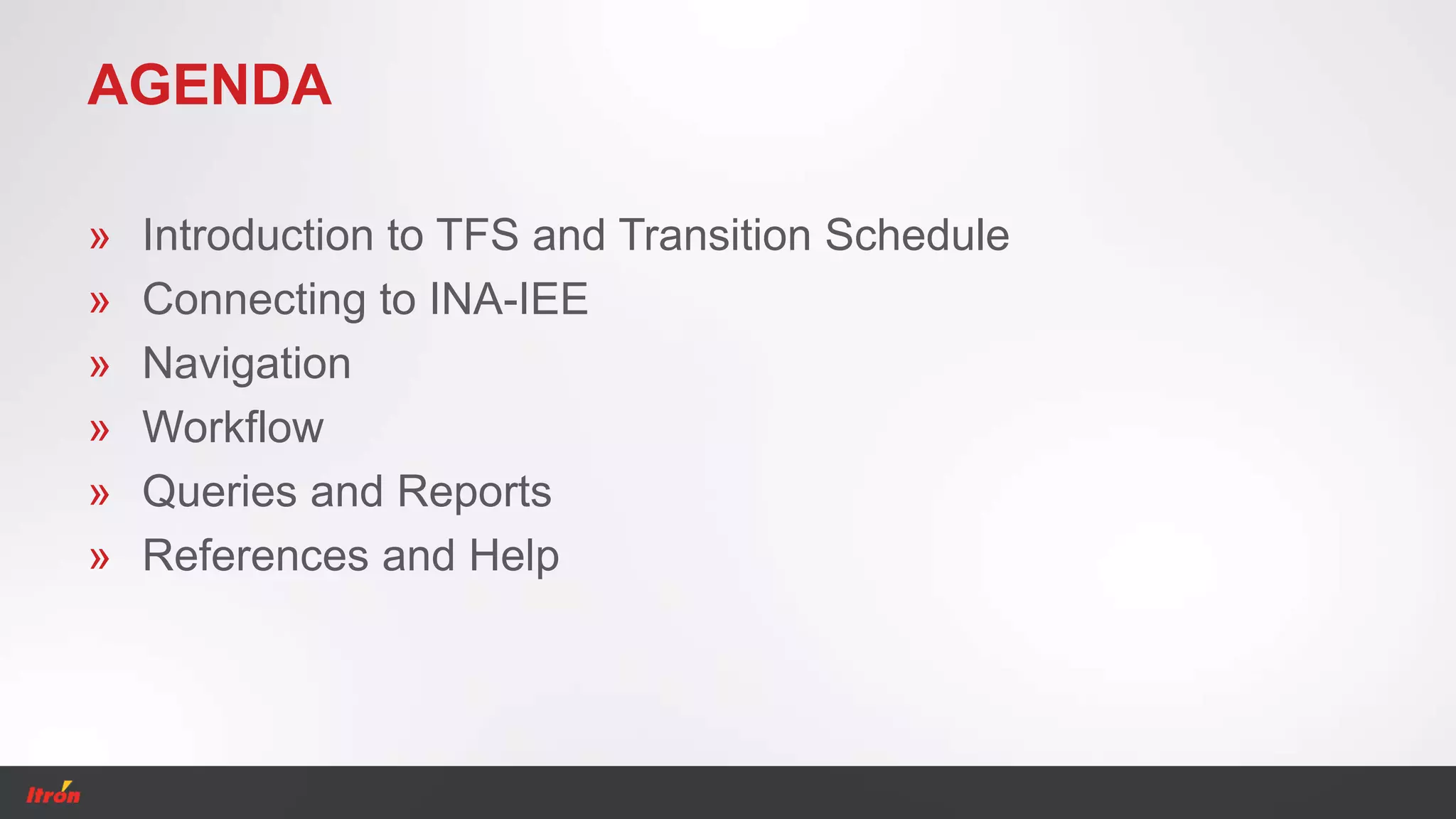
AGENDA
» Introduction to TFS and Transition Schedule
» Connecting to INA-IEE
» Navigation
» Workflow
» Queries and Reports
» References and Help
Introduction to TFS
Functionality
Complexity
Transition Schedule
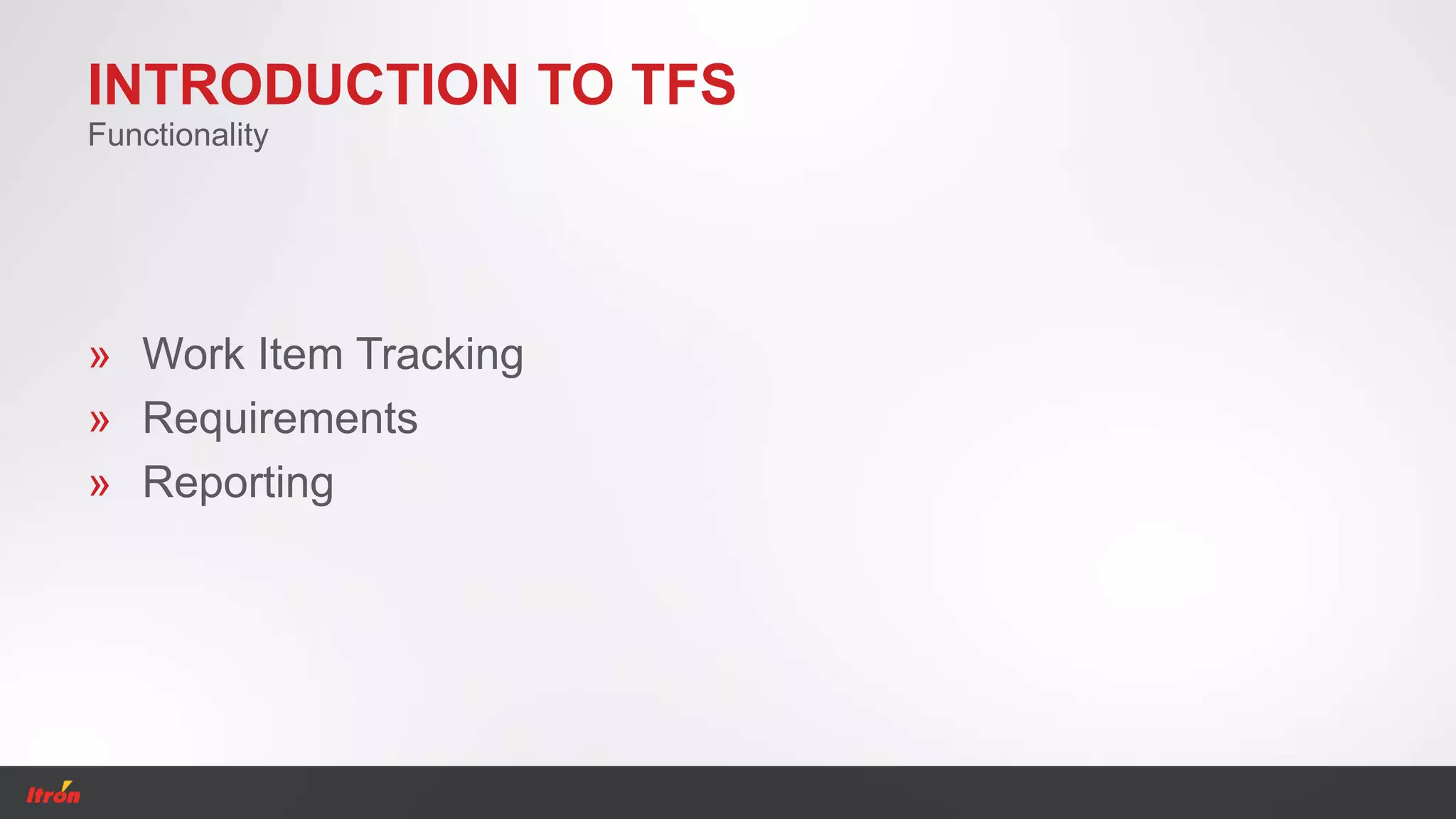
INTRODUCTION TO TFS
» Work Item Tracking
» Requirements
» Reporting
Functionality
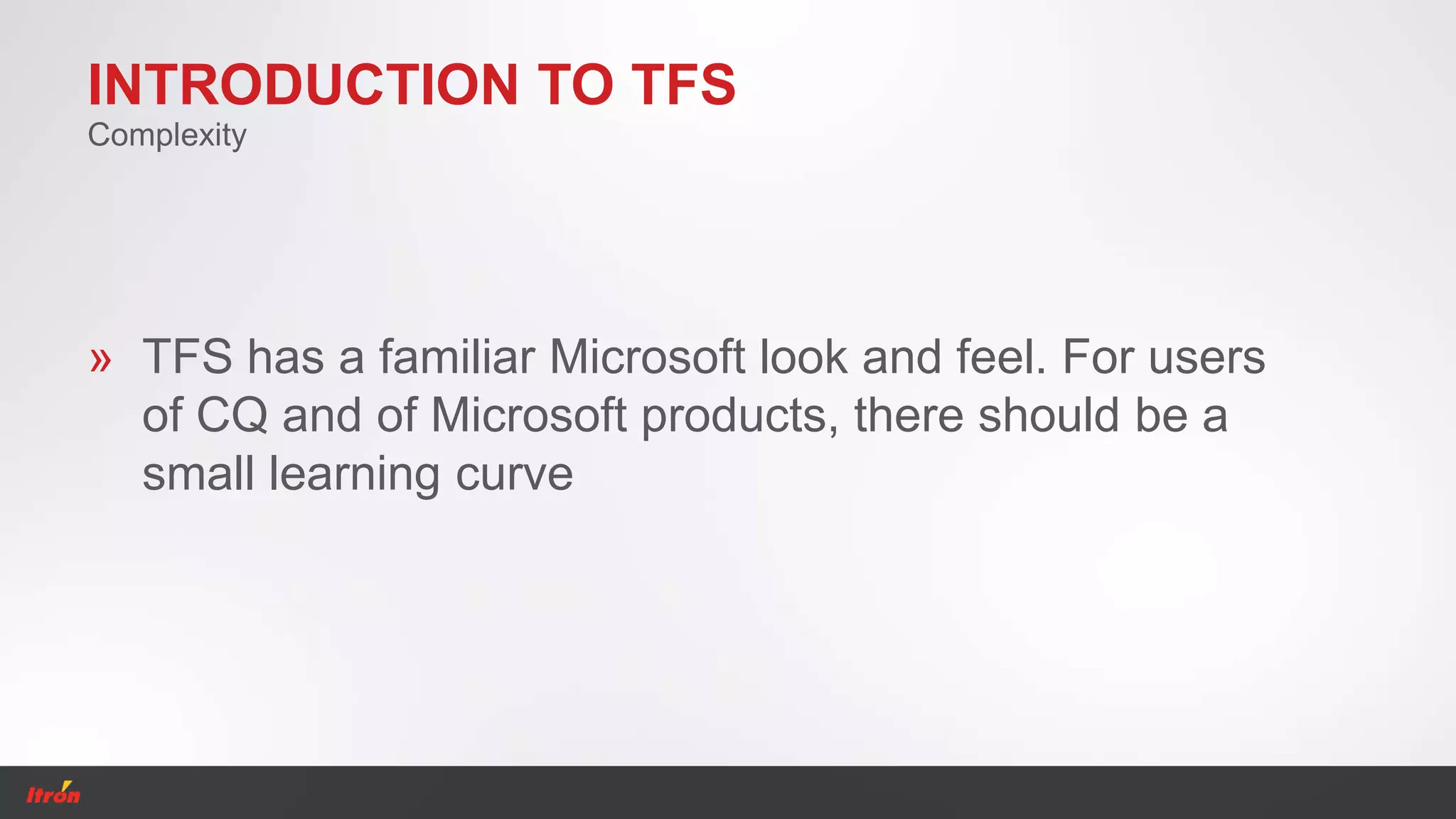
INTRODUCTION TO TFS
» TFS has a familiar Microsoft look and feel. For users
of CQ and of Microsoft products, there should be a
small learning curve
Complexity
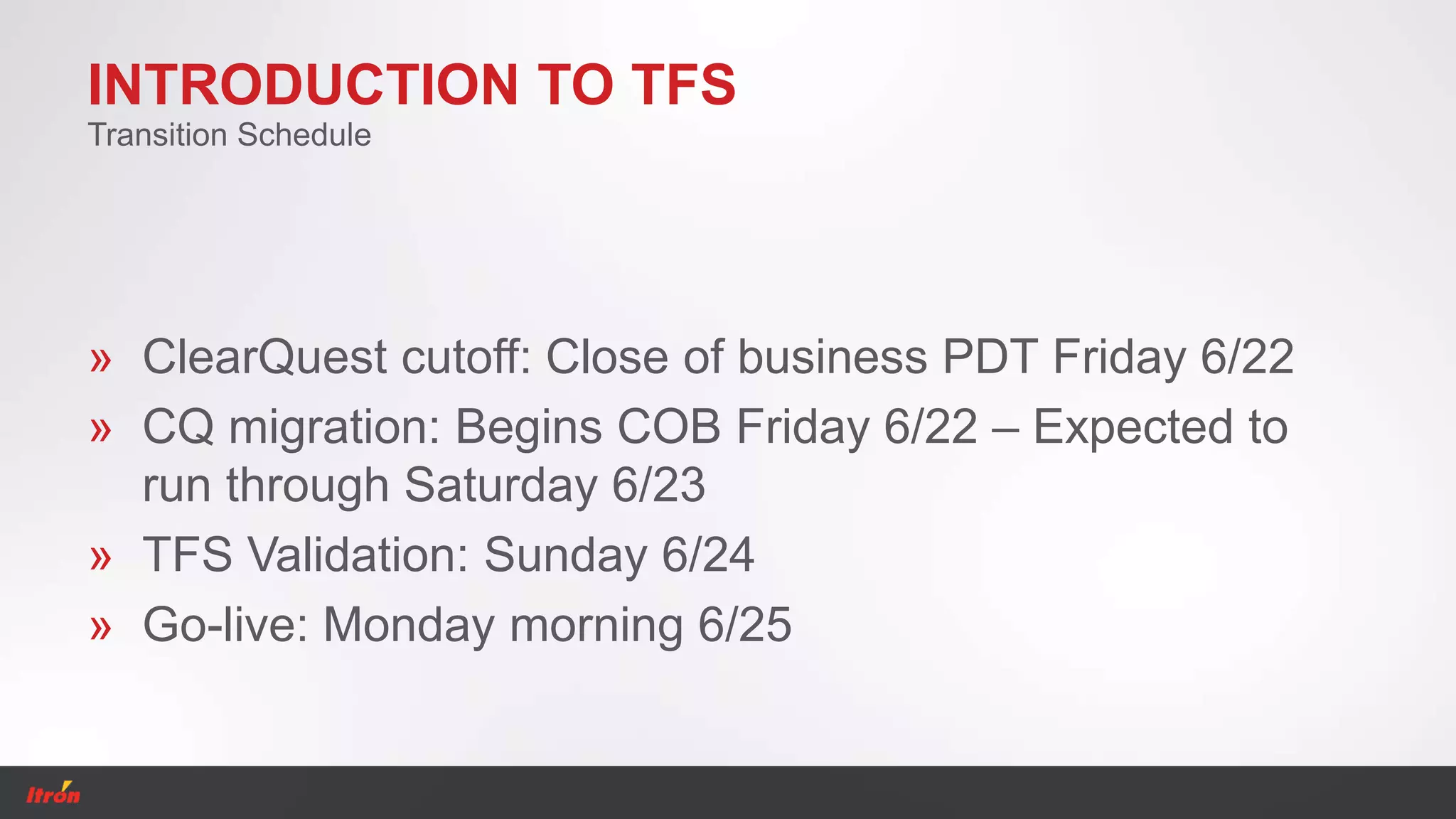
INTRODUCTION TO TFS
» ClearQuest cutoff: Close of business PDT Friday 6/22
» CQ migration: Begins COB Friday 6/22 – Expected to
run through Saturday 6/23
» TFS Validation: Sunday 6/24
» Go-live: Monday morning 6/25
Transition Schedule
Connecting to INA-IEE
User Options
Getting Connected
CONNECTING TO INA-IEE
» Team Web Access
» Visual Studio
» Excel / Project / *Word
» SharePoint
*Word is not currently available as a connecting option. IT is testing 3rd party add-ins
for use with MS Word.
User Options
CONNECTING TO INA-IEE
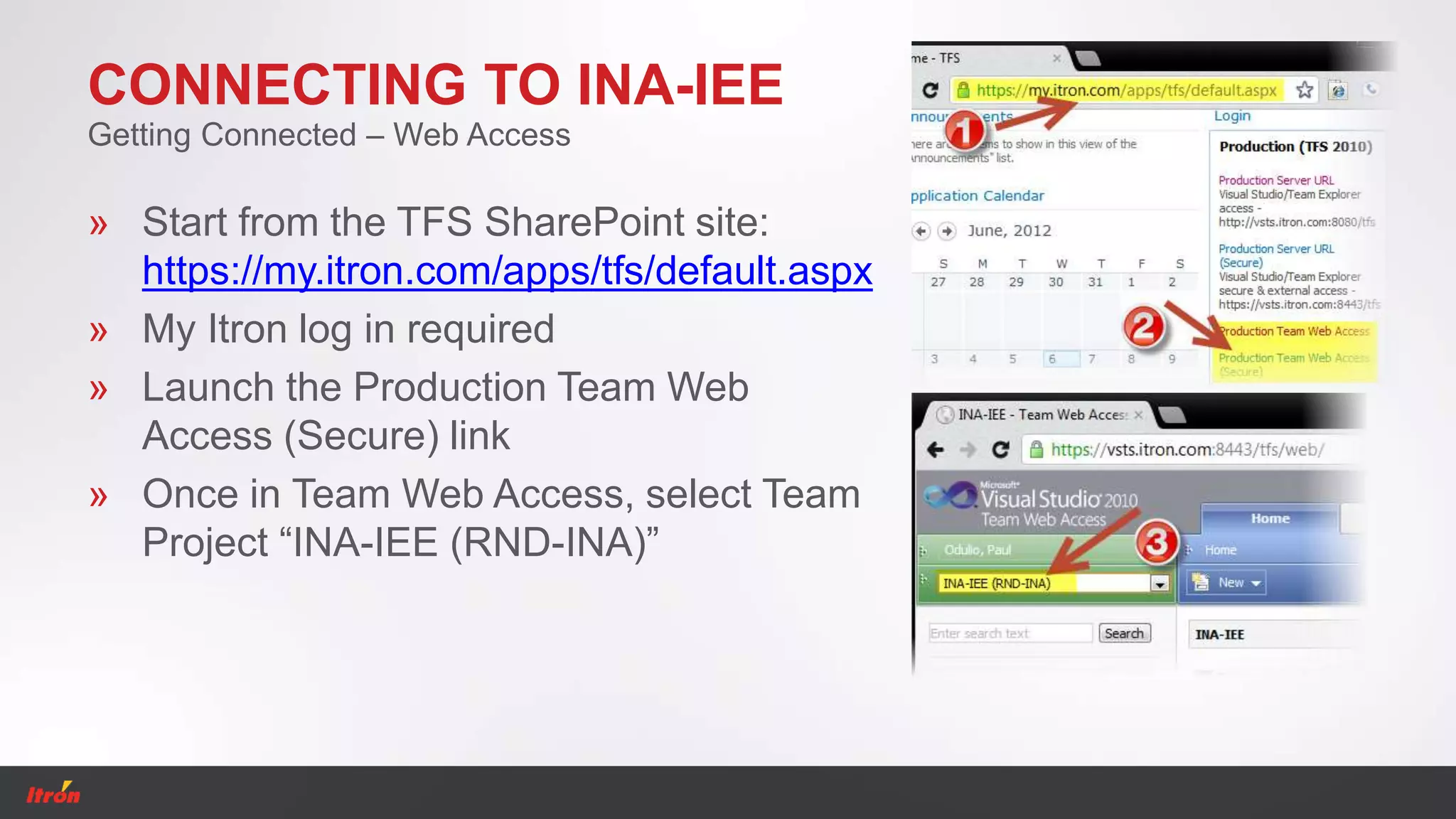
» Start from the TFS SharePoint site:
https://my.itron.com/apps/tfs/default.aspx
» My Itron log in required
» Launch the Production Team Web
Access (Secure) link
» Once in Team Web Access, select Team
Project “INA-IEE (RND-INA)”
Getting Connected – Web Access
CONNECTING TO INA-IEE
» Team Explorer is required to connect in VS. Download the
installer at: ral-nas1InstallersPublicMSVSTeamExplorer
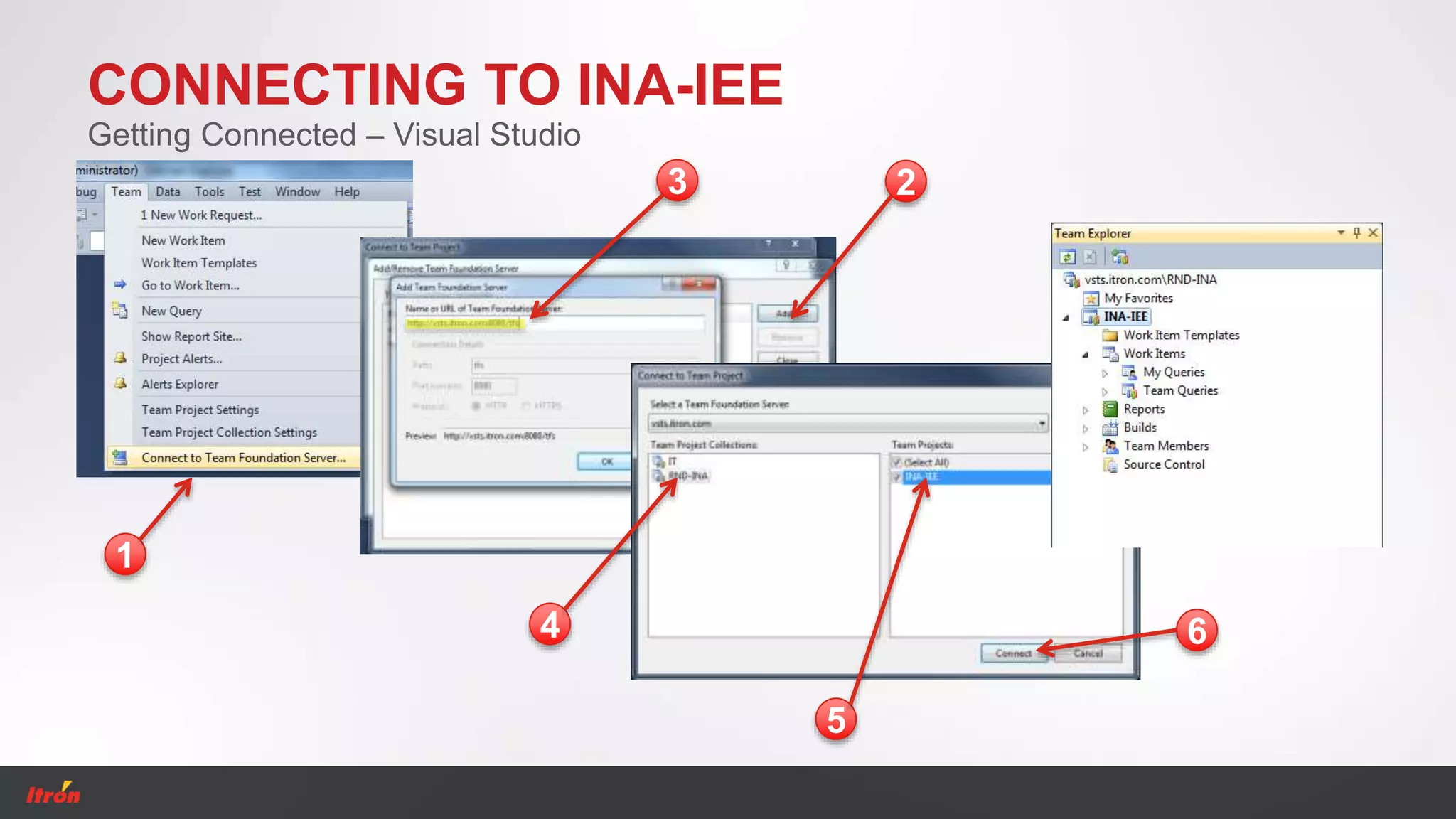
» After installing Team Explorer, open VS. In the Team menu,
choose Connect to Team Foundation Server…
» Click ‘Servers…’, then ‘Add’, then enter the url
‘http://vsts.itron.com:8080/tfs’. Click ‘OK’, ‘Close’, select
‘RND-INA’, check ‘INA-IEE’ and then ‘Connect’.
Getting Connected – Visual Studio
CONNECTING TO INA-IEE
Getting Connected – Visual Studio
1
23
4
5
6
CONNECTING TO INA-IEE
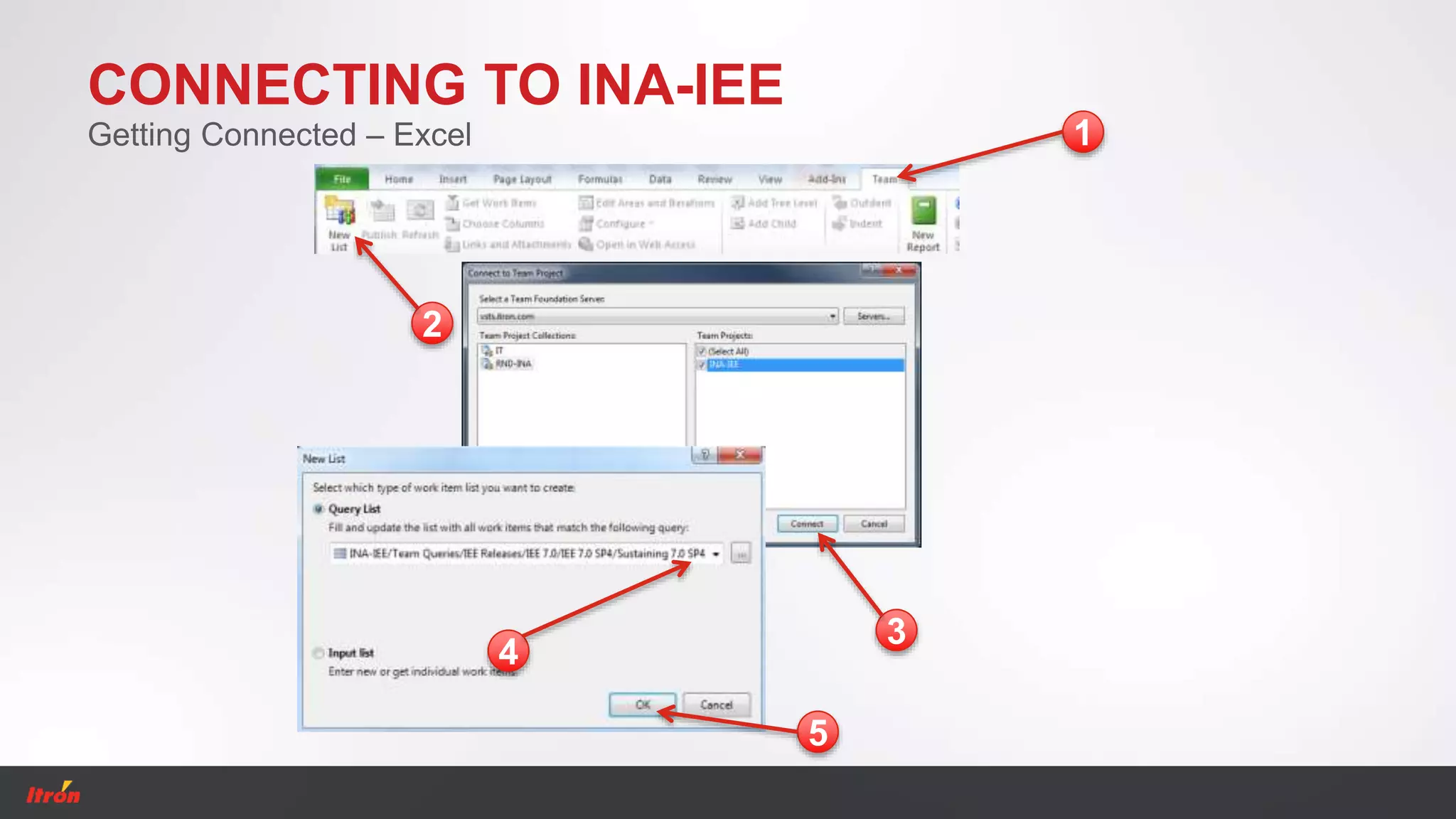
» Team Explorer is required to connect via Excel
» Go to the Team tab and select ‘New List’. ‘Connect to Team
Project’ using the same steps as with VS
» Select a query
» Results populate in Excel
» Work Request Item content can be modified and pushed back via
Excel
Getting Connected – Excel
CONNECTING TO INA-IEE
Getting Connected – Excel 1
2
4
5
3
Navigation
Team Web Access
Visual Studio
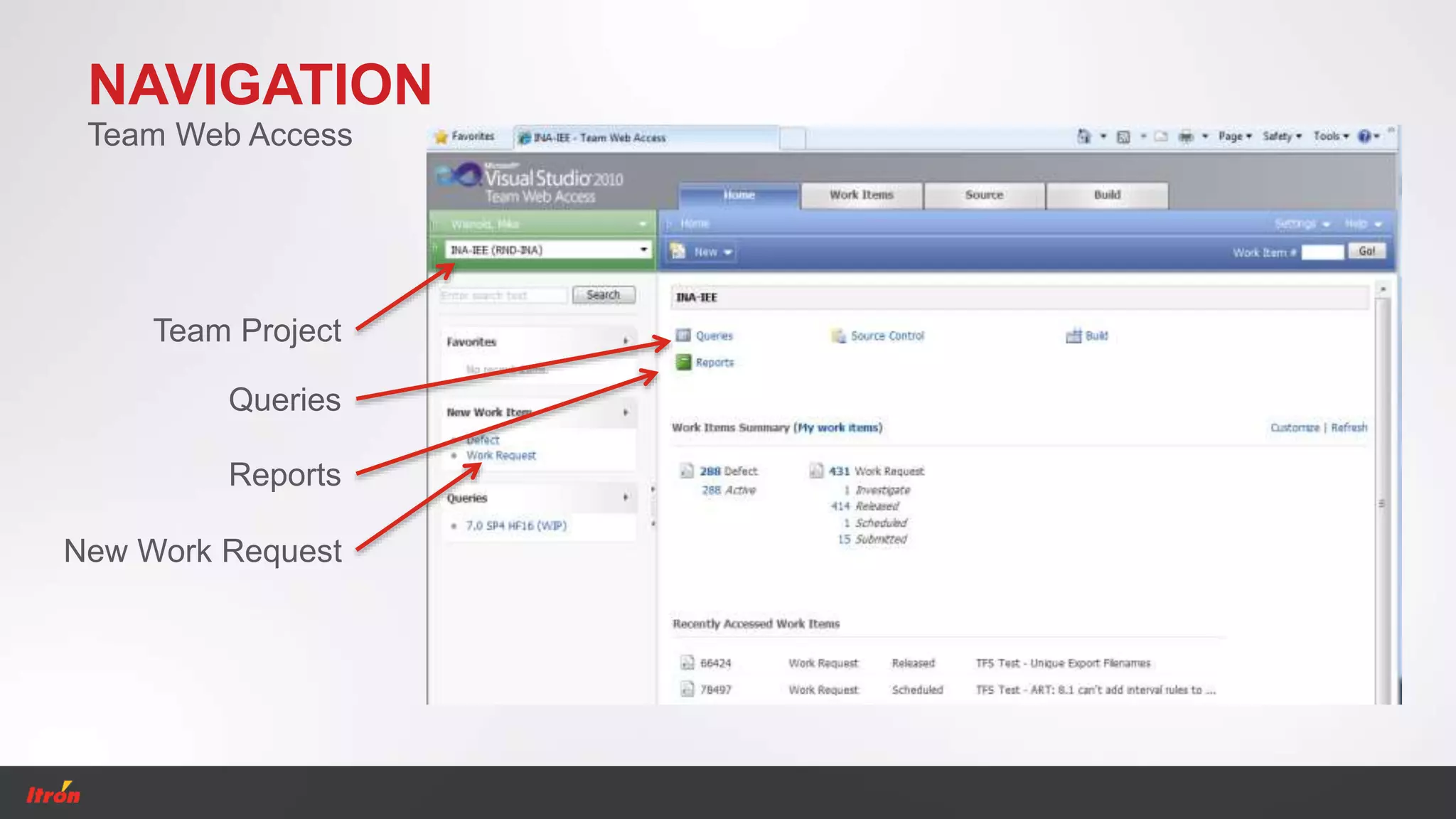
NAVIGATION
Team Web Access
Team Project
Queries
Reports
New Work Request
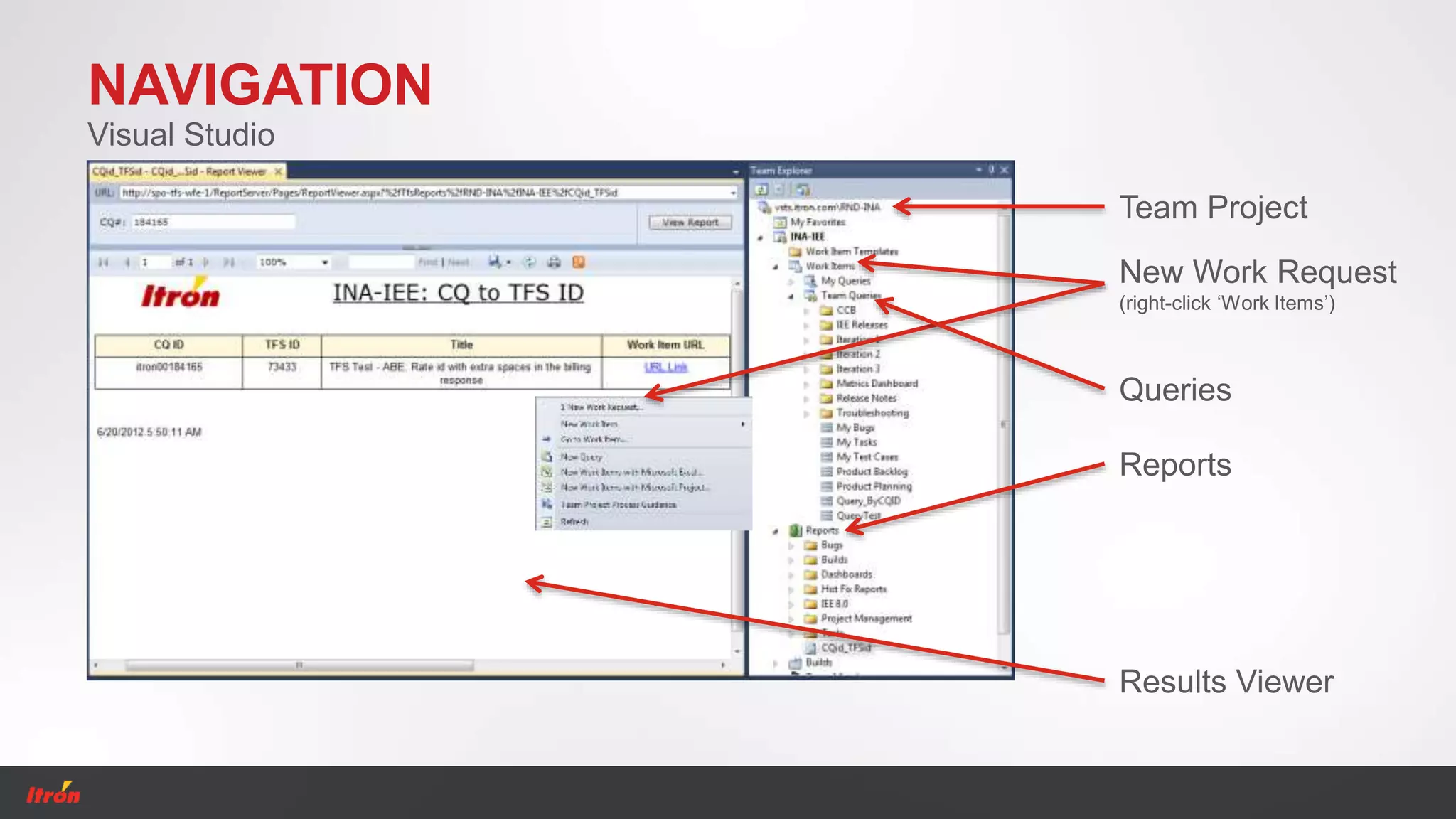
NAVIGATION
Visual Studio
Team Project
Queries
Reports
New Work Request
(right-click ‘Work Items’)
Results Viewer
Workflow
Logging new Work Request Items
Work Request Fields
Work Request States
Monitoring Work Request Items
WORKFLOW
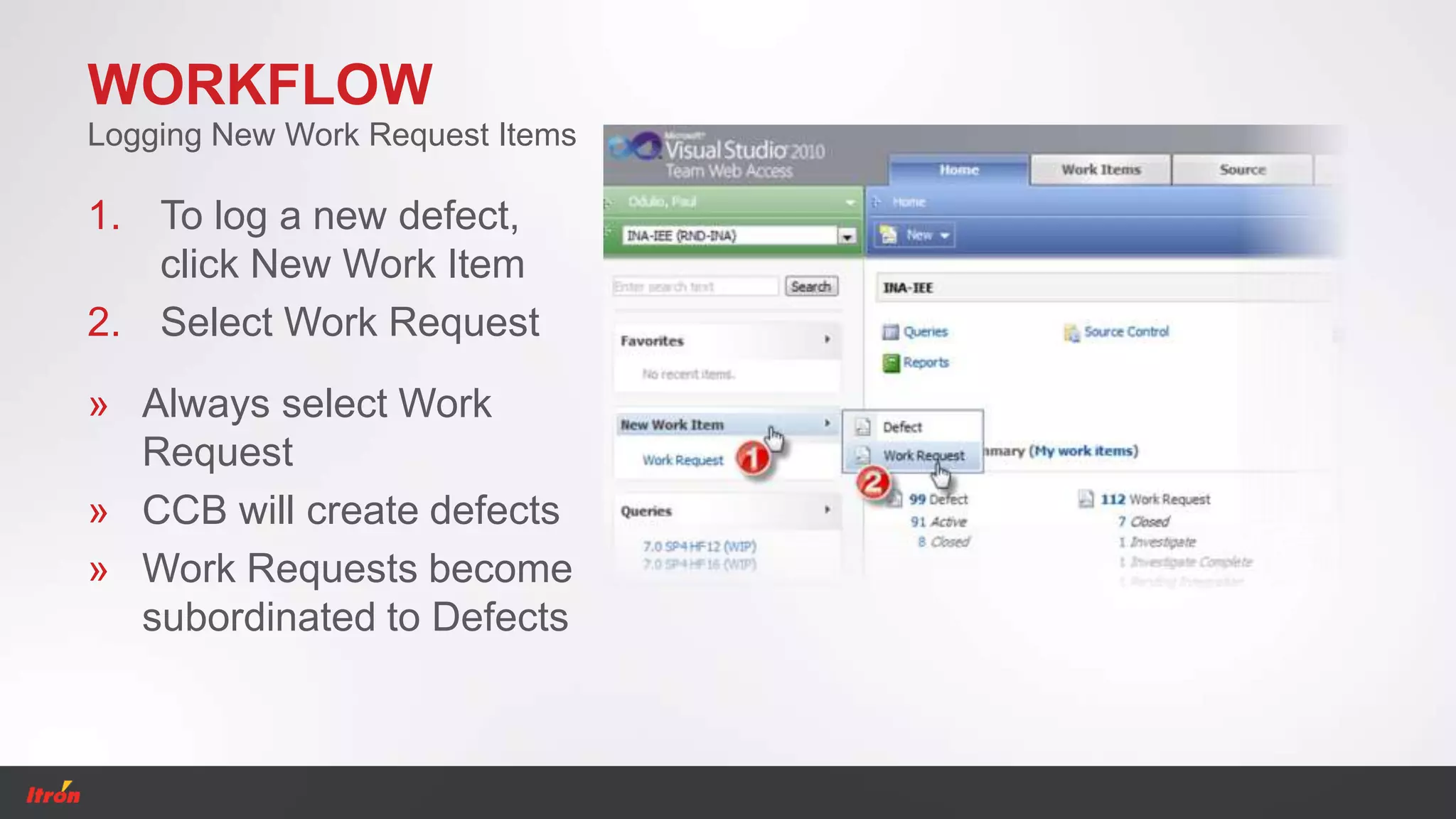
1. To log a new defect,
click New Work Item
2. Select Work Request
Logging New Work Request Items
» Always select Work
Request
» CCB will create defects
» Work Requests become
subordinated to Defects
WORKFLOW
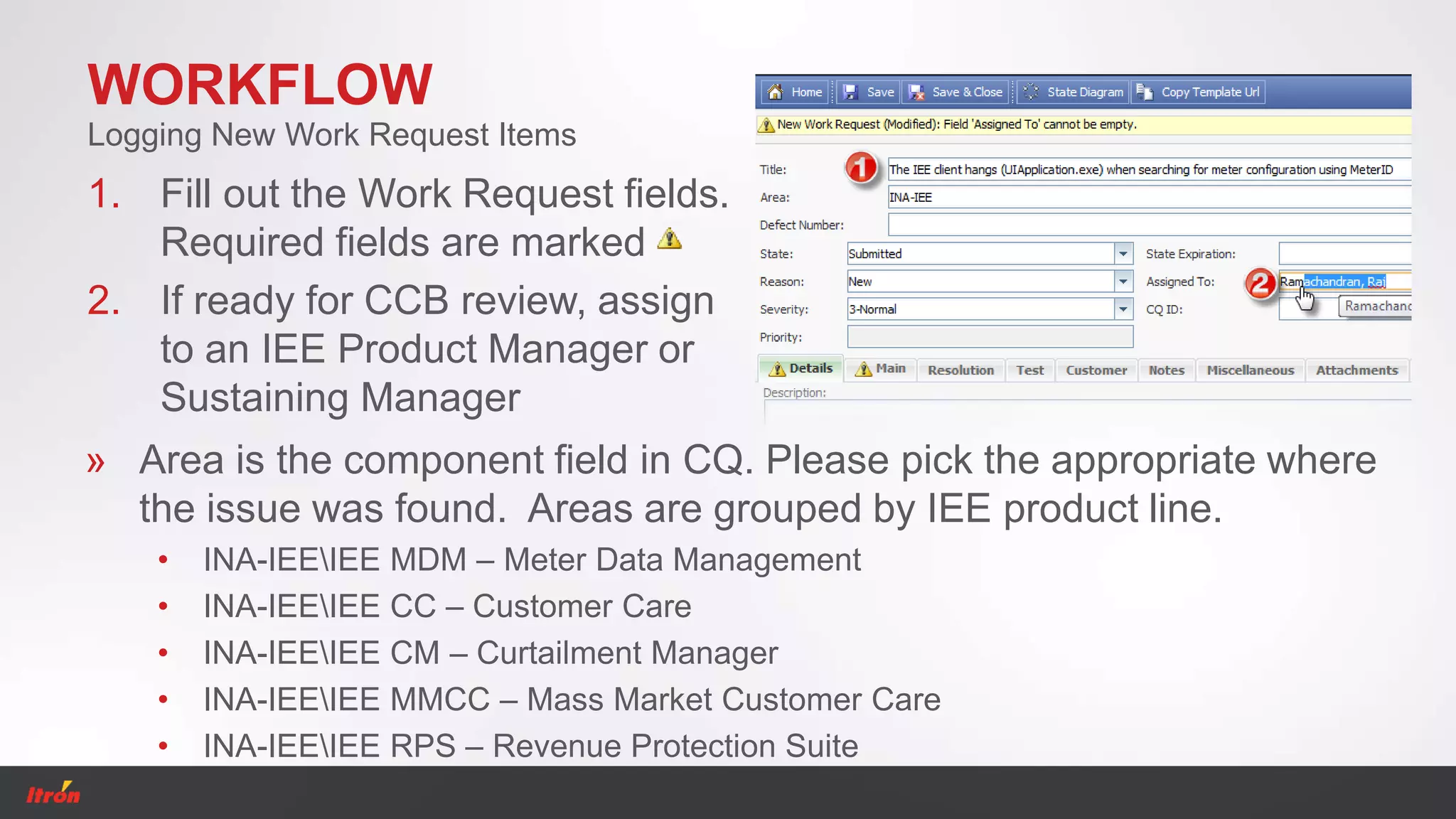
1. Fill out the Work Request fields.
Required fields are marked
2. If ready for CCB review, assign
to an IEE Product Manager or
Sustaining Manager
Logging New Work Request Items
» Area is the component field in CQ. Please pick the appropriate where
the issue was found. Areas are grouped by IEE product line.
• INA-IEEIEE MDM – Meter Data Management
• INA-IEEIEE CC – Customer Care
• INA-IEEIEE CM – Curtailment Manager
• INA-IEEIEE MMCC – Mass Market Customer Care
• INA-IEEIEE RPS – Revenue Protection Suite
WORKFLOW
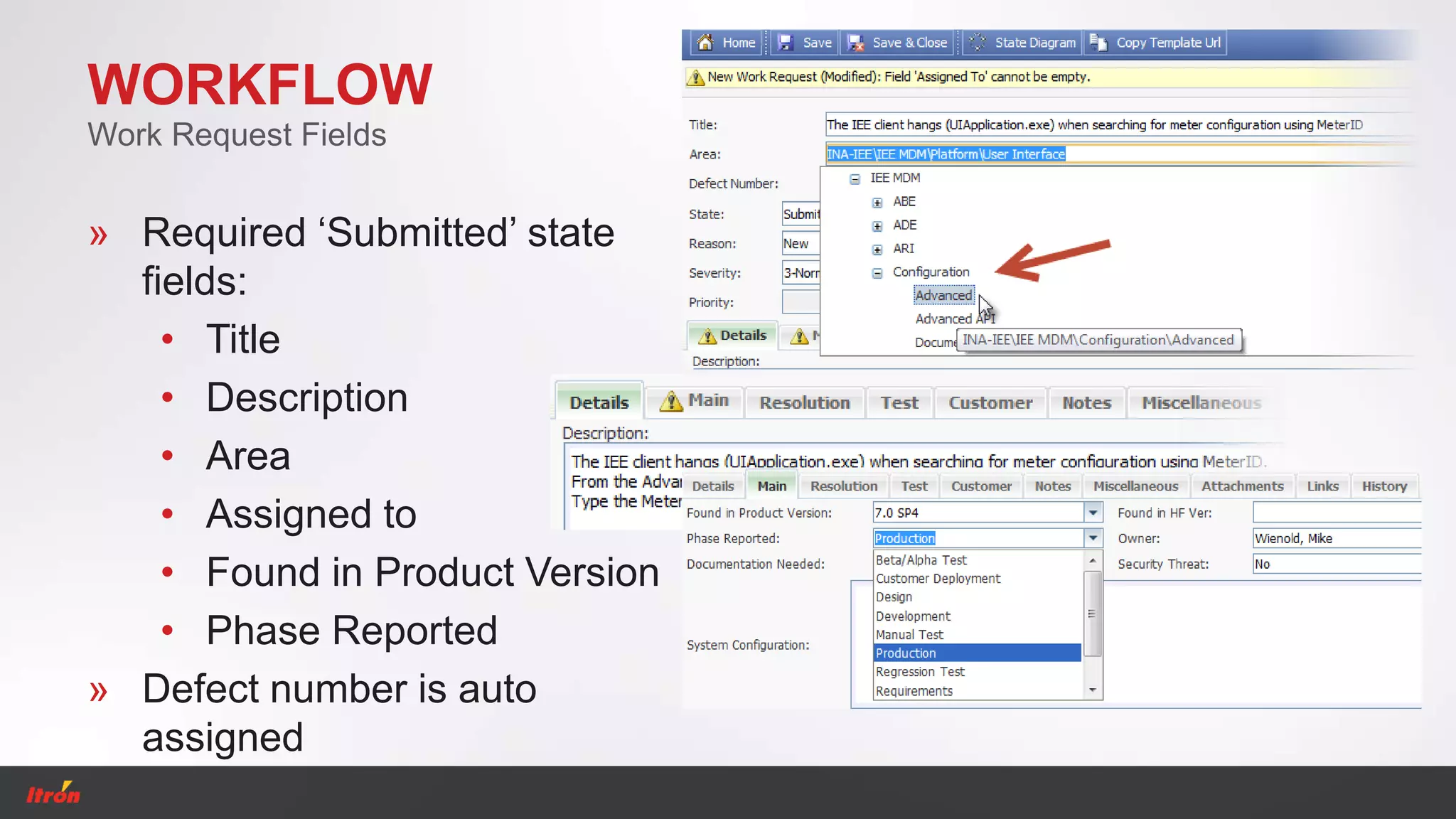
» Required ‘Submitted’ state
fields:
• Title
• Description
• Area
• Assigned to
• Found in Product Version
• Phase Reported
» Defect number is auto
assigned
Work Request Fields
WORKFLOW
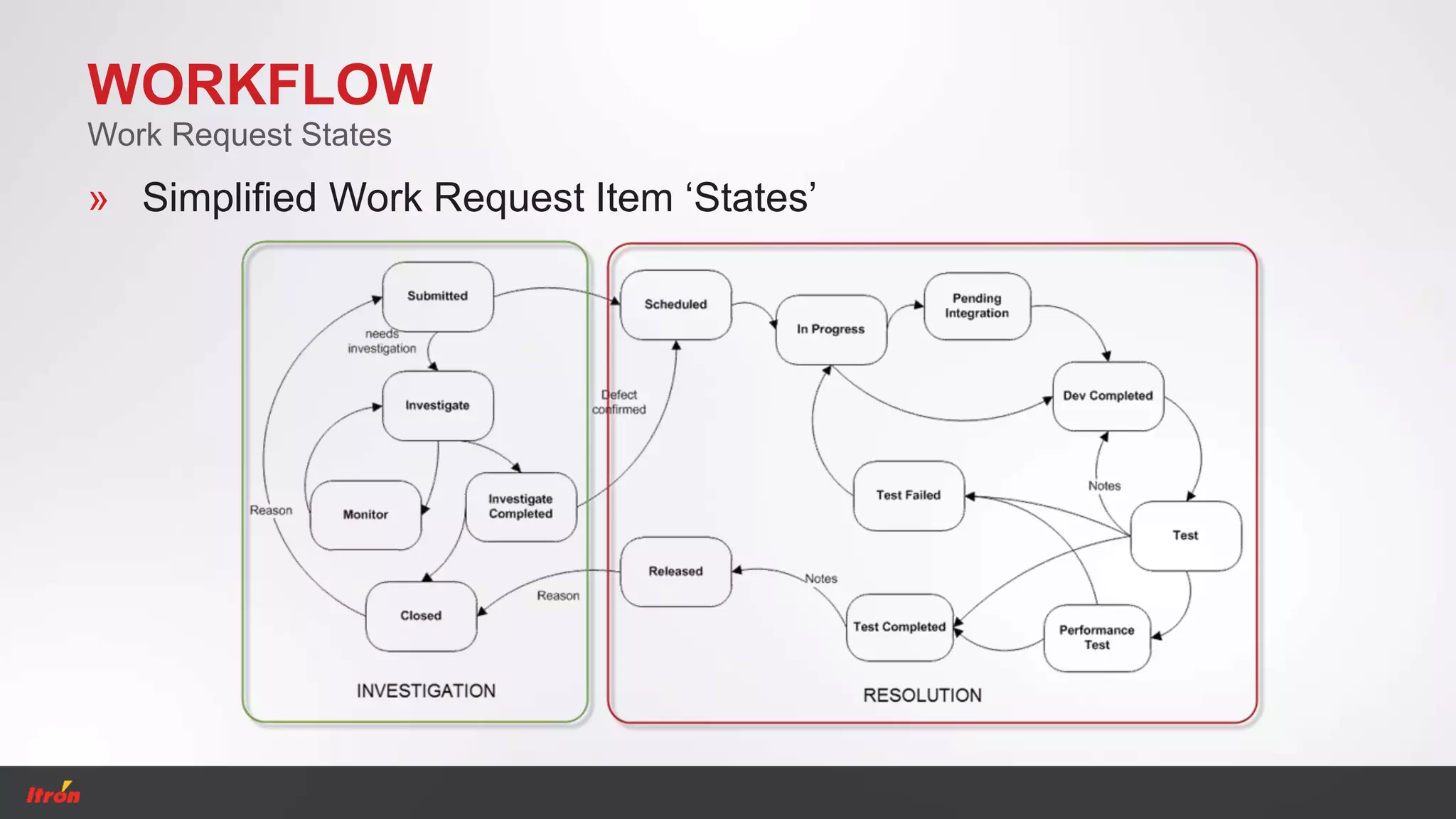
» Simplified Work Request Item ‘States’
Work Request States
WORKFLOW
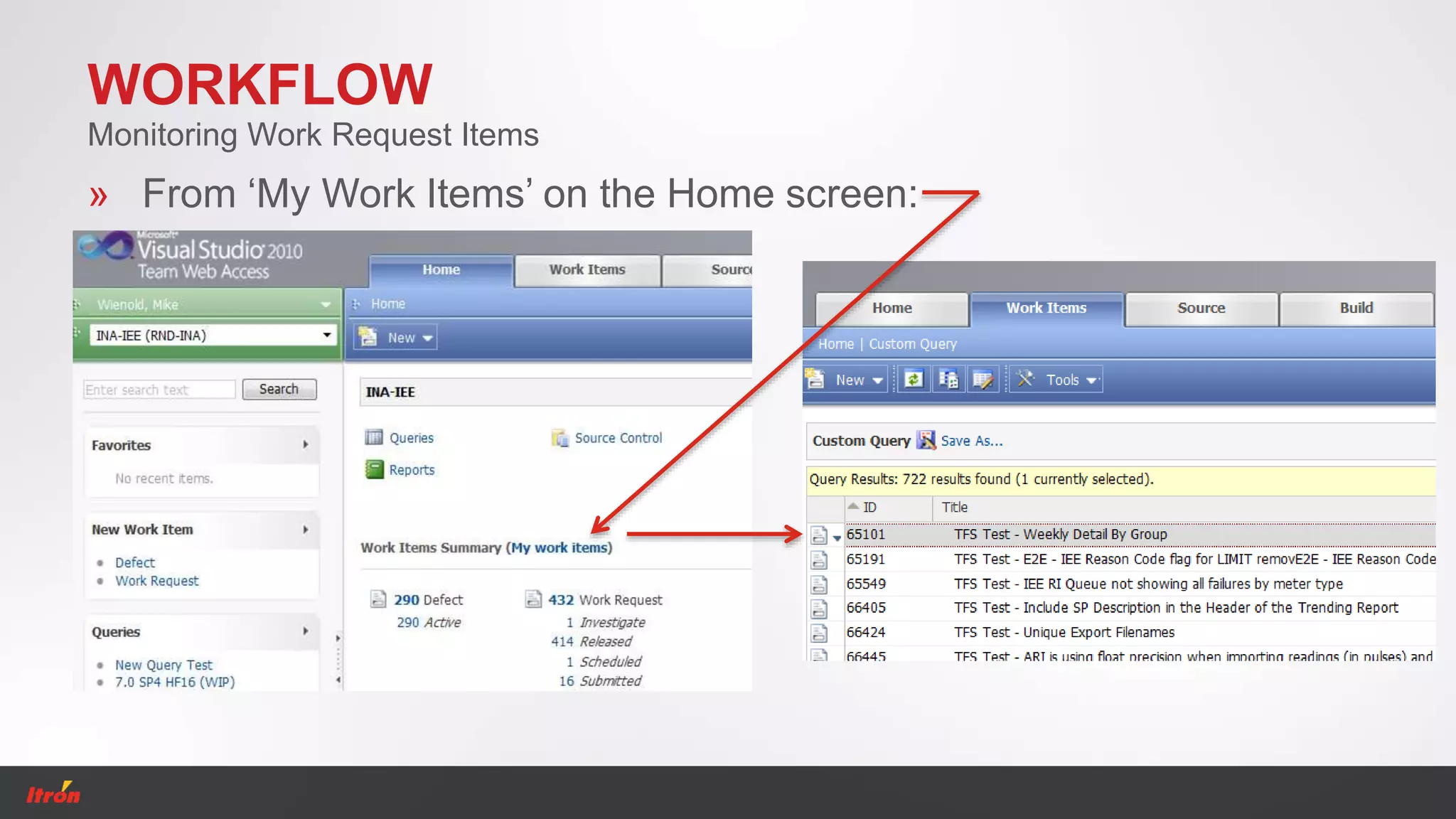
» From ‘My Work Items’ on the Home screen:
Monitoring Work Request Items
WORKFLOW
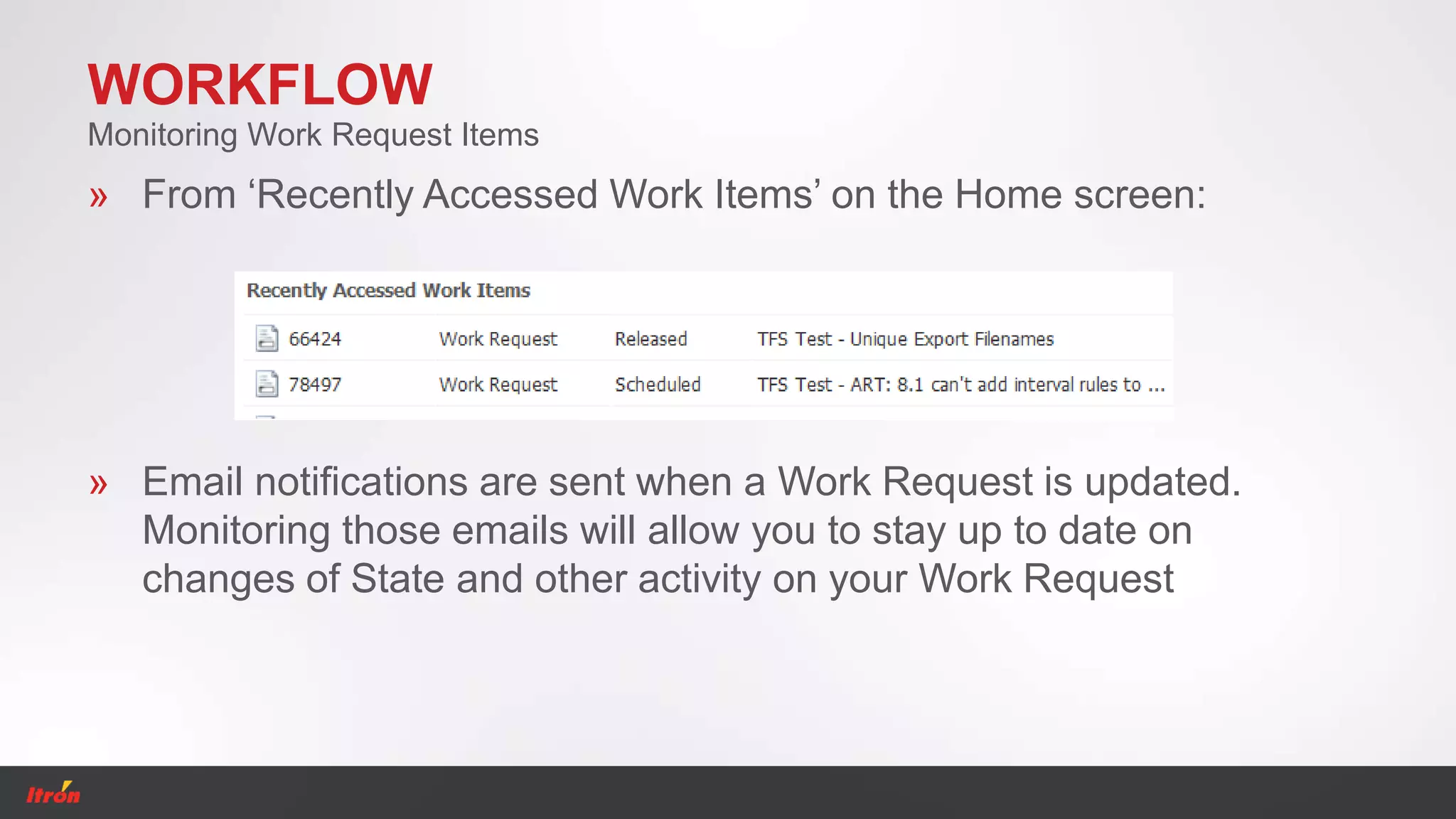
» From ‘Recently Accessed Work Items’ on the Home screen:
Monitoring Work Request Items
» Email notifications are sent when a Work Request is updated.
Monitoring those emails will allow you to stay up to date on
changes of State and other activity on your Work Request
WORKFLOW
Monitoring Work Request Items
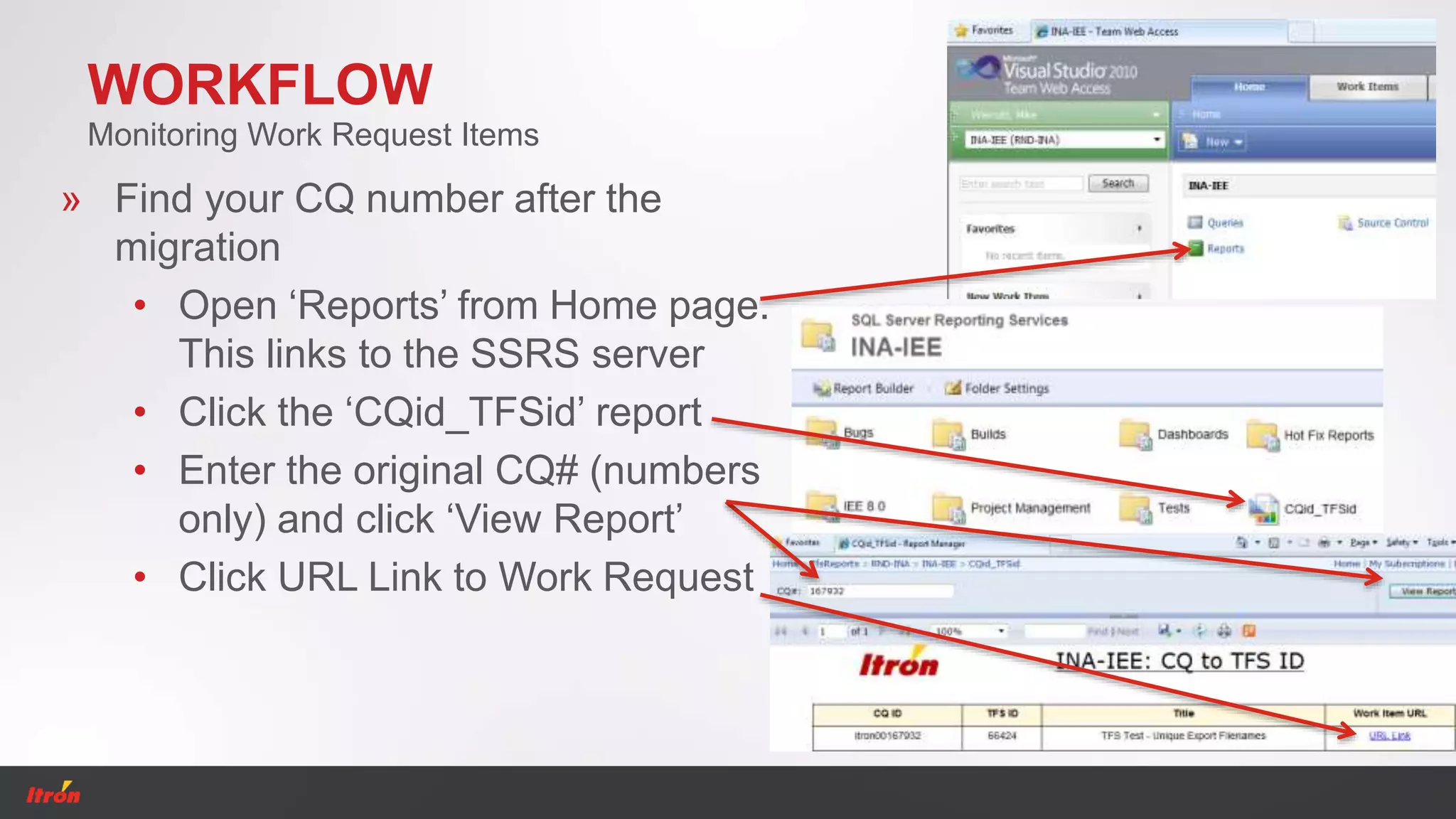
» Find your CQ number after the
migration
• Open ‘Reports’ from Home page.
This links to the SSRS server
• Click the ‘CQid_TFSid’ report
• Enter the original CQ# (numbers
only) and click ‘View Report’
• Click URL Link to Work Request
Queries and Reports
Building Personal Queries
Running Queries
Query Results to Excel or SharePoint
Reports
QUERIES AND REPORTS
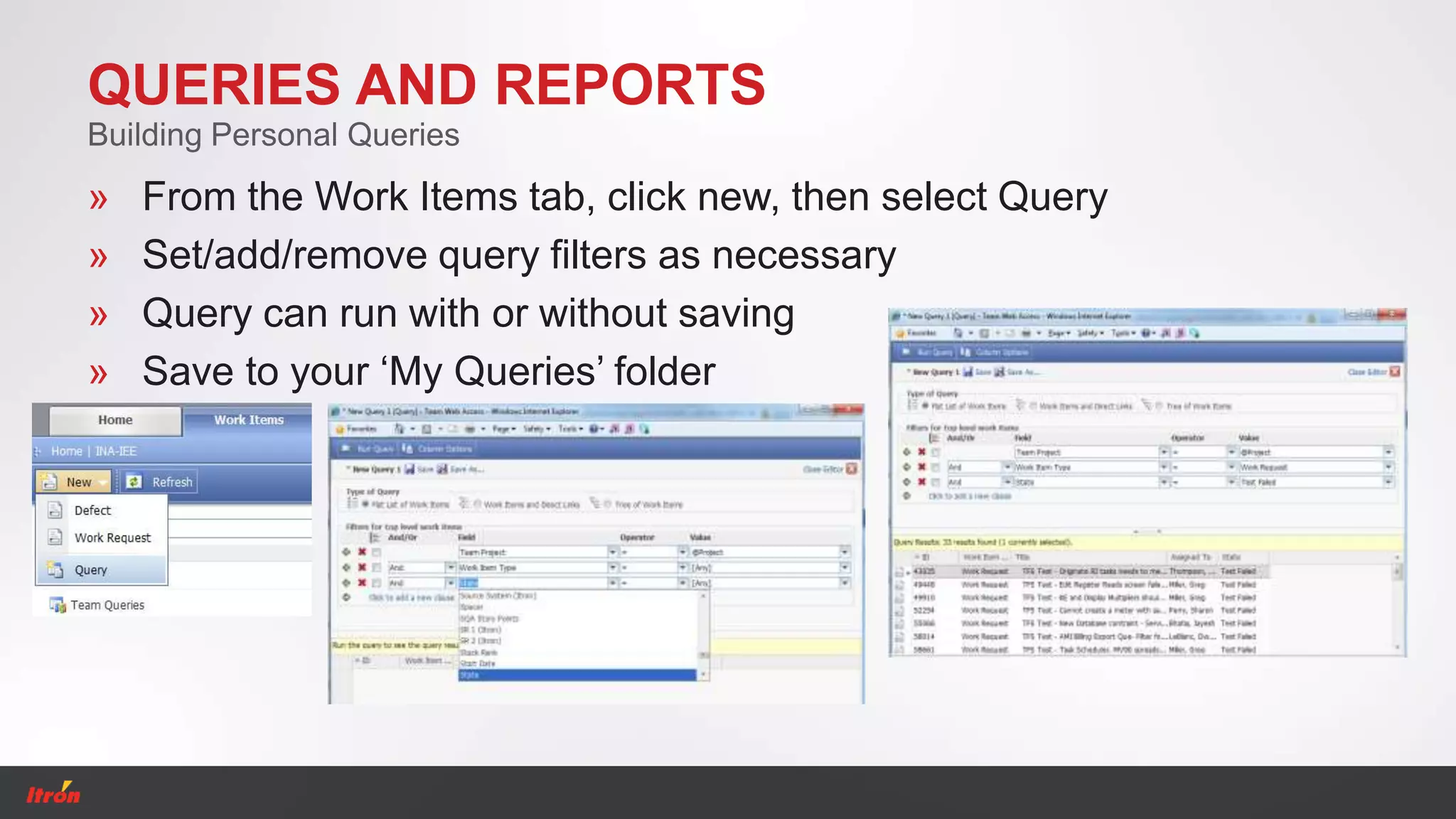
» From the Work Items tab, click new, then select Query
» Set/add/remove query filters as necessary
» Query can run with or without saving
» Save to your ‘My Queries’ folder
Building Personal Queries
QUERIES AND REPORTS
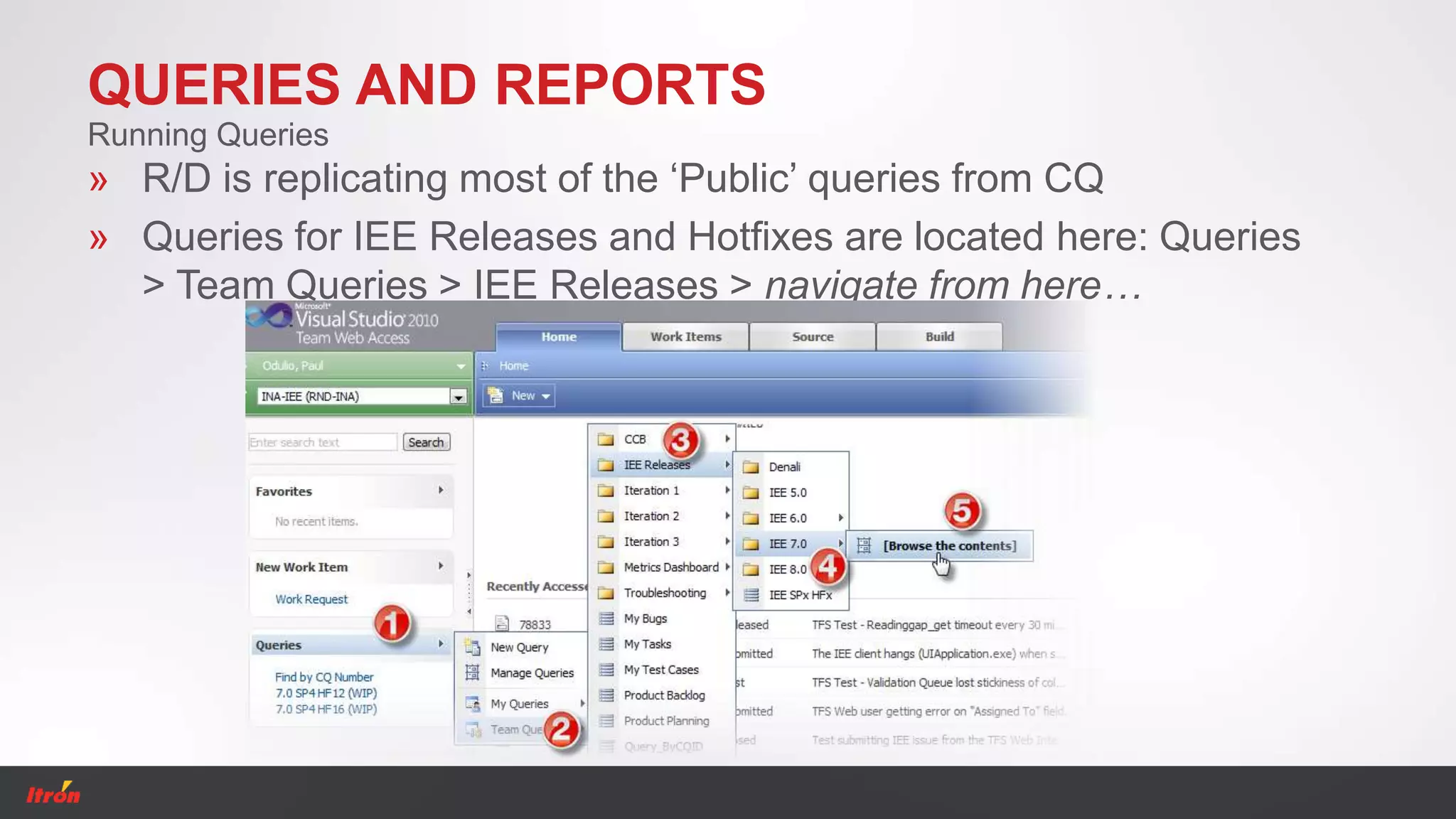
» R/D is replicating most of the ‘Public’ queries from CQ
» Queries for IEE Releases and Hotfixes are located here: Queries
> Team Queries > IEE Releases > navigate from here…
Running Queries
QUERIES AND REPORTS
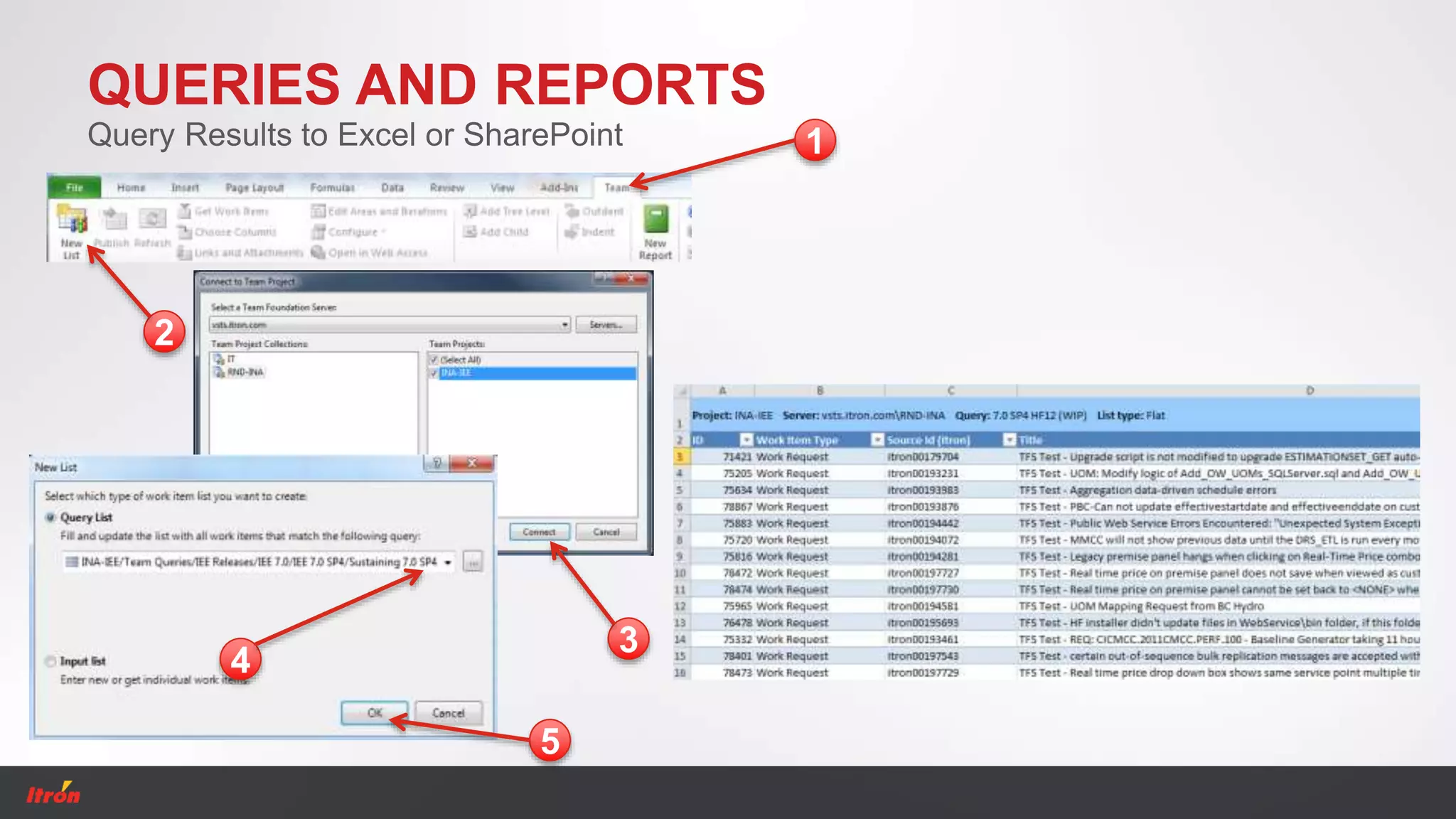
Query Results to Excel or SharePoint 1
2
4
5
3
QUERIES AND REPORTS
» Reports use queries to present data
» Reports allow variables for more flexibility in the queries (CQ
used dynamic queries)
» Reporting in Excel – Excel can build pivot tables and charts
automatically from your queries
» You can create pivot charts on your own with query results in
Excel
Reports
Questions?
REFERENCES AND HELP
» Detailed information is available on the TFS SharePoint site:
https://my.itron.com/apps/tfs/Help%20Guides/Forms/AllItems.aspx
» The schedule of IEE Releases is posted to SharePoint:
https://my.itron.com/rnd/ssg/sft/iee/rel/default.aspx
THANK YOU
www.itron.com

TFS Change Management Training

  • 1.
    Itron Enterprise Edition ClearQuestTransition to Team Foundation Server June 25, 2012
  • 2.
    AGENDA » Introduction toTFS and Transition Schedule » Connecting to INA-IEE » Navigation » Workflow » Queries and Reports » References and Help
  • 3.
  • 4.
    INTRODUCTION TO TFS »Work Item Tracking » Requirements » Reporting Functionality
  • 5.
    INTRODUCTION TO TFS »TFS has a familiar Microsoft look and feel. For users of CQ and of Microsoft products, there should be a small learning curve Complexity
  • 6.
    INTRODUCTION TO TFS »ClearQuest cutoff: Close of business PDT Friday 6/22 » CQ migration: Begins COB Friday 6/22 – Expected to run through Saturday 6/23 » TFS Validation: Sunday 6/24 » Go-live: Monday morning 6/25 Transition Schedule
  • 7.
    Connecting to INA-IEE UserOptions Getting Connected
  • 8.
    CONNECTING TO INA-IEE »Team Web Access » Visual Studio » Excel / Project / *Word » SharePoint *Word is not currently available as a connecting option. IT is testing 3rd party add-ins for use with MS Word. User Options
  • 9.
    CONNECTING TO INA-IEE »Start from the TFS SharePoint site: https://my.itron.com/apps/tfs/default.aspx » My Itron log in required » Launch the Production Team Web Access (Secure) link » Once in Team Web Access, select Team Project “INA-IEE (RND-INA)” Getting Connected – Web Access
  • 10.
    CONNECTING TO INA-IEE »Team Explorer is required to connect in VS. Download the installer at: ral-nas1InstallersPublicMSVSTeamExplorer » After installing Team Explorer, open VS. In the Team menu, choose Connect to Team Foundation Server… » Click ‘Servers…’, then ‘Add’, then enter the url ‘http://vsts.itron.com:8080/tfs’. Click ‘OK’, ‘Close’, select ‘RND-INA’, check ‘INA-IEE’ and then ‘Connect’. Getting Connected – Visual Studio
  • 11.
    CONNECTING TO INA-IEE GettingConnected – Visual Studio 1 23 4 5 6
  • 12.
    CONNECTING TO INA-IEE »Team Explorer is required to connect via Excel » Go to the Team tab and select ‘New List’. ‘Connect to Team Project’ using the same steps as with VS » Select a query » Results populate in Excel » Work Request Item content can be modified and pushed back via Excel Getting Connected – Excel
  • 13.
    CONNECTING TO INA-IEE GettingConnected – Excel 1 2 4 5 3
  • 14.
  • 15.
    NAVIGATION Team Web Access TeamProject Queries Reports New Work Request
  • 16.
    NAVIGATION Visual Studio Team Project Queries Reports NewWork Request (right-click ‘Work Items’) Results Viewer
  • 17.
    Workflow Logging new WorkRequest Items Work Request Fields Work Request States Monitoring Work Request Items
  • 18.
    WORKFLOW 1. To loga new defect, click New Work Item 2. Select Work Request Logging New Work Request Items » Always select Work Request » CCB will create defects » Work Requests become subordinated to Defects
  • 19.
    WORKFLOW 1. Fill outthe Work Request fields. Required fields are marked 2. If ready for CCB review, assign to an IEE Product Manager or Sustaining Manager Logging New Work Request Items » Area is the component field in CQ. Please pick the appropriate where the issue was found. Areas are grouped by IEE product line. • INA-IEEIEE MDM – Meter Data Management • INA-IEEIEE CC – Customer Care • INA-IEEIEE CM – Curtailment Manager • INA-IEEIEE MMCC – Mass Market Customer Care • INA-IEEIEE RPS – Revenue Protection Suite
  • 20.
    WORKFLOW » Required ‘Submitted’state fields: • Title • Description • Area • Assigned to • Found in Product Version • Phase Reported » Defect number is auto assigned Work Request Fields
  • 21.
    WORKFLOW » Simplified WorkRequest Item ‘States’ Work Request States
  • 22.
    WORKFLOW » From ‘MyWork Items’ on the Home screen: Monitoring Work Request Items
  • 23.
    WORKFLOW » From ‘RecentlyAccessed Work Items’ on the Home screen: Monitoring Work Request Items » Email notifications are sent when a Work Request is updated. Monitoring those emails will allow you to stay up to date on changes of State and other activity on your Work Request
  • 24.
    WORKFLOW Monitoring Work RequestItems » Find your CQ number after the migration • Open ‘Reports’ from Home page. This links to the SSRS server • Click the ‘CQid_TFSid’ report • Enter the original CQ# (numbers only) and click ‘View Report’ • Click URL Link to Work Request
  • 25.
    Queries and Reports BuildingPersonal Queries Running Queries Query Results to Excel or SharePoint Reports
  • 26.
    QUERIES AND REPORTS »From the Work Items tab, click new, then select Query » Set/add/remove query filters as necessary » Query can run with or without saving » Save to your ‘My Queries’ folder Building Personal Queries
  • 27.
    QUERIES AND REPORTS »R/D is replicating most of the ‘Public’ queries from CQ » Queries for IEE Releases and Hotfixes are located here: Queries > Team Queries > IEE Releases > navigate from here… Running Queries
  • 28.
    QUERIES AND REPORTS QueryResults to Excel or SharePoint 1 2 4 5 3
  • 29.
    QUERIES AND REPORTS »Reports use queries to present data » Reports allow variables for more flexibility in the queries (CQ used dynamic queries) » Reporting in Excel – Excel can build pivot tables and charts automatically from your queries » You can create pivot charts on your own with query results in Excel Reports
  • 30.
  • 31.
    REFERENCES AND HELP »Detailed information is available on the TFS SharePoint site: https://my.itron.com/apps/tfs/Help%20Guides/Forms/AllItems.aspx » The schedule of IEE Releases is posted to SharePoint: https://my.itron.com/rnd/ssg/sft/iee/rel/default.aspx
  • 32.