Apache JMeter 
NAVEENKUMAR NAMACHIVAYAM 
Founder - testTalk Academy 
http://naveenkumarn.in
Objectives 
• What do major organisations want to avoid? 
• What is Load Testing? 
• JMeter – An Introduction 
• Requirements & Installing Jmeter 
• JMeter – Architecture 
• What is a Test Plan? 
• Elements of a Test Plan 
• Thread Group 
• Controllers 
• Samplers 
• Logical Controllers 
• Test Fragments 
• Listeners 
• Timers 
• Assertions 
• Configuration Elements 
• Pre-Processor Elements 
• Post-Processor Elements 
• Execution order 
• Scoping Rules 
• Correlations 
• Data Parameterization 
• Assertions Types 
• Preprocessors Types 
• User Parameters 
• Post-Processors Types 
• Miscellaneous Features I 
• Miscellaneous Features II 
• Properties and Variables 
• Building a Database Test Plan 
• Listeners Types 
• JMeter Functions and User Variables 
• Reference variables and functions 
• The Function Helper Dialog 
• Regular Expressions 
• Remote & Distributed Testing 
• Using Distributed Testing with Load 
Balancers 
• Resource Monitoring 
• ab - Apache HTTP server 
benchmarking tool 
• Load Testing Web App 
• Tips and Tricks 
• Best Practices
What do major organisations want to avoid?
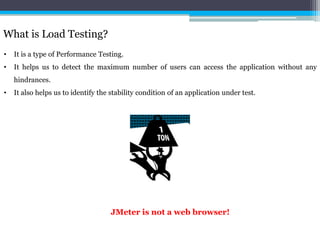
What is Load Testing? 
• It is a type of Performance Testing. 
• It helps us to detect the maximum number of users can access the application without any 
hindrances. 
• It also helps us to identify the stability condition of an application under test. 
JMeter is not a web browser!
JMeter - An Introduction 
• JMeter aka Apache JMeter 
• Stefano Mazzocchi – Developer of JMeter 
• JMeter is an Open Source software. Visit http://jakarta.apache.org/jmeter/ 
• JMeter is 100% pure Java application for load testing for AUT 
• It ensures complete portability and flexibility 
• It also helps for regression test by creating Assertions (Checkpoints) using regular expressions.
Requirements & Installing Jmeter 
• To install JMeter, you need JVM (Java Virtual Machine) 1.5 or higher. 
• Operating Systems 
• As JMeter is 100% pure Java, it will work on any OS. 
• Windows 
• Unix 
• Linux 
• Solaris 
• Open VMS Alpha 7.3+ 
• For developing, you need to install any one or more following packages which is optional: JDK 
1.5 or higher versions, SAX XML Parser, Email Support using SMTP sampler, SSL Encryption, 
JDBC Drivers, JMS Client, Active MQ Libraries.
JMeter - An Introduction 
• To download Apache JMeter log on to 
http://jakarta.apache.org/site/downloads/downloads_jmeter.cgi and download latest build of 
JMeter. 
• Extract the zip file 
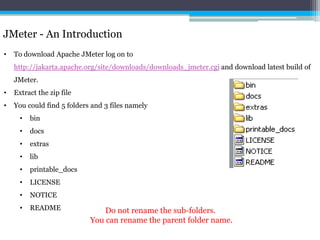
• You could find 5 folders and 3 files namely 
• bin 
• docs 
• extras 
• lib 
• printable_docs 
• LICENSE 
• NOTICE 
• README Do not rename the sub-folders. 
You can rename the parent folder name.
JMeter - Architecture 
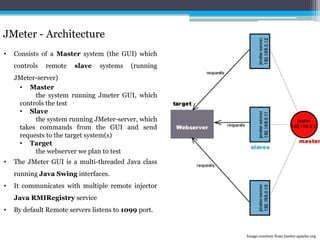
• Consists of a Master system (the GUI) which 
controls remote slave systems (running 
JMeter-server) 
• Master 
the system running Jmeter GUI, which 
controls the test 
• Slave 
the system running JMeter-server, which 
takes commands from the GUI and send 
requests to the target system(s) 
• Target 
the webserver we plan to test 
• The JMeter GUI is a multi-threaded Java class 
running Java Swing interfaces. 
• It communicates with multiple remote injector 
Java RMIRegistry service 
• By default Remote servers listens to 1099 port. 
Image courtesy from jmeter.apache.org
What is a Test Plan? 
• A test plan describes a series of steps JMeter will execute when run. 
• A complete test plan will consist of one or more Thread Groups, logic controllers, sample generating 
controllers, listeners, timers, assertions, and configuration elements.
Elements of a Test Plan 
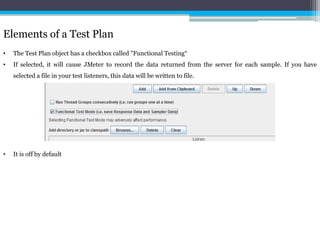
• The Test Plan object has a checkbox called "Functional Testing“ 
• If selected, it will cause JMeter to record the data returned from the server for each sample. If you have 
selected a file in your test listeners, this data will be written to file. 
• It is off by default
Thread Group 
• Thread group elements are the beginning points of any test plan. 
• All controllers and samplers must be under a thread group. 
• Other elements, e.g. Listeners, may be placed directly under the test plan, in which case they will apply to all 
the thread groups. 
• It controls the number of threads JMeter will use to execute your test.
Controllers 
• Two types of Controllers: Samplers and Logical Controllers. These drive the processing of a test. 
• Samplers tell JMeter to send requests to a server. 
• Logical Controllers let you customize the logic that JMeter uses to decide when to send requests.
Samplers 
• Samplers tell JMeter to send requests to a server and wait for a response. 
• Processed in the order they appear in the tree. 
• Controllers can be used to modify the number of repetitions of a sampler. 
• FTP Request 
• HTTP Request 
• JDBC Request 
• Java object request 
• LDAP Request 
• SOAP/XML-RPC Request 
• WebService (SOAP) Request
Logical Controllers 
• Simple Controller 
• Loop Controller 
• Once Only Controller 
• Interleave Controller 
• Random Controller 
• Random Order Controller 
• Throughput Controller 
• Runtime Controller 
• If Controller 
• While Controller 
• Switch Controller 
• ForEach Controller 
• Module Controller 
• Include Controller 
• Transaction Controller 
• Recording Controller 
Logic Controllers determine the order in 
which Samplers are processes
Simple Controller 
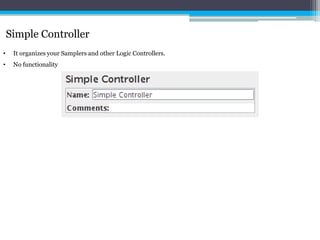
• It organizes your Samplers and other Logic Controllers. 
• No functionality
Loop Controller 
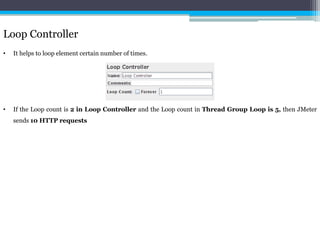
• It helps to loop element certain number of times. 
• If the Loop count is 2 in Loop Controller and the Loop count in Thread Group Loop is 5, then JMeter 
sends 10 HTTP requests
Once Only Controller 
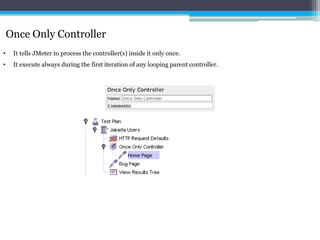
• It tells JMeter to process the controller(s) inside it only once. 
• It execute always during the first iteration of any looping parent controller.
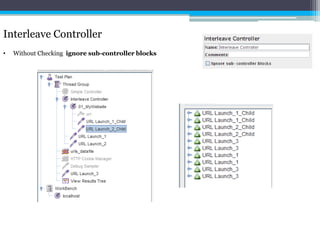
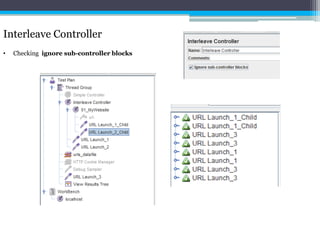
Interleave Controller 
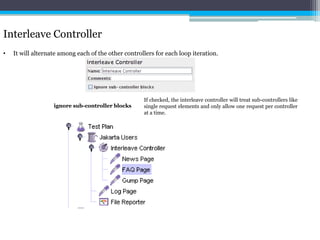
• It will alternate among each of the other controllers for each loop iteration. 
If checked, the interleave controller will treat sub-controllers like 
single request elements and only allow one request per controller 
at a time. 
ignore sub-controller blocks
Interleave Controller 
• Without Checking ignore sub-controller blocks
Interleave Controller 
• Checking ignore sub-controller blocks
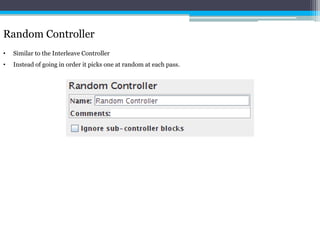
Random Controller 
• Similar to the Interleave Controller 
• Instead of going in order it picks one at random at each pass.
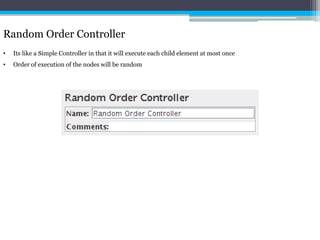
Random Order Controller 
• Its like a Simple Controller in that it will execute each child element at most once 
• Order of execution of the nodes will be random
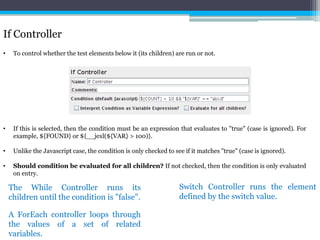
If Controller 
• To control whether the test elements below it (its children) are run or not. 
• If this is selected, then the condition must be an expression that evaluates to "true" (case is ignored). For 
example, ${FOUND} or ${__jexl(${VAR} > 100)}. 
• Unlike the Javascript case, the condition is only checked to see if it matches "true" (case is ignored). 
• Should condition be evaluated for all children? If not checked, then the condition is only evaluated 
on entry. 
The While Controller runs its 
children until the condition is "false". 
Switch Controller runs the element 
defined by the switch value. 
A ForEach controller loops through 
the values of a set of related 
variables.
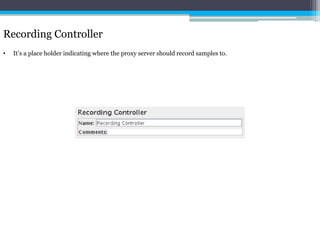
Recording Controller 
• It’s a place holder indicating where the proxy server should record samples to.
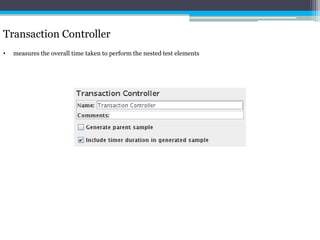
Transaction Controller 
• measures the overall time taken to perform the nested test elements
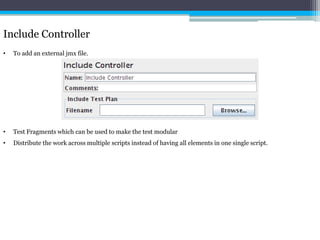
Include Controller 
• To add an external jmx file. 
• Test Fragments which can be used to make the test modular 
• Distribute the work across multiple scripts instead of having all elements in one single script.
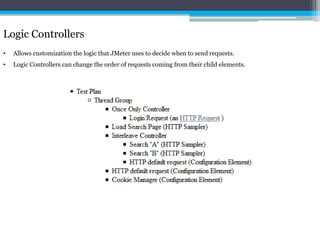
Logic Controllers 
• Allows customization the logic that JMeter uses to decide when to send requests. 
• Logic Controllers can change the order of requests coming from their child elements.
Test Fragments 
• Distinguished from a Thread Group in that it is not executed unless it is referenced by either a Module 
Controller or an Include Controller. 
• Purely for code re-use within Test Plans and was introduced in Version 2.5
Listeners 
• Listeners provide access to the information JMeter gathers about the test cases while JMeter runs. 
• It can direct the data to a file for later use. 
• Configuration button which can be used to choose which fields to save, and whether to use CSV or XML 
format. 
• Listeners can be added anywhere in the test, including directly under the test plan.
Timers 
• By default, a JMeter thread sends requests without pausing between each request. 
• It is recommended that you specify a delay by adding one of the available timers to your Thread Group. 
• If not, JMeter could overwhelm your server by making too many requests in a very short amount of time. 
• If you choose to add more than one timer to a Thread Group, JMeter takes the sum of the timers and pauses 
for that amount of time before executing the samplers to which the timers apply. 
• The timer will cause JMeter to delay a certain amount of time before each sampler which is in its scope. 
• To provide a pause at a single place in a test plan, one can use the Test Action Sampler.
Assertions 
• Assertions allow you to assert facts about responses received from the server being tested. 
• Using an assertion, you can essentially "test" that your application is returning the results you expect it to 
• To view the assertion results, add an Assertion Listener to the Thread Group 
It is like Checkpoints in 
QTP/LoadRunner
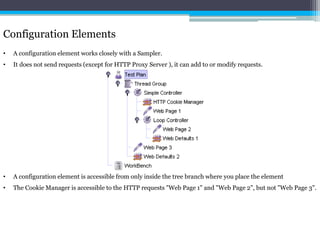
Configuration Elements 
• A configuration element works closely with a Sampler. 
• It does not send requests (except for HTTP Proxy Server ), it can add to or modify requests. 
• A configuration element is accessible from only inside the tree branch where you place the element 
• The CookieManager is accessible to the HTTP requests "Web Page 1" and "Web Page 2", but not "Web Page 3".
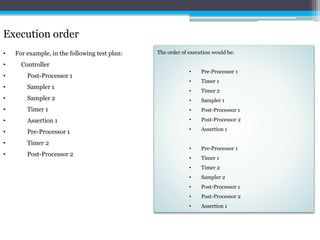
Pre-Processor Elements 
• A Pre-Processor executes some action prior to a Sampler Request being made. 
• If a Pre-Processor is attached to a Sampler element, then it will execute just prior to that sampler element 
running. 
• A Pre-Processor is most often used to modify the settings of a Sample Request just before it runs, or to update 
variables that aren't extracted from response text. 
Post-Processor Elements 
• A Post-Processor executes some action after a Sampler Request has been made. 
• If a Post-Processor is attached to a Sampler element, then it will execute just after that sampler element runs. 
• A Post-Processor is most often used to process the response data, often to extract values from it. See the 
scoping rules for more details on when Post-Processors are executed.
Execution order 
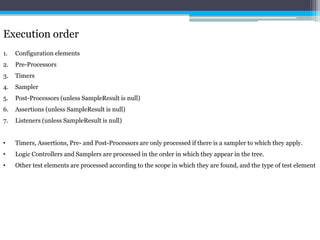
1. Configuration elements 
2. Pre-Processors 
3. Timers 
4. Sampler 
5. Post-Processors (unless SampleResult is null) 
6. Assertions (unless SampleResult is null) 
7. Listeners (unless SampleResult is null) 
• Timers, Assertions, Pre- and Post-Processors are only processed if there is a sampler to which they apply. 
• Logic Controllers and Samplers are processed in the order in which they appear in the tree. 
• Other test elements are processed according to the scope in which they are found, and the type of test element
Execution order 
• For example, in the following test plan: 
• Controller 
• Post-Processor 1 
• Sampler 1 
• Sampler 2 
• Timer 1 
• Assertion 1 
• Pre-Processor 1 
• Timer 2 
• Post-Processor 2 
The order of execution would be: 
• Pre-Processor 1 
• Timer 1 
• Timer 2 
• Sampler 1 
• Post-Processor 1 
• Post-Processor 2 
• Assertion 1 
• Pre-Processor 1 
• Timer 1 
• Timer 2 
• Sampler 2 
• Post-Processor 1 
• Post-Processor 2 
• Assertion 1
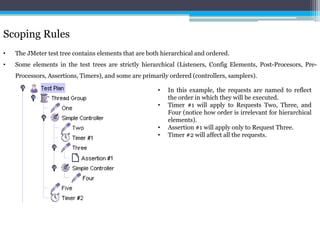
Scoping Rules 
• The JMeter test tree contains elements that are both hierarchical and ordered. 
• Some elements in the test trees are strictly hierarchical (Listeners, Config Elements, Post-Procesors, Pre- 
Processors, Assertions, Timers), and some are primarily ordered (controllers, samplers). 
• In this example, the requests are named to reflect 
the order in which they will be executed. 
• Timer #1 will apply to Requests Two, Three, and 
Four (notice how order is irrelevant for hierarchical 
elements). 
• Assertion #1 will apply only to Request Three. 
• Timer #2 will affect all the requests.
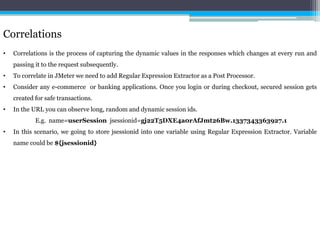
Correlations 
• Correlations is the process of capturing the dynamic values in the responses which changes at every run and 
passing it to the request subsequently. 
• To correlate in JMeter we need to add Regular Expression Extractor as a Post Processor. 
• Consider any e-commerce or banking applications. Once you login or during checkout, secured session gets 
created for safe transactions. 
• In the URL you can observe long, random and dynamic session ids. 
E.g. name=userSession jsessionid=gj22T5DXE4a0rAfJmt26Bw.1337343363927.1 
• In this scenario, we going to store jsessionid into one variable using Regular Expression Extractor. Variable 
name could be ${jsessionid}
Correlations - How to identify dynamic value 
• Record your actions and design it appropriately. 
• Add View Result Tree Listener 
• Execute it once 
• Definitely you will get few errors. 
• Click on the samplers you are getting error during execution in View Result Tree. 
• Then go to the respective sampler in the tree view an navigate to the respective Parameters and Post Body as 
shown above. 
• You will be able to check the dynamic value of jsessionid. 
• Now go back to Response Data in the tree view for the respective Sampler (which you’ve got error)
Correlations - How to identify dynamic value 
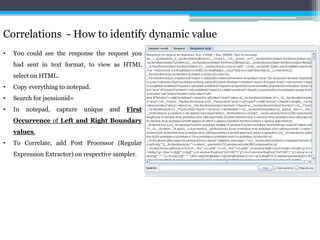
• You could see the response the request you 
had sent in text format, to view as HTML 
select on HTML. 
• Copy everything to notepad. 
• Search for jsessionid= 
• In notepad, capture unique and First 
Occurrence of Left and Right Boundary 
values. 
• To Correlate, add Post Processor (Regular 
Expression Extractor) on respective sampler.
Correlations 
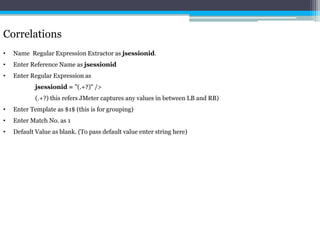
• Name Regular Expression Extractor as jsessionid. 
• Enter Reference Name as jsessionid 
• Enter Regular Expression as 
jsessionid = "(.+?)" /> 
(.+?) this refers JMeter captures any values in between LB and RB) 
• Enter Template as $1$ (this is for grouping) 
• Enter Match No. as 1 
• Default Value as blank. (To pass default value enter string here)
Correlations 
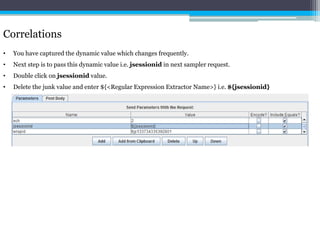
• You have captured the dynamic value which changes frequently. 
• Next step is to pass this dynamic value i.e. jsessionid in next sampler request. 
• Double click on jsessionid value. 
• Delete the junk value and enter ${<Regular Expression Extractor Name>} i.e. ${jsessionid}
Data Parameterization 
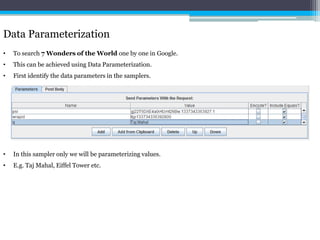
• To search 7 Wonders of the World one by one in Google. 
• This can be achieved using Data Parameterization. 
• First identify the data parameters in the samplers. 
• In this sampler only we will be parameterizing values. 
• E.g. Taj Mahal, Eiffel Tower etc.
Data Parameterization 
• Open new excel sheet/notepad. 
• Enter all the values. 
• Name the excel sheet as Wonders and save it as csv format. 
• Go to JMeter. 
• Right click on the loop controller > Add > Config Element > CSV Data Set Config 
• Click on CSV Data Set Config and name it asWonders_Datafile 
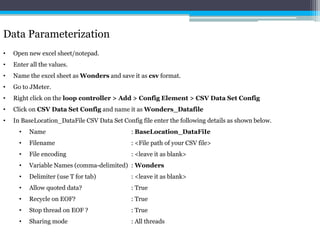
• In BaseLocation_DataFile CSV Data Set Config file enter the following details as shown below. 
• Name : BaseLocation_DataFiIe 
• Filename : <File path of your CSV file> 
• File encoding : <leave it as blank> 
• Variable Names (comma-delimited) : Wonders 
• Delimiter (use T for tab) : <leave it as blank> 
• Allow quoted data? : True 
• Recycle on EOF? : True 
• Stop thread on EOF ? : True 
• Sharing mode : All threads
Data Parameterization 
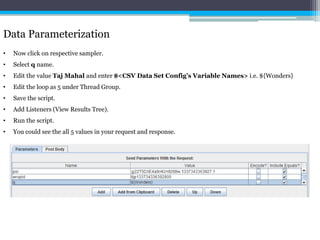
• Now click on respective sampler. 
• Select q name. 
• Edit the value Taj Mahal and enter $<CSV Data Set Config’s Variable Names> i.e. ${Wonders} 
• Edit the loop as 5 under Thread Group. 
• Save the script. 
• Add Listeners (View Results Tree). 
• Run the script. 
• You could see the all 5 values in your request and response.
Parameterization URLs 
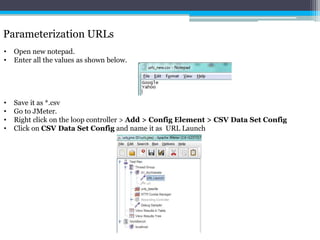
• Open new notepad. 
• Enter all the values as shown below. 
• Save it as *.csv 
• Go to JMeter. 
• Right click on the loop controller > Add > Config Element > CSV Data Set Config 
• Click on CSV Data Set Config and name it as URL Launch
Parameterization URLs 
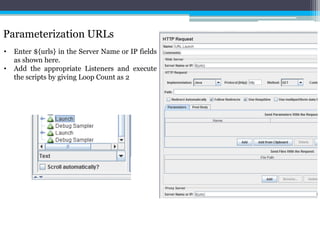
• Enter ${urls} in the Server Name or IP fields 
as shown here. 
• Add the appropriate Listeners and execute 
the scripts by giving Loop Count as 2
Assertions Types 
• Assertions are used to perform additional checks on samplers, and are processed after every sampler in the 
same scope. To ensure that an Assertion is applied only to a particular sampler, add it as a child of the 
sampler. 
• Response Assertion 
• Duration Assertion 
• Size Assertion 
• XML Assertion 
• Bean Shell Assertion 
• MD5Hex Assertion 
• HTML Assertion 
• XPath Assertion 
• XML Schema Assertion 
• BSF Assertion 
• JSR223 Assertion 
• Compare Assertion 
• SMIME Assertion
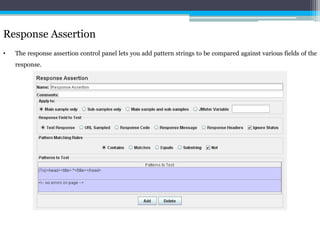
Response Assertion 
• The response assertion control panel lets you add pattern strings to be compared against various fields of the 
response.
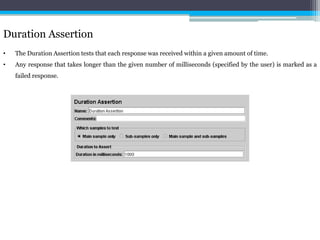
Duration Assertion 
• The Duration Assertion tests that each response was received within a given amount of time. 
• Any response that takes longer than the given number of milliseconds (specified by the user) is marked as a 
failed response.
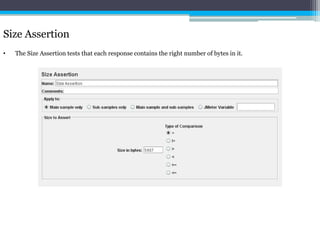
Size Assertion 
• The Size Assertion tests that each response contains the right number of bytes in it.
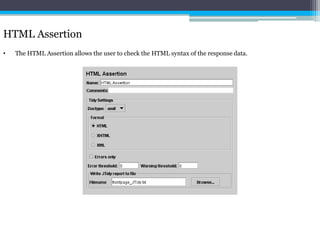
HTML Assertion 
• The HTML Assertion allows the user to check the HTML syntax of the response data.
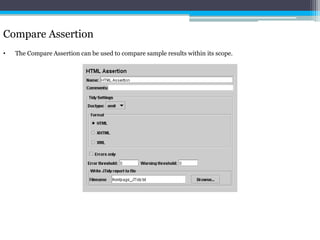
Compare Assertion 
• The Compare Assertion can be used to compare sample results within its scope.
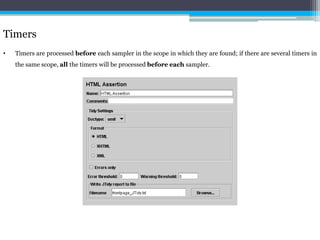
Timers 
• Timers are processed before each sampler in the scope in which they are found; if there are several timers in 
the same scope, all the timers will be processed before each sampler.
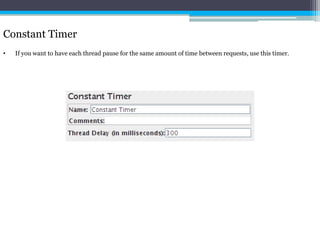
Constant Timer 
• If you want to have each thread pause for the same amount of time between requests, use this timer.
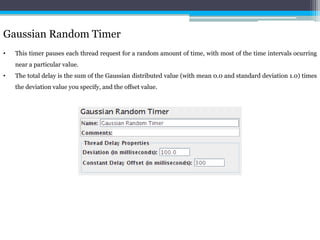
Gaussian Random Timer 
• This timer pauses each thread request for a random amount of time, with most of the time intervals ocurring 
near a particular value. 
• The total delay is the sum of the Gaussian distributed value (with mean 0.0 and standard deviation 1.0) times 
the deviation value you specify, and the offset value.
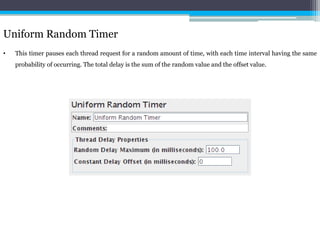
Uniform Random Timer 
• This timer pauses each thread request for a random amount of time, with each time interval having the same 
probability of occurring. The total delay is the sum of the random value and the offset value.
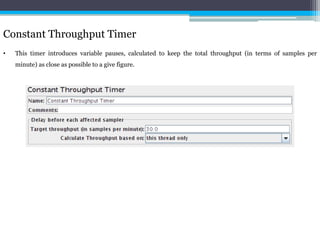
Constant Throughput Timer 
• This timer introduces variable pauses, calculated to keep the total throughput (in terms of samples per 
minute) as close as possible to a give figure.
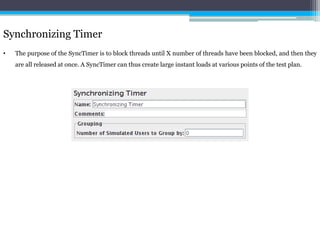
Synchronizing Timer 
• The purpose of the SyncTimer is to block threads until X number of threads have been blocked, and then they 
are all released at once. A SyncTimer can thus create large instant loads at various points of the test plan.
Preprocessors Types 
• Preprocessors are used to modify the Samplers in their scope. 
HTML Link Parser 
• This modifier parses HTML response from the server and extracts links and forms. 
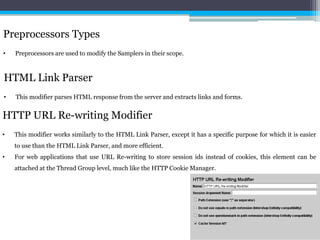
HTTP URL Re-writing Modifier 
• This modifier works similarly to the HTML Link Parser, except it has a specific purpose for which it is easier 
to use than the HTML Link Parser, and more efficient. 
• For web applications that use URL Re-writing to store session ids instead of cookies, this element can be 
attached at the Thread Group level, much like the HTTP CookieManager.
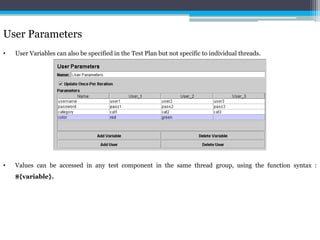
User Parameters 
• User Variables can also be specified in the Test Plan but not specific to individual threads. 
• Values can be accessed in any test component in the same thread group, using the function syntax : 
${variable}.
Post-Processors Types 
• As the name suggests, Post-Processors are applied after samplers. 
• Note that they are applied to all the samplers in the same scope, so to ensure that a post-processor is applied 
only to a particular sampler, add it as a child of the sampler.
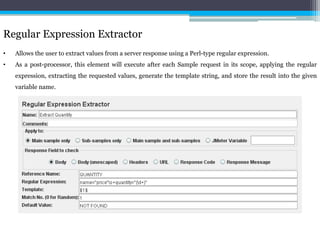
Regular Expression Extractor 
• Allows the user to extract values from a server response using a Perl-type regular expression. 
• As a post-processor, this element will execute after each Sample request in its scope, applying the regular 
expression, extracting the requested values, generate the template string, and store the result into the given 
variable name.
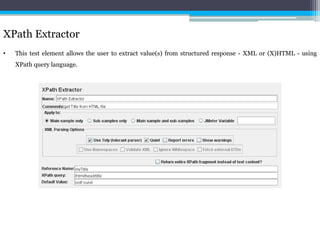
XPath Extractor 
• This test element allows the user to extract value(s) from structured response - XML or (X)HTML - using 
XPath query language.
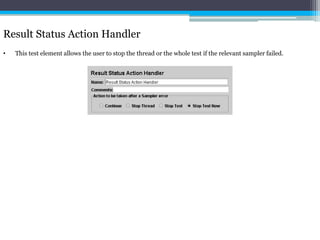
Result Status Action Handler 
• This test element allows the user to stop the thread or the whole test if the relevant sampler failed.
Miscellaneous Features 
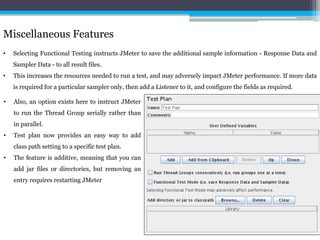
• Selecting Functional Testing instructs JMeter to save the additional sample information - Response Data and 
Sampler Data - to all result files. 
• This increases the resources needed to run a test, and may adversely impact JMeter performance. If more data 
is required for a particular sampler only, then add a Listener to it, and configure the fields as required. 
• Also, an option exists here to instruct JMeter 
to run the Thread Group serially rather than 
in parallel. 
• Test plan now provides an easy way to add 
class path setting to a specific test plan. 
• The feature is additive, meaning that you can 
add jar files or directories, but removing an 
entry requires restarting JMeter
Miscellaneous Features 
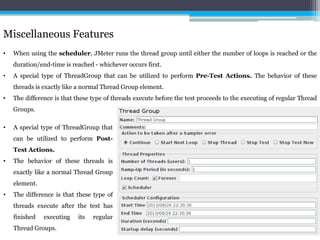
• When using the scheduler, JMeter runs the thread group until either the number of loops is reached or the 
duration/end-time is reached - whichever occurs first. 
• A special type of ThreadGroup that can be utilized to perform Pre-Test Actions. The behavior of these 
threads is exactly like a normal Thread Group element. 
• The difference is that these type of threads execute before the test proceeds to the executing of regular Thread 
Groups. 
• A special type of ThreadGroup that 
can be utilized to perform Post- 
Test Actions. 
• The behavior of these threads is 
exactly like a normal Thread Group 
element. 
• The difference is that these type of 
threads execute after the test has 
finished executing its regular 
Thread Groups.
Miscellaneous Features 
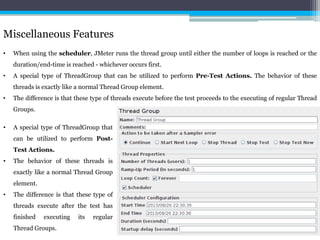
• When using the scheduler, JMeter runs the thread group until either the number of loops is reached or the 
duration/end-time is reached - whichever occurs first. 
• A special type of ThreadGroup that can be utilized to perform Pre-Test Actions. The behavior of these 
threads is exactly like a normal Thread Group element. 
• The difference is that these type of threads execute before the test proceeds to the executing of regular Thread 
Groups. 
• A special type of ThreadGroup that 
can be utilized to perform Post- 
Test Actions. 
• The behavior of these threads is 
exactly like a normal Thread Group 
element. 
• The difference is that these type of 
threads execute after the test has 
finished executing its regular 
Thread Groups.
Miscellaneous Features - Choosing a Client Certificate 
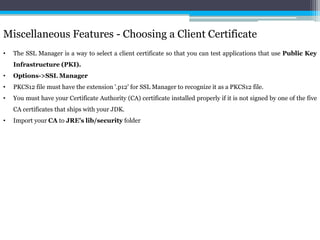
• The SSL Manager is a way to select a client certificate so that you can test applications that use Public Key 
Infrastructure (PKI). 
• Options->SSL Manager 
• PKCS12 file must have the extension '.p12' for SSL Manager to recognize it as a PKCS12 file. 
• You must have your Certificate Authority (CA) certificate installed properly if it is not signed by one of the five 
CA certificates that ships with your JDK. 
• Import your CA to JRE's lib/security folder
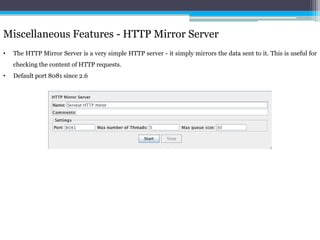
Miscellaneous Features - HTTP Mirror Server 
• The HTTP Mirror Server is a very simple HTTP server - it simply mirrors the data sent to it. This is useful for 
checking the content of HTTP requests. 
• Default port 8081 since 2.6
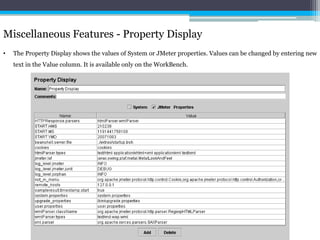
Miscellaneous Features - Property Display 
• The Property Display shows the values of System or JMeter properties. Values can be changed by entering new 
text in the Value column. It is available only on the WorkBench.
Properties and Variables 
• JMeter properties are defined in jmeter.properties 
• Properties are global to JMeter, and are mostly used to define some of the defaults JMeter uses. 
• For example the property remote_hosts defines the servers that JMeter will try to run remotely. 
• ${__property(user.dir)} - return value of user.dir 
• ${__property(user.dir,UDIR)} - return value of user.dir and save in UDIR 
• JMeter variables are local to each thread. 
• For example the Regular Expression Extractor Post-Processor will set its variables according to the 
sample that its thread has read, and these can be used later by the same thread.
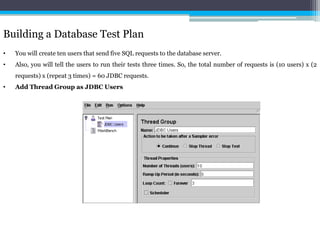
Building a Database Test Plan 
• You will create ten users that send five SQL requests to the database server. 
• Also, you will tell the users to run their tests three times. So, the total number of requests is (10 users) x (2 
requests) x (repeat 3 times) = 60 JDBC requests. 
• Add Thread Group as JDBC Users
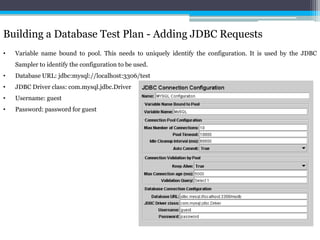
Building a Database Test Plan - Adding JDBC Requests 
• Variable name bound to pool. This needs to uniquely identify the configuration. It is used by the JDBC 
Sampler to identify the configuration to be used. 
• Database URL: jdbc:mysql://localhost:3306/test 
• JDBC Driver class: com.mysql.jdbc.Driver 
• Username: guest 
• Password: password for guest
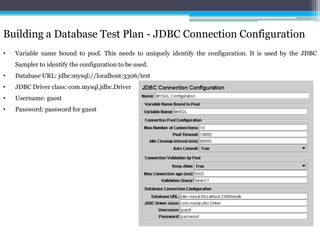
Building a Database Test Plan - JDBC Connection Configuration 
• Variable name bound to pool. This needs to uniquely identify the configuration. It is used by the JDBC 
Sampler to identify the configuration to be used. 
• Database URL: jdbc:mysql://localhost:3306/test 
• JDBC Driver class: com.mysql.jdbc.Driver 
• Username: guest 
• Password: password for guest
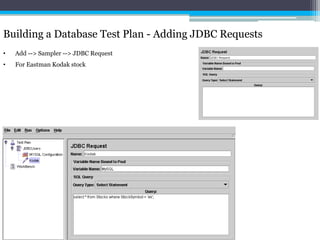
Building a Database Test Plan - Adding JDBC Requests 
• Add --> Sampler --> JDBC Request 
• For Eastman Kodak stock
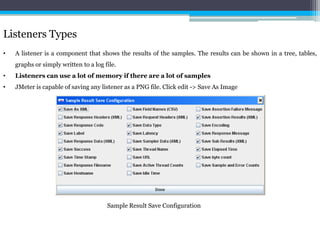
Listeners Types 
• A listener is a component that shows the results of the samples. The results can be shown in a tree, tables, 
graphs or simply written to a log file. 
• Listeners can use a lot of memory if there are a lot of samples 
• JMeter is capable of saving any listener as a PNG file. Click edit -> Save As Image 
Sample Result Save Configuration
JMeter Functions and User Variables 
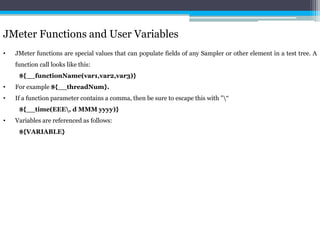
• JMeter functions are special values that can populate fields of any Sampler or other element in a test tree. A 
function call looks like this: 
${__functionName(var1,var2,var3)} 
• For example ${__threadNum}. 
• If a function parameter contains a comma, then be sure to escape this with "“ 
${__time(EEE, dMMMyyyy)} 
• Variables are referenced as follows: 
${VARIABLE}
JMeter Functions and User Variables 
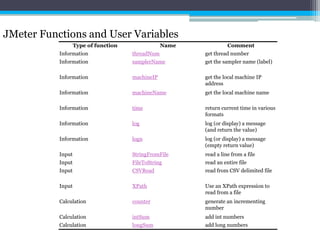
Type of function Name Comment 
Information threadNum get thread number 
Information samplerName get the sampler name (label) 
Information machineIP get the local machine IP 
address 
Information machineName get the local machine name 
Information time return current time in various 
formats 
Information log log (or display) a message 
(and return the value) 
Information logn log (or display) a message 
(empty return value) 
Input StringFromFile read a line from a file 
Input FileToString read an entire file 
Input CSVRead read from CSV delimited file 
Input XPath Use an XPath expression to 
read from a file 
Calculation counter generate an incrementing 
number 
Calculation intSum add int numbers 
Calculation longSum add long numbers
JMeter Functions and User Variables 
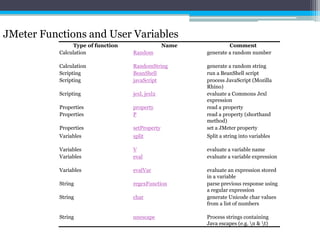
Type of function Name Comment 
Calculation Random generate a random number 
Calculation RandomString generate a random string 
Scripting BeanShell run a BeanShell script 
Scripting javaScript process JavaScript (Mozilla 
Rhino) 
Scripting jexl, jexl2 evaluate a Commons Jexl 
expression 
Properties property read a property 
Properties P read a property (shorthand 
method) 
Properties setProperty set a JMeter property 
Variables split Split a string into variables 
Variables V evaluate a variable name 
Variables eval evaluate a variable expression 
Variables evalVar evaluate an expression stored 
in a variable 
String regexFunction parse previous response using 
a regular expression 
String char generate Unicode char values 
from a list of numbers 
String unescape Process strings containing 
Java escapes (e.g. n & t)
JMeter Functions and User Variables 
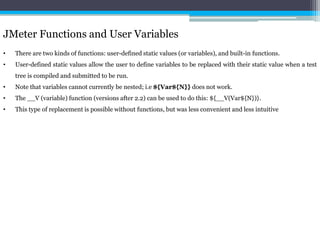
• There are two kinds of functions: user-defined static values (or variables), and built-in functions. 
• User-defined static values allow the user to define variables to be replaced with their static value when a test 
tree is compiled and submitted to be run. 
• Note that variables cannot currently be nested; i.e ${Var${N}} does not work. 
• The __V (variable) function (versions after 2.2) can be used to do this: ${__V(Var${N})}. 
• This type of replacement is possible without functions, but was less convenient and less intuitive
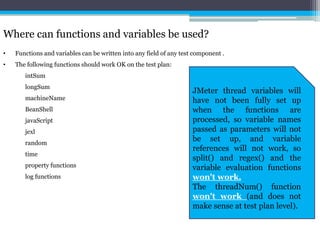
Where can functions and variables be used? 
• Functions and variables can be written into any field of any test component . 
• The following functions should work OK on the test plan: 
intSum 
longSum 
machineName 
BeanShell 
javaScript 
jexl 
random 
time 
property functions 
log functions 
JMeter thread variables will 
have not been fully set up 
when the functions are 
processed, so variable names 
passed as parameters will not 
be set up, and variable 
references will not work, so 
split() and regex() and the 
variable evaluation functions 
won't work. 
The threadNum() function 
won't work (and does not 
make sense at test plan level).
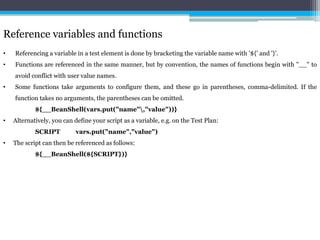
Reference variables and functions 
• Referencing a variable in a test element is done by bracketing the variable name with '${' and '}'. 
• Functions are referenced in the same manner, but by convention, the names of functions begin with "__" to 
avoid conflict with user value names. 
• Some functions take arguments to configure them, and these go in parentheses, comma-delimited. If the 
function takes no arguments, the parentheses can be omitted. 
${__BeanShell(vars.put("name","value"))} 
• Alternatively, you can define your script as a variable, e.g. on the Test Plan: 
SCRIPT vars.put("name","value") 
• The script can then be referenced as follows: 
${__BeanShell(${SCRIPT})}
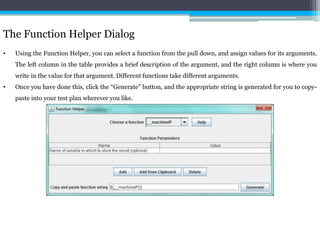
The Function Helper Dialog 
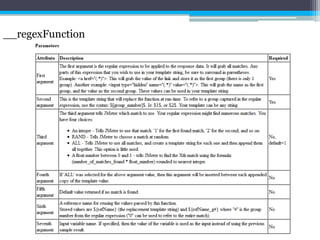
• Using the Function Helper, you can select a function from the pull down, and assign values for its arguments. 
The left column in the table provides a brief description of the argument, and the right column is where you 
write in the value for that argument. Different functions take different arguments. 
• Once you have done this, click the “Generate" button, and the appropriate string is generated for you to copy-paste 
into your test plan wherever you like.
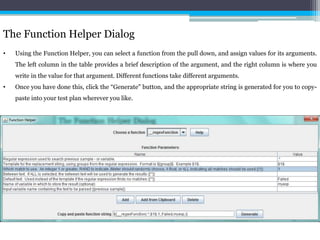
The Function Helper Dialog 
• Using the Function Helper, you can select a function from the pull down, and assign values for its arguments. 
The left column in the table provides a brief description of the argument, and the right column is where you 
write in the value for that argument. Different functions take different arguments. 
• Once you have done this, click the “Generate" button, and the appropriate string is generated for you to copy-paste 
into your test plan wherever you like.
__regexFunction
The Function Helper Dialog 
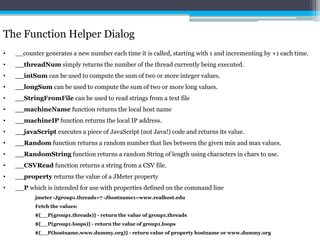
• __counter generates a new number each time it is called, starting with 1 and incrementing by +1 each time. 
• __threadNumsimply returns the number of the thread currently being executed. 
• __intSum can be used to compute the sum of two or more integer values. 
• __longSum can be used to compute the sum of two or more long values. 
• __StringFromFile can be used to read strings from a text file 
• __machineName function returns the local host name 
• __machineIP function returns the local IP address. 
• __javaScript executes a piece of JavaScript (not Java!) code and returns its value. 
• __Randomfunction returns a random number that lies between the given min and max values. 
• __RandomString function returns a random String of length using characters in chars to use. 
• __CSVRead function returns a string from a CSV file. 
• __property returns the value of a JMeter property 
• __P which is intended for use with properties defined on the command line 
jmeter -Jgroup1.threads=7 -Jhostname1=www.realhost.edu 
Fetch the values: 
${__P(group1.threads)} - return the value of group1.threads 
${__P(group1.loops)} - return the value of group1.loops 
${__P(hostname,www.dummy.org)} - return value of property hostname or www.dummy.org
The Function Helper Dialog 
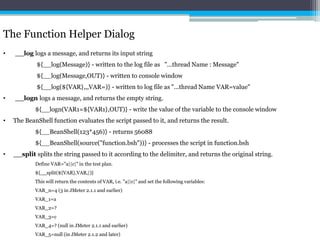
• __log logs a message, and returns its input string 
${__log(Message)} - written to the log file as "...thread Name : Message" 
${__log(Message,OUT)} - written to console window 
${__log(${VAR},,,VAR=)} - written to log file as "...thread Name VAR=value" 
• __logn logs a message, and returns the empty string. 
${__logn(VAR1=${VAR1},OUT)} - write the value of the variable to the console window 
• The BeanShell function evaluates the script passed to it, and returns the result. 
${__BeanShell(123*456)} - returns 56088 
${__BeanShell(source("function.bsh"))} - processes the script in function.bsh 
• __split splits the string passed to it according to the delimiter, and returns the original string. 
Define VAR="a||c|" in the test plan. 
${__split(${VAR},VAR,|)} 
This will return the contents of VAR, i.e. "a||c|" and set the following variables: 
VAR_n=4 (3 in JMeter 2.1.1 and earlier) 
VAR_1=a 
VAR_2=? 
VAR_3=c 
VAR_4=? (null in JMeter 2.1.1 and earlier) 
VAR_5=null (in JMeter 2.1.2 and later)
Regular Expressions 
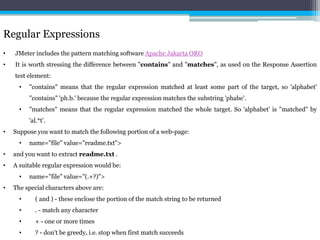
• JMeter includes the pattern matching software Apache Jakarta ORO 
• It is worth stressing the difference between "contains" and "matches", as used on the Response Assertion 
test element: 
• "contains" means that the regular expression matched at least some part of the target, so 'alphabet' 
"contains" 'ph.b.' because the regular expression matches the substring 'phabe'. 
• "matches" means that the regular expression matched the whole target. So 'alphabet' is "matched" by 
'al.*t'. 
• Suppose you want to match the following portion of a web-page: 
• name="file" value="readme.txt"> 
• and you want to extract readme.txt . 
• A suitable regular expression would be: 
• name="file" value="(.+?)"> 
• The special characters above are: 
• ( and ) - these enclose the portion of the match string to be returned 
• . - match any character 
• + - one or more times 
• ? - don't be greedy, i.e. stop when first match succeeds
Regular Expressions 
• Extract multiple strings 
• Suppose you want to match the following portion of a web-page: 
name="file.name" value="readme.txt" and you want to extract both file.name and readme.txt . 
• A suitable reqular expression would be: 
name="([^"]+)" value="([^"]+)" 
This would create 2 groups, which could be used in the JMeter Regular Expression Extractor template as 
$1$ and $2$. 
• The JMeter Regex Extractor saves the values of the groups in additional variables. 
For example, assume: 
Reference Name: MYREF 
Regex: name="(.+?)" value="(.+?)" 
Template: $1$$2$ 
• Regular expressions use certain characters as meta characters - these characters have a special meaning to the 
RE engine. 
• Such characters must be escaped by preceding them with  (backslash) in order to treat them as ordinary 
characters. 
• Here is a list of the meta characters and their meaning (please check the ORO documentation if in doubt). 
• ( ) - grouping 
• [ ] - character classes 
• { } - repetition 
• * + ? - repetition 
• . - wild-card character 
•  - escape character 
• | - alternatives 
• ^ $ - start and end of string or line
Remote & Distributed Testing 
• In the event that your JMeter client machine is unable, performance-wise, to simulate enough users to stress 
your server, an option exists to control multiple, remote JMeter engines from a single JMeter GUI client. 
• By running JMeter remotely, you can replicate a test across many low-end computers and thus simulate a 
larger load on the server. 
• One instance of the JMeter GUI client can control any number of remote JMeter instances, and collect all the 
data from them. This offers the following features: 
• Saving of test samples to the local machine 
• Management of multiple JMeterEngines from a single machine 
• No need to copy the test plan to each server - the client sends it to all the servers 
• Step 0: Configure the nodes 
• Make sure that all the nodes (client and servers) are running exactly the same version of JMeter. As far 
as possible, also use the same version of Java on all systems. 
• Using different versions of Java may work - but is best avoided. 
• Step 1: Start the servers 
• To run JMeter in remote node, start the JMeter server component on all machines you wish to run on by 
running the JMETER_HOME/bin/jmeter-server (unix) or JMETER_HOME/bin/jmeter-server. 
bat (windows) script. 
• Step 2: Add the server IP to your client's Properties File 
• Edit the properties file on the controlling JMeter machine . In /bin/jmeter.properties, find the property 
named, "remote_hosts", and add the value of your running JMeter server's IP address. Multiple such servers 
can be added, comma-delimited.
Remote & Distributed Testing 
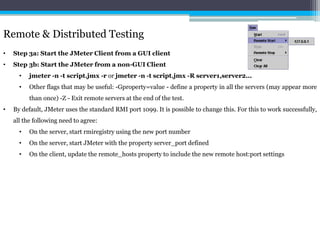
• Step 3a: Start the JMeter Client from a GUI client 
• Step 3b: Start the JMeter from a non-GUI Client 
• jmeter -n -t script.jmx -r or jmeter -n -t script.jmx -R server1,server2... 
• Other flags that may be useful: -Gproperty=value - define a property in all the servers (may appear more 
than once) -Z - Exit remote servers at the end of the test. 
• By default, JMeter uses the standard RMI port 1099. It is possible to change this. For this to work successfully, 
all the following need to agree: 
• On the server, start rmiregistry using the new port number 
• On the server, start JMeter with the property server_port defined 
• On the client, update the remote_hosts property to include the new remote host:port settings
Running Distributed
Using Distributed Testing with Load Balancers 
• Now that most production level application sit behind a load balancer. 
• JMeter will not really test all the servers behind the Elastic Load Balancing (ELB) without some configuration. 
Why? Because of Java DNS cache. 
• For load balancers that use a DNS based distribution method (like round robin), HTTP client makes a 
connection to the load balancer, and the load balancer says "hey use IP x.x.x.x". 
• HTTP client then caches that IP for future requests. 
• To get around this in JMeter, just change the JVM dns ttl by passing a properties file to JMeter. 
$ cat test.properties 
networkaddress.cache.ttl=0 
sun.net.inetaddr.ttl=0 
• Now run JMeter via: 
jmeter -q test.properties -t test_plan.jmx
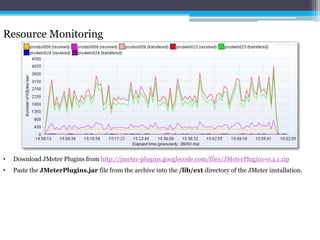
Resource Monitoring 
• Download JMeter Plugins from http://jmeter-plugins.googlecode.com/files/JMeterPlugins-0.4.1.zip 
• Paste the JMeterPlugins.jar file from the archive into the /lib/ext directory of the JMeter installation.
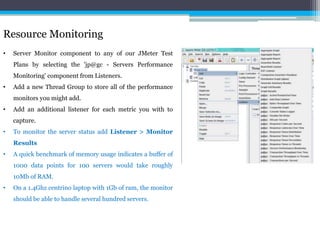
Resource Monitoring 
• Server Monitor component to any of our JMeter Test 
Plans by selecting the 'jp@gc - Servers Performance 
Monitoring' component from Listeners. 
• Add a new Thread Group to store all of the performance 
monitors you might add. 
• Add an additional listener for each metric you with to 
capture. 
• To monitor the server status add Listener > Monitor 
Results 
• A quick benchmark of memory usage indicates a buffer of 
1000 data points for 100 servers would take roughly 
10Mb of RAM. 
• On a 1.4Ghz centrino laptop with 1Gb of ram, the monitor 
should be able to handle several hundred servers.
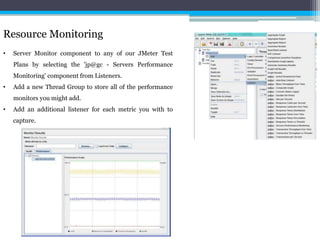
Resource Monitoring 
• Server Monitor component to any of our JMeter Test 
Plans by selecting the 'jp@gc - Servers Performance 
Monitoring' component from Listeners. 
• Add a new Thread Group to store all of the performance 
monitors you might add. 
• Add an additional listener for each metric you with to 
capture.
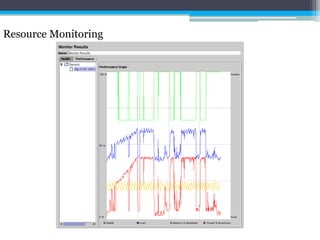
Resource Monitoring
ab - Apache HTTP server benchmarking tool 
• ab is a tool for benchmarking your Apache Hypertext Transfer Protocol (HTTP) server. 
• It is designed to give you an impression of how your current Apache installation performs. This especially 
shows you how many requests per second your Apache installation is capable of serving. 
• It supports only Unix and Linux servers.
Load Testing Web App 
• What is our anticipated average number of users (normal load) ? 
• What is our anticipated peak number of users ? 
• When is a good time to load-test our application (i.e. off-hours or week-ends), bearing in mind that this may 
very well crash one or more of our servers ? 
• Does our application have state ? If so, how does our application manage it (cookies, session-rewriting, or 
some other method) ? 
• What is the testing intended to achieve? 
Network 
• Who knows our network topology ? If you run into any firewall or proxy issues, this will become very 
important. As well, a private testing network (which will therefore have very low network latency) would be a 
very nice thing. Knowing who can set one up for you (if you feel that this is necessary) will be very useful. If the 
application doesn't scale as expected, who can add additional hardware ?
Application 
• test (low-volume - can we benchmark our application?) 
• benchmark (the average number of users) 
• load-test (the maximum number of users) 
• test destructively (what is our hard limit?)
Tools 
• ping 
• nslookup/dig 
• Traceroute 
• Apache 'ab' tool 
• HttpUnit 
• Microsoft WAS
Tips and Tricks 
• Use always latest build of JMeter. 
• JMeter is very sensitive, navigate slowly. 
• To get Help for any elements, click on that element, press CTRL + H. E.g. To know more about Thread Group, 
click on Thread Group, press CTRL + H. 
• To add similar kind of elements, use universal keys CTRL + C and CTRL + V. 
• JMeter provides utility to change the Look and Feel by clicking Options > Look and Feel . 
• To change the language, go to Options > Choose Language, then select your language. 
• To enable Debugging, press CTRL + SHIFT + D and to disable CTRL + D. 
• To expand all the items press CTRL + SHIFT + Minus, to collapse CTRL + Minus. 
• Do not close JMeter Console (command prompt) window any time. 
• To Disable/Enable any elements, right click on the element, then select Disable/Enable. 
• For better graph output, install this plugin http://rubenlaguna.com/wp/better-jmeter-graphs/index.html/
Best Practices 
• Use naming conventions always for all elements. 
• Check the default browser Connectivity settings, before executing scripts. 
• Add Listeners appropriately. 
• Check the Scoping Rules and design accordingly. 
• Use multiple instances of JMeter in case the number of threads are more.
Be sure your load generator has enough resources 
• Run your test across multiple machines. 
• A plan with 2800 requests will require 256 MB of RAM. Not feasible to execute in GUI mode 
• Run without the GUI, use jmeter -n -t test.jmx test.jtl, add a '-l' argument before the test plan name for 
listeners.
References 
• jmeter.apache.org 
• Image courtesy from http://jmeter.apache.org 
• Self learning and my experiences in various exercises. 
• http://wiki.apache.org/jmeter/JMeterLinks 
• http://minaret.biz/tips/jmeter.html
Lab Exercises 
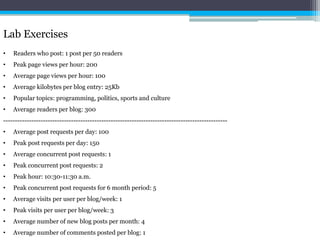
• Readers who post: 1 post per 50 readers 
• Peak page views per hour: 200 
• Average page views per hour: 100 
• Average kilobytes per blog entry: 25Kb 
• Popular topics: programming, politics, sports and culture 
• Average readers per blog: 300 
------------------------------------------------------------------------------------------------ 
• Average post requests per day: 100 
• Peak post requests per day: 150 
• Average concurrent post requests: 1 
• Peak concurrent post requests: 2 
• Peak hour: 10:30-11:30 a.m. 
• Peak concurrent post requests for 6 month period: 5 
• Average visits per user per blog/week: 1 
• Peak visits per user per blog/week: 3 
• Average number of new blog posts per month: 4 
• Average number of comments posted per blog: 1
Lab Exercises 
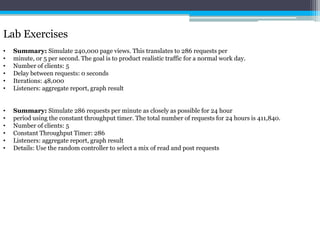
• Summary: Simulate 240,000 page views. This translates to 286 requests per 
• minute, or 5 per second. The goal is to product realistic traffic for a normal work day. 
• Number of clients: 5 
• Delay between requests: 0 seconds 
• Iterations: 48,000 
• Listeners: aggregate report, graph result 
• Summary: Simulate 286 requests per minute as closely as possible for 24 hour 
• period using the constant throughput timer. The total number of requests for 24 hours is 411,840. 
• Number of clients: 5 
• Constant Throughput Timer: 286 
• Listeners: aggregate report, graph result 
• Details: Use the random controller to select a mix of read and post requests
NFR Elicitation 
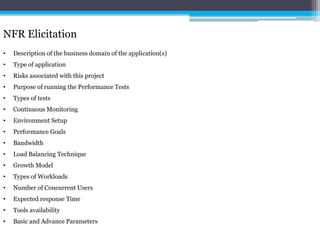
• Description of the business domain of the application(s) 
• Type of application 
• Risks associated with this project 
• Purpose of running the Performance Tests 
• Types of tests 
• Continuous Monitoring 
• Environment Setup 
• Performance Goals 
• Bandwidth 
• Load Balancing Technique 
• Growth Model 
• Types of Workloads 
• Number of Concurrent Users 
• Expected response Time 
• Tools availability 
• Basic and Advance Parameters
Little’s Law 
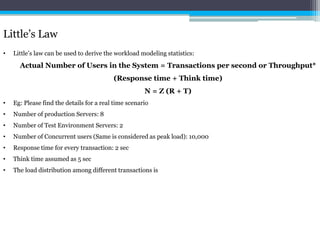
• Little’s law can be used to derive the workload modeling statistics: 
Actual Number of Users in the System = Transactions per second or Throughput* 
(Response time + Think time) 
N = Z (R + T) 
• Eg: Please find the details for a real time scenario 
• Number of production Servers: 8 
• Number of Test Environment Servers: 2 
• Number of Concurrent users (Same is considered as peak load): 10,000 
• Response time for every transaction: 2 sec 
• Think time assumed as 5 sec 
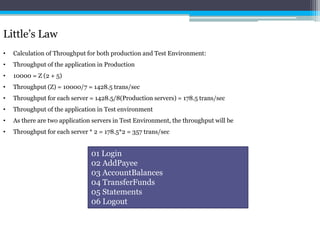
• The load distribution among different transactions is
Little’s Law 
• Calculation of Throughput for both production and Test Environment: 
• Throughput of the application in Production 
• 10000 = Z (2 + 5) 
• Throughput (Z) = 10000/7 = 1428.5 trans/sec 
• Throughput for each server = 1428.5/8(Production servers) = 178.5 trans/sec 
• Throughput of the application in Test environment 
• As there are two application servers in Test Environment, the throughput will be 
• Throughput for each server * 2 = 178.5*2 = 357 trans/sec 
01 Login 
02 AddPayee 
03 AccountBalances 
04 TransferFunds 
05 Statements 
06 Logout
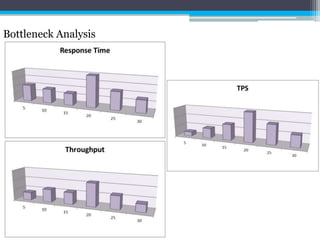
Bottleneck Analysis
Thank you 
Please visit http://naveenkumarn/services for more training programs.

Test talk academy apachejmeter-120521121306-phpapp02

  • 1.
    Apache JMeter NAVEENKUMARNAMACHIVAYAM Founder - testTalk Academy http://naveenkumarn.in
  • 2.
    Objectives • Whatdo major organisations want to avoid? • What is Load Testing? • JMeter – An Introduction • Requirements & Installing Jmeter • JMeter – Architecture • What is a Test Plan? • Elements of a Test Plan • Thread Group • Controllers • Samplers • Logical Controllers • Test Fragments • Listeners • Timers • Assertions • Configuration Elements • Pre-Processor Elements • Post-Processor Elements • Execution order • Scoping Rules • Correlations • Data Parameterization • Assertions Types • Preprocessors Types • User Parameters • Post-Processors Types • Miscellaneous Features I • Miscellaneous Features II • Properties and Variables • Building a Database Test Plan • Listeners Types • JMeter Functions and User Variables • Reference variables and functions • The Function Helper Dialog • Regular Expressions • Remote & Distributed Testing • Using Distributed Testing with Load Balancers • Resource Monitoring • ab - Apache HTTP server benchmarking tool • Load Testing Web App • Tips and Tricks • Best Practices
  • 3.
    What do majororganisations want to avoid?
  • 4.
    What is LoadTesting? • It is a type of Performance Testing. • It helps us to detect the maximum number of users can access the application without any hindrances. • It also helps us to identify the stability condition of an application under test. JMeter is not a web browser!
  • 5.
    JMeter - AnIntroduction • JMeter aka Apache JMeter • Stefano Mazzocchi – Developer of JMeter • JMeter is an Open Source software. Visit http://jakarta.apache.org/jmeter/ • JMeter is 100% pure Java application for load testing for AUT • It ensures complete portability and flexibility • It also helps for regression test by creating Assertions (Checkpoints) using regular expressions.
  • 6.
    Requirements & InstallingJmeter • To install JMeter, you need JVM (Java Virtual Machine) 1.5 or higher. • Operating Systems • As JMeter is 100% pure Java, it will work on any OS. • Windows • Unix • Linux • Solaris • Open VMS Alpha 7.3+ • For developing, you need to install any one or more following packages which is optional: JDK 1.5 or higher versions, SAX XML Parser, Email Support using SMTP sampler, SSL Encryption, JDBC Drivers, JMS Client, Active MQ Libraries.
  • 7.
    JMeter - AnIntroduction • To download Apache JMeter log on to http://jakarta.apache.org/site/downloads/downloads_jmeter.cgi and download latest build of JMeter. • Extract the zip file • You could find 5 folders and 3 files namely • bin • docs • extras • lib • printable_docs • LICENSE • NOTICE • README Do not rename the sub-folders. You can rename the parent folder name.
  • 8.
    JMeter - Architecture • Consists of a Master system (the GUI) which controls remote slave systems (running JMeter-server) • Master the system running Jmeter GUI, which controls the test • Slave the system running JMeter-server, which takes commands from the GUI and send requests to the target system(s) • Target the webserver we plan to test • The JMeter GUI is a multi-threaded Java class running Java Swing interfaces. • It communicates with multiple remote injector Java RMIRegistry service • By default Remote servers listens to 1099 port. Image courtesy from jmeter.apache.org
  • 9.
    What is aTest Plan? • A test plan describes a series of steps JMeter will execute when run. • A complete test plan will consist of one or more Thread Groups, logic controllers, sample generating controllers, listeners, timers, assertions, and configuration elements.
  • 10.
    Elements of aTest Plan • The Test Plan object has a checkbox called "Functional Testing“ • If selected, it will cause JMeter to record the data returned from the server for each sample. If you have selected a file in your test listeners, this data will be written to file. • It is off by default
  • 11.
    Thread Group •Thread group elements are the beginning points of any test plan. • All controllers and samplers must be under a thread group. • Other elements, e.g. Listeners, may be placed directly under the test plan, in which case they will apply to all the thread groups. • It controls the number of threads JMeter will use to execute your test.
  • 12.
    Controllers • Twotypes of Controllers: Samplers and Logical Controllers. These drive the processing of a test. • Samplers tell JMeter to send requests to a server. • Logical Controllers let you customize the logic that JMeter uses to decide when to send requests.
  • 13.
    Samplers • Samplerstell JMeter to send requests to a server and wait for a response. • Processed in the order they appear in the tree. • Controllers can be used to modify the number of repetitions of a sampler. • FTP Request • HTTP Request • JDBC Request • Java object request • LDAP Request • SOAP/XML-RPC Request • WebService (SOAP) Request
  • 14.
    Logical Controllers •Simple Controller • Loop Controller • Once Only Controller • Interleave Controller • Random Controller • Random Order Controller • Throughput Controller • Runtime Controller • If Controller • While Controller • Switch Controller • ForEach Controller • Module Controller • Include Controller • Transaction Controller • Recording Controller Logic Controllers determine the order in which Samplers are processes
  • 15.
    Simple Controller •It organizes your Samplers and other Logic Controllers. • No functionality
  • 16.
    Loop Controller •It helps to loop element certain number of times. • If the Loop count is 2 in Loop Controller and the Loop count in Thread Group Loop is 5, then JMeter sends 10 HTTP requests
  • 17.
    Once Only Controller • It tells JMeter to process the controller(s) inside it only once. • It execute always during the first iteration of any looping parent controller.
  • 18.
    Interleave Controller •It will alternate among each of the other controllers for each loop iteration. If checked, the interleave controller will treat sub-controllers like single request elements and only allow one request per controller at a time. ignore sub-controller blocks
  • 19.
    Interleave Controller •Without Checking ignore sub-controller blocks
  • 20.
    Interleave Controller •Checking ignore sub-controller blocks
  • 21.
    Random Controller •Similar to the Interleave Controller • Instead of going in order it picks one at random at each pass.
  • 22.
    Random Order Controller • Its like a Simple Controller in that it will execute each child element at most once • Order of execution of the nodes will be random
  • 23.
    If Controller •To control whether the test elements below it (its children) are run or not. • If this is selected, then the condition must be an expression that evaluates to "true" (case is ignored). For example, ${FOUND} or ${__jexl(${VAR} > 100)}. • Unlike the Javascript case, the condition is only checked to see if it matches "true" (case is ignored). • Should condition be evaluated for all children? If not checked, then the condition is only evaluated on entry. The While Controller runs its children until the condition is "false". Switch Controller runs the element defined by the switch value. A ForEach controller loops through the values of a set of related variables.
  • 24.
    Recording Controller •It’s a place holder indicating where the proxy server should record samples to.
  • 25.
    Transaction Controller •measures the overall time taken to perform the nested test elements
  • 26.
    Include Controller •To add an external jmx file. • Test Fragments which can be used to make the test modular • Distribute the work across multiple scripts instead of having all elements in one single script.
  • 27.
    Logic Controllers •Allows customization the logic that JMeter uses to decide when to send requests. • Logic Controllers can change the order of requests coming from their child elements.
  • 28.
    Test Fragments •Distinguished from a Thread Group in that it is not executed unless it is referenced by either a Module Controller or an Include Controller. • Purely for code re-use within Test Plans and was introduced in Version 2.5
  • 29.
    Listeners • Listenersprovide access to the information JMeter gathers about the test cases while JMeter runs. • It can direct the data to a file for later use. • Configuration button which can be used to choose which fields to save, and whether to use CSV or XML format. • Listeners can be added anywhere in the test, including directly under the test plan.
  • 30.
    Timers • Bydefault, a JMeter thread sends requests without pausing between each request. • It is recommended that you specify a delay by adding one of the available timers to your Thread Group. • If not, JMeter could overwhelm your server by making too many requests in a very short amount of time. • If you choose to add more than one timer to a Thread Group, JMeter takes the sum of the timers and pauses for that amount of time before executing the samplers to which the timers apply. • The timer will cause JMeter to delay a certain amount of time before each sampler which is in its scope. • To provide a pause at a single place in a test plan, one can use the Test Action Sampler.
  • 31.
    Assertions • Assertionsallow you to assert facts about responses received from the server being tested. • Using an assertion, you can essentially "test" that your application is returning the results you expect it to • To view the assertion results, add an Assertion Listener to the Thread Group It is like Checkpoints in QTP/LoadRunner
  • 32.
    Configuration Elements •A configuration element works closely with a Sampler. • It does not send requests (except for HTTP Proxy Server ), it can add to or modify requests. • A configuration element is accessible from only inside the tree branch where you place the element • The CookieManager is accessible to the HTTP requests "Web Page 1" and "Web Page 2", but not "Web Page 3".
  • 33.
    Pre-Processor Elements •A Pre-Processor executes some action prior to a Sampler Request being made. • If a Pre-Processor is attached to a Sampler element, then it will execute just prior to that sampler element running. • A Pre-Processor is most often used to modify the settings of a Sample Request just before it runs, or to update variables that aren't extracted from response text. Post-Processor Elements • A Post-Processor executes some action after a Sampler Request has been made. • If a Post-Processor is attached to a Sampler element, then it will execute just after that sampler element runs. • A Post-Processor is most often used to process the response data, often to extract values from it. See the scoping rules for more details on when Post-Processors are executed.
  • 34.
    Execution order 1.Configuration elements 2. Pre-Processors 3. Timers 4. Sampler 5. Post-Processors (unless SampleResult is null) 6. Assertions (unless SampleResult is null) 7. Listeners (unless SampleResult is null) • Timers, Assertions, Pre- and Post-Processors are only processed if there is a sampler to which they apply. • Logic Controllers and Samplers are processed in the order in which they appear in the tree. • Other test elements are processed according to the scope in which they are found, and the type of test element
  • 35.
    Execution order •For example, in the following test plan: • Controller • Post-Processor 1 • Sampler 1 • Sampler 2 • Timer 1 • Assertion 1 • Pre-Processor 1 • Timer 2 • Post-Processor 2 The order of execution would be: • Pre-Processor 1 • Timer 1 • Timer 2 • Sampler 1 • Post-Processor 1 • Post-Processor 2 • Assertion 1 • Pre-Processor 1 • Timer 1 • Timer 2 • Sampler 2 • Post-Processor 1 • Post-Processor 2 • Assertion 1
  • 36.
    Scoping Rules •The JMeter test tree contains elements that are both hierarchical and ordered. • Some elements in the test trees are strictly hierarchical (Listeners, Config Elements, Post-Procesors, Pre- Processors, Assertions, Timers), and some are primarily ordered (controllers, samplers). • In this example, the requests are named to reflect the order in which they will be executed. • Timer #1 will apply to Requests Two, Three, and Four (notice how order is irrelevant for hierarchical elements). • Assertion #1 will apply only to Request Three. • Timer #2 will affect all the requests.
  • 37.
    Correlations • Correlationsis the process of capturing the dynamic values in the responses which changes at every run and passing it to the request subsequently. • To correlate in JMeter we need to add Regular Expression Extractor as a Post Processor. • Consider any e-commerce or banking applications. Once you login or during checkout, secured session gets created for safe transactions. • In the URL you can observe long, random and dynamic session ids. E.g. name=userSession jsessionid=gj22T5DXE4a0rAfJmt26Bw.1337343363927.1 • In this scenario, we going to store jsessionid into one variable using Regular Expression Extractor. Variable name could be ${jsessionid}
  • 38.
    Correlations - Howto identify dynamic value • Record your actions and design it appropriately. • Add View Result Tree Listener • Execute it once • Definitely you will get few errors. • Click on the samplers you are getting error during execution in View Result Tree. • Then go to the respective sampler in the tree view an navigate to the respective Parameters and Post Body as shown above. • You will be able to check the dynamic value of jsessionid. • Now go back to Response Data in the tree view for the respective Sampler (which you’ve got error)
  • 39.
    Correlations - Howto identify dynamic value • You could see the response the request you had sent in text format, to view as HTML select on HTML. • Copy everything to notepad. • Search for jsessionid= • In notepad, capture unique and First Occurrence of Left and Right Boundary values. • To Correlate, add Post Processor (Regular Expression Extractor) on respective sampler.
  • 40.
    Correlations • NameRegular Expression Extractor as jsessionid. • Enter Reference Name as jsessionid • Enter Regular Expression as jsessionid = "(.+?)" /> (.+?) this refers JMeter captures any values in between LB and RB) • Enter Template as $1$ (this is for grouping) • Enter Match No. as 1 • Default Value as blank. (To pass default value enter string here)
  • 41.
    Correlations • Youhave captured the dynamic value which changes frequently. • Next step is to pass this dynamic value i.e. jsessionid in next sampler request. • Double click on jsessionid value. • Delete the junk value and enter ${<Regular Expression Extractor Name>} i.e. ${jsessionid}
  • 42.
    Data Parameterization •To search 7 Wonders of the World one by one in Google. • This can be achieved using Data Parameterization. • First identify the data parameters in the samplers. • In this sampler only we will be parameterizing values. • E.g. Taj Mahal, Eiffel Tower etc.
  • 43.
    Data Parameterization •Open new excel sheet/notepad. • Enter all the values. • Name the excel sheet as Wonders and save it as csv format. • Go to JMeter. • Right click on the loop controller > Add > Config Element > CSV Data Set Config • Click on CSV Data Set Config and name it asWonders_Datafile • In BaseLocation_DataFile CSV Data Set Config file enter the following details as shown below. • Name : BaseLocation_DataFiIe • Filename : <File path of your CSV file> • File encoding : <leave it as blank> • Variable Names (comma-delimited) : Wonders • Delimiter (use T for tab) : <leave it as blank> • Allow quoted data? : True • Recycle on EOF? : True • Stop thread on EOF ? : True • Sharing mode : All threads
  • 44.
    Data Parameterization •Now click on respective sampler. • Select q name. • Edit the value Taj Mahal and enter $<CSV Data Set Config’s Variable Names> i.e. ${Wonders} • Edit the loop as 5 under Thread Group. • Save the script. • Add Listeners (View Results Tree). • Run the script. • You could see the all 5 values in your request and response.
  • 45.
    Parameterization URLs •Open new notepad. • Enter all the values as shown below. • Save it as *.csv • Go to JMeter. • Right click on the loop controller > Add > Config Element > CSV Data Set Config • Click on CSV Data Set Config and name it as URL Launch
  • 46.
    Parameterization URLs •Enter ${urls} in the Server Name or IP fields as shown here. • Add the appropriate Listeners and execute the scripts by giving Loop Count as 2
  • 47.
    Assertions Types •Assertions are used to perform additional checks on samplers, and are processed after every sampler in the same scope. To ensure that an Assertion is applied only to a particular sampler, add it as a child of the sampler. • Response Assertion • Duration Assertion • Size Assertion • XML Assertion • Bean Shell Assertion • MD5Hex Assertion • HTML Assertion • XPath Assertion • XML Schema Assertion • BSF Assertion • JSR223 Assertion • Compare Assertion • SMIME Assertion
  • 48.
    Response Assertion •The response assertion control panel lets you add pattern strings to be compared against various fields of the response.
  • 49.
    Duration Assertion •The Duration Assertion tests that each response was received within a given amount of time. • Any response that takes longer than the given number of milliseconds (specified by the user) is marked as a failed response.
  • 50.
    Size Assertion •The Size Assertion tests that each response contains the right number of bytes in it.
  • 51.
    HTML Assertion •The HTML Assertion allows the user to check the HTML syntax of the response data.
  • 52.
    Compare Assertion •The Compare Assertion can be used to compare sample results within its scope.
  • 53.
    Timers • Timersare processed before each sampler in the scope in which they are found; if there are several timers in the same scope, all the timers will be processed before each sampler.
  • 54.
    Constant Timer •If you want to have each thread pause for the same amount of time between requests, use this timer.
  • 55.
    Gaussian Random Timer • This timer pauses each thread request for a random amount of time, with most of the time intervals ocurring near a particular value. • The total delay is the sum of the Gaussian distributed value (with mean 0.0 and standard deviation 1.0) times the deviation value you specify, and the offset value.
  • 56.
    Uniform Random Timer • This timer pauses each thread request for a random amount of time, with each time interval having the same probability of occurring. The total delay is the sum of the random value and the offset value.
  • 57.
    Constant Throughput Timer • This timer introduces variable pauses, calculated to keep the total throughput (in terms of samples per minute) as close as possible to a give figure.
  • 58.
    Synchronizing Timer •The purpose of the SyncTimer is to block threads until X number of threads have been blocked, and then they are all released at once. A SyncTimer can thus create large instant loads at various points of the test plan.
  • 59.
    Preprocessors Types •Preprocessors are used to modify the Samplers in their scope. HTML Link Parser • This modifier parses HTML response from the server and extracts links and forms. HTTP URL Re-writing Modifier • This modifier works similarly to the HTML Link Parser, except it has a specific purpose for which it is easier to use than the HTML Link Parser, and more efficient. • For web applications that use URL Re-writing to store session ids instead of cookies, this element can be attached at the Thread Group level, much like the HTTP CookieManager.
  • 60.
    User Parameters •User Variables can also be specified in the Test Plan but not specific to individual threads. • Values can be accessed in any test component in the same thread group, using the function syntax : ${variable}.
  • 61.
    Post-Processors Types •As the name suggests, Post-Processors are applied after samplers. • Note that they are applied to all the samplers in the same scope, so to ensure that a post-processor is applied only to a particular sampler, add it as a child of the sampler.
  • 62.
    Regular Expression Extractor • Allows the user to extract values from a server response using a Perl-type regular expression. • As a post-processor, this element will execute after each Sample request in its scope, applying the regular expression, extracting the requested values, generate the template string, and store the result into the given variable name.
  • 63.
    XPath Extractor •This test element allows the user to extract value(s) from structured response - XML or (X)HTML - using XPath query language.
  • 64.
    Result Status ActionHandler • This test element allows the user to stop the thread or the whole test if the relevant sampler failed.
  • 65.
    Miscellaneous Features •Selecting Functional Testing instructs JMeter to save the additional sample information - Response Data and Sampler Data - to all result files. • This increases the resources needed to run a test, and may adversely impact JMeter performance. If more data is required for a particular sampler only, then add a Listener to it, and configure the fields as required. • Also, an option exists here to instruct JMeter to run the Thread Group serially rather than in parallel. • Test plan now provides an easy way to add class path setting to a specific test plan. • The feature is additive, meaning that you can add jar files or directories, but removing an entry requires restarting JMeter
  • 66.
    Miscellaneous Features •When using the scheduler, JMeter runs the thread group until either the number of loops is reached or the duration/end-time is reached - whichever occurs first. • A special type of ThreadGroup that can be utilized to perform Pre-Test Actions. The behavior of these threads is exactly like a normal Thread Group element. • The difference is that these type of threads execute before the test proceeds to the executing of regular Thread Groups. • A special type of ThreadGroup that can be utilized to perform Post- Test Actions. • The behavior of these threads is exactly like a normal Thread Group element. • The difference is that these type of threads execute after the test has finished executing its regular Thread Groups.
  • 67.
    Miscellaneous Features •When using the scheduler, JMeter runs the thread group until either the number of loops is reached or the duration/end-time is reached - whichever occurs first. • A special type of ThreadGroup that can be utilized to perform Pre-Test Actions. The behavior of these threads is exactly like a normal Thread Group element. • The difference is that these type of threads execute before the test proceeds to the executing of regular Thread Groups. • A special type of ThreadGroup that can be utilized to perform Post- Test Actions. • The behavior of these threads is exactly like a normal Thread Group element. • The difference is that these type of threads execute after the test has finished executing its regular Thread Groups.
  • 68.
    Miscellaneous Features -Choosing a Client Certificate • The SSL Manager is a way to select a client certificate so that you can test applications that use Public Key Infrastructure (PKI). • Options->SSL Manager • PKCS12 file must have the extension '.p12' for SSL Manager to recognize it as a PKCS12 file. • You must have your Certificate Authority (CA) certificate installed properly if it is not signed by one of the five CA certificates that ships with your JDK. • Import your CA to JRE's lib/security folder
  • 69.
    Miscellaneous Features -HTTP Mirror Server • The HTTP Mirror Server is a very simple HTTP server - it simply mirrors the data sent to it. This is useful for checking the content of HTTP requests. • Default port 8081 since 2.6
  • 70.
    Miscellaneous Features -Property Display • The Property Display shows the values of System or JMeter properties. Values can be changed by entering new text in the Value column. It is available only on the WorkBench.
  • 71.
    Properties and Variables • JMeter properties are defined in jmeter.properties • Properties are global to JMeter, and are mostly used to define some of the defaults JMeter uses. • For example the property remote_hosts defines the servers that JMeter will try to run remotely. • ${__property(user.dir)} - return value of user.dir • ${__property(user.dir,UDIR)} - return value of user.dir and save in UDIR • JMeter variables are local to each thread. • For example the Regular Expression Extractor Post-Processor will set its variables according to the sample that its thread has read, and these can be used later by the same thread.
  • 72.
    Building a DatabaseTest Plan • You will create ten users that send five SQL requests to the database server. • Also, you will tell the users to run their tests three times. So, the total number of requests is (10 users) x (2 requests) x (repeat 3 times) = 60 JDBC requests. • Add Thread Group as JDBC Users
  • 73.
    Building a DatabaseTest Plan - Adding JDBC Requests • Variable name bound to pool. This needs to uniquely identify the configuration. It is used by the JDBC Sampler to identify the configuration to be used. • Database URL: jdbc:mysql://localhost:3306/test • JDBC Driver class: com.mysql.jdbc.Driver • Username: guest • Password: password for guest
  • 74.
    Building a DatabaseTest Plan - JDBC Connection Configuration • Variable name bound to pool. This needs to uniquely identify the configuration. It is used by the JDBC Sampler to identify the configuration to be used. • Database URL: jdbc:mysql://localhost:3306/test • JDBC Driver class: com.mysql.jdbc.Driver • Username: guest • Password: password for guest
  • 75.
    Building a DatabaseTest Plan - Adding JDBC Requests • Add --> Sampler --> JDBC Request • For Eastman Kodak stock
  • 76.
    Listeners Types •A listener is a component that shows the results of the samples. The results can be shown in a tree, tables, graphs or simply written to a log file. • Listeners can use a lot of memory if there are a lot of samples • JMeter is capable of saving any listener as a PNG file. Click edit -> Save As Image Sample Result Save Configuration
  • 77.
    JMeter Functions andUser Variables • JMeter functions are special values that can populate fields of any Sampler or other element in a test tree. A function call looks like this: ${__functionName(var1,var2,var3)} • For example ${__threadNum}. • If a function parameter contains a comma, then be sure to escape this with "“ ${__time(EEE, dMMMyyyy)} • Variables are referenced as follows: ${VARIABLE}
  • 78.
    JMeter Functions andUser Variables Type of function Name Comment Information threadNum get thread number Information samplerName get the sampler name (label) Information machineIP get the local machine IP address Information machineName get the local machine name Information time return current time in various formats Information log log (or display) a message (and return the value) Information logn log (or display) a message (empty return value) Input StringFromFile read a line from a file Input FileToString read an entire file Input CSVRead read from CSV delimited file Input XPath Use an XPath expression to read from a file Calculation counter generate an incrementing number Calculation intSum add int numbers Calculation longSum add long numbers
  • 79.
    JMeter Functions andUser Variables Type of function Name Comment Calculation Random generate a random number Calculation RandomString generate a random string Scripting BeanShell run a BeanShell script Scripting javaScript process JavaScript (Mozilla Rhino) Scripting jexl, jexl2 evaluate a Commons Jexl expression Properties property read a property Properties P read a property (shorthand method) Properties setProperty set a JMeter property Variables split Split a string into variables Variables V evaluate a variable name Variables eval evaluate a variable expression Variables evalVar evaluate an expression stored in a variable String regexFunction parse previous response using a regular expression String char generate Unicode char values from a list of numbers String unescape Process strings containing Java escapes (e.g. n & t)
  • 80.
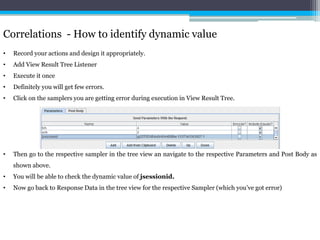
    JMeter Functions andUser Variables • There are two kinds of functions: user-defined static values (or variables), and built-in functions. • User-defined static values allow the user to define variables to be replaced with their static value when a test tree is compiled and submitted to be run. • Note that variables cannot currently be nested; i.e ${Var${N}} does not work. • The __V (variable) function (versions after 2.2) can be used to do this: ${__V(Var${N})}. • This type of replacement is possible without functions, but was less convenient and less intuitive
  • 81.
    Where can functionsand variables be used? • Functions and variables can be written into any field of any test component . • The following functions should work OK on the test plan: intSum longSum machineName BeanShell javaScript jexl random time property functions log functions JMeter thread variables will have not been fully set up when the functions are processed, so variable names passed as parameters will not be set up, and variable references will not work, so split() and regex() and the variable evaluation functions won't work. The threadNum() function won't work (and does not make sense at test plan level).
  • 82.
    Reference variables andfunctions • Referencing a variable in a test element is done by bracketing the variable name with '${' and '}'. • Functions are referenced in the same manner, but by convention, the names of functions begin with "__" to avoid conflict with user value names. • Some functions take arguments to configure them, and these go in parentheses, comma-delimited. If the function takes no arguments, the parentheses can be omitted. ${__BeanShell(vars.put("name","value"))} • Alternatively, you can define your script as a variable, e.g. on the Test Plan: SCRIPT vars.put("name","value") • The script can then be referenced as follows: ${__BeanShell(${SCRIPT})}
  • 83.
    The Function HelperDialog • Using the Function Helper, you can select a function from the pull down, and assign values for its arguments. The left column in the table provides a brief description of the argument, and the right column is where you write in the value for that argument. Different functions take different arguments. • Once you have done this, click the “Generate" button, and the appropriate string is generated for you to copy-paste into your test plan wherever you like.
  • 84.
    The Function HelperDialog • Using the Function Helper, you can select a function from the pull down, and assign values for its arguments. The left column in the table provides a brief description of the argument, and the right column is where you write in the value for that argument. Different functions take different arguments. • Once you have done this, click the “Generate" button, and the appropriate string is generated for you to copy-paste into your test plan wherever you like.
  • 85.
  • 86.
    The Function HelperDialog • __counter generates a new number each time it is called, starting with 1 and incrementing by +1 each time. • __threadNumsimply returns the number of the thread currently being executed. • __intSum can be used to compute the sum of two or more integer values. • __longSum can be used to compute the sum of two or more long values. • __StringFromFile can be used to read strings from a text file • __machineName function returns the local host name • __machineIP function returns the local IP address. • __javaScript executes a piece of JavaScript (not Java!) code and returns its value. • __Randomfunction returns a random number that lies between the given min and max values. • __RandomString function returns a random String of length using characters in chars to use. • __CSVRead function returns a string from a CSV file. • __property returns the value of a JMeter property • __P which is intended for use with properties defined on the command line jmeter -Jgroup1.threads=7 -Jhostname1=www.realhost.edu Fetch the values: ${__P(group1.threads)} - return the value of group1.threads ${__P(group1.loops)} - return the value of group1.loops ${__P(hostname,www.dummy.org)} - return value of property hostname or www.dummy.org
  • 87.
    The Function HelperDialog • __log logs a message, and returns its input string ${__log(Message)} - written to the log file as "...thread Name : Message" ${__log(Message,OUT)} - written to console window ${__log(${VAR},,,VAR=)} - written to log file as "...thread Name VAR=value" • __logn logs a message, and returns the empty string. ${__logn(VAR1=${VAR1},OUT)} - write the value of the variable to the console window • The BeanShell function evaluates the script passed to it, and returns the result. ${__BeanShell(123*456)} - returns 56088 ${__BeanShell(source("function.bsh"))} - processes the script in function.bsh • __split splits the string passed to it according to the delimiter, and returns the original string. Define VAR="a||c|" in the test plan. ${__split(${VAR},VAR,|)} This will return the contents of VAR, i.e. "a||c|" and set the following variables: VAR_n=4 (3 in JMeter 2.1.1 and earlier) VAR_1=a VAR_2=? VAR_3=c VAR_4=? (null in JMeter 2.1.1 and earlier) VAR_5=null (in JMeter 2.1.2 and later)
  • 88.
    Regular Expressions •JMeter includes the pattern matching software Apache Jakarta ORO • It is worth stressing the difference between "contains" and "matches", as used on the Response Assertion test element: • "contains" means that the regular expression matched at least some part of the target, so 'alphabet' "contains" 'ph.b.' because the regular expression matches the substring 'phabe'. • "matches" means that the regular expression matched the whole target. So 'alphabet' is "matched" by 'al.*t'. • Suppose you want to match the following portion of a web-page: • name="file" value="readme.txt"> • and you want to extract readme.txt . • A suitable regular expression would be: • name="file" value="(.+?)"> • The special characters above are: • ( and ) - these enclose the portion of the match string to be returned • . - match any character • + - one or more times • ? - don't be greedy, i.e. stop when first match succeeds
  • 89.
    Regular Expressions •Extract multiple strings • Suppose you want to match the following portion of a web-page: name="file.name" value="readme.txt" and you want to extract both file.name and readme.txt . • A suitable reqular expression would be: name="([^"]+)" value="([^"]+)" This would create 2 groups, which could be used in the JMeter Regular Expression Extractor template as $1$ and $2$. • The JMeter Regex Extractor saves the values of the groups in additional variables. For example, assume: Reference Name: MYREF Regex: name="(.+?)" value="(.+?)" Template: $1$$2$ • Regular expressions use certain characters as meta characters - these characters have a special meaning to the RE engine. • Such characters must be escaped by preceding them with (backslash) in order to treat them as ordinary characters. • Here is a list of the meta characters and their meaning (please check the ORO documentation if in doubt). • ( ) - grouping • [ ] - character classes • { } - repetition • * + ? - repetition • . - wild-card character • - escape character • | - alternatives • ^ $ - start and end of string or line
  • 90.
    Remote & DistributedTesting • In the event that your JMeter client machine is unable, performance-wise, to simulate enough users to stress your server, an option exists to control multiple, remote JMeter engines from a single JMeter GUI client. • By running JMeter remotely, you can replicate a test across many low-end computers and thus simulate a larger load on the server. • One instance of the JMeter GUI client can control any number of remote JMeter instances, and collect all the data from them. This offers the following features: • Saving of test samples to the local machine • Management of multiple JMeterEngines from a single machine • No need to copy the test plan to each server - the client sends it to all the servers • Step 0: Configure the nodes • Make sure that all the nodes (client and servers) are running exactly the same version of JMeter. As far as possible, also use the same version of Java on all systems. • Using different versions of Java may work - but is best avoided. • Step 1: Start the servers • To run JMeter in remote node, start the JMeter server component on all machines you wish to run on by running the JMETER_HOME/bin/jmeter-server (unix) or JMETER_HOME/bin/jmeter-server. bat (windows) script. • Step 2: Add the server IP to your client's Properties File • Edit the properties file on the controlling JMeter machine . In /bin/jmeter.properties, find the property named, "remote_hosts", and add the value of your running JMeter server's IP address. Multiple such servers can be added, comma-delimited.
  • 91.
    Remote & DistributedTesting • Step 3a: Start the JMeter Client from a GUI client • Step 3b: Start the JMeter from a non-GUI Client • jmeter -n -t script.jmx -r or jmeter -n -t script.jmx -R server1,server2... • Other flags that may be useful: -Gproperty=value - define a property in all the servers (may appear more than once) -Z - Exit remote servers at the end of the test. • By default, JMeter uses the standard RMI port 1099. It is possible to change this. For this to work successfully, all the following need to agree: • On the server, start rmiregistry using the new port number • On the server, start JMeter with the property server_port defined • On the client, update the remote_hosts property to include the new remote host:port settings
  • 92.
  • 93.
    Using Distributed Testingwith Load Balancers • Now that most production level application sit behind a load balancer. • JMeter will not really test all the servers behind the Elastic Load Balancing (ELB) without some configuration. Why? Because of Java DNS cache. • For load balancers that use a DNS based distribution method (like round robin), HTTP client makes a connection to the load balancer, and the load balancer says "hey use IP x.x.x.x". • HTTP client then caches that IP for future requests. • To get around this in JMeter, just change the JVM dns ttl by passing a properties file to JMeter. $ cat test.properties networkaddress.cache.ttl=0 sun.net.inetaddr.ttl=0 • Now run JMeter via: jmeter -q test.properties -t test_plan.jmx
  • 94.
    Resource Monitoring •Download JMeter Plugins from http://jmeter-plugins.googlecode.com/files/JMeterPlugins-0.4.1.zip • Paste the JMeterPlugins.jar file from the archive into the /lib/ext directory of the JMeter installation.
  • 95.
    Resource Monitoring •Server Monitor component to any of our JMeter Test Plans by selecting the 'jp@gc - Servers Performance Monitoring' component from Listeners. • Add a new Thread Group to store all of the performance monitors you might add. • Add an additional listener for each metric you with to capture. • To monitor the server status add Listener > Monitor Results • A quick benchmark of memory usage indicates a buffer of 1000 data points for 100 servers would take roughly 10Mb of RAM. • On a 1.4Ghz centrino laptop with 1Gb of ram, the monitor should be able to handle several hundred servers.
  • 96.
    Resource Monitoring •Server Monitor component to any of our JMeter Test Plans by selecting the 'jp@gc - Servers Performance Monitoring' component from Listeners. • Add a new Thread Group to store all of the performance monitors you might add. • Add an additional listener for each metric you with to capture.
  • 97.
  • 98.
    ab - ApacheHTTP server benchmarking tool • ab is a tool for benchmarking your Apache Hypertext Transfer Protocol (HTTP) server. • It is designed to give you an impression of how your current Apache installation performs. This especially shows you how many requests per second your Apache installation is capable of serving. • It supports only Unix and Linux servers.
  • 99.
    Load Testing WebApp • What is our anticipated average number of users (normal load) ? • What is our anticipated peak number of users ? • When is a good time to load-test our application (i.e. off-hours or week-ends), bearing in mind that this may very well crash one or more of our servers ? • Does our application have state ? If so, how does our application manage it (cookies, session-rewriting, or some other method) ? • What is the testing intended to achieve? Network • Who knows our network topology ? If you run into any firewall or proxy issues, this will become very important. As well, a private testing network (which will therefore have very low network latency) would be a very nice thing. Knowing who can set one up for you (if you feel that this is necessary) will be very useful. If the application doesn't scale as expected, who can add additional hardware ?
  • 100.
    Application • test(low-volume - can we benchmark our application?) • benchmark (the average number of users) • load-test (the maximum number of users) • test destructively (what is our hard limit?)
  • 101.
    Tools • ping • nslookup/dig • Traceroute • Apache 'ab' tool • HttpUnit • Microsoft WAS
  • 102.
    Tips and Tricks • Use always latest build of JMeter. • JMeter is very sensitive, navigate slowly. • To get Help for any elements, click on that element, press CTRL + H. E.g. To know more about Thread Group, click on Thread Group, press CTRL + H. • To add similar kind of elements, use universal keys CTRL + C and CTRL + V. • JMeter provides utility to change the Look and Feel by clicking Options > Look and Feel . • To change the language, go to Options > Choose Language, then select your language. • To enable Debugging, press CTRL + SHIFT + D and to disable CTRL + D. • To expand all the items press CTRL + SHIFT + Minus, to collapse CTRL + Minus. • Do not close JMeter Console (command prompt) window any time. • To Disable/Enable any elements, right click on the element, then select Disable/Enable. • For better graph output, install this plugin http://rubenlaguna.com/wp/better-jmeter-graphs/index.html/
  • 103.
    Best Practices •Use naming conventions always for all elements. • Check the default browser Connectivity settings, before executing scripts. • Add Listeners appropriately. • Check the Scoping Rules and design accordingly. • Use multiple instances of JMeter in case the number of threads are more.
  • 104.
    Be sure yourload generator has enough resources • Run your test across multiple machines. • A plan with 2800 requests will require 256 MB of RAM. Not feasible to execute in GUI mode • Run without the GUI, use jmeter -n -t test.jmx test.jtl, add a '-l' argument before the test plan name for listeners.
  • 105.
    References • jmeter.apache.org • Image courtesy from http://jmeter.apache.org • Self learning and my experiences in various exercises. • http://wiki.apache.org/jmeter/JMeterLinks • http://minaret.biz/tips/jmeter.html
  • 106.
    Lab Exercises •Readers who post: 1 post per 50 readers • Peak page views per hour: 200 • Average page views per hour: 100 • Average kilobytes per blog entry: 25Kb • Popular topics: programming, politics, sports and culture • Average readers per blog: 300 ------------------------------------------------------------------------------------------------ • Average post requests per day: 100 • Peak post requests per day: 150 • Average concurrent post requests: 1 • Peak concurrent post requests: 2 • Peak hour: 10:30-11:30 a.m. • Peak concurrent post requests for 6 month period: 5 • Average visits per user per blog/week: 1 • Peak visits per user per blog/week: 3 • Average number of new blog posts per month: 4 • Average number of comments posted per blog: 1
  • 107.
    Lab Exercises •Summary: Simulate 240,000 page views. This translates to 286 requests per • minute, or 5 per second. The goal is to product realistic traffic for a normal work day. • Number of clients: 5 • Delay between requests: 0 seconds • Iterations: 48,000 • Listeners: aggregate report, graph result • Summary: Simulate 286 requests per minute as closely as possible for 24 hour • period using the constant throughput timer. The total number of requests for 24 hours is 411,840. • Number of clients: 5 • Constant Throughput Timer: 286 • Listeners: aggregate report, graph result • Details: Use the random controller to select a mix of read and post requests
  • 108.
    NFR Elicitation •Description of the business domain of the application(s) • Type of application • Risks associated with this project • Purpose of running the Performance Tests • Types of tests • Continuous Monitoring • Environment Setup • Performance Goals • Bandwidth • Load Balancing Technique • Growth Model • Types of Workloads • Number of Concurrent Users • Expected response Time • Tools availability • Basic and Advance Parameters
  • 109.
    Little’s Law •Little’s law can be used to derive the workload modeling statistics: Actual Number of Users in the System = Transactions per second or Throughput* (Response time + Think time) N = Z (R + T) • Eg: Please find the details for a real time scenario • Number of production Servers: 8 • Number of Test Environment Servers: 2 • Number of Concurrent users (Same is considered as peak load): 10,000 • Response time for every transaction: 2 sec • Think time assumed as 5 sec • The load distribution among different transactions is
  • 110.
    Little’s Law •Calculation of Throughput for both production and Test Environment: • Throughput of the application in Production • 10000 = Z (2 + 5) • Throughput (Z) = 10000/7 = 1428.5 trans/sec • Throughput for each server = 1428.5/8(Production servers) = 178.5 trans/sec • Throughput of the application in Test environment • As there are two application servers in Test Environment, the throughput will be • Throughput for each server * 2 = 178.5*2 = 357 trans/sec 01 Login 02 AddPayee 03 AccountBalances 04 TransferFunds 05 Statements 06 Logout
  • 111.
  • 112.
    Thank you Pleasevisit http://naveenkumarn/services for more training programs.