Basics - jMeter
jMeter is an Open Source testing software. It is 100% pure
Java application for load and performance testing.
Basics - jMeter

– Shubelal Kumar
Basics - jMeter
Topics

−
−

What is jMeter?
Why jMeter?

−
−
−
−

How jMeter Works?
Test Plan
Thread Group
HTTP Request Sampler

−

jMeter Useful Resources
What is jMeter?
−

JMeter is a software allowing to load test or performance oriented business (functional) test on different
protocols or technologies. Stefano Mazzocchi of the Apache Software Foundation was the original
developer of JMeter. He wrote it primarily to test the performance of Apache JServ (Now called as Apache
Tomcat project). Apache later redesigned JMeter to enhance the GUI and to add functional-testing
capabilities.

The protocols supported by jMeter are:
−
−
−
−
−
−
−

Web: HTTP, HTTPS sites 'web 1.0' web 2.0 (ajax, flex and flex-ws-amf)
Web Services: SOAP / XML-RPC
Database via JDBC drivers
Directory: LDAP
Messaging Oriented service via JMS
Service: POP3, IMAP, SMTP
FTP Service
Why jMeter?
−
−
−
−
−
−
−
−
−

Its free. Its an open source software.
It has simple and intuitive GUI.
JMeter can load and performance test many different server types: Web - HTTP, HTTPS, SOAP,
Database via JDBC, LDAP, JMS, Mail - POP3
It is platform-independent tool. On Linux/Unix, JMeter can be invoked by clicking on JMeter shell script.
On Windows it can be invoked by starting the jmeter.bat file.
It has full Swing and lightweight component support (precompiled JAR uses packages javax.swing.* ).
JMeter store its test plans in XML format. This means you can generate a test plan using a text editor.
It's full multi-threading framework allows concurrent sampling by many threads and simultaneous
sampling of different functions by separate thread groups.
It is highly Extensible.
Can also be used to perform automated and functional testing of your application.
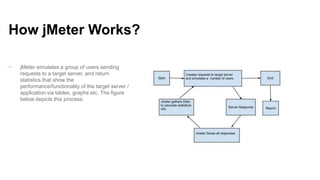
How jMeter Works?
−

jMeter simulates a group of users sending
requests to a target server, and return
statistics that show the
performance/functionality of the target server /
application via tables, graphs etc. The figure
below depicts this process:
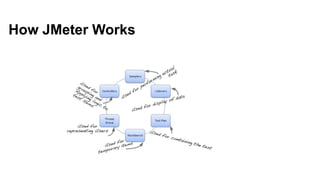
How JMeter Works
Terminology


Test Plan : Only one test plan can be added per script. Saved for future use.



Thread Group: Represents one set of actions. Added under Test Plan and can simulate Multiple users
with same set of actions.



HTTP Request Sampler : Records requests to web server and receives response.
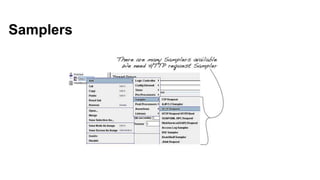
Samplers
HTTP Request Sampler
−

Name: we will change the name to reflect the action what we want to achieve
− This will will name “Visit Google Home Page”

−

Server Name or IP: here we have to type the web server name
− In out case it is http://www.google.com
− Note http:// part is not written this is only the name of the server or its IP

−

Protocol: we will keep this blank
− That will mean we want HTTP as the protocol

−

Path: we will type path as / (slash)
− This means we want the root page of the server
− This also means now the server will decide what page will be sent to us and it is the default page of
the web site
Listeners
−

Listeners are used to view the results in the form of graph, tree, numbers

−

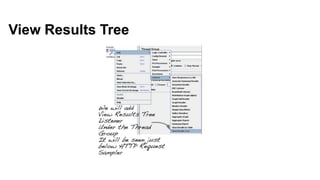
View Results Tree: Shows data for each item with details. Request, Response and Transaction status
can be fetched through this listener

−

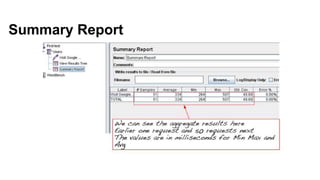
Summary Report: Entire Performance information, Simulated users and details in numbers for each
user.
View Results Tree
Summary Report
Summary Report – Continued…
−

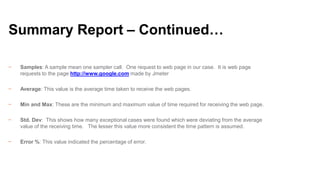
Samples: A sample mean one sampler call. One request to web page in our case. It is web page
requests to the page http://www.google.com made by Jmeter

−

Average: This value is the average time taken to receive the web pages.

−

Min and Max: These are the minimum and maximum value of time required for receiving the web page.

−

Std. Dev: This shows how many exceptional cases were found which were deviating from the average
value of the receiving time. The lesser this value more consistent the time pattern is assumed.

−

Error %: This value indicated the percentage of error.
Work Bench & HTTP Proxy Server
−

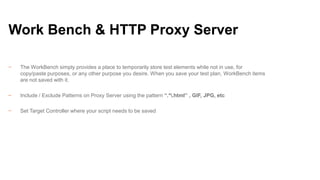
The WorkBench simply provides a place to temporarily store test elements while not in use, for
copy/paste purposes, or any other purpose you desire. When you save your test plan, WorkBench items
are not saved with it.

−

Include / Exclude Patterns on Proxy Server using the pattern “.*.html” , GIF, JPG, etc

−

Set Target Controller where your script needs to be saved
Assertions
−

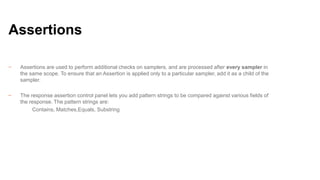
Assertions are used to perform additional checks on samplers, and are processed after every sampler in
the same scope. To ensure that an Assertion is applied only to a particular sampler, add it as a child of the
sampler.

−

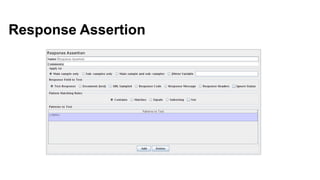
The response assertion control panel lets you add pattern strings to be compared against various fields of
the response. The pattern strings are:
Contains, Matches,Equals, Substring
Response Assertion
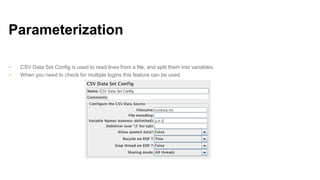
Parameterization
−
−

CSV Data Set Config is used to read lines from a file, and split them into variables.
When you need to check for multiple logins this feature can be used.
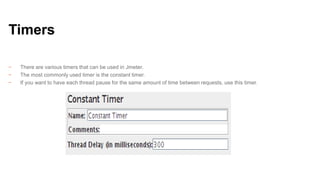
Timers
−
−
−

There are various timers that can be used in Jmeter.
The most commonly used timer is the constant timer.
If you want to have each thread pause for the same amount of time between requests, use this timer.
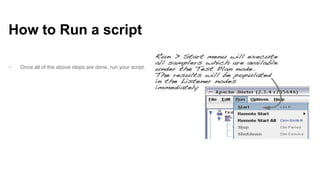
How to Run a script
−

Once all of the above steps are done, run your script.
Basic Requirements to Run a script
−

Add a Test Plan -> Thread Group

−

Add HTTP Proxy Server on WorkBench to include/exclude patterns

−

Add Listeners (View Results Tree, Summary Report), Assertions, timers if required

−

Start Proxy Server and do settings on Browser

−

Open the URL and record the script

−

Once done, stop the script

−

Save your test plan

−

Run the test plan and view results
Reference
jMeter
−

http://www.tutorialspoint.com/jmeter/jmeter_overview.htm

−

http://jmeter.apache.org/usermanual/build-web-test-plan.html

−

https://jmeter.apache.org/usermanual/jmeter_distributed_testing_step_by_step.pdf

−

http://blazemeter.com/blog/jmeter-tutorial-video-series
Questions?
Thank you

Basic of jMeter

  • 1.
    Basics - jMeter jMeteris an Open Source testing software. It is 100% pure Java application for load and performance testing.
  • 2.
    Basics - jMeter –Shubelal Kumar
  • 3.
    Basics - jMeter Topics − − Whatis jMeter? Why jMeter? − − − − How jMeter Works? Test Plan Thread Group HTTP Request Sampler − jMeter Useful Resources
  • 4.
    What is jMeter? − JMeteris a software allowing to load test or performance oriented business (functional) test on different protocols or technologies. Stefano Mazzocchi of the Apache Software Foundation was the original developer of JMeter. He wrote it primarily to test the performance of Apache JServ (Now called as Apache Tomcat project). Apache later redesigned JMeter to enhance the GUI and to add functional-testing capabilities. The protocols supported by jMeter are: − − − − − − − Web: HTTP, HTTPS sites 'web 1.0' web 2.0 (ajax, flex and flex-ws-amf) Web Services: SOAP / XML-RPC Database via JDBC drivers Directory: LDAP Messaging Oriented service via JMS Service: POP3, IMAP, SMTP FTP Service
  • 5.
    Why jMeter? − − − − − − − − − Its free.Its an open source software. It has simple and intuitive GUI. JMeter can load and performance test many different server types: Web - HTTP, HTTPS, SOAP, Database via JDBC, LDAP, JMS, Mail - POP3 It is platform-independent tool. On Linux/Unix, JMeter can be invoked by clicking on JMeter shell script. On Windows it can be invoked by starting the jmeter.bat file. It has full Swing and lightweight component support (precompiled JAR uses packages javax.swing.* ). JMeter store its test plans in XML format. This means you can generate a test plan using a text editor. It's full multi-threading framework allows concurrent sampling by many threads and simultaneous sampling of different functions by separate thread groups. It is highly Extensible. Can also be used to perform automated and functional testing of your application.
  • 6.
    How jMeter Works? − jMetersimulates a group of users sending requests to a target server, and return statistics that show the performance/functionality of the target server / application via tables, graphs etc. The figure below depicts this process:
  • 7.
  • 8.
    Terminology  Test Plan :Only one test plan can be added per script. Saved for future use.  Thread Group: Represents one set of actions. Added under Test Plan and can simulate Multiple users with same set of actions.  HTTP Request Sampler : Records requests to web server and receives response.
  • 9.
  • 10.
    HTTP Request Sampler − Name:we will change the name to reflect the action what we want to achieve − This will will name “Visit Google Home Page” − Server Name or IP: here we have to type the web server name − In out case it is http://www.google.com − Note http:// part is not written this is only the name of the server or its IP − Protocol: we will keep this blank − That will mean we want HTTP as the protocol − Path: we will type path as / (slash) − This means we want the root page of the server − This also means now the server will decide what page will be sent to us and it is the default page of the web site
  • 11.
    Listeners − Listeners are usedto view the results in the form of graph, tree, numbers − View Results Tree: Shows data for each item with details. Request, Response and Transaction status can be fetched through this listener − Summary Report: Entire Performance information, Simulated users and details in numbers for each user.
  • 12.
  • 13.
  • 14.
    Summary Report –Continued… − Samples: A sample mean one sampler call. One request to web page in our case. It is web page requests to the page http://www.google.com made by Jmeter − Average: This value is the average time taken to receive the web pages. − Min and Max: These are the minimum and maximum value of time required for receiving the web page. − Std. Dev: This shows how many exceptional cases were found which were deviating from the average value of the receiving time. The lesser this value more consistent the time pattern is assumed. − Error %: This value indicated the percentage of error.
  • 15.
    Work Bench &HTTP Proxy Server − The WorkBench simply provides a place to temporarily store test elements while not in use, for copy/paste purposes, or any other purpose you desire. When you save your test plan, WorkBench items are not saved with it. − Include / Exclude Patterns on Proxy Server using the pattern “.*.html” , GIF, JPG, etc − Set Target Controller where your script needs to be saved
  • 16.
    Assertions − Assertions are usedto perform additional checks on samplers, and are processed after every sampler in the same scope. To ensure that an Assertion is applied only to a particular sampler, add it as a child of the sampler. − The response assertion control panel lets you add pattern strings to be compared against various fields of the response. The pattern strings are: Contains, Matches,Equals, Substring
  • 17.
  • 18.
    Parameterization − − CSV Data SetConfig is used to read lines from a file, and split them into variables. When you need to check for multiple logins this feature can be used.
  • 19.
    Timers − − − There are varioustimers that can be used in Jmeter. The most commonly used timer is the constant timer. If you want to have each thread pause for the same amount of time between requests, use this timer.
  • 20.
    How to Runa script − Once all of the above steps are done, run your script.
  • 21.
    Basic Requirements toRun a script − Add a Test Plan -> Thread Group − Add HTTP Proxy Server on WorkBench to include/exclude patterns − Add Listeners (View Results Tree, Summary Report), Assertions, timers if required − Start Proxy Server and do settings on Browser − Open the URL and record the script − Once done, stop the script − Save your test plan − Run the test plan and view results
  • 22.
  • 23.
  • 24.

Editor's Notes

  • #2 TITLE PAGE– Headline 36pt Arial in WHITE– Sub-head 18pt Arial Reg in GREY– Do not include client logos on title page– TEXT ONLY
  • #4 1-COLUMN– Headline 32pt Arialin BLACK– Sub-heads 12pt Arial Reg in ORANGE– Body copy & bulleted text 10pt Arial Reg in GRAY; body copy not to go below 6 pt– Left-justify all text and design elements– Divider Lines no larger than 1pt*****Divider lines are not built into Master Slides – must copy and paste from example slide*****
  • #25 TITLE PAGE (ALT)Footer is only editable feature.