Swipe
Tableau - Gantt Chart
Tableau
A Gantt chart shows the progress of the value of a
task or resource over a period of time.
It is extensively used in project management and
other types of variation study over a period of
time.
Thus, in Gantt chart, time dimension is an
essential field.
The Gantt chart takes at least a dimension and a
measure in addition to the time dimension.
Tableau - Gantt Chart
Using the Sample-superstore, plan to find the
variation of quantities of different SubCategory of
products according to their ship mode over a
range of time.
To achieve this objective, following are the steps.
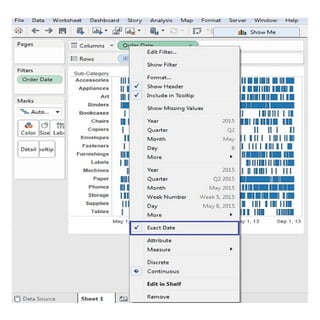
Step 1 − Drag the dimension order date to the
Columns shelf and Sub-Category to the Rows shelf.
Next, add the order date to the Filters shelf.
Right-click on order date to convert it to the exact
date values as shown in the following screenshot.
Creating a Gantt Chart
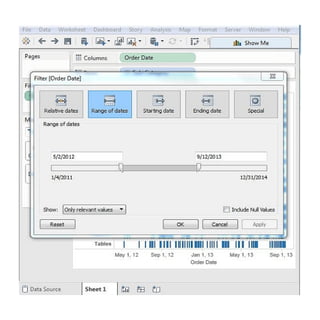
Step 2 −
Edit the filter condition to select a range of
dates.
It is because you want individual date values
and there is a very large number of dates in
the data.
The range is created as shown in the following
screenshot.
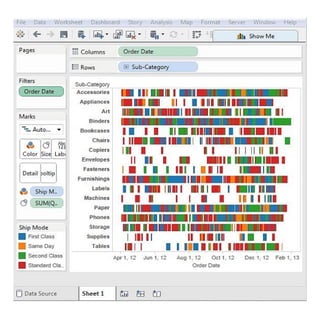
Step 3 −
Drag the dimension ship mode to the Color
shelf and the measure quantity to the Size
shelf under the Marks card.
This produces the Gantt chart as shown in the
following screenshot.
Tableau - Histogram
Tableau - Motion Charts
Tableau - Waterfall Charts
Stay Tuned with
Topics for next Post

Tableau - gantt chart

  • 1.
    Swipe Tableau - GanttChart Tableau
  • 2.
    A Gantt chartshows the progress of the value of a task or resource over a period of time. It is extensively used in project management and other types of variation study over a period of time. Thus, in Gantt chart, time dimension is an essential field. The Gantt chart takes at least a dimension and a measure in addition to the time dimension. Tableau - Gantt Chart
  • 3.
    Using the Sample-superstore,plan to find the variation of quantities of different SubCategory of products according to their ship mode over a range of time. To achieve this objective, following are the steps. Step 1 − Drag the dimension order date to the Columns shelf and Sub-Category to the Rows shelf. Next, add the order date to the Filters shelf. Right-click on order date to convert it to the exact date values as shown in the following screenshot. Creating a Gantt Chart
  • 5.
    Step 2 − Editthe filter condition to select a range of dates. It is because you want individual date values and there is a very large number of dates in the data. The range is created as shown in the following screenshot.
  • 7.
    Step 3 − Dragthe dimension ship mode to the Color shelf and the measure quantity to the Size shelf under the Marks card. This produces the Gantt chart as shown in the following screenshot.
  • 9.
    Tableau - Histogram Tableau- Motion Charts Tableau - Waterfall Charts Stay Tuned with Topics for next Post