Adding Color Fill between Contour Lines
Color fill can be assigned to individual levels in the same way as line properties. Alternatively,
you can assign colors based on a gradational spectrum between two colors, or select one of the
preset color spectrums.
The Levels page in the contour map properties dialog shows a correspondence between a level
(the values under the Level button) and a color (the values under the Fill button). The colors are
used to fill in the space between the corresponding level and the next higher level. For example,
if the contour levels are 20, 30, 40, ..., etc., then the color corresponding to level 20 is used to
fill in the space between the level 20 contour and the level 30 contour.
To display contour fill:
Double-click the contour map to open the contour map properties dialog.
On the General page, click the Fill Contours check box. Click the Apply button to see the
default grayscale color fill between contours.
1
To change the color of the fill:
1. In the contour map properties dialog, Levels page, click the Fill button to open the Fill
dialog.
2. In the Fill dialog, click the Foreground Color button to open the Colormap dialog. This
dialog allows you to select colors to assign to specific Z values.
3. Click on the left node below the color spectrum and then click on the color Blue in the
color palette. The color scale now ranges from Blue to White. Alternatively, you could
select a color spectrum from the Presets drop-down list, or by clicking the Load button.
4. (Optional) If you would like the color fill to be transparent, change the Opacity value.
5. Click the OK button to return to the Fill dialog. The Foreground Color button is now
displayed as a gradation from blue to white.
6. Click the OK button and the fill colors on the Levels page are updated to reflect the change.
7. Click the OK button and the contour map is redrawn with the blue to white fill.
2 Change the color spectrum properties in the
Colormap dialog.
The contour map is filled with a blue to white colormap
after adjustments are made in the Colormap dialog.
Add, Delete, and Move Contour Labels
Contour label locations can be changed. Labels can be added, deleted, or moved.
To add, delete, and move contour labels:
1. Right-click on the contour map and select Edit Contour Labels. You can also edit labels of
a selected contour map using the Map | Edit Contour Labels command. The cursor changes
to a black arrowhead to indicate that you are in edit mode. The contour labels have
rectangular boxes around them in edit mode.
2. To delete a label, click on the label and press the DELETE key on the keyboard. For
example, left-click on the far left 70 label and then press the DELETE .
3. To add a label, press and hold the CTRL key on the keyboard and left-click the location on
the contour line where you want the new label located. The cursor changes to a black
arrowhead with a plus sign to indicate you are able to add a new label. Add a 60 contour
label to the lower left portion of the map.
4. To move a contour label, left-click on the label, hold down the left mouse button, and drag
the label. Release the left mouse button to complete the label move. Move the 70 contour
label on the right portion of the map to the north. To duplicate a label, hold the CTRL key
on the keyboard while holding the left mouse button and then drag the label to a new
location.
5. To exit the Edit Contour Labels mode, press the ESC key.
3
Contour labels can be moved, added, or deleted
with the Map | Edit Contour Labels command.
Modifying an Axis
Every contour map is created with four map axes: the bottom, right, top, and left axes. You can
control the display of each axis independently of the other axes on the map. In this example, we
will change the contour spacing and add an axis label. 3D maps have an additional Z axis.
Additional X, Y, or Z axes can be added to a map with the Map | Add command.
To modify an axis:
1. Move the cursor over one of the axis tick labels on the bottom X axis and left-click the
mouse. In the status bar at the bottom of the plot window, the words "Map: Bottom Axis"
are displayed. The "Bottom Axis" object in the Object Manager is also highlighted. This
indicates that you have selected the bottom axis of the contour map. Additionally, blue
circle handles appear at each end of the axis, and green square handles appear surrounding
the entire map. This indicates that the axis is a "sub object" of the entire map.
the entire map. This indicates that the axis is a "sub-object" of the entire map.
2. Double-click on the bottom axis to display the bottom axis properties dialog.
3. In the Title box on the General page, type "Bottom Axis" (without quotes) and then click
the Apply button. This places a title on the selected axis.
4
If you would like to edit other axes, click
on the axis. You do not need to close
the dialog before changing your
selection.
4. If you cannot see the axis title, select View | Zoom | Selected. Notice that you do not have to
close the properties dialog to select menu commands, toolbar buttons, or objects in the plot
window.
5. Click on the Scaling tab to display the axis scaling options. In the Major Interval box, type
the value 1.5 and then click the Apply button. This changes the spacing between major ticks
along the selected axis.
6. Click on the General tab and then click the Label Format button to open the Label Format
dialog.
7. In the Label Format dialog, select the Fixed option in the Type group. Click on the down
arrow on the Decimal Digits box and change the value to 1. This indicates that only one
digit follows the decimal point for the axis tick labels.
8. Click the OK button to return to the axis properties dialog.
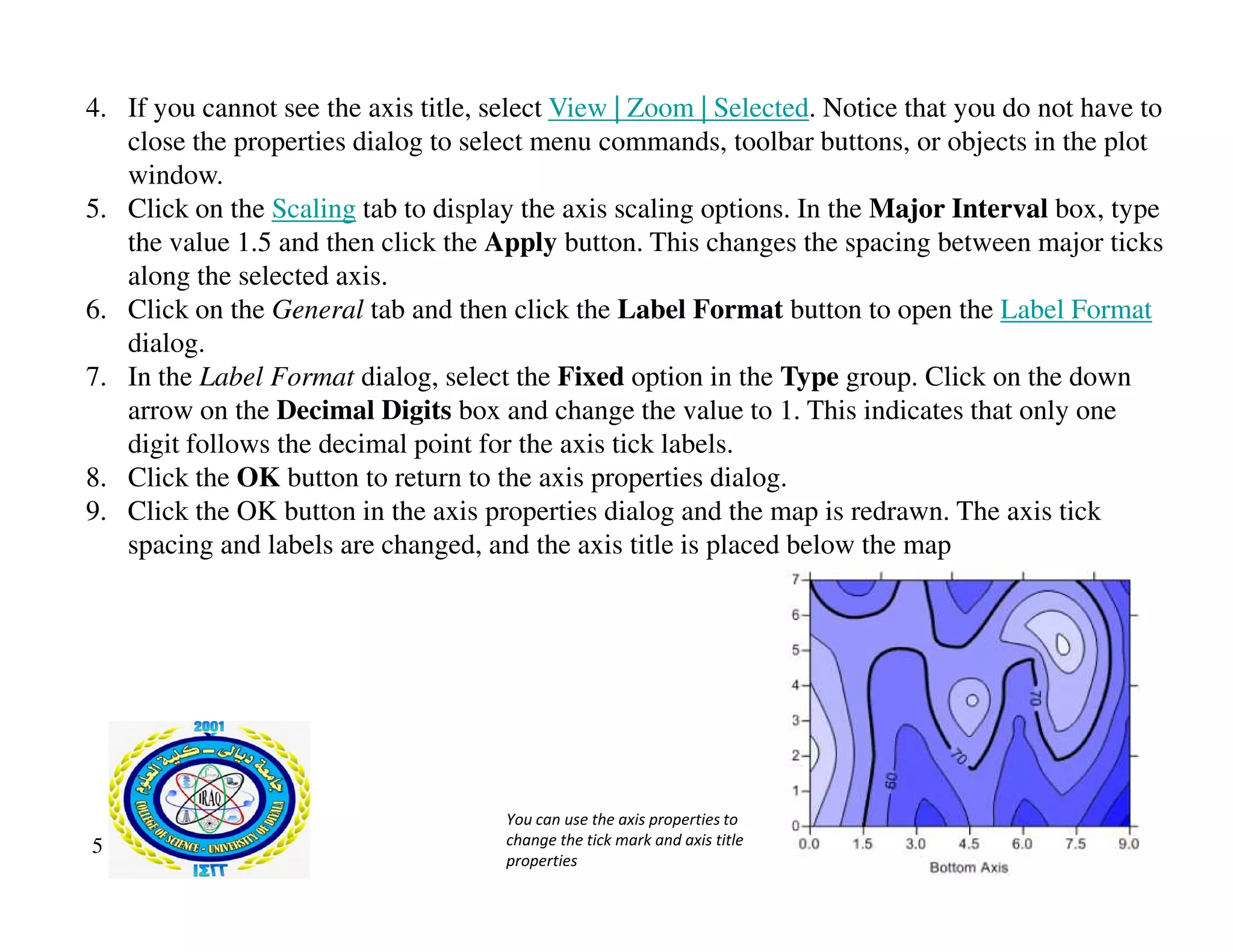
9. Click the OK button in the axis properties dialog and the map is redrawn. The axis tick
spacing and labels are changed, and the axis title is placed below the map
5
You can use the axis properties to
change the tick mark and axis title
properties
Saving a Map
When you have completed the map in the plot window, you can save the map to a Surfer file
[.SRF] containing all the information necessary to reproduce the project. When you save a map
as a [.SRF], all the scaling, formatting, and map properties are preserved in the file. An asterisk
(*) next to the file name in the title bar and tab indicates the file has been modified and the
modifications have not yet been saved.
To save a map:
1. Choose the File | Save command, or click the button . .The Save As dialog is displayed
because the map has not been previously saved. Select a directory that you have the ability
to save to.
2. In the File name box, type TUTORWS.
3. Click the Save button and the file is saved to the current directory with an [.SRF] extension.
The saved map remains open and the title bar changes to reflect the name change. There is
no longer an asterisk next to the file name.
6

Surfer 4.pdf

  • 1.
    Adding Color Fillbetween Contour Lines Color fill can be assigned to individual levels in the same way as line properties. Alternatively, you can assign colors based on a gradational spectrum between two colors, or select one of the preset color spectrums. The Levels page in the contour map properties dialog shows a correspondence between a level (the values under the Level button) and a color (the values under the Fill button). The colors are used to fill in the space between the corresponding level and the next higher level. For example, if the contour levels are 20, 30, 40, ..., etc., then the color corresponding to level 20 is used to fill in the space between the level 20 contour and the level 30 contour. To display contour fill: To display contour fill: Double-click the contour map to open the contour map properties dialog. On the General page, click the Fill Contours check box. Click the Apply button to see the default grayscale color fill between contours. 1
  • 2.
    To change thecolor of the fill: 1. In the contour map properties dialog, Levels page, click the Fill button to open the Fill dialog. 2. In the Fill dialog, click the Foreground Color button to open the Colormap dialog. This dialog allows you to select colors to assign to specific Z values. 3. Click on the left node below the color spectrum and then click on the color Blue in the color palette. The color scale now ranges from Blue to White. Alternatively, you could select a color spectrum from the Presets drop-down list, or by clicking the Load button. 4. (Optional) If you would like the color fill to be transparent, change the Opacity value. 5. Click the OK button to return to the Fill dialog. The Foreground Color button is now displayed as a gradation from blue to white. 6. Click the OK button and the fill colors on the Levels page are updated to reflect the change. 6. Click the OK button and the fill colors on the Levels page are updated to reflect the change. 7. Click the OK button and the contour map is redrawn with the blue to white fill. 2 Change the color spectrum properties in the Colormap dialog. The contour map is filled with a blue to white colormap after adjustments are made in the Colormap dialog.
  • 3.
    Add, Delete, andMove Contour Labels Contour label locations can be changed. Labels can be added, deleted, or moved. To add, delete, and move contour labels: 1. Right-click on the contour map and select Edit Contour Labels. You can also edit labels of a selected contour map using the Map | Edit Contour Labels command. The cursor changes to a black arrowhead to indicate that you are in edit mode. The contour labels have rectangular boxes around them in edit mode. 2. To delete a label, click on the label and press the DELETE key on the keyboard. For example, left-click on the far left 70 label and then press the DELETE . 3. To add a label, press and hold the CTRL key on the keyboard and left-click the location on the contour line where you want the new label located. The cursor changes to a black arrowhead with a plus sign to indicate you are able to add a new label. Add a 60 contour arrowhead with a plus sign to indicate you are able to add a new label. Add a 60 contour label to the lower left portion of the map. 4. To move a contour label, left-click on the label, hold down the left mouse button, and drag the label. Release the left mouse button to complete the label move. Move the 70 contour label on the right portion of the map to the north. To duplicate a label, hold the CTRL key on the keyboard while holding the left mouse button and then drag the label to a new location. 5. To exit the Edit Contour Labels mode, press the ESC key. 3 Contour labels can be moved, added, or deleted with the Map | Edit Contour Labels command.
  • 4.
    Modifying an Axis Everycontour map is created with four map axes: the bottom, right, top, and left axes. You can control the display of each axis independently of the other axes on the map. In this example, we will change the contour spacing and add an axis label. 3D maps have an additional Z axis. Additional X, Y, or Z axes can be added to a map with the Map | Add command. To modify an axis: 1. Move the cursor over one of the axis tick labels on the bottom X axis and left-click the mouse. In the status bar at the bottom of the plot window, the words "Map: Bottom Axis" are displayed. The "Bottom Axis" object in the Object Manager is also highlighted. This indicates that you have selected the bottom axis of the contour map. Additionally, blue circle handles appear at each end of the axis, and green square handles appear surrounding the entire map. This indicates that the axis is a "sub object" of the entire map. the entire map. This indicates that the axis is a "sub-object" of the entire map. 2. Double-click on the bottom axis to display the bottom axis properties dialog. 3. In the Title box on the General page, type "Bottom Axis" (without quotes) and then click the Apply button. This places a title on the selected axis. 4 If you would like to edit other axes, click on the axis. You do not need to close the dialog before changing your selection.
  • 5.
    4. If youcannot see the axis title, select View | Zoom | Selected. Notice that you do not have to close the properties dialog to select menu commands, toolbar buttons, or objects in the plot window. 5. Click on the Scaling tab to display the axis scaling options. In the Major Interval box, type the value 1.5 and then click the Apply button. This changes the spacing between major ticks along the selected axis. 6. Click on the General tab and then click the Label Format button to open the Label Format dialog. 7. In the Label Format dialog, select the Fixed option in the Type group. Click on the down arrow on the Decimal Digits box and change the value to 1. This indicates that only one digit follows the decimal point for the axis tick labels. 8. Click the OK button to return to the axis properties dialog. 8. Click the OK button to return to the axis properties dialog. 9. Click the OK button in the axis properties dialog and the map is redrawn. The axis tick spacing and labels are changed, and the axis title is placed below the map 5 You can use the axis properties to change the tick mark and axis title properties
  • 6.
    Saving a Map Whenyou have completed the map in the plot window, you can save the map to a Surfer file [.SRF] containing all the information necessary to reproduce the project. When you save a map as a [.SRF], all the scaling, formatting, and map properties are preserved in the file. An asterisk (*) next to the file name in the title bar and tab indicates the file has been modified and the modifications have not yet been saved. To save a map: 1. Choose the File | Save command, or click the button . .The Save As dialog is displayed because the map has not been previously saved. Select a directory that you have the ability to save to. 2. In the File name box, type TUTORWS. 3. Click the Save button and the file is saved to the current directory with an [.SRF] extension. 3. Click the Save button and the file is saved to the current directory with an [.SRF] extension. The saved map remains open and the title bar changes to reflect the name change. There is no longer an asterisk next to the file name. 6