1
18CSE489T/STREAMING ANALYTICS Dr. A. Manju/AP/SRMIST, RAMAPURAM
UNIT III
Apache Storm – Introduction - Features of Storm - Storm Components - Nimbus, Supervisor
Nodes - Zookeeper cluster - Storm Data Model - Definition of a Storm topology, Operation
modes in Storm - Storm – Prerequisites and Setting up a storm cluster, Developing a hello world
example - Storm topology options, Demo of Hello world in Storm - Introduction to Storm UI -
Cluster, Nimbus, Supervisor, Topology Summary. Nimbus Configuration - Storm Scheduler -
Types of schedulers - Applications of schedulers - Storm Cluster Monitoring - Integration of Storm
with Kafka - Integration of Storm with Kafka example - Recap – Storm in Stream Processing
Apache Storm
Apache Storm has emerged as the platform of choice for industry leaders to develop
distributed, real-time, data processing platforms. It provides a set of primitives that can be used to
develop applications that can process a very large amount of data in real time in a highly scalable
manner. Storm is to real-time processing what Hadoop is to batch processing. It is open source
software, and managed by Apache Software Foundation. It has been deployed to meet realtime
processing needs by companies such as Twitter, Yahoo!, and Flipboard.
Storm was first developed by Nathan Marz at BackType, a company that provided social
search applications. Later, BackType was acquired by Twitter, and it is a critical part of their
infrastructure. Storm can be used for the following use cases:
Stream processing: Storm is used to process a stream of data and update a variety of databases
in real time. This processing occurs in real time and the processing speed needs to match the input
data speed.
Continuous computation: Storm can do continuous computation on data streams and stream
the results to clients in real time. This might require processing each message as it comes in or
creating small batches over a short time. An example of continuous computation is streaming
trending topics on Twitter into browsers.
Distributed RPC: Storm can parallelize an intense query so that you can compute it in real time.
Real-time analytics: Storm can analyze and respond to data that comes from different data
sources as they happen in real time.
Features of Storm
The following are some of the features of Storm that make it a perfect solution to process streams
of data in real time:
Fast: Storm has been reported to process up to 1 million tuples/records per second per node.
Horizontally scalable: Being fast is a necessary feature to build a high volume/velocity data
processing platform, but a single node will have an upper limit on the number of events that it can
process per second. A node represents a single machine in your setup that executes Storm
applications. Storm, being a distributed platform, allows you to add more nodes to your Storm
cluster and increase the processing capacity of your application. Also, it is linearly scalable, which
means that you can double the processing capacity by doubling the nodes.
Fault tolerant: Units of work are executed by worker processes in a Storm cluster. When a worker
dies, Storm will restart that worker, and if the node on which the worker is running dies, Storm
will restart that worker on some other node in the cluster.
Guaranteed data processing: Storm provides strong guarantees that each message entering a
Storm process will be processed at least once. In the event of failures, Storm will replay the lost
tuples/records. Also, it can be configured so that each message will be processed only once.
Easy to operate: Storm is simple to deploy and manage. Once the cluster is deployed, it requires
little maintenance.
Programming language agnostic: Even though the Storm platform runs on Java virtual
machine (JVM), the applications that run over it can be written in any programming language
that can read and write to standard input and output streams.
2
18CSE489T/STREAMING ANALYTICS Dr. A. Manju/AP/SRMIST, RAMAPURAM
Storm Components
A Storm cluster follows a master-slave model where the master and slave processes are coordinated
through ZooKeeper.
The following is an architecture diagram of a Storm cluster:
The following are the components of a Storm cluster.
• Nimbus
• Supervisor Nodes
• Zookeeper cluster
Nimbus
The Nimbus node is the master in a Storm cluster. It is responsible for distributing the
application code across various worker nodes, assigning tasks to different machines, monitoring
tasks for any failures, and restarting them as and when required. Nimbus is stateless and stores all
of its data in ZooKeeper. There is a single Nimbus node in a Storm cluster. If the active node goes
down, then the passive node will become an Active node. It is designed to be fail-fast, so when
the active Nimbus dies, the passive node will become an active node, or the down node can be
restarted without having any effect on the tasks already running on the worker nodes. This is unlike
Hadoop, where if the JobTracker dies, all the running jobs are left in an inconsistent state and need
to be executed again. The Storm workers can work smoothly even if all the Nimbus nodes go
down but the user can't submit any new jobs into the cluster or the cluster will not be able to
reassign the failed workers to another node.
Supervisor nodes
Supervisor nodes are the worker nodes in a Storm cluster. Each supervisor node runs a supervisor
daemon that is responsible for creating, starting, and stopping worker processes to execute the
tasks assigned to that node. Like Nimbus, a supervisor daemon is also failfast and stores all of its
states in ZooKeeper so that it can be restarted without any state loss. A single supervisor daemon
normally handles multiple worker processes running on that machine.
The ZooKeeper cluster
In any distributed application, various processes need to coordinate with each other and share
some configuration information. ZooKeeper is an application that provides all these services in a
reliable manner. As a distributed application, Storm also uses a ZooKeeper cluster to coordinate
various processes. All of the states associated with the cluster and the various tasks submitted to
Storm are stored in ZooKeeper. Nimbus and supervisor nodes do not communicate directly with
each other, but through ZooKeeper. As all data is stored in ZooKeeper, both Nimbus and the
supervisor daemons can be killed abruptly without adversely affecting the cluster.
Storm Data Model
The basic unit of data that can be processed by a Storm application is called a tuple. Each
tuple consists of a predefined list of fields. The value of each field can be a byte, char,integer, long,
3
18CSE489T/STREAMING ANALYTICS Dr. A. Manju/AP/SRMIST, RAMAPURAM
float, double, Boolean, or byte array. Storm also provides an API to define your own datatypes,
which can be serialized as fields in a tuple.
A tuple is dynamically typed, that is, you just need to define the names of the fields in a
tuple and not their datatype. The choice of dynamic typing helps to simplify the API and makes it
easy to use. Also, since a processing unit in Storm can process multiple types of tuples, it's not
practical to declare field types.
Each of the fields in a tuple can be accessed by its name, getValueByField(String), or its
positional index, getValue(int), in the tuple. Tuples also provide convenient methods such as
getIntegerByField(String) that save you from typecasting the objects. For example, if you have a
Fraction (numerator, denominator) tuple, representing fractional numbers, then you can get the value
of the numerator by either using
getIntegerByField("numerator") or getInteger(0).
You can see the full set of operations supported by org.apache.storm.tuple. Tuple in the Java doc
that is located at
https://storm.apache.org/releases/1.0.2/javadocs/org/apache/storm/tuple/Tuple.html.
Definition of a Storm topology
In Storm terminology, a topology is an abstraction that defines the graph of the
computation. You create a Storm topology and deploy it on a Storm cluster to process data. A
topology can be represented by a direct acyclic graph, where each node does some kind of
processing and forwards it to the next node(s) in the flow. The following diagram is a sample
Storm topology:
The following are the components of a Storm topology:
Tuple: A single message/record that flows between the different instances of a topology is called
a tuple.
Stream: The key abstraction in Storm is that of a stream. A stream is an unbounded sequence of
tuples that can be processed in parallel by Storm. Each stream can be processed by a single or
multiple types of bolts (the processing units in Storm, which are defined later in this section). Thus,
Storm can also be viewed as a platform to transform streams. In the preceding diagram, streams
are represented by arrows. Each stream in a Storm application is given an ID and the bolts can
produce and consume tuples from these streams on the basis of their ID.
Each stream also has an associated schema for the tuples that will flow through it.
Spout: A spout is the source of tuples in a Storm topology. It is responsible for reading or listening
to data from an external source, for example, by reading from a log file or listening for new
messages in a queue and publishing them—emitting in Storm terminology into streams. A spout
can emit multiple streams, each of a different schema. For example, it can read records of 10 fields
from a log file and emit them as different streams of seven-fields tuples and four-fields tuples each.
The org.apache.storm.spout.ISpout interface is the interface used to define spouts. If you are
writing your topology in Java, then you should use org.apache.storm.topology.IRichSpout as it
declares methods to use with the TopologyBuilder API. Whenever a spout emits a tuple, Storm
4
18CSE489T/STREAMING ANALYTICS Dr. A. Manju/AP/SRMIST, RAMAPURAM
tracks all the tuples generated while processing this tuple, and when the execution of all the tuples
in the graph of this source tuple is complete, it will send an acknowledgement back to the spout.
This tracking happens only if a message ID was provided when emitting the tuple. If null was used
as the message ID, this tracking will not happen.
A tuple processing timeout can also be defined for a topology, and if a tuple is not
processed within the specified timeout, a fail message will be sent back to the spout. Again, this
will happen only if you define a message ID. A small performance gain can be extracted out of
Storm at the risk of some data loss by disabling the message acknowledgements, which can be
done by skipping the message ID while emitting tuples.
The important methods of spout are:
nextTuple(): This method is called by Storm to get the next tuple from the input source. Inside
this method, you will have the logic of reading data from external sources and emitting them to an
instance of org.apache.storm.spout.ISpoutOutputCollector. The schema for streams can be
declared by using the declareStream method of org.apache.storm.topology.OutputFieldsDeclarer.
If a spout wants to emit data to more than one stream, it can declare multiple streams using the
declareStream method and specify a stream ID while emitting the tuple. If there are no more tuples
to emit at the moment, this method will not be blocked. Also, if this method does not emit a tuple,
then Storm will wait for 1 millisecond before calling it again. This waiting time can be configured
using the topology.sleep.spout.wait.strategy.time.ms setting.
ack(Object msgId): This method is invoked by Storm when the tuple with the given message ID
is completely processed by the topology. At this point, the user should mark the message as
processed and do the required cleaning up, such as removing the message from the message queue
so that it does not get processed again.
fail(Object msgId): This method is invoked by Storm when it identifies that the tuple with the
given message ID has not been processed successfully or has timed out of the configured interval.
In such scenarios, the user should do the required processing so that the messages can be emitted
again by the nextTuple method.
A common way to do this is to put the message back in the incoming message queue.
open(): This method is called only once--when the spout is initialized. If it is required to connect
to an external source for the input data, define the logic to connect to the external source in the
open method, and then keep fetching the data from this external source in the nextTuple method
to emit it further.
Bolt: A bolt is the processing powerhouse of a Storm topology and is responsible for transforming
a stream. Ideally, each bolt in the topology should be doing a simple transformation of the tuples,
and many such bolts can coordinate with each other to exhibit a complex transformation.
The org.apache.storm.task.IBolt interface is preferably used to define bolts, and if a
topology is written in Java, you should use the org.apache.storm.topology.IRichBolt interface. A
bolt can subscribe to multiple streams of other components--either spouts or other bolts--in the
topology and similarly can emit output to multiple streams. Output streams can be declared using
the declareStream method of org.apache.storm.topology.OutputFieldsDeclarer.
The important methods of a bolt are:
execute(Tuple input): This method is executed for each tuple that comes through the subscribed
input streams. In this method, you can do whatever processing is required for the tuple and then
produce the output either in the form of emitting more tuples to the declared output streams, or
other things such as persisting the results in a database.
You are not required to process the tuple as soon as this method is called, and the tuples
can be held until required. For example, while joining two streams, when a tuple arrives you can
hold it until its counterpart also comes, and then you can emit the joined tuple.
The metadata associated with the tuple can be retrieved by the various methods defined in
the Tuple interface. If a message ID is associated with a tuple, the execute method must publish
5
18CSE489T/STREAMING ANALYTICS Dr. A. Manju/AP/SRMIST, RAMAPURAM
an ack or fail event using OutputCollector for the bolt, or else Storm will not know whether the
tuple was processed successfully. The org.apache.storm.topology.IBasicBolt interface is a
convenient interface that sends an acknowledgement automatically after the completion of the
execute method. If a fail event is to be sent, this method should throw
org.apache.storm.topology.FailedException.
prepare(Map stormConf, TopologyContext context, OutputCollector collector): A bolt can
be executed by multiple workers in a Storm topology. The instance of a bolt is created on the client
machine and then serialized and submitted to Nimbus. When Nimbus creates the worker instances
for the topology, it sends this serialized bolt to the workers. The work will desterilize the bolt and
call the prepare method. In this method, you should make sure the bolt is properly configured to
execute tuples. Any state that you want to maintain can be stored as instance variables for the bolt
that can be serialized/deserialized later.
Operation modes in Storm
Operation modes indicate how the topology is deployed in Storm. Storm supports two types of
operation modes to execute the Storm topology:
Local mode: In local mode, Storm topologies run on the local machine in a single JVM. This
mode simulates a Storm cluster in a single JVM and is used for the testing and debugging of a
topology.
Remote mode: In remote mode, we will use the Storm client to submit the topology to the master
along with all the necessary code required to execute the topology. Nimbus will then take care of
distributing your code.
Prerequisites and Setting up a storm cluster
You should have the Java JDK and ZooKeeper ensemble installed before starting the deployment
of the Storm cluster.
Installing Java SDK 7
Perform the following steps to install the Java SDK 7 on your machine. You can also go with JDK
1.8:
1. Download the Java SDK 7 RPM from Oracle's site
(http://www.oracle.com/technetwork/java/javase/downloads/index.html).
2. Install the Java jdk-7u<version>-linux-x64.rpm file on your CentOS machine using the
following command:
sudo rpm -ivh jdk-7u<version>-linux-x64.rpm
3. Add the following environment variable in the ~/.bashrc file:
export JAVA_HOME=/usr/java/jdk<version>
4. Add the path of the bin directory of the JDK to the PATH system environment variable to the
~/.bashrc file:
export PATH=$JAVA_HOME/bin:$PATH
5. Run the following command to reload the bashrc file on the current login terminal:
source ~/.bashrc
6. Check the Java installation as follows:
java -version
The output of the preceding command is as follows:
java version "1.7.0_71"
Java(TM) SE Runtime Environment (build 1.7.0_71-b14)
Java HotSpot(TM) 64-Bit Server VM (build 24.71-b01, mixed mode)
Deployment of the ZooKeeper cluster
In any distributed application, various processes need to coordinate with each other and share
configuration information. ZooKeeper is an application that provides all these services in a reliable
manner. Being a distributed application, Storm also uses a ZooKeeper cluster to coordinate various
6
18CSE489T/STREAMING ANALYTICS Dr. A. Manju/AP/SRMIST, RAMAPURAM
processes. All of the states associated with the cluster and the various tasks submitted to Storm
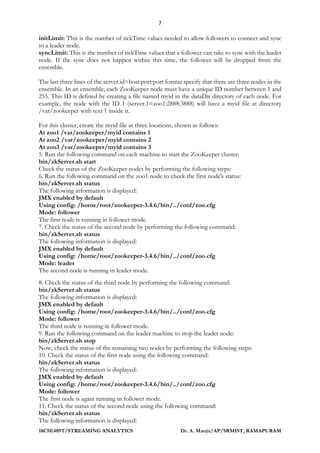
are stored in ZooKeeper. This section describes how you can set up a ZooKeeper cluster. We will
be deploying a ZooKeeper ensemble of three nodes that will handle one node failure. Following
is the deployment diagram of the three node ZooKeeper ensemble:
In the ZooKeeper ensemble, one node in the cluster acts as the leader, while the rest are
followers. If the leader node of the ZooKeeper cluster dies, then an election for the new leader
takes places among the remaining live nodes, and a new leader is elected. All write requests coming
from clients are forwarded to the leader node, while the follower nodes only handle the read
requests. Also, we can't increase the write performance of the ZooKeeper ensemble by increasing
the number of nodes because all write operations go through the leader node.
It is advised to run an odd number of ZooKeeper nodes, as the ZooKeeper cluster keeps
working as long as the majority (the number of live nodes is greater than n/2, where n being the
number of deployed nodes) of the nodes are running. So if we have a cluster of four ZooKeeper
nodes (3 > 4/2; only one node can die), then we can handle only one node failure, while if we had
five nodes (3 > 5/2; two nodes can die) in the cluster, then we can handle two node failures.
Steps 1 to 4 need to be performed on each node to deploy the ZooKeeper ensemble:
1. Download the latest stable ZooKeeper release from the ZooKeeper site
(http://zookeeper.apache.org/releases.html). At the time of writing, the latest version is
ZooKeeper 3.4.6.
2. Once you have downloaded the latest version, unzip it. Now, we set up the ZK_HOME
environment variable to make the setup easier.
3. Point the ZK_HOME environment variable to the unzipped directory. Create the configuration
file, zoo.cfg, at the $ZK_HOME/conf directory using the following commands:
cd $ZK_HOME/conf
touch zoo.cfg
4. Add the following properties to the zoo.cfg file:
tickTime=2000
dataDir=/var/zookeeper
clientPort=2181
initLimit=5
syncLimit=2
server.1=zoo1:2888:3888
server.2=zoo2:2888:3888
server.3=zoo3.2888.3888
Here, zoo1, zoo2, and zoo3 are the IP addresses of the ZooKeeper nodes. The following are the
definitions for each of the properties:
tickTime: This is the basic unit of time in milliseconds used by ZooKeeper. It is used to send
heartbeats, and the minimum session timeout will be twice the tickTime value.
dataDir: This is the directory to store the in-memory database snapshots and transactional log.
clientPort: This is the port used to listen to client connections.
7
18CSE489T/STREAMING ANALYTICS Dr. A. Manju/AP/SRMIST, RAMAPURAM
initLimit: This is the number of tickTime values needed to allow followers to connect and sync
to a leader node.
syncLimit: This is the number of tickTime values that a follower can take to sync with the leader
node. If the sync does not happen within this time, the follower will be dropped from the
ensemble.
The last three lines of the server.id=host:port:port format specify that there are three nodes in the
ensemble. In an ensemble, each ZooKeeper node must have a unique ID number between 1 and
255. This ID is defined by creating a file named myid in the dataDir directory of each node. For
example, the node with the ID 1 (server.1=zoo1:2888:3888) will have a myid file at directory
/var/zookeeper with text 1 inside it.
For this cluster, create the myid file at three locations, shown as follows:
At zoo1 /var/zookeeper/myid contains 1
At zoo2 /var/zookeeper/myid contains 2
At zoo3 /var/zookeeper/myid contains 3
5. Run the following command on each machine to start the ZooKeeper cluster:
bin/zkServer.sh start
Check the status of the ZooKeeper nodes by performing the following steps:
6. Run the following command on the zoo1 node to check the first node's status:
bin/zkServer.sh status
The following information is displayed:
JMX enabled by default
Using config: /home/root/zookeeper-3.4.6/bin/../conf/zoo.cfg
Mode: follower
The first node is running in follower mode.
7. Check the status of the second node by performing the following command:
bin/zkServer.sh status
The following information is displayed:
JMX enabled by default
Using config: /home/root/zookeeper-3.4.6/bin/../conf/zoo.cfg
Mode: leader
The second node is running in leader mode.
8. Check the status of the third node by performing the following command:
bin/zkServer.sh status
The following information is displayed:
JMX enabled by default
Using config: /home/root/zookeeper-3.4.6/bin/../conf/zoo.cfg
Mode: follower
The third node is running in follower mode.
9. Run the following command on the leader machine to stop the leader node:
bin/zkServer.sh stop
Now, check the status of the remaining two nodes by performing the following steps:
10. Check the status of the first node using the following command:
bin/zkServer.sh status
The following information is displayed:
JMX enabled by default
Using config: /home/root/zookeeper-3.4.6/bin/../conf/zoo.cfg
Mode: follower
The first node is again running in follower mode.
11. Check the status of the second node using the following command:
bin/zkServer.sh status
The following information is displayed:
8
18CSE489T/STREAMING ANALYTICS Dr. A. Manju/AP/SRMIST, RAMAPURAM
JMX enabled by default
Using config: /home/root/zookeeper-3.4.6/bin/../conf/zoo.cfg
Mode: leader
The third node is elected as the new leader.
12. Now, restart the third node with the following command:
bin/zkServer.sh status
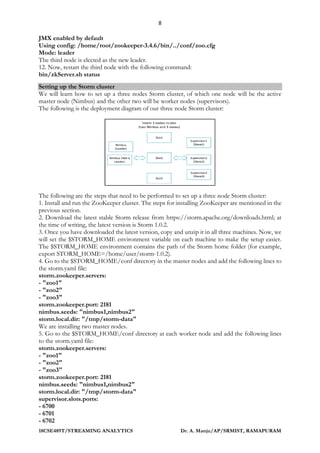
Setting up the Storm cluster
We will learn how to set up a three nodes Storm cluster, of which one node will be the active
master node (Nimbus) and the other two will be worker nodes (supervisors).
The following is the deployment diagram of our three node Storm cluster:
The following are the steps that need to be performed to set up a three node Storm cluster:
1. Install and run the ZooKeeper cluster. The steps for installing ZooKeeper are mentioned in the
previous section.
2. Download the latest stable Storm release from https://storm.apache.org/downloads.html; at
the time of writing, the latest version is Storm 1.0.2.
3. Once you have downloaded the latest version, copy and unzip it in all three machines. Now, we
will set the $STORM_HOME environment variable on each machine to make the setup easier.
The $STORM_HOME environment contains the path of the Storm home folder (for example,
export STORM_HOME=/home/user/storm-1.0.2).
4. Go to the $STORM_HOME/conf directory in the master nodes and add the following lines to
the storm.yaml file:
storm.zookeeper.servers:
- "zoo1"
- "zoo2"
- "zoo3"
storm.zookeeper.port: 2181
nimbus.seeds: "nimbus1,nimbus2"
storm.local.dir: "/tmp/storm-data"
We are installing two master nodes.
5. Go to the $STORM_HOME/conf directory at each worker node and add the following lines
to the storm.yaml file:
storm.zookeeper.servers:
- "zoo1"
- "zoo2"
- "zoo3"
storm.zookeeper.port: 2181
nimbus.seeds: "nimbus1,nimbus2"
storm.local.dir: "/tmp/storm-data"
supervisor.slots.ports:
- 6700
- 6701
- 6702
9
18CSE489T/STREAMING ANALYTICS Dr. A. Manju/AP/SRMIST, RAMAPURAM
- 6703
If you are planning to execute the Nimbus and supervisor on the same machine, then add the
supervisor.slots.ports property to the Nimbus machine too.
6. Go to the $STORM_HOME directory at the master nodes and execute the following command
to start the master daemon:
$> bin/storm nimbus &
7. Go to the $STORM_HOME directory at each worker node (or supervisor node) and execute
the following command to start the worker daemons:
$> bin/storm supervisor &
Developing a hello world example
Before starting the development, you should have Eclipse and Maven installed in your project.
The sample topology explained here will cover how to create a basic Storm project, including a
spout and bolt, and how to build, and execute them.
Create a Maven project by using com.stormadvance as groupId and storm-example as artifactId.
Add the following Maven dependencies to the pom.xml file:
<dependency>
<groupId>org.apache.storm</groupId>
<artifactId>storm-core</artifactId>
<version>1.0.2</version>
<scope>provided<scope>
</dependency>
Make sure the scope of the Storm dependency is provided, otherwise you will not be able to deploy
the topology on the Storm cluster.
Add the following Maven build plugins in the pom.xml file:
<build>
<plugins>
<plugin>
<artifactId>maven-assembly-plugin</artifactId>
<version>2.2.1</version>
<configuration>
<descriptorRefs>
<descriptorRef>jar-with-dependencies
</descriptorRef>
</descriptorRefs>
<archive>
<manifest>
<mainClass />
</manifest>
</archive>
</configuration>
<executions>
<execution>
<id>make-assembly</id>
<phase>package</phase>
<goals>
<goal>single</goal>
</goals>
</execution>
</executions>
</plugin>
10
18CSE489T/STREAMING ANALYTICS Dr. A. Manju/AP/SRMIST, RAMAPURAM
</plugins>
</build>
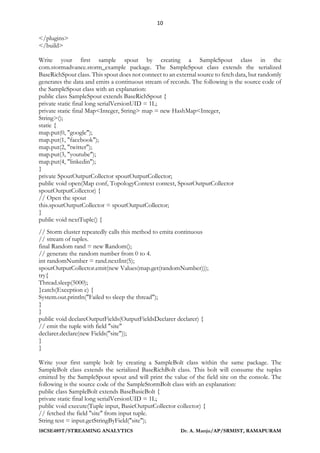
Write your first sample spout by creating a SampleSpout class in the
com.stormadvance.storm_example package. The SampleSpout class extends the serialized
BaseRichSpout class. This spout does not connect to an external source to fetch data, but randomly
generates the data and emits a continuous stream of records. The following is the source code of
the SampleSpout class with an explanation:
public class SampleSpout extends BaseRichSpout {
private static final long serialVersionUID = 1L;
private static final Map<Integer, String> map = new HashMap<Integer,
String>();
static {
map.put(0, "google");
map.put(1, "facebook");
map.put(2, "twitter");
map.put(3, "youtube");
map.put(4, "linkedin");
}
private SpoutOutputCollector spoutOutputCollector;
public void open(Map conf, TopologyContext context, SpoutOutputCollector
spoutOutputCollector) {
// Open the spout
this.spoutOutputCollector = spoutOutputCollector;
}
public void nextTuple() {
// Storm cluster repeatedly calls this method to emita continuous
// stream of tuples.
final Random rand = new Random();
// generate the random number from 0 to 4.
int randomNumber = rand.nextInt(5);
spoutOutputCollector.emit(new Values(map.get(randomNumber)));
try{
Thread.sleep(5000);
}catch(Exception e) {
System.out.println("Failed to sleep the thread");
}
}
public void declareOutputFields(OutputFieldsDeclarer declarer) {
// emit the tuple with field "site"
declarer.declare(new Fields("site"));
}
}
Write your first sample bolt by creating a SampleBolt class within the same package. The
SampleBolt class extends the serialized BaseRichBolt class. This bolt will consume the tuples
emitted by the SampleSpout spout and will print the value of the field site on the console. The
following is the source code of the SampleStormBolt class with an explanation:
public class SampleBolt extends BaseBasicBolt {
private static final long serialVersionUID = 1L;
public void execute(Tuple input, BasicOutputCollector collector) {
// fetched the field "site" from input tuple.
String test = input.getStringByField("site");
11
18CSE489T/STREAMING ANALYTICS Dr. A. Manju/AP/SRMIST, RAMAPURAM
// print the value of field "site" on console.
System.out.println("######### Name of input site is : " + test);
}
public void declareOutputFields(OutputFieldsDeclarer declarer) {
}
}
Create a main SampleStormTopology class within the same package. This class creates an instance
of the spout and bolt along with the classes, and chaines them together using a TopologyBuilder
class. This class uses org.apache.storm.LocalCluster to simulate the Storm cluster. The
LocalCluster mode is used for debugging/testing the topology on a developer machine before
deploying it on the Storm cluster. The following is the implementation of the main class:
public class SampleStormTopology {
public static void main(String[] args) throws AlreadyAliveException,
InvalidTopologyException {
// create an instance of TopologyBuilder class
TopologyBuilder builder = new TopologyBuilder();
// set the spout class
builder.setSpout("SampleSpout", new SampleSpout(), 2);
// set the bolt class
builder.setBolt("SampleBolt", new SampleBolt(), 4).shuffleGrouping("SampleSpout");
Config conf = new Config();
conf.setDebug(true);
// create an instance of LocalCluster class for
// executing topology in local mode.
LocalCluster cluster = new LocalCluster();
// SampleStormTopology is the name of submitted topology
cluster.submitTopology("SampleStormTopology", conf, builder.createTopology());
try {
Thread.sleep(100000);
} catch (Exception exception) {
System.out.println("Thread interrupted exception : " + exception);
}
// kill the SampleStormTopology
cluster.killTopology("SampleStormTopology");
// shutdown the storm test cluster
cluster.shutdown();
}
}
Go to your project's home directory and run the following commands to execute the topology in
local mode:
$> cd $STORM_EXAMPLE_HOME
$> mvn compile exec:java -Dexec.classpathScope=compile -
Dexec.mainClass=com.stormadvance.storm_example.SampleStormTopology
Now create a new topology class for deploying the topology on an actual Storm cluster. Create a
main SampleStormClusterTopology class within the same package. This class also creates an
instance of the spout and bolt along with the classes, and chains them together using a
TopologyBuilder class:
public class SampleStormClusterTopology {
public static void main(String[] args) throws AlreadyAliveException, InvalidTopologyException {
// create an instance of TopologyBuilder class
TopologyBuilder builder = new TopologyBuilder();
// set the spout class
12
18CSE489T/STREAMING ANALYTICS Dr. A. Manju/AP/SRMIST, RAMAPURAM
builder.setSpout("SampleSpout", new SampleSpout(), 2);
// set the bolt class
builder.setBolt("SampleBolt", new SampleBolt(), 4).shuffleGrouping("SampleSpout");
Config conf = new Config();
conf.setNumWorkers(3);
// This statement submit the topology on remote
// args[0] = name of topology
try {
StormSubmitter.submitTopology(args[0], conf, builder.createTopology());
} catch (AlreadyAliveException alreadyAliveException) {
System.out.println(alreadyAliveException);
} catch (InvalidTopologyException invalidTopologyException) {
System.out.println(invalidTopologyException);
} catch (AuthorizationException e) {
// TODO Auto-generated catch block
e.printStackTrace();
}
}
}
Build your Maven project by running the following command on the projects home directory:
mvn clean install
The output of the preceding command is as follows:
------------------------------------------------------------------ ----
-
[INFO] ----------------------------------------------------------- ----
-
[INFO] BUILD SUCCESS
[INFO] ----------------------------------------------------------- ----
-
[INFO] Total time: 58.326s
[INFO] Finished at:
[INFO] Final Memory: 14M/116M
[INFO] ----------------------------------------------------------- ----
We can deploy the topology to the cluster using the following Storm client command:
bin/storm jar jarName.jar [TopologyMainClass] [Args]
The preceding command runs TopologyMainClass with the arguments arg1 and arg2.
The main function of TopologyMainClass is to define the topology and submit it to the Nimbus
machine. The storm jar part takes care of connecting to the Nimbus machine and uploading the
JAR part.
Log in on a Storm Nimbus machine and execute the following commands:
$> cd $STORM_HOME
$> bin/storm jar ~/storm_example-0.0.1-SNAPSHOT-jar-with-dependencies.jar
com.stormadvance.storm_example.SampleStormClusterTopology storm_example
In the preceding code ~/storm_example-0.0.1-SNAPSHOT-jar-withdependencies.
jar is the path of the SampleStormClusterTopology JAR that we are deploying on the Storm cluster.
The following information is displayed:
702 [main] INFO o.a.s.StormSubmitter - Generated ZooKeeper secret payload
for MD5-digest: -8367952358273199959:-5050558042400210383
793 [main] INFO o.a.s.s.a.AuthUtils - Got AutoCreds []
856 [main] INFO o.a.s.StormSubmitter - Uploading topology jar
/home/USER/storm_example-0.0.1-SNAPSHOT-jar-with-dependencies.jar to
assigned location: /tmp/storm-data/nimbus/inbox/stormjar-d3007821-
f87d-48af-8364-cff7abf8652d.jar
13
18CSE489T/STREAMING ANALYTICS Dr. A. Manju/AP/SRMIST, RAMAPURAM
867 [main] INFO o.a.s.StormSubmitter - Successfully uploaded topology jar
to assigned location: /tmp/storm-data/nimbus/inbox/stormjar-d3007821-
f87d-48af-8364-cff7abf8652d.jar
868 [main] INFO o.a.s.StormSubmitter - Submitting topology storm_example
in distributed mode with conf
{"storm.zookeeper.topology.auth.scheme":"digest","storm.zookeeper.topology.
auth.payload":"-8367952358273199959:-5050558042400210383","topology.workers
":3}
1007 [main] INFO o.a.s.StormSubmitter - Finished submitting topology:
storm_example
Run the jps command to see the number of running JVM processes as follows:
Jps
The preceding command's output is:
26827 worker
26530 supervisor
26824 worker
26468 nimbus
26822 worker
In the preceding code, a worker is the JVM launched for the SampleStormClusterTopology
topology.
Storm Topology Options
The following operations that a user can perform on the Storm cluster:
• Deactivate
• Activate
• Rebalance
• Kill
• Dynamic log level settings
Deactivate
Storm supports the deactivating a topology. In the deactivated state, spouts will not emit any new
tuples into the pipeline, but the processing of the already emitted tuples will continue. The
following is the command to deactivate the running topology:
$> bin/storm deactivate topologyName
Deactivate SampleStormClusterTopology using the following command:
bin/storm deactivate SampleStormClusterTopology
The following information is displayed:
0 [main] INFO backtype.storm.thrift - Connecting to Nimbus at
localhost:6627
76 [main] INFO backtype.storm.command.deactivate - Deactivated topology:
SampleStormClusterTopology
Activate
Storm also the supports activating a topology. When a topology is activated, spouts will again start
emitting tuples. The following is the command to activate the topology:
$> bin/storm activate topologyName
Activate SampleStormClusterTopology using the following command:
bin/storm activate SampleStormClusterTopology
The following information is displayed:
0 [main] INFO backtype.storm.thrift - Connecting to Nimbus at
localhost:6627
65 [main] INFO backtype.storm.command.activate - Activated topology:
SampleStormClusterTopology
14
18CSE489T/STREAMING ANALYTICS Dr. A. Manju/AP/SRMIST, RAMAPURAM
Rebalance
The process of updating a the topology parallelism at the runtime is called a rebalance.
Kill
Storm topologies are never-ending processes. To stop a topology, we need to kill it. When killed,
the topology first enters into the deactivation state, processes all the tuples already emitted into it,
and then stops. Run the following command to kill SampleStormClusterTopology:
$> bin/storm kill SampleStormClusterTopology
Dynamic log level settings
This allows the user to change the log level of topology on runtime without stopping the topology.
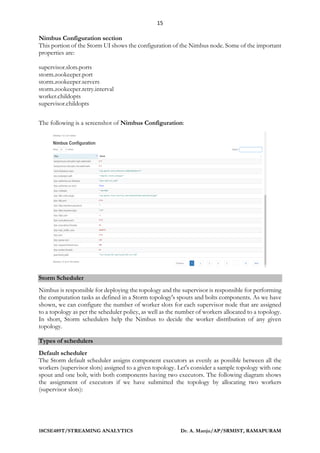
Introduction to Storm UI
This section will show you how we can start the Storm UI daemon. However, before starting the
Storm UI daemon, we assume that you have a running Storm cluster. The Storm cluster
deployment steps are mentioned in the previous sections of this chapter. Now, go to the Storm
home directory (cd $STORM_HOME) at the leader Nimbus machine and run the following
command to start the Storm UI daemon:
$> cd $STORM_HOME
$> bin/storm ui &
By default, the Storm UI starts on the 8080 port of the machine where it is started. Now, we will
browse to the http://nimbus-node:8080 page to view the Storm UI, where Nimbus node is the IP
address or hostname of the the Nimbus machine.
Cluster Summary section
This portion of the Storm UI shows the version of Storm deployed in the cluster, the uptime of
the Nimbus nodes, number of free worker slots, number of used worker slots, and so on. While
submitting a topology to the cluster, the user first needs to make sure that the value of the Free
slots column should not be zero; otherwise, the topology doesn't get any worker for processing
and will wait in the queue until a workers becomes free.
Nimbus Summary section
This portion of the Storm UI shows the number of Nimbus processes that are running in a Storm
cluster. The section also shows the status of the Nimbus nodes. A node with the status Leader is
an active master while the node with the status Not a Leader is a passive master.
Supervisor Summary section
This portion of the Storm UI shows the list of supervisor nodes running in the cluster, along with
their Id, Host, Uptime, Slots, and Used slots columns.
15
18CSE489T/STREAMING ANALYTICS Dr. A. Manju/AP/SRMIST, RAMAPURAM
Nimbus Configuration section
This portion of the Storm UI shows the configuration of the Nimbus node. Some of the important
properties are:
supervisor.slots.ports
storm.zookeeper.port
storm.zookeeper.servers
storm.zookeeper.retry.interval
worker.childopts
supervisor.childopts
The following is a screenshot of Nimbus Configuration:
Storm Scheduler
Nimbus is responsible for deploying the topology and the supervisor is responsible for performing
the computation tasks as defined in a Storm topology's spouts and bolts components. As we have
shown, we can configure the number of worker slots for each supervisor node that are assigned
to a topology as per the scheduler policy, as well as the number of workers allocated to a topology.
In short, Storm schedulers help the Nimbus to decide the worker distribution of any given
topology.
Types of schedulers
Default scheduler
The Storm default scheduler assigns component executors as evenly as possible between all the
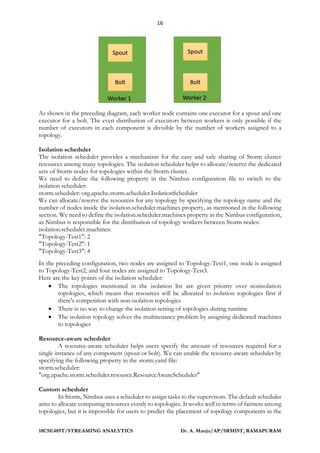
workers (supervisor slots) assigned to a given topology. Let's consider a sample topology with one
spout and one bolt, with both components having two executors. The following diagram shows
the assignment of executors if we have submitted the topology by allocating two workers
(supervisor slots):
16
18CSE489T/STREAMING ANALYTICS Dr. A. Manju/AP/SRMIST, RAMAPURAM
As shown in the preceding diagram, each worker node contains one executor for a spout and one
executor for a bolt. The even distribution of executors between workers is only possible if the
number of executors in each component is divisible by the number of workers assigned to a
topology.
Isolation scheduler
The isolation scheduler provides a mechanism for the easy and safe sharing of Storm cluster
resources among many topologies. The isolation scheduler helps to allocate/reserve the dedicated
sets of Storm nodes for topologies within the Storm cluster.
We need to define the following property in the Nimbus configuration file to switch to the
isolation scheduler:
storm.scheduler: org.apache.storm.scheduler.IsolationScheduler
We can allocate/reserve the resources for any topology by specifying the topology name and the
number of nodes inside the isolation.scheduler.machines property, as mentioned in the following
section. We need to define the isolation.scheduler.machines property in the Nimbus configuration,
as Nimbus is responsible for the distribution of topology workers between Storm nodes:
isolation.scheduler.machines:
"Topology-Test1": 2
"Topology-Test2": 1
"Topology-Test3": 4
In the preceding configuration, two nodes are assigned to Topology-Test1, one node is assigned
to Topology-Test2, and four nodes are assigned to Topology-Test3.
Here are the key points of the isolation scheduler:
• The topologies mentioned in the isolation list are given priority over nonisolation
topologies, which means that resources will be allocated to isolation topologies first if
there's competition with non-isolation topologies
• There is no way to change the isolation setting of topologies during runtime
• The isolation topology solves the multitenancy problem by assigning dedicated machines
to topologies
Resource-aware scheduler
A resource-aware scheduler helps users specify the amount of resources required for a
single instance of any component (spout or bolt). We can enable the resource-aware scheduler by
specifying the following property in the storm.yaml file:
storm.scheduler:
"org.apache.storm.scheduler.resource.ResourceAwareScheduler"
Custom scheduler
In Storm, Nimbus uses a scheduler to assign tasks to the supervisors. The default scheduler
aims to allocate computing resources evenly to topologies. It works well in terms of fairness among
topologies, but it is impossible for users to predict the placement of topology components in the
17
18CSE489T/STREAMING ANALYTICS Dr. A. Manju/AP/SRMIST, RAMAPURAM
Storm cluster, regarding which component of a topology needs to be assigned to which supervisor
node.
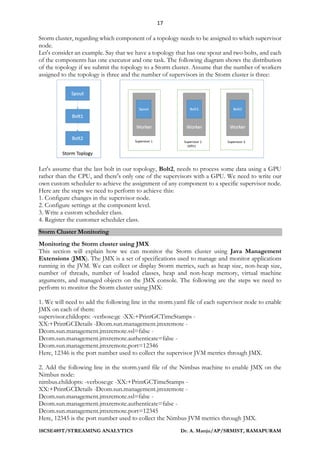
Let's consider an example. Say that we have a topology that has one spout and two bolts, and each
of the components has one executor and one task. The following diagram shows the distribution
of the topology if we submit the topology to a Storm cluster. Assume that the number of workers
assigned to the topology is three and the number of supervisors in the Storm cluster is three:
Let's assume that the last bolt in our topology, Bolt2, needs to process some data using a GPU
rather than the CPU, and there's only one of the supervisors with a GPU. We need to write our
own custom scheduler to achieve the assignment of any component to a specific supervisor node.
Here are the steps we need to perform to achieve this:
1. Configure changes in the supervisor node.
2. Configure settings at the component level.
3. Write a custom scheduler class.
4. Register the customer scheduler class.
Storm Cluster Monitoring
Monitoring the Storm cluster using JMX
This section will explain how we can monitor the Storm cluster using Java Management
Extensions (JMX). The JMX is a set of specifications used to manage and monitor applications
running in the JVM. We can collect or display Storm metrics, such as heap size, non-heap size,
number of threads, number of loaded classes, heap and non-heap memory, virtual machine
arguments, and managed objects on the JMX console. The following are the steps we need to
perform to monitor the Storm cluster using JMX:
1. We will need to add the following line in the storm.yaml file of each supervisor node to enable
JMX on each of them:
supervisor.childopts: -verbose:gc -XX:+PrintGCTimeStamps -
XX:+PrintGCDetails -Dcom.sun.management.jmxremote -
Dcom.sun.management.jmxremote.ssl=false -
Dcom.sun.management.jmxremote.authenticate=false -
Dcom.sun.management.jmxremote.port=12346
Here, 12346 is the port number used to collect the supervisor JVM metrics through JMX.
2. Add the following line in the storm.yaml file of the Nimbus machine to enable JMX on the
Nimbus node:
nimbus.childopts: -verbose:gc -XX:+PrintGCTimeStamps -
XX:+PrintGCDetails -Dcom.sun.management.jmxremote -
Dcom.sun.management.jmxremote.ssl=false -
Dcom.sun.management.jmxremote.authenticate=false -
Dcom.sun.management.jmxremote.port=12345
Here, 12345 is the port number used to collect the Nimbus JVM metrics through JMX.
18
18CSE489T/STREAMING ANALYTICS Dr. A. Manju/AP/SRMIST, RAMAPURAM
3. Also, you can collect the JVM metrics of worker processes by adding the following line in the
storm.yaml file of each supervisor node:
worker.childopts: -verbose:gc -XX:+PrintGCTimeStamps -
XX:+PrintGCDetails -Dcom.sun.management.jmxremote -
Dcom.sun.management.jmxremote.ssl=false -
Dcom.sun.management.jmxremote.authenticate=false -
Dcom.sun.management.jmxremote.port=2%ID%
Here, %ID% denotes the port number of the worker processes. If the port of the worker process
is 6700, then its JVM metrics are published on port number 26700 (2%ID%).
4. Now, run the following commands on any machine where Java is installed to start the JConsole:
cd $JAVA_HOME
./bin/jconsole
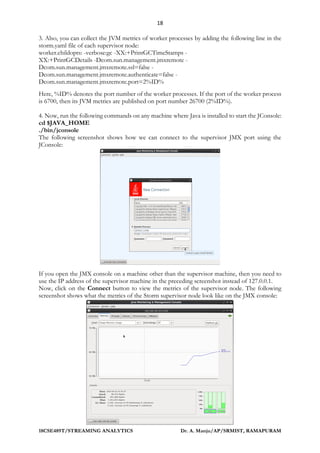
The following screenshot shows how we can connect to the supervisor JMX port using the
JConsole:
If you open the JMX console on a machine other than the supervisor machine, then you need to
use the IP address of the supervisor machine in the preceding screenshot instead of 127.0.0.1.
Now, click on the Connect button to view the metrics of the supervisor node. The following
screenshot shows what the metrics of the Storm supervisor node look like on the JMX console:
19
18CSE489T/STREAMING ANALYTICS Dr. A. Manju/AP/SRMIST, RAMAPURAM
Similarly, you can collect the JVM metrics of the Nimbus node by specifying the IP address and
the JMX port of the Nimbus machine on the JMX console. The following section will explain how
you can display the Storm cluster metrics on Ganglia.
Monitoring the Storm cluster using Ganglia
Ganglia is a monitoring tool that is used to collect the metrics of different types of processes that
run on a cluster. In most applications, Ganglia is used as the centralized monitoring tool to display
the metrics of all the processes that run on a cluster. Hence, it is essential that you enable the
monitoring of the Storm cluster through Ganglia.
Ganglia has three important components:
Gmond: This is a monitoring daemon of Ganglia that collects the metrics of nodes and sends this
information to the Gmetad server. To collect the metrics of each Storm node, you will need to
install the Gmond daemon on each of them.
Gmetad: This gathers the metrics from all the Gmond nodes and stores them in the round-robin
database.
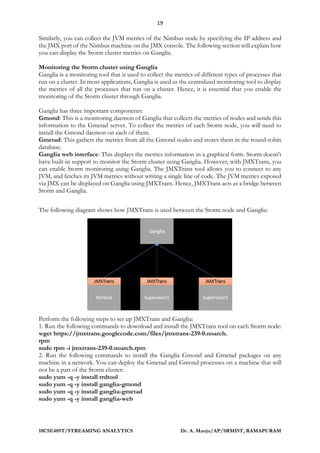
Ganglia web interface: This displays the metrics information in a graphical form. Storm doesn't
have built-in support to monitor the Storm cluster using Ganglia. However, with JMXTrans, you
can enable Storm monitoring using Ganglia. The JMXTrans tool allows you to connect to any
JVM, and fetches its JVM metrics without writing a single line of code. The JVM metrics exposed
via JMX can be displayed on Ganglia using JMXTrans. Hence, JMXTrans acts as a bridge between
Storm and Ganglia.
The following diagram shows how JMXTrans is used between the Storm node and Ganglia:
Perform the following steps to set up JMXTrans and Ganglia:
1. Run the following commands to download and install the JMXTrans tool on each Storm node:
wget https://jmxtrans.googlecode.com/files/jmxtrans-239-0.noarch.
rpm
sudo rpm -i jmxtrans-239-0.noarch.rpm
2. Run the following commands to install the Ganglia Gmond and Gmetad packages on any
machine in a network. You can deploy the Gmetad and Gmond processes on a machine that will
not be a part of the Storm cluster:
sudo yum -q -y install rrdtool
sudo yum -q -y install ganglia-gmond
sudo yum -q -y install ganglia-gmetad
sudo yum -q -y install ganglia-web
20
18CSE489T/STREAMING ANALYTICS Dr. A. Manju/AP/SRMIST, RAMAPURAM
1. Edit the following line in the gmetad.conf configuration file, which is located at /etc/ganglia in
the Gmetad process. We are editing this file to specify the name of the data source and the IP
address of the Ganglia Gmetad machine:
data_source "stormcluster" 127.0.0.1
You can replace 127.0.0.1 with the IP address of the Ganglia Gmetad machine.
4. Edit the following line in the gmond.conf configuration file, which is located at /etc/ganglia, in
the Gmond process:
cluster {
name = "stormcluster"
owner = "clusterOwner"
latlong = "unspecified"
url = "unspecified"
}
host {
location = "unspecified"
}
udp_send_channel {
host = 127.0.0.1
port = 8649
ttl = 1
}
udp_recv_channel {
port = 8649
}
Here, 127.0.0.1 is the IP address of the Storm node. You need to replace 127.0.0.1 with the actual
IP address of the machine. We have mainly edited the following entries in the Gmond
configuration file:
The cluster name
The host address of the head Gmond node in the udp_send
channel
The port in the udp_recv channel
5. Edit the following line in the ganglia.conf file, which is located at /etc/ httpd/conf.d. We are
editing the ganglia.conf file to enable access on the Ganglia UI from all machines:
Alias /ganglia /usr/share/ganglia <Location /ganglia>Allow from
all</Location>
The ganglia.conf file can be found on the node where the Ganglia web frontend application is
installed. In our case, the Ganglia web interface and the Gmetad server are installed on the same
machine.
6. Run the following commands to start the Ganglia Gmond, Gmetad, and web UI processes:
sudo service gmond start
setsebool -P httpd_can_network_connect 1
sudo service gmetad start
sudo service httpd stop
sudo service httpd start
7. Now, go to http://127.0.0.1/ganglia to verify the installation of Ganglia, and replace 127.0.0.1
with the IP address of the Ganglia web interface machine.
8. Now, you will need to write a supervisor.json file on each supervisor node to collect the JVM
metrics of the Storm supervisor node using JMXTrans and then publish them on Ganglia using
the com.googlecode.jmxtrans.model.
output.GangliaWriter OutputWriters class. The com.googlecode.
jmxtrans.model.output.GangliaWriter OutputWriters class is used to process the input JVM
metrics and convert them into the format used by Ganglia.
The following is the content for the supervisor.json JSON file:
21
18CSE489T/STREAMING ANALYTICS Dr. A. Manju/AP/SRMIST, RAMAPURAM
{
"servers" : [ {
"port" : "12346",
"host" : "IP_OF_SUPERVISOR_MACHINE",
"queries" : [ {
"outputWriters": [{
"@class":
"com.googlecode.jmxtrans.model.output.GangliaWriter",
"settings": {
"groupName": "supervisor",
"host": "IP_OF_GANGLIA_GMOND_SERVER",
"port": "8649" }
}],
"obj": "java.lang:type=Memory",
"resultAlias": "supervisor",
"attr": ["ObjectPendingFinalizationCount"]
},
{
"outputWriters": [{
"@class":
"com.googlecode.jmxtrans.model.output.GangliaWriter", "settings" {
"groupName": " supervisor ",
"host": "IP_OF_GANGLIA_GMOND_SERVER",
"port": "8649"
}
}],
"obj": "java.lang:name=Copy,type=GarbageCollector",
"resultAlias": " supervisor ",
"attr": [
"CollectionCount",
"CollectionTime"
]
},
{
"outputWriters": [{
"@class":
"com.googlecode.jmxtrans.model.output.GangliaWriter",
"settings": {
"groupName": "supervisor ",
"host": "IP_OF_GANGLIA_GMOND_SERVER",
"port": "8649"
}
}],
"obj": "java.lang:name=Code Cache,type=MemoryPool",
"resultAlias": "supervisor ",
"attr": [
"CollectionUsageThreshold",
"CollectionUsageThresholdCount",
"UsageThreshold",
"UsageThresholdCount"
]
},
{
"outputWriters": [{
22
18CSE489T/STREAMING ANALYTICS Dr. A. Manju/AP/SRMIST, RAMAPURAM
"@class":
"com.googlecode.jmxtrans.model.output.GangliaWriter",
"settings": {
"groupName": "supervisor ",
"host": "IP_OF_GANGLIA_GMOND_SERVER",
"port": "8649"
}
}],
"obj": "java.lang:type=Runtime",
"resultAlias": "supervisor",
"attr": [
"StartTime",
"Uptime"
]
}
],
"numQueryThreads" : 2
}]
}
Here, 12346 is the JMX port of the supervisor specified in the storm.yaml file. You need to replace
the IP_OF_SUPERVISOR_MACHINE value with the IP address of the supervisor machine. If
you have two supervisors in a cluster, then the supervisor.json file of node 1 contains the IP
address of node 1, and the supervisor.json file of node 2 contains the IP address of node 2.
You need to replace the IP_OF_GANGLIA_GMOND_SERVER value with the IP address of
the Ganglia Gmond server.
9. Create the nimbus.json file on the Nimbus node. Using JMXTrans, collect the Storm Nimbus's
process JVM metrics and publish them on Ganglia using the
com.googlecode.jmxtrans.model.output.GangliaWriter
OutputWriters class. The following are the contents of the nimbus.json file:
{
"servers" : [{
"port" : "12345",
"host" : "IP_OF_NIMBUS_MACHINE",
"queries" : [
{ "outputWriters": [{
"@class":
"com.googlecode.jmxtrans.model.output.GangliaWriter",
"settings": {
"groupName": "nimbus",
"host": "IP_OF_GANGLIA_GMOND_SERVER",
"port": "8649"
}
}],
"obj": "java.lang:type=Memory",
"resultAlias": "nimbus",
"attr": ["ObjectPendingFinalizationCount"]
},
{
"outputWriters": [{
"@class":
"com.googlecode.jmxtrans.model.output.GangliaWriter",
"settings": {
"groupName": "nimbus",
23
18CSE489T/STREAMING ANALYTICS Dr. A. Manju/AP/SRMIST, RAMAPURAM
"host": "IP_OF_GANGLIA_GMOND_SERVER",
Here, 12345 is the JMX port of the Nimbus machine specified in the storm.yaml file.
You need to replace the IP_OF_NIMBUS_MACHINE value with the IP address of the Nimbus
machine.
You need to replace the IP_OF_GANGLIA_GMOND_SERVER value with the IP address of
the Ganglia Gmond server.
10. Run the following commands on each Storm node to start the JMXTrans process:
cd /usr/share/jmxtrans/
sudo ./jmxtrans.sh start PATH_OF_JSON_FILES
Here, PATH_OF_JSON_FILE is the location of the supervisor.json and nimbus.json files.
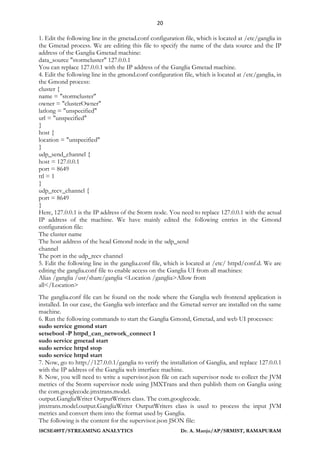
11. Now, go to the Ganglia page at http://127.0.0.1/ganglia to view the Storm metrics. The
following screenshot shows what the Storm metrics look like:
Perform the following steps to view the metrics of Storm Nimbus and the supervisor processed
on the Ganglia UI:
1. Open the Ganglia page.
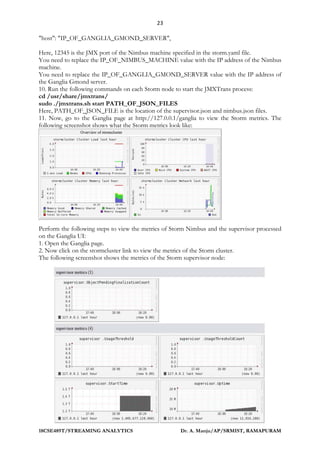
2. Now click on the stormcluster link to view the metrics of the Storm cluster.
The following screenshot shows the metrics of the Storm supervisor node:
24
18CSE489T/STREAMING ANALYTICS Dr. A. Manju/AP/SRMIST, RAMAPURAM
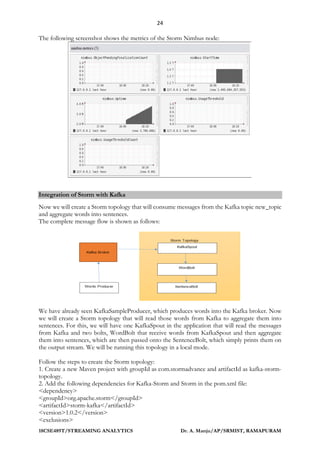
The following screenshot shows the metrics of the Storm Nimbus node:
Integration of Storm with Kafka
Now we will create a Storm topology that will consume messages from the Kafka topic new_topic
and aggregate words into sentences.
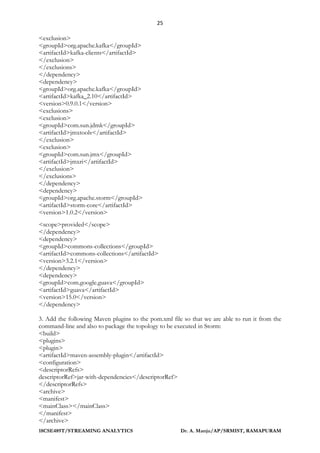
The complete message flow is shown as follows:
We have already seen KafkaSampleProducer, which produces words into the Kafka broker. Now
we will create a Storm topology that will read those words from Kafka to aggregate them into
sentences. For this, we will have one KafkaSpout in the application that will read the messages
from Kafka and two bolts, WordBolt that receive words from KafkaSpout and then aggregate
them into sentences, which are then passed onto the SentenceBolt, which simply prints them on
the output stream. We will be running this topology in a local mode.
Follow the steps to create the Storm topology:
1. Create a new Maven project with groupId as com.stormadvance and artifactId as kafka-storm-
topology.
2. Add the following dependencies for Kafka-Storm and Storm in the pom.xml file:
<dependency>
<groupId>org.apache.storm</groupId>
<artifactId>storm-kafka</artifactId>
<version>1.0.2</version>
<exclusions>
25
18CSE489T/STREAMING ANALYTICS Dr. A. Manju/AP/SRMIST, RAMAPURAM
<exclusion>
<groupId>org.apache.kafka</groupId>
<artifactId>kafka-clients</artifactId>
</exclusion>
</exclusions>
</dependency>
<dependency>
<groupId>org.apache.kafka</groupId>
<artifactId>kafka_2.10</artifactId>
<version>0.9.0.1</version>
<exclusions>
<exclusion>
<groupId>com.sun.jdmk</groupId>
<artifactId>jmxtools</artifactId>
</exclusion>
<exclusion>
<groupId>com.sun.jmx</groupId>
<artifactId>jmxri</artifactId>
</exclusion>
</exclusions>
</dependency>
<dependency>
<groupId>org.apache.storm</groupId>
<artifactId>storm-core</artifactId>
<version>1.0.2</version>
<scope>provided</scope>
</dependency>
<dependency>
<groupId>commons-collections</groupId>
<artifactId>commons-collections</artifactId>
<version>3.2.1</version>
</dependency>
<dependency>
<groupId>com.google.guava</groupId>
<artifactId>guava</artifactId>
<version>15.0</version>
</dependency>
3. Add the following Maven plugins to the pom.xml file so that we are able to run it from the
command-line and also to package the topology to be executed in Storm:
<build>
<plugins>
<plugin>
<artifactId>maven-assembly-plugin</artifactId>
<configuration>
<descriptorRefs>
descriptorRef>jar-with-dependencies</descriptorRef>
</descriptorRefs>
<archive>
<manifest>
<mainClass></mainClass>
</manifest>
</archive>
26
18CSE489T/STREAMING ANALYTICS Dr. A. Manju/AP/SRMIST, RAMAPURAM
</configuration>
<executions>
<execution>
<id>make-assembly</id>
<phase>package</phase>
<goals>
<goal>single</goal>
</goals>
</execution>
</executions>
</plugin>
<plugin>
<groupId>org.codehaus.mojo</groupId>
<artifactId>exec-maven-plugin</artifactId>
<version>1.2.1</version>
<executions>
<execution>
<goals>
<goal>exec</goal>
</goals>
</execution>
</executions>
<configuration>
<executable>java</executable
<includeProjectDependencies>true</includeProjectDependencies
<includePluginDependencies>false</includePluginDependencies>
<classpathScope>compile</classpathScope>
<mainClass>${main.class}</mainClass>
</configuration>
</plugin>
<plugin>
<groupId>org.apache.maven.plugins</groupId>
<artifactId>maven-compiler-plugin</artifactId>
</plugin>
</plugins>
</build>
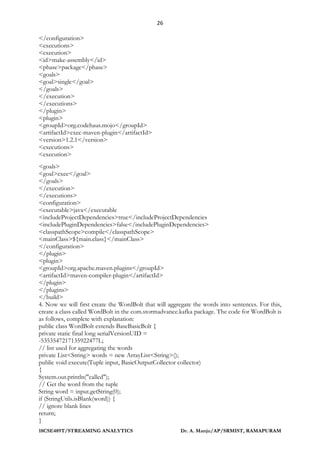
4. Now we will first create the WordBolt that will aggregate the words into sentences. For this,
create a class called WordBolt in the com.stormadvance.kafka package. The code for WordBolt is
as follows, complete with explanation:
public class WordBolt extends BaseBasicBolt {
private static final long serialVersionUID =
-5353547217135922477L;
// list used for aggregating the words
private List<String> words = new ArrayList<String>();
public void execute(Tuple input, BasicOutputCollector collector)
{
System.out.println("called");
// Get the word from the tuple
String word = input.getString(0);
if (StringUtils.isBlank(word)) {
// ignore blank lines
return;
}
27
18CSE489T/STREAMING ANALYTICS Dr. A. Manju/AP/SRMIST, RAMAPURAM
System.out.println("Received Word:" + word);
// add word to current list of words
words.add(word);
if (word.endsWith(".")) {
// word ends with '.' which means this is // the end of the
sentence
// publish a sentence tuple
collector.emit(ImmutableList.of((Object)
StringUtils.join(words, ' ')));
// reset the words list.
words.clear();
}
}
public void declareOutputFields(OutputFieldsDeclarer declarer) {
// here we declare we will be emitting tuples with
// a single field called "sentence"
declarer.declare(new Fields("sentence"));
}
}
5. Next is SentenceBolt, which just prints the sentences that it receives. Create SentenceBolt in the
com.stormadvance.kafka package. The code is as follows, with explanations:
public class SentenceBolt extends BaseBasicBolt {
private static final long serialVersionUID =
7104400131657100876L;
public void execute(Tuple input, BasicOutputCollector collector)
{
// get the sentence from the tuple and print it
System.out.println("Recieved Sentence:");
String sentence = input.getString(0);
System.out.println("Recieved Sentence:" + sentence);
}
public void declareOutputFields(OutputFieldsDeclarer declarer) {
// we don't emit anything
}
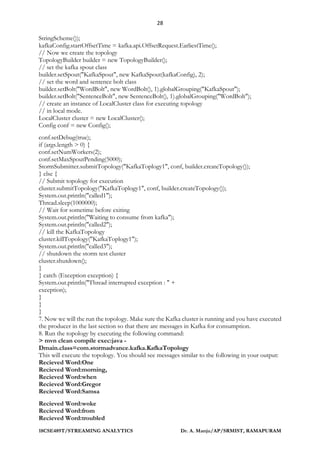
6. Now we will create the KafkaTopology that will define the KafkaSpout and wire it with
WordBolt and SentenceBolt. Create a new class called KafkaTopology in the
com.stormadvance.kafka package. The code is as follows, with explanations:
public class KafkaTopology {
public static void main(String[] args) {
try {
// ZooKeeper hosts for the Kafka cluster
BrokerHosts zkHosts = new ZkHosts("ZKIP:PORT");
// Create the KafkaSpout configuartion
// Second argument is the topic name
// Third argument is the zookeepr root for Kafka
// Fourth argument is consumer group id
SpoutConfig kafkaConfig = new SpoutConfig(zkHosts, "new_topic", "", "id1");
// Specify that the kafka messages are String
// We want to consume all the first messages in the topic everytime
// we run the topology to help in debugging. In production, this
// property should be false
kafkaConfig.scheme = new SchemeAsMultiScheme(new
28
18CSE489T/STREAMING ANALYTICS Dr. A. Manju/AP/SRMIST, RAMAPURAM
StringScheme());
kafkaConfig.startOffsetTime = kafka.api.OffsetRequest.EarliestTime();
// Now we create the topology
TopologyBuilder builder = new TopologyBuilder();
// set the kafka spout class
builder.setSpout("KafkaSpout", new KafkaSpout(kafkaConfig), 2);
// set the word and sentence bolt class
builder.setBolt("WordBolt", new WordBolt(), 1).globalGrouping("KafkaSpout");
builder.setBolt("SentenceBolt", new SentenceBolt(), 1).globalGrouping("WordBolt");
// create an instance of LocalCluster class for executing topology
// in local mode.
LocalCluster cluster = new LocalCluster();
Config conf = new Config();
conf.setDebug(true);
if (args.length > 0) {
conf.setNumWorkers(2);
conf.setMaxSpoutPending(5000);
StormSubmitter.submitTopology("KafkaToplogy1", conf, builder.createTopology());
} else {
// Submit topology for execution
cluster.submitTopology("KafkaToplogy1", conf, builder.createTopology());
System.out.println("called1");
Thread.sleep(1000000);
// Wait for sometime before exiting
System.out.println("Waiting to consume from kafka");
System.out.println("called2");
// kill the KafkaTopology
cluster.killTopology("KafkaToplogy1");
System.out.println("called3");
// shutdown the storm test cluster
cluster.shutdown();
}
} catch (Exception exception) {
System.out.println("Thread interrupted exception : " +
exception);
}
}
}
7. Now we will the run the topology. Make sure the Kafka cluster is running and you have executed
the producer in the last section so that there are messages in Kafka for consumption.
8. Run the topology by executing the following command:
> mvn clean compile exec:java -
Dmain.class=com.stormadvance.kafka.KafkaTopology
This will execute the topology. You should see messages similar to the following in your output:
Recieved Word:One
Recieved Word:morning,
Recieved Word:when
Recieved Word:Gregor
Recieved Word:Samsa
Recieved Word:woke
Recieved Word:from
Recieved Word:troubled
29
18CSE489T/STREAMING ANALYTICS Dr. A. Manju/AP/SRMIST, RAMAPURAM
Recieved Word:dreams,
Recieved Word:he
Recieved Word:found
Recieved Word:himself
Recieved Word:transformed
Recieved Word:in
Recieved Word:his
Recieved Word:bed
Recieved Word:into
Recieved Word:a
Recieved Word:horrible
Recieved Word:vermin.
Recieved Sentence:One morning, when Gregor Samsa woke from troubled dreams, he
found himself transformed in his bed into a horrible vermin.
So we are able to consume messages from Kafka and process them in a Storm topology.
Integration of Storm with Kafka example
Deploy the Kafka topology on Storm cluster
The deployment of Kafka and Storm integration topology on the Storm cluster is similar to the
deployment of other topologies. We need to set the number of workers and the maximum spout
pending Storm config and we need to use the submitTopology method of StormSubmitter to
submit the topology on the Storm cluster.
Now, we need to build the topology code as mentioned in the following steps to create a JAR of
the Kafka Storm integration topology:
1. Go to project home.
2. Execute the command:
mvn clean install
The output of the preceding command is as follows:
------------------------------------------------------------------
-----
[INFO] -----------------------------------------------------------
-----
[INFO] BUILD SUCCESS
[INFO] -----------------------------------------------------------
[INFO] Total time: 58.326s
[INFO] Finished at:
[INFO] Final Memory: 14M/116M
[INFO] -----------------------------------------------------------
-----
3. Now, copy the Kafka Storm topology on the Nimbus machine and execute the following
command to submit the topology on the Storm cluster:
bin/storm jar jarName.jar [TopologyMainClass] [Args]
The preceding command runs TopologyMainClass with the argument. The main function of
TopologyMainClass is to define the topology and submit it to Nimbus. The Storm JAR part takes
care of connecting to Nimbus and uploading the JAR part.
4. Log in on the Storm Nimbus machine and execute the following commands:
$> cd $STORM_HOME
$> bin/storm jar ~/storm-kafka-topology-0.0.1-SNAPSHOT-jar-withdependencies.
jar com.stormadvance.kafka.KafkaTopology
KafkaTopology1
Here, ~/ storm-kafka-topology-0.0.1-SNAPSHOT-jar-with dependencies. jar is the path of the
KafkaTopology JAR we are deploying on the Storm cluster.

Streaming Analytics Unit 3 notes for engineers

  • 1.
    1 18CSE489T/STREAMING ANALYTICS Dr.A. Manju/AP/SRMIST, RAMAPURAM UNIT III Apache Storm – Introduction - Features of Storm - Storm Components - Nimbus, Supervisor Nodes - Zookeeper cluster - Storm Data Model - Definition of a Storm topology, Operation modes in Storm - Storm – Prerequisites and Setting up a storm cluster, Developing a hello world example - Storm topology options, Demo of Hello world in Storm - Introduction to Storm UI - Cluster, Nimbus, Supervisor, Topology Summary. Nimbus Configuration - Storm Scheduler - Types of schedulers - Applications of schedulers - Storm Cluster Monitoring - Integration of Storm with Kafka - Integration of Storm with Kafka example - Recap – Storm in Stream Processing Apache Storm Apache Storm has emerged as the platform of choice for industry leaders to develop distributed, real-time, data processing platforms. It provides a set of primitives that can be used to develop applications that can process a very large amount of data in real time in a highly scalable manner. Storm is to real-time processing what Hadoop is to batch processing. It is open source software, and managed by Apache Software Foundation. It has been deployed to meet realtime processing needs by companies such as Twitter, Yahoo!, and Flipboard. Storm was first developed by Nathan Marz at BackType, a company that provided social search applications. Later, BackType was acquired by Twitter, and it is a critical part of their infrastructure. Storm can be used for the following use cases: Stream processing: Storm is used to process a stream of data and update a variety of databases in real time. This processing occurs in real time and the processing speed needs to match the input data speed. Continuous computation: Storm can do continuous computation on data streams and stream the results to clients in real time. This might require processing each message as it comes in or creating small batches over a short time. An example of continuous computation is streaming trending topics on Twitter into browsers. Distributed RPC: Storm can parallelize an intense query so that you can compute it in real time. Real-time analytics: Storm can analyze and respond to data that comes from different data sources as they happen in real time. Features of Storm The following are some of the features of Storm that make it a perfect solution to process streams of data in real time: Fast: Storm has been reported to process up to 1 million tuples/records per second per node. Horizontally scalable: Being fast is a necessary feature to build a high volume/velocity data processing platform, but a single node will have an upper limit on the number of events that it can process per second. A node represents a single machine in your setup that executes Storm applications. Storm, being a distributed platform, allows you to add more nodes to your Storm cluster and increase the processing capacity of your application. Also, it is linearly scalable, which means that you can double the processing capacity by doubling the nodes. Fault tolerant: Units of work are executed by worker processes in a Storm cluster. When a worker dies, Storm will restart that worker, and if the node on which the worker is running dies, Storm will restart that worker on some other node in the cluster. Guaranteed data processing: Storm provides strong guarantees that each message entering a Storm process will be processed at least once. In the event of failures, Storm will replay the lost tuples/records. Also, it can be configured so that each message will be processed only once. Easy to operate: Storm is simple to deploy and manage. Once the cluster is deployed, it requires little maintenance. Programming language agnostic: Even though the Storm platform runs on Java virtual machine (JVM), the applications that run over it can be written in any programming language that can read and write to standard input and output streams.
  • 2.
    2 18CSE489T/STREAMING ANALYTICS Dr.A. Manju/AP/SRMIST, RAMAPURAM Storm Components A Storm cluster follows a master-slave model where the master and slave processes are coordinated through ZooKeeper. The following is an architecture diagram of a Storm cluster: The following are the components of a Storm cluster. • Nimbus • Supervisor Nodes • Zookeeper cluster Nimbus The Nimbus node is the master in a Storm cluster. It is responsible for distributing the application code across various worker nodes, assigning tasks to different machines, monitoring tasks for any failures, and restarting them as and when required. Nimbus is stateless and stores all of its data in ZooKeeper. There is a single Nimbus node in a Storm cluster. If the active node goes down, then the passive node will become an Active node. It is designed to be fail-fast, so when the active Nimbus dies, the passive node will become an active node, or the down node can be restarted without having any effect on the tasks already running on the worker nodes. This is unlike Hadoop, where if the JobTracker dies, all the running jobs are left in an inconsistent state and need to be executed again. The Storm workers can work smoothly even if all the Nimbus nodes go down but the user can't submit any new jobs into the cluster or the cluster will not be able to reassign the failed workers to another node. Supervisor nodes Supervisor nodes are the worker nodes in a Storm cluster. Each supervisor node runs a supervisor daemon that is responsible for creating, starting, and stopping worker processes to execute the tasks assigned to that node. Like Nimbus, a supervisor daemon is also failfast and stores all of its states in ZooKeeper so that it can be restarted without any state loss. A single supervisor daemon normally handles multiple worker processes running on that machine. The ZooKeeper cluster In any distributed application, various processes need to coordinate with each other and share some configuration information. ZooKeeper is an application that provides all these services in a reliable manner. As a distributed application, Storm also uses a ZooKeeper cluster to coordinate various processes. All of the states associated with the cluster and the various tasks submitted to Storm are stored in ZooKeeper. Nimbus and supervisor nodes do not communicate directly with each other, but through ZooKeeper. As all data is stored in ZooKeeper, both Nimbus and the supervisor daemons can be killed abruptly without adversely affecting the cluster. Storm Data Model The basic unit of data that can be processed by a Storm application is called a tuple. Each tuple consists of a predefined list of fields. The value of each field can be a byte, char,integer, long,
  • 3.
    3 18CSE489T/STREAMING ANALYTICS Dr.A. Manju/AP/SRMIST, RAMAPURAM float, double, Boolean, or byte array. Storm also provides an API to define your own datatypes, which can be serialized as fields in a tuple. A tuple is dynamically typed, that is, you just need to define the names of the fields in a tuple and not their datatype. The choice of dynamic typing helps to simplify the API and makes it easy to use. Also, since a processing unit in Storm can process multiple types of tuples, it's not practical to declare field types. Each of the fields in a tuple can be accessed by its name, getValueByField(String), or its positional index, getValue(int), in the tuple. Tuples also provide convenient methods such as getIntegerByField(String) that save you from typecasting the objects. For example, if you have a Fraction (numerator, denominator) tuple, representing fractional numbers, then you can get the value of the numerator by either using getIntegerByField("numerator") or getInteger(0). You can see the full set of operations supported by org.apache.storm.tuple. Tuple in the Java doc that is located at https://storm.apache.org/releases/1.0.2/javadocs/org/apache/storm/tuple/Tuple.html. Definition of a Storm topology In Storm terminology, a topology is an abstraction that defines the graph of the computation. You create a Storm topology and deploy it on a Storm cluster to process data. A topology can be represented by a direct acyclic graph, where each node does some kind of processing and forwards it to the next node(s) in the flow. The following diagram is a sample Storm topology: The following are the components of a Storm topology: Tuple: A single message/record that flows between the different instances of a topology is called a tuple. Stream: The key abstraction in Storm is that of a stream. A stream is an unbounded sequence of tuples that can be processed in parallel by Storm. Each stream can be processed by a single or multiple types of bolts (the processing units in Storm, which are defined later in this section). Thus, Storm can also be viewed as a platform to transform streams. In the preceding diagram, streams are represented by arrows. Each stream in a Storm application is given an ID and the bolts can produce and consume tuples from these streams on the basis of their ID. Each stream also has an associated schema for the tuples that will flow through it. Spout: A spout is the source of tuples in a Storm topology. It is responsible for reading or listening to data from an external source, for example, by reading from a log file or listening for new messages in a queue and publishing them—emitting in Storm terminology into streams. A spout can emit multiple streams, each of a different schema. For example, it can read records of 10 fields from a log file and emit them as different streams of seven-fields tuples and four-fields tuples each. The org.apache.storm.spout.ISpout interface is the interface used to define spouts. If you are writing your topology in Java, then you should use org.apache.storm.topology.IRichSpout as it declares methods to use with the TopologyBuilder API. Whenever a spout emits a tuple, Storm
  • 4.
    4 18CSE489T/STREAMING ANALYTICS Dr.A. Manju/AP/SRMIST, RAMAPURAM tracks all the tuples generated while processing this tuple, and when the execution of all the tuples in the graph of this source tuple is complete, it will send an acknowledgement back to the spout. This tracking happens only if a message ID was provided when emitting the tuple. If null was used as the message ID, this tracking will not happen. A tuple processing timeout can also be defined for a topology, and if a tuple is not processed within the specified timeout, a fail message will be sent back to the spout. Again, this will happen only if you define a message ID. A small performance gain can be extracted out of Storm at the risk of some data loss by disabling the message acknowledgements, which can be done by skipping the message ID while emitting tuples. The important methods of spout are: nextTuple(): This method is called by Storm to get the next tuple from the input source. Inside this method, you will have the logic of reading data from external sources and emitting them to an instance of org.apache.storm.spout.ISpoutOutputCollector. The schema for streams can be declared by using the declareStream method of org.apache.storm.topology.OutputFieldsDeclarer. If a spout wants to emit data to more than one stream, it can declare multiple streams using the declareStream method and specify a stream ID while emitting the tuple. If there are no more tuples to emit at the moment, this method will not be blocked. Also, if this method does not emit a tuple, then Storm will wait for 1 millisecond before calling it again. This waiting time can be configured using the topology.sleep.spout.wait.strategy.time.ms setting. ack(Object msgId): This method is invoked by Storm when the tuple with the given message ID is completely processed by the topology. At this point, the user should mark the message as processed and do the required cleaning up, such as removing the message from the message queue so that it does not get processed again. fail(Object msgId): This method is invoked by Storm when it identifies that the tuple with the given message ID has not been processed successfully or has timed out of the configured interval. In such scenarios, the user should do the required processing so that the messages can be emitted again by the nextTuple method. A common way to do this is to put the message back in the incoming message queue. open(): This method is called only once--when the spout is initialized. If it is required to connect to an external source for the input data, define the logic to connect to the external source in the open method, and then keep fetching the data from this external source in the nextTuple method to emit it further. Bolt: A bolt is the processing powerhouse of a Storm topology and is responsible for transforming a stream. Ideally, each bolt in the topology should be doing a simple transformation of the tuples, and many such bolts can coordinate with each other to exhibit a complex transformation. The org.apache.storm.task.IBolt interface is preferably used to define bolts, and if a topology is written in Java, you should use the org.apache.storm.topology.IRichBolt interface. A bolt can subscribe to multiple streams of other components--either spouts or other bolts--in the topology and similarly can emit output to multiple streams. Output streams can be declared using the declareStream method of org.apache.storm.topology.OutputFieldsDeclarer. The important methods of a bolt are: execute(Tuple input): This method is executed for each tuple that comes through the subscribed input streams. In this method, you can do whatever processing is required for the tuple and then produce the output either in the form of emitting more tuples to the declared output streams, or other things such as persisting the results in a database. You are not required to process the tuple as soon as this method is called, and the tuples can be held until required. For example, while joining two streams, when a tuple arrives you can hold it until its counterpart also comes, and then you can emit the joined tuple. The metadata associated with the tuple can be retrieved by the various methods defined in the Tuple interface. If a message ID is associated with a tuple, the execute method must publish
  • 5.
    5 18CSE489T/STREAMING ANALYTICS Dr.A. Manju/AP/SRMIST, RAMAPURAM an ack or fail event using OutputCollector for the bolt, or else Storm will not know whether the tuple was processed successfully. The org.apache.storm.topology.IBasicBolt interface is a convenient interface that sends an acknowledgement automatically after the completion of the execute method. If a fail event is to be sent, this method should throw org.apache.storm.topology.FailedException. prepare(Map stormConf, TopologyContext context, OutputCollector collector): A bolt can be executed by multiple workers in a Storm topology. The instance of a bolt is created on the client machine and then serialized and submitted to Nimbus. When Nimbus creates the worker instances for the topology, it sends this serialized bolt to the workers. The work will desterilize the bolt and call the prepare method. In this method, you should make sure the bolt is properly configured to execute tuples. Any state that you want to maintain can be stored as instance variables for the bolt that can be serialized/deserialized later. Operation modes in Storm Operation modes indicate how the topology is deployed in Storm. Storm supports two types of operation modes to execute the Storm topology: Local mode: In local mode, Storm topologies run on the local machine in a single JVM. This mode simulates a Storm cluster in a single JVM and is used for the testing and debugging of a topology. Remote mode: In remote mode, we will use the Storm client to submit the topology to the master along with all the necessary code required to execute the topology. Nimbus will then take care of distributing your code. Prerequisites and Setting up a storm cluster You should have the Java JDK and ZooKeeper ensemble installed before starting the deployment of the Storm cluster. Installing Java SDK 7 Perform the following steps to install the Java SDK 7 on your machine. You can also go with JDK 1.8: 1. Download the Java SDK 7 RPM from Oracle's site (http://www.oracle.com/technetwork/java/javase/downloads/index.html). 2. Install the Java jdk-7u<version>-linux-x64.rpm file on your CentOS machine using the following command: sudo rpm -ivh jdk-7u<version>-linux-x64.rpm 3. Add the following environment variable in the ~/.bashrc file: export JAVA_HOME=/usr/java/jdk<version> 4. Add the path of the bin directory of the JDK to the PATH system environment variable to the ~/.bashrc file: export PATH=$JAVA_HOME/bin:$PATH 5. Run the following command to reload the bashrc file on the current login terminal: source ~/.bashrc 6. Check the Java installation as follows: java -version The output of the preceding command is as follows: java version "1.7.0_71" Java(TM) SE Runtime Environment (build 1.7.0_71-b14) Java HotSpot(TM) 64-Bit Server VM (build 24.71-b01, mixed mode) Deployment of the ZooKeeper cluster In any distributed application, various processes need to coordinate with each other and share configuration information. ZooKeeper is an application that provides all these services in a reliable manner. Being a distributed application, Storm also uses a ZooKeeper cluster to coordinate various
  • 6.
    6 18CSE489T/STREAMING ANALYTICS Dr.A. Manju/AP/SRMIST, RAMAPURAM processes. All of the states associated with the cluster and the various tasks submitted to Storm are stored in ZooKeeper. This section describes how you can set up a ZooKeeper cluster. We will be deploying a ZooKeeper ensemble of three nodes that will handle one node failure. Following is the deployment diagram of the three node ZooKeeper ensemble: In the ZooKeeper ensemble, one node in the cluster acts as the leader, while the rest are followers. If the leader node of the ZooKeeper cluster dies, then an election for the new leader takes places among the remaining live nodes, and a new leader is elected. All write requests coming from clients are forwarded to the leader node, while the follower nodes only handle the read requests. Also, we can't increase the write performance of the ZooKeeper ensemble by increasing the number of nodes because all write operations go through the leader node. It is advised to run an odd number of ZooKeeper nodes, as the ZooKeeper cluster keeps working as long as the majority (the number of live nodes is greater than n/2, where n being the number of deployed nodes) of the nodes are running. So if we have a cluster of four ZooKeeper nodes (3 > 4/2; only one node can die), then we can handle only one node failure, while if we had five nodes (3 > 5/2; two nodes can die) in the cluster, then we can handle two node failures. Steps 1 to 4 need to be performed on each node to deploy the ZooKeeper ensemble: 1. Download the latest stable ZooKeeper release from the ZooKeeper site (http://zookeeper.apache.org/releases.html). At the time of writing, the latest version is ZooKeeper 3.4.6. 2. Once you have downloaded the latest version, unzip it. Now, we set up the ZK_HOME environment variable to make the setup easier. 3. Point the ZK_HOME environment variable to the unzipped directory. Create the configuration file, zoo.cfg, at the $ZK_HOME/conf directory using the following commands: cd $ZK_HOME/conf touch zoo.cfg 4. Add the following properties to the zoo.cfg file: tickTime=2000 dataDir=/var/zookeeper clientPort=2181 initLimit=5 syncLimit=2 server.1=zoo1:2888:3888 server.2=zoo2:2888:3888 server.3=zoo3.2888.3888 Here, zoo1, zoo2, and zoo3 are the IP addresses of the ZooKeeper nodes. The following are the definitions for each of the properties: tickTime: This is the basic unit of time in milliseconds used by ZooKeeper. It is used to send heartbeats, and the minimum session timeout will be twice the tickTime value. dataDir: This is the directory to store the in-memory database snapshots and transactional log. clientPort: This is the port used to listen to client connections.
  • 7.
    7 18CSE489T/STREAMING ANALYTICS Dr.A. Manju/AP/SRMIST, RAMAPURAM initLimit: This is the number of tickTime values needed to allow followers to connect and sync to a leader node. syncLimit: This is the number of tickTime values that a follower can take to sync with the leader node. If the sync does not happen within this time, the follower will be dropped from the ensemble. The last three lines of the server.id=host:port:port format specify that there are three nodes in the ensemble. In an ensemble, each ZooKeeper node must have a unique ID number between 1 and 255. This ID is defined by creating a file named myid in the dataDir directory of each node. For example, the node with the ID 1 (server.1=zoo1:2888:3888) will have a myid file at directory /var/zookeeper with text 1 inside it. For this cluster, create the myid file at three locations, shown as follows: At zoo1 /var/zookeeper/myid contains 1 At zoo2 /var/zookeeper/myid contains 2 At zoo3 /var/zookeeper/myid contains 3 5. Run the following command on each machine to start the ZooKeeper cluster: bin/zkServer.sh start Check the status of the ZooKeeper nodes by performing the following steps: 6. Run the following command on the zoo1 node to check the first node's status: bin/zkServer.sh status The following information is displayed: JMX enabled by default Using config: /home/root/zookeeper-3.4.6/bin/../conf/zoo.cfg Mode: follower The first node is running in follower mode. 7. Check the status of the second node by performing the following command: bin/zkServer.sh status The following information is displayed: JMX enabled by default Using config: /home/root/zookeeper-3.4.6/bin/../conf/zoo.cfg Mode: leader The second node is running in leader mode. 8. Check the status of the third node by performing the following command: bin/zkServer.sh status The following information is displayed: JMX enabled by default Using config: /home/root/zookeeper-3.4.6/bin/../conf/zoo.cfg Mode: follower The third node is running in follower mode. 9. Run the following command on the leader machine to stop the leader node: bin/zkServer.sh stop Now, check the status of the remaining two nodes by performing the following steps: 10. Check the status of the first node using the following command: bin/zkServer.sh status The following information is displayed: JMX enabled by default Using config: /home/root/zookeeper-3.4.6/bin/../conf/zoo.cfg Mode: follower The first node is again running in follower mode. 11. Check the status of the second node using the following command: bin/zkServer.sh status The following information is displayed:
  • 8.
    8 18CSE489T/STREAMING ANALYTICS Dr.A. Manju/AP/SRMIST, RAMAPURAM JMX enabled by default Using config: /home/root/zookeeper-3.4.6/bin/../conf/zoo.cfg Mode: leader The third node is elected as the new leader. 12. Now, restart the third node with the following command: bin/zkServer.sh status Setting up the Storm cluster We will learn how to set up a three nodes Storm cluster, of which one node will be the active master node (Nimbus) and the other two will be worker nodes (supervisors). The following is the deployment diagram of our three node Storm cluster: The following are the steps that need to be performed to set up a three node Storm cluster: 1. Install and run the ZooKeeper cluster. The steps for installing ZooKeeper are mentioned in the previous section. 2. Download the latest stable Storm release from https://storm.apache.org/downloads.html; at the time of writing, the latest version is Storm 1.0.2. 3. Once you have downloaded the latest version, copy and unzip it in all three machines. Now, we will set the $STORM_HOME environment variable on each machine to make the setup easier. The $STORM_HOME environment contains the path of the Storm home folder (for example, export STORM_HOME=/home/user/storm-1.0.2). 4. Go to the $STORM_HOME/conf directory in the master nodes and add the following lines to the storm.yaml file: storm.zookeeper.servers: - "zoo1" - "zoo2" - "zoo3" storm.zookeeper.port: 2181 nimbus.seeds: "nimbus1,nimbus2" storm.local.dir: "/tmp/storm-data" We are installing two master nodes. 5. Go to the $STORM_HOME/conf directory at each worker node and add the following lines to the storm.yaml file: storm.zookeeper.servers: - "zoo1" - "zoo2" - "zoo3" storm.zookeeper.port: 2181 nimbus.seeds: "nimbus1,nimbus2" storm.local.dir: "/tmp/storm-data" supervisor.slots.ports: - 6700 - 6701 - 6702
  • 9.
    9 18CSE489T/STREAMING ANALYTICS Dr.A. Manju/AP/SRMIST, RAMAPURAM - 6703 If you are planning to execute the Nimbus and supervisor on the same machine, then add the supervisor.slots.ports property to the Nimbus machine too. 6. Go to the $STORM_HOME directory at the master nodes and execute the following command to start the master daemon: $> bin/storm nimbus & 7. Go to the $STORM_HOME directory at each worker node (or supervisor node) and execute the following command to start the worker daemons: $> bin/storm supervisor & Developing a hello world example Before starting the development, you should have Eclipse and Maven installed in your project. The sample topology explained here will cover how to create a basic Storm project, including a spout and bolt, and how to build, and execute them. Create a Maven project by using com.stormadvance as groupId and storm-example as artifactId. Add the following Maven dependencies to the pom.xml file: <dependency> <groupId>org.apache.storm</groupId> <artifactId>storm-core</artifactId> <version>1.0.2</version> <scope>provided<scope> </dependency> Make sure the scope of the Storm dependency is provided, otherwise you will not be able to deploy the topology on the Storm cluster. Add the following Maven build plugins in the pom.xml file: <build> <plugins> <plugin> <artifactId>maven-assembly-plugin</artifactId> <version>2.2.1</version> <configuration> <descriptorRefs> <descriptorRef>jar-with-dependencies </descriptorRef> </descriptorRefs> <archive> <manifest> <mainClass /> </manifest> </archive> </configuration> <executions> <execution> <id>make-assembly</id> <phase>package</phase> <goals> <goal>single</goal> </goals> </execution> </executions> </plugin>
  • 10.
    10 18CSE489T/STREAMING ANALYTICS Dr.A. Manju/AP/SRMIST, RAMAPURAM </plugins> </build> Write your first sample spout by creating a SampleSpout class in the com.stormadvance.storm_example package. The SampleSpout class extends the serialized BaseRichSpout class. This spout does not connect to an external source to fetch data, but randomly generates the data and emits a continuous stream of records. The following is the source code of the SampleSpout class with an explanation: public class SampleSpout extends BaseRichSpout { private static final long serialVersionUID = 1L; private static final Map<Integer, String> map = new HashMap<Integer, String>(); static { map.put(0, "google"); map.put(1, "facebook"); map.put(2, "twitter"); map.put(3, "youtube"); map.put(4, "linkedin"); } private SpoutOutputCollector spoutOutputCollector; public void open(Map conf, TopologyContext context, SpoutOutputCollector spoutOutputCollector) { // Open the spout this.spoutOutputCollector = spoutOutputCollector; } public void nextTuple() { // Storm cluster repeatedly calls this method to emita continuous // stream of tuples. final Random rand = new Random(); // generate the random number from 0 to 4. int randomNumber = rand.nextInt(5); spoutOutputCollector.emit(new Values(map.get(randomNumber))); try{ Thread.sleep(5000); }catch(Exception e) { System.out.println("Failed to sleep the thread"); } } public void declareOutputFields(OutputFieldsDeclarer declarer) { // emit the tuple with field "site" declarer.declare(new Fields("site")); } } Write your first sample bolt by creating a SampleBolt class within the same package. The SampleBolt class extends the serialized BaseRichBolt class. This bolt will consume the tuples emitted by the SampleSpout spout and will print the value of the field site on the console. The following is the source code of the SampleStormBolt class with an explanation: public class SampleBolt extends BaseBasicBolt { private static final long serialVersionUID = 1L; public void execute(Tuple input, BasicOutputCollector collector) { // fetched the field "site" from input tuple. String test = input.getStringByField("site");
  • 11.
    11 18CSE489T/STREAMING ANALYTICS Dr.A. Manju/AP/SRMIST, RAMAPURAM // print the value of field "site" on console. System.out.println("######### Name of input site is : " + test); } public void declareOutputFields(OutputFieldsDeclarer declarer) { } } Create a main SampleStormTopology class within the same package. This class creates an instance of the spout and bolt along with the classes, and chaines them together using a TopologyBuilder class. This class uses org.apache.storm.LocalCluster to simulate the Storm cluster. The LocalCluster mode is used for debugging/testing the topology on a developer machine before deploying it on the Storm cluster. The following is the implementation of the main class: public class SampleStormTopology { public static void main(String[] args) throws AlreadyAliveException, InvalidTopologyException { // create an instance of TopologyBuilder class TopologyBuilder builder = new TopologyBuilder(); // set the spout class builder.setSpout("SampleSpout", new SampleSpout(), 2); // set the bolt class builder.setBolt("SampleBolt", new SampleBolt(), 4).shuffleGrouping("SampleSpout"); Config conf = new Config(); conf.setDebug(true); // create an instance of LocalCluster class for // executing topology in local mode. LocalCluster cluster = new LocalCluster(); // SampleStormTopology is the name of submitted topology cluster.submitTopology("SampleStormTopology", conf, builder.createTopology()); try { Thread.sleep(100000); } catch (Exception exception) { System.out.println("Thread interrupted exception : " + exception); } // kill the SampleStormTopology cluster.killTopology("SampleStormTopology"); // shutdown the storm test cluster cluster.shutdown(); } } Go to your project's home directory and run the following commands to execute the topology in local mode: $> cd $STORM_EXAMPLE_HOME $> mvn compile exec:java -Dexec.classpathScope=compile - Dexec.mainClass=com.stormadvance.storm_example.SampleStormTopology Now create a new topology class for deploying the topology on an actual Storm cluster. Create a main SampleStormClusterTopology class within the same package. This class also creates an instance of the spout and bolt along with the classes, and chains them together using a TopologyBuilder class: public class SampleStormClusterTopology { public static void main(String[] args) throws AlreadyAliveException, InvalidTopologyException { // create an instance of TopologyBuilder class TopologyBuilder builder = new TopologyBuilder(); // set the spout class
  • 12.
    12 18CSE489T/STREAMING ANALYTICS Dr.A. Manju/AP/SRMIST, RAMAPURAM builder.setSpout("SampleSpout", new SampleSpout(), 2); // set the bolt class builder.setBolt("SampleBolt", new SampleBolt(), 4).shuffleGrouping("SampleSpout"); Config conf = new Config(); conf.setNumWorkers(3); // This statement submit the topology on remote // args[0] = name of topology try { StormSubmitter.submitTopology(args[0], conf, builder.createTopology()); } catch (AlreadyAliveException alreadyAliveException) { System.out.println(alreadyAliveException); } catch (InvalidTopologyException invalidTopologyException) { System.out.println(invalidTopologyException); } catch (AuthorizationException e) { // TODO Auto-generated catch block e.printStackTrace(); } } } Build your Maven project by running the following command on the projects home directory: mvn clean install The output of the preceding command is as follows: ------------------------------------------------------------------ ---- - [INFO] ----------------------------------------------------------- ---- - [INFO] BUILD SUCCESS [INFO] ----------------------------------------------------------- ---- - [INFO] Total time: 58.326s [INFO] Finished at: [INFO] Final Memory: 14M/116M [INFO] ----------------------------------------------------------- ---- We can deploy the topology to the cluster using the following Storm client command: bin/storm jar jarName.jar [TopologyMainClass] [Args] The preceding command runs TopologyMainClass with the arguments arg1 and arg2. The main function of TopologyMainClass is to define the topology and submit it to the Nimbus machine. The storm jar part takes care of connecting to the Nimbus machine and uploading the JAR part. Log in on a Storm Nimbus machine and execute the following commands: $> cd $STORM_HOME $> bin/storm jar ~/storm_example-0.0.1-SNAPSHOT-jar-with-dependencies.jar com.stormadvance.storm_example.SampleStormClusterTopology storm_example In the preceding code ~/storm_example-0.0.1-SNAPSHOT-jar-withdependencies. jar is the path of the SampleStormClusterTopology JAR that we are deploying on the Storm cluster. The following information is displayed: 702 [main] INFO o.a.s.StormSubmitter - Generated ZooKeeper secret payload for MD5-digest: -8367952358273199959:-5050558042400210383 793 [main] INFO o.a.s.s.a.AuthUtils - Got AutoCreds [] 856 [main] INFO o.a.s.StormSubmitter - Uploading topology jar /home/USER/storm_example-0.0.1-SNAPSHOT-jar-with-dependencies.jar to assigned location: /tmp/storm-data/nimbus/inbox/stormjar-d3007821- f87d-48af-8364-cff7abf8652d.jar
  • 13.
    13 18CSE489T/STREAMING ANALYTICS Dr.A. Manju/AP/SRMIST, RAMAPURAM 867 [main] INFO o.a.s.StormSubmitter - Successfully uploaded topology jar to assigned location: /tmp/storm-data/nimbus/inbox/stormjar-d3007821- f87d-48af-8364-cff7abf8652d.jar 868 [main] INFO o.a.s.StormSubmitter - Submitting topology storm_example in distributed mode with conf {"storm.zookeeper.topology.auth.scheme":"digest","storm.zookeeper.topology. auth.payload":"-8367952358273199959:-5050558042400210383","topology.workers ":3} 1007 [main] INFO o.a.s.StormSubmitter - Finished submitting topology: storm_example Run the jps command to see the number of running JVM processes as follows: Jps The preceding command's output is: 26827 worker 26530 supervisor 26824 worker 26468 nimbus 26822 worker In the preceding code, a worker is the JVM launched for the SampleStormClusterTopology topology. Storm Topology Options The following operations that a user can perform on the Storm cluster: • Deactivate • Activate • Rebalance • Kill • Dynamic log level settings Deactivate Storm supports the deactivating a topology. In the deactivated state, spouts will not emit any new tuples into the pipeline, but the processing of the already emitted tuples will continue. The following is the command to deactivate the running topology: $> bin/storm deactivate topologyName Deactivate SampleStormClusterTopology using the following command: bin/storm deactivate SampleStormClusterTopology The following information is displayed: 0 [main] INFO backtype.storm.thrift - Connecting to Nimbus at localhost:6627 76 [main] INFO backtype.storm.command.deactivate - Deactivated topology: SampleStormClusterTopology Activate Storm also the supports activating a topology. When a topology is activated, spouts will again start emitting tuples. The following is the command to activate the topology: $> bin/storm activate topologyName Activate SampleStormClusterTopology using the following command: bin/storm activate SampleStormClusterTopology The following information is displayed: 0 [main] INFO backtype.storm.thrift - Connecting to Nimbus at localhost:6627 65 [main] INFO backtype.storm.command.activate - Activated topology: SampleStormClusterTopology
  • 14.
    14 18CSE489T/STREAMING ANALYTICS Dr.A. Manju/AP/SRMIST, RAMAPURAM Rebalance The process of updating a the topology parallelism at the runtime is called a rebalance. Kill Storm topologies are never-ending processes. To stop a topology, we need to kill it. When killed, the topology first enters into the deactivation state, processes all the tuples already emitted into it, and then stops. Run the following command to kill SampleStormClusterTopology: $> bin/storm kill SampleStormClusterTopology Dynamic log level settings This allows the user to change the log level of topology on runtime without stopping the topology. Introduction to Storm UI This section will show you how we can start the Storm UI daemon. However, before starting the Storm UI daemon, we assume that you have a running Storm cluster. The Storm cluster deployment steps are mentioned in the previous sections of this chapter. Now, go to the Storm home directory (cd $STORM_HOME) at the leader Nimbus machine and run the following command to start the Storm UI daemon: $> cd $STORM_HOME $> bin/storm ui & By default, the Storm UI starts on the 8080 port of the machine where it is started. Now, we will browse to the http://nimbus-node:8080 page to view the Storm UI, where Nimbus node is the IP address or hostname of the the Nimbus machine. Cluster Summary section This portion of the Storm UI shows the version of Storm deployed in the cluster, the uptime of the Nimbus nodes, number of free worker slots, number of used worker slots, and so on. While submitting a topology to the cluster, the user first needs to make sure that the value of the Free slots column should not be zero; otherwise, the topology doesn't get any worker for processing and will wait in the queue until a workers becomes free. Nimbus Summary section This portion of the Storm UI shows the number of Nimbus processes that are running in a Storm cluster. The section also shows the status of the Nimbus nodes. A node with the status Leader is an active master while the node with the status Not a Leader is a passive master. Supervisor Summary section This portion of the Storm UI shows the list of supervisor nodes running in the cluster, along with their Id, Host, Uptime, Slots, and Used slots columns.
  • 15.
    15 18CSE489T/STREAMING ANALYTICS Dr.A. Manju/AP/SRMIST, RAMAPURAM Nimbus Configuration section This portion of the Storm UI shows the configuration of the Nimbus node. Some of the important properties are: supervisor.slots.ports storm.zookeeper.port storm.zookeeper.servers storm.zookeeper.retry.interval worker.childopts supervisor.childopts The following is a screenshot of Nimbus Configuration: Storm Scheduler Nimbus is responsible for deploying the topology and the supervisor is responsible for performing the computation tasks as defined in a Storm topology's spouts and bolts components. As we have shown, we can configure the number of worker slots for each supervisor node that are assigned to a topology as per the scheduler policy, as well as the number of workers allocated to a topology. In short, Storm schedulers help the Nimbus to decide the worker distribution of any given topology. Types of schedulers Default scheduler The Storm default scheduler assigns component executors as evenly as possible between all the workers (supervisor slots) assigned to a given topology. Let's consider a sample topology with one spout and one bolt, with both components having two executors. The following diagram shows the assignment of executors if we have submitted the topology by allocating two workers (supervisor slots):
  • 16.
    16 18CSE489T/STREAMING ANALYTICS Dr.A. Manju/AP/SRMIST, RAMAPURAM As shown in the preceding diagram, each worker node contains one executor for a spout and one executor for a bolt. The even distribution of executors between workers is only possible if the number of executors in each component is divisible by the number of workers assigned to a topology. Isolation scheduler The isolation scheduler provides a mechanism for the easy and safe sharing of Storm cluster resources among many topologies. The isolation scheduler helps to allocate/reserve the dedicated sets of Storm nodes for topologies within the Storm cluster. We need to define the following property in the Nimbus configuration file to switch to the isolation scheduler: storm.scheduler: org.apache.storm.scheduler.IsolationScheduler We can allocate/reserve the resources for any topology by specifying the topology name and the number of nodes inside the isolation.scheduler.machines property, as mentioned in the following section. We need to define the isolation.scheduler.machines property in the Nimbus configuration, as Nimbus is responsible for the distribution of topology workers between Storm nodes: isolation.scheduler.machines: "Topology-Test1": 2 "Topology-Test2": 1 "Topology-Test3": 4 In the preceding configuration, two nodes are assigned to Topology-Test1, one node is assigned to Topology-Test2, and four nodes are assigned to Topology-Test3. Here are the key points of the isolation scheduler: • The topologies mentioned in the isolation list are given priority over nonisolation topologies, which means that resources will be allocated to isolation topologies first if there's competition with non-isolation topologies • There is no way to change the isolation setting of topologies during runtime • The isolation topology solves the multitenancy problem by assigning dedicated machines to topologies Resource-aware scheduler A resource-aware scheduler helps users specify the amount of resources required for a single instance of any component (spout or bolt). We can enable the resource-aware scheduler by specifying the following property in the storm.yaml file: storm.scheduler: "org.apache.storm.scheduler.resource.ResourceAwareScheduler" Custom scheduler In Storm, Nimbus uses a scheduler to assign tasks to the supervisors. The default scheduler aims to allocate computing resources evenly to topologies. It works well in terms of fairness among topologies, but it is impossible for users to predict the placement of topology components in the
  • 17.
    17 18CSE489T/STREAMING ANALYTICS Dr.A. Manju/AP/SRMIST, RAMAPURAM Storm cluster, regarding which component of a topology needs to be assigned to which supervisor node. Let's consider an example. Say that we have a topology that has one spout and two bolts, and each of the components has one executor and one task. The following diagram shows the distribution of the topology if we submit the topology to a Storm cluster. Assume that the number of workers assigned to the topology is three and the number of supervisors in the Storm cluster is three: Let's assume that the last bolt in our topology, Bolt2, needs to process some data using a GPU rather than the CPU, and there's only one of the supervisors with a GPU. We need to write our own custom scheduler to achieve the assignment of any component to a specific supervisor node. Here are the steps we need to perform to achieve this: 1. Configure changes in the supervisor node. 2. Configure settings at the component level. 3. Write a custom scheduler class. 4. Register the customer scheduler class. Storm Cluster Monitoring Monitoring the Storm cluster using JMX This section will explain how we can monitor the Storm cluster using Java Management Extensions (JMX). The JMX is a set of specifications used to manage and monitor applications running in the JVM. We can collect or display Storm metrics, such as heap size, non-heap size, number of threads, number of loaded classes, heap and non-heap memory, virtual machine arguments, and managed objects on the JMX console. The following are the steps we need to perform to monitor the Storm cluster using JMX: 1. We will need to add the following line in the storm.yaml file of each supervisor node to enable JMX on each of them: supervisor.childopts: -verbose:gc -XX:+PrintGCTimeStamps - XX:+PrintGCDetails -Dcom.sun.management.jmxremote - Dcom.sun.management.jmxremote.ssl=false - Dcom.sun.management.jmxremote.authenticate=false - Dcom.sun.management.jmxremote.port=12346 Here, 12346 is the port number used to collect the supervisor JVM metrics through JMX. 2. Add the following line in the storm.yaml file of the Nimbus machine to enable JMX on the Nimbus node: nimbus.childopts: -verbose:gc -XX:+PrintGCTimeStamps - XX:+PrintGCDetails -Dcom.sun.management.jmxremote - Dcom.sun.management.jmxremote.ssl=false - Dcom.sun.management.jmxremote.authenticate=false - Dcom.sun.management.jmxremote.port=12345 Here, 12345 is the port number used to collect the Nimbus JVM metrics through JMX.
  • 18.
    18 18CSE489T/STREAMING ANALYTICS Dr.A. Manju/AP/SRMIST, RAMAPURAM 3. Also, you can collect the JVM metrics of worker processes by adding the following line in the storm.yaml file of each supervisor node: worker.childopts: -verbose:gc -XX:+PrintGCTimeStamps - XX:+PrintGCDetails -Dcom.sun.management.jmxremote - Dcom.sun.management.jmxremote.ssl=false - Dcom.sun.management.jmxremote.authenticate=false - Dcom.sun.management.jmxremote.port=2%ID% Here, %ID% denotes the port number of the worker processes. If the port of the worker process is 6700, then its JVM metrics are published on port number 26700 (2%ID%). 4. Now, run the following commands on any machine where Java is installed to start the JConsole: cd $JAVA_HOME ./bin/jconsole The following screenshot shows how we can connect to the supervisor JMX port using the JConsole: If you open the JMX console on a machine other than the supervisor machine, then you need to use the IP address of the supervisor machine in the preceding screenshot instead of 127.0.0.1. Now, click on the Connect button to view the metrics of the supervisor node. The following screenshot shows what the metrics of the Storm supervisor node look like on the JMX console:
  • 19.
    19 18CSE489T/STREAMING ANALYTICS Dr.A. Manju/AP/SRMIST, RAMAPURAM Similarly, you can collect the JVM metrics of the Nimbus node by specifying the IP address and the JMX port of the Nimbus machine on the JMX console. The following section will explain how you can display the Storm cluster metrics on Ganglia. Monitoring the Storm cluster using Ganglia Ganglia is a monitoring tool that is used to collect the metrics of different types of processes that run on a cluster. In most applications, Ganglia is used as the centralized monitoring tool to display the metrics of all the processes that run on a cluster. Hence, it is essential that you enable the monitoring of the Storm cluster through Ganglia. Ganglia has three important components: Gmond: This is a monitoring daemon of Ganglia that collects the metrics of nodes and sends this information to the Gmetad server. To collect the metrics of each Storm node, you will need to install the Gmond daemon on each of them. Gmetad: This gathers the metrics from all the Gmond nodes and stores them in the round-robin database. Ganglia web interface: This displays the metrics information in a graphical form. Storm doesn't have built-in support to monitor the Storm cluster using Ganglia. However, with JMXTrans, you can enable Storm monitoring using Ganglia. The JMXTrans tool allows you to connect to any JVM, and fetches its JVM metrics without writing a single line of code. The JVM metrics exposed via JMX can be displayed on Ganglia using JMXTrans. Hence, JMXTrans acts as a bridge between Storm and Ganglia. The following diagram shows how JMXTrans is used between the Storm node and Ganglia: Perform the following steps to set up JMXTrans and Ganglia: 1. Run the following commands to download and install the JMXTrans tool on each Storm node: wget https://jmxtrans.googlecode.com/files/jmxtrans-239-0.noarch. rpm sudo rpm -i jmxtrans-239-0.noarch.rpm 2. Run the following commands to install the Ganglia Gmond and Gmetad packages on any machine in a network. You can deploy the Gmetad and Gmond processes on a machine that will not be a part of the Storm cluster: sudo yum -q -y install rrdtool sudo yum -q -y install ganglia-gmond sudo yum -q -y install ganglia-gmetad sudo yum -q -y install ganglia-web
  • 20.
    20 18CSE489T/STREAMING ANALYTICS Dr.A. Manju/AP/SRMIST, RAMAPURAM 1. Edit the following line in the gmetad.conf configuration file, which is located at /etc/ganglia in the Gmetad process. We are editing this file to specify the name of the data source and the IP address of the Ganglia Gmetad machine: data_source "stormcluster" 127.0.0.1 You can replace 127.0.0.1 with the IP address of the Ganglia Gmetad machine. 4. Edit the following line in the gmond.conf configuration file, which is located at /etc/ganglia, in the Gmond process: cluster { name = "stormcluster" owner = "clusterOwner" latlong = "unspecified" url = "unspecified" } host { location = "unspecified" } udp_send_channel { host = 127.0.0.1 port = 8649 ttl = 1 } udp_recv_channel { port = 8649 } Here, 127.0.0.1 is the IP address of the Storm node. You need to replace 127.0.0.1 with the actual IP address of the machine. We have mainly edited the following entries in the Gmond configuration file: The cluster name The host address of the head Gmond node in the udp_send channel The port in the udp_recv channel 5. Edit the following line in the ganglia.conf file, which is located at /etc/ httpd/conf.d. We are editing the ganglia.conf file to enable access on the Ganglia UI from all machines: Alias /ganglia /usr/share/ganglia <Location /ganglia>Allow from all</Location> The ganglia.conf file can be found on the node where the Ganglia web frontend application is installed. In our case, the Ganglia web interface and the Gmetad server are installed on the same machine. 6. Run the following commands to start the Ganglia Gmond, Gmetad, and web UI processes: sudo service gmond start setsebool -P httpd_can_network_connect 1 sudo service gmetad start sudo service httpd stop sudo service httpd start 7. Now, go to http://127.0.0.1/ganglia to verify the installation of Ganglia, and replace 127.0.0.1 with the IP address of the Ganglia web interface machine. 8. Now, you will need to write a supervisor.json file on each supervisor node to collect the JVM metrics of the Storm supervisor node using JMXTrans and then publish them on Ganglia using the com.googlecode.jmxtrans.model. output.GangliaWriter OutputWriters class. The com.googlecode. jmxtrans.model.output.GangliaWriter OutputWriters class is used to process the input JVM metrics and convert them into the format used by Ganglia. The following is the content for the supervisor.json JSON file:
  • 21.
    21 18CSE489T/STREAMING ANALYTICS Dr.A. Manju/AP/SRMIST, RAMAPURAM { "servers" : [ { "port" : "12346", "host" : "IP_OF_SUPERVISOR_MACHINE", "queries" : [ { "outputWriters": [{ "@class": "com.googlecode.jmxtrans.model.output.GangliaWriter", "settings": { "groupName": "supervisor", "host": "IP_OF_GANGLIA_GMOND_SERVER", "port": "8649" } }], "obj": "java.lang:type=Memory", "resultAlias": "supervisor", "attr": ["ObjectPendingFinalizationCount"] }, { "outputWriters": [{ "@class": "com.googlecode.jmxtrans.model.output.GangliaWriter", "settings" { "groupName": " supervisor ", "host": "IP_OF_GANGLIA_GMOND_SERVER", "port": "8649" } }], "obj": "java.lang:name=Copy,type=GarbageCollector", "resultAlias": " supervisor ", "attr": [ "CollectionCount", "CollectionTime" ] }, { "outputWriters": [{ "@class": "com.googlecode.jmxtrans.model.output.GangliaWriter", "settings": { "groupName": "supervisor ", "host": "IP_OF_GANGLIA_GMOND_SERVER", "port": "8649" } }], "obj": "java.lang:name=Code Cache,type=MemoryPool", "resultAlias": "supervisor ", "attr": [ "CollectionUsageThreshold", "CollectionUsageThresholdCount", "UsageThreshold", "UsageThresholdCount" ] }, { "outputWriters": [{
  • 22.
    22 18CSE489T/STREAMING ANALYTICS Dr.A. Manju/AP/SRMIST, RAMAPURAM "@class": "com.googlecode.jmxtrans.model.output.GangliaWriter", "settings": { "groupName": "supervisor ", "host": "IP_OF_GANGLIA_GMOND_SERVER", "port": "8649" } }], "obj": "java.lang:type=Runtime", "resultAlias": "supervisor", "attr": [ "StartTime", "Uptime" ] } ], "numQueryThreads" : 2 }] } Here, 12346 is the JMX port of the supervisor specified in the storm.yaml file. You need to replace the IP_OF_SUPERVISOR_MACHINE value with the IP address of the supervisor machine. If you have two supervisors in a cluster, then the supervisor.json file of node 1 contains the IP address of node 1, and the supervisor.json file of node 2 contains the IP address of node 2. You need to replace the IP_OF_GANGLIA_GMOND_SERVER value with the IP address of the Ganglia Gmond server. 9. Create the nimbus.json file on the Nimbus node. Using JMXTrans, collect the Storm Nimbus's process JVM metrics and publish them on Ganglia using the com.googlecode.jmxtrans.model.output.GangliaWriter OutputWriters class. The following are the contents of the nimbus.json file: { "servers" : [{ "port" : "12345", "host" : "IP_OF_NIMBUS_MACHINE", "queries" : [ { "outputWriters": [{ "@class": "com.googlecode.jmxtrans.model.output.GangliaWriter", "settings": { "groupName": "nimbus", "host": "IP_OF_GANGLIA_GMOND_SERVER", "port": "8649" } }], "obj": "java.lang:type=Memory", "resultAlias": "nimbus", "attr": ["ObjectPendingFinalizationCount"] }, { "outputWriters": [{ "@class": "com.googlecode.jmxtrans.model.output.GangliaWriter", "settings": { "groupName": "nimbus",
  • 23.
    23 18CSE489T/STREAMING ANALYTICS Dr.A. Manju/AP/SRMIST, RAMAPURAM "host": "IP_OF_GANGLIA_GMOND_SERVER", Here, 12345 is the JMX port of the Nimbus machine specified in the storm.yaml file. You need to replace the IP_OF_NIMBUS_MACHINE value with the IP address of the Nimbus machine. You need to replace the IP_OF_GANGLIA_GMOND_SERVER value with the IP address of the Ganglia Gmond server. 10. Run the following commands on each Storm node to start the JMXTrans process: cd /usr/share/jmxtrans/ sudo ./jmxtrans.sh start PATH_OF_JSON_FILES Here, PATH_OF_JSON_FILE is the location of the supervisor.json and nimbus.json files. 11. Now, go to the Ganglia page at http://127.0.0.1/ganglia to view the Storm metrics. The following screenshot shows what the Storm metrics look like: Perform the following steps to view the metrics of Storm Nimbus and the supervisor processed on the Ganglia UI: 1. Open the Ganglia page. 2. Now click on the stormcluster link to view the metrics of the Storm cluster. The following screenshot shows the metrics of the Storm supervisor node:
  • 24.
    24 18CSE489T/STREAMING ANALYTICS Dr.A. Manju/AP/SRMIST, RAMAPURAM The following screenshot shows the metrics of the Storm Nimbus node: Integration of Storm with Kafka Now we will create a Storm topology that will consume messages from the Kafka topic new_topic and aggregate words into sentences. The complete message flow is shown as follows: We have already seen KafkaSampleProducer, which produces words into the Kafka broker. Now we will create a Storm topology that will read those words from Kafka to aggregate them into sentences. For this, we will have one KafkaSpout in the application that will read the messages from Kafka and two bolts, WordBolt that receive words from KafkaSpout and then aggregate them into sentences, which are then passed onto the SentenceBolt, which simply prints them on the output stream. We will be running this topology in a local mode. Follow the steps to create the Storm topology: 1. Create a new Maven project with groupId as com.stormadvance and artifactId as kafka-storm- topology. 2. Add the following dependencies for Kafka-Storm and Storm in the pom.xml file: <dependency> <groupId>org.apache.storm</groupId> <artifactId>storm-kafka</artifactId> <version>1.0.2</version> <exclusions>
  • 25.
    25 18CSE489T/STREAMING ANALYTICS Dr.A. Manju/AP/SRMIST, RAMAPURAM <exclusion> <groupId>org.apache.kafka</groupId> <artifactId>kafka-clients</artifactId> </exclusion> </exclusions> </dependency> <dependency> <groupId>org.apache.kafka</groupId> <artifactId>kafka_2.10</artifactId> <version>0.9.0.1</version> <exclusions> <exclusion> <groupId>com.sun.jdmk</groupId> <artifactId>jmxtools</artifactId> </exclusion> <exclusion> <groupId>com.sun.jmx</groupId> <artifactId>jmxri</artifactId> </exclusion> </exclusions> </dependency> <dependency> <groupId>org.apache.storm</groupId> <artifactId>storm-core</artifactId> <version>1.0.2</version> <scope>provided</scope> </dependency> <dependency> <groupId>commons-collections</groupId> <artifactId>commons-collections</artifactId> <version>3.2.1</version> </dependency> <dependency> <groupId>com.google.guava</groupId> <artifactId>guava</artifactId> <version>15.0</version> </dependency> 3. Add the following Maven plugins to the pom.xml file so that we are able to run it from the command-line and also to package the topology to be executed in Storm: <build> <plugins> <plugin> <artifactId>maven-assembly-plugin</artifactId> <configuration> <descriptorRefs> descriptorRef>jar-with-dependencies</descriptorRef> </descriptorRefs> <archive> <manifest> <mainClass></mainClass> </manifest> </archive>
  • 26.
    26 18CSE489T/STREAMING ANALYTICS Dr.A. Manju/AP/SRMIST, RAMAPURAM </configuration> <executions> <execution> <id>make-assembly</id> <phase>package</phase> <goals> <goal>single</goal> </goals> </execution> </executions> </plugin> <plugin> <groupId>org.codehaus.mojo</groupId> <artifactId>exec-maven-plugin</artifactId> <version>1.2.1</version> <executions> <execution> <goals> <goal>exec</goal> </goals> </execution> </executions> <configuration> <executable>java</executable <includeProjectDependencies>true</includeProjectDependencies <includePluginDependencies>false</includePluginDependencies> <classpathScope>compile</classpathScope> <mainClass>${main.class}</mainClass> </configuration> </plugin> <plugin> <groupId>org.apache.maven.plugins</groupId> <artifactId>maven-compiler-plugin</artifactId> </plugin> </plugins> </build> 4. Now we will first create the WordBolt that will aggregate the words into sentences. For this, create a class called WordBolt in the com.stormadvance.kafka package. The code for WordBolt is as follows, complete with explanation: public class WordBolt extends BaseBasicBolt { private static final long serialVersionUID = -5353547217135922477L; // list used for aggregating the words private List<String> words = new ArrayList<String>(); public void execute(Tuple input, BasicOutputCollector collector) { System.out.println("called"); // Get the word from the tuple String word = input.getString(0); if (StringUtils.isBlank(word)) { // ignore blank lines return; }
  • 27.
    27 18CSE489T/STREAMING ANALYTICS Dr.A. Manju/AP/SRMIST, RAMAPURAM System.out.println("Received Word:" + word); // add word to current list of words words.add(word); if (word.endsWith(".")) { // word ends with '.' which means this is // the end of the sentence // publish a sentence tuple collector.emit(ImmutableList.of((Object) StringUtils.join(words, ' '))); // reset the words list. words.clear(); } } public void declareOutputFields(OutputFieldsDeclarer declarer) { // here we declare we will be emitting tuples with // a single field called "sentence" declarer.declare(new Fields("sentence")); } } 5. Next is SentenceBolt, which just prints the sentences that it receives. Create SentenceBolt in the com.stormadvance.kafka package. The code is as follows, with explanations: public class SentenceBolt extends BaseBasicBolt { private static final long serialVersionUID = 7104400131657100876L; public void execute(Tuple input, BasicOutputCollector collector) { // get the sentence from the tuple and print it System.out.println("Recieved Sentence:"); String sentence = input.getString(0); System.out.println("Recieved Sentence:" + sentence); } public void declareOutputFields(OutputFieldsDeclarer declarer) { // we don't emit anything } 6. Now we will create the KafkaTopology that will define the KafkaSpout and wire it with WordBolt and SentenceBolt. Create a new class called KafkaTopology in the com.stormadvance.kafka package. The code is as follows, with explanations: public class KafkaTopology { public static void main(String[] args) { try { // ZooKeeper hosts for the Kafka cluster BrokerHosts zkHosts = new ZkHosts("ZKIP:PORT"); // Create the KafkaSpout configuartion // Second argument is the topic name // Third argument is the zookeepr root for Kafka // Fourth argument is consumer group id SpoutConfig kafkaConfig = new SpoutConfig(zkHosts, "new_topic", "", "id1"); // Specify that the kafka messages are String // We want to consume all the first messages in the topic everytime // we run the topology to help in debugging. In production, this // property should be false kafkaConfig.scheme = new SchemeAsMultiScheme(new
  • 28.
    28 18CSE489T/STREAMING ANALYTICS Dr.A. Manju/AP/SRMIST, RAMAPURAM StringScheme()); kafkaConfig.startOffsetTime = kafka.api.OffsetRequest.EarliestTime(); // Now we create the topology TopologyBuilder builder = new TopologyBuilder(); // set the kafka spout class builder.setSpout("KafkaSpout", new KafkaSpout(kafkaConfig), 2); // set the word and sentence bolt class builder.setBolt("WordBolt", new WordBolt(), 1).globalGrouping("KafkaSpout"); builder.setBolt("SentenceBolt", new SentenceBolt(), 1).globalGrouping("WordBolt"); // create an instance of LocalCluster class for executing topology // in local mode. LocalCluster cluster = new LocalCluster(); Config conf = new Config(); conf.setDebug(true); if (args.length > 0) { conf.setNumWorkers(2); conf.setMaxSpoutPending(5000); StormSubmitter.submitTopology("KafkaToplogy1", conf, builder.createTopology()); } else { // Submit topology for execution cluster.submitTopology("KafkaToplogy1", conf, builder.createTopology()); System.out.println("called1"); Thread.sleep(1000000); // Wait for sometime before exiting System.out.println("Waiting to consume from kafka"); System.out.println("called2"); // kill the KafkaTopology cluster.killTopology("KafkaToplogy1"); System.out.println("called3"); // shutdown the storm test cluster cluster.shutdown(); } } catch (Exception exception) { System.out.println("Thread interrupted exception : " + exception); } } } 7. Now we will the run the topology. Make sure the Kafka cluster is running and you have executed the producer in the last section so that there are messages in Kafka for consumption. 8. Run the topology by executing the following command: > mvn clean compile exec:java - Dmain.class=com.stormadvance.kafka.KafkaTopology This will execute the topology. You should see messages similar to the following in your output: Recieved Word:One Recieved Word:morning, Recieved Word:when Recieved Word:Gregor Recieved Word:Samsa Recieved Word:woke Recieved Word:from Recieved Word:troubled
  • 29.
    29 18CSE489T/STREAMING ANALYTICS Dr.A. Manju/AP/SRMIST, RAMAPURAM Recieved Word:dreams, Recieved Word:he Recieved Word:found Recieved Word:himself Recieved Word:transformed Recieved Word:in Recieved Word:his Recieved Word:bed Recieved Word:into Recieved Word:a Recieved Word:horrible Recieved Word:vermin. Recieved Sentence:One morning, when Gregor Samsa woke from troubled dreams, he found himself transformed in his bed into a horrible vermin. So we are able to consume messages from Kafka and process them in a Storm topology. Integration of Storm with Kafka example Deploy the Kafka topology on Storm cluster The deployment of Kafka and Storm integration topology on the Storm cluster is similar to the deployment of other topologies. We need to set the number of workers and the maximum spout pending Storm config and we need to use the submitTopology method of StormSubmitter to submit the topology on the Storm cluster. Now, we need to build the topology code as mentioned in the following steps to create a JAR of the Kafka Storm integration topology: 1. Go to project home. 2. Execute the command: mvn clean install The output of the preceding command is as follows: ------------------------------------------------------------------ ----- [INFO] ----------------------------------------------------------- ----- [INFO] BUILD SUCCESS [INFO] ----------------------------------------------------------- [INFO] Total time: 58.326s [INFO] Finished at: [INFO] Final Memory: 14M/116M [INFO] ----------------------------------------------------------- ----- 3. Now, copy the Kafka Storm topology on the Nimbus machine and execute the following command to submit the topology on the Storm cluster: bin/storm jar jarName.jar [TopologyMainClass] [Args] The preceding command runs TopologyMainClass with the argument. The main function of TopologyMainClass is to define the topology and submit it to Nimbus. The Storm JAR part takes care of connecting to Nimbus and uploading the JAR part. 4. Log in on the Storm Nimbus machine and execute the following commands: $> cd $STORM_HOME $> bin/storm jar ~/storm-kafka-topology-0.0.1-SNAPSHOT-jar-withdependencies. jar com.stormadvance.kafka.KafkaTopology KafkaTopology1 Here, ~/ storm-kafka-topology-0.0.1-SNAPSHOT-jar-with dependencies. jar is the path of the KafkaTopology JAR we are deploying on the Storm cluster.