Activity Diagrams
in UML
Definition
• Activity diagrams represent the dynamics of the
system.
• They are flow charts that are used to show the
workflow of a system.
• They show.
– The flow of control from activity to activity in the
system,
– What activities can be done in parallel.
– Alternate paths through the flow.
• They can show the flow across use cases or within
a use case.
Activity Diagram
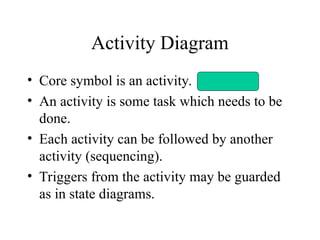
• Core symbol is an activity.
• An activity is some task which needs to be
done.
• Each activity can be followed by another
activity (sequencing).
• Triggers from the activity may be guarded
as in state diagrams.
Decision Activities
• Diamond.
• Each trigger coming from it has a guard.
• Synchronisation bar.
• All triggers from this attach to activities that can
occur in parallel, with no specific sequence, or
concurrently.
• The next synchronisation bar closes the concurrency.
• Iteration is represented by a * on the trigger.
or
Activity Diagrams for Use Cases
• They can be used for describing either
– Use cases or
– Complicated methods
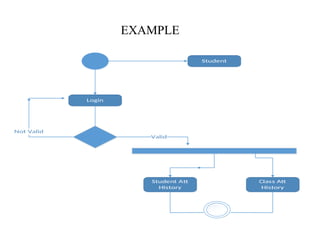
Student
Login
Student Att
History
Class Att
History
Not Valid
Valid
EXAMPLE
Use Case for Order Processing
(Generic system)
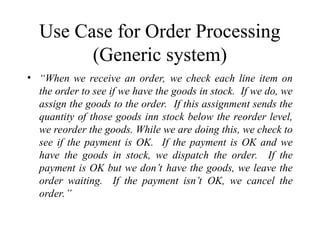
• “When we receive an order, we check each line item on
the order to see if we have the goods in stock. If we do, we
assign the goods to the order. If this assignment sends the
quantity of those goods inn stock below the reorder level,
we reorder the goods. While we are doing this, we check to
see if the payment is OK. If the payment is OK and we
have the goods in stock, we dispatch the order. If the
payment is OK but we don’t have the goods, we leave the
order waiting. If the payment isn’t OK, we cancel the
order.”
Combining Use Cases
• The end point of an activity diagram is the
point at which all triggered activites have
been run and there are no more left to do.
• Dead ends (e.g. Reorder item) can occur.
• Sometimes dead ends meet up with other
use cases (e.g. Check line item).
Receiving Supply
• “When a supply delivery comes in, we look at the
outstanding orders and decide which ones we can fill from
this incoming supply. We then assign each of these to its
appropriate orders. Doing this may release those orders
for dispatching. We put the remaining goods into stock.”
Swimlanes
• Arrange activity diagrams into vertical
zones separated by dashed lines.
• Each zone represents the responsibilities of
a particular class or department.
When to Use Activity Diagrams
• Do use them for
– Analysing Use Cases.
– Understanding workflow across many Use
Cases.
– Dealing with multi-threaded applications.
• Don’t use them
– to see how objects collaborate.
– to see how an object behaves over its lifetime.
Assign
to Order
Check line
item
Cancel
Order
Authorise
Payment
Reorder
item
Dispatch
Order
Receive
order
* for each line
item on order
[failed]
[succeeded]
[in stock]
[need to
reorder]
[stock assigned
to all line items
and payment
authorised]
Activity
Diagram for
Receiving an
Order
Activity
Diagram
for
receiving
Supply
Choose outstanding
order items
Assign goods
to order
Add remainder
to stock
Receive
Supply
* for each chosen
order item
[all outstanding
order items filled]
Dispatch
Order
Assign
to Order
Check line
item
Cancel
Order
Authorise
Payment
Choose
outstanding
order items
Assign goods
to order
Reorder
item
Add remainder
to stock
Dispatch
Order
Receive
Supply
Receive
order
* for each line
item on order
[failed]
[succeeded]
* for each chosen
order item
[in stock]
[need to
reorder]
[stock assigned
to all line items
and payment
authorised]
[all outstanding
order items filled]
Combined
Activity
Diagram
Assign
to Order
Check line
item
Cancel
Order
Authorise
Payment
Choose
outstanding
order items
Assign goods
to order
Reorder
item
Add remainder
to stock
Dispatch
Order
Receive
Supply
Receive
order
Finance Order
Processing
Stock
Manager
* for each line
item on order
[failed]
[succeeded]
* for each chosen
order item
[in stock]
[need to
reorder]
[stock assigned
to all line items
and payment
authorised]
[all outstanding
order items filled]
With Swimlanes
Understanding Workflows
– Each activity represents the performance of a group of
actions in a workflow.
– Once the activity is complete, the flow of control moves to
the next activity or state through a transition.
– If an outgoing transition is not clearly triggered by an event,
then it is triggered by the completion of the contained
actions inside the activity.
– A unique activity diagram feature is a swimlane that defines
who or what is responsible for carrying out the activity or
state.
– It is also possible to place objects on activity diagrams.
– The workflow stops when a transition reaches an end state.
Activity Diagram Tools
• You can use the following tools on the activity diagram
toolbox to model activity diagrams:
– Activities
– Decisions
– Object
– Object Flow
– States
• Start State
• End State
– Swimlanes
– Synchronizations
– Transitions
Placing an Activity diagram
• Where?
– You can attach activity diagrams to most model
elements in the use case or logical views.
– Activity diagrams cannot reside within the component
view.
• Why?
– Very effective in illustrating the workflow of various
events in a use-case diagram.
– You can use activity diagrams to specify and define
each event in a use-case diagram.
Creating an activity diagram
• Modelling a workflow in an activity diagram
– Identify a workflow objective.
– Decide the pre and post-conditions of the workflow.
– Define all activities and states.
– Define any objects that are created or modified.
– Decide on responsibility for performing the activities.
– Connect all elements on the diagram with transitions.
– Place decisions on the diagram.
– Evaluate your diagram for concurrent workflows.
– Set all actions, triggers and guard conditions in the
specifications of each model element.
Identify a workflow objective.
– "What needs to take place or happen by the end
of the workflow? What needs to be
accomplished?“
– For example, if your activity diagram models
the workflow of ordering a book from an online
bookstore, the goal of the entire workflow
could be getting the book to the customer.
– What is the goal in the claims system?
2. Workflow pre and post-
conditions
– Define pre and post conditions of the workflow
through a start state and an end state.
– In most cases, activity diagrams have a flowchart
structure so start and end states are used to designate
the beginning and ending of the workflow.
– Start and end states clarify the perimeter of the
workflow.
– What is the pre-condition of the main workflow in
• The claims system?
Define activities and states
• Define and recognize all activities and
states that must take place to meet your
objective. Place and name them on the
activity diagram in a logical order.
• Are there intermediate states in the
claims?
Identify persistent object
operations
• Define and diagram any objects that are
created or modified within your activity
diagram.
• Connect the objects and activities with
object flows.
Add swimlanes
• Decide who or what is responsible for performing
the activities and states through swimlanes.
• Name each swimlane and place the appropriate
activities and states within each swimlane.
• Identify swimlanes for
– The tennis club workflow
– The claims workflow

Software designe and constractionLec 4B.ppt

  • 1.
  • 2.
    Definition • Activity diagramsrepresent the dynamics of the system. • They are flow charts that are used to show the workflow of a system. • They show. – The flow of control from activity to activity in the system, – What activities can be done in parallel. – Alternate paths through the flow. • They can show the flow across use cases or within a use case.
  • 3.
    Activity Diagram • Coresymbol is an activity. • An activity is some task which needs to be done. • Each activity can be followed by another activity (sequencing). • Triggers from the activity may be guarded as in state diagrams.
  • 4.
    Decision Activities • Diamond. •Each trigger coming from it has a guard. • Synchronisation bar. • All triggers from this attach to activities that can occur in parallel, with no specific sequence, or concurrently. • The next synchronisation bar closes the concurrency. • Iteration is represented by a * on the trigger. or
  • 5.
    Activity Diagrams forUse Cases • They can be used for describing either – Use cases or – Complicated methods
  • 6.
  • 7.
    Use Case forOrder Processing (Generic system) • “When we receive an order, we check each line item on the order to see if we have the goods in stock. If we do, we assign the goods to the order. If this assignment sends the quantity of those goods inn stock below the reorder level, we reorder the goods. While we are doing this, we check to see if the payment is OK. If the payment is OK and we have the goods in stock, we dispatch the order. If the payment is OK but we don’t have the goods, we leave the order waiting. If the payment isn’t OK, we cancel the order.”
  • 8.
    Combining Use Cases •The end point of an activity diagram is the point at which all triggered activites have been run and there are no more left to do. • Dead ends (e.g. Reorder item) can occur. • Sometimes dead ends meet up with other use cases (e.g. Check line item).
  • 9.
    Receiving Supply • “Whena supply delivery comes in, we look at the outstanding orders and decide which ones we can fill from this incoming supply. We then assign each of these to its appropriate orders. Doing this may release those orders for dispatching. We put the remaining goods into stock.”
  • 10.
    Swimlanes • Arrange activitydiagrams into vertical zones separated by dashed lines. • Each zone represents the responsibilities of a particular class or department.
  • 11.
    When to UseActivity Diagrams • Do use them for – Analysing Use Cases. – Understanding workflow across many Use Cases. – Dealing with multi-threaded applications. • Don’t use them – to see how objects collaborate. – to see how an object behaves over its lifetime.
  • 12.
    Assign to Order Check line item Cancel Order Authorise Payment Reorder item Dispatch Order Receive order *for each line item on order [failed] [succeeded] [in stock] [need to reorder] [stock assigned to all line items and payment authorised] Activity Diagram for Receiving an Order
  • 13.
    Activity Diagram for receiving Supply Choose outstanding order items Assigngoods to order Add remainder to stock Receive Supply * for each chosen order item [all outstanding order items filled] Dispatch Order
  • 14.
    Assign to Order Check line item Cancel Order Authorise Payment Choose outstanding orderitems Assign goods to order Reorder item Add remainder to stock Dispatch Order Receive Supply Receive order * for each line item on order [failed] [succeeded] * for each chosen order item [in stock] [need to reorder] [stock assigned to all line items and payment authorised] [all outstanding order items filled] Combined Activity Diagram
  • 15.
    Assign to Order Check line item Cancel Order Authorise Payment Choose outstanding orderitems Assign goods to order Reorder item Add remainder to stock Dispatch Order Receive Supply Receive order Finance Order Processing Stock Manager * for each line item on order [failed] [succeeded] * for each chosen order item [in stock] [need to reorder] [stock assigned to all line items and payment authorised] [all outstanding order items filled] With Swimlanes
  • 16.
    Understanding Workflows – Eachactivity represents the performance of a group of actions in a workflow. – Once the activity is complete, the flow of control moves to the next activity or state through a transition. – If an outgoing transition is not clearly triggered by an event, then it is triggered by the completion of the contained actions inside the activity. – A unique activity diagram feature is a swimlane that defines who or what is responsible for carrying out the activity or state. – It is also possible to place objects on activity diagrams. – The workflow stops when a transition reaches an end state.
  • 17.
    Activity Diagram Tools •You can use the following tools on the activity diagram toolbox to model activity diagrams: – Activities – Decisions – Object – Object Flow – States • Start State • End State – Swimlanes – Synchronizations – Transitions
  • 18.
    Placing an Activitydiagram • Where? – You can attach activity diagrams to most model elements in the use case or logical views. – Activity diagrams cannot reside within the component view. • Why? – Very effective in illustrating the workflow of various events in a use-case diagram. – You can use activity diagrams to specify and define each event in a use-case diagram.
  • 19.
    Creating an activitydiagram • Modelling a workflow in an activity diagram – Identify a workflow objective. – Decide the pre and post-conditions of the workflow. – Define all activities and states. – Define any objects that are created or modified. – Decide on responsibility for performing the activities. – Connect all elements on the diagram with transitions. – Place decisions on the diagram. – Evaluate your diagram for concurrent workflows. – Set all actions, triggers and guard conditions in the specifications of each model element.
  • 20.
    Identify a workflowobjective. – "What needs to take place or happen by the end of the workflow? What needs to be accomplished?“ – For example, if your activity diagram models the workflow of ordering a book from an online bookstore, the goal of the entire workflow could be getting the book to the customer. – What is the goal in the claims system?
  • 21.
    2. Workflow preand post- conditions – Define pre and post conditions of the workflow through a start state and an end state. – In most cases, activity diagrams have a flowchart structure so start and end states are used to designate the beginning and ending of the workflow. – Start and end states clarify the perimeter of the workflow. – What is the pre-condition of the main workflow in • The claims system?
  • 22.
    Define activities andstates • Define and recognize all activities and states that must take place to meet your objective. Place and name them on the activity diagram in a logical order. • Are there intermediate states in the claims?
  • 23.
    Identify persistent object operations •Define and diagram any objects that are created or modified within your activity diagram. • Connect the objects and activities with object flows.
  • 24.
    Add swimlanes • Decidewho or what is responsible for performing the activities and states through swimlanes. • Name each swimlane and place the appropriate activities and states within each swimlane. • Identify swimlanes for – The tennis club workflow – The claims workflow