   SlideShare is the world's largest community
    for sharing presentations.

   Besides presentations, SlideShare also
    supports documents, PDFs, videos &
    webinars.
   SlideShare was recently voted amongst the
    World's Top 10 tools for education & elearning.

   SlideShare features a vibrant professional &
    educational community that regularly
    comments, favorites & downloads content.

   SlideShare content spreads virally through blogs
    & social networks such as LinkedIn, Facebook &
    Twitter.
   Teachers & organizations can upload
    documents to SlideShare to share ideas,
    conduct research, connect with others, &
    generate leads for their work.

   Teachers/learners can view presentations &
    documents on topics that interest them,
    download them & reuse or remix for their
    own work.
   Upload presentations publicly or privately.

   Download presentations on any topic & reuse
    or remix.

   Embed on blogs, websites, institution
    intranets.
   Share on Twitter, Facebook, LinkedIn.


   Leadshare: generate business leads with your
    presentations, documents, pdfs, videos
   Slidecast: sync mp3 audio with slides to
    create a webinar.

   Embed YouTube videos inside SlideShare
    presentations.
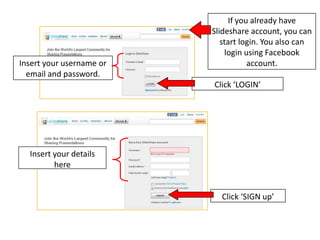
If you already have
                          Slideshare account, you can
                             start login. You also can
                               login using Facebook
Insert your username or               account.
  email and password.
                          Click ‘LOGIN’


  Insert your details
         here


                            Click ‘SIGN up’
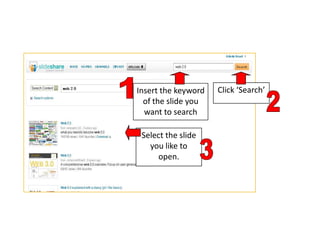
Insert the keyword   Click ‘Search’
  of the slide you
  want to search

 Select the slide
   you like to
     open.
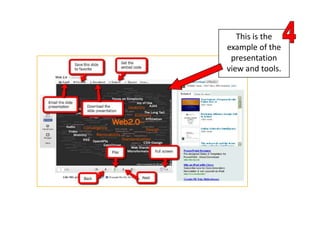
This is the
example of the
 presentation
view and tools.
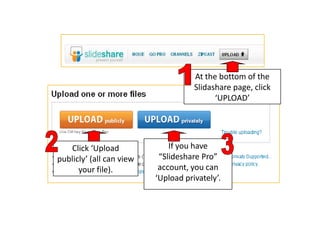
At the bottom of the
                                     Slidashare page, click
                                           ‘UPLOAD’


   Click ‘Upload              If you have
publicly’ (all can view    “Slideshare Pro”
      your file).          account, you can
                          ‘Upload privately’.
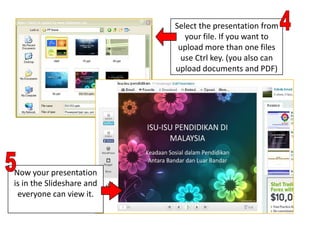
Select the presentation from
                              your file. If you want to
                            upload more than one files
                             use Ctrl key. (you also can
                           upload documents and PDF)


Now your presentation
is in the Slideshare and
 everyone can view it.
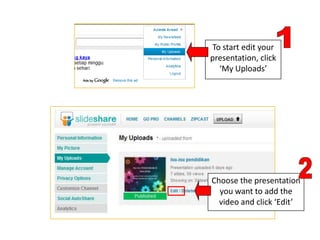
To start edit your
presentation, click
  ‘My Uploads’


Choose the presentation
  you want to add the
  video and click ‘Edit’
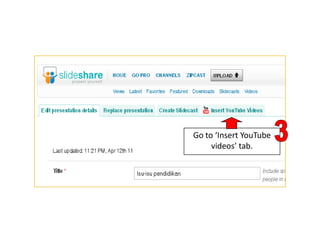
Go to ‘Insert YouTube
     videos’ tab.
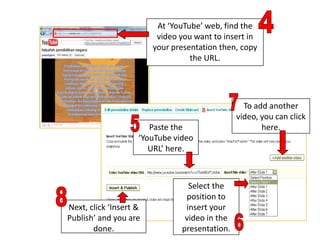
At ‘YouTube’ web, find the
                         video you want to insert in
                        your presentation then, copy
                                  the URL.


                                                 To add another
                                               video, you can click
                       Paste the                      here.
                    ‘YouTube video
                       URL’ here.


                                 Select the
                                position to
Next, click ‘Insert &           insert your
Publish’ and you are            video in the
       done.                   presentation.
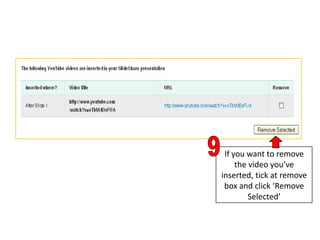
If you want to remove
     the video you’ve
inserted, tick at remove
 box and click ‘Remove
         Selected’
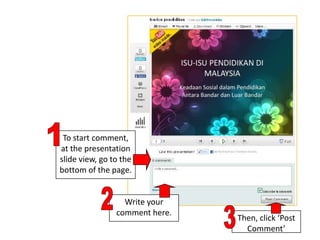
To start comment,
at the presentation
slide view, go to the
bottom of the page.


                  Write your
                comment here.
                                Then, click ‘Post
                                  Comment’
test

test

  • 2.
    SlideShare is the world's largest community for sharing presentations.  Besides presentations, SlideShare also supports documents, PDFs, videos & webinars.
  • 3.
    SlideShare was recently voted amongst the World's Top 10 tools for education & elearning.  SlideShare features a vibrant professional & educational community that regularly comments, favorites & downloads content.  SlideShare content spreads virally through blogs & social networks such as LinkedIn, Facebook & Twitter.
  • 4.
    Teachers & organizations can upload documents to SlideShare to share ideas, conduct research, connect with others, & generate leads for their work.  Teachers/learners can view presentations & documents on topics that interest them, download them & reuse or remix for their own work.
  • 5.
    Upload presentations publicly or privately.  Download presentations on any topic & reuse or remix.  Embed on blogs, websites, institution intranets.
  • 6.
    Share on Twitter, Facebook, LinkedIn.  Leadshare: generate business leads with your presentations, documents, pdfs, videos
  • 7.
    Slidecast: sync mp3 audio with slides to create a webinar.  Embed YouTube videos inside SlideShare presentations.
  • 12.
    If you alreadyhave Slideshare account, you can start login. You also can login using Facebook Insert your username or account. email and password. Click ‘LOGIN’ Insert your details here Click ‘SIGN up’
  • 14.
    Insert the keyword Click ‘Search’ of the slide you want to search Select the slide you like to open.
  • 15.
    This is the exampleof the presentation view and tools.
  • 17.
    At the bottomof the Slidashare page, click ‘UPLOAD’ Click ‘Upload If you have publicly’ (all can view “Slideshare Pro” your file). account, you can ‘Upload privately’.
  • 18.
    Select the presentationfrom your file. If you want to upload more than one files use Ctrl key. (you also can upload documents and PDF) Now your presentation is in the Slideshare and everyone can view it.
  • 20.
    To start edityour presentation, click ‘My Uploads’ Choose the presentation you want to add the video and click ‘Edit’
  • 21.
    Go to ‘InsertYouTube videos’ tab.
  • 22.
    At ‘YouTube’ web,find the video you want to insert in your presentation then, copy the URL. To add another video, you can click Paste the here. ‘YouTube video URL’ here. Select the position to Next, click ‘Insert & insert your Publish’ and you are video in the done. presentation.
  • 23.
    If you wantto remove the video you’ve inserted, tick at remove box and click ‘Remove Selected’
  • 25.
    To start comment, atthe presentation slide view, go to the bottom of the page. Write your comment here. Then, click ‘Post Comment’