!
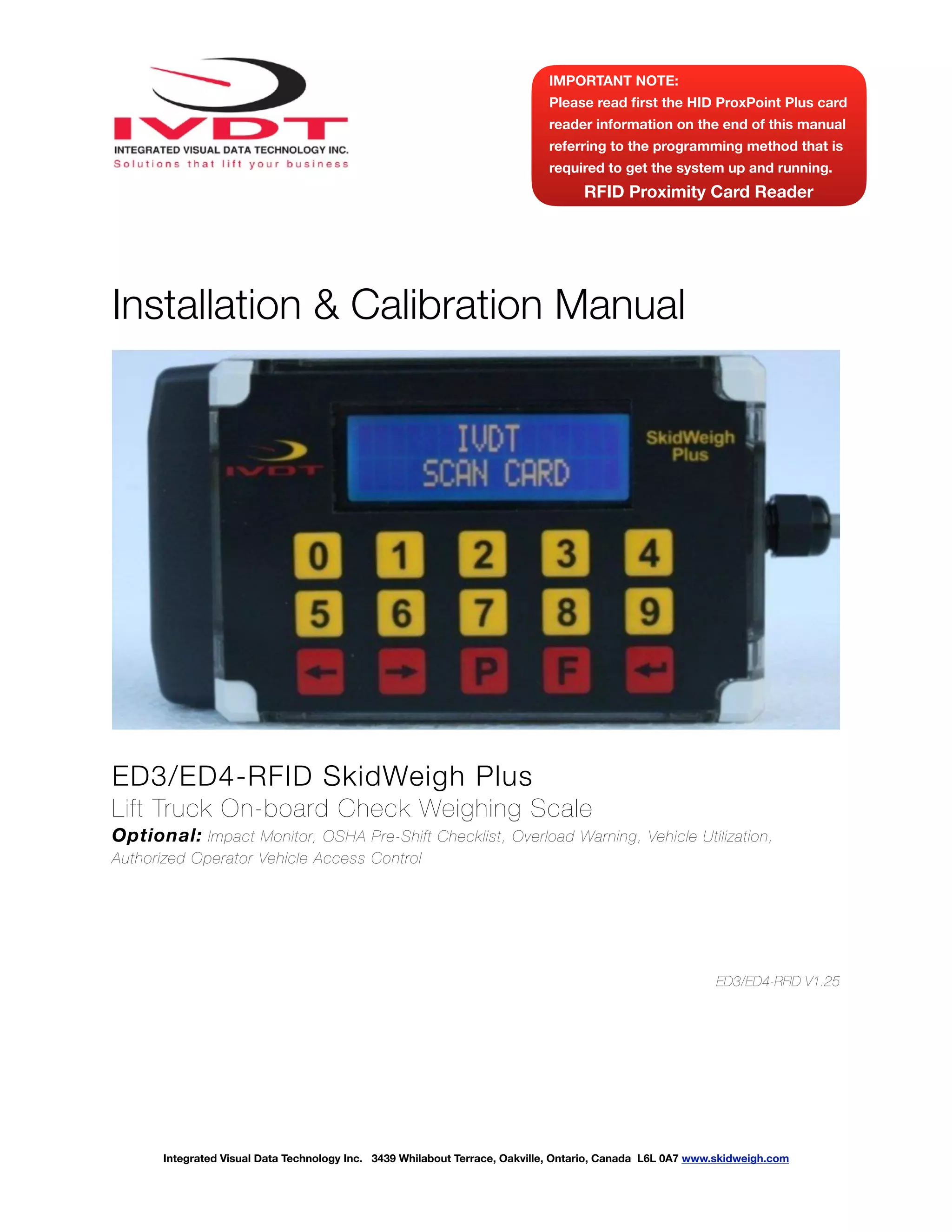
Installation & Calibration Manual
ED3/ED4-RFID SkidWeigh Plus
Lift Truck On-board Check Weighing Scale
Optional: Impact Monitor, OSHA Pre-Shift Checklist, Overload Warning, Vehicle Utilization,
Authorized Operator Vehicle Access Control
ED3/ED4-RFID V1.25
Integrated Visual Data Technology Inc. 3439 Whilabout Terrace, Oakville, Ontario, Canada L6L 0A7 www.skidweigh.com
IMPORTANT NOTE:
Please read first the HID ProxPoint Plus card
reader information on the end of this manual
referring to the programming method that is
required to get the system up and running.
RFID Proximity Card Reader
!
General Installation Guide
This ED3-RFID and ED4-RFID SkidWeigh Plus V1.25 Series installation & calibration guide describes how to install,
calibrate, test and use your on-board check weighing unit. Following the instructions in the ADMINISTRATION MENU
guide will enable you to get the system set up and weighing calibration function operating quickly. In the event that you
require additional assistance, please contact customer support via e-mail at support@skidweigh.com , visit
www.skidweigh.com or contact us at the address or contact number below:
Integrated Visual Data Technology Inc.
3439 Whilabout Terrace, Oakville, ON, Canada, L6L 0A7 Phone: 905-469-0985
Safety
Always disconnect the vehicle battery while installing SkidWeigh system or any other electronic product.
Make sure that unit, pressure transducer and any other associated cables are securely mounted and do not impede any
of the vehicle’s controls. Use care when routing the components cables. Route the cables where they will be protected.
Use commonly accepted install practices for after market industrial vehicle electronic devices.
The installation of the SkidWeigh systems should only be performed by an acknowledged lift truck dealer technician or
end user electro and hydraulic technical installer.
Here are two acceptable methods of making a wire connections:
* Soldering your connections (recommended)
* Crimp connectors ( with the use of the proper crimping tool)
Regardless of the method you choose, ensure that the connection is mechanically sound and properly insulated. Use
high quality electrical tape and shrink tubing where necessary. This product is connected directly to the vehicle’s ignition
switch, 12 to 55 VDC. There is no on-off switch on the unit.
Electro-Magnetic Compatibility
CE conformity to EC directive 89/336 (EMC) by application of harmonized standards: Interference stability EN 61000-6-2
and EN 61326-1 interference emit EN 61000-6-3, EN 61326-1 for the pressure transducer.
ED3/ED4-RFID SkidWeigh Plus Series
Our policy is one of continuous improvement and the information in this document is subject to change without notice.
The software version is displayed on the LCD display once the power is turned on to the system.
Overview of components
The standard ED3/ED4-RFID SkidWeigh Plus check weighing system consist of two main components:
* Digital indicator with integrated RFID operator access reader with wiring harness, mounting bracket
* Hydraulic pressure transducer with 3 wires cable
* Installation & calibration manual and operator usage instruction
* One Master RFID card is included
Integrated Visual Data Technology Inc. 3439 Whilabout Terrace, Oakville, Ontario, Canada L6L 0A7 www.skidweigh.com
!
(Master card to be used by the end user to program valid operators RFID cards. All programming can be
done with ED3-RFID / ED4-RFID mobile units. There is no need for external programming device )
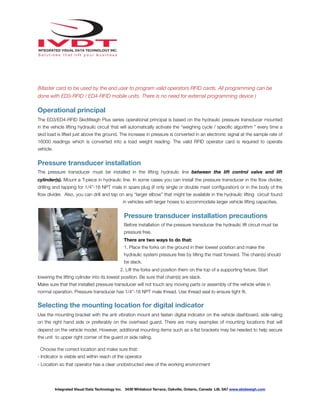
Operational principal
The ED3/ED4-RFID SkidWeigh Plus series operational principal is based on the hydraulic pressure transducer mounted
in the vehicle lifting hydraulic circuit that will automatically activate the “weighing cycle / specific algorithm ” every time a
skid load is lifted just above the ground. The increase in pressure is converted in an electronic signal at the sample rate of
16000 readings which is converted into a load weight reading. The valid RFID operator card is required to operate
vehicle.
Pressure transducer installation
The pressure transducer must be installed in the lifting hydraulic line between the lift control valve and lift
cylinder(s). Mount a T-piece in hydraulic line. In some cases you can install the pressure transducer in the flow divider,
drilling and tapping for 1/4”-18 NPT male in spare plug (if only single or double mast configuration) or in the body of the
flow divider. Also, you can drill and tap on any “larger elbow” that might be available in the hydraulic lifting circuit found
in vehicles with larger hoses to accommodate larger vehicle lifting capacities.
Pressure transducer installation precautions
Before installation of the pressure transducer the hydraulic lift circuit must be
pressure free.
There are two ways to do that:
1. Place the forks on the ground in their lowest position and make the
hydraulic system pressure free by tilting the mast forward. The chain(s) should
be slack.
2. Lift the forks and position them on the top of a supporting fixture. Start
lowering the lifting cylinder into its lowest position. Be sure that chain(s) are slack.
Make sure that that installed pressure transducer will not touch any moving parts or assembly of the vehicle while in
normal operation. Pressure transducer has 1/4”-18 NPT male thread. Use thread seal to ensure tight fit.
Selecting the mounting location for digital indicator
Use the mounting bracket with the anti vibration mount and fasten digital indicator on the vehicle dashboard, side railing
on the right hand side or preferably on the overhead guard. There are many examples of mounting locations that will
depend on the vehicle model. However, additional mounting items such as a flat brackets may be needed to help secure
the unit to upper right corner of the guard or side railing.
Choose the correct location and make sure that:
- Indicator is visible and within reach of the operator
- Location so that operator has a clear unobstructed view of the working environment
Integrated Visual Data Technology Inc. 3439 Whilabout Terrace, Oakville, Ontario, Canada L6L 0A7 www.skidweigh.com
!
Compact size
All of the SkidWeigh systems are compact, housing dimension of only 120
x 80 x 55 mm is ideal for the installations to material handling vehicles of
all kinds.
Electrical connections
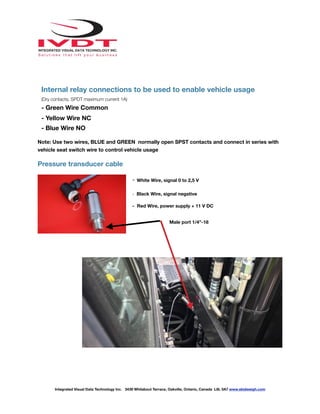
All SkidWeigh RFID equipped systems operate from 12 to 55 VDC.
Digital indicator with eight wires single cable
- Orange Wire (+) Ignition switch On position
- Brown Wire (-) Battery negative
- Red Wire, connect to RED wire of the pressure transducer cable
- Black Wire, connect to BLACK wire of the pressure transducer
cable
- White Wire, connect to WHITE wire of the pressure transducer
cable
Integrated Visual Data Technology Inc. 3439 Whilabout Terrace, Oakville, Ontario, Canada L6L 0A7 www.skidweigh.com
Pressure transducer 3 wires
RED
BLACK
WHITE
Power Supply
+ Orange
- Brown
Vehicle Disable Two Wires Function
BLUE AND GREEN (N.O. Contacts)
Used in series with seat switch wiring of
the vehicle
!
Internal relay connections to be used to enable vehicle usage
(Dry contacts, SPDT maximum current 1A)
- Green Wire Common
- Yellow Wire NC
- Blue Wire NO
Note: Use two wires, BLUE and GREEN normally open SPST contacts and connect in series with
vehicle seat switch wire to control vehicle usage
Pressure transducer cable
- White Wire, signal 0 to 2,5 V
- Black Wire, signal negative
- Red Wire, power supply + 11 V DC
Integrated Visual Data Technology Inc. 3439 Whilabout Terrace, Oakville, Ontario, Canada L6L 0A7 www.skidweigh.com
Male port 1/4”-18
!
All SkidWeigh systems are internally short circuit protected with resettable fuse. There is no need to install external
inline fuse in orange wire that is connected to the ignition switch.
IMPORTANT
For all SkidWeigh Plus Systems equipped with RFID card reader you MUST HAVE AT LEAST ONE
VALID OPERATOR CARD in order to access the administration menu to set up and calibrate the
weighing function of the system!
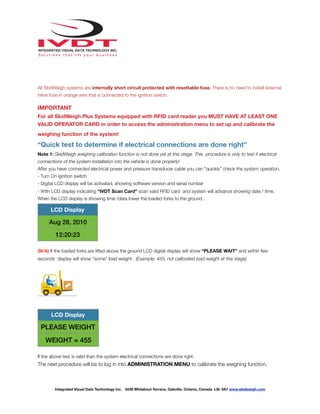
“Quick test to determine if electrical connections are done right”
Note 1: SkidWeigh weighing calibration function is not done yet at this stage. This procedure is only to test if electrical
connections of the system installation into the vehicle is done properly!
After you have connected electrical power and pressure transducer cable you can “quickly” check the system operation.
- Turn On ignition switch
- Digital LCD display will be activated, showing software version and serial number
- With LCD display indicating “IVDT Scan Card” scan valid RFID card and system will advance showing date / time.
When the LCD display is showing time /data lower the loaded forks to the ground .
(N/A) If the loaded forks are lifted above the ground LCD digital display will show “PLEASE WAIT” and within few
seconds display will show “some” load weight . (Example: 455, not calibrated load weight at this stage)
If the above test is valid than the system electrical connections are done right.
The next procedure will be to log in into ADMINISTRATION MENU to calibrate the weighing function.
LCD Display
Aug 28, 2010
12:20:23
LCD Display
PLEASE WEIGHT
WEIGHT = 455
Integrated Visual Data Technology Inc. 3439 Whilabout Terrace, Oakville, Ontario, Canada L6L 0A7 www.skidweigh.com
!
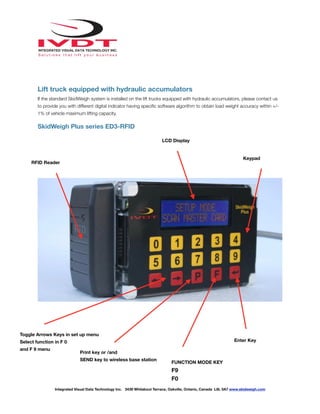
Lift truck equipped with hydraulic accumulators
If the standard SkidWeigh system is installed on the lift trucks equipped with hydraulic accumulators, please contact us
to provide you with different digital indicator having specific software algorithm to obtain load weight accuracy within +/-
1% of vehicle maximum lifting capacity.
SkidWeigh Plus series ED3-RFID
Integrated Visual Data Technology Inc. 3439 Whilabout Terrace, Oakville, Ontario, Canada L6L 0A7 www.skidweigh.com
RFID Reader
LCD Display
Keypad
Enter Key
Toggle Arrows Keys in set up menu
Select function in F 0
and F 9 menu
Print key or /and
SEND key to wireless base station
FUNCTION MODE KEY
F9
F0
!
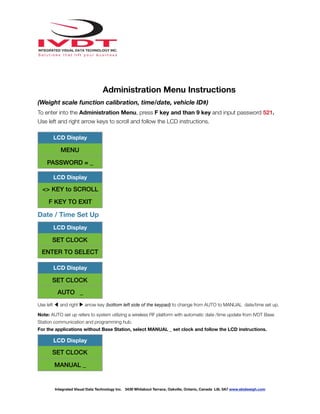
Administration Menu Instructions
(Weight scale function calibration, time/date, vehicle ID#)
To enter into the Administration Menu, press F key and than 9 key and input password 521.
Use left and right arrow keys to scroll and follow the LCD instructions.
Date / Time Set Up
Use left ◀ and right ▶ arrow key (bottom left side of the keypad) to change from AUTO to MANUAL date/time set up.
Note: AUTO set up refers to system utilizing a wireless RF platform with automatic date /time update from IVDT Base
Station communication and programming hub.
For the applications without Base Station, select MANUAL _ set clock and follow the LCD instructions.
LCD Display
MENU
PASSWORD = _
LCD Display
<> KEY to SCROLL
F KEY TO EXIT
LCD Display
SET CLOCK
ENTER TO SELECT
LCD Display
SET CLOCK
AUTO _
LCD Display
SET CLOCK
MANUAL _
Integrated Visual Data Technology Inc. 3439 Whilabout Terrace, Oakville, Ontario, Canada L6L 0A7 www.skidweigh.com
!
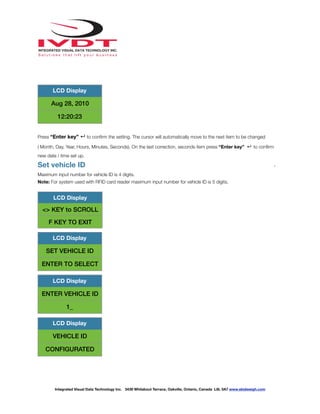
Press “Enter key” ↵ to confirm the setting. The cursor will automatically move to the next item to be changed
( Month, Day, Year, Hours, Minutes, Seconds). On the last correction, seconds item press “Enter key” ↵ to confirm
new date / time set up.
Set vehicle ID -
Maximum input number for vehicle ID is 4 digits.
Note: For system used with RFID card reader maximum input number for vehicle ID is 5 digits.
LCD Display
Aug 28, 2010
12:20:23
LCD Display
<> KEY to SCROLL
F KEY TO EXIT
LCD Display
SET VEHICLE ID
ENTER TO SELECT
LCD Display
ENTER VEHICLE ID
1_
LCD Display
VEHICLE ID
CONFIGURATED
Integrated Visual Data Technology Inc. 3439 Whilabout Terrace, Oakville, Ontario, Canada L6L 0A7 www.skidweigh.com
!
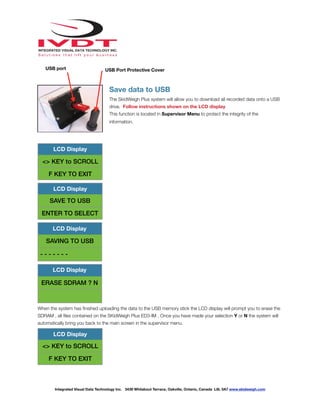
Save data to USB
The SkidWeigh Plus system will allow you to download all recorded data onto a USB
drive. Follow instructions shown on the LCD display
This function is located in Supervisor Menu to protect the integrity of the
information.
When the system has finished uploading the data to the USB memory stick the LCD display will prompt you to erase the
SDRAM , all files contained on the SKidWeigh Plus ED3-IM . Once you have made your selection Y or N the system will
automatically bring you back to the main screen in the supervisor menu.
LCD Display
<> KEY to SCROLL
F KEY TO EXIT
LCD Display
SAVE TO USB
ENTER TO SELECT
LCD Display
SAVING TO USB
- - - - - - -
LCD Display
ERASE SDRAM ? N
LCD Display
<> KEY to SCROLL
F KEY TO EXIT
Integrated Visual Data Technology Inc. 3439 Whilabout Terrace, Oakville, Ontario, Canada L6L 0A7 www.skidweigh.com
USB Port Protective CoverUSB port
!
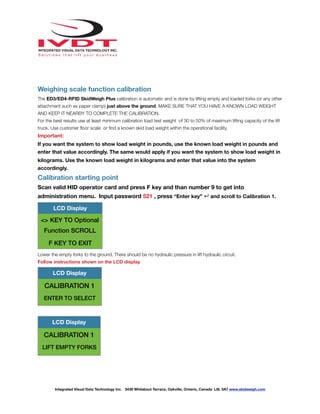
Weighing scale function calibration
The ED3/ED4-RFID SkidWeigh Plus calibration is automatic and is done by lifting empty and loaded forks (or any other
attachment such as paper clamp) just above the ground. MAKE SURE THAT YOU HAVE A KNOWN LOAD WEIGHT
AND KEEP IT NEARBY TO COMPLETE THE CALIBRATION.
For the best results use at least minimum calibration load test weight of 30 to 50% of maximum lifting capacity of the lift
truck. Use customer floor scale or find a known skid load weight within the operational facility.
Important:
If you want the system to show load weight in pounds, use the known load weight in pounds and
enter that value accordingly. The same would apply if you want the system to show load weight in
kilograms. Use the known load weight in kilograms and enter that value into the system
accordingly.
Calibration starting point
Scan valid HID operator card and press F key and than number 9 to get into
administration menu. Input password 521 , press “Enter key” ↵ and scroll to Calibration 1.
Lower the empty forks to the ground. There should be no hydraulic pressure in lift hydraulic circuit.
Follow instructions shown on the LCD display
LCD Display
<> KEY TO Optional
Function SCROLL
F KEY TO EXIT
LCD Display
CALIBRATION 1
ENTER TO SELECT
LCD Display
CALIBRATION 1
LIFT EMPTY FORKS
Integrated Visual Data Technology Inc. 3439 Whilabout Terrace, Oakville, Ontario, Canada L6L 0A7 www.skidweigh.com
!
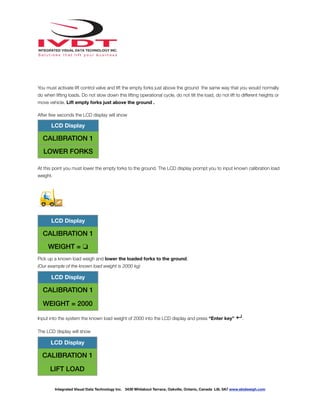
You must activate lift control valve and lift the empty forks just above the ground the same way that you would normally
do when lifting loads. Do not slow down this lifting operational cycle, do not tilt the load, do not lift to different heights or
move vehicle. Lift empty forks just above the ground .
After few seconds the LCD display will show
At this point you must lower the empty forks to the ground. The LCD display prompt you to input known calibration load
weight.
Pick up a known load weigh and lower the loaded forks to the ground.
(Our example of the known load weight is 2000 kg)
Input into the system the known load weight of 2000 into the LCD display and press “Enter key” ↵.
The LCD display will show
LCD Display
CALIBRATION 1
LOWER FORKS
LCD Display
CALIBRATION 1
WEIGHT = ❏
LCD Display
CALIBRATION 1
WEIGHT = 2000
LCD Display
CALIBRATION 1
LIFT LOAD
Integrated Visual Data Technology Inc. 3439 Whilabout Terrace, Oakville, Ontario, Canada L6L 0A7 www.skidweigh.com
!
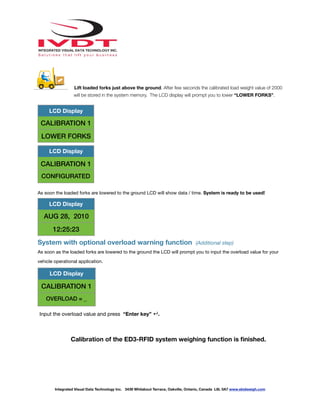
Lift loaded forks just above the ground. After few seconds the calibrated load weight value of 2000
will be stored in the system memory. The LCD display will prompt you to lower “LOWER FORKS”.
As soon the loaded forks are lowered to the ground LCD will show data / time. System is ready to be used!
System with optional overload warning function (Additional step)
As soon as the loaded forks are lowered to the ground the LCD will prompt you to input the overload value for your
vehicle operational application.
Input the overload value and press “Enter key” ↵.
Calibration of the ED3-RFID system weighing function is finished.
LCD Display
CALIBRATION 1
LOWER FORKS
LCD Display
CALIBRATION 1
CONFIGURATED
LCD Display
AUG 28, 2010
12:25:23
LCD Display
CALIBRATION 1
OVERLOAD = _
Integrated Visual Data Technology Inc. 3439 Whilabout Terrace, Oakville, Ontario, Canada L6L 0A7 www.skidweigh.com
!
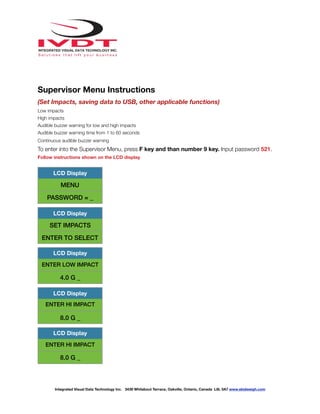
Supervisor Menu Instructions
(Set Impacts, saving data to USB, other applicable functions)
Low impacts
High impacts
Audible buzzer warning for low and high impacts
Audible buzzer warning time from 1 to 60 seconds
Continuous audible buzzer warning
To enter into the Supervisor Menu, press F key and than number 9 key. Input password 521.
Follow instructions shown on the LCD display
LCD Display
MENU
PASSWORD = _
LCD Display
SET IMPACTS
ENTER TO SELECT
LCD Display
ENTER LOW IMPACT
4.0 G _
LCD Display
ENTER HI IMPACT
8.0 G _
LCD Display
ENTER HI IMPACT
8.0 G _
Integrated Visual Data Technology Inc. 3439 Whilabout Terrace, Oakville, Ontario, Canada L6L 0A7 www.skidweigh.com
!
Lift Truck Operator Menu Instructions
(Bluetooth, TARE set up, Parts count functions)
The SkidWeigh Plus system allows lift truck operator to pair Bluetooth additional devices such as onboard
printers or barcode scanners or set TARE, Parts count.
To enter into the lift truck operator menu, press F key and than number 0.
Follow instructions shown on the LCD display
Note: Use left ◀ and right ▶ arrow key (bottom left side of the keypad) to choose MANUAL, INQUIRY or AUTO.
LCD Display
ENTER HI IMPACT
CONTINUOUS ? Y
LCD Display
ENTER HI IMPACT
CONTINUOUS ? Y
LCD Display
IMPACT
CONFIGURATED
LCD Display
BLUETOOTH
ENTER TO SELECT
LCD Display
BLUETOOTH MODE
AUTO _
Integrated Visual Data Technology Inc. 3439 Whilabout Terrace, Oakville, Ontario, Canada L6L 0A7 www.skidweigh.com
!
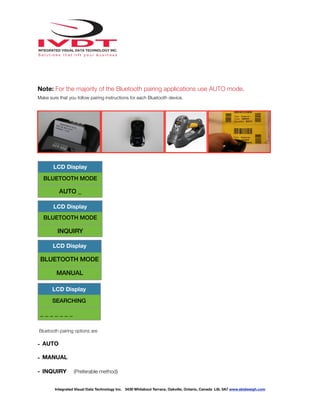
Note: For the majority of the Bluetooth pairing applications use AUTO mode.
Make sure that you follow pairing instructions for each Bluetooth device.
Bluetooth pairing options are
- AUTO
- MANUAL
- INQUIRY (Preferable method)
LCD Display
BLUETOOTH MODE
AUTO _
LCD Display
BLUETOOTH MODE
INQUIRY
LCD Display
BLUETOOTH MODE
MANUAL
LCD Display
SEARCHING
_ _ _ _ _ _ _
Integrated Visual Data Technology Inc. 3439 Whilabout Terrace, Oakville, Ontario, Canada L6L 0A7 www.skidweigh.com
!
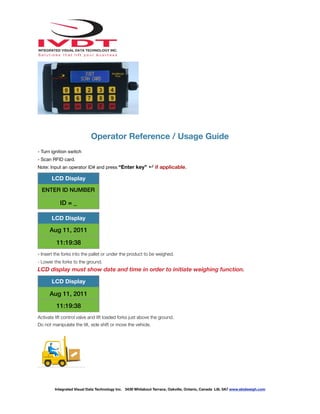
Operator Reference / Usage Guide
- Turn ignition switch
- Scan RFID card.
Note: Input an operator ID# and press “Enter key” ↵ if applicable.
- Insert the forks into the pallet or under the product to be weighed.
- Lower the forks to the ground.
LCD display must show date and time in order to initiate weighing function.
Activate lift control valve and lift loaded forks just above the ground.
Do not manipulate the tilt, side shift or move the vehicle.
LCD Display
ENTER ID NUMBER
ID = _
LCD Display
Aug 11, 2011
11:19:38
LCD Display
Aug 11, 2011
11:19:38
Integrated Visual Data Technology Inc. 3439 Whilabout Terrace, Oakville, Ontario, Canada L6L 0A7 www.skidweigh.com
!
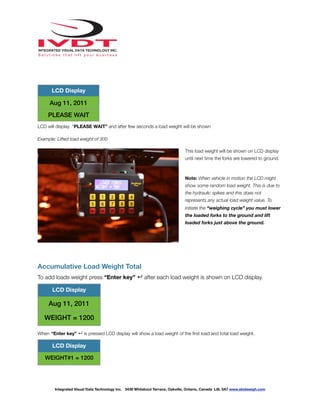
LCD will display “PLEASE WAIT” and after few seconds a load weight will be shown
Example: Lifted load weight of 300
This load weight will be shown on LCD display
until next time the forks are lowered to ground.
Note: When vehicle in motion the LCD might
show some random load weight. This is due to
the hydraulic spikes and this does not
represents any actual load weight value. To
initiate the “weighing cycle” you must lower
the loaded forks to the ground and lift
loaded forks just above the ground.
Accumulative Load Weight Total
To add loads weight press “Enter key” ↵ after each load weight is shown on LCD display.
When “Enter key” ↵ is pressed LCD display will show a load weight of the first load and total load weight.
LCD Display
Aug 11, 2011
PLEASE WAIT
LCD Display
Aug 11, 2011
WEIGHT = 1200
LCD Display
WEIGHT#1 = 1200
Integrated Visual Data Technology Inc. 3439 Whilabout Terrace, Oakville, Ontario, Canada L6L 0A7 www.skidweigh.com
!
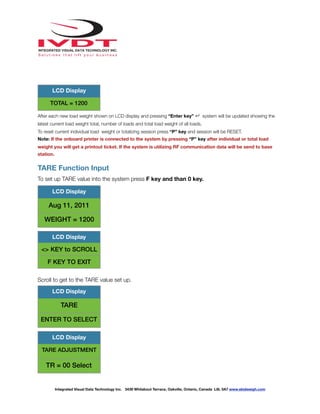
After each new load weight shown on LCD display and pressing “Enter key” ↵ system will be updated showing the
latest current load weight total, number of loads and total load weight of all loads.
To reset current individual load weight or totalizing session press “P” key and session will be RESET.
Note: If the onboard printer is connected to the system by pressing “P” key after individual or total load
weight you will get a printout ticket. If the system is utilizing RF communication data will be send to base
station.
TARE Function Input
To set up TARE value into the system press F key and than 0 key.
Scroll to get to the TARE value set up.
TOTAL = 1200
LCD Display
LCD Display
Aug 11, 2011
WEIGHT = 1200
LCD Display
<> KEY to SCROLL
F KEY TO EXIT
LCD Display
TARE
ENTER TO SELECT
LCD Display
TARE ADJUSTMENT
TR = 00 Select
Integrated Visual Data Technology Inc. 3439 Whilabout Terrace, Oakville, Ontario, Canada L6L 0A7 www.skidweigh.com
!
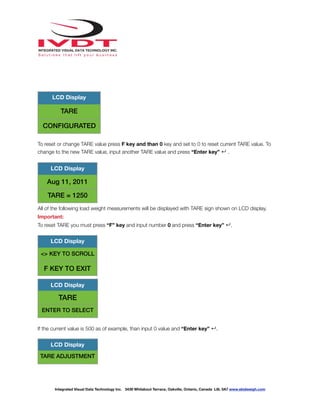
To reset or change TARE value press F key and than 0 key and set to 0 to reset current TARE value. To
change to the new TARE value, input another TARE value and press “Enter key” ↵ .
All of the following load weight measurements will be displayed with TARE sign shown on LCD display.
Important:
To reset TARE you must press “F” key and input number 0 and press “Enter key” ↵.
If the current value is 500 as of example, than input 0 value and “Enter key” ↵.
LCD Display
TARE
CONFIGURATED
LCD Display
Aug 11, 2011
TARE = 1250
LCD Display
<> KEY TO SCROLL
F KEY TO EXIT
LCD Display
TARE
ENTER TO SELECT
LCD Display
TARE ADJUSTMENT
Integrated Visual Data Technology Inc. 3439 Whilabout Terrace, Oakville, Ontario, Canada L6L 0A7 www.skidweigh.com
!
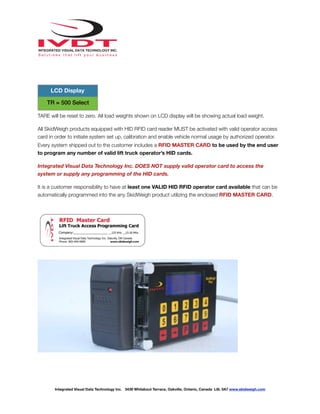
TARE will be reset to zero. All load weights shown on LCD display will be showing actual load weight.
All SkidWeigh products equipped with HID RFID card reader MUST be activated with valid operator access
card in order to initiate system set up, calibration and enable vehicle normal usage by authorized operator.
Every system shipped out to the customer includes a RFID MASTER CARD to be used by the end user
to program any number of valid lift truck operator’s HID cards.
Integrated Visual Data Technology Inc. DOES NOT supply valid operator card to access the
system or supply any programming of the HID cards.
It is a customer responsibility to have at least one VALID HID RFID operator card available that can be
automatically programmed into the any SkidWeigh product utilizing the enclosed RFID MASTER CARD.
TR = 500 Select
LCD Display
Integrated Visual Data Technology Inc. 3439 Whilabout Terrace, Oakville, Ontario, Canada L6L 0A7 www.skidweigh.com
!
Technology
The RFID operator access HID card reader is integrated into digital indicator housing with SkidWeigh system
proprietary software that allows self programming, deleting and management of authorized vehicles
operators on the any of the Skidweigh products equipped with RFID card readers. There is no need for any
additional programming devices!
System application to operate on any material handling vehicle having electrical power supply from 12 to 55 VDC.
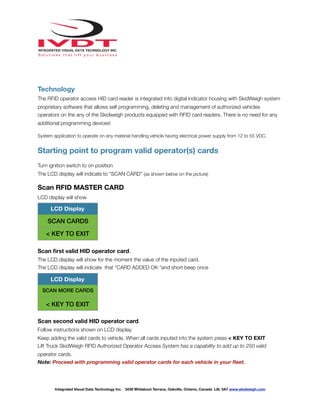
Starting point to program valid operator(s) cards
Turn ignition switch to on position
The LCD display will indicate to “SCAN CARD” (as shown below on the picture)
Scan RFID MASTER CARD
LCD display will show
Scan first valid HID operator card.
The LCD display will show for the moment the value of the inputed card.
The LCD display will indicate that “CARD ADDED OK “and short beep once
Scan second valid HID operator card.
Follow instructions shown on LCD display.
Keep adding the valid cards to vehicle. When all cards inputed into the system press < KEY TO EXIT
Lift Truck SkidWeigh RFID Authorized Operator Access System has a capability to add up to 250 valid
operator cards.
Note: Proceed with programming valid operator cards for each vehicle in your fleet.
LCD Display
SCAN CARDS
< KEY TO EXIT
LCD Display
SCAN MORE CARDS
< KEY TO EXIT
Integrated Visual Data Technology Inc. 3439 Whilabout Terrace, Oakville, Ontario, Canada L6L 0A7 www.skidweigh.com
!
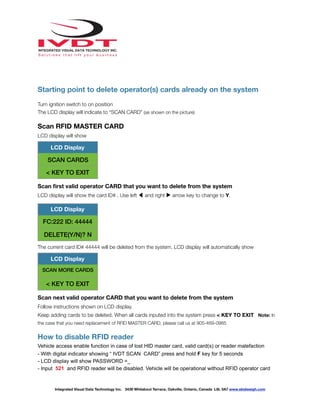
Starting point to delete operator(s) cards already on the system
Turn ignition switch to on position
The LCD display will indicate to “SCAN CARD” (as shown on the picture)
Scan RFID MASTER CARD
LCD display will show
Scan first valid operator CARD that you want to delete from the system
LCD display will show the card ID# . Use left ◀ and right ▶ arrow key to change to Y.
The current card ID# 44444 will be deleted from the system. LCD display will automatically show
Scan next valid operator CARD that you want to delete from the system
Follow instructions shown on LCD display.
Keep adding cards to be deleted. When all cards inputed into the system press < KEY TO EXIT Note: In
the case that you need replacement of RFID MASTER CARD, please call us at 905-469-0985
How to disable RFID reader
Vehicle access enable function in case of lost HID master card, valid card(s) or reader malefaction
- With digital indicator showing “ IVDT SCAN CARD” press and hold F key for 5 seconds
- LCD display will show PASSWORD =_
- Input 521 and RFID reader will be disabled. Vehicle will be operational without RFID operator card
LCD Display
SCAN CARDS
< KEY TO EXIT
LCD Display
FC:222 ID: 44444
DELETE(Y/N)? N
LCD Display
SCAN MORE CARDS
< KEY TO EXIT
Integrated Visual Data Technology Inc. 3439 Whilabout Terrace, Oakville, Ontario, Canada L6L 0A7 www.skidweigh.com
!
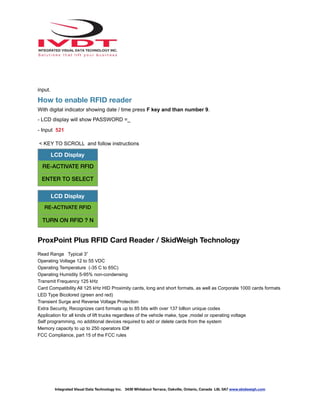
input.
How to enable RFID reader
With digital indicator showing date / time press F key and than number 9.
- LCD display will show PASSWORD =_
- Input 521
< KEY TO SCROLL and follow instructions
ProxPoint Plus RFID Card Reader / SkidWeigh Technology
Read Range Typical 3”
Operating Voltage 12 to 55 VDC
Operating Temperature (-35 C to 65C)
Operating Humidity 5-95% non-condensing
Transmit Frequency 125 kHz
Card Compatibility All 125 kHz HID Proximity cards, long and short formats, as well as Corporate 1000 cards formats
LED Type Bicolored (green and red)
Transient Surge and Reverse Voltage Protection
Extra Security, Recognizes card formats up to 85 bits with over 137 billion unique codes
Application for all kinds of lift trucks regardless of the vehicle make, type ,model or operating voltage
Self programming, no additional devices required to add or delete cards from the system
Memory capacity to up to 250 operators ID#
FCC Compliance, part 15 of the FCC rules
LCD Display
RE-ACTIVATE RFID
ENTER TO SELECT
LCD Display
RE-ACTIVATE RFID
TURN ON RFID ? N
Integrated Visual Data Technology Inc. 3439 Whilabout Terrace, Oakville, Ontario, Canada L6L 0A7 www.skidweigh.com

SkidWeigh Plus, Ed3:ed4 rfid v1.25

  • 1.
    ! Installation & CalibrationManual ED3/ED4-RFID SkidWeigh Plus Lift Truck On-board Check Weighing Scale Optional: Impact Monitor, OSHA Pre-Shift Checklist, Overload Warning, Vehicle Utilization, Authorized Operator Vehicle Access Control ED3/ED4-RFID V1.25 Integrated Visual Data Technology Inc. 3439 Whilabout Terrace, Oakville, Ontario, Canada L6L 0A7 www.skidweigh.com IMPORTANT NOTE: Please read first the HID ProxPoint Plus card reader information on the end of this manual referring to the programming method that is required to get the system up and running. RFID Proximity Card Reader
  • 2.
    ! General Installation Guide ThisED3-RFID and ED4-RFID SkidWeigh Plus V1.25 Series installation & calibration guide describes how to install, calibrate, test and use your on-board check weighing unit. Following the instructions in the ADMINISTRATION MENU guide will enable you to get the system set up and weighing calibration function operating quickly. In the event that you require additional assistance, please contact customer support via e-mail at support@skidweigh.com , visit www.skidweigh.com or contact us at the address or contact number below: Integrated Visual Data Technology Inc. 3439 Whilabout Terrace, Oakville, ON, Canada, L6L 0A7 Phone: 905-469-0985 Safety Always disconnect the vehicle battery while installing SkidWeigh system or any other electronic product. Make sure that unit, pressure transducer and any other associated cables are securely mounted and do not impede any of the vehicle’s controls. Use care when routing the components cables. Route the cables where they will be protected. Use commonly accepted install practices for after market industrial vehicle electronic devices. The installation of the SkidWeigh systems should only be performed by an acknowledged lift truck dealer technician or end user electro and hydraulic technical installer. Here are two acceptable methods of making a wire connections: * Soldering your connections (recommended) * Crimp connectors ( with the use of the proper crimping tool) Regardless of the method you choose, ensure that the connection is mechanically sound and properly insulated. Use high quality electrical tape and shrink tubing where necessary. This product is connected directly to the vehicle’s ignition switch, 12 to 55 VDC. There is no on-off switch on the unit. Electro-Magnetic Compatibility CE conformity to EC directive 89/336 (EMC) by application of harmonized standards: Interference stability EN 61000-6-2 and EN 61326-1 interference emit EN 61000-6-3, EN 61326-1 for the pressure transducer. ED3/ED4-RFID SkidWeigh Plus Series Our policy is one of continuous improvement and the information in this document is subject to change without notice. The software version is displayed on the LCD display once the power is turned on to the system. Overview of components The standard ED3/ED4-RFID SkidWeigh Plus check weighing system consist of two main components: * Digital indicator with integrated RFID operator access reader with wiring harness, mounting bracket * Hydraulic pressure transducer with 3 wires cable * Installation & calibration manual and operator usage instruction * One Master RFID card is included Integrated Visual Data Technology Inc. 3439 Whilabout Terrace, Oakville, Ontario, Canada L6L 0A7 www.skidweigh.com
  • 3.
    ! (Master card tobe used by the end user to program valid operators RFID cards. All programming can be done with ED3-RFID / ED4-RFID mobile units. There is no need for external programming device ) Operational principal The ED3/ED4-RFID SkidWeigh Plus series operational principal is based on the hydraulic pressure transducer mounted in the vehicle lifting hydraulic circuit that will automatically activate the “weighing cycle / specific algorithm ” every time a skid load is lifted just above the ground. The increase in pressure is converted in an electronic signal at the sample rate of 16000 readings which is converted into a load weight reading. The valid RFID operator card is required to operate vehicle. Pressure transducer installation The pressure transducer must be installed in the lifting hydraulic line between the lift control valve and lift cylinder(s). Mount a T-piece in hydraulic line. In some cases you can install the pressure transducer in the flow divider, drilling and tapping for 1/4”-18 NPT male in spare plug (if only single or double mast configuration) or in the body of the flow divider. Also, you can drill and tap on any “larger elbow” that might be available in the hydraulic lifting circuit found in vehicles with larger hoses to accommodate larger vehicle lifting capacities. Pressure transducer installation precautions Before installation of the pressure transducer the hydraulic lift circuit must be pressure free. There are two ways to do that: 1. Place the forks on the ground in their lowest position and make the hydraulic system pressure free by tilting the mast forward. The chain(s) should be slack. 2. Lift the forks and position them on the top of a supporting fixture. Start lowering the lifting cylinder into its lowest position. Be sure that chain(s) are slack. Make sure that that installed pressure transducer will not touch any moving parts or assembly of the vehicle while in normal operation. Pressure transducer has 1/4”-18 NPT male thread. Use thread seal to ensure tight fit. Selecting the mounting location for digital indicator Use the mounting bracket with the anti vibration mount and fasten digital indicator on the vehicle dashboard, side railing on the right hand side or preferably on the overhead guard. There are many examples of mounting locations that will depend on the vehicle model. However, additional mounting items such as a flat brackets may be needed to help secure the unit to upper right corner of the guard or side railing. Choose the correct location and make sure that: - Indicator is visible and within reach of the operator - Location so that operator has a clear unobstructed view of the working environment Integrated Visual Data Technology Inc. 3439 Whilabout Terrace, Oakville, Ontario, Canada L6L 0A7 www.skidweigh.com
  • 4.
    ! Compact size All ofthe SkidWeigh systems are compact, housing dimension of only 120 x 80 x 55 mm is ideal for the installations to material handling vehicles of all kinds. Electrical connections All SkidWeigh RFID equipped systems operate from 12 to 55 VDC. Digital indicator with eight wires single cable - Orange Wire (+) Ignition switch On position - Brown Wire (-) Battery negative - Red Wire, connect to RED wire of the pressure transducer cable - Black Wire, connect to BLACK wire of the pressure transducer cable - White Wire, connect to WHITE wire of the pressure transducer cable Integrated Visual Data Technology Inc. 3439 Whilabout Terrace, Oakville, Ontario, Canada L6L 0A7 www.skidweigh.com Pressure transducer 3 wires RED BLACK WHITE Power Supply + Orange - Brown Vehicle Disable Two Wires Function BLUE AND GREEN (N.O. Contacts) Used in series with seat switch wiring of the vehicle
  • 5.
    ! Internal relay connectionsto be used to enable vehicle usage (Dry contacts, SPDT maximum current 1A) - Green Wire Common - Yellow Wire NC - Blue Wire NO Note: Use two wires, BLUE and GREEN normally open SPST contacts and connect in series with vehicle seat switch wire to control vehicle usage Pressure transducer cable - White Wire, signal 0 to 2,5 V - Black Wire, signal negative - Red Wire, power supply + 11 V DC Integrated Visual Data Technology Inc. 3439 Whilabout Terrace, Oakville, Ontario, Canada L6L 0A7 www.skidweigh.com Male port 1/4”-18
  • 6.
    ! All SkidWeigh systemsare internally short circuit protected with resettable fuse. There is no need to install external inline fuse in orange wire that is connected to the ignition switch. IMPORTANT For all SkidWeigh Plus Systems equipped with RFID card reader you MUST HAVE AT LEAST ONE VALID OPERATOR CARD in order to access the administration menu to set up and calibrate the weighing function of the system! “Quick test to determine if electrical connections are done right” Note 1: SkidWeigh weighing calibration function is not done yet at this stage. This procedure is only to test if electrical connections of the system installation into the vehicle is done properly! After you have connected electrical power and pressure transducer cable you can “quickly” check the system operation. - Turn On ignition switch - Digital LCD display will be activated, showing software version and serial number - With LCD display indicating “IVDT Scan Card” scan valid RFID card and system will advance showing date / time. When the LCD display is showing time /data lower the loaded forks to the ground . (N/A) If the loaded forks are lifted above the ground LCD digital display will show “PLEASE WAIT” and within few seconds display will show “some” load weight . (Example: 455, not calibrated load weight at this stage) If the above test is valid than the system electrical connections are done right. The next procedure will be to log in into ADMINISTRATION MENU to calibrate the weighing function. LCD Display Aug 28, 2010 12:20:23 LCD Display PLEASE WEIGHT WEIGHT = 455 Integrated Visual Data Technology Inc. 3439 Whilabout Terrace, Oakville, Ontario, Canada L6L 0A7 www.skidweigh.com
  • 7.
    ! Lift truck equippedwith hydraulic accumulators If the standard SkidWeigh system is installed on the lift trucks equipped with hydraulic accumulators, please contact us to provide you with different digital indicator having specific software algorithm to obtain load weight accuracy within +/- 1% of vehicle maximum lifting capacity. SkidWeigh Plus series ED3-RFID Integrated Visual Data Technology Inc. 3439 Whilabout Terrace, Oakville, Ontario, Canada L6L 0A7 www.skidweigh.com RFID Reader LCD Display Keypad Enter Key Toggle Arrows Keys in set up menu Select function in F 0 and F 9 menu Print key or /and SEND key to wireless base station FUNCTION MODE KEY F9 F0
  • 8.
    ! Administration Menu Instructions (Weightscale function calibration, time/date, vehicle ID#) To enter into the Administration Menu, press F key and than 9 key and input password 521. Use left and right arrow keys to scroll and follow the LCD instructions. Date / Time Set Up Use left ◀ and right ▶ arrow key (bottom left side of the keypad) to change from AUTO to MANUAL date/time set up. Note: AUTO set up refers to system utilizing a wireless RF platform with automatic date /time update from IVDT Base Station communication and programming hub. For the applications without Base Station, select MANUAL _ set clock and follow the LCD instructions. LCD Display MENU PASSWORD = _ LCD Display <> KEY to SCROLL F KEY TO EXIT LCD Display SET CLOCK ENTER TO SELECT LCD Display SET CLOCK AUTO _ LCD Display SET CLOCK MANUAL _ Integrated Visual Data Technology Inc. 3439 Whilabout Terrace, Oakville, Ontario, Canada L6L 0A7 www.skidweigh.com
  • 9.
    ! Press “Enter key”↵ to confirm the setting. The cursor will automatically move to the next item to be changed ( Month, Day, Year, Hours, Minutes, Seconds). On the last correction, seconds item press “Enter key” ↵ to confirm new date / time set up. Set vehicle ID - Maximum input number for vehicle ID is 4 digits. Note: For system used with RFID card reader maximum input number for vehicle ID is 5 digits. LCD Display Aug 28, 2010 12:20:23 LCD Display <> KEY to SCROLL F KEY TO EXIT LCD Display SET VEHICLE ID ENTER TO SELECT LCD Display ENTER VEHICLE ID 1_ LCD Display VEHICLE ID CONFIGURATED Integrated Visual Data Technology Inc. 3439 Whilabout Terrace, Oakville, Ontario, Canada L6L 0A7 www.skidweigh.com
  • 10.
    ! Save data toUSB The SkidWeigh Plus system will allow you to download all recorded data onto a USB drive. Follow instructions shown on the LCD display This function is located in Supervisor Menu to protect the integrity of the information. When the system has finished uploading the data to the USB memory stick the LCD display will prompt you to erase the SDRAM , all files contained on the SKidWeigh Plus ED3-IM . Once you have made your selection Y or N the system will automatically bring you back to the main screen in the supervisor menu. LCD Display <> KEY to SCROLL F KEY TO EXIT LCD Display SAVE TO USB ENTER TO SELECT LCD Display SAVING TO USB - - - - - - - LCD Display ERASE SDRAM ? N LCD Display <> KEY to SCROLL F KEY TO EXIT Integrated Visual Data Technology Inc. 3439 Whilabout Terrace, Oakville, Ontario, Canada L6L 0A7 www.skidweigh.com USB Port Protective CoverUSB port
  • 11.
    ! Weighing scale functioncalibration The ED3/ED4-RFID SkidWeigh Plus calibration is automatic and is done by lifting empty and loaded forks (or any other attachment such as paper clamp) just above the ground. MAKE SURE THAT YOU HAVE A KNOWN LOAD WEIGHT AND KEEP IT NEARBY TO COMPLETE THE CALIBRATION. For the best results use at least minimum calibration load test weight of 30 to 50% of maximum lifting capacity of the lift truck. Use customer floor scale or find a known skid load weight within the operational facility. Important: If you want the system to show load weight in pounds, use the known load weight in pounds and enter that value accordingly. The same would apply if you want the system to show load weight in kilograms. Use the known load weight in kilograms and enter that value into the system accordingly. Calibration starting point Scan valid HID operator card and press F key and than number 9 to get into administration menu. Input password 521 , press “Enter key” ↵ and scroll to Calibration 1. Lower the empty forks to the ground. There should be no hydraulic pressure in lift hydraulic circuit. Follow instructions shown on the LCD display LCD Display <> KEY TO Optional Function SCROLL F KEY TO EXIT LCD Display CALIBRATION 1 ENTER TO SELECT LCD Display CALIBRATION 1 LIFT EMPTY FORKS Integrated Visual Data Technology Inc. 3439 Whilabout Terrace, Oakville, Ontario, Canada L6L 0A7 www.skidweigh.com
  • 12.
    ! You must activatelift control valve and lift the empty forks just above the ground the same way that you would normally do when lifting loads. Do not slow down this lifting operational cycle, do not tilt the load, do not lift to different heights or move vehicle. Lift empty forks just above the ground . After few seconds the LCD display will show At this point you must lower the empty forks to the ground. The LCD display prompt you to input known calibration load weight. Pick up a known load weigh and lower the loaded forks to the ground. (Our example of the known load weight is 2000 kg) Input into the system the known load weight of 2000 into the LCD display and press “Enter key” ↵. The LCD display will show LCD Display CALIBRATION 1 LOWER FORKS LCD Display CALIBRATION 1 WEIGHT = ❏ LCD Display CALIBRATION 1 WEIGHT = 2000 LCD Display CALIBRATION 1 LIFT LOAD Integrated Visual Data Technology Inc. 3439 Whilabout Terrace, Oakville, Ontario, Canada L6L 0A7 www.skidweigh.com
  • 13.
    ! Lift loaded forksjust above the ground. After few seconds the calibrated load weight value of 2000 will be stored in the system memory. The LCD display will prompt you to lower “LOWER FORKS”. As soon the loaded forks are lowered to the ground LCD will show data / time. System is ready to be used! System with optional overload warning function (Additional step) As soon as the loaded forks are lowered to the ground the LCD will prompt you to input the overload value for your vehicle operational application. Input the overload value and press “Enter key” ↵. Calibration of the ED3-RFID system weighing function is finished. LCD Display CALIBRATION 1 LOWER FORKS LCD Display CALIBRATION 1 CONFIGURATED LCD Display AUG 28, 2010 12:25:23 LCD Display CALIBRATION 1 OVERLOAD = _ Integrated Visual Data Technology Inc. 3439 Whilabout Terrace, Oakville, Ontario, Canada L6L 0A7 www.skidweigh.com
  • 14.
    ! Supervisor Menu Instructions (SetImpacts, saving data to USB, other applicable functions) Low impacts High impacts Audible buzzer warning for low and high impacts Audible buzzer warning time from 1 to 60 seconds Continuous audible buzzer warning To enter into the Supervisor Menu, press F key and than number 9 key. Input password 521. Follow instructions shown on the LCD display LCD Display MENU PASSWORD = _ LCD Display SET IMPACTS ENTER TO SELECT LCD Display ENTER LOW IMPACT 4.0 G _ LCD Display ENTER HI IMPACT 8.0 G _ LCD Display ENTER HI IMPACT 8.0 G _ Integrated Visual Data Technology Inc. 3439 Whilabout Terrace, Oakville, Ontario, Canada L6L 0A7 www.skidweigh.com
  • 15.
    ! Lift Truck OperatorMenu Instructions (Bluetooth, TARE set up, Parts count functions) The SkidWeigh Plus system allows lift truck operator to pair Bluetooth additional devices such as onboard printers or barcode scanners or set TARE, Parts count. To enter into the lift truck operator menu, press F key and than number 0. Follow instructions shown on the LCD display Note: Use left ◀ and right ▶ arrow key (bottom left side of the keypad) to choose MANUAL, INQUIRY or AUTO. LCD Display ENTER HI IMPACT CONTINUOUS ? Y LCD Display ENTER HI IMPACT CONTINUOUS ? Y LCD Display IMPACT CONFIGURATED LCD Display BLUETOOTH ENTER TO SELECT LCD Display BLUETOOTH MODE AUTO _ Integrated Visual Data Technology Inc. 3439 Whilabout Terrace, Oakville, Ontario, Canada L6L 0A7 www.skidweigh.com
  • 16.
    ! Note: For themajority of the Bluetooth pairing applications use AUTO mode. Make sure that you follow pairing instructions for each Bluetooth device. Bluetooth pairing options are - AUTO - MANUAL - INQUIRY (Preferable method) LCD Display BLUETOOTH MODE AUTO _ LCD Display BLUETOOTH MODE INQUIRY LCD Display BLUETOOTH MODE MANUAL LCD Display SEARCHING _ _ _ _ _ _ _ Integrated Visual Data Technology Inc. 3439 Whilabout Terrace, Oakville, Ontario, Canada L6L 0A7 www.skidweigh.com
  • 17.
    ! Operator Reference /Usage Guide - Turn ignition switch - Scan RFID card. Note: Input an operator ID# and press “Enter key” ↵ if applicable. - Insert the forks into the pallet or under the product to be weighed. - Lower the forks to the ground. LCD display must show date and time in order to initiate weighing function. Activate lift control valve and lift loaded forks just above the ground. Do not manipulate the tilt, side shift or move the vehicle. LCD Display ENTER ID NUMBER ID = _ LCD Display Aug 11, 2011 11:19:38 LCD Display Aug 11, 2011 11:19:38 Integrated Visual Data Technology Inc. 3439 Whilabout Terrace, Oakville, Ontario, Canada L6L 0A7 www.skidweigh.com
  • 18.
    ! LCD will display“PLEASE WAIT” and after few seconds a load weight will be shown Example: Lifted load weight of 300 This load weight will be shown on LCD display until next time the forks are lowered to ground. Note: When vehicle in motion the LCD might show some random load weight. This is due to the hydraulic spikes and this does not represents any actual load weight value. To initiate the “weighing cycle” you must lower the loaded forks to the ground and lift loaded forks just above the ground. Accumulative Load Weight Total To add loads weight press “Enter key” ↵ after each load weight is shown on LCD display. When “Enter key” ↵ is pressed LCD display will show a load weight of the first load and total load weight. LCD Display Aug 11, 2011 PLEASE WAIT LCD Display Aug 11, 2011 WEIGHT = 1200 LCD Display WEIGHT#1 = 1200 Integrated Visual Data Technology Inc. 3439 Whilabout Terrace, Oakville, Ontario, Canada L6L 0A7 www.skidweigh.com
  • 19.
    ! After each newload weight shown on LCD display and pressing “Enter key” ↵ system will be updated showing the latest current load weight total, number of loads and total load weight of all loads. To reset current individual load weight or totalizing session press “P” key and session will be RESET. Note: If the onboard printer is connected to the system by pressing “P” key after individual or total load weight you will get a printout ticket. If the system is utilizing RF communication data will be send to base station. TARE Function Input To set up TARE value into the system press F key and than 0 key. Scroll to get to the TARE value set up. TOTAL = 1200 LCD Display LCD Display Aug 11, 2011 WEIGHT = 1200 LCD Display <> KEY to SCROLL F KEY TO EXIT LCD Display TARE ENTER TO SELECT LCD Display TARE ADJUSTMENT TR = 00 Select Integrated Visual Data Technology Inc. 3439 Whilabout Terrace, Oakville, Ontario, Canada L6L 0A7 www.skidweigh.com
  • 20.
    ! To reset orchange TARE value press F key and than 0 key and set to 0 to reset current TARE value. To change to the new TARE value, input another TARE value and press “Enter key” ↵ . All of the following load weight measurements will be displayed with TARE sign shown on LCD display. Important: To reset TARE you must press “F” key and input number 0 and press “Enter key” ↵. If the current value is 500 as of example, than input 0 value and “Enter key” ↵. LCD Display TARE CONFIGURATED LCD Display Aug 11, 2011 TARE = 1250 LCD Display <> KEY TO SCROLL F KEY TO EXIT LCD Display TARE ENTER TO SELECT LCD Display TARE ADJUSTMENT Integrated Visual Data Technology Inc. 3439 Whilabout Terrace, Oakville, Ontario, Canada L6L 0A7 www.skidweigh.com
  • 21.
    ! TARE will bereset to zero. All load weights shown on LCD display will be showing actual load weight. All SkidWeigh products equipped with HID RFID card reader MUST be activated with valid operator access card in order to initiate system set up, calibration and enable vehicle normal usage by authorized operator. Every system shipped out to the customer includes a RFID MASTER CARD to be used by the end user to program any number of valid lift truck operator’s HID cards. Integrated Visual Data Technology Inc. DOES NOT supply valid operator card to access the system or supply any programming of the HID cards. It is a customer responsibility to have at least one VALID HID RFID operator card available that can be automatically programmed into the any SkidWeigh product utilizing the enclosed RFID MASTER CARD. TR = 500 Select LCD Display Integrated Visual Data Technology Inc. 3439 Whilabout Terrace, Oakville, Ontario, Canada L6L 0A7 www.skidweigh.com
  • 22.
    ! Technology The RFID operatoraccess HID card reader is integrated into digital indicator housing with SkidWeigh system proprietary software that allows self programming, deleting and management of authorized vehicles operators on the any of the Skidweigh products equipped with RFID card readers. There is no need for any additional programming devices! System application to operate on any material handling vehicle having electrical power supply from 12 to 55 VDC. Starting point to program valid operator(s) cards Turn ignition switch to on position The LCD display will indicate to “SCAN CARD” (as shown below on the picture) Scan RFID MASTER CARD LCD display will show Scan first valid HID operator card. The LCD display will show for the moment the value of the inputed card. The LCD display will indicate that “CARD ADDED OK “and short beep once Scan second valid HID operator card. Follow instructions shown on LCD display. Keep adding the valid cards to vehicle. When all cards inputed into the system press < KEY TO EXIT Lift Truck SkidWeigh RFID Authorized Operator Access System has a capability to add up to 250 valid operator cards. Note: Proceed with programming valid operator cards for each vehicle in your fleet. LCD Display SCAN CARDS < KEY TO EXIT LCD Display SCAN MORE CARDS < KEY TO EXIT Integrated Visual Data Technology Inc. 3439 Whilabout Terrace, Oakville, Ontario, Canada L6L 0A7 www.skidweigh.com
  • 23.
    ! Starting point todelete operator(s) cards already on the system Turn ignition switch to on position The LCD display will indicate to “SCAN CARD” (as shown on the picture) Scan RFID MASTER CARD LCD display will show Scan first valid operator CARD that you want to delete from the system LCD display will show the card ID# . Use left ◀ and right ▶ arrow key to change to Y. The current card ID# 44444 will be deleted from the system. LCD display will automatically show Scan next valid operator CARD that you want to delete from the system Follow instructions shown on LCD display. Keep adding cards to be deleted. When all cards inputed into the system press < KEY TO EXIT Note: In the case that you need replacement of RFID MASTER CARD, please call us at 905-469-0985 How to disable RFID reader Vehicle access enable function in case of lost HID master card, valid card(s) or reader malefaction - With digital indicator showing “ IVDT SCAN CARD” press and hold F key for 5 seconds - LCD display will show PASSWORD =_ - Input 521 and RFID reader will be disabled. Vehicle will be operational without RFID operator card LCD Display SCAN CARDS < KEY TO EXIT LCD Display FC:222 ID: 44444 DELETE(Y/N)? N LCD Display SCAN MORE CARDS < KEY TO EXIT Integrated Visual Data Technology Inc. 3439 Whilabout Terrace, Oakville, Ontario, Canada L6L 0A7 www.skidweigh.com
  • 24.
    ! input. How to enableRFID reader With digital indicator showing date / time press F key and than number 9. - LCD display will show PASSWORD =_ - Input 521 < KEY TO SCROLL and follow instructions ProxPoint Plus RFID Card Reader / SkidWeigh Technology Read Range Typical 3” Operating Voltage 12 to 55 VDC Operating Temperature (-35 C to 65C) Operating Humidity 5-95% non-condensing Transmit Frequency 125 kHz Card Compatibility All 125 kHz HID Proximity cards, long and short formats, as well as Corporate 1000 cards formats LED Type Bicolored (green and red) Transient Surge and Reverse Voltage Protection Extra Security, Recognizes card formats up to 85 bits with over 137 billion unique codes Application for all kinds of lift trucks regardless of the vehicle make, type ,model or operating voltage Self programming, no additional devices required to add or delete cards from the system Memory capacity to up to 250 operators ID# FCC Compliance, part 15 of the FCC rules LCD Display RE-ACTIVATE RFID ENTER TO SELECT LCD Display RE-ACTIVATE RFID TURN ON RFID ? N Integrated Visual Data Technology Inc. 3439 Whilabout Terrace, Oakville, Ontario, Canada L6L 0A7 www.skidweigh.com