Christian Buckley
@buckleyplanet
http://www.buckleyplanet.com
Tom Duff
@Duffbert
http://OneMinuteOfficeMagic.com
For more content like this subscribe on YouTube at http://bit.ly/CollabTube
http://bit.ly/SPC19tips
Finding the keyboard shortcuts for Microsoft Teams
This one is useful for anyone using Microsoft Teams. You can quickly get a pop-up list of all the
keyboard shortcuts that might save you a few seconds every time you do something out in Teams.
In the Microsoft Teams client application, place your cursor in the search bar at the top, and press
ALT + / at the same time:
This keystroke combination causes the following pop-up screen to appear with a number of keyboard
shortcuts you can use in the Microsoft Teams client:
Finding the keyboard shortcuts for Microsoft Teams
At the bottom of the pop-up screen, you'll see a link for See Shortcuts For All Platforms. This gives you
the same information as above, but it covers both the Microsoft Teams client application as well as the
web application:
Finding the keyboard shortcuts for Microsoft Teams
Adding interactive Microsoft Forms to PowerPoint
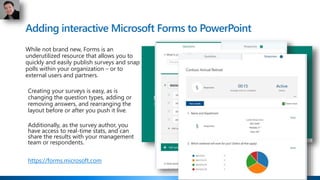
While not brand new, Forms is an
underutilized resource that allows you to
quickly and easily publish surveys and snap
polls within your organization – or to
external users and partners.
Creating your surveys is easy, as is
changing the question types, adding or
removing answers, and rearranging the
layout before or after you push it live.
Additionally, as the survey author, you
have access to real-time stats, and can
share the results with your management
team or respondents.
https://forms.microsoft.com
Adding interactive Microsoft Forms to PowerPoint
 Microsoft Forms is now integrated with
PowerPoint for Office 365, providing a
seamless way for speakers, trainers,
and educators to connect and interact
with participants. As shown in a
Microsoft Tech Community blog post,
presenters can get real-time audience
feedback via forms and quizzes
without asking them to leave
PowerPoint.
 To get started, in PowerPoint under
Insert, click the Forms icon to create a
new form/quiz or insert one you’ve
already created.
 Please note that this feature is
currently only available for PowerPoint
Windows 32
Adding interactive Microsoft Forms to PowerPoint
To see the responses to your form or quiz,
sign in to your Office 365 account at
https://forms.office.com/
Open the appropriate form from your My
forms page, and then select the Responses
tab at the top of the page.
Adding interactive Microsoft Forms to PowerPoint
To create a quiz, check out the
article at https://support.office.com/en-
us/article/create-a-quiz-with-microsoft-
forms-a082a018-24a1-48c1-b176-
4b3616cdc83d
Editing your video transcript in Microsoft Stream
This tip is the result of someone asking me yesterday whether they could edit a transcript once a
video had been uploaded to Microsoft Stream. Much to my surprise, you *can* edit a video
transcript, and it's pretty easy!
First, call up the video you want to edit. This does assume you are an owner of the video and/or
have owner rights to it. At the bottom of the Transcript panel, you should see an Edit button. Click
it to put the Transcript into Edit mode:
Editing your video transcript in Microsoft Stream
Once you're in Edit mode, you can click a Transcript snippet to allow editing for that section. If you
click on the black circular arrow icon, the video will start playing at that point so you can listen to
what was actually said:
Editing your video transcript in Microsoft Stream
Once you're done, you can continue editing snippets, or you can click Done and get on
with your workday:
Text Annotations in Office Lens
 Office Lens trims, enhances, and makes pictures of whiteboards
and docs readable. You can use Office Lens to convert images to
PDF, Word and PowerPoint files, and you can even save images to
OneNote or OneDrive.
 You can now
 add text to highlight a part of a document
 add a watermark of your brand text before sharing
 add a caption that stays intact with the image wherever it
goes and communicates your idea to your colleagues
 After taking your image, simply tap on the ‘T’ icon and easily add
text while on the go and in the moment. You can select a
style/template, change text color and position, and then share!
 Currently available on both Android and iOS, but no word about
support for Windows Phone, Blackberry, Palm OS, or Kin
(fun article on why Windows Mobile failed that’s worth a read)
Text Annotations in Office Lens
Insights in Outlook
OK… I have been looking forward to this feature rolling out for a VERY long time! I apparently
have the latest updates to my Outlook client now, as this morning I saw the Insights add-on
icon in the Ribbon Bar. To me, this is one of the most valuable uses of machine learning in
Office 365 to help you stay on top of your Inbox and Calendar. Here's what I saw this morning
on my first visit to Insights…
Insights in Outlook
When I clicked on it, it opened a panel that displayed the following insights:
Insights in Outlook
When I clicked on it, it opened a panel that displayed the following insights:
Connecting Your SharePoint and Cloud Storage to Teams
Did you know that you can connect
multiple SharePoint lists and libraries
to Microsoft Teams through Files and
Tabs?
But did you also know you can also
connect to your other cloud storage
apps and services the same way?
 Provides an interface into relevant
content
 Surfaces sites and tools in context to
conversations
 Removes (or reduces) the “which tool do
you use when?” argument
Connecting Your SharePoint and Cloud Storage to Teams
https://blogs.technet.microsoft.com/skypeh
ybridguy/2017/10/28/microsoft-teams-use-
an-existing-sharepoint-library/
Connecting Your SharePoint and Cloud Storage to Teams
http://www.sharepointlonghorn.com/using-
sharepoint-lists-microsoft-teams/
Connecting Your SharePoint and Cloud Storage to Teams
https://blogs.technet.microsoft.com/skypeh
ybridguy/2017/10/28/microsoft-teams-use-
an-existing-sharepoint-library/
Checking for gender-inclusivity when using Word
If you're old like me, words like "policeman" and "fireman" just want to roll off your tongue, as that's
what you grew up with. But today's communication often requires a more gender-inclusive word
selection like "police officer" or "fire fighter." Microsoft Word has an option that will allow you to do
grammar checks for that very scenario. Here's how to activate that…
In Word, go to Options > Proofing > When correcting spelling and grammar in Word, and click
on the Settings button after Writing Style: Grammar & Refinements:
Checking for gender-inclusivity when using Word
Scroll down to Inclusive Language, and select the option for Gender-Specific Language:
Checking for gender-inclusivity when using Word
Here are some examples of what happens now…
Automating Microsoft To-Do with your Smart Speakers
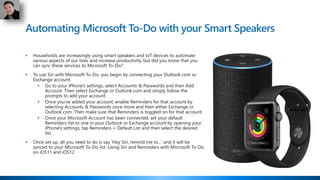
 Households are increasingly using smart speakers and IoT devices to automate
various aspects of our lives and increase productivity, but did you know that you
can sync these services to Microsoft To-Do?
 To use Siri with Microsoft To-Do, you begin by connecting your Outlook.com or
Exchange account.
 Go to your iPhone's settings, select Accounts & Passwords and then Add
Account. Then select Exchange or Outlook.com and simply follow the
prompts to add your account.
 Once you’ve added your account, enable Reminders for that account by
selecting Accounts & Passwords once more and then either Exchange or
Outlook.com. Then make sure that Reminders is toggled on for that account.
 Once your Microsoft Account has been connected, set your default
Reminders list to one in your Outlook or Exchange account by opening your
iPhone's settings, tap Reminders > Default List and then select the desired
list.
 Once set up, all you need to do is say 'Hey Siri, remind me to...' and it will be
synced to your Microsoft To-Do list. Using Siri and Reminders with Microsoft To-Do
on iOS11 and iOS12
Automating Microsoft To-Do with your Smart Speakers
 For more details, check out the following:
 Using Siri and Reminders with Microsoft To-Do on iOS11 and iOS12
 Using Ok Google with Microsoft To-Do
 Using Apple Watch with Microsoft To-Do
 Additionally, there are many many many integrations available through services like
IFTTT (If This Then That) and Zapier to help connect your smart speakers and smart
phones to Microsoft apps and services, such as
 Connecting Amazon Echo To-Do to OneNote
Closing original emails in Outlook when replying or forwarding…
As I get older, I find that my mind is much more… "efficient" when it comes to "erasing" short-term
memory… such as "why did I have this particular email open on my screen, and did I already
respond to it?" Well, I just saw an option in Outlook that closes the original email when you do a
Reply or Forward, eliminating all the screen clutter. Here's how it works…
Here's an example of how Outlook was working before. I'd click on an email message to make it
appear in a separate window, and then I'd click Reply, Reply All, or Forward:
Closing original emails in Outlook when replying or forwarding…
You can see that I get a new email window, but my original email window is still there:
Closing original emails in Outlook when replying or forwarding…
My Task Bar in Windows also has two items there for my original and my new emails:
However, by going out to my Outlook options and selecting Mail > Replies and forwards >
Close original message window when replying or forwarding, I can get Outlook to "declutter"
my screen by closing my original email before showing my new email screen:
Closing original emails in Outlook when replying or forwarding…
Much cleaner, and I don't have to remember later why I had a particular email open for reading:
Change your Outlook mobile swipe options
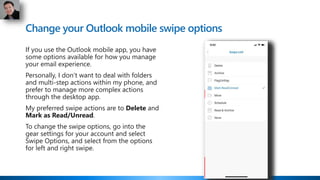
If you use the Outlook mobile app, you have
some options available for how you manage
your email experience.
Personally, I don’t want to deal with folders
and multi-step actions within my phone, and
prefer to manage more complex actions
through the desktop app.
My preferred swipe actions are to Delete and
Mark as Read/Unread.
To change the swipe options, go into the
gear settings for your account and select
Swipe Options, and select from the options
for left and right swipe.
Making quick video recordings in OneNote
Let's say you want to create a quick video of yourself, either to let your team know something, or perhaps
just as a reminder to yourself to take care of some items. OneNote has a basic video recording function
built in, and it's perfect for those basic types of videos (not screen captures… just whatever your vidcam is
picking up). Here's how it works…
First off, go to your OneNote Options (File > Options), select Audio & Video, and make sure you have
the right audio and video devices selected to record yourself:
Making quick video recordings in OneNote
Once that's done, go to the Insert tab, add a new page, place the cursor where you want the recording to
be, and click Record Video:
Making quick video recordings in OneNote
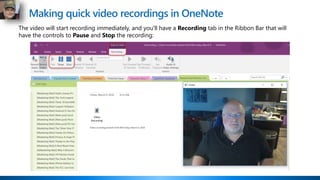
The video will start recording immediately, and you'll have a Recording tab in the Ribbon Bar that will
have the controls to Pause and Stop the recording:
Making quick video recordings in OneNote
When you're done, just click Stop and everything is stored automatically. If you want to replay the recording, click Play:
Making quick video recordings in OneNote
What's also a nice touch is that you can also right-click on the video icon and save it to a different
location if you need it to reside outside of OneNote:
Insert Data from Picture into Excel
With Insert Data from Picture, you can take a picture of a
printed data table with your Android device and convert that
analog information into an Excel spreadsheet with a single
click.
New image recognition functionality automatically converts
the picture to a fully editable table in Excel, eliminating the
need for you to manually enter data.
Insert Data from Picture will be available in preview for the
Excel Android app soon. No dates for iOS devices just yet.
https://www.microsoft.com/en-us/microsoft-365/blog/2018/09/24/bringing-
ai-to-excel-4-new-features-announced-today-at-ignite/
Using the Read Aloud feature in Outlook
Have you ever gotten an email from someone that looks more like a novel than a request? Have you
wished you could just have someone read it to you while you focus on something else? Well, with
the Read Aloud feature in Outlook, you can now do that! Here's how…
First of all, you need to turn the feature on in your Outlook Options panel. Go to Ease of Access
and select the Show Read Aloud setting:
Using the Read Aloud feature in Outlook
Now when you open an email, you'll see the Read Aloud Speech option. When you click that
option in the Ribbon Bar, a speech toolbar will appear and you'll start to hear the email being read
aloud. The toolbar allows you to Rewind, Pause/Start, Fast Forward, set Options, and Stop:
Using the Read Aloud feature in Outlook
With the Options setting, you can alter the speed of the narration, as well as the voice used. David is
a lower-pitched male voice, while Mark has a higher-pitch. Zira is the female voice:
While this isn't something I'd necessarily use all that often, I can see it being useful for long emails with a
ton of text. It could also be extremely useful in the case of people who have vision issues that make it hard
to read and/or digest longer emails.
Find the Right Meeting Time with FindTime
Stop the endless email chains to try and find the right time
for a group meeting, and don’t pay a cent to 3rd party
services! Use FindTime
Add the app to your Outlook application, and scheduling
the right meeting time becomes a breeze (although you
may have to still chase people to respond).
Once installed, restart Outlook
and create a new email, and on
the right of the ribbon, select
New meeting Poll.
Works with Outlook 2013, 2016,
Office 365 (Outlook Online), and
Outlook for Mac
Marking unread deleted emails in Outlook as read
This probably doesn't bother anyone else like it bothers
me… If I have a message in my Inbox that's unread and I
delete it (or if I have a rule that routes certain messages
directly to the Deleted Items folder), it still shows as
unread in my Deleted Items folder. And since I have my
folders set to show the number of unread messages, I
always have a number next to the Deleted Items folder
that's completely meaningless to me… and it annoys me.
Yes, I'm old, so get off my lawn…
This tip shows you how to have any message (read or
unread) that's moved to the Deleted Items folder to be
marked as read…
Here's what my Outlook folders look like (notice the 12
unread items in my Deleted Items folder):
Marking unread deleted emails in Outlook as read
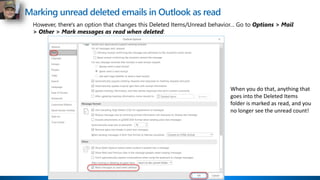
However, there's an option that changes this Deleted Items/Unread behavior… Go to Options > Mail
> Other > Mark messages as read when deleted:
When you do that, anything that
goes into the Deleted Items
folder is marked as read, and you
no longer see the unread count!
AI-Powered To-Do Tracking in Word
Editor—Word’s AI-powered writing assistant—is
an indispensable tool for the written word. But
sometimes you need to leave a placeholder in
your document and come back to it later to stay
in your flow.
Word now helps users create and fill in these
placeholders without leaving the flow of their
work.
For example, type TODO: finish this section or
<<insert closing here>> and Word recognizes
and tracks them as to-dos. When you come back
to the document, you’ll see a list of your
remaining to-dos, and you can click each one to
navigate back to the right spot.
AI-Powered To-Do Tracking in Word
Once you’ve created your to-dos, Word can also
help you complete them. If you need help from a
friend or coworker, just @mention them within a
placeholder. Word sends them a notification with a
“deep link” to the relevant place in the document.
Soon, they’ll be able to reply to the notification
with their contributions, and those contributions
will be inserted directly into the document—
making it easy to complete the task with an email
from any device.
Over time, Office will use AI to help fill in many of
these placeholders. In the next few months, Word
will use Microsoft Search to suggest content for a
to-do like <<insert chart of quarterly sales
figures>>. You will be able to pick from the
results and insert content from another document
with a single click.
Currently in preview with Office Insiders.
Spicing up your Microsoft Teams channel posts and conversations
In the Conversation tabs of your various Microsoft Teams channels, you can have a lot of information
going back and forth that just sort of blends together into a blur. That's fine for the normal team
chatter, but you may have something to post in there that should be more noticeable than
everything else. That's when you want to use the Formatting feature in the post area. Here's how to
do that…
Here's a bland post for a channel. While the thought behind the post is important, the presentation
of the post is easy to overlook when you click the Send icon:
I could (and probably have) overlooked posts like this:
Spicing up your Microsoft Teams channel posts and conversations
Here I've updated my original post with a subject, a bulleted list, highlighted text, a link to Google,
and I've marked the message as important:
This certainly stands out, and will catch my audience's attention far better than my original one-liner…
Reuse existing slides in new PowerPoint presentations
Instead of recreating slides from scratch,
quickly find and reuse slides from your
files or from others in your organization
with the help of Microsoft AI in
PowerPoint.
Simply click the Reuse Slides button on
the Home tab to surface existing
PowerPoint decks in the sidebar to browse
through recommended PowerPoint decks
that you have access to, view the slides in
each presentation, and insert them into
the deck you are creating.
This feature is available for all Office 365
subscribers.
Viewing your recent edits in OneNote
With the amount of work we do on a daily basis, it's often hard to remember just exactly where you
updated or changed information. You know you did it in the last couple of days, but you can't
specifically remember where it was done.
If you're using OneNote to store information, OneNote makes it easy to find everything you changed
and where exactly it was updated using the Recent Edits feature. Here's how that works…
Go to the History tab in the Ribbon
Bar and click on the Recent Edits
icon. You'll see a number of date
options that OneNote will use to
show you your changes. In my case,
I want to see everything that's been
changed Since Yesterday:
Viewing your recent edits in OneNote
When I click the Since Yesterday option, my Search Results pane appears on the right side of the page,
and lists every page that's been updated since the date option I selected. In addition, I can click on the
links to the page to go directly to that location, plus I'll also see the changed page and content
highlighted in yellow:
Viewing your recent edits in OneNote
By default, it searches the notebook that I'm
currently viewing. However, I also have the
option to have it search just the section I'm in,
an entire grouped section, or all the notebooks I
have in my OneNote client:
I also have options on how I want the data
sorted. By default, it's by date modified, but I
can also go by section, by title, and by author:
Export PowerPoint to Video
You’ve spent time creating your
presentations with animations and
transitions to tell a story, and want to
save your file in a more consumable
format.
Export, Save as Video
You have the ability to create a quick
video using set timing, or create
custom timing and transitions, and
even annotate with video so that you
can walk through each slide and talk
about the content that is being
shown.
http://bit.ly/SPC19tips
Want more tips?
Thursday, June 20th, 2019
“Summer Scuffle”
Register at http://bit.ly/O365scuffle
Christian Buckley
@buckleyplanet
http://www.buckleyplanet.com
Tom Duff
@Duffbert
http://OneMinuteOfficeMagic.com
…AND subscribe to us on YouTube at http://bit.ly/CollabTube
Thank you
20 Office 365 Productivity Tips that you've probably never used (but should)

20 Office 365 Productivity Tips that you've probably never used (but should)

  • 3.
  • 4.
  • 9.
    Finding the keyboardshortcuts for Microsoft Teams This one is useful for anyone using Microsoft Teams. You can quickly get a pop-up list of all the keyboard shortcuts that might save you a few seconds every time you do something out in Teams. In the Microsoft Teams client application, place your cursor in the search bar at the top, and press ALT + / at the same time:
  • 10.
    This keystroke combinationcauses the following pop-up screen to appear with a number of keyboard shortcuts you can use in the Microsoft Teams client: Finding the keyboard shortcuts for Microsoft Teams
  • 11.
    At the bottomof the pop-up screen, you'll see a link for See Shortcuts For All Platforms. This gives you the same information as above, but it covers both the Microsoft Teams client application as well as the web application: Finding the keyboard shortcuts for Microsoft Teams
  • 13.
    Adding interactive MicrosoftForms to PowerPoint While not brand new, Forms is an underutilized resource that allows you to quickly and easily publish surveys and snap polls within your organization – or to external users and partners. Creating your surveys is easy, as is changing the question types, adding or removing answers, and rearranging the layout before or after you push it live. Additionally, as the survey author, you have access to real-time stats, and can share the results with your management team or respondents. https://forms.microsoft.com
  • 14.
    Adding interactive MicrosoftForms to PowerPoint  Microsoft Forms is now integrated with PowerPoint for Office 365, providing a seamless way for speakers, trainers, and educators to connect and interact with participants. As shown in a Microsoft Tech Community blog post, presenters can get real-time audience feedback via forms and quizzes without asking them to leave PowerPoint.  To get started, in PowerPoint under Insert, click the Forms icon to create a new form/quiz or insert one you’ve already created.  Please note that this feature is currently only available for PowerPoint Windows 32
  • 15.
    Adding interactive MicrosoftForms to PowerPoint To see the responses to your form or quiz, sign in to your Office 365 account at https://forms.office.com/ Open the appropriate form from your My forms page, and then select the Responses tab at the top of the page.
  • 16.
    Adding interactive MicrosoftForms to PowerPoint To create a quiz, check out the article at https://support.office.com/en- us/article/create-a-quiz-with-microsoft- forms-a082a018-24a1-48c1-b176- 4b3616cdc83d
  • 18.
    Editing your videotranscript in Microsoft Stream This tip is the result of someone asking me yesterday whether they could edit a transcript once a video had been uploaded to Microsoft Stream. Much to my surprise, you *can* edit a video transcript, and it's pretty easy! First, call up the video you want to edit. This does assume you are an owner of the video and/or have owner rights to it. At the bottom of the Transcript panel, you should see an Edit button. Click it to put the Transcript into Edit mode:
  • 19.
    Editing your videotranscript in Microsoft Stream Once you're in Edit mode, you can click a Transcript snippet to allow editing for that section. If you click on the black circular arrow icon, the video will start playing at that point so you can listen to what was actually said:
  • 20.
    Editing your videotranscript in Microsoft Stream Once you're done, you can continue editing snippets, or you can click Done and get on with your workday:
  • 22.
    Text Annotations inOffice Lens  Office Lens trims, enhances, and makes pictures of whiteboards and docs readable. You can use Office Lens to convert images to PDF, Word and PowerPoint files, and you can even save images to OneNote or OneDrive.  You can now  add text to highlight a part of a document  add a watermark of your brand text before sharing  add a caption that stays intact with the image wherever it goes and communicates your idea to your colleagues  After taking your image, simply tap on the ‘T’ icon and easily add text while on the go and in the moment. You can select a style/template, change text color and position, and then share!  Currently available on both Android and iOS, but no word about support for Windows Phone, Blackberry, Palm OS, or Kin (fun article on why Windows Mobile failed that’s worth a read)
  • 23.
  • 25.
    Insights in Outlook OK…I have been looking forward to this feature rolling out for a VERY long time! I apparently have the latest updates to my Outlook client now, as this morning I saw the Insights add-on icon in the Ribbon Bar. To me, this is one of the most valuable uses of machine learning in Office 365 to help you stay on top of your Inbox and Calendar. Here's what I saw this morning on my first visit to Insights…
  • 26.
    Insights in Outlook WhenI clicked on it, it opened a panel that displayed the following insights:
  • 27.
    Insights in Outlook WhenI clicked on it, it opened a panel that displayed the following insights:
  • 29.
    Connecting Your SharePointand Cloud Storage to Teams Did you know that you can connect multiple SharePoint lists and libraries to Microsoft Teams through Files and Tabs? But did you also know you can also connect to your other cloud storage apps and services the same way?  Provides an interface into relevant content  Surfaces sites and tools in context to conversations  Removes (or reduces) the “which tool do you use when?” argument
  • 30.
    Connecting Your SharePointand Cloud Storage to Teams https://blogs.technet.microsoft.com/skypeh ybridguy/2017/10/28/microsoft-teams-use- an-existing-sharepoint-library/
  • 31.
    Connecting Your SharePointand Cloud Storage to Teams http://www.sharepointlonghorn.com/using- sharepoint-lists-microsoft-teams/
  • 32.
    Connecting Your SharePointand Cloud Storage to Teams https://blogs.technet.microsoft.com/skypeh ybridguy/2017/10/28/microsoft-teams-use- an-existing-sharepoint-library/
  • 34.
    Checking for gender-inclusivitywhen using Word If you're old like me, words like "policeman" and "fireman" just want to roll off your tongue, as that's what you grew up with. But today's communication often requires a more gender-inclusive word selection like "police officer" or "fire fighter." Microsoft Word has an option that will allow you to do grammar checks for that very scenario. Here's how to activate that… In Word, go to Options > Proofing > When correcting spelling and grammar in Word, and click on the Settings button after Writing Style: Grammar & Refinements:
  • 35.
    Checking for gender-inclusivitywhen using Word Scroll down to Inclusive Language, and select the option for Gender-Specific Language:
  • 36.
    Checking for gender-inclusivitywhen using Word Here are some examples of what happens now…
  • 38.
    Automating Microsoft To-Dowith your Smart Speakers  Households are increasingly using smart speakers and IoT devices to automate various aspects of our lives and increase productivity, but did you know that you can sync these services to Microsoft To-Do?  To use Siri with Microsoft To-Do, you begin by connecting your Outlook.com or Exchange account.  Go to your iPhone's settings, select Accounts & Passwords and then Add Account. Then select Exchange or Outlook.com and simply follow the prompts to add your account.  Once you’ve added your account, enable Reminders for that account by selecting Accounts & Passwords once more and then either Exchange or Outlook.com. Then make sure that Reminders is toggled on for that account.  Once your Microsoft Account has been connected, set your default Reminders list to one in your Outlook or Exchange account by opening your iPhone's settings, tap Reminders > Default List and then select the desired list.  Once set up, all you need to do is say 'Hey Siri, remind me to...' and it will be synced to your Microsoft To-Do list. Using Siri and Reminders with Microsoft To-Do on iOS11 and iOS12
  • 39.
    Automating Microsoft To-Dowith your Smart Speakers  For more details, check out the following:  Using Siri and Reminders with Microsoft To-Do on iOS11 and iOS12  Using Ok Google with Microsoft To-Do  Using Apple Watch with Microsoft To-Do  Additionally, there are many many many integrations available through services like IFTTT (If This Then That) and Zapier to help connect your smart speakers and smart phones to Microsoft apps and services, such as  Connecting Amazon Echo To-Do to OneNote
  • 41.
    Closing original emailsin Outlook when replying or forwarding… As I get older, I find that my mind is much more… "efficient" when it comes to "erasing" short-term memory… such as "why did I have this particular email open on my screen, and did I already respond to it?" Well, I just saw an option in Outlook that closes the original email when you do a Reply or Forward, eliminating all the screen clutter. Here's how it works… Here's an example of how Outlook was working before. I'd click on an email message to make it appear in a separate window, and then I'd click Reply, Reply All, or Forward:
  • 42.
    Closing original emailsin Outlook when replying or forwarding… You can see that I get a new email window, but my original email window is still there:
  • 43.
    Closing original emailsin Outlook when replying or forwarding… My Task Bar in Windows also has two items there for my original and my new emails: However, by going out to my Outlook options and selecting Mail > Replies and forwards > Close original message window when replying or forwarding, I can get Outlook to "declutter" my screen by closing my original email before showing my new email screen:
  • 44.
    Closing original emailsin Outlook when replying or forwarding… Much cleaner, and I don't have to remember later why I had a particular email open for reading:
  • 46.
    Change your Outlookmobile swipe options If you use the Outlook mobile app, you have some options available for how you manage your email experience. Personally, I don’t want to deal with folders and multi-step actions within my phone, and prefer to manage more complex actions through the desktop app. My preferred swipe actions are to Delete and Mark as Read/Unread. To change the swipe options, go into the gear settings for your account and select Swipe Options, and select from the options for left and right swipe.
  • 48.
    Making quick videorecordings in OneNote Let's say you want to create a quick video of yourself, either to let your team know something, or perhaps just as a reminder to yourself to take care of some items. OneNote has a basic video recording function built in, and it's perfect for those basic types of videos (not screen captures… just whatever your vidcam is picking up). Here's how it works… First off, go to your OneNote Options (File > Options), select Audio & Video, and make sure you have the right audio and video devices selected to record yourself:
  • 49.
    Making quick videorecordings in OneNote Once that's done, go to the Insert tab, add a new page, place the cursor where you want the recording to be, and click Record Video:
  • 50.
    Making quick videorecordings in OneNote The video will start recording immediately, and you'll have a Recording tab in the Ribbon Bar that will have the controls to Pause and Stop the recording:
  • 51.
    Making quick videorecordings in OneNote When you're done, just click Stop and everything is stored automatically. If you want to replay the recording, click Play:
  • 52.
    Making quick videorecordings in OneNote What's also a nice touch is that you can also right-click on the video icon and save it to a different location if you need it to reside outside of OneNote:
  • 54.
    Insert Data fromPicture into Excel With Insert Data from Picture, you can take a picture of a printed data table with your Android device and convert that analog information into an Excel spreadsheet with a single click. New image recognition functionality automatically converts the picture to a fully editable table in Excel, eliminating the need for you to manually enter data. Insert Data from Picture will be available in preview for the Excel Android app soon. No dates for iOS devices just yet. https://www.microsoft.com/en-us/microsoft-365/blog/2018/09/24/bringing- ai-to-excel-4-new-features-announced-today-at-ignite/
  • 56.
    Using the ReadAloud feature in Outlook Have you ever gotten an email from someone that looks more like a novel than a request? Have you wished you could just have someone read it to you while you focus on something else? Well, with the Read Aloud feature in Outlook, you can now do that! Here's how… First of all, you need to turn the feature on in your Outlook Options panel. Go to Ease of Access and select the Show Read Aloud setting:
  • 57.
    Using the ReadAloud feature in Outlook Now when you open an email, you'll see the Read Aloud Speech option. When you click that option in the Ribbon Bar, a speech toolbar will appear and you'll start to hear the email being read aloud. The toolbar allows you to Rewind, Pause/Start, Fast Forward, set Options, and Stop:
  • 58.
    Using the ReadAloud feature in Outlook With the Options setting, you can alter the speed of the narration, as well as the voice used. David is a lower-pitched male voice, while Mark has a higher-pitch. Zira is the female voice: While this isn't something I'd necessarily use all that often, I can see it being useful for long emails with a ton of text. It could also be extremely useful in the case of people who have vision issues that make it hard to read and/or digest longer emails.
  • 60.
    Find the RightMeeting Time with FindTime Stop the endless email chains to try and find the right time for a group meeting, and don’t pay a cent to 3rd party services! Use FindTime Add the app to your Outlook application, and scheduling the right meeting time becomes a breeze (although you may have to still chase people to respond). Once installed, restart Outlook and create a new email, and on the right of the ribbon, select New meeting Poll. Works with Outlook 2013, 2016, Office 365 (Outlook Online), and Outlook for Mac
  • 62.
    Marking unread deletedemails in Outlook as read This probably doesn't bother anyone else like it bothers me… If I have a message in my Inbox that's unread and I delete it (or if I have a rule that routes certain messages directly to the Deleted Items folder), it still shows as unread in my Deleted Items folder. And since I have my folders set to show the number of unread messages, I always have a number next to the Deleted Items folder that's completely meaningless to me… and it annoys me. Yes, I'm old, so get off my lawn… This tip shows you how to have any message (read or unread) that's moved to the Deleted Items folder to be marked as read… Here's what my Outlook folders look like (notice the 12 unread items in my Deleted Items folder):
  • 63.
    Marking unread deletedemails in Outlook as read However, there's an option that changes this Deleted Items/Unread behavior… Go to Options > Mail > Other > Mark messages as read when deleted: When you do that, anything that goes into the Deleted Items folder is marked as read, and you no longer see the unread count!
  • 65.
    AI-Powered To-Do Trackingin Word Editor—Word’s AI-powered writing assistant—is an indispensable tool for the written word. But sometimes you need to leave a placeholder in your document and come back to it later to stay in your flow. Word now helps users create and fill in these placeholders without leaving the flow of their work. For example, type TODO: finish this section or <<insert closing here>> and Word recognizes and tracks them as to-dos. When you come back to the document, you’ll see a list of your remaining to-dos, and you can click each one to navigate back to the right spot.
  • 66.
    AI-Powered To-Do Trackingin Word Once you’ve created your to-dos, Word can also help you complete them. If you need help from a friend or coworker, just @mention them within a placeholder. Word sends them a notification with a “deep link” to the relevant place in the document. Soon, they’ll be able to reply to the notification with their contributions, and those contributions will be inserted directly into the document— making it easy to complete the task with an email from any device. Over time, Office will use AI to help fill in many of these placeholders. In the next few months, Word will use Microsoft Search to suggest content for a to-do like <<insert chart of quarterly sales figures>>. You will be able to pick from the results and insert content from another document with a single click. Currently in preview with Office Insiders.
  • 68.
    Spicing up yourMicrosoft Teams channel posts and conversations In the Conversation tabs of your various Microsoft Teams channels, you can have a lot of information going back and forth that just sort of blends together into a blur. That's fine for the normal team chatter, but you may have something to post in there that should be more noticeable than everything else. That's when you want to use the Formatting feature in the post area. Here's how to do that… Here's a bland post for a channel. While the thought behind the post is important, the presentation of the post is easy to overlook when you click the Send icon: I could (and probably have) overlooked posts like this:
  • 69.
    Spicing up yourMicrosoft Teams channel posts and conversations Here I've updated my original post with a subject, a bulleted list, highlighted text, a link to Google, and I've marked the message as important: This certainly stands out, and will catch my audience's attention far better than my original one-liner…
  • 71.
    Reuse existing slidesin new PowerPoint presentations Instead of recreating slides from scratch, quickly find and reuse slides from your files or from others in your organization with the help of Microsoft AI in PowerPoint. Simply click the Reuse Slides button on the Home tab to surface existing PowerPoint decks in the sidebar to browse through recommended PowerPoint decks that you have access to, view the slides in each presentation, and insert them into the deck you are creating. This feature is available for all Office 365 subscribers.
  • 73.
    Viewing your recentedits in OneNote With the amount of work we do on a daily basis, it's often hard to remember just exactly where you updated or changed information. You know you did it in the last couple of days, but you can't specifically remember where it was done. If you're using OneNote to store information, OneNote makes it easy to find everything you changed and where exactly it was updated using the Recent Edits feature. Here's how that works… Go to the History tab in the Ribbon Bar and click on the Recent Edits icon. You'll see a number of date options that OneNote will use to show you your changes. In my case, I want to see everything that's been changed Since Yesterday:
  • 74.
    Viewing your recentedits in OneNote When I click the Since Yesterday option, my Search Results pane appears on the right side of the page, and lists every page that's been updated since the date option I selected. In addition, I can click on the links to the page to go directly to that location, plus I'll also see the changed page and content highlighted in yellow:
  • 75.
    Viewing your recentedits in OneNote By default, it searches the notebook that I'm currently viewing. However, I also have the option to have it search just the section I'm in, an entire grouped section, or all the notebooks I have in my OneNote client: I also have options on how I want the data sorted. By default, it's by date modified, but I can also go by section, by title, and by author:
  • 77.
    Export PowerPoint toVideo You’ve spent time creating your presentations with animations and transitions to tell a story, and want to save your file in a more consumable format. Export, Save as Video You have the ability to create a quick video using set timing, or create custom timing and transitions, and even annotate with video so that you can walk through each slide and talk about the content that is being shown.
  • 79.
  • 80.
    Want more tips? Thursday,June 20th, 2019 “Summer Scuffle” Register at http://bit.ly/O365scuffle
  • 81.
  • 82.