

Setup a Dev environment
that Feels like $HOME
Stefan Scherer, SEAL Systems AG
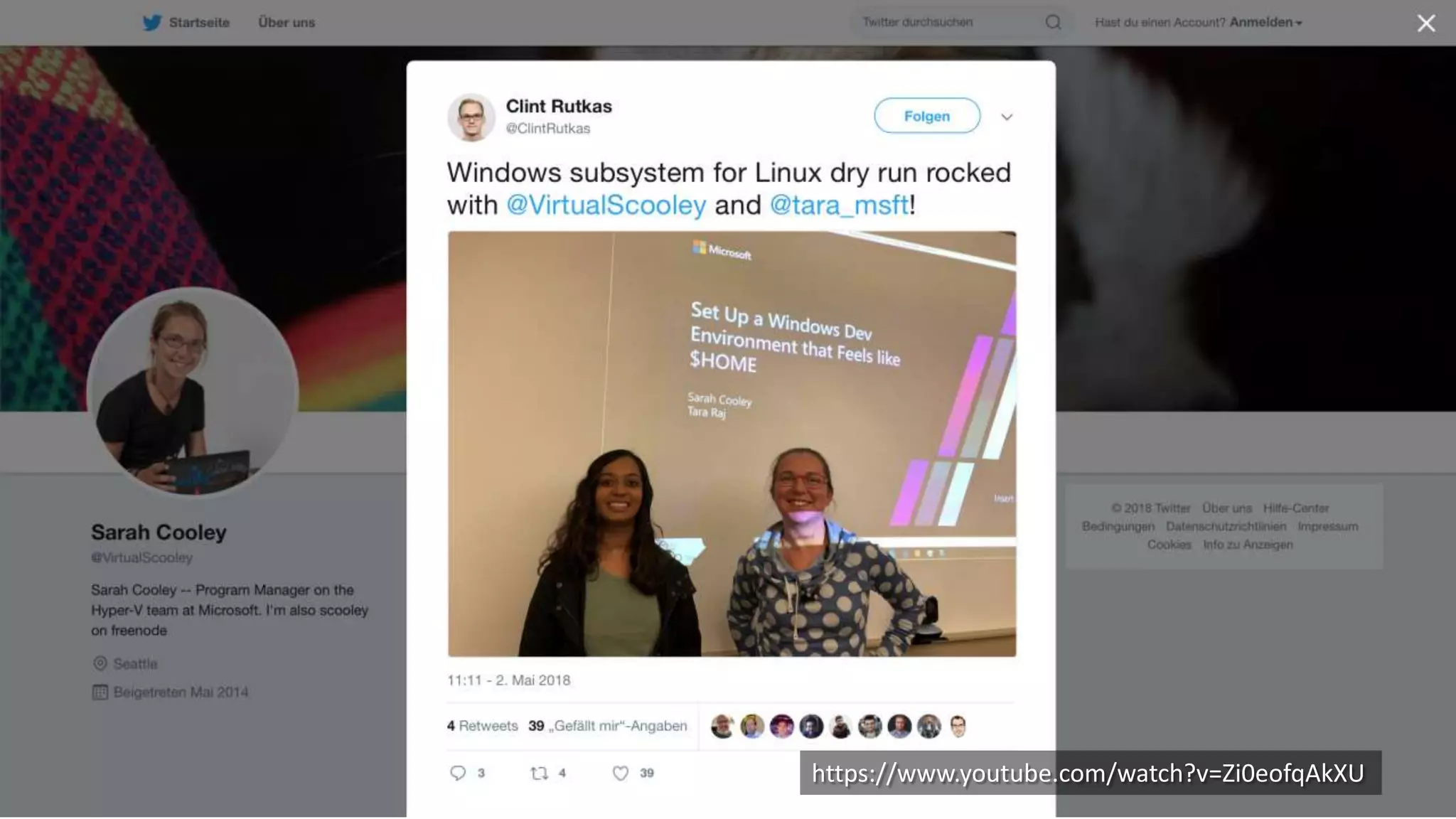
https://www.youtube.com/watch?v=Zi0eofqAkXU
Agenda
• Windows 10
• Choose your shell
• Choose your editor
• Vagrant
• Docker
• .dotfiles
Choose your shell
CMD PowerShell bash
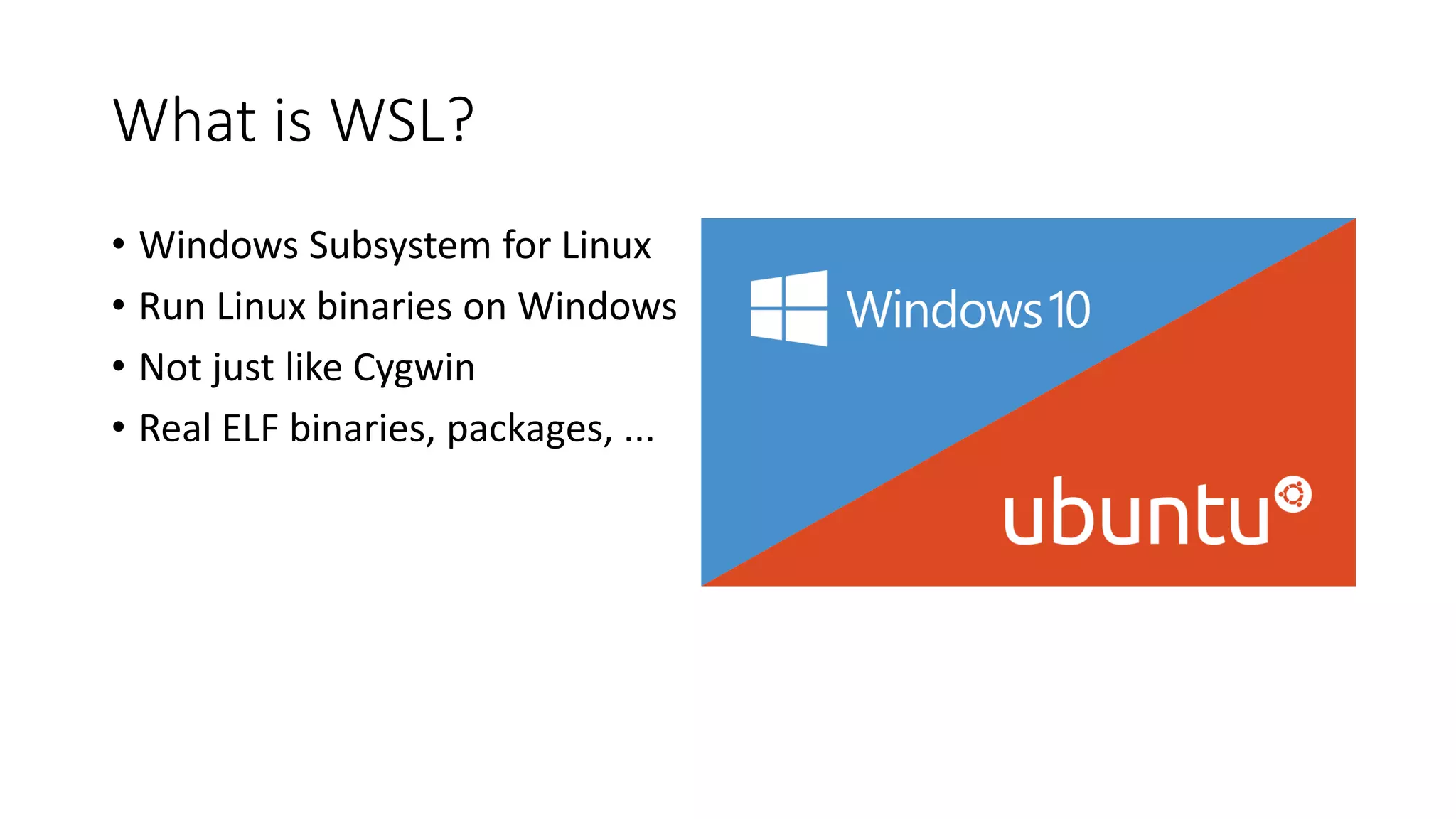
• Windows Subsystem for Linux
• Run Linux binaries on Windows
• Not just like Cygwin
• Real ELF binaries, packages, ...
What is WSL?
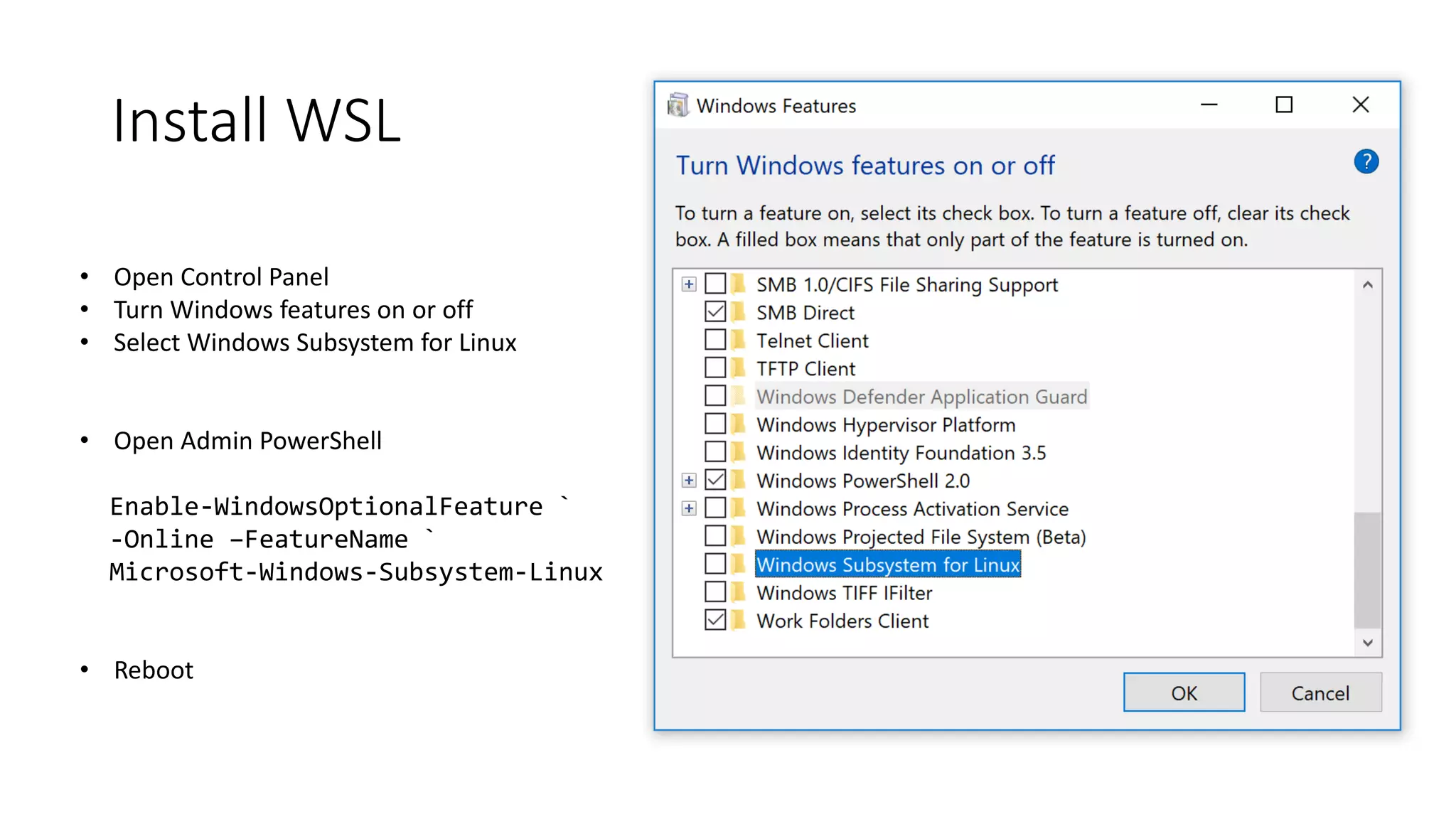
Install WSL
• Open Control Panel
• Turn Windows features on or off
• Select Windows Subsystem for Linux
• Open Admin PowerShell
Enable-WindowsOptionalFeature `
-Online –FeatureName `
Microsoft-Windows-Subsystem-Linux
• Reboot
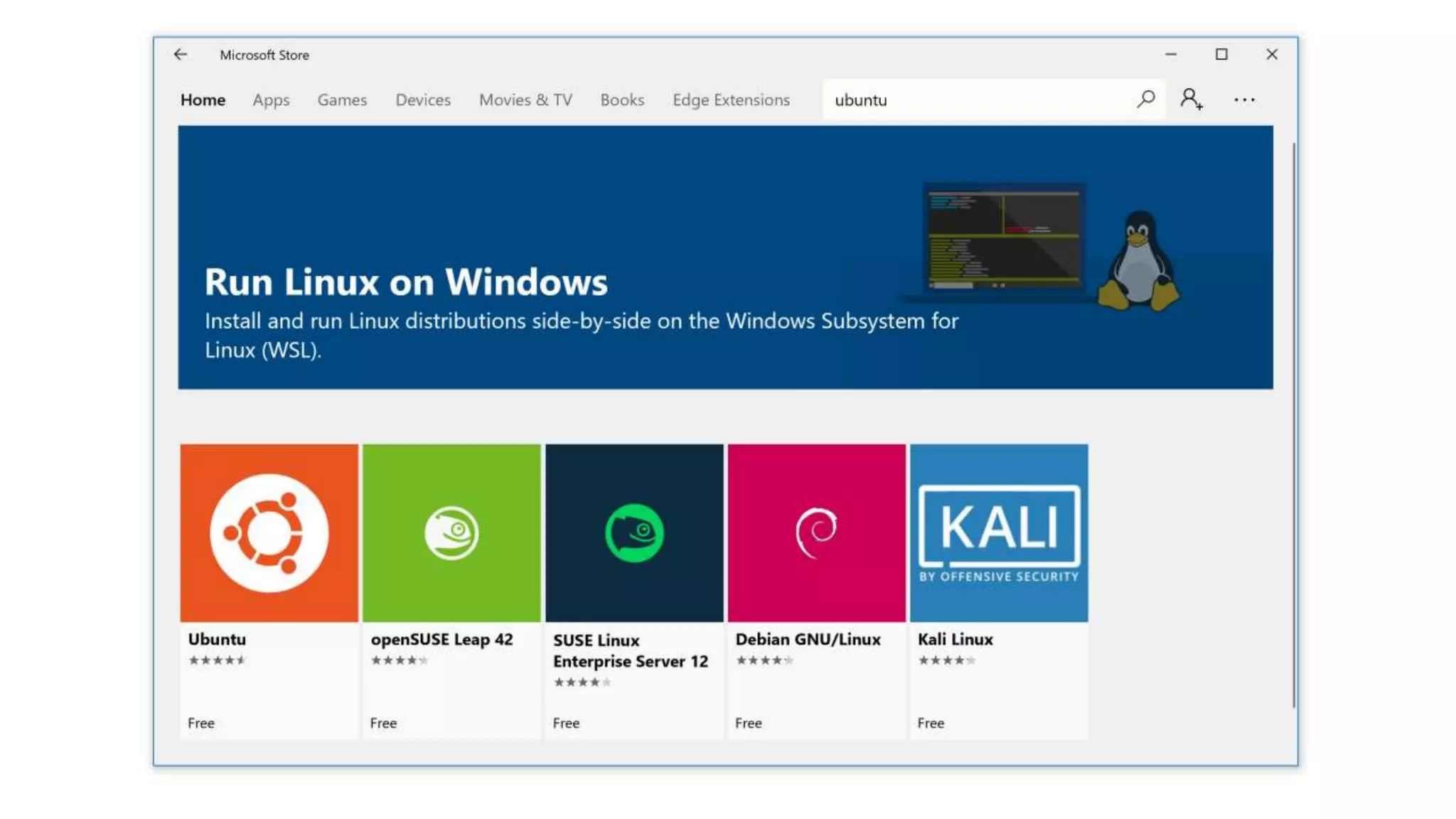
Install Ubuntu
https://www.microsoft.com/de-de/store/p/ubuntu/9nblggh4msv6
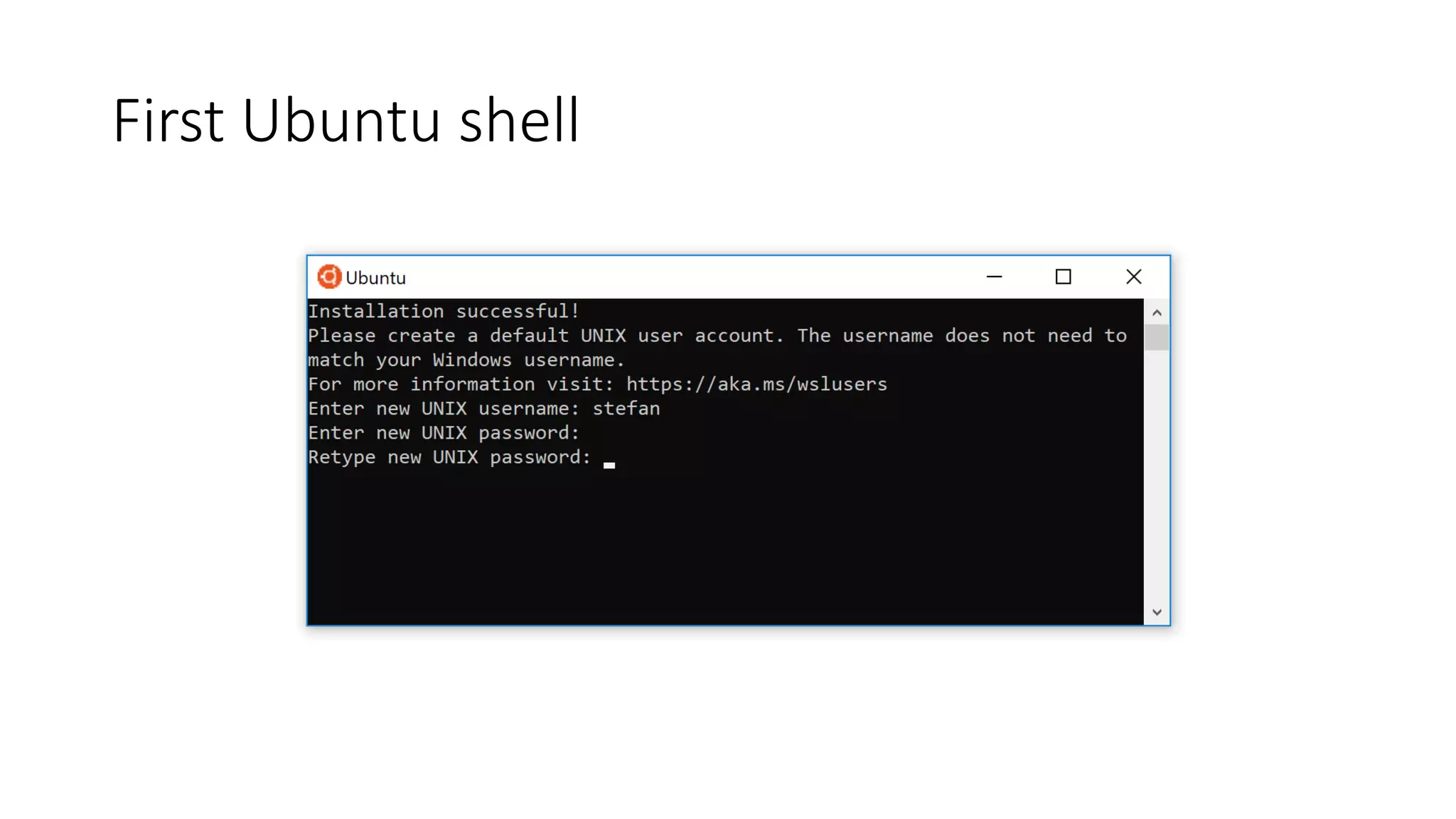
First Ubuntu shell
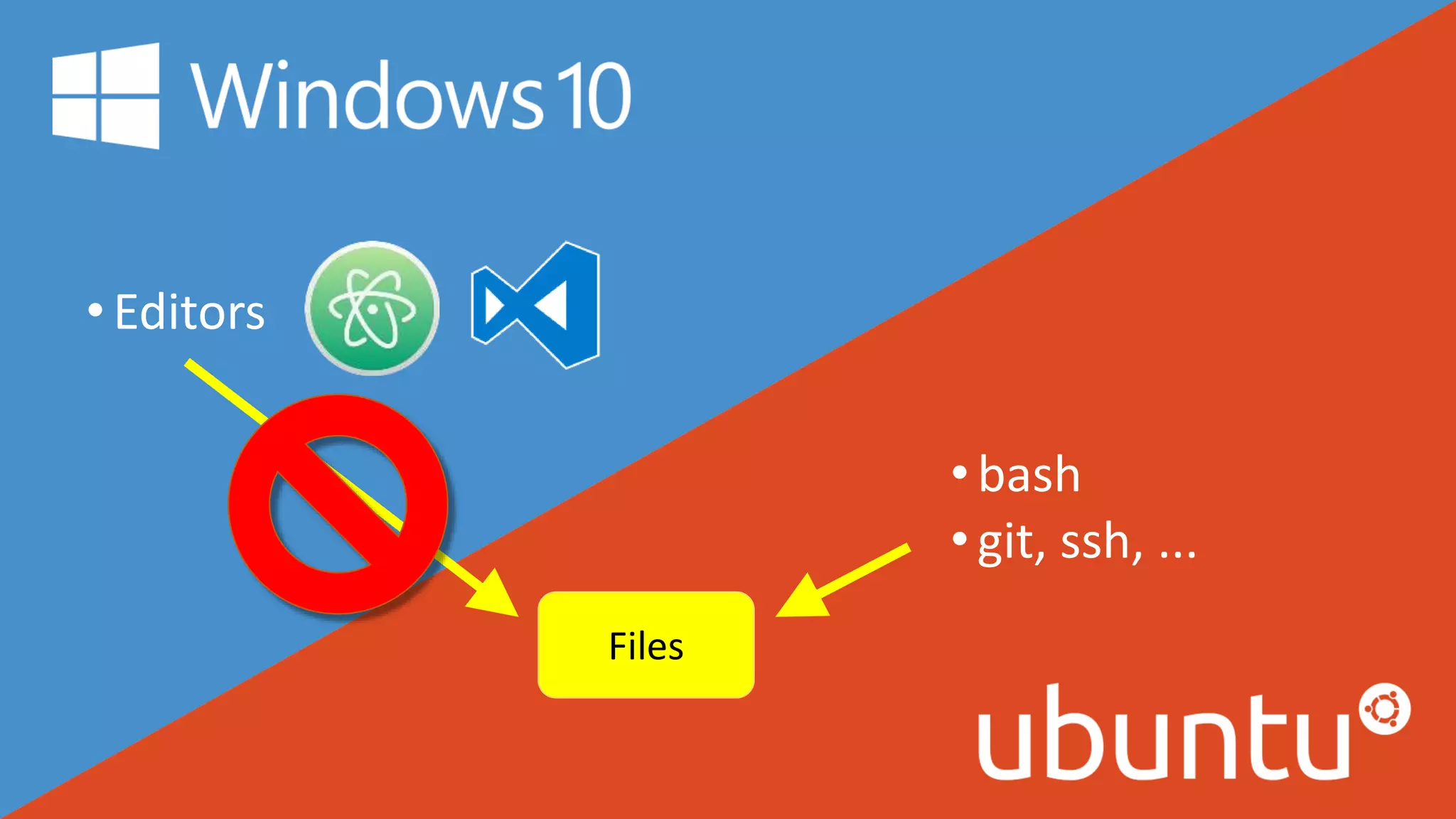
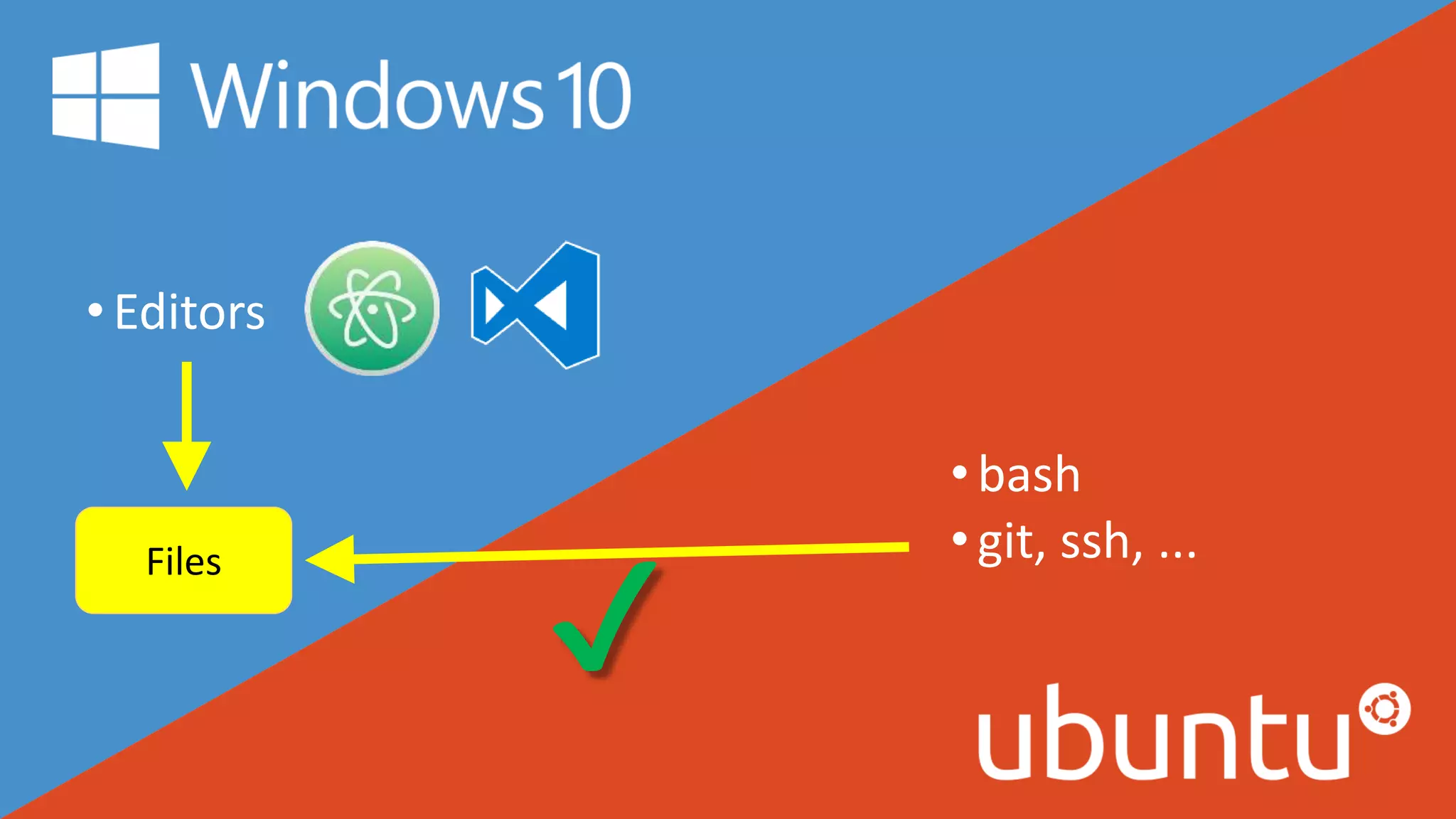
•Editors
•bash
•git, ssh, ...
Files
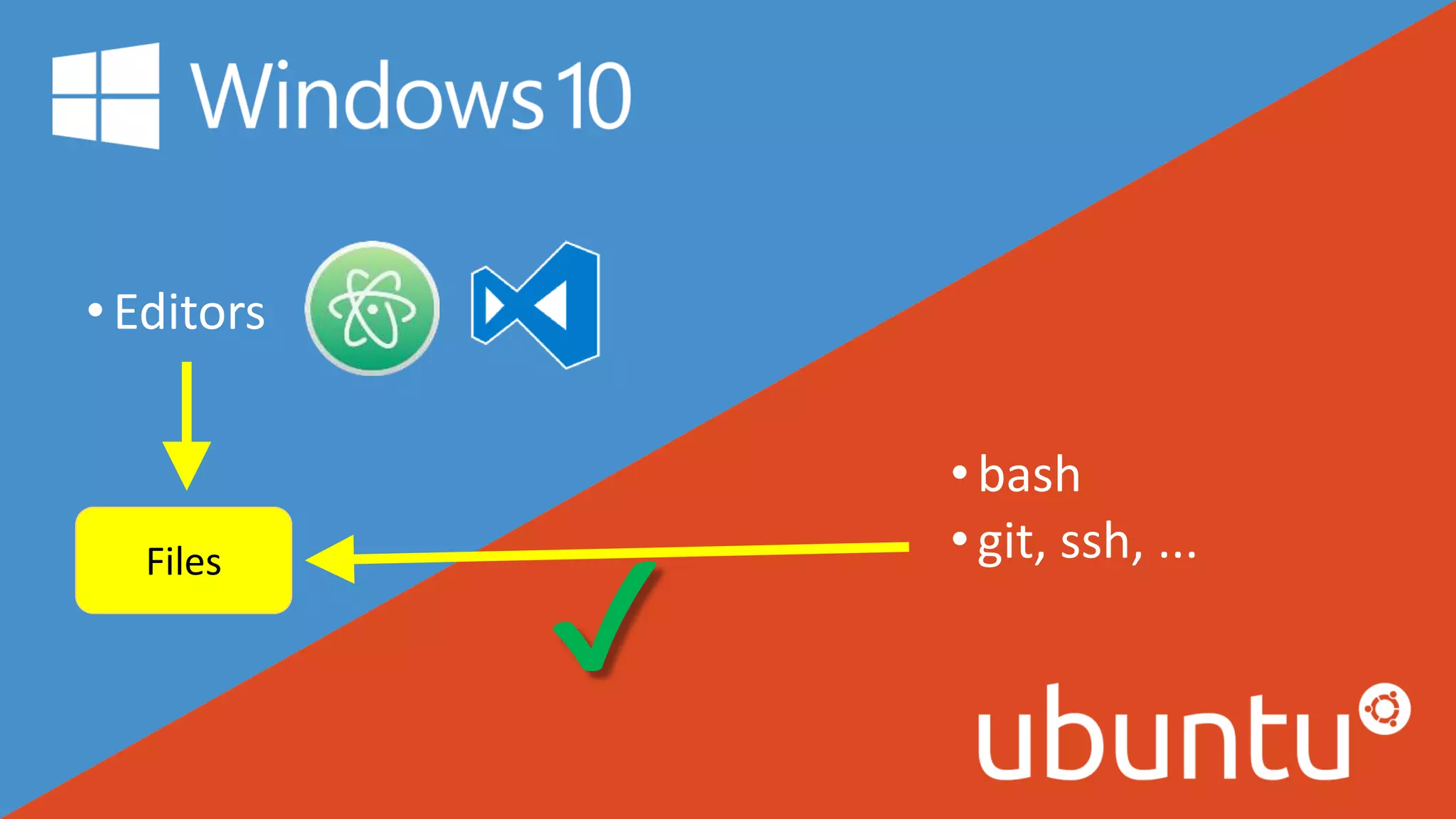
•Editors
•bash
•git, ssh, ...Files
✔
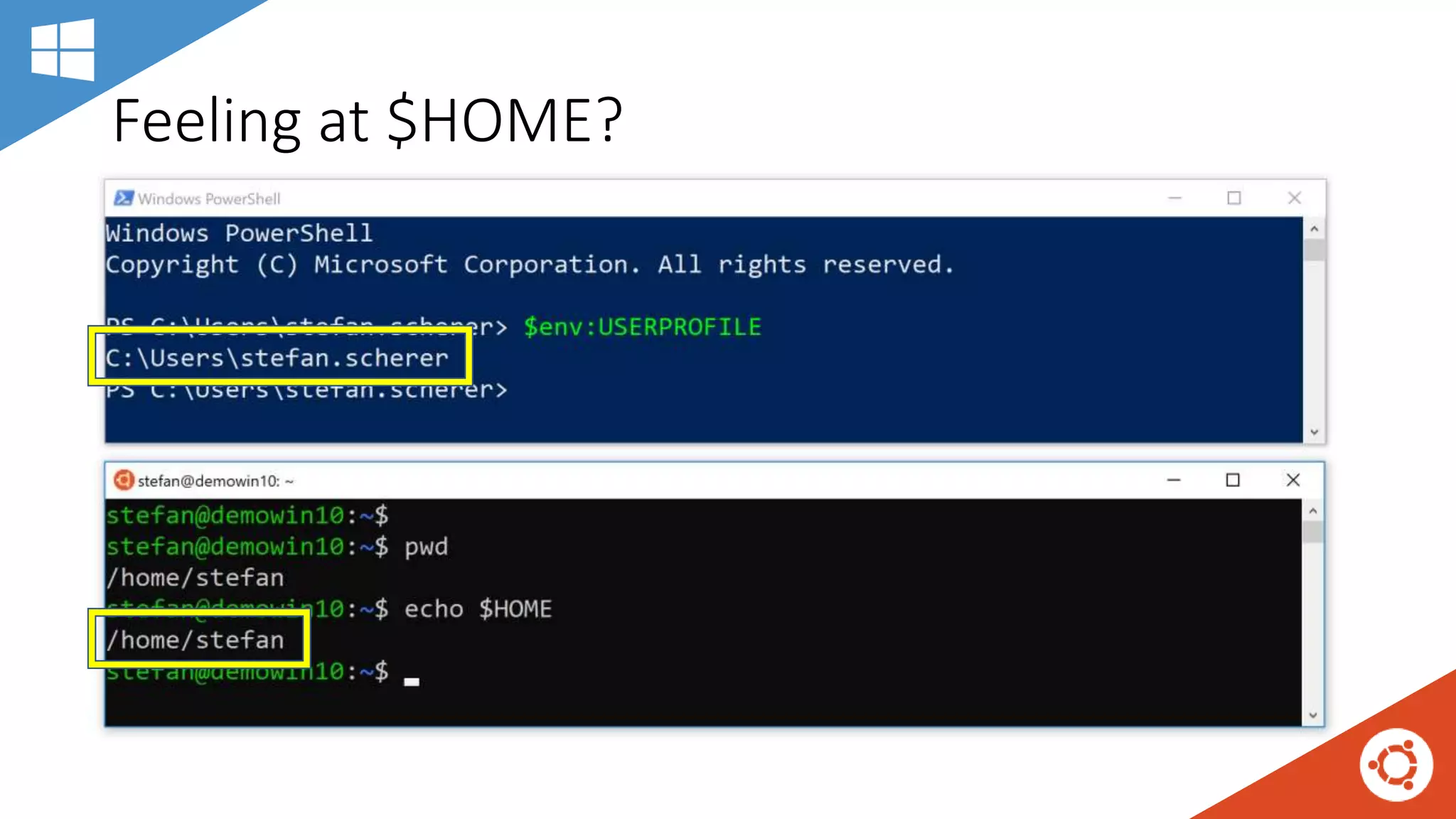
Feeling at $HOME?
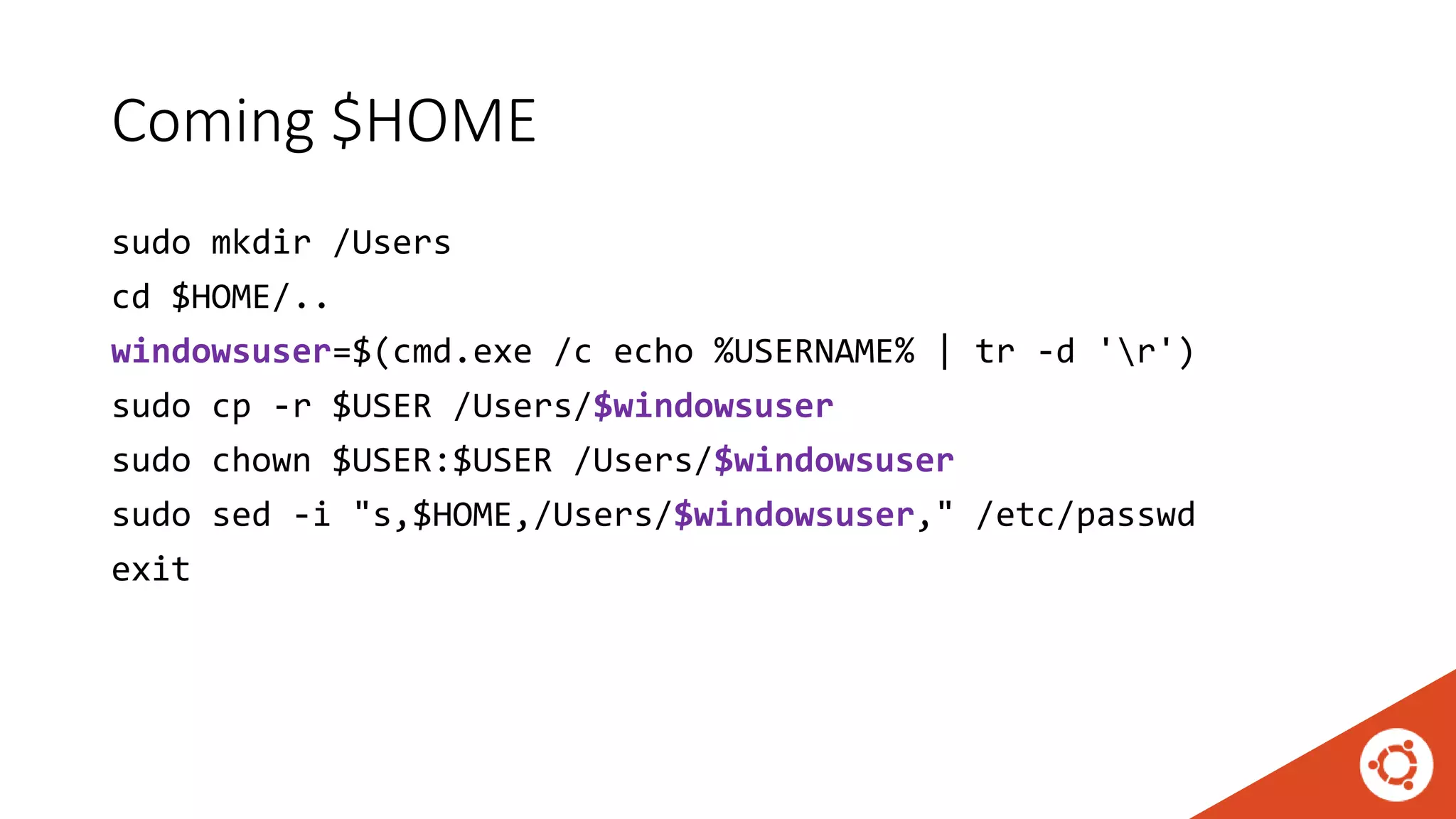
Coming $HOME
sudo mkdir /Users
cd $HOME/..
windowsuser=$(cmd.exe /c echo %USERNAME% | tr -d 'r')
sudo cp -r $USER /Users/$windowsuser
sudo chown $USER:$USER /Users/$windowsuser
sudo sed -i "s,$HOME,/Users/$windowsuser," /etc/passwd
exit
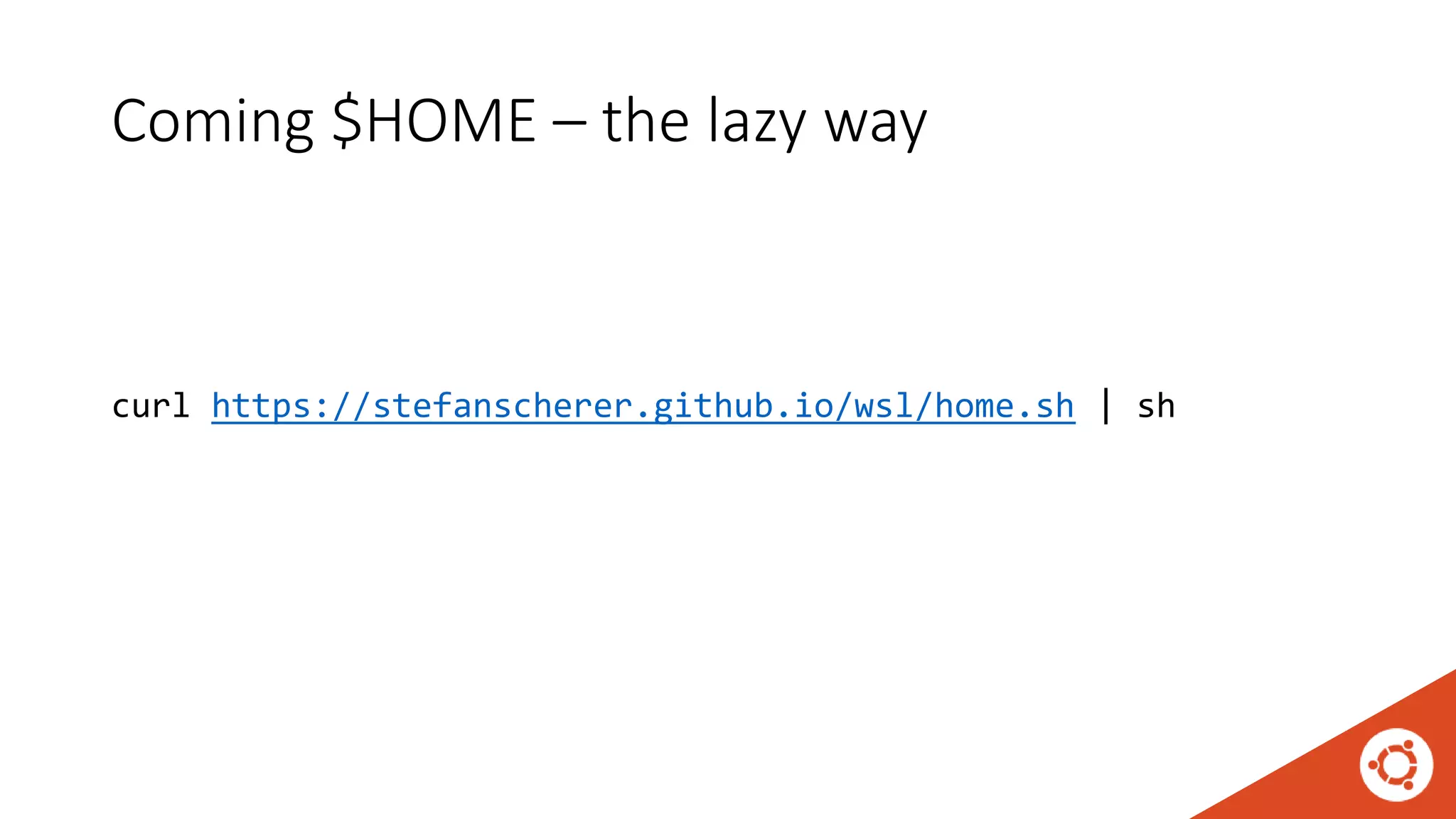
Coming $HOME – the lazy way
curl https://stefanscherer.github.io/wsl/home.sh | sh
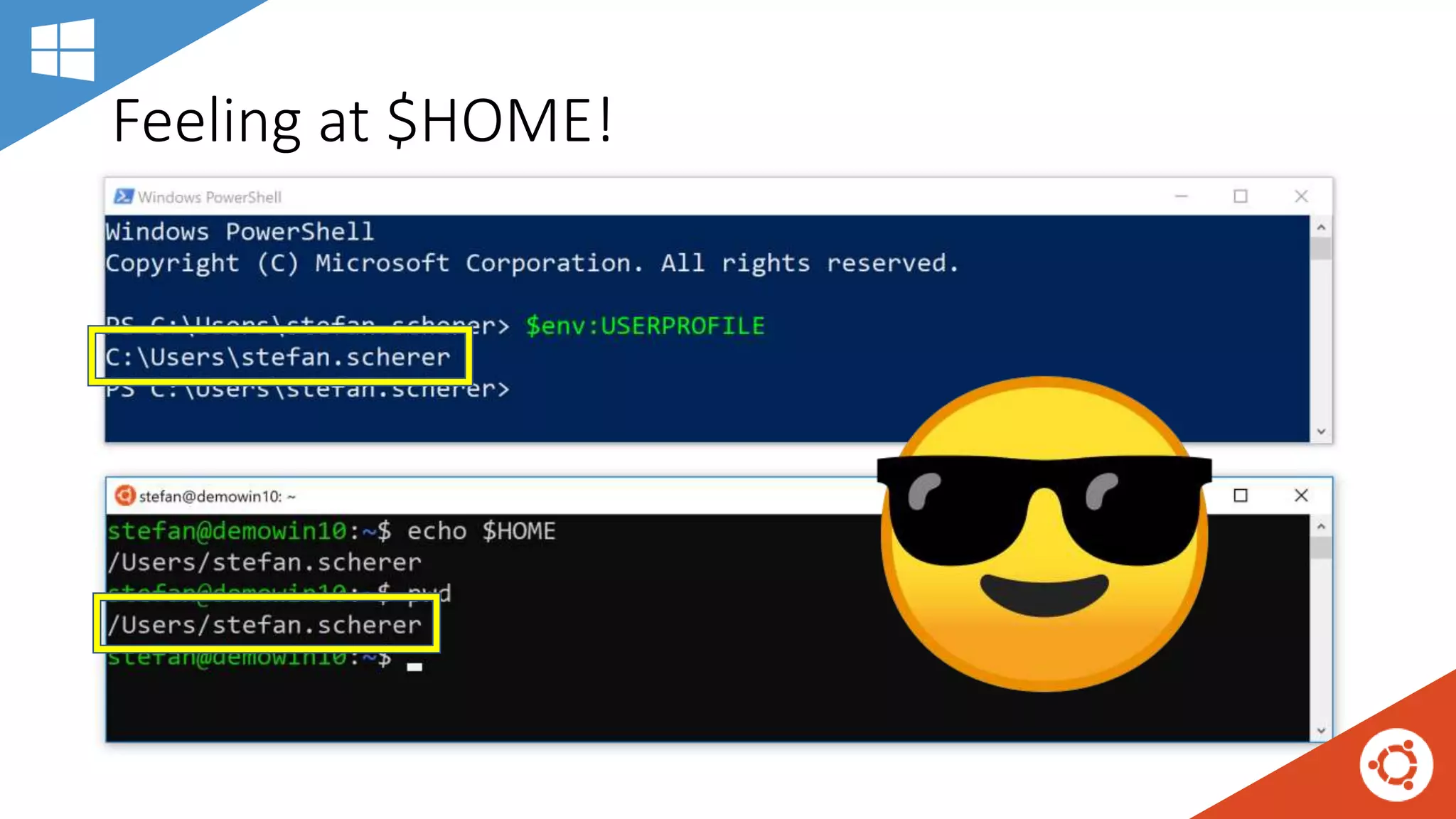
Feeling at $HOME!
•Editors
•bash
•git, ssh, ...Files
✔
Activate metadata for chmod/chown
sudo vi /etc/wsl.conf
[automount]
options = "metadata,umask=22,fmask=11,uid=1000,gid=1000"
• Now close the bash terminal and start another Ubuntu shell.
Shared code folder
echo $HOME # -> eg. /Users/stefan.scherer
mkdir /mnt/c$HOME/code
ln -s /mnt/c$HOME/code $HOME/code
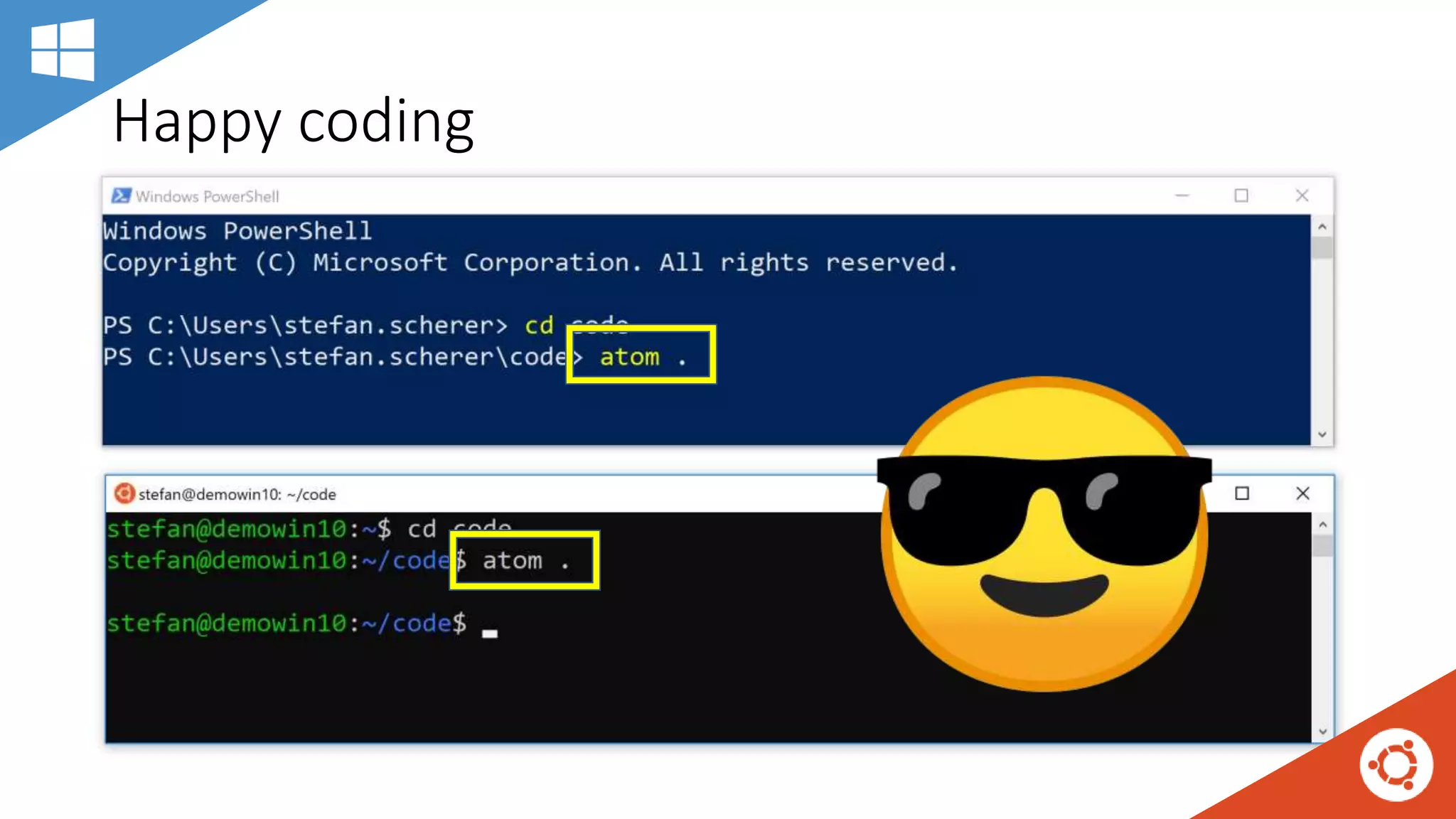
• Now you can clone Git repos in WSL
• And edit with Windows editors like Atom or VSCode
Install editors of choice
iwr -useb https://chocolatey.org/install.ps1 | iex
choco install -y atom
choco install -y visualstudiocode
Happy coding
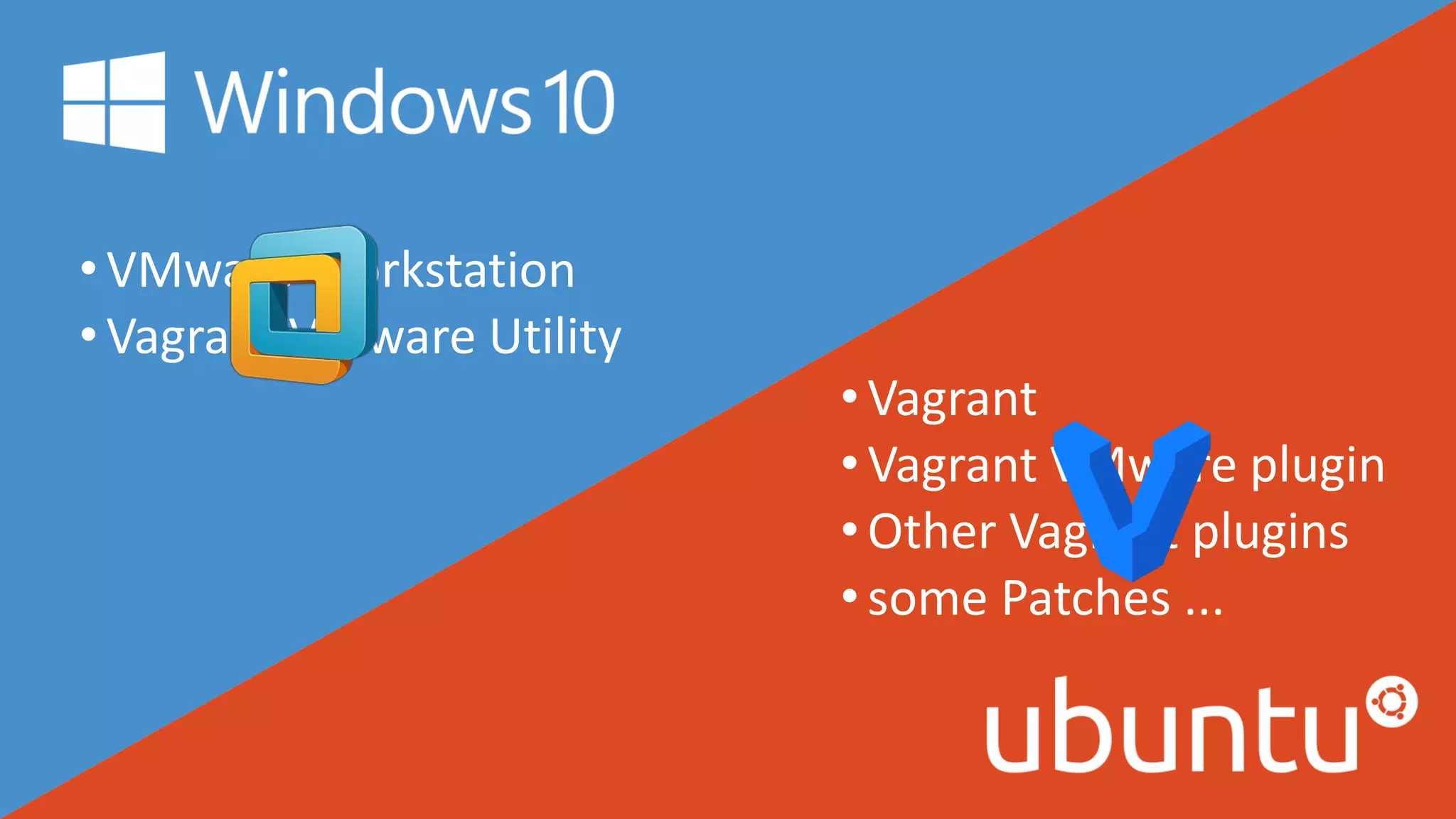
•VMware Workstation
•Vagrant VMware Utility
•Vagrant
•Vagrant VMware plugin
•Other Vagrant plugins
•some Patches ...
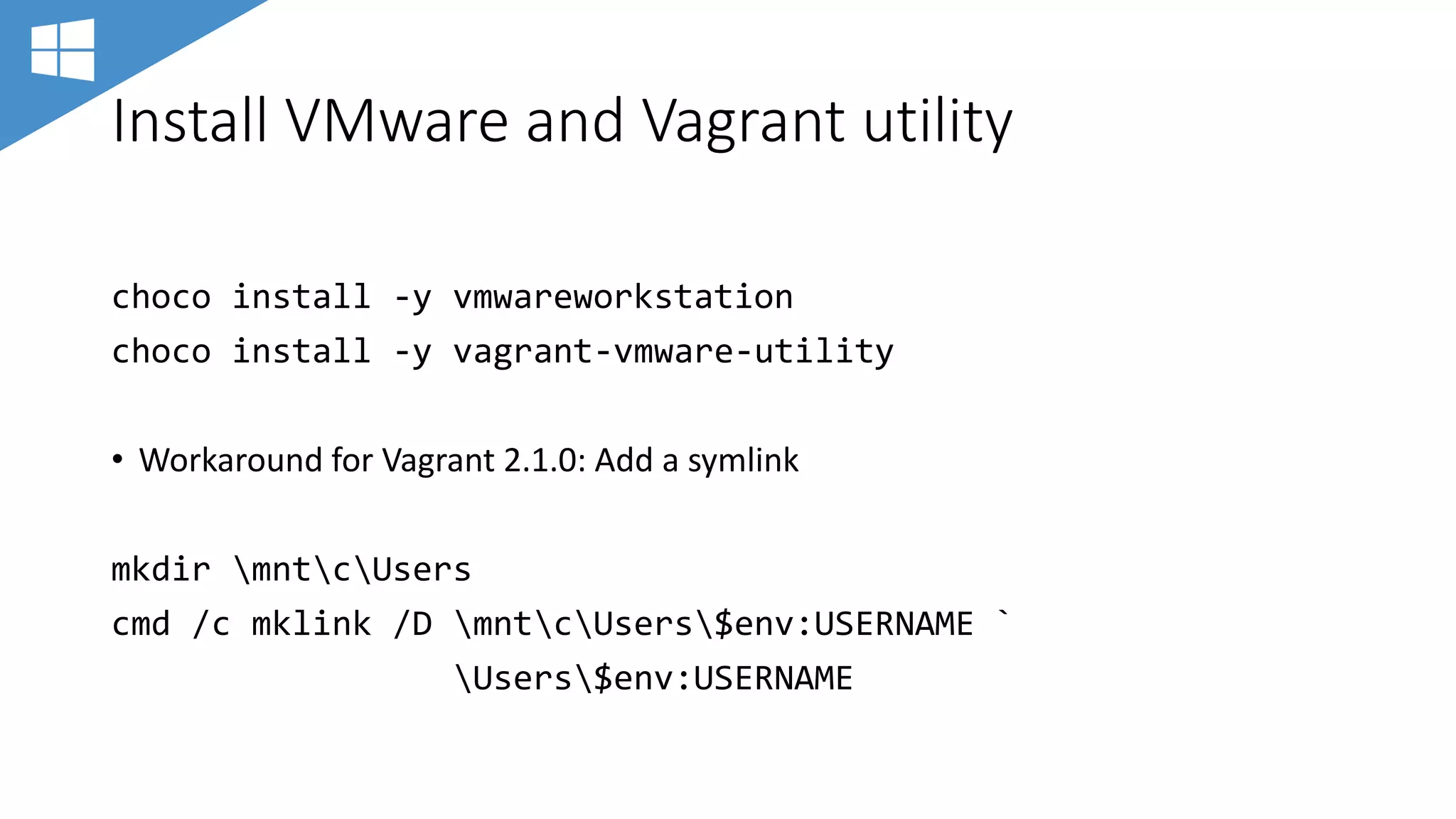
Install VMware and Vagrant utility
choco install -y vmwareworkstation
choco install -y vagrant-vmware-utility
• Workaround for Vagrant 2.1.0: Add a symlink
mkdir mntcUsers
cmd /c mklink /D mntcUsers$env:USERNAME `
Users$env:USERNAME
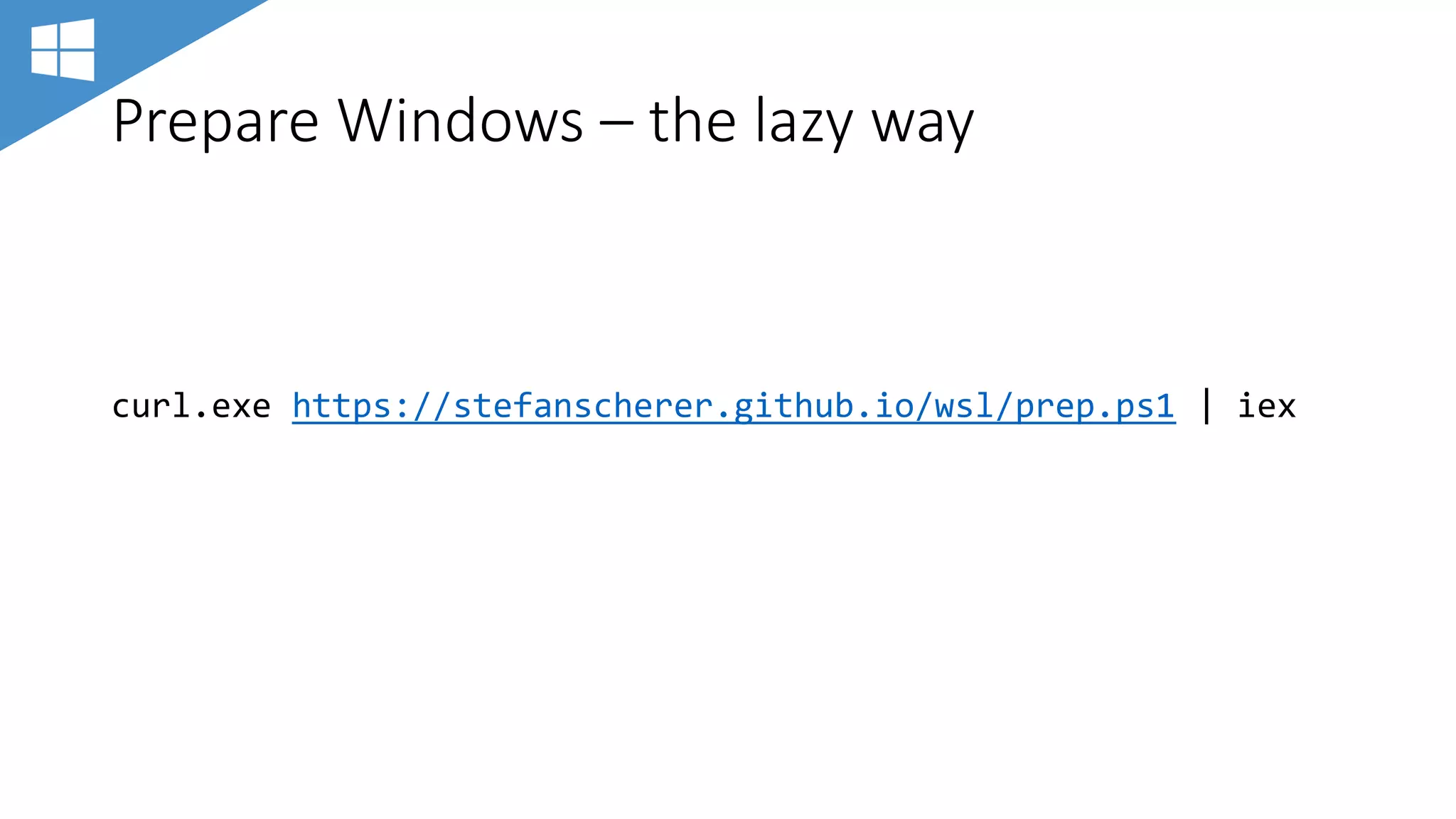
Prepare Windows – the lazy way
curl.exe https://stefanscherer.github.io/wsl/prep.ps1 | iex
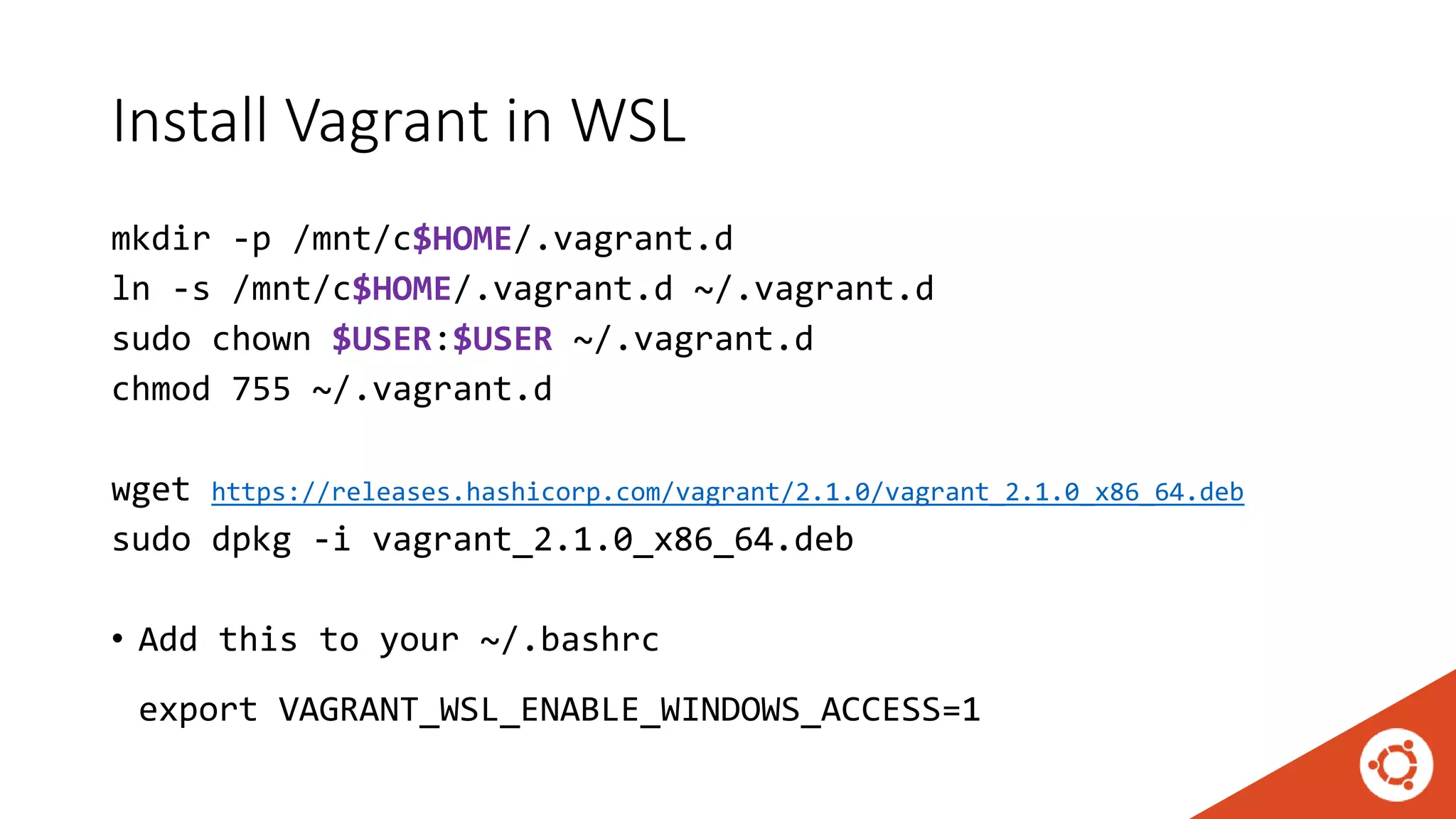
Install Vagrant in WSL
mkdir -p /mnt/c$HOME/.vagrant.d
ln -s /mnt/c$HOME/.vagrant.d ~/.vagrant.d
sudo chown $USER:$USER ~/.vagrant.d
chmod 755 ~/.vagrant.d
wget https://releases.hashicorp.com/vagrant/2.1.0/vagrant_2.1.0_x86_64.deb
sudo dpkg -i vagrant_2.1.0_x86_64.deb
• Add this to your ~/.bashrc
export VAGRANT_WSL_ENABLE_WINDOWS_ACCESS=1
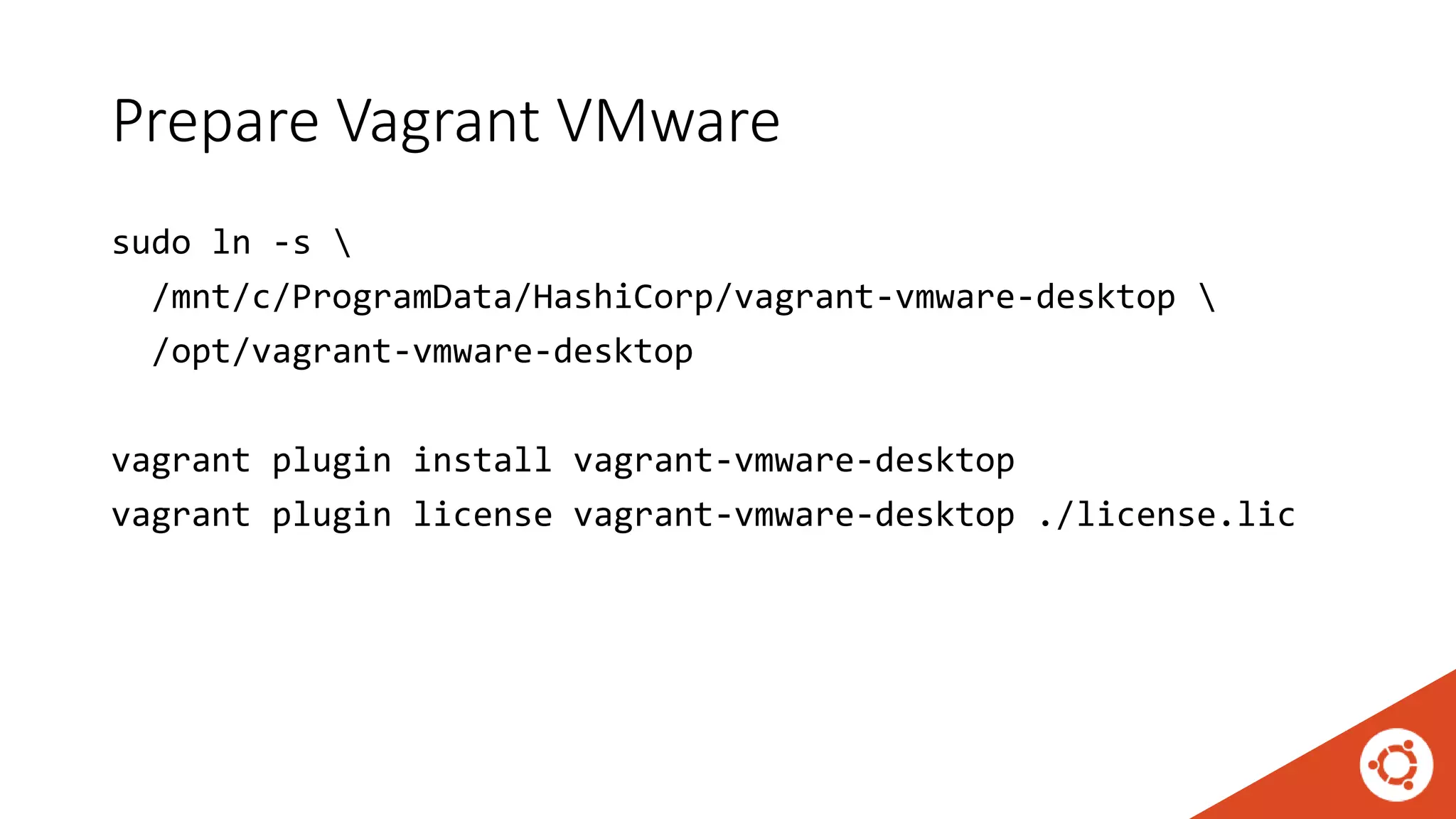
Prepare Vagrant VMware
sudo ln -s 
/mnt/c/ProgramData/HashiCorp/vagrant-vmware-desktop 
/opt/vagrant-vmware-desktop
vagrant plugin install vagrant-vmware-desktop
vagrant plugin license vagrant-vmware-desktop ./license.lic
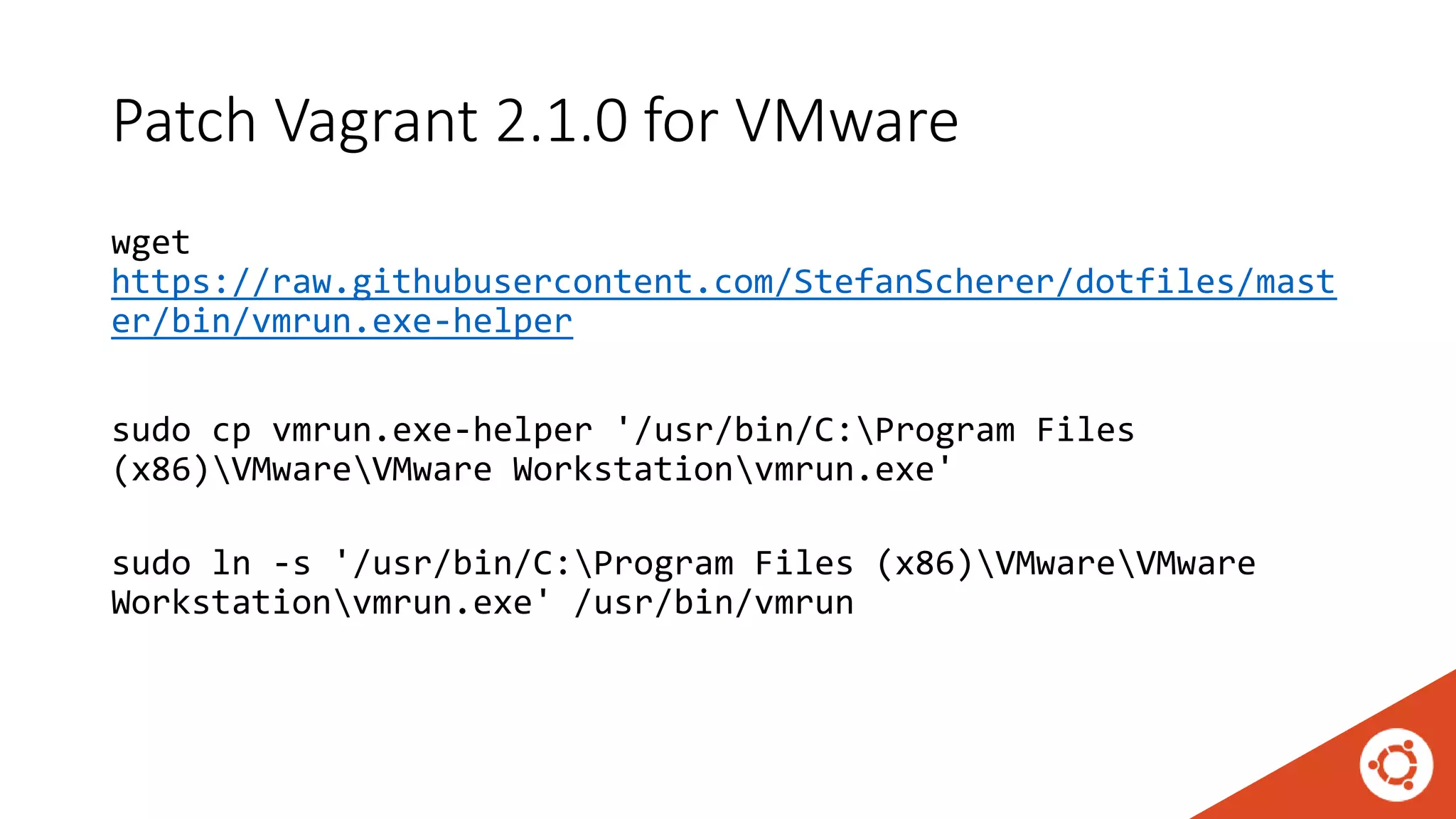
Patch Vagrant 2.1.0 for VMware
wget
https://raw.githubusercontent.com/StefanScherer/dotfiles/mast
er/bin/vmrun.exe-helper
sudo cp vmrun.exe-helper '/usr/bin/C:Program Files
(x86)VMwareVMware Workstationvmrun.exe'
sudo ln -s '/usr/bin/C:Program Files (x86)VMwareVMware
Workstationvmrun.exe' /usr/bin/vmrun
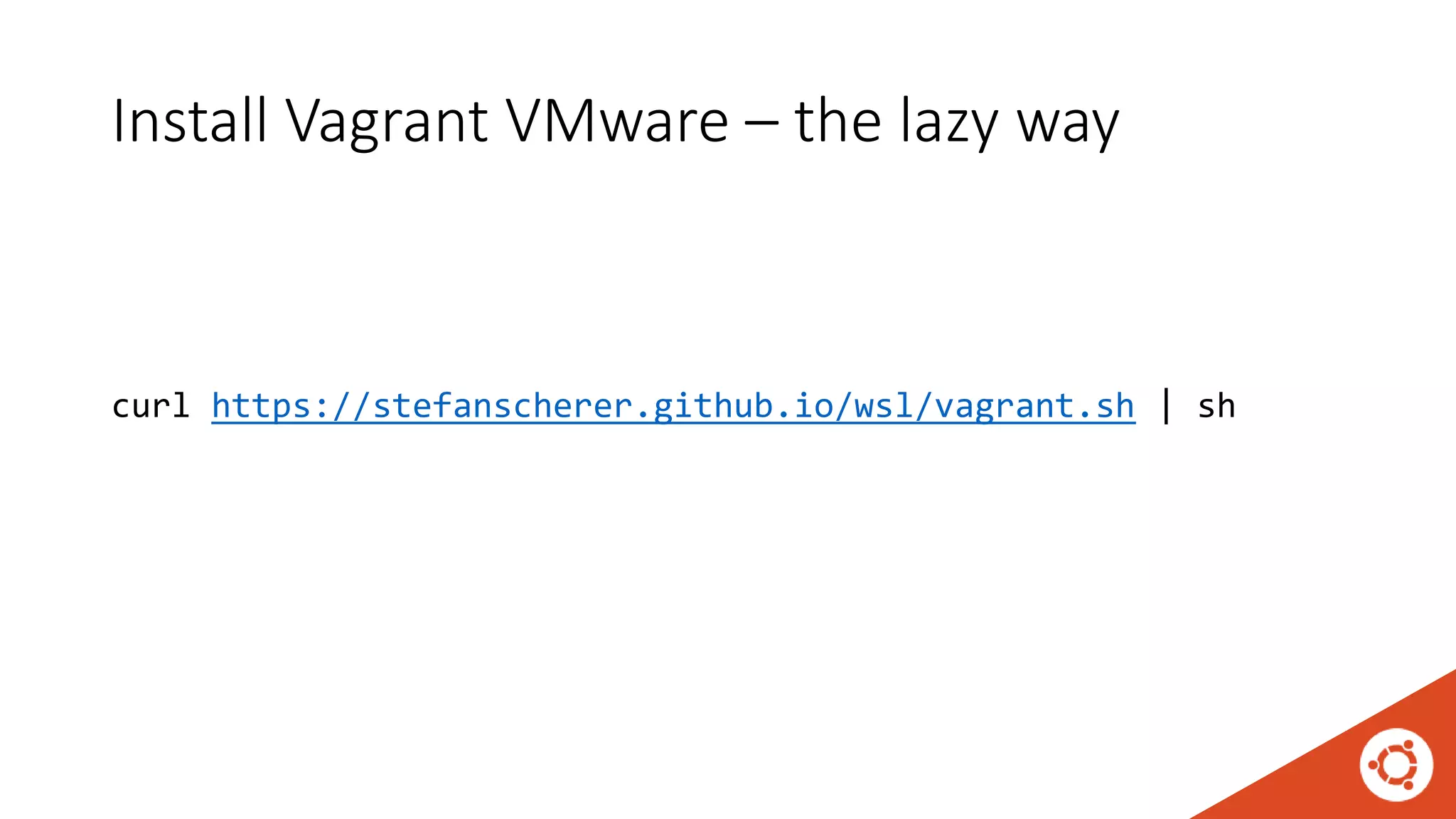
Install Vagrant VMware – the lazy way
curl https://stefanscherer.github.io/wsl/vagrant.sh | sh
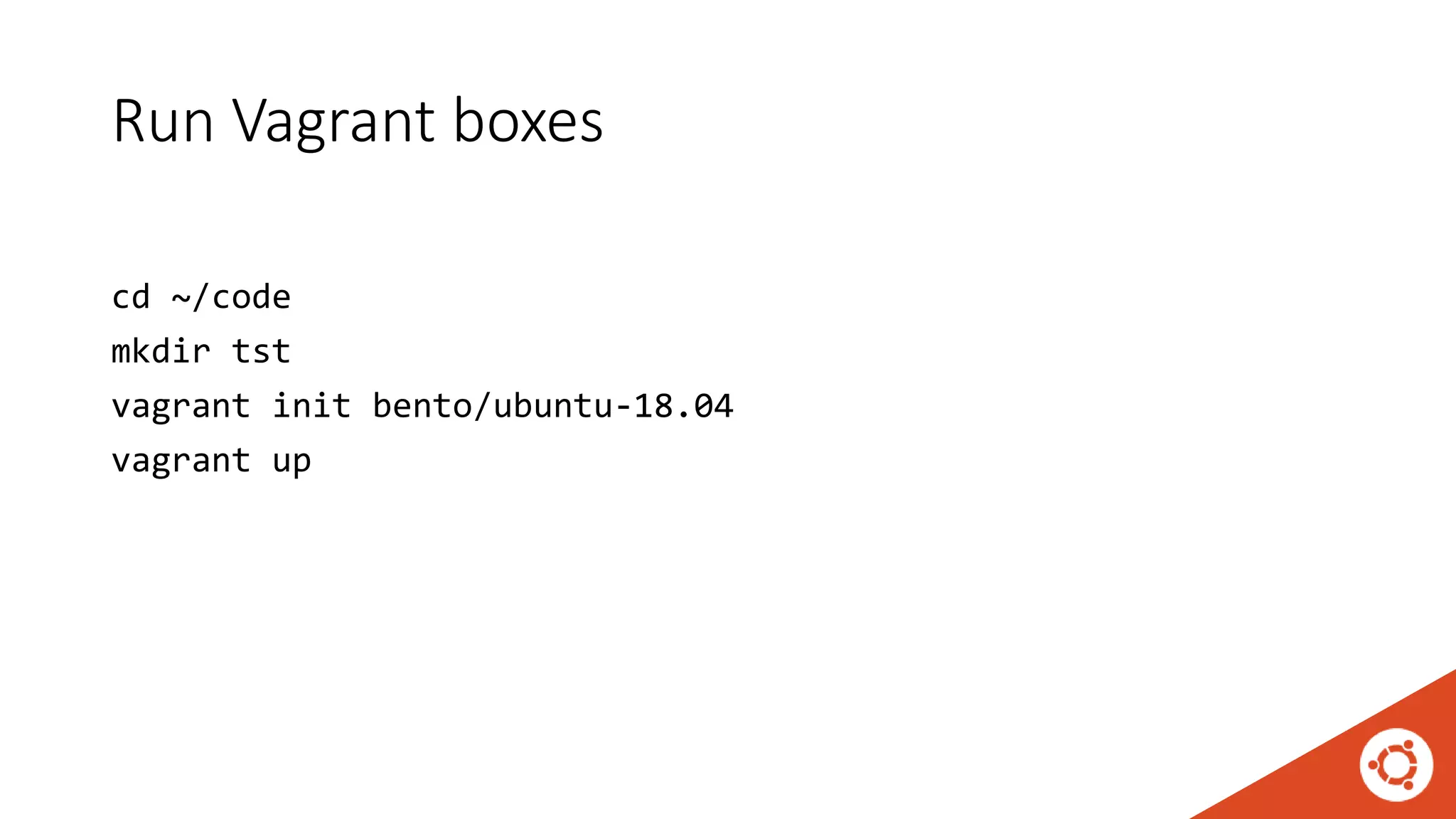
Run Vagrant boxes
cd ~/code
mkdir tst
vagrant init bento/ubuntu-18.04
vagrant up
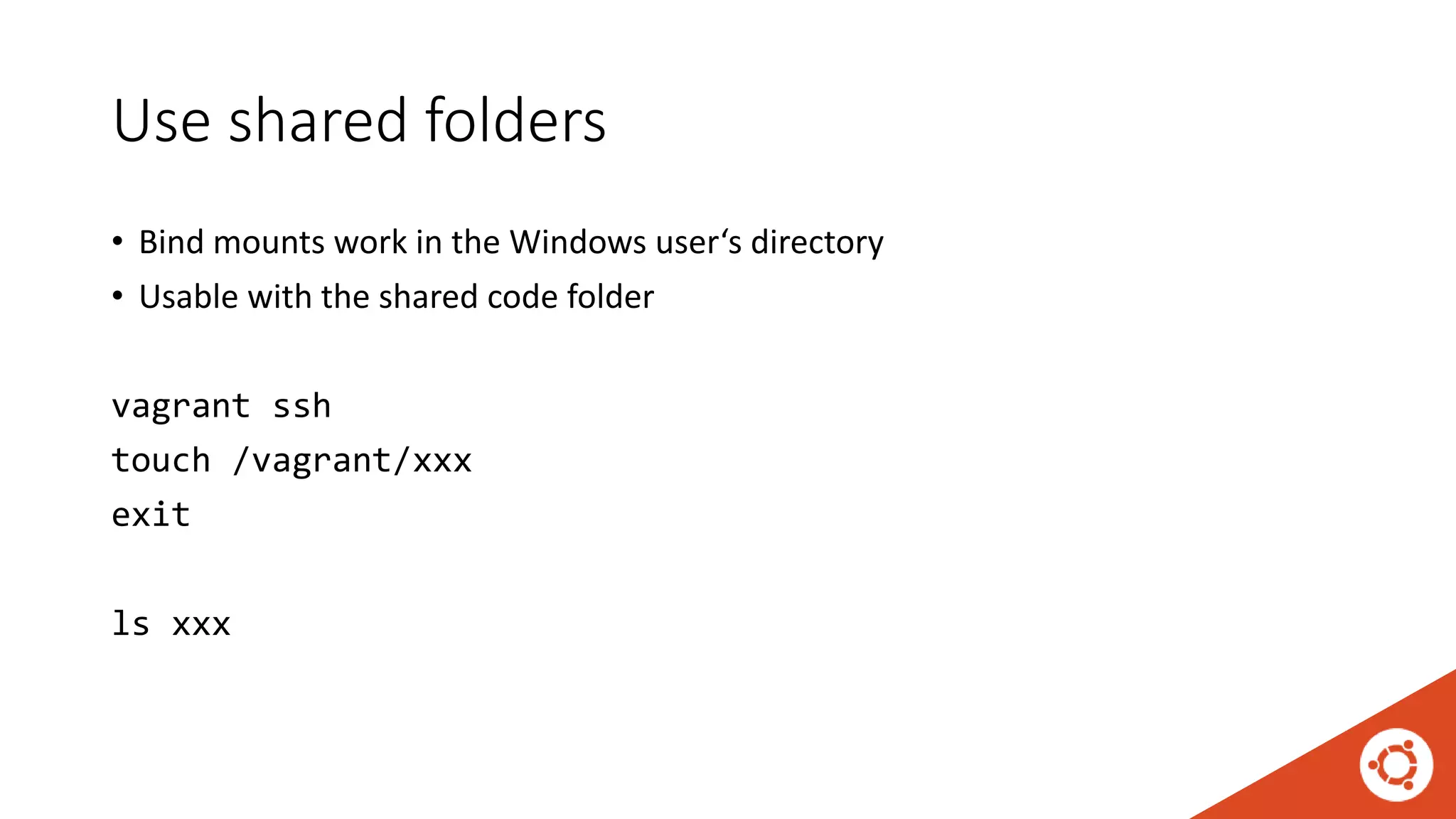
Use shared folders
• Bind mounts work in the Windows user‘s directory
• Usable with the shared code folder
vagrant ssh
touch /vagrant/xxx
exit
ls xxx
•VMware Workstation
•docker-machine.exe
•Docker Machine VMware
plugin •Docker CLI
•Docker Compose
•some helpers ...
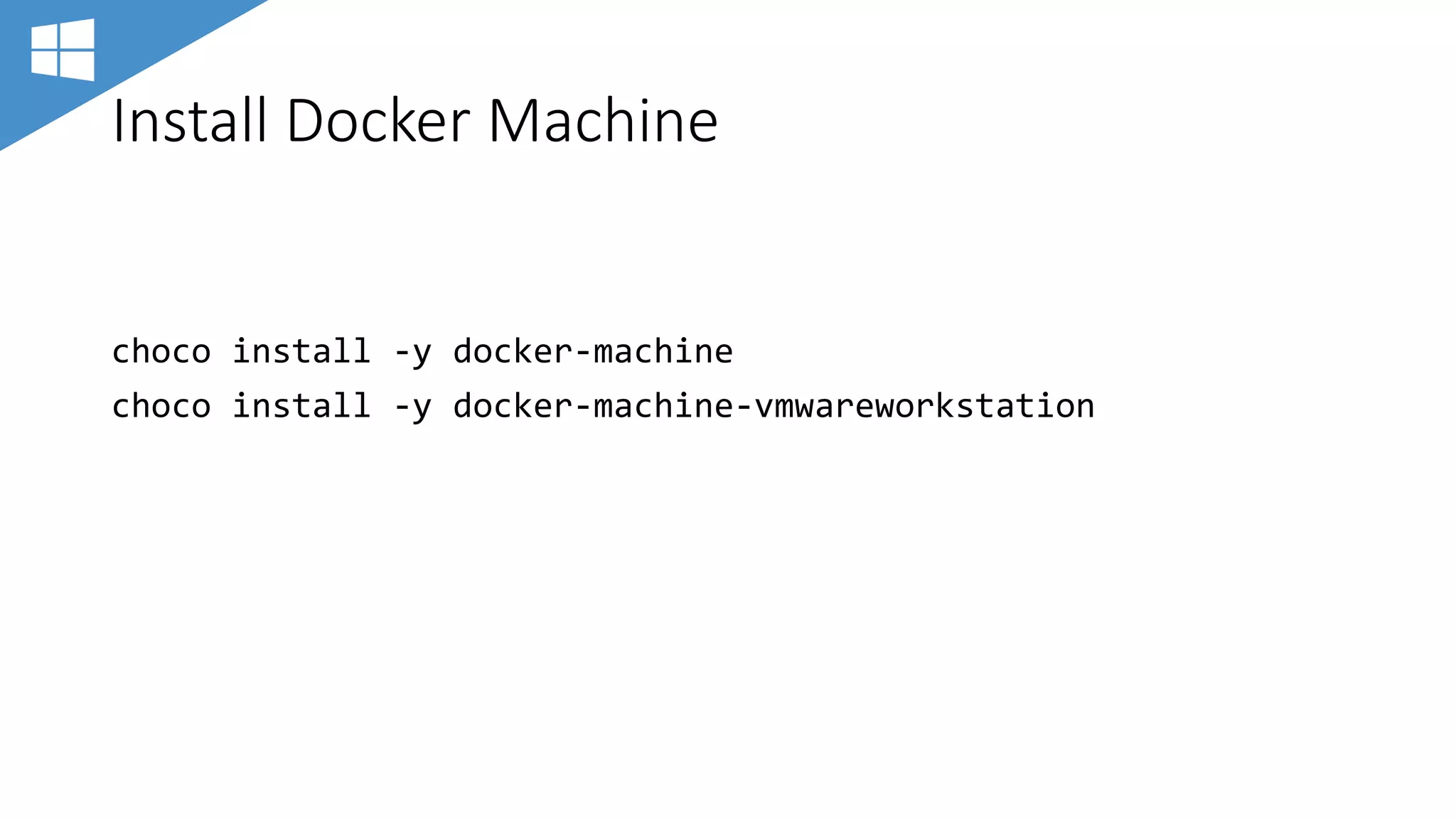
Install Docker Machine
choco install -y docker-machine
choco install -y docker-machine-vmwareworkstation
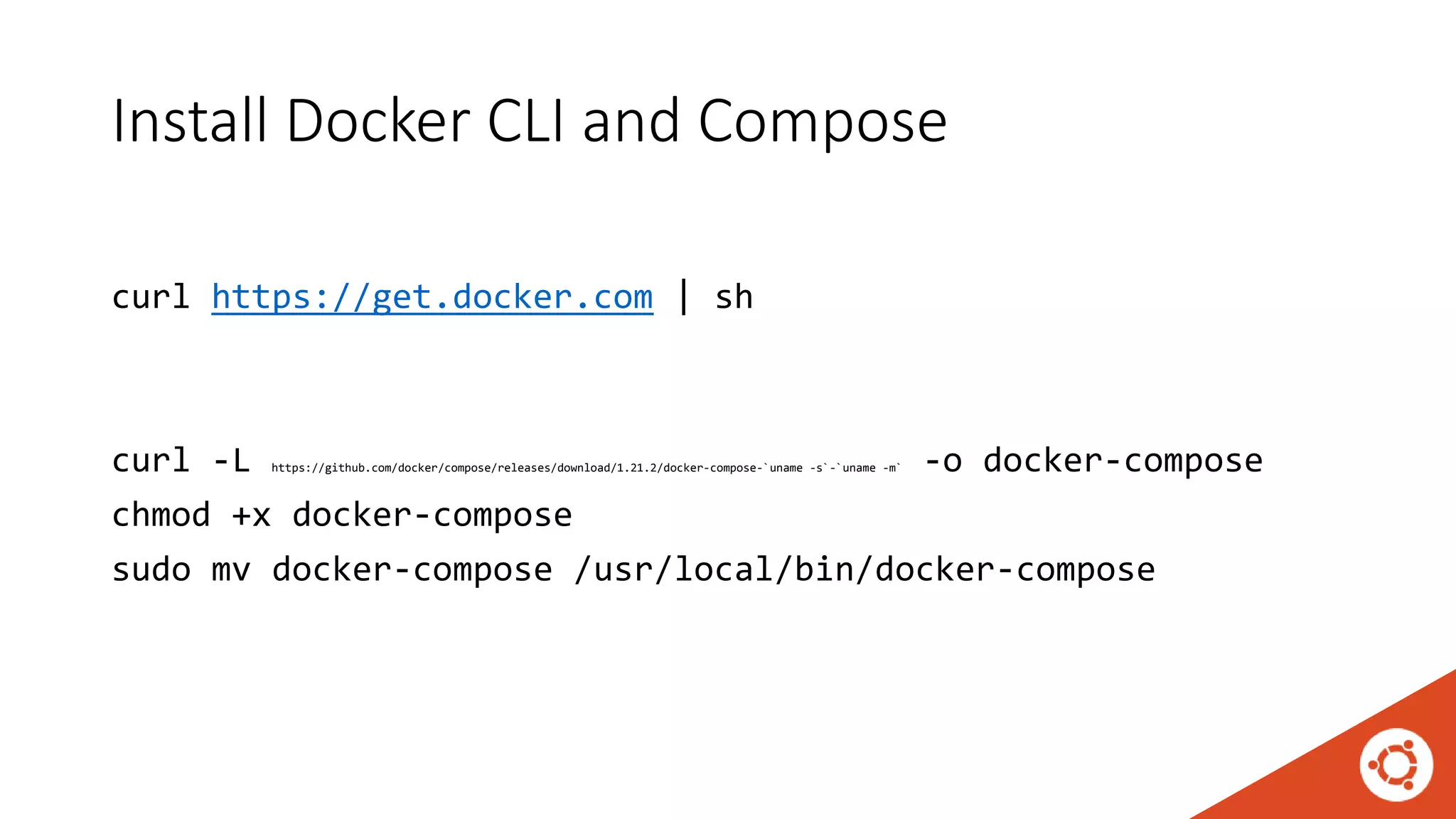
Install Docker CLI and Compose
curl https://get.docker.com | sh
curl -L https://github.com/docker/compose/releases/download/1.21.2/docker-compose-`uname -s`-`uname -m` -o docker-compose
chmod +x docker-compose
sudo mv docker-compose /usr/local/bin/docker-compose
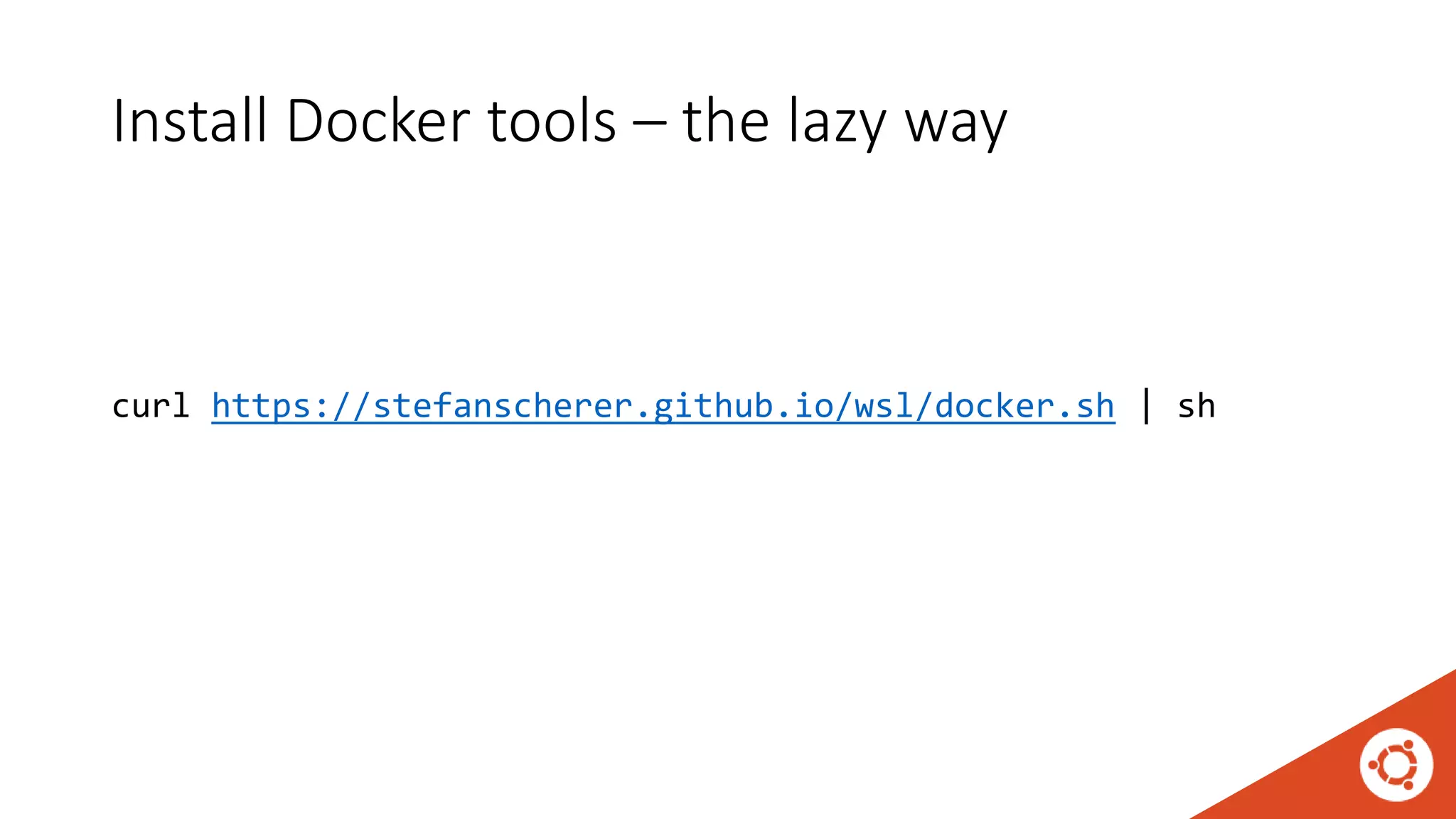
Install Docker tools – the lazy way
curl https://stefanscherer.github.io/wsl/docker.sh | sh
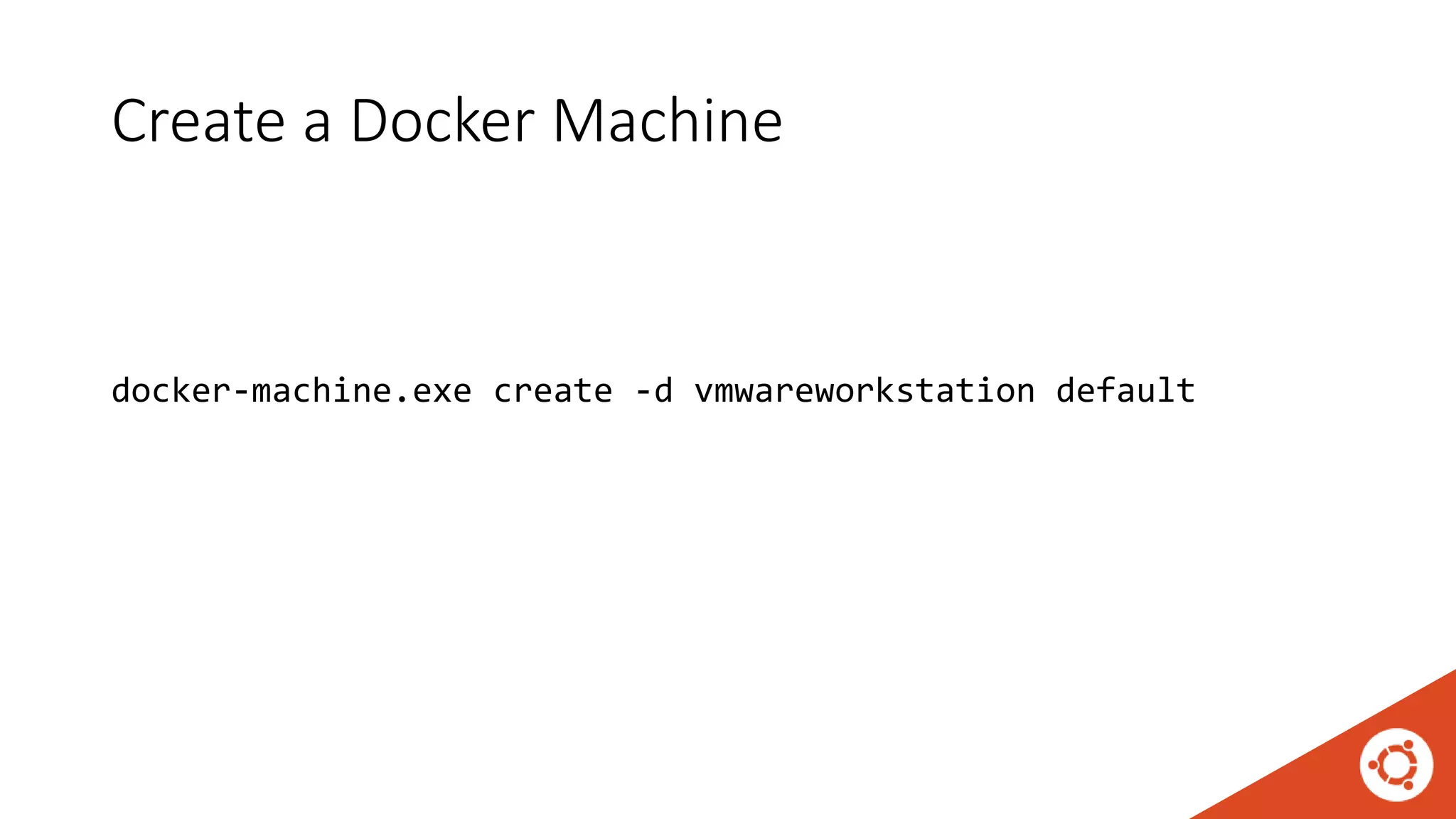
Create a Docker Machine
docker-machine.exe create -d vmwareworkstation default
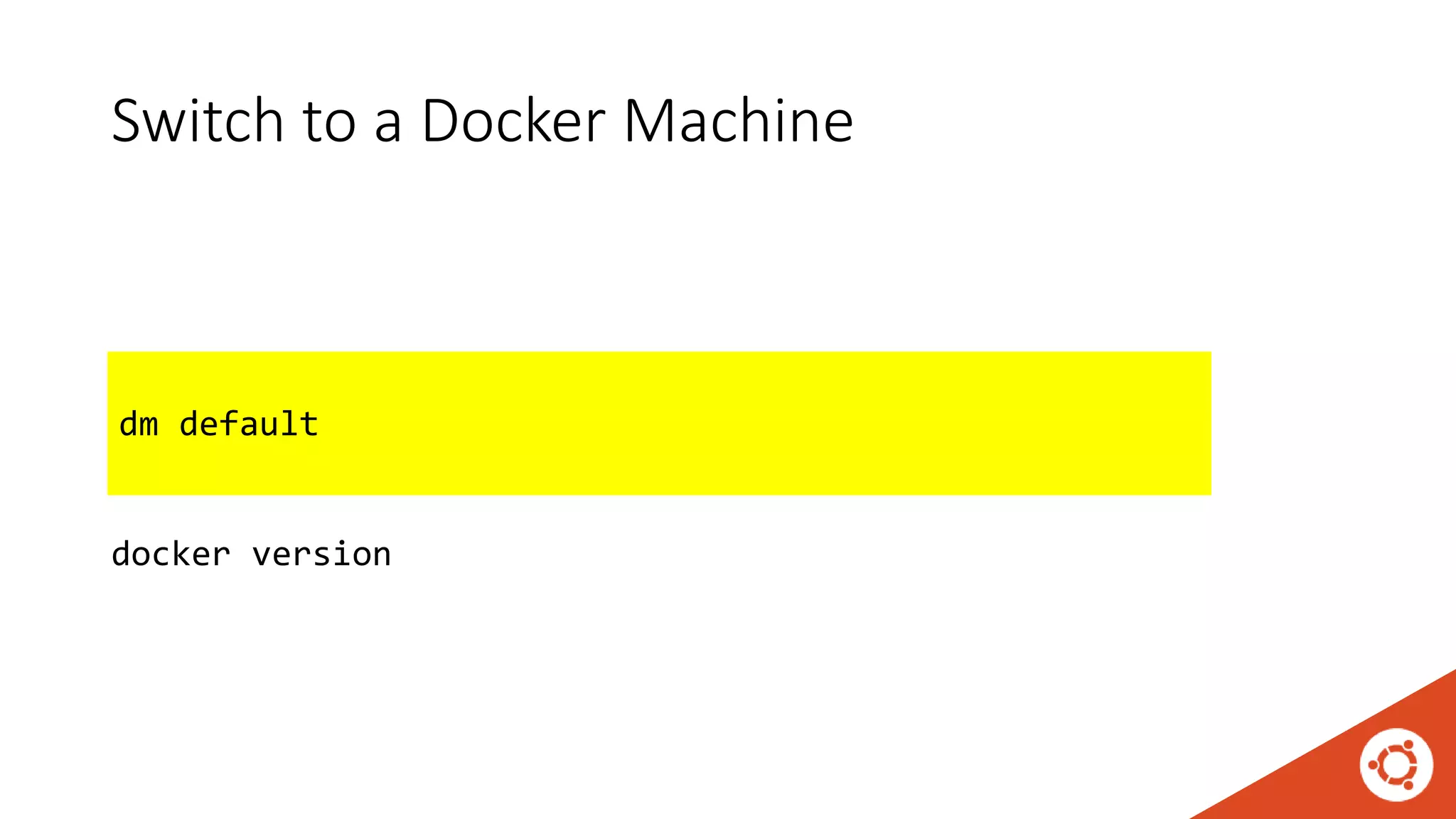
Switch to a Docker Machine
eval $(docker-machine.exe env --shell bash default | 
sed 's,,/,g' | sed 's,C:,/mnt/c,g')
docker version
dm default
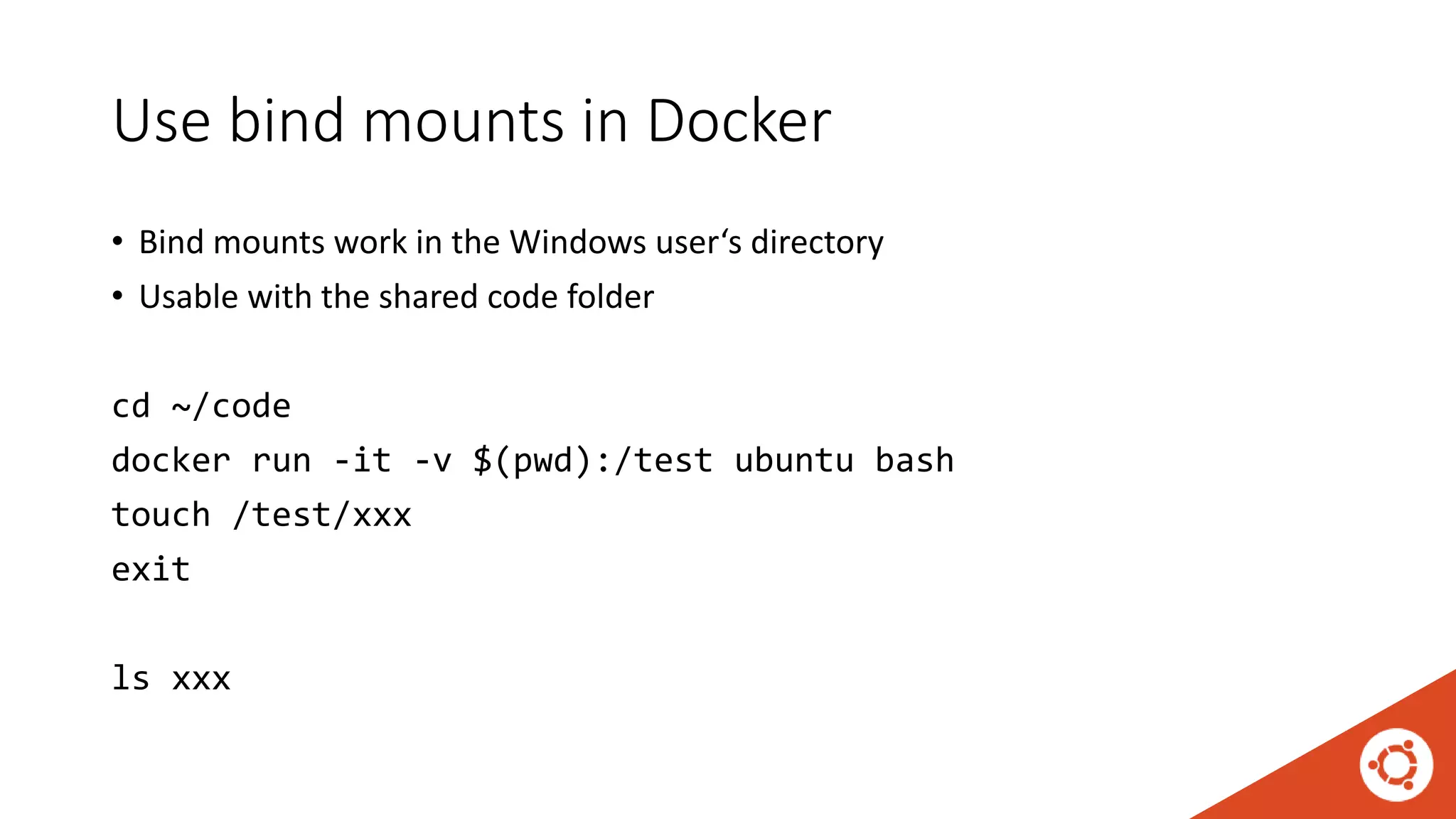
Use bind mounts in Docker
• Bind mounts work in the Windows user‘s directory
• Usable with the shared code folder
cd ~/code
docker run -it -v $(pwd):/test ubuntu bash
touch /test/xxx
exit
ls xxx
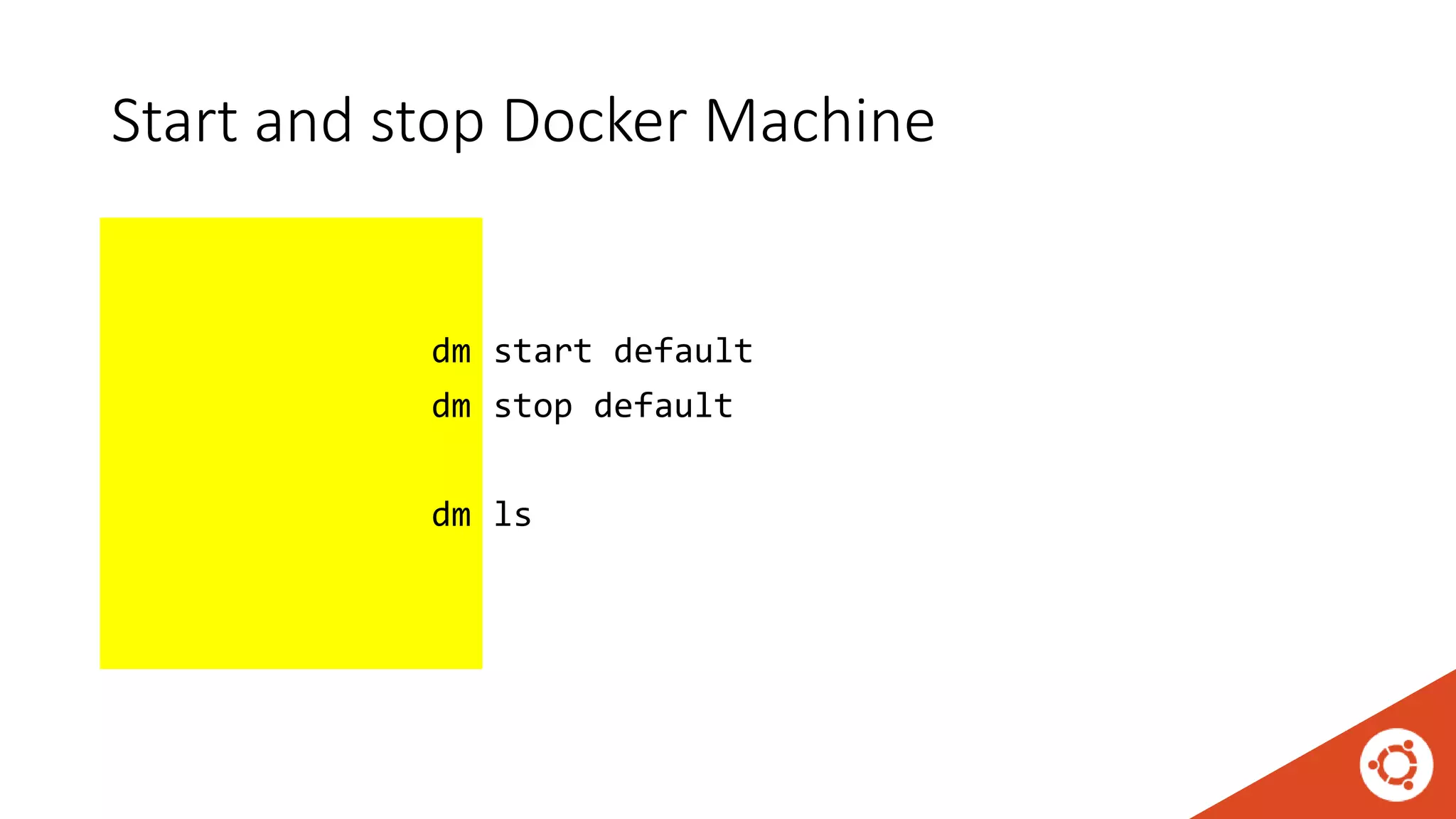
Start and stop Docker Machine
docker-machine.exe start default
docker-machine.exe stop default
docker-machine.exe ls
dm
dm
dm
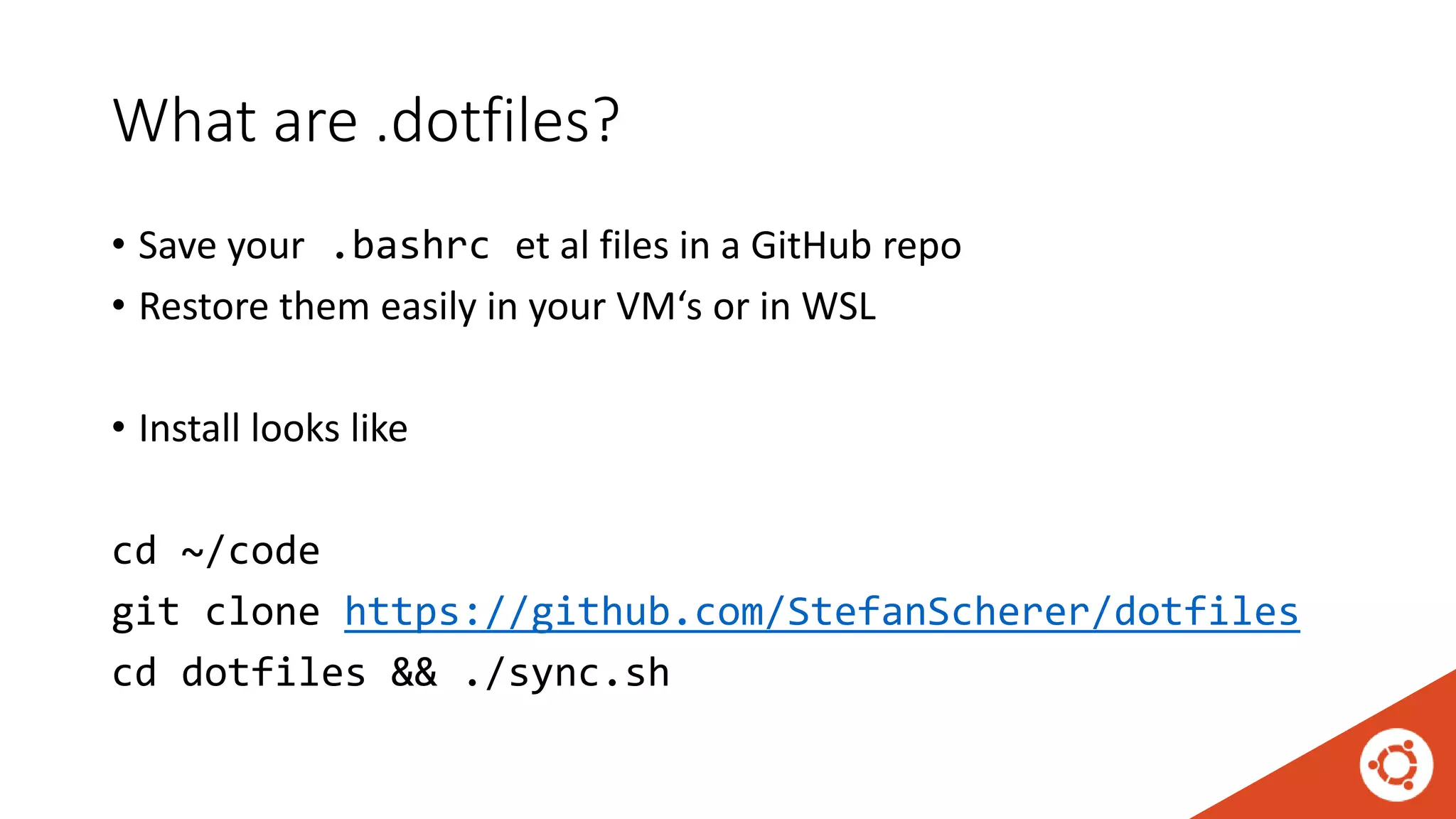
What are .dotfiles?
• Save your .bashrc et al files in a GitHub repo
• Restore them easily in your VM‘s or in WSL
• Install looks like
cd ~/code
git clone https://github.com/StefanScherer/dotfiles
cd dotfiles && ./sync.sh
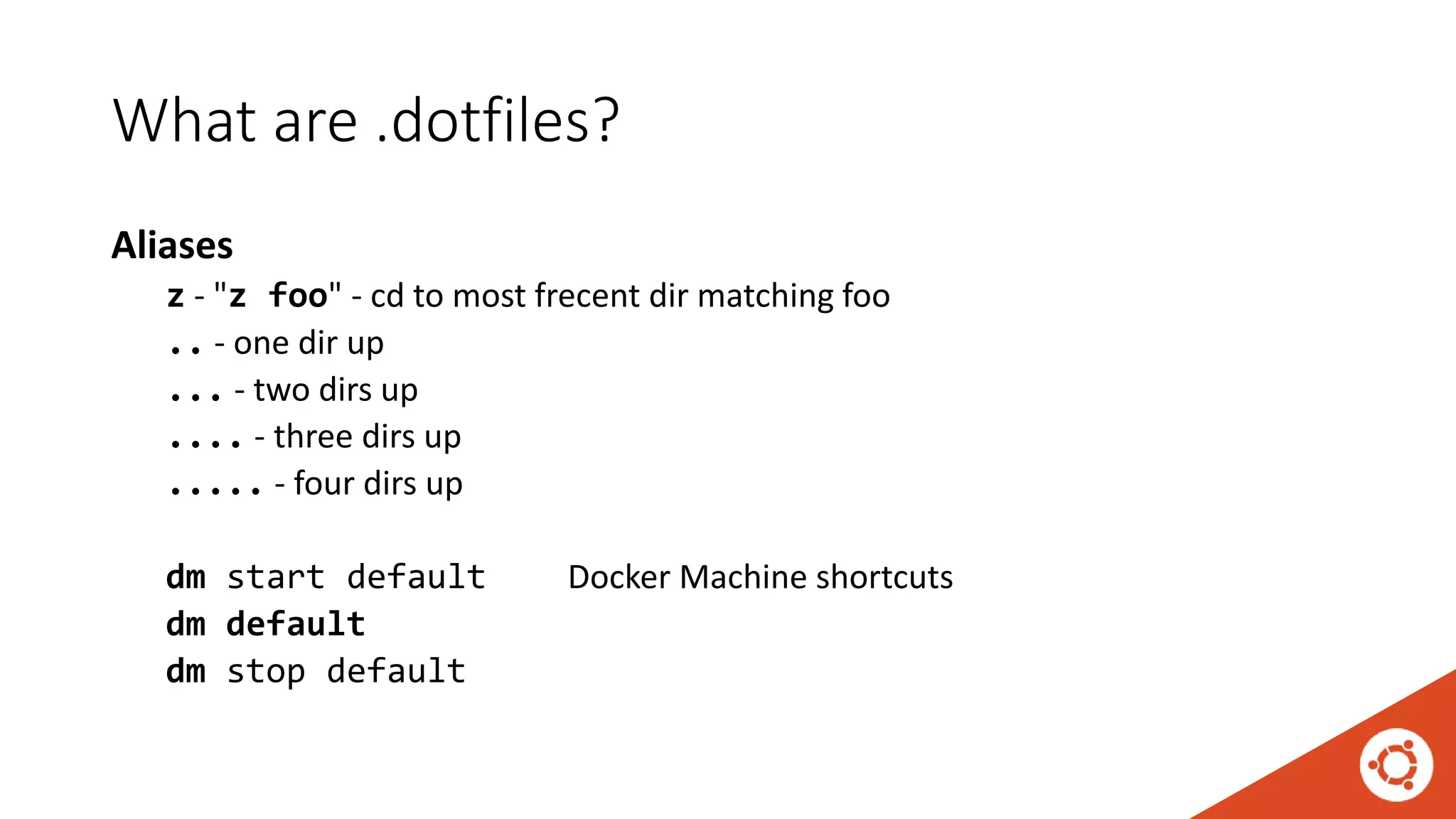
What are .dotfiles?
Aliases
z - "z foo" - cd to most frecent dir matching foo
.. - one dir up
... - two dirs up
.... - three dirs up
..... - four dirs up
dm start default Docker Machine shortcuts
dm default
dm stop default
Questions?
Thank you!
Stefan Scherer
@stefscherer

Setup a Dev environment that feels like $HOME on Windows 10

  • 1.
    Setup a Devenvironment that Feels like $HOME Stefan Scherer, SEAL Systems AG
  • 2.
  • 3.
    Agenda • Windows 10 •Choose your shell • Choose your editor • Vagrant • Docker • .dotfiles
  • 4.
    Choose your shell CMDPowerShell bash
  • 5.
    • Windows Subsystemfor Linux • Run Linux binaries on Windows • Not just like Cygwin • Real ELF binaries, packages, ... What is WSL?
  • 6.
    Install WSL • OpenControl Panel • Turn Windows features on or off • Select Windows Subsystem for Linux • Open Admin PowerShell Enable-WindowsOptionalFeature ` -Online –FeatureName ` Microsoft-Windows-Subsystem-Linux • Reboot
  • 8.
  • 9.
  • 11.
  • 12.
  • 13.
  • 14.
    Coming $HOME sudo mkdir/Users cd $HOME/.. windowsuser=$(cmd.exe /c echo %USERNAME% | tr -d 'r') sudo cp -r $USER /Users/$windowsuser sudo chown $USER:$USER /Users/$windowsuser sudo sed -i "s,$HOME,/Users/$windowsuser," /etc/passwd exit
  • 15.
    Coming $HOME –the lazy way curl https://stefanscherer.github.io/wsl/home.sh | sh
  • 16.
  • 17.
  • 18.
    Activate metadata forchmod/chown sudo vi /etc/wsl.conf [automount] options = "metadata,umask=22,fmask=11,uid=1000,gid=1000" • Now close the bash terminal and start another Ubuntu shell.
  • 19.
    Shared code folder echo$HOME # -> eg. /Users/stefan.scherer mkdir /mnt/c$HOME/code ln -s /mnt/c$HOME/code $HOME/code • Now you can clone Git repos in WSL • And edit with Windows editors like Atom or VSCode
  • 20.
    Install editors ofchoice iwr -useb https://chocolatey.org/install.ps1 | iex choco install -y atom choco install -y visualstudiocode
  • 21.
  • 24.
    •VMware Workstation •Vagrant VMwareUtility •Vagrant •Vagrant VMware plugin •Other Vagrant plugins •some Patches ...
  • 25.
    Install VMware andVagrant utility choco install -y vmwareworkstation choco install -y vagrant-vmware-utility • Workaround for Vagrant 2.1.0: Add a symlink mkdir mntcUsers cmd /c mklink /D mntcUsers$env:USERNAME ` Users$env:USERNAME
  • 26.
    Prepare Windows –the lazy way curl.exe https://stefanscherer.github.io/wsl/prep.ps1 | iex
  • 27.
    Install Vagrant inWSL mkdir -p /mnt/c$HOME/.vagrant.d ln -s /mnt/c$HOME/.vagrant.d ~/.vagrant.d sudo chown $USER:$USER ~/.vagrant.d chmod 755 ~/.vagrant.d wget https://releases.hashicorp.com/vagrant/2.1.0/vagrant_2.1.0_x86_64.deb sudo dpkg -i vagrant_2.1.0_x86_64.deb • Add this to your ~/.bashrc export VAGRANT_WSL_ENABLE_WINDOWS_ACCESS=1
  • 28.
    Prepare Vagrant VMware sudoln -s /mnt/c/ProgramData/HashiCorp/vagrant-vmware-desktop /opt/vagrant-vmware-desktop vagrant plugin install vagrant-vmware-desktop vagrant plugin license vagrant-vmware-desktop ./license.lic
  • 29.
    Patch Vagrant 2.1.0for VMware wget https://raw.githubusercontent.com/StefanScherer/dotfiles/mast er/bin/vmrun.exe-helper sudo cp vmrun.exe-helper '/usr/bin/C:Program Files (x86)VMwareVMware Workstationvmrun.exe' sudo ln -s '/usr/bin/C:Program Files (x86)VMwareVMware Workstationvmrun.exe' /usr/bin/vmrun
  • 30.
    Install Vagrant VMware– the lazy way curl https://stefanscherer.github.io/wsl/vagrant.sh | sh
  • 31.
    Run Vagrant boxes cd~/code mkdir tst vagrant init bento/ubuntu-18.04 vagrant up
  • 32.
    Use shared folders •Bind mounts work in the Windows user‘s directory • Usable with the shared code folder vagrant ssh touch /vagrant/xxx exit ls xxx
  • 35.
    •VMware Workstation •docker-machine.exe •Docker MachineVMware plugin •Docker CLI •Docker Compose •some helpers ...
  • 36.
    Install Docker Machine chocoinstall -y docker-machine choco install -y docker-machine-vmwareworkstation
  • 37.
    Install Docker CLIand Compose curl https://get.docker.com | sh curl -L https://github.com/docker/compose/releases/download/1.21.2/docker-compose-`uname -s`-`uname -m` -o docker-compose chmod +x docker-compose sudo mv docker-compose /usr/local/bin/docker-compose
  • 38.
    Install Docker tools– the lazy way curl https://stefanscherer.github.io/wsl/docker.sh | sh
  • 39.
    Create a DockerMachine docker-machine.exe create -d vmwareworkstation default
  • 40.
    Switch to aDocker Machine eval $(docker-machine.exe env --shell bash default | sed 's,,/,g' | sed 's,C:,/mnt/c,g') docker version dm default
  • 41.
    Use bind mountsin Docker • Bind mounts work in the Windows user‘s directory • Usable with the shared code folder cd ~/code docker run -it -v $(pwd):/test ubuntu bash touch /test/xxx exit ls xxx
  • 42.
    Start and stopDocker Machine docker-machine.exe start default docker-machine.exe stop default docker-machine.exe ls dm dm dm
  • 44.
    What are .dotfiles? •Save your .bashrc et al files in a GitHub repo • Restore them easily in your VM‘s or in WSL • Install looks like cd ~/code git clone https://github.com/StefanScherer/dotfiles cd dotfiles && ./sync.sh
  • 45.
    What are .dotfiles? Aliases z- "z foo" - cd to most frecent dir matching foo .. - one dir up ... - two dirs up .... - three dirs up ..... - four dirs up dm start default Docker Machine shortcuts dm default dm stop default
  • 47.