See the Forest AND the Trees
Free Data Visualisation Tools
Paul Rowe, @armchair_caver
National Digital Forum, Nov 2016
““It doesn’t look like anything to me”It doesn’t look like anything to me”
Helping you spot patterns in big data setsHelping you spot patterns in big data sets
Use of Data VisualisationUse of Data Visualisation
Software: Typically 3 key stepsSoftware: Typically 3 key steps
1.1.Export to standard format.Export to standard format.
2.2.Clean up dataClean up data
3.3.Import/view in a visualisationImport/view in a visualisation
tooltool
Data Cleanup
=YEAR(G2)
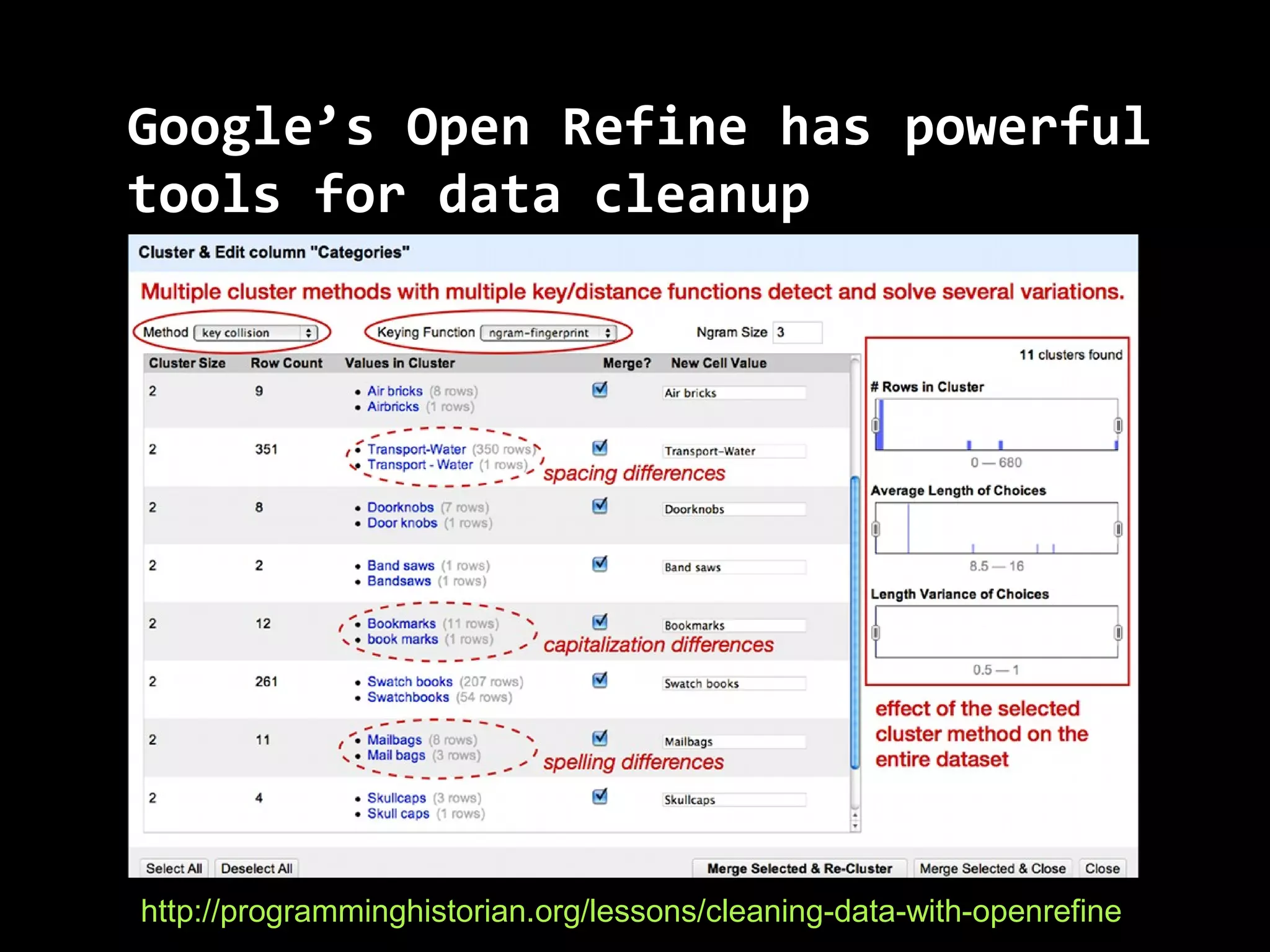
Google’s Open Refine has powerfulGoogle’s Open Refine has powerful
tools for data cleanuptools for data cleanup
http://programminghistorian.org/lessons/cleaning-data-with-openrefine
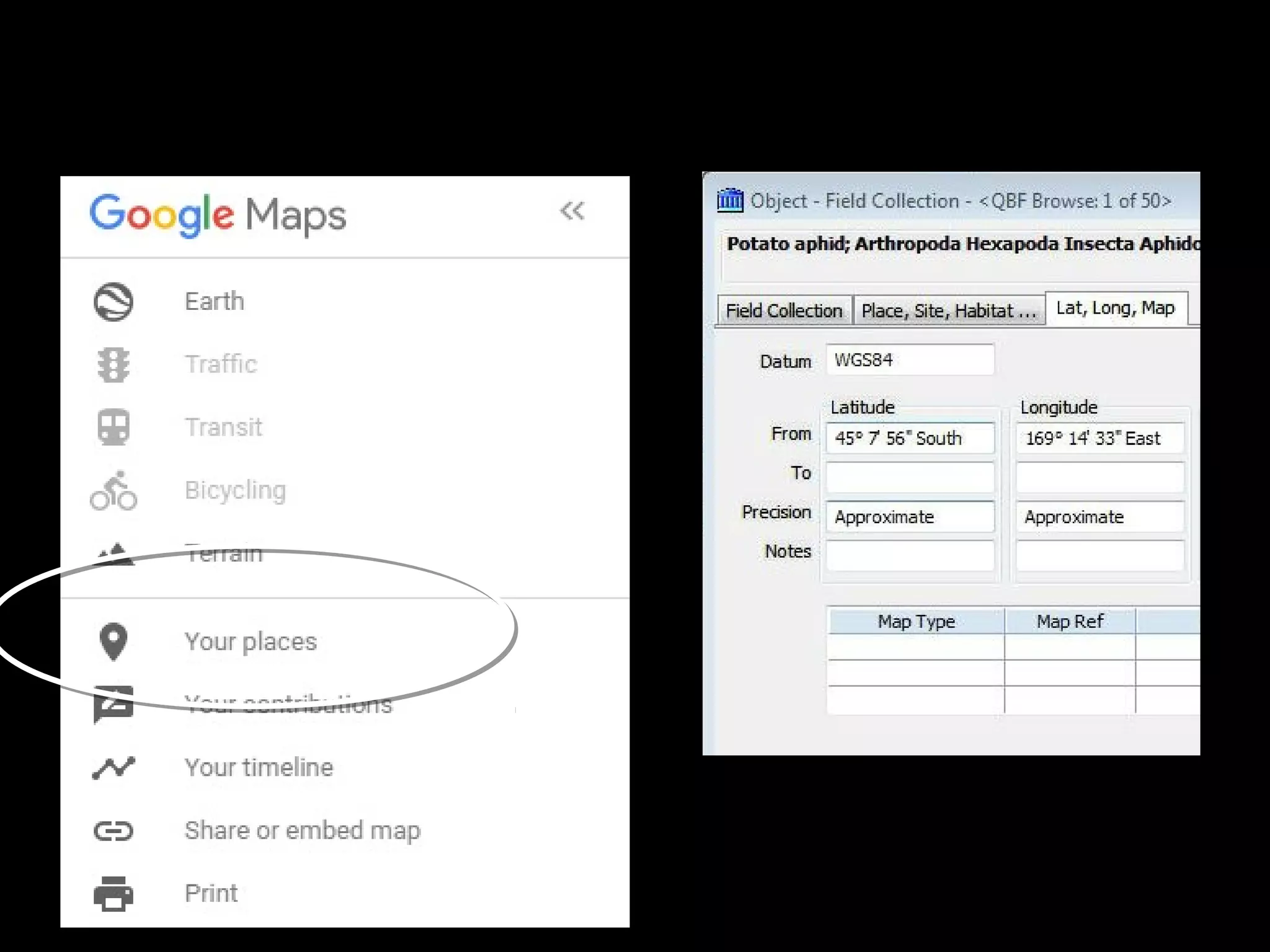
Creating layers with Google Maps
https://support.google.com/mymaps/answer/3024933
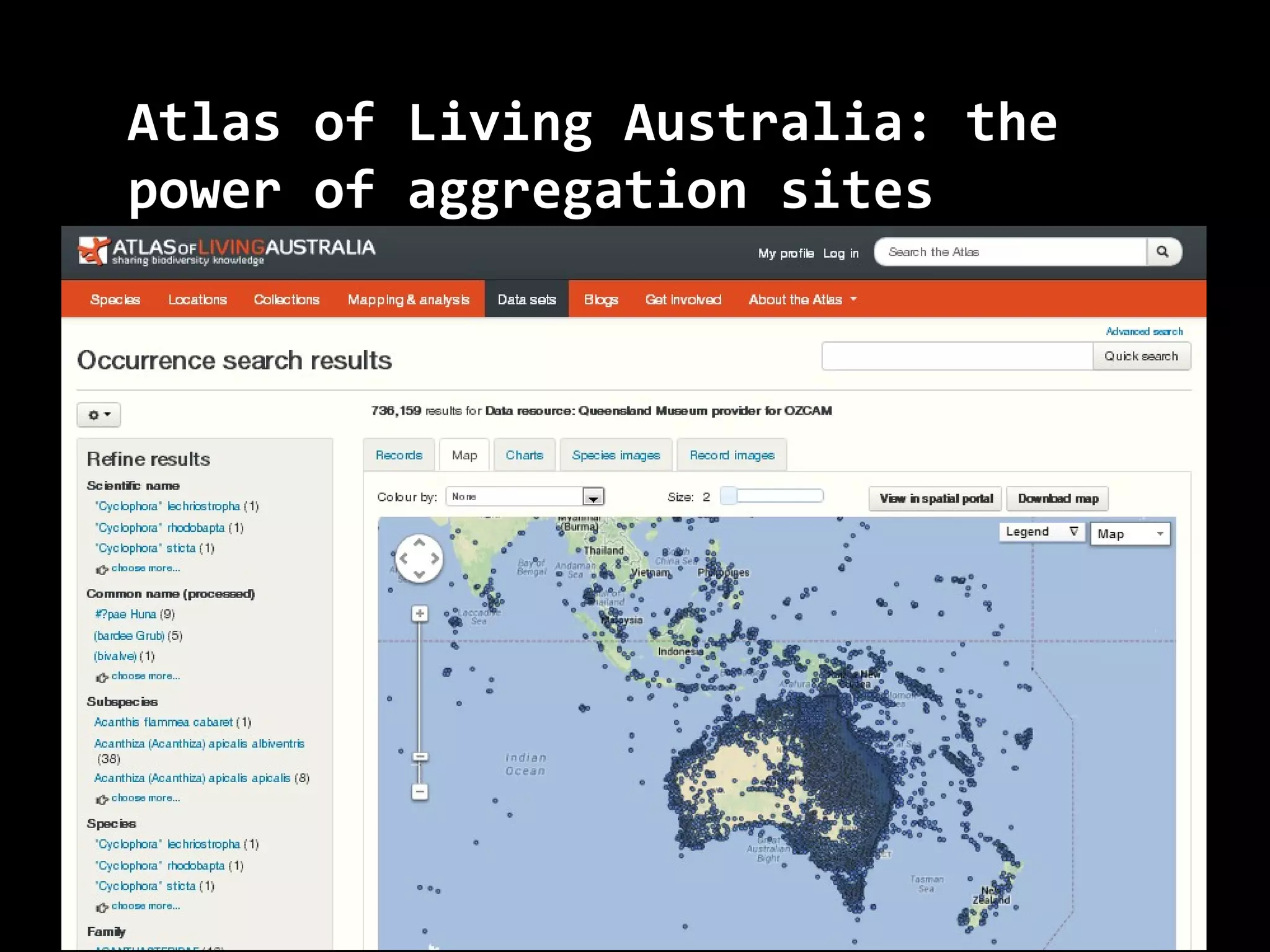
Atlas of Living Australia: theAtlas of Living Australia: the
power of aggregation sitespower of aggregation sites
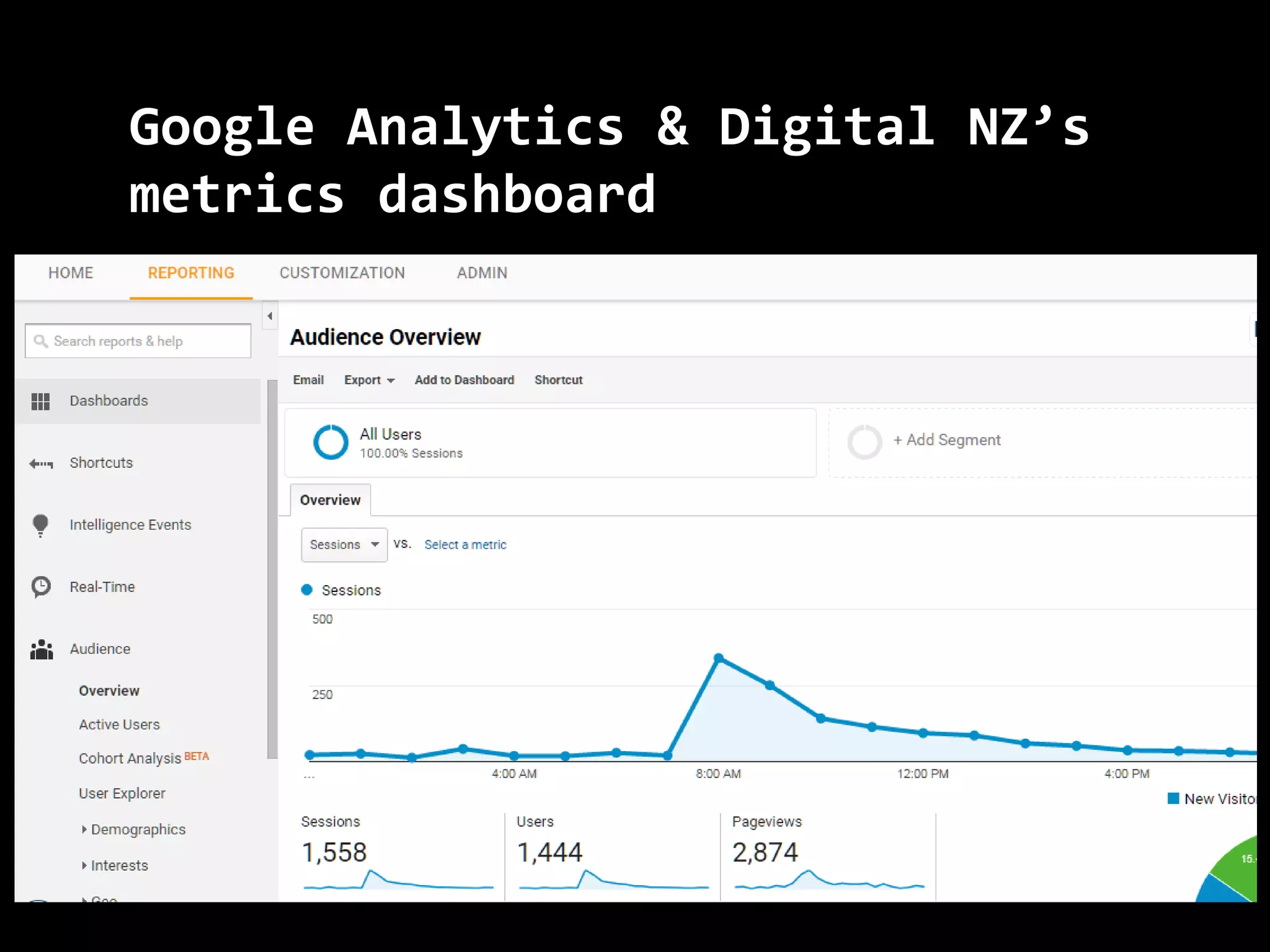
Google Analytics & Digital NZ’sGoogle Analytics & Digital NZ’s
metrics dashboardmetrics dashboard
Make information moreMake information more
visually interestingvisually interesting
Patterns over timePatterns over time
Remember: Data is your friendRemember: Data is your friend
Want to find out more?Want to find out more?
Excel Pivot Tables:Excel Pivot Tables:
https://support.office.com/en-us/article/Create-a-PivotTable
Tableau Public:Tableau Public: https://public.tableau.comhttps://public.tableau.com
IBM’s Watson Analytics:IBM’s Watson Analytics:
http://www.ibm.com/analytics/watson-analytics/http://www.ibm.com/analytics/watson-analytics/
Wordle:Wordle: http://www.wordle.net
www.slideshare.net/PaulRowewww.slideshare.net/PaulRowe

See the forest AND the trees: Free tools for data visualisation

  • 1.
    See the ForestAND the Trees Free Data Visualisation Tools Paul Rowe, @armchair_caver National Digital Forum, Nov 2016
  • 2.
    ““It doesn’t looklike anything to me”It doesn’t look like anything to me” Helping you spot patterns in big data setsHelping you spot patterns in big data sets
  • 3.
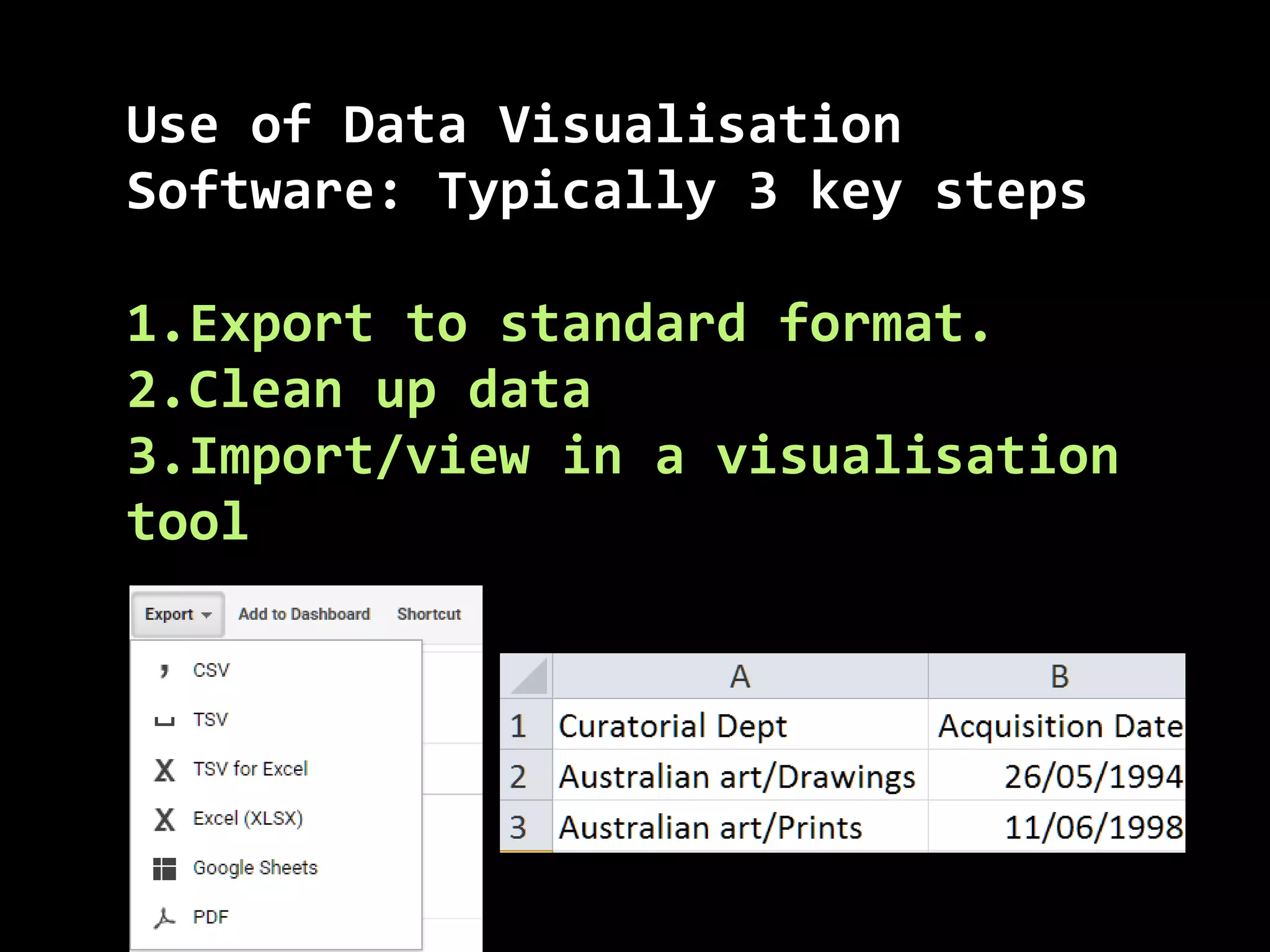
    Use of DataVisualisationUse of Data Visualisation Software: Typically 3 key stepsSoftware: Typically 3 key steps 1.1.Export to standard format.Export to standard format. 2.2.Clean up dataClean up data 3.3.Import/view in a visualisationImport/view in a visualisation tooltool
  • 4.
  • 5.
    Google’s Open Refinehas powerfulGoogle’s Open Refine has powerful tools for data cleanuptools for data cleanup http://programminghistorian.org/lessons/cleaning-data-with-openrefine
  • 6.
    Creating layers withGoogle Maps https://support.google.com/mymaps/answer/3024933
  • 9.
    Atlas of LivingAustralia: theAtlas of Living Australia: the power of aggregation sitespower of aggregation sites
  • 10.
    Google Analytics &Digital NZ’sGoogle Analytics & Digital NZ’s metrics dashboardmetrics dashboard
  • 21.
    Make information moreMakeinformation more visually interestingvisually interesting
  • 22.
  • 23.
    Remember: Data isyour friendRemember: Data is your friend Want to find out more?Want to find out more? Excel Pivot Tables:Excel Pivot Tables: https://support.office.com/en-us/article/Create-a-PivotTable Tableau Public:Tableau Public: https://public.tableau.comhttps://public.tableau.com IBM’s Watson Analytics:IBM’s Watson Analytics: http://www.ibm.com/analytics/watson-analytics/http://www.ibm.com/analytics/watson-analytics/ Wordle:Wordle: http://www.wordle.net www.slideshare.net/PaulRowewww.slideshare.net/PaulRowe

Editor's Notes

  • #2 Kia ora. I’m Paul Rowe, from Vernon Systems. We often work with large sets of collections data and we’ve been experimenting with different ways to view that data.
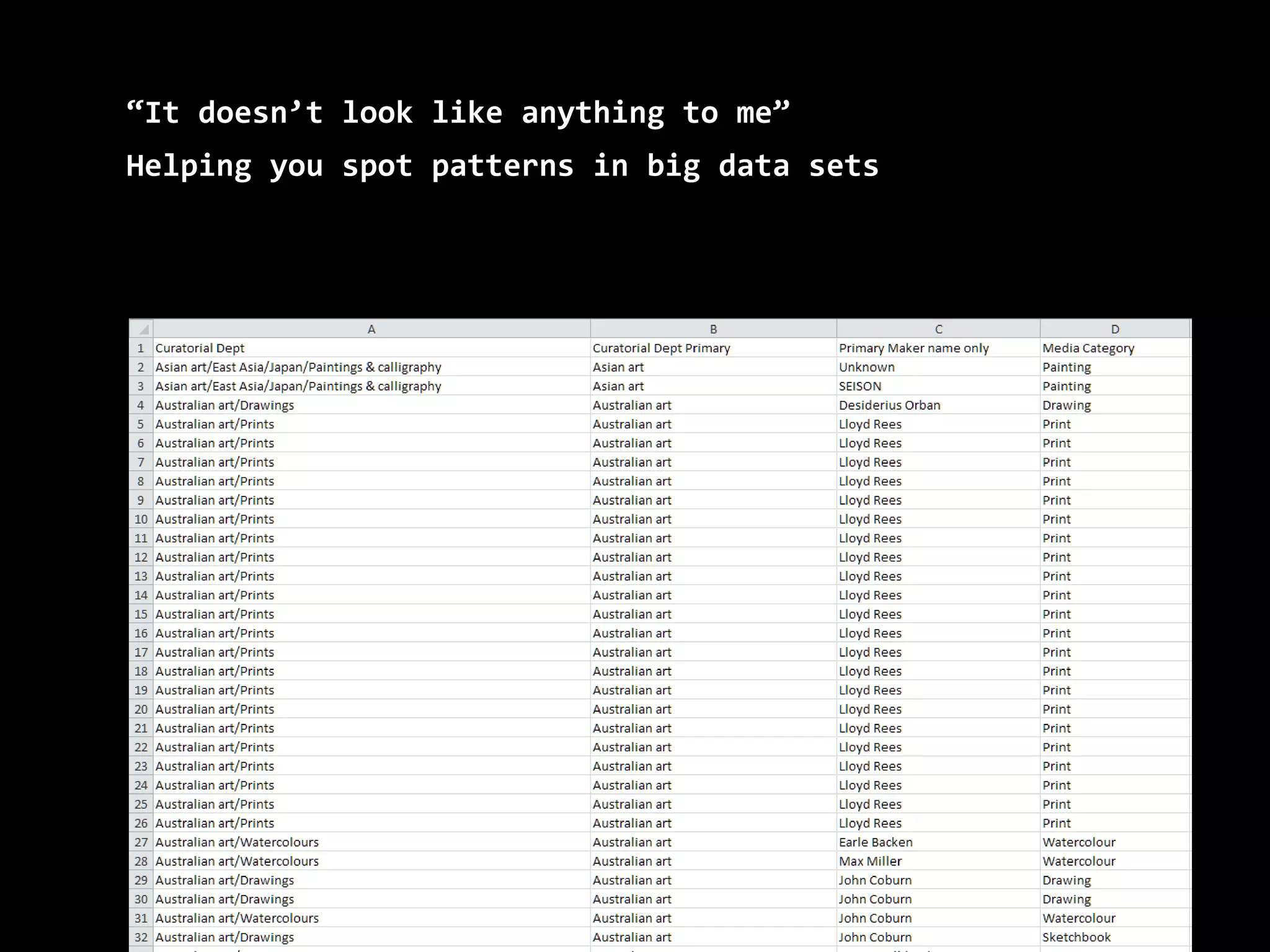
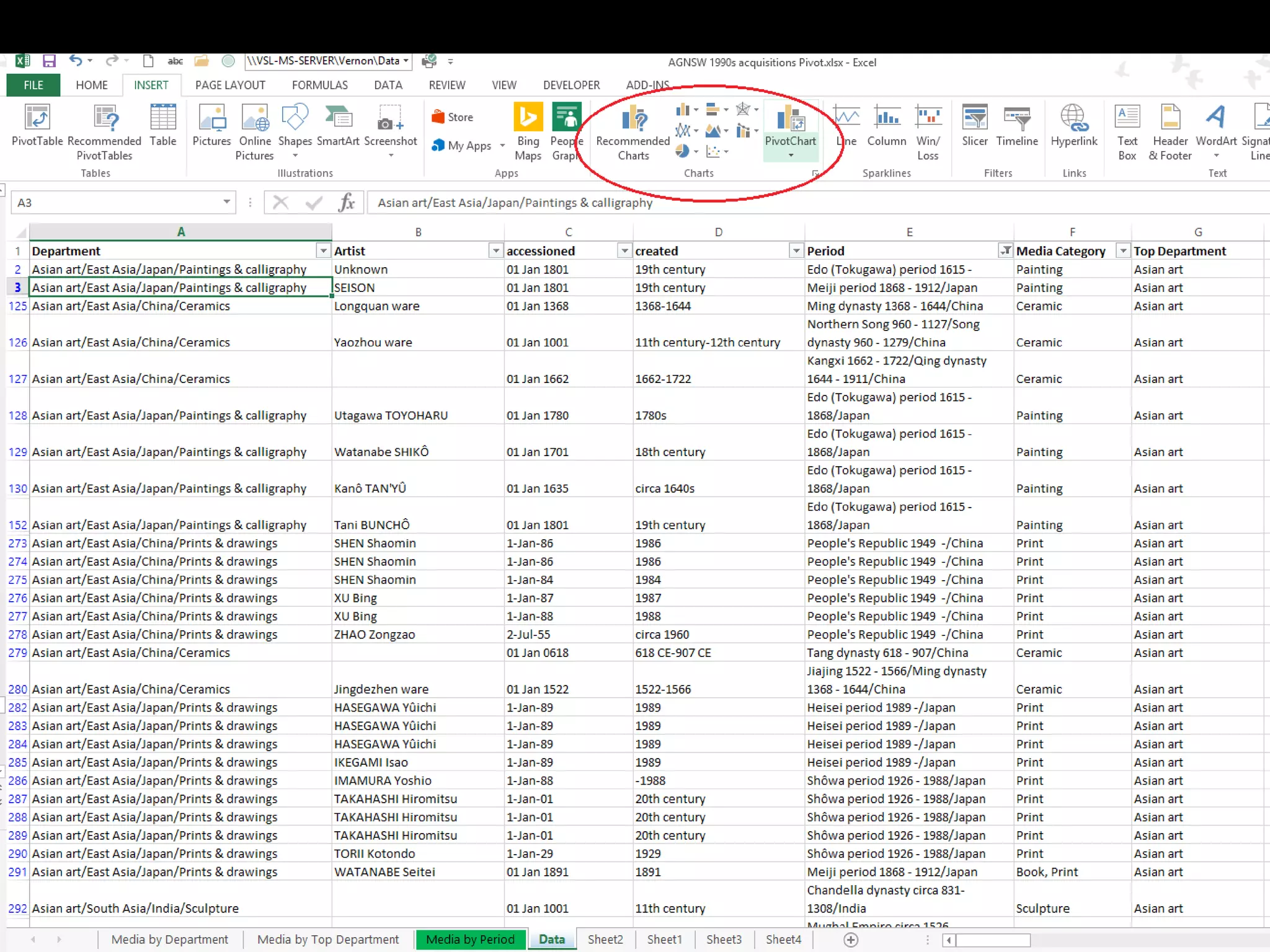
  • #3 This is one example of a visualisation, but not a particularly useful one! This is a list of all the artworks acquired by Art Gallery of New South Wales in the 1990s. Today I’ll look at free software to view sets of data like this in graphical form.
  • #4 There are three typical steps. Get your data in a common format, tidy it up and then start viewing in the visualisation software.
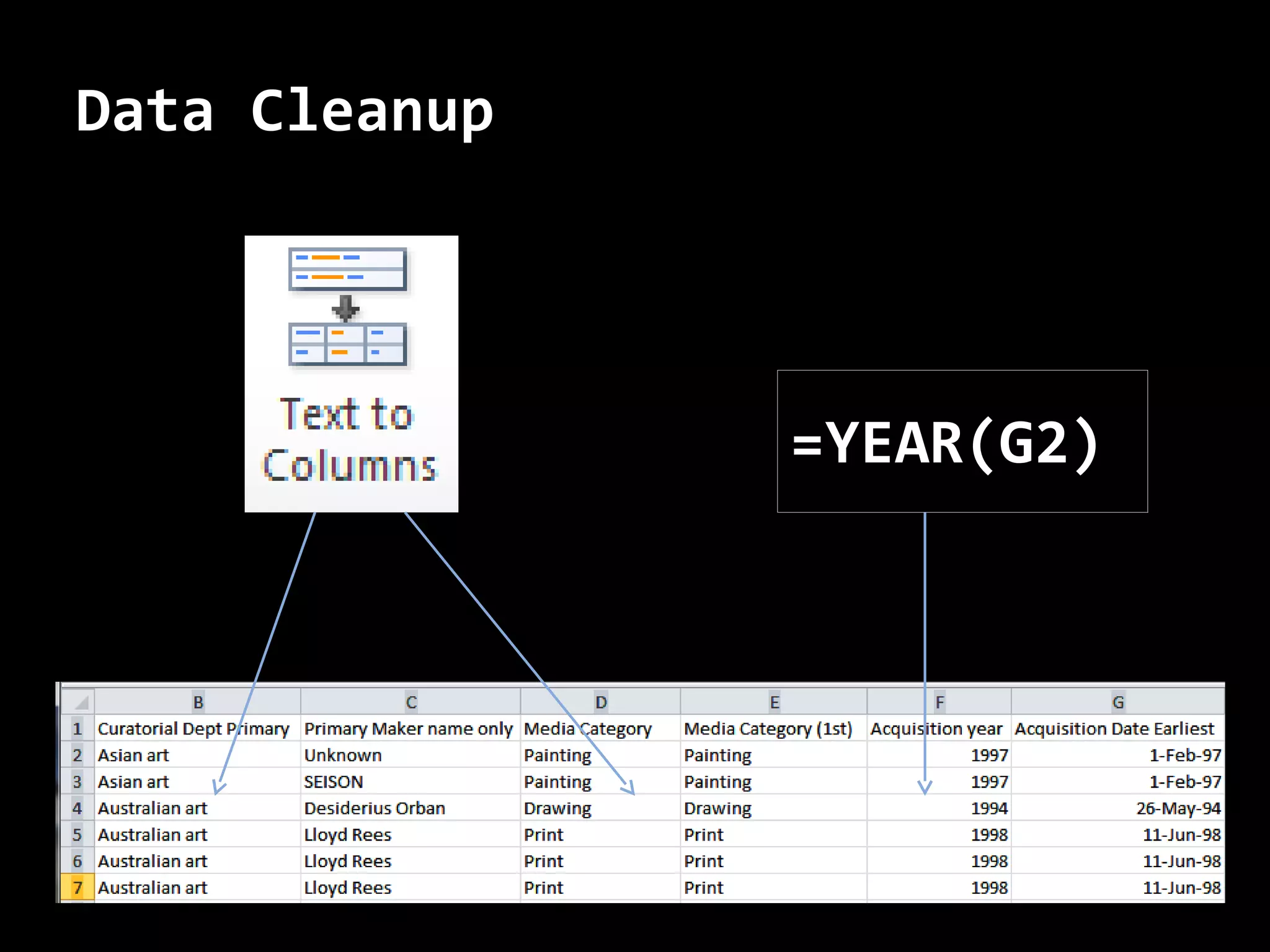
  • #5 Excel is one tool that can be used at the cleanup stage. Here I’ve used a couple of Excel features to split the data in one text column and to extract just the year from the Acquisition Date column.
  • #6 Google’s Open Refine is another option for data cleanup. The Programming Historian has written up an excellent summary of using it with collections data.
  • #7 If you have map references for collection items then Google Maps provide options for viewing an interactive map of the data. Google Maps can manage multiple map layers and these can be kept private or shared with others.
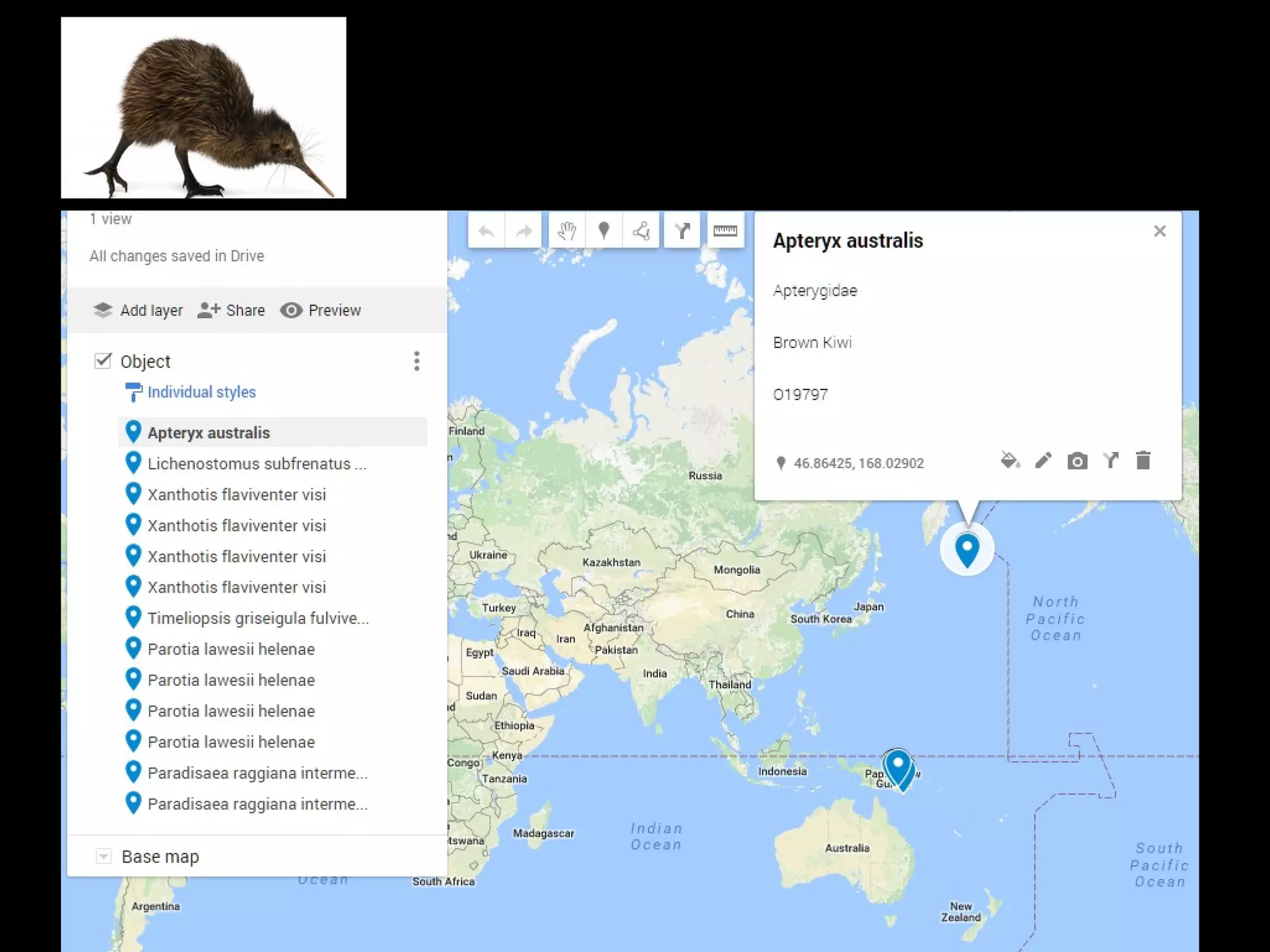
  • #8 Viewing the data on a map can help you see the trees, or in this case – a kiwi collected on its annual migration to the breeding grounds in the North Pacific Ocean.
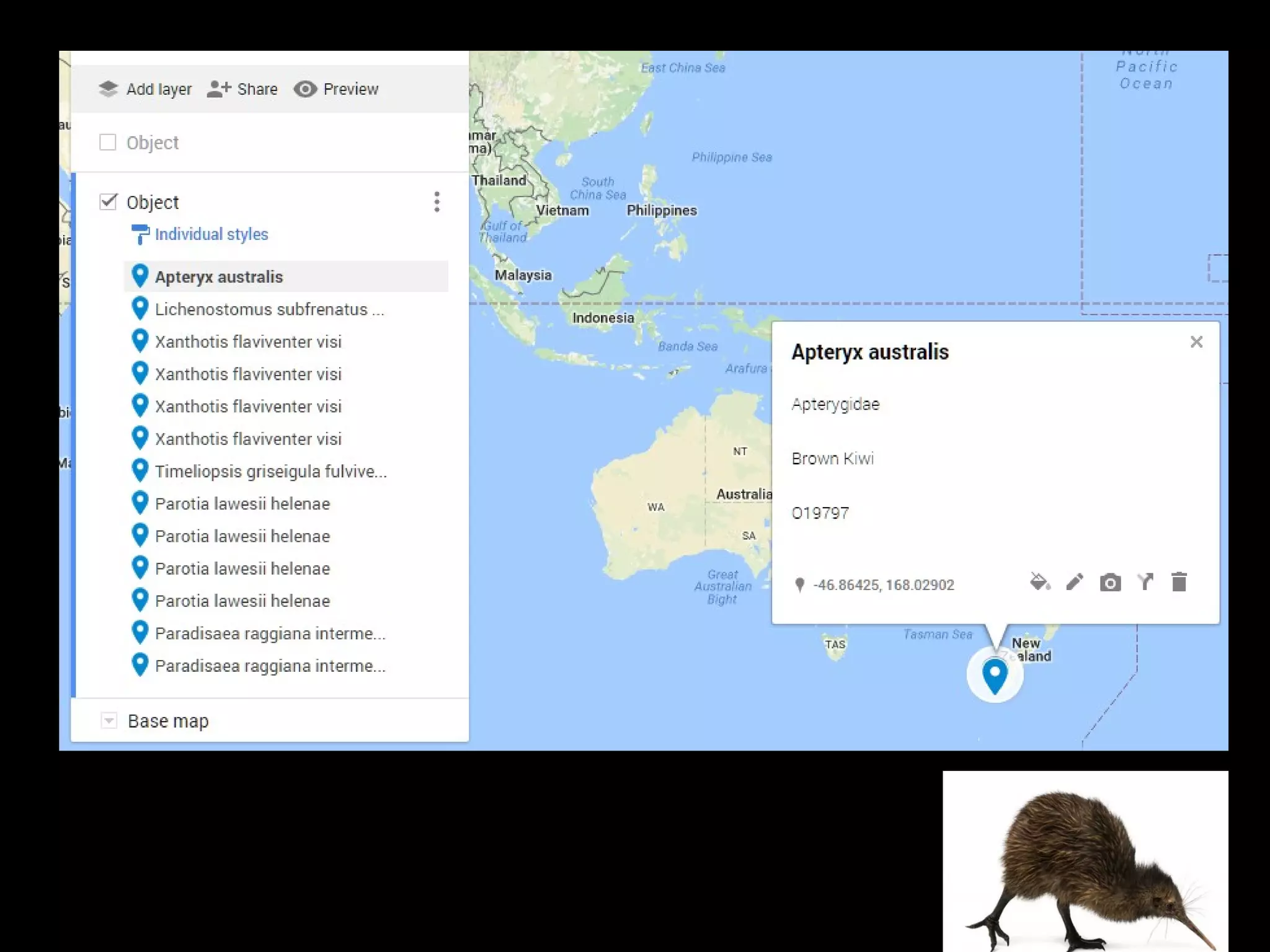
  • #9 That doesn’t seem quite right, so looking at the source data more closely it’s simply a case of the latitude being recorded as a positive, or northern hemisphere, coordinate. We can update the record and put the kiwi back in Stewart Island.
  • #10 Contributing your data to wider projects can give you access to visualisation tools that others already built. Here we can the forest of Queensland Museum’s ¾ million published specimen records on the Atlas of Living Australia and we can instantly see where they were collected from.
  • #11 Google Analytics provides options for visualising data about web pages. Digital NZ has also developed a dashboard which gives stats about the records you’ve supplied, providing another good reason for contributing to these higher level projects.
  • #12 So you now have tidy data in a standard format. Microsoft Excel provides options for visualising the data using the Pivot Tables & Charts features. We could compare the media of the artworks against the historic period when they were made.
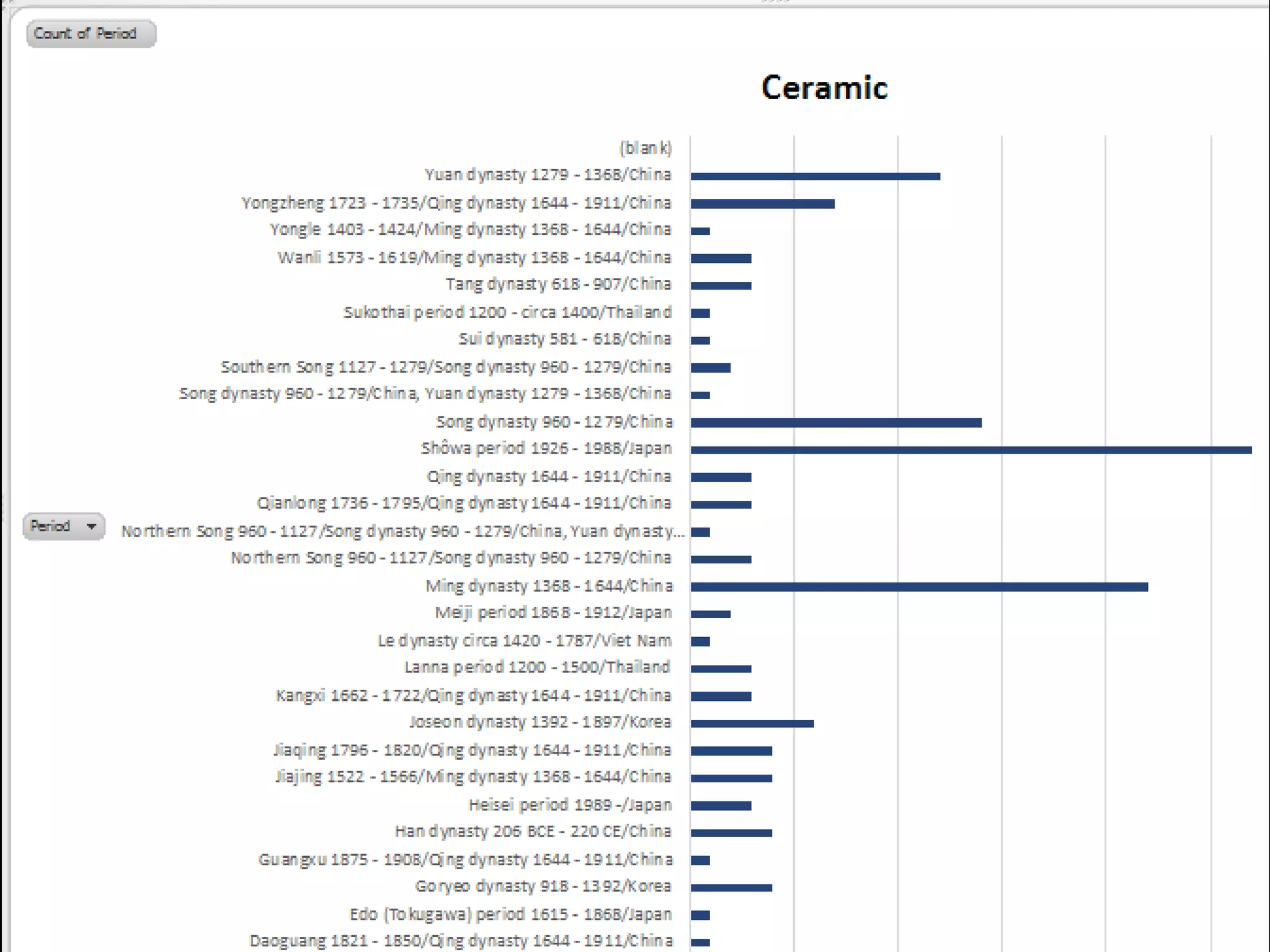
  • #13 Here I have drilled down into the chart for Chinese ceramics and can see that the Gallery’s collection concentrates on a few periods, including the Ming Dynasty.
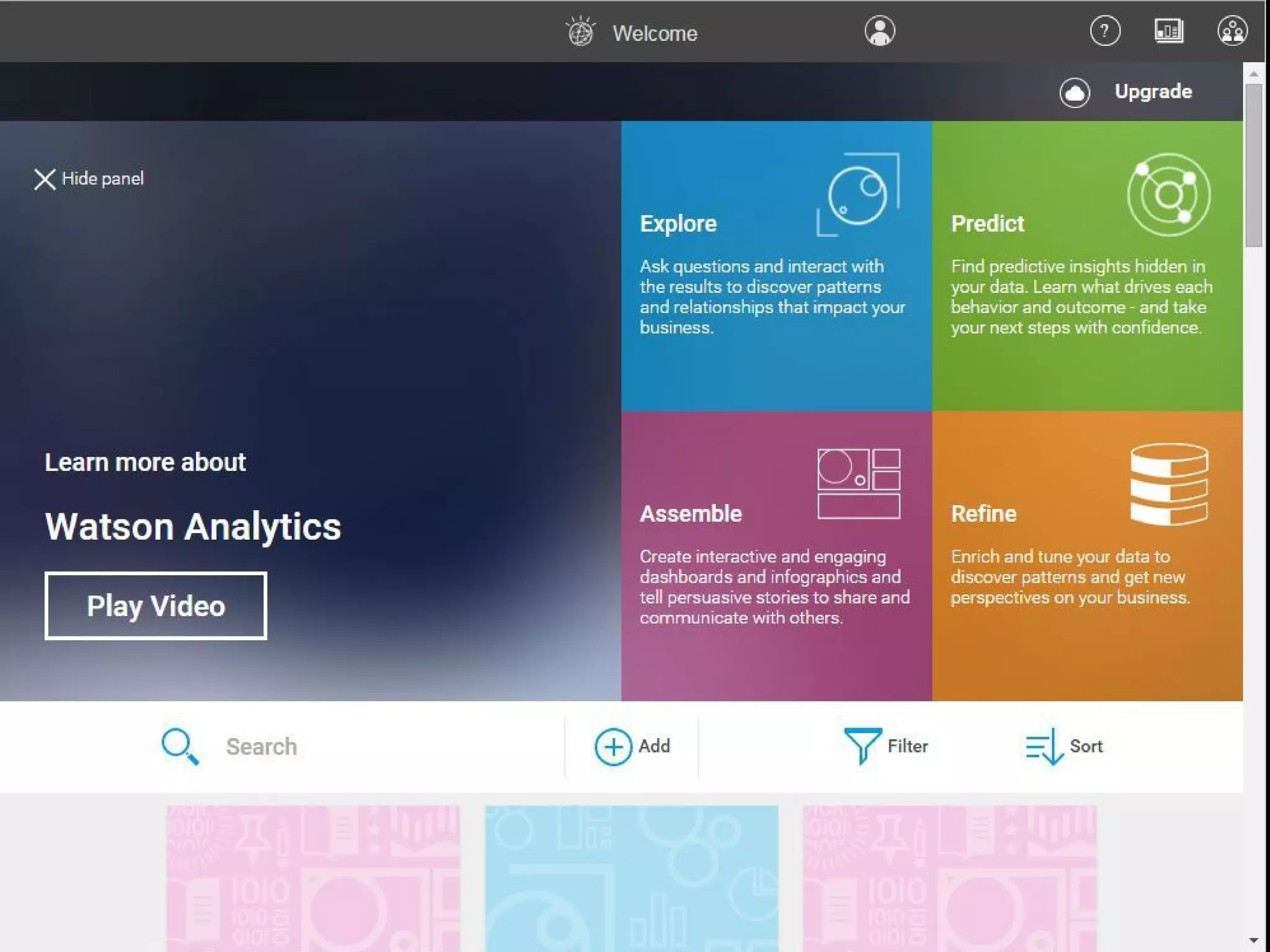
  • #14 There are many data analysis services coming onto the market. IBM’s Watson Analytics is one example.
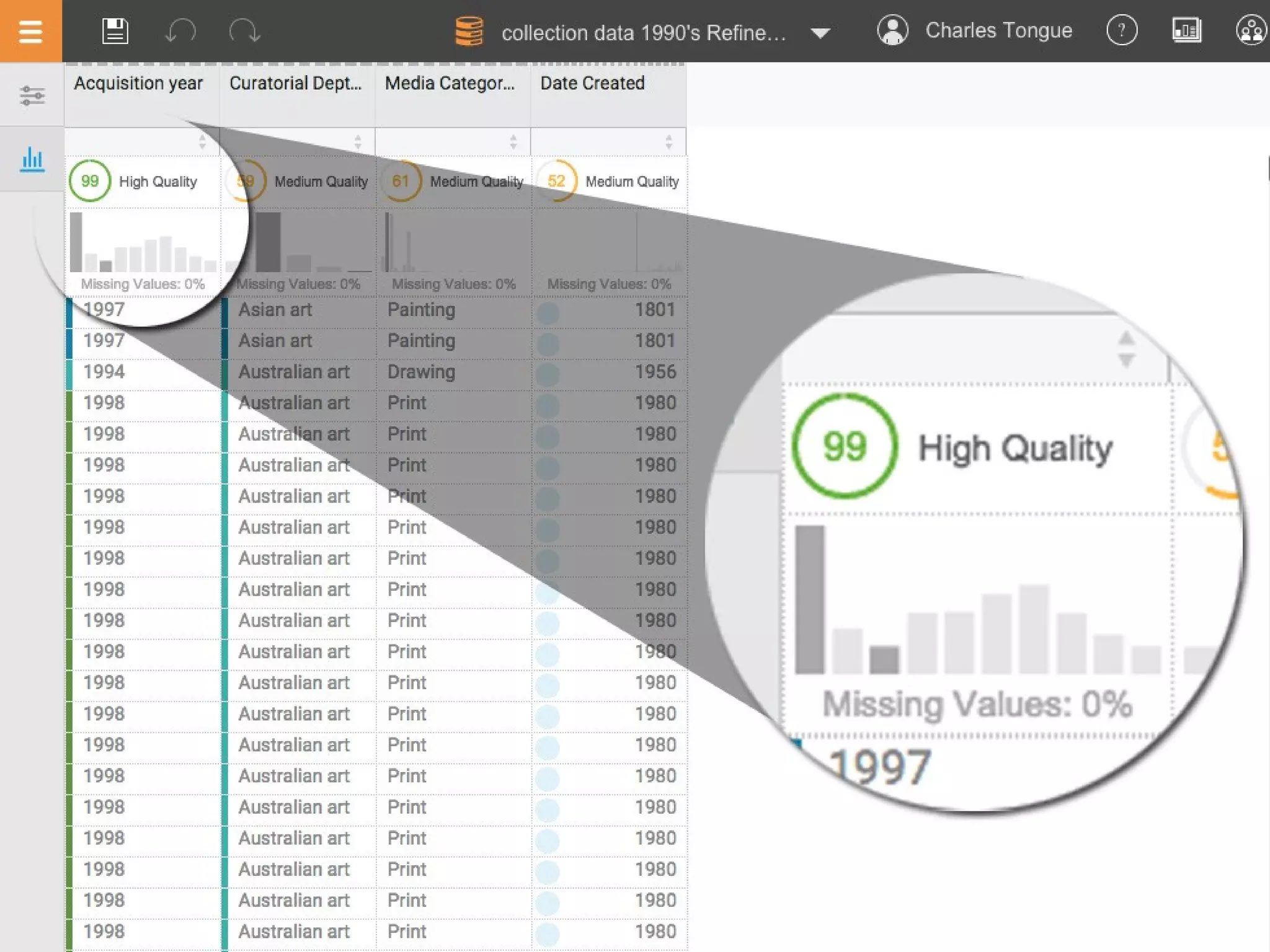
  • #15 After importing your collection data Watson Analytics indicates the quality of each data column. Here the Acquisition Year is the best quality data. It can be understood as dates and is available for all records.
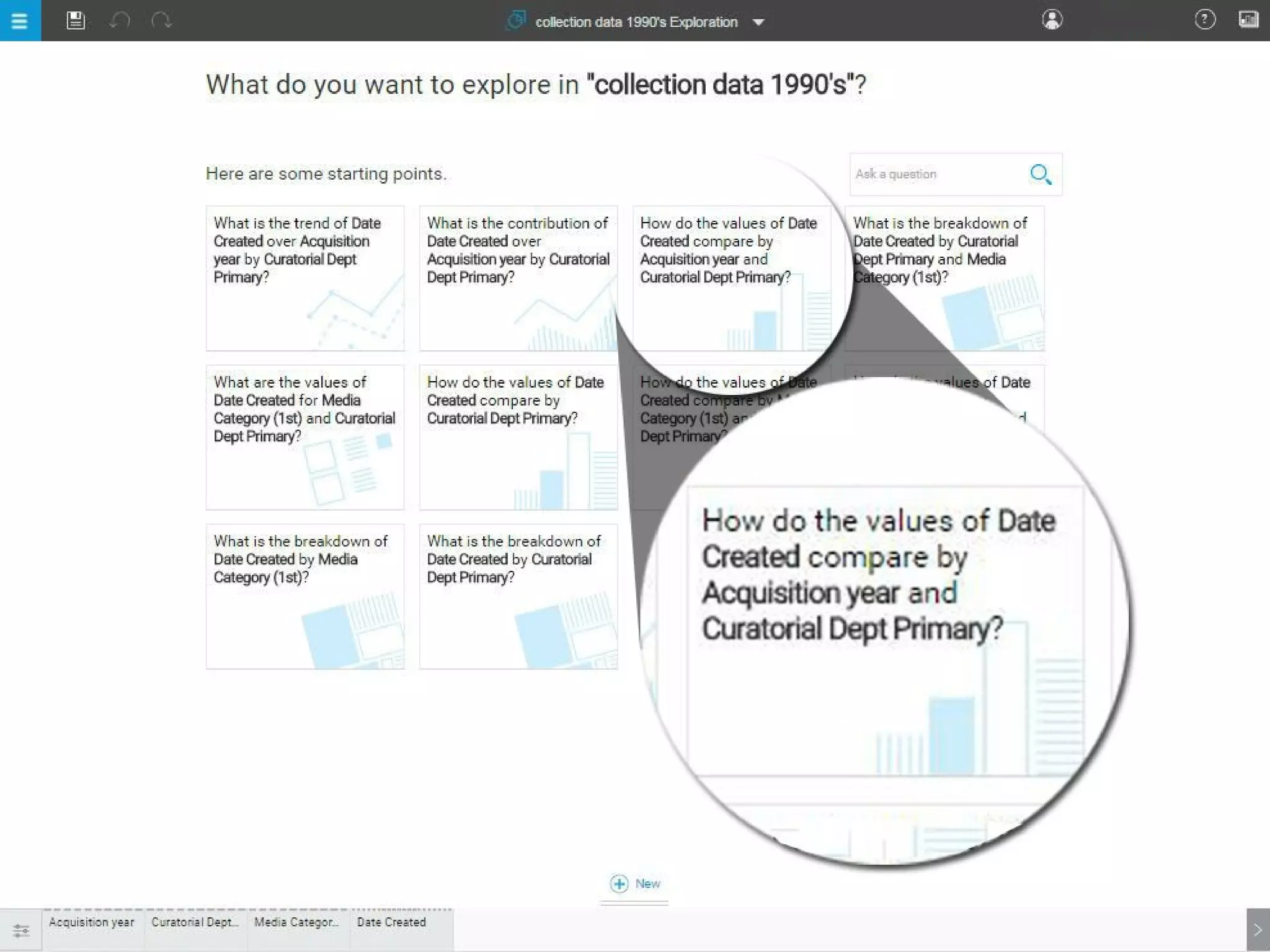
  • #16 Watson has a clever feature where it suggests questions that it might be able to answer based on your data, or alternatively you can construct your own questions.
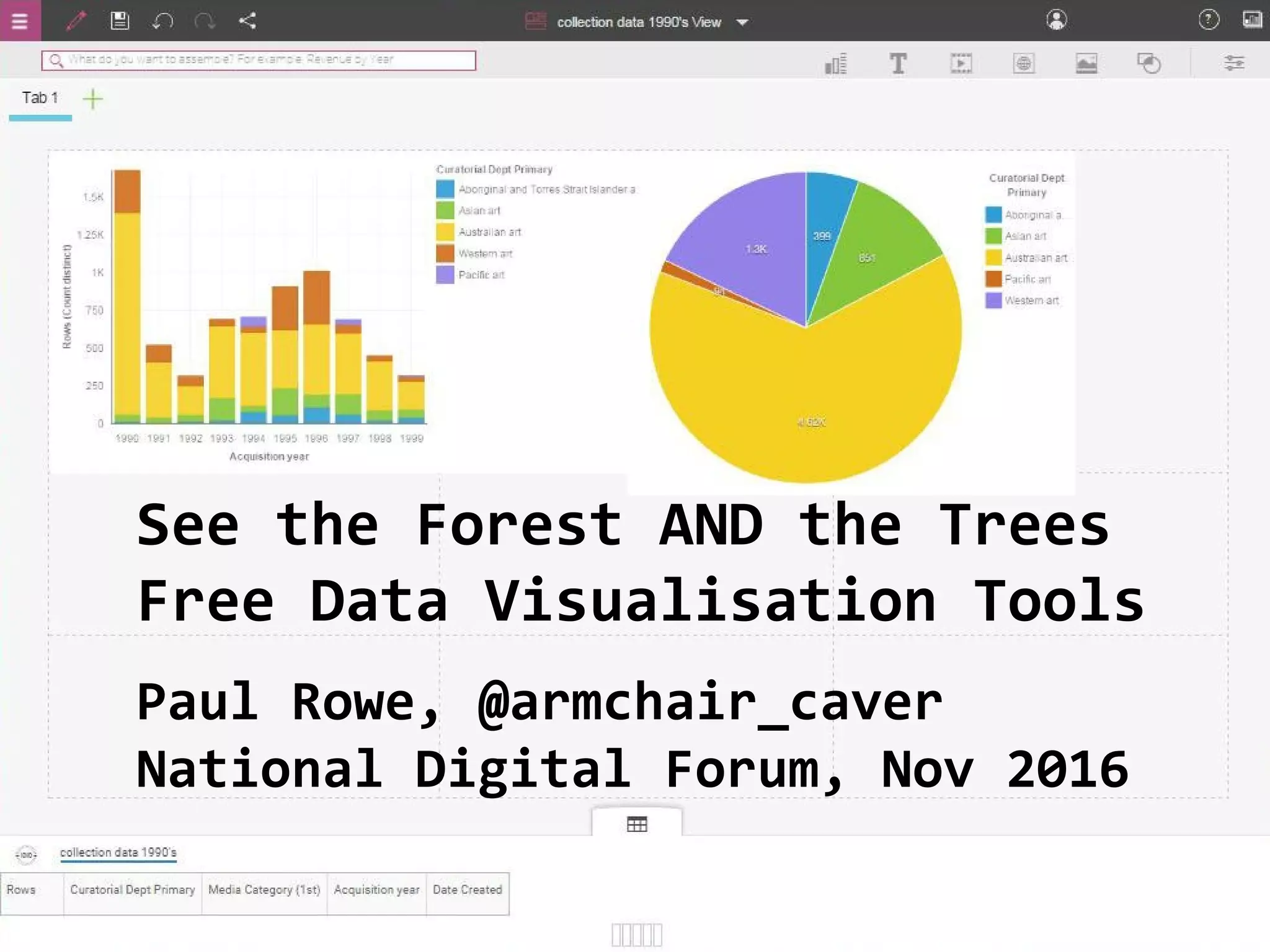
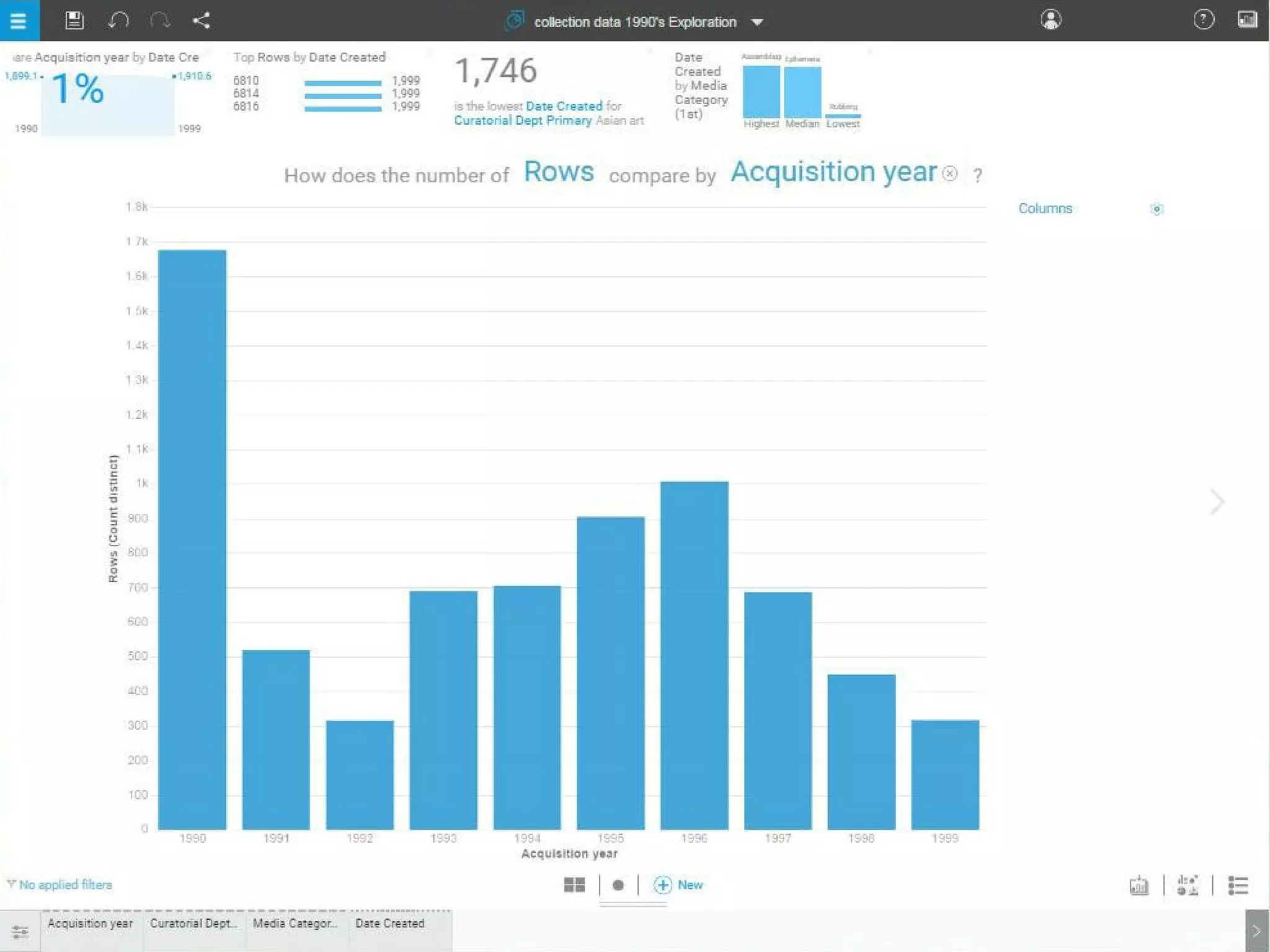
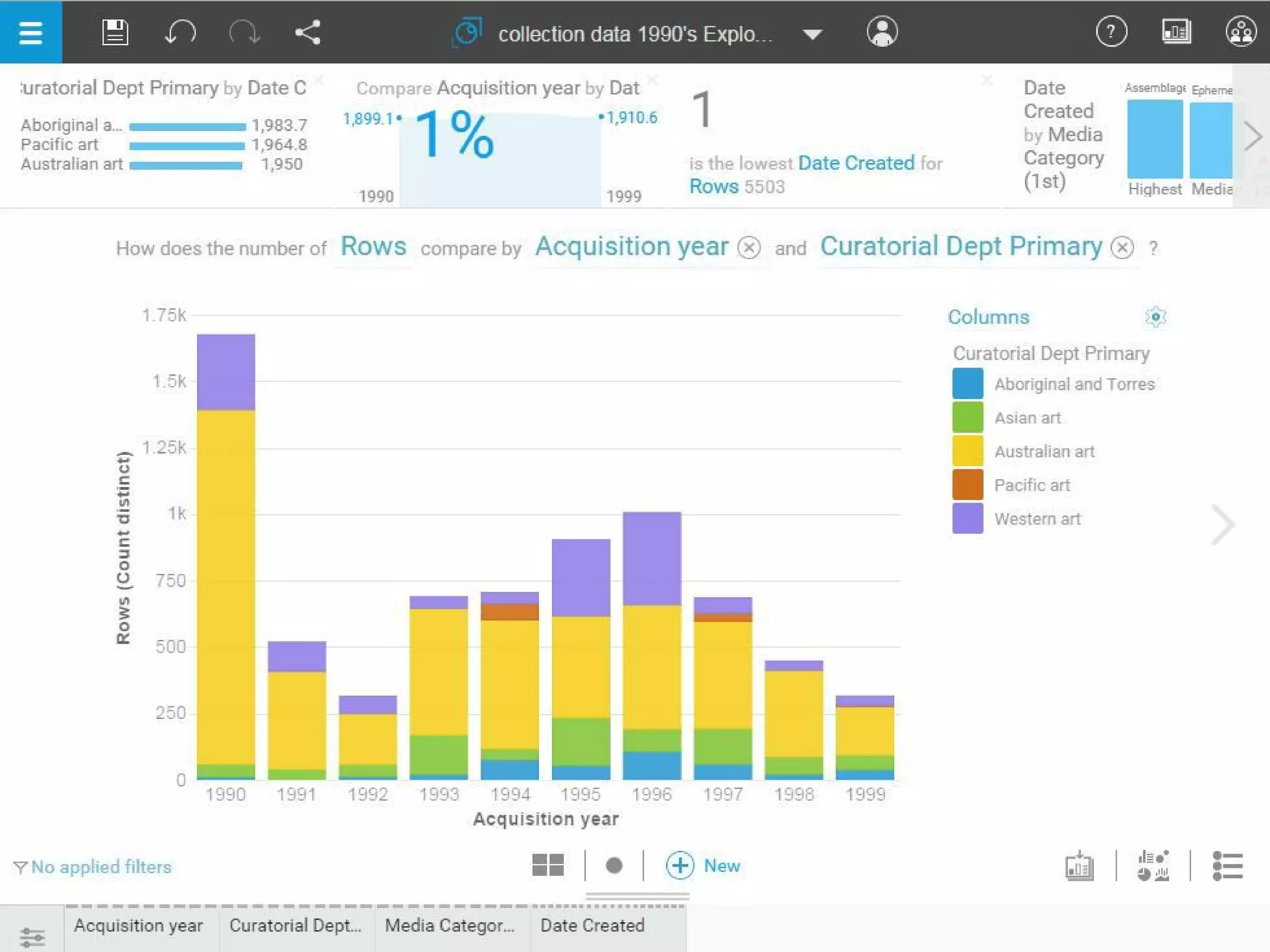
  • #17 This is the graph for the question ‘How does the number of rows compare with the acquisition year’. We can immediately see 1990 was a particularly busy year.
  • #18 We could break it down further, colour coding by departments within the Gallery. Now we can see that the majority of the 1990 items were in the Australian Art Department.
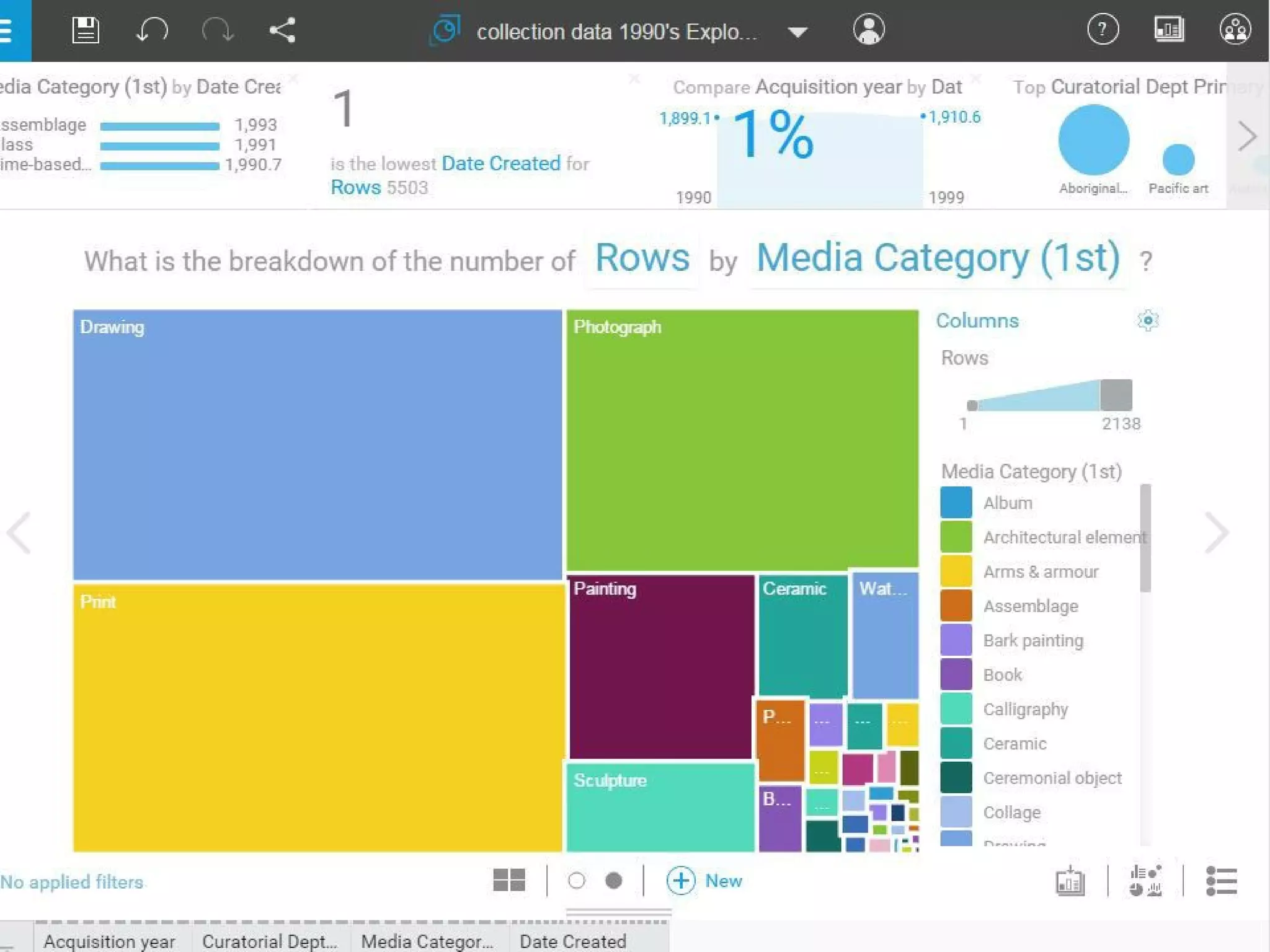
  • #19 Watson provides a wide range of options for viewing the information. Here we see the proportion of the collection for each media category and it’s much easier to spot the most popular media.
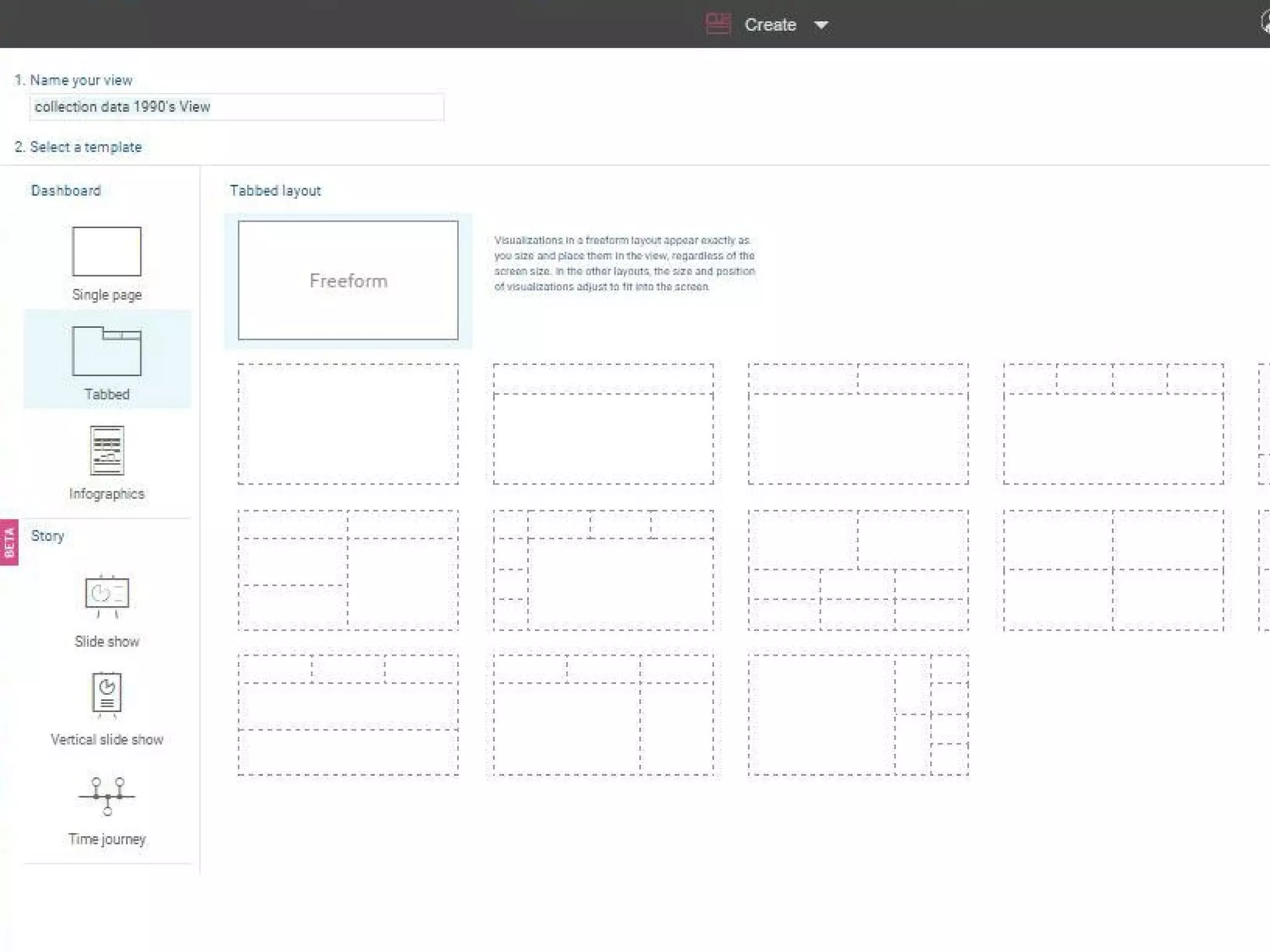
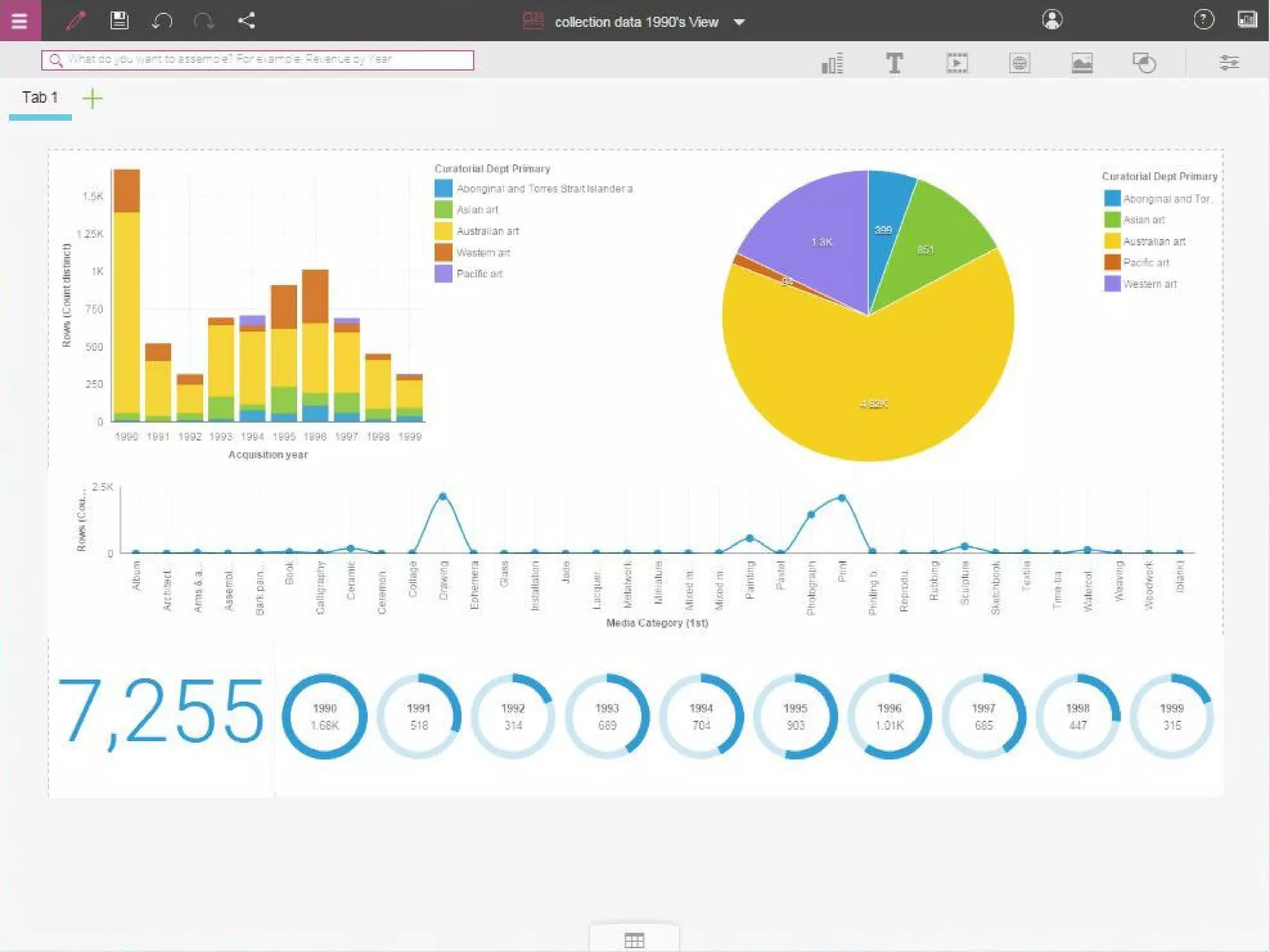
  • #20 You can also build your own layouts to present multiple charts and graphs.
  • #21 These can be downloaded in several formats and could be used in documents like annual reports. They can also be combined to build up an interactive dashboard. Unfortunately, multi-user access to the dashboards is only possible with the paid Watson Analytics Pro version.
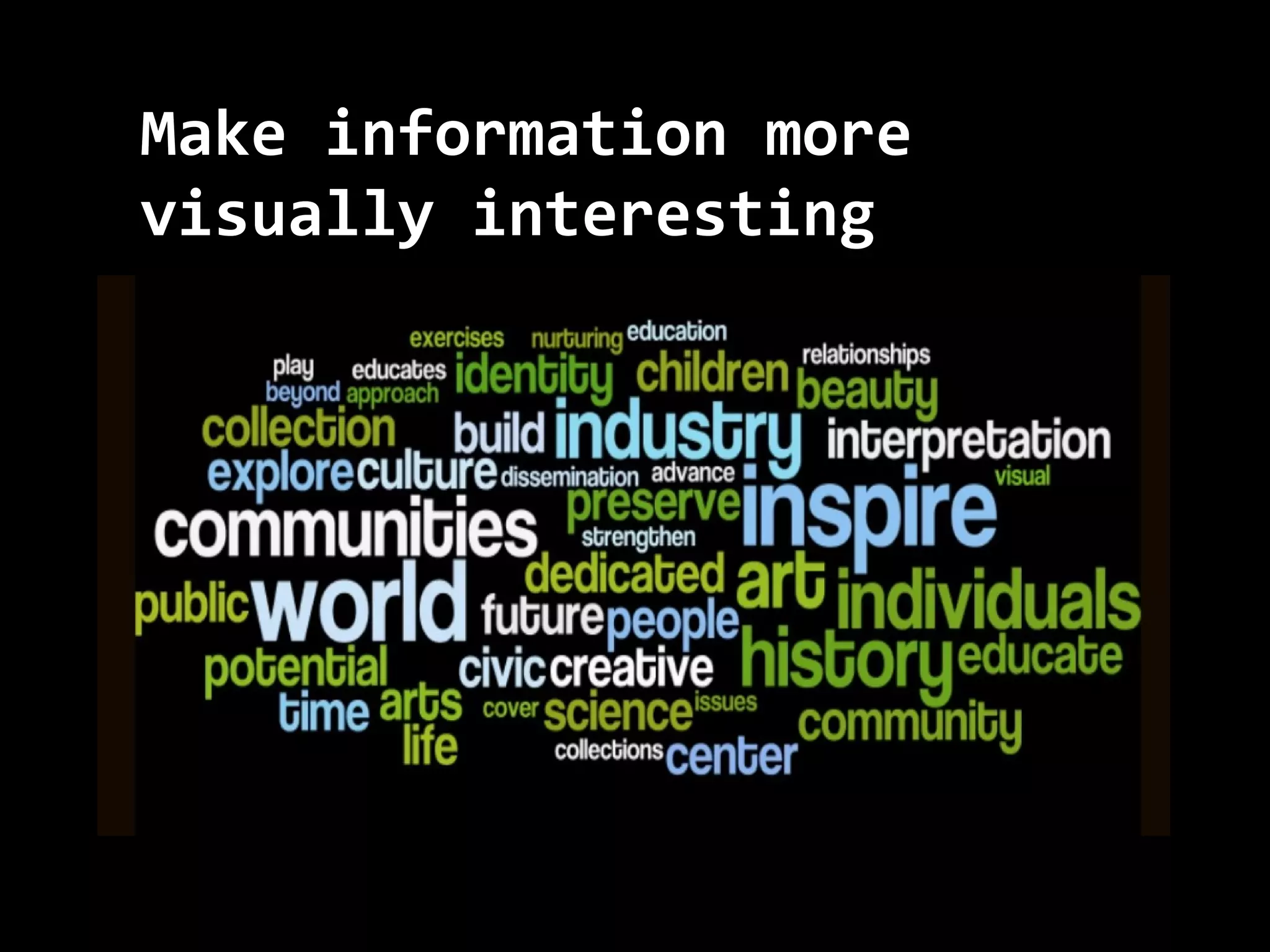
  • #22 There are some really simple tools. The Wordle site lets you copy in a block of text to find the most popular words. This example plots the words from the mission statements of a set of museums.
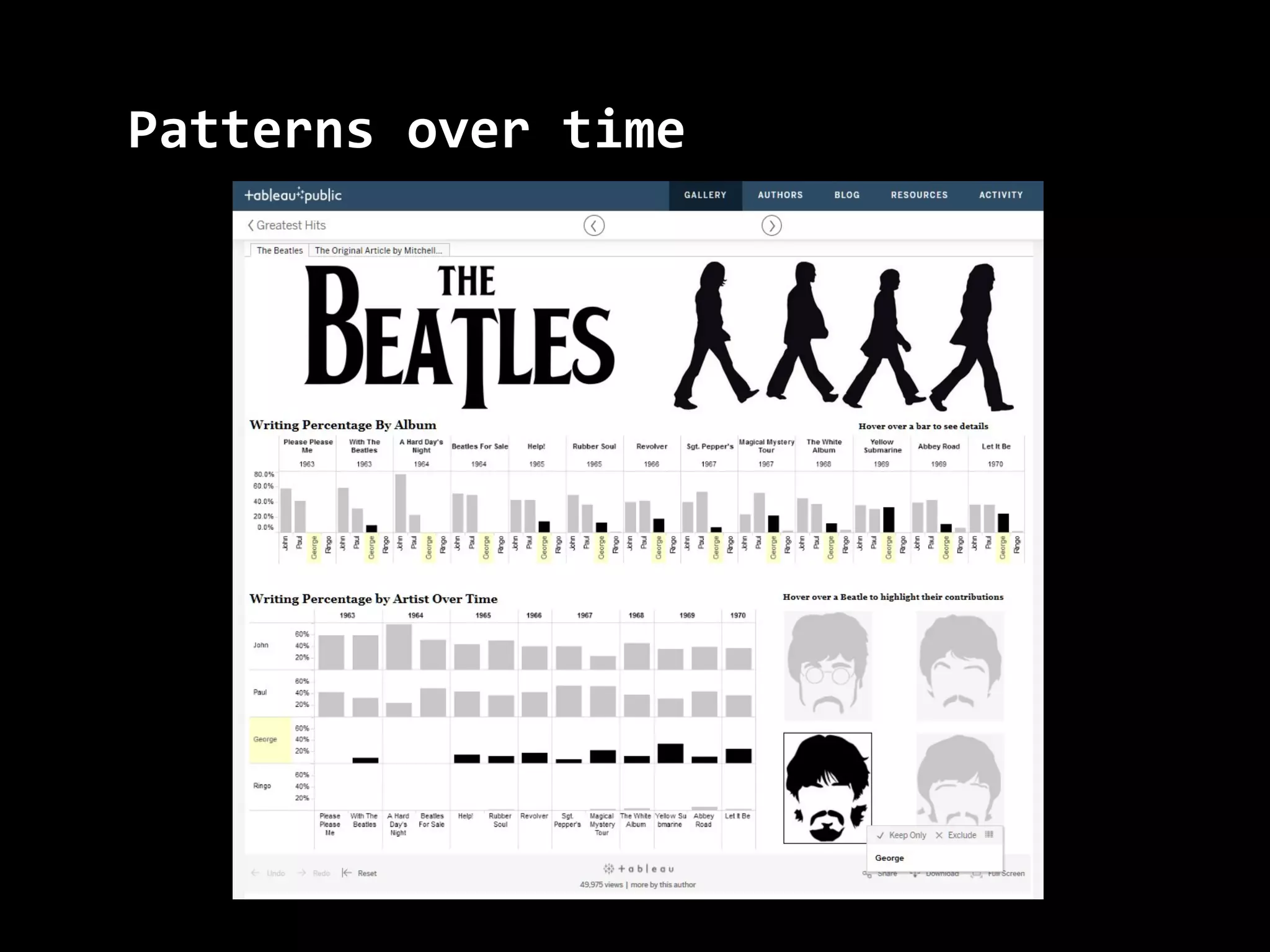
  • #23 This last example uses Tableau Public. We can see trends over time, in this case George Harrison’s song writing contributions increasing over the series of Beatles albums. Tableau is one of the more complex products but it can produce beautiful views of the data.
  • #24 That’s a lightning overview of some options for data visualisation. Thank you.