Security and
Compliance for
Exchange Online in
Office 365
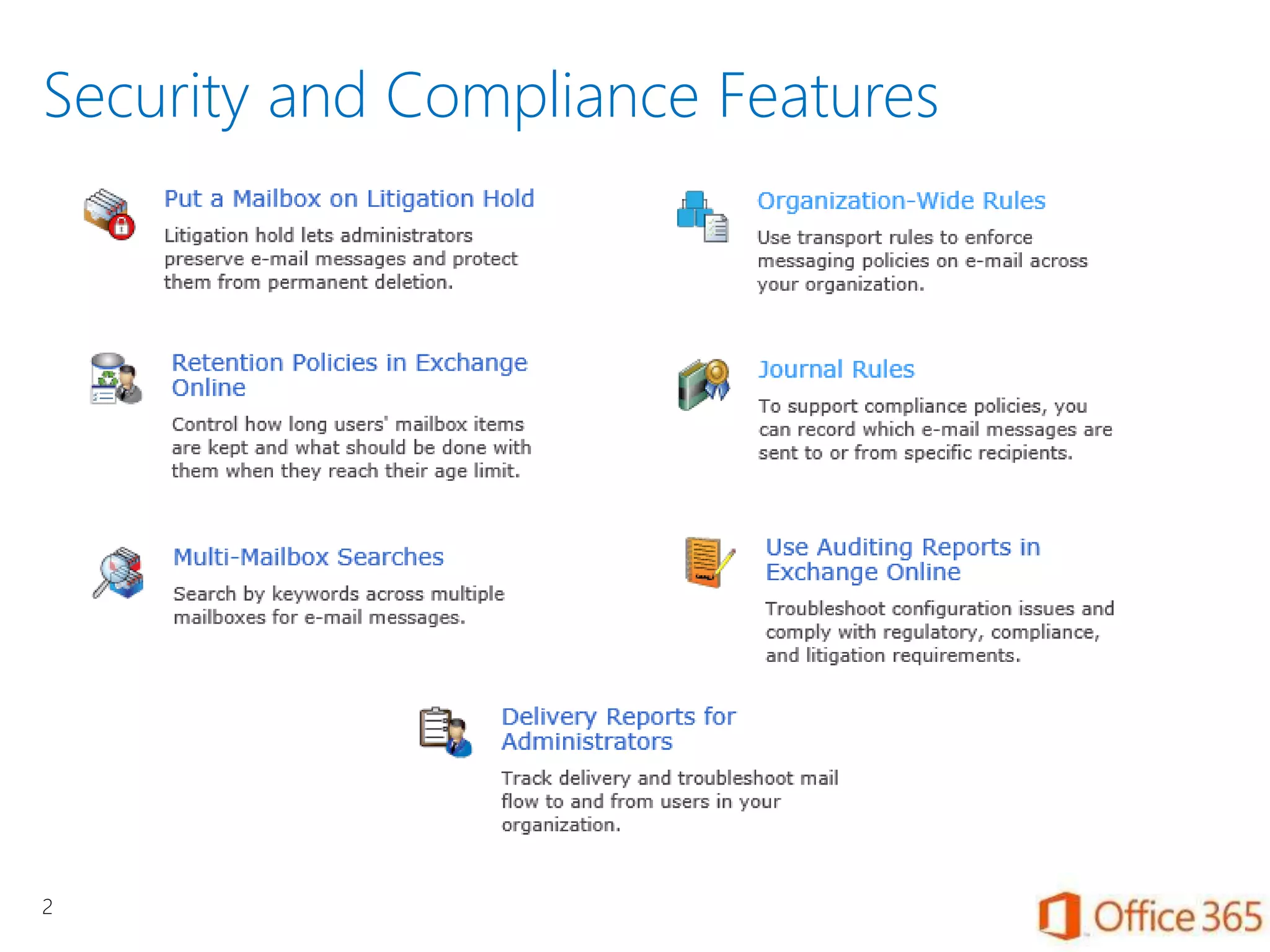
Security and Compliance Features
2
Litigation Hold versus In-place Hold
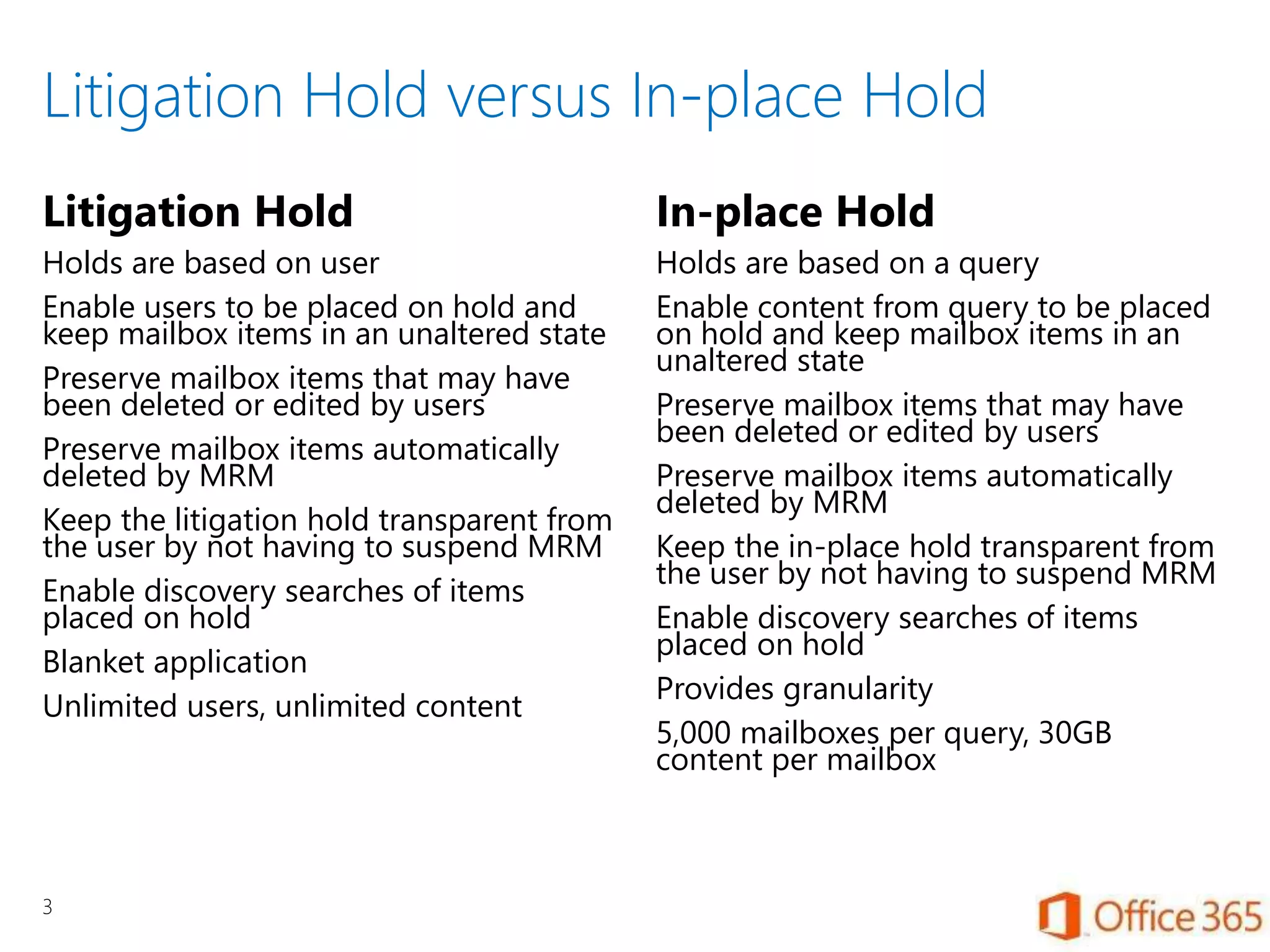
Litigation Hold
Holds are based on user
Enable users to be placed on hold and
keep mailbox items in an unaltered state
Preserve mailbox items that may have
been deleted or edited by users
Preserve mailbox items automatically
deleted by MRM
Keep the litigation hold transparent from
the user by not having to suspend MRM
Enable discovery searches of items
placed on hold
Blanket application
Unlimited users, unlimited content
In-place Hold
Holds are based on a query
Enable content from query to be placed
on hold and keep mailbox items in an
unaltered state
Preserve mailbox items that may have
been deleted or edited by users
Preserve mailbox items automatically
deleted by MRM
Keep the in-place hold transparent from
the user by not having to suspend MRM
Enable discovery searches of items
placed on hold
Provides granularity
5,000 mailboxes per query, 30GB
content per mailbox
3
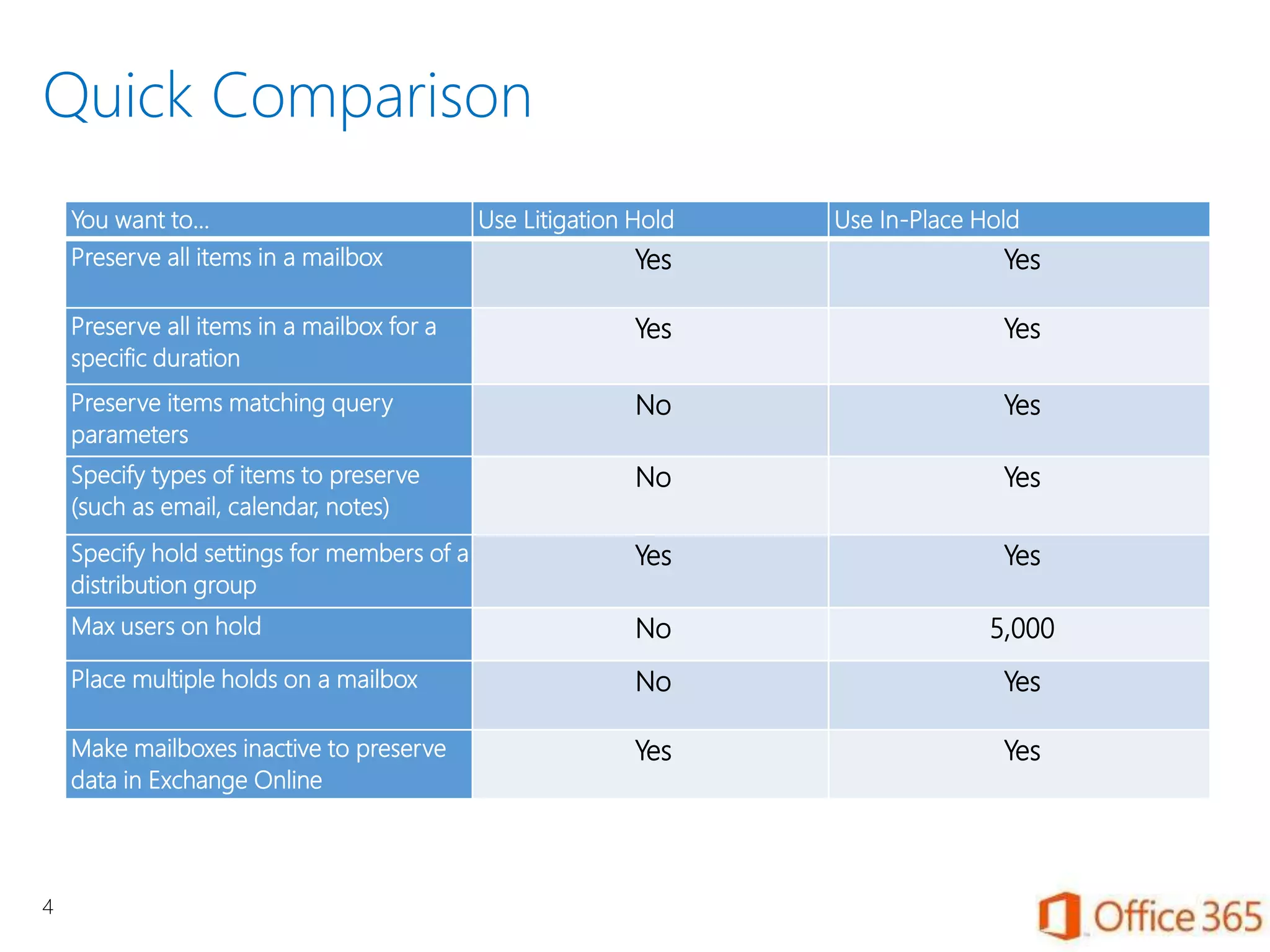
Quick Comparison
4
You want to… Use Litigation Hold Use In-Place Hold
Preserve all items in a mailbox Yes Yes
Preserve all items in a mailbox for a
specific duration
Yes Yes
Preserve items matching query
parameters
No Yes
Specify types of items to preserve
(such as email, calendar, notes)
No Yes
Specify hold settings for members of a
distribution group
Yes Yes
Max users on hold No 5,000
Place multiple holds on a mailbox No Yes
Make mailboxes inactive to preserve
data in Exchange Online
Yes Yes
Use Litigation Hold for preserving mailboxes
Licensed mailboxes are fully functional
Remove a license and the mailbox is disconnected,
ultimately deleted, unless…
Mailboxes on litigation hold are preserved indefinitely
Can be searched, cannot be mounted
5
Messaging records management policies
What they can do
Automatically move
content of a certain age
to the archive
Create multiple policies
for content of different
ages, types, etc.
Can be applied to specific
folders
Can use flags
What they cannot
do
Prevent users from
overriding
Prevent content from
being deleted
Prevent content from
being purged
6
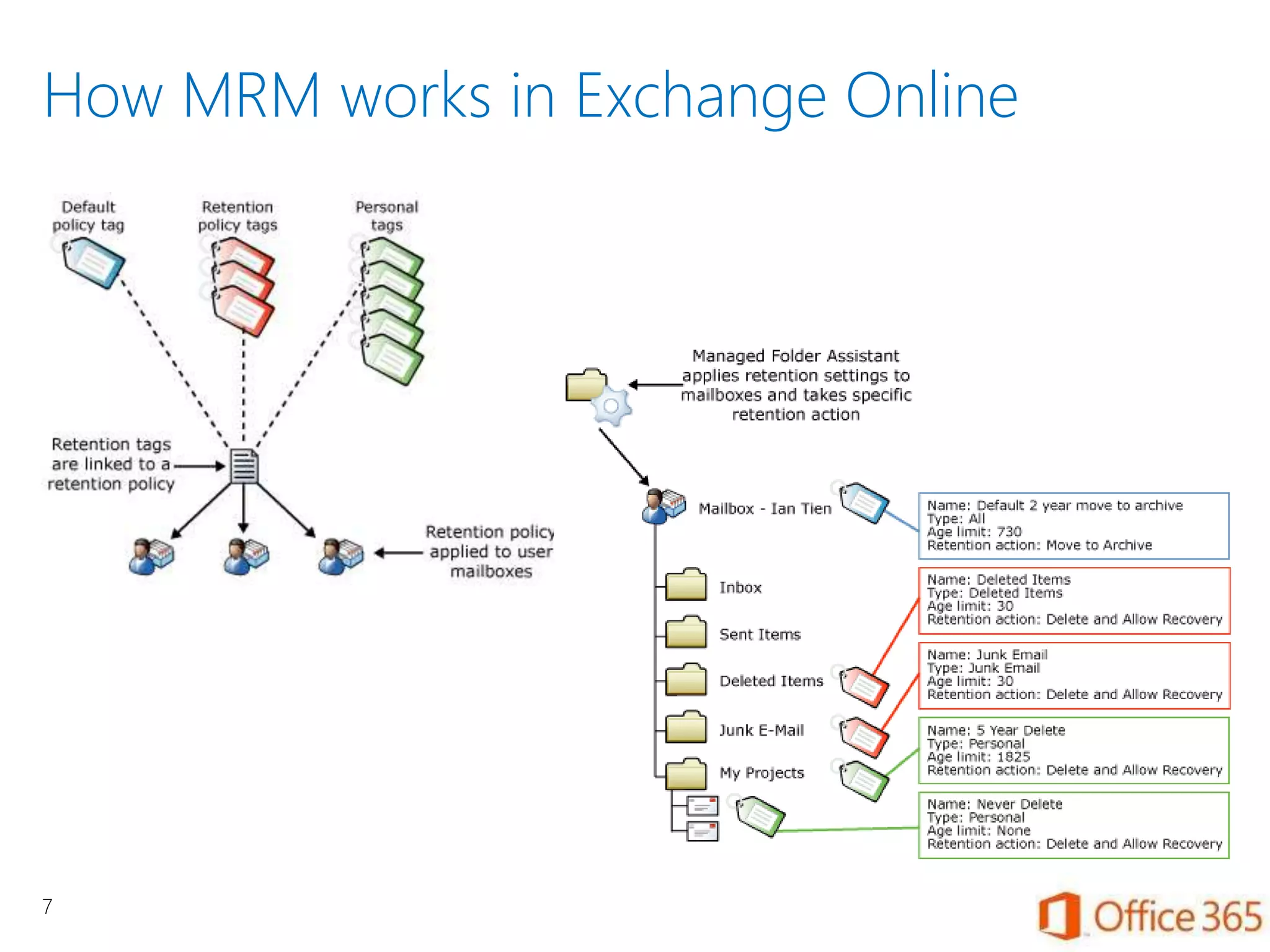
How MRM works in Exchange Online
7
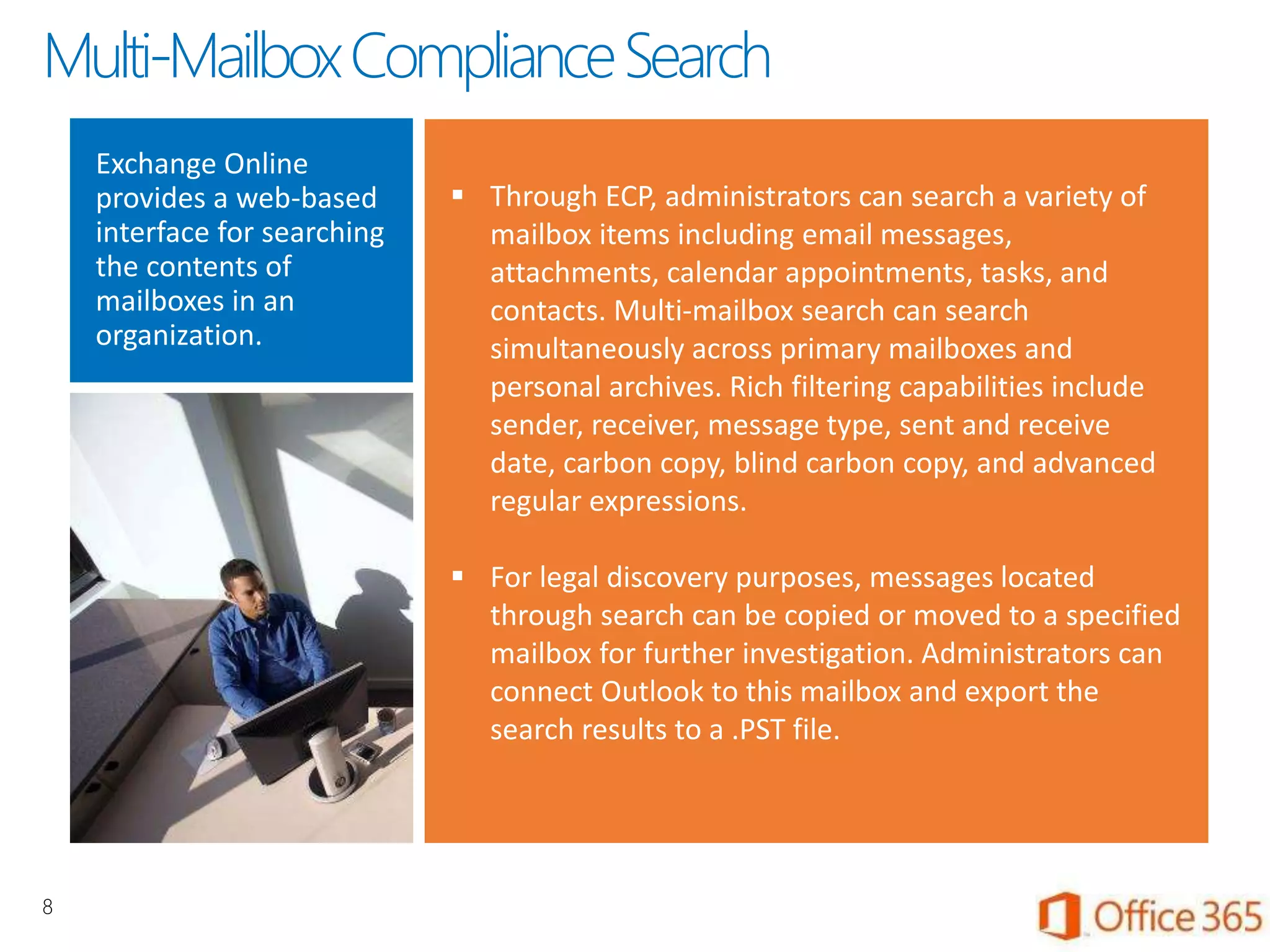
Exchange Online
provides a web-based
interface for searching
the contents of
mailboxes in an
organization.
 Through ECP, administrators can search a variety of
mailbox items including email messages,
attachments, calendar appointments, tasks, and
contacts. Multi-mailbox search can search
simultaneously across primary mailboxes and
personal archives. Rich filtering capabilities include
sender, receiver, message type, sent and receive
date, carbon copy, blind carbon copy, and advanced
regular expressions.
 For legal discovery purposes, messages located
through search can be copied or moved to a specified
mailbox for further investigation. Administrators can
connect Outlook to this mailbox and export the
search results to a .PST file.
8
Multi-MailboxComplianceSearch
In-Place eDiscovery
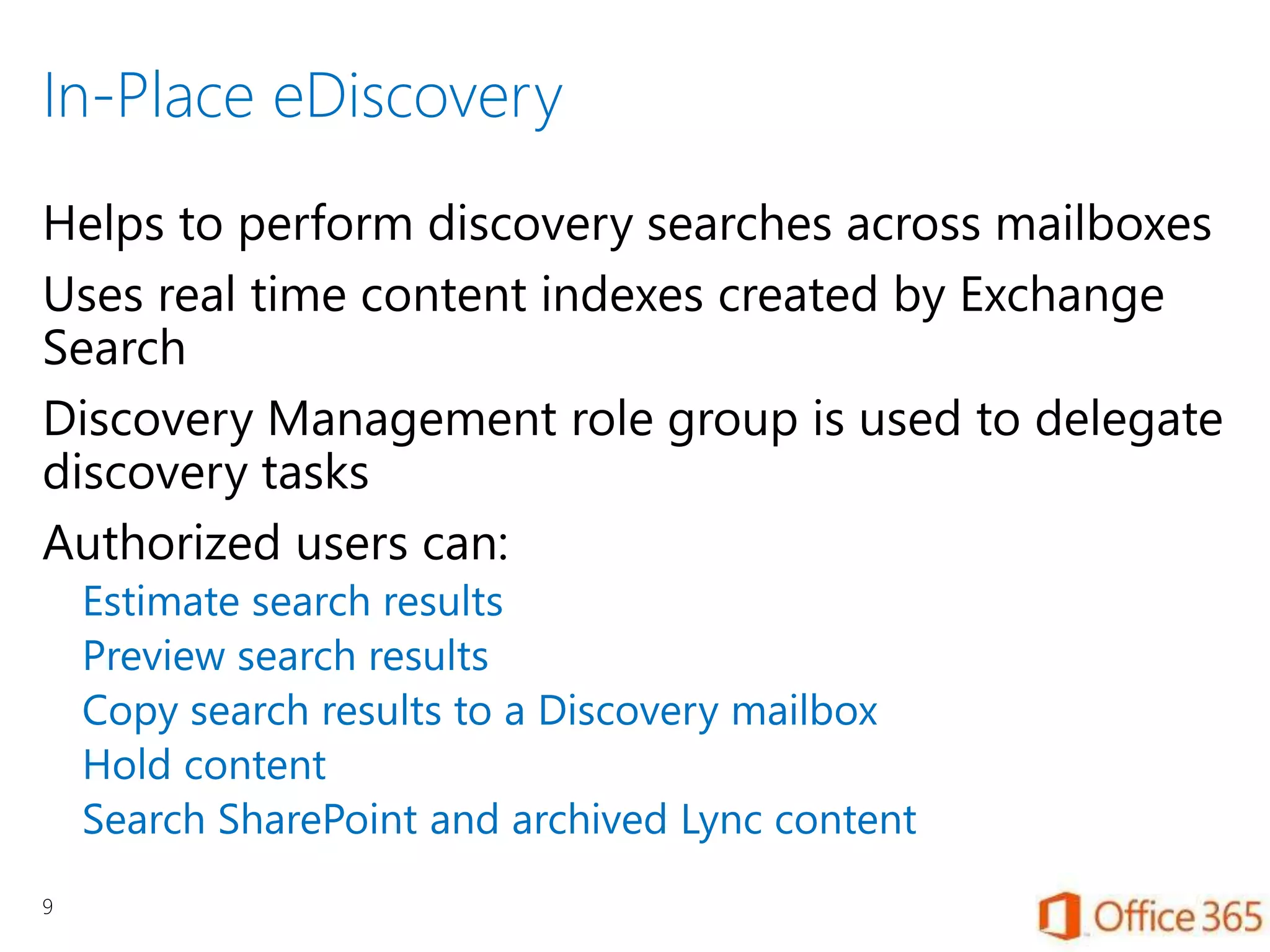
Helps to perform discovery searches across mailboxes
Uses real time content indexes created by Exchange
Search
Discovery Management role group is used to delegate
discovery tasks
Authorized users can:
Estimate search results
Preview search results
Copy search results to a Discovery mailbox
Hold content
Search SharePoint and archived Lync content
9
Discovery Management Role Group and
Management Roles
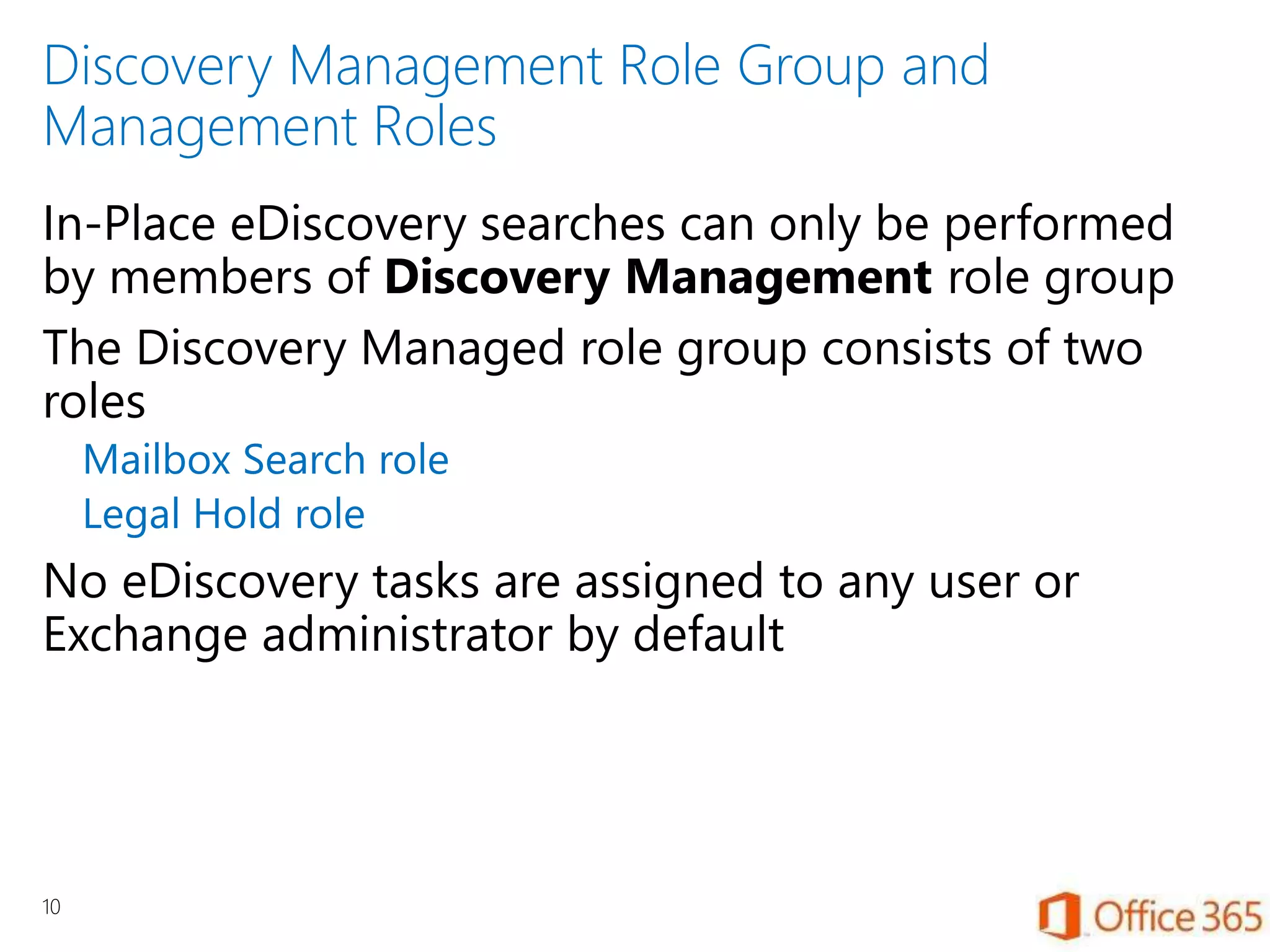
In-Place eDiscovery searches can only be performed
by members of Discovery Management role group
The Discovery Managed role group consists of two
roles
Mailbox Search role
Legal Hold role
No eDiscovery tasks are assigned to any user or
Exchange administrator by default
10
Roles and Permissions
11
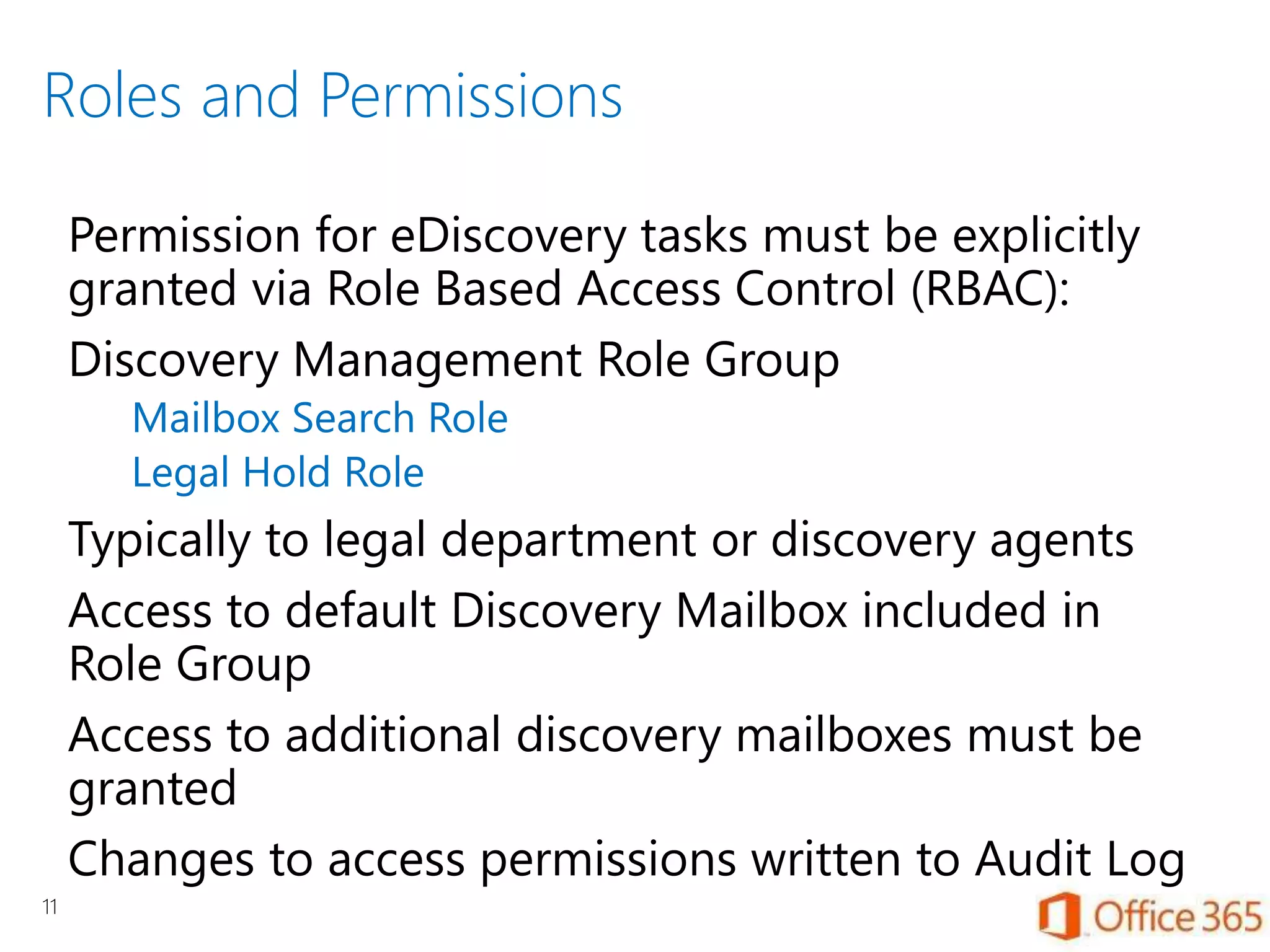
Permission for eDiscovery tasks must be explicitly
granted via Role Based Access Control (RBAC):
Discovery Management Role Group
Mailbox Search Role
Legal Hold Role
Typically to legal department or discovery agents
Access to default Discovery Mailbox included in
Role Group
Access to additional discovery mailboxes must be
granted
Changes to access permissions written to Audit Log
Discovery Mailboxes
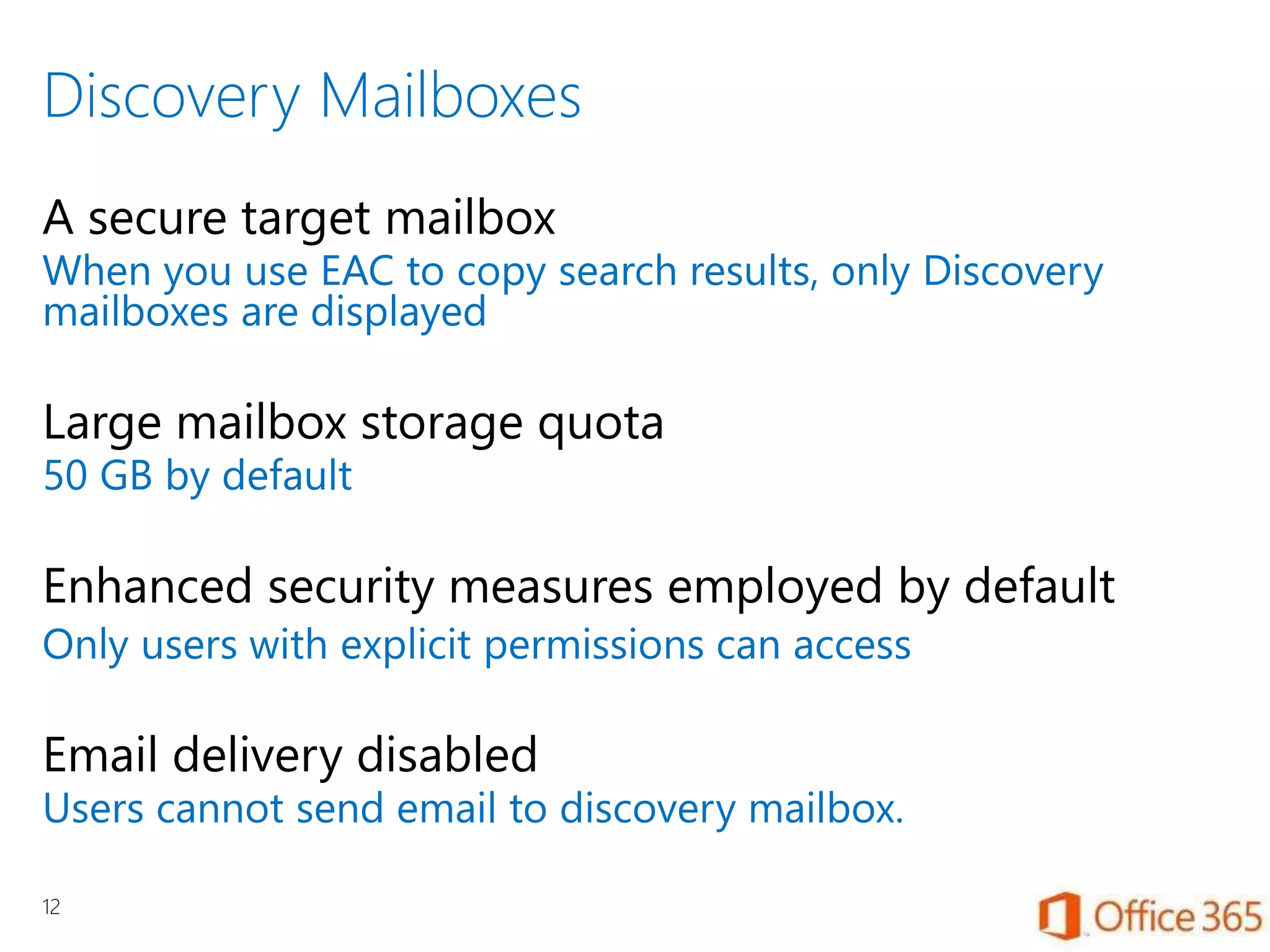
A secure target mailbox
When you use EAC to copy search results, only Discovery
mailboxes are displayed
Large mailbox storage quota
50 GB by default
Enhanced security measures employed by default
Only users with explicit permissions can access
Email delivery disabled
Users cannot send email to discovery mailbox.
12
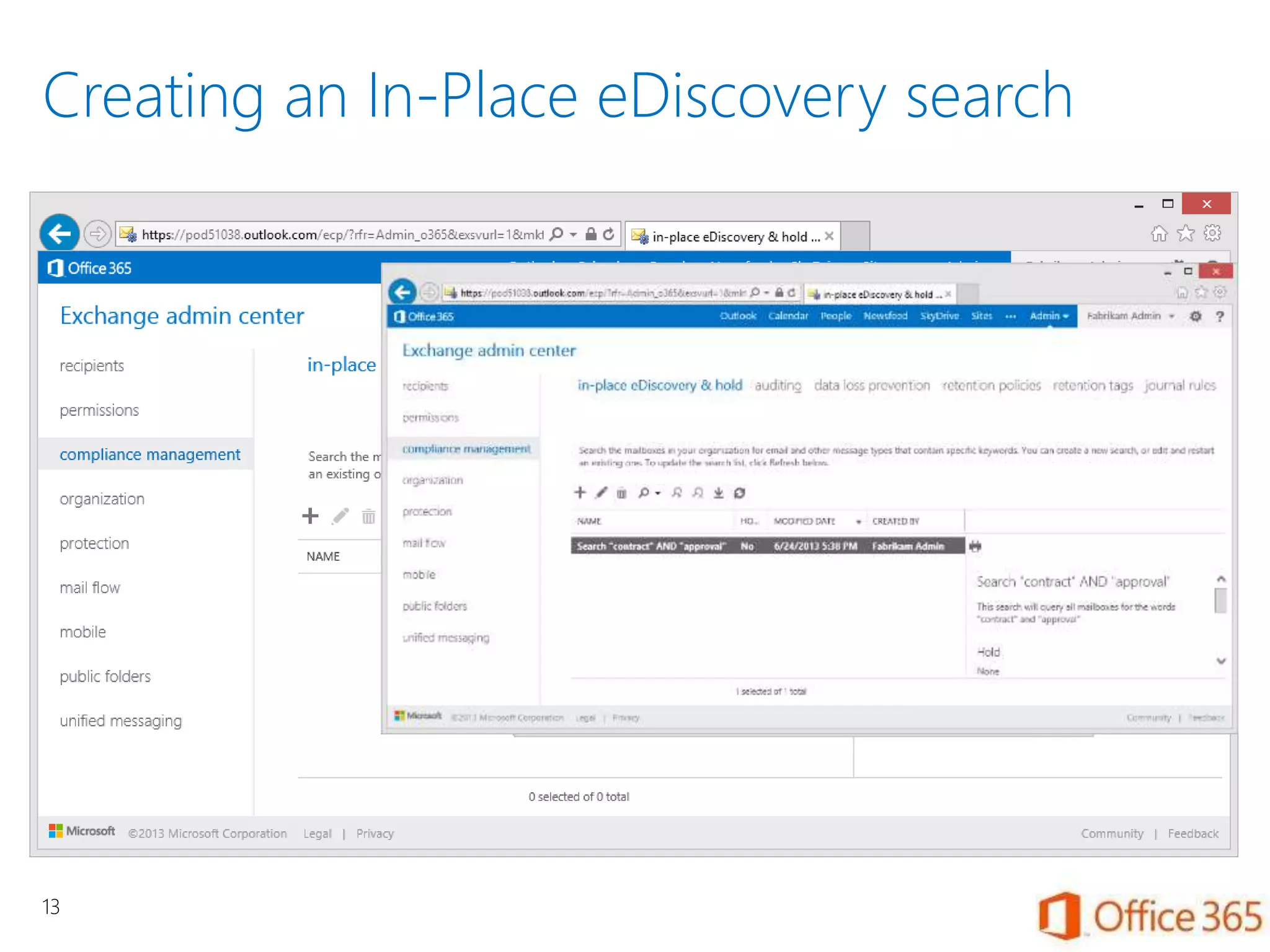
Creating an In-Place eDiscovery search
13
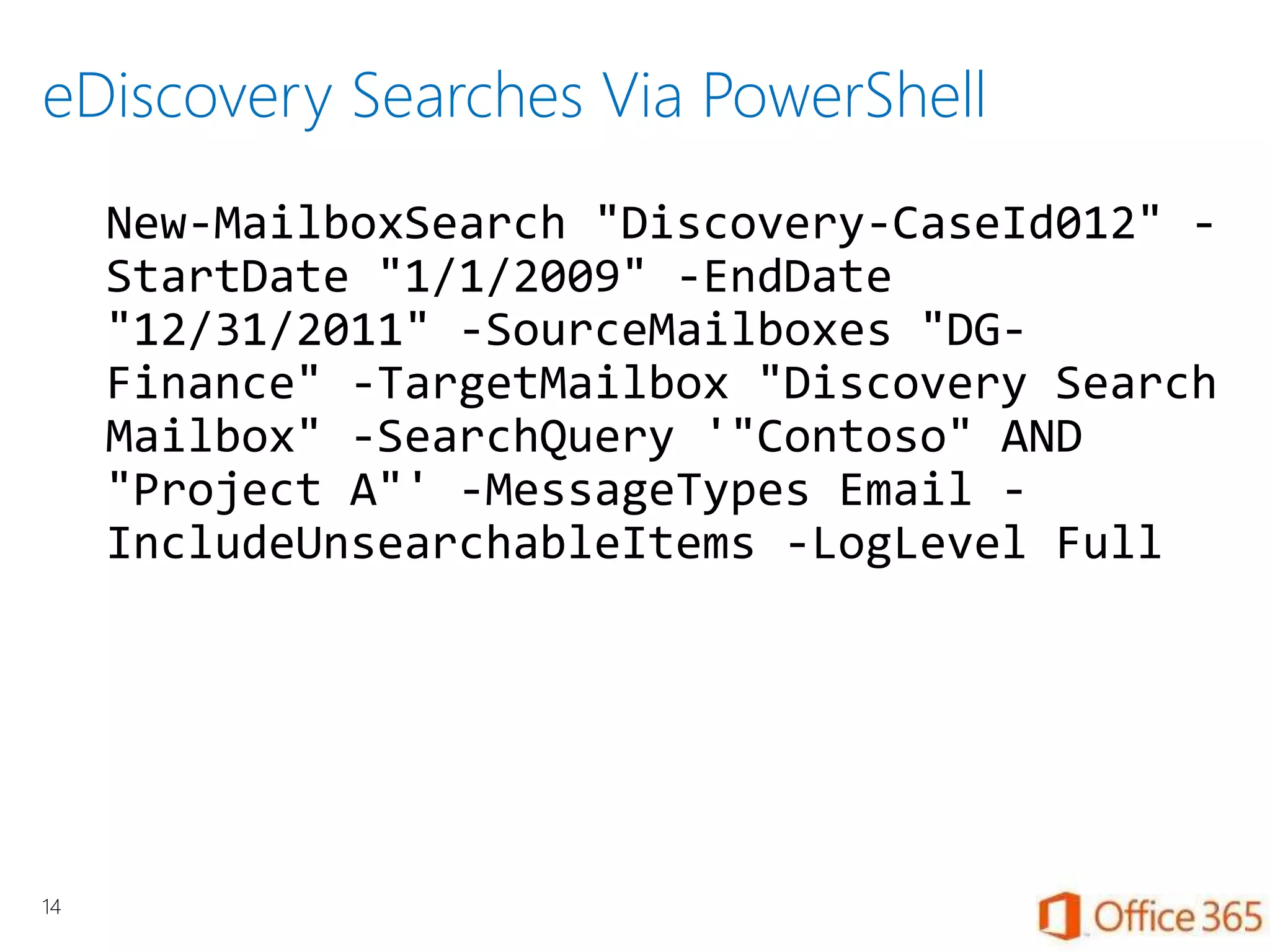
eDiscovery Searches Via PowerShell
New-MailboxSearch "Discovery-CaseId012" -
StartDate "1/1/2009" -EndDate
"12/31/2011" -SourceMailboxes "DG-
Finance" -TargetMailbox "Discovery Search
Mailbox" -SearchQuery '"Contoso" AND
"Project A"' -MessageTypes Email -
IncludeUnsearchableItems -LogLevel Full
14
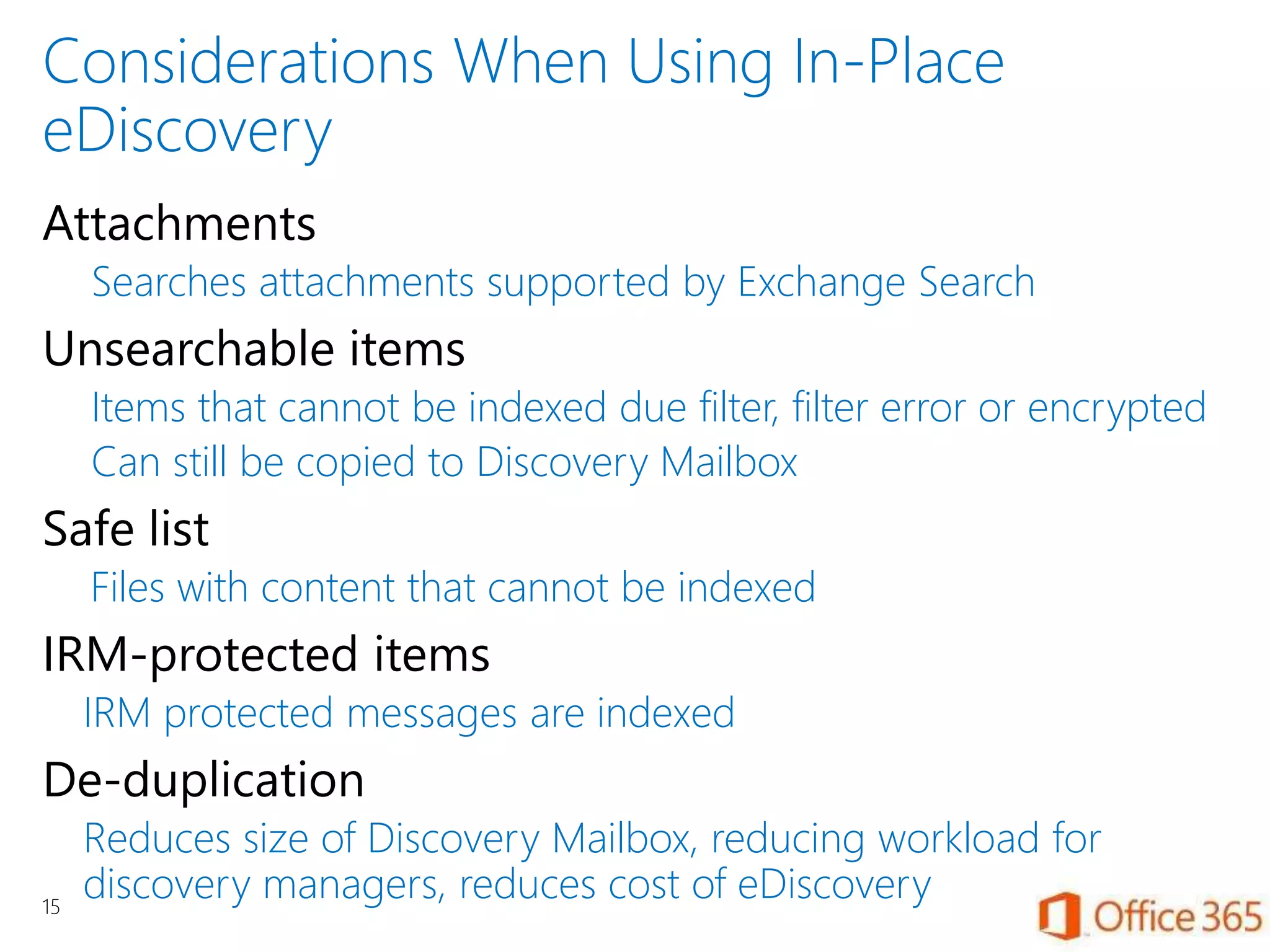
Considerations When Using In-Place
eDiscovery
Attachments
Searches attachments supported by Exchange Search
Unsearchable items
Items that cannot be indexed due filter, filter error or encrypted
Can still be copied to Discovery Mailbox
Safe list
Files with content that cannot be indexed
IRM-protected items
IRM protected messages are indexed
De-duplication
Reduces size of Discovery Mailbox, reducing workload for
discovery managers, reduces cost of eDiscovery15
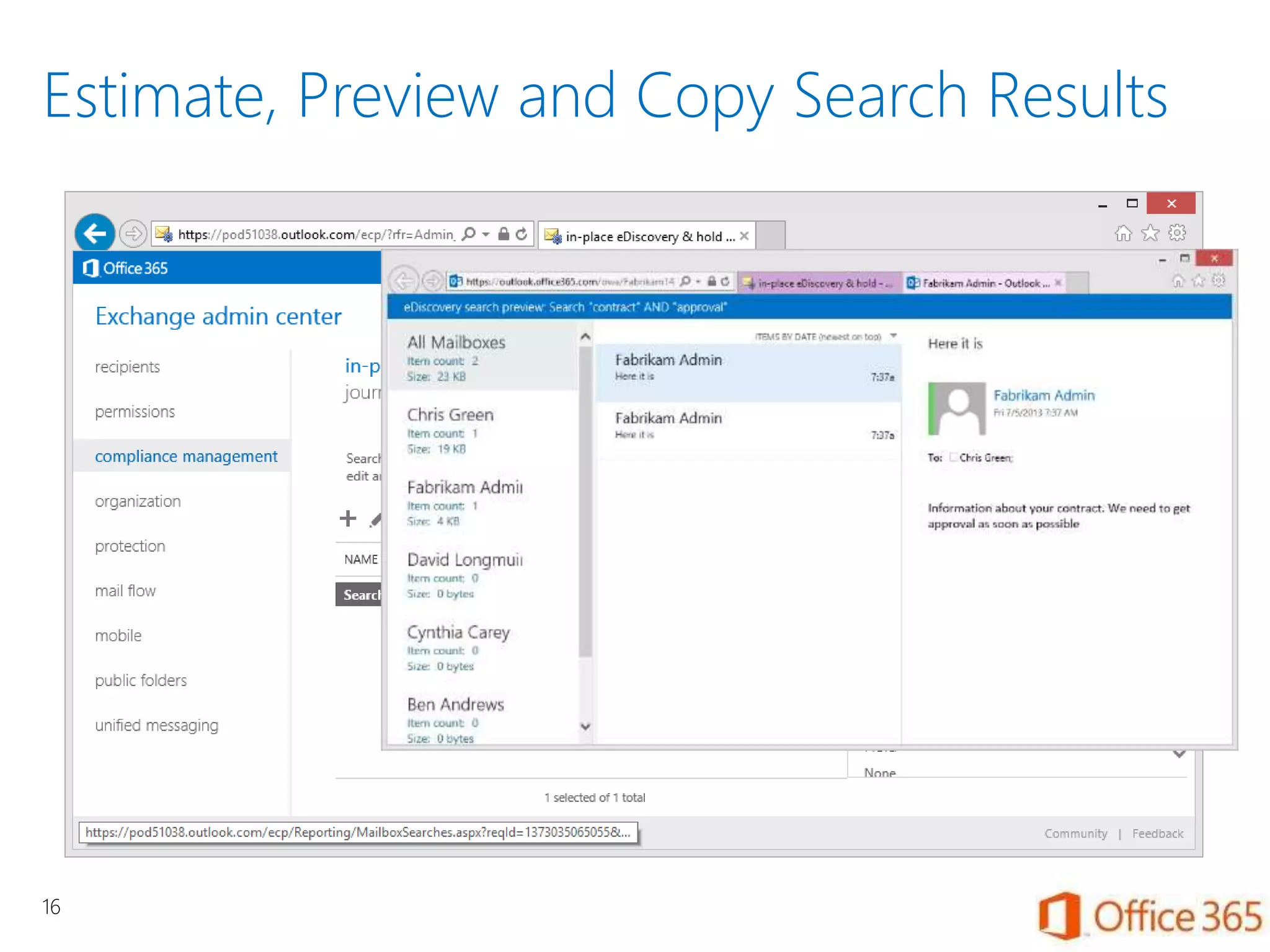
Estimate, Preview and Copy Search Results
16
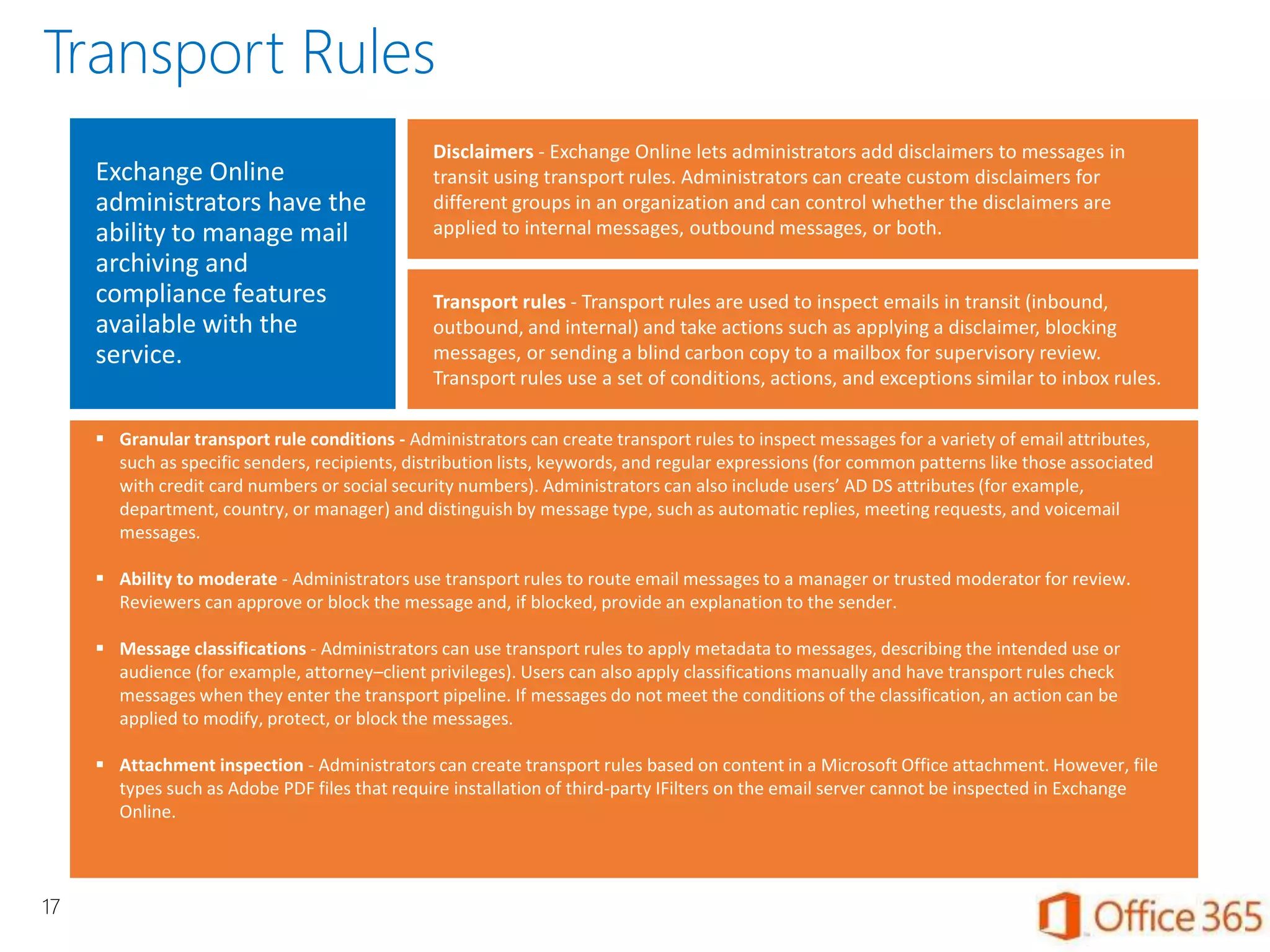
Exchange Online
administrators have the
ability to manage mail
archiving and
compliance features
available with the
service.
Disclaimers - Exchange Online lets administrators add disclaimers to messages in
transit using transport rules. Administrators can create custom disclaimers for
different groups in an organization and can control whether the disclaimers are
applied to internal messages, outbound messages, or both.
 Granular transport rule conditions - Administrators can create transport rules to inspect messages for a variety of email attributes,
such as specific senders, recipients, distribution lists, keywords, and regular expressions (for common patterns like those associated
with credit card numbers or social security numbers). Administrators can also include users’ AD DS attributes (for example,
department, country, or manager) and distinguish by message type, such as automatic replies, meeting requests, and voicemail
messages.
 Ability to moderate - Administrators use transport rules to route email messages to a manager or trusted moderator for review.
Reviewers can approve or block the message and, if blocked, provide an explanation to the sender.
 Message classifications - Administrators can use transport rules to apply metadata to messages, describing the intended use or
audience (for example, attorney–client privileges). Users can also apply classifications manually and have transport rules check
messages when they enter the transport pipeline. If messages do not meet the conditions of the classification, an action can be
applied to modify, protect, or block the messages.
 Attachment inspection - Administrators can create transport rules based on content in a Microsoft Office attachment. However, file
types such as Adobe PDF files that require installation of third-party IFilters on the email server cannot be inspected in Exchange
Online.
Transport rules - Transport rules are used to inspect emails in transit (inbound,
outbound, and internal) and take actions such as applying a disclaimer, blocking
messages, or sending a blind carbon copy to a mailbox for supervisory review.
Transport rules use a set of conditions, actions, and exceptions similar to inbox rules.
17
Transport Rules
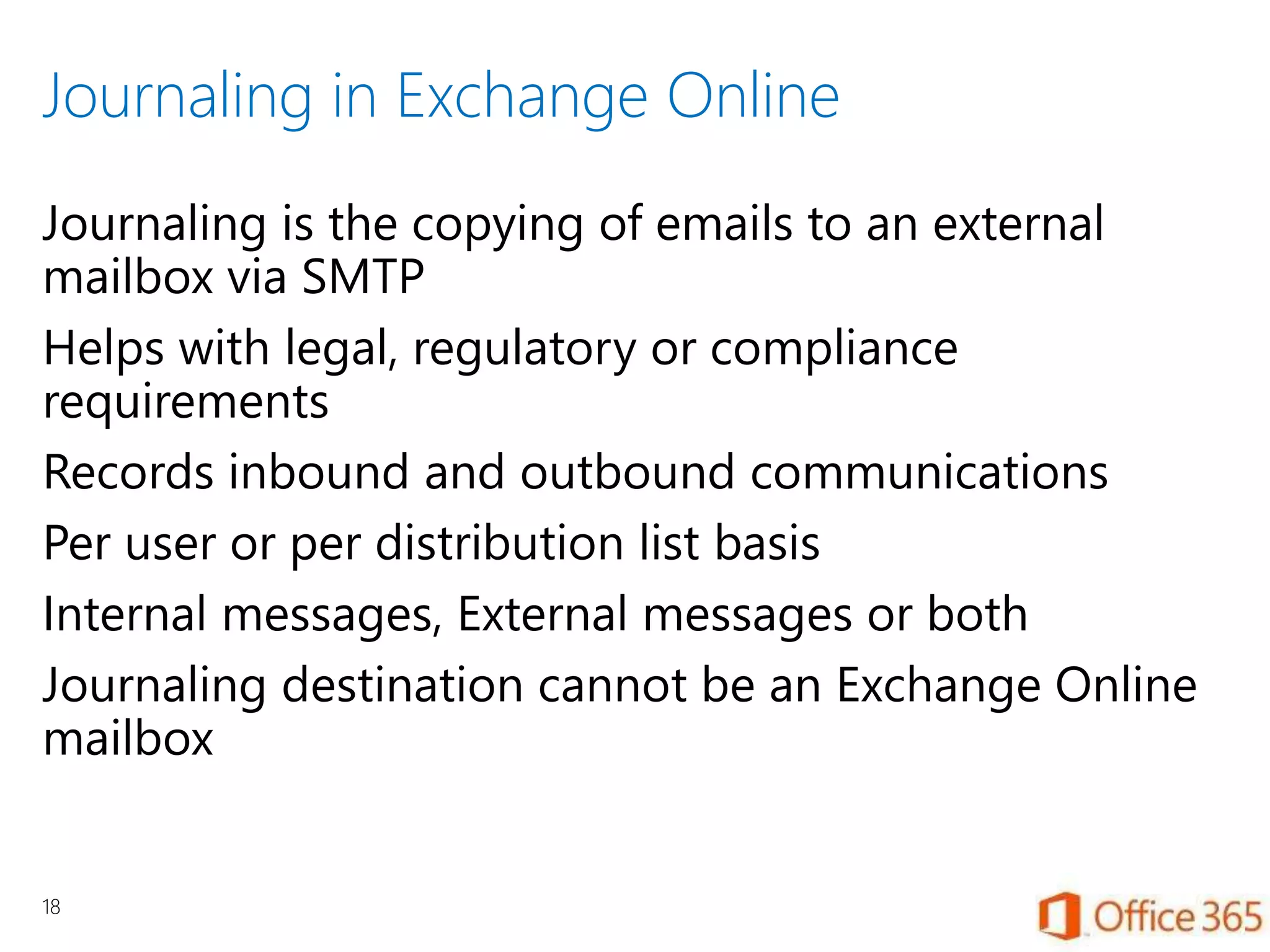
Journaling in Exchange Online
Journaling is the copying of emails to an external
mailbox via SMTP
Helps with legal, regulatory or compliance
requirements
Records inbound and outbound communications
Per user or per distribution list basis
Internal messages, External messages or both
Journaling destination cannot be an Exchange Online
mailbox
18
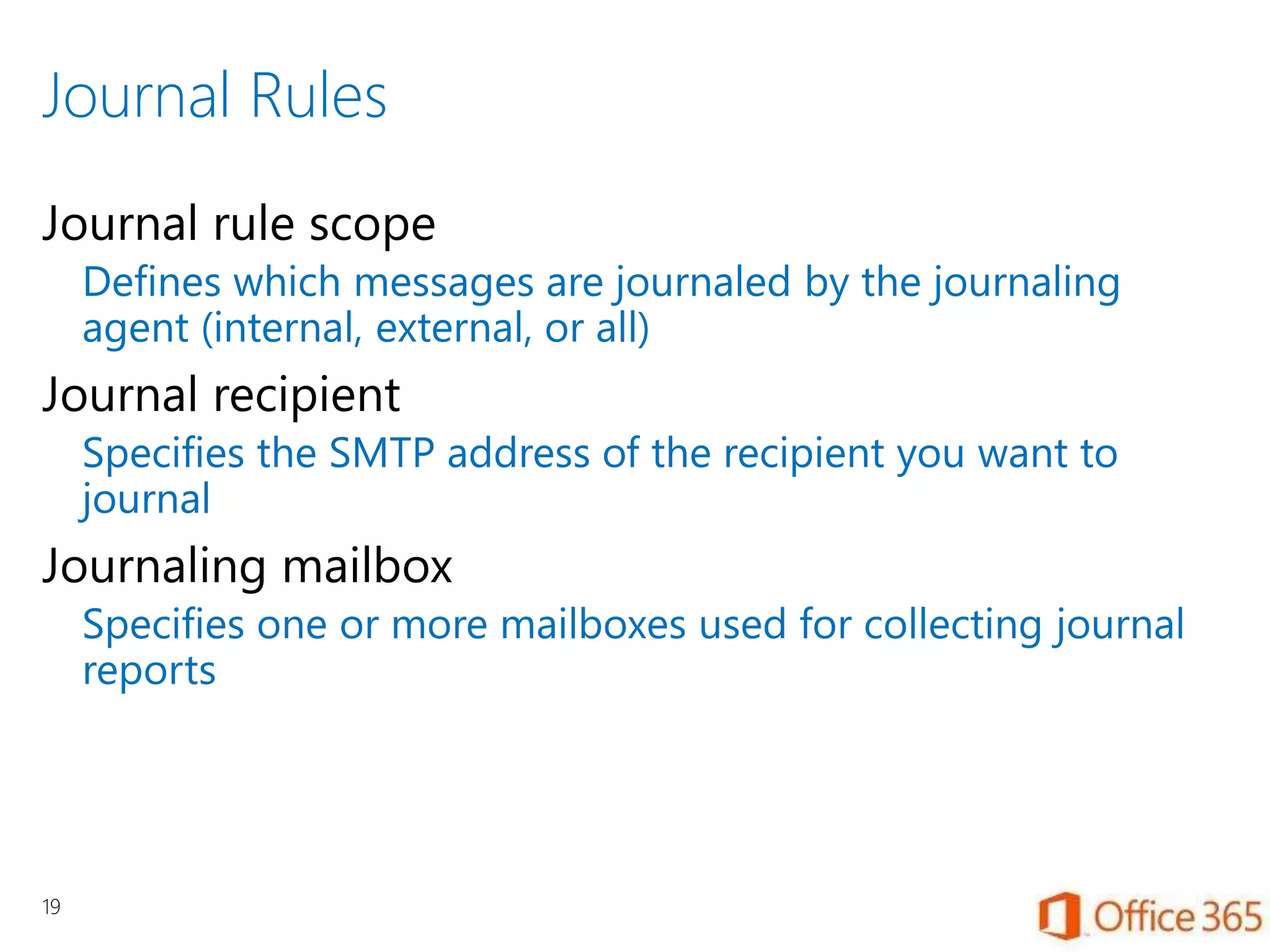
Journal Rules
Journal rule scope
Defines which messages are journaled by the journaling
agent (internal, external, or all)
Journal recipient
Specifies the SMTP address of the recipient you want to
journal
Journaling mailbox
Specifies one or more mailboxes used for collecting journal
reports
19
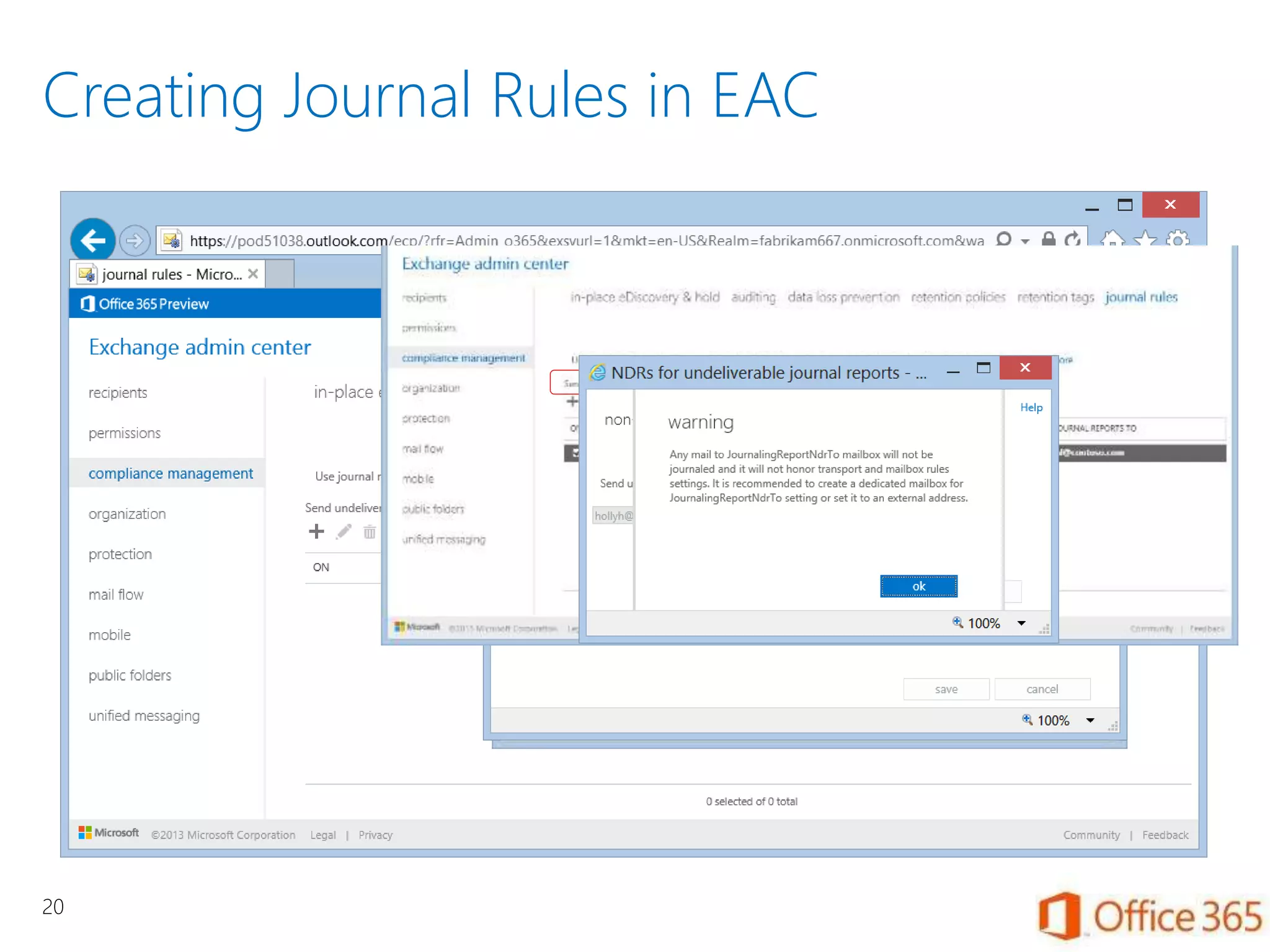
Creating Journal Rules in EAC
20
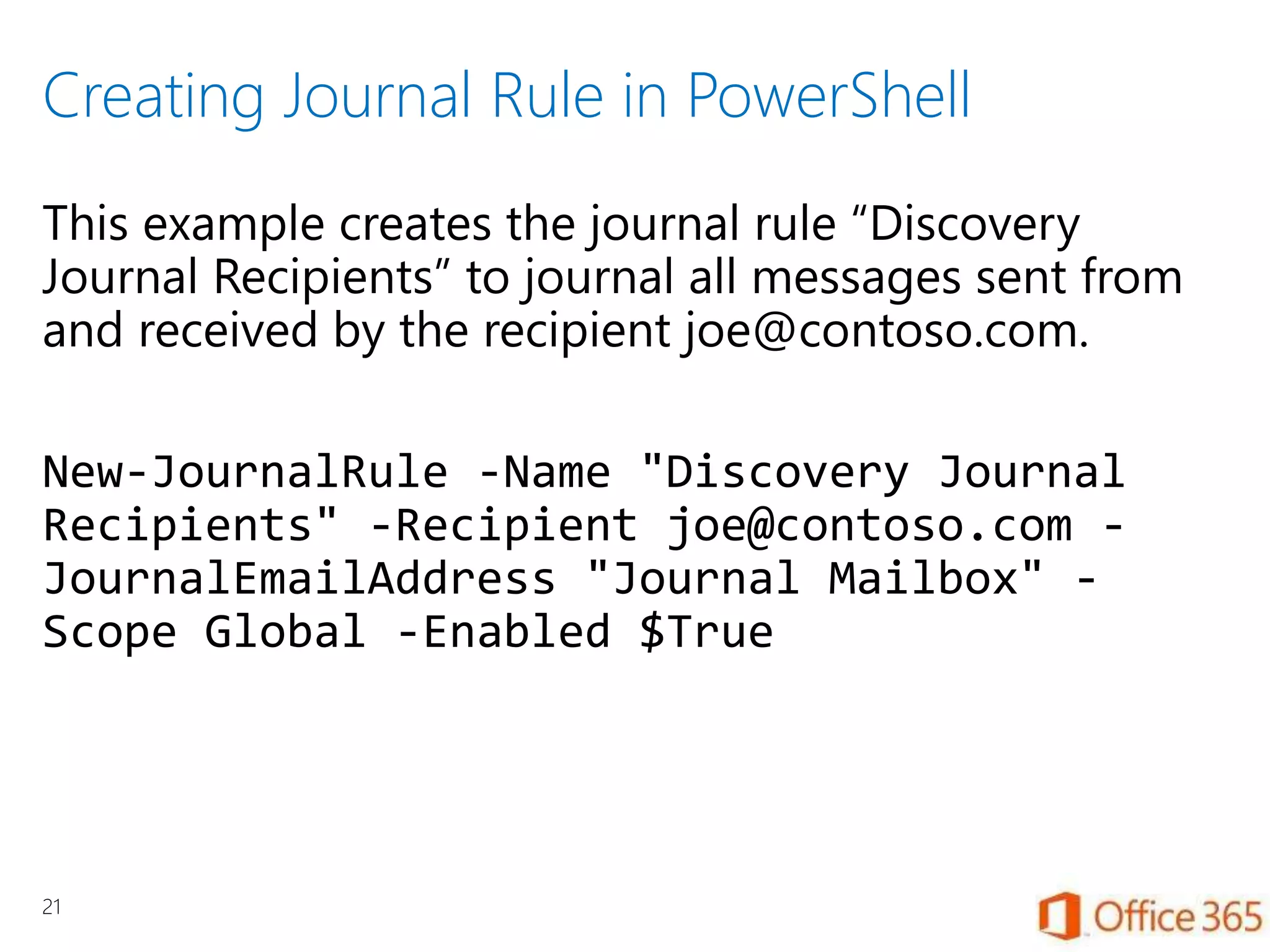
Creating Journal Rule in PowerShell
This example creates the journal rule “Discovery
Journal Recipients” to journal all messages sent from
and received by the recipient joe@contoso.com.
New-JournalRule -Name "Discovery Journal
Recipients" -Recipient joe@contoso.com -
JournalEmailAddress "Journal Mailbox" -
Scope Global -Enabled $True
21
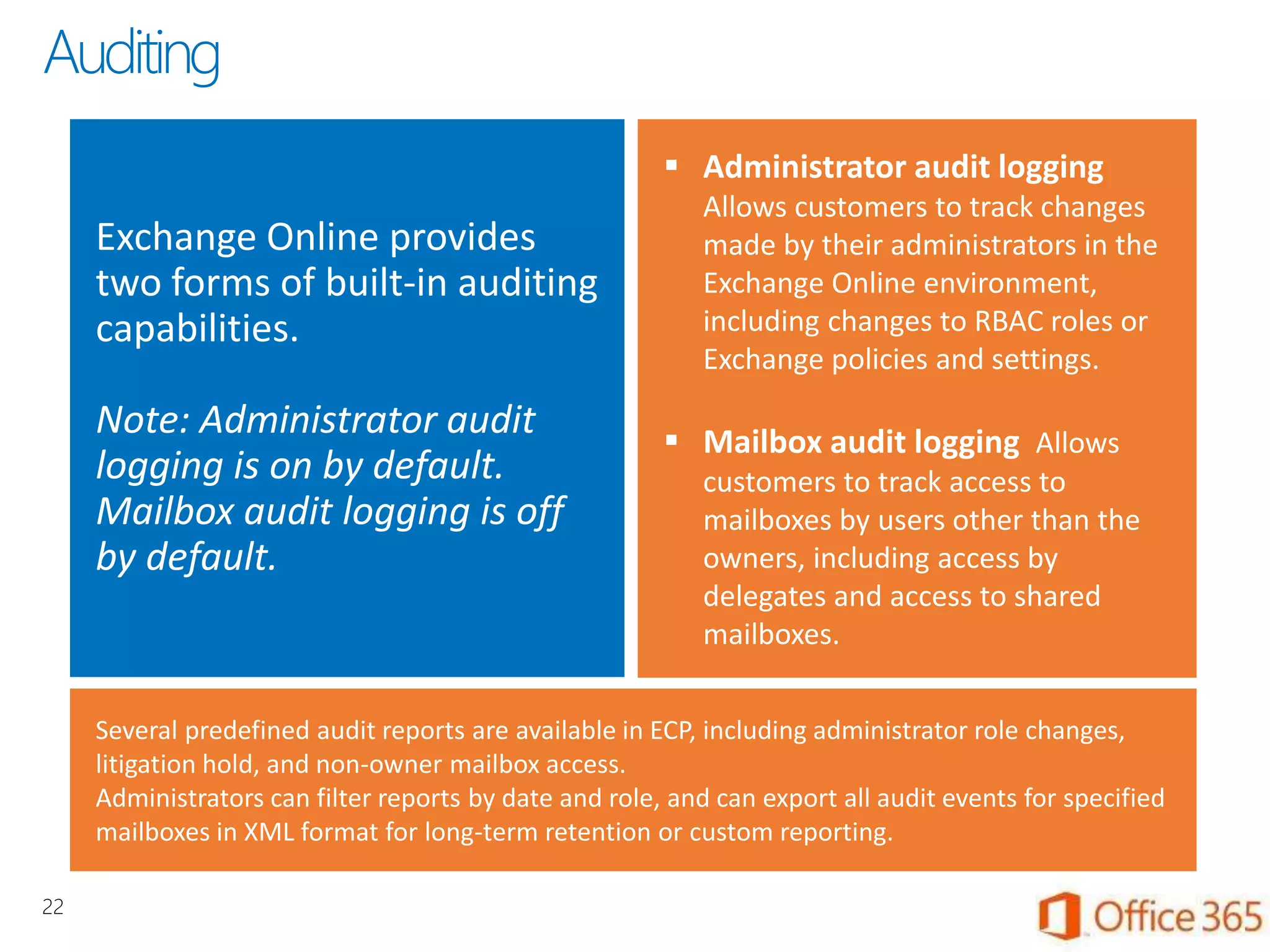
Exchange Online provides
two forms of built-in auditing
capabilities.
Note: Administrator audit
logging is on by default.
Mailbox audit logging is off
by default.
 Administrator audit logging
Allows customers to track changes
made by their administrators in the
Exchange Online environment,
including changes to RBAC roles or
Exchange policies and settings.
 Mailbox audit logging Allows
customers to track access to
mailboxes by users other than the
owners, including access by
delegates and access to shared
mailboxes.
Several predefined audit reports are available in ECP, including administrator role changes,
litigation hold, and non-owner mailbox access.
Administrators can filter reports by date and role, and can export all audit events for specified
mailboxes in XML format for long-term retention or custom reporting.
22
Auditing
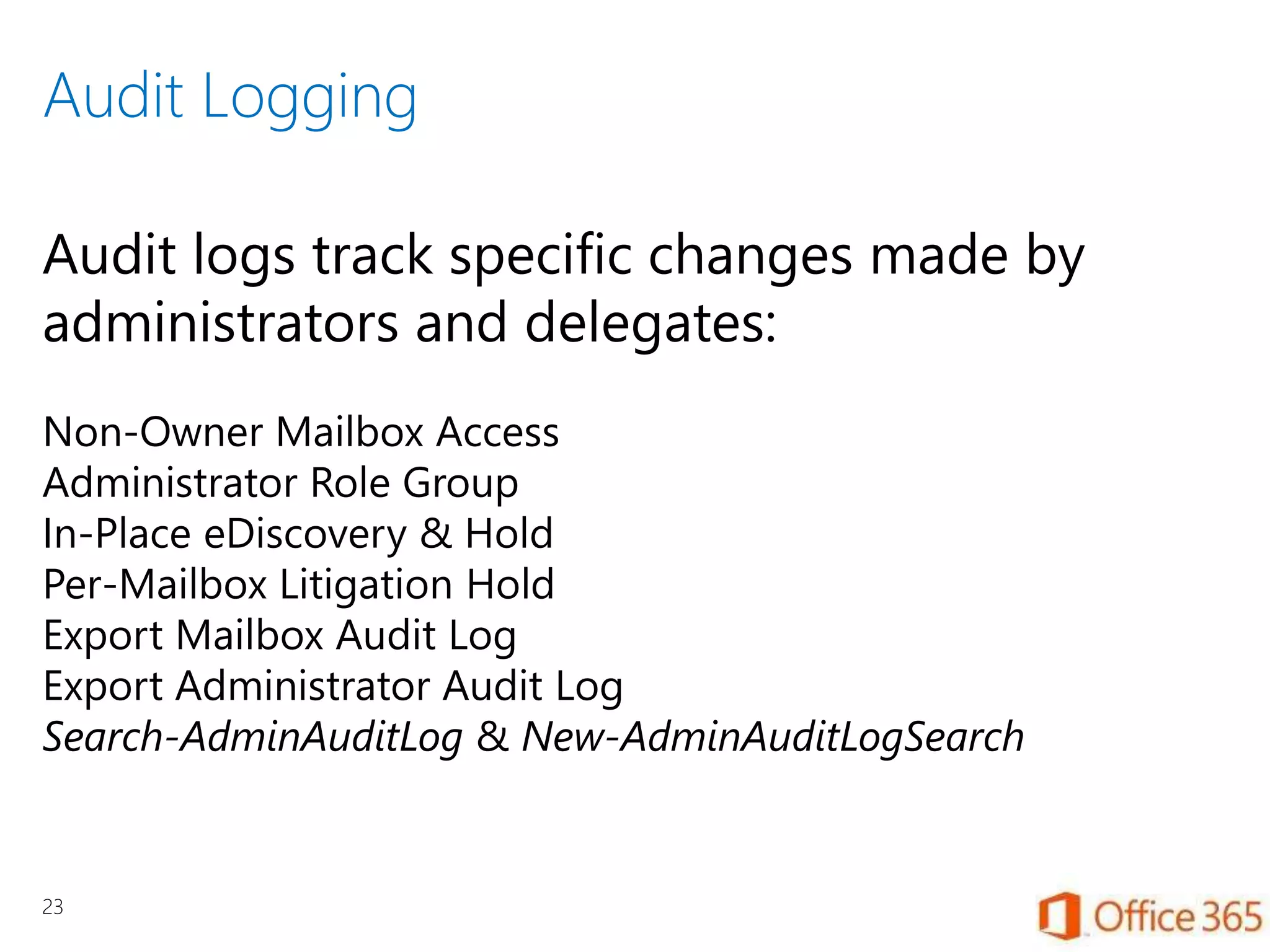
Audit Logging
23
Audit logs track specific changes made by
administrators and delegates:
Non-Owner Mailbox Access
Administrator Role Group
In-Place eDiscovery & Hold
Per-Mailbox Litigation Hold
Export Mailbox Audit Log
Export Administrator Audit Log
Search-AdminAuditLog & New-AdminAuditLogSearch
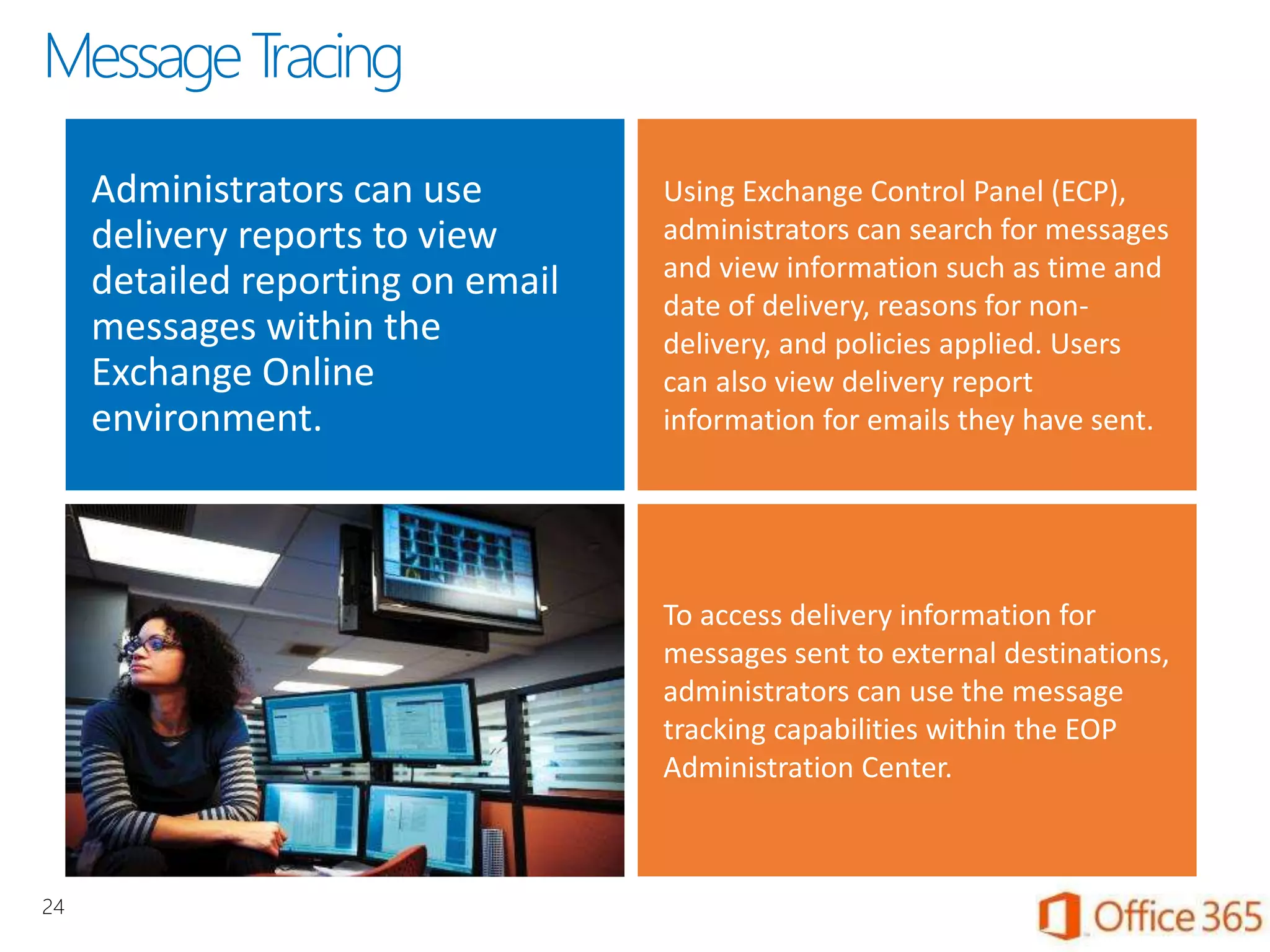
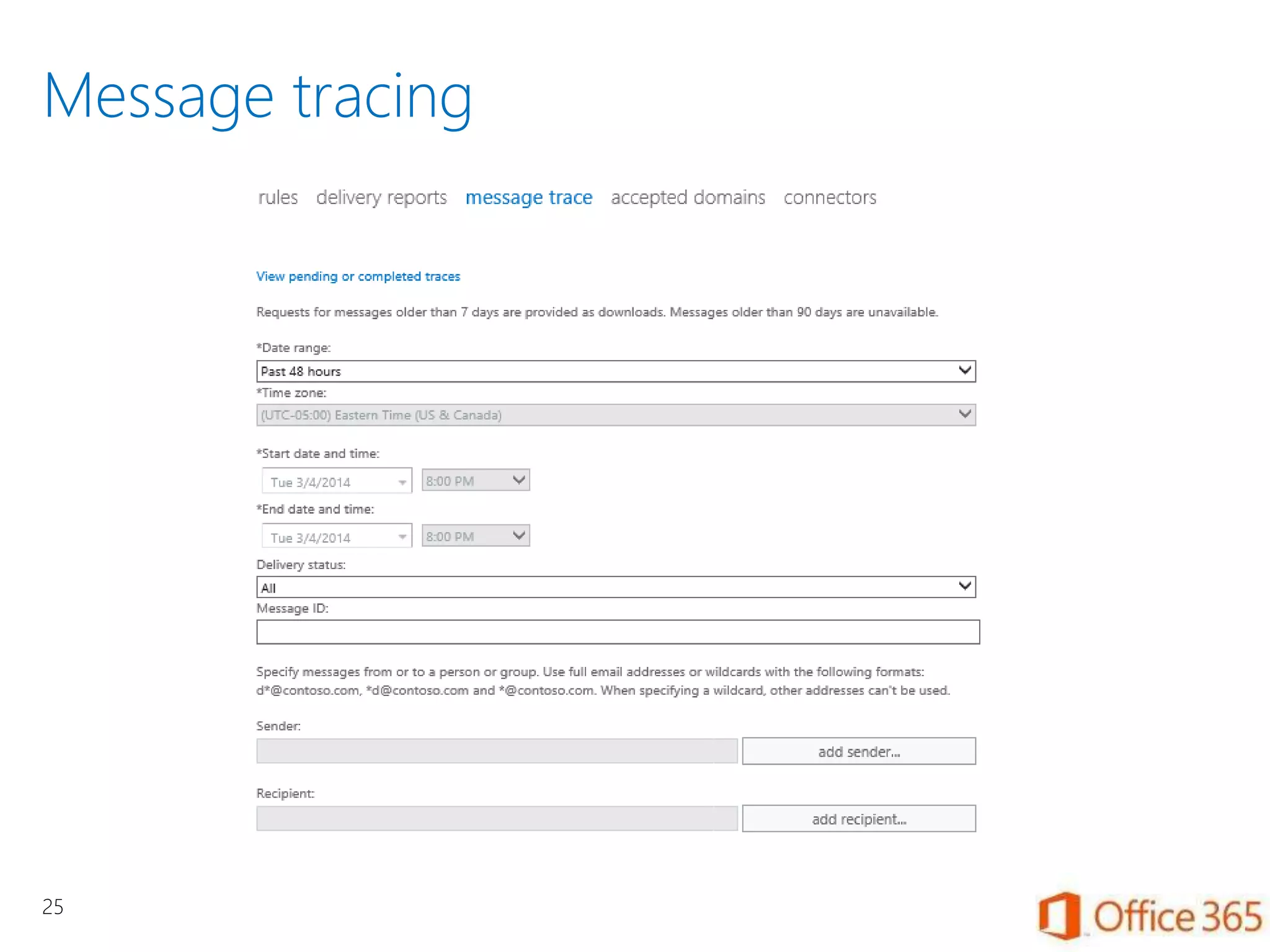
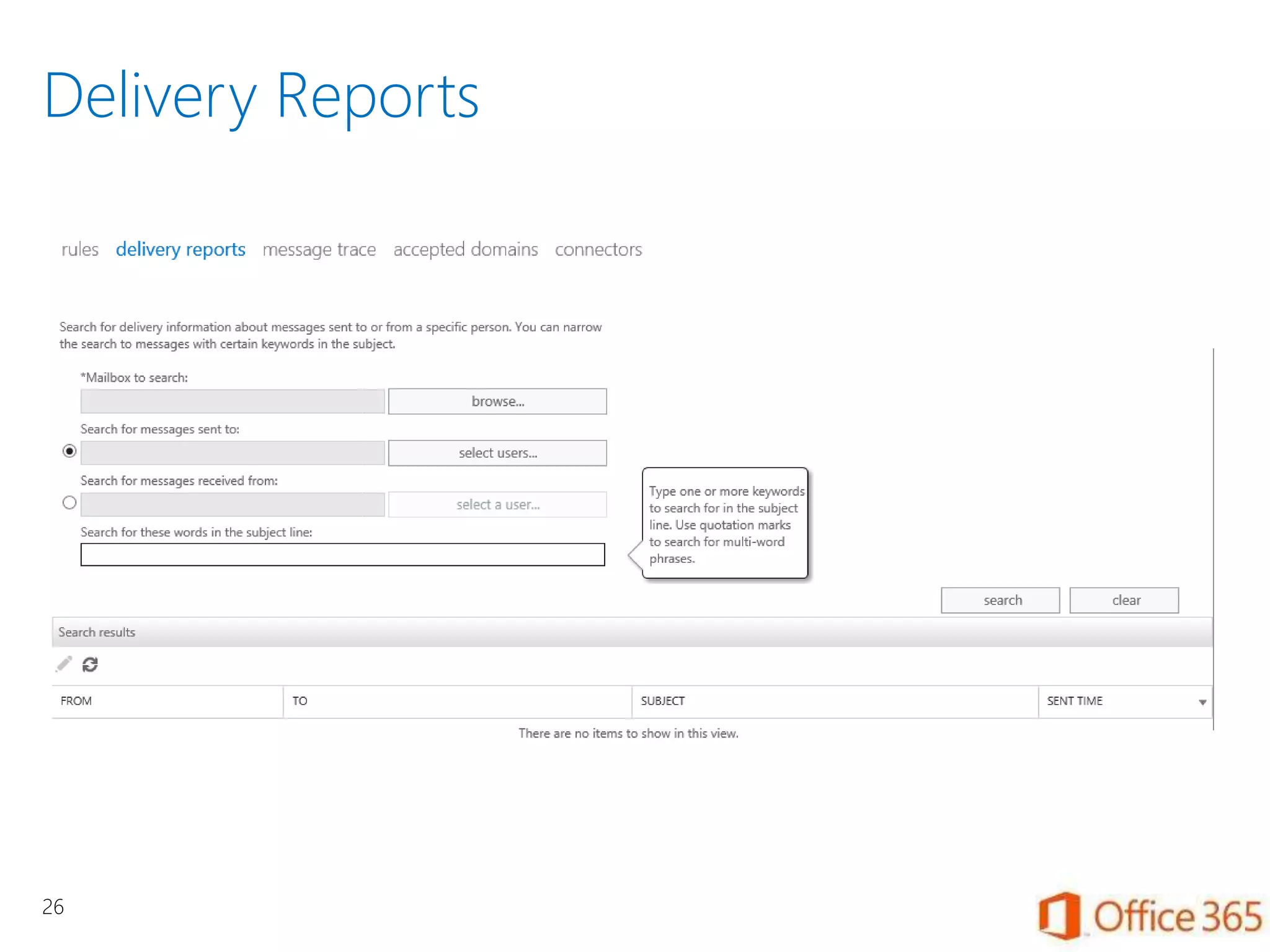
Administrators can use
delivery reports to view
detailed reporting on email
messages within the
Exchange Online
environment.
Using Exchange Control Panel (ECP),
administrators can search for messages
and view information such as time and
date of delivery, reasons for non-
delivery, and policies applied. Users
can also view delivery report
information for emails they have sent.
To access delivery information for
messages sent to external destinations,
administrators can use the message
tracking capabilities within the EOP
Administration Center.
24
MessageTracing
Message tracing
25
Delivery Reports
26
For more information…
Security and Compliance for Exchange Online in
Office 365
http://help.outlook.com/en-us/140/ff637239.aspx
27

Security and Compliance for Exchange Online in Office 365

  • 1.
  • 2.
  • 3.
    Litigation Hold versusIn-place Hold Litigation Hold Holds are based on user Enable users to be placed on hold and keep mailbox items in an unaltered state Preserve mailbox items that may have been deleted or edited by users Preserve mailbox items automatically deleted by MRM Keep the litigation hold transparent from the user by not having to suspend MRM Enable discovery searches of items placed on hold Blanket application Unlimited users, unlimited content In-place Hold Holds are based on a query Enable content from query to be placed on hold and keep mailbox items in an unaltered state Preserve mailbox items that may have been deleted or edited by users Preserve mailbox items automatically deleted by MRM Keep the in-place hold transparent from the user by not having to suspend MRM Enable discovery searches of items placed on hold Provides granularity 5,000 mailboxes per query, 30GB content per mailbox 3
  • 4.
    Quick Comparison 4 You wantto… Use Litigation Hold Use In-Place Hold Preserve all items in a mailbox Yes Yes Preserve all items in a mailbox for a specific duration Yes Yes Preserve items matching query parameters No Yes Specify types of items to preserve (such as email, calendar, notes) No Yes Specify hold settings for members of a distribution group Yes Yes Max users on hold No 5,000 Place multiple holds on a mailbox No Yes Make mailboxes inactive to preserve data in Exchange Online Yes Yes
  • 5.
    Use Litigation Holdfor preserving mailboxes Licensed mailboxes are fully functional Remove a license and the mailbox is disconnected, ultimately deleted, unless… Mailboxes on litigation hold are preserved indefinitely Can be searched, cannot be mounted 5
  • 6.
    Messaging records managementpolicies What they can do Automatically move content of a certain age to the archive Create multiple policies for content of different ages, types, etc. Can be applied to specific folders Can use flags What they cannot do Prevent users from overriding Prevent content from being deleted Prevent content from being purged 6
  • 7.
    How MRM worksin Exchange Online 7
  • 8.
    Exchange Online provides aweb-based interface for searching the contents of mailboxes in an organization.  Through ECP, administrators can search a variety of mailbox items including email messages, attachments, calendar appointments, tasks, and contacts. Multi-mailbox search can search simultaneously across primary mailboxes and personal archives. Rich filtering capabilities include sender, receiver, message type, sent and receive date, carbon copy, blind carbon copy, and advanced regular expressions.  For legal discovery purposes, messages located through search can be copied or moved to a specified mailbox for further investigation. Administrators can connect Outlook to this mailbox and export the search results to a .PST file. 8 Multi-MailboxComplianceSearch
  • 9.
    In-Place eDiscovery Helps toperform discovery searches across mailboxes Uses real time content indexes created by Exchange Search Discovery Management role group is used to delegate discovery tasks Authorized users can: Estimate search results Preview search results Copy search results to a Discovery mailbox Hold content Search SharePoint and archived Lync content 9
  • 10.
    Discovery Management RoleGroup and Management Roles In-Place eDiscovery searches can only be performed by members of Discovery Management role group The Discovery Managed role group consists of two roles Mailbox Search role Legal Hold role No eDiscovery tasks are assigned to any user or Exchange administrator by default 10
  • 11.
    Roles and Permissions 11 Permissionfor eDiscovery tasks must be explicitly granted via Role Based Access Control (RBAC): Discovery Management Role Group Mailbox Search Role Legal Hold Role Typically to legal department or discovery agents Access to default Discovery Mailbox included in Role Group Access to additional discovery mailboxes must be granted Changes to access permissions written to Audit Log
  • 12.
    Discovery Mailboxes A securetarget mailbox When you use EAC to copy search results, only Discovery mailboxes are displayed Large mailbox storage quota 50 GB by default Enhanced security measures employed by default Only users with explicit permissions can access Email delivery disabled Users cannot send email to discovery mailbox. 12
  • 13.
    Creating an In-PlaceeDiscovery search 13
  • 14.
    eDiscovery Searches ViaPowerShell New-MailboxSearch "Discovery-CaseId012" - StartDate "1/1/2009" -EndDate "12/31/2011" -SourceMailboxes "DG- Finance" -TargetMailbox "Discovery Search Mailbox" -SearchQuery '"Contoso" AND "Project A"' -MessageTypes Email - IncludeUnsearchableItems -LogLevel Full 14
  • 15.
    Considerations When UsingIn-Place eDiscovery Attachments Searches attachments supported by Exchange Search Unsearchable items Items that cannot be indexed due filter, filter error or encrypted Can still be copied to Discovery Mailbox Safe list Files with content that cannot be indexed IRM-protected items IRM protected messages are indexed De-duplication Reduces size of Discovery Mailbox, reducing workload for discovery managers, reduces cost of eDiscovery15
  • 16.
    Estimate, Preview andCopy Search Results 16
  • 17.
    Exchange Online administrators havethe ability to manage mail archiving and compliance features available with the service. Disclaimers - Exchange Online lets administrators add disclaimers to messages in transit using transport rules. Administrators can create custom disclaimers for different groups in an organization and can control whether the disclaimers are applied to internal messages, outbound messages, or both.  Granular transport rule conditions - Administrators can create transport rules to inspect messages for a variety of email attributes, such as specific senders, recipients, distribution lists, keywords, and regular expressions (for common patterns like those associated with credit card numbers or social security numbers). Administrators can also include users’ AD DS attributes (for example, department, country, or manager) and distinguish by message type, such as automatic replies, meeting requests, and voicemail messages.  Ability to moderate - Administrators use transport rules to route email messages to a manager or trusted moderator for review. Reviewers can approve or block the message and, if blocked, provide an explanation to the sender.  Message classifications - Administrators can use transport rules to apply metadata to messages, describing the intended use or audience (for example, attorney–client privileges). Users can also apply classifications manually and have transport rules check messages when they enter the transport pipeline. If messages do not meet the conditions of the classification, an action can be applied to modify, protect, or block the messages.  Attachment inspection - Administrators can create transport rules based on content in a Microsoft Office attachment. However, file types such as Adobe PDF files that require installation of third-party IFilters on the email server cannot be inspected in Exchange Online. Transport rules - Transport rules are used to inspect emails in transit (inbound, outbound, and internal) and take actions such as applying a disclaimer, blocking messages, or sending a blind carbon copy to a mailbox for supervisory review. Transport rules use a set of conditions, actions, and exceptions similar to inbox rules. 17 Transport Rules
  • 18.
    Journaling in ExchangeOnline Journaling is the copying of emails to an external mailbox via SMTP Helps with legal, regulatory or compliance requirements Records inbound and outbound communications Per user or per distribution list basis Internal messages, External messages or both Journaling destination cannot be an Exchange Online mailbox 18
  • 19.
    Journal Rules Journal rulescope Defines which messages are journaled by the journaling agent (internal, external, or all) Journal recipient Specifies the SMTP address of the recipient you want to journal Journaling mailbox Specifies one or more mailboxes used for collecting journal reports 19
  • 20.
  • 21.
    Creating Journal Rulein PowerShell This example creates the journal rule “Discovery Journal Recipients” to journal all messages sent from and received by the recipient joe@contoso.com. New-JournalRule -Name "Discovery Journal Recipients" -Recipient joe@contoso.com - JournalEmailAddress "Journal Mailbox" - Scope Global -Enabled $True 21
  • 22.
    Exchange Online provides twoforms of built-in auditing capabilities. Note: Administrator audit logging is on by default. Mailbox audit logging is off by default.  Administrator audit logging Allows customers to track changes made by their administrators in the Exchange Online environment, including changes to RBAC roles or Exchange policies and settings.  Mailbox audit logging Allows customers to track access to mailboxes by users other than the owners, including access by delegates and access to shared mailboxes. Several predefined audit reports are available in ECP, including administrator role changes, litigation hold, and non-owner mailbox access. Administrators can filter reports by date and role, and can export all audit events for specified mailboxes in XML format for long-term retention or custom reporting. 22 Auditing
  • 23.
    Audit Logging 23 Audit logstrack specific changes made by administrators and delegates: Non-Owner Mailbox Access Administrator Role Group In-Place eDiscovery & Hold Per-Mailbox Litigation Hold Export Mailbox Audit Log Export Administrator Audit Log Search-AdminAuditLog & New-AdminAuditLogSearch
  • 24.
    Administrators can use deliveryreports to view detailed reporting on email messages within the Exchange Online environment. Using Exchange Control Panel (ECP), administrators can search for messages and view information such as time and date of delivery, reasons for non- delivery, and policies applied. Users can also view delivery report information for emails they have sent. To access delivery information for messages sent to external destinations, administrators can use the message tracking capabilities within the EOP Administration Center. 24 MessageTracing
  • 25.
  • 26.
  • 27.
    For more information… Securityand Compliance for Exchange Online in Office 365 http://help.outlook.com/en-us/140/ff637239.aspx 27

Editor's Notes

  • #9 Exchange Online provides a web-based interface for searching the contents of mailboxes in an organization. Through ECP, administrators can search a variety of mailbox items including email messages, attachments, calendar appointments, tasks, and contacts. Multi-mailbox search can search simultaneously across primary mailboxes and personal archives. Rich filtering capabilities include sender, receiver, message type, sent and receive date, carbon copy, blind carbon copy, and advanced regular expressions. For legal discovery purposes, you can copy and move email messages located through search to a specified mailbox for further investigation. Administrators can connect Outlook to this mailbox, and export the search results to a .PST file.
  • #10 If your organization adheres to legal discovery requirements (related to organizational policy, compliance, or lawsuits), Microsoft Exchange Server 2013 In-Place eDiscovery can help you perform discovery searches for relevant content within Exchange 2013 mailboxes. In-Place eDiscovery uses the content indexes created by Exchange Search. Role Based Access Control (RBAC) provides the Discovery Management role group to delegate discovery tasks to non-technical personnel, without the need to provide elevated privileges that may allow a user to make any operational changes to Exchange configuration. The Exchange Administration Center (EAC) provides an easy-to-use search interface for non-technical personnel such as legal and compliance officers, records managers, and human resources (HR) professionals. In Exchange 2013, authorized users can perform In-Place eDiscovery search and then select one of the following actions: Estimate search results: Select this option to return an estimate of the total size and number of items that will be returned by the search based on the criteria you specified. Preview search results: Select this option to preview the results. Messages returned from each mailbox searched are displayed. Copy search results: Select this option to copy messages to a Discovery mailbox. Exchange 2013 also offers federated search capability and integration with Microsoft SharePoint 2013. Using the eDiscovery Center, you can search for and hold all content related to a case, including SharePoint 2013 websites, documents, file shares indexed by SharePoint, mailbox content in Exchange, and archived Lync 2013 content. Important: In-Place eDiscovery is a powerful feature that allows a user with the correct permissions to potentially gain access to all messaging records stored throughout the Exchange 2013 organization. It is important to control and monitor discovery activities, including addition of members to the Discovery Management role group, assignment of the Mailbox Search management role, and assignment of mailbox access permission to discovery mailboxes.
  • #11 For users to perform In-Place eDiscovery searches, you must add them to the Discovery Management role group. This role group consists of two management roles: the Mailbox Search Role, which allows a user to perform an In-Place eDiscovery search, and the Legal Hold Role, which allows a user to place a mailbox on In-Place Hold or litigation hold. By default, permissions to perform In-Place eDiscovery-related tasks are not assigned to any user or Exchange administrators. Exchange administrators who are members of the Organization Management role group can add users to the Discovery Management role group and create custom role groups to narrow the scope of a discovery manager to a subset of users. To learn more about adding users to the Discovery Management role group, see Add a User to the Discovery Management Role Group.
  • #13 After you create an In-Place eDiscovery search, you can copy the search results to a target mailbox. The EAC allows you to select a Discovery mailbox as the target mailbox. A Discovery mailbox is a special type of mailbox that provides the following functionality: Easier and secure target mailbox selection: When you use the EAC to copy In-Place eDiscovery search results, only discovery mailboxes are made available as a repository in which to store search results. You do not need to sort through a potentially long list of mailboxes available in the organization. This also eliminates the possibility of a discovery manager accidentally selecting another user’s mailbox or an unsecured mailbox in which to store potentially sensitive messages. Large mailbox storage quota: The target mailbox should be able to store a large amount of message data that may be returned by an In-Place eDiscovery search. By default, Discovery mailboxes have a mailbox storage quota of 50 gigabytes (GB). You can modify the quota to suit your requirements. More secure by default: Like all mailbox types, a Discovery mailbox has an associated Active Directory user account. However, this account is disabled by default. Only users explicitly authorized to access a Discovery mailbox have access to it. Members of the Discovery Management role group are assigned Full Access permissions to the default Discovery mailbox. Any additional Discovery mailboxes you create do not have mailbox access permissions assigned to any user. Email delivery disabled: Although visible in Exchange address lists, users cannot send email to a discovery mailbox. Email delivery to discovery mailboxes is prohibited by using delivery restrictions. This preserves the integrity of search results copied to a discovery mailbox. Exchange 2013 Setup creates one discovery mailbox with the display name Discovery Search Mailbox. You can use the Shell to create additional discovery mailboxes. By default, the discovery mailboxes you create will not have any mailbox access permissions assigned. You can assign Full Access permissions for a discovery manager to access messages copied to a discovery mailbox. For details, see Create a Discovery Mailbox. In-Place eDiscovery also uses a system mailbox with the display name SystemMailbox{e0dc1c29-89c3-4034-b678-e6c29d823ed9} to hold In-Place eDiscovery metadata. System mailboxes are not visible in the EAC or in Exchange address lists. Before removing a mailbox database where the In-Place eDiscovery system mailbox is located, you must move the mailbox to another mailbox database. If the mailbox is removed or corrupted, you discovery managers are unable to perform eDiscovery searches until you re-create the mailbox For details, see Re-Create the Discovery System Mailbox.
  • #14 When creating an In-Place eDiscovery search, you must specify the following parameters: Name: The search name is used to identify the search. When you copy search results to a discovery mailbox, a folder is created in the discovery mailbox using the search name and the timestamp to uniquely identify search results in a discovery mailbox. Mailboxes: You can choose to search all mailboxes in your Exchange 2013 organization or specify the mailboxes to search. If you also want to use the same search to place items on hold, you must specify the mailboxes. You can specify a distribution group to include mailbox users who are members of that group. Membership of the group is calculated once when creating the search and subsequent changes to group membership are not automatically reflected in the search. A user’s primary and archive mailboxes are included in the search. Search query: You can either include all mailbox content from the specified mailboxes or use a search query to return items that are more relevant to the case or investigation. You can specify the following parameters in a search query: Keywords: You can specify keywords and phrases to search message content. You can also use the logical operators AND, OR, and NOT. Additionally, Exchange 2013 also supports the NEAR operator, allowing you to search for a word or phrase that is in proximity to another word or phrase. To search for an exact match of a multiple word phrase, you must encloase the phrase in quotation marks. For example, searching for the phrase “plan and competition” returns messages that contain an exact match of the phrase, whereas specifying plan AND competition returns messages that contain the words plan and competition anywhere in the message. Exchange 2013 also supports the Keyword Query Language (KQL) syntax for In-Place eDiscovery searches.
  • #15 Use the Shell to create an In-Place eDiscovery search This example creates the In-Place eDiscovery search Discovery-CaseId012 for items containing the keywords Contoso and ProjectA that also meet the following criteria: Start date: 1/1/2009 End date: 12/31/2011 Source mailboxe: DG-Finance Target mailbox: Discovery Search Mailbox Message types: Email Log level: Full New-MailboxSearch "Discovery-CaseId012" -StartDate "1/1/2009" -EndDate "12/31/2011" -SourceMailboxes "DG-Finance" -TargetMailbox "Discovery Search Mailbox" -SearchQuery '"Contoso" AND "Project A"' -MessageTypes Email -IncludeUnsearchableItems -LogLevel Full After using the Shell to create an In-Place eDiscovery search, you must start the search to copy messages to the specified Discovery mailbox.
  • #16 When using In-Place eDiscovery, also consider the following: Attachments: In-Place eDiscovery searches attachments supported by Exchange Search. Support for additional file types can be added by installed search filters (also known as an iFilter) for the file type on Mailbox servers. Unsearchable items: Unsearchable items are mailbox items that cannot be indexed by Exchange Search. Reasons they cannot be indexed include the lack of an installed search filter for an attached file, a filter error, and encrypted messages. For a successful eDiscovery search, your organization may be required to include such items for review. When copying search results to a discovery mailbox, you can include unsearchable items. Safe list: Certain file types do not contain content that can be indexed and, as a result, are not indexed by Exchange Search. These file types are not considered unsearchable items, and therefore are not included when you select the option to copy unsearchable items to a discovery mailbox. Mailbox items containing these file types are not returned in the list of unsearchable items. Encrypted items: Because messages encrypted using S/MIME are not indexed by Exchange Search, In-Place eDiscovery does not search these messages. If you select the option to include unsearchable items in search results, these S/MIME encrypted messages are copied to the discovery mailbox. IRM-protected items: Messages protected using Information Rights Management (IRM) are indexed by Exchange Search and therefore included in the search results if they match query parameters. Messages must be protected by using an Active Directory Rights Management Services (AD RMS) cluster in the same Active Directory forest as the Mailbox server. For more information, see Information Rights Management. To include IRM-protected messages in a search, you can create another search to include messages with .rpmsg attachments. You can use the query string attachment:rpmsg to search all IRM-protected messages in the specified mailboxes, whether successfully indexed or not. This may result in some duplication of search results in scenarios where one search returns messages that match the search criteria, including IRM-protected messages that have been indexed successfully. The search does not return IRM-protected messages that could not be indexed. Performing a second search for all IRM-protected messages also includes the IRM-protected messages that were successfully indexed and returned in the first search. Additionally, the IRM-protected messages returned by the second search may not match the search criteria such as keywords used for the first search.  
  • #17 After an In-Place eDiscovery search is completed, you can view search result estimates in the Details pane in EAC. The estimate includes number of items returned and total size of those items. You can also view keyword statistics, which returns details about number of items returned for each keyword used in the search query. This information is helpful in determining query effectiveness. If the query is too broad, it may return a much bigger data set, which could require more resources to review and raise eDiscovery costs. If the query is too narrow, it may significantly reduce the number of records returned or return no records at all. You can use the estimates and keyword statistics to fine-tune the query to meet your requirements. You can also preview the search results to further ensure that messages returned contain the content you are searching for and further fine-tune the query if required. eDiscovery Search Preview displays the number of messages returned from each mailbox searched and the total number of messages returned by the search. The preview is generated quickly without requiring you to copy messages to a discovery mailbox. After you are satisfied with the quantity and quality of search results, you can copy them to a discovery mailbox. When copying messages, you have the following options: Include unsearchable items: For details about the types of items that are considered unsearchable, see the eDiscovery search considerations in the previous section. Enable de-duplication: De-duplication reduces the dataset by only including a single instance of a unique record if multiple instances are found in one or more mailboxes searched. Enable full logging: By default, only basic logging is enabled when copying items. You can select full logging to include information about all records returned by the search. Send me mail when the copy is completed: An In-Place eDiscovery search can potentially return a large number of records. Copying the messages returned to a discovery mailbox can take a long time. Use this option to get an email notification when the copying process is completed. For easier access using Outlook Web App, the notification includes a link to the location in a discovery mailbox where the messages are copied.
  • #19 You can configure Exchange Online to journal copies of emails to any external mailbox that can receive messages via SMTP. Journaling can help your organization respond to legal, regulatory, and organizational compliance requirements by recording inbound and outbound email communications. When planning for messaging retention and compliance, it is important to understand journaling and how it fits in with your organization's compliance policies. You can manage journal rules by using the Exchange Administration Center or remote Windows PowerShell. You can configure journaling on a per-user and per-distribution list basis, and choose to journal only internal messages, only external messages, or both. Journaled messages include not only the original message but also information about the sender, recipients, copies, and blind copies. In order to ensure a successful and reliable journaling solution, you need to complete the following tasks: The journaling destination cannot be an Exchange Online mailbox. Create in the customer directory a contact object for the SMTP target email address to be used for journaling. Create a second contact object as an alternative journal mailbox to capture any journal reports when the primary journal mailbox is unavailable. Maintain proper management, redundancy, availability, performance, and functionality levels of the SMTP target to ensure successful mail acceptance at all times. Provide respective interoperability with Exchange Server and Exchange transport including message formats, sender/recipient information integration, and appropriate content conversion.
  • #21 Use the EAC to create a journal rule Navigate to Compliance management > Journal rules, and then click Add. In Journal rule, provide a name for the journal rule and then compete the following fields: If the message is sent to or received from: Specify the recipient that the rule will target. You can either select a specific recipient or apply the rule to all messages. Journal the following messages: Specify the scope of the journal rule. You can journal only the internal messages, only the external messages, or all messages regardless of origin or destination. Send journal reports to: Type the address of the journaling mailbox that will receive all the journal reports. Click Save to create the journal rule.
  • #22 This example creates the journal rule Discovery Journal Recipients to journal all messages sent from and received by the recipient user1@contoso.com. New-JournalRule -Name "Discovery Journal Recipients" -Recipient user1@contoso.com -JournalEmailAddress "Journal Mailbox" -Scope Global -Enabled $True
  • #23 Exchange Online provides two types of built-in auditing capabilities:  Administrator audit logging. Allows customers to track changes made by their administrators in the Exchange Online environment, including changes to RBAC roles or Exchange policies and settings.  Mailbox audit logging. Allows customers to track access to mailboxes by users other than the owners, including access by delegates and access to shared mailboxes. Several predefined audit reports are available in ECP, including Administrator Role Changes, Litigation Hold, and Non-Owner Mailbox Access. Administrators can filter reports by date and role, and can export all audit events for specified mailboxes in XML format for long-term retention or custom reporting. Administrator audit logging is on by default. Mailbox audit logging is off by default. Administrators can use Remote PowerShell to enable mailbox audit logging for some or all mailboxes in their organization as described in the Help topic, “Use Auditing Reports in Exchange Online” (http://help.outlook.com/en-us/140/ff628722.aspx).
  • #25 Administrators can use delivery reports to view detailed reporting on email messages within the Exchange Online environment. Using ECP, they can search for messages and view information such as time and date of delivery, reasons for non-delivery, and policies applied. Users can also view delivery report information for the emails they have sent. See the Help topic, “Search for Message Delivery Reports” for more information. (http://help.outlook.com/en-us/140/bb847825.aspx). To access delivery information for messages sent to external destinations, administrators can use the message tracking capabilities within the EOP Administration Center.