Securing your data with
Azure SQL DB
Eng Soon Cheah
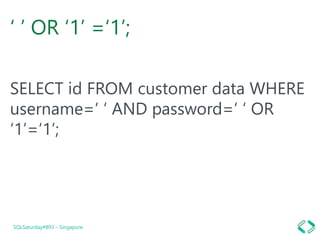
‘ ’ OR ‘1’ =‘1’;
SELECT id FROM customer data WHERE
username=‘ ‘ AND password=‘ ‘ OR
‘1’=‘1’;
SQLSaturday#893 – Singapore
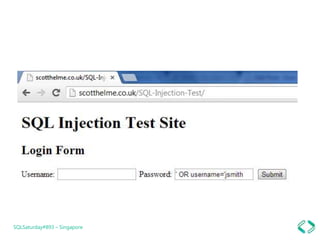
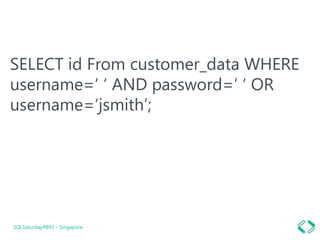
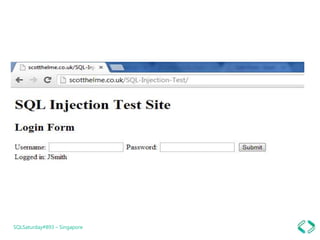
SELECT id From customer_data WHERE
username=‘ ‘ AND password=‘ ‘ OR
username=‘jsmith’;
SQLSaturday#893 – Singapore
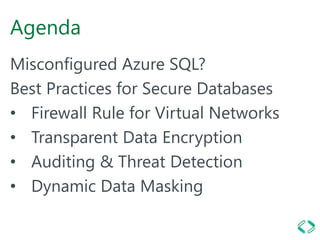
Agenda
Misconfigured Azure SQL?
Best Practices for Secure Databases
• Firewall Rule for Virtual Networks
• Transparent Data Encryption
• Auditing & Threat Detection
• Dynamic Data Masking
Misconfigured Azure
SQL?
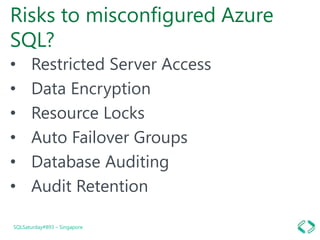
Risks to misconfigured Azure
SQL?
• Restricted Server Access
• Data Encryption
• Resource Locks
• Auto Failover Groups
• Database Auditing
• Audit Retention
SQLSaturday#893 – Singapore
Best Practices for
Secure Databases
1 - Firewall Rule for
Virtual Networks
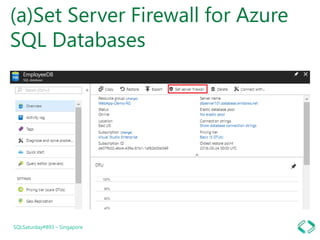
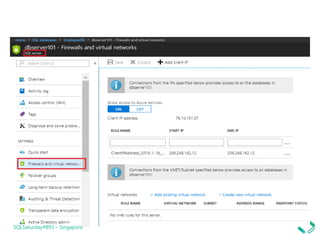
(a)Set Server Firewall for Azure
SQL Databases
SQLSaturday#893 – Singapore
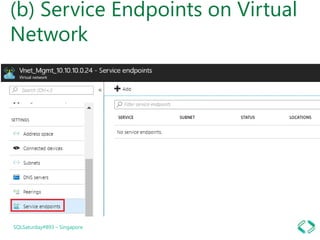
(b) Service Endpoints on Virtual
Network
SQLSaturday#893 – Singapore
2 - Transparent Data
Encryption
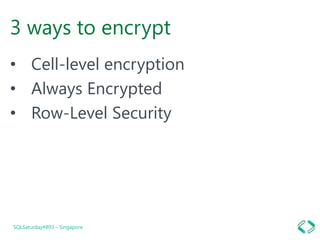
3 ways to encrypt
• Cell-level encryption
• Always Encrypted
• Row-Level Security
SQLSaturday#893 – Singapore
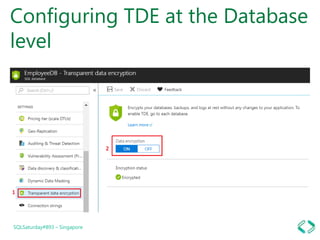
Configuring TDE at the Database
level
SQLSaturday#893 – Singapore
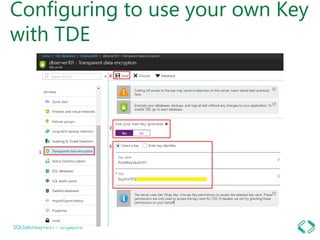
Configuring to use your own Key
with TDE
SQLSaturday#893 – Singapore
3 - Auditing & Threat
Detection
Best Practices for database
threat protection
• Discover, classify, and label the
sensitive data in your databases.
• Track database vulnerabilities so you
can proactively improve your
database security.
• Enable threat detection.
SQLSaturday#893 – Singapore
Configurations
SQLSaturday#893 – Singapore
Enabling at Database level vs
Server level
SQLSaturday#893 – Singapore
4 - Dynamic Data
Masking
Feature Basics
SQLSaturday#893 – Singapore
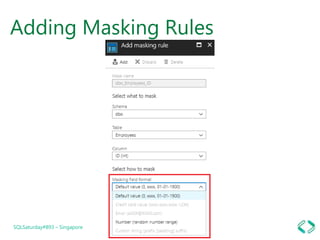
Adding Masking Rules
SQLSaturday#893 – Singapore
DEMOSQLSaturday#893 – Singapore
References
Twitter : @CheahEngSoon
YouTube :
youtube.com/c/engsooncheah
Blog:
Dev.to/cheahengsoon
SQLSaturday#893 – Singapore
Securing your data with Azure SQL DB

Securing your data with Azure SQL DB

Editor's Notes

  • #9 Restricted Server Access: If SQL Servers do not have restricted access from the Internet enabled, you will not be able to block unauthorized connections. Data Encryption: If SQL Server Databases do not have transparent data encryption enabled you will not be protected against the threat of malicious activity through real-time encryption and decryption of the database. Resource Locks: If SQL Server Databases do not use resource locks, your Azure resources will not be locked down and you will  not be able to prevent deletion or changing of a resource. Auto Failover Groups: If SQL Servers do not use failover groups, you will not have the ability to manage replication and failover of a group of databases on a logical server or all databases in a Managed Instance to another region (currently in public preview for Managed Instance). It uses the same underlying technology as active geo-replication. Database Auditing: If SQL Servers do not have auditing enabled you cannot ensure that all existing and newly created databases on the SQL server instance are audited. Audit Retention: If SQL Servers do not  have auditing retention enabled for greater than 90 days, you will not be able to check for anomalies and get insight into suspected breaches or misuse of information and access.
  • #11 Azure SQL Databases have a powerful layer of security at the SQL Server level. This layer is provided by the SQL Server Firewall. Azure provides you granular control to configure this firewall and to manage who gets access to your Azure SQL Database. By default, everything is blocked by the firewall. If you want to get access to Azure SQL Database then you will have to configure the Firewall at the SQL Server level. Only the IP addresses you configure have access to the SQL Databases on the Server. Another key point to understand is that once you configure a rule then because that rule is applied at the server level, it is applied to all the SQL Databases on that Server. So it is important to ensure that you segregate your databases on different SQL Servers if you don't want to share the access to those databases.
  • #12 You can access the firewall settings by navigating to your Azure SQL Database. Then at the top of the blade, you will find the option for "Set server firewall". Click on this button to access the firewall settings.
  • #13 Another way to access the settings is on Azure SQL Servers. Navigate to the related Azure SQL Server for your database. Under the settings, find the option for "Firewalls and virtual networks". Clicking on this will also take you to the same firewall settings as the settings are set at the server level in both ways.
  • #14 Azure Service Endpoints allow access to SQL or Storage services over the network, without going out of the network. To configure this feature, you can navigate to your Virtual Network and then under the settings, select the "Service endpoints". Click on "+Add" to add a Service Endpoint.
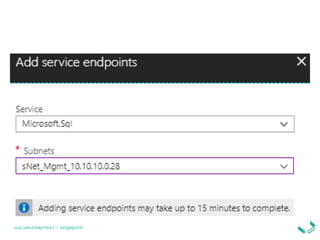
  • #15 In the popup, select the provider for which you want to configure the Service Endpoint. Service Endpoints on the Virtual Networks are available for: Microsoft.Sql provider Microsoft.Storage provider Also, select the subnet on which you want to configure the Service Endpoint and then hit "Add".
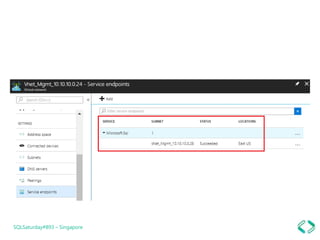
  • #16 It will take some time (approximately 15 minutes) to configure the Service Endpoints at the backend. Once configured, you will see the configured endpoints in the portal as shown below.
  • #18 Cell-level encryption to encrypt specific columns or even cells of data with different encryption keys. Always Encrypted, which allows clients to encrypt sensitive data inside client applications and never reveal the encryption keys to the Database Engine (SQL Database or SQL Server). As a result, Always Encrypted provides a separation between those who own the data (and can view it) and those who manage the data (but should have no access). Row-Level Security, which enables customers to control access to rows in a database table based on the characteristics of the user who is executing a query. (Example characteristics are group membership and execution context.)
  • #19 Transparent Data Encryption (TDE) is the automated encryption of your data at rest. If configured it encrypts your database, backups of the database and transactional log files at rest. Normally this is configured by default to provide you with an additional layer of security. If this is not configured then you will get a recommendation to configure it in the Azure Security Center. Turing Off Transparent data encryption will result in decryption of the complete database and will leave your data vulnerable. When you turn it back On then the database will be encrypted again. Depending upon the size of your database, it may take some time to turn the TDE on or off due to the underlying encryption/decryption process. This service does not require any changes at the application level. Behind the scene, transparent data encryption performs real-time I/O encryption and decryption of the data at the page level. Each page is decrypted when it's read into memory and then encrypted before being written to disk. Note: Even if the database is encrypted with TDE, when you take an export of the database (e.g. creation of BACPAK file) then the backup file is created without encryption. You need to ensure that you safeguard/encrypt the backup files before sharing these on an open network. Transparent Data Encryption (TDE) can be enabled or disabled at every individual Database level. The configuration is a very simple toggle between on and off. To configure this, navigate to your Azure SQL Database. In the settings, select "Transparent Data Encryption". The set the value for "Data Encryption" On or Off.
  • #20 You can use your own Key for encryption with Transparent Data Encryption. If you do not configure to use your own key, then a service managed certificate is used for encryption and decryption. To do this you will need to upload your key to an Azure Key Vault or generate a new key within the Key Vault, which is very easy to configure. Once you have a key in an Azure Key Vault, you will be able to use the same with Transparent Data Encryption (TDE). This setting can't be configured at a Database level. Instead, this has to be configured at the server level. Navigate to the underlying Azure SQL Server (where the SQL Database is hosted). Then follow the below steps: In the settings, click on the Transparent Data Encryption Select "Yes" to Use your own key. Then click on "Select a Key" and then select the key from your Azure Key Vault. Alternatively, you can select to "Enter Key Identifier". Once the key is configured, select "Save" to save the settings.
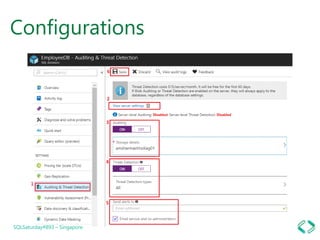
  • #21 Auditing & Threat Detection in Azure SQL Database is a very simple to configure yet very powerful security feature.  Auditing feature audits all activity on your database to a Storage Account. You can determine the number of days for which you want to retain the data. It helps you remain compliant. In an event of any failure or compliance breach, you can go to the audit logs and can pinpoint the exact cause of the issue if this feature is enabled. Threat Detection is an advanced feature, where Microsoft runs various algorithms under the hood and determines the pattern and identifies any potential attacks on your data. E.g. SQL Injection or patterns like SQL Injection can be detected when this feature is enabled. Please note that the Threat Detection feature has additional cost linked to it. It costs $15/server/month. It will be free for the first 60 days. Note that you can enable Auditing without enabling Threat Detection. But you can't enable Threat Detection without enabling Auditing on the data first. SQL Threat Detection integrates alerts with Azure Security Center. If any anomalous activity is detected an alert is raised, you can get notification via email and can also review the same within the portal. You get real-time actionable alerts. Each alert also contains the information regarding how to mitigate the alert.
  • #22 Classify the data in your SQL database by enabling Data Discovery and Classification in Azure SQL Database. You can monitor access to your sensitive data in the Azure dashboard or download reports. Use the Azure SQL Database Vulnerability Assessment service, which scans for potential database vulnerabilities. The service employs a knowledge base of rules that flag security vulnerabilities and show deviations from best practices, such as misconfigurations, excessive permissions, and unprotected sensitive data. The rules are based on Microsoft best practices and focus on the security issues that present the biggest risks to your database and its valuable data. They cover both database-level issues and server-level security issues, like server firewall settings and serverlevel permissions. These rules also represent many of the requirements from regulatory bodies to meet their compliance standards. Enable Azure SQL Database Threat Detection to get security alerts and recommendations on how to investigate and mitigate threats. You get alerts about suspicious database activities, potential vulnerabilities, and SQL injection attacks, as well as anomalous database access and query patterns.
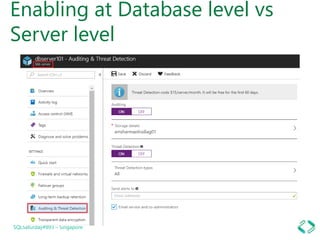
  • #23  To configure Auditing and Threat Detection at the database level, navigate to the database. Then follow the below steps: In the database settings, click on "Auditing and Threat Detection" You can optionally configure the settings at the Server level by click on the link "View server settings" Next, toggle the "Auditing" setting on or off. Select the storage account and retention in the number of days. Next, you can configure the "Threat Detection" on or off. If you toggle it on, then you have the option of selecting which type of Threats you want to detect. You also have the option of configuring Email notifications which work with the Threat Detection.
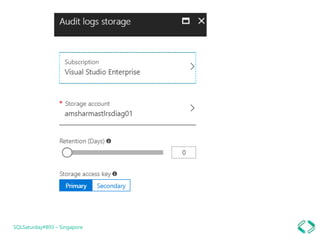
  • #24 When configuring Audit Logs Storage, you can select any subscription under the tenant and a storage account in that subscription. You can then select Retention in number of Days. When this number is set to Zero then that means unlimited retention. You can select a maximum of 3285 number of days for this value. You can also select whether to use a Primary or Secondary key while accessing the Storage Account for writing the logs.
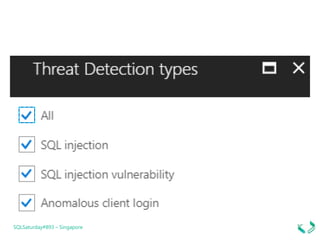
  • #25 Under Threat Detection types, you can select any one or all of the following types: SQL injection SQL injection vulnerability Anomalous client login
  • #26 If Blob Auditing or Threat Detection are enabled on the server, they will always apply to the database, regardless of the database settings. At the server level, the configuration is almost identical. You need to navigate to the related Azure SQL Server first (instead of the SQL Database). Notice at the top of the below screenshot, it says "SQL server" instead of "SQL database". Then navigate to it's "Auditing and Threat Detection" section and perform the configurations similar to above sections.
  • #27 Dynamic Data Masking is a feature of Azure SQL Databases, that allows you to hide the sensitive data. E.g. your database contains information regarding the Credit Cards of your customers. When exposing the database you want to ensure that the credit cards are not exposed. They should automatically be presented in the format "xxxx-xxxx-xxxx-1234" i.e. only exposing the last 4 digits.
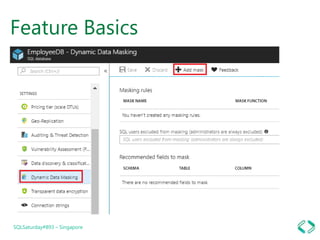
  • #28 This feature can be accessed by navigating to your database and then clicking on the "Dynamic Data Masking" option under settings. By default, there are no masks applied. Click on "+ Add mask" to add a new mask. Note that whatever masks you apply are not applied to the administrators. Additionally, you can provide the SQL users who should be excluded from masking. Azure SQL Database will also automatically try to recommend the fields that should be masked.
  • #29 When adding Masking Rules you provide below information: Name for the mask is auto-populated (based on your selections) Schema Table in that schema Column in the table, where mask should be applied Masking Criteria Note that the Masking criteria vary based on the type of the column. E.g. If a column does not have numerical value then the masking criteria for "Number (random number range)" will show as disabled.